How to Reference Original Invoice Numbers in Sage 100 for Gensco Returns
Learn the step-by-step process for referencing original invoice numbers and managing mixed returns in Sage 100 for Gensco, including handling multiple PM numbers and PO numbers efficiently.
By Rose Gomez
In this guide, we'll learn how to process mixed returns in Gensco by referencing original invoice numbers and entering the details in Sage 100. We will cover how to search for the original invoice, copy the PO and invoice numbers, and handle entries with multiple PM numbers. This process helps ensure accurate record-keeping and proper handling of returns. Sage Paperless will not allow the same invoice number used twice. Sage 100 will warn you, but will allow it. It is important to reference the correct invoice number on all line items related to the credit memo.
Let's get started
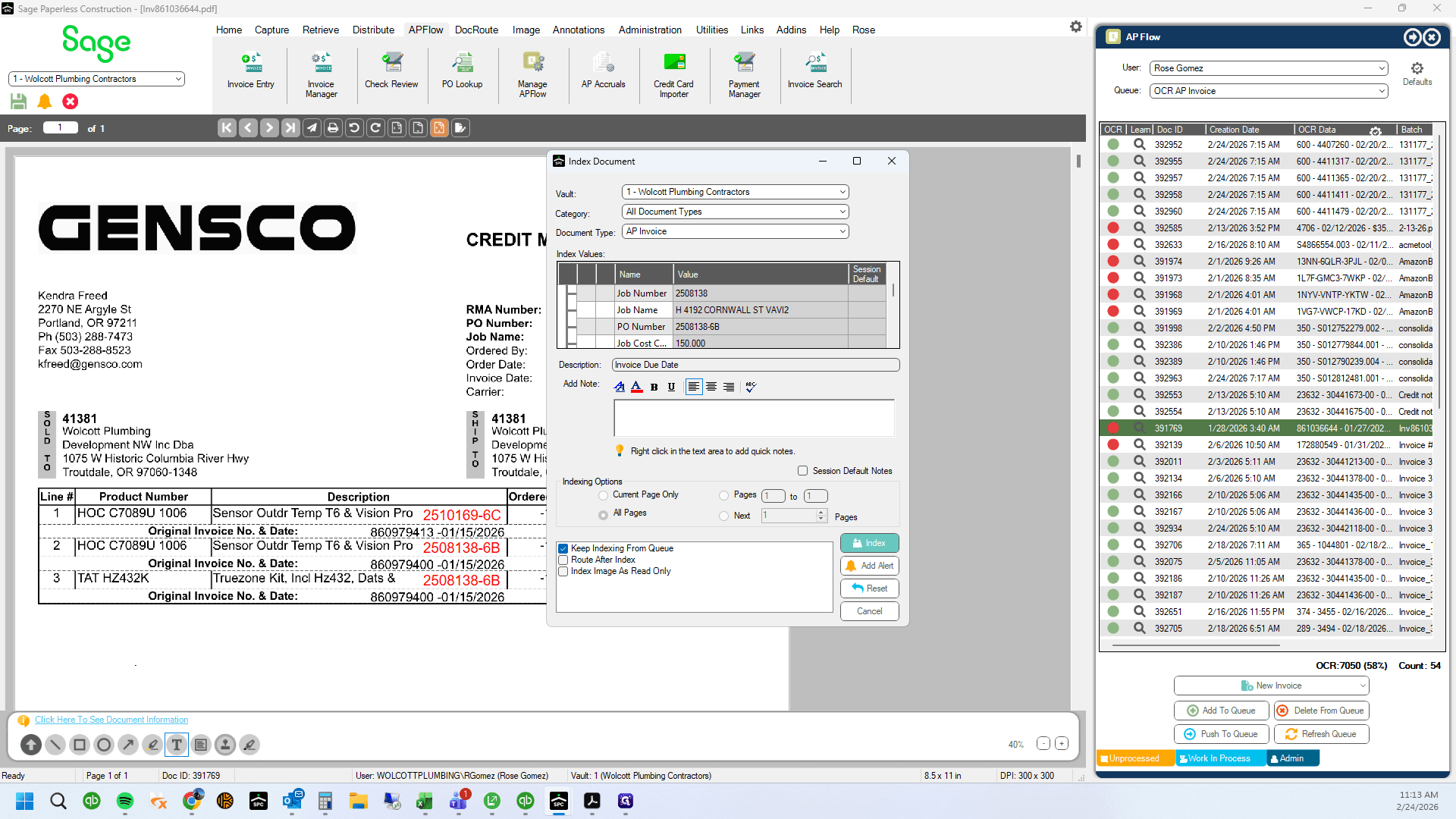
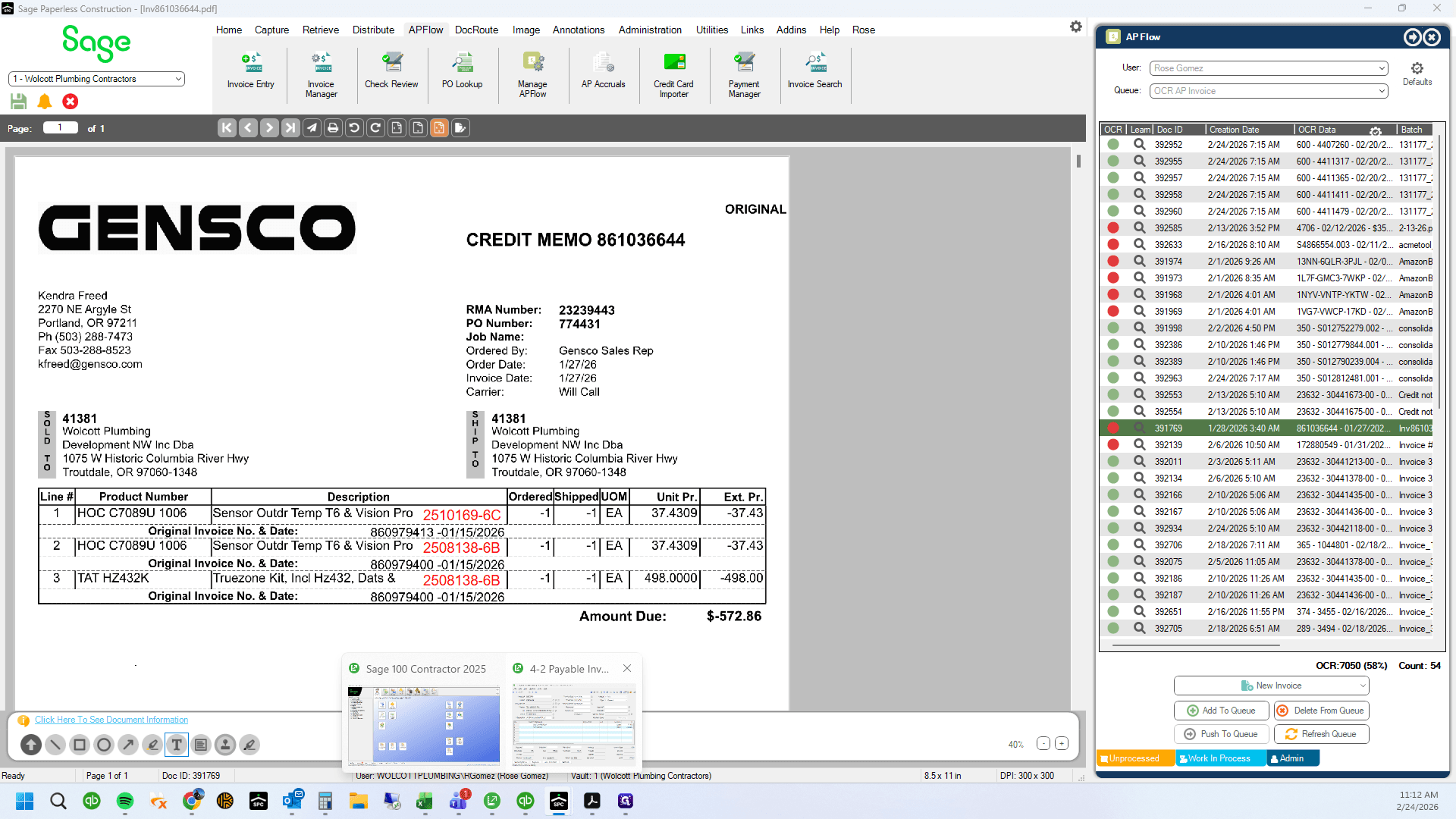
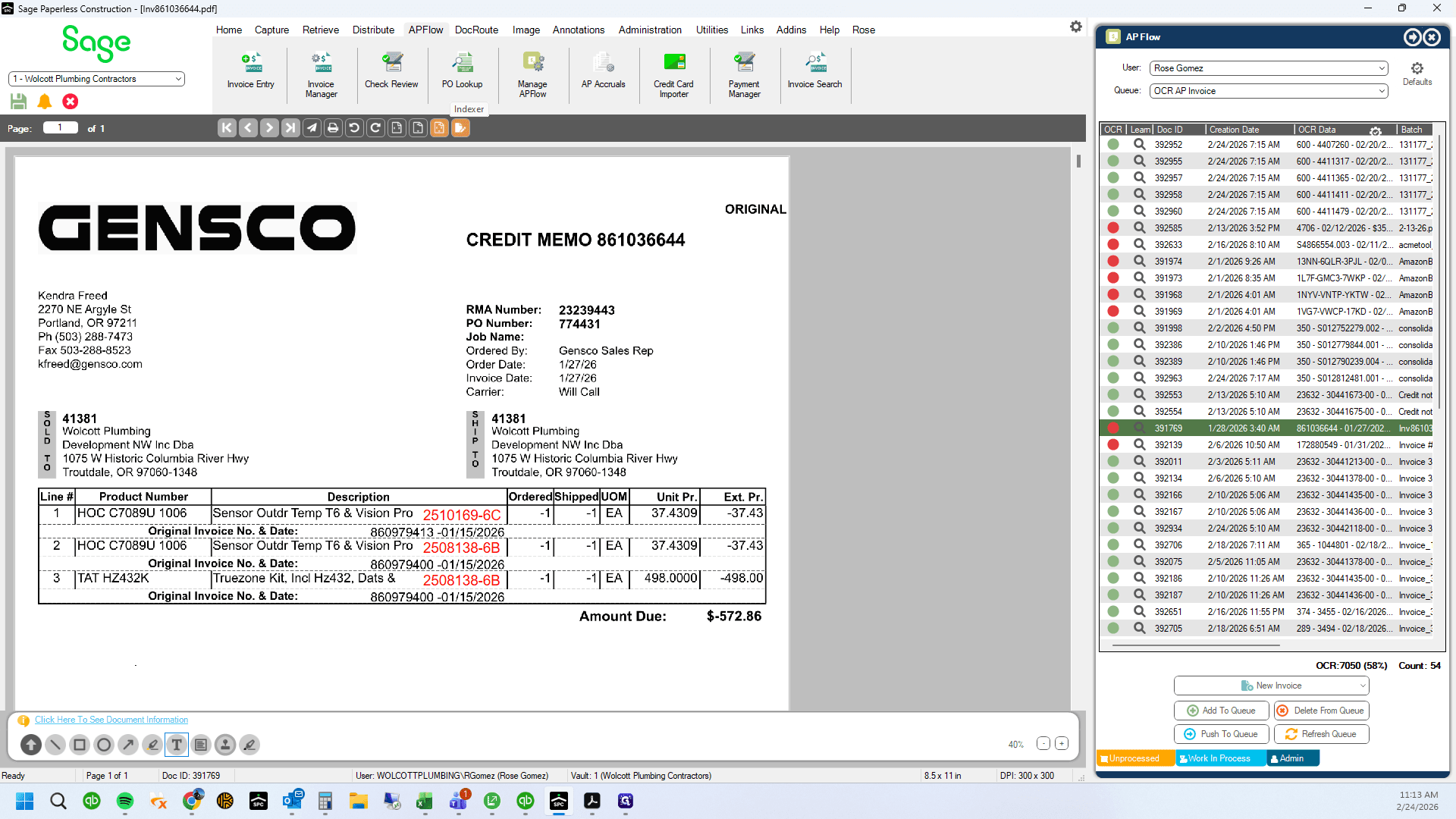
Gensco had mixed returns. This is where they reference the original invoice numbers.
1
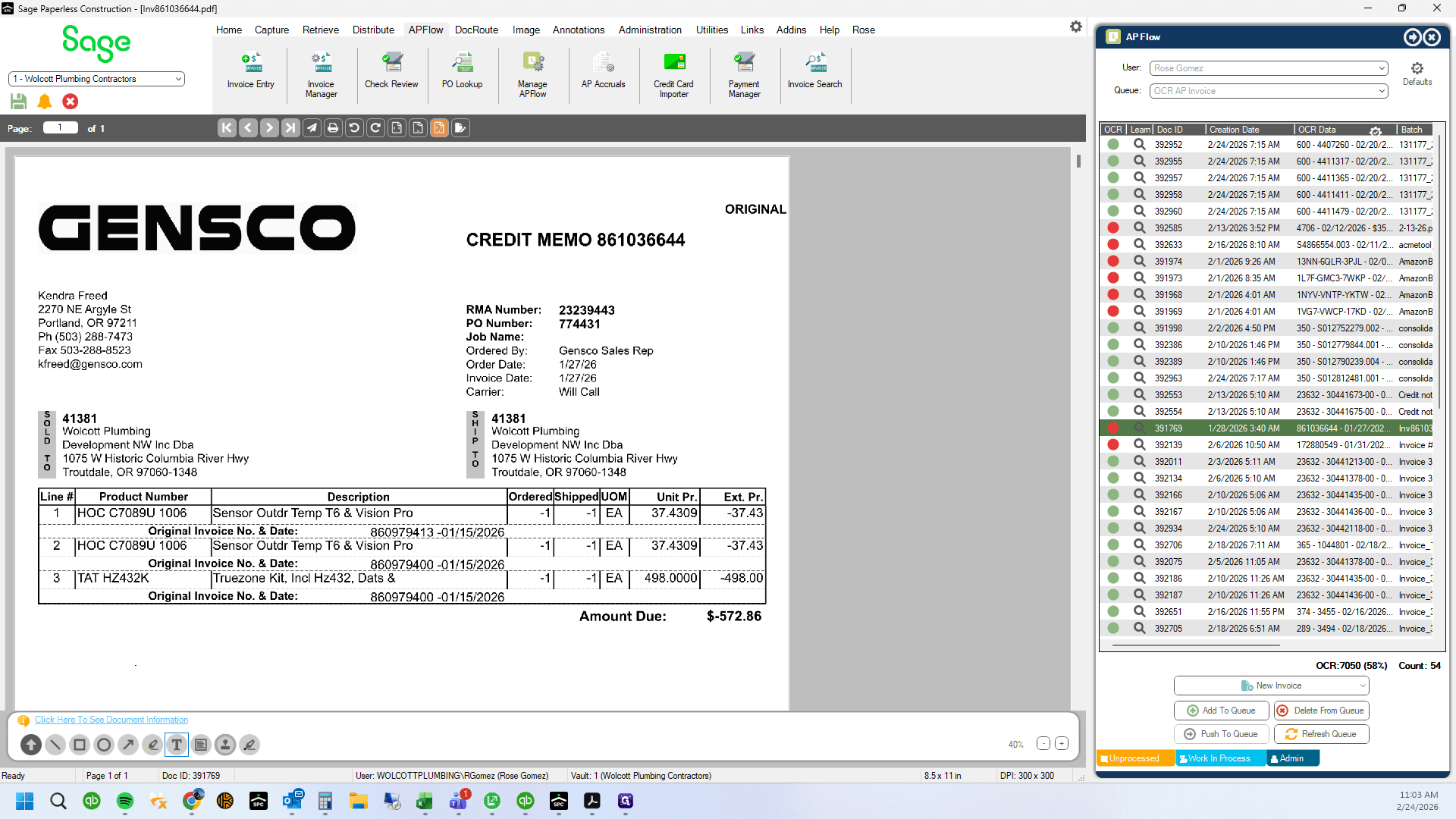
These are the original invoice numbers for the returns
2
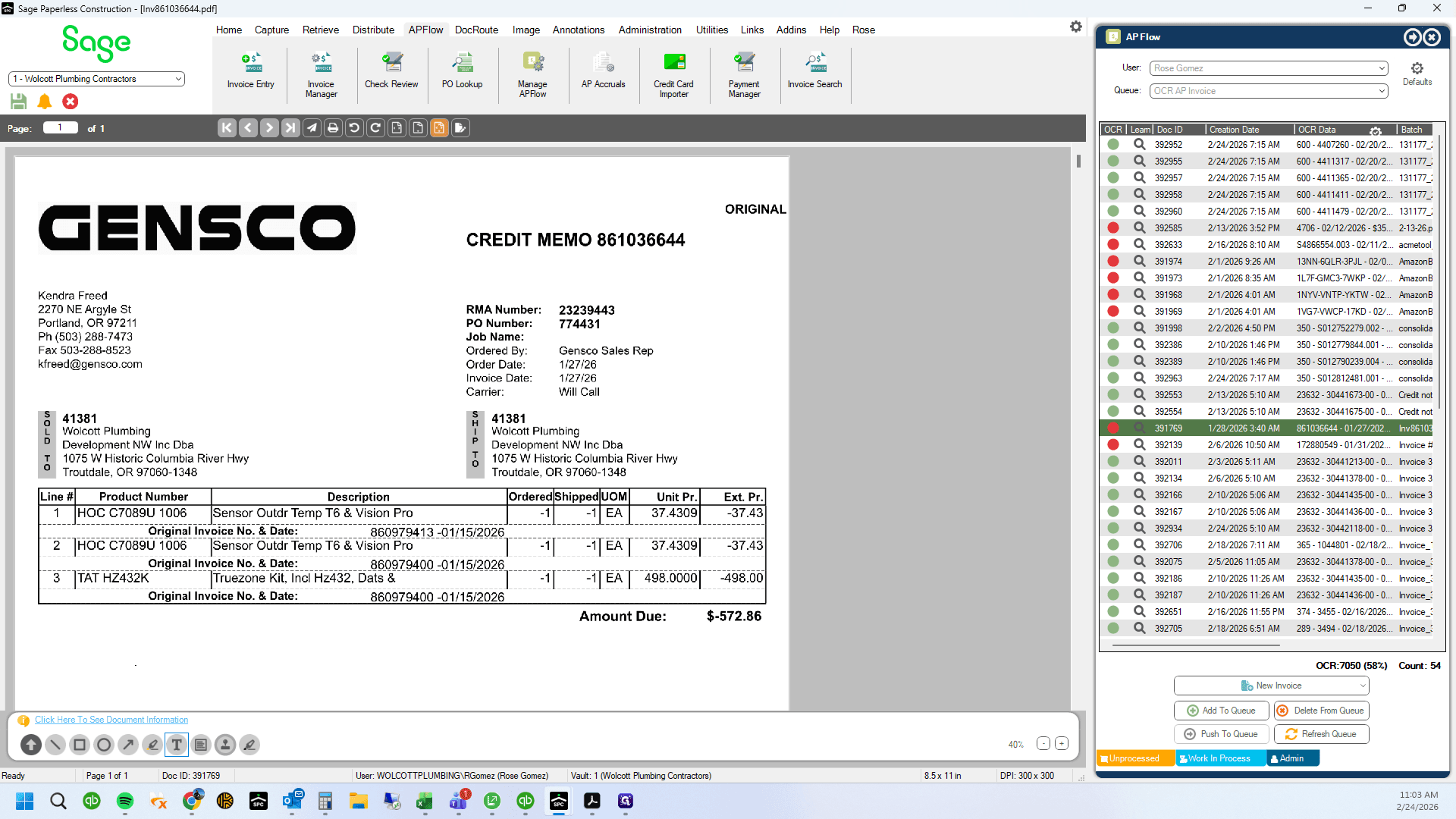
See that there are multiple invoices included on one credit memo.
3
We will need to pull up each original invoice and note the PO related to it
Sage 100.
4
Open Sage 100
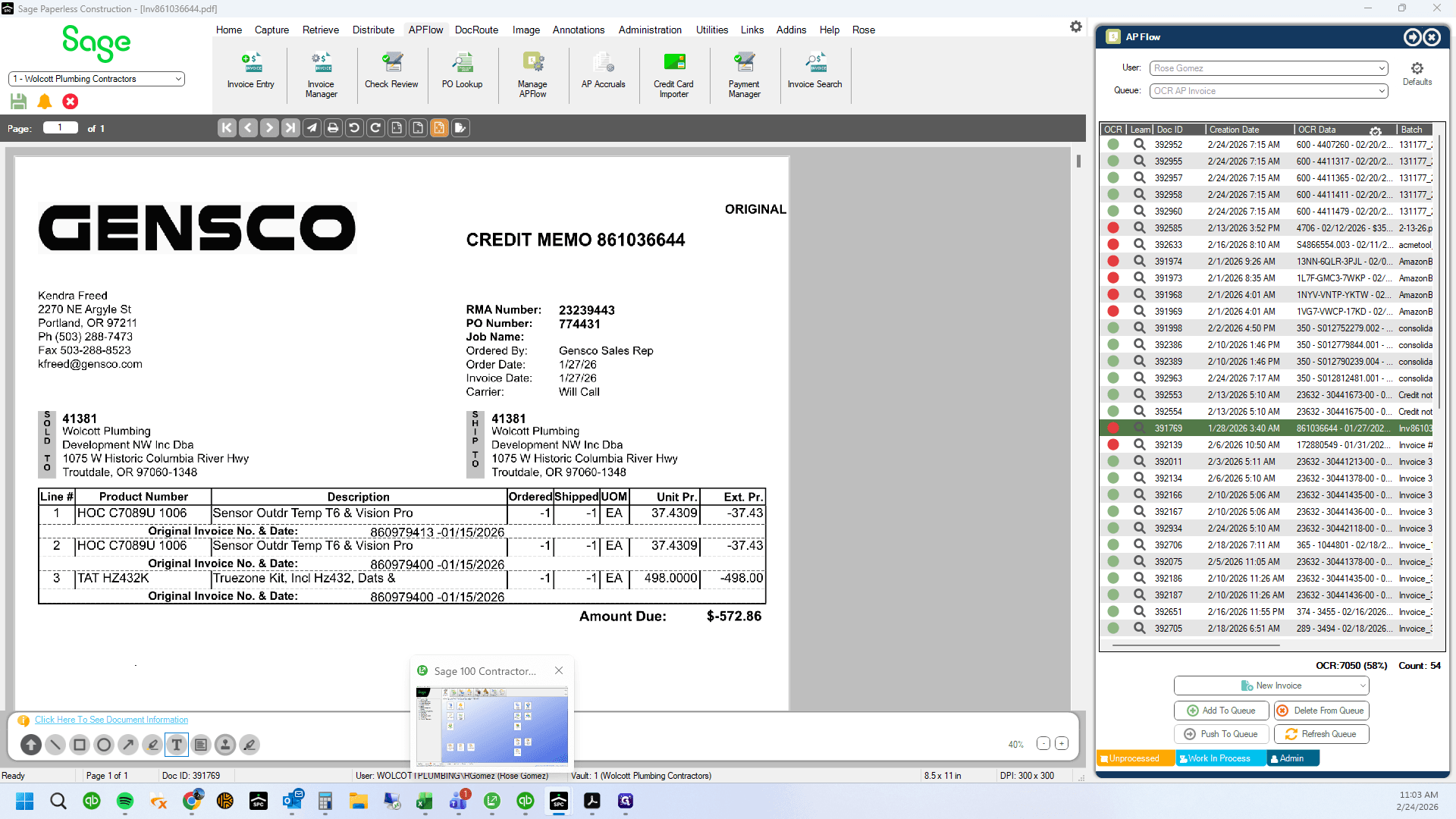
5
Drag "Sage"
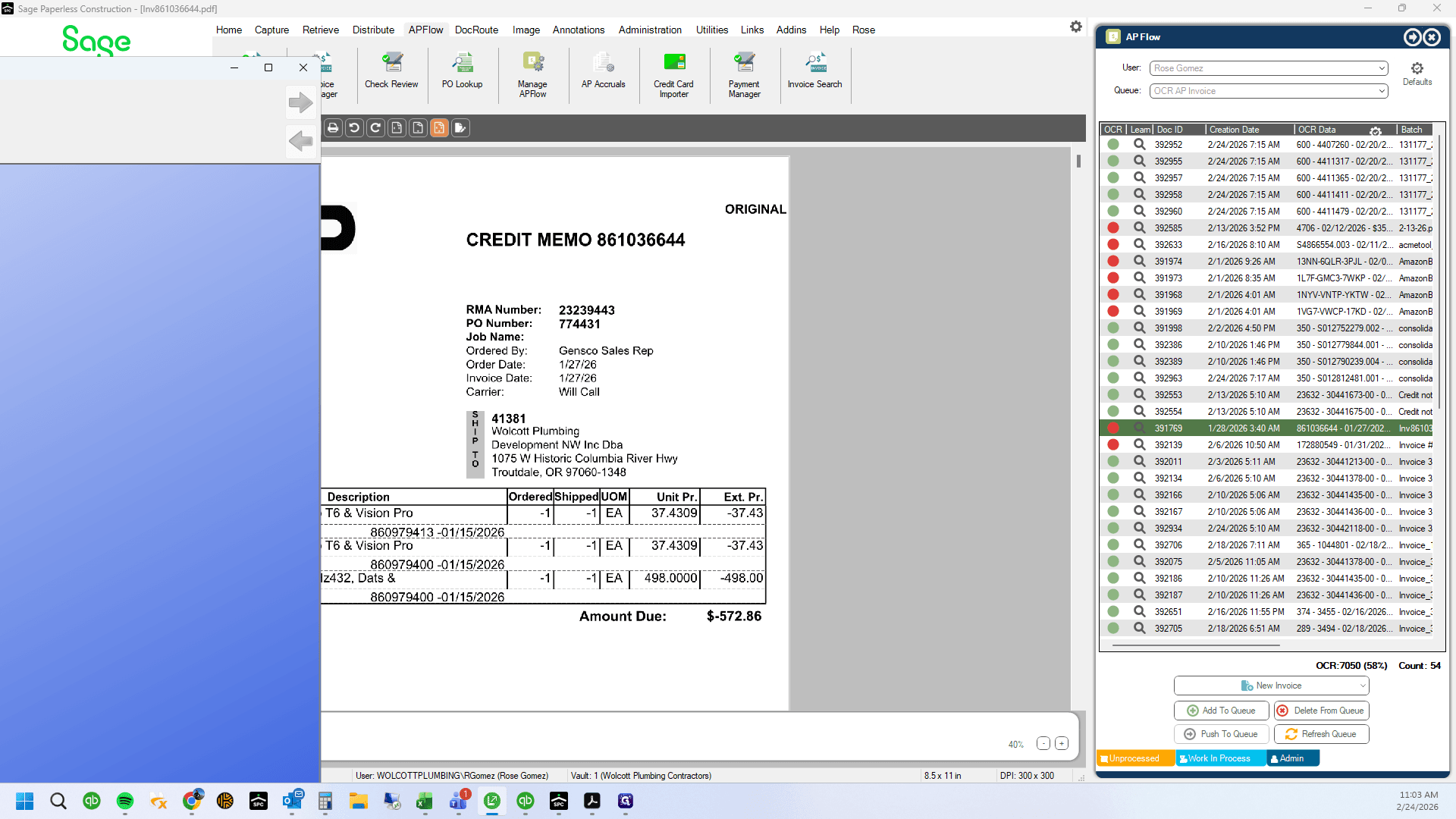
Search for the original invoice number.
6
Double-click on "Invoices /"
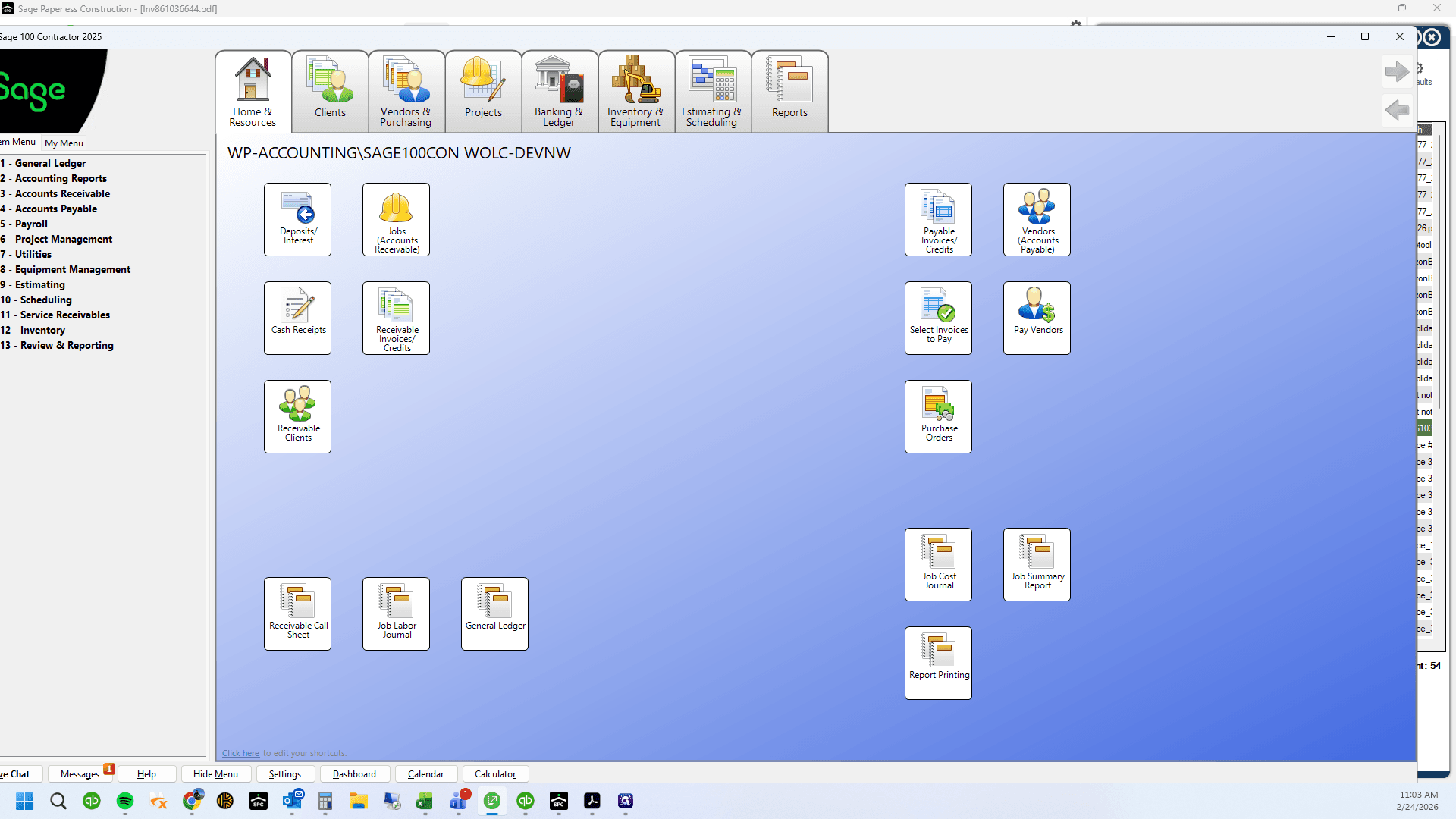
7
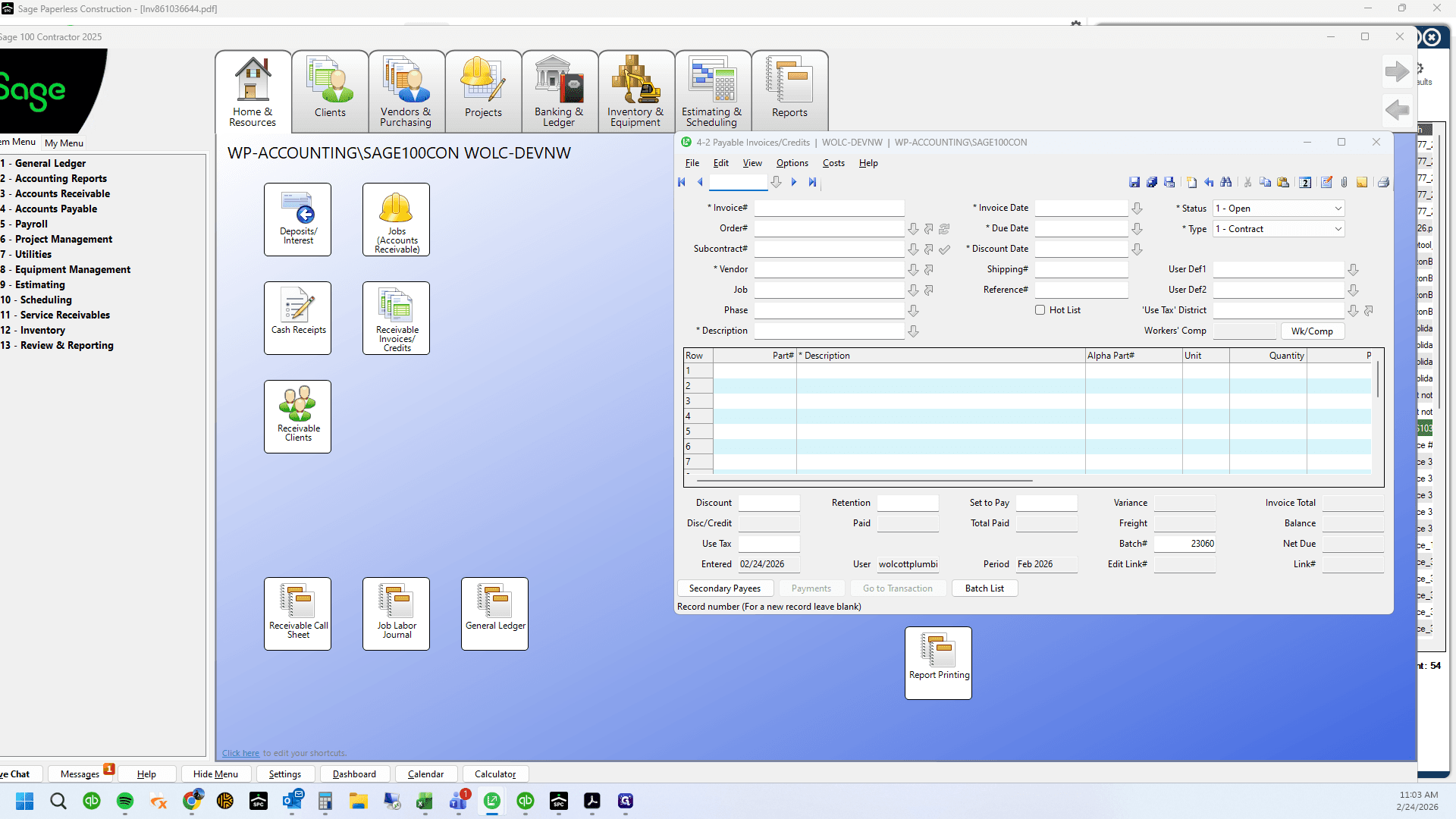
Open 4-2
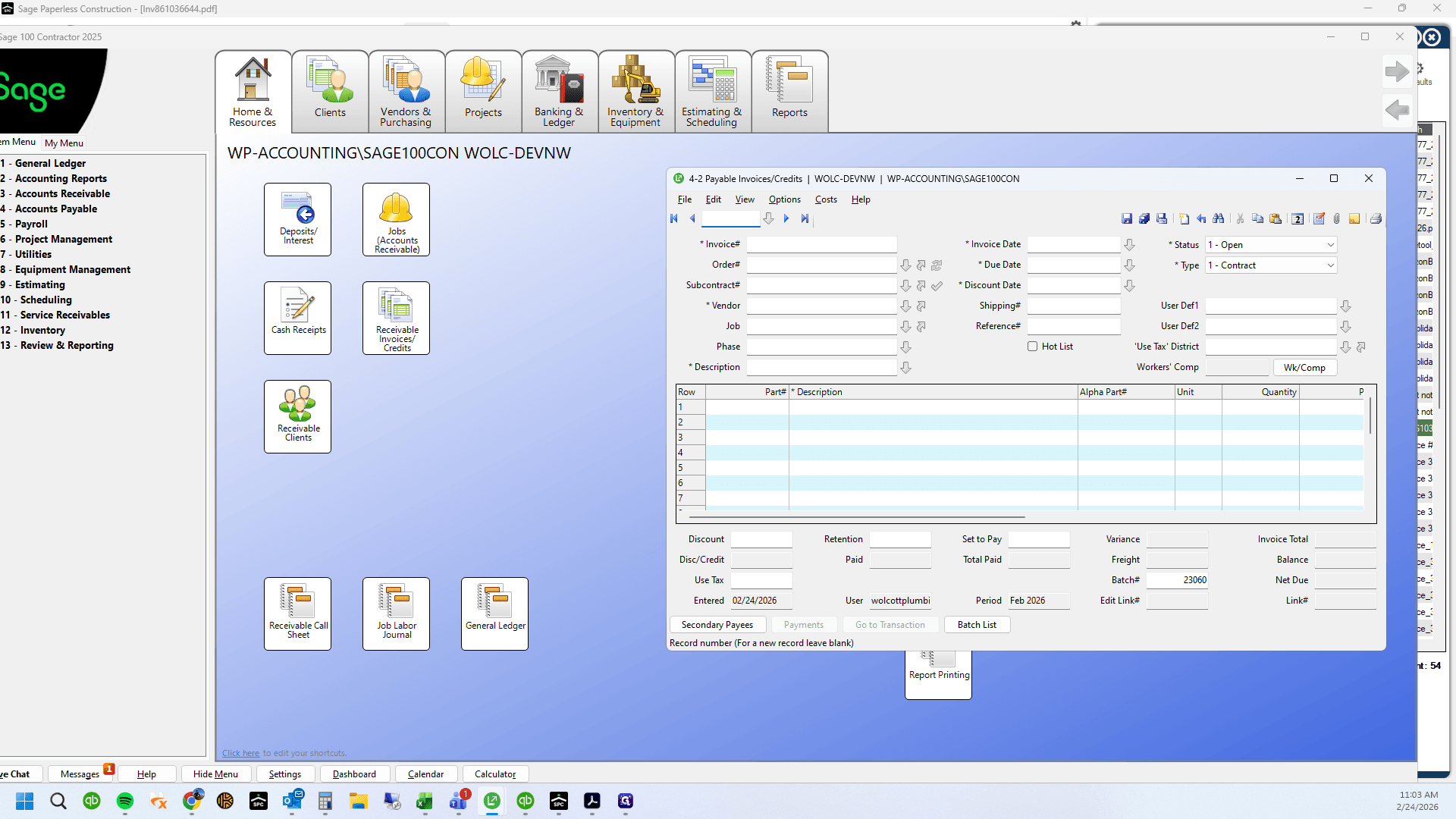
8
Click here
9
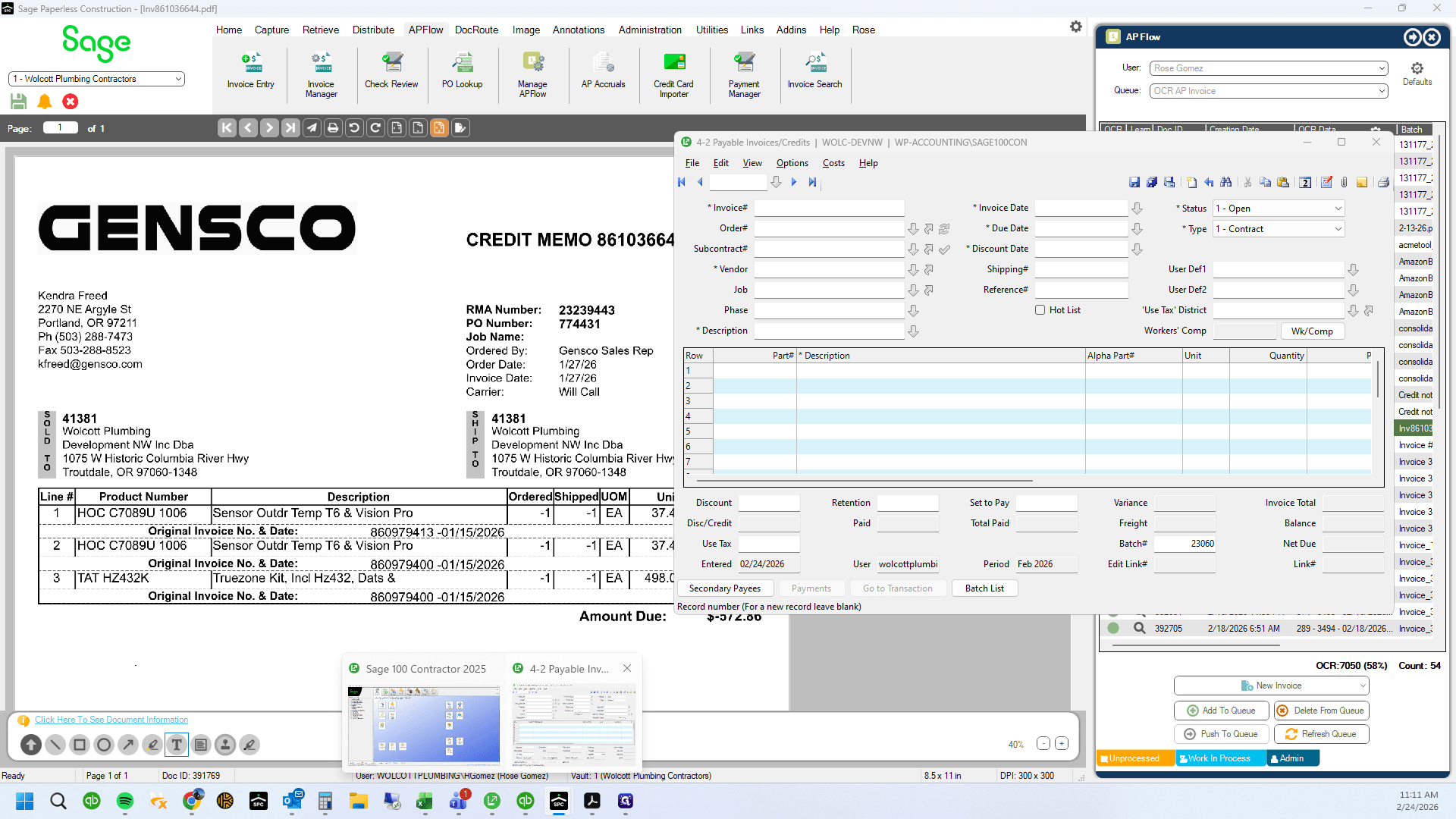
Click here
10
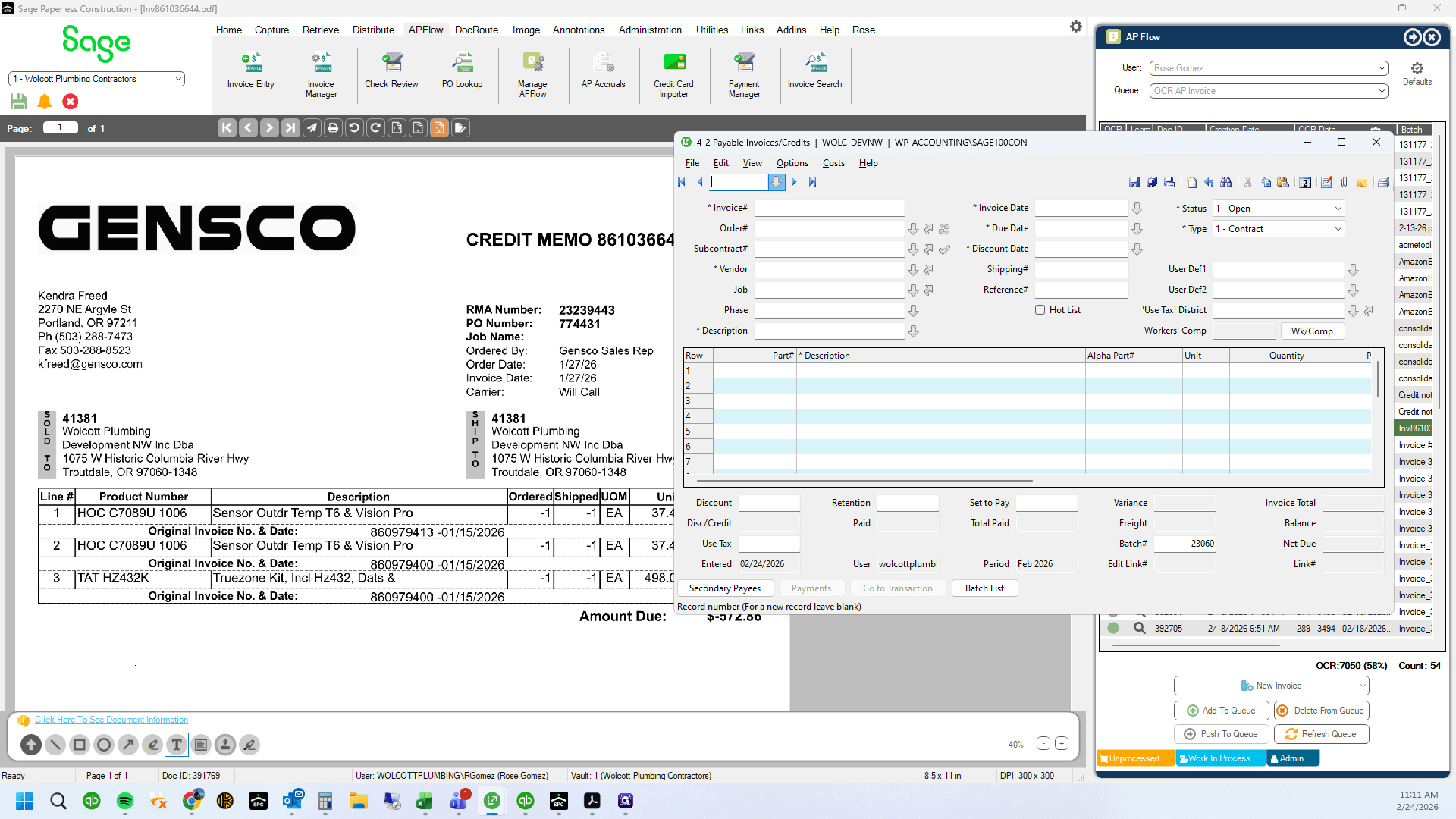
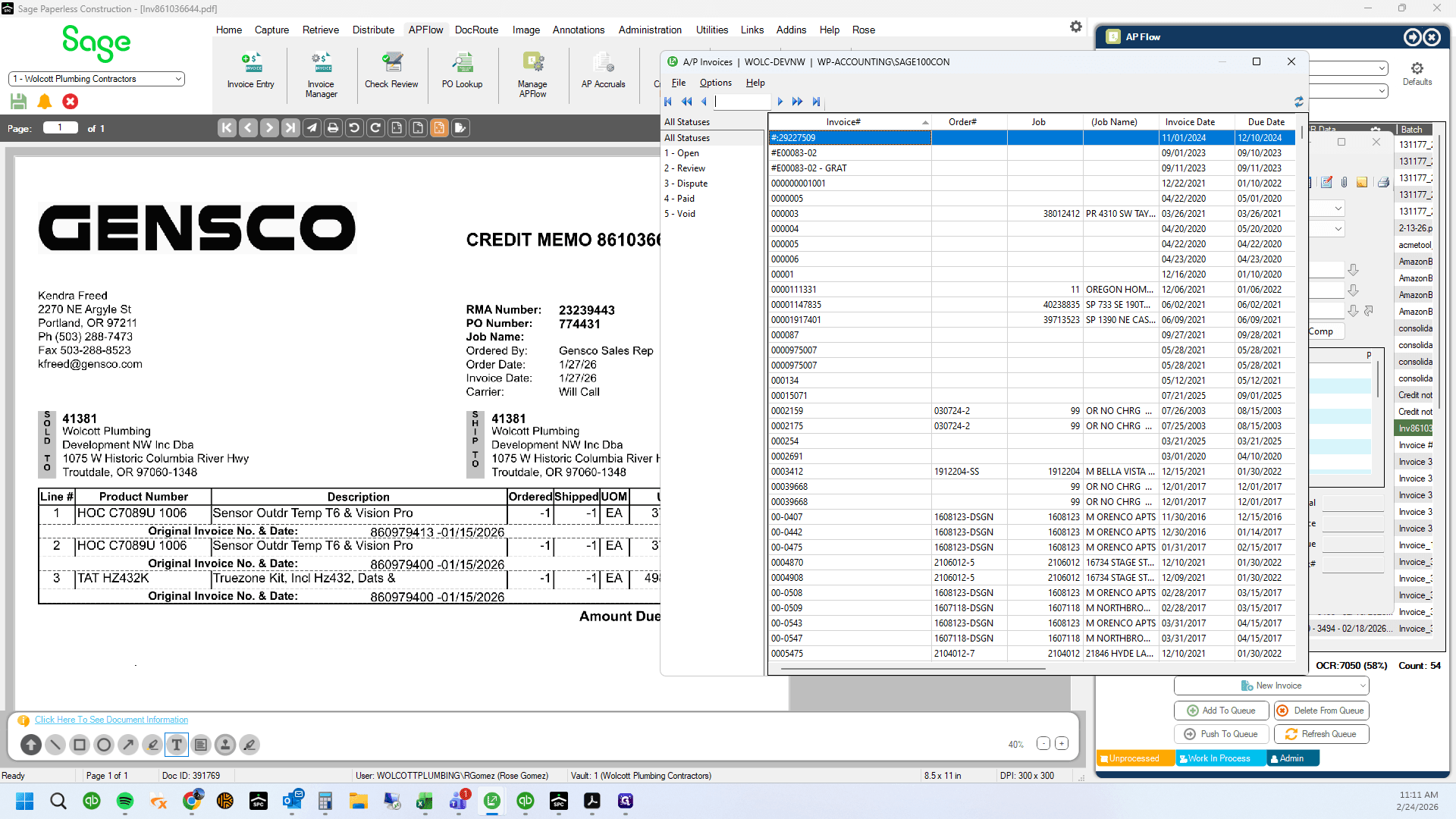
Look up each invoice number referenced
11
Click here
12
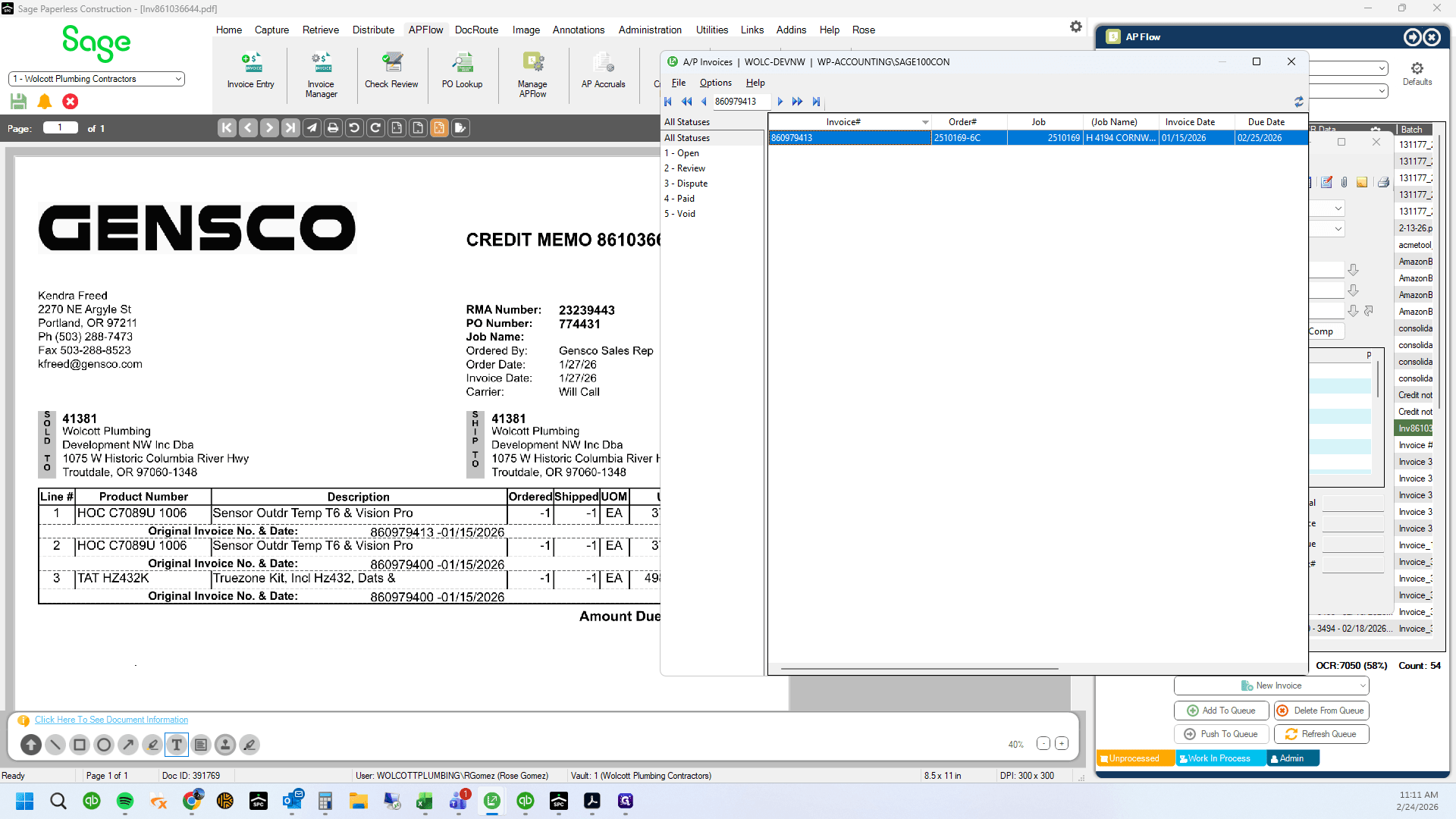
Type "860979413"
13
Double-click here
14
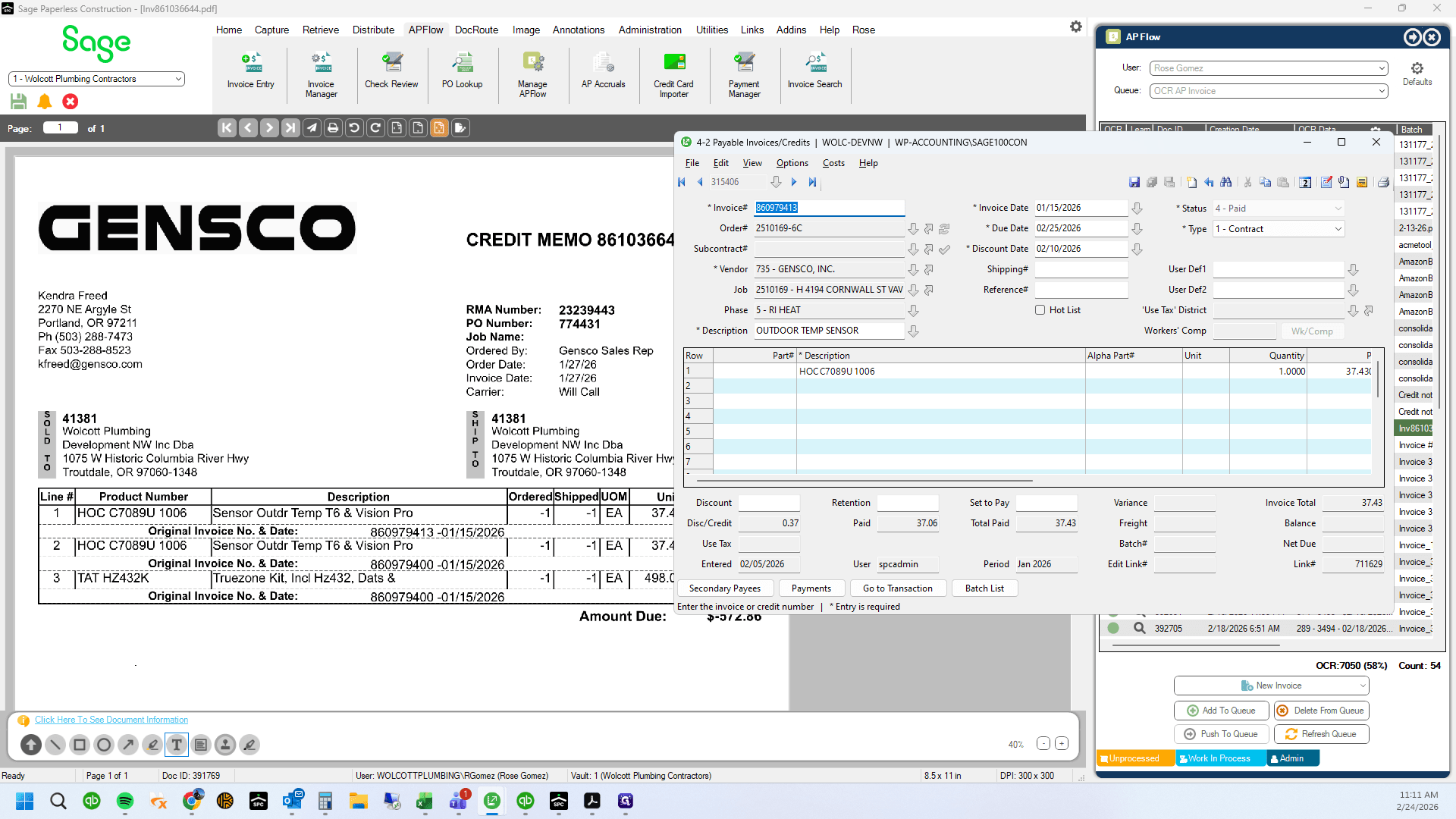
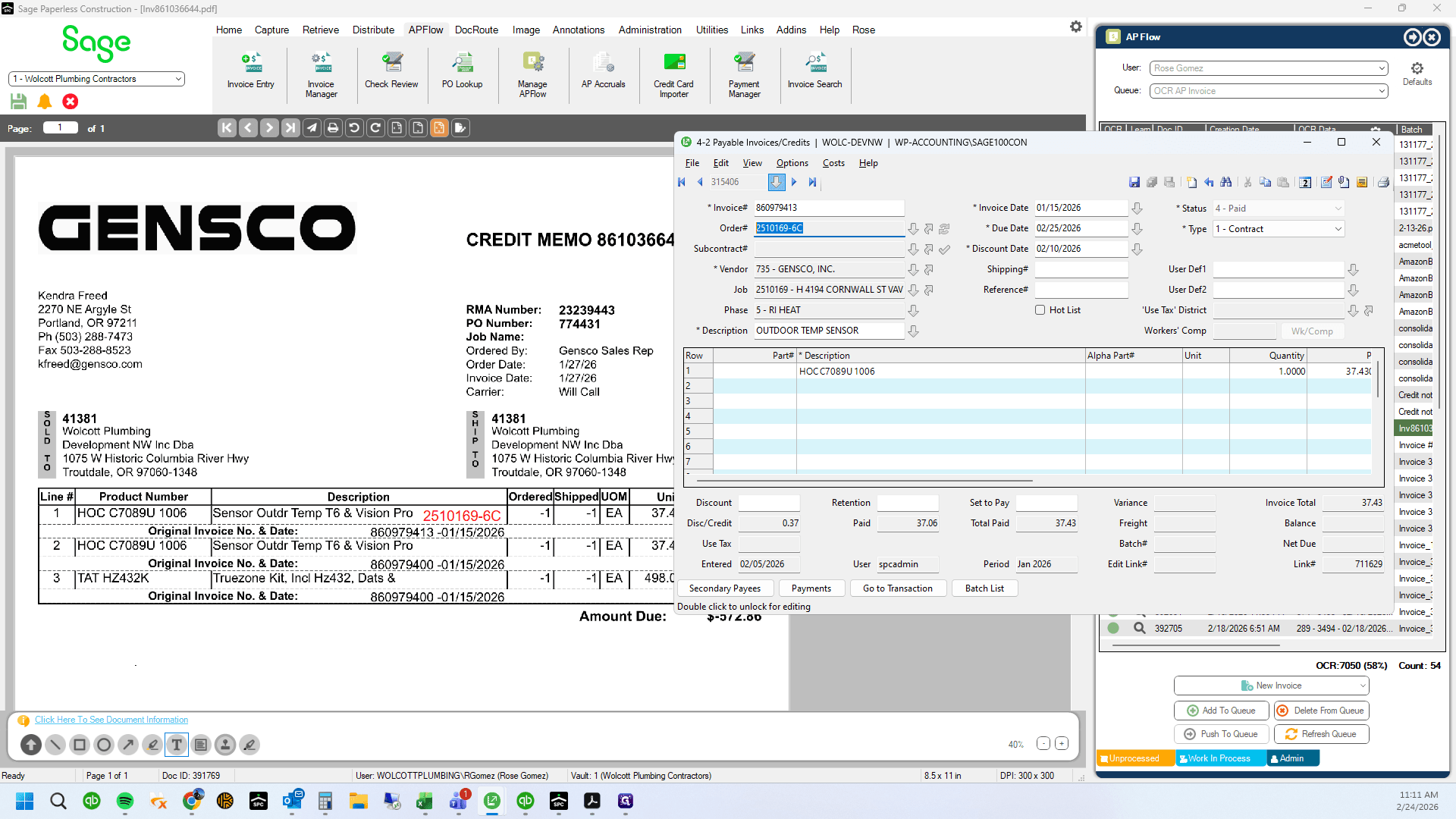
Drag "Order # 2510169-6C"
15
Type "Ctrl + C"
16
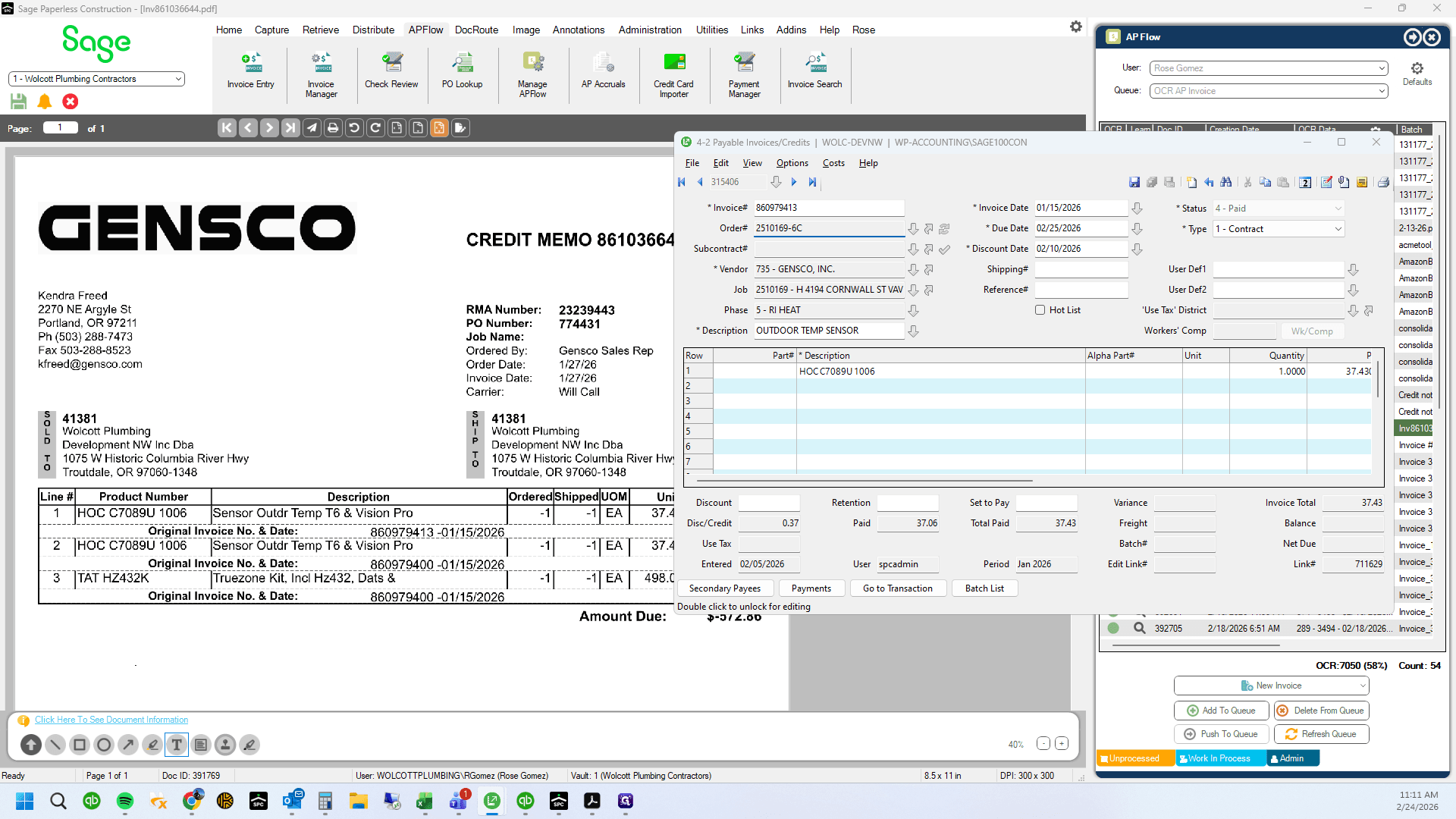
Click on "860979413-01 / 15 / 2026"
17
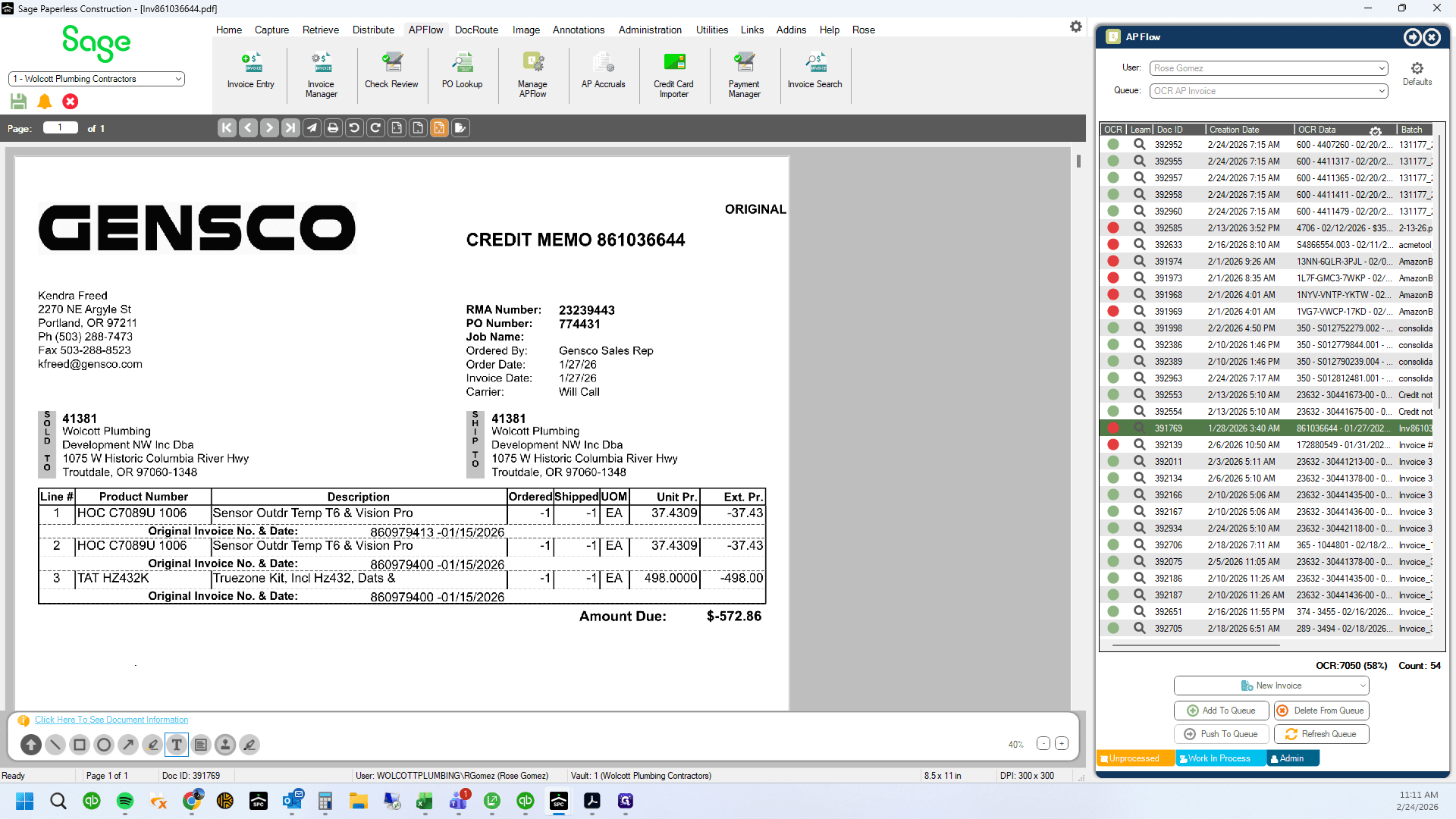
Copy and paste PO number on PDF invoice on corresponding line item
18
Type "Ctrl + V"
19
Drag "45" Change font size
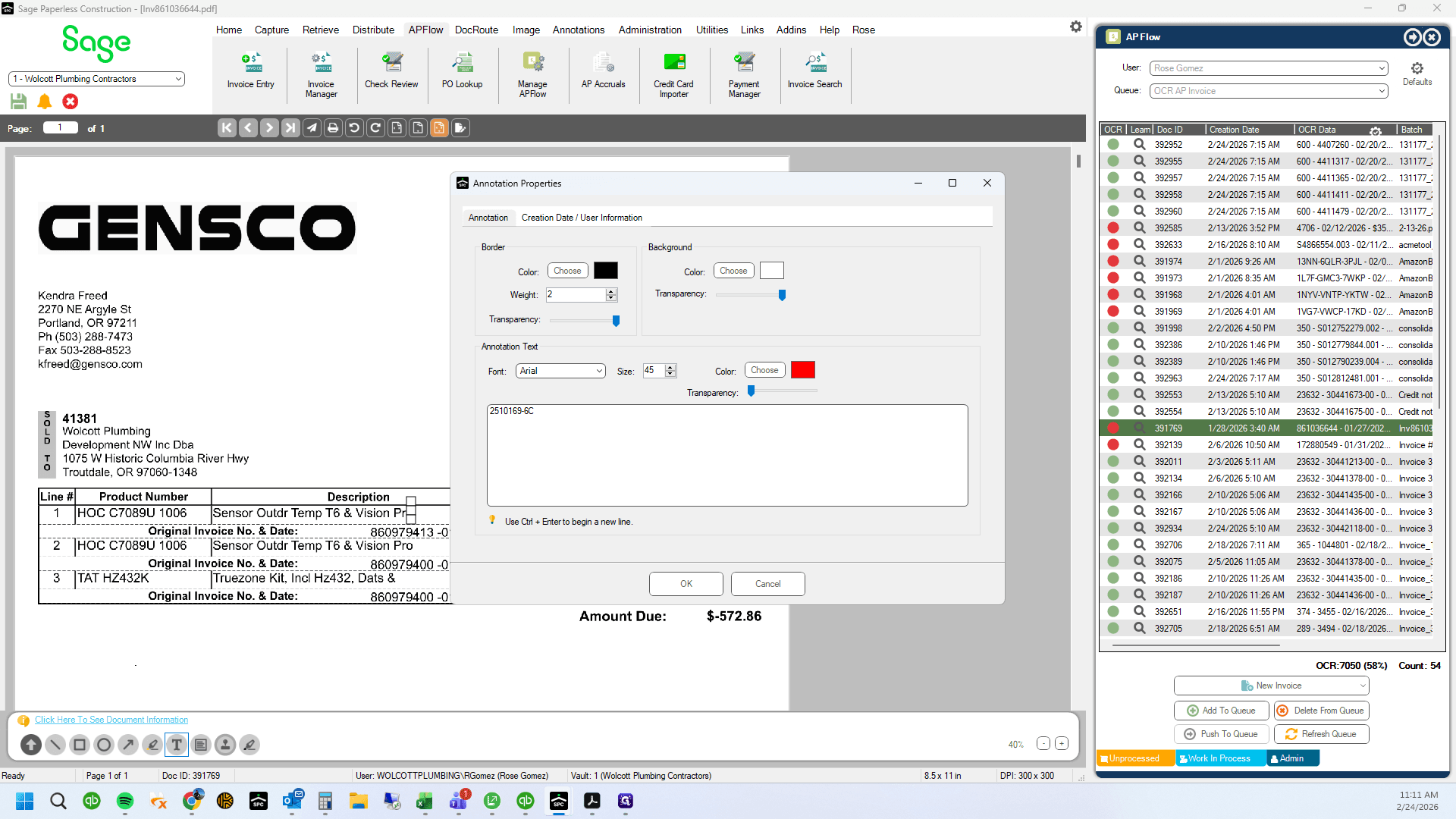
20
Type "35 + Enter"
21
Create text box
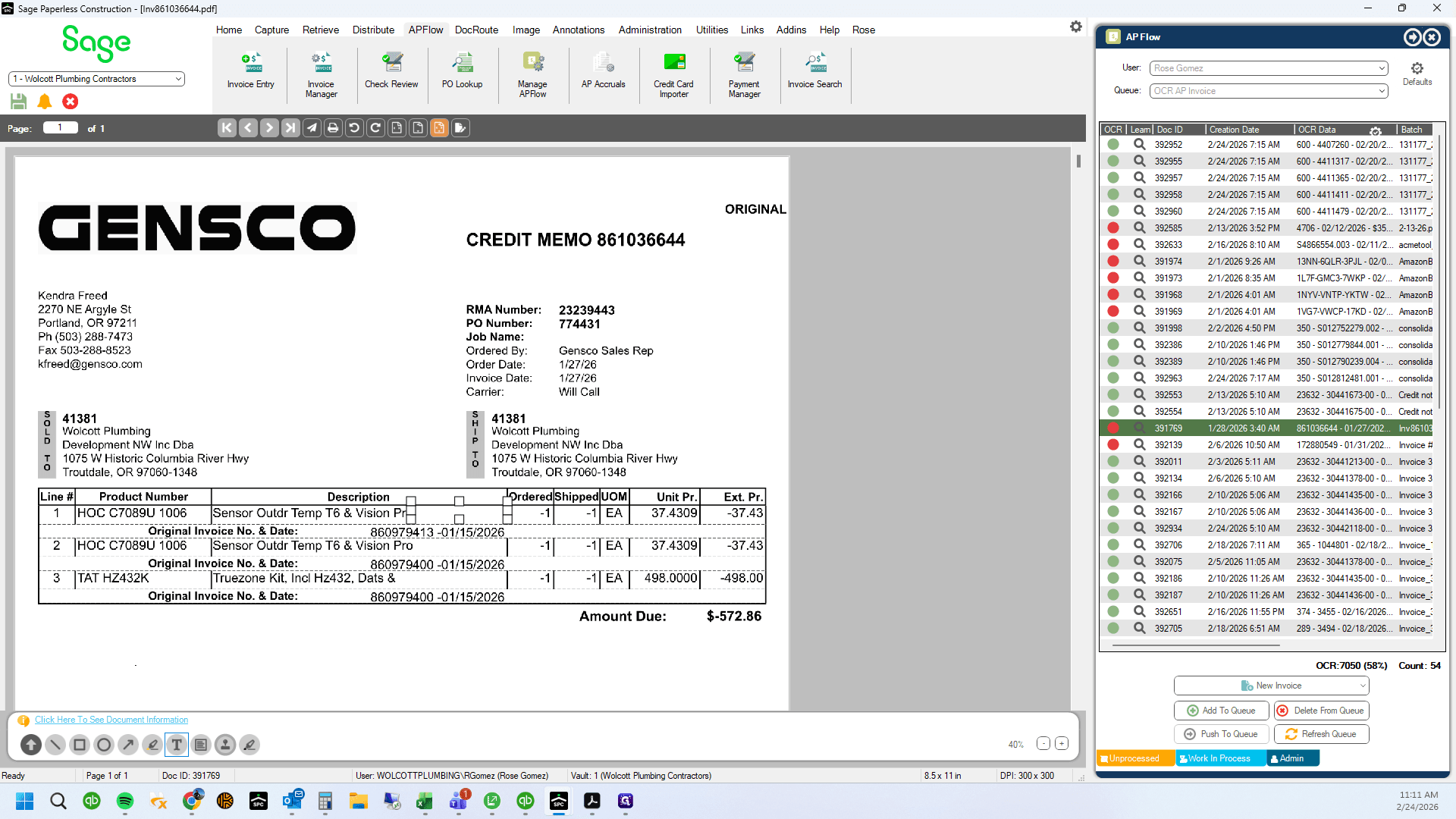
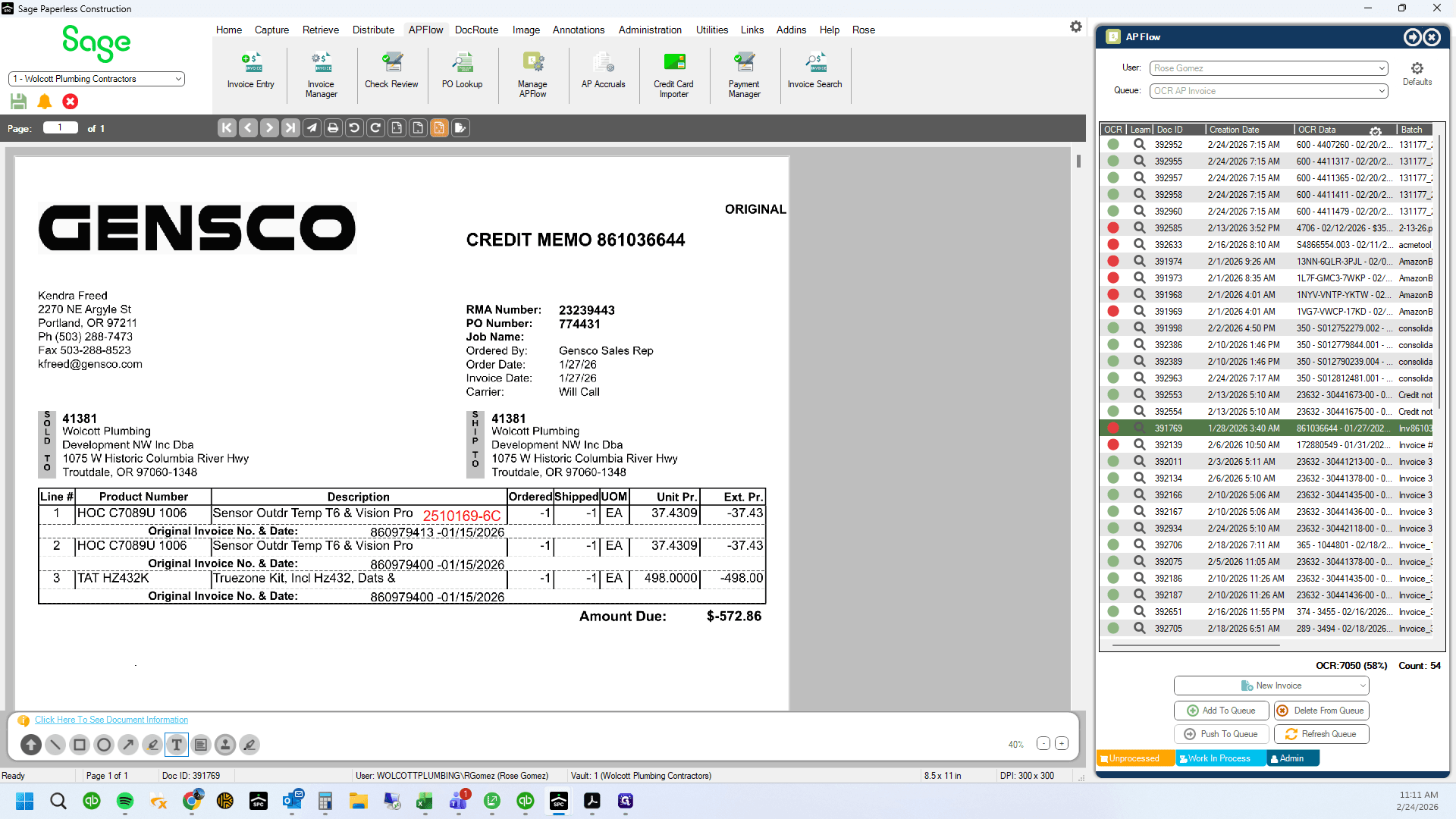
22
Paste PO number on line item
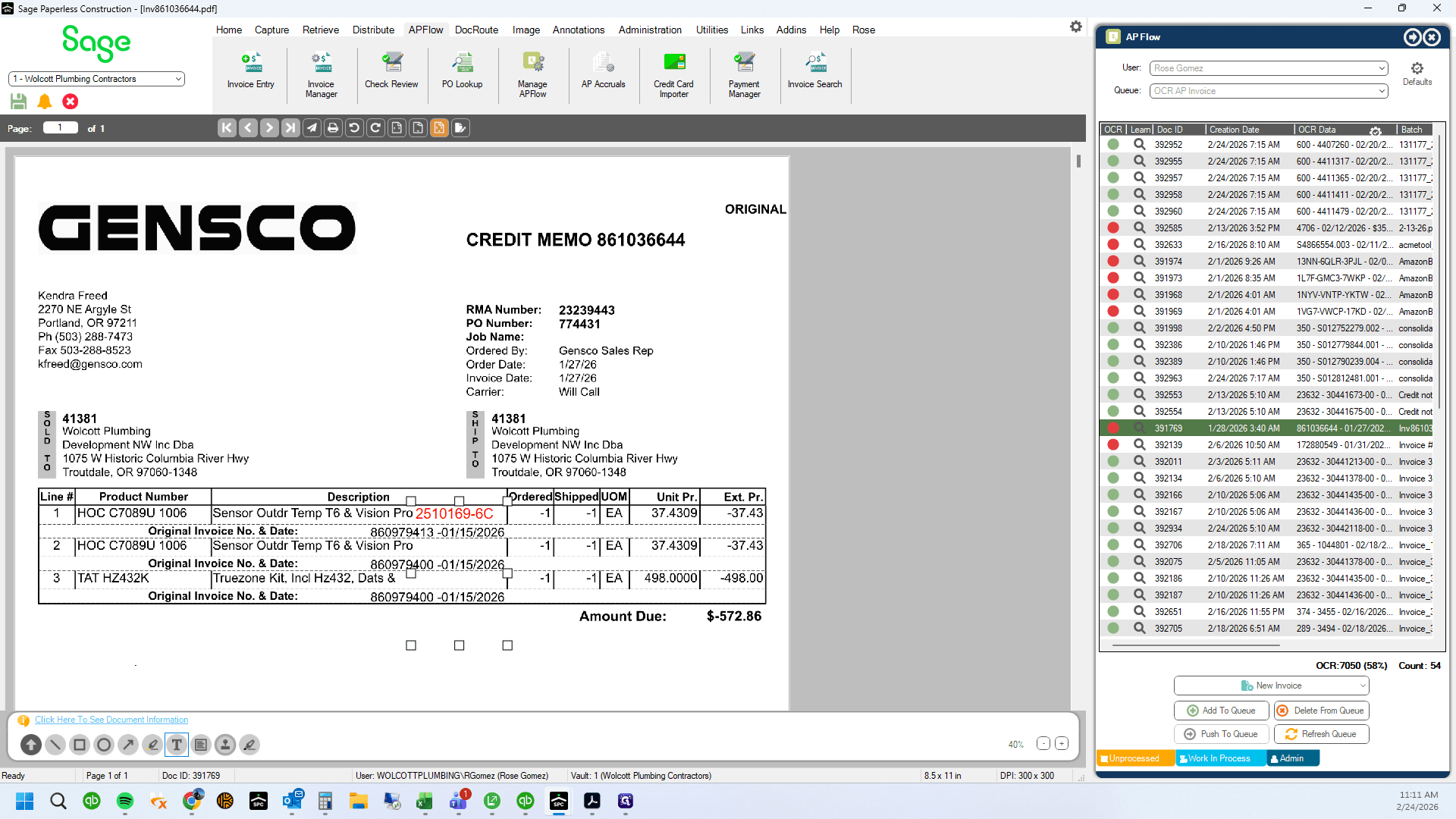
23
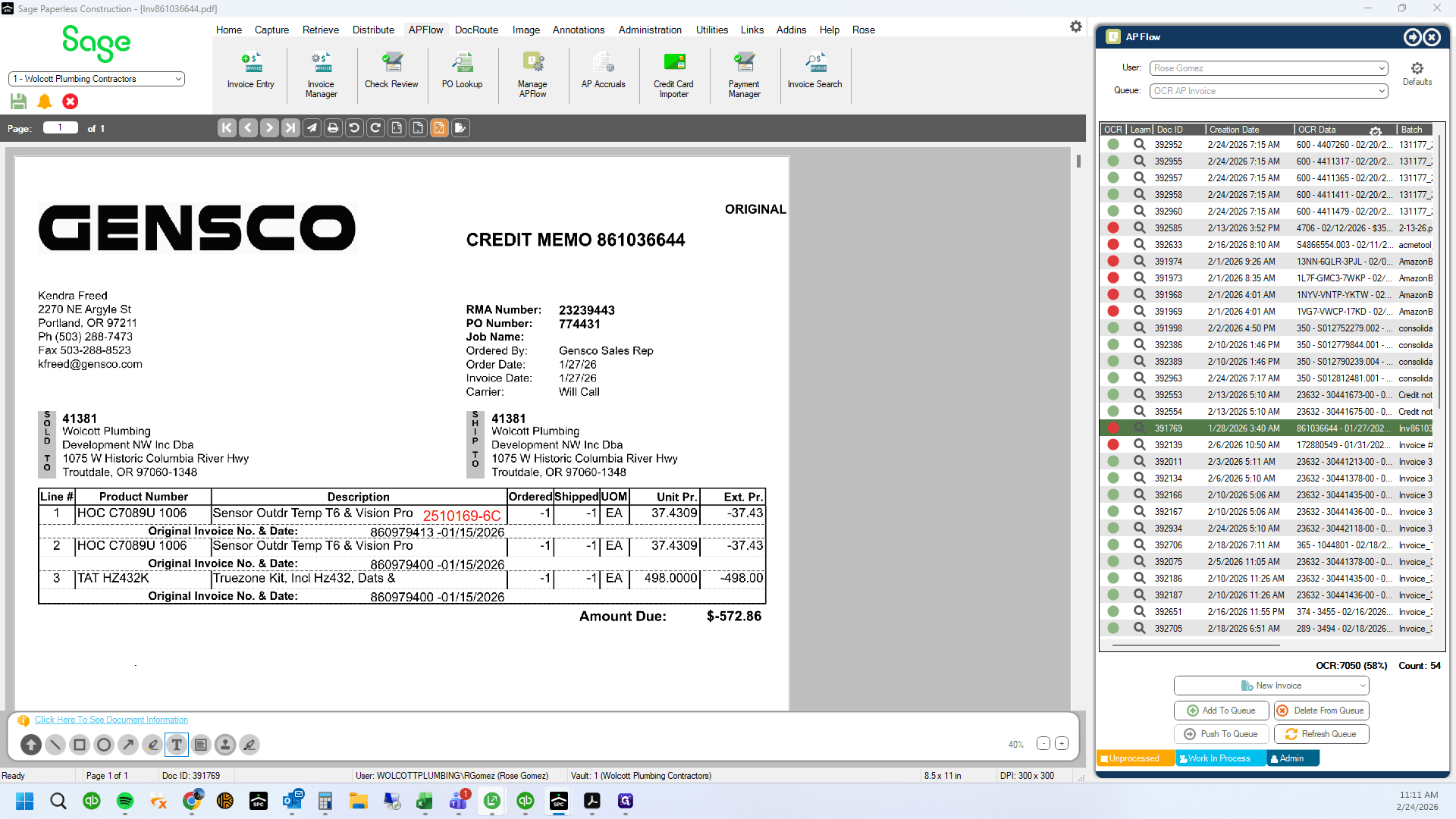
Click here
24
Click here
25
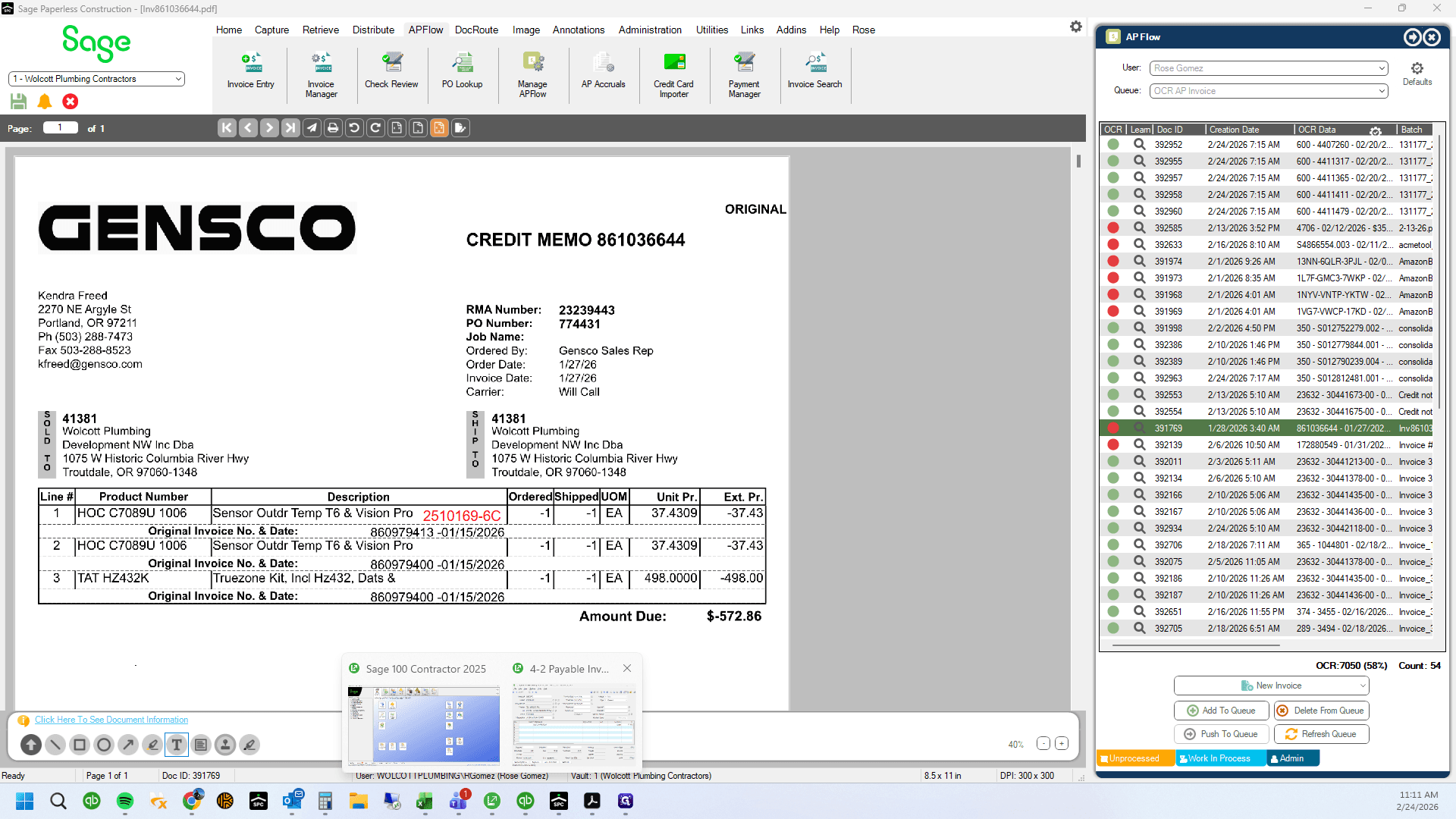
Click here
26
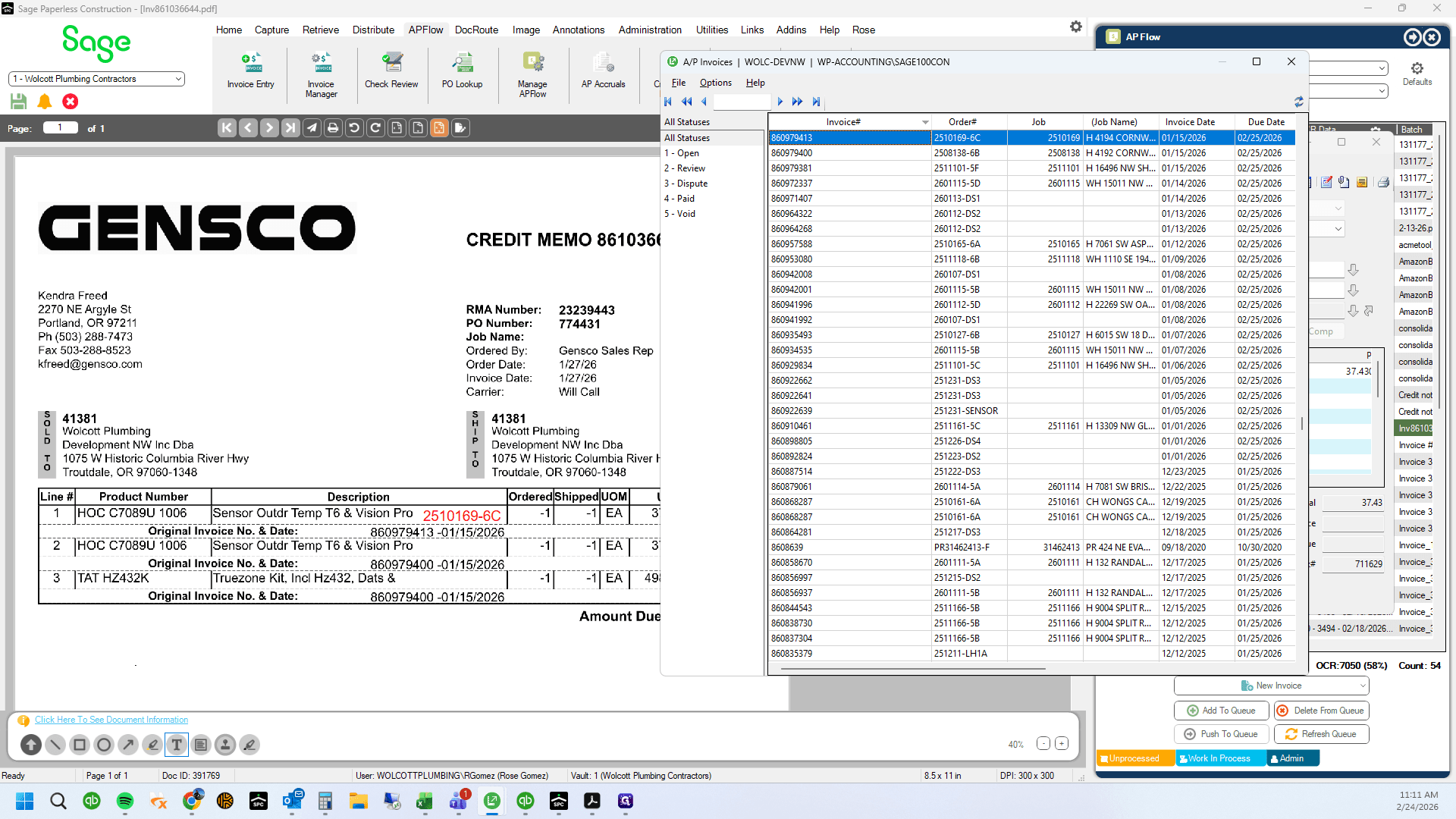
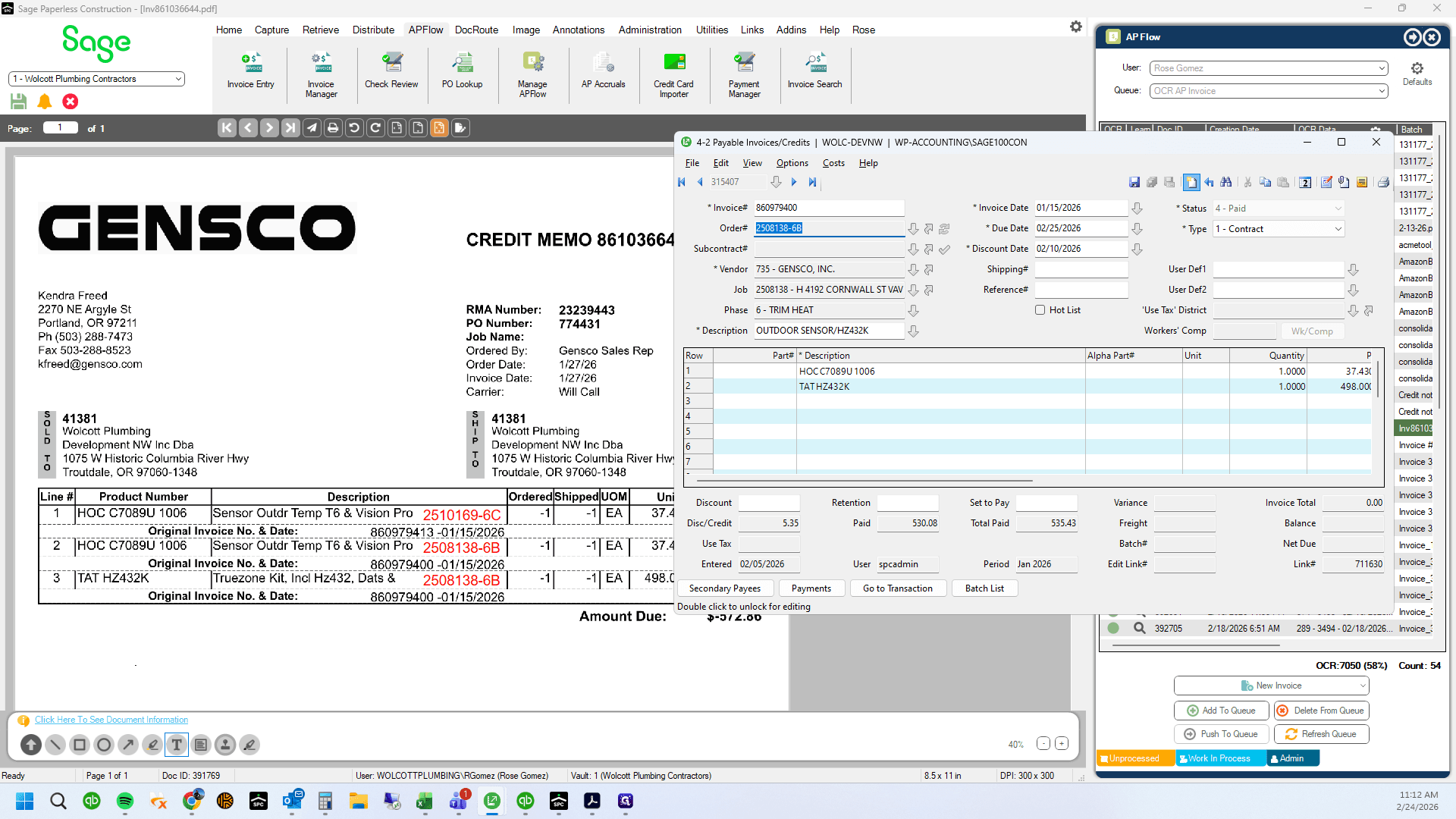
Look up second invoice number referenced
27
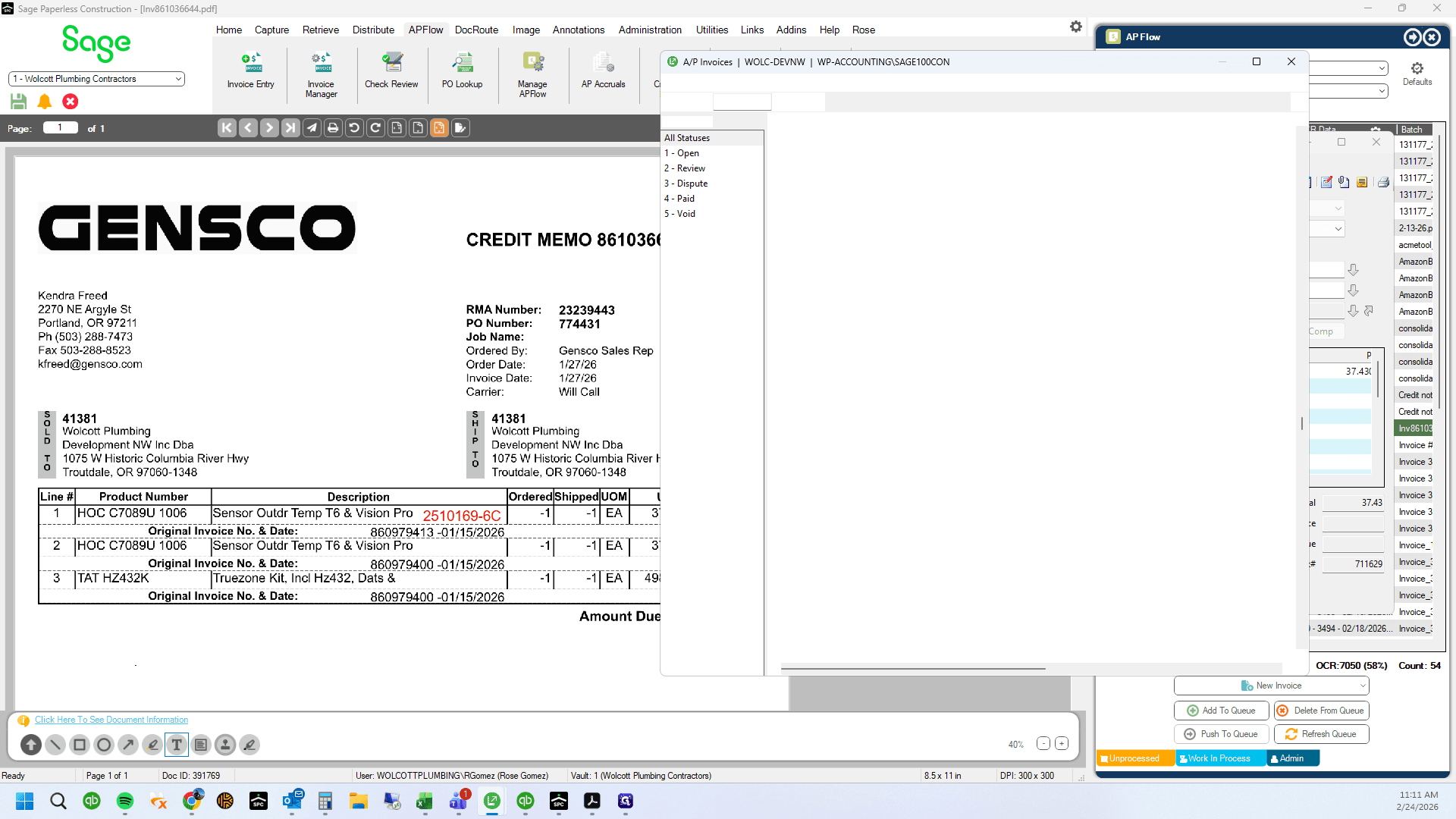
Click here
28
Click here
29
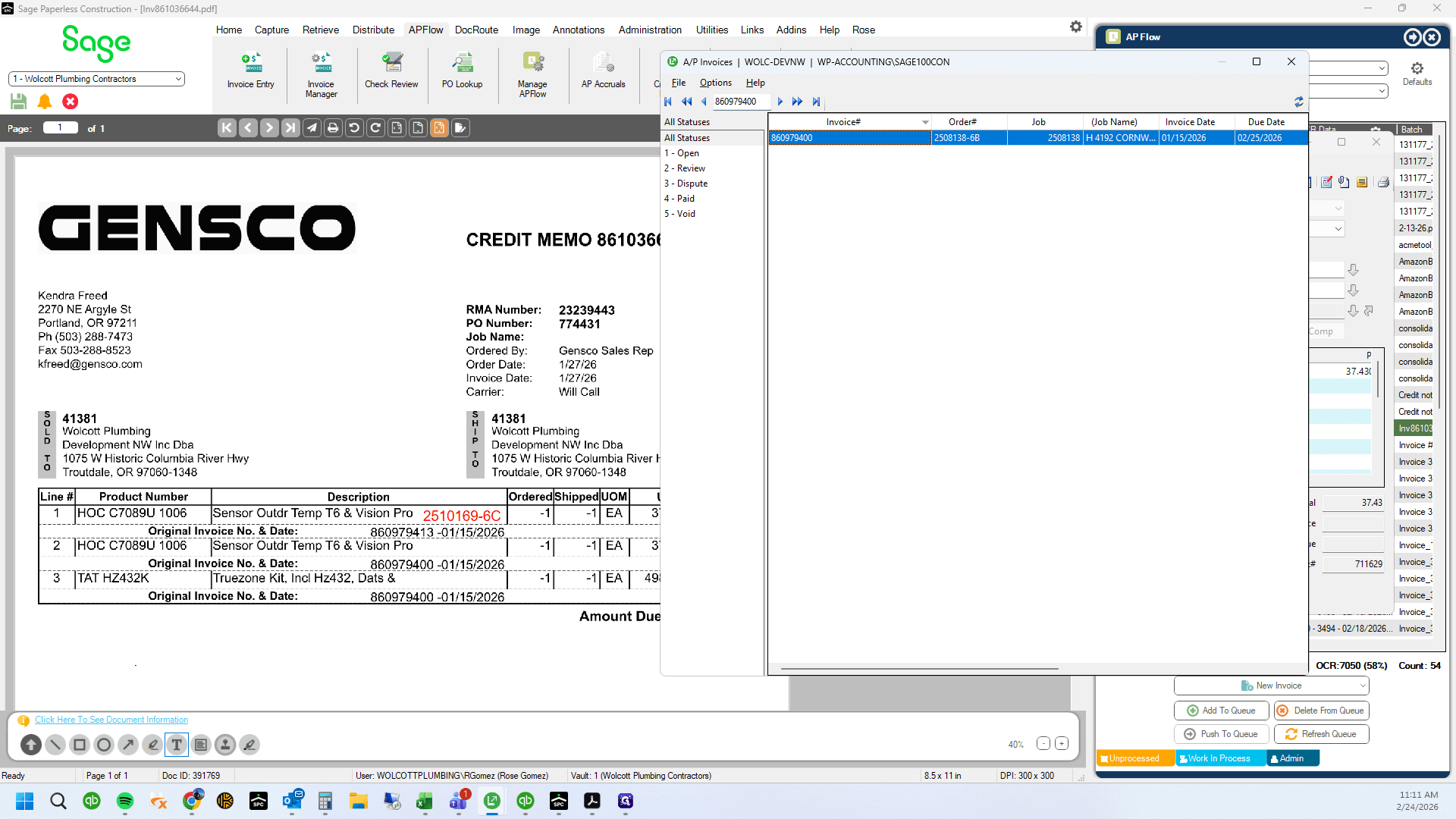
Type "860979400"
30
Type "860979400"
31
Double-click here
32
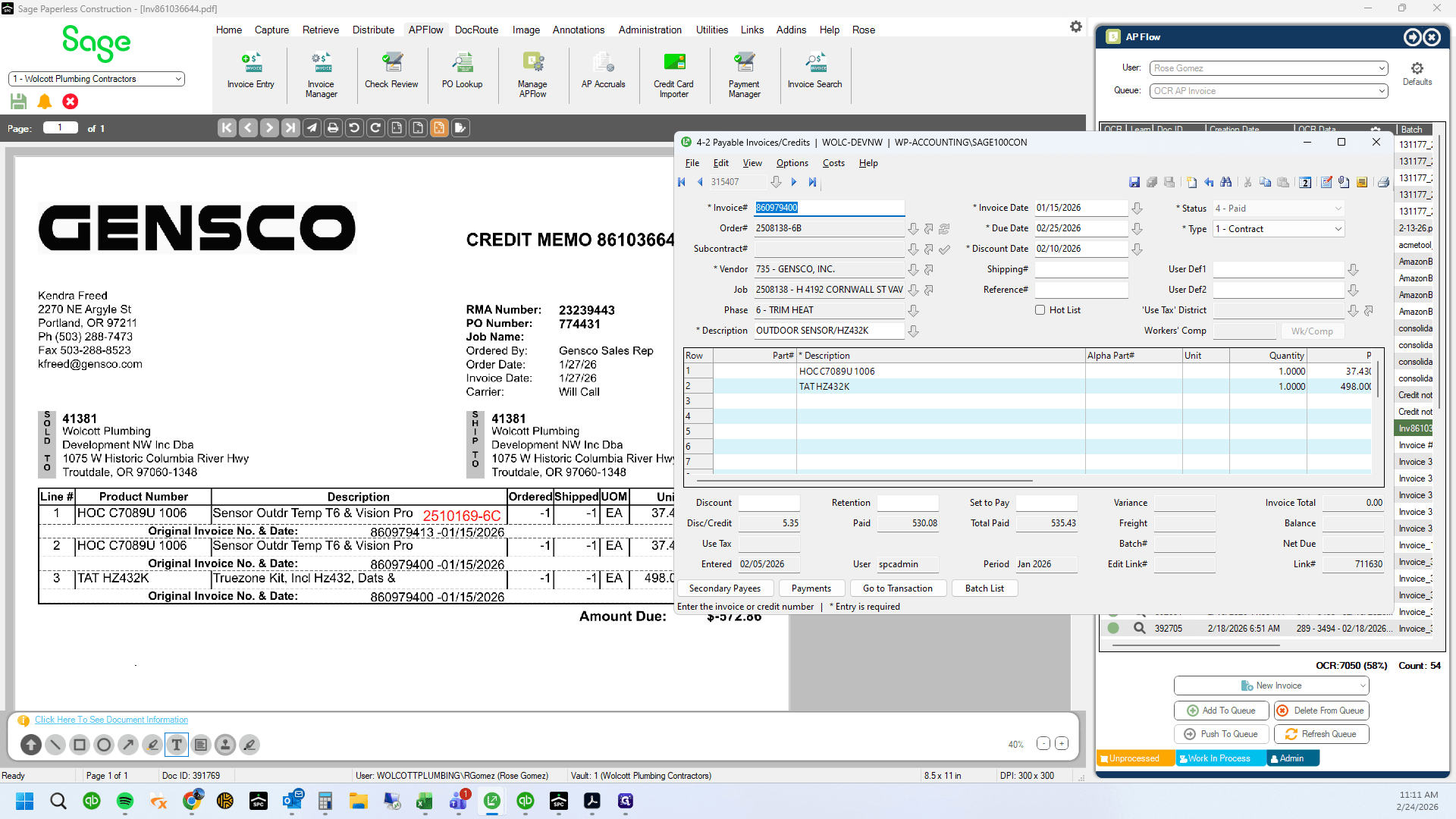
Drag here
33
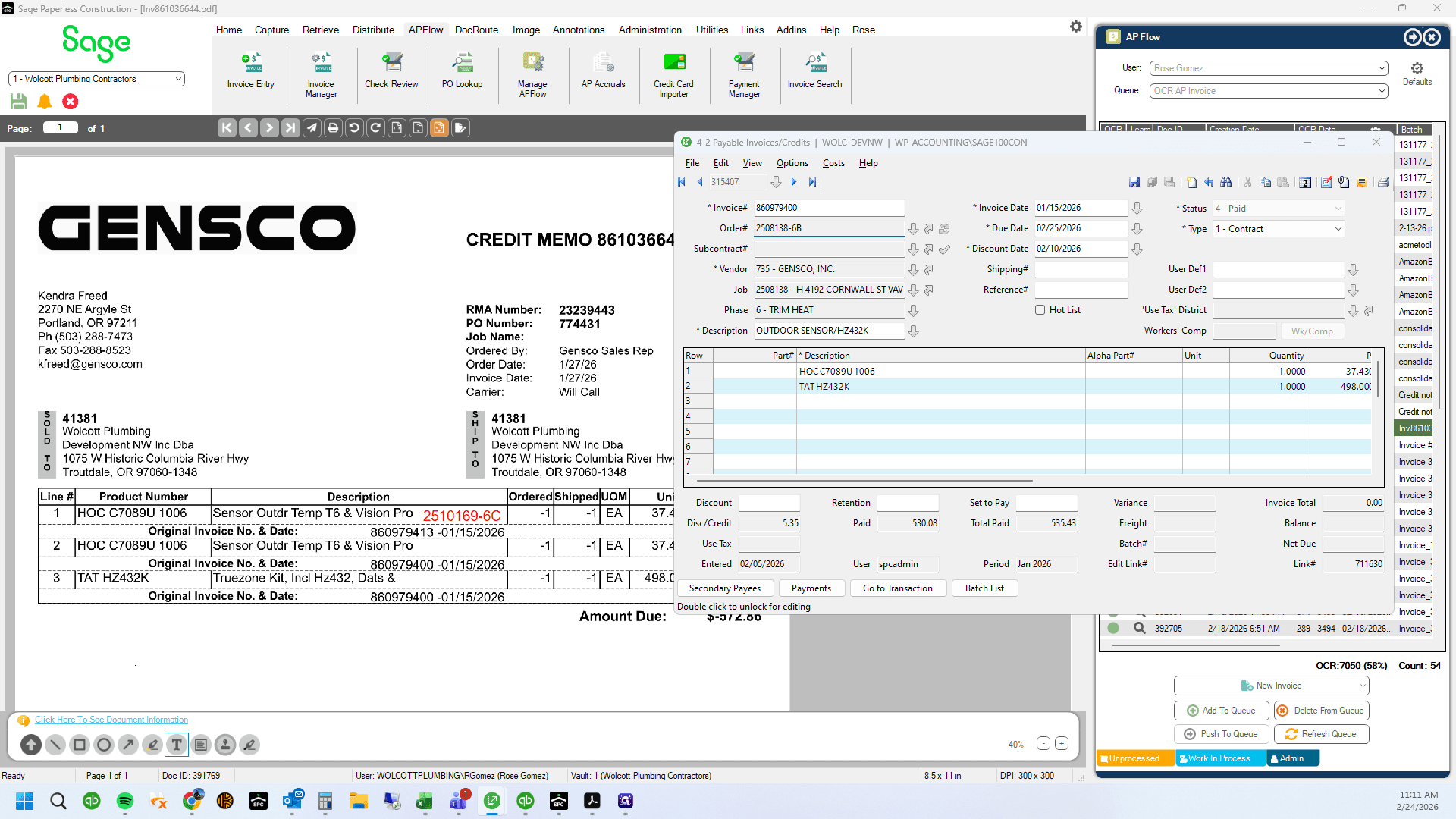
Type "Ctrl + C"
34
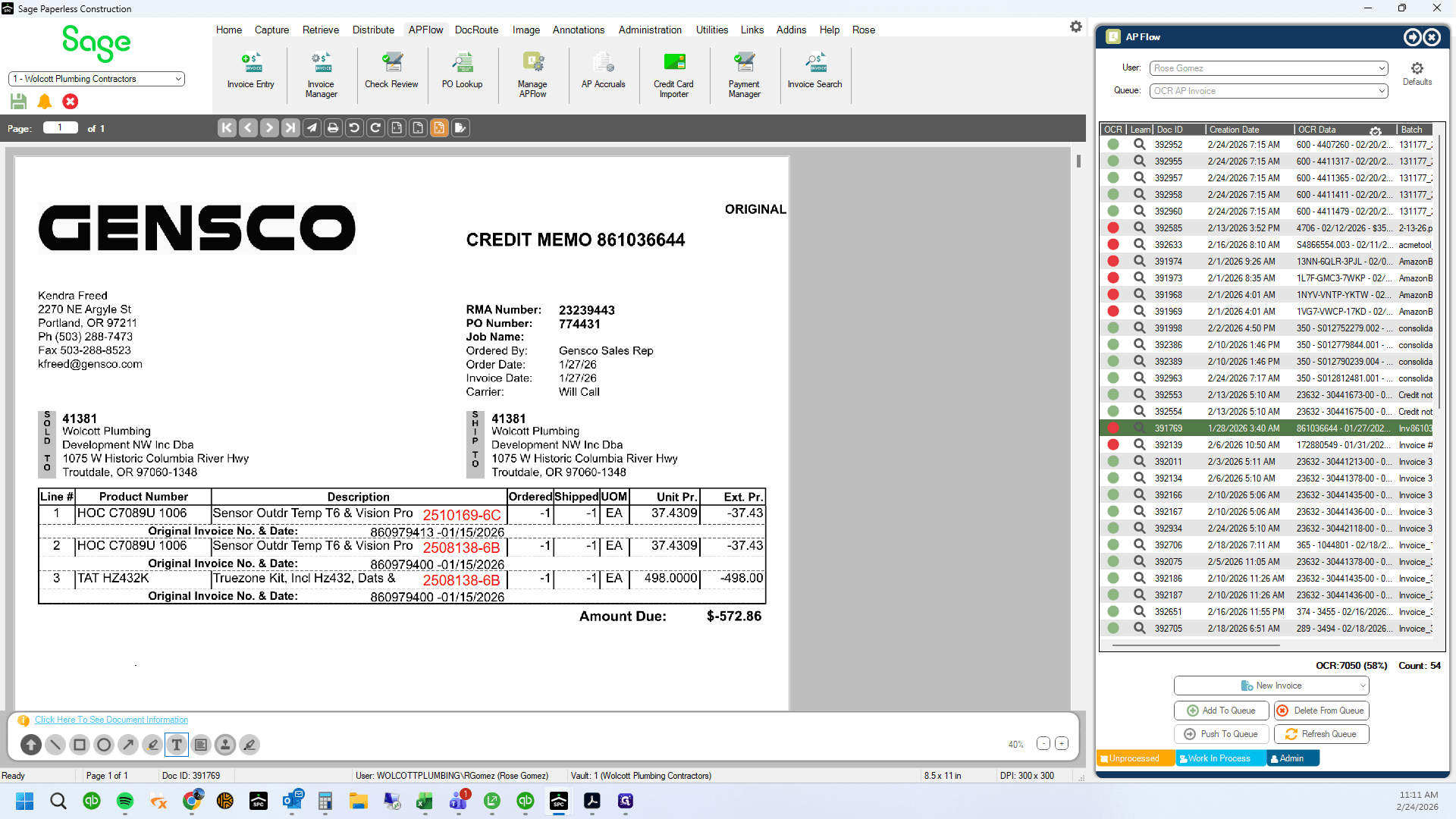
Copy and paste PO number on corresponding line items
35
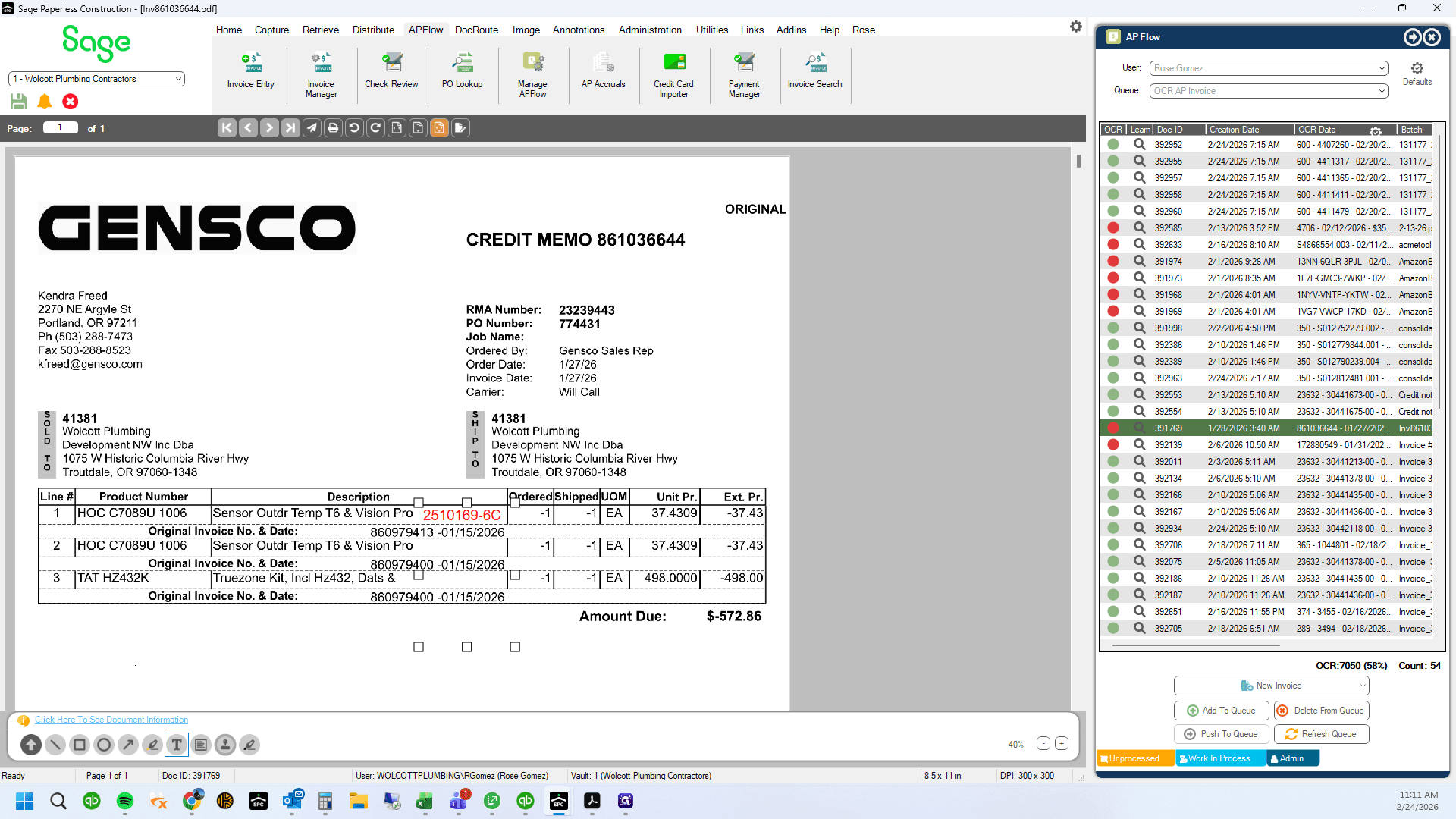
Right click to bring up your text box. Click "Properties"
36
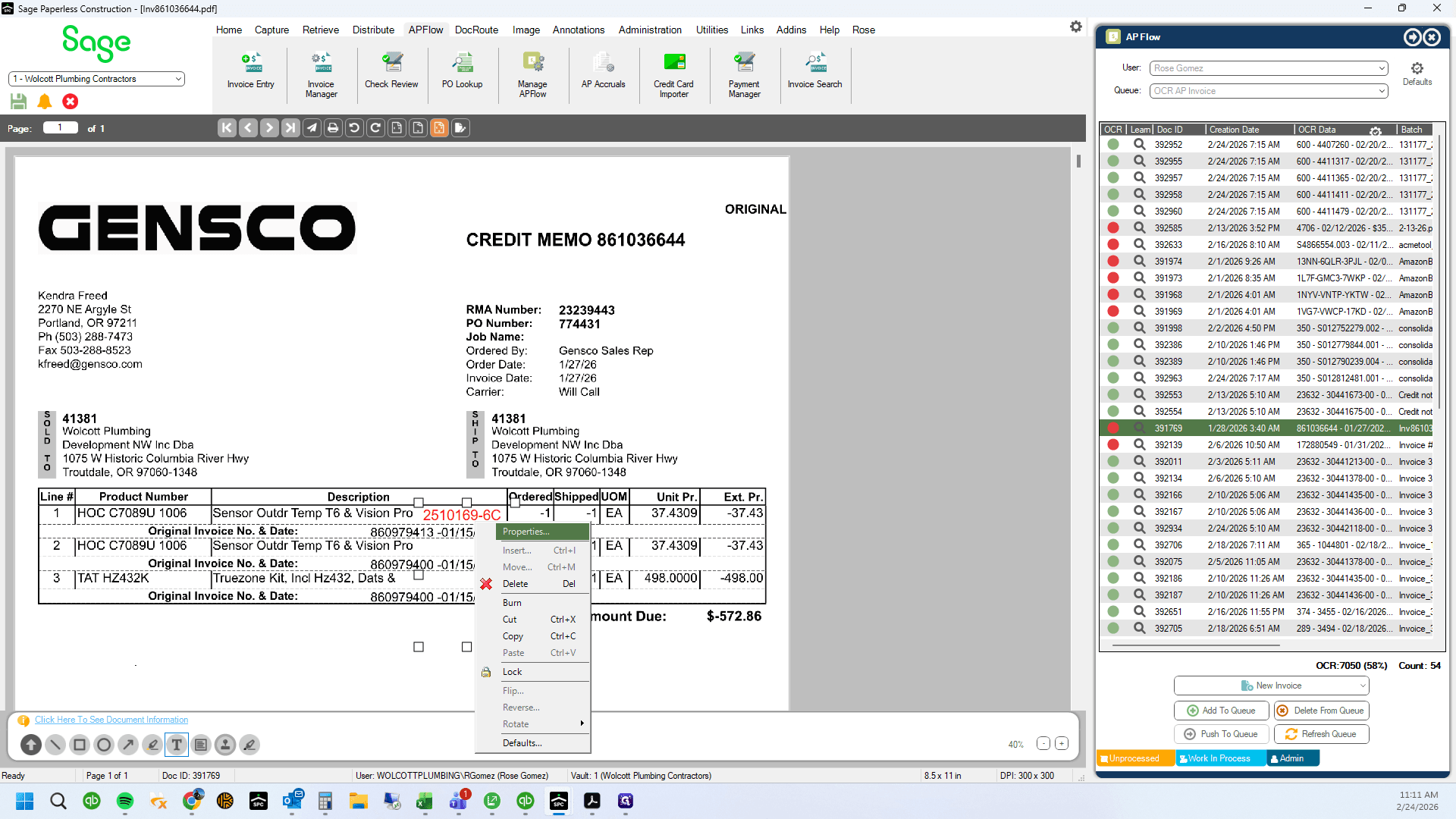
Click on "Properties"
37
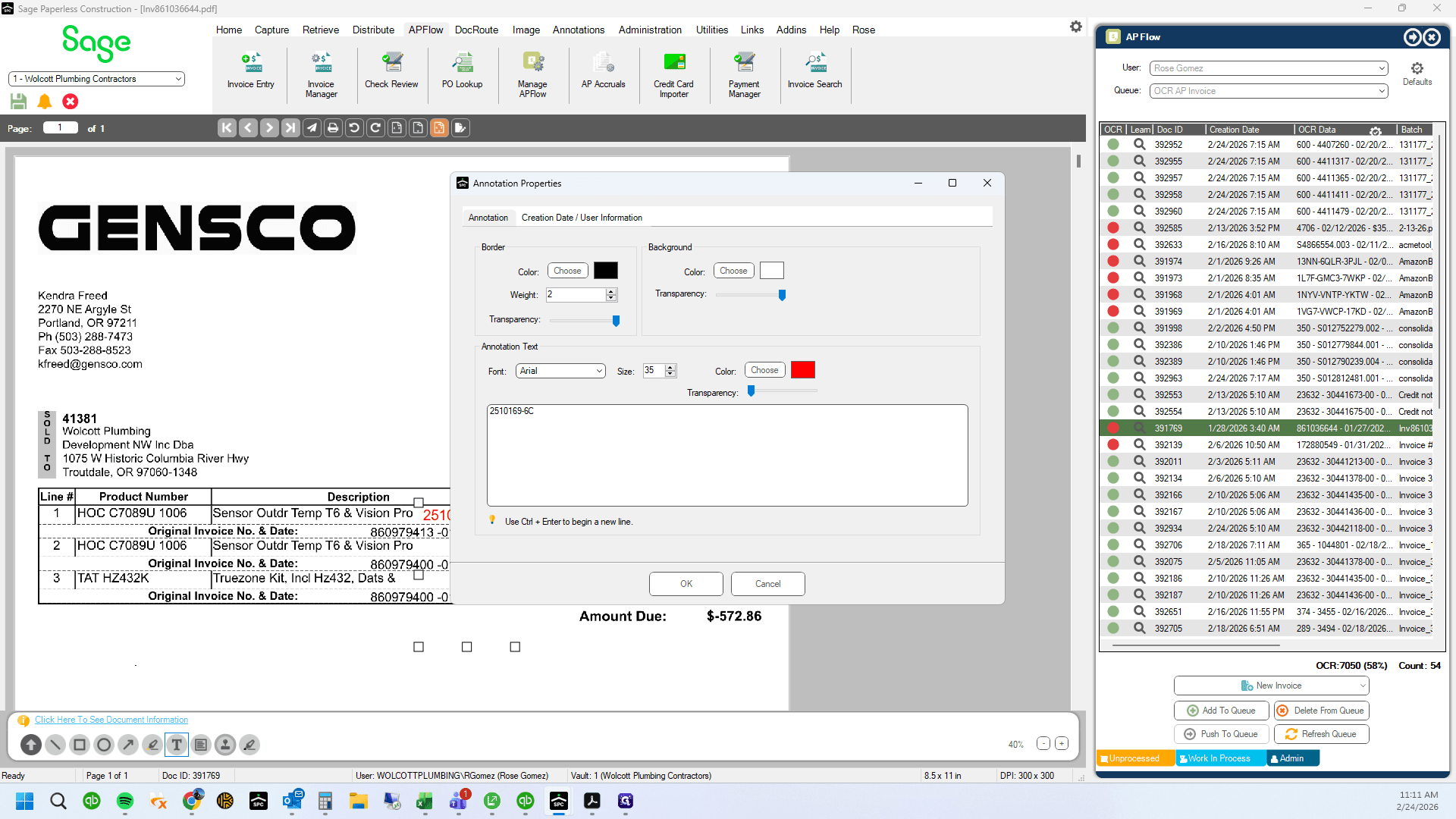
Click here
38
Type "Ctrl + Enter"
39
Type "Ctrl + Enter"
40
Type "Ctrl + Enter"
41
Type "Ctrl + V"
42
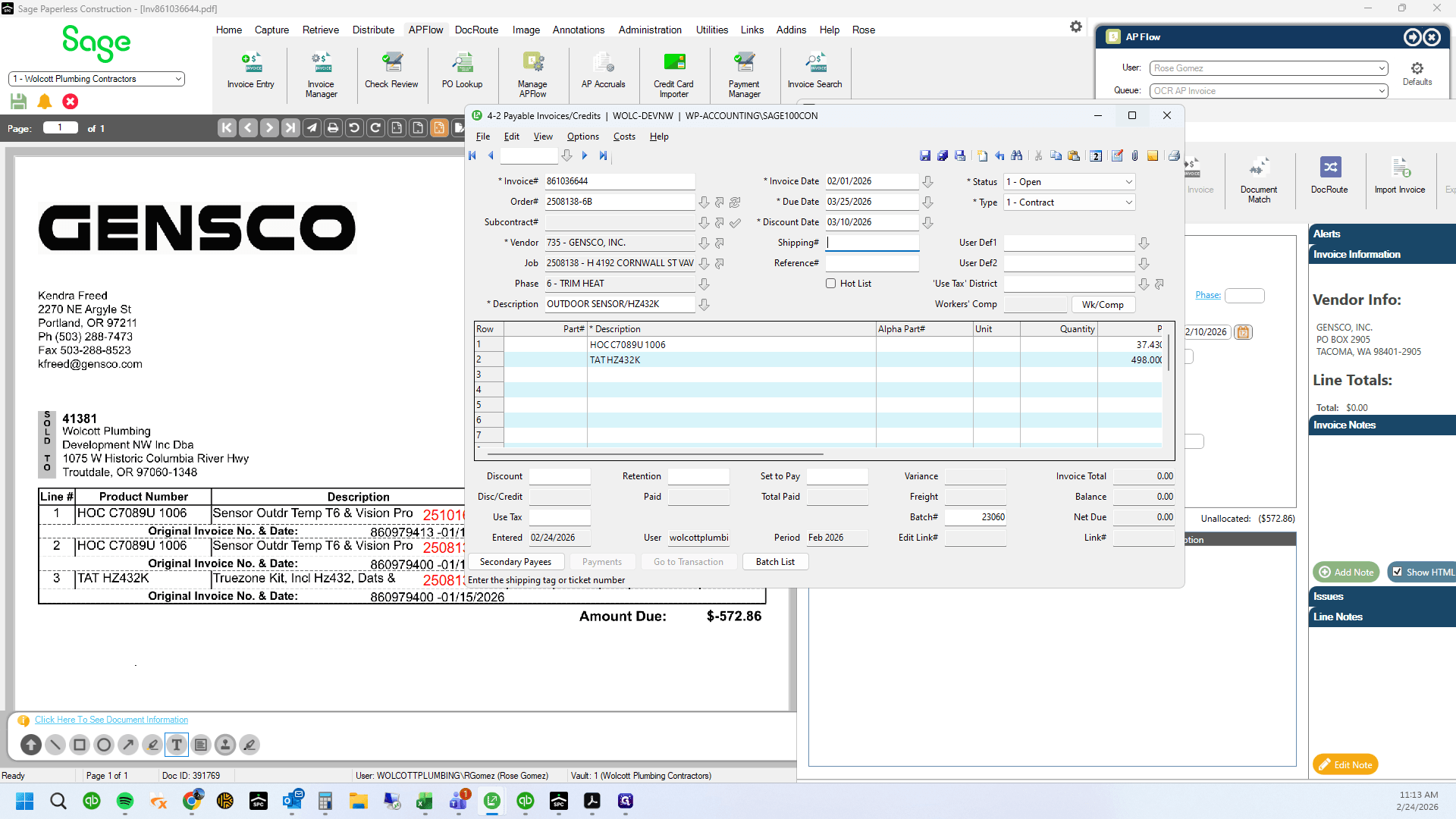
Type "Ctrl + Enter"
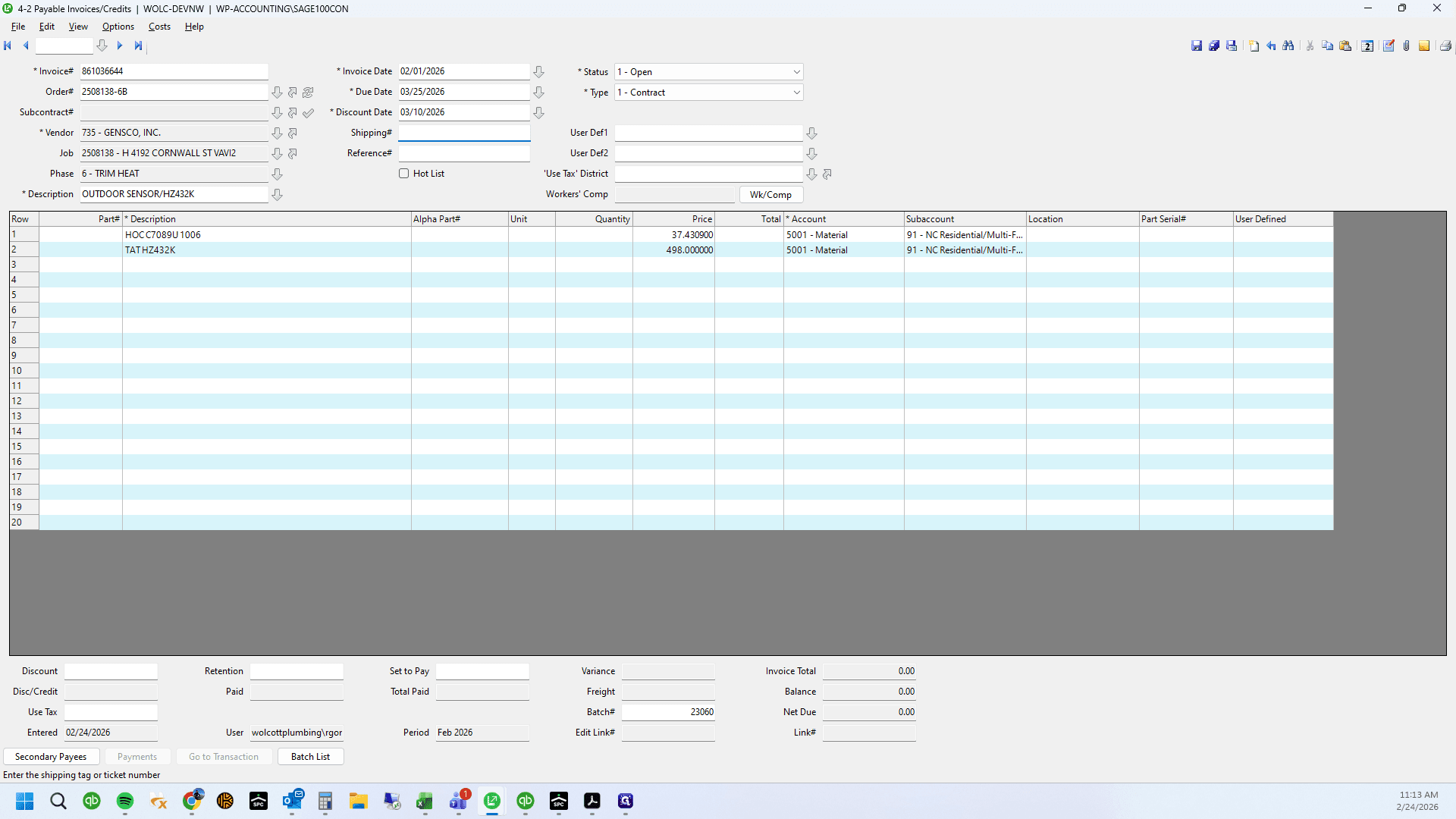
43
Type "Ctrl + Enter"
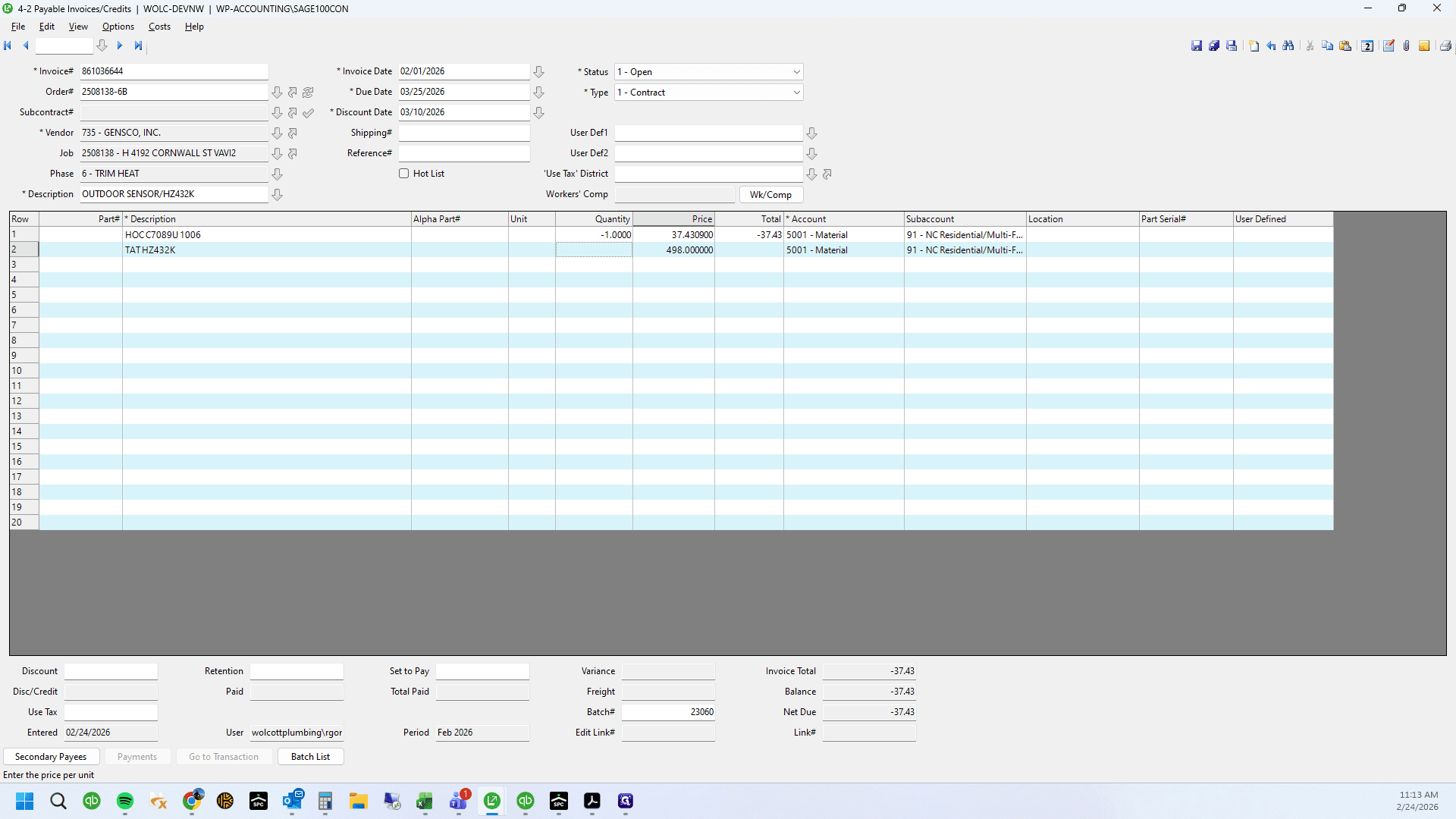
44
Type "Ctrl + V"
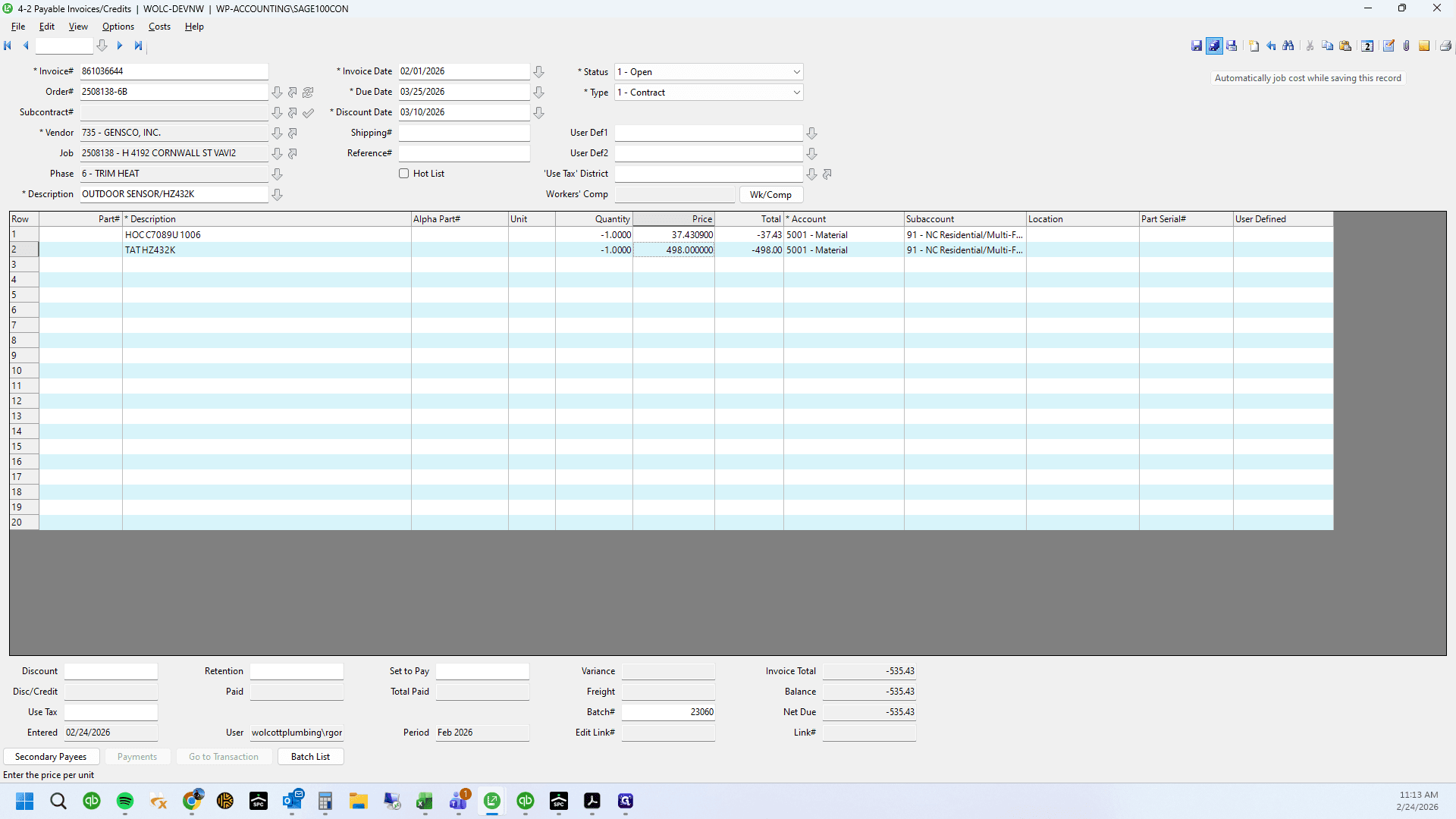
45
Type "Enter"
46
Click on "Order Date : Invoice Date : Carrier :"
47
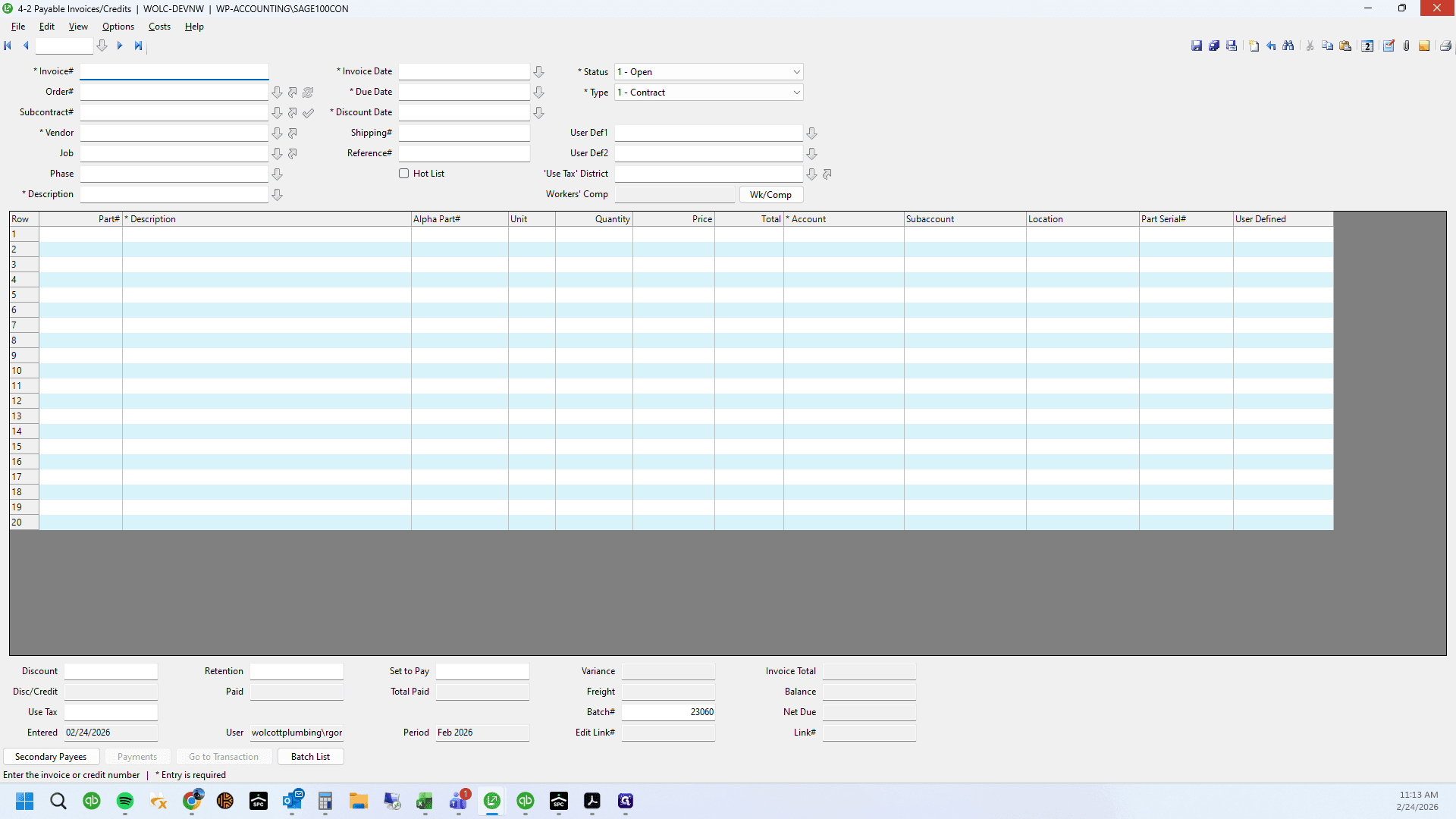
Click here
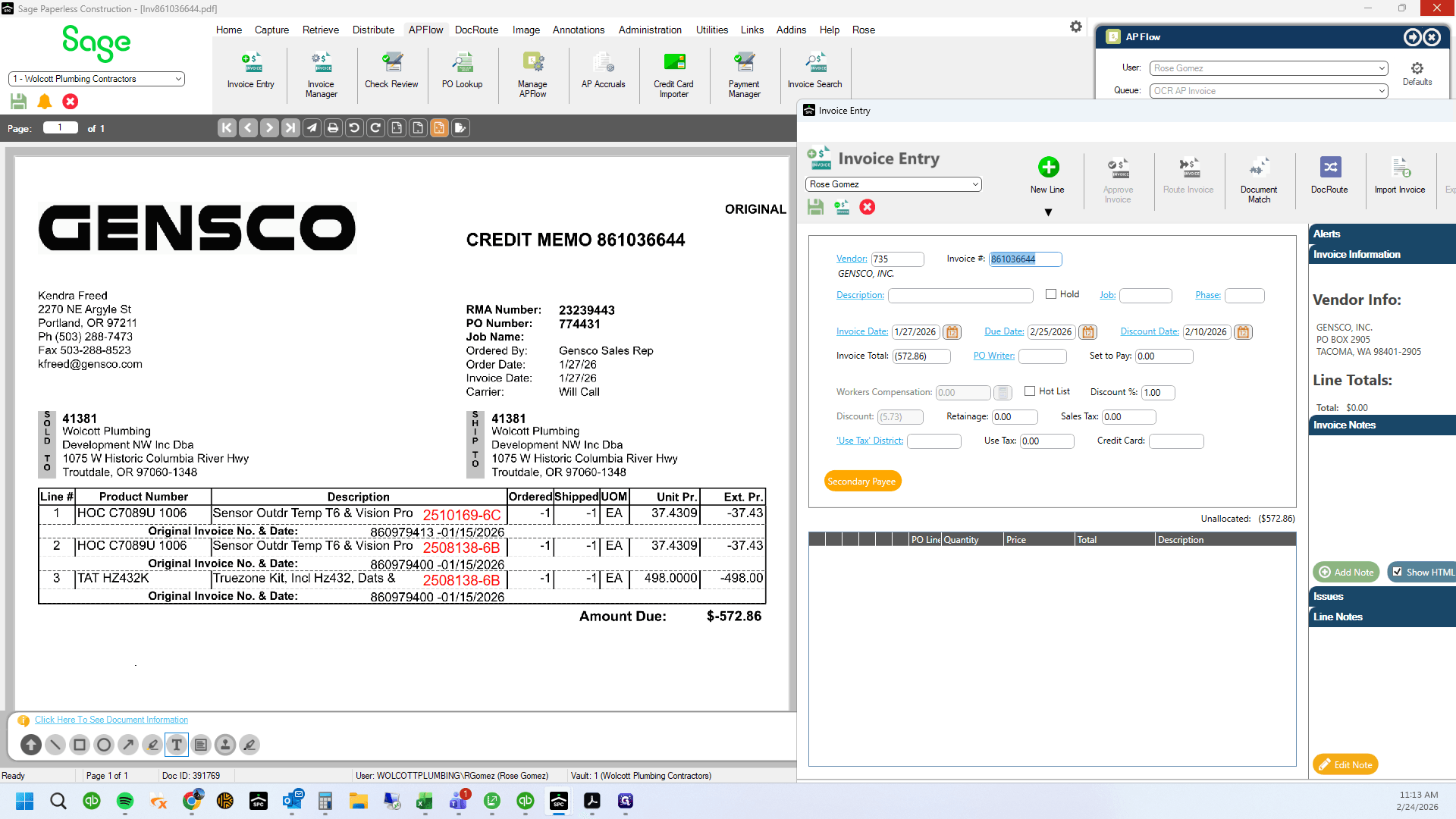
48
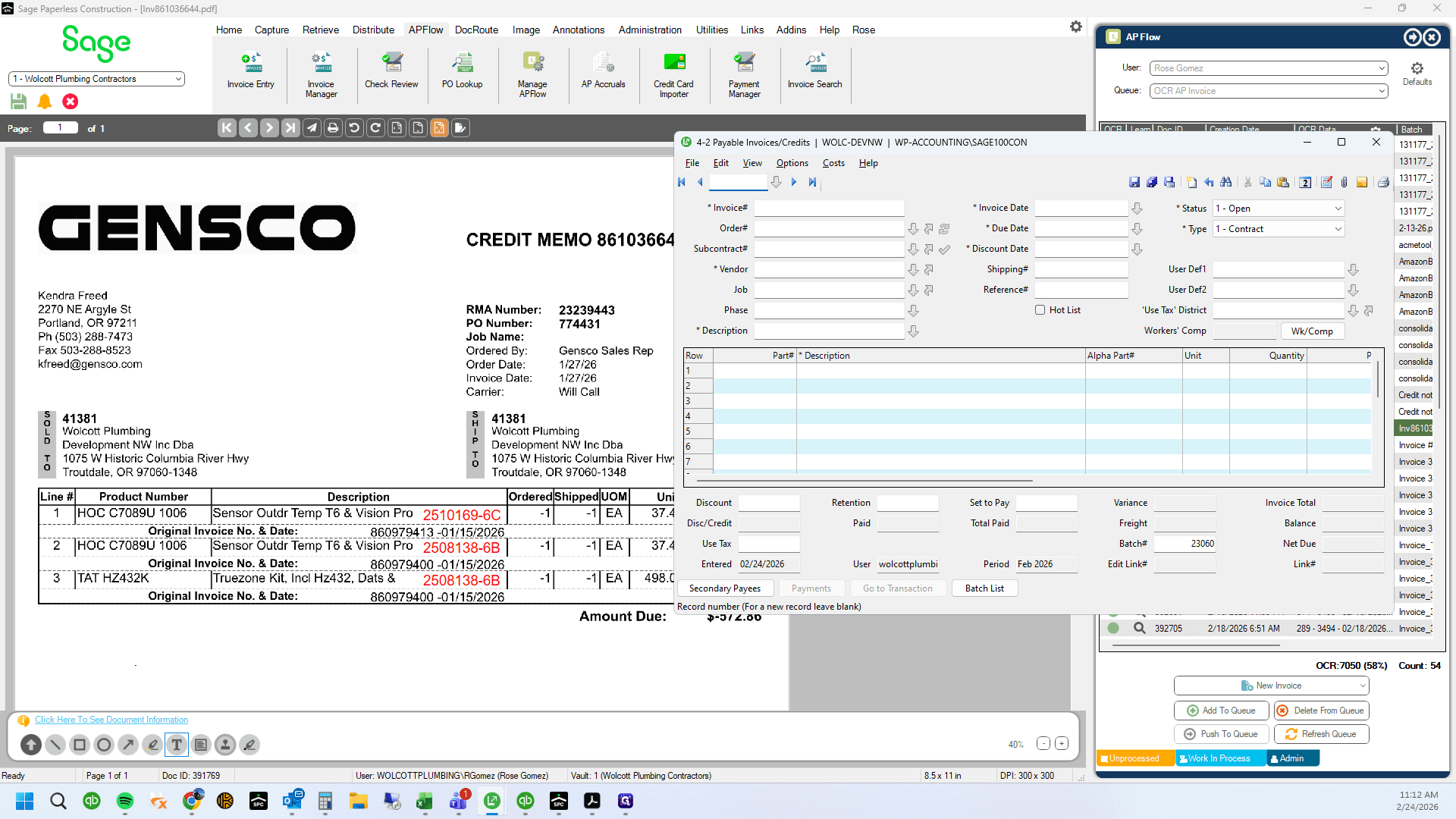
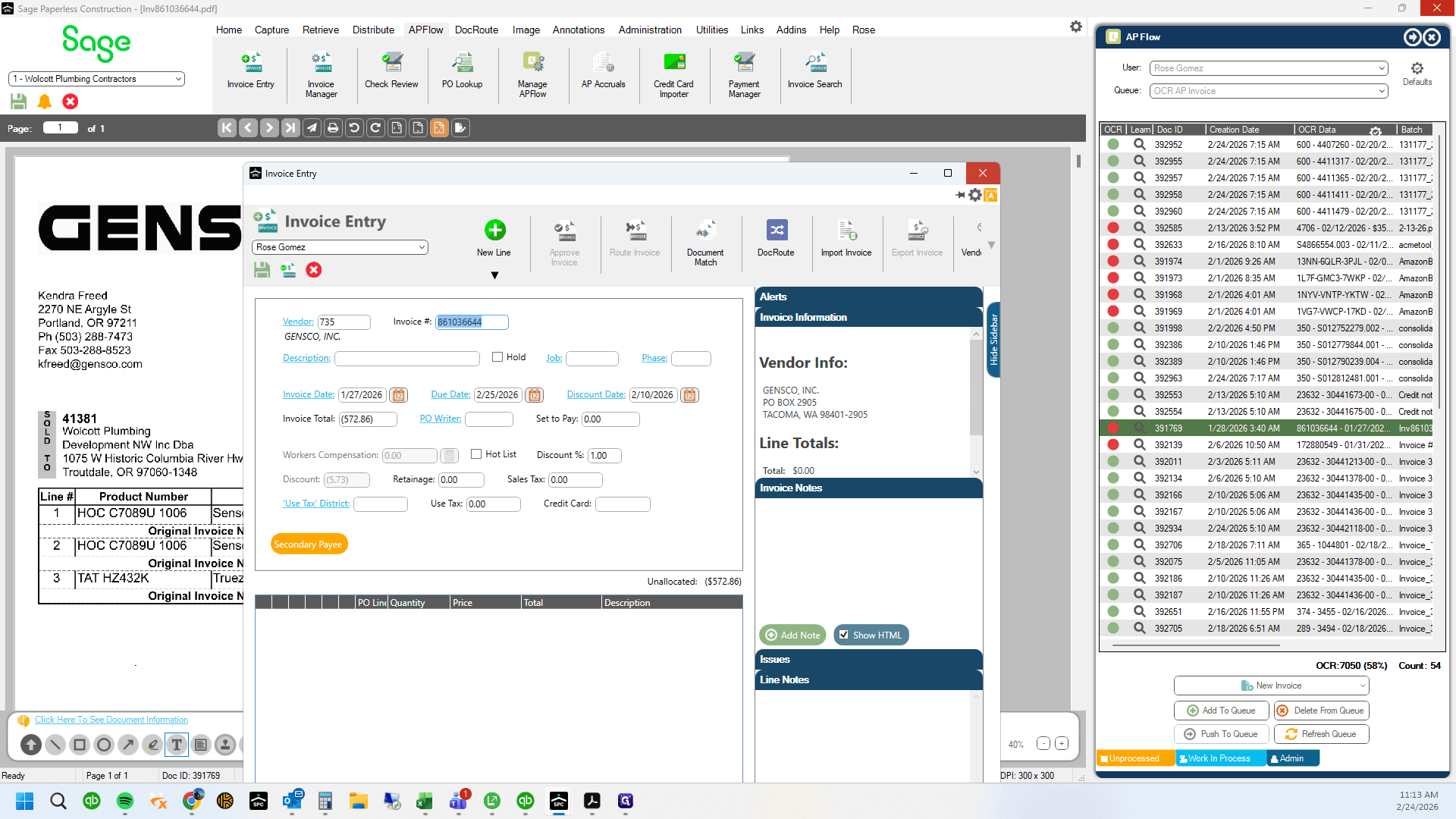
Click here (New Invoice)
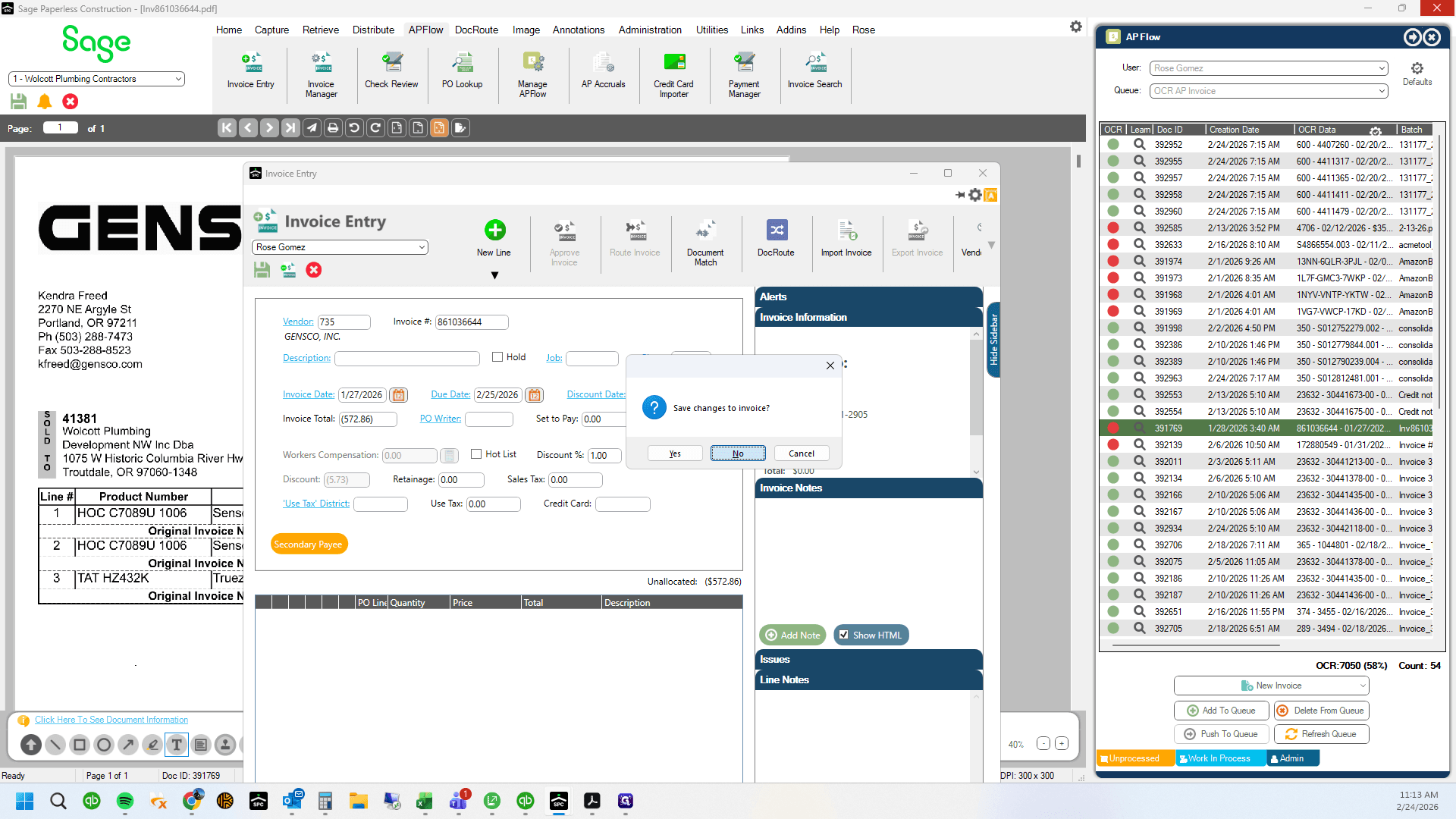
49
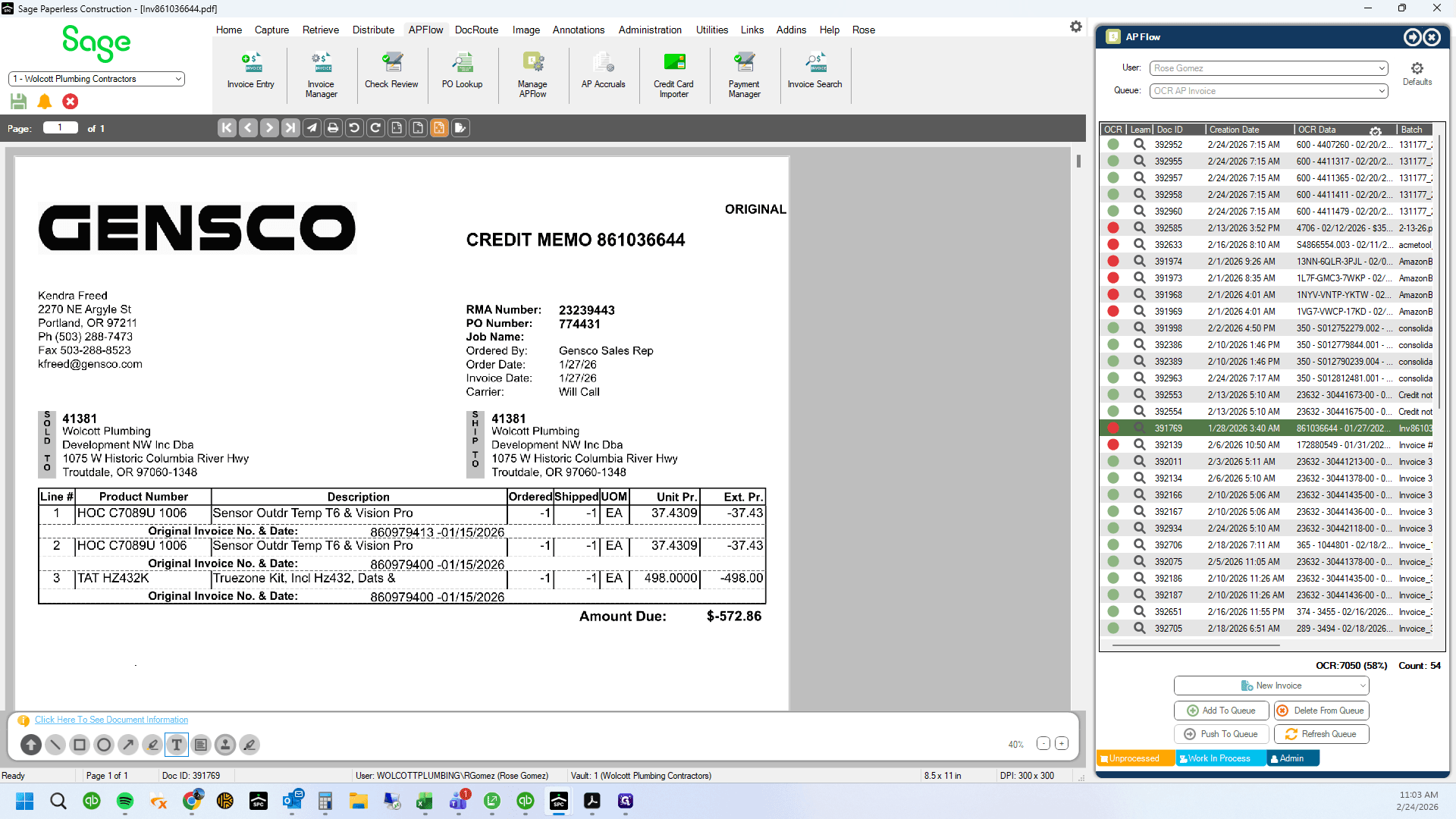
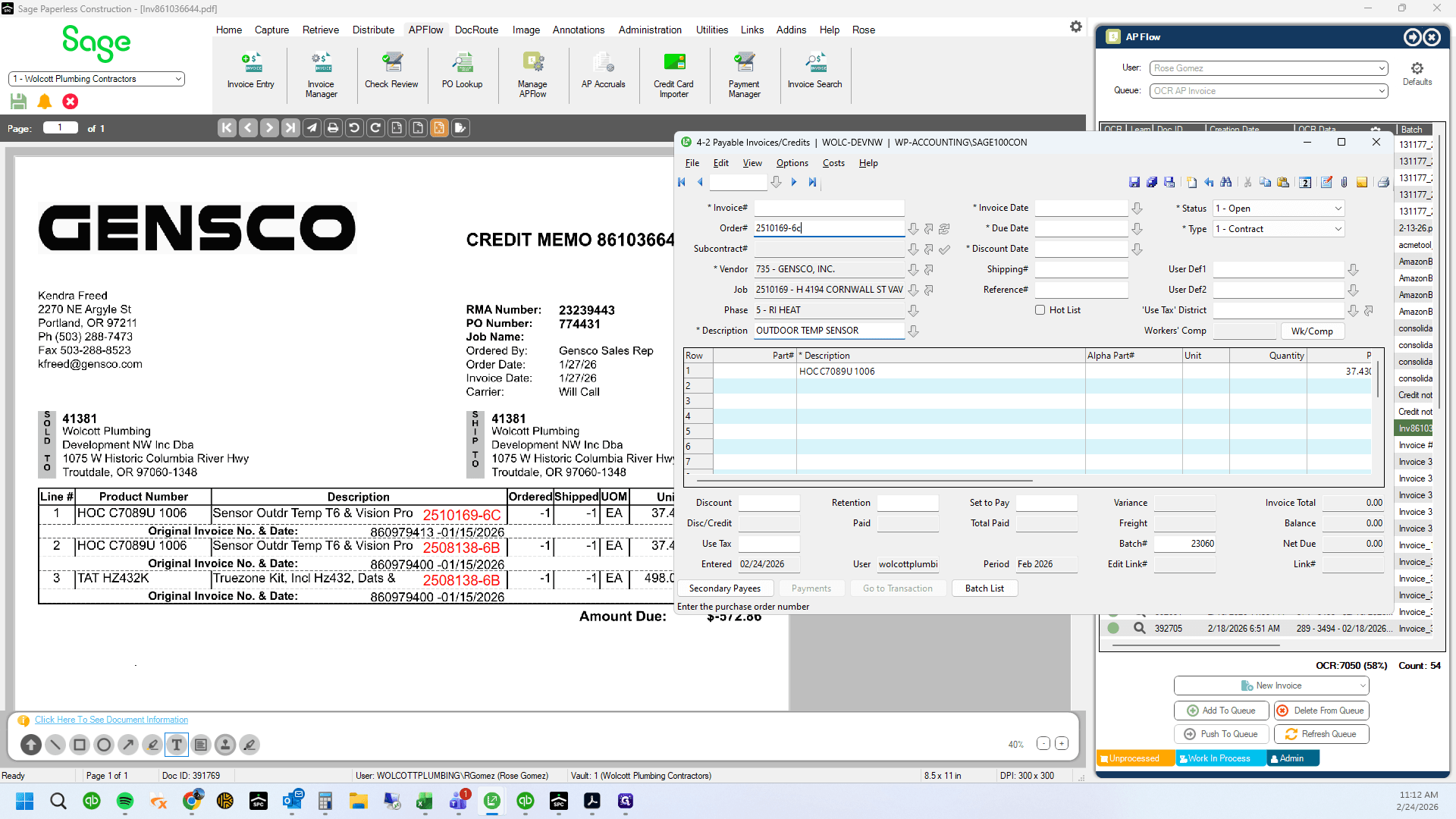
PO number is Order number
50
Type "2510169-6c + Tab"
51
Double-click here
52
Type "Backspace"
53
Type "C + Tab"
54
Click here
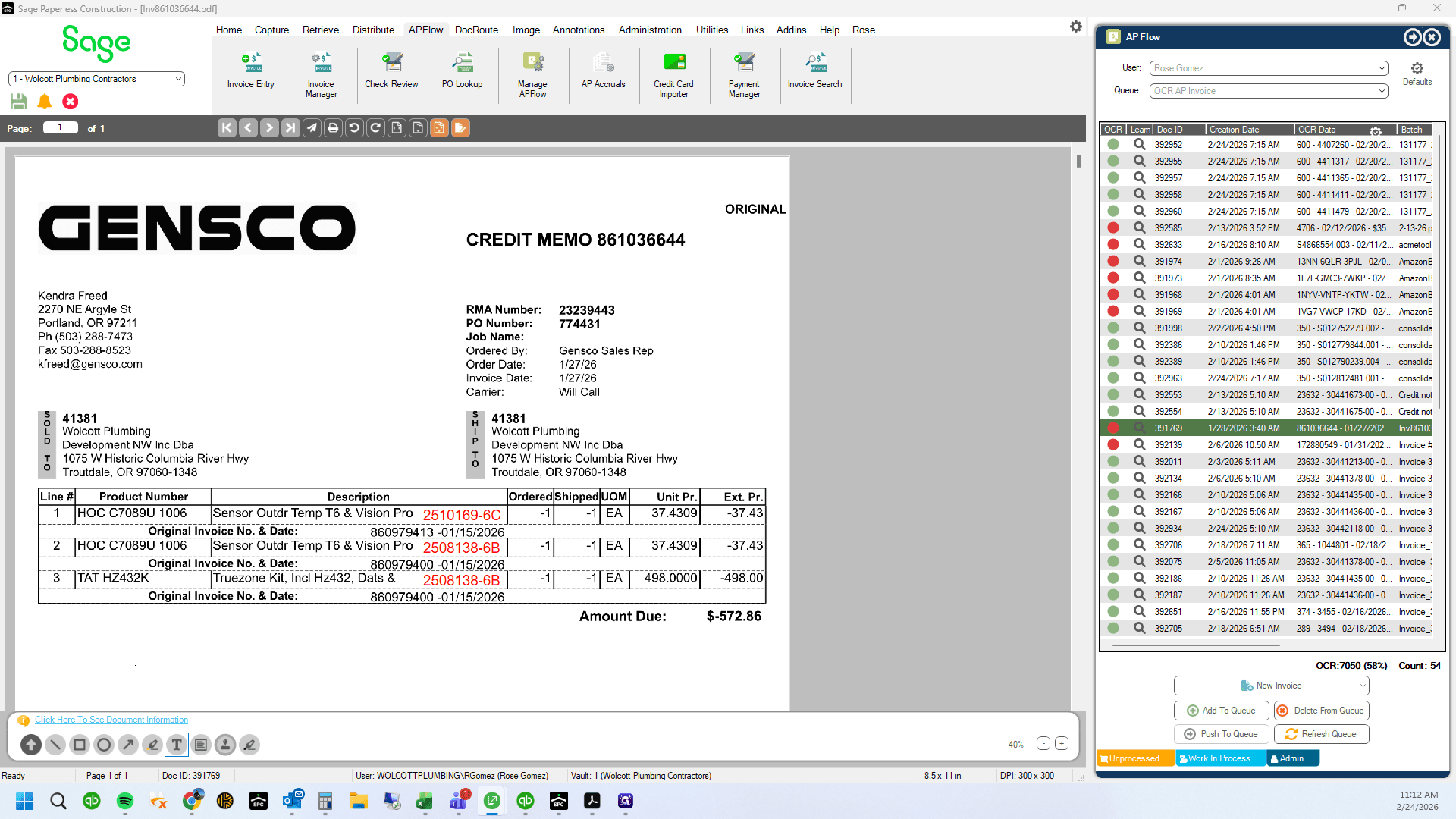
55
Close invoice entry box in paperless. We are not entering this in paperless but will
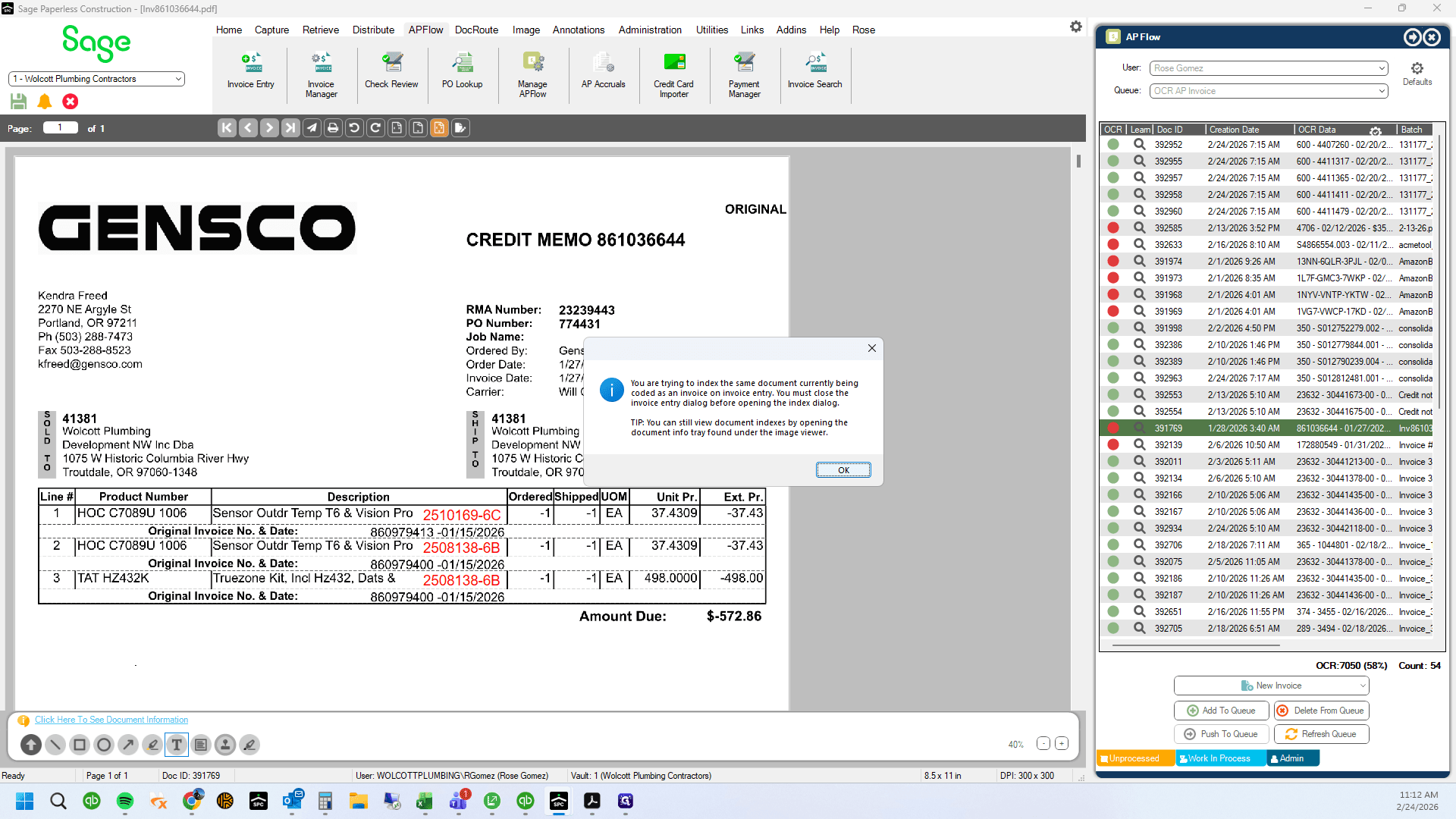
56
Click here
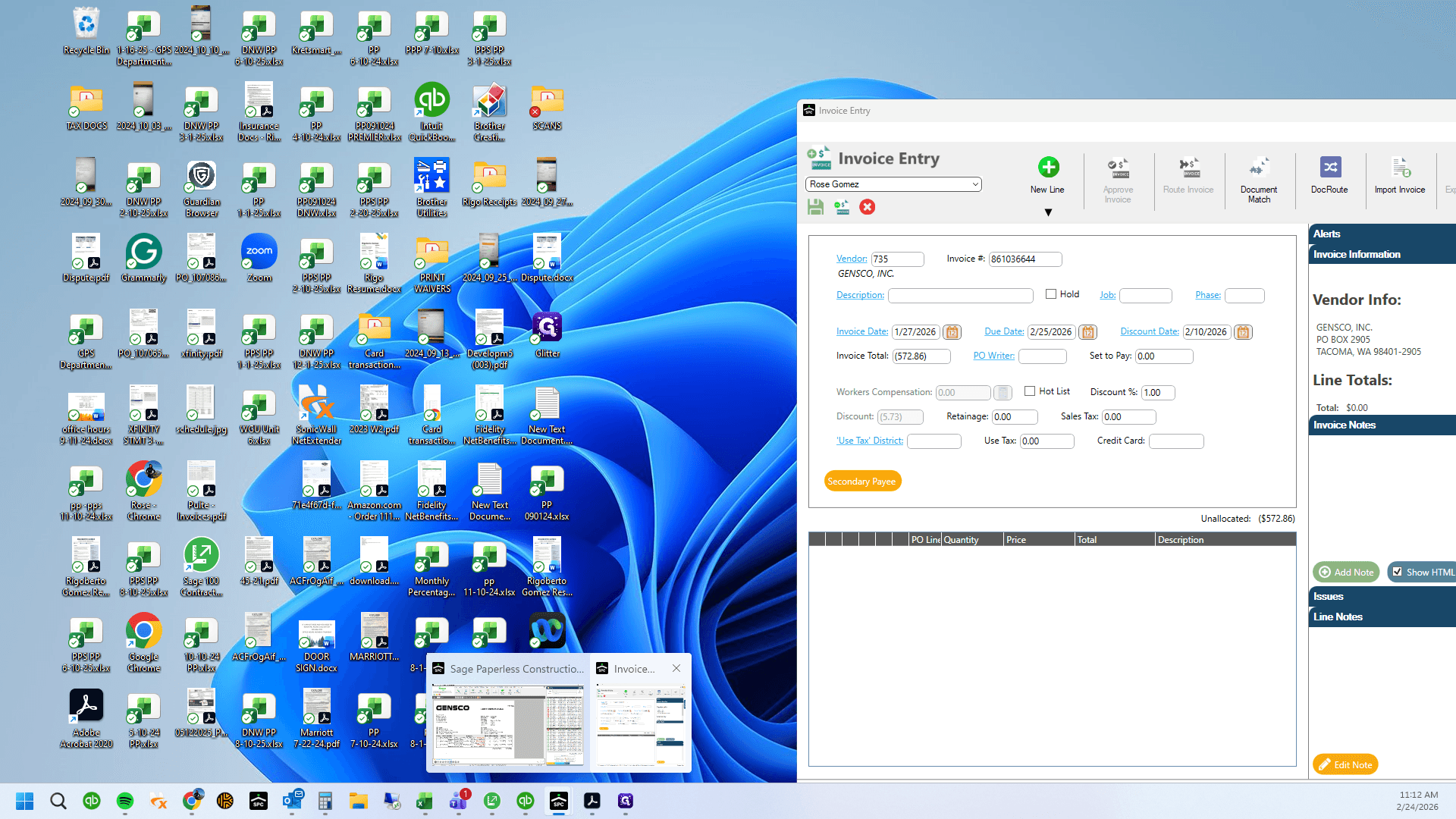
57
Copy invoice number
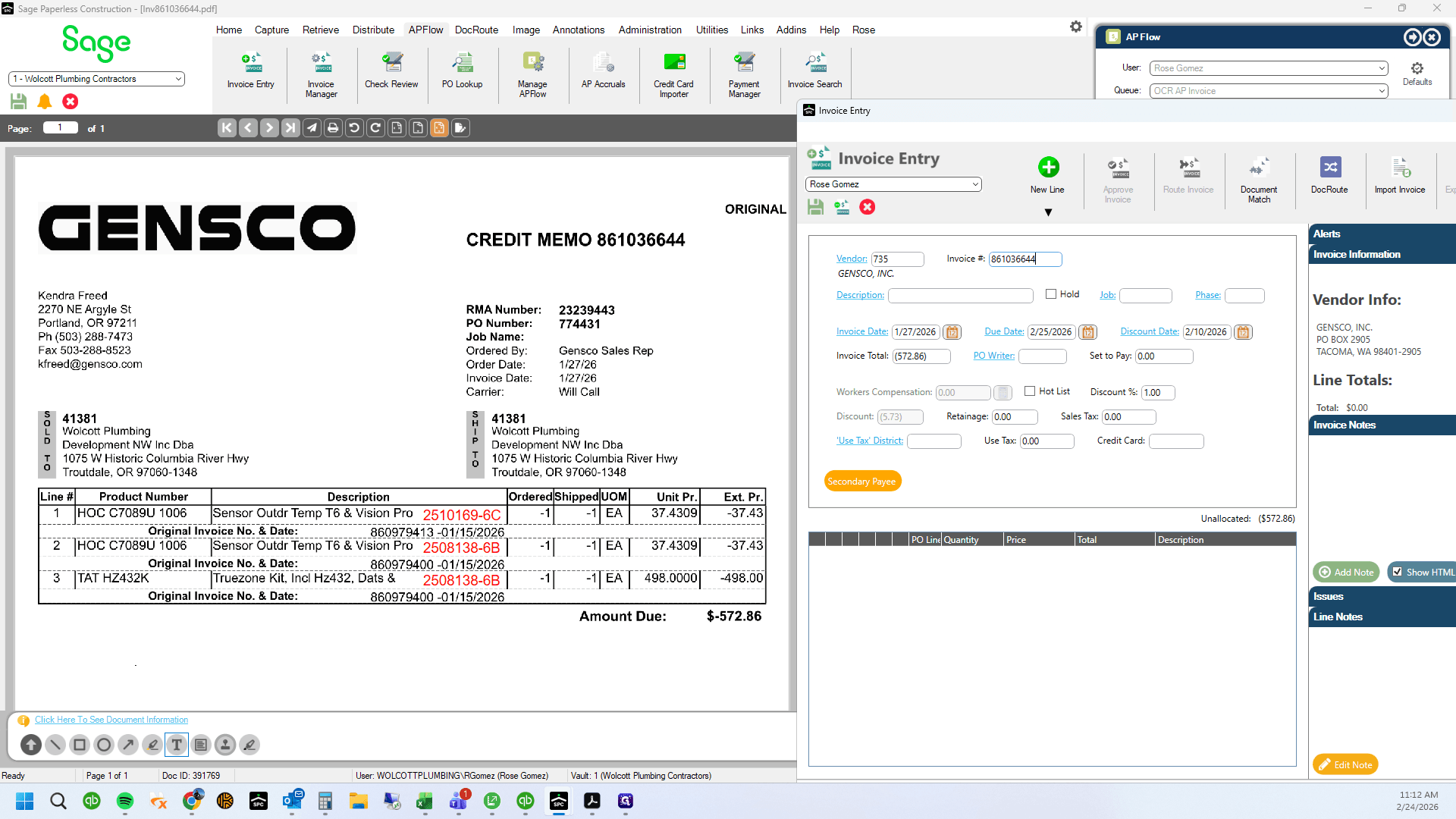
58
Type "Ctrl + C"
59
Click here
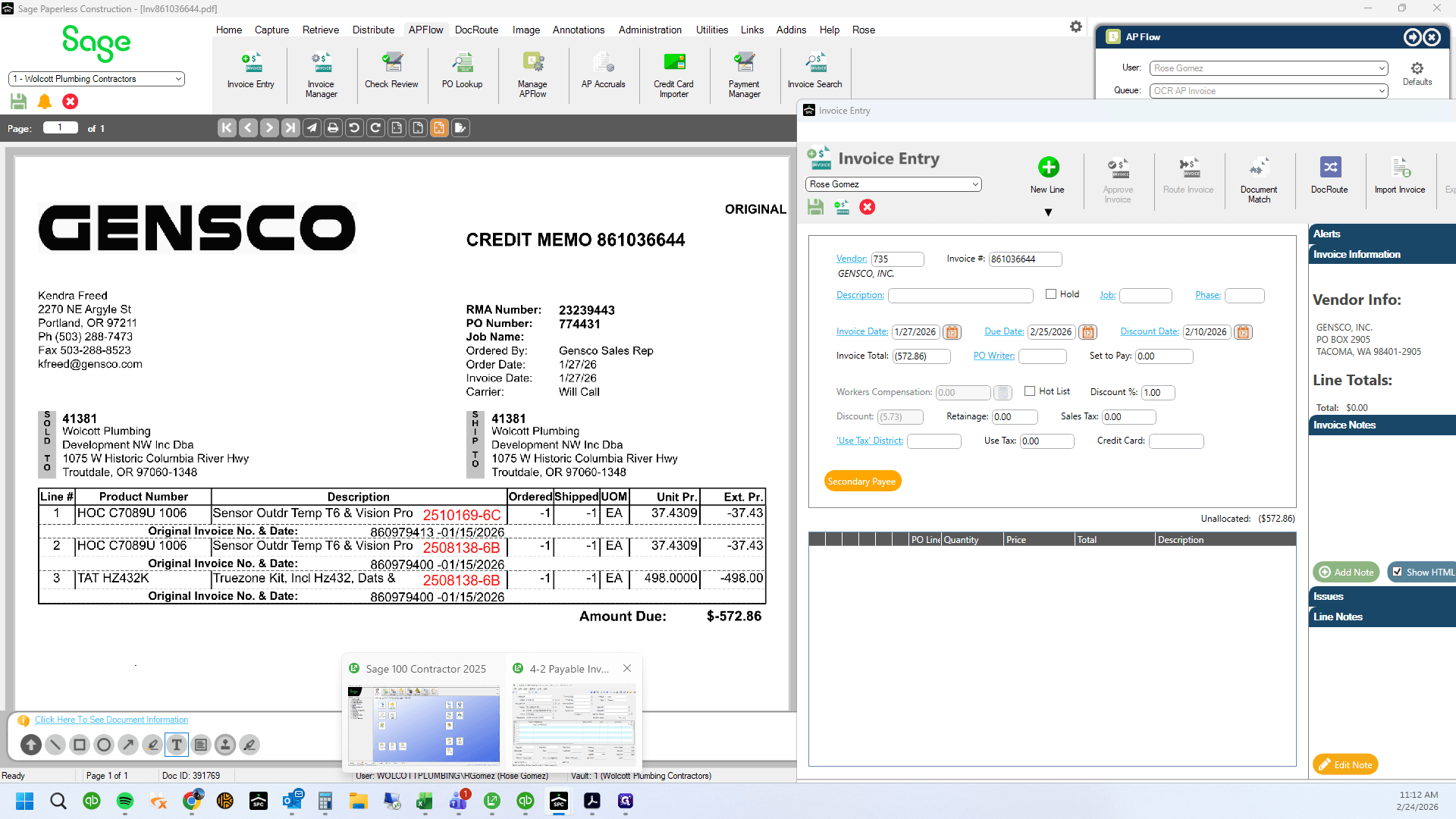
60
Paste invoice number and enter credit into Sage 100
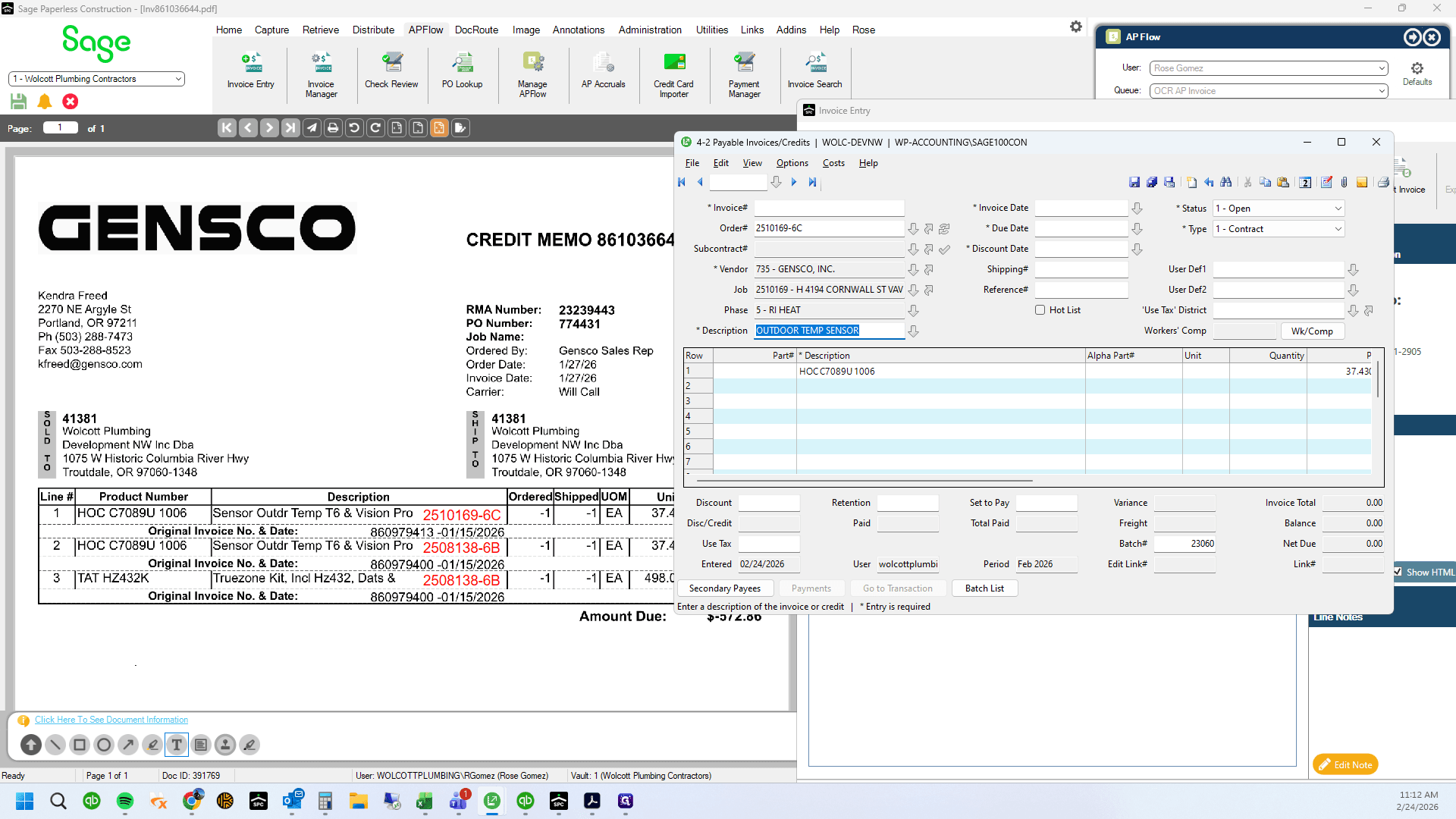
61
Type "Ctrl + V"
62
Click here
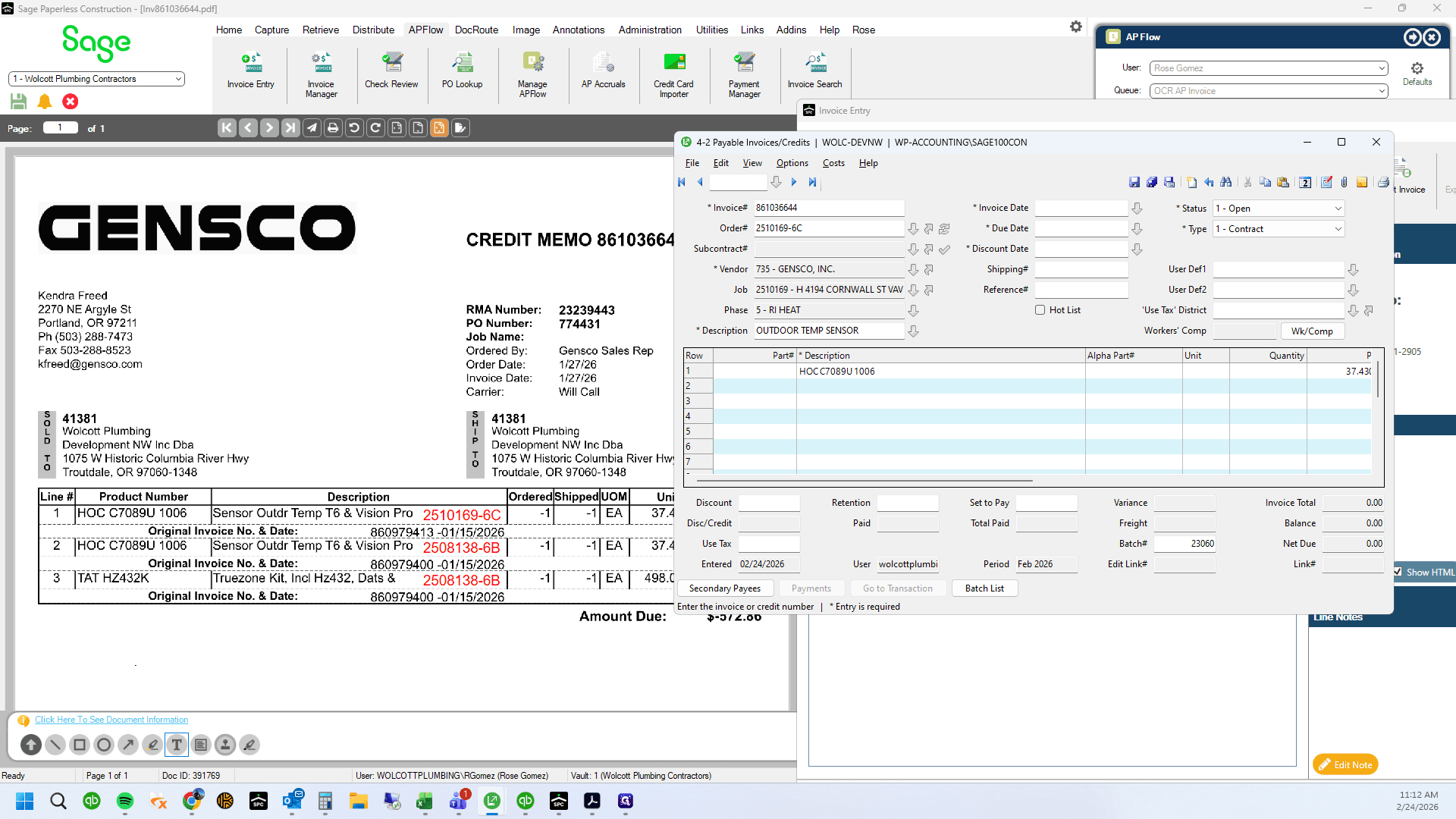
63
Type "0201 + Enter"
64
Type "Enter"
65
Type "Tab + Enter"
66
Drag "WP - ACCOUNTING \ SAGE100CON"
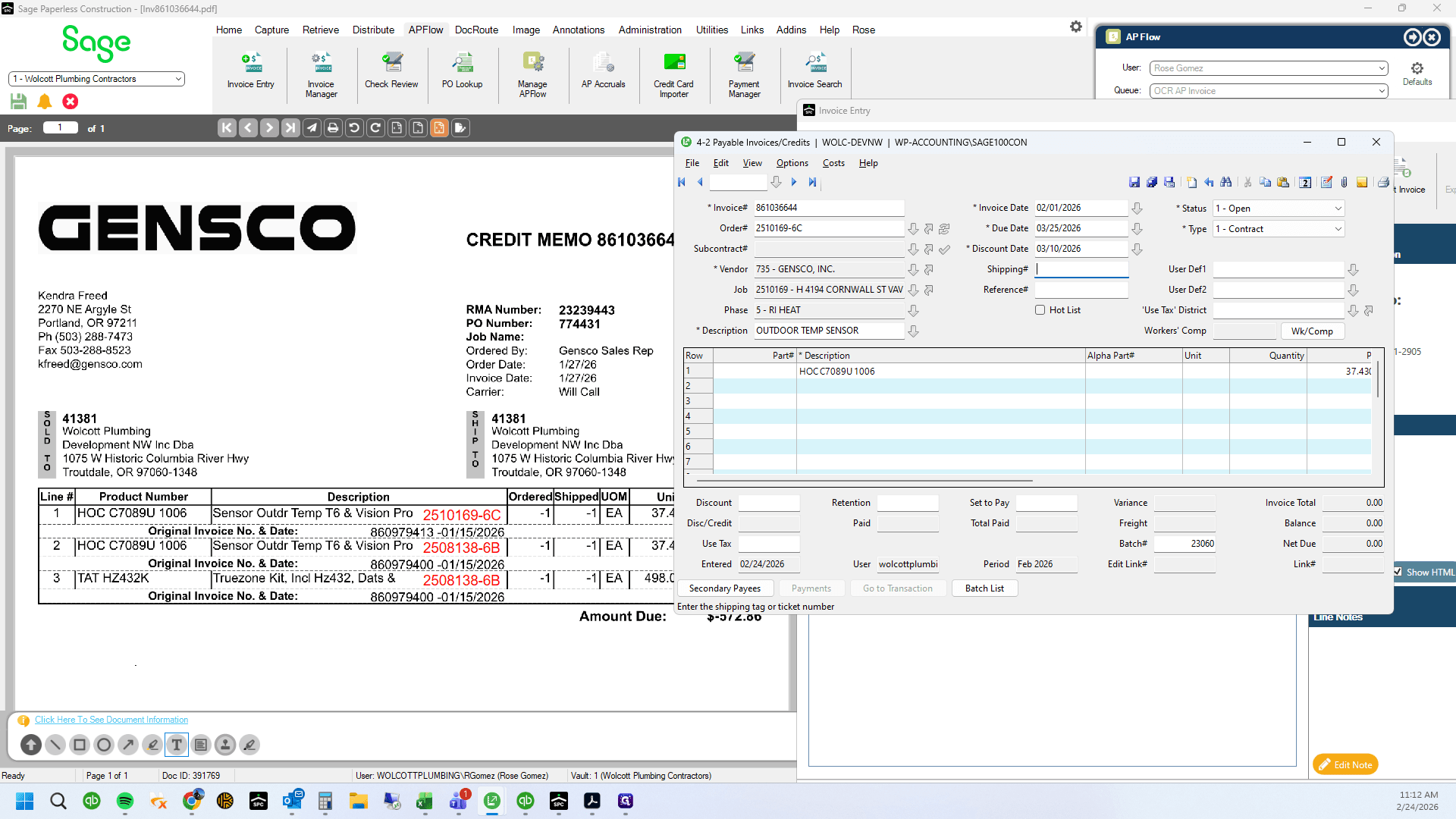
67
Drag here
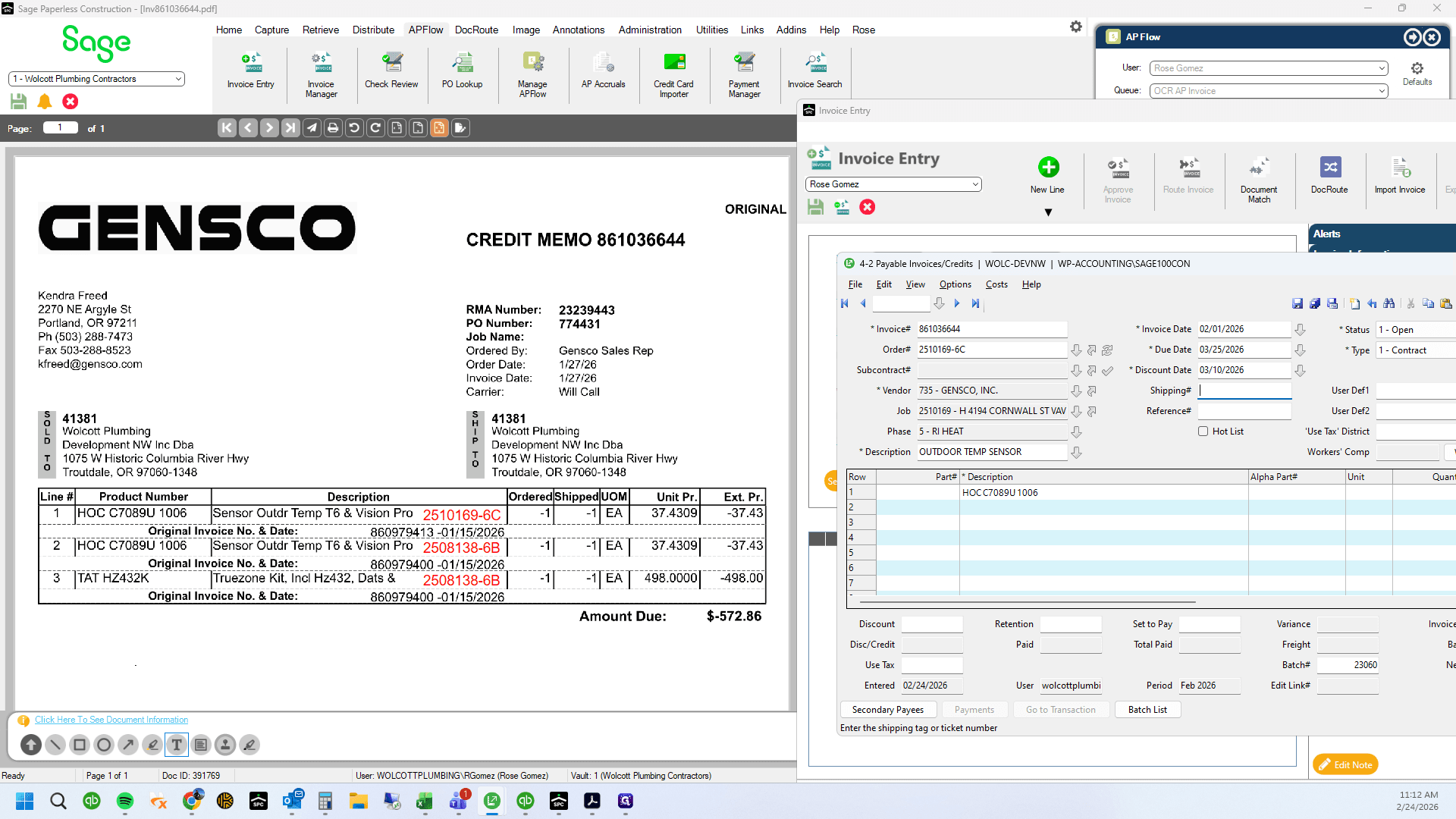
68
Click on "☐"
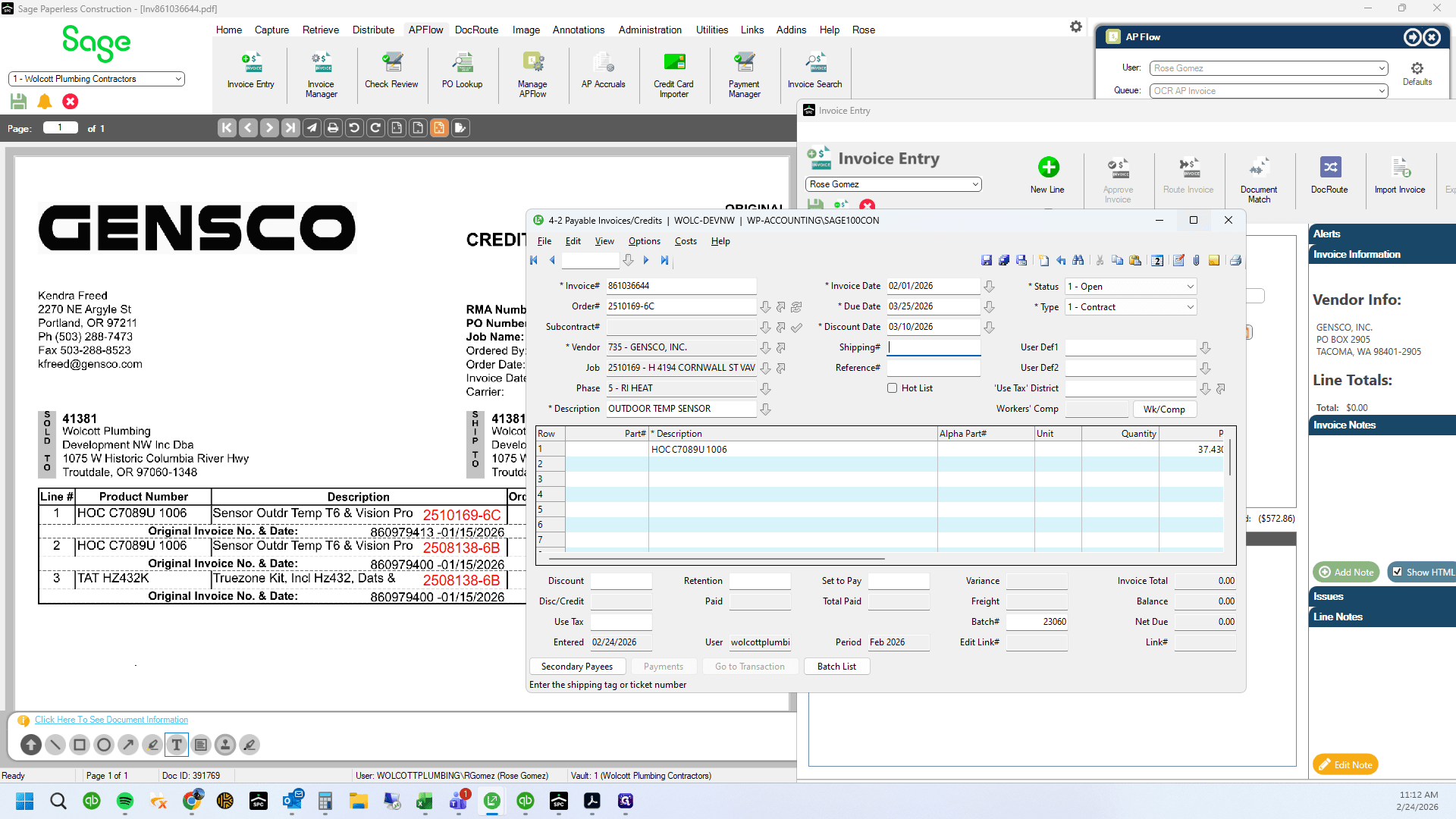
69
Click here
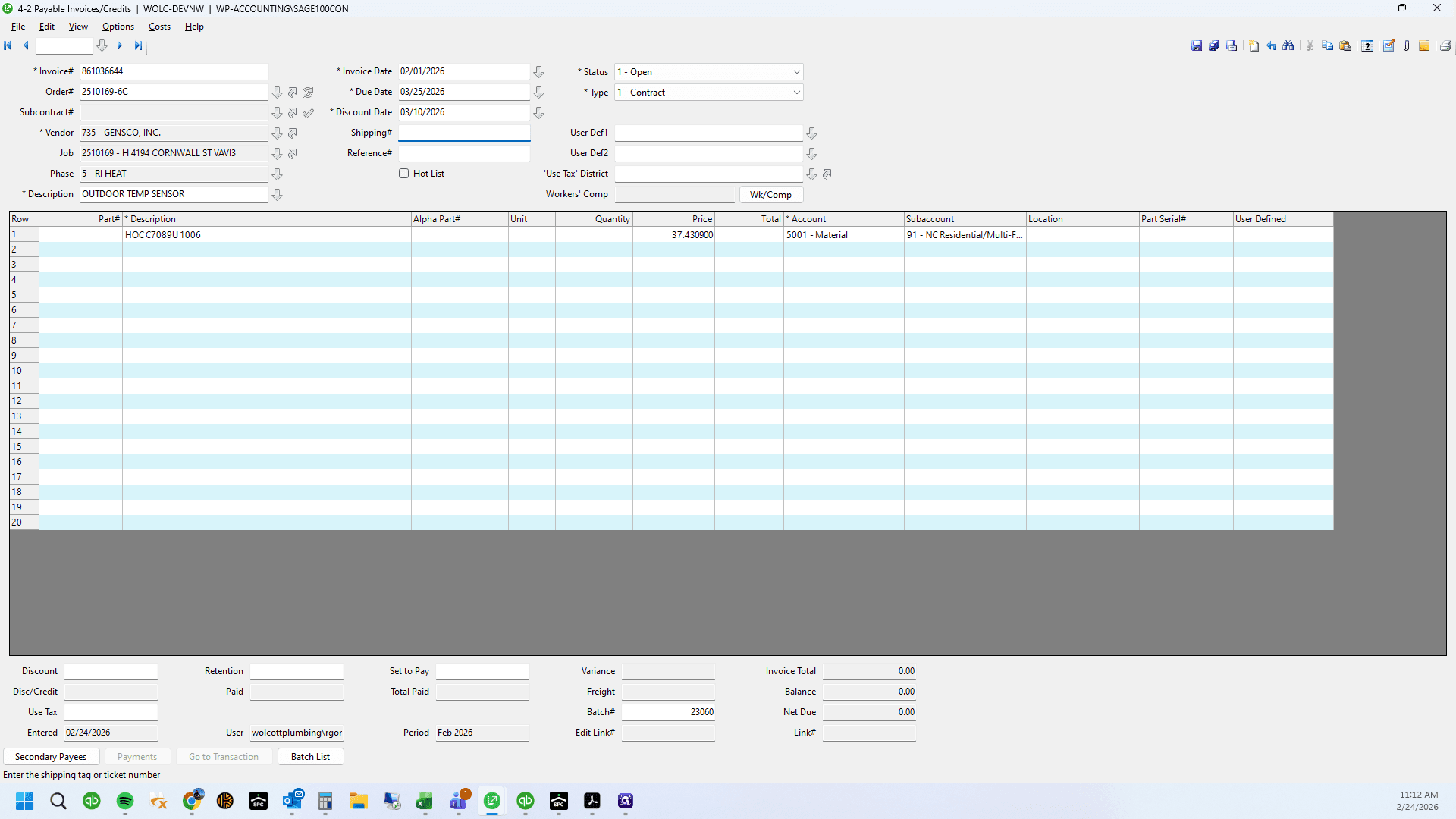
70
Type "-1 + Enter"
71
Click here
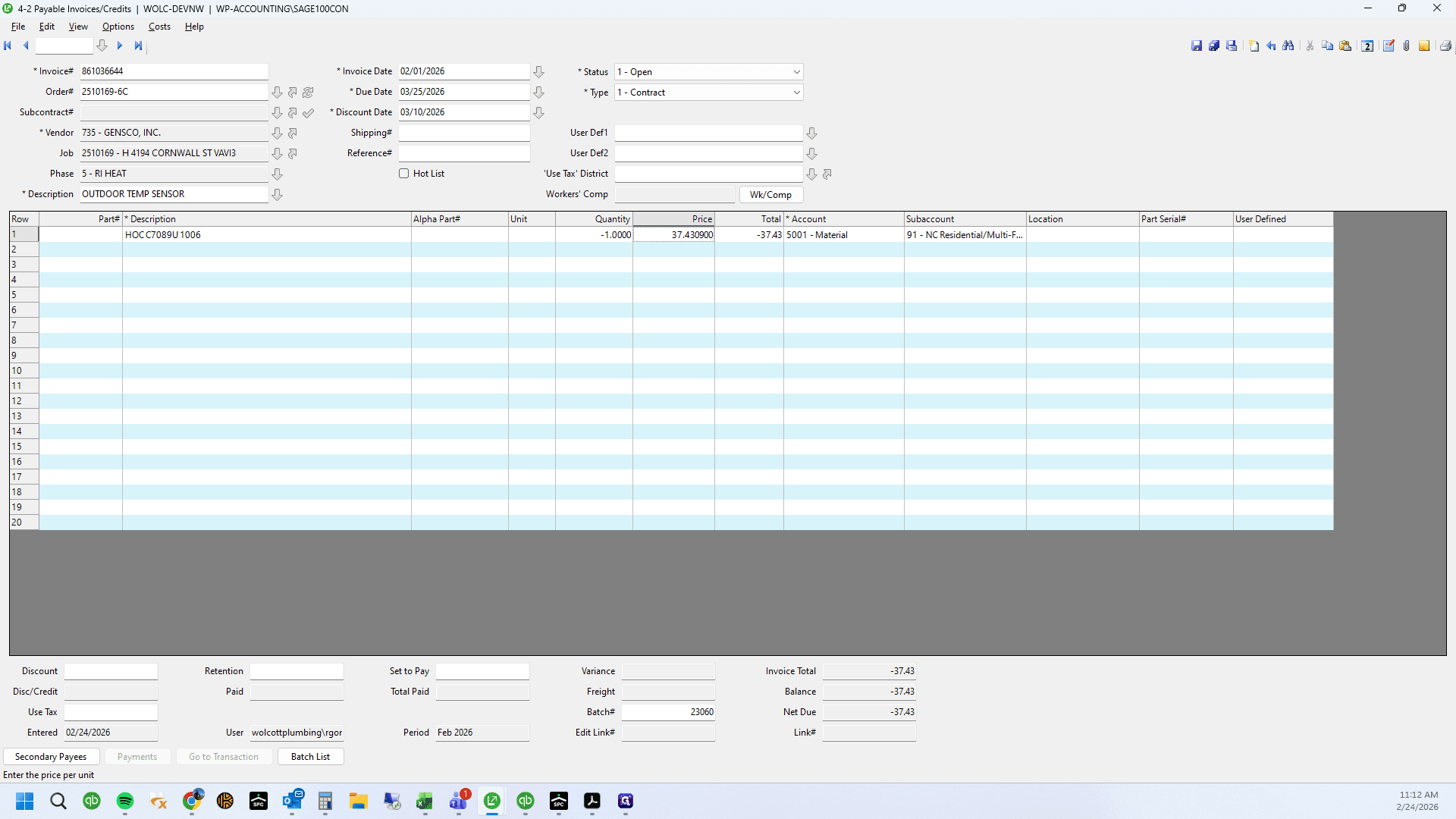
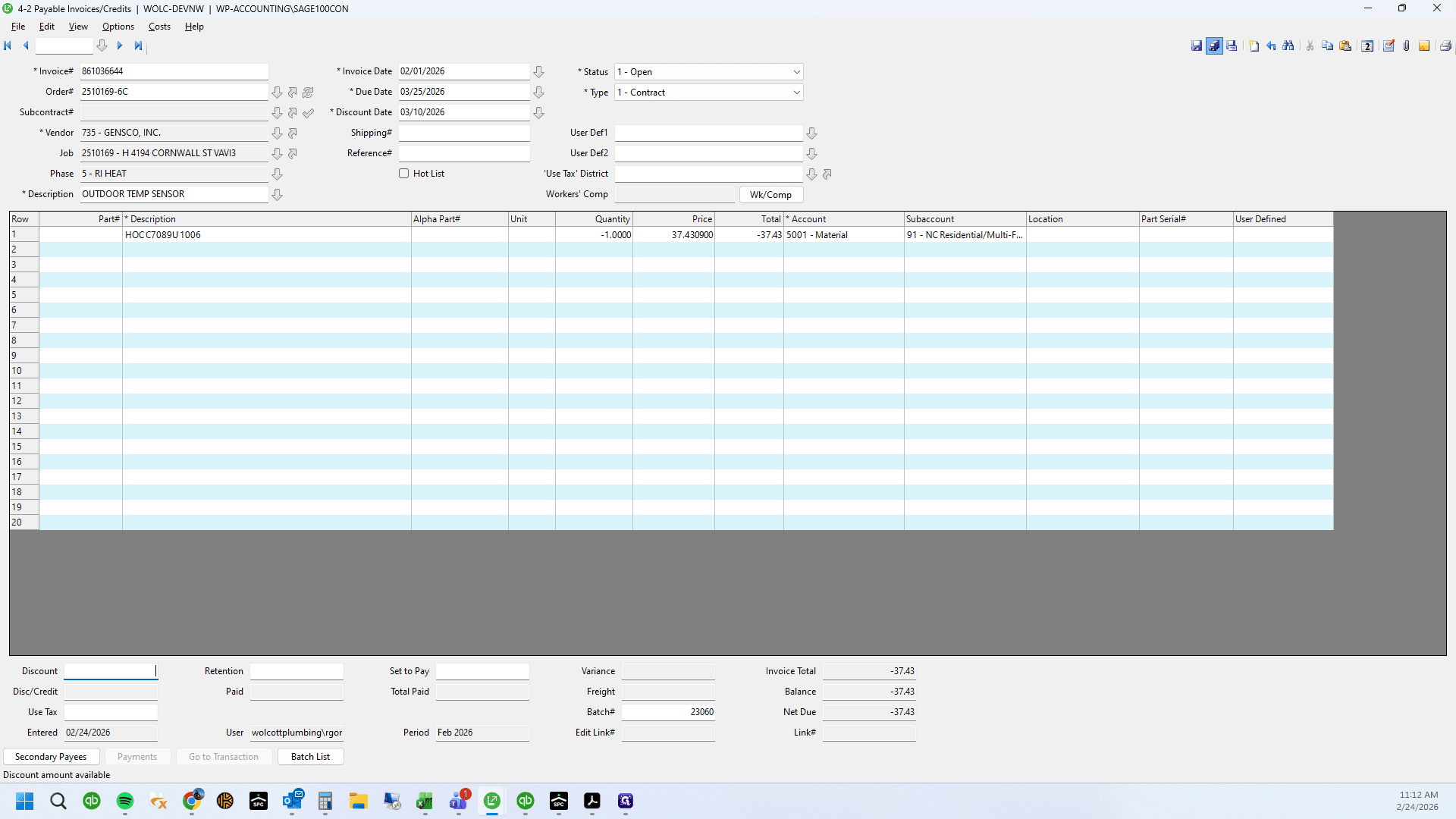
72
Save
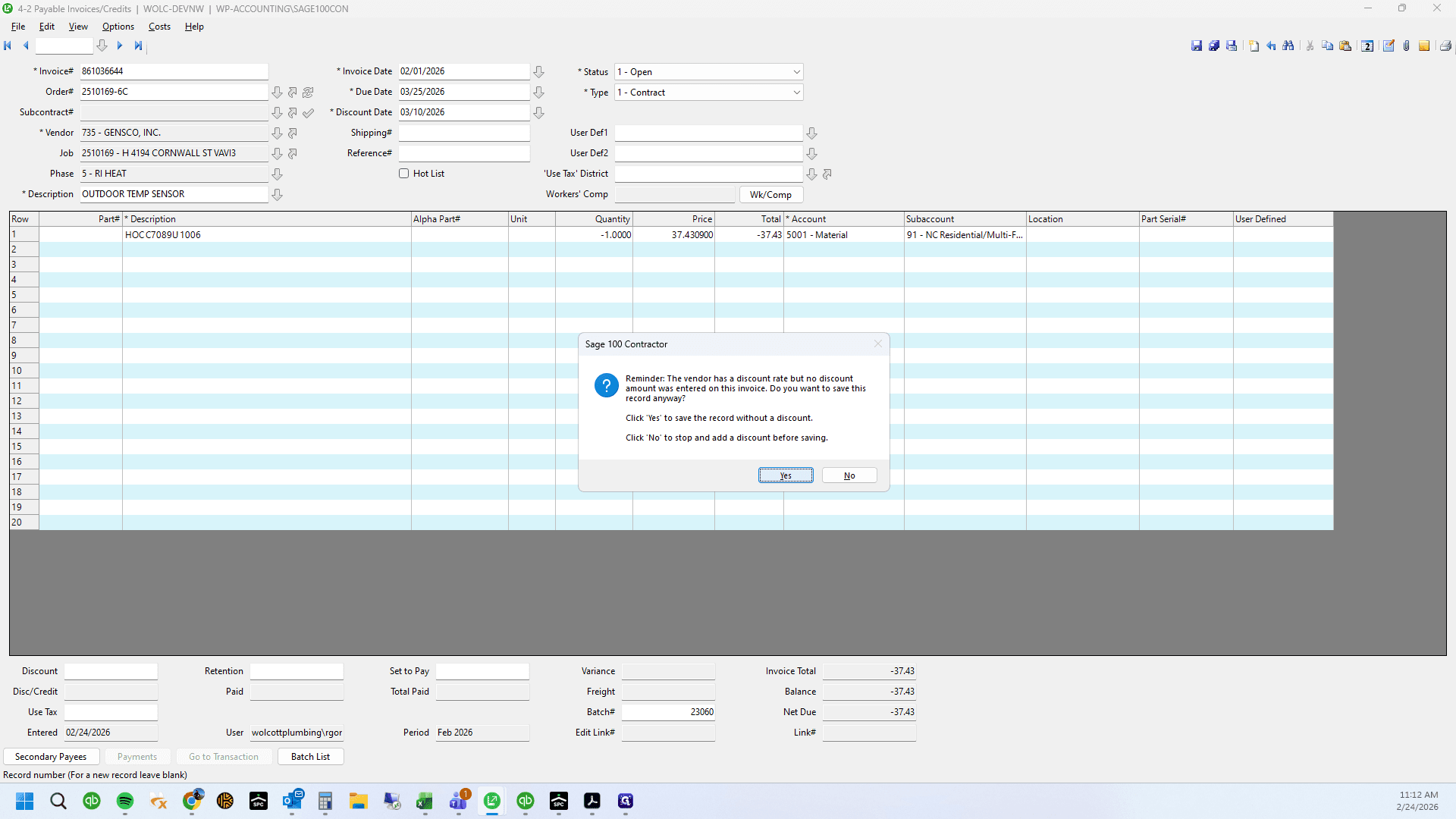
73
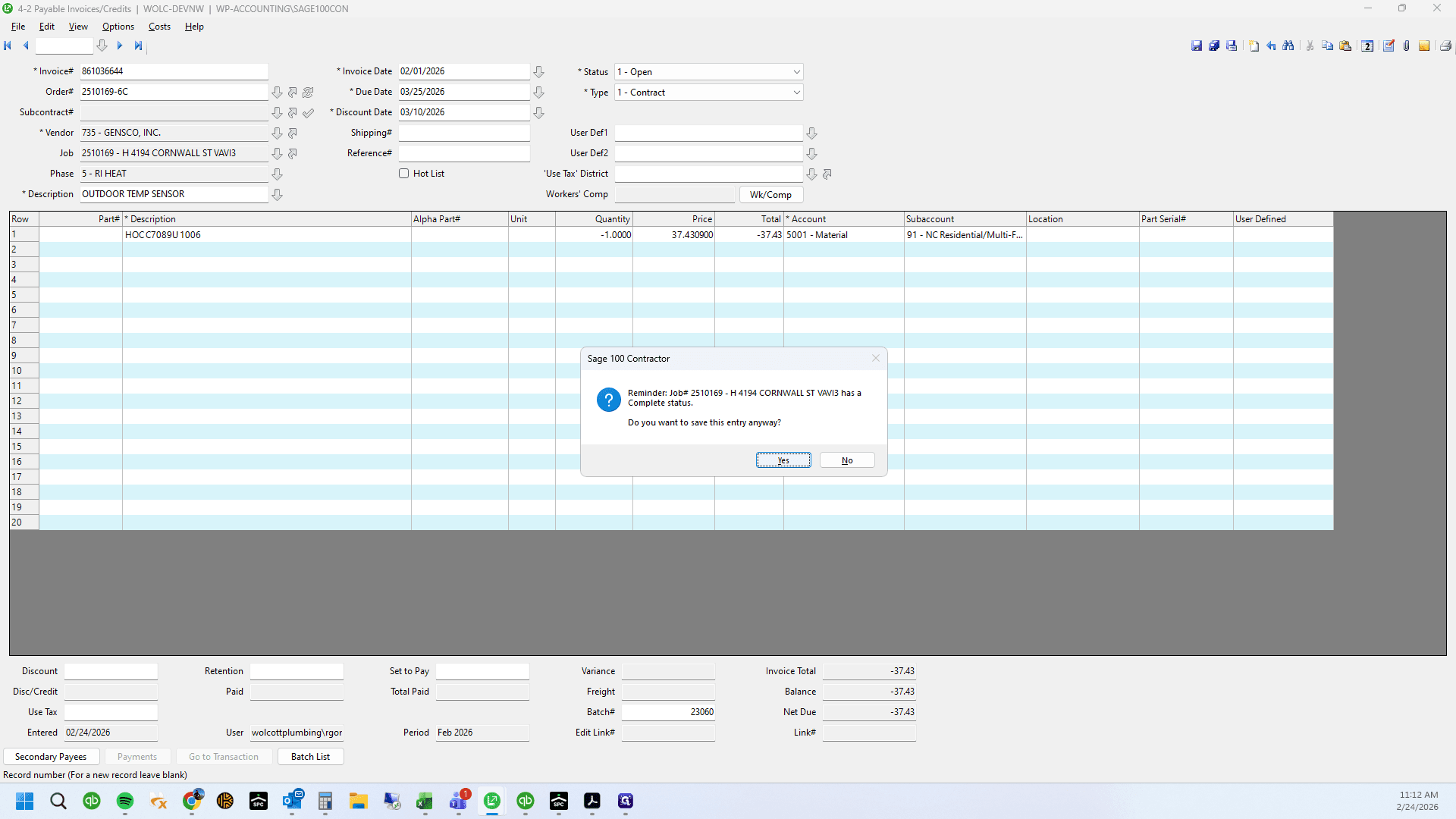
Click on "Yes"
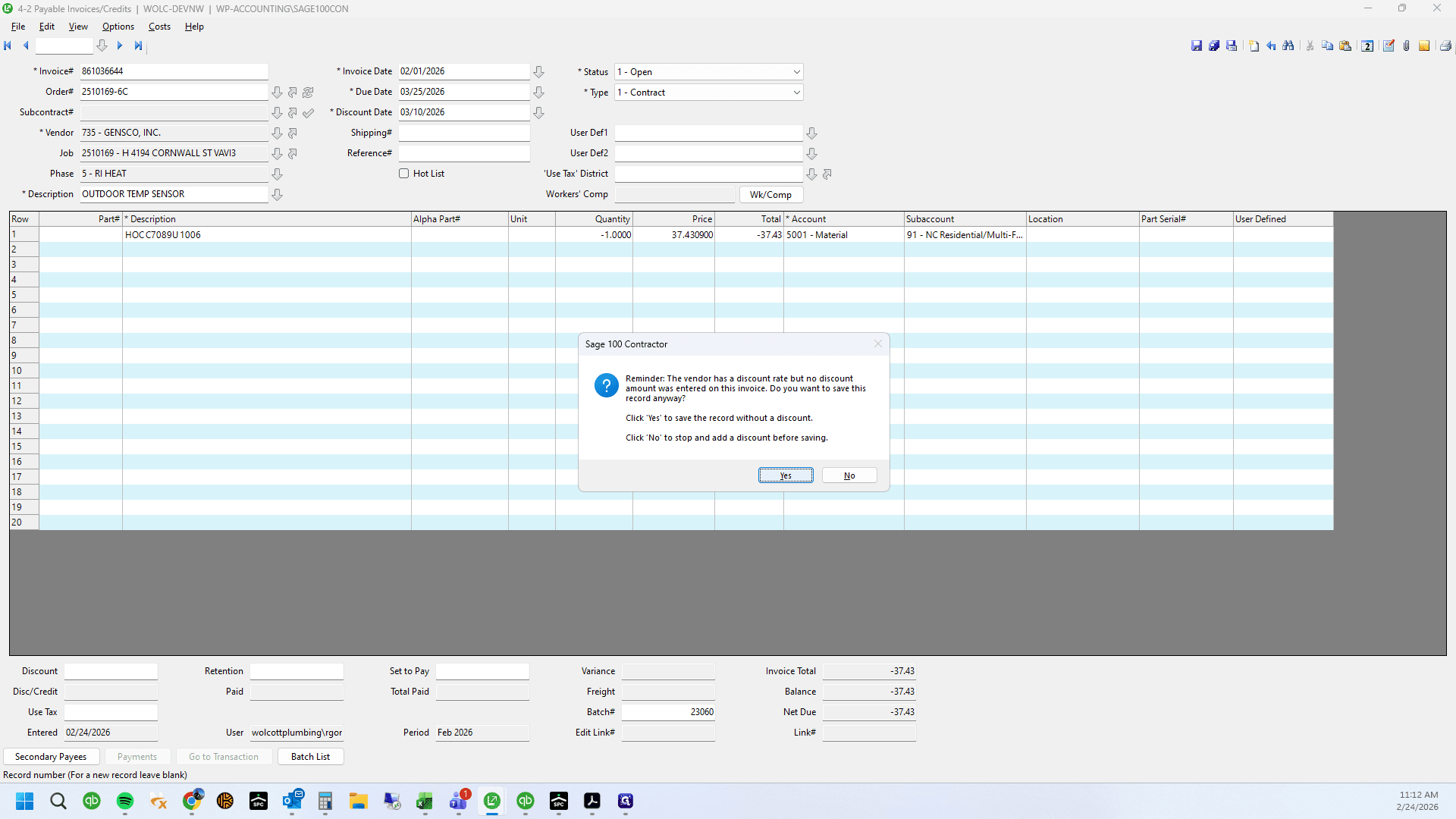
74
Click on "Yes"
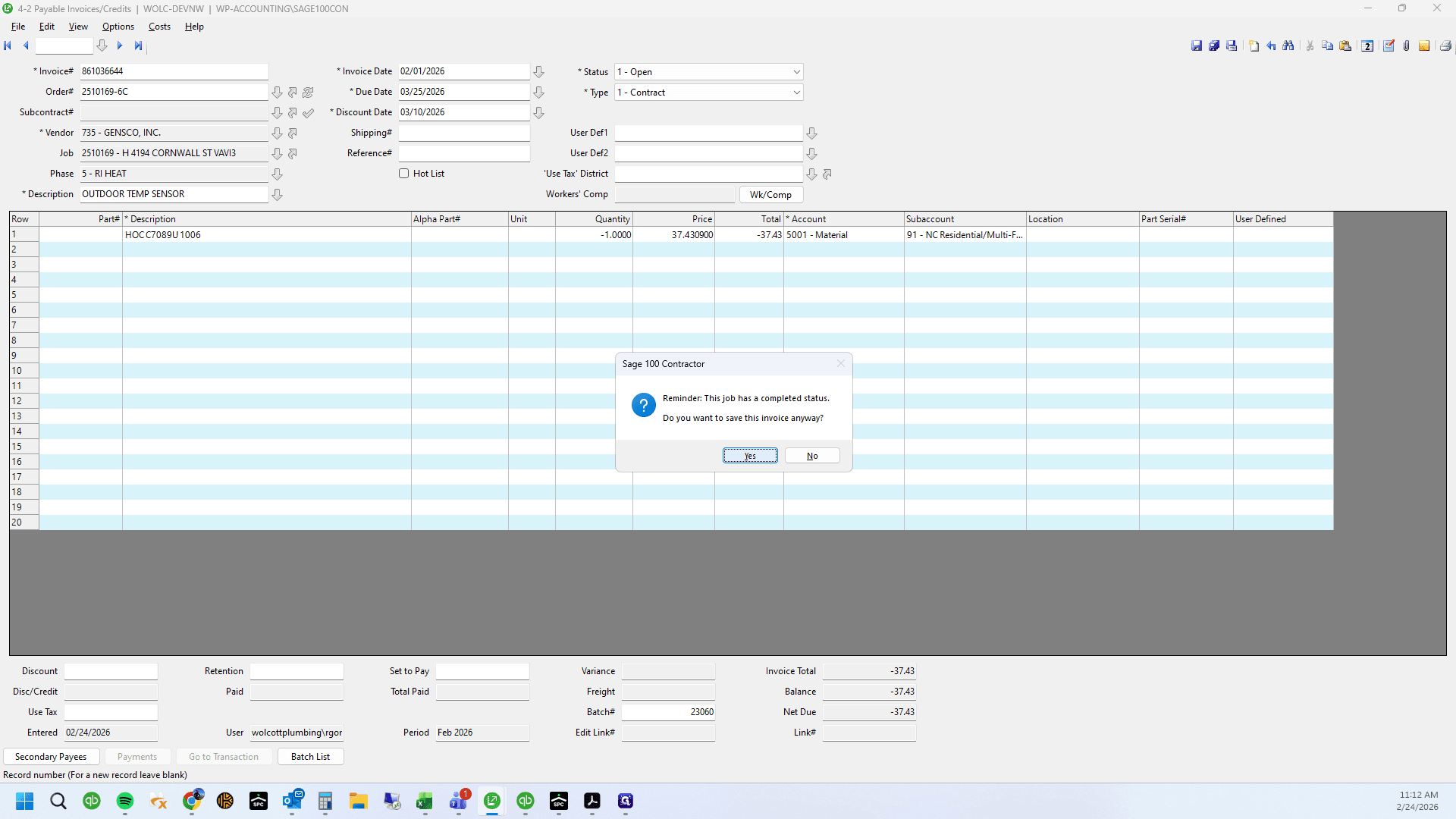
75
Click on "Yes"
76
Click on "Yes"
77
Drag here
78
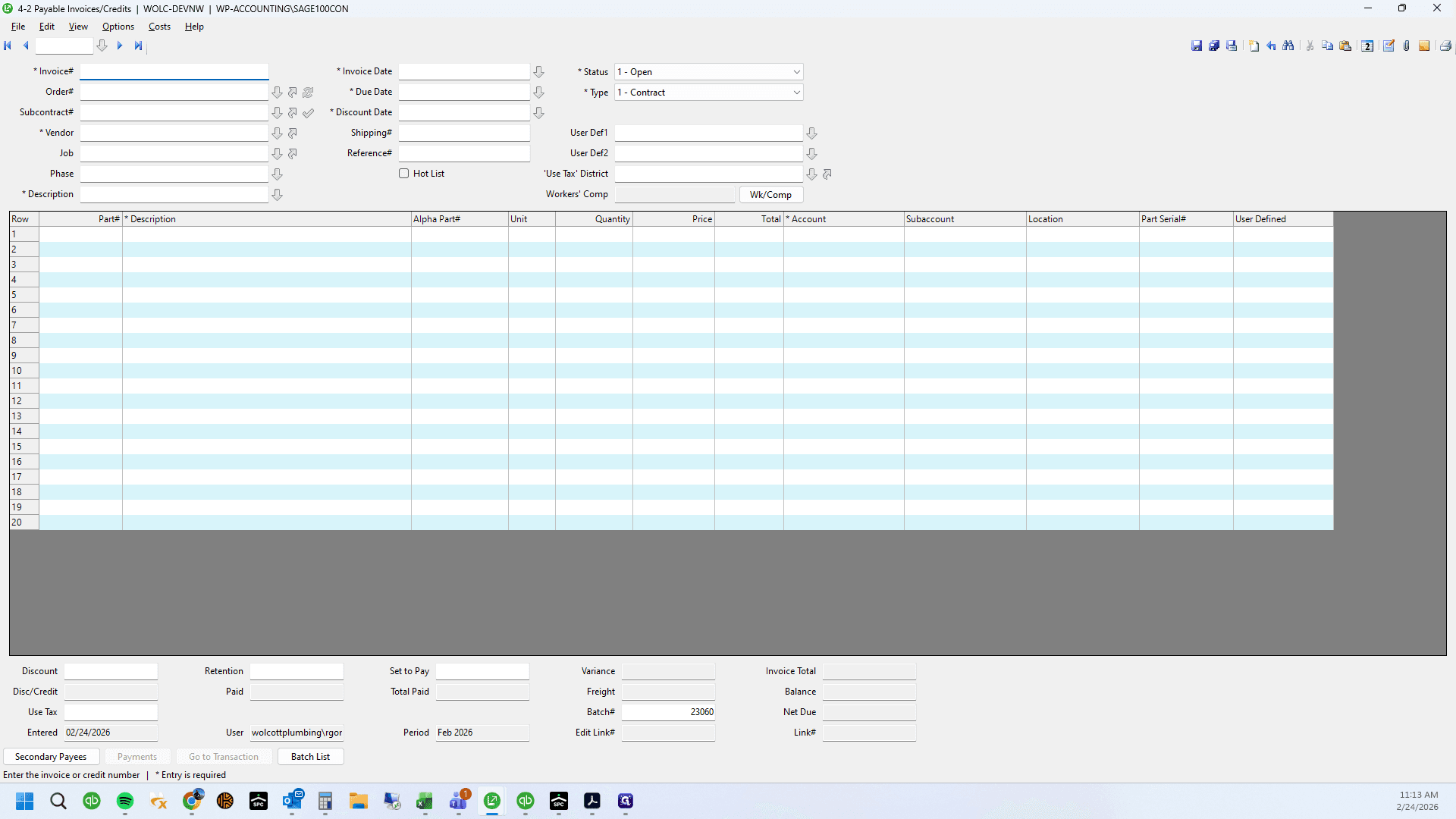
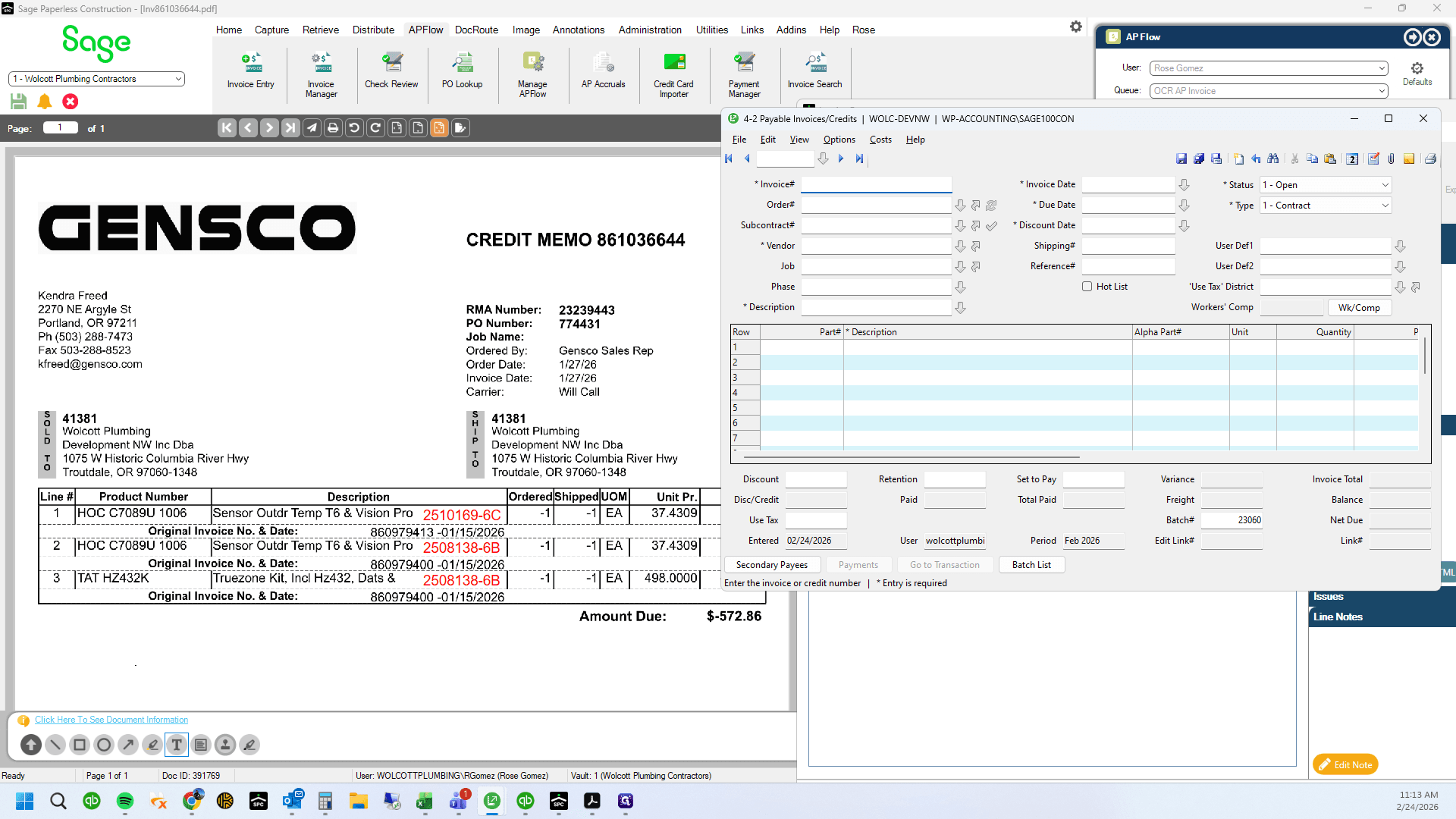
Create another invoice for the remaining credit memo items using the second PO
79
Type "Ctrl + V"
80
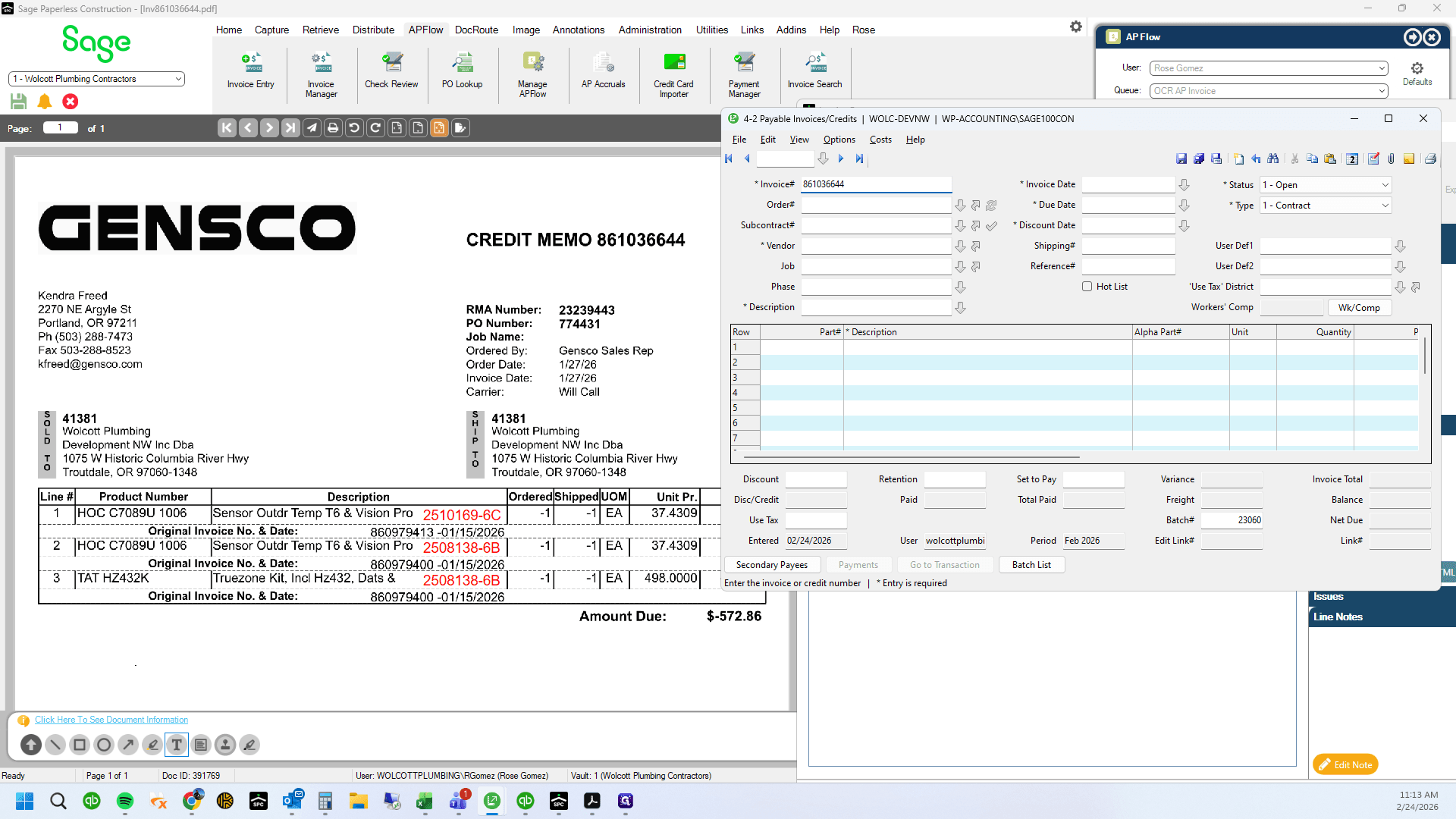
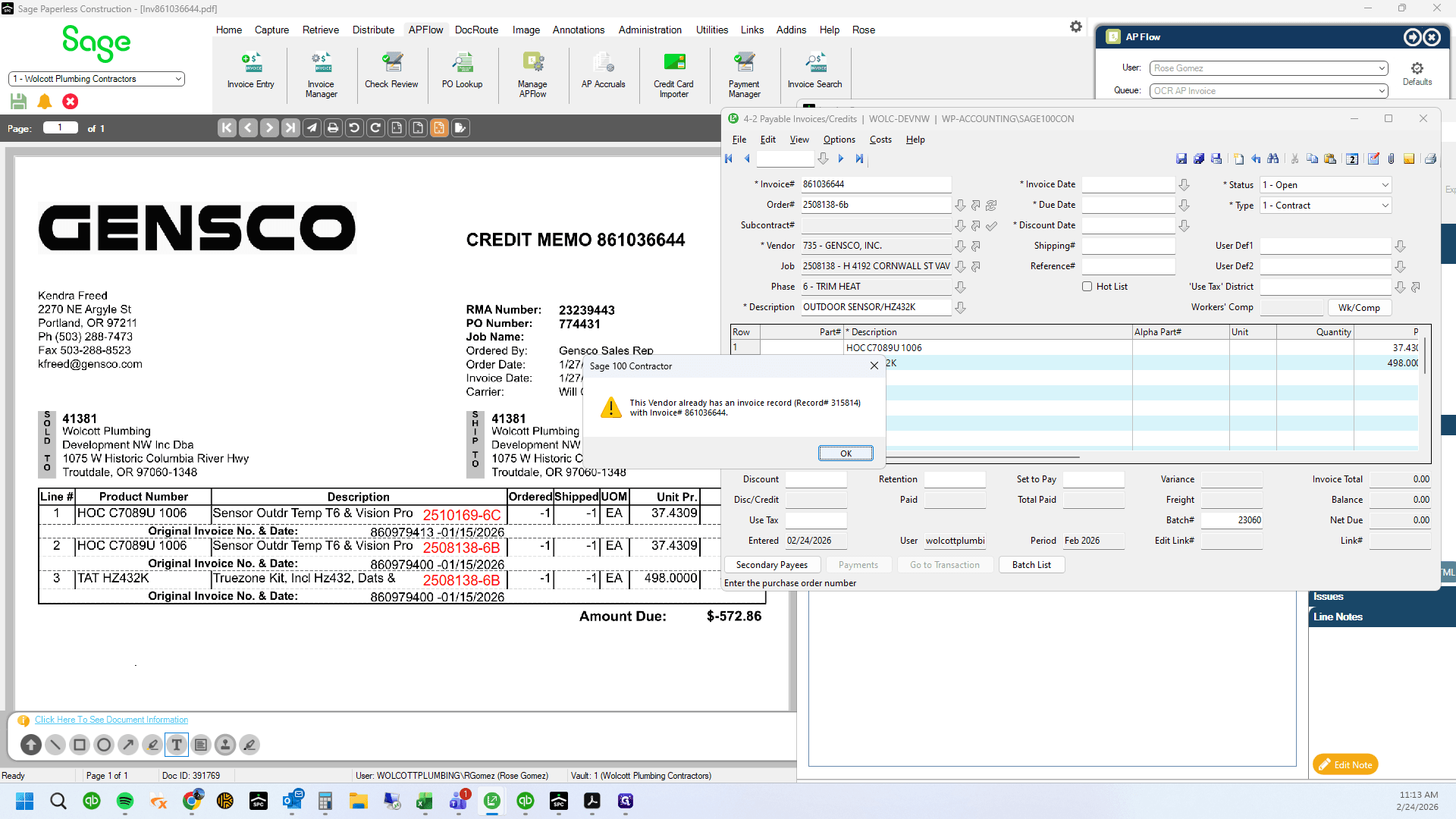
Reference the same invoice number and push OK on the warning (using the same invoice number twice)
81
Type "2508138-6b + Tab"
82
Click on "ок"
83
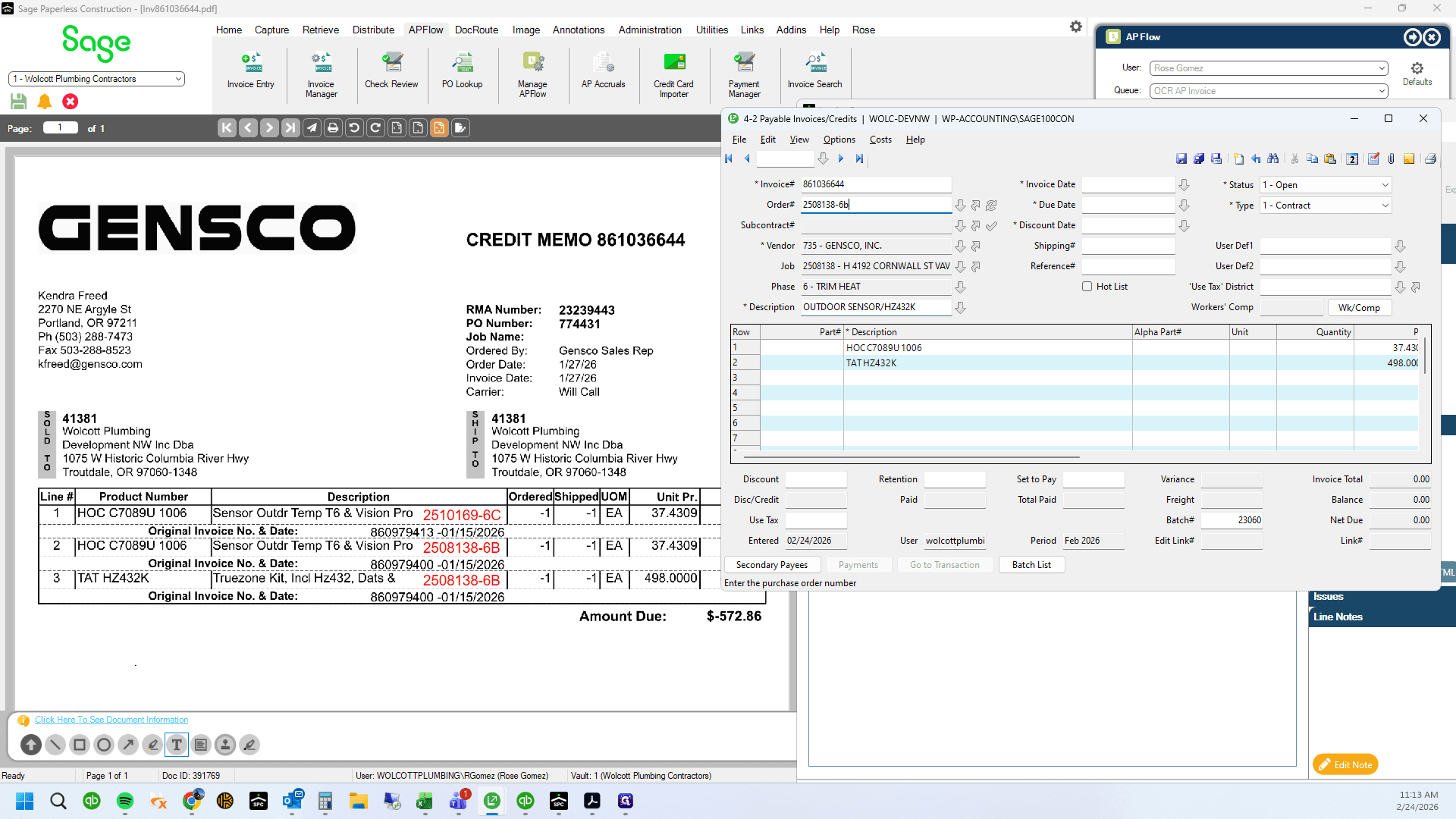
Double-click on "2508138-6bl"
84
Type "Backspace"
85
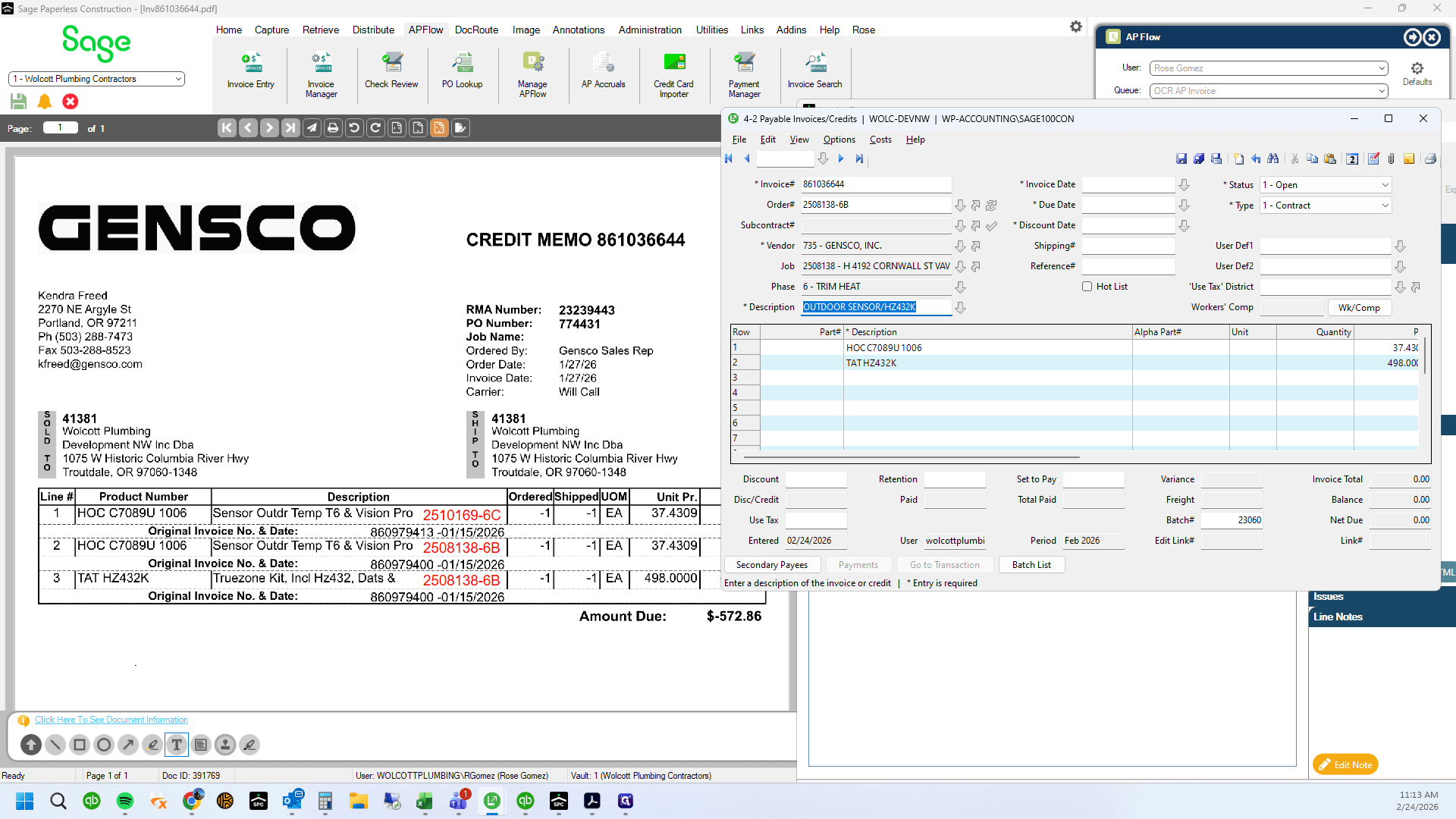
Type "B + Tab"
86
Click here
87
Type "0201 + Enter"
88
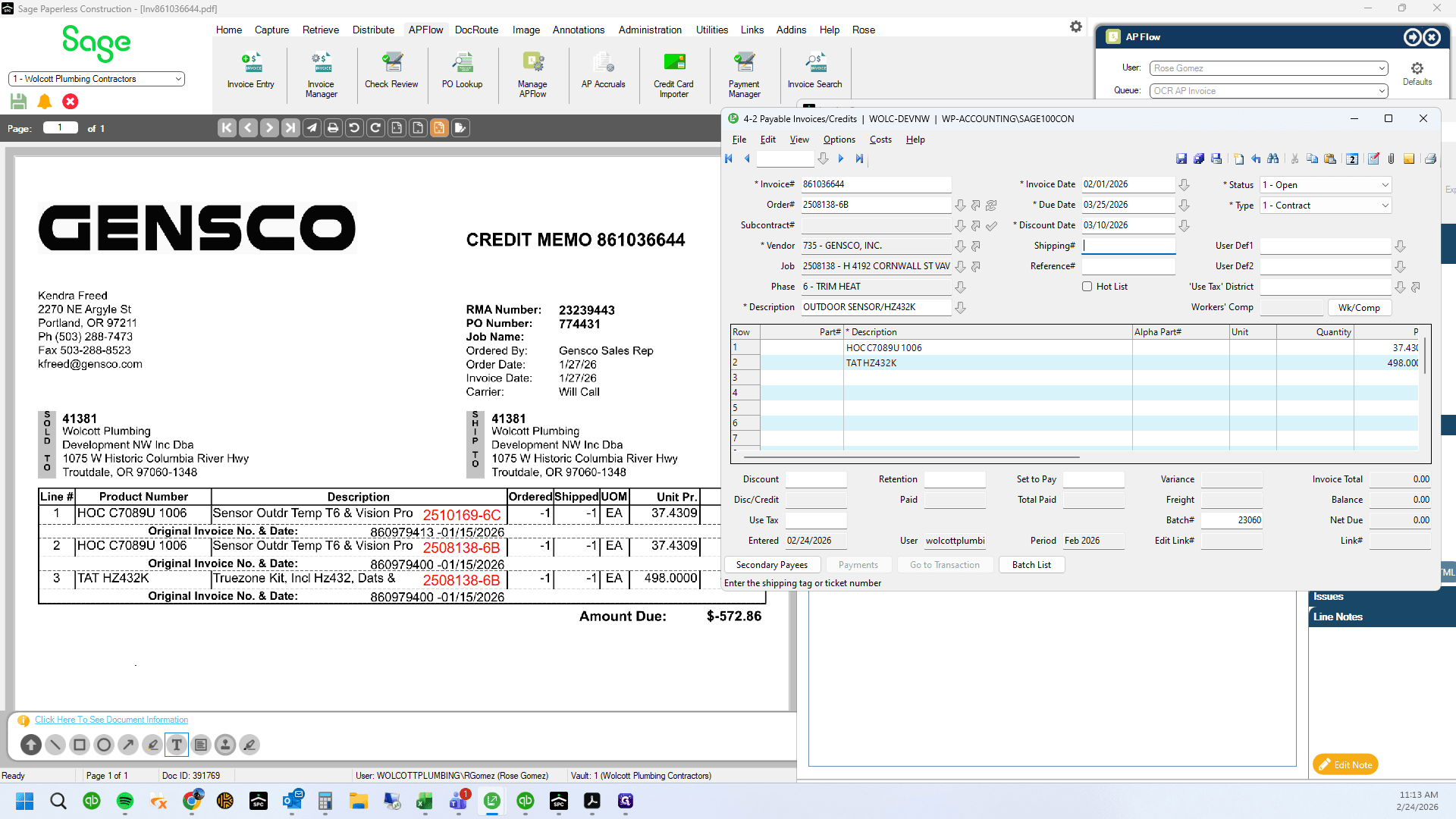
Type "Tab + Enter"
89
Type "Enter"
90
Drag here
91
Click on "ㅁ"
92
Click here
93
Type "-1 + Enter"
94
Click here
95
Type "-1 + Enter"
96
Click here
97
Double-click on "Yes"
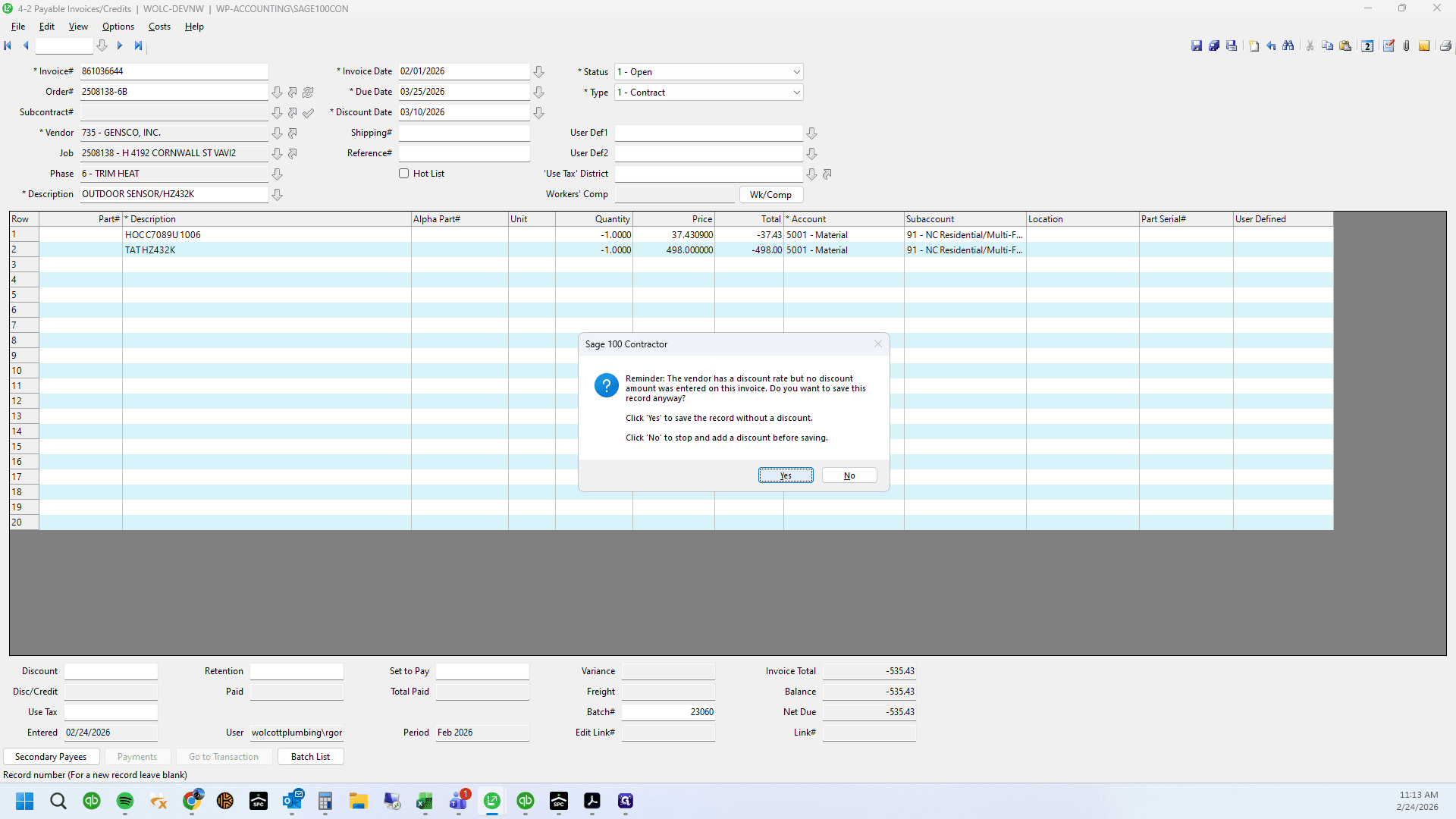
98
Click on "Yes"
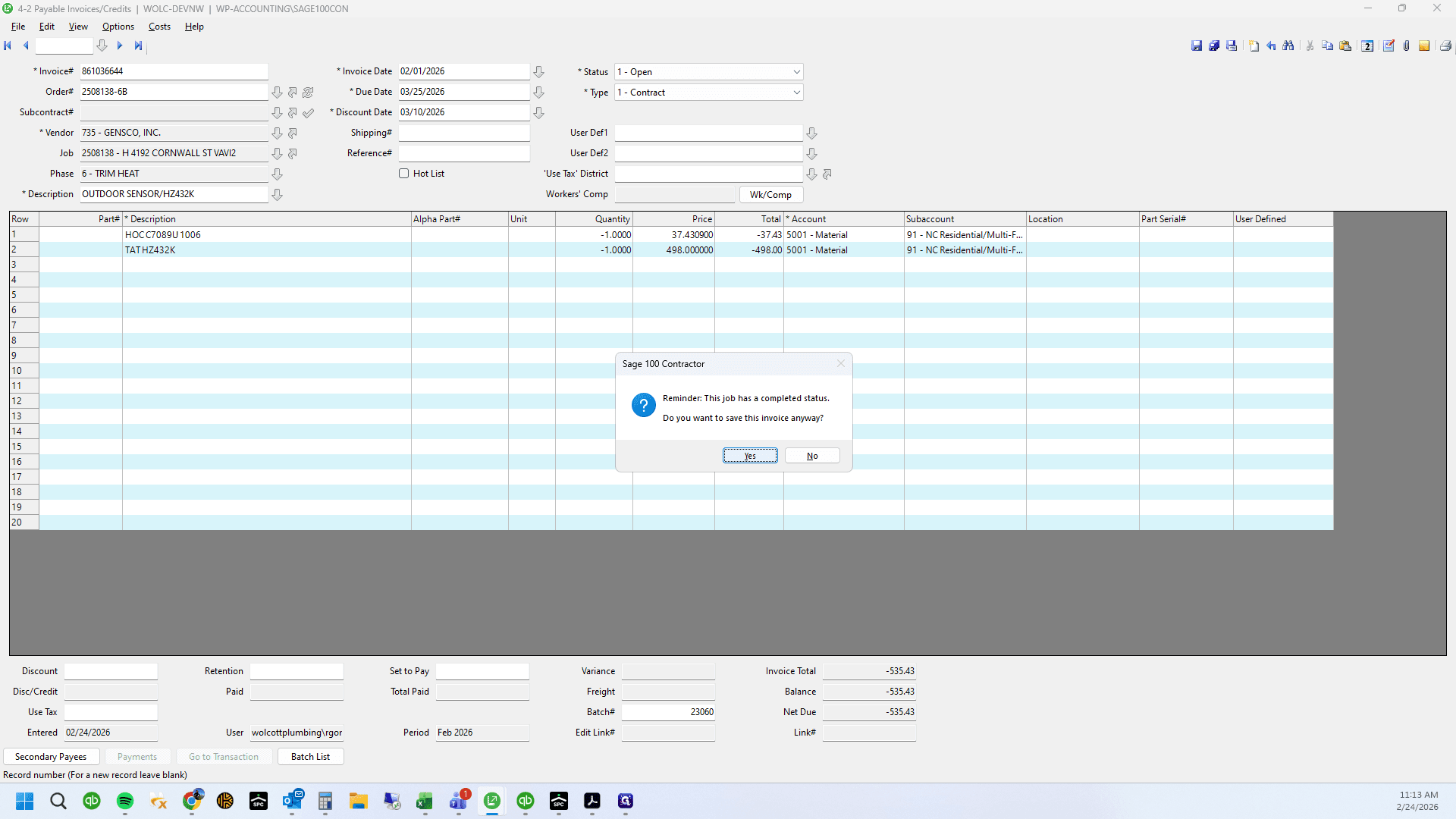
99
Double-click on "Yes"
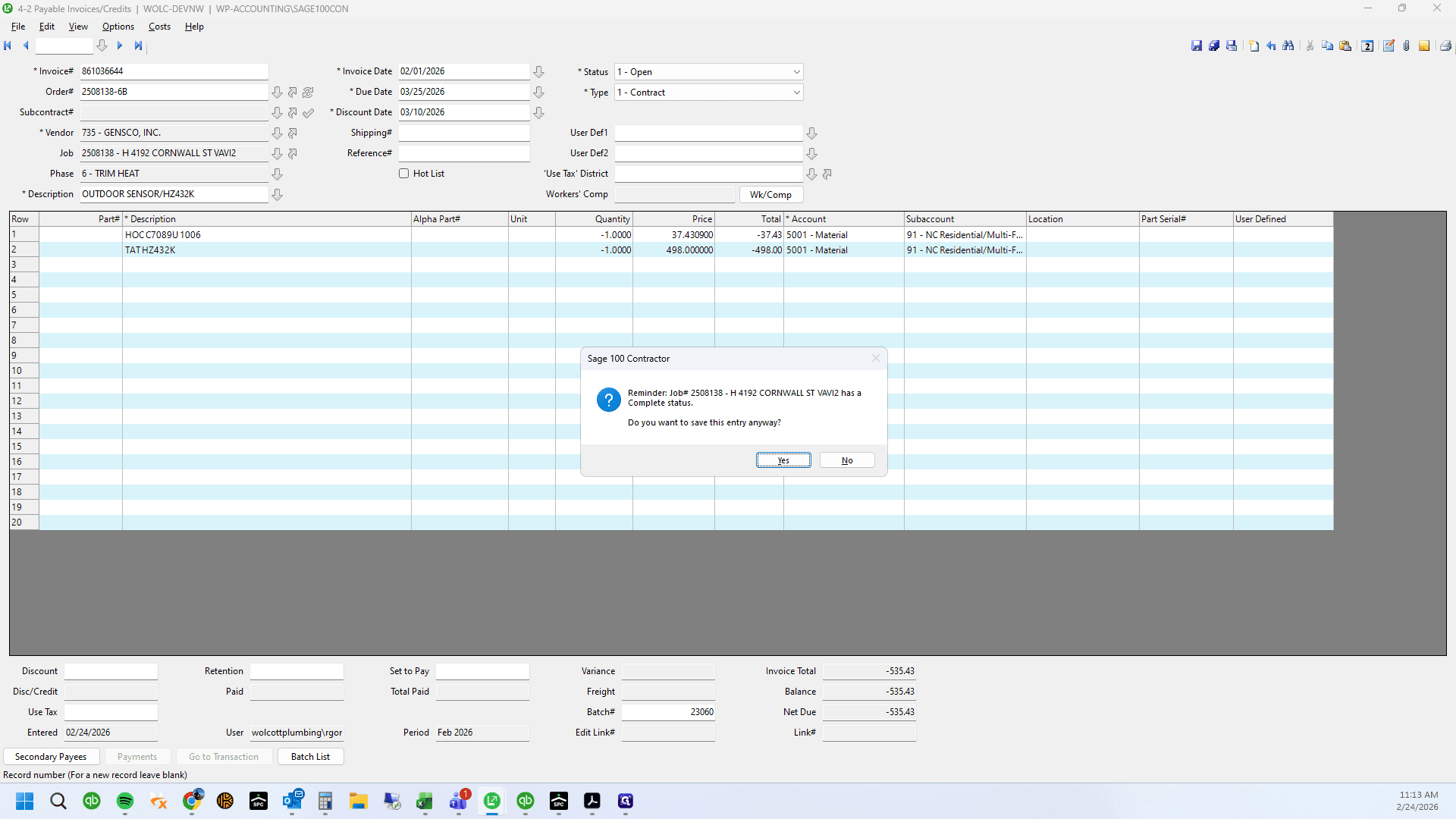
100
Click on "Yes"
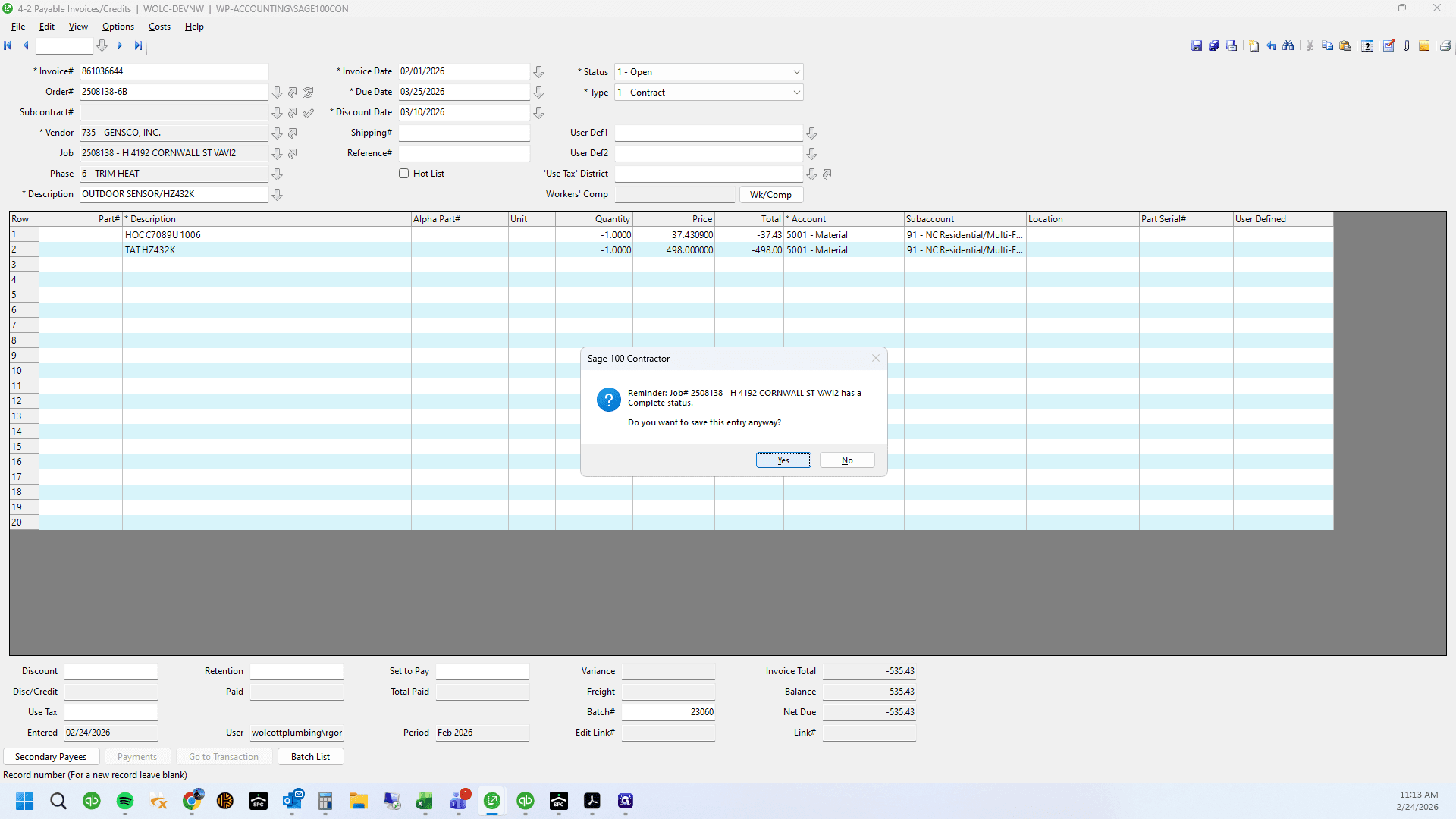
101
Click on "X"
102
Drag here
103
Click on "Х"
104
Click on "No"
105
Index the invoice PDF
106
Type "735 + Enter"
107
Click on "Index"