How to Remove a Cancelled /Dropped-Out Participant Before the Weekend in the Events Table
Learn step-by-step instructions for removing a participant who has cancelled/dropped out before the weekend (including "no shows") using the Events table to ensure the participant list is up-to-date.
By Mike Crofton-Atkins
In this guide, you'll learn how to remove a cancelled/dropped-out participant from a weekend event (including "no shows"). This process helps keep our event and personal records accurate.
We'll cover how to find the correct weekend in the Events table, locate the participant, and unlink their record. We'll also explain how to note their cancellation for future reference.
Let's get started
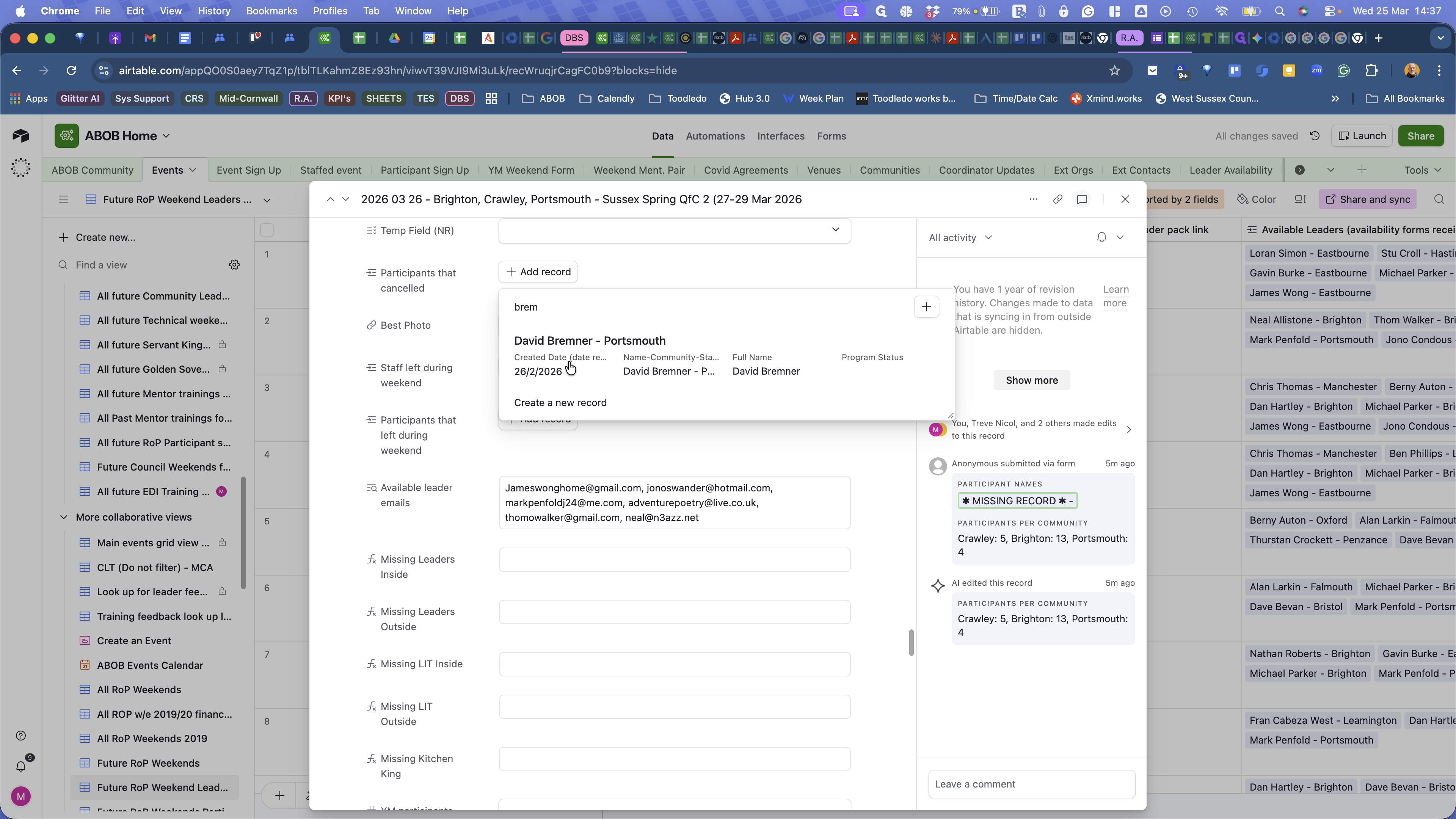
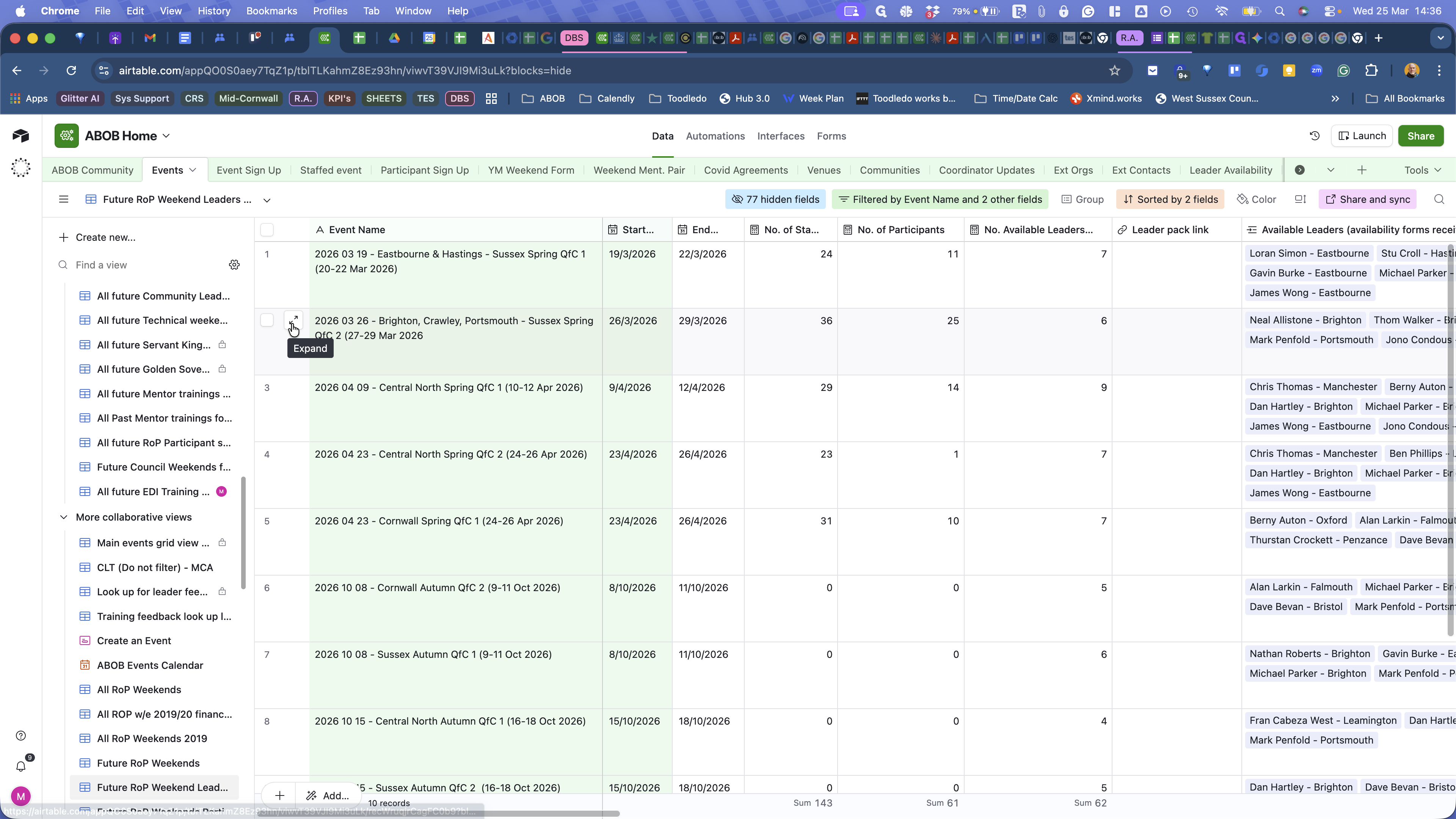
To remove a participant who has cancelled or dropped out of the weekend, go to the Events table. Click on the weekend and expand its view.
1
Click here
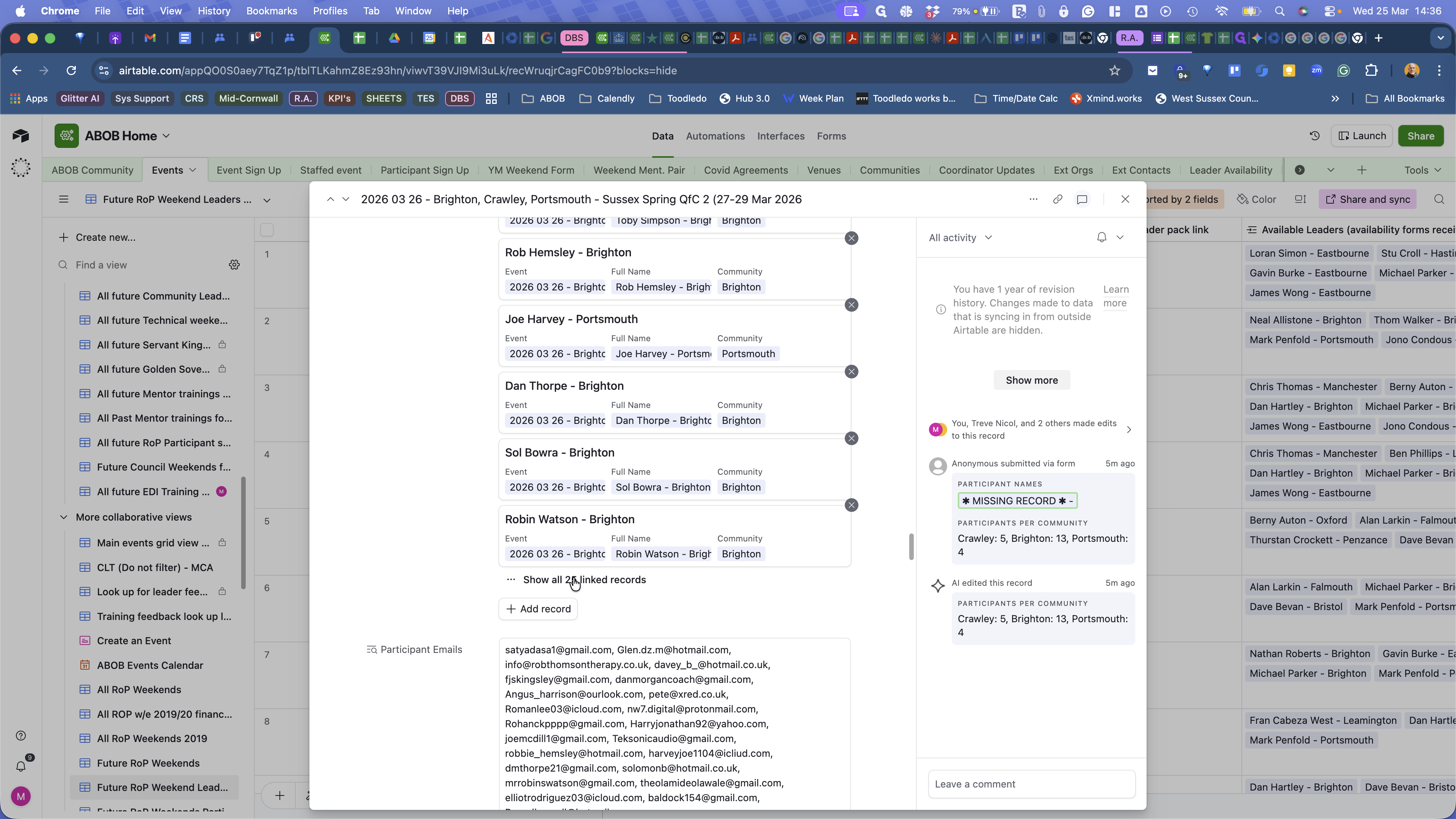
Then go to Participants. Find the participant who is no longer joining the weekend.
2
Click on "all linked records"
3
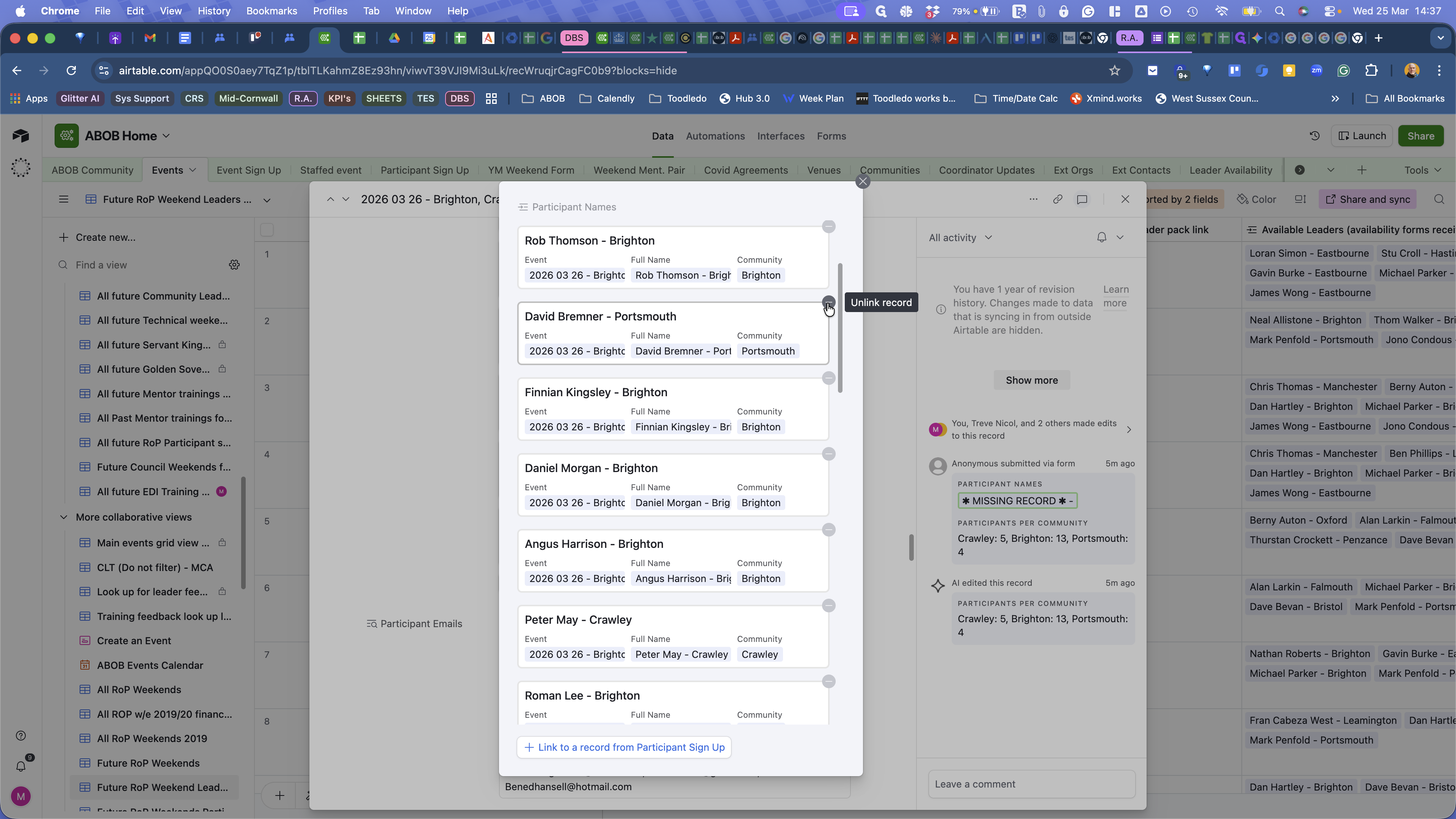
Click the minus icon to unlink the record.
4
Click on the 🅧 to close the of all linked records list.
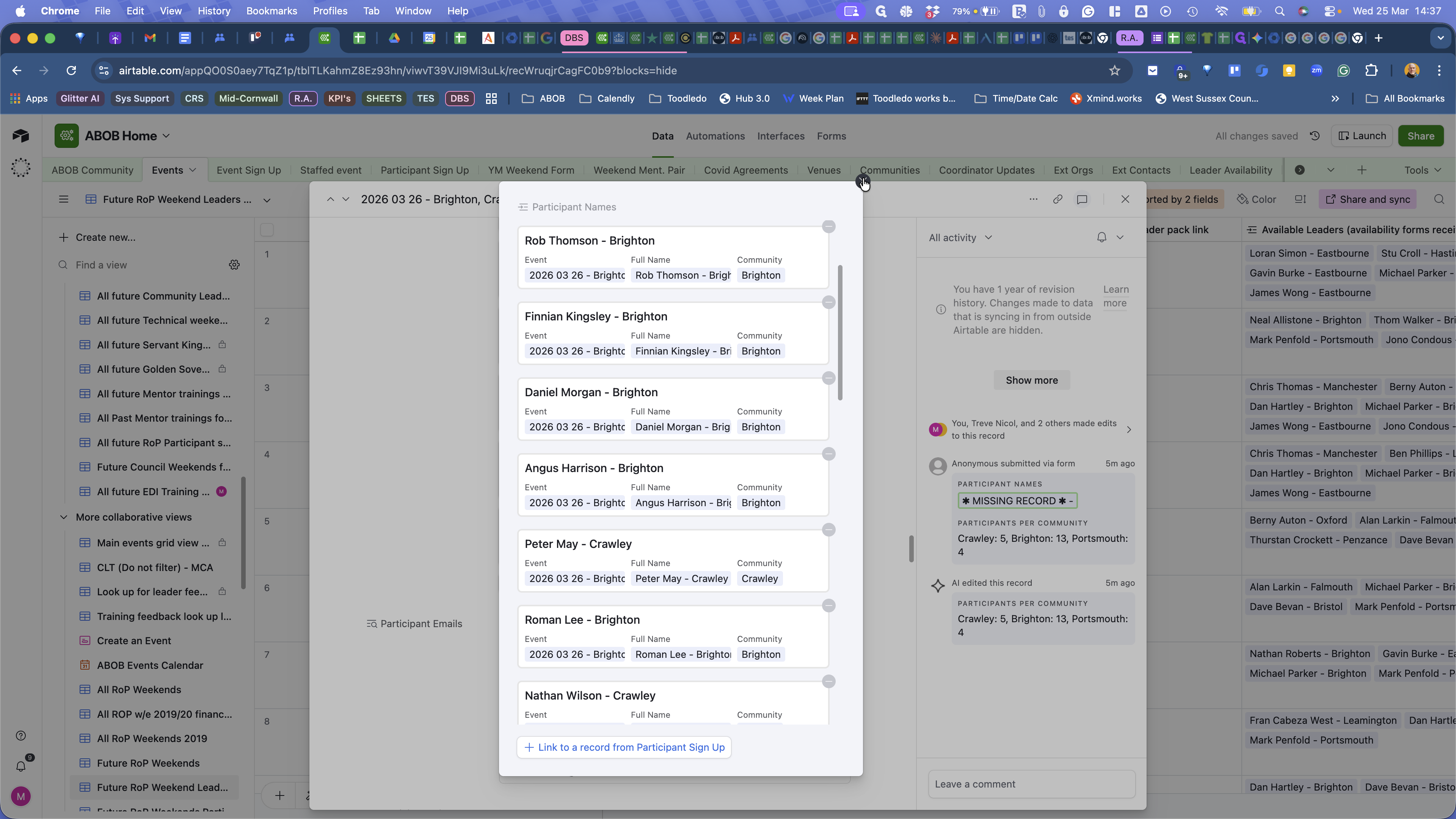
5
In the same expanded event view, scroll to the Participants that cancelled field.
6
Click on "+ Add record"
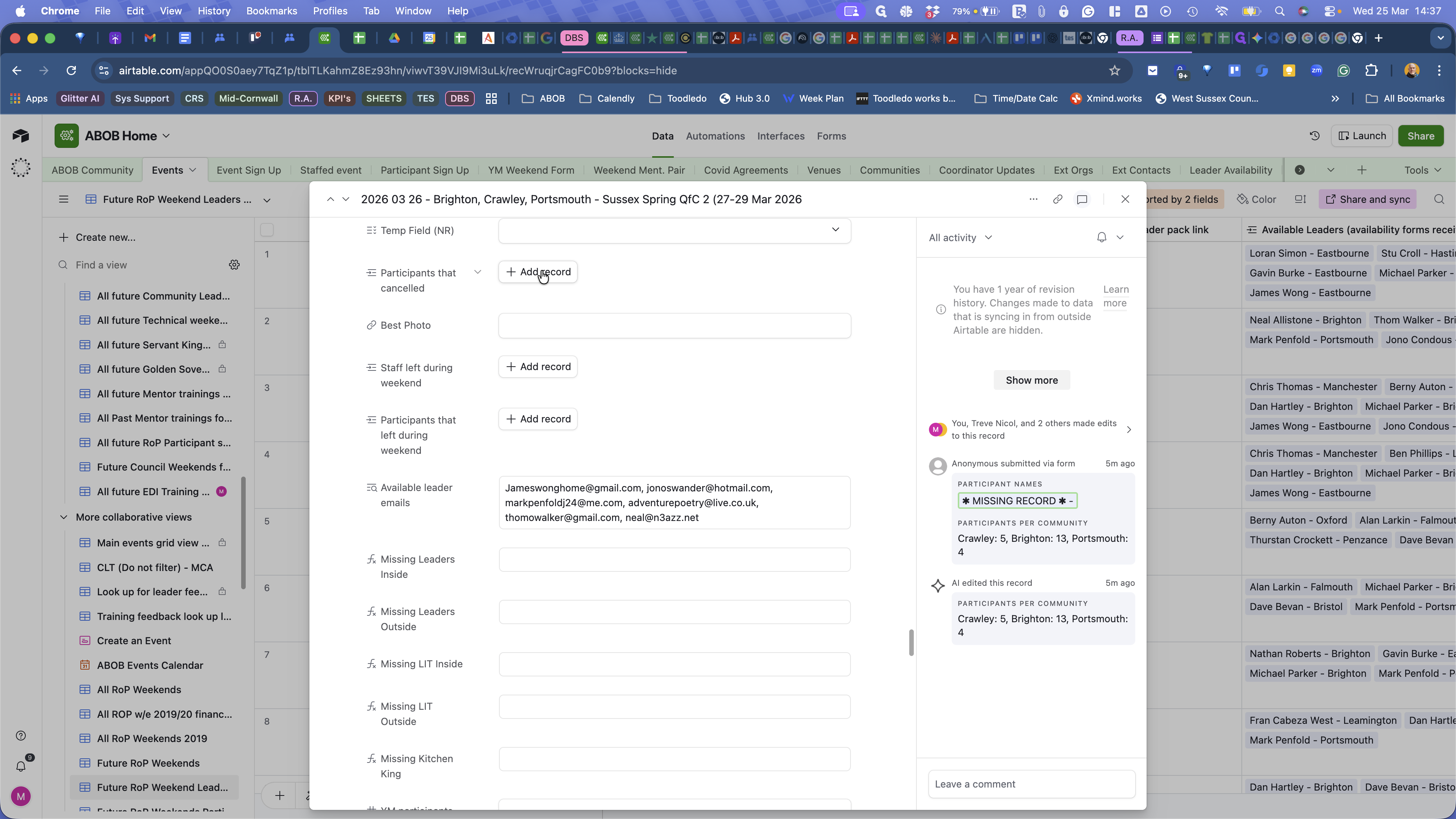
7
Type their surname
8
Add their name to the Participants who cancelled