
How to Report Missing Materials with Purple Tags (Electrical example)
Learn how to locate engineering part numbers in SharePoint prints and submit missing material reports using the Smartsheet WorkApps Purple Tag tracker.
This guide explains how to identify missing materials using engineering prints in SharePoint and report them to the project team using the Purple Tag tracker in Smartsheet WorkApps. Properly logging exact part details ensures the supply chain team can order and deliver replacements to the site without delays.
This workflow applies to site installation and manufacturing teams, specifically mechanical and electrical supervisors or installers, when discovering missing components during cell construction or assembly.
Locate part details in engineering prints
Before logging a missing item, you must pull the precise part numbers and descriptions from the relevant engineering drawings in SharePoint.
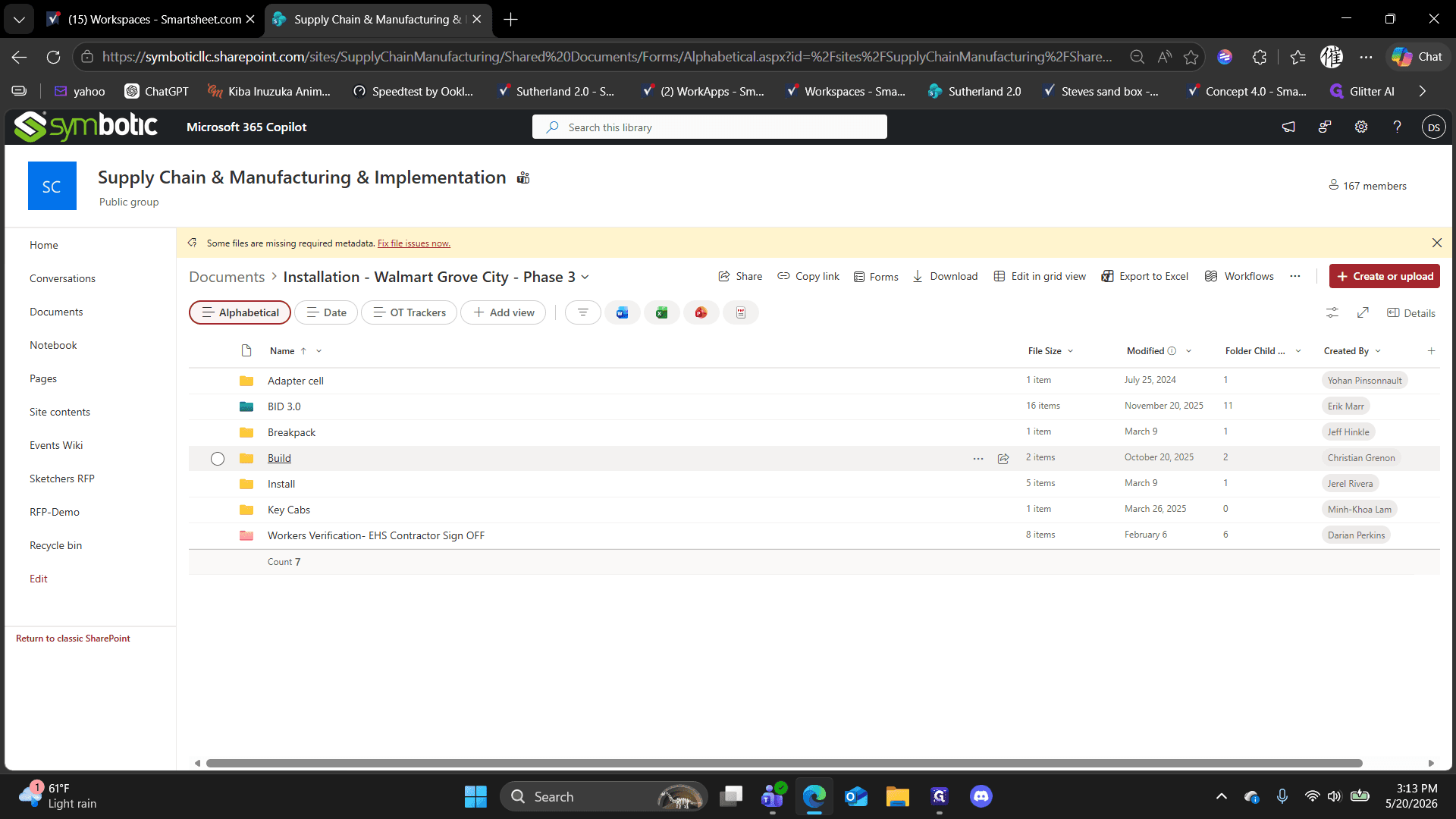
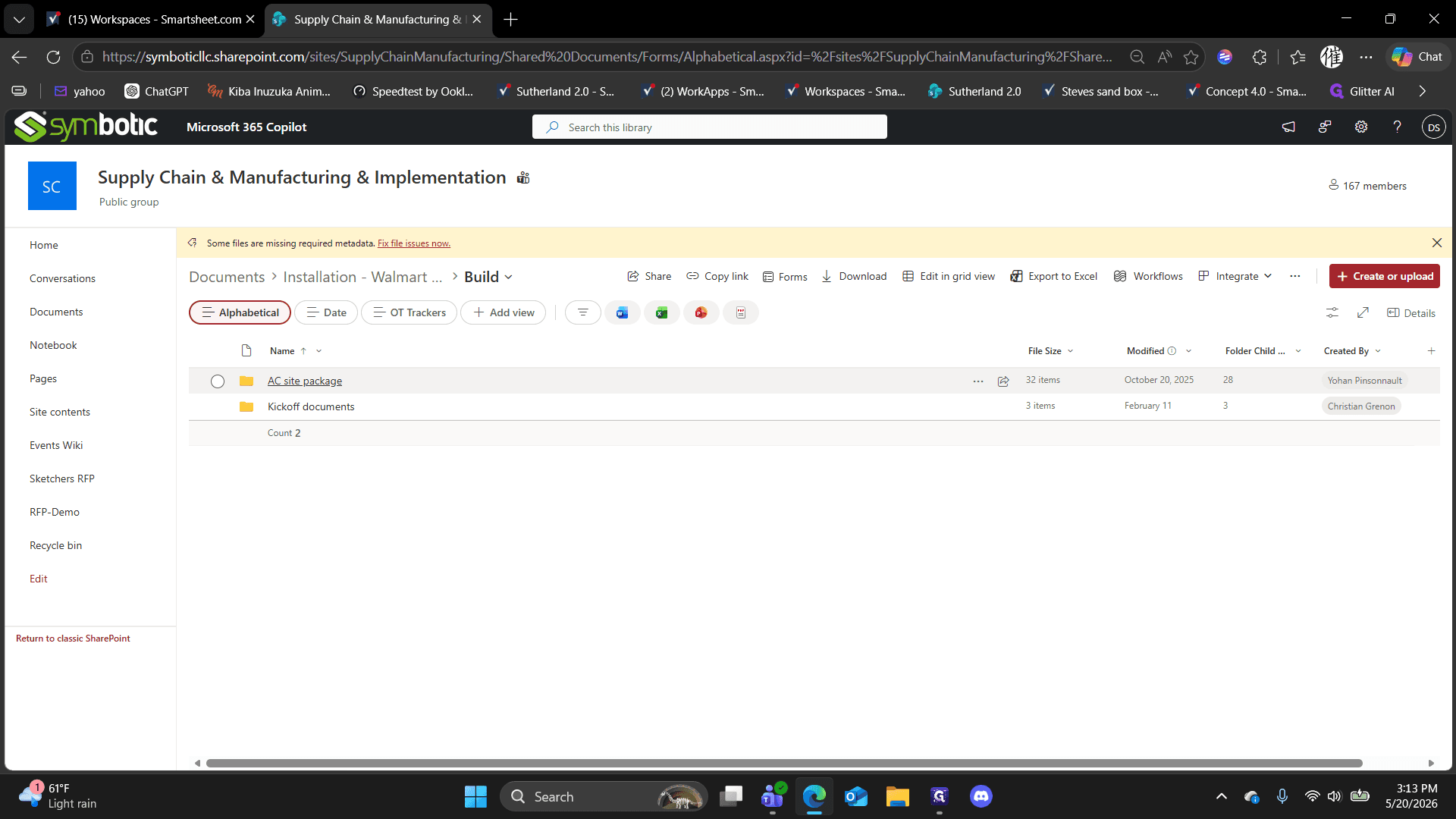
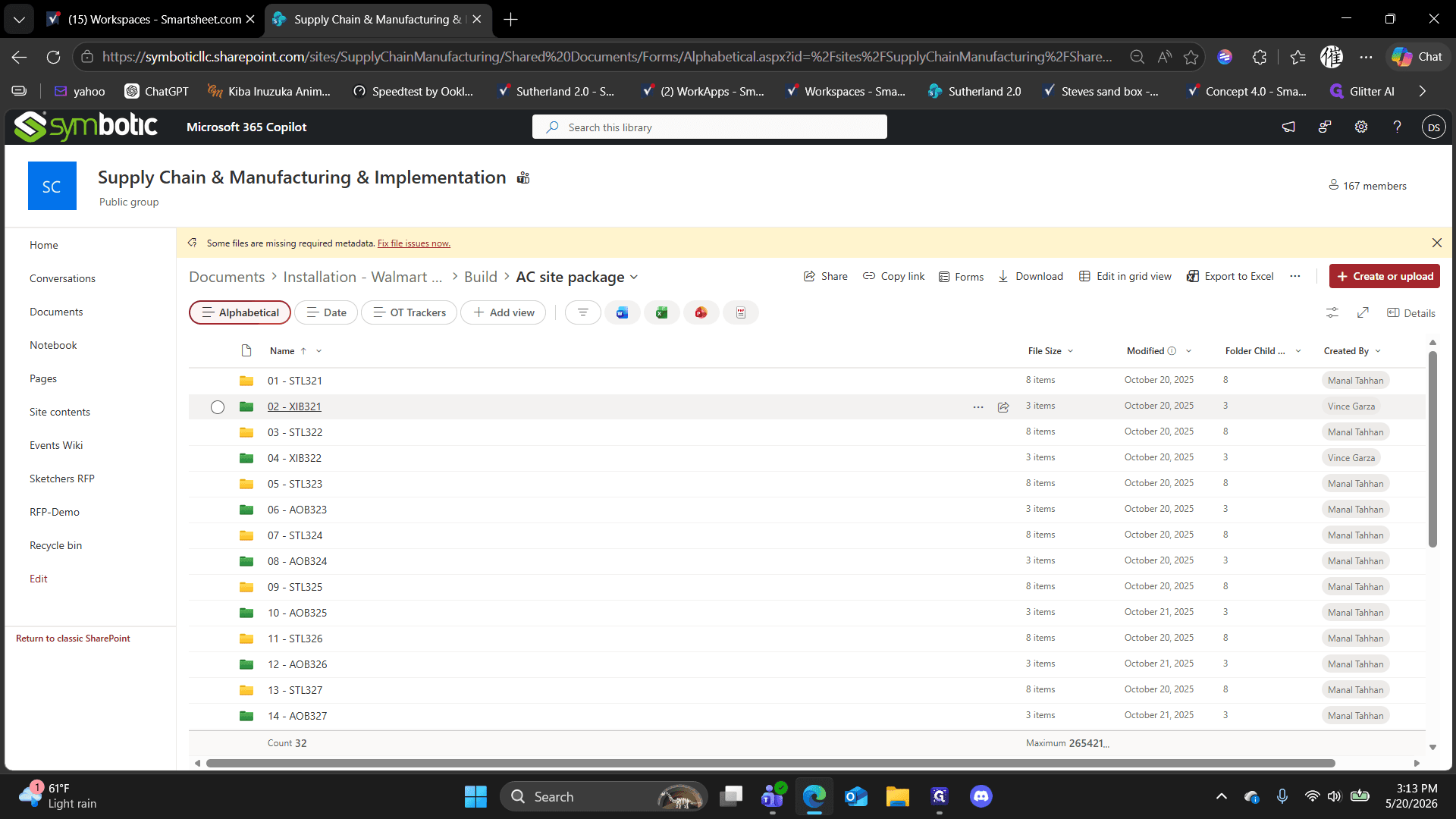
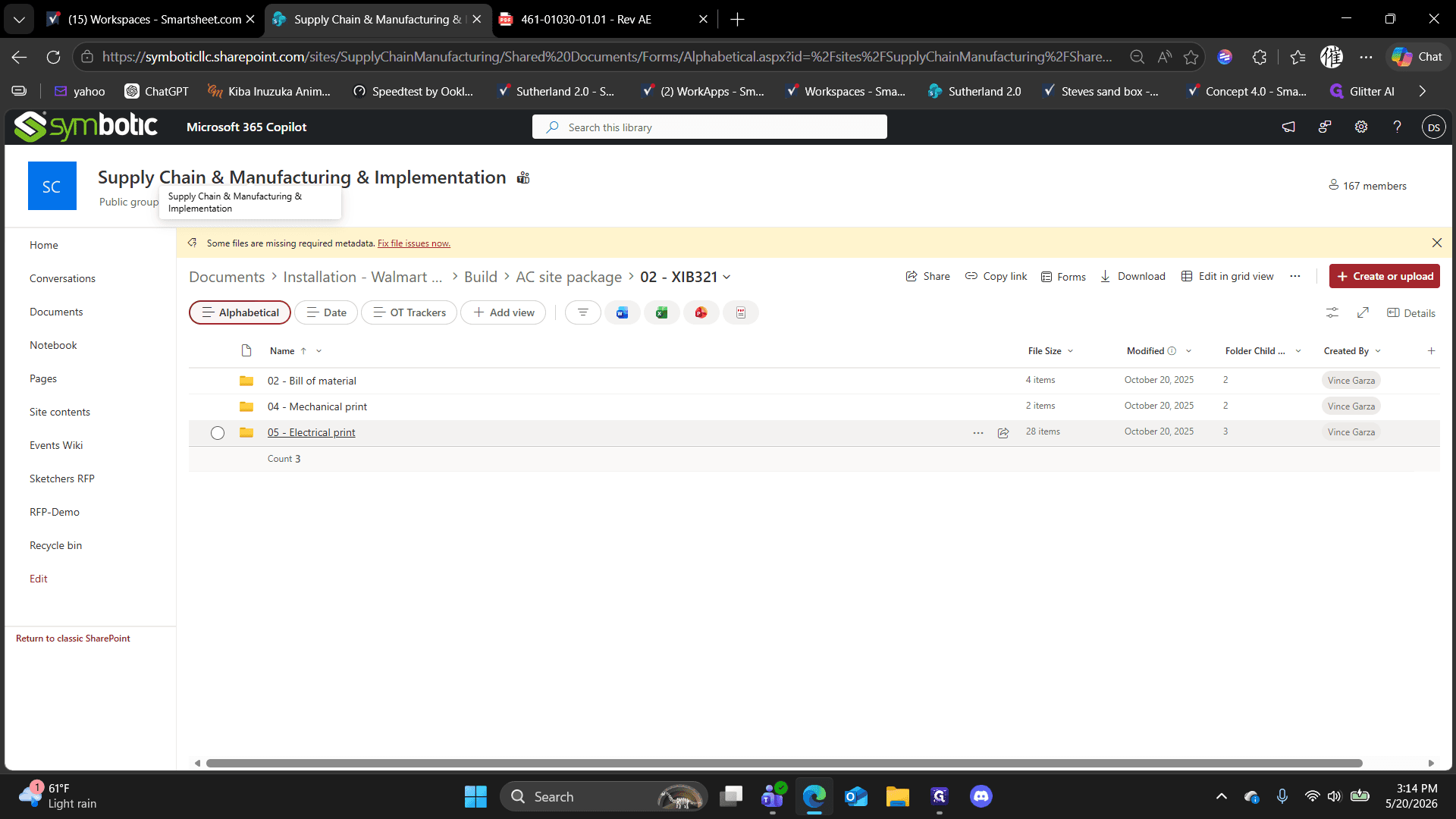
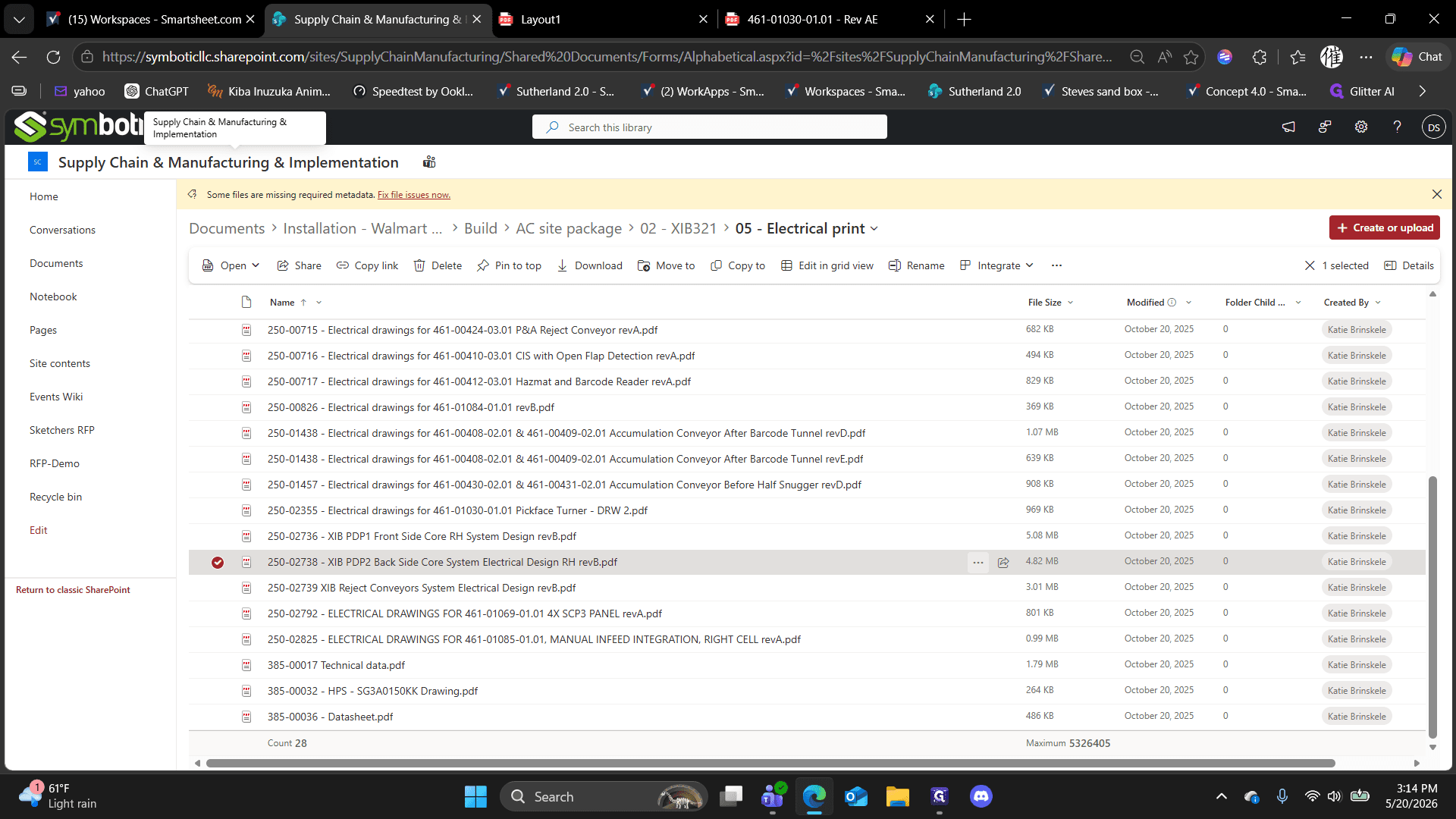
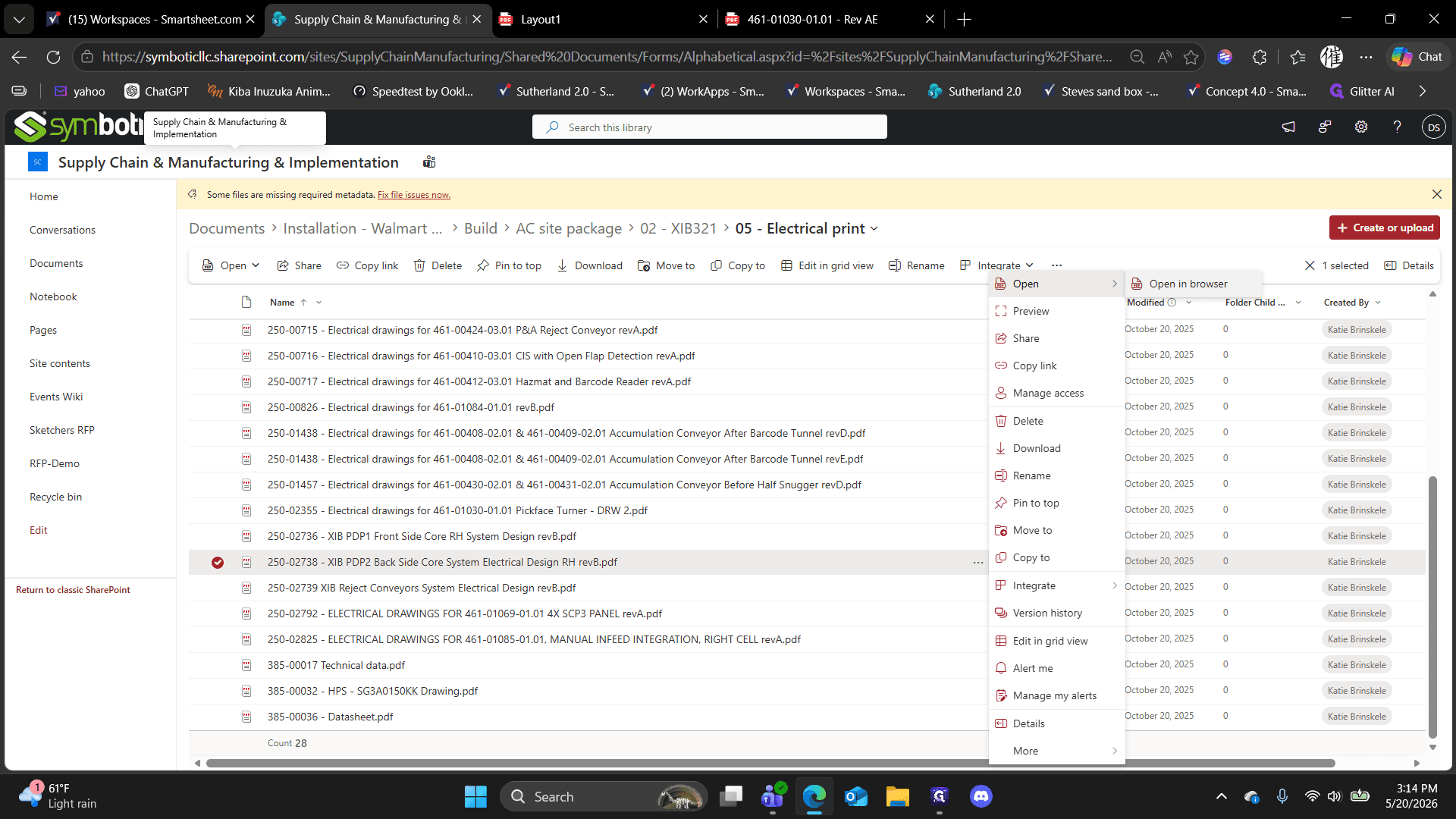
Ctrl + F to open the document search bar.1030) to locate the exact part on the Bill of Materials.Keep this PDF tab open so you can copy and paste the precise component details directly into the tracking form.
Submit the Purple Tag tracker
Once you have your engineering prints ready, open Smartsheet to log the missing material.
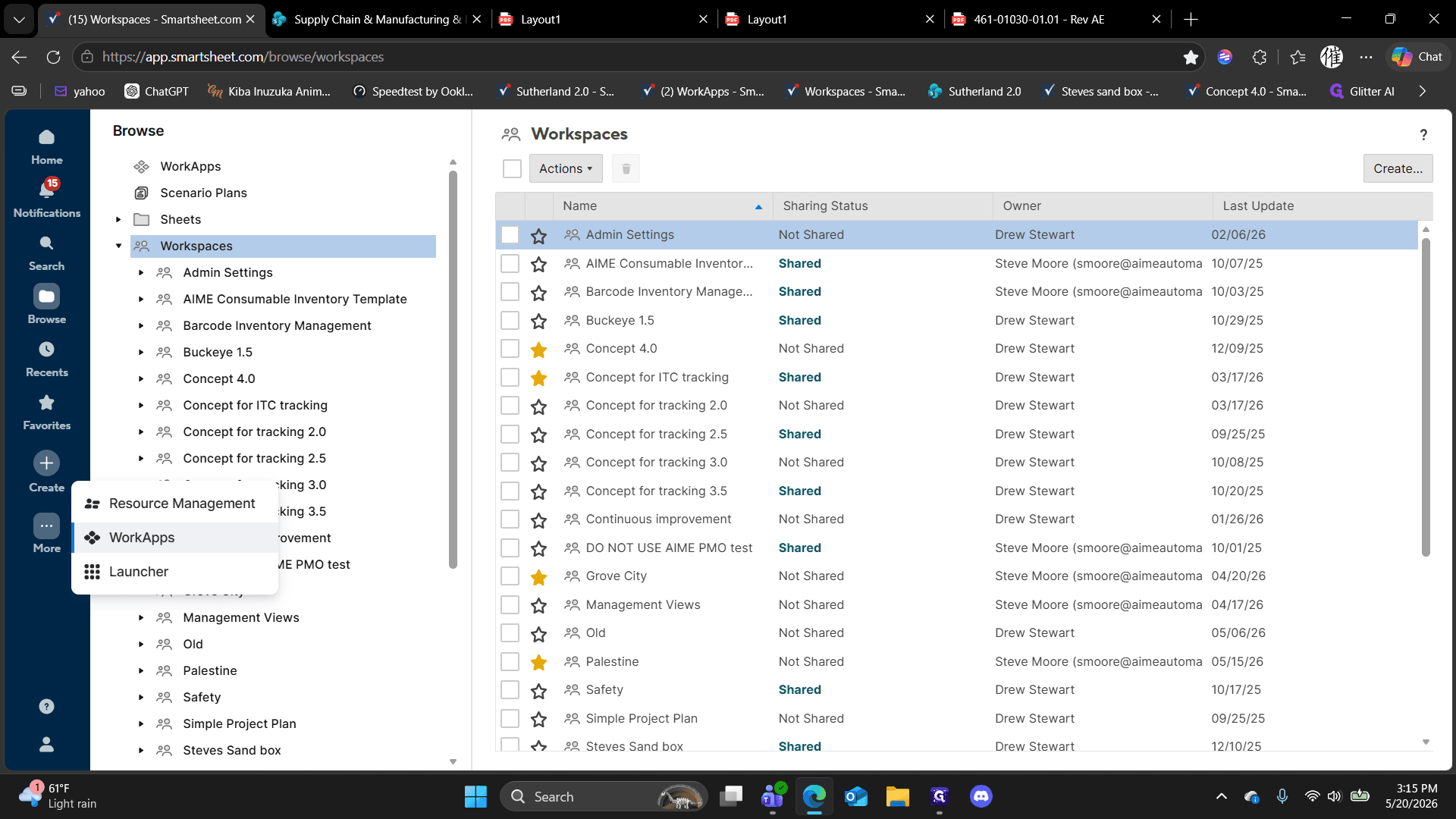
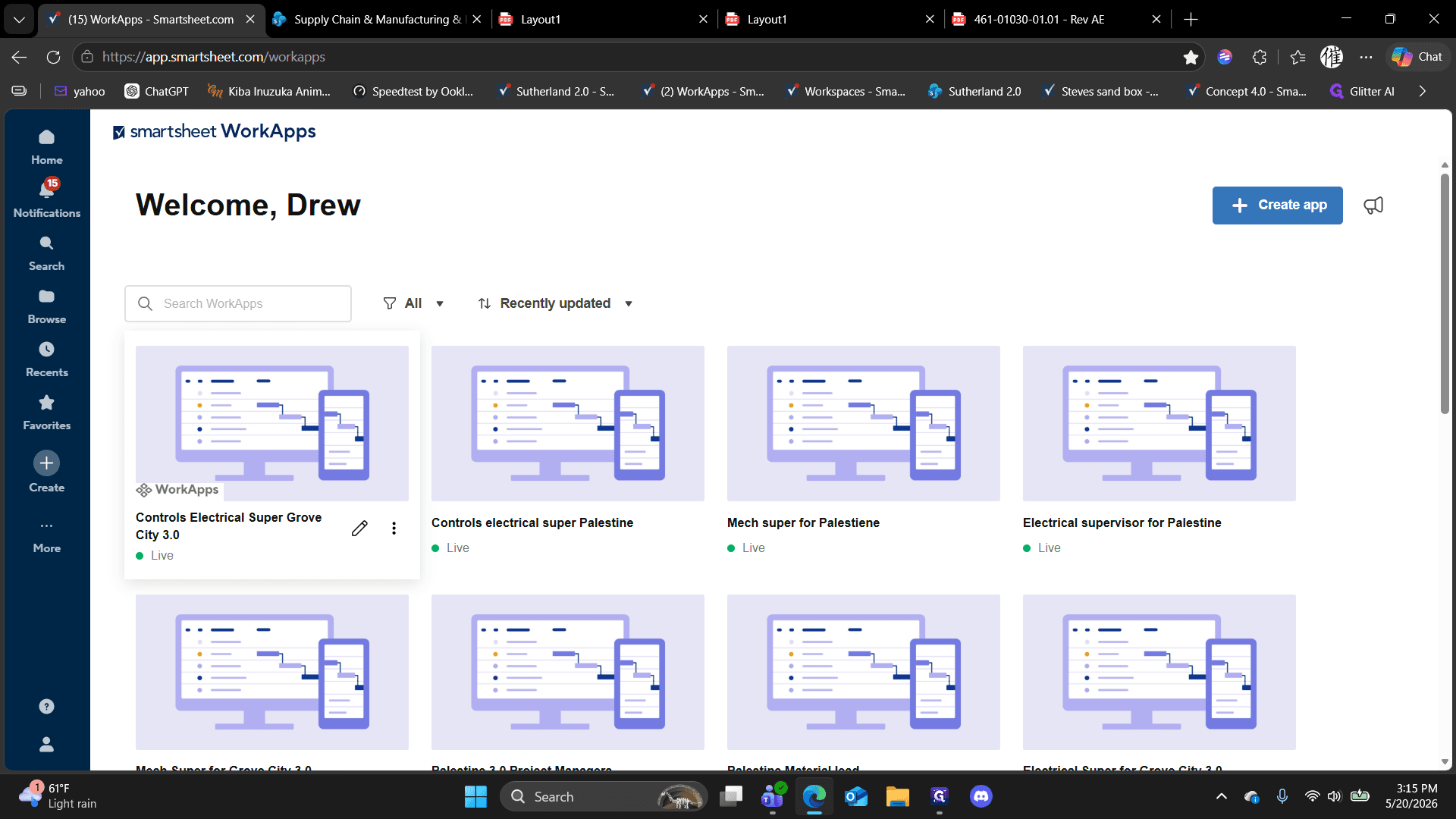
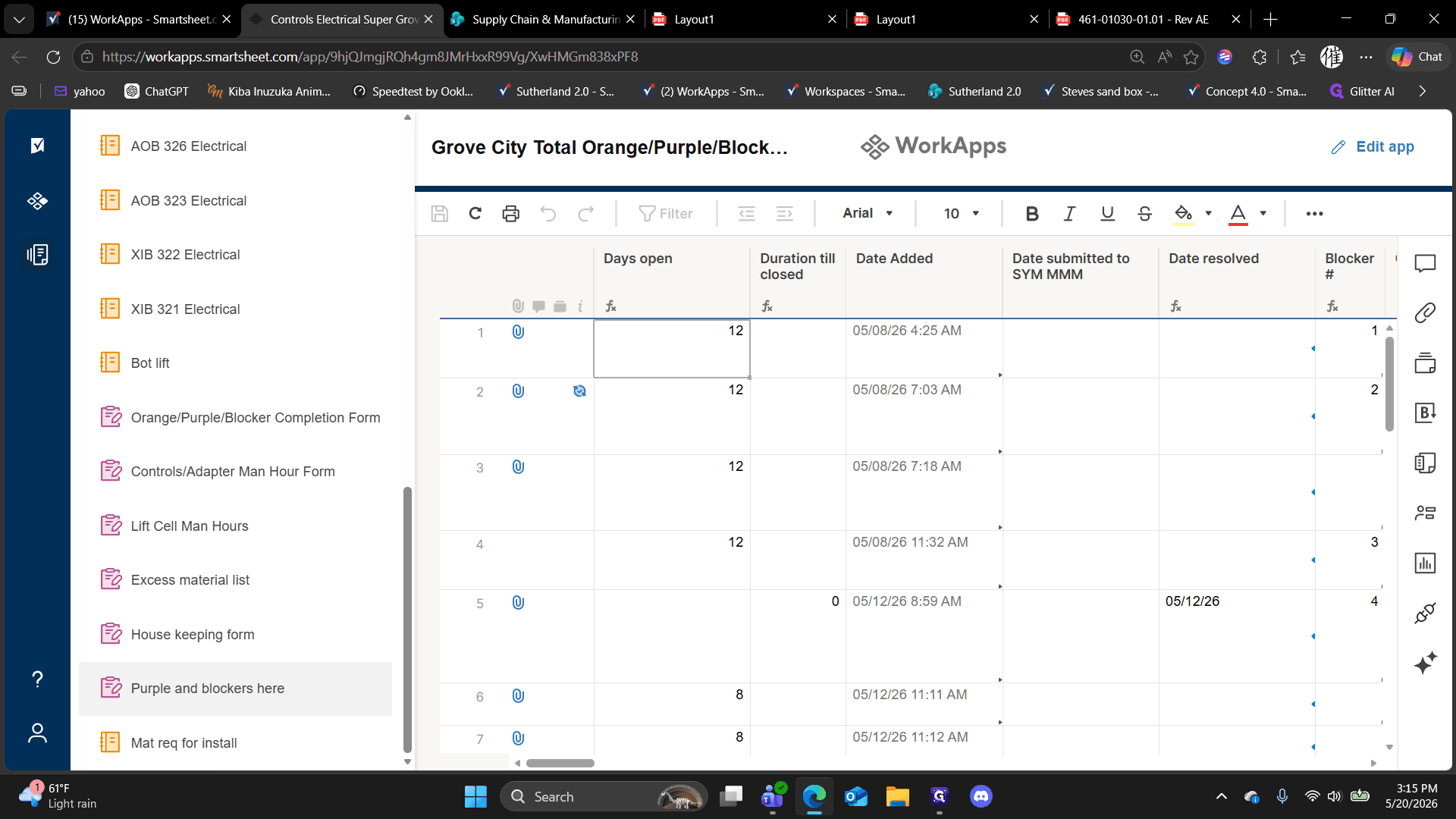
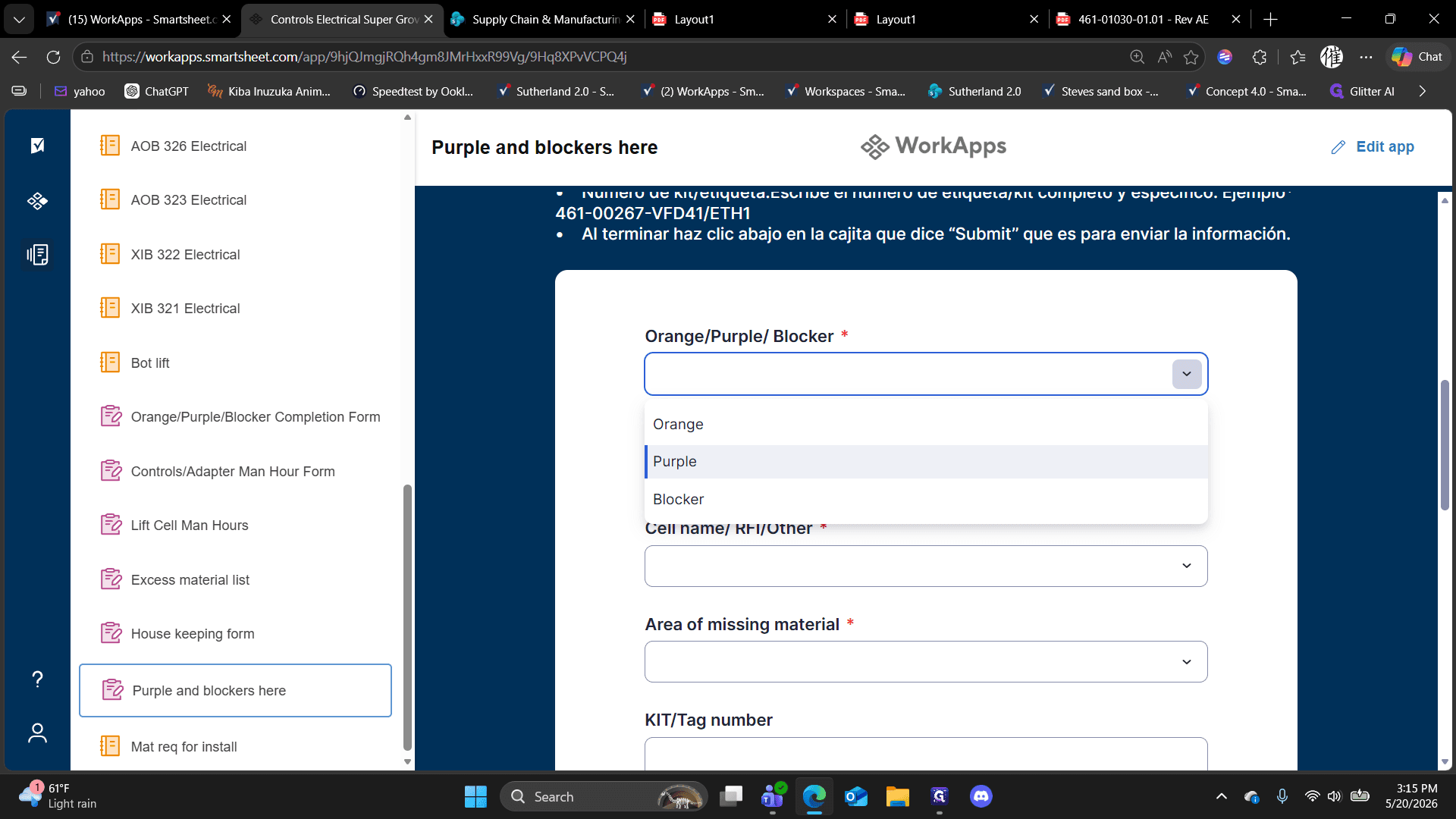
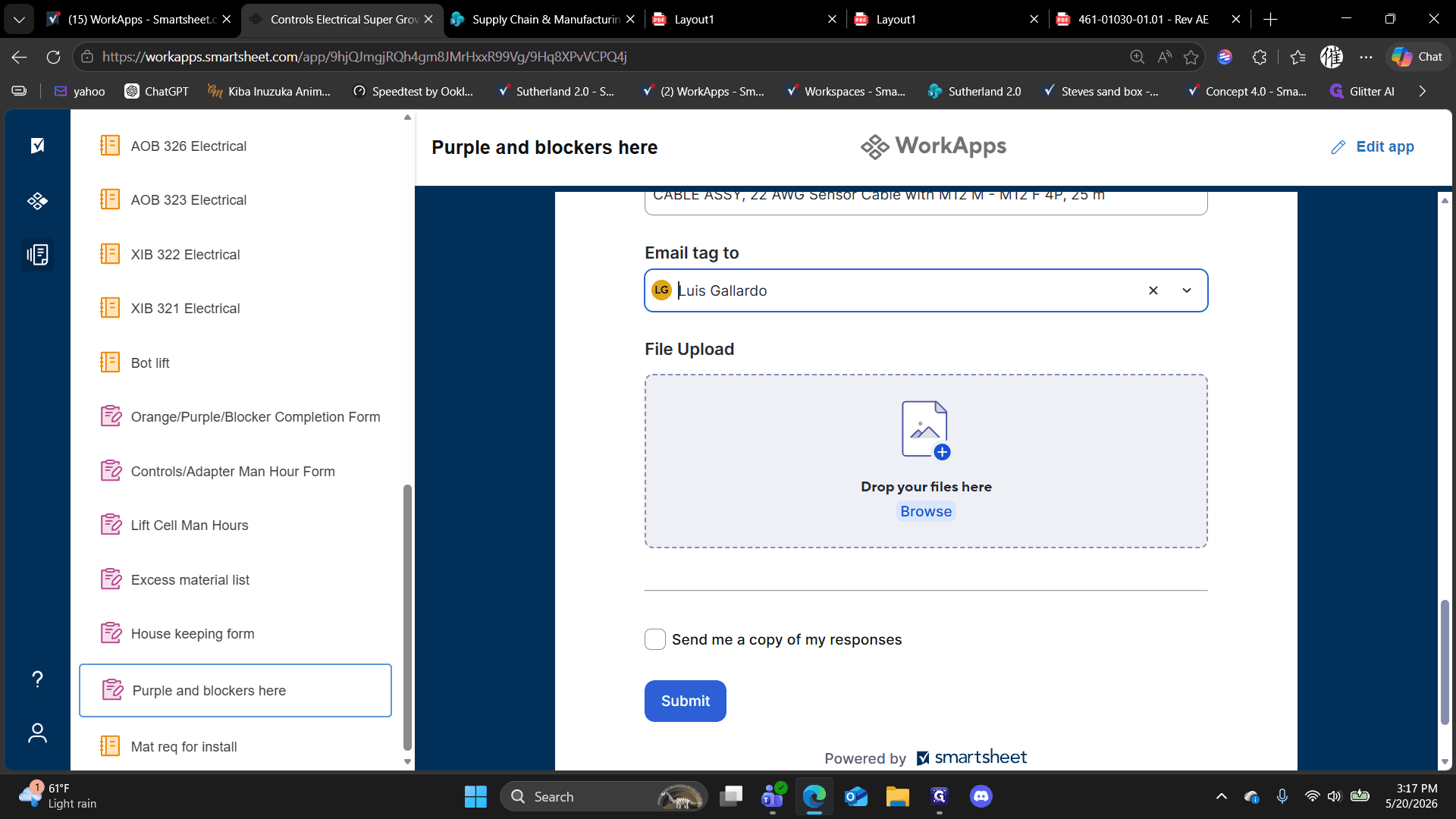
1030) to quickly filter the list and select it from the dropdown.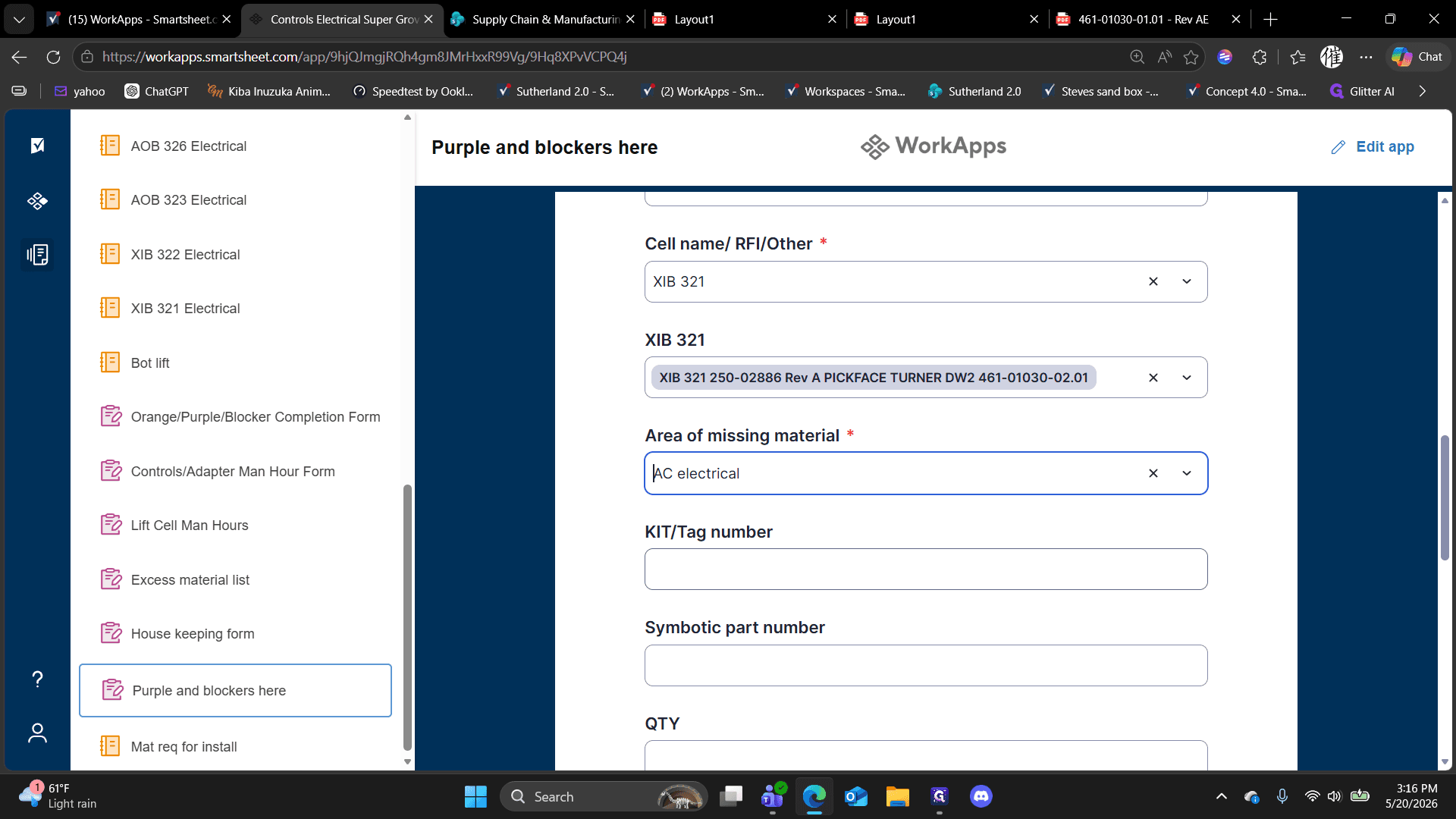
Return to your open PDF print, copy the exact values from the Bill of Materials, and paste them into the remaining form fields to prevent ordering errors.
Missing in the Probable cause field.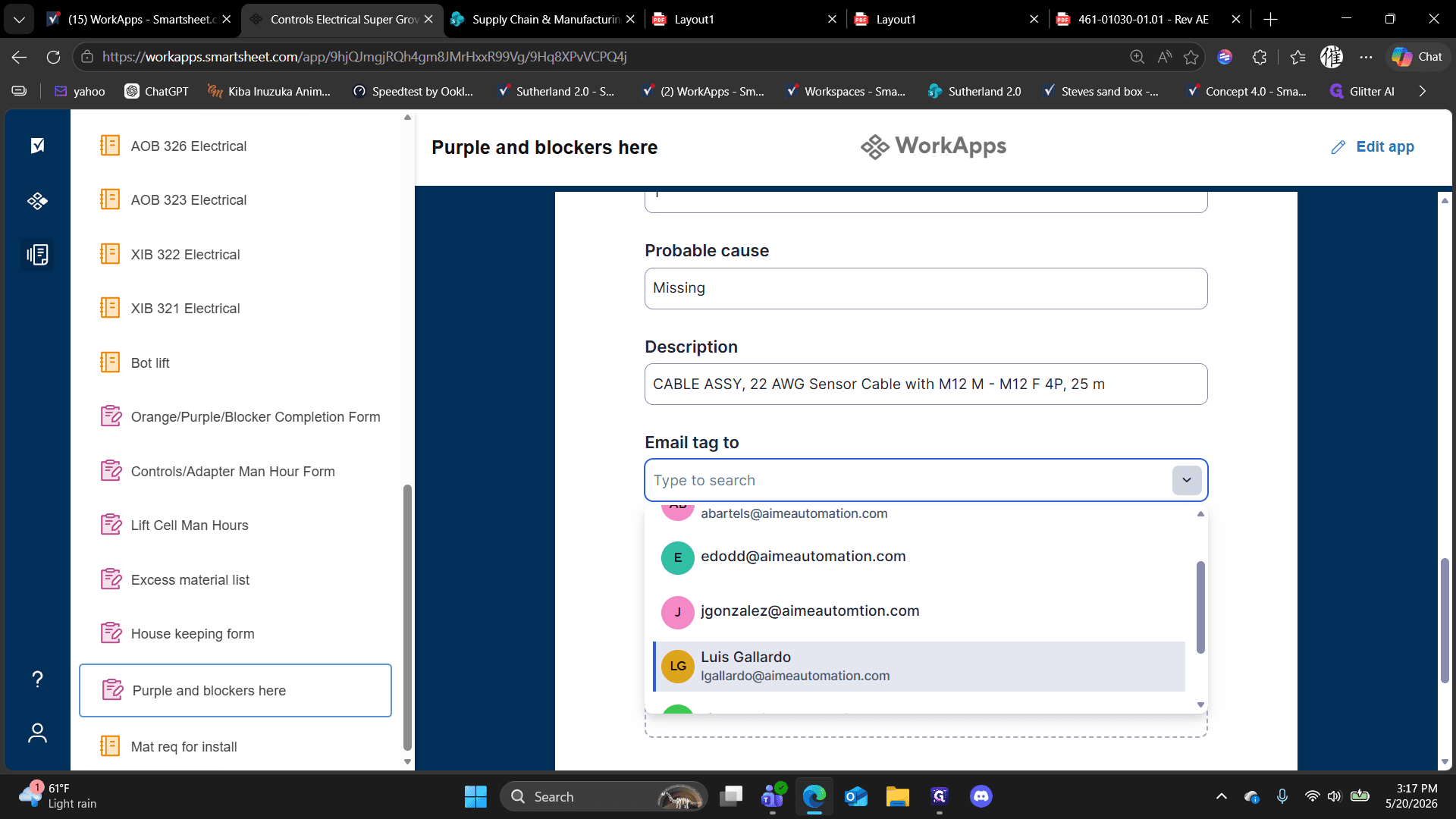
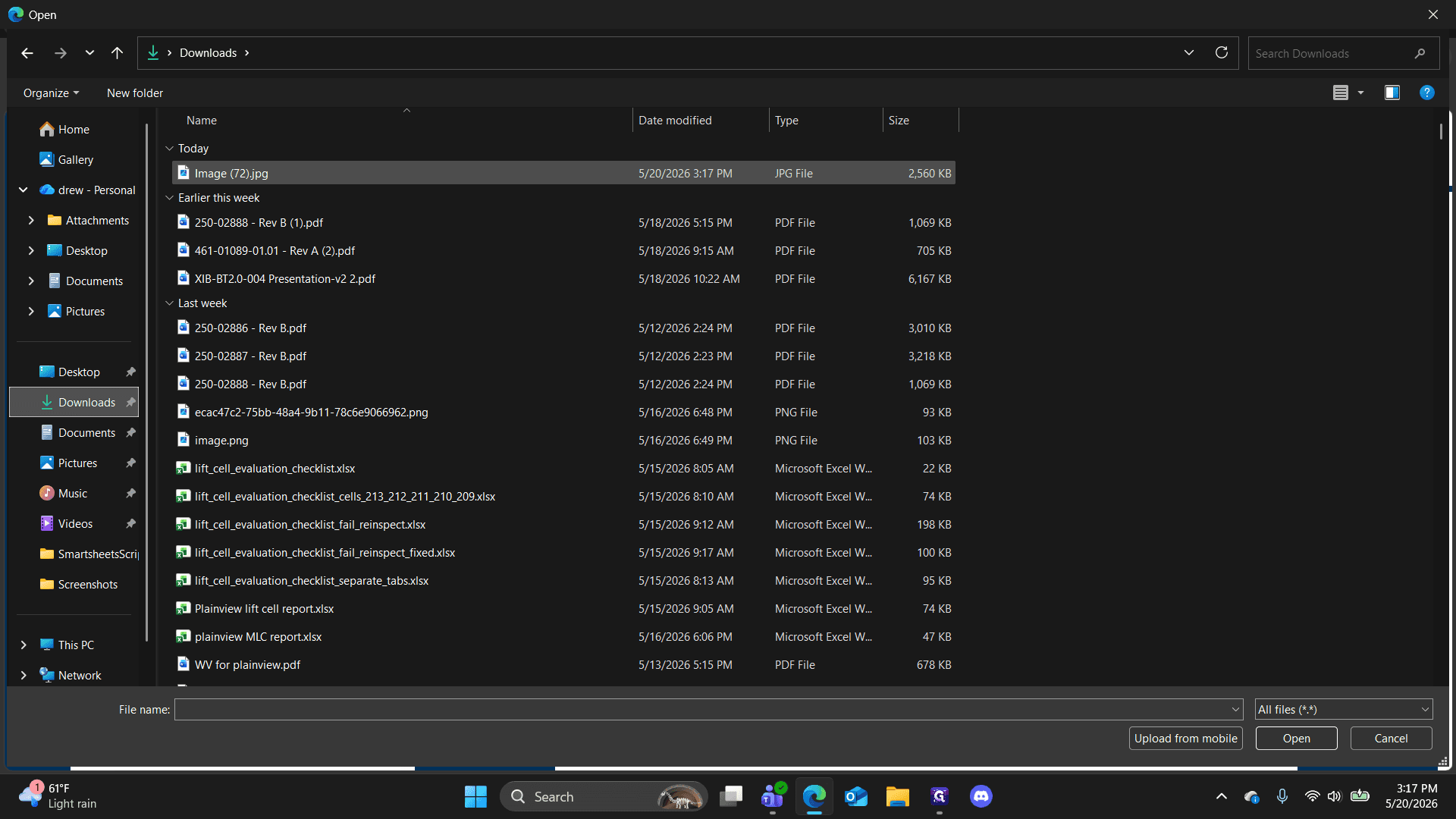
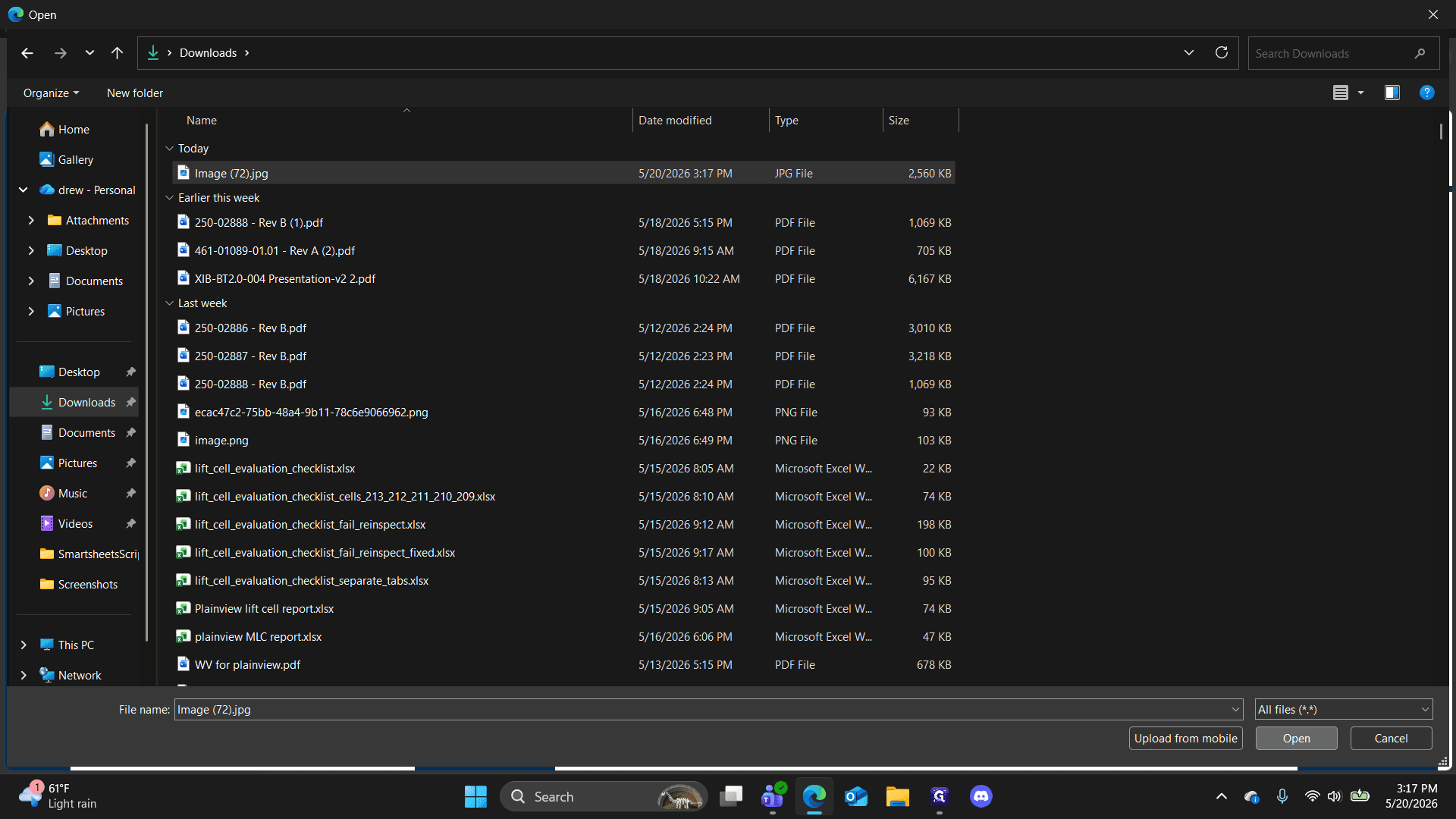
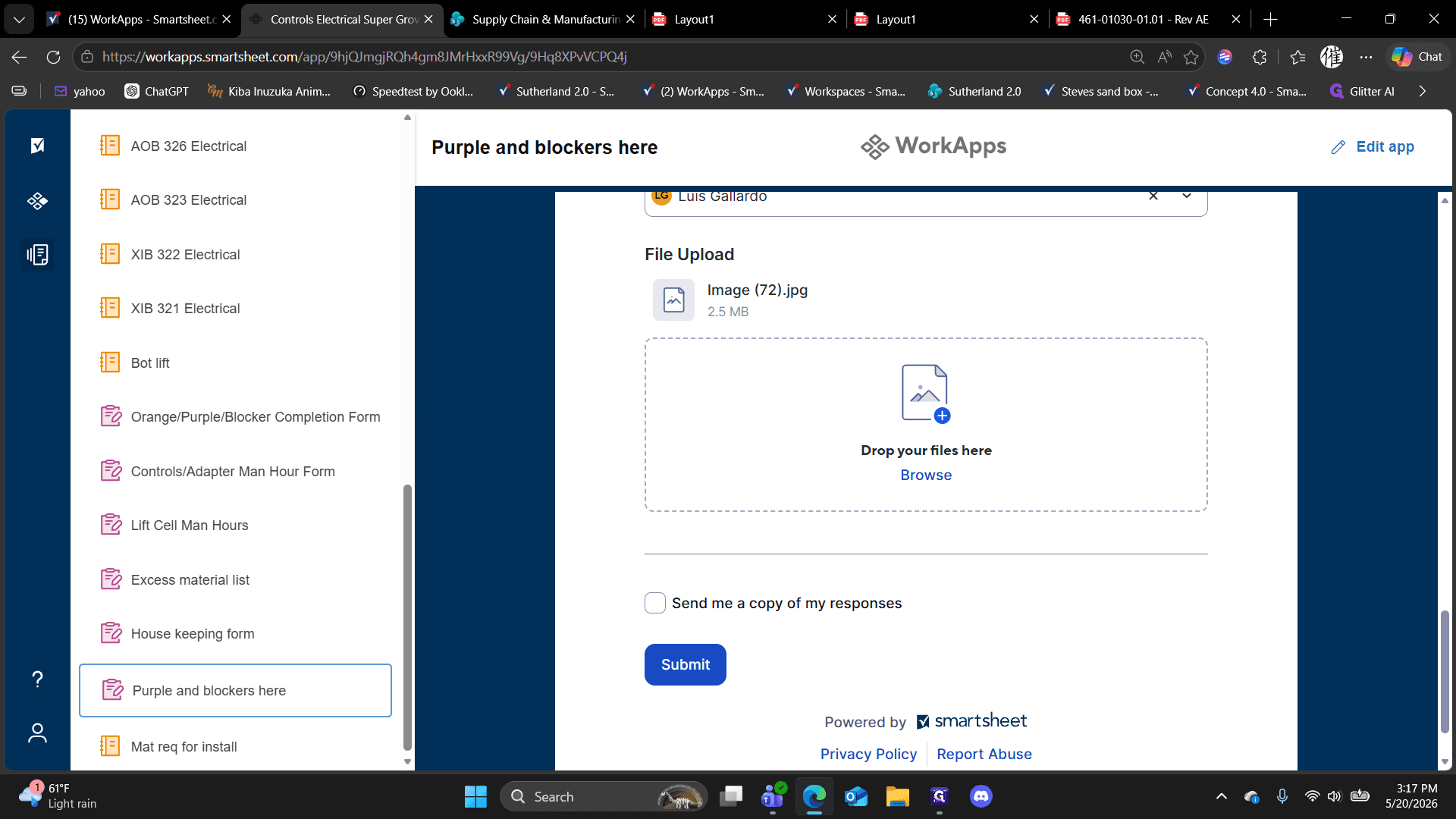
To help the supply chain team and supervisors, always attach a photo clearly showing where the material is missing on the machine.
FAQ
Q: How do I find WorkApps in Smartsheet if it's not visible?
A: Click the three dots (More menu) on the left sidebar and select WorkApps to open your available dashboards and forms.
Q: Why should I open SharePoint PDFs in the browser?
A: Opening the PDF directly in the browser allows you to easily zoom in on detailed technical drawings, search for specific part numbers using Ctrl + F, and quickly switch tabs to copy and paste details directly into your Smartsheet tracker.
Q: What if multiple different parts are missing in the same cell?
A: You must submit a separate form entry for each unique component or part number. Do not bundle different part numbers into one submission, as this disrupts ordering and tracking.
Glossary
Term | Definition |
|---|---|
Purple Tag | A tracking label used to report and resolve missing materials or supply chain blockers. |
PDP Print | Power Distribution Panel or equivalent detailed electrical schematic drawing. |
WorkApp | A custom Smartsheet interface containing project-specific forms, trackers, and dashboards. |