
How to Request a new Cellular Phone
Learn how to fill out and submit a request form for a new cellular device or to transfer an existing phone number via your organization's SharePoint Intranet.
This guide walks you through submitting a request for a new cellular device or transferring an existing number to a new device. Completing this process ensures Wireless Business Group has all the necessary details to process your hardware order efficiently.
This applies to managers, department heads, or designated staff members who need to procure mobile devices for their team members as part of onboarding or equipment upgrades.
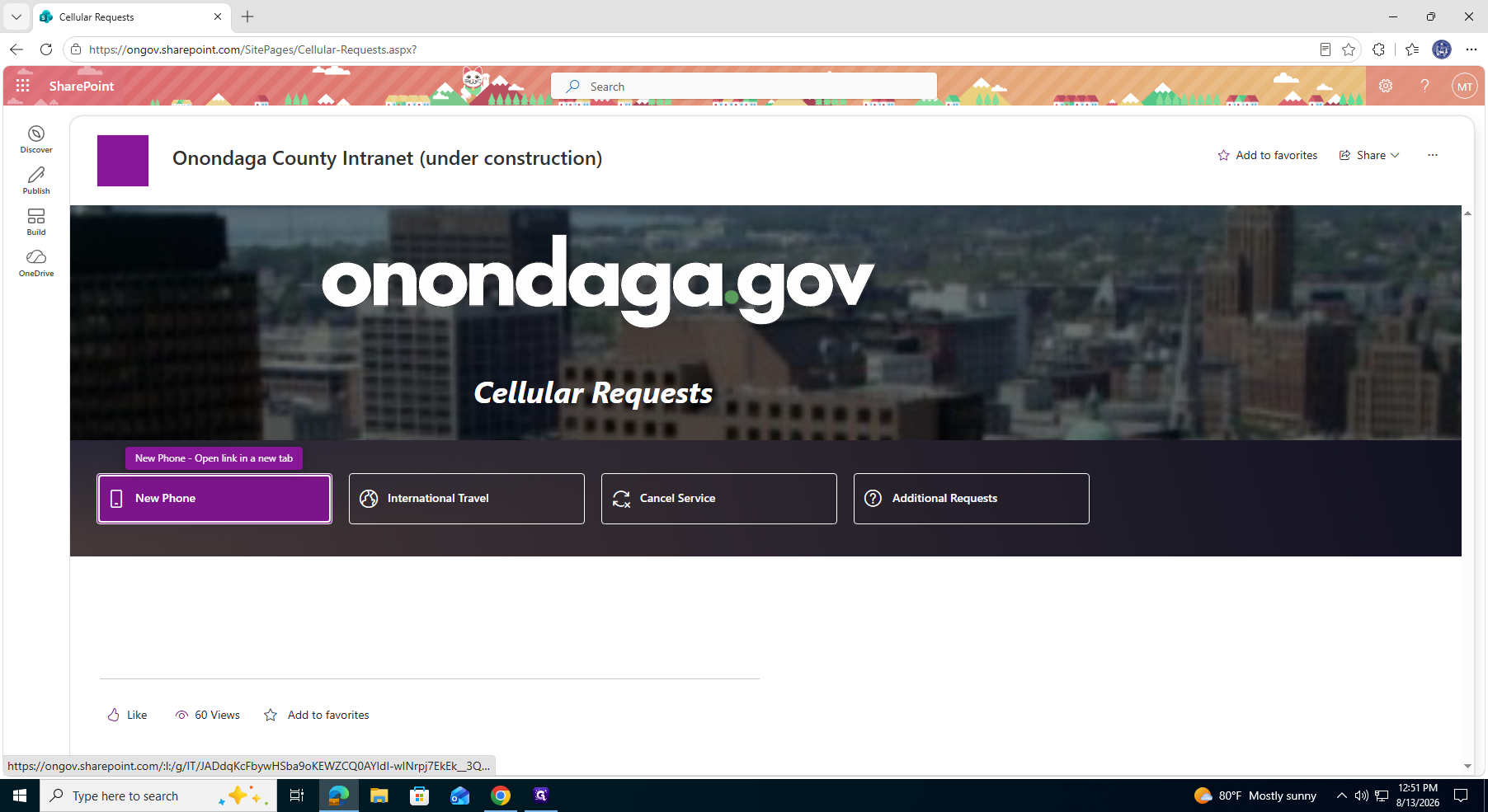
1. Basic Request Details
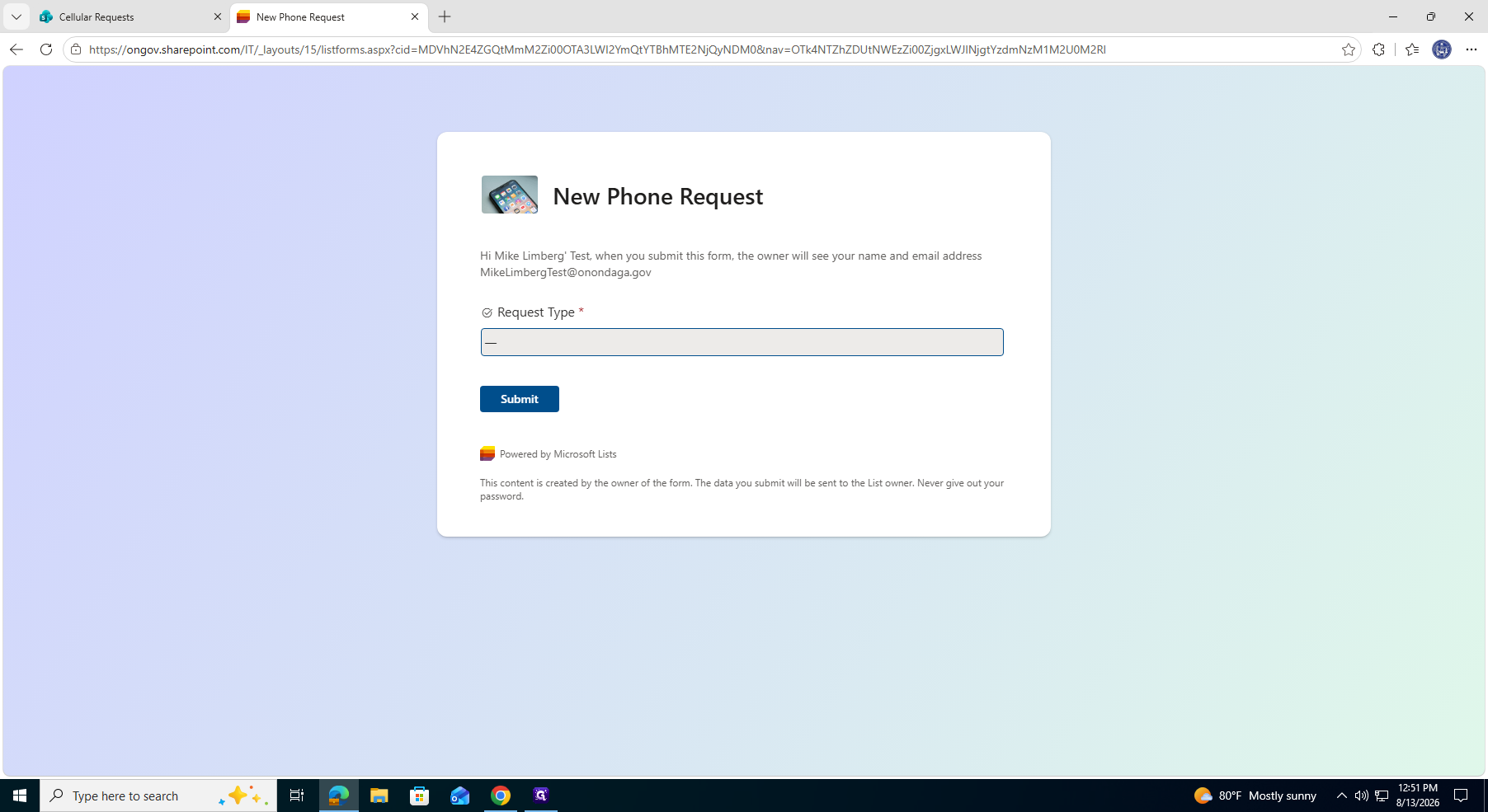
Request Type | Description |
|---|---|
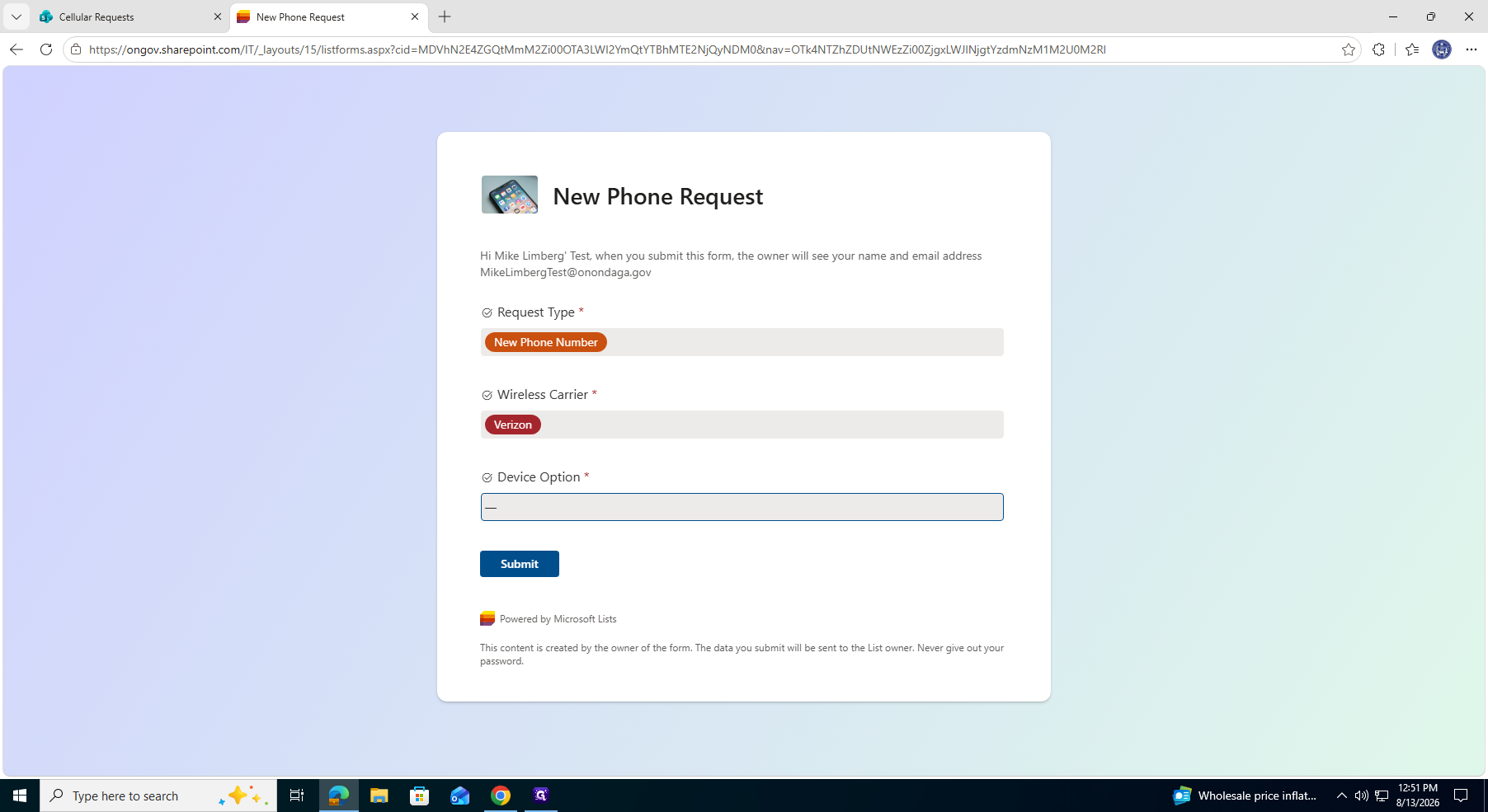
New Phone Number | Select this if the user needs a brand new line of service and a new device. |
Keep Phone Number | Select this if porting an existing number or upgrading a device on a current line. You will need to provide the existing 10-digit phone number. |
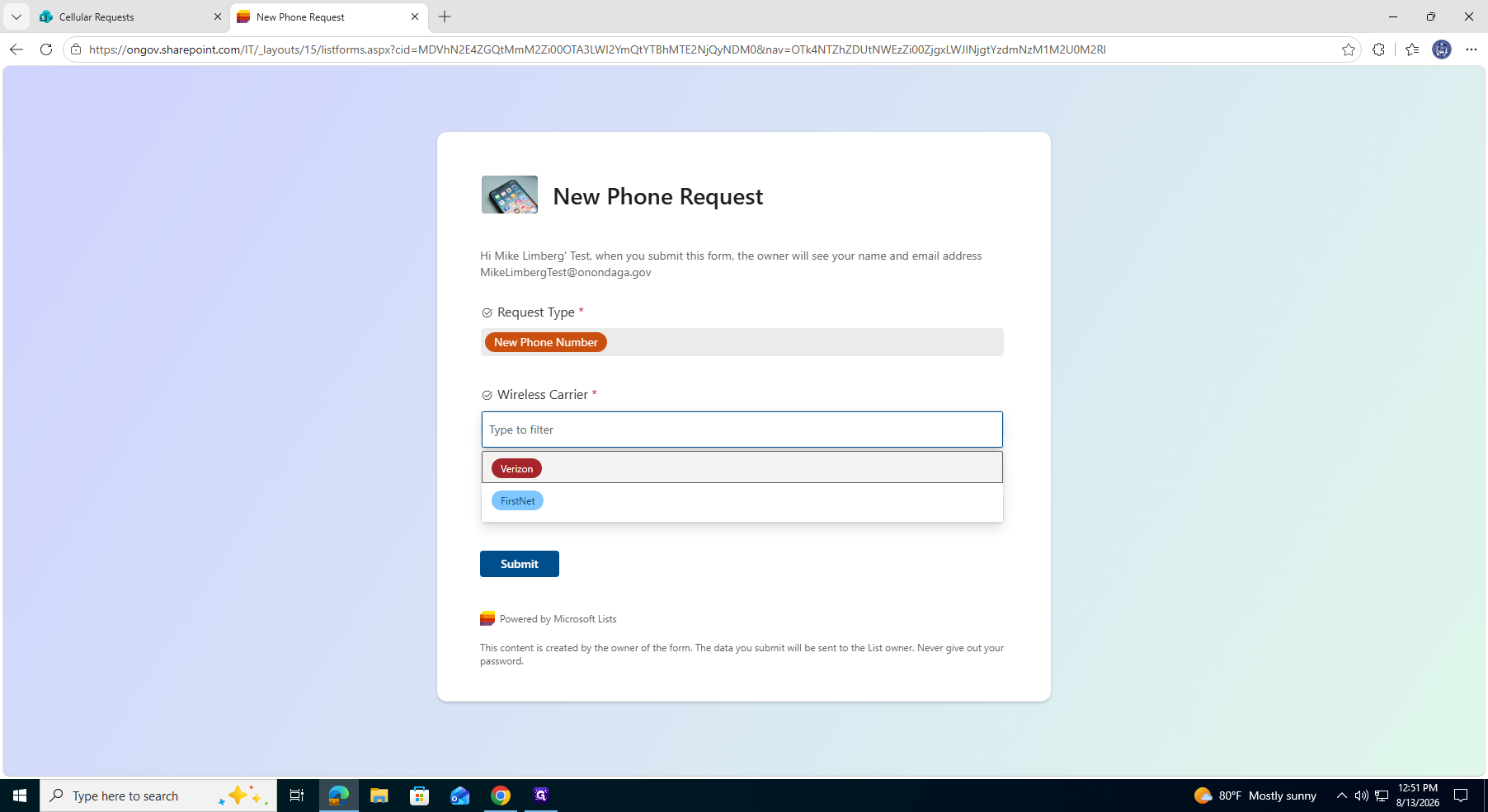
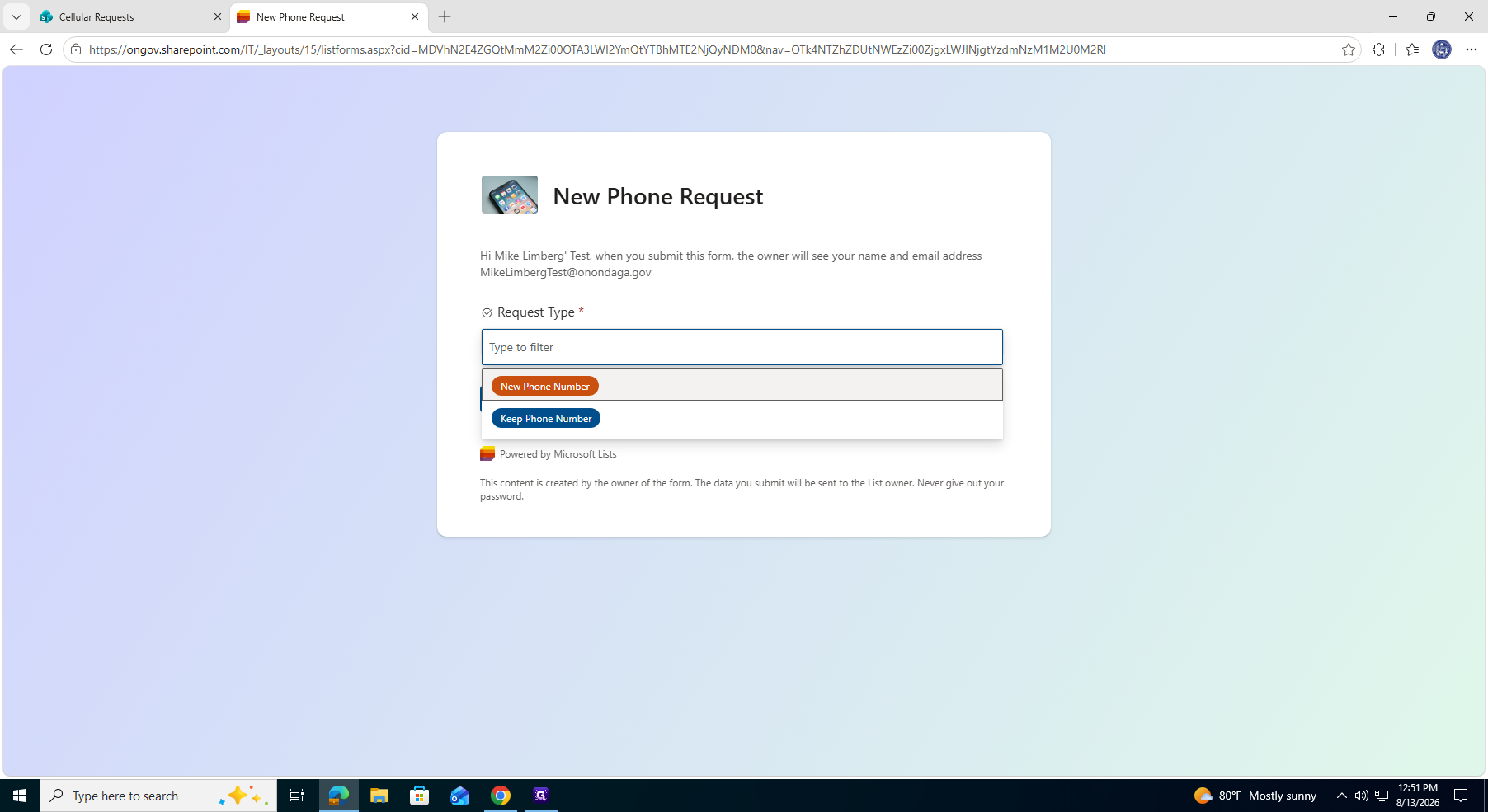
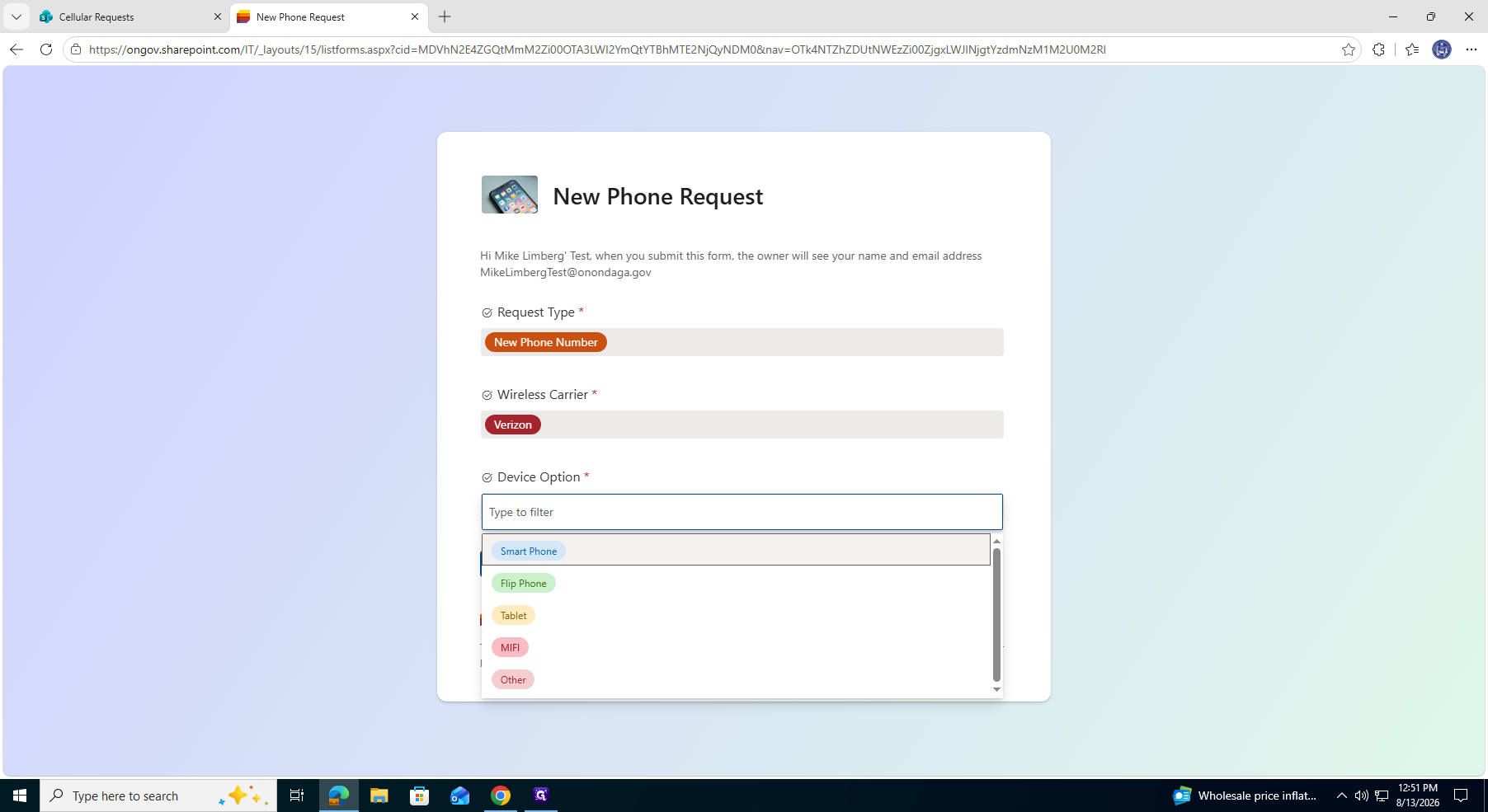
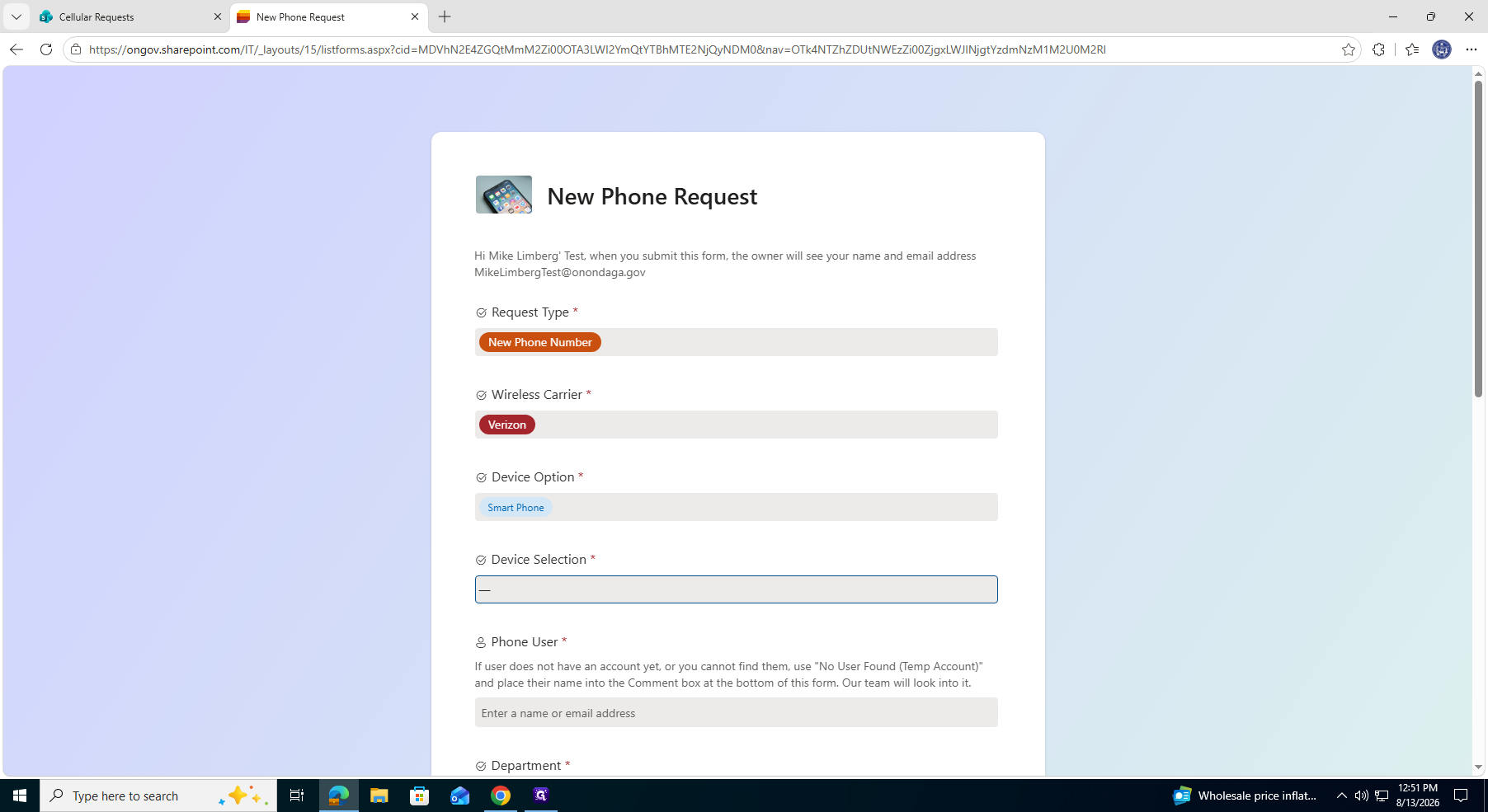
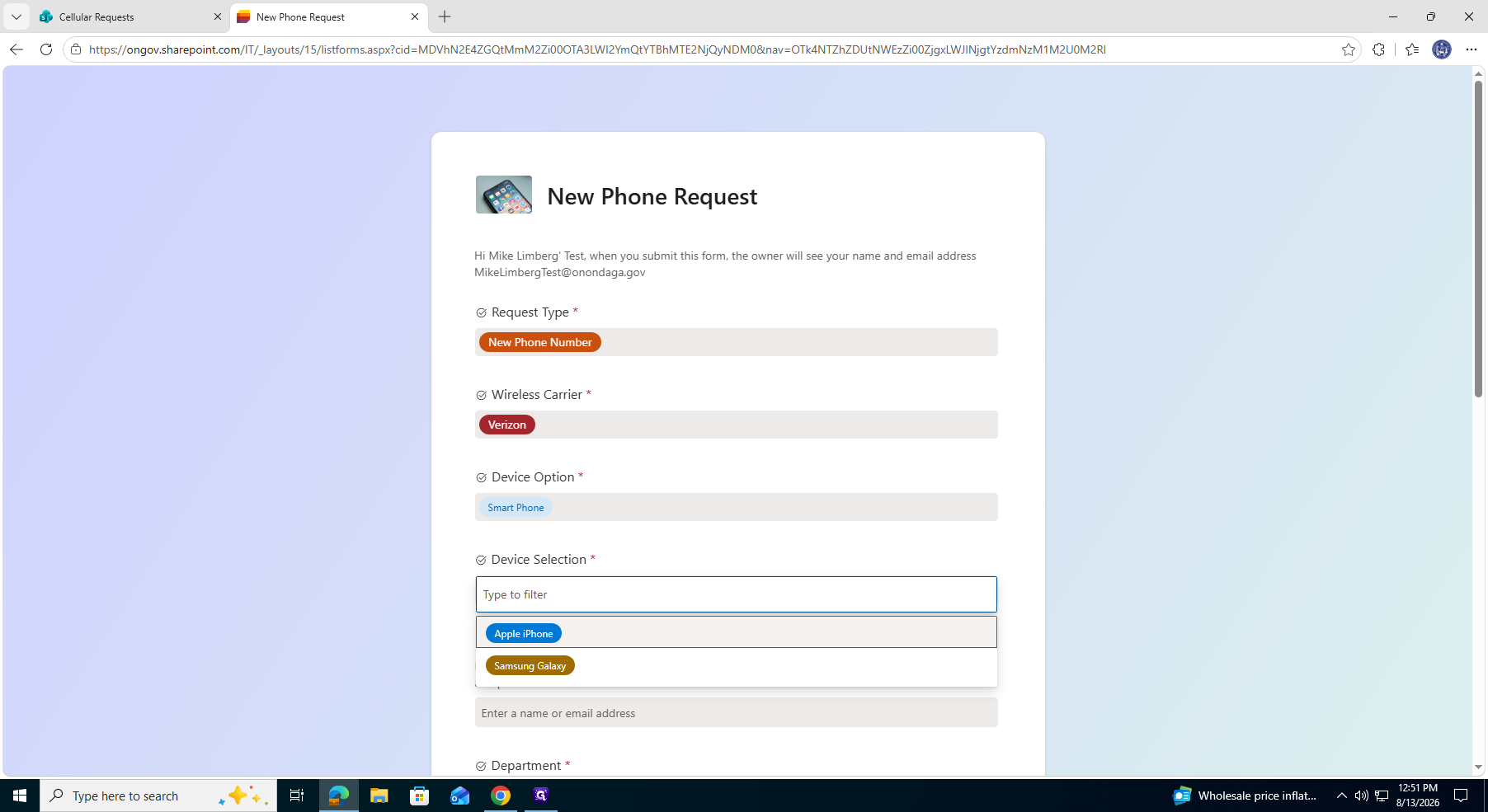
2. Device Selection
3. Assigning the User
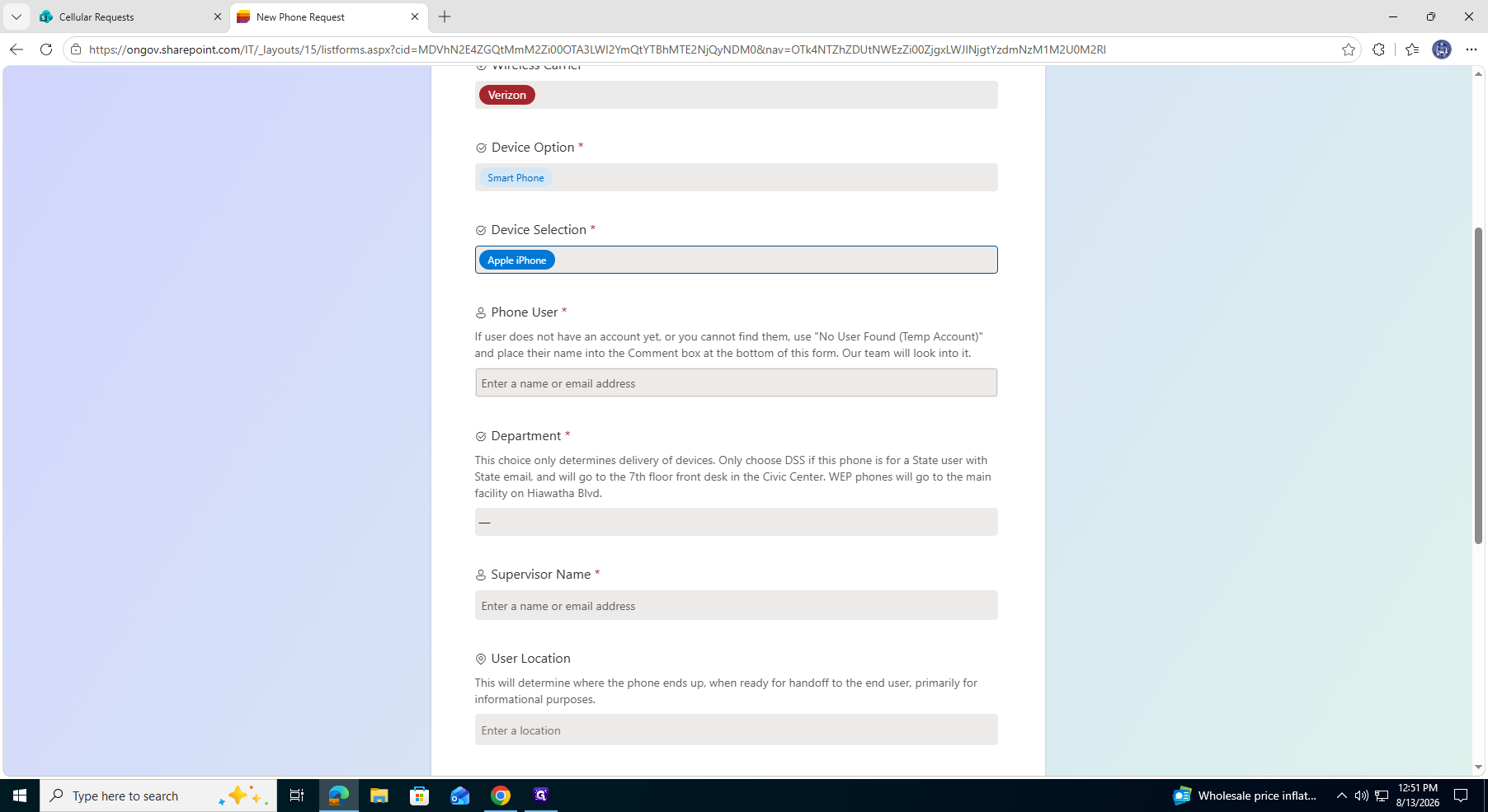
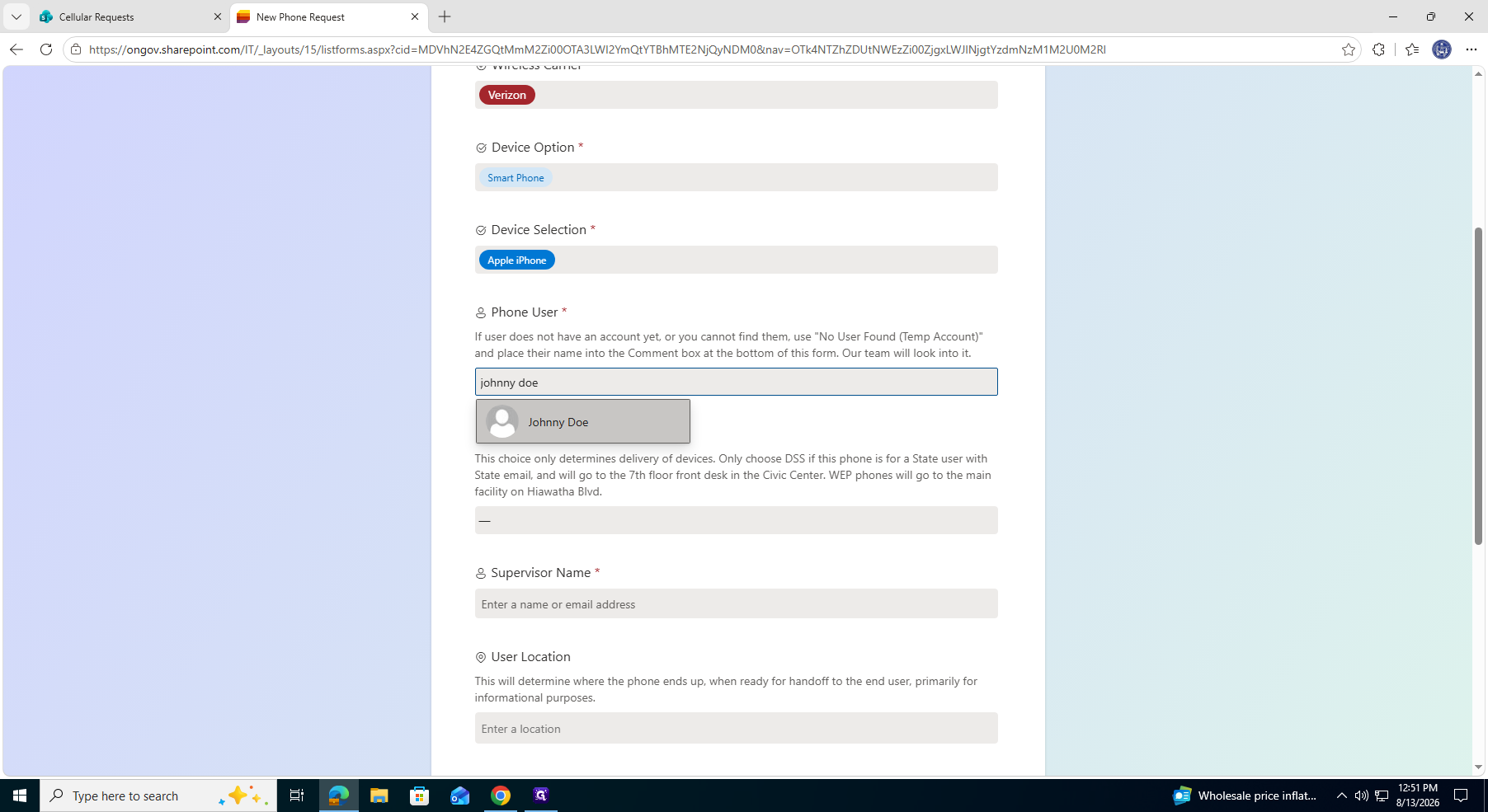
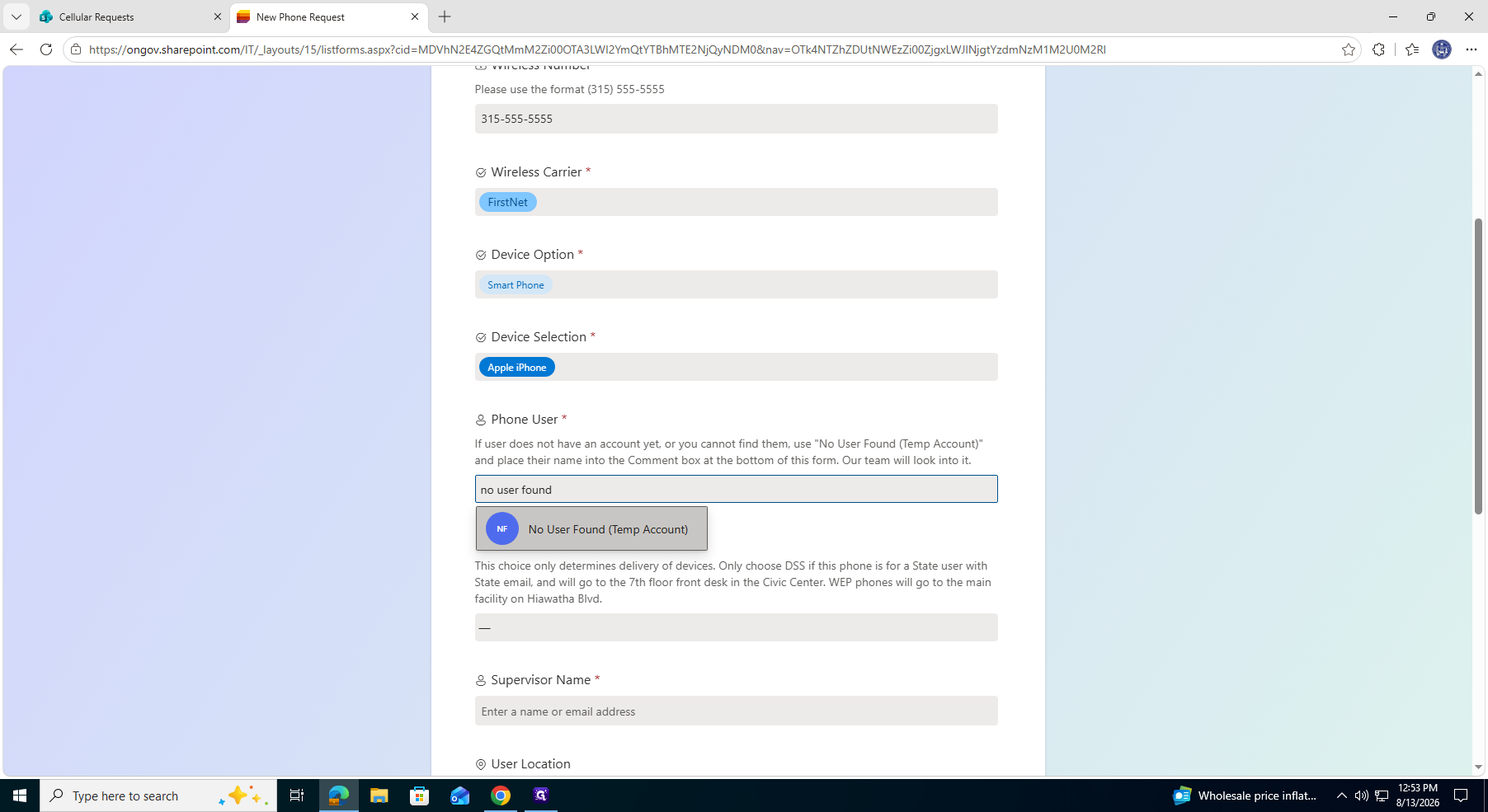
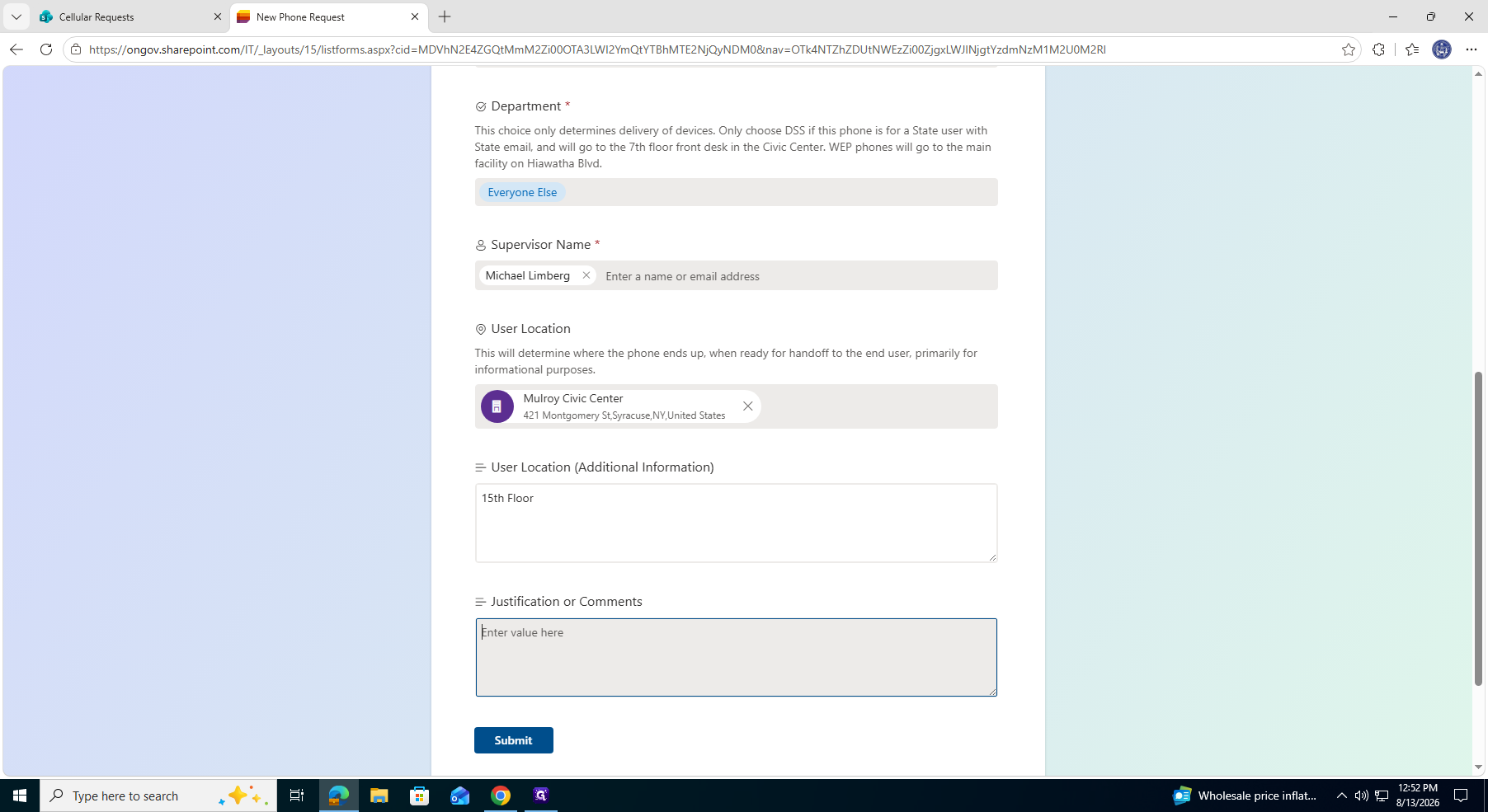
4. Department and Location
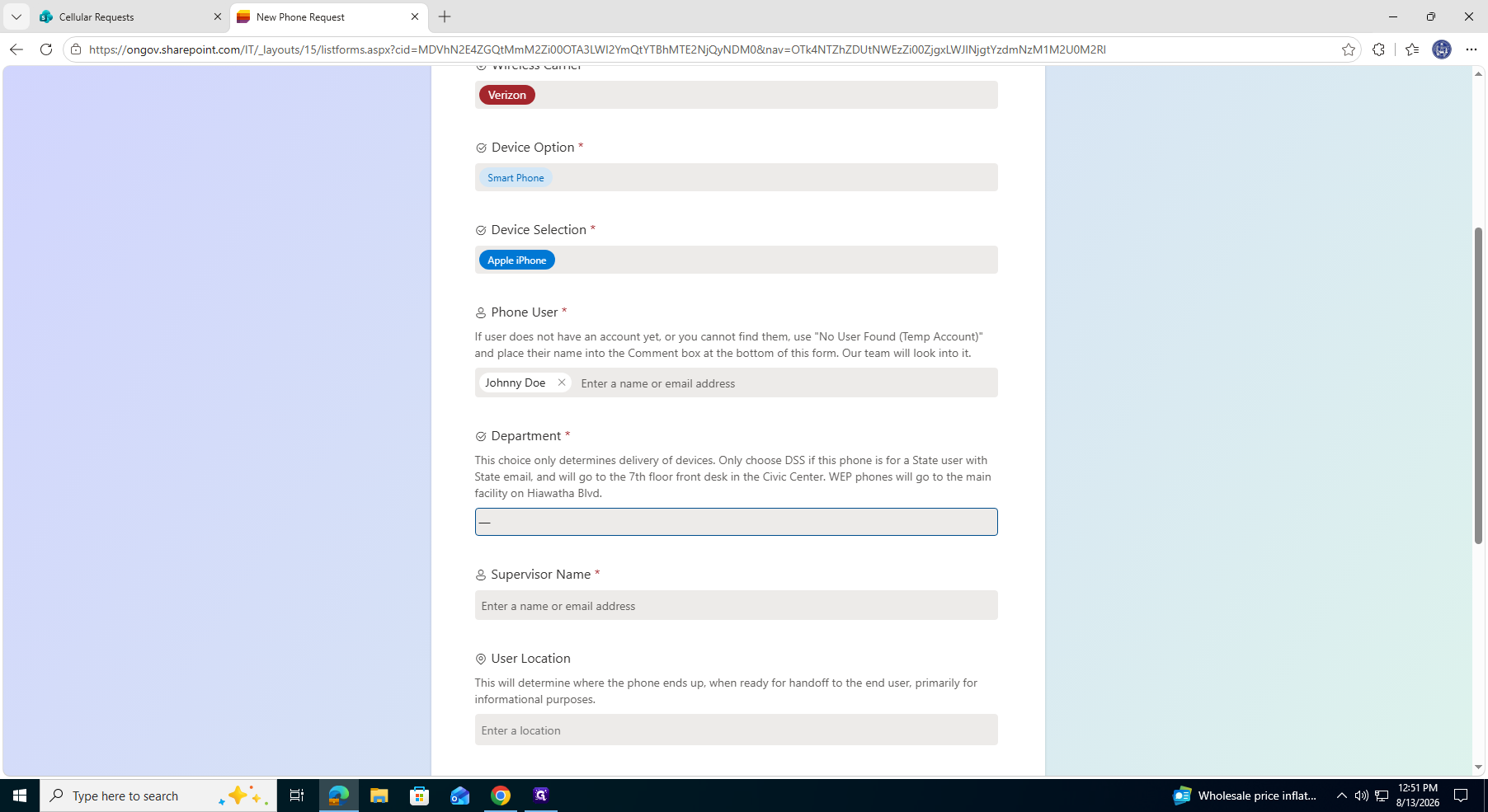
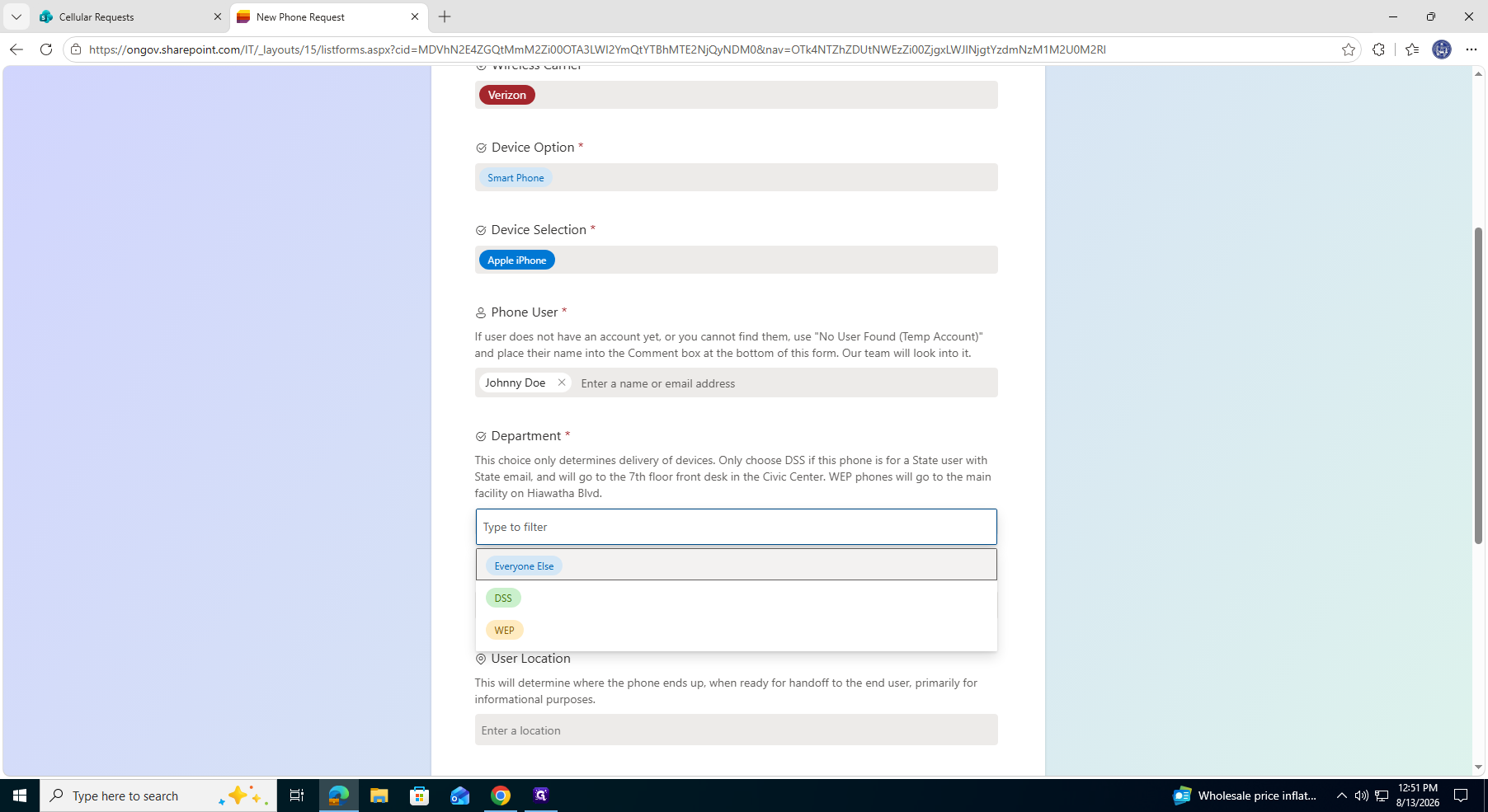
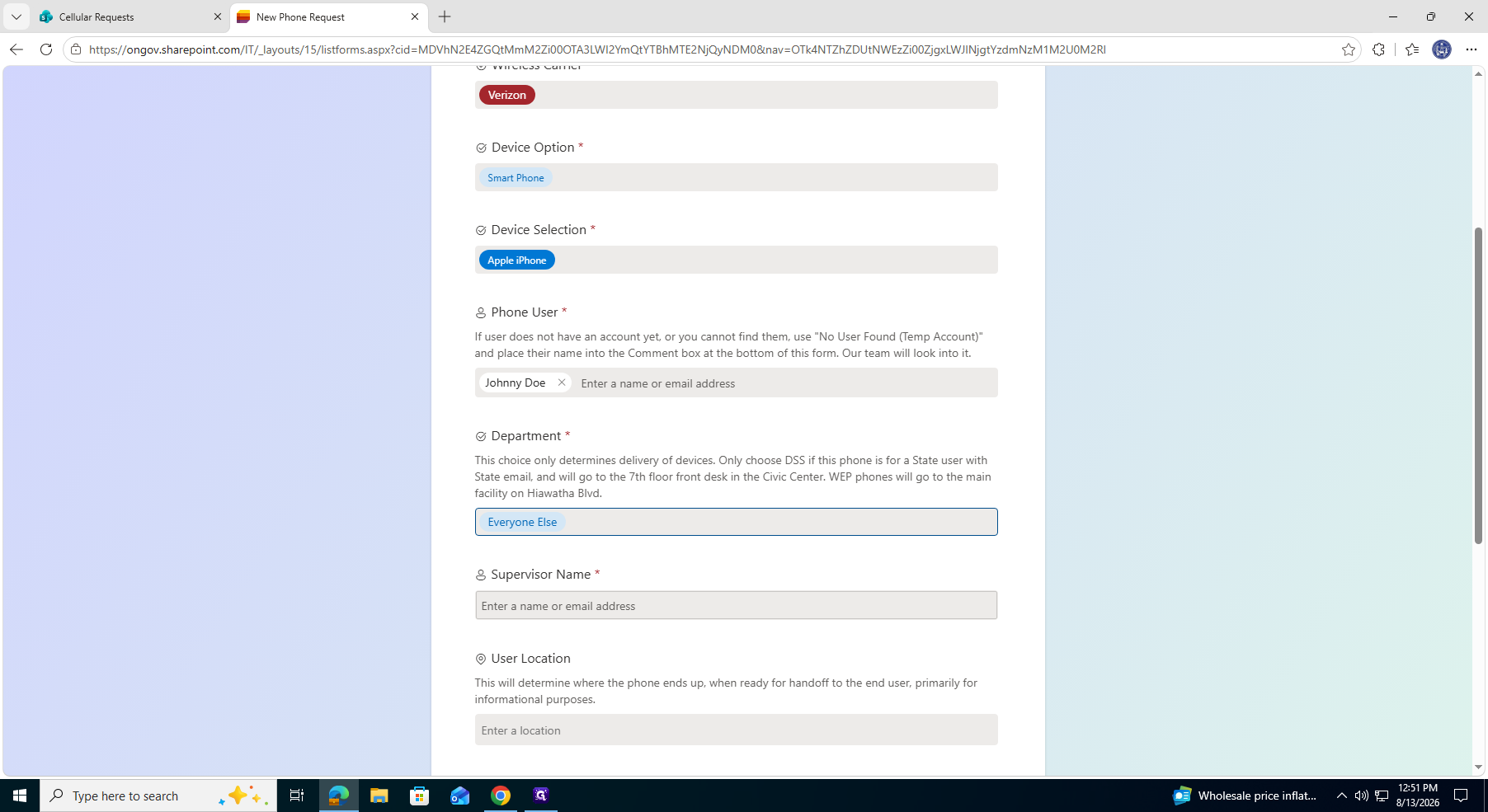
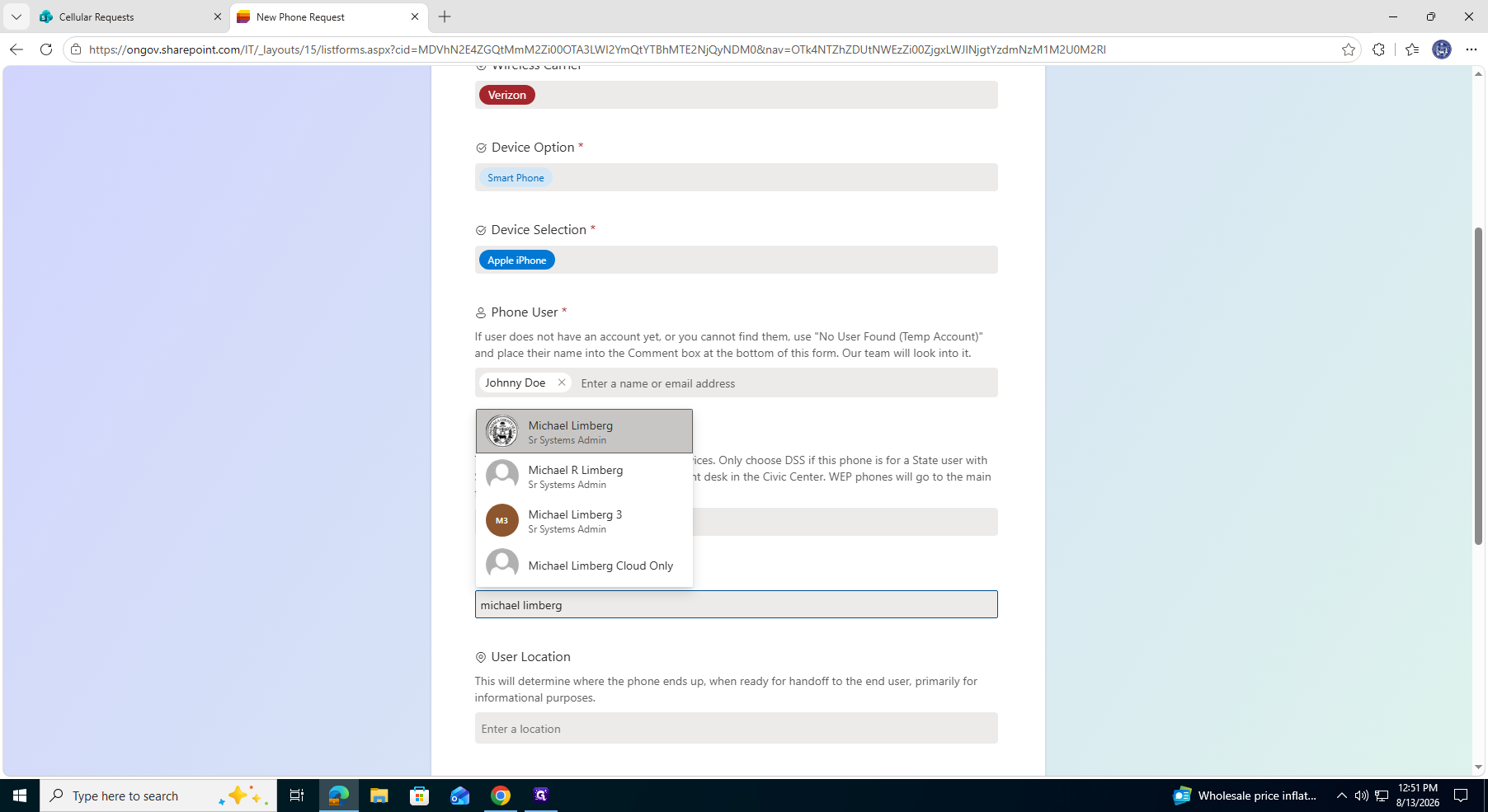
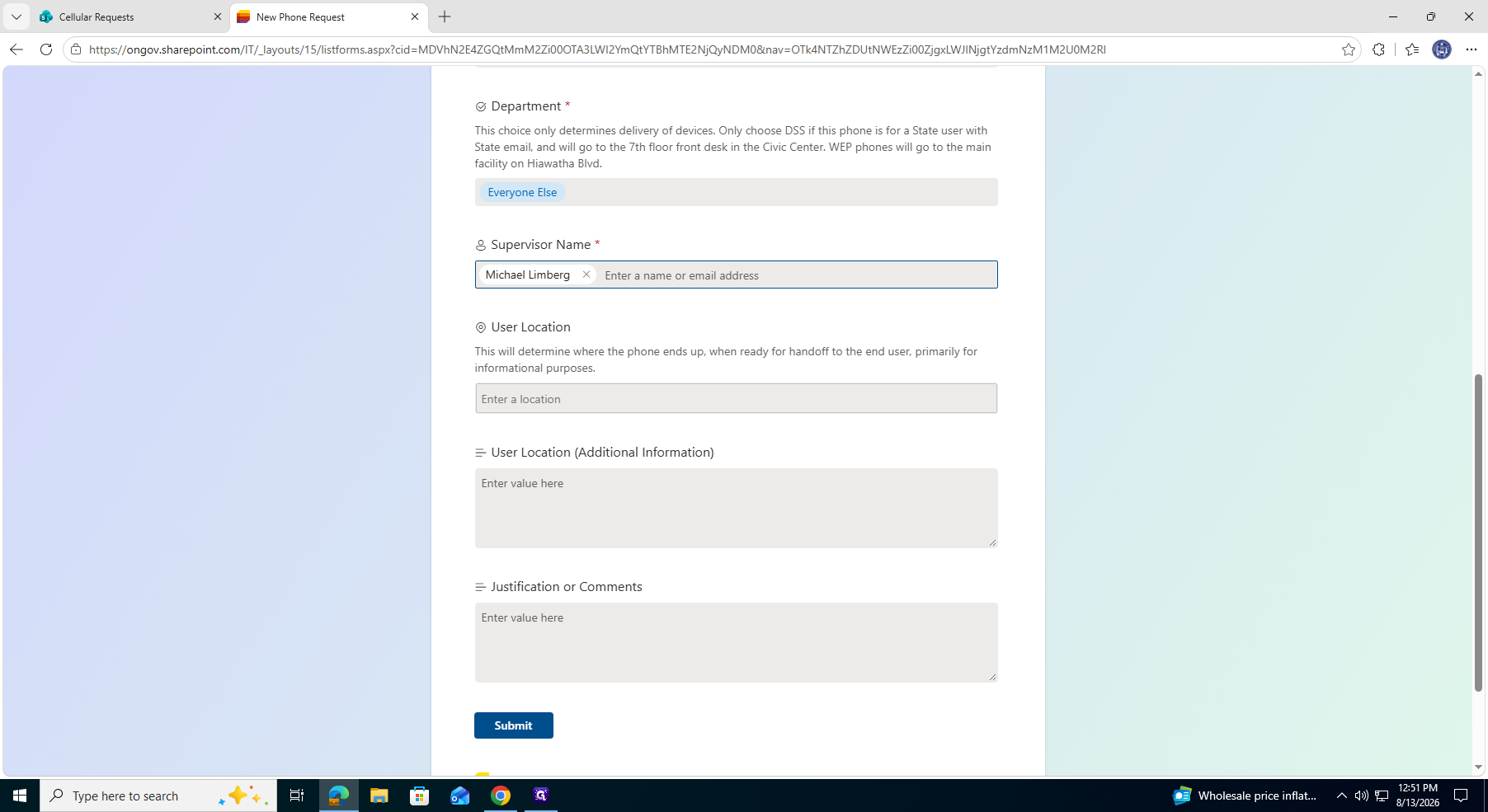
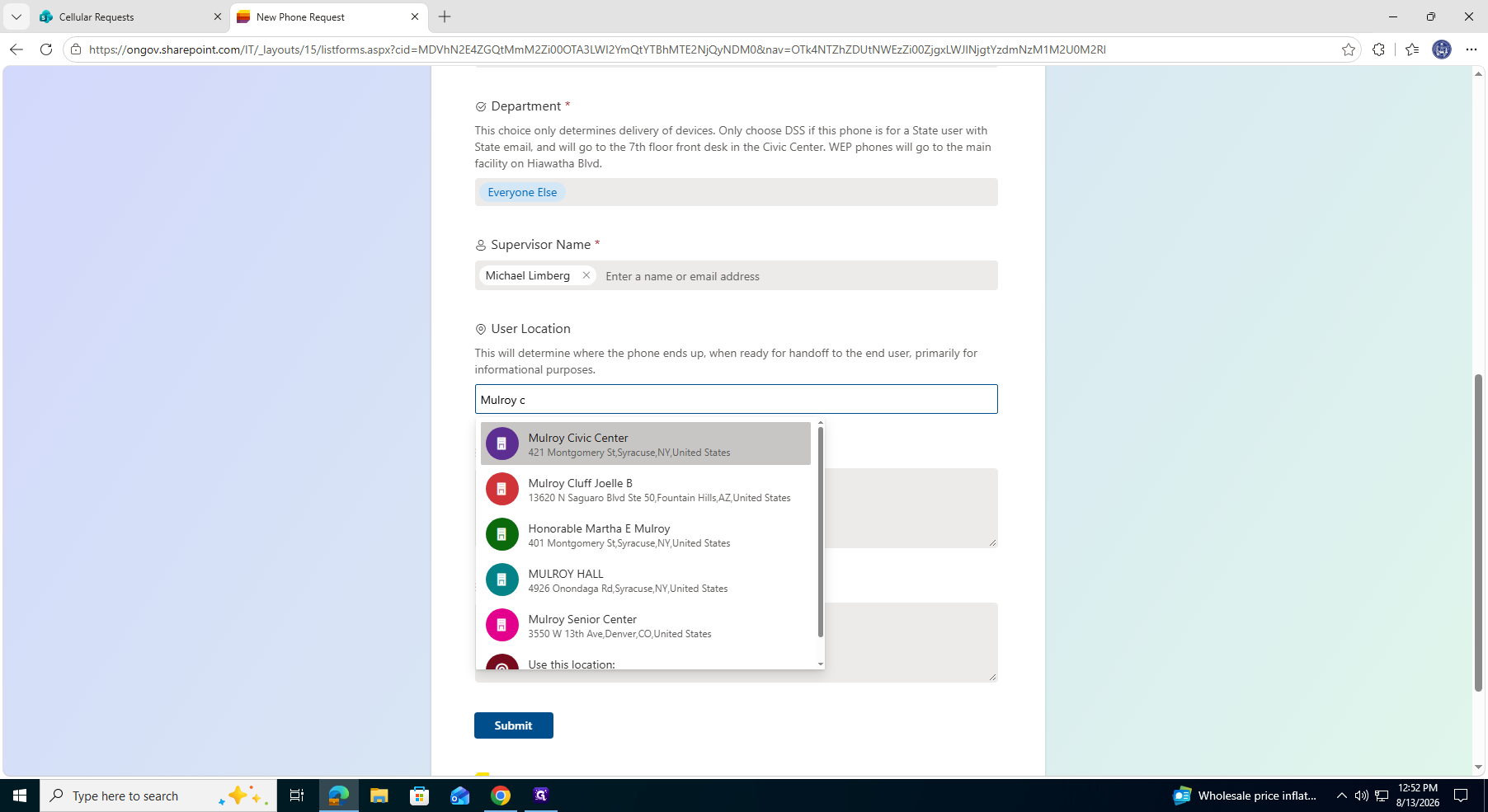
5. Finalizing and Submitting
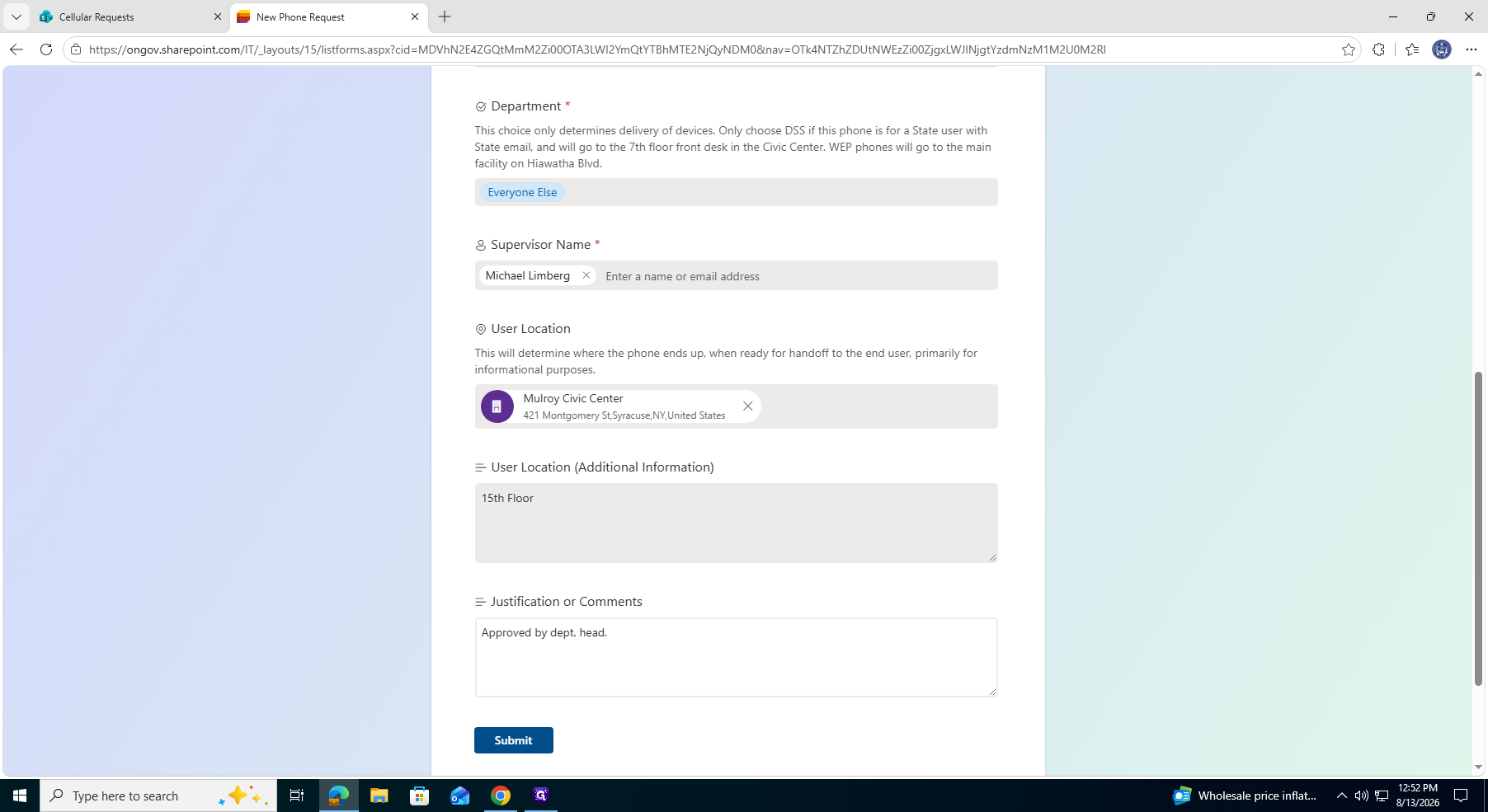
Q: What if the employee doesn't have an IT account yet?
A: Select "No User Found (Temp Account)" in the Phone User field, and write their actual name in the Comments box at the bottom of the form.
Q: Can I transfer an existing number instead of getting a new one?
A: Yes. Under the Request Type dropdown, select "Keep Phone Number" and provide the existing 10-digit number.
Term | Definition |
|---|---|
FirstNet | A dedicated mobile network prioritizing first responders and public safety professionals. |
MiFi | A portable broadband device that allows multiple users and devices to share a cellular internet connection. |