
How to Request a Refill Prescription via Fax
Learn the step-by-step process to request a refill prescription by eRx or fax, specifically for the Navina Classic System. Follow our guide to ensure your prescription refill is sent correctly and confirmed.
By Alyanna Marie Estrella
Made with Glitter AI
In this guide, we'll learn how to request a refill prescription using the fax service in the Navina Classic System. This process helps ensure that refill requests are sent and tracked efficiently. We will focus on the steps needed to send a fax and confirm its status.
Let's get started
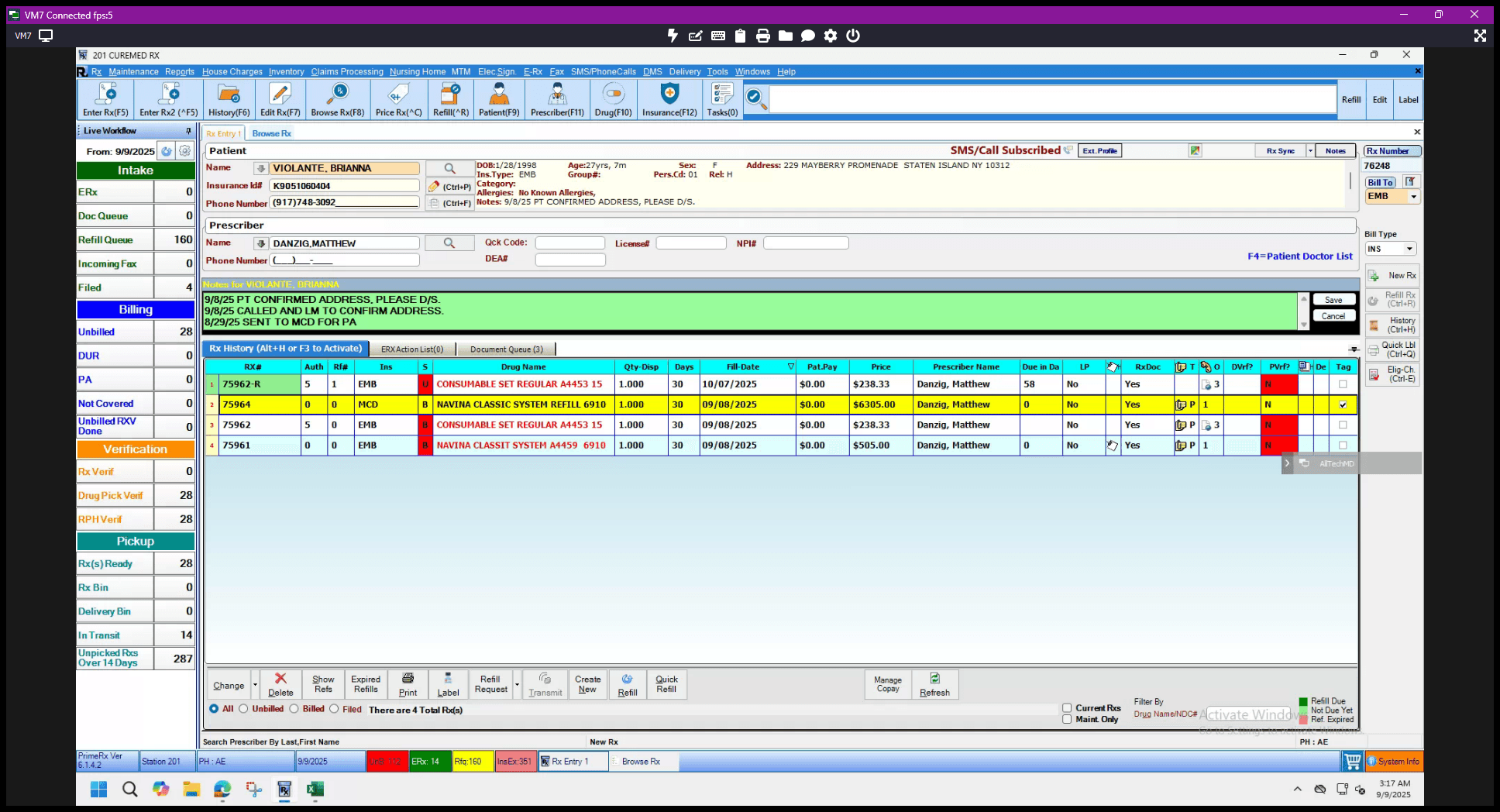
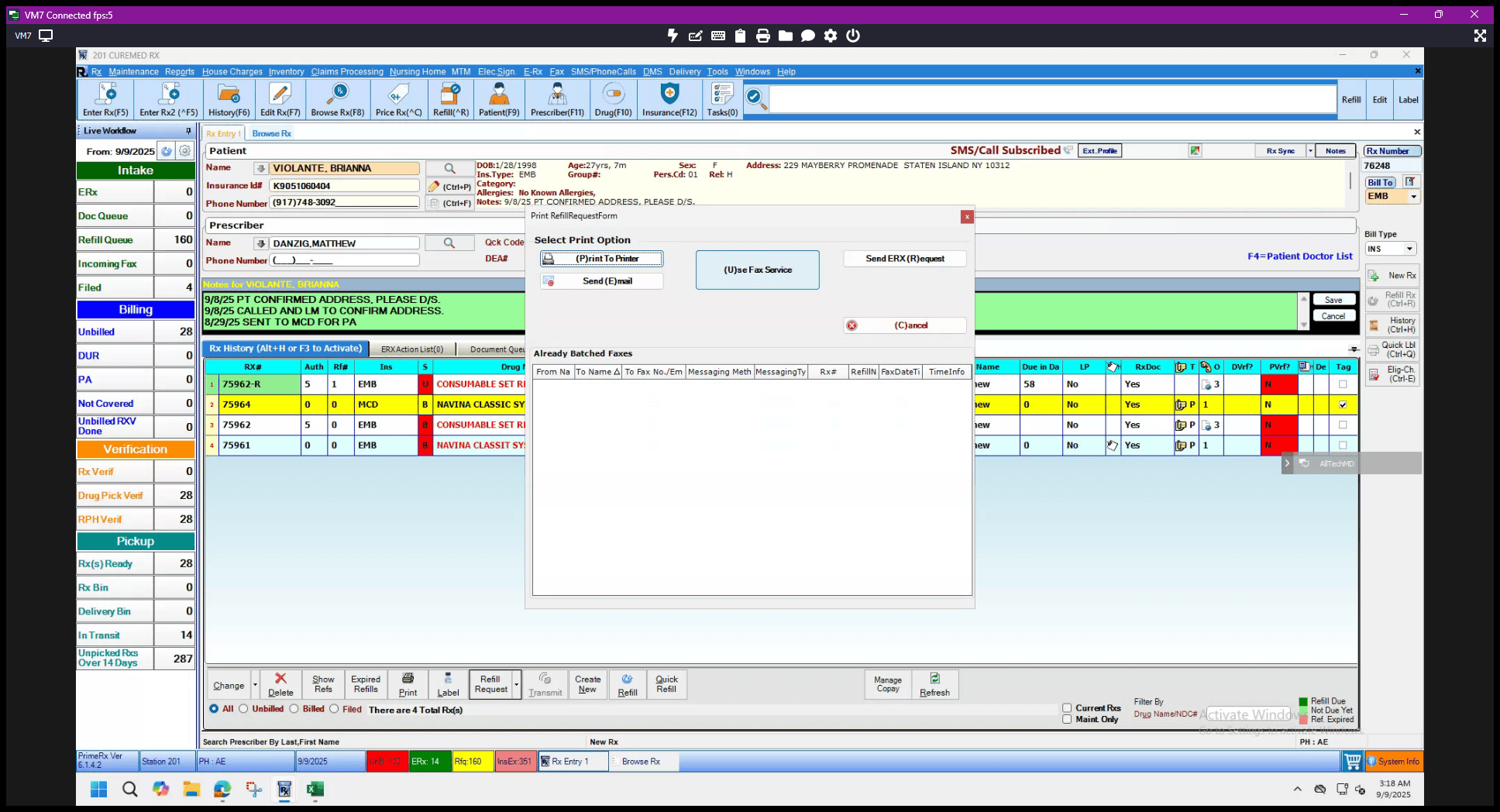
Here are the steps to request a refill prescription by eRx or fax. For example, we will request a fax for the Navina Classic System refill. Click the tag with a check mark. Under Refill Request, select Use Fax Service. A pop-up should appear.
1
Click on the check mark under tag of the DME or Medication that we are requesting
2
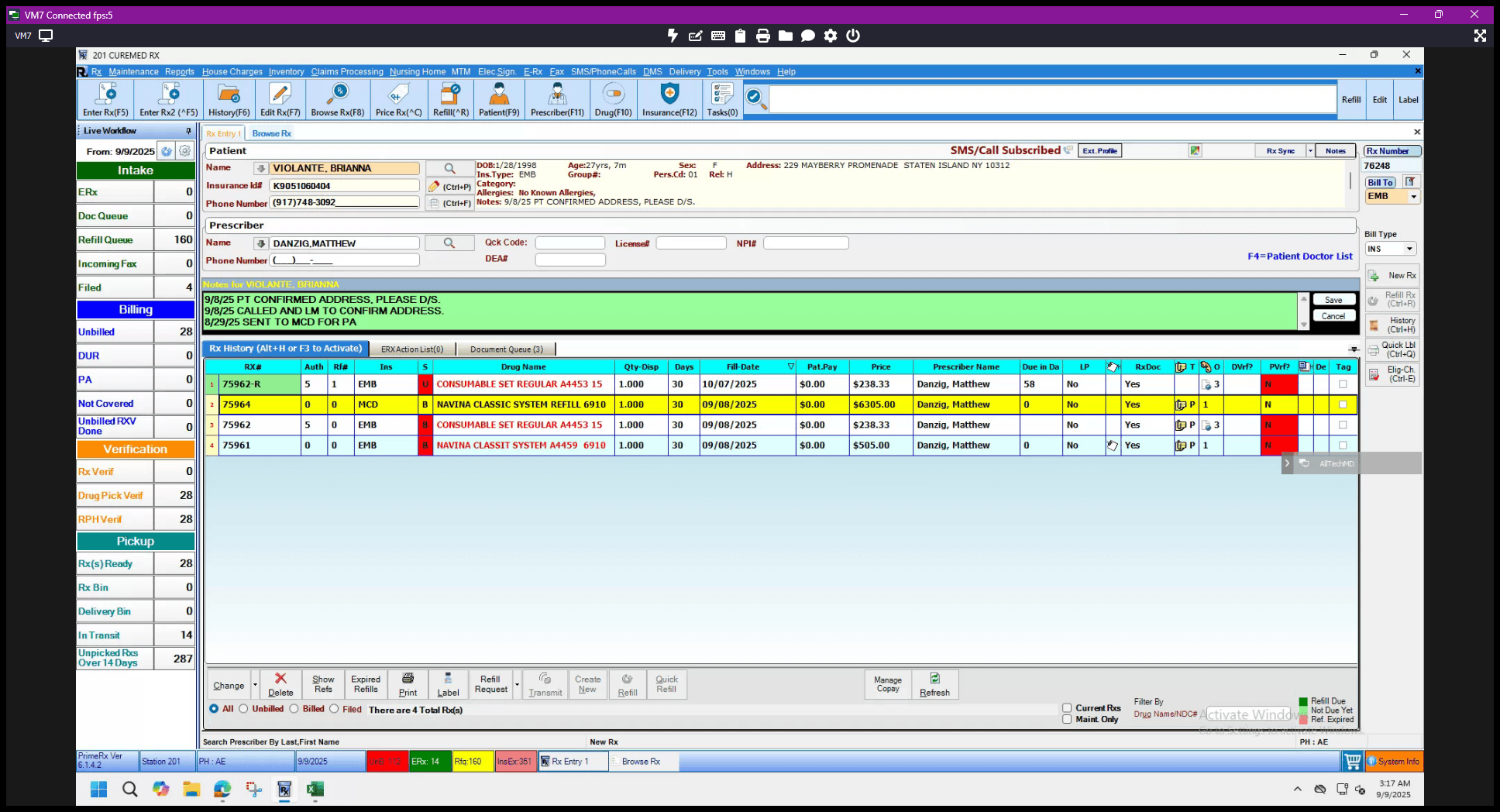
Once it has been tagged, clicked on Refill Request
3
There will be a Pop out message then select USE FAX SERVICE
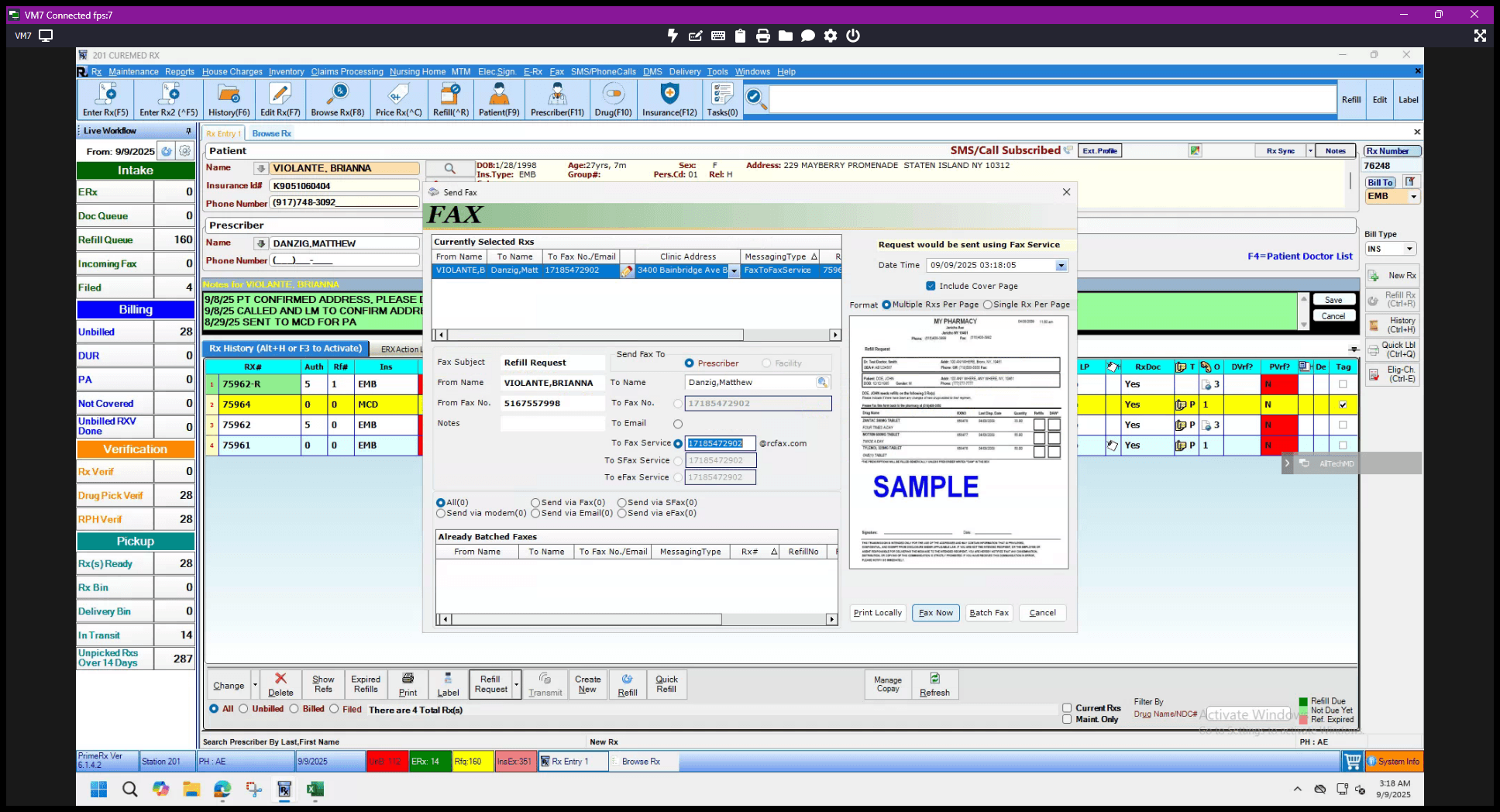
Always ensure there is a fax number entered, then click "Fax now."
4
Click on Fax now
5
Click on FAX log to confirm the request we recently sent
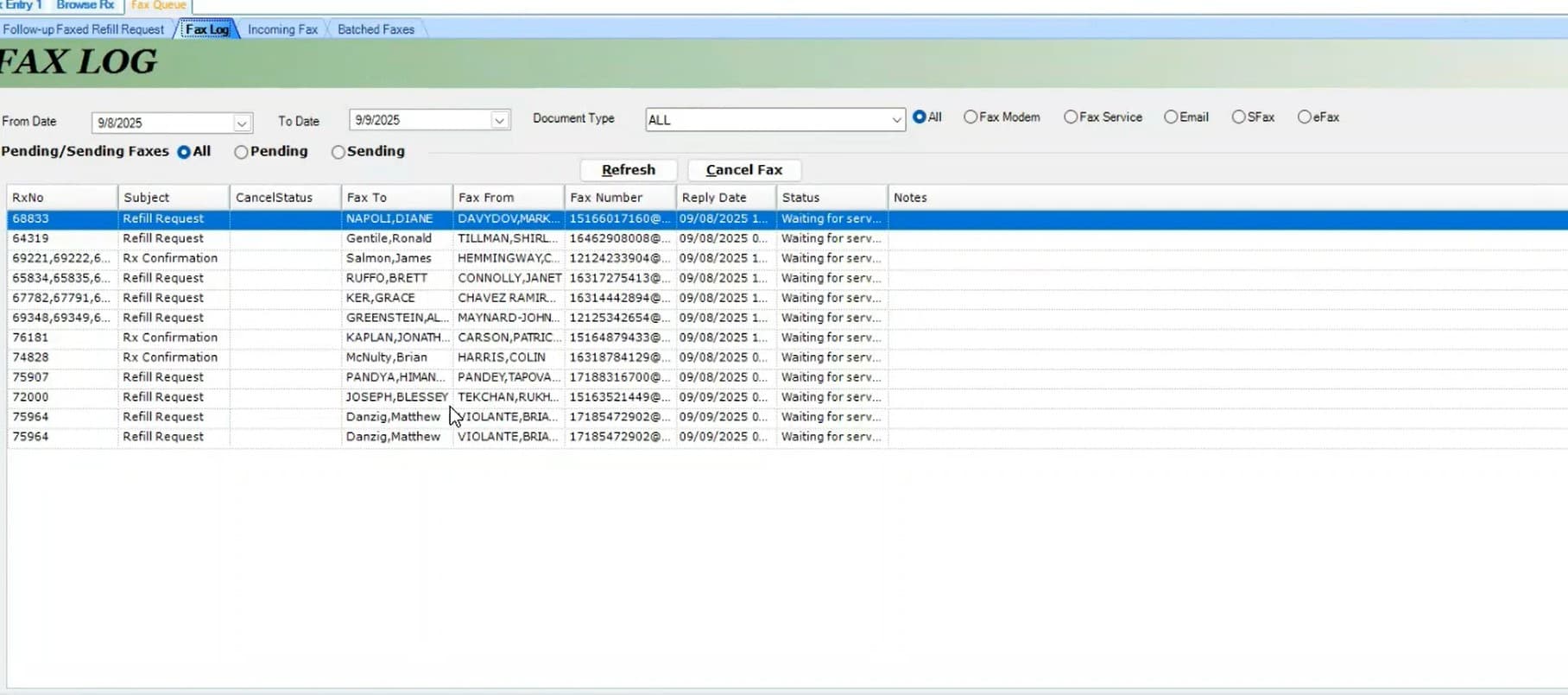
Once the pop-out disappears, confirm the fax details by going to Fax, then Fax Log. This should reflect the request we sent by fax. That's how to make a request by fax.