How to Request an Event Permit on the SIAE Portal
Learn how to navigate the SIAE Professional Organizers Portal to submit a new permit request for your musical events and concerts.
By Emiliano
Organizing an event in Italy requires securing the right music permits. The SIAE (Società Italiana degli Autori ed Editori) portal provides a straightforward way for professional organizers to request permits for concerts, DJ sets, and other musical events.
Follow this guide to submit a permit request using the SIAE Professional Organizers Portal.
Access the Portal
1
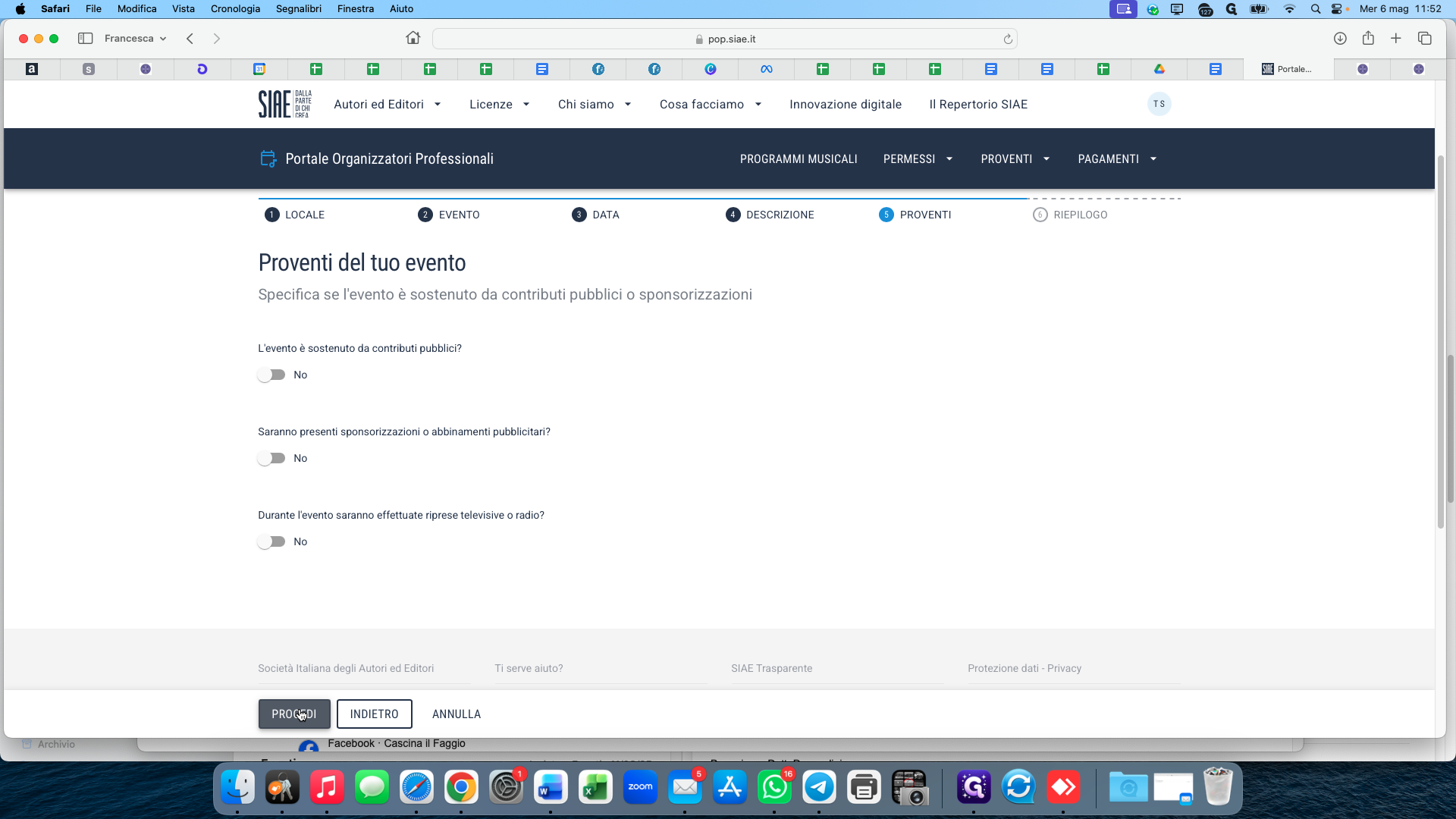
Click ACCEDI under the Portale Organizzatori Professionali service to log into the dashboard.
2
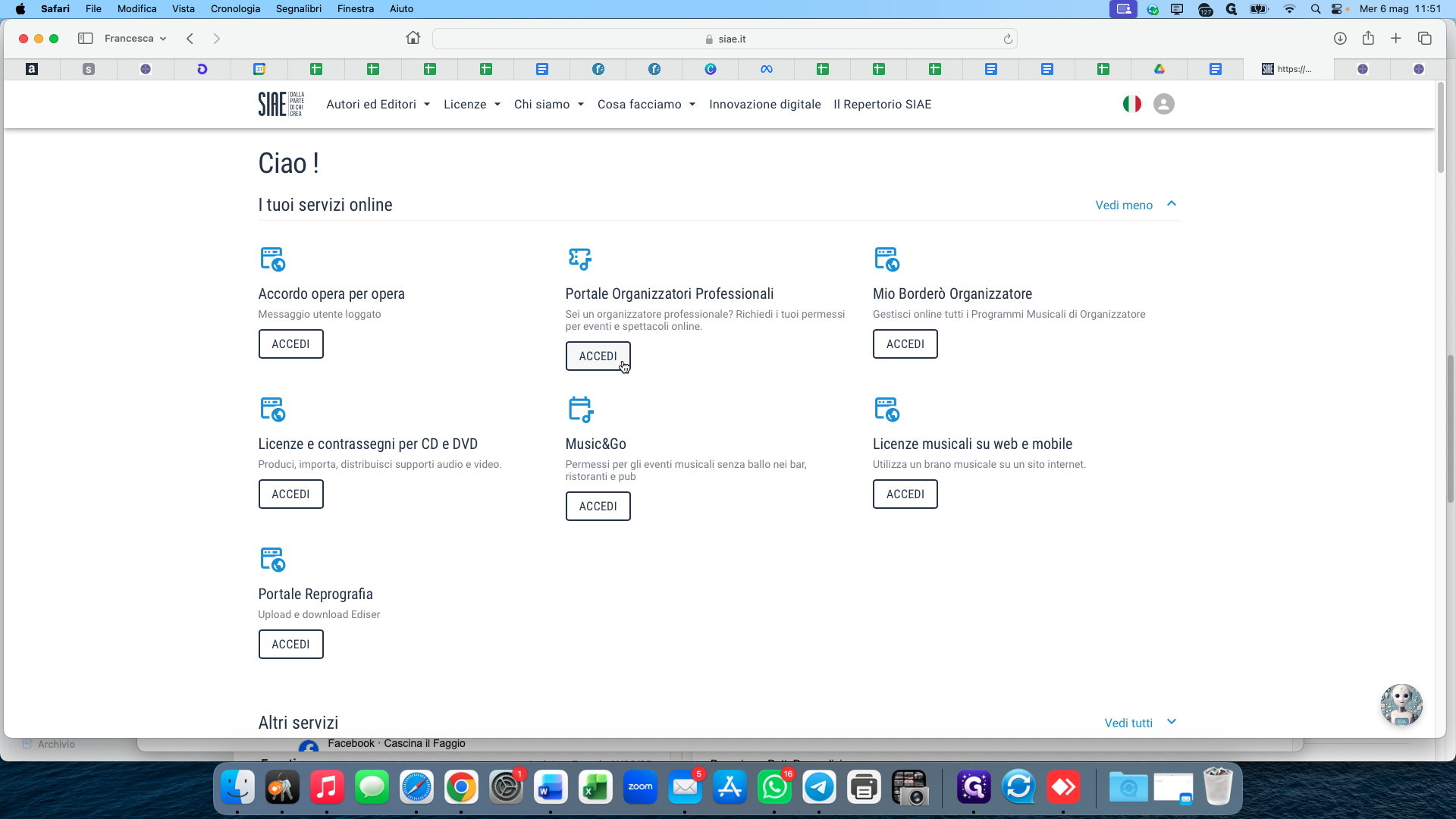
Hover over the Permessi menu in the top navigation bar.
3
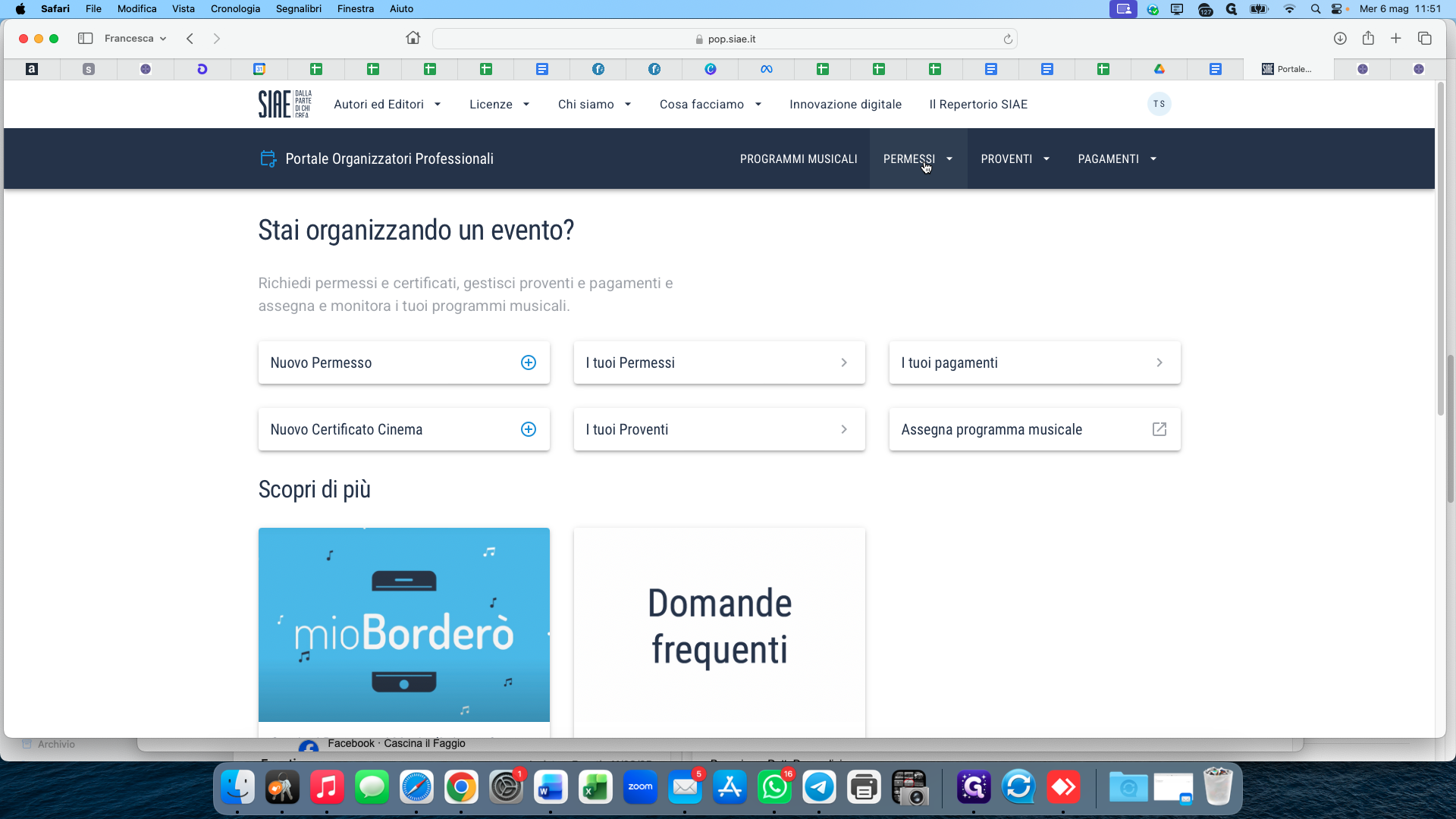
Select Aggiungi Permesso from the dropdown menu.
Choose the Venue
4
Click on the Città (City) input field and type the name of the city where the event will be held.
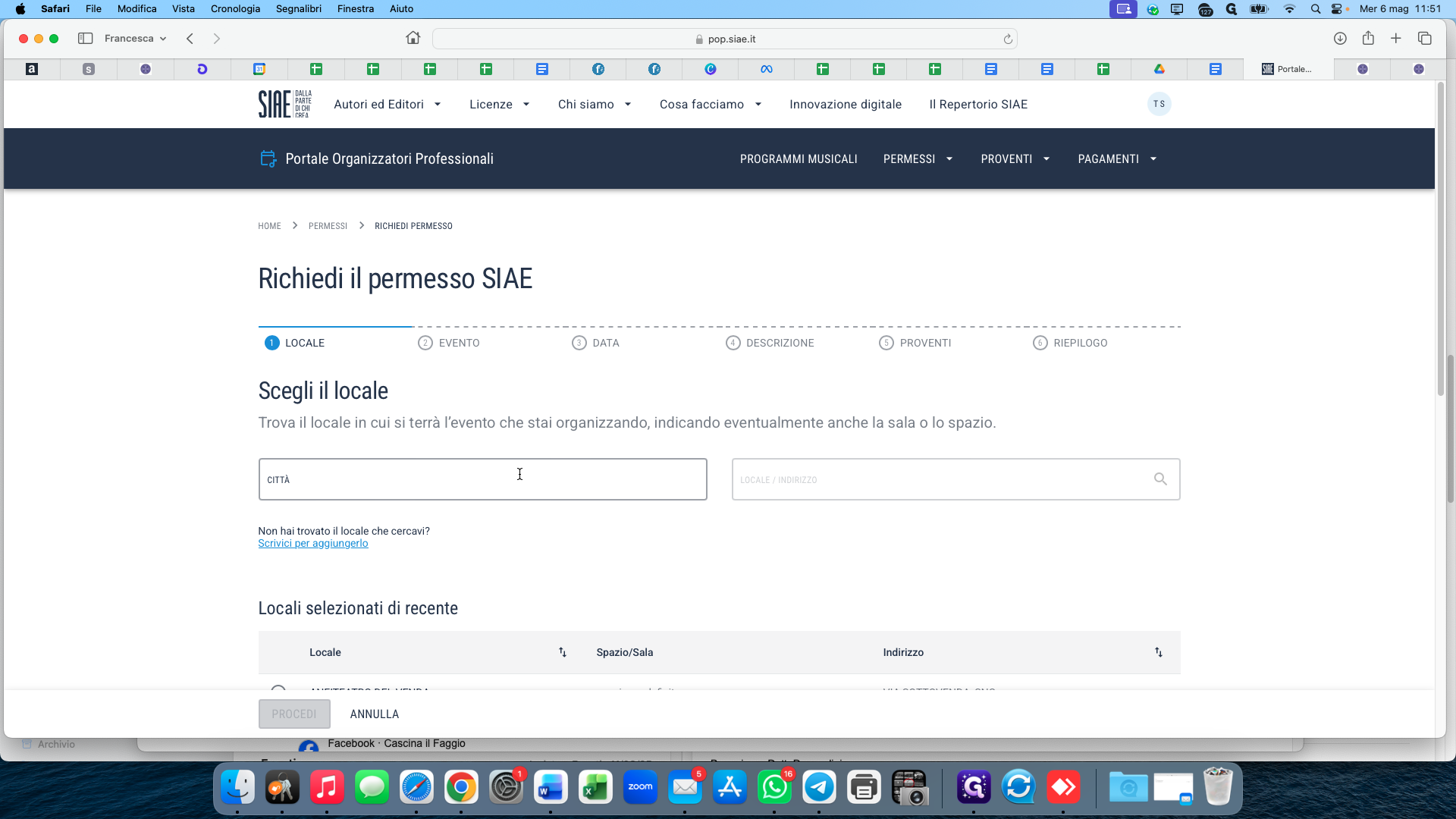
5
Select the correct city from the dropdown results.
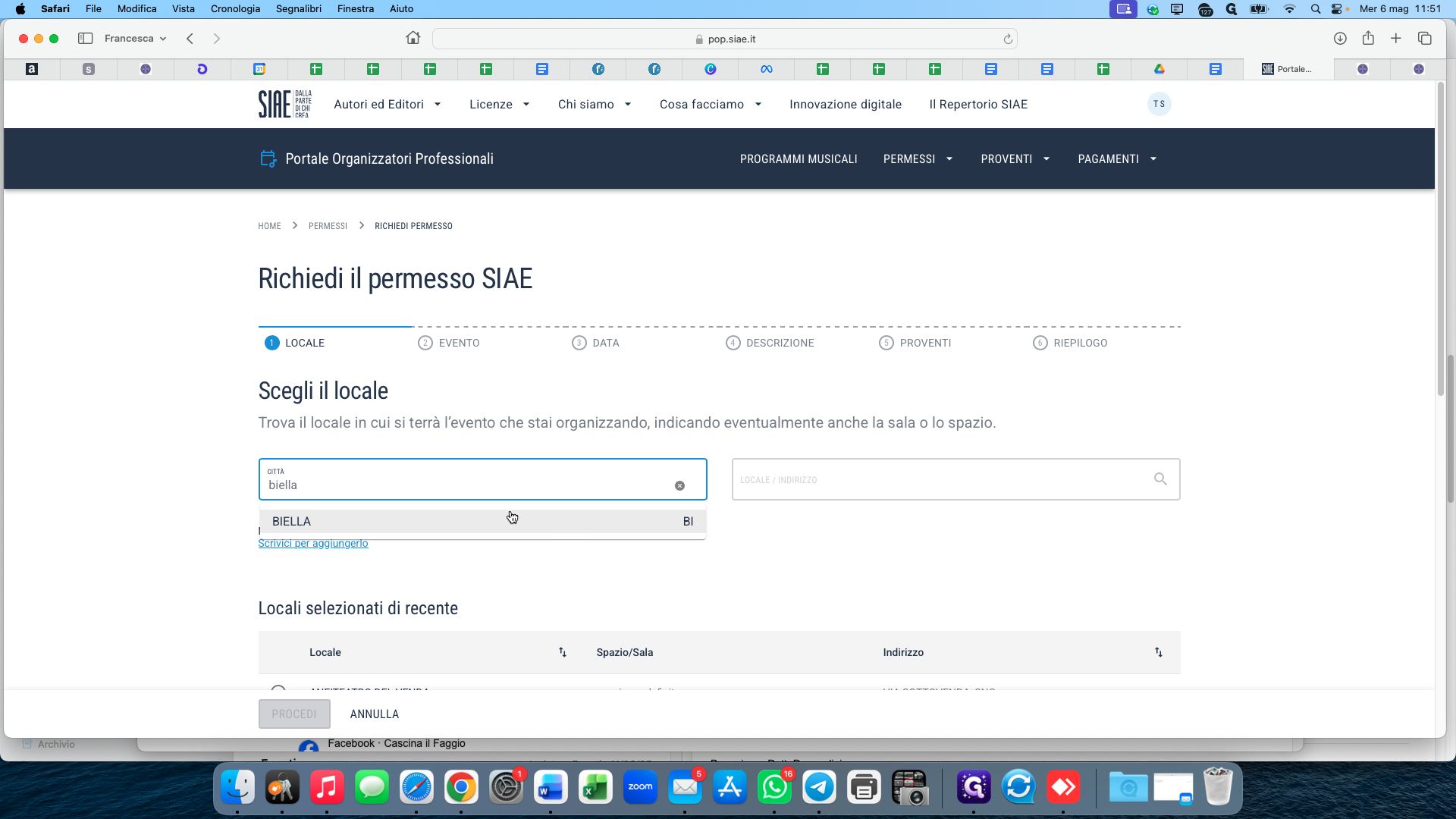
6
Click on the LOCALE / INDIRIZZO search field and type the name or address of the venue.
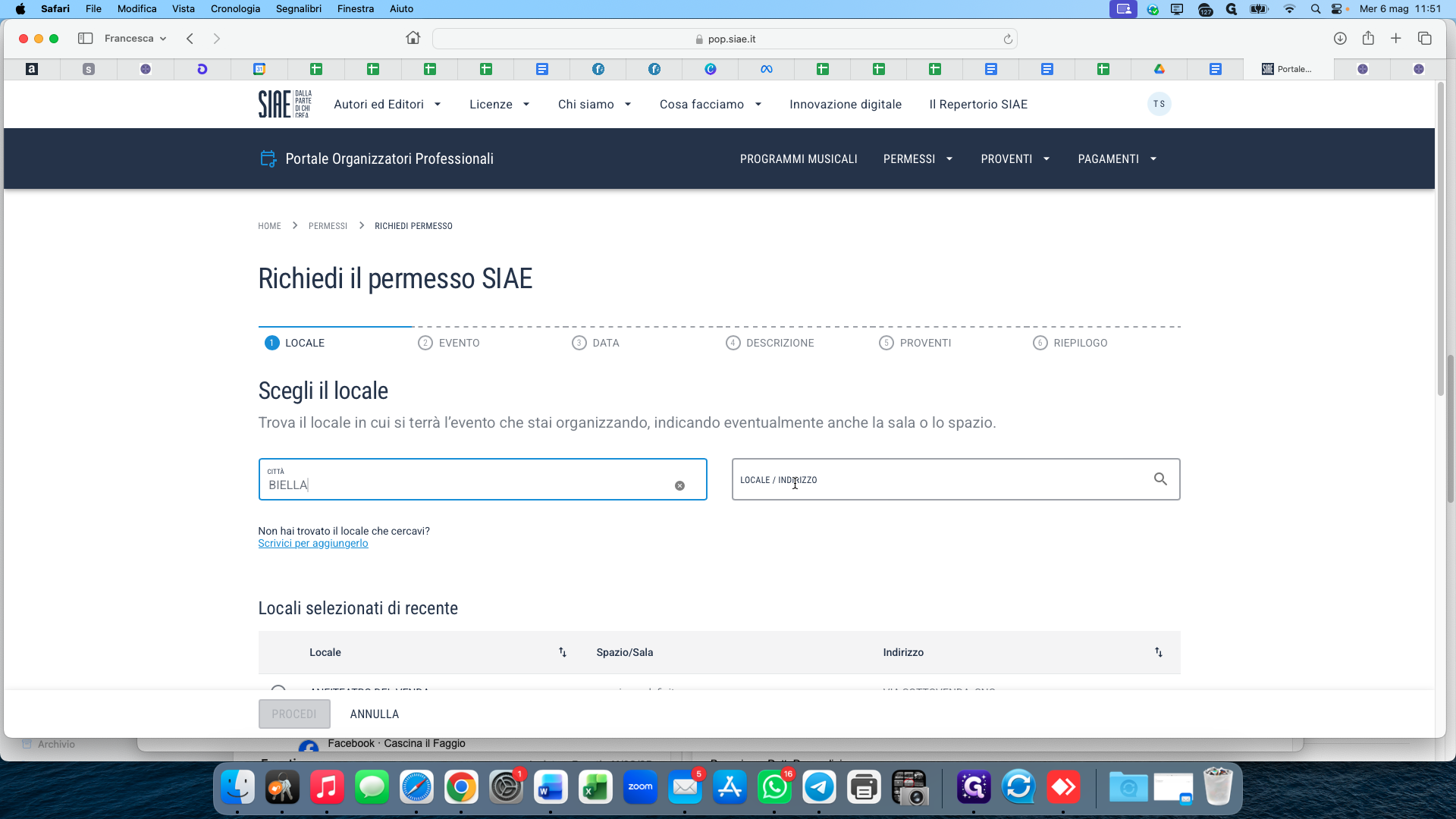
7
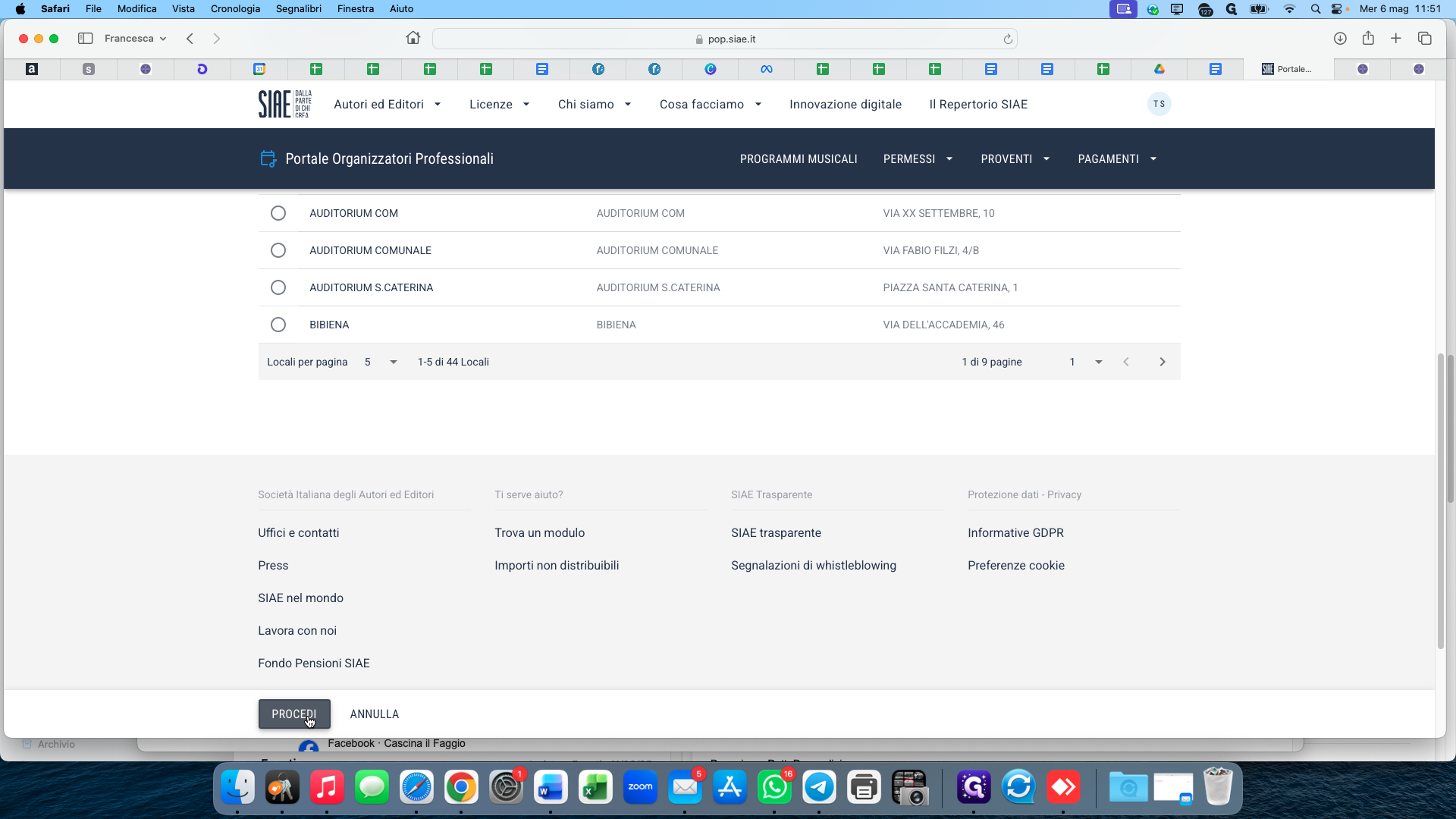
Select your specific venue from the matching list.
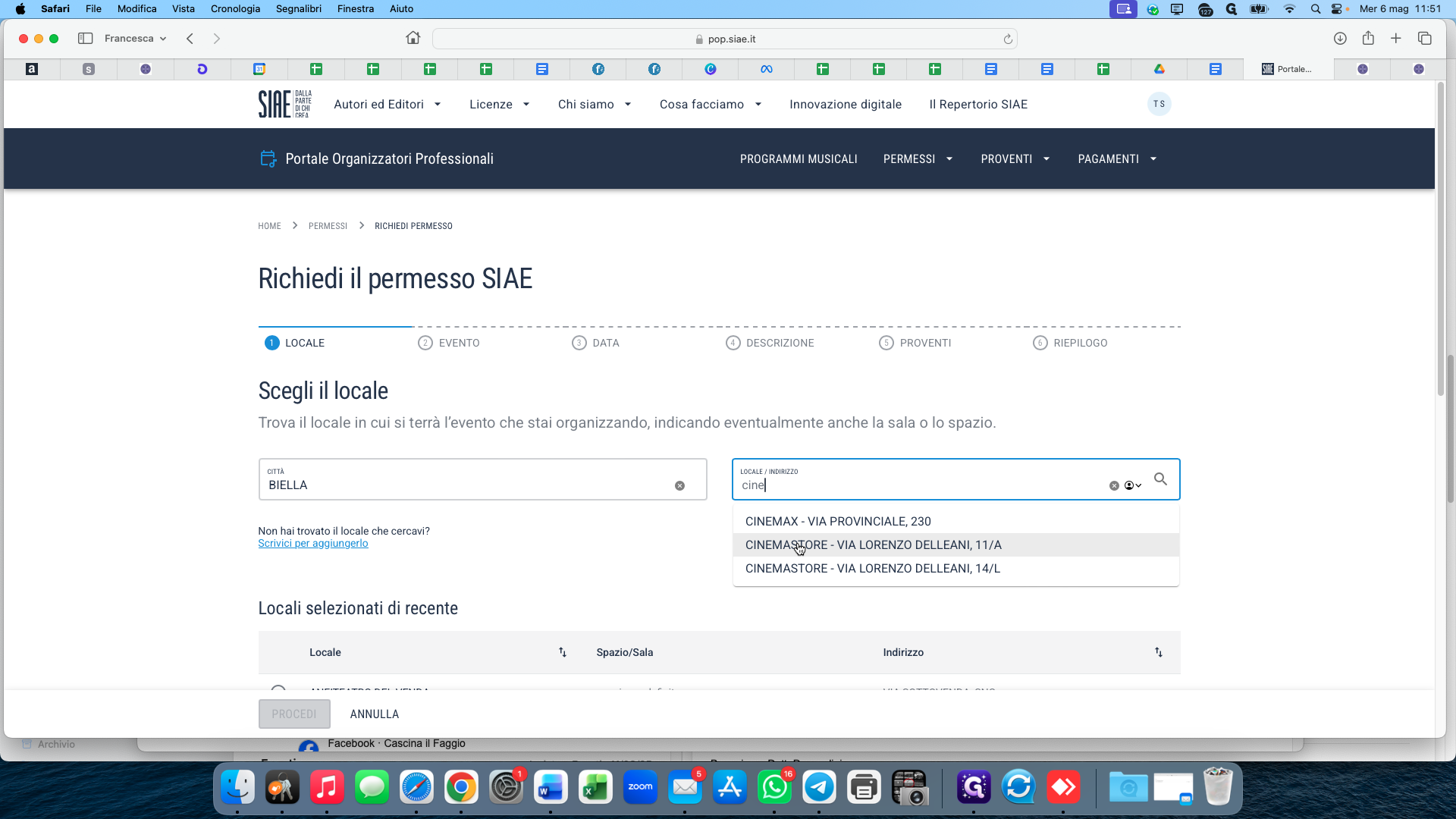
8
Click Procedi at the bottom of the page to continue.
Define Event Category
9
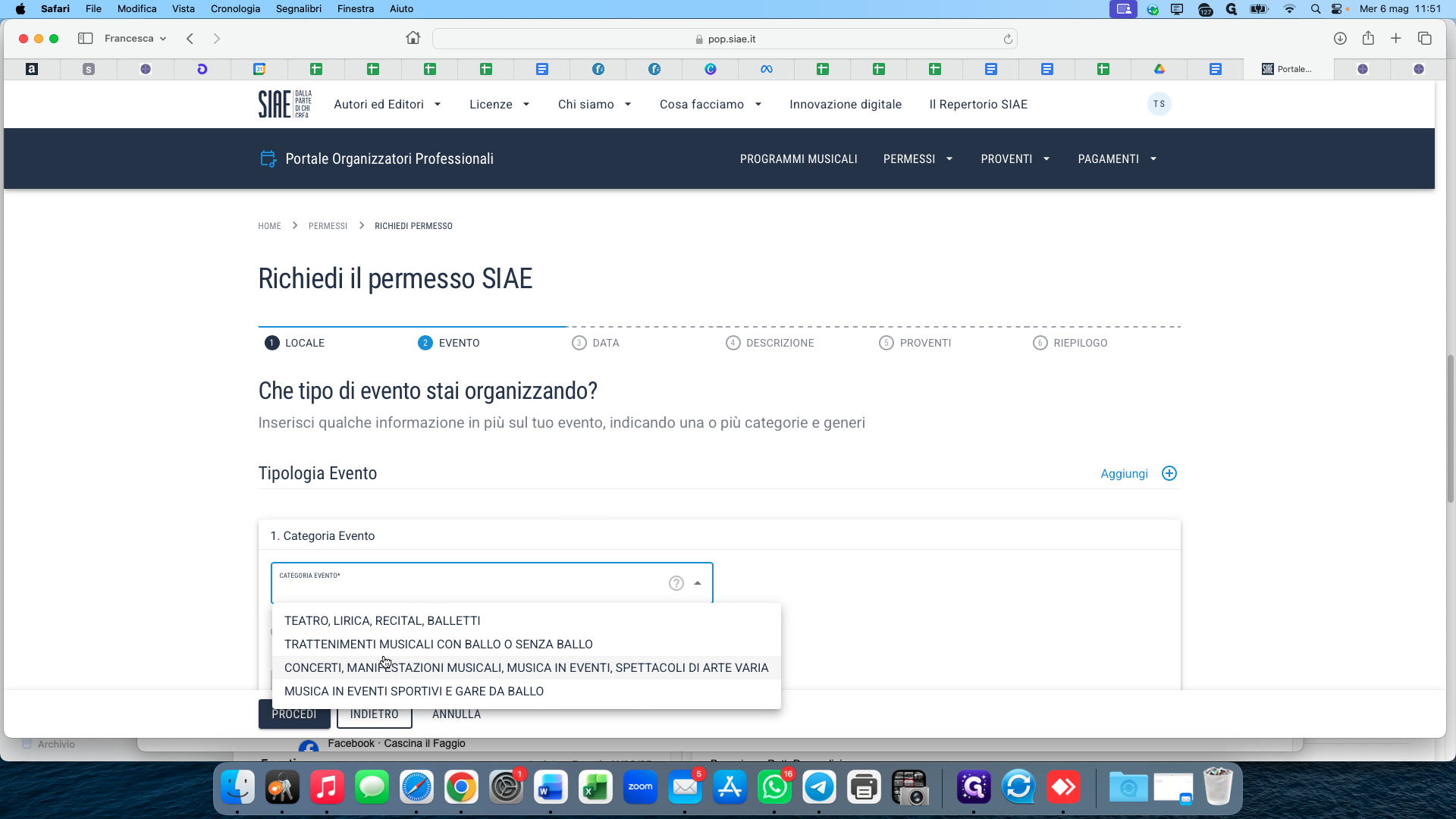
Open the Categoria Evento dropdown and select the broad category for your event, such as TRATTENIMENTI MUSICALI CON BALLO O SENZA BALLO.
10
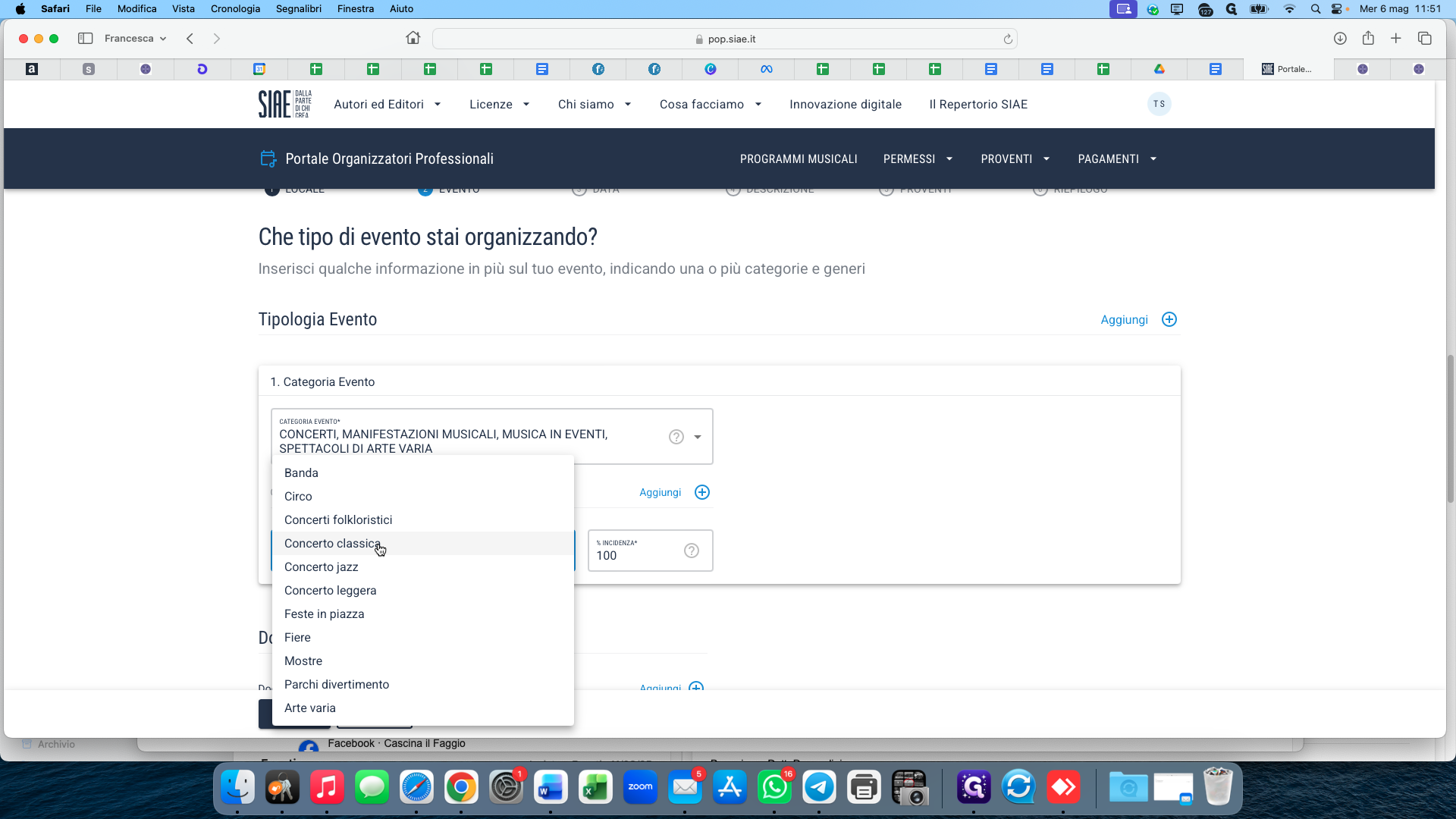
Open the event genre dropdown and select the specific genre, such as Concerto classica.
11
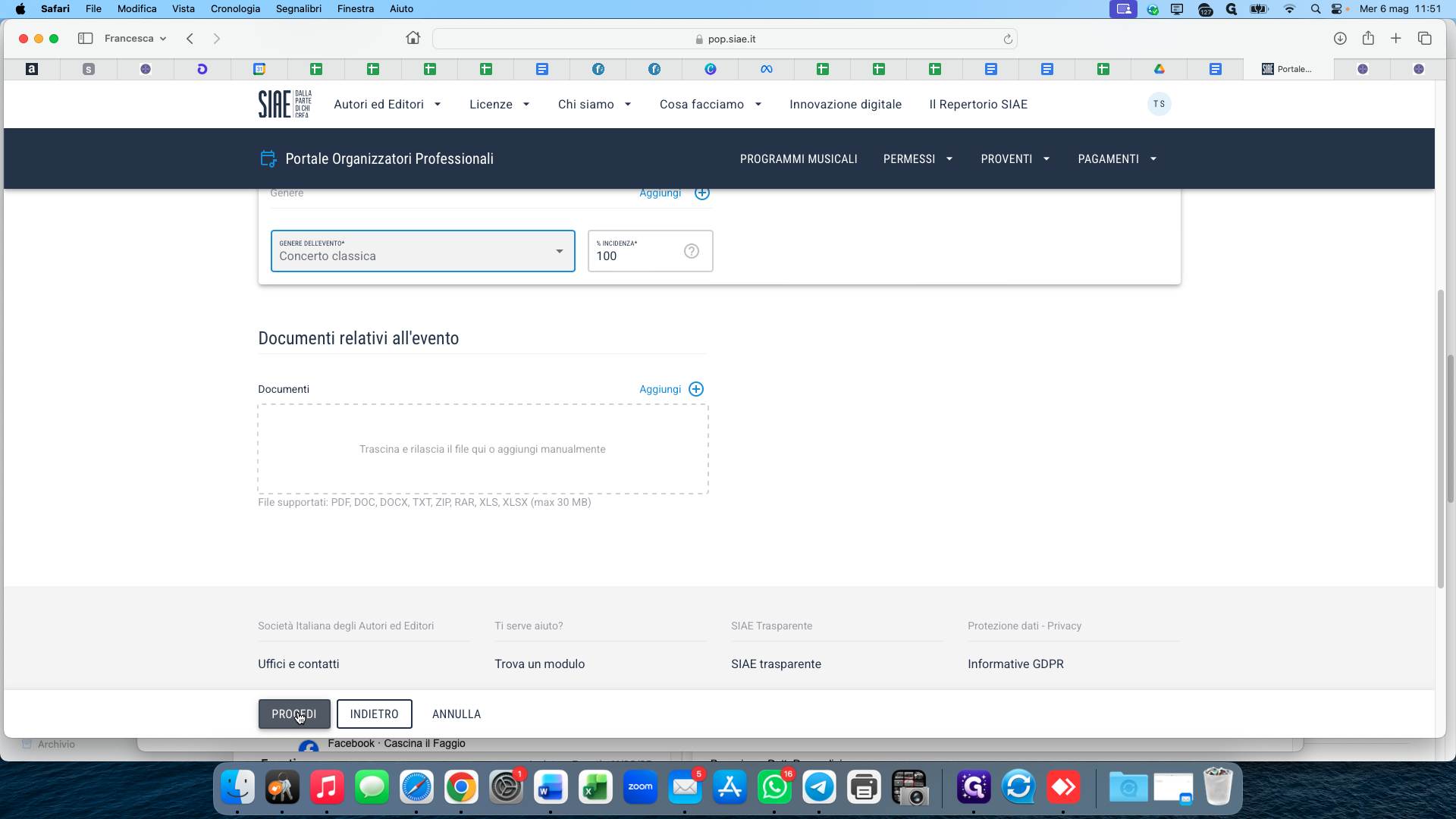
Click PROCEDI at the bottom of the form.
Enter Event Schedule and Entry Details
12
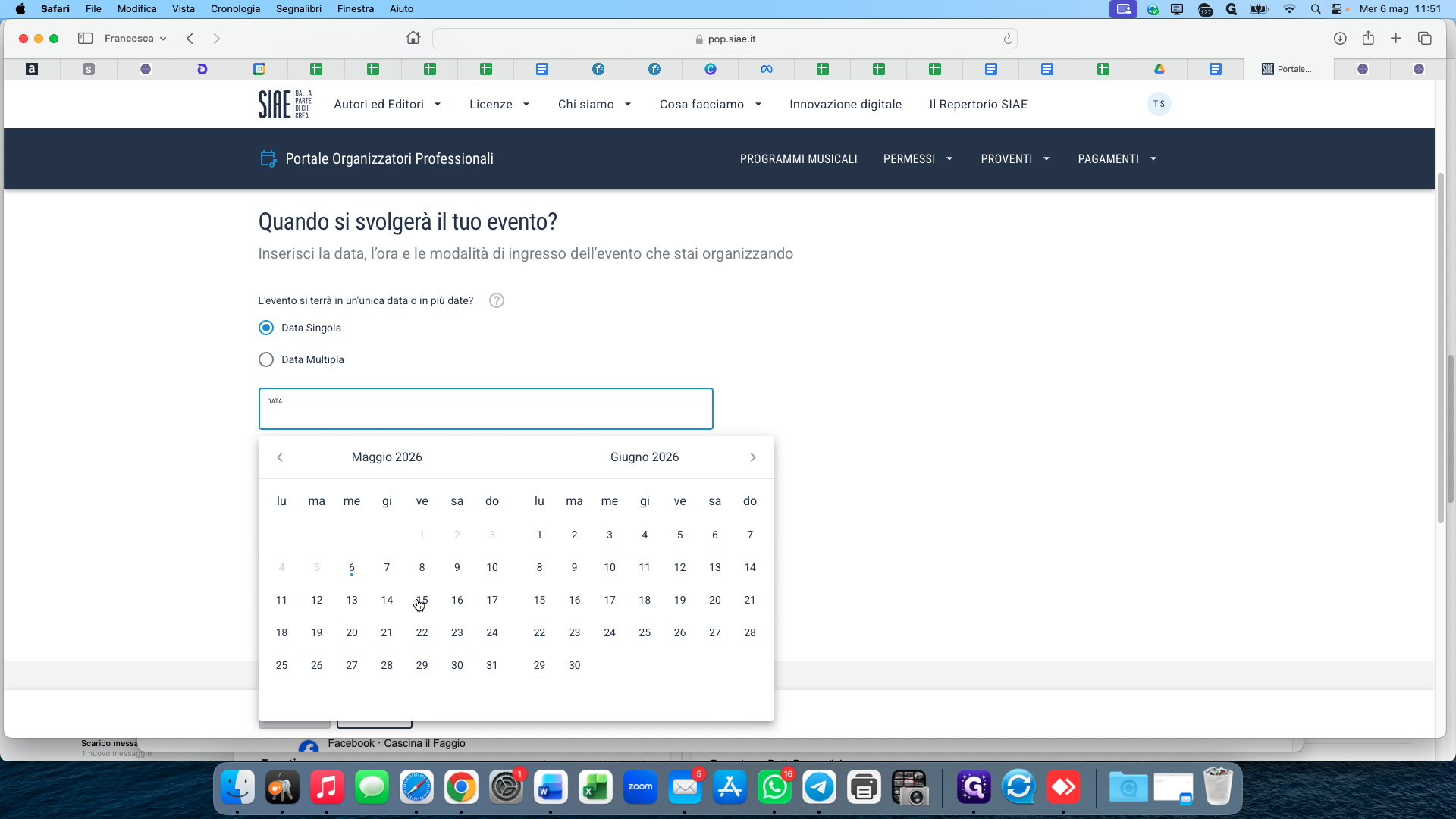
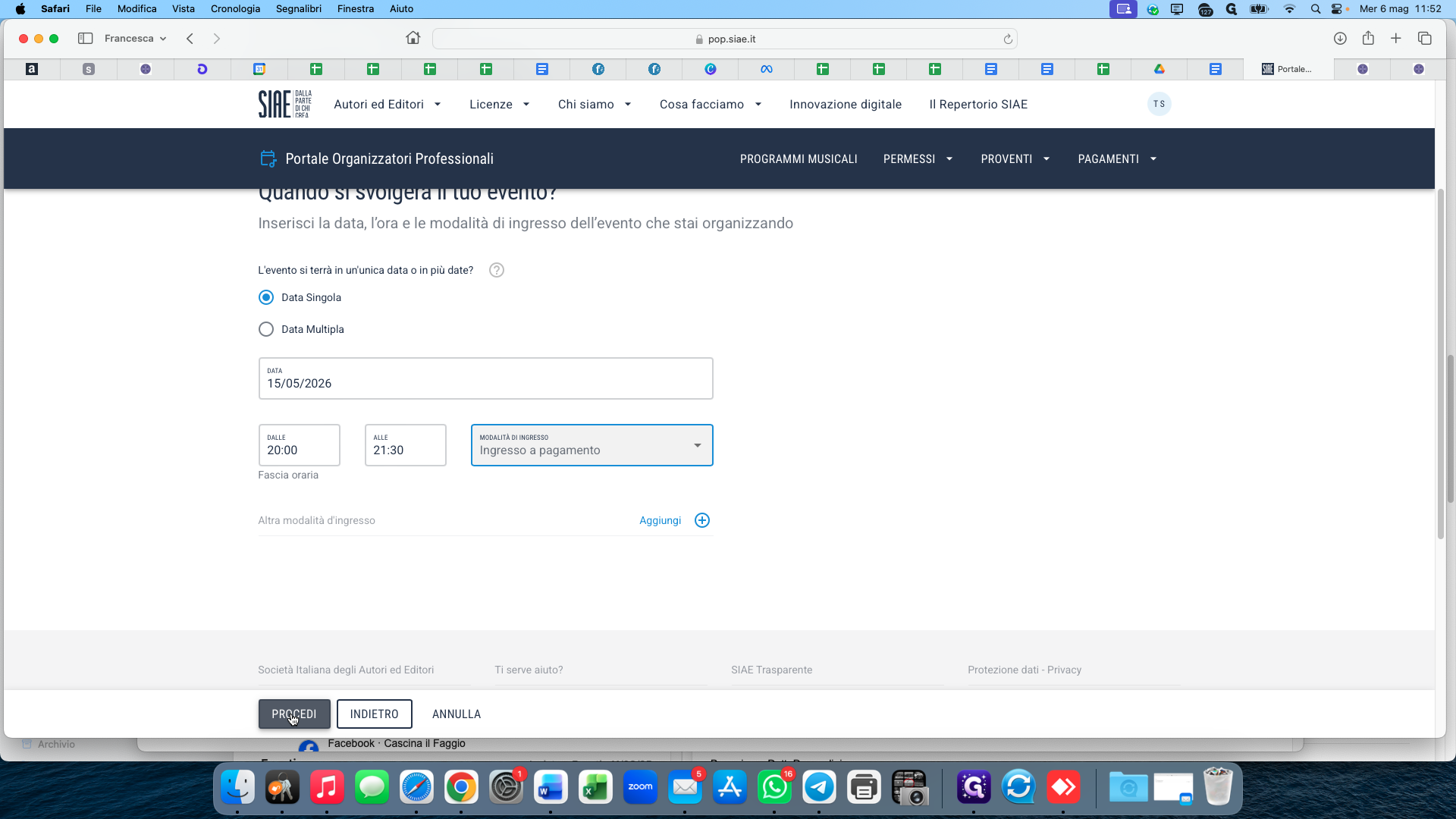
Click on the date field and select the date of your event from the interactive calendar.
13
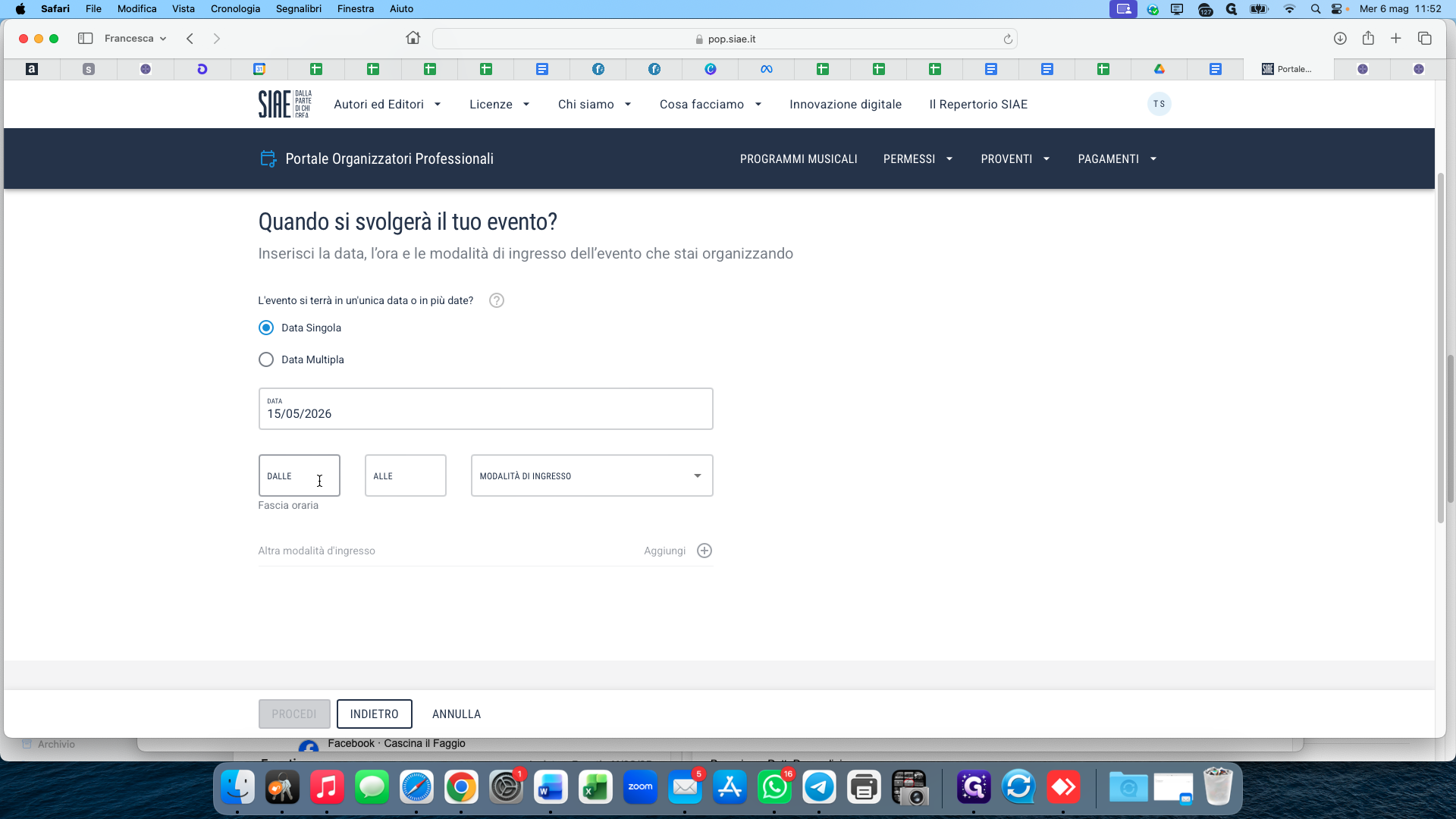
In the DALLE field, enter the event's start time (e.g., "20:00").
14
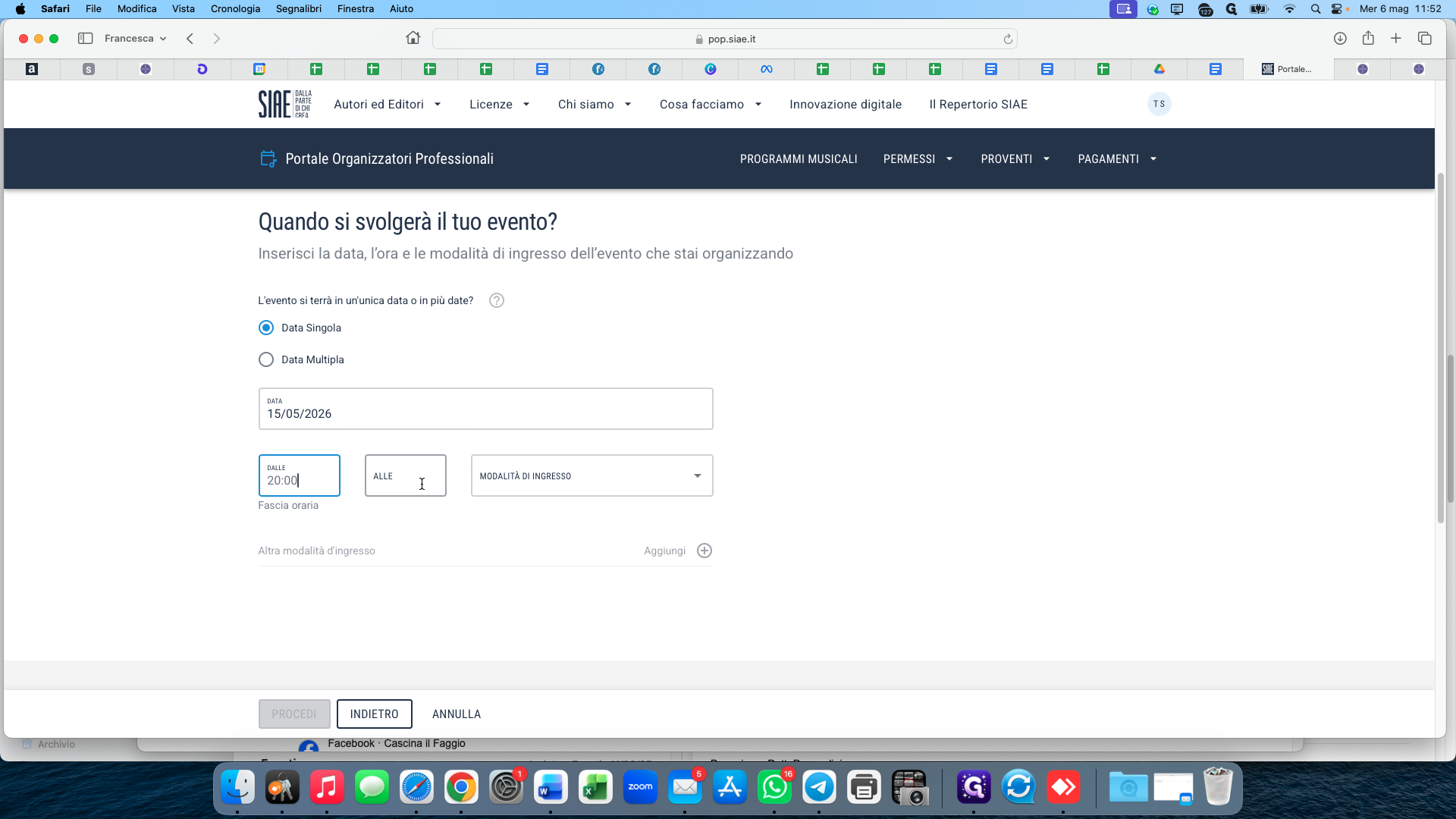
In the ALLE field, enter the event's estimated end time.
15
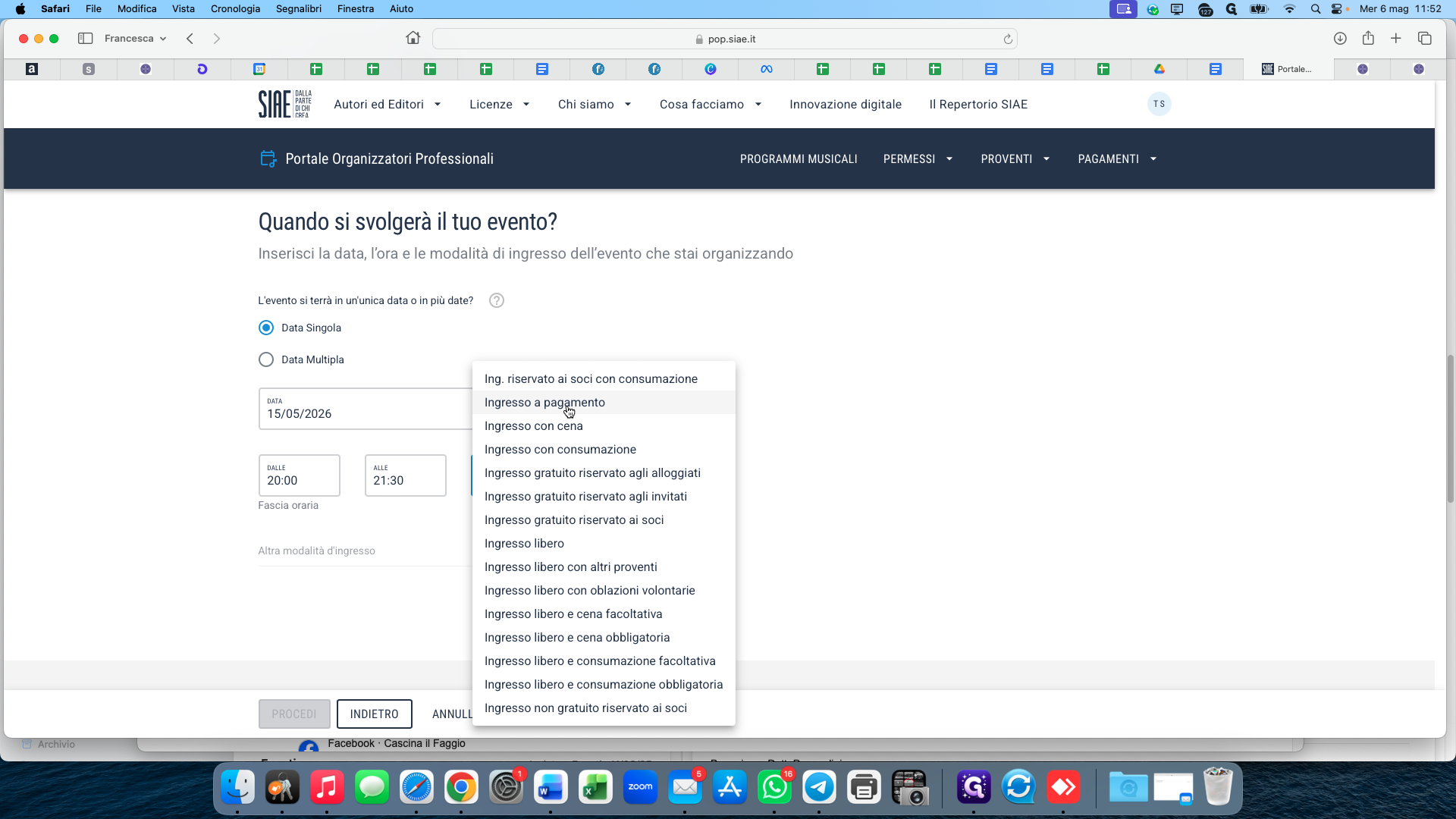
Open the entry method dropdown (Modalità di ingresso) and select the appropriate ticketing setup, such as Ingresso a pagamento (paid entry).
16
Click PROCEDI to move to the next section.
Provide Artist Details and Finalize
17
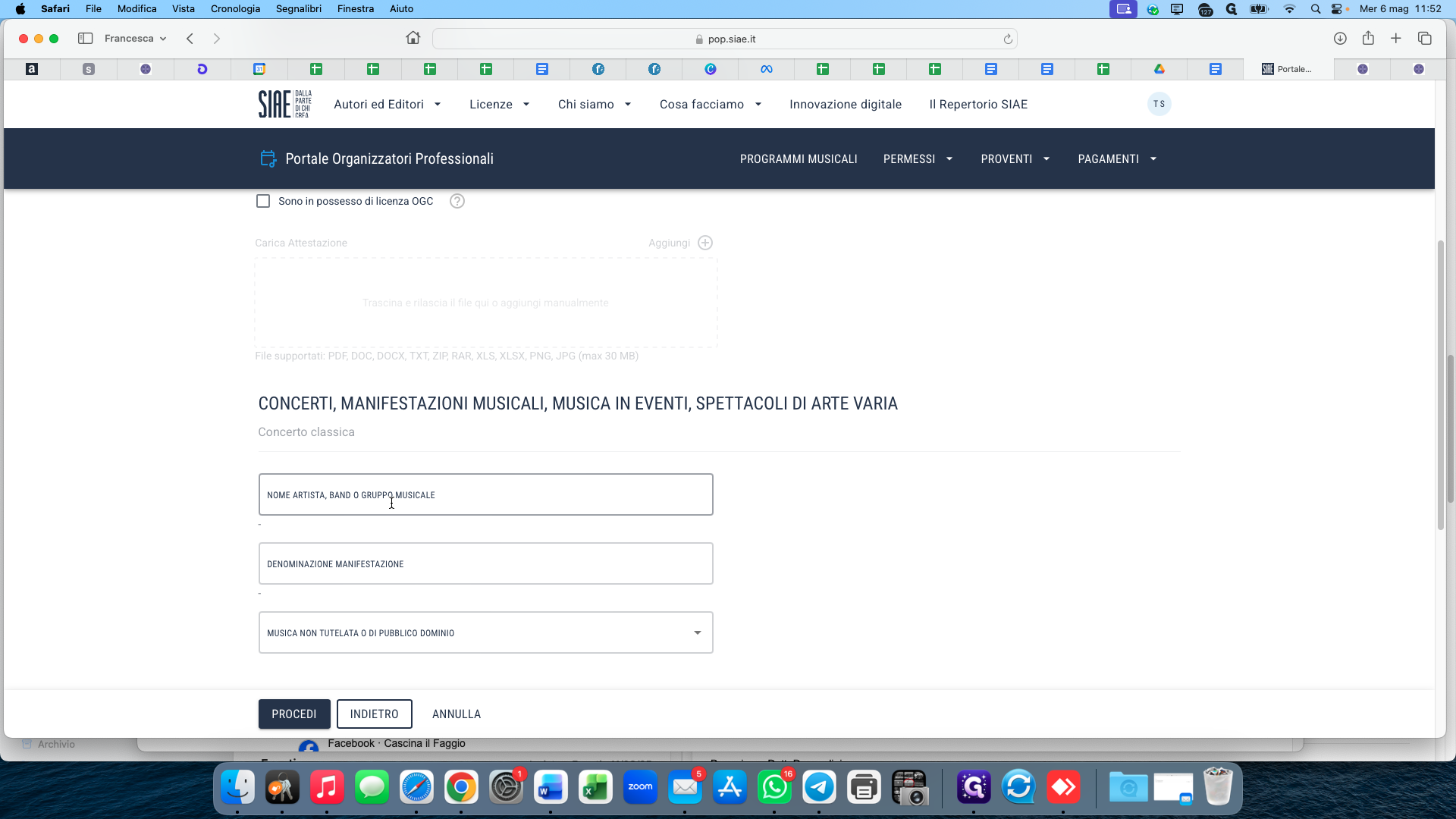
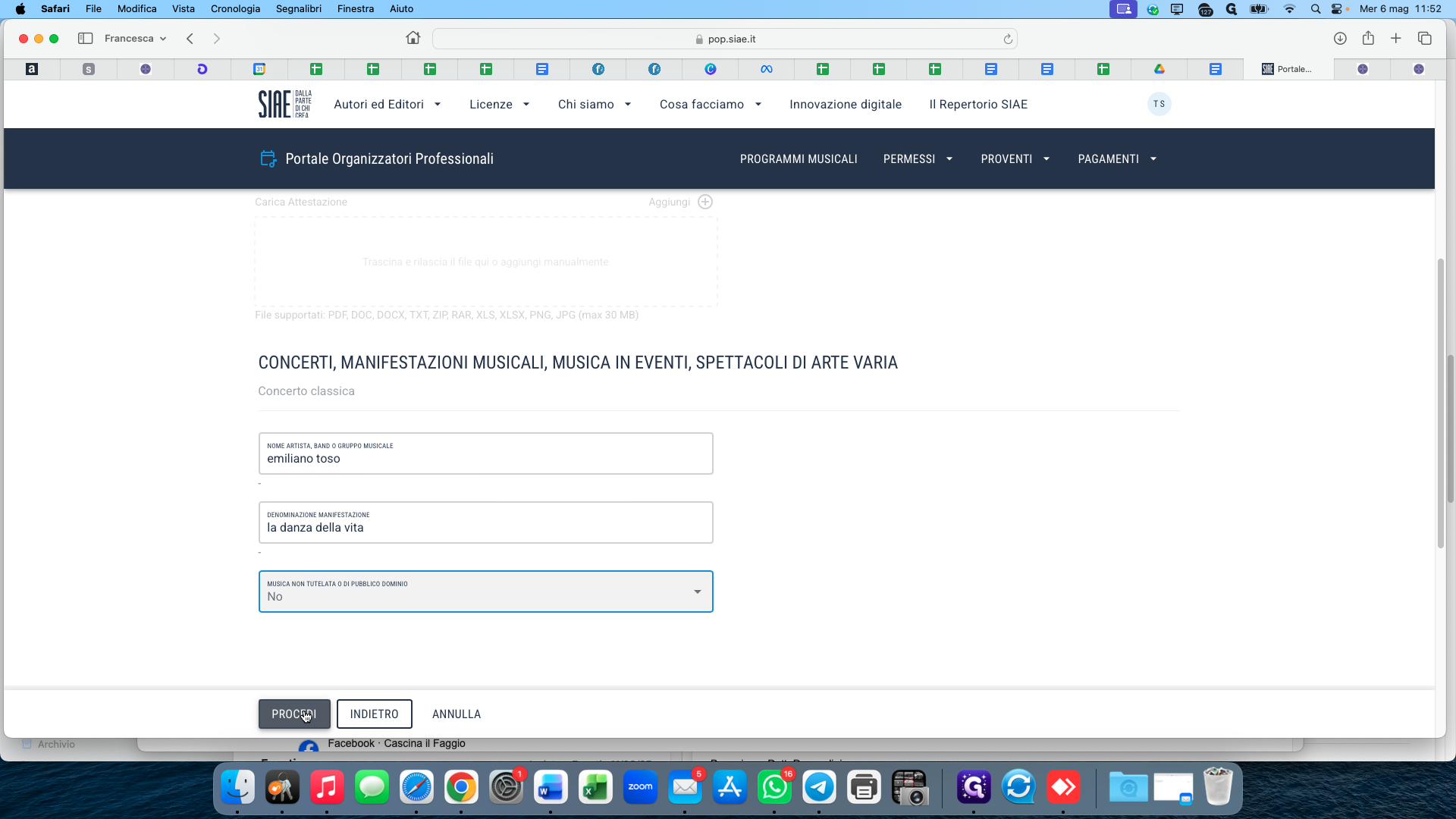
In the NOME ARTISTA, BAND O GRUPPO MUSICALE field, type the name of the performing artist or band.
18
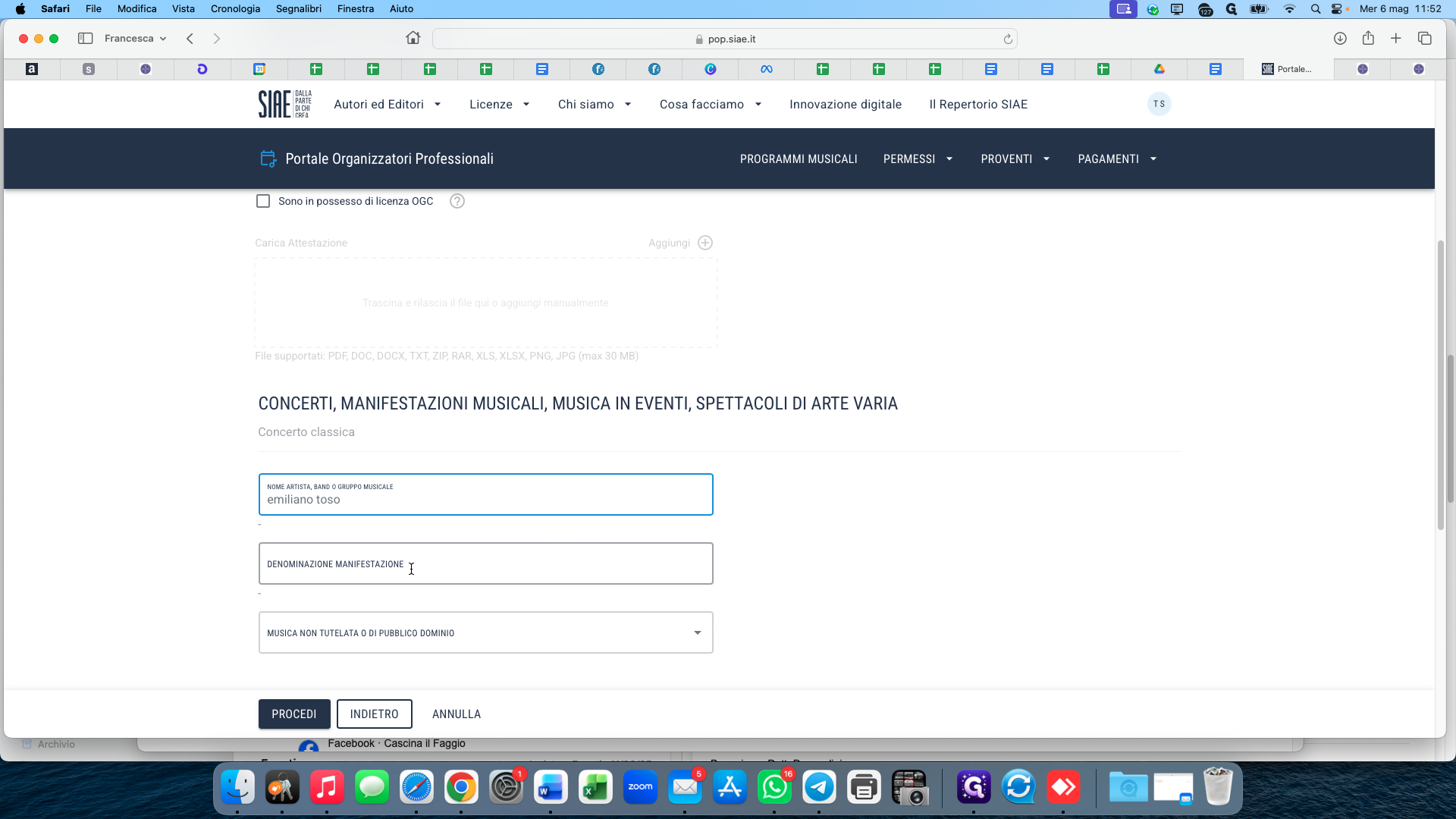
In the DENOMINAZIONE MANIFESTAZIONE field, type the official name of your event or tour.
19
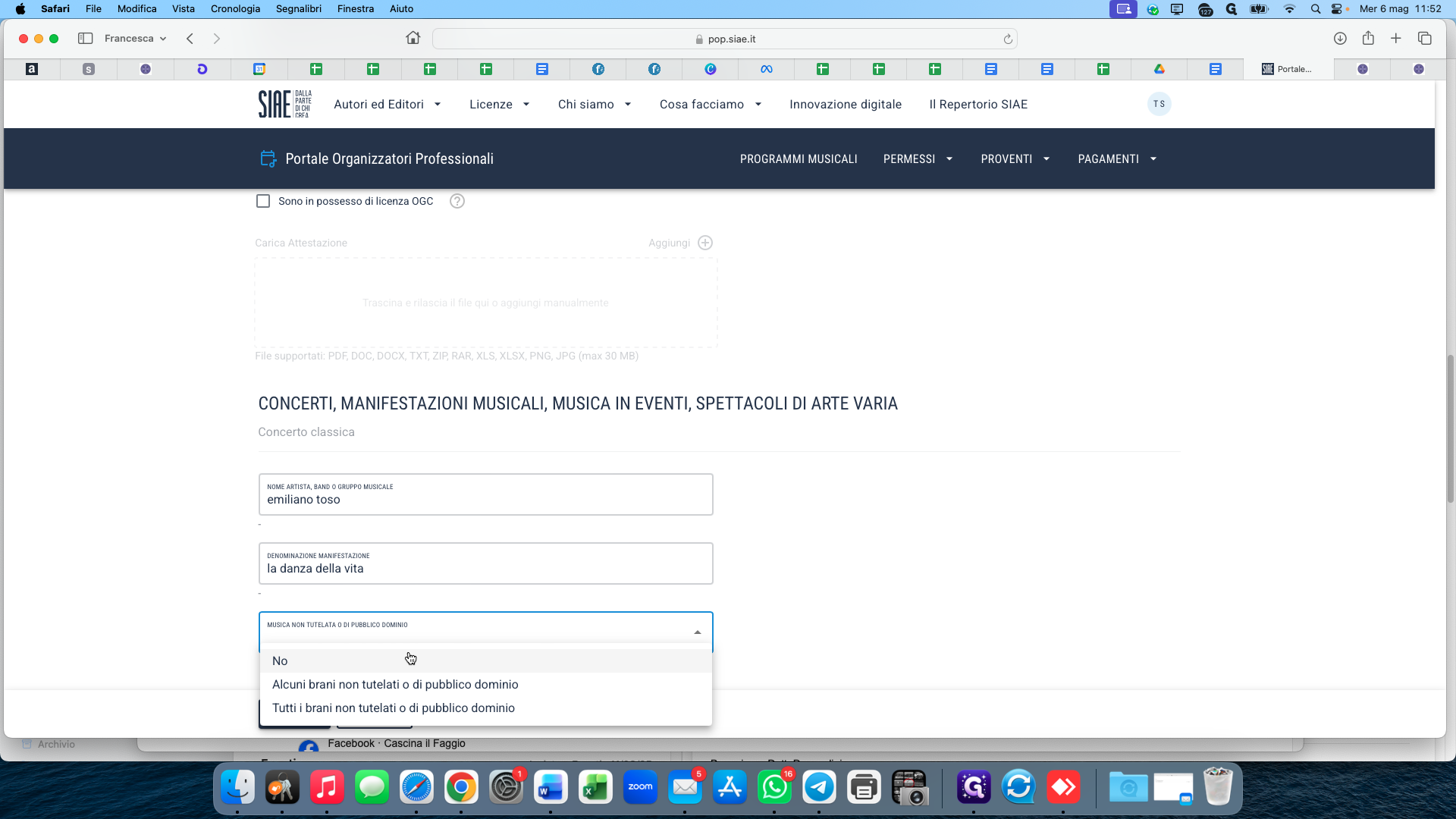
Open the Musica non tutelata o di pubblico dominio dropdown and specify the copyright status of the music being performed.
20
Click PROCEDI to confirm the event details.
21
Click PROCEDI on the subsequent review page to finalize and submit your permit request.