
How to Restore an Excluded Transaction on the Review Transaction Page
Learn step-by-step how to restore an excluded transaction on the review transaction page. Follow our simple guide to recover excluded transactions quickly and easily.
In this guide, we’ll learn how to restore a transaction that was previously excluded from the Review Transactions page. This feature allows you to recover any transaction you may have removed by mistake, helping you keep your financial records complete and accurate.
You will see how to locate the excluded transaction, select it, use the Restore option, and confirm the action. Once restored, the transaction will automatically return to the Review Transactions tab, where you can continue categorizing or posting it.
Let's get started
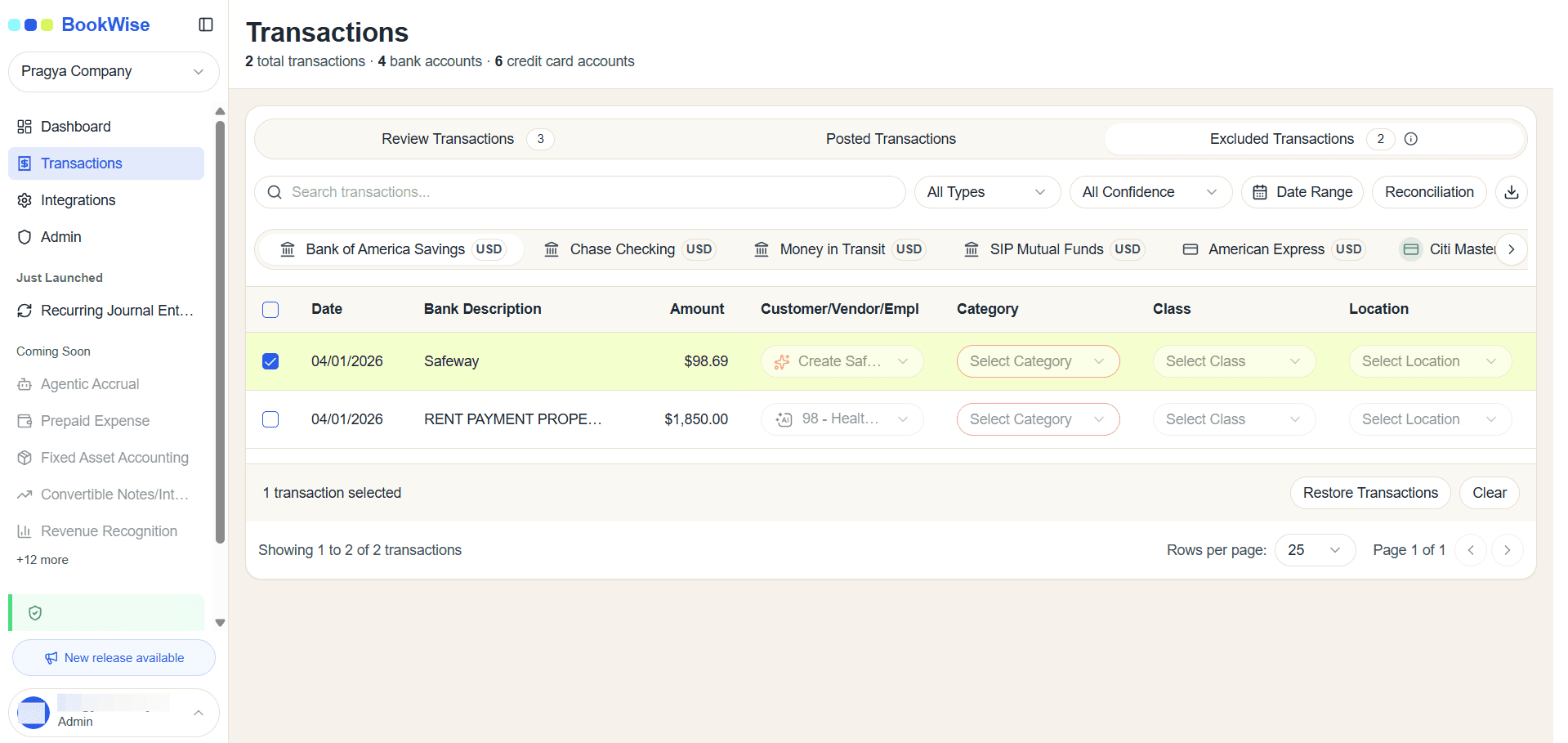
Select the transaction you want to restore from the excluded transactions list.
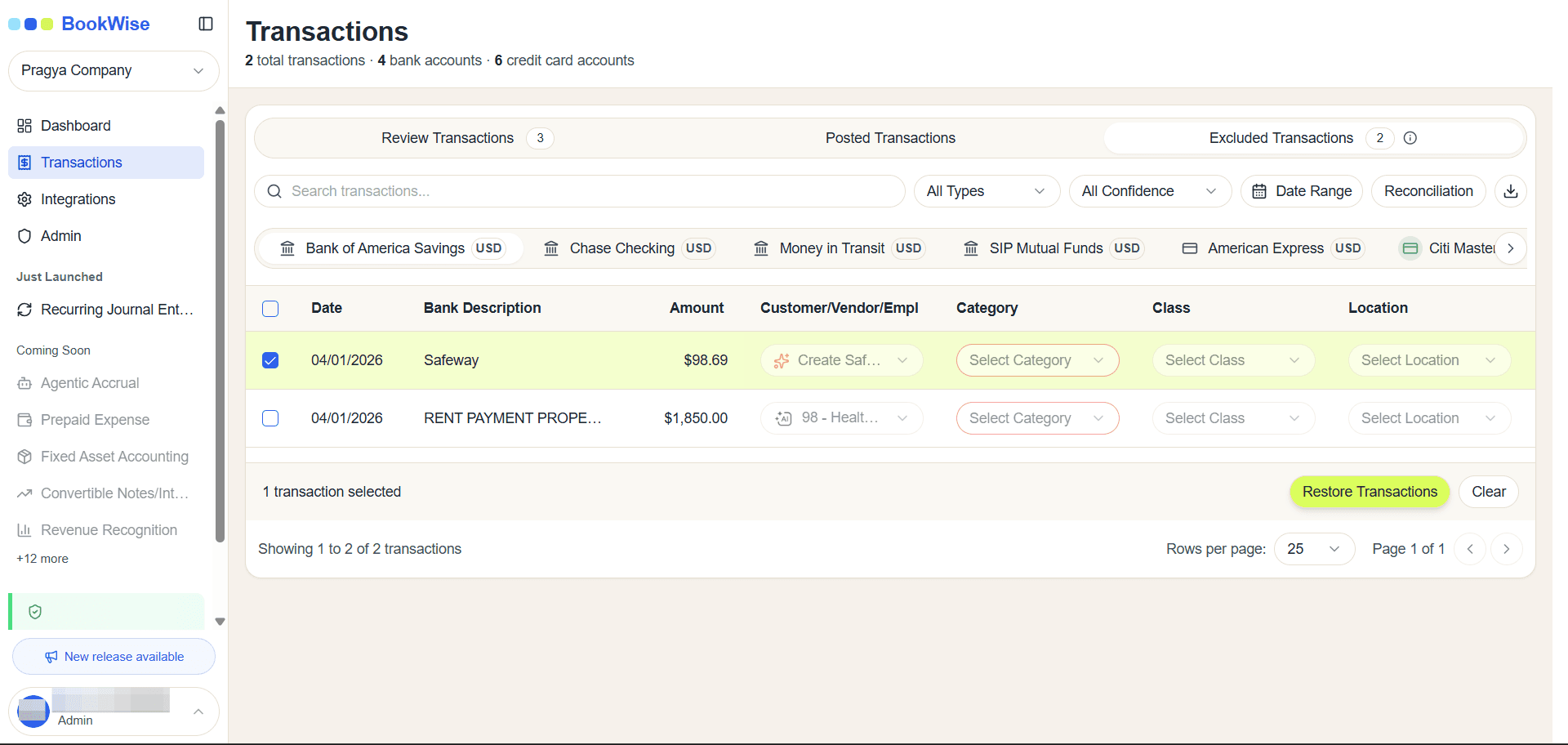
It will show a pop-up.
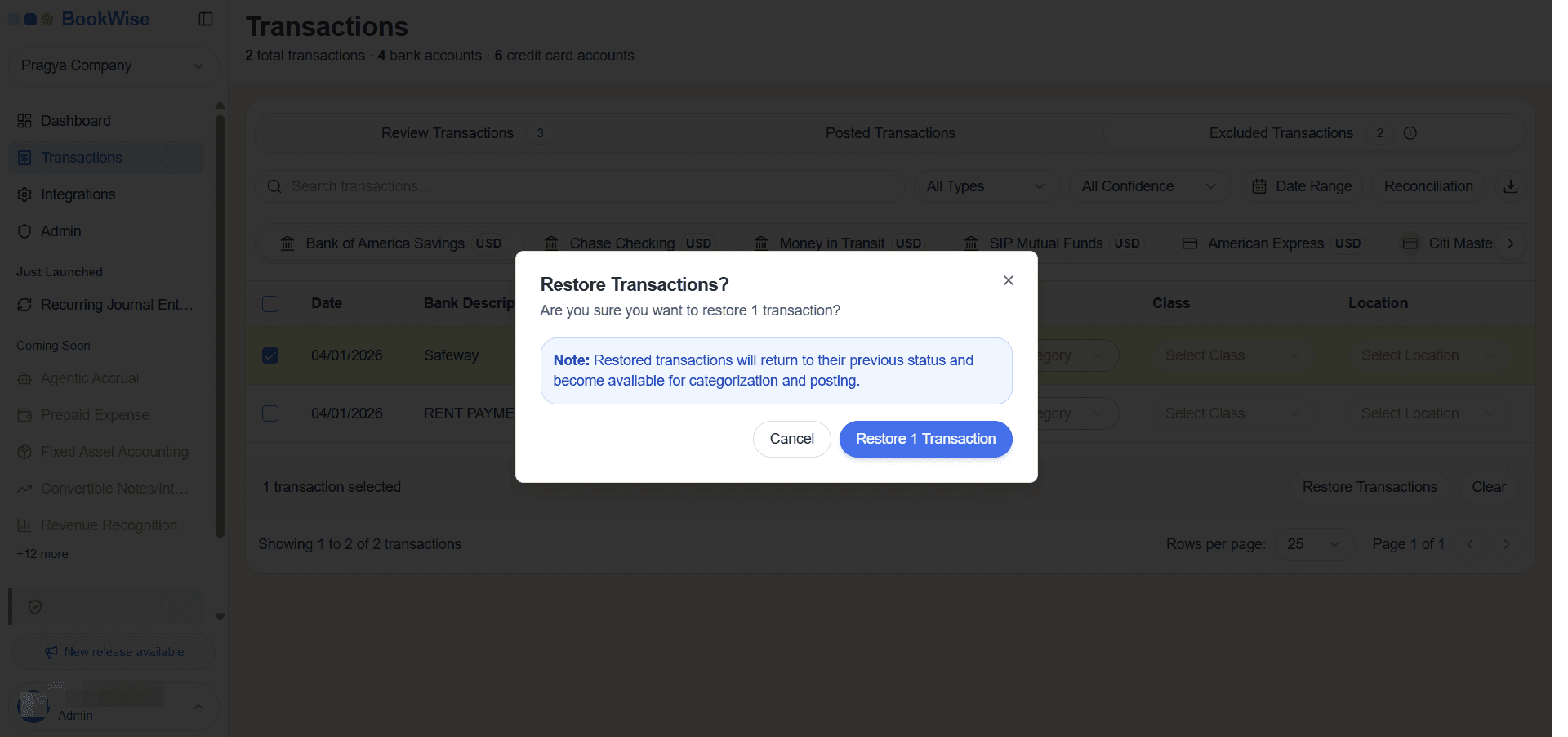
This guide showed you how to restore a transaction that was previously excluded. By selecting the excluded item and using the Restore action, you can easily bring the transaction back into the Review Transactions page.
Restoring ensures that no important data is lost and helps maintain accurate, complete records in your system