
How to Resync the Gun After Canceling a Pick
Learn step-by-step instructions to resync your gun after canceling a pick. Follow these easy steps to return to the main menu and sync your device for normal use.
By Ben Fotheringham
In this guide, we'll learn how to resync your gun after canceling a pick in your picking system. This process helps ensure your device is ready for use again by navigating through the menus and starting the sync.
We'll cover the steps to return to the main menu and begin the sync process so you can continue your work without issues.
Let's get started
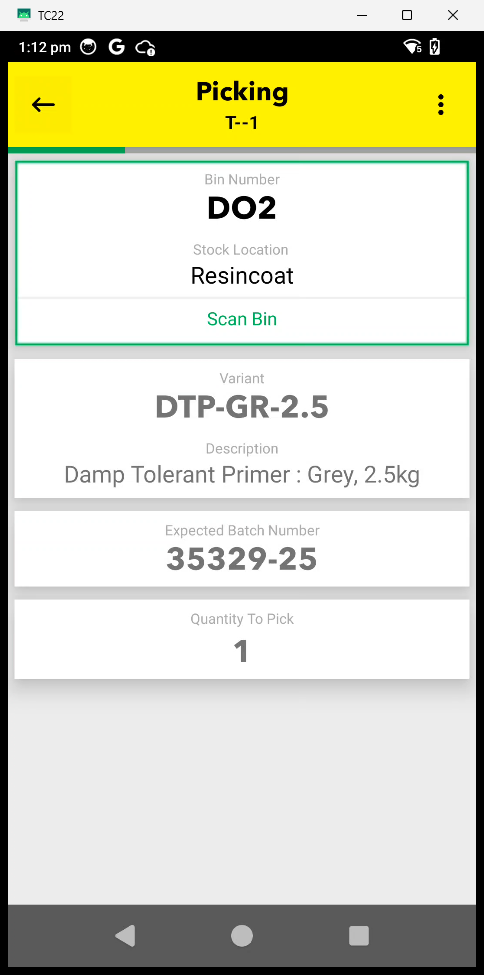
To resync the gun after canceling the pick, the picker is likely on a screen similar to this. Tap the back arrow to return to the picking screen.
1
Tap here
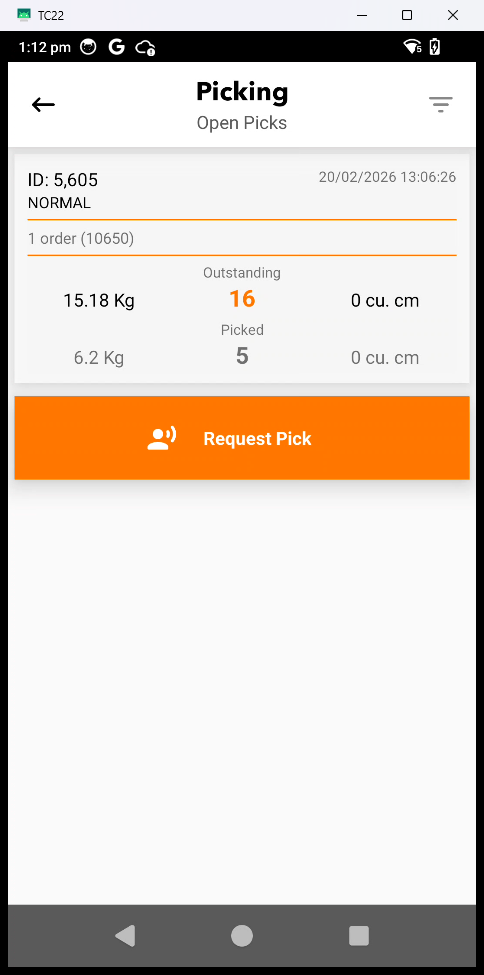
Tap the back arrow again to return to the main menu.
2
Tap here
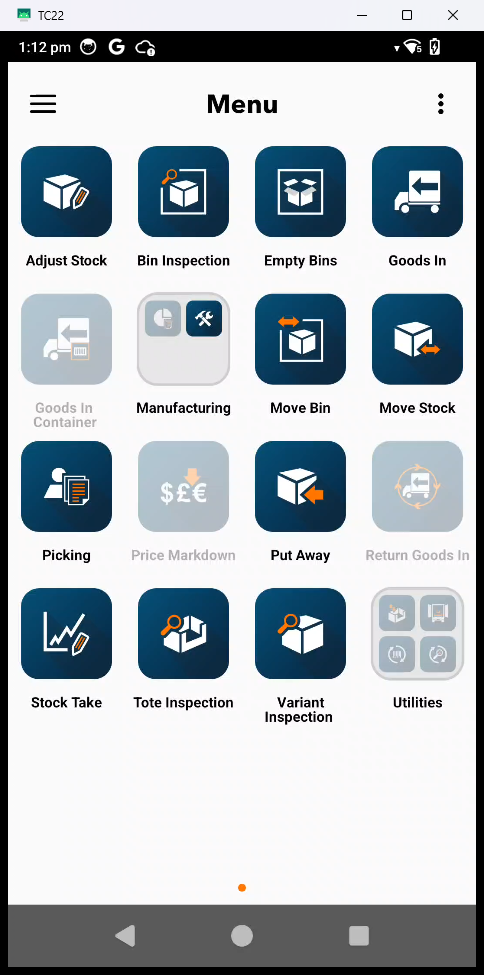
Tap the 3 lines to enter the settings menu
3
Tap here
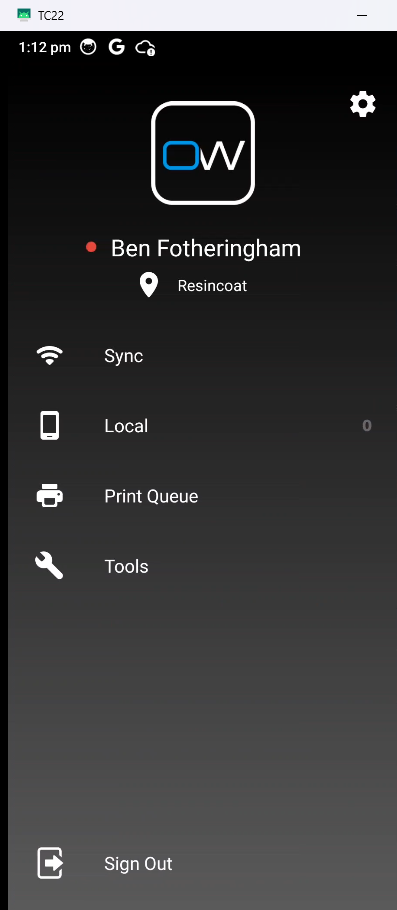
Resync the gun
4
Tap here
Gun is now ready to be used again as normal.