How to Retrieve Yard Sales Totals from Clover: Step-by-Step Guide
Learn how to easily retrieve and calculate total yard sales from multiple locations using Clover. Follow this step-by-step guide to access sales reports, switch between yards, and sum your weekly sales totals.
In this guide, we'll learn how to pull the total yard sales from Clover for a specific date range. This process involves logging into your Clover account, accessing the Sales Report for each yard, and adding the totals together. By following these steps, you can find the combined sales for all your yards during the period you need.
Let's get started
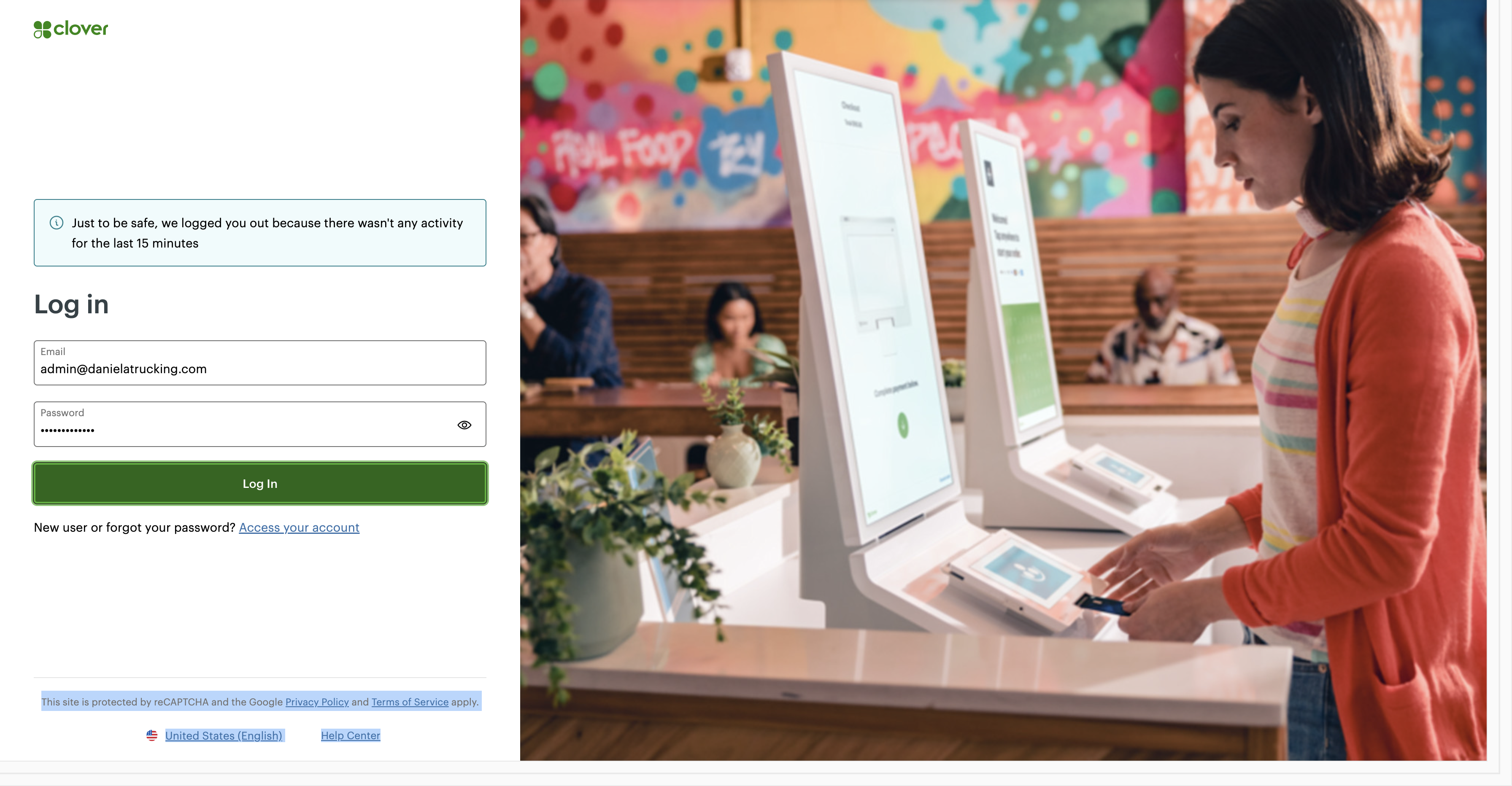
First, go to the Clover login page. Log in to your account.
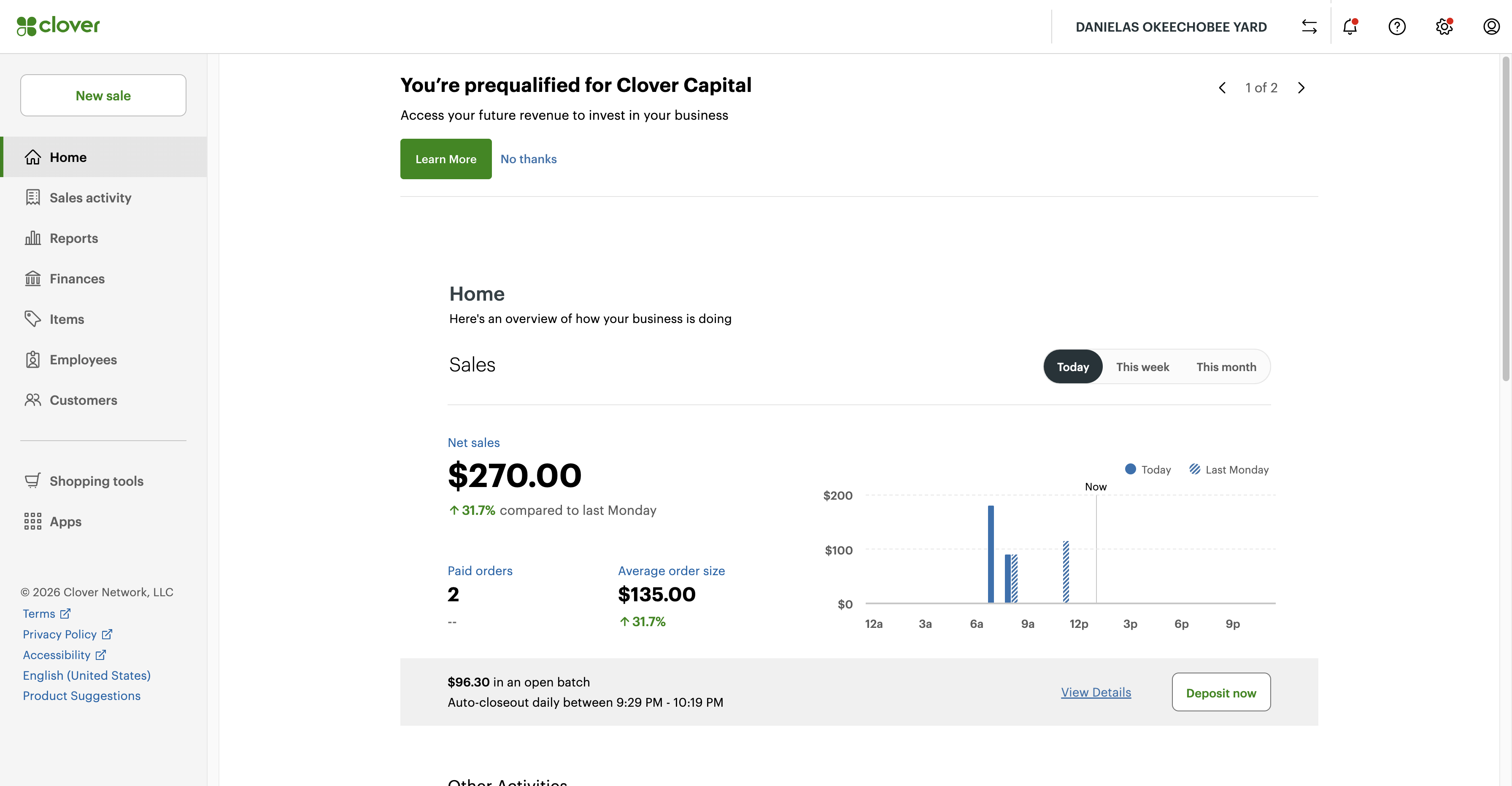
Once you are logged in, you are automatically logged into the first yard, which is Okeechobee Yard. You can see the name at the top right.
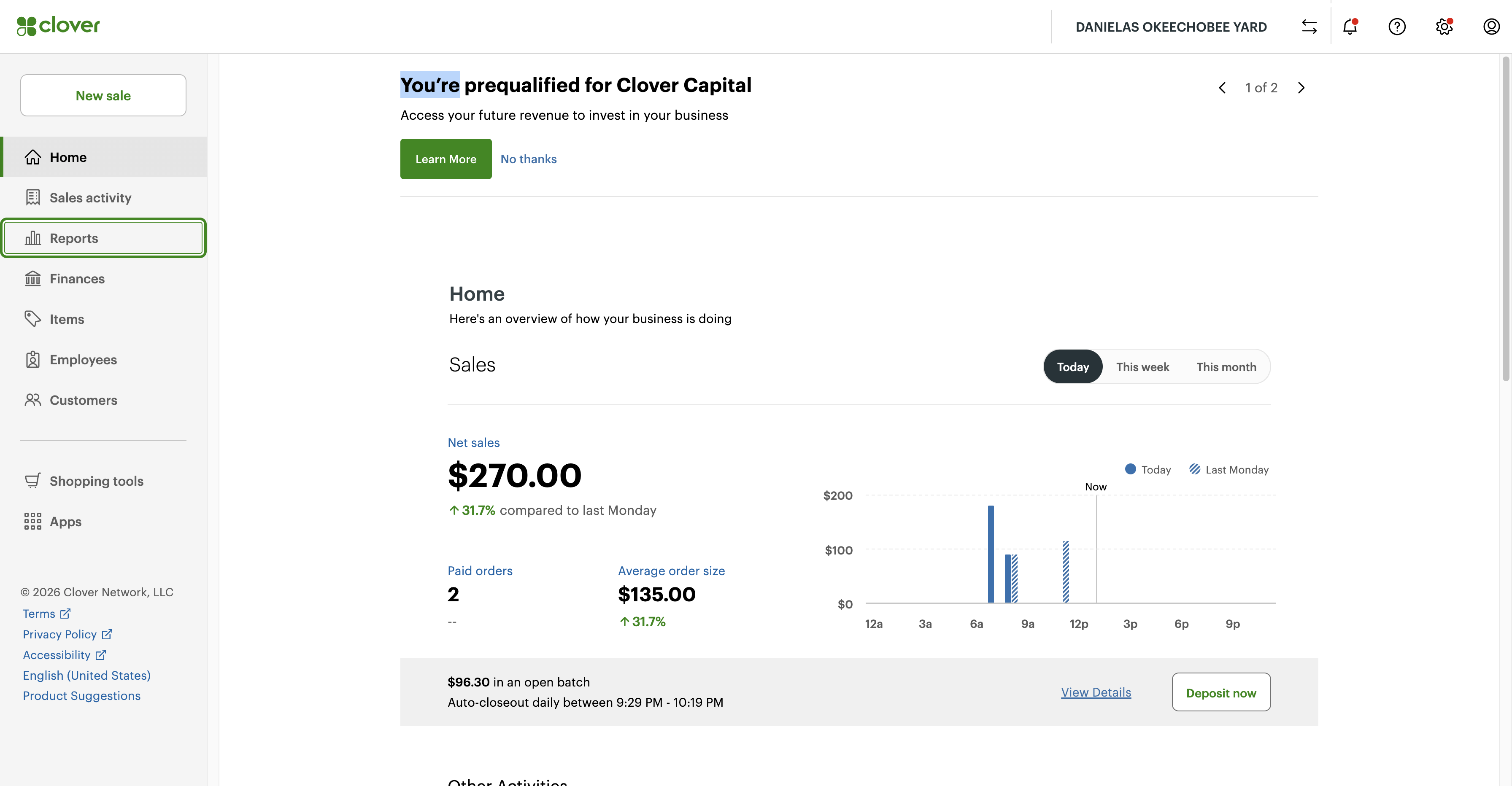
Next, we'll pull the report for this location. So click on Reports on the left side of the screen.
Now select Sales Report.
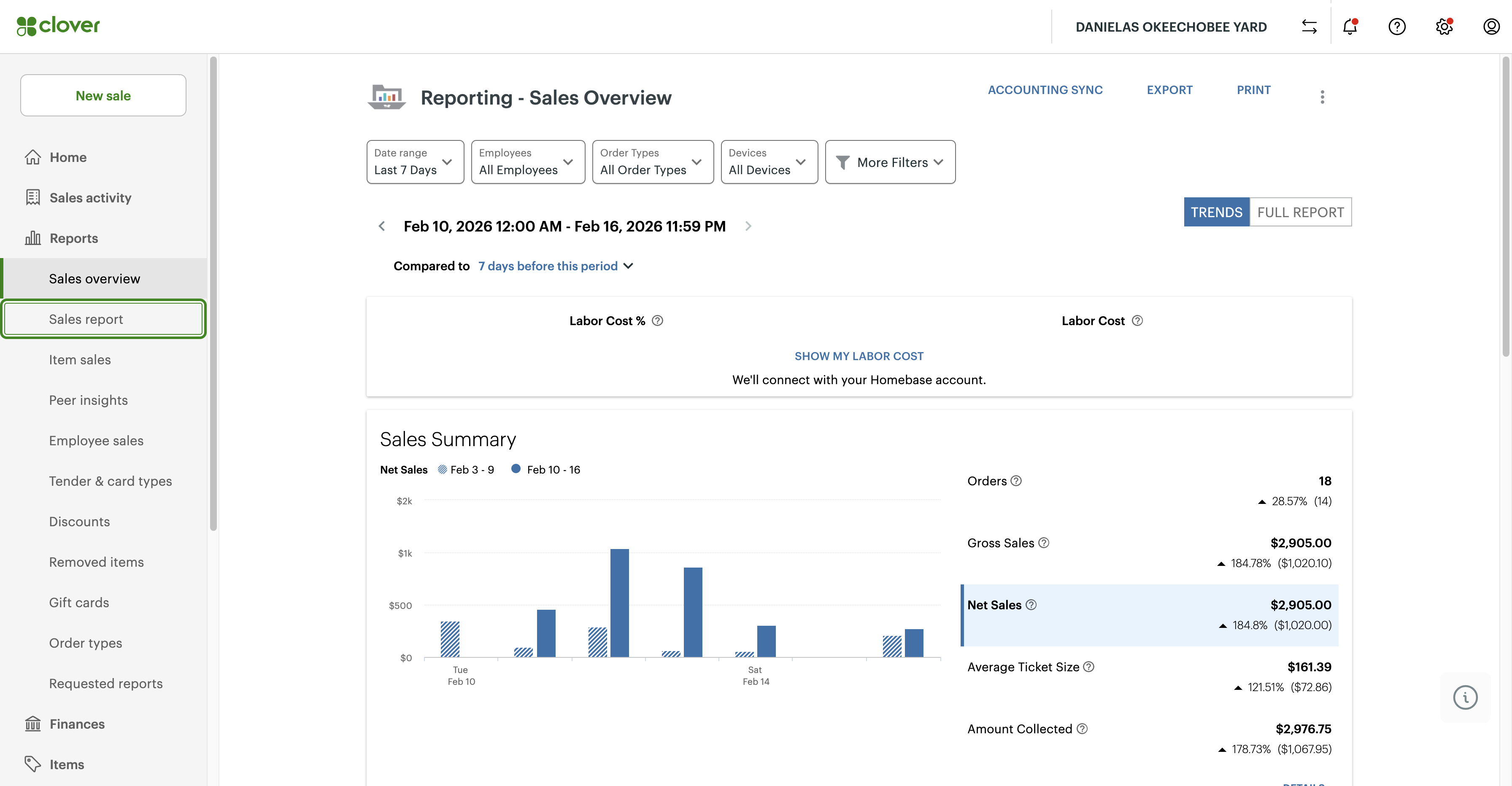
On the Sales Report, make sure to update the date range you want to view.
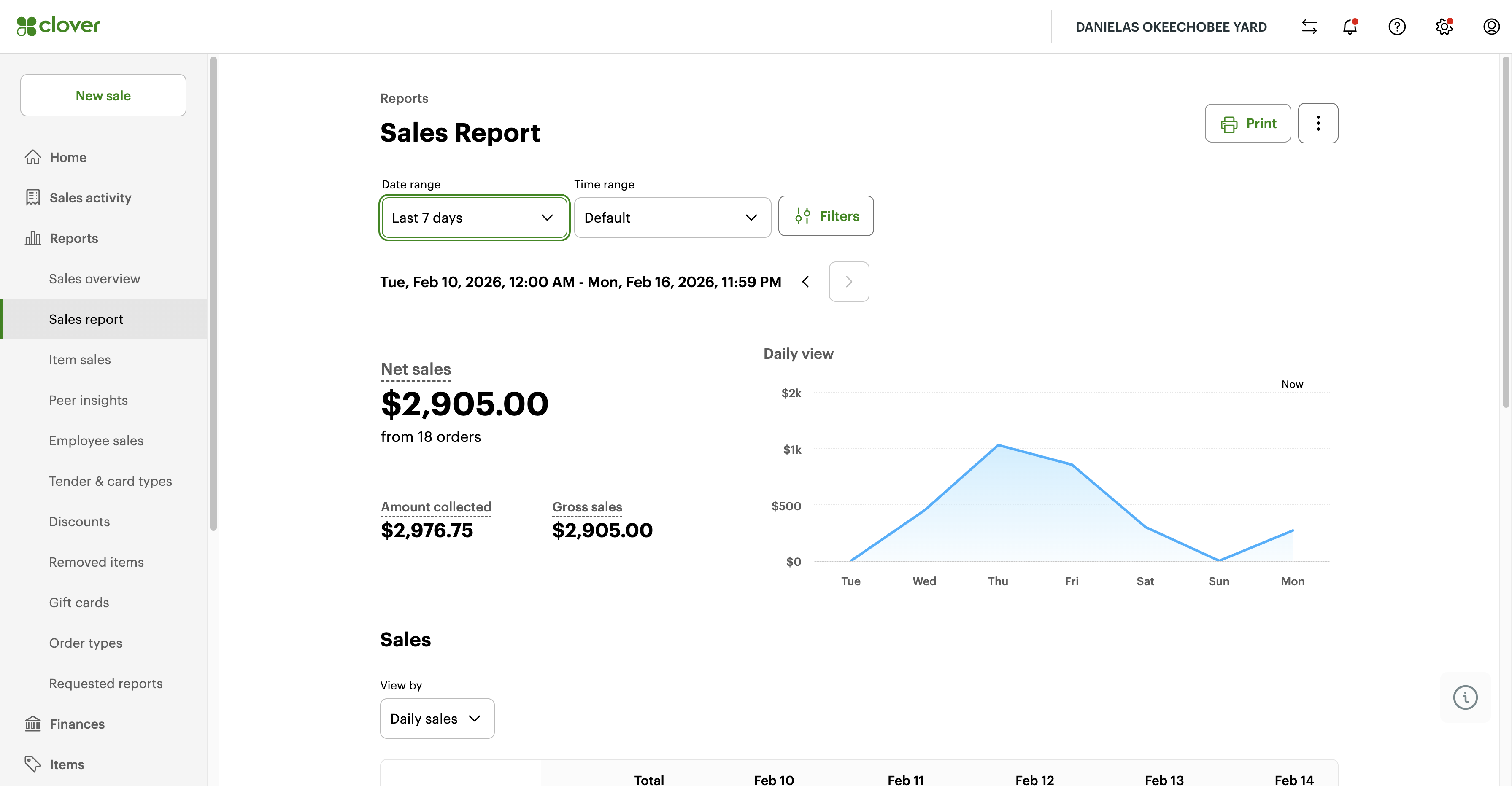
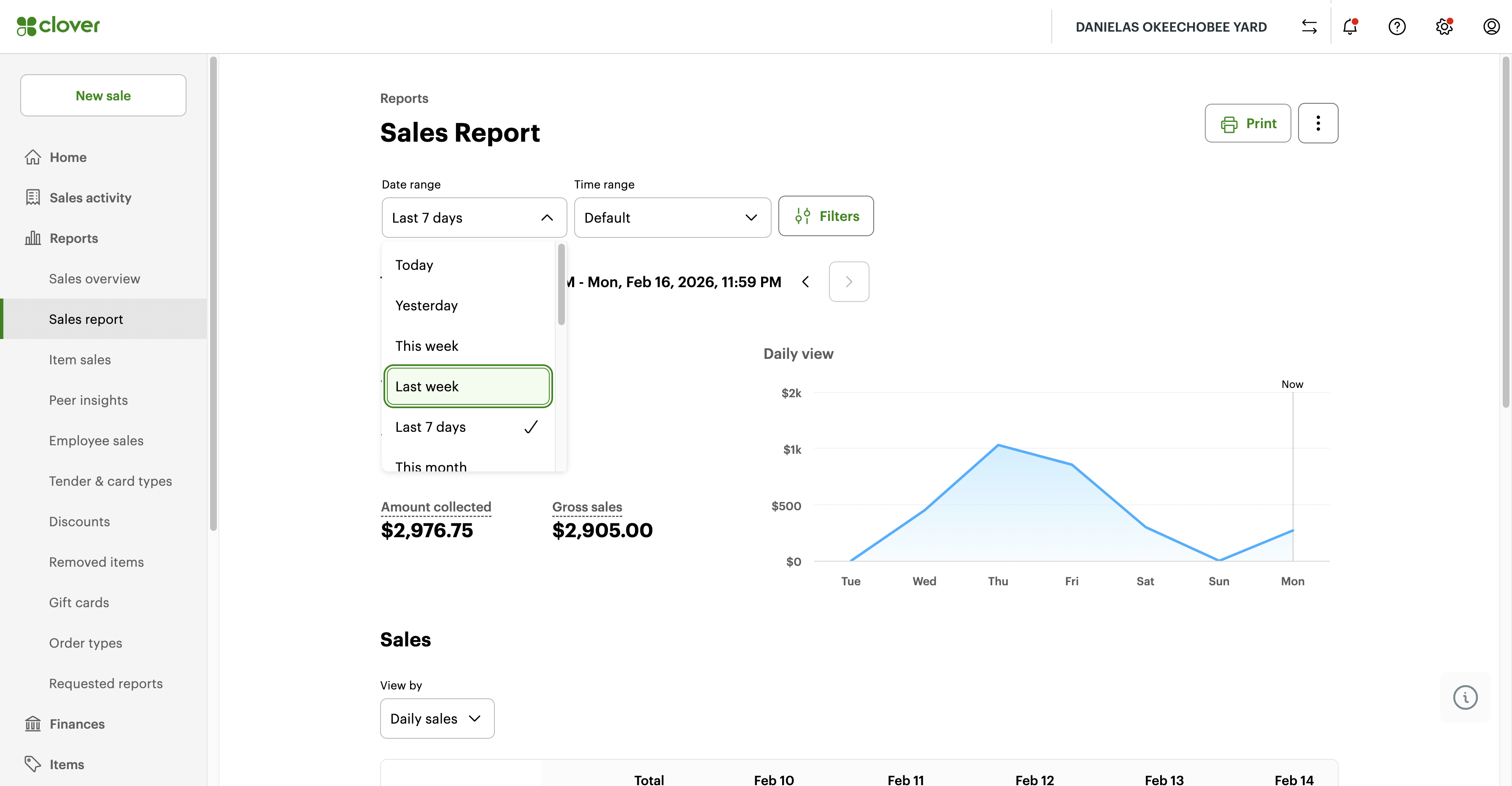
For example, if you want the report for the entire last week, from February 8th to 14th, click "Last Week."
The number here is the total sales for the Okeechobee Yard from February 8th to the 14th.
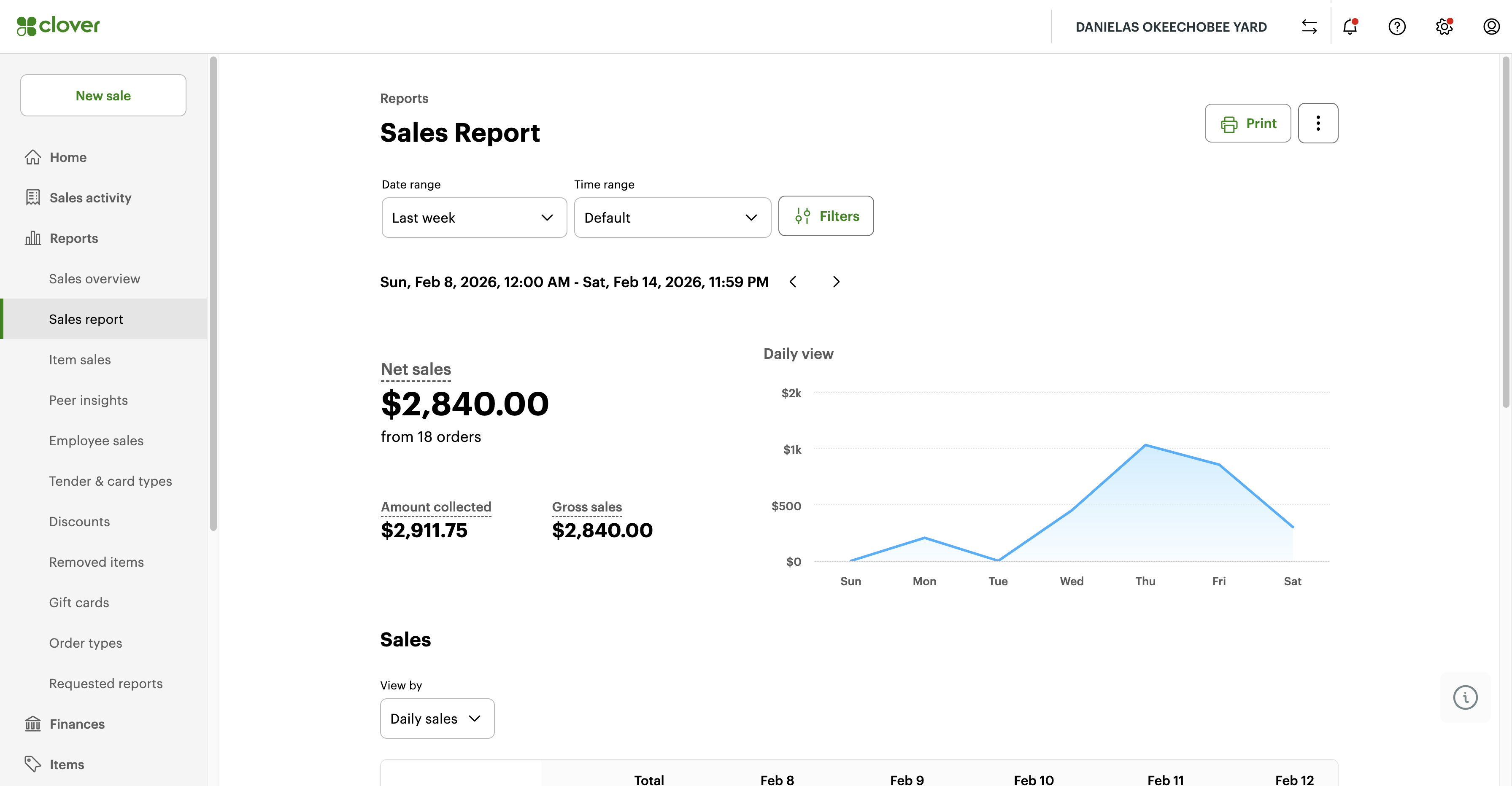
Keep this number in mind. Add it or write it down. Don't forget it. We will now move to the next yard.
Now click "Switch" at the top right of the screen to switch to the other Yard Hooper.
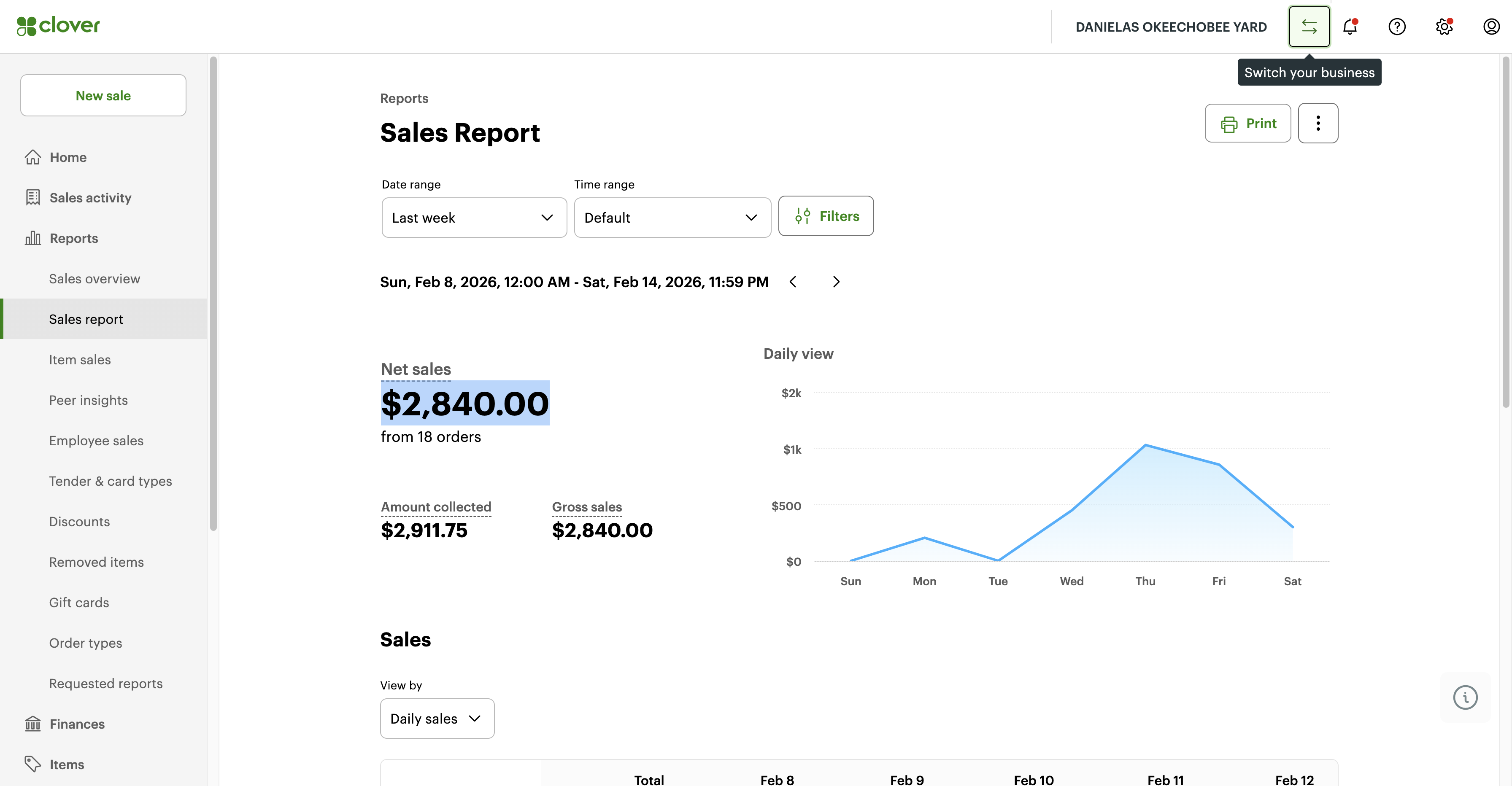
Click Hooper, then select Save.
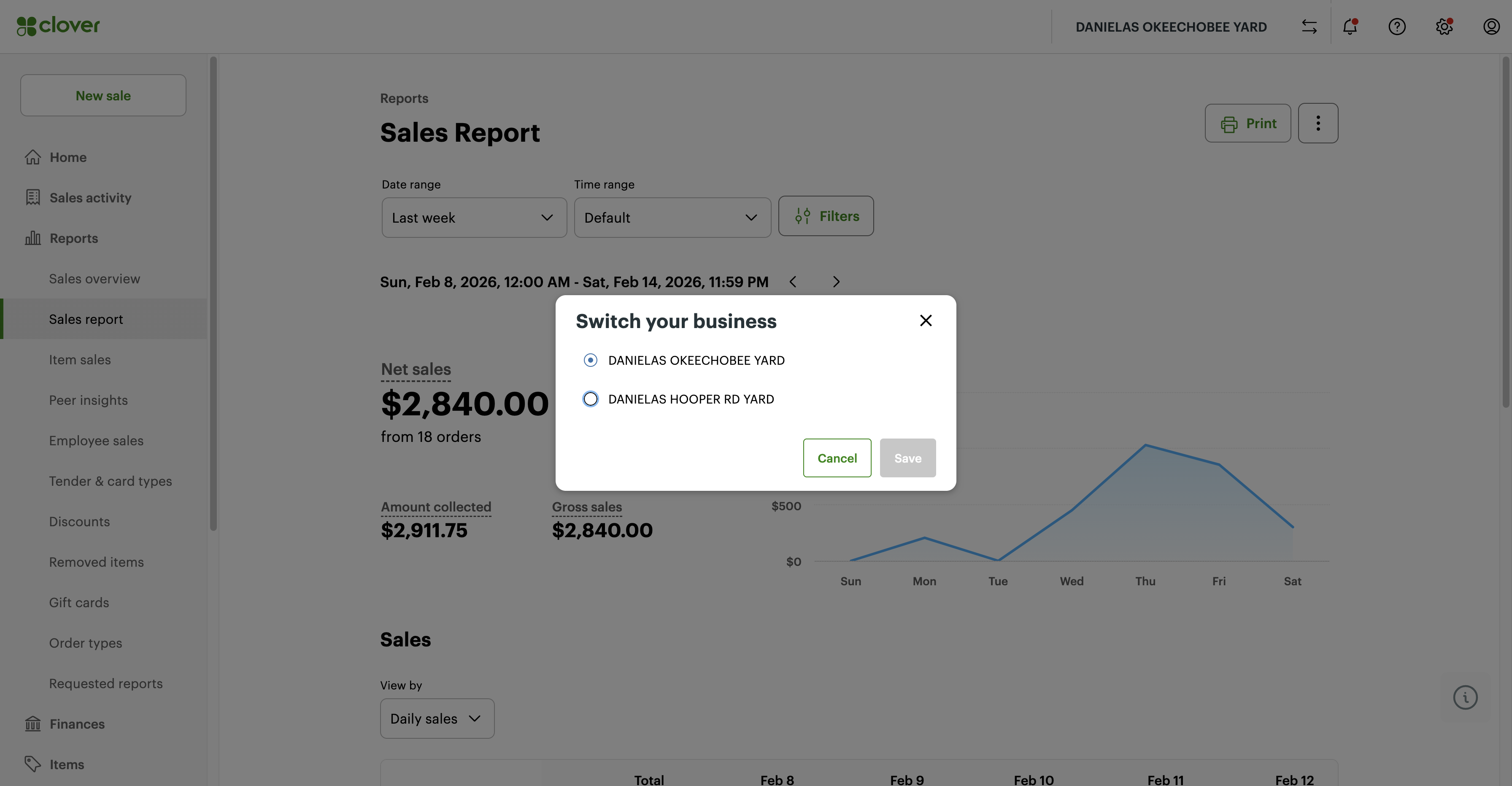
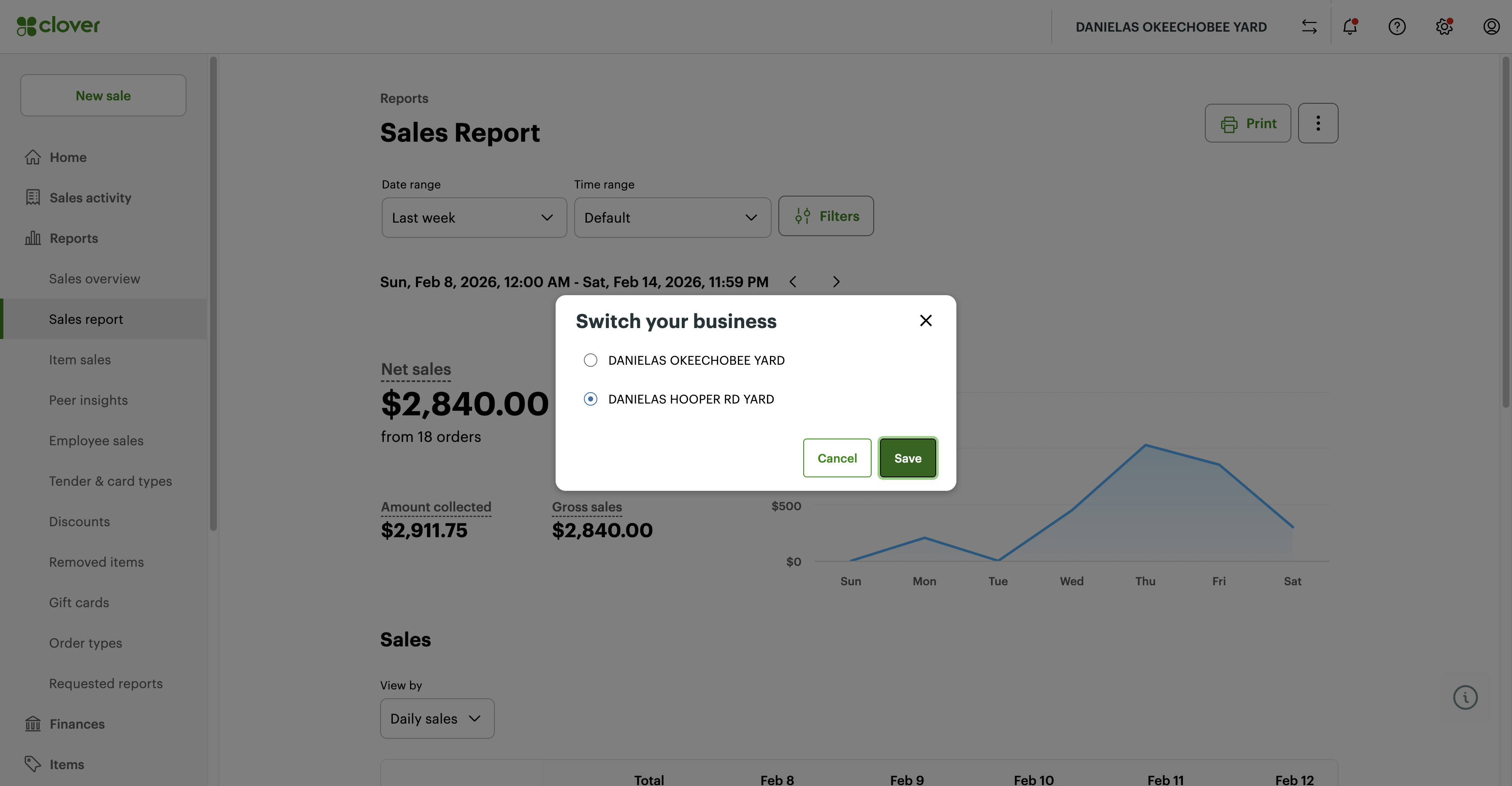
It will switch over to the Hooper yard now- It takes you to the same page, Sales Report.
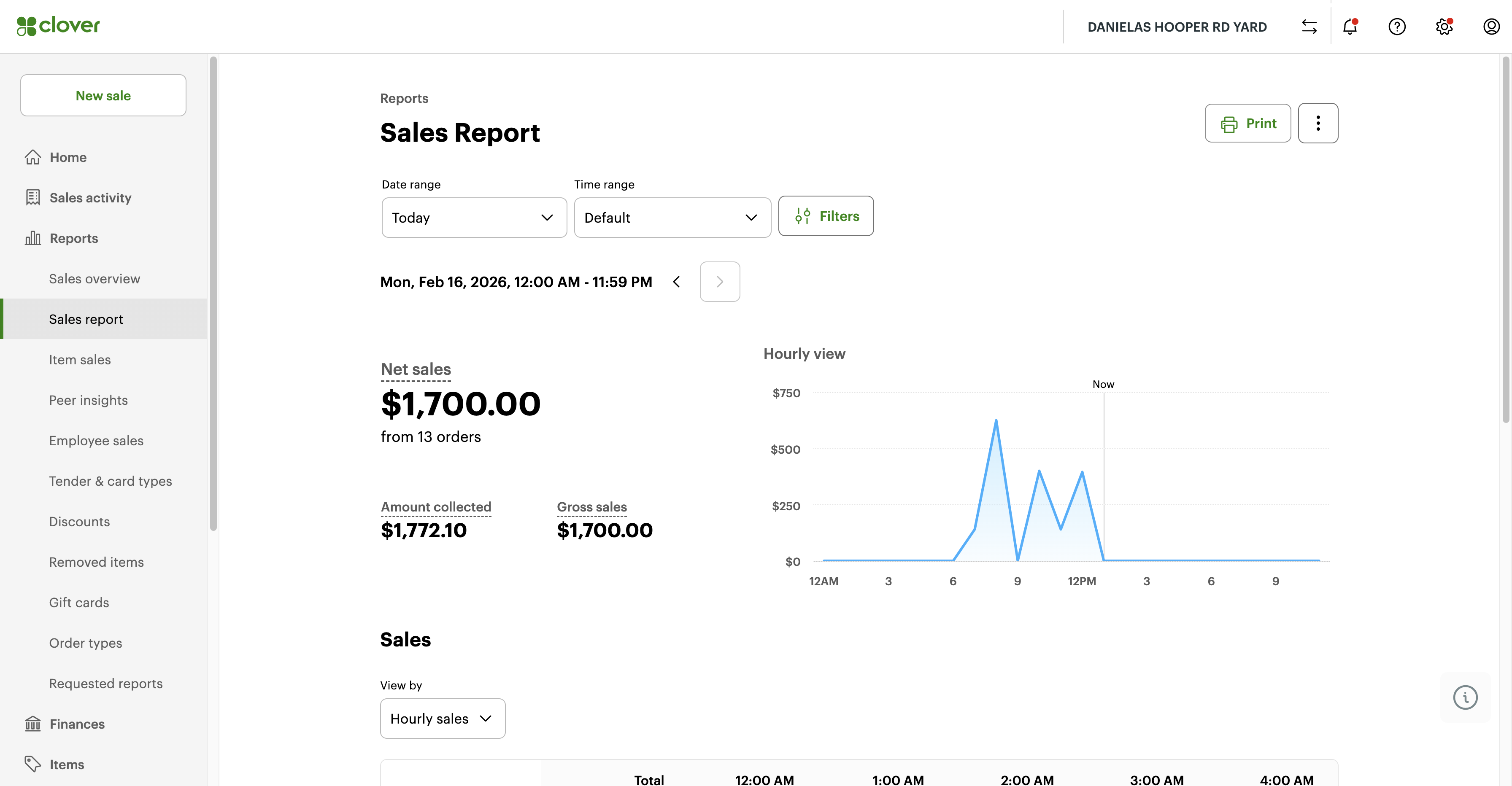
Now, update the information for the date range to match what we were searching for in Okeechobee.
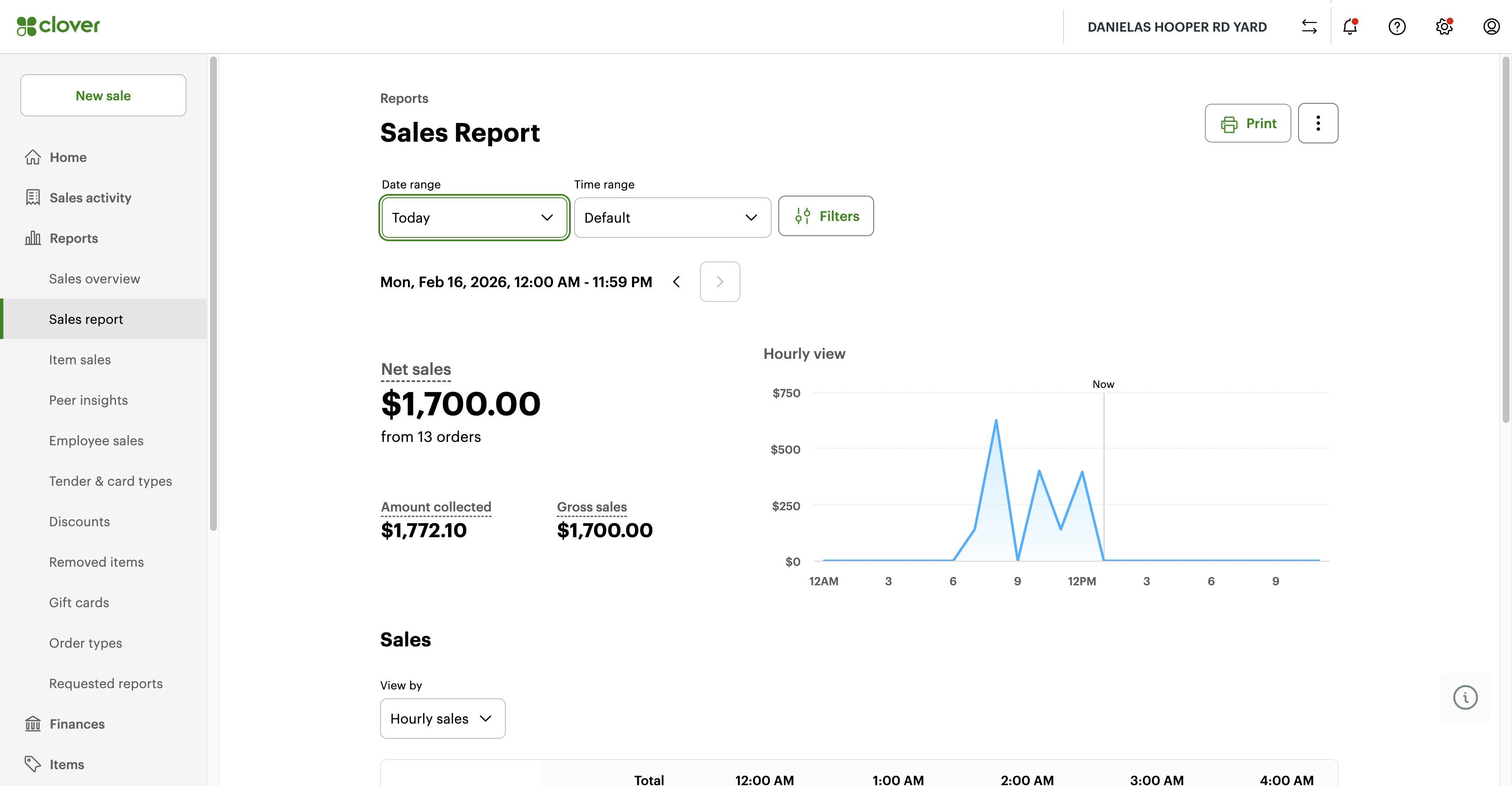
So last week.
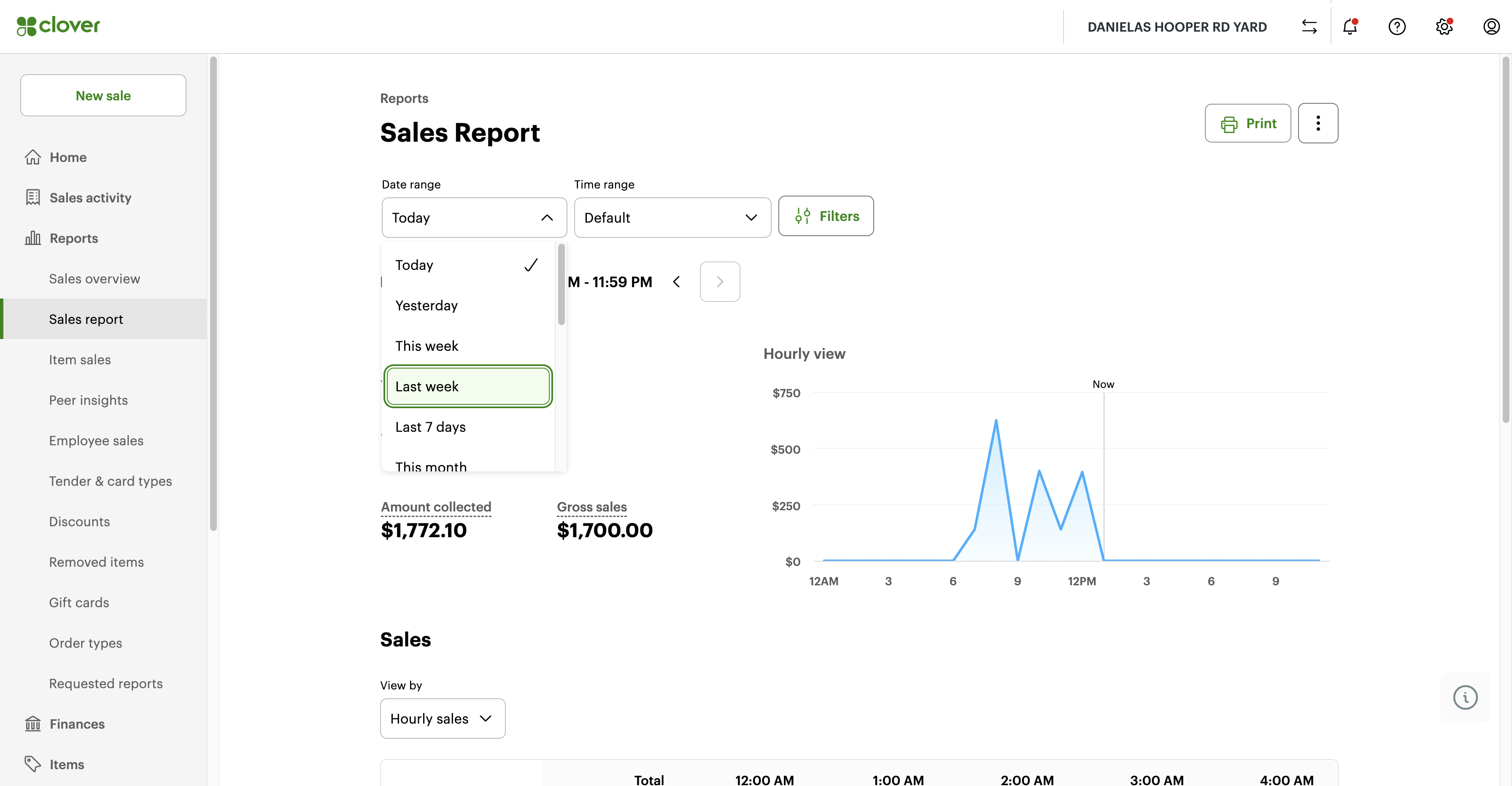
Make sure the dates are February 8th through 14th.
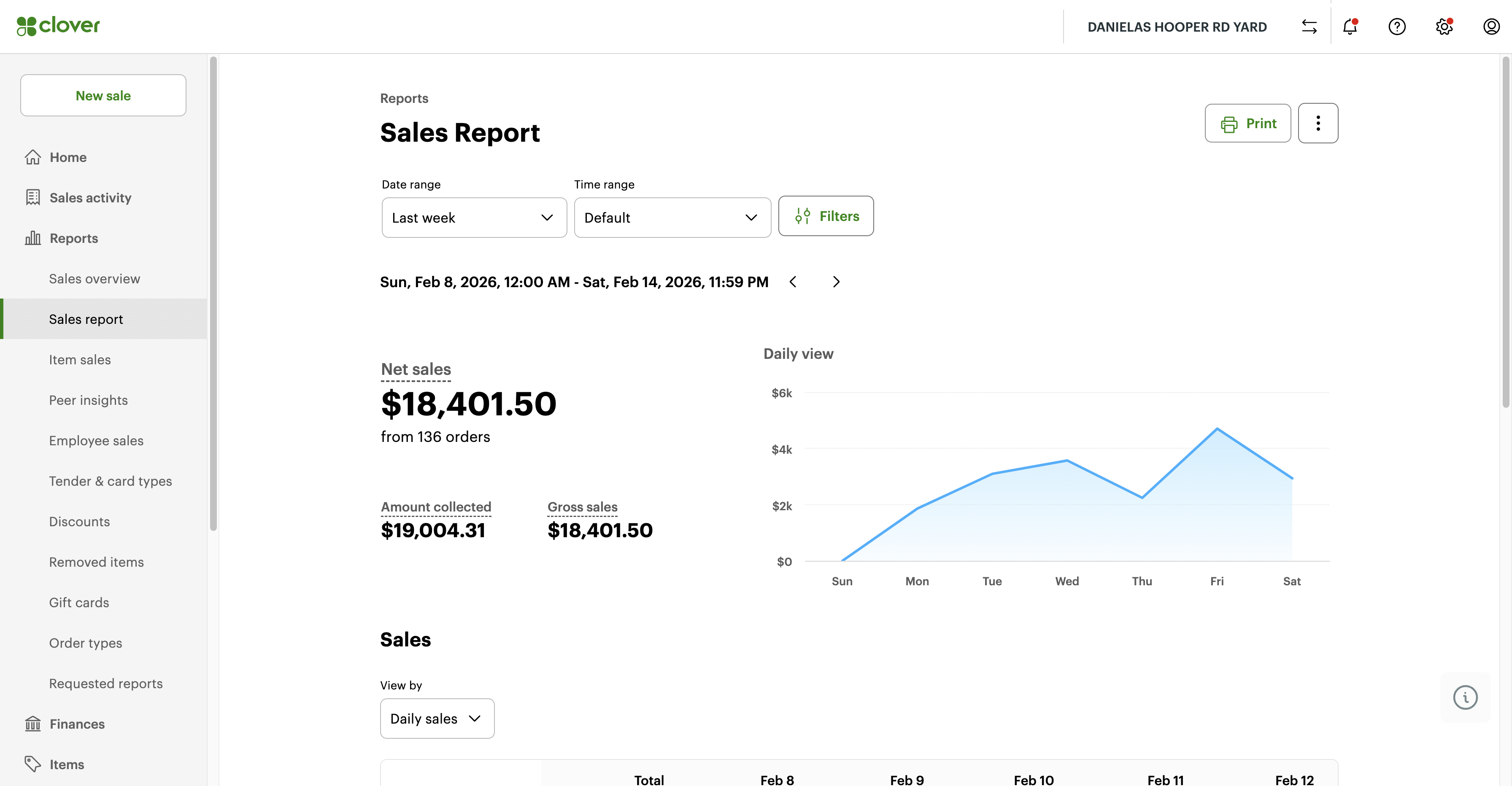
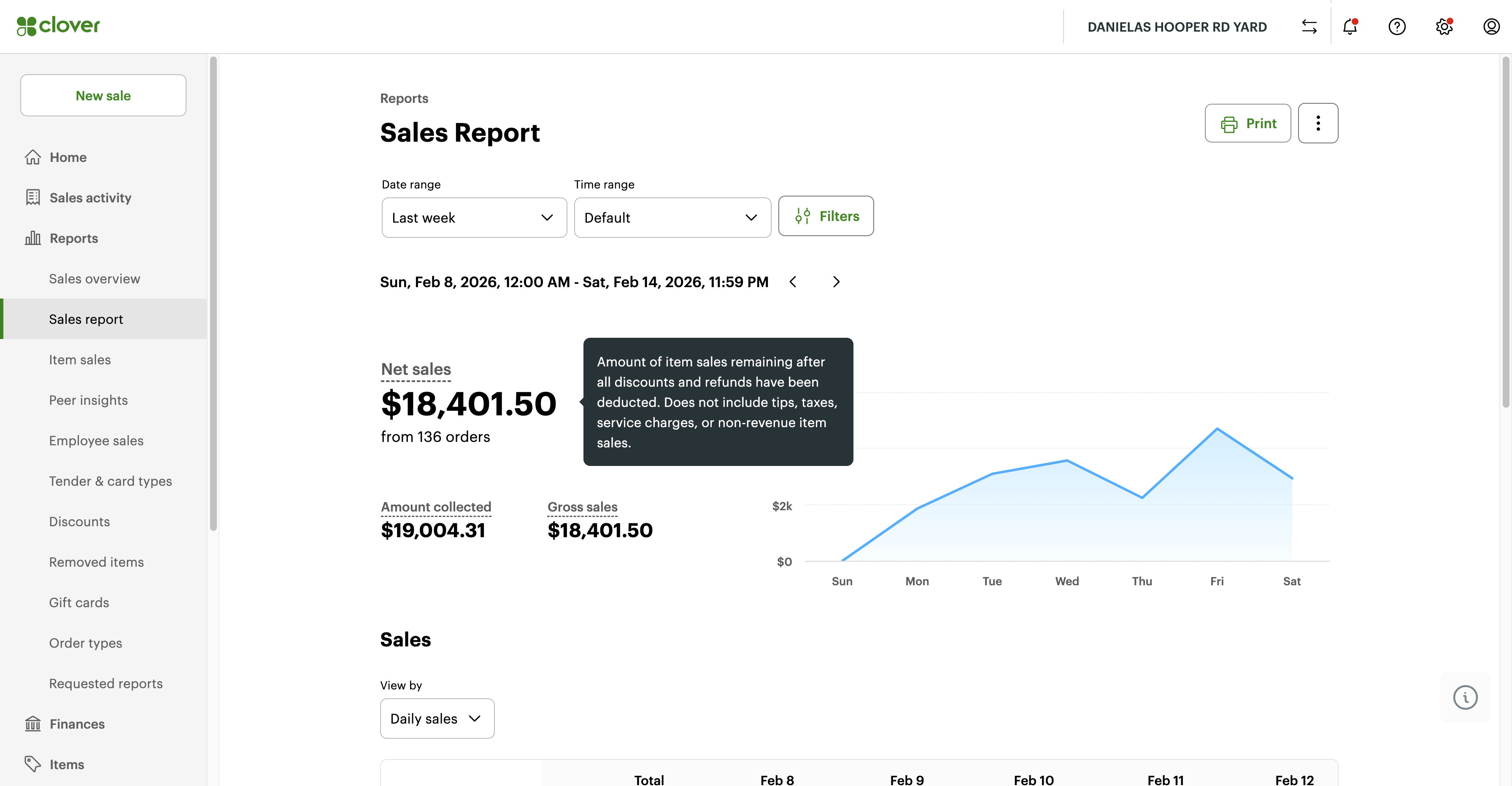
This is the total for this yard- Hooper. Now add this number to the last number you saw for Okeechobee. This will give you the total yard sales for the week of February 8th to 14th.
And that's it.