SSO - Reviewing to be sure jobs were clocked out.
Learn step-by-step how to review, identify, and correct missed clock-outs in SSO using the Dispatch Scheduler. Ensure accurate payroll by checking for green entries and updating times as needed.
In this guide, we'll learn how to review and correct clock-out times for jobs using the Dispatch Scheduler. This process helps ensure that payroll records are accurate by identifying entries where employees did not clock out. We will also cover how to contact team members for missing information and how to review times for all users in a payroll week.
Let's get started
Hello. This will be a... Sorry. This is for SSO review. Make sure the jobs were clocked out on time. Go back to your payroll weeks.
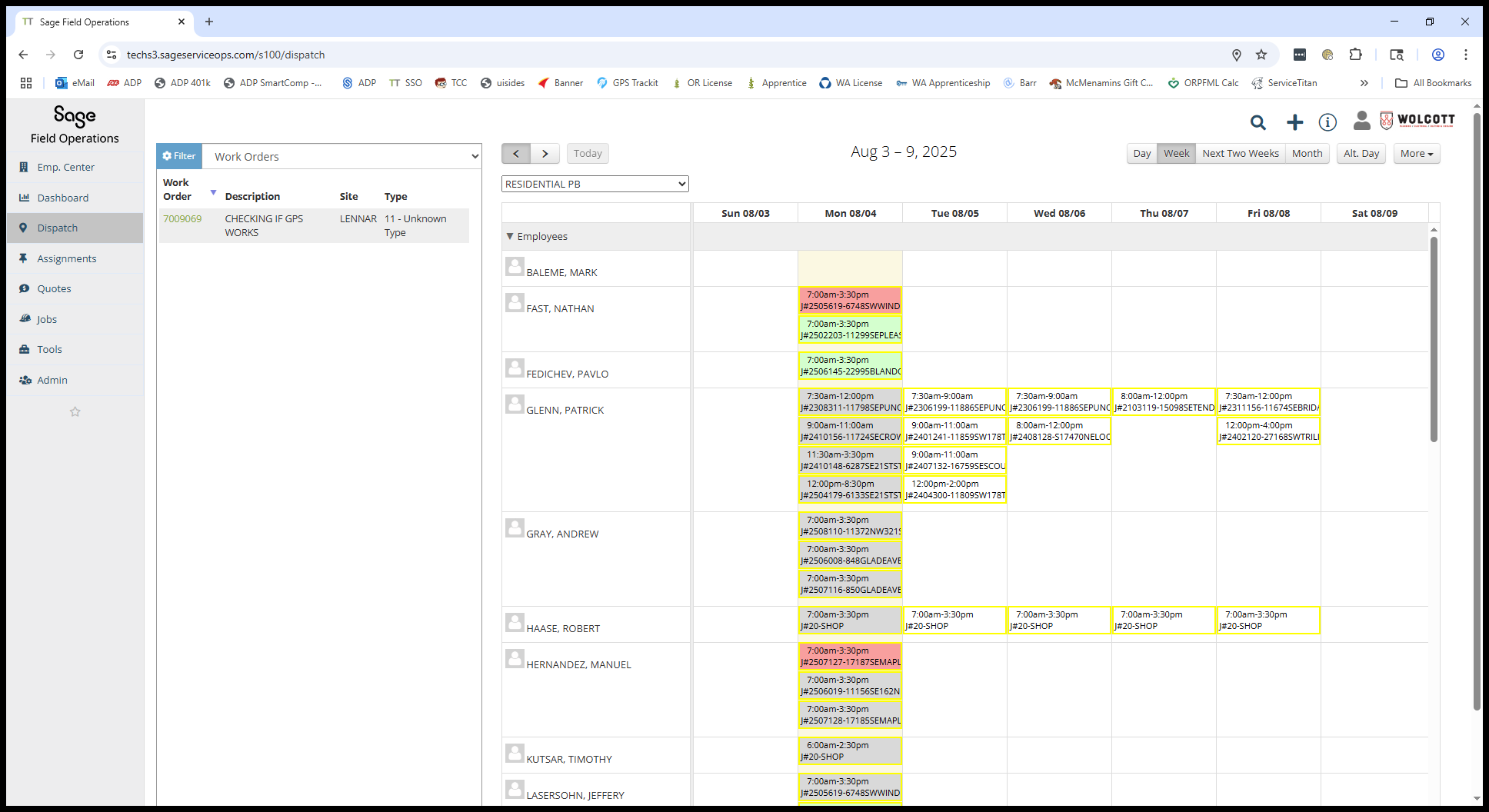
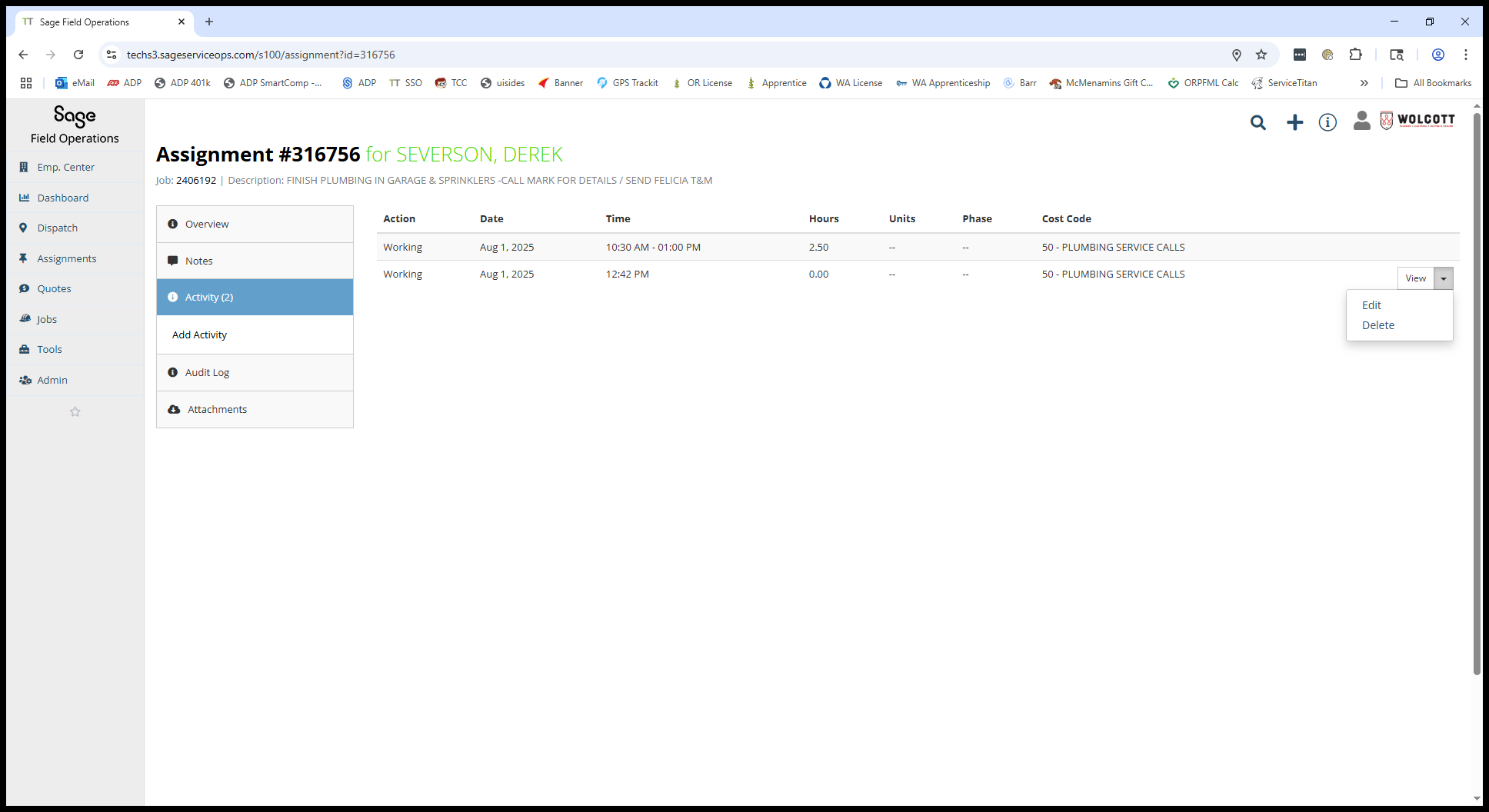
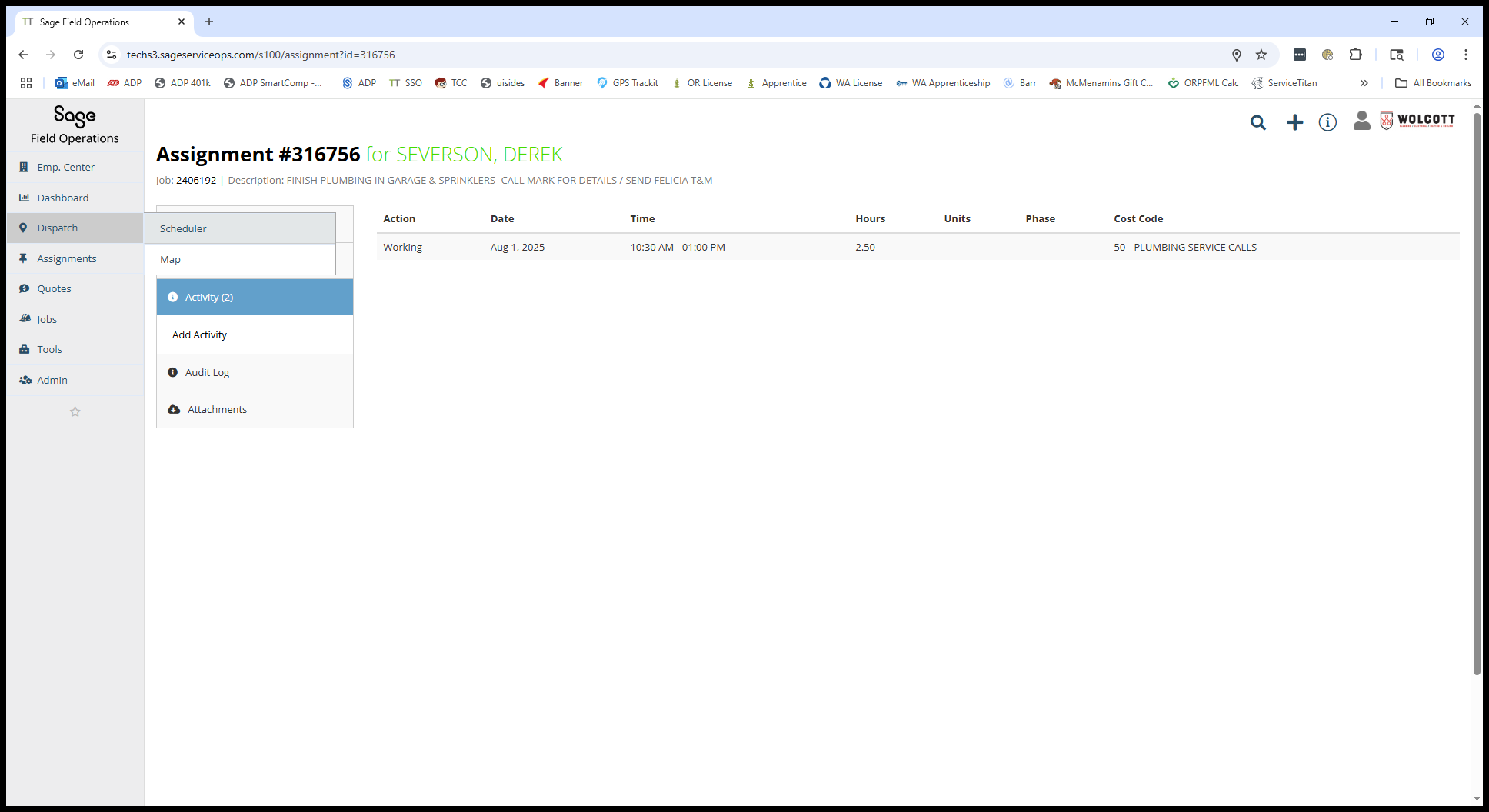
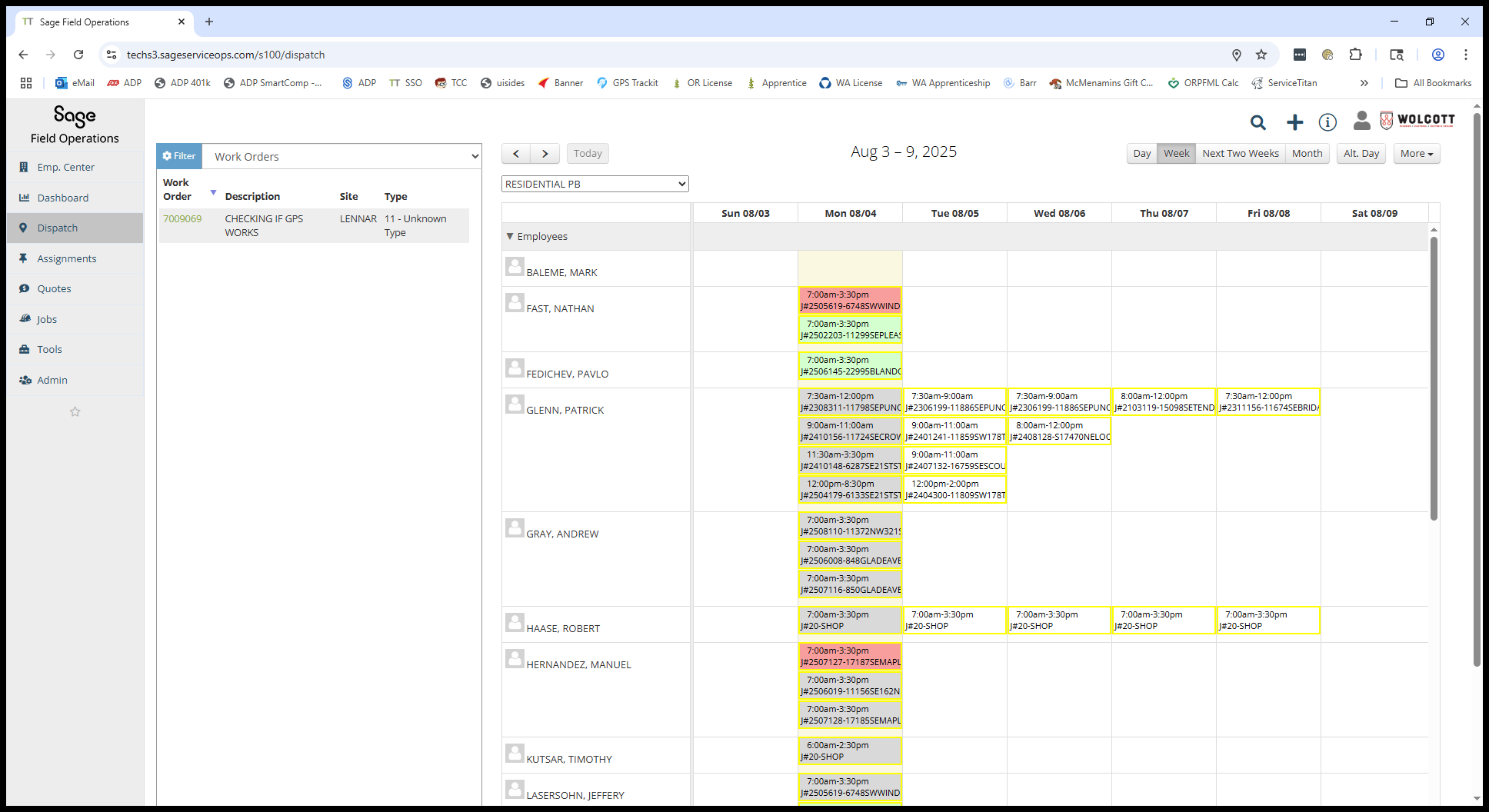
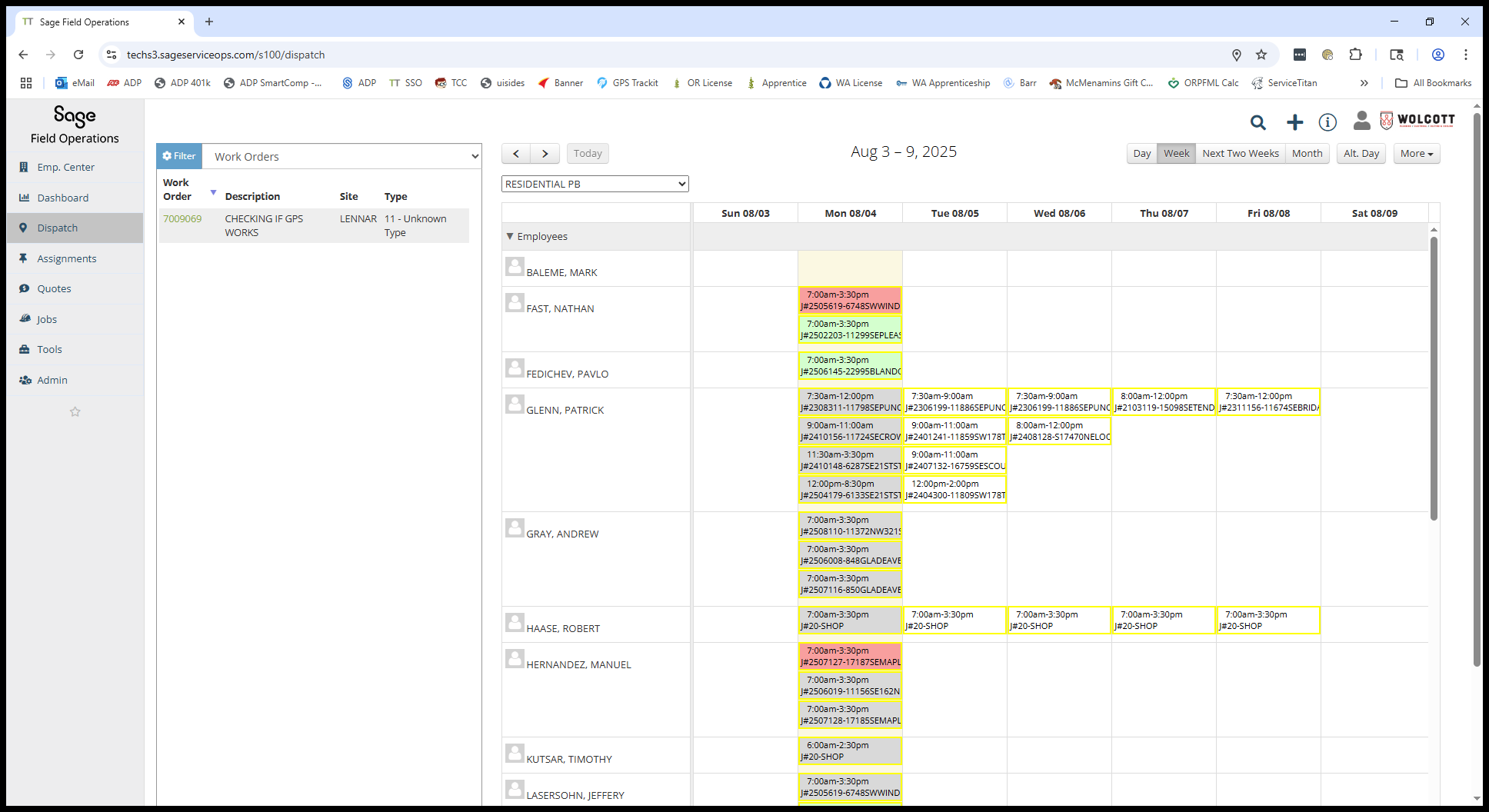
Just toggle there and scroll through. Anything that is red or gray is fine. Scroll down and look for anything green, which means they did not clock out. If you open it, then click Assignment and Activity, you can see the time was recorded. They later returned and entered the time they were at the job.
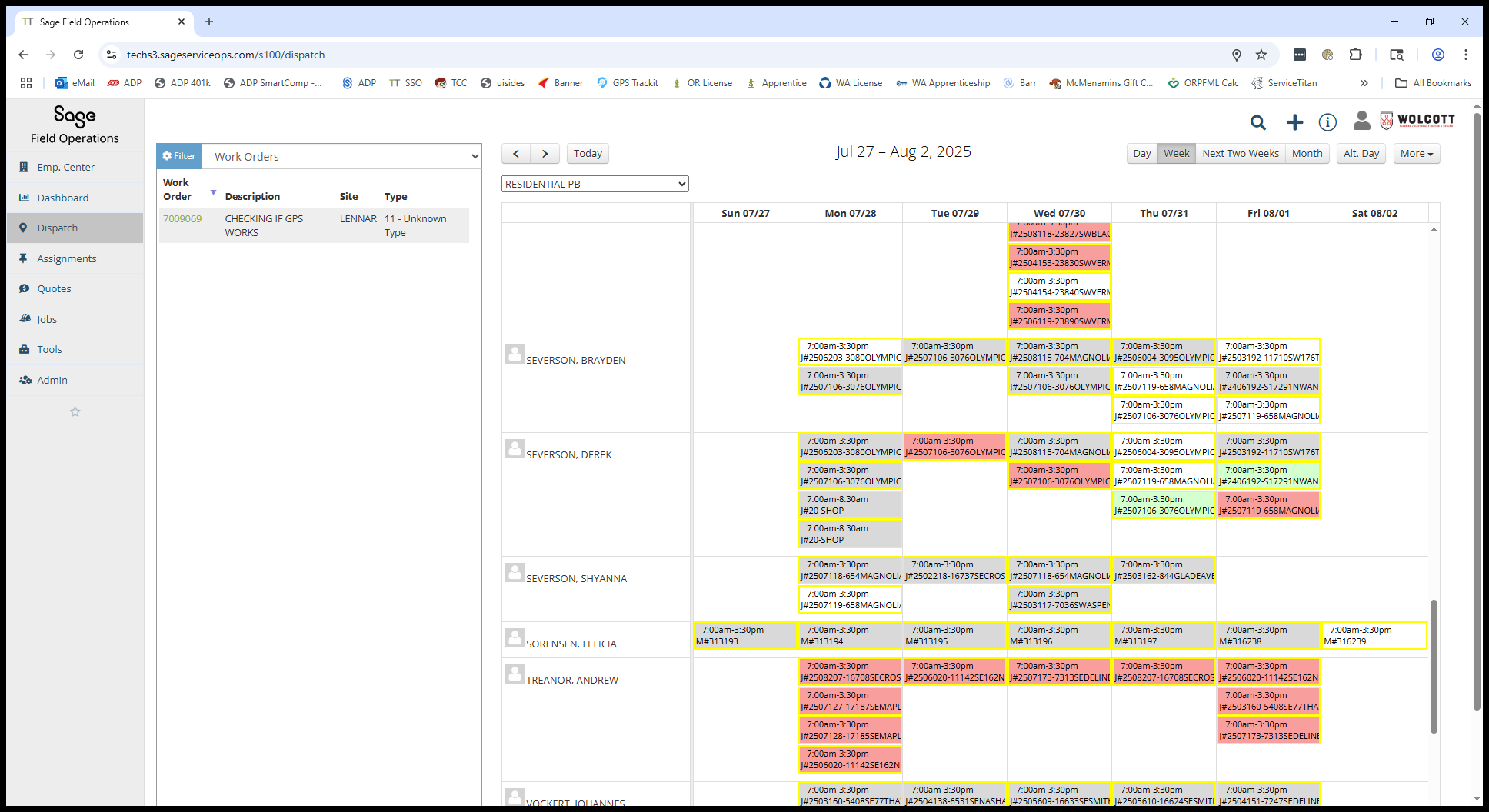
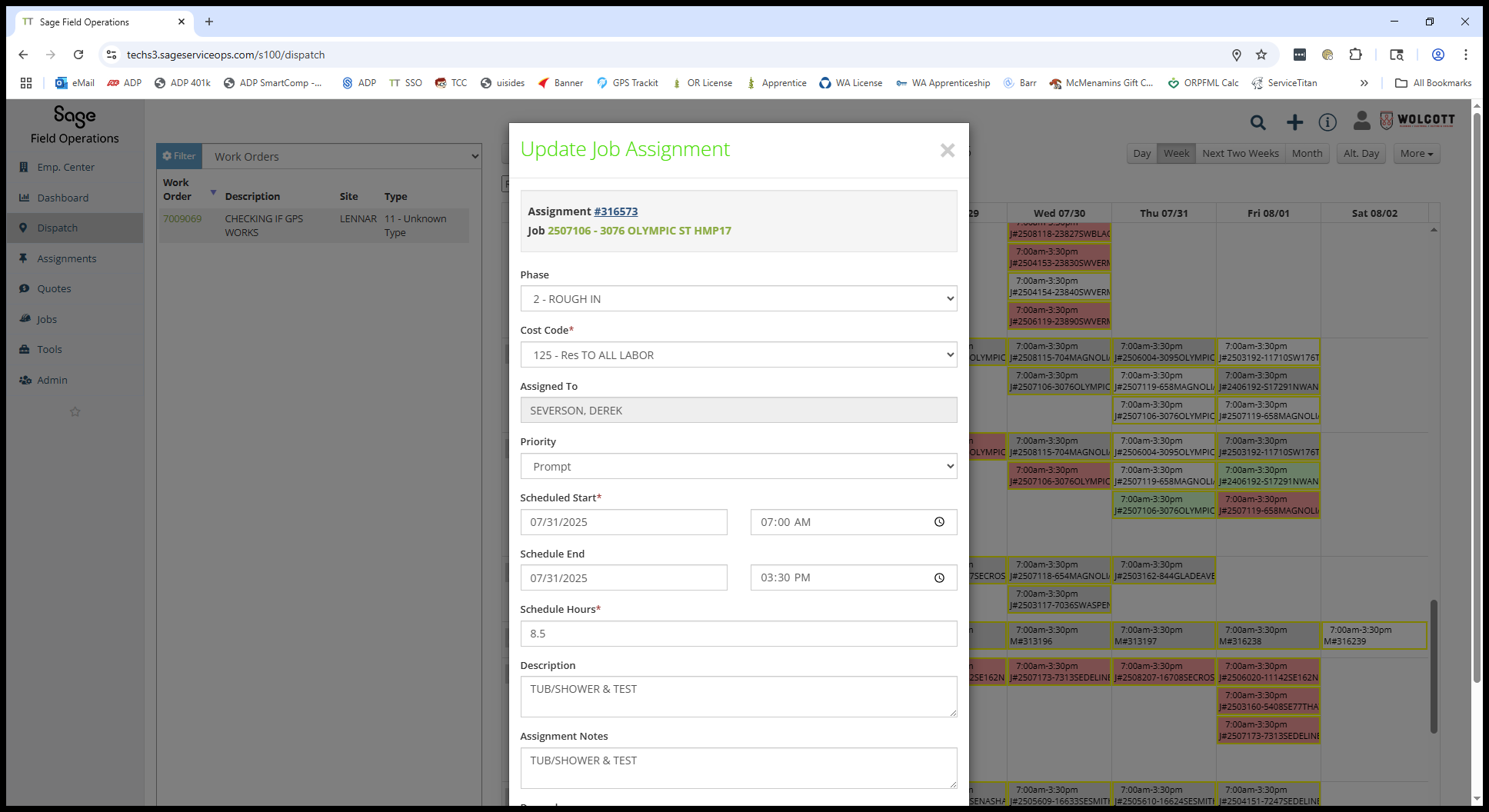
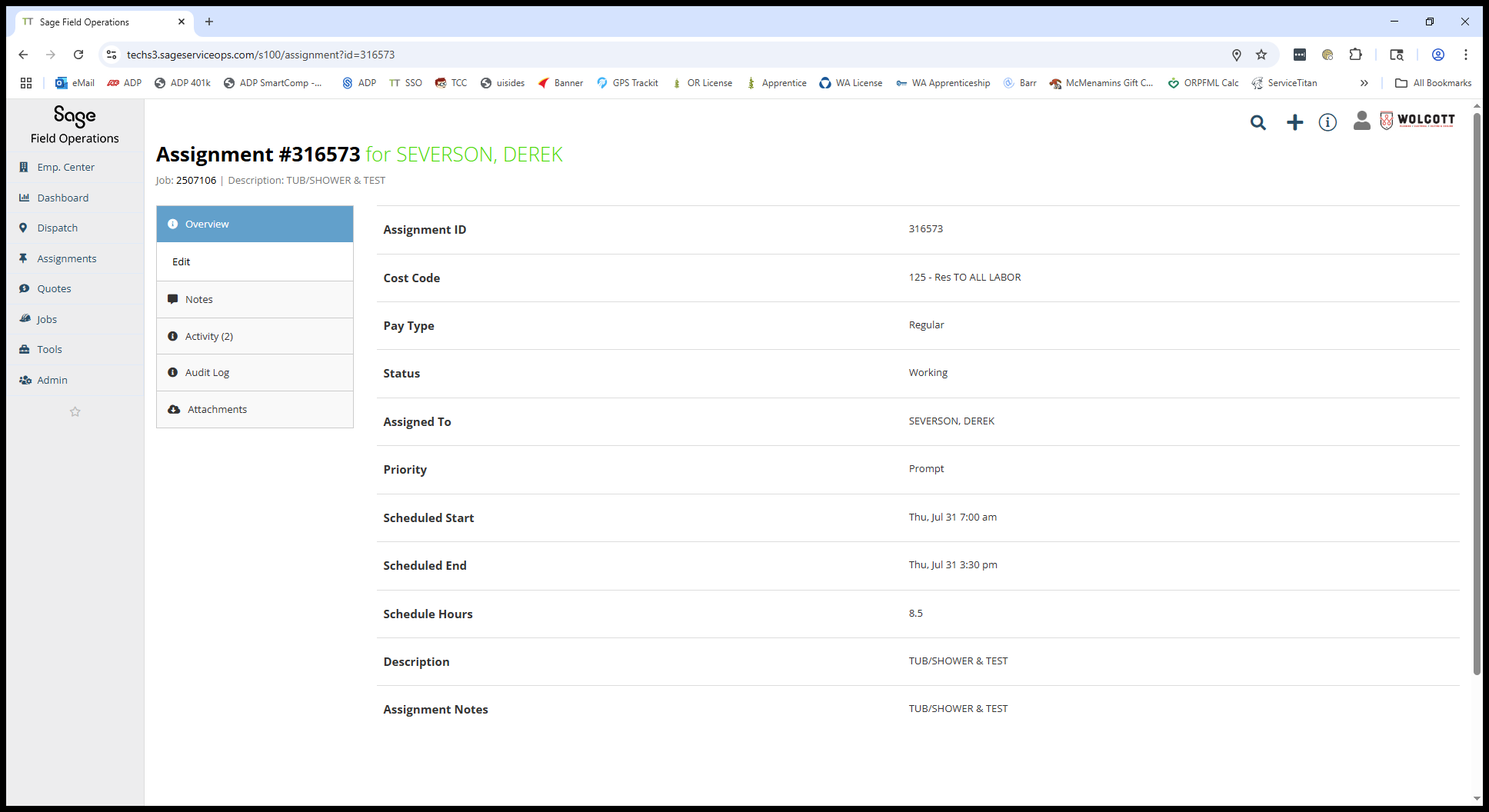
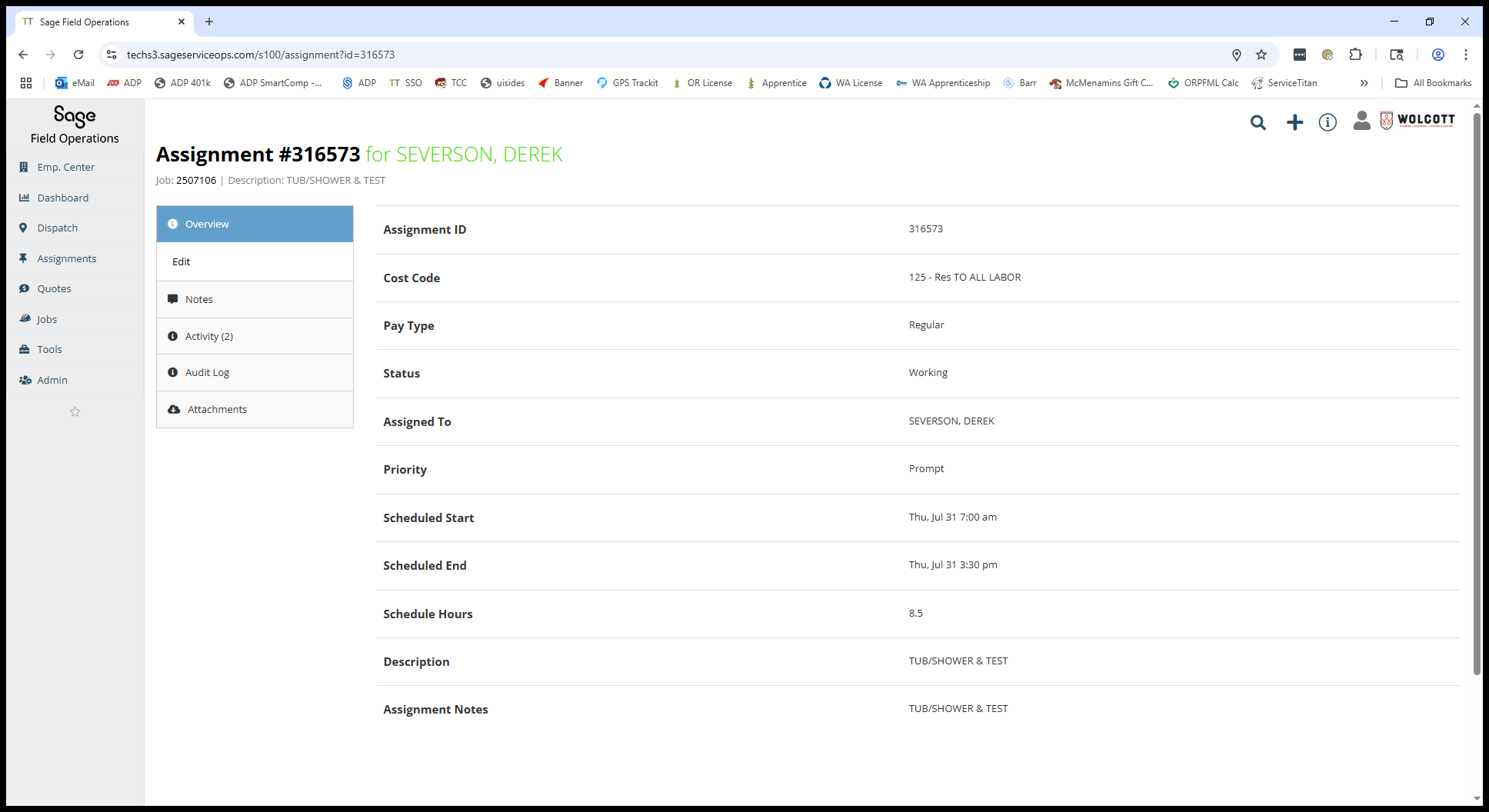
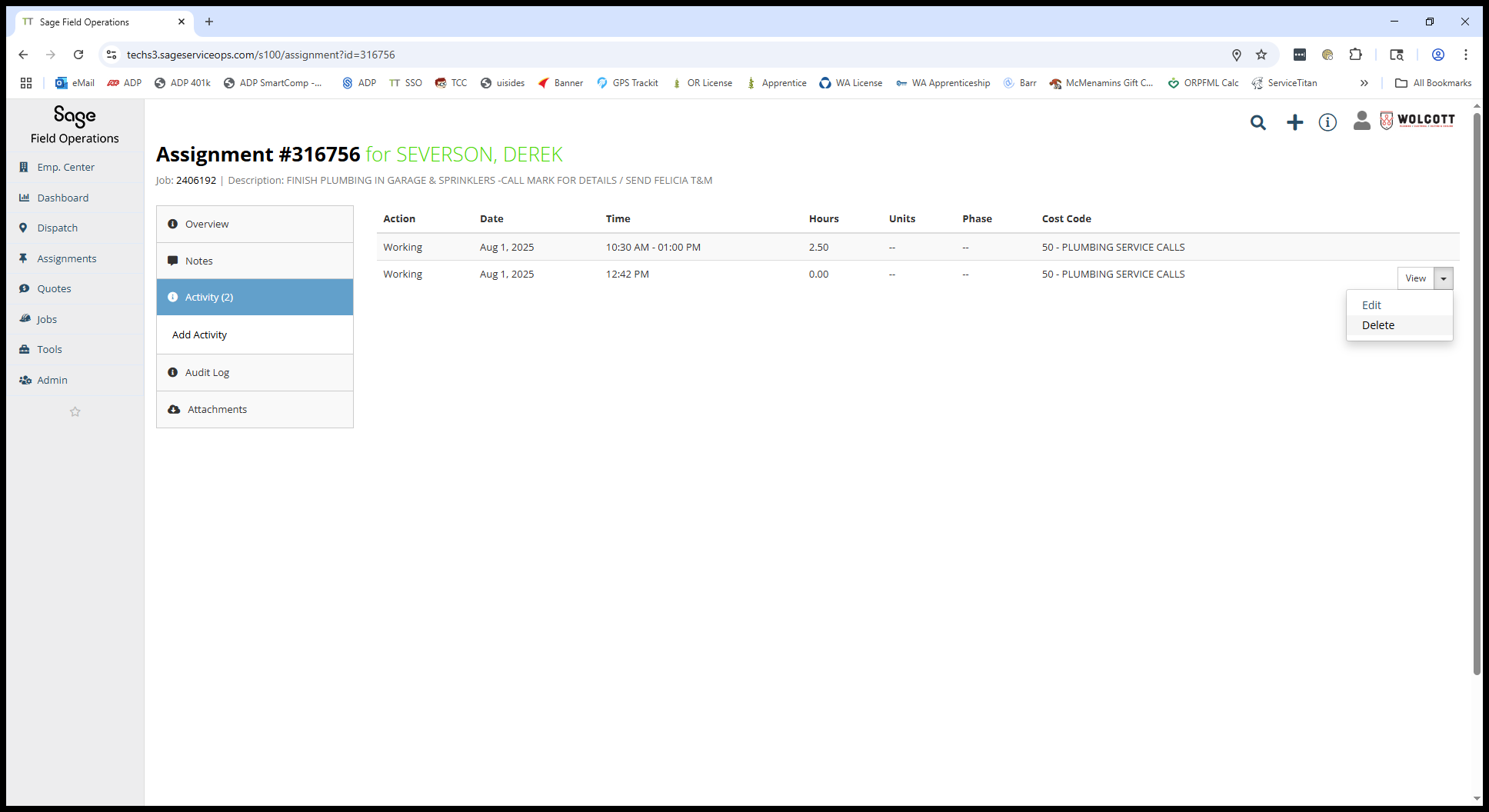
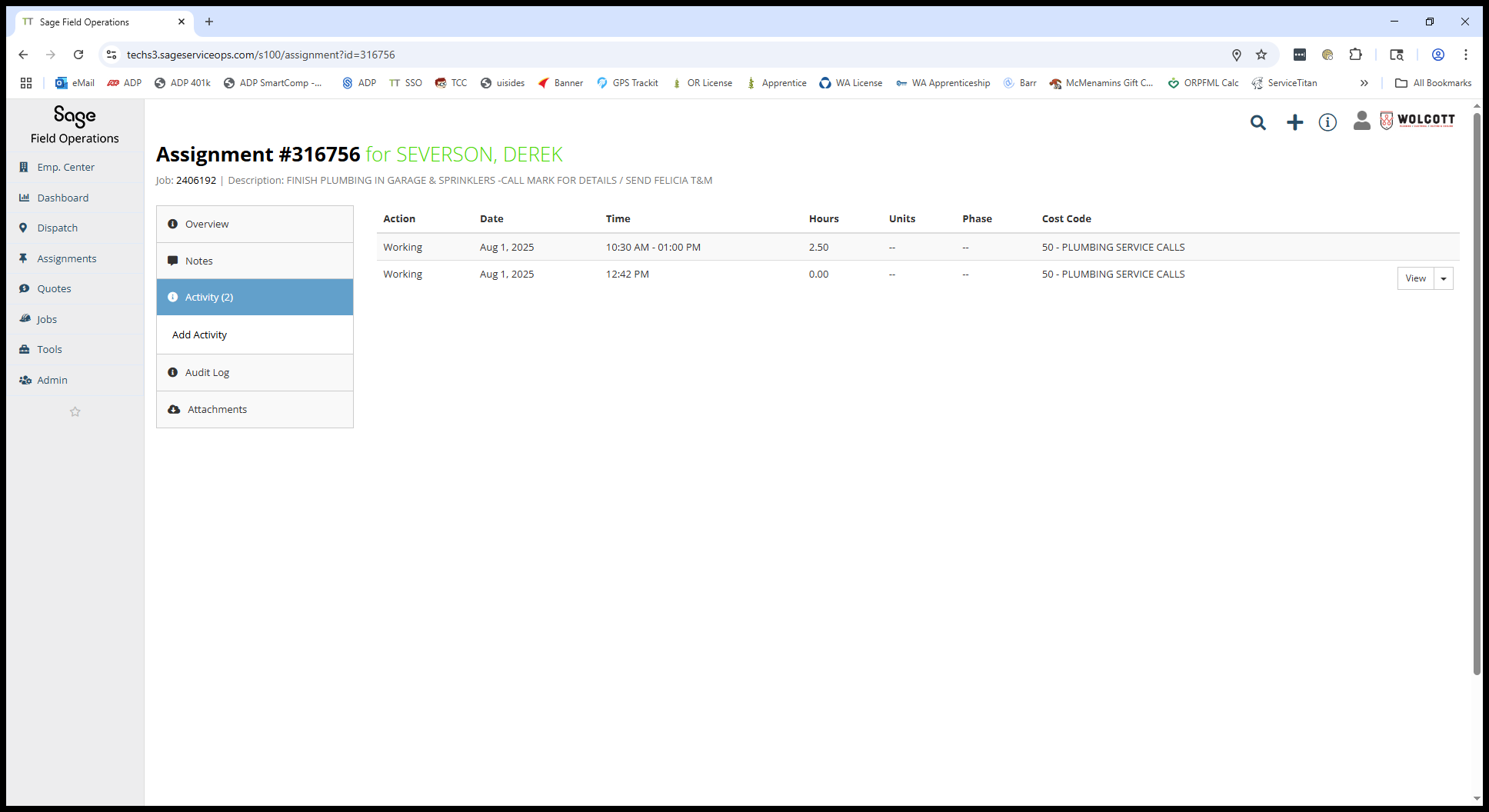
You can delete the one that should not be there.
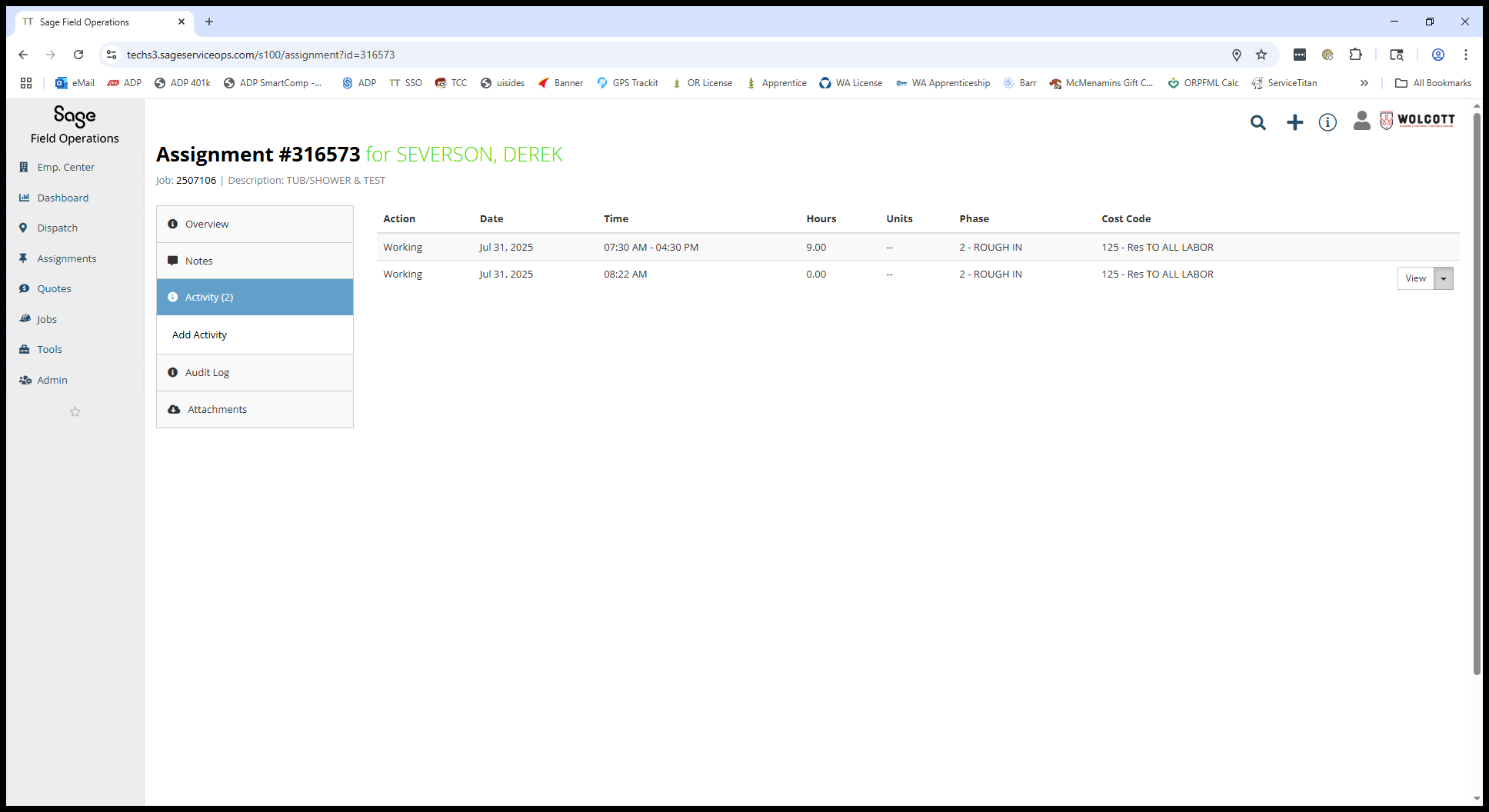
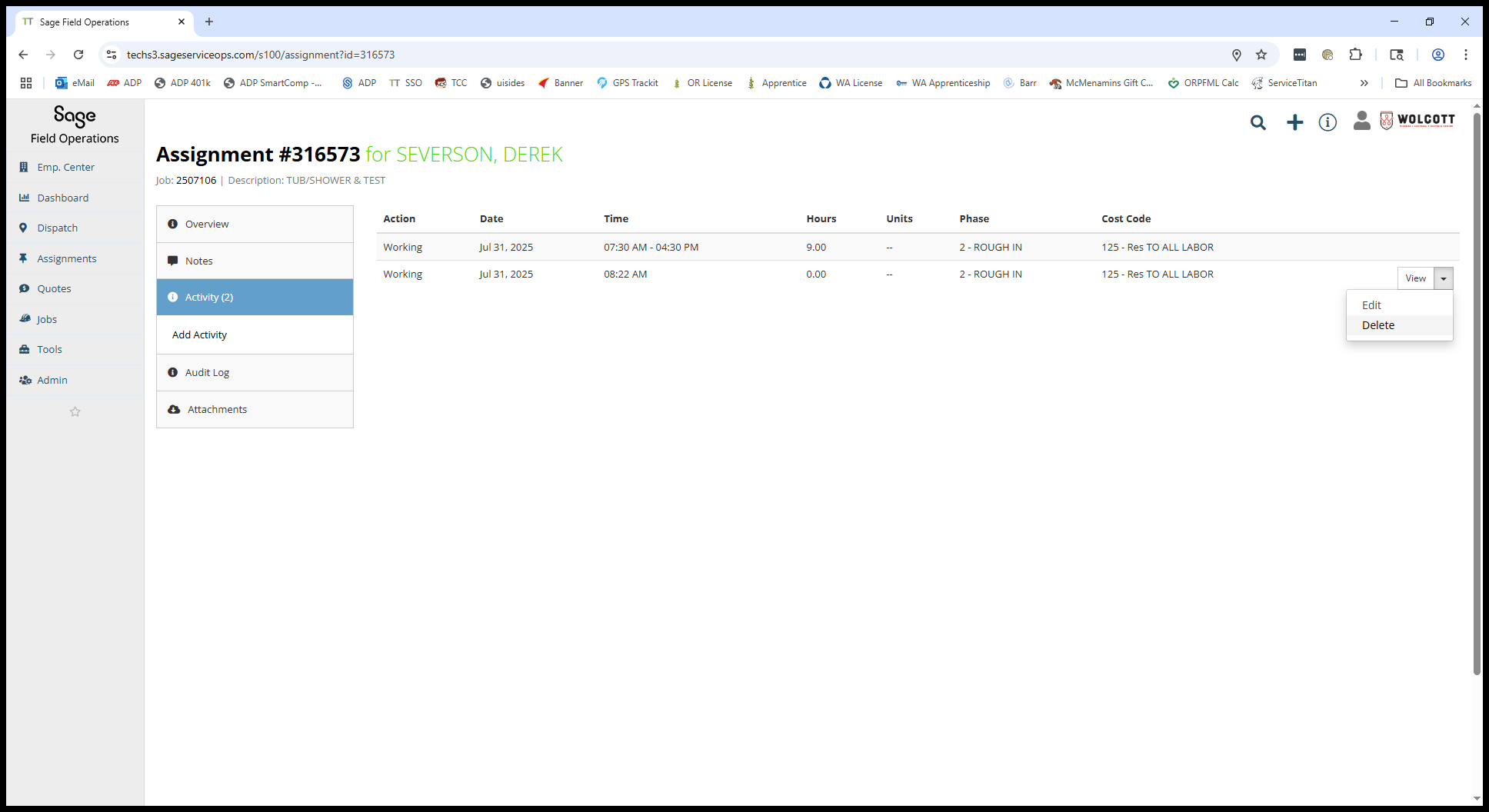
Go back.
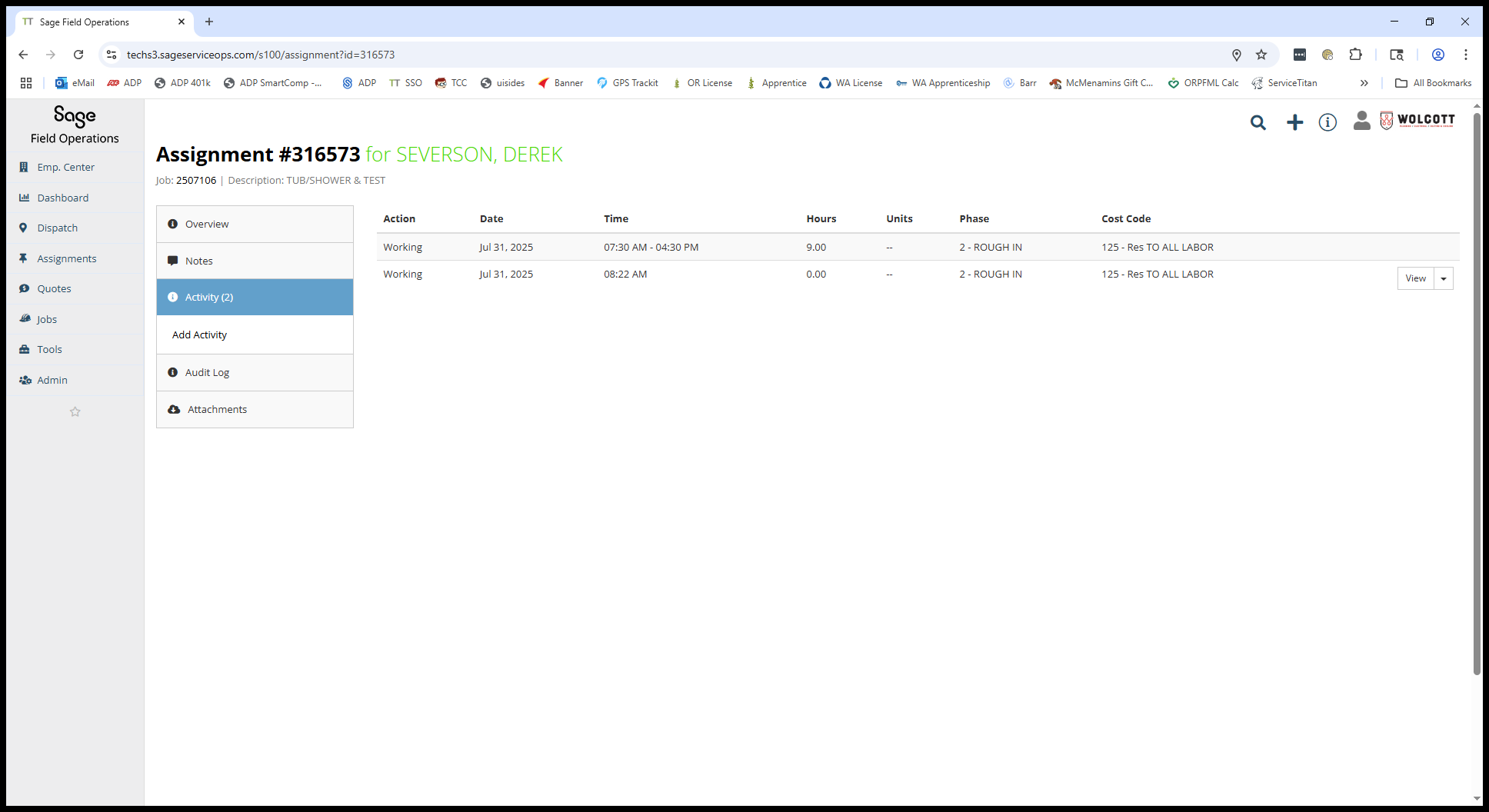
Go back to the week.
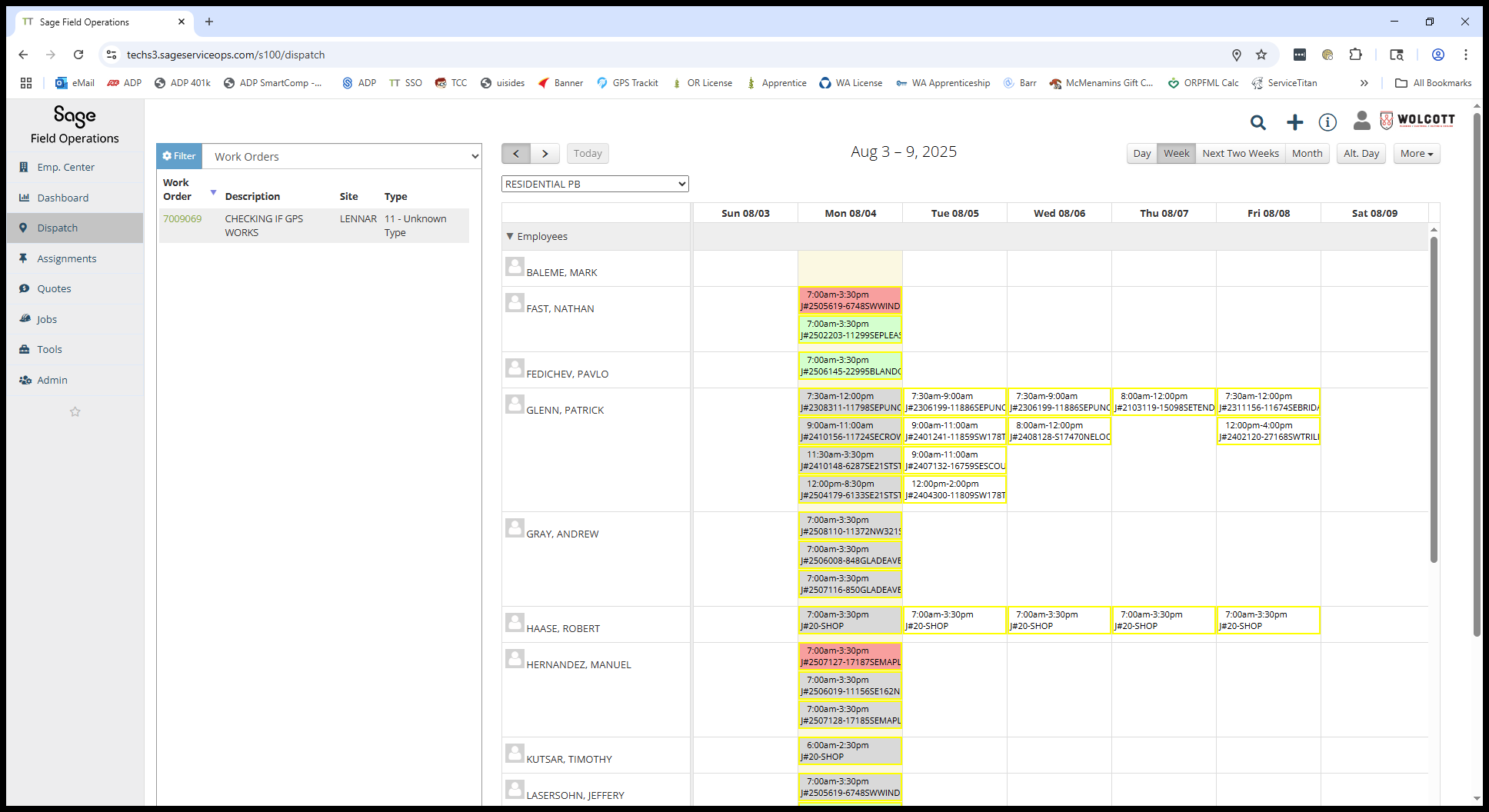
Let's go back down, and it will be corrected.
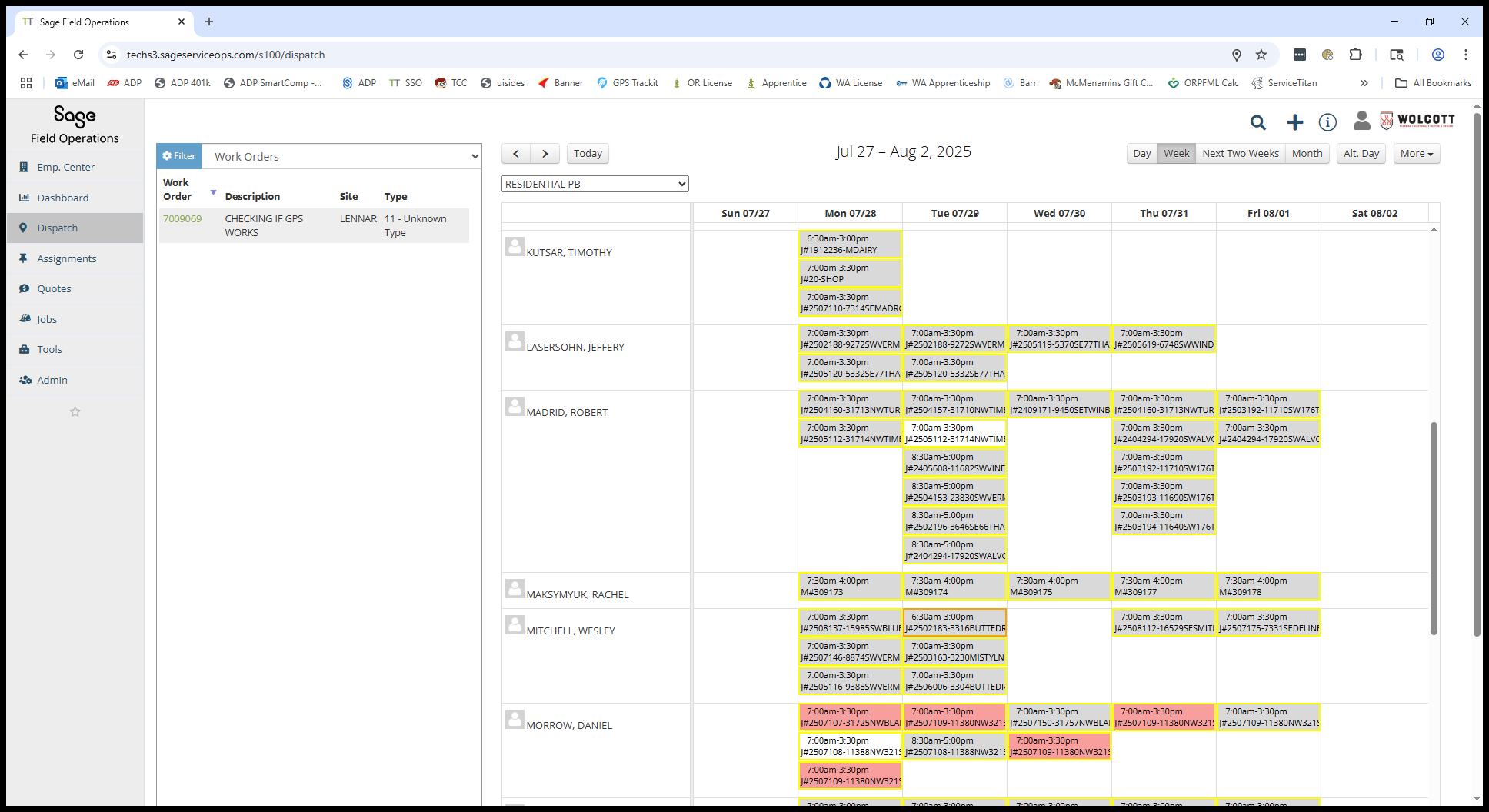
Do that again on this one.
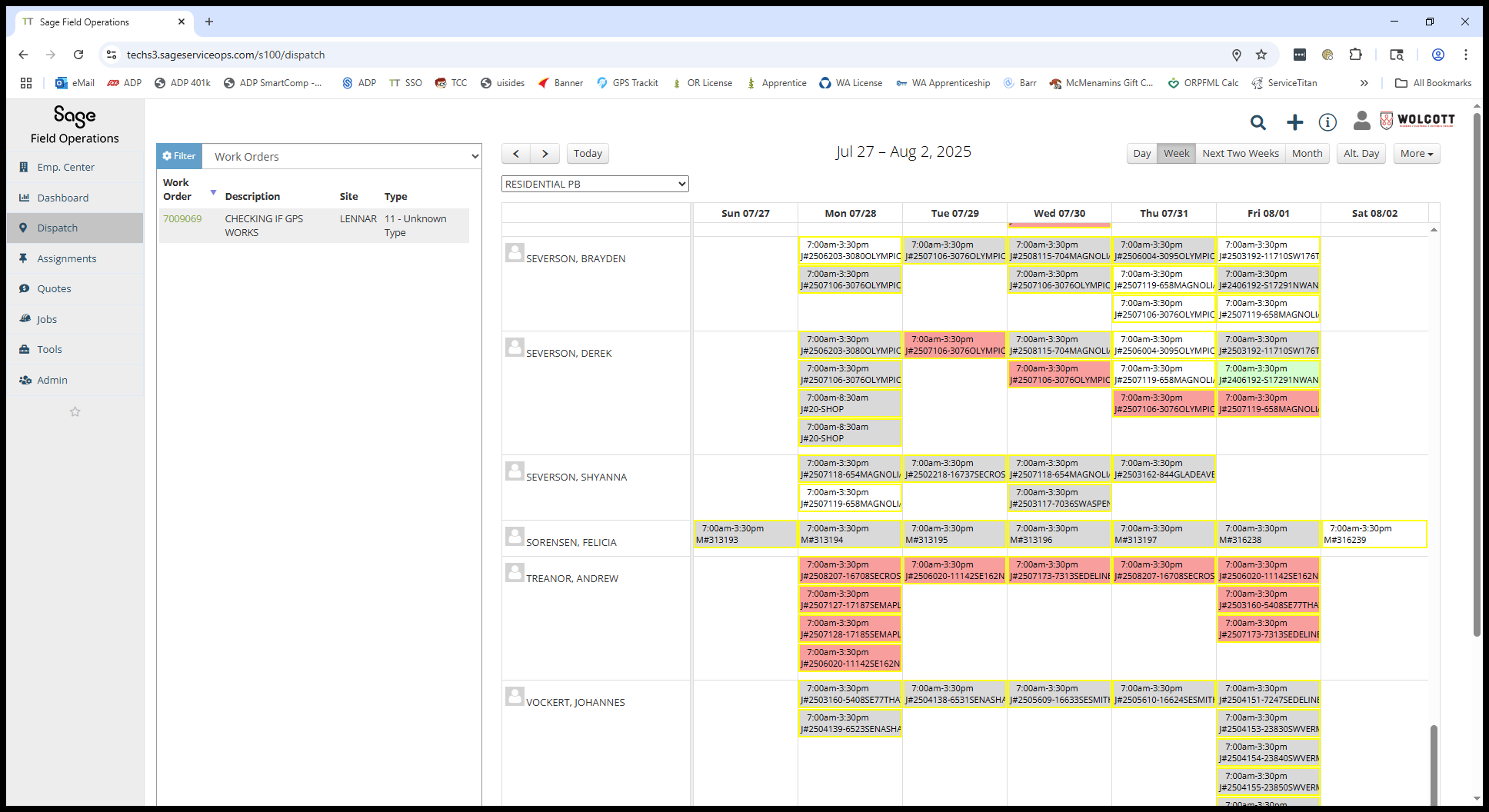
If you forgot to clock out and your time wasn't corrected, I would send a text asking what time you finished work so it can be updated.
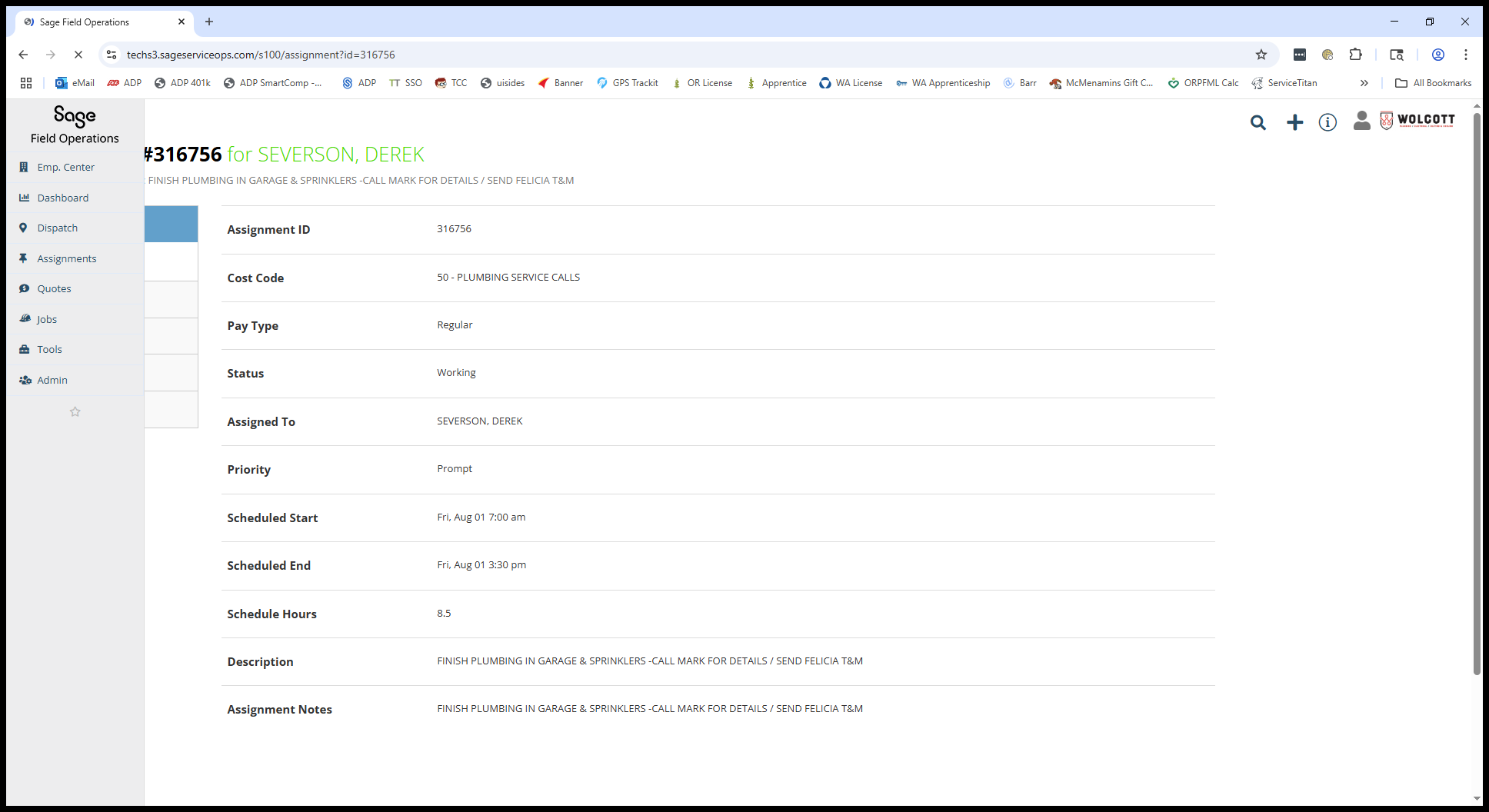
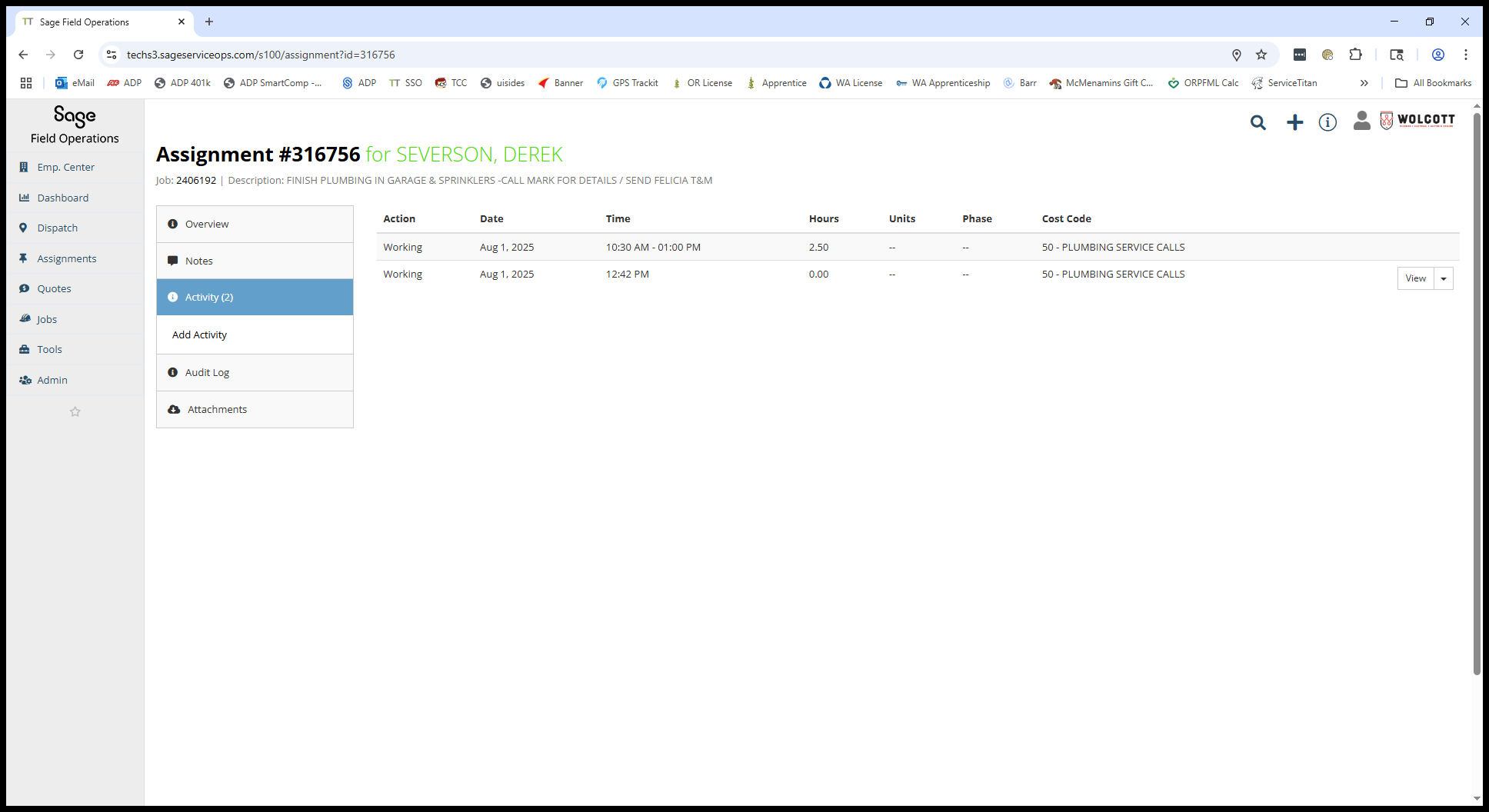
Sometimes they might say, "I meant to clock out of that job and into another," and ask you to correct it.
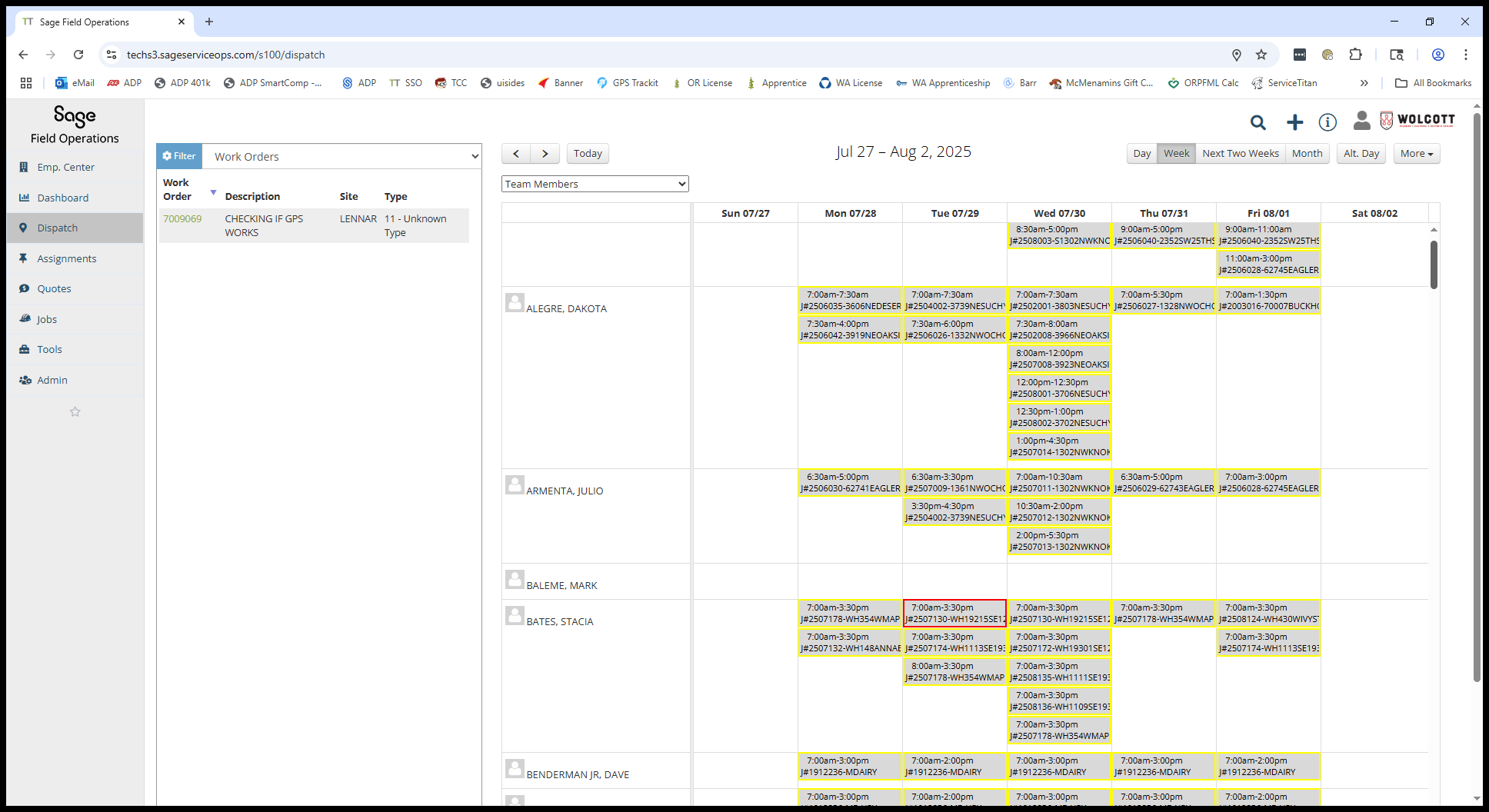
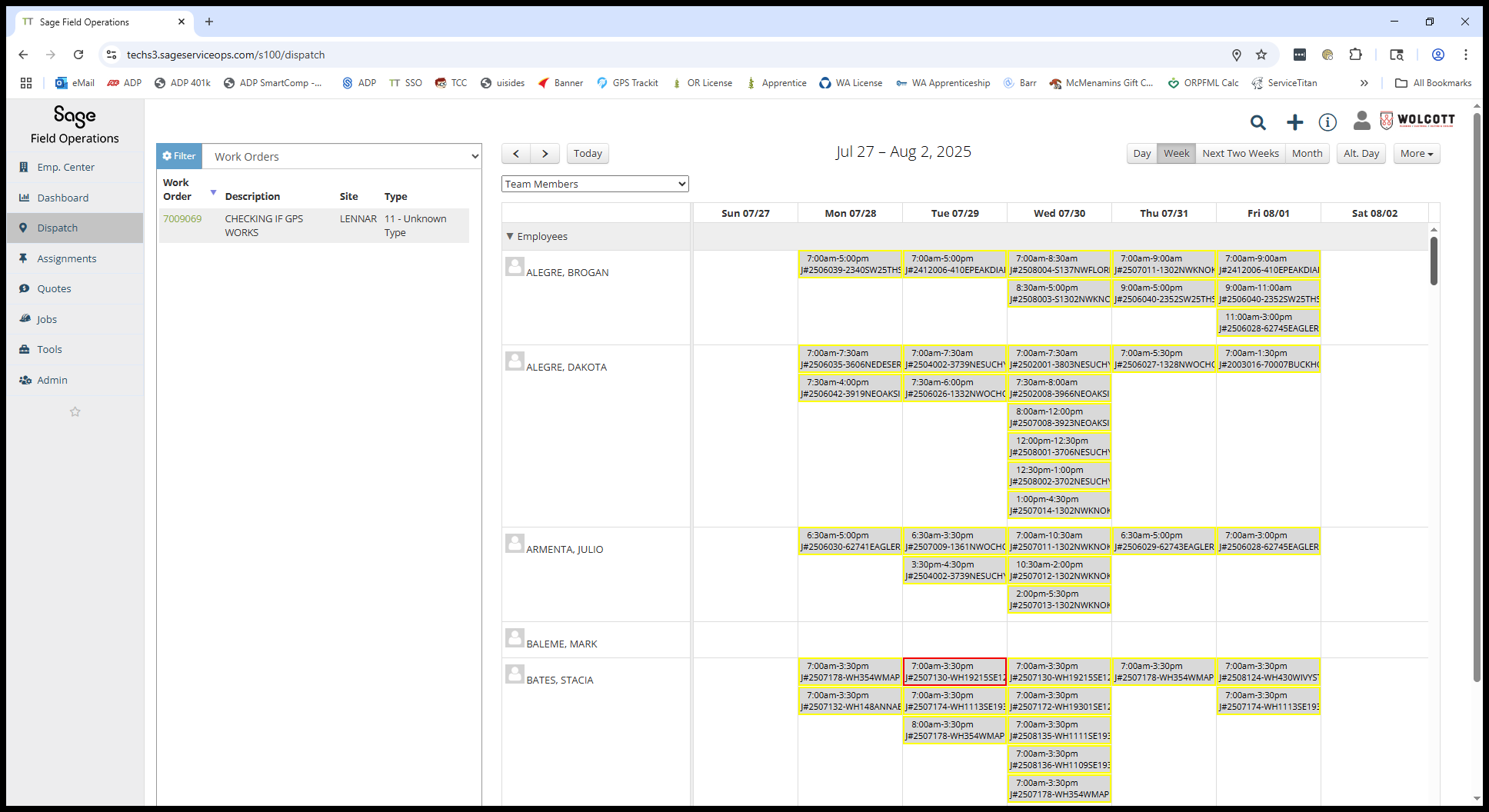
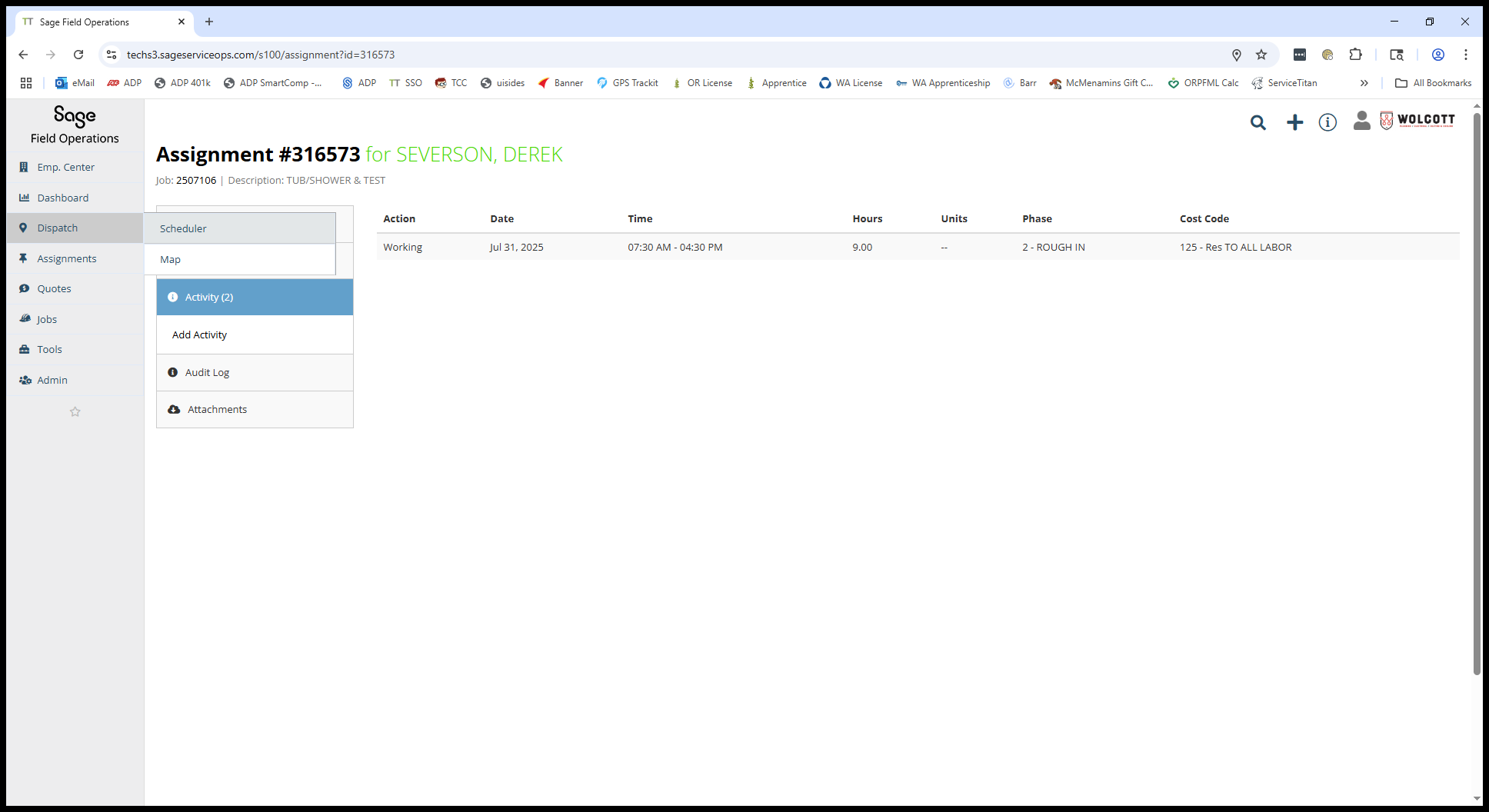
This is found in the Dispatch Scheduler.
You can choose to sort by department or select all team members, then return to the payroll week.
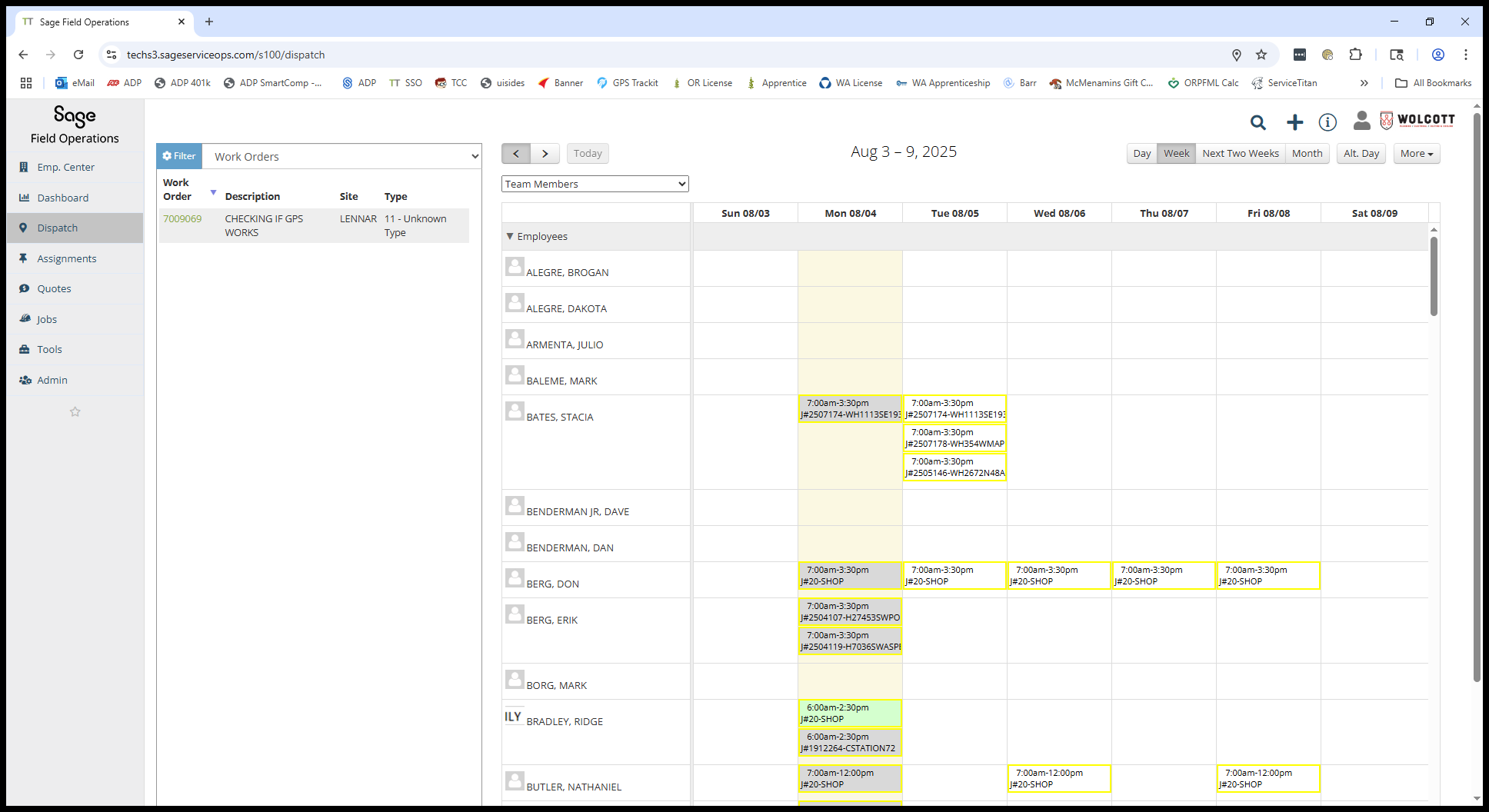
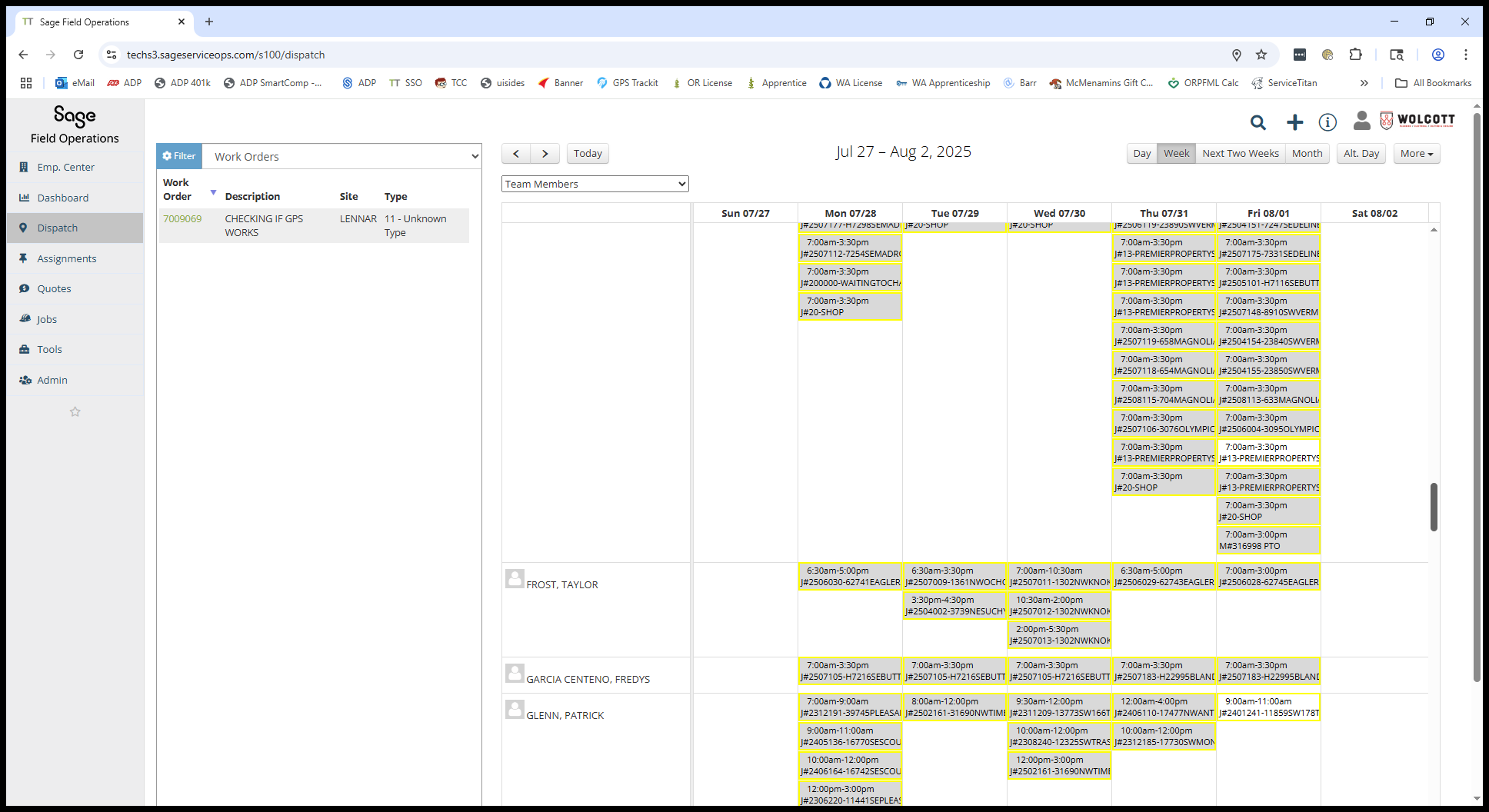
You can scroll through everyone who uses SSO at once to check if anyone else needs their times fixed.