How to Review and Manage Spotify Playlists for Music Promotion: A Step-by-Step Workflow
Learn the complete workflow for reviewing, managing, and verifying Spotify playlists for music promotion. This guide covers keyword management, playlist activity checks, bot detection, and best practices for curating effective contact lists.
In this guide, we'll learn how to review and manage Spotify playlists using a system that helps you search, filter, and evaluate playlists based on keywords, activity, and contact information.
We'll cover how to check playlist activity, set priorities, and identify potential issues like botted followers. You'll also learn how to use tools like Artist Tools and Chartmetric to assess playlist quality and ensure your outreach targets the right curators.
Let's get started
Now that it's on your laptop, I can say, "When I click here," and then click it. I don't have to explain. Yeah, yeah. It's still best if we just say it. Okay, if it is. ...
instead of saying it. Alright. Okay, so we're reviewing the, umm ...
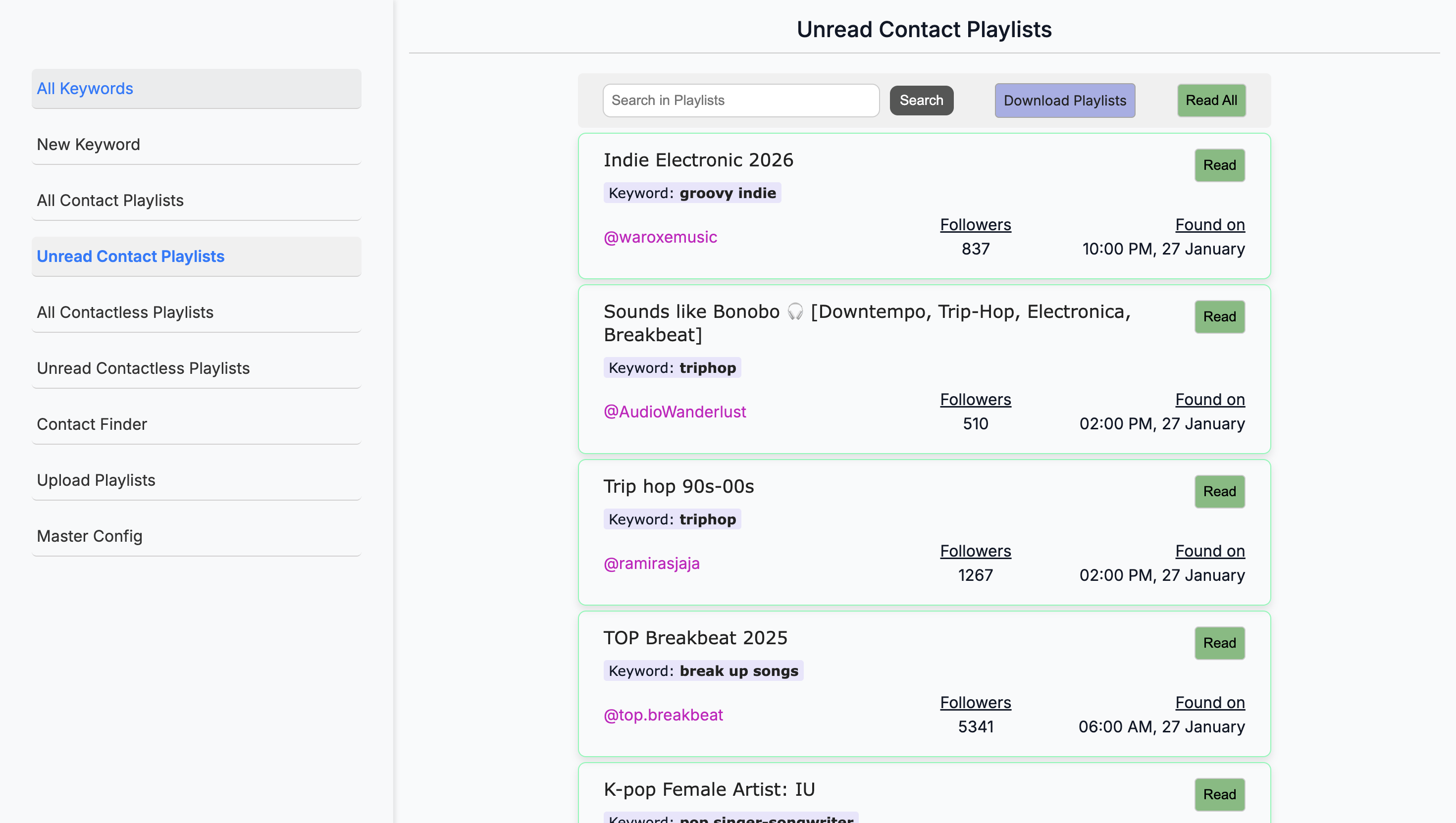
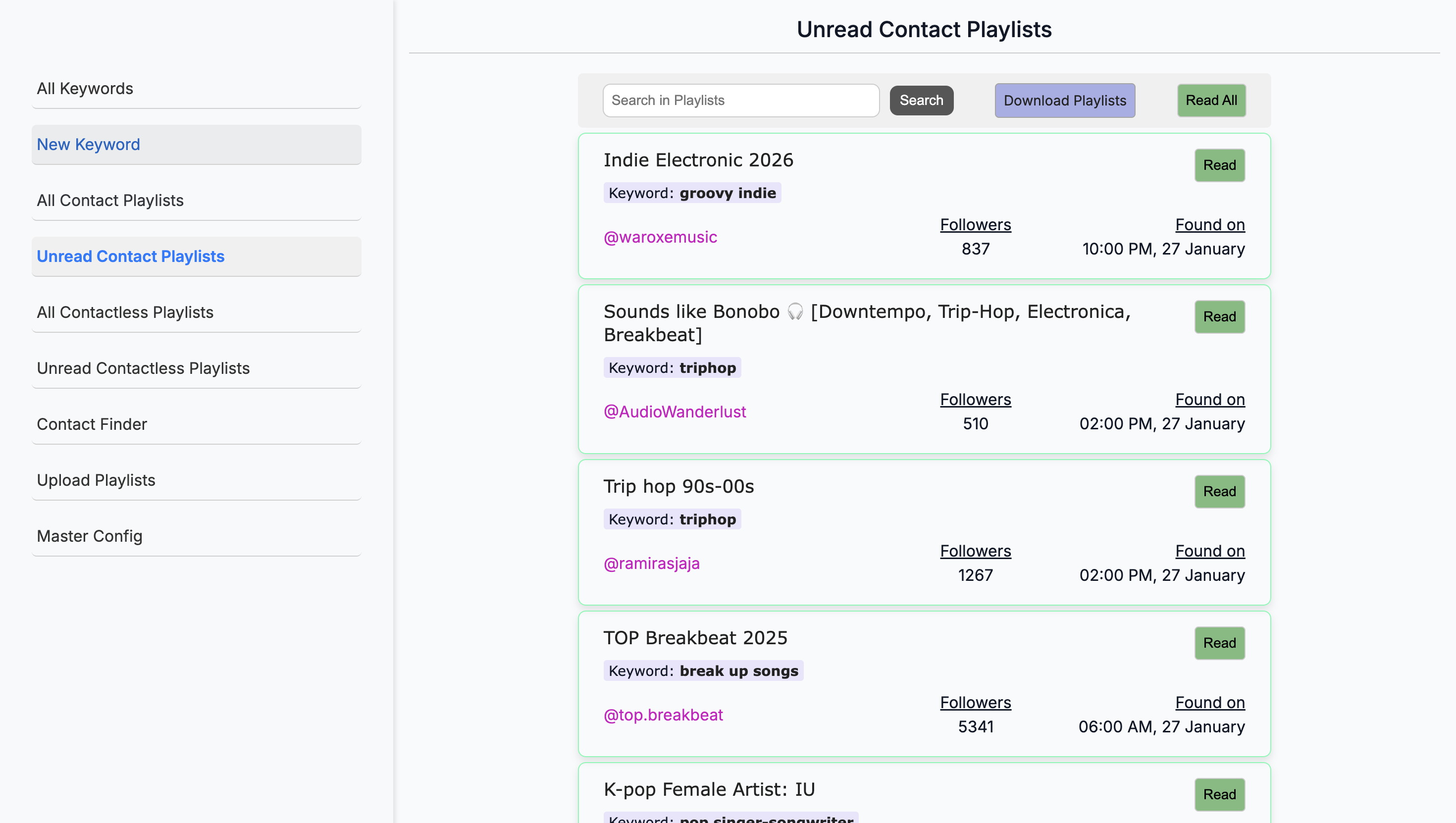
The homepage. ... The Spoti- the Spott- yeah, okay. Yeah. You log in and go to All Que—it takes you to All Keywords?
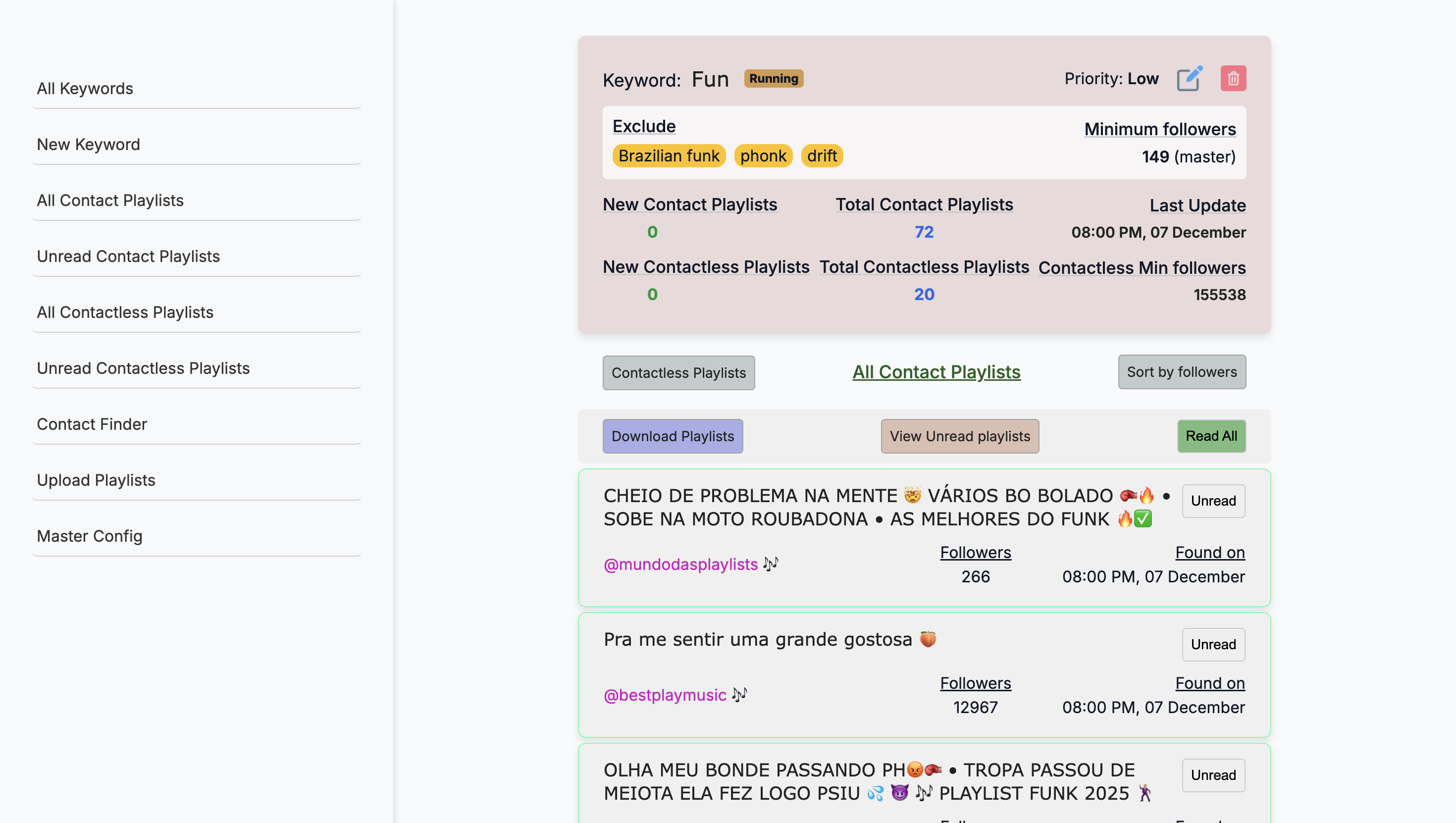
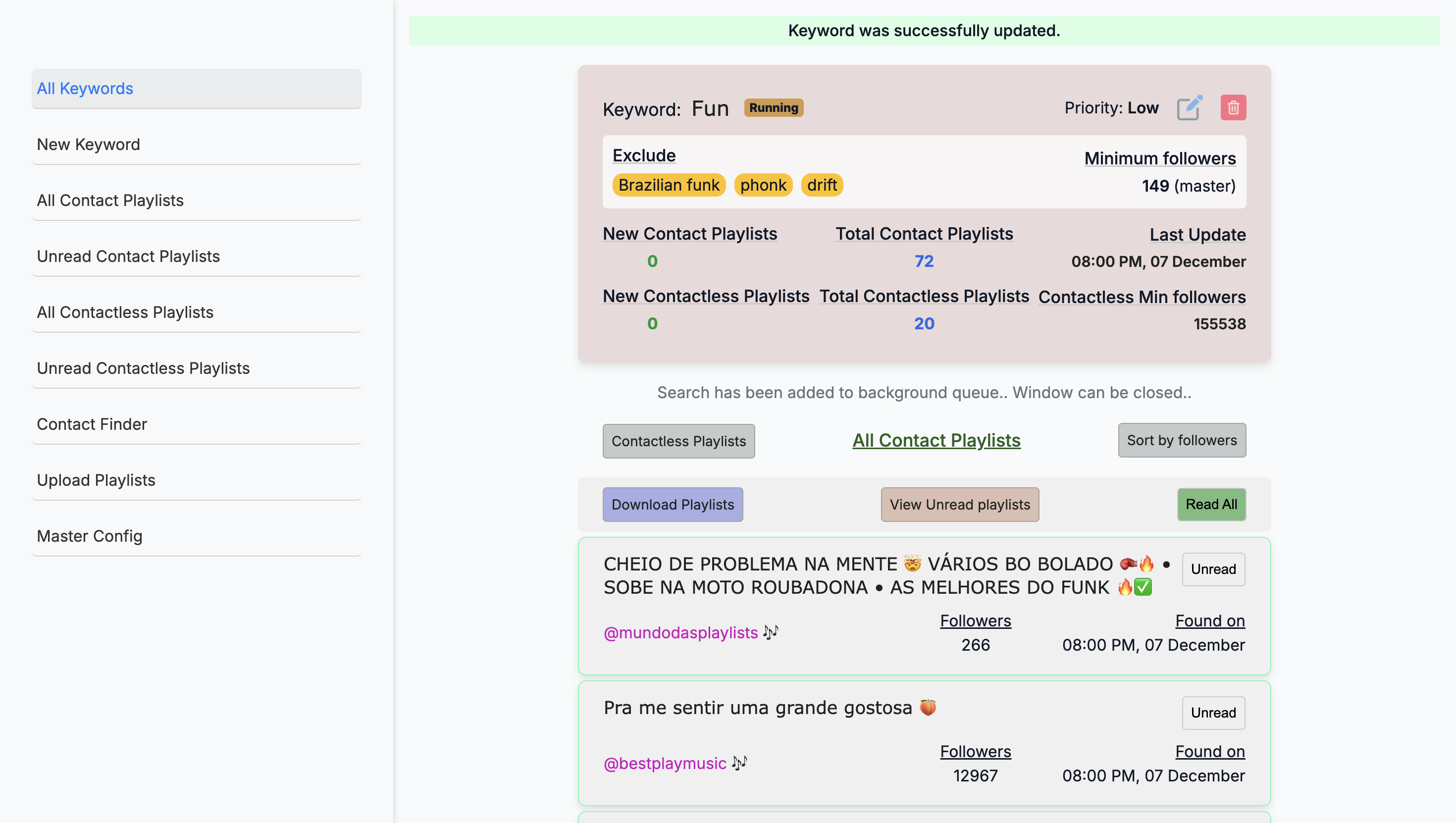
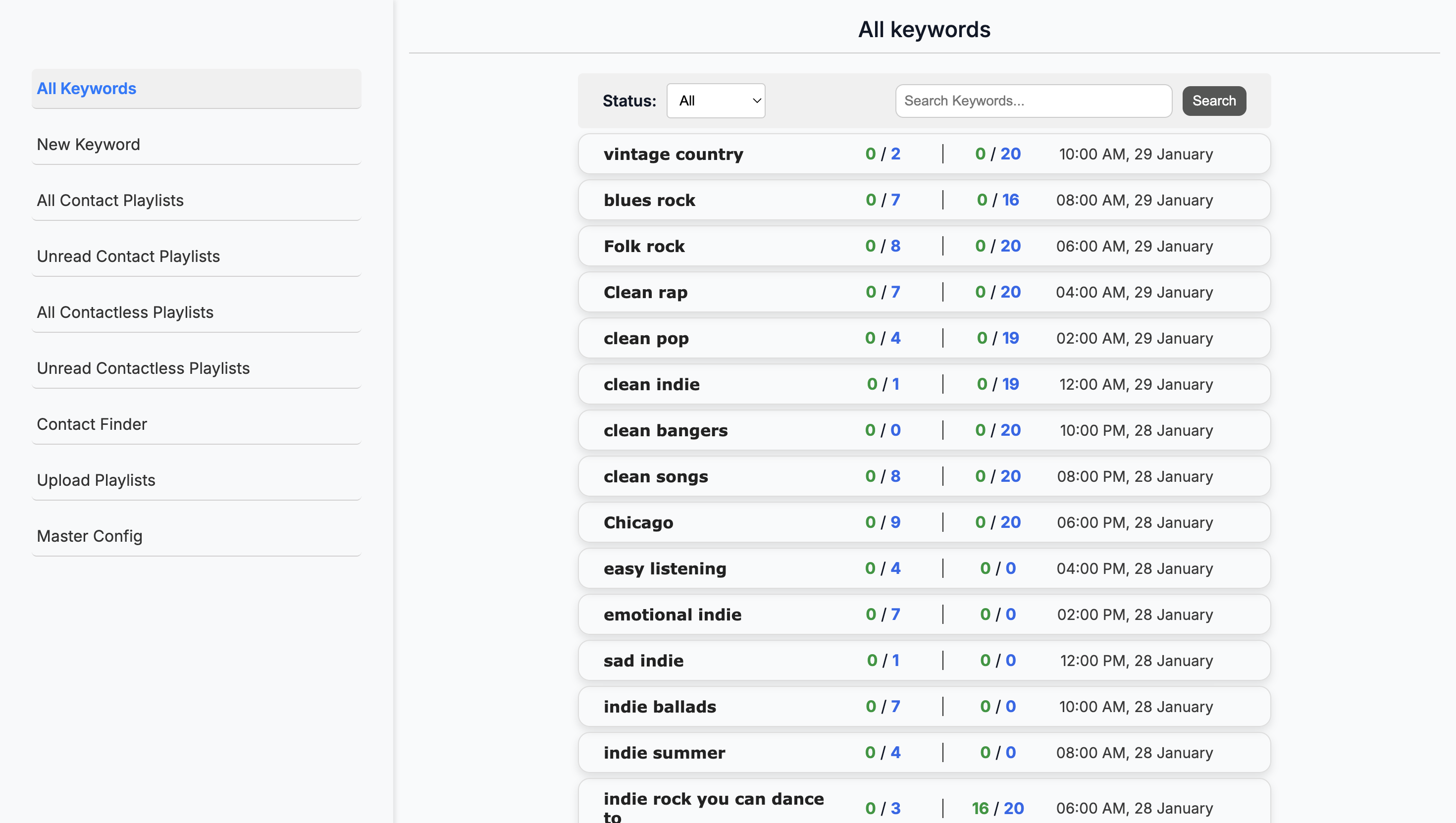
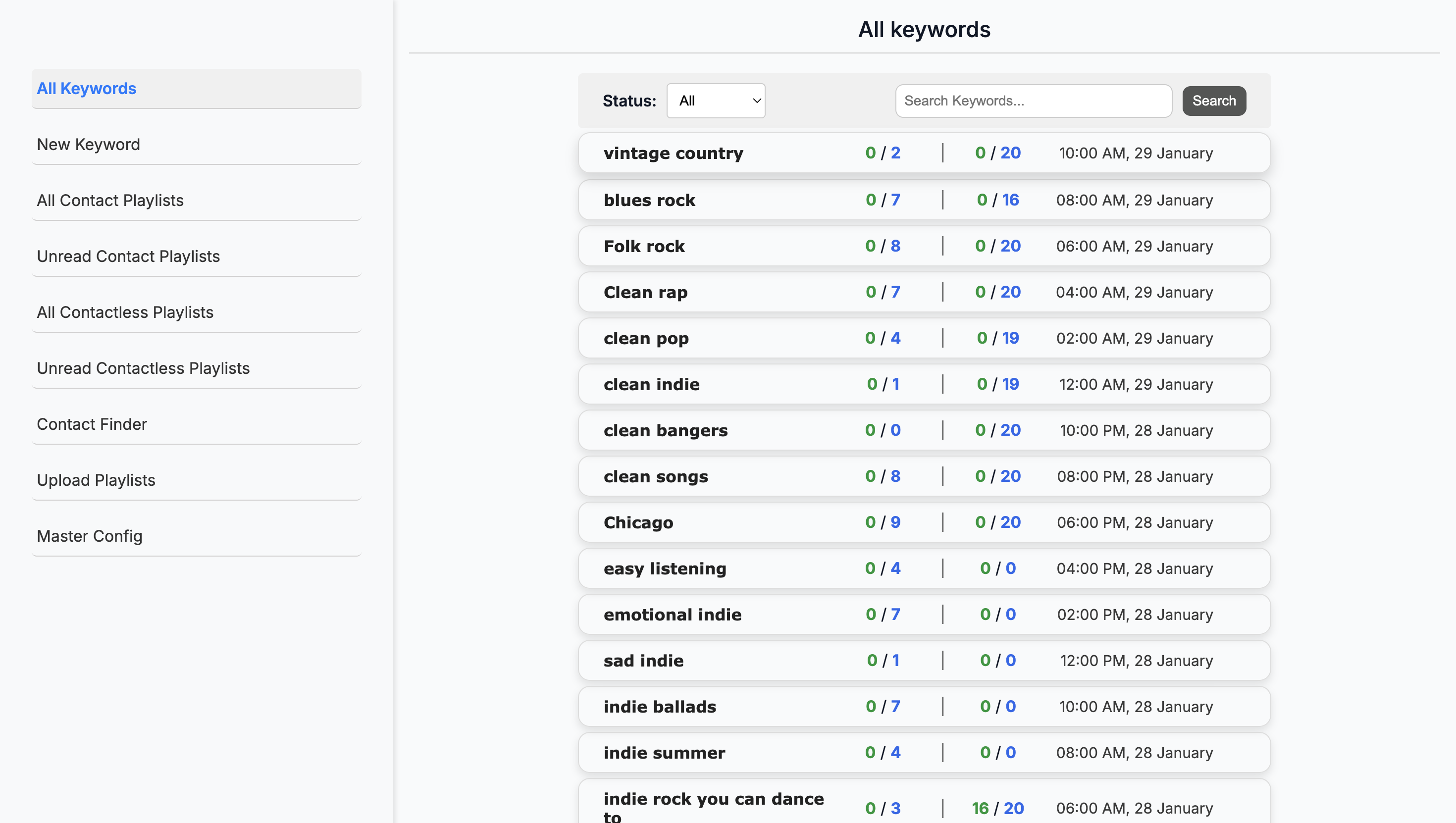
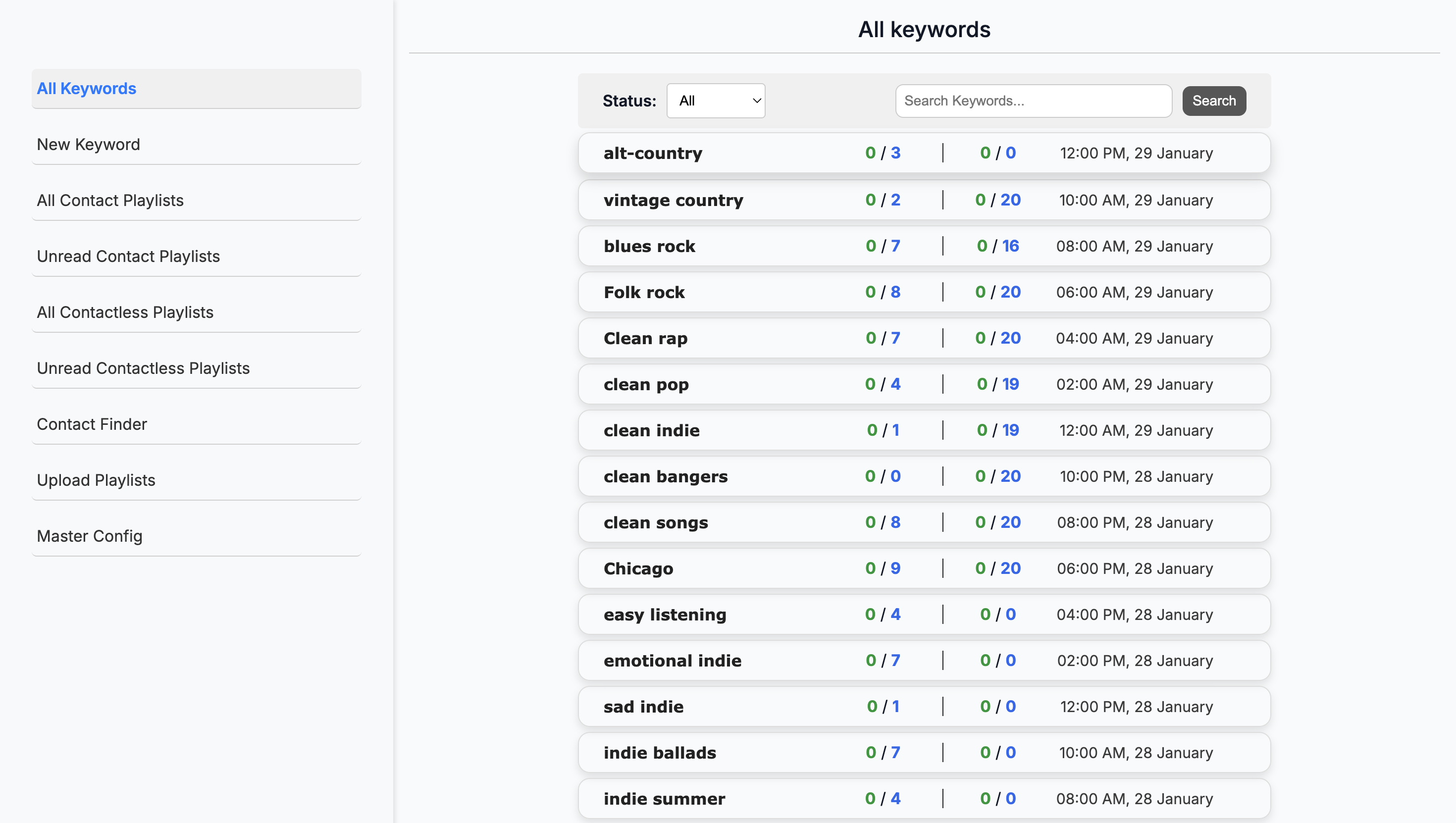
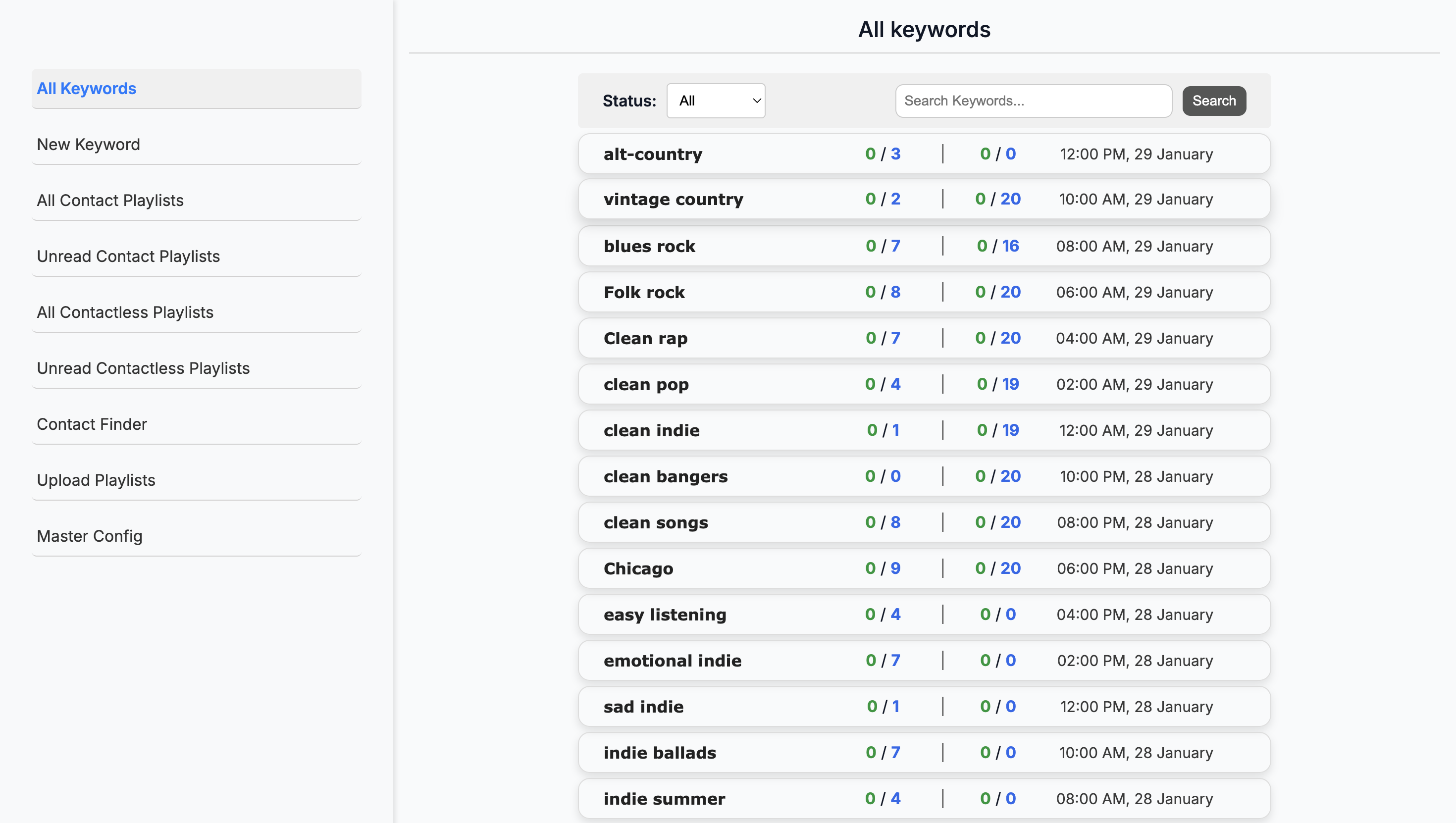
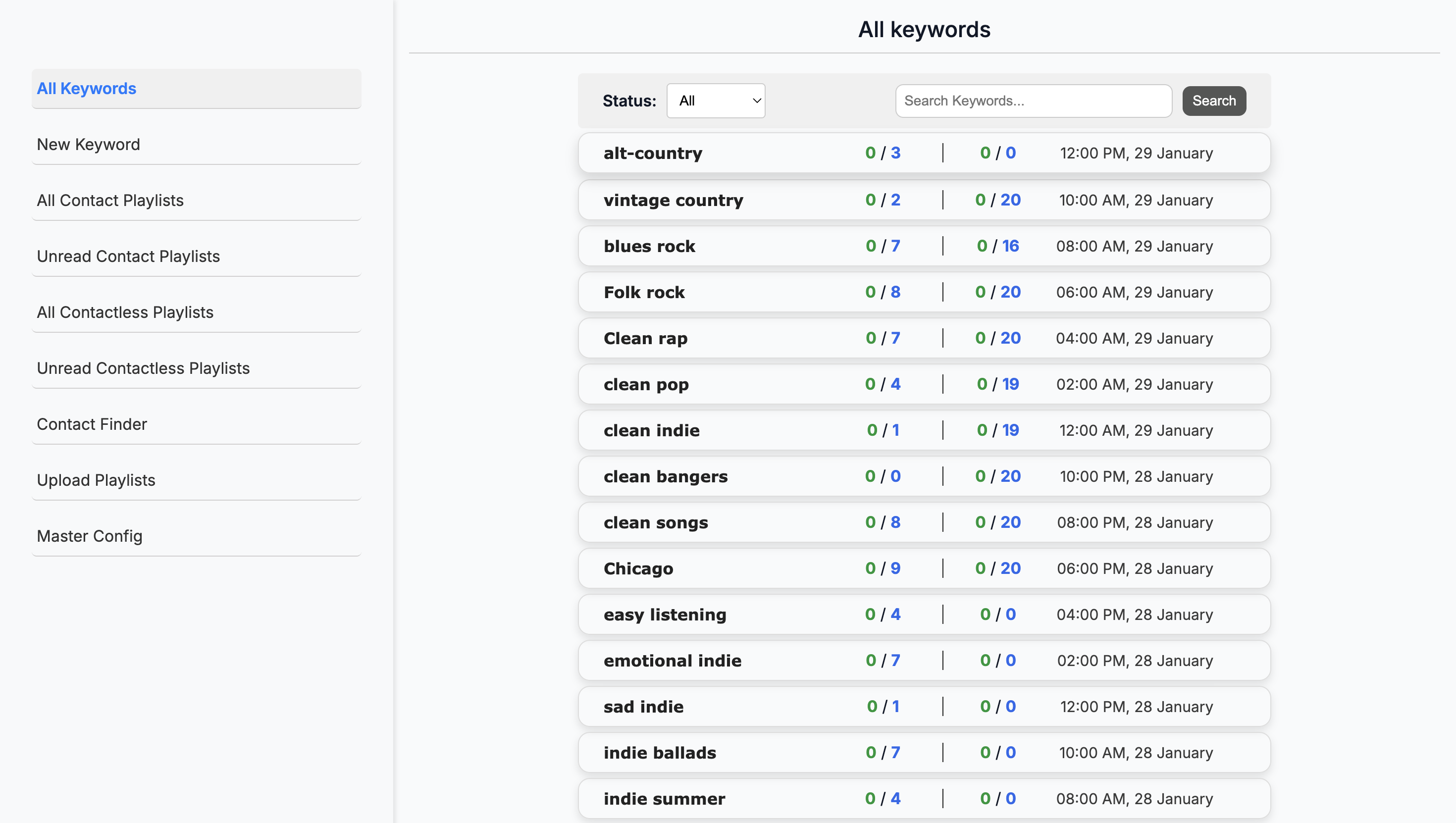
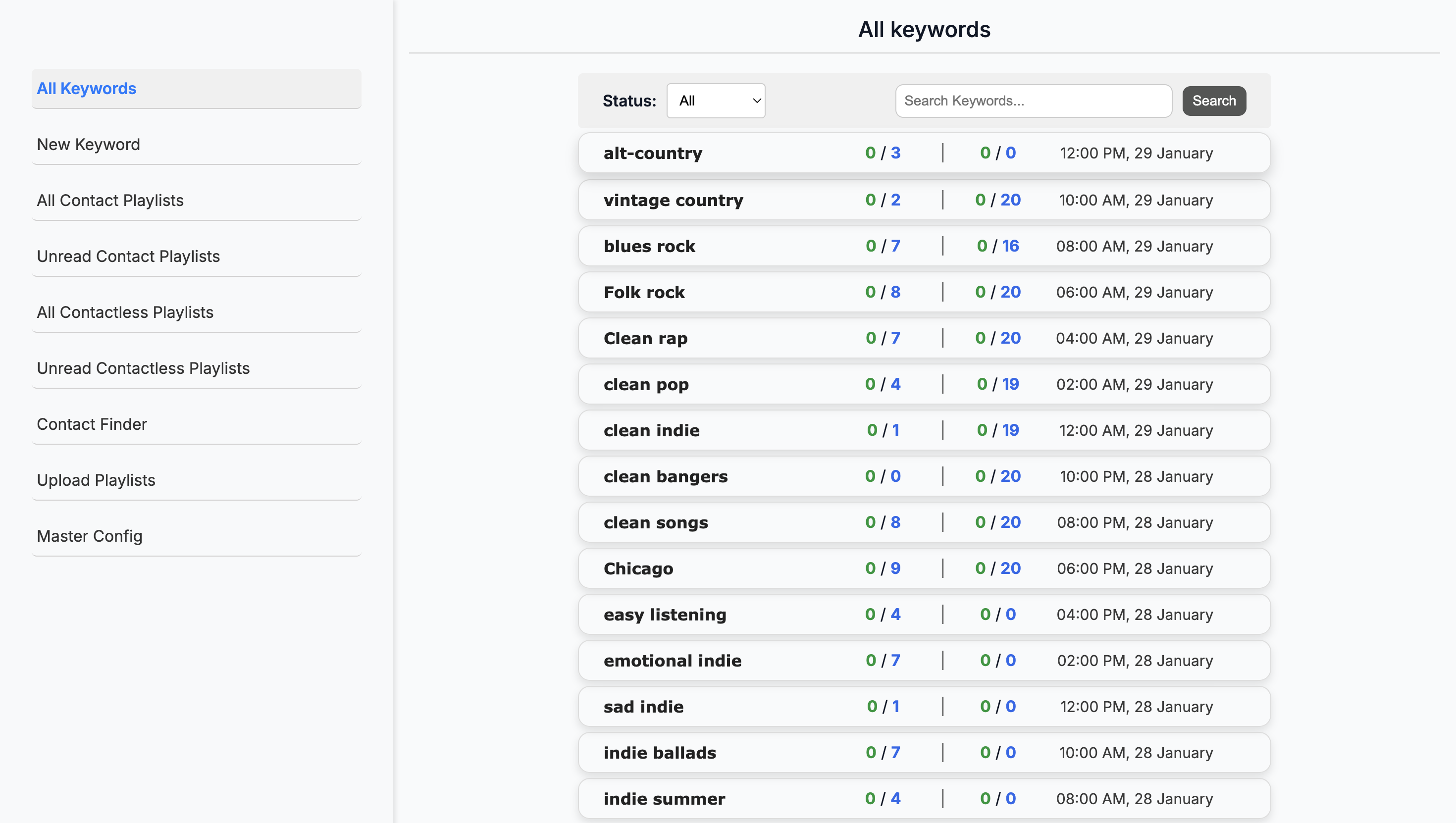
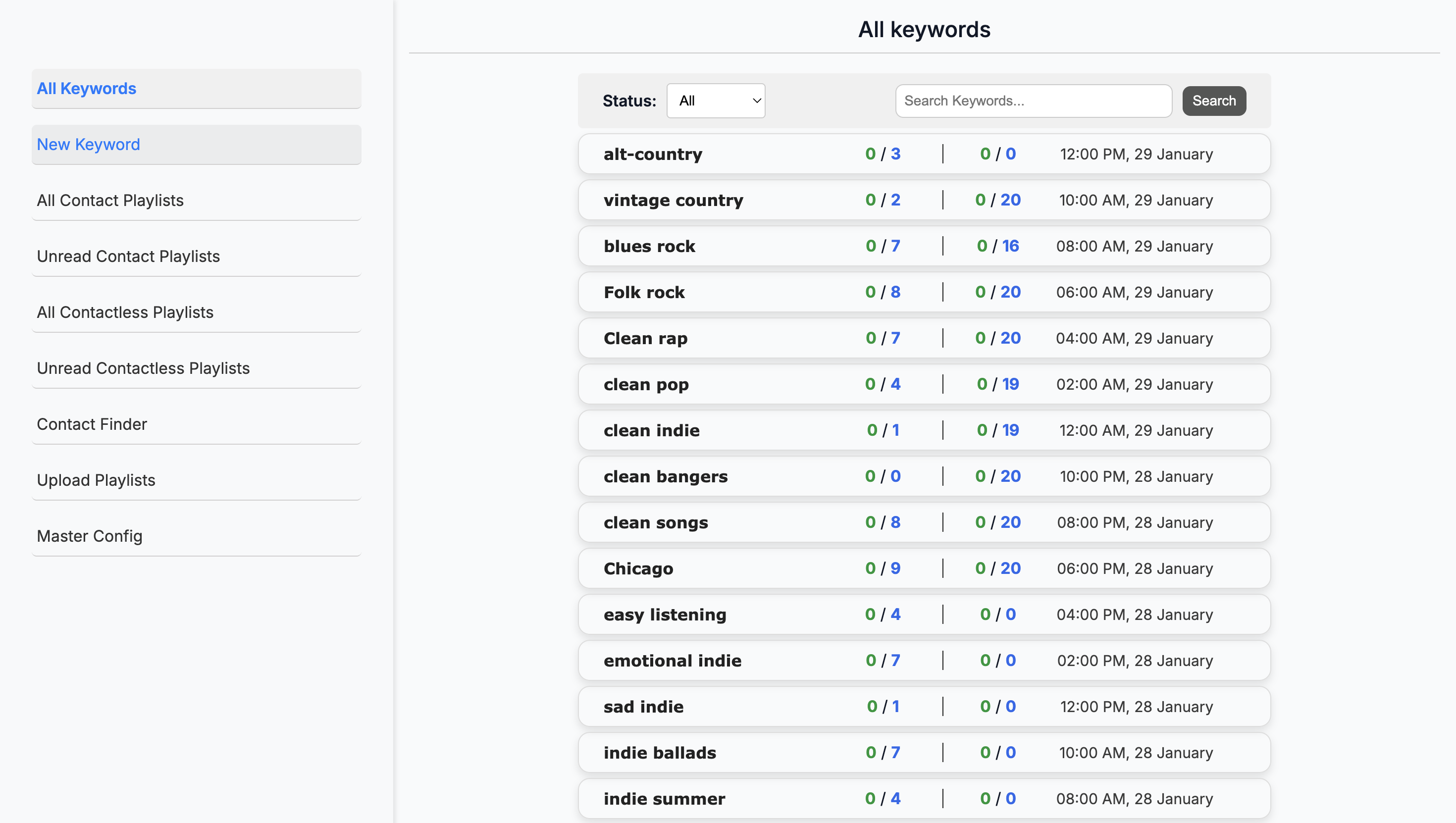
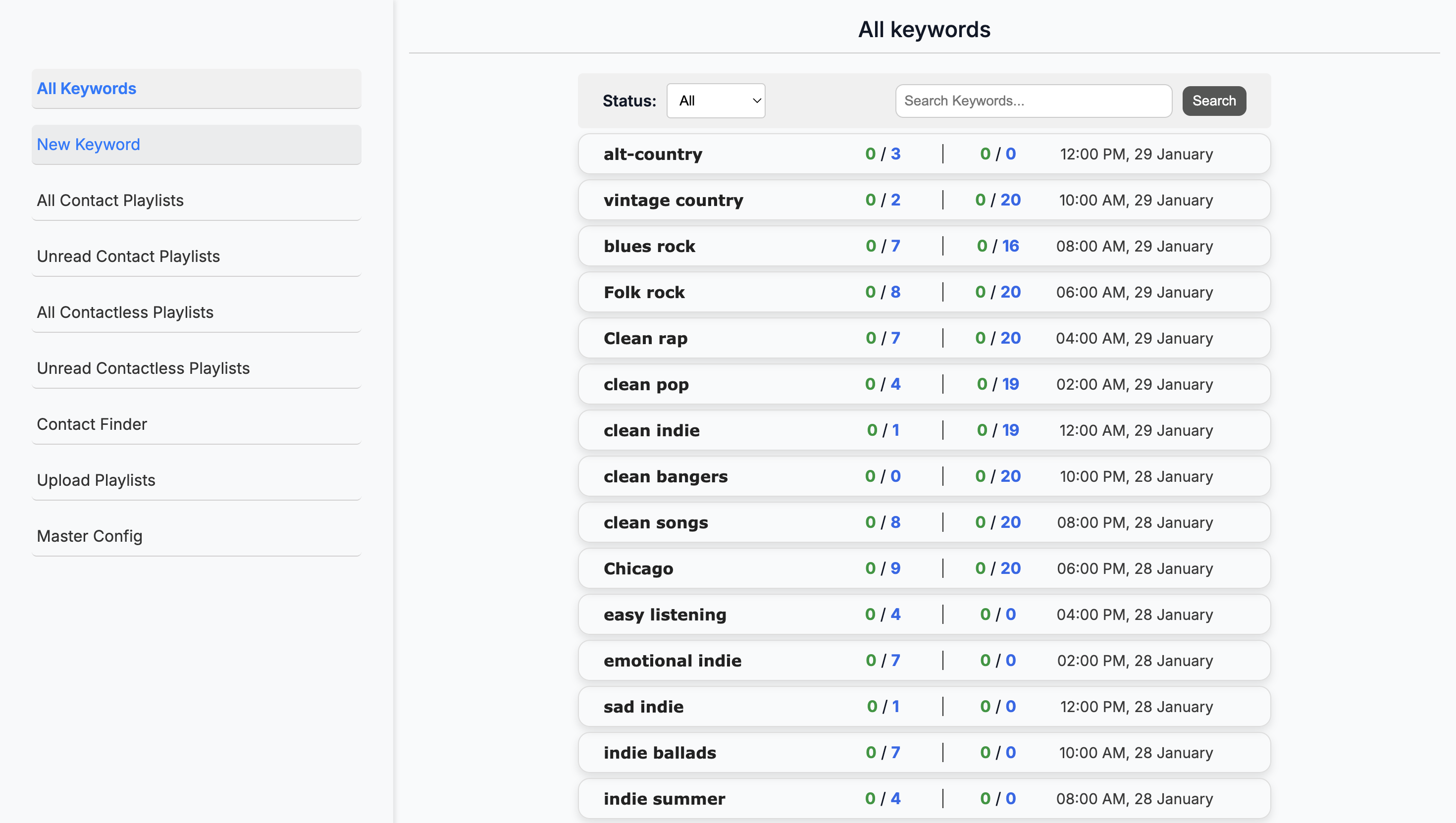
Correct. It lands on this page. The Keywords page shows all the keywords the system is currently searching for in Spotify's database. Here, we can search for individual keywords.
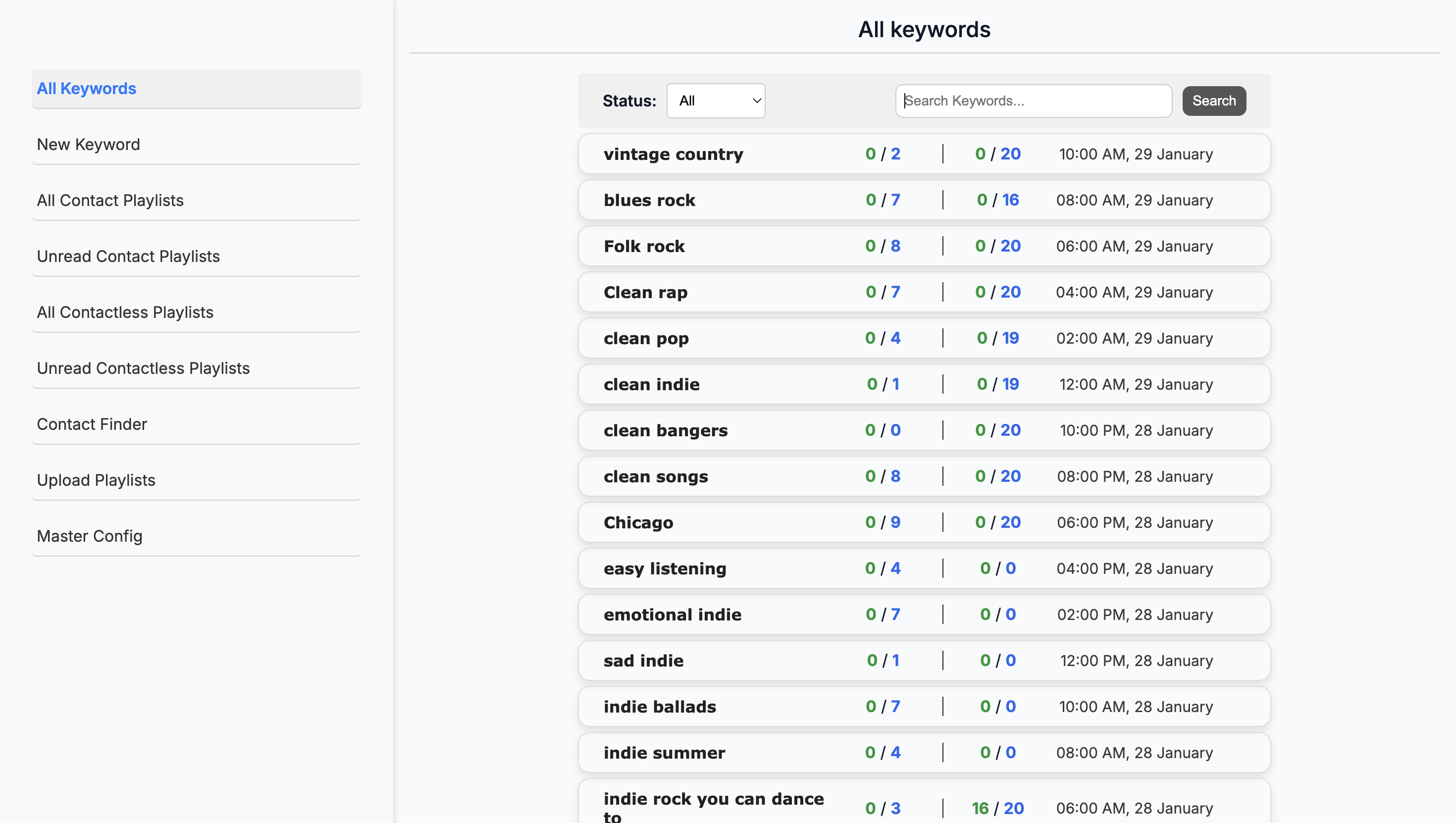
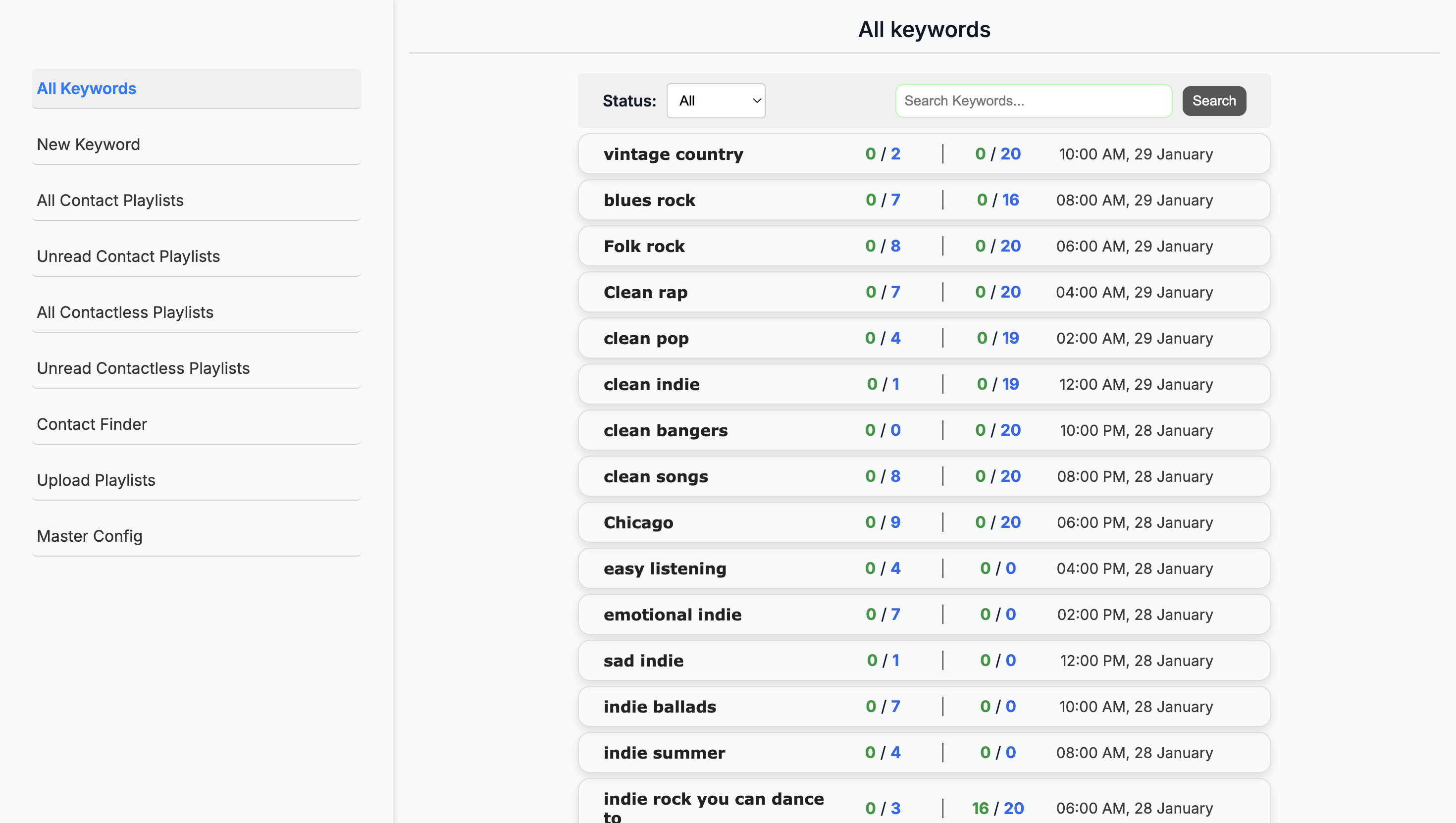
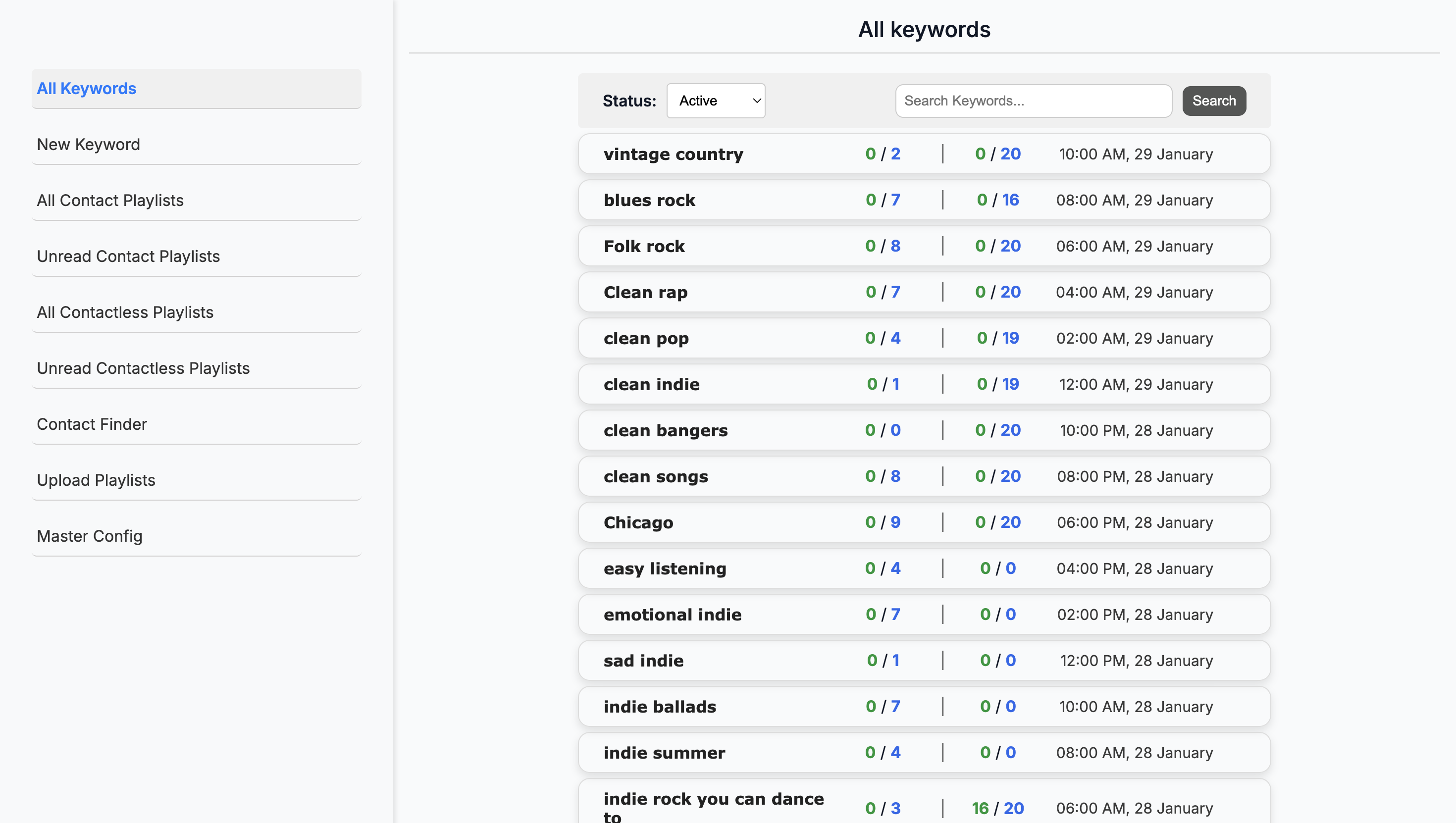
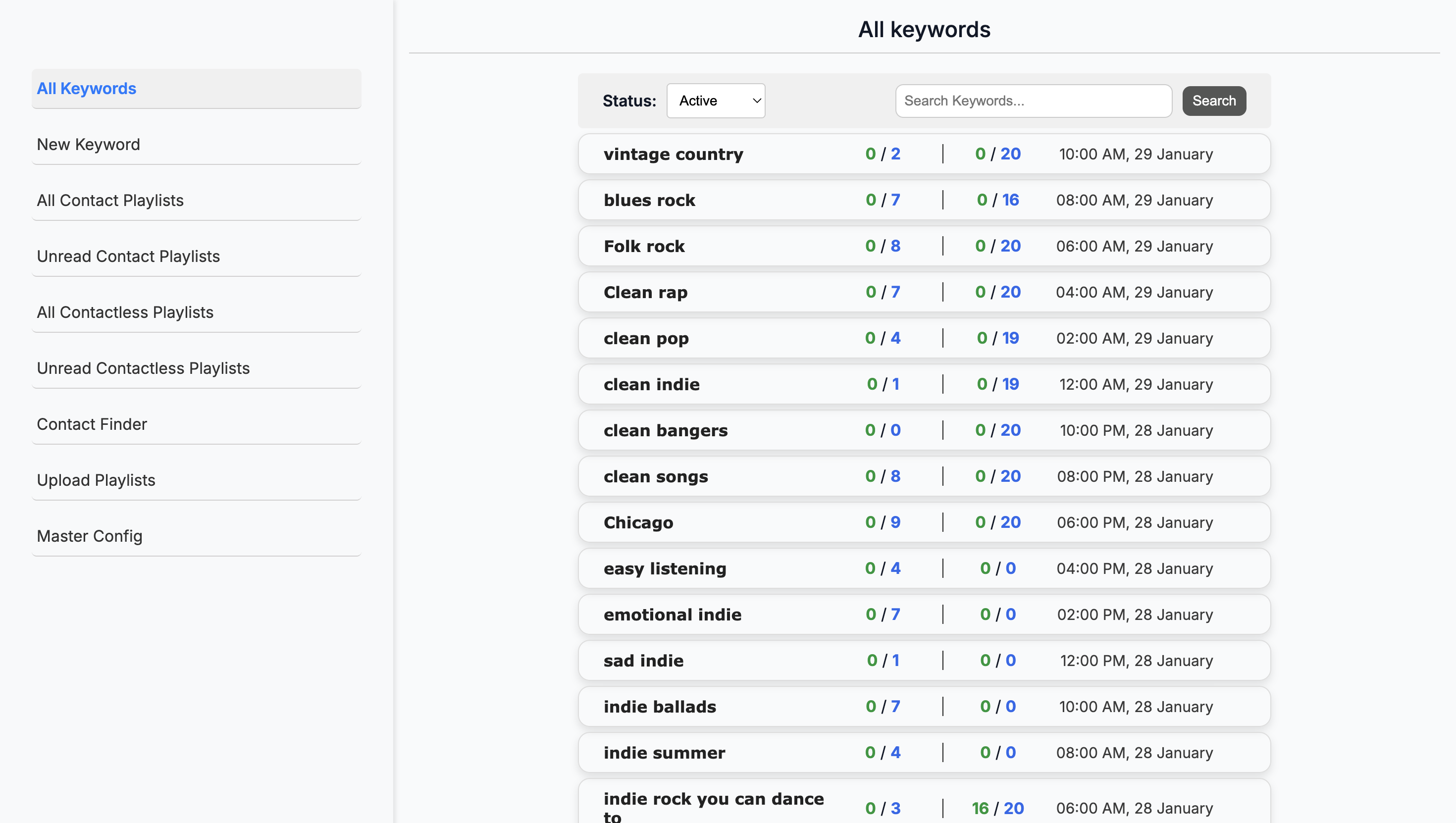
If I wanted to focus on a genre, I would look at all the playlists the system found for it. I can search for it here. I can also see which keywords are inactive, meaning the system is no longer searching for them.
Okay.
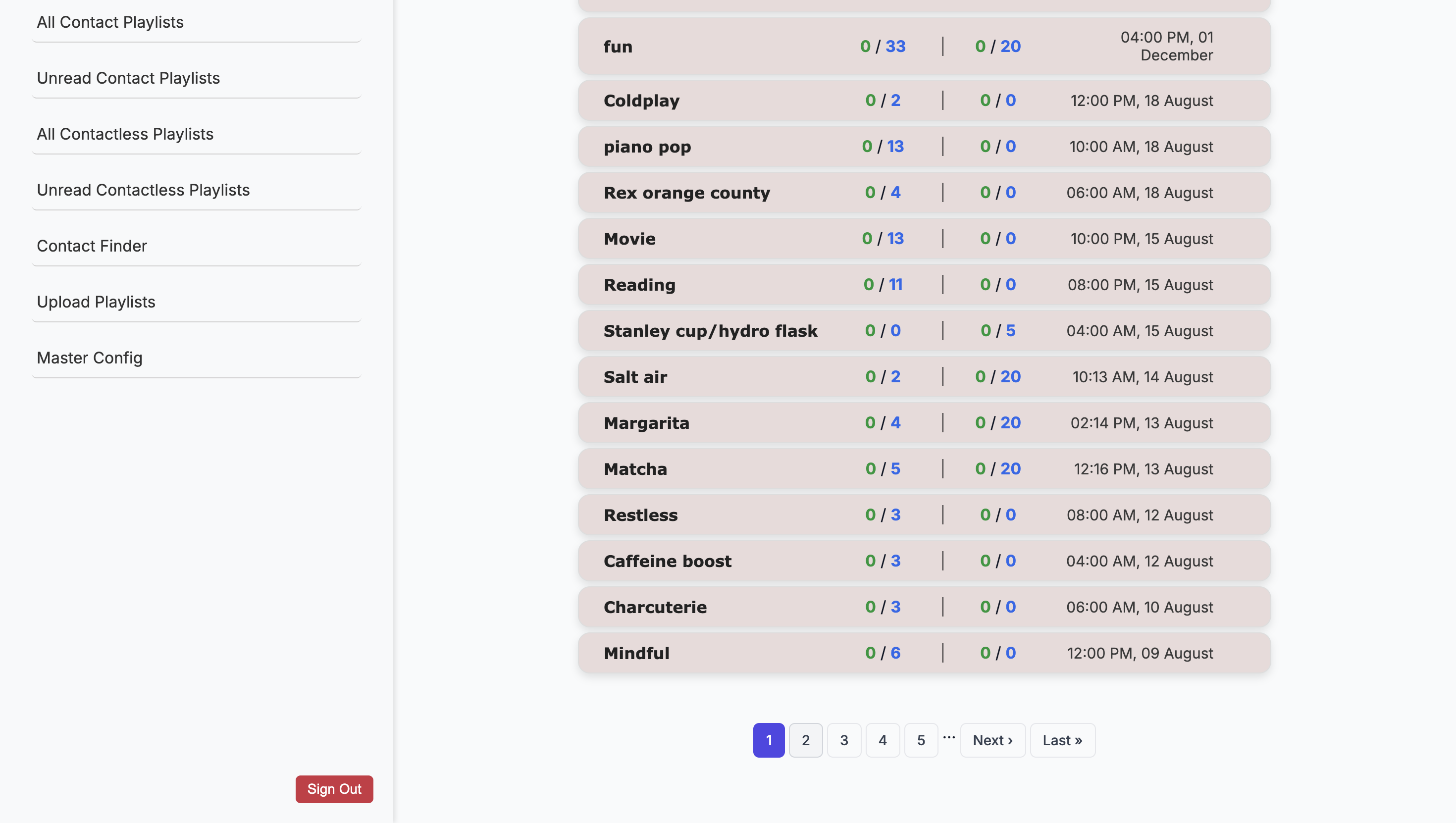
This may be because we are no longer servicing a particular genre and have paused it, or...
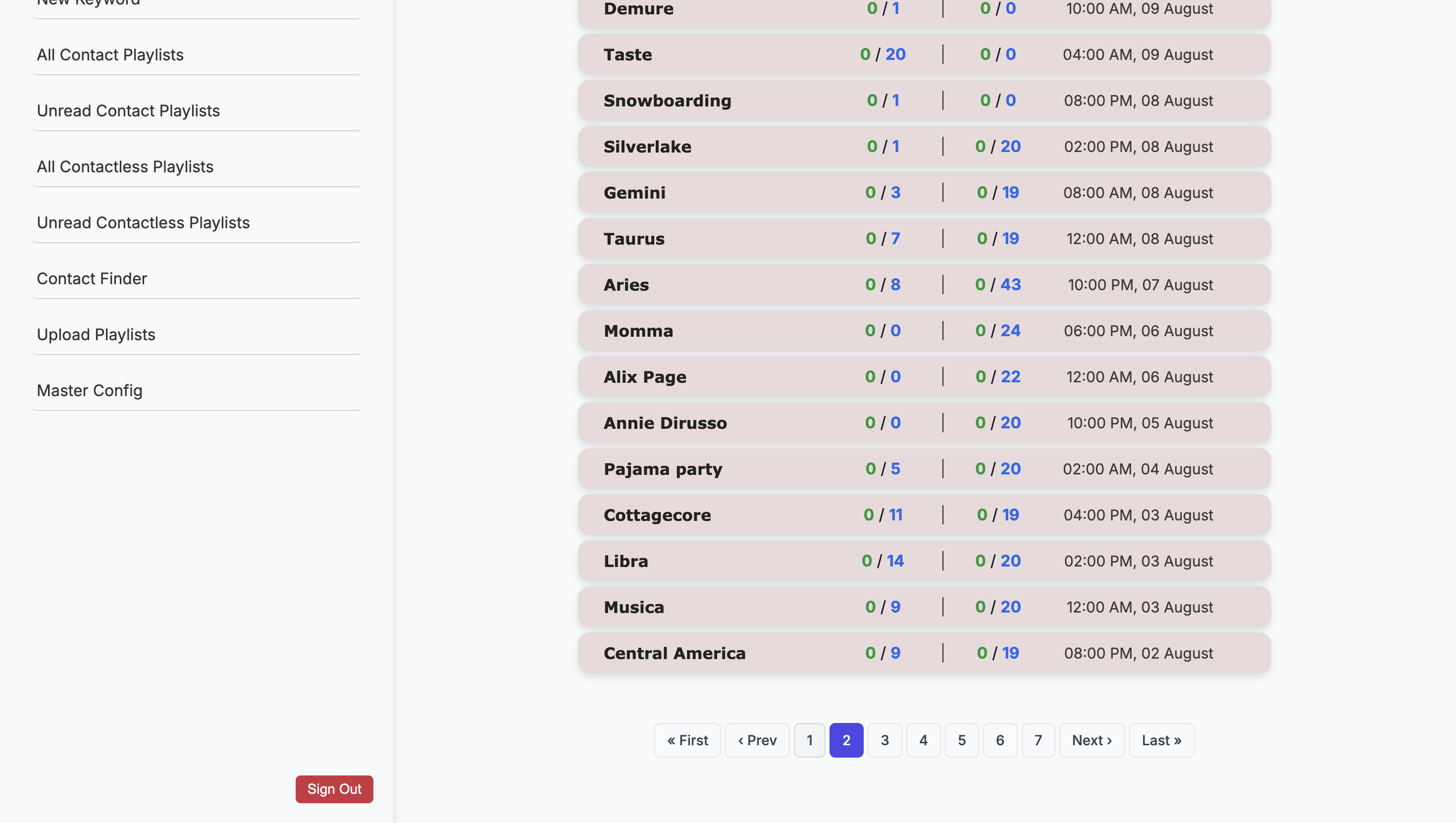
To activate it, click on it.
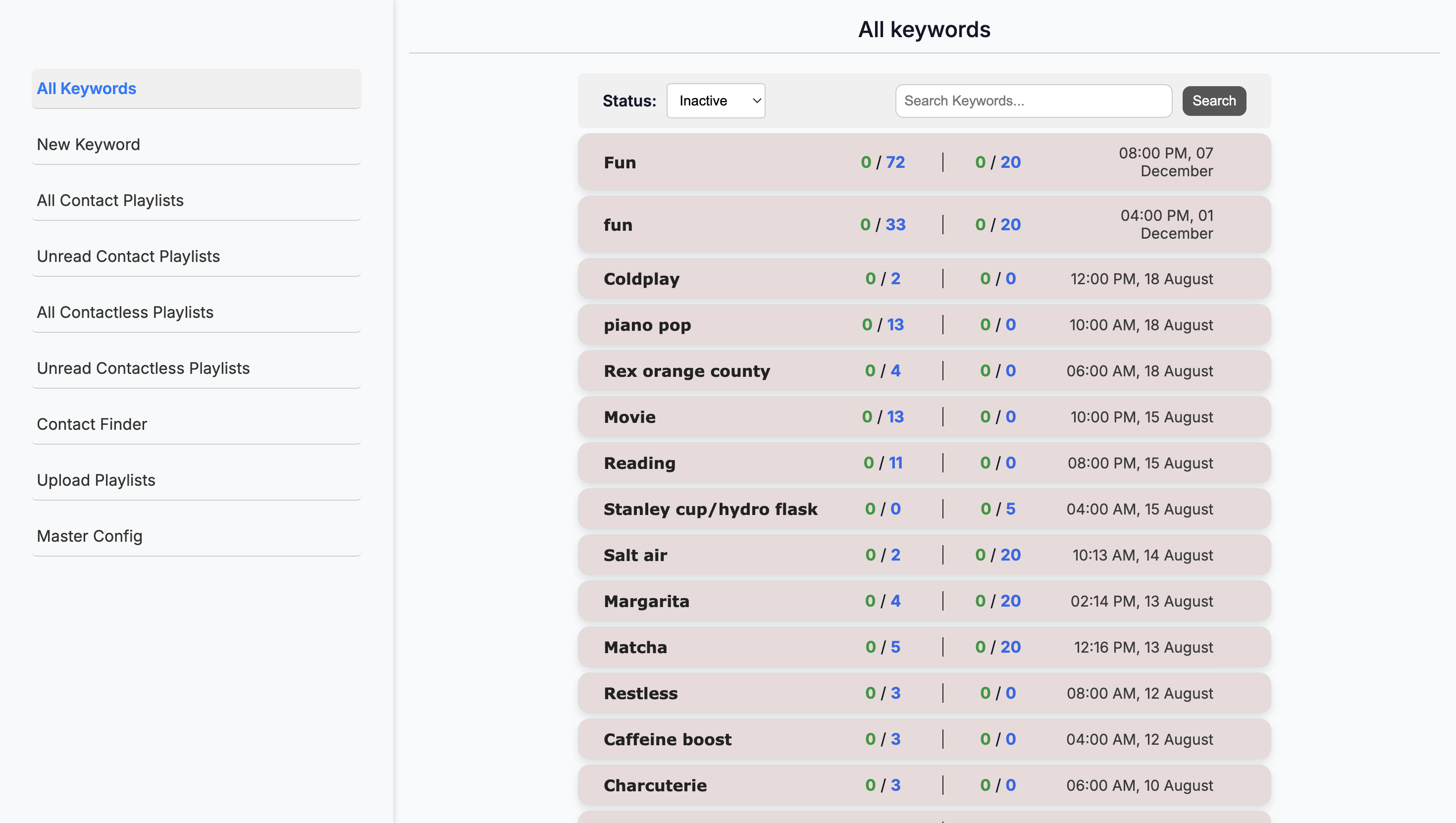
No. Yeah. ... No, it makes the fun ones inactive. Click on it.
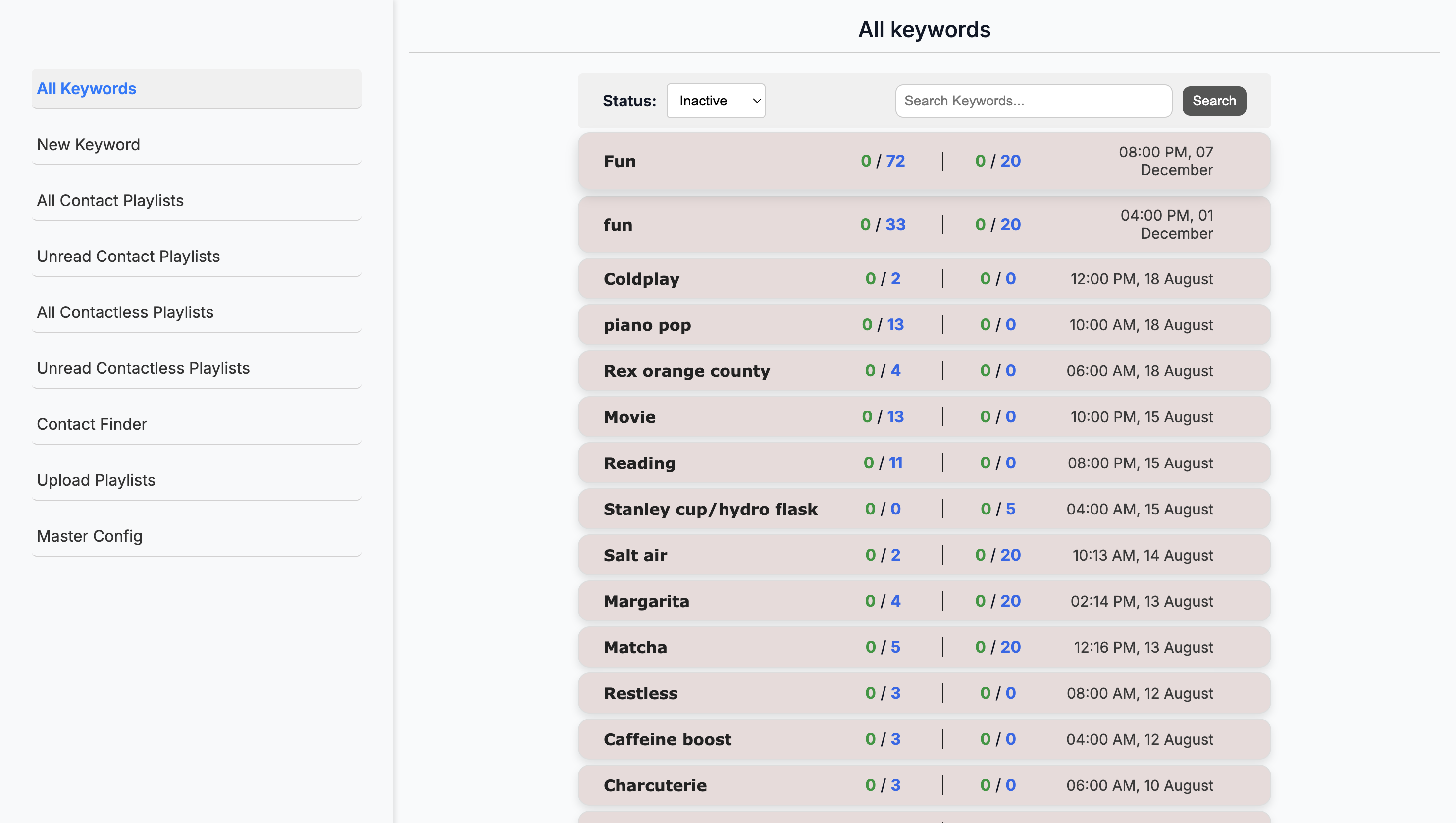
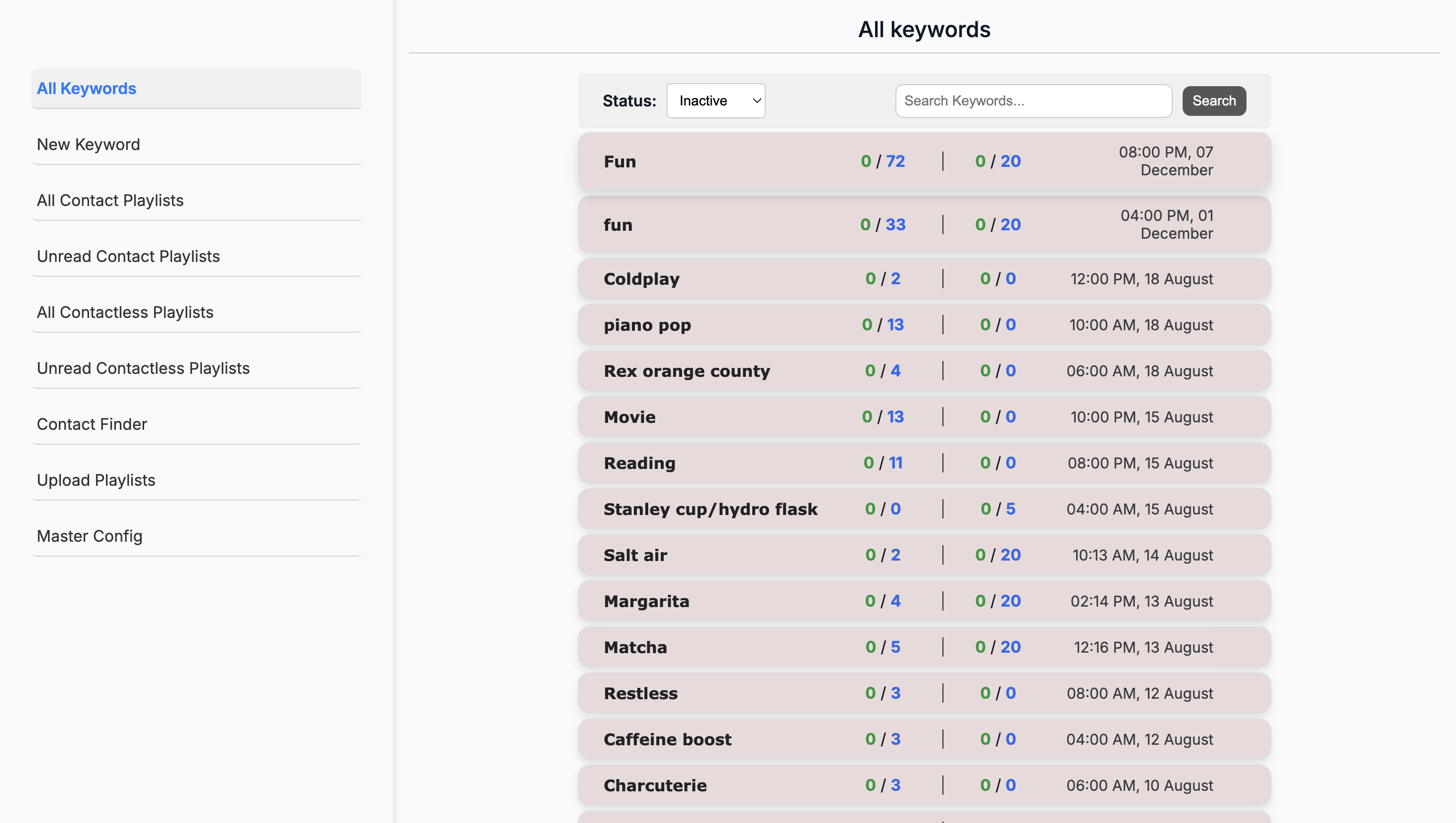
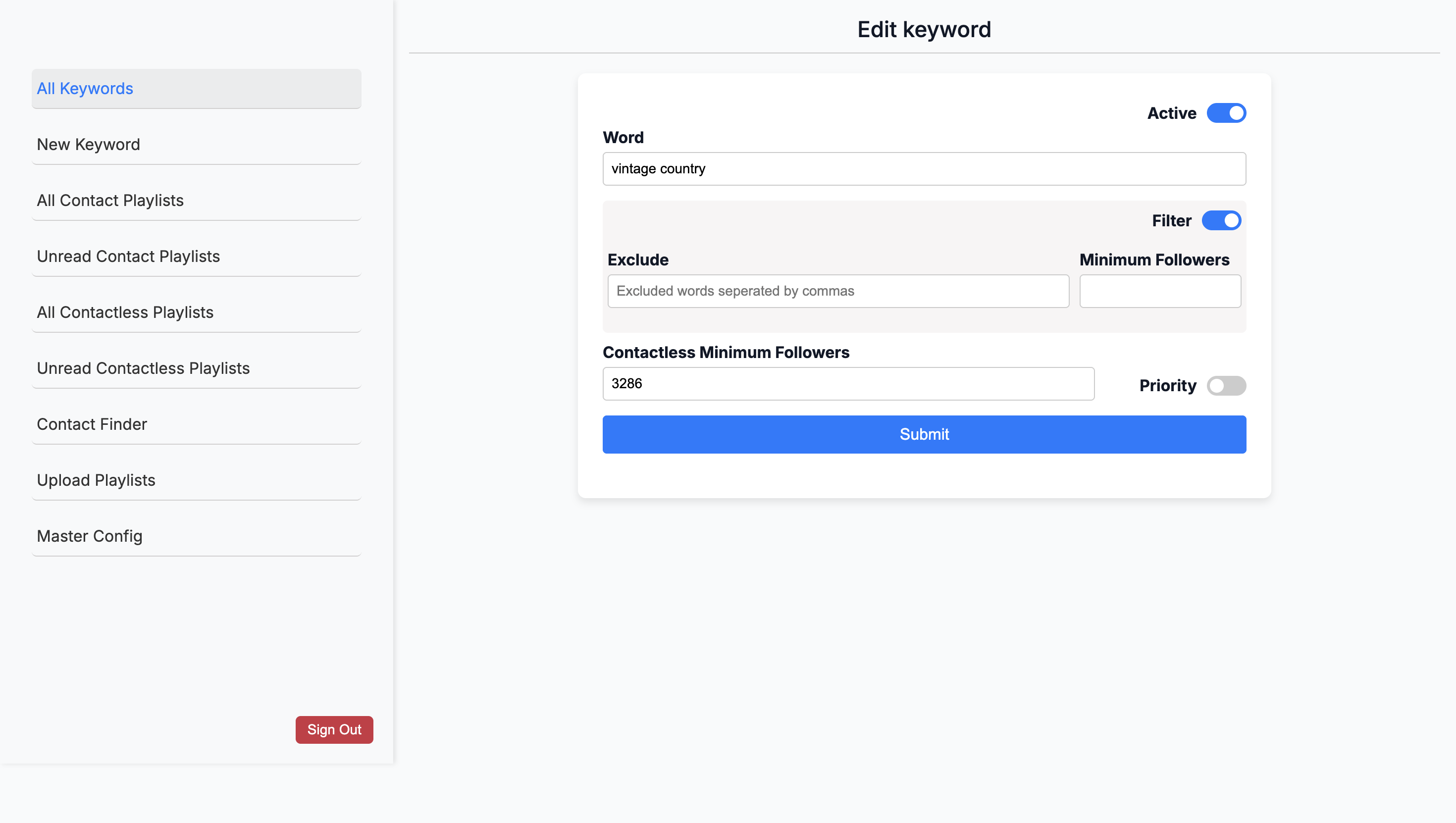
Mm-hmm. Then, mark it as active. Somewhat? So you can ... When you click on a keyword, there's the pen. Uh-huh.
... Look for the icon in the top right.
You can click that, and then make it a...
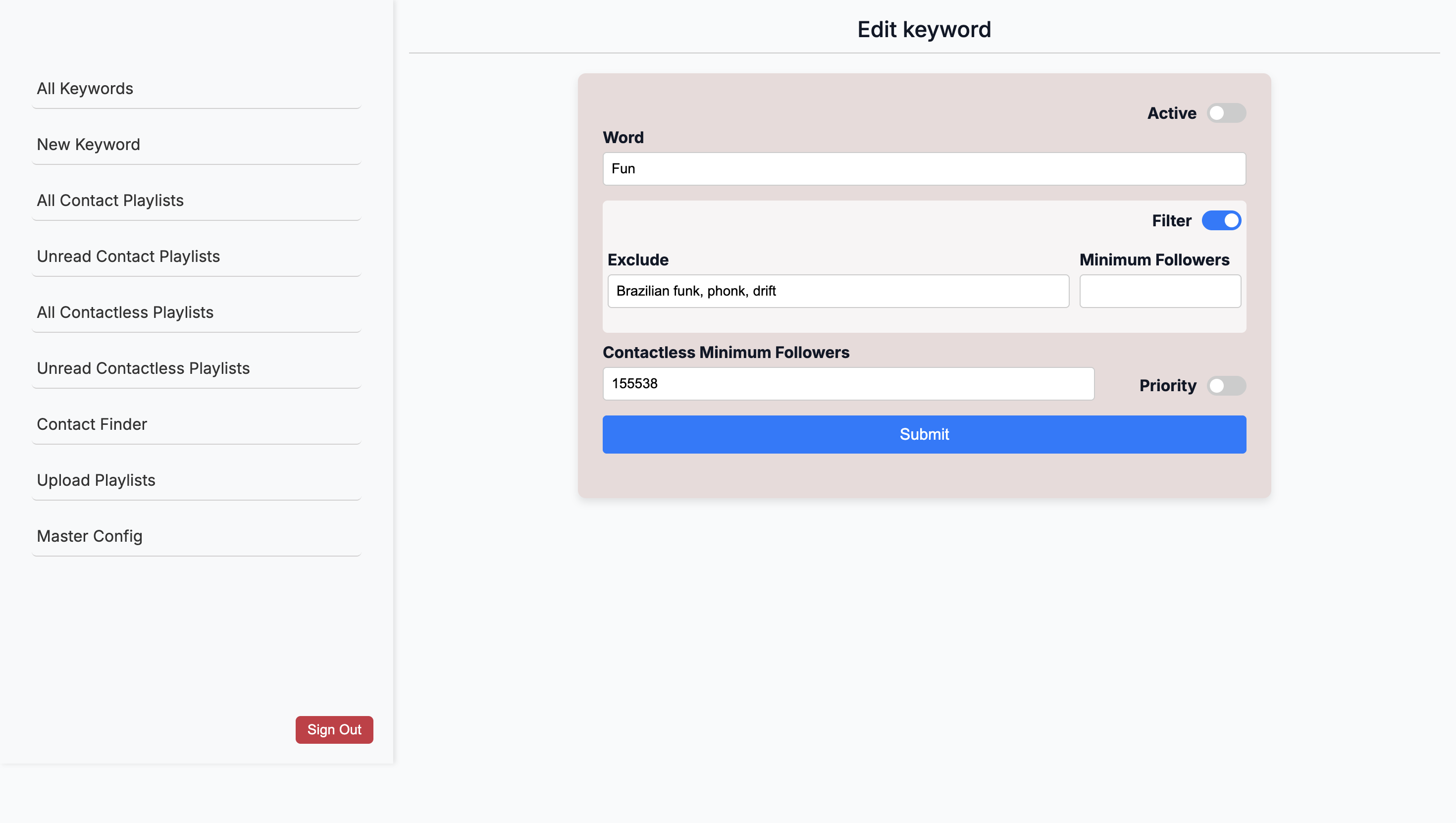
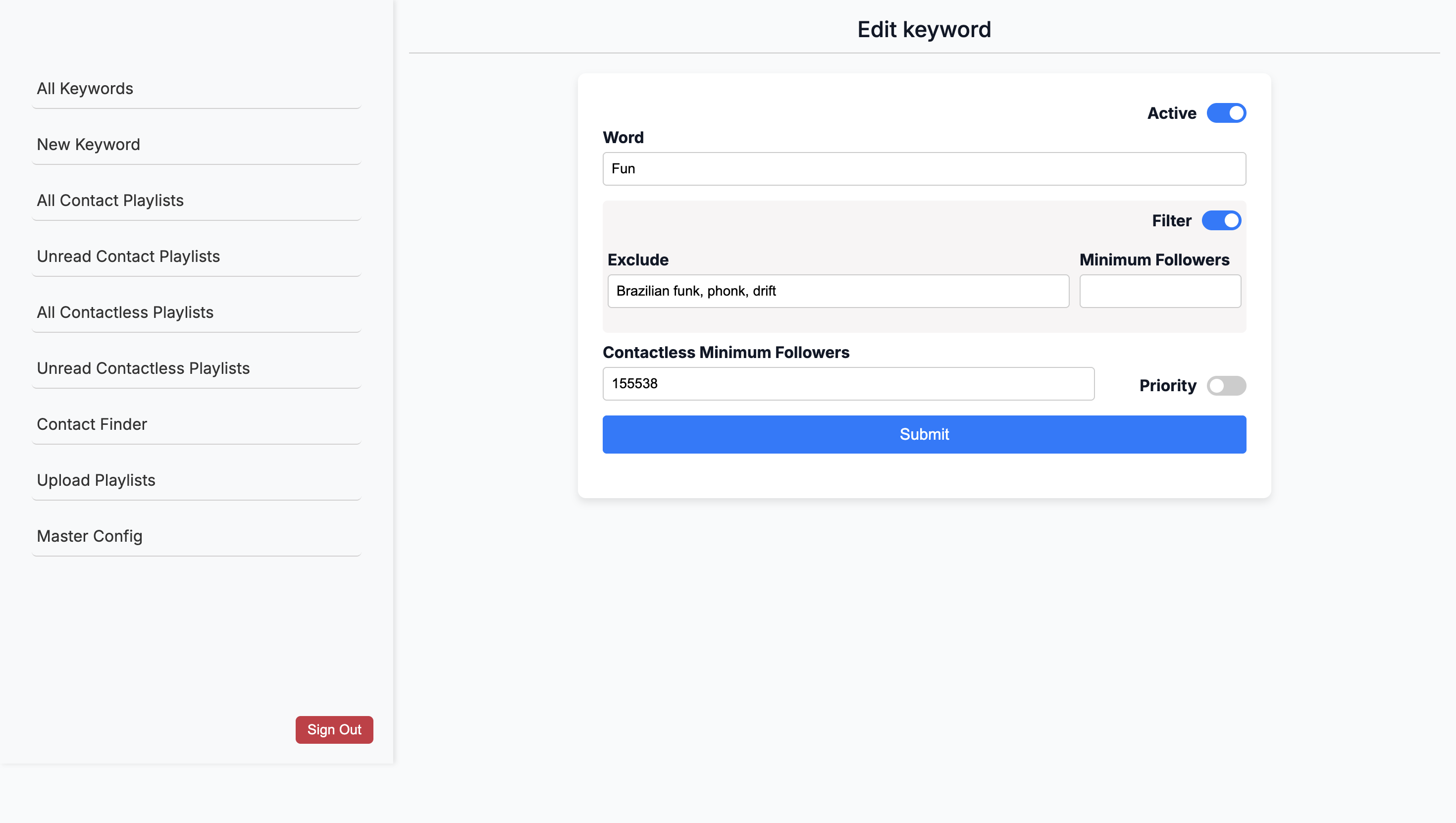
You can toggle between active and inactive.
Understood.
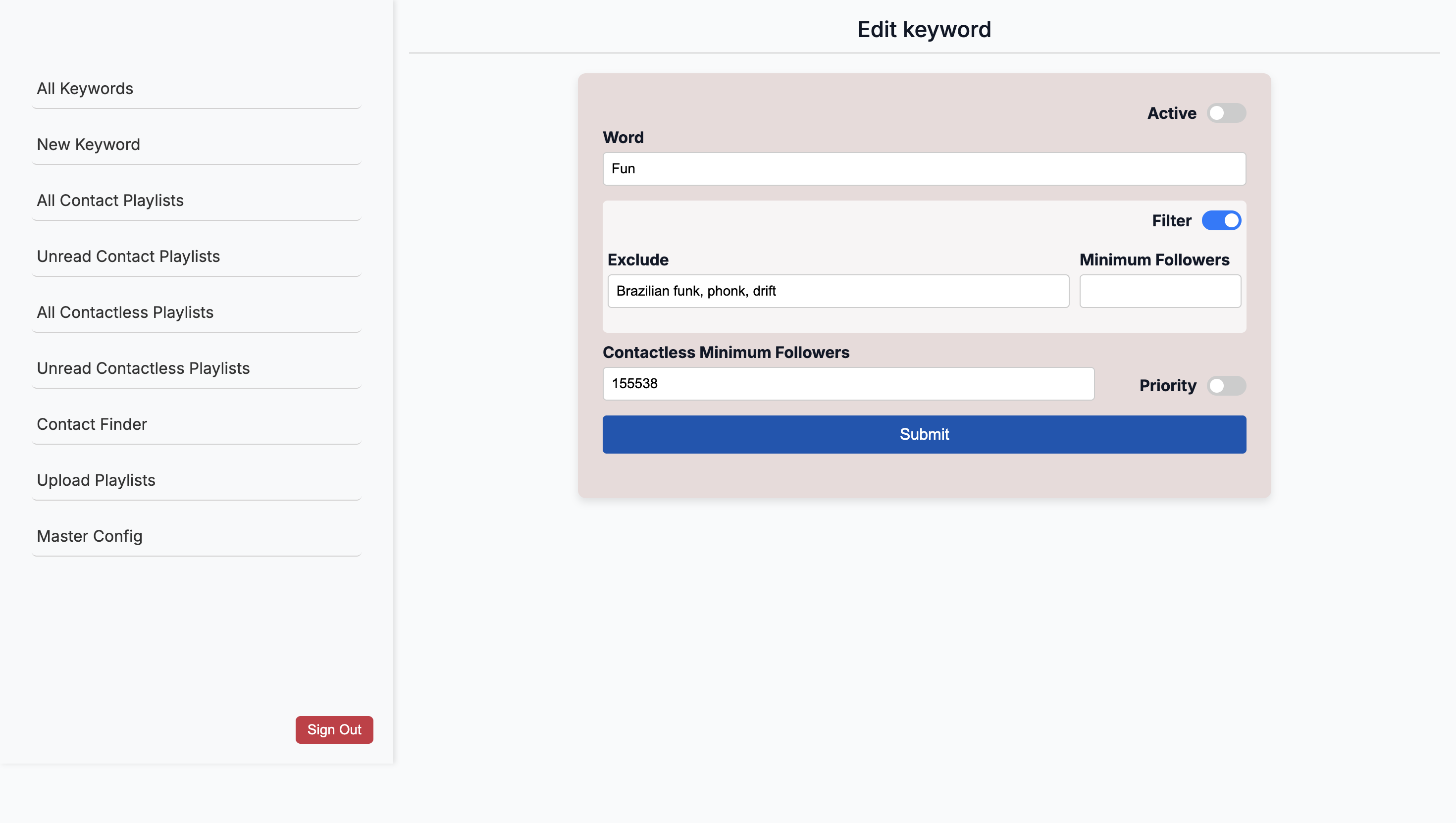
Yeah. You can use both active and inactive options.
So it's- So it's ...
Okay, so just- ... For all of them together. ... For those, it might be helpful if we create something for when you visit here.
... If you are here, simply toggle the switch to 100%.
... Active/active. What does "Priority Low" mean? Priority: Low.
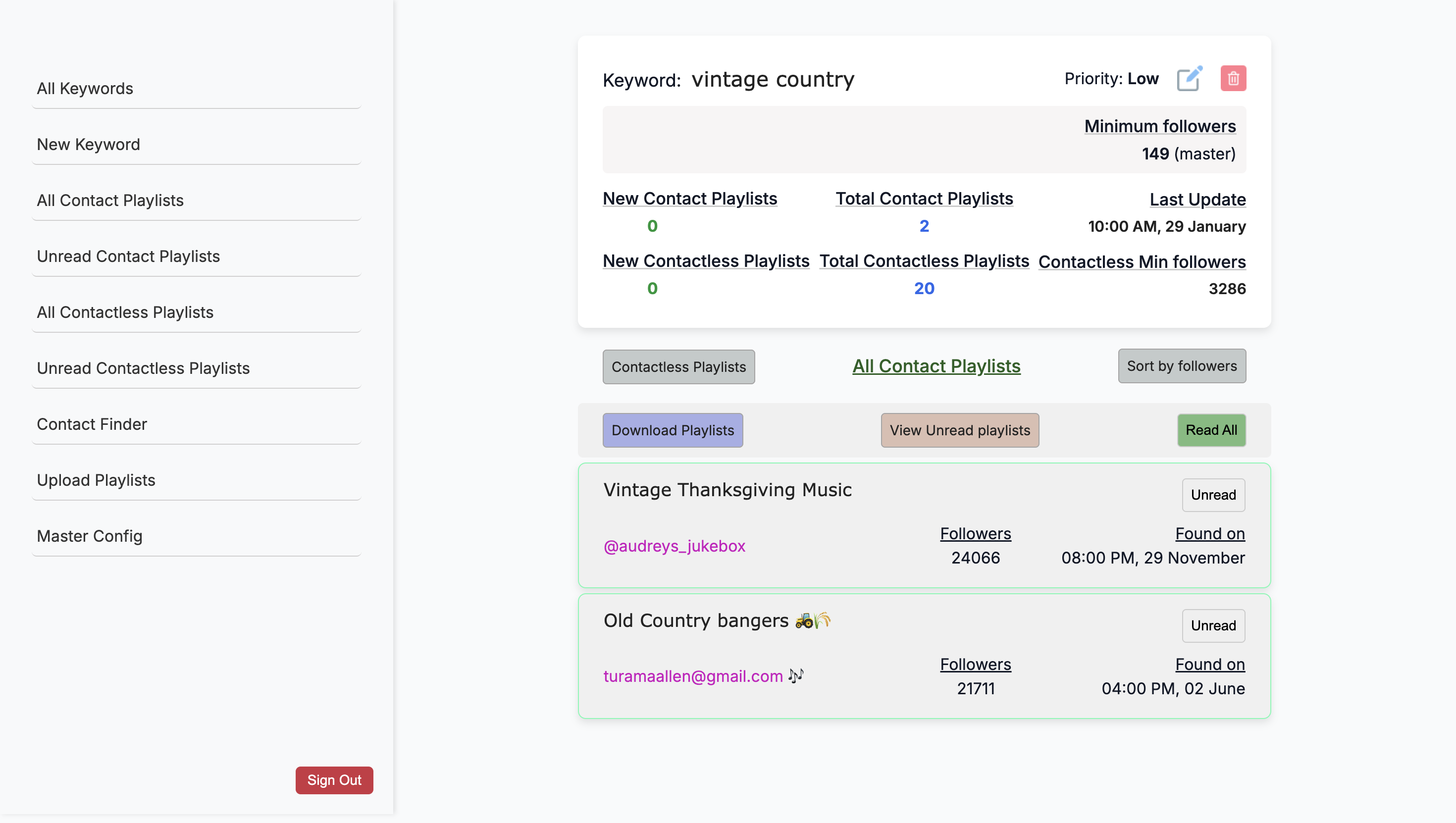
Is "Priority Low" something you set, or does the system assign it? No, we created it ourselves. Although this is used in the context of automatic searching, it does not actually affect it. It affects the contact list playlists that the system will search. That's a whole other thing.
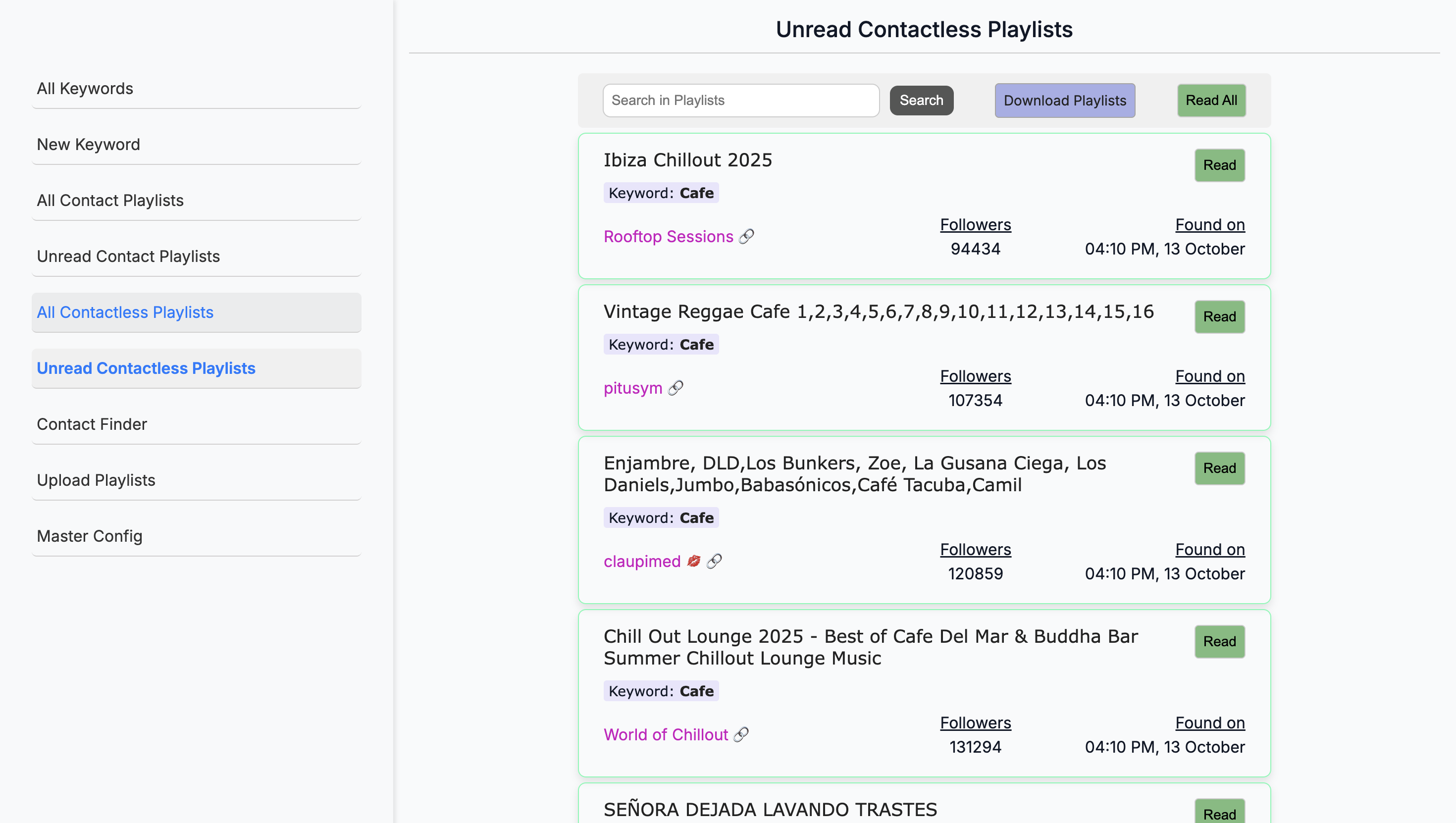
Okay. The system also displays playlists that do not include contact information. Okay. Because we want to. ...
Then go and find them manually, right? How is that related to priority? So, if it does ... There are many playlists on Spotify. If you run every keyword consistently, you'll get hundreds of playlists added to the unread category each day. What if you want the system to pull up hip-hop playlists, but it's already running its current cycle and playing something else?
I can't make sure it only goes through hip-hop playlists because it's pulling from everything. Priority lets you select a keyword and set it as a priority. The system will then either search for that keyword immediately or add it to its next-up list. Okay. Does that make sense? Mm-hmm.
Okay. Do you know how many are priority and how many are not? It should be zero now. After it searches the keyword once, it removes it from priority and returns it to low. Oh, so it does that automatically? Yes.
Understood. Yeah. So it should be none. When you add a new keyword... that are a priority. ...
Do you mark it as a priority, and then does it happen automatically? It will automatically— Okay. ... Prioritize that. Yeah.
Okay. Have it search for that. ... In its next phase... It searches for those in batches, from my understanding.
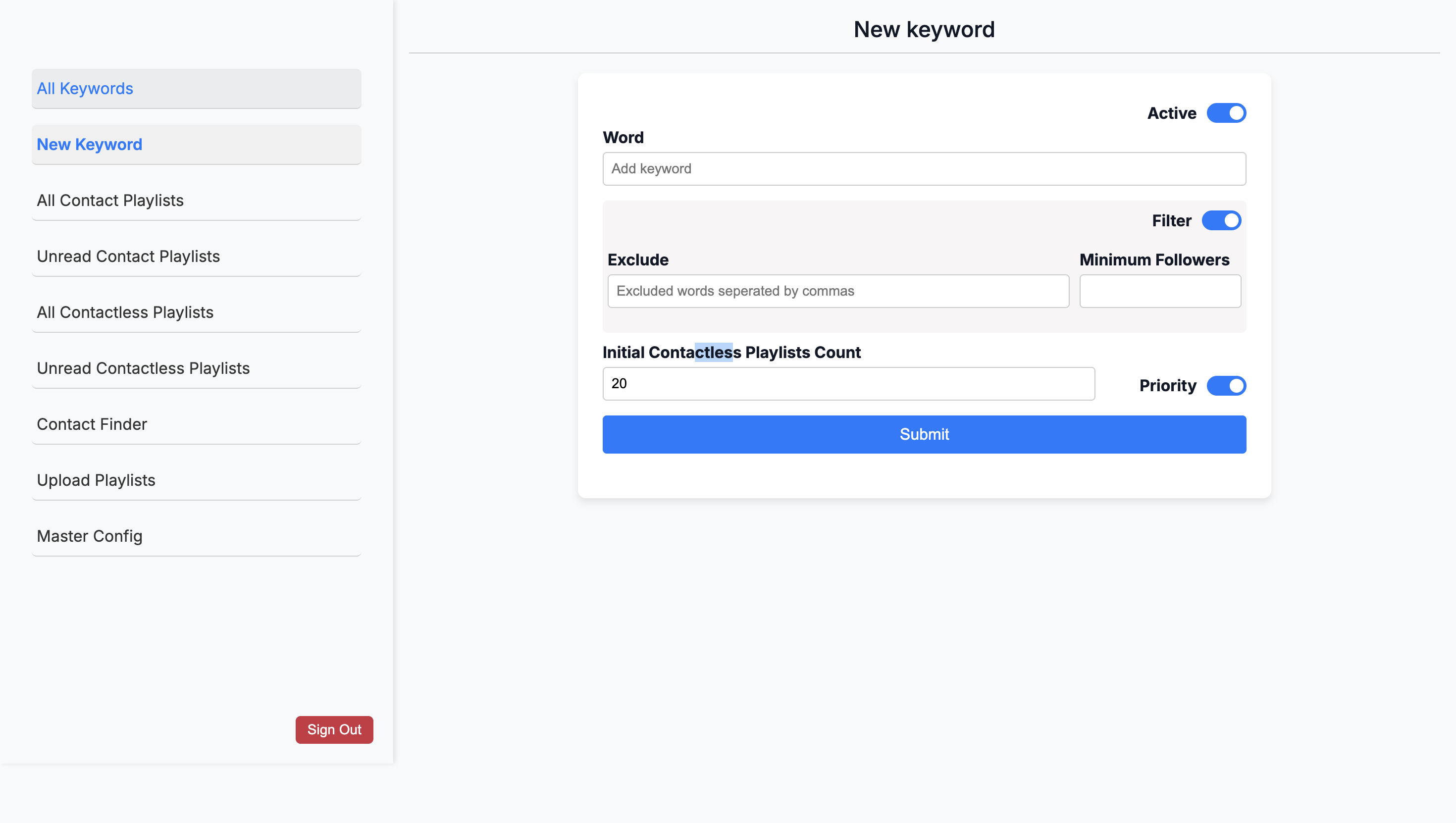
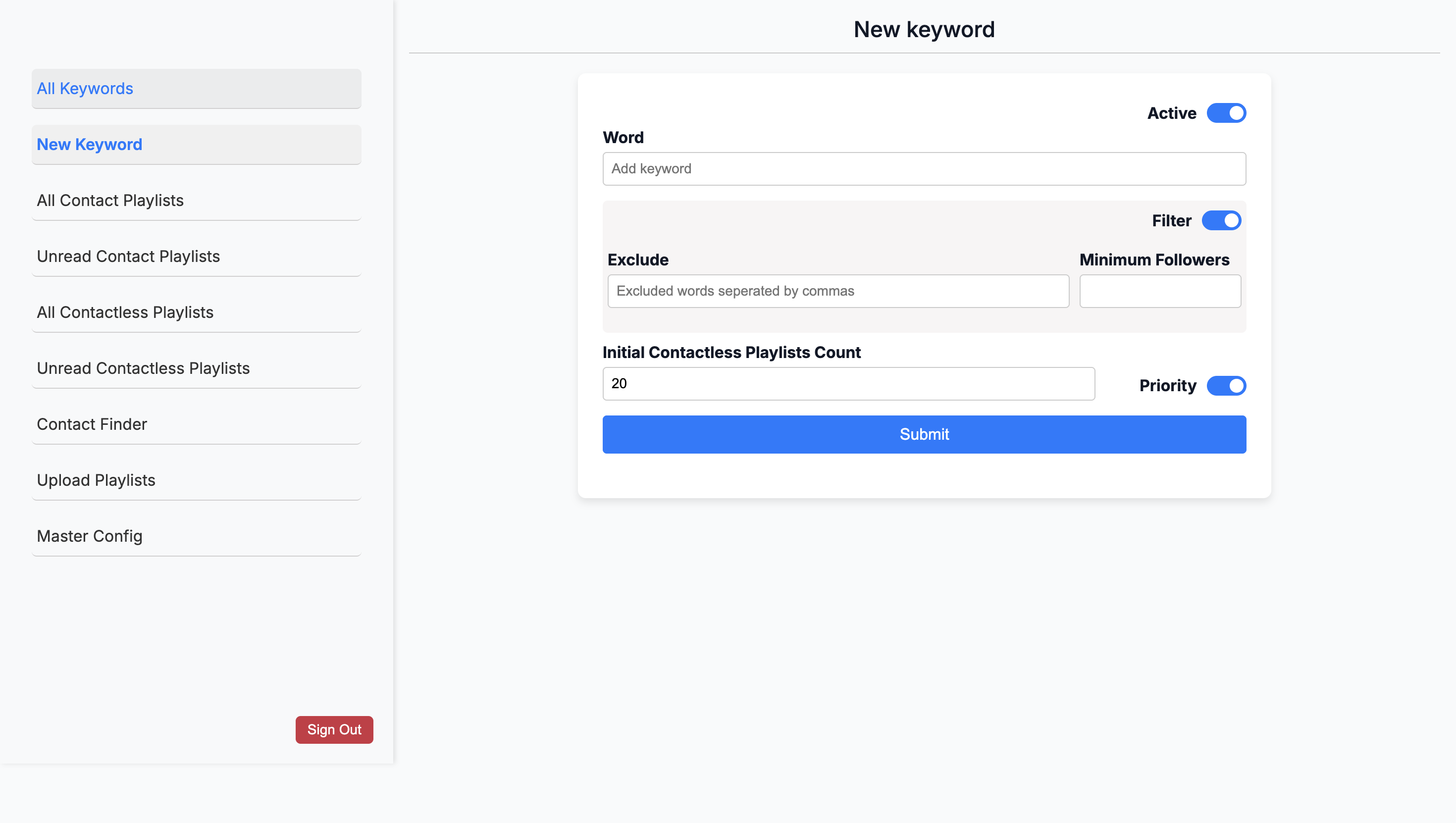
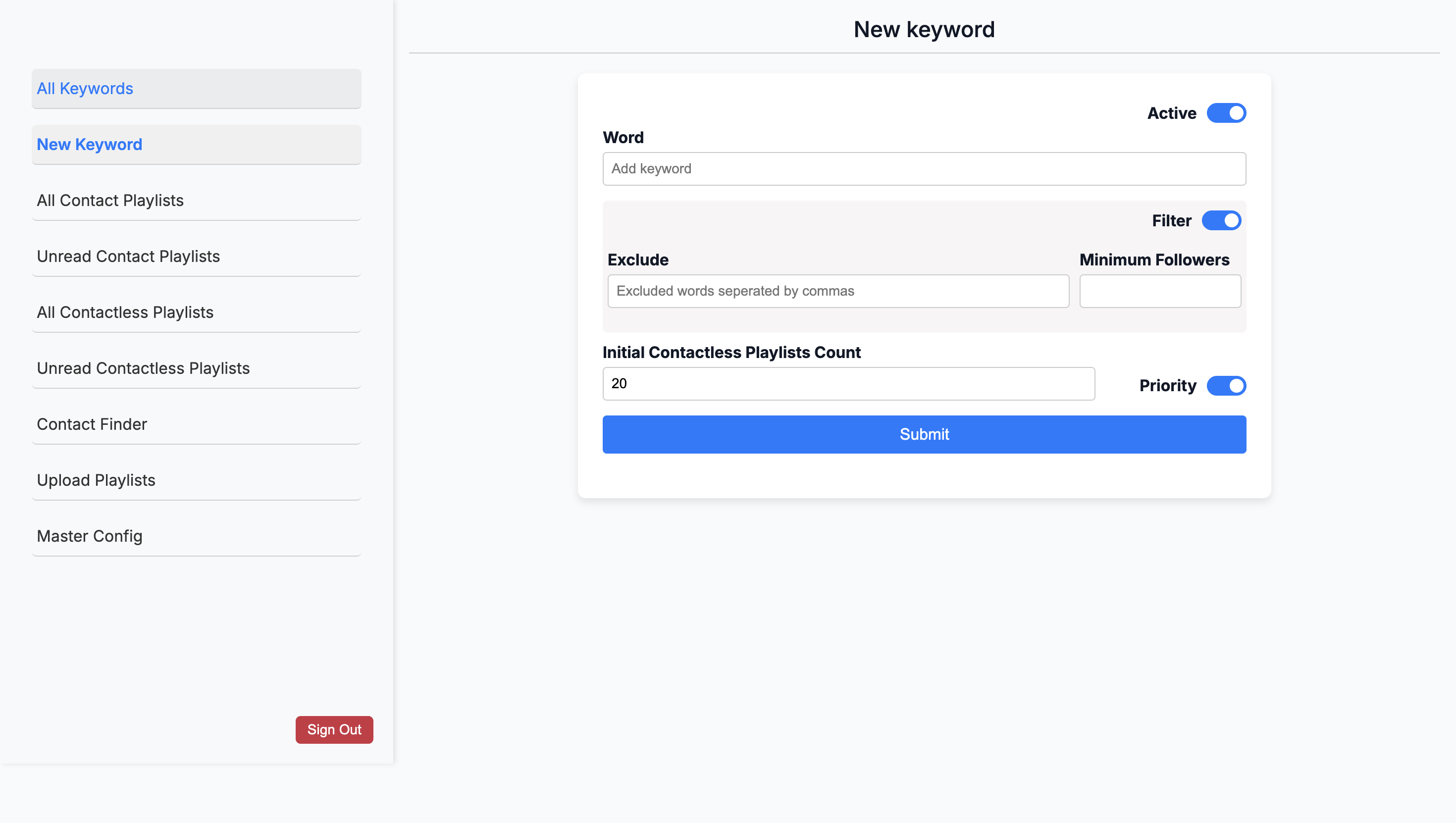
Do you have, for example, if you click on "New Keyword"?
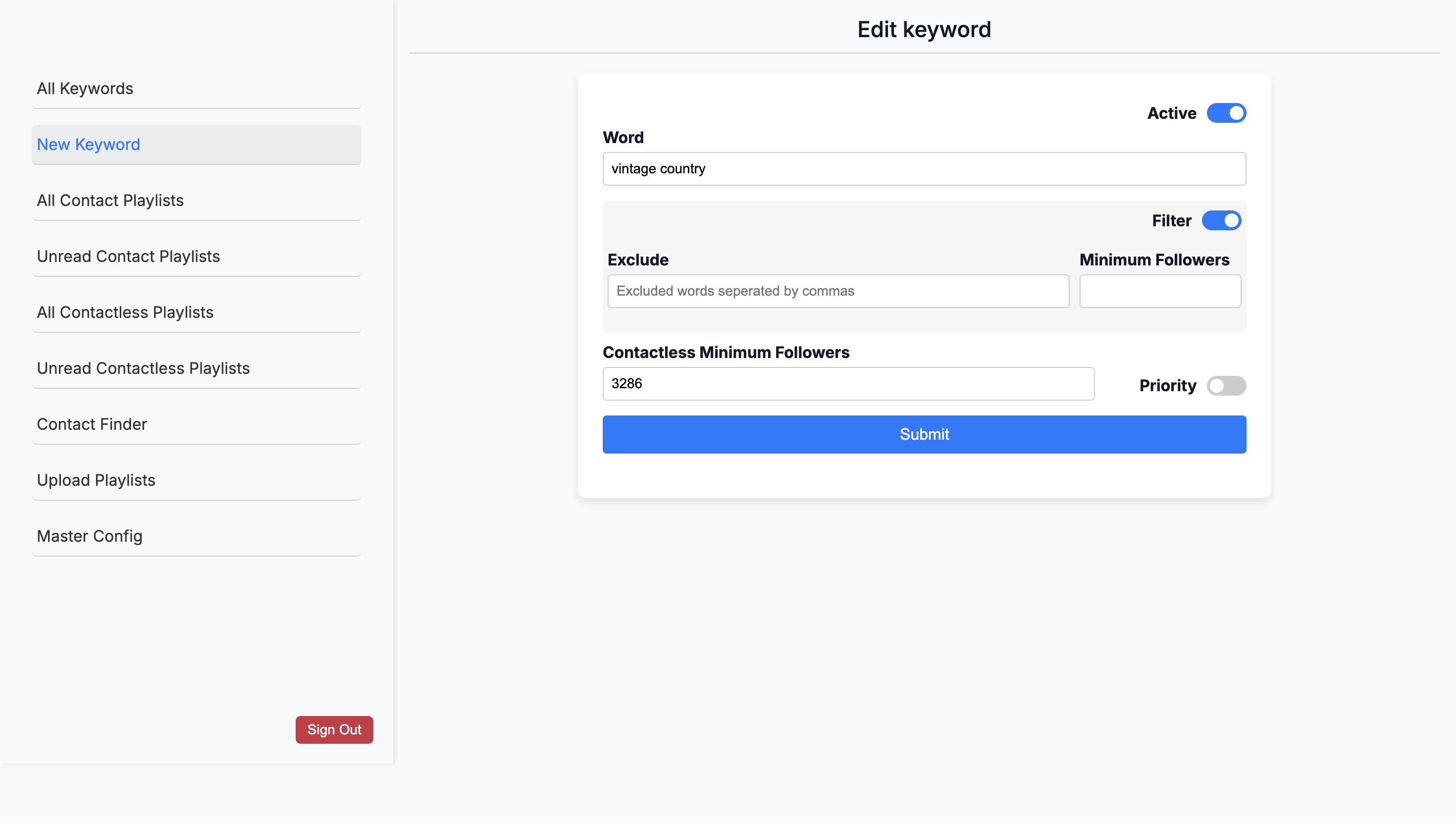
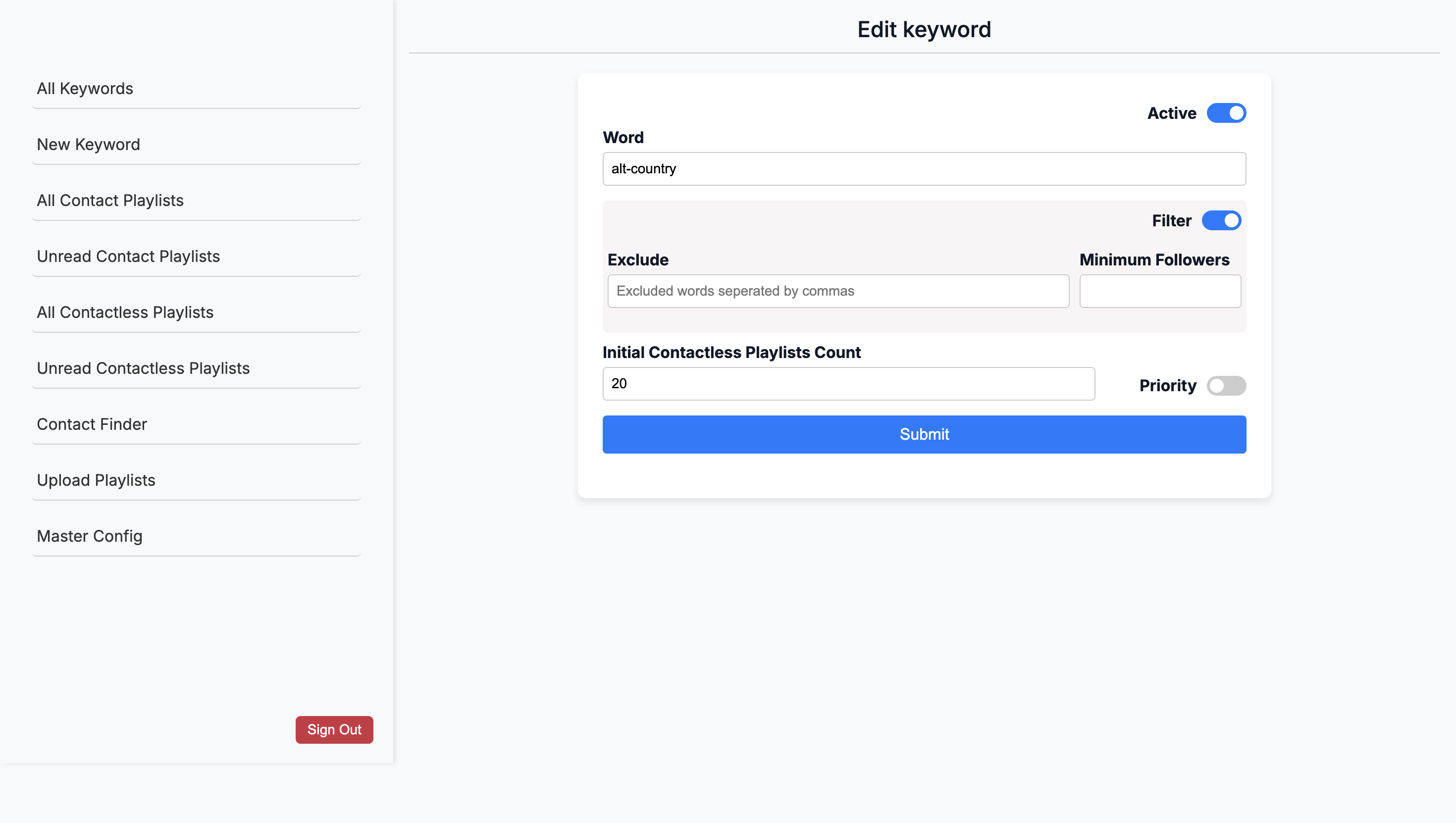
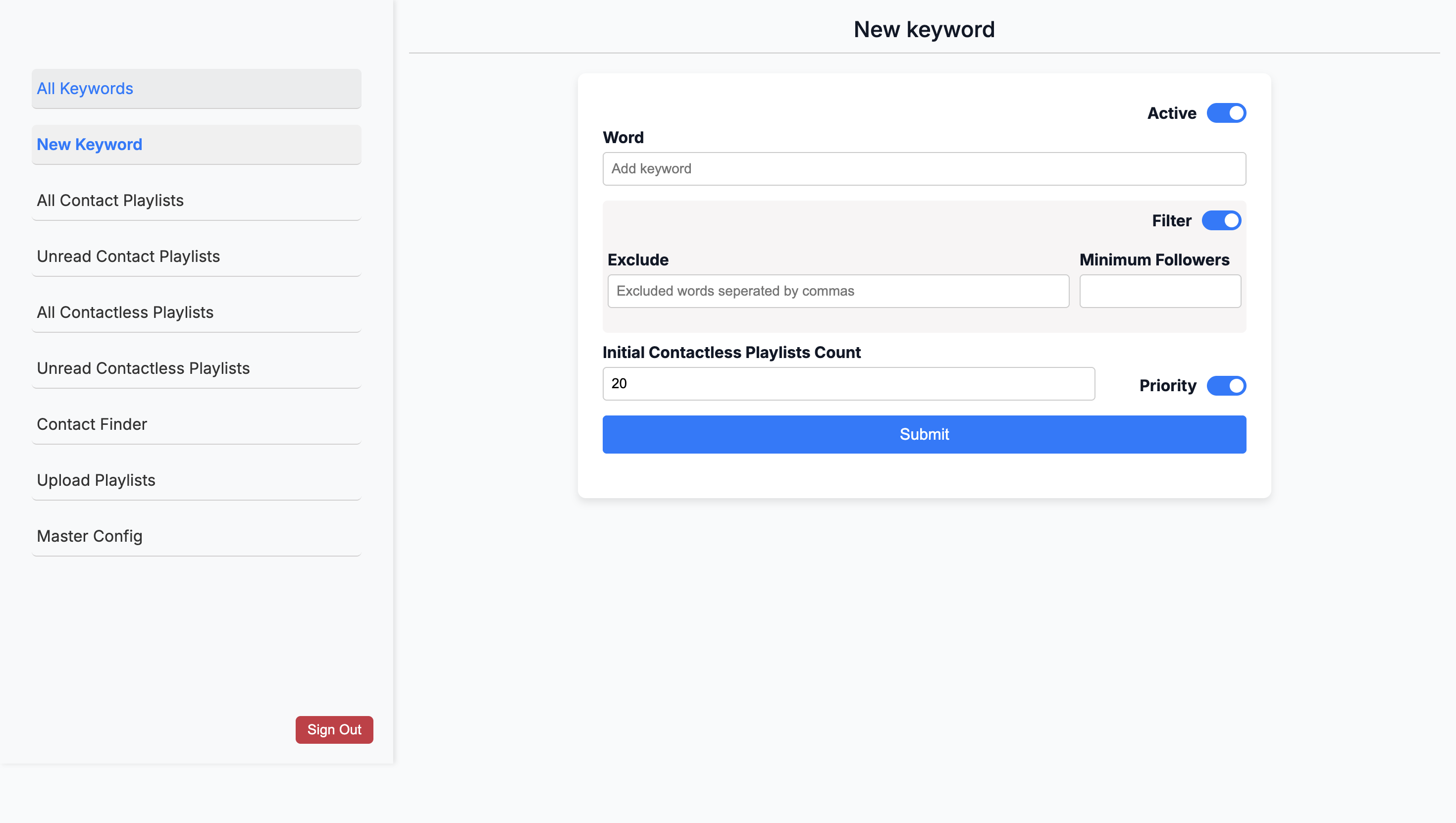
... If you want to add one, you can set a minimum number of followers and an initial contactless playlist count. What does that mean? For the contactless playlists, it's essentially an infinite void.
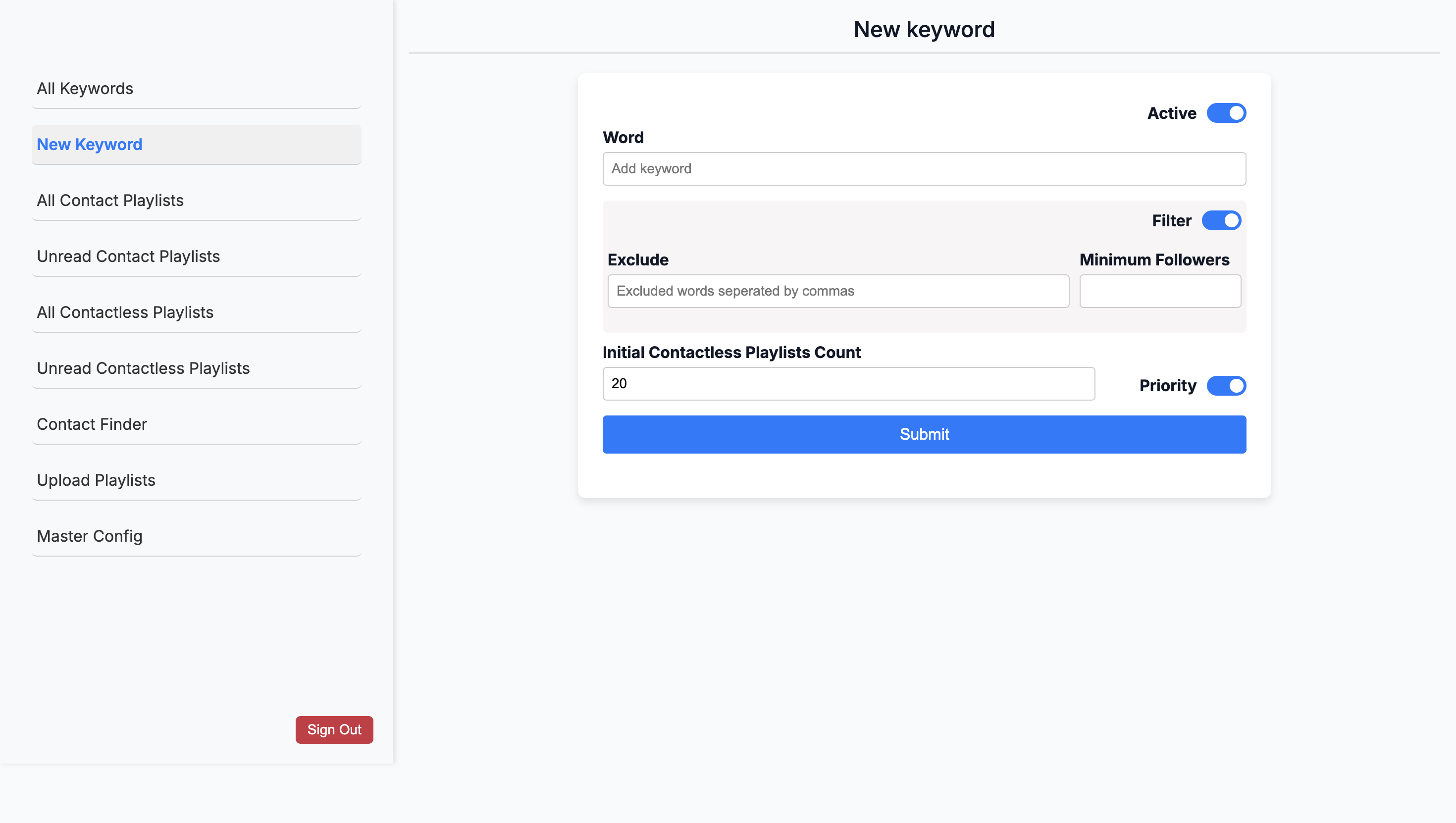
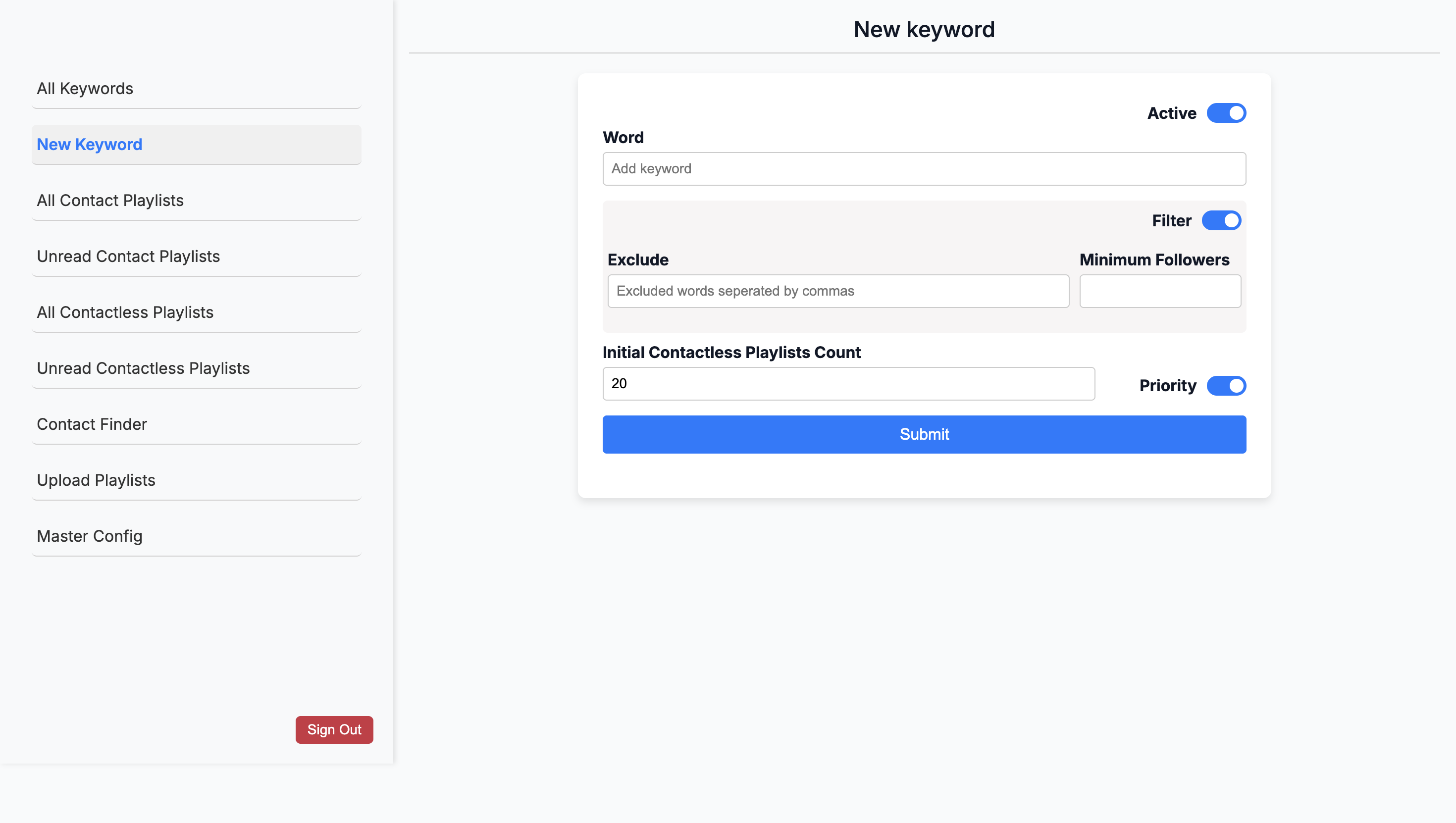
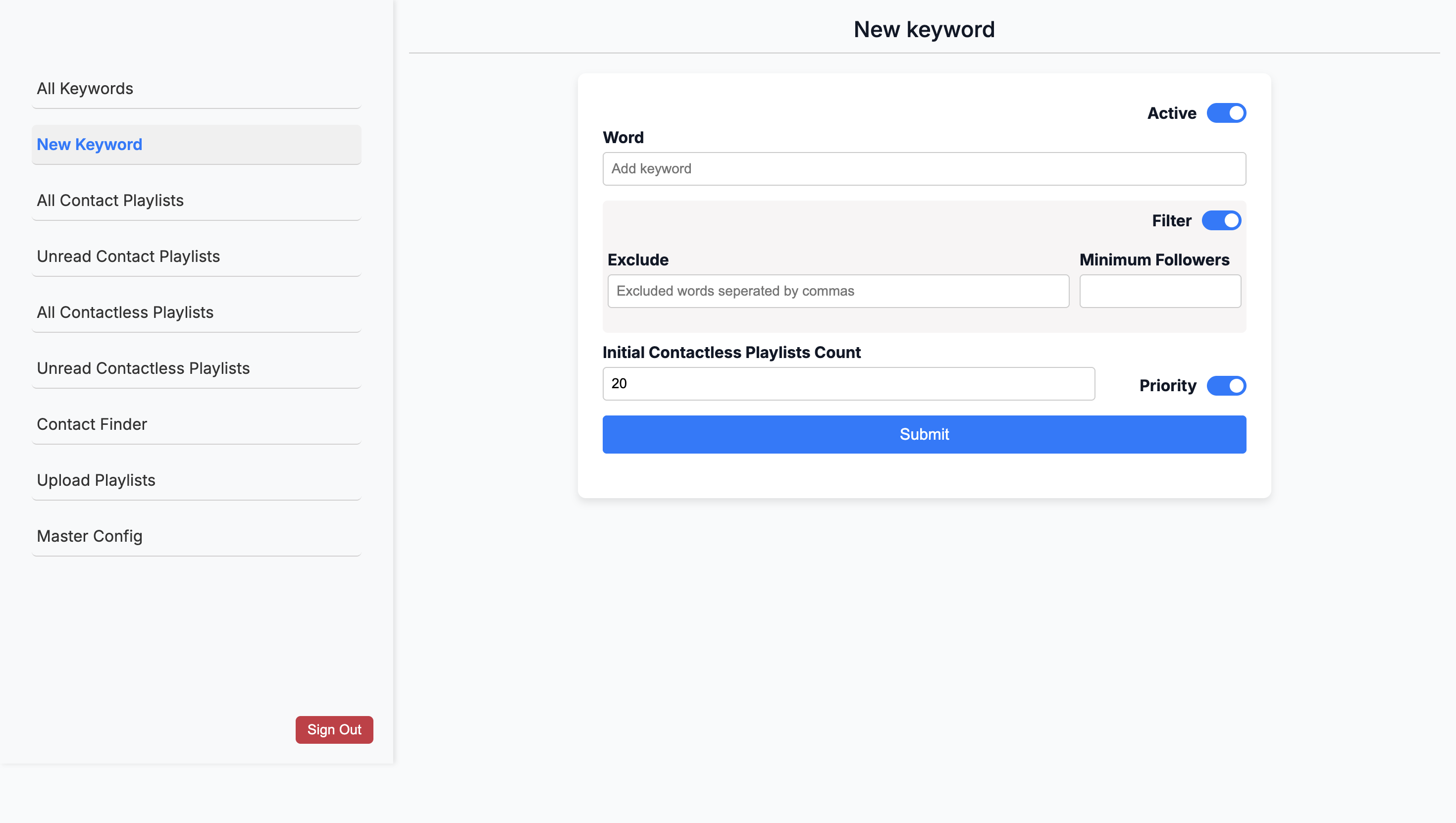
If it pulled every contactless playlist for the keyword "rap," you would— Oh, okay. ... You'd probably get around 5 million, right? Initial contactless means: How many playlists do you want me to pull for you at first? Correct. ...
that don't have any contacts? Correct. The system will now add all playlists with contact information and give you 20 more without contact information. Correct. Okay.
Is this just for you to start messing with? Yes. Later, you can say, "Give me more"? Y- right. If we want to prioritize the rap genre, we can increase its value to 50.
Go back to an existing keyword under All Keywords.
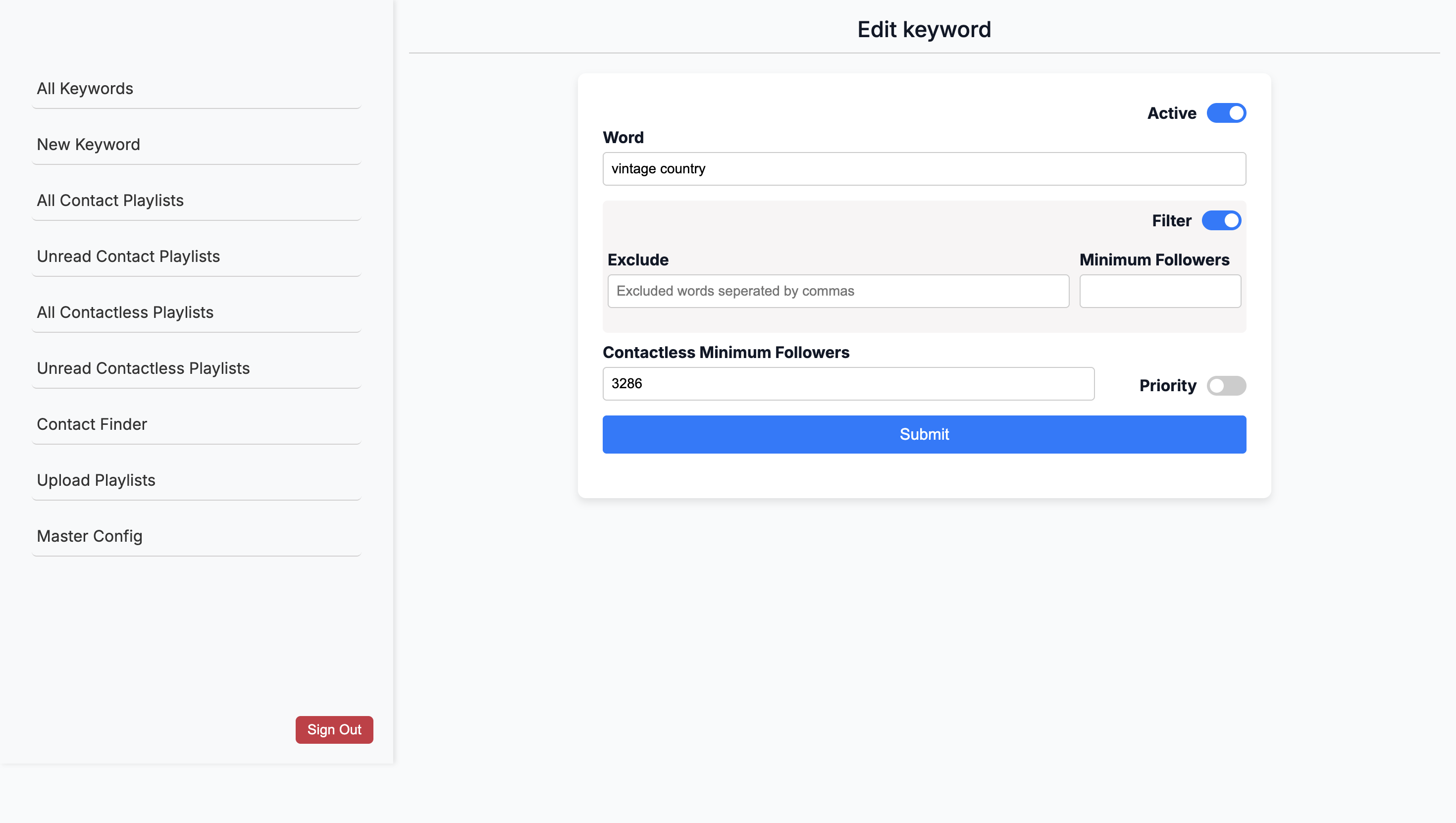
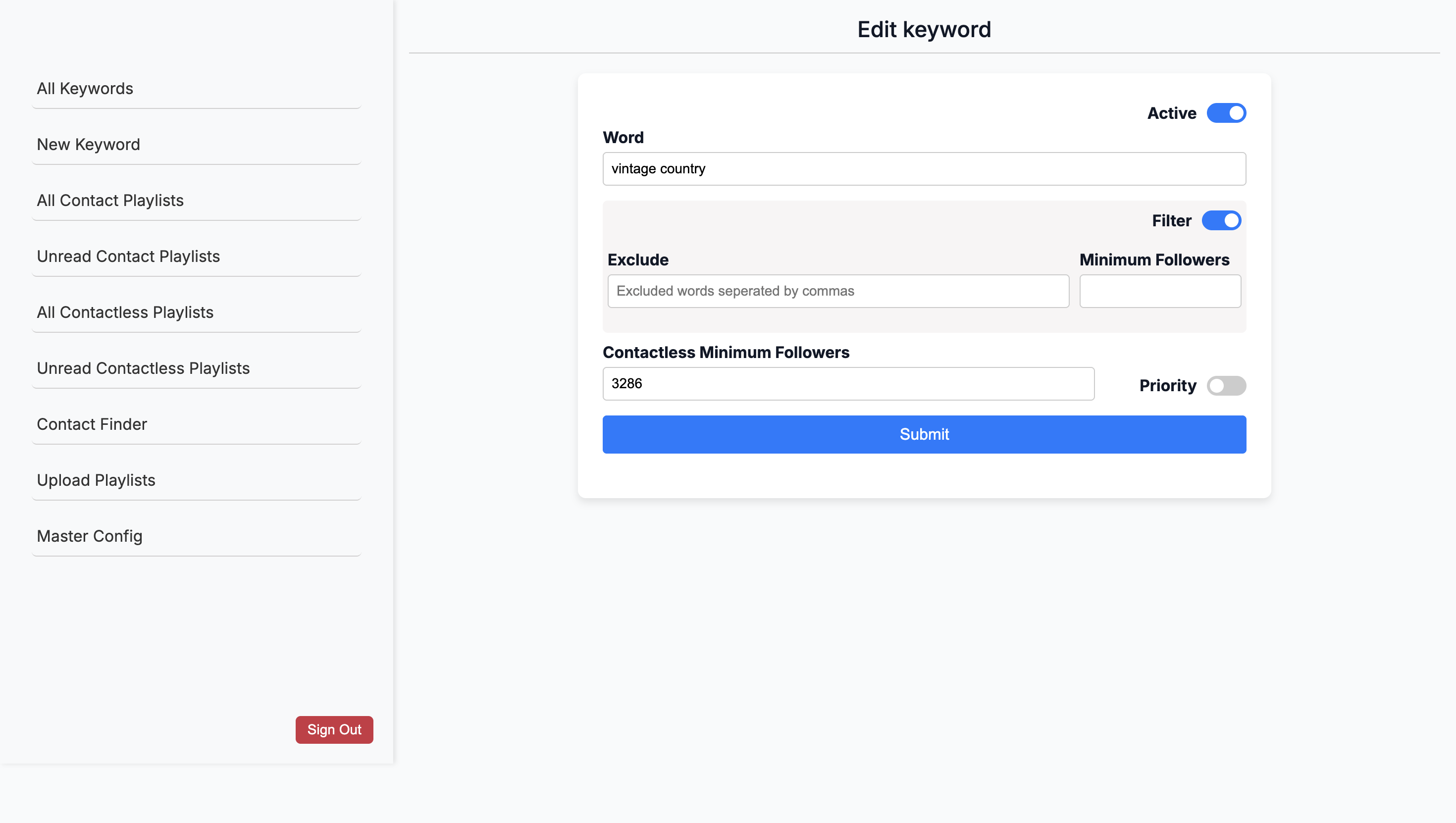
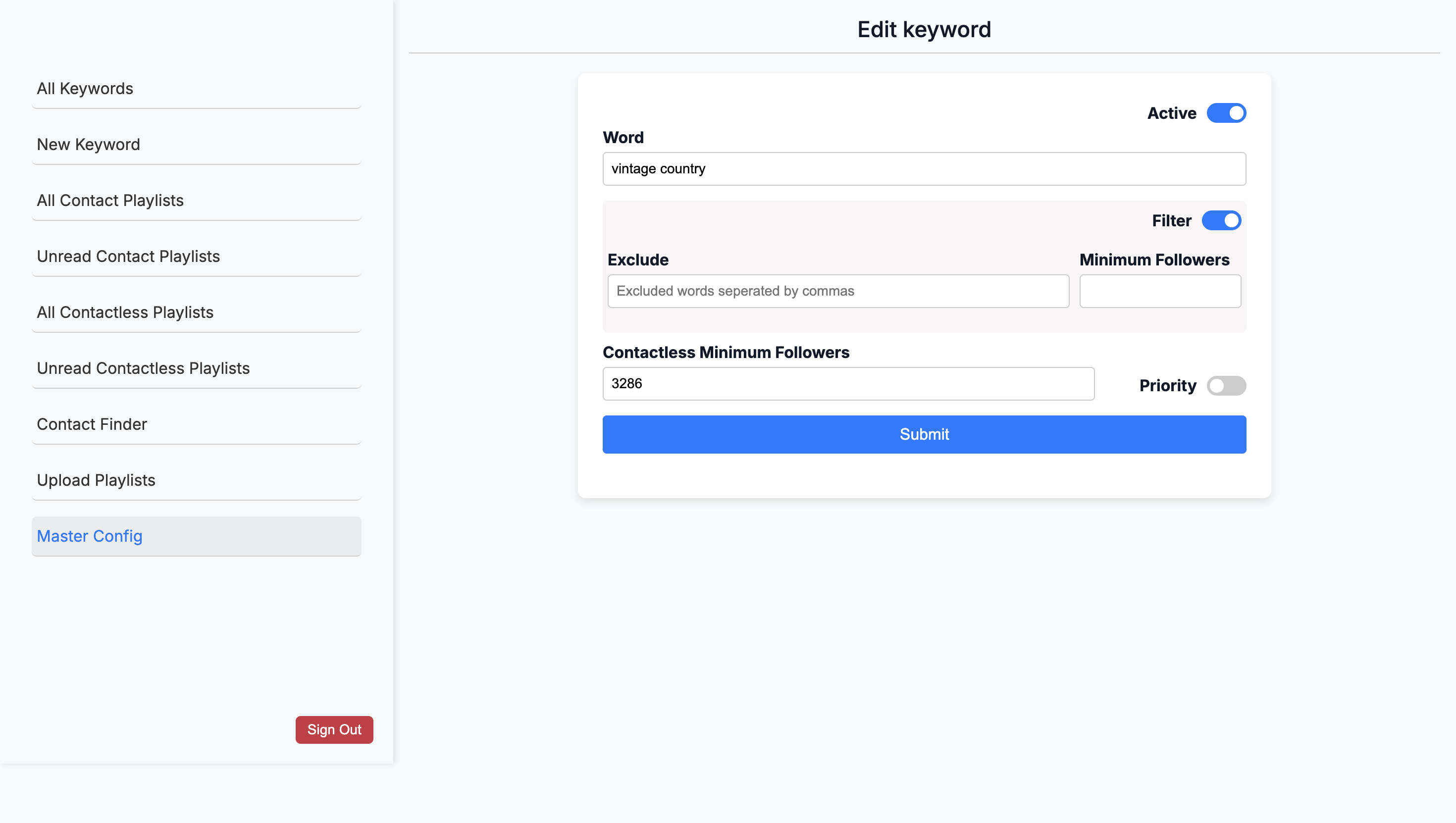
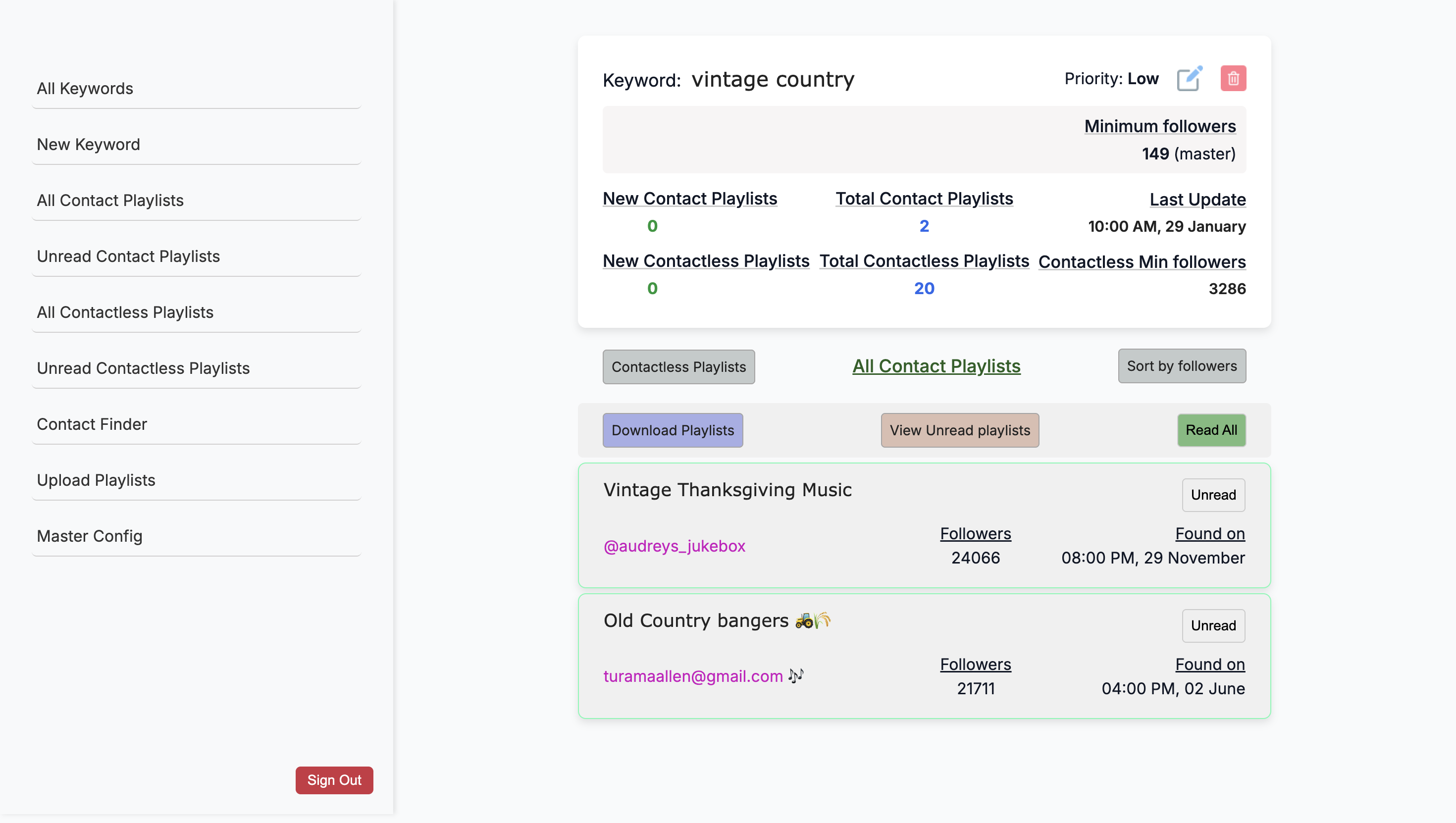
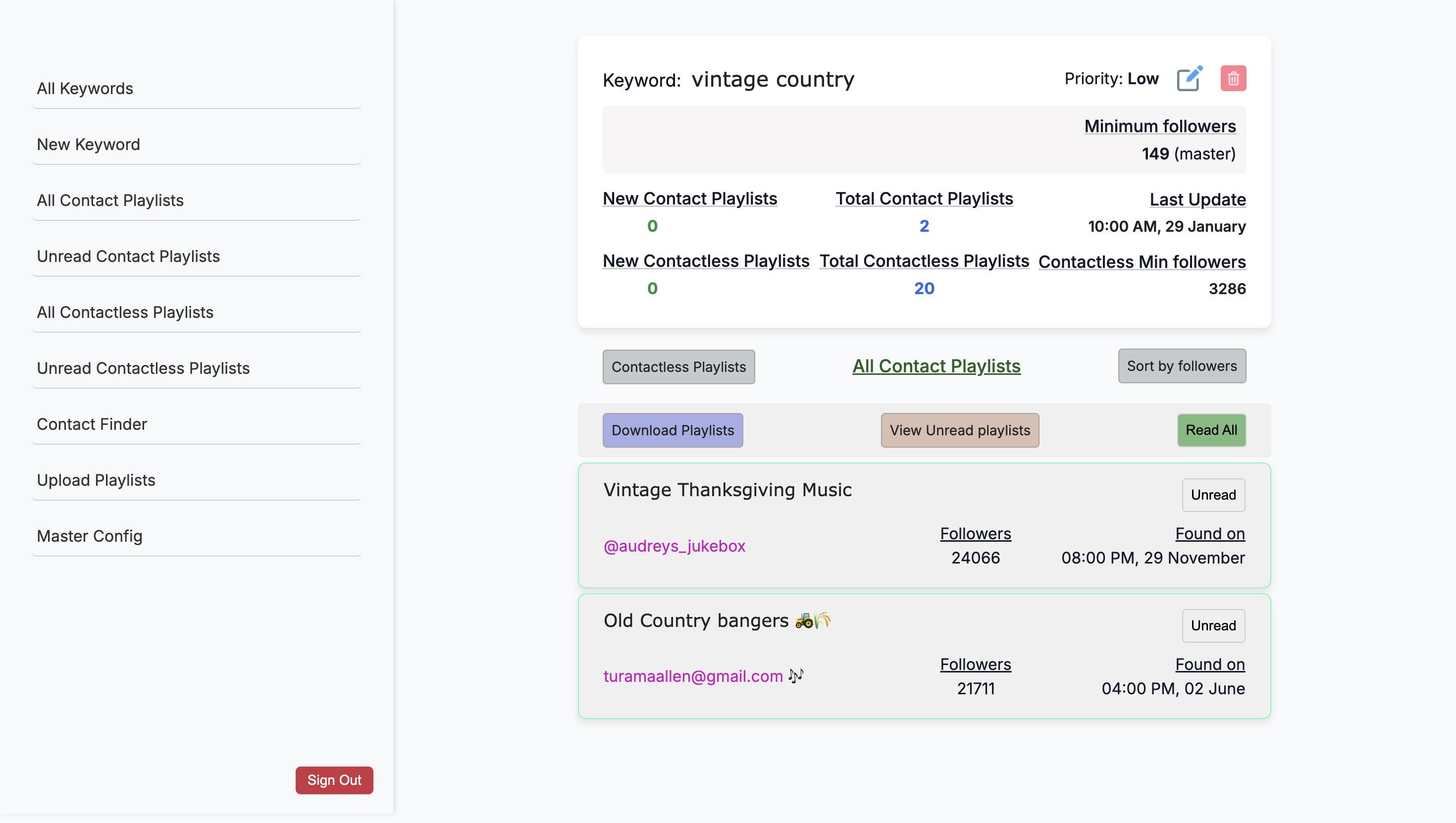
... Go into Vintage Country and tell me, how do you proceed now?
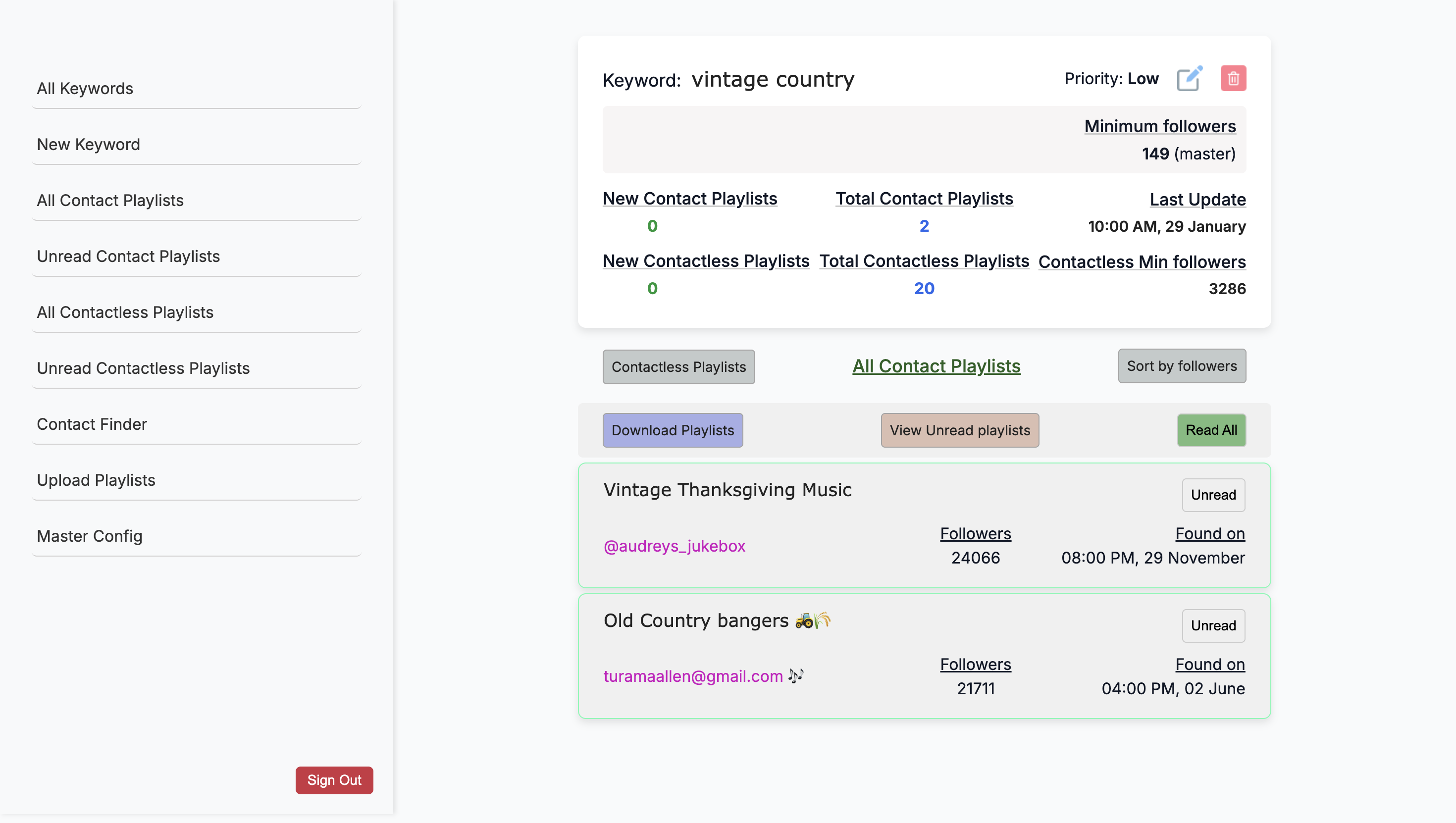
This is already active, right?
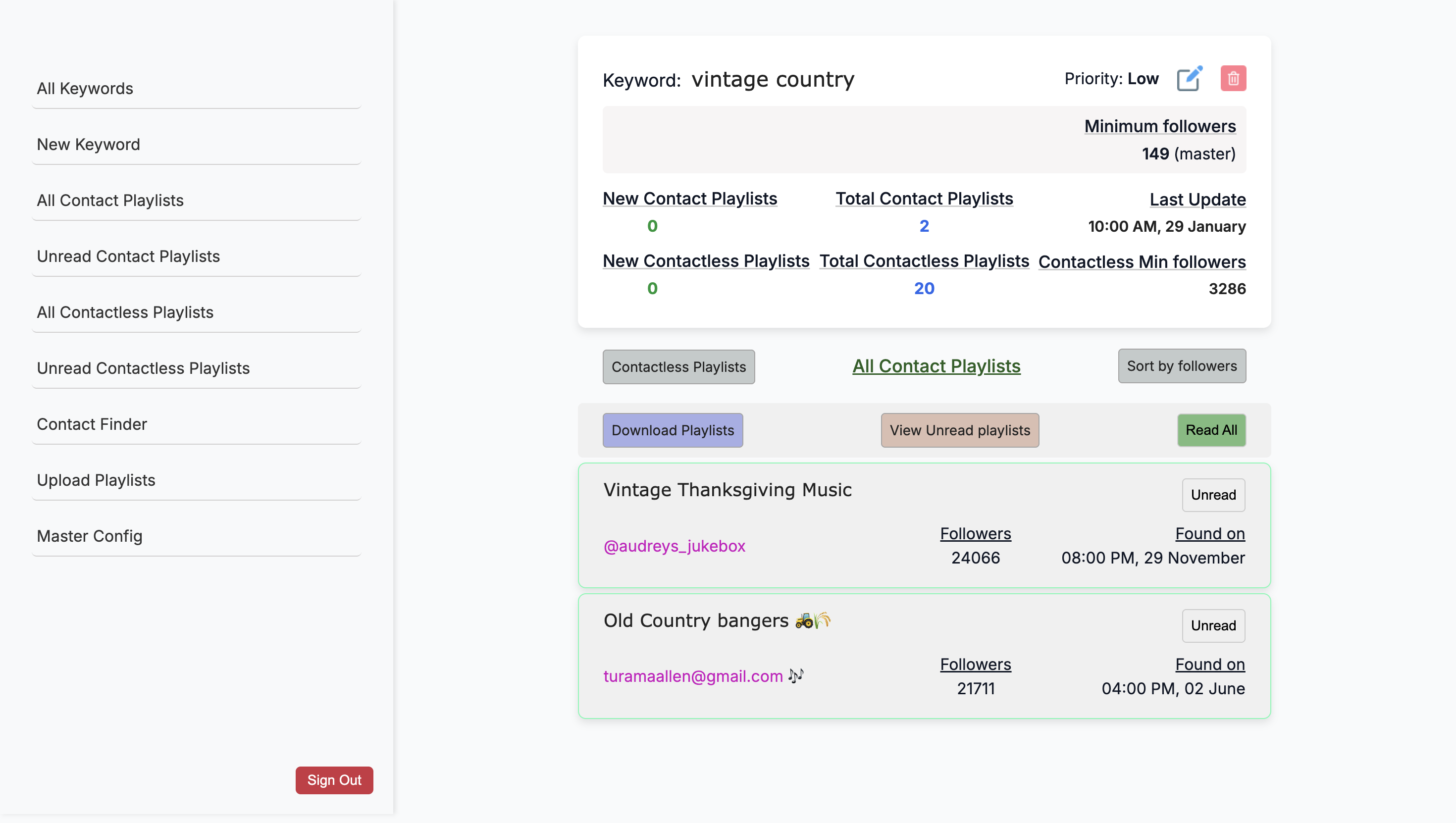
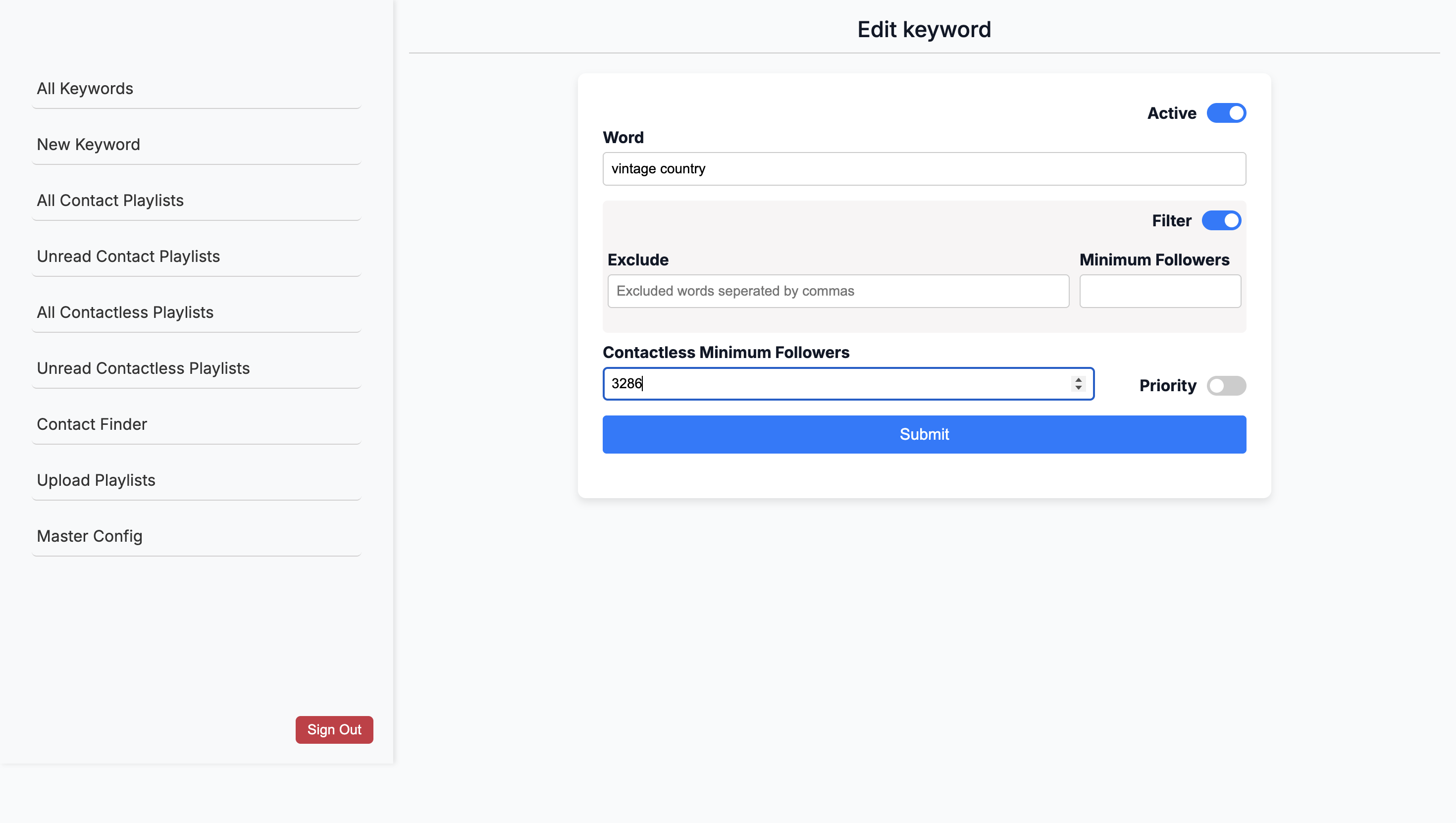
Yes, this is an active keyword. H- how do you now give you ... If you want to increase the minimum followers, you can raise it from 3,286 to 4,000 if you want it to pull more. Yeah. How can you make this area more contactless?
So, if I want to change the search to 50, is that correct? Now that you’ve reviewed all the ones with a contact, you want more Vintage Country contactless options to give the intern additional material to review. Mm-hmm. How would you do that? Earlier, during development, I asked Rajiv to set a hard limit of 20 because things were getting out of control.
... I just wanted to limit it. Uh, so that ...
I'm going to move around a bit to see if there's anything here.
Right now, when you enter 20, it gives you 20 results without contact information. But you can't indicate, "I have five new interns right now."
... Who could help me find—right.
"... But I want to find more. Yes. Go back to that screen.
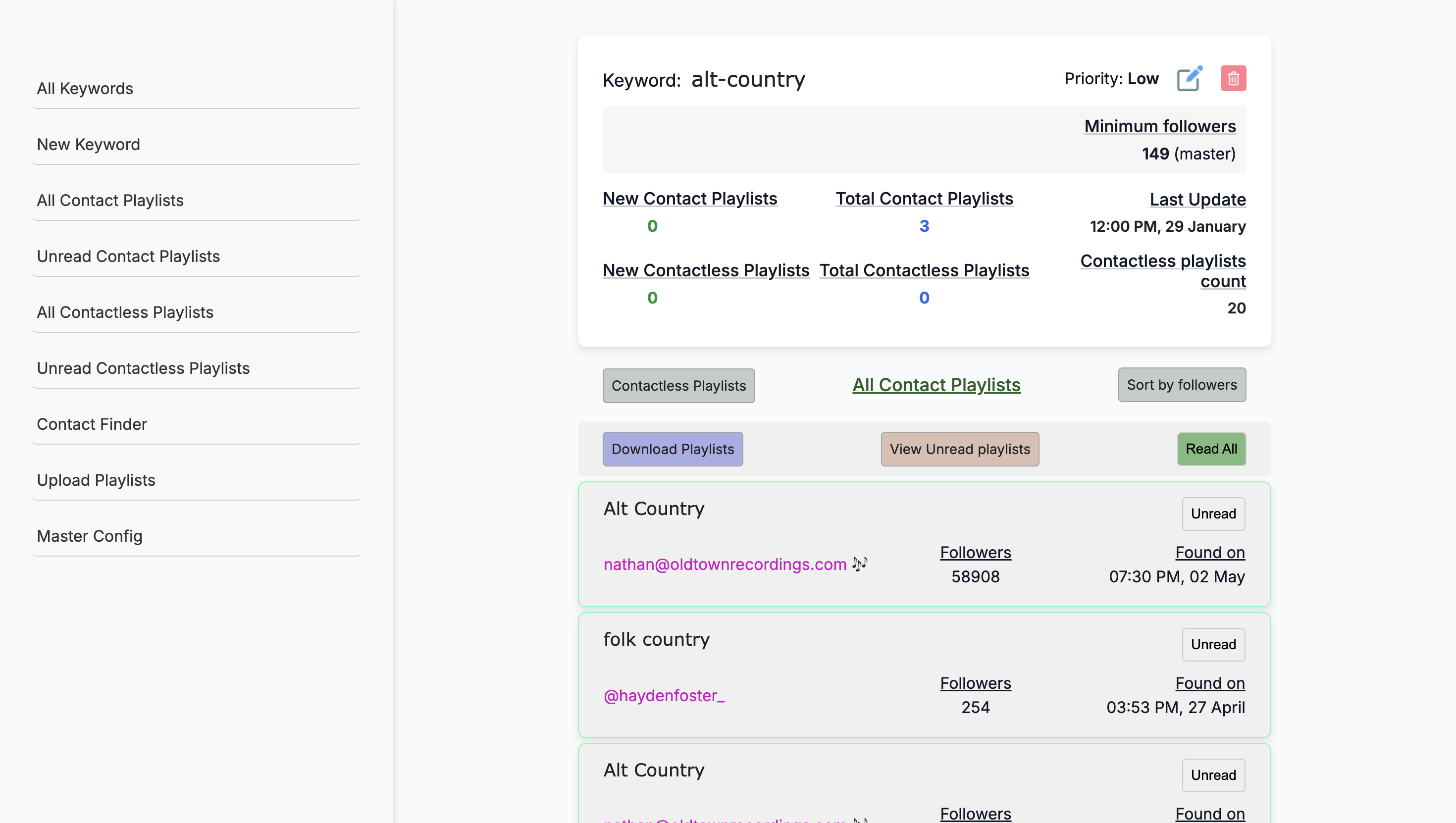
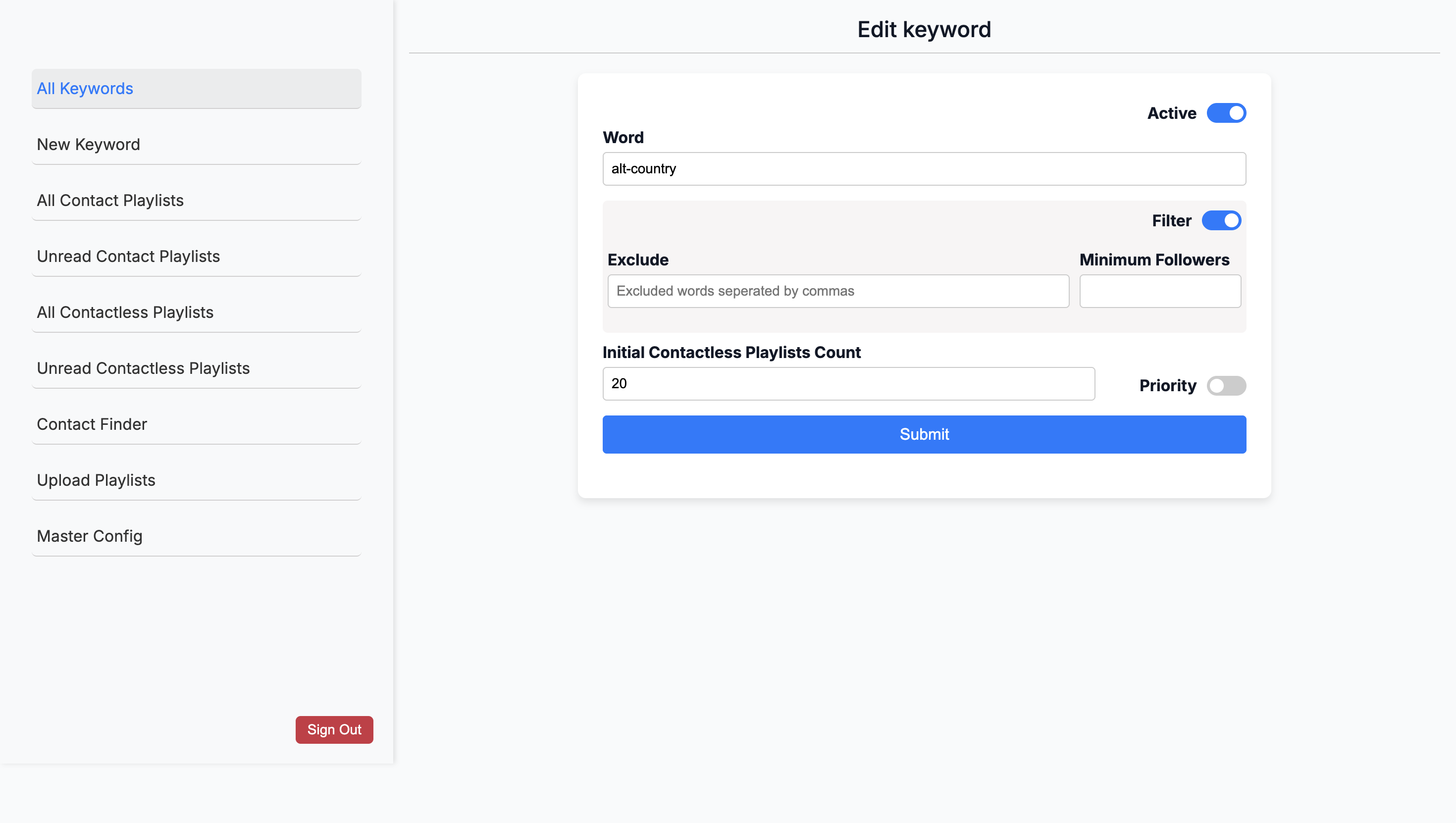
Yes, this one. This shows me that "edit" is the keyword we need. Mm-hmm. Hold on. This is an edit keyword for the initial contactless playlist count.
Oh, country. You can change it. I don't know ...
I actually- How come I couldn't- ... Know why.
I don't know why it jumps.
Okay, click on Vintage Country.
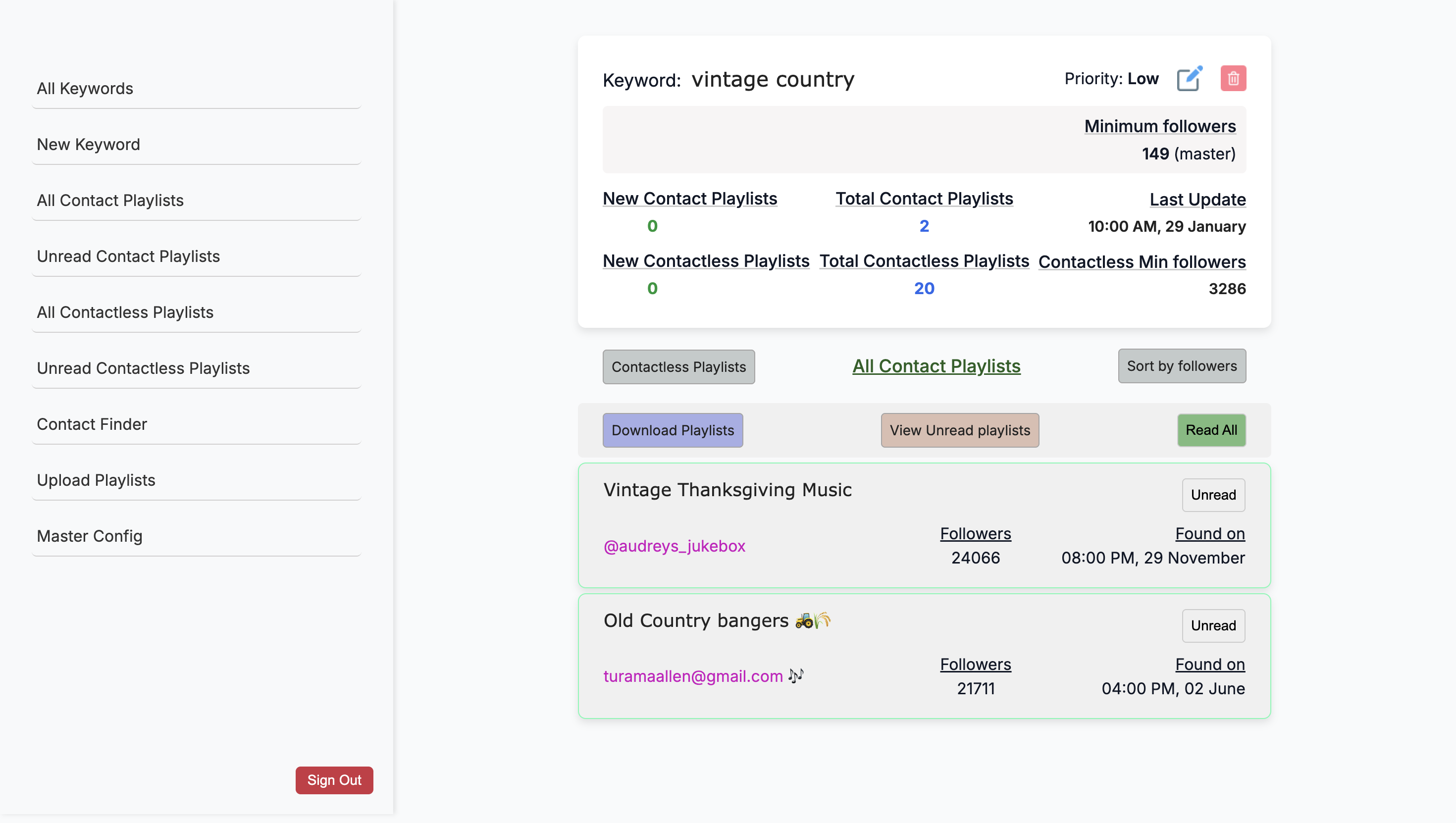
Allows you to have a contactless minimum.
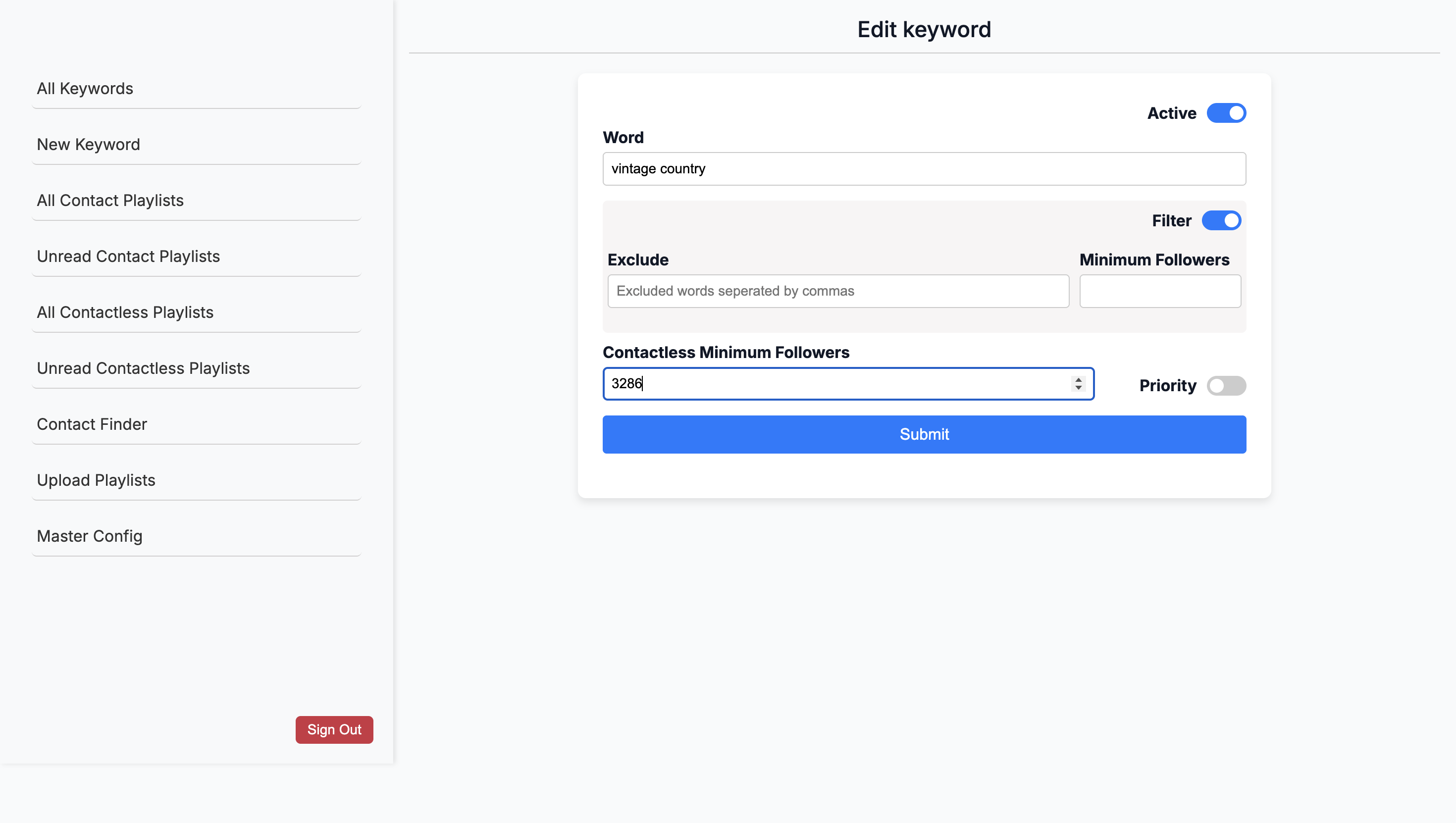
Oh, no, it's going to...
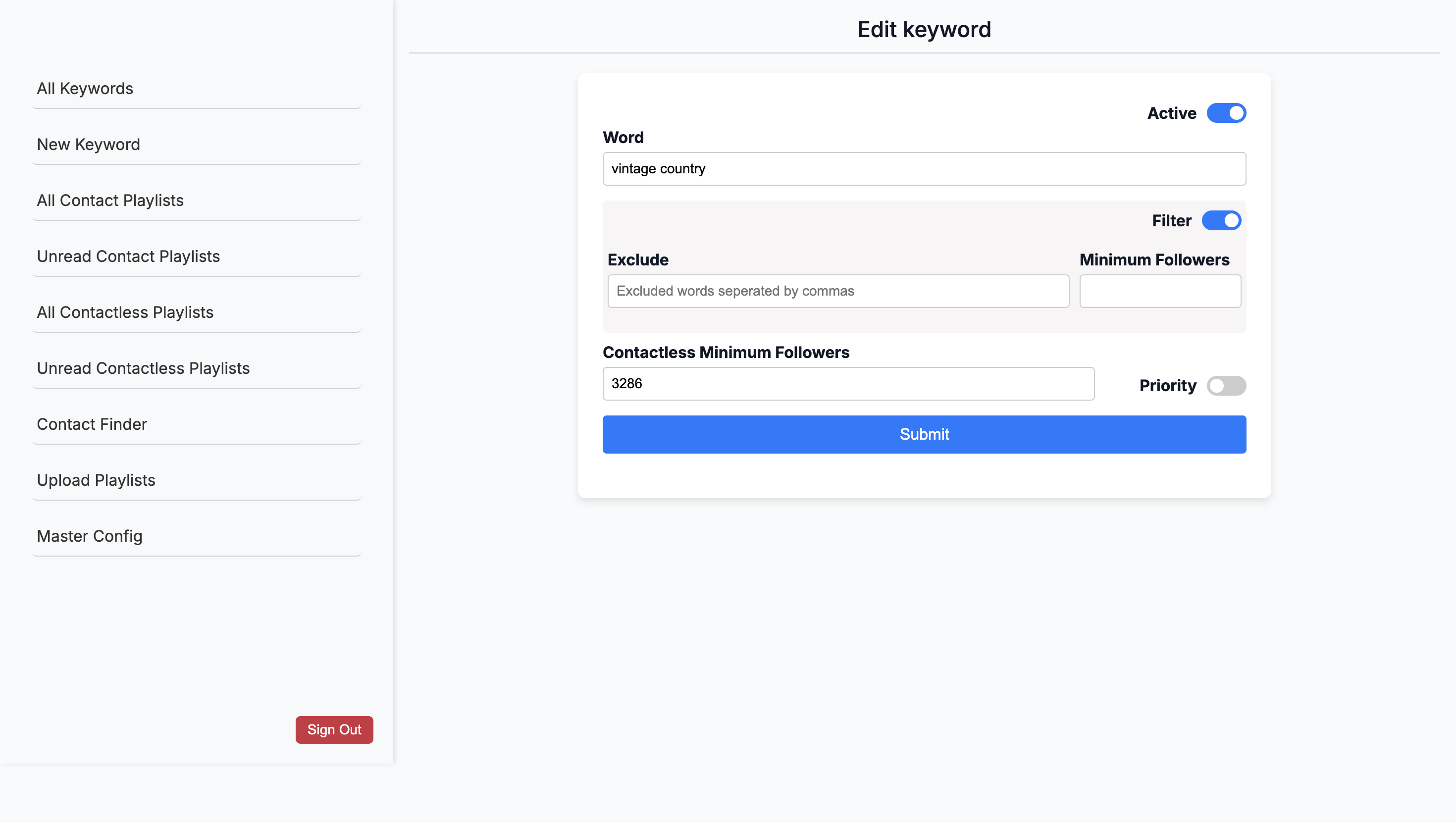
... Again, no followers. This is different.
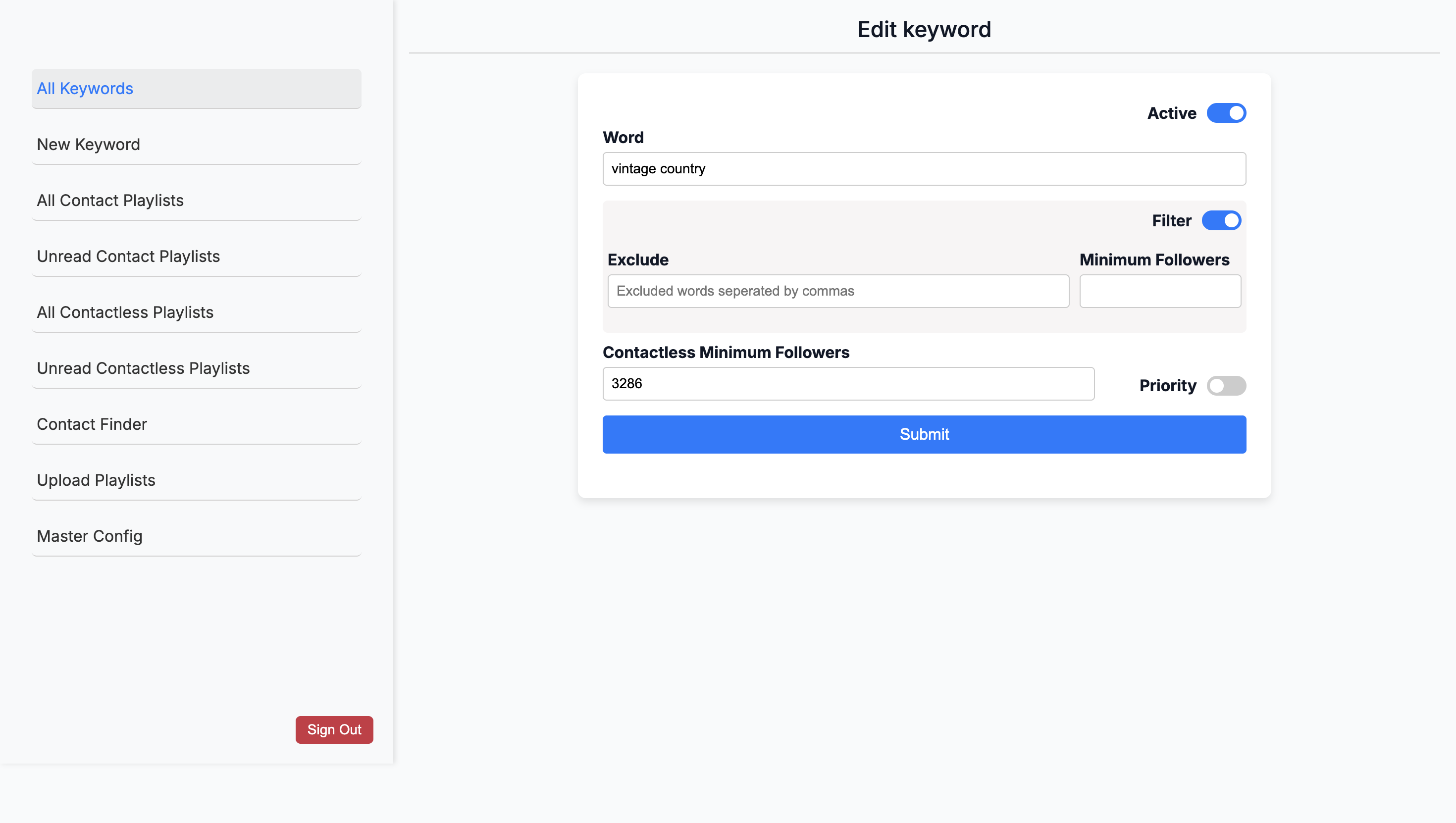
This is a glitch, Sam.
Um-...
Go to a different keyword, then?
Alt country is, you can adjust—okay.
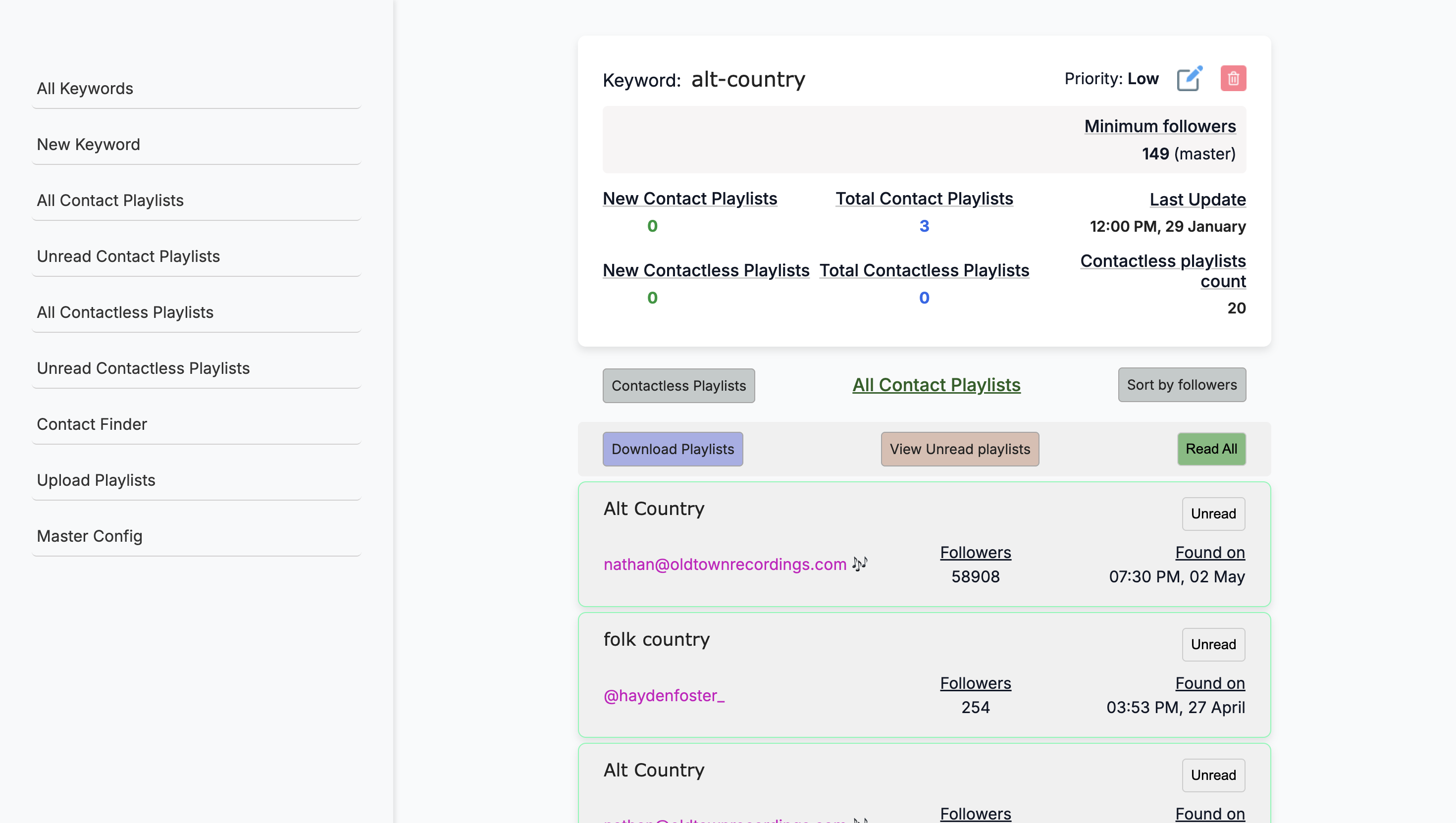
... The playlist count.
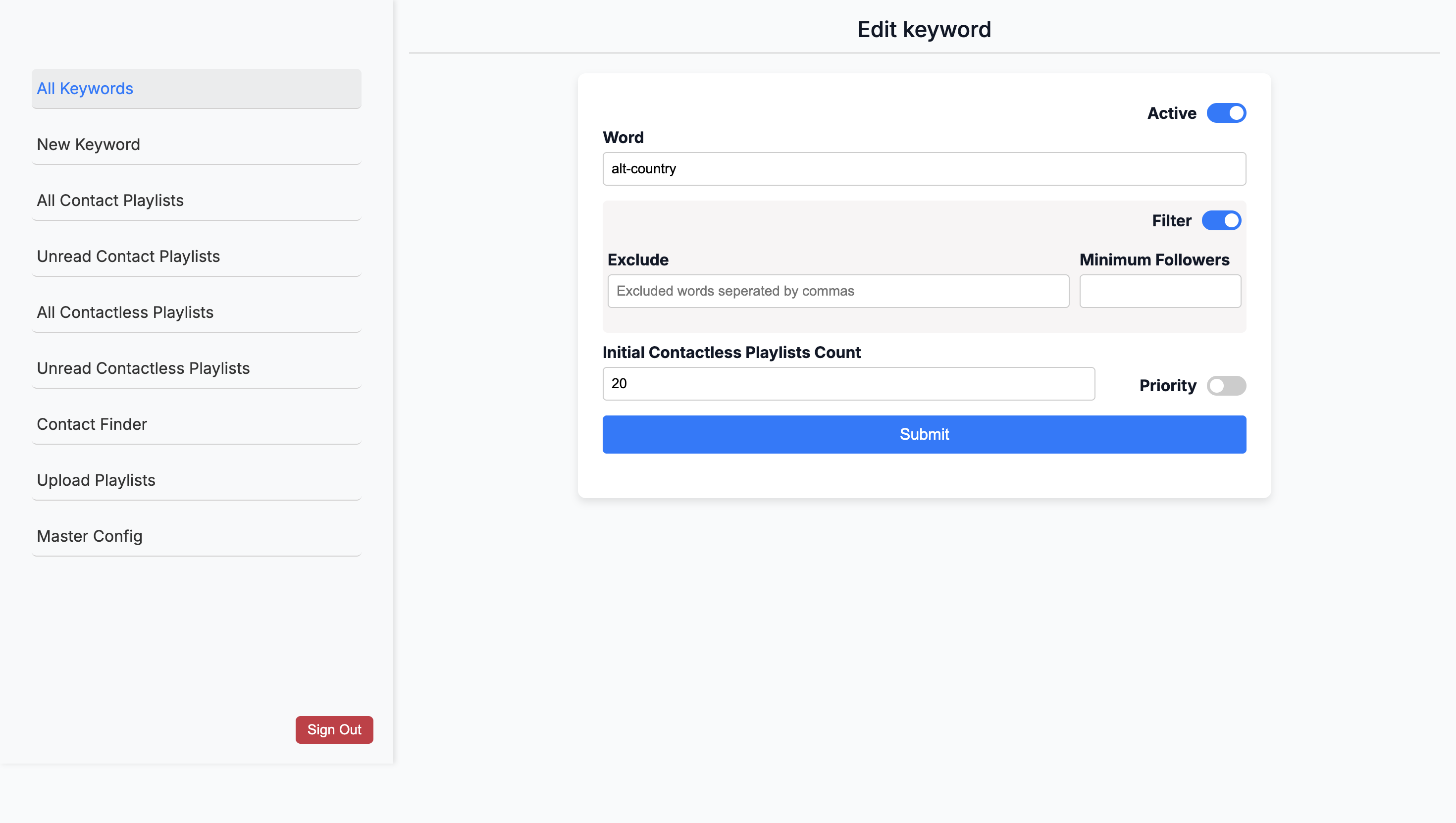
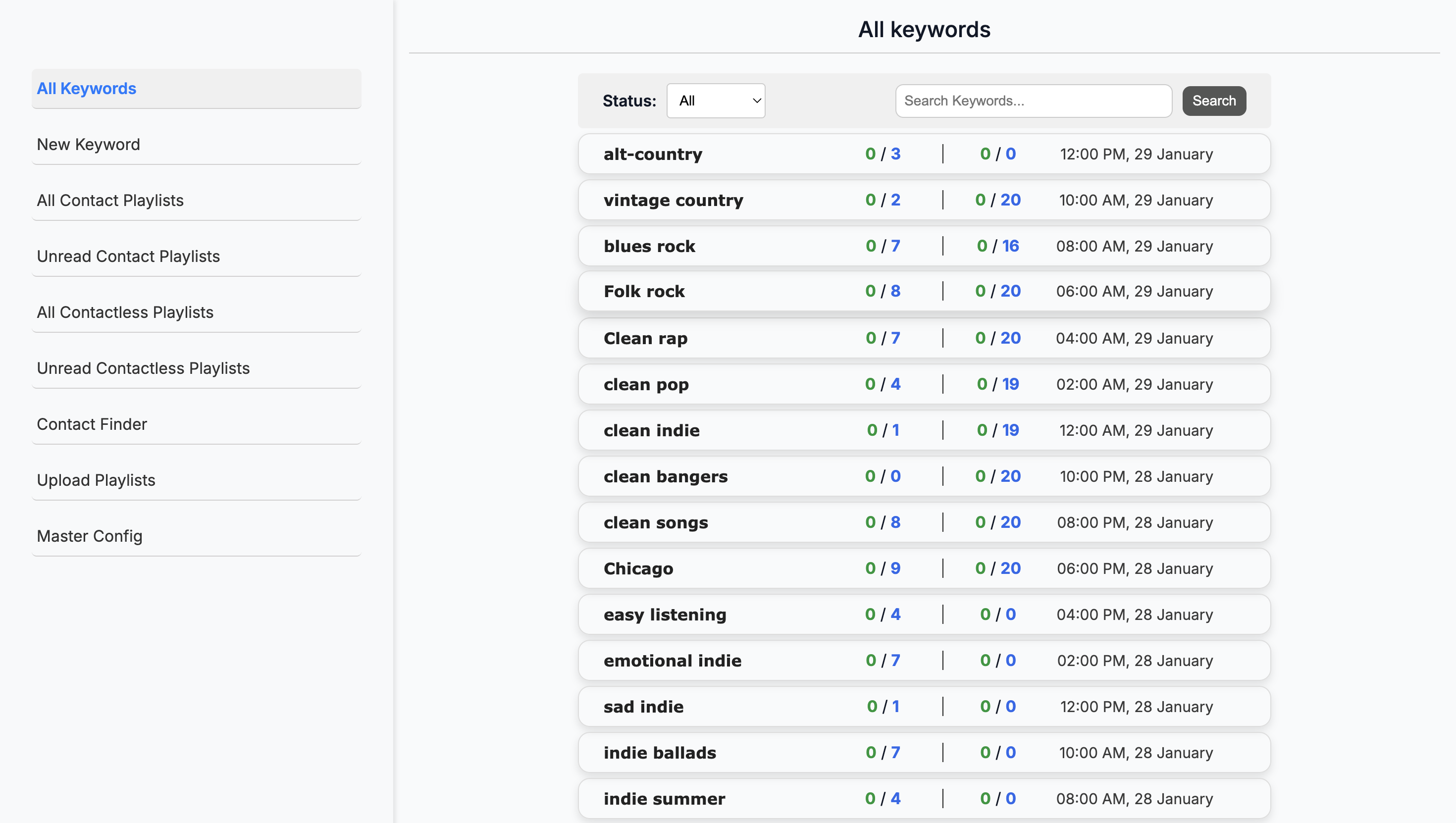
Folk rock – What is the minimum number of followers?
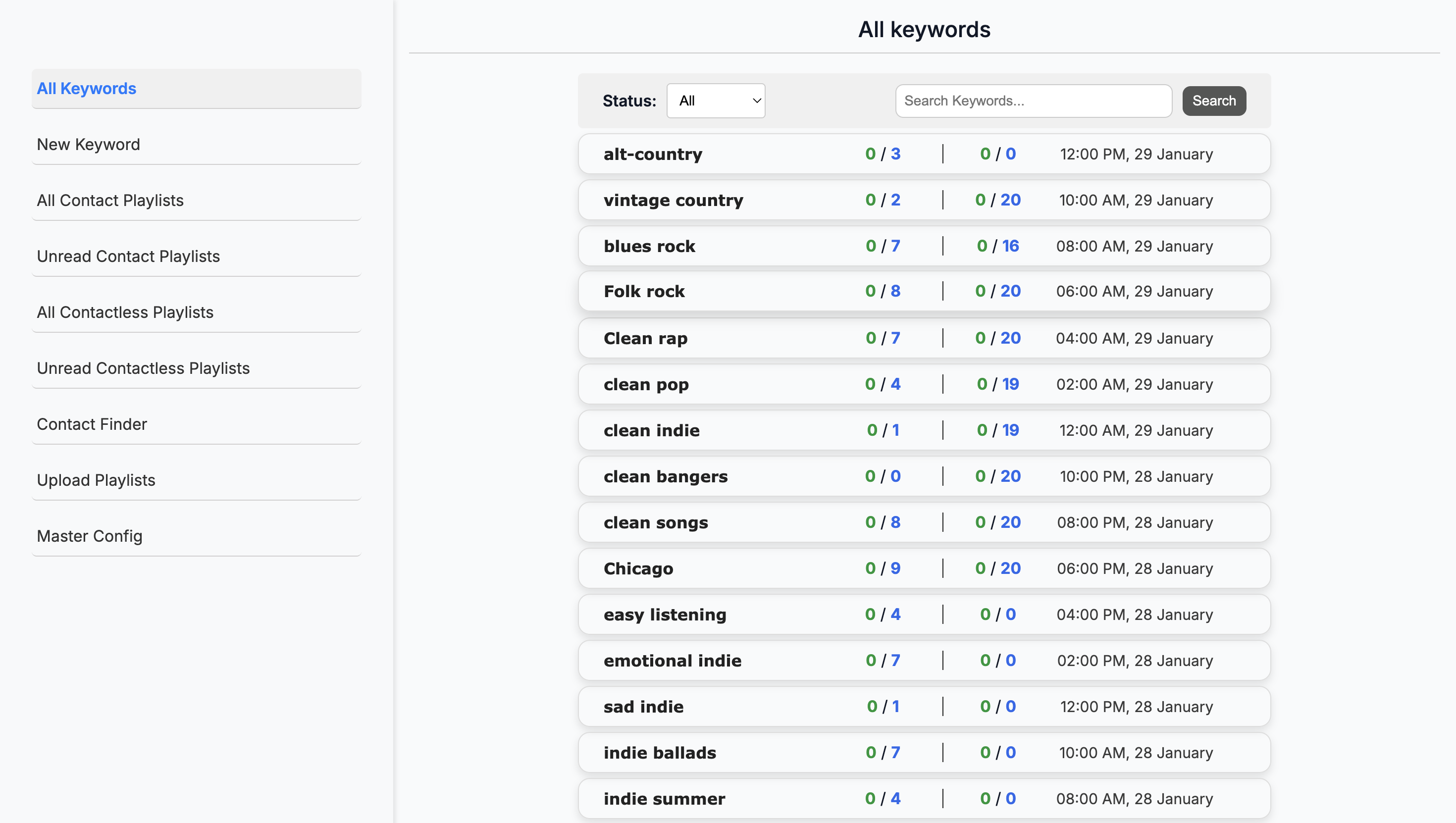
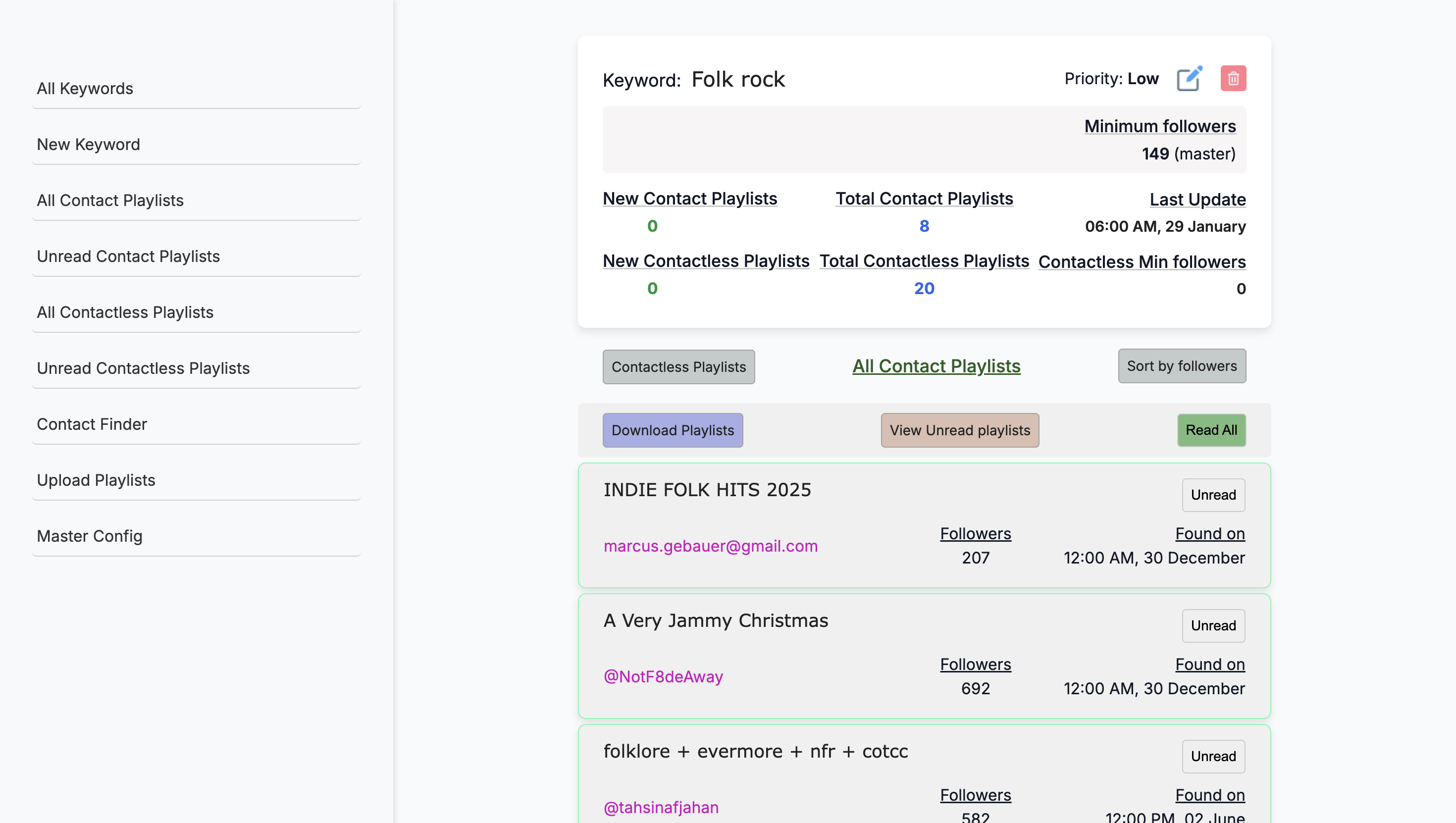
... is followers. We need to address why.
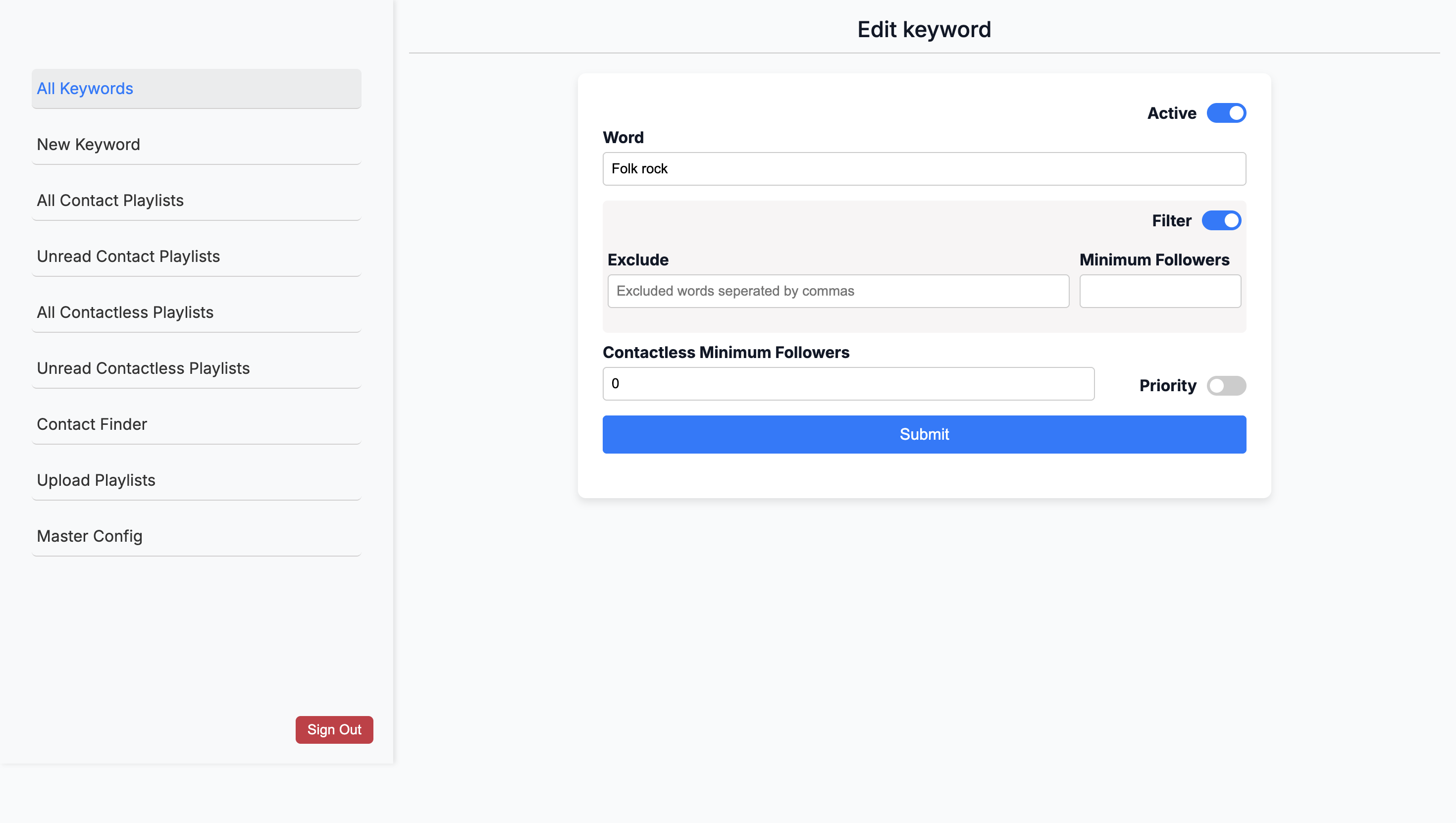
... There's a bug that some of them mention—yes. ... Minimum followers. Yeah.
The idea is that if you want more contactless options, you can say, "Now give me more contactless." You can also set a minimum follower range. Okay. ... The purpose of— Got it.
... Including that is important. Okay.
I have the entire system turned off, since I haven't used it in about six months. Which one? The edit was necessary because it was pulling too much, and we didn't want that. ... It didn't make sense.
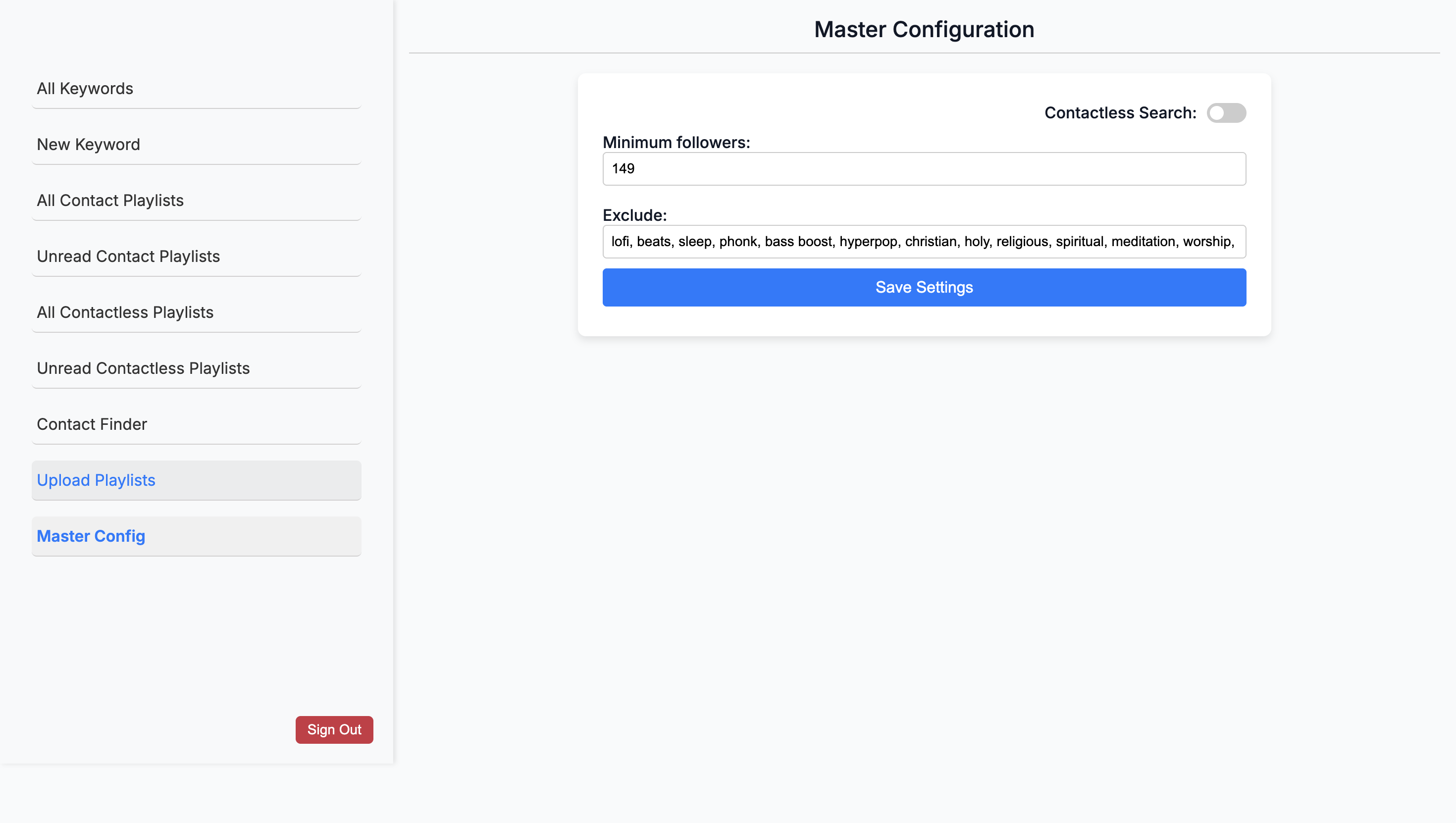
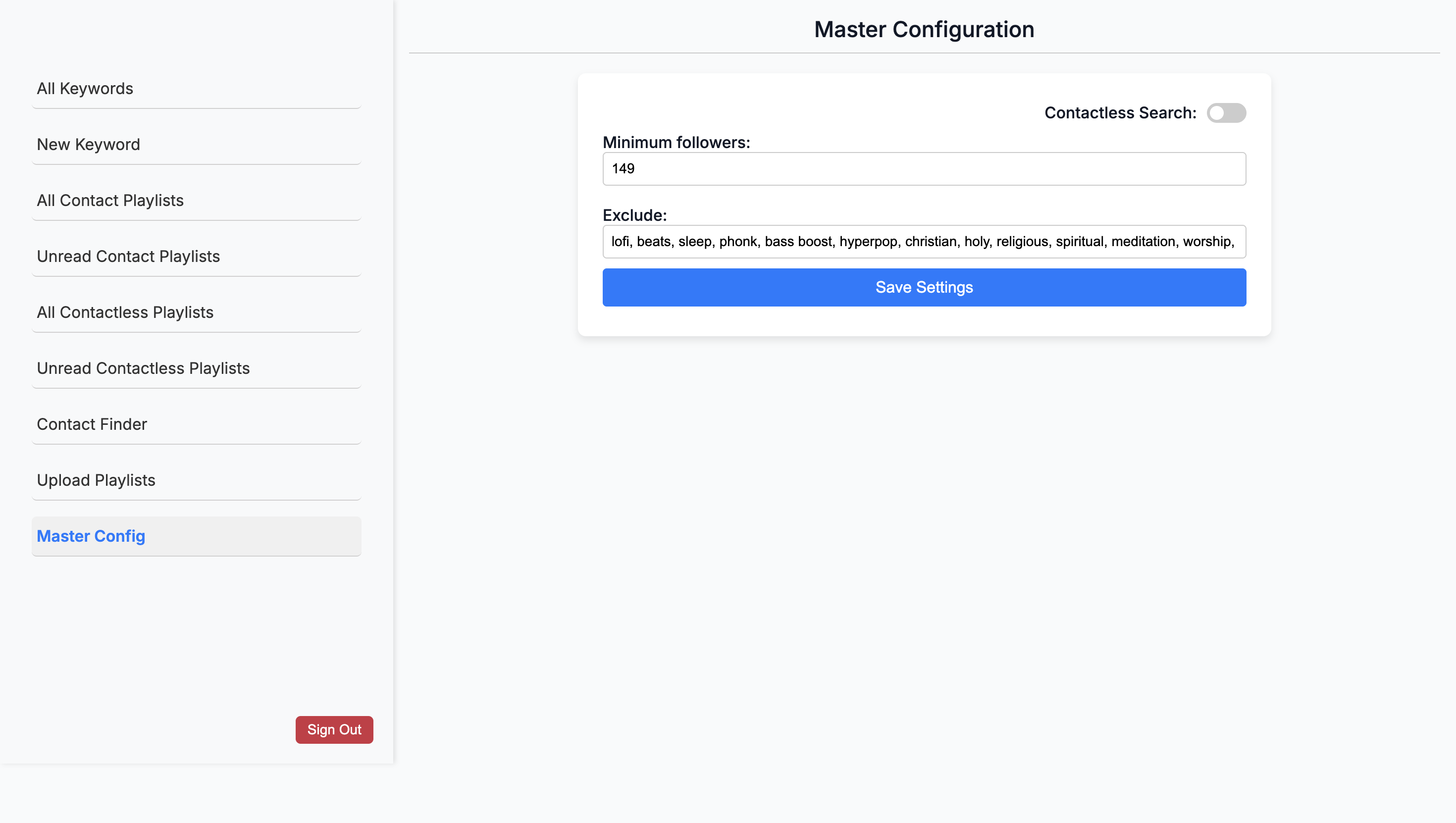
Oh, was the contactless option pulling too much? No, for the contact list—the ones that don't... The contact list, yes. Yeah. Okay. I can turn off the master configuration on the left side here if needed.
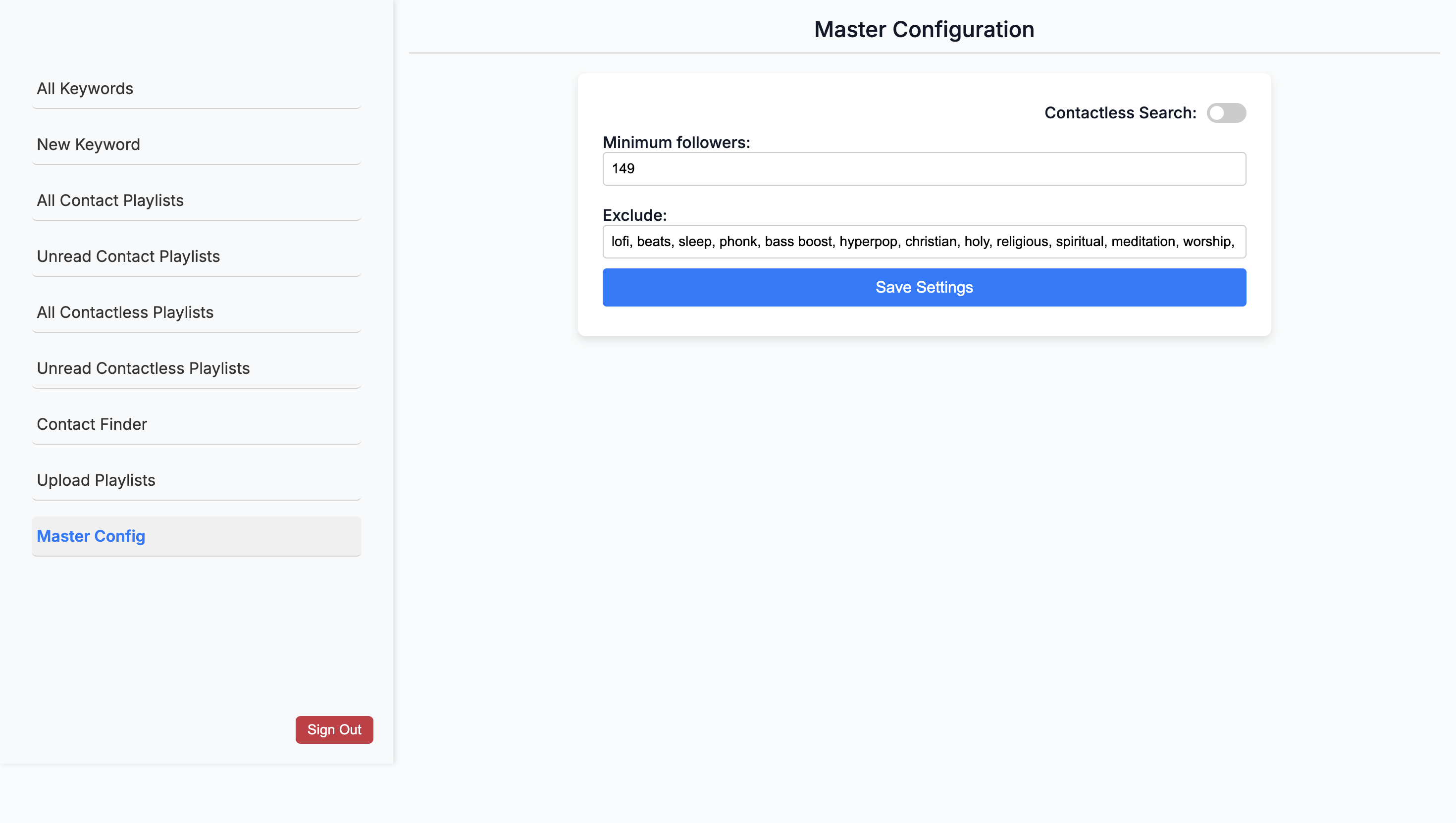
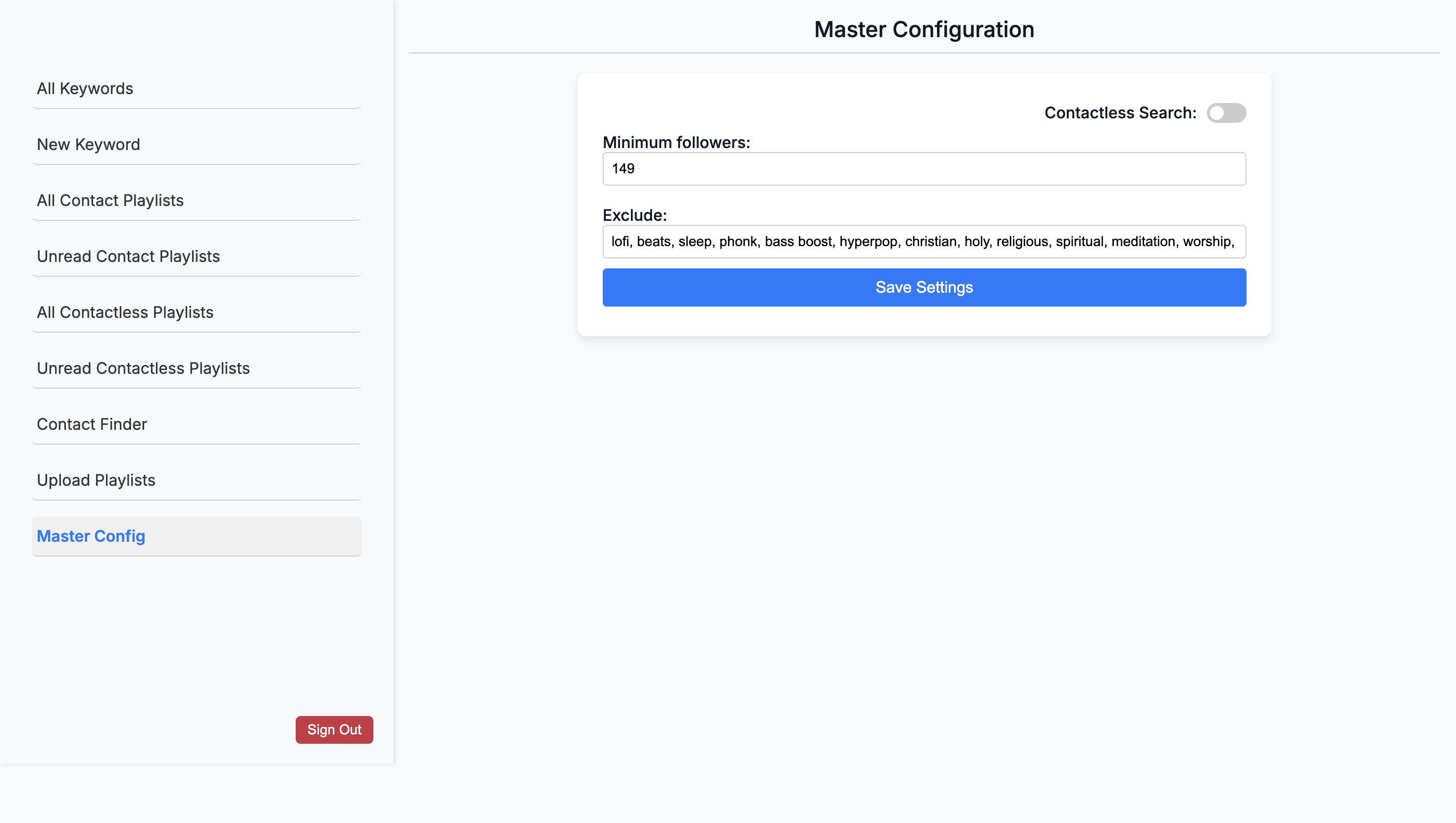
... Click the master configuration page. Contactless search, okay. If I turn on contactless search, it will start running automatically. Why would it give you more in contactless if you already set a limit of 20 per keyword?
There are hundreds of keywords, so it will cycle through each one. So, even though you initially set it to 20, it will give you 20 results every day for each keyword? Yeah. That's not what we want. Or it will keep...
It's not possible to go through every single keyword in one day, because you'll be limited. Of course not. ... the API. Okay. Yes, it will continue to cycle.
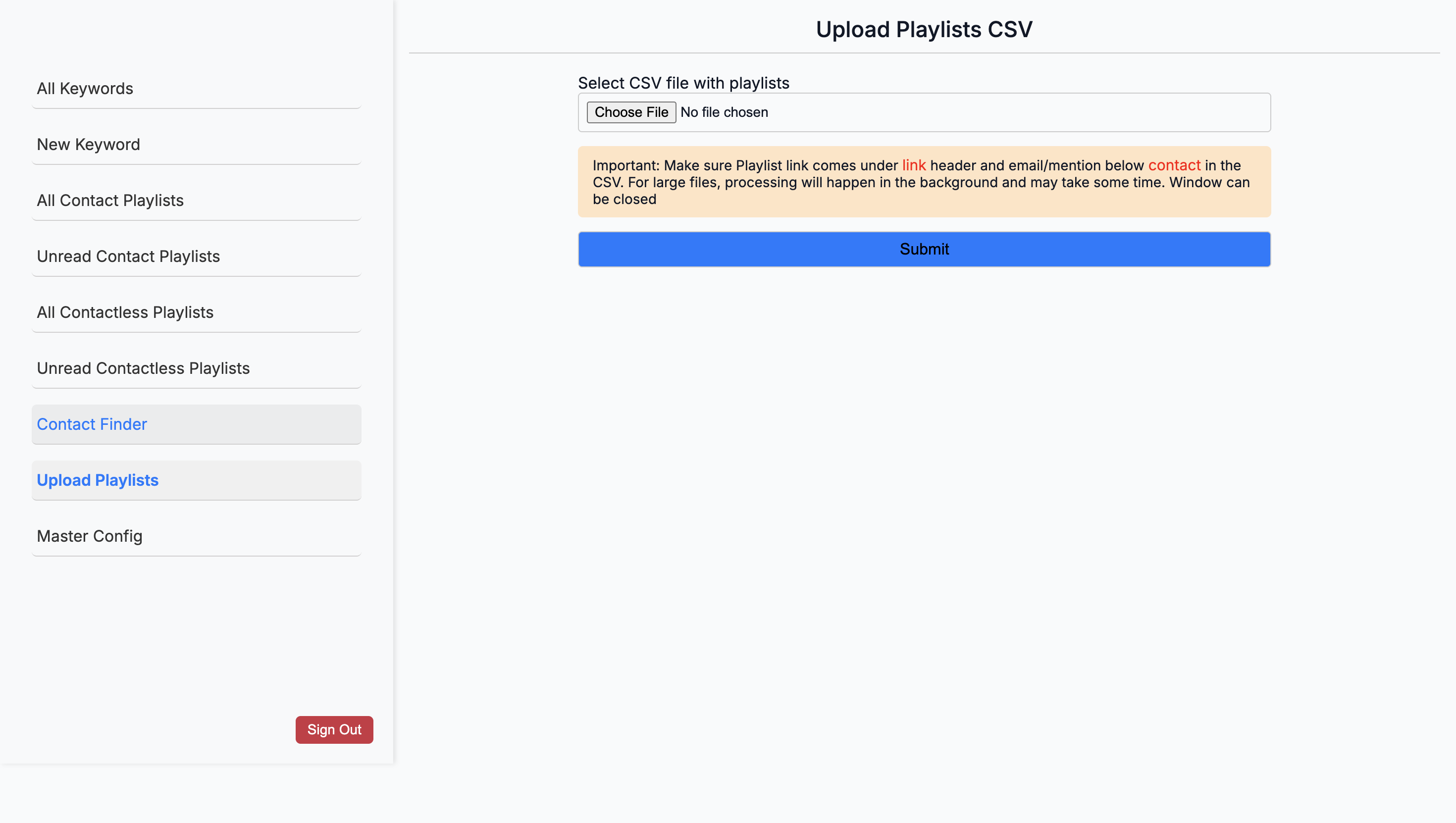
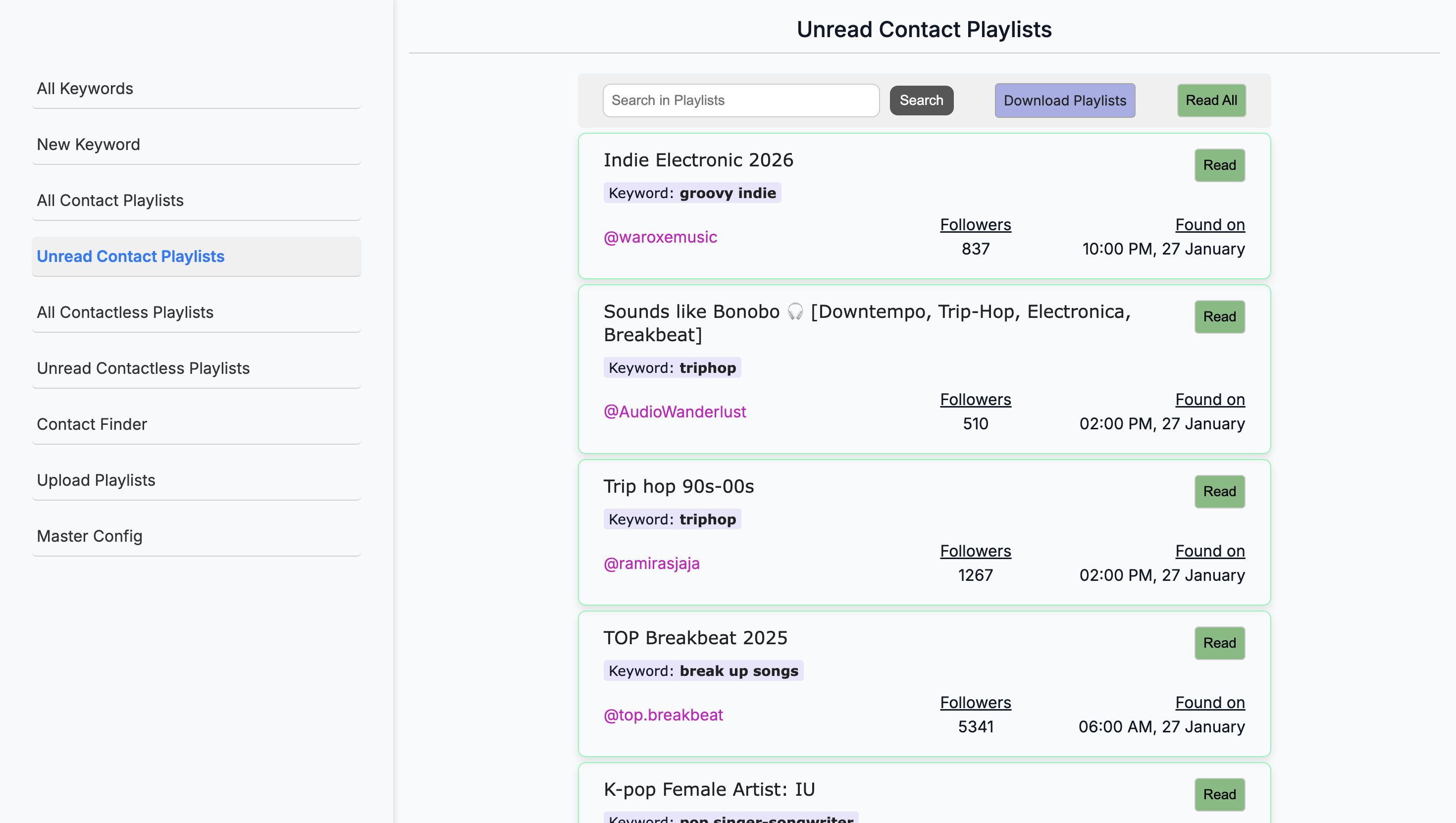
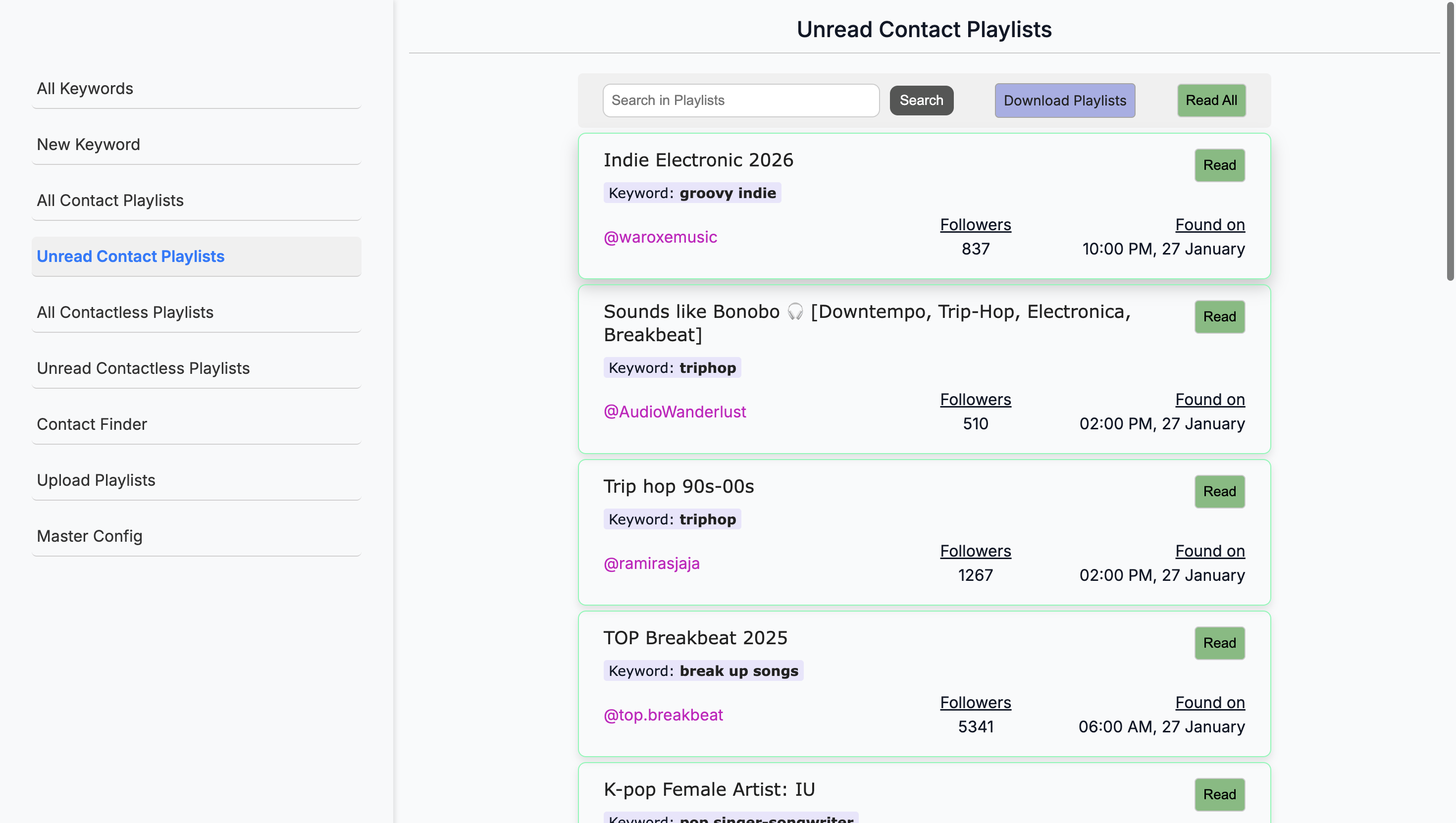
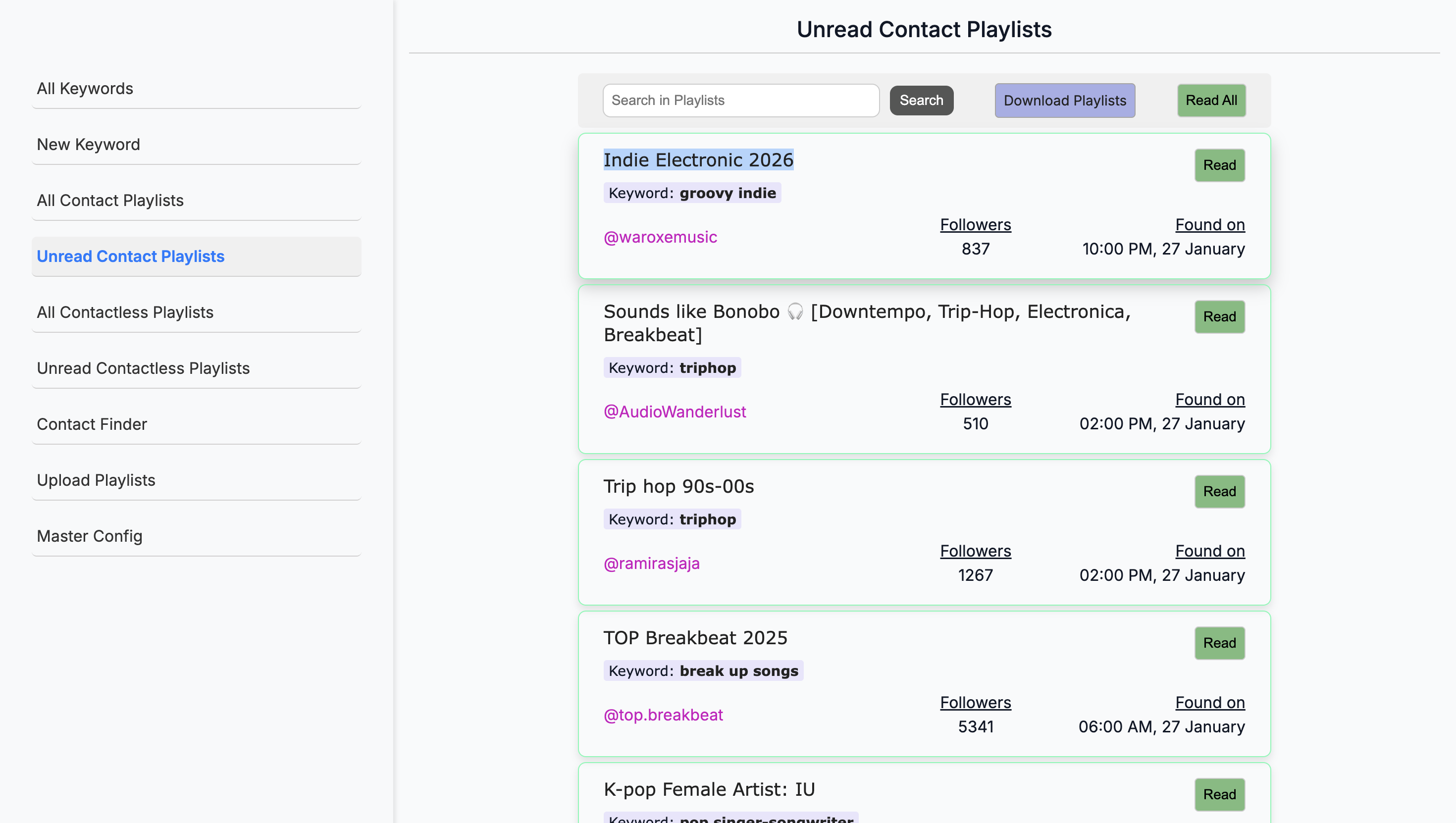
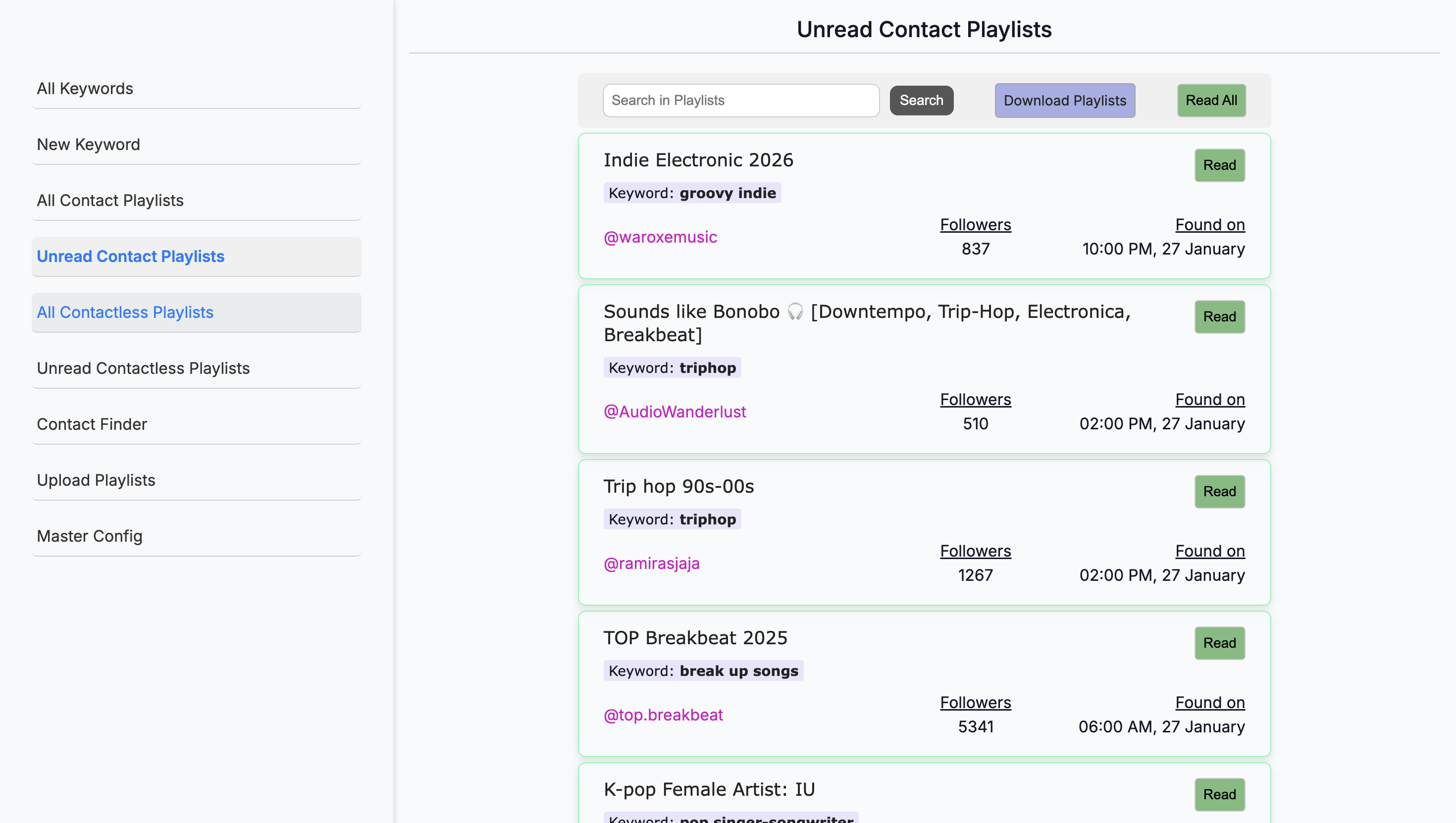
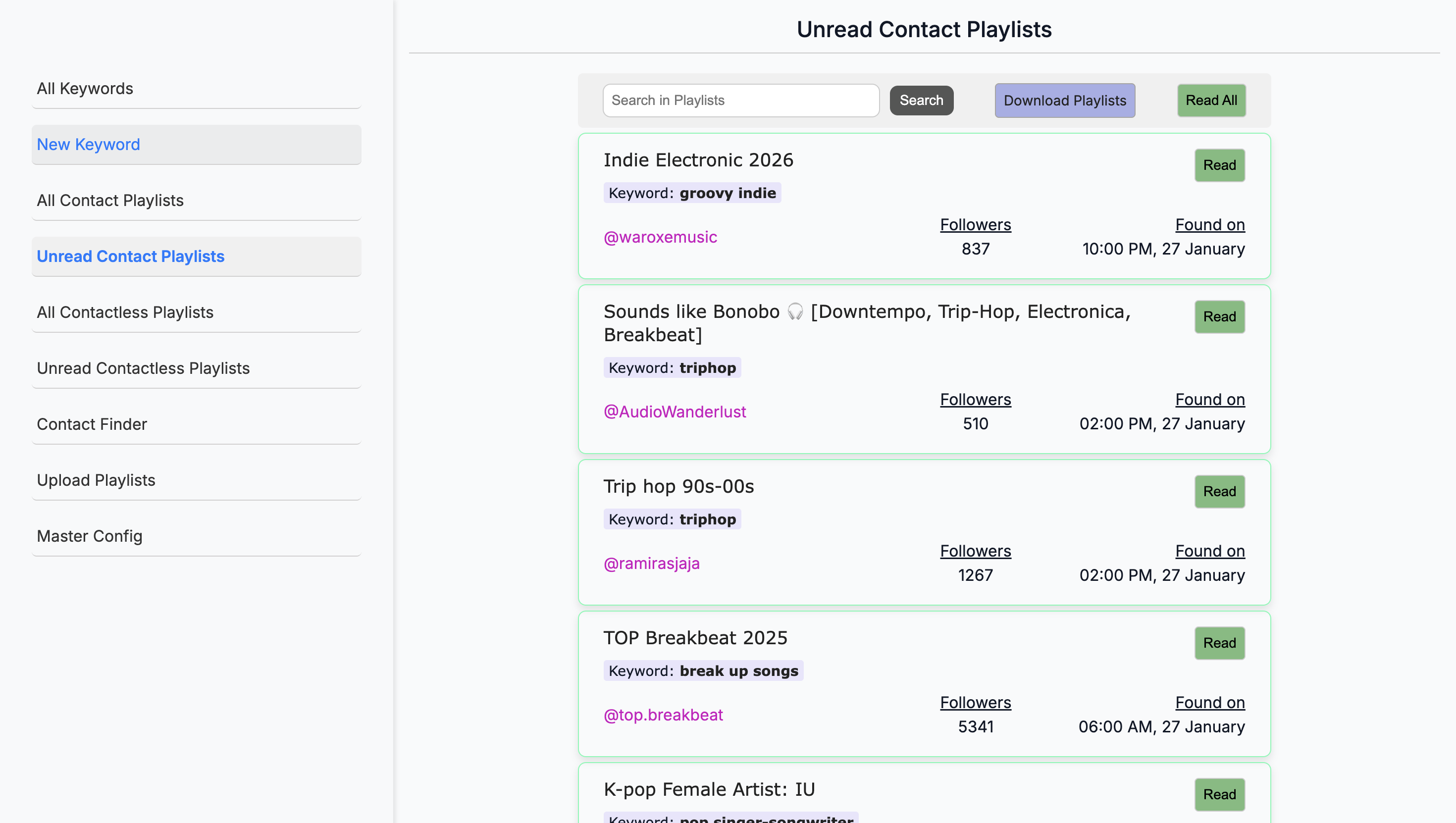
Okay. That’s why I added this. If we go to unread contact playlists, these are all the ones we still need to export and review.
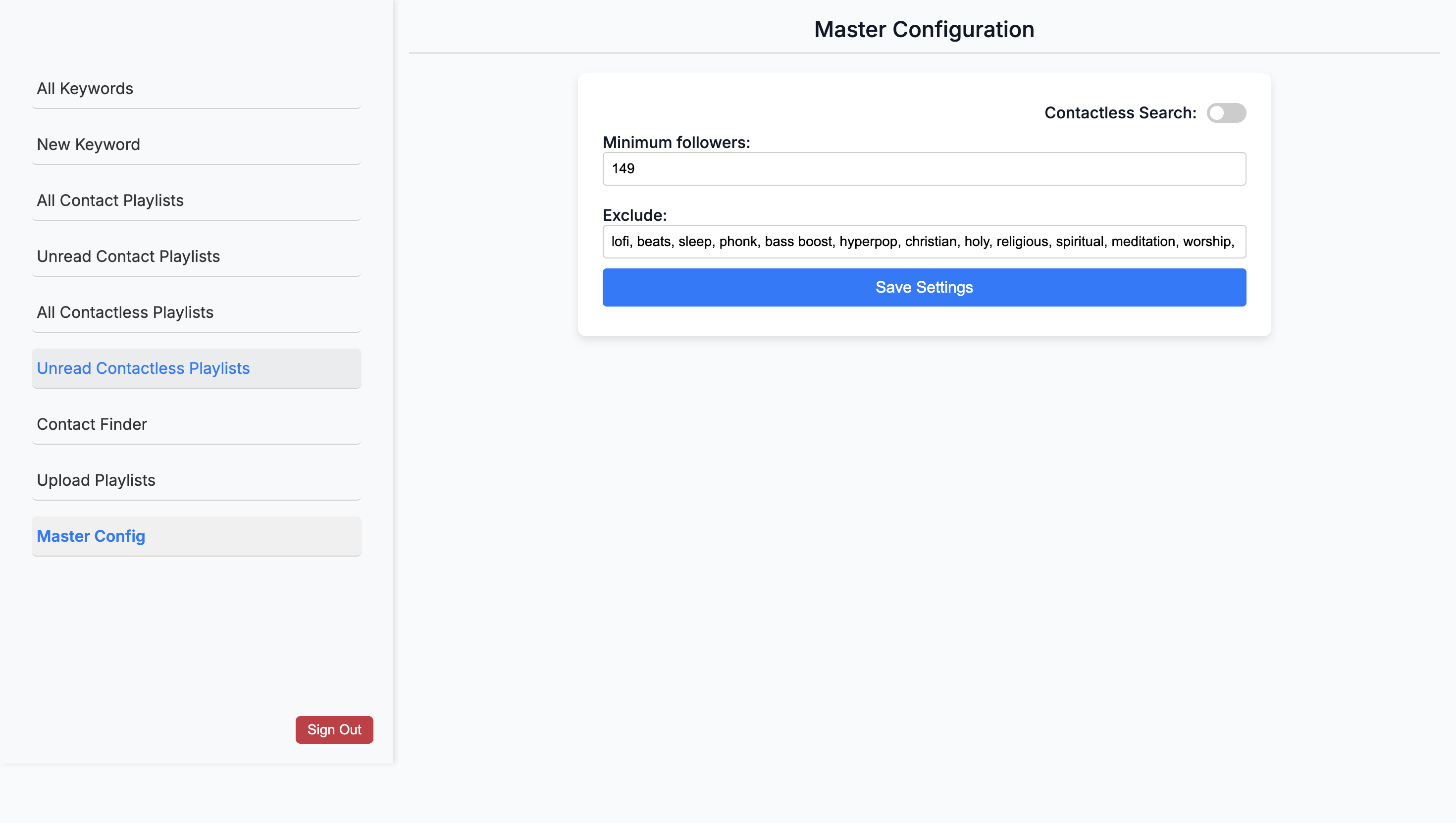
I let it run for a day, and now there are 41 pages of playlists.
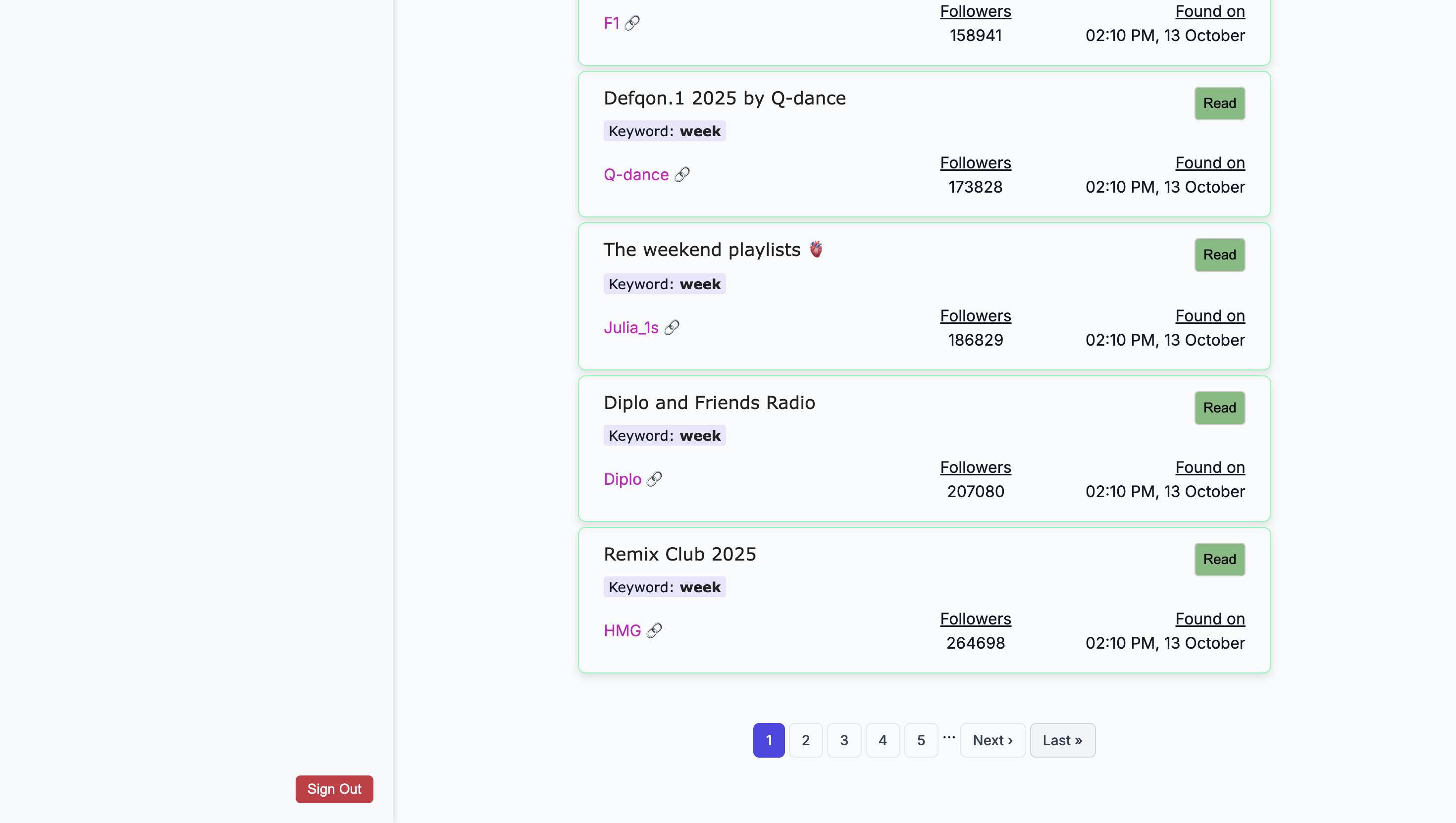
But these are contactless.
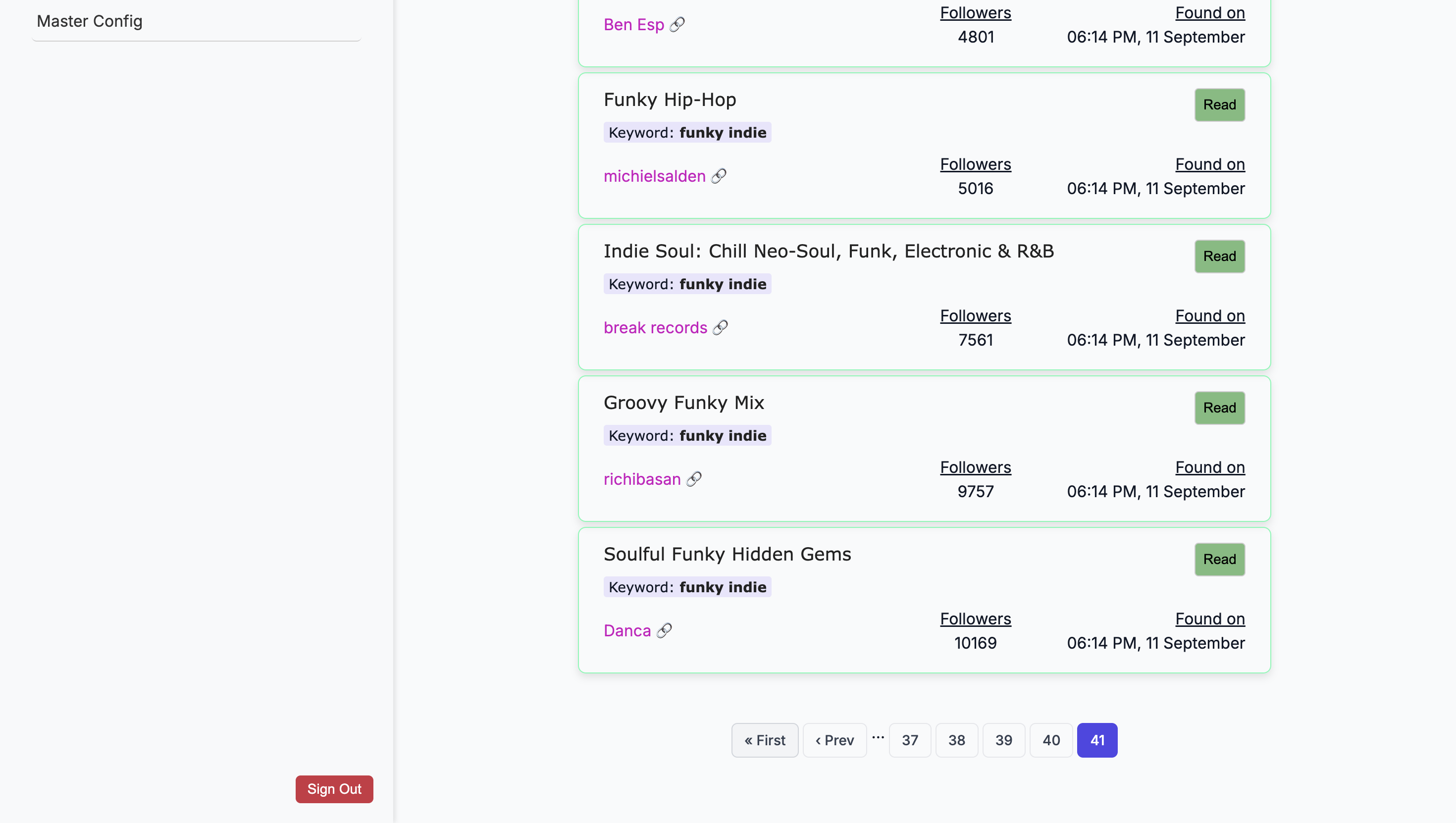
That's a lot. Right, there's no contactless. Okay, you can view a contact with fewer steps. Okay, so- Right. ...
You usually do not start your day with this. You start your day on SPT. Mm-hmm. ... by looking at, uh, contacted all of... Wait.
Oh, unread contact lists.
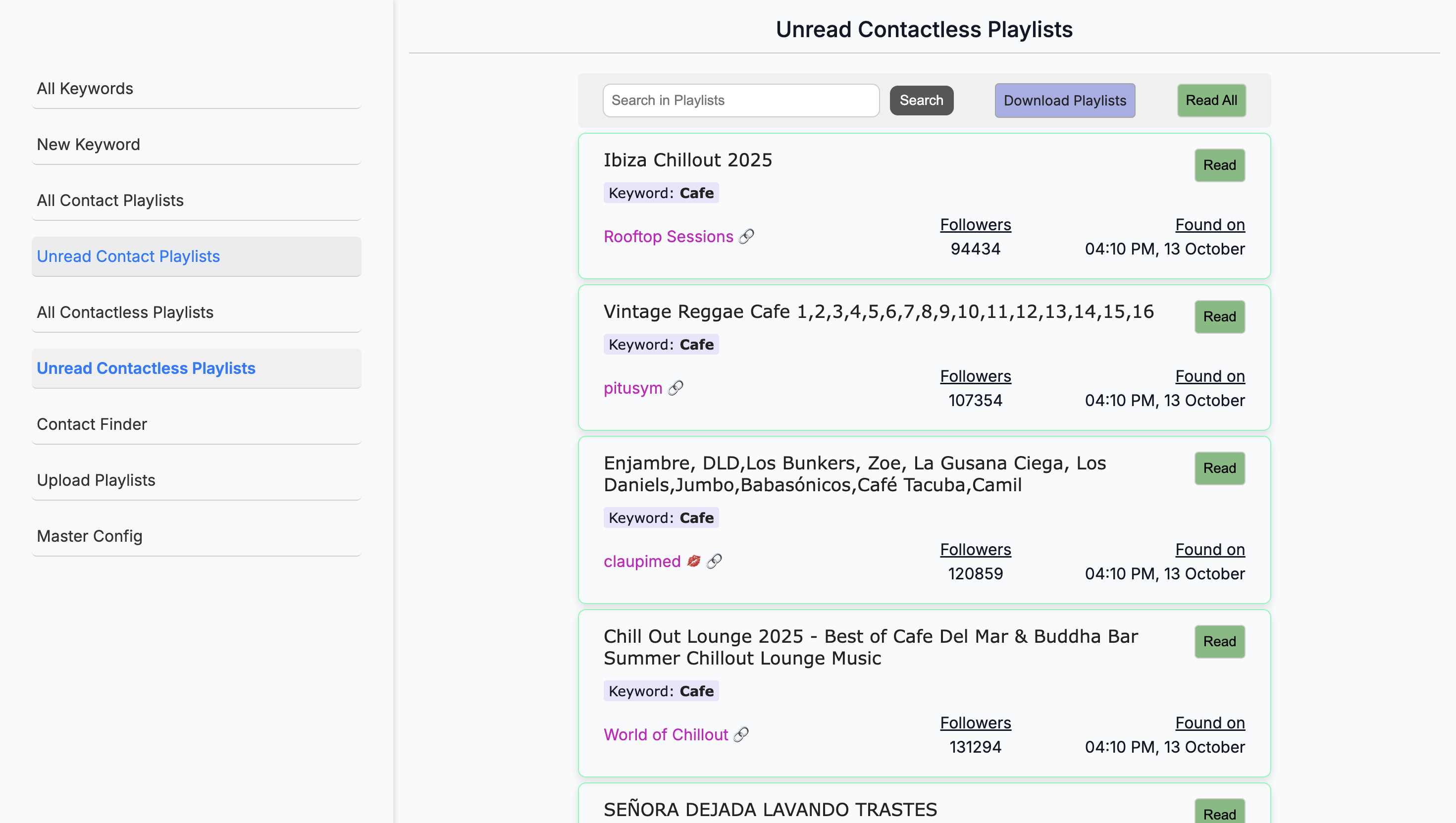
Unread. We want the main page, after logging in, to go directly to new playlists. Correct. Change the name. Because that's what this really is.
Change the name to "New Playlists." Yes. I only use this and reference it about once a week. Each week, it finds only 10 to 15 new playlists. It's not as if I wake up every morning to find 30 playlists waiting for me.
Okay. We've used up a large quantity of them, so there are only a few left. I even have these follower counts set quite low. I have it set to 150. Okay. ...
That is the minimum it must reach. Okay, but now it found January 27th, 27th, 27th, 27th. Yeah. So this was within. Okay. ...
the past few days. Okay. Um... So, what is the process for finding something now? Please walk me through what happens next.
Because you were going to do this on your computer as well. Right. I would download all of these. Okay. When I click "Download Playlist," it puts them into a CSV file.
Okay. Let me show you how it works. Yes, it's here. ... Columns include the playlist name, playlist link, number of followers, the keyword used to find it, and the contact information such as email or Instagram handle. "Contact" refers to this information.
The pull. ... It must have either an Instagram account or something similar. ... an email.
Okay. Or else it won't appear on this. Okay. ... On this list. Okay.
From there, I copy this into my spreadsheet and manually review all the playlists. It still brings up playlists that use the keyword "chill," like "Mejores Canciones." ... playlist. We're not going to place on that.
I have to manually remove those. Even if it looks like that, why do you need to put it on a different spreadsheet? I don't understand. So it can... This isn't a shareable sheet, so it's not like a Google Sheet.
It's in its own CSV. Okay. ... It’s stored on my computer, right? But you didn't copy that to your other spreadsheet? I, yeah.
Do you edit that one, and then go into your spreadsheet? I don't edit this one. I first enter everything into the spreadsheet. Okay. It's mainly a workflow preference for me, since it's working under the same tab.
Okay. I'll also check how active these playlists are. That's another part of this manual check. Some playlists may have 5,000 followers, but no one listens to them anymore. No one follows the playlist. It dropped out of SEO rankings. Wait, how would you know that?
So u- uh- So you go in- ... Using artist tools. Okay. So ... This is in artist tools.
... You are going into artist tools. Mm-hmm. So I copy a playlist. ...
This is before you move on to the next step. Before Chartmetric, go to artist tools. Correct. Okay. Go here and copy and paste the link.
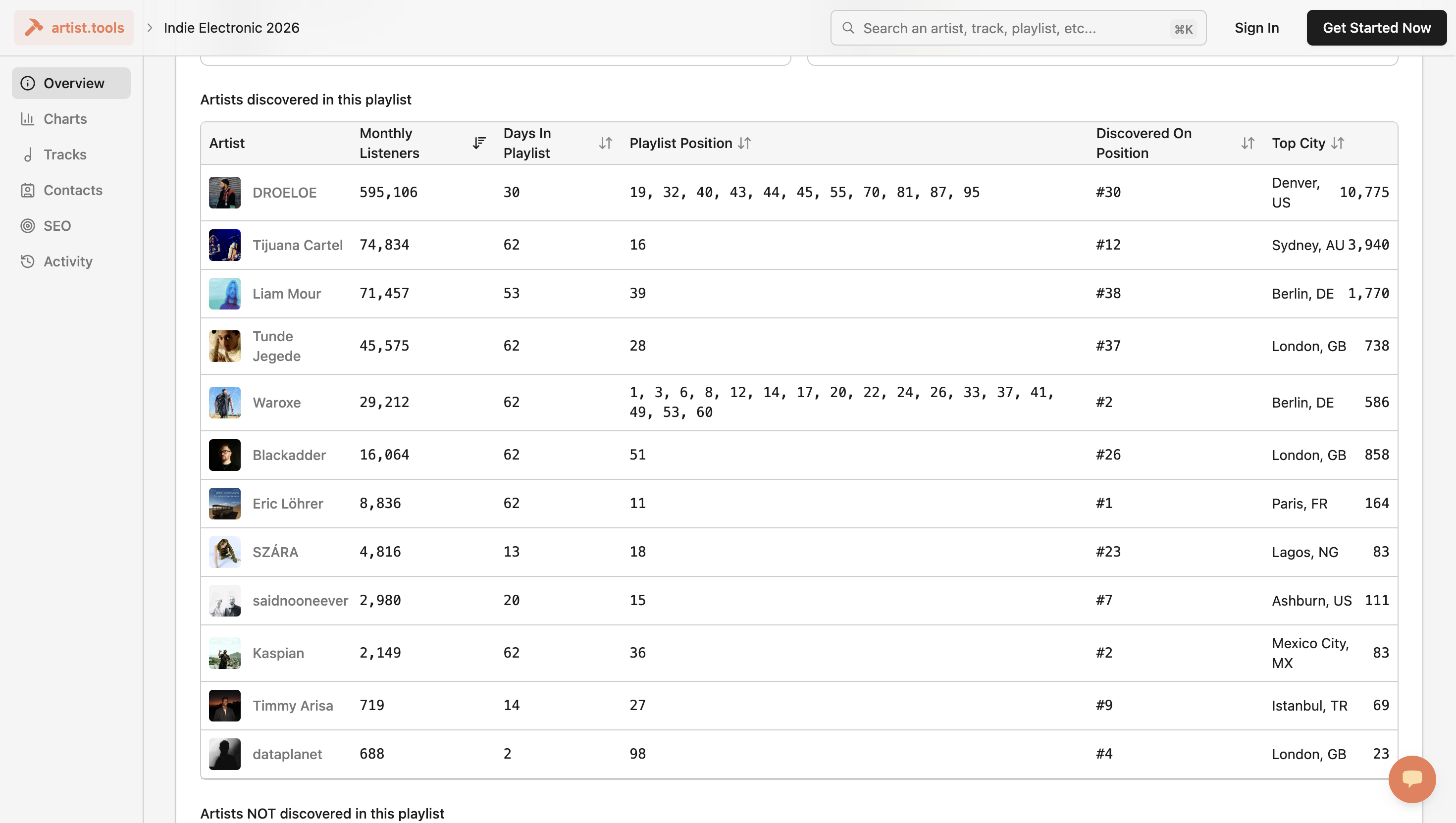
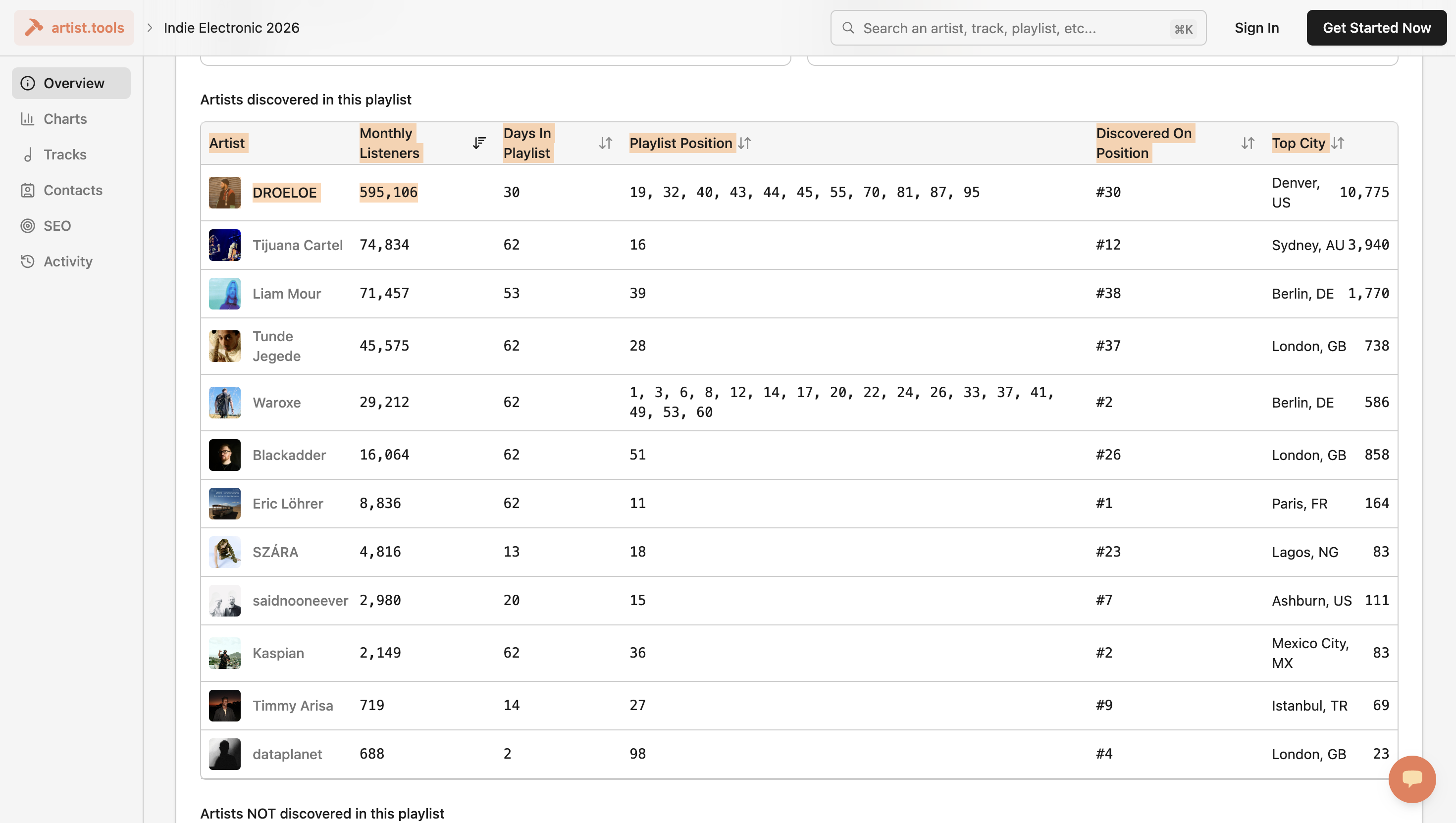
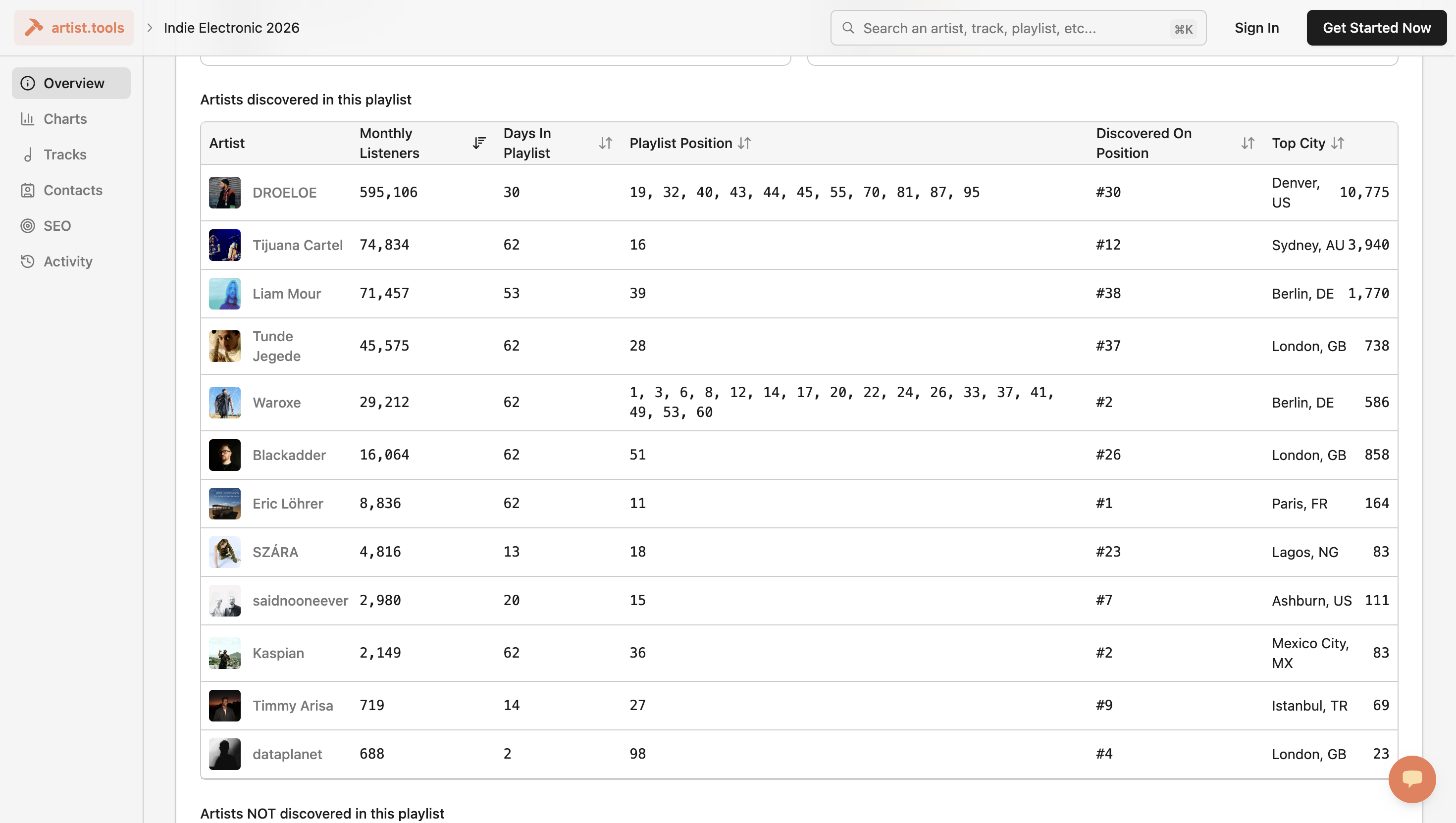
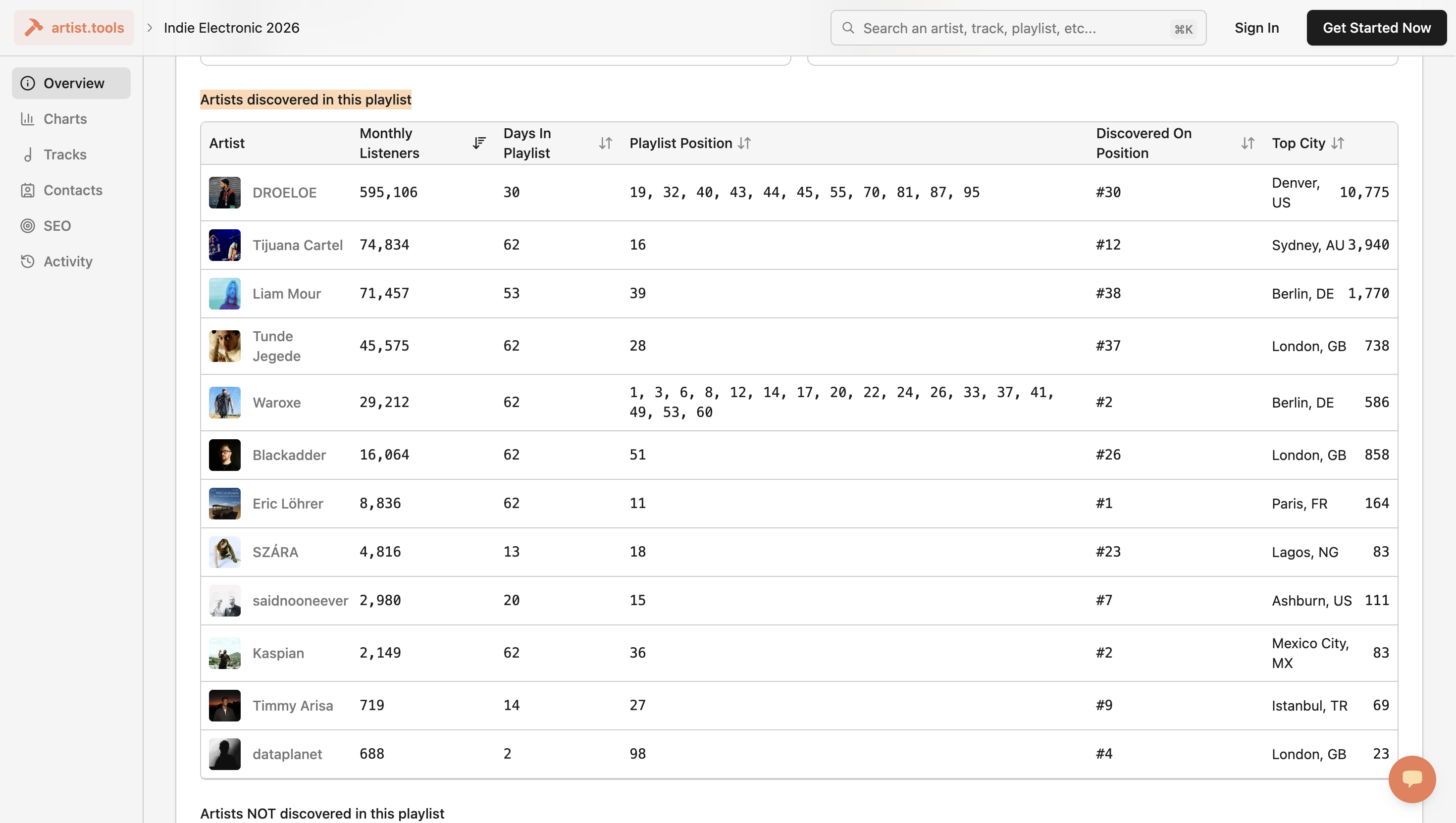
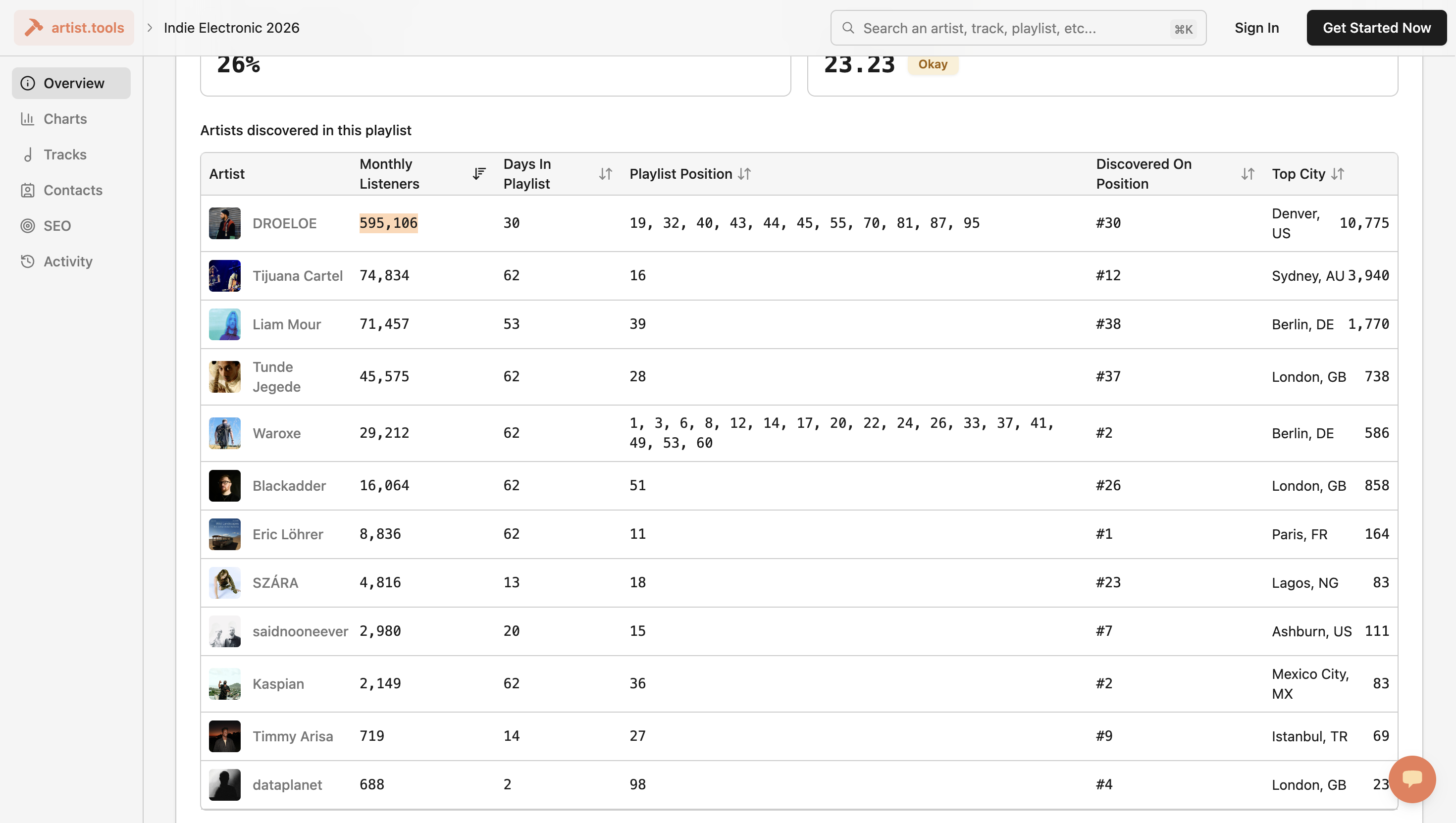
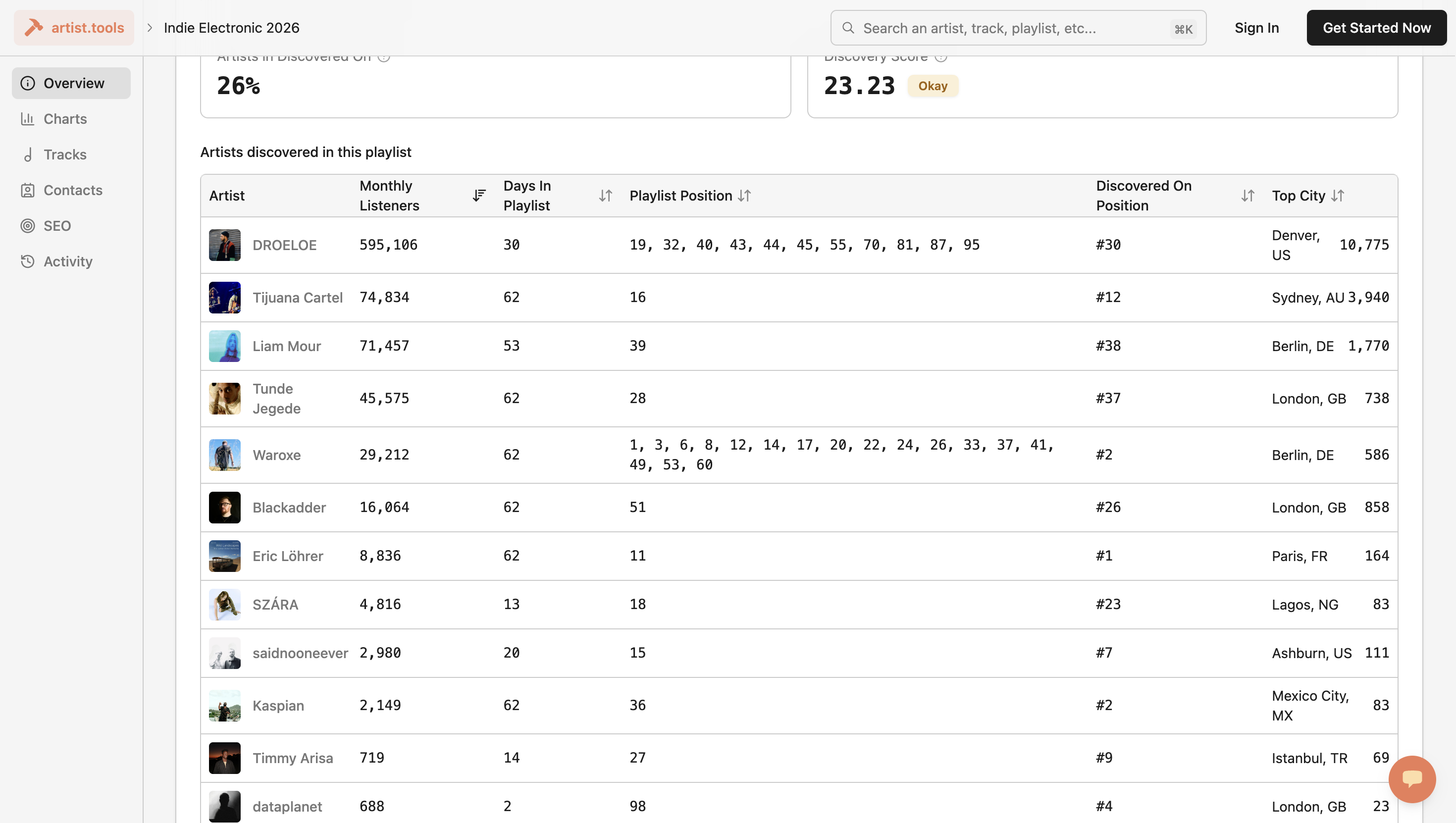
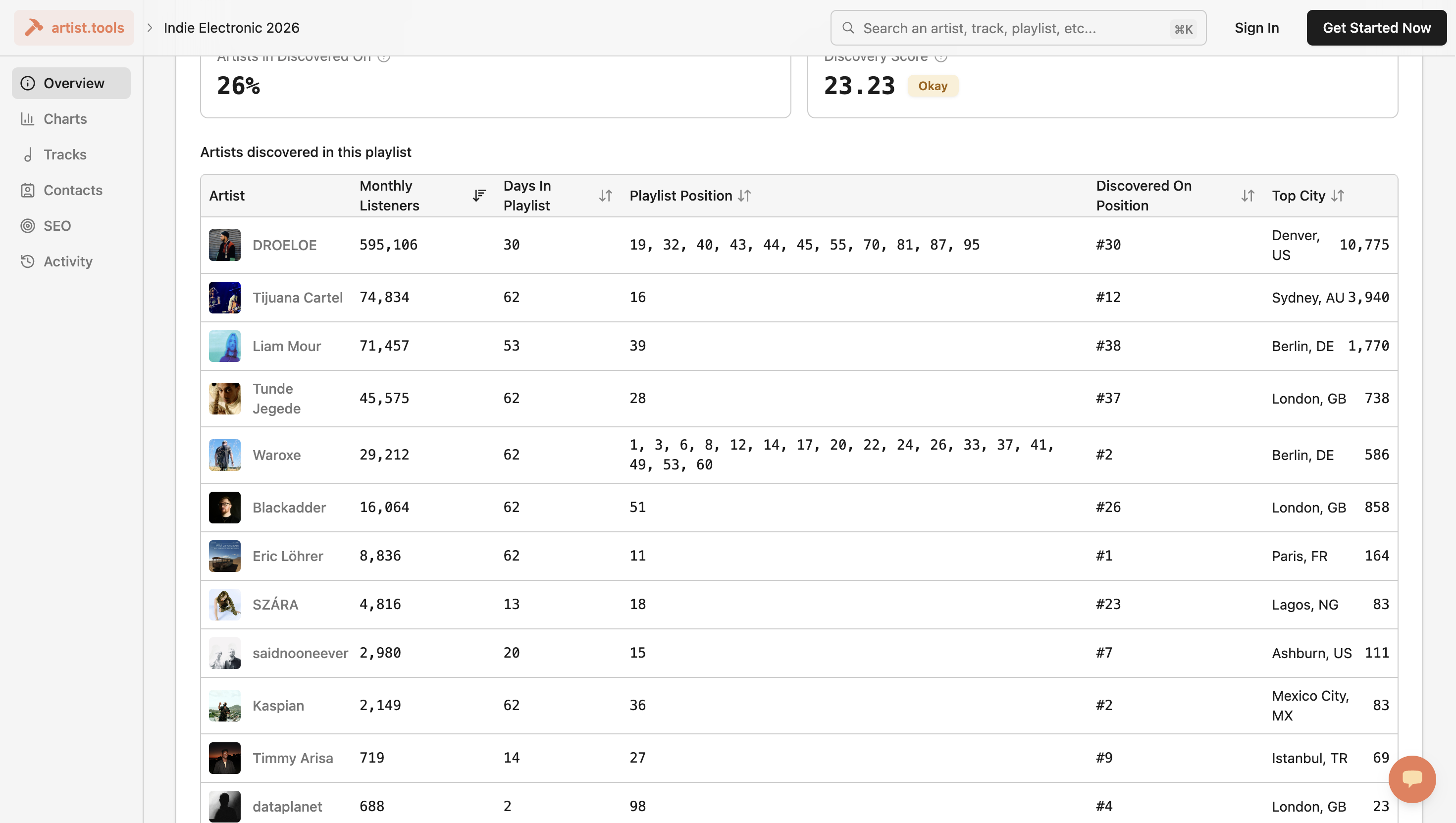
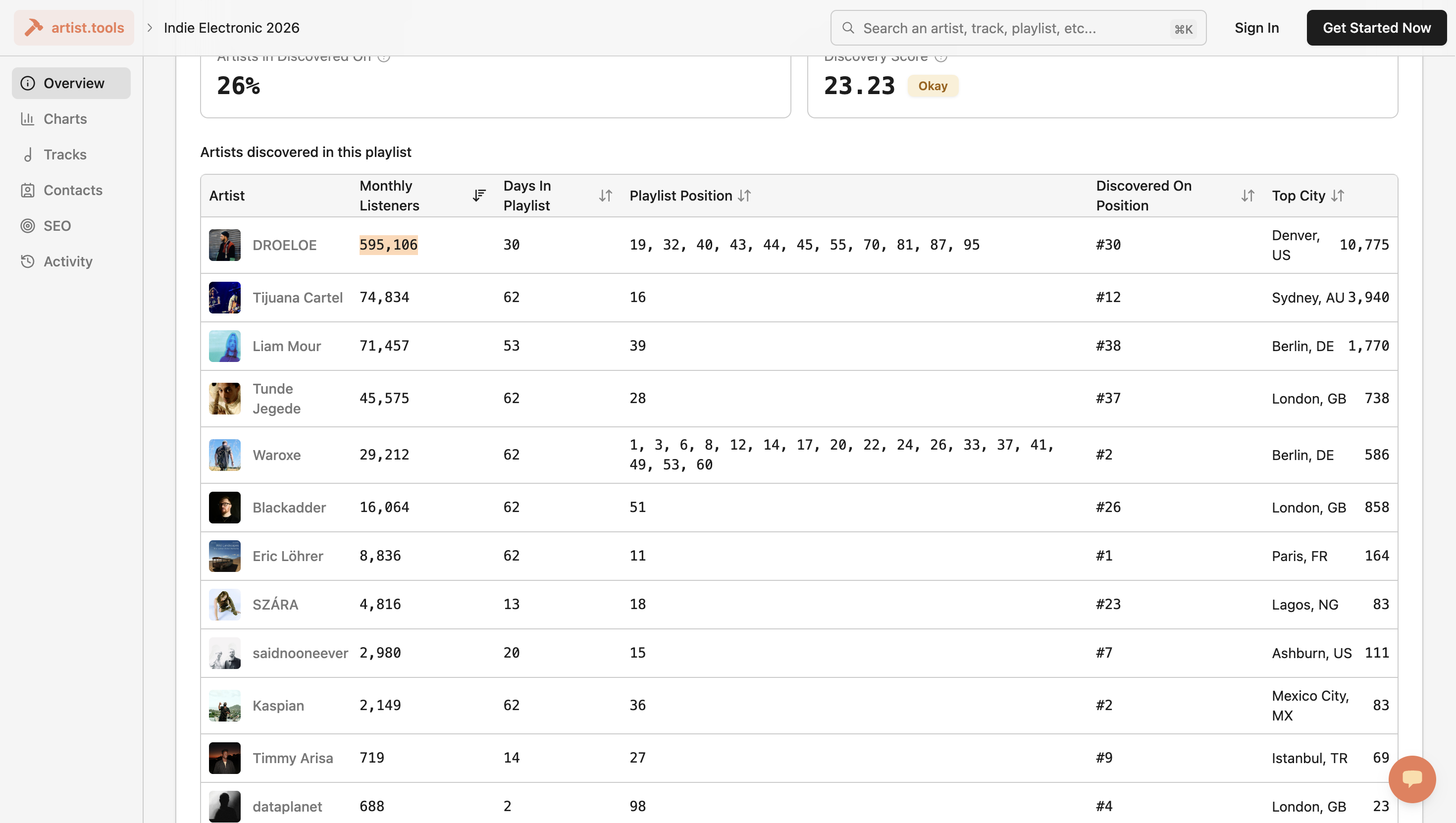
... Link to the Spotify playlist. Correct. Hit Enter to access Artist Tools. Scroll down to the discovered artists section. Hold on, do...
Let's do that here. We can do that here. Yeah, yeah. Artist.tools. It's only on here.
Let's copy... This is a new...
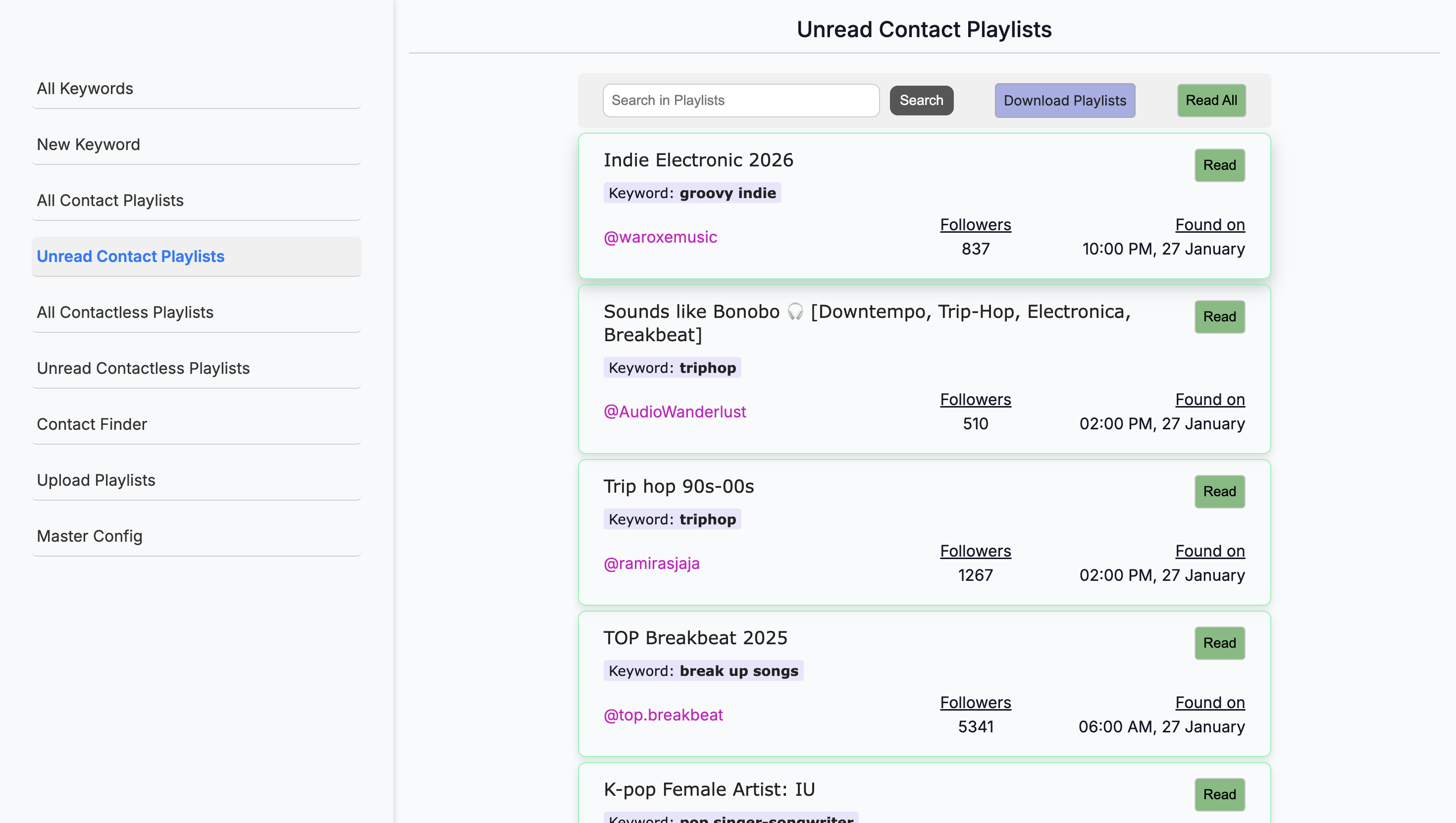
Let's look at this playlist.
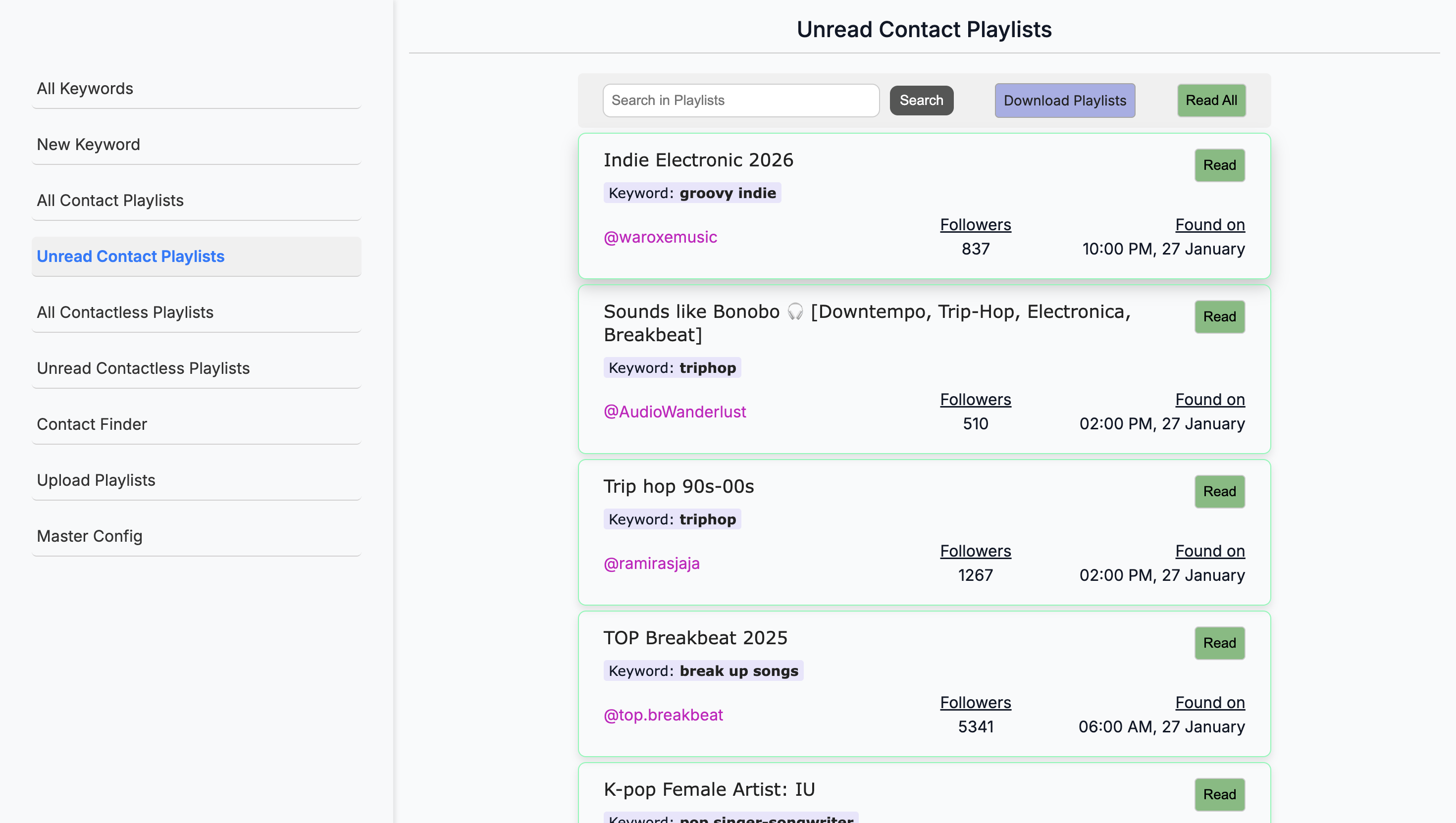
Yes, you need to click on it to go to it. You can just click on it. There you go. But it won't appear from here with the...
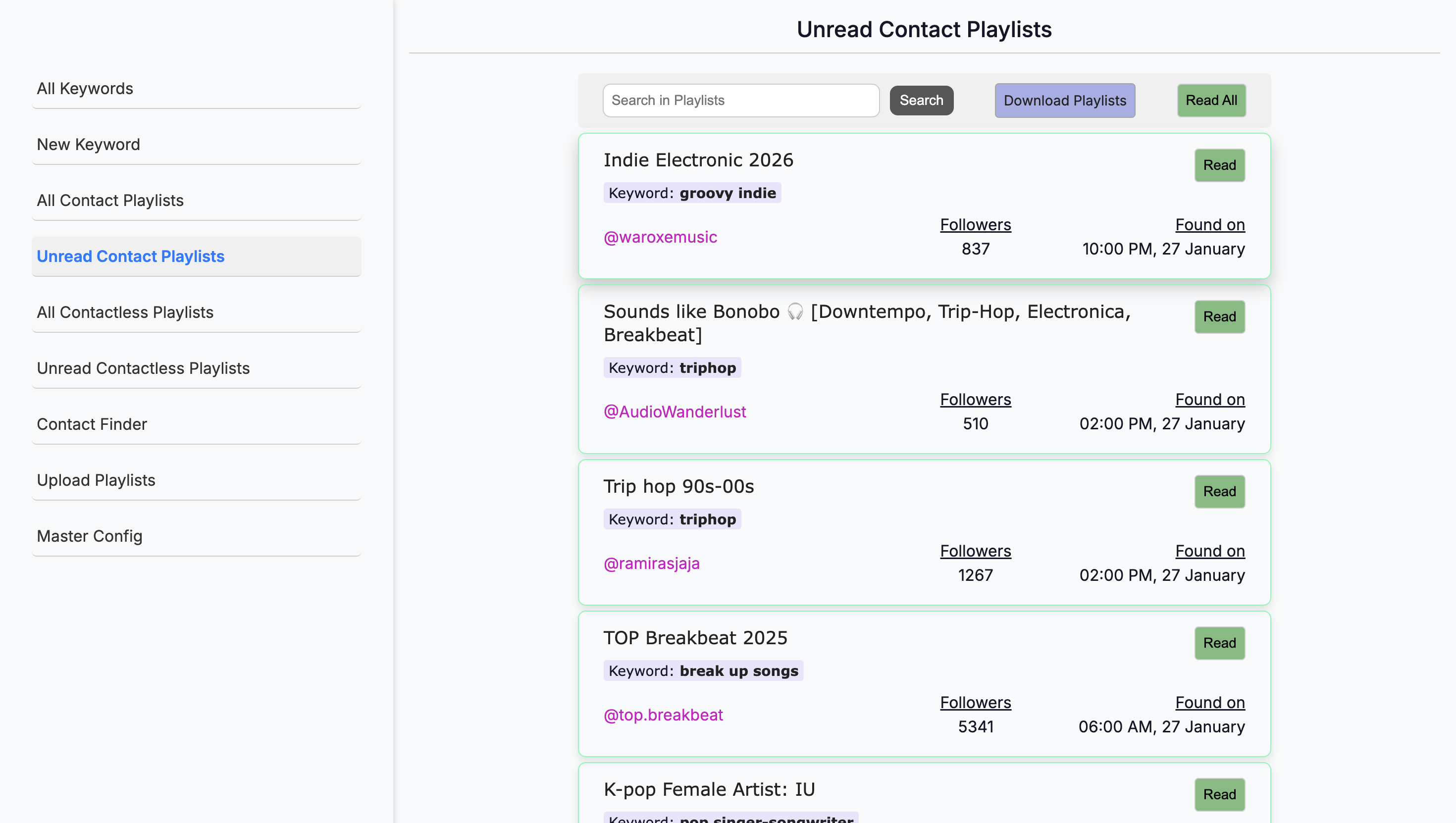
thing is. It would be good to have a copy from here, right? If I could simply click to copy the playlist name. You can copy and paste it. I mean, how did you...
This is the keyword. Yeah. Click on it, go to Spotify, then copy and paste it. You could do that. We need a button here labeled "Copy" so users can easily copy the link.
Yeah. Okay. Or you could right-click on the...
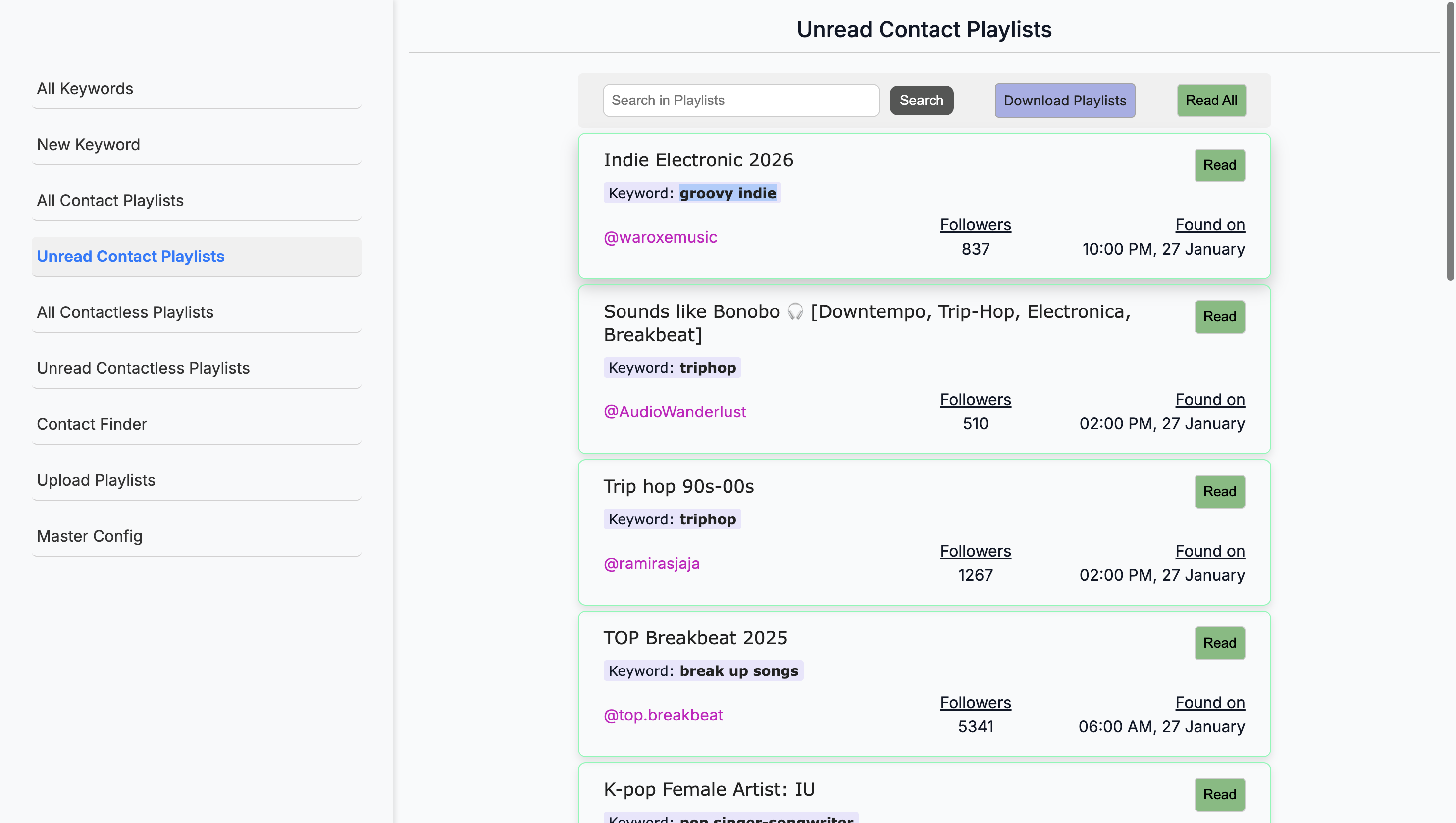
On what? Which one? On this one?
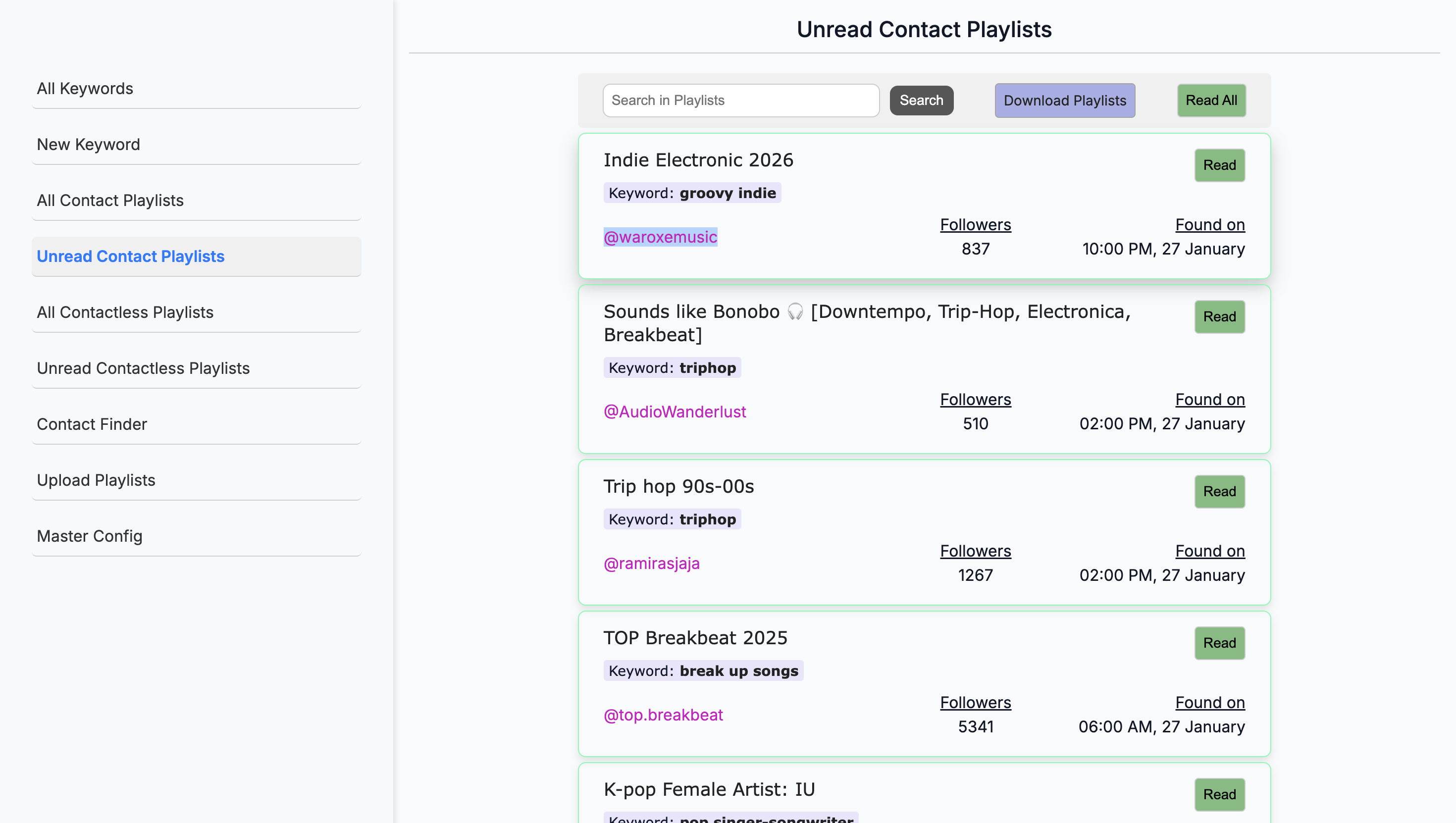
... On the Indietronik. Is that where you click to open the link, correct?
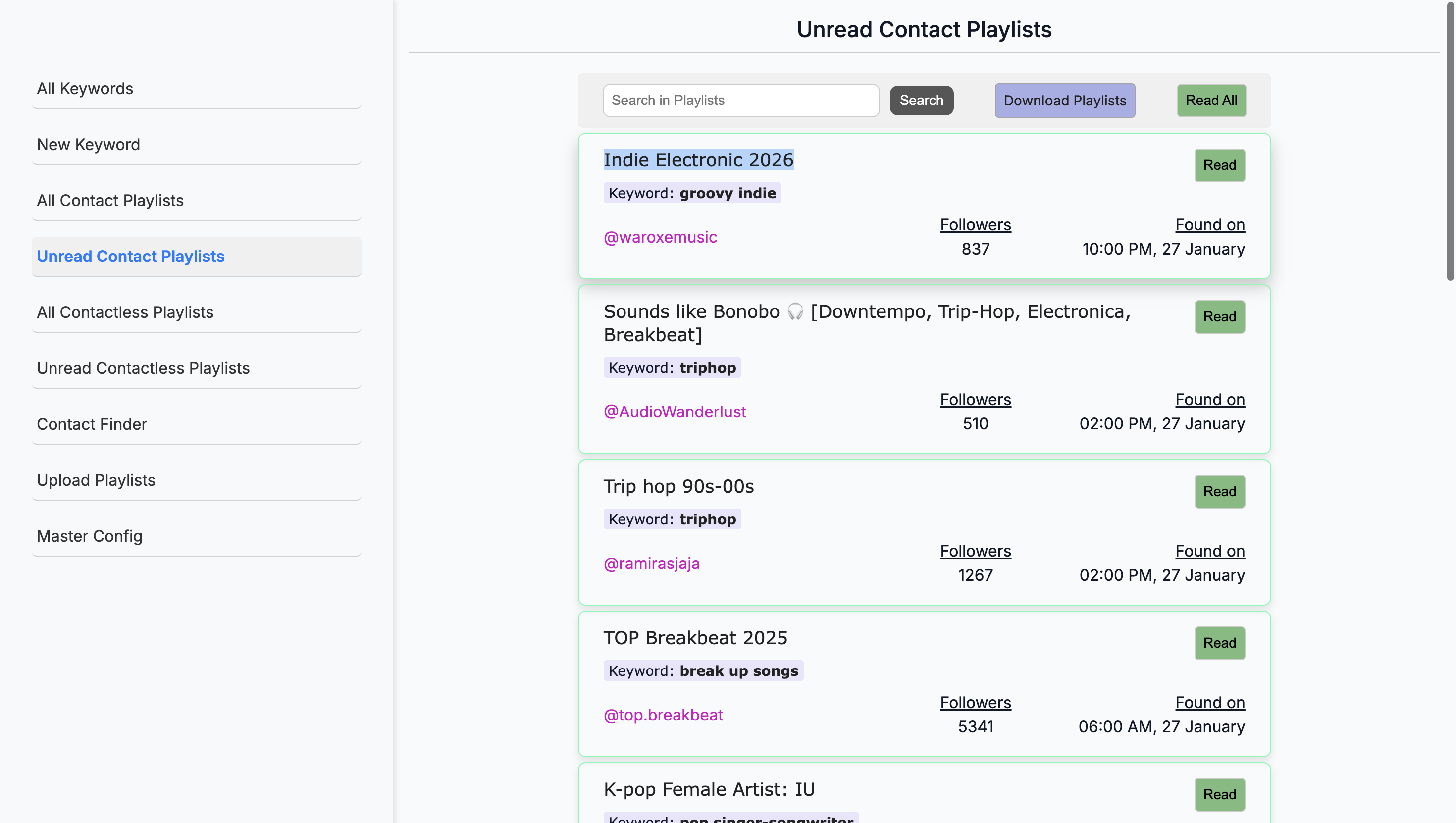
I clicked on everything here.
No, uh, no - . Right-click on that. I mean this. Okay, right, so right-click.
... Copy the link address. Let's add a small button labeled "Copy" instead. I don't use it because I export all of this.
Okay. ... You can work from the sheet.
Okay, so never mind. I'm copying it from the sheet. Okay. Okay. Okay.
But—so we'll say, "I hear you." So, okay. I'm going to copy the link address. Yeah. ...
Link the address, then go to Artist Tools. Yes. Artist.Tools. And here. Mm-hmm. ...
Do I need to log in for this? You shouldn't have to. Okay. Here, I go and enter the URL.
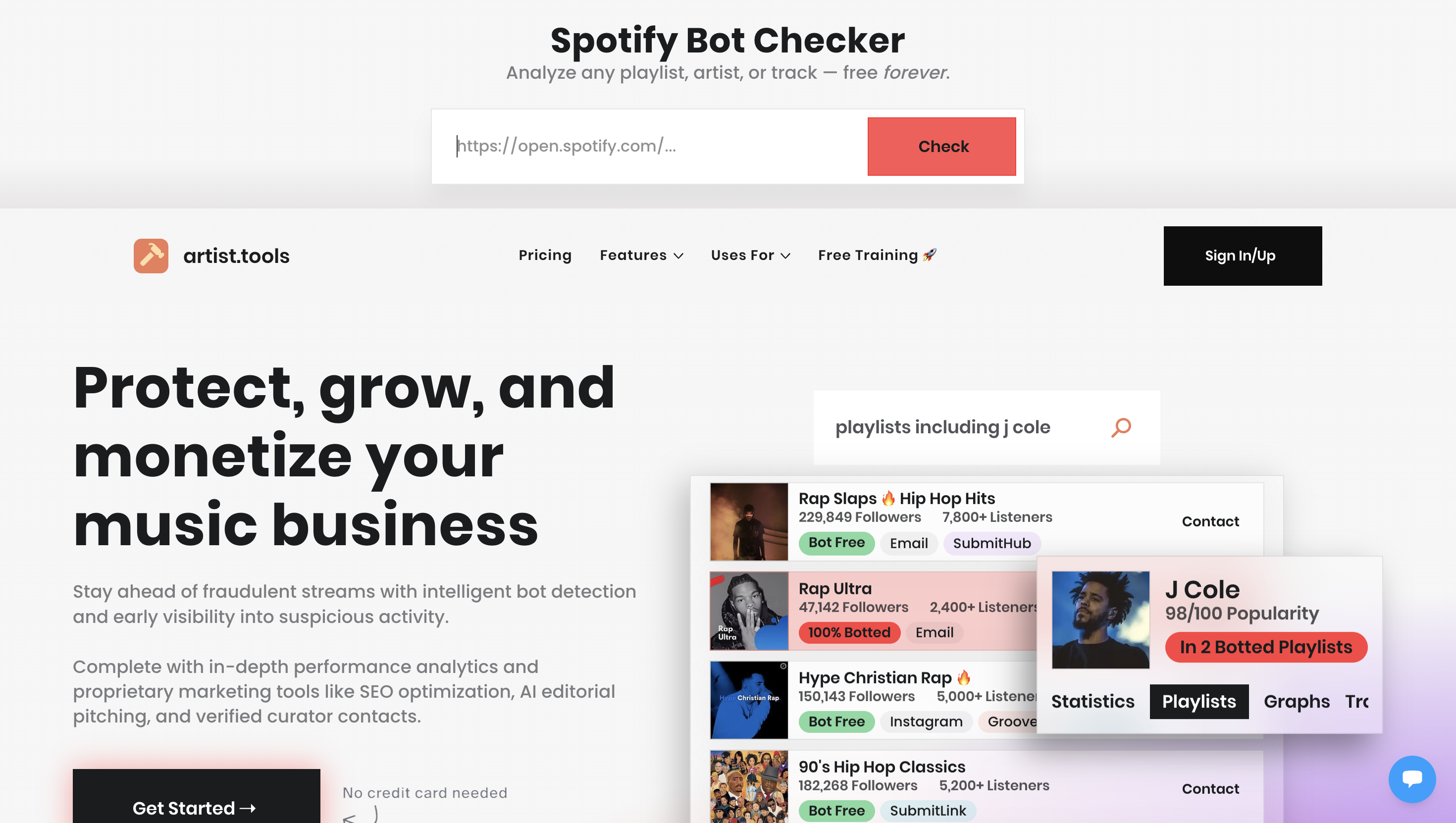
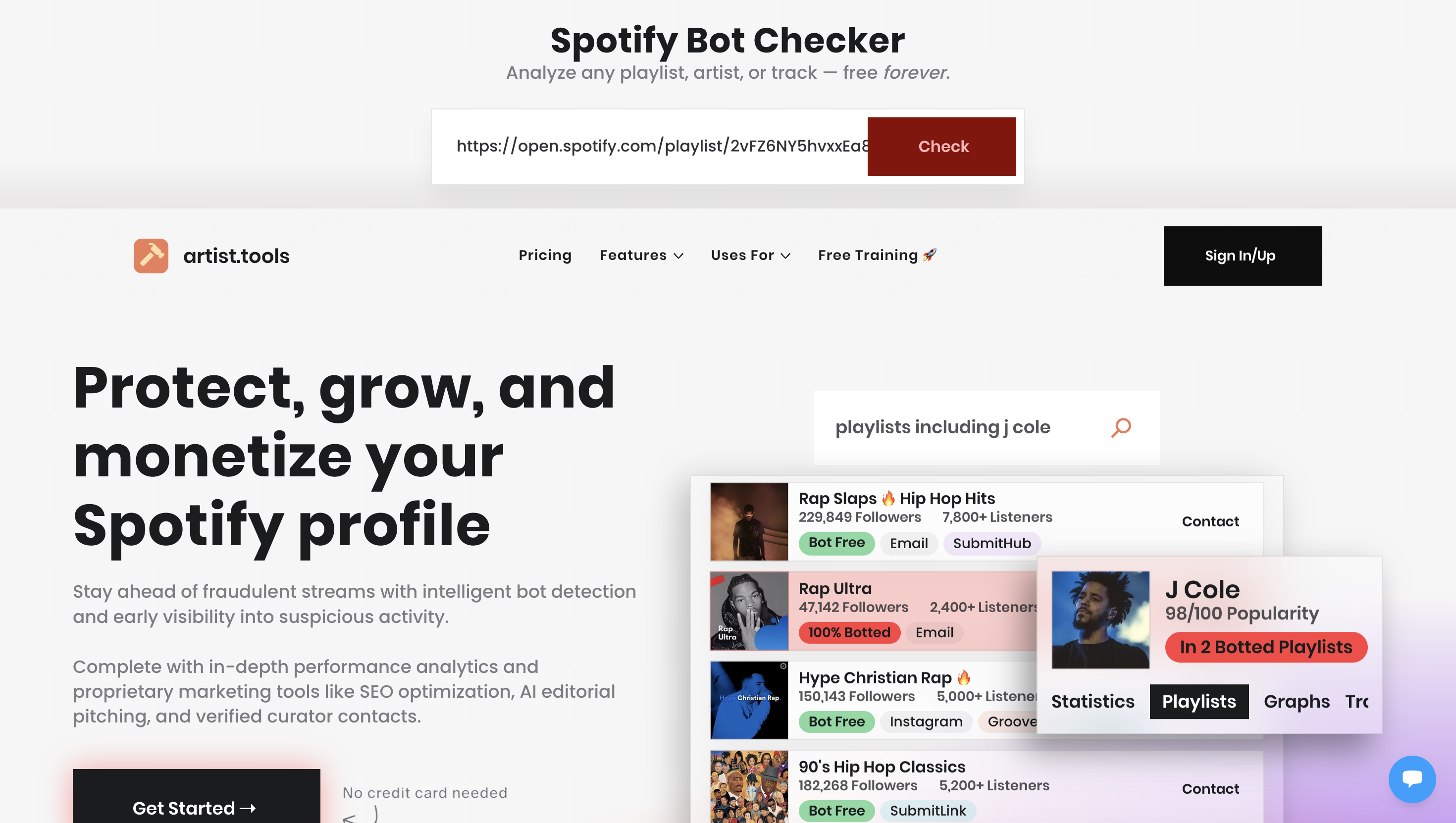
I clicked on Check. Mm-hmm. What are we looking for here? What does it tell us? Scroll down to the section labeled "Discovered On Analysis." This is the important part.
Uh-huh. On the right side, click Analyze. Okay. Sometimes it appears automatically, and you don't need to click Analyze.
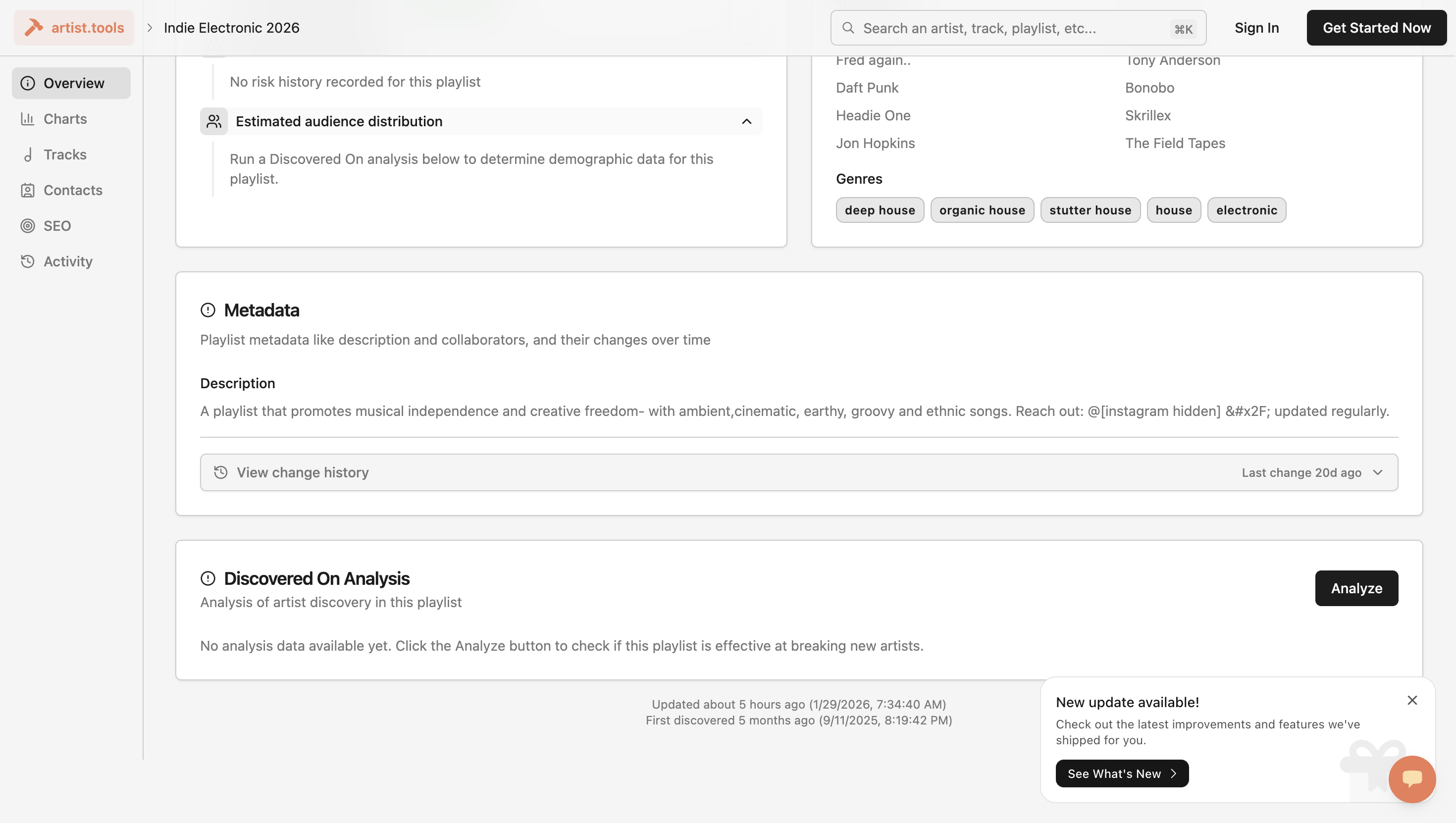
Correct. Sometimes it will appear if someone has already run the analysis before you. Okay. Does that ever need to be updated? Is there an Update Analyze?
Yes. Okay. Make sure to click the button if it appears. Correct. This shows "last analyzed about 21 hours ago," but I can run it again to update the results. Got it.
Okay. Do we want it to always click Analyze? Yes. If we are automating. Yeah.
I do. Okay. Even if it appears, always click Analyze.
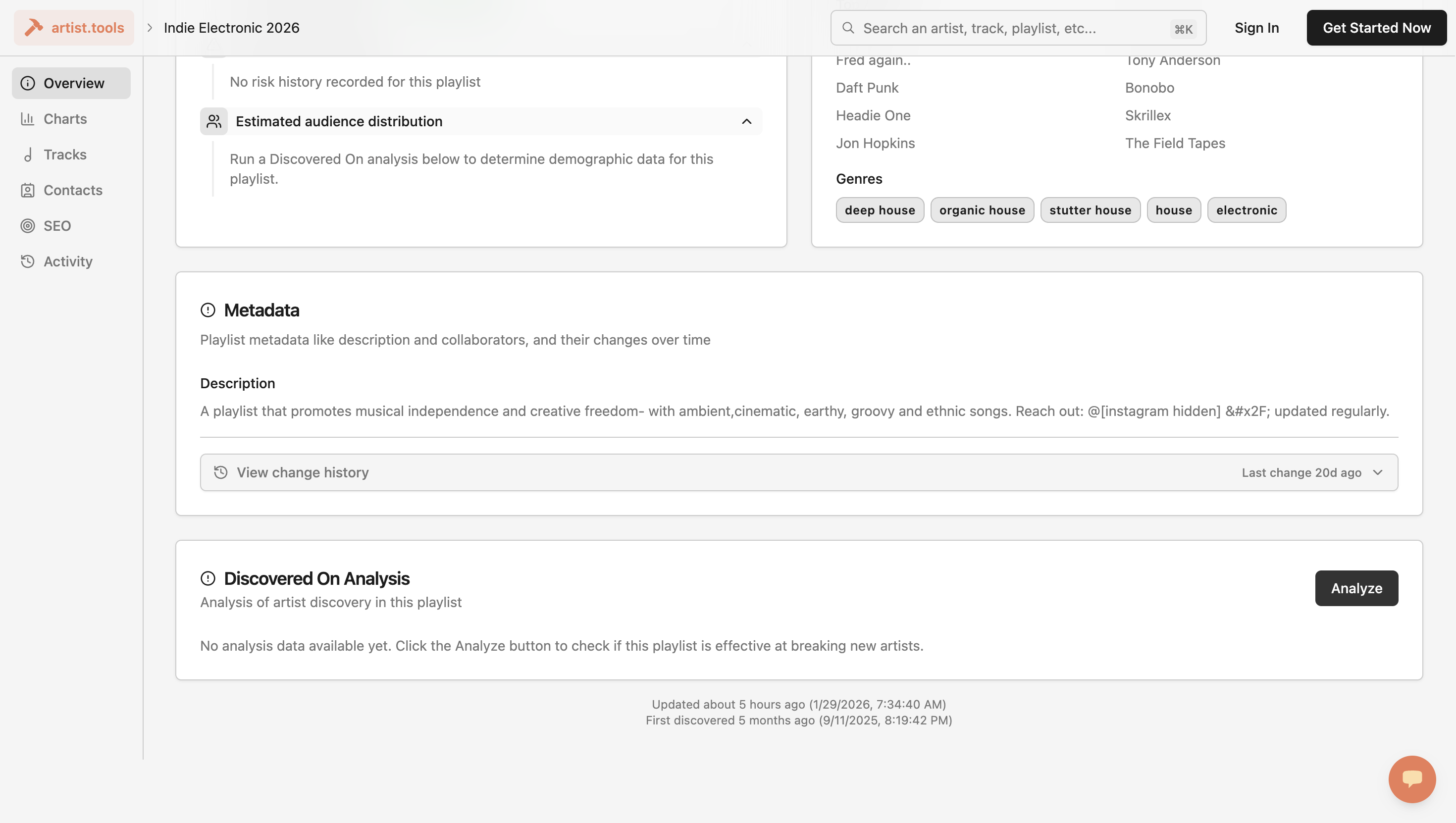
That's an important point. Mm-hmm. What are we looking at now? We are examining the percentage of artists discovered through this playlist. The Artist Tools system will then assign a score. Okay.
That score is based on how prominent an artist was who was discovered through this playlist. When we say "Artist Discovered On," do you know what that refers to? No. When you're on someone's profile on Spotify— Uh-huh. ...
There is a section called "Discovered On." We will find an artist here. There is a section called "Discovered On" here. If you select Show All, you'll see all the playlists where this artist was "discovered." Now, it shows the top 20 to 30 playlists that generate enough streams for an artist.
... or a good amount. Right? If it's shown here, the playlist is active. Many people are listening to it, and it is generating streams.
What percentage of accessibility would you like to work with? How can you tell if it's active? Right. Of all the artists on this playlist, 26% have it listed in their "Discovered On" section. Got it.
Okay. 26% have it in their "Discovered On" section. On their profile page. Correct. ... On Spotify, which means yes.
... It’s legitimate. Yes. What is the minimum threshold for you to move forward and work with this?
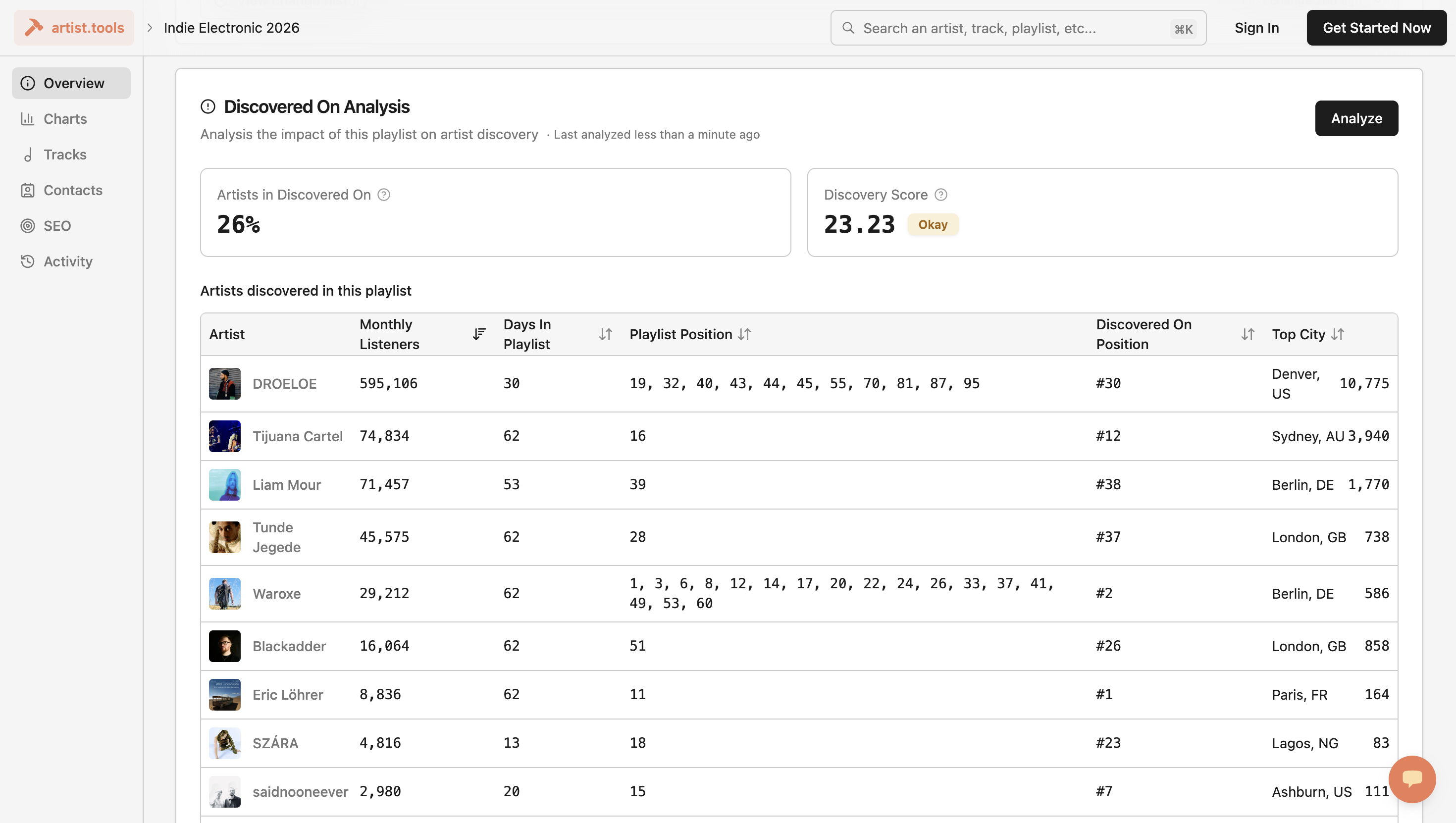
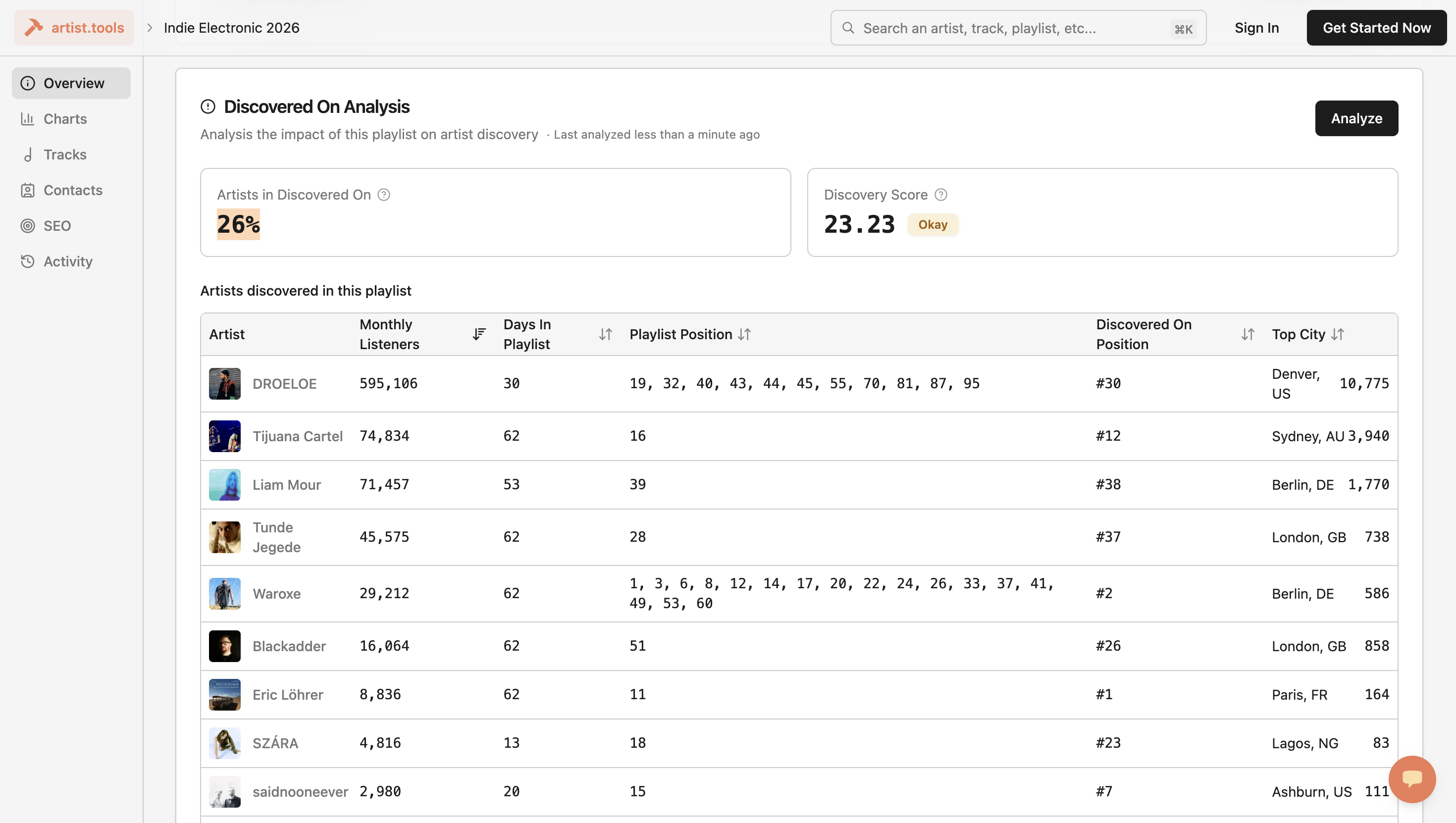
Probably 10 to 15%. Okay. If the percentage is less than 10%, you want the automated system to specify exactly what it is. Now that I think about it, it's also important to recognize the discovery score. Okay.
If you have many small streaming artists who aren't on any playlists, forget about automation. Let's say I'm your intern. Yeah. You told me, "Go to Artist Tools and put this in." "...
Then look at these two numbers. Correct. What happens next? Do you want me to move forward by reaching out to them? ... To the curator, what do those numbers mean?
Right. I just did this with Joy. I told them over 10 on both sides. ... A basic, flat understanding. Okay.
It must be "Artist Discovered On" here. The percentage is 26%, and it needs to be at least 10%. Correct. ... Discovery Score must be at least 10.00. Correct. If either value is lower than those, we mark the playlist as what?
What would you like it to be marked as? Inactive. Inactive. Okay. But the key point is that, every so often, there is always some kind of contingency with these situations.
It might have a low Discovery Score simply because all the artists on the playlist are so popular that, even if the playlist is good, it won't appear on their Discovered On section. If you have artists who are all... Okay. None of these artists were discovered on this platform. ...
If you have all of these, like Avicii with 37 million, he's not getting discovered on. That makes sense. Even if this playlist generated 1,000 streams a week, he still wouldn't get Discovered On. Okay. We're back to the beginning. If I were your intern, what would you tell me to focus on?
Look at which artists were actually discovered on the platform. First, if these are above 10%, mark them as active. Yeah. Yeah. If it's below 10% and has a 10 Discovery Score, then?
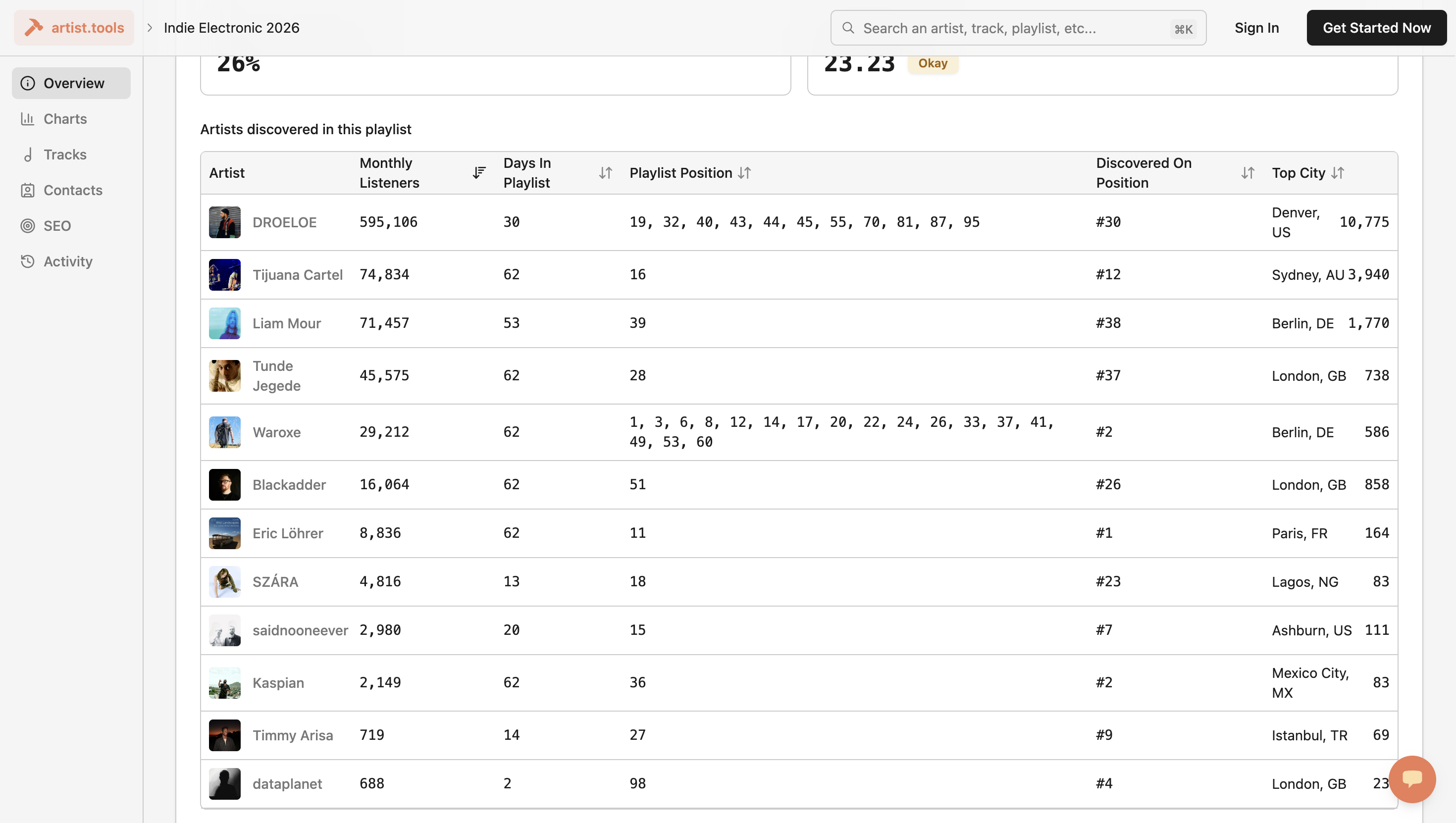
Manual review. Okay. What does the manual review involve? The manual review will examine the artists listed under "Discovered On" and check their monthly listeners. If it's big—what's big?
You need to quantify. If it's over 10, let's say... It's difficult to measure. Yes, but you need to train me. Right. Right.
... If I'm an intern, you need to train me. If it's over 10,000 or 20,000. Are the monthly listeners over 20,000?
Mm-hmm. What for?
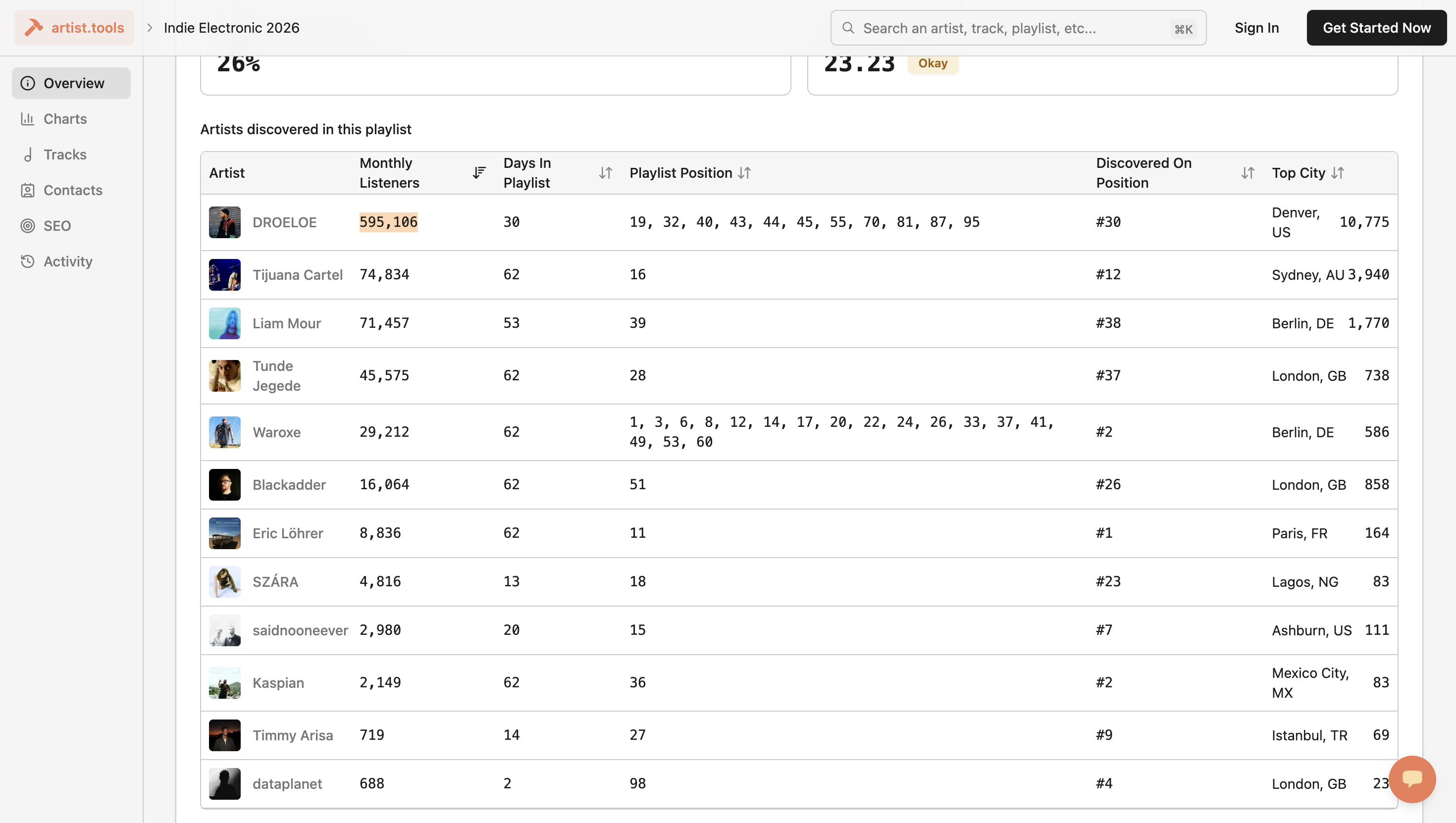
And their Discovered On. If they are an artist—okay. ... With 20,000 monthly listeners, their "Discovered On" section. Okay.
If it is less than 10% and the score is below 10, I still perform the manual search. Yes. ... Yes. ... Is he looking at how many of these?
The top 10 artists discovered on this playlist? It depends on how many you receive. Sometimes, there will only be three if the score is very low. Okay. There are only three artists.
Okay. Look at up to 10 that appear here. Correct. How many of them do you want to have more than 10,000 monthly listeners? The majority should.
At least eight out of ten. What if it only has three, as you mentioned? Do you want to have at least ten?
If there are three artists with 5,000 monthly listeners each, it's a pass.
Okay. Yeah. So do you... How many...
Okay. If it has less than 10% and a score of 10 here—mm-hmm.
... For manual review, do you require a minimum number of artists discovered on this playlist?
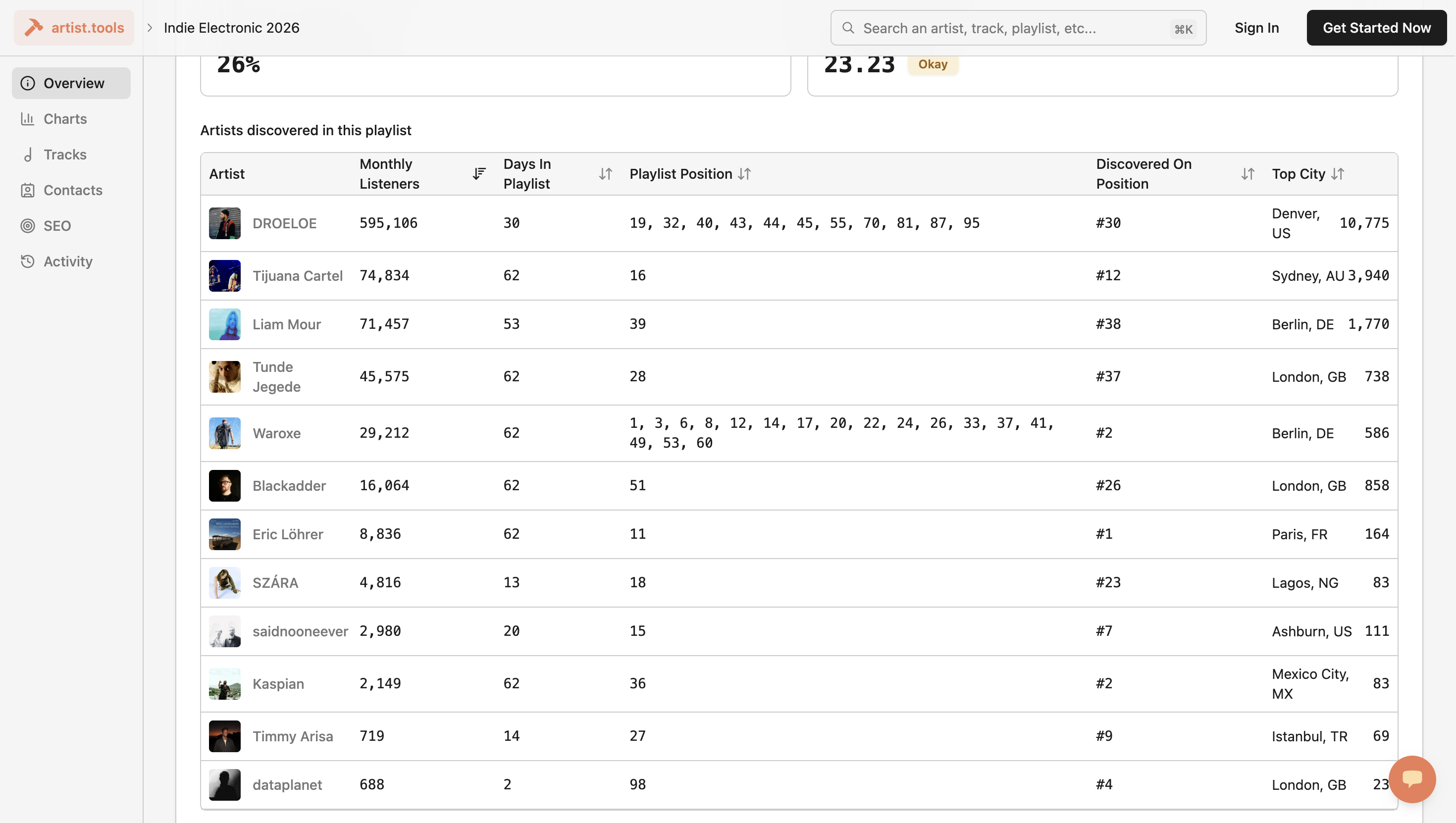
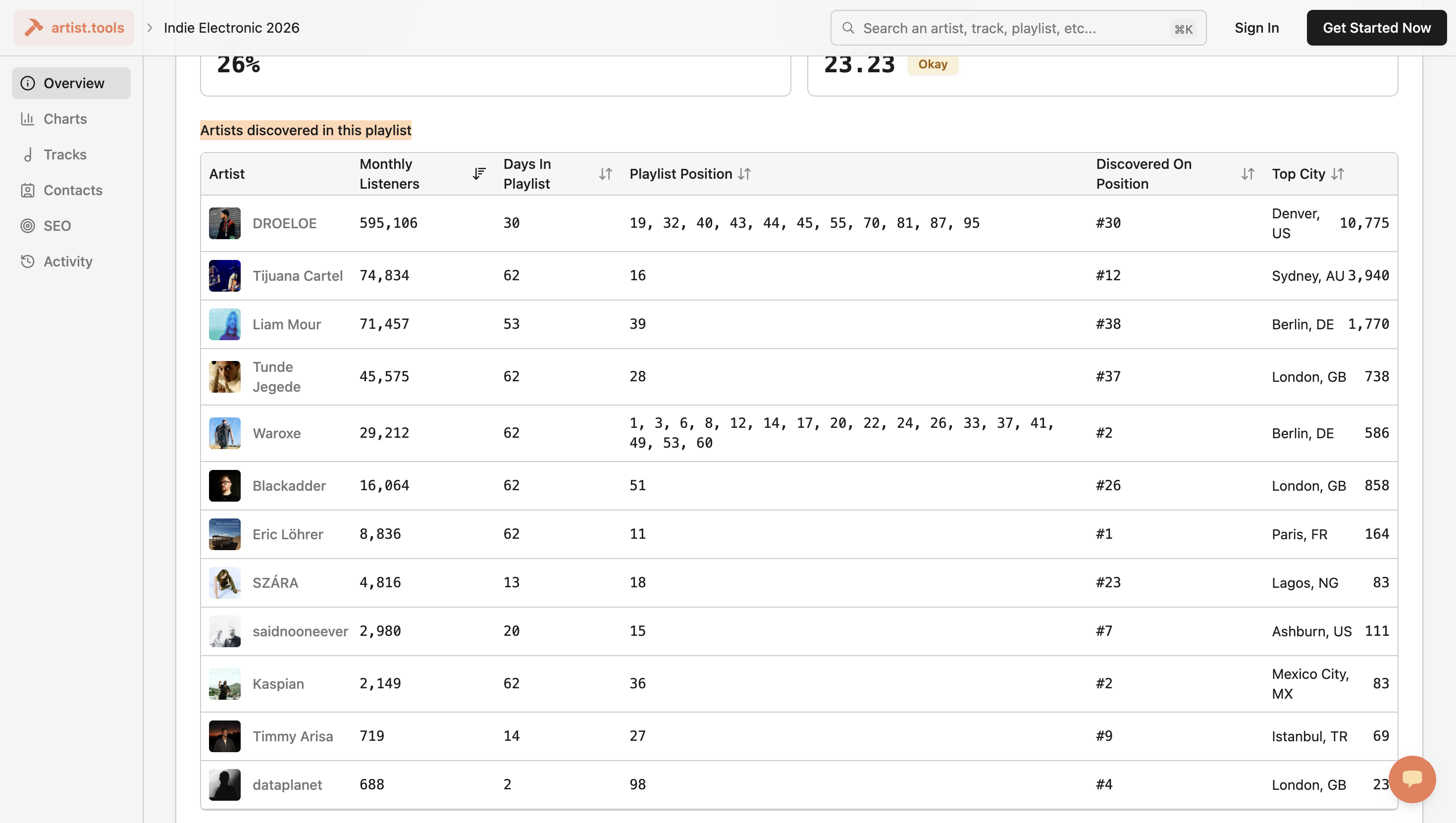
Do you want a minimum amount here? There isn't a specific number of artists required for this section.
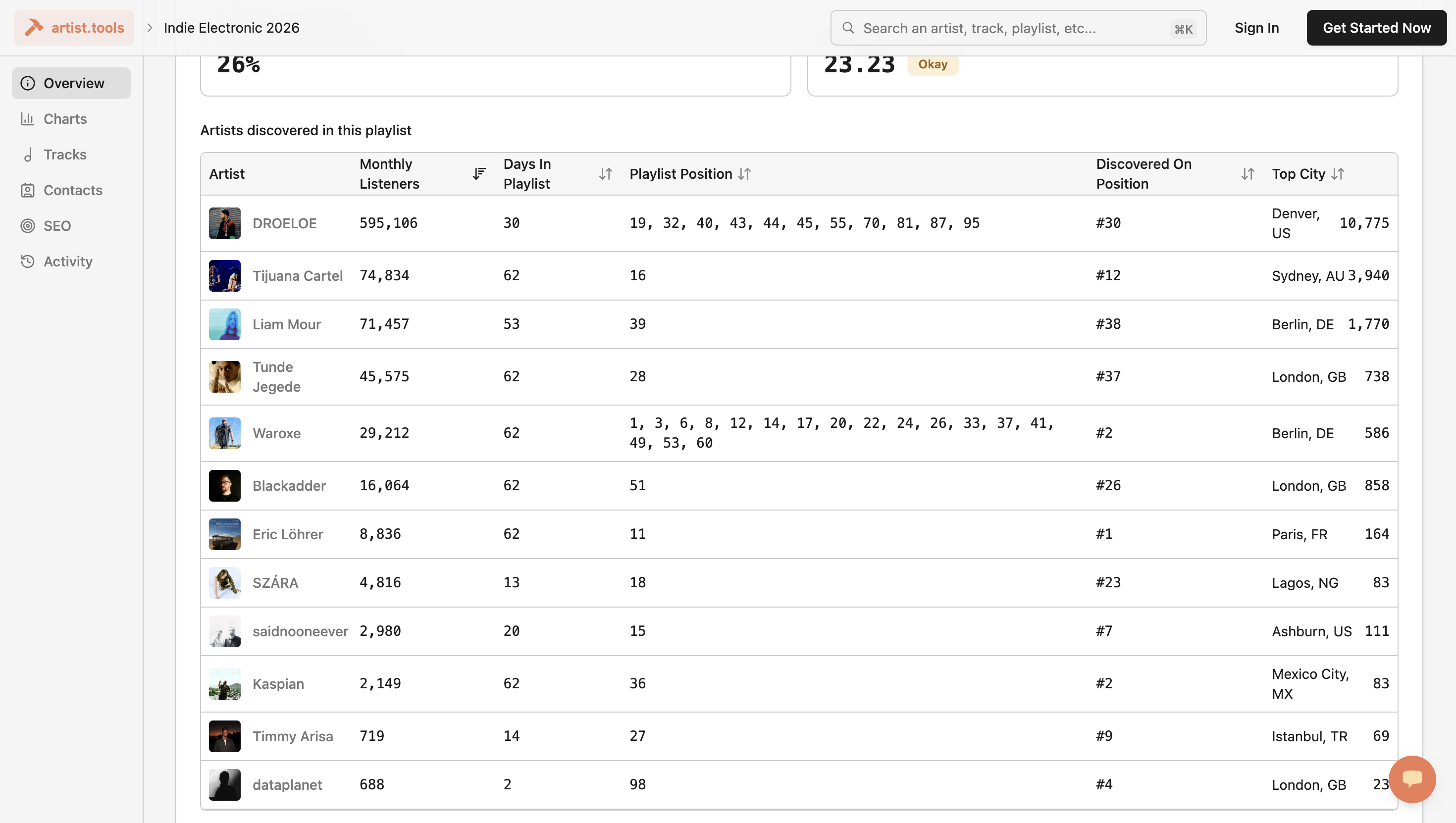
This section focuses more on the artists. What do they look like? Do they have more than 10,000 monthly listeners? If it's two, three, or four, you want to have at least one. ... At least one.
Okay. At least one, right? Okay. If there are no artists discovered on this playlist, then that's it. ...
Then it's a rejection. Oh, yeah. It's dead. Okay. It's dead.
If there is at least one, and the monthly listeners here show more than 10,000—yes. ... That's good. Yes. If there are two, make sure at least one appears under 10,000.
Correct. Do you care about the second one? Nope. Okay. If there are three—mm-hmm.
... Do you want at least one of them to have over 10,000 monthly listeners? Yes. This number here?
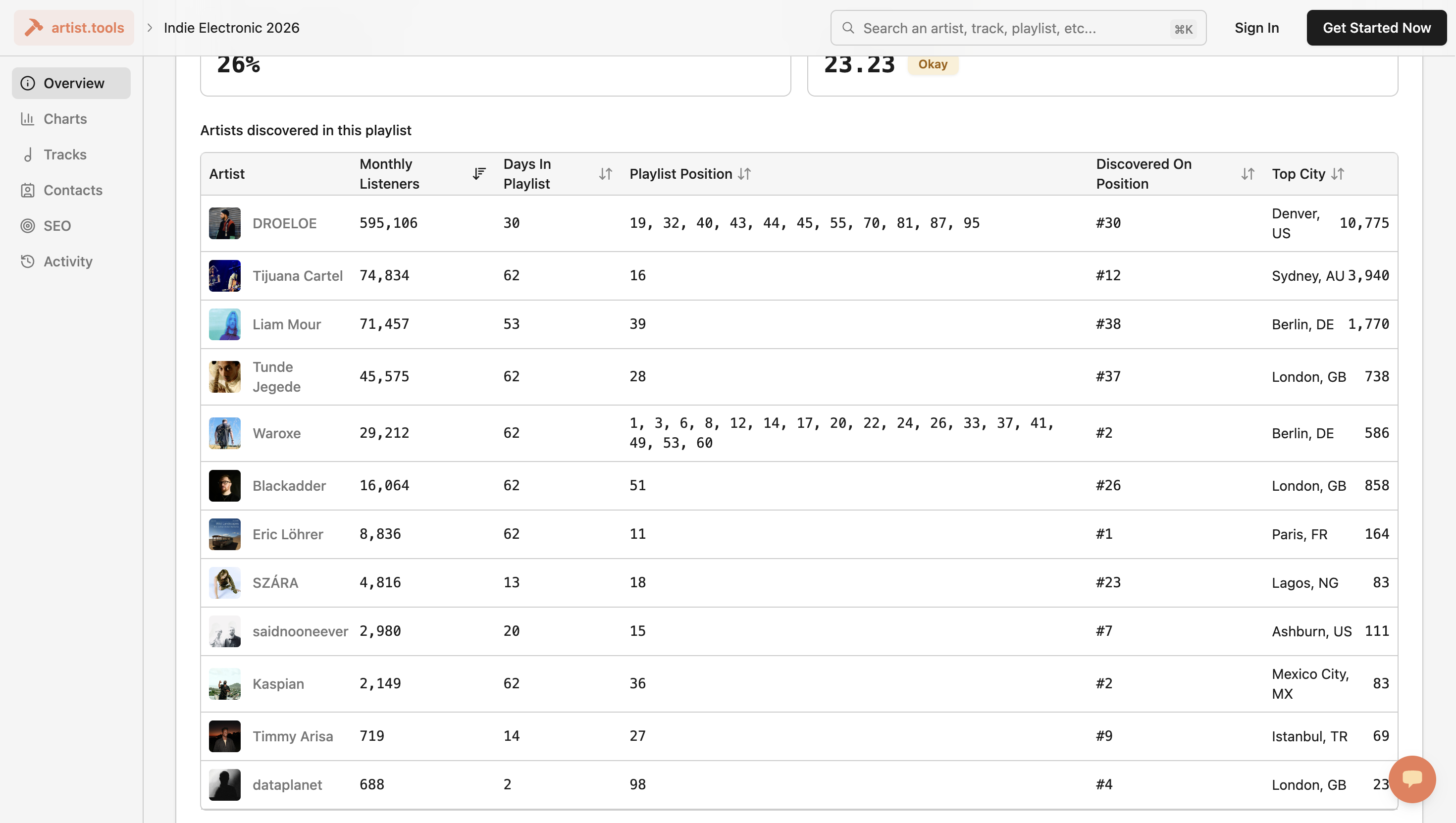
What about the other two? Do you care? No. Okay. If it's four—mm-hmm. ...
same thing? Same thing. Okay. We just need one. Okay.
Yes. ... It's not the majority; it's at least one. Yes. Okay.
If either value is 10% or more, or 10.0 or more, it is automatically marked as an active playlist. Yes. If it's below and this has zero—mm-hmm.
... Mark artists listed below as inactive.
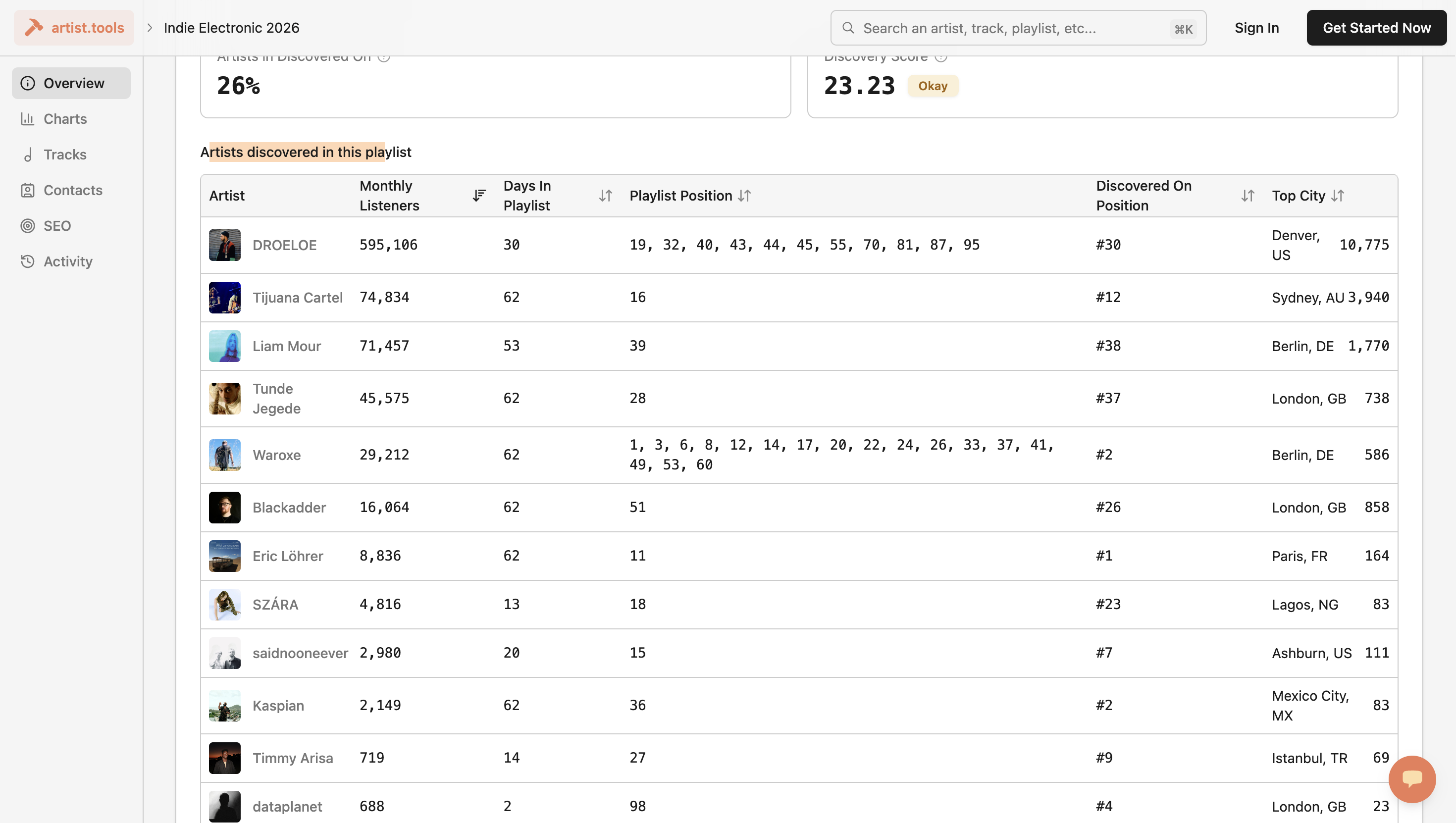
Correct. If there is at least one artist listed, and at least one of those artists has 10,000 or more monthly listeners, mark it as active.
If not, mark as inactive. Correct. Okay. We're good. What is the next step?
There you go. Let's say this playlist is now active. What should we do next? Now we need to check if it has bots. Okay.
How do we do that? Copy the playlist link and paste it. ... into Chartmetric. Okay.
Now we go to Chartmetric. I will likely need to give you a Chartmetric. ... Log-in link. Okay.
It's fine. I will send it and share it, of course.
Is it this? Just copy that. Okay.
And I'll give you.
Okay.
Use the password.
Okay. So now we are...
Okay. Now we have logged in.
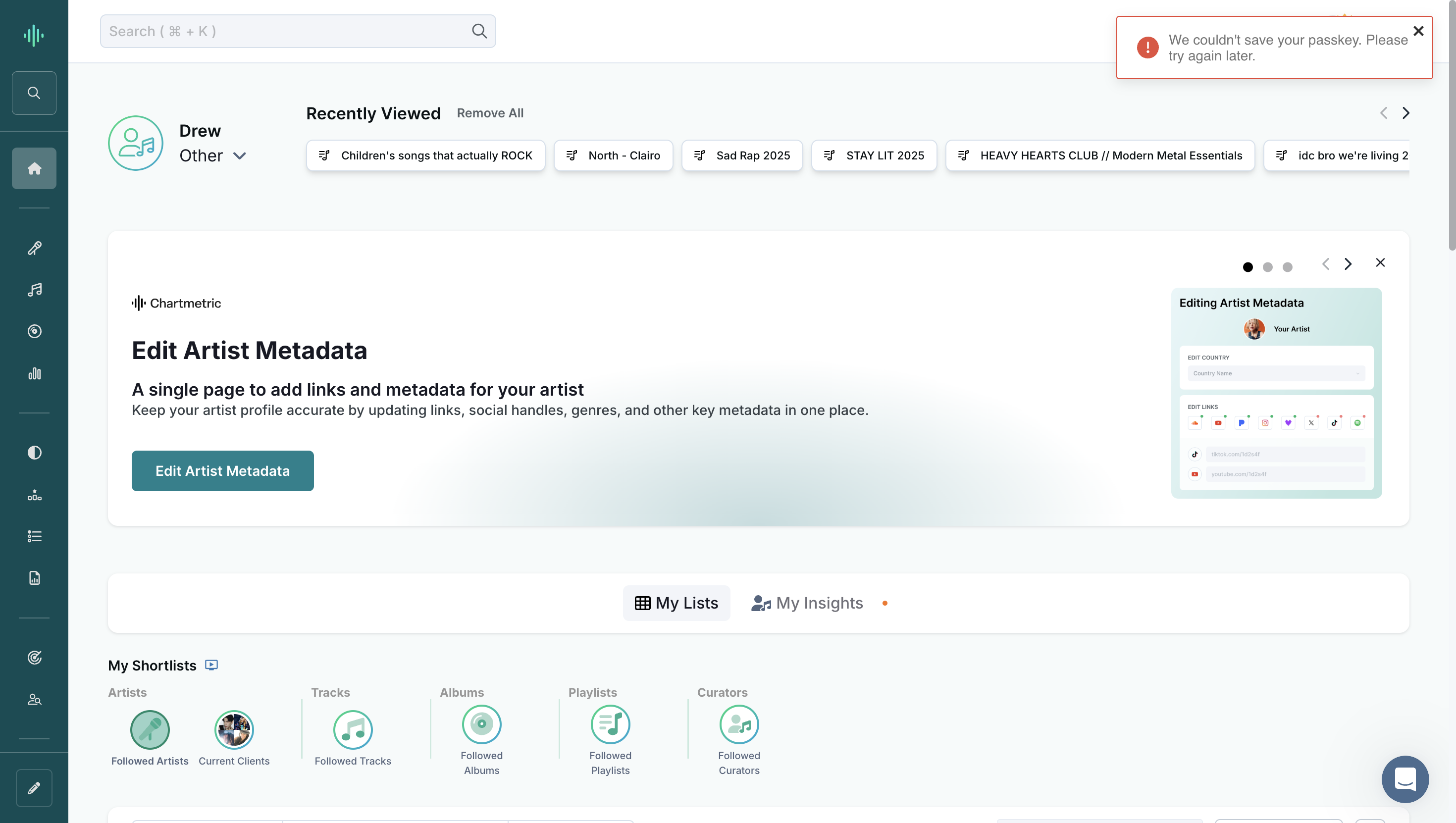
Mm-hmm. Go to the search bar and paste the same link.
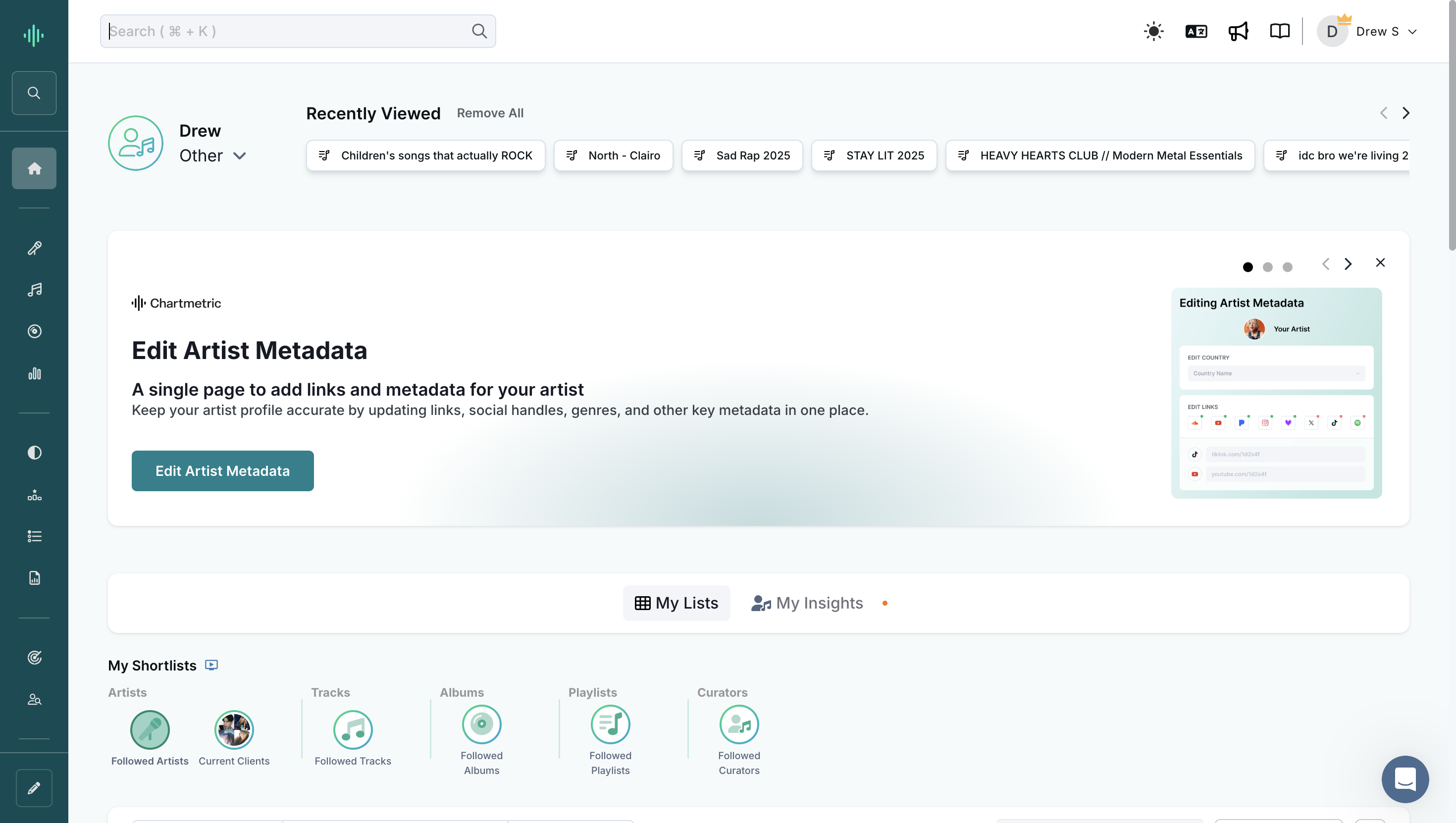
... Same link. Same playlist, yes. All right, great.
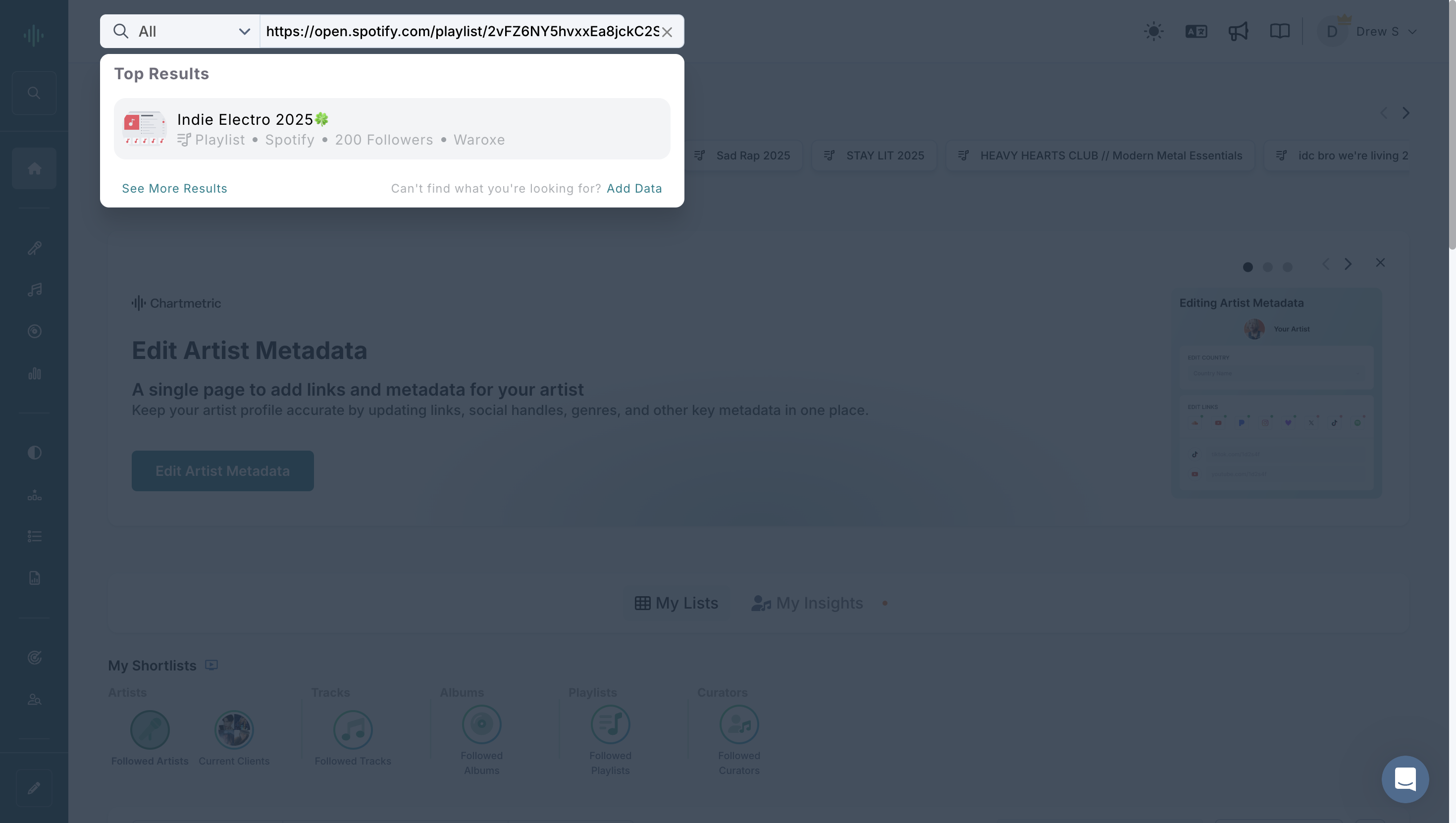
Go in here. Click on it. Okay.
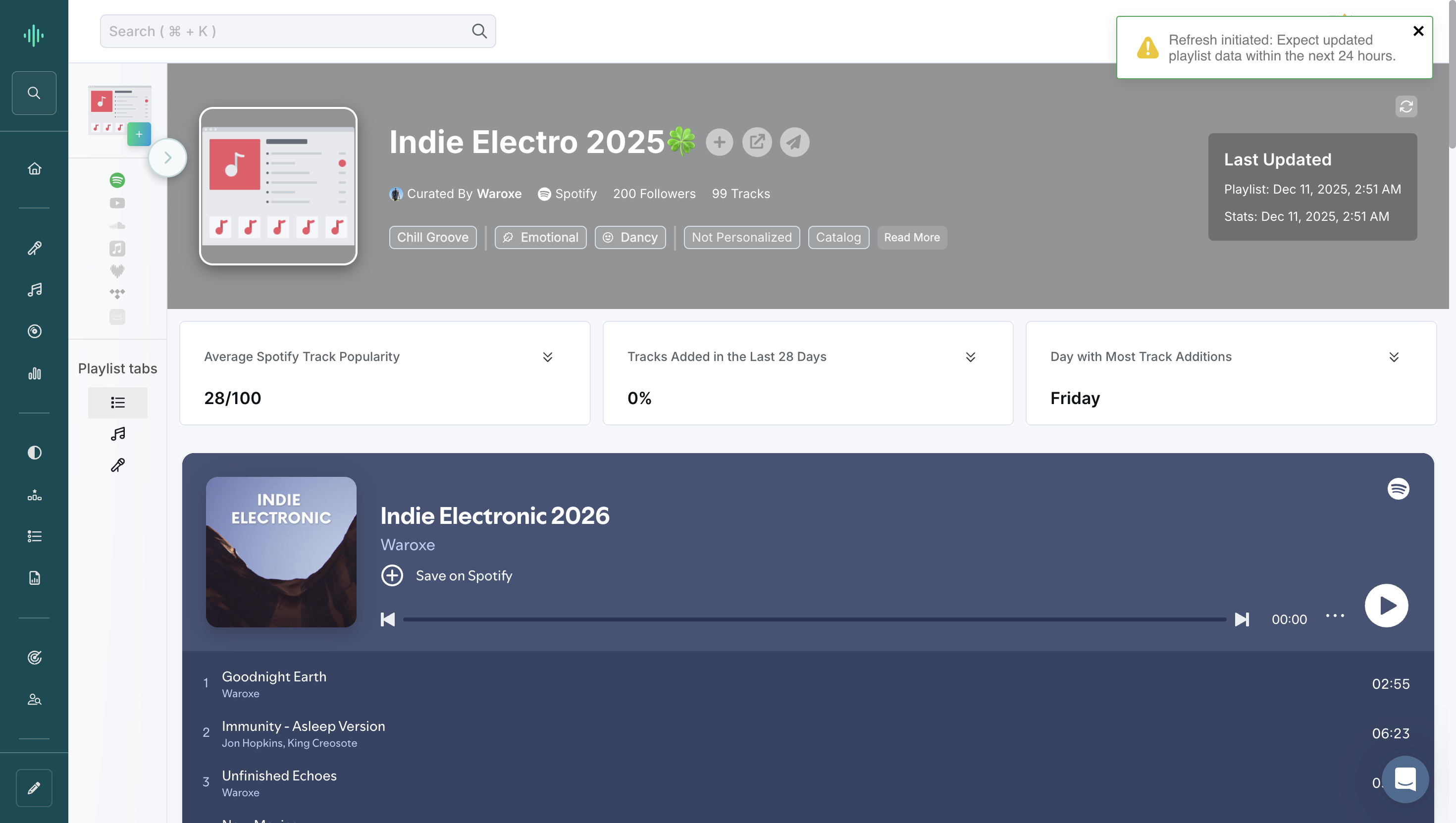
Where do we click? On... Scroll down. ... this is the link.
This is the homepage for a playlist. This is the playlist. Okay. Right? Scroll down and go to the followers area.
This is all we care about. Okay. We’ll check for any spikes in this. Hover your mouse over the timeline. You will see it jump from day to day. If it's botted, you'll see a spike of about 1,000 on, for example, November 24th.
Okay. On November 26th, it will lose all of those followers. We flag any sudden, significant changes in follower growth. What is a large margin? By more than 5%?
By more than... You want to look for anomalies. If it's growing by 100 followers every day, that's okay because it's consistent. Okay. If growth increases by 100 and then suddenly stops, we should investigate further. We need to question why this happened, as it may not be organic.
Okay. Similarly, if it were to lose that number of followers. If a playlist is losing 10 followers every day, it could simply mean it's inactive. It doesn't mean it's automated. But if it loses 100 in one day, then we might have a problem.
It could be that a bot farm was wiped out, and that's what's being reflected here. Okay. In this case, it looks good, right? In this case, yes, it looks good. I don't see any growth abnormalities.
Usually, it will have a much longer timeline. This playlist began being tracked by Chartmetric in November 2025. We have only two months of data to review. Typically, it will be two or three years. Okay. ...
We can take a broad view. Clicking the All button lets you view overviews. You can highlight and zoom in on specific parts of the timeline. ... It may look suspicious. All of those factors are considered when we check.
If it passes and looks natural, with no abnormalities, it moves to the next step. Okay. What’s the next step? Bot checks again, this time using Submit Hub. Okay.
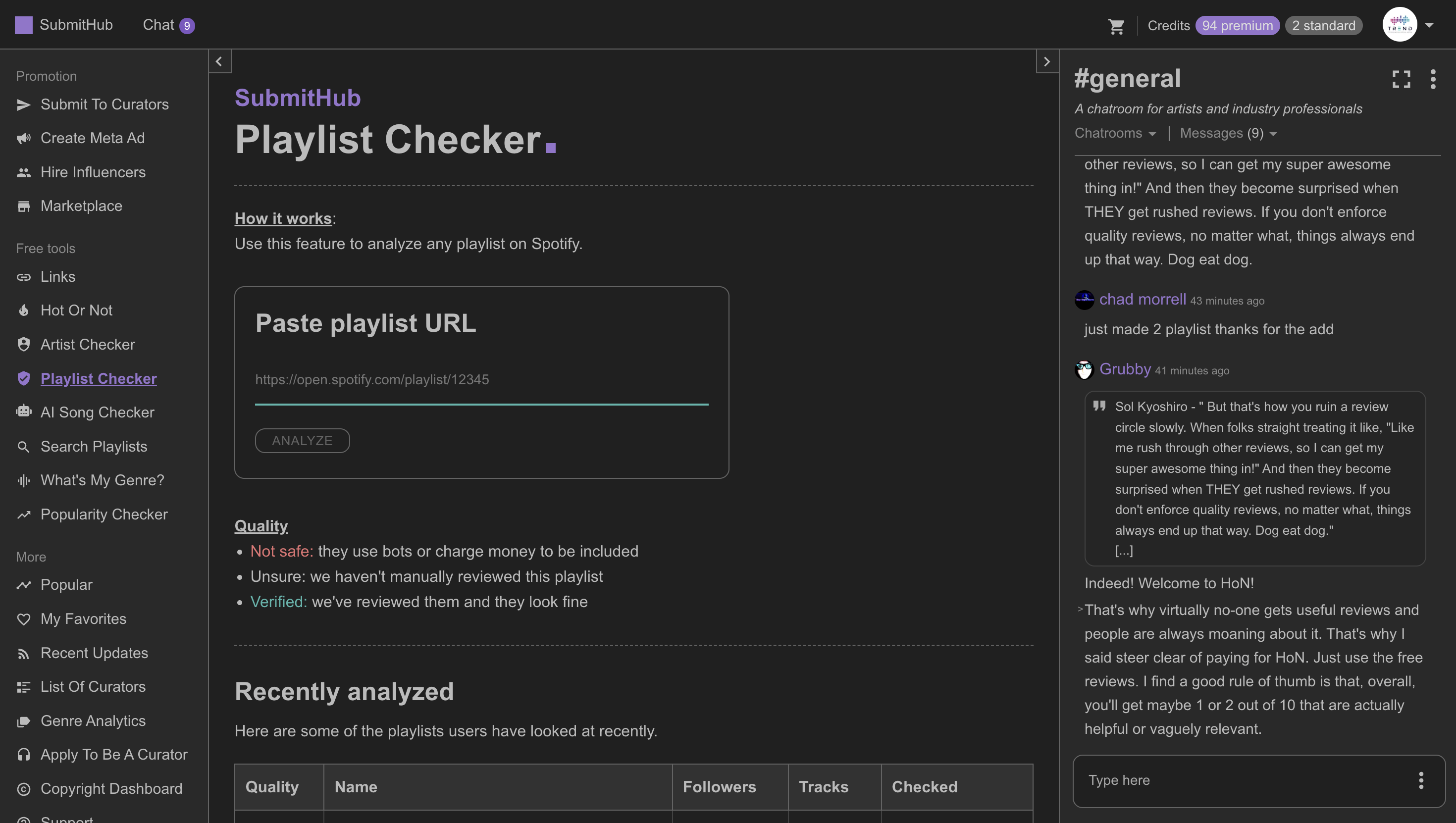
Sometimes a track appears clean on this service, but it is flagged on Submit Hub. As we've seen, they are manually reviewed. Go to the Playlist Checker on the left side.
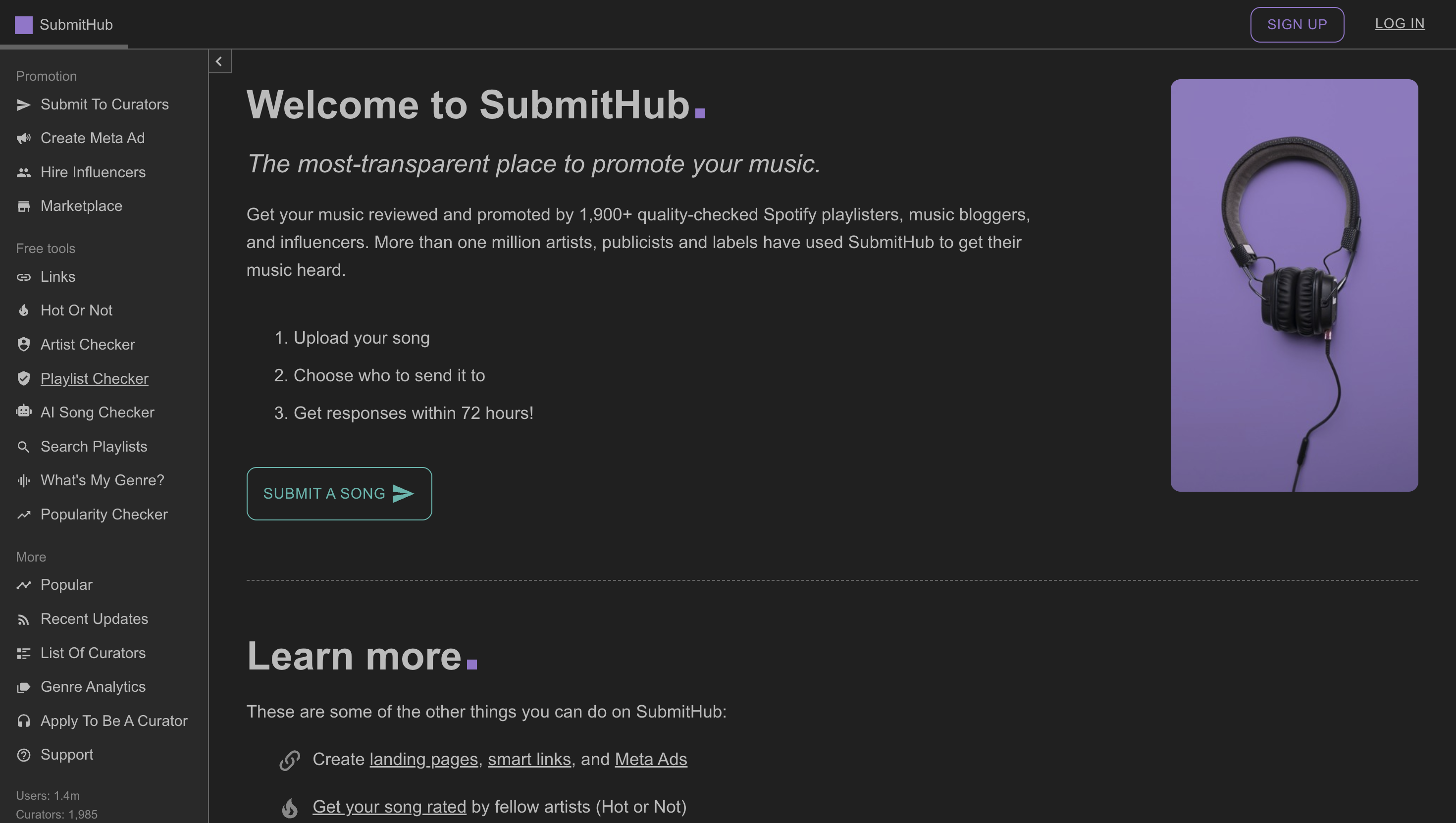
Paste the link.
Again, Analyze. You would have a login.
Let's try Refuse.
Yeah.
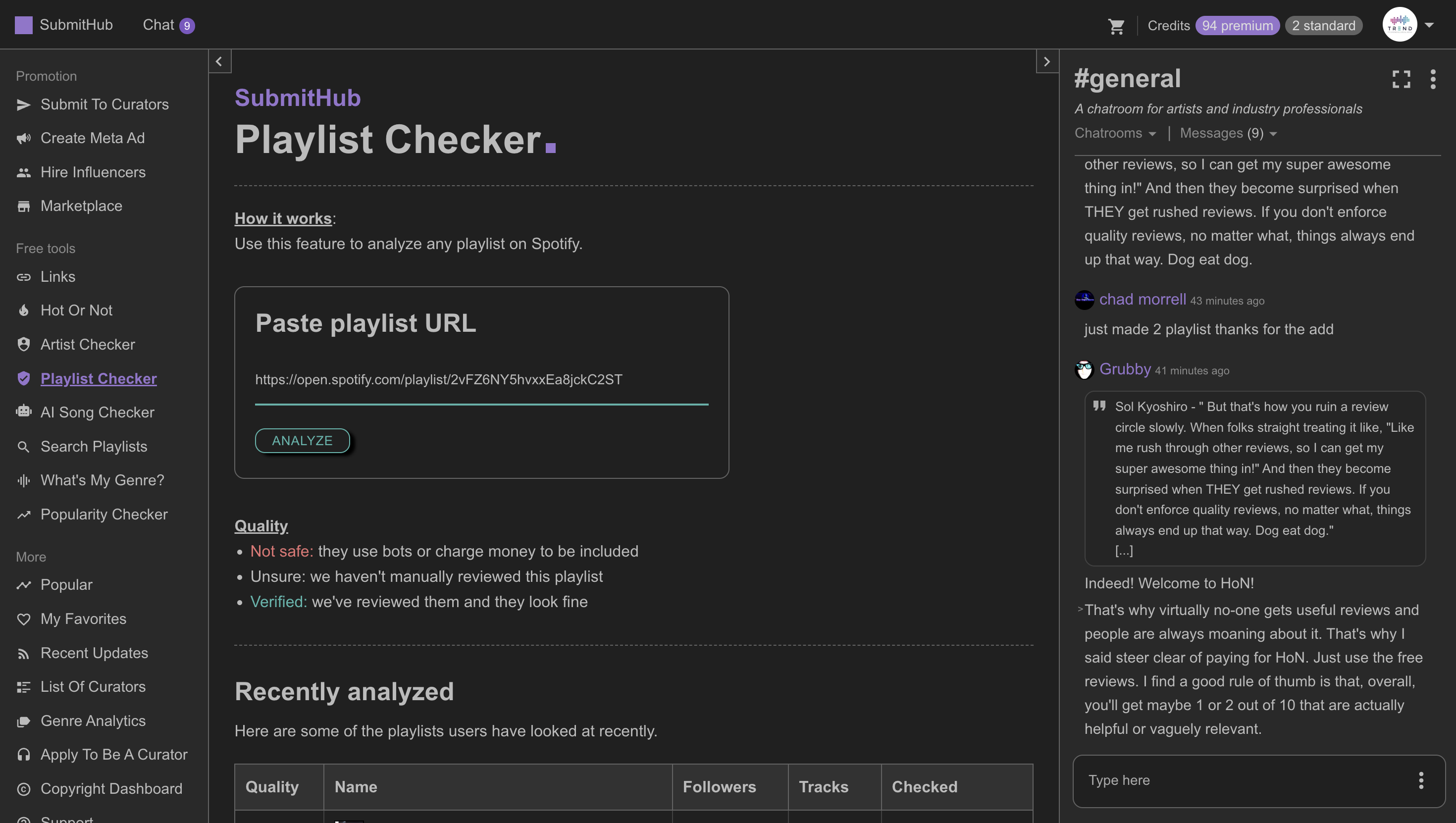
Cool. It appears. Okay. If it says "Verified," we're good to go. It passes its own test, right?
The reference is good. Okay. Sometimes it will display "Unknown" as the quality score. ... Because no one has manually reviewed it or checked it yet.
Listed as a playlist to be used on SubmitHub. This one is verified because they are already a curator on Submit Hub. Mm. Okay. If it says "unknown," it doesn't mean it's botted. It just means Sp- or Submit Hu- hasn't reviewed it yet.
Okay. Which is fine. We are looking for a flag. If it says "botted" and there are no flags... Then we have to say "botted by Submit Hub"?
Right. Or that's just missing. Okay. "" Sometimes it shows "likely botted," other times it says "uses Payola." Any flag that appears here in red is important. Okay.
Where the verified logo is currently displayed on the screen. Additionally, you may encounter a situation similar to when we used Chartmetric earlier and saw data from November. Mm-hmm. That's not a lot of data. Sometimes Submit Hub provides more data, allowing you to view further back. In this case, it goes back to October 2024.
... is true. Okay. Which is a little more, but sometimes it's significant enough for you—oh, look.
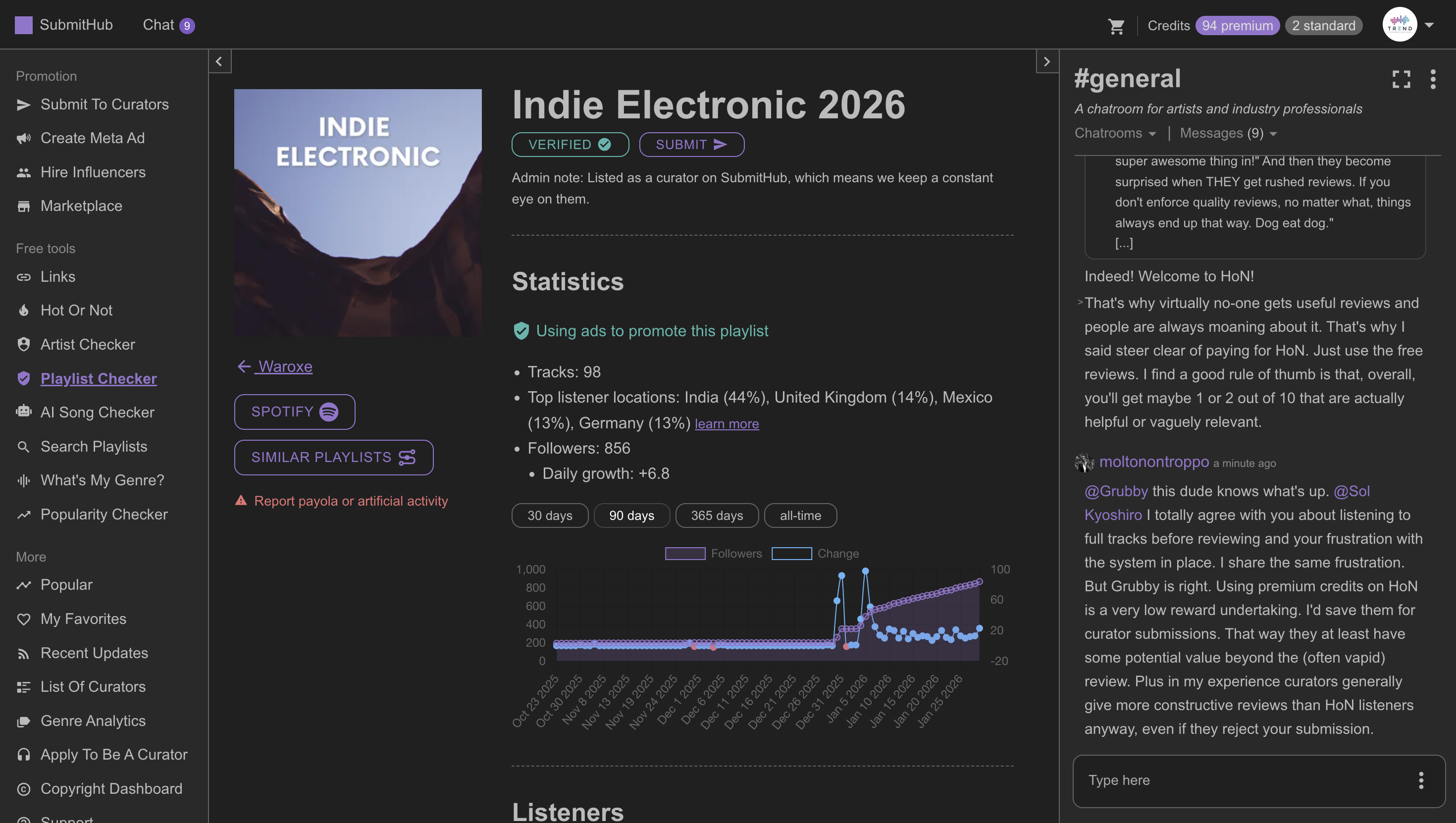
Is this... I clicked on All Time.
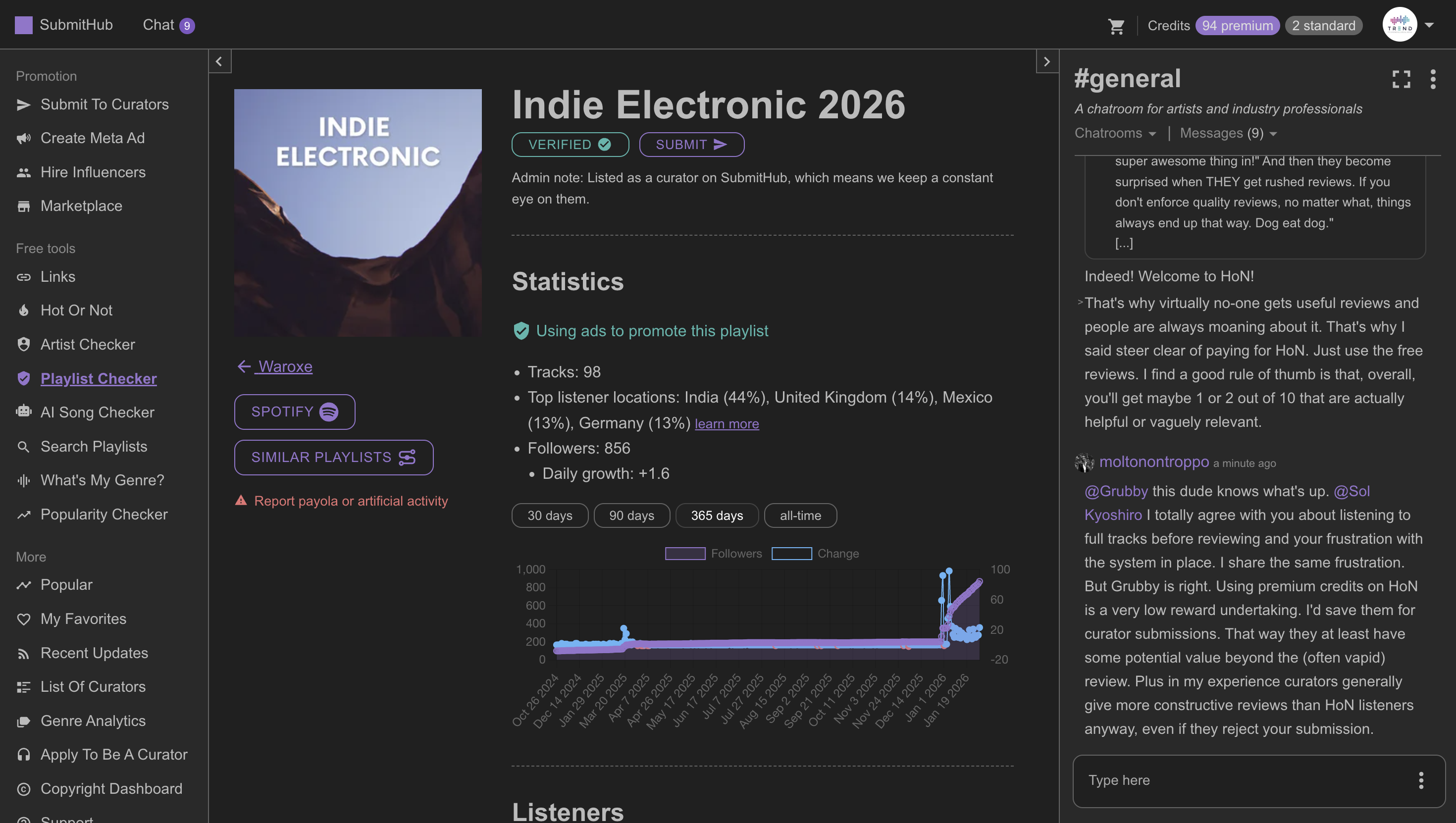
Yes, look. This one has actually been tracked since October 2024. ... Since 2024. Okay.
That's nice. Again, do the same on Chartmetric. Scrub through the timeline to check for any abnormalities. Okay. If it's already verified by Submit Hub, you probably don't need to worry about it. I only check this when Chartmetric data is missing and the status on Submit Hub is unverified or unknown. In that case, I review the timeline data.
I need the system to identify and measure what is missing. If Spotify is your focus, check SubmitHub if Chartmetric's data is less than three months old. Is that good? Usually, botted playlists only have about a week's worth of data, while three months is typical. Okay. It is pretty sketchy.
Most of them shouldn't have an issue with the timeline. However, you still want the system to... What would you like the system to review? Do you want it to flag if it’s... Do you want it to remind you, "Make sure you check Submit Hub" if it's been less than six months? chart, if it has...
If it is under six months. ... Look at— Okay. Okay. Six months is a good timeline.
You can tell if a playlist is botted. Okay. You know. Do you review any of this information here from...
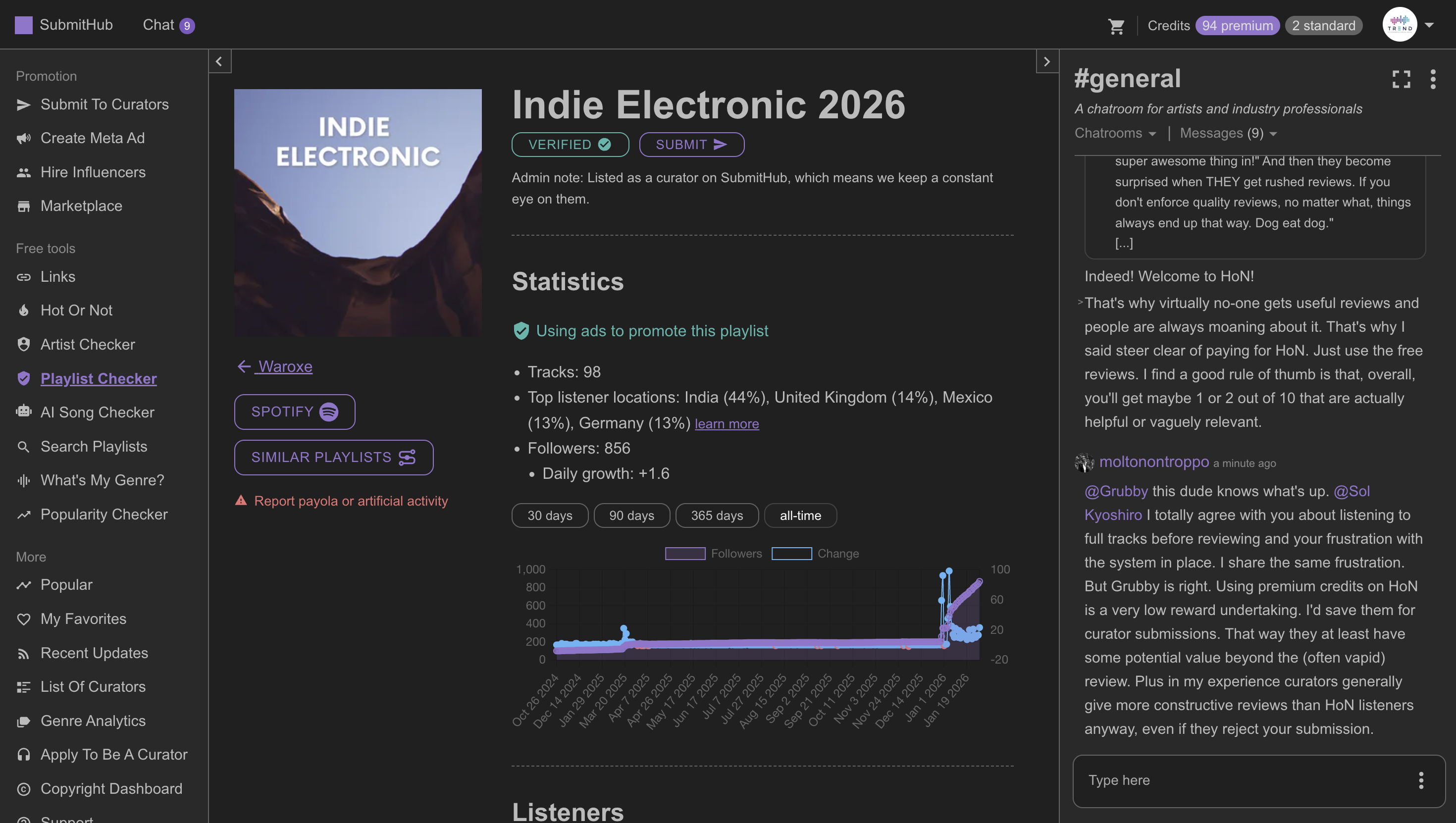
How many tracks? No. ... Top listeners: 44% are from India.
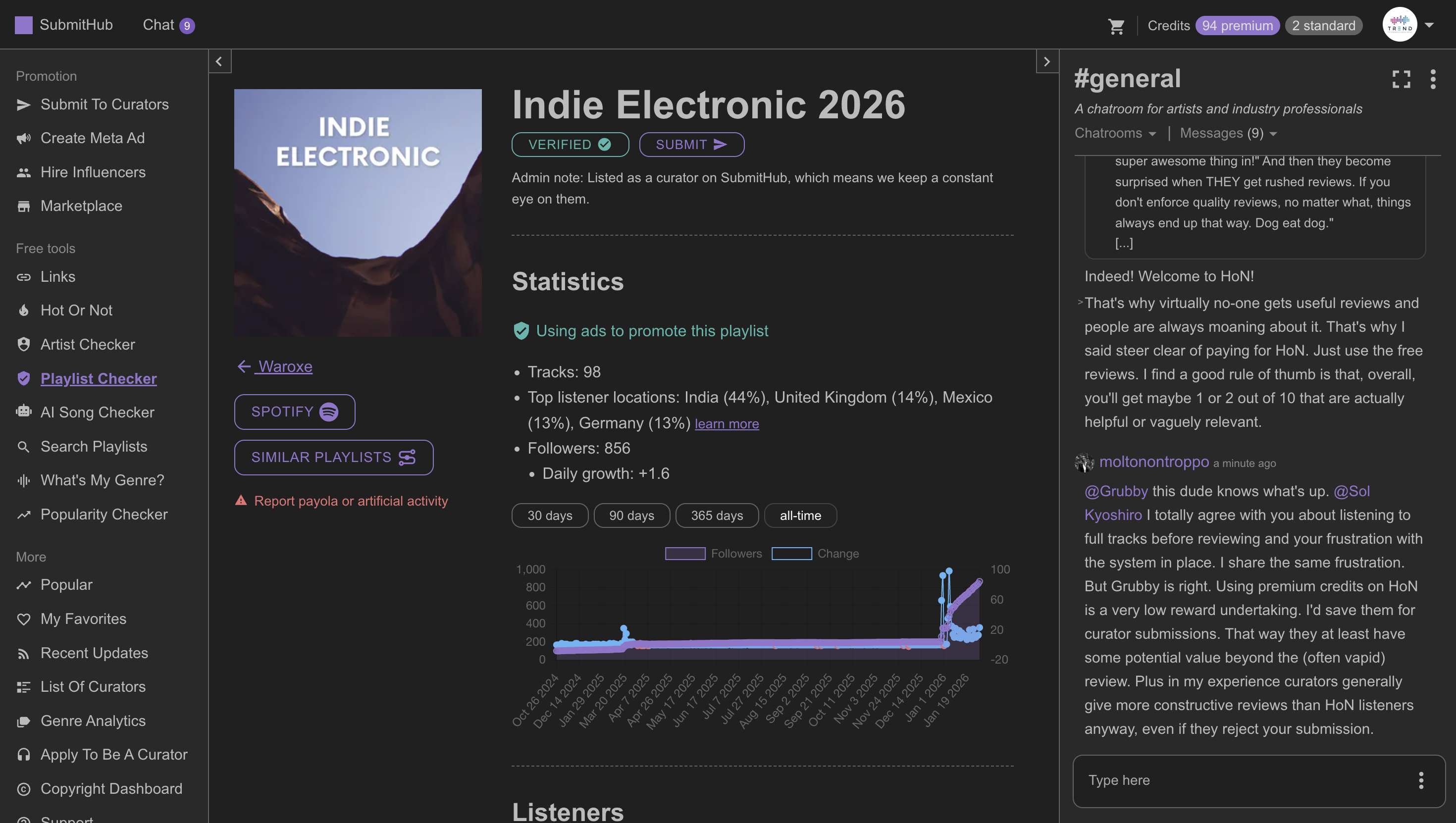
No? No. I do not. Because I, I actually... Once I contact the curator and we arrange a placement, I will begin the process of finding a location.
Okay. If you already know the location is India and you don't want India, would you still reach out since it's only 44% and you hope to get other options?
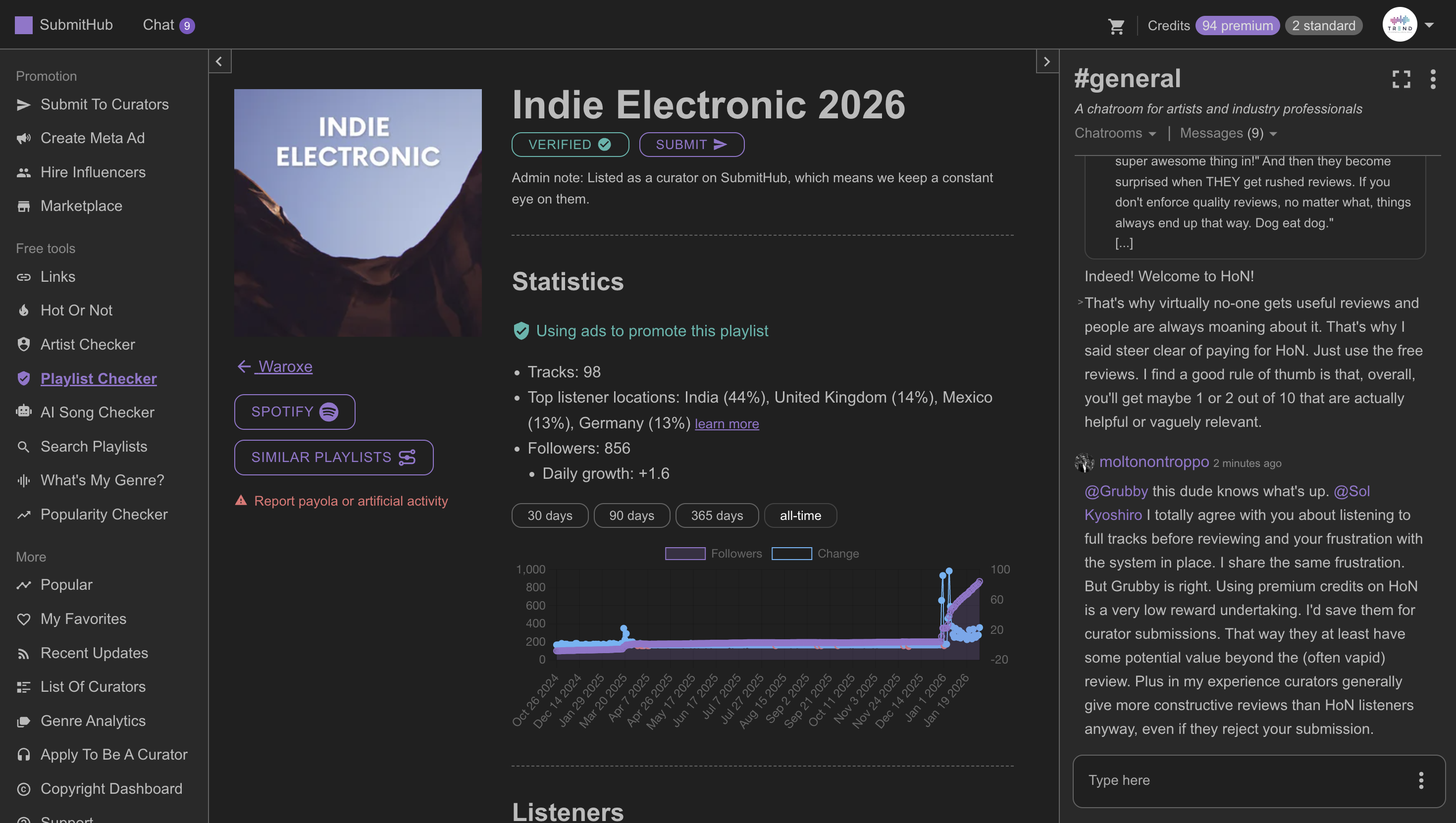
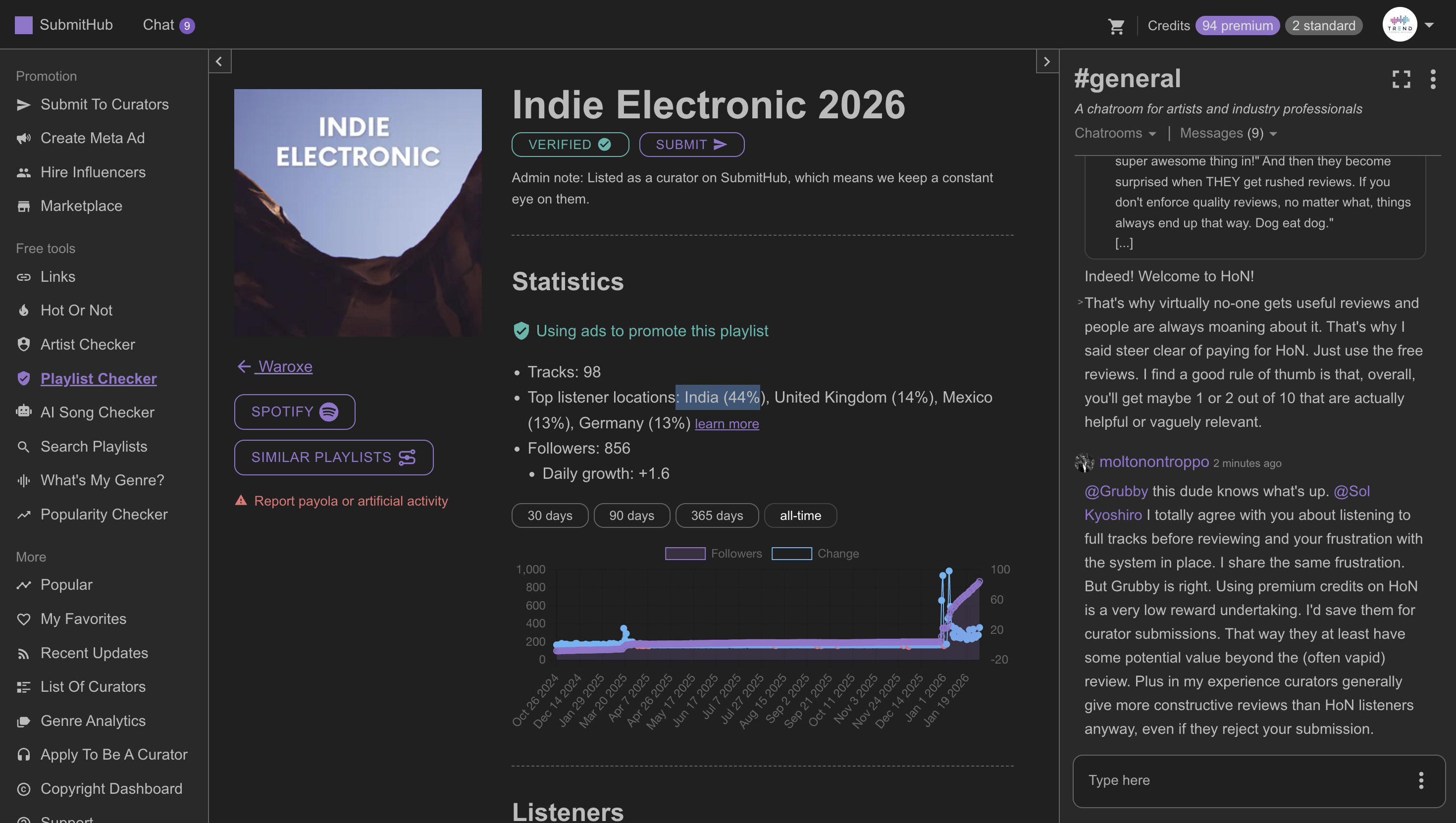
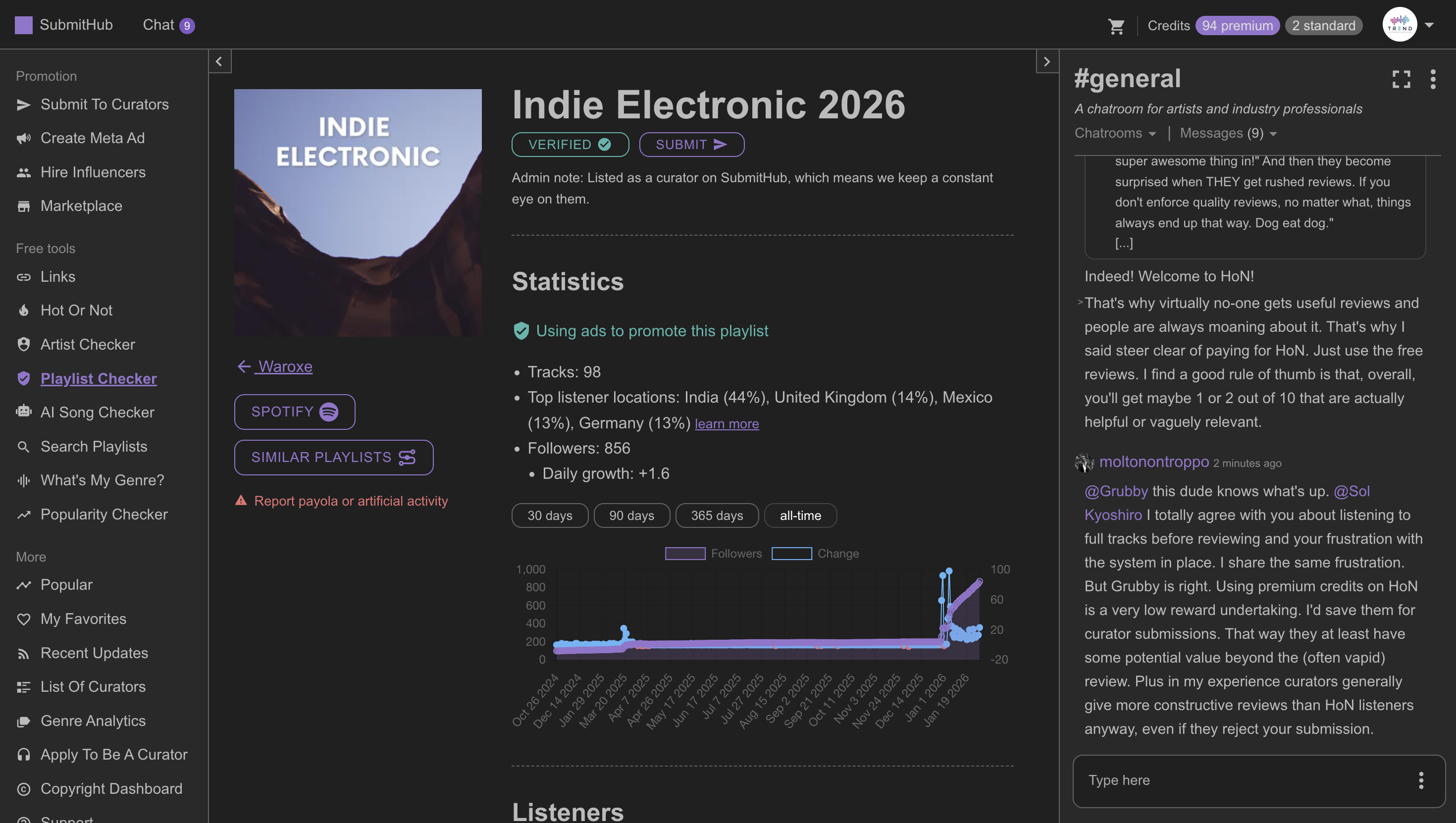
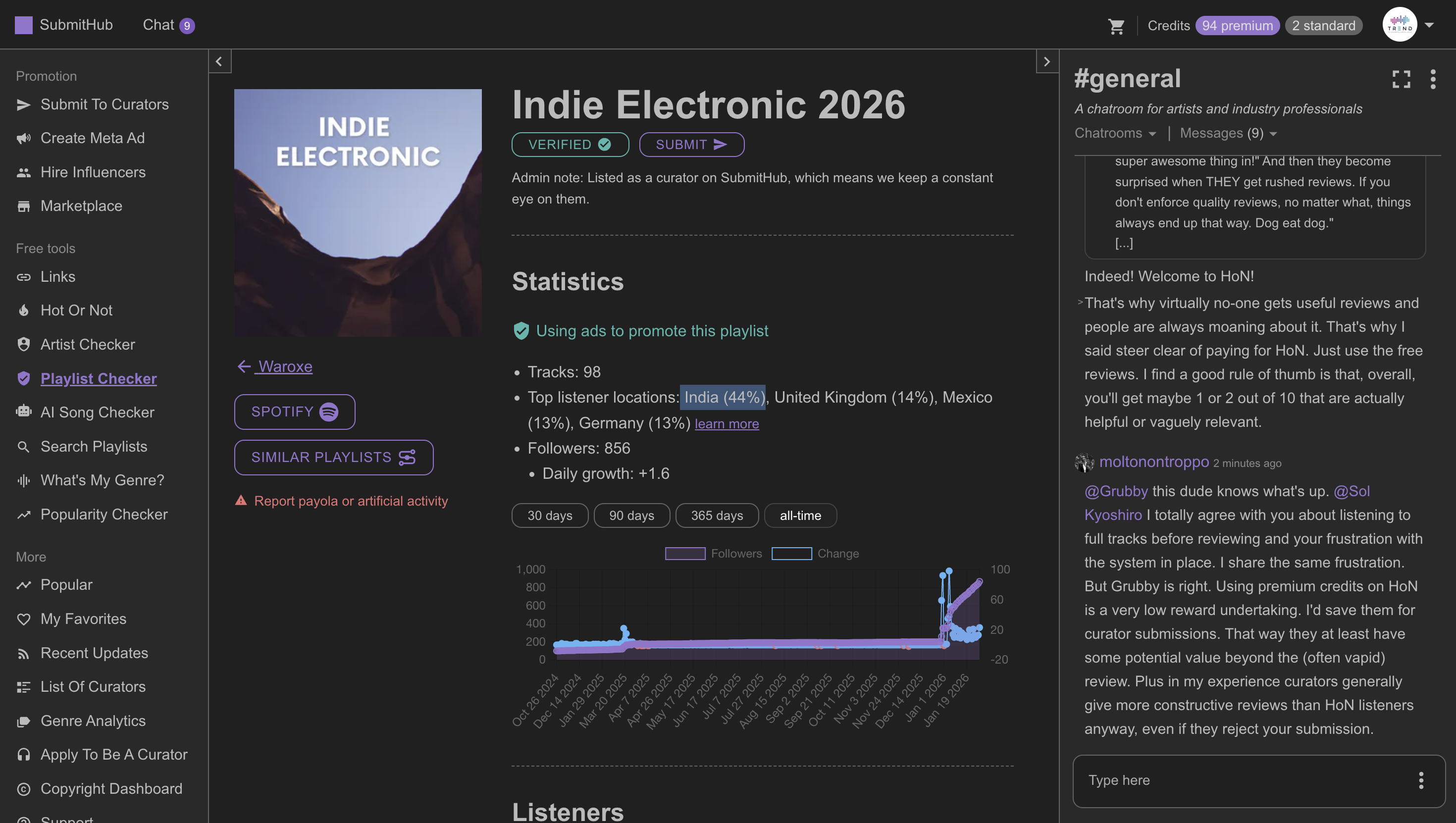
Correct. Sometimes this isn't updated. ... as well. This could be wrong.
The best way is usually through Artist Tools, which has an effective location-based system. Hm. Okay. I prefer to use this. Okay.
Yeah. But that's a different issue and doesn't really apply here. Okay. What would you say is your current bottleneck? It's a system for verifying the unverifiable.
Verifying those without contacts? The whole... The... I can now complete the bot checking process within seconds. ...
I'm used to it now, so that part is fine. The main bottleneck with the Spotify system is the number of inaccurate playlists. What do you mean? There are many playlists. For example, we check our unread contact playlist every week.
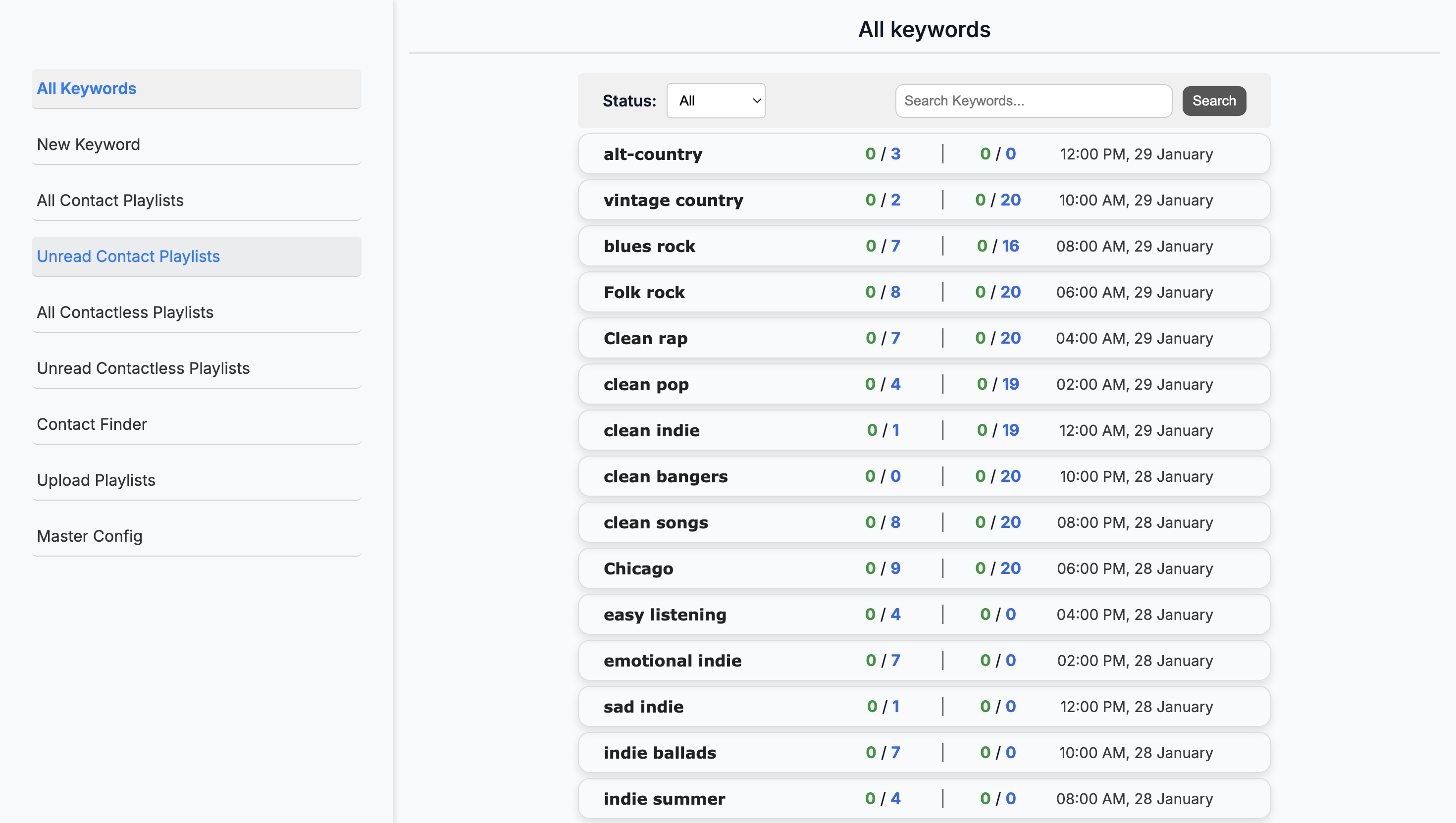
There are many playlists here that we don't use or that are inactive. You have to search through them. So... Okay. The system will automatically indicate if they are active or not. ...
Based on artist tools? This is helpful at the bottom. Okay. One of the main bottlenecks is activity. Also, ensure accuracy in the playlist.
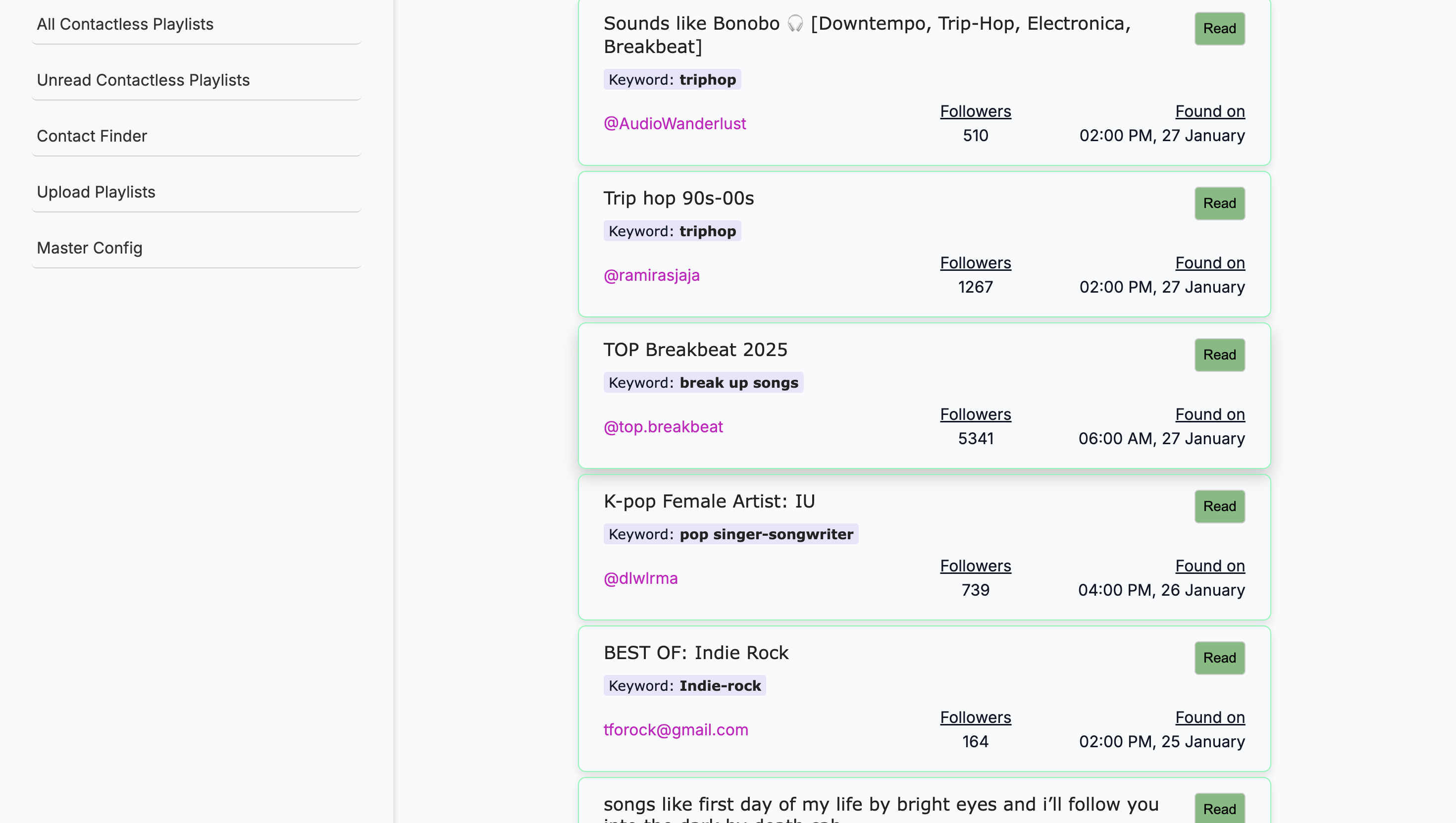
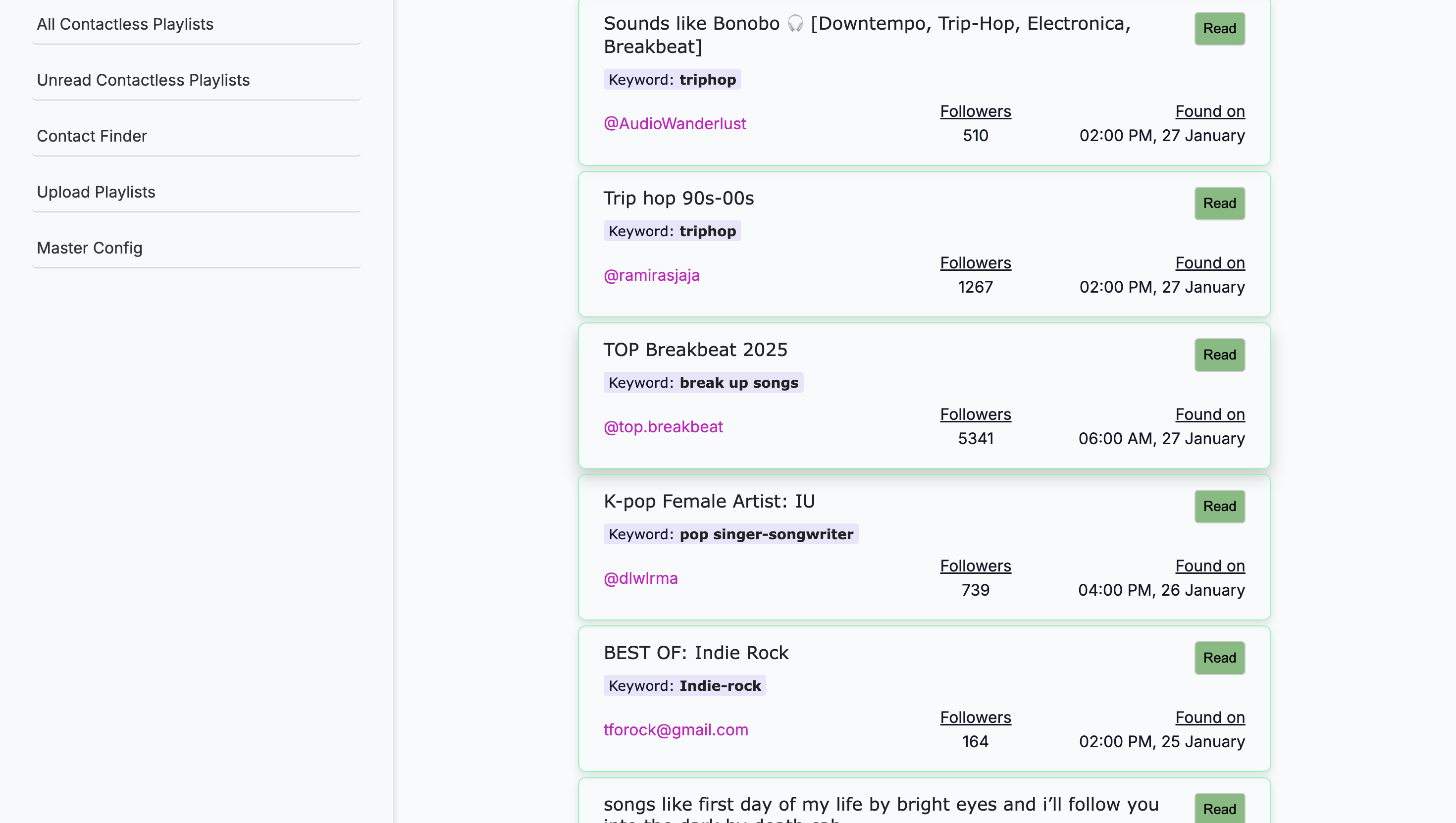
I don't know what TOP Breakbeat 2025 is, but I can guarantee we don't have any breakbeat artists. Even though this targeted breakup songs, and we have artists who write those, the search for the keyword created a breakbeat playlist. I then had to manually check and realize we don't have any breakbeat artists. Is it because the keyword searched for "break"? ... And not breakbeat? Okay, we want to narrow our search. Right.
... If you search for "breakup," it won't just look for "break" and show you all related results. Correct. That's not the point. I'm assuming that's what it's doing, because it wouldn't make sense unless the playlist description mentions breakup songs.
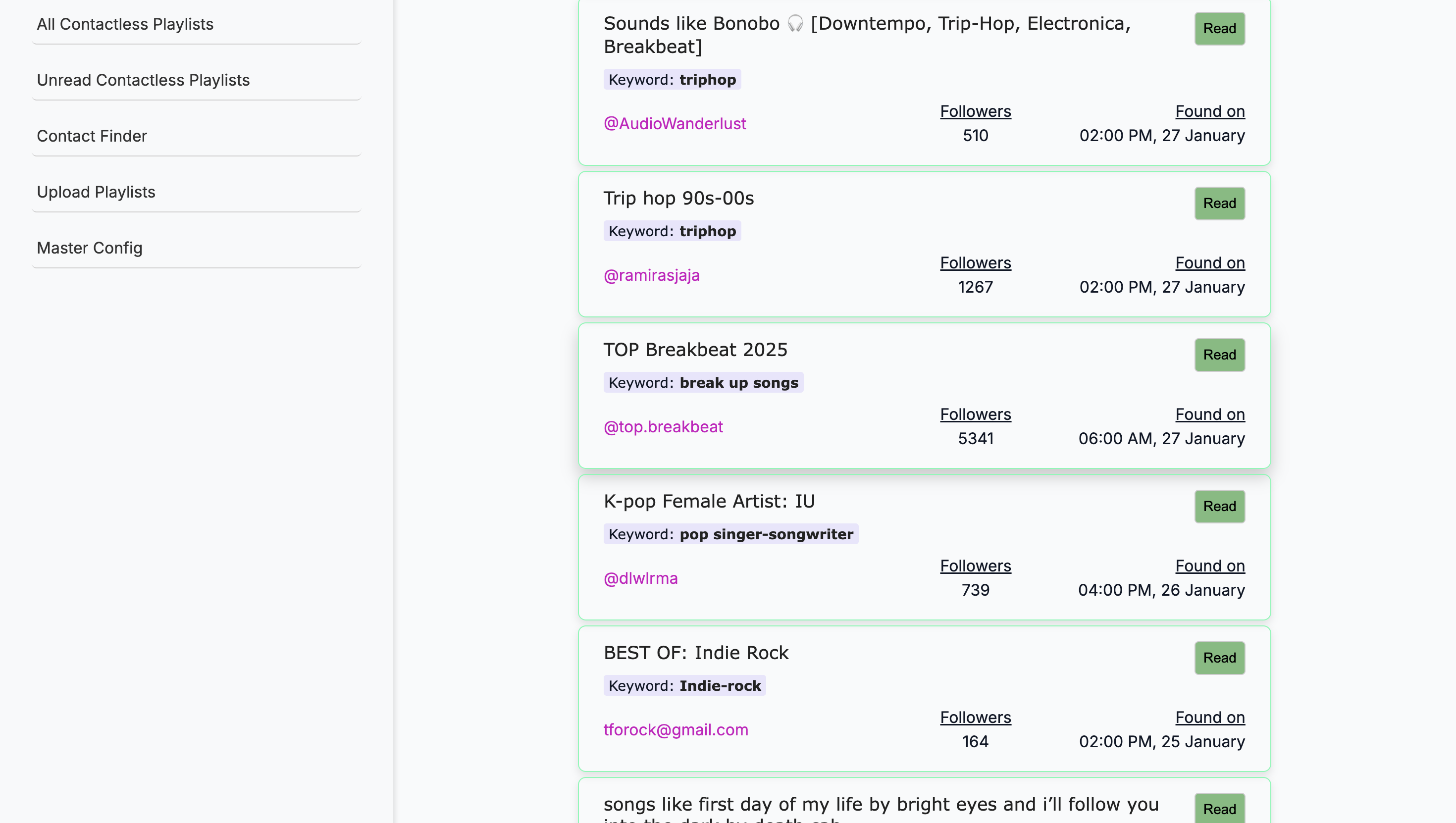
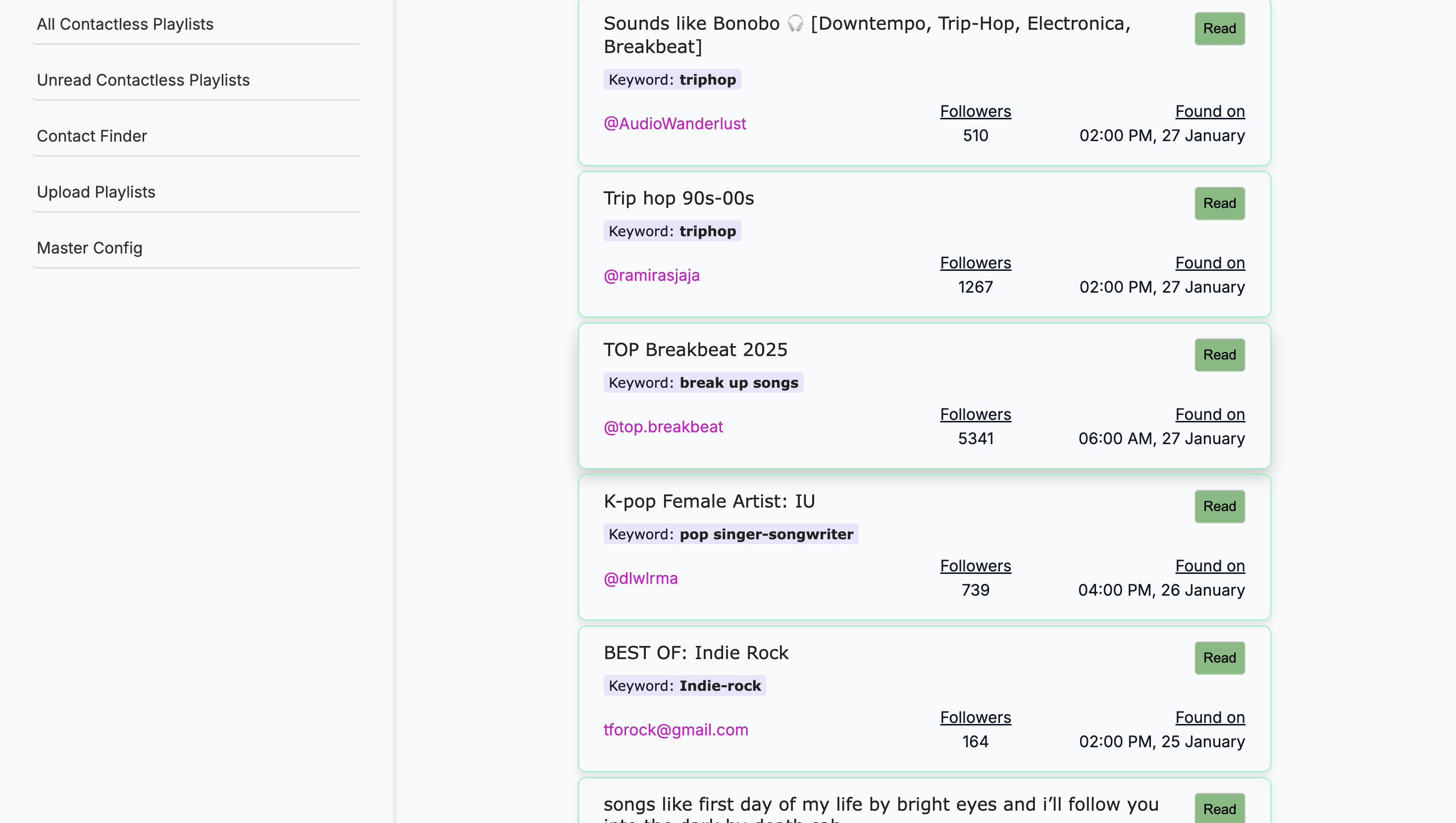
Okay. It could use that as a source. I'm not sure. Okay. Um...
All right. Anything else? Finding the contacts for the playlists that don't—yes, that's... Include it in the description. That's gonna be...
Yeah. That's the hard part. That's a big one. Okay. That's what you will do.
I’d say activity and the accuracy of the genres it’s pulling. Now, regarding the UI. Mm-hmm. Change this to "New Playlist" so it appears first. Yeah.
What are the other things like MasterConfig that you showed me? That is something in here, but it could move, right?
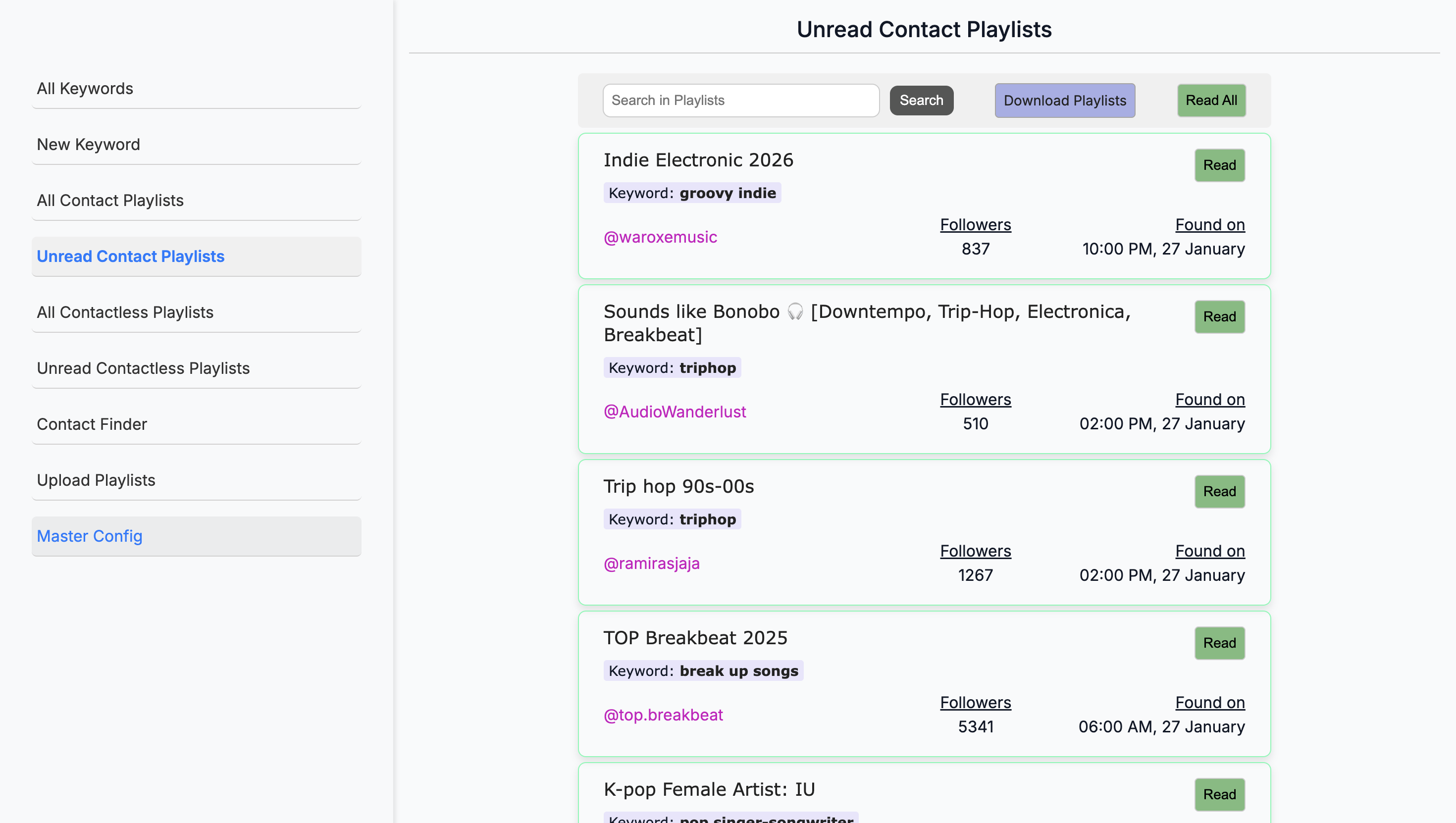
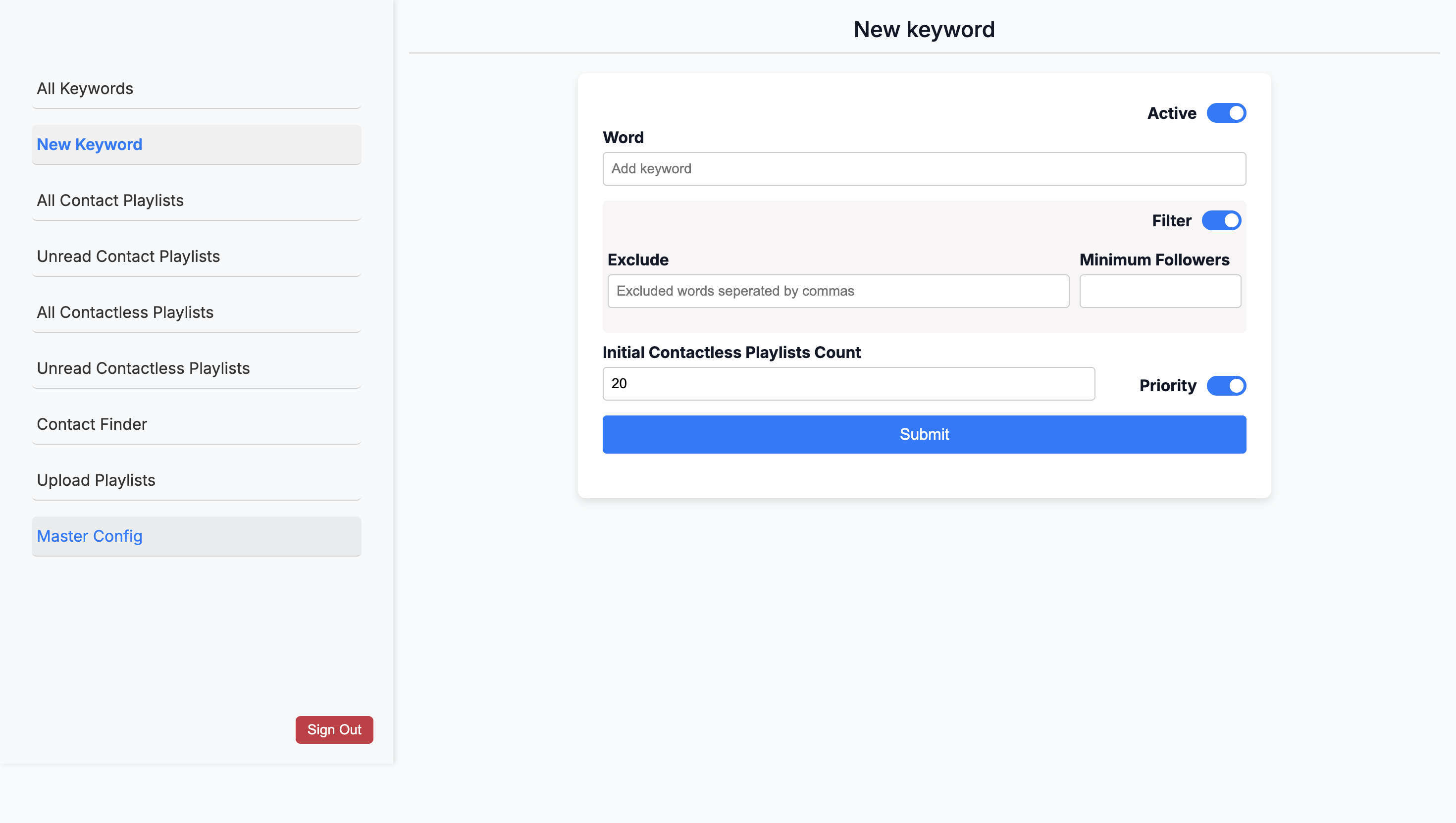
You can move the MasterConfig to your settings instead of using new keywords.
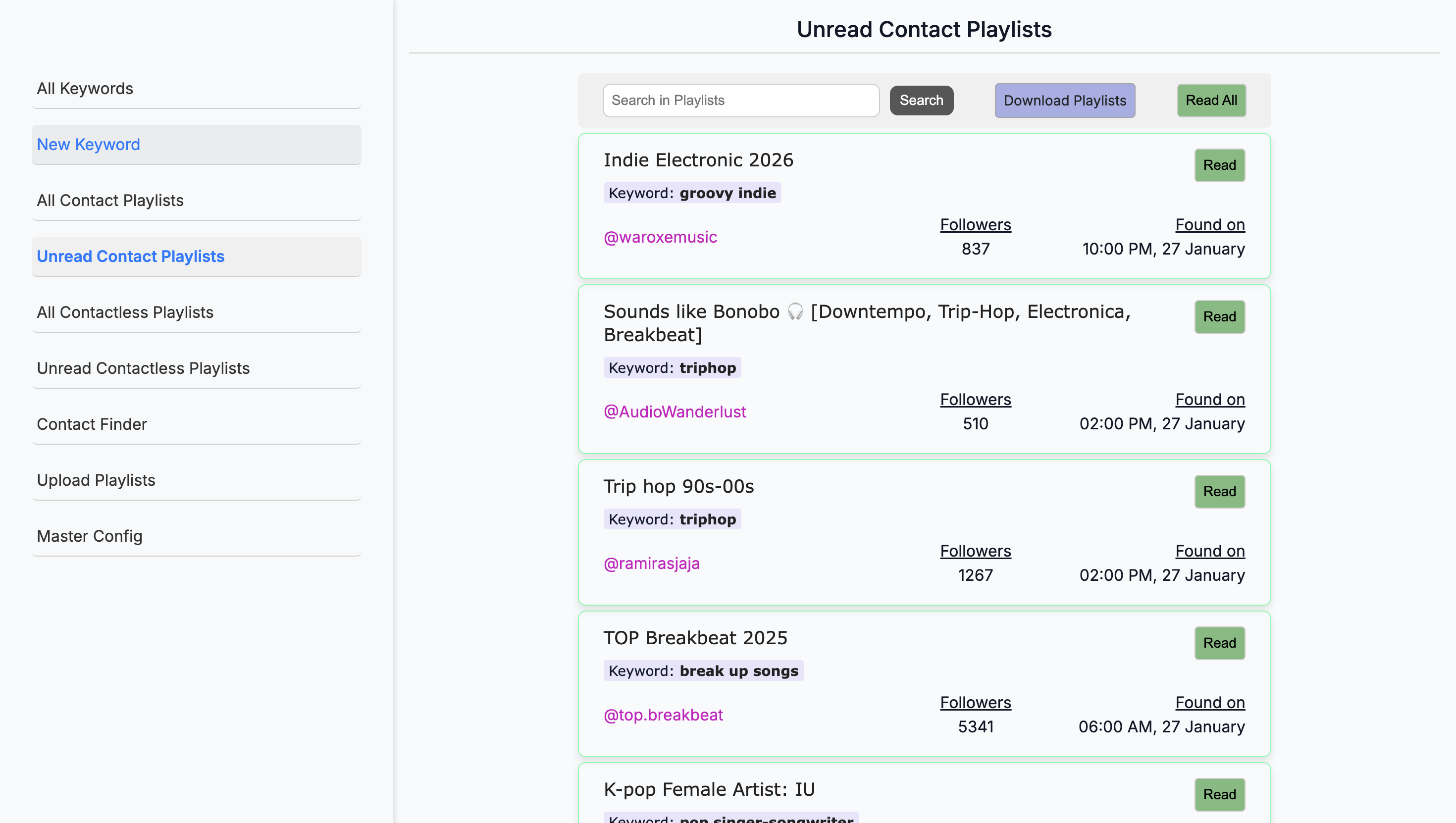
We can move that to a search?
I’m not sure, because with MasterConfig, the way I use it, I can exclude any of these keywords from every search.
Sometimes I enter a keyword that brings in MasterConfig. Like, like power. It will include Christian elements, such as Christ's power or similar concepts. Okay. For example, if you select another playlist, such as "Holy Light," it will bring in another Christian playlist.
I can apply my keywords to exclude all of these genres. This is a blanket exclusion from all playlists. On every keyword.
Okay. For the entire program.
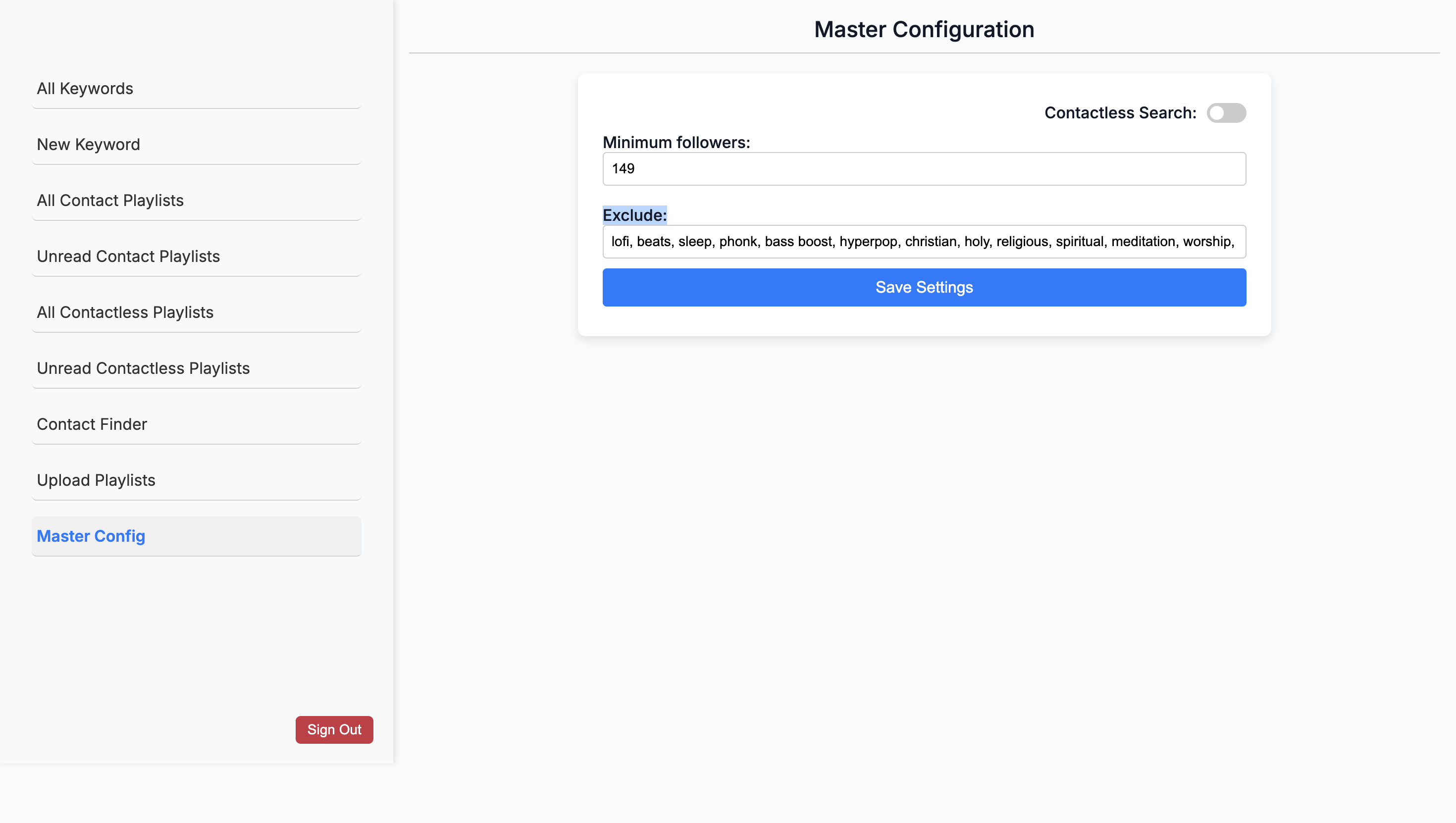
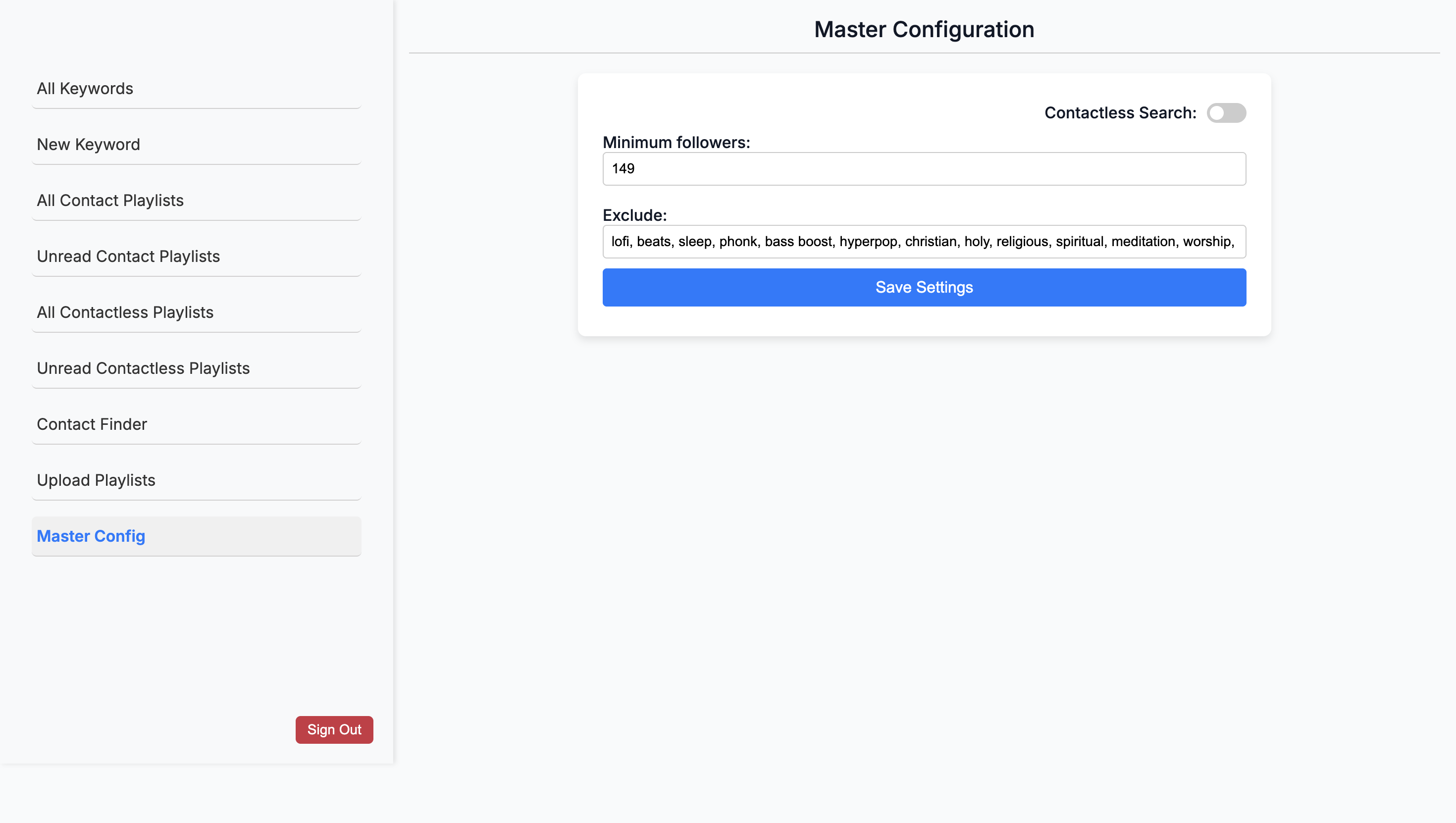
Okay. I will change the name to "Blanket Exclusion from All Keywords" to make it clear.
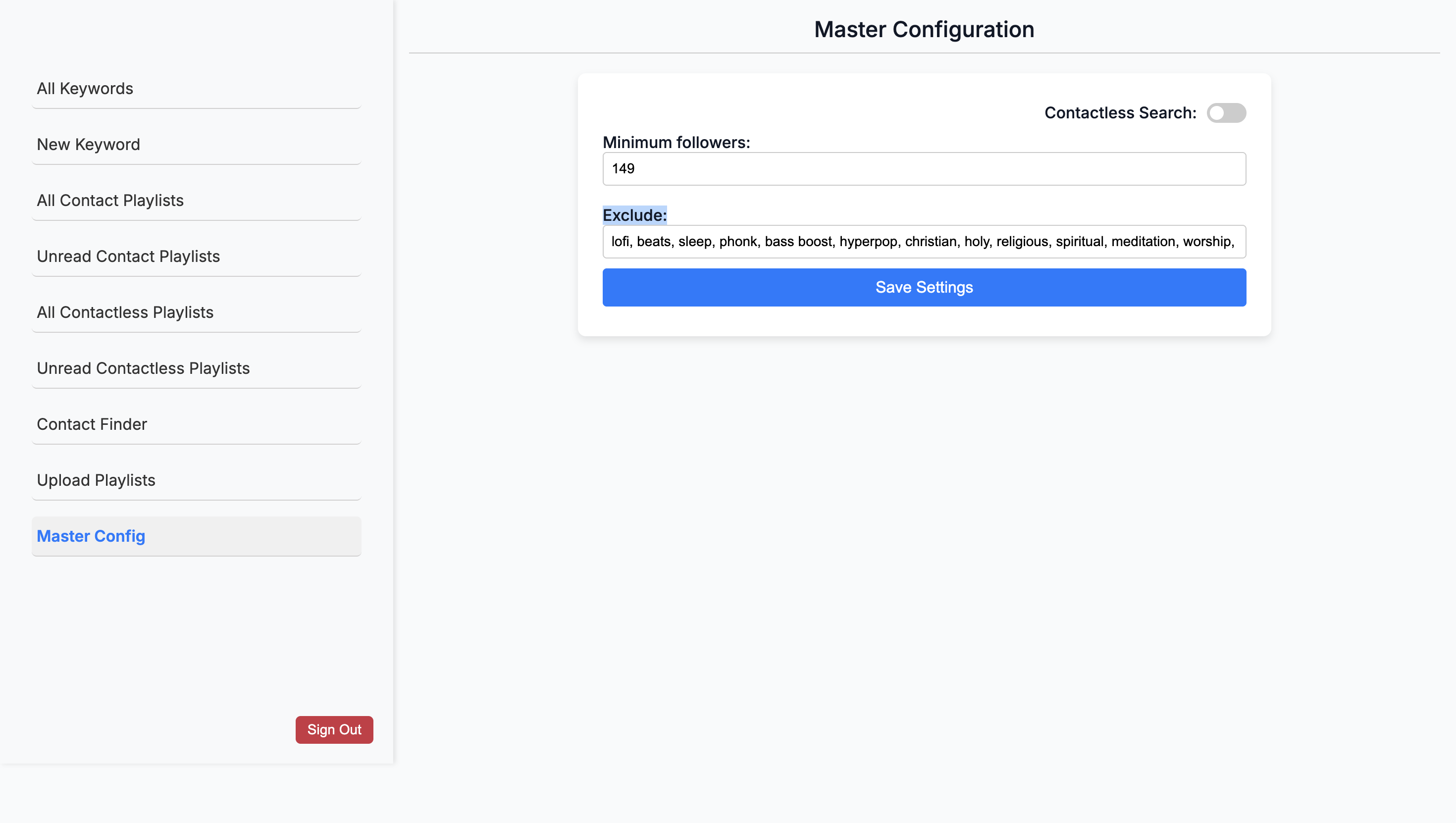
Yeah. Okay. What about the upload playlists?
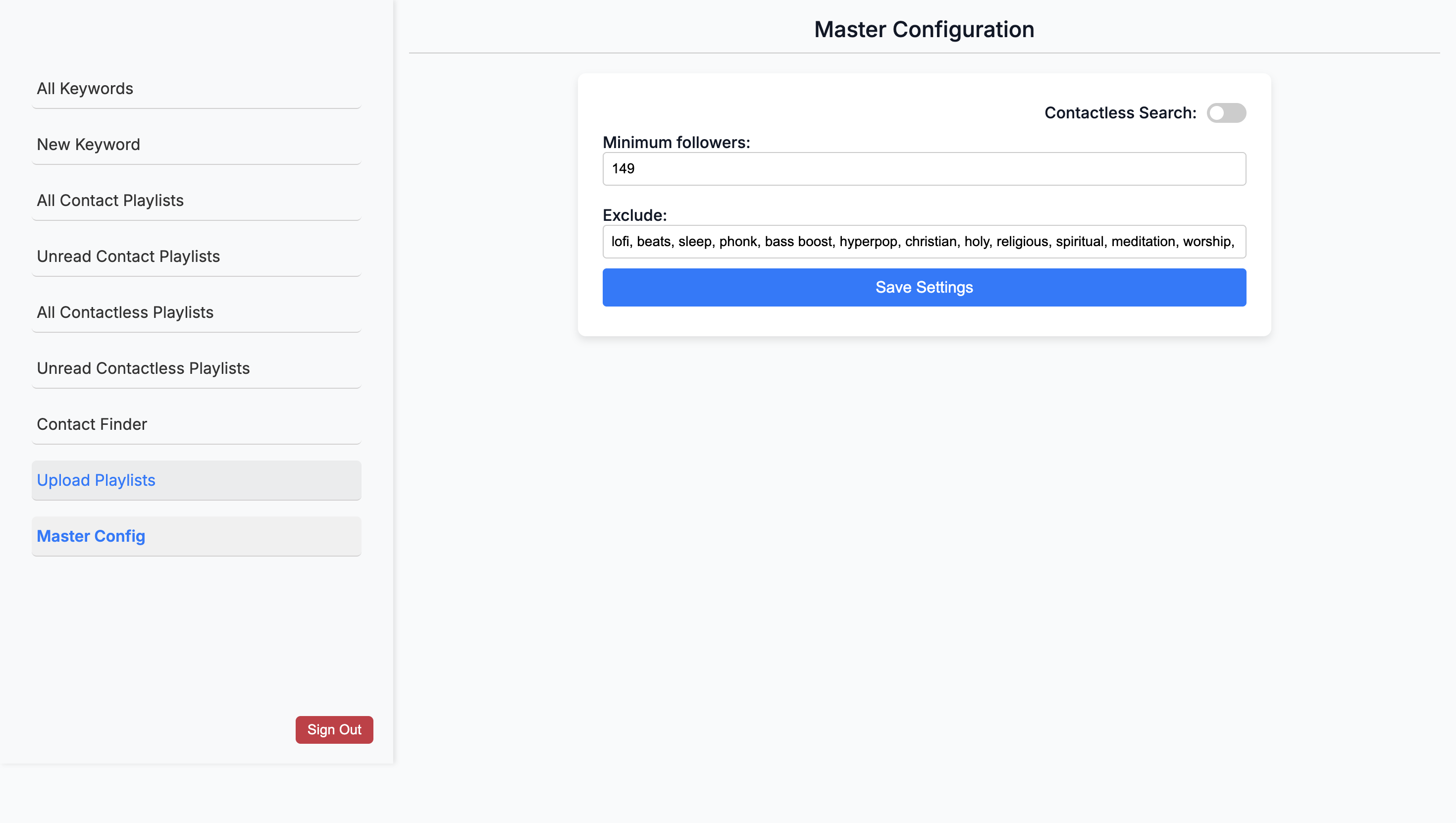
This is when you upload your own files, such as your old ones. I haven't done that in a long time. It was only for the initial process when we were checking for duplicates. Got it. That could technically go now.
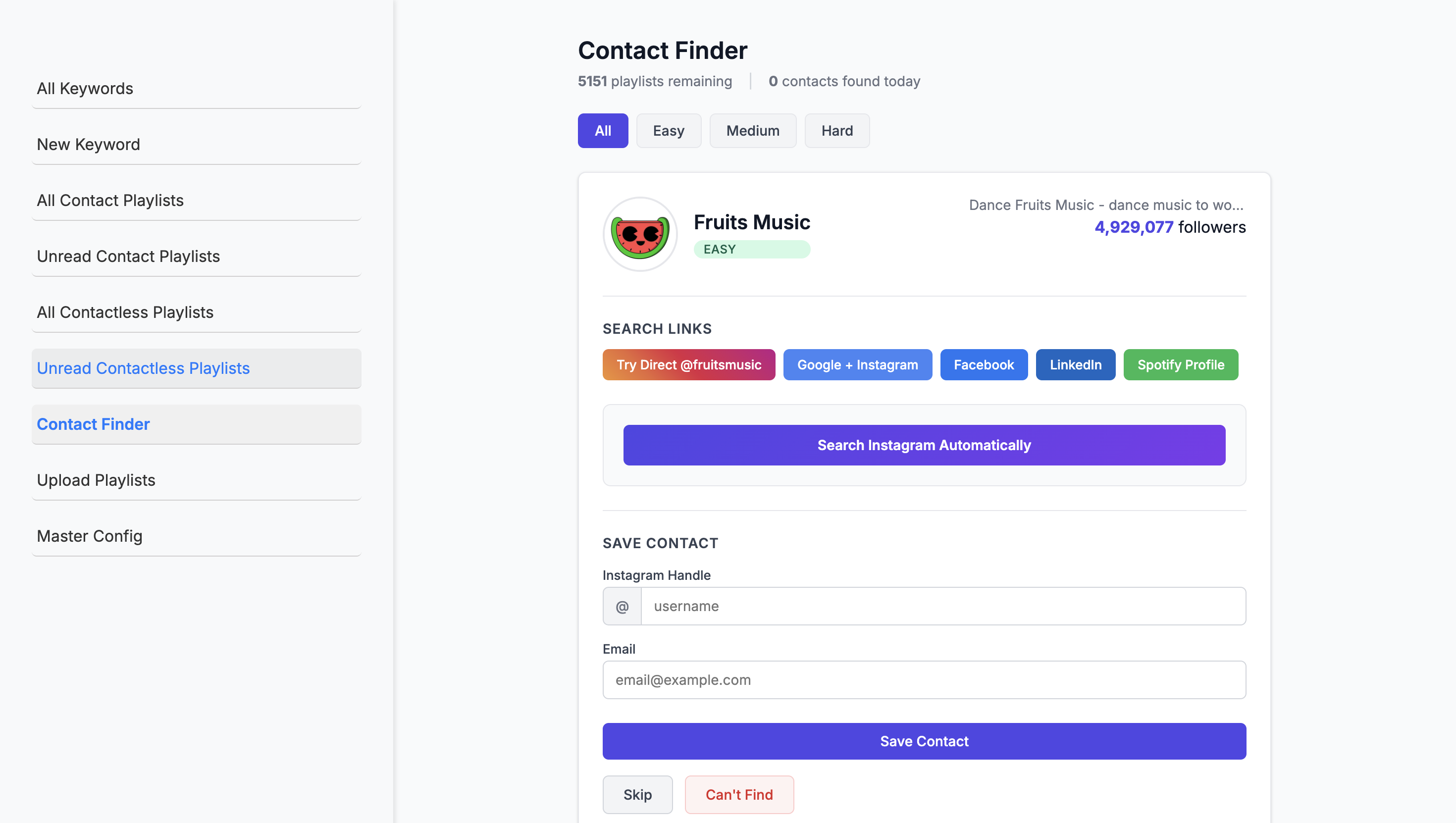
You haven't used the contact finder yet, right?
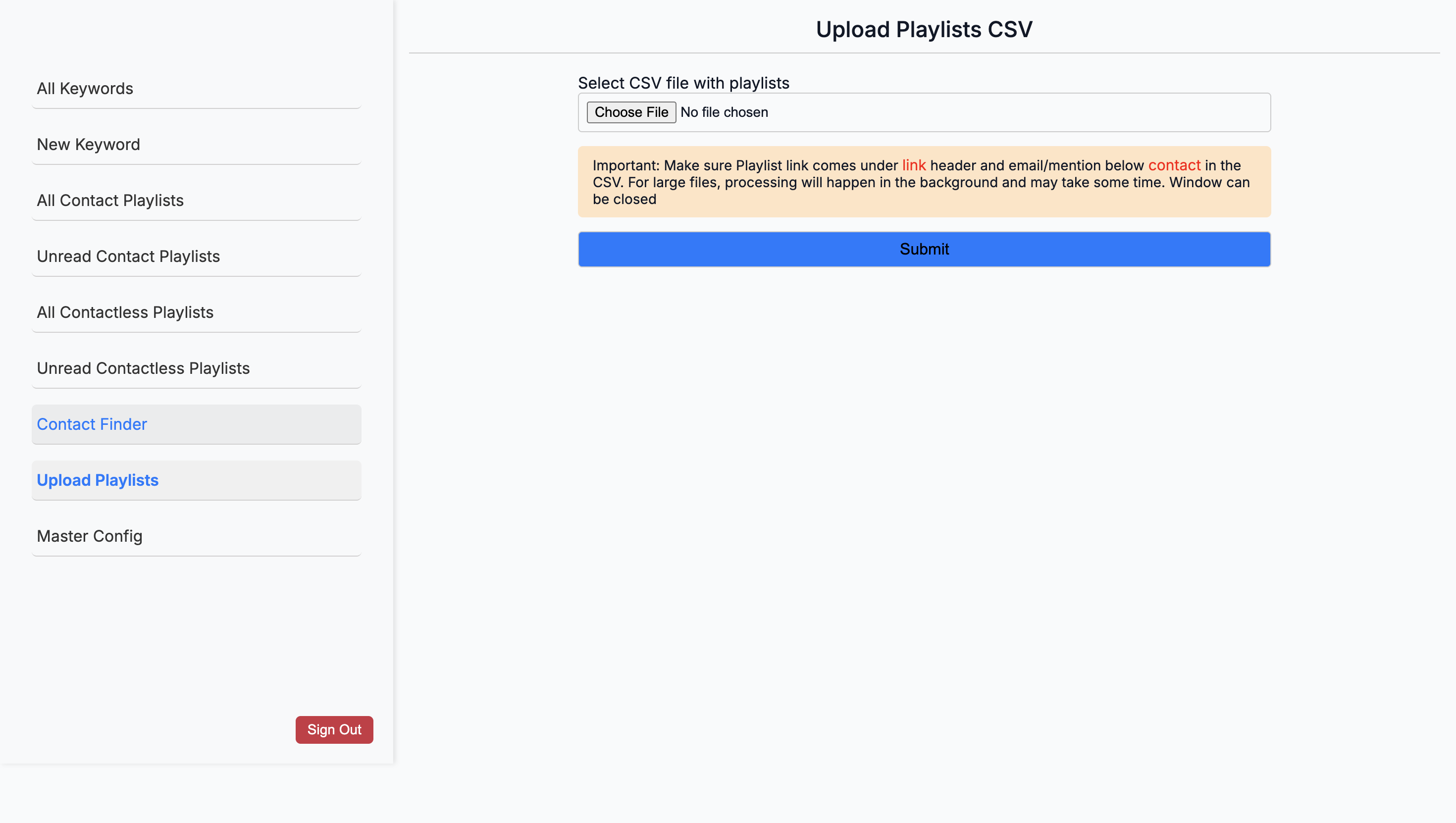
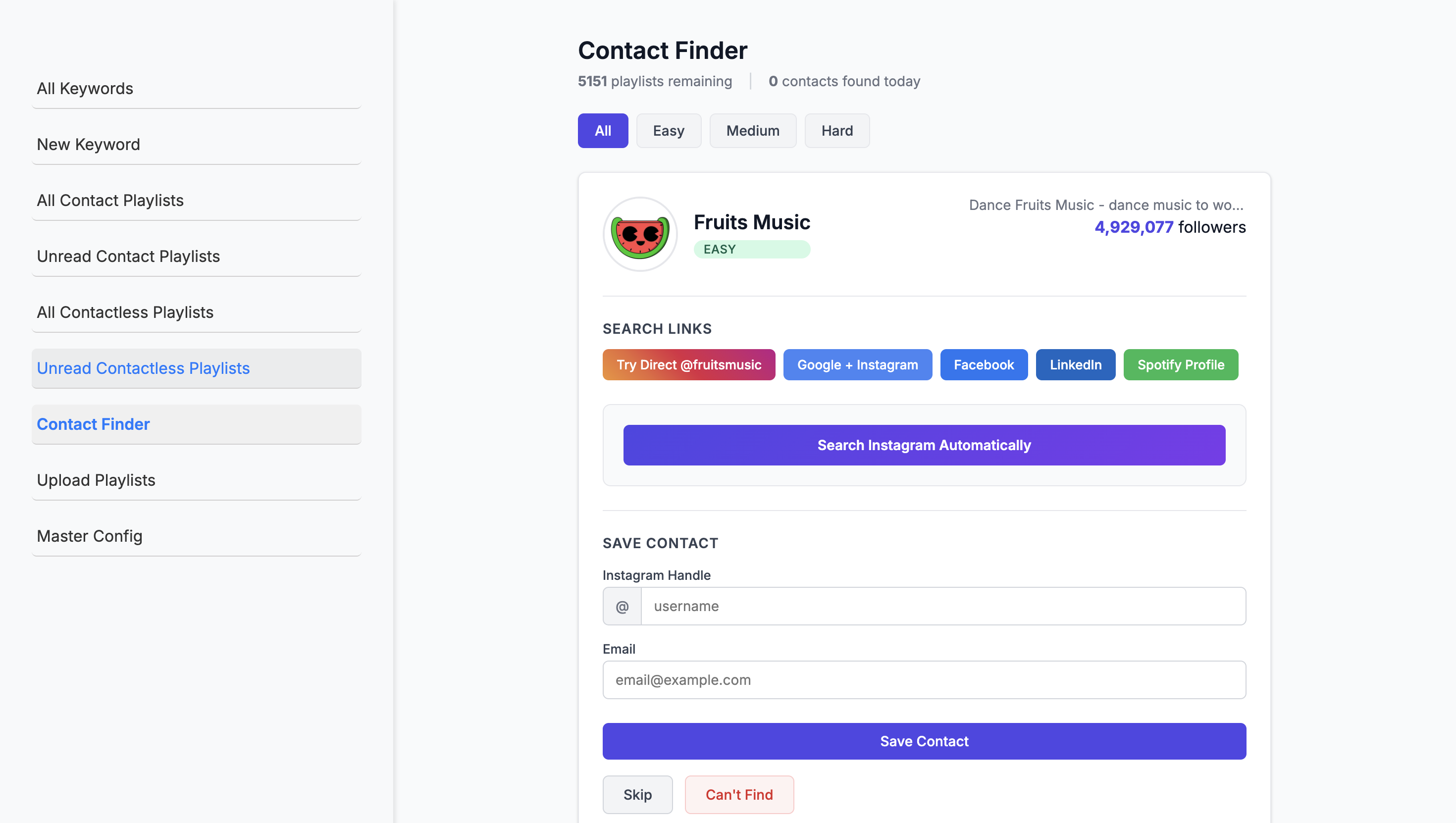
I reviewed it. I was having a hard time understanding it. Okay. I think I understand how it works, but I'm curious to...
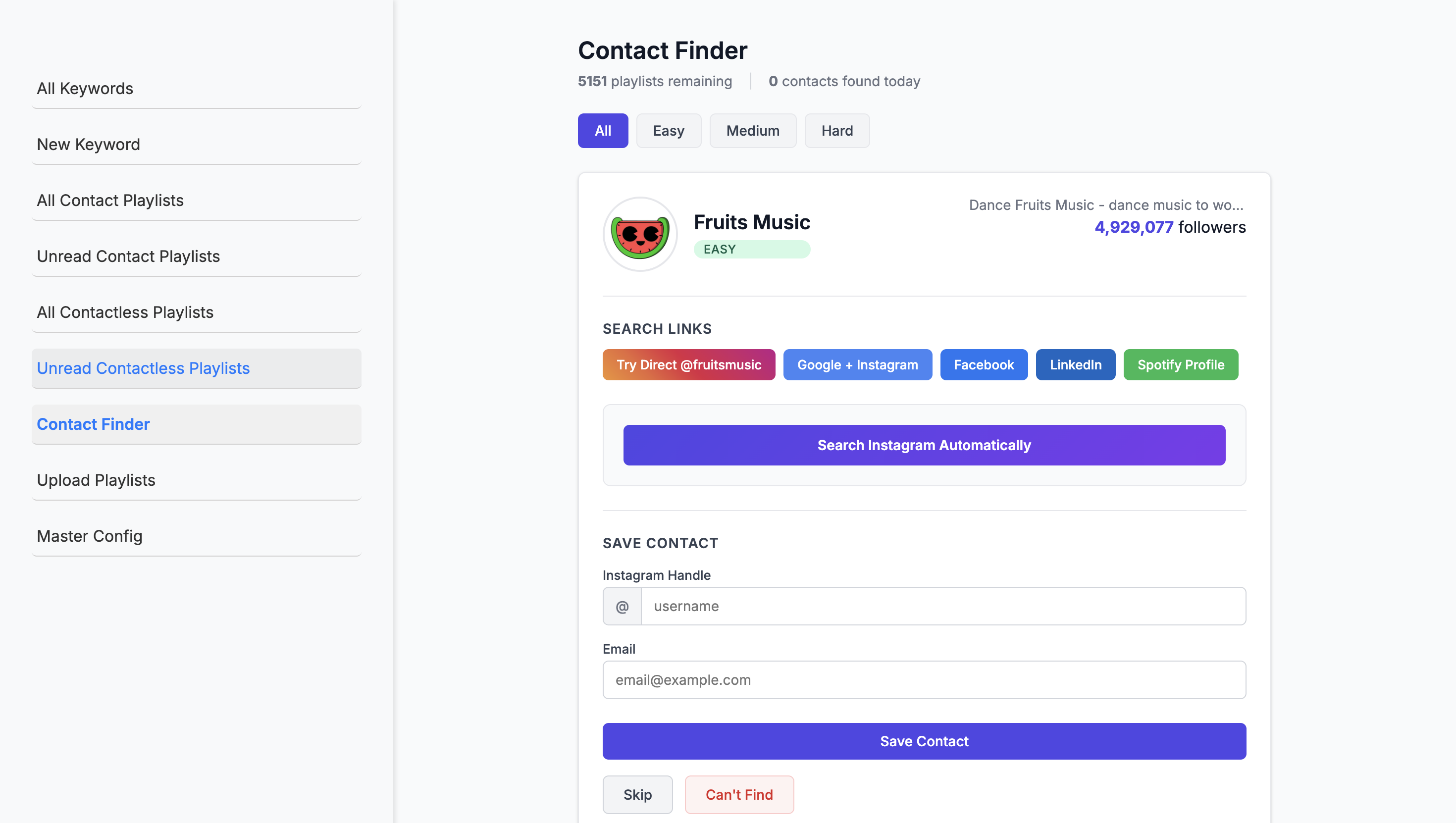
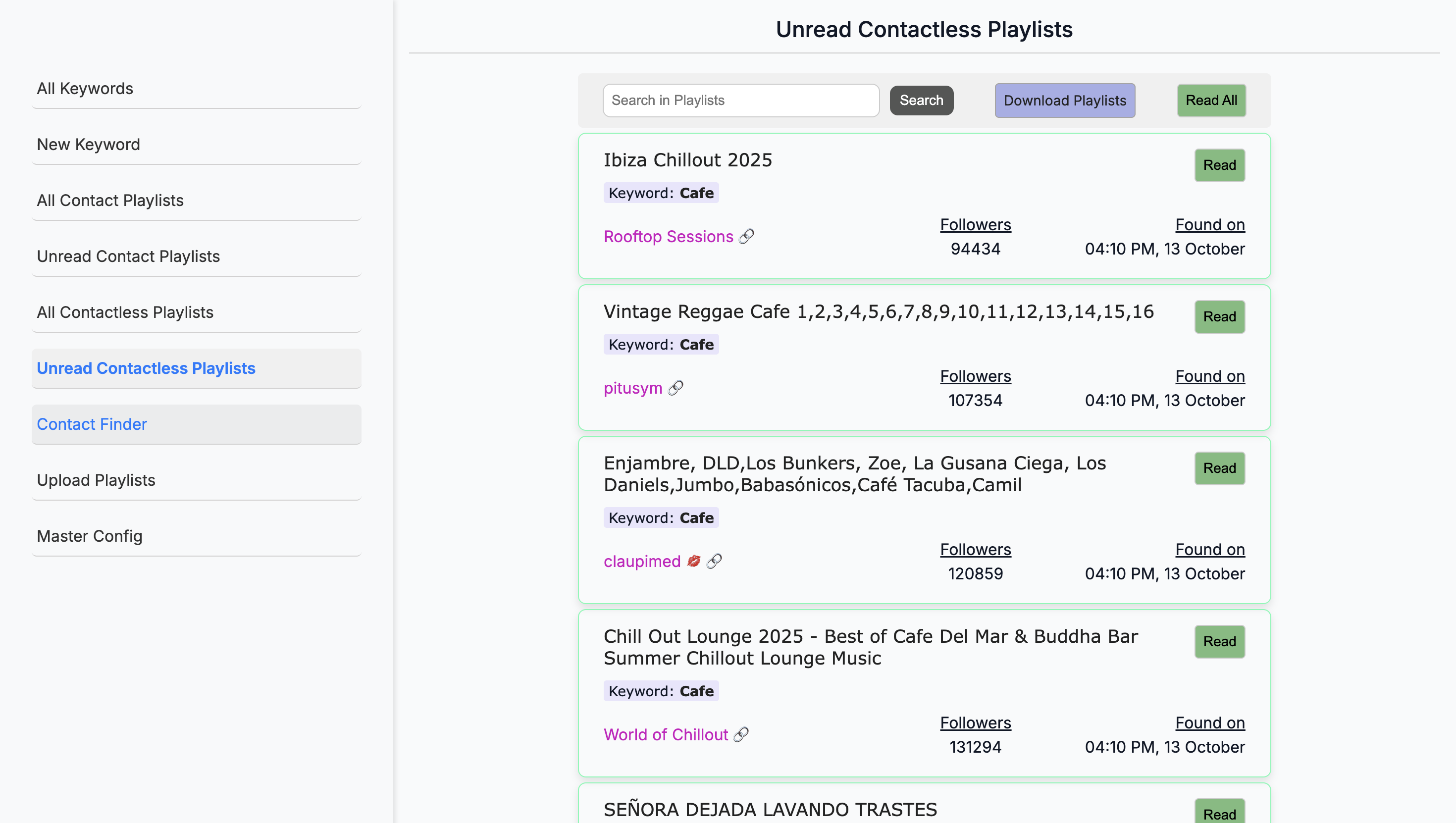
I wanted to hear your thoughts. Okay. I'll explain how it is. We're almost out of time because I have to leave at 12:30. Yeah.
Good. I'll send you something for it.
Cool. And then the... So, the unread and all contact lists are like a master running list?
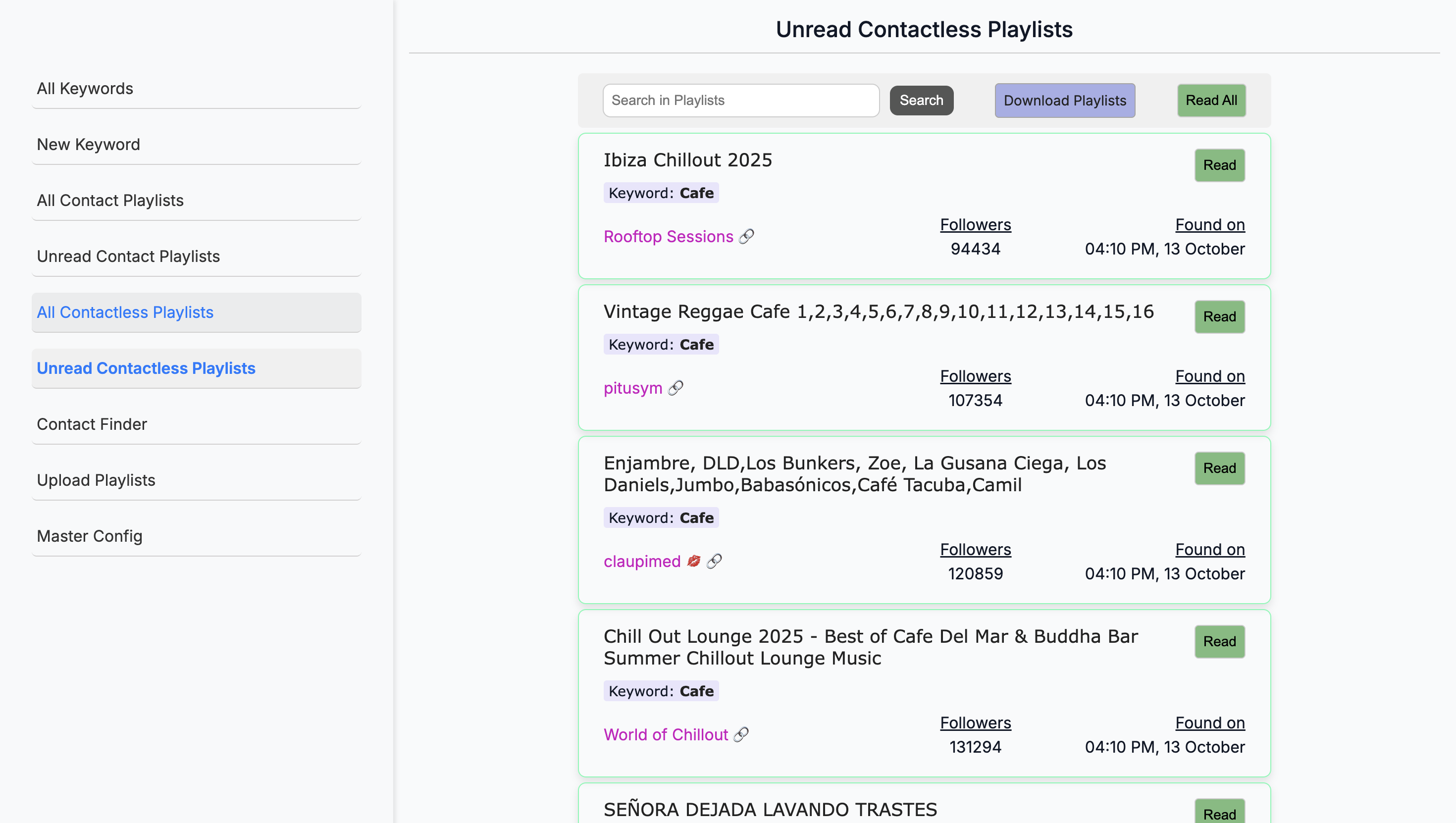
Yep. Master. But you don't really look at it? No. Because you are...
Because you export the others, right? Correct. I would only look at this if I were searching for a specific type of playlist it provides. Okay. Same for the contact.
They are essentially the same, except one has a contact and the other does not. Regarding the UI.
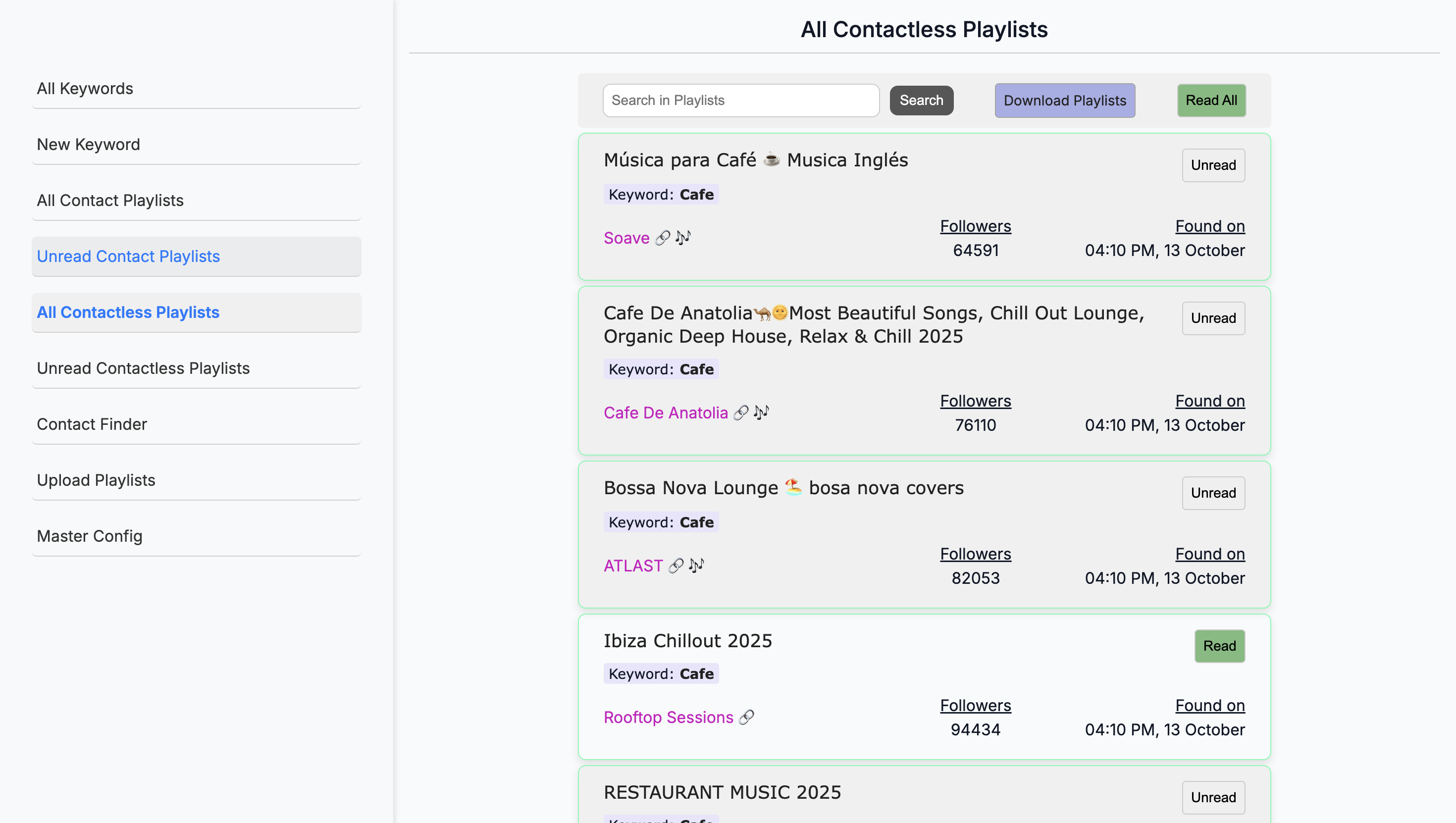
Oh, yeah, yeah. I see. Okay. Right? Yeah.
You can group those items together in their own tab and then select them. Yes. Then, have it filter. Correct. Yes.
And filter contacts.
Yeah. Yeah. With contact, without contact.
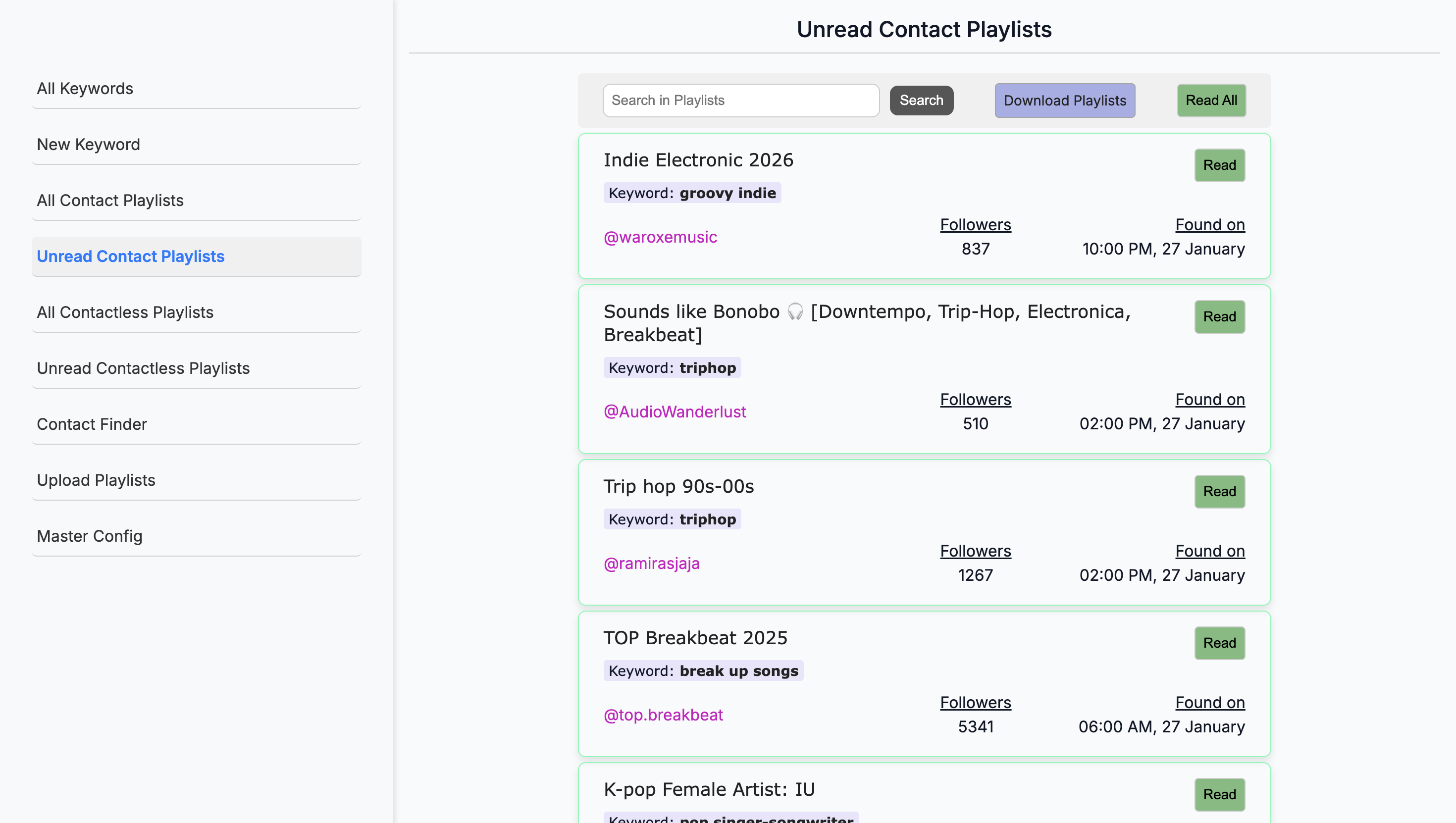
Okay. Um, and... Oh, yeah. And then keyword.
Okay.
And then q-... I think I would include these two as well.
New keyword: Everything will be under "keyword," and you can add a new keyword.
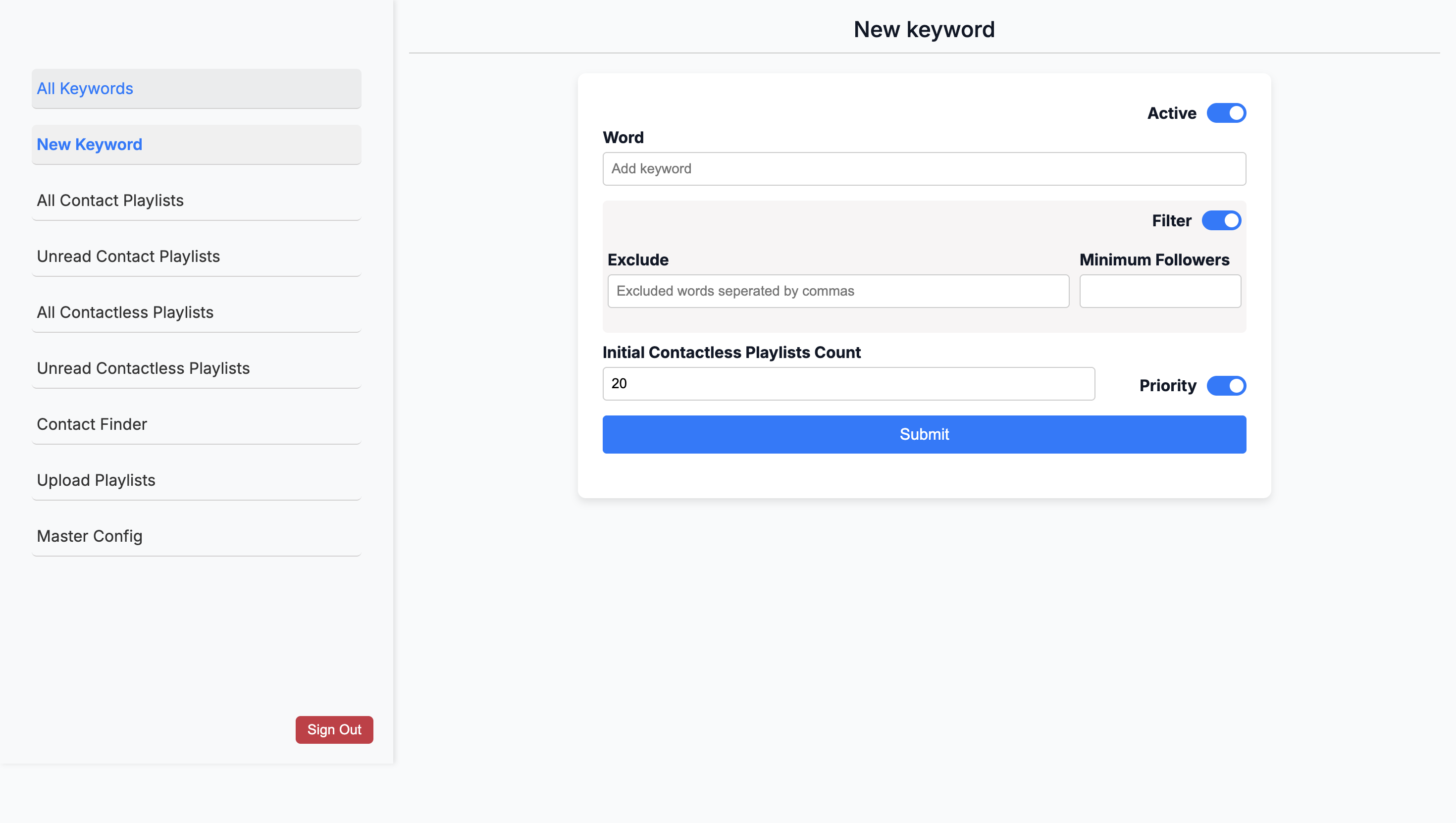
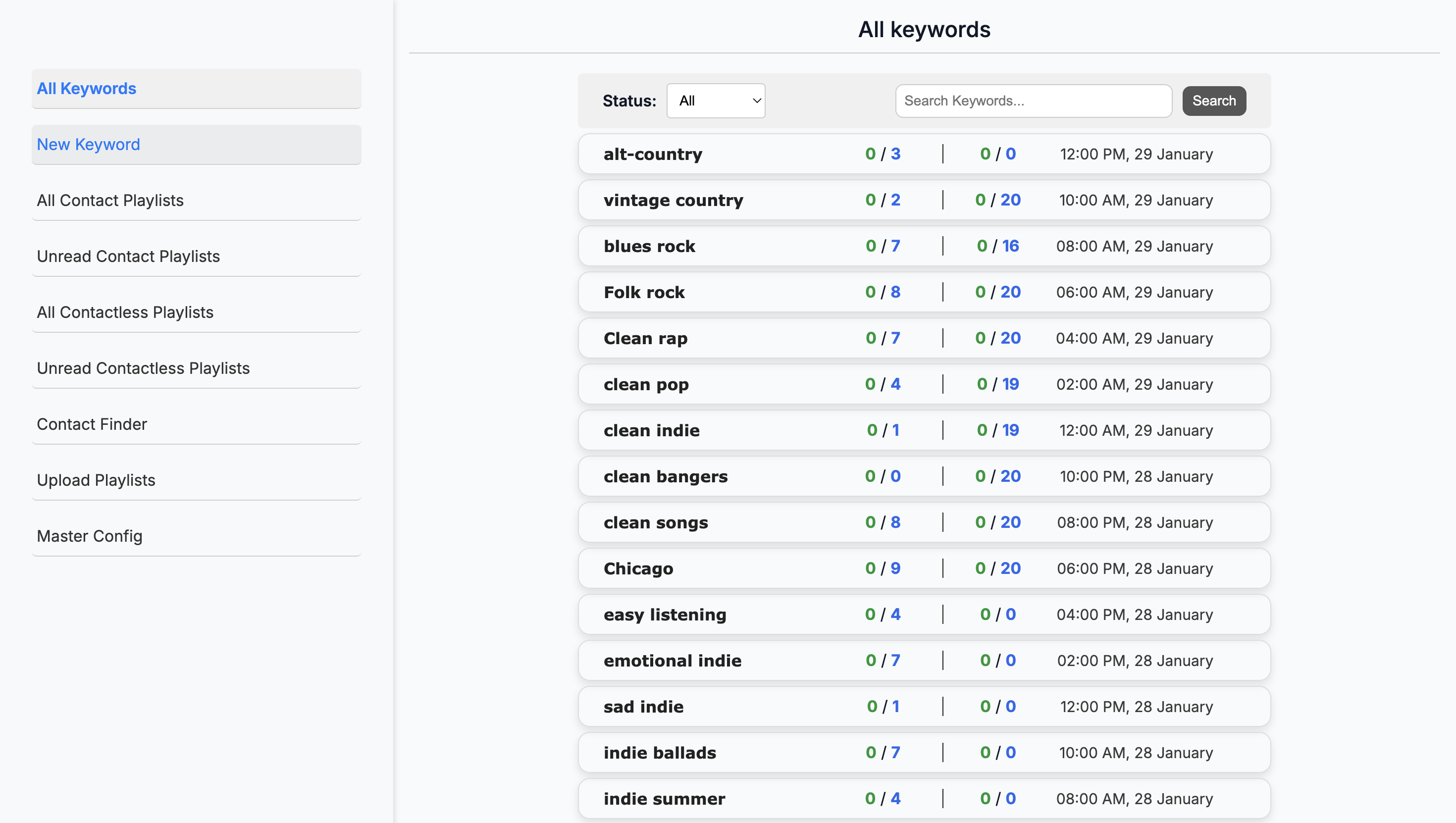
... There would be a button below all keywords.
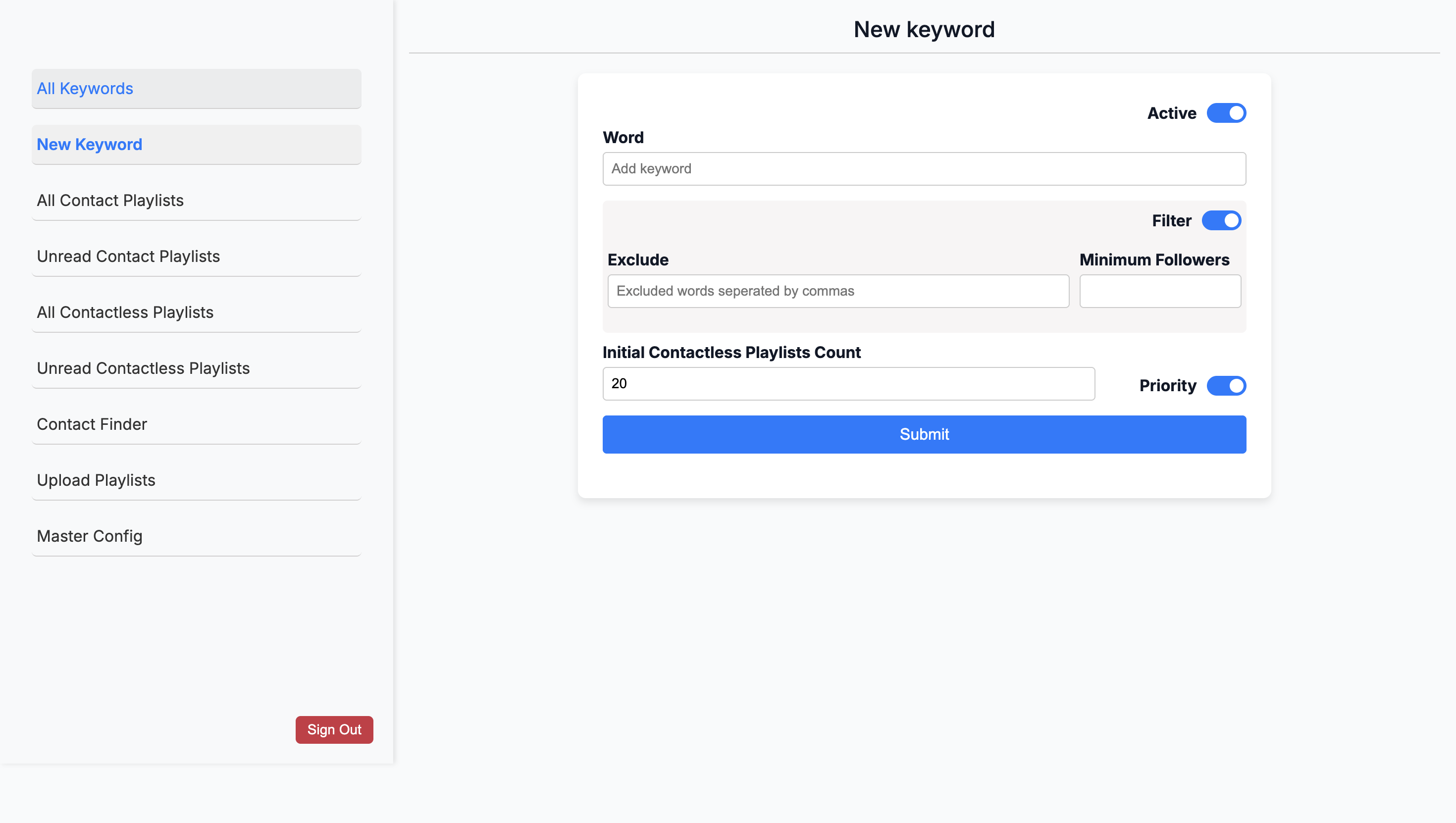
Yeah. That would make more sense. Yeah. Um, okay. Cool.
That sounds good. Cool. I'll show you this quickly. It... Unrelated to this.