Icon

SOP - Payroll Step 2

Learn how to efficiently review and update your master payroll work paper, manage payroll reminders, process terminations, pay increases, and ensure accurate payroll records every pay period.

By Jessica Esslinger

In this guide, we will review and update the Master Payroll Work Paper to ensure all payroll changes—terminations, new hires, salary adjustments, and leave updates—are accurately recorded.

We will also cover organizing payroll backup files and verifying all updates before finalizing payroll.

Part Two focuses on the Master Payroll Work Paper, the central hub for tracking payroll reminders and updates.
1
Click here
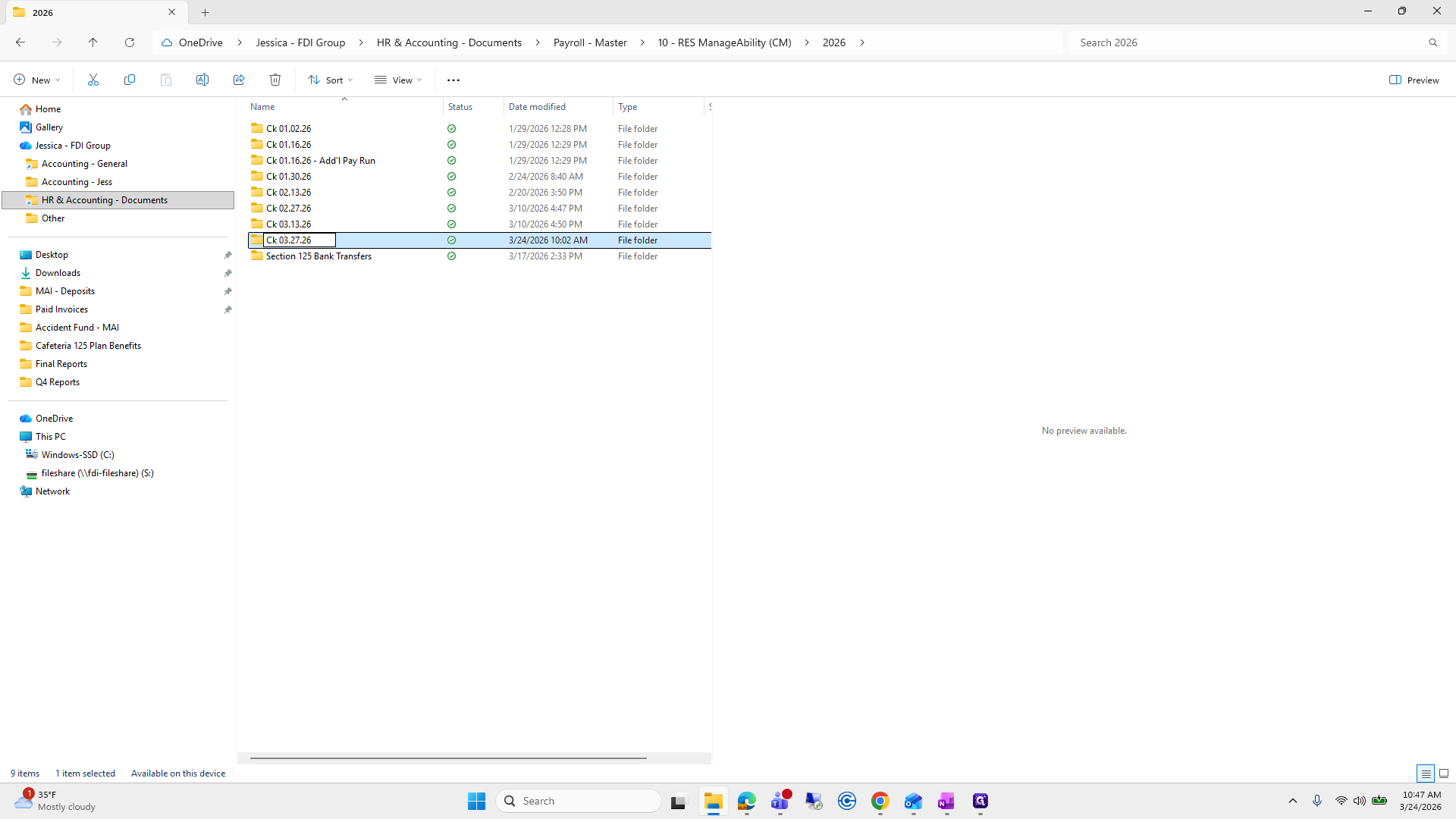
Step #1: Click here

2
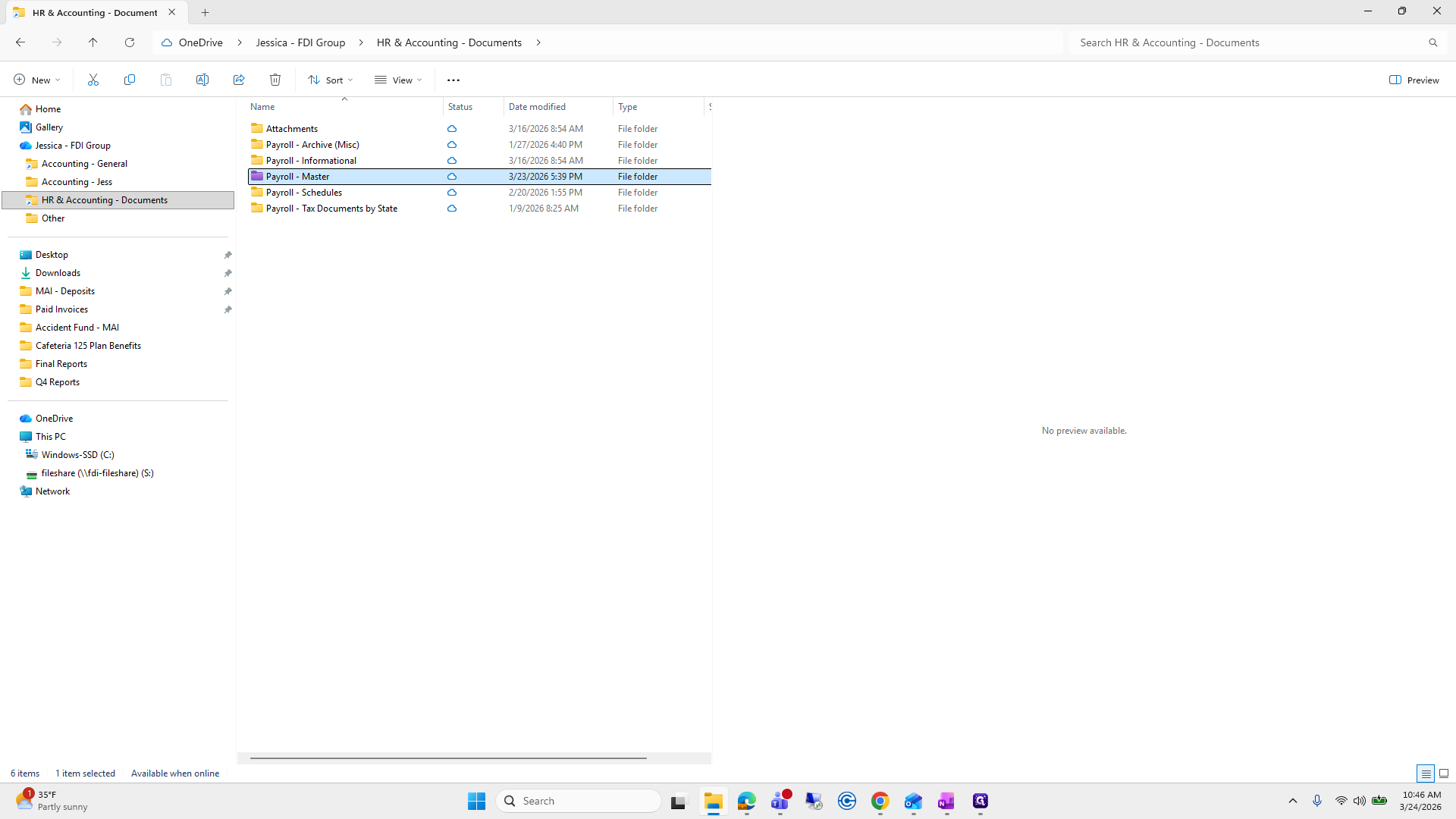
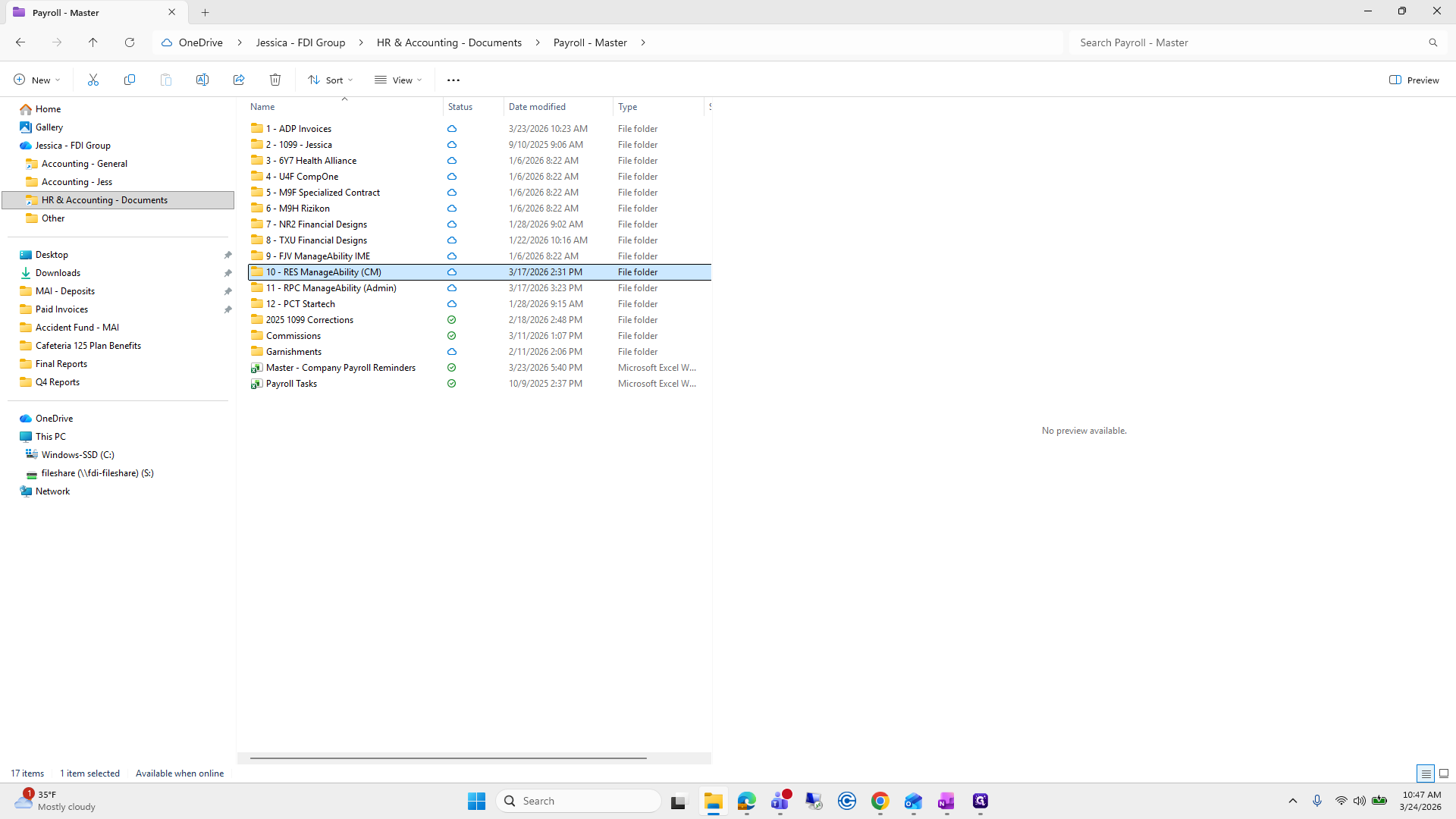
Double-click on "Payroll - Master"
Step #2: Double-click on "Payroll - Master"

During the payroll period, we may receive updates such as terminations, new hires, benefit catch-ups, missed hours, or salary adjustments.

Any updates received via email are immediately saved to the appropriate Payroll Backup folder. For example, if case management hours are submitted by Gayle, the email and any attached documents are saved to the next payroll check date folder.
3
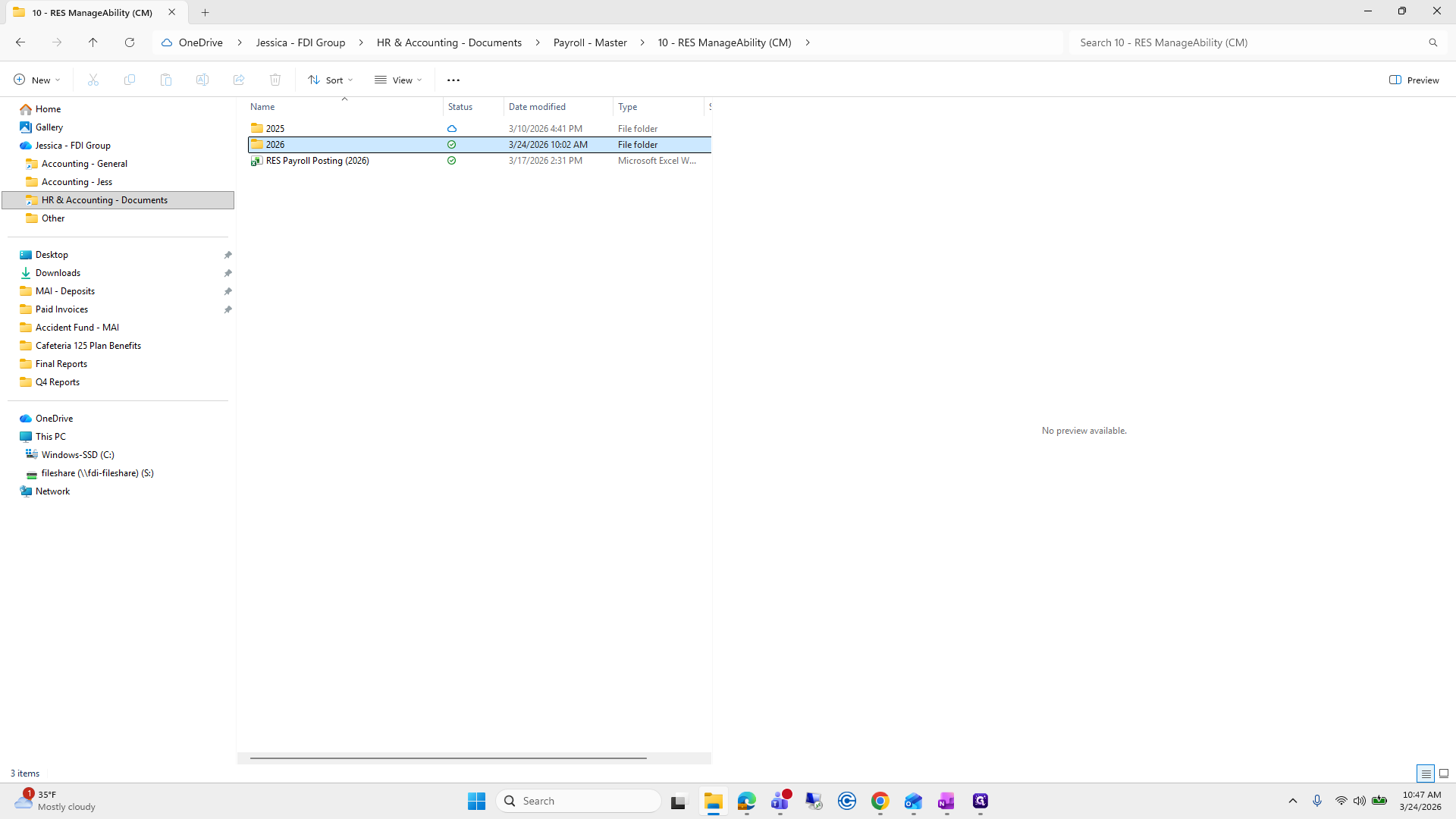
Double-click on "10- RES ManageAbility"
Step #3: Double-click on "10- RES ManageAbility"
4
Double-click here
Step #4: Double-click here

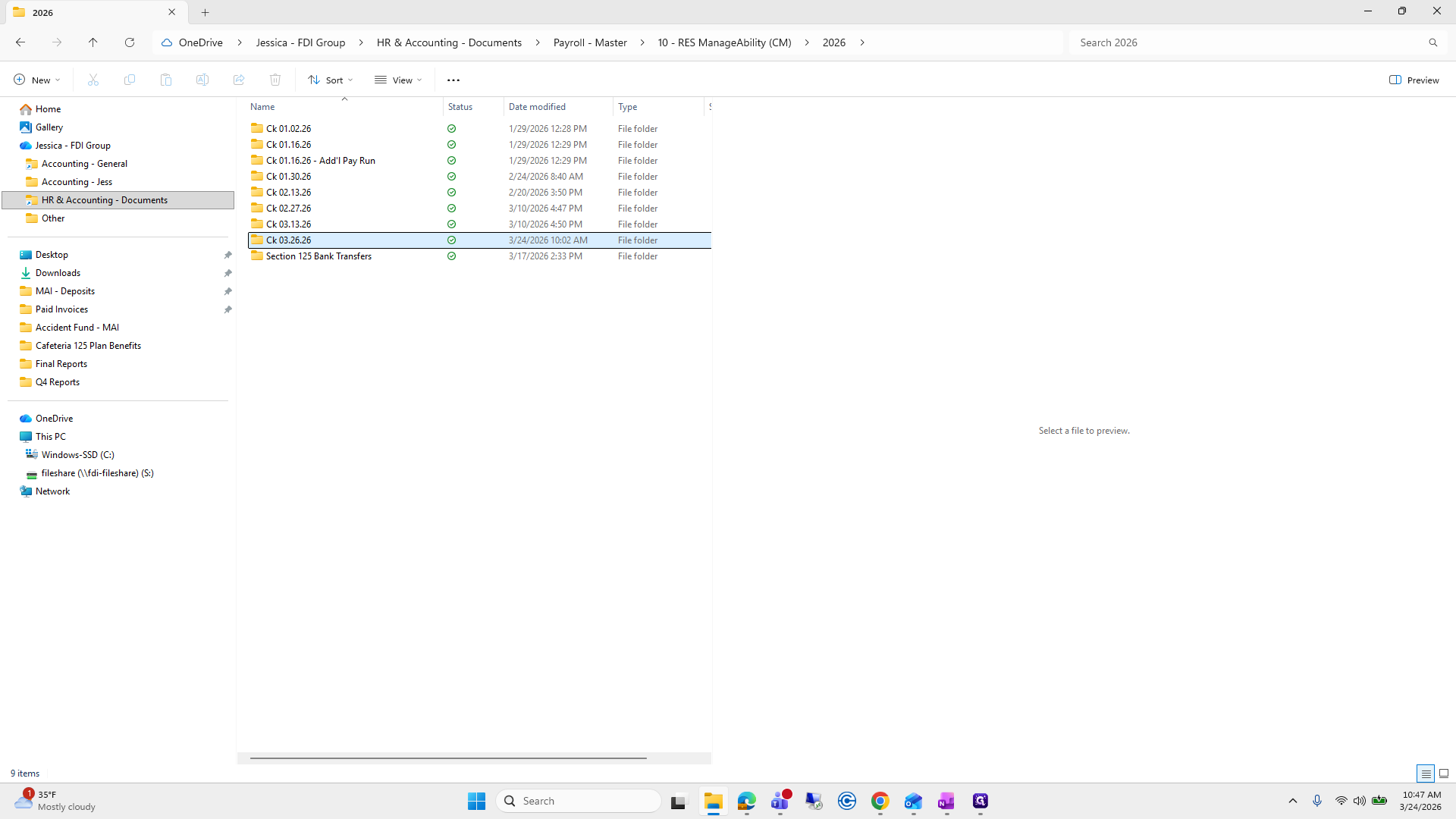
Upon receiving the update, save both the email and the payroll hours to the folder for the upcoming payroll check date. For example, the folder for this Friday, March 27th, has already been created (not March 26th).
5
Click here
Step #5: Click here
6
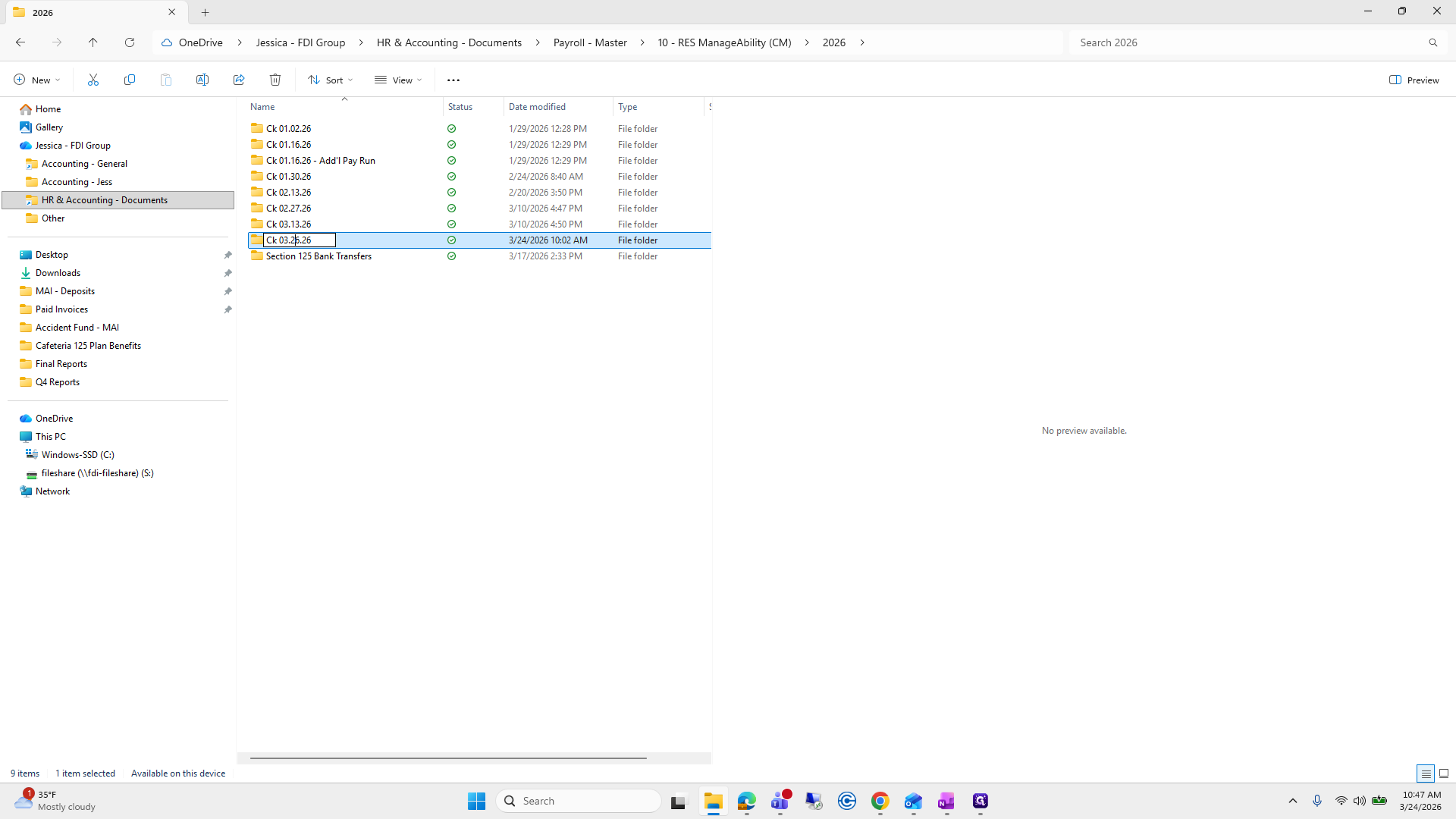
Click on "Ck 03.26.26"
Step #6: Click on "Ck 03.26.26"

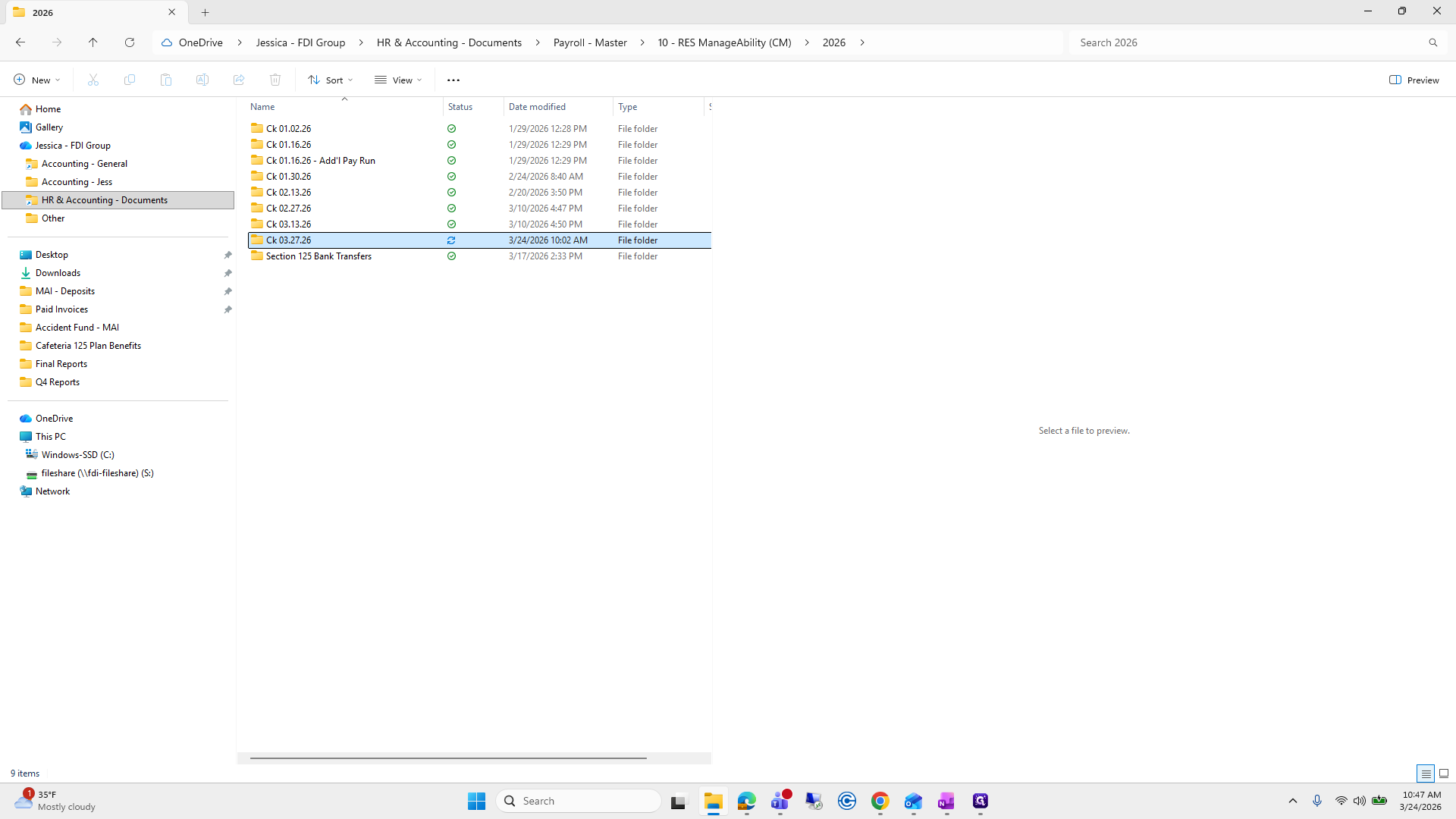
I'll open it.

7
Type "7"
8
Click here
Step #8: Click here
9
Double-click here
Step #9: Double-click here

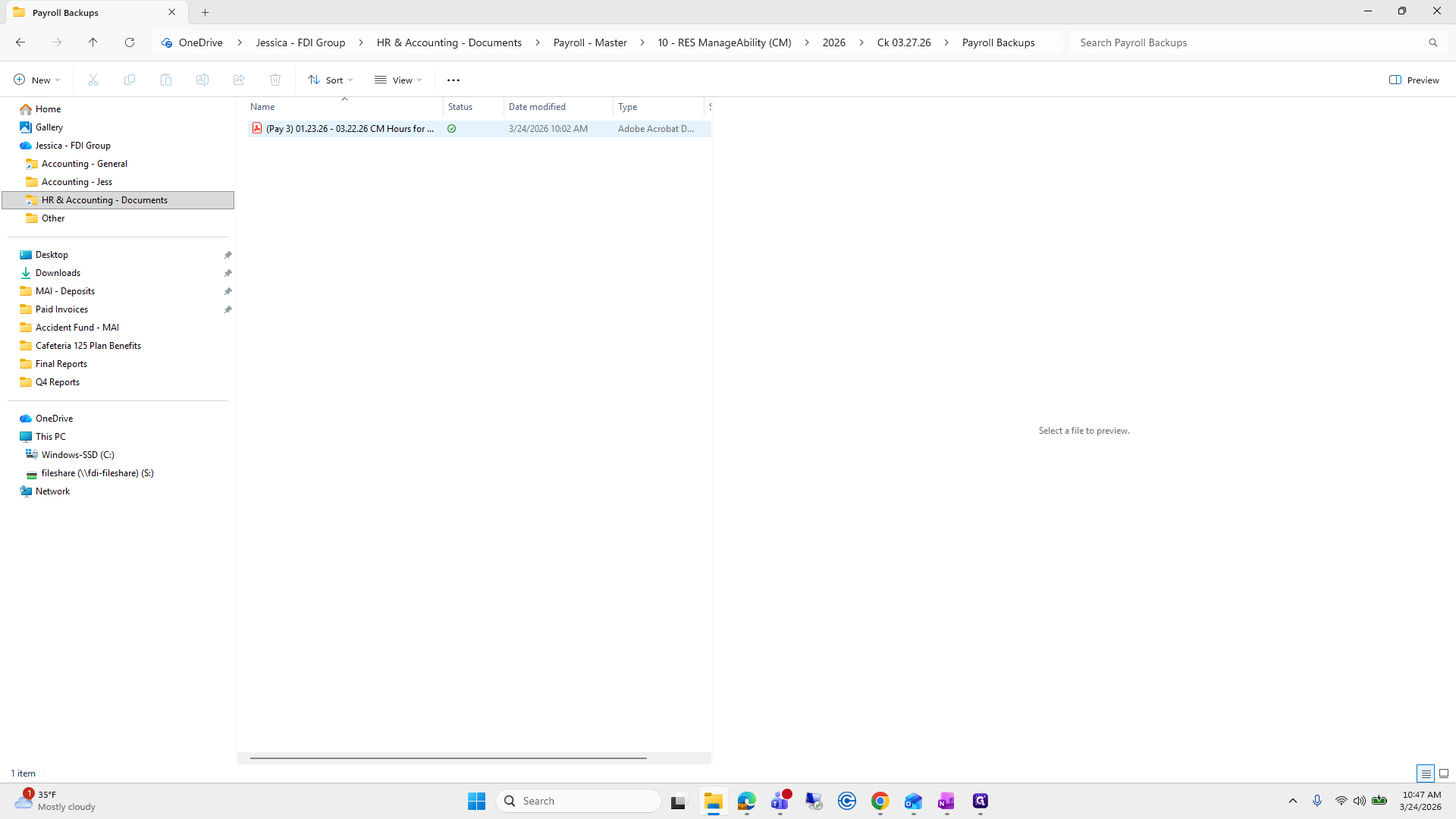
I will create a folder named Payroll Backups and save all email correspondence and related documents here.
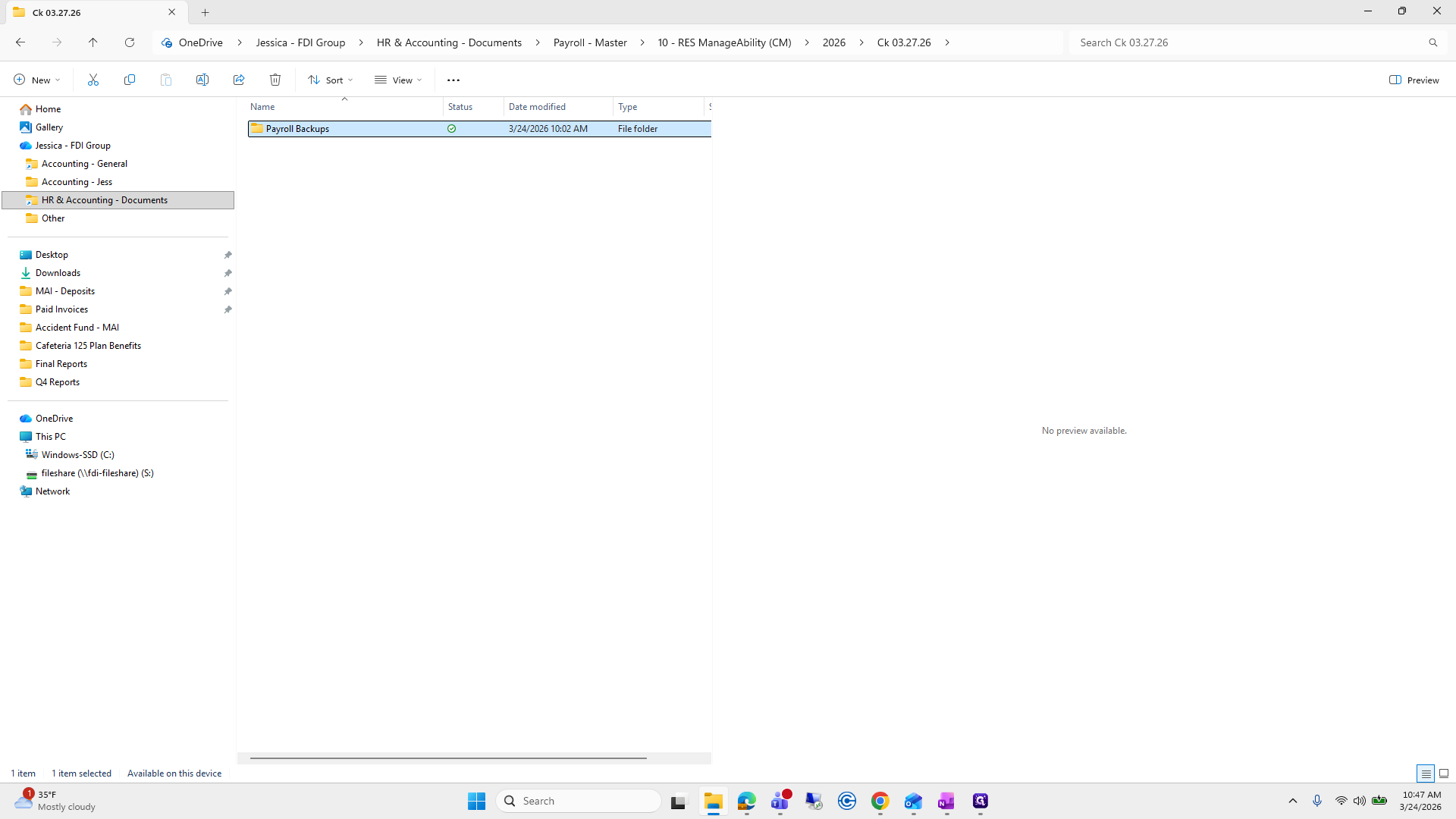
10
Double-click here
Step #10: Double-click here
11
Click on "03.22.26 CM Hours for"
Step #11: Click on "03.22.26 CM Hours for"

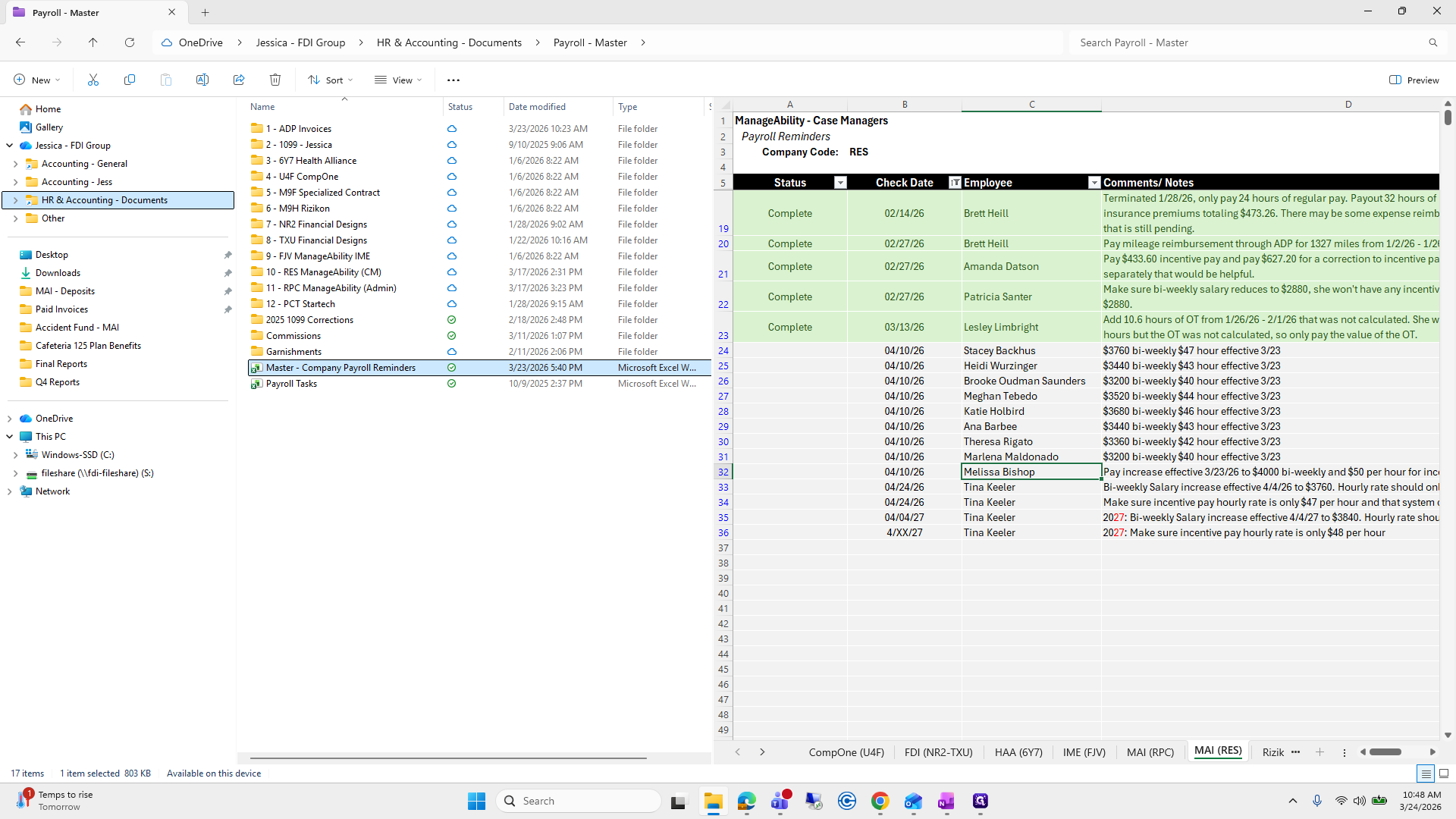
To get there, it's in our HR and Accounting folder.
12
Click on "HR & Accounting - Documents"
Step #12: Click on "HR & Accounting - Documents"

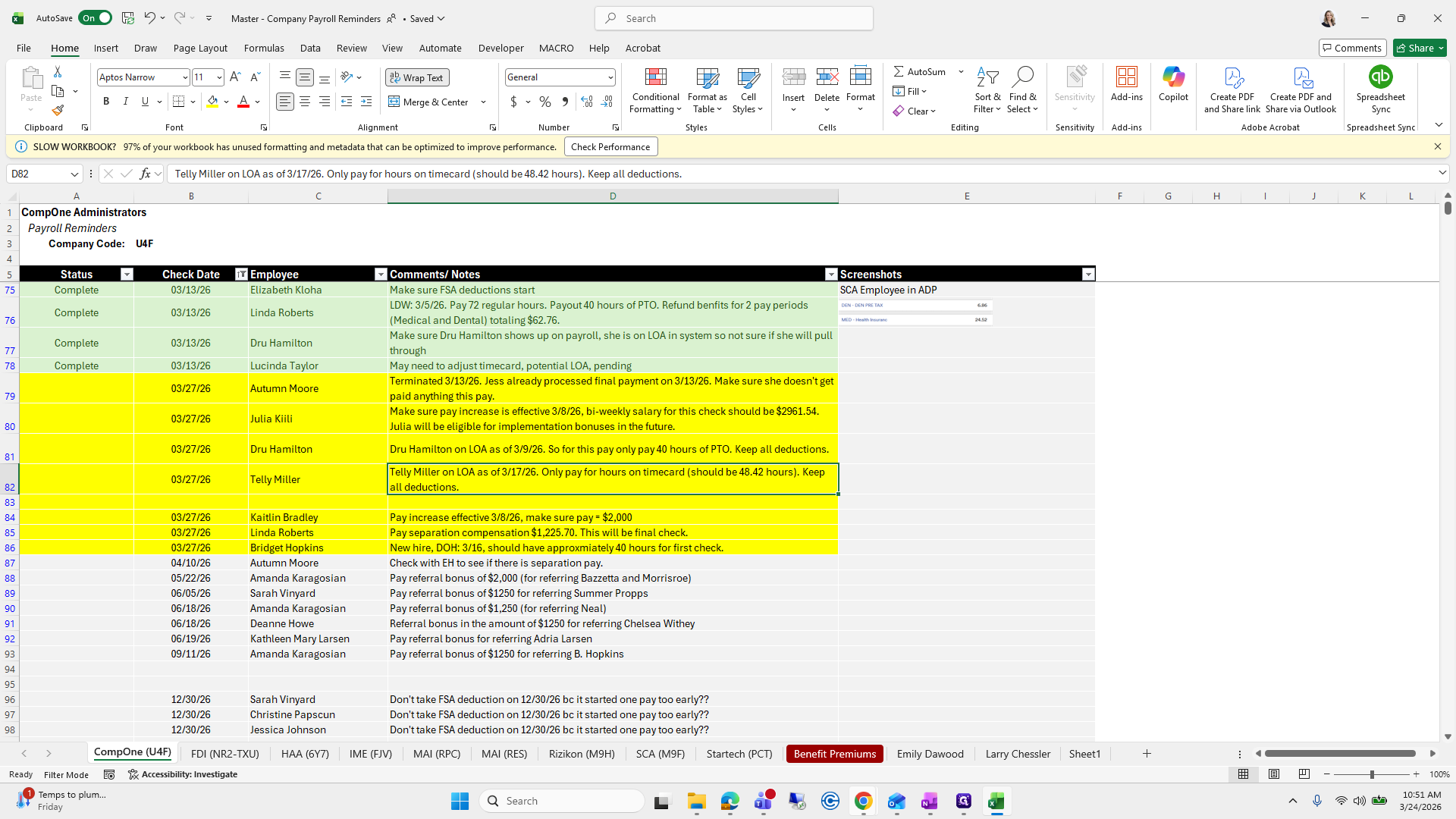
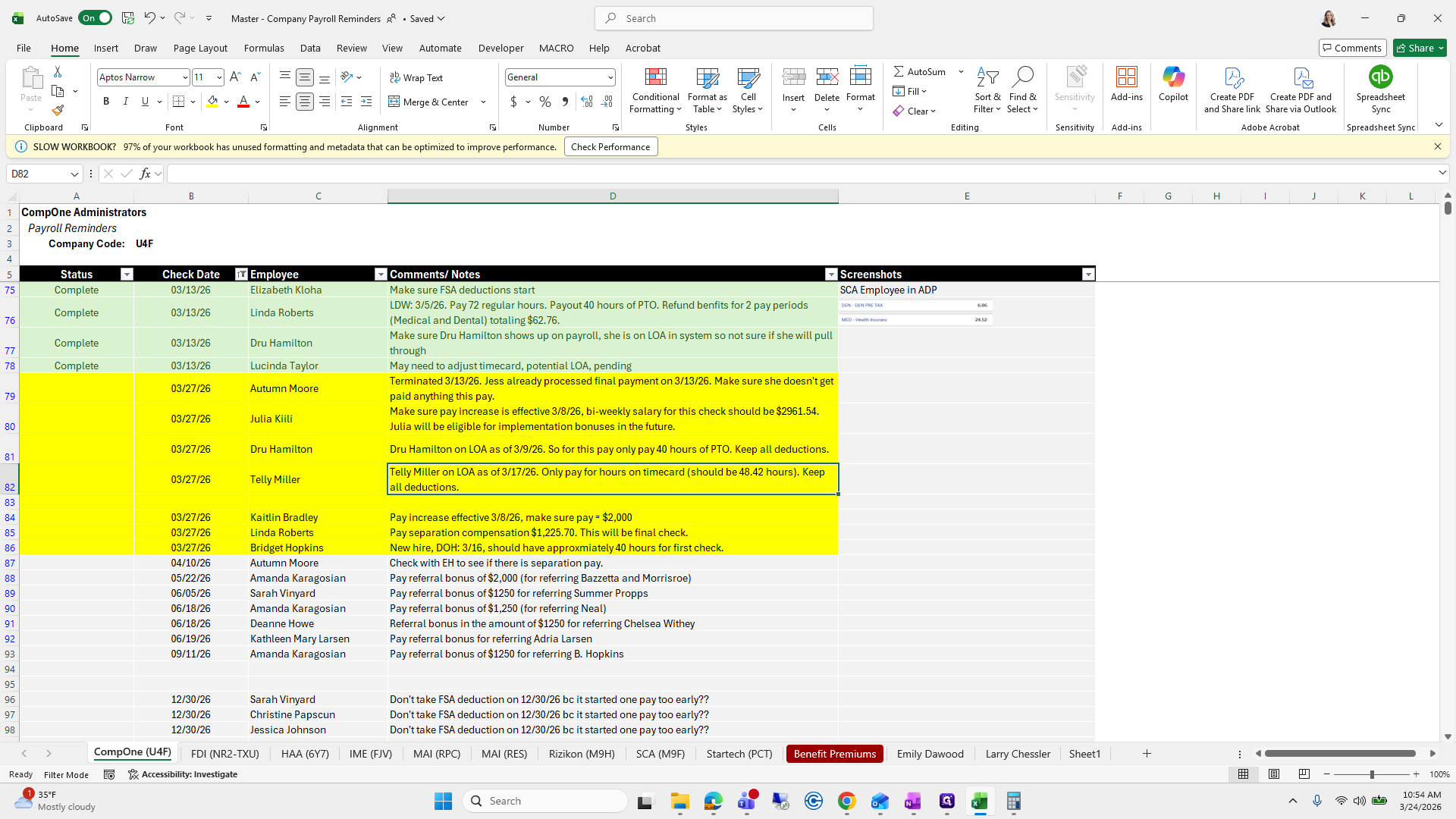
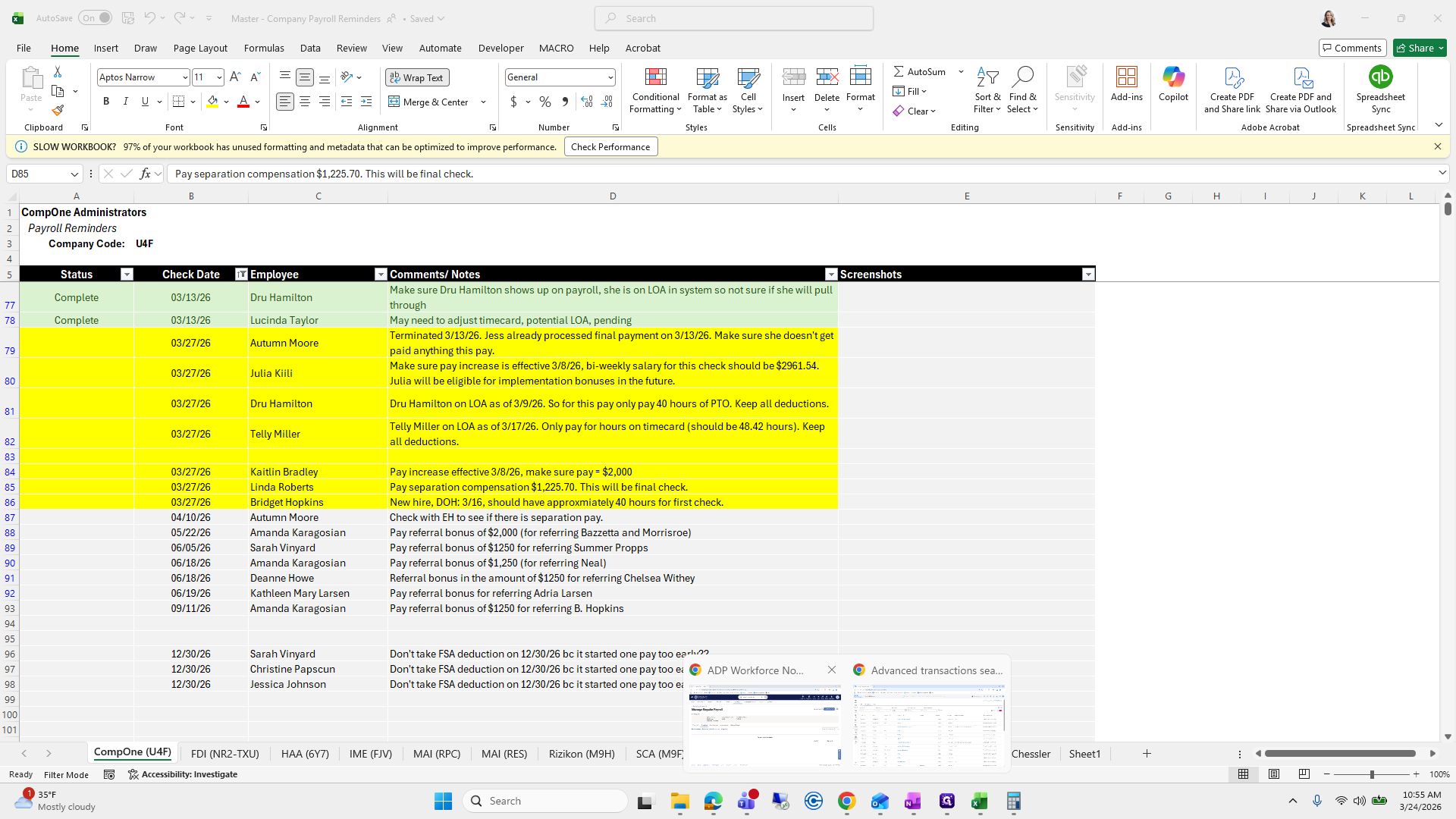
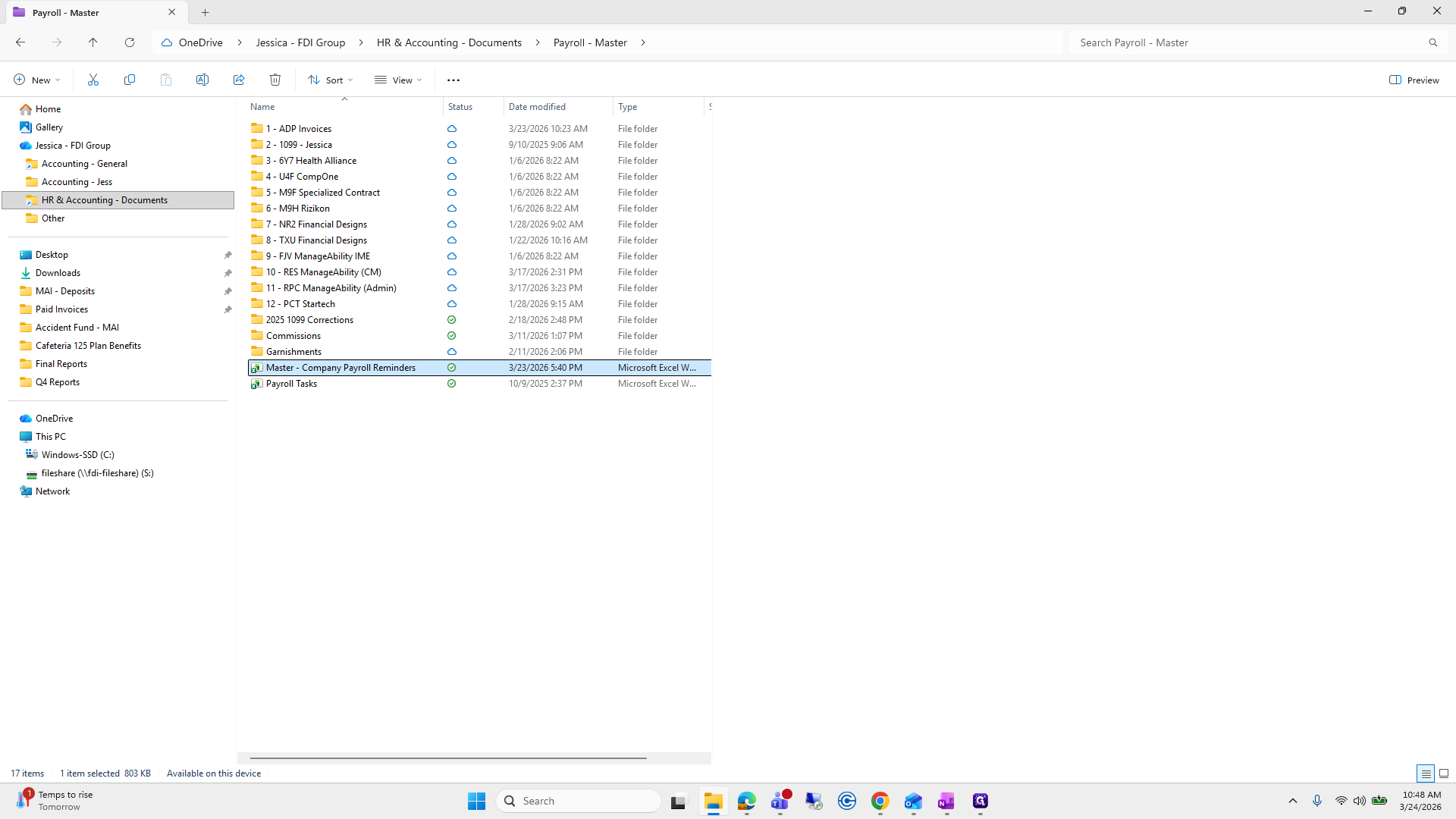
Payroll Master, Company Payroll Reminders.
13
Double-click on "Master - Company Payroll Reminders"
Step #13: Double-click on "Master - Company Payroll Reminders"

Each tab lists the company code, ADP, and company name for reference. The first one we will work on is Comp 1.
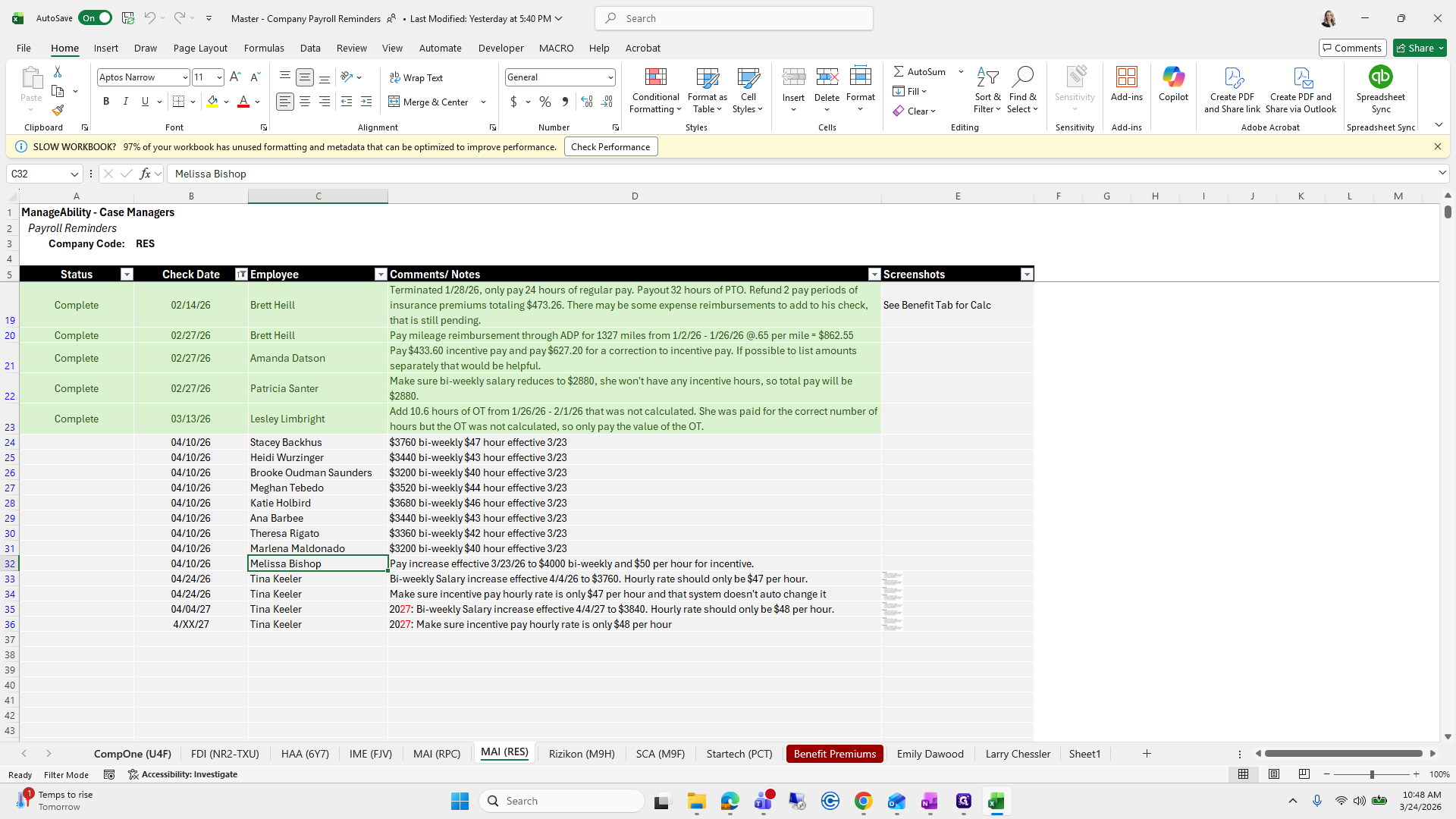
14
Click on "CompOne"
Step #14: Click on "CompOne"

This is a good example because we have a lot to add here.
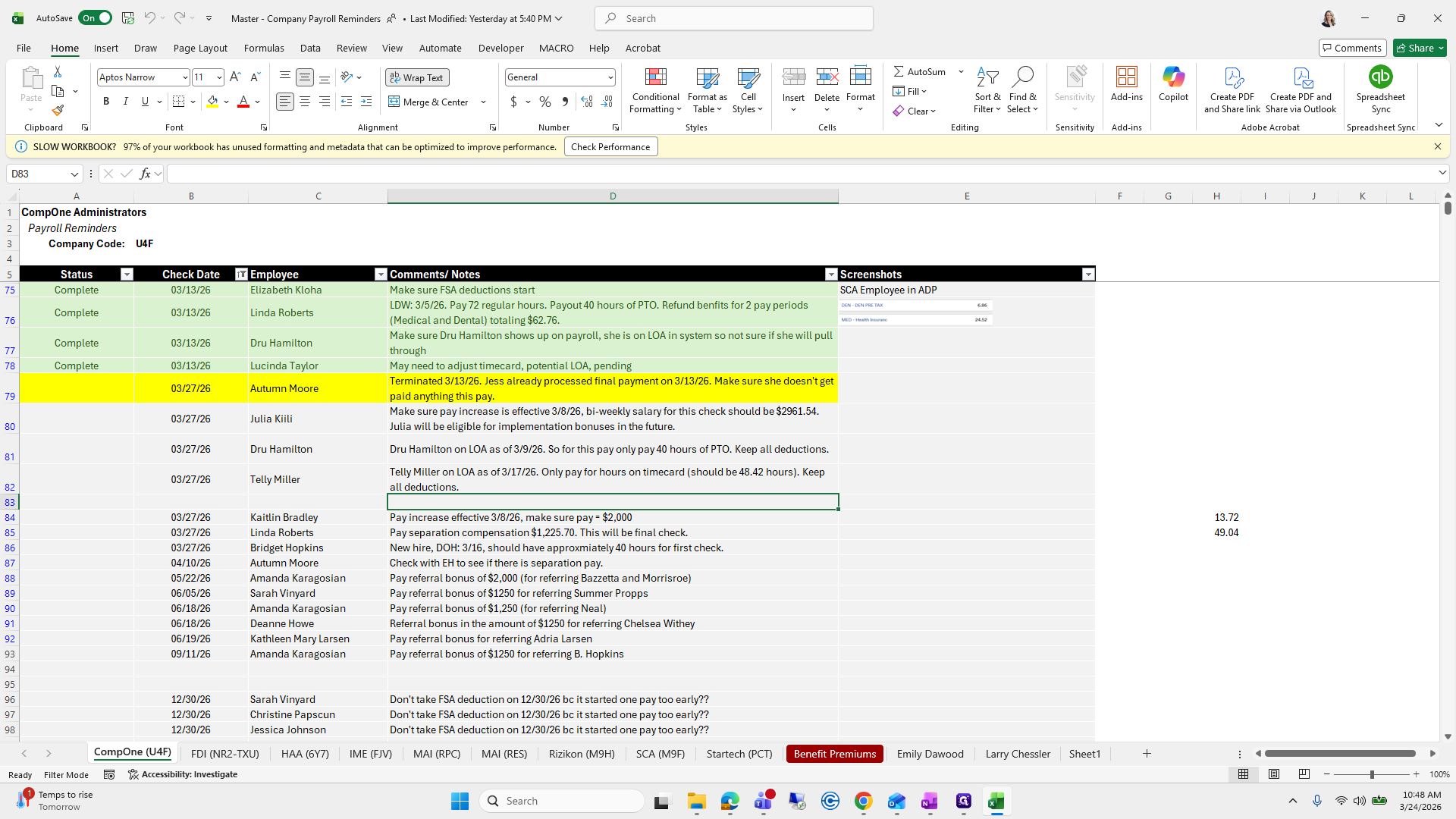
15
Click here
Step #15: Click here

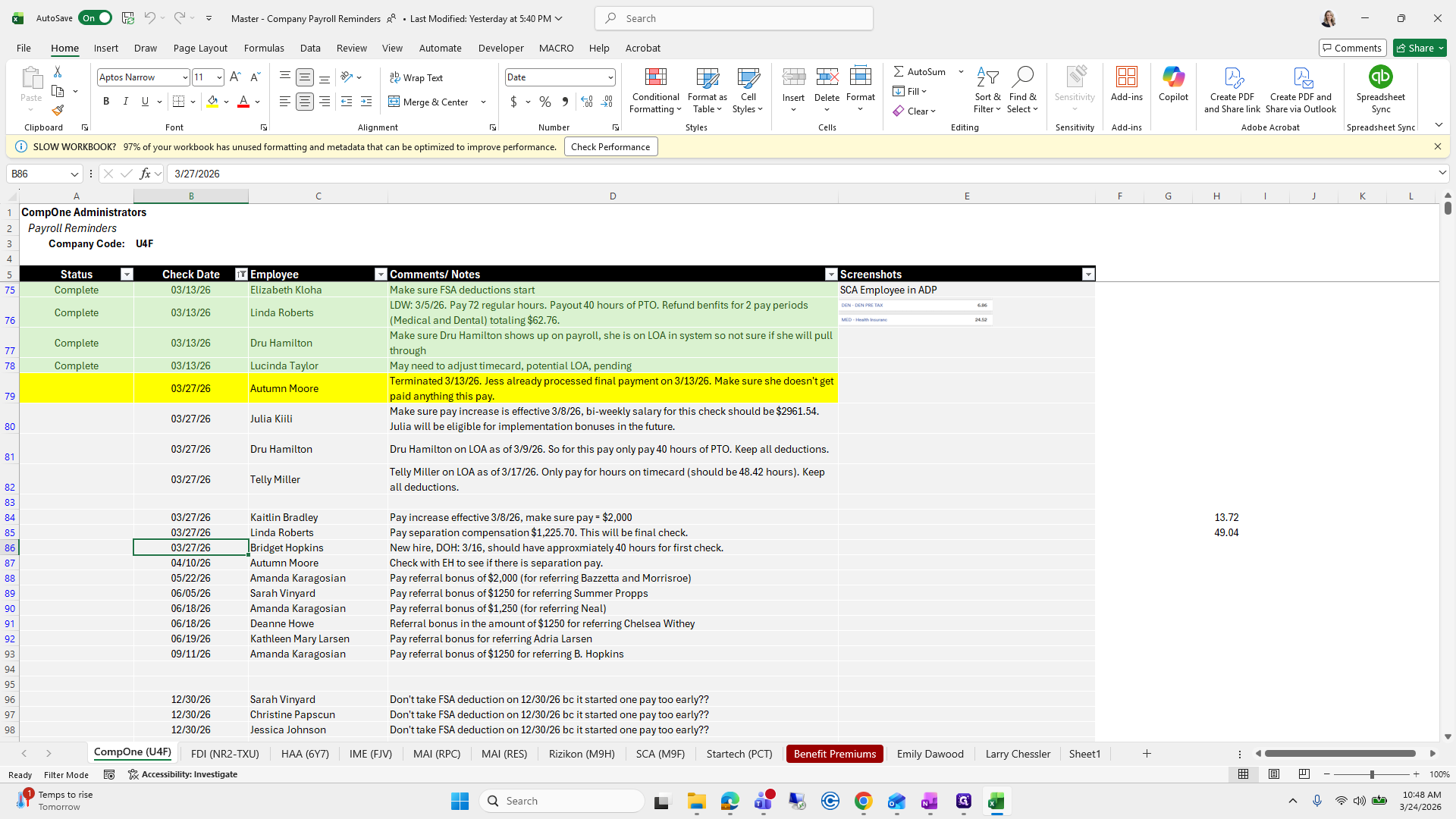
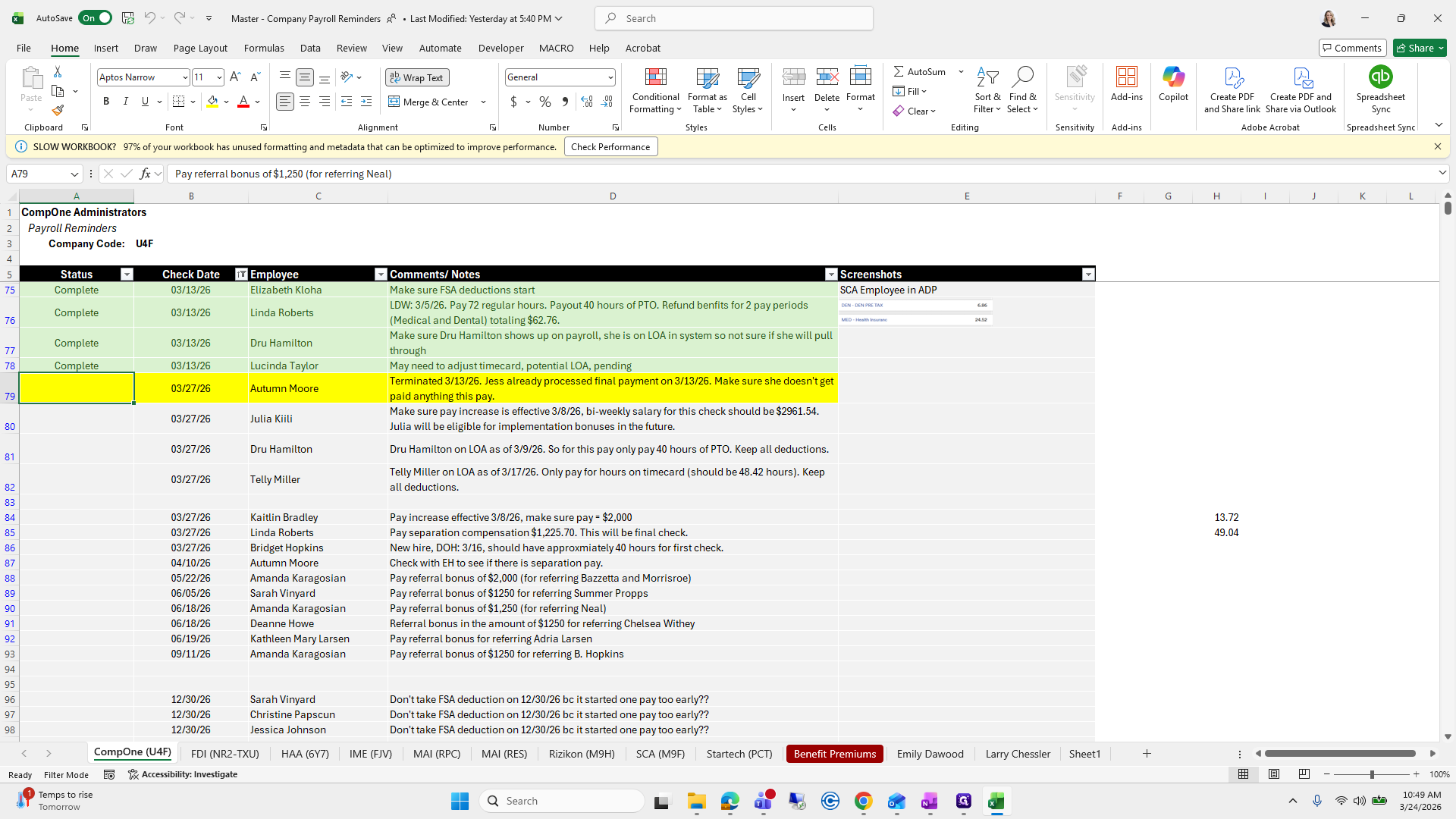
I usually highlight the check dates here.
16
Drag here
Step #16: Drag here

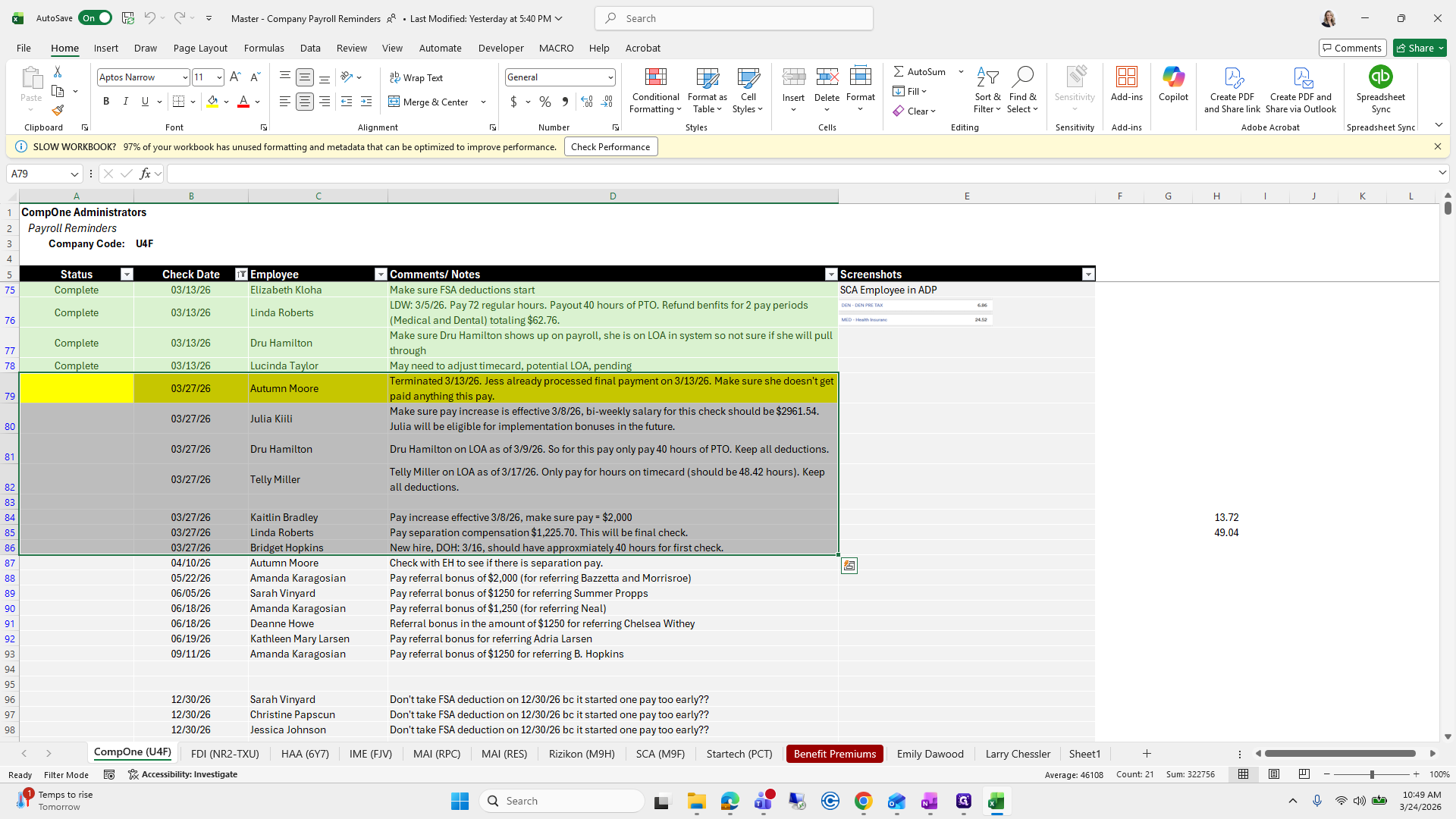
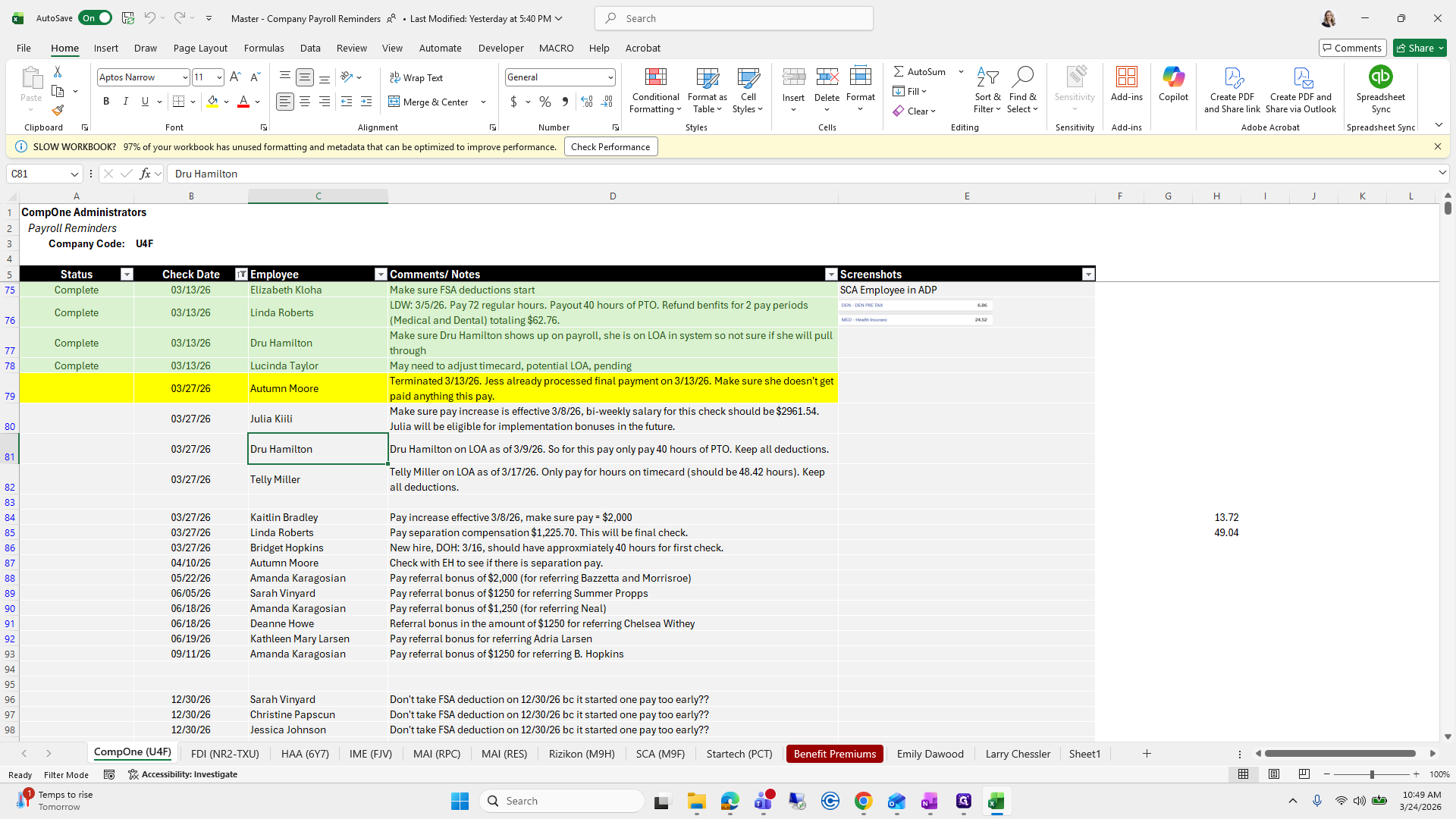
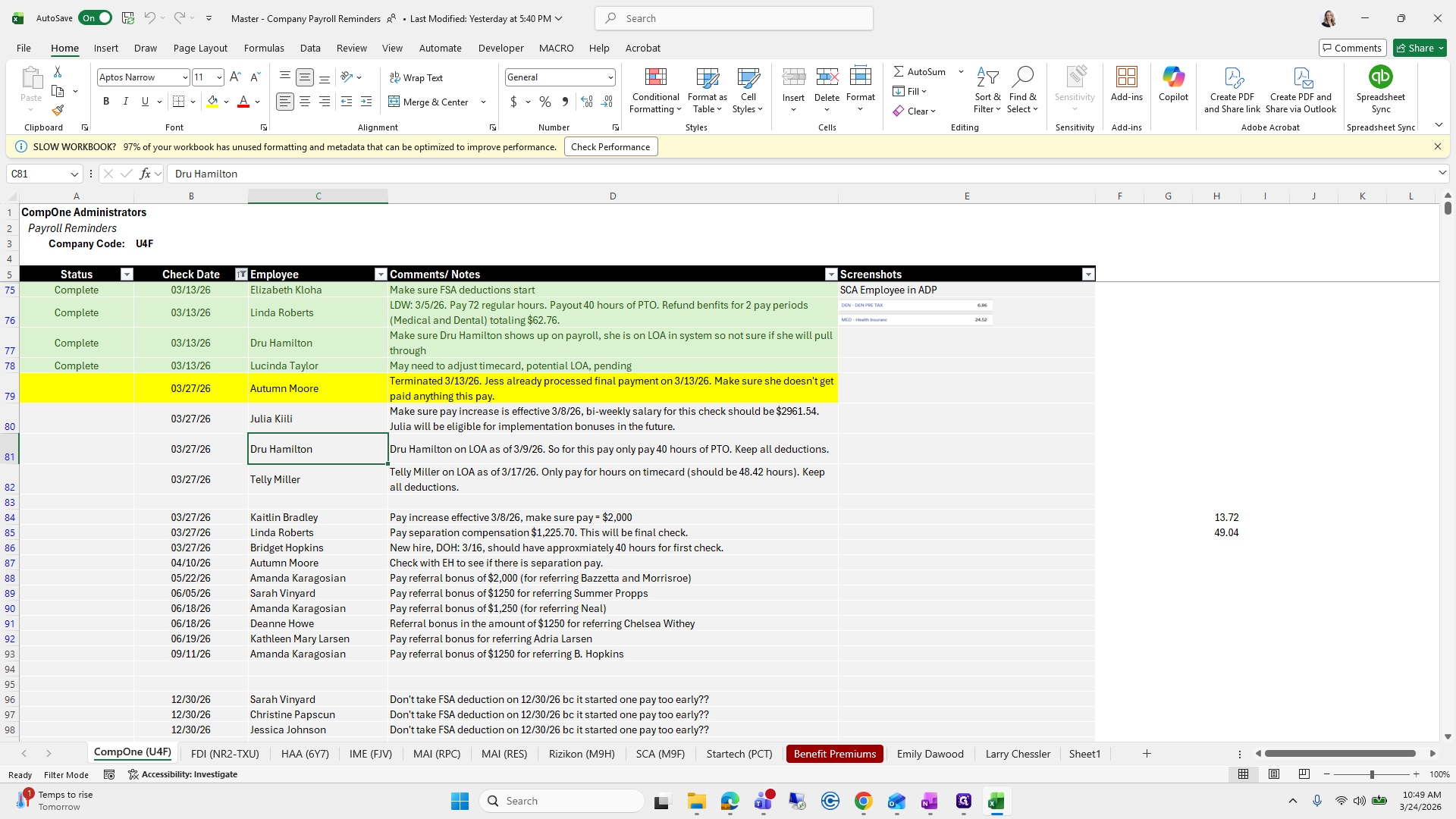
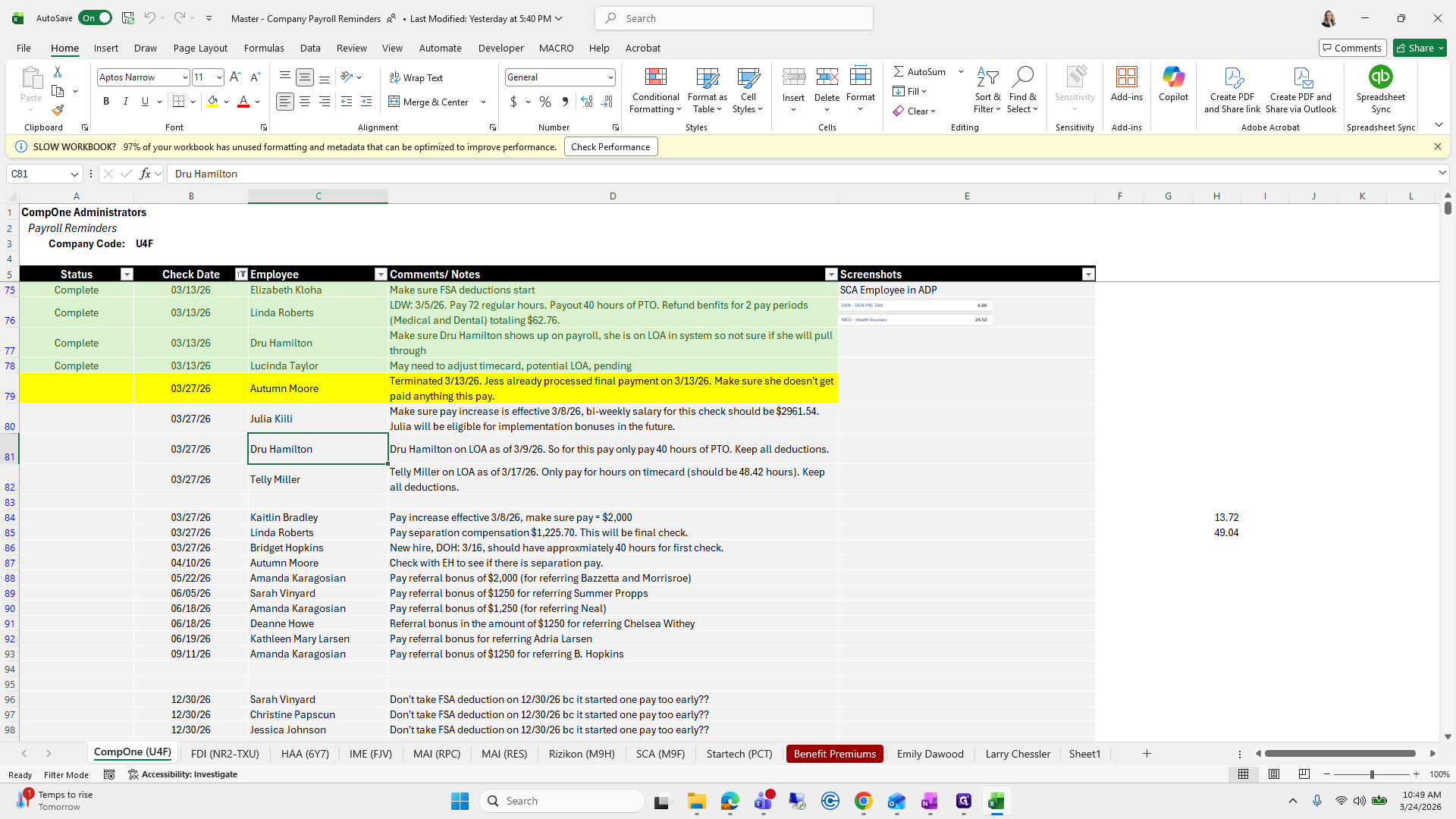
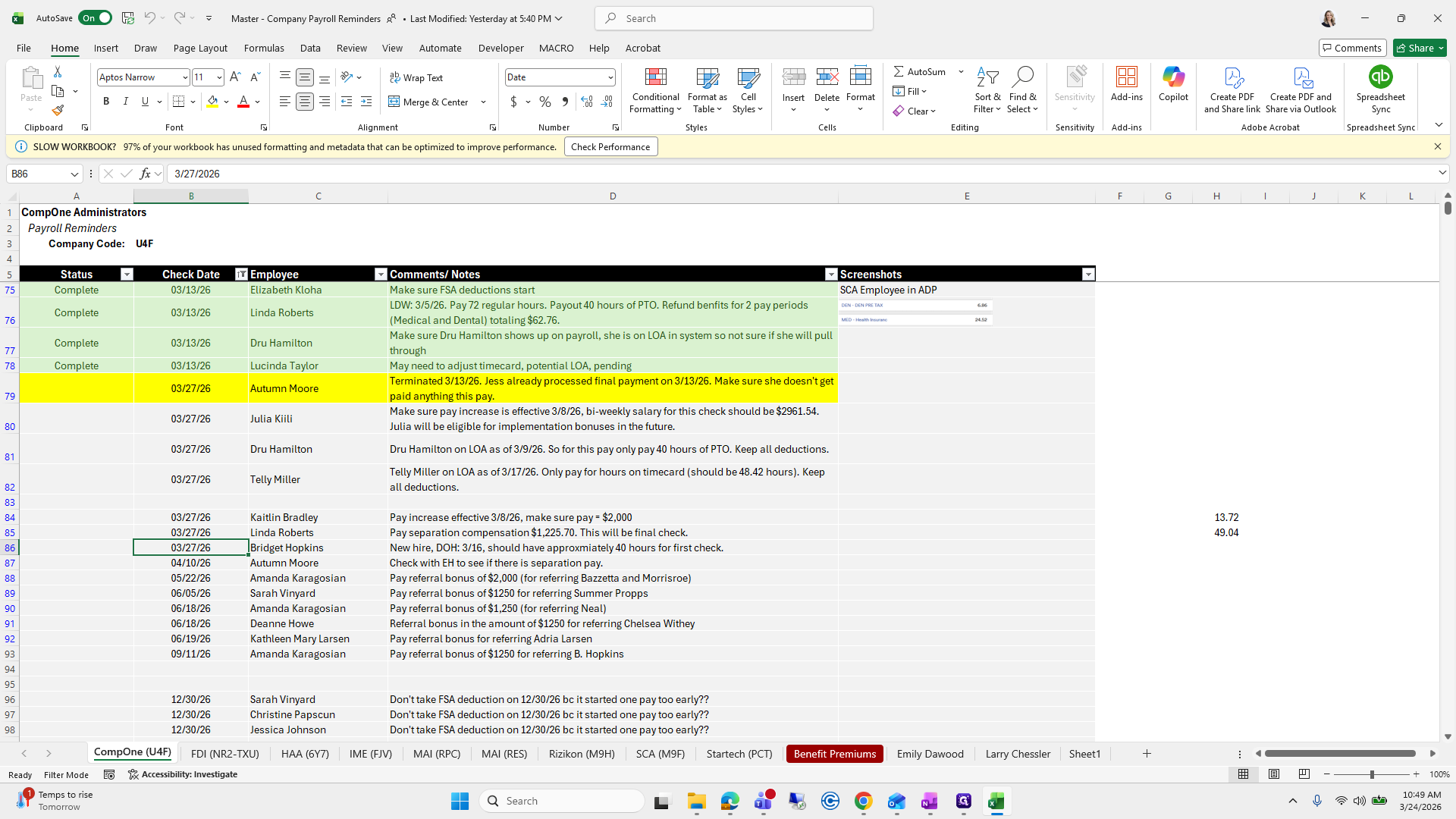
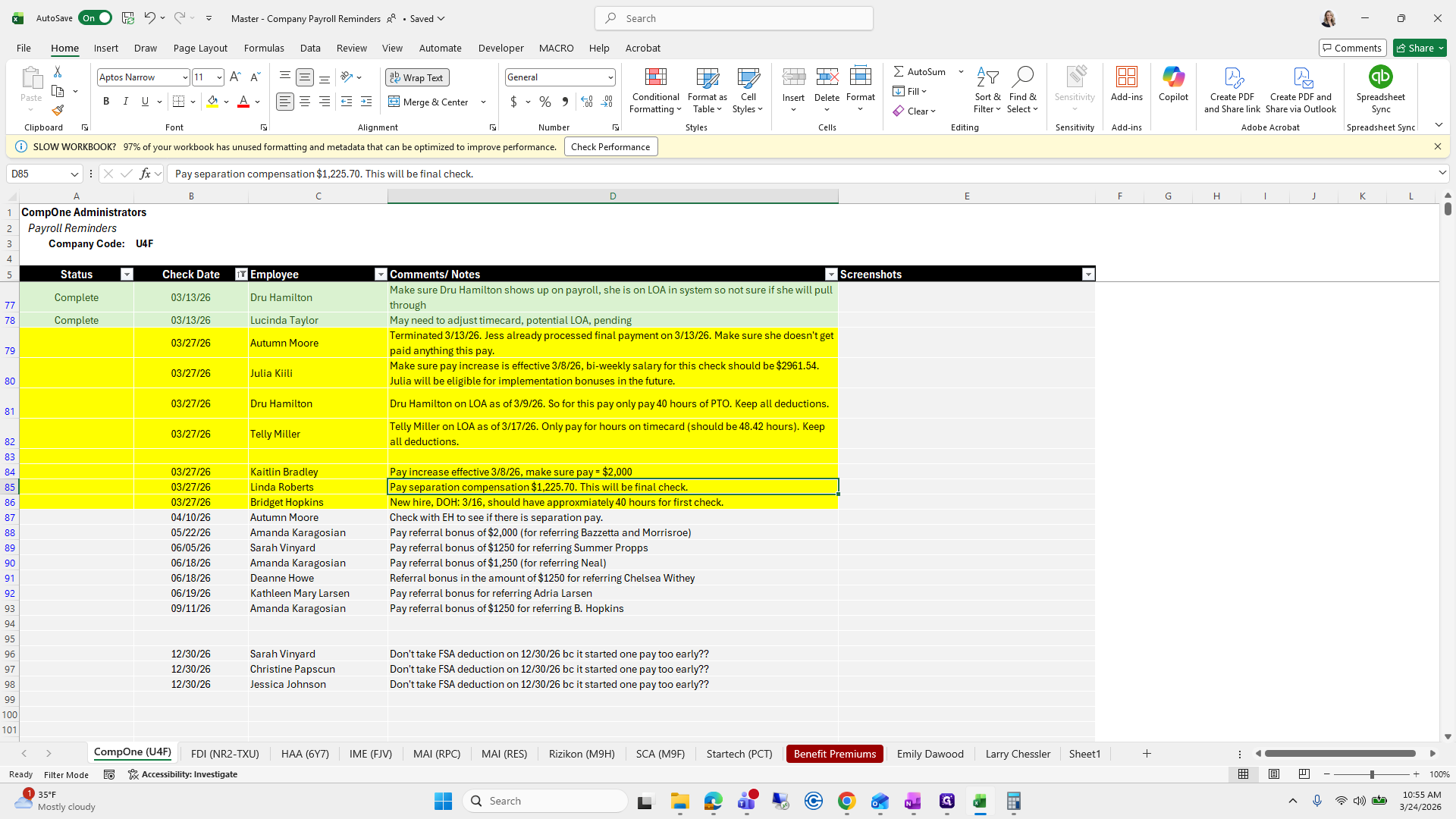
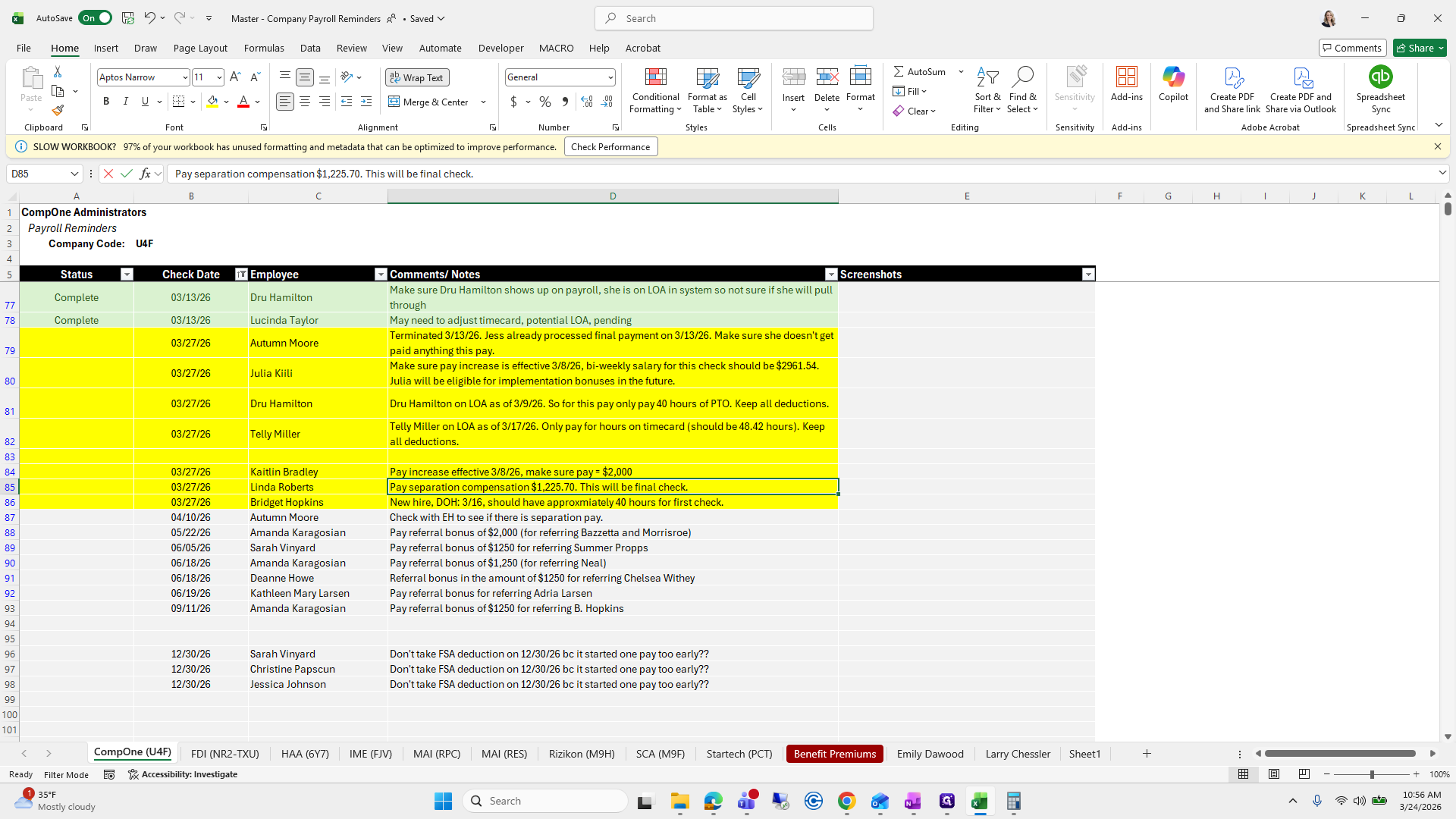
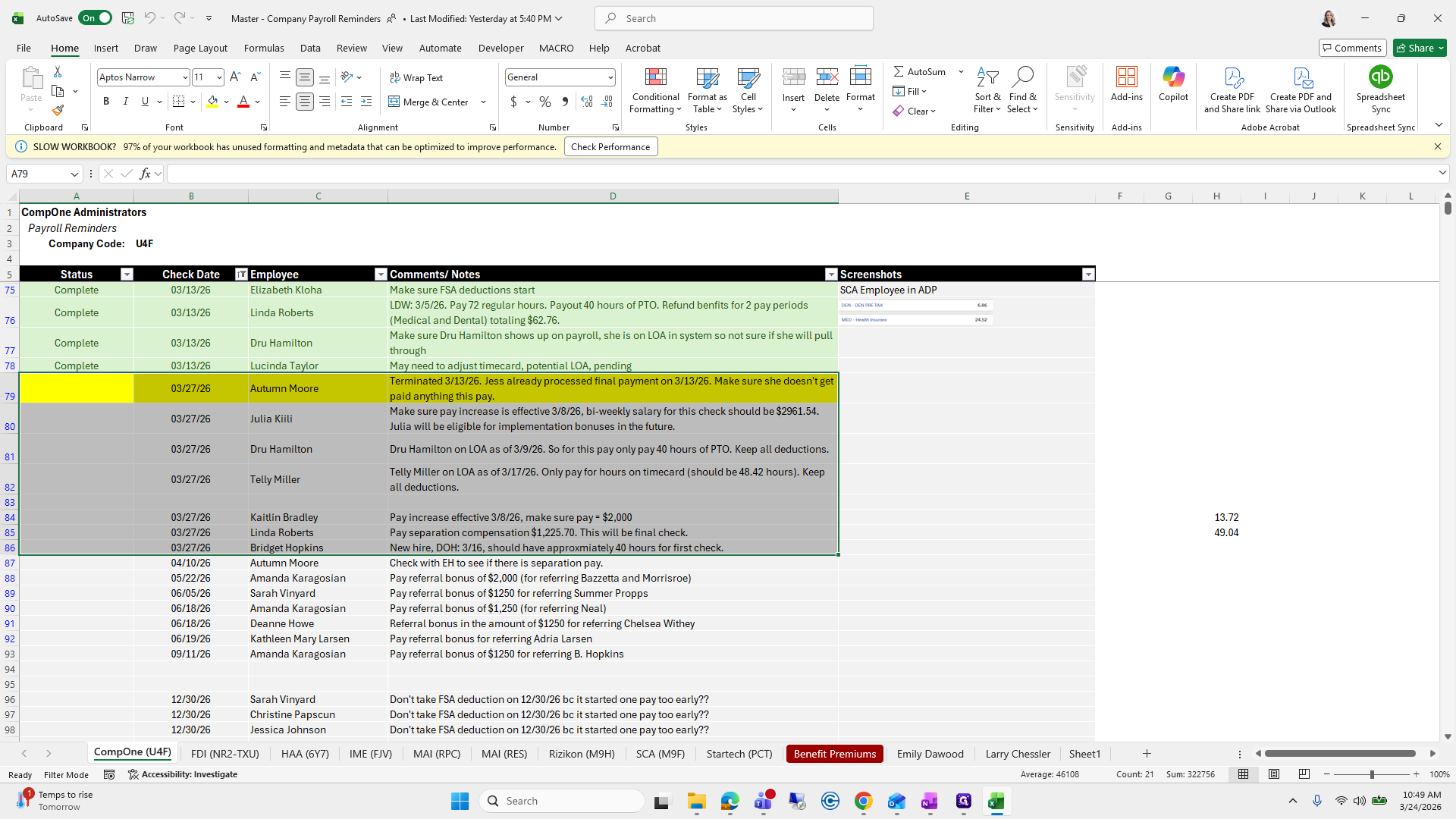
You can see the check date here, the employee it applies to, and any notes added by Erika, Alyssa, or me.
17
Click on "Pay referral bonus of $"
Step #17: Click on "Pay referral bonus of $"

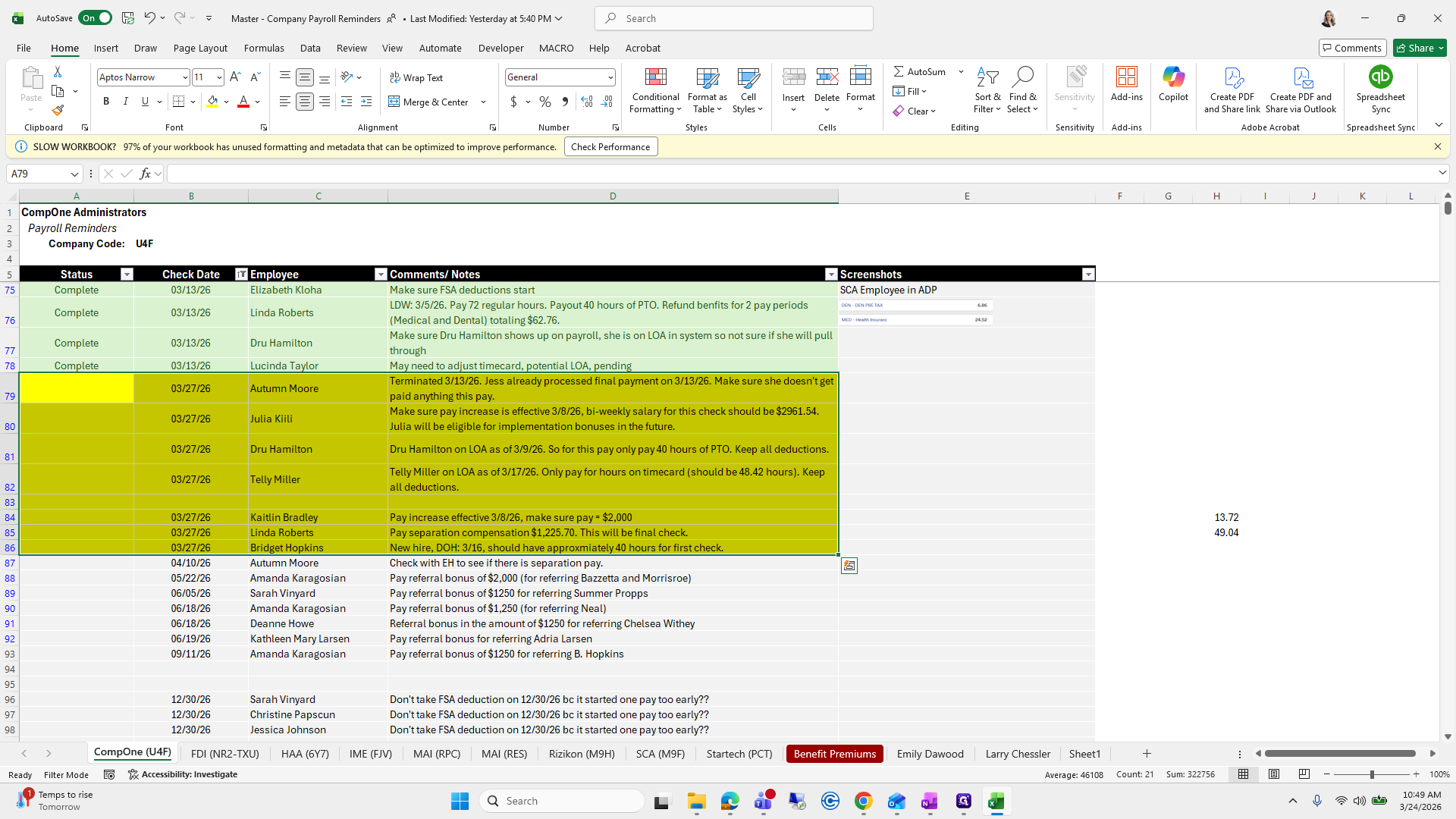
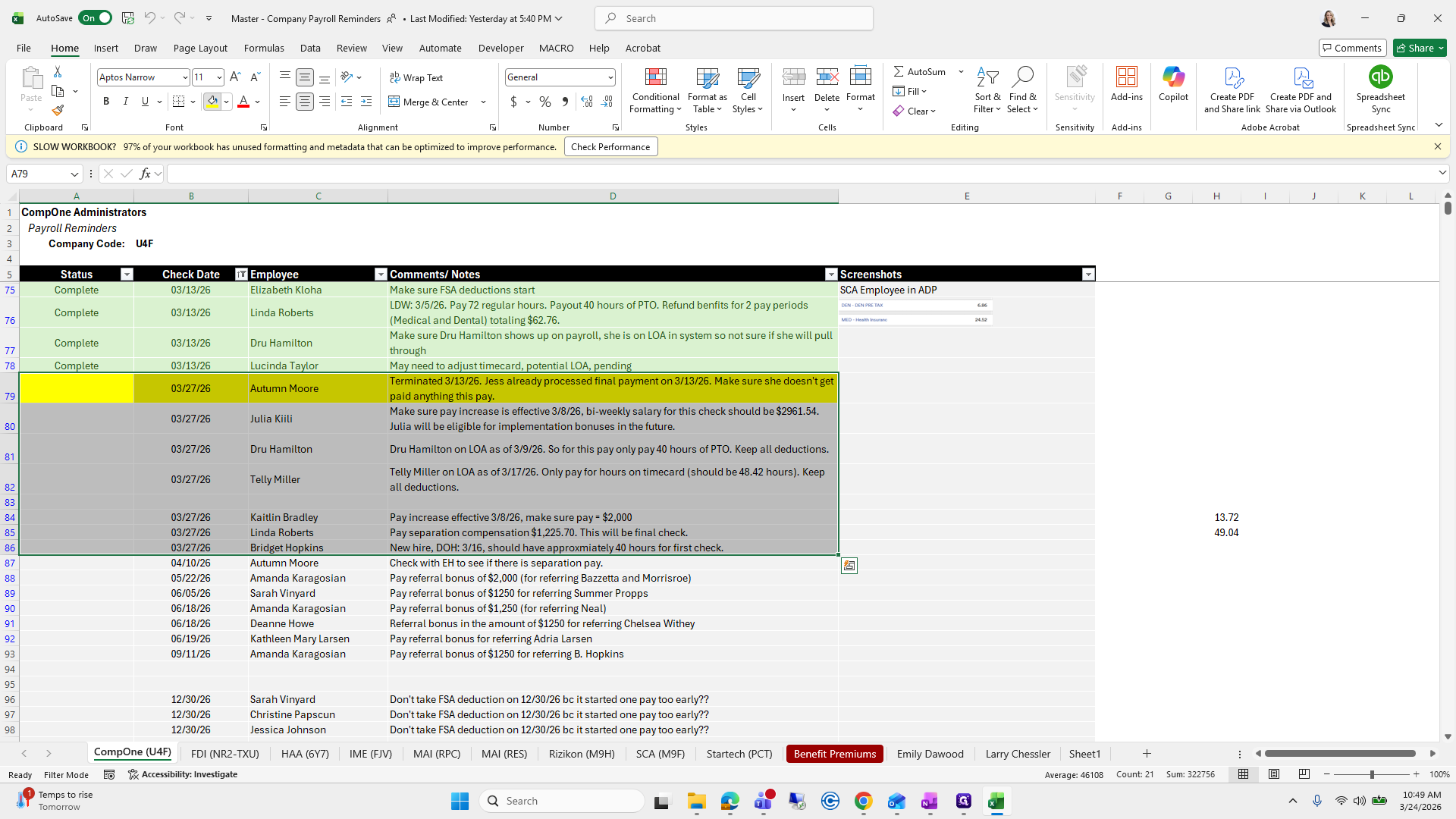
You can either highlight them in yellow, or filter to the 27th so that's all you see.
18
Drag here
Step #18: Drag here
19
Click on "Dru Hamilton"
Step #19: Click on "Dru Hamilton"
20
Click on "Employee"
Step #20: Click on "Employee"
21
Click on "Amanda Karagosian"
Step #21: Click on "Amanda Karagosian"
22
Click here
Step #22: Click here
23
Drag here
Step #23: Drag here

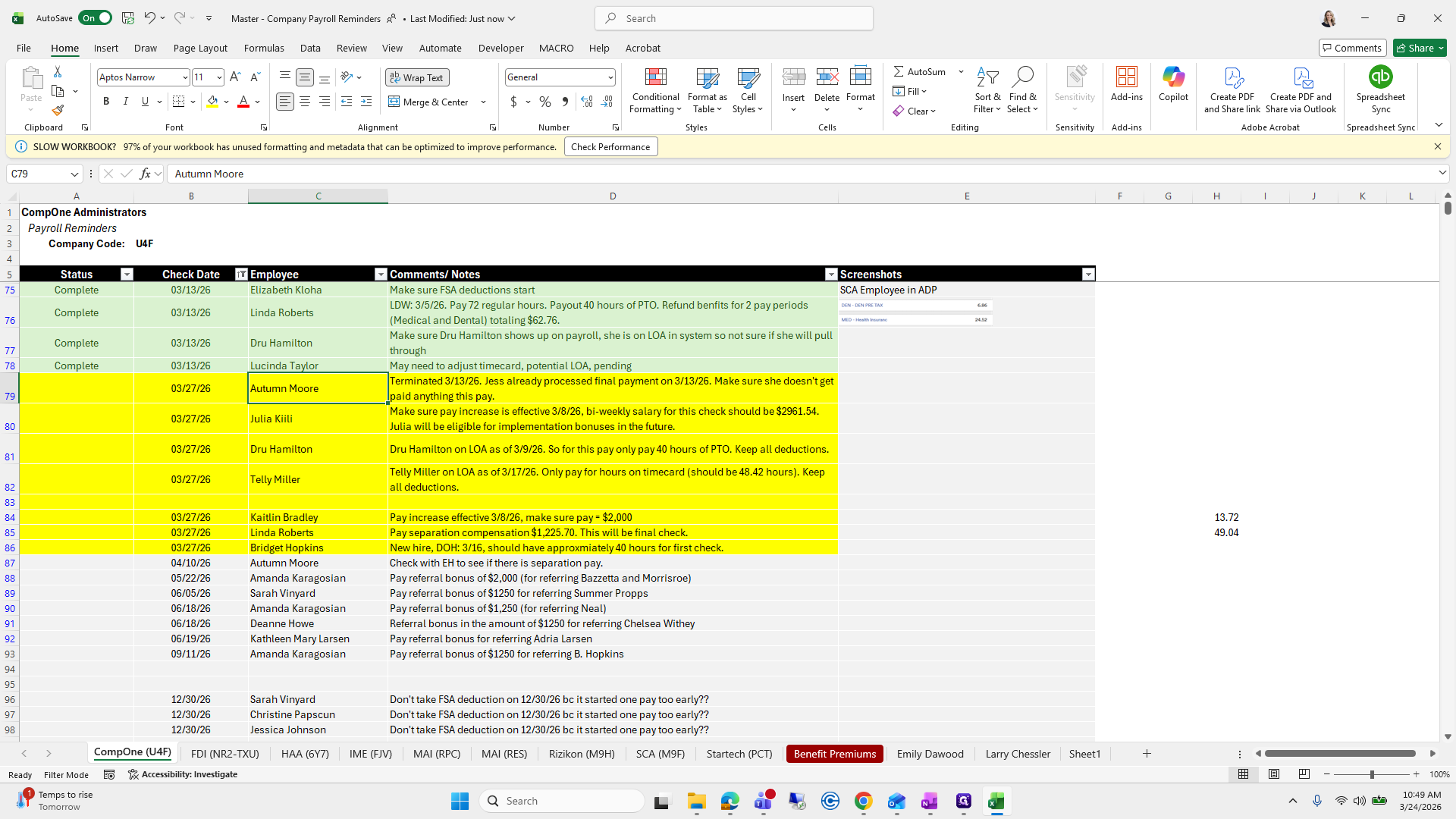
I highlight it in yellow for my own preference.
24
Click here
Step #24: Click here
25
Click on "all deductions ."
Step #25: Click on "all deductions ."

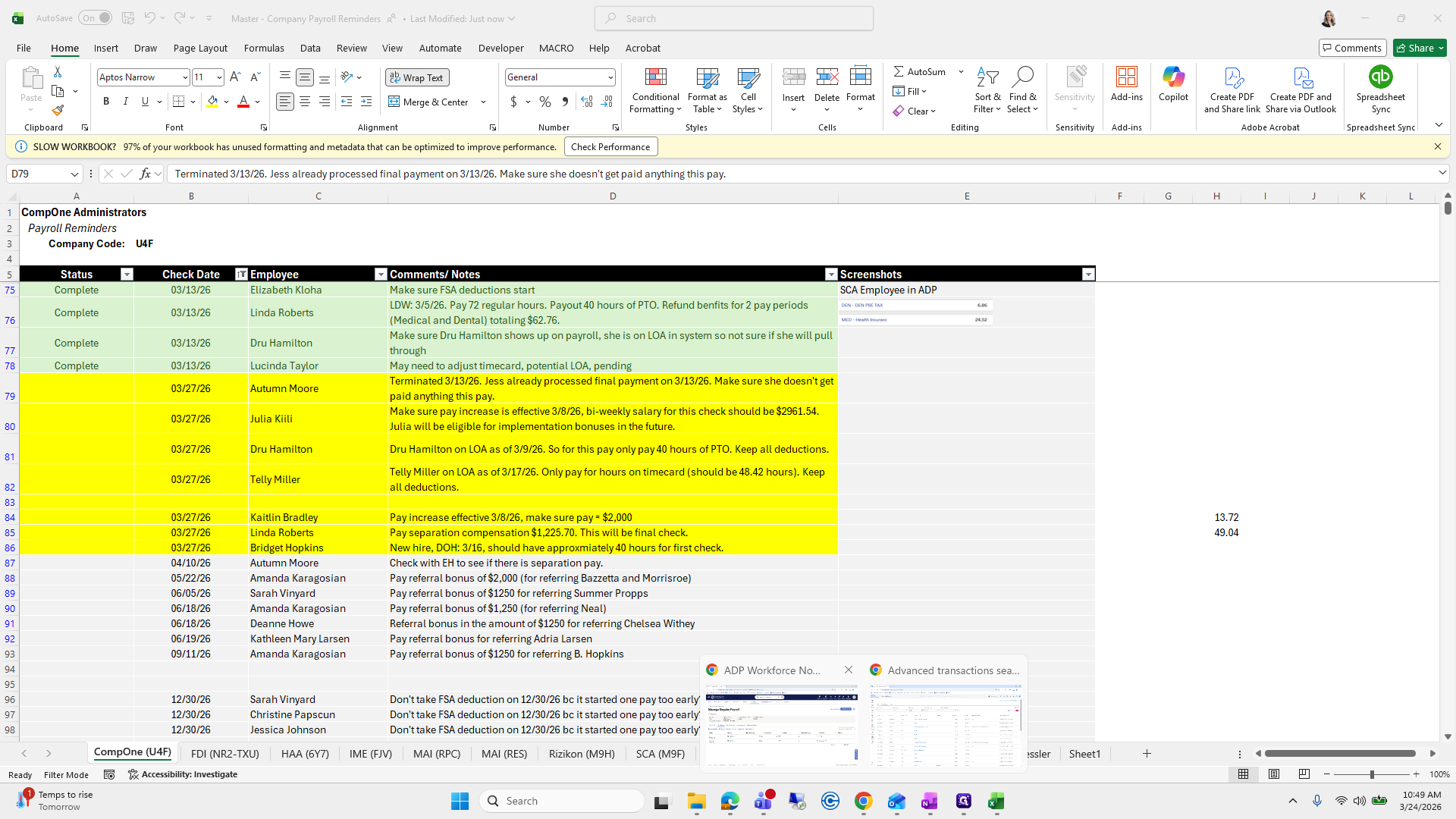
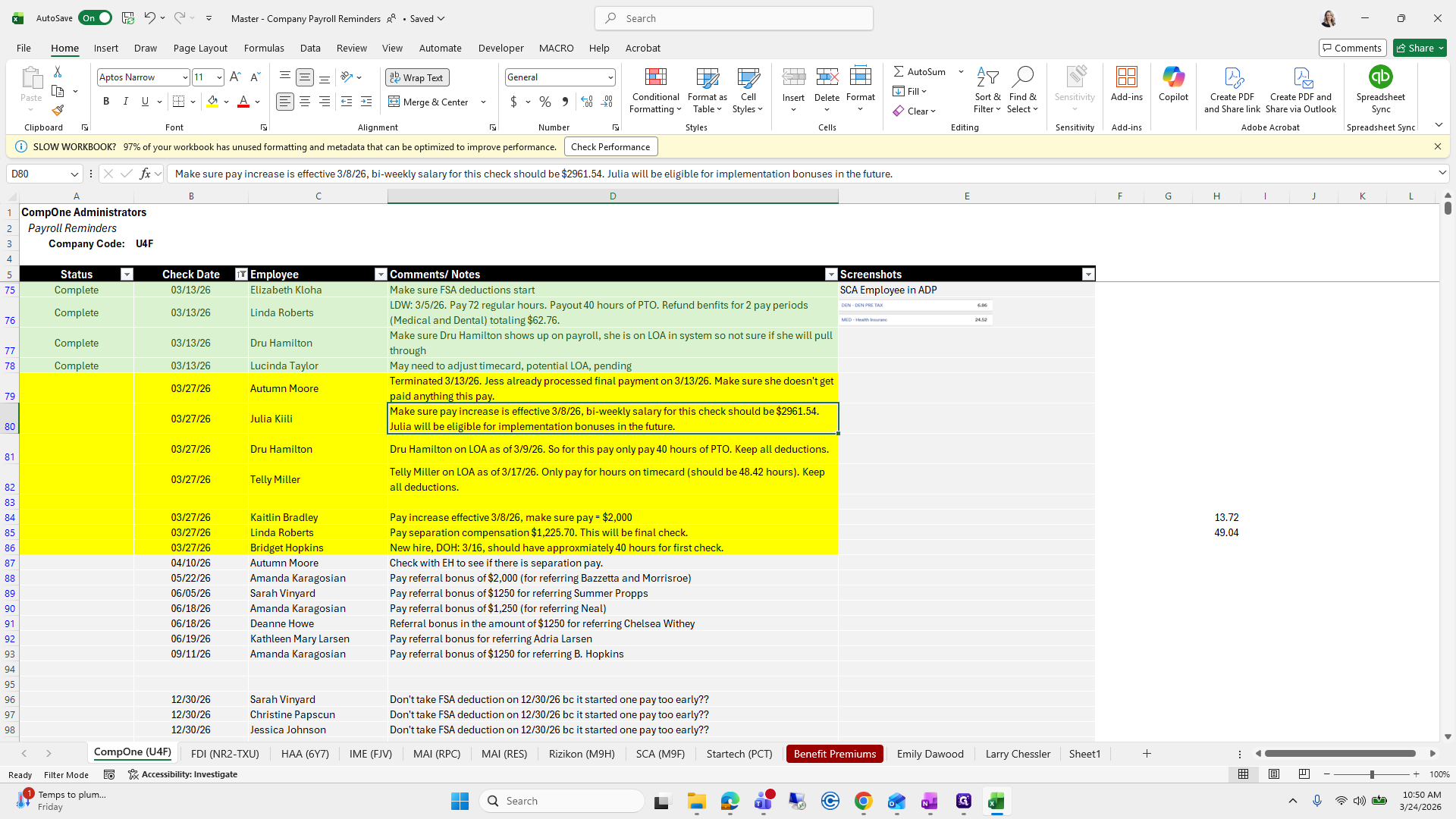
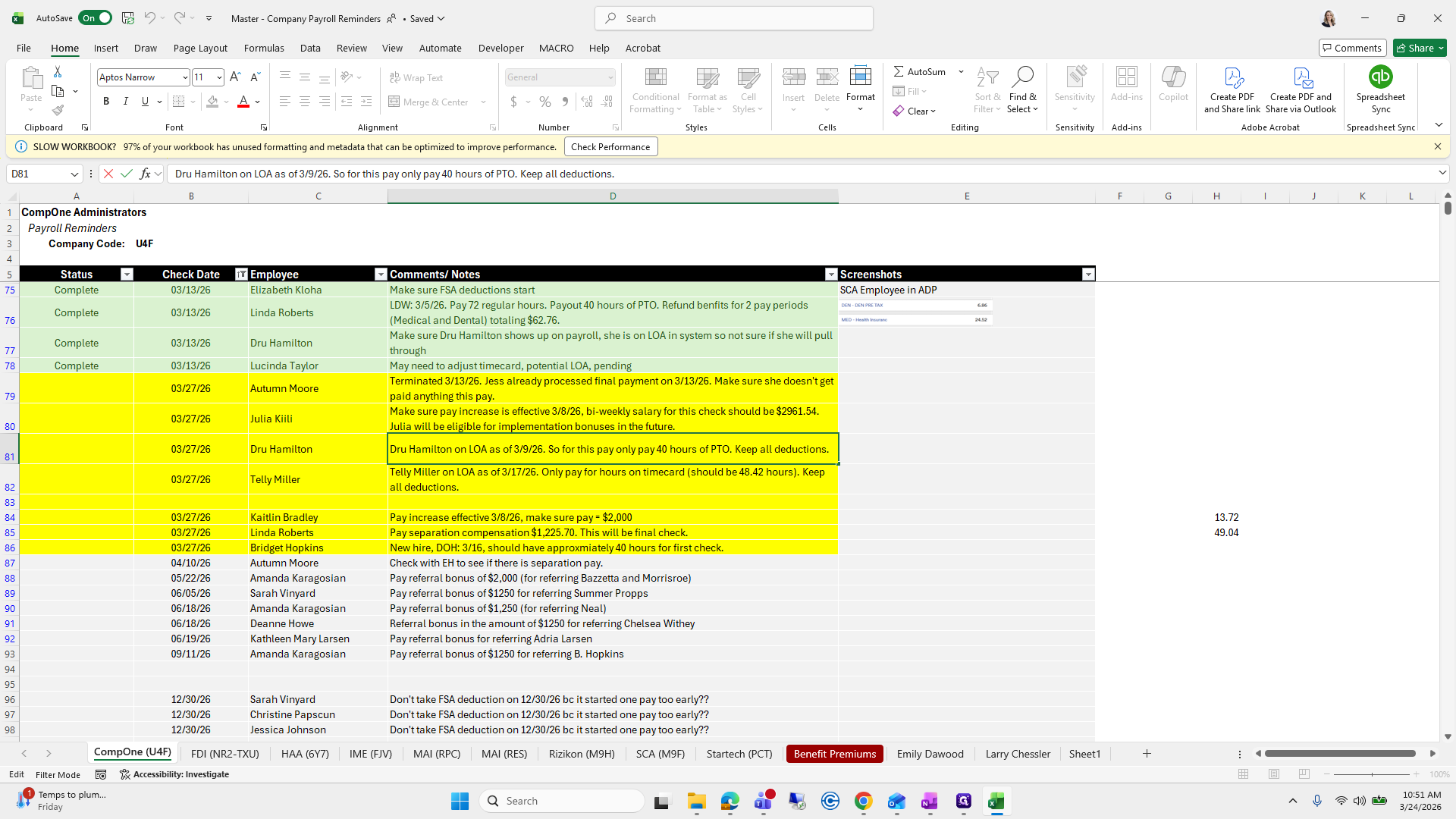
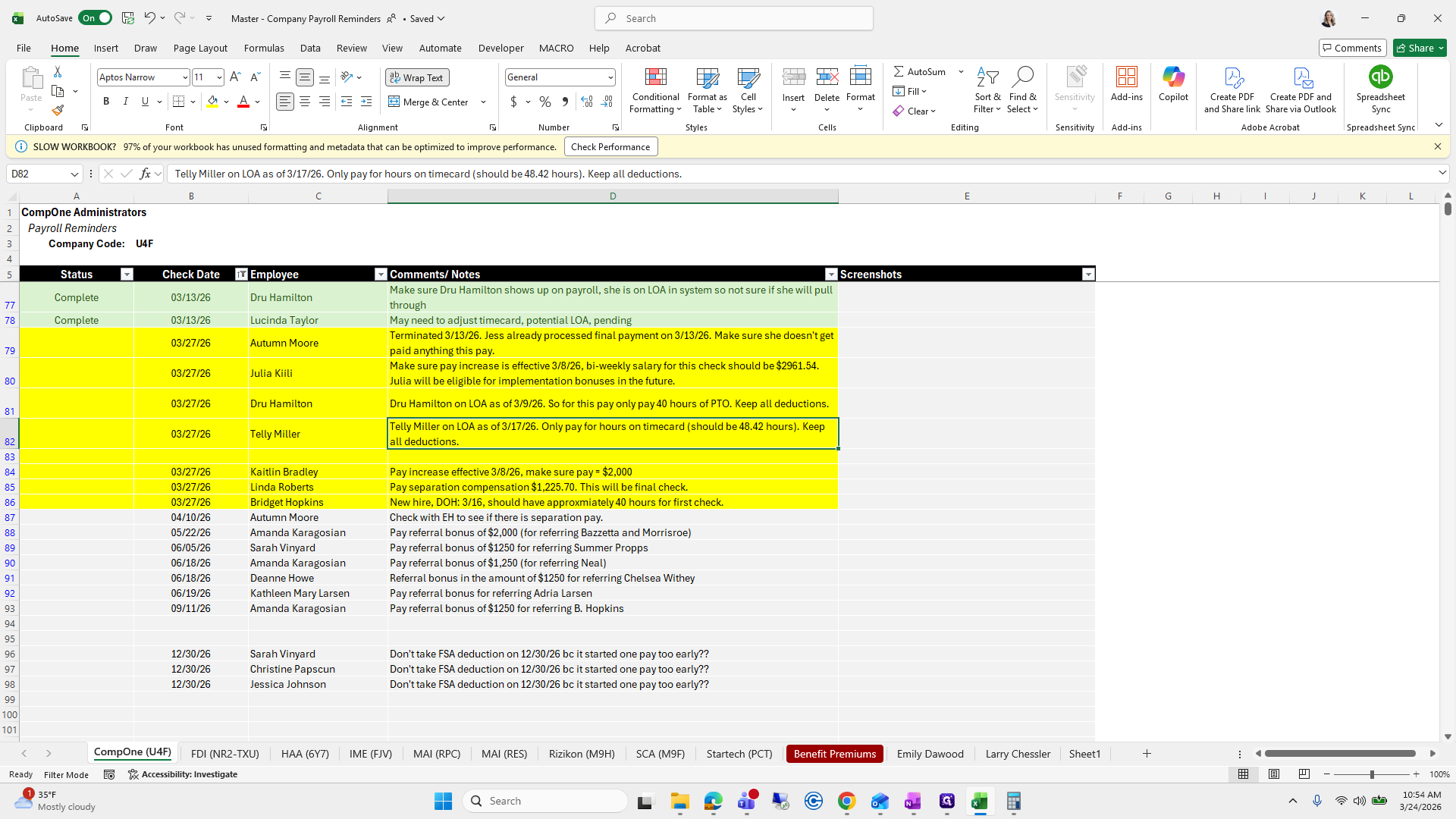
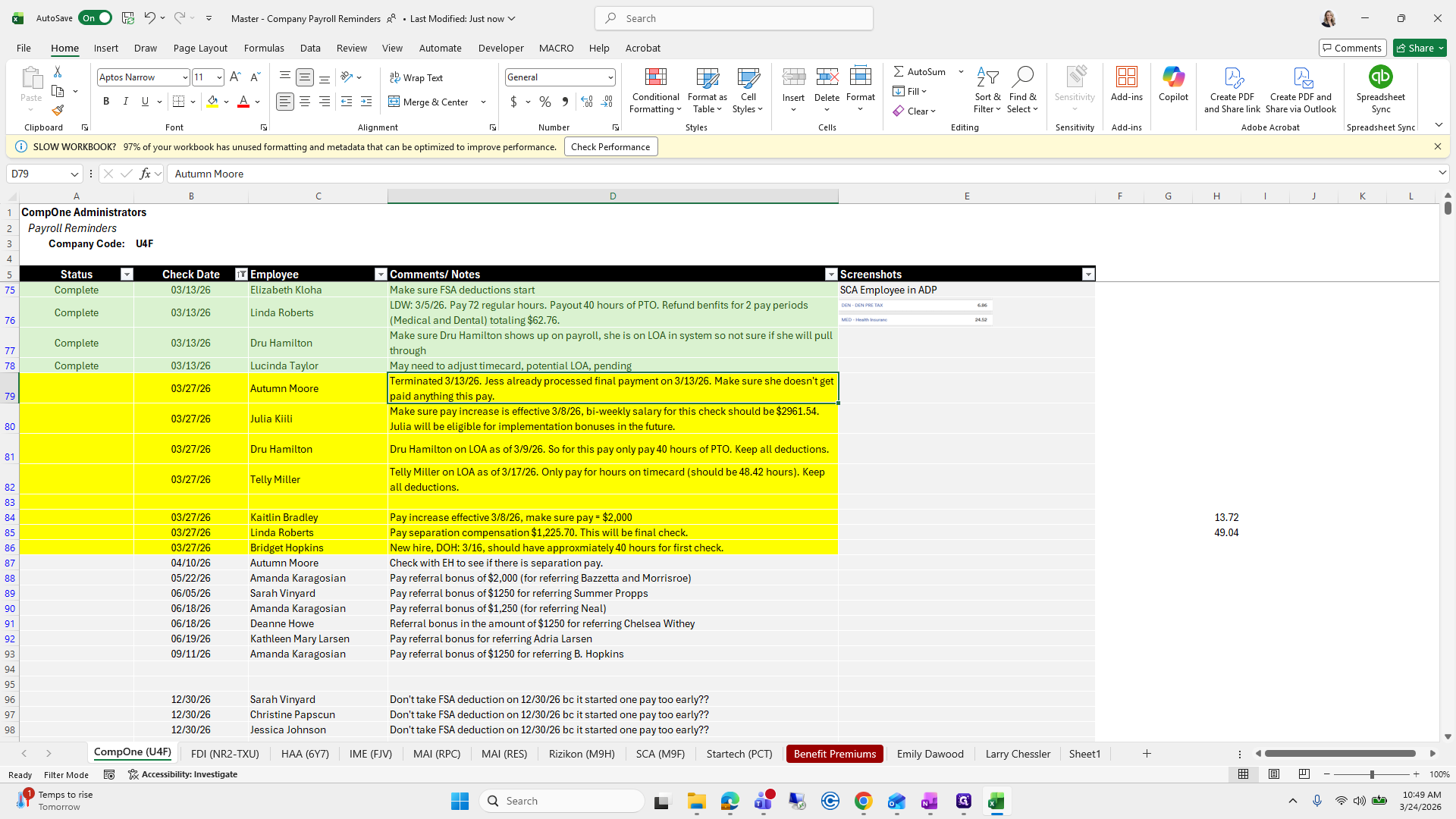
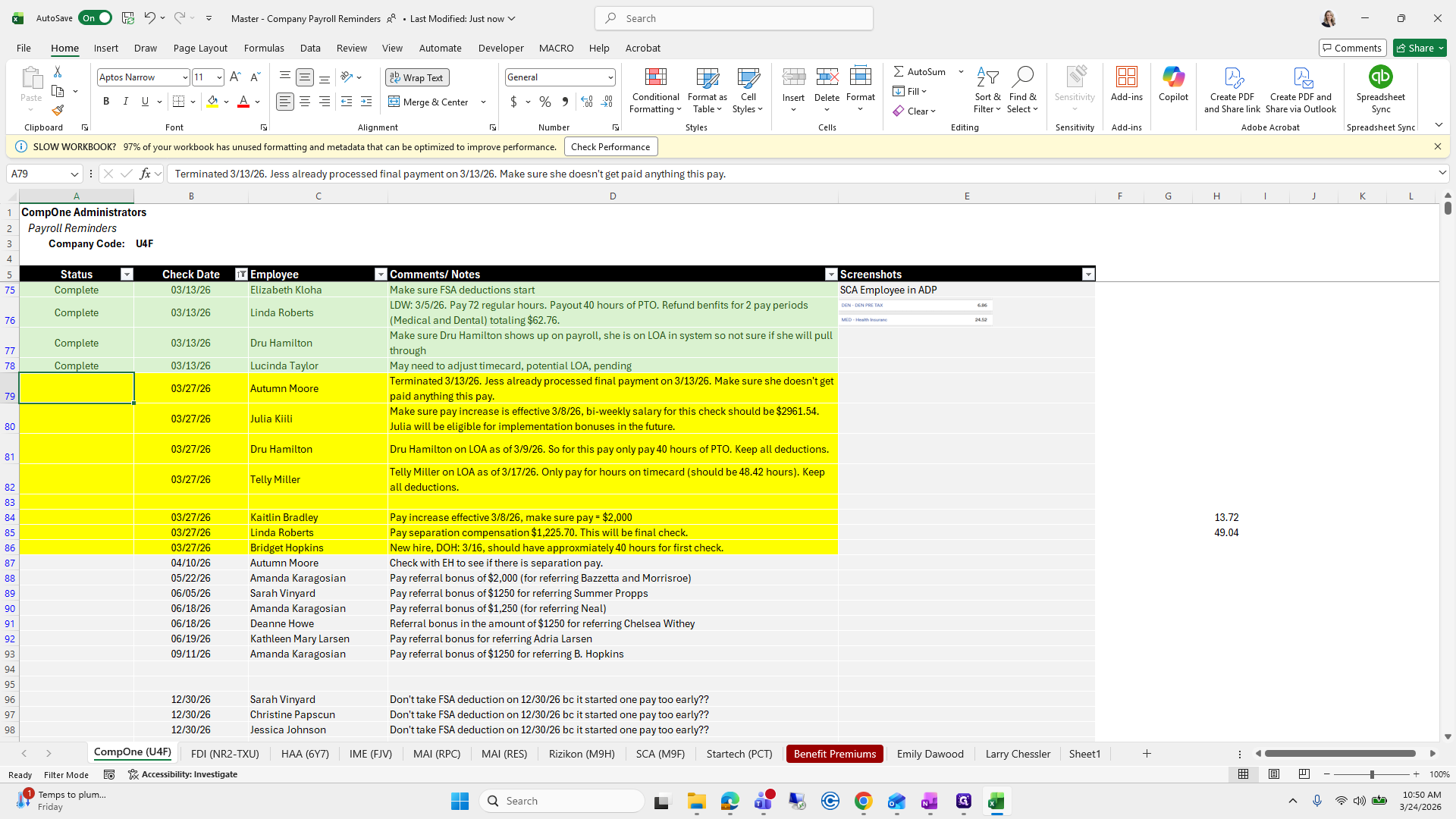
The first one we will look at is that Autumn has been terminated, and I have already processed the final payment.
26
Click on "Autumn Moore"
Step #26: Click on "Autumn Moore"

I need to make sure she is not on this payroll.
27
Click on "effective"
Step #27: Click on "effective"

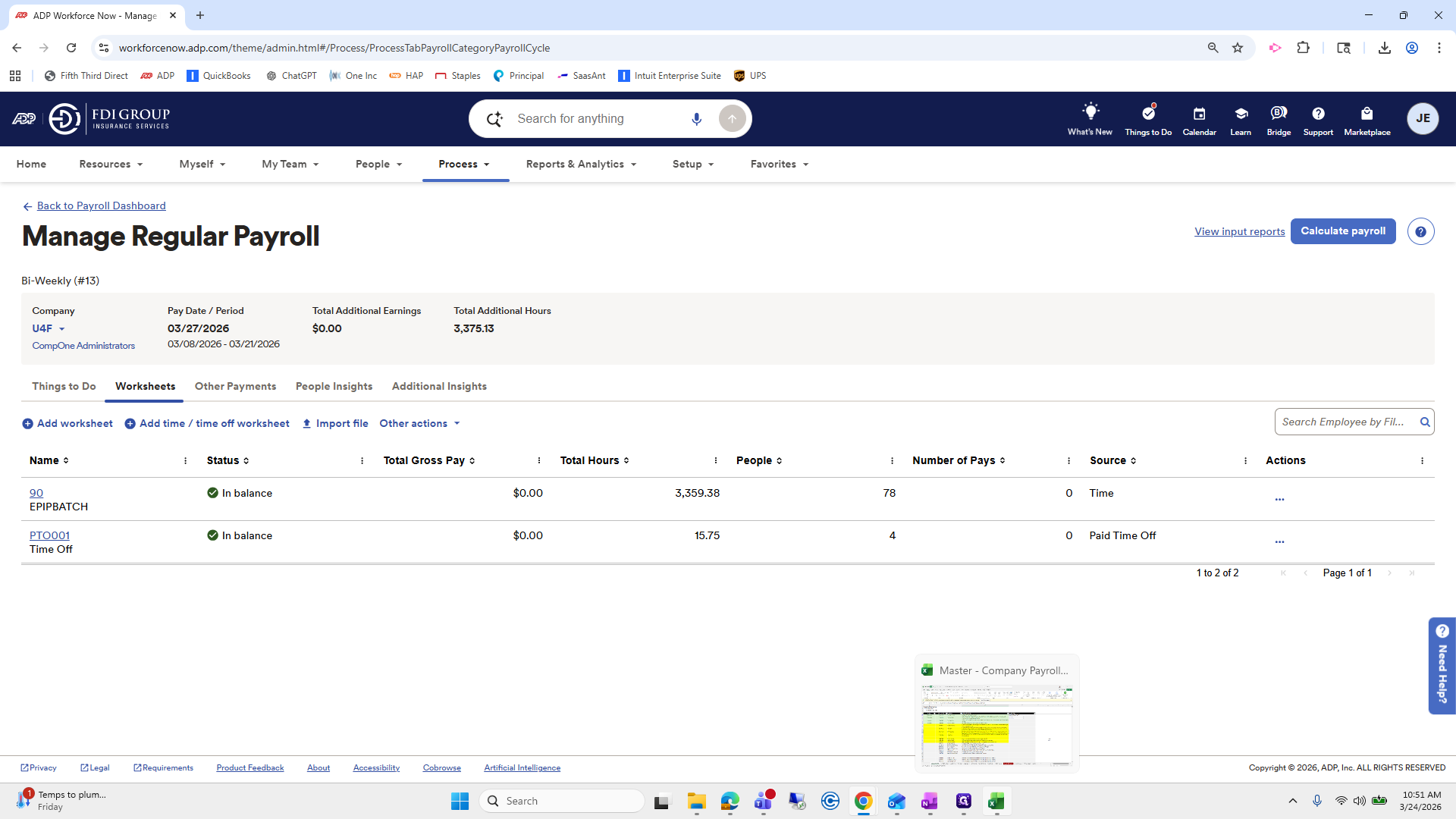
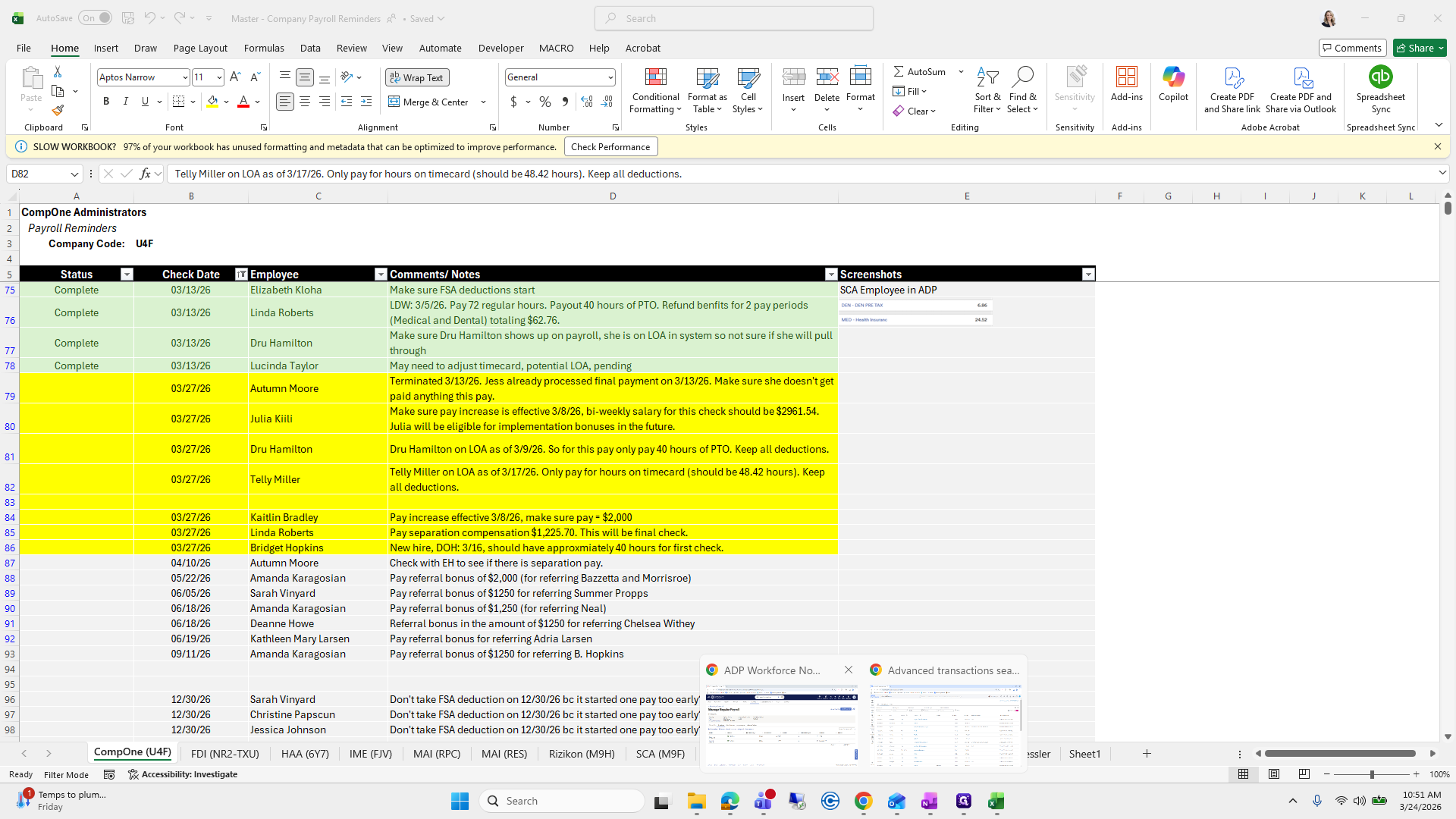
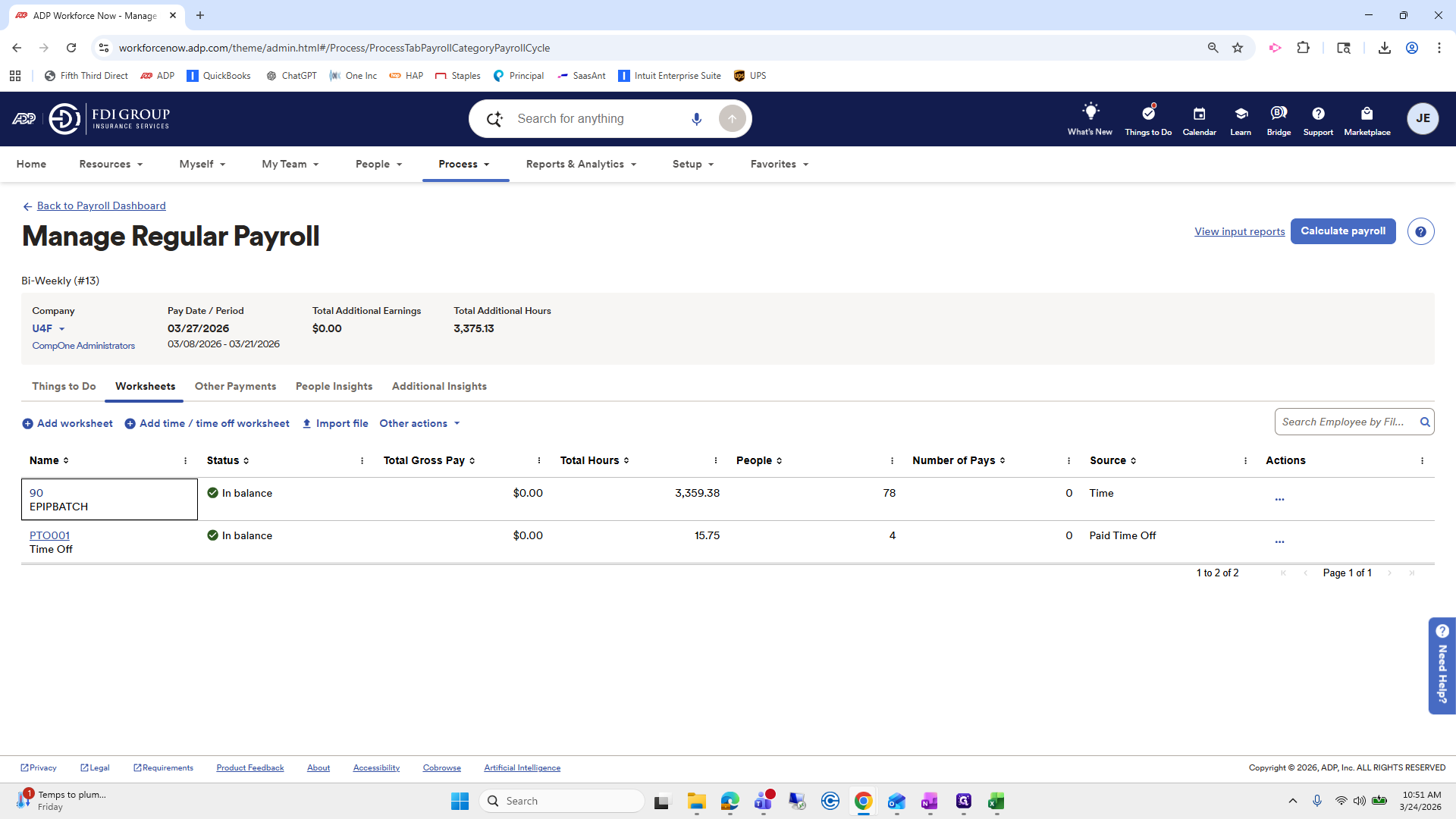
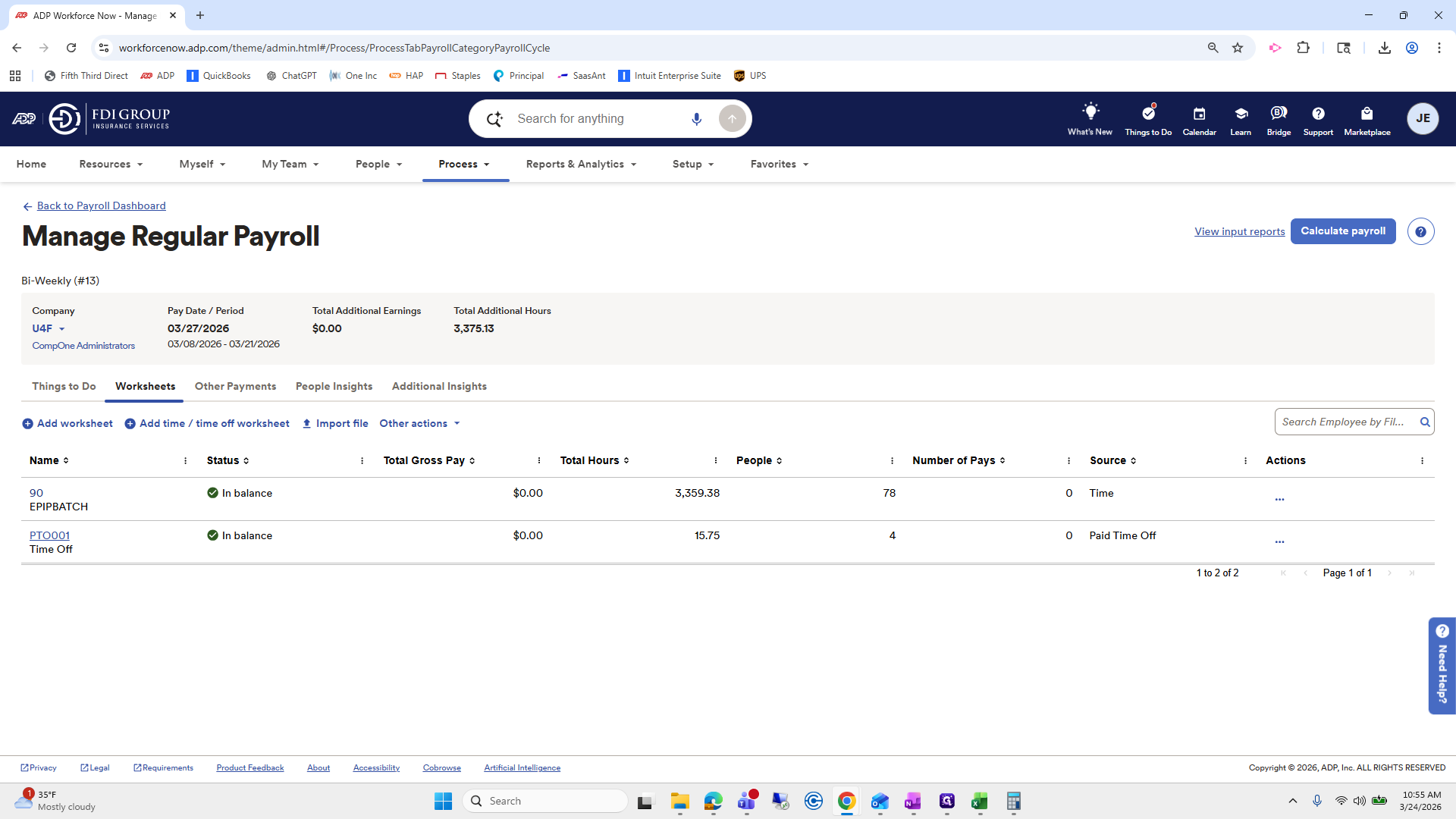
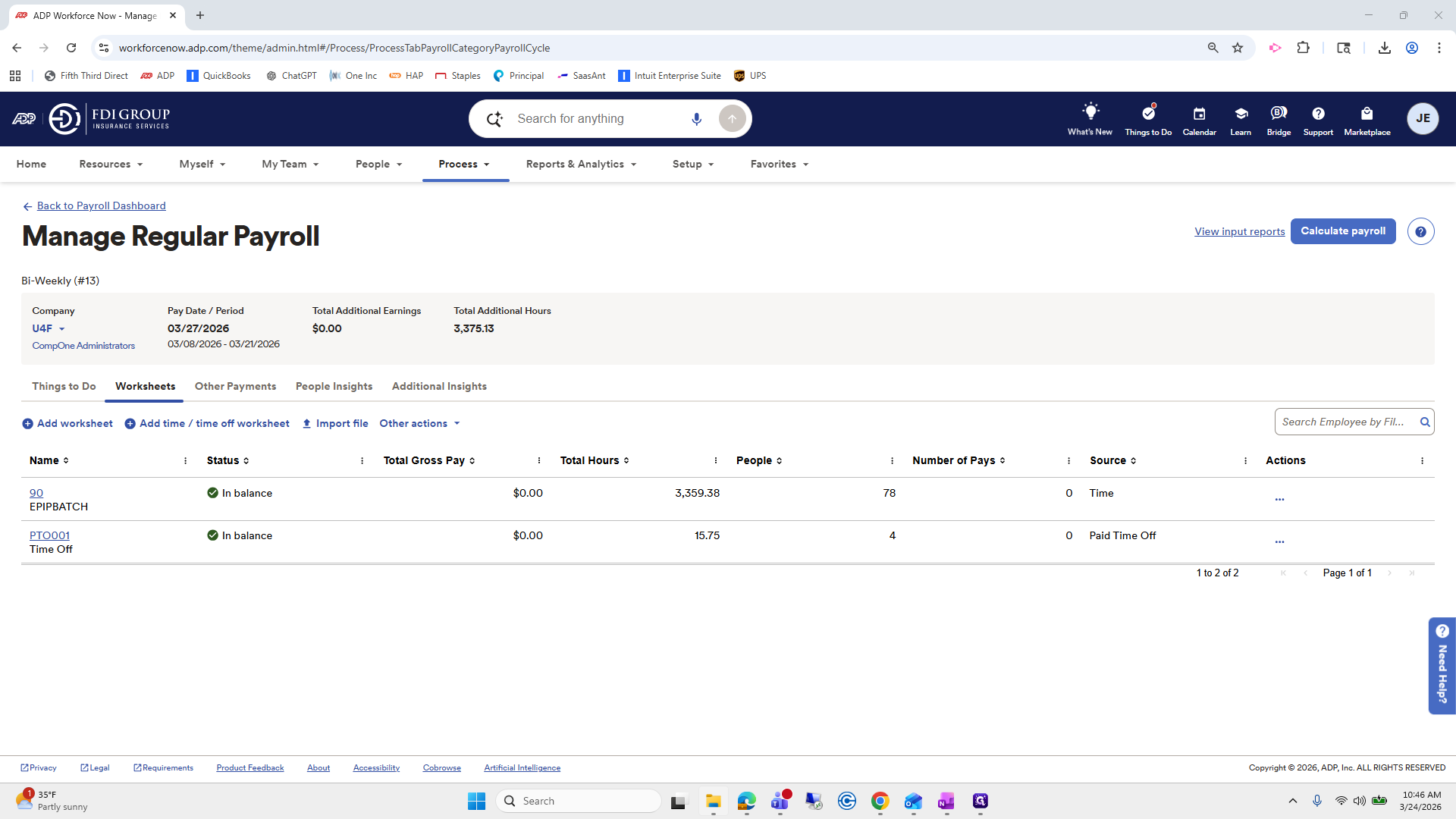
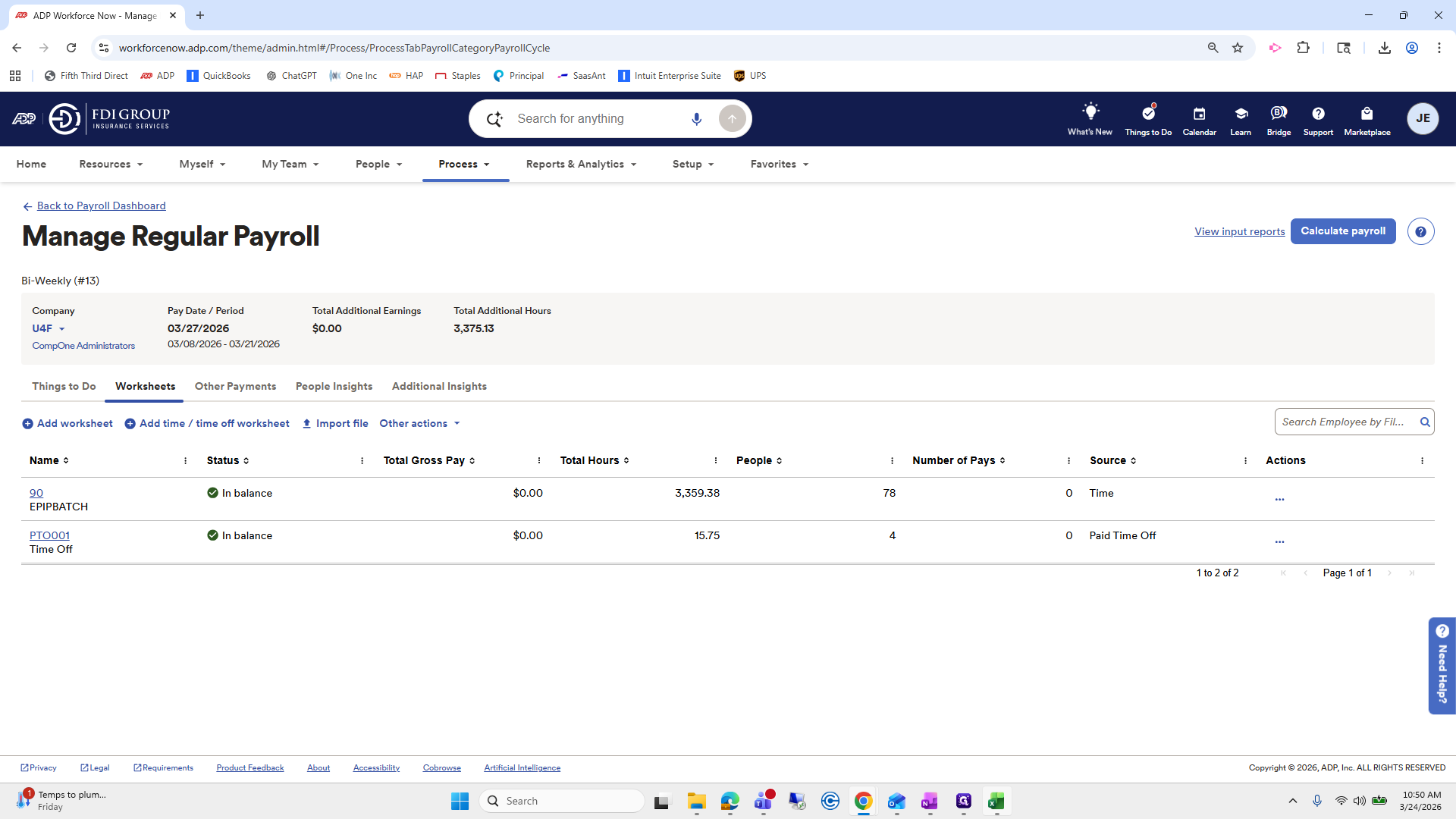
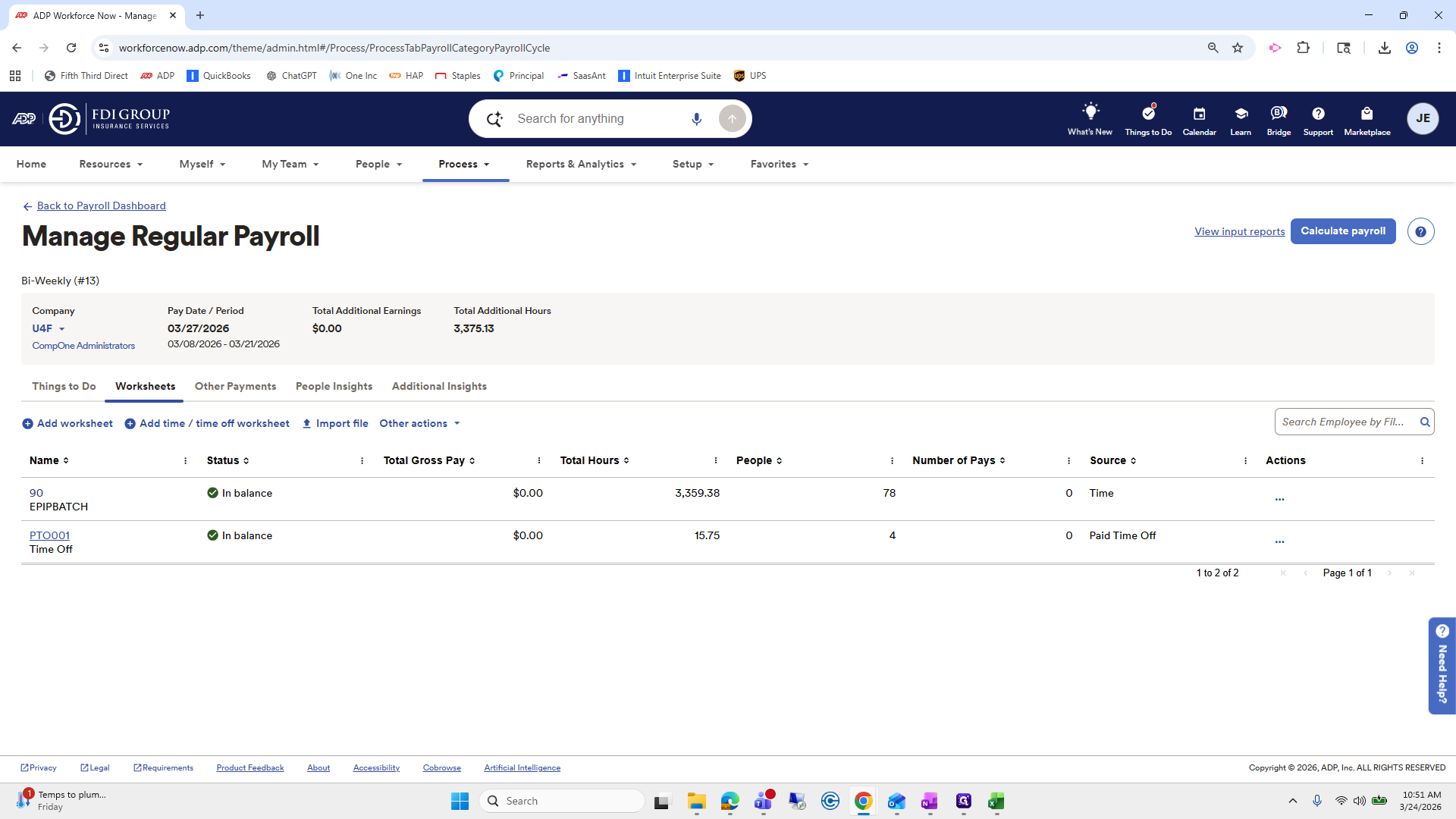
We will go back to the ADP. These are the payroll work papers that were brought over.
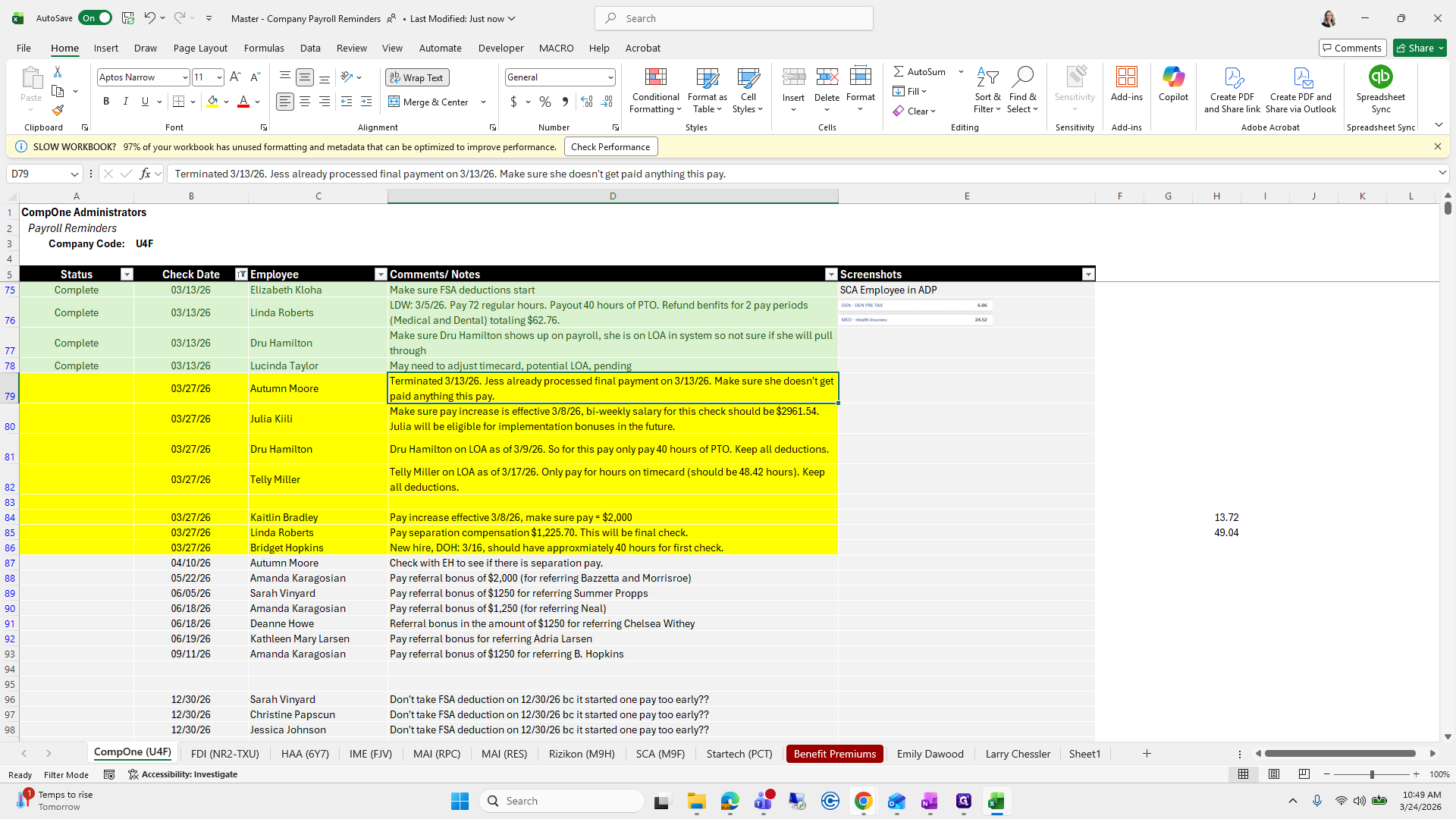
28
Click here
Step #28: Click here
29
Click here
Step #29: Click here

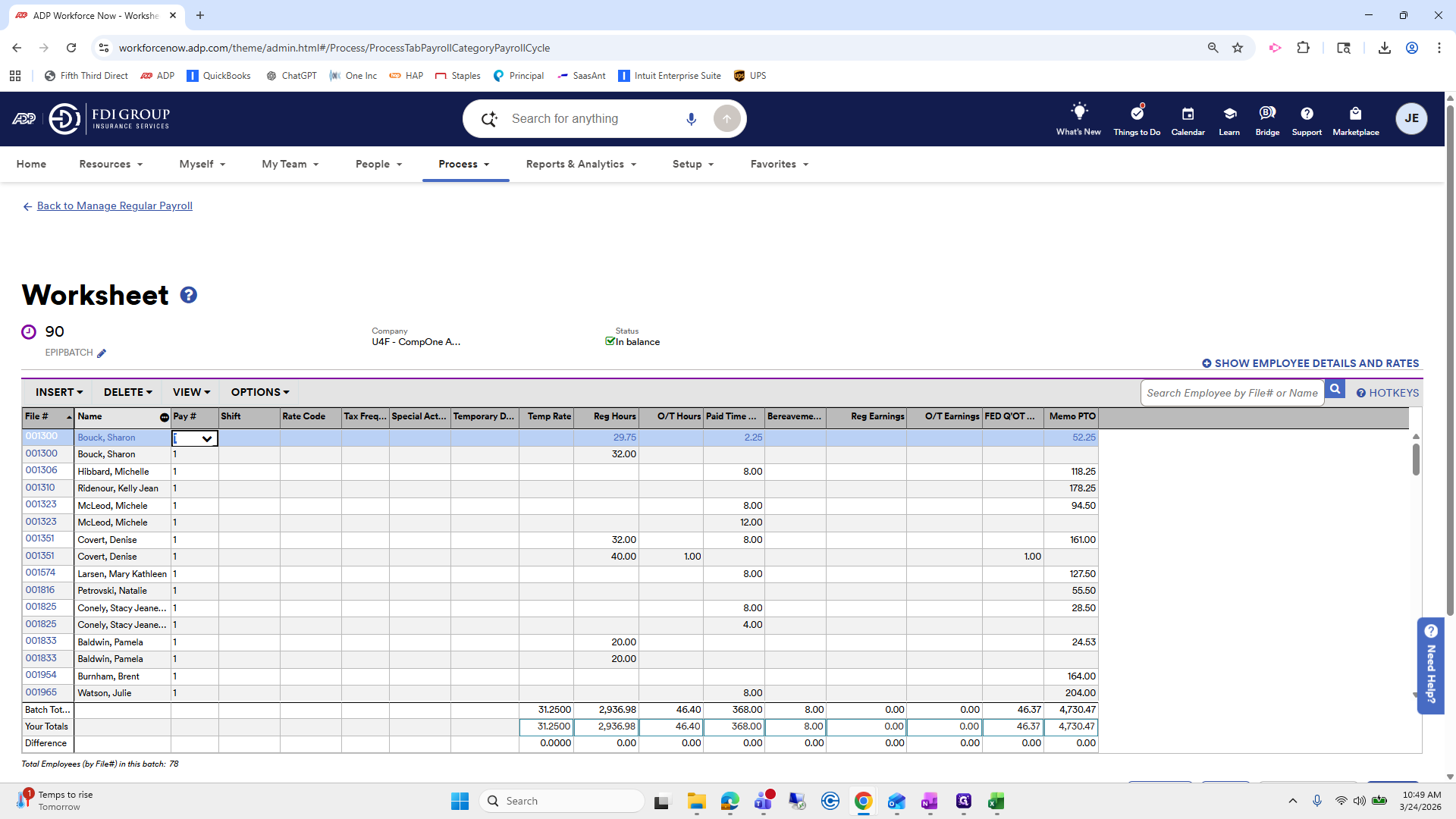
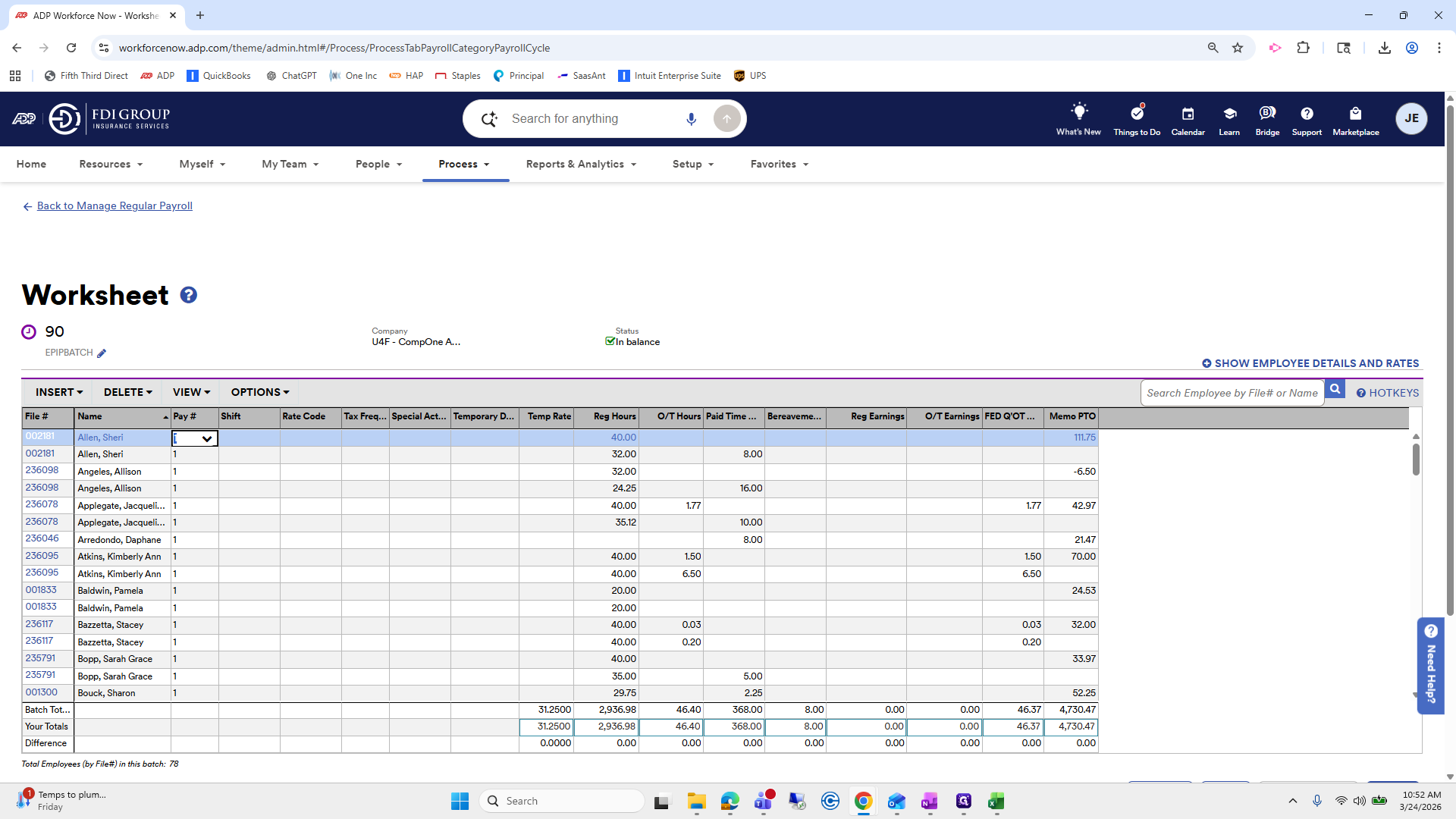
I will go into the batch that shows any hours and quickly look for her.
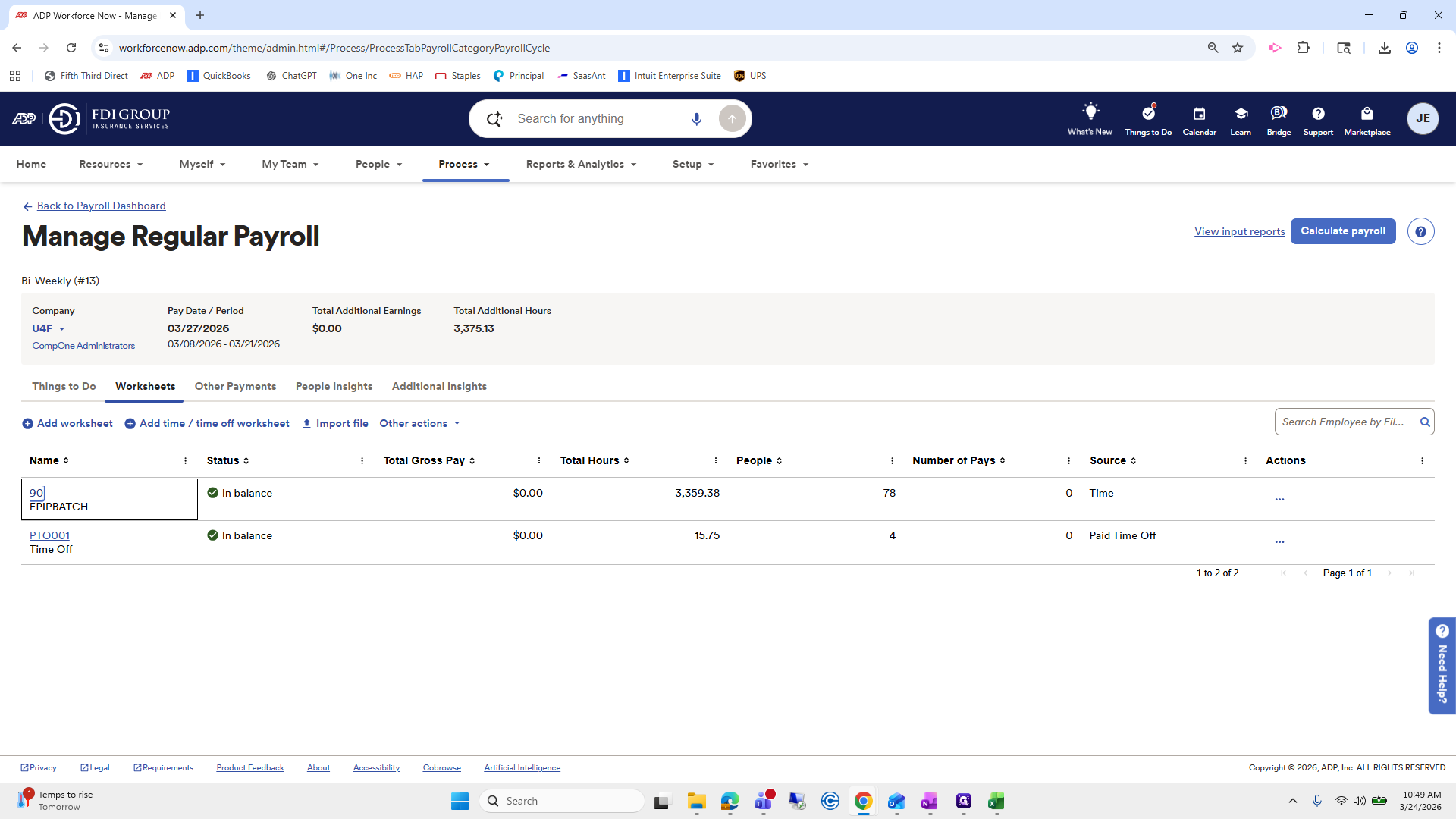
30
Click on "90"
Step #30: Click on "90"
31
Click on "Name"
Step #31: Click on "Name"

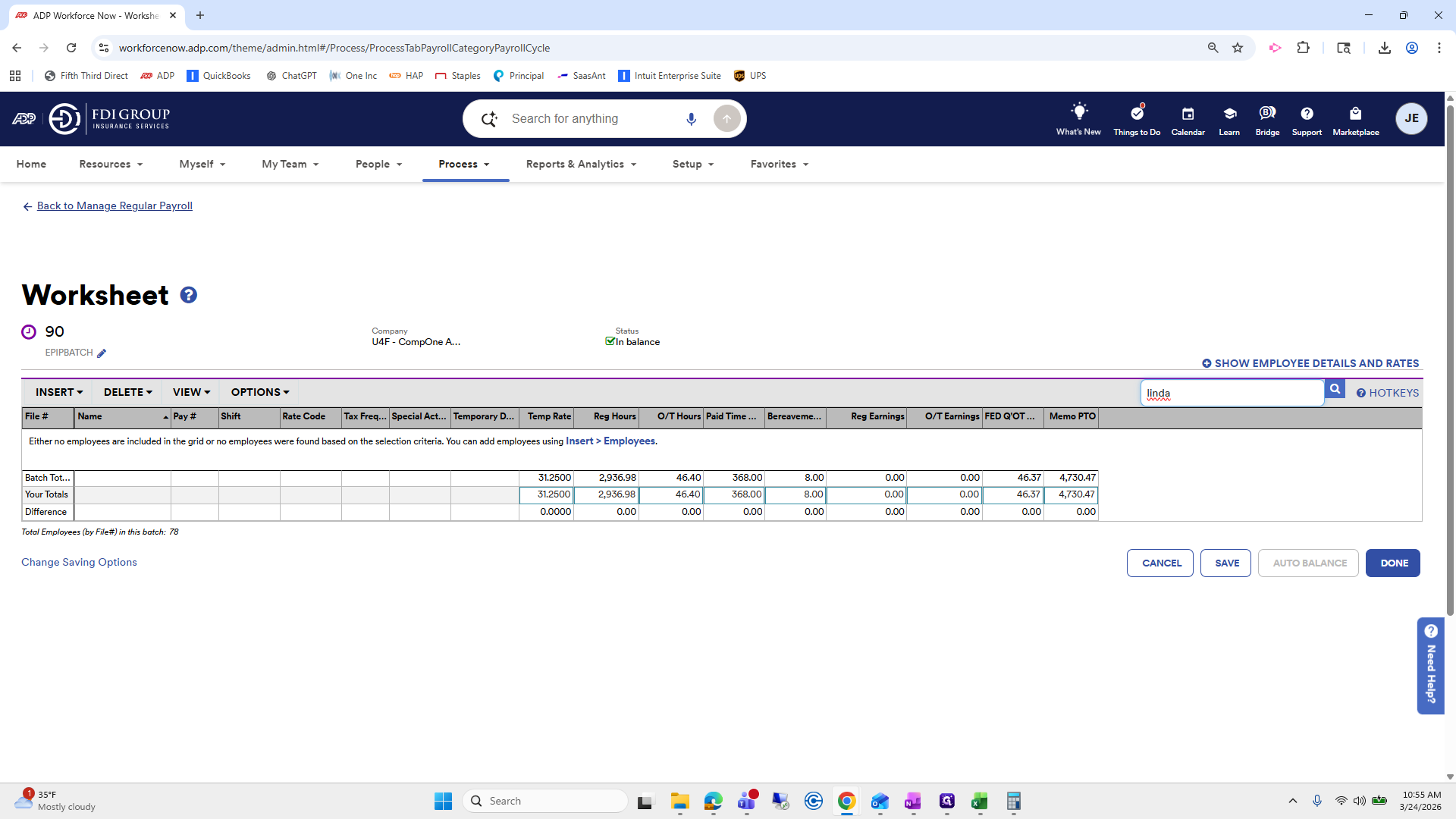
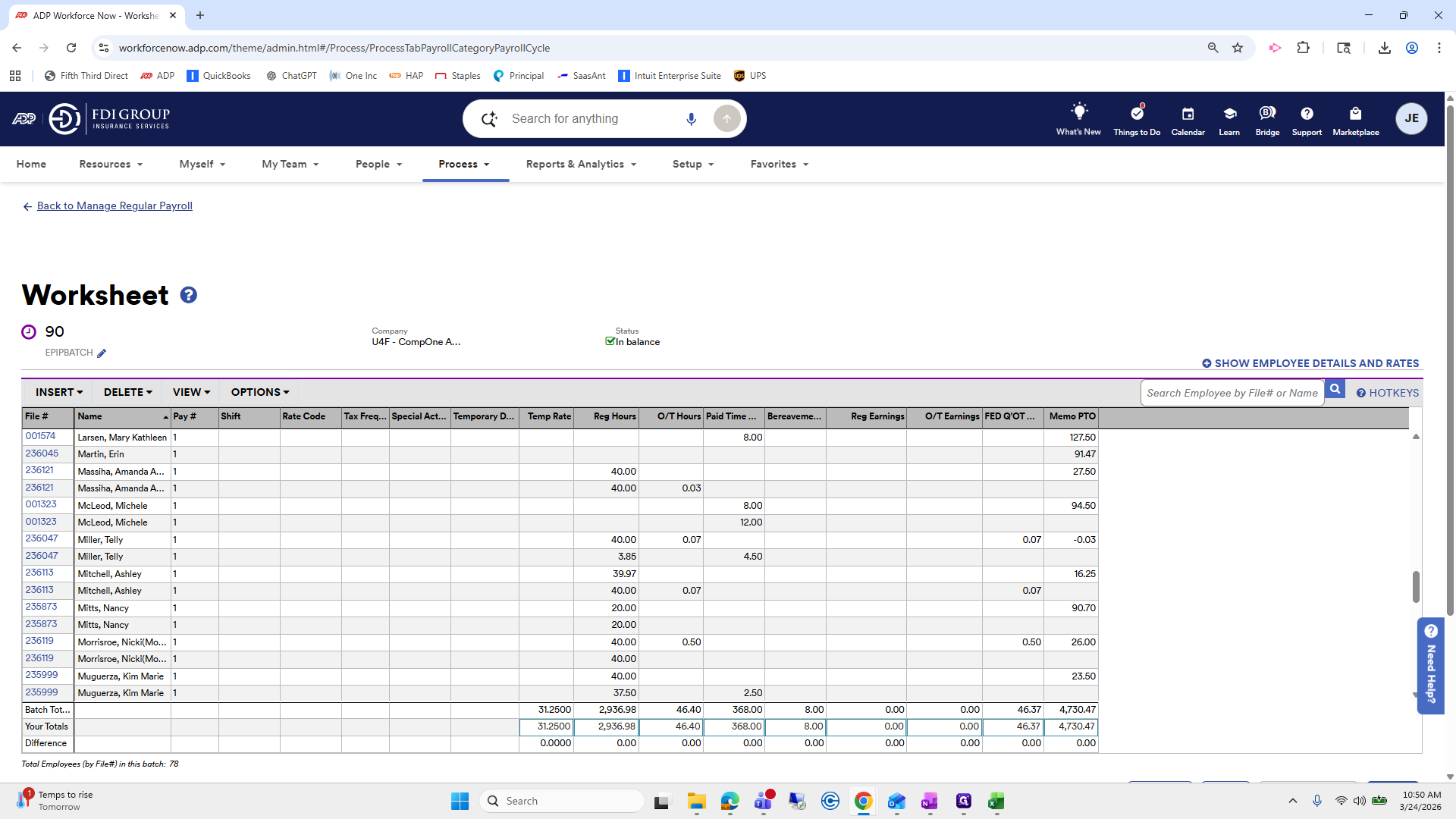
Or her name. Autumn. Autumn Moore. I do not see Autumn Moore listed here, which is great.
32
Click on "Back to Manage Regular Payroll"
Step #32: Click on "Back to Manage Regular Payroll"

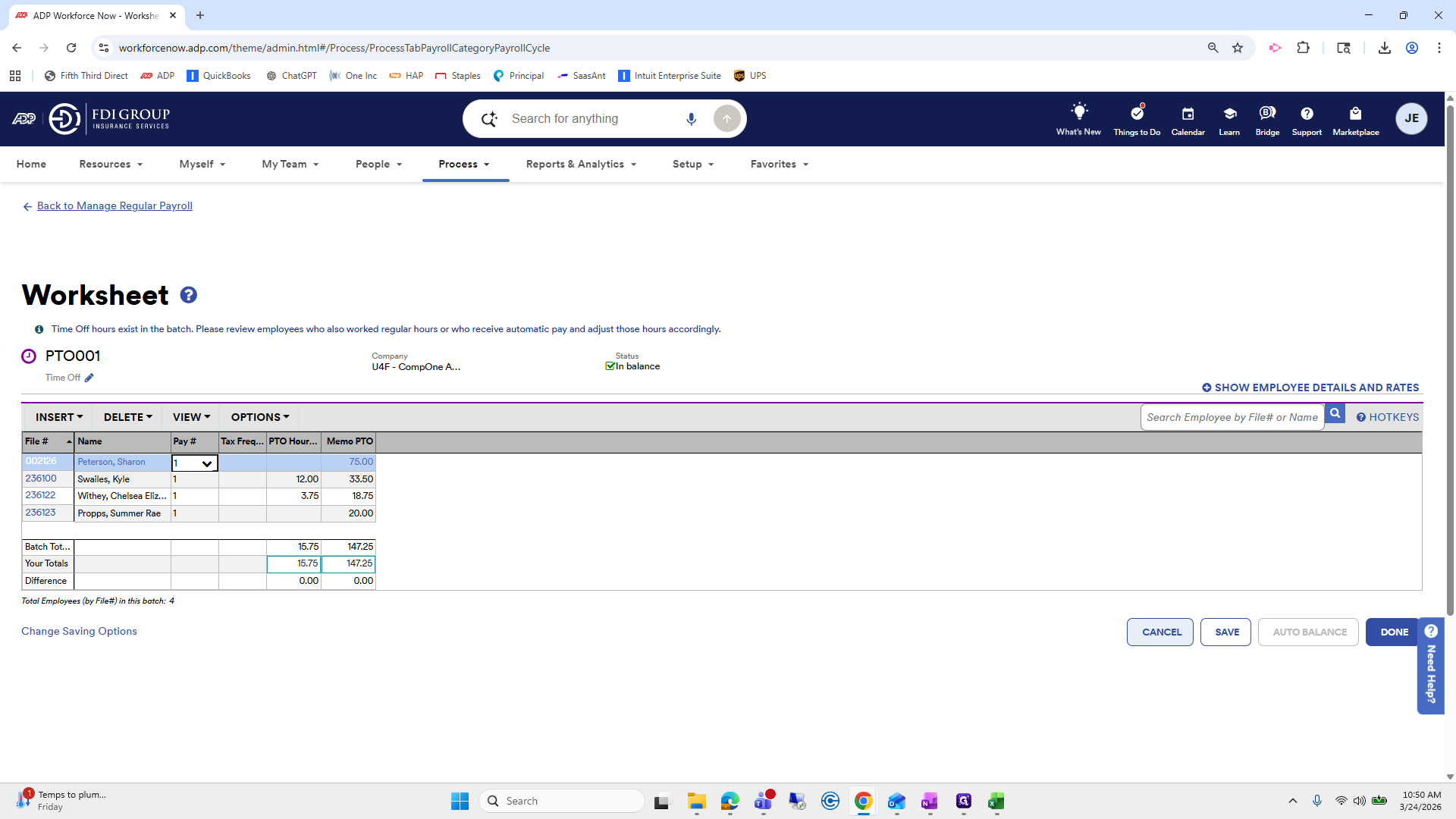
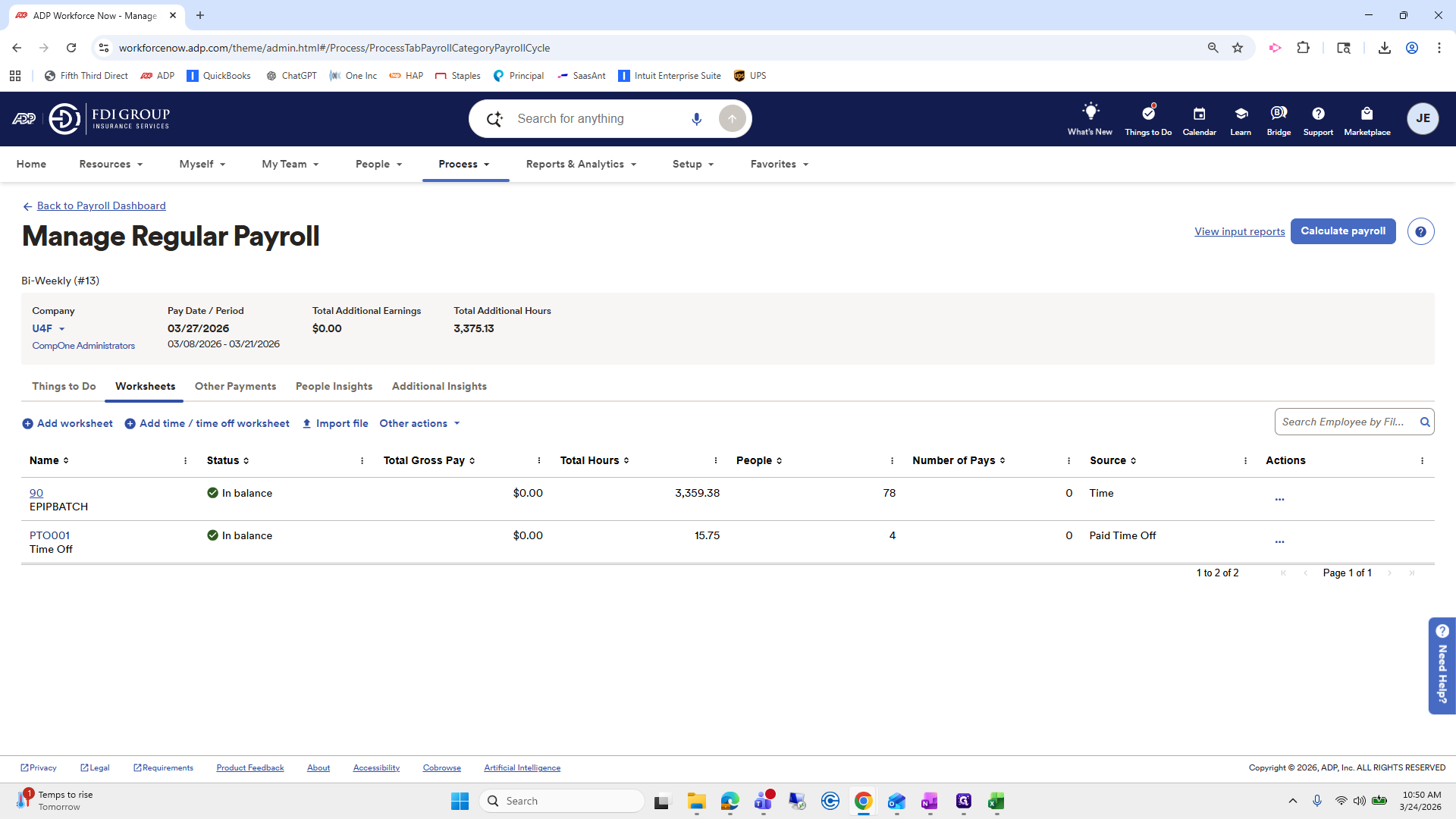
I will also check the PTO, as she may have had PTO included, and we do not want it processed.
33
Click on "PTO001"
Step #33: Click on "PTO001"

Okay, nothing there.

34
Click on "CANCEL"
Step #34: Click on "CANCEL"

Okay, that looks good. I won't mark this as complete on the sheet until the end of payroll, when I review all the reports to make sure she's not listed on any payroll reports.
35
Click here
Step #35: Click here
36
Click here
Step #36: Click here

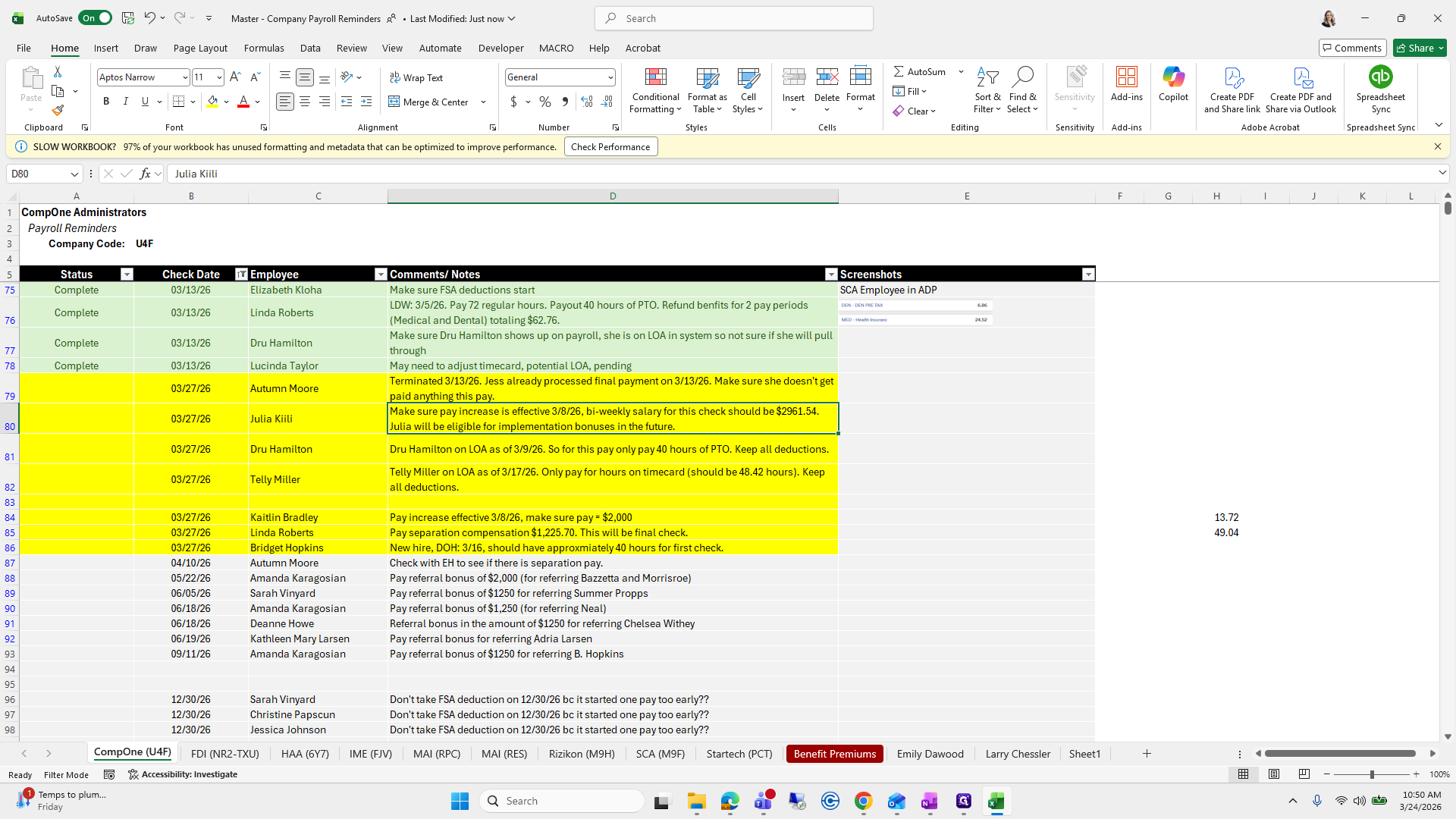
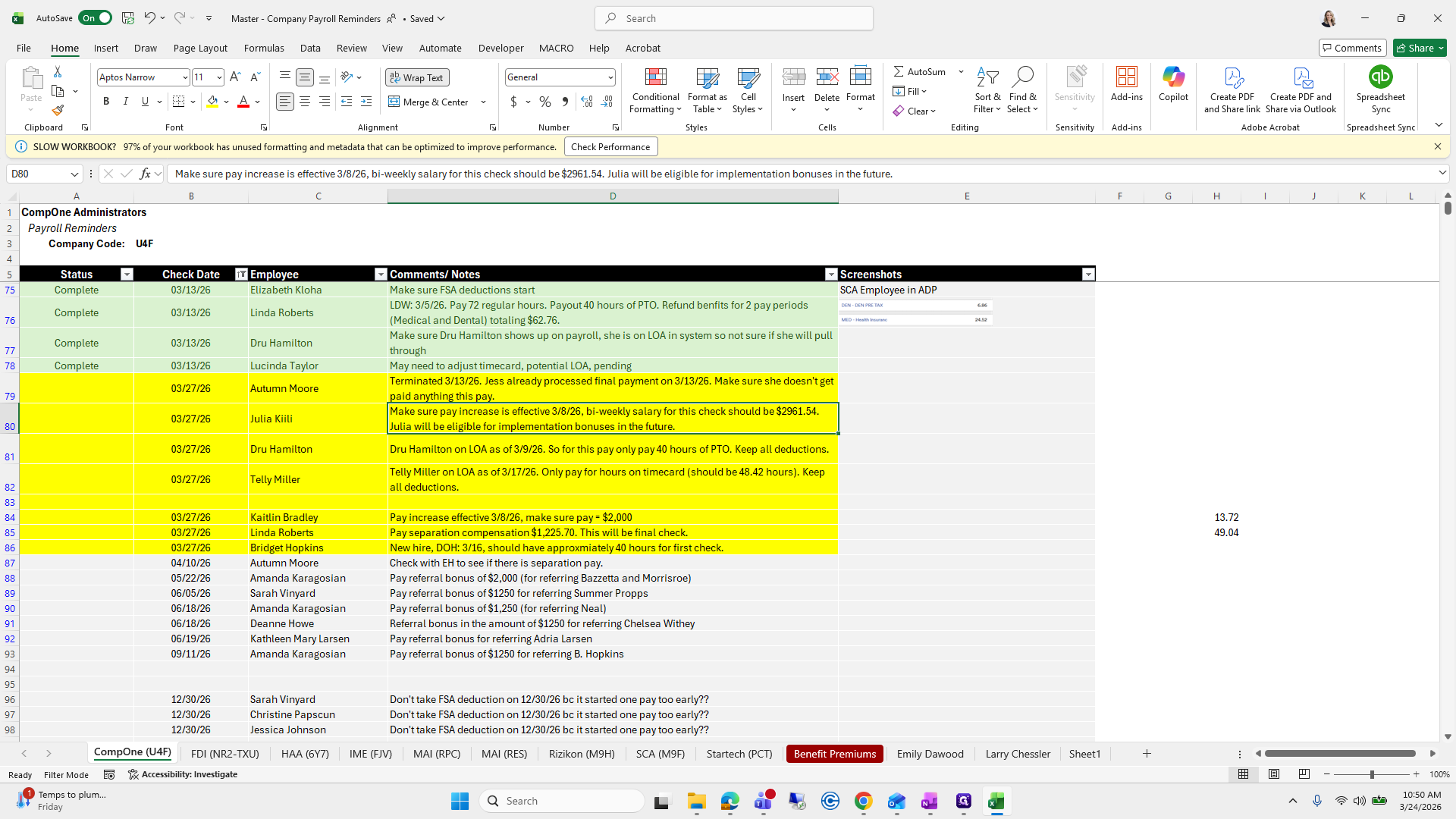
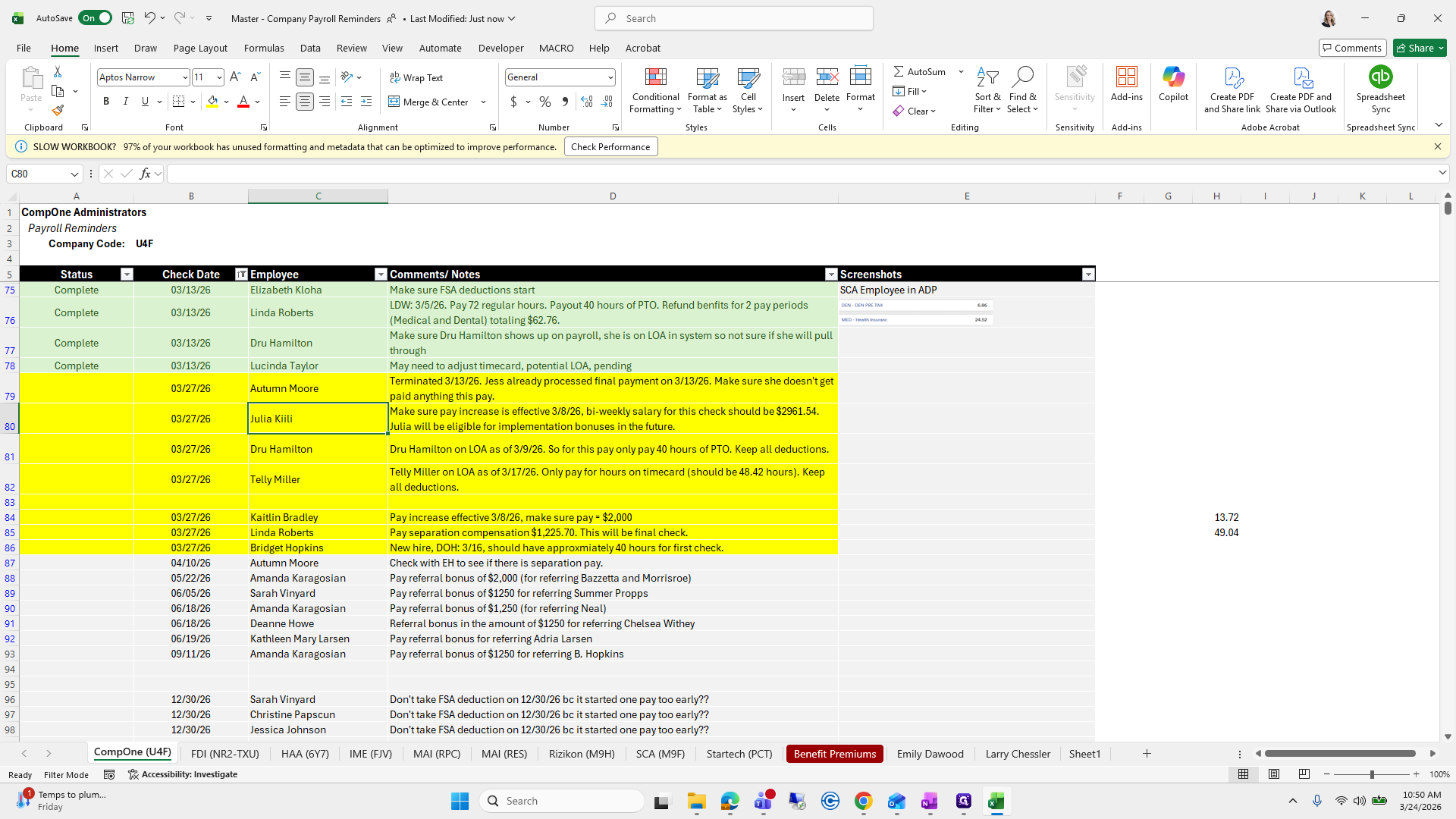
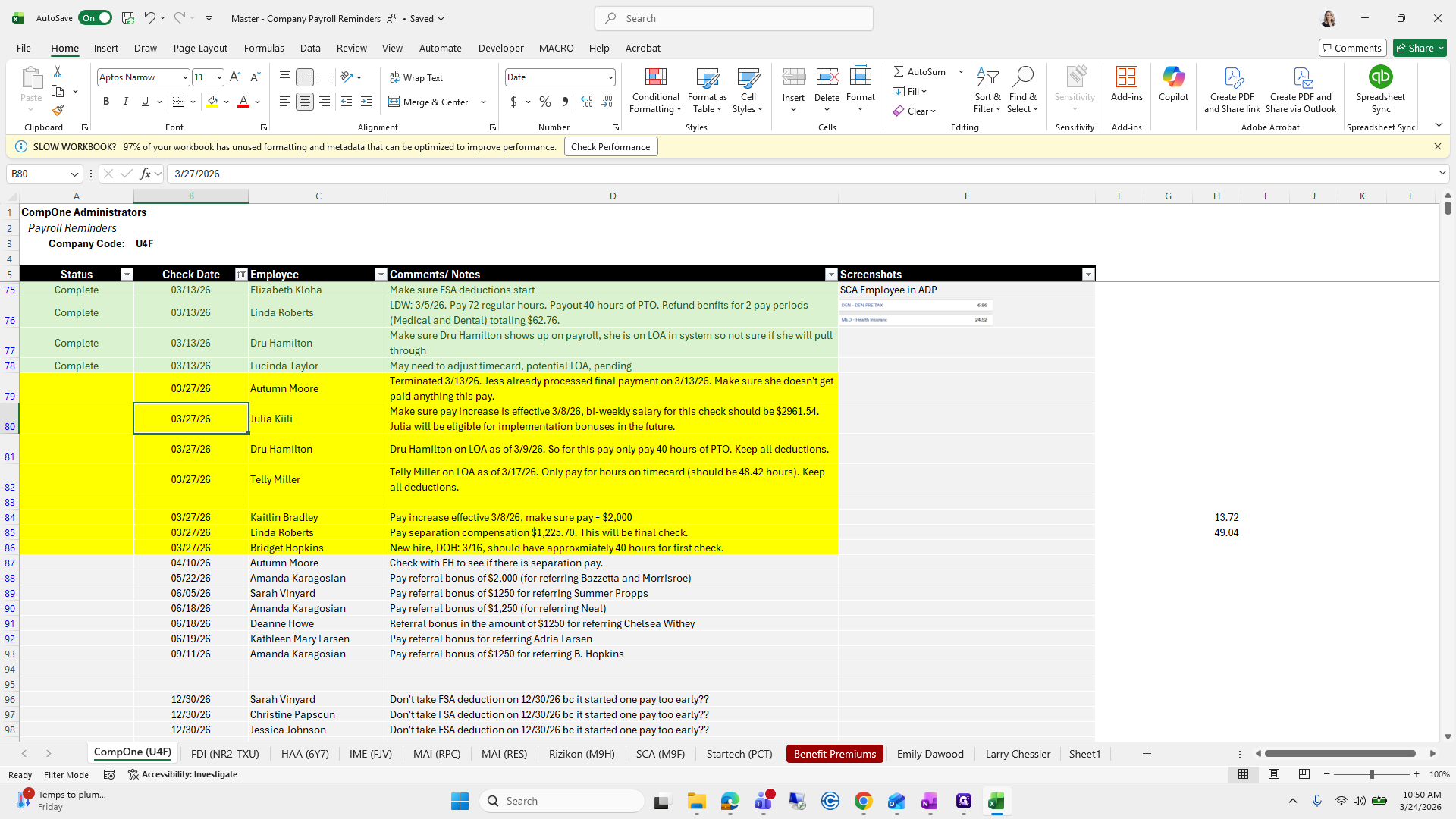
Julia, ensure the pay increase is effective on 3/8.
37
Click on "Kiili"
Step #37: Click on "Kiili"
38
Click on "Make sure pay increase is"
Step #38: Click on "Make sure pay increase is"

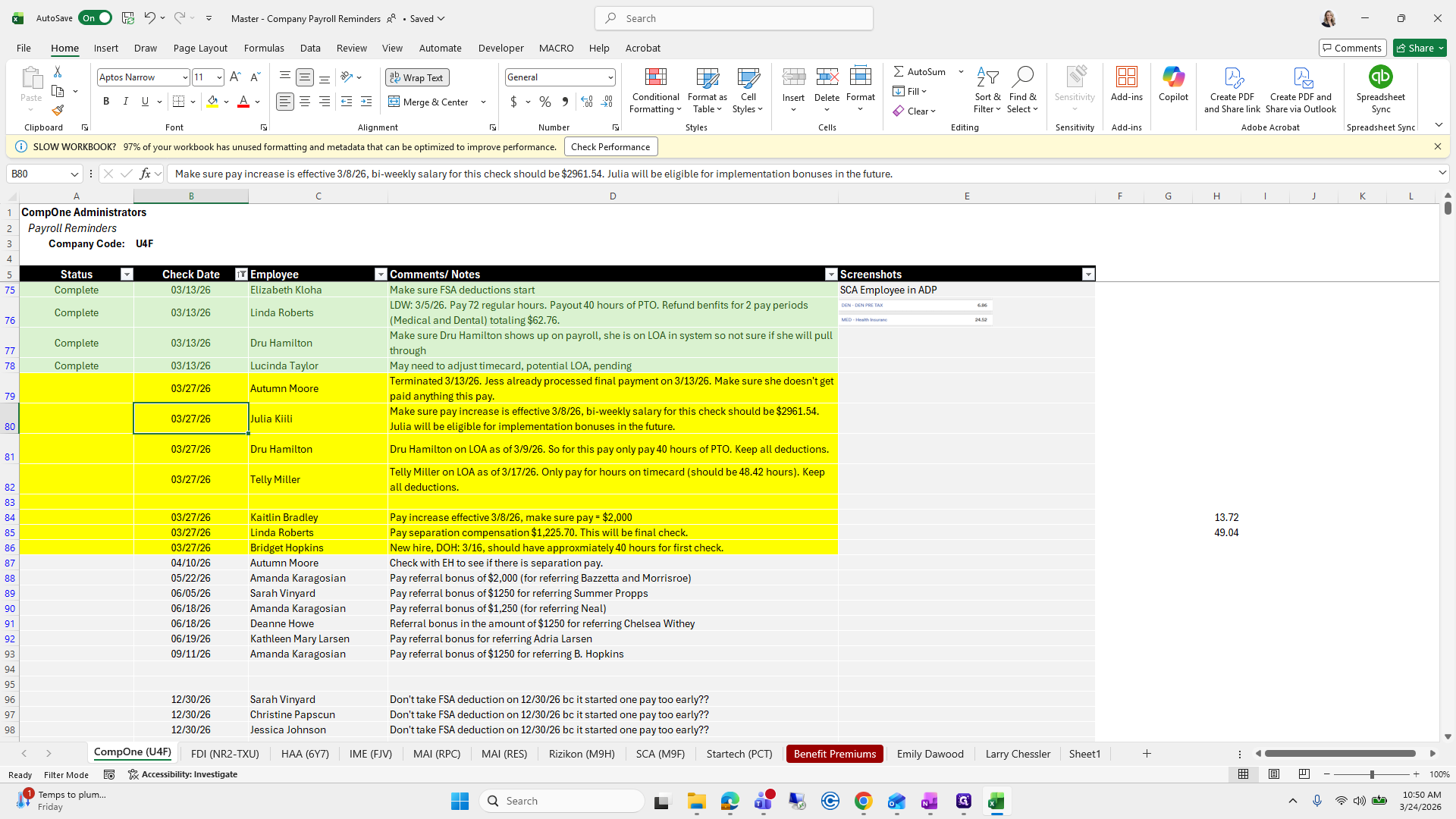
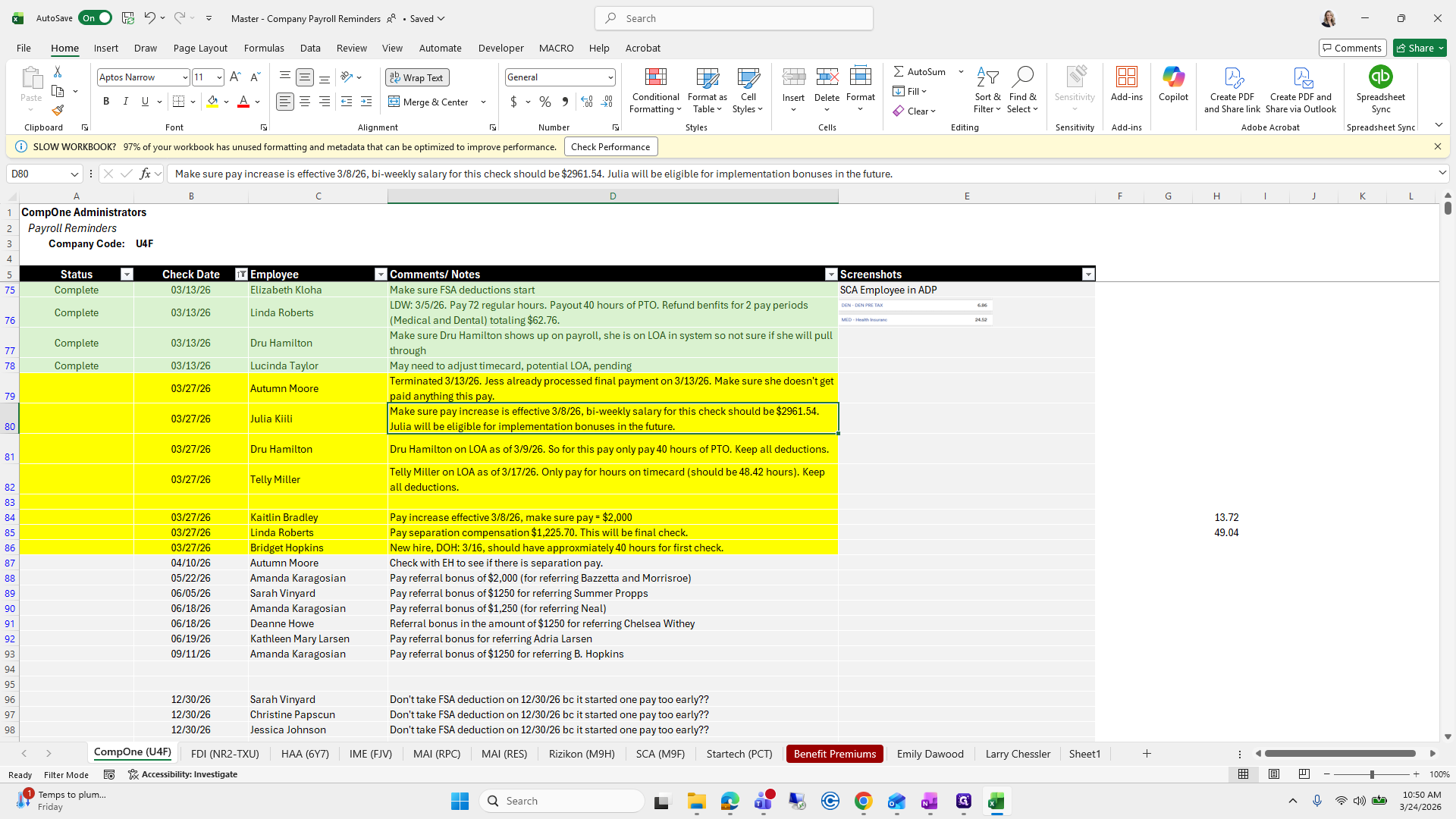
My salary should be 2961.54, and she will be eligible. We need to ensure her salary on this check is $2,961.54.
39
Click on "Julia Kiili"
Step #39: Click on "Julia Kiili"
40
Click on "-"
Step #40: Click on "-"

I will wait until I am processing payroll and reviewing the reports at the end.
41
Click on "- weekly salary for this check should be $ 2961.54"
Step #41: Click on "- weekly salary for this check should be $ 2961.54"
42
Click on "effective 3/8/26"
Step #42: Click on "effective 3/8/26"

Jeremy Hamilton, leave of absence.

43
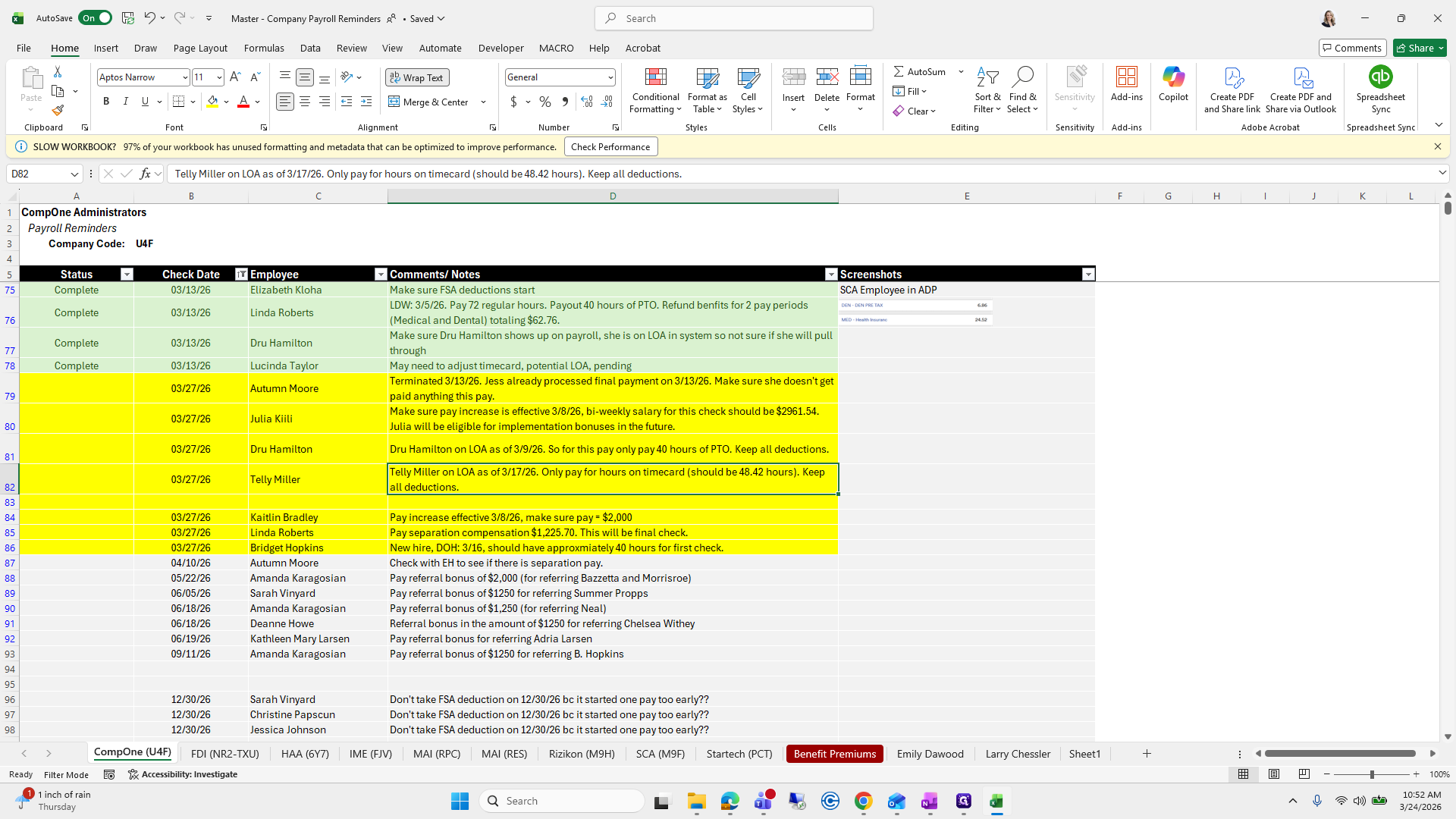
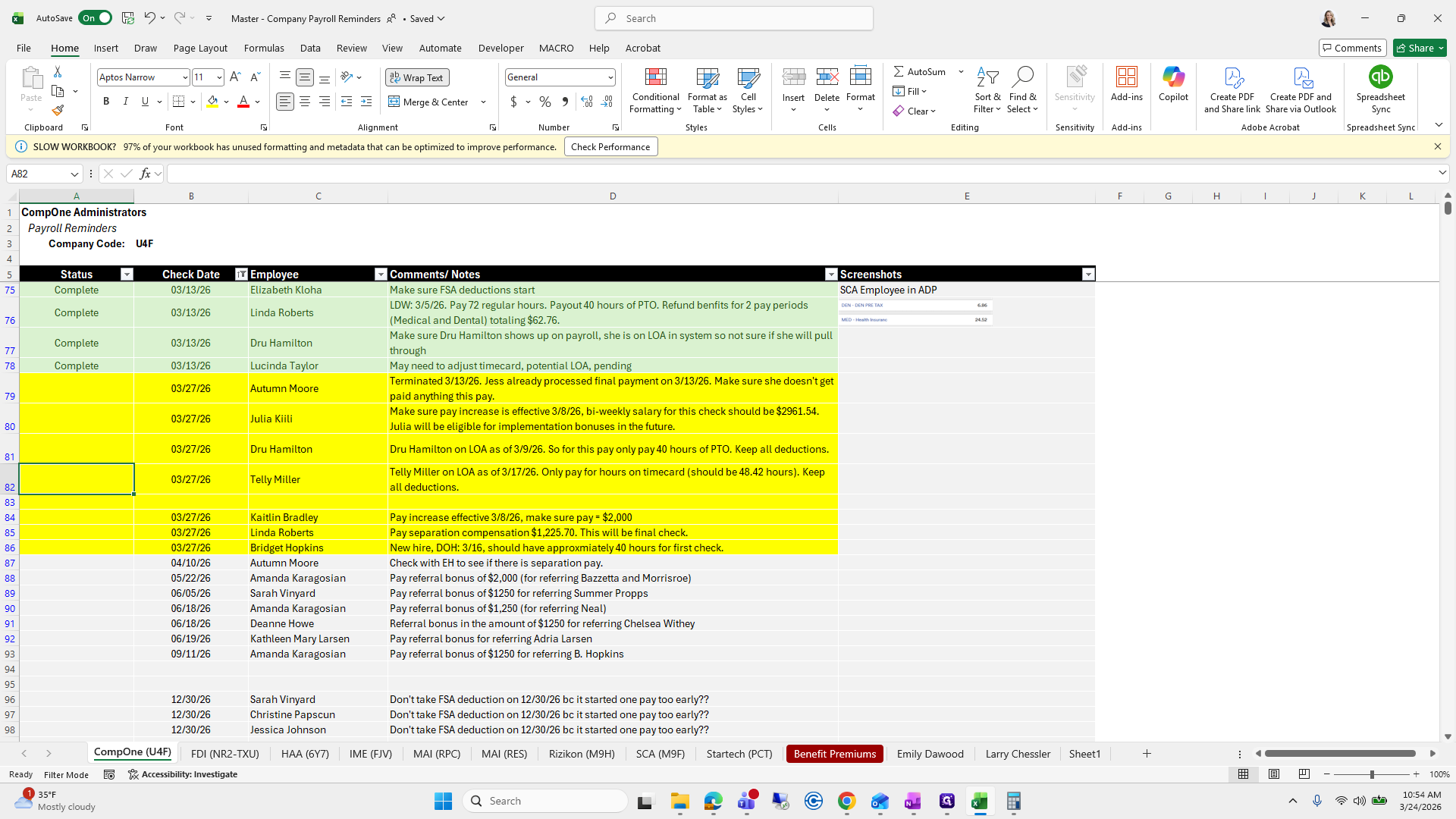
Click on "Telly Miller on LOA as of 3/17/26"
Step #43: Click on "Telly Miller on LOA as of 3/17/26"

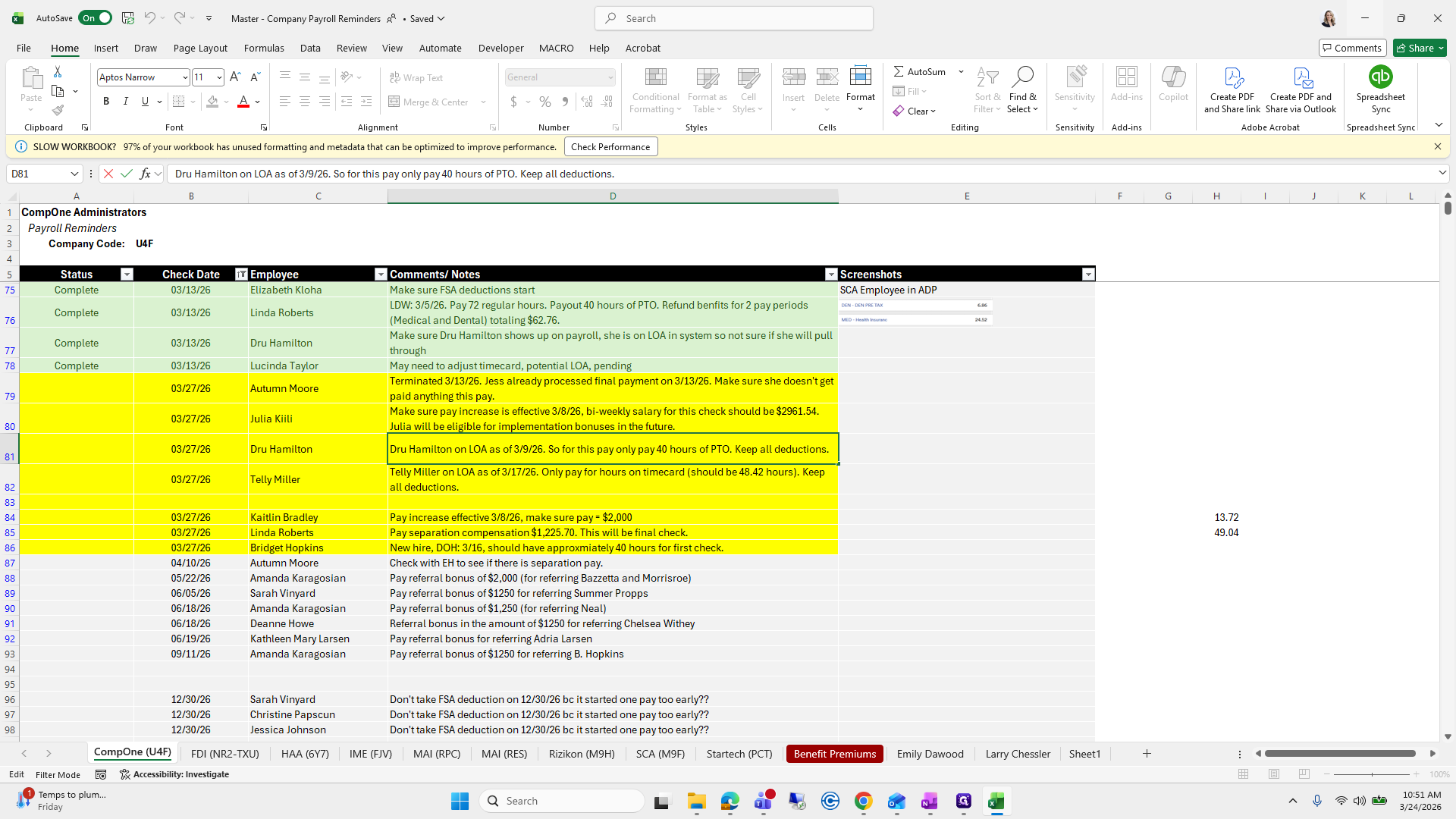
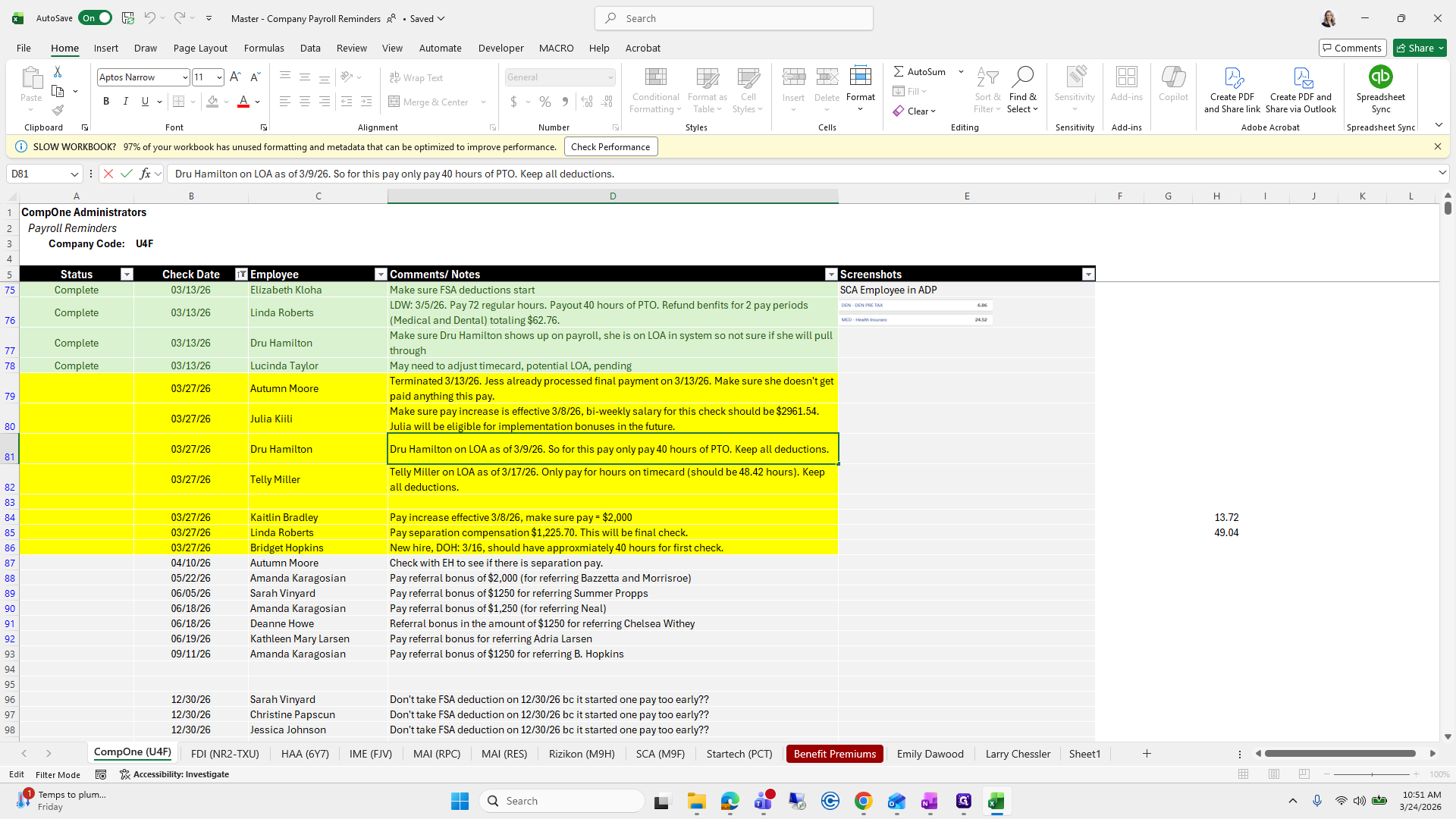
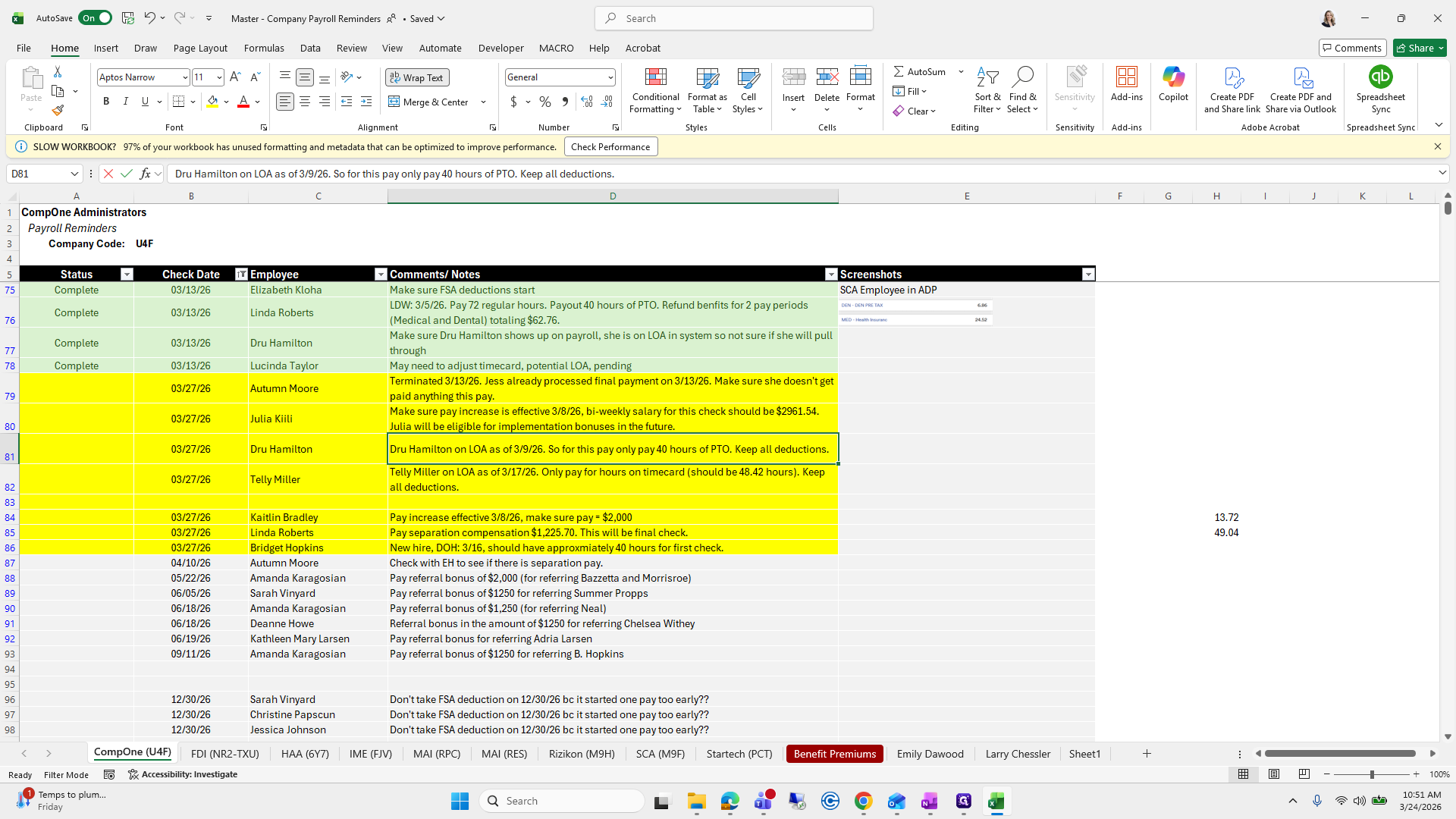
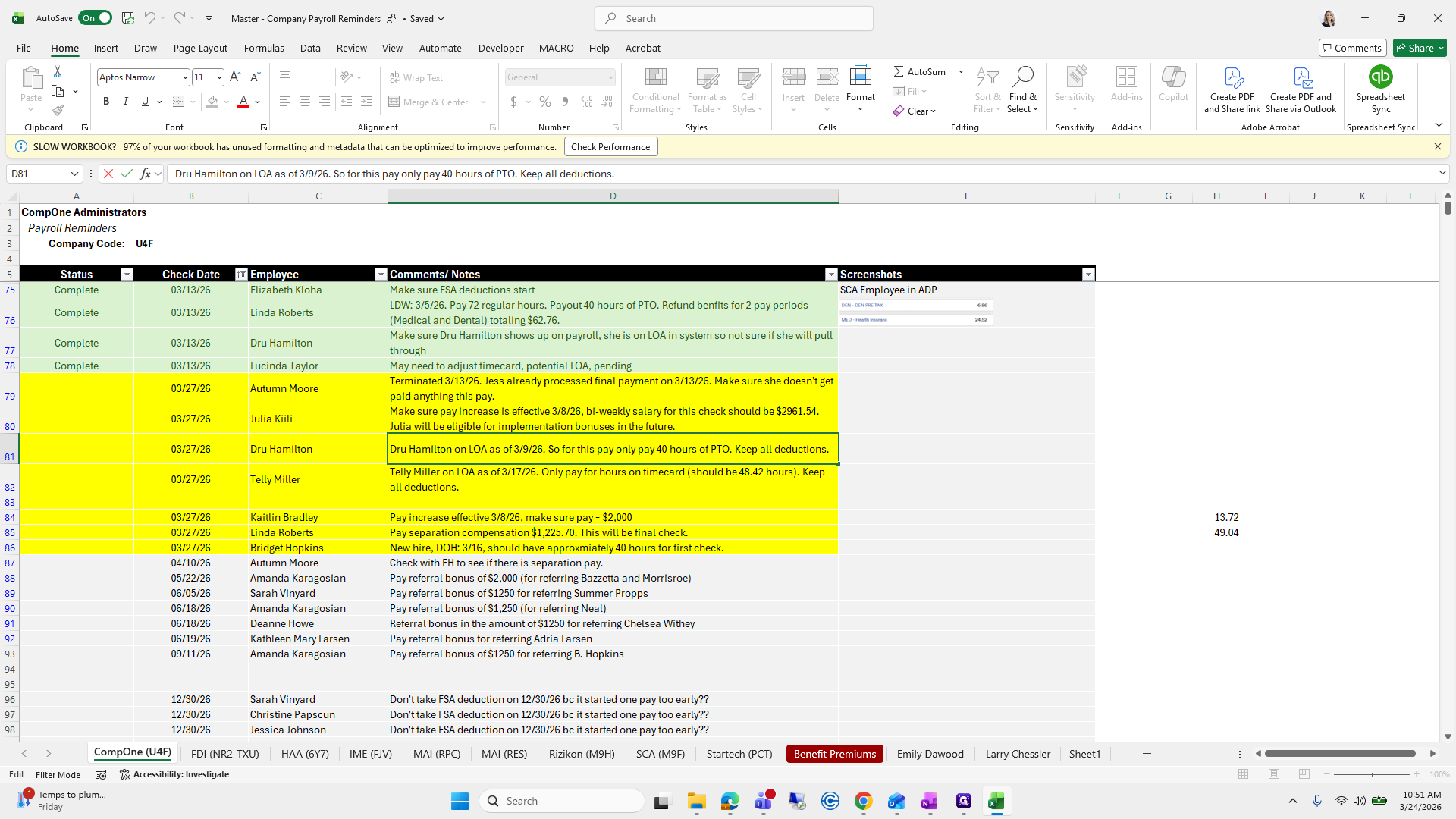
We need to ensure this pay includes only 40 hours of PTO and that all deductions are maintained. I will wait to double-check the deductions section when payroll is processed.
44
Double-click on "."
Step #44: Double-click on "."
45
Drag "Keep all deductions"
Step #45: Drag "Keep all deductions"

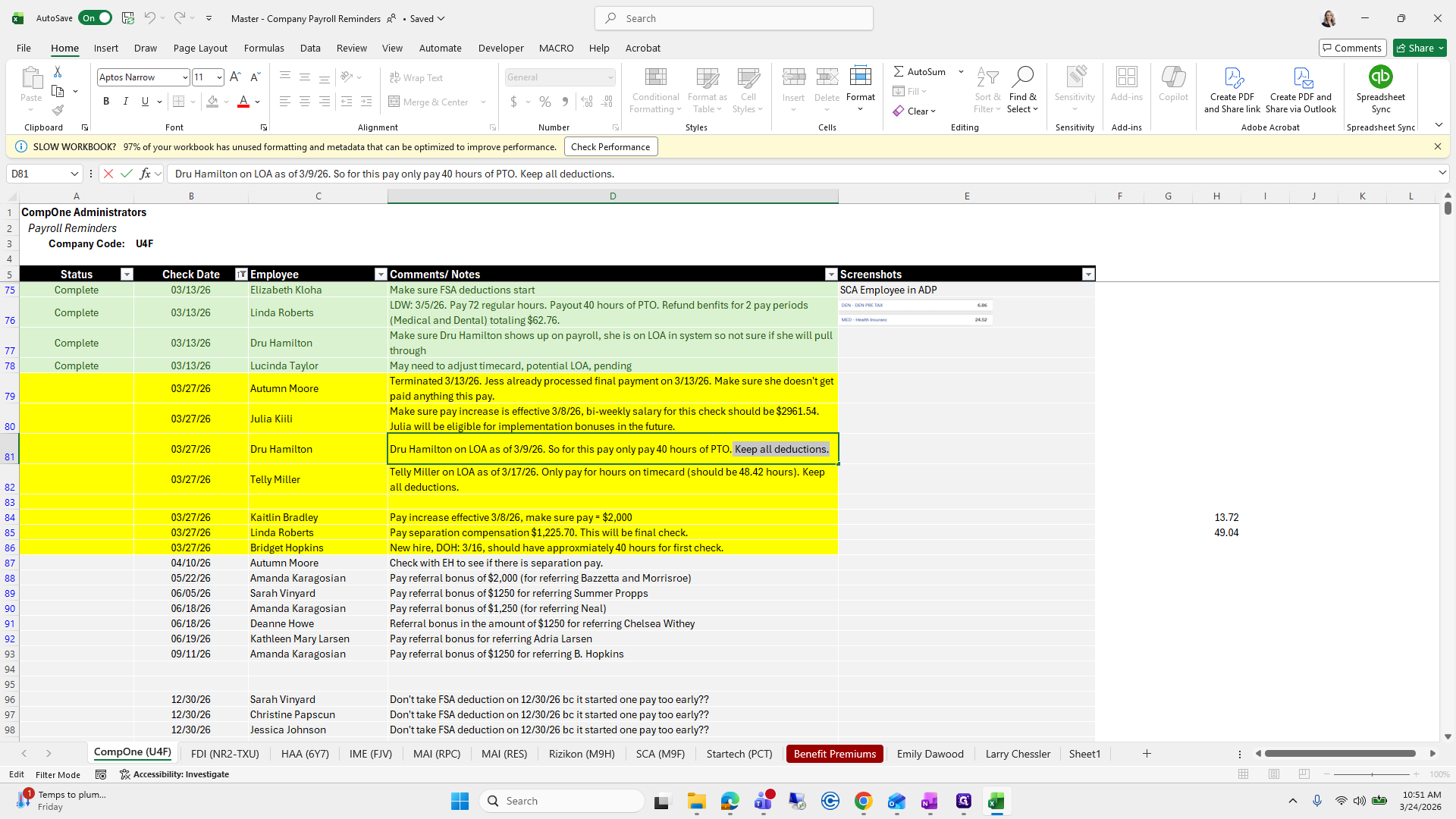
I will find Drew Hamilton and ensure that only 40 hours of PTO are applied.
46
Click on "Dru Hamilton on LOA as of 3/9/26"
Step #46: Click on "Dru Hamilton on LOA as of 3/9/26"

I'm going back.

47
Click here
Step #47: Click here

I am going to look for Drew Hamilton.
48
Click on "90"
Step #48: Click on "90"

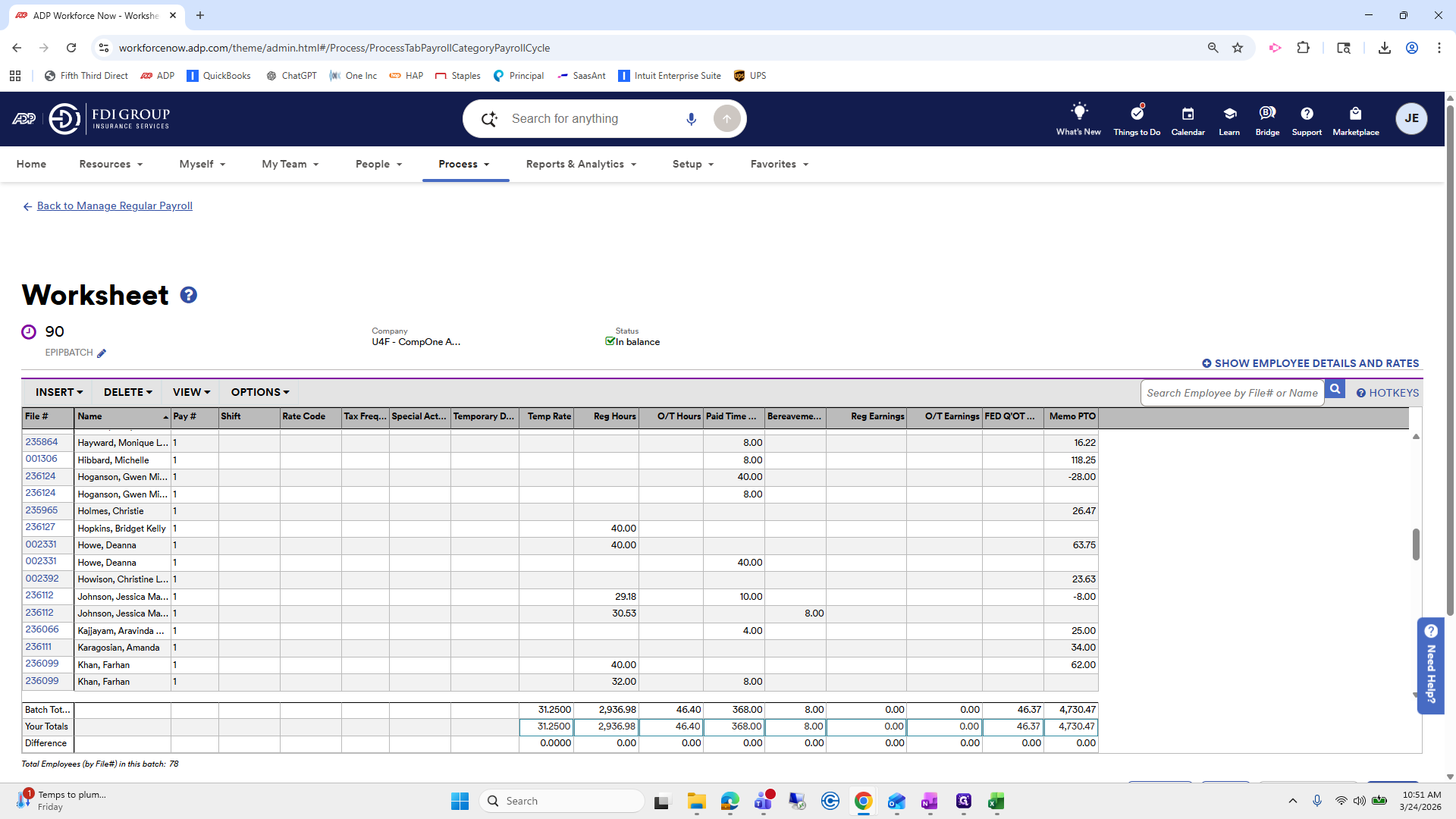
Another way is to type names instead of scrolling.
49
Click on "Search Employee by File # or Name"
Step #49: Click on "Search Employee by File # or Name"

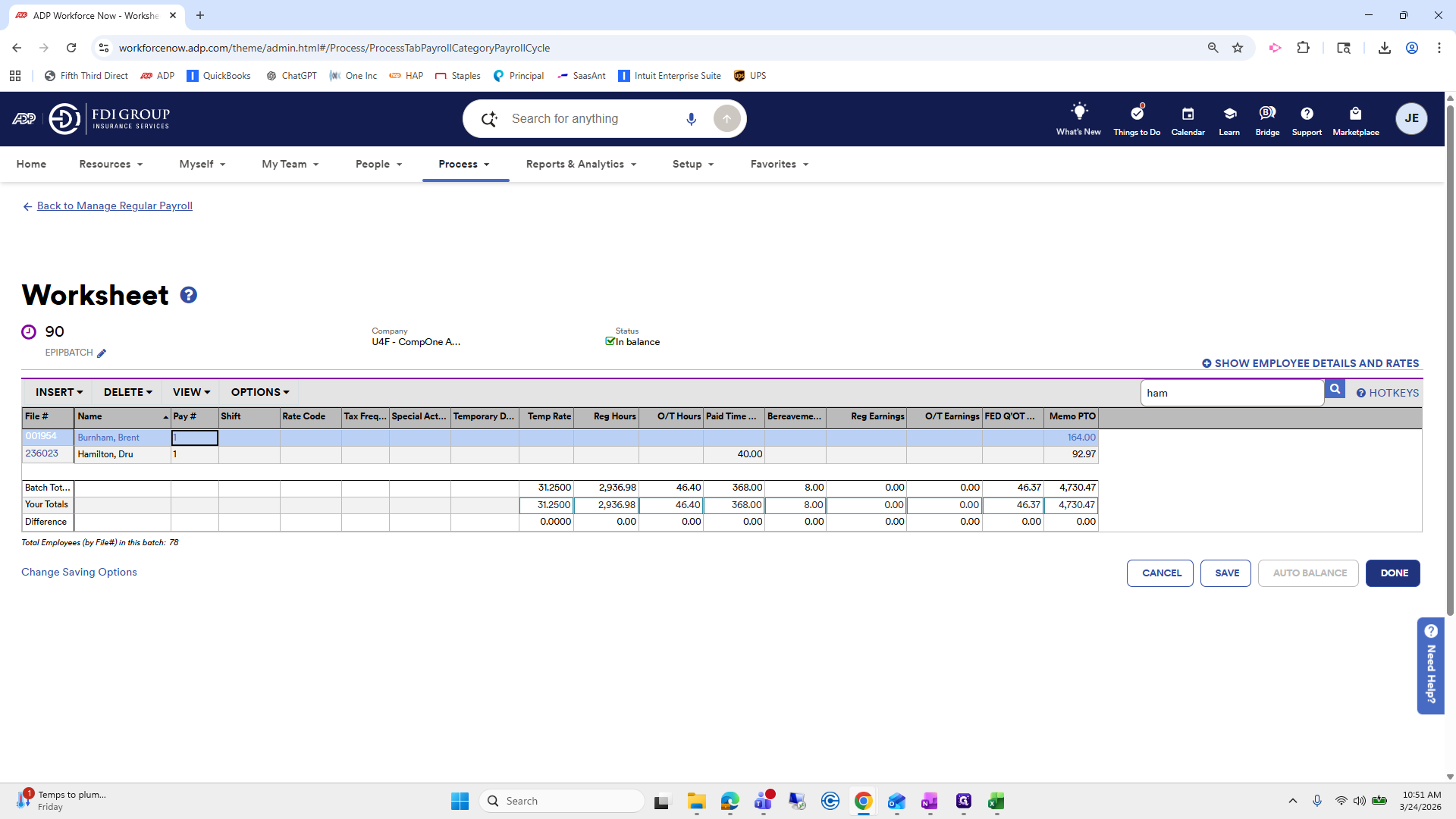
Drew Hamilton. There are already 40 hours of PTO here, so I don't need to add anything manually.
50
Type "ham"
51
Click on "DONE"
Step #51: Click on "DONE"

Okay.

52
Click here
Step #52: Click here
53
Click on "Make sure pay increase is effective 3/8/26 , bi - weekly salary for this check should be $ 2961.54 . Julia will be eligible for implementation bonuses in the future ."
Step #53: Click on "Make sure pay increase is effective 3/8/26 , bi - weekly salary for this check should be $ 2961.54 . Julia will be eligible for implementation bonuses in the future ."

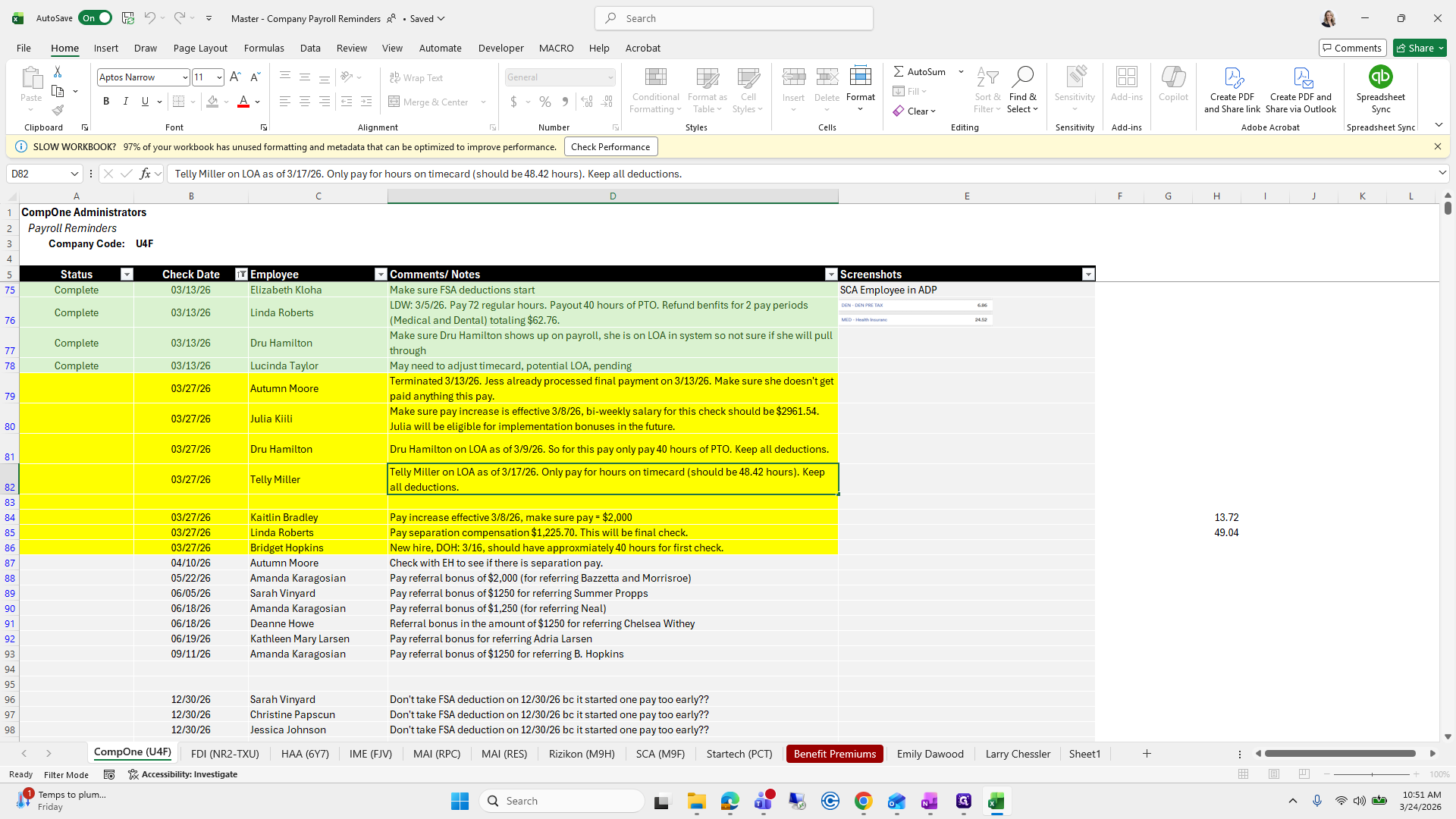
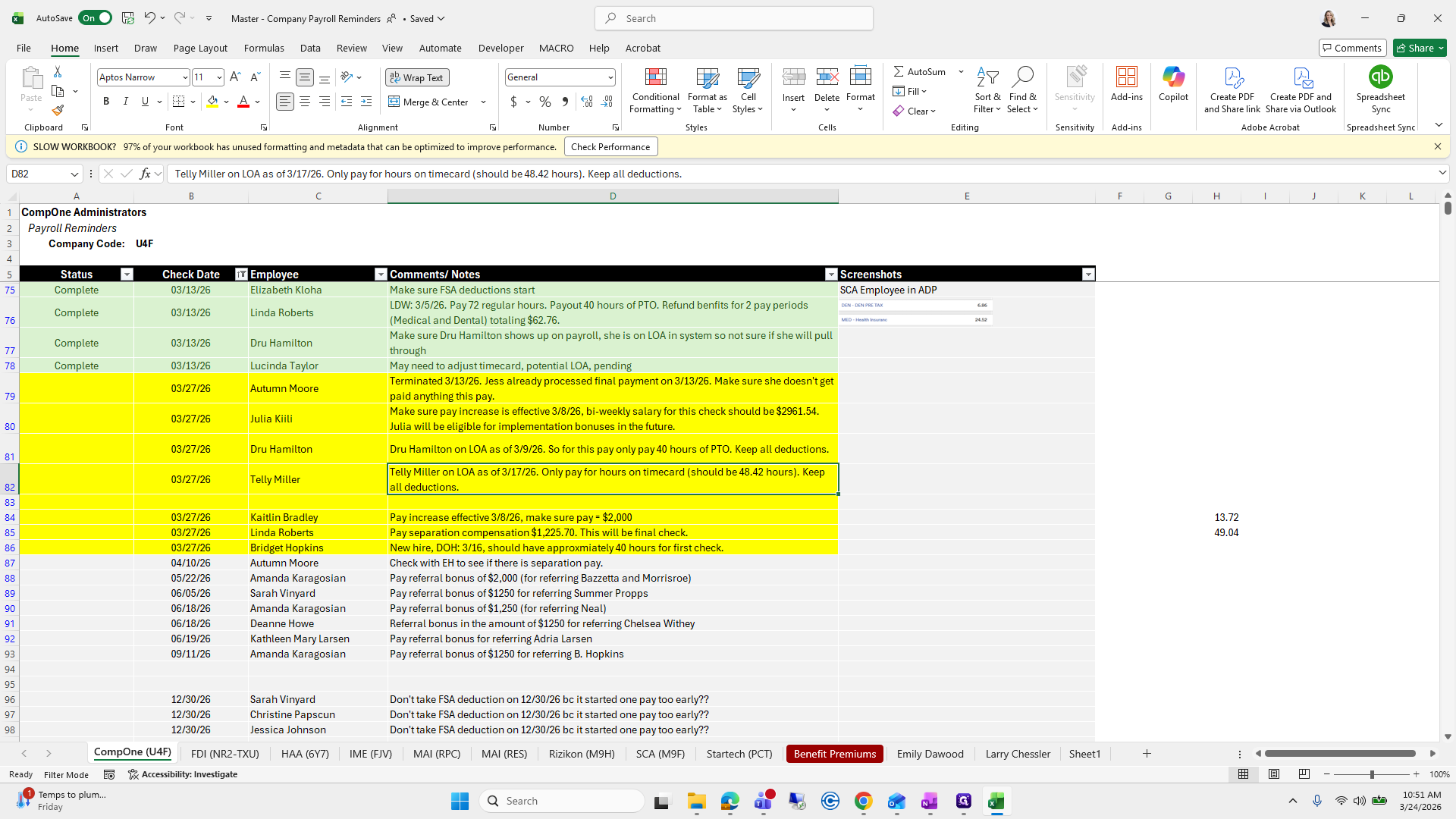
Telli Miller.

54
Click on "Miller on LOA as of 3/17/26"
Step #54: Click on "Miller on LOA as of 3/17/26"

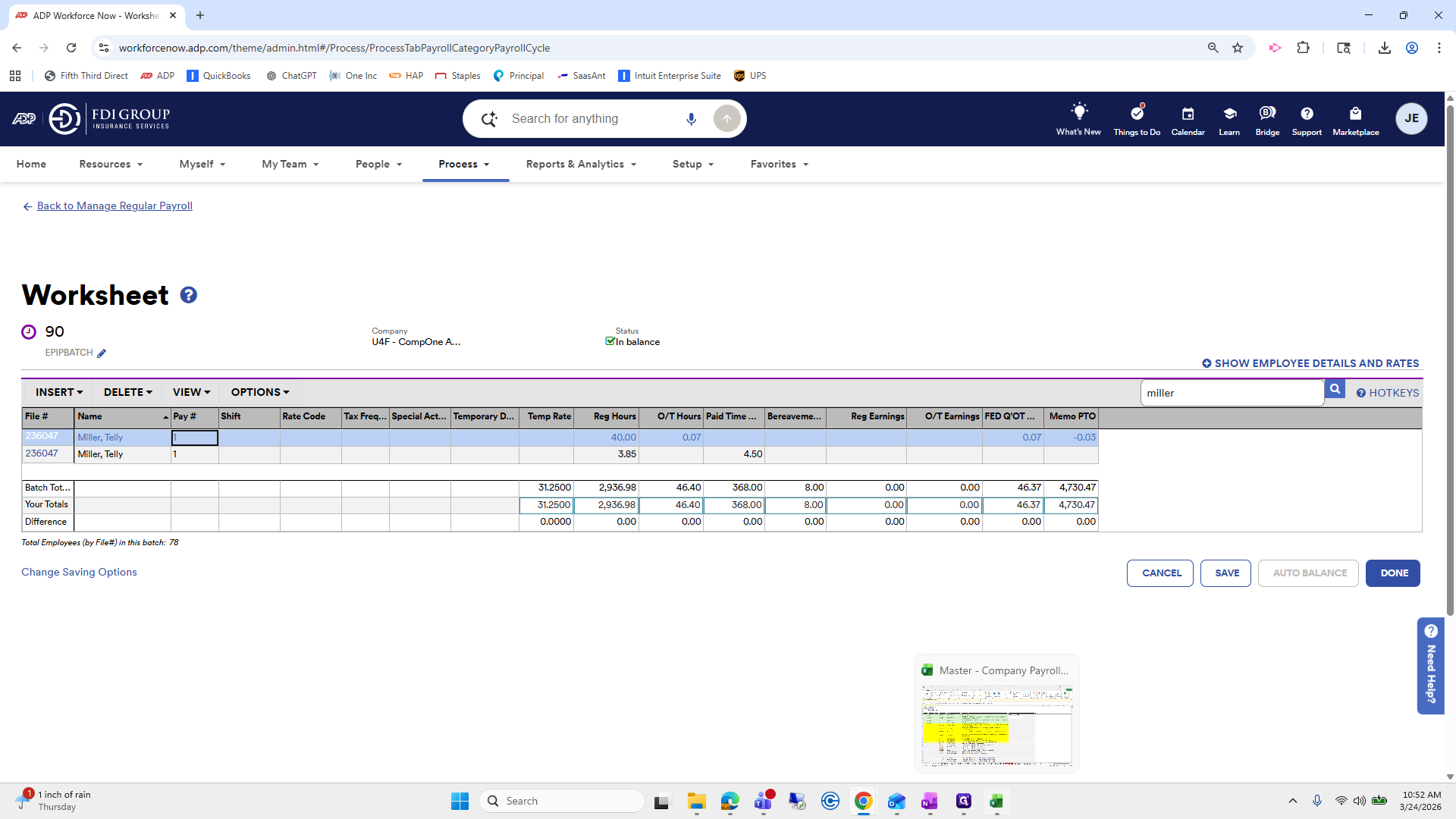
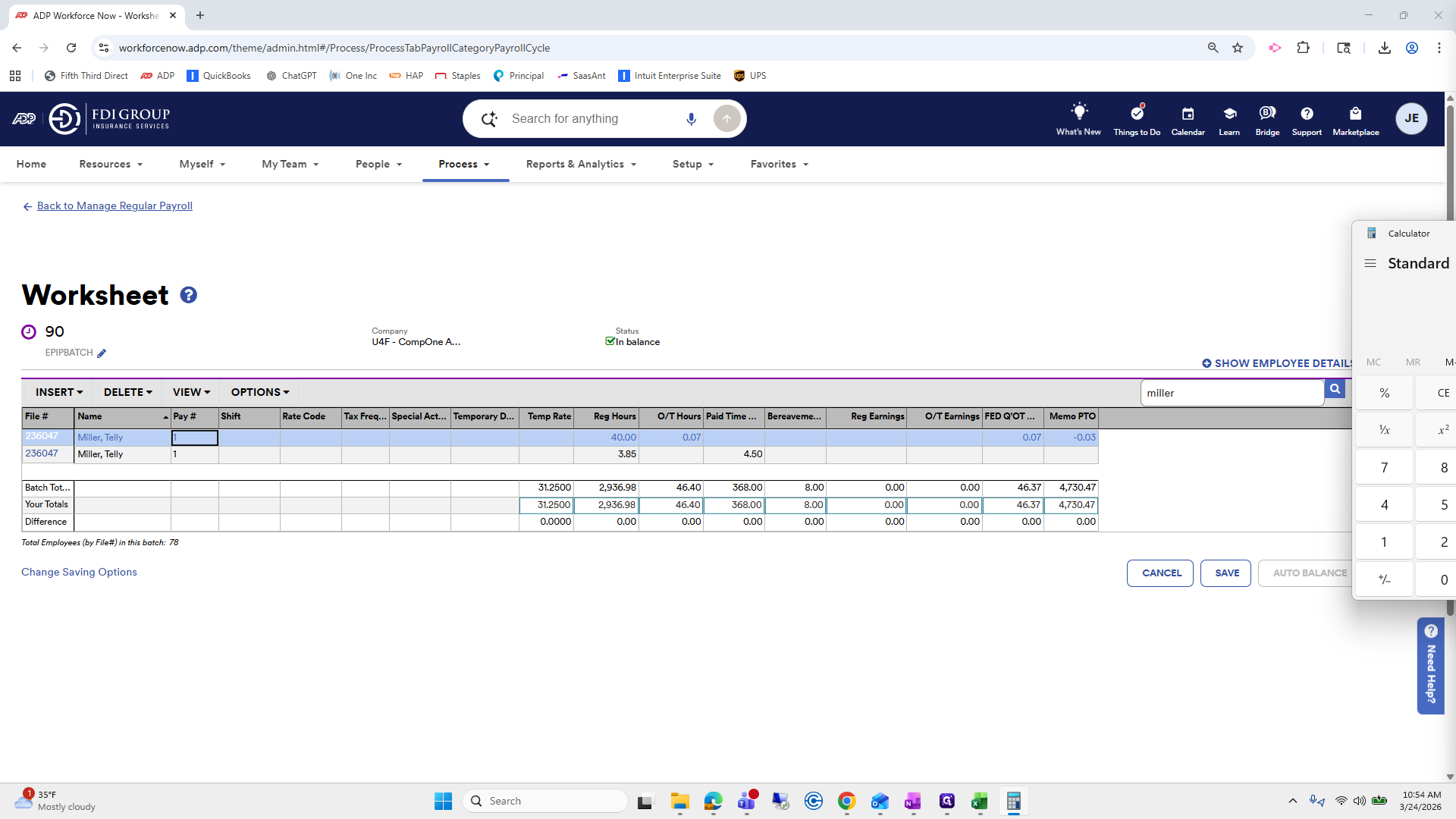
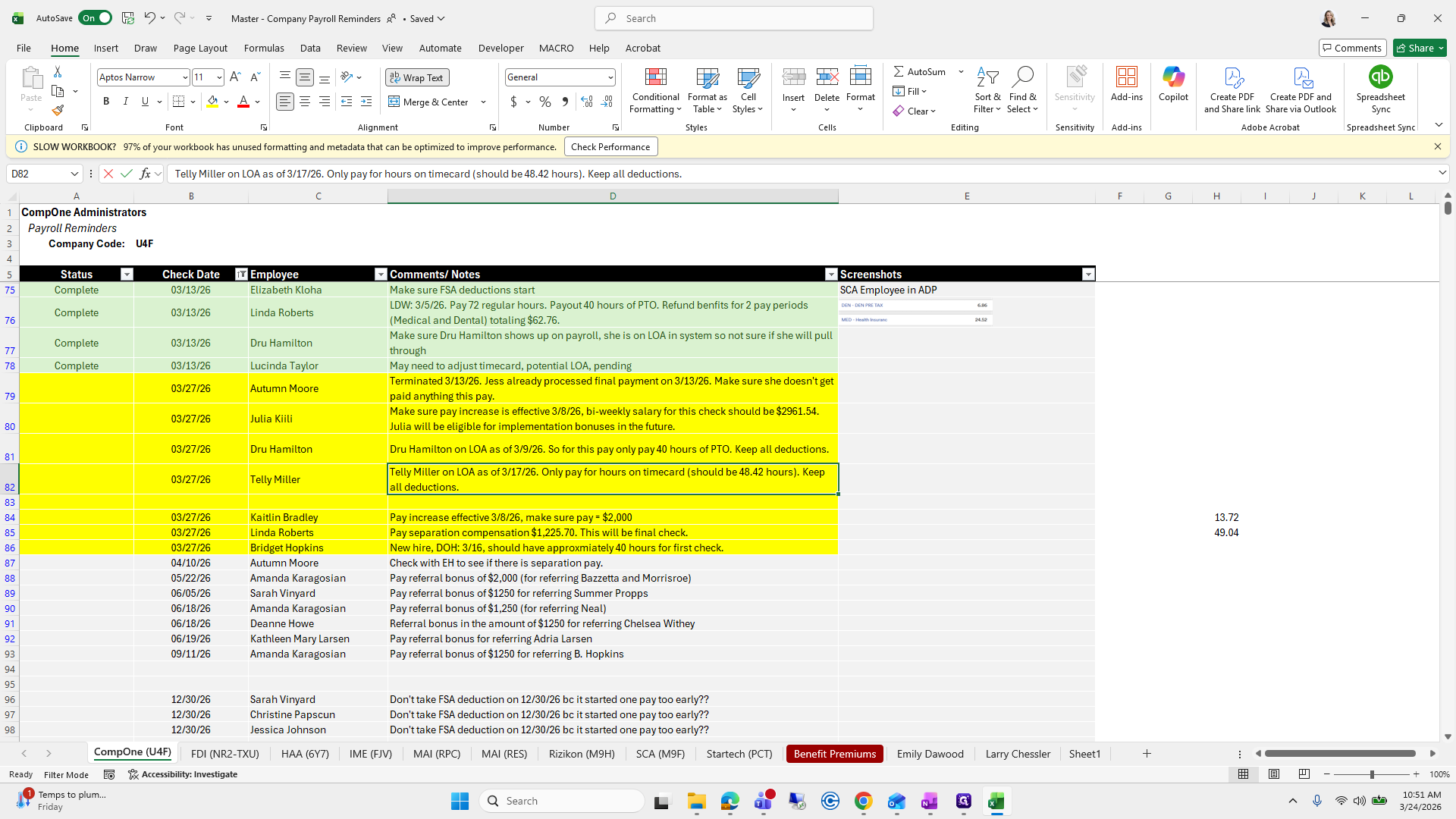
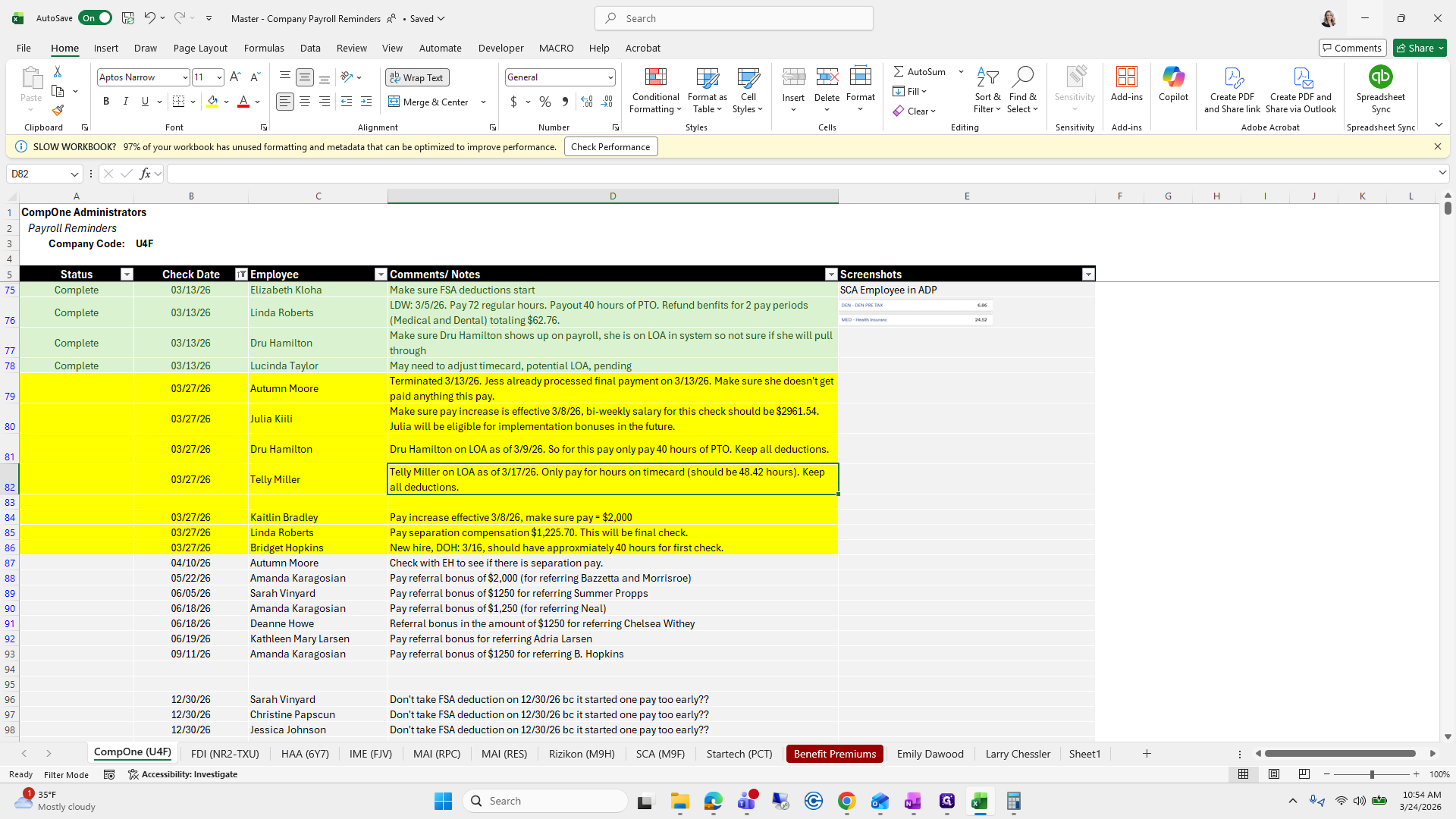
Only pay for hours recorded on the time card. It should be 48.42 hours. Keep deductions.
55
Click on "Keep"
Step #55: Click on "Keep"

For the keep deductions section, I will wait until we are processing payroll.
56
Double-click on "."
Step #56: Double-click on "."
57
Click on "13.72"
Step #57: Click on "13.72"
58
Click here
Step #58: Click here

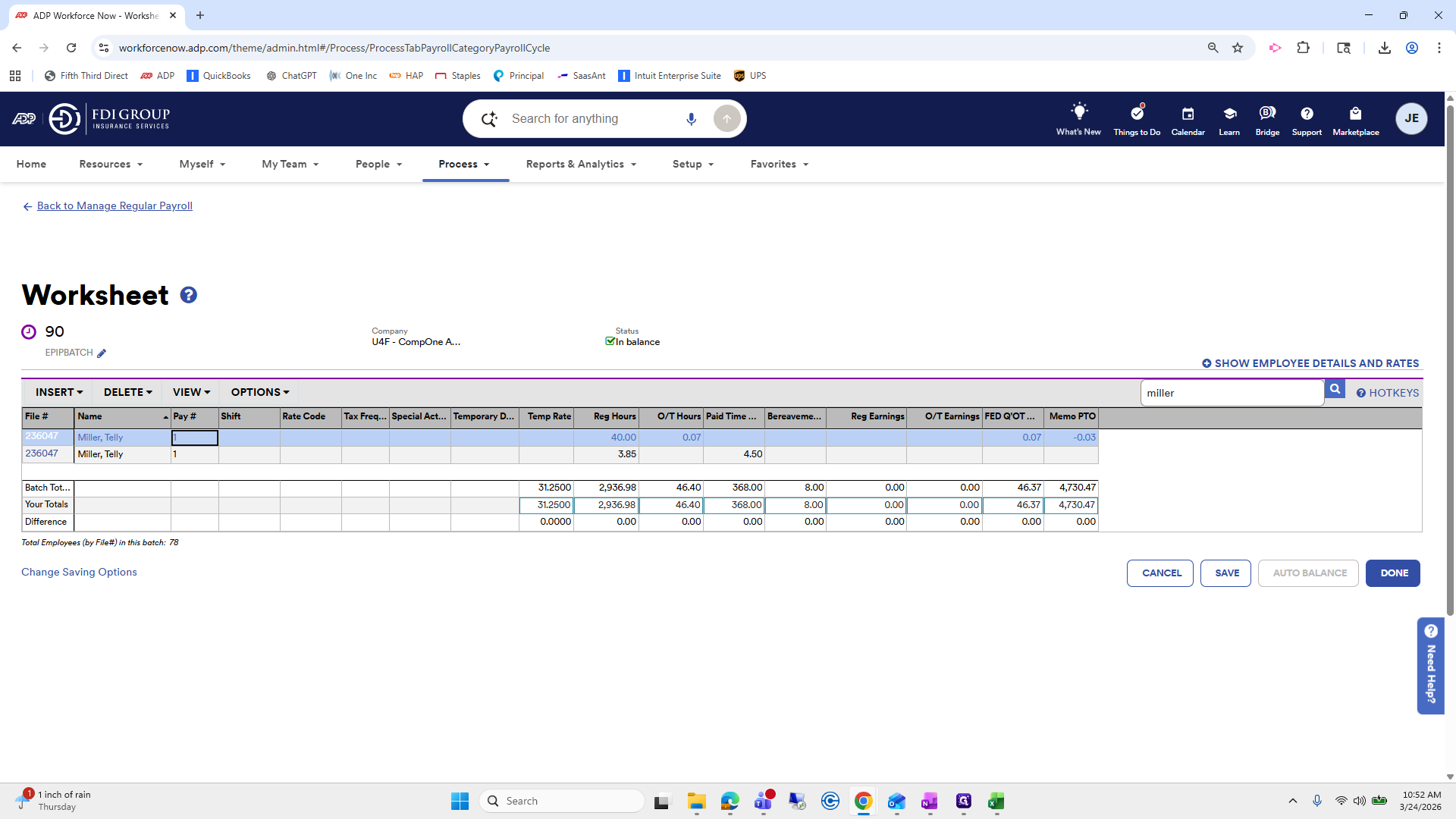
We will look up Telli Miller.

59
Click here
Step #59: Click here

And there is...

60
Click here
Step #60: Click here
61
Click on "90"
Step #61: Click on "90"
62
Click on "Search Employee by File # or Name"
Step #62: Click on "Search Employee by File # or Name"

""

63
Type "miller"
64
Click here
Step #64: Click here
65
Click here
Step #65: Click here

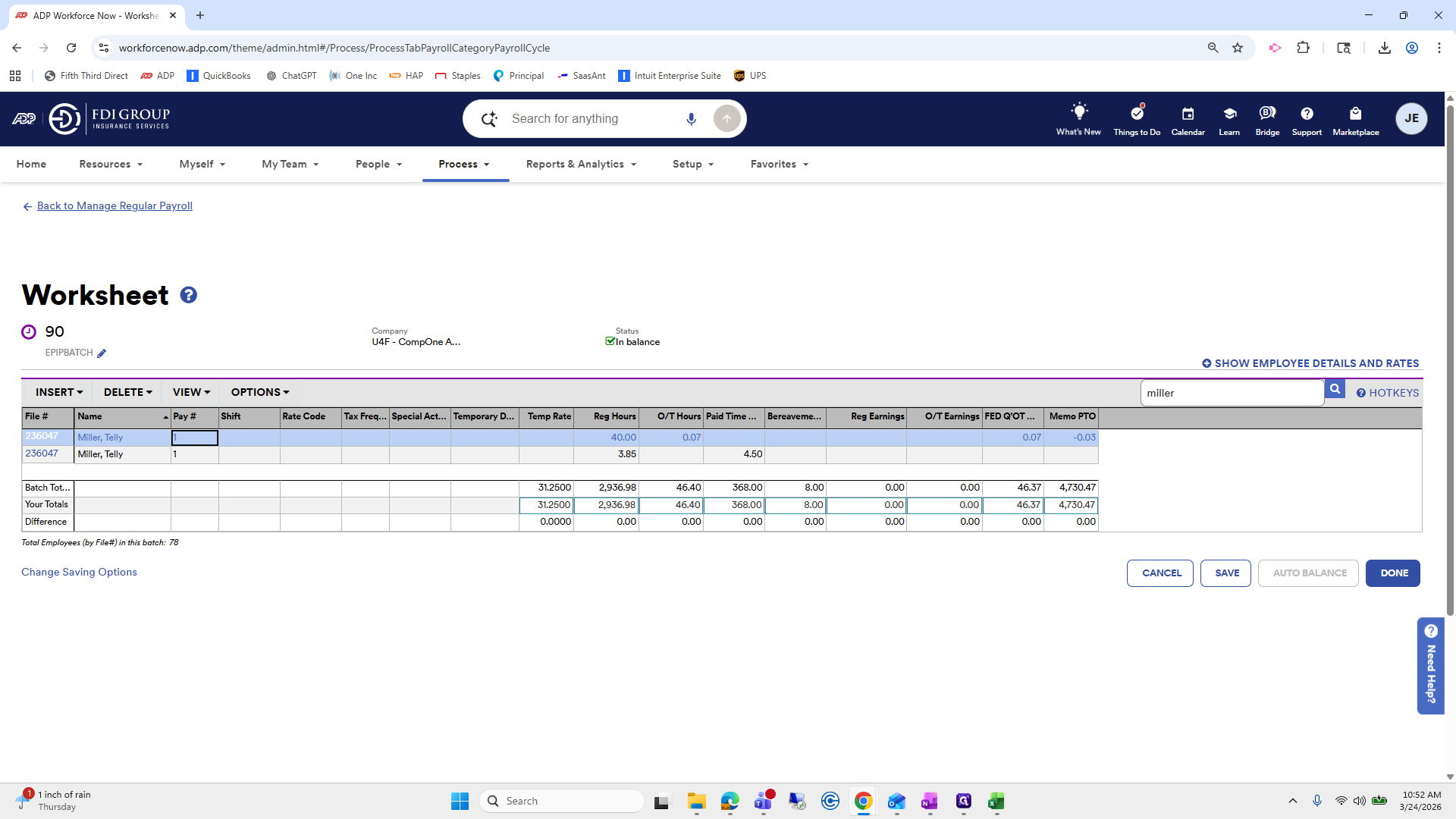
I'll add this quickly. 43... Not sure if they should have overtime. So, in this...
66
Click here
Step #66: Click here

The computer screen keeps blacking out. My screen keeps blacking out, but it probably didn't for you. Okay. Well, we're gonna pause here...
67
Click on "Company"
Step #67: Click on "Company"

Because I just lost connection. Check the video cable and video source.

68
Type "Esc"

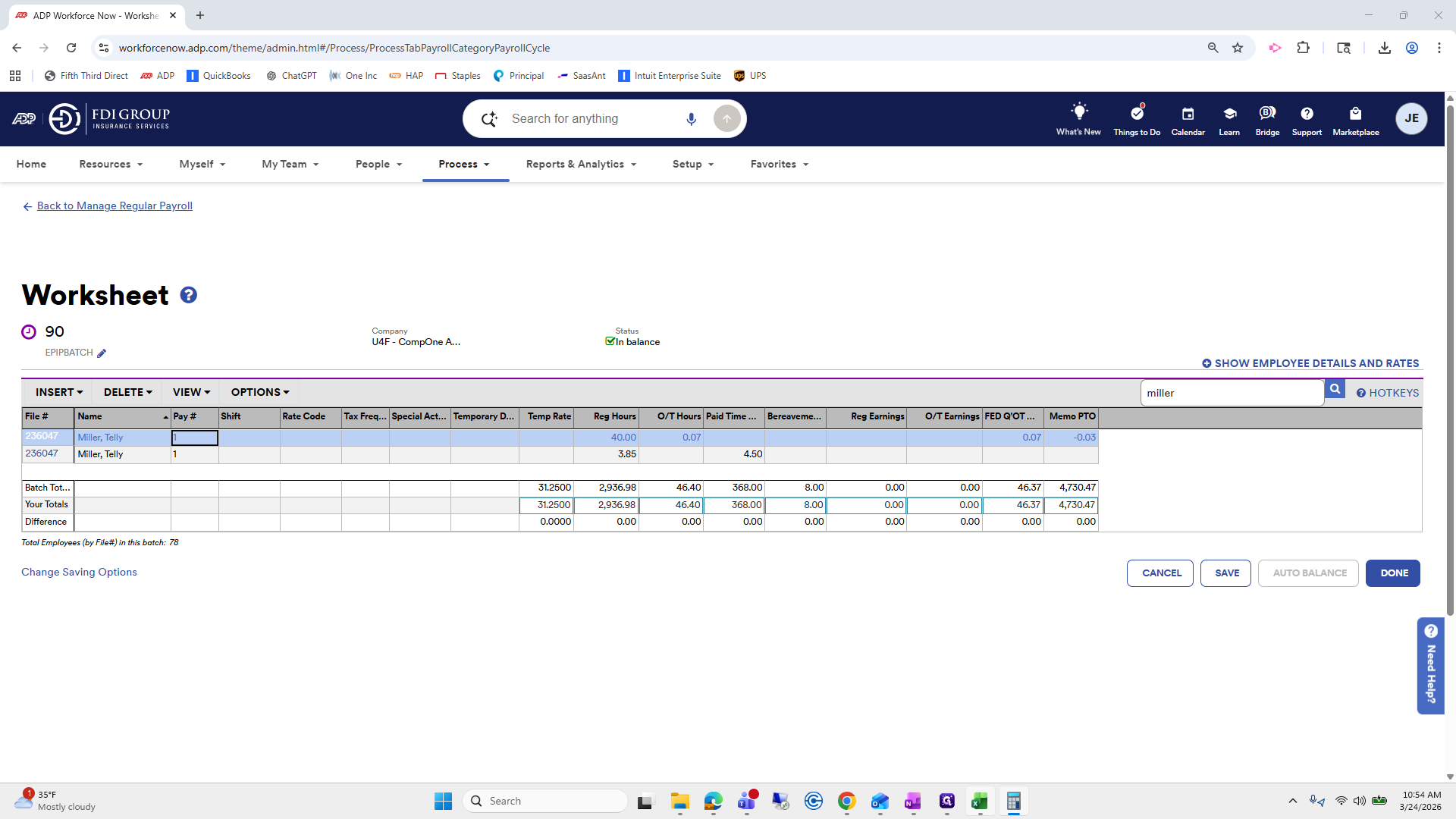
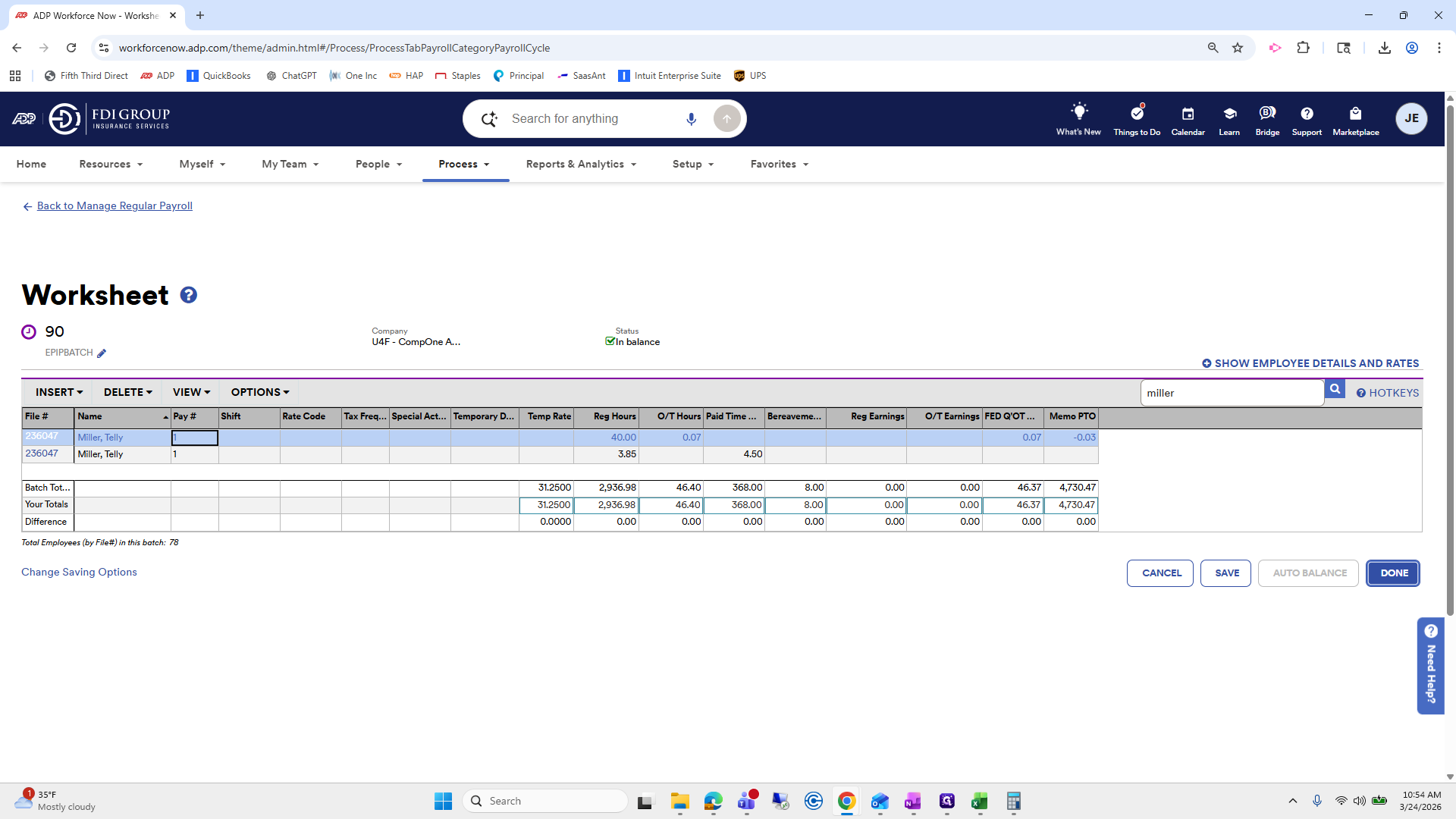
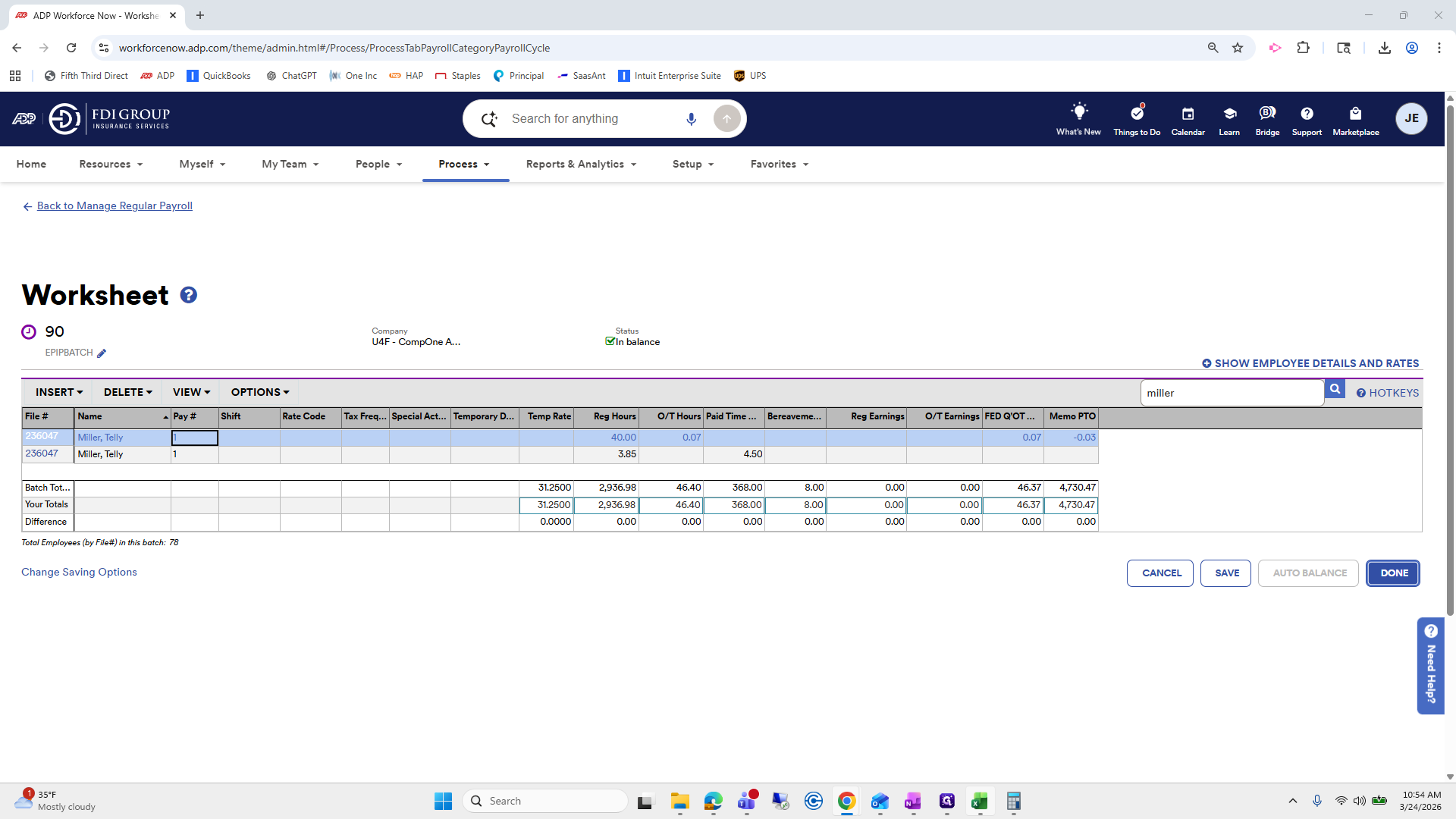
Okay. To continue, we added the hours to ensure they matched the 48.42 hours. I opened my calculator quickly, and it works, so we can press done. That looks good. I will not mark it complete until the payroll reports are available.

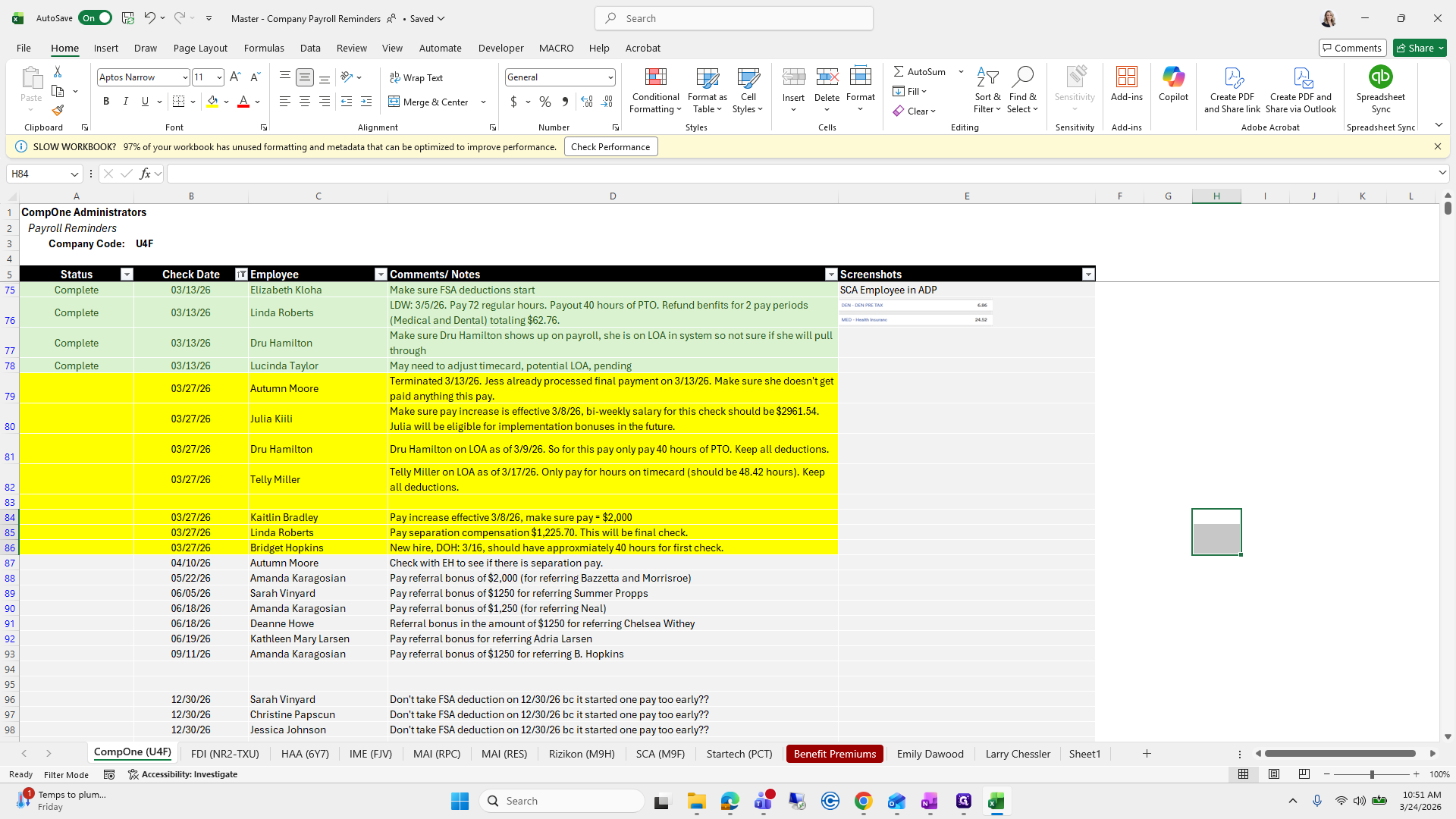
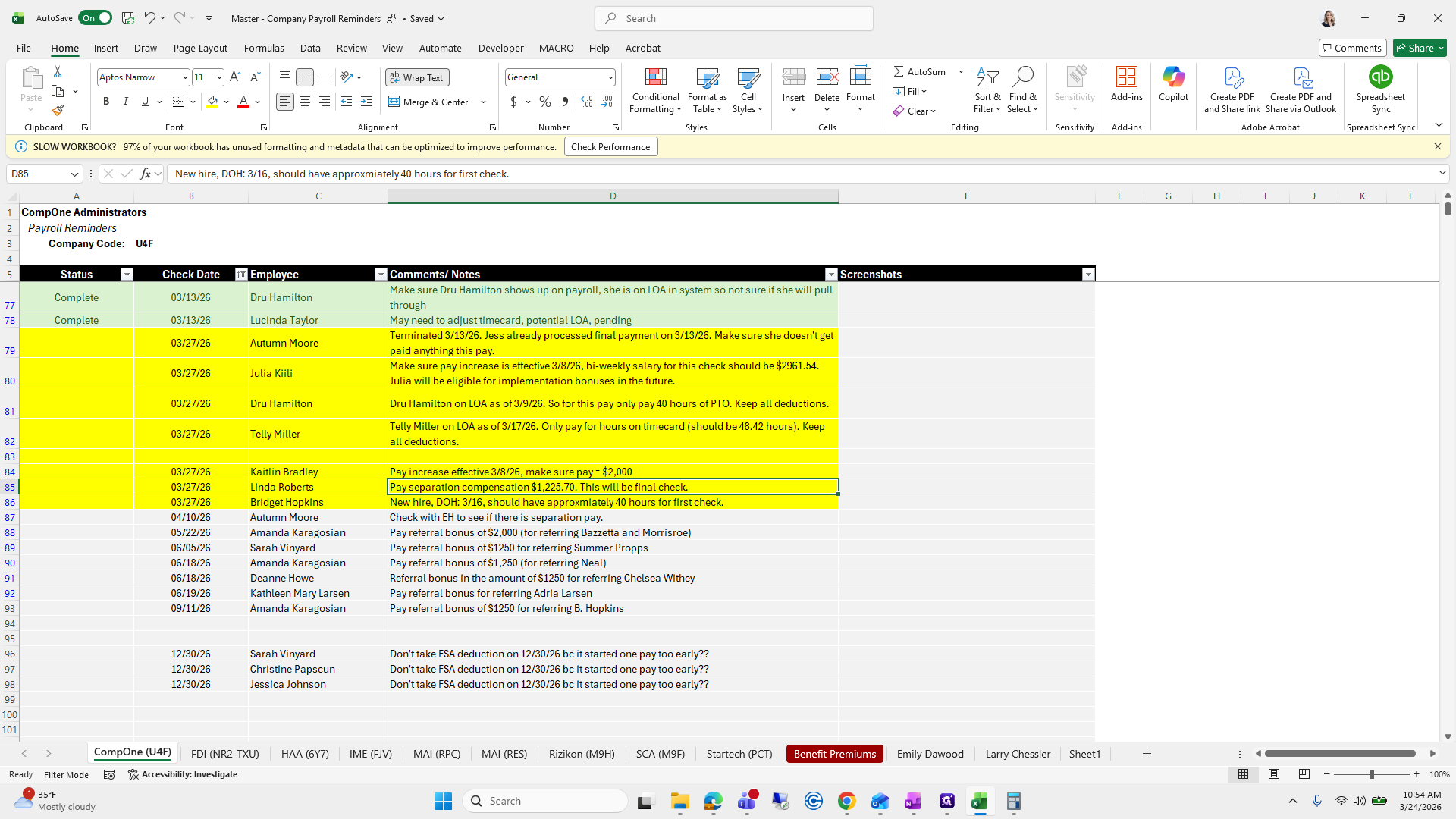
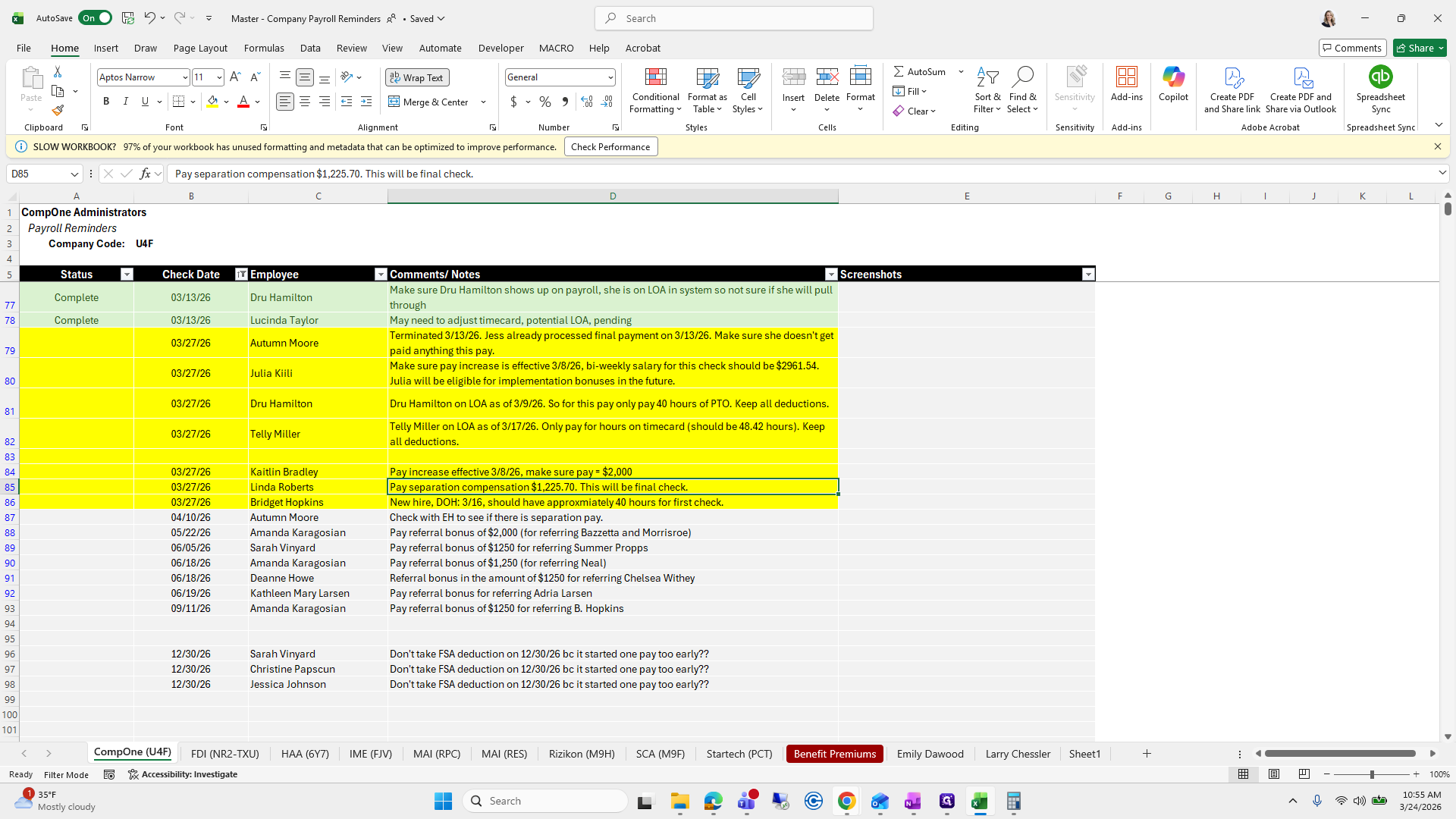
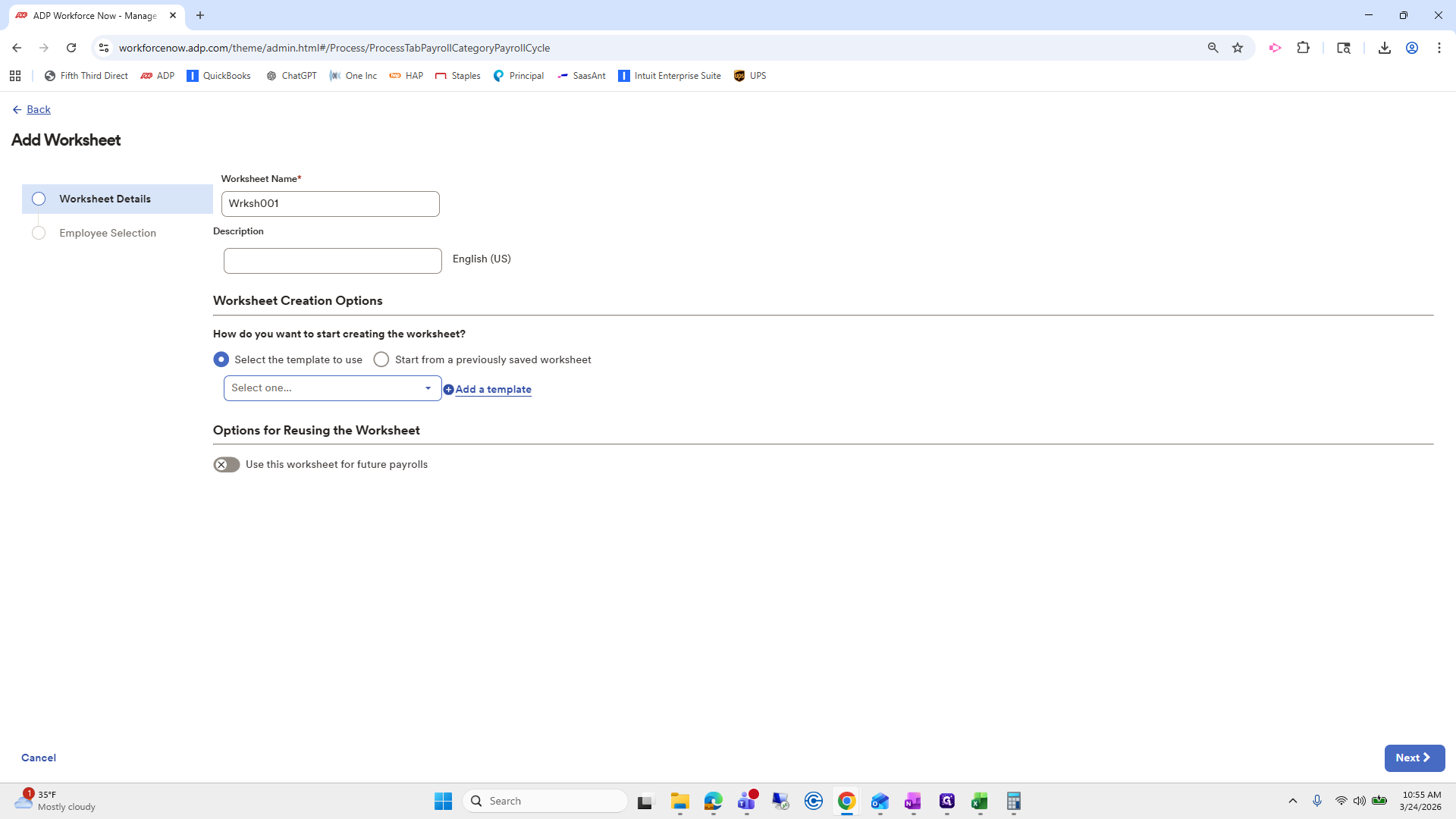
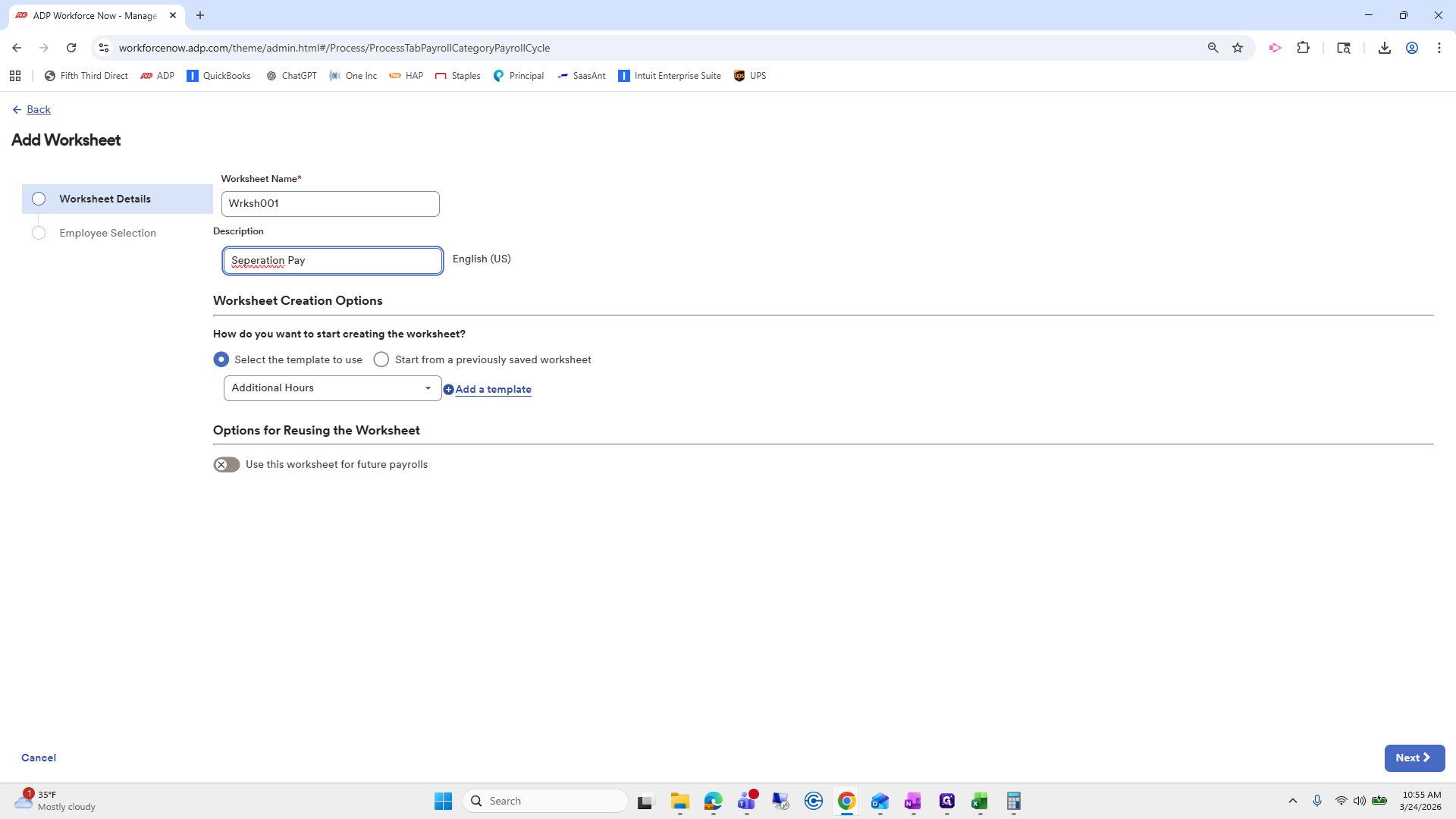
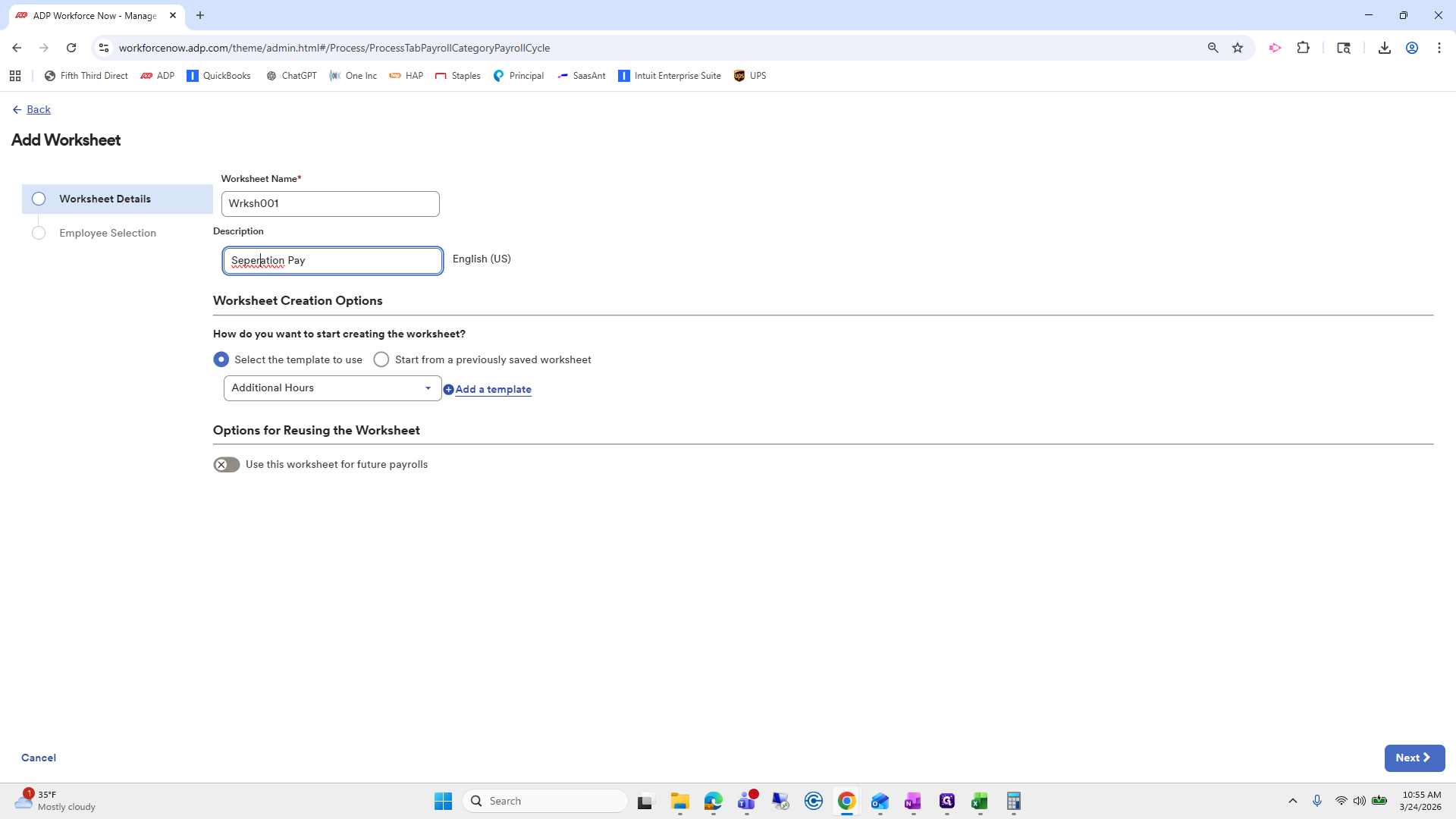
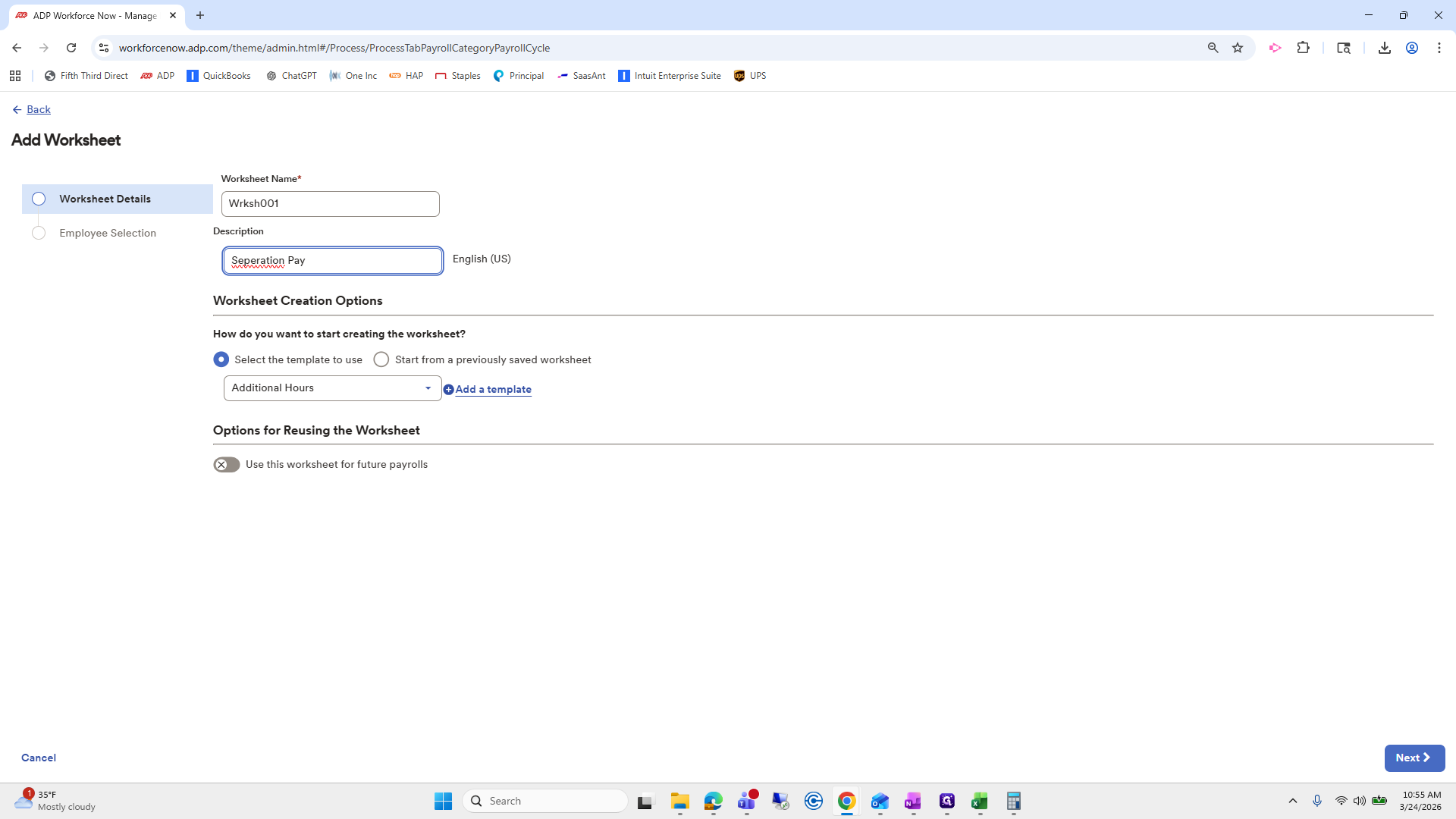
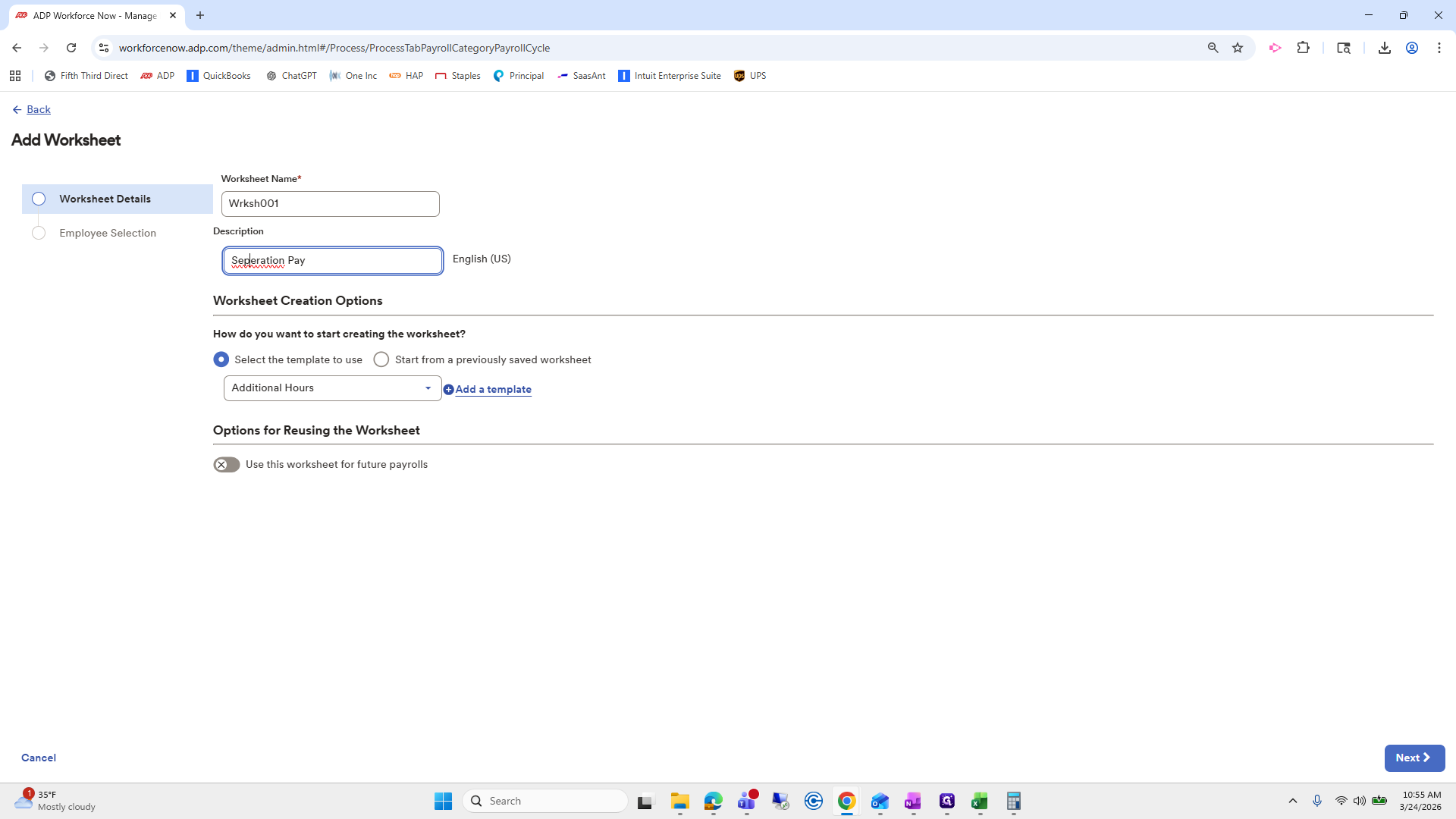
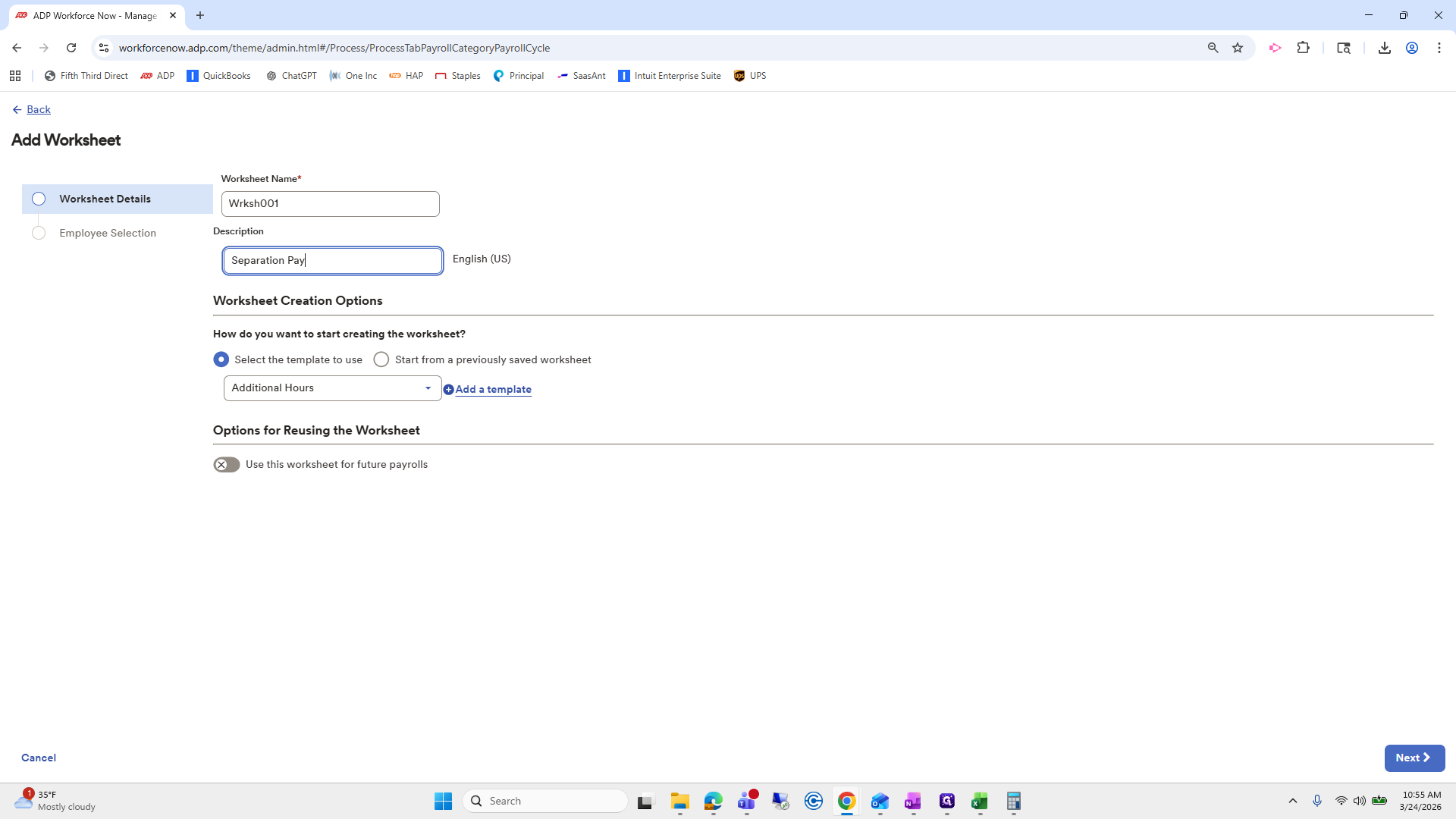
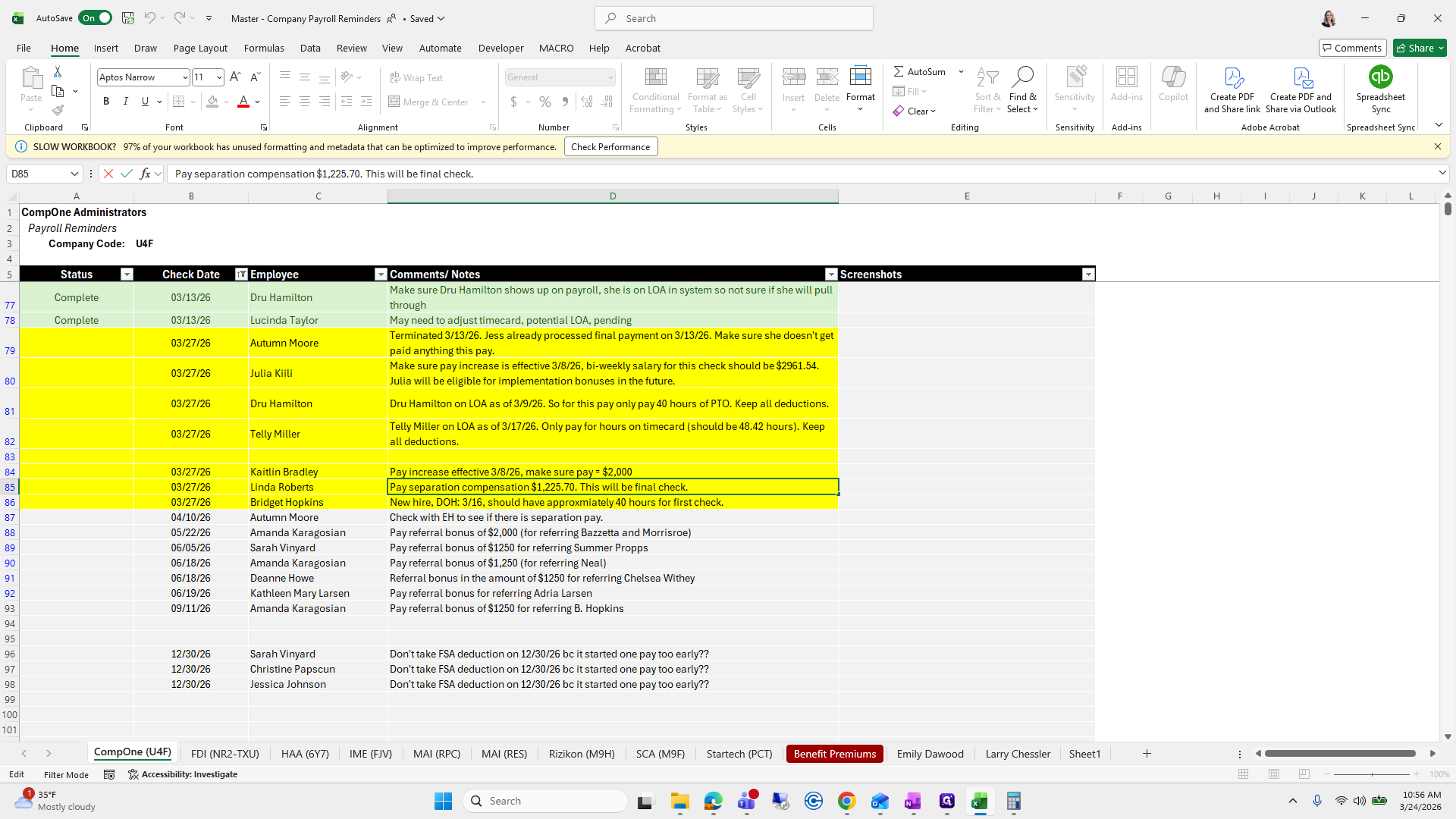
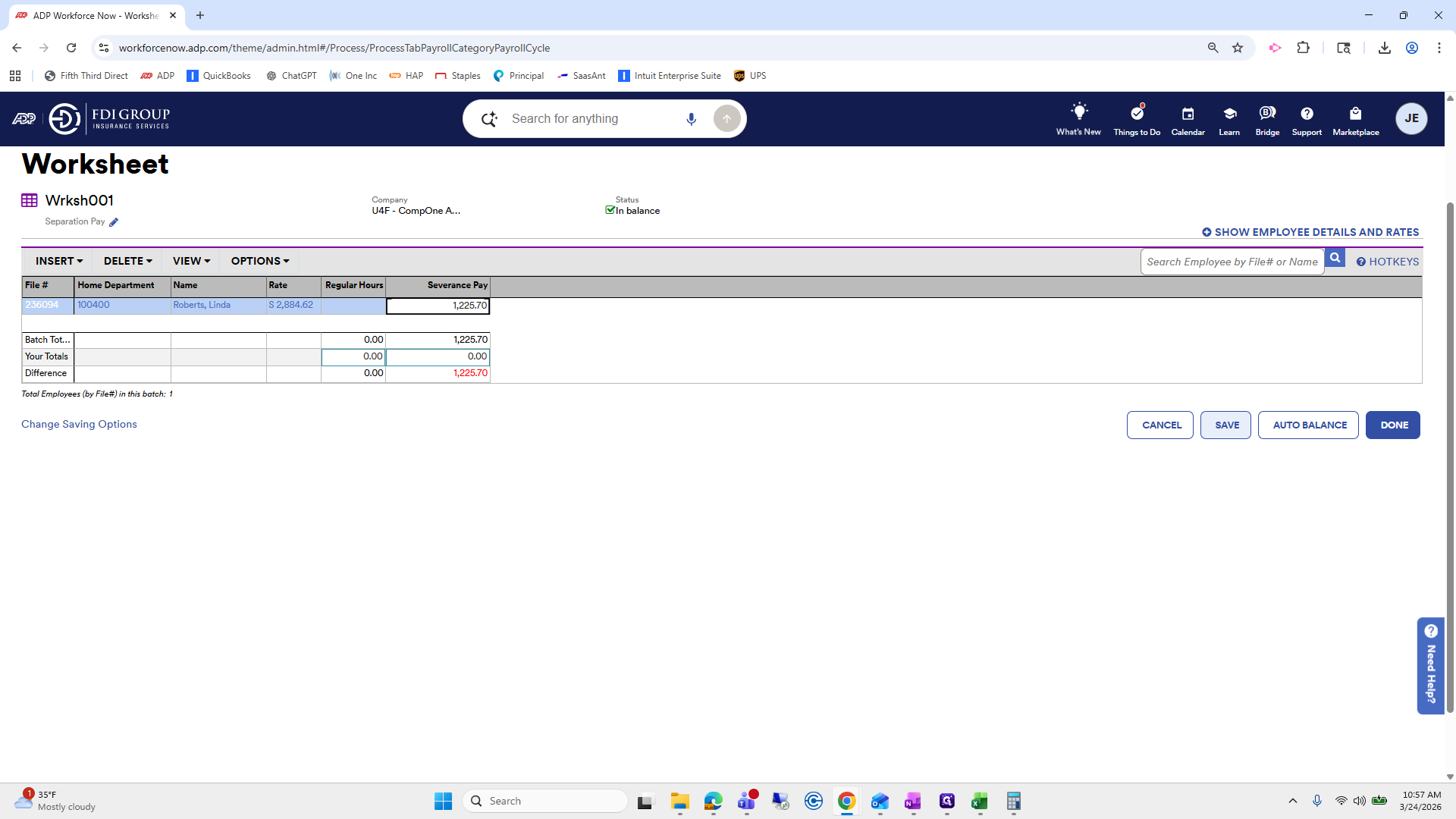
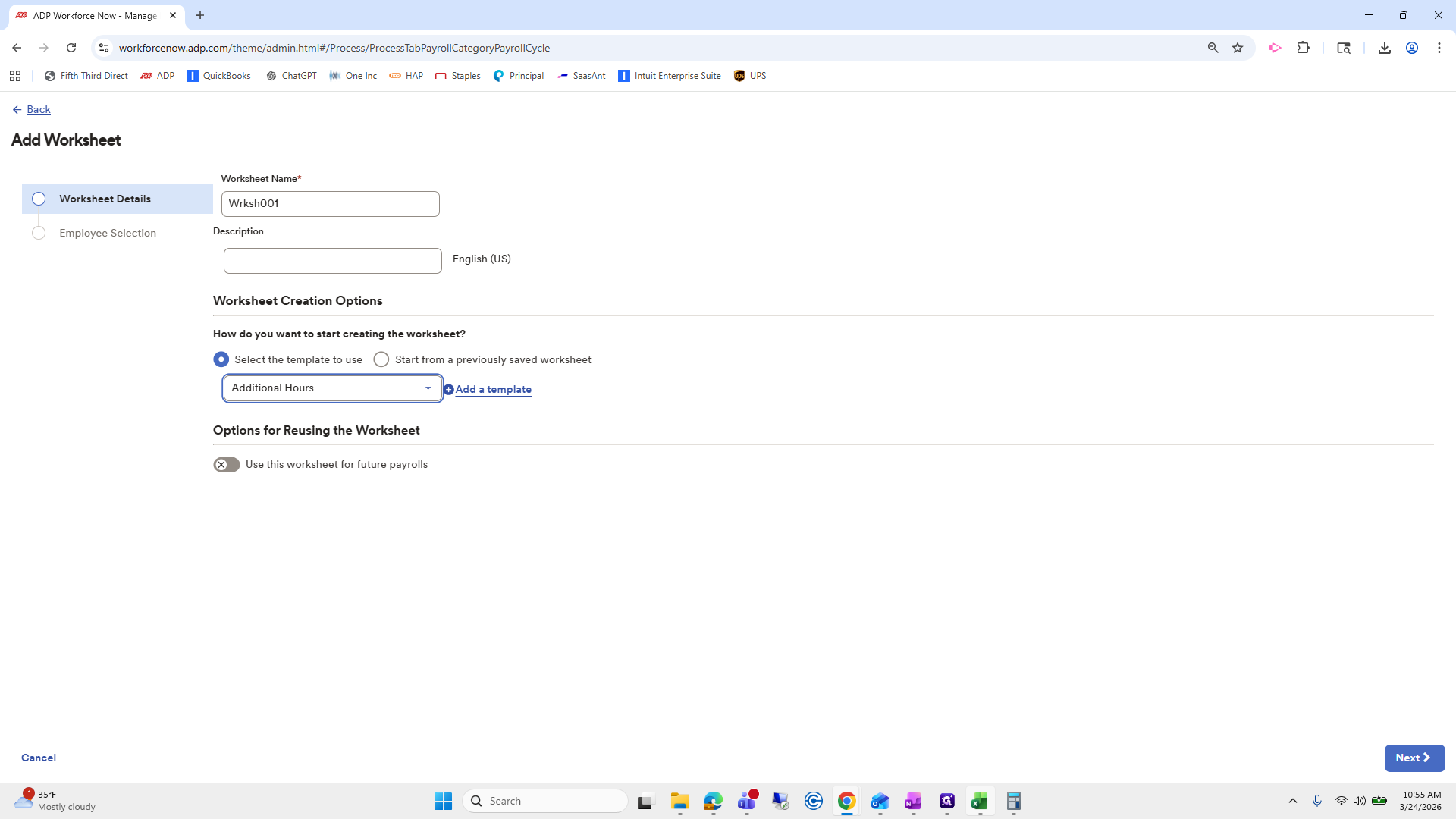
Pay increase for Caitlin Bradley. Make sure her salary is set to 2,000. We will check that next. Pay separation compensation: Linda Roberts. This is her final check. We will look up Linda Roberts. Okay. We will go to Add Worksheet.

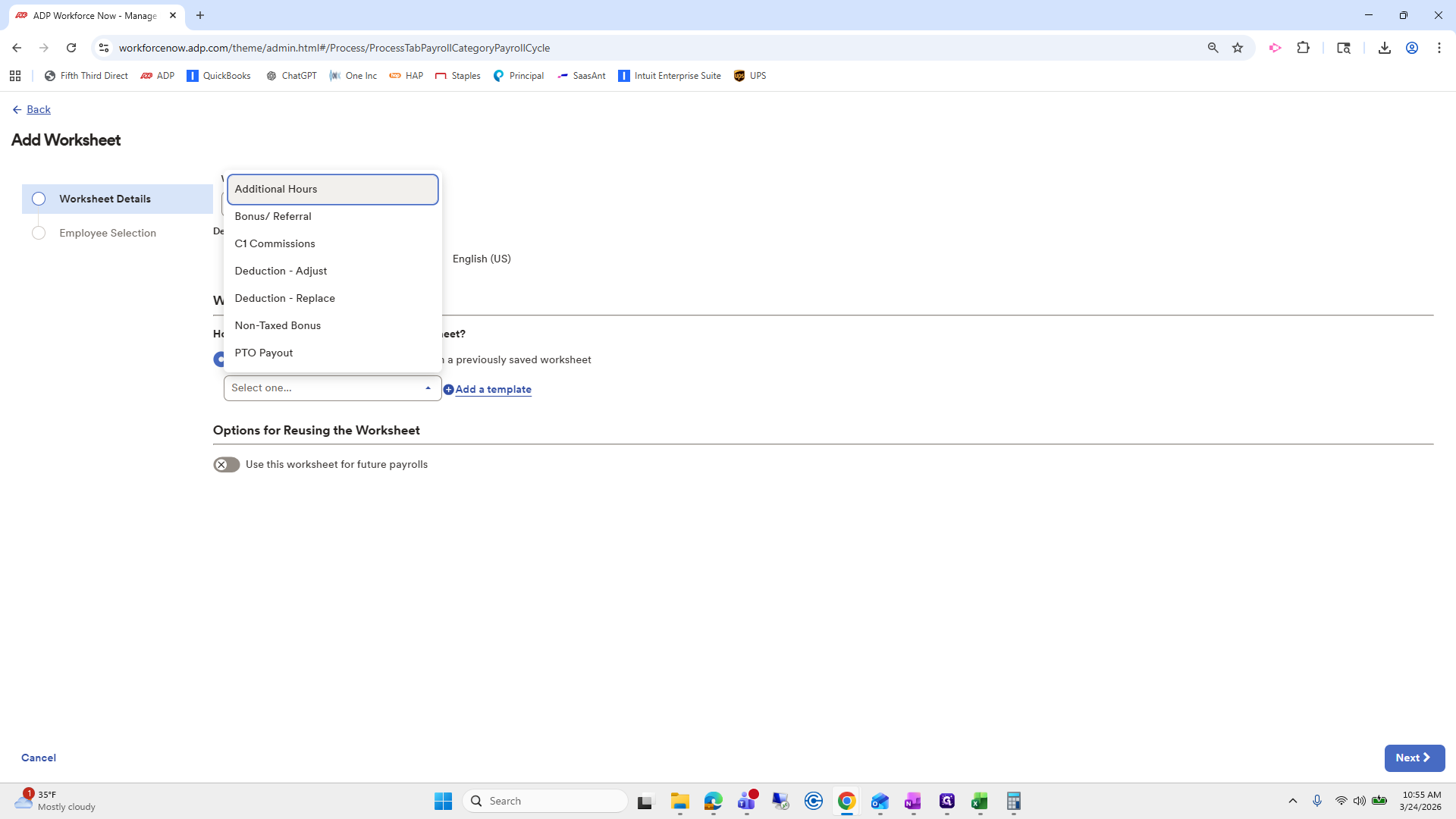
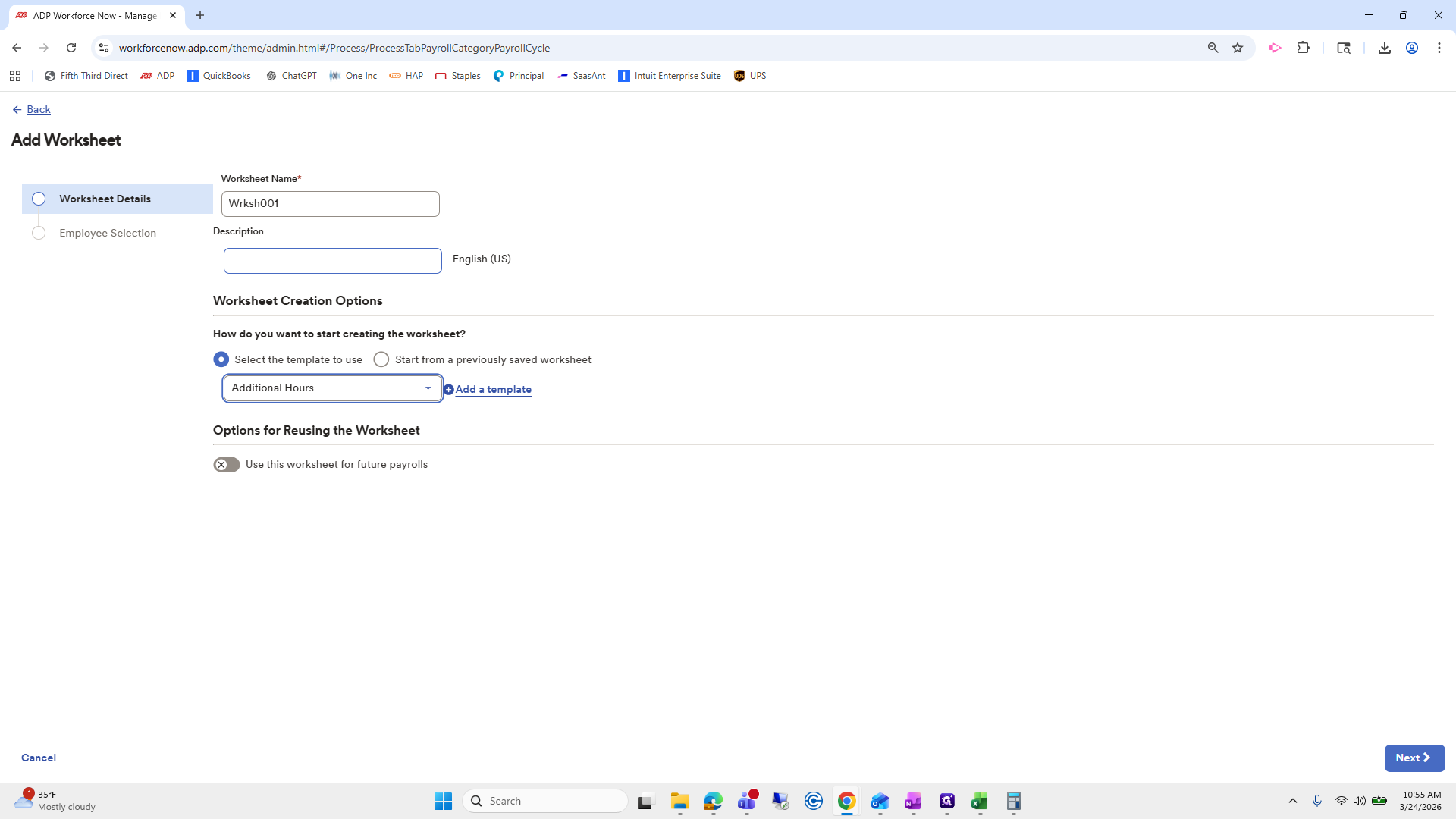
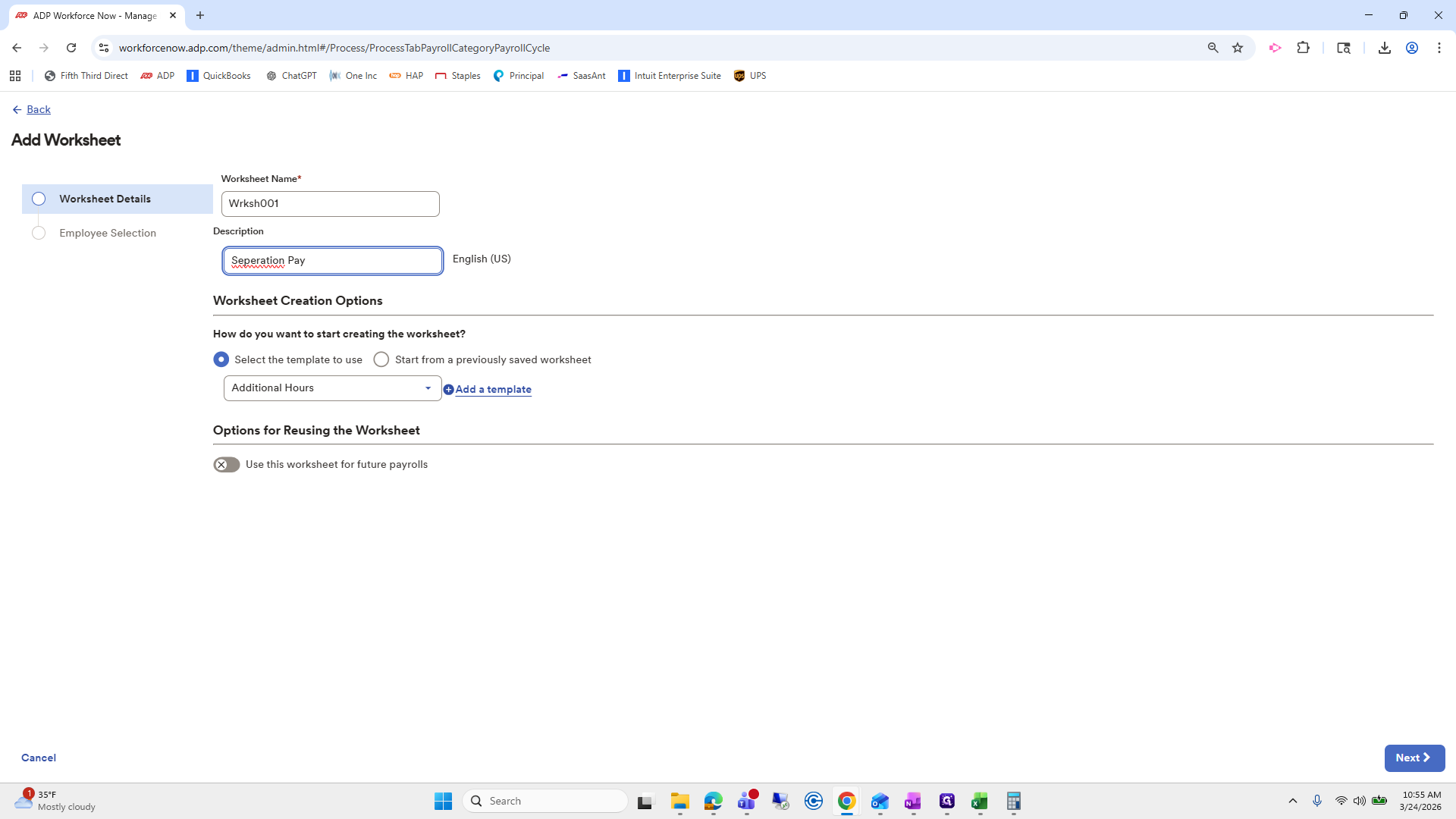
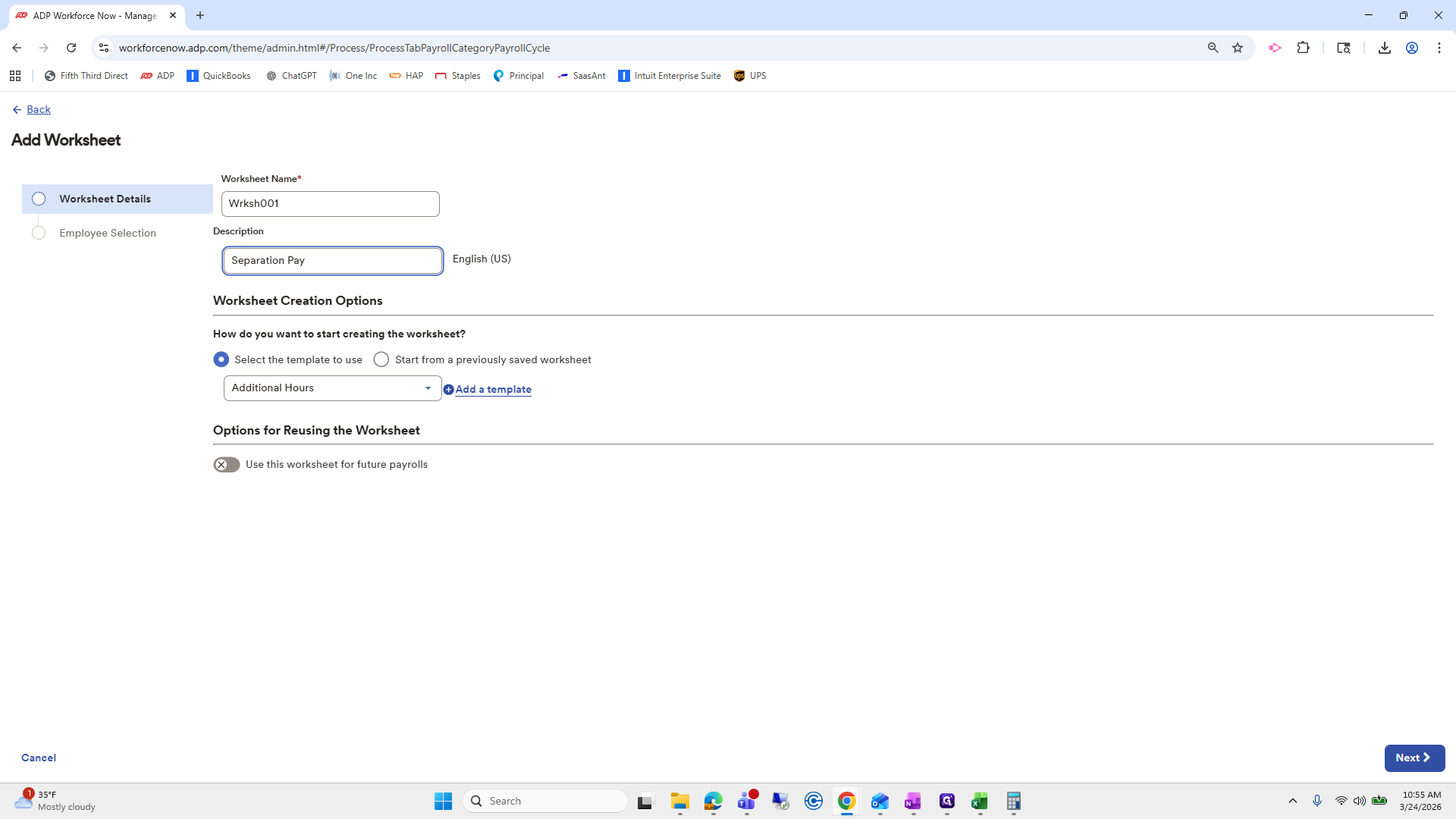
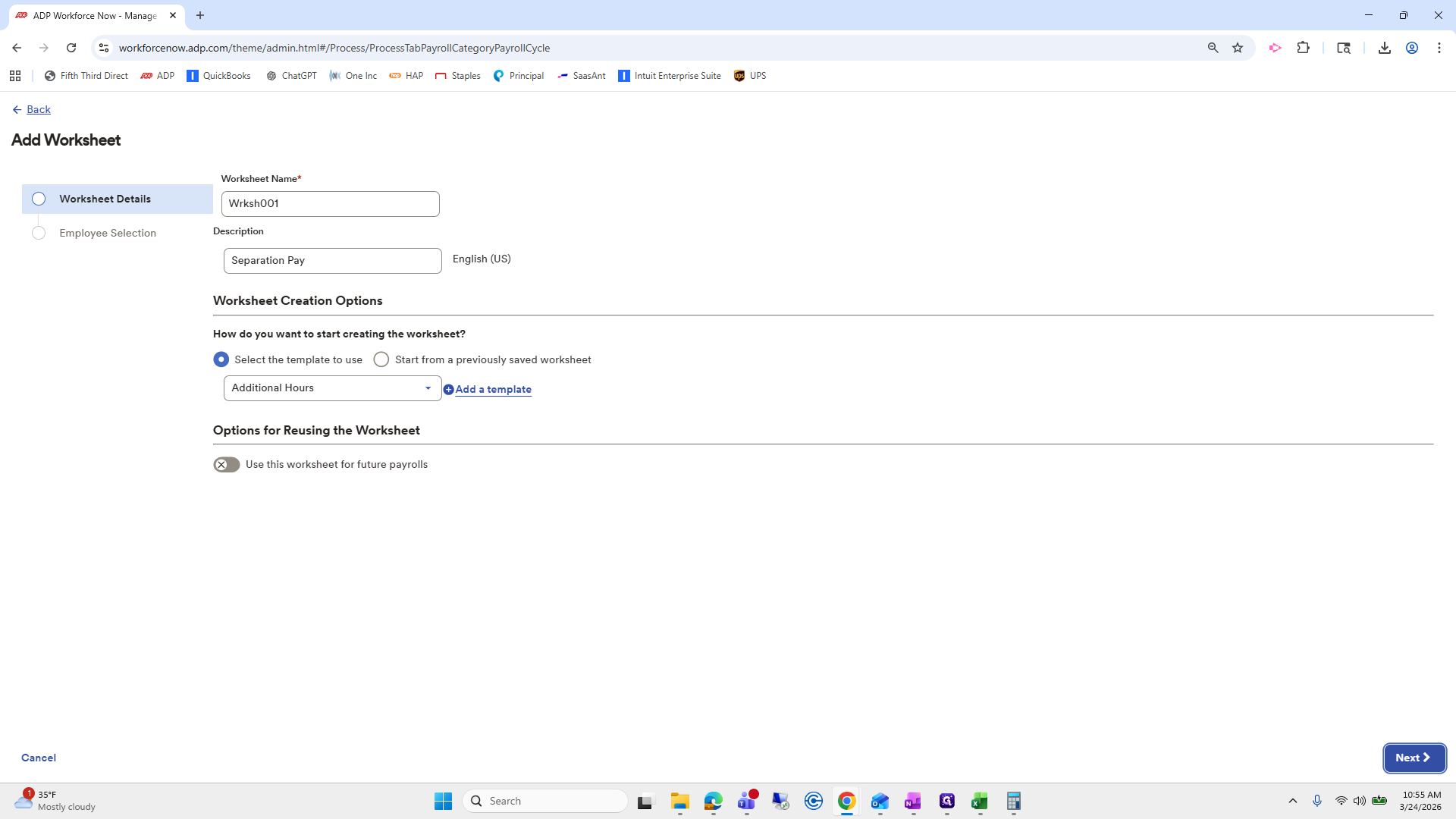
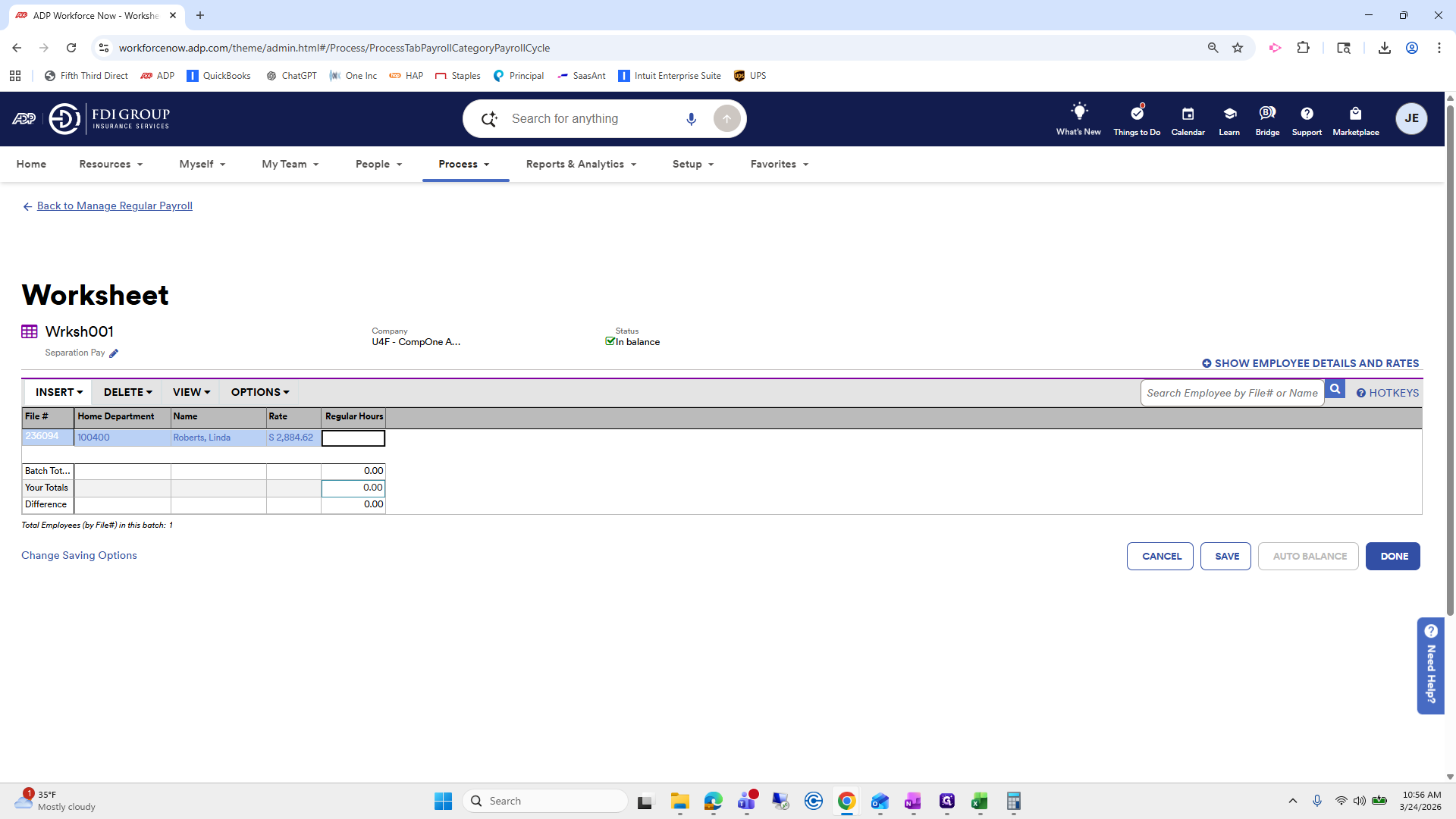
We're going to select... I have several worksheets already created. For this one, we will add additional hours. Pay separation... Press next.
69
Click here
Step #69: Click here
70
Click on "☐"
Step #70: Click on "☐"
71
Drag "Calculator"
Step #71: Drag "Calculator"

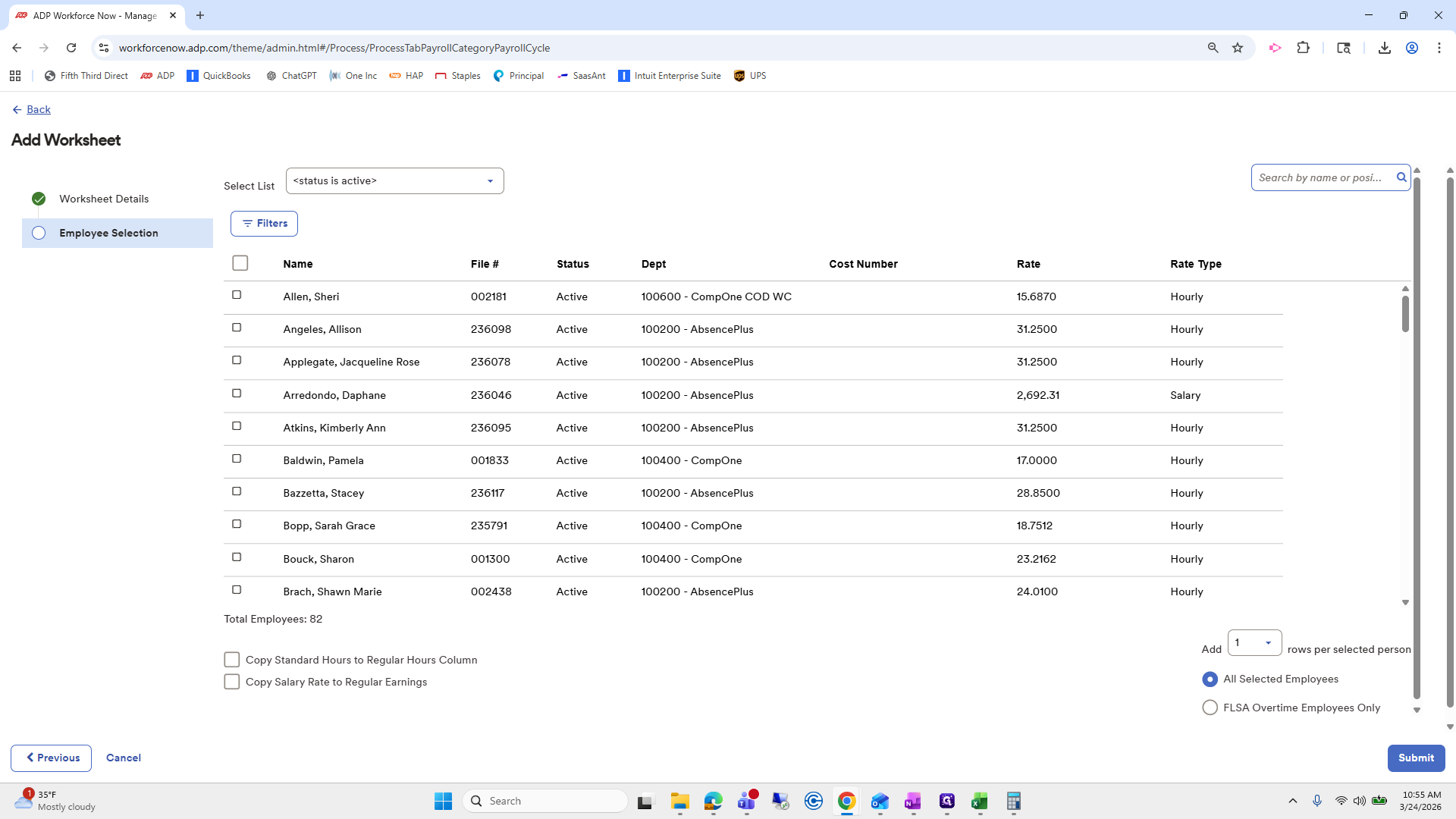
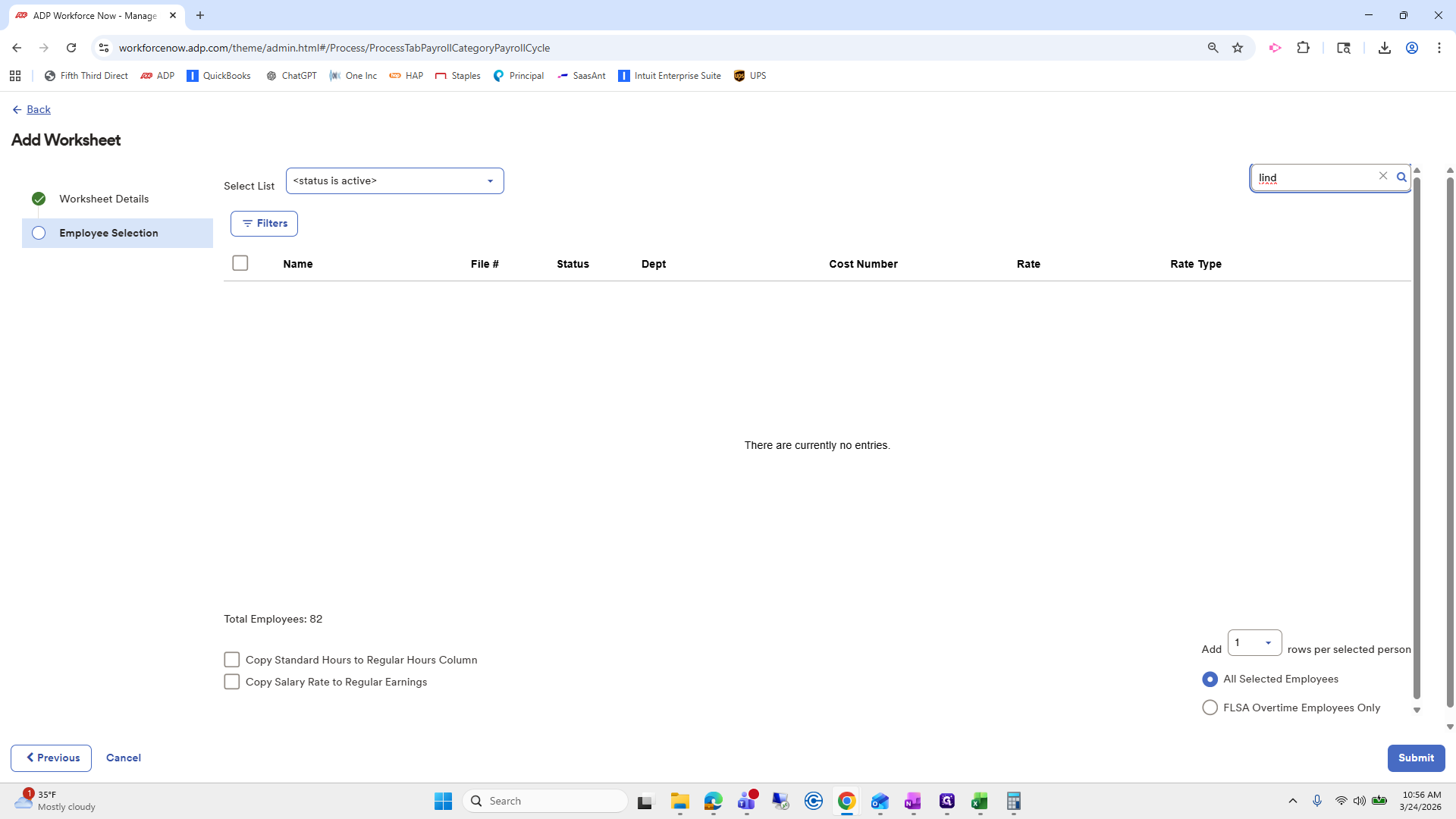
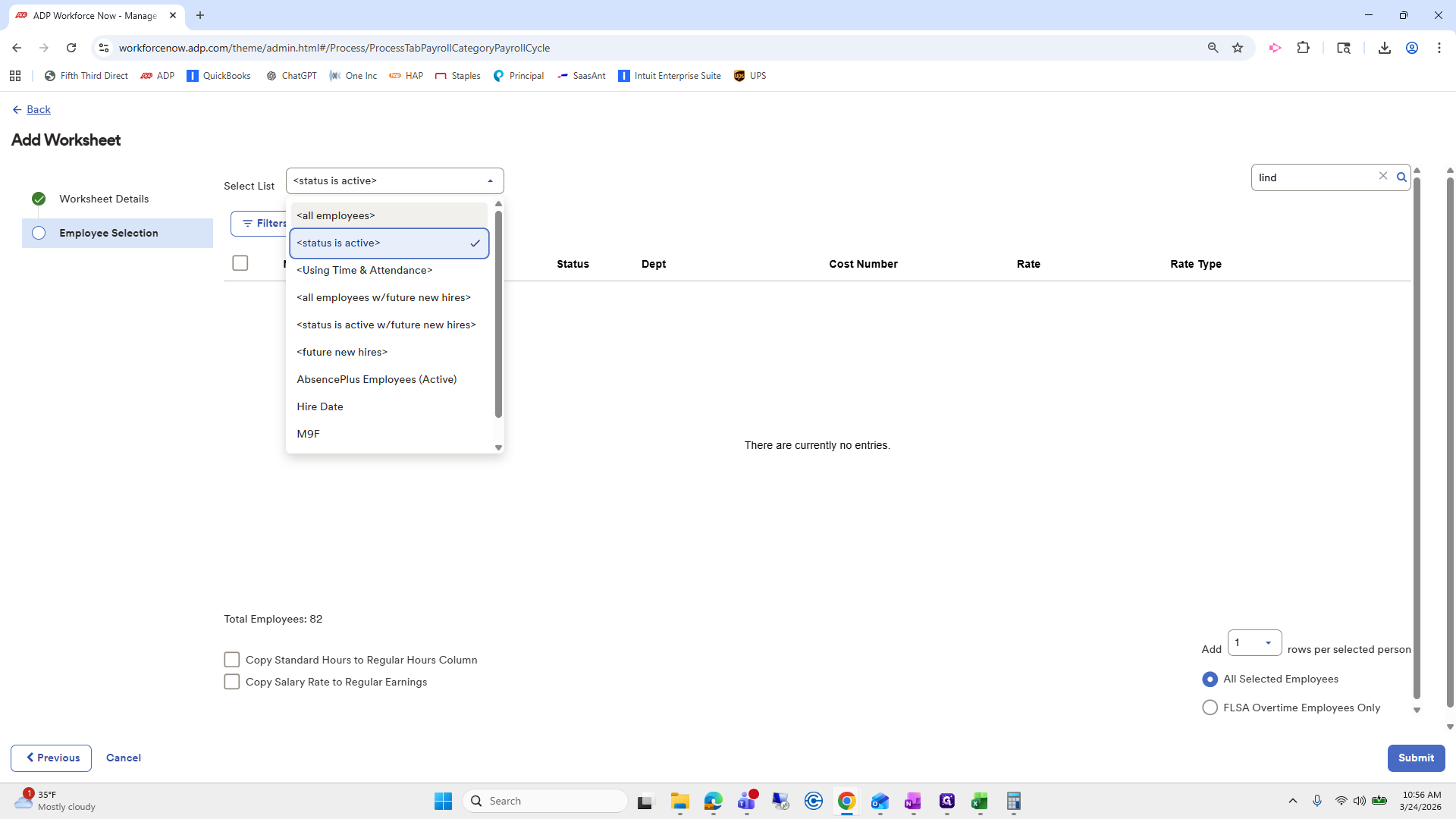
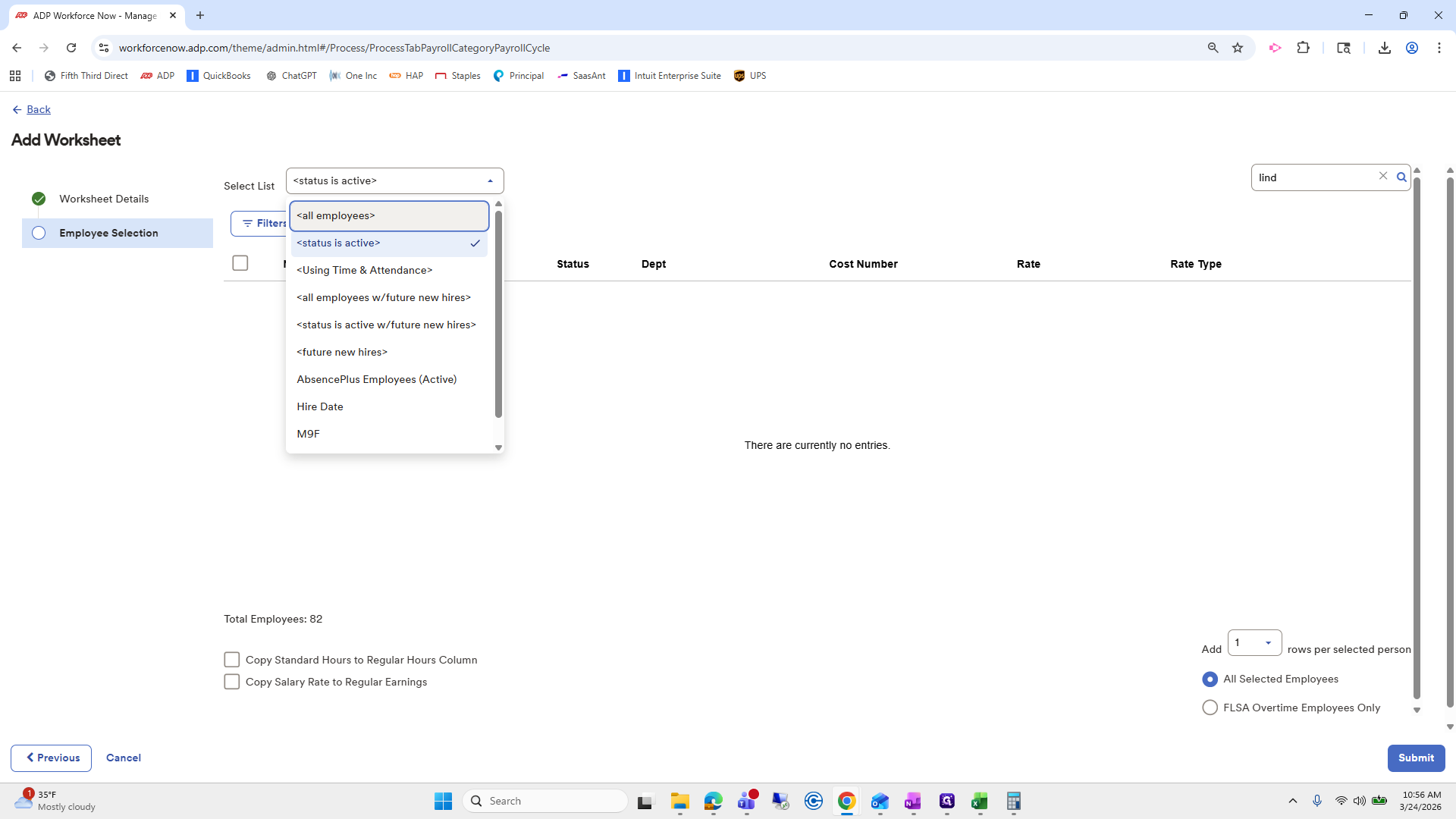
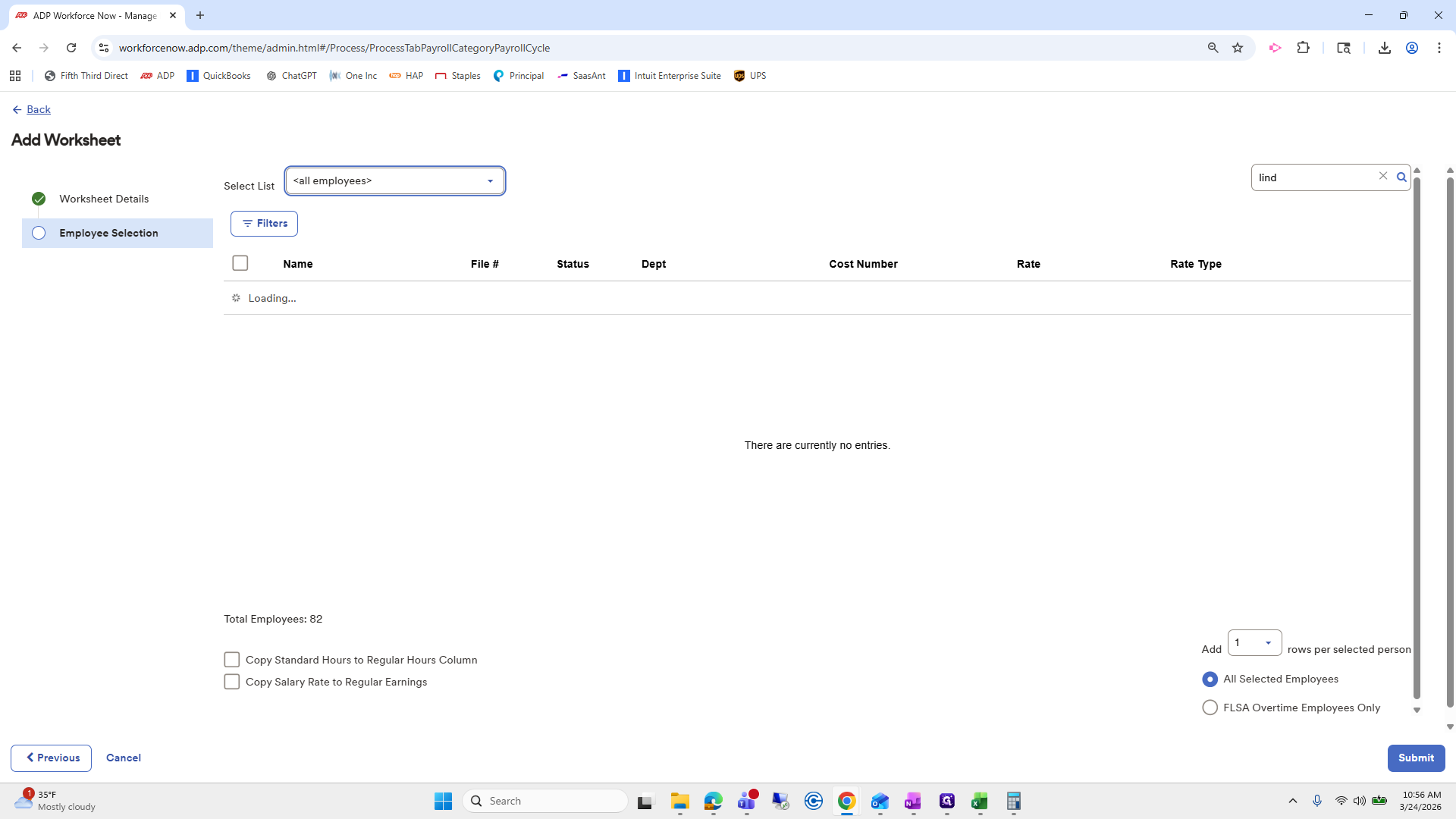
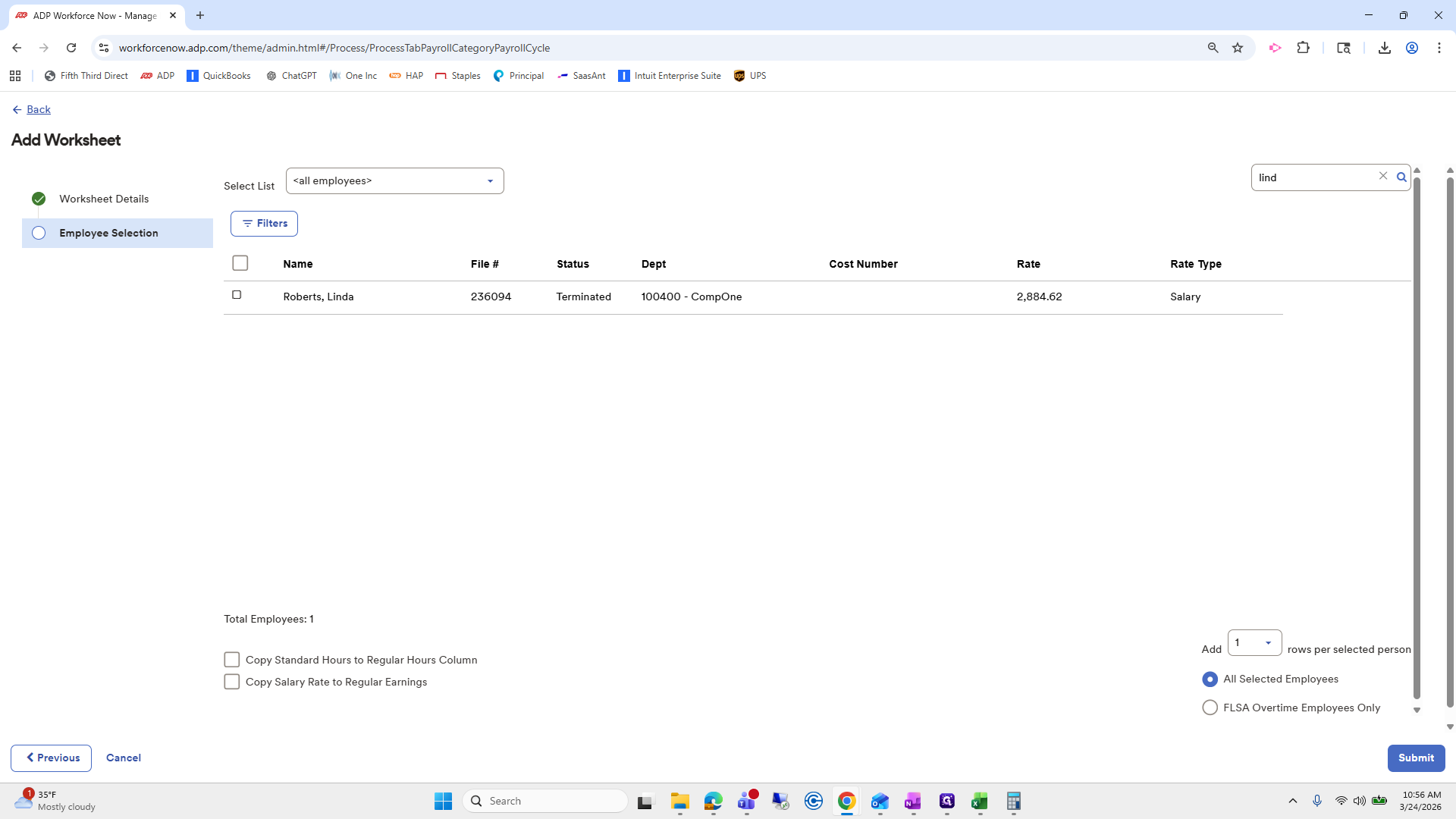
We are going to look up Linda. She isn't showing because our list is currently set to "Active." To fix this, select the "All Employees" list.
72
Double-click here
Step #72: Double-click here
73
Click here
Step #73: Click here
74
Click here
Step #74: Click here
75
Click on "."
Step #75: Click on "."
76
Click on "Pay increase effective 3/8/26"
Step #76: Click on "Pay increase effective 3/8/26"

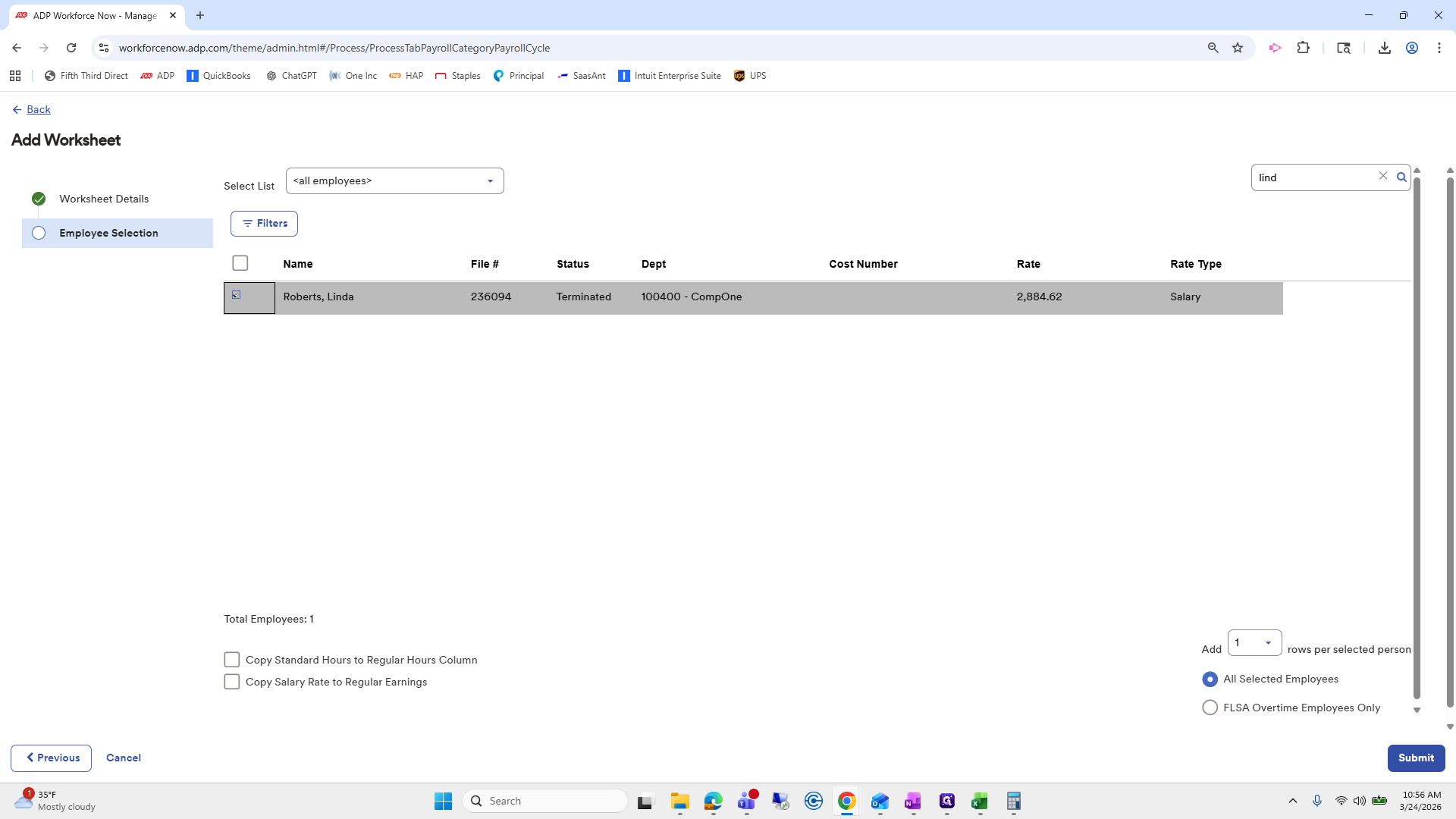
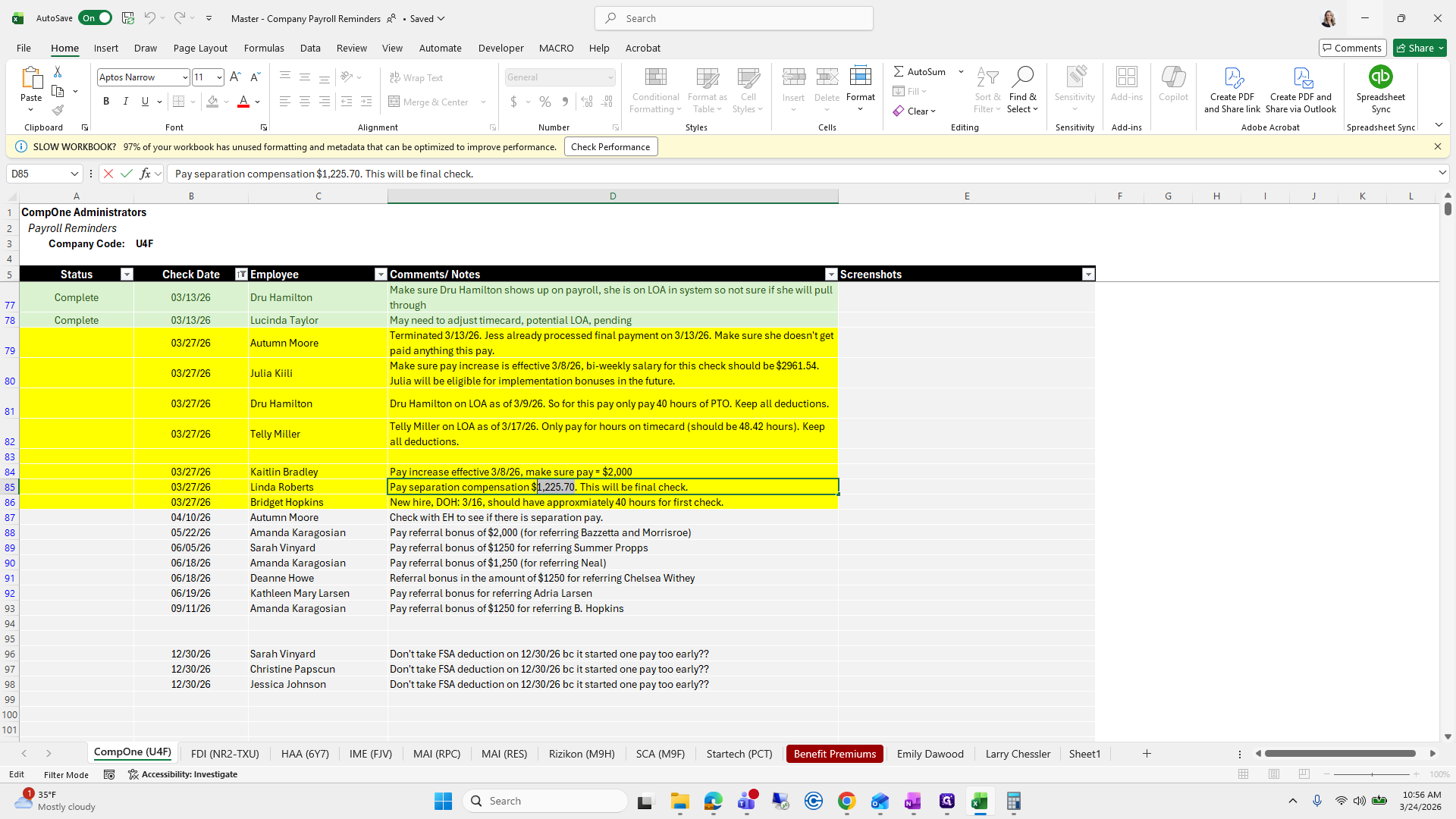
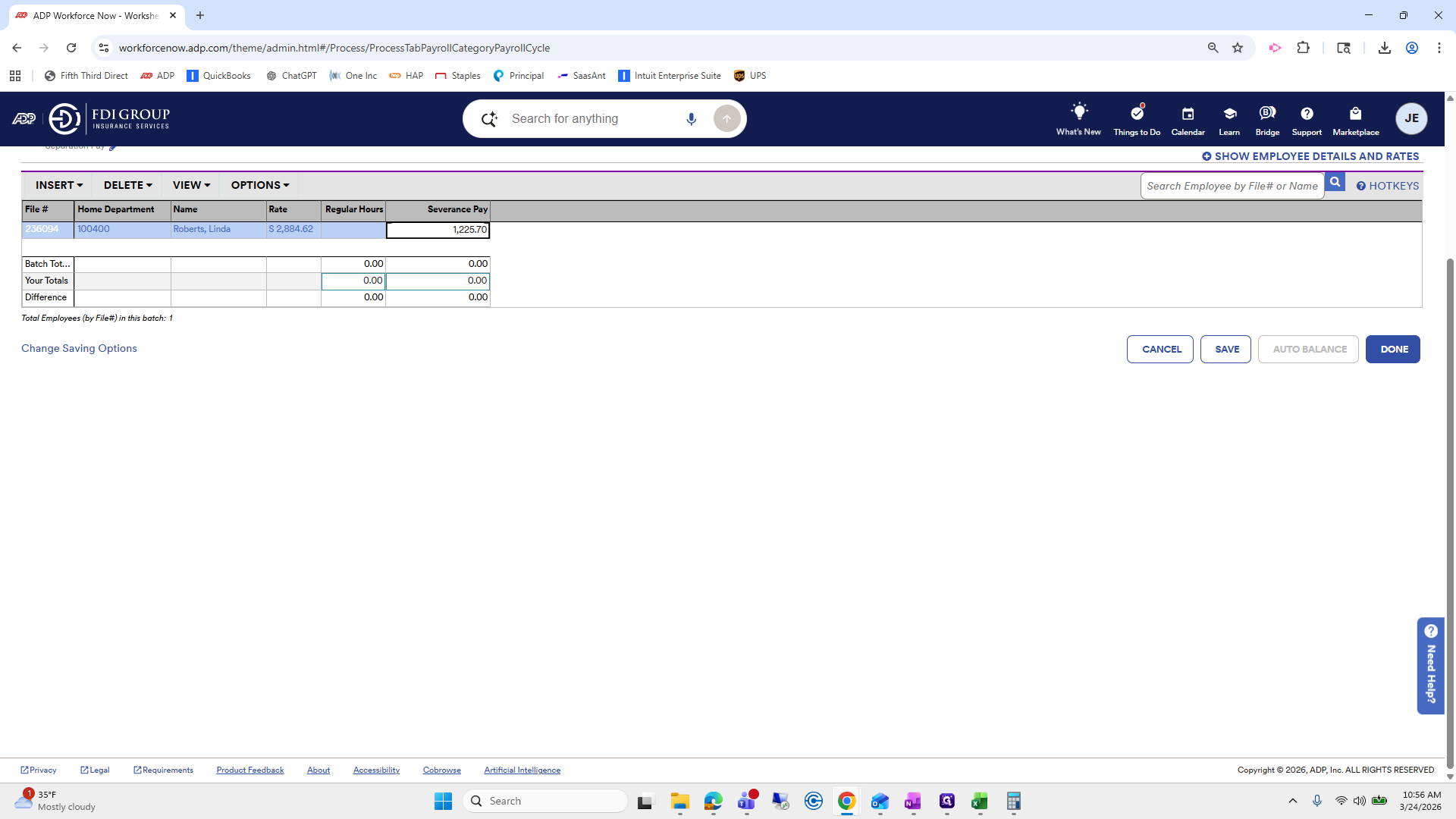
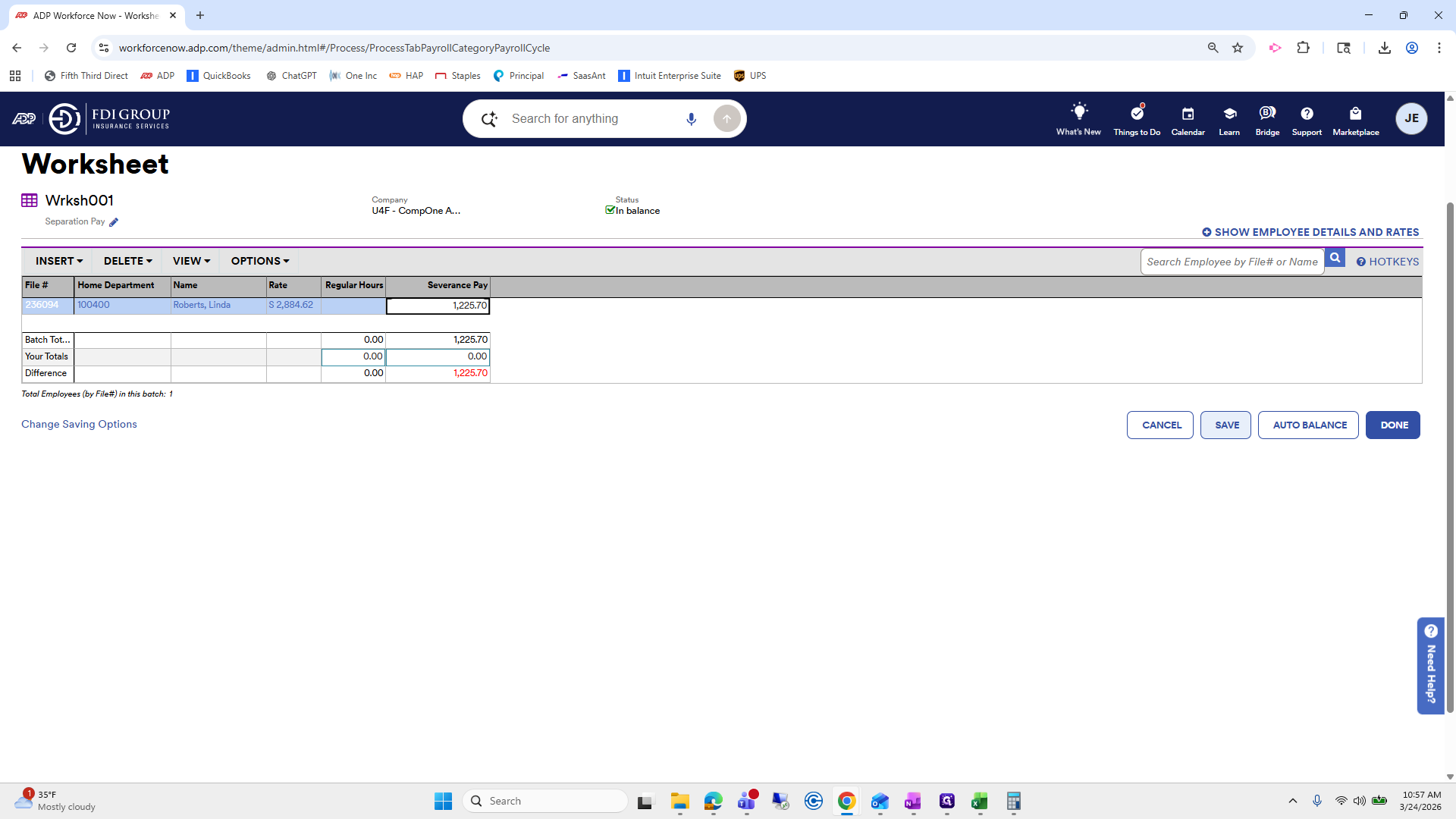
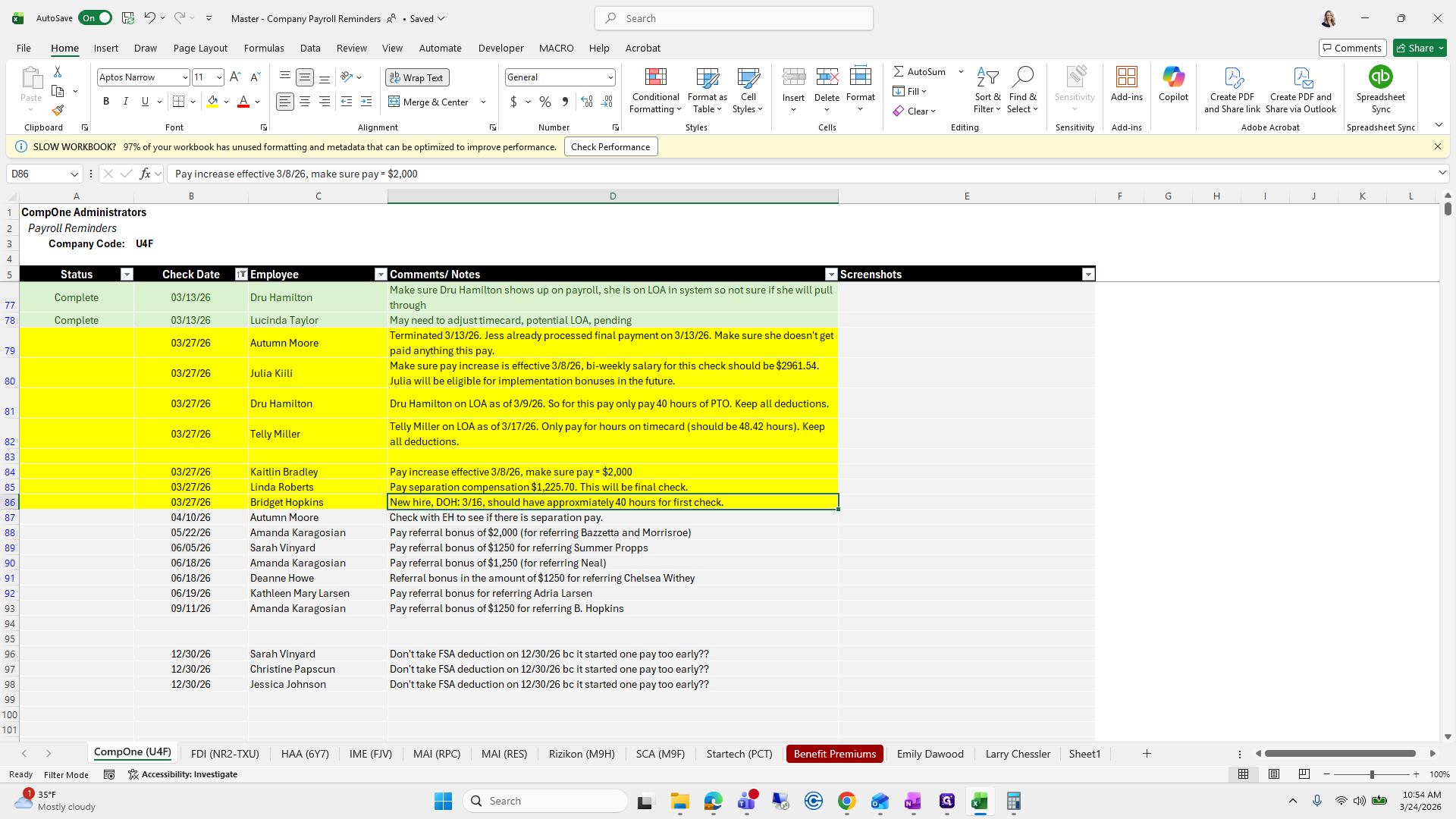
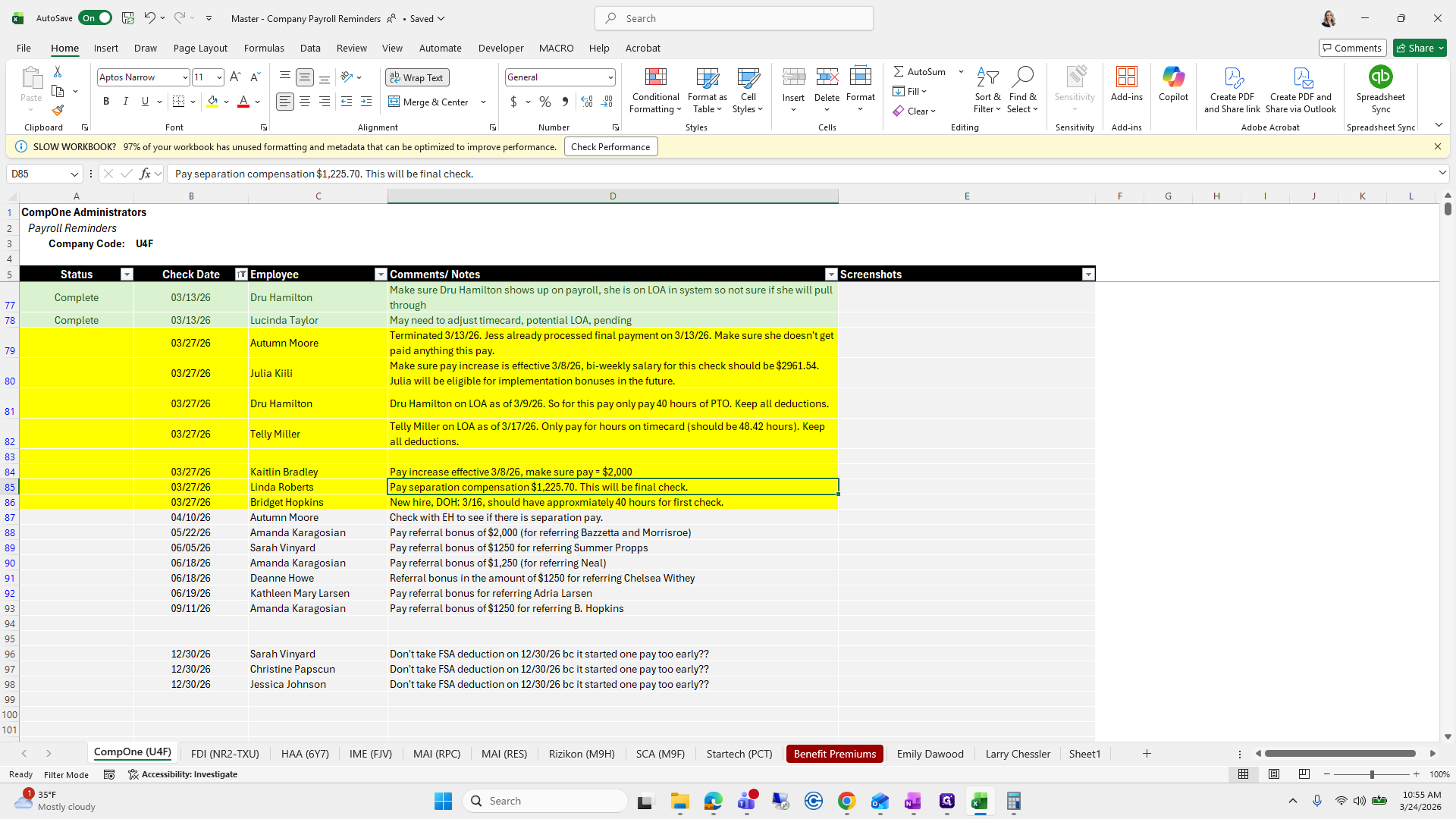
Here she is. Click Linda, then click submit. The report states to compensate her for $1,225.70.
77
Click on "should have approxmiately 40 hours for"
Step #77: Click on "should have approxmiately 40 hours for"
78
Click on "should have approxmiately 40 hours for first check ."
Step #78: Click on "should have approxmiately 40 hours for first check ."

I just lost connection on my computer.
79
Click on "This"
Step #79: Click on "This"
80
Click here
Step #80: Click here

There we go.

81
Click here
Step #81: Click here

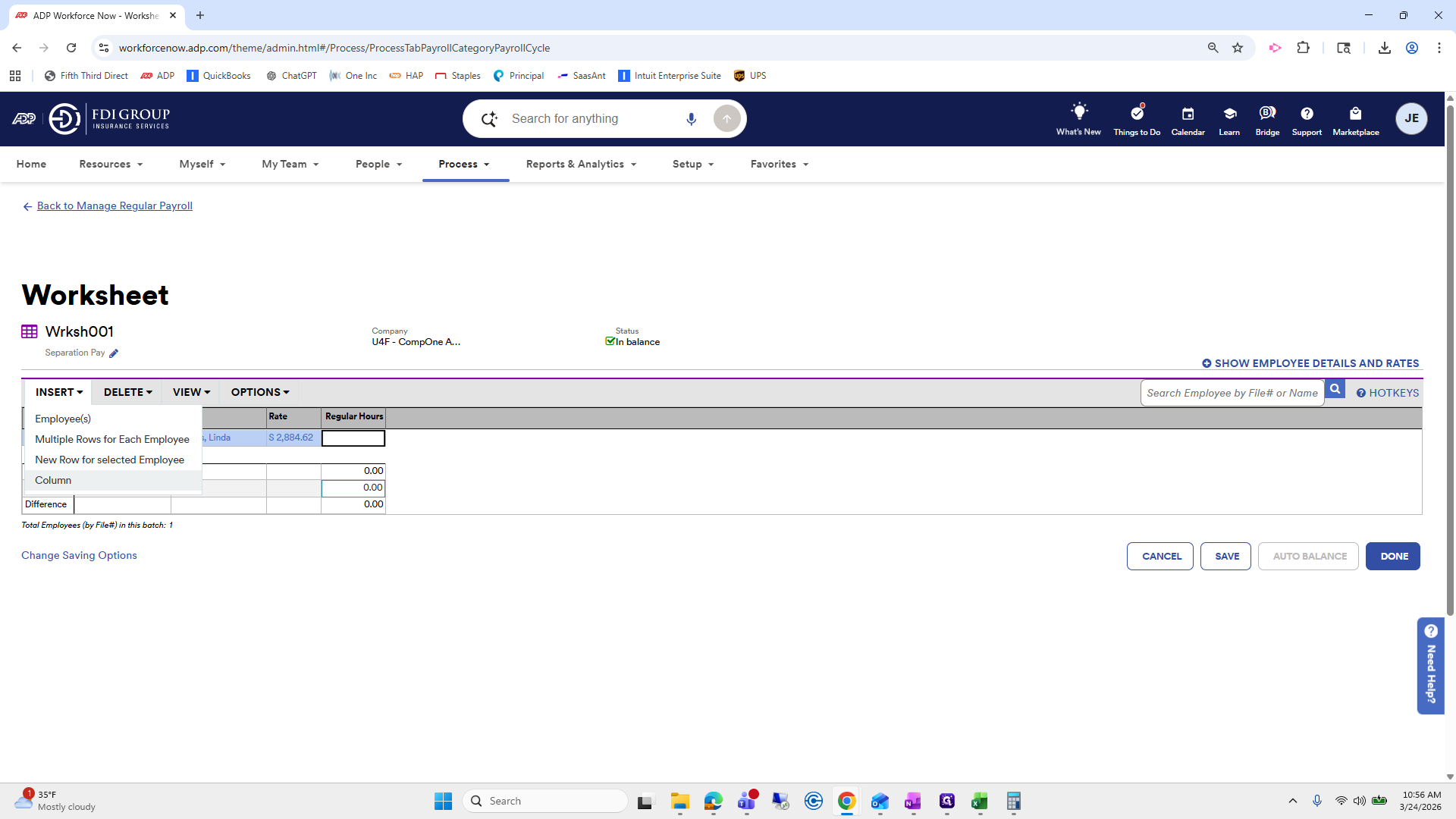
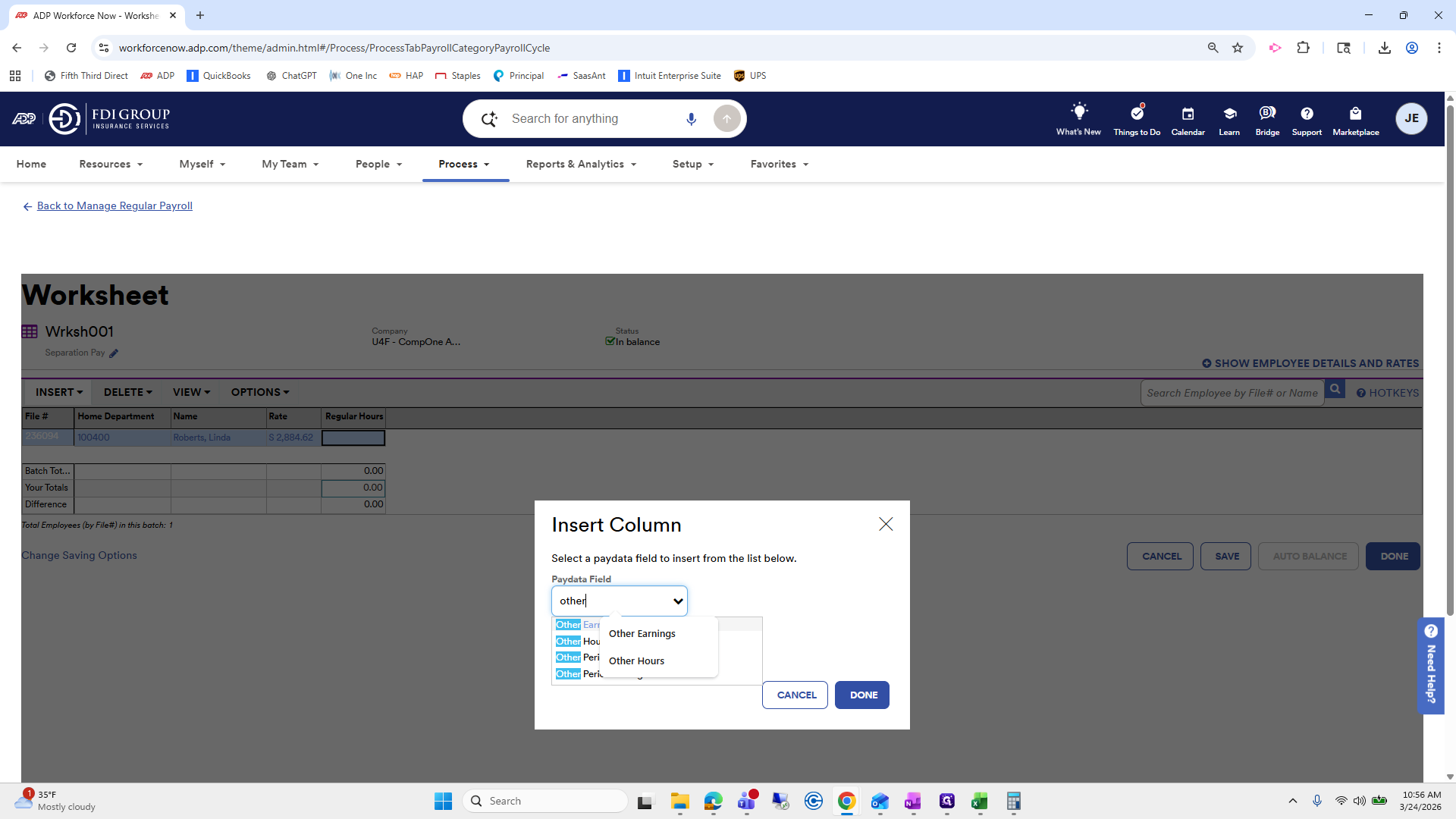
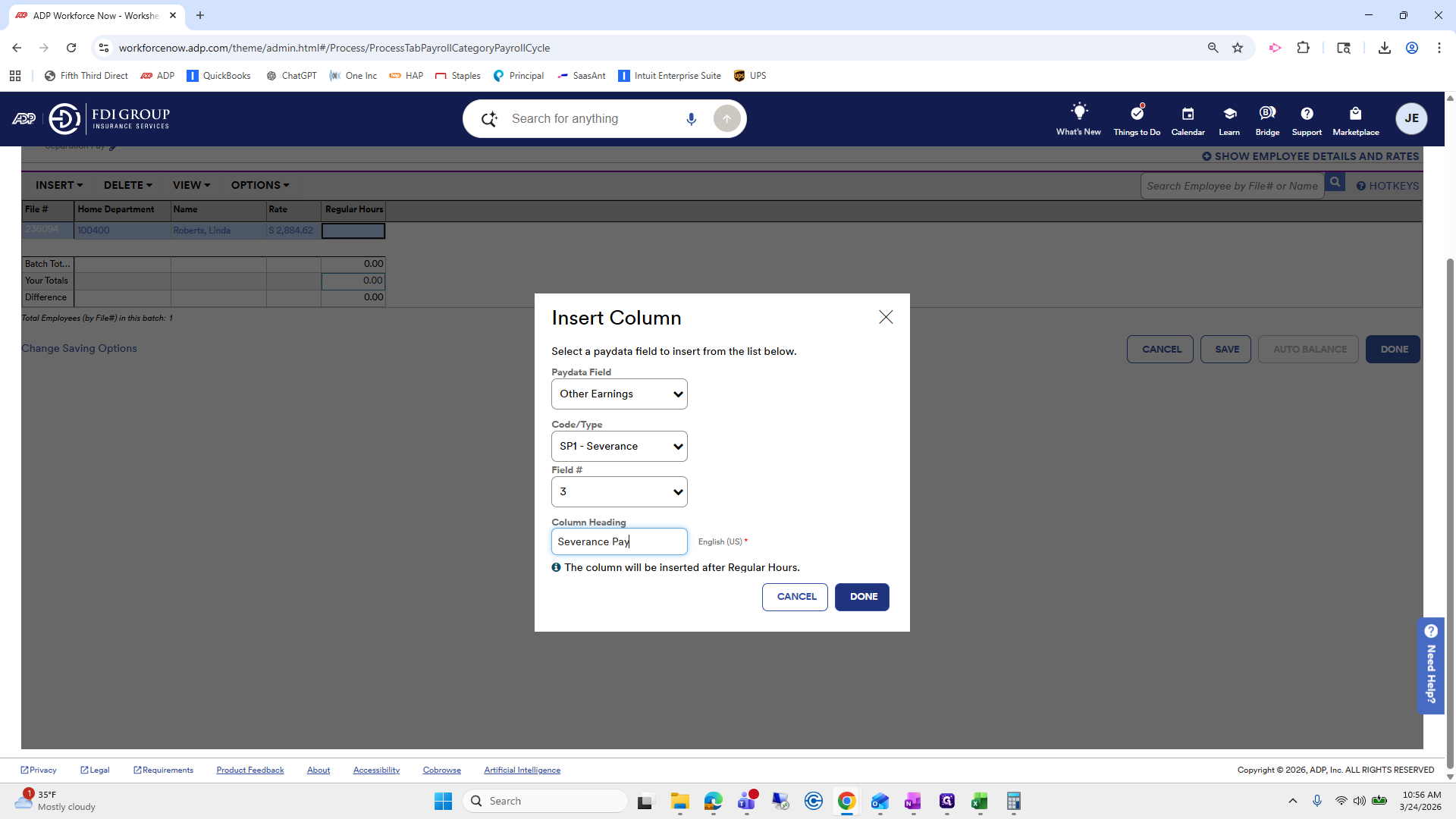
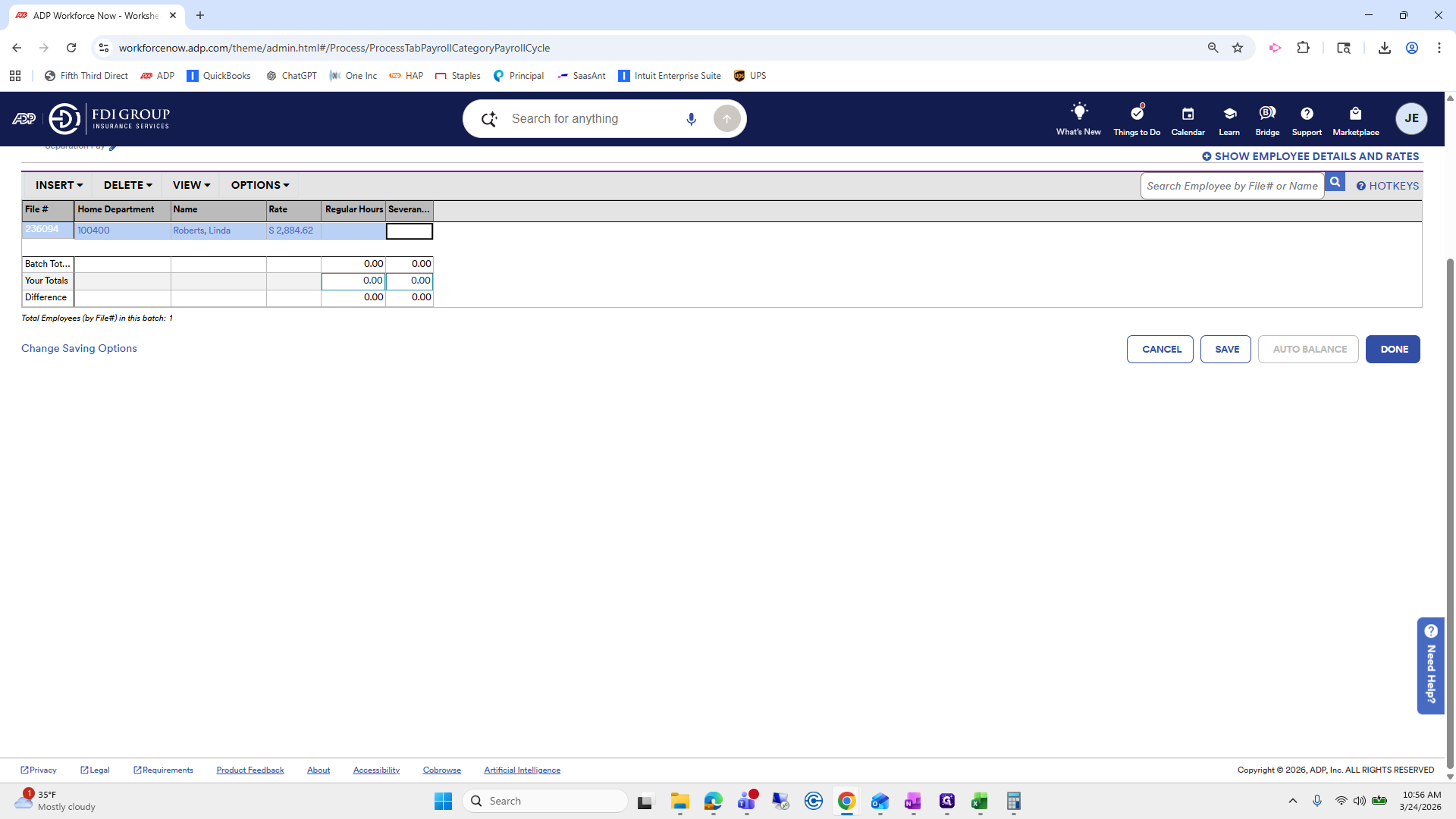
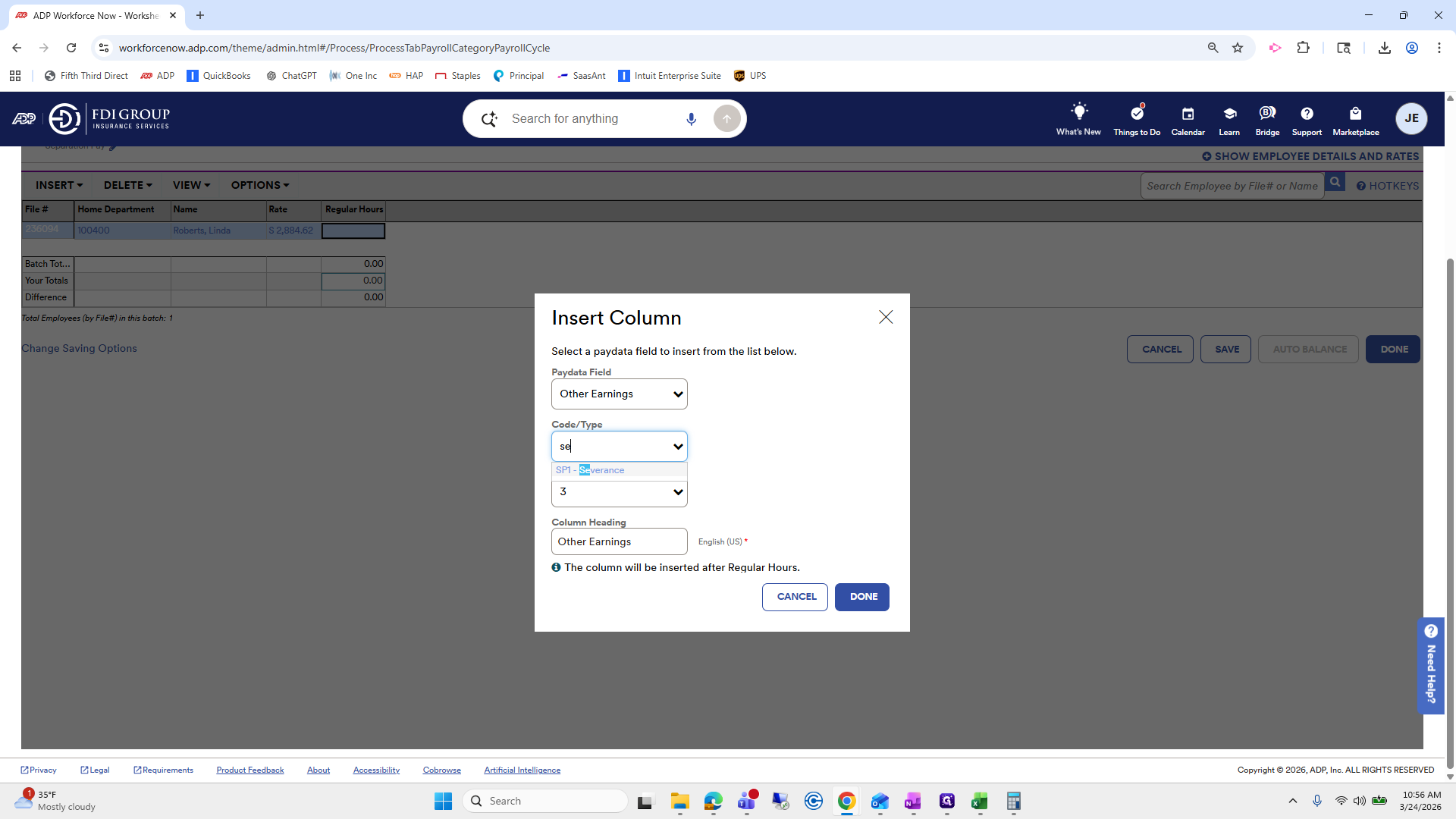
Okay. We need to insert a column.

82
Click on "90"
Step #82: Click on "90"

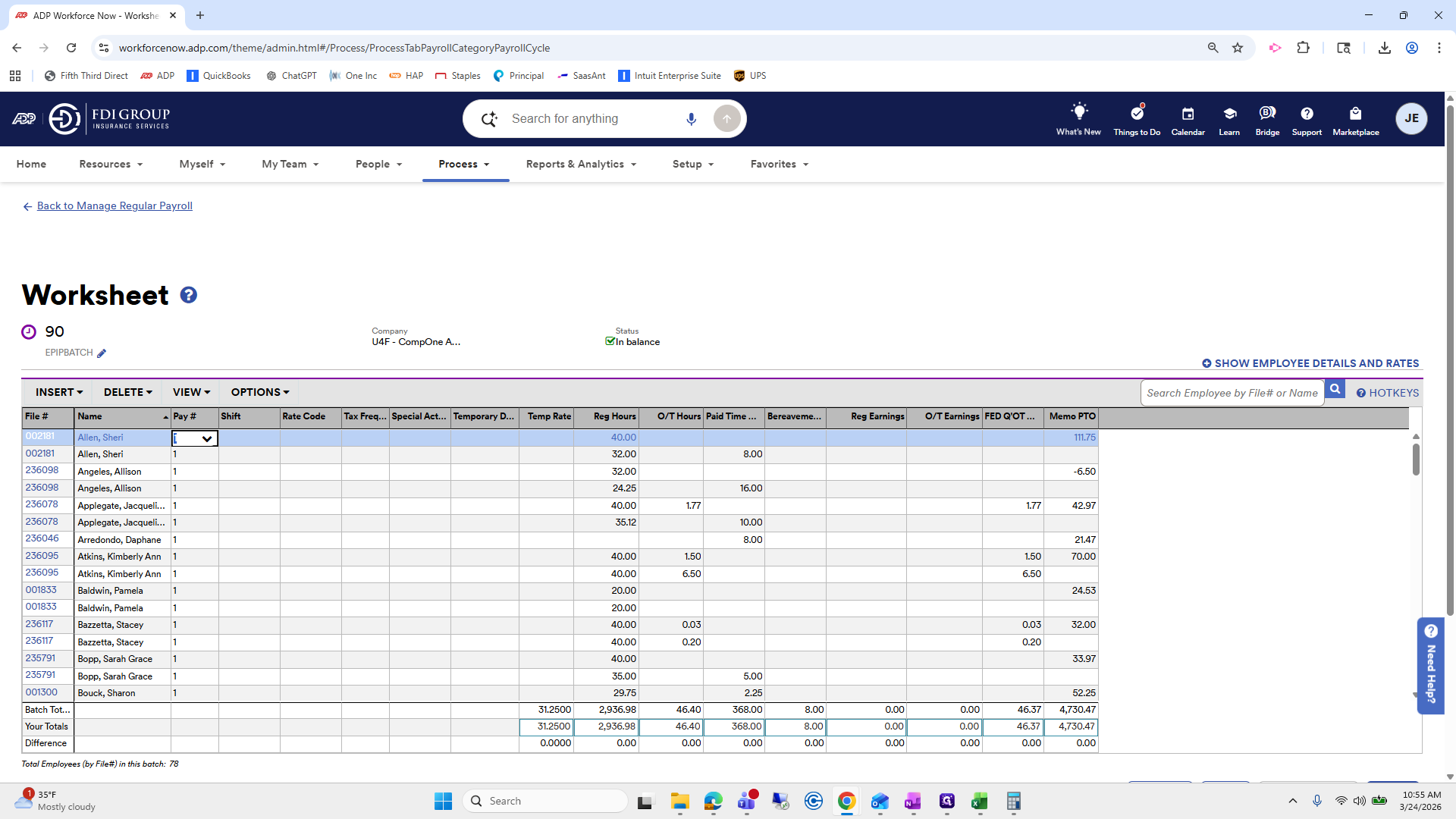
I will make sure there is a separation pay worksheet, so you don't have to do this.
83
Click on "Search Employee by File # or Name"
Step #83: Click on "Search Employee by File # or Name"
84
Type "linda"
85
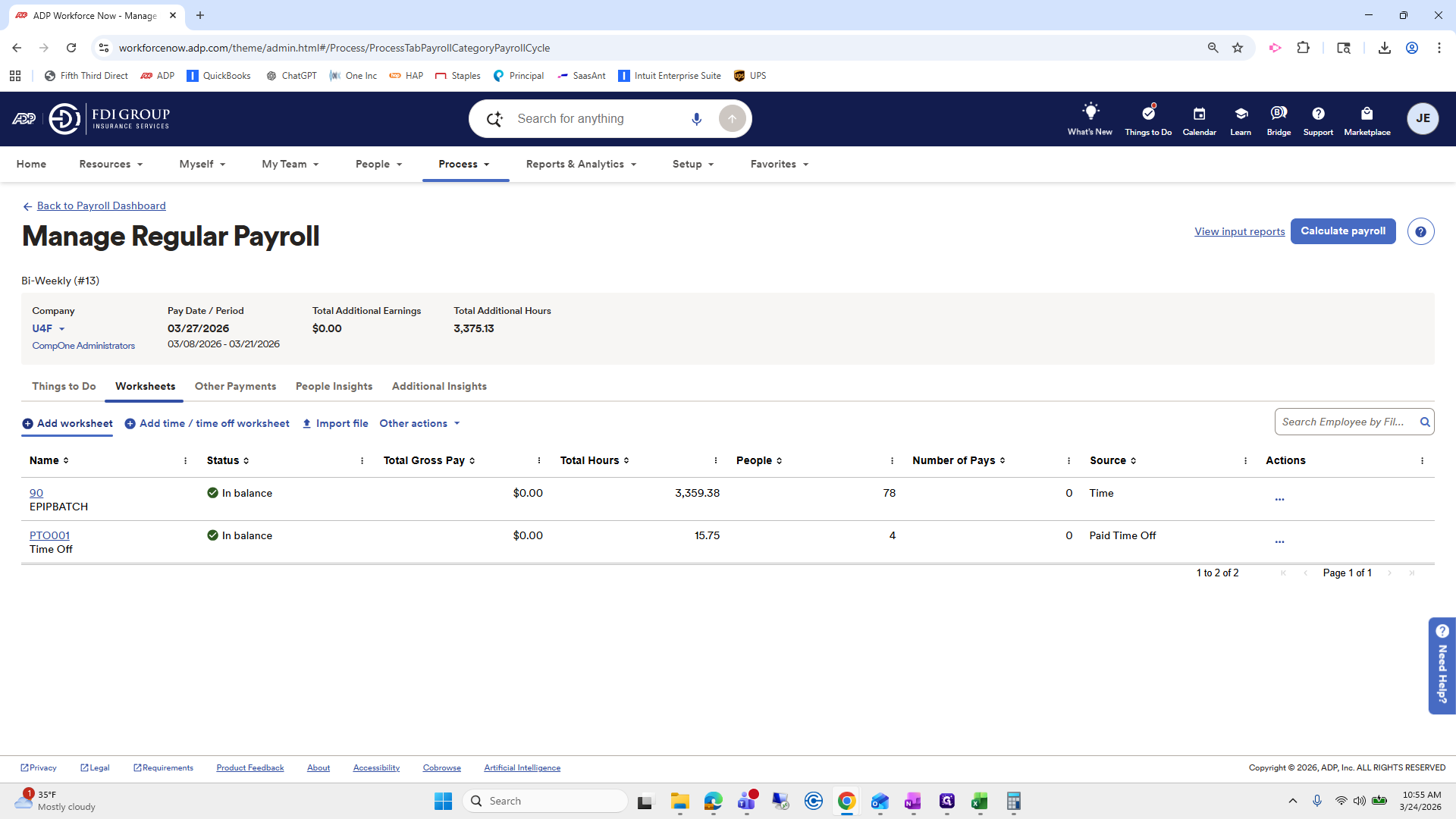
Click on "← Back to Manage Regular Payroll"
Step #85: Click on "← Back to Manage Regular Payroll"

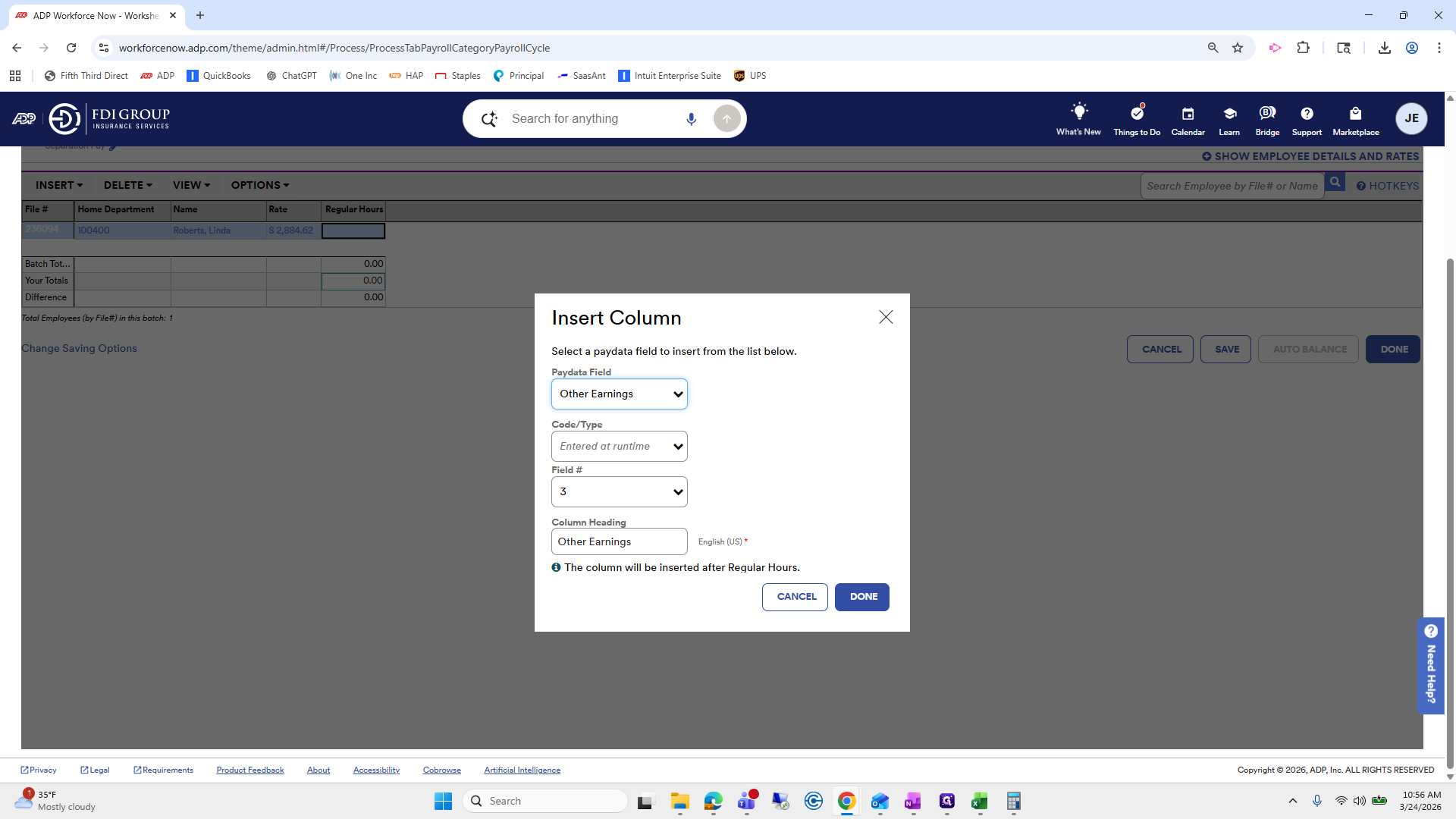
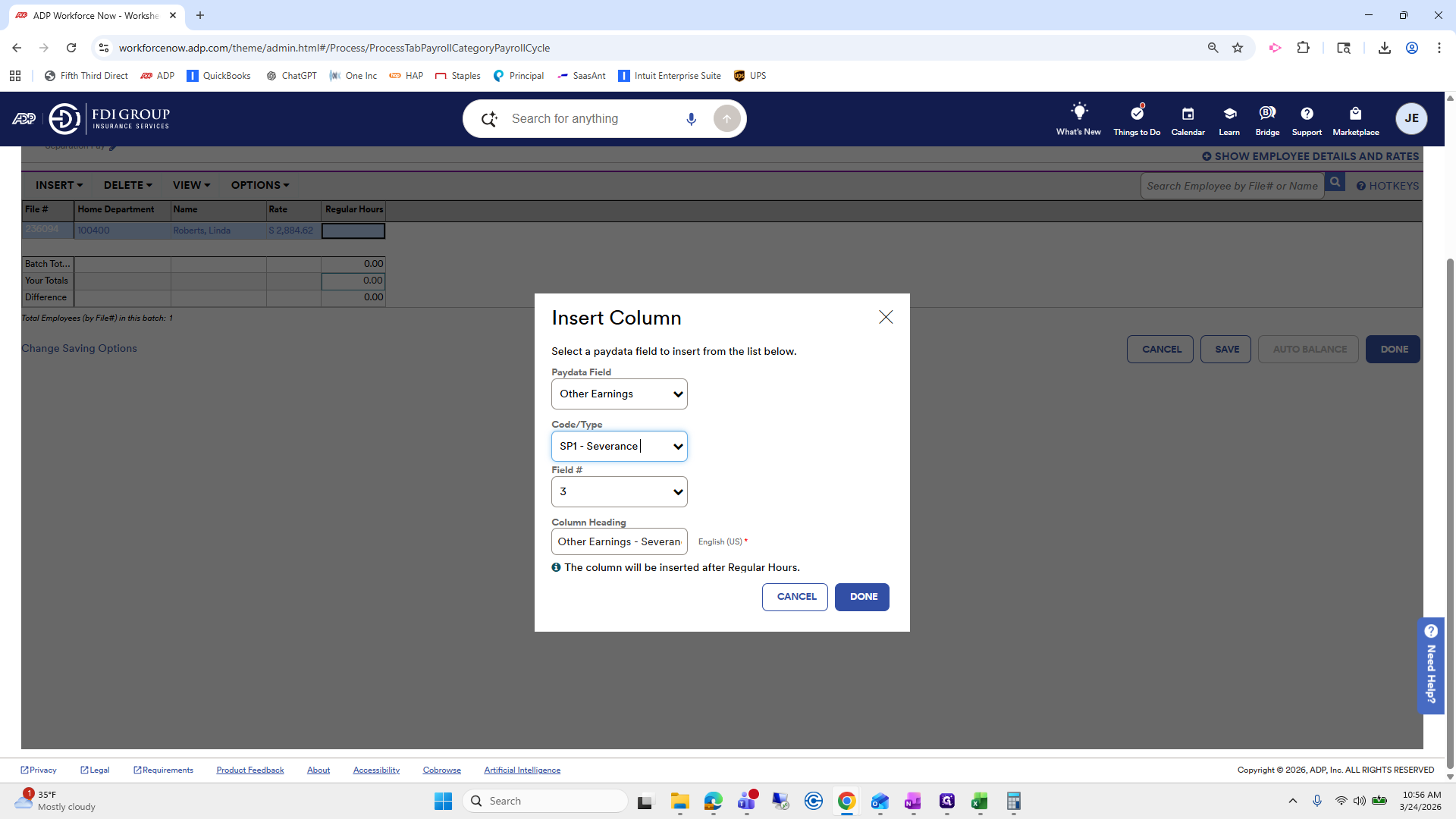
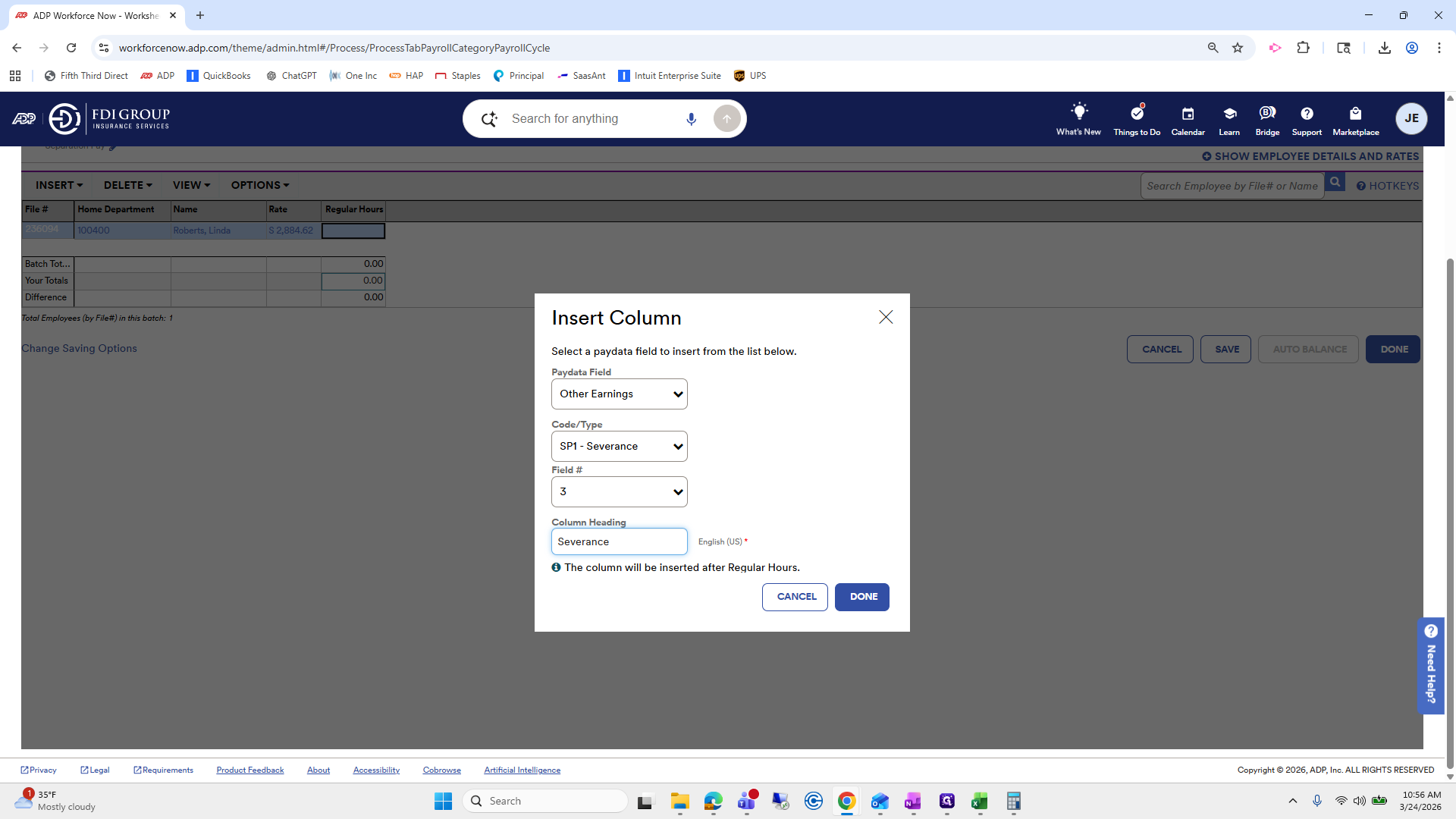
This is for other earnings. For the code, use separation pay or severance pay.
86
Click on "Add worksheet + Add time / time off worksheet ± Import file"
Step #86: Click on "Add worksheet + Add time / time off worksheet ± Import file"
87
Click here
Step #87: Click here

This is the column that...

88
Click here
Step #88: Click here

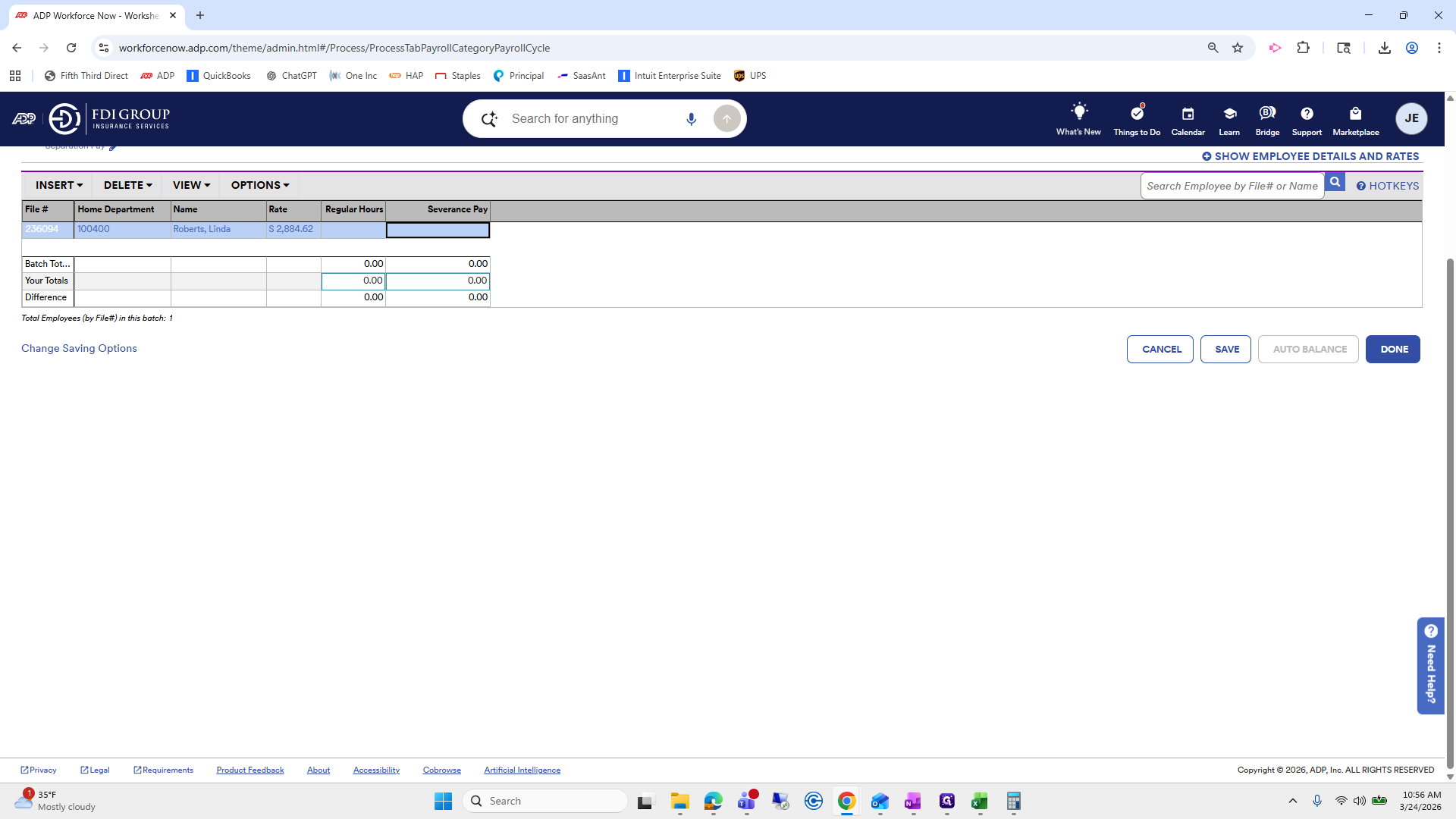
The amount from earlier. Click Save and Auto-Balance. My computer keeps freezing.
89
Click here
Step #89: Click here
90
Click here
Step #90: Click here
91
Click here
Step #91: Click here
92
Type "Seperation Pay"
93
Click on "Seperation Pay"
Step #93: Click on "Seperation Pay"

Okay, pause.
94
Right-click on "Seperation Pay"
Step #94: Right-click on "Seperation Pay"
95
Click on "Seperation Pay"
Step #95: Click on "Seperation Pay"
96
Right-click on "Seperation Pay"
Step #96: Right-click on "Seperation Pay"
97
Double-click on "Seperation"
Step #97: Double-click on "Seperation"
98
Type "a"
99
Click here
Step #99: Click here
100
Click on "Next >"
Step #100: Click on "Next >"
101
Click on "Next >"
Step #101: Click on "Next >"
102
Click on "Search by name or posi"
Step #102: Click on "Search by name or posi"
103
Type "lind"
104
Click on "< status is active >"
Step #104: Click on "< status is active >"
105
Click on "< all employees >"
Step #105: Click on "< all employees >"
106
Drag "< all employees >"
Step #106: Drag "< all employees >"
107
Click here
Step #107: Click here
108
Click on "☐"
Step #108: Click on "☐"
109
Click on "Submit"
Step #109: Click on "Submit"
110
Click here
Step #110: Click here
111
Double-click on "Pay separation compensation $ 1,225.70"
Step #111: Double-click on "Pay separation compensation $ 1,225.70"
112
Click on "."
Step #112: Click on "."
113
Type "Ctrl + C"
114
Click here
Step #114: Click here
115
Click on "INSERT ▼"
Step #115: Click on "INSERT ▼"
116
Click on "Column"
Step #116: Click on "Column"
117
Type "other"
118
Click on "Other Earr"
Step #118: Click on "Other Earr"
119
Click on "Entered at runtime"
Step #119: Click on "Entered at runtime"
120
Type "se"
121
Click on "SP1 - Severance"
Step #121: Click on "SP1 - Severance"
122
Drag "Other Earnings - Severan"
Step #122: Drag "Other Earnings - Severan"
123
Click here
Step #123: Click here
124
Type "Pay"
125
Click on "DONE"
Step #125: Click on "DONE"
126
Drag "Regular Hours Severan ..."
Step #126: Drag "Regular Hours Severan ..."
127
Click here
Step #127: Click here
128
Type "Ctrl + V"
129
Click here
Step #129: Click here
130
Click on "AUTO BALANCE"
Step #130: Click on "AUTO BALANCE"
131
Click on "AUTO BALANCE"
Step #131: Click on "AUTO BALANCE"
132
Click here