How to Revoke a User Session in Microsoft Entra
Learn step-by-step how to revoke a user session in Microsoft Entra when users are locked out due to stuck login sessions. Follow this guide to reset all user sessions and resolve login issues.
In this guide, we'll learn how to revoke a user session in Microsoft Entra when a user is unable to log in, but their account is not locked or their password was recently reset.
This process helps resolve issues caused by stuck login sessions. You will need to activate the correct user role before you can revoke sessions.
Let's get started
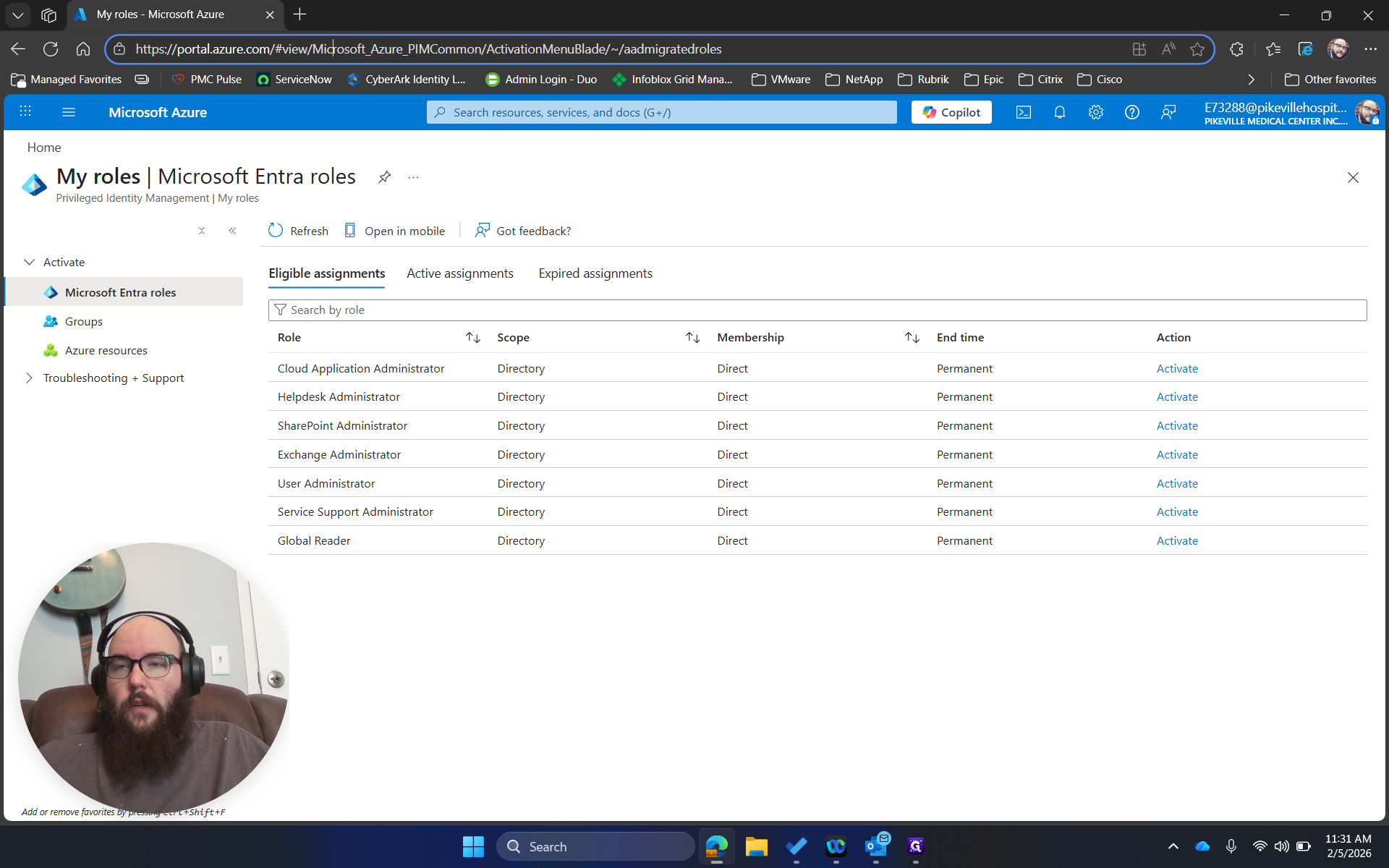
Here are the steps to revoke a user session. This problem occurs when someone tries to log in and reports being locked out, but their account is not actually locked or their password was recently reset. It's usually caused by a stuck login session in Microsoft. First, go to aka.ms/pim. This is where you activate your user role.
You need to use a help desk administrator or higher to do this. Once activated, go to entra.microsoft.com.
Then go to Users.
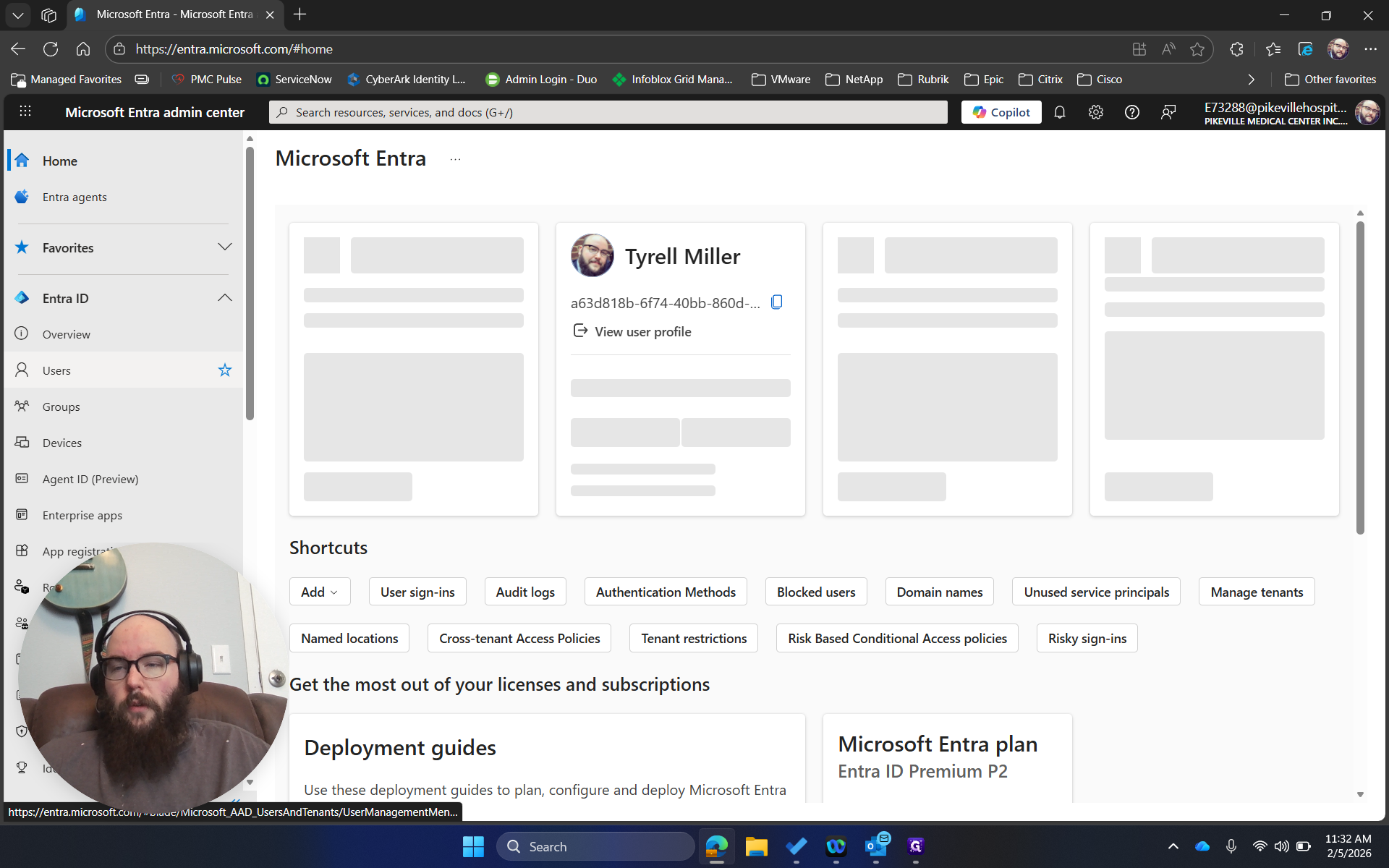
Search for the user.
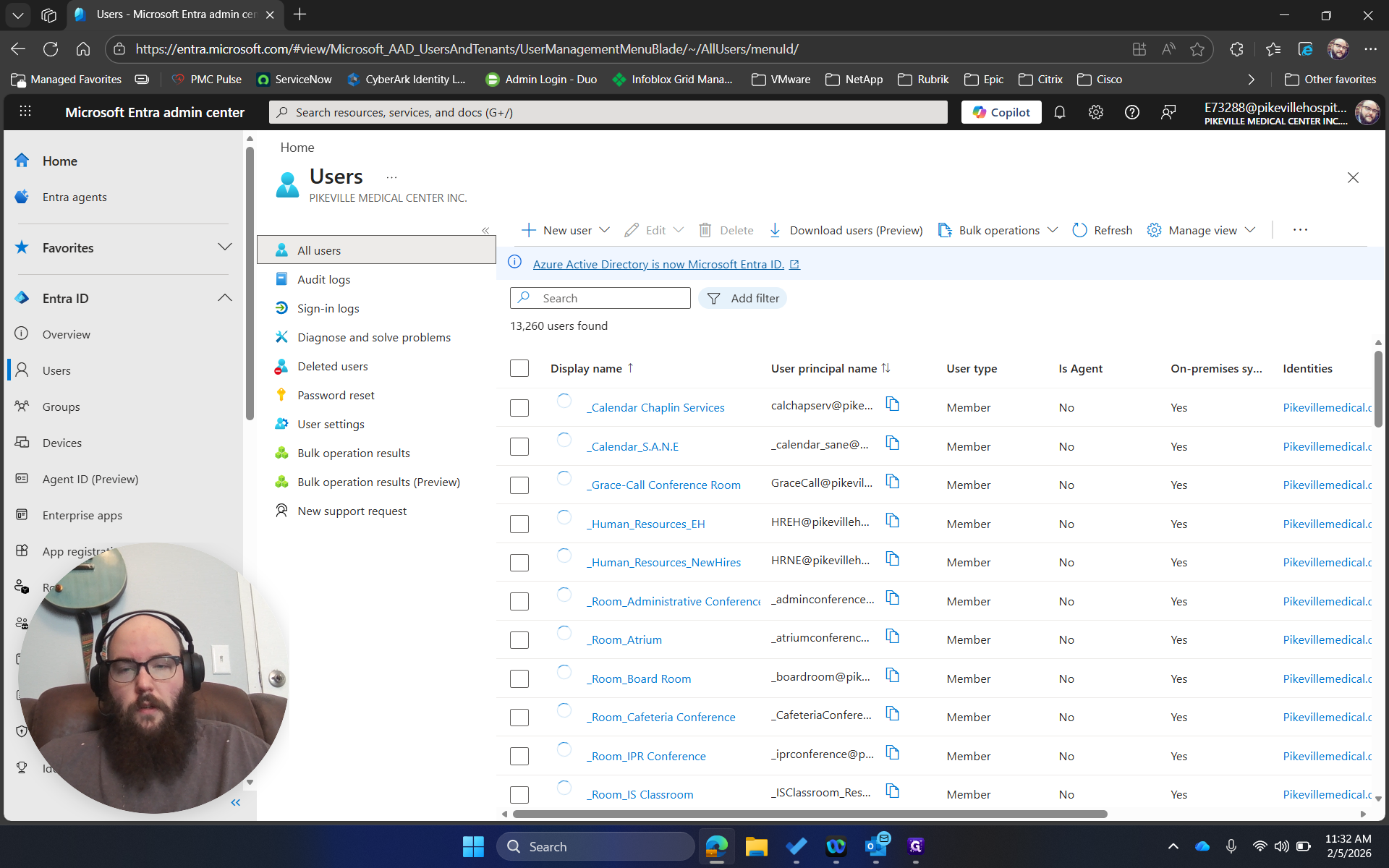
I will use myself as an example.
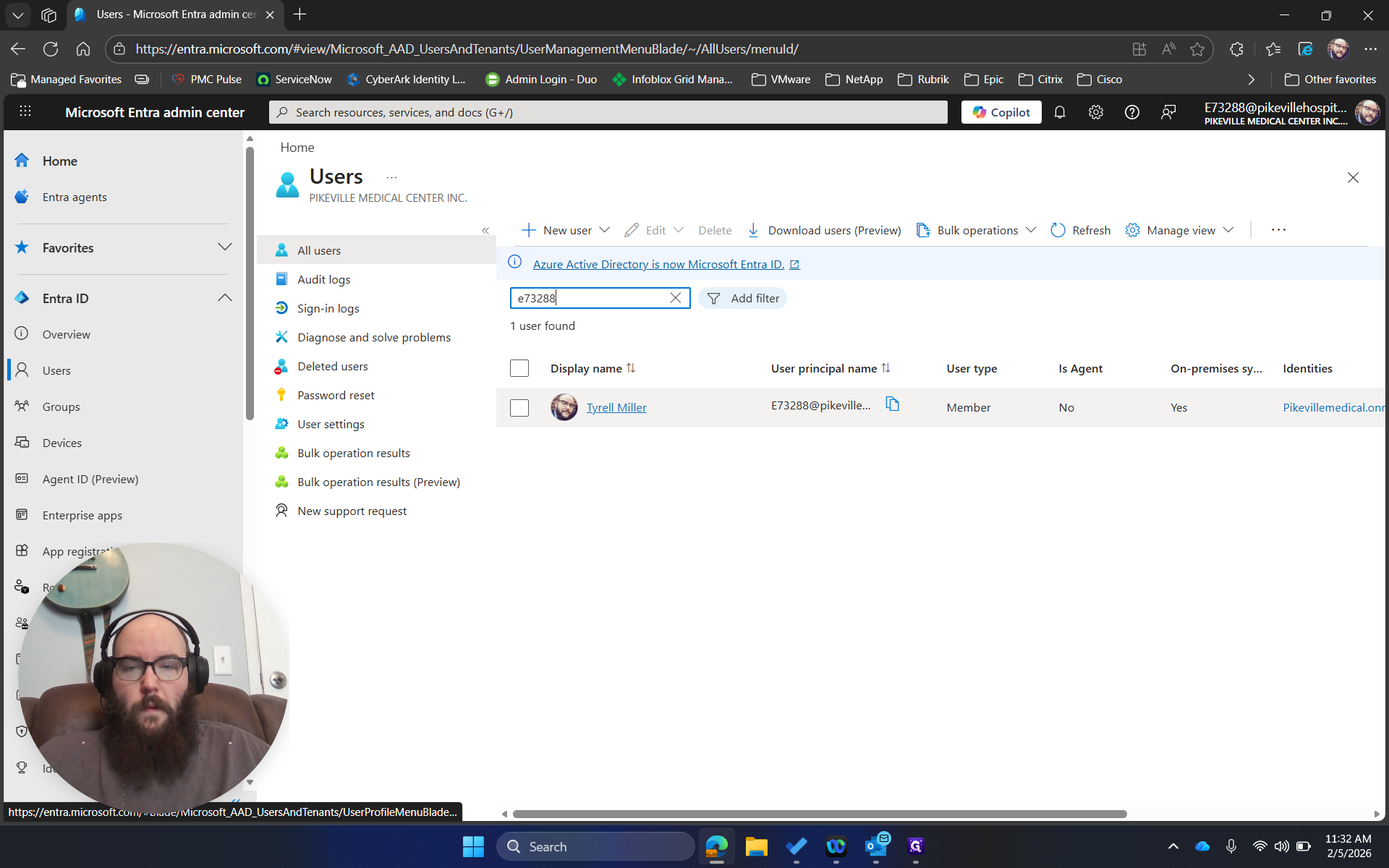
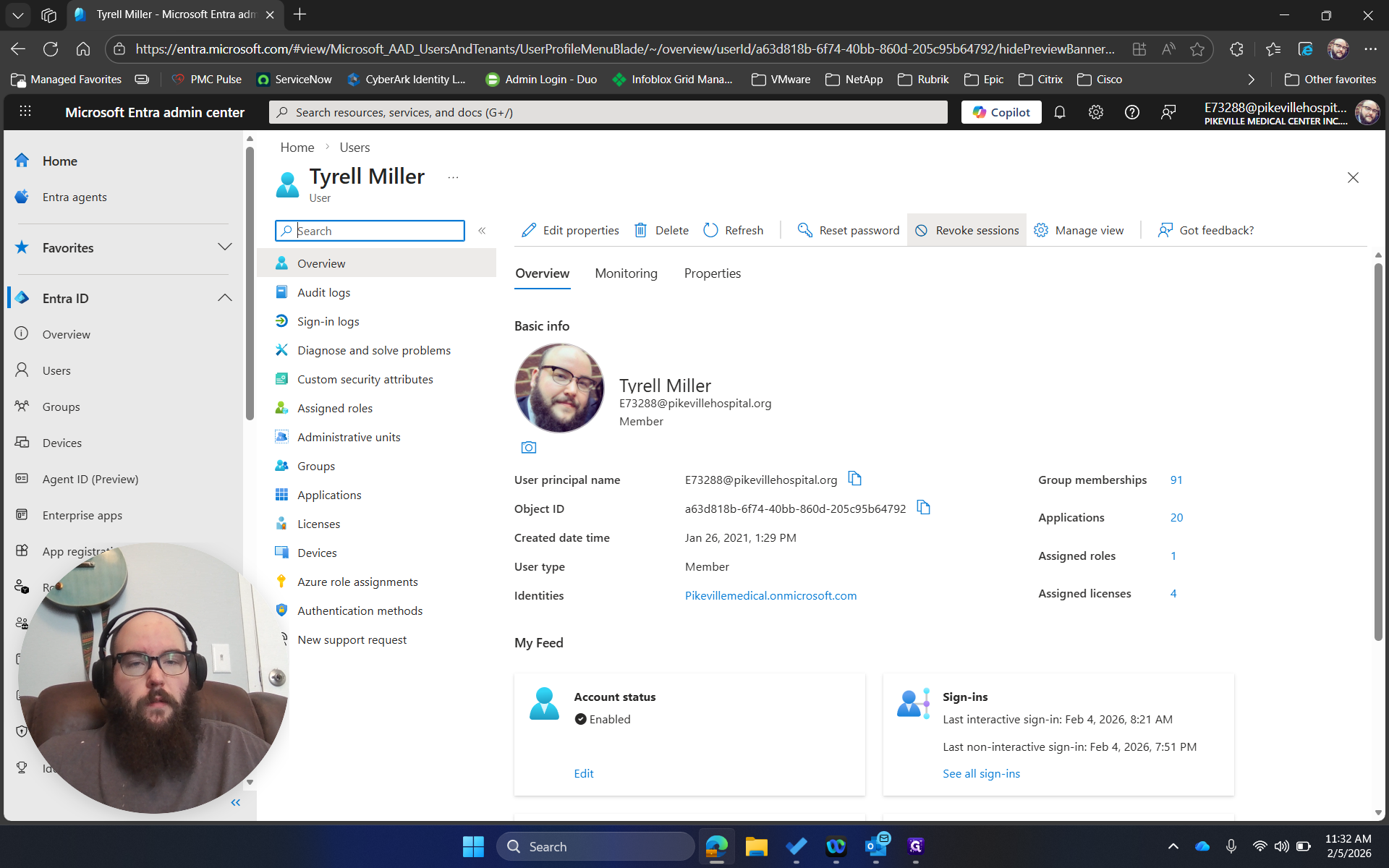
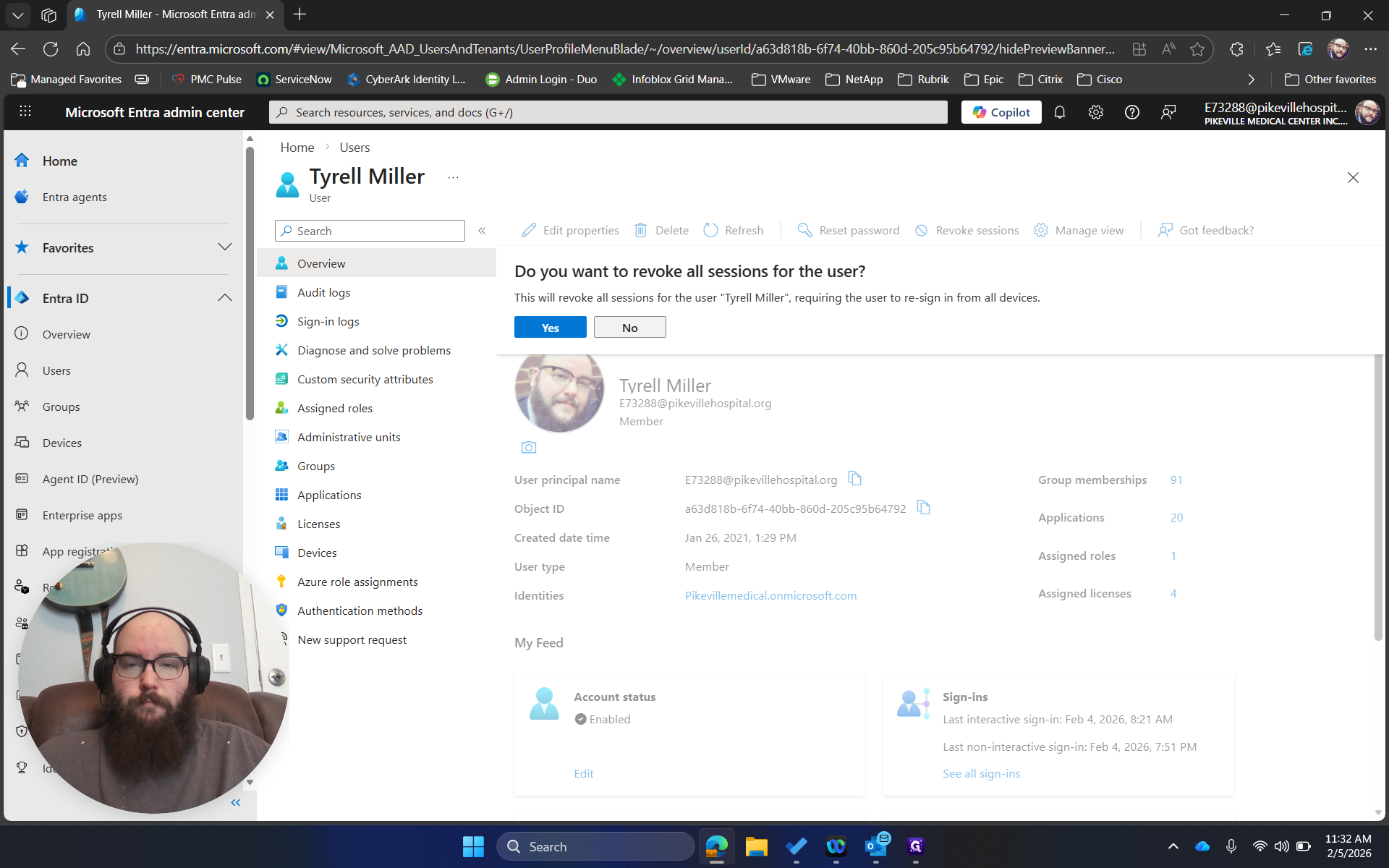
Select them, then click "Revoke Sessions" at the top. Click on that, confirm here, and it will reset all their sessions.