How to Safely Switch Lighting Control from Laptop to iPad After Service
Learn the step-by-step process to safely transition lighting control from a laptop to an iPad using Luminaire, avoiding disruptive flashes and ensuring a smooth shutdown after service.
In this guide, we'll learn how to safely switch control of the lighting system from a laptop running Light Key to an iPad using Luminaire after a service. This process helps prevent unwanted light effects and ensures a smooth transition without causing discomfort or risk to anyone present.
We'll cover the steps to disconnect Light Key, reconnect Luminaire, and confirm that the lighting is managed correctly from the iPad.
Let's get started
Now we need to go through the shutdown process. When the service is over, we need to switch from the laptop back to the iPad. There is a way to do this without causing any disruptive flashing or startling anyone. First, we need to go back to this black cable.
As long as the Lightkey is on and the black cable is connected, Lightkey is in control.We don't need it to compete with Luminaire or start strobing.
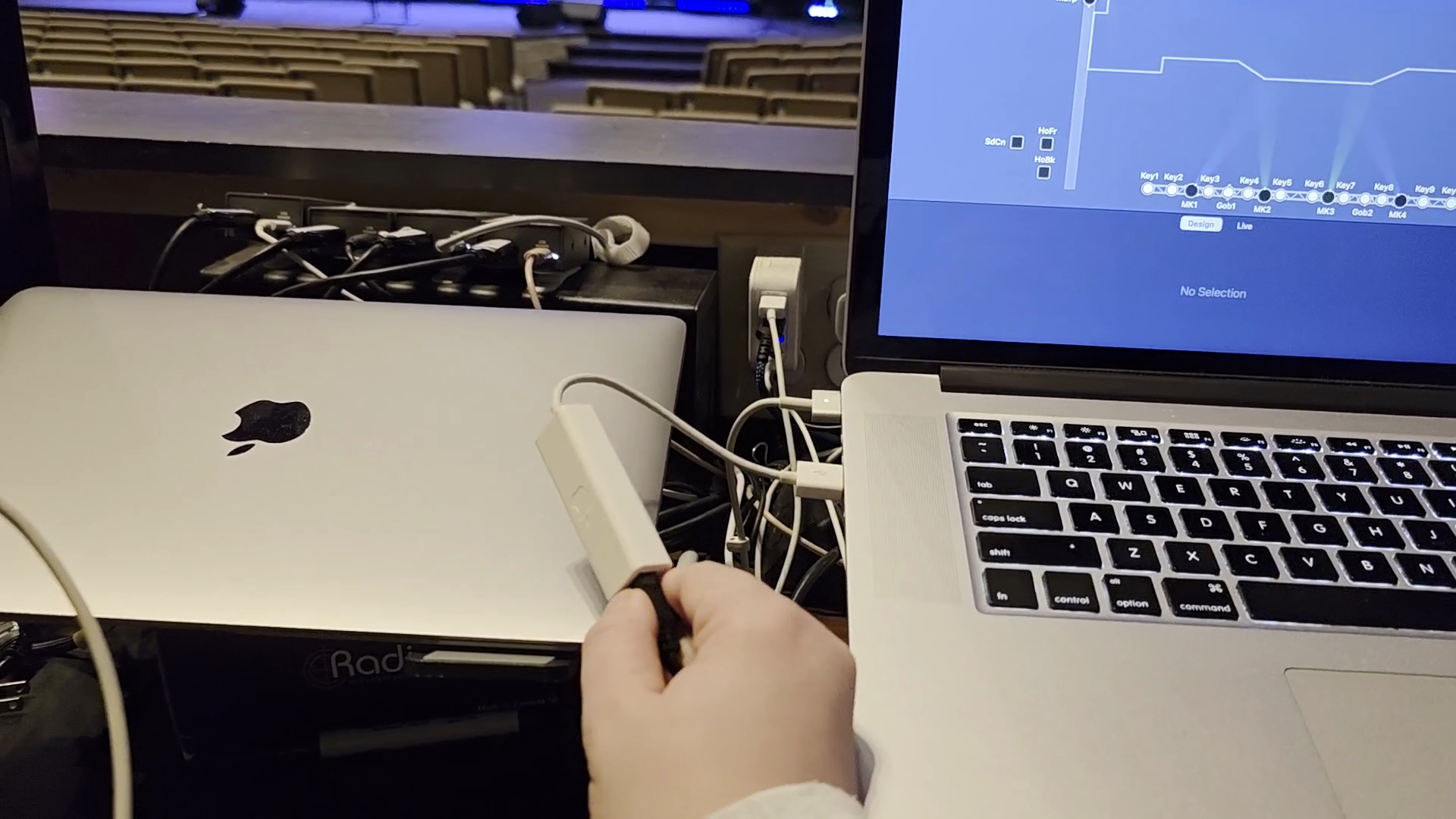
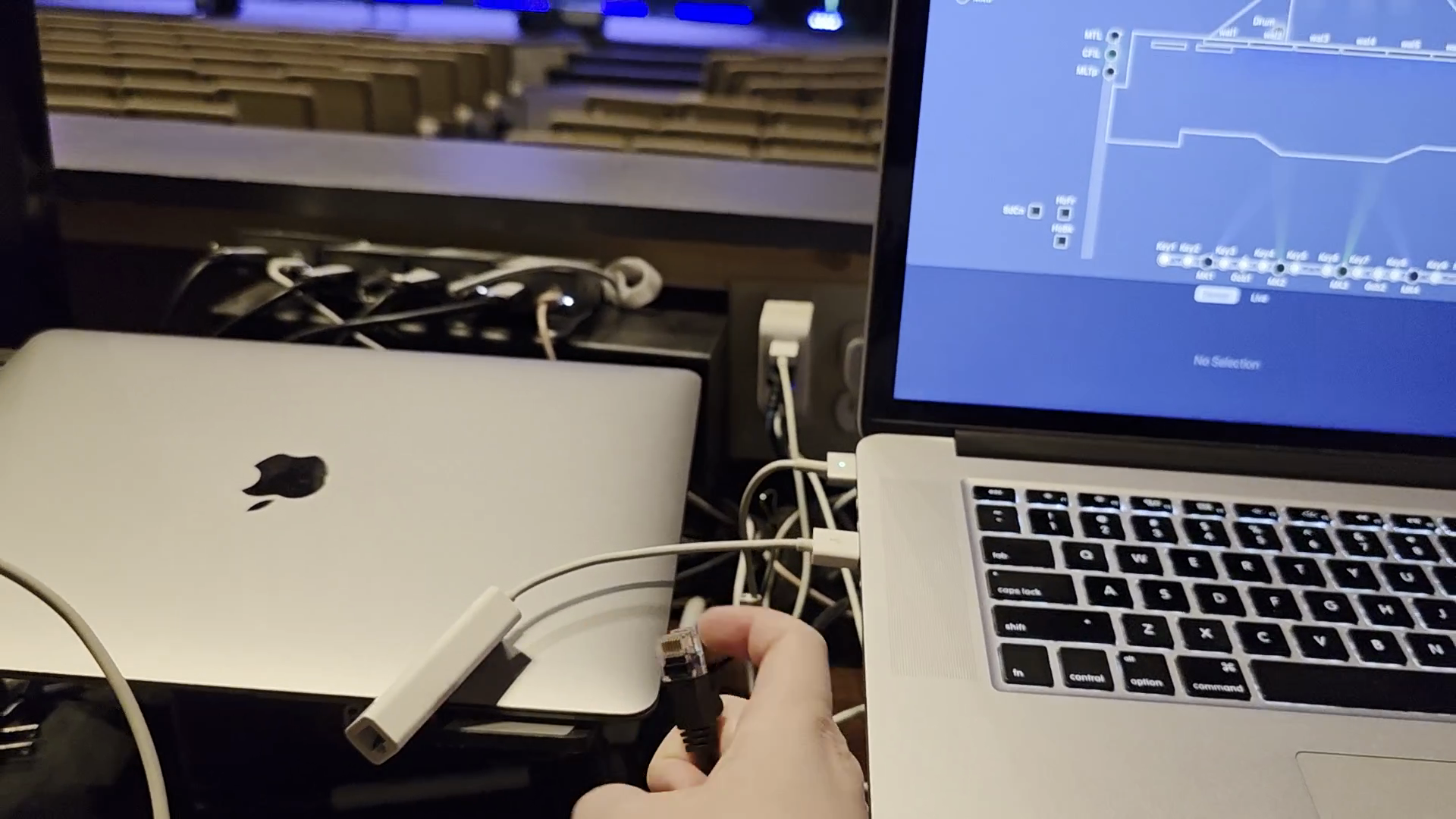
Light key is no longer receiving an internet feed. As a result, it is not connected to the system that controls the lights. We can now return to our iPad and turn it on.
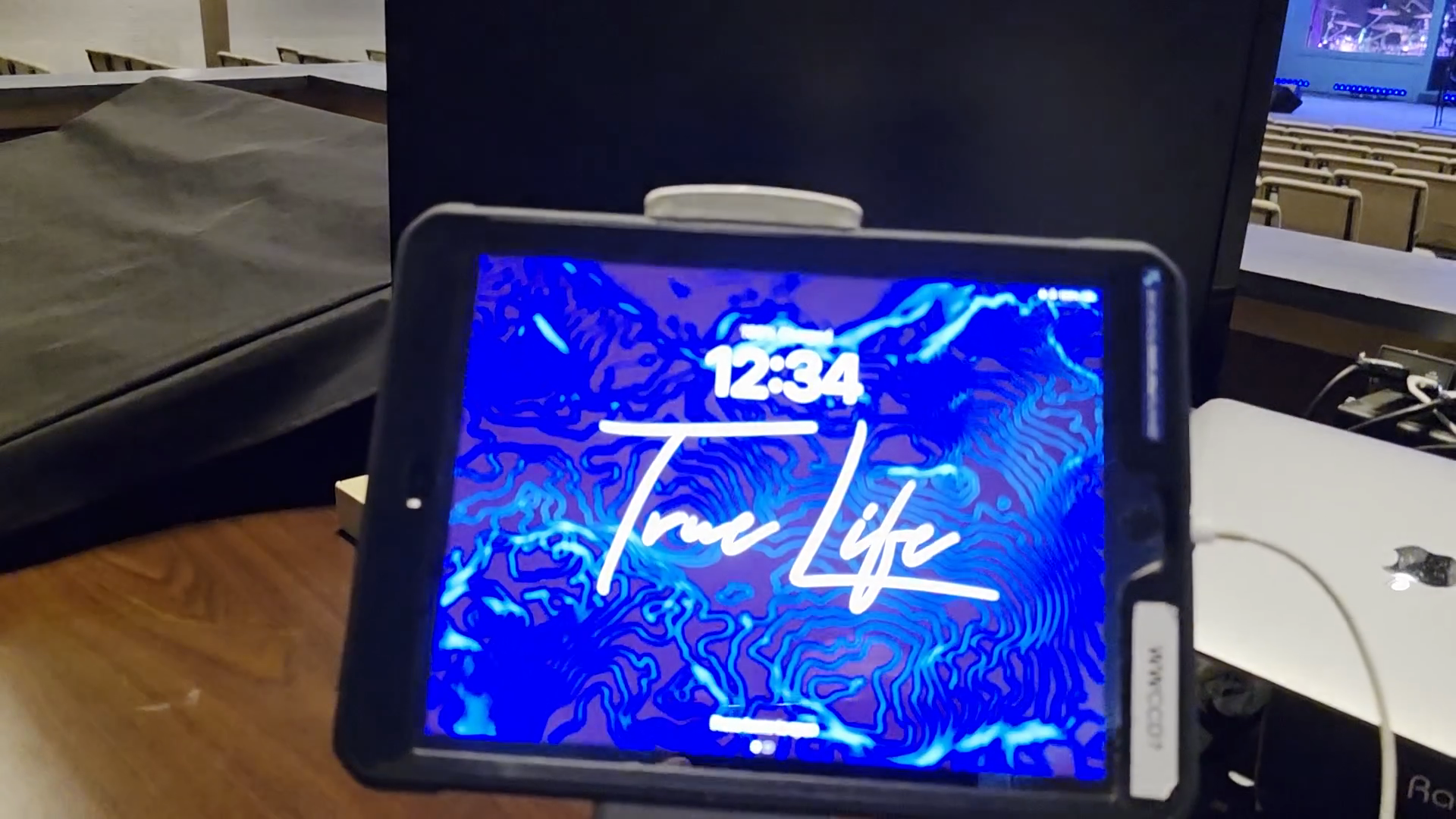
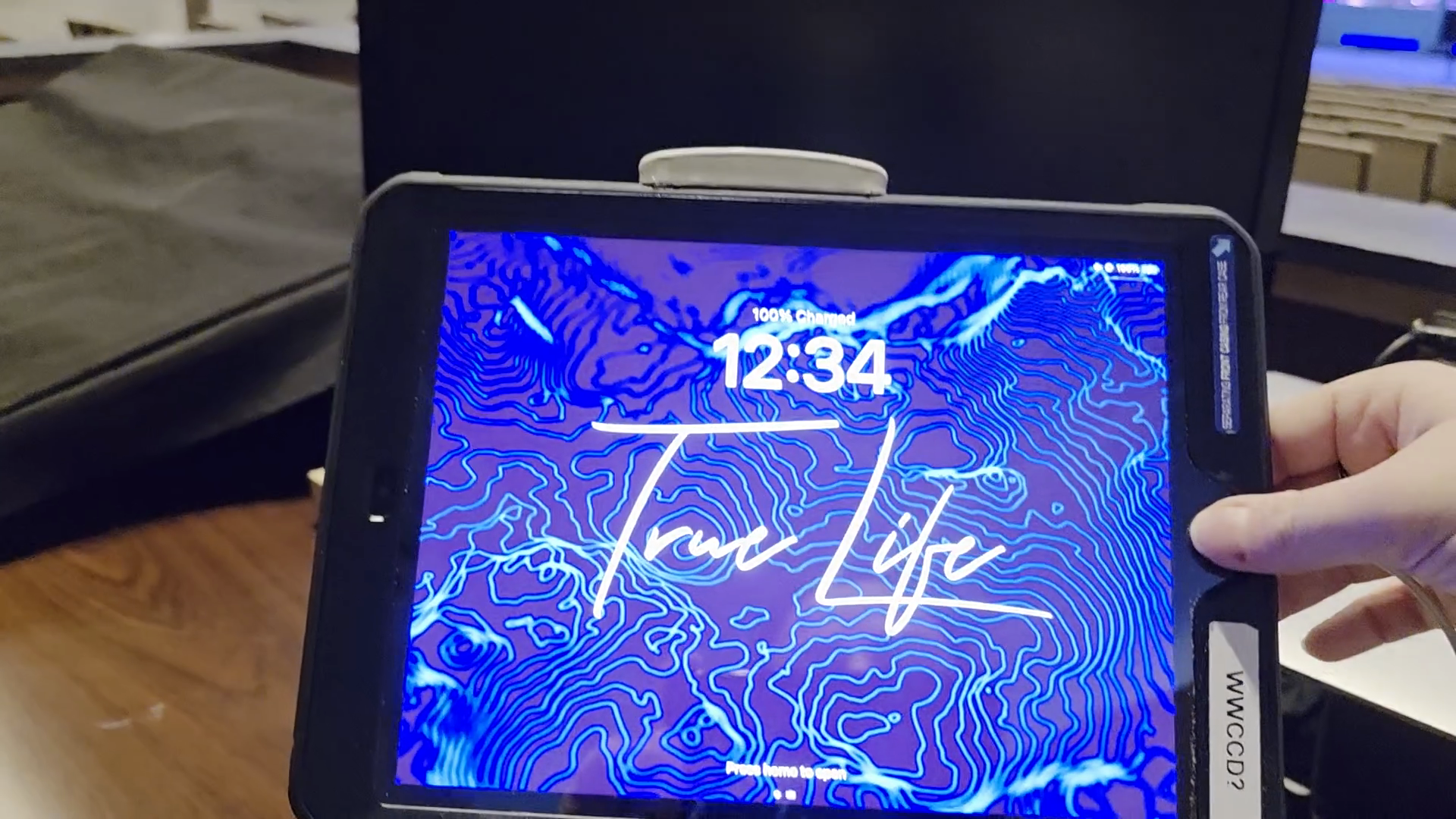
You can see Luminaire is up.
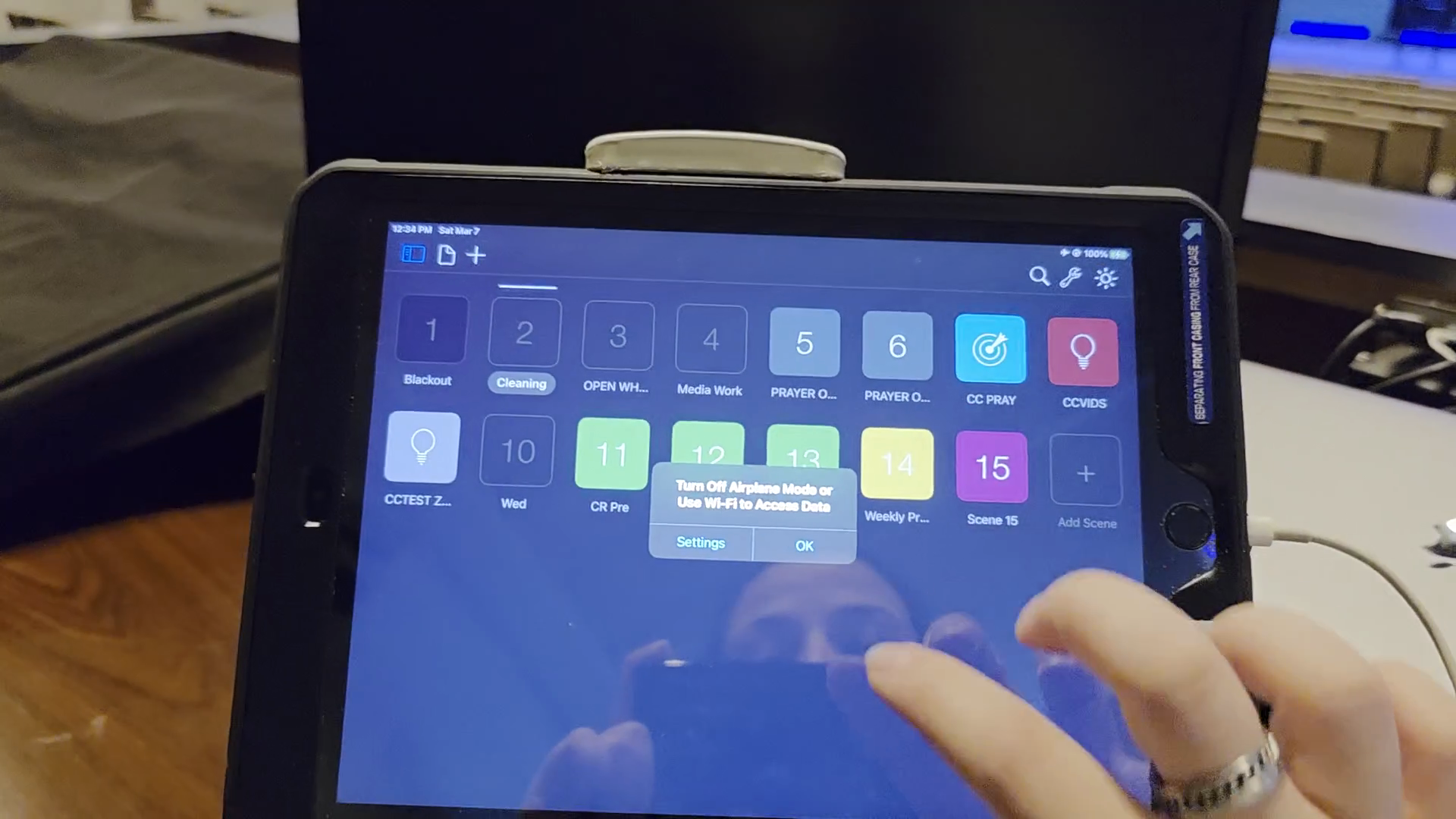
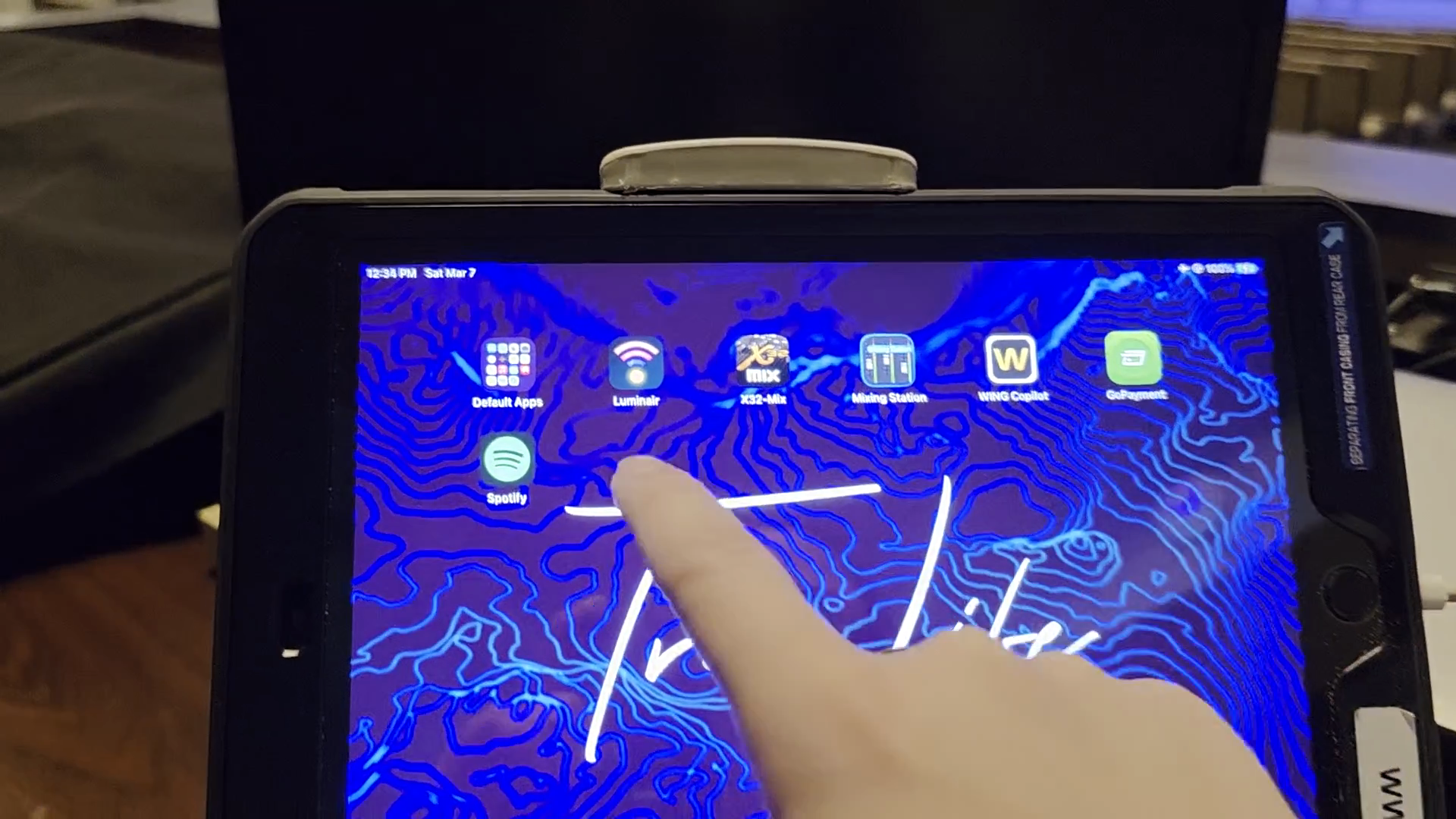
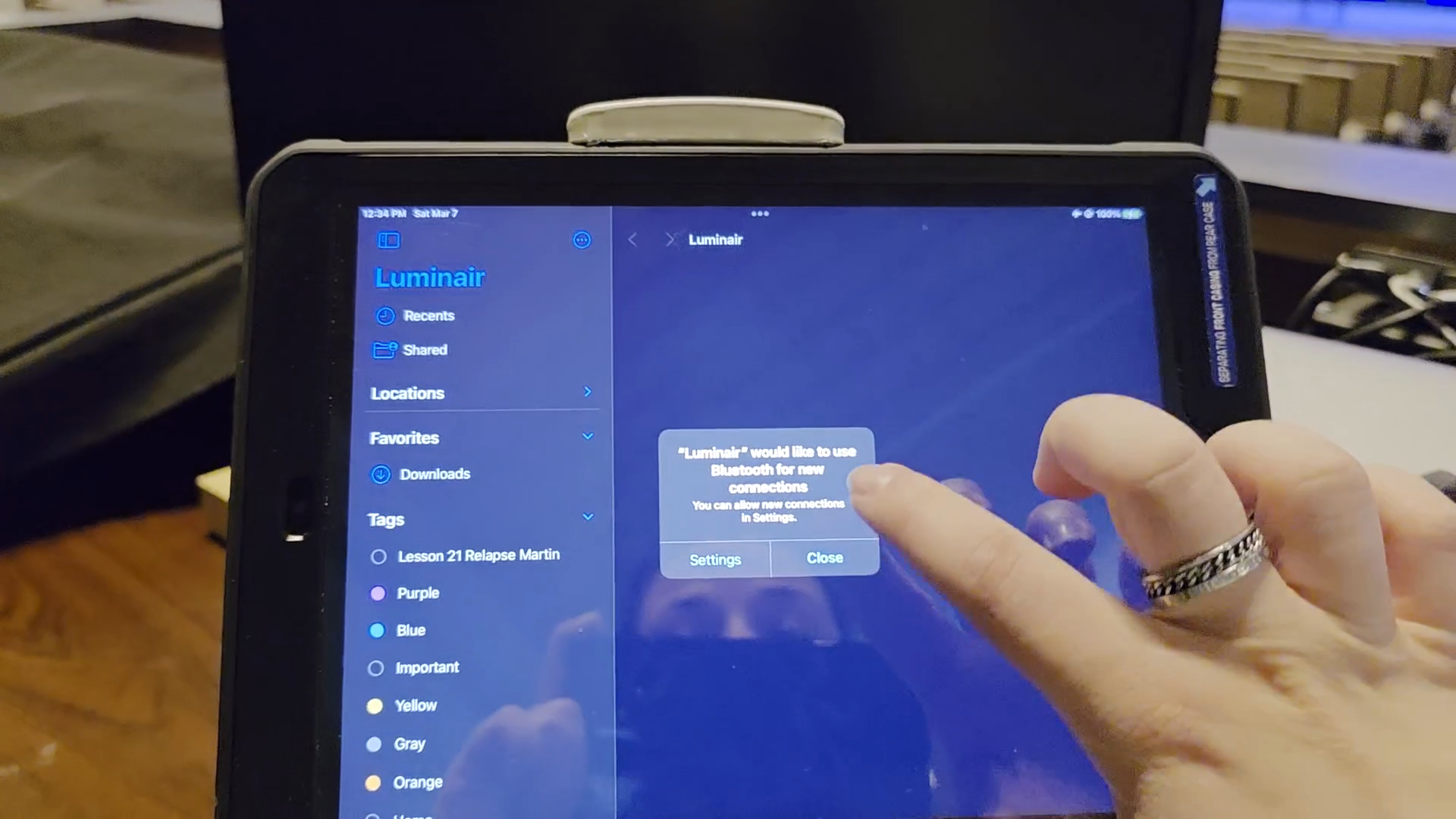
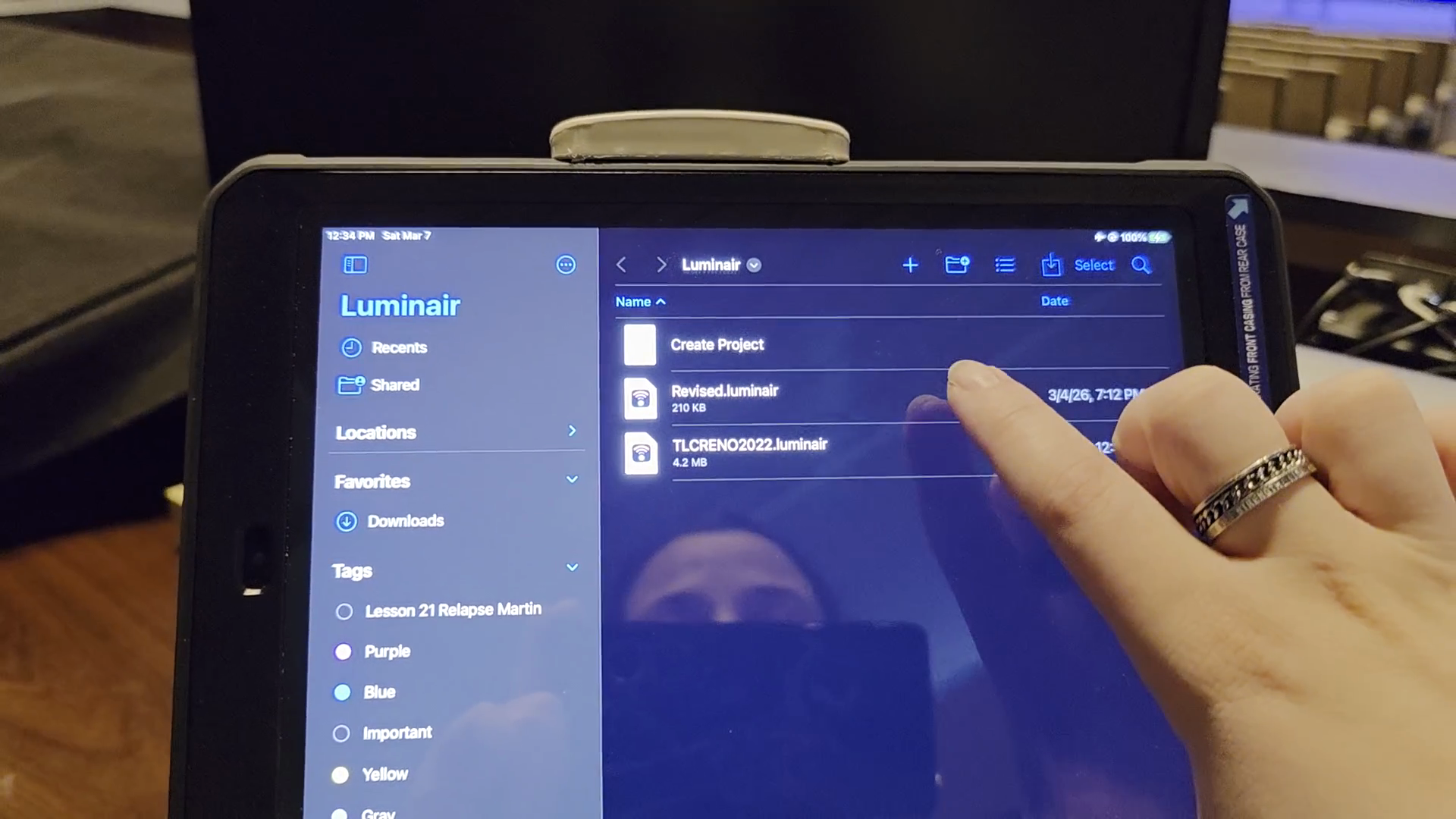
We want to go to the second scene on a Sunday, and then you'll swipe down.
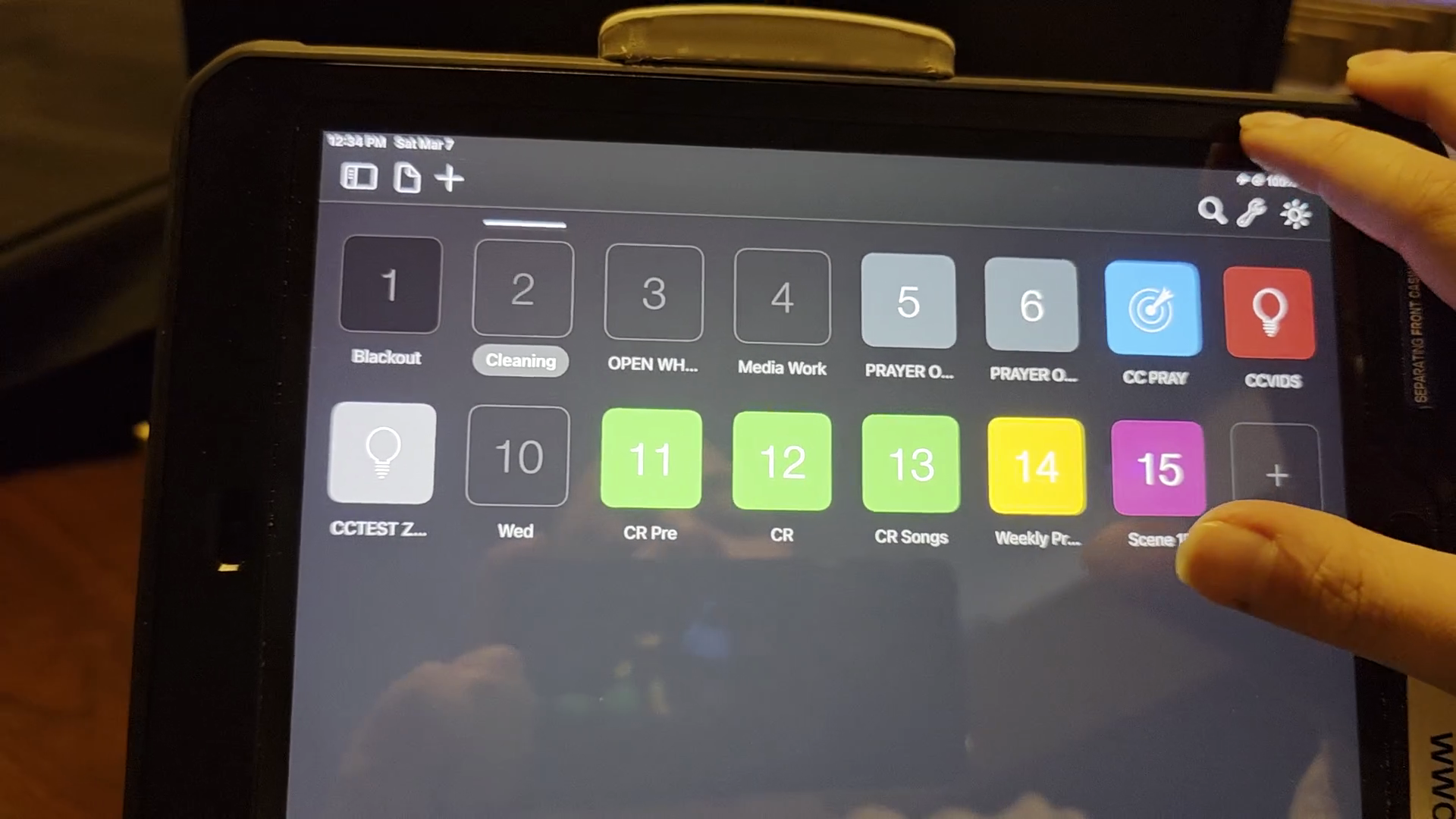
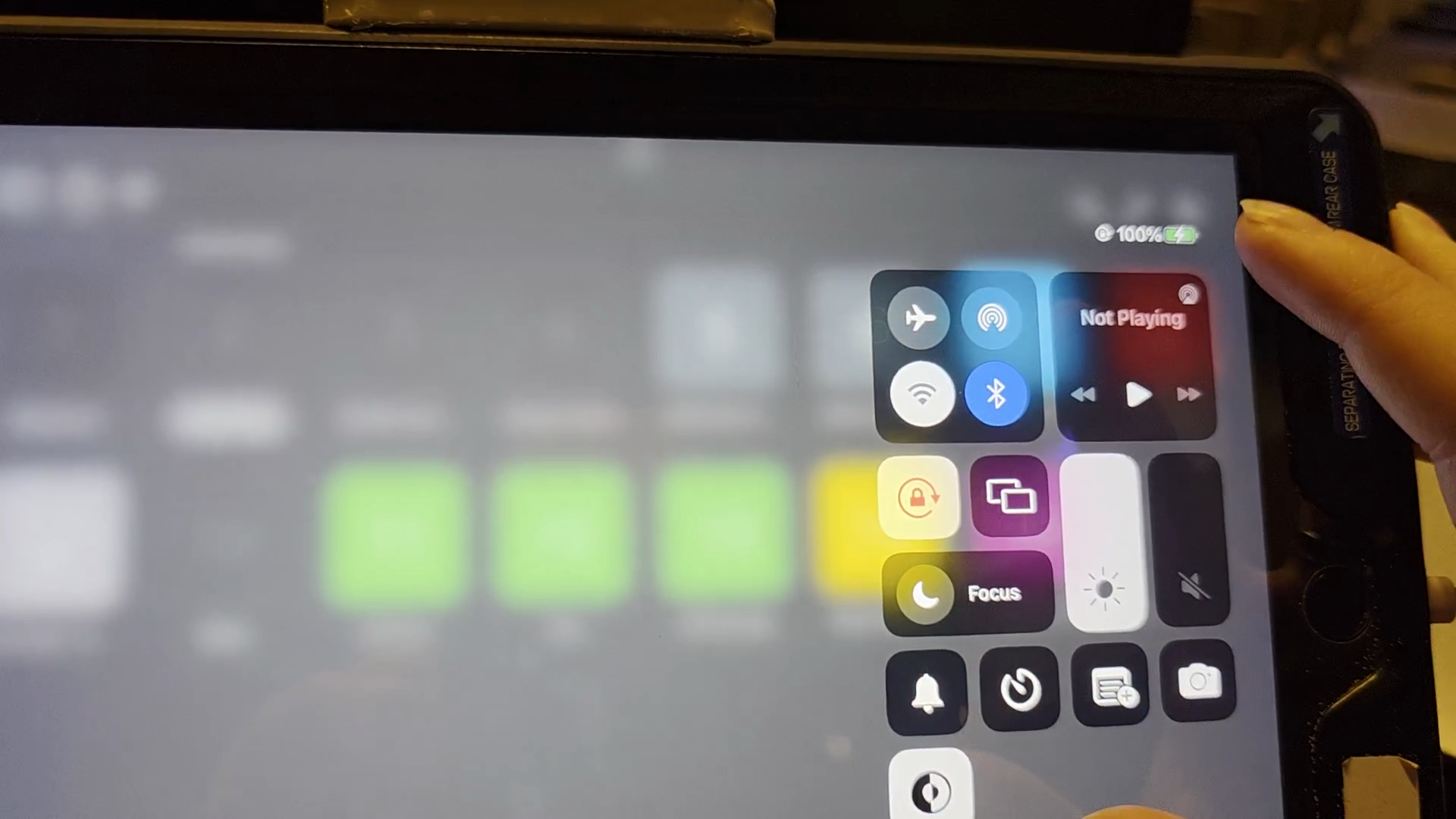
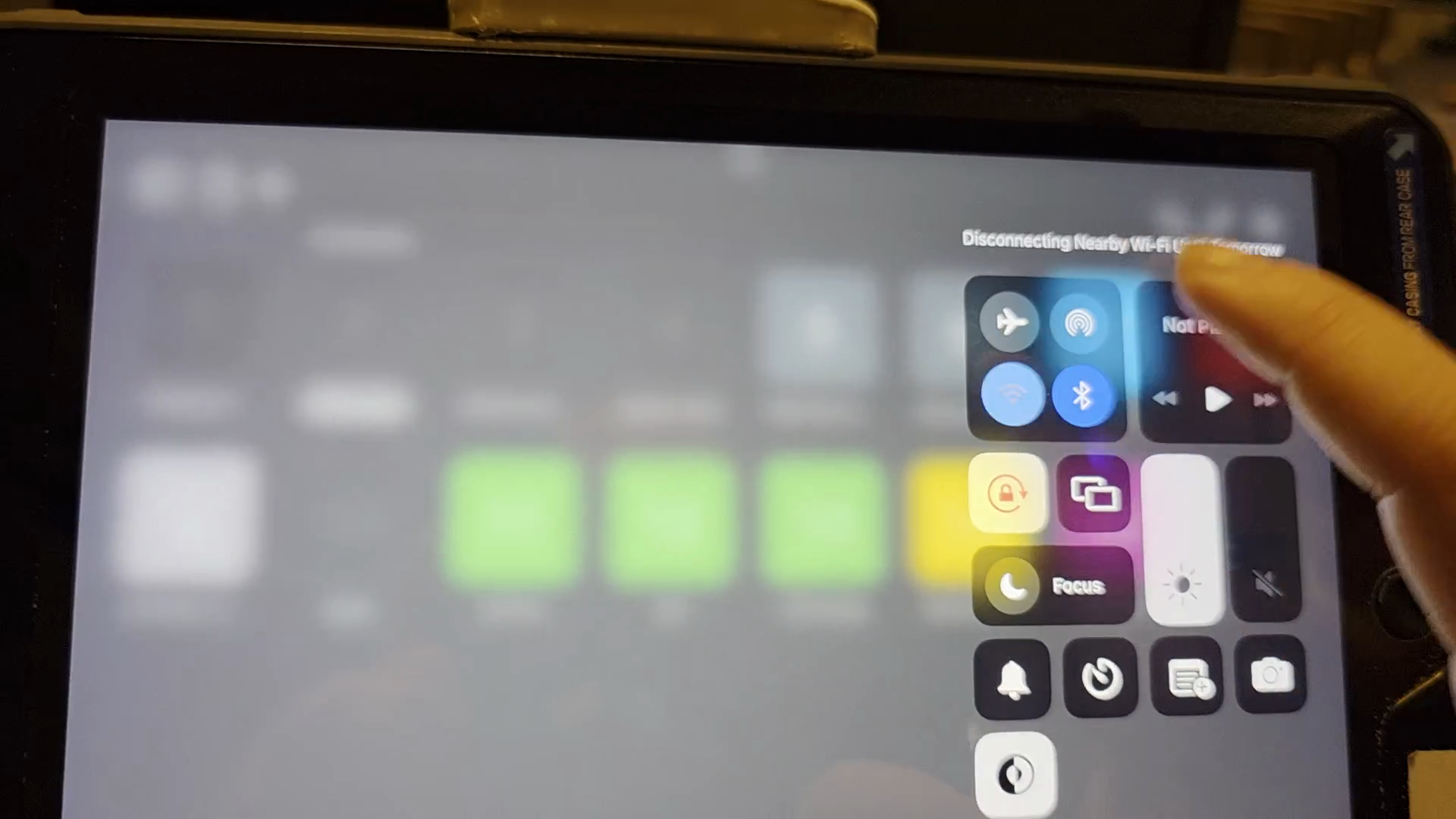
Luminaire has taken over. This means that anywhere I click here, when security is closing and they activate blackout, Luminaire controls the lights again.
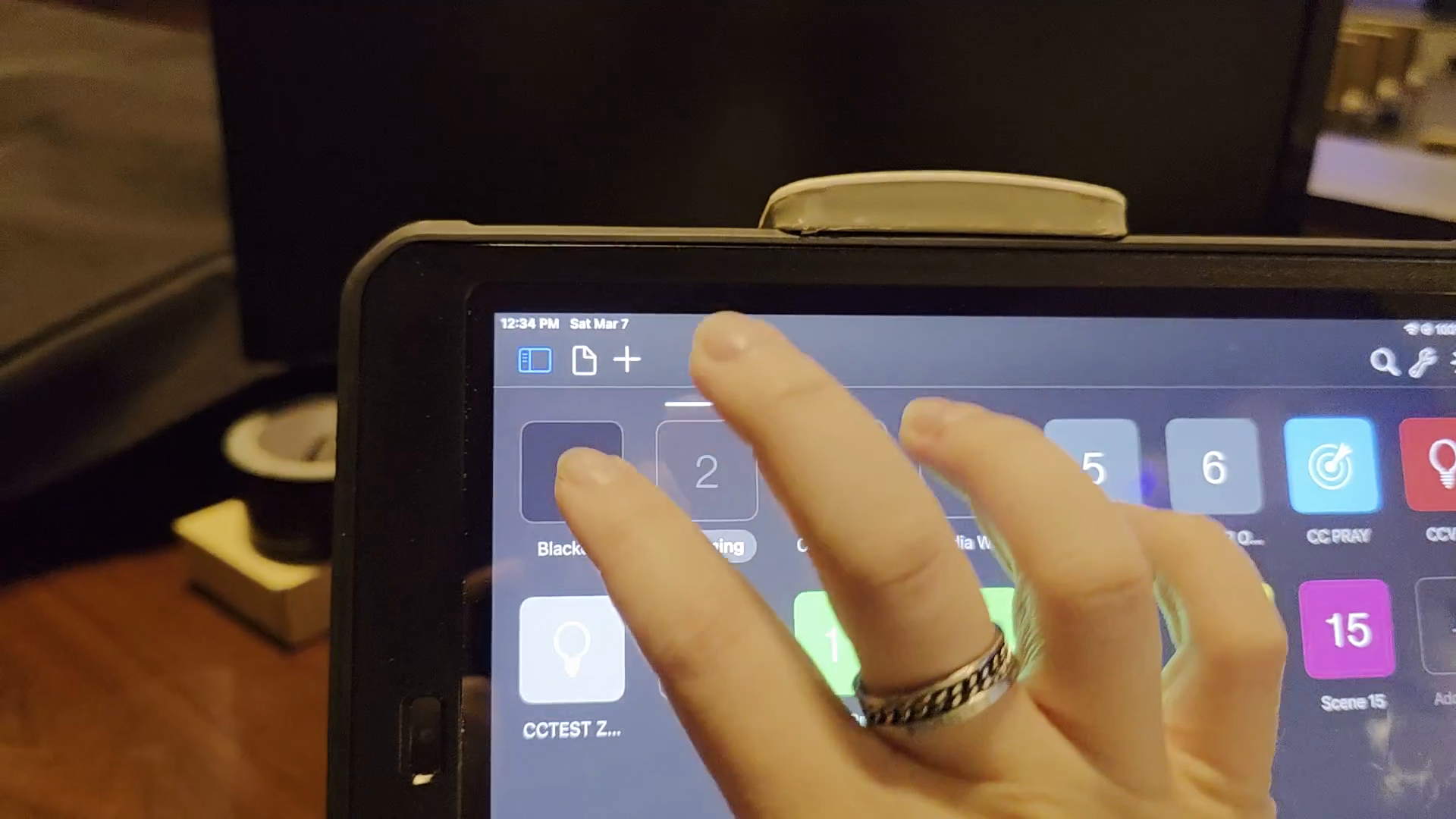
We like Luminaire because it is easily accessible to everyone. It's just a push on a screen. We don't have to deal with computers.
Overall, we mainly use Luminaire for startup and shutdown.
It's just a push on a screen. We don't have to deal with computers.
Overall, we only use Luminaire for startup and shutdown.