How to Save, Upload, and Process Intake Call Recordings for Mortgage Applications
Learn the step-by-step process for saving, uploading, and transcribing intake call recordings using OpenPhone and blue.hq.com. Discover best practices for organizing files, sending follow-up emails, and leveraging AI tools for mortgage application workflows.
In this guide, we'll learn how to manage and process call recordings and transcripts after a client call. We'll cover how to download call recordings from OpenPhone, upload them to Blue.hq for transcription, and use AI tools to extract useful information. We'll also look at organizing notes, sending follow-up emails, and updating client status in your workflow.
Let's get started
Okay.
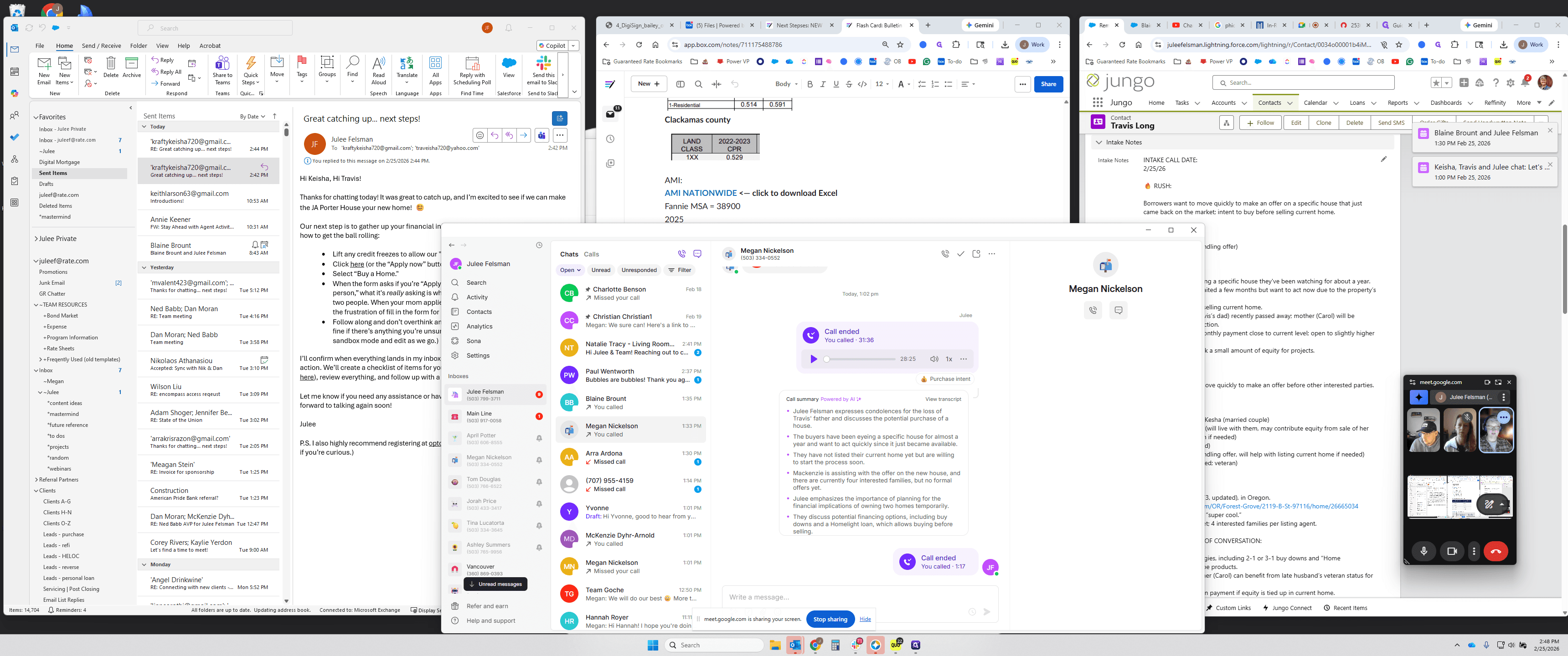
Here is the call I just had with Blaine. I asked his permission, and he approved using the AI transcription tool.
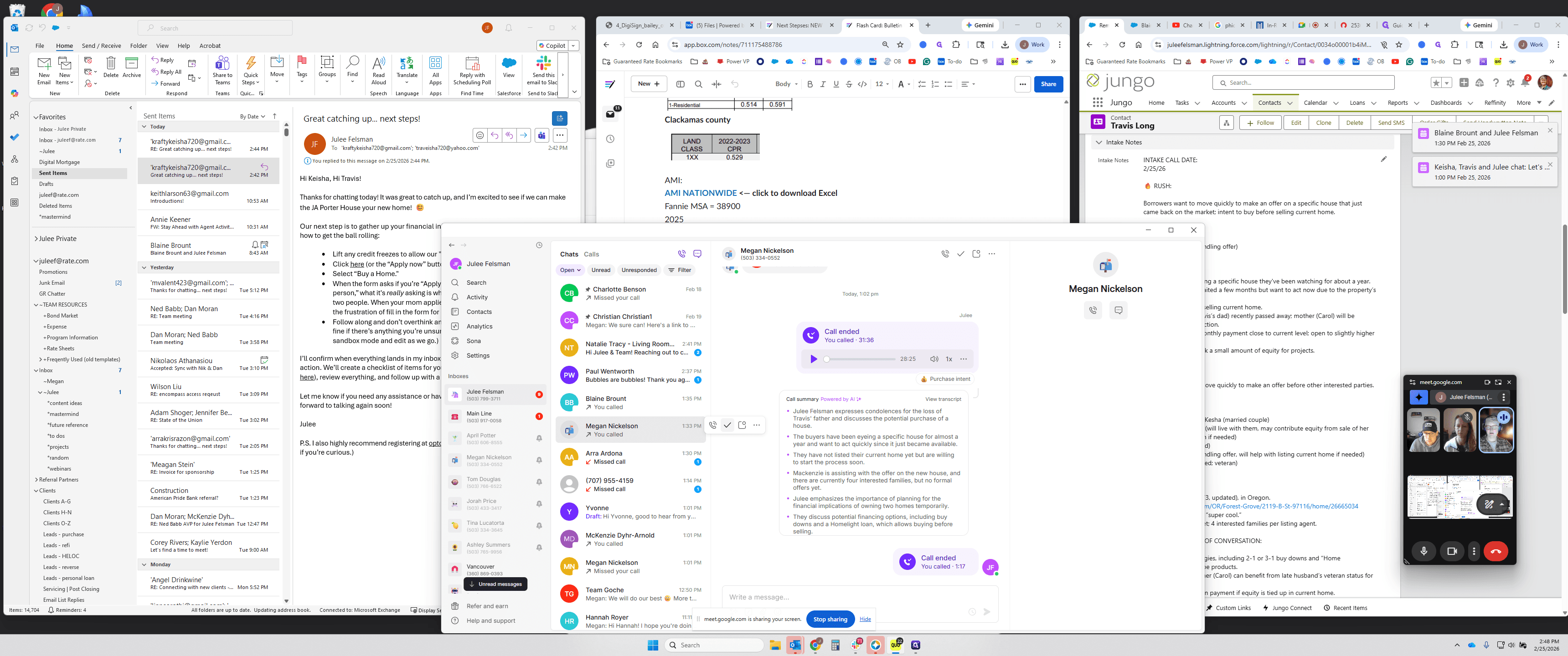
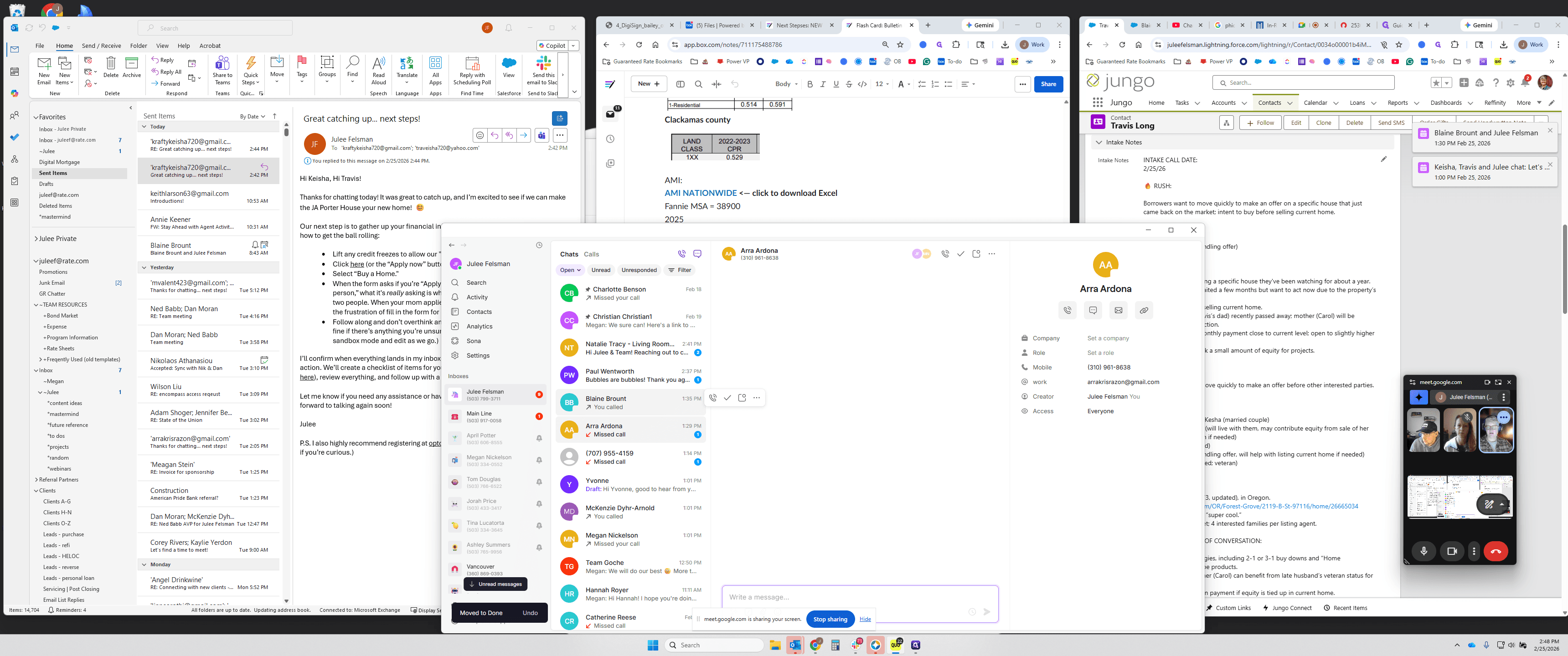
When you open OpenPhone, a few seconds after the call ends, you will see the transcript. That's not what you want.
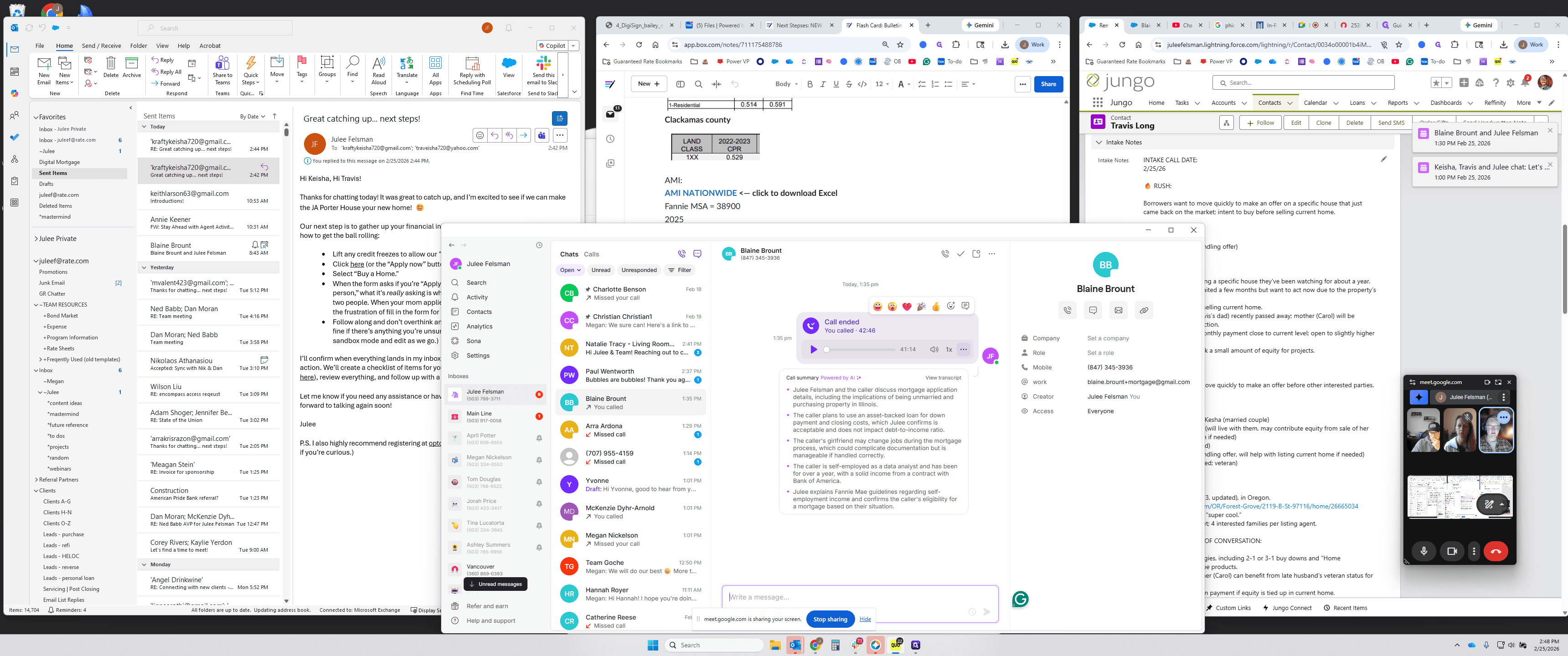
You want to download the recording for our current protocol.
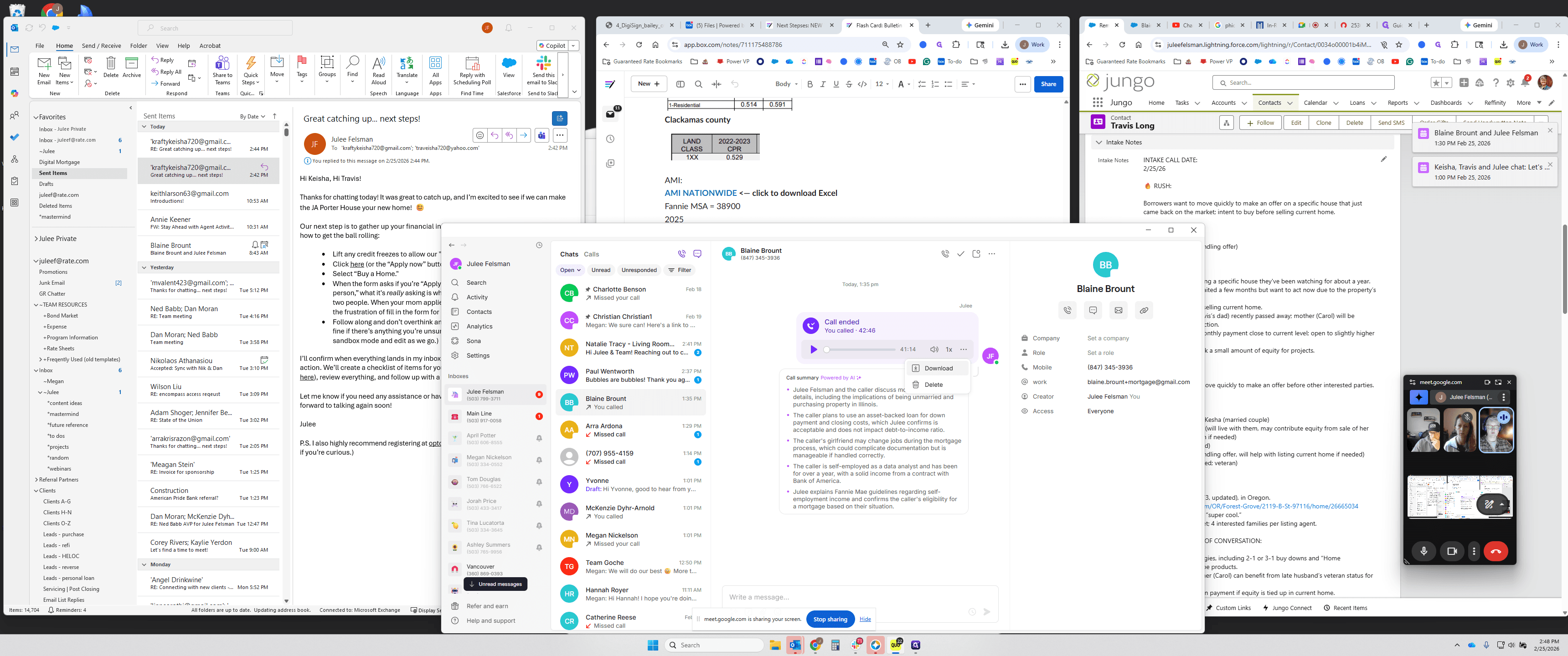
I might change this, but for now. I always save this as the borrower's name: Blaine Blount.
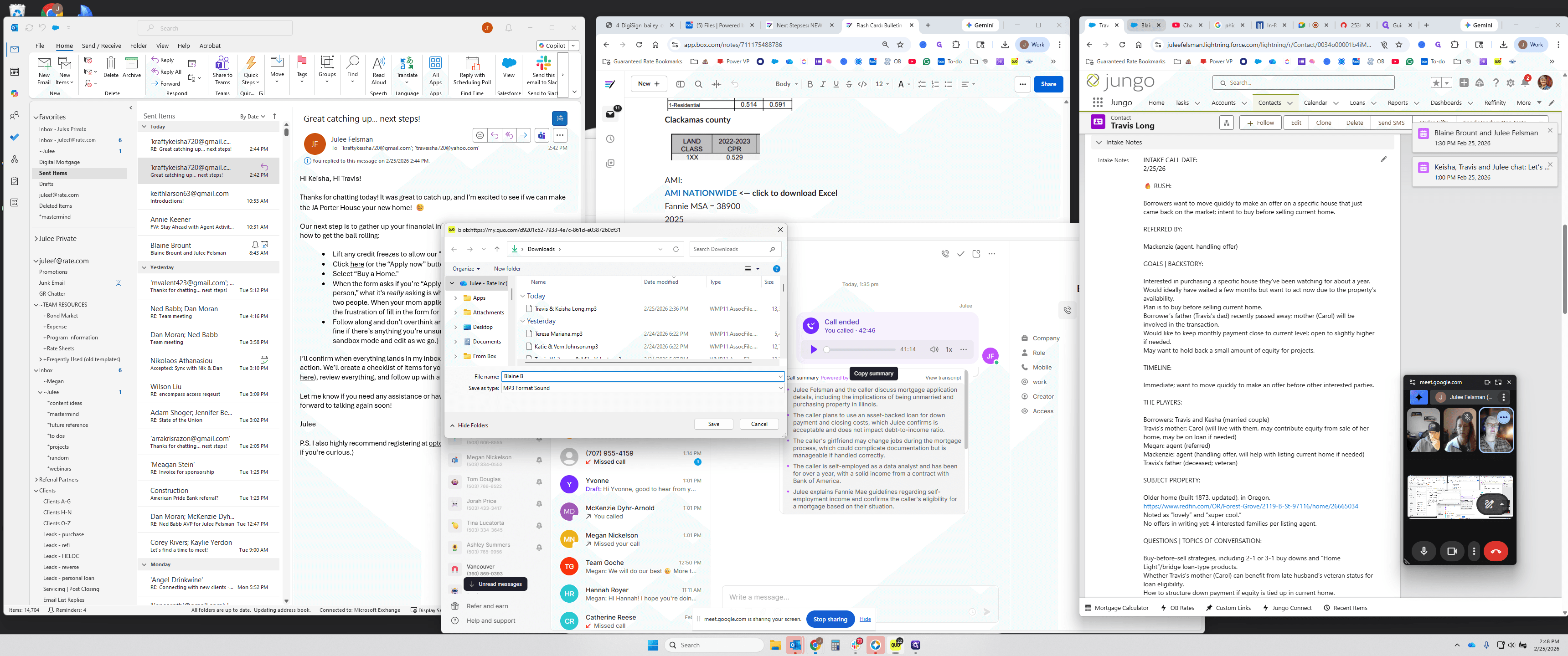
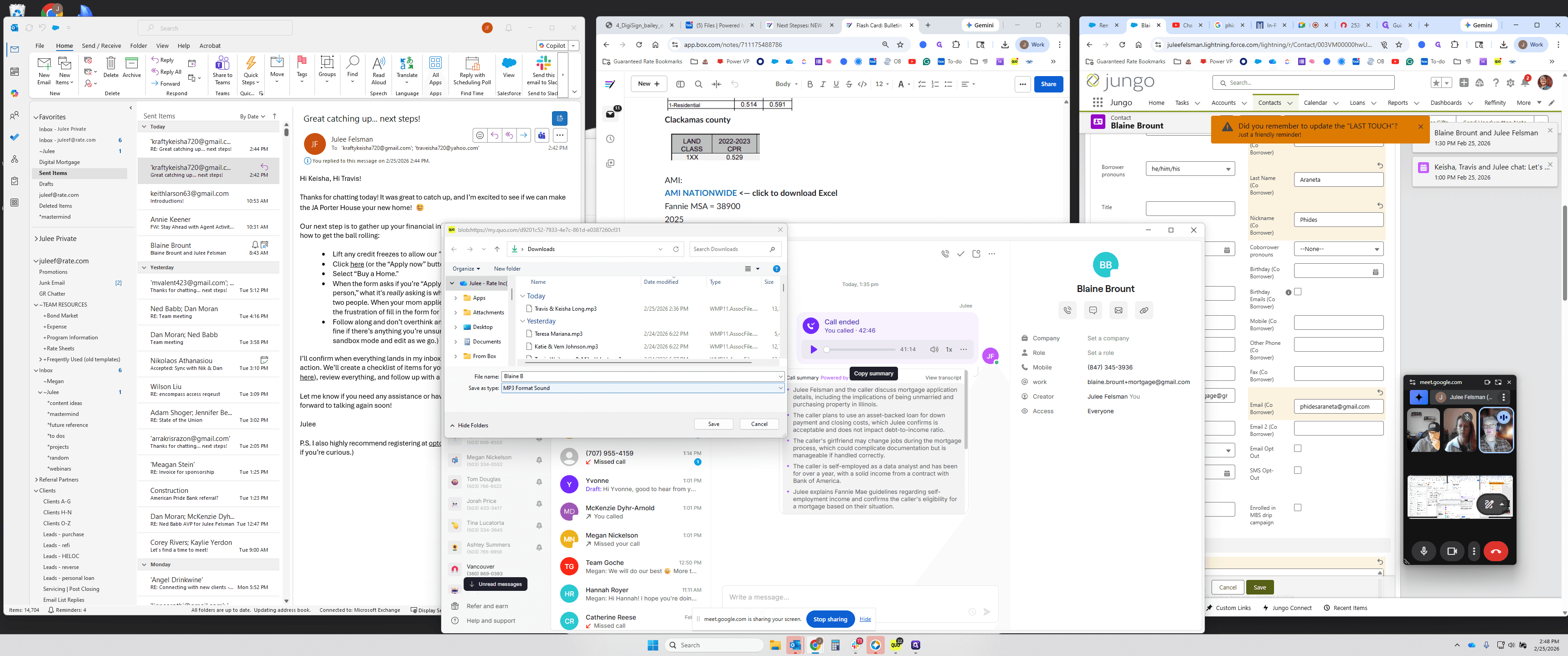
Save the file wherever you prefer. I usually save items to my downloads folder.
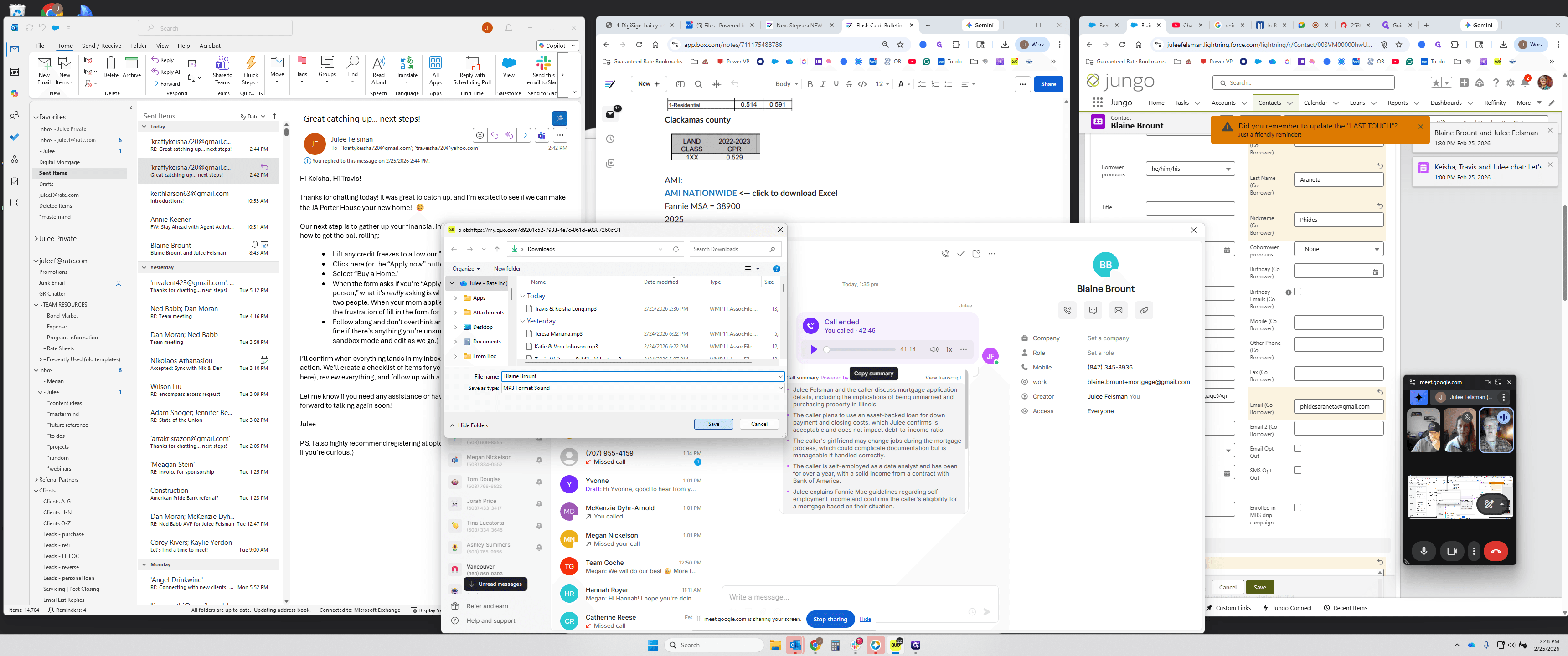
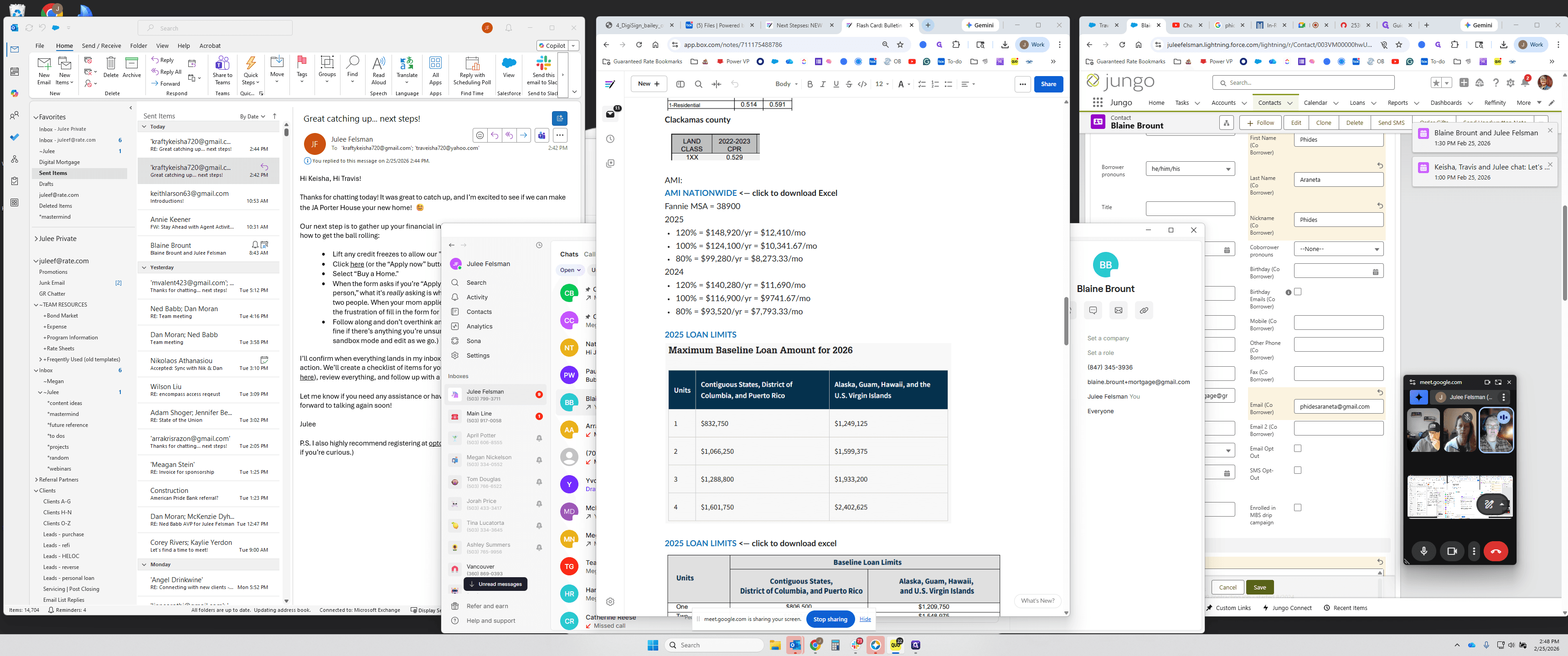
Then go to blue.hq.com.
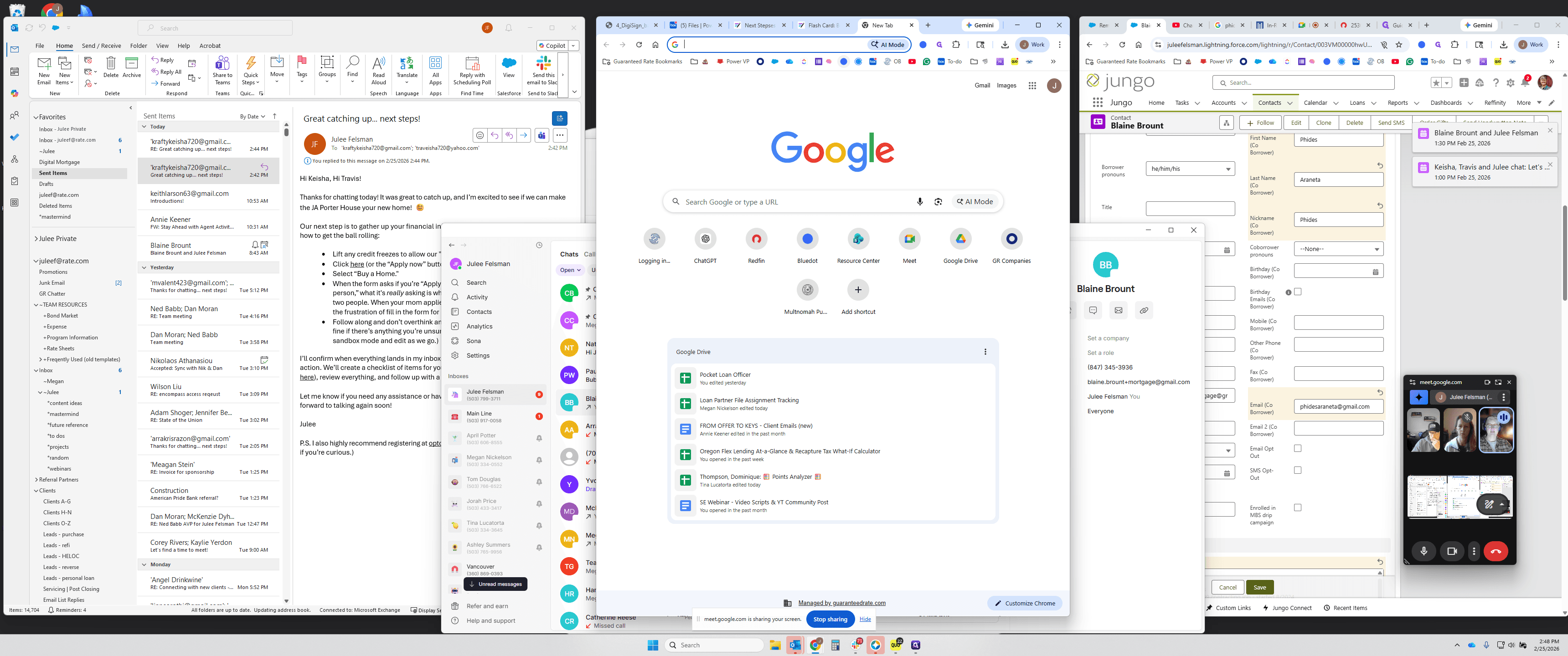
I'll get logins for you, and there's an option to add a video or audio.
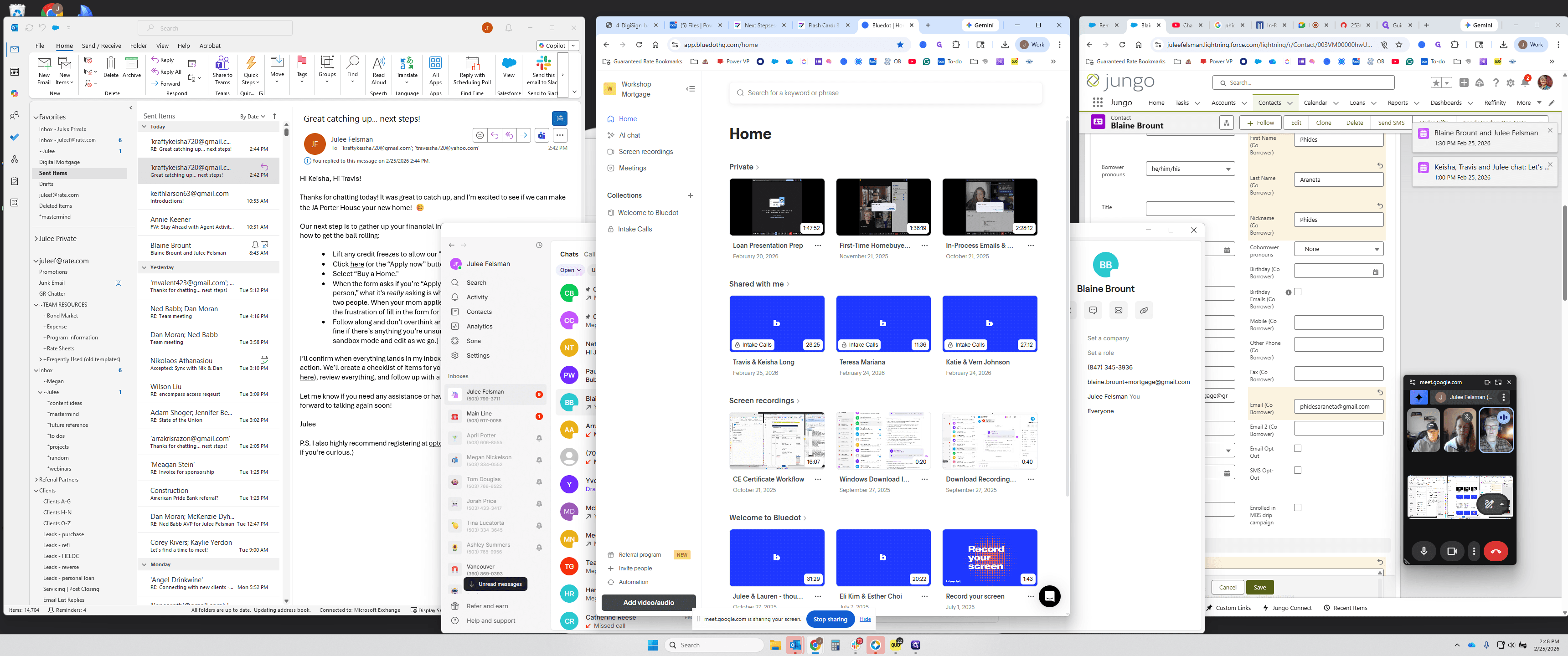
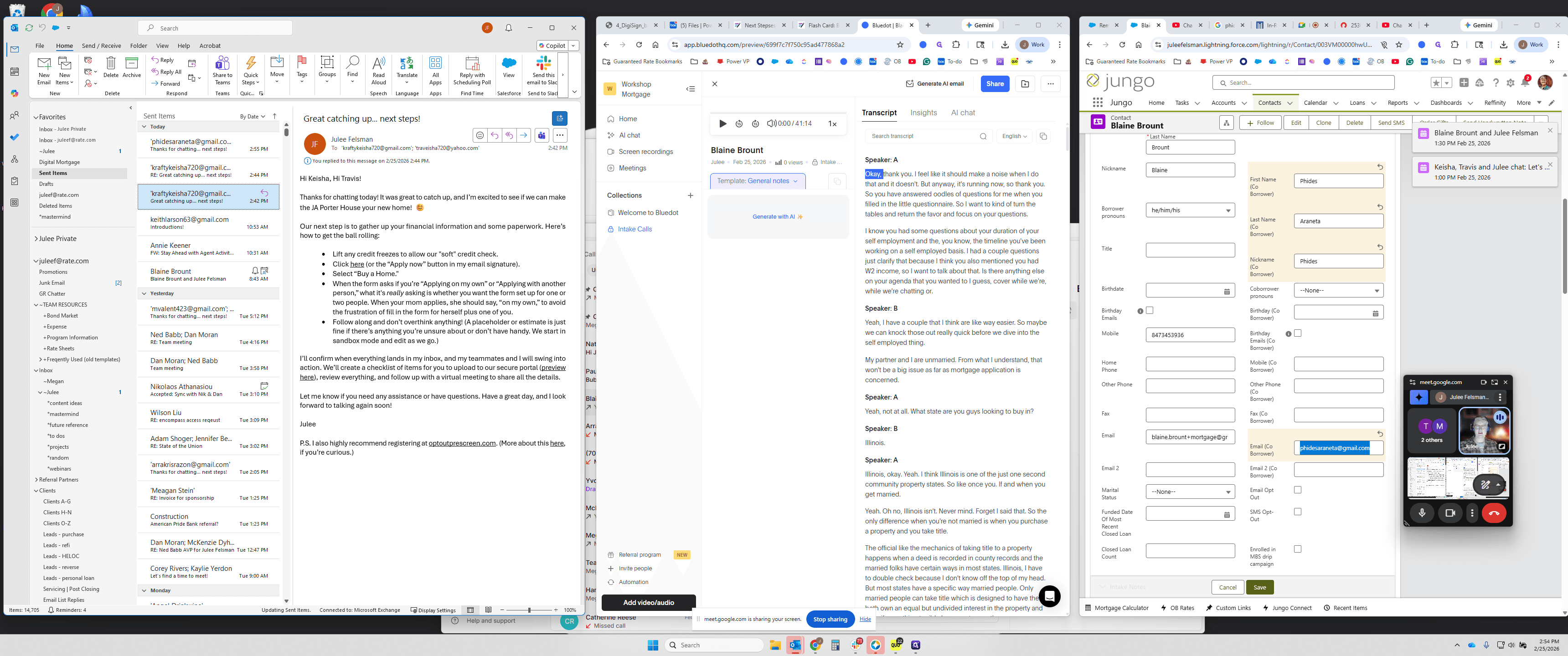
If you log in and don't see that, there's a sidebar you can click. You'll then see "Add a video or audio." Click that, then select "Upload a meeting." Click "Browse," find the recording, and select "Open." Put it in a shared collection. In this case, I'm saving it in the collection called "Intake Calls," where I keep all the intake calls.
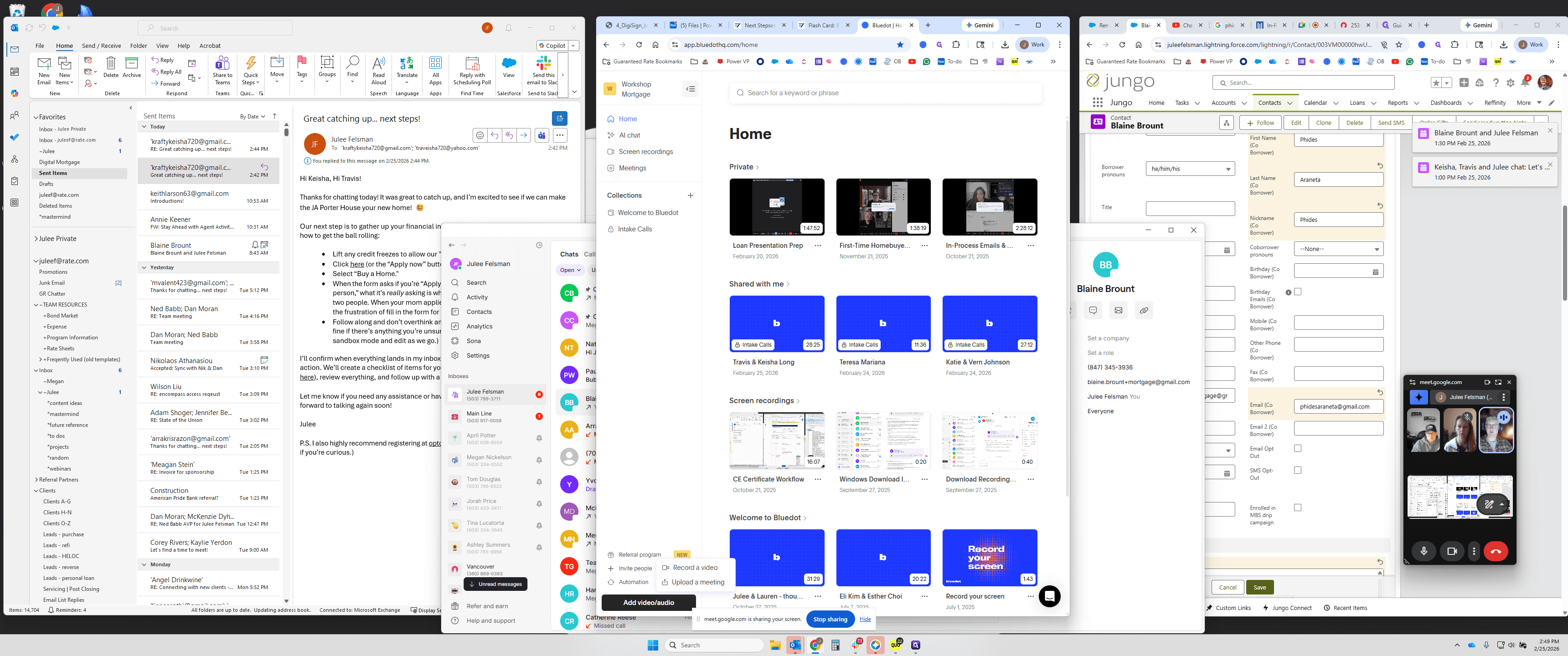
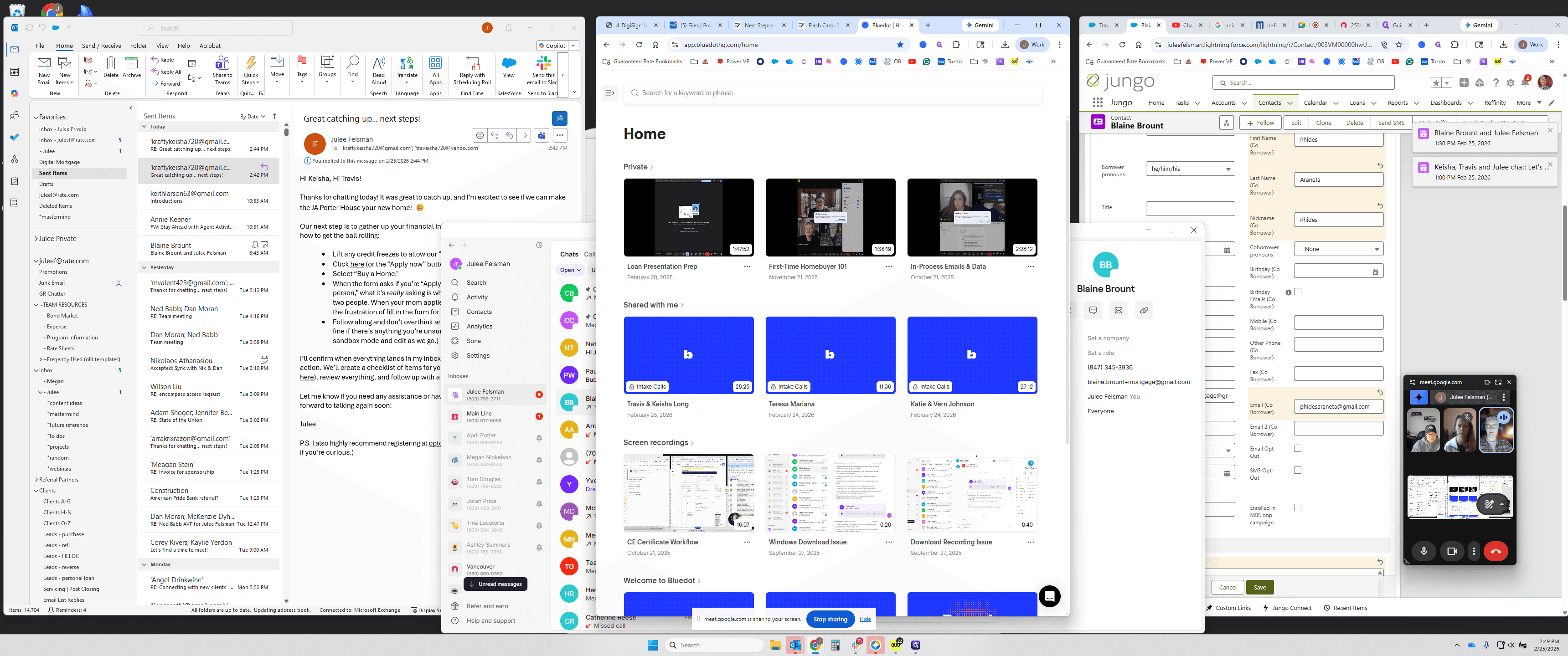
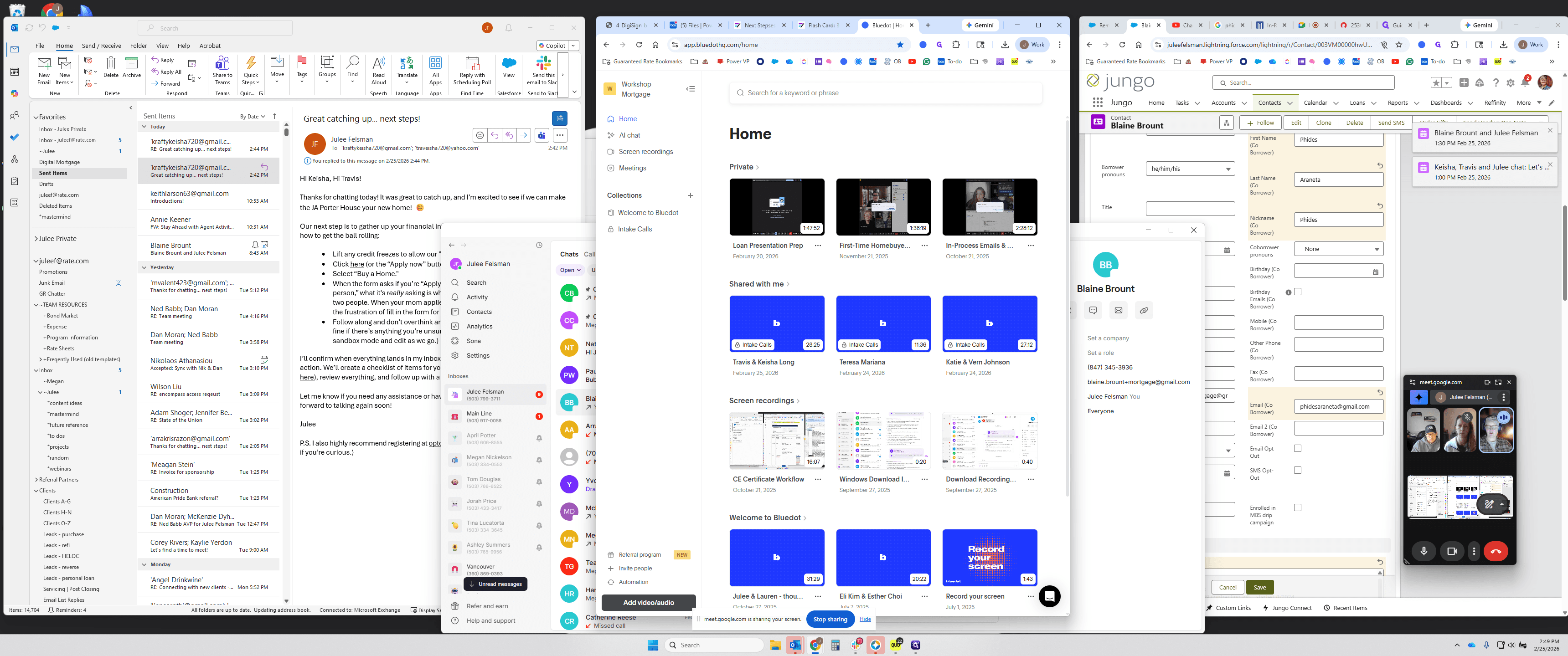
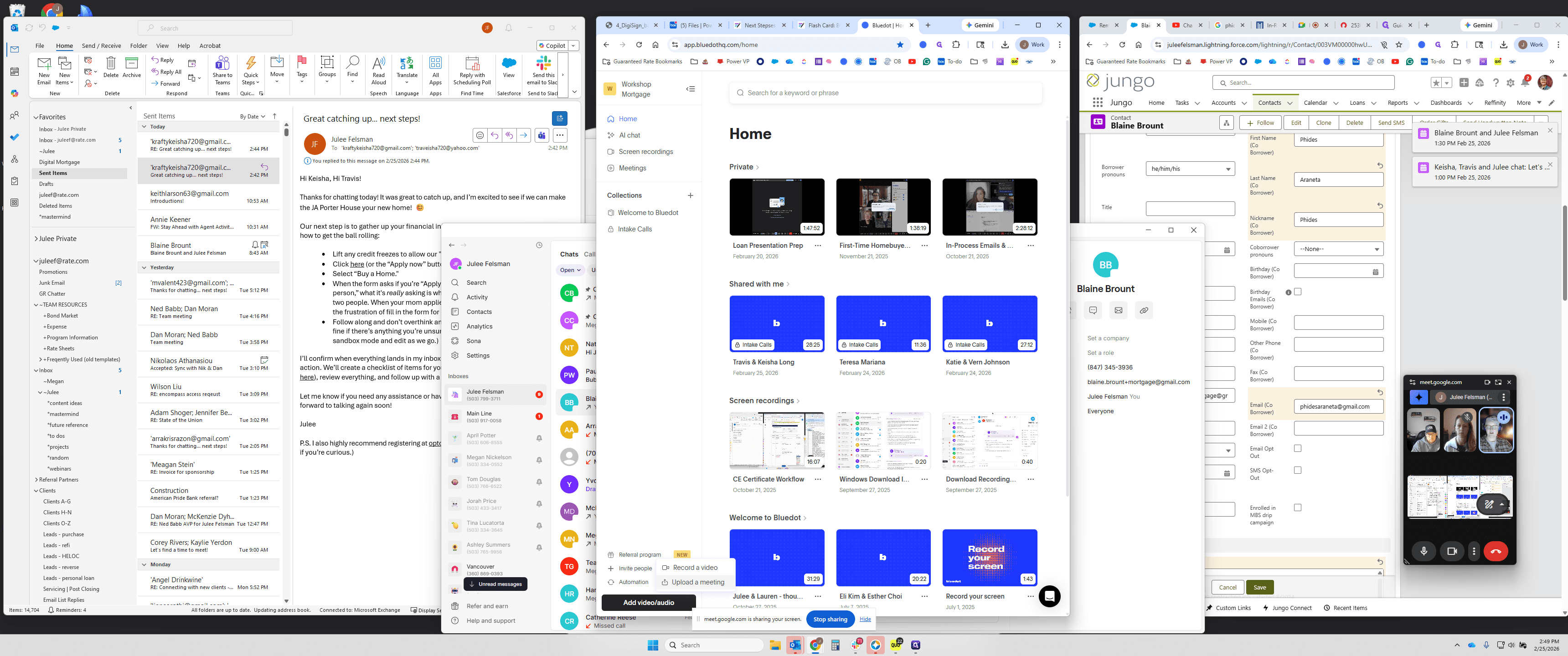
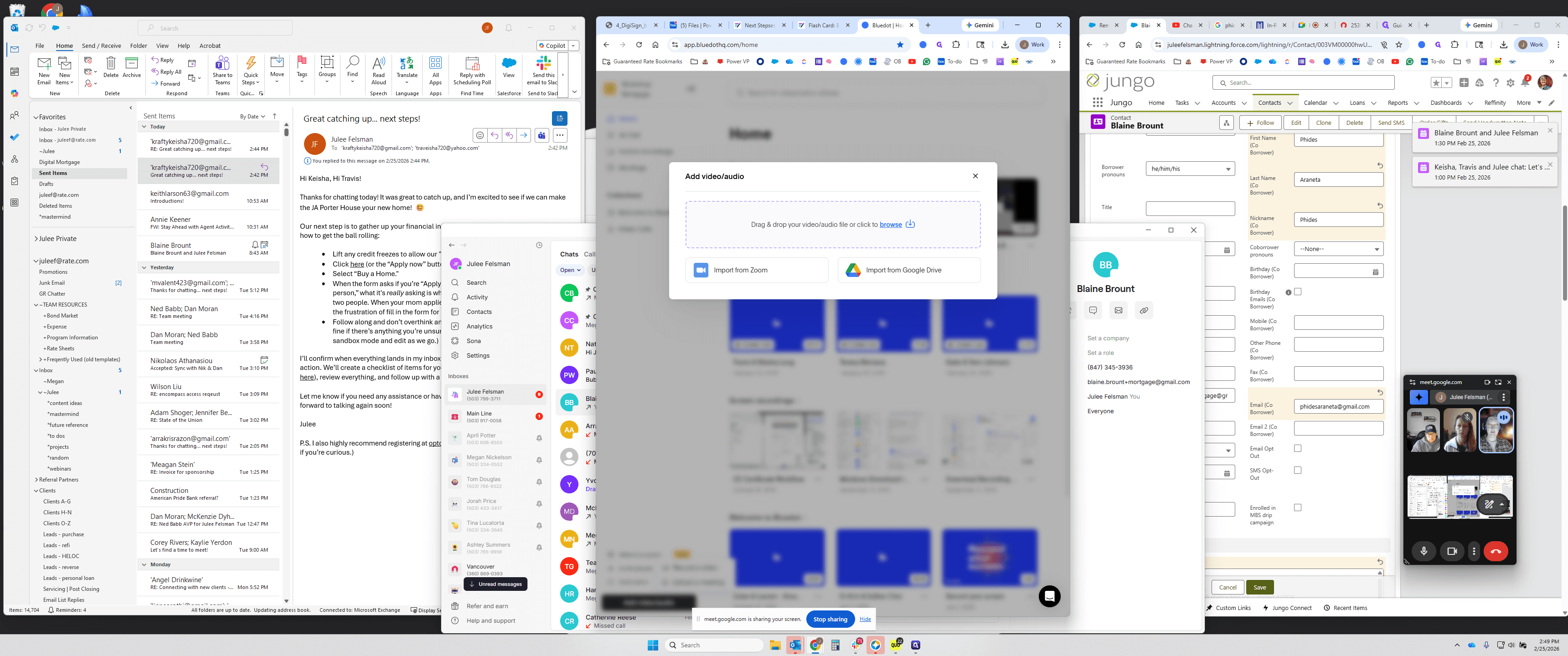
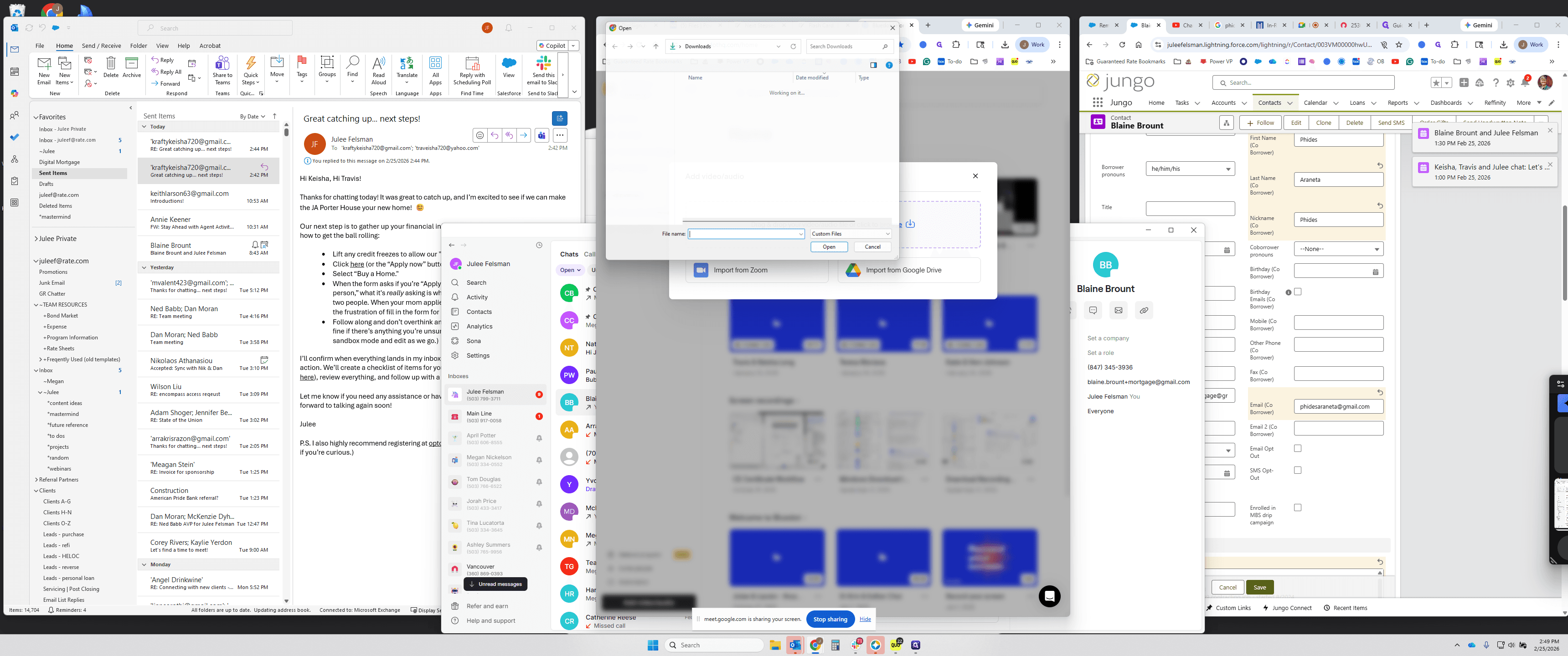
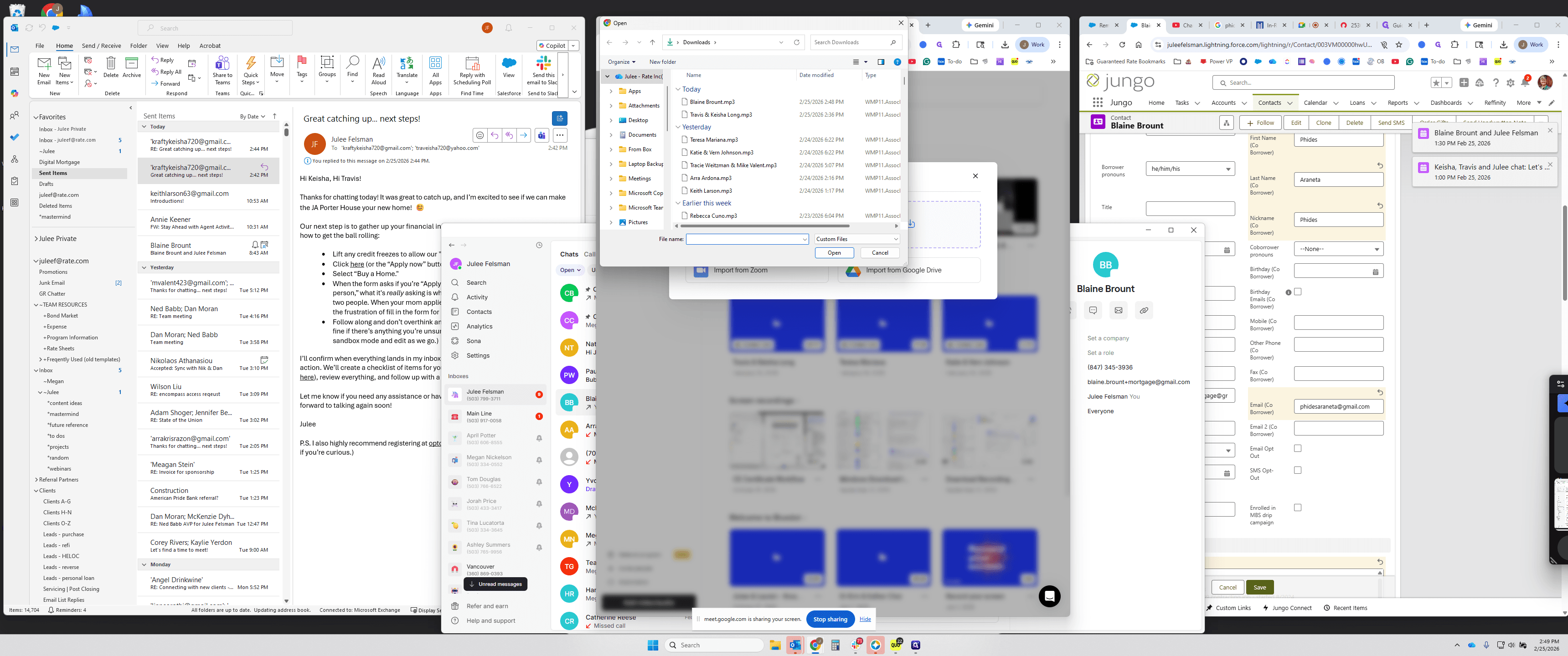
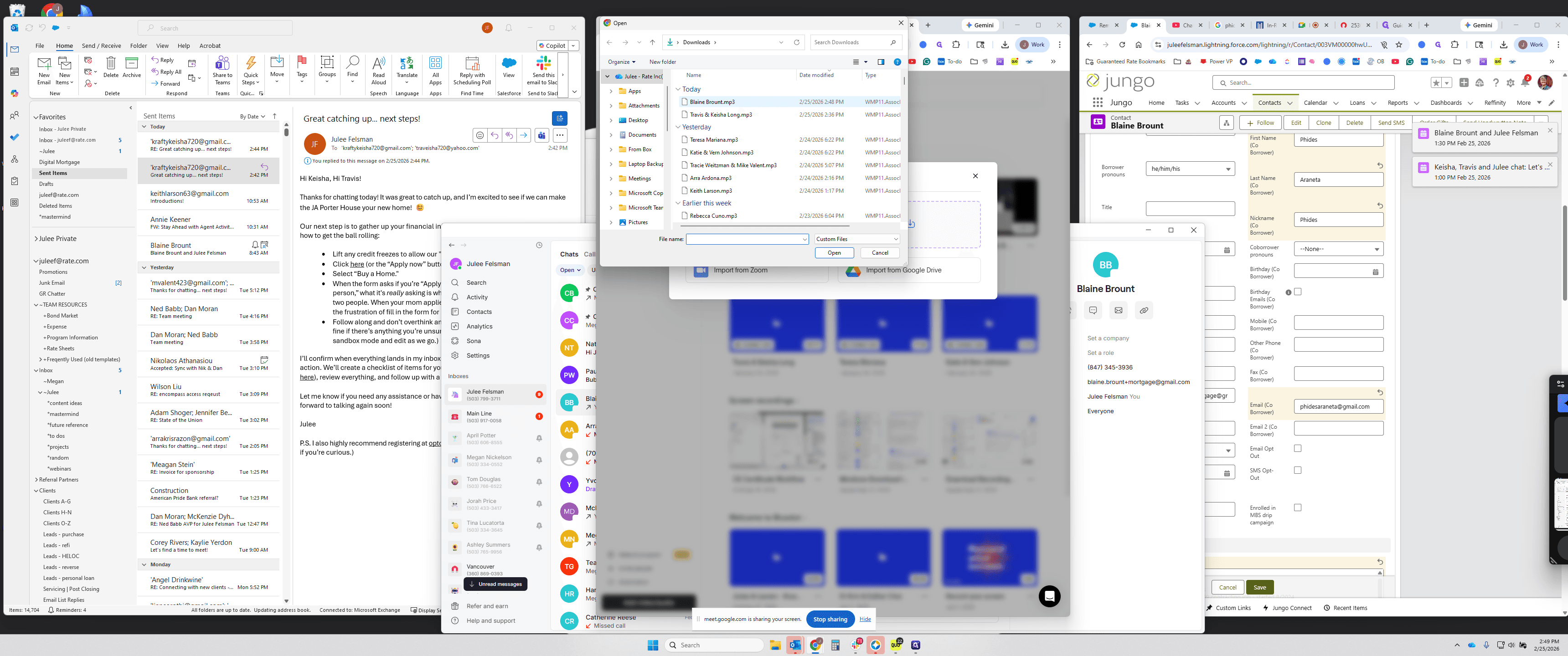
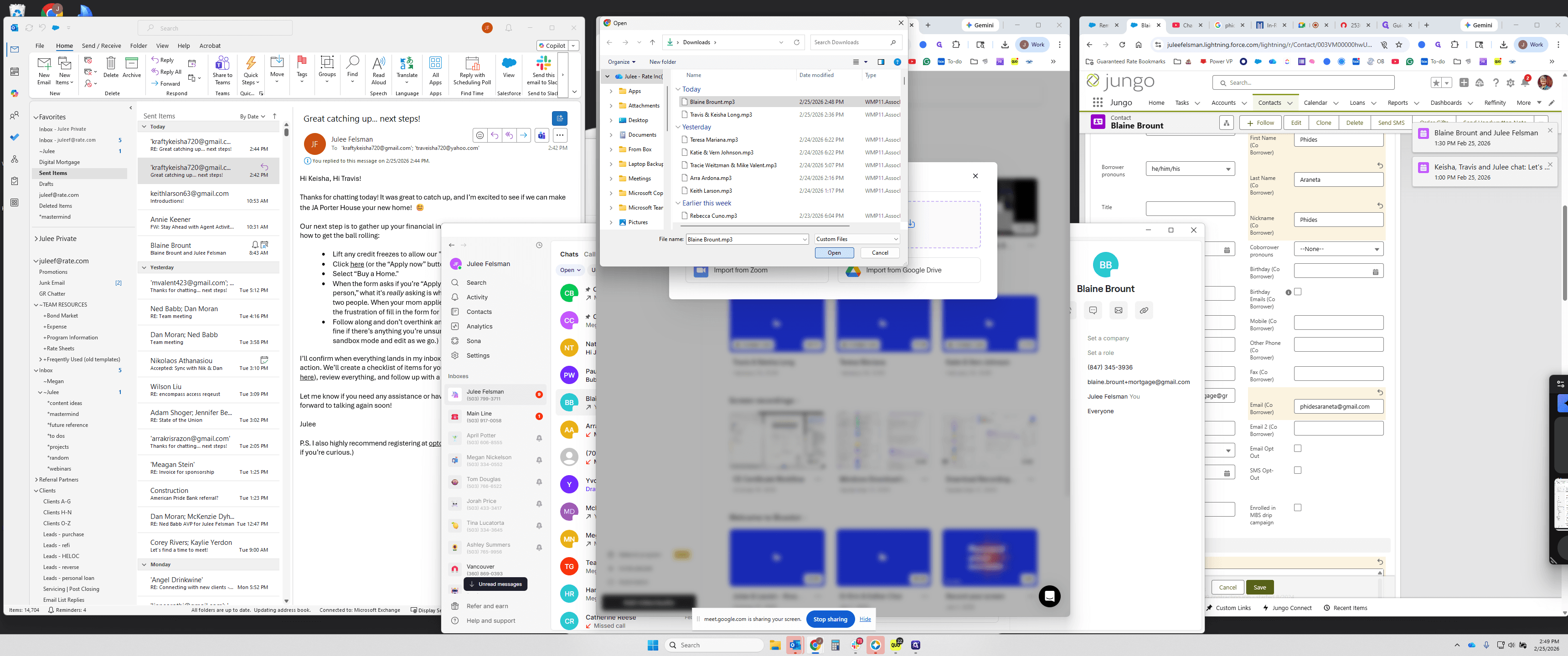
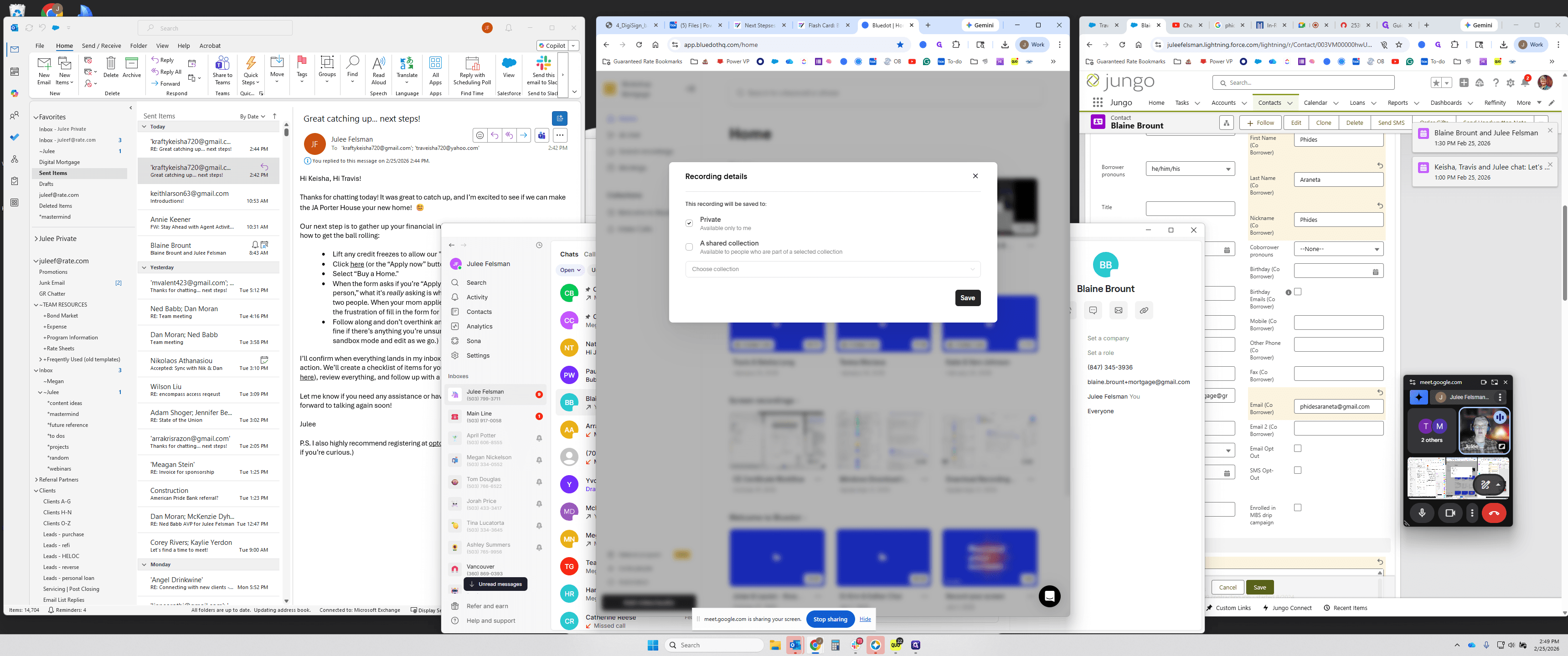
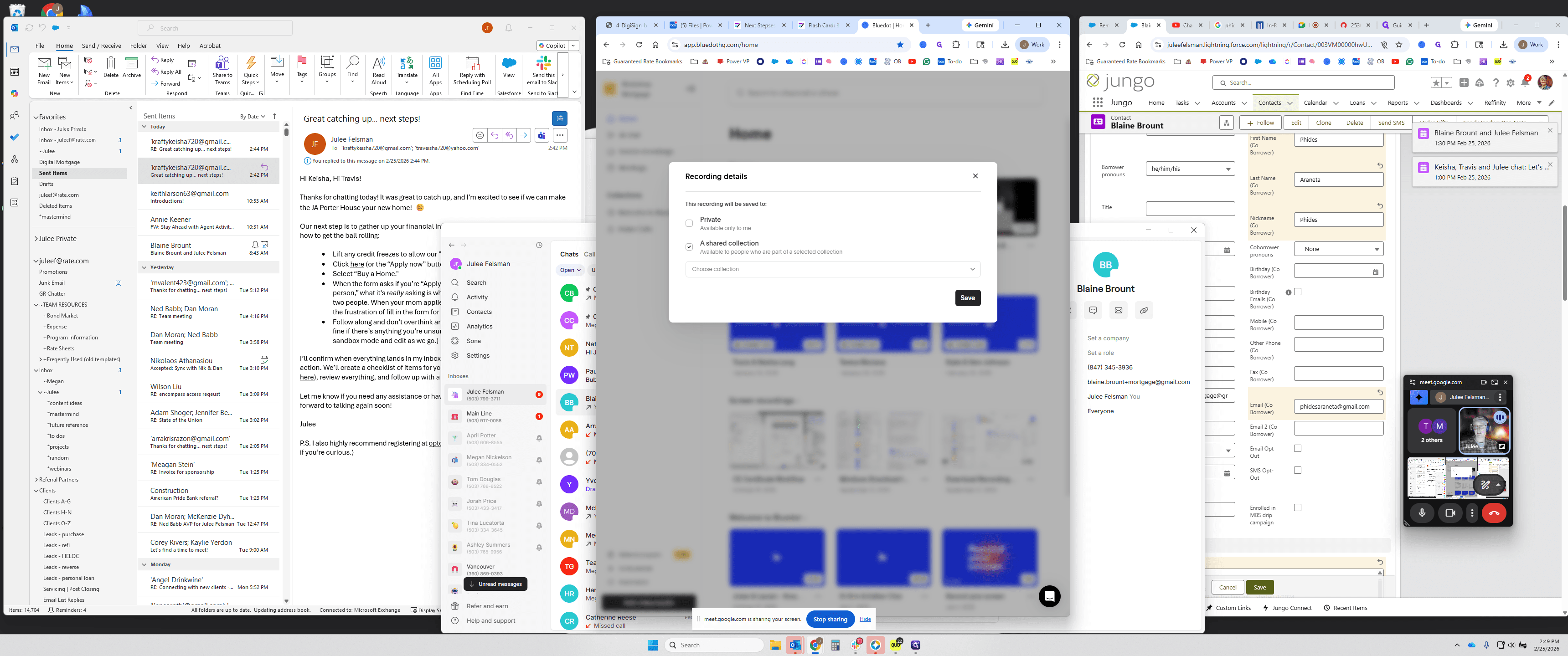
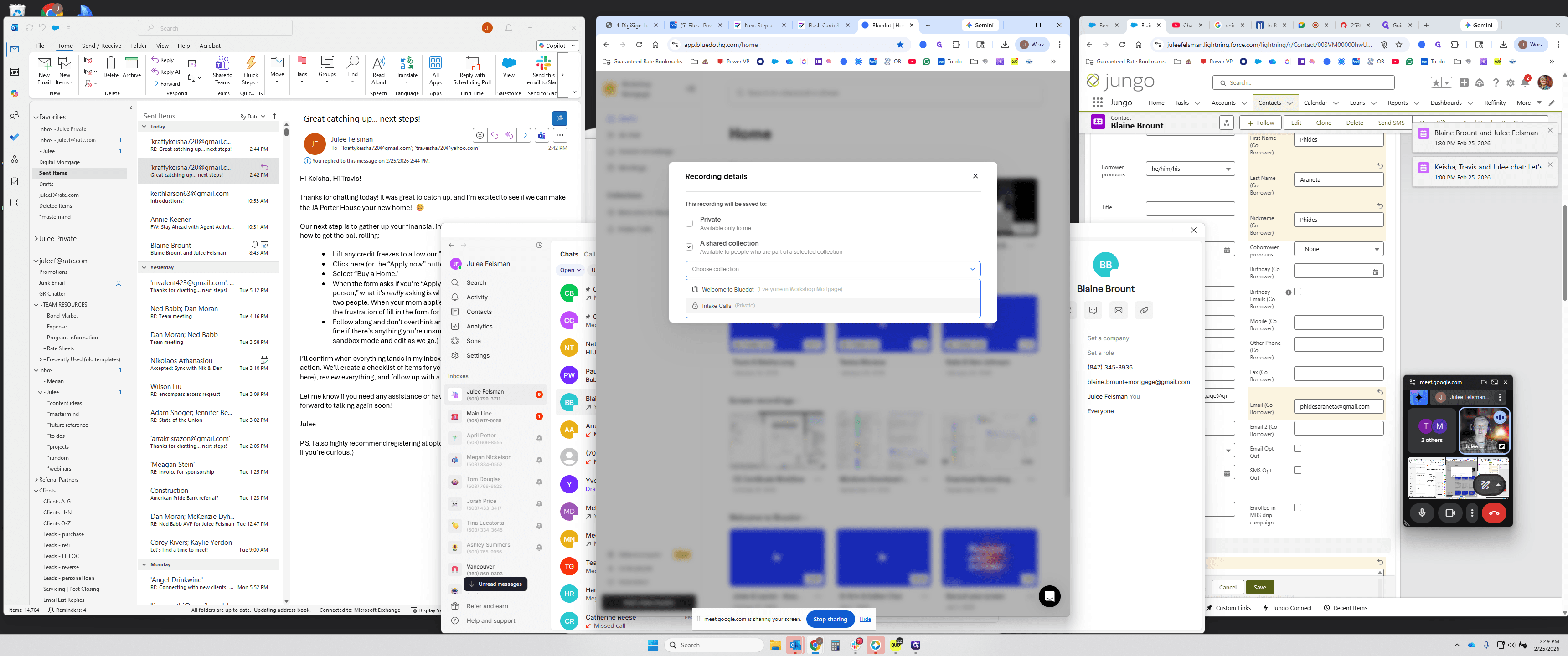
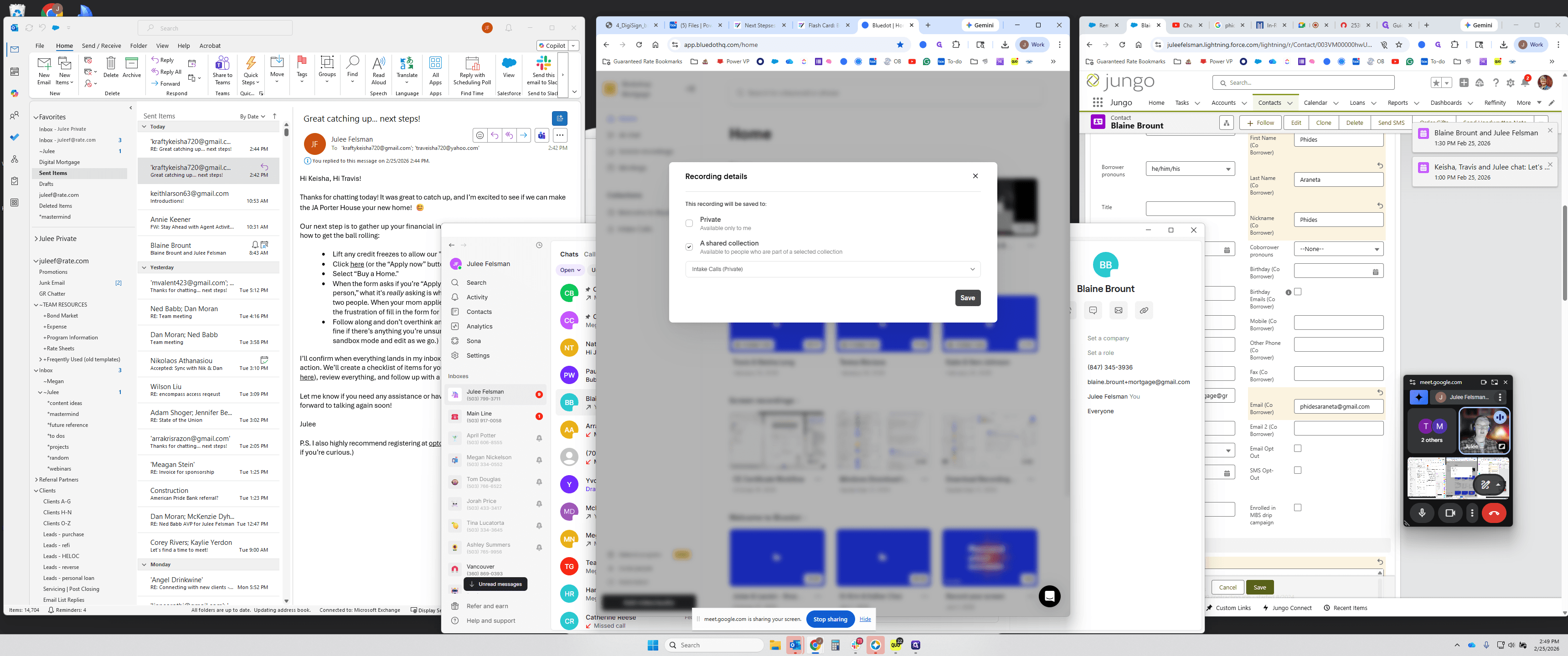
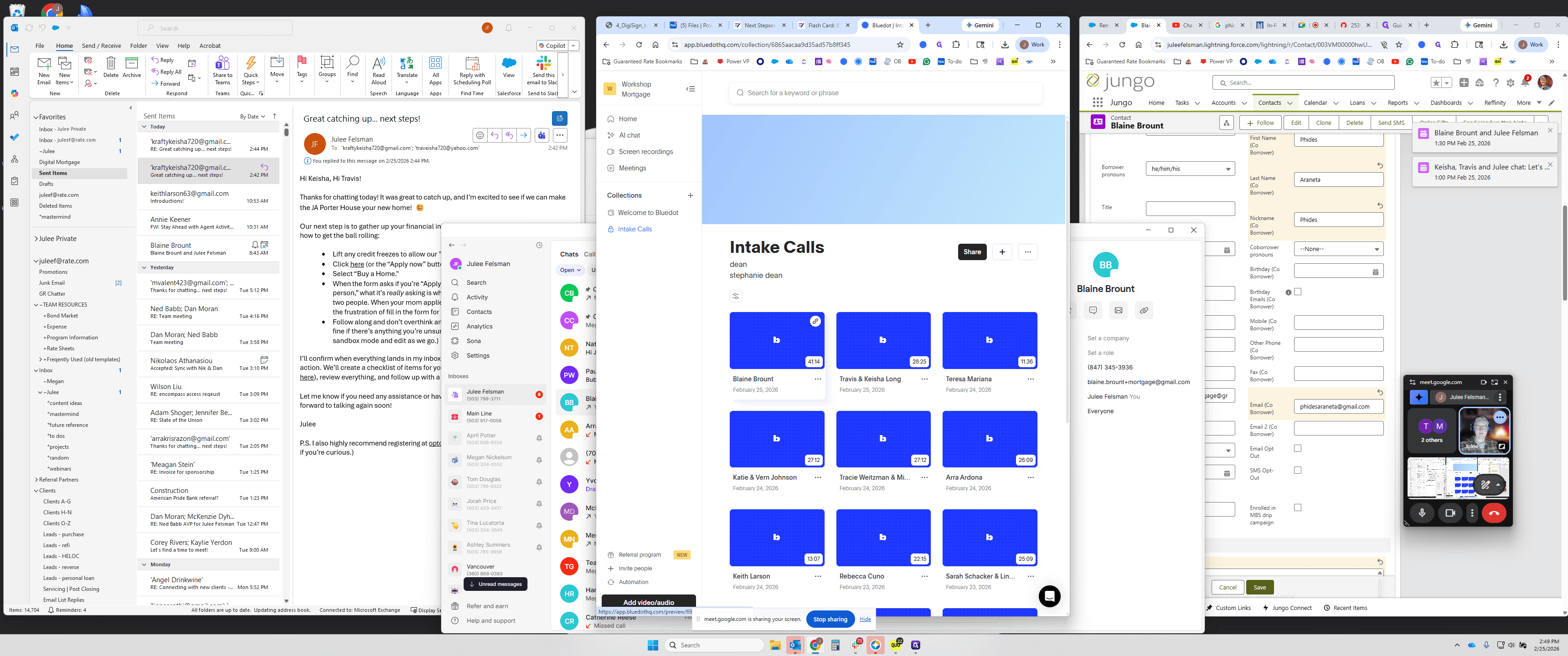
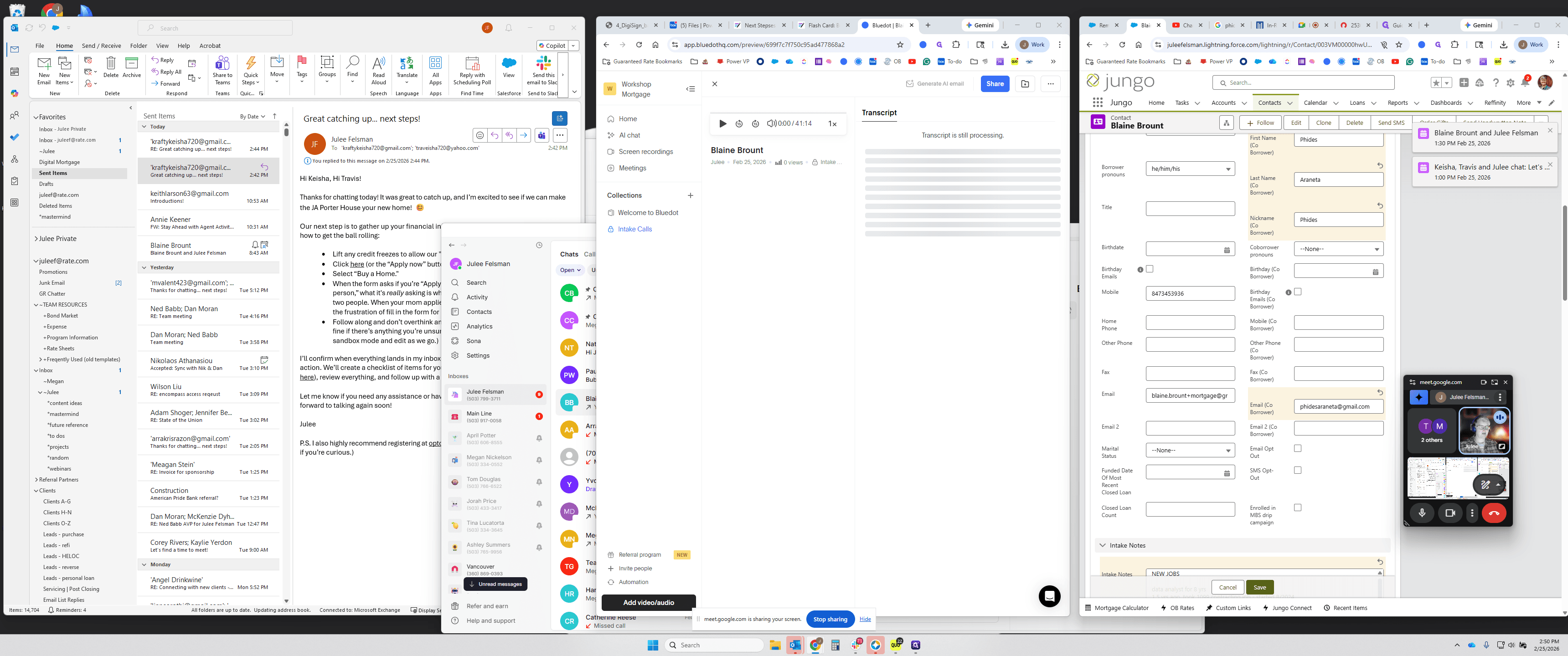
Click "Save." It takes a moment to upload. Once finished, the MP3 recording is processed and converted into text. Then, you can run any AI prompt on the transcript.
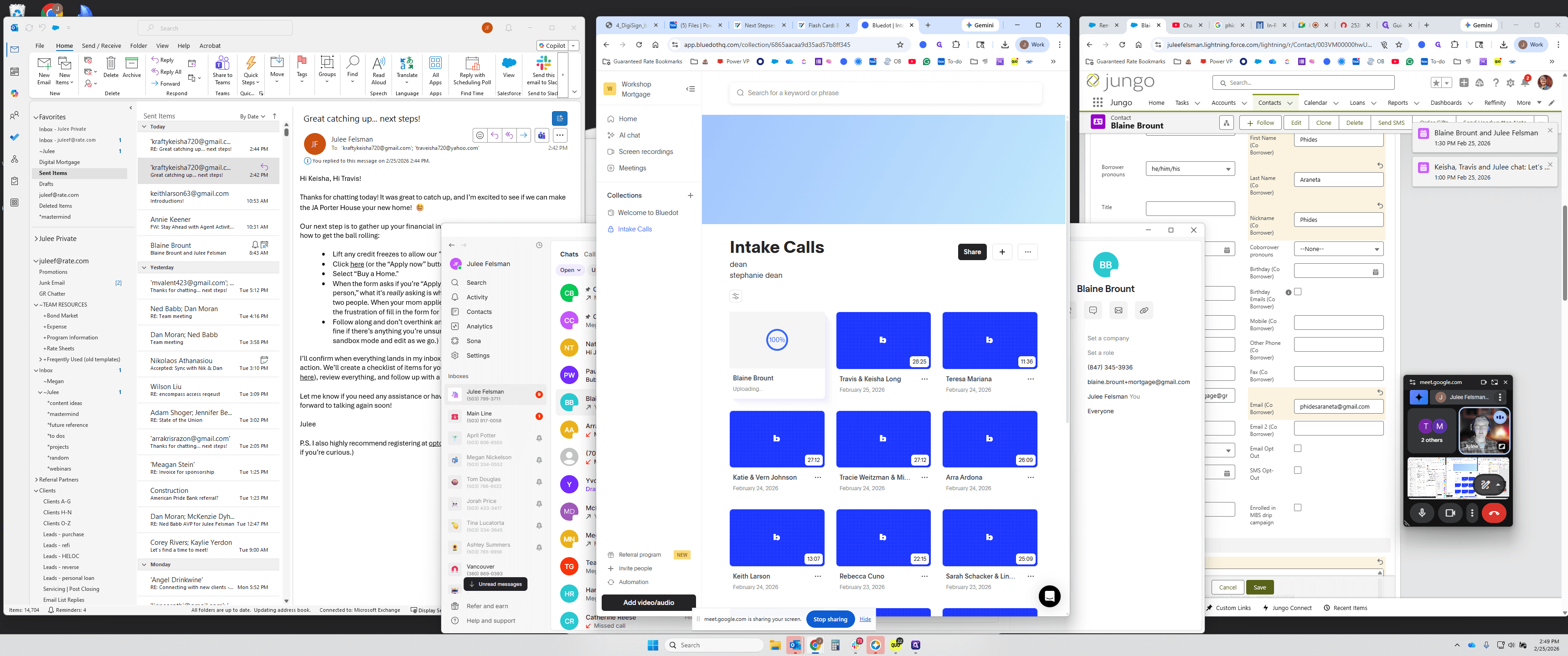
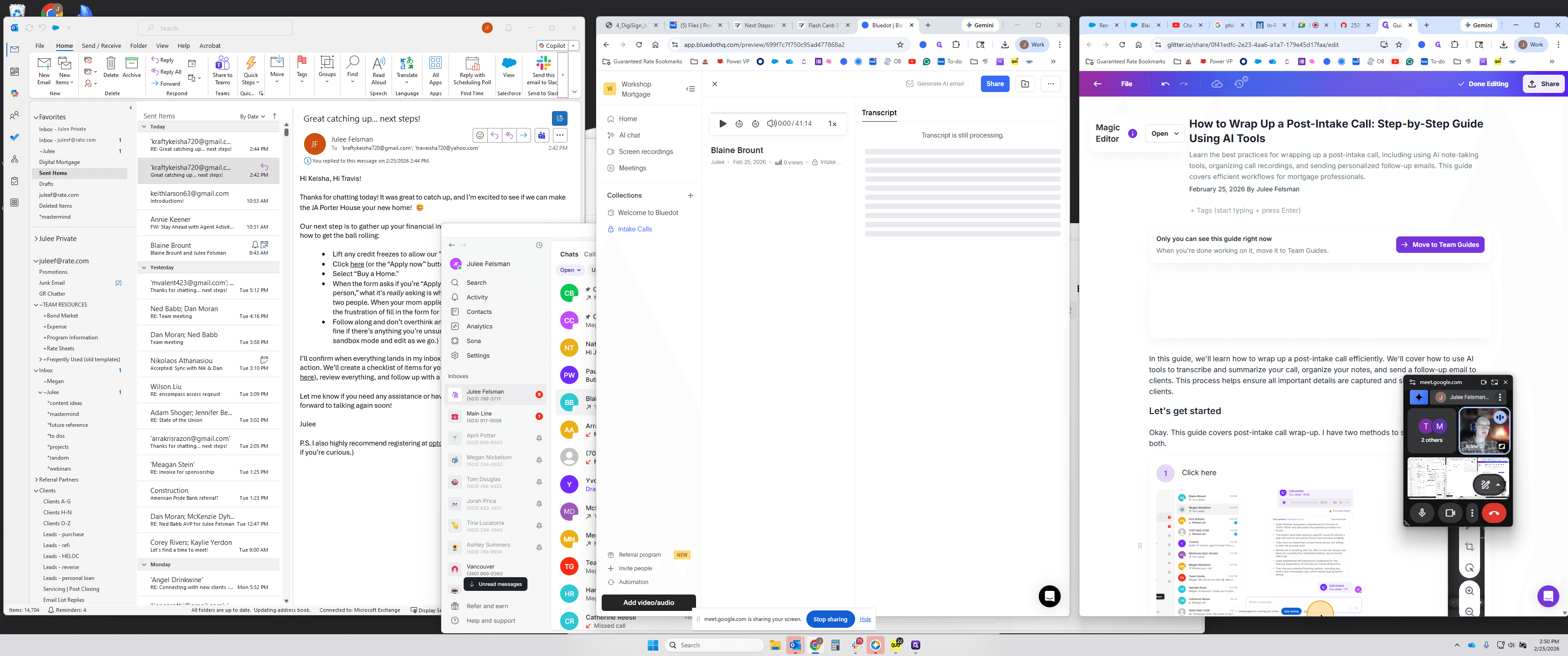
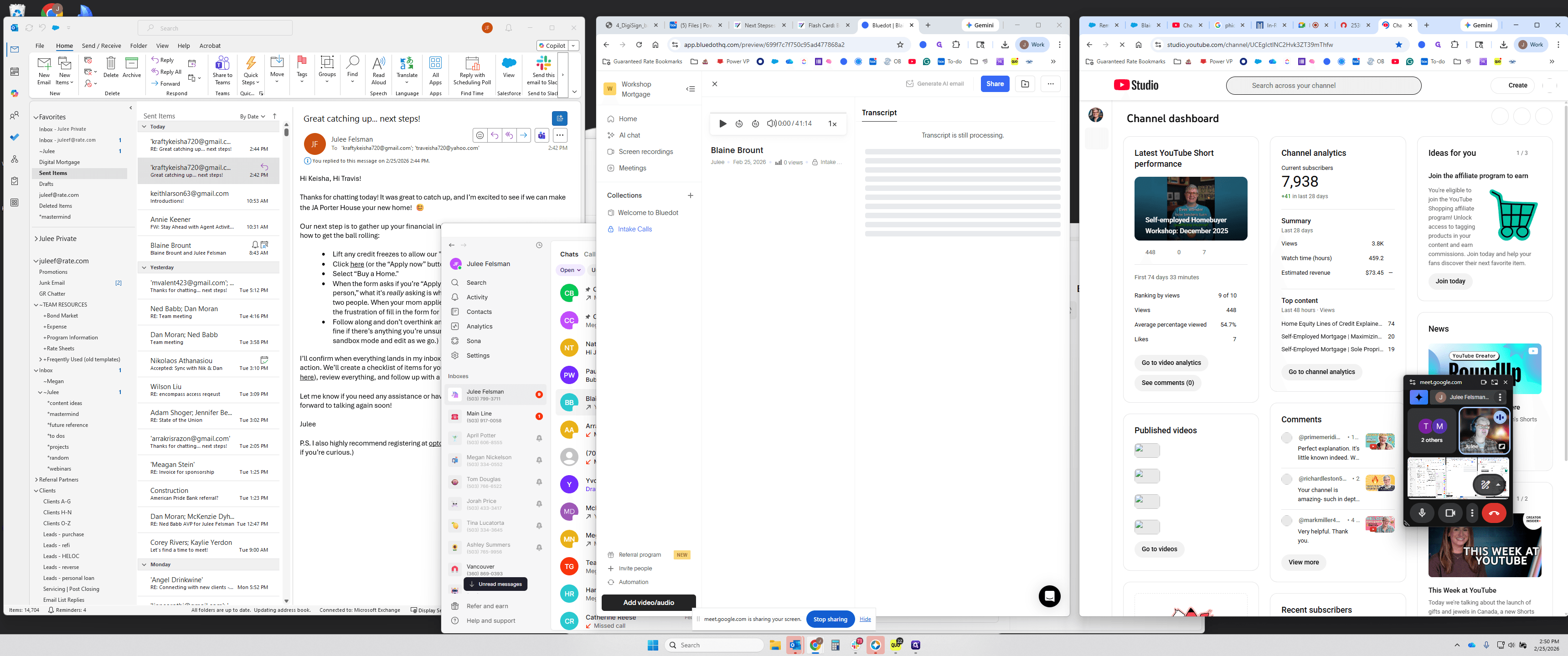
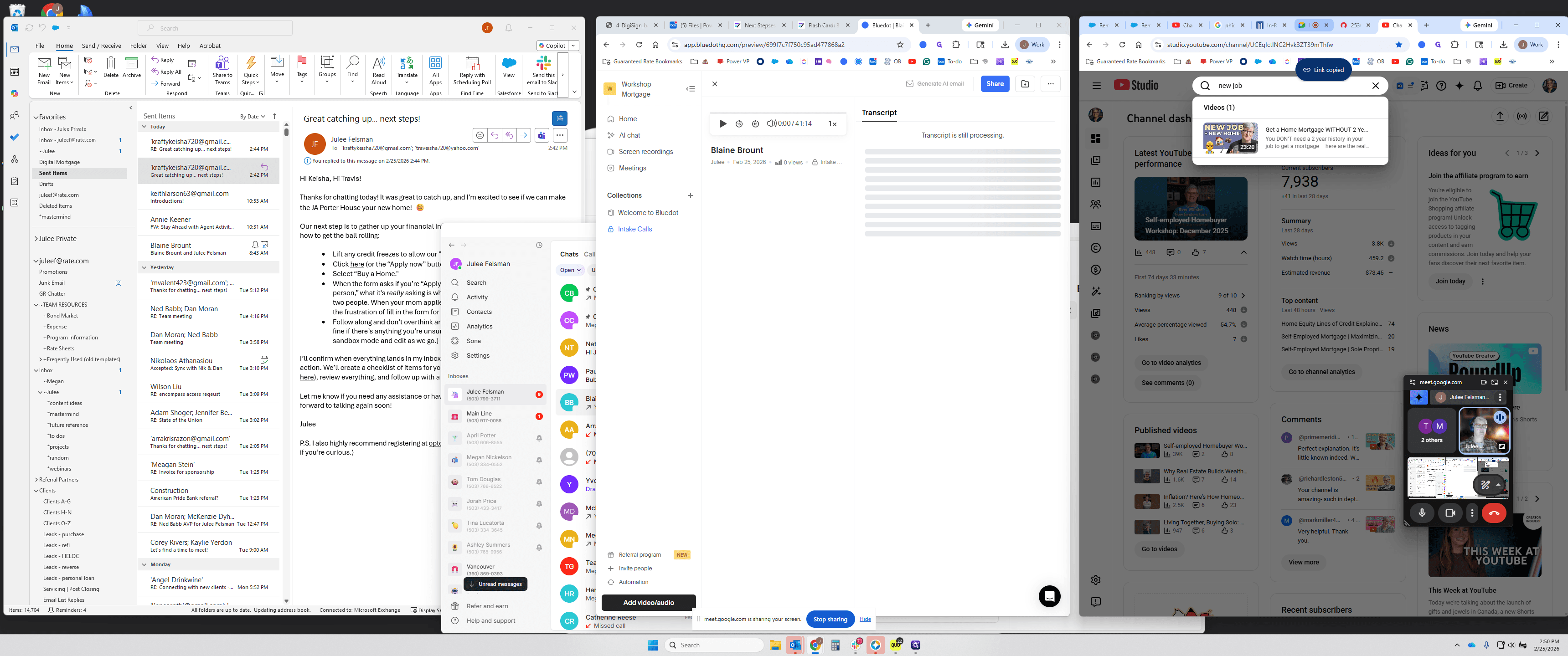
I'll let that cook for a second, which is what I normally do. The process is running, so I'll go over here. There was a video I wanted to send him. I took a few notes while we were talking, and I promised him one of our videos. I'm going to the YouTube channel. I'm in the backend version, but you can do this on the main channel too. I'll get the new job video.
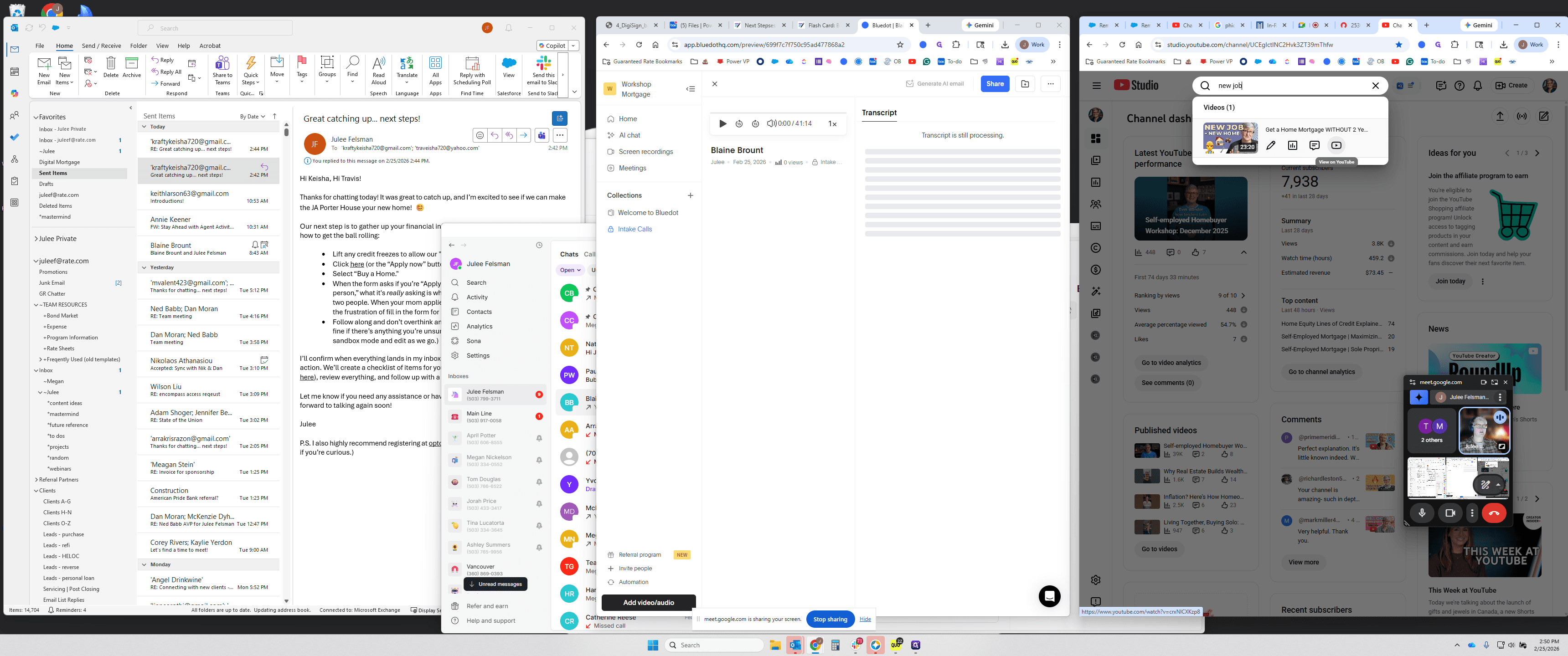
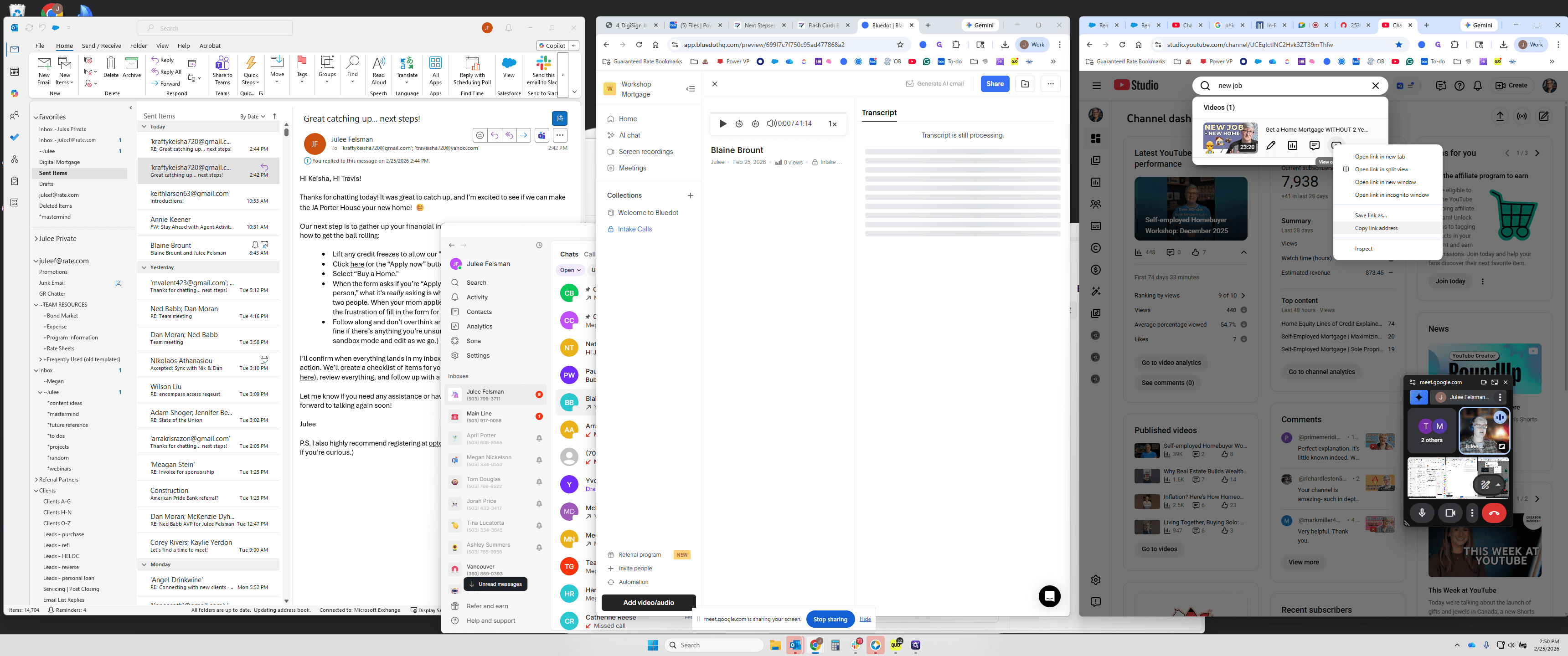
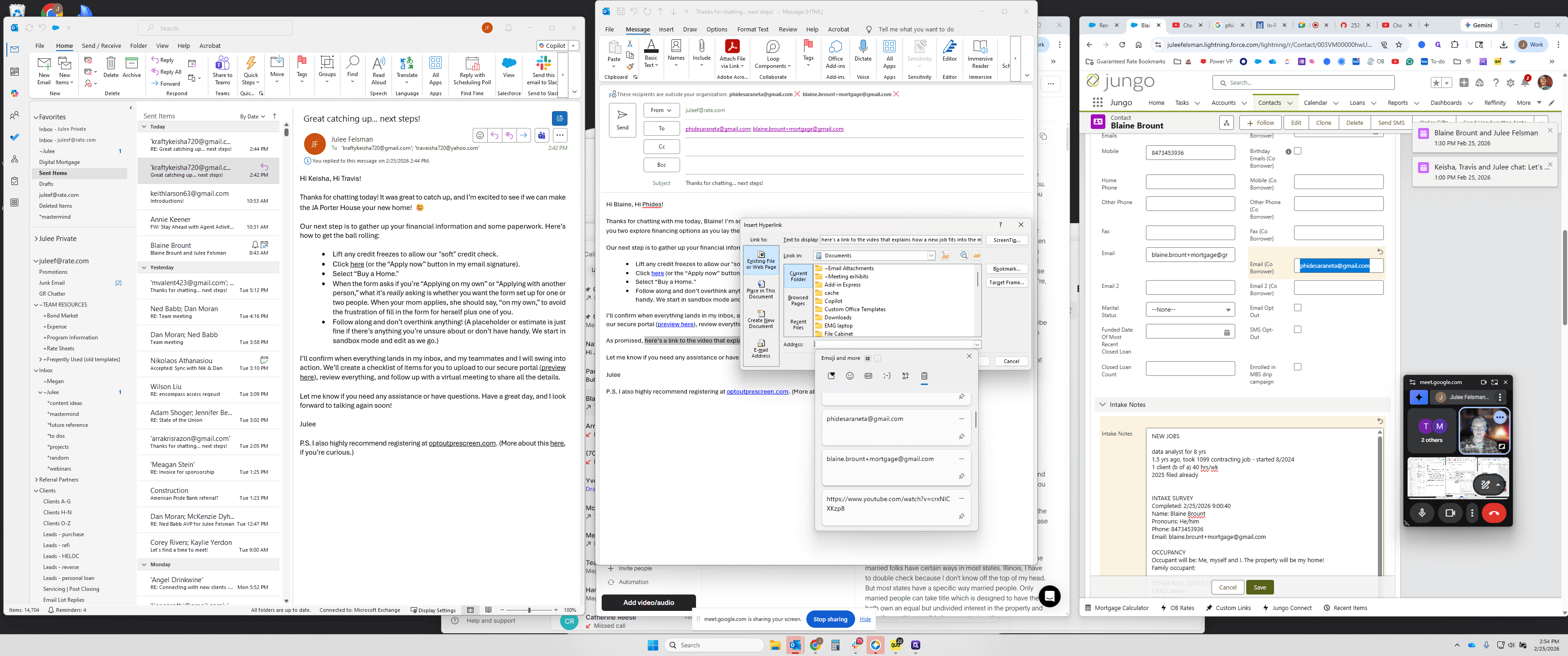
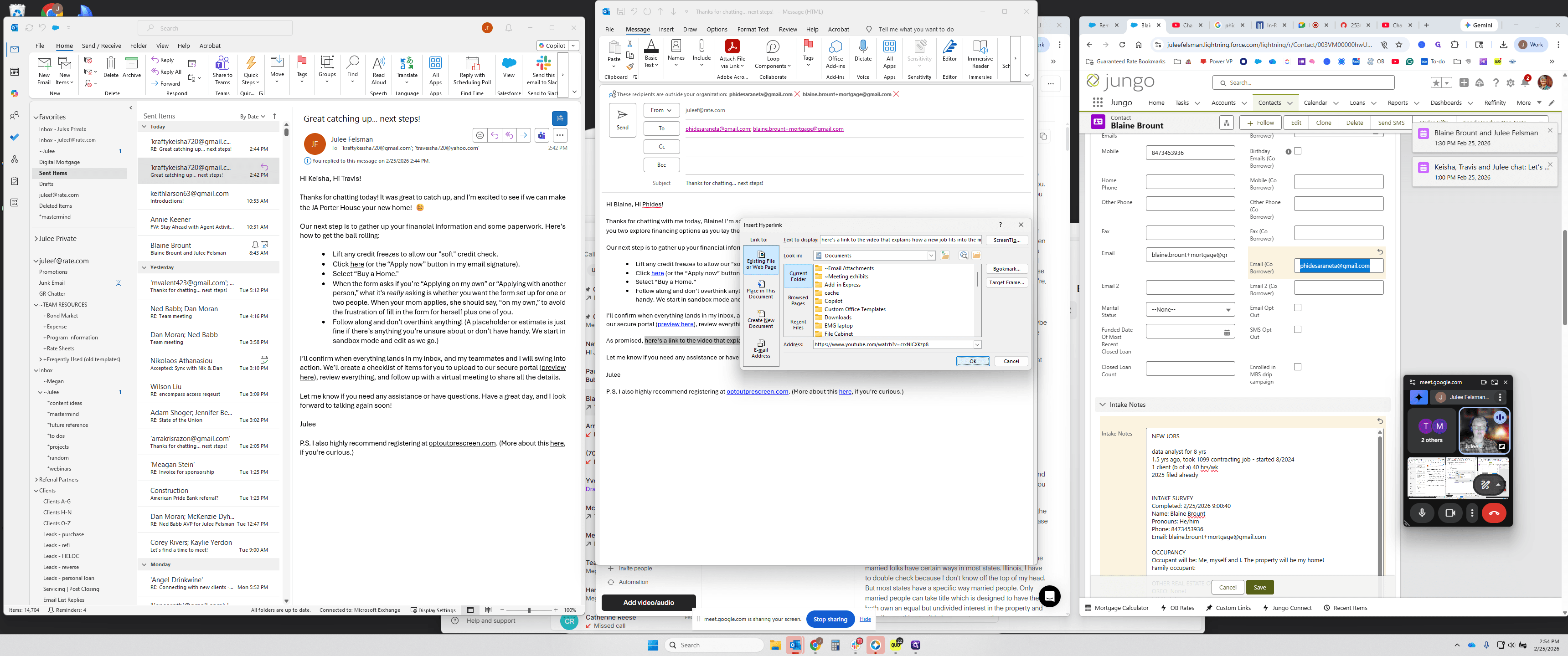
I will right-click and save that address to include it in the email shortly.
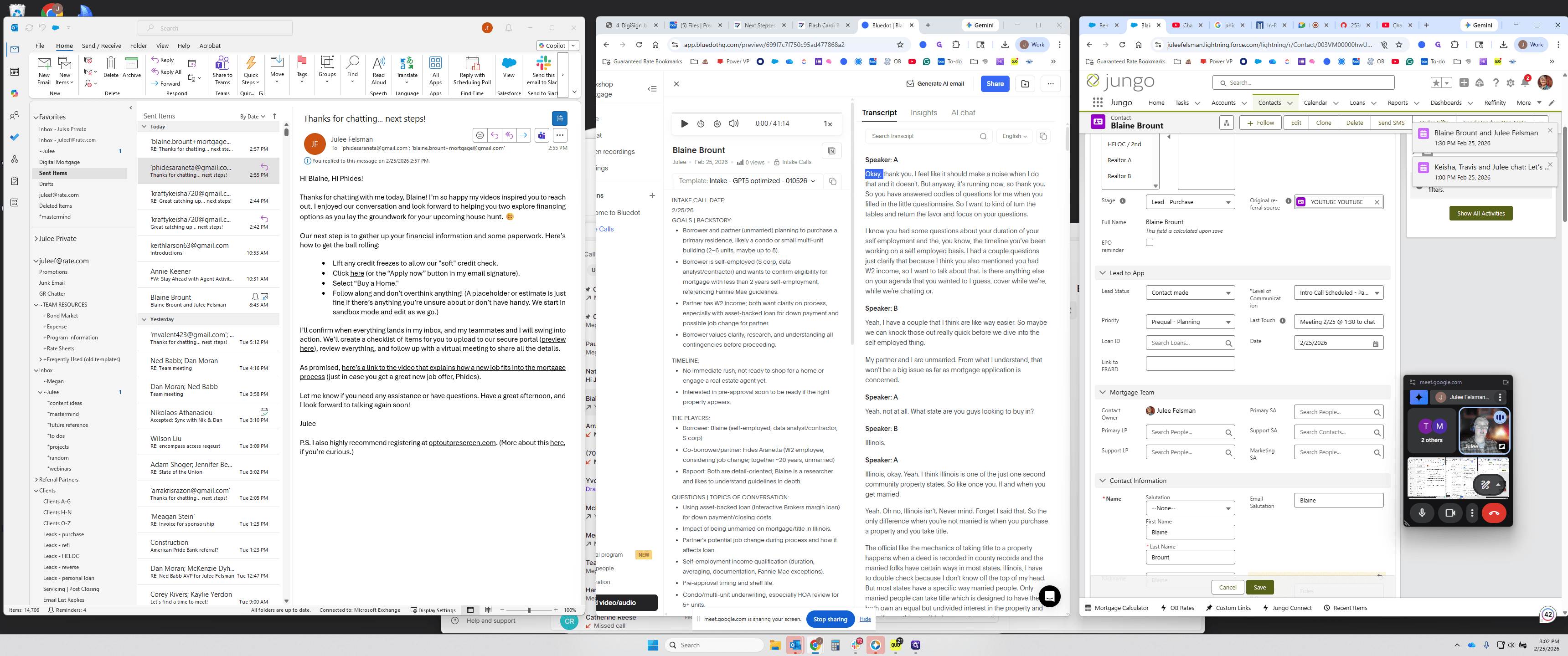
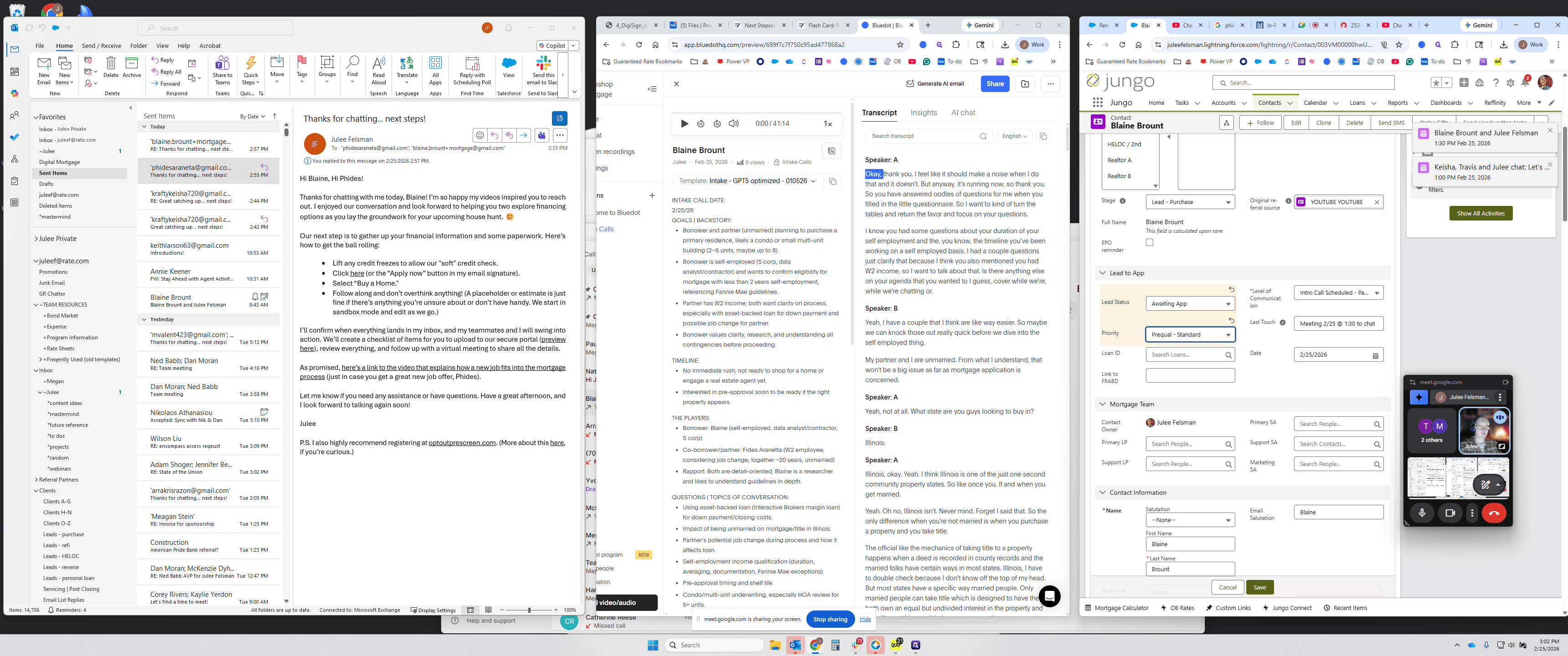
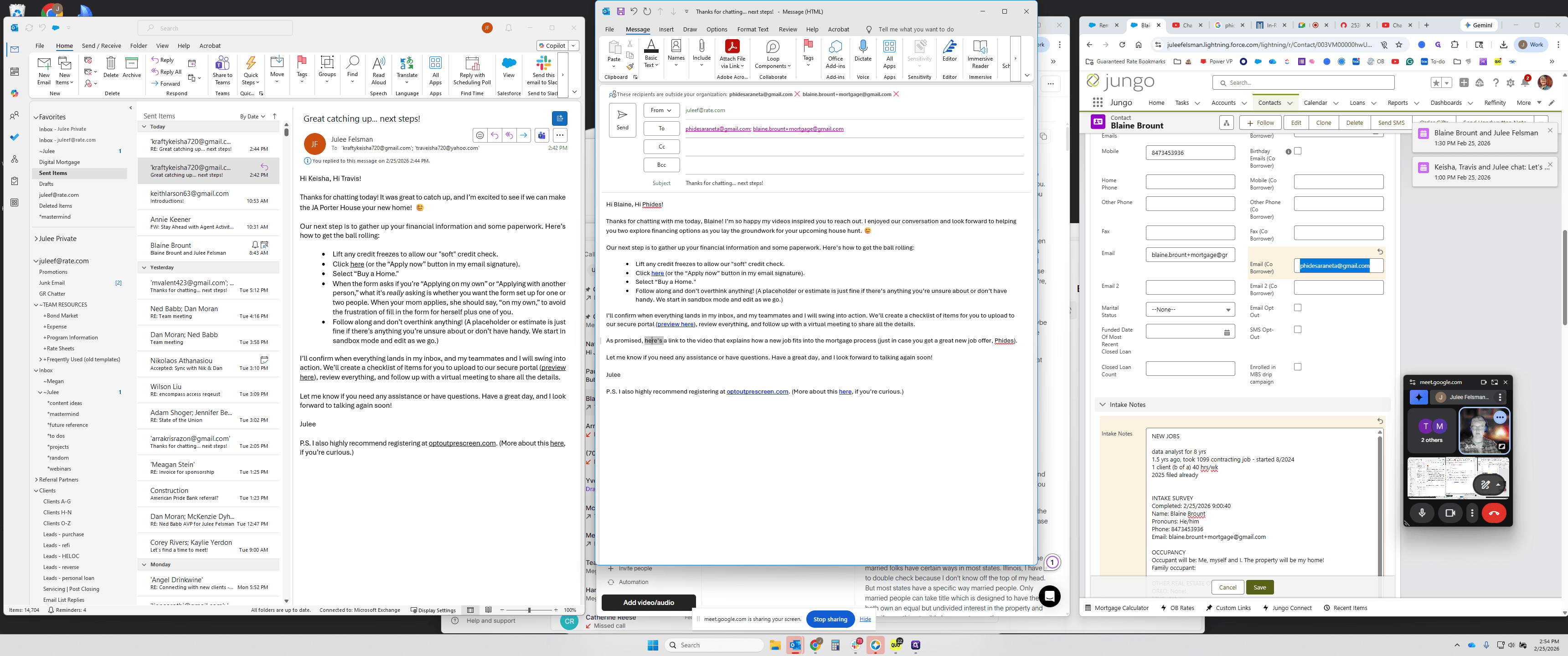
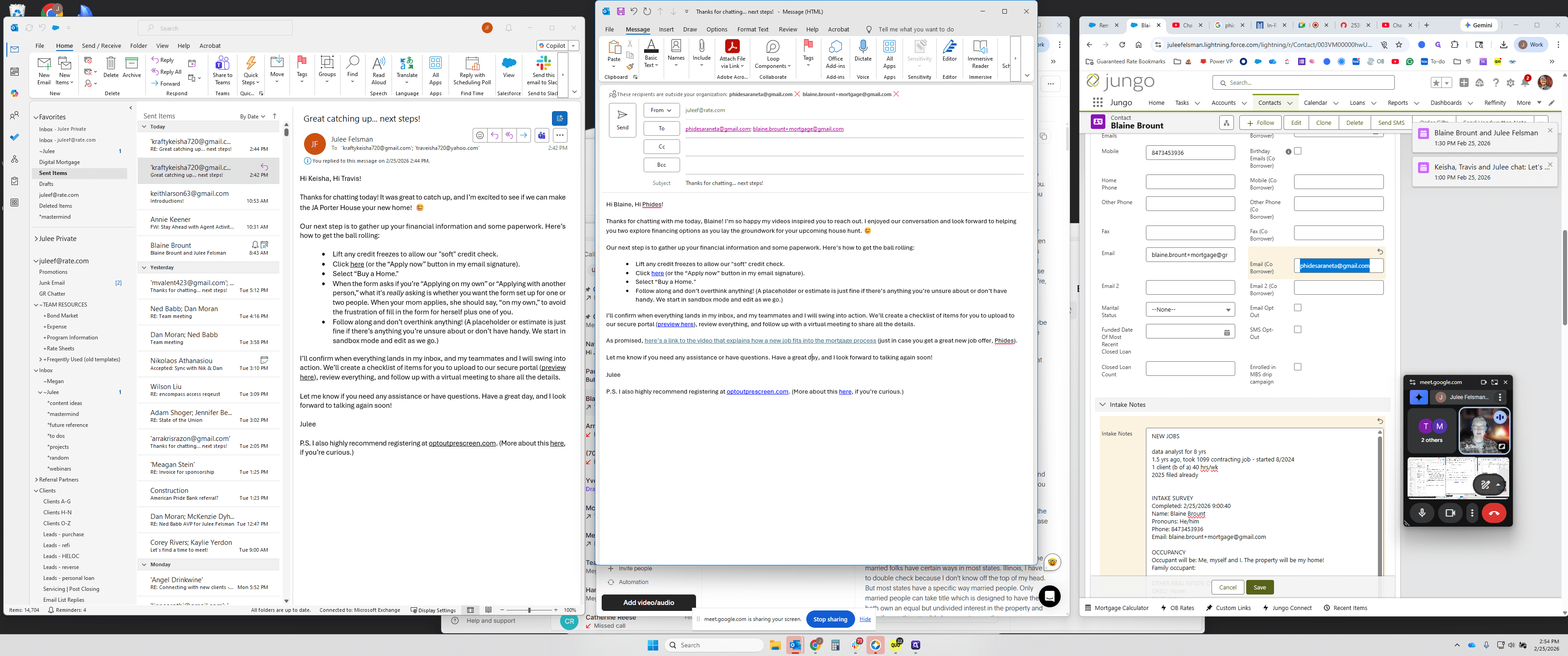
I'm going to get his email and his girlfriend's email. I'll open a new email and add both of them. I have everything in Grammarly. I'll use the backslash to insert the version of the post-call invitation email, which I call "post-call mashup." I explained to Tom earlier that I experimented with different versions, and this is a combination of a few that I settled on. I can change the name if needed.
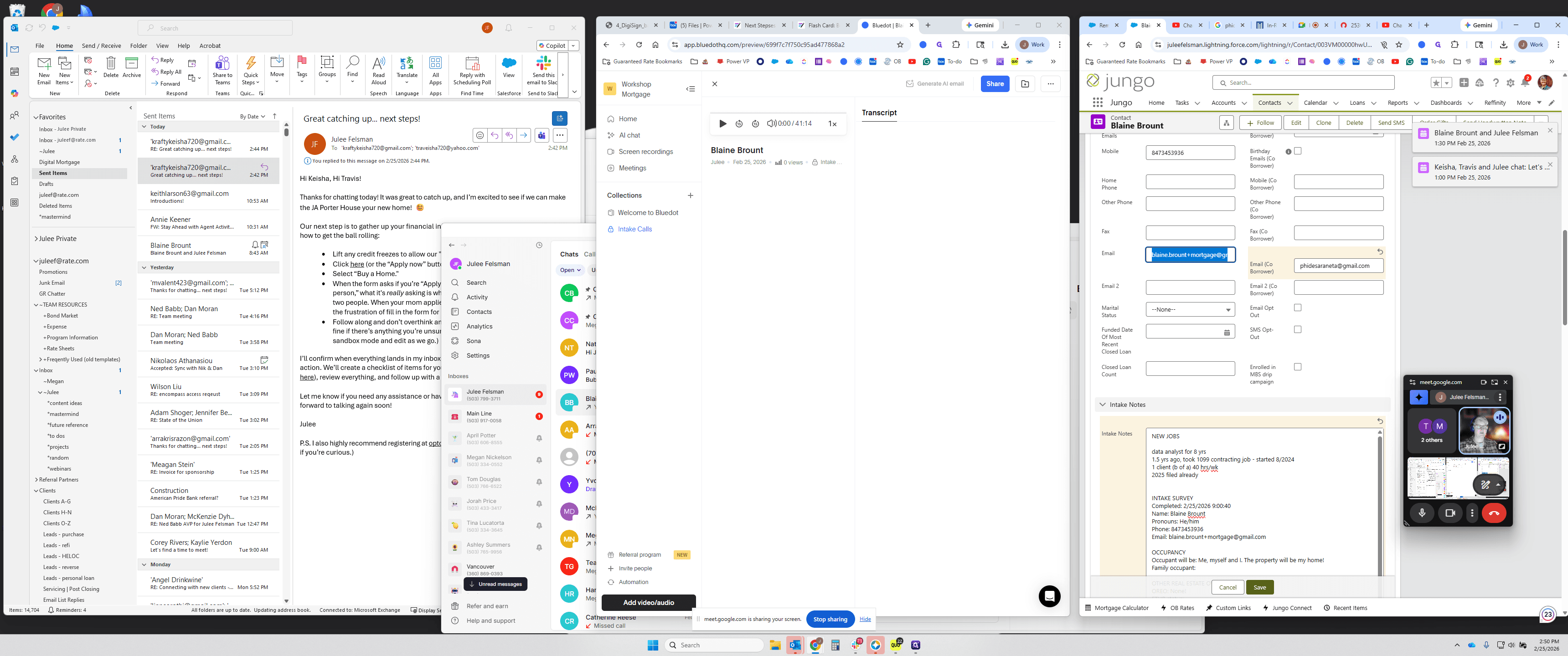
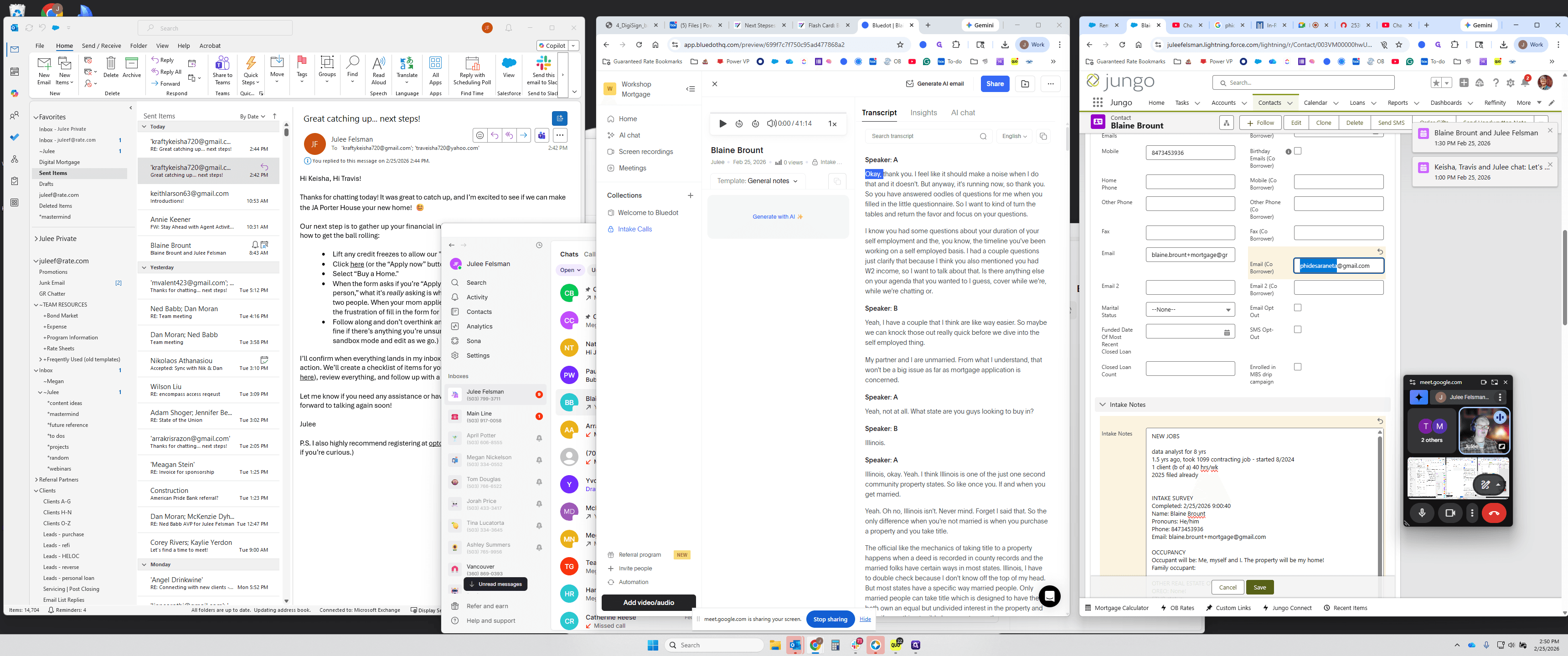
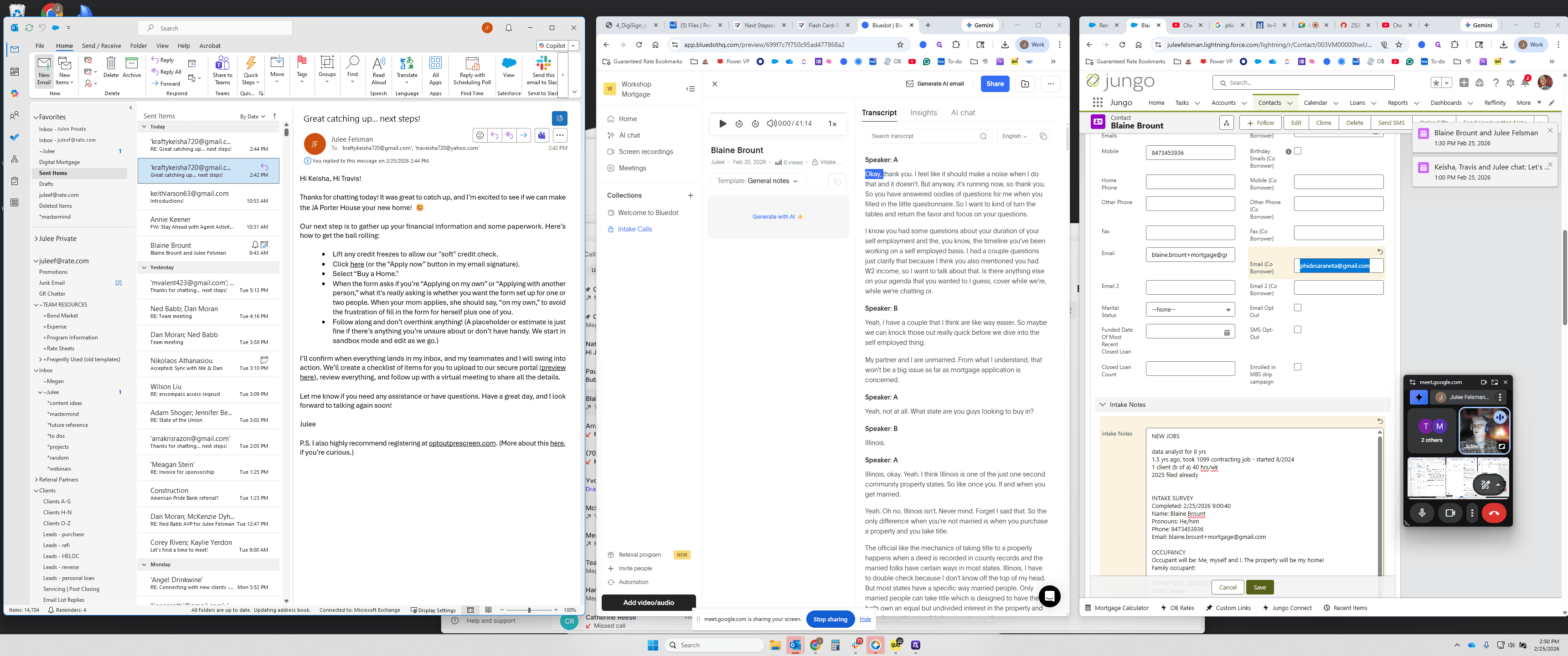
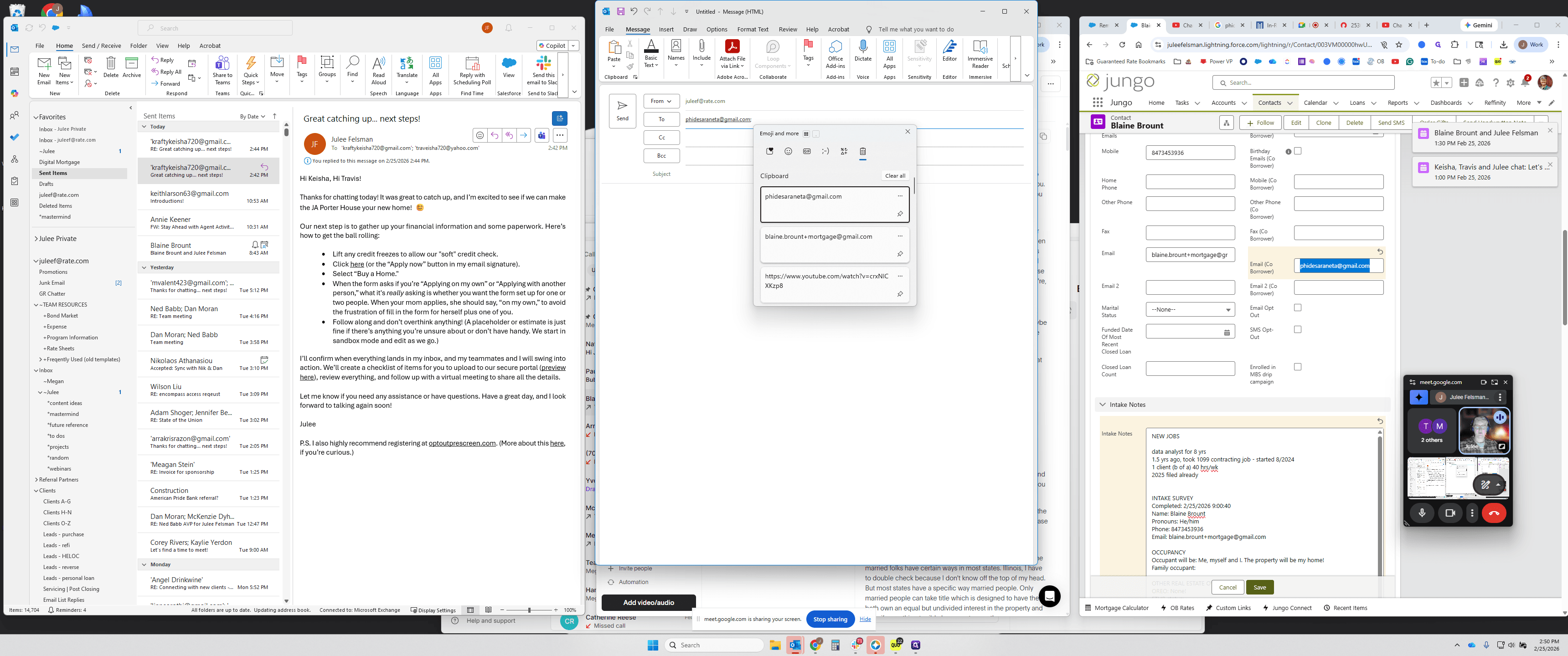
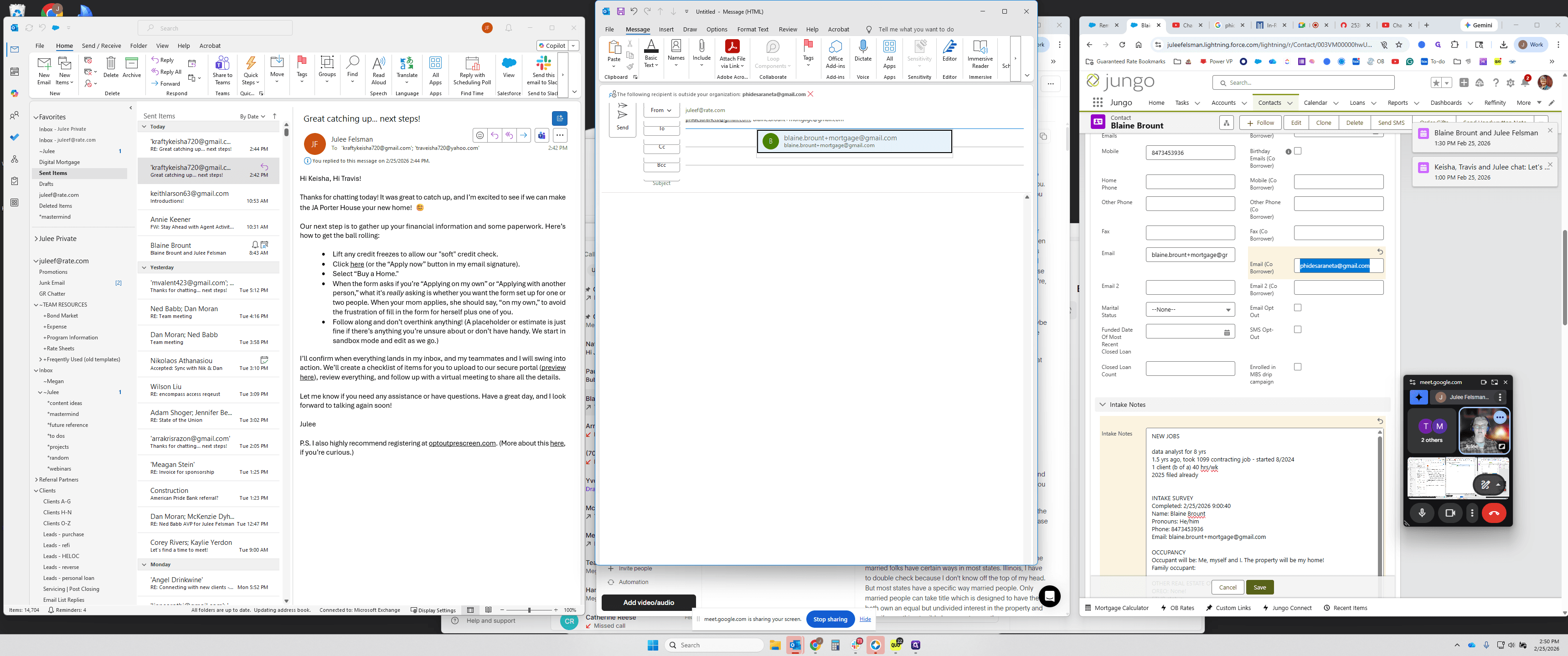
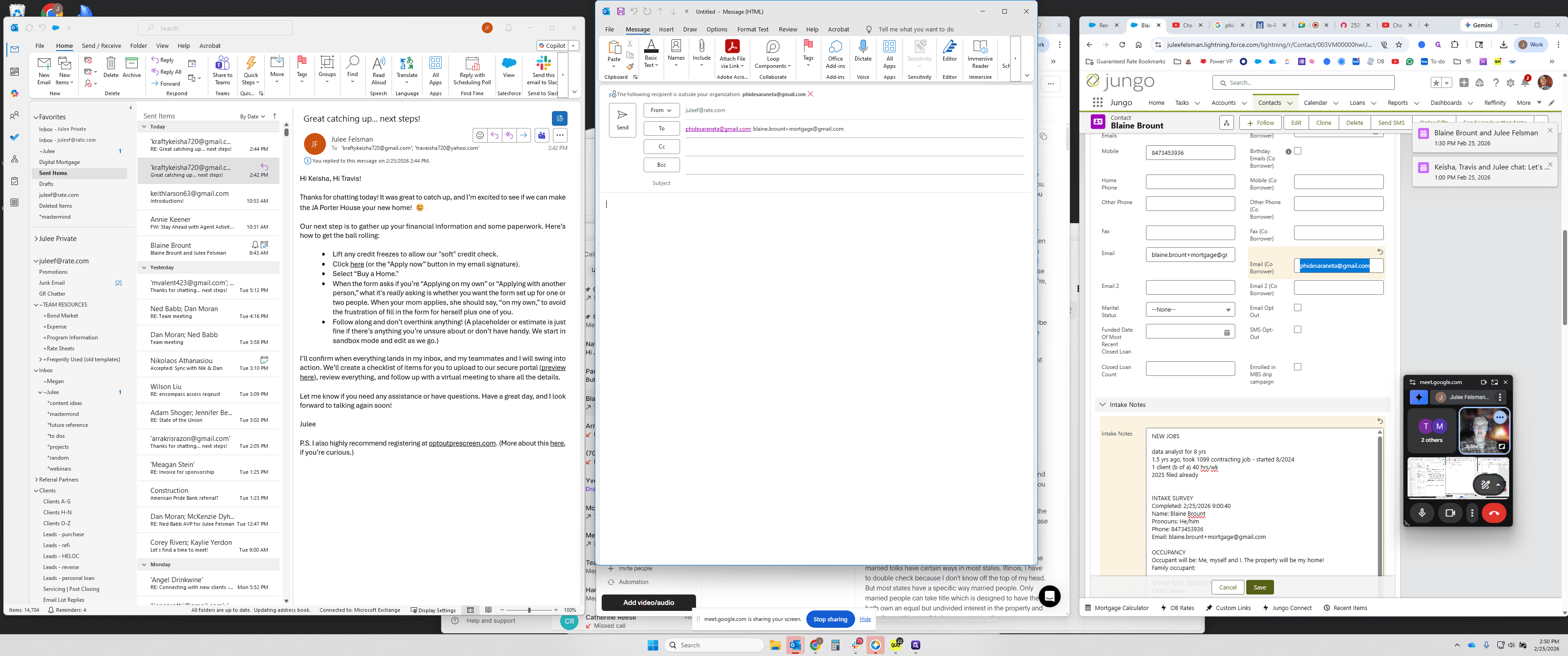
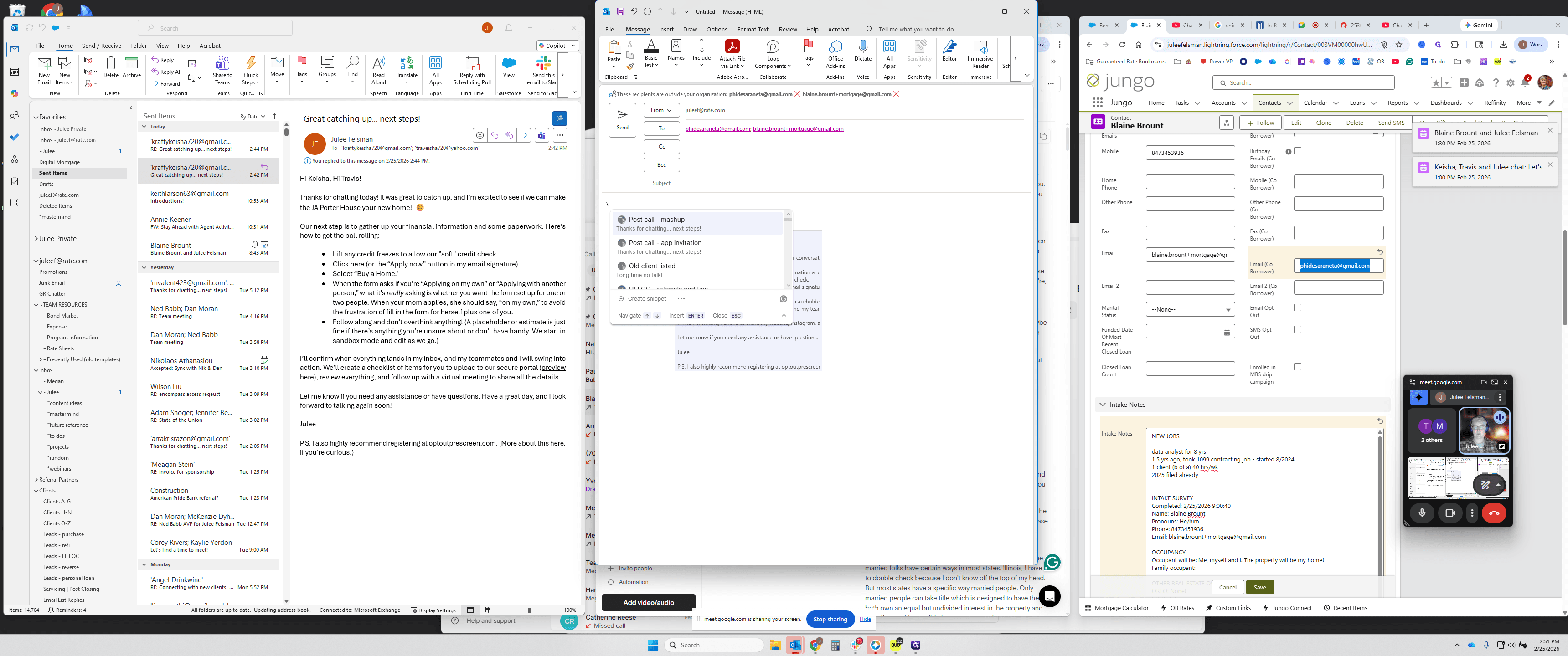
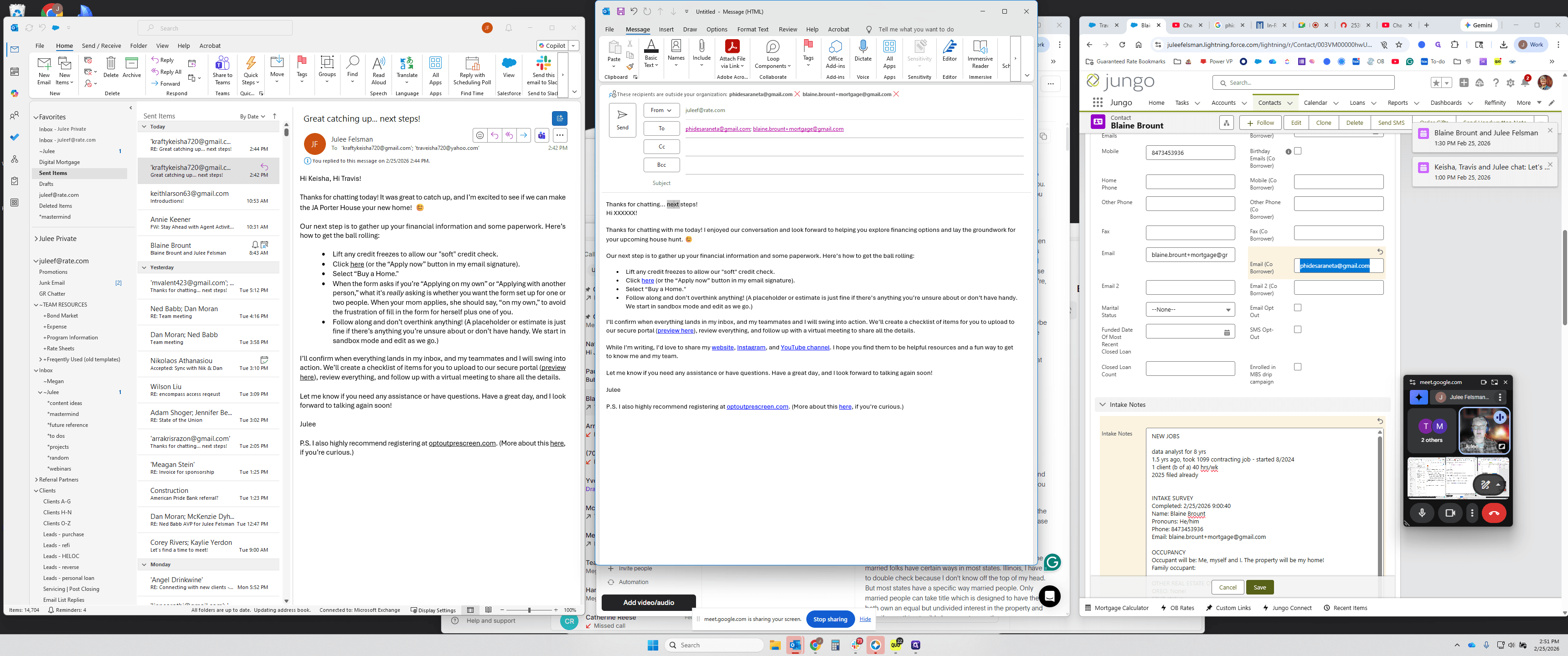
The top of the email is always the subject line or the default subject line. I select it, drag it up, and then say, "Hi Blaine."
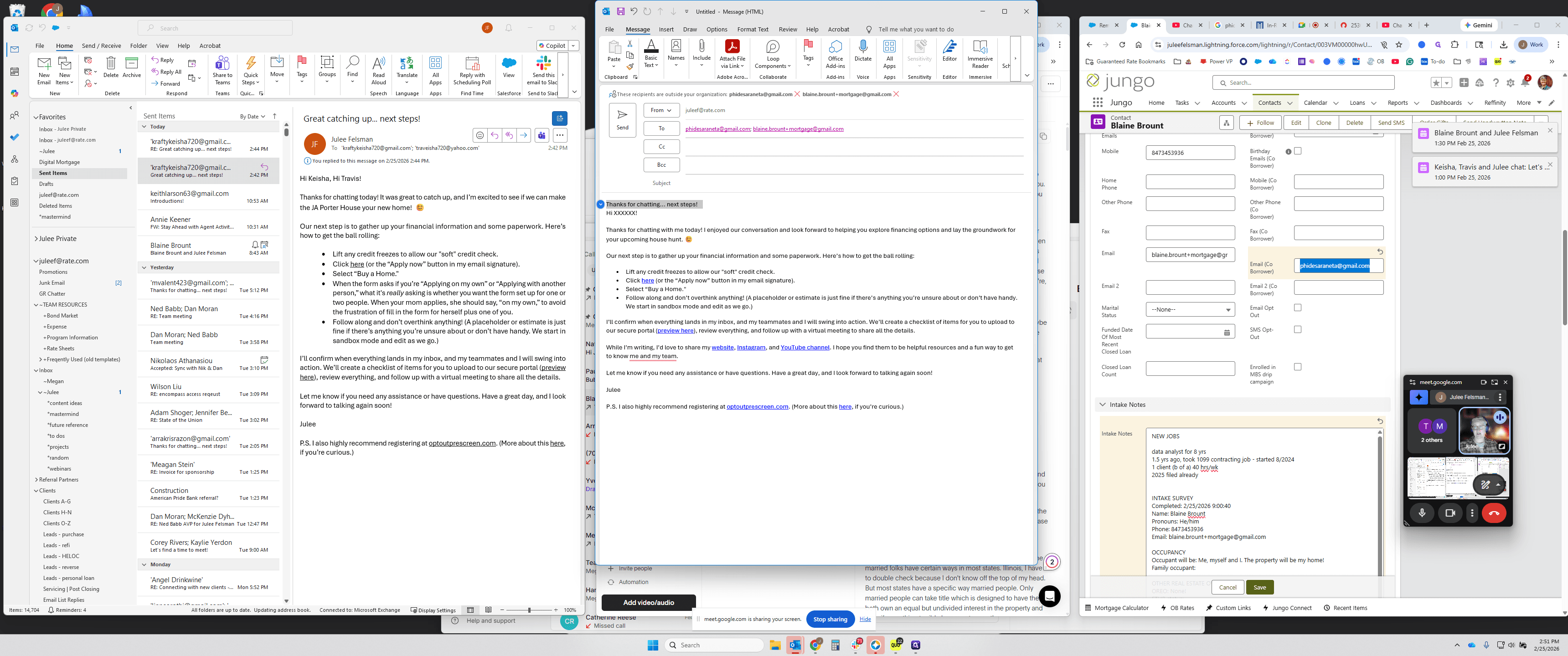
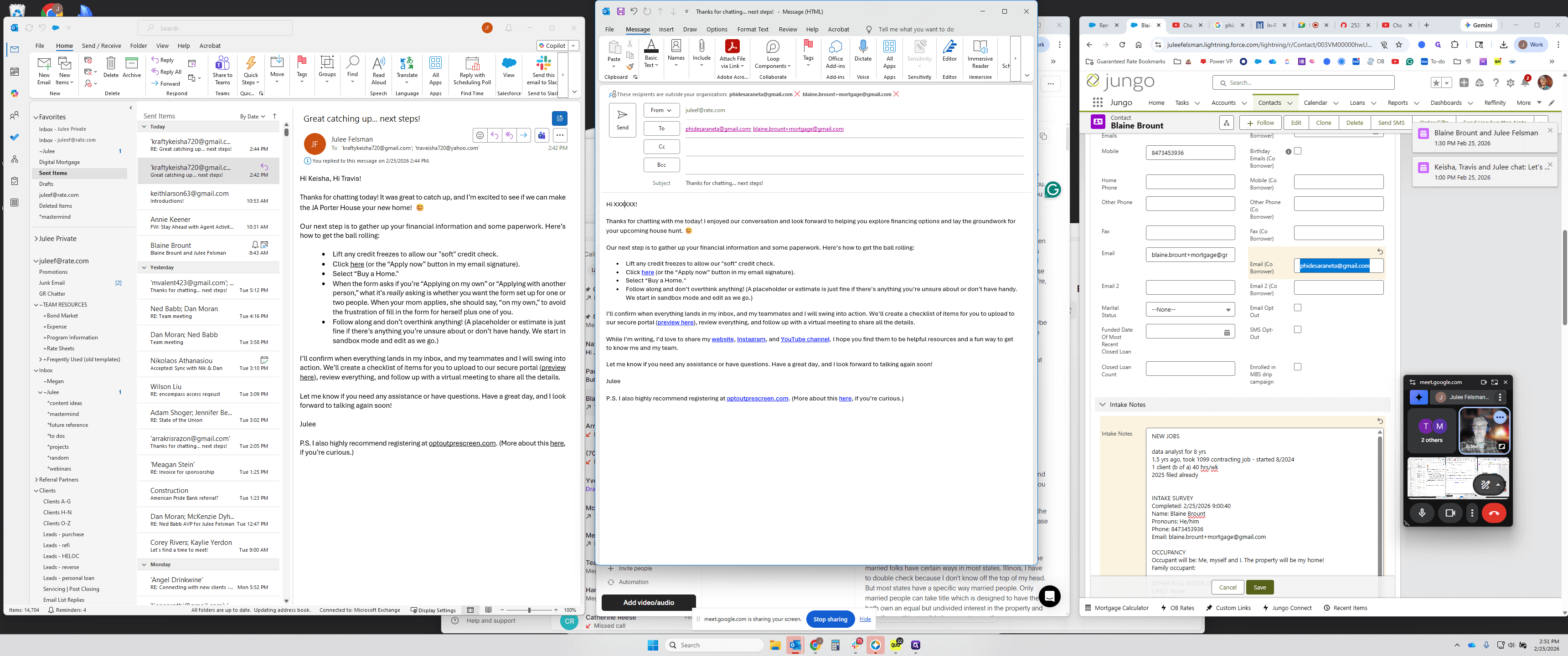
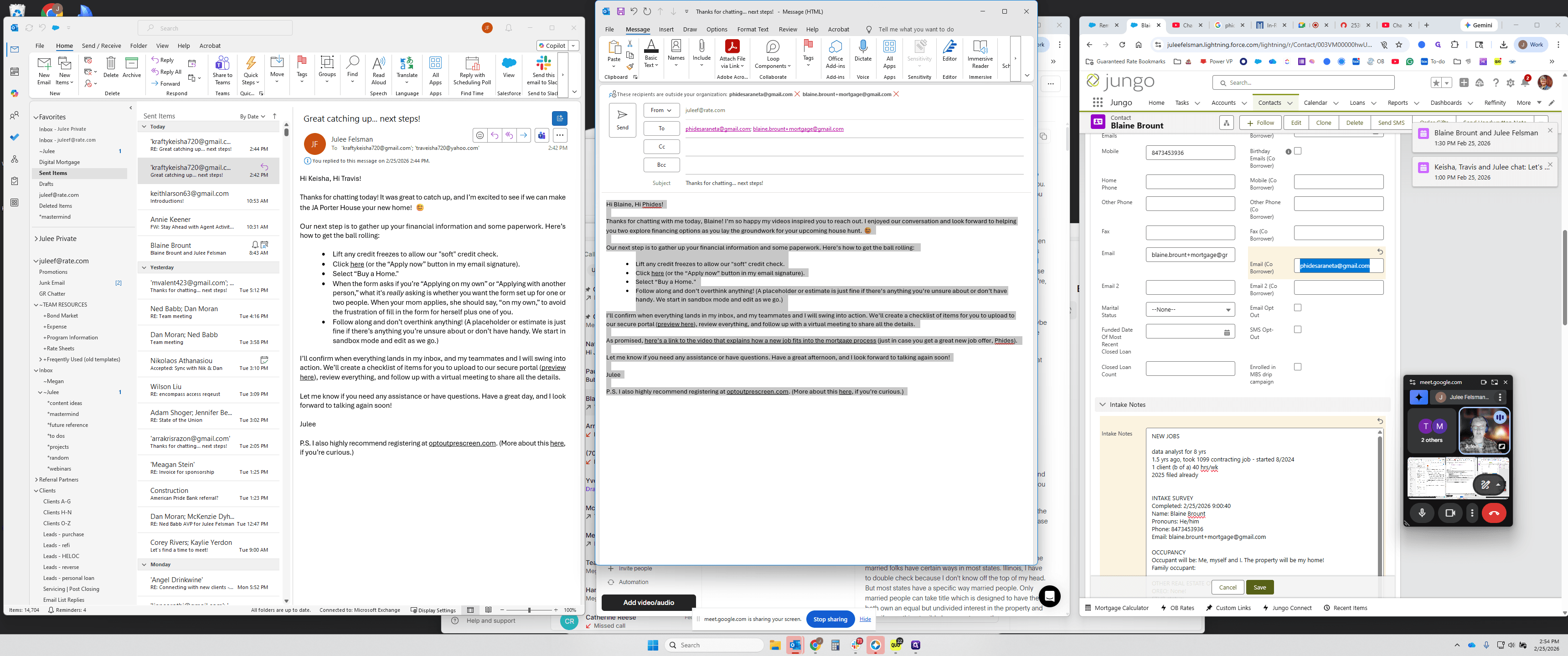
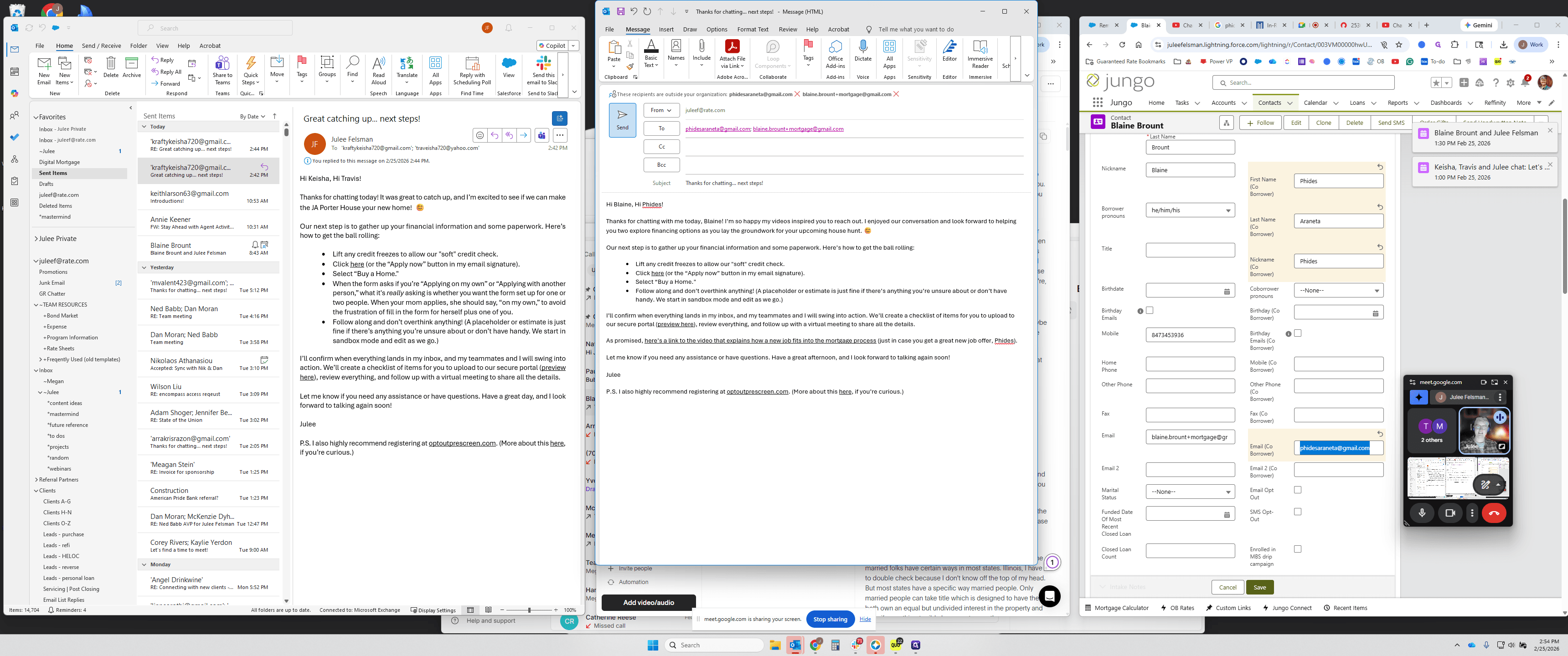
Hi, Fidis? I think he said her name was. I'm going to personalize this a little. I will pause the recording to avoid including details specific to this circumstance that are not part of the general SOP. I will resume once I am finished.
Let me record this. Previously, I mentioned to the borrowers that when the mom applies, she should select "Apply on my own." I have a Grammarly template for this under Separate Apps. When I use it, the formatting can be messy. After selecting "Buy a Home," the bullets may get disrupted. I select all the text, right-click, and re-bullet it to fix the formatting, then remove any extra bullets. I have boilerplate language that I adjust slightly depending on the circumstance or add names as needed. This provides a starting point to help ensure people don't make mistakes or get frustrated. In this case, it's not applicable. I will delete that, but I wanted to show it to you first.
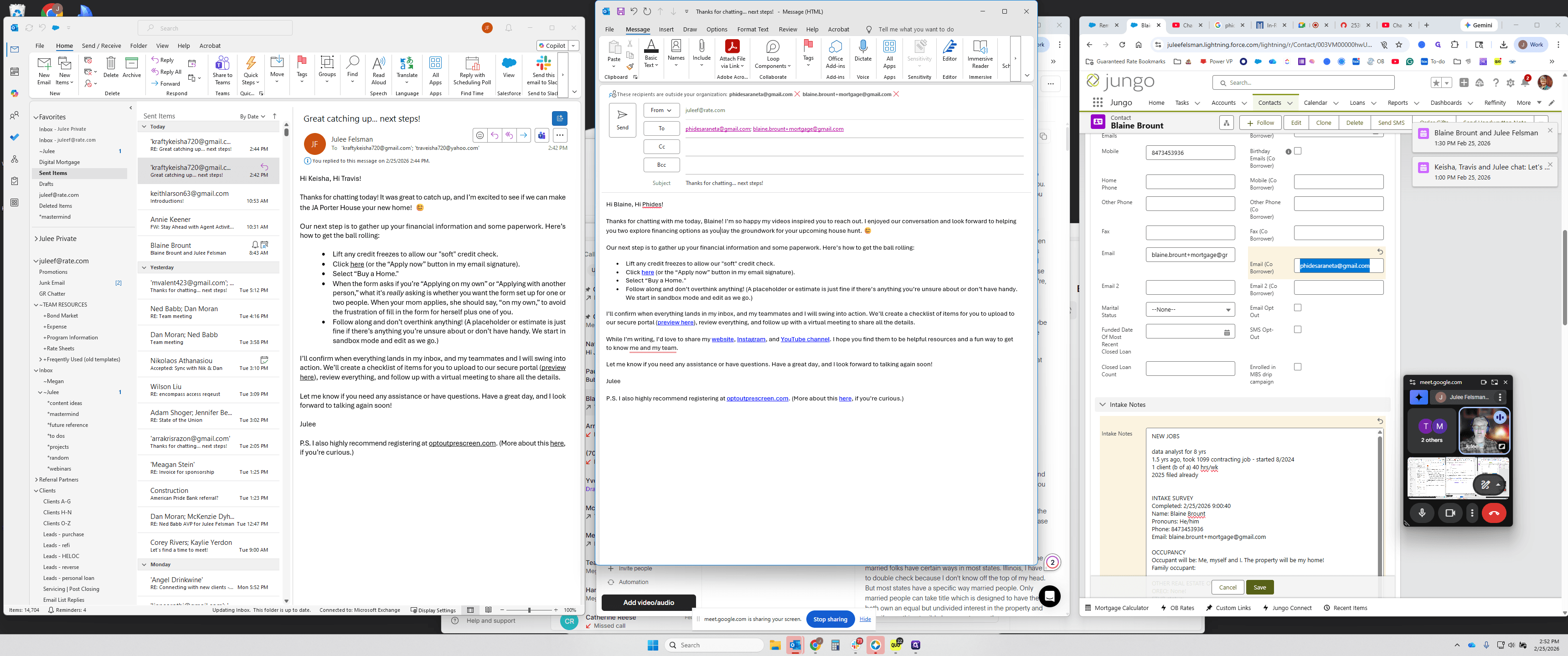
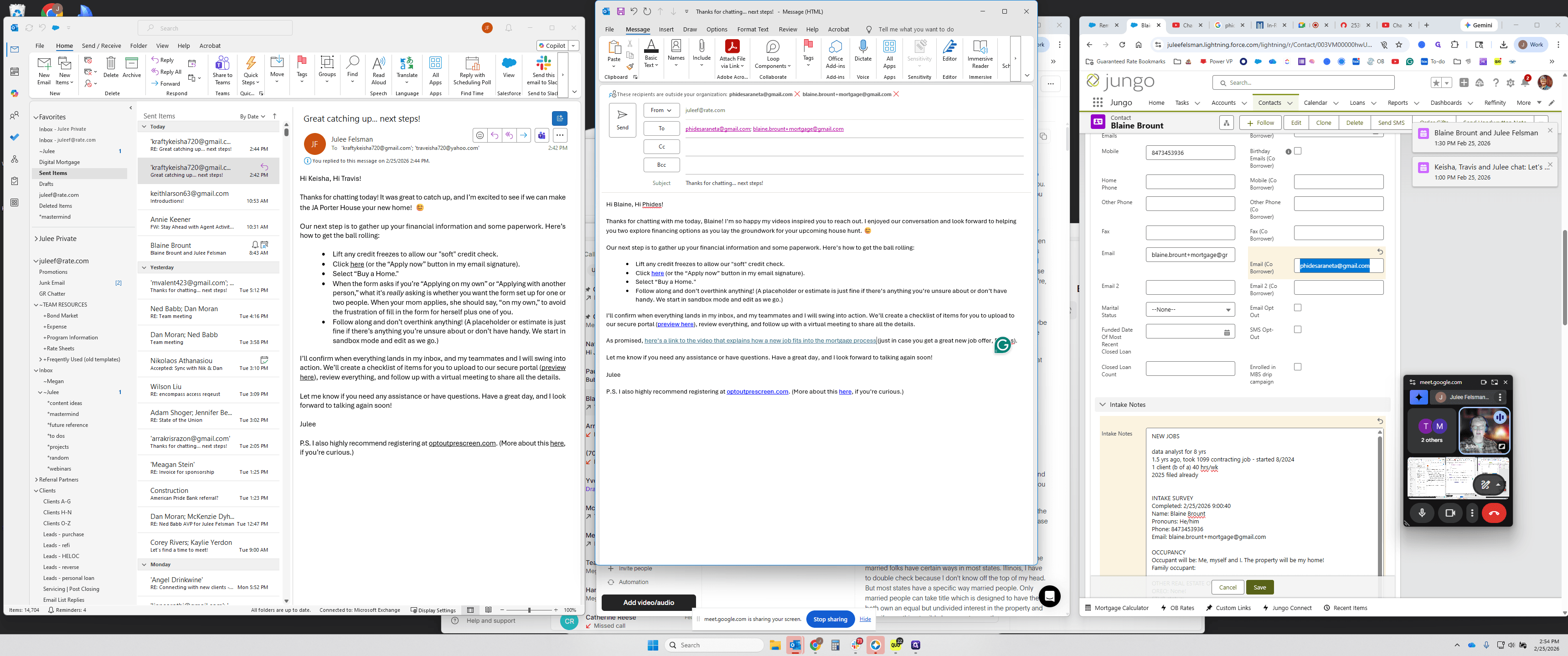
They already know about the YouTube channel, so I usually delete the sentence mentioning the website and YouTube channel. However, I promised him a video, so I'll say, "As promised, here's a link to the video that explains how a new job fits into the mortgage process, in case you get a great new job offer, Fidis." I'll select that.
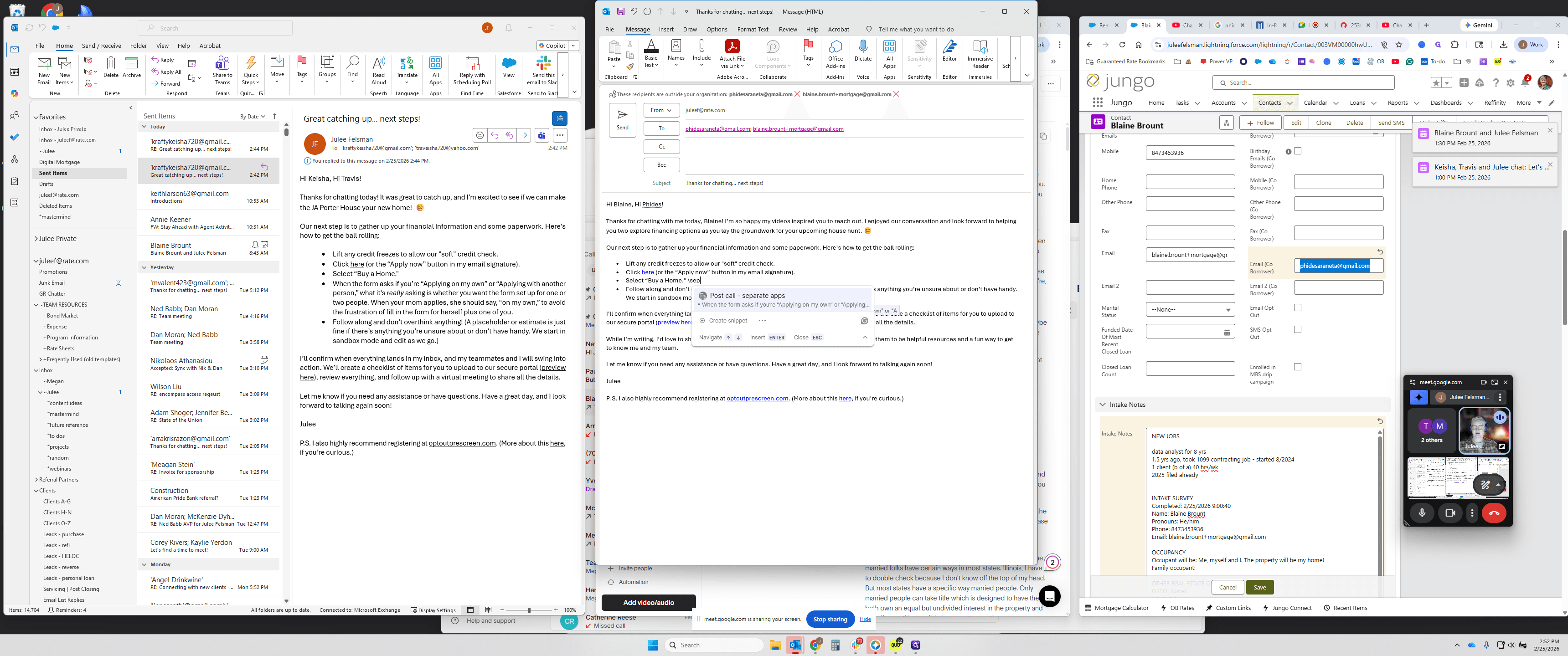
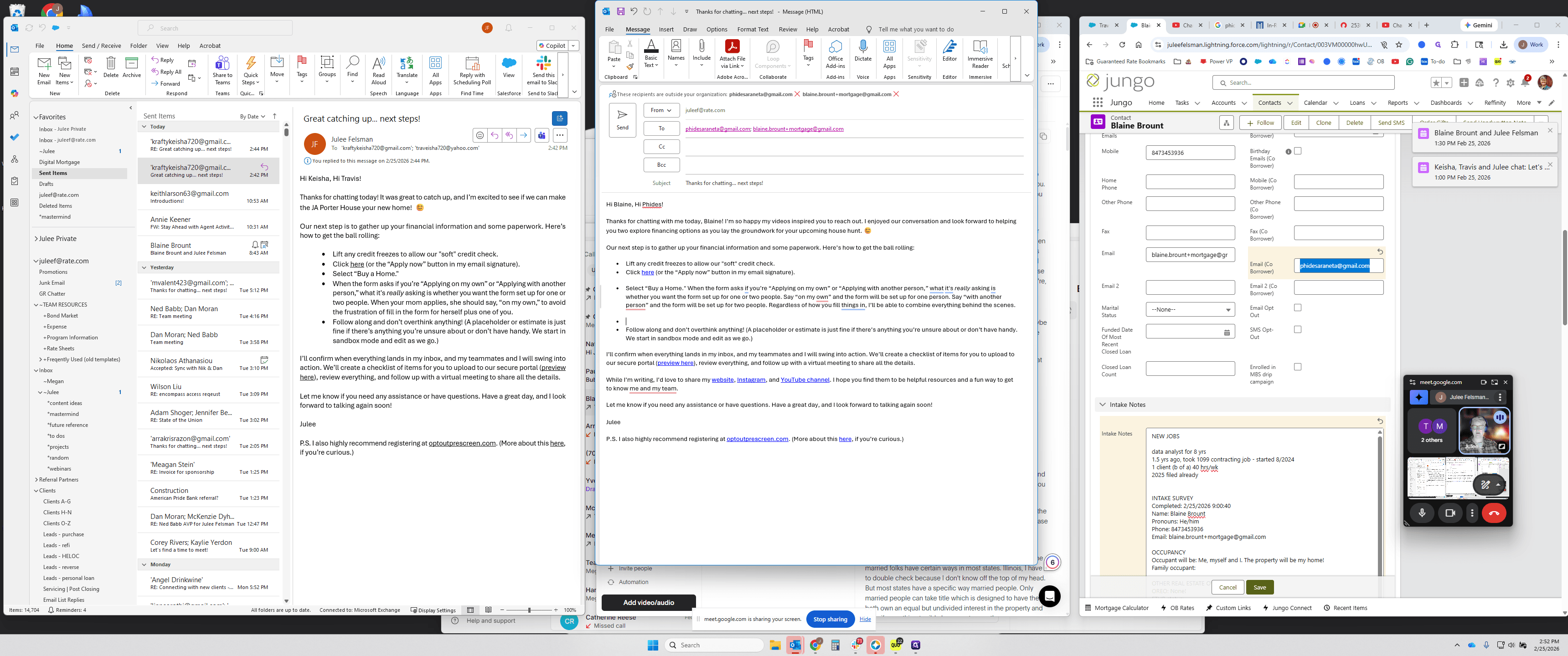
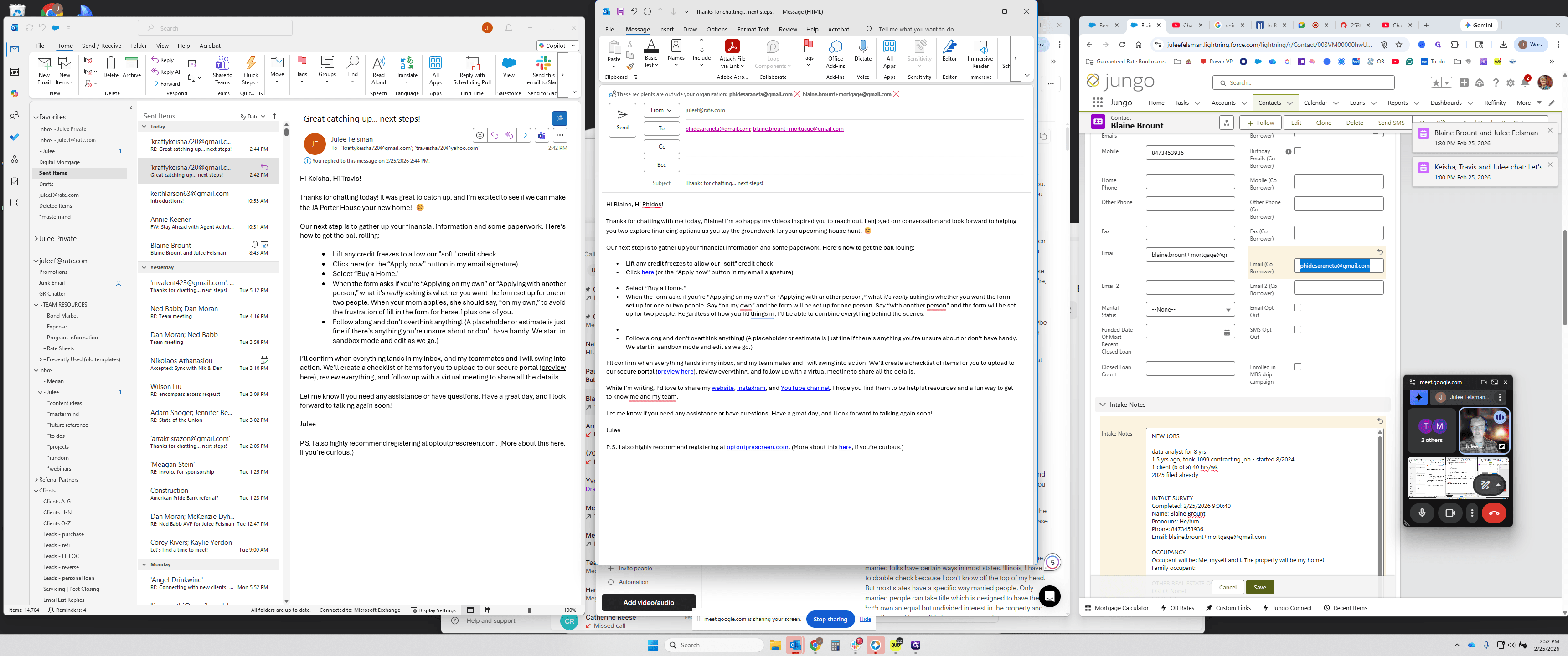
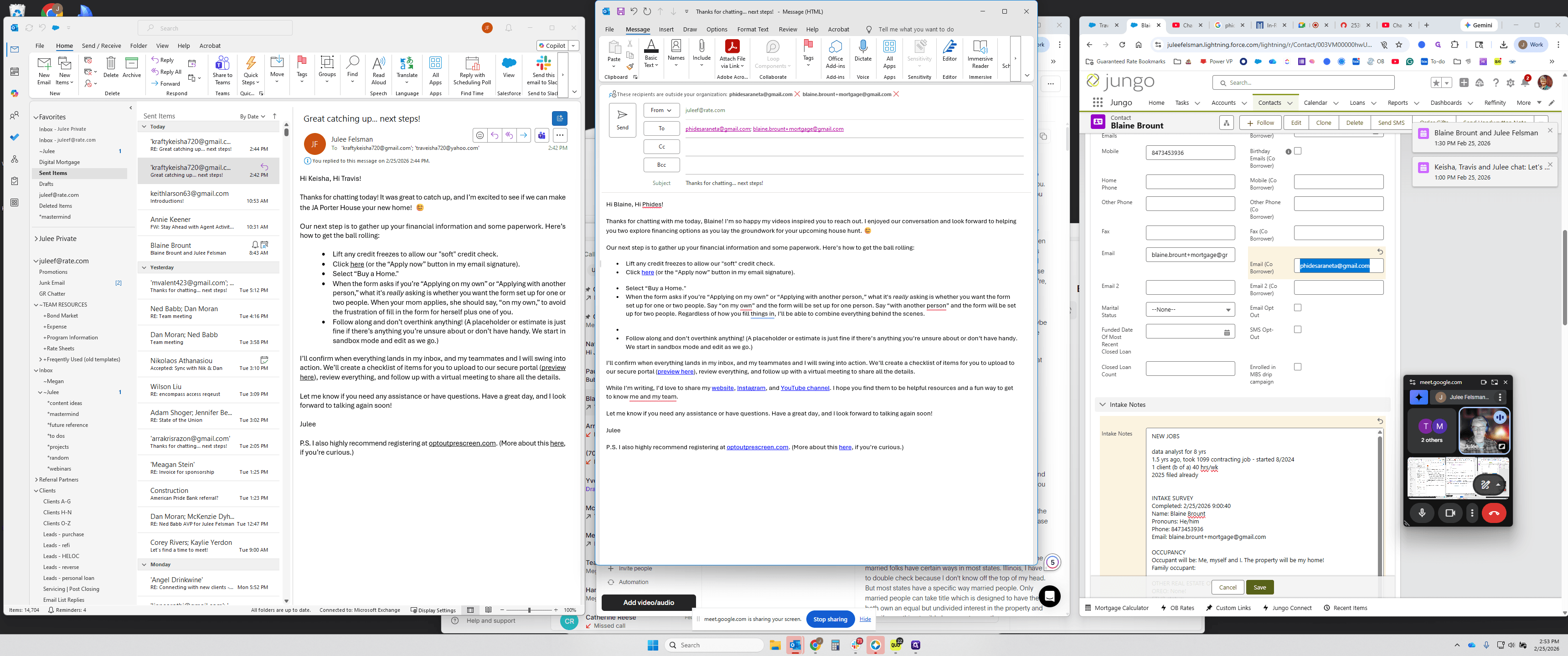
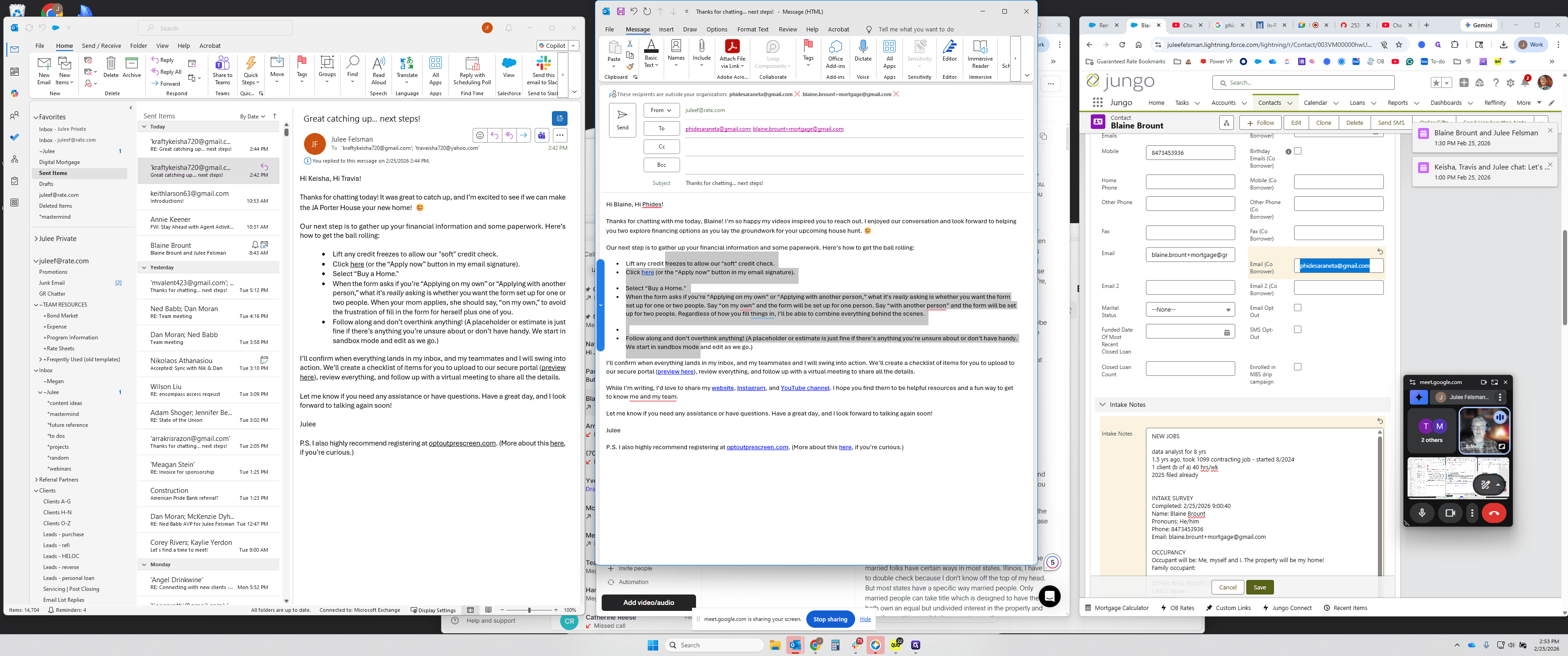
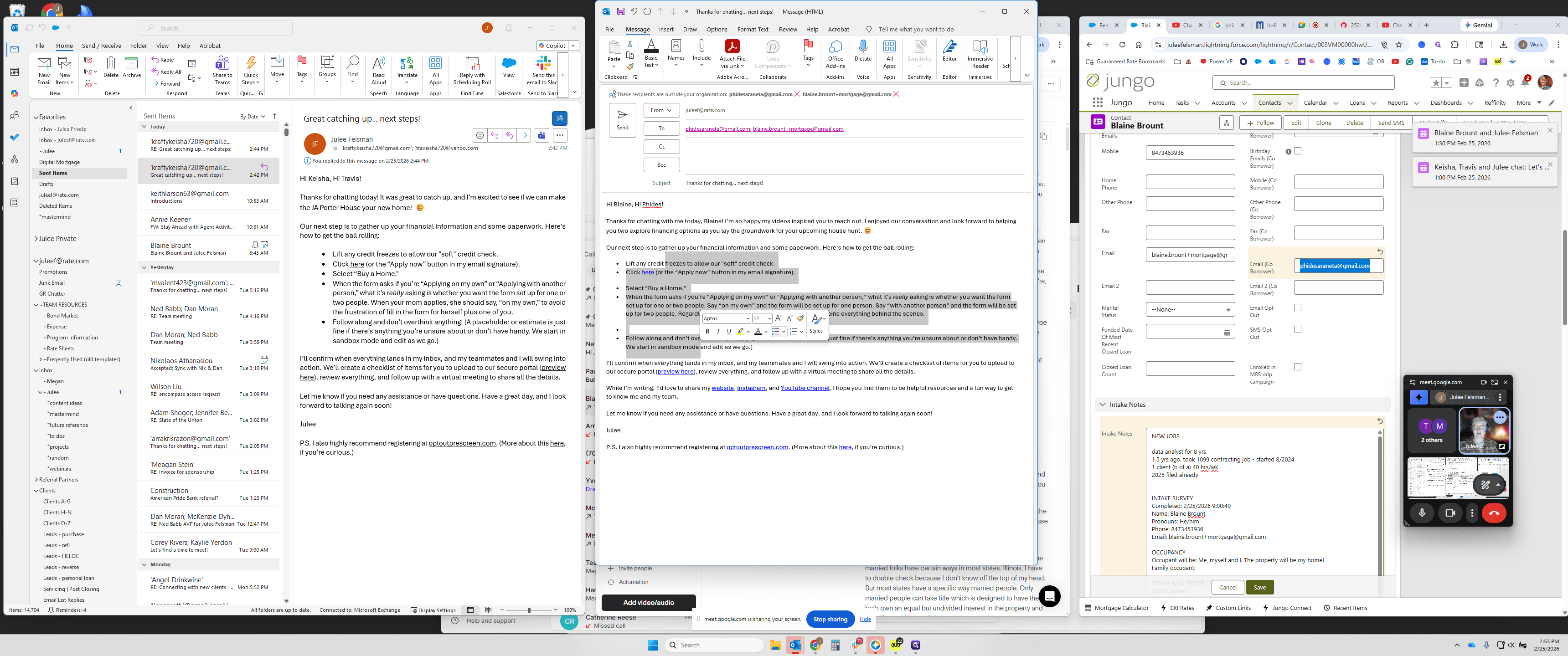
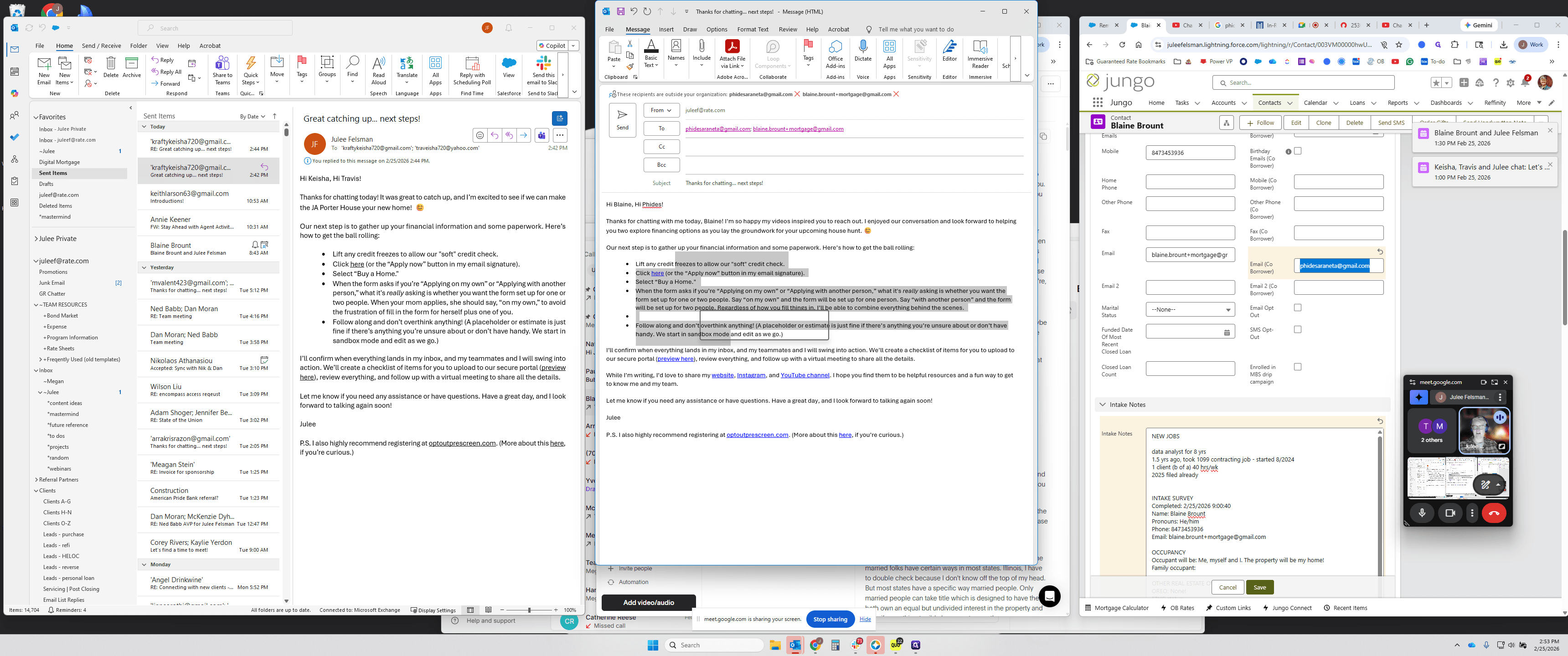
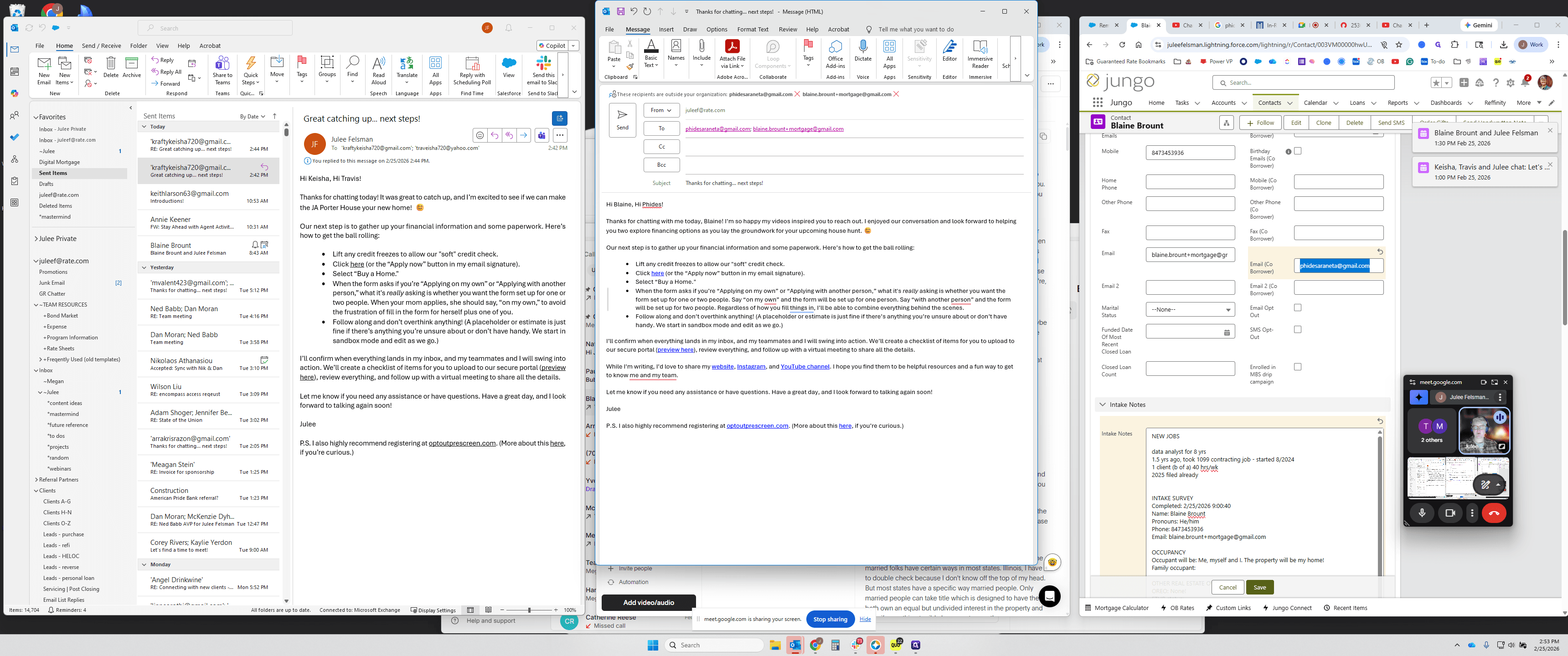
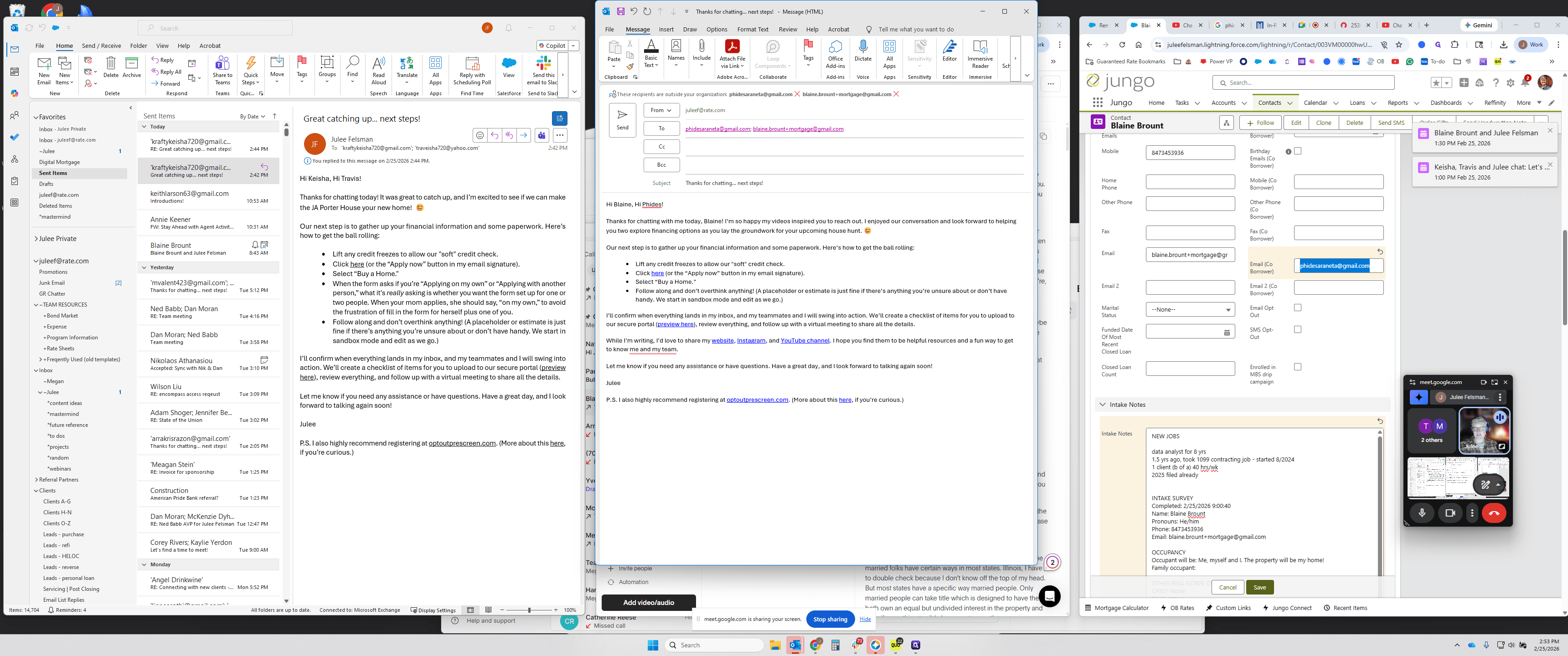
Oops. Control K, Command B. Here is the video link.
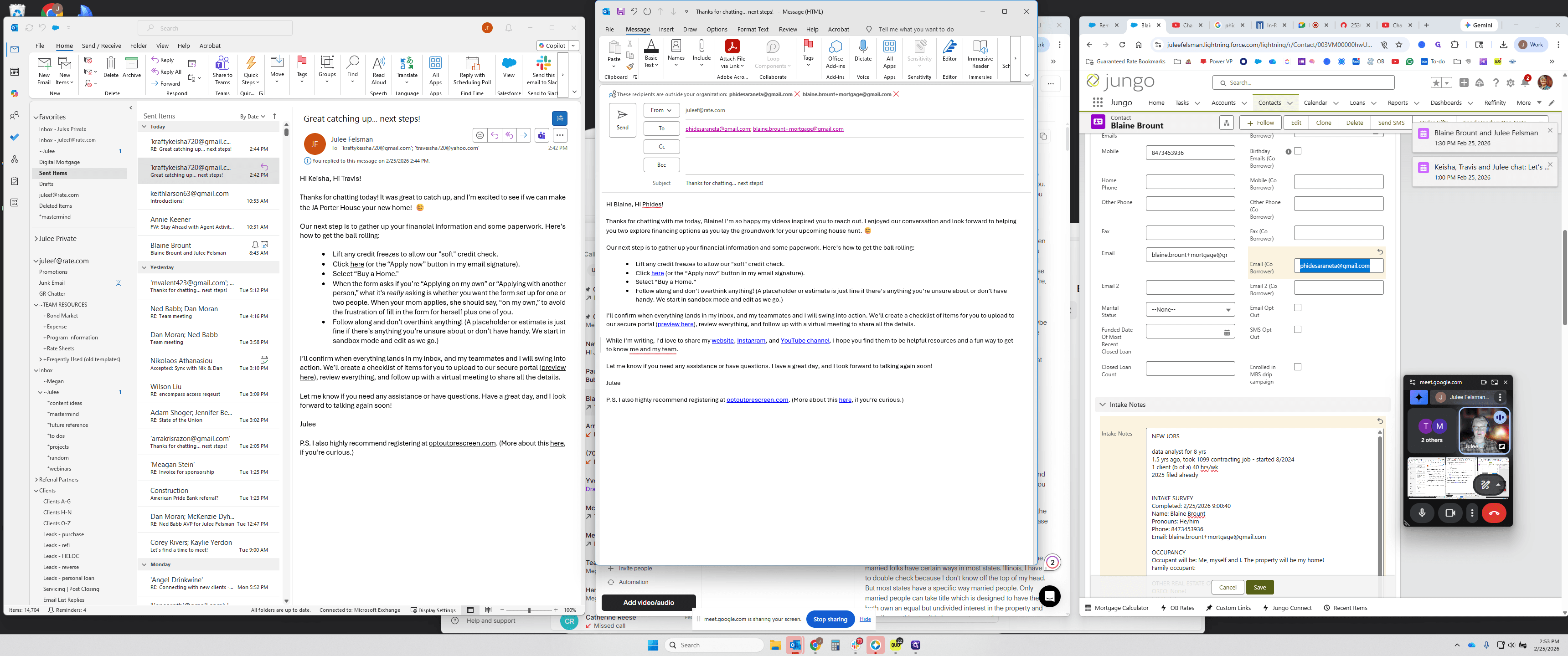
OK.
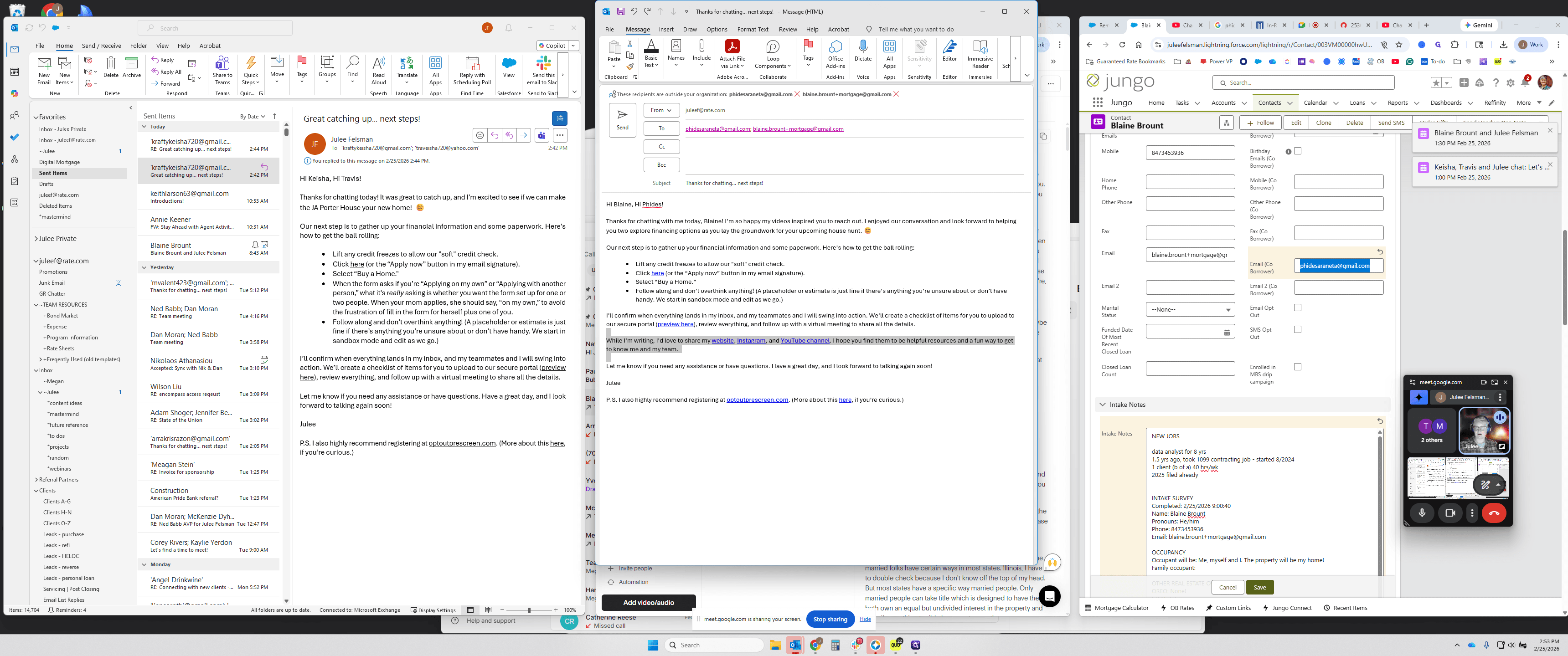
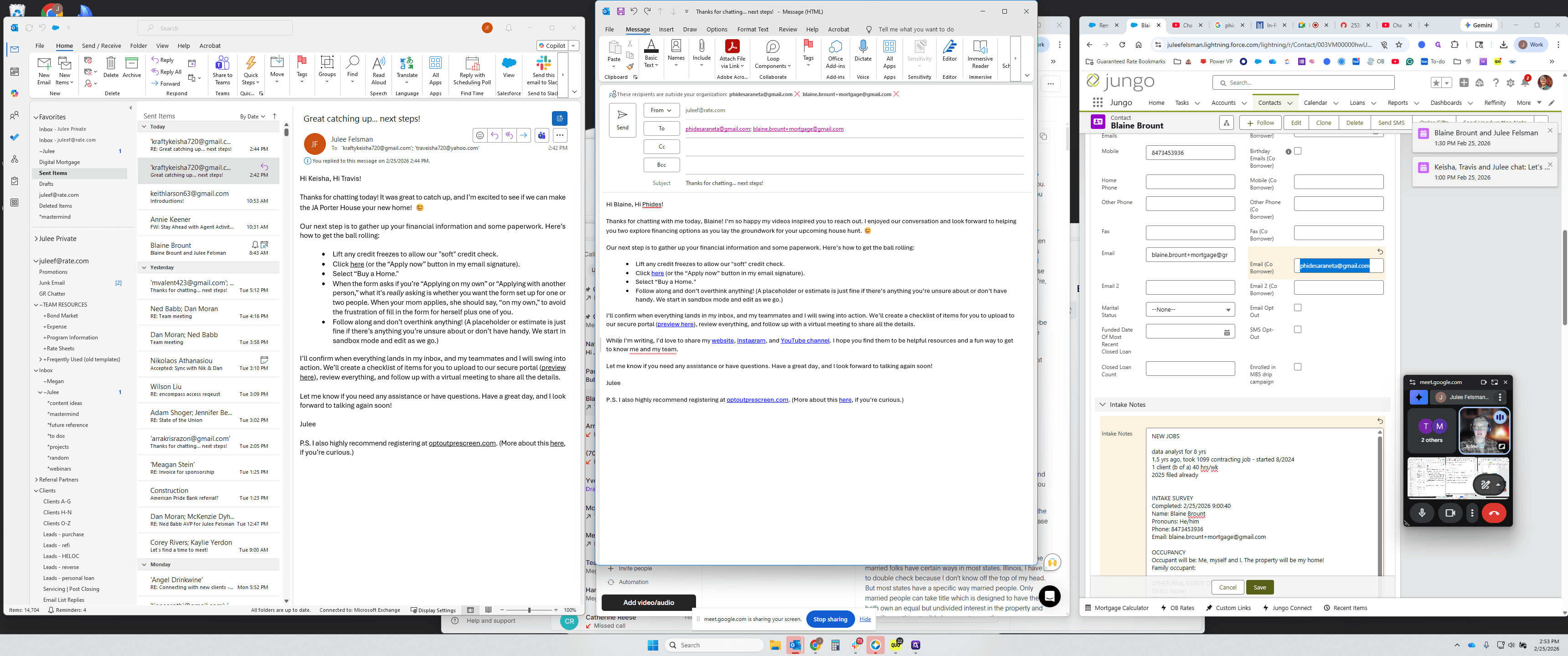
I usually change "day" to "afternoon," "evening," or "weekend," or something similar. Select all. I still do this on all my emails, even though I don't think it matters. I can't stop; I know. Thank you for chatting. Next steps.
I hit send. At this point, the process is usually complete, and I have several templates ready. Some are boilerplate. These are AI prompts that will process this and let you...
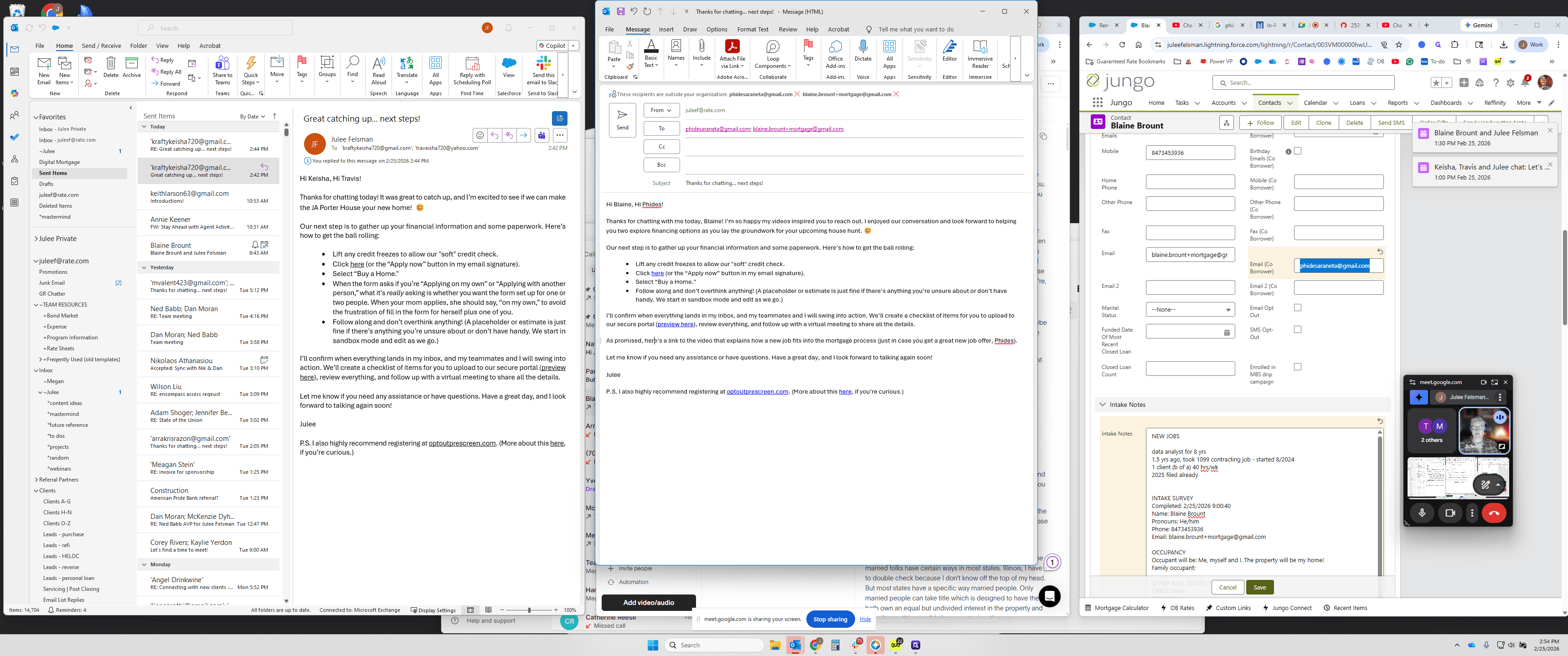
I have sales coaching, social media content ideas, and intake call summaries.
This is the one I've been working on most recently: Intake-GPT-5-Optimized.
I’ll get that running. While it’s running, you can chat with the conversation.
Did I spell it? Maybe I didn't spell it correctly. That's fun. He said F. Did I do PH? Yeah, okay.
A comeback for him? Fetus, I am an idiot.
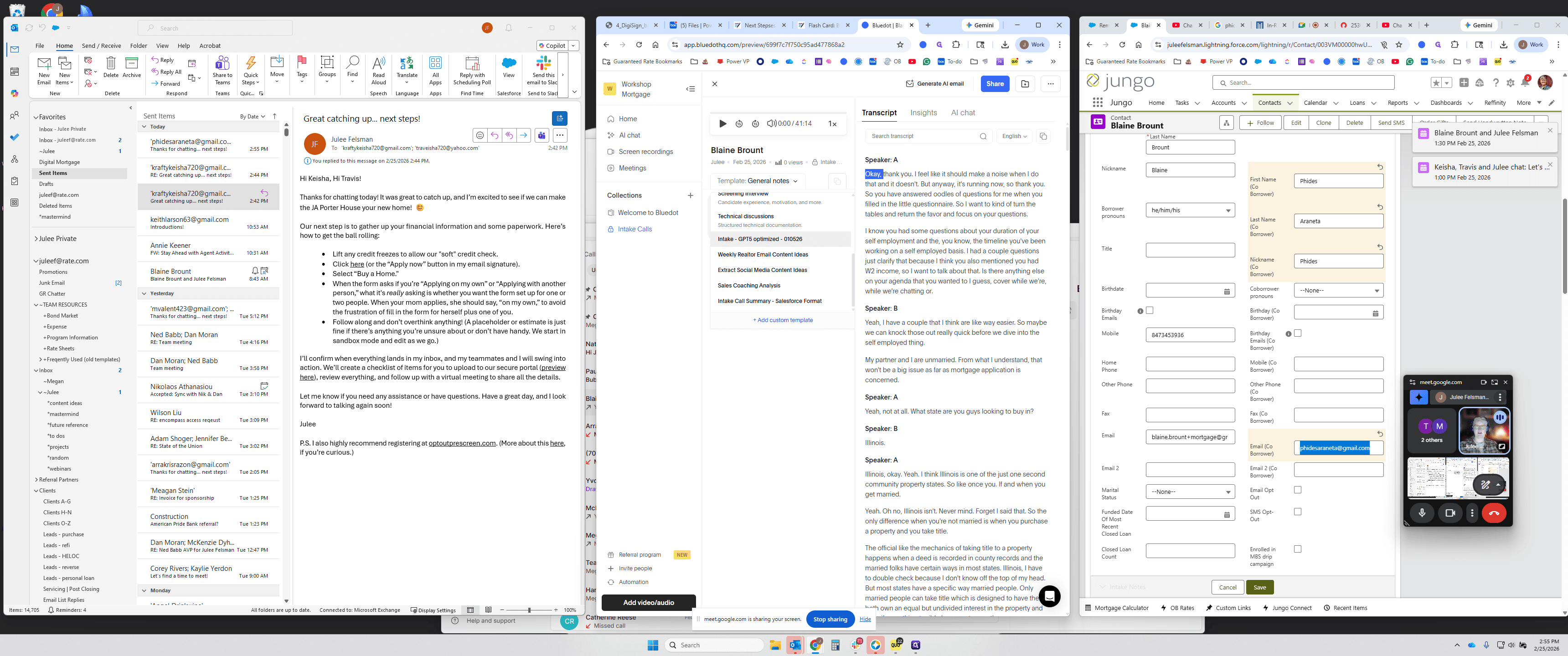
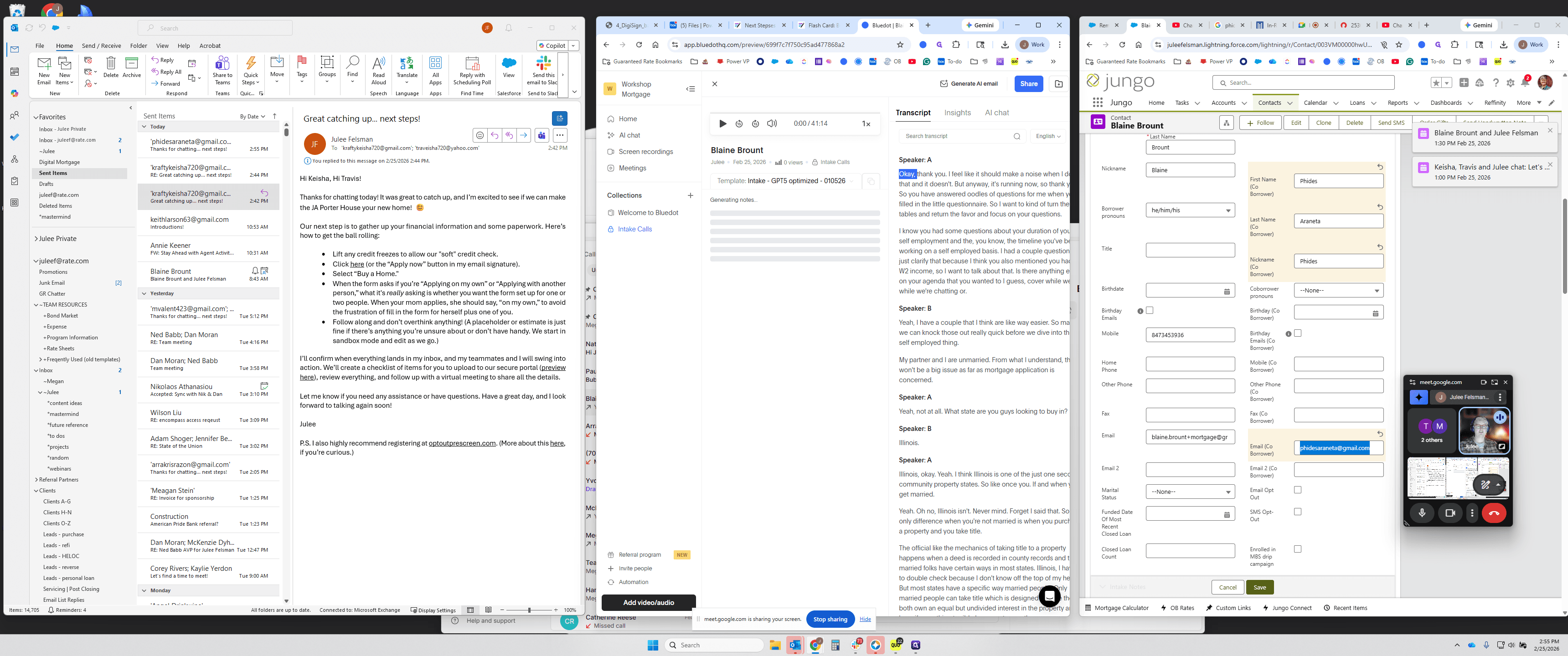
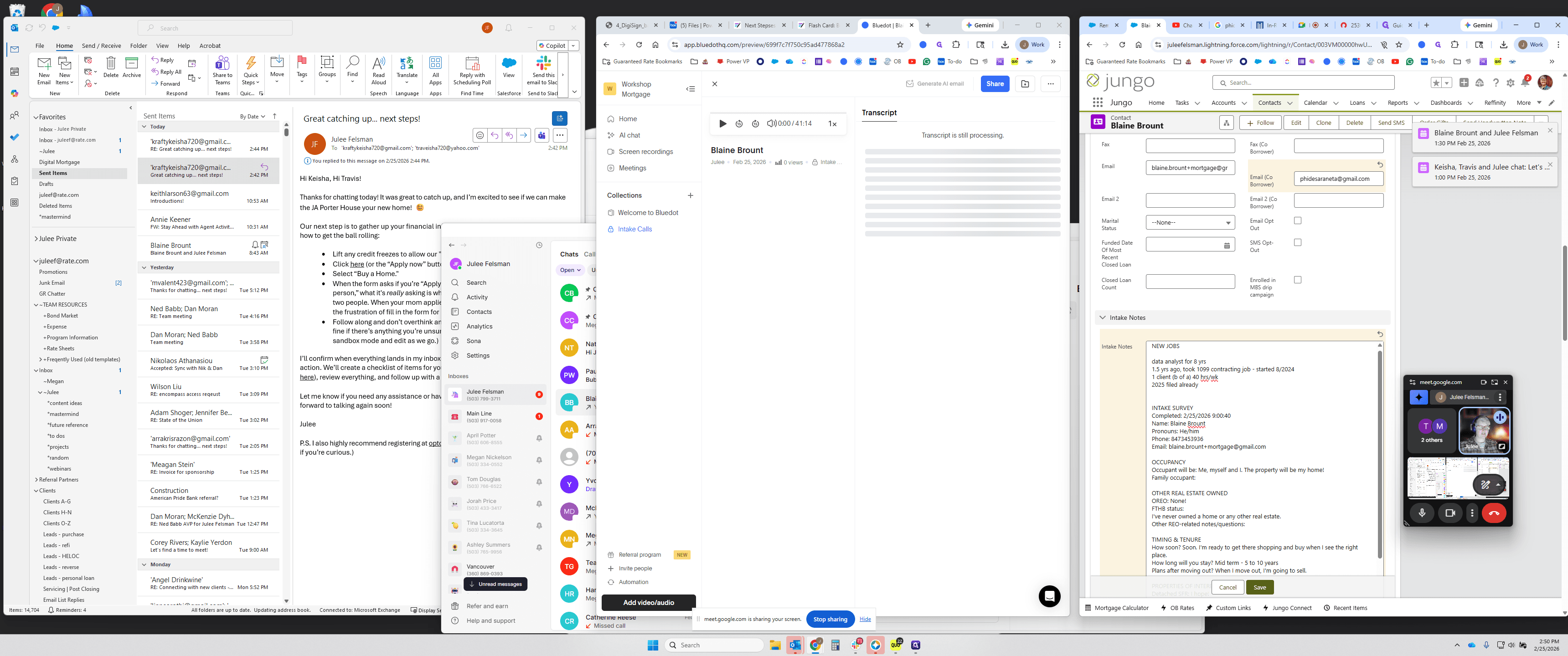
I put them in here and remove any unnecessary parts. Before deleting my rough notes, I save them just in case. Then I skim through the material.
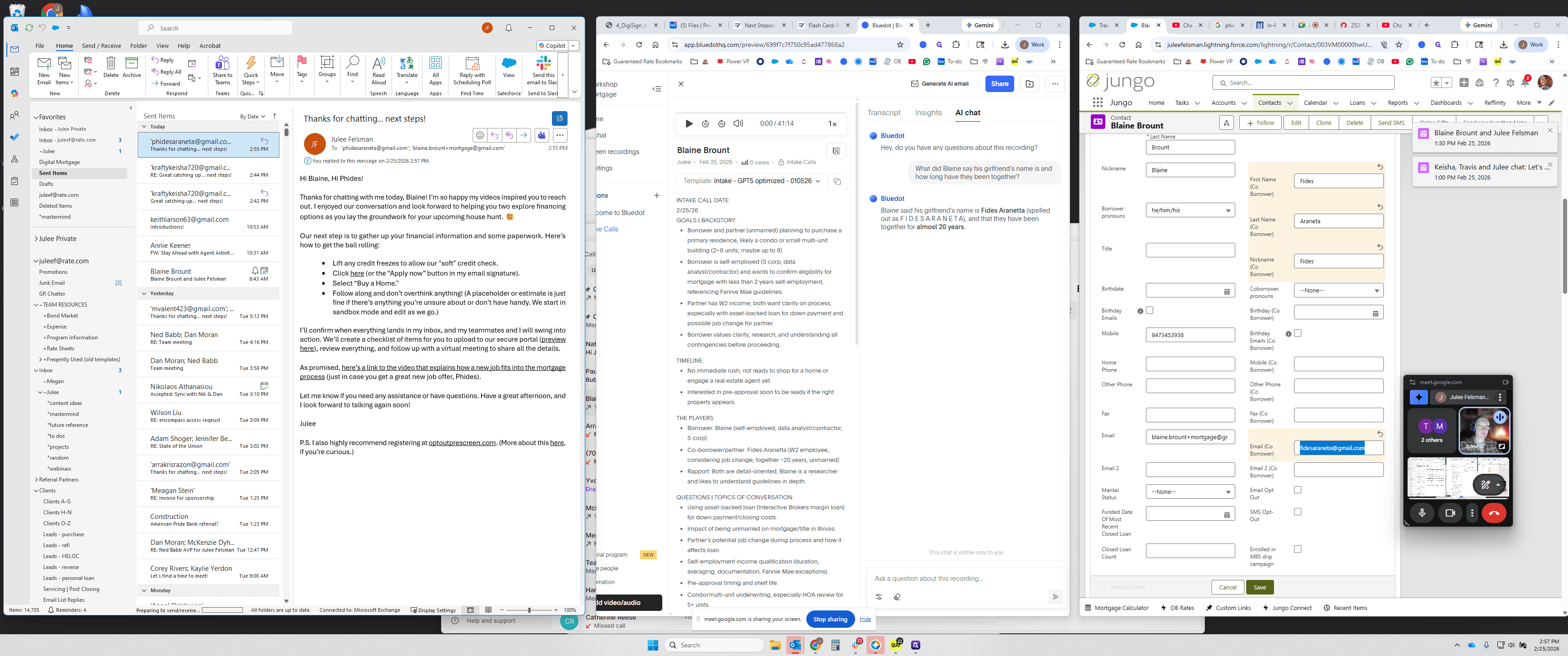
I'm going to pause, as this part is not important for the recording. Skim through and add any thoughts you had but didn't say out loud, so you leave a breadcrumb trail.
If you're doing this for yourself, you can probably do less, since you had the conversation and are reviewing it later. Add whatever you want to remember, and it tends to help you think.
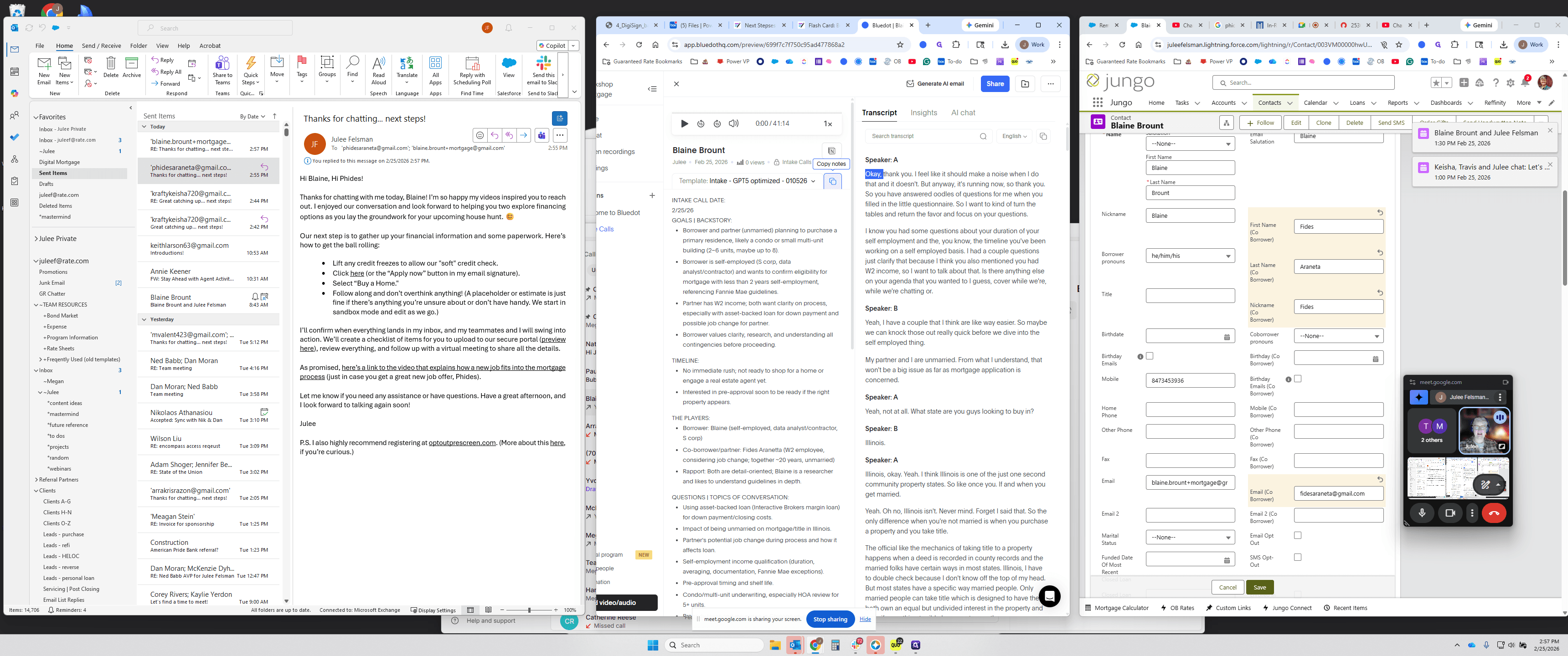
It's better than before because I've been working on the prompt. However, it sometimes thinks the client said something that I actually said, so I try to fix those issues.
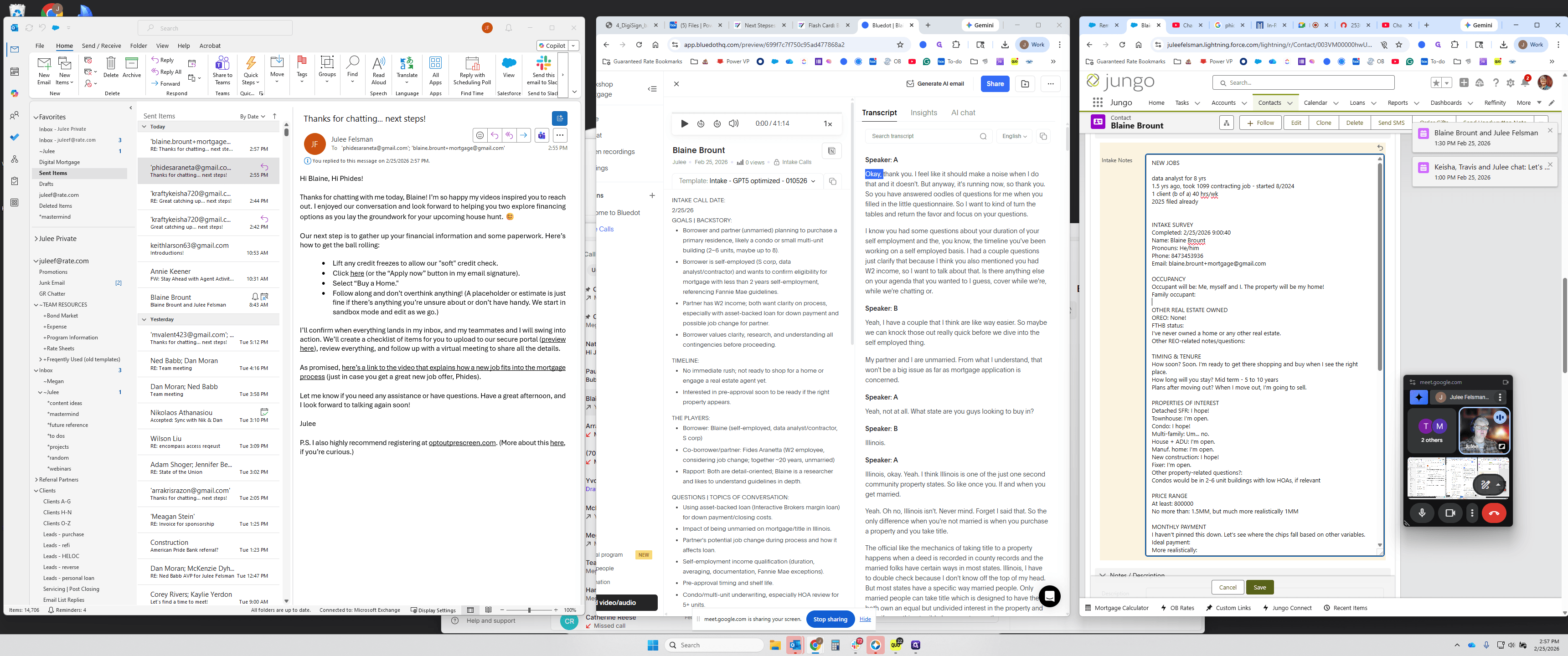
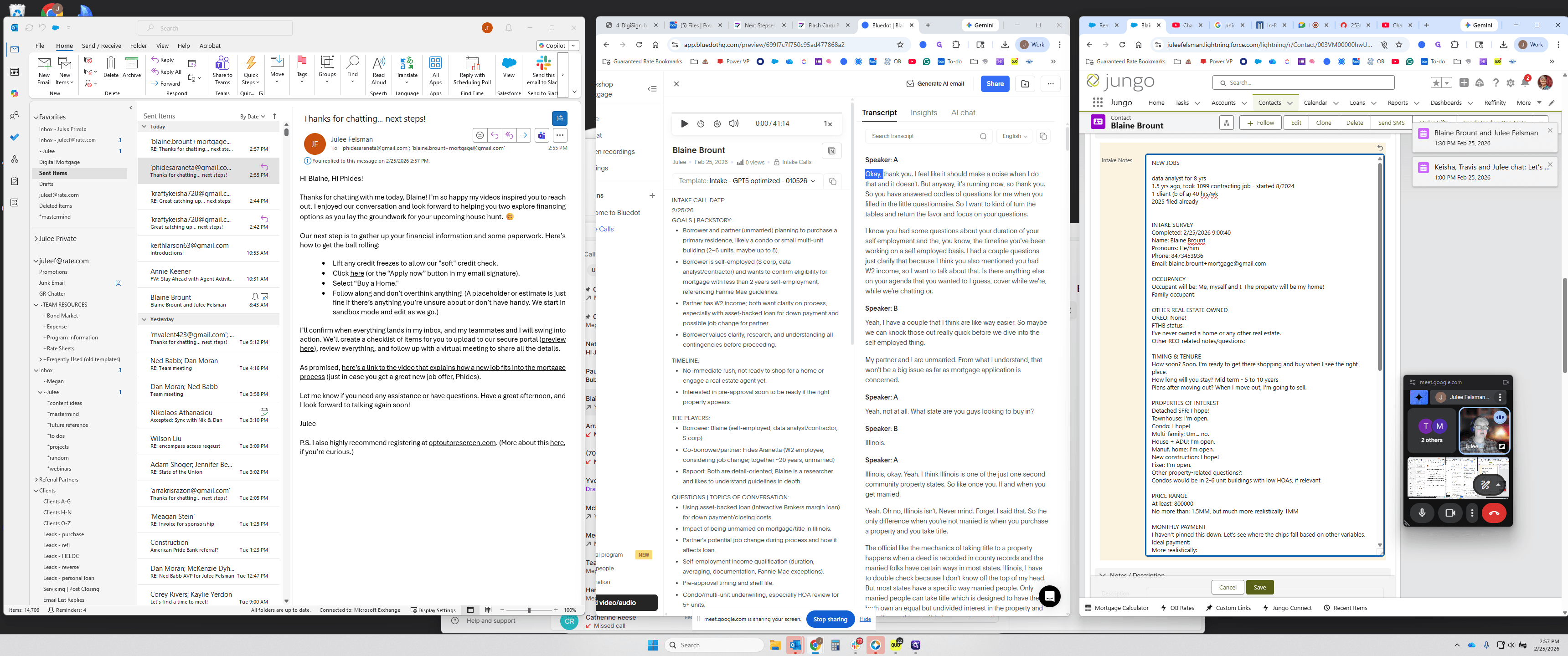
So I'm going to again. I have the prompt set up to do two things that have not been useful. I need to refine the prompt further.
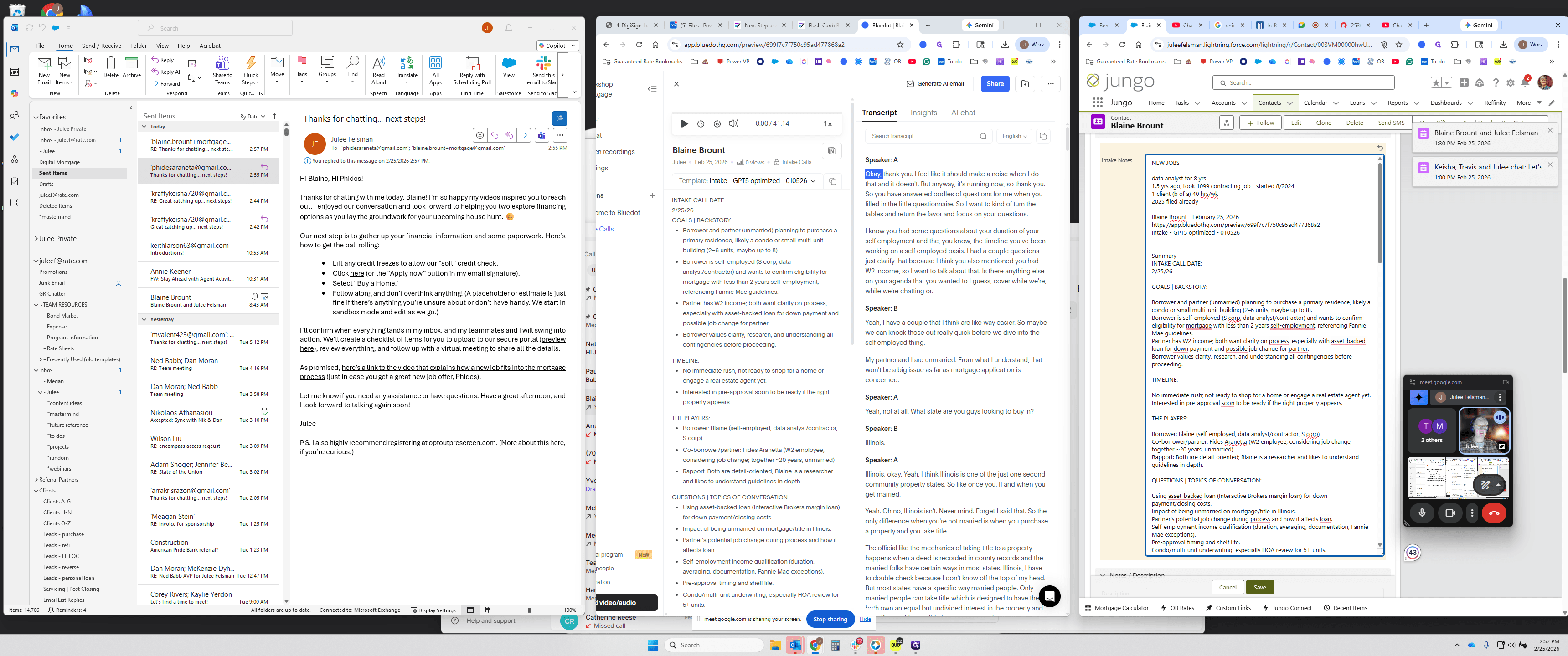
One task is to write the blurb that brokers can see. This one isn't too bad, except it discloses confidential information. I've been ignoring this, deleting it, and typing something new. And then I had it try to write something personalized. I always personalize the first sentence of the email I send in Grammarly, but it does a poor job and isn't helpful. I've just been living my life and doing things on my own.
I'm going to hit pause again. I need this. In Lead to App, before you finish, there are a few things to do. I had some junk notes here that I can now remove. I sometimes forget to do that, but those were my reminders to send a video and do certain things.
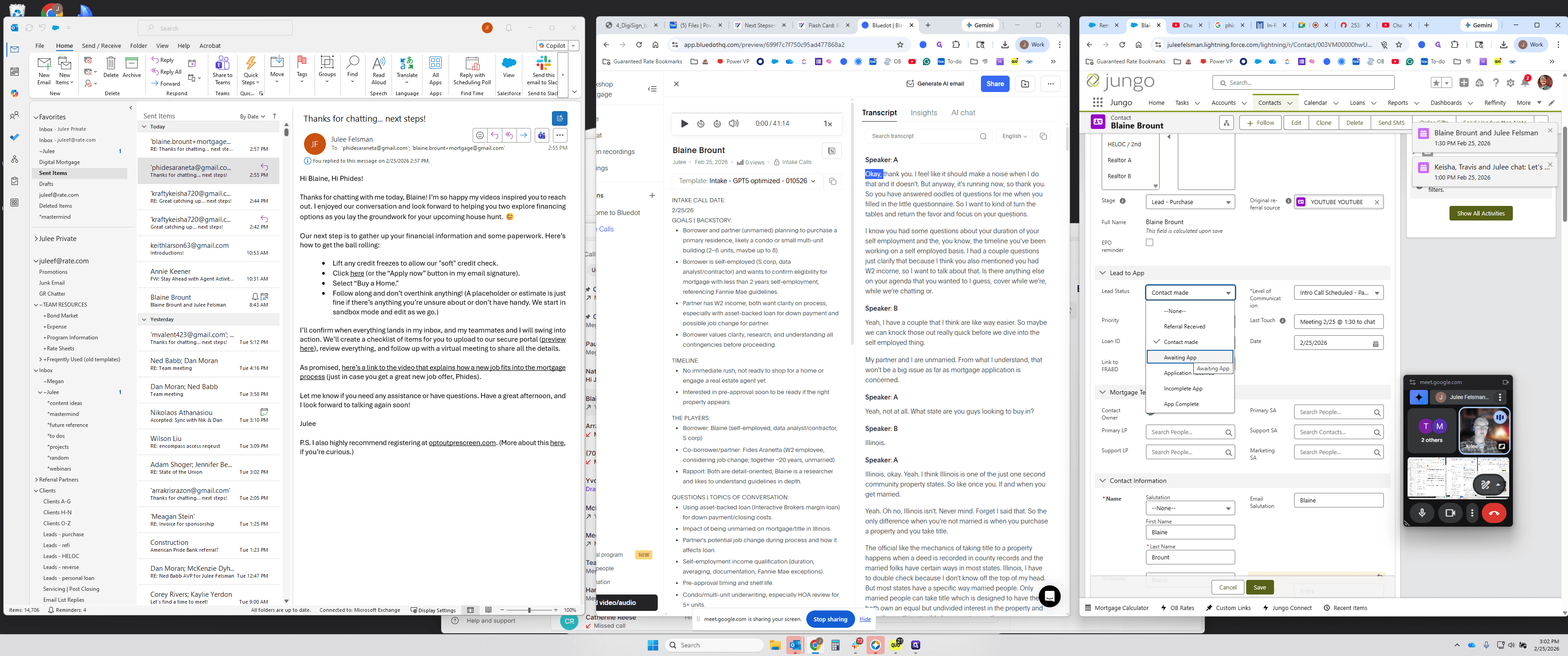
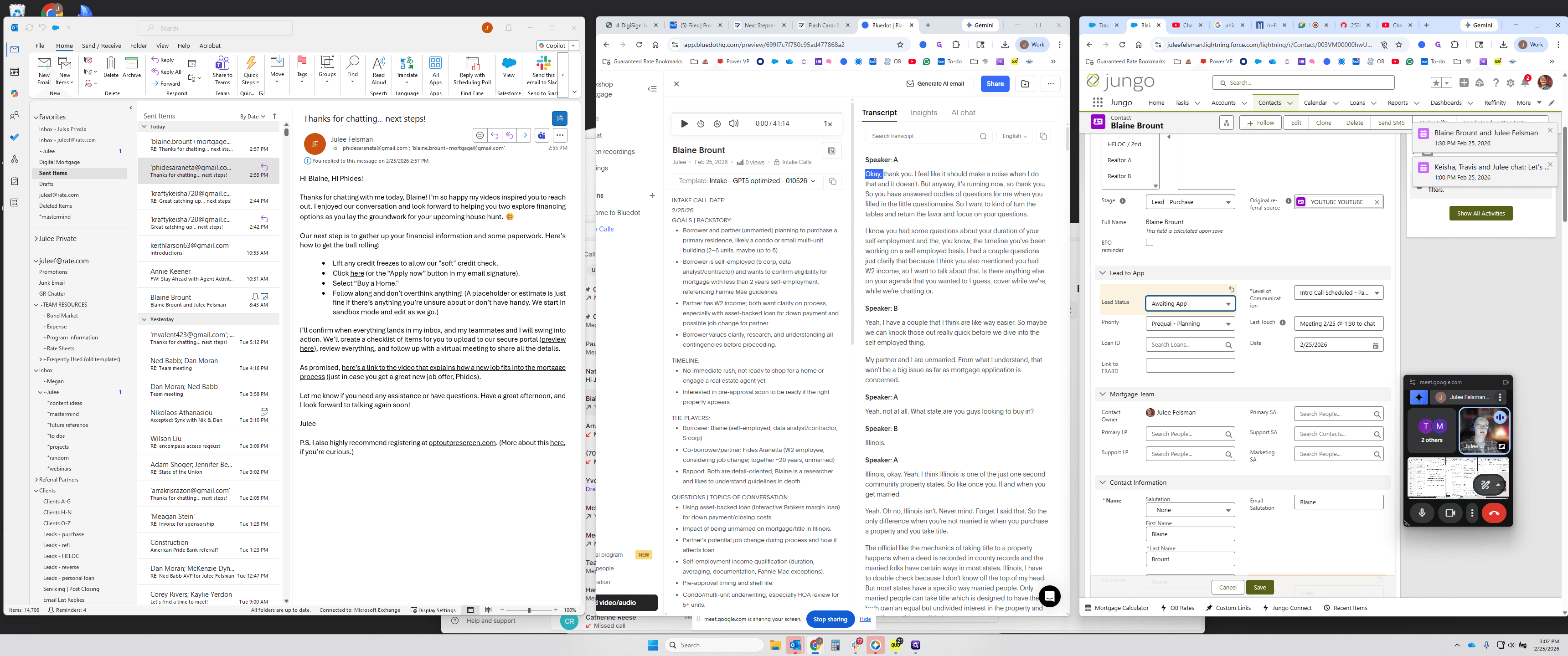
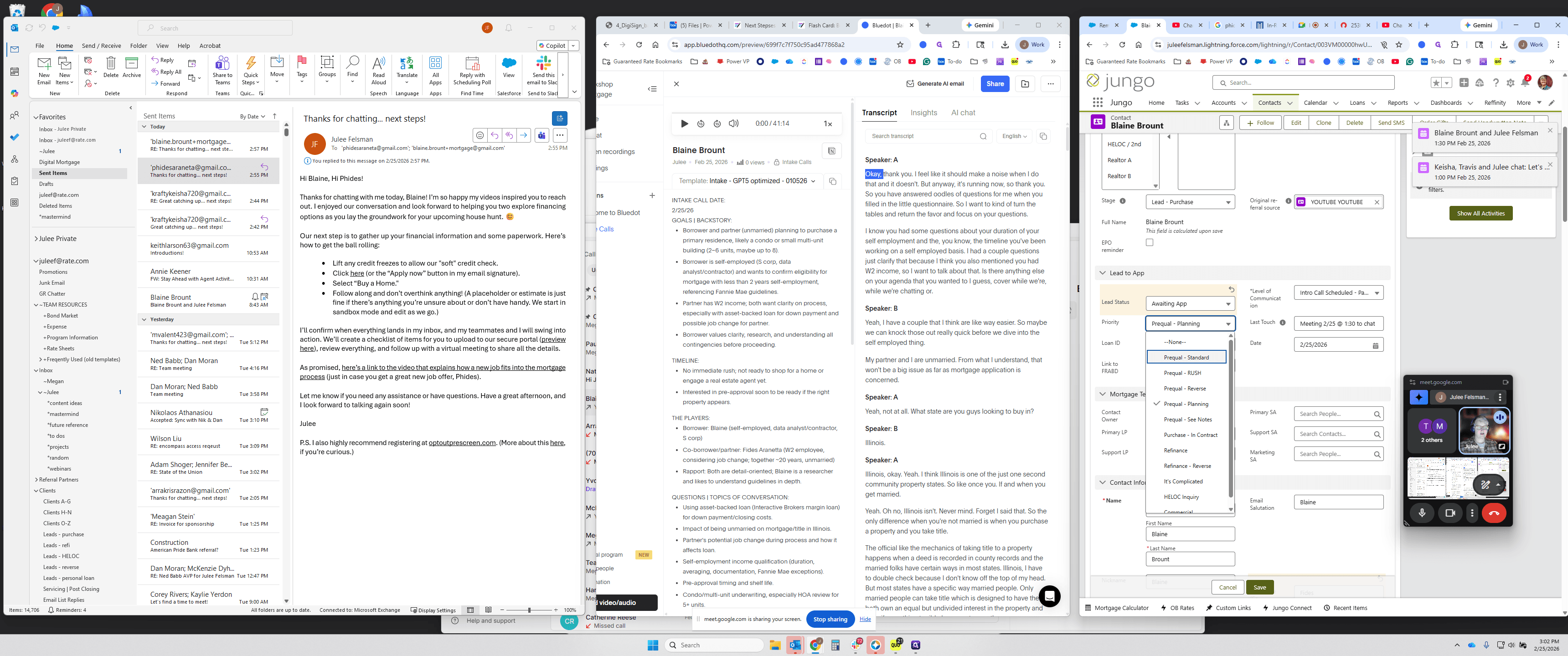
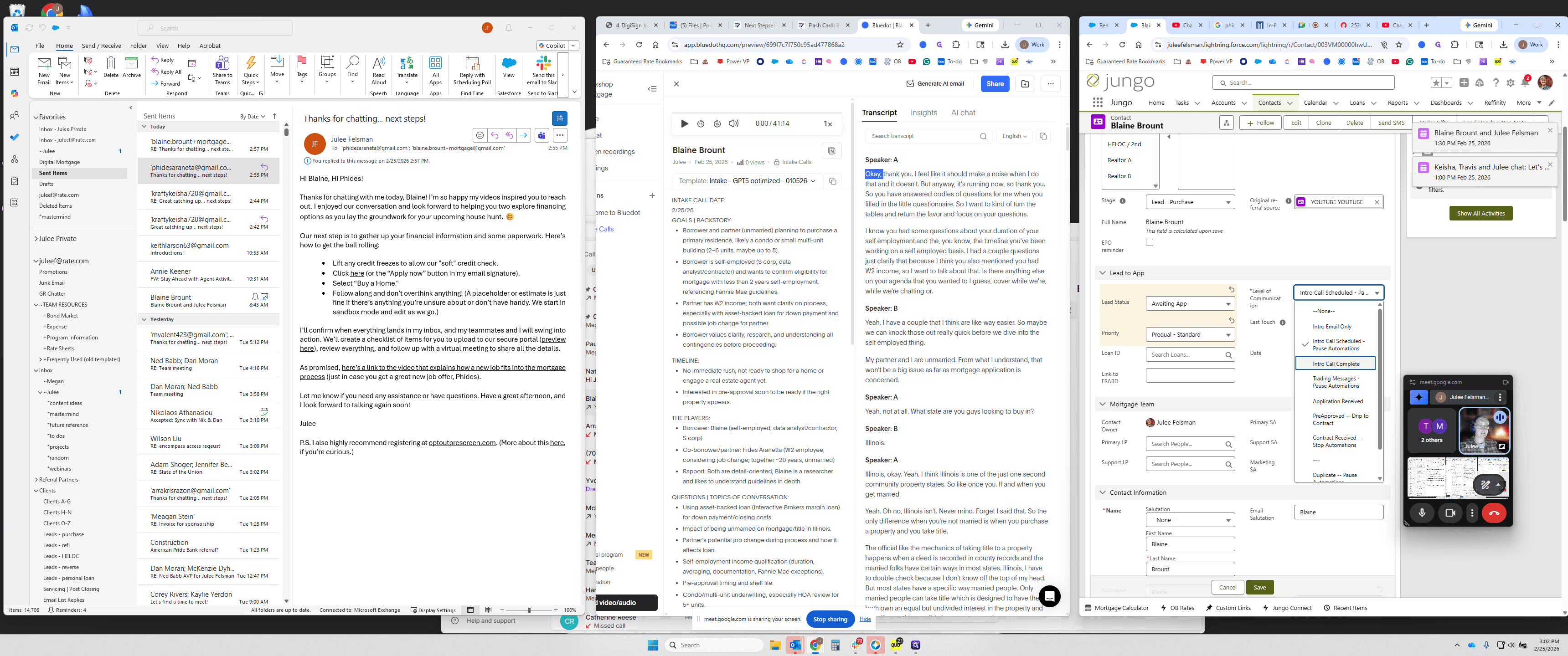
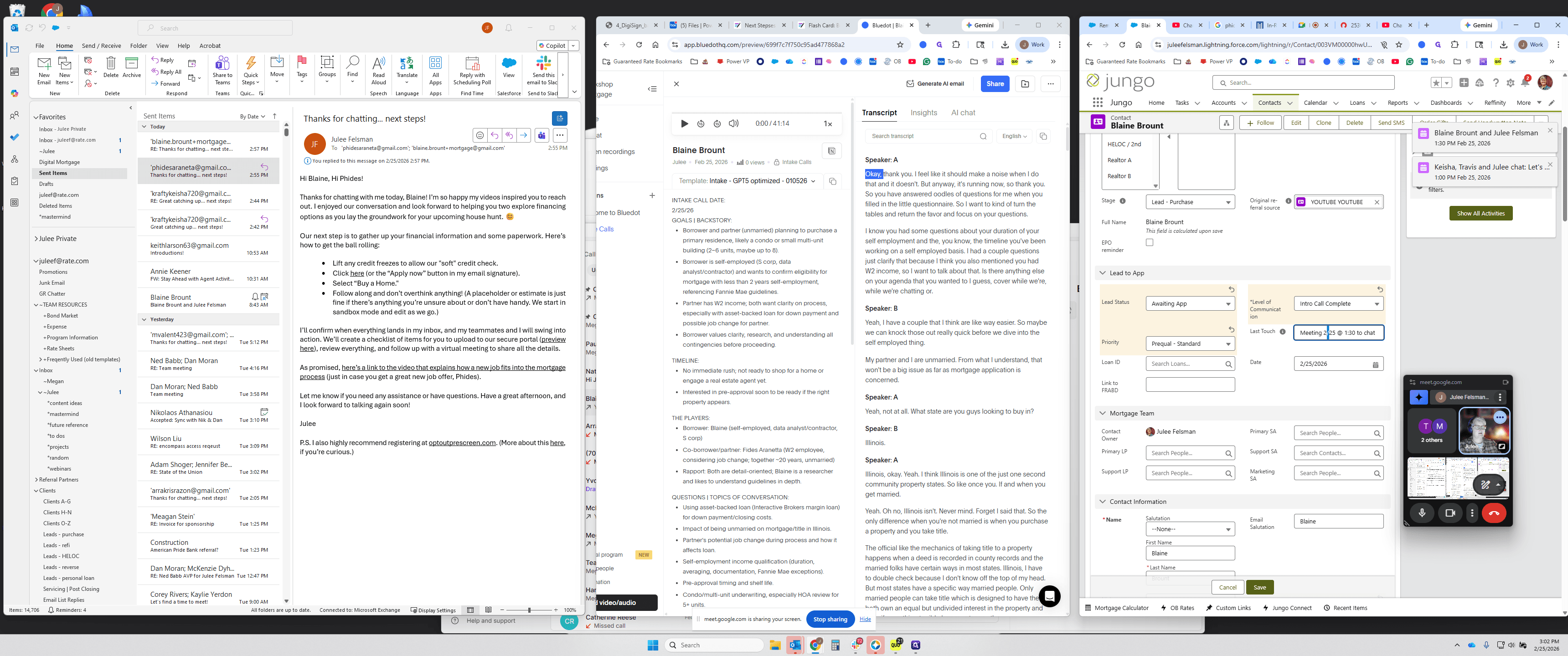
I will clean that up, remove the unnecessary notes, then go to Lead to App and tidy it up. Instead of "Contact Made," we now use "Awaiting App In." This is a standard approval. They are almost ready to shop soon. I will select "Intro/Call Complete." This, combined with "Awaiting App," activates reminder automations to encourage people to buy. They receive an email and a text campaign.
You want to turn that on. If there were a realtor, which there isn't, I would still do this out of habit. I go in and, since there's no realtor, I can keep it simple and say, "Great." Chat answered questions about their situation. I'll just say, "All good news." Sent the link to apply. If it were a real realtor on the other side, I might be a bit more formal. Then done.
That's it. I think I can stop that. Is there anything else? I think that's it.