
How to Search for a Specific Parent Company in Salesforce: Step-by-Step Guide
Learn how to search for a specific parent company in Salesforce using the parent company search template report. Follow our step-by-step instructions to filter, edit, and save reports for efficient lead management.
In this guide, we'll learn how to search for leads associated with a specific parent company in Salesforce. This process helps you quickly find and review all leads linked to a parent company, such as Gamers, by using a template report and adjusting filters.
You will also see how to customize the report columns, update filters, and save your search for future use.
Let's get started
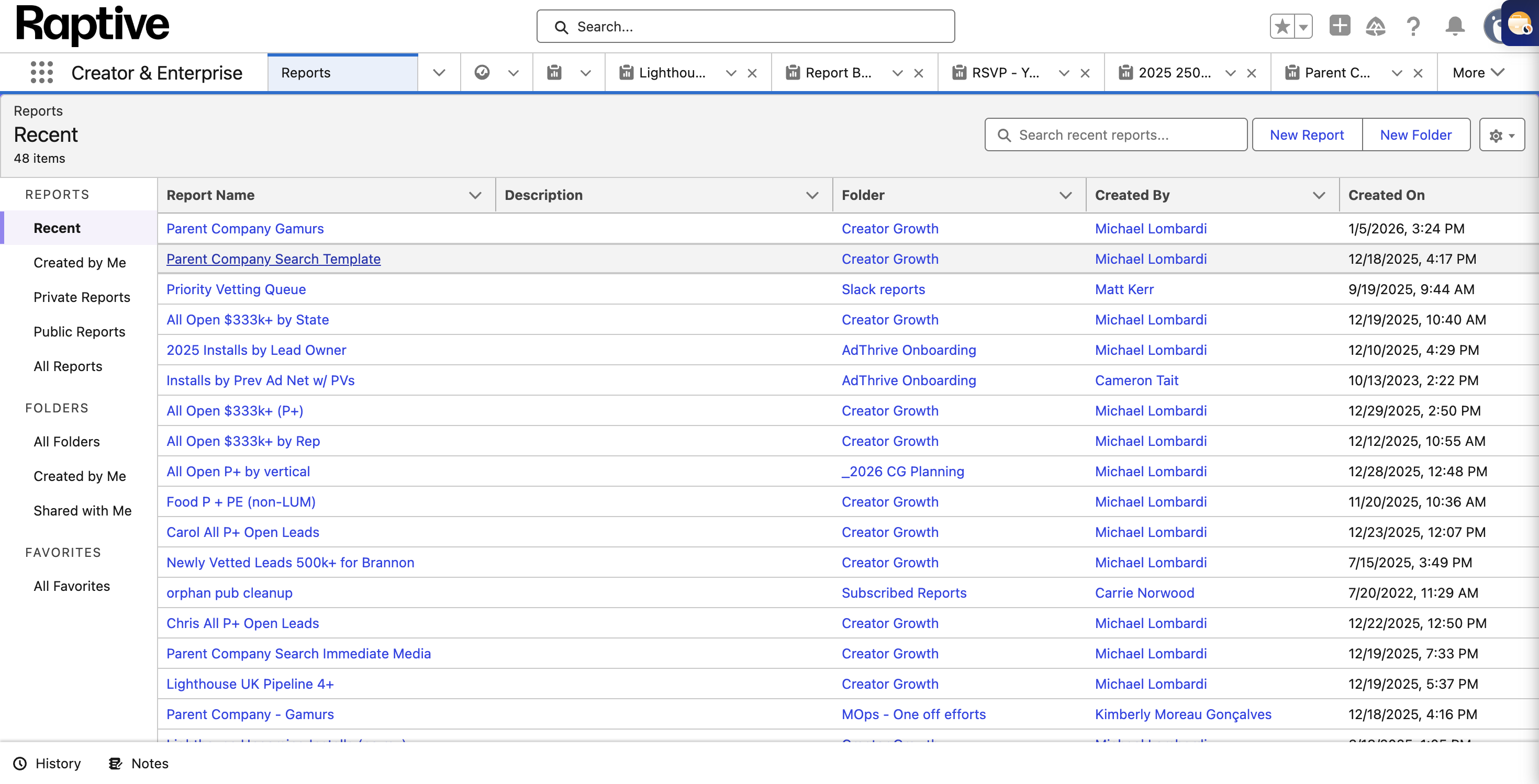
This guide explains how to search for a specific parent company in Salesforce. Click the direct link to the parent company search template report, or search for it and navigate to the page.
At the parent company search template report, click the Edit button. This lets you edit the filters that will populate the report. Before doing that, confirm that all the columns are as you want them. This includes the URL, lead status stage, lead owner, lead program, estimated annual gross revenue, and more. Go to the filters section. Change the "parent company" filter to the specific parent company you want.
In this case, we will search for Gamers. Once you do that, click the run button. This will display all leads with Gamers as the parent company. This will include leads that are qualified for creator growth, as well as nurture, vetting, and prospect leads. In this case, five are qualified, and one is still a prospect that needs to be vetted. To return to this report later, click the down arrow next to "Edit."
Click "Save As" and enter any name you prefer. In this example, use "Parent Company Search Gamers." You can save it in the creator growth folder or any location you prefer. Now you have a resource to view all leads linked to a specific parent company.