
How to Change the Default Microphone in Microsoft Teams
Learn step-by-step how to choose the right microphone in Microsoft Teams, including tips for using AirPods and avoiding common mistakes with webcam microphones.
By Thomas Proudfoot
Before starting, ensure that your earbuds are paired and fully functional.
1
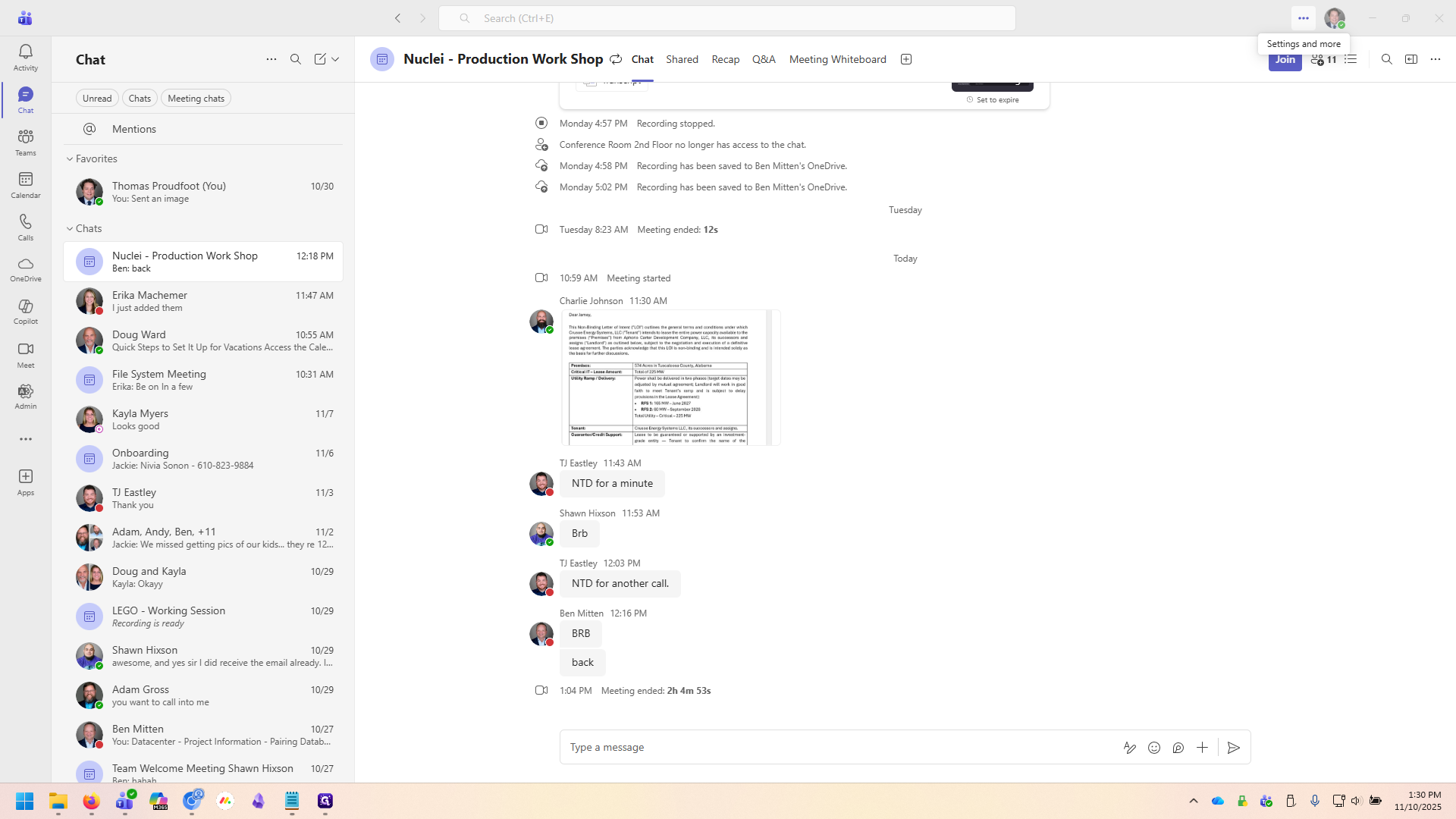
Click on "***" - the three dot menu at the top of teams.
2
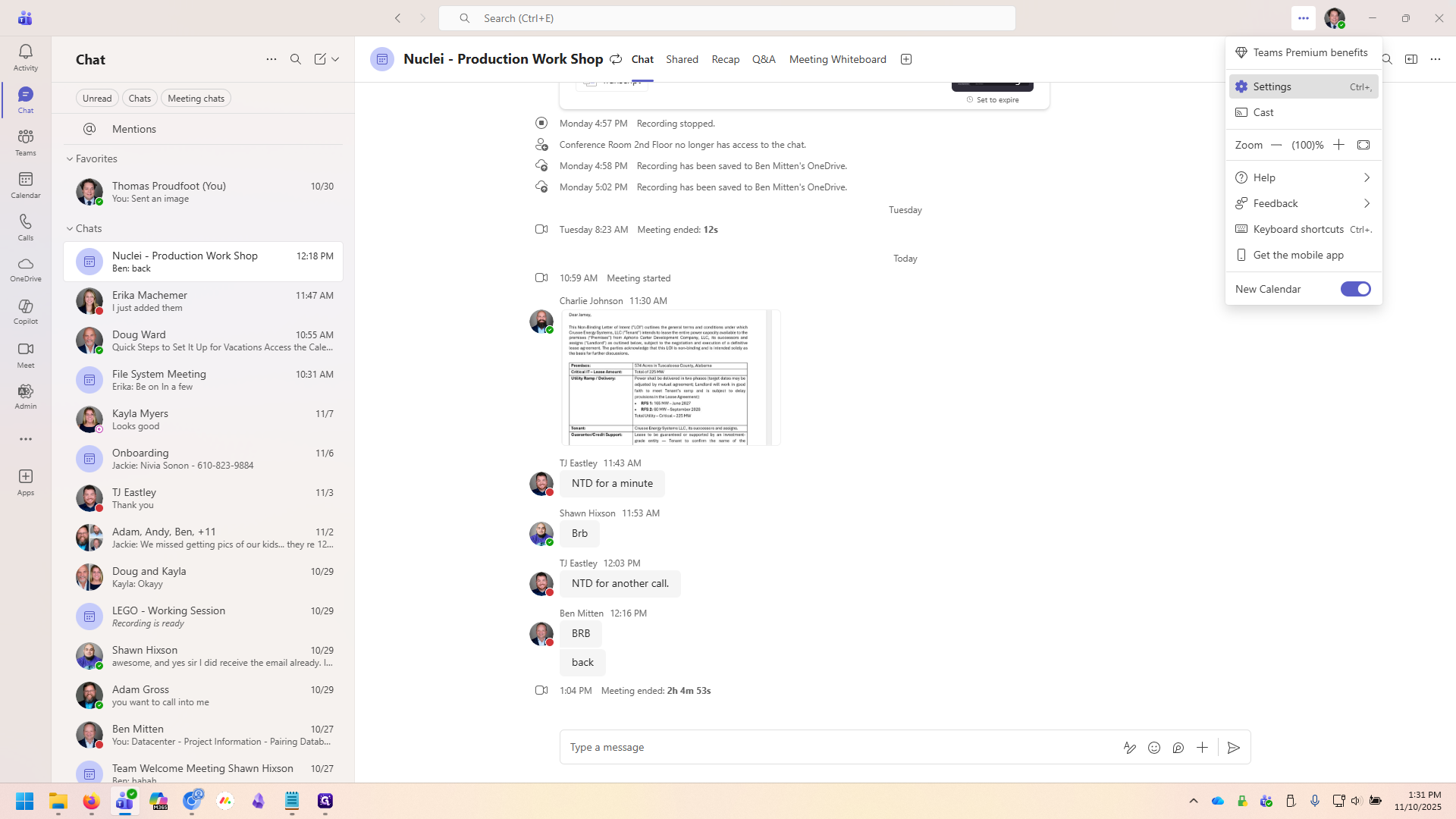
Click on "* Settings"
3
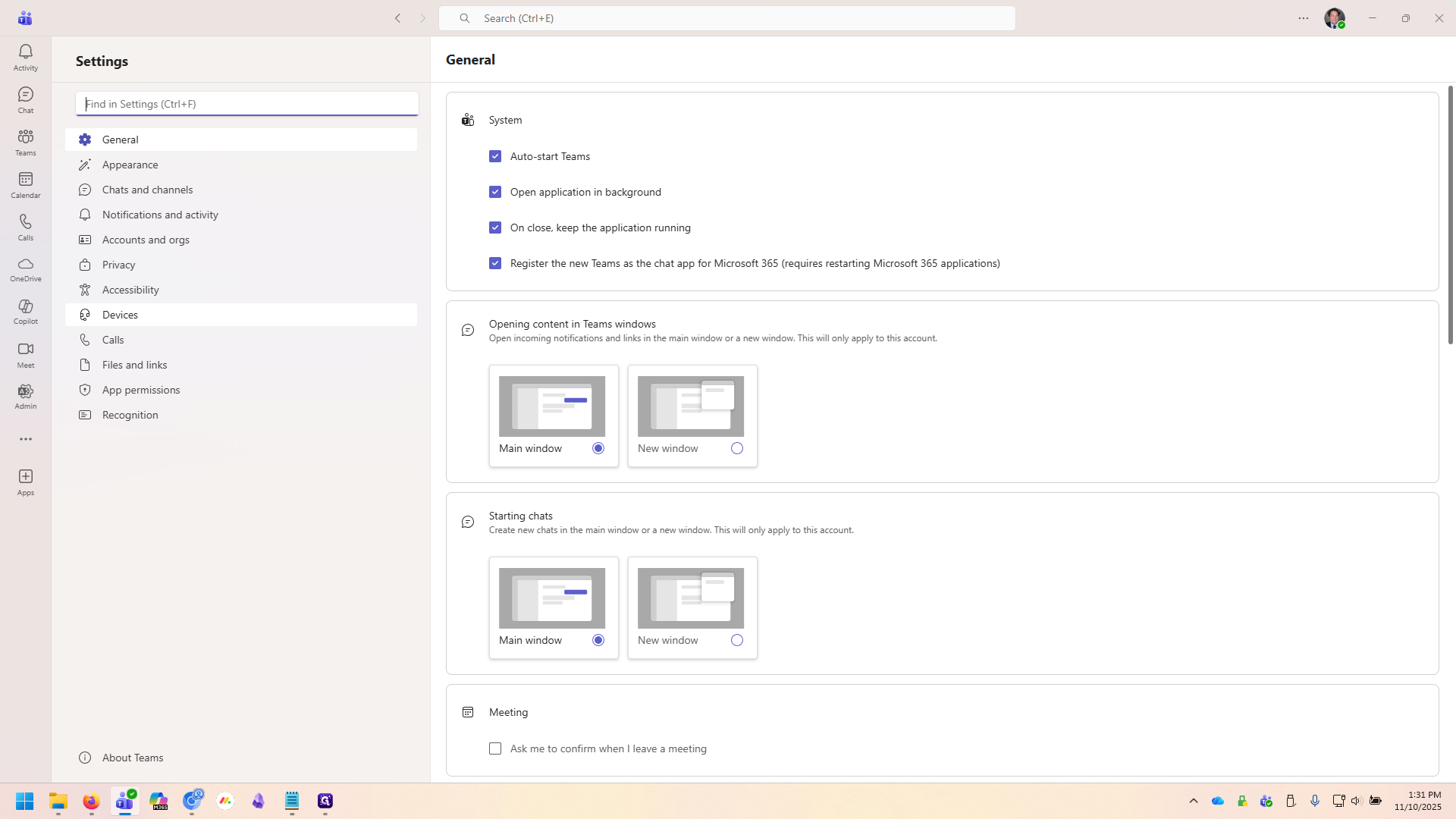
Click on "Devices"
4
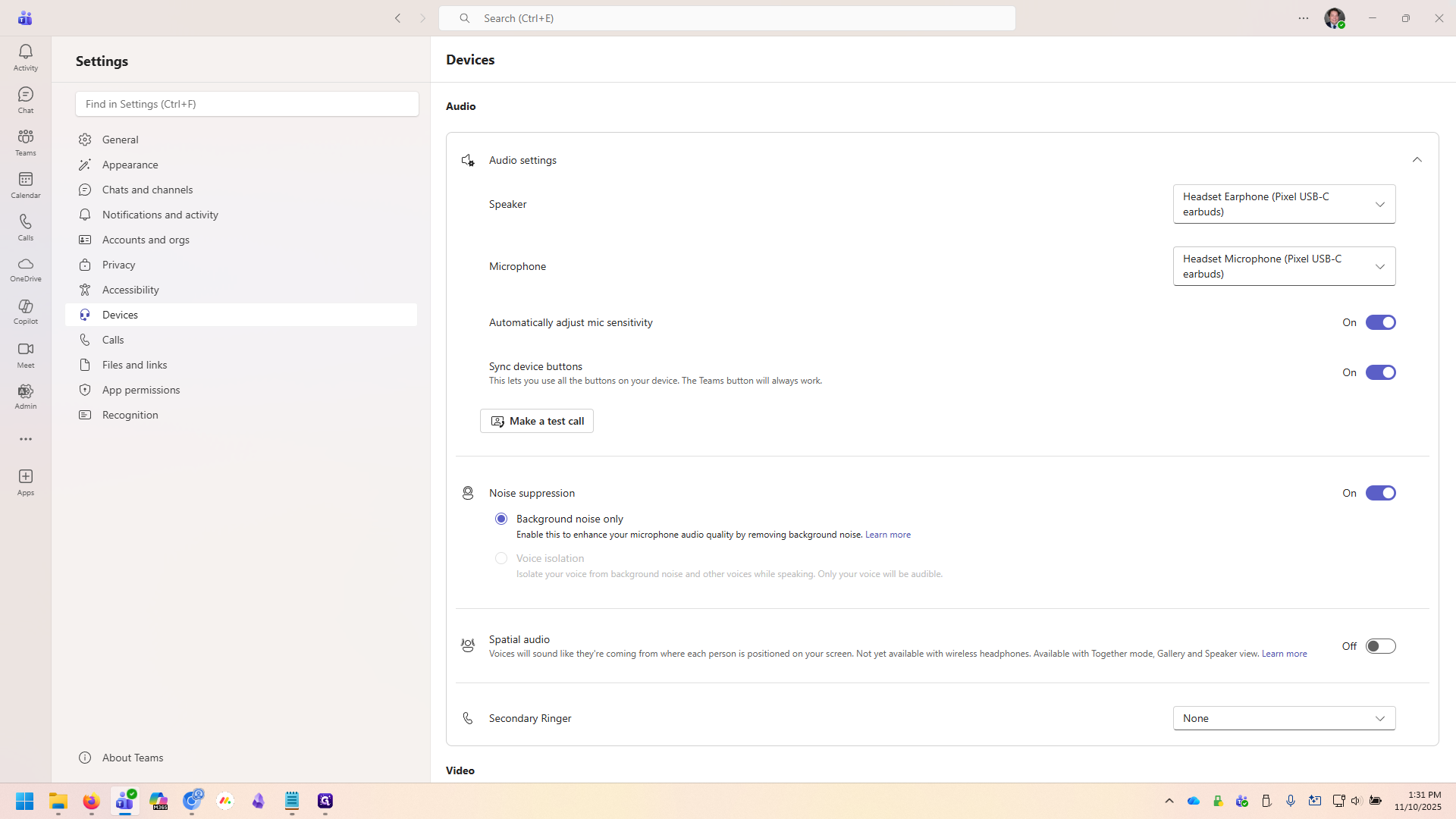
Select your default microphone. We're going to choose the laptop microphone, which has a different name depending on the computer.
5
Notice that the top one is my earbuds, the second is my webcam and the third is simply called "Microphone Array". This is the laptop's built in mic. Please select it.
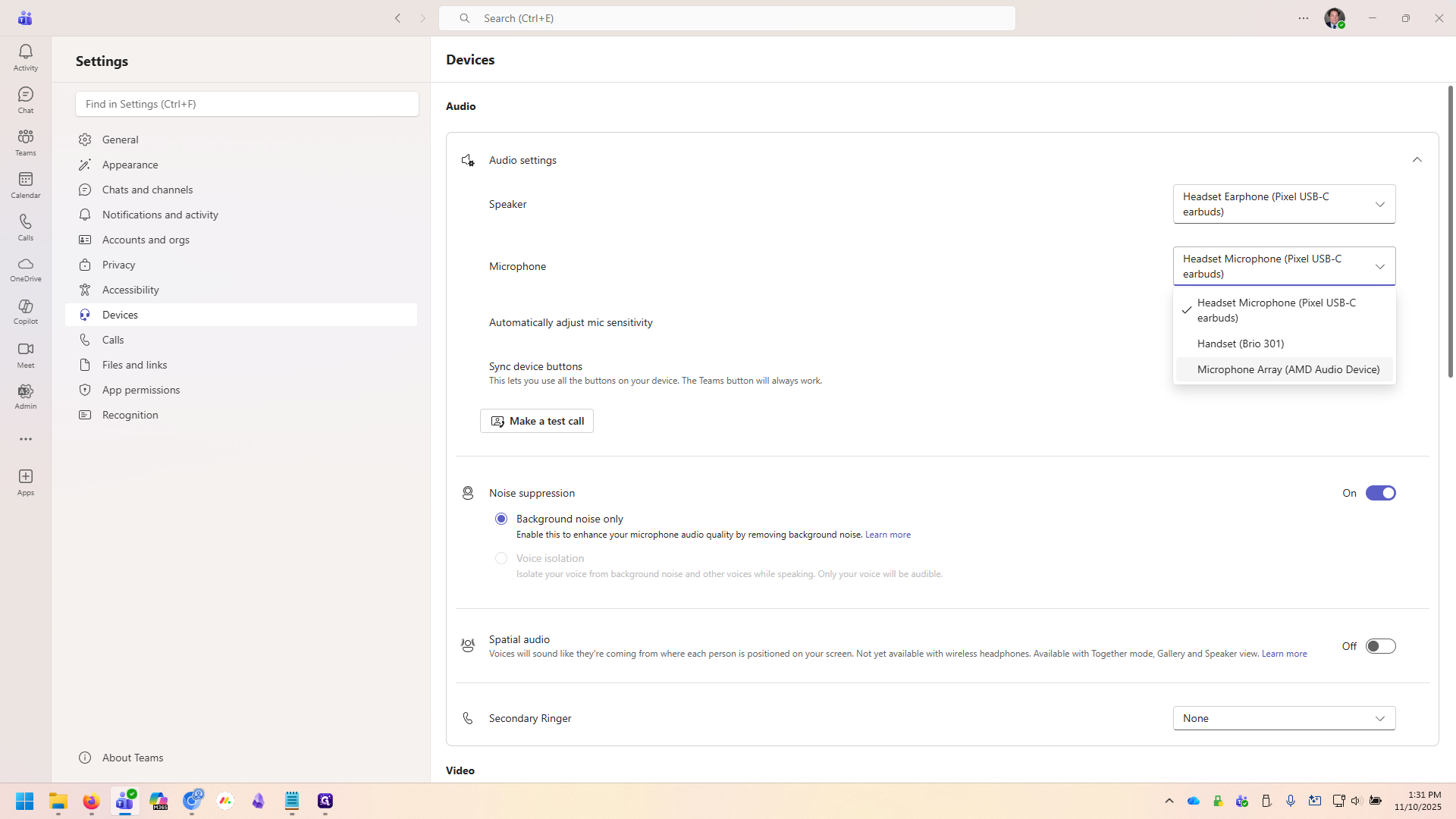
You can now close the settings window. This should ensure that going forward, when you're listening to call audio with your air pods, Teams still uses your laptop's mic.