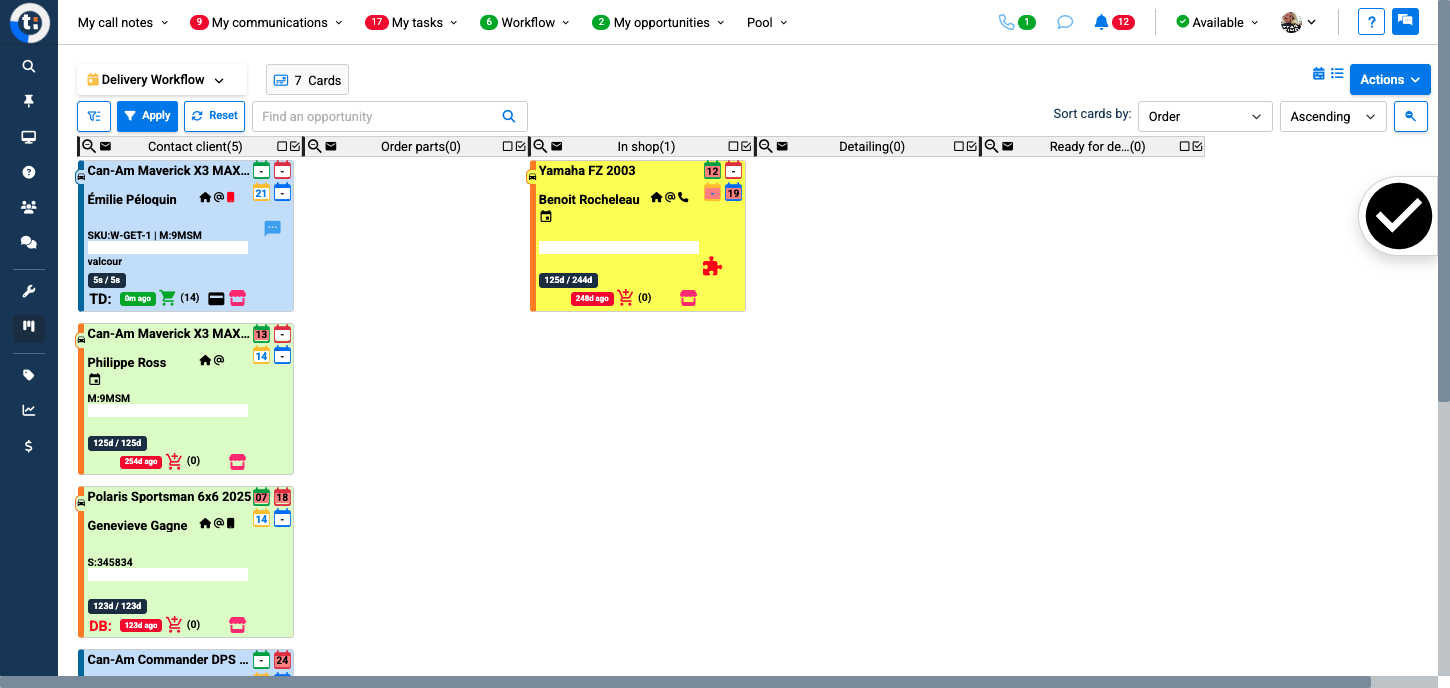
How to Send a Card to the Workflow After a Quote is Sold
Learn step-by-step how to send a card to the workflow after marking a quote as sold, including updating client meeting information and selecting the appropriate workflow and column.
By Emilie Peloquin
In this guide, we'll learn how to send a card to a workflow after a quote has been sold. This process involves updating the status, entering meeting details if needed, and selecting the right workflow for your opportunity.
You'll also see how to choose the correct workflow column and save your changes.
Let's get started
Here's how to send the card to the workflow.
1
First, your quote must be sold. If it is not sold, you will not be able to send that card to the workflow. First, change the status to "sold."
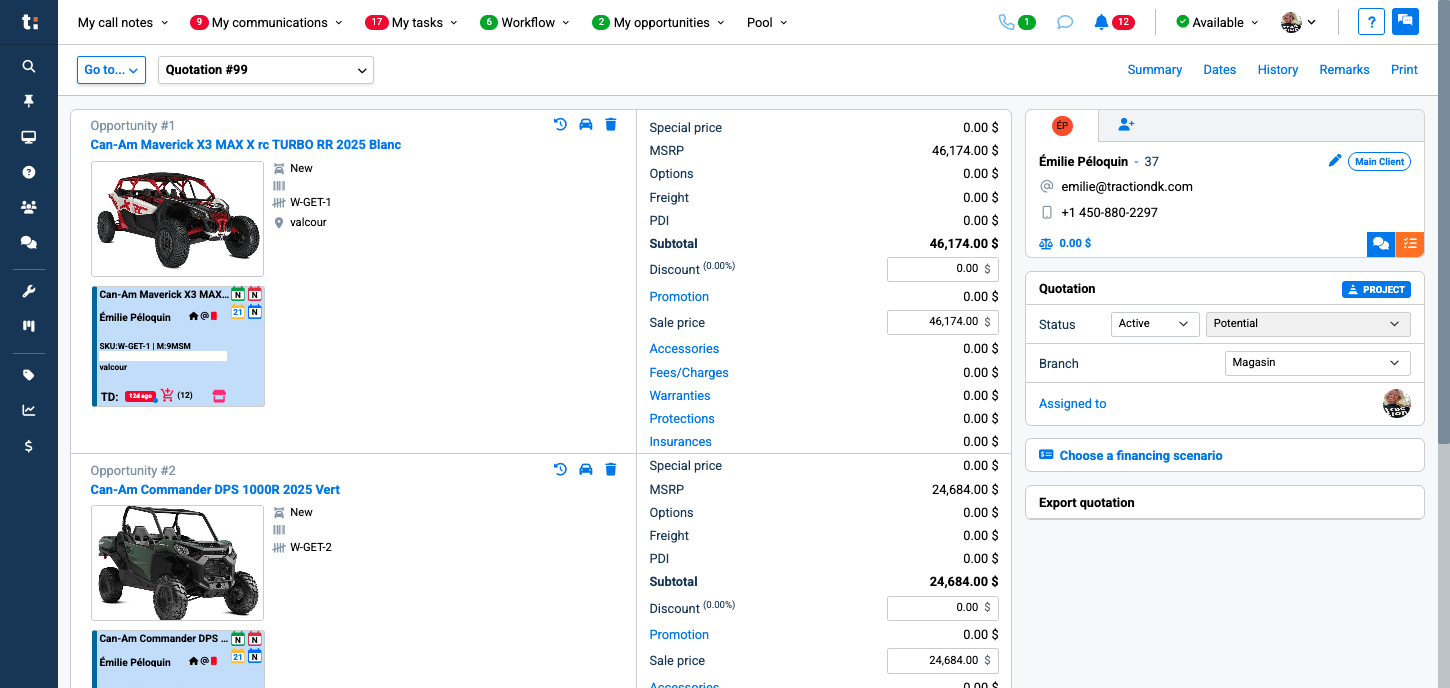
2
The system will ask if you met your client today. If yes, click "Yes" and enter all the meeting information, or just click "No."
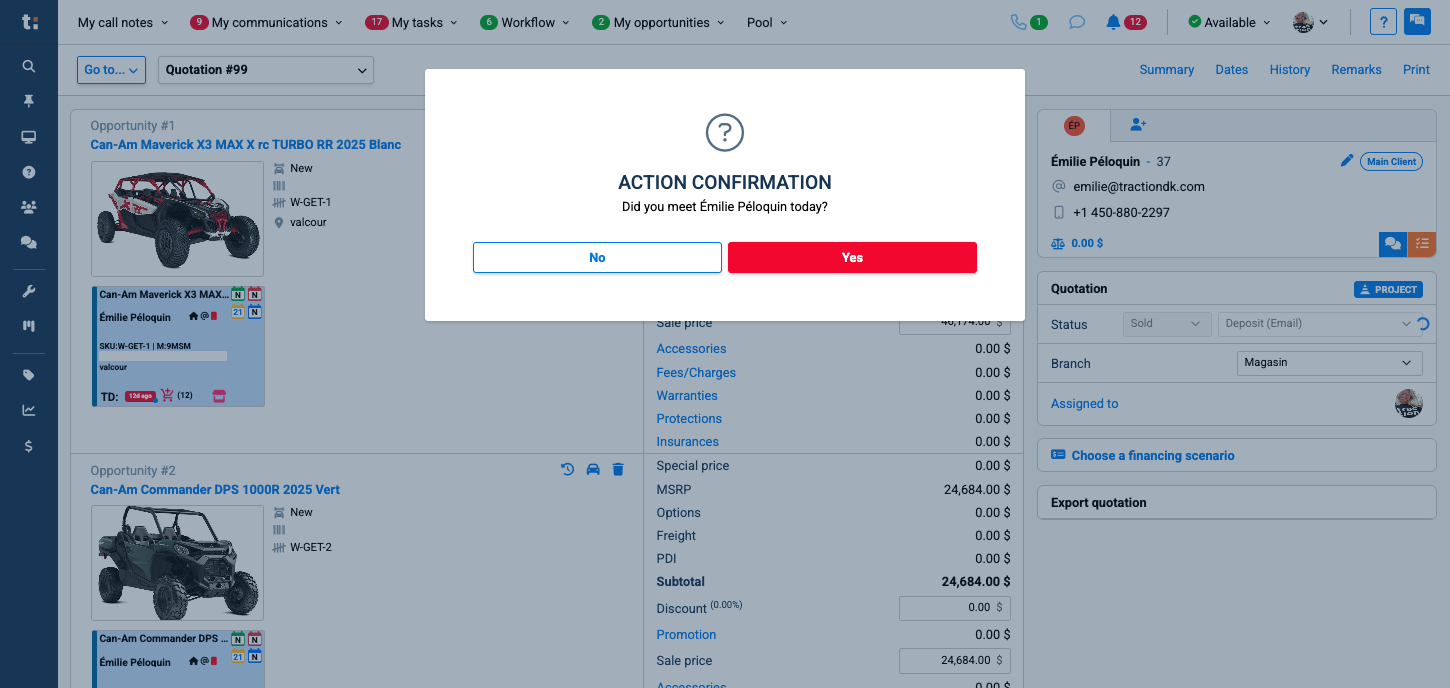
3
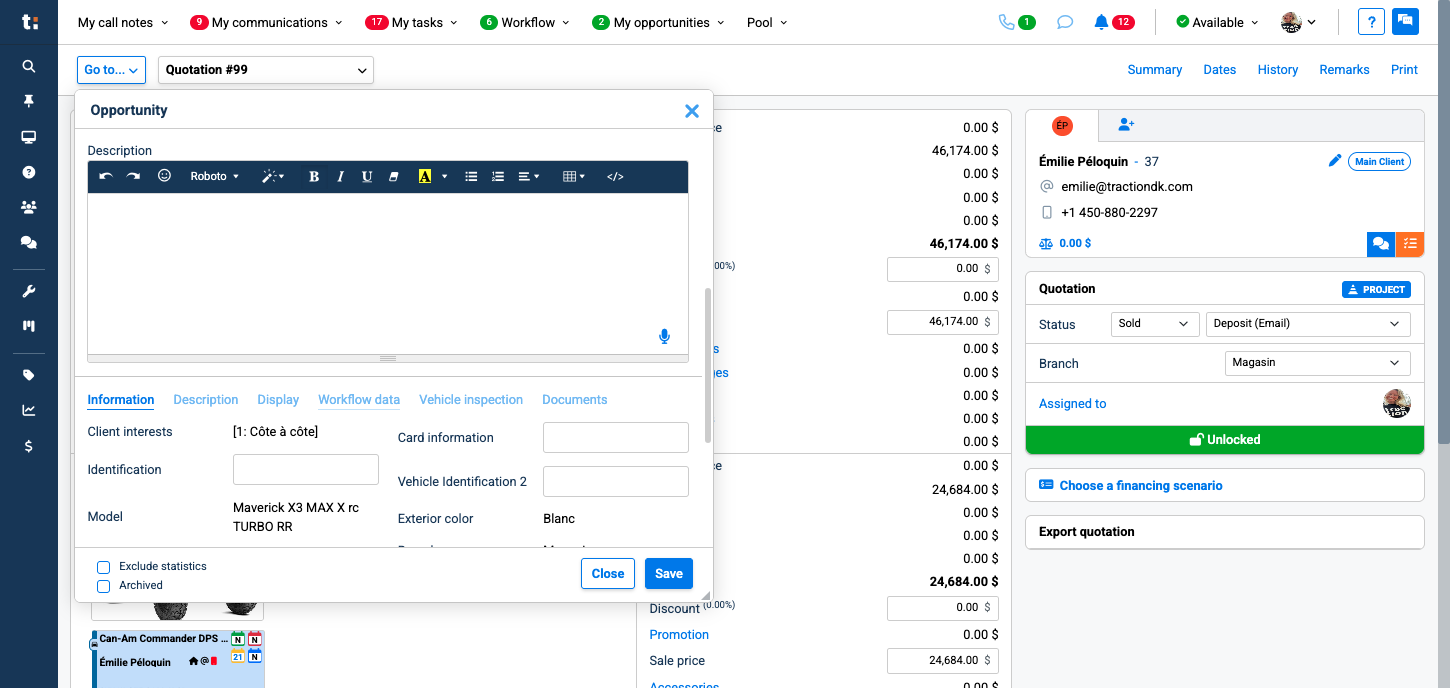
Now you can send that card to the workflow. Click on the card of the opportunity you want to send to the workflow, located on the left.
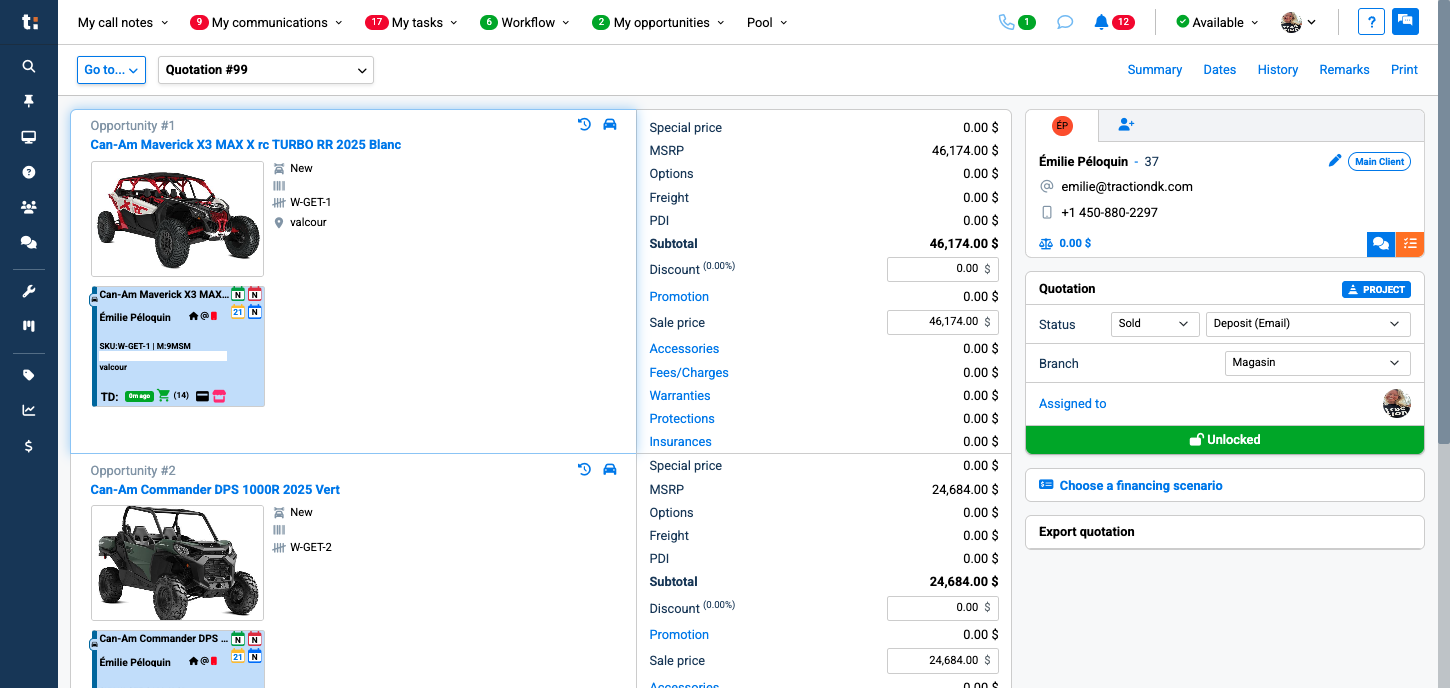
4
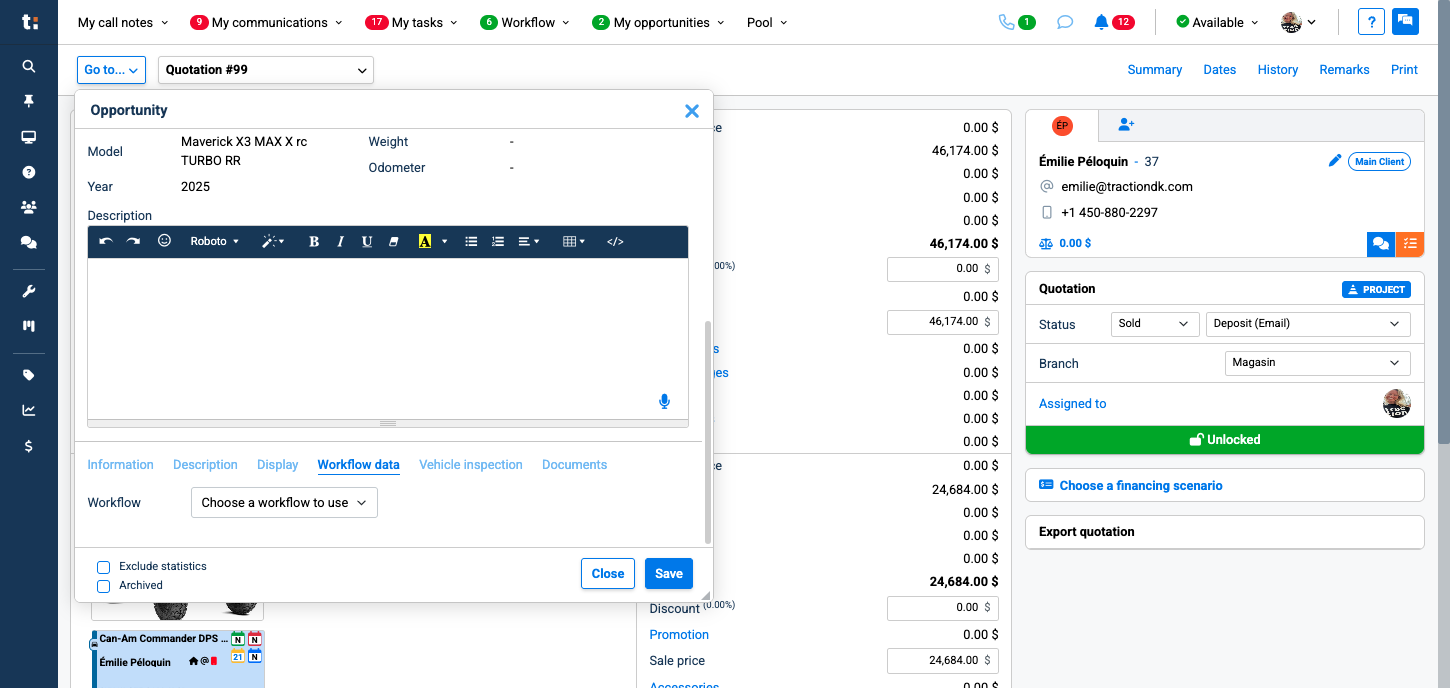
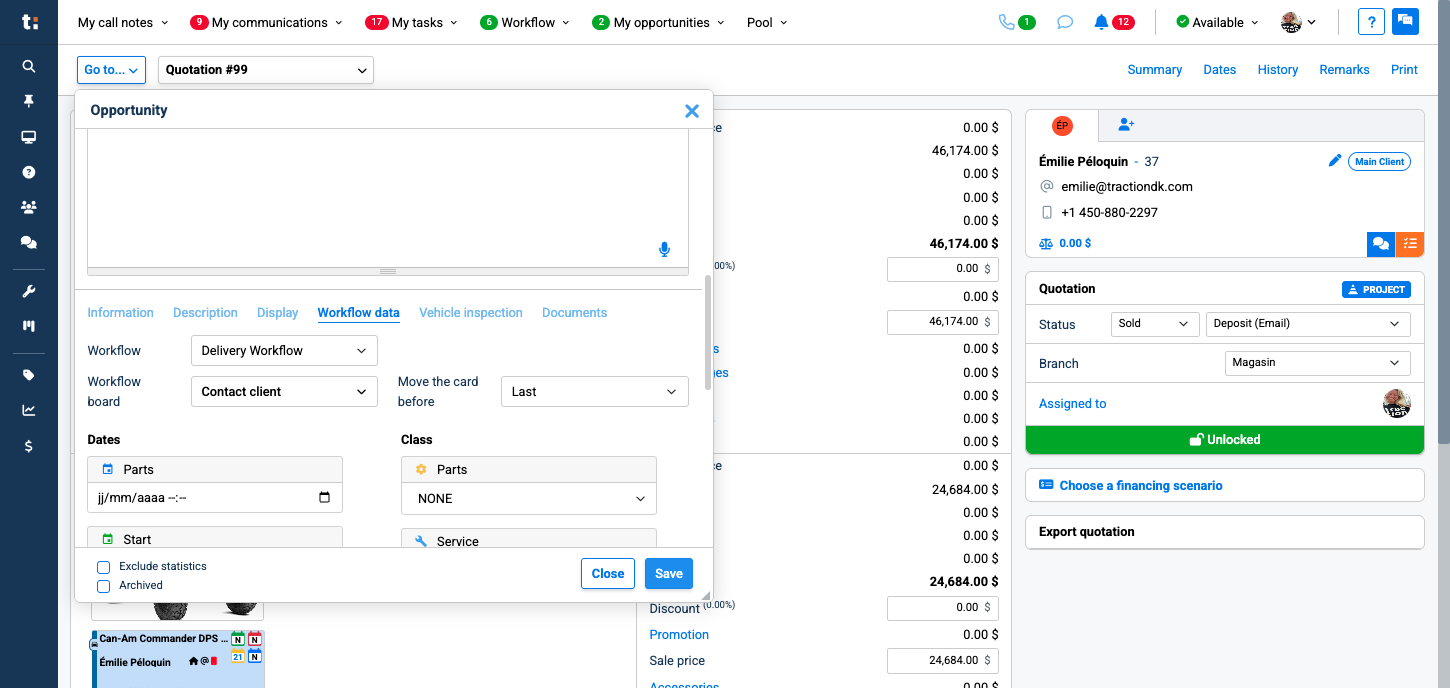
Scroll down slightly until you find "Workflow Data."
5
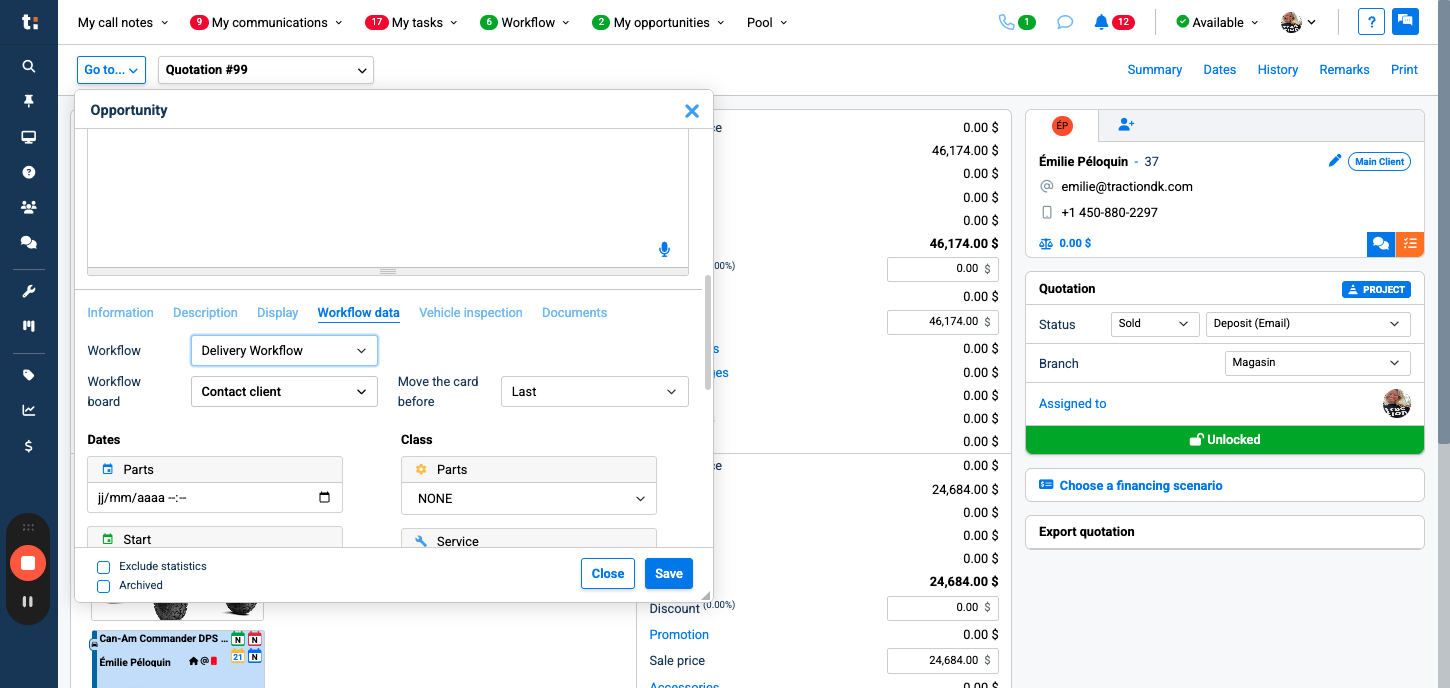
From there, you can select the workflow you want to use.
6
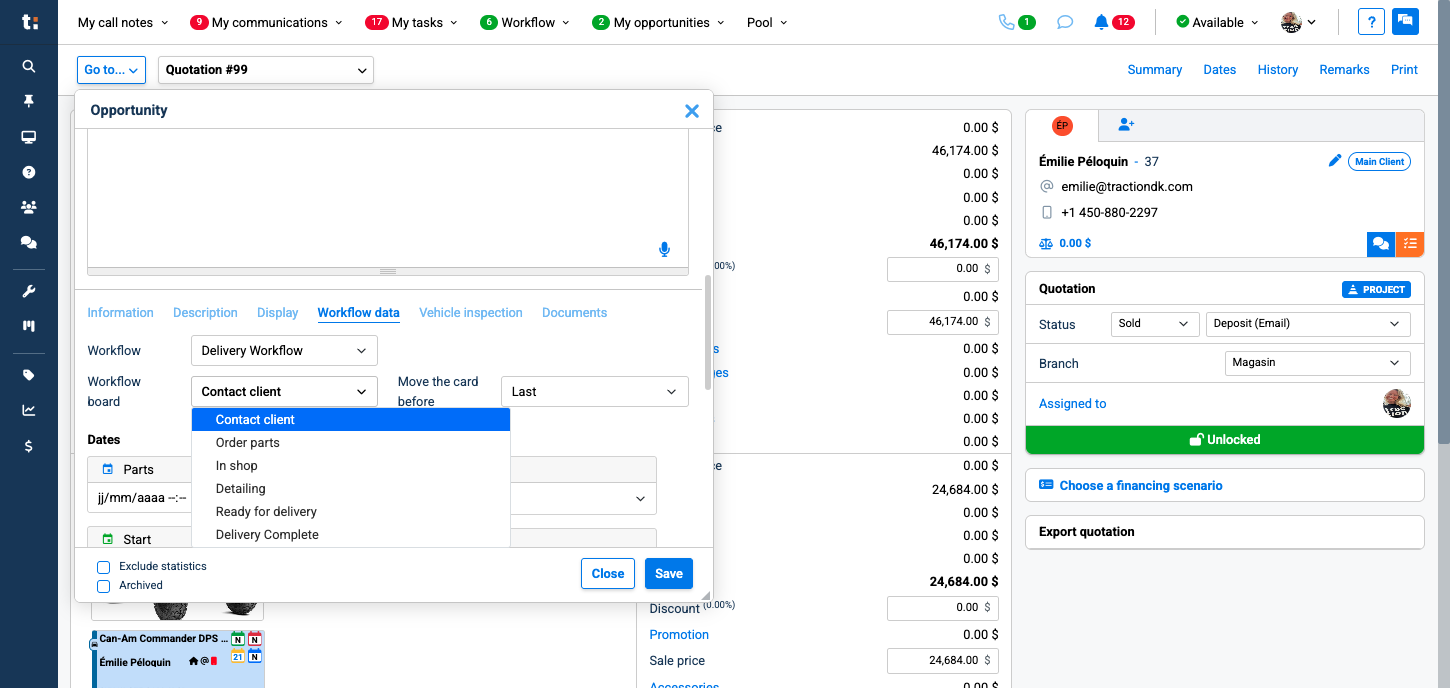
By default, it will go in the first column of the workflow. If you want to use another column, you can select it here.
7
8
click Save.
9
The card is now in the workflow.