How to Send a Lookout Invitation Email to a Member
Learn how to manually send an invitation email to a specific member from their profile dashboard.
By HCA Support
This guide walks you through sending an invitation email to a specific member from their profile dashboard. Completing this task ensures the member receives the necessary access links and credentials to log into the platform.
Dispatch an Invitation Email
1
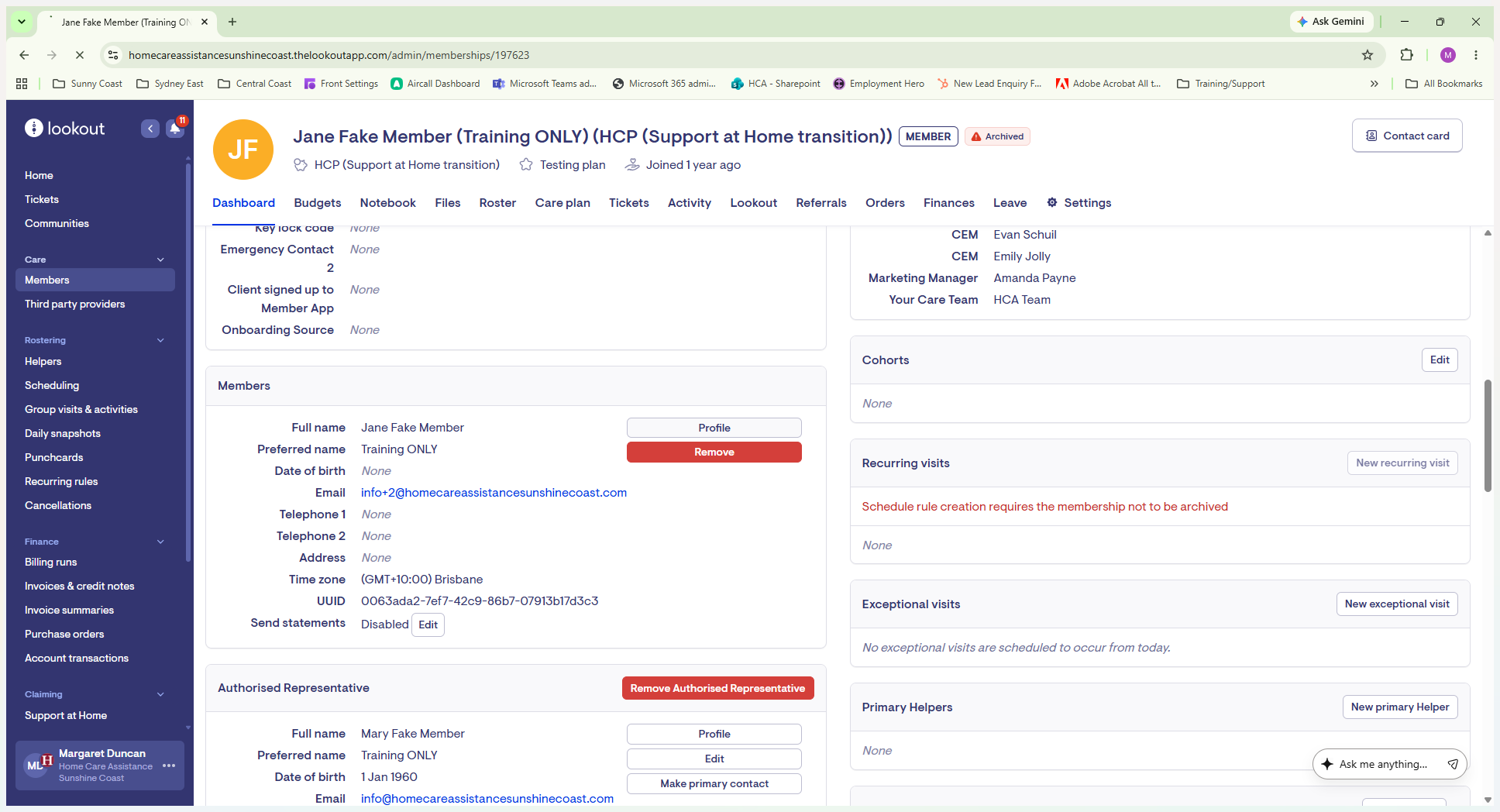
Navigate to the member's dashboard and click Profile.
2
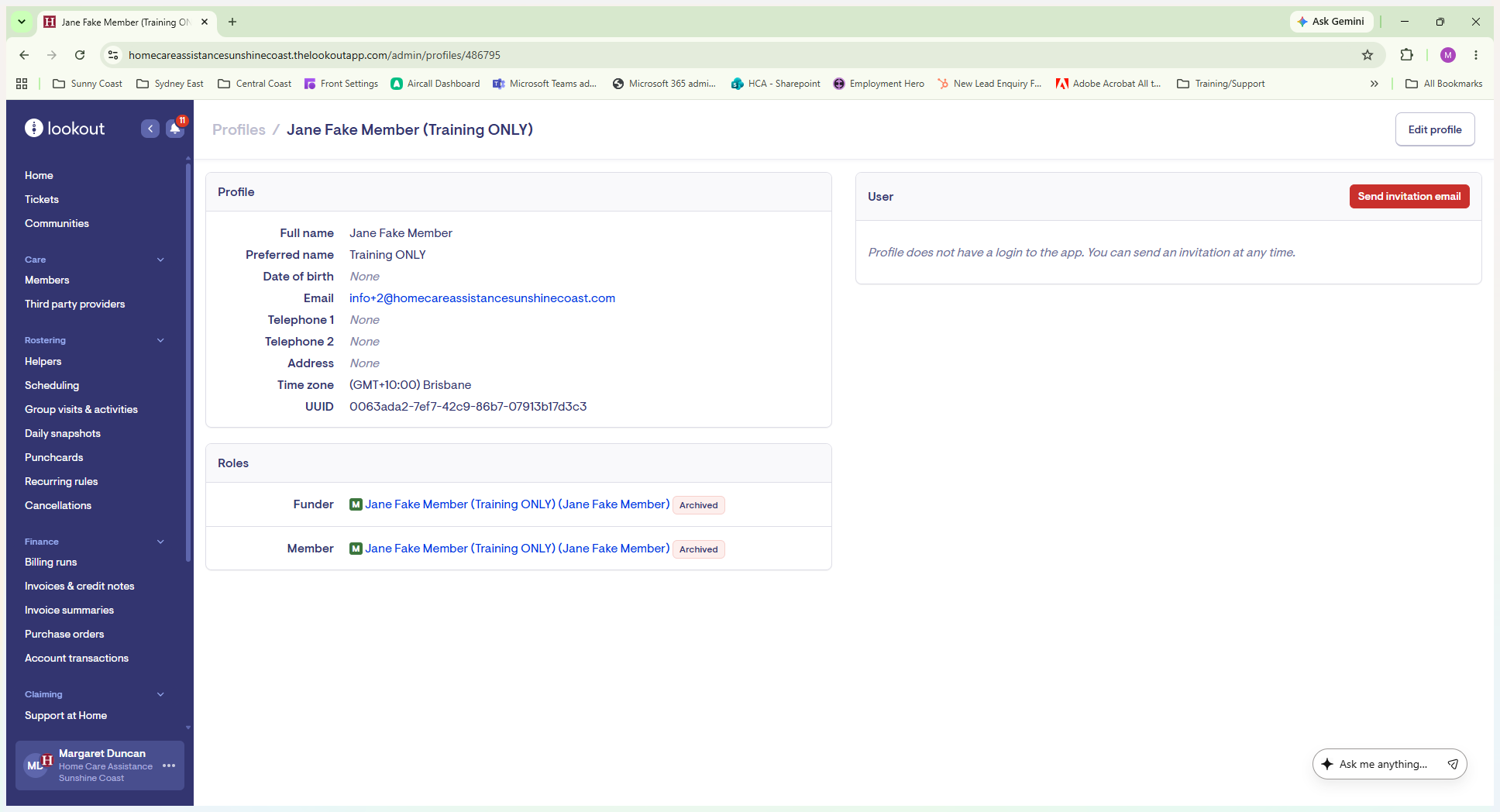
In the User section on the right side of the screen, click Send invitation email.
3
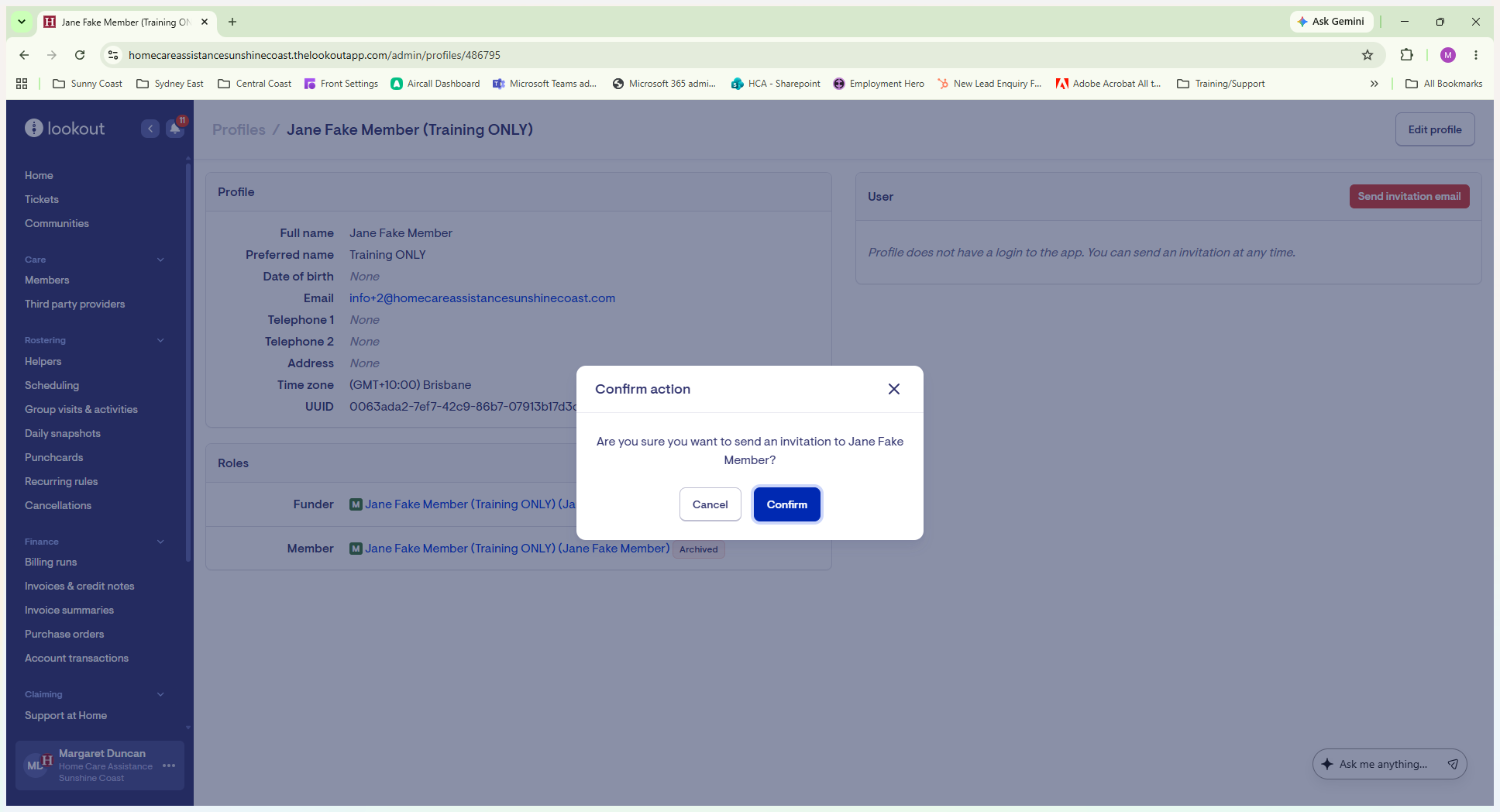
Click Confirm on the modal overlay to dispatch the email to the user.