How to Send a Quote with an Embedded Payment Link v2
Learn step-by-step how to send a quote with an embedded payment link, including searching for customers, adding products, generating payment URLs, and emailing quotes efficiently.
In this guide, we'll learn how to send a quote to a customer with an embedded payment link. This process includes preparing the quote, generating a payment link, and emailing the quote to the customer. The goal is to make it easy for the customer to review the quote and complete payment directly from the email.
Let's get started
Let's see how to send the quote with an embedded payment link. First, I will search for the customer.
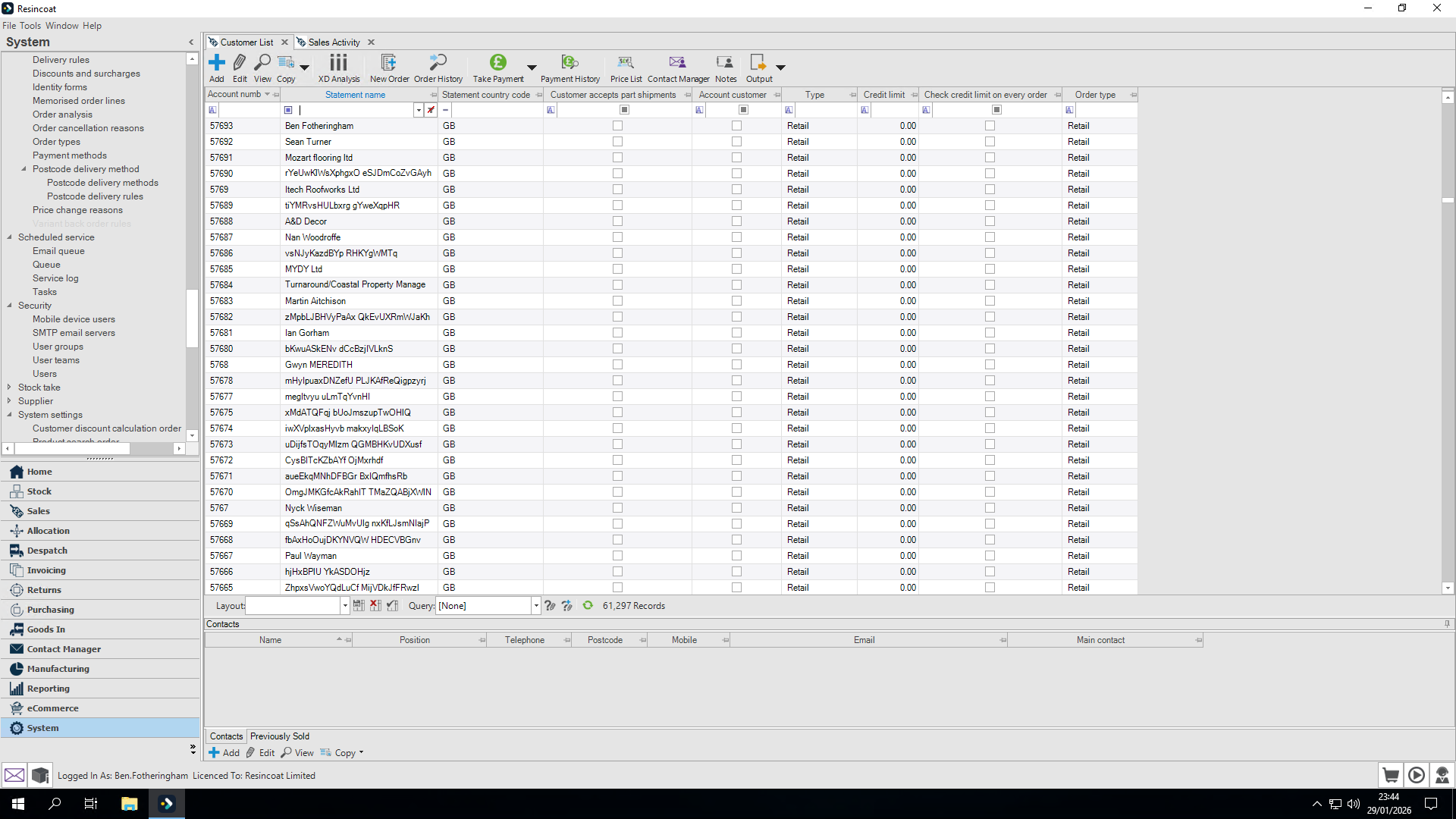
I'm going to use myself here as a test.
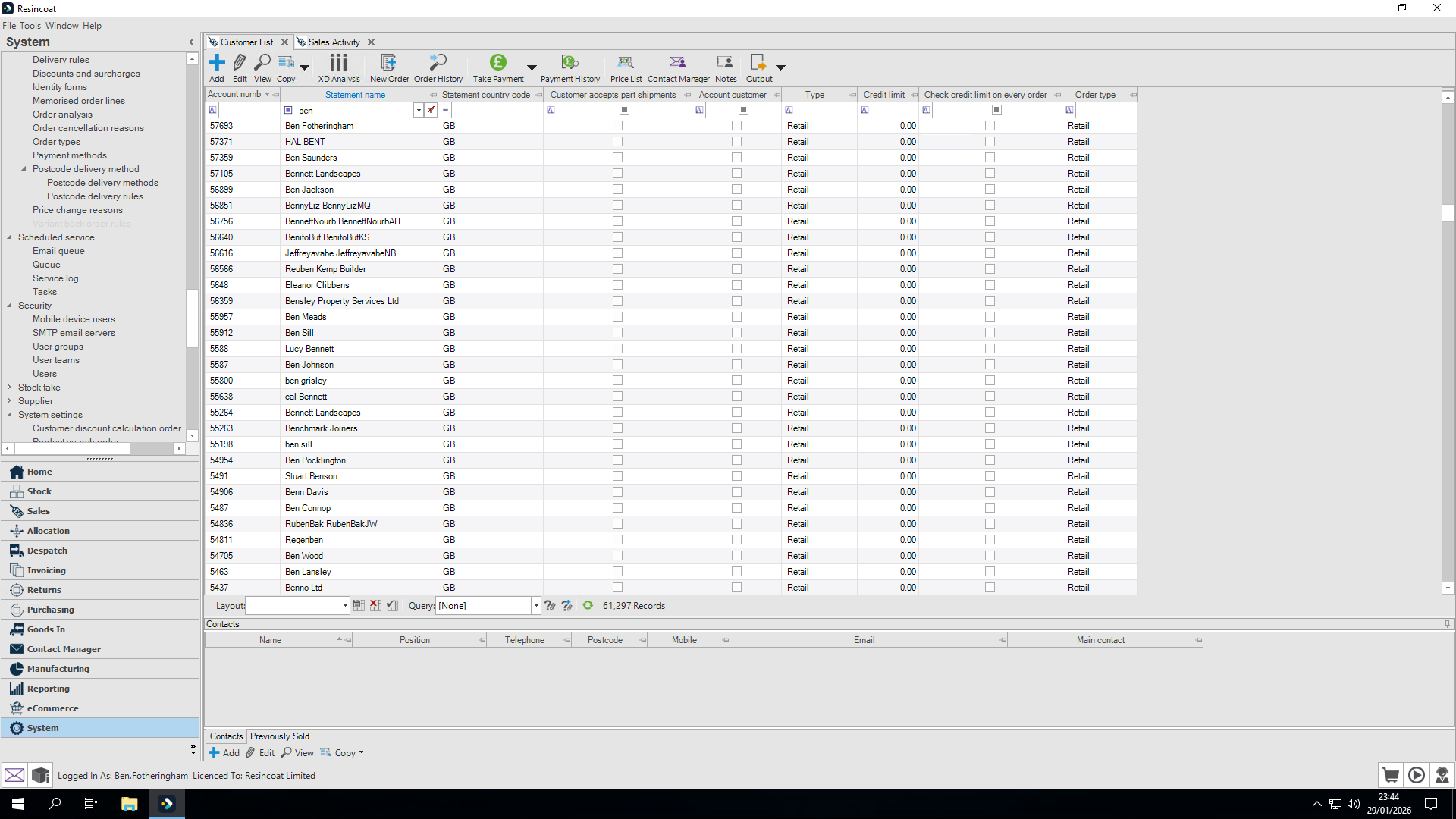
Enter or choose a Delivery address
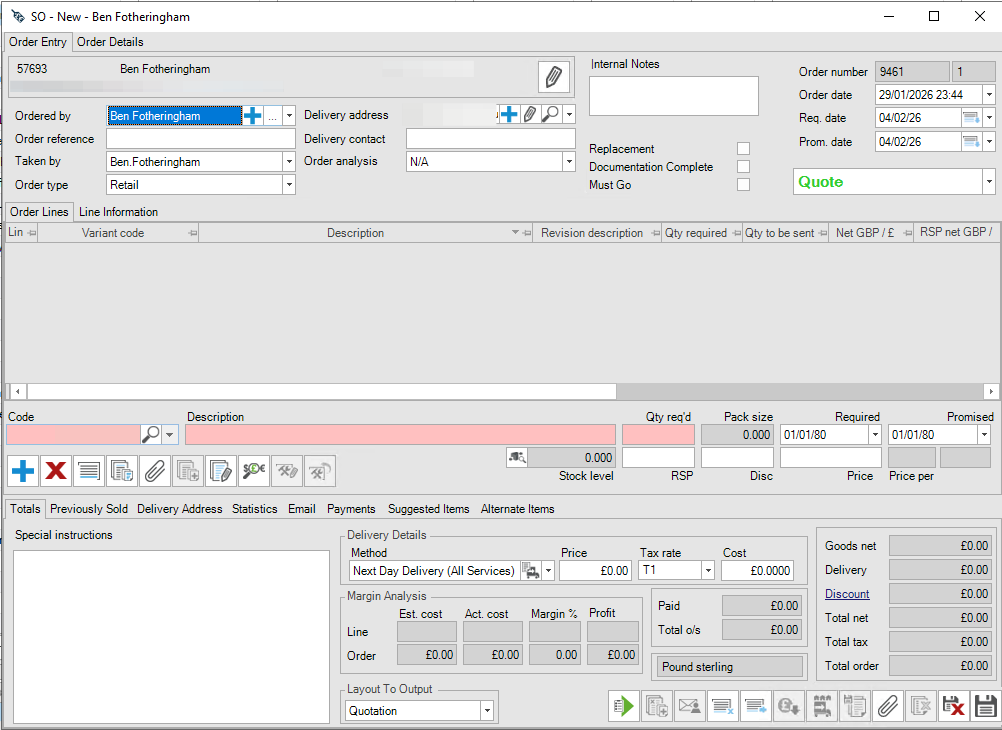
Let's add a simple product. Let's keep next day services.
When we set up quotes
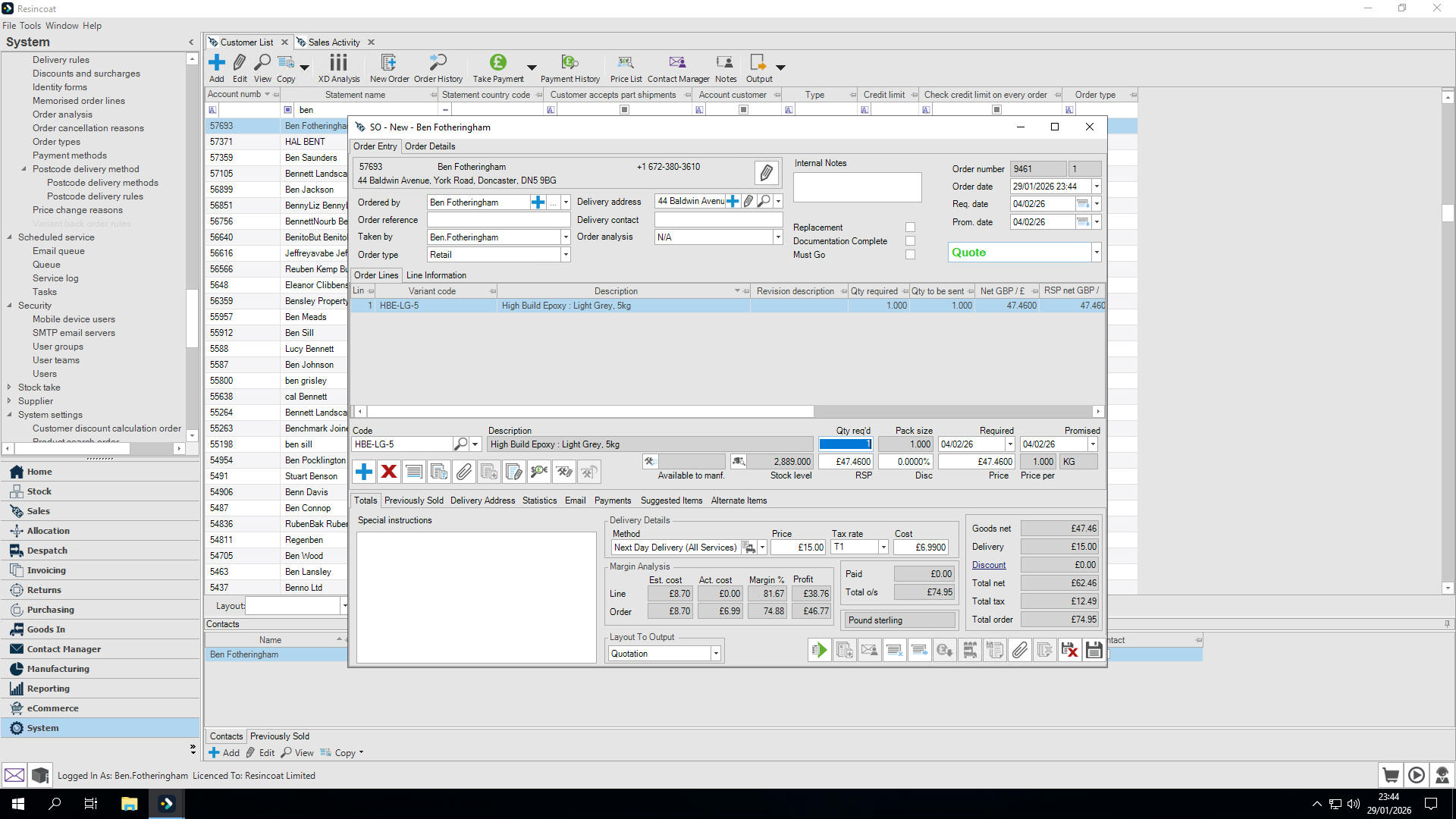
we automatically get a layout to Output option of 'None'.
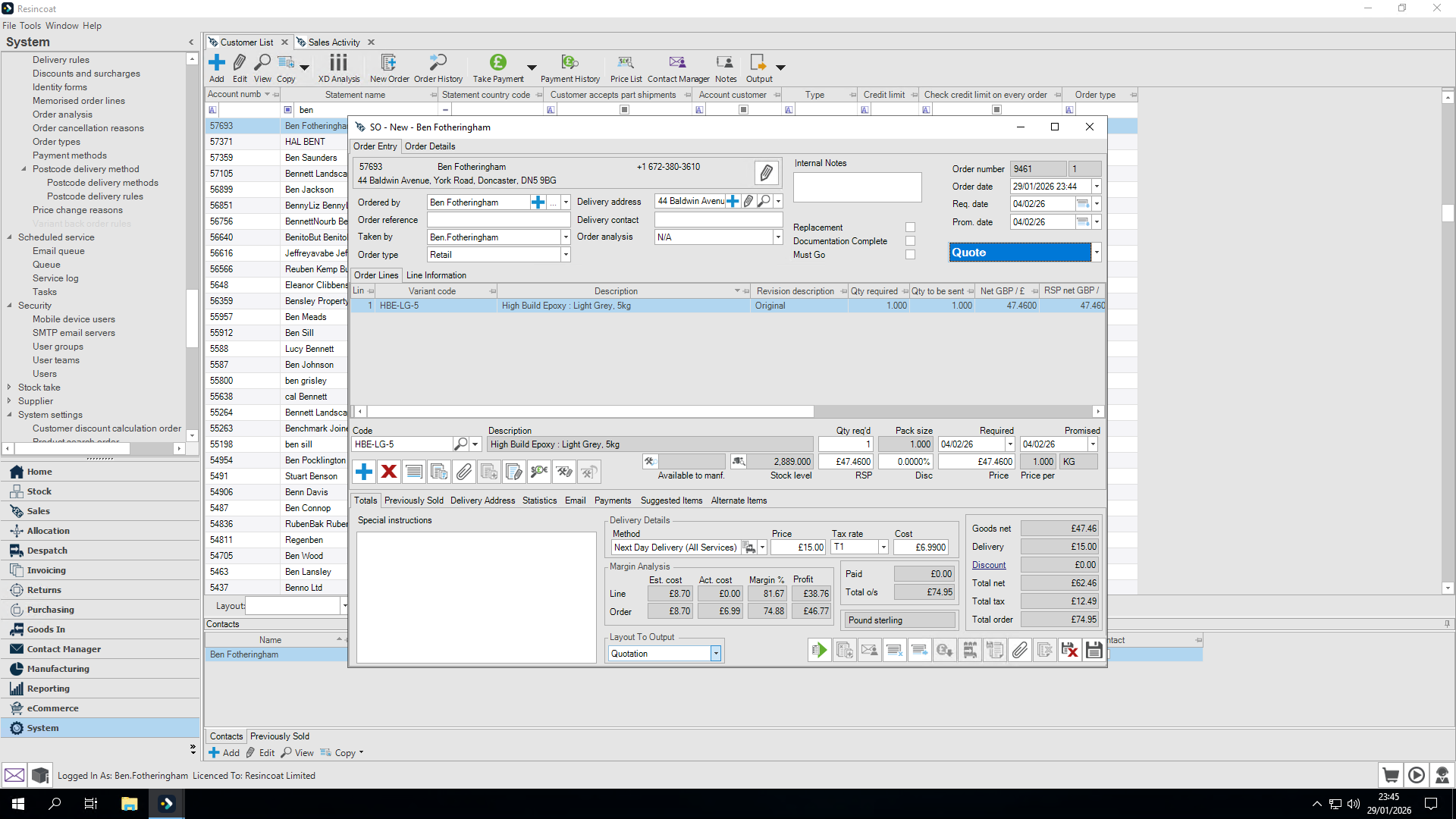
I will set my layout output to "none" to prevent it from emailing a quote.
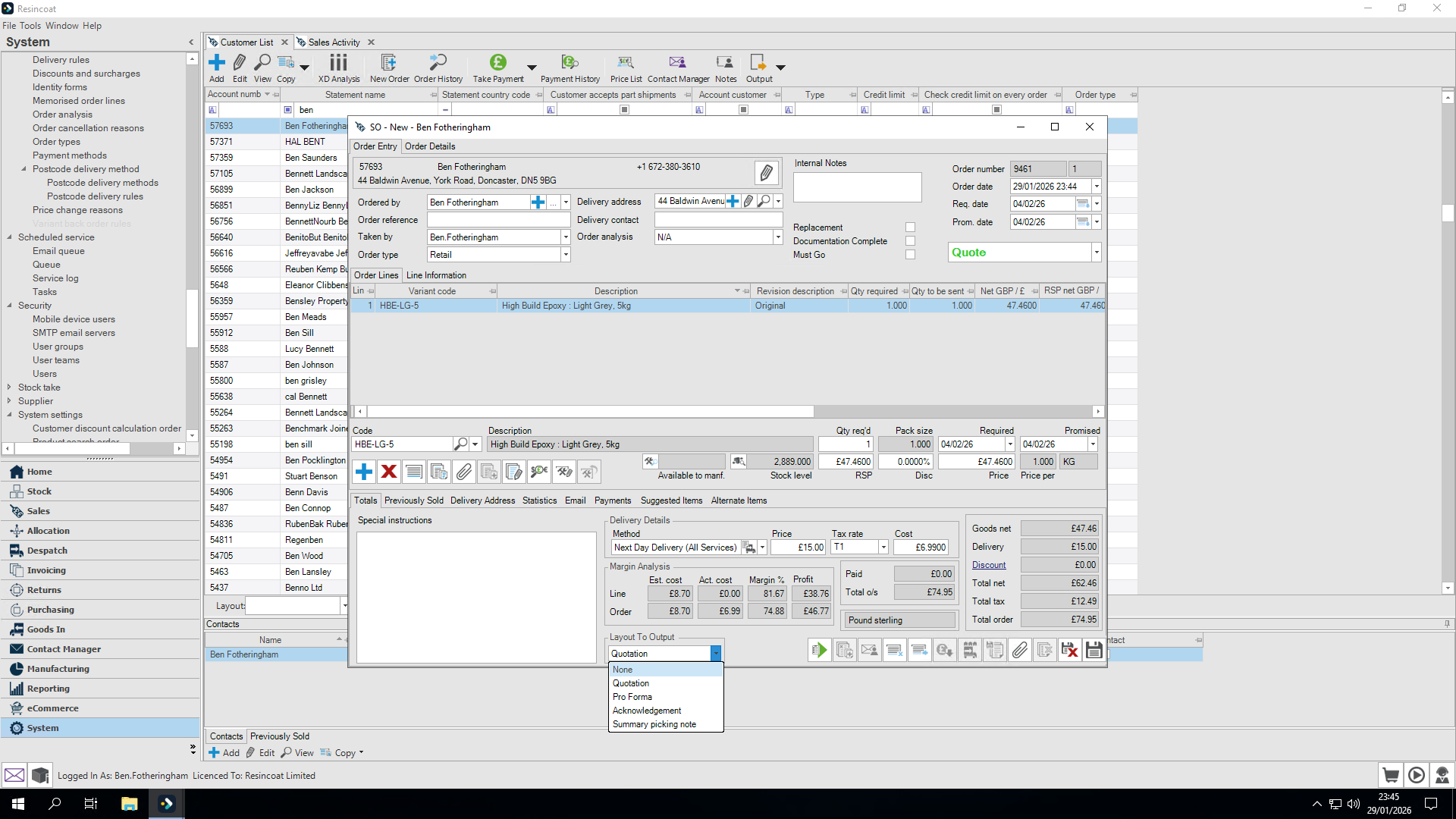
This will prevent any emails being sent before we generate a payment URL
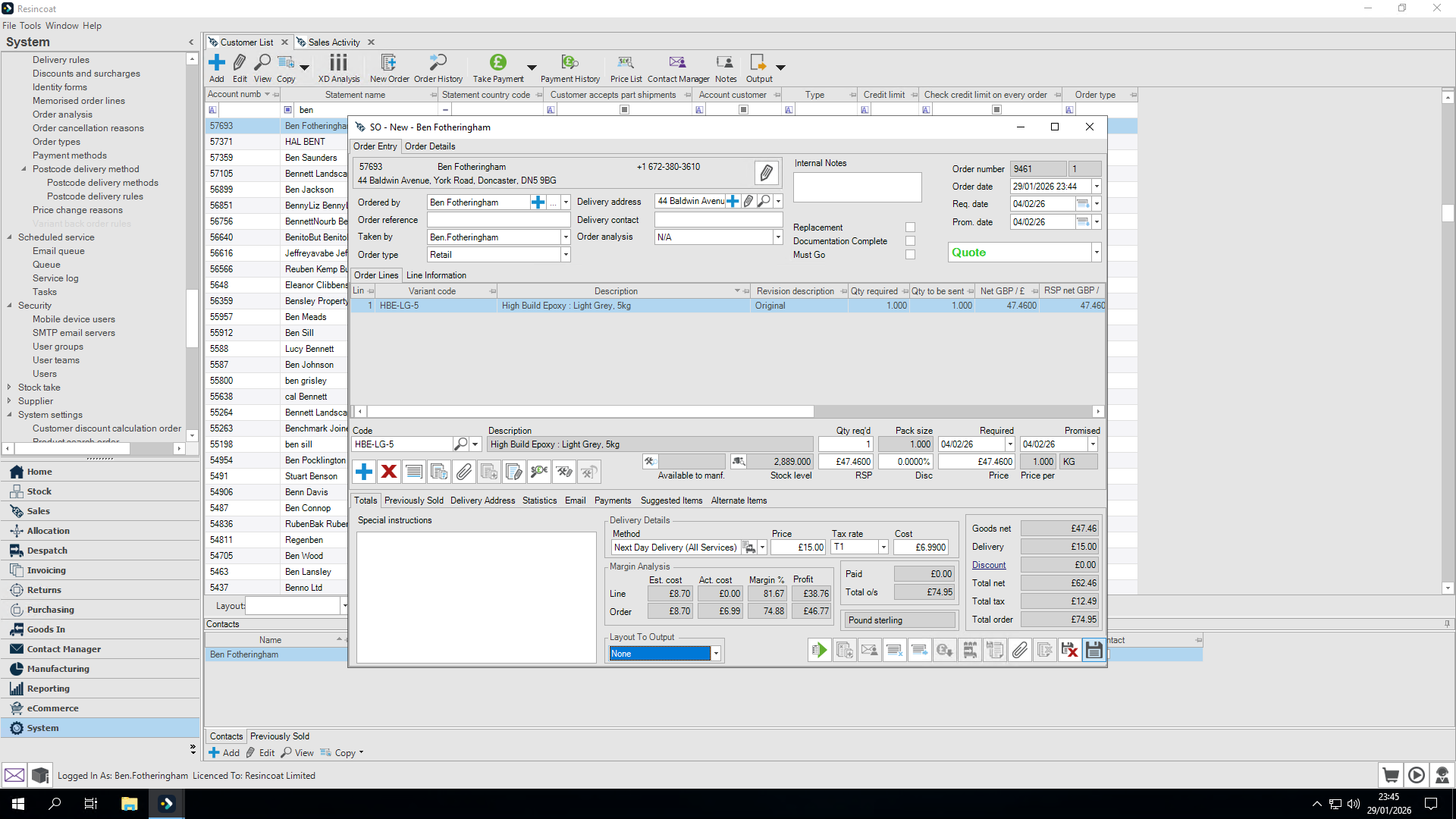
That's now all finished.
Next, if we go to sales activity, we find my order at the top of the list.
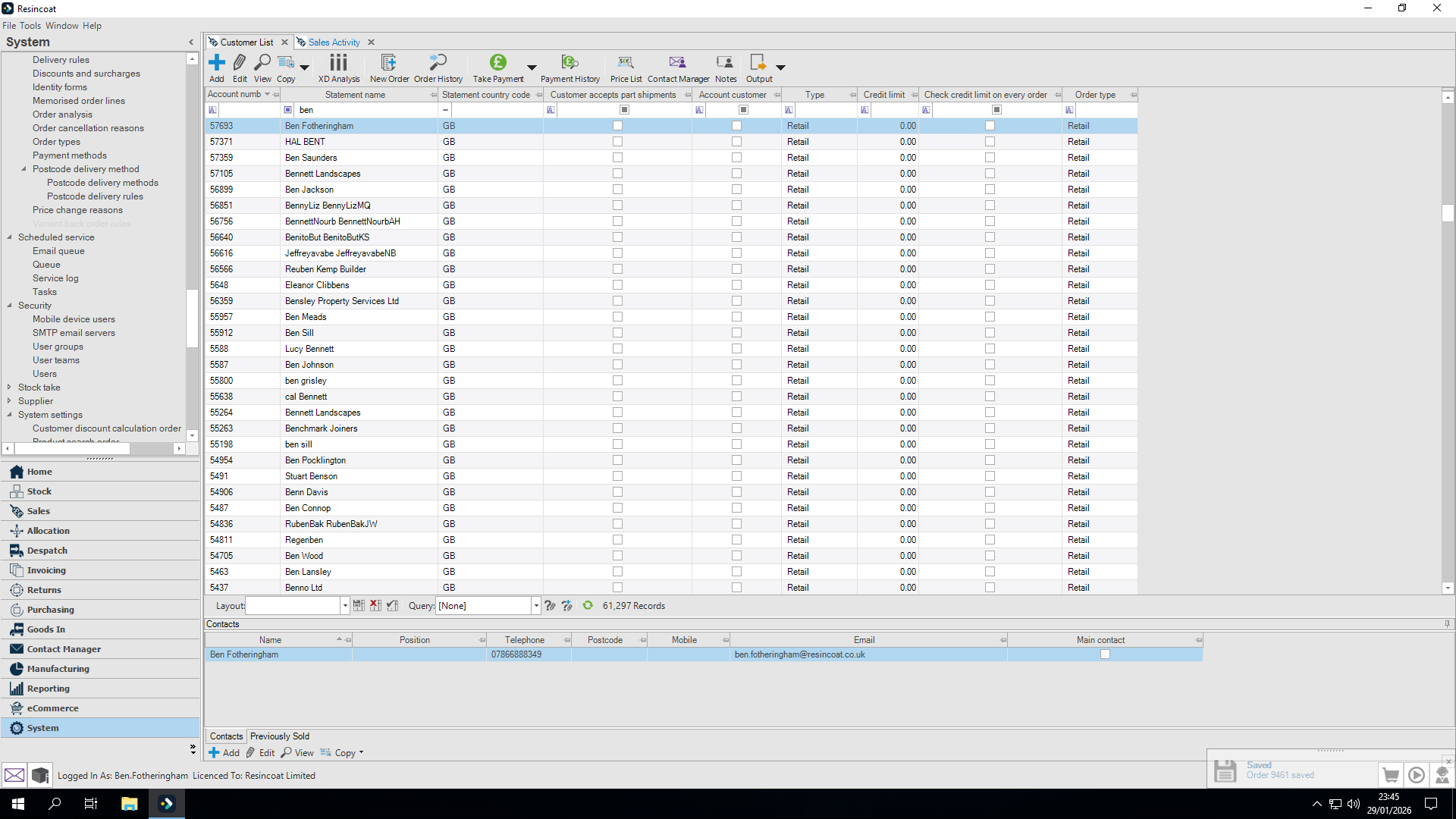
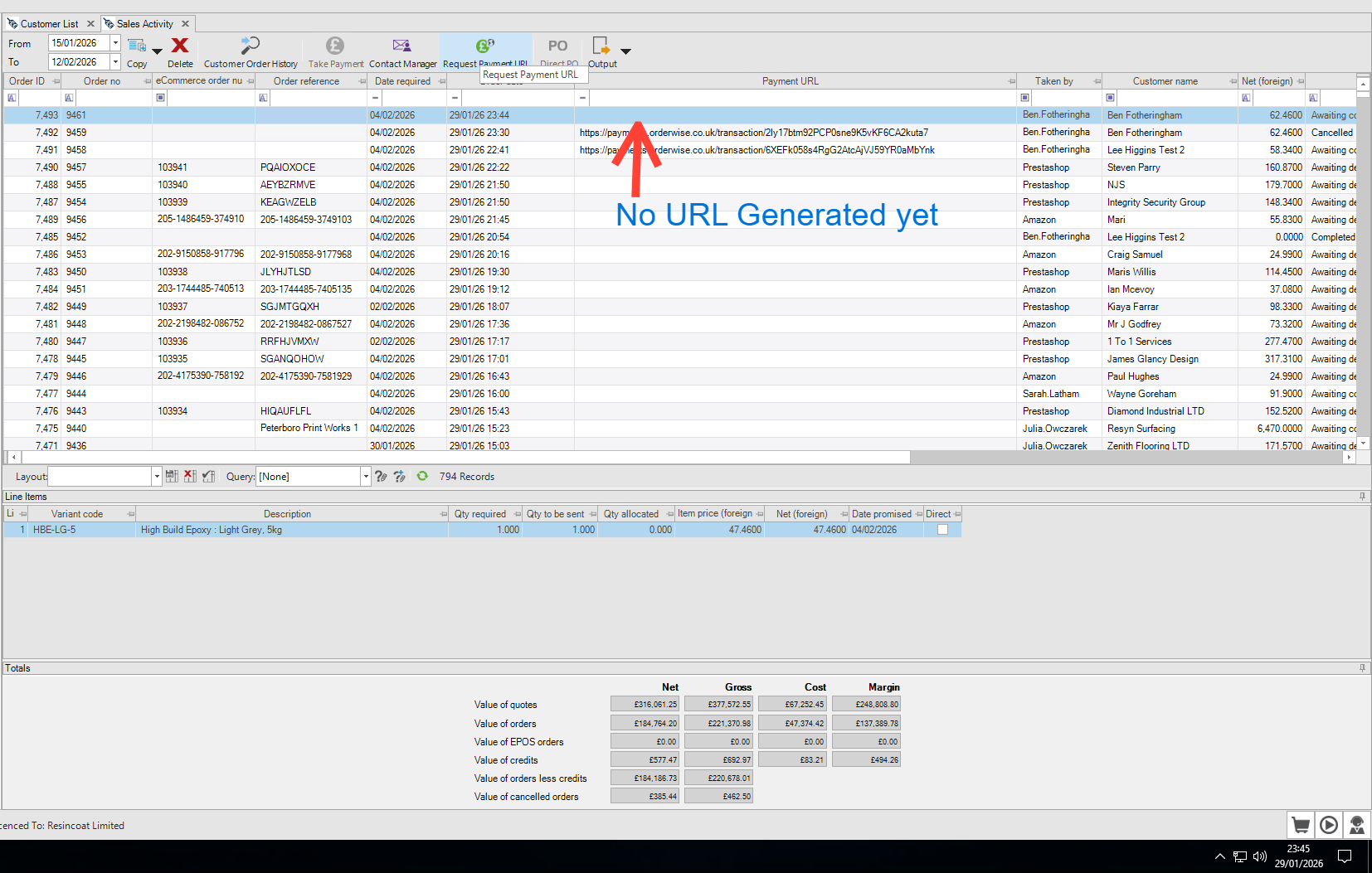
As you can see, there is currently no payment link available.
I will request a payment URL.
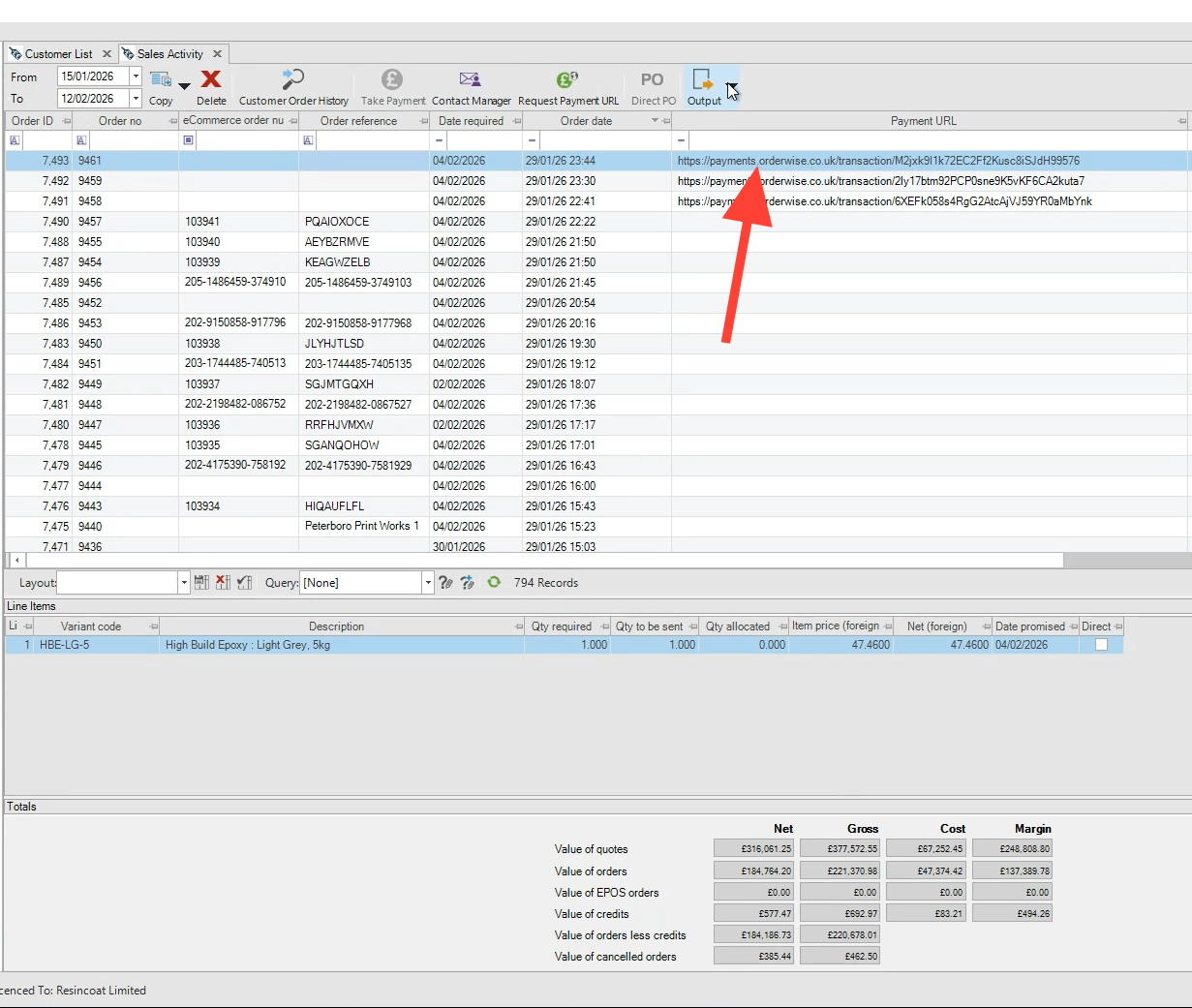
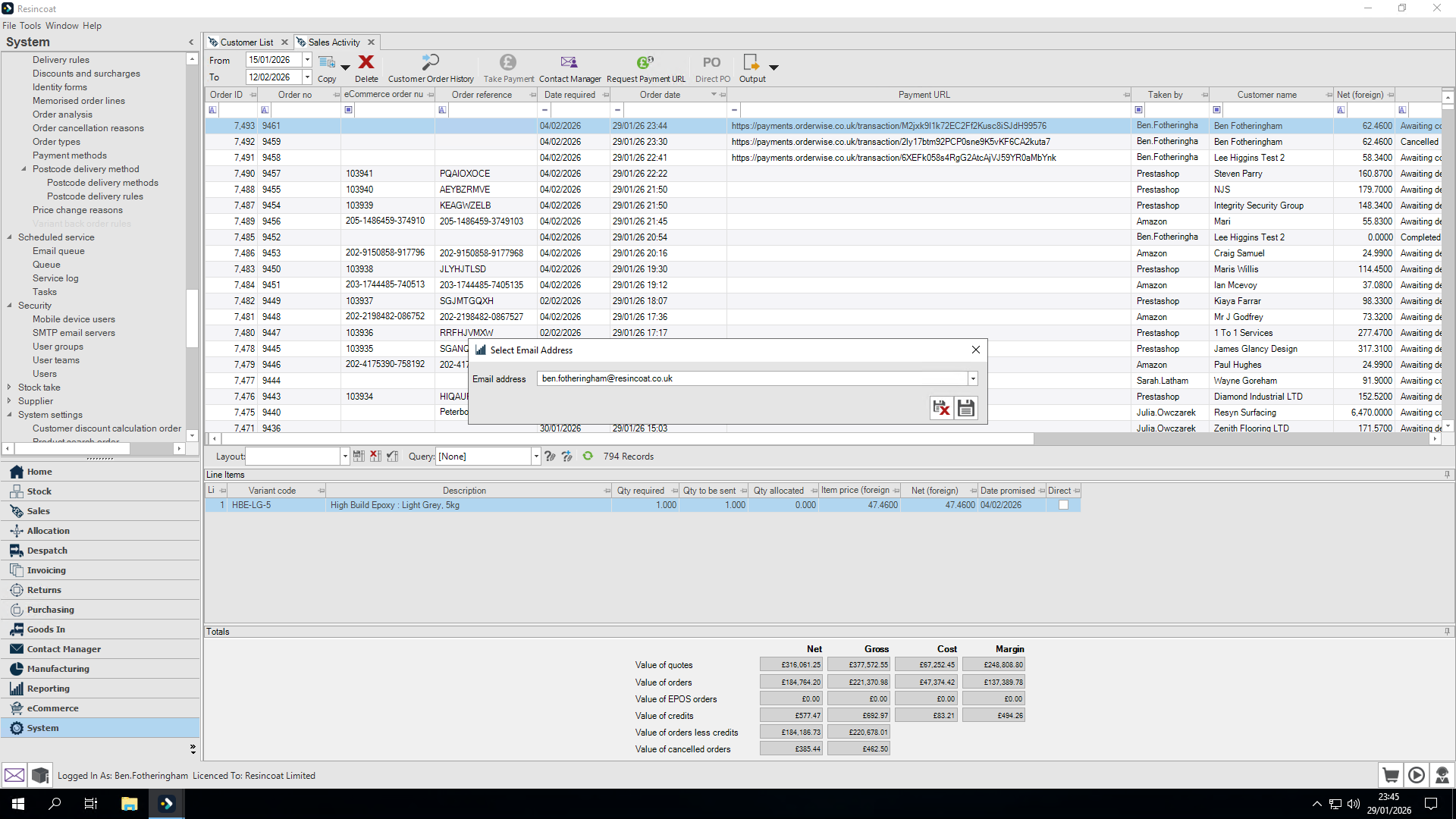
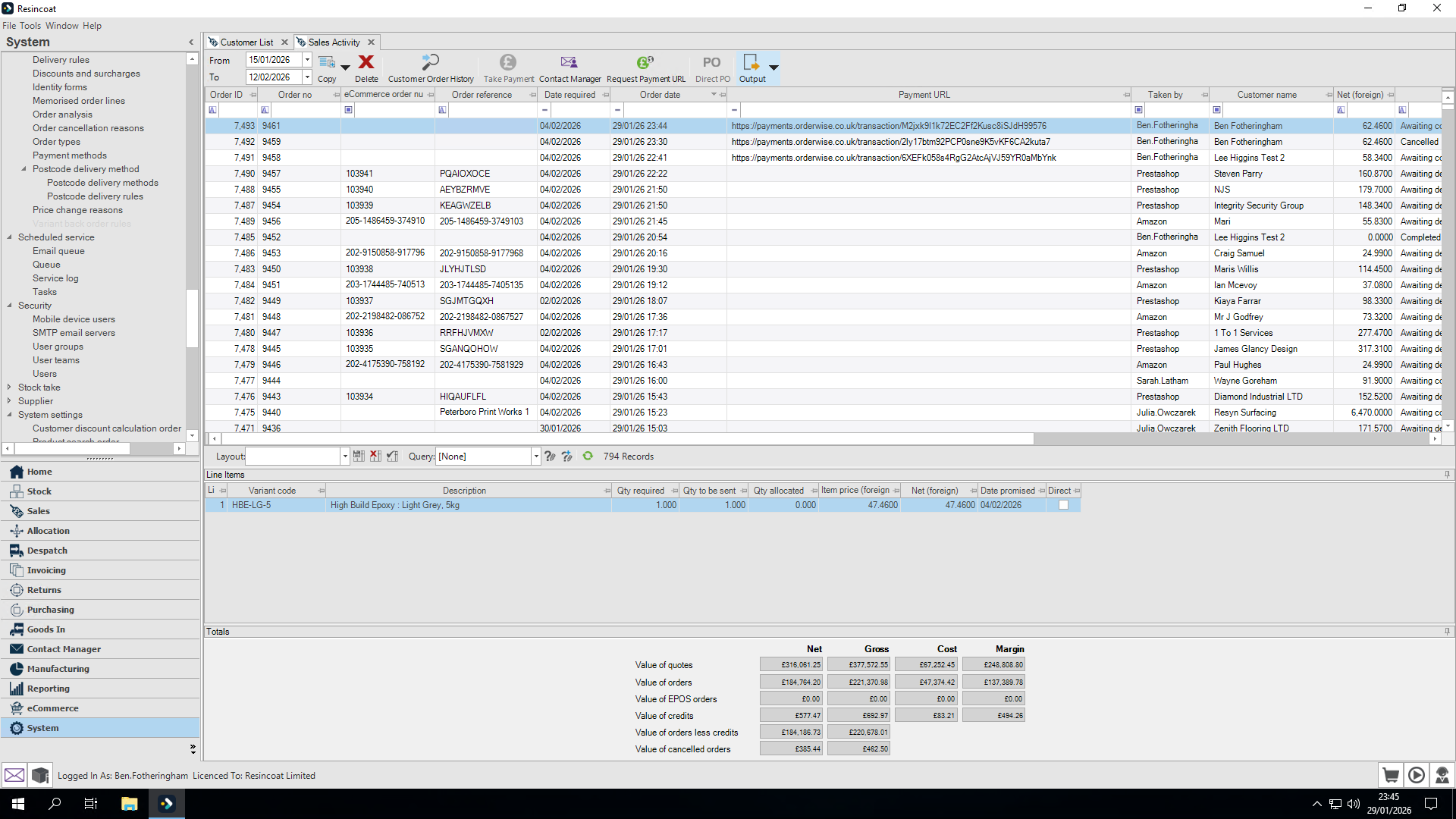
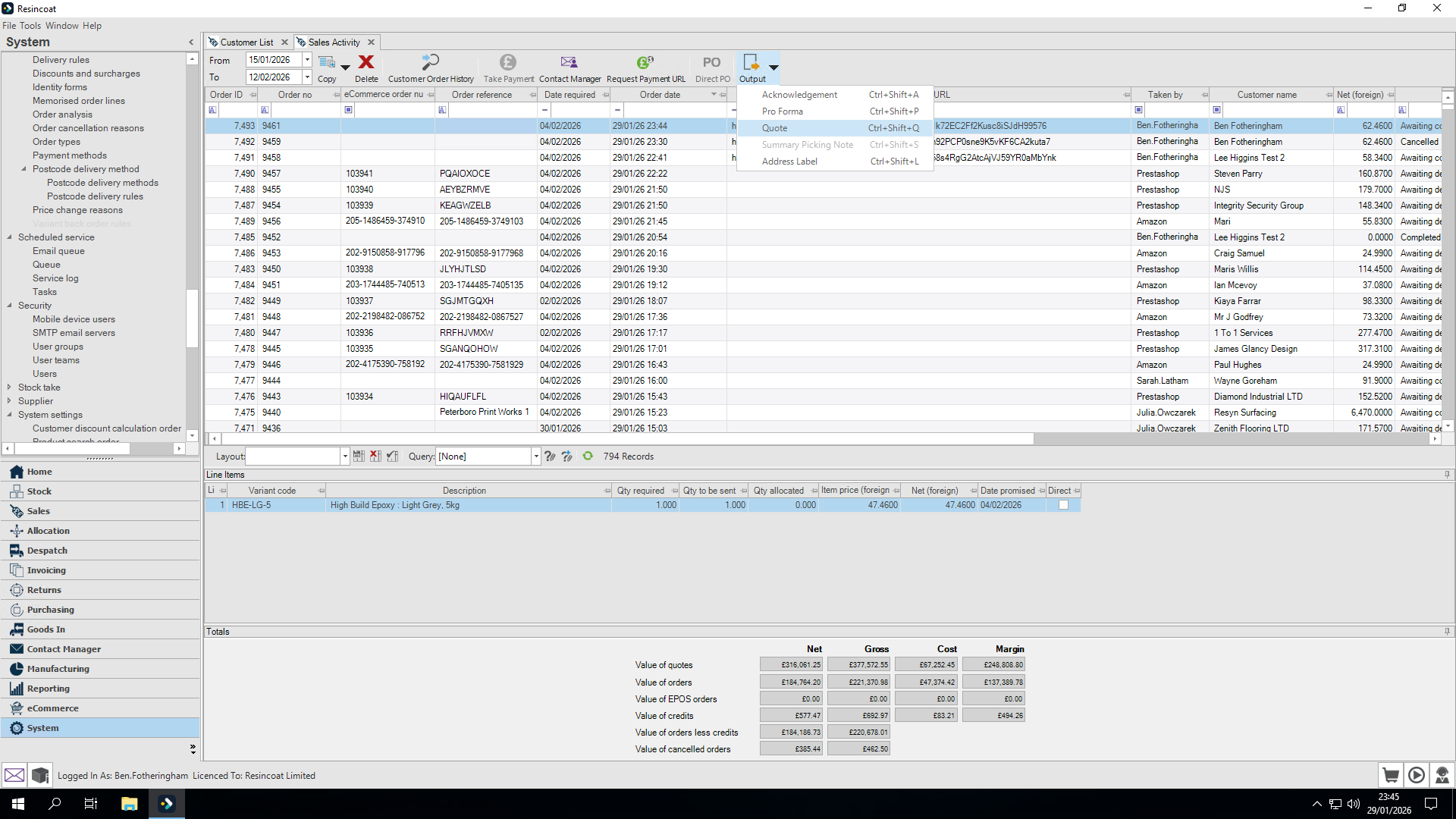
Since we're set to email, it will automatically send out via email from the bottom left-hand corner.
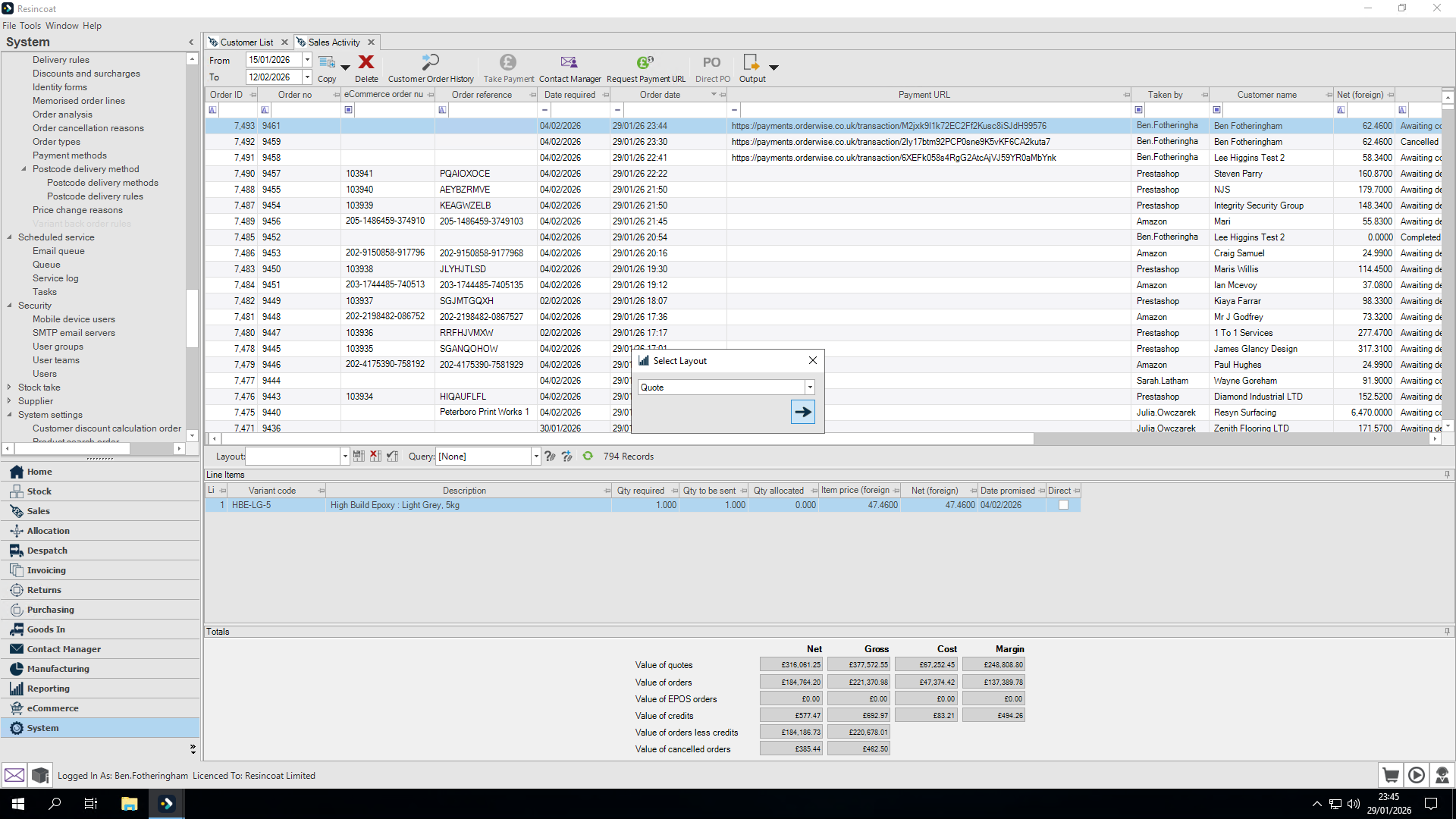
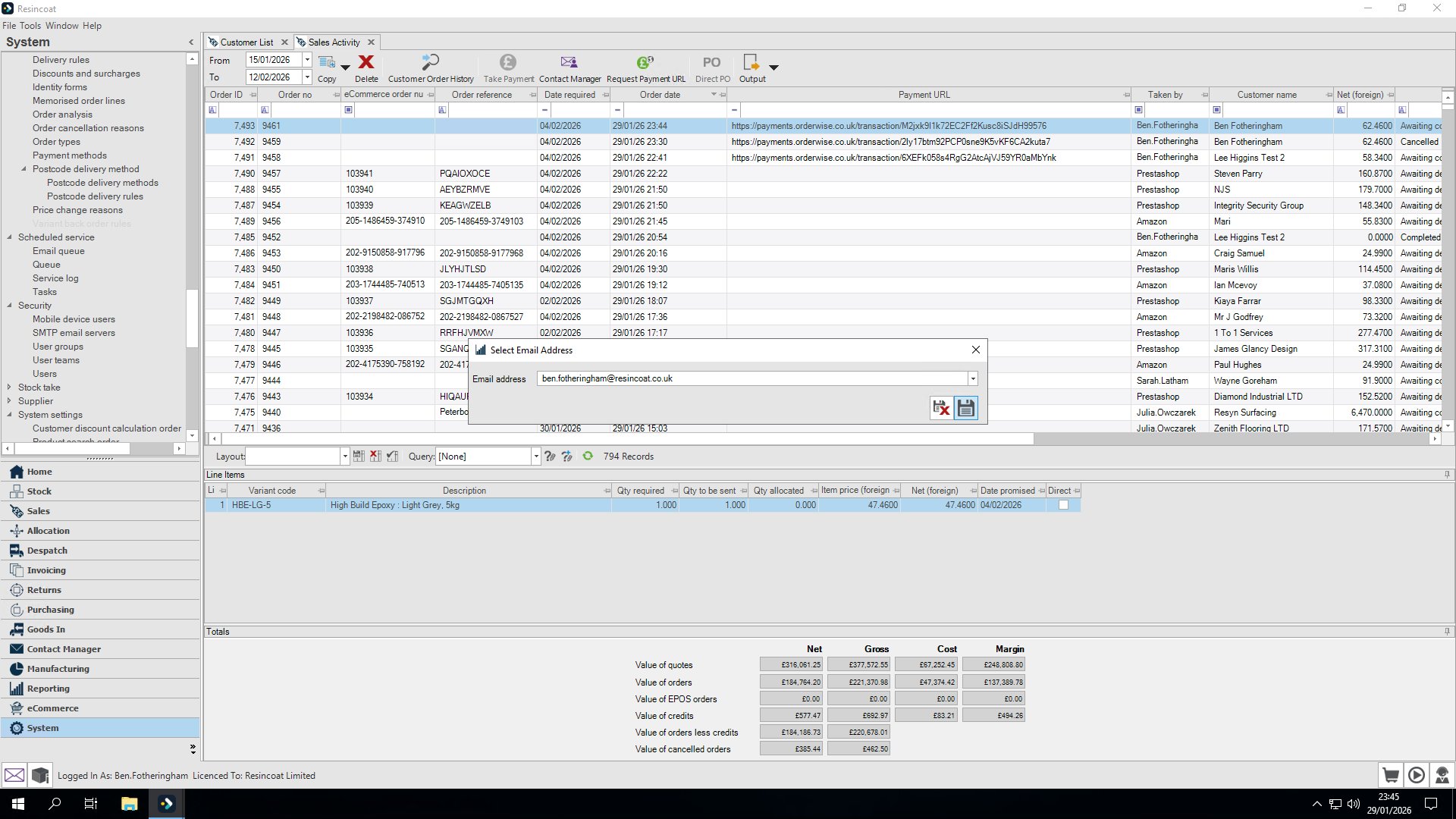
We get a preview of the email which will also have the Quote pdf (containing payment link) attached.
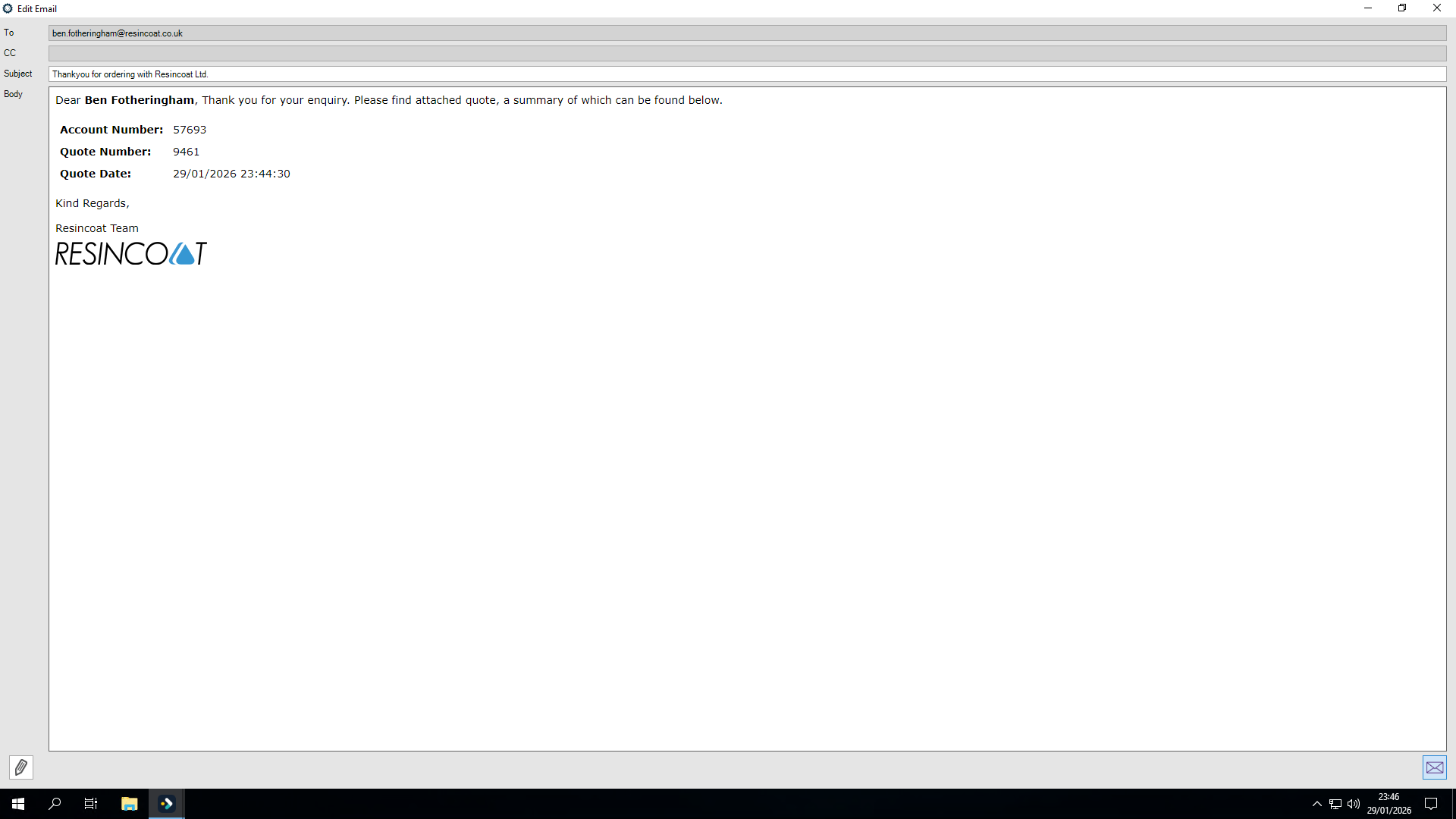
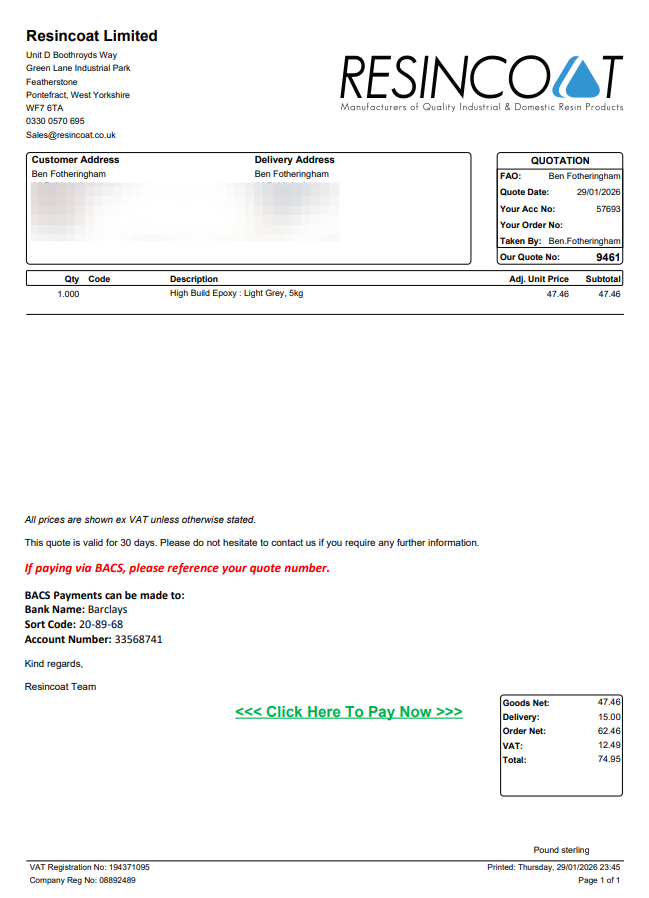
Attachment received should look like this when opened