How to Send an Email Using Gmail: Step-by-Step Guide
Learn how to send an email using Gmail with this easy step-by-step tutorial. Discover how to compose, address, and send messages, add a subject, and check your sent emails.
In this guide, we'll learn how to send an email using Gmail in your web browser. You will see how to compose a new message, add a recipient, write a subject, and include your message content. We will also look at how to check if your email was sent.
Let's get started
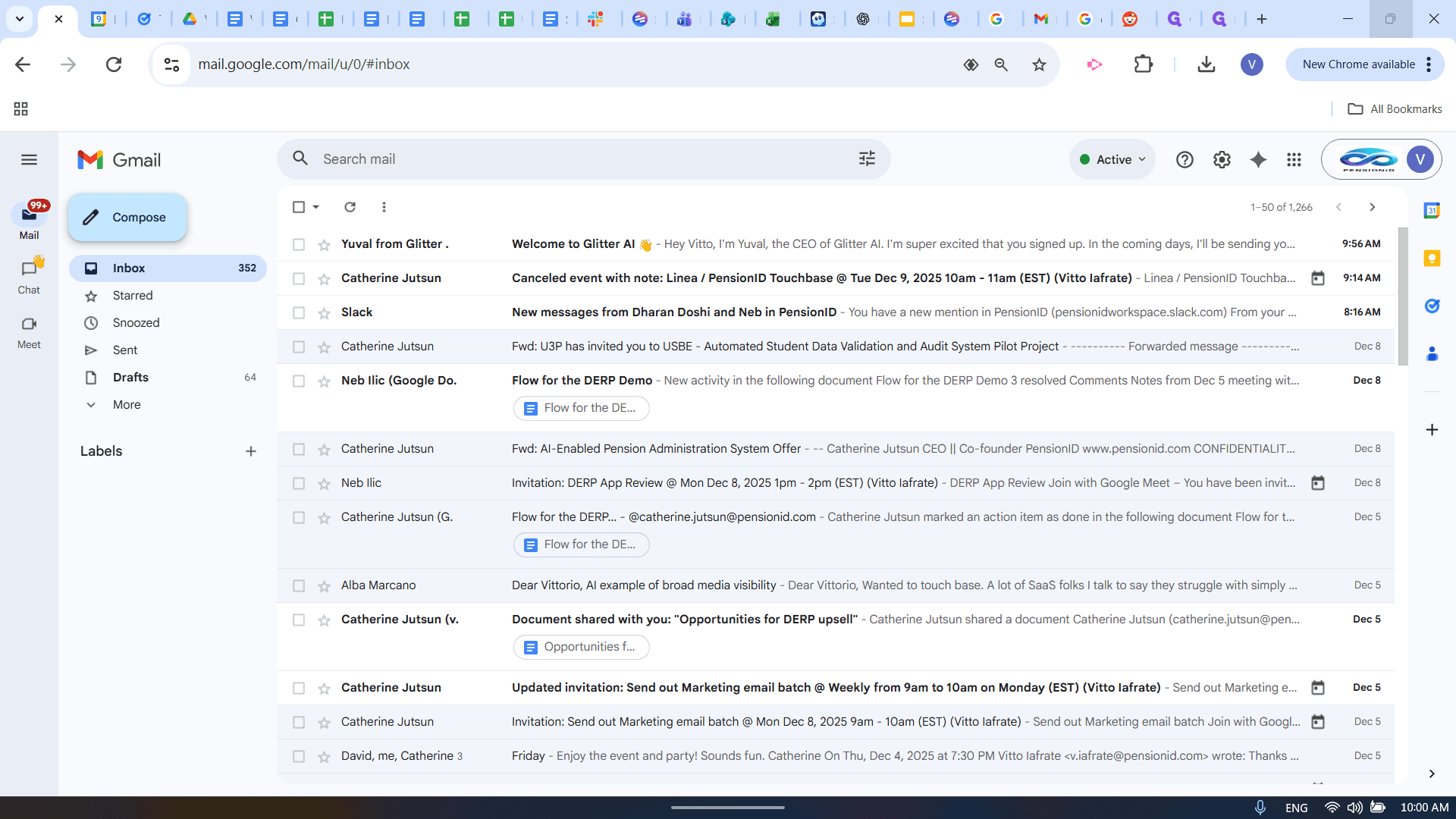
I will show you how to send an email. Open your Gmail browser or Gmail tab.
Click on Compose.
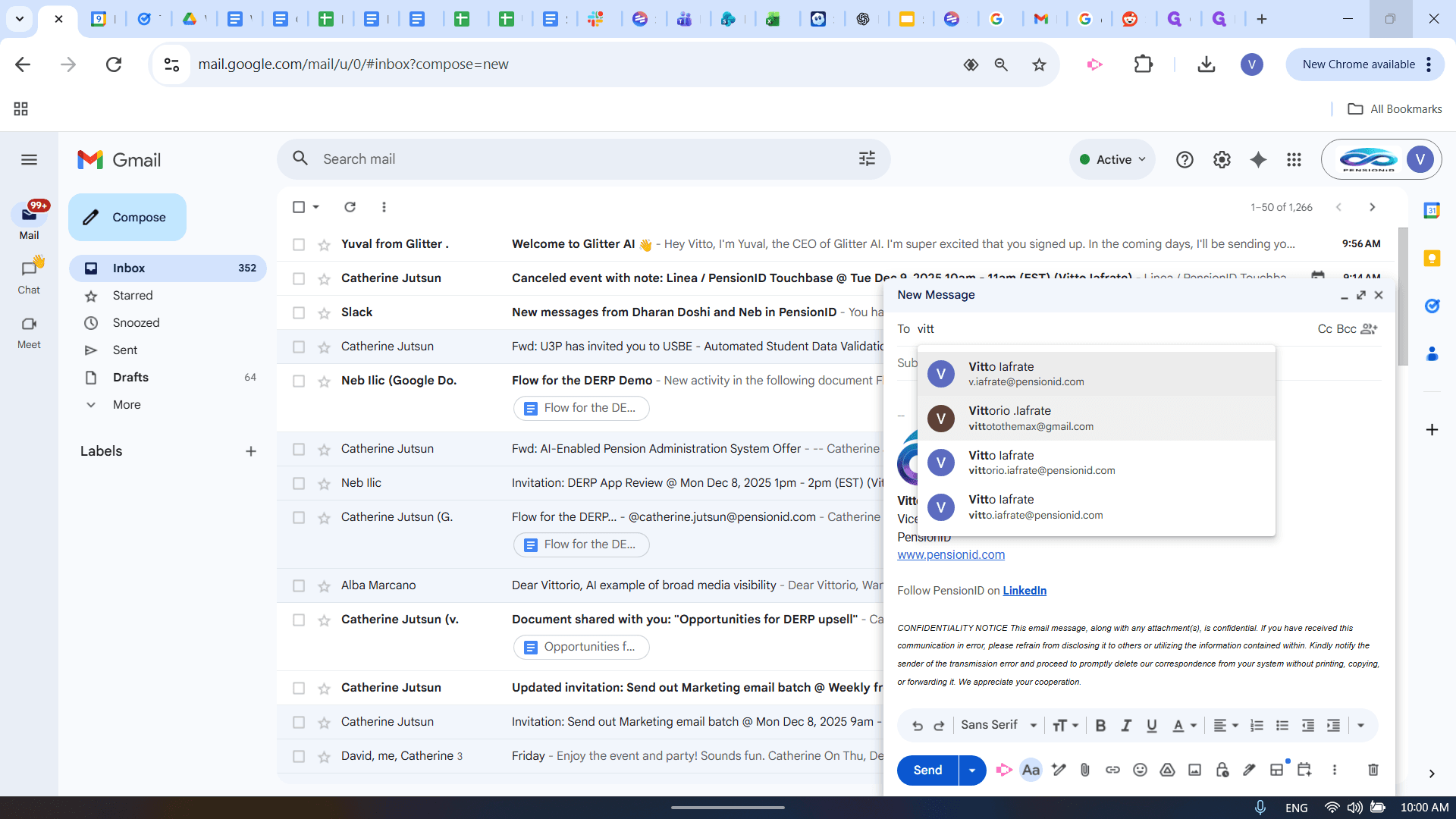
When you click Compose, a window labeled New Message appears. In the "To" bar, enter the recipient's email address. The recipient is the person you are sending to. Let's send a test email here.
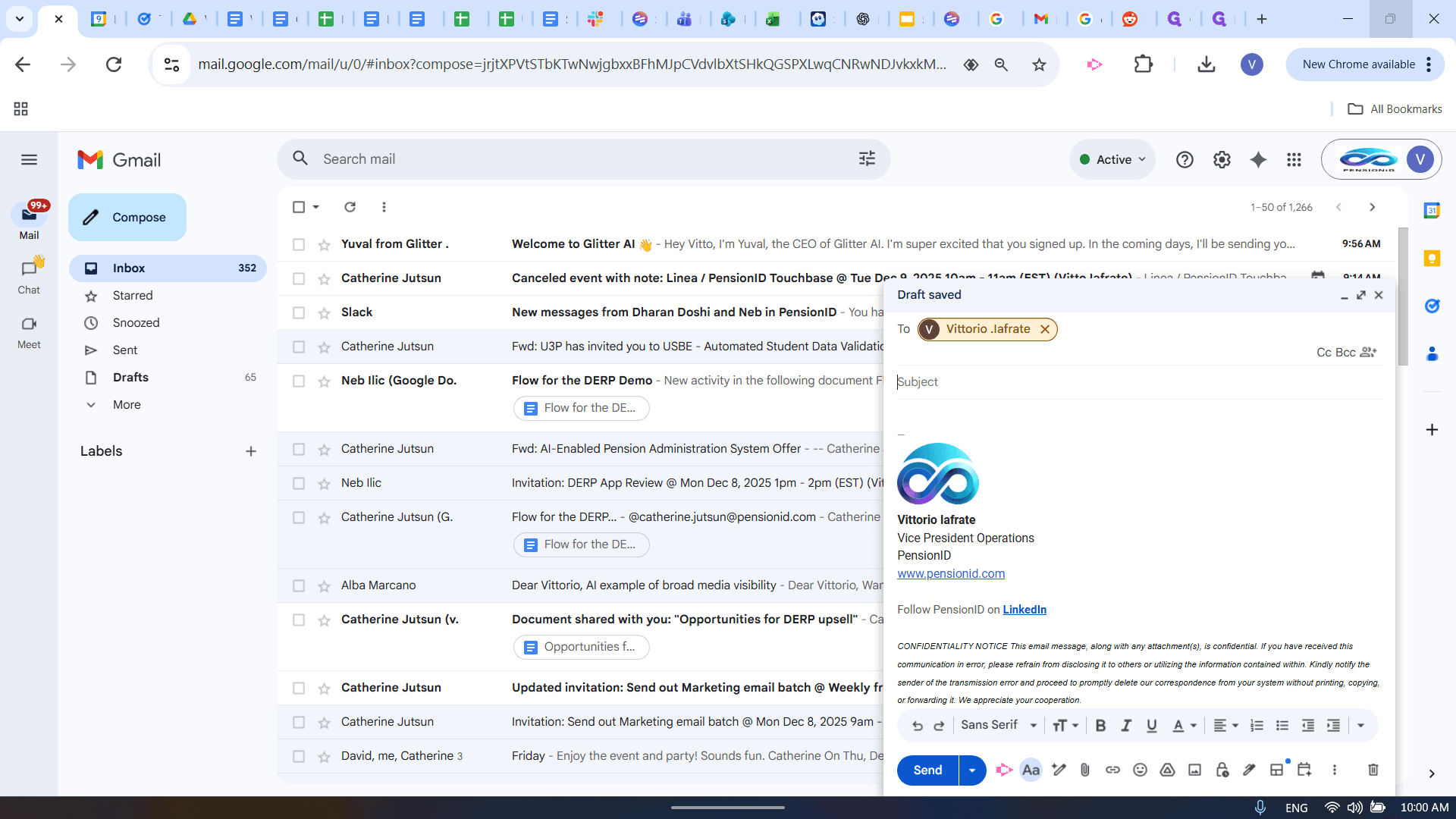
You can then enter the subject. Think of it as the title of your email, describing what your message is about, such as "Testing Glitter AI." Then, type the content of your message below.
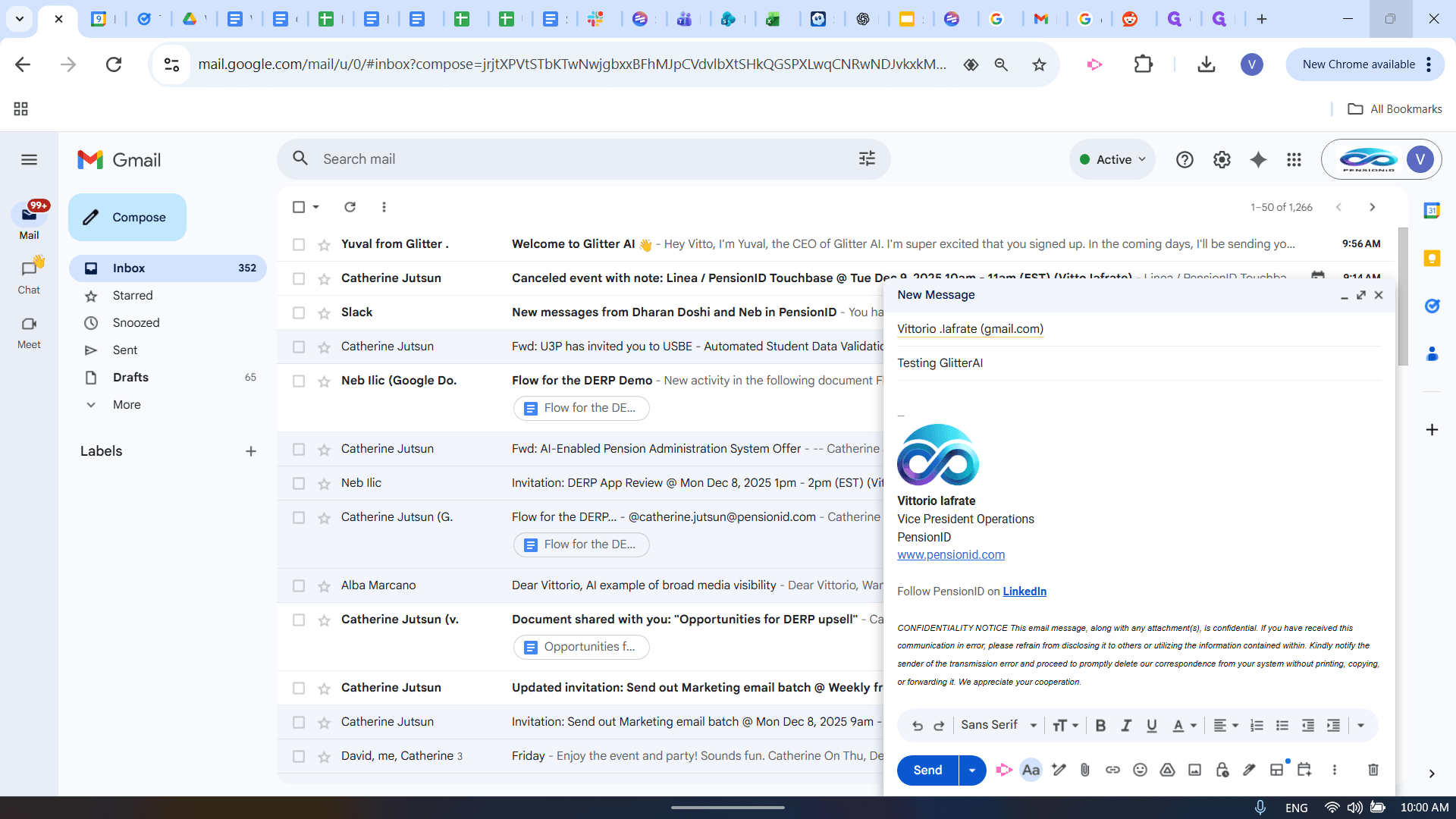
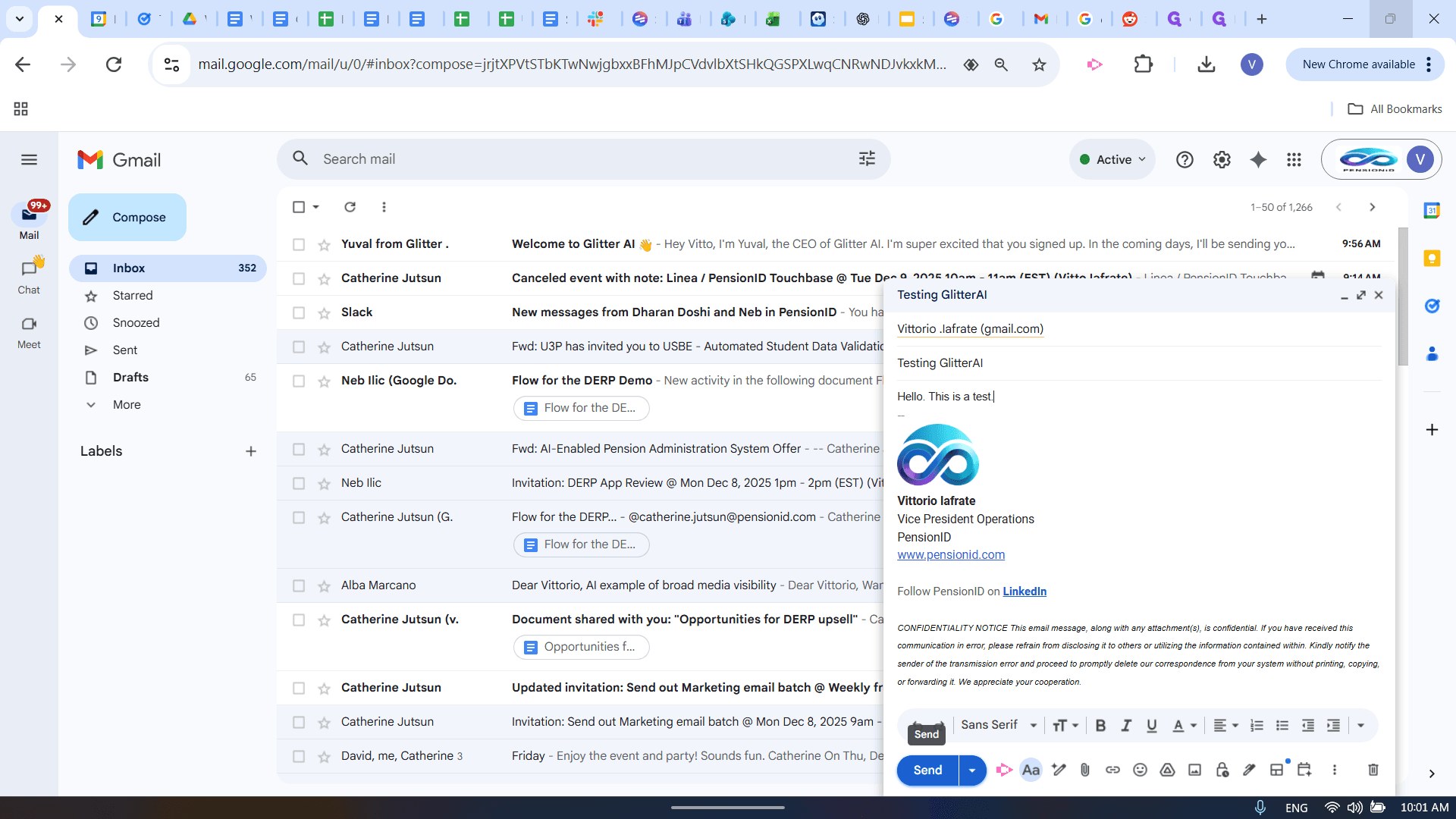
You’ll notice there is an email signature. There is another video that explains how to set this up. It works like an email signature, so you don't need to do it manually. Your company logo will be included automatically. Hello, this is a test. That is my message. Once I finish, I will review it to make sure I am satisfied. Then, I will go to the bottom left of the message window and click Send.
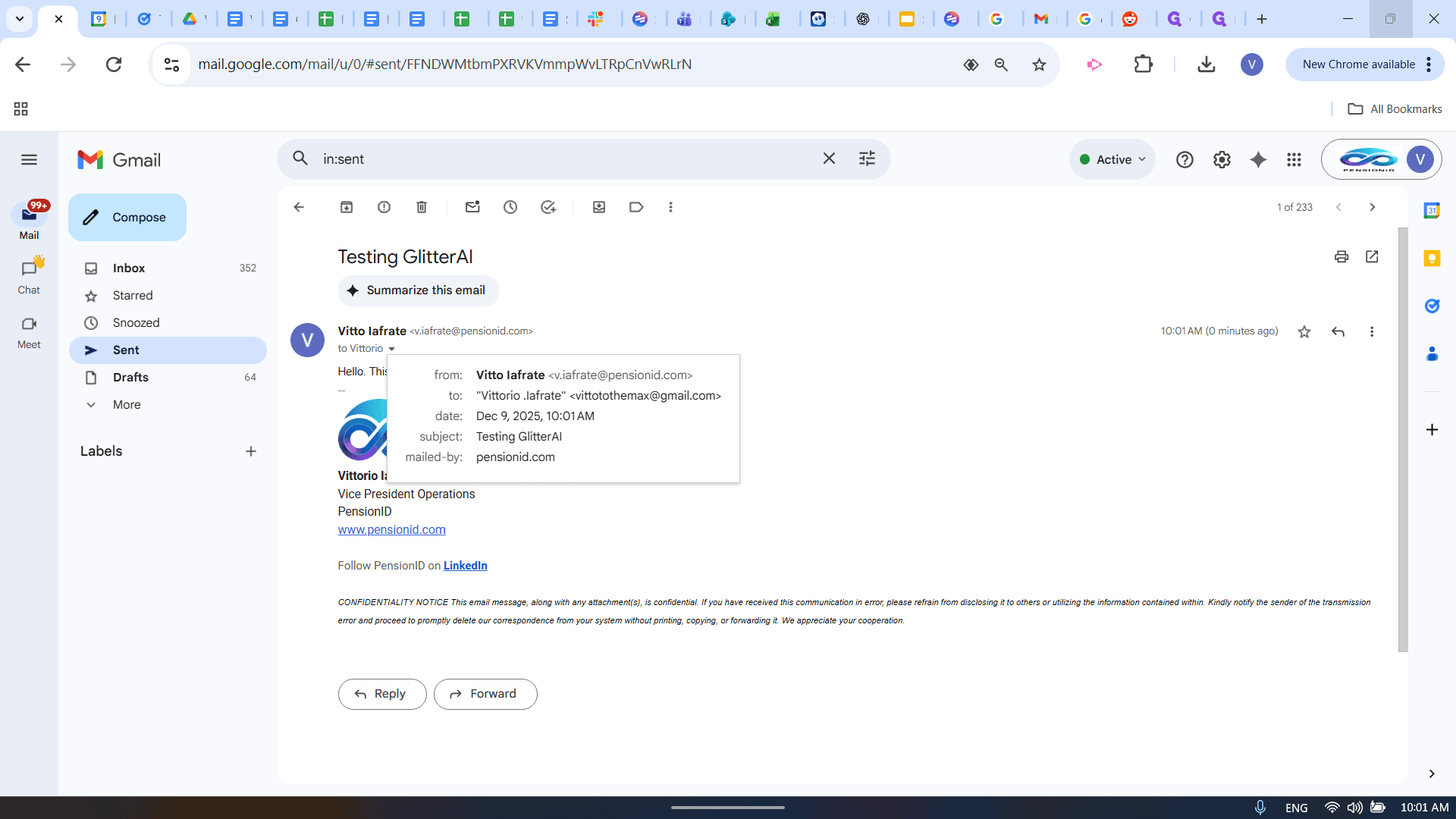
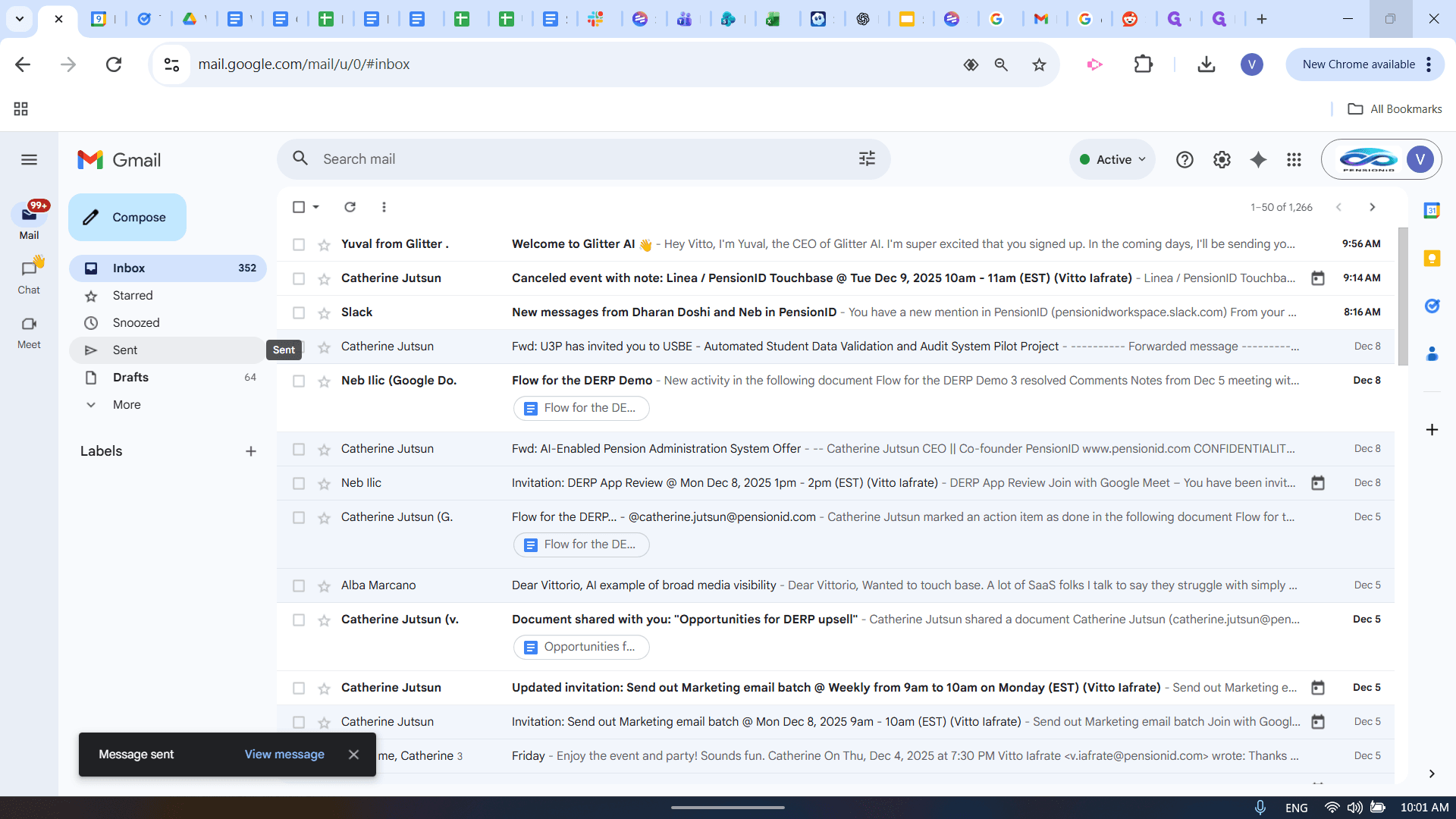
You’ll see that the message has been sent. You have a short window to undo the action. You can set how much time you want for this, but the message has already been sent to the recipient. You can check your Sent folder to see if the message was sent. Here, you can see that I sent this to the recipient.
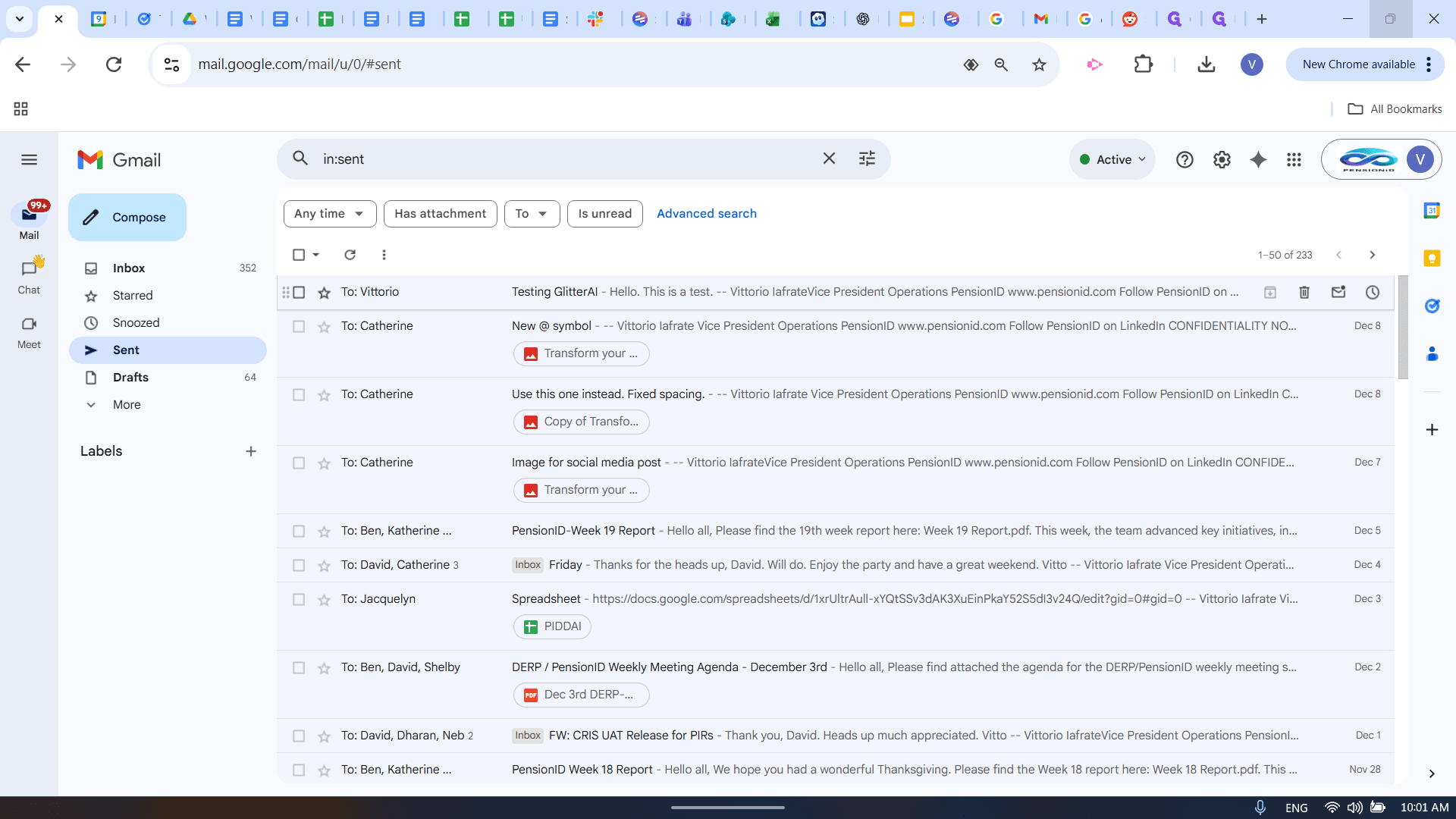
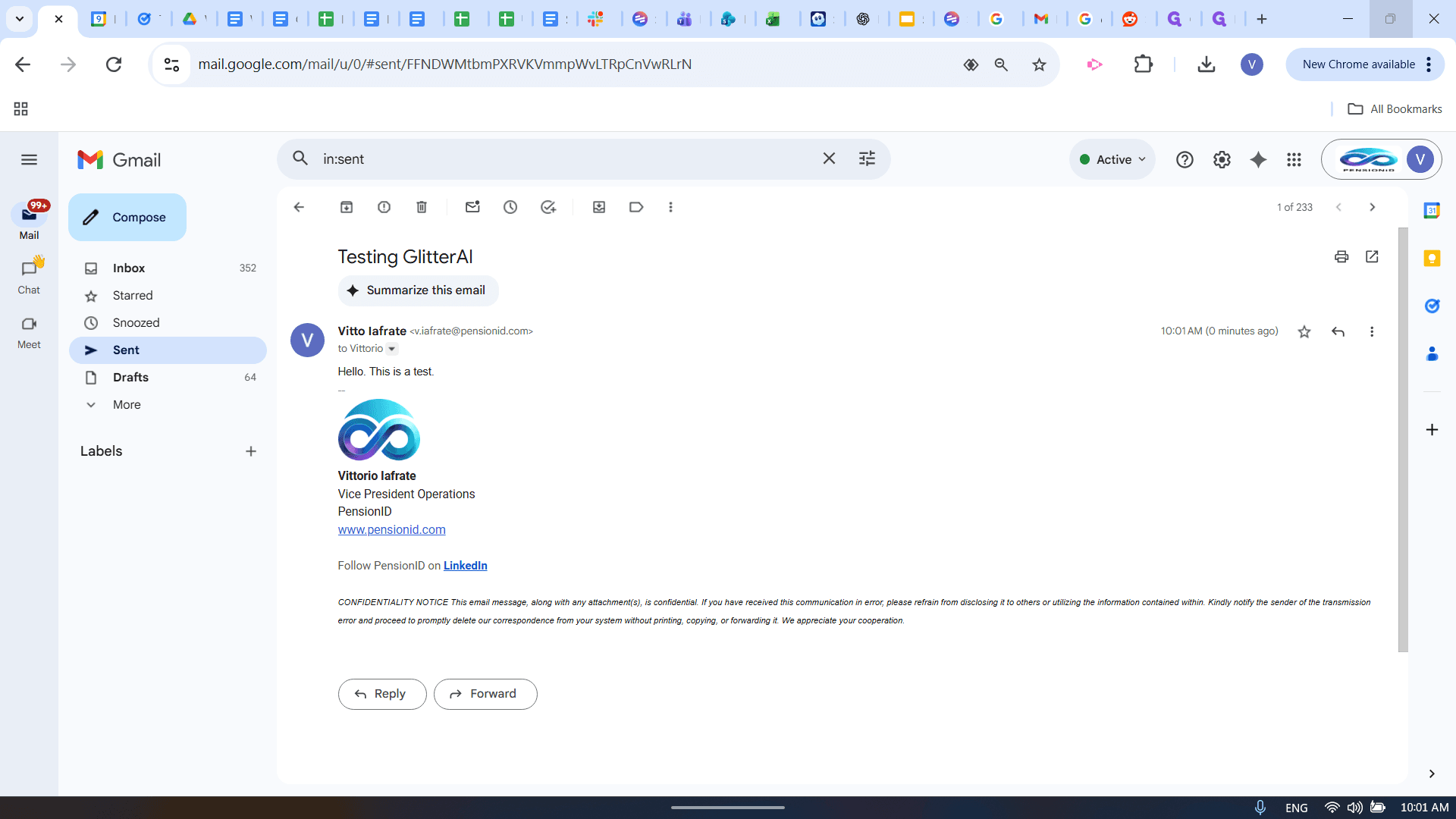
I clicked the arrow to show the recipient, which was the one I typed into the To bar. It was sent on this date, at this time, with this subject, and was mailed by pensionie.com, my domain. My domain is @pensionie.com. It is the part that comes after the "@" symbol. That is how you send an email using Gmail.