How to Send an Email with a Quotation to a Customer
Learn step-by-step how to send an email with a quotation to a customer using the Traction Knowledge Center. Ensure correct contact details, select the best quotation, and send it efficiently.
In this guide, we'll learn how to send a quotation to a customer by email using the quotation system. We will cover how to confirm and update the customer's email address, select the correct quotation, and complete the sending process. This will help ensure your customer receives the right information quickly.
Let's get started
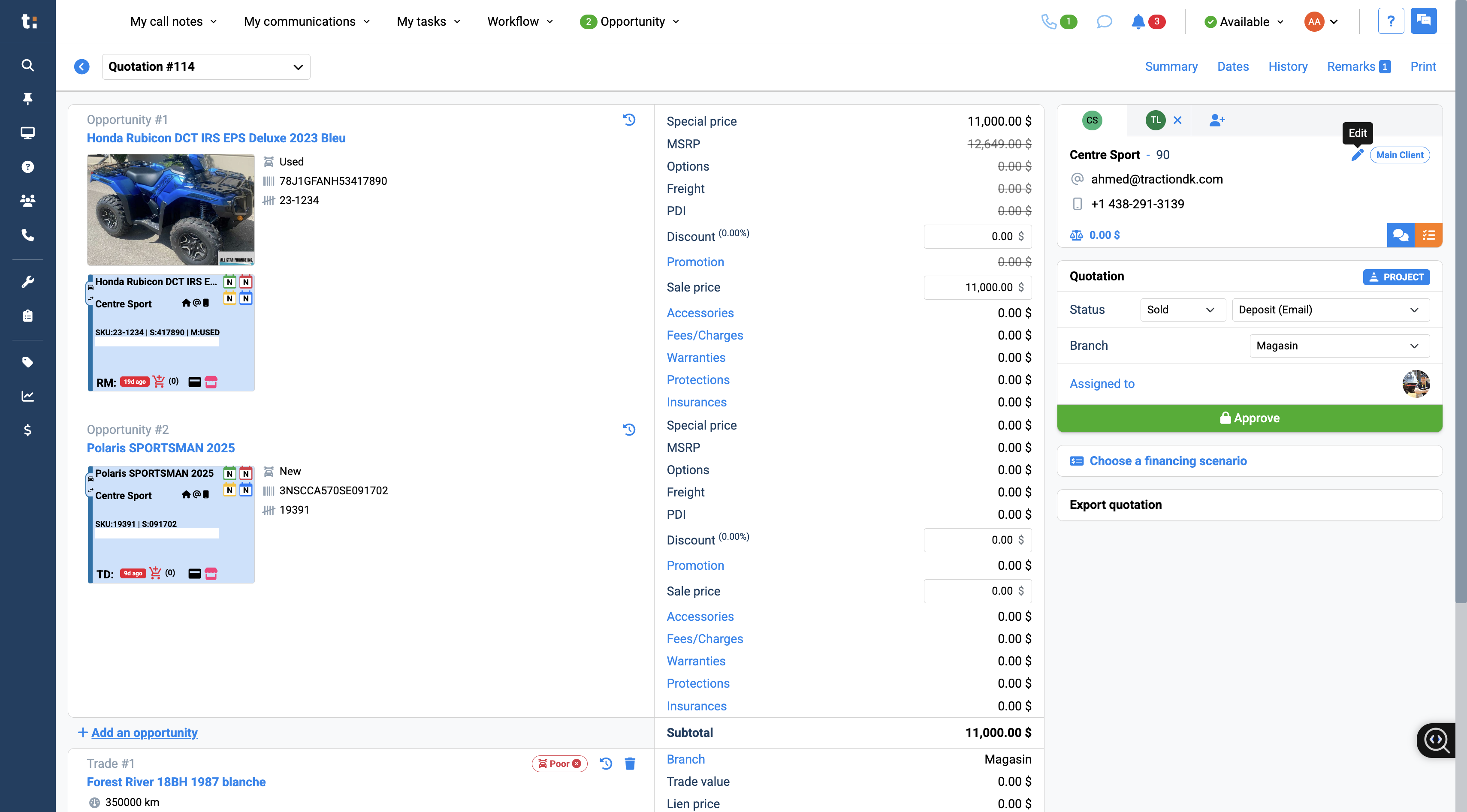
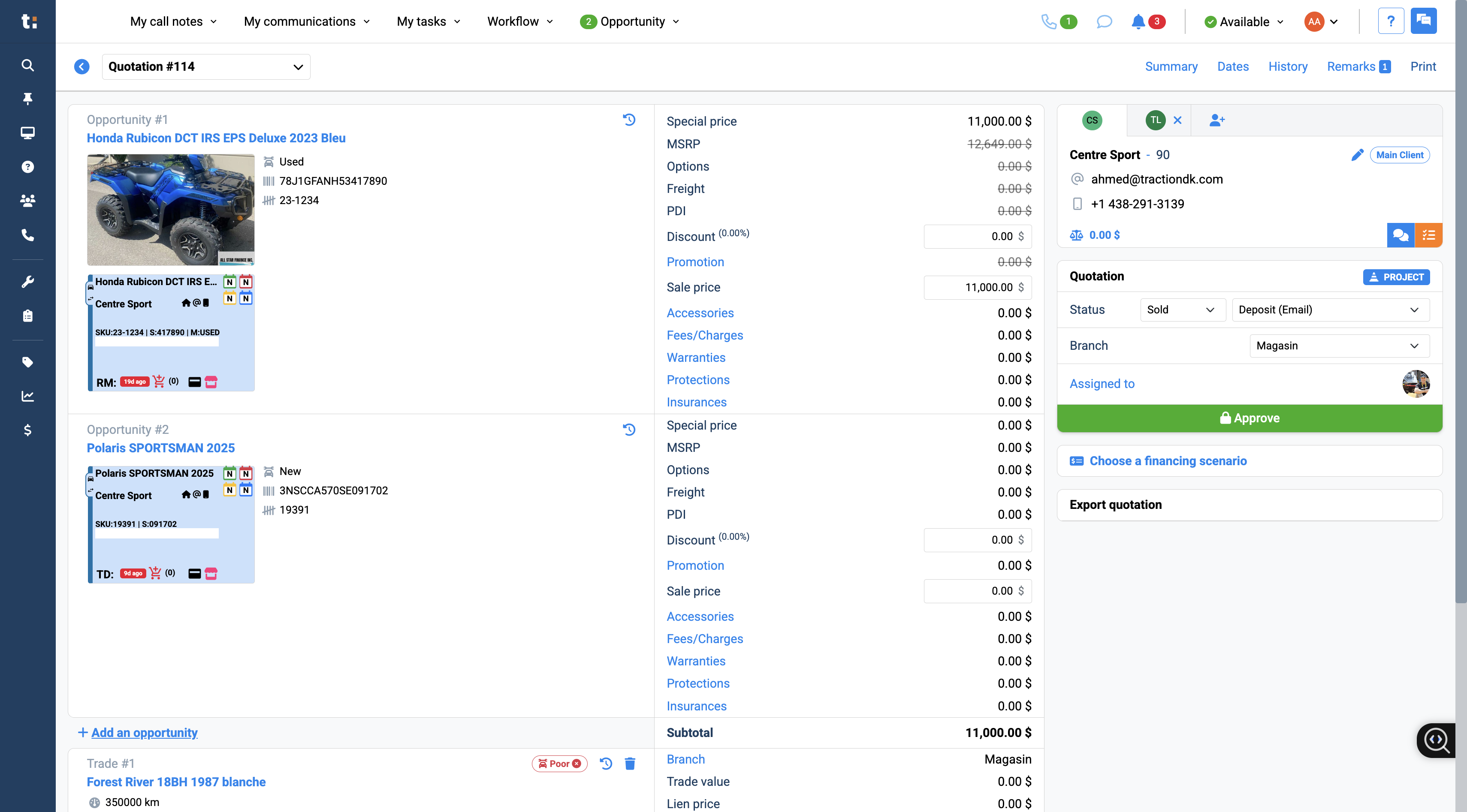
Hello, everyone. Welcome to the Traction Knowledge Center. In this video, we'll learn how to send an email with a quotation to a customer. First, access the quotation system. Then, verify that you have the correct contact details, especially the email address, before proceeding. First, click on Edit.
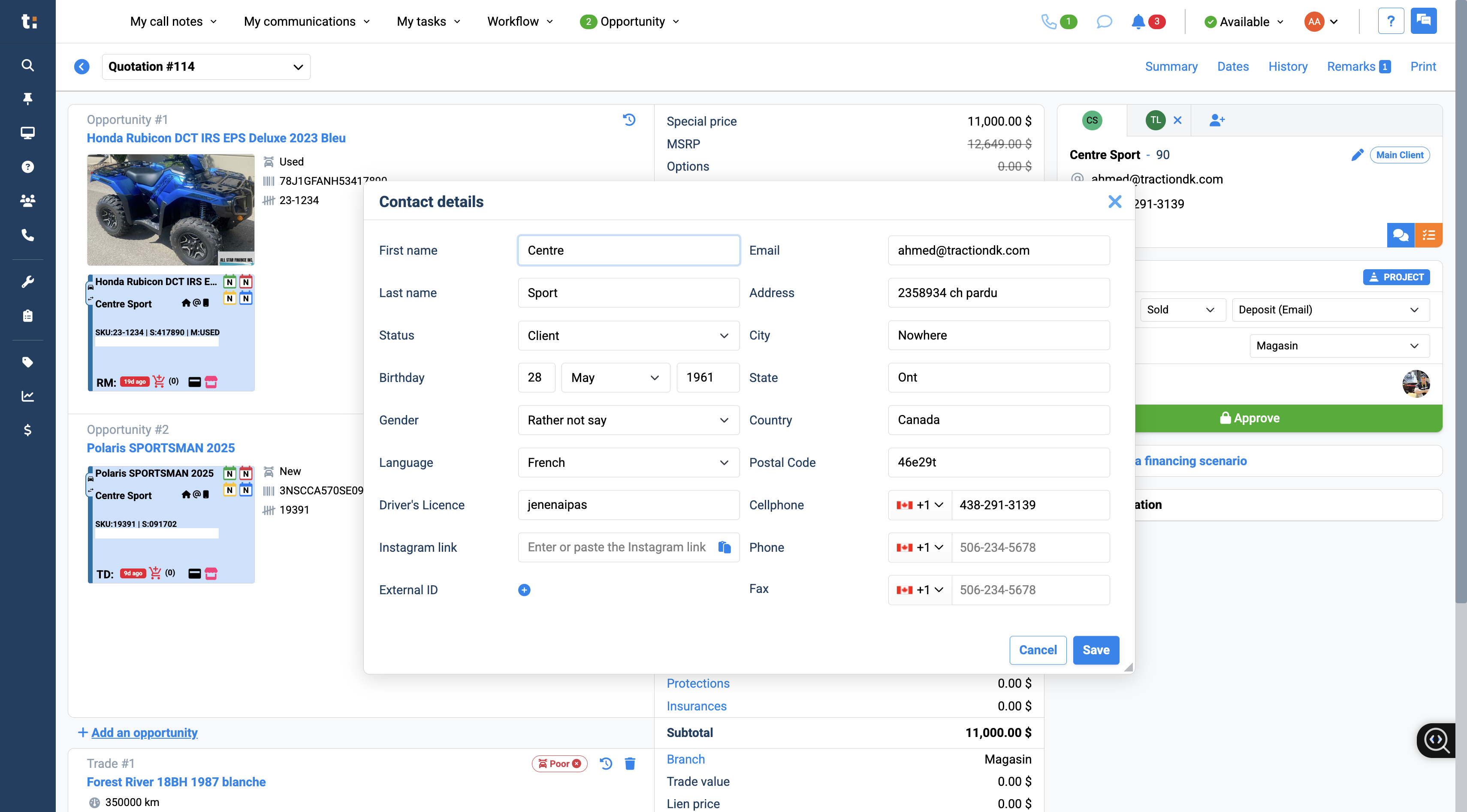
Go to the email section and enter your customer's correct email address.
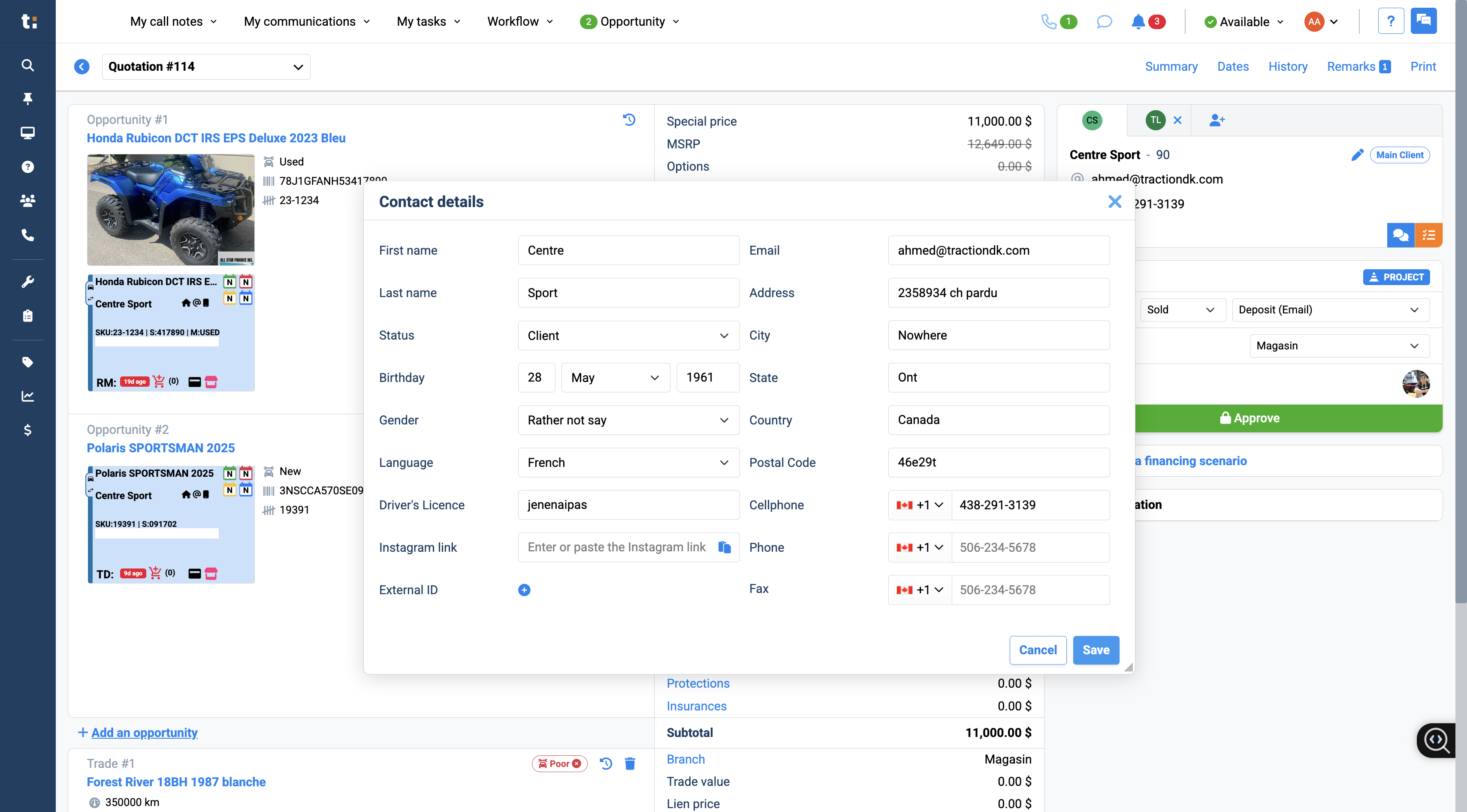
Once it's done, click Save. It will save the correct email.
Next, go to the right side of the page and click Print. Click Print to open the print system.
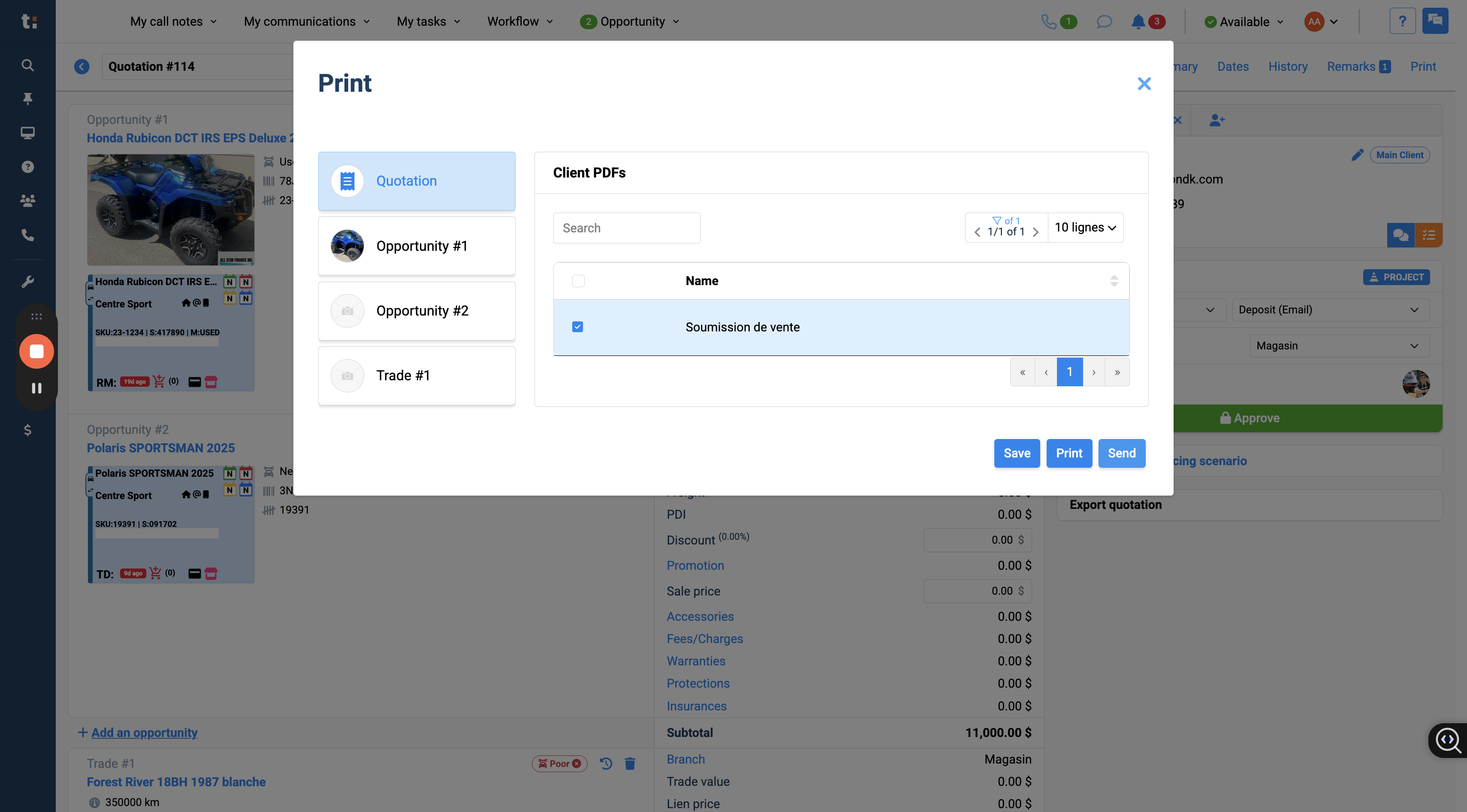
You have different quotations and different opportunities. Select the correct quotation. You may have three or four different quotations. However, you need to choose the correct one to send to your customer. Click the checkbox.
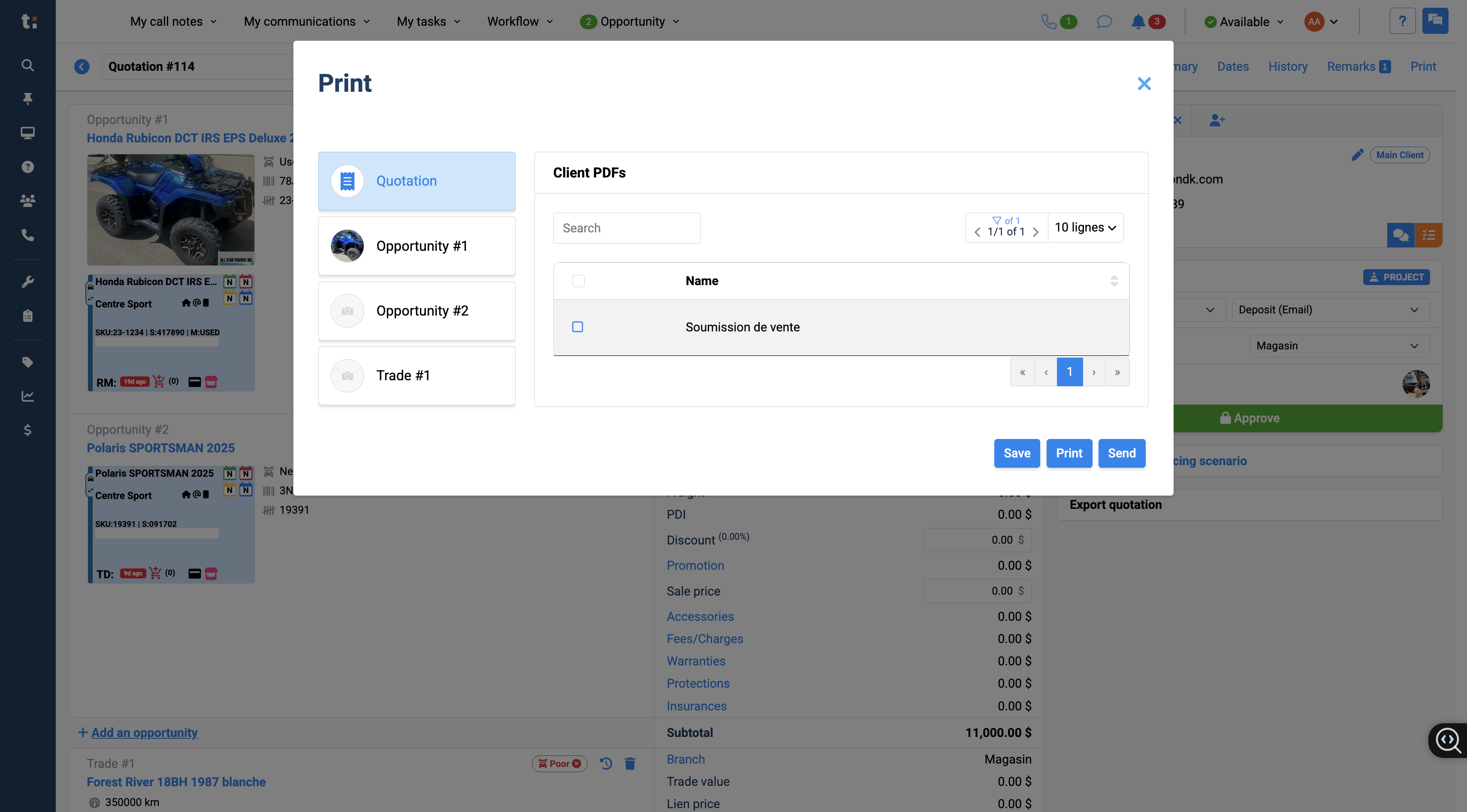
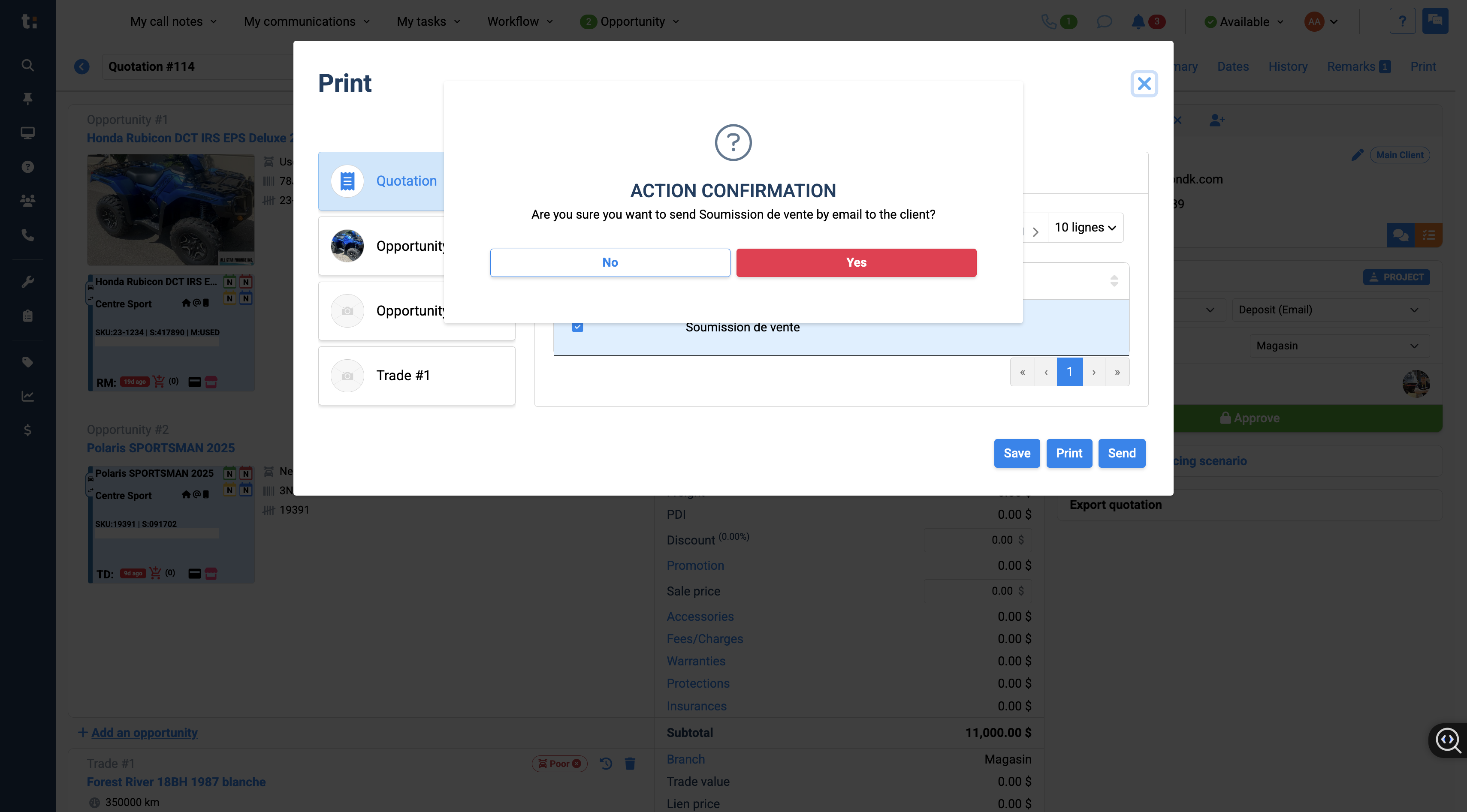
Once confirmed, click on ''Send''
You need to select Yes to send the email to your customer. Click Yes, and it will be sent.