How to Send Bulk SMS Messages to Customers
Learn how to send bulk SMS messages to your customers using the Communications module. Follow this step-by-step guide to select templates, add clients, and track your SMS delivery status.
By Dominik Black
In this guide, we'll learn how to send a bulk SMS to your customers using pre-written templates. This process helps you reach multiple clients at once, manage your contact list, and track the delivery status of your messages.
You'll also see how to add new customers, remove numbers, and review your SMS history for better communication management.
Let's get started
1
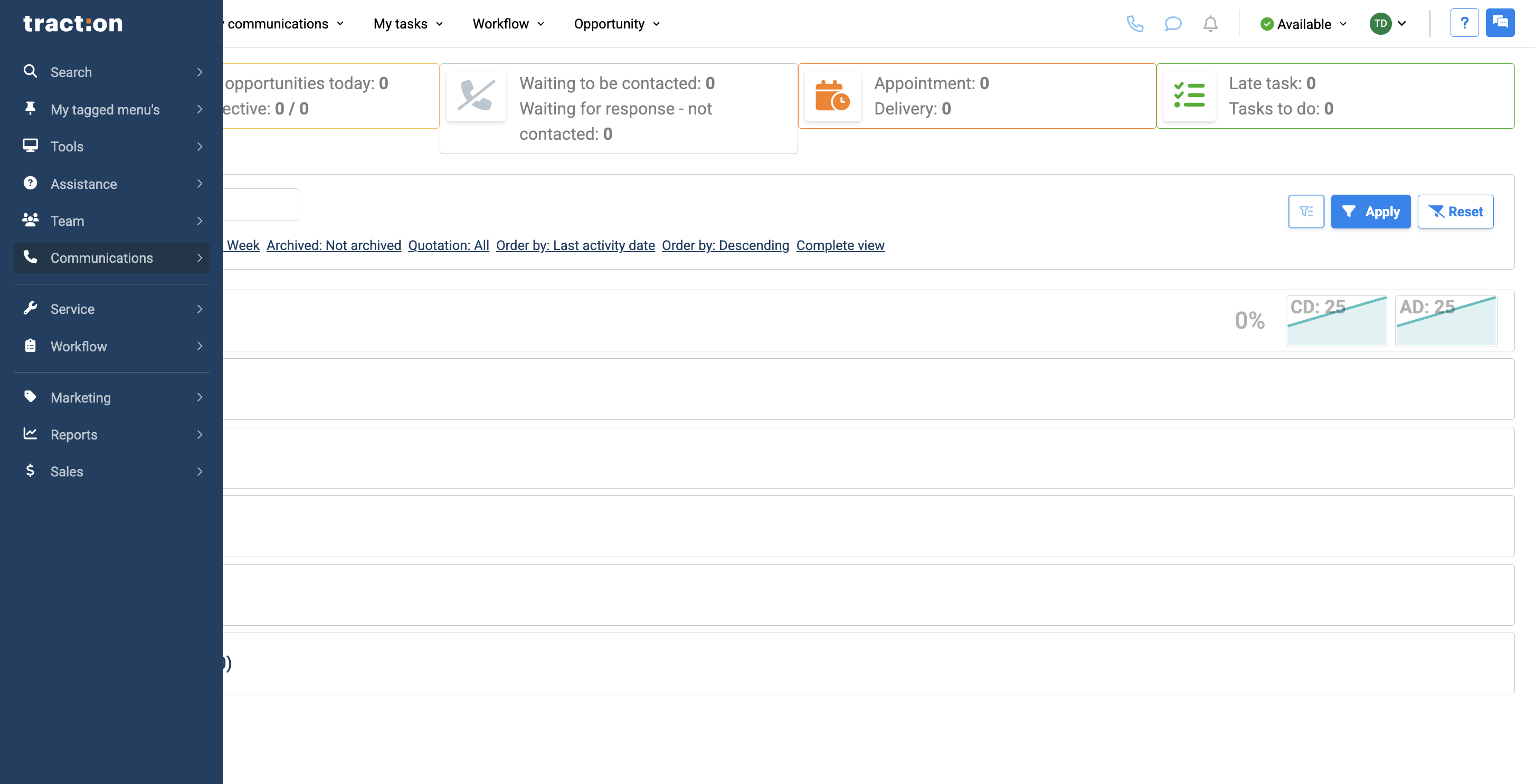
In this article, we will discuss how to send bulk SMS messages to your customers. First, open the menu and select Communications.
2
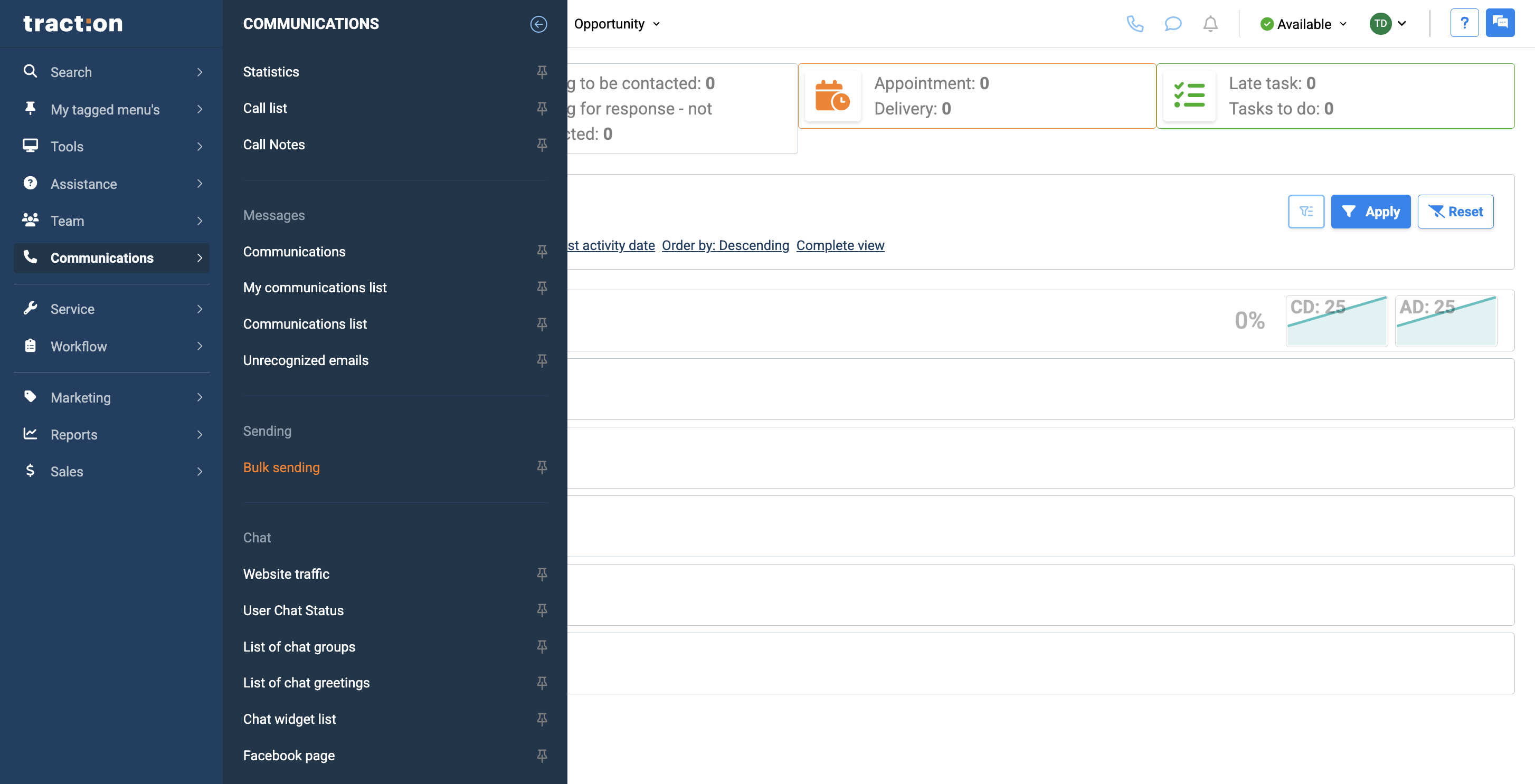
Next, scroll down and click on Bulk Sending.
3
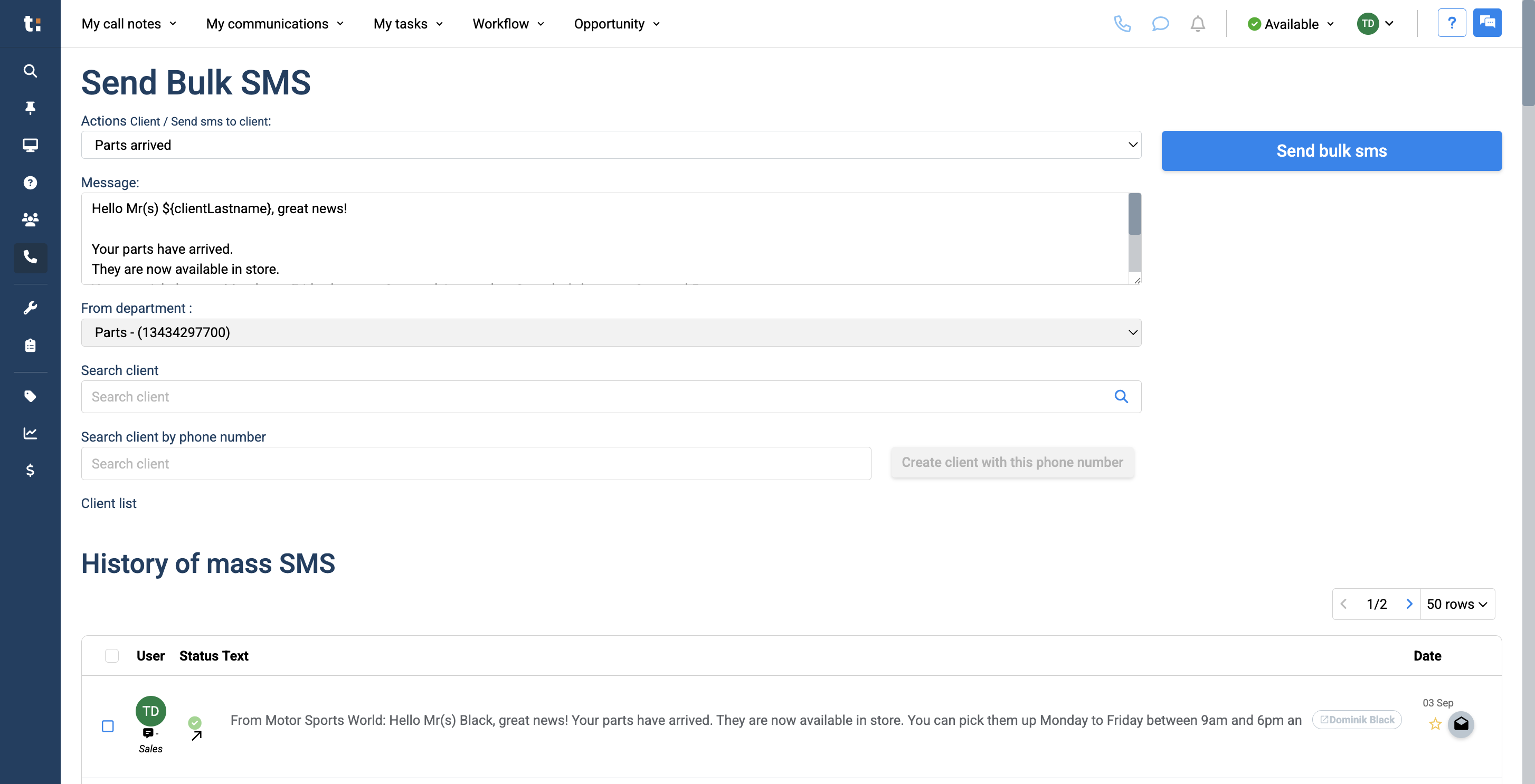
To send a bulk SMS, your message must be pre-written in your Actions module. From here, you can select any template you have created. In this case, we are using the "Parts Arrived" template. Your message will appear below, confirming what you are sending. You can also see the phone number the SMS is being sent from.
4
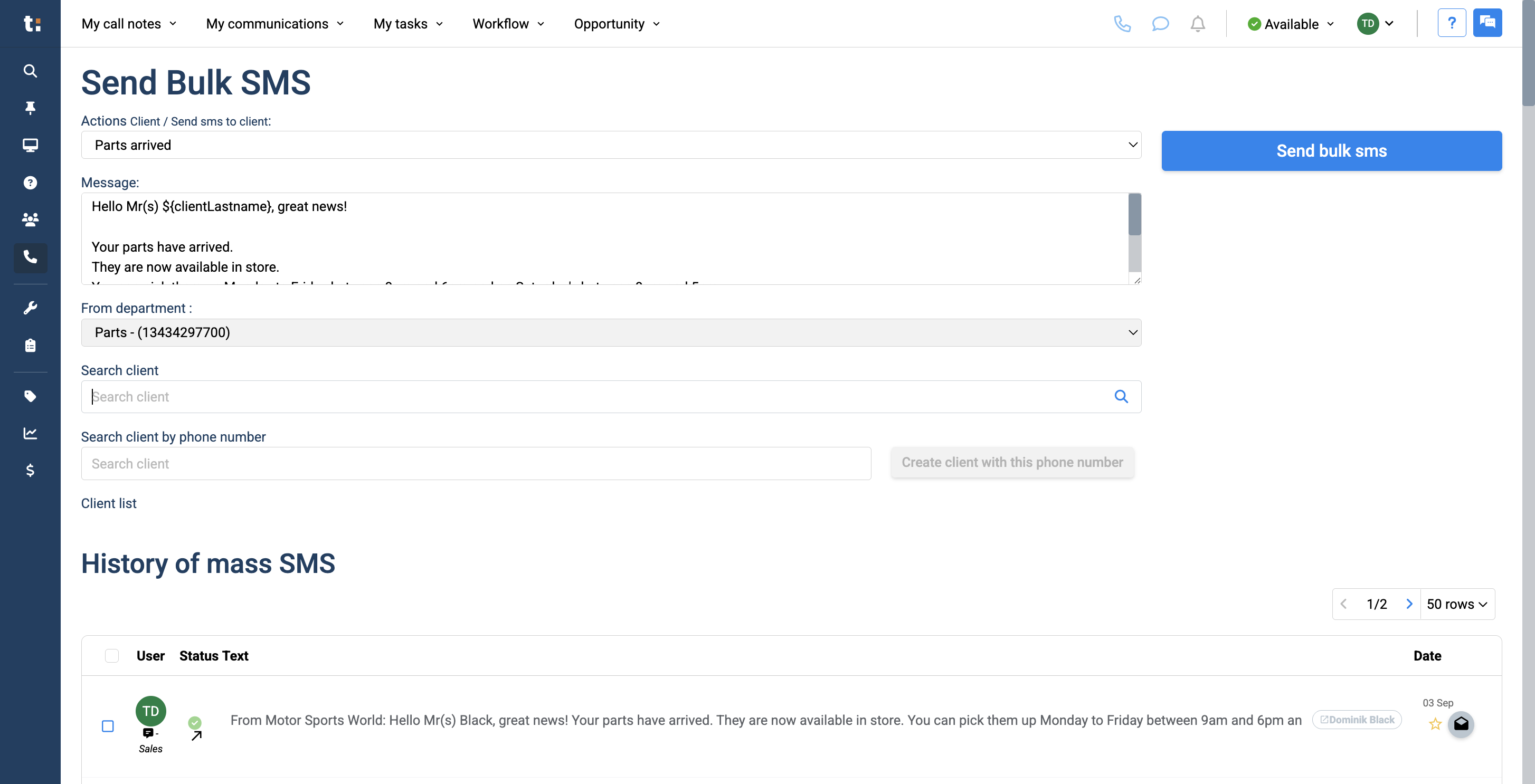
Just below, you can search for customers by name, number, ID, email, and more. Click on your customer to start a client list below.
Your customer appears in green to indicate that you can send an SMS to them. If your customer is marked as red, it means the order will not be delivered.
5
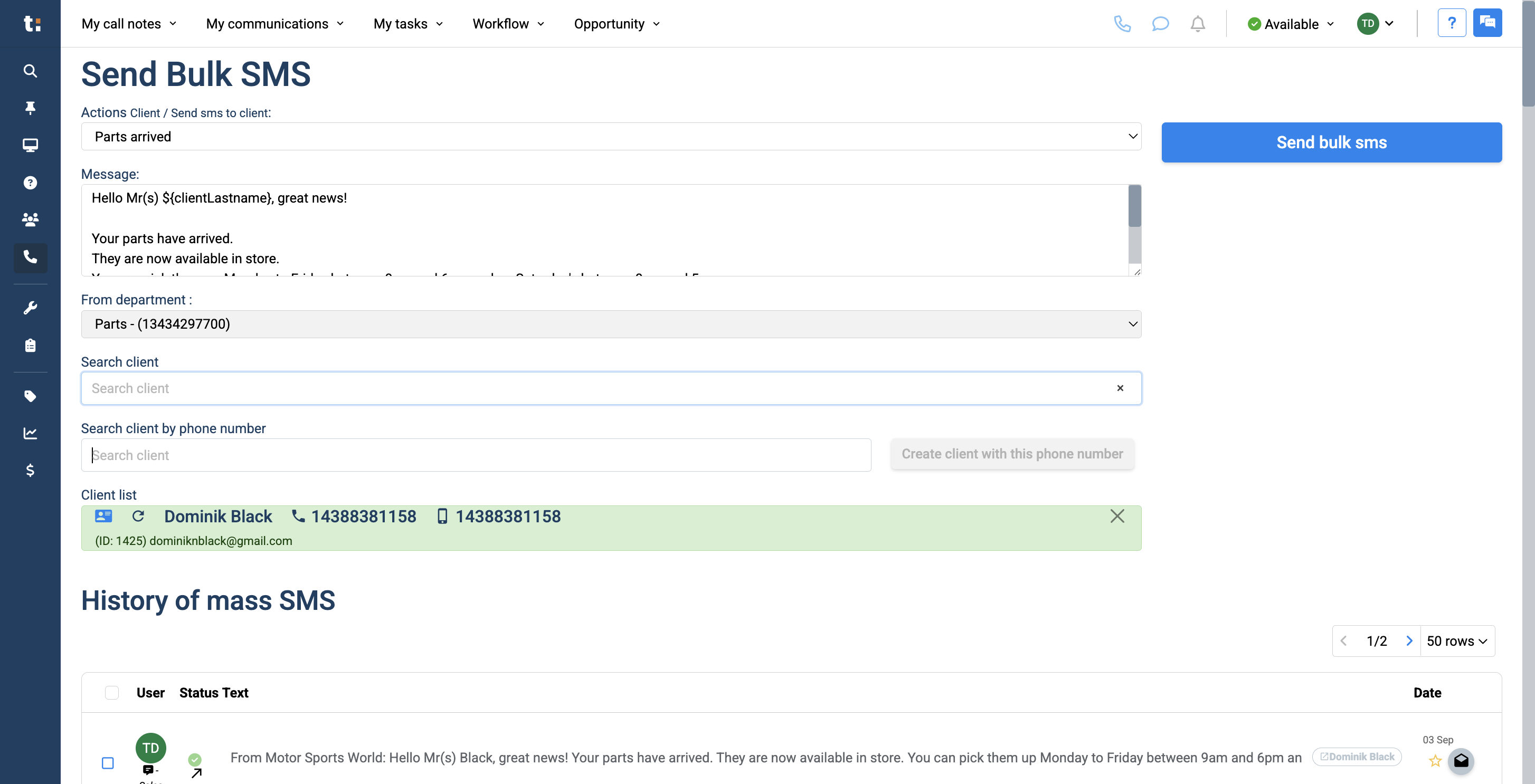
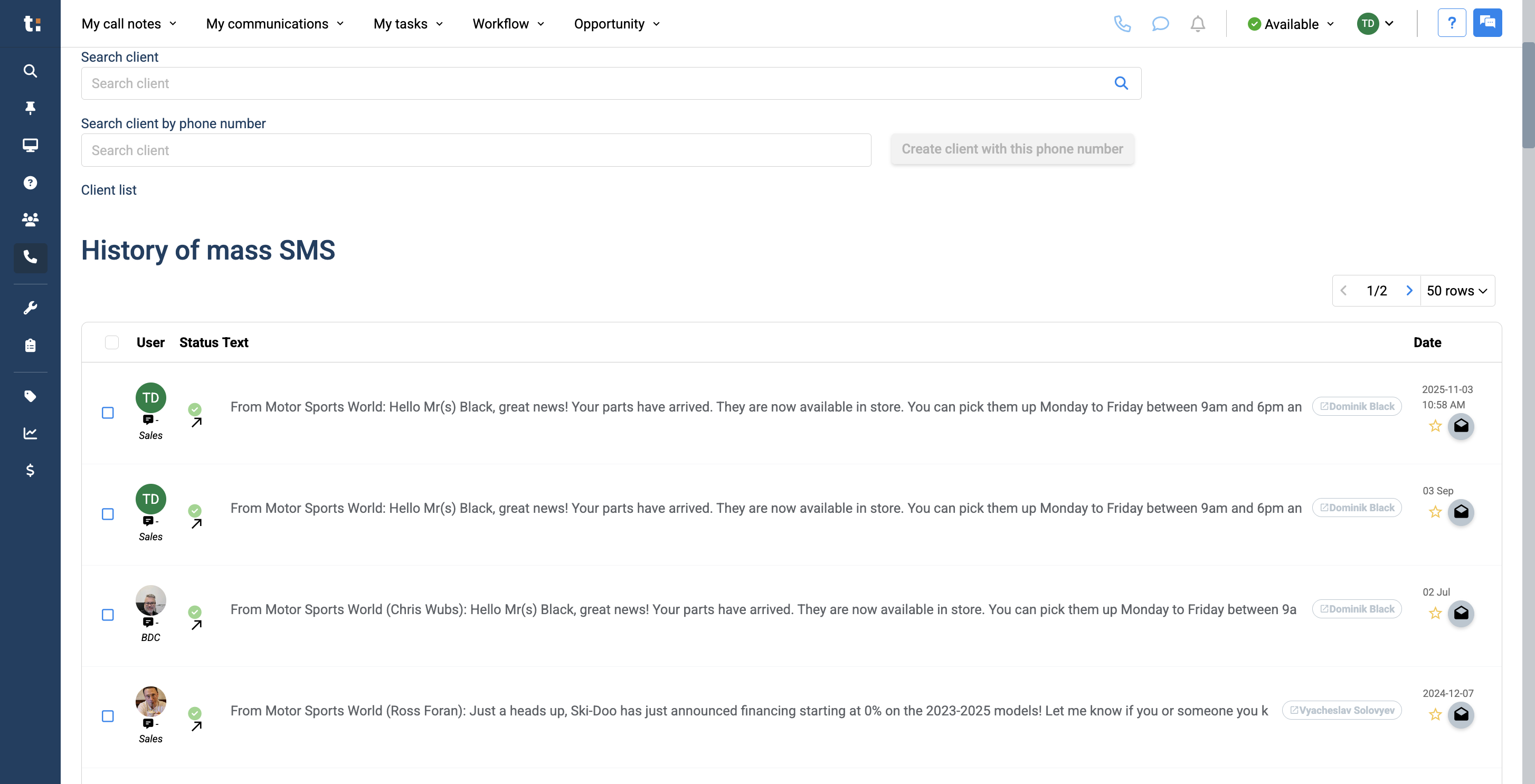
Here, you can search for a client by phone number or create a new client with a different phone number.
6
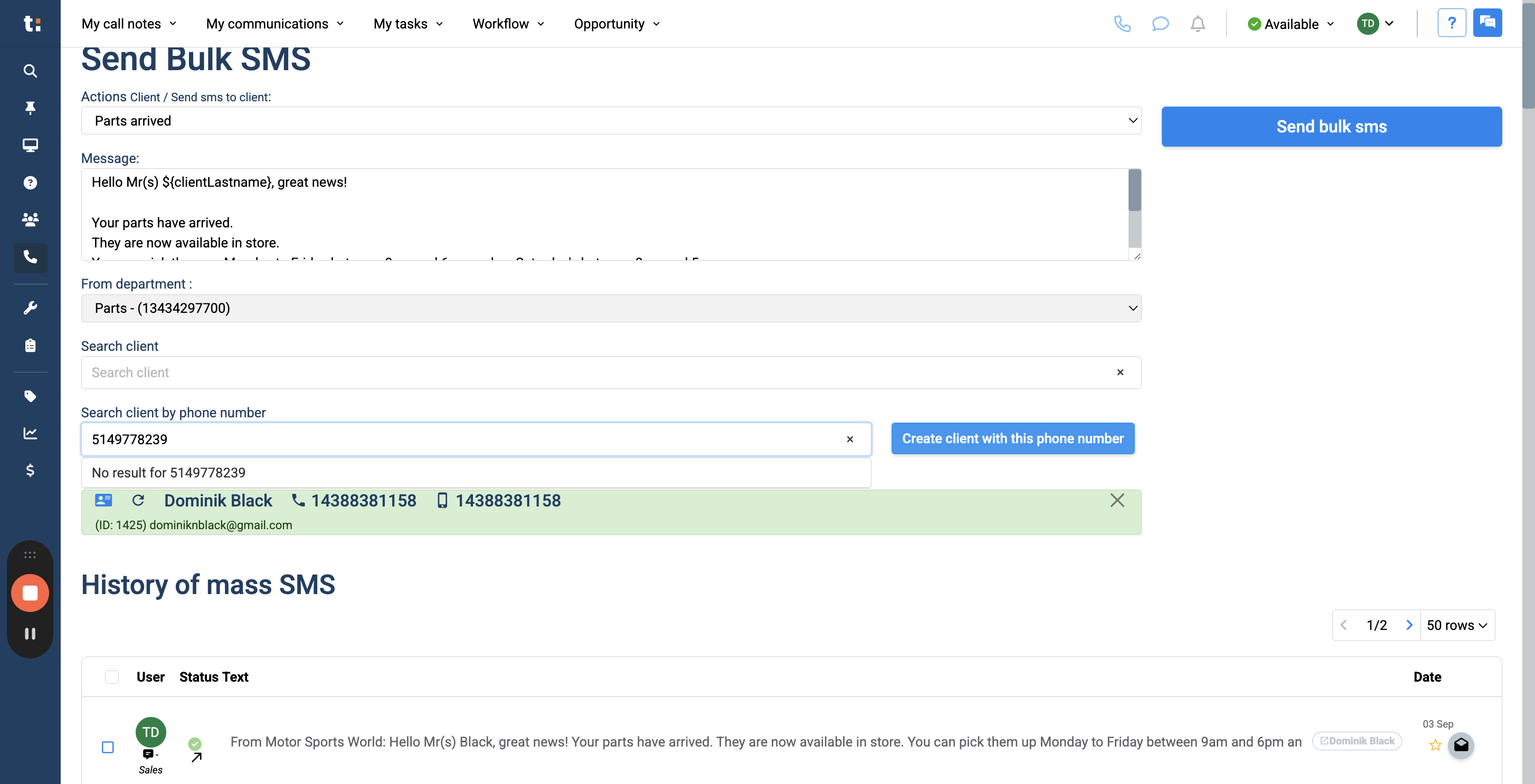
Enter the phone number you want to add, then click "Create Client With This Phone Number."
7
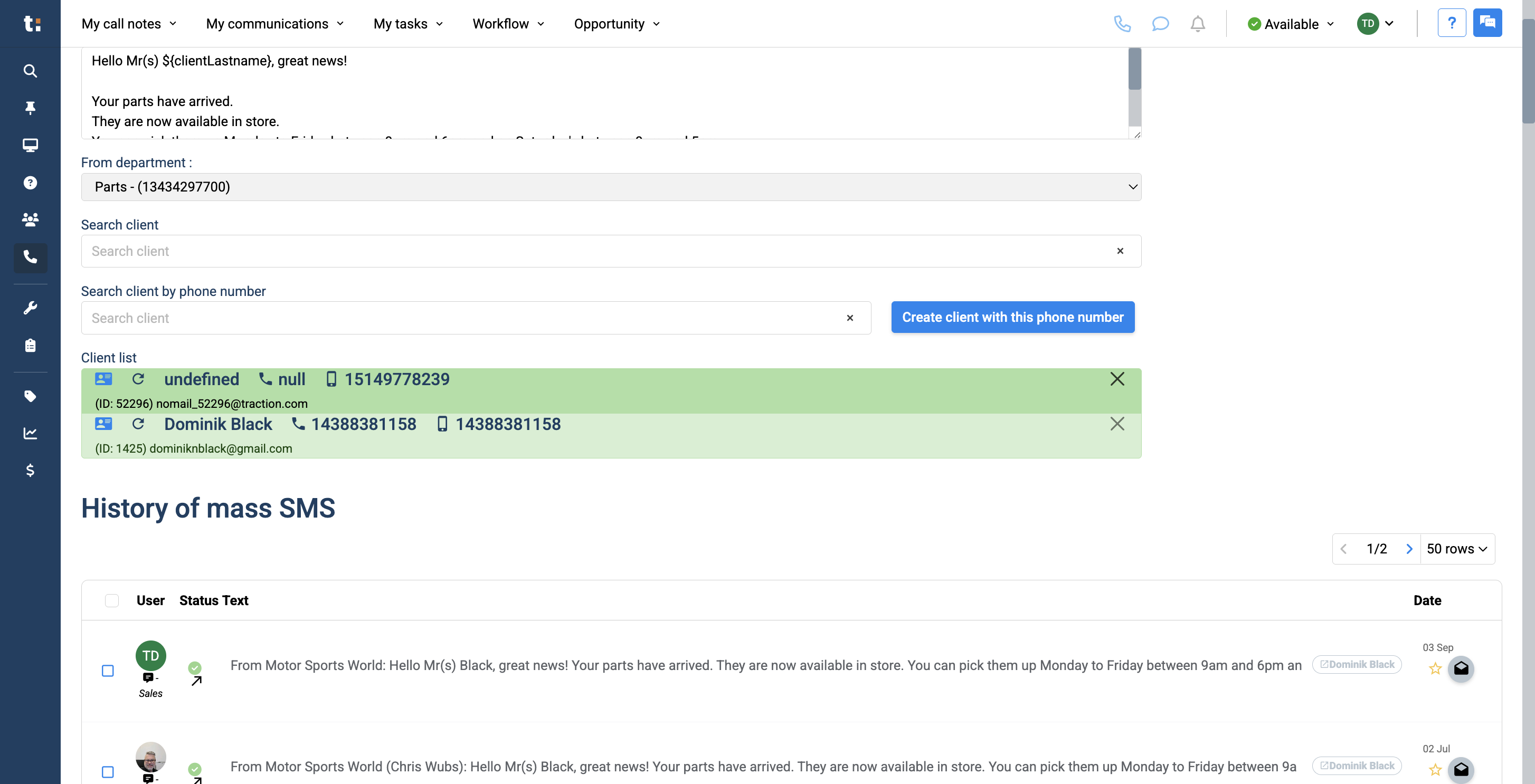
The phone number has been added to the list below. A customer file has also been created automatically in Traction with this phone number. To remove a number from your list, click the X.
8
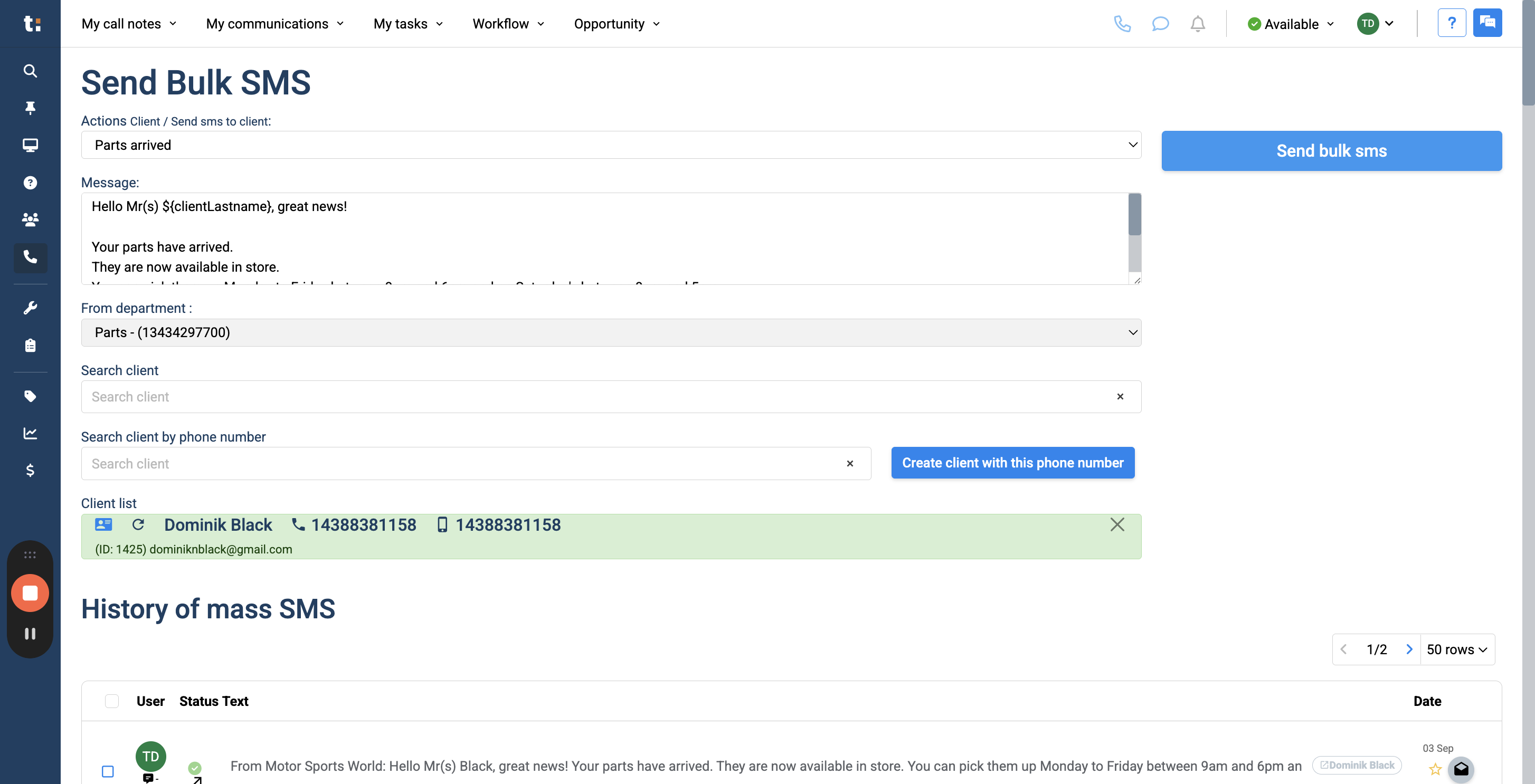
When you're ready to send your bulk SMS to the selected clients, click the large blue "Send Bulk SMS" button.
9
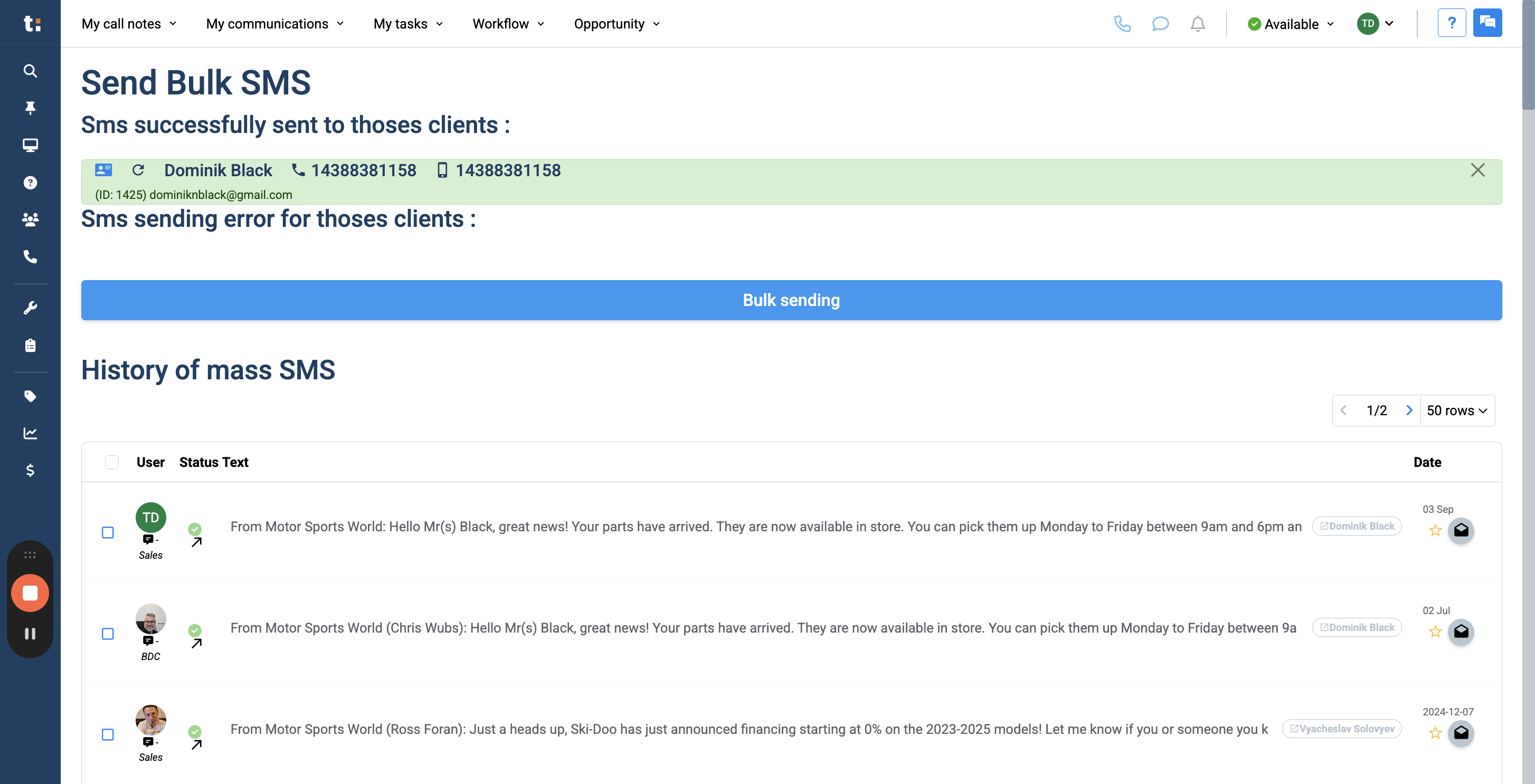
Once you’ve completed this, you’ll see which SMS messages were successfully sent to clients and which had errors. Click on Bulk Sending to return to your main page.
10
Below, you'll see the complete history of your mass SMS messages. You’ll see the complete list and the status of the text.
If you still have questions after consulting this article, please feel free to contact our support team at: support@tractiondk.zohodesk.com