Icon

How to Set Gutter and Outside Margins in Canva for Book Layouts

Learn step-by-step how to set gutter and outside margins in Canva for double-sided book layouts. This guide covers margin measurements, using rulers and guides, and tips for precise alignment to ensure your book looks professional.

By Robin Dickinson

In this guide, we'll learn how to set gutter and outside margins for a book layout in Canva. Setting correct margins is important to ensure your content is readable and looks organized when printed. We will cover how to use rulers and guides, lock them in place, and adjust page elements so that each page aligns with the correct margin, depending on whether it is an odd or even page.

Let's get started

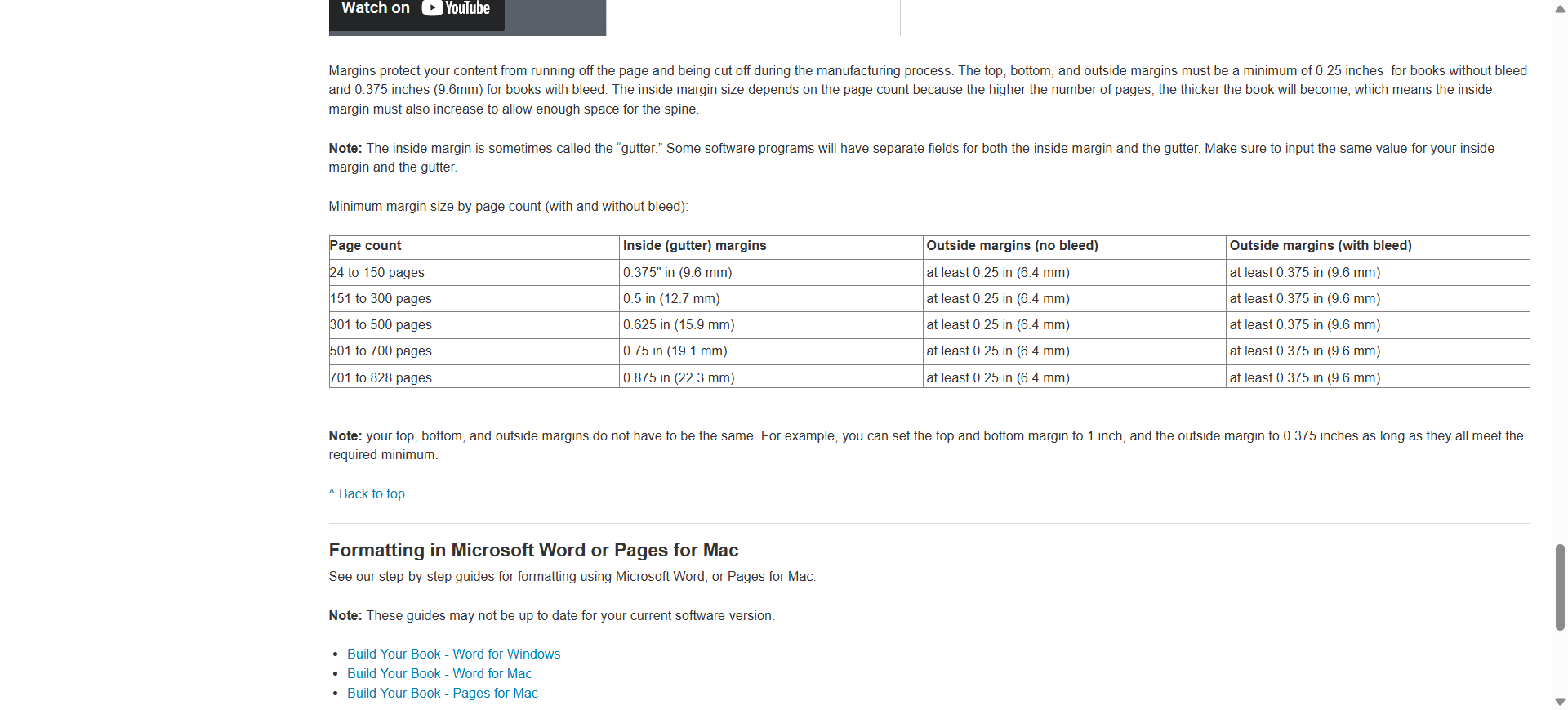
This guide will show you how to set the gutter and outside margins in Canva, which can be a bit tricky. For the current book, take the total number of pages and divide by two. So it's... I don't remember exactly, but it was about 180 pages. We divide by two since it's double-sided, so that's around 90 pages. We will have about 90 pages in this book.
2
The inside gutter should be about 0.375.
Step #2: The inside gutter should be about 0.375.

3
The outside margin must be at least 0.25.
Step #3: The outside margin must be at least 0.25.

I'll use the next size up for measurements because they're easier math. Generally, making the gutter margin larger is fine and still looks good. The only problem is that when you make it smaller, it starts to look crowded.
4
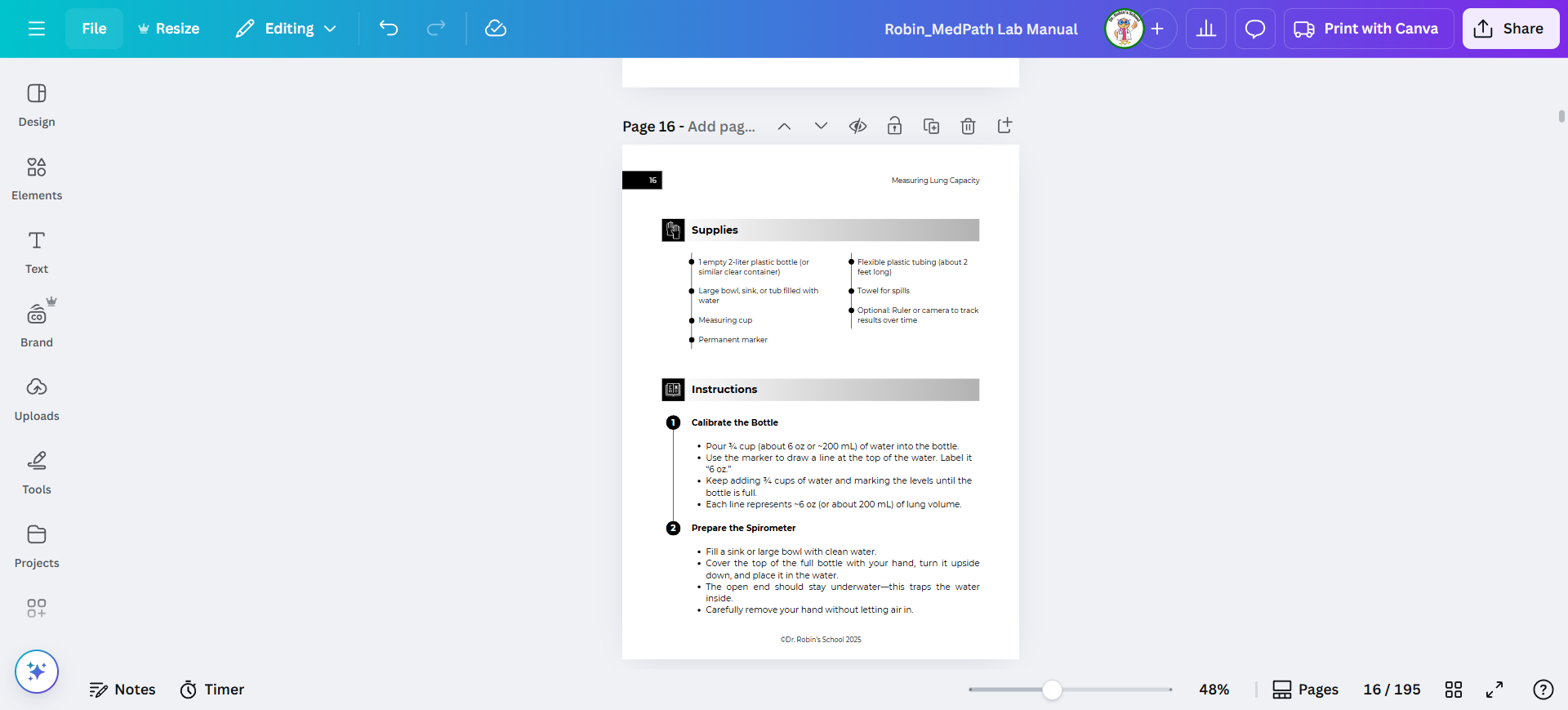
Next we open Canva. First, we need to mark the margins.

5
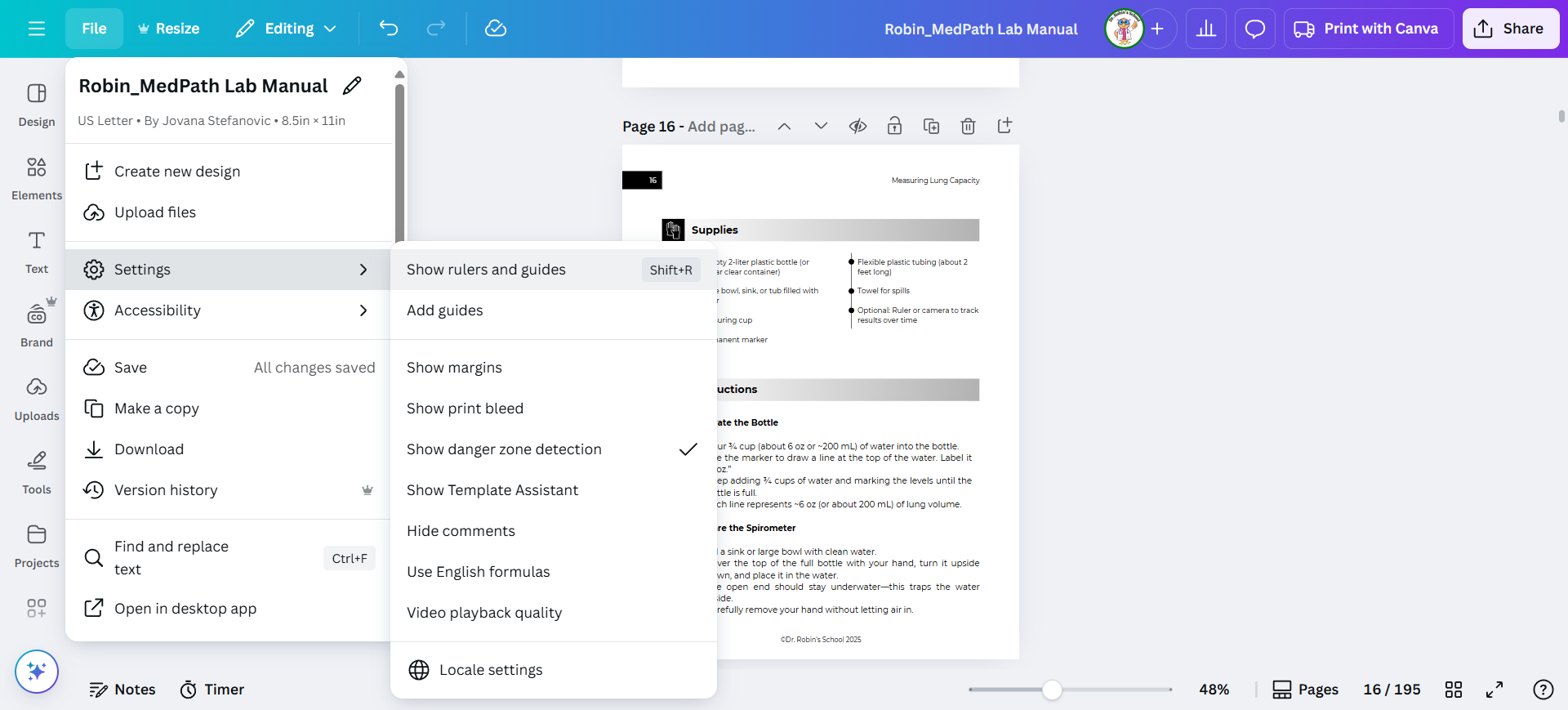
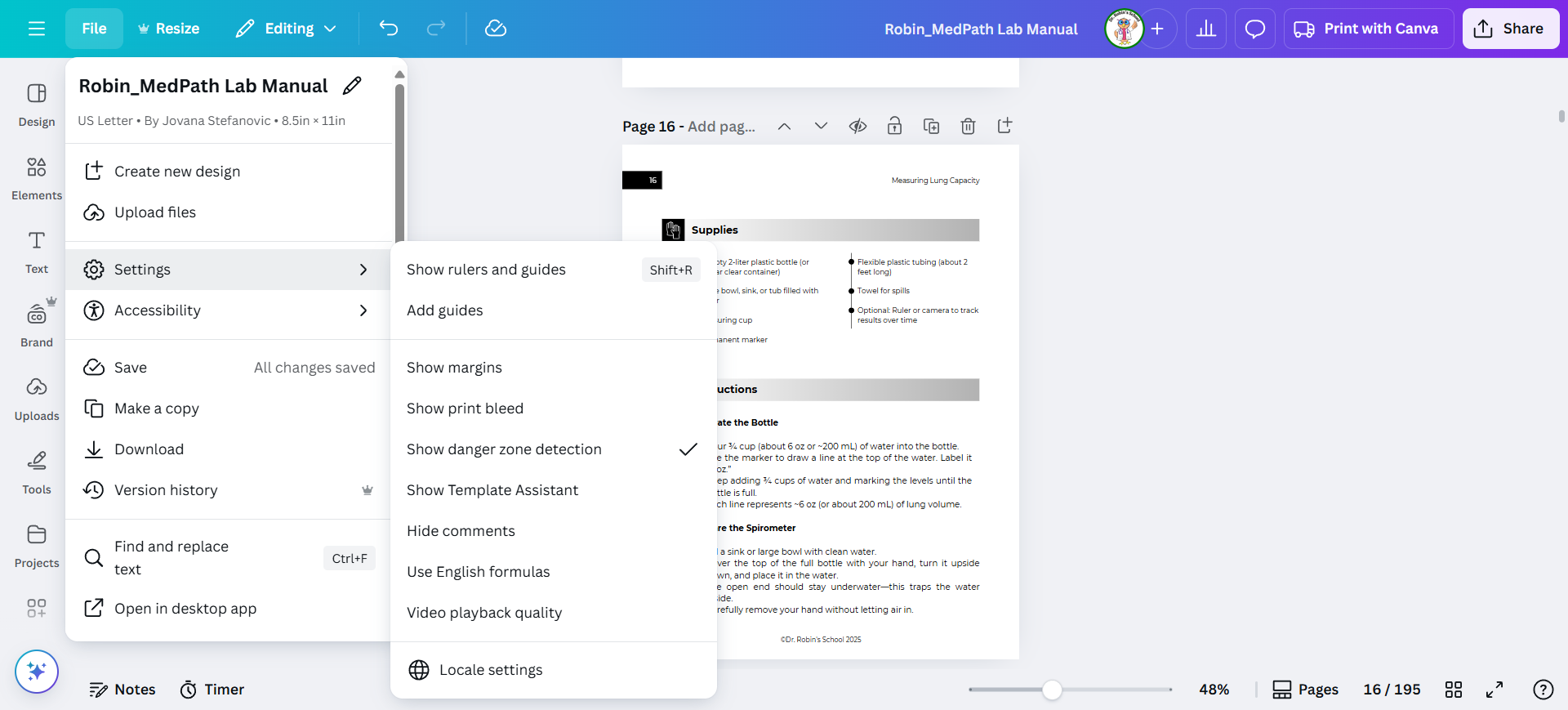
Go to File, then Settings, and click on Show Rulers and Guides.
Step #5: Go to File, then Settings, and click on Show Rulers and Guides.
6
Settings
Step #6: Settings

7
Show rulers and guides
Step #7: Show rulers and guides

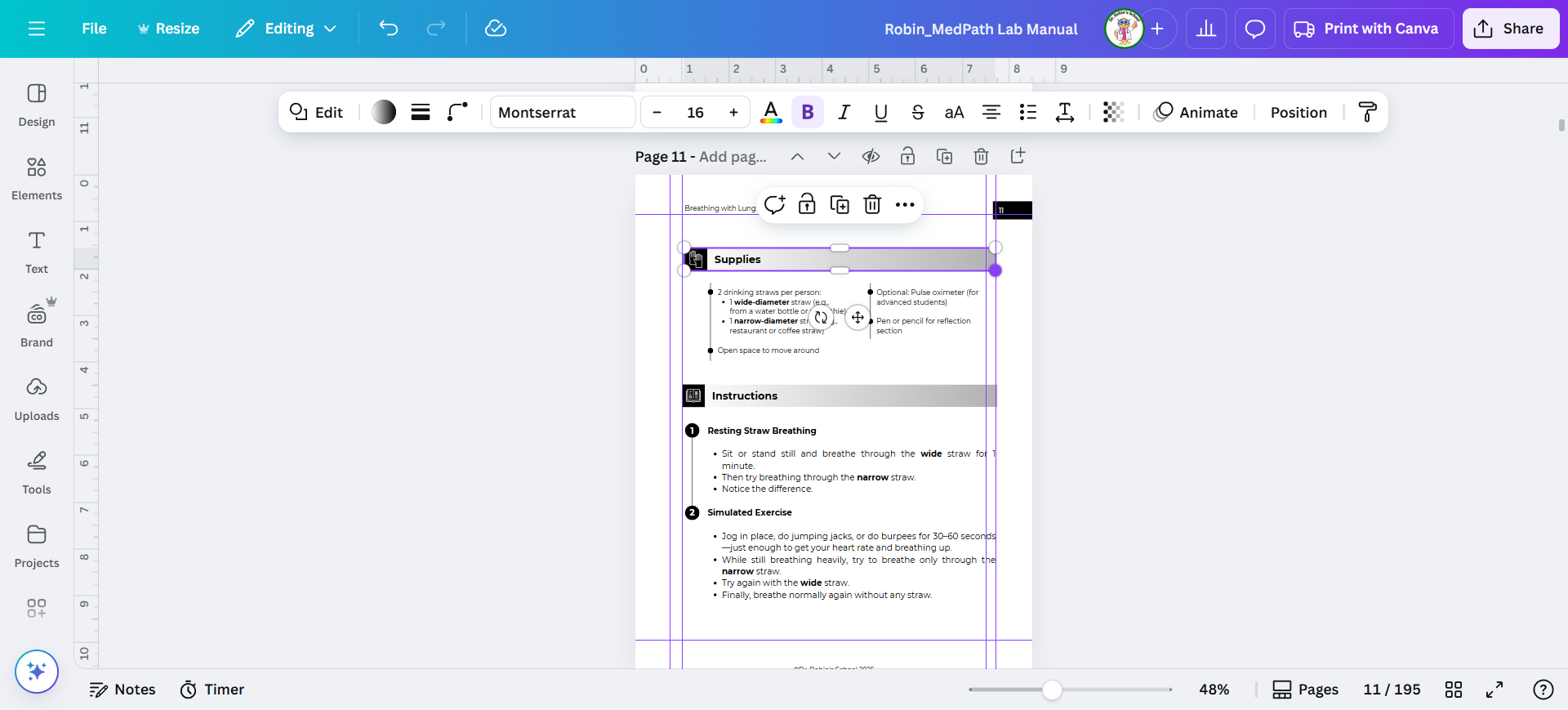
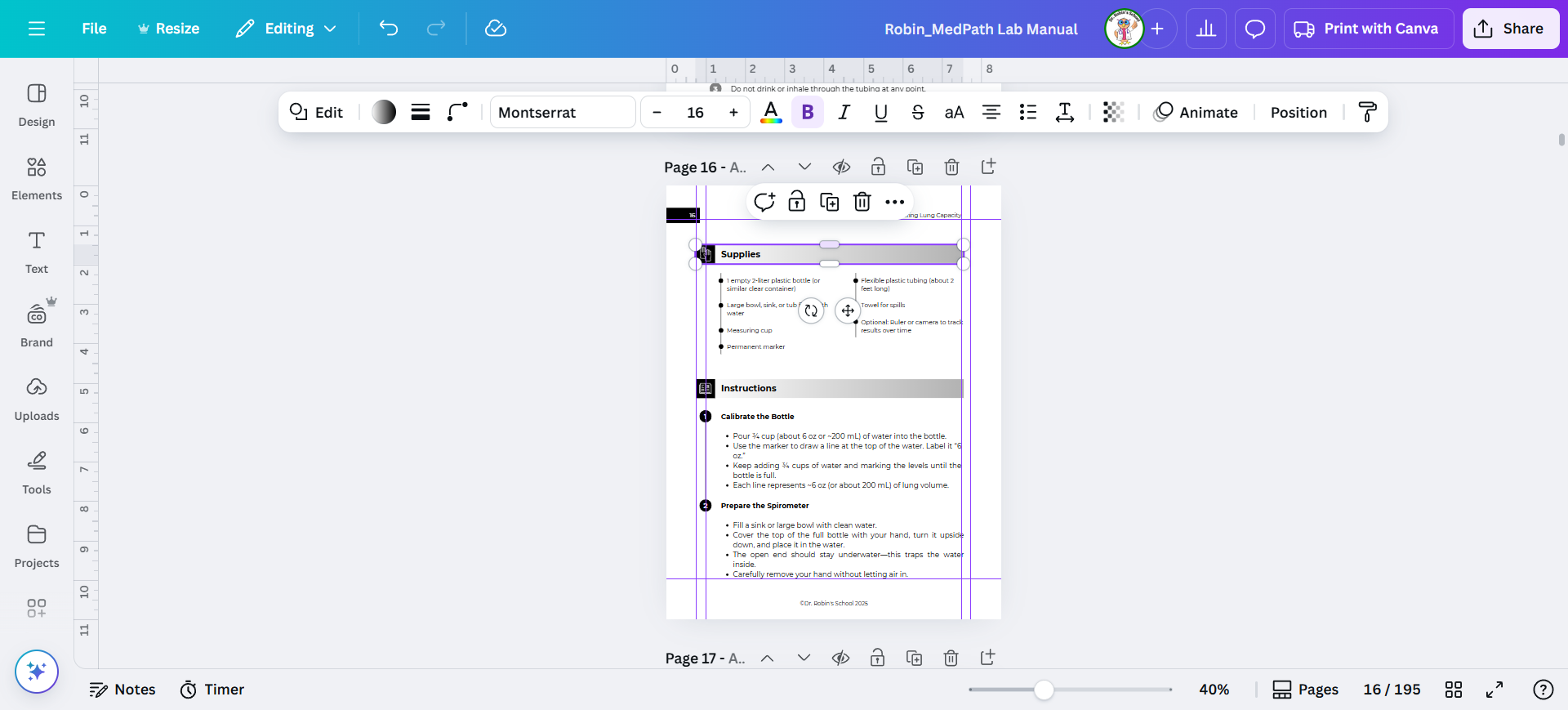
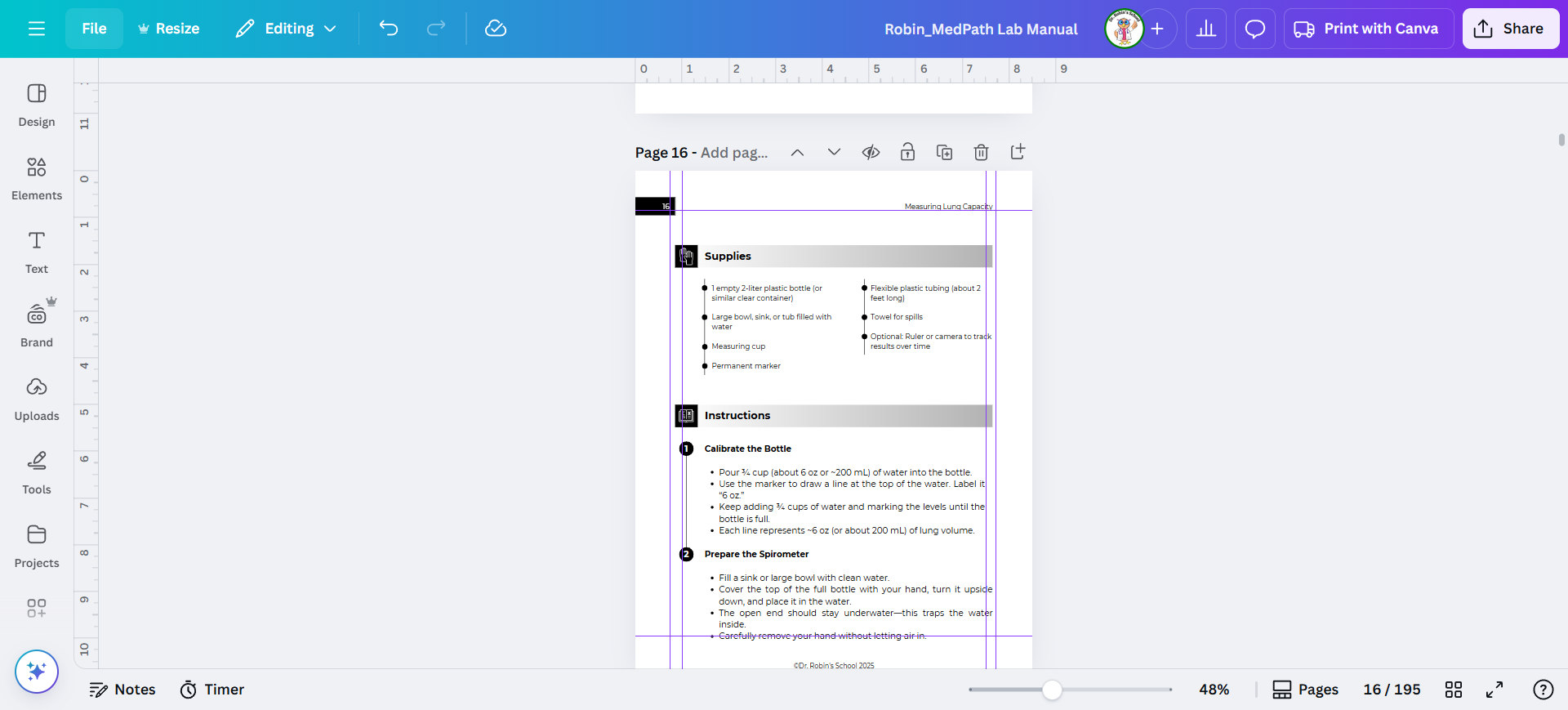
Now you drag from the rulers at the top and left to put the guides where you want them.

The easiest way to position them is to zoom in very closely, so you can place them precisely where you want.

I also want to point out that you can lock them. This is really important so that once you have them in the right place, you don't accidentally move them and then let out a bloodcurdling cry that brings your children running to see what's wrong.
8
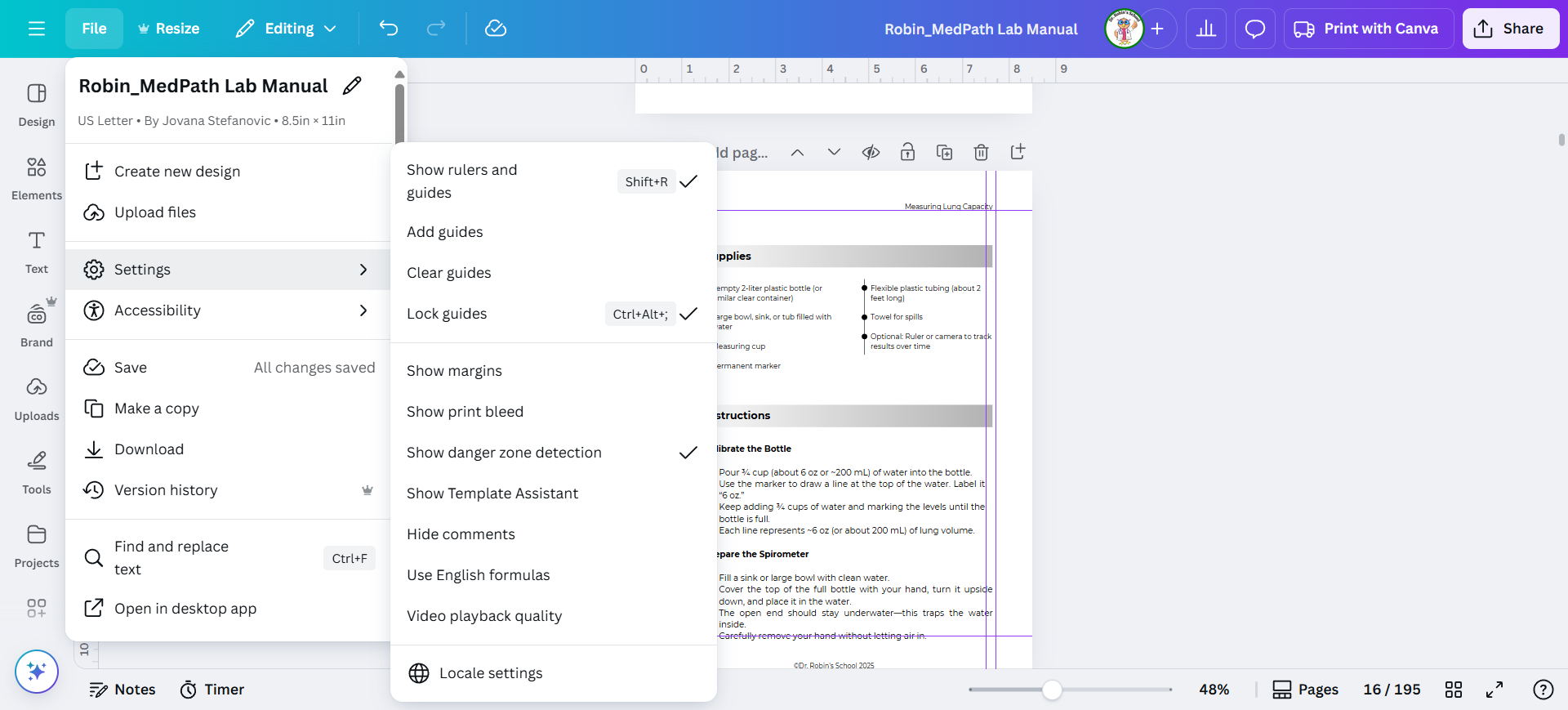
Click on "File"
Step #8: Click on "File"
9
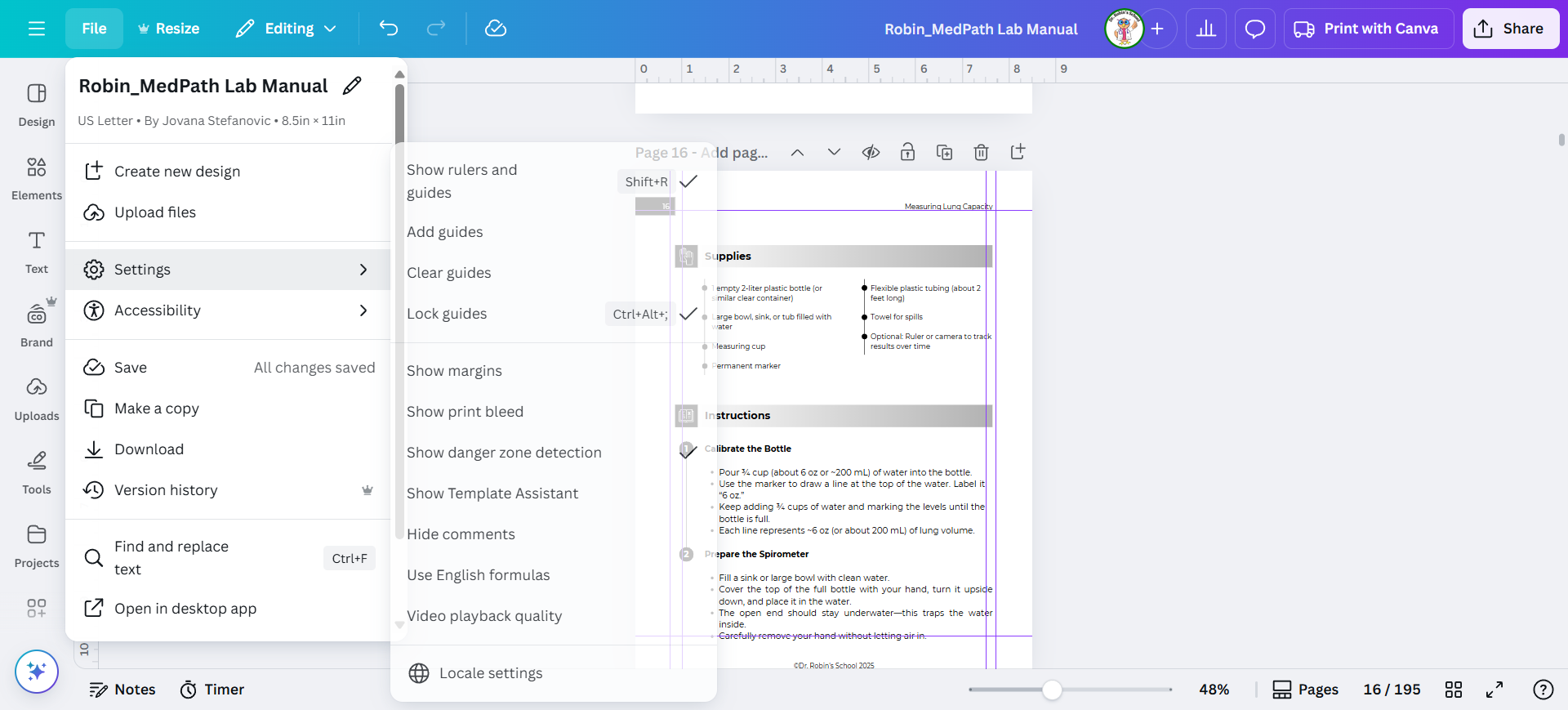
Click on settings and then click on "Lock guides."
Step #9: Click on settings and then click on "Lock guides."

Now you can go ahead and start adjusting the elements on the page without accidentally moving the guides.
10
I set mine to 0.75" and 1". It's important to set them on both the right and the left. Math it to make sure you get it right. So from the right hand side it would be 8.5-0.75=7.75. But remember it will be bigger if you have more pages.
Step #10: I set mine to 0.75" and 1".  It's important to set them on both the right and the left.  Math it to make sure you get it right.  So from the right hand side it would be 8.5-0.75=7.75. But remember it will be bigger if you have more pages.

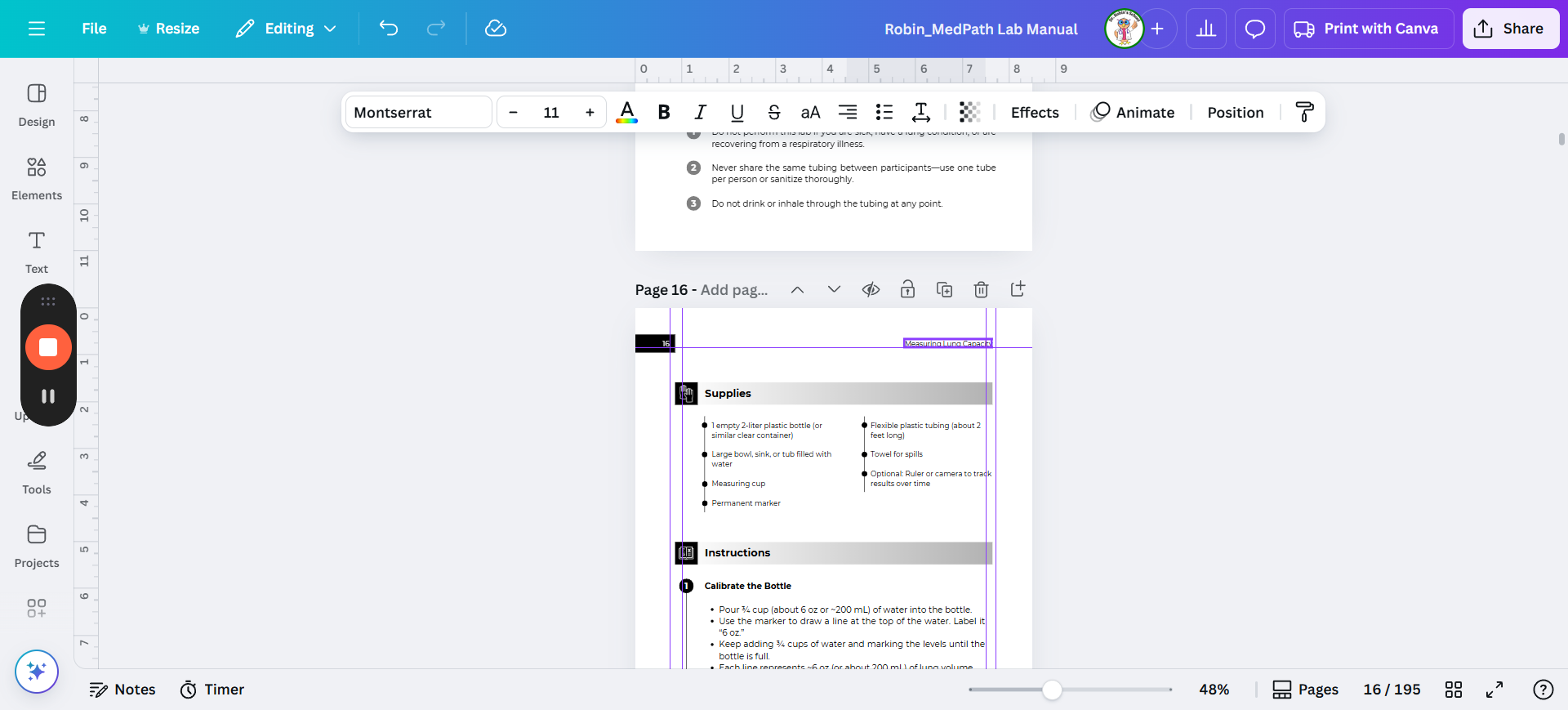
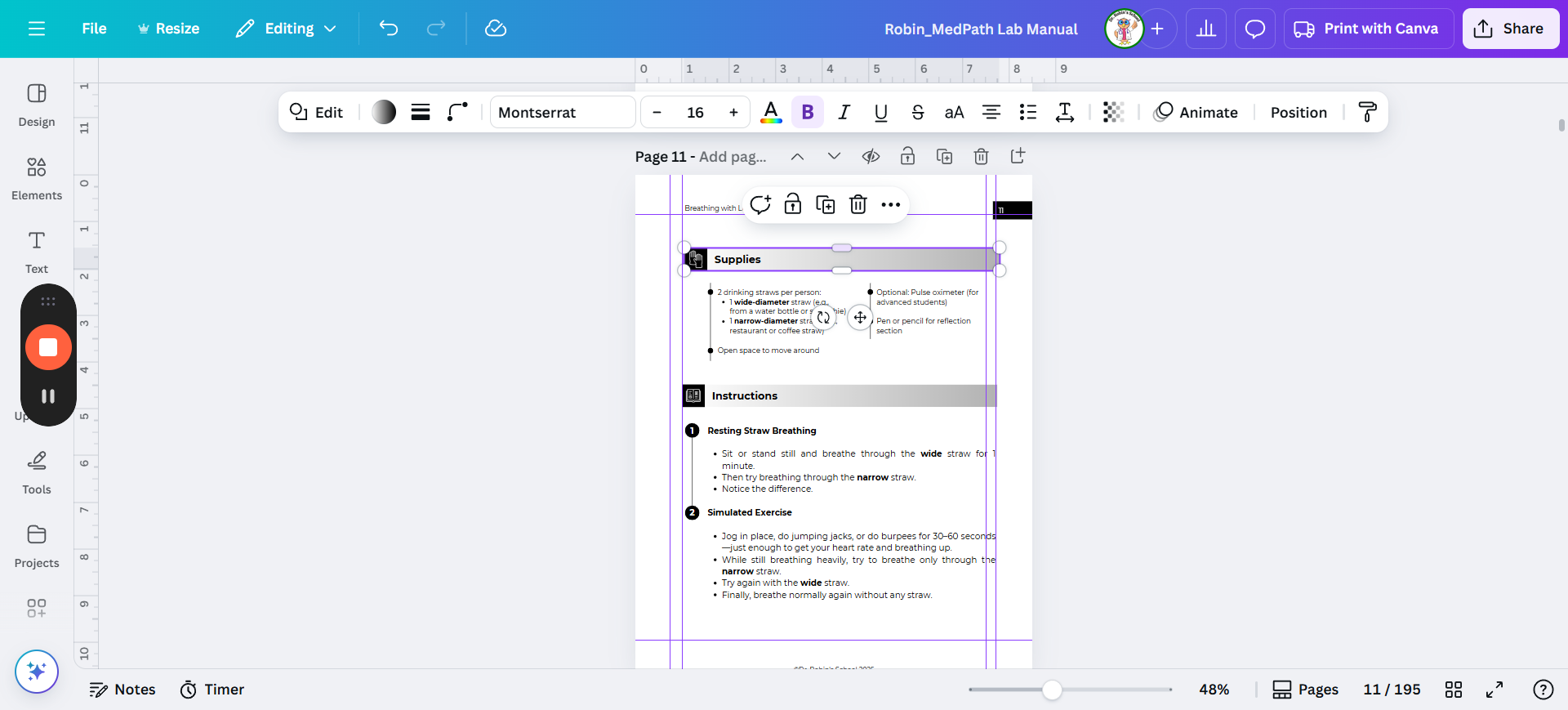
Now, when we look at the pages I've already done, you can see that each page is shifted. Page one is shifted to the right because the margin and binding will be on the left for the text.

The next page will be shifted to the left.

I remember it this way: odd numbers go to the right, and "right" has an odd number of letters. Even numbers go to the left, and "left" has an even number of letters.

Alternatively, you can simply alternate right and left, which is also a valid option.

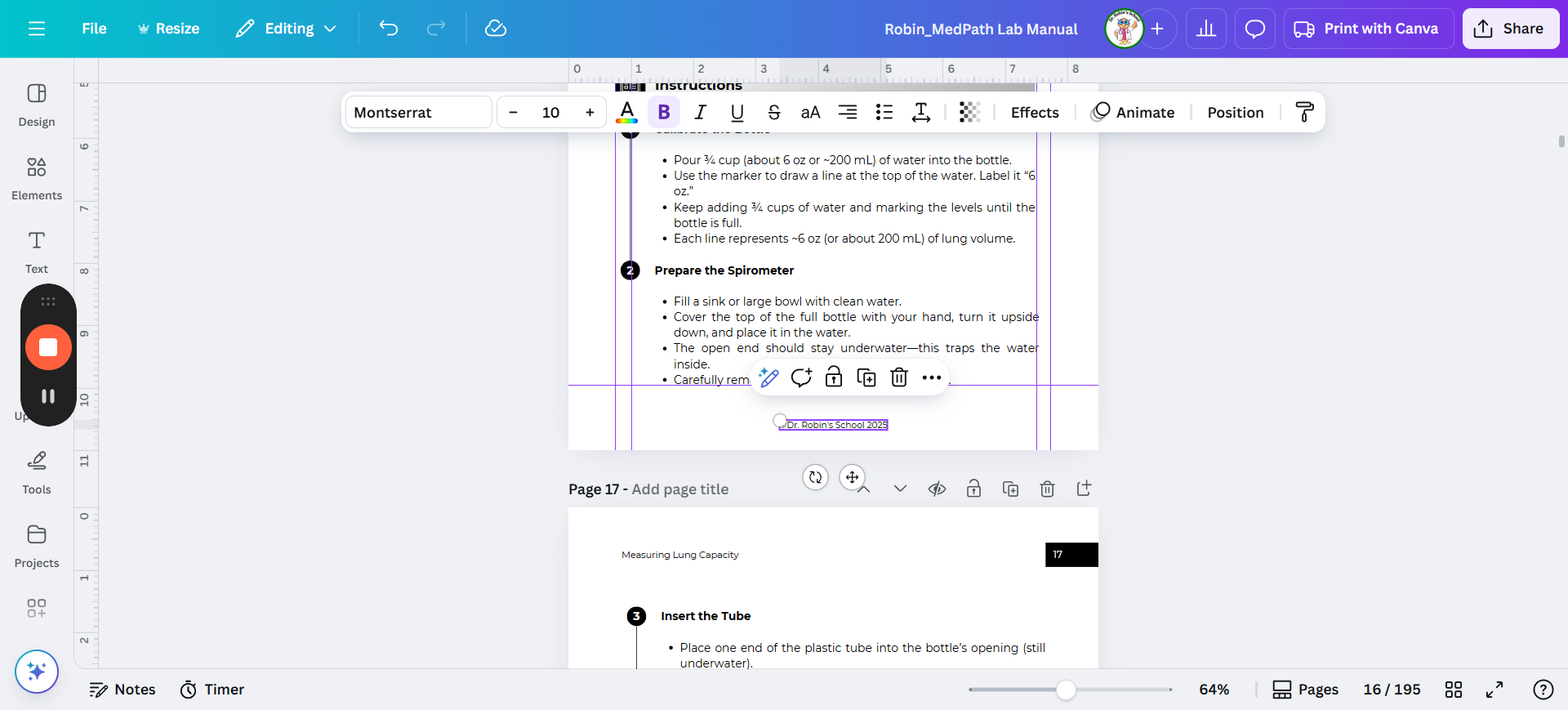
As you go through, note that the copyright at the bottom will almost always be in the wrong place. I left this one because I fixed it, but I will delete all the others that say copyright. We will fix that later.
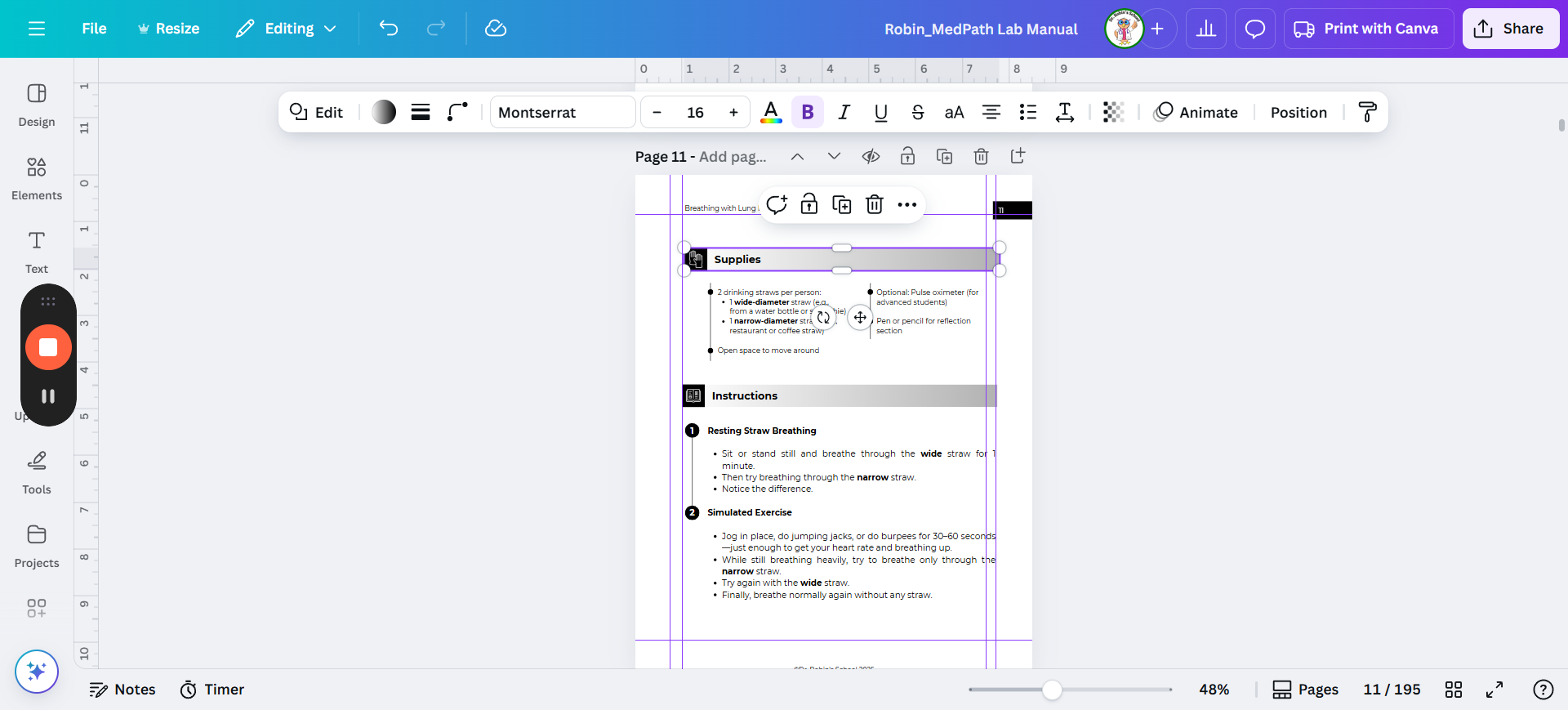
11
One way to adjust this is to click on the element and then adjust the size to line up.
Step #11: One way to adjust this is to click on the element and then adjust the size to line up.
12
Make sure to grab the side and not the corner.
Step #12: Make sure to grab the side and not the corner.

13
Don't do the corner like this because you might make the letters too small and the proportions incorrect. Especially with words, adjust the side margins.
Step #13: Don't do the corner like this because you might make the letters too small and the proportions incorrect. Especially with words, adjust the side margins.

14
Make sure to shift the title at the top of the page. Odd right, even left.
Step #14: Make sure to shift the title at the top of the page.  Odd right, even left.

15
So here's a page we need to shift to the left margin. Shift the title.
Step #15:  So here's a page we need to shift to the left margin. Shift the title.

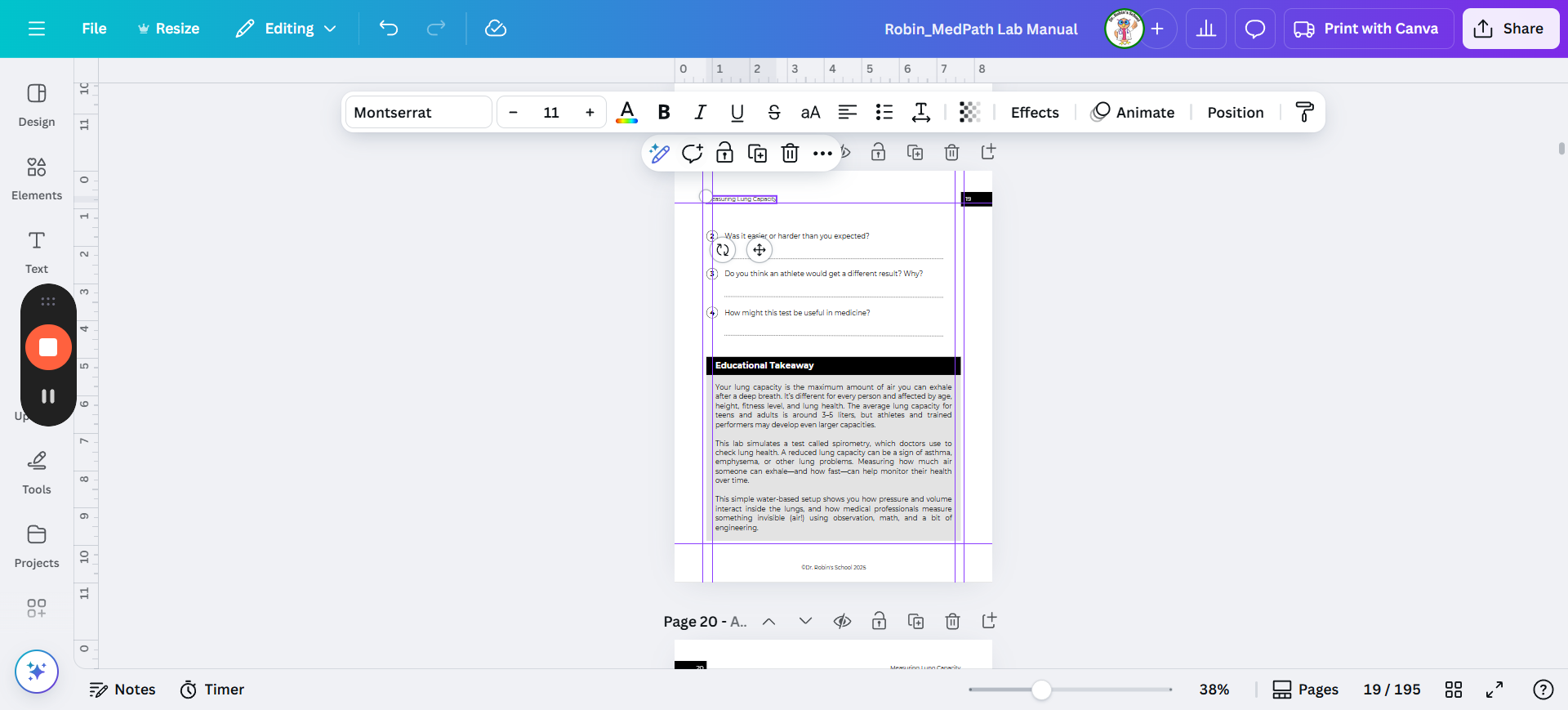
Sometimes, you have multiple elements. I like to zoom out slightly to see the entire area, then select it.
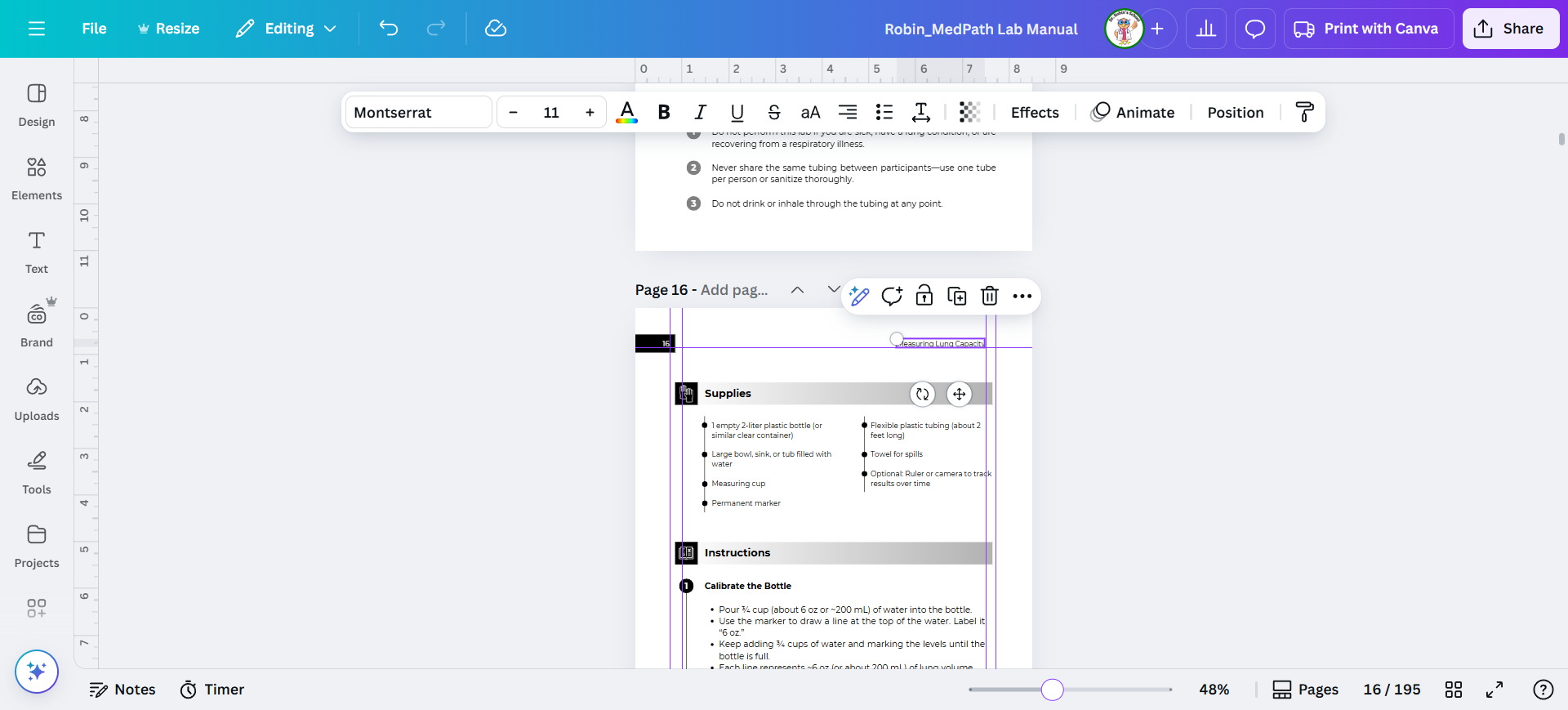
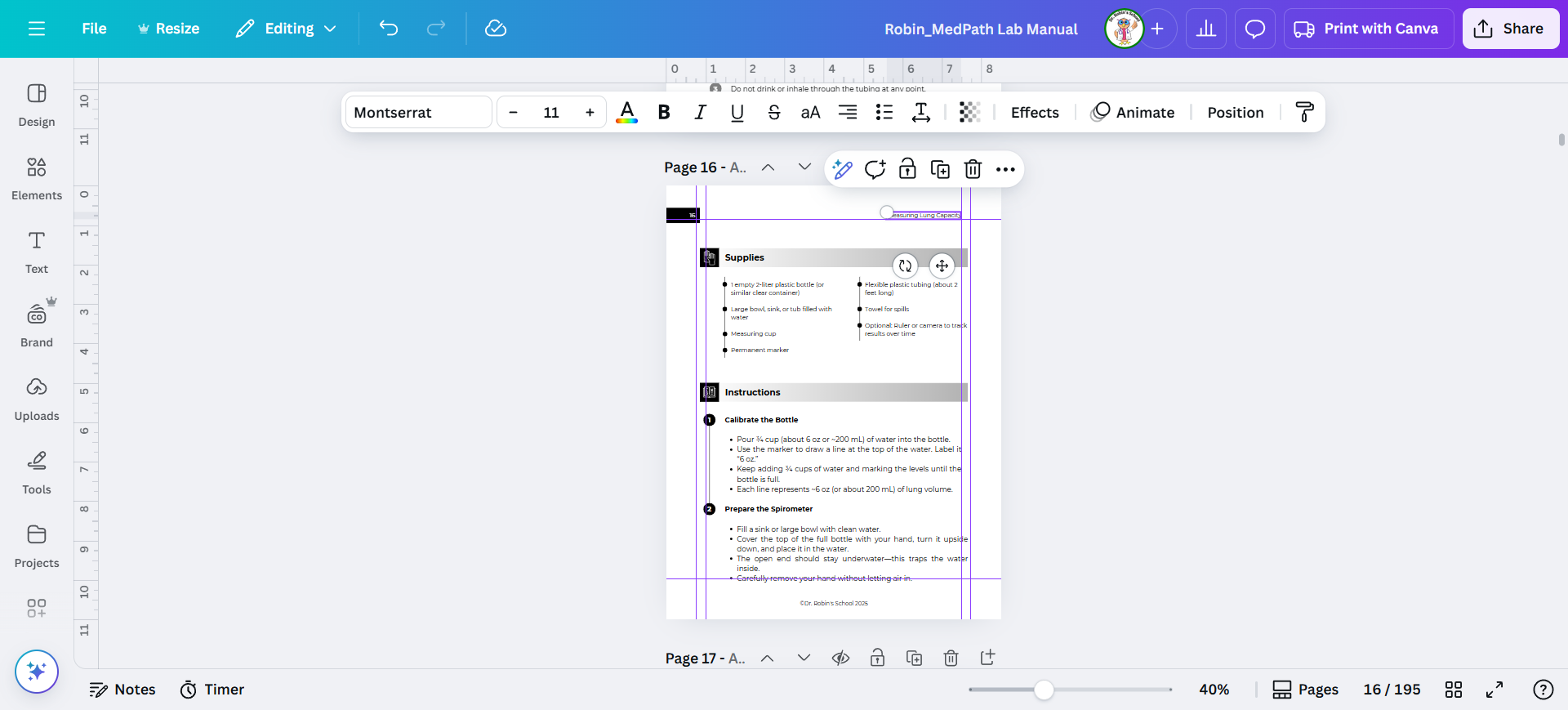
16
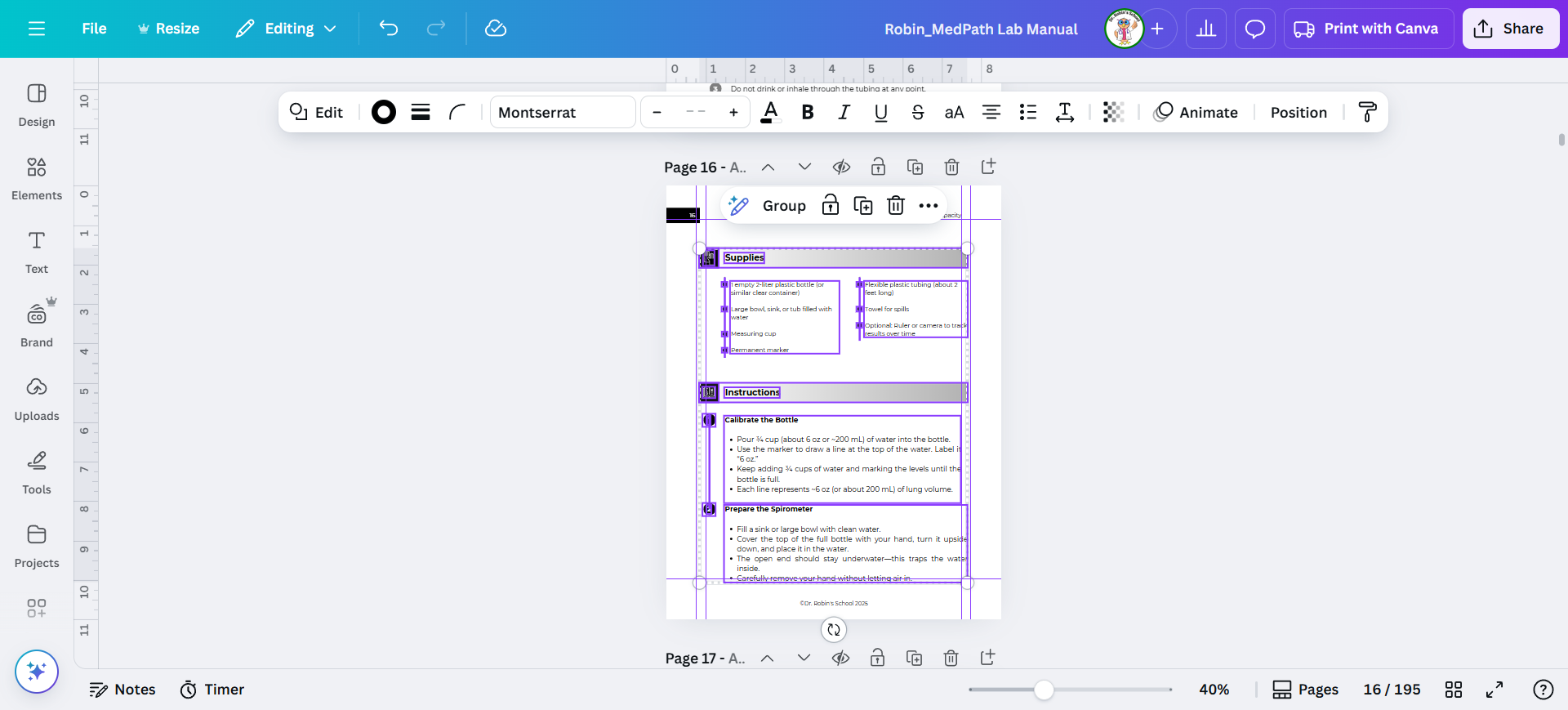
If you tried to move these individually, you'd mess up all the alignment so don't do that! Instead select everything except the page number by highlighting it all with the mouse. You may need to zoom out to do that.
Step #16: If you tried to move these individually, you'd mess up all the alignment so don't do that!  Instead select everything except the page number by highlighting it all with the mouse. You may need to zoom out to do that.

17
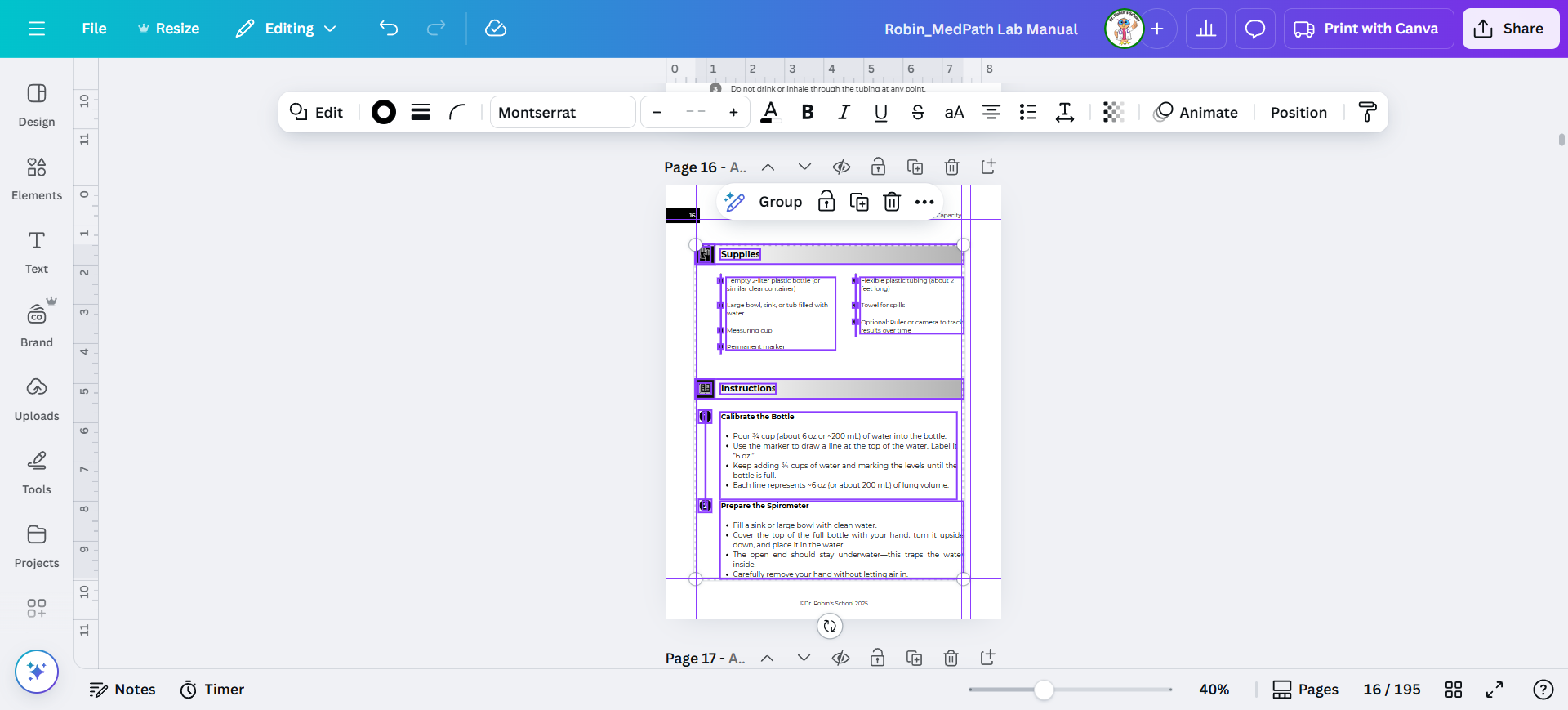
If you highlight everything, you can move it all at once. Line this up with the left-hand margin so it is even.
Step #17:  If you highlight everything, you can move it all at once. Line this up with the left-hand margin so it is even.

18
Try not to mess with these smaller boxes if you can help it, or just change the width of them.
Step #18: Try not to mess with these smaller boxes if you can help it, or just change the width of them.

19
You can see these are not even. You can leave them or fix them depending on how bad it is and how much you care about it looking sharp...
Step #19: You can see these are not even. You can leave them or fix them depending on how bad it is and how much you care about it looking sharp...
20
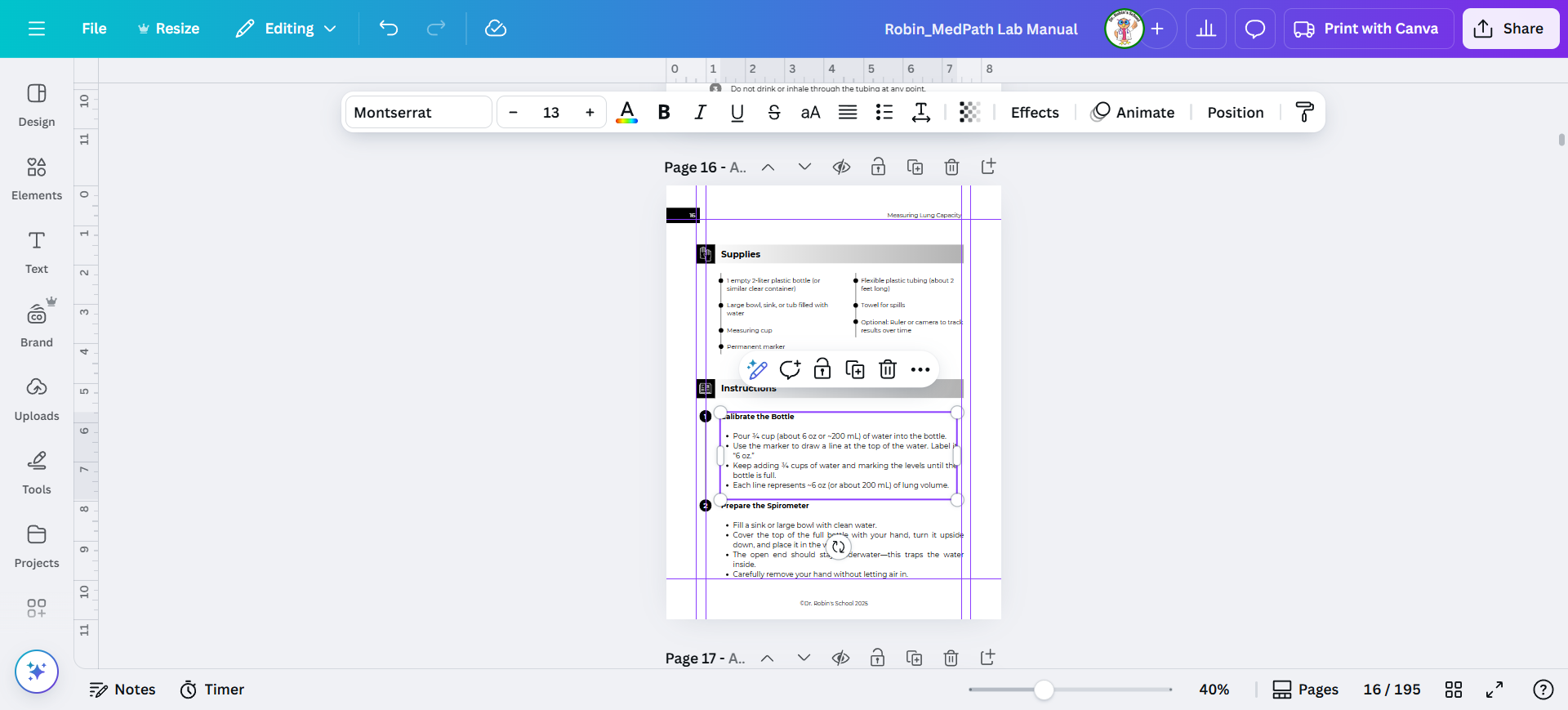
Click on a text box so the handles show up and then drag the right handle to line up with the correct guideline.
Step #20: Click on a text box so the handles show up and then drag the right handle to line up with the correct guideline.
21
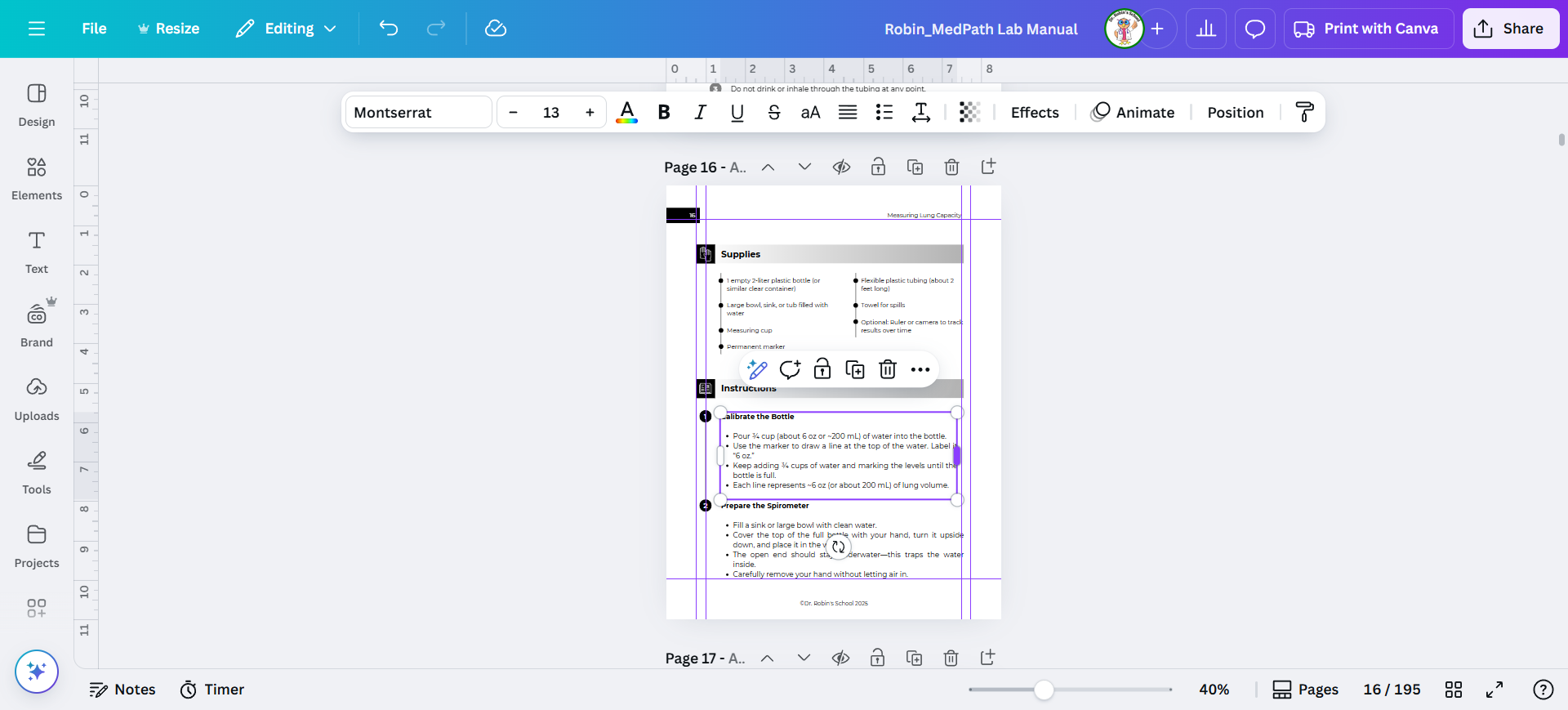
See, like this!
Step #21: See, like this!
22
You can do it with the grey boxes too.
Step #22: You can do it with the grey boxes too.

23
Delete the copyright for now. We'll deal with that later.
Step #23: Delete the copyright for now.  We'll deal with that later.

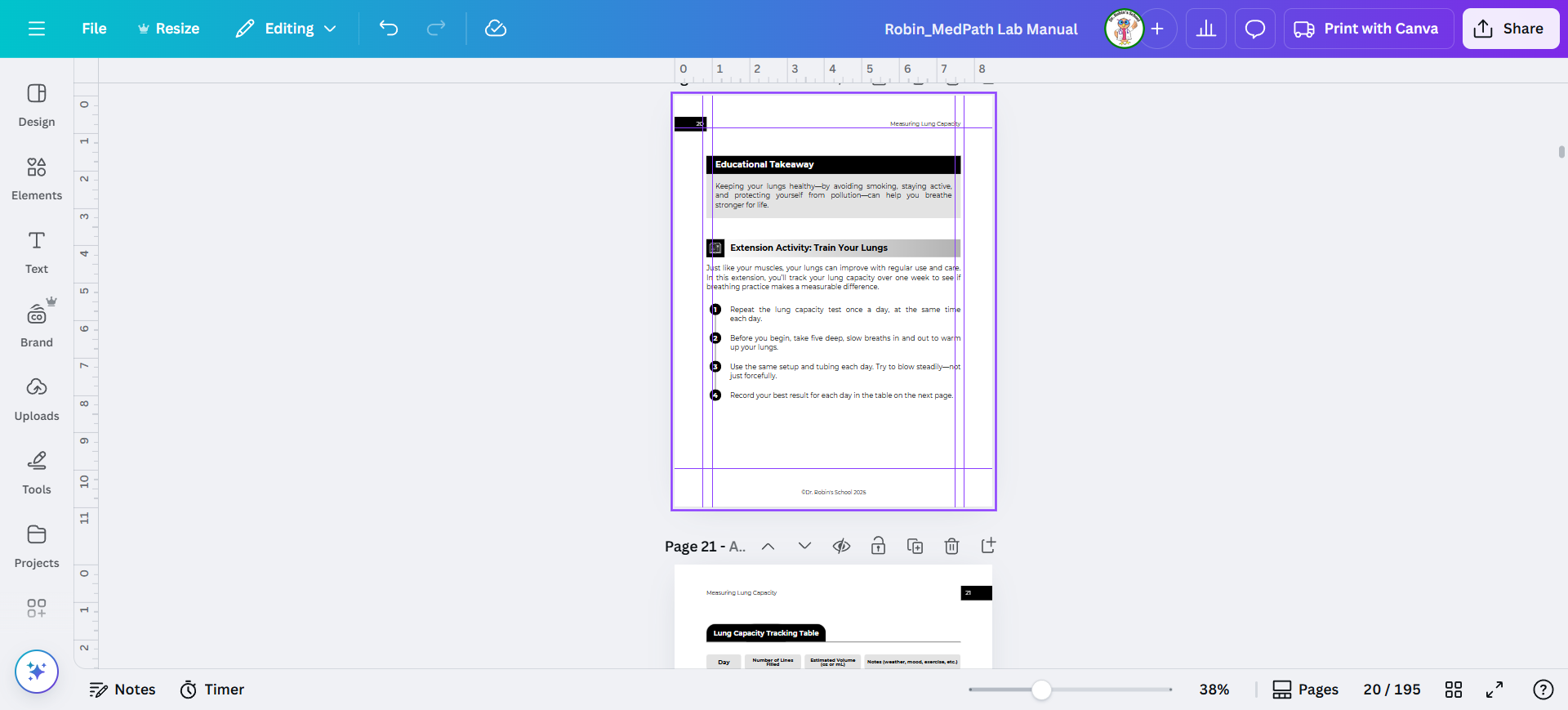
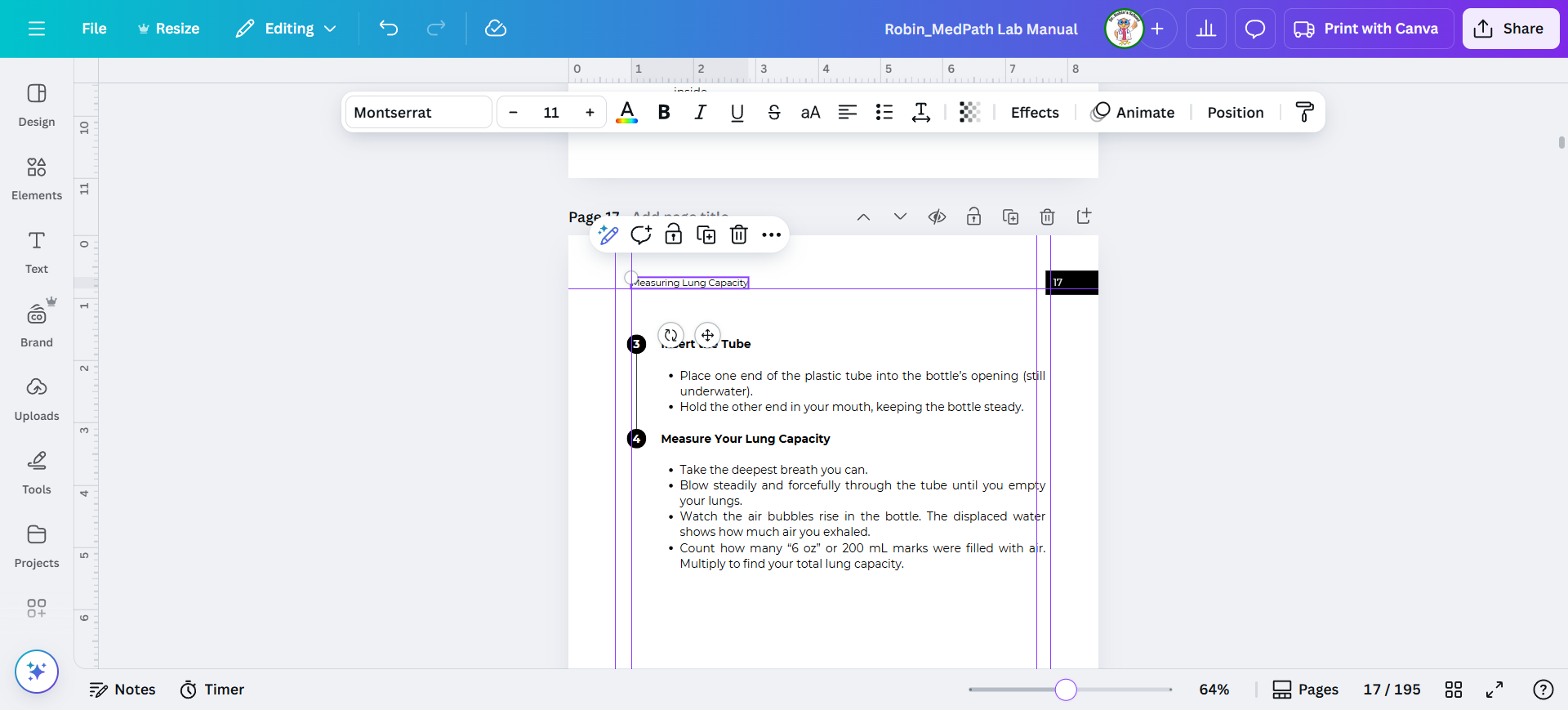
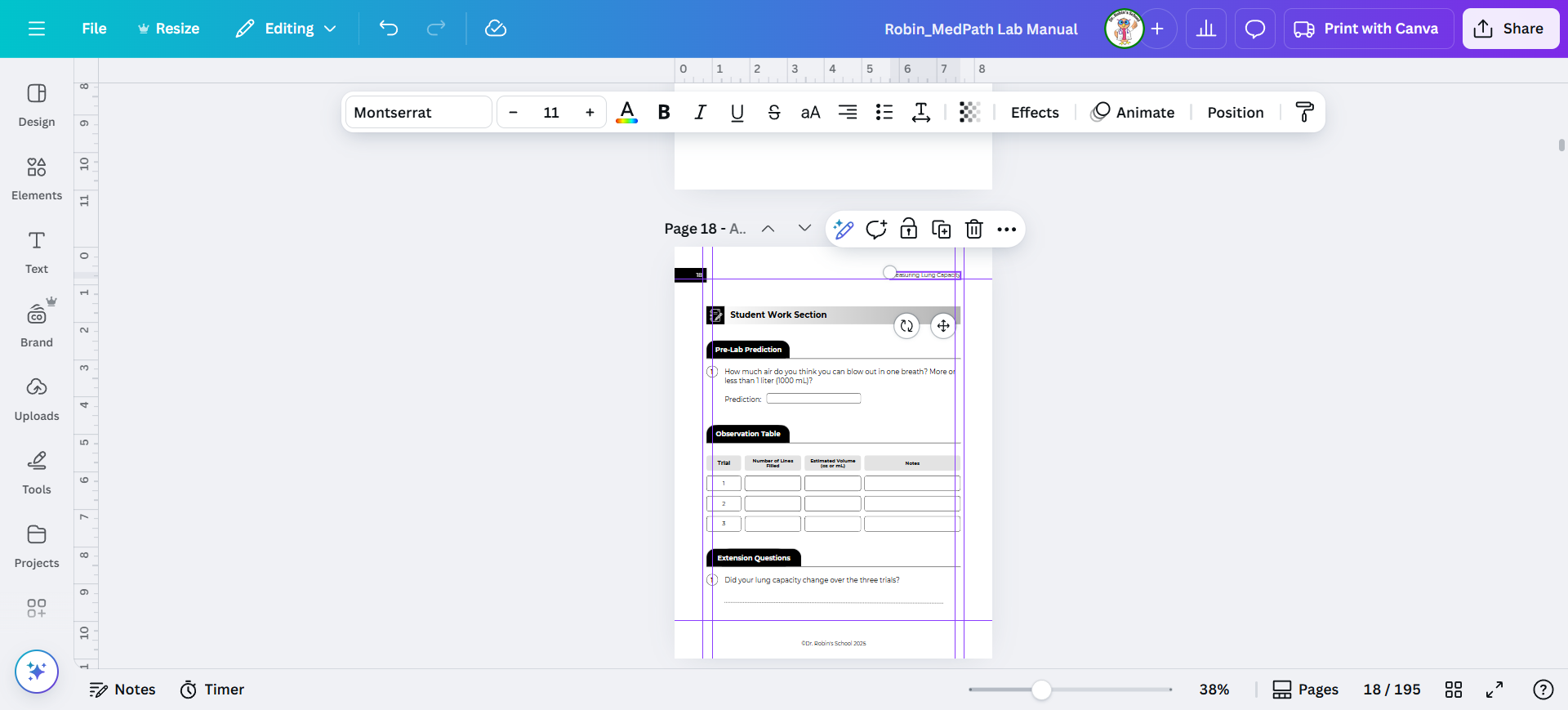
On the next page, we'll shift everything to the right. I'll zoom out to ensure I don't miss anything on this page.
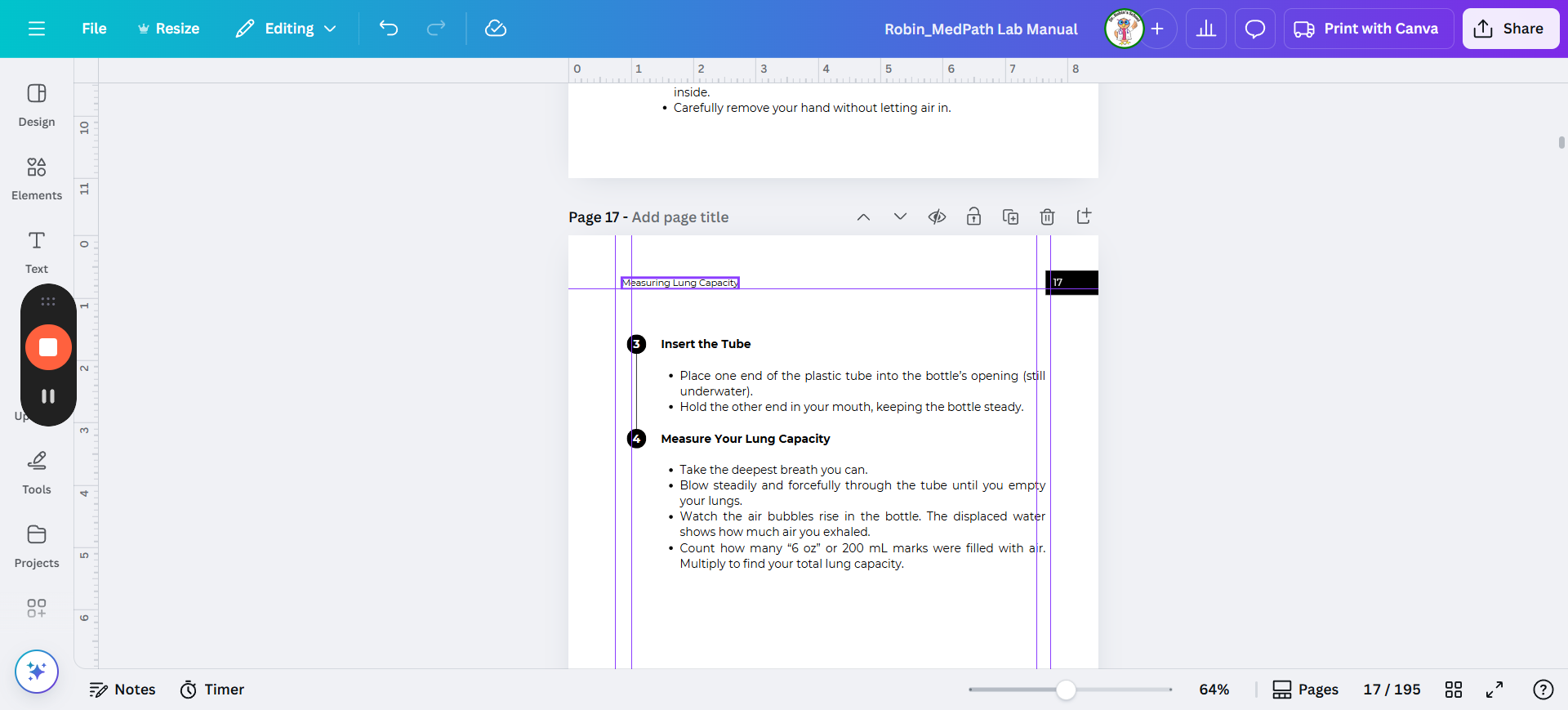
24
Shift the title right.
Step #24: Shift the title right.
25
Zoom in or out if you need.
Step #25: Zoom in or out if you need.

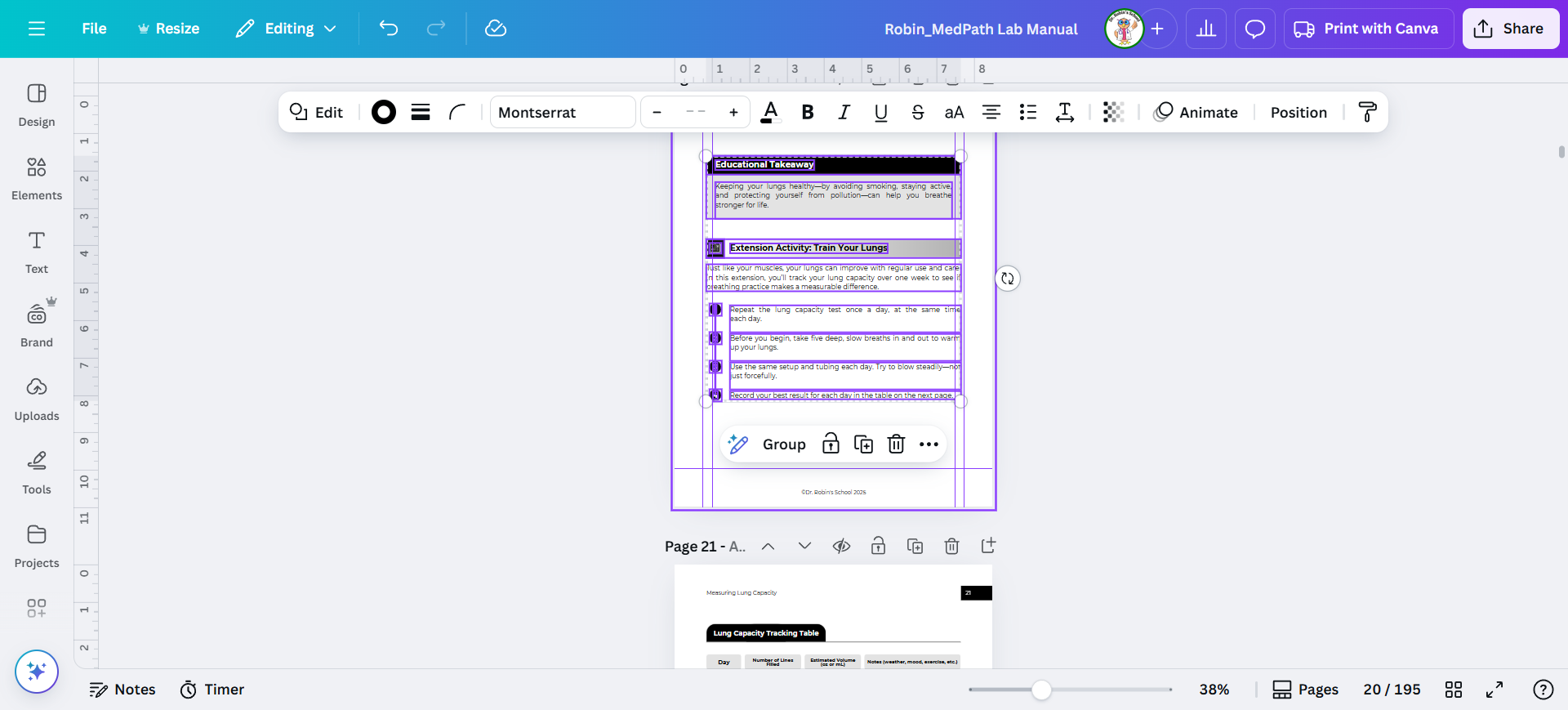
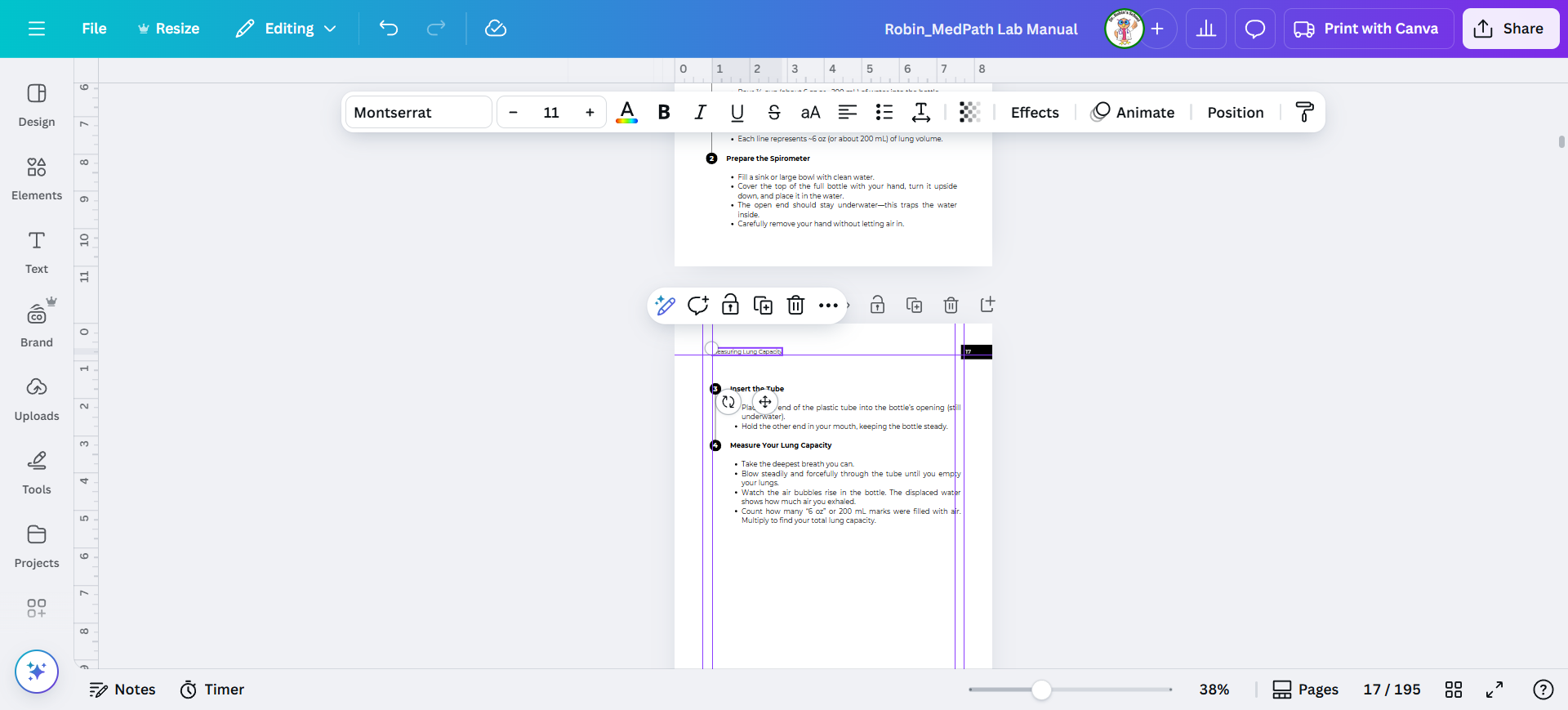
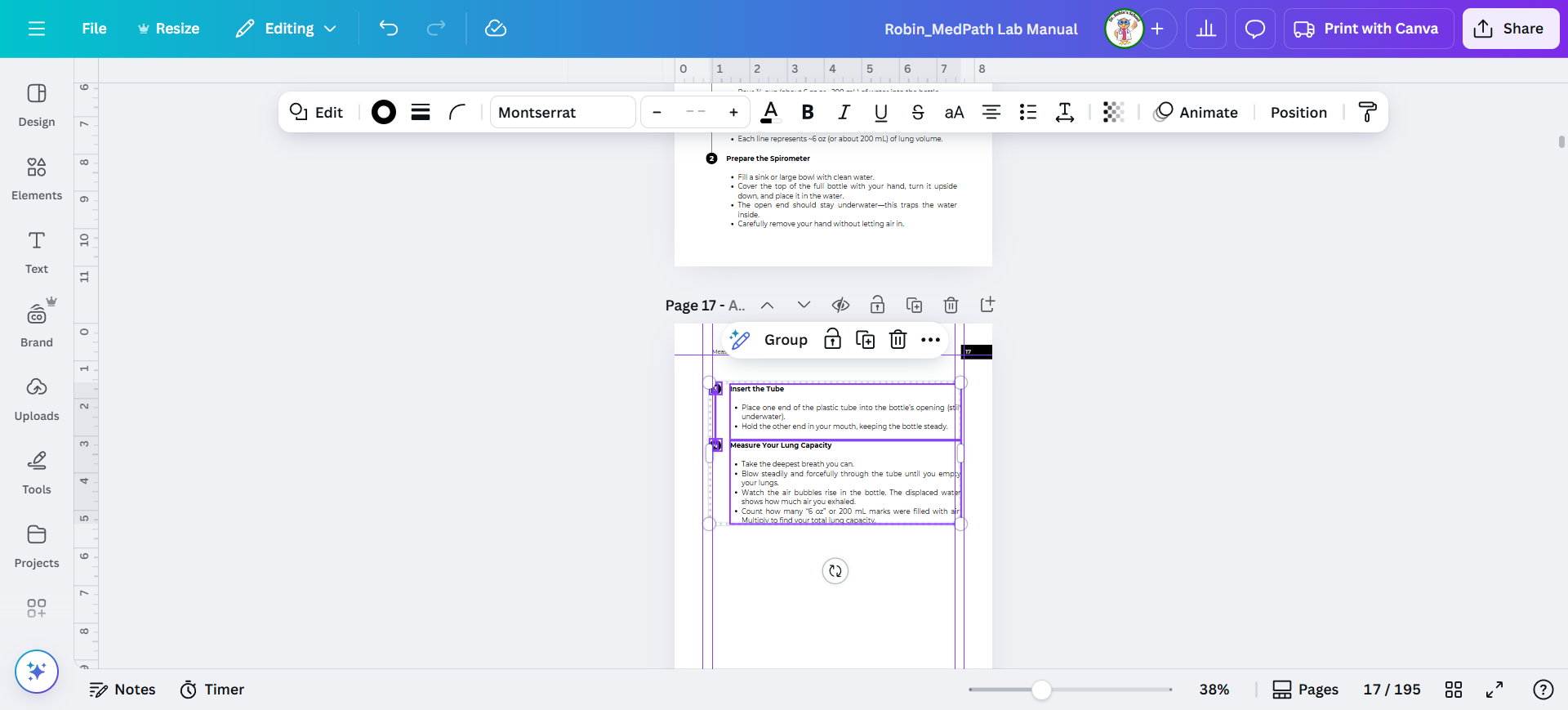
That appears to be everything on this page. I'll select all of it and shift it to the right. That should complete this page.
26
Select it all.
Step #26: Select it all.
27
Shift it.
Step #27: Shift it.

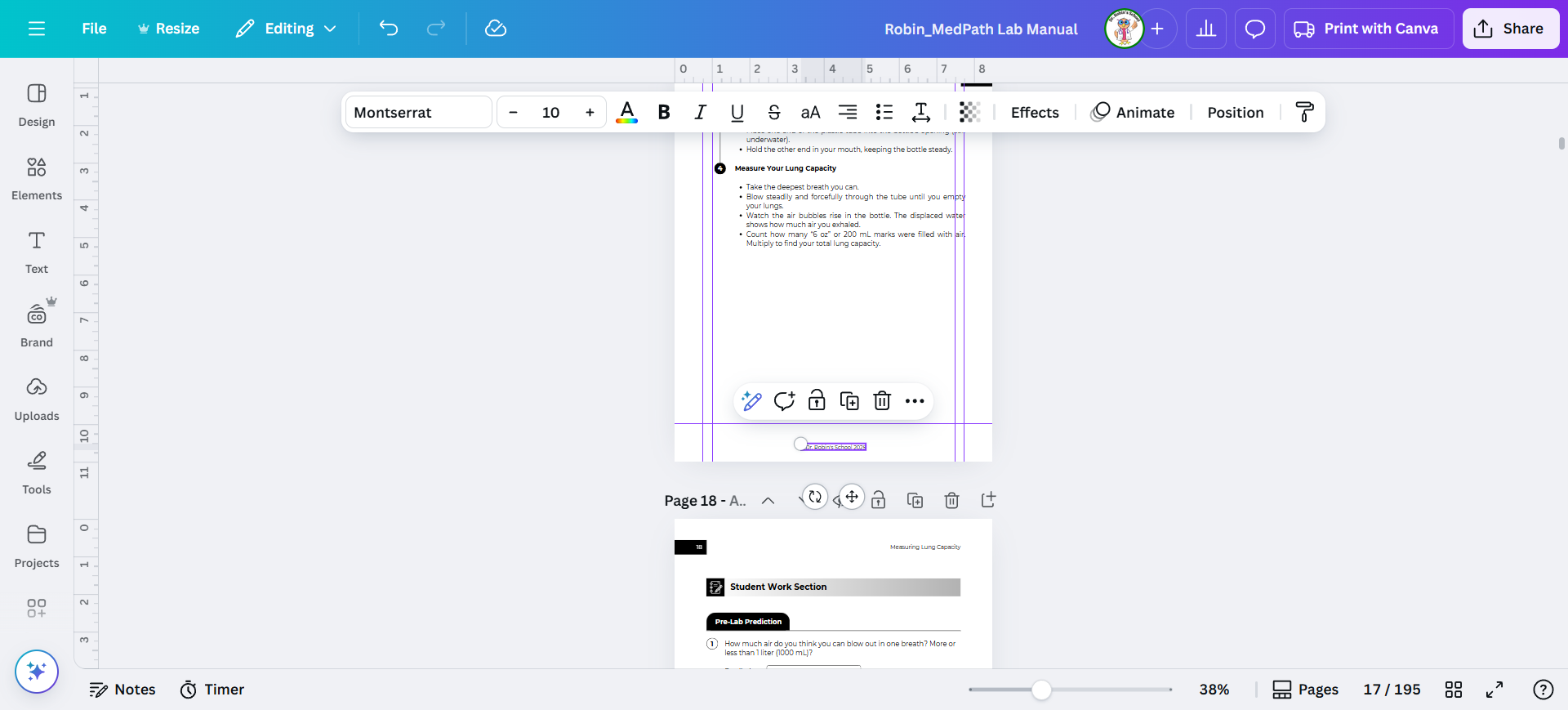
Don't worry about the page numbers. As long as they are more than 0.25 inches from the edge, they will be fine.
28
The copyright needs to be deleted. Then we move on to the next page.
Step #28: The copyright needs to be deleted. Then we move on to the next page.

29
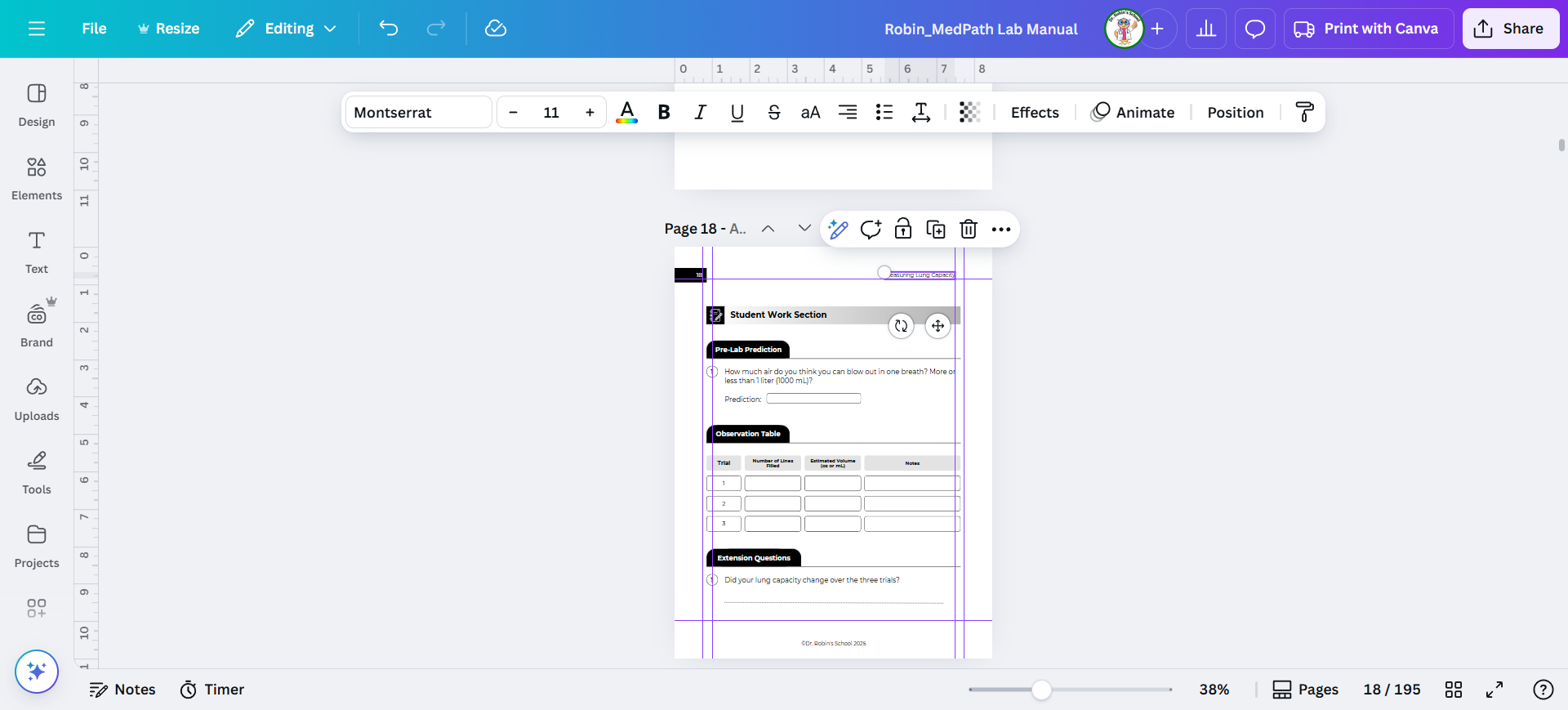
This one is going to be shifted left.
Step #29: This one is going to be shifted left.

You can watch the next few videos to see more examples.
30
How to shift student work section and charts.
Step #30: How to shift student work section and charts.

31
Here's another example.
Step #31: Here's another example.

32
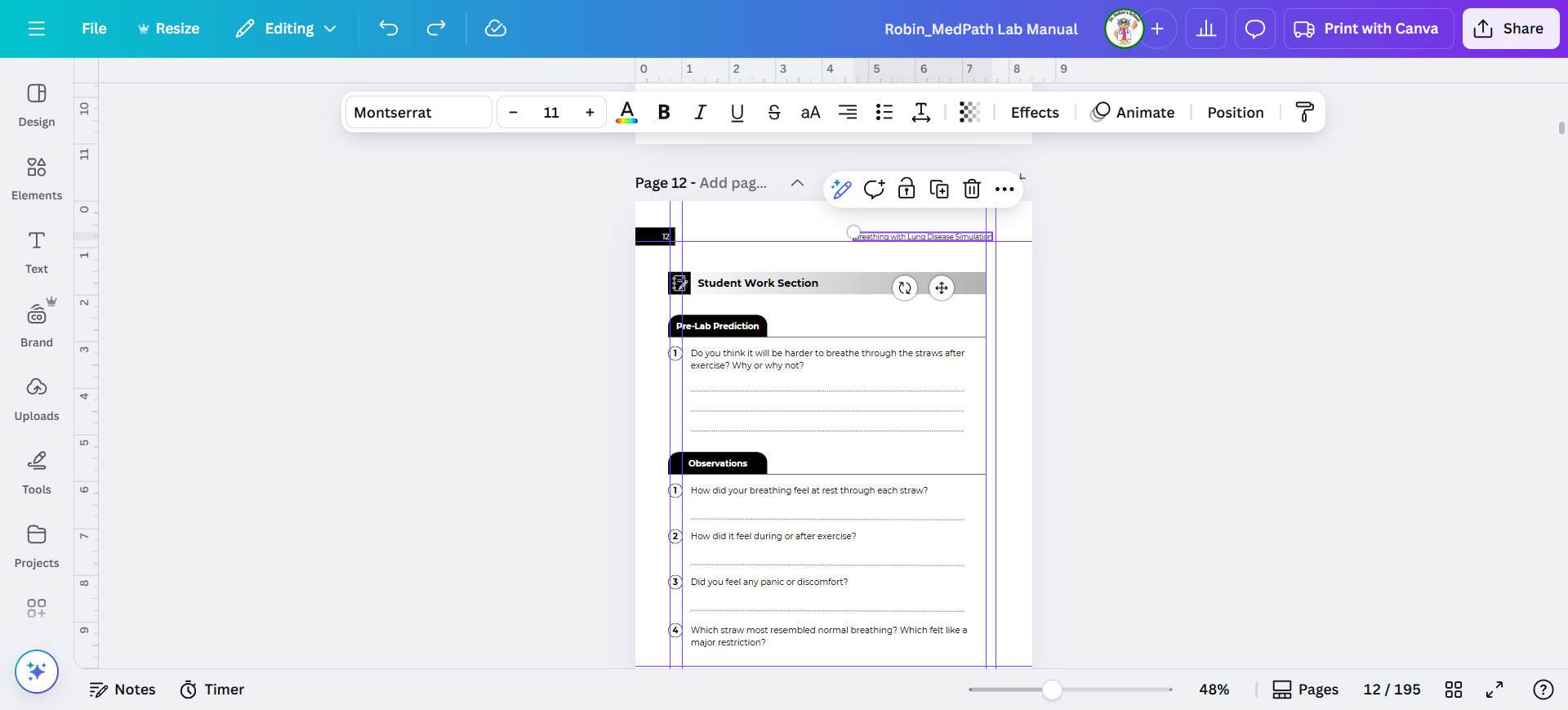
You can see the gray box here is too far over. We should move it in.
Step #32: You can see the gray box here is too far over. We should move it in.

33
But the words also need to be shifted along with it.
Step #33: But the words also need to be shifted along with it.

34
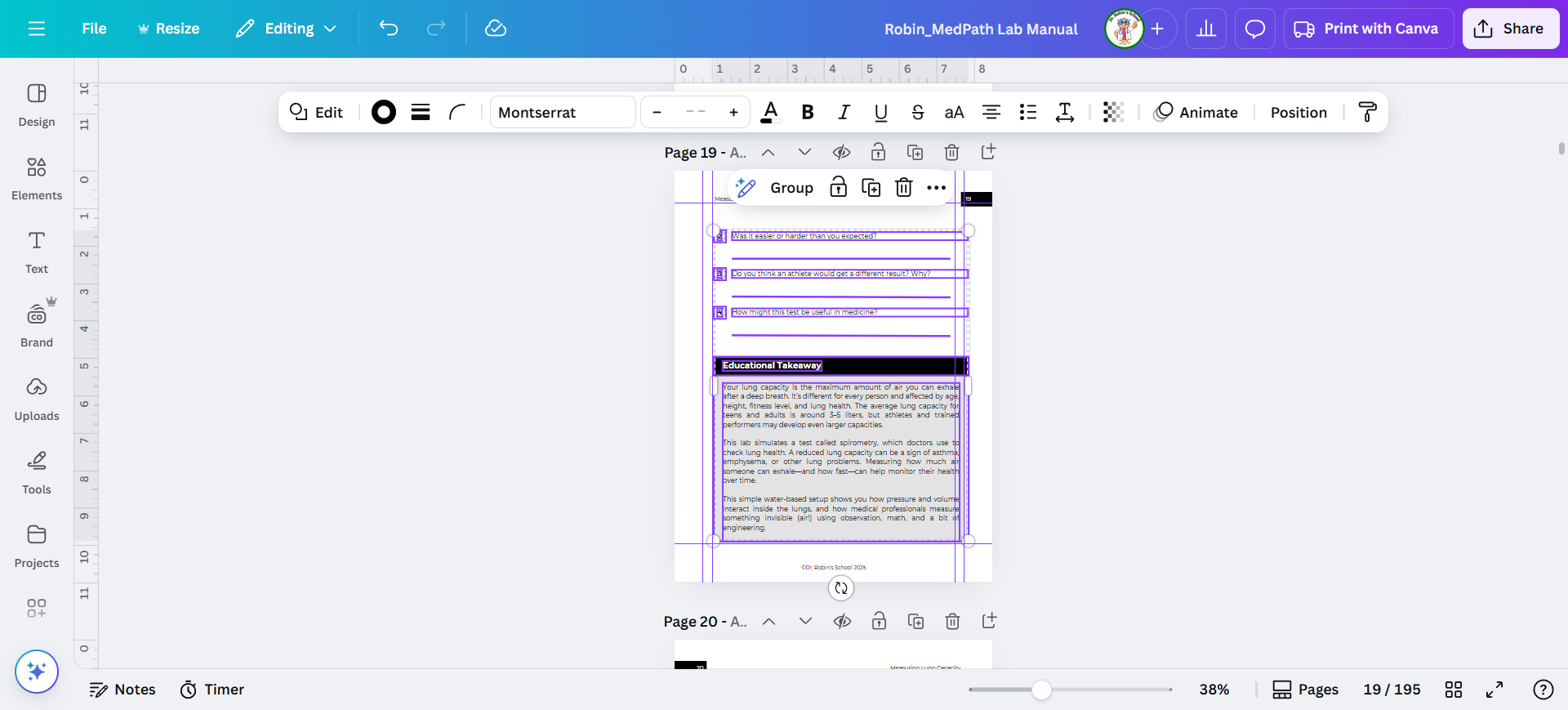
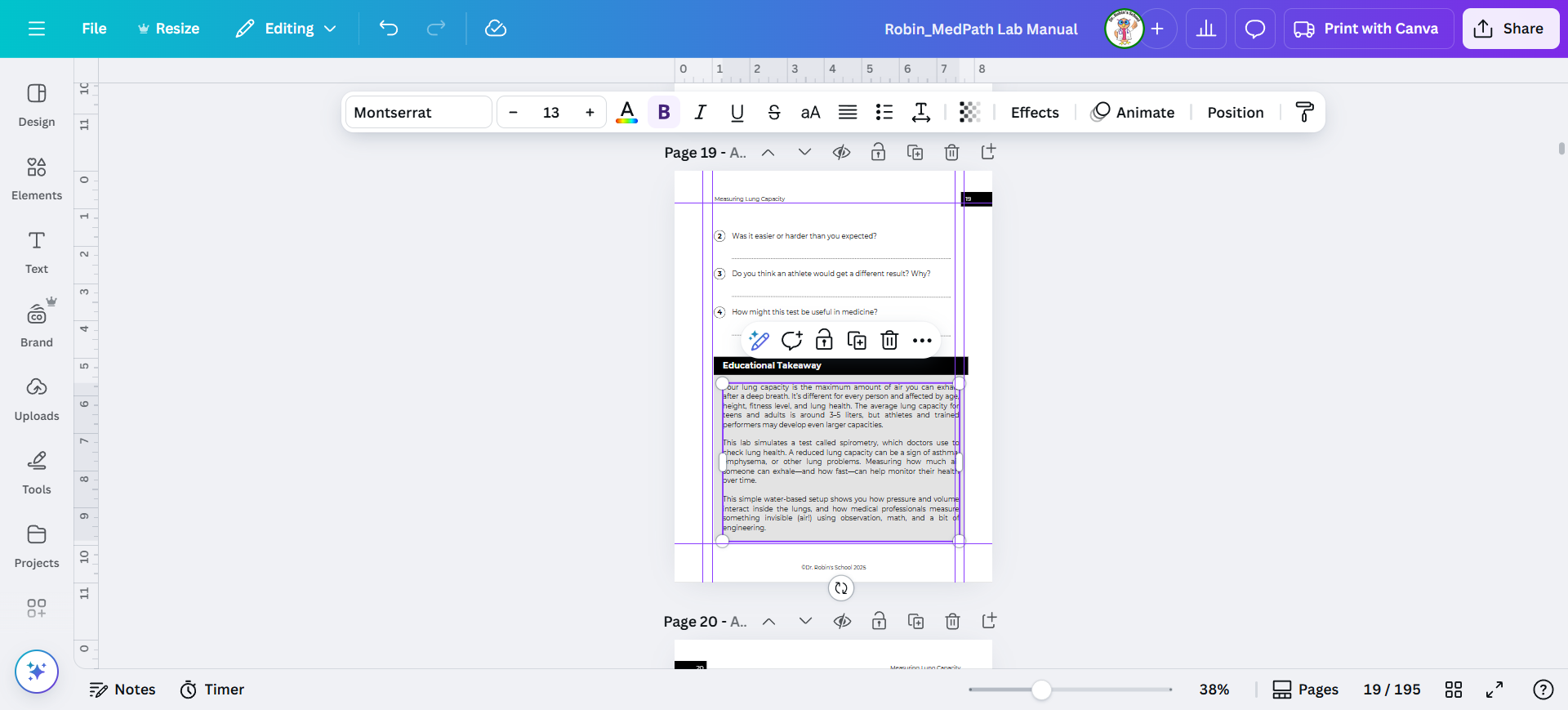
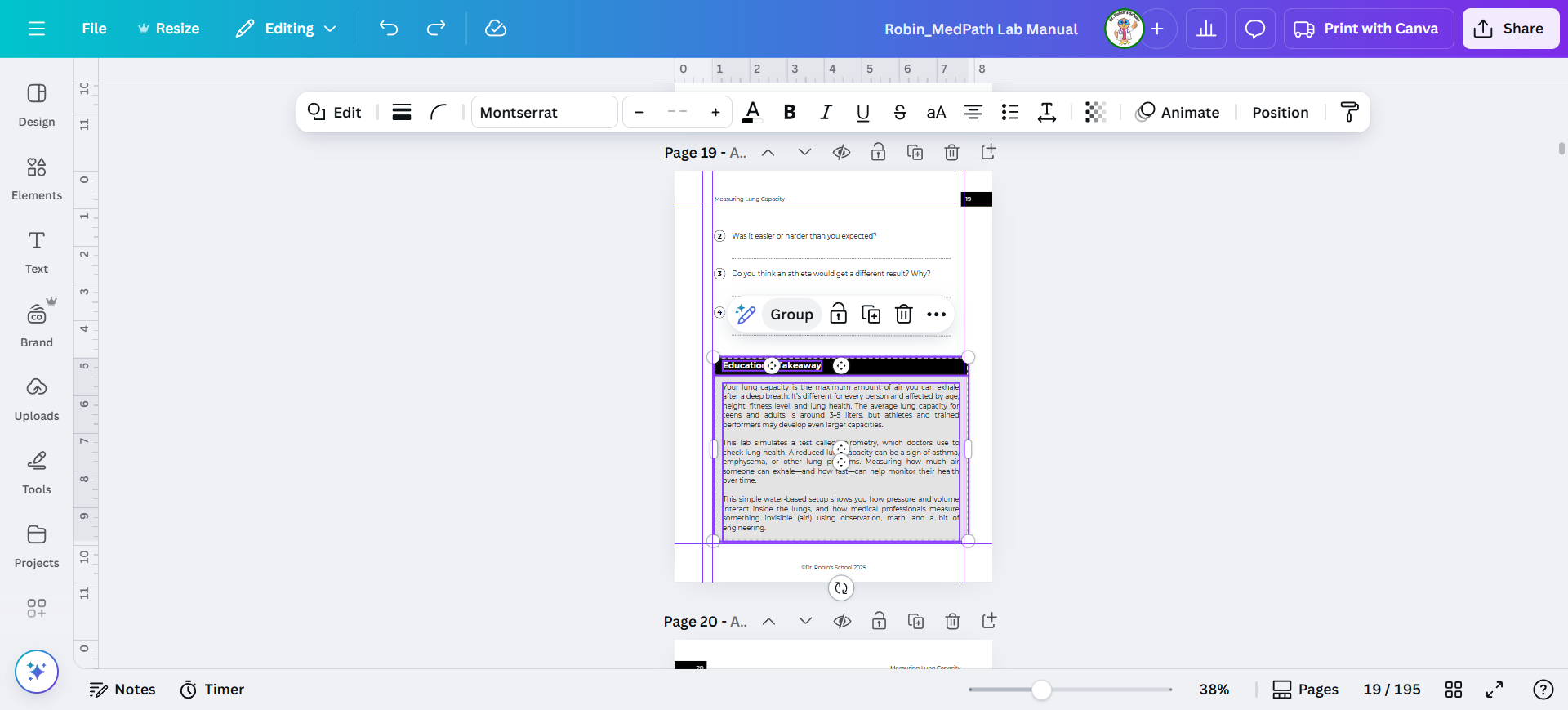
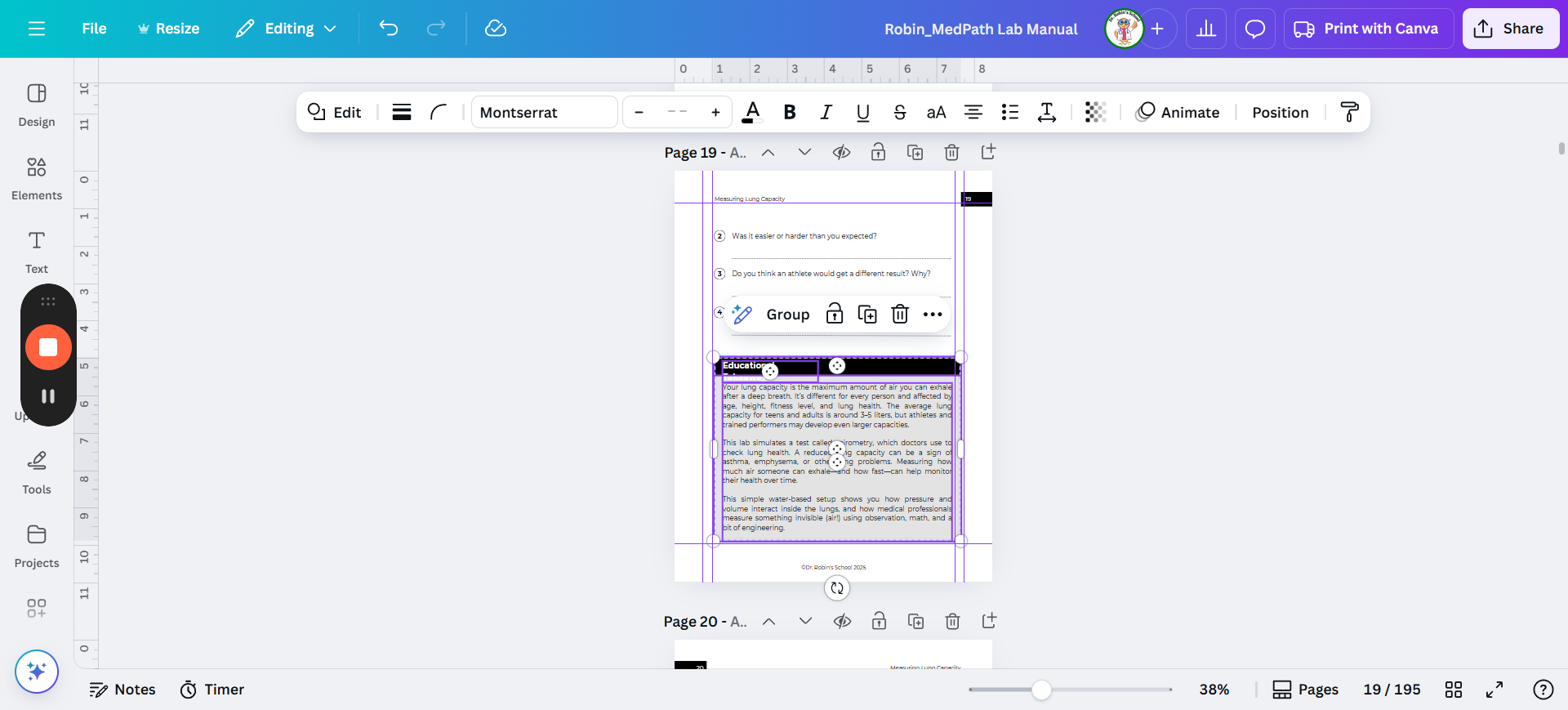
So the best option is to group that box and words to avoid making mistakes. Then, when I move the handle over, it will automatically adjust together. Choose everything you want to group together and then click "Group"
Step #34: So the best option is to group that box and words to avoid making mistakes. Then, when I move the handle over, it will automatically adjust together. Choose everything you want to group together and then click "Group"
35
There's a handle for the grouped elements.
Step #35: There's a handle for the grouped elements.

36
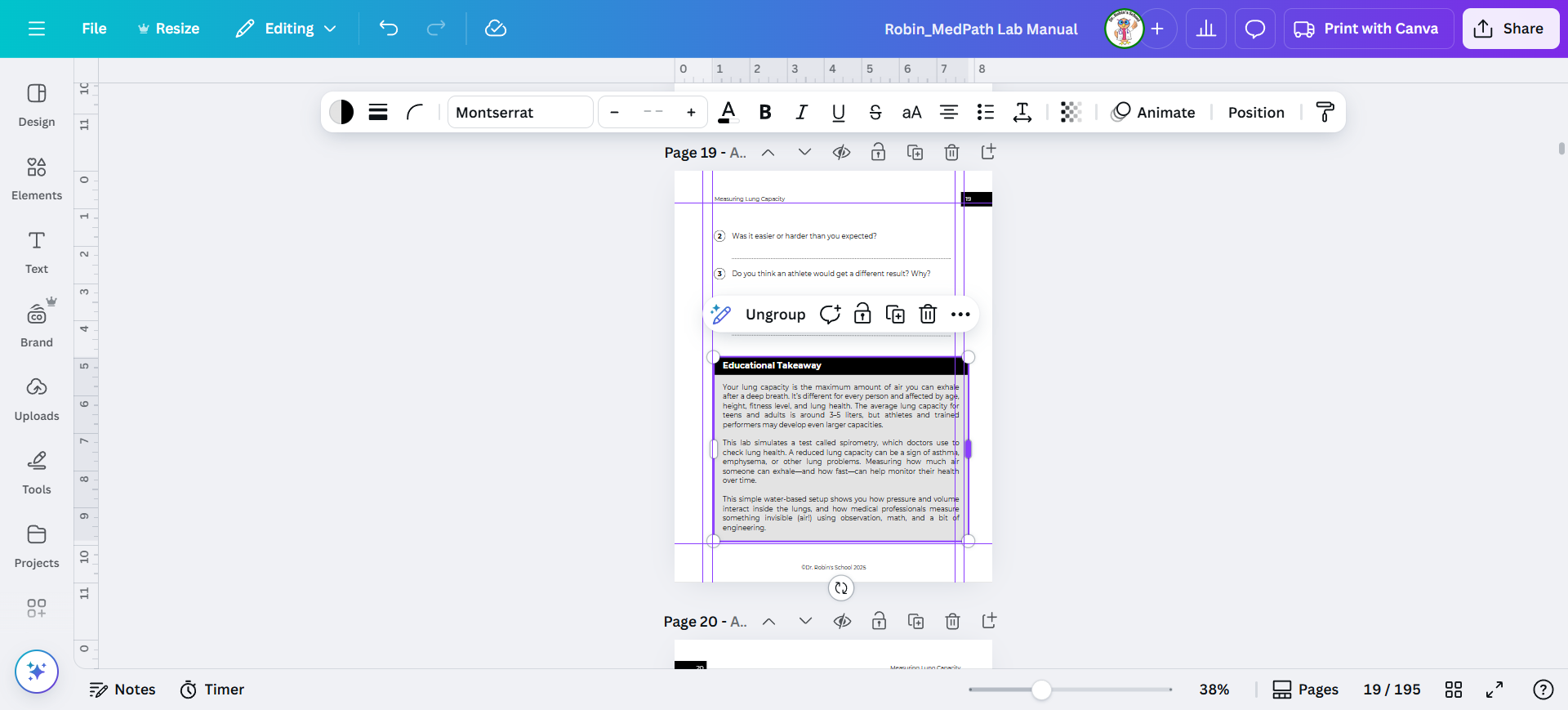
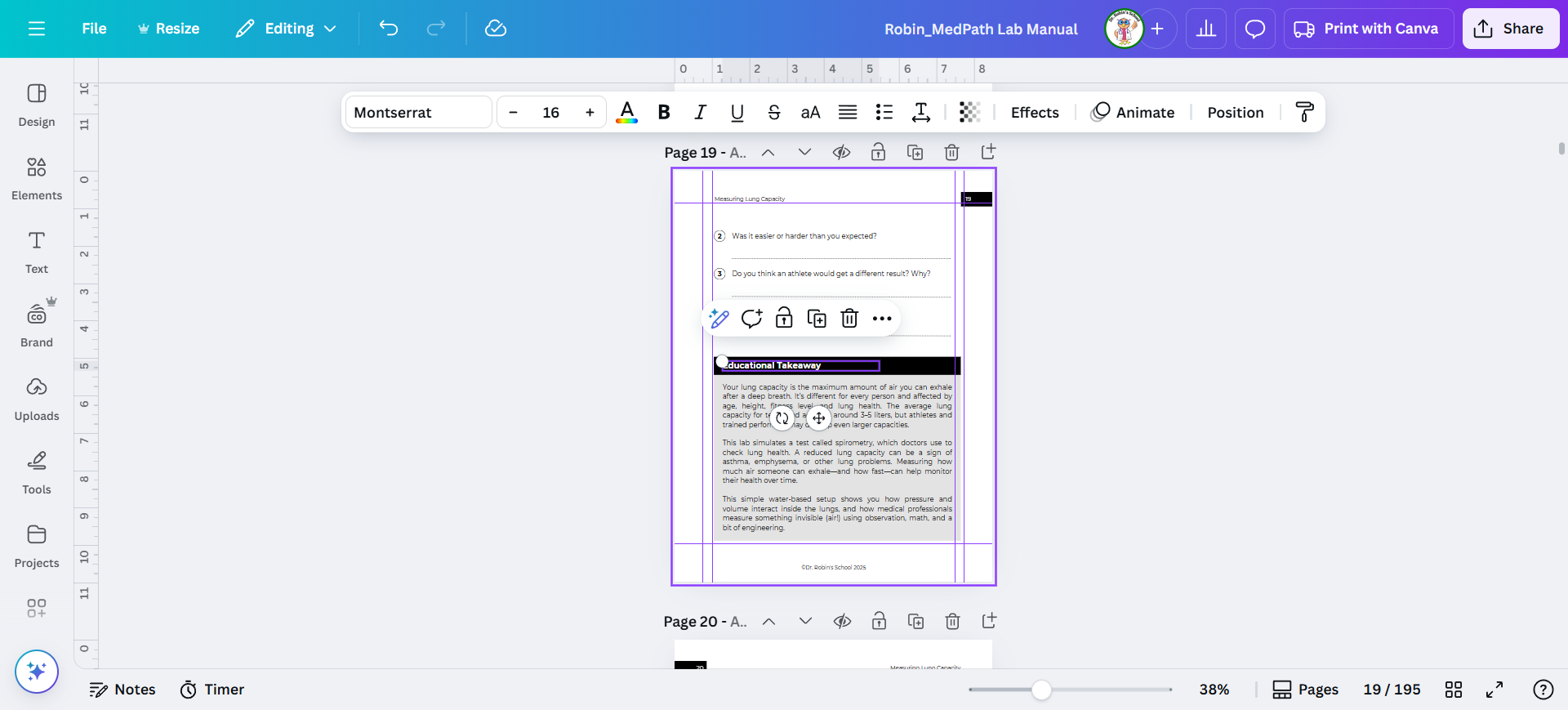
Check if some of the words got cut off... such as in this case, "educational takeaway" is now just "educational," you can't see "takeaway."
Step #36: Check if some of the words got cut off... such as in this case, "educational takeaway" is now just "educational," you can't see "takeaway."

Ungroup it.

37
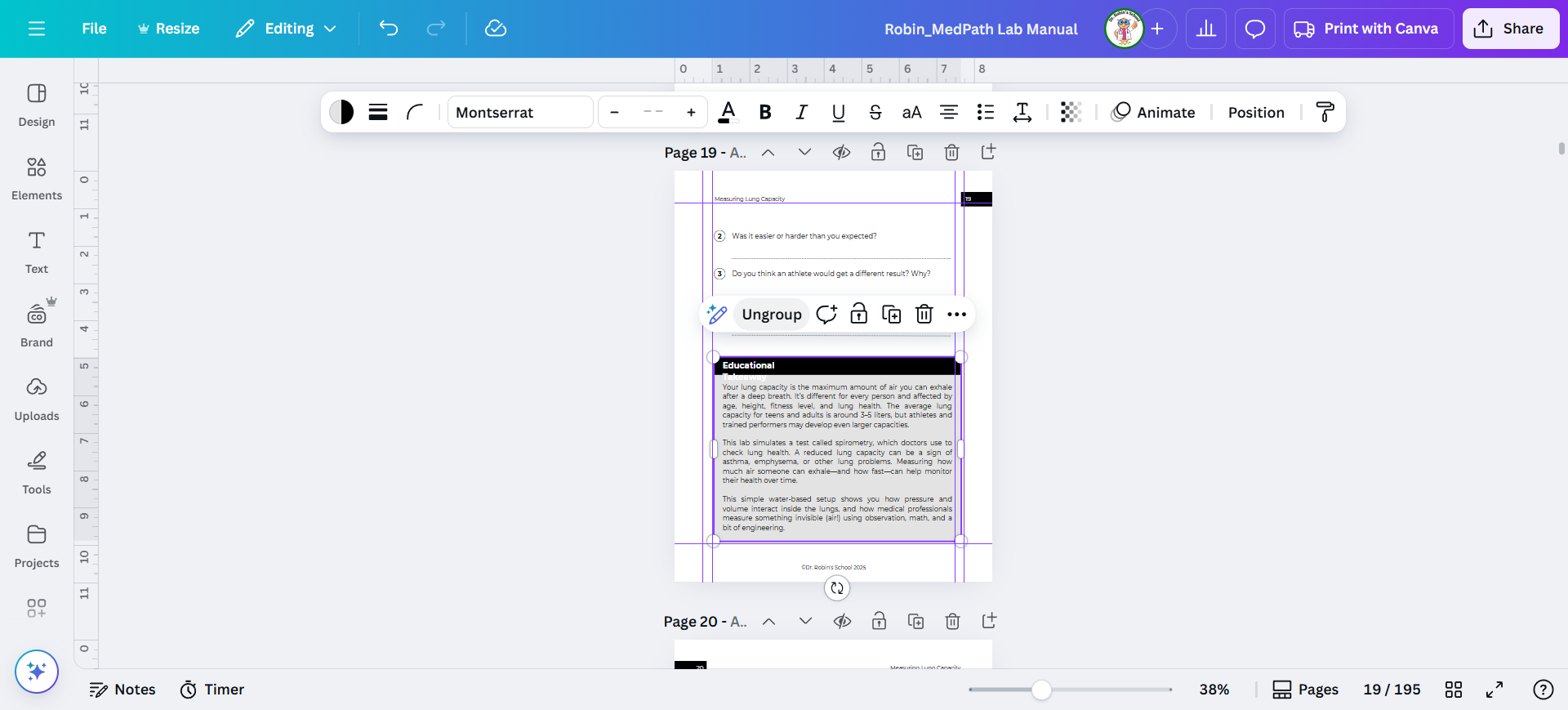
Now grab the handle and adjust the text box to be wide enough.
Step #37: Now grab the handle and adjust the text box to be wide enough.

38
Now it's wide enough for the words
Step #38: Now it's wide enough for the words

39
Here's another example.
Step #39: Here's another example.

40
It extends all the way to the right margin here. Now, we need to fix each box as we go.
Step #40: It extends all the way to the right margin here. Now, we need to fix each box as we go.

We go here, then over, and repeat. We also need to move the text box, which you can do precisely or by estimating.
41
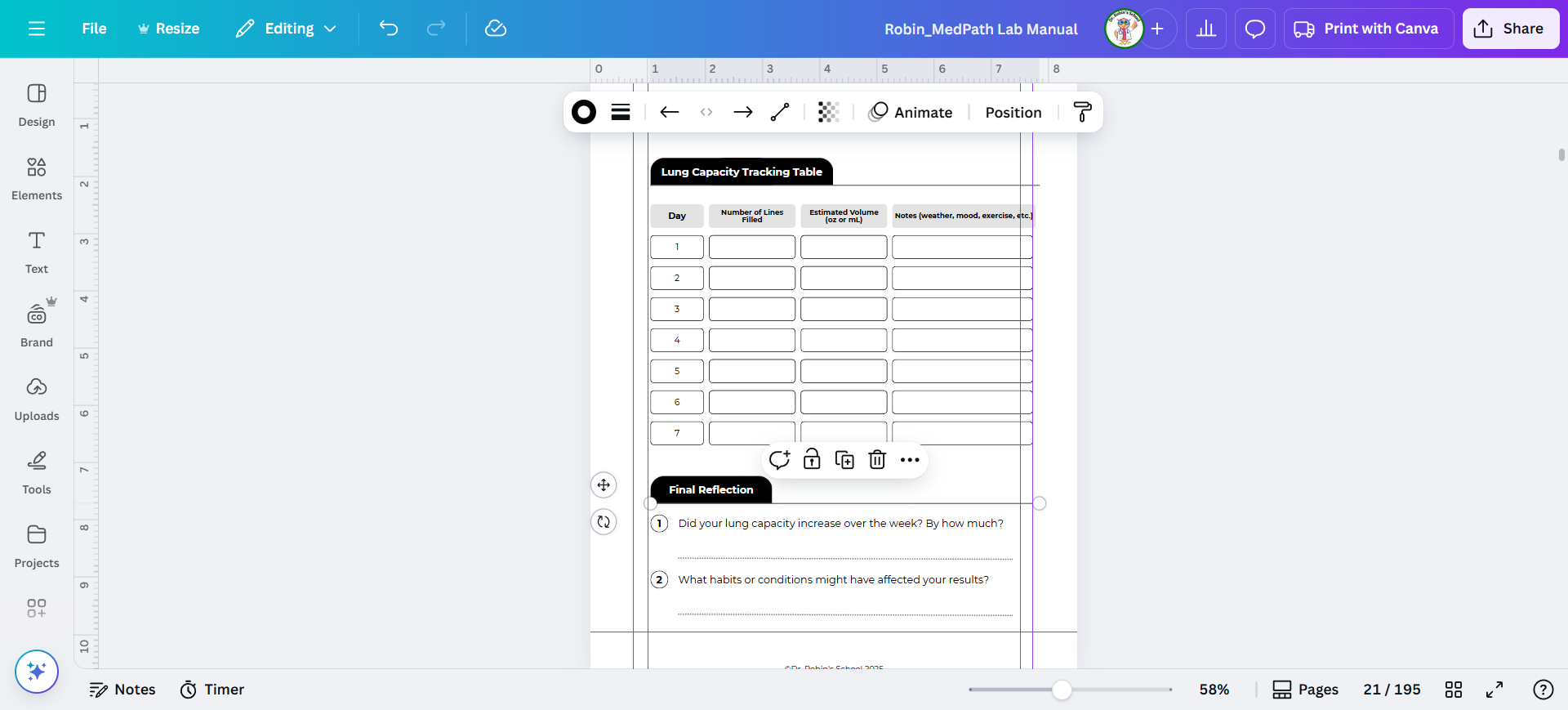
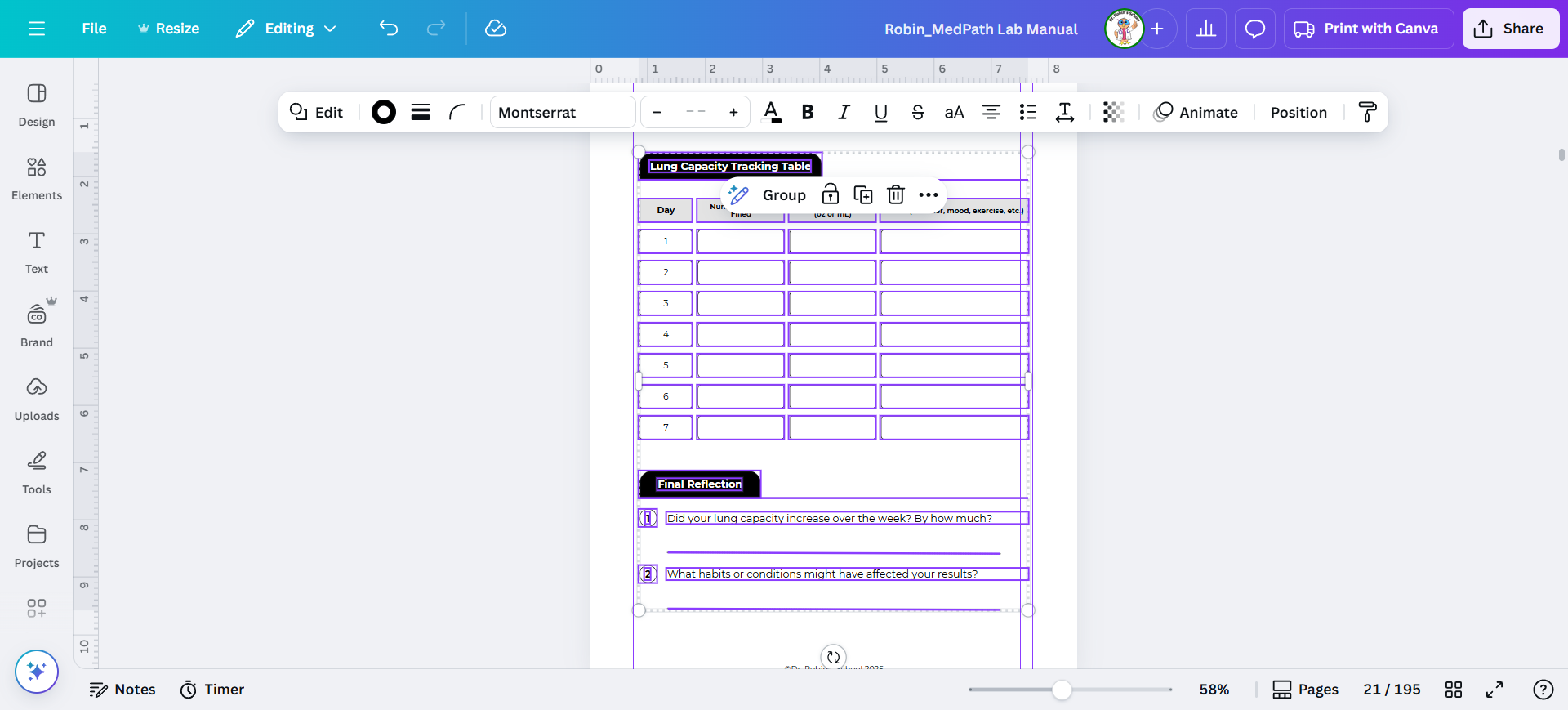
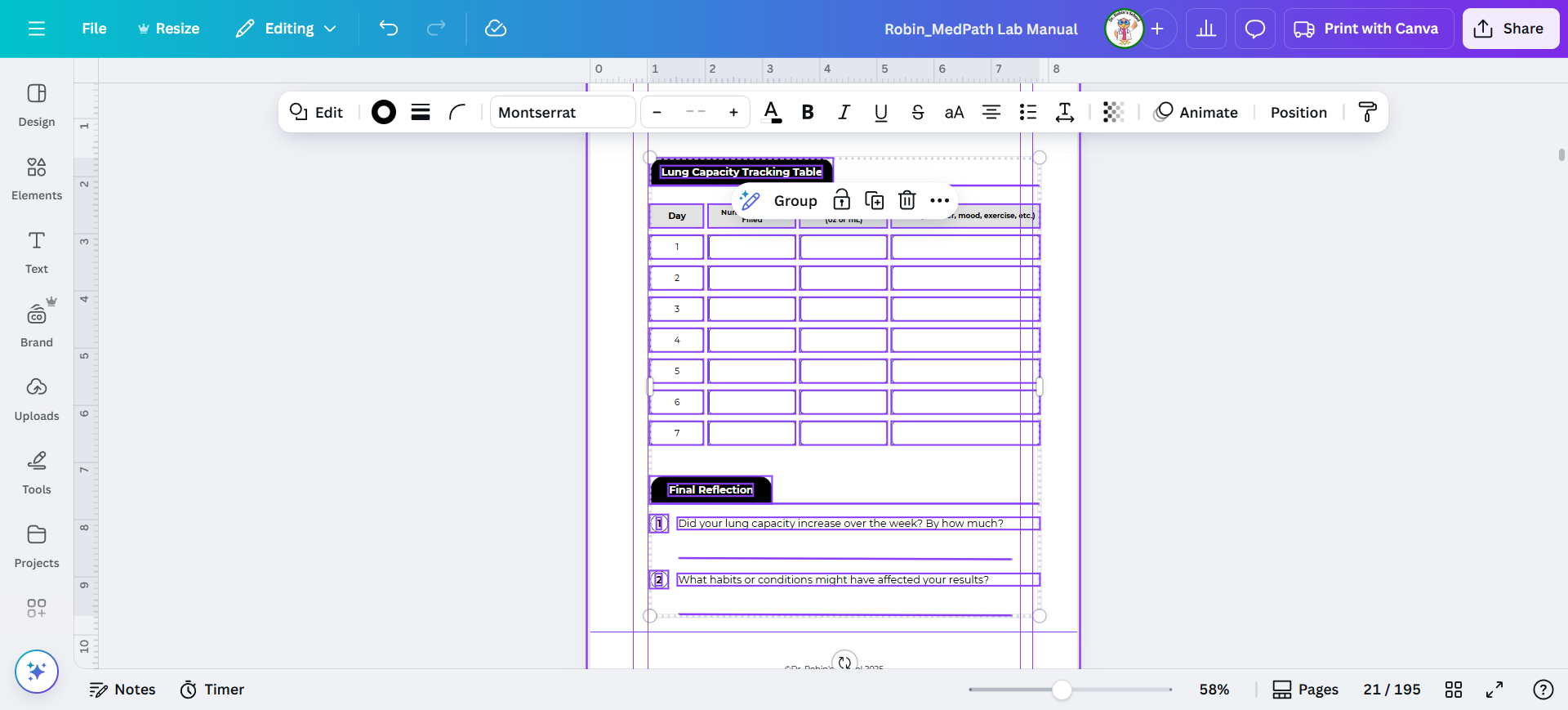
Here's how to fix a table. First highlight it and shift it to the correct margins.
Step #41: Here's how to fix a table.  First highlight it and shift it to the correct margins.

42
Good news! Tables adjust easily.
Step #42: Good news! Tables adjust easily.

43
You might also need to shorten the lines too.
Step #43: You might also need to shorten the lines too.

How to Fix the Centered Copyright

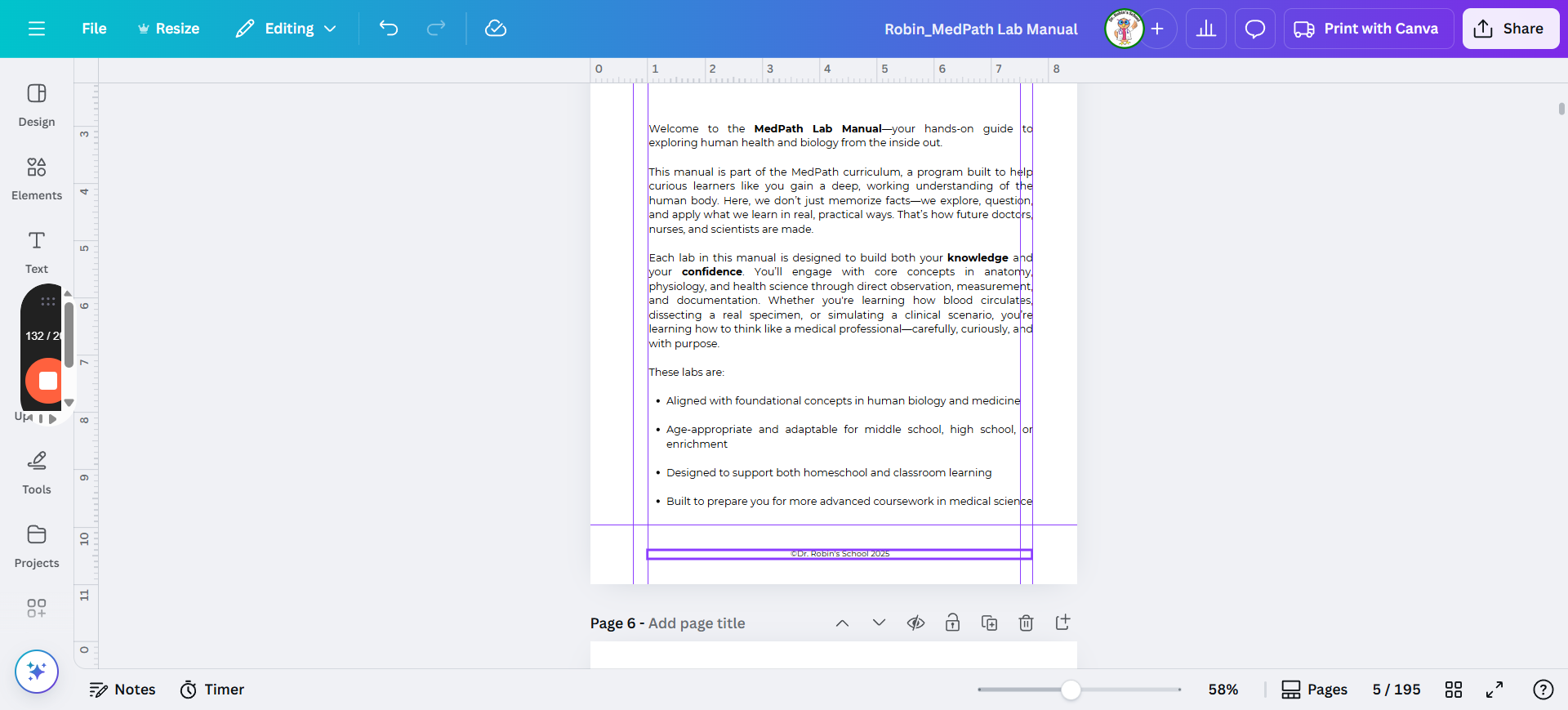
Now I'll show you how to fix the copyright. Remember, it needs to go back and forth.

Most people make these copyrights very short, so you can't center them.
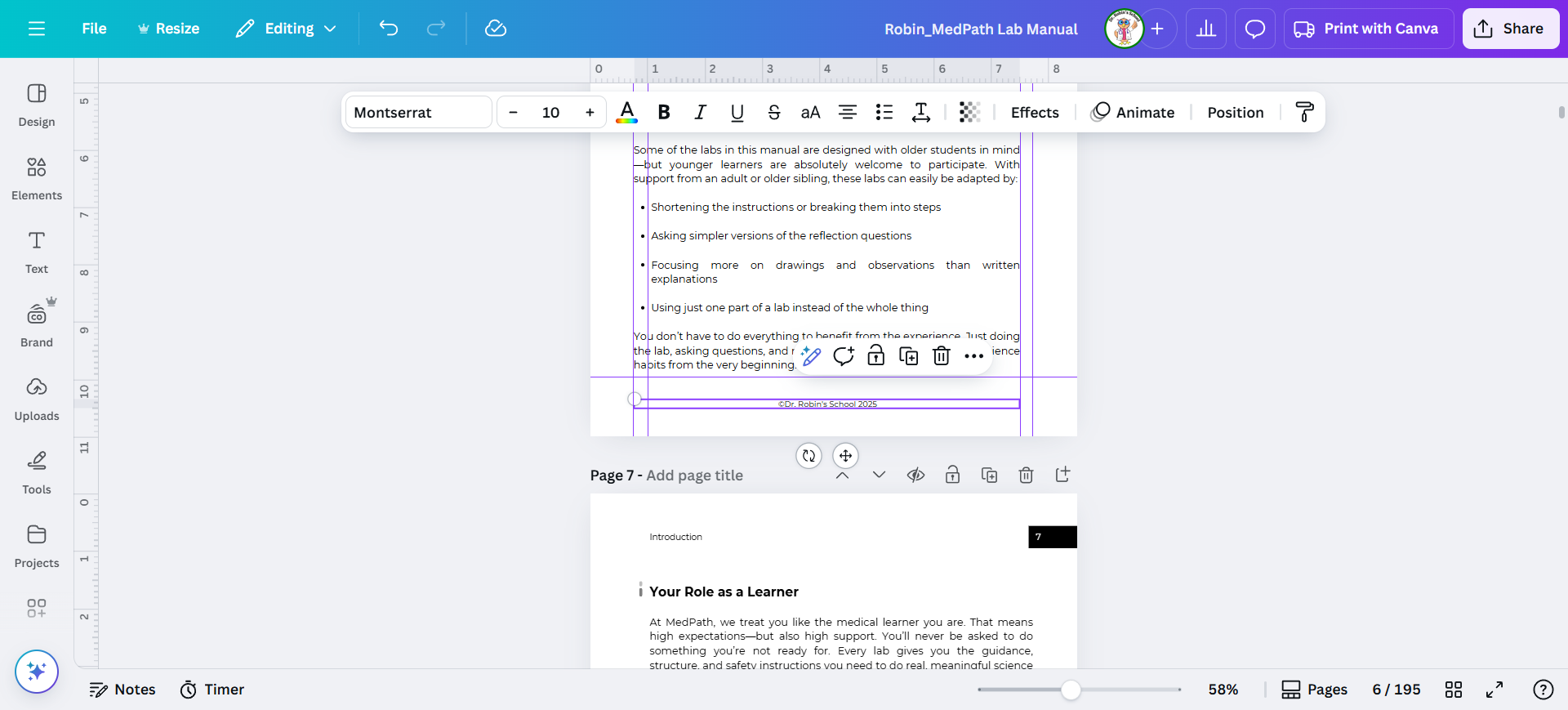
44
Instead make the text box go all the way between the guidelines and then center the text.
Step #44: Instead make the text box go all the way between the guidelines and then center the text.

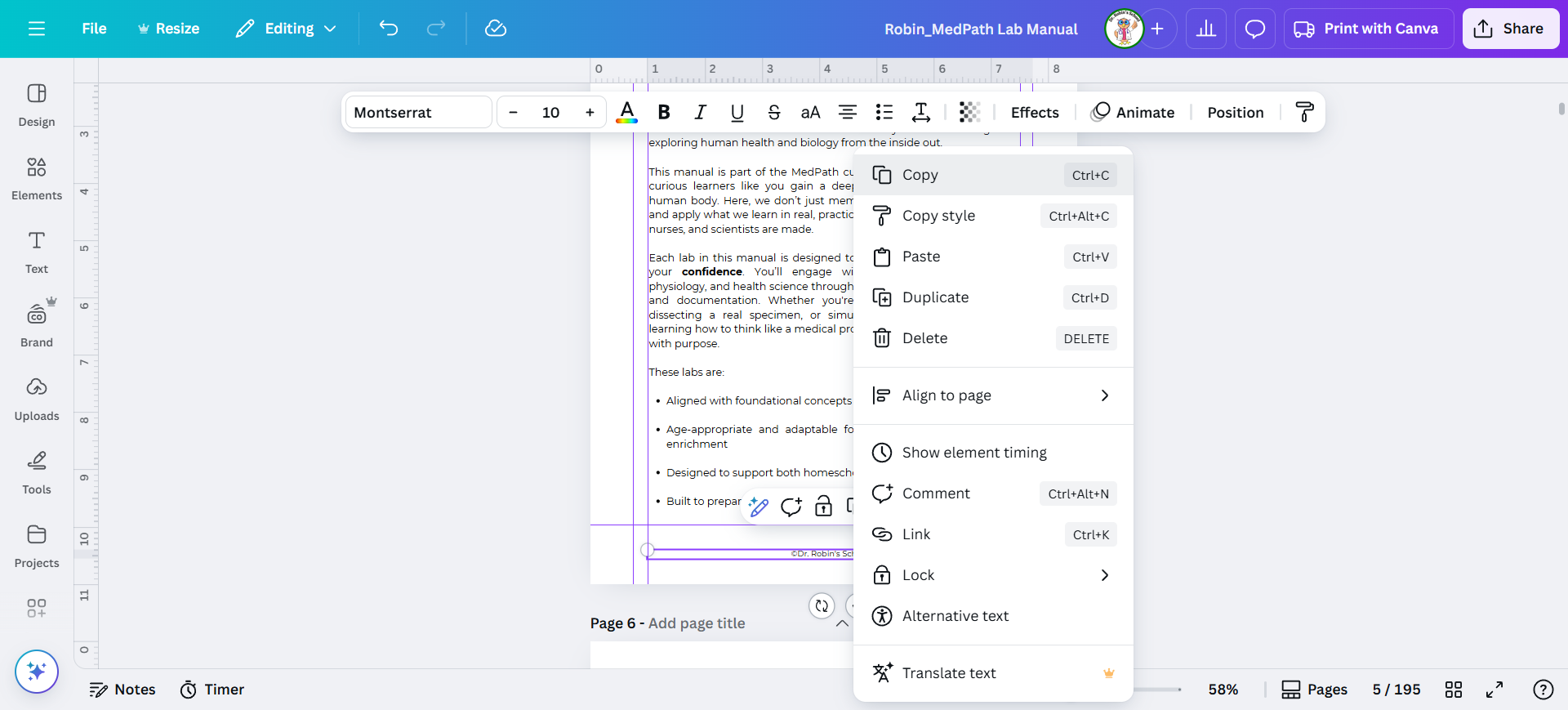
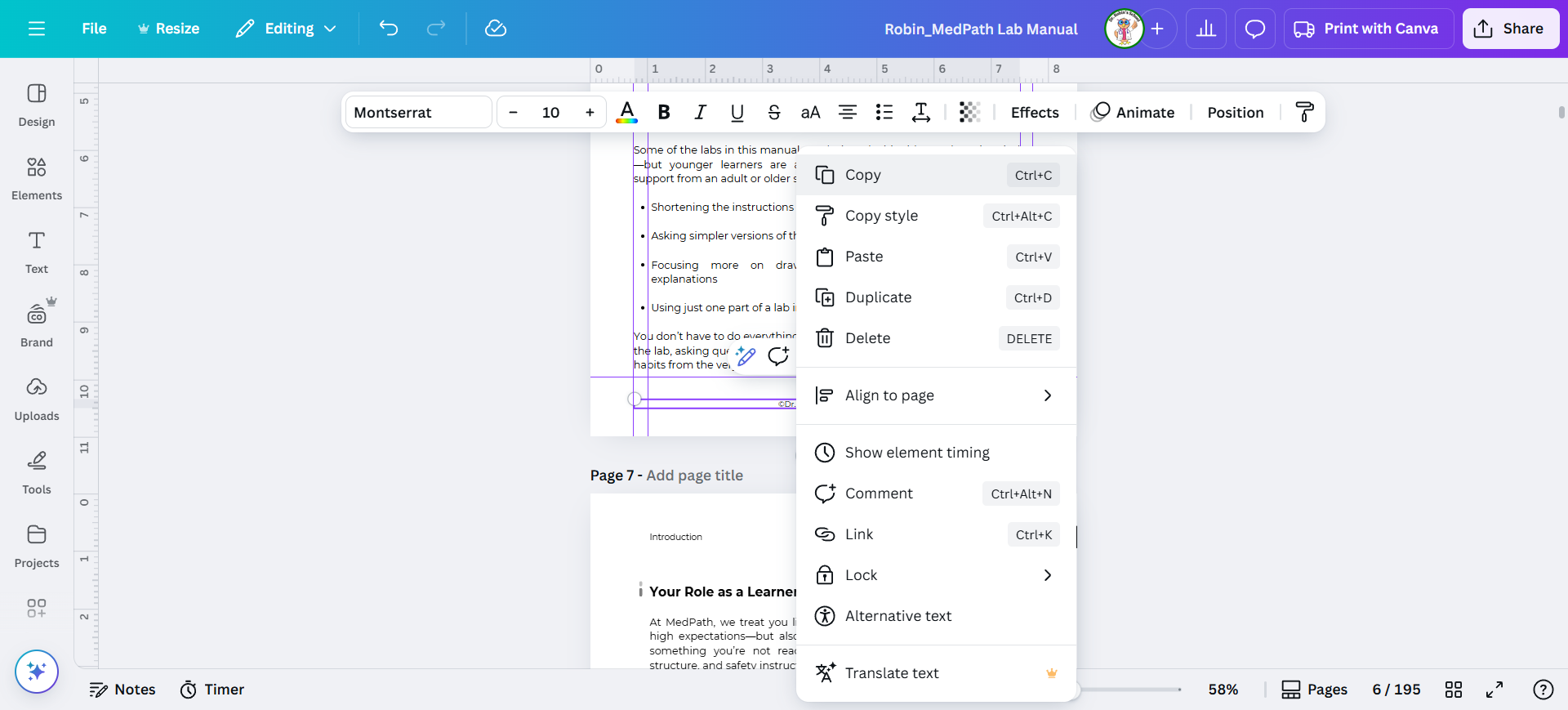
45
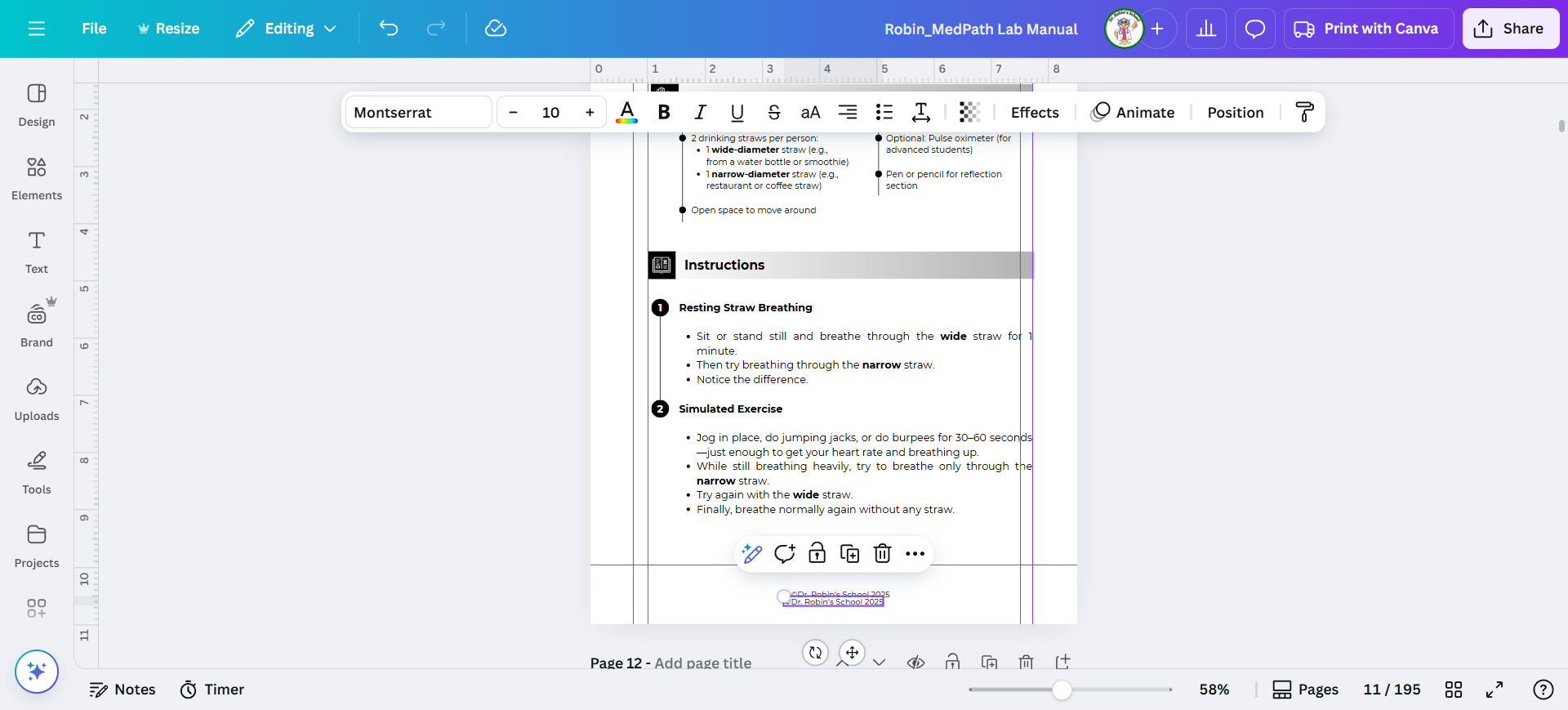
Once you have it in the right place, right click on it and click copy. Now you can copy it onto every other page and it will automatically appear in the correct spot!
Step #45: Once you have it in the right place, right click on it and click copy.  Now you can copy it onto every other page and it will automatically appear in the correct spot!

I want to skip the next page because it would go left, but then the next one goes right, and that's where it's supposed to be. Then left, then right, etc.
46
If you come to one you forgot to delete, just delete it now and keep going.
Step #46: If you come to one you forgot to delete, just delete it now and keep going.

Go through the entire process, alternating left and right.

Pay close attention to the left and right, as I have had to redo these before. (Spoiler alert: I messed up while recording this!)

Then do the opposite pages shifted the opposite direction.
47
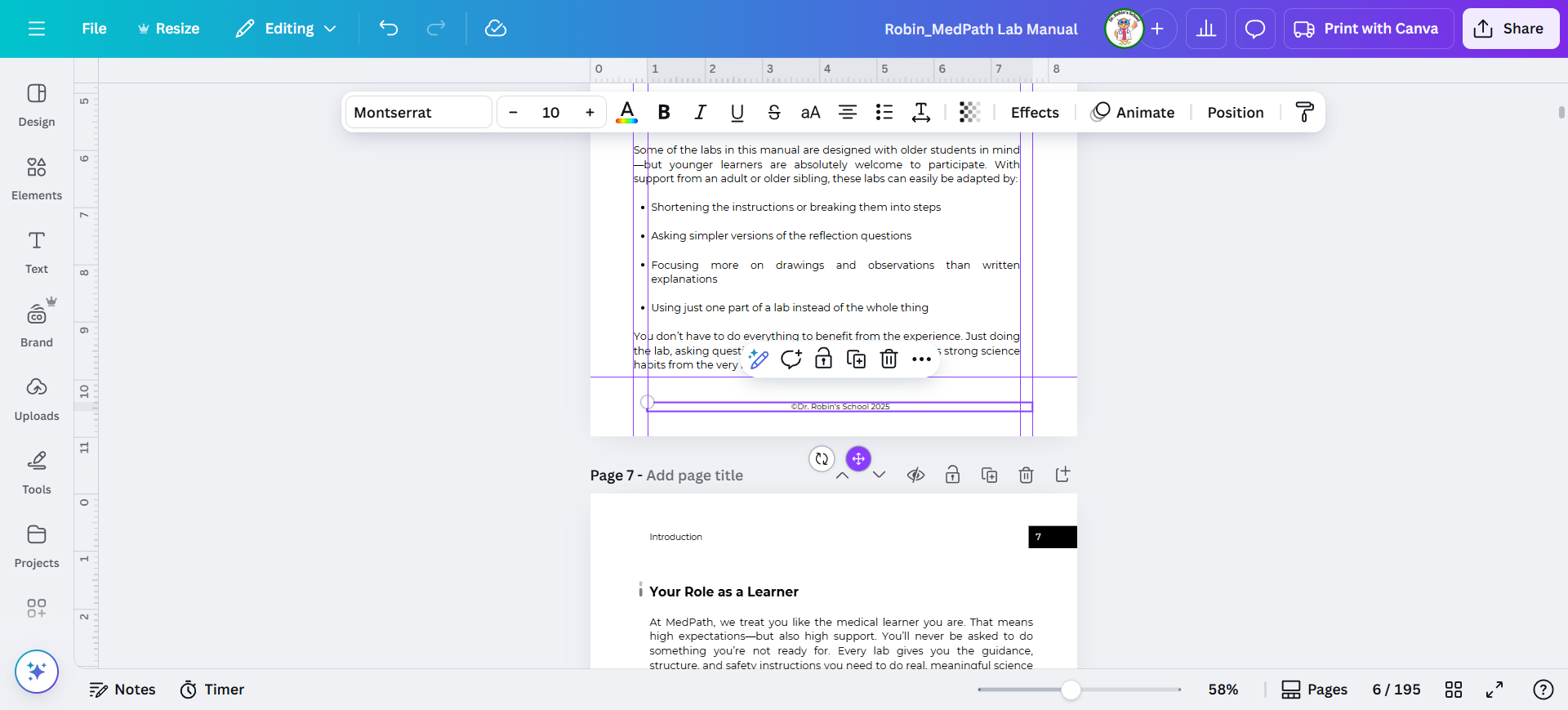
Copy it and shift it to the other side. Then unselect it and select it again.
Step #47: Copy it and shift it to the other side.  Then unselect it and select it again.

48
You need to copy it again in the correct location to be able to easily paste.
Step #48: You need to copy it again in the correct location to be able to easily paste.
49
Copy.
Step #49: Copy.

Skip the right one. Do it on the next left shifted page.

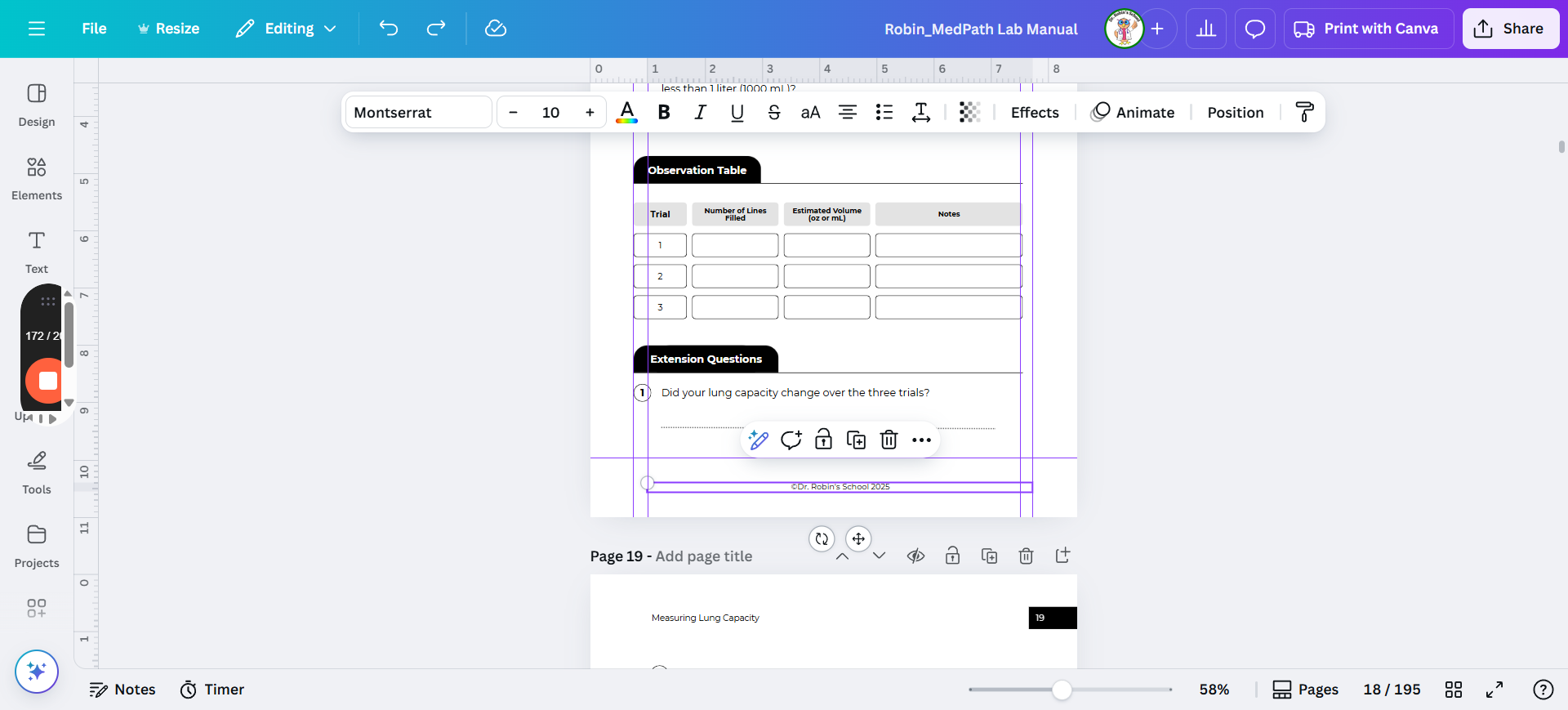
I made a mistake.

So, left is even, right? This should be correct. This is even, so it should be left. Yeah.

See, I said to pay attention, and look what I did.

Now every page after this will be wrong. 🤦
50
You can watch it starting here...
Step #50: You can watch it starting here...

Now we need to fix it, but we haven't done this one yet. You can see that's very short. When it's that short, you can't tell if it's in the right spot.
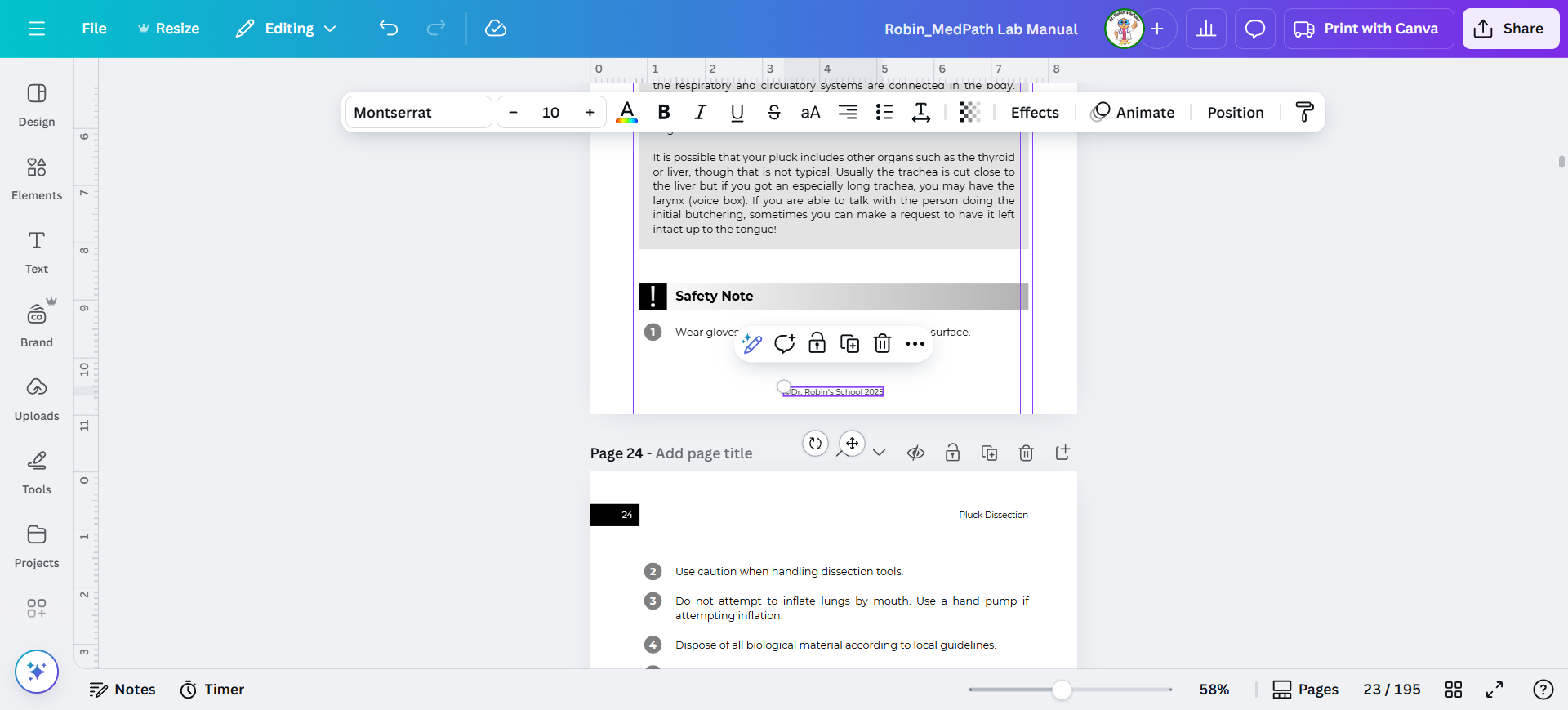
51
So here's how you make it longer to get it to the correct location.
Step #51: So here's how you make it longer to get it to the correct location.

Drag it out until it reaches from one margin to the other, either right to right or left to left.

Center it so you know it's in the correct spot.
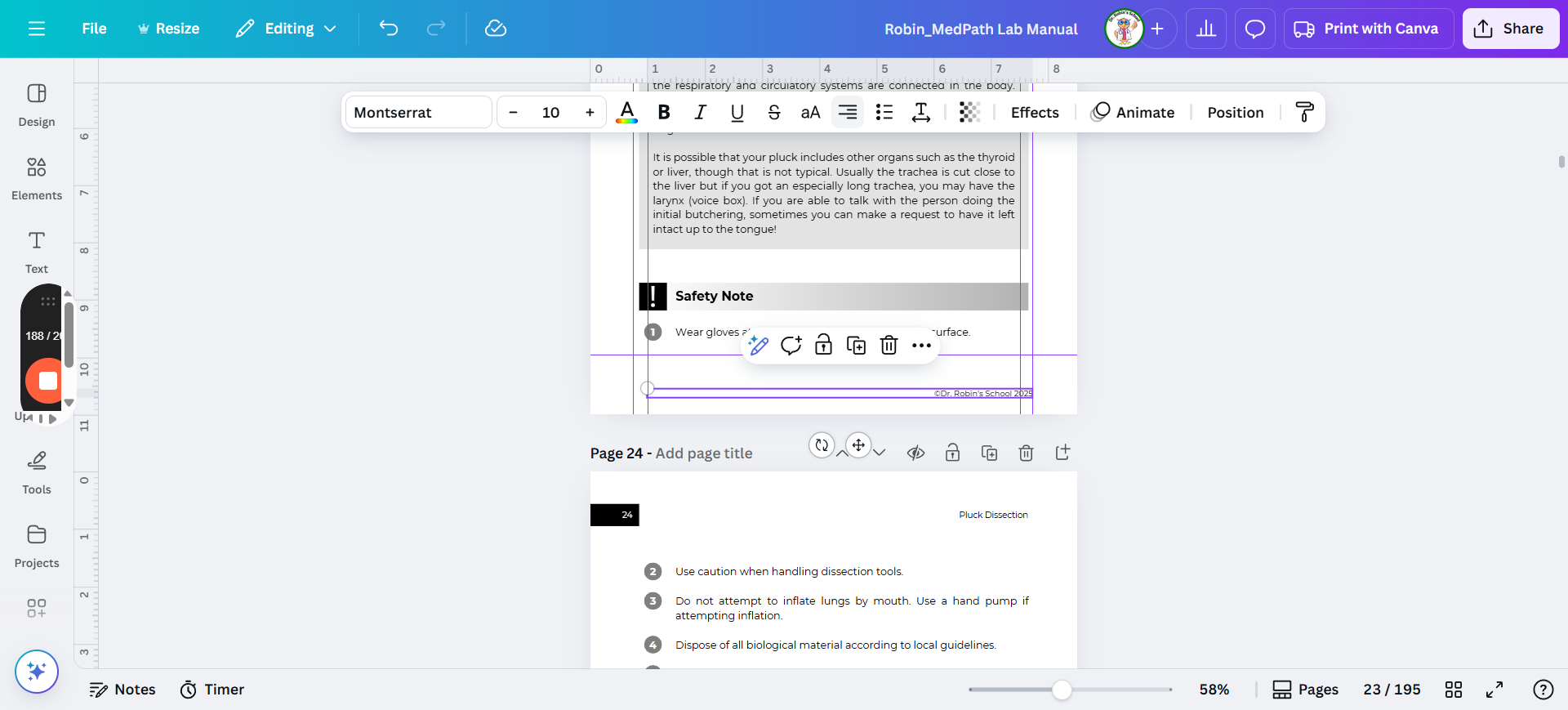
52
Click on "the respiratory and circulatory systems are connected"
Step #52: Click on "the respiratory and circulatory systems are connected"

Conclusion

Let me know if you have any questions. It's not the most fun thing to do. There are many pages, so you need to pay attention. If you accidentally flip it around and start shifting the elements in the wrong direction, you'll have to redo the rest because everything afterwards will be wrong.

What I've learned: Listen to music; don't listen to a book. Don't talk to my kids.

It requires an annoying amount of focus, even though it is mindlessly and irritatingly boring. This is a good job for everyone to share because no one wants to do too much of it.

We can divide the task and get it done!