
2 - Scheduling Client Appointments in Reliatrax
Learn step-by-step how to schedule client appointments, manage recurring sessions, and write session notes in ReliaTrax. Includes tips for handling no-shows, rescheduling, and discharging clients.
In this guide, we will learn how to schedule a client appointment in ReliaTrax. You will learn how to schedule various appointment types, update details, and manage changes like rescheduling or cancellation. This process helps you keep accurate records and stay organized when working with clients.
Let's get started
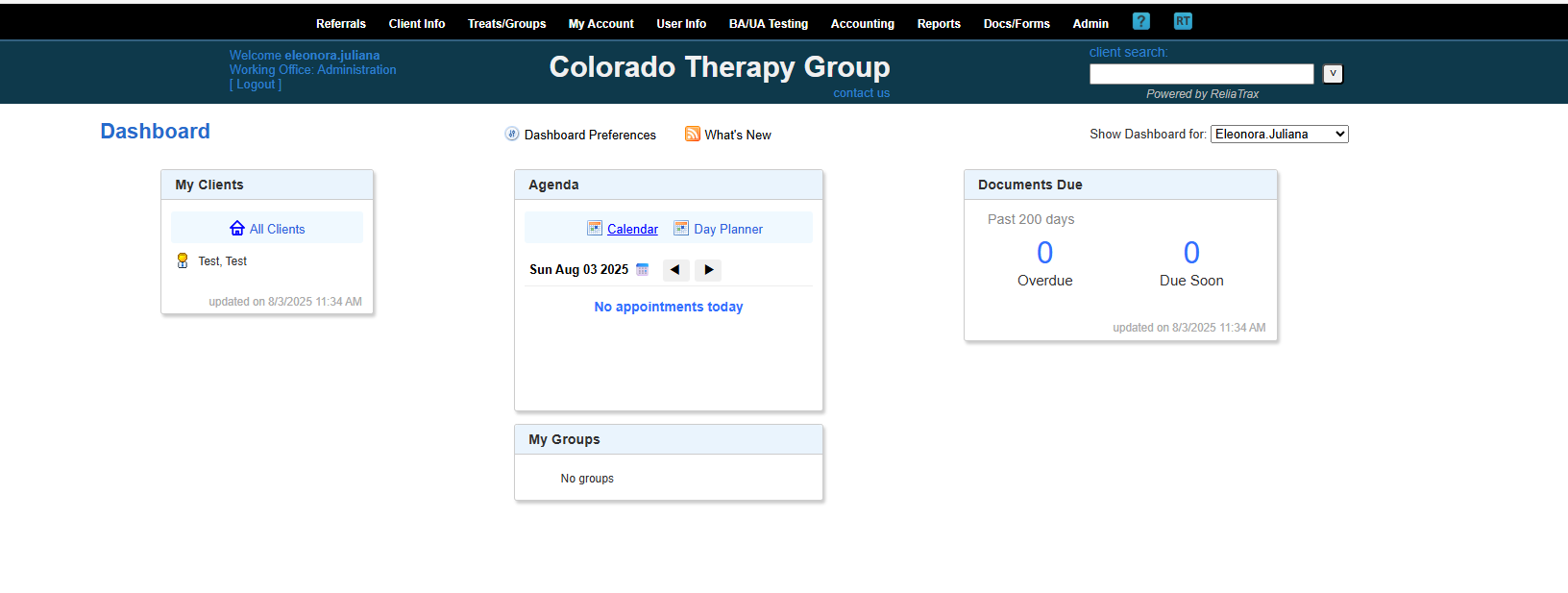
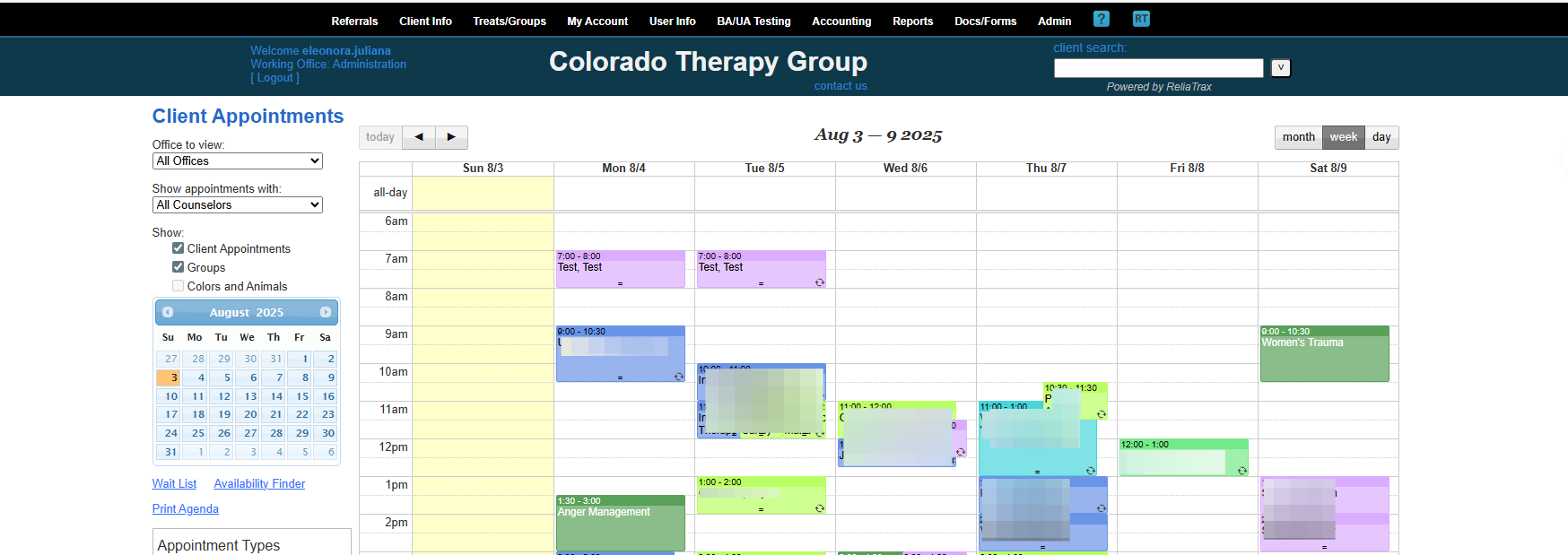
To schedule a client appointment in ReliaTrax, go to your Dashboard. In your Dashboard, click on the Calendar link in the Agenga box.
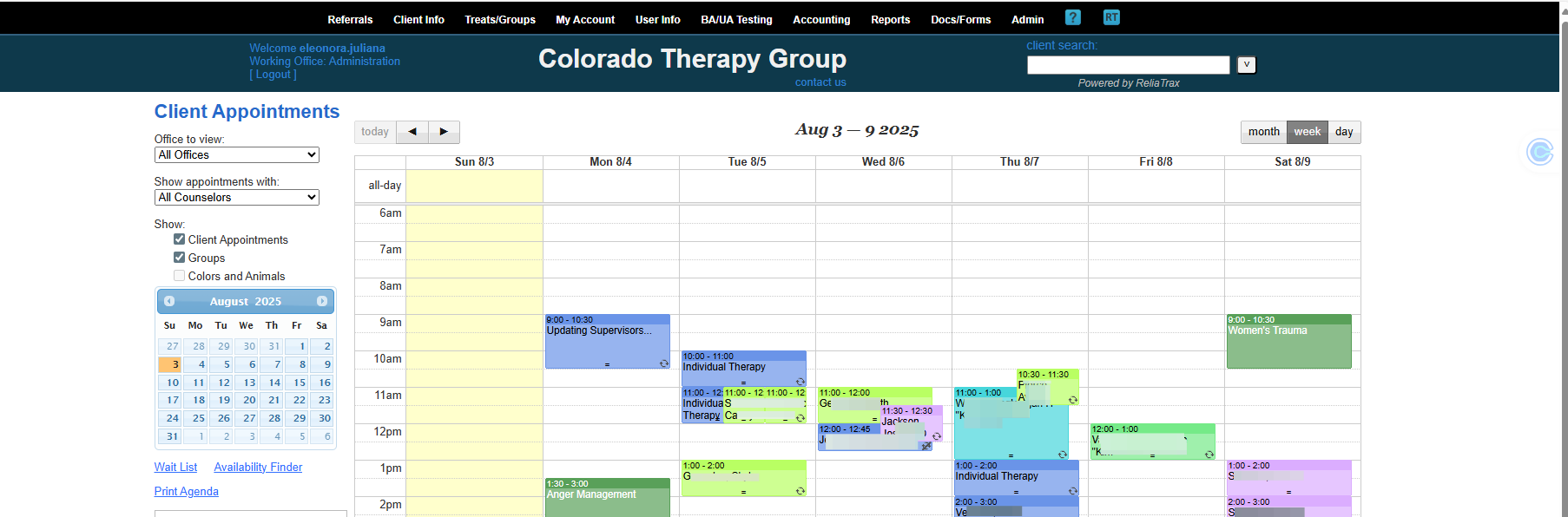
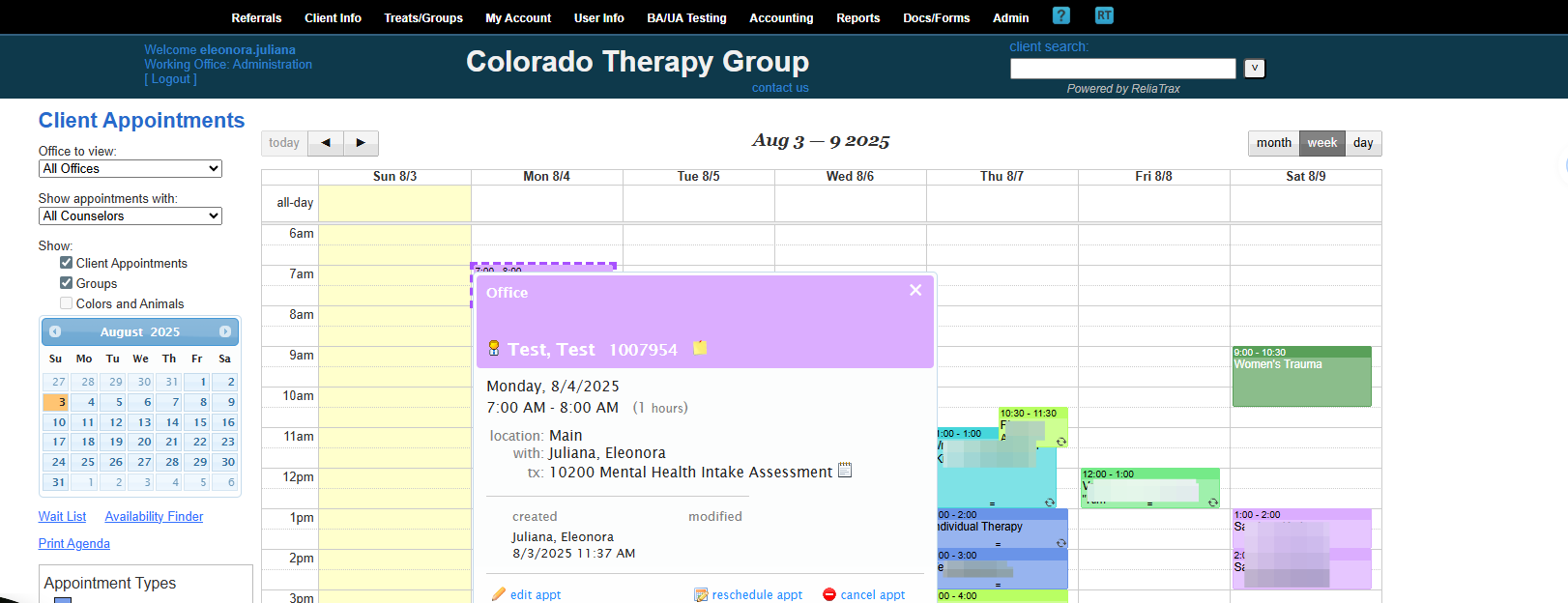
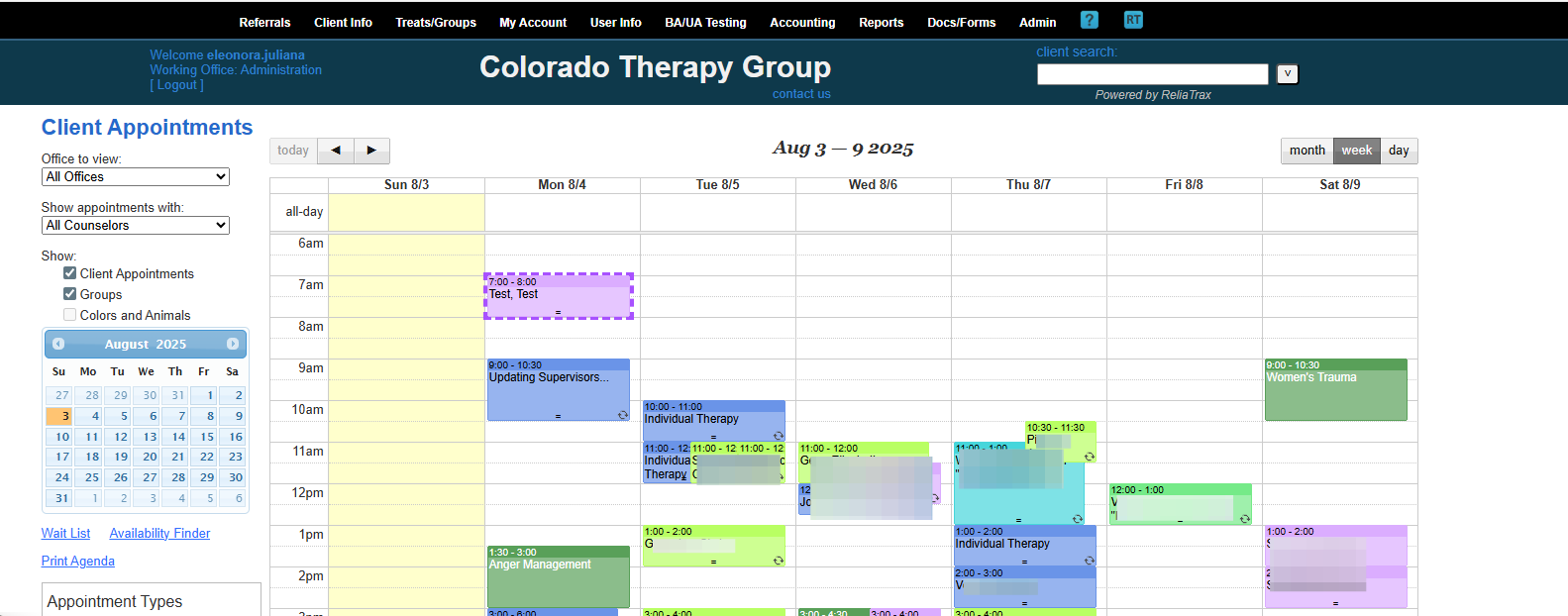
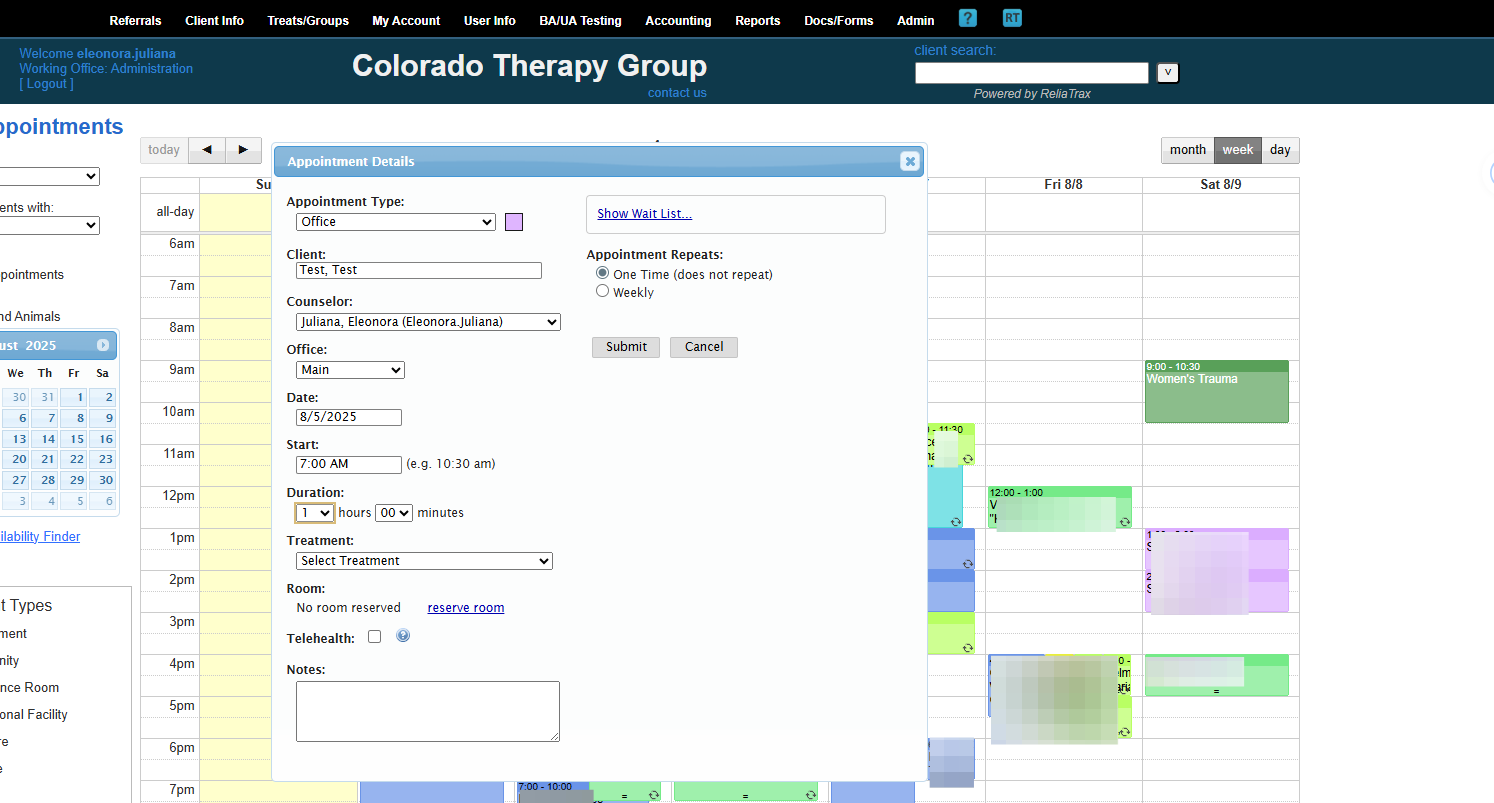
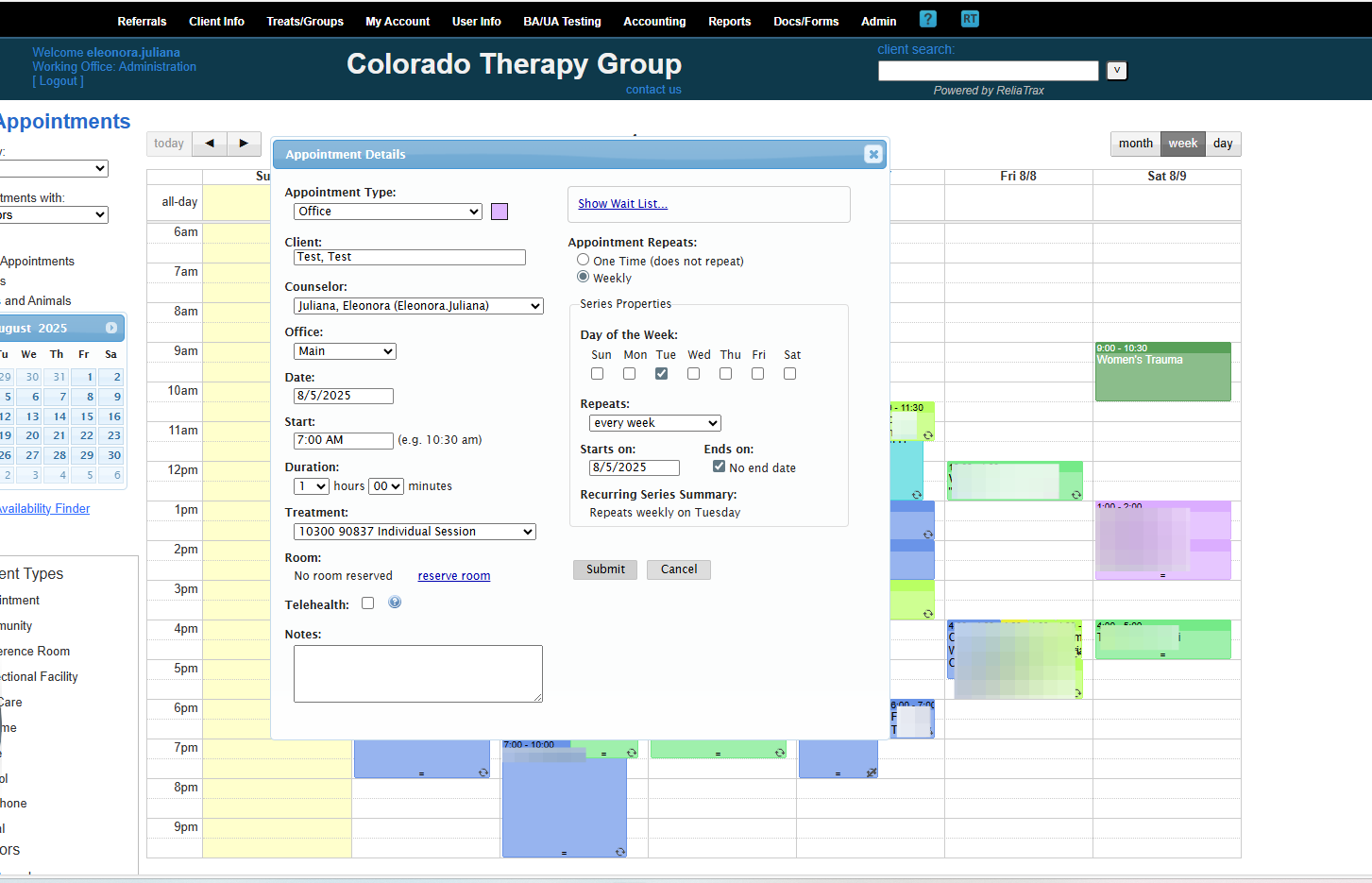
Suppose you have an appointment at 7:00 A.M. on August 4th. I will go on Monday, August 4th, at 7:00 A.M to enter the client's appointment.
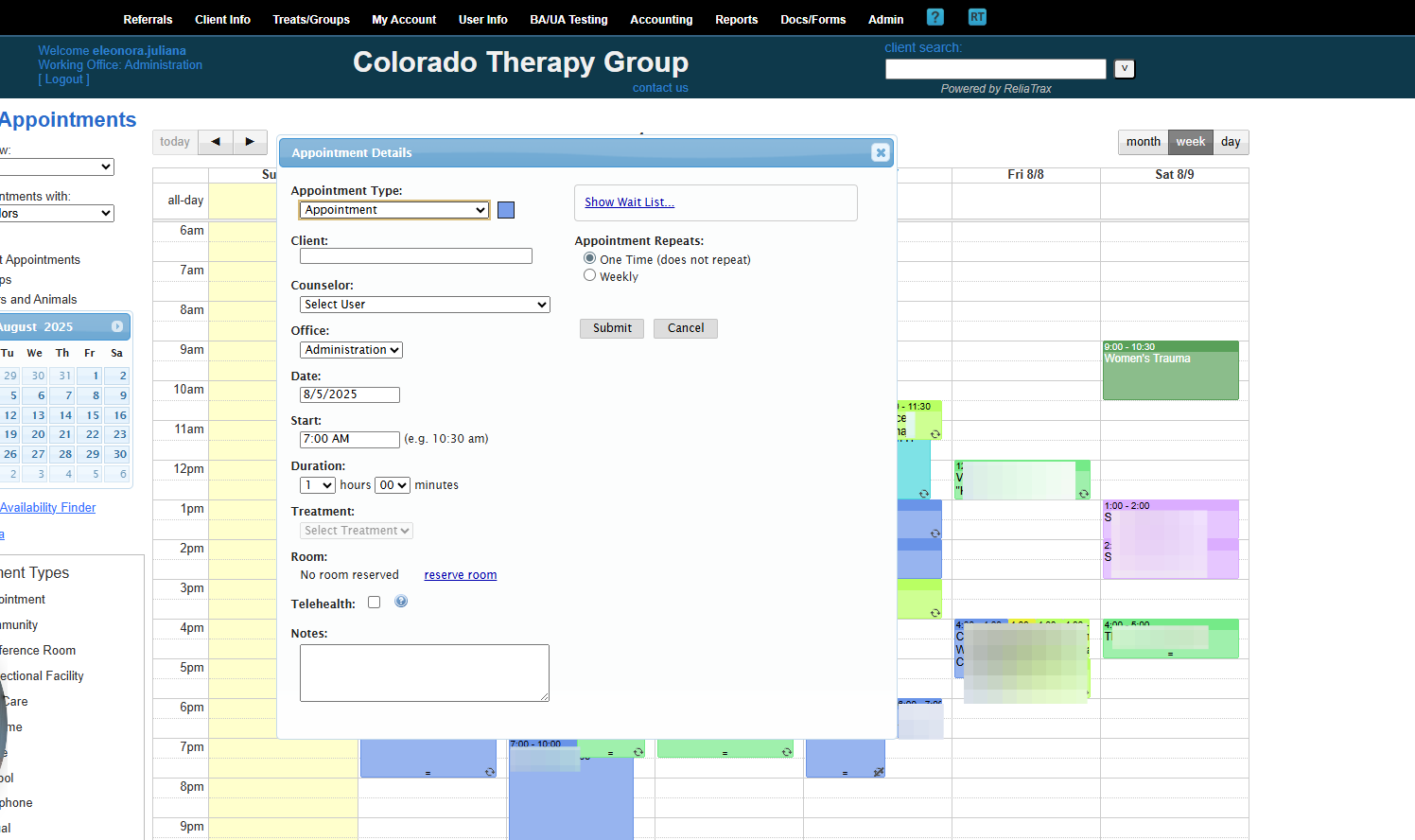
The Appointment Details link will open.
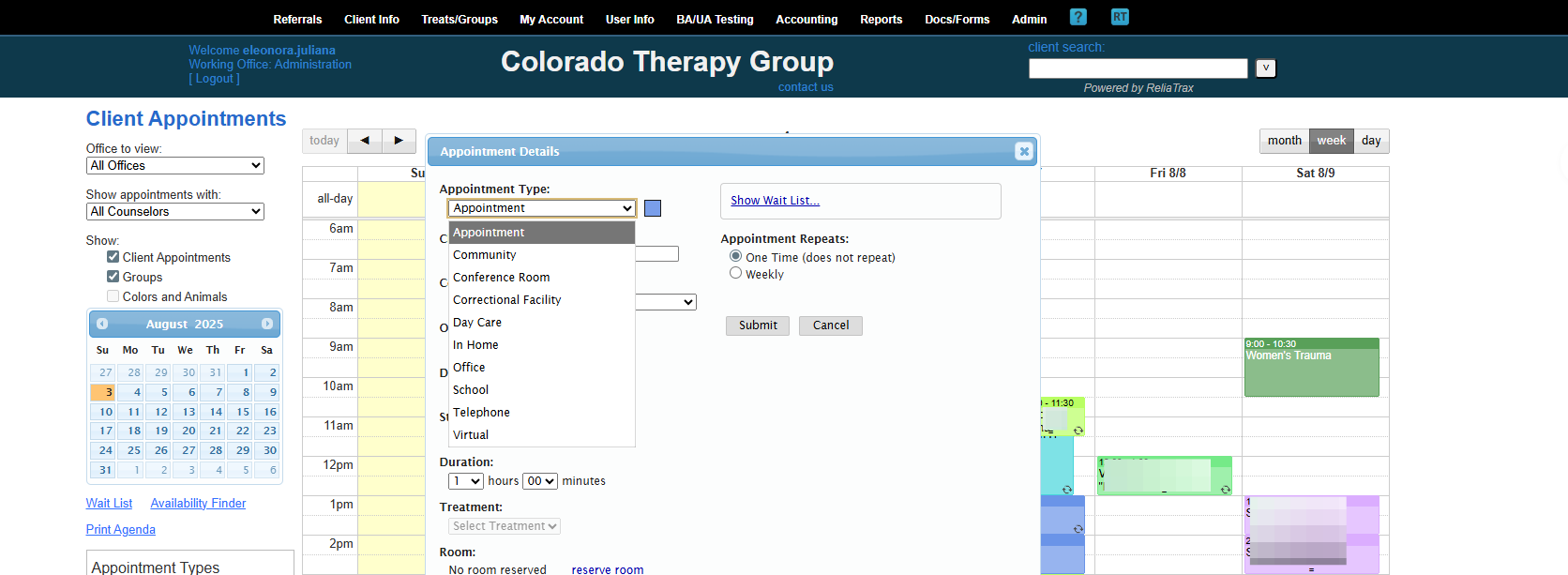
The Appointment Type is the Place of Service (POS): School, Office, In-Home, Telehealth, etc.
I will hold this appointment in the office with my client, Test.
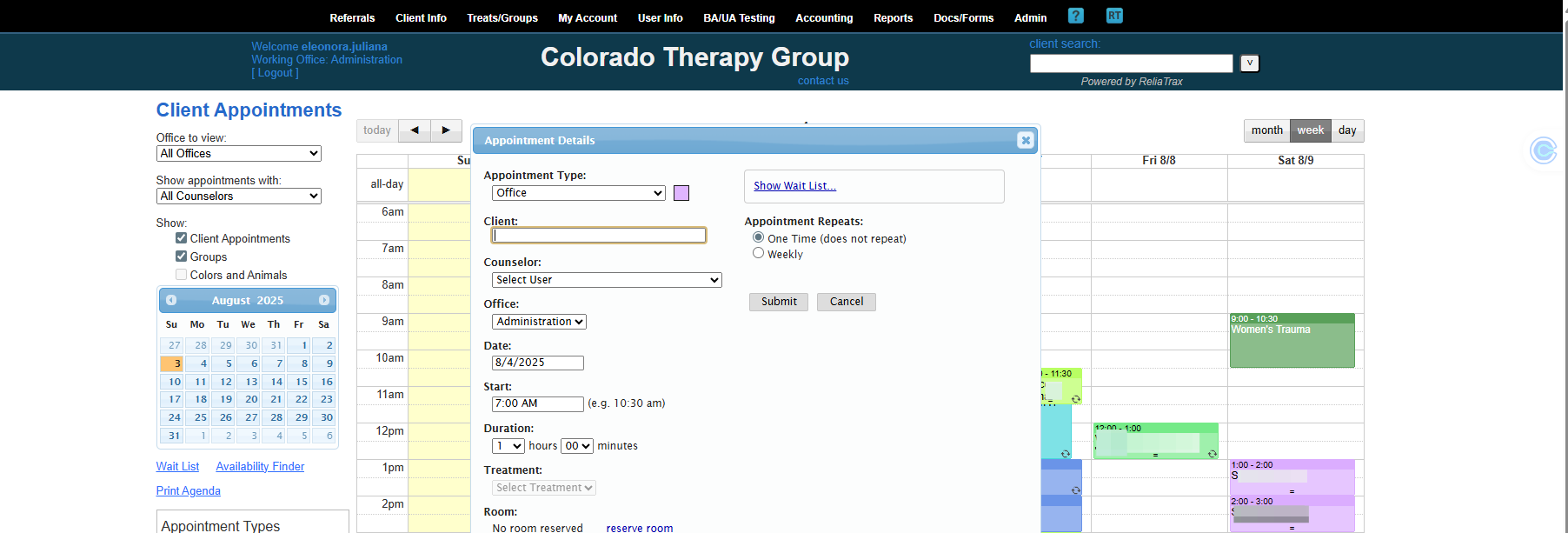
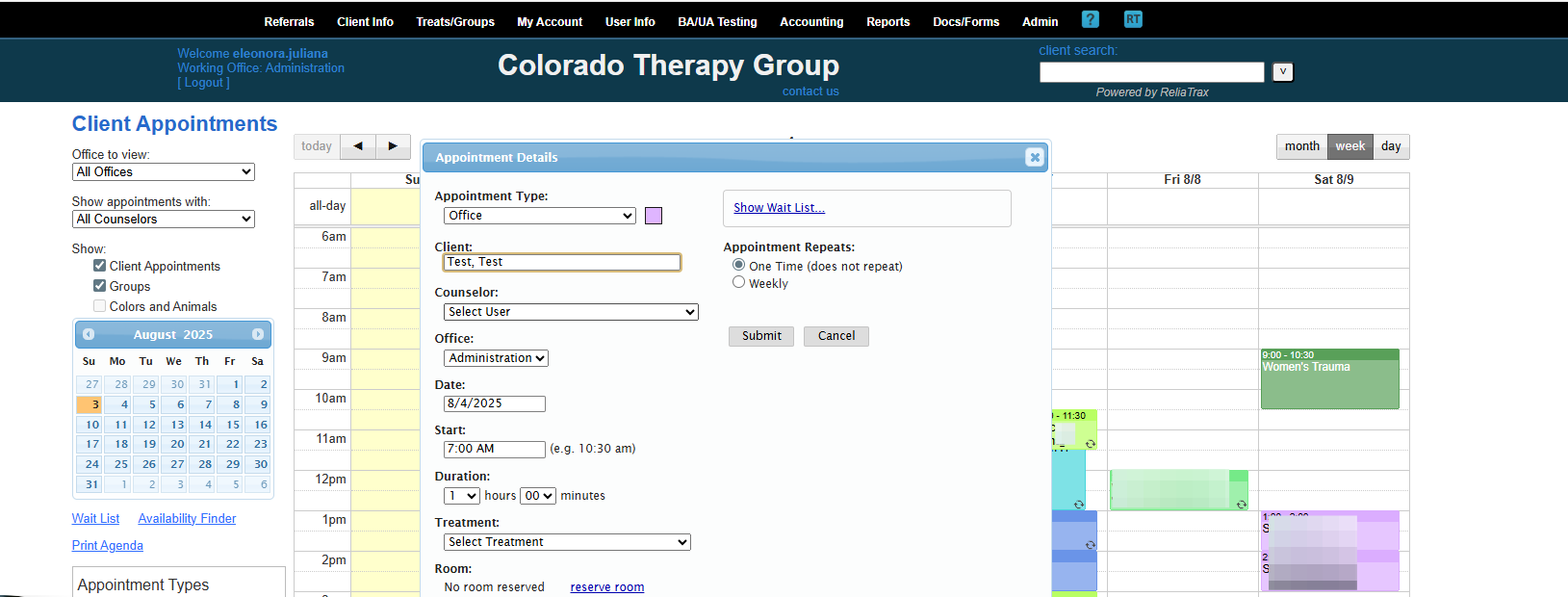
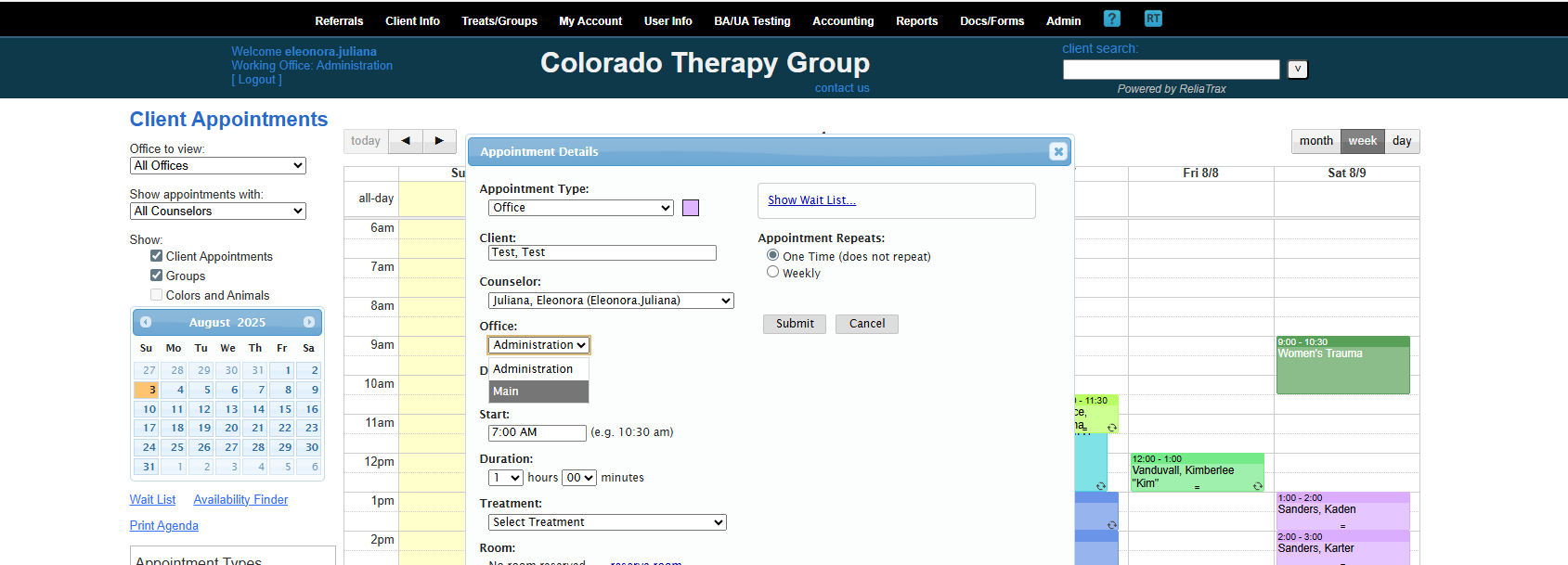
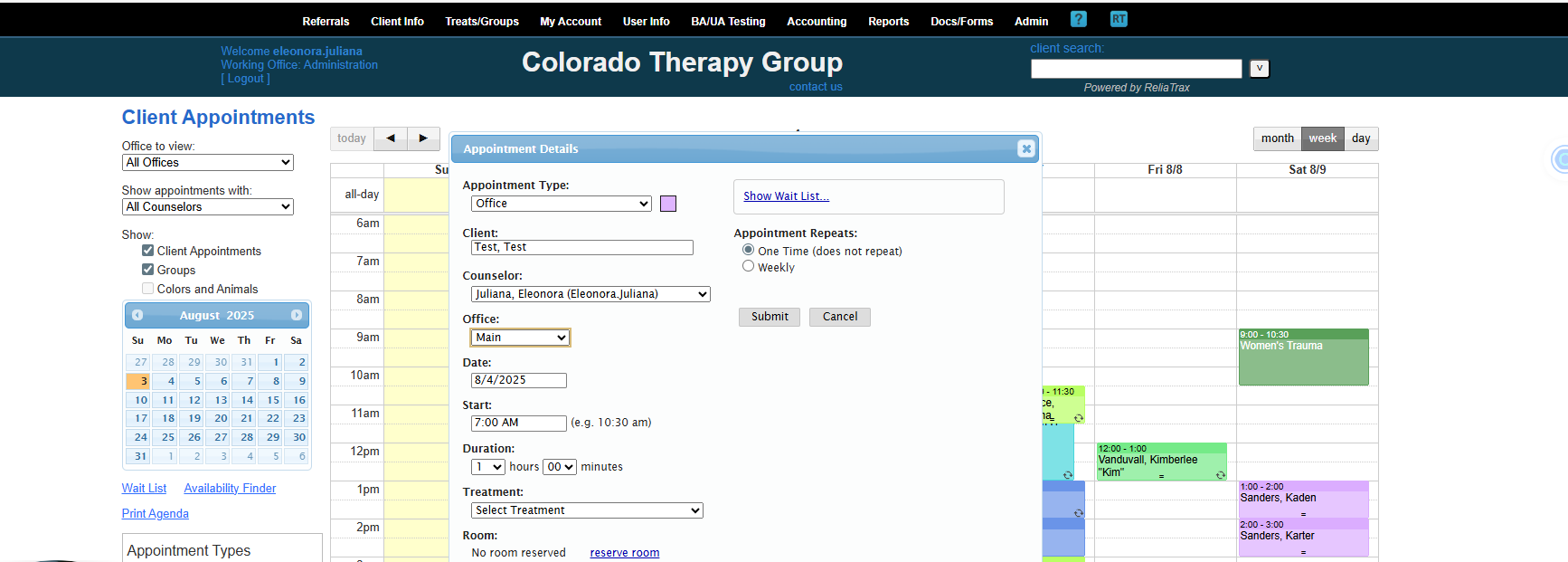
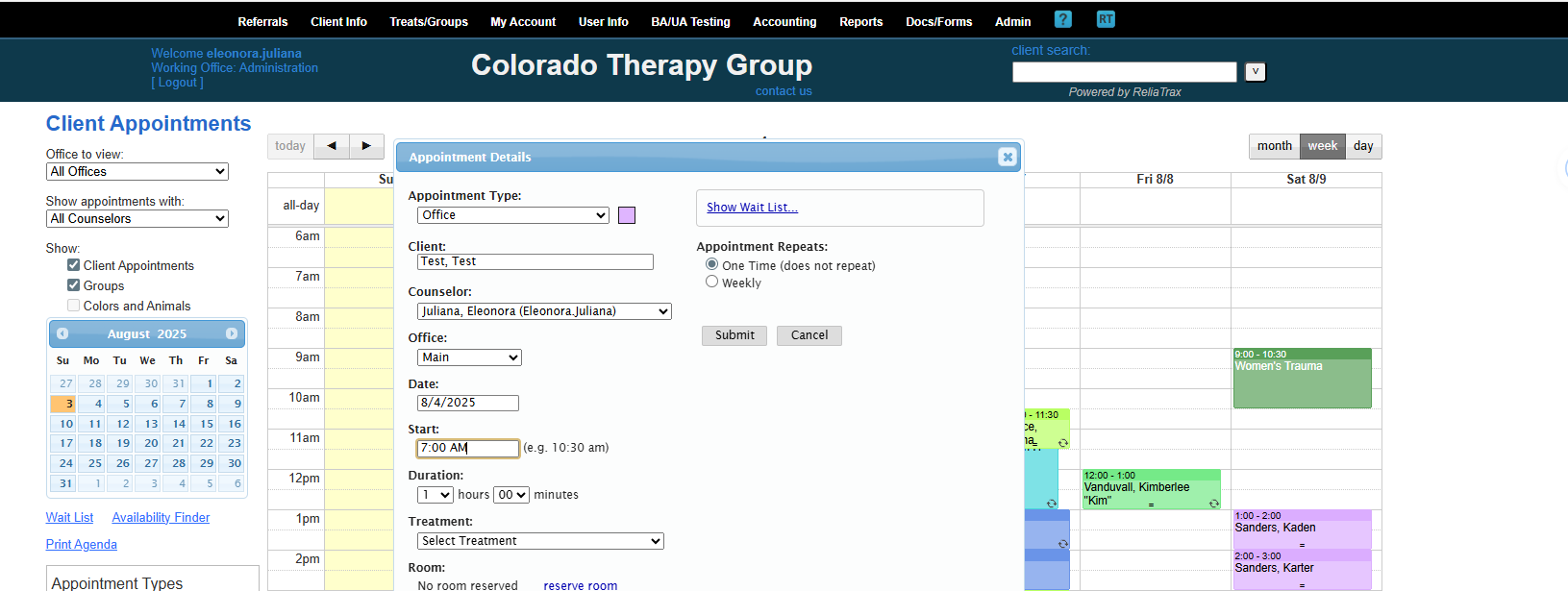
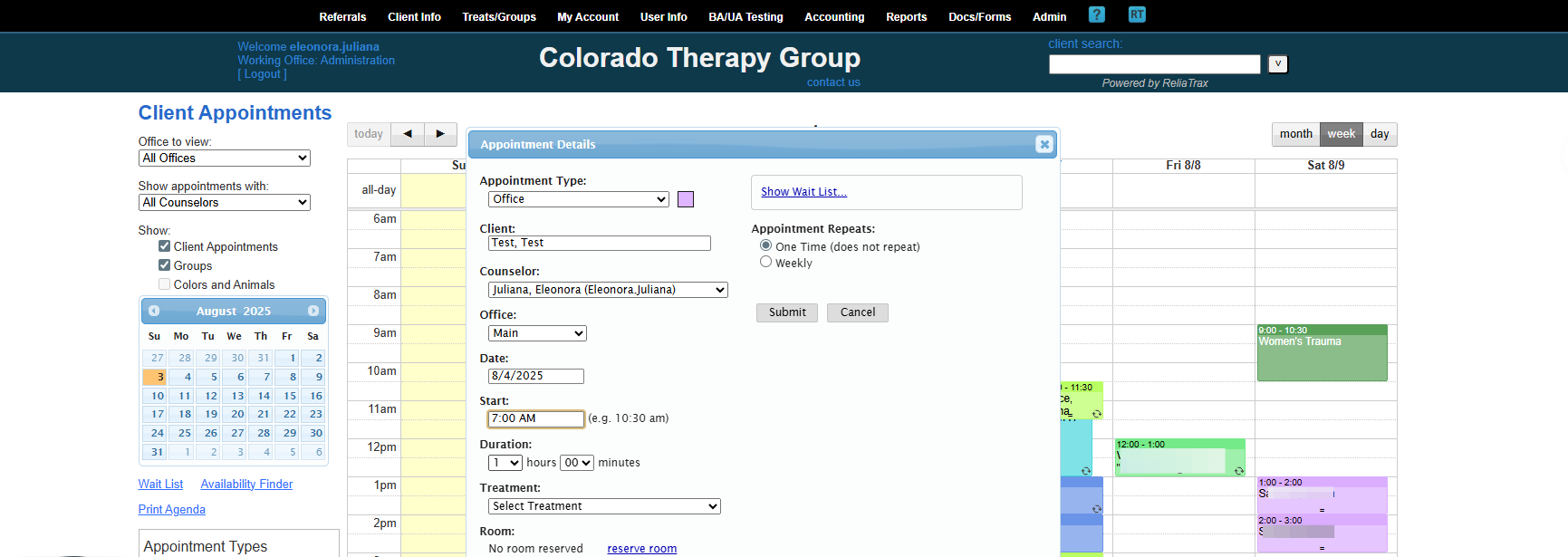
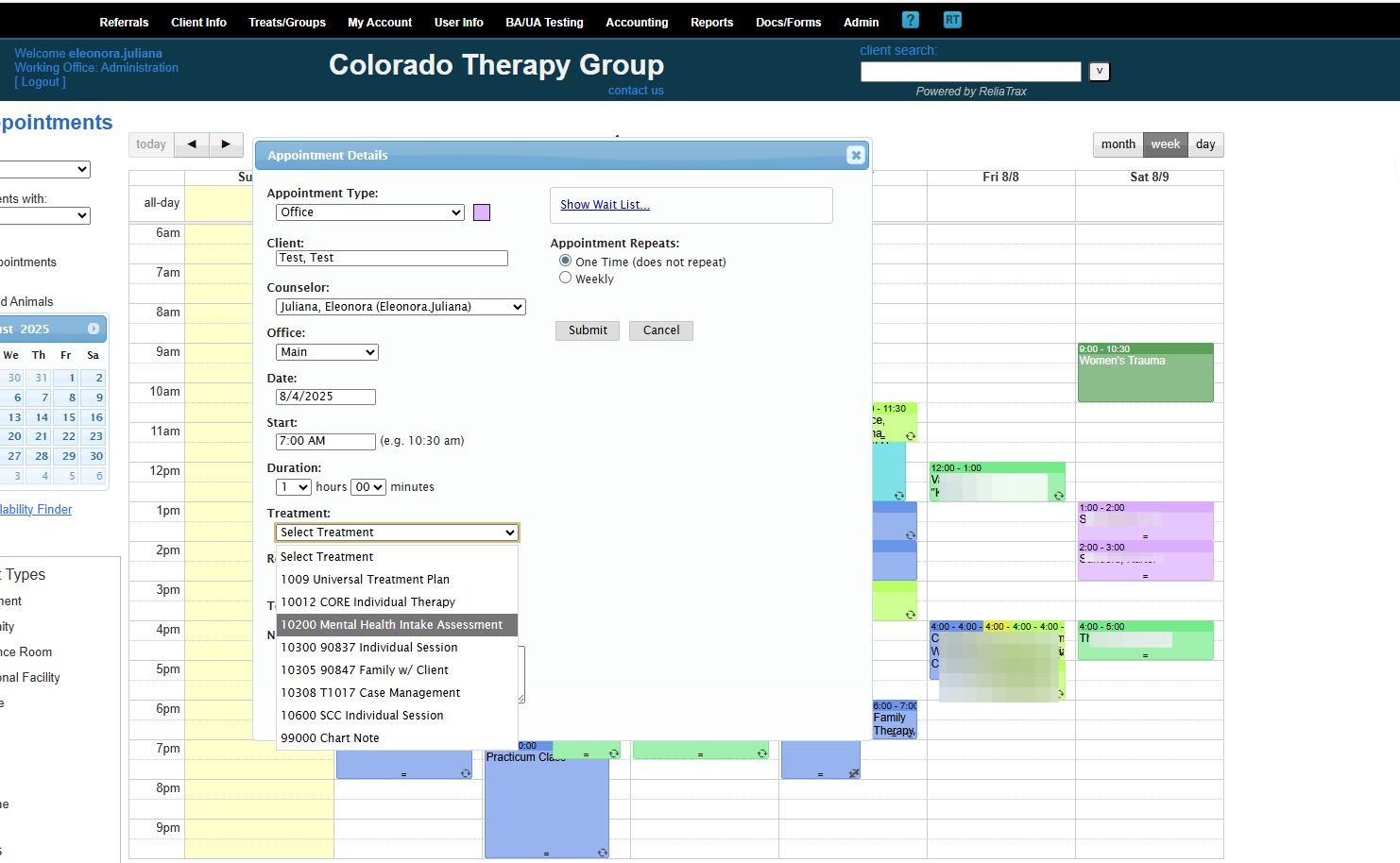
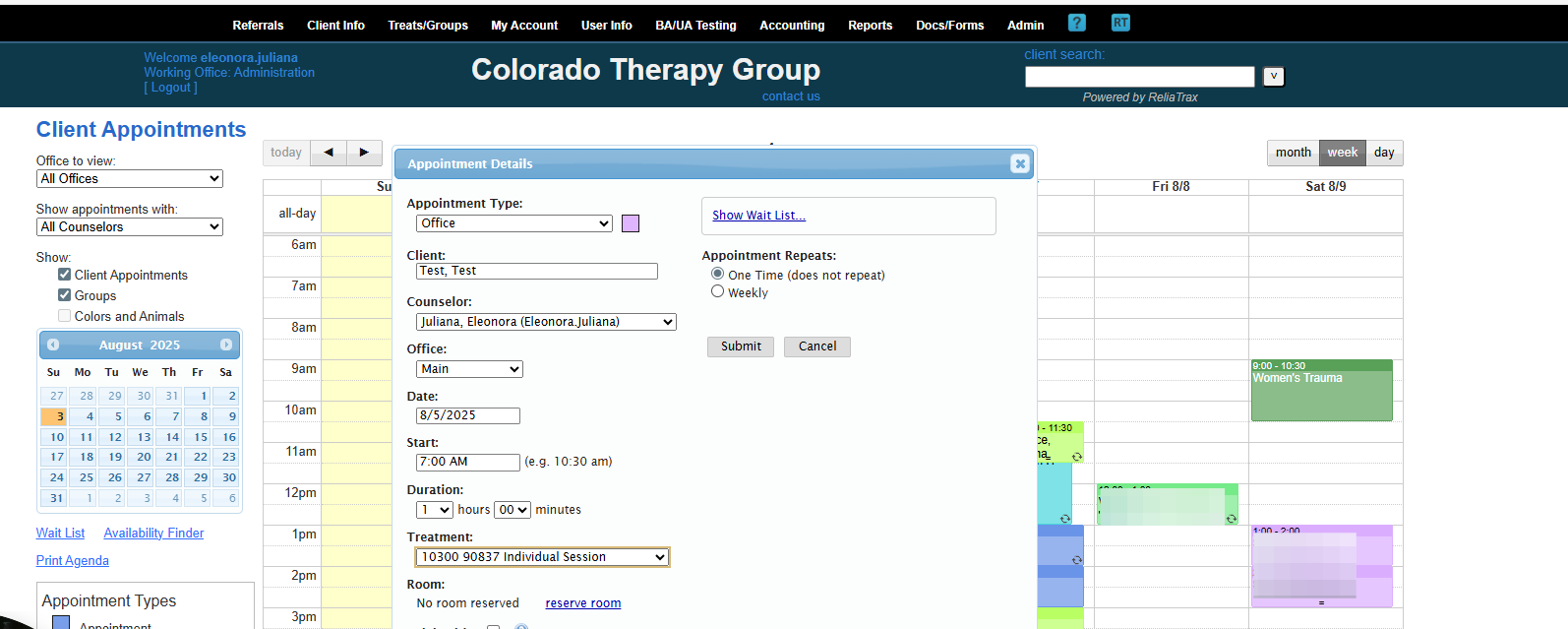
This is how to schedule an Intake Assessment.
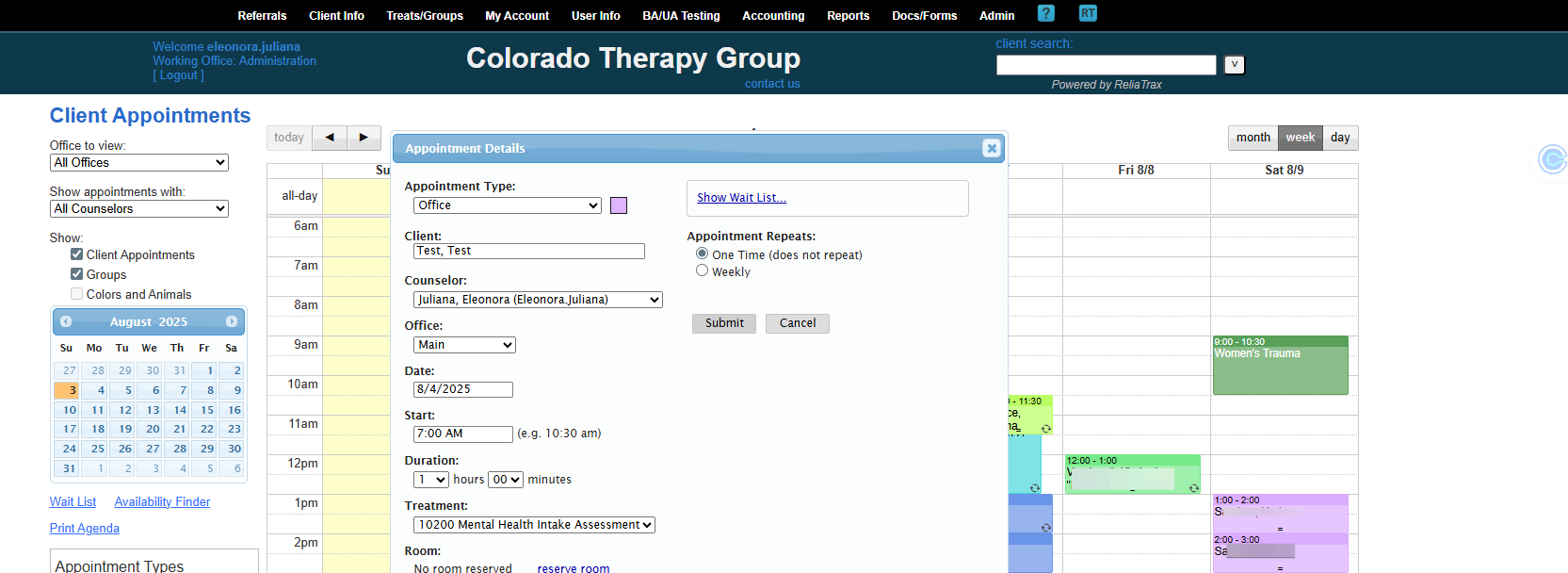
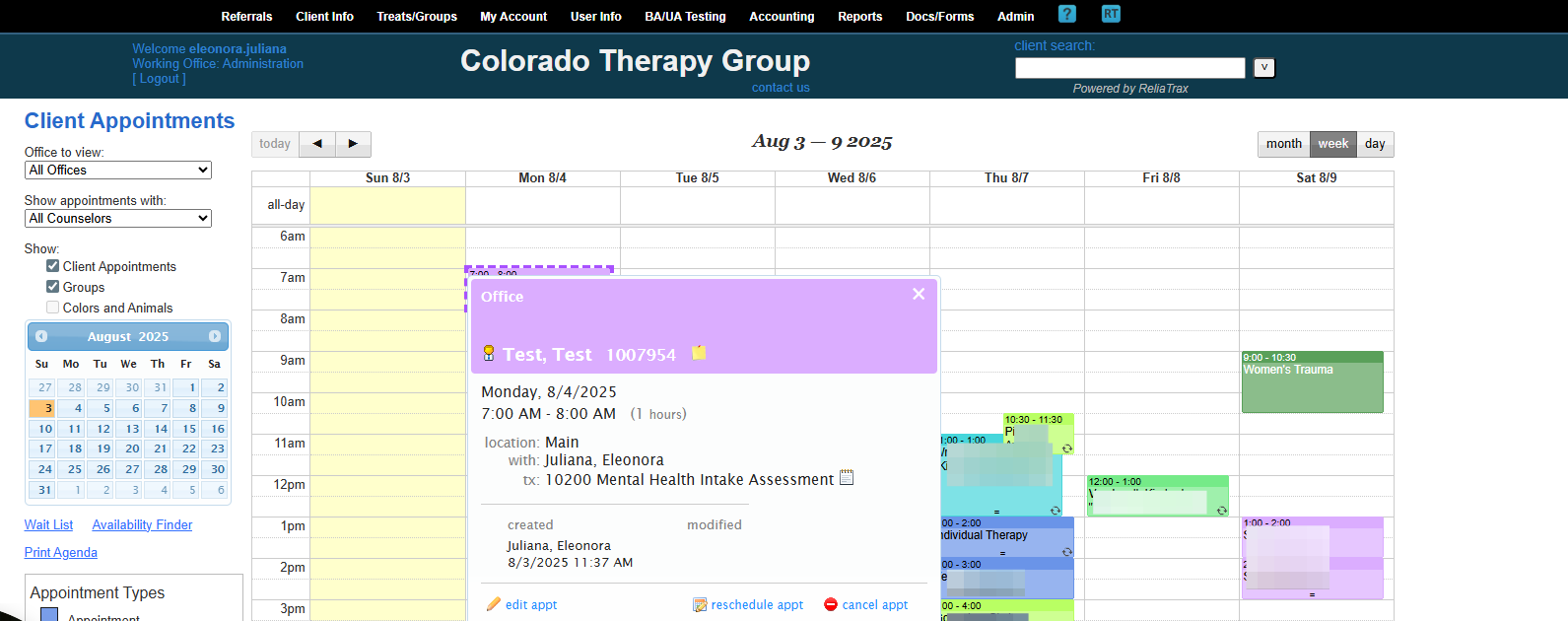
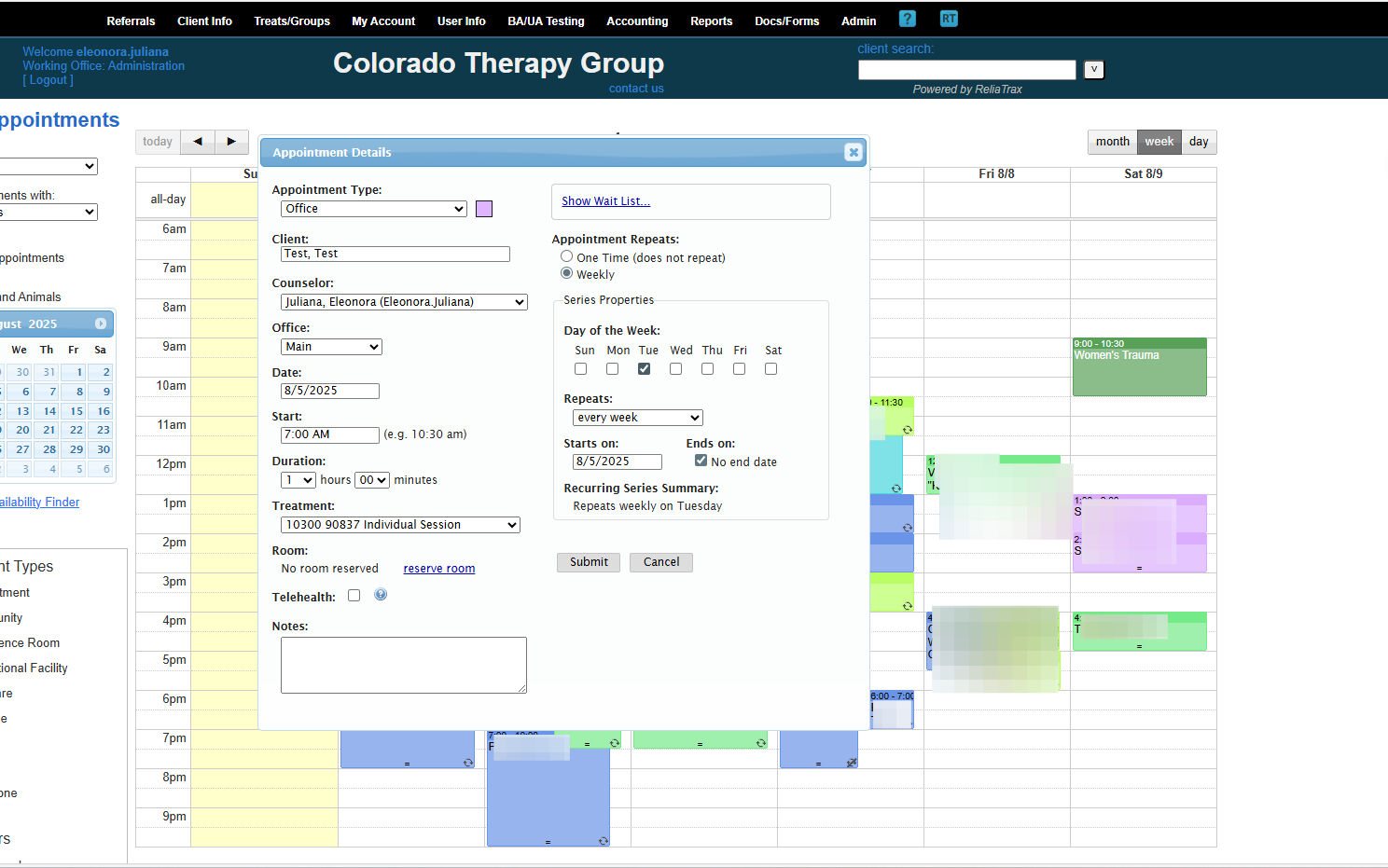
You can cancel, reschedule, or edit the appointments here. You also can create Appointment Repeats.
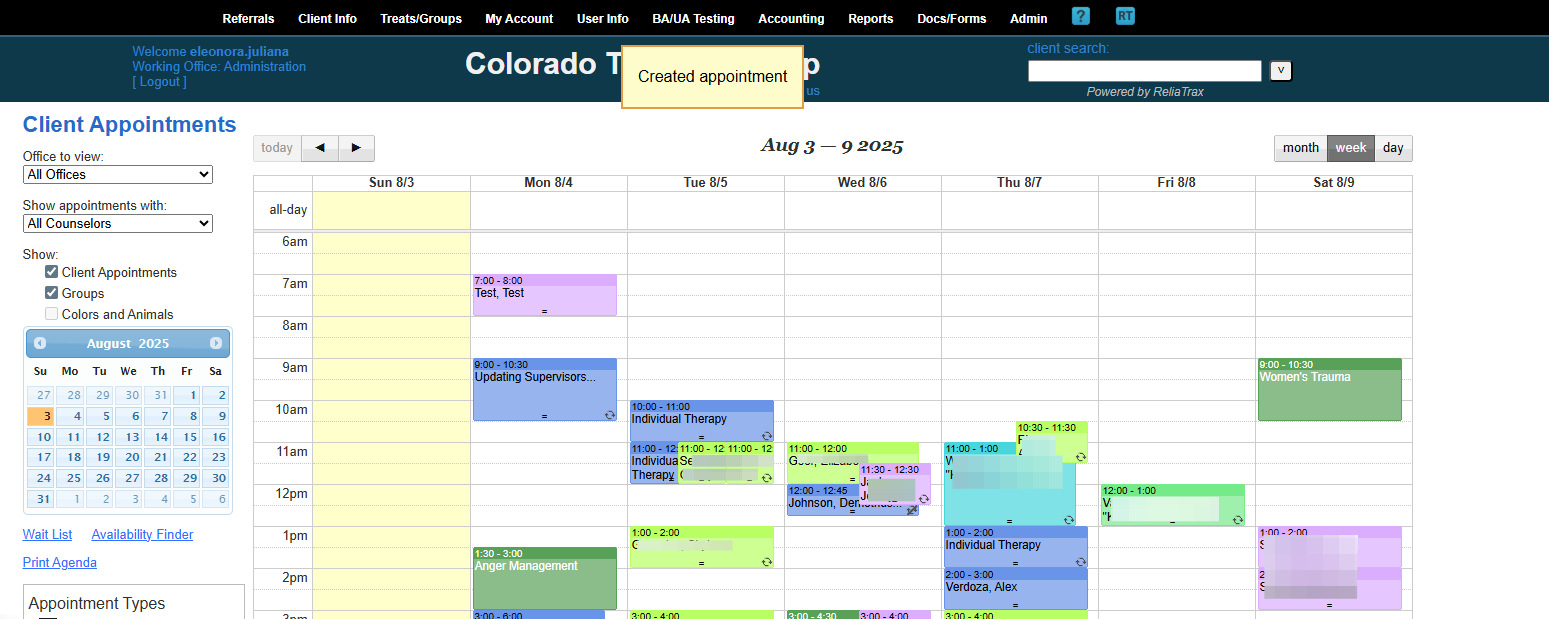
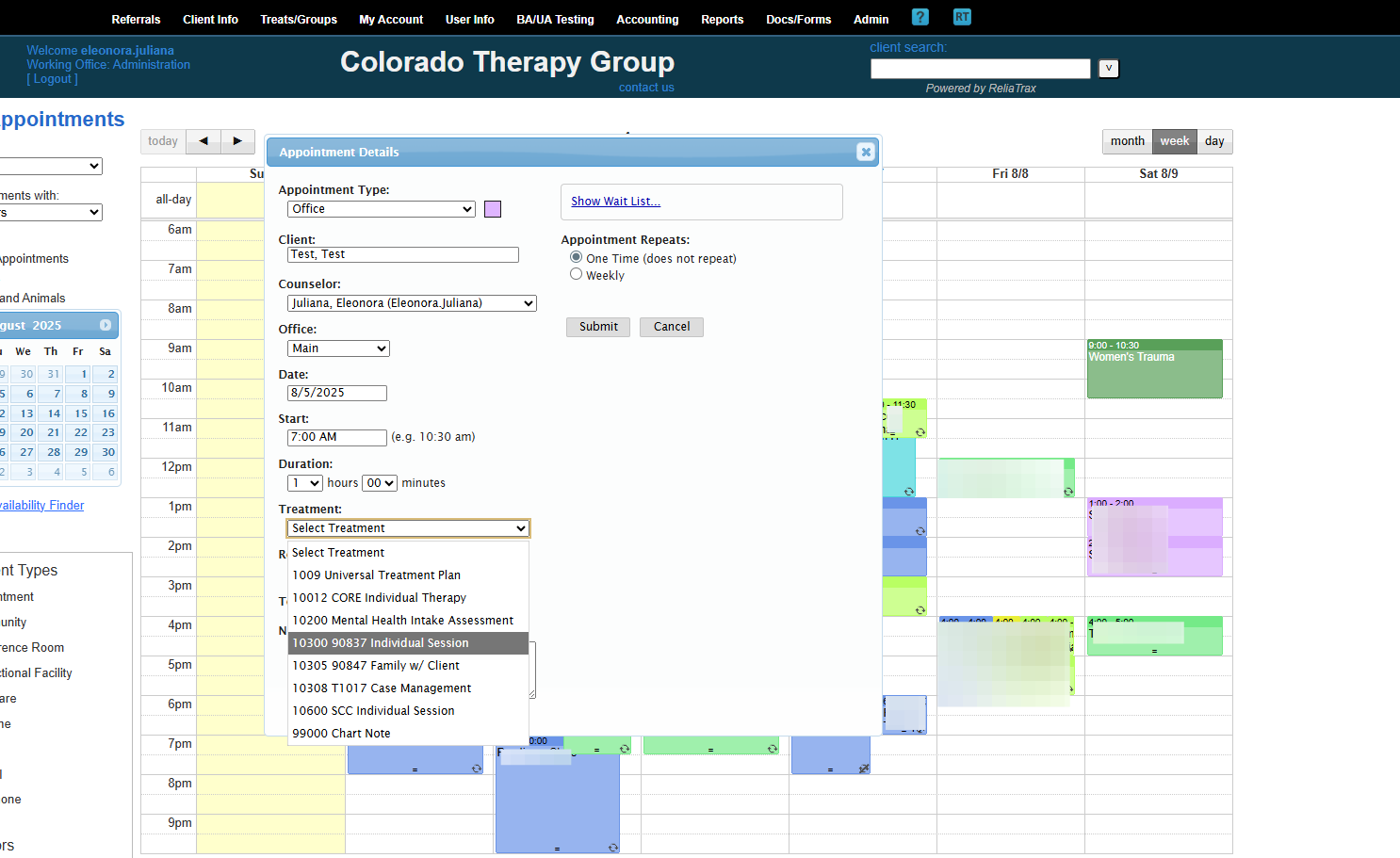
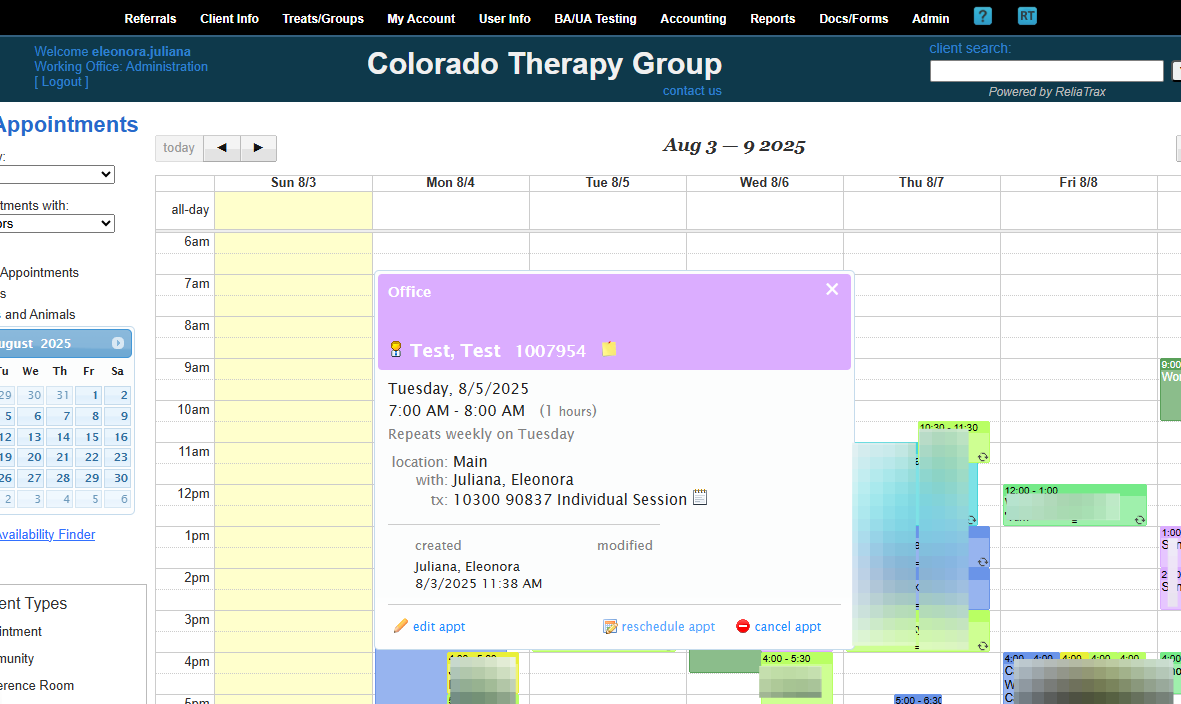
If your client No-Shows, cancels, or reschedules, this is where you will indicate that information.
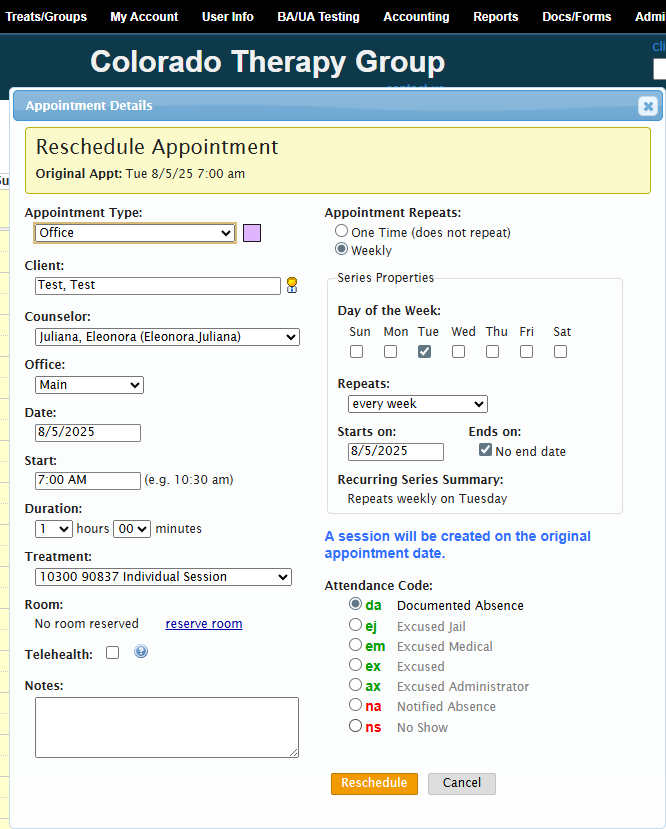
Be sure to update your appointment repeats if it no longer applies.
You can do this by setting the appointment for a single occurrence. If you see the client once a month or every other week, adjust the settings so the appointment does not keep appearing on the calendar when you are not meeting with the client.
That is how to set up a client appointment.