How to Set Up an Affiliate Program for Your Rental Business

Learn how to establish an affiliate program, manage partners, configure commission rules, and share tracking QR codes in your Reservety platform.

By Reservety

Creating an affiliate program empowers hotels, resorts, and local businesses to promote your rental services and earn commissions on successful bookings. This guide covers how to set up and manage an affiliate marketing program on Reservety.

Accessing the Affiliate Module

To begin, log in to your Reservety admin dashboard.
1
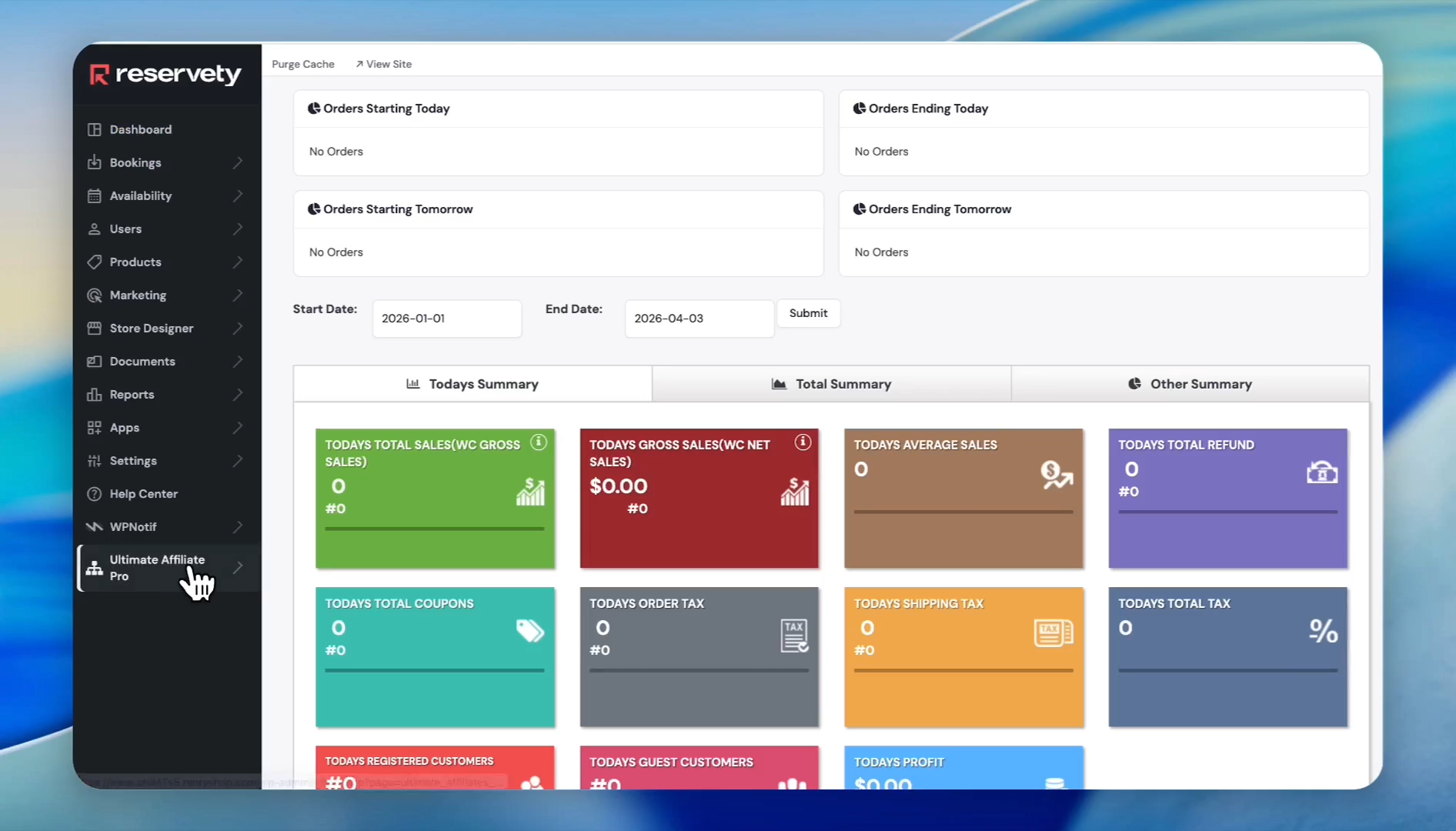
Click Ultimate Affiliate Pro
Step #1: Click Ultimate Affiliate Pro

.

Managing Affiliate Partners

There are two ways to add affiliates to your platform: manually registering them or enabling public registrations on your website.

Adding Affiliates Manually
2
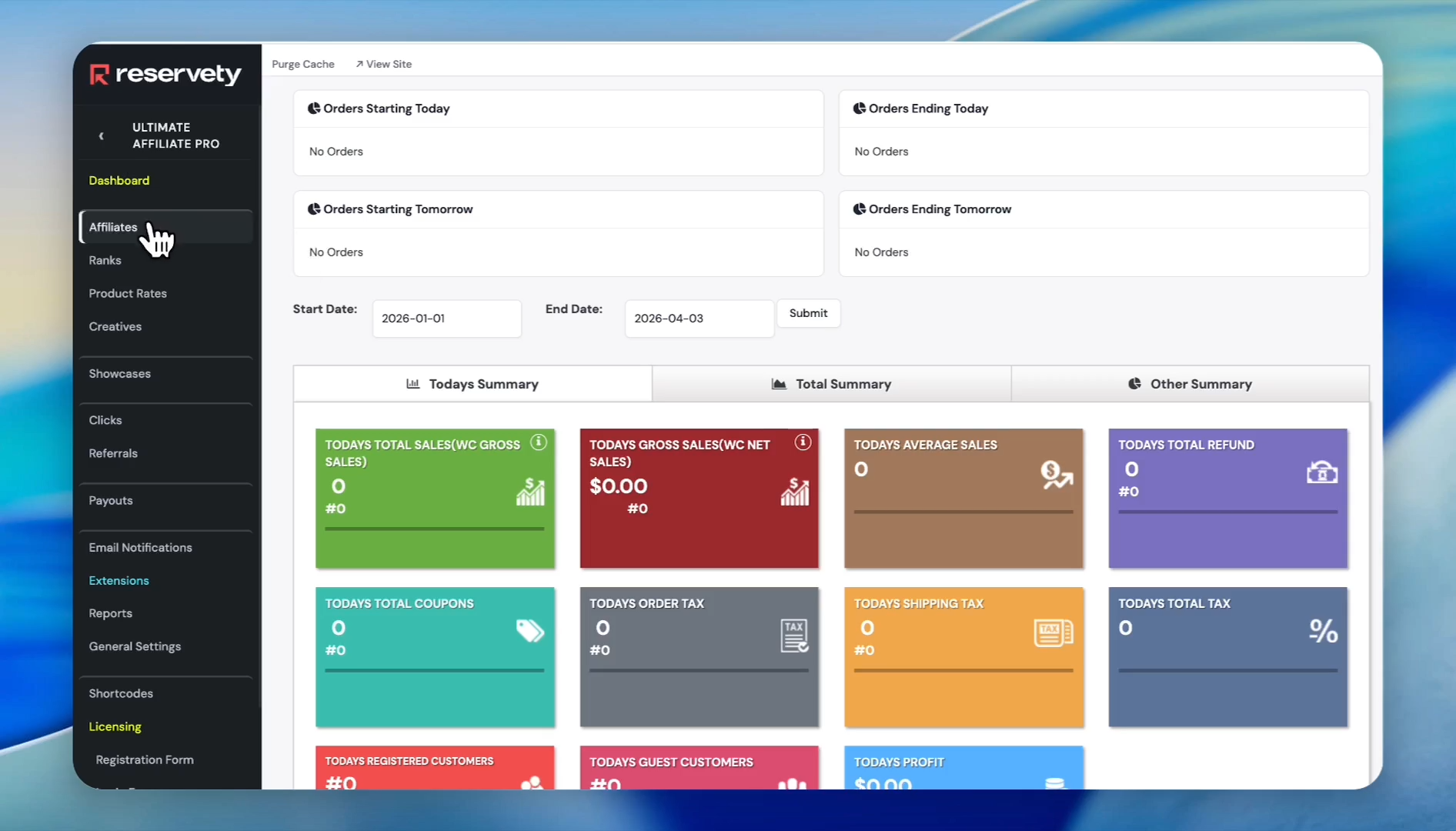
Click on Affiliates in the left sidebar
Step #2: Click on Affiliates in the left sidebar
3
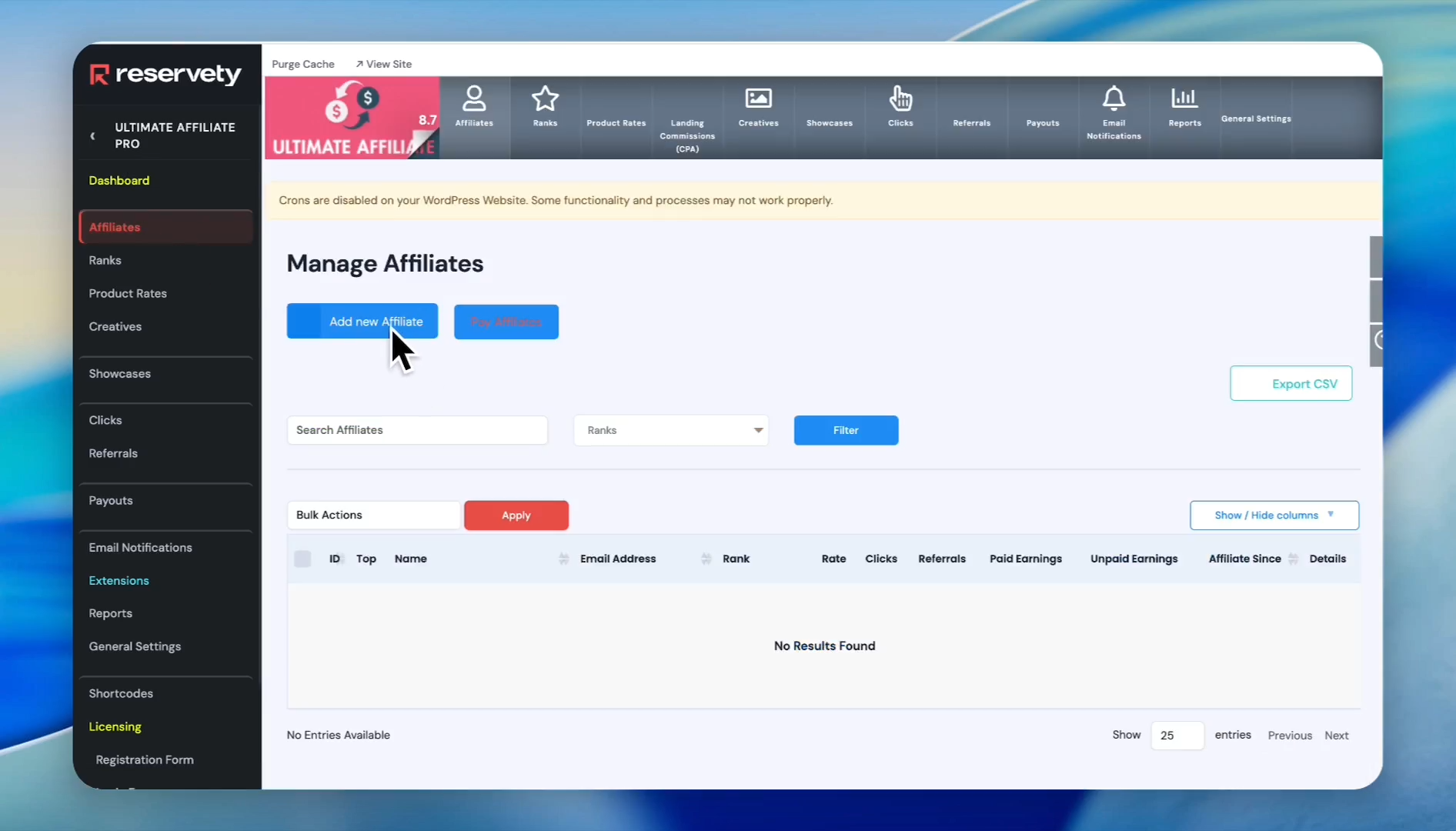
Click Add New Affiliate
Step #3: Click Add New Affiliate
4
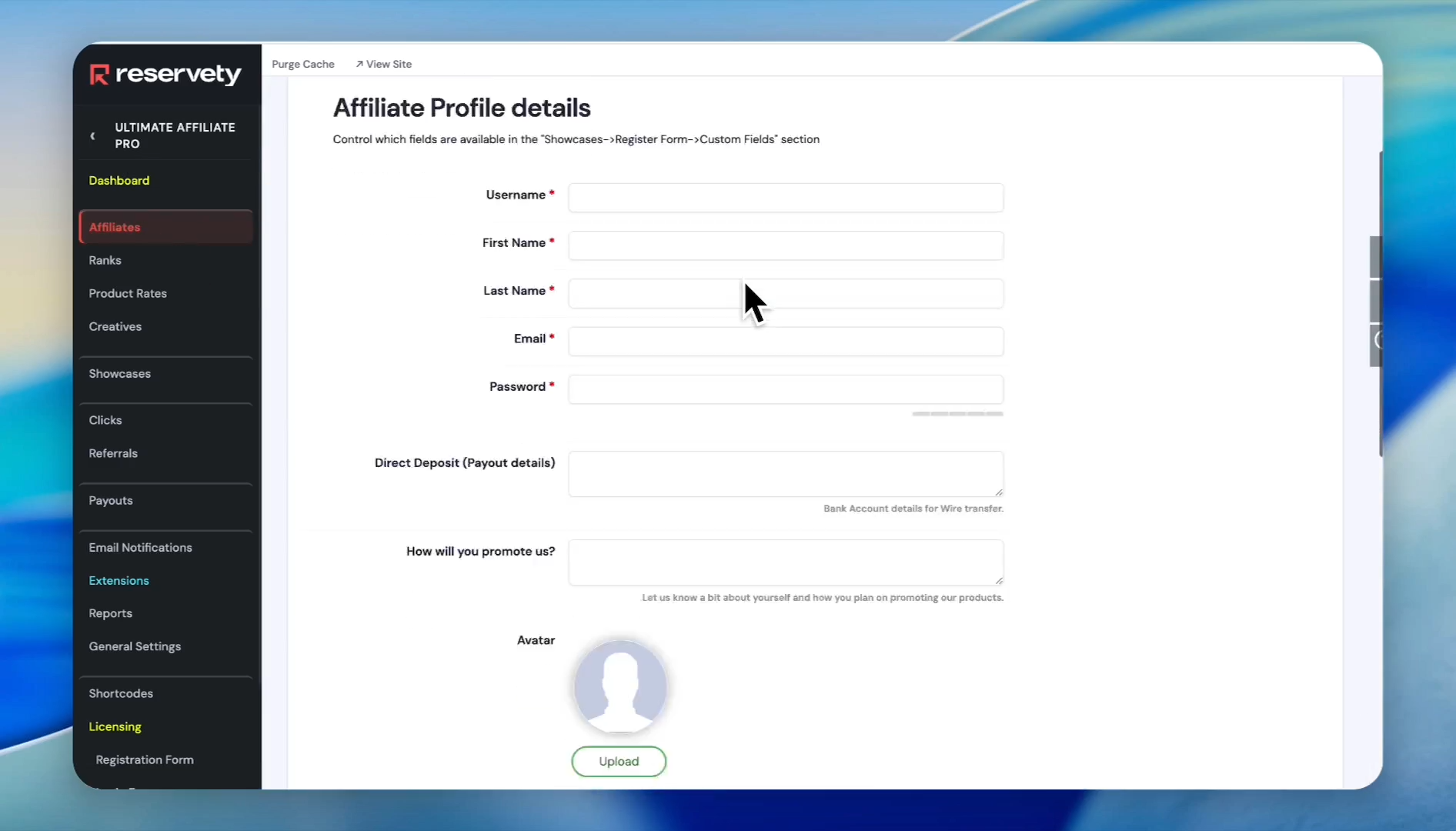
Fill out the partner's required information. Click Register
Step #4: Fill out the partner's required information. Click Register

.

Setting Up a Registration Form

Provide an automated way for partners to sign up by embedding a registration form on your rental website.
5
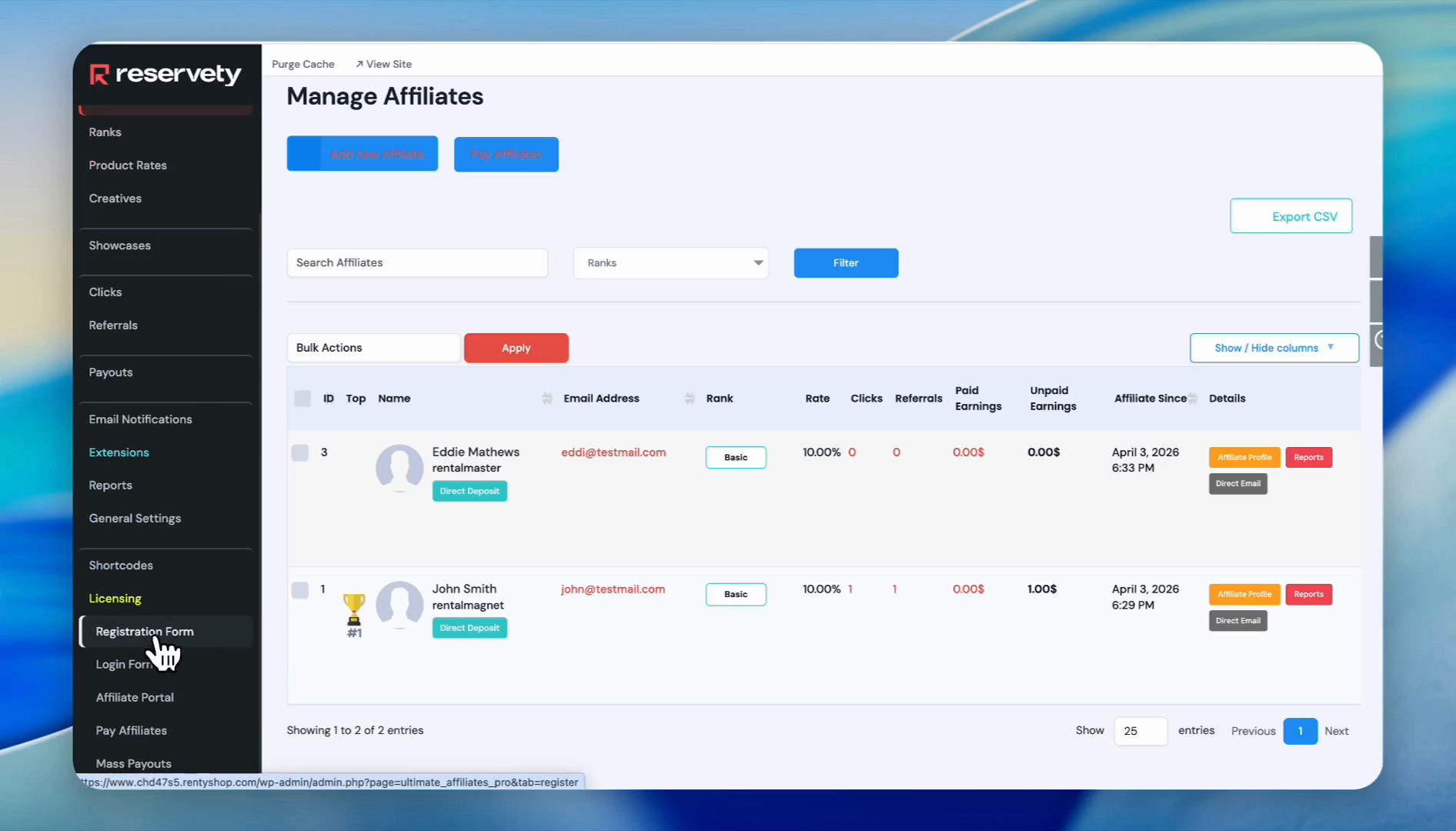
Click on Registration Form in the left sidebar
Step #5: Click on Registration Form in the left sidebar
6
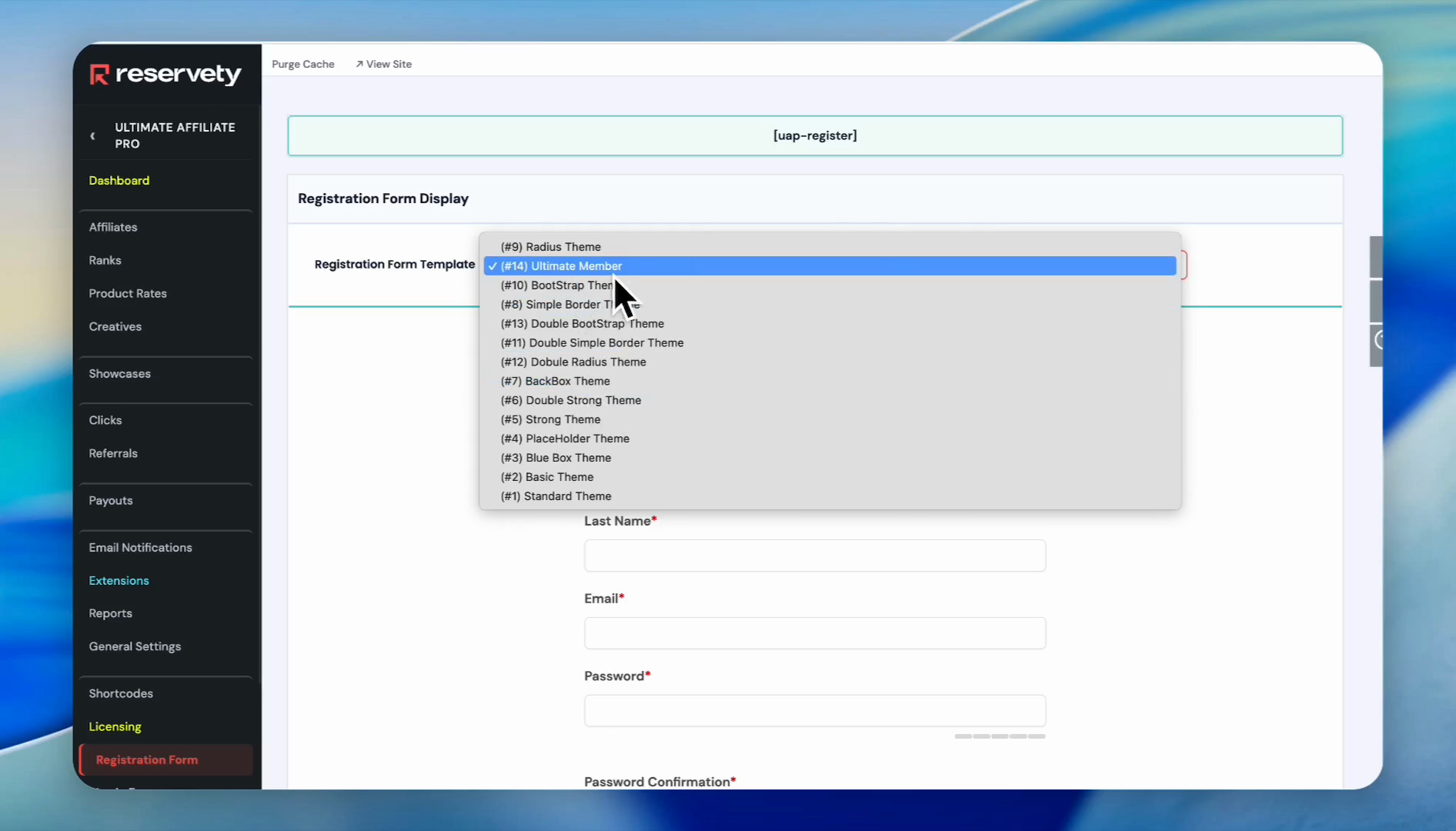
Select a form theme from the dropdown menu
Step #6: Select a form theme from the dropdown menu
7
Copy the provided shortcode (e.g., [uap-register]) and paste it onto one of your website pages.
Step #7: Copy the provided shortcode (e.g., [uap-register]) and paste it onto one of your website pages.
8
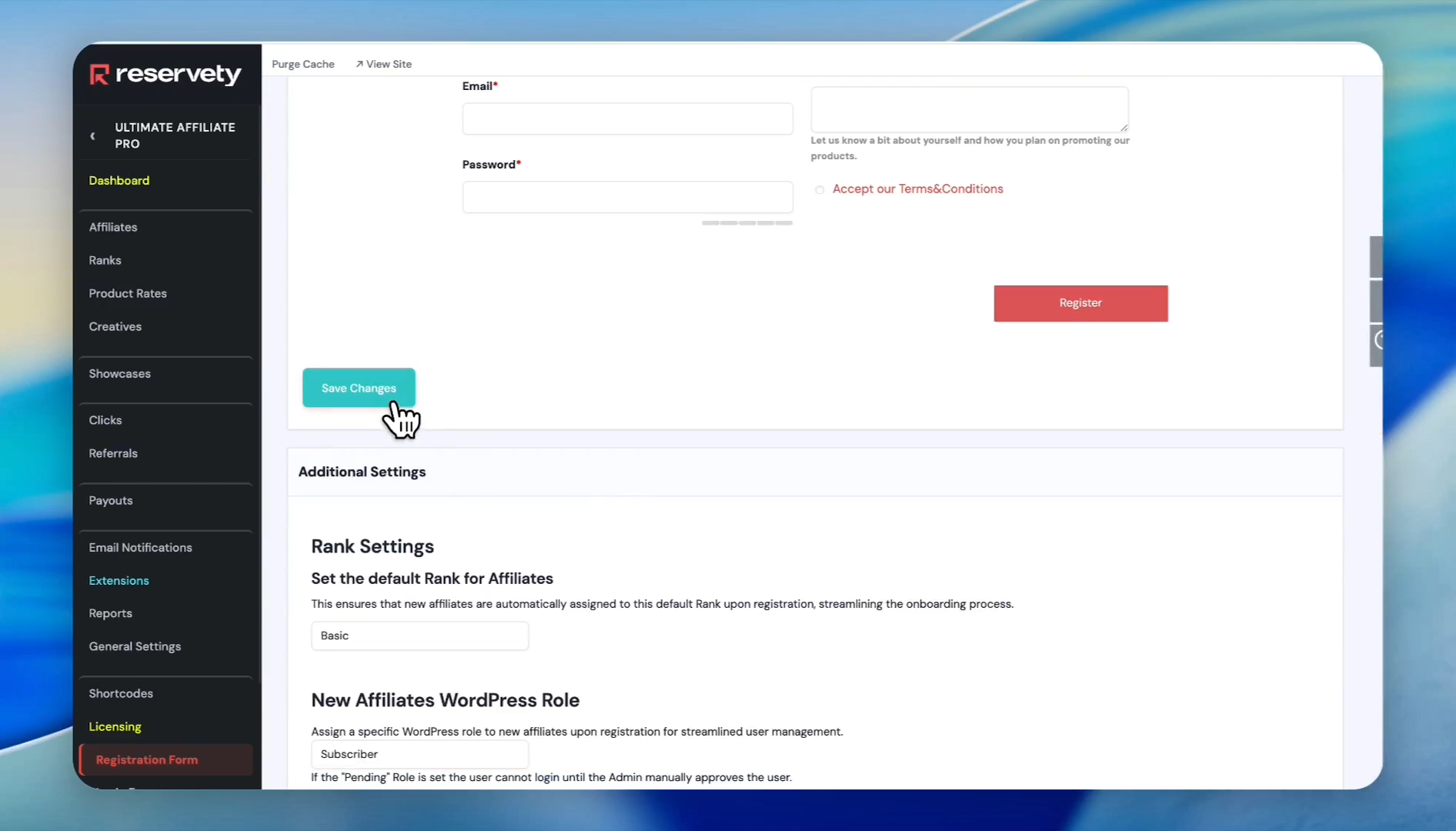
Click Save Changes
Step #8: Click Save Changes

.

Configuring Commission Structures

Define the commission payouts your affiliates receive whenever they successfully refer a rental booking.
9
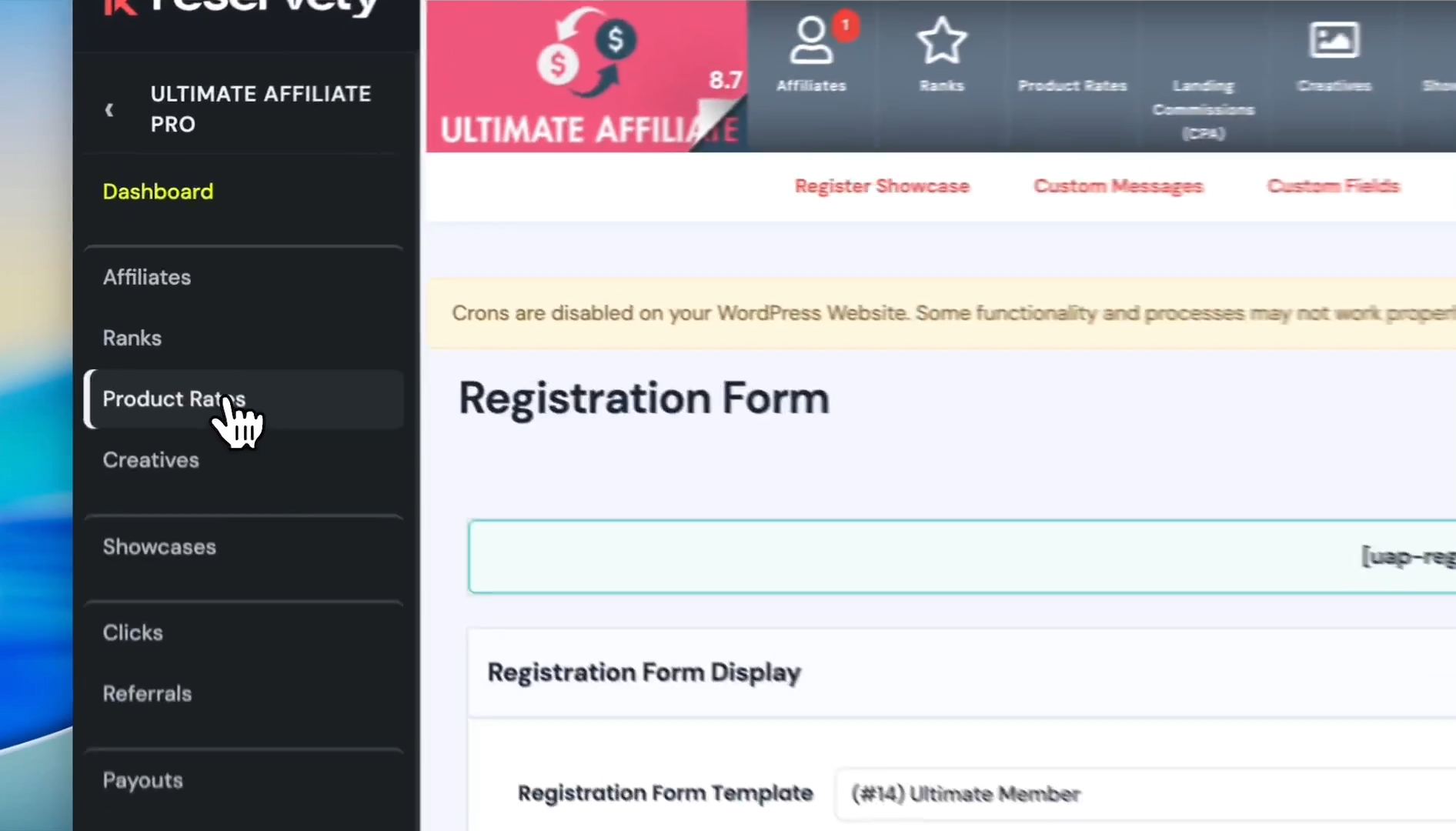
Click on Product Rates
Step #9: Click on Product Rates
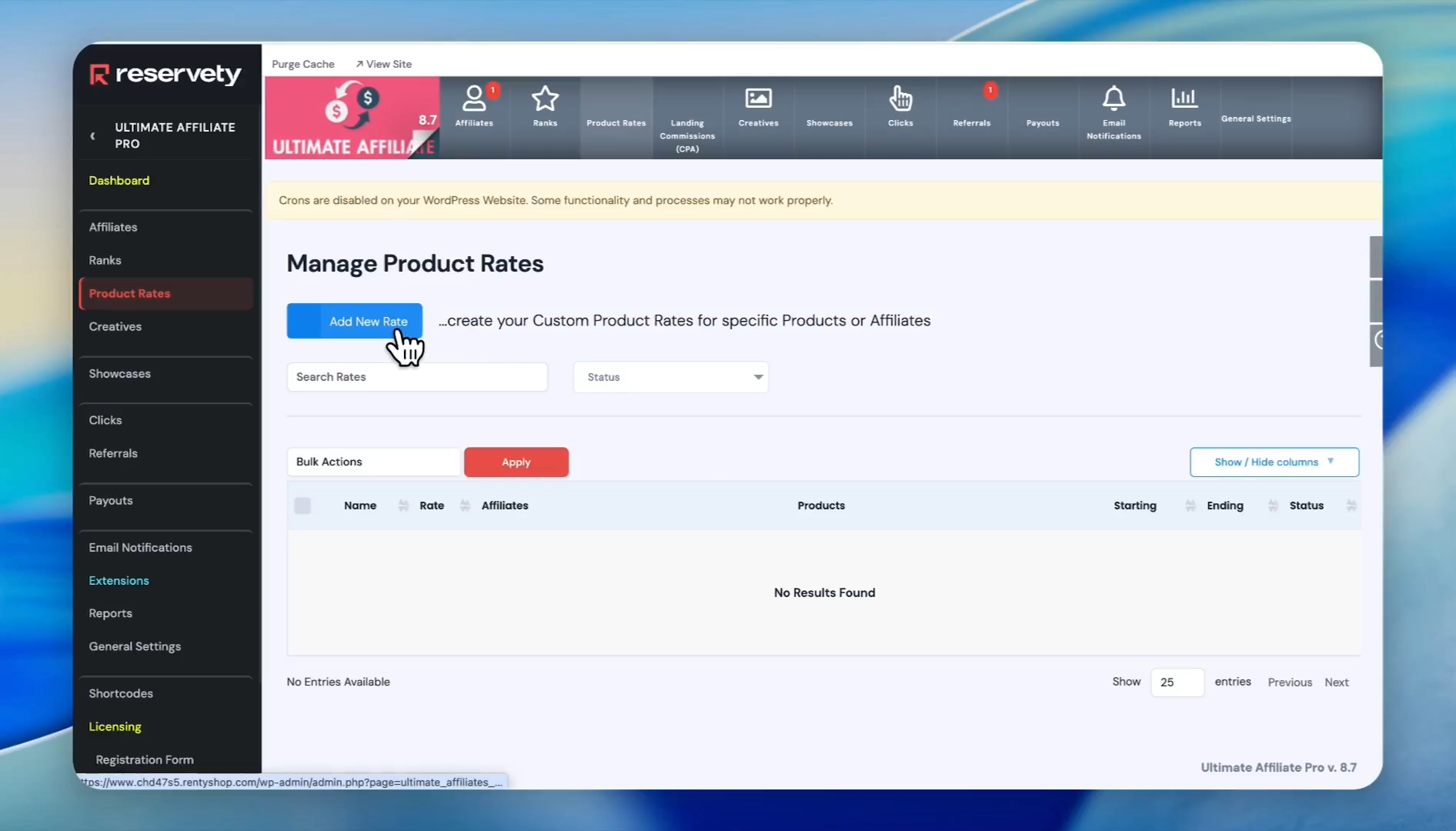
10
Click Add New Rate
Step #10: Click Add New Rate
11
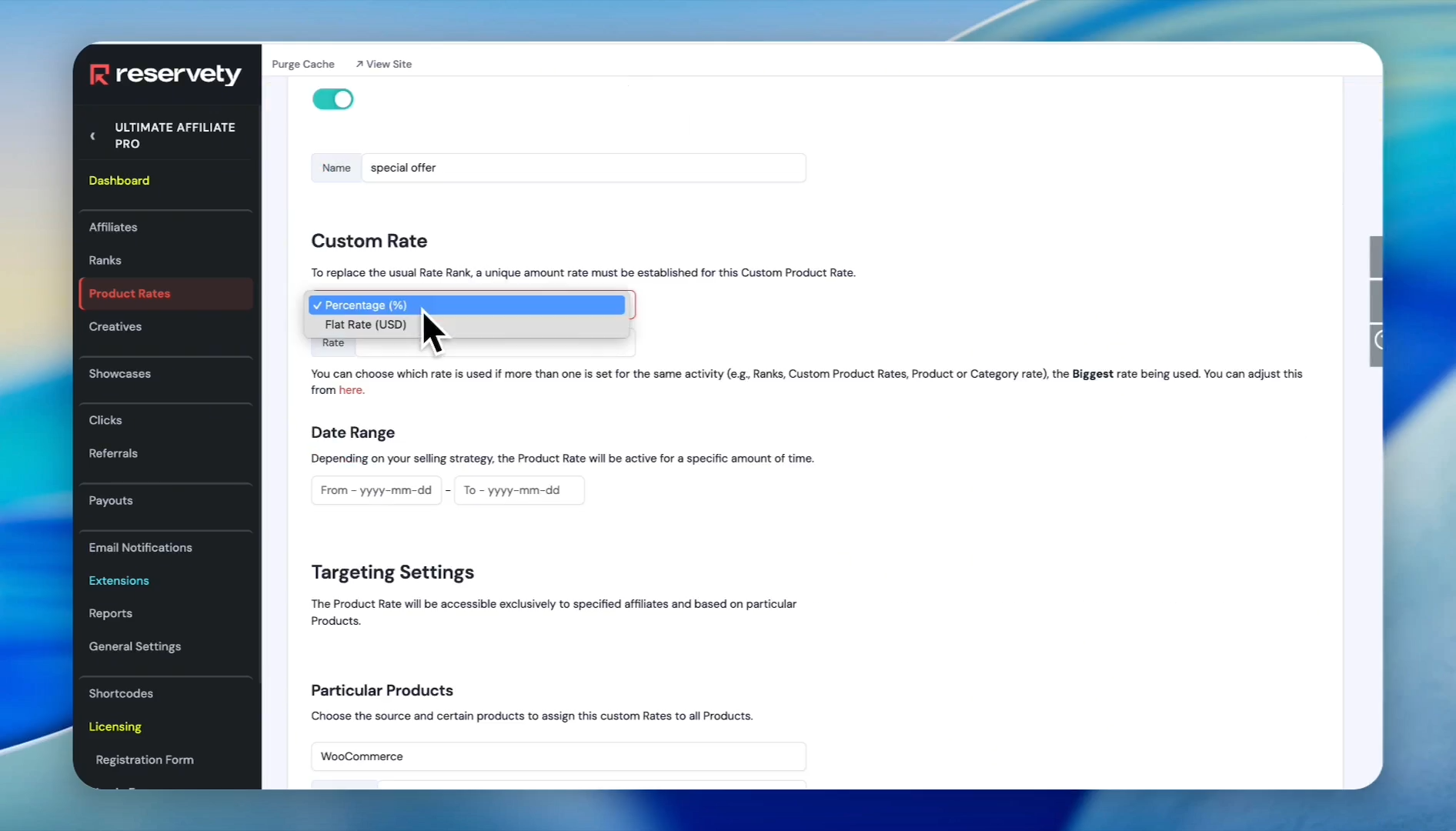
Type a descriptive name for the rate, such as "Special Offer". Choose your commission type, either a flat rate or a percentage.
Step #11: Type a descriptive name for the rate, such as "Special Offer". Choose your commission type, either a flat rate or a percentage.
12
Enter the commission rate amount (e.g., enter 8 to pay an 8% commission). Set a date range if the rate is meant for a limited time.
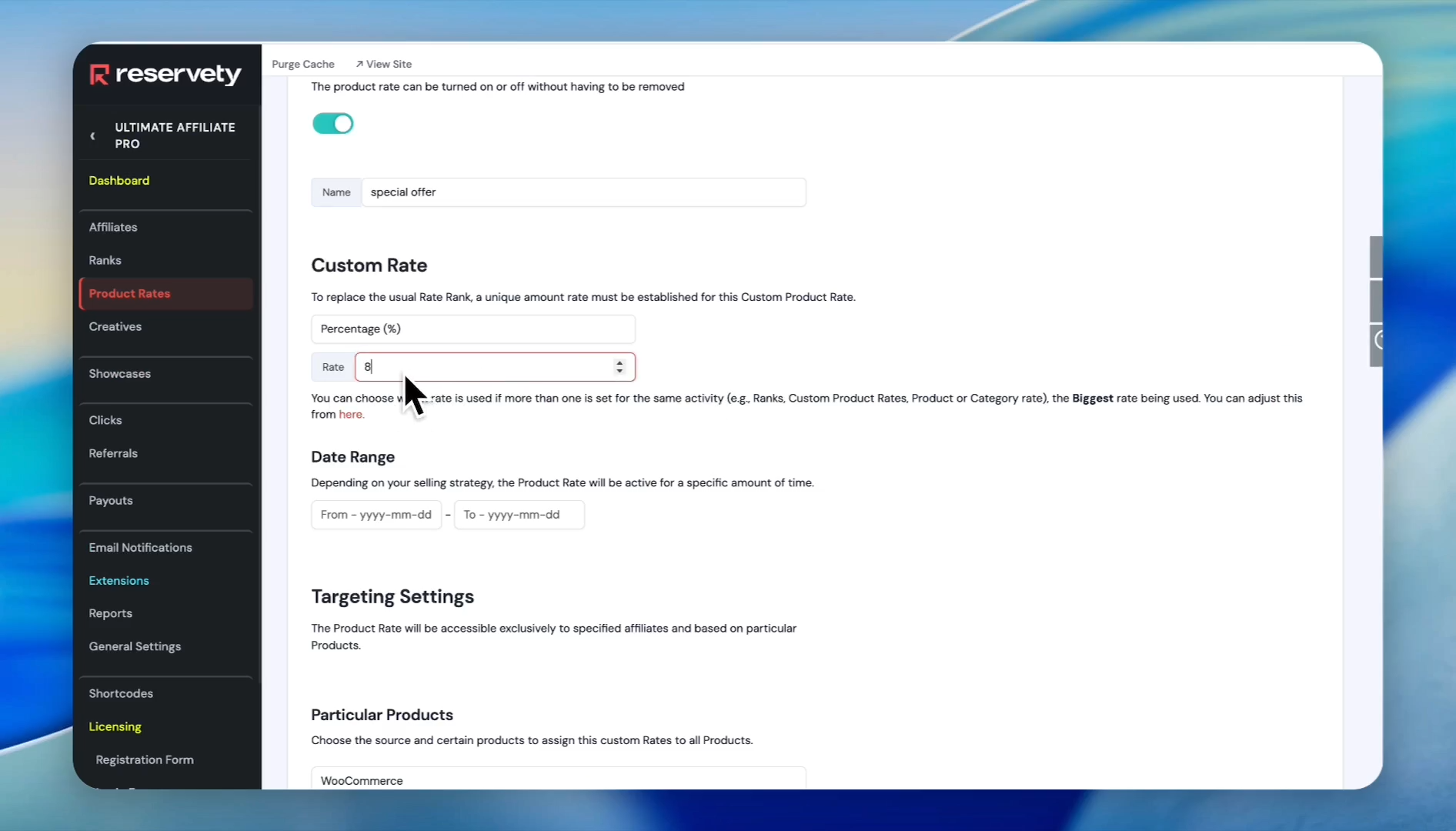
Step #12: Enter the commission rate amount (e.g., enter 8 to pay an 8% commission). Set a date range if the rate is meant for a limited time.

Target Products and Affiliates

Specify exactly which products generate the commission and which affiliates are eligible.
13
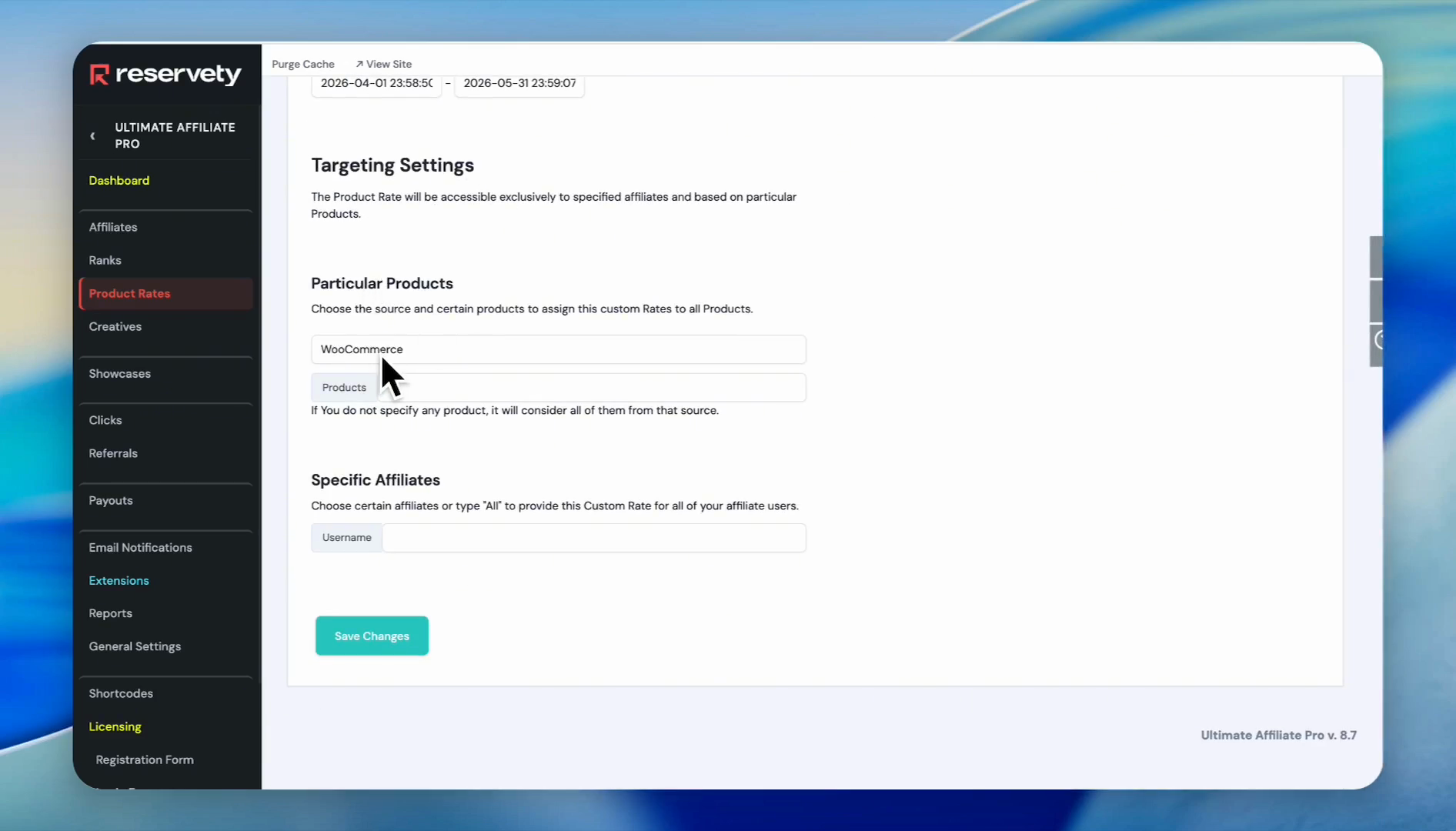
Select WooCommerce from the source dropdown
Step #13: Select WooCommerce from the source dropdown
14
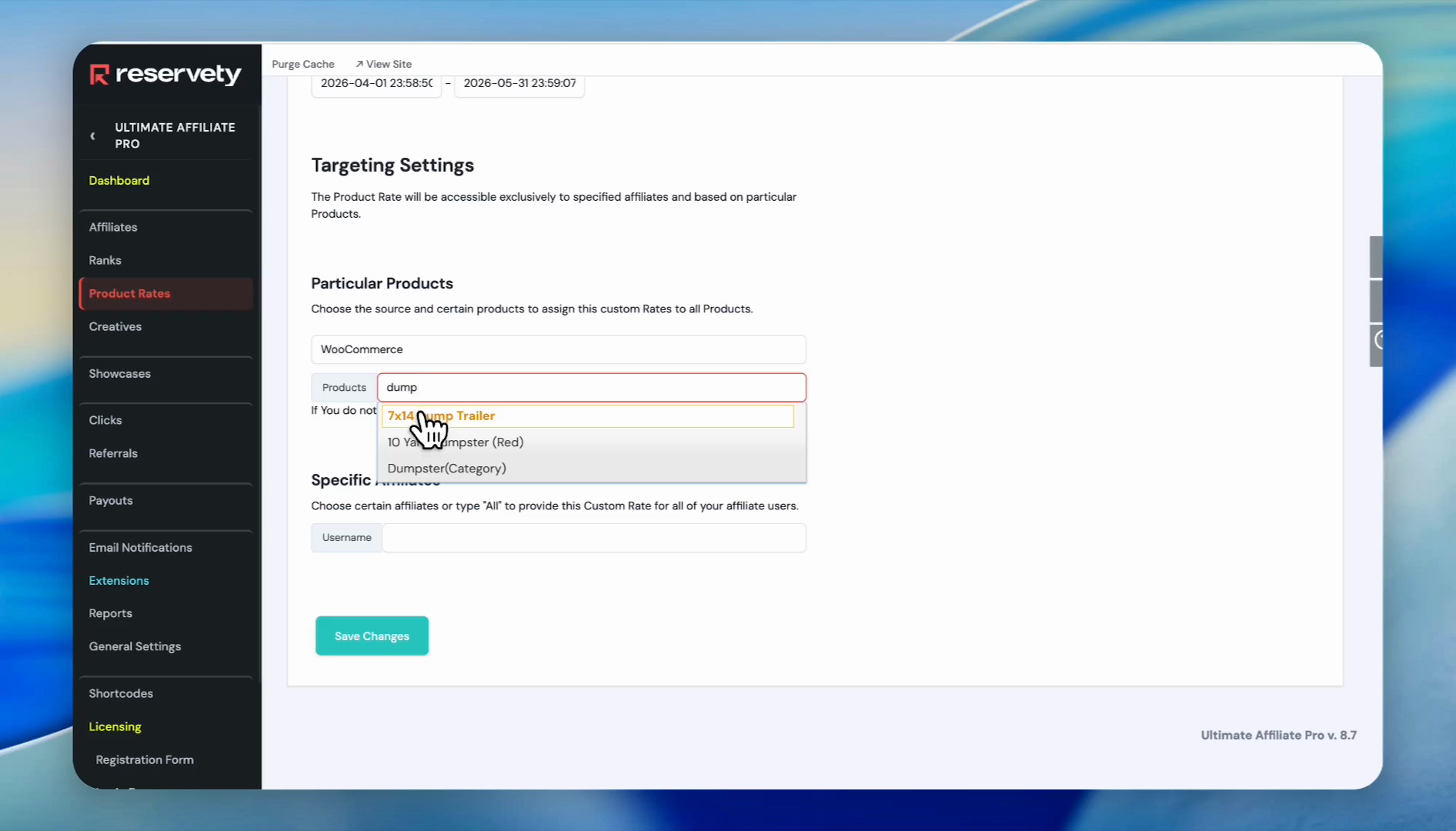
Search for and select the specific products that this rate applies to
Step #14: Search for and select the specific products that this rate applies to
15
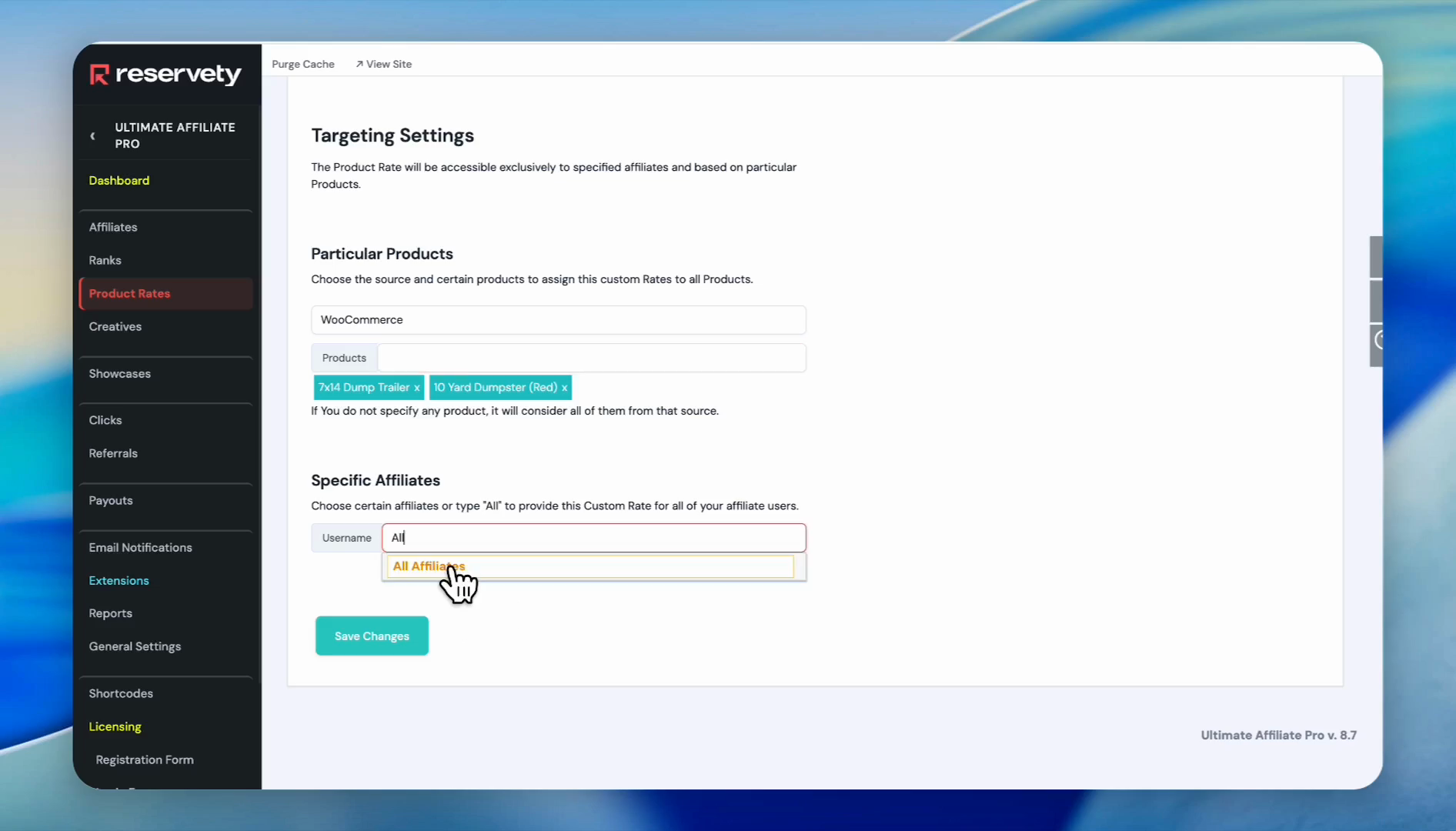
Type "All" in the username field and select All Affiliates to apply this commission structure to everyone
Step #15: Type "All" in the username field and select All Affiliates to apply this commission structure to everyone
16
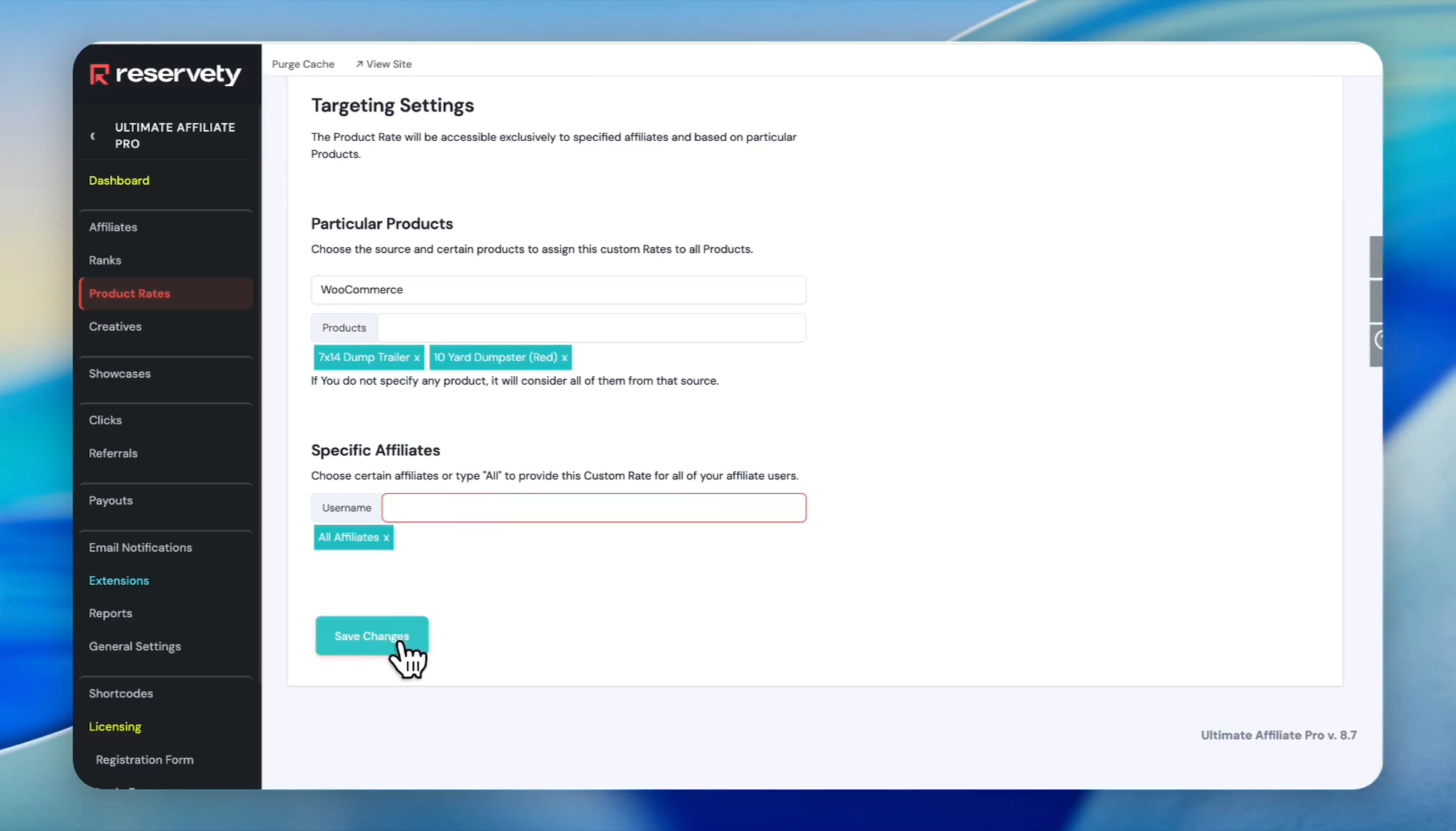
Click Save Changes
Step #16: Click Save Changes

.

Customizing Portals and Login Forms

Your affiliates access a dedicated portal to track performance and update profile details.
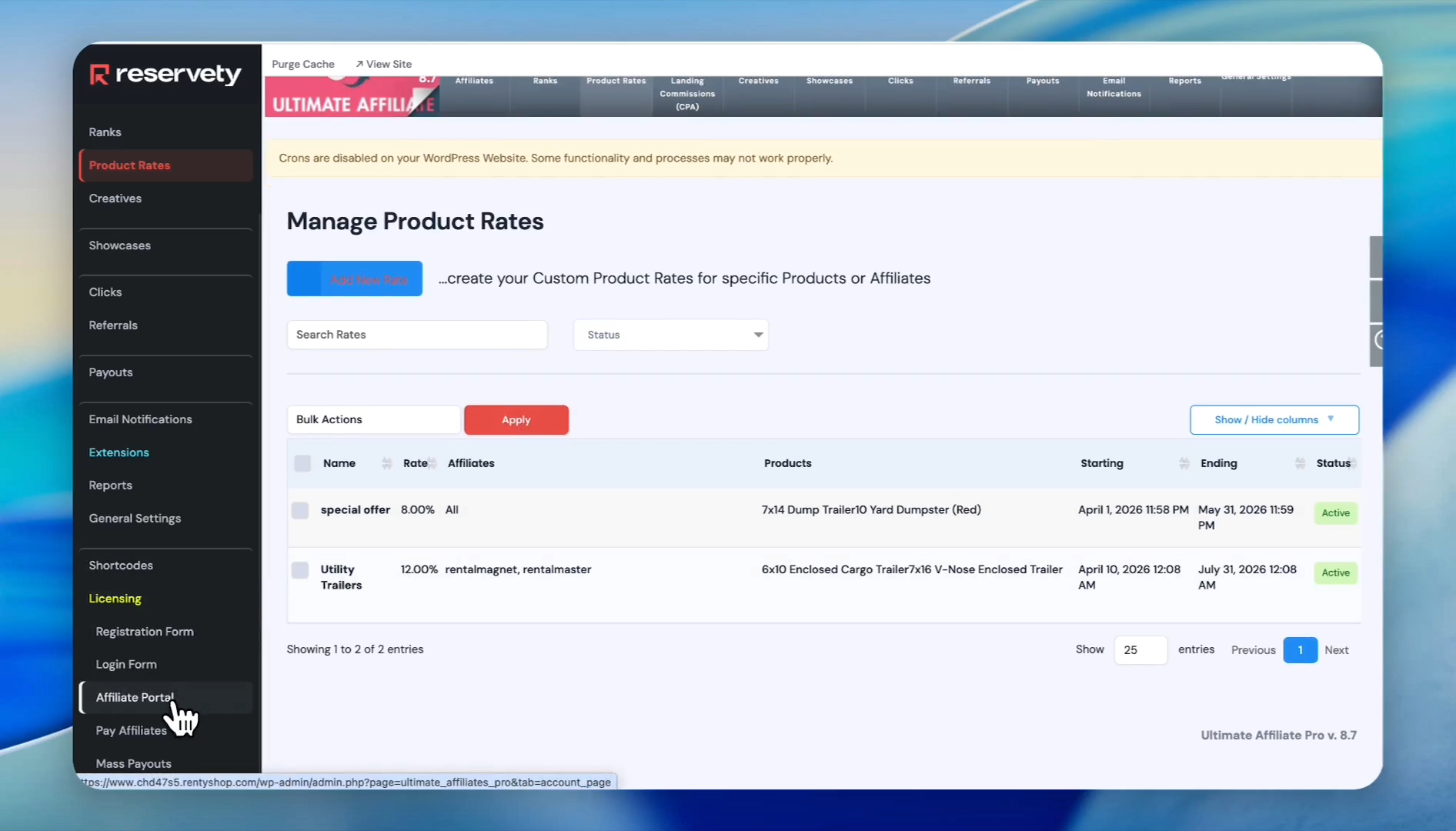
17
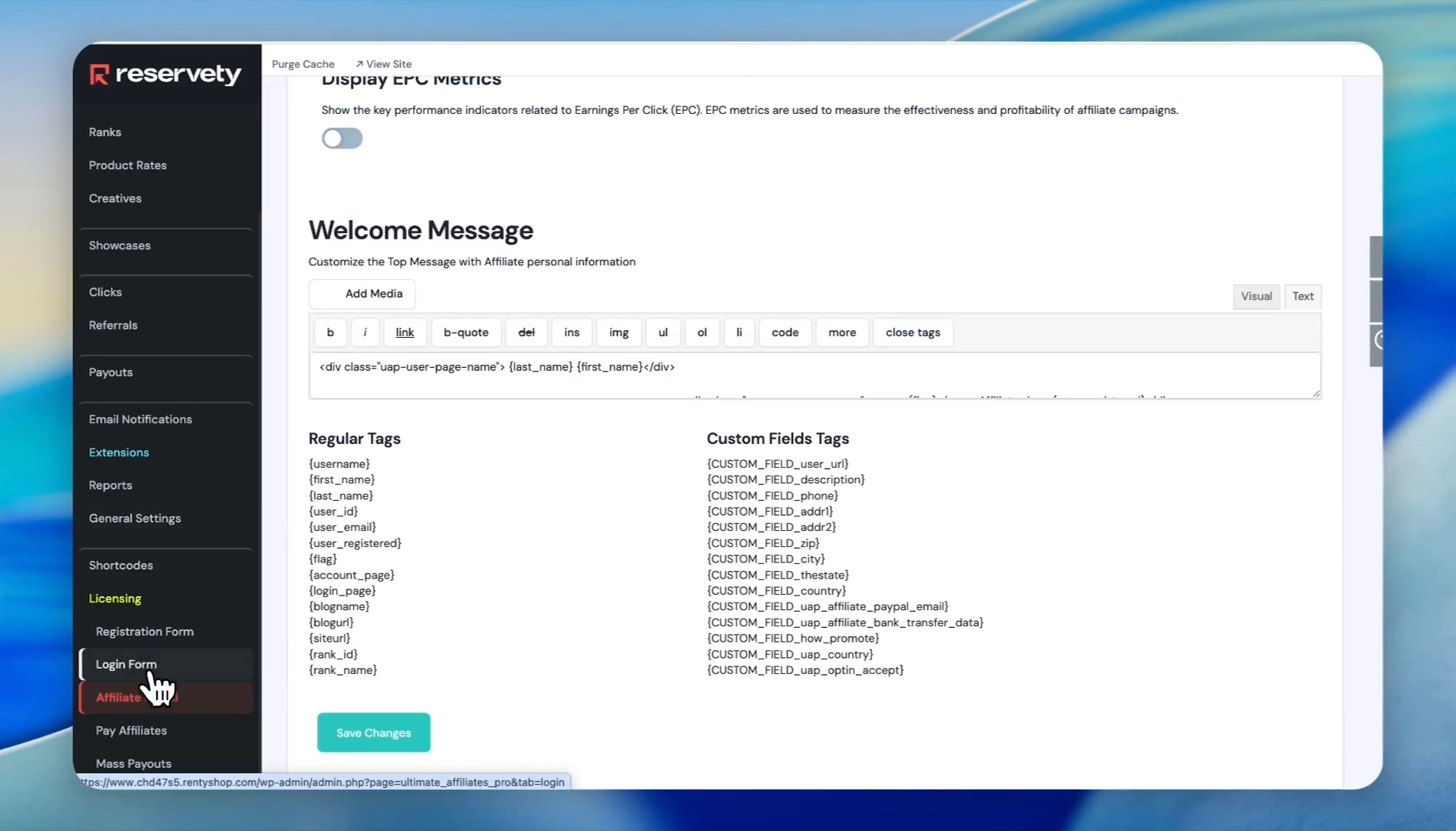
Click on Affiliate Portal to choose a template, set a welcome message, and configure contact details.
Step #17: Click on Affiliate Portal to choose a template, set a welcome message, and configure contact details.
18
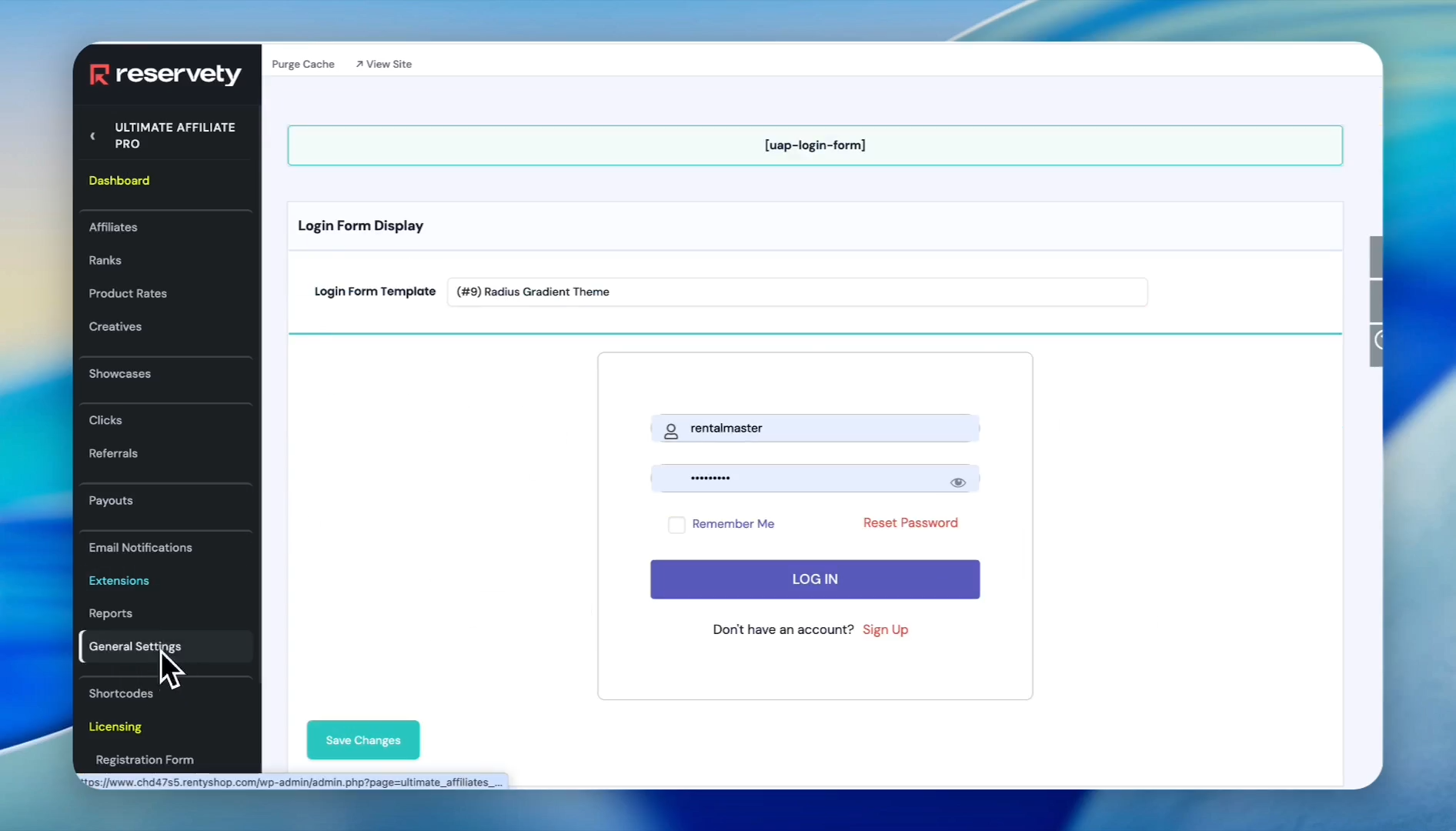
Click on the Login Form to edit the sign-in experience.
Step #18: Click on the Login Form to edit the sign-in experience.
19
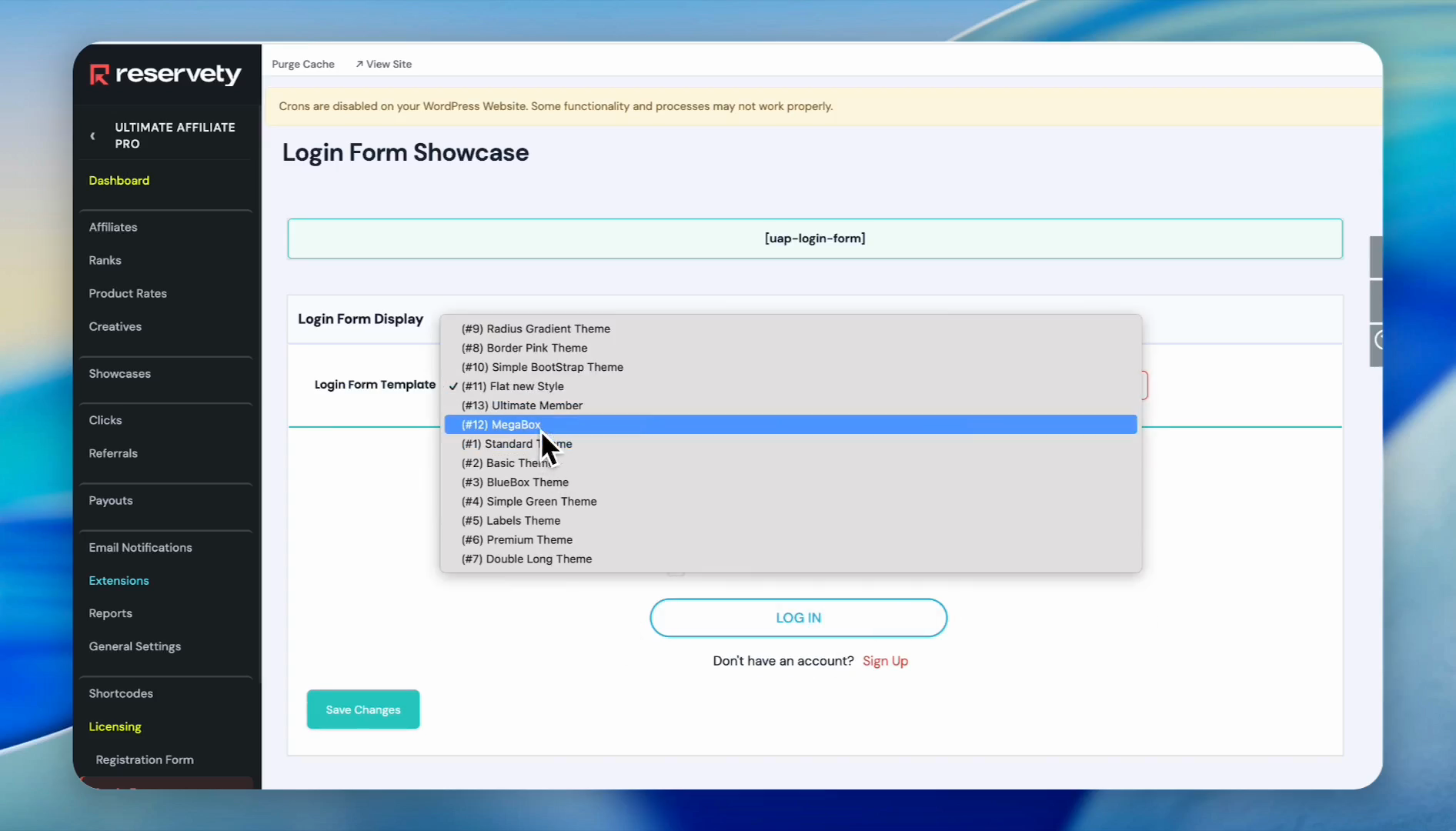
Select a layout like MegaBox or any other template from the dropdown.
Step #19: Select a layout like MegaBox or any other template from the dropdown.
20
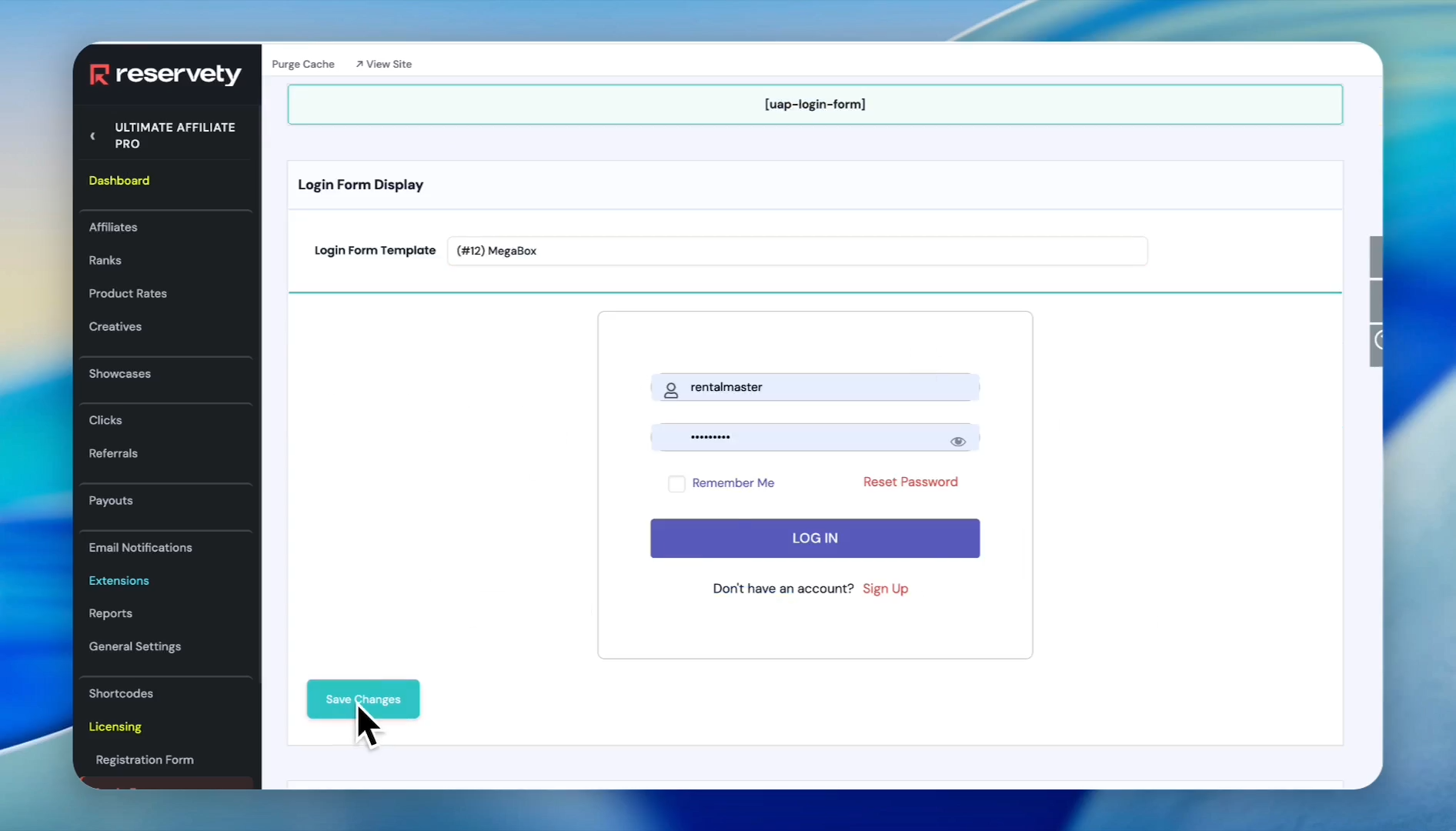
Click Save Changes
Step #20: Click Save Changes

.

Adjusting General Link and Cookie Settings

Define the baseline tracking variables and duration limits for tracking cookies.
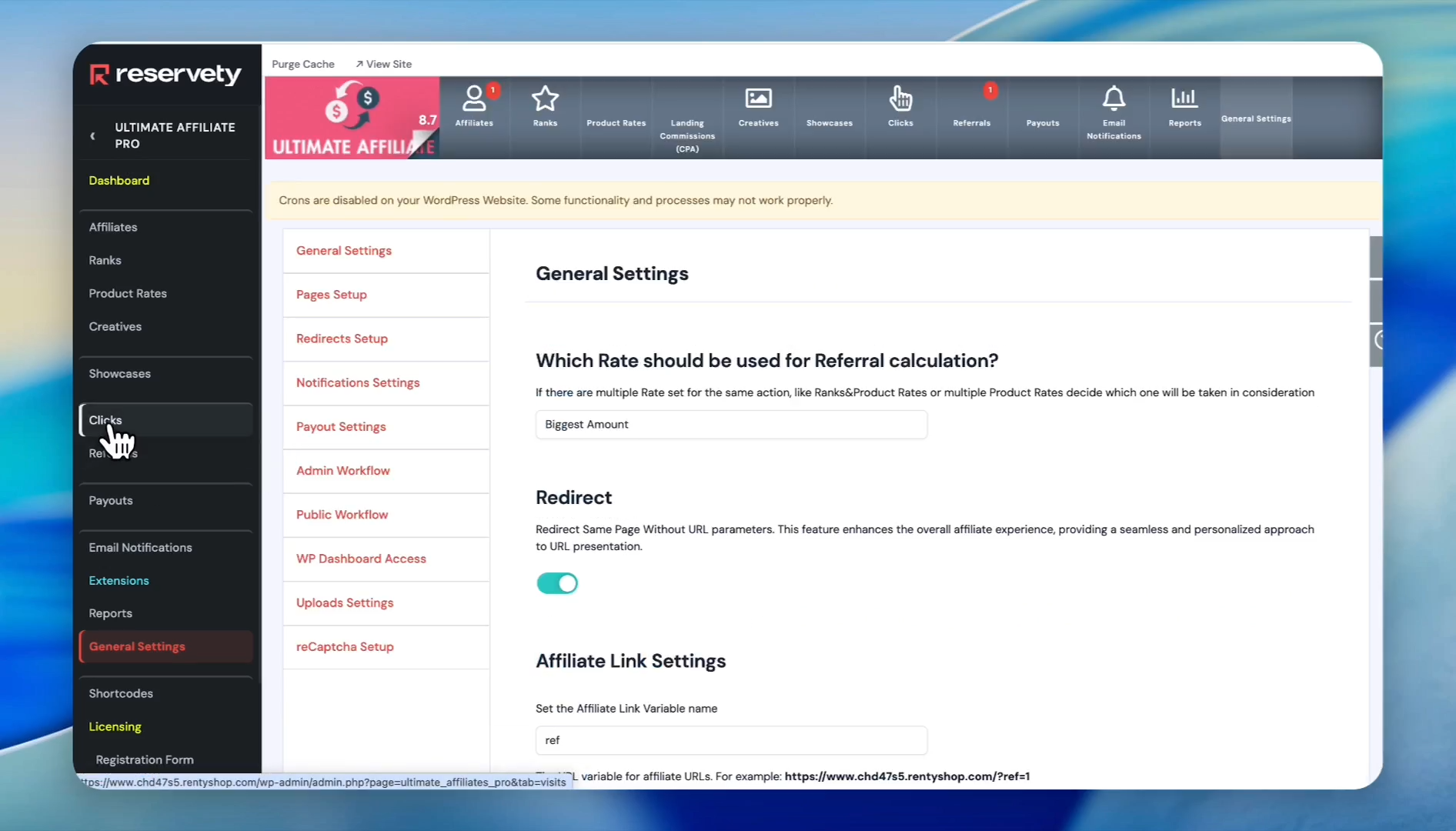
21
Click on General Settings
Step #21: Click on General Settings
22
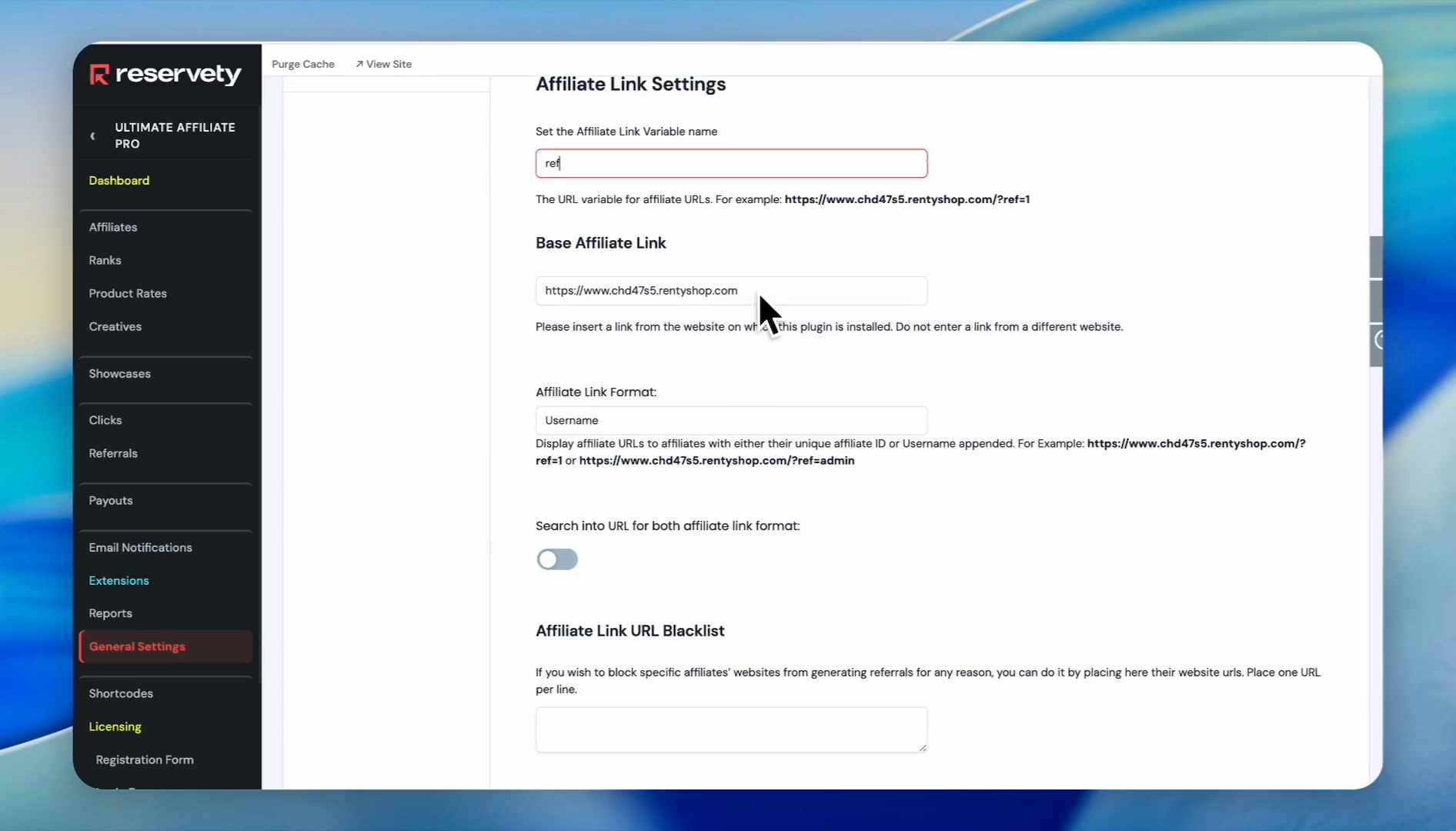
Enter your website address into the base affiliate link field
Step #22: Enter your website address into the base affiliate link field
23
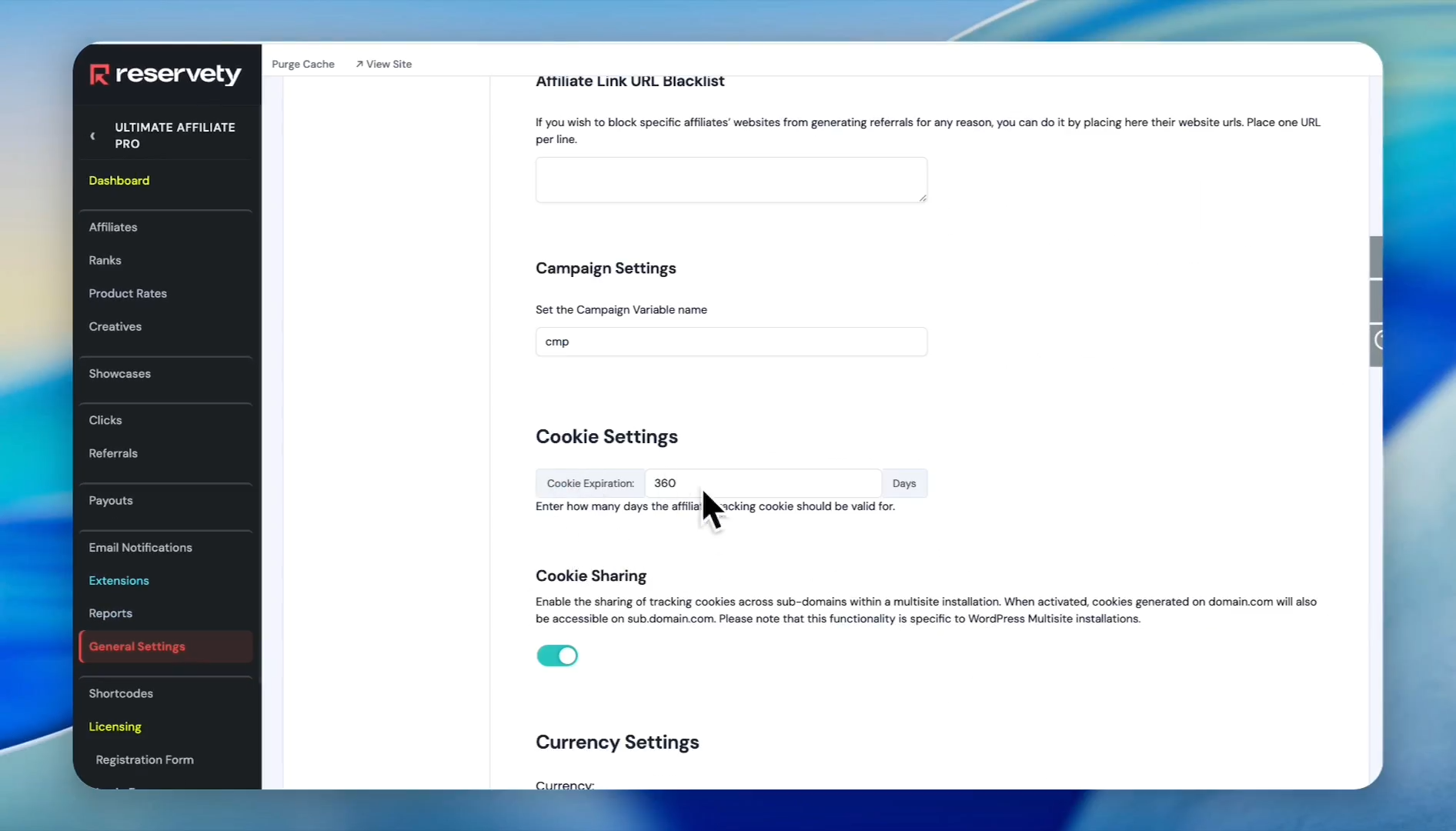
Set the cookie expiration window to determine how many days a click remains eligible for commission (e.g., 360 days).
Step #23: Set the cookie expiration window to determine how many days a click remains eligible for commission (e.g., 360 days).
24
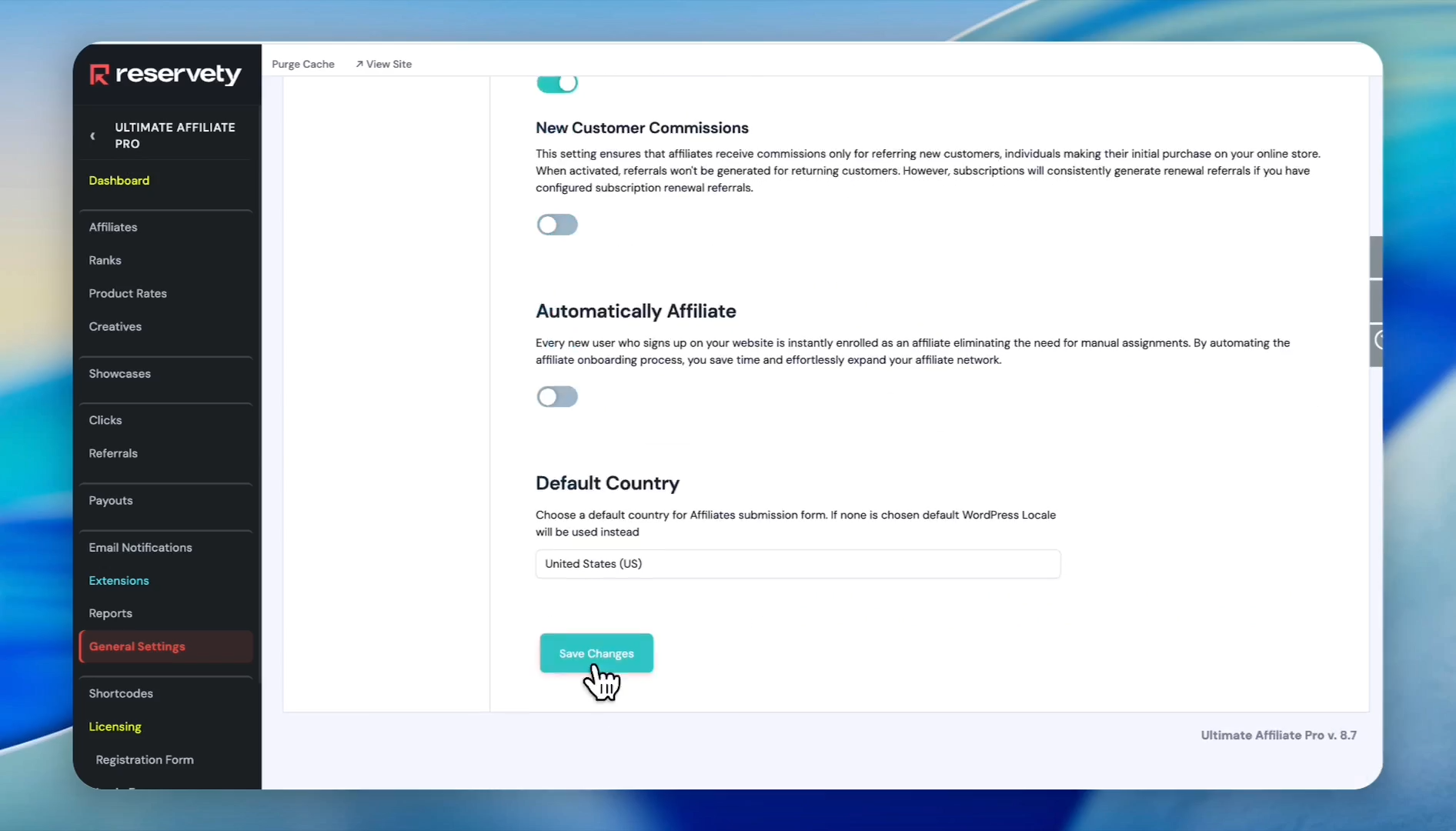
Click Save Changes
Step #24: Click Save Changes

.

Tracking Performance

Monitor how successfully your program converts traffic into bookings.
25
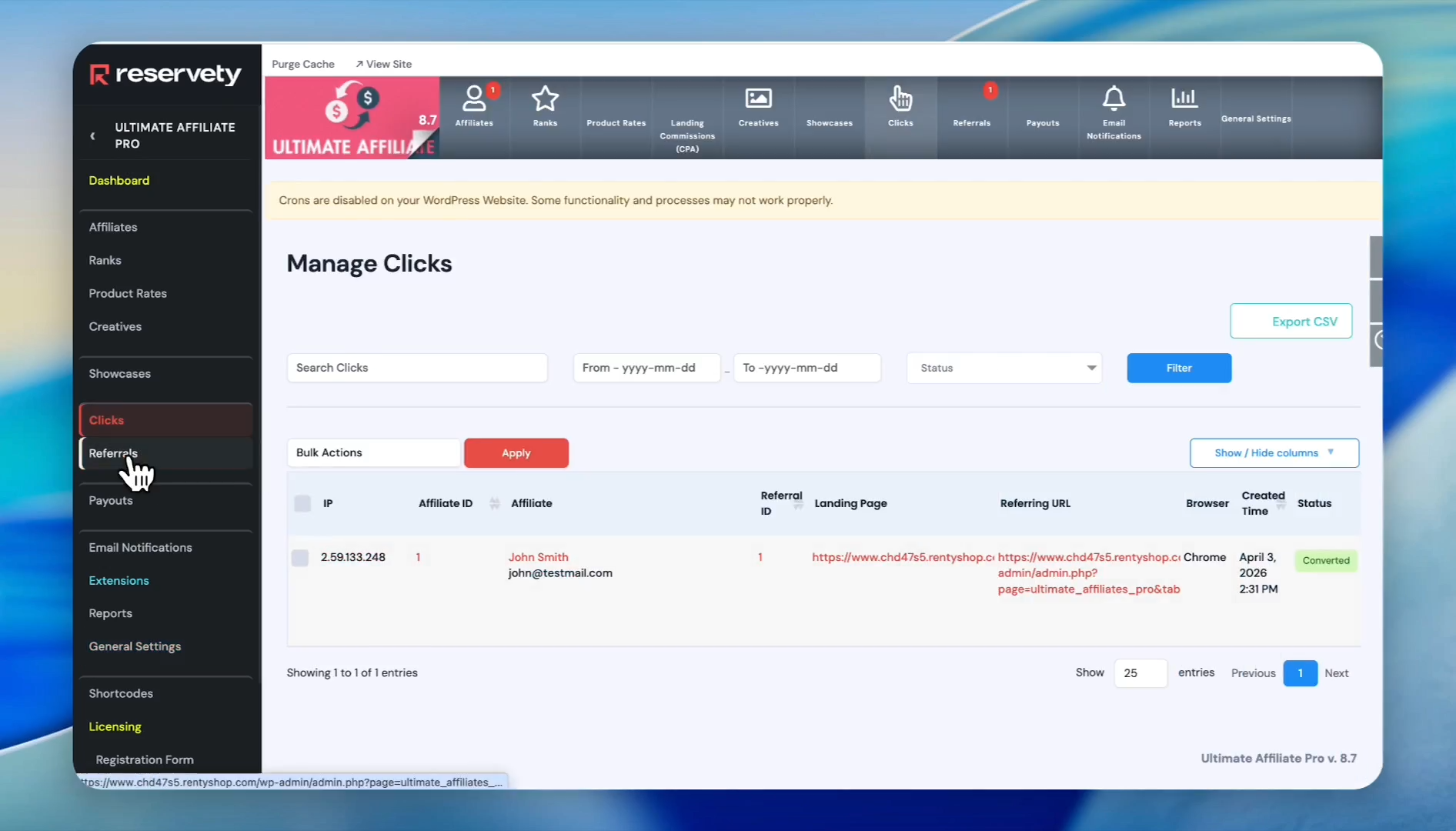
Click on Clicks to view traffic volume driven by your affiliate links.
Step #25: Click on Clicks to view traffic volume driven by your affiliate links.
26
Click on Referrals to review actual bookings, earned commissions, and current payout statuses.
Step #26: Click on Referrals to review actual bookings, earned commissions, and current payout statuses.
27
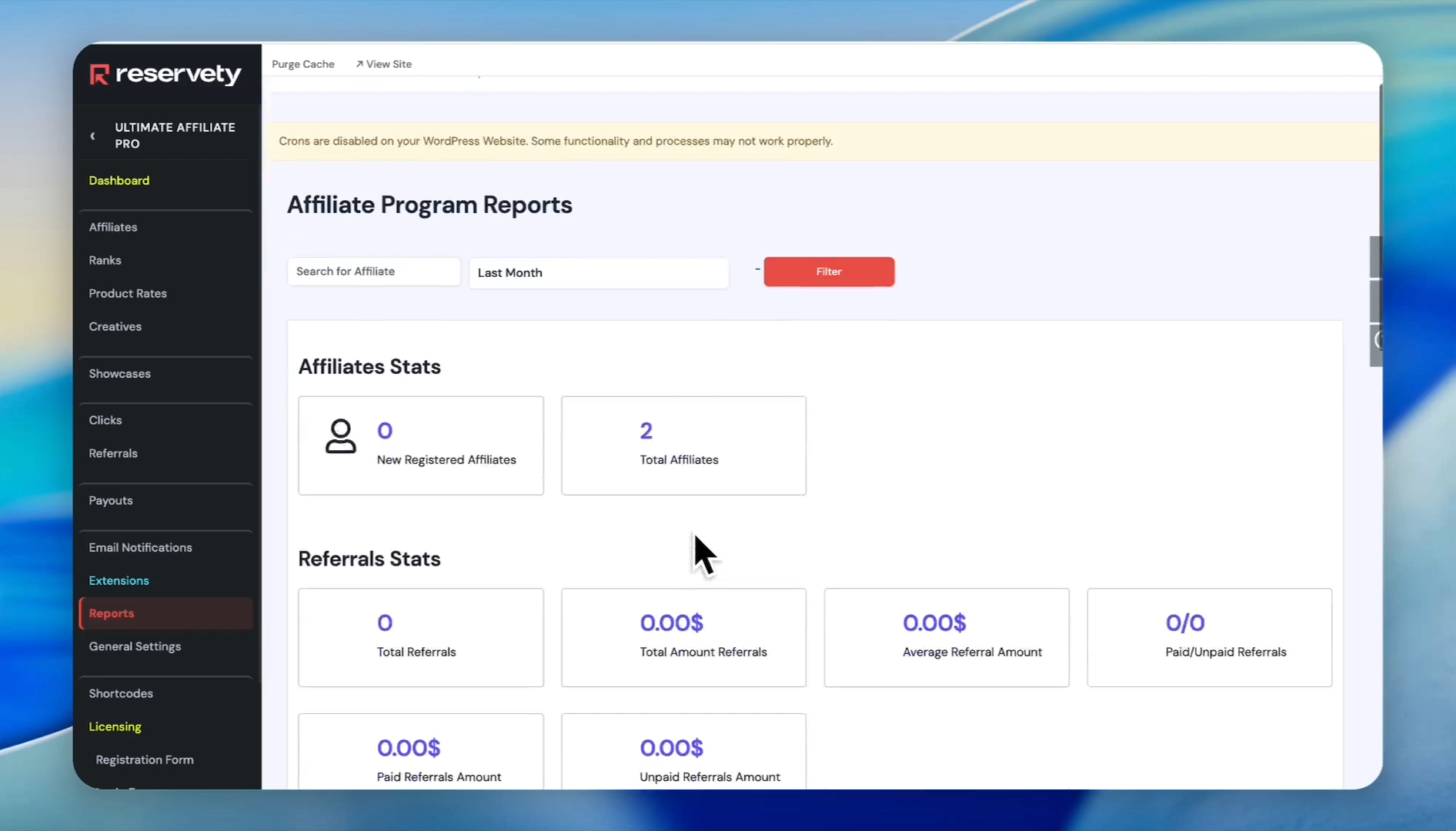
Click on Reports to surface aggregated affiliate statistics.
Step #27: Click on Reports to surface aggregated affiliate statistics.

Sharing Creatives and QR Codes

Provide promotional assets your affiliates can deploy immediately.
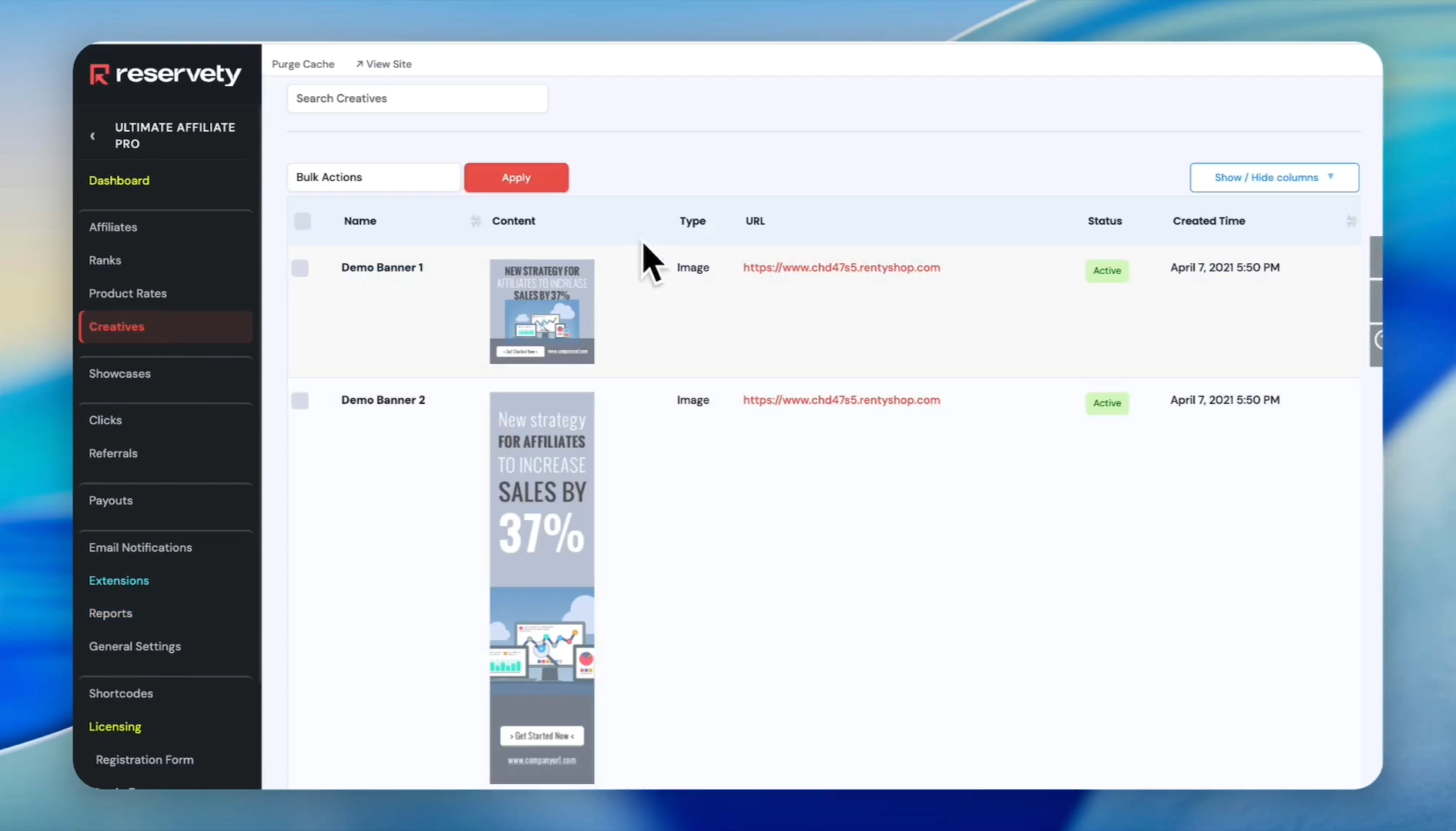
28
Click on Creatives to upload banners or images for affiliates to embed on their websites.
Step #28: Click on Creatives to upload banners or images for affiliates to embed on their websites.

Generating Affiliate QR Codes

Offering QR codes lets your affiliates earn commissions when local clients scan them at a hotel front desk or a retail store.
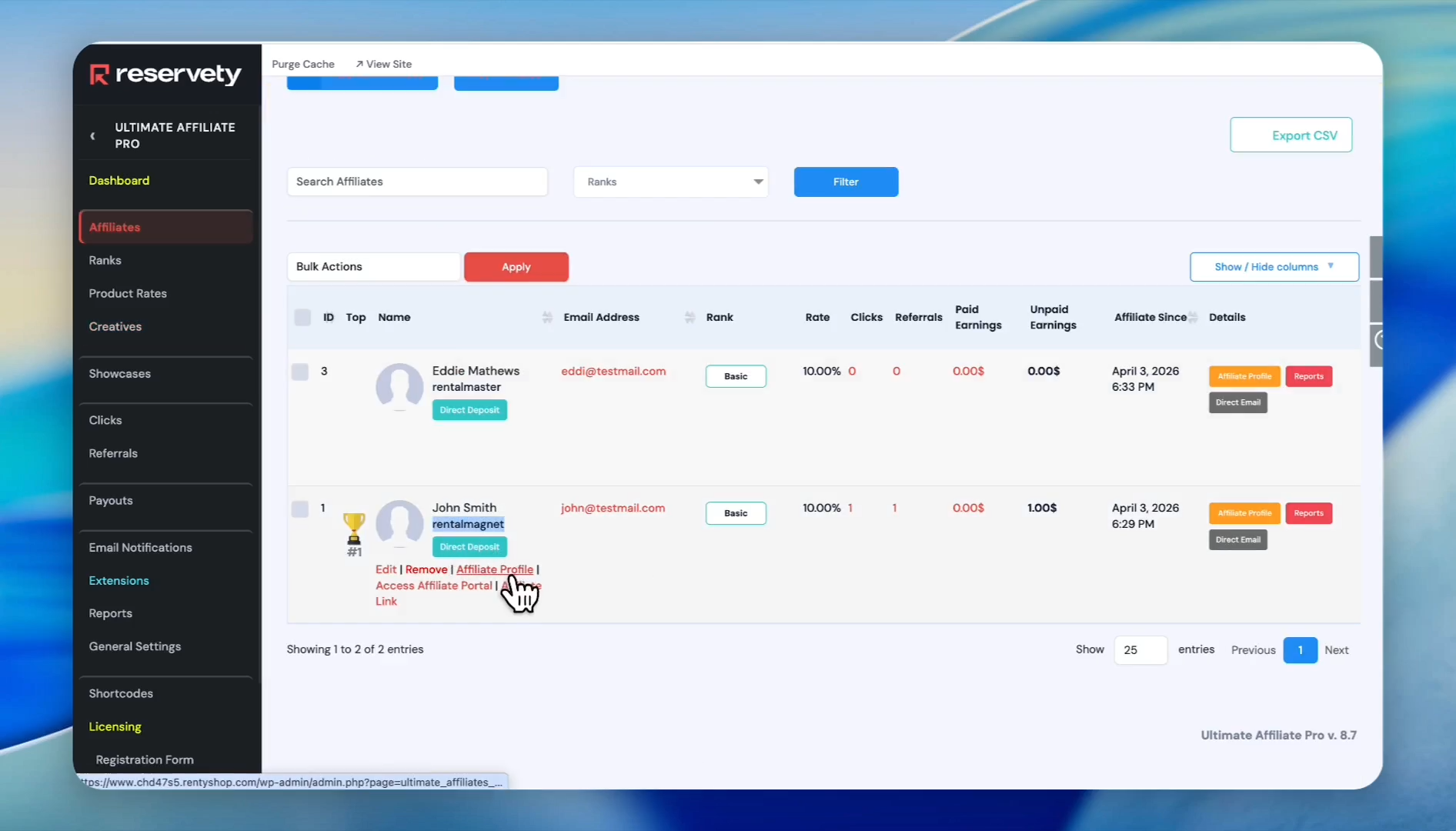
29
Navigate to a specific affiliate's profile
Step #29: Navigate to a specific affiliate's profile
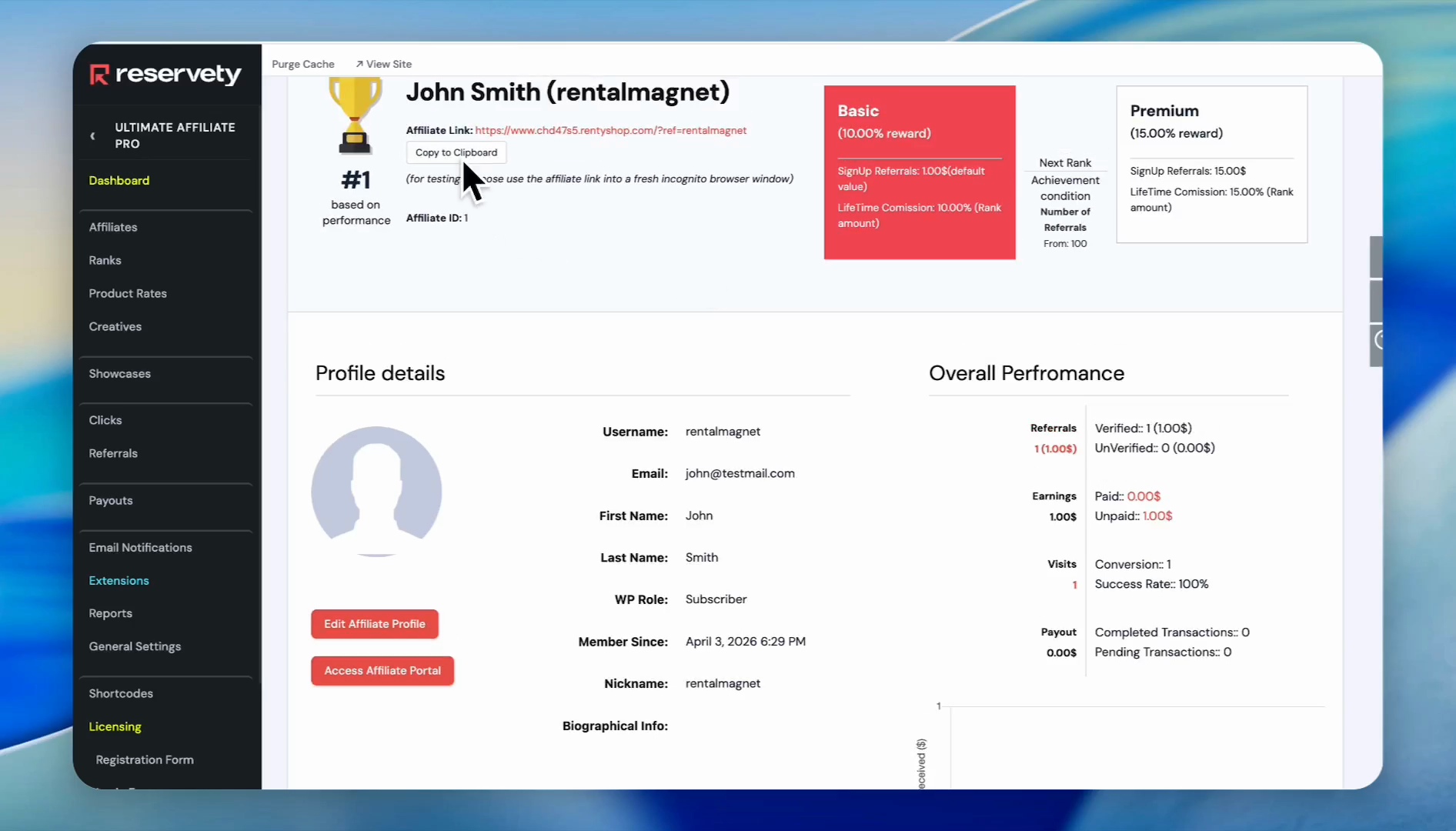
30
Click Copy to Clipboard to copy their unique affiliate link
Step #30: Click Copy to Clipboard to copy their unique affiliate link
31
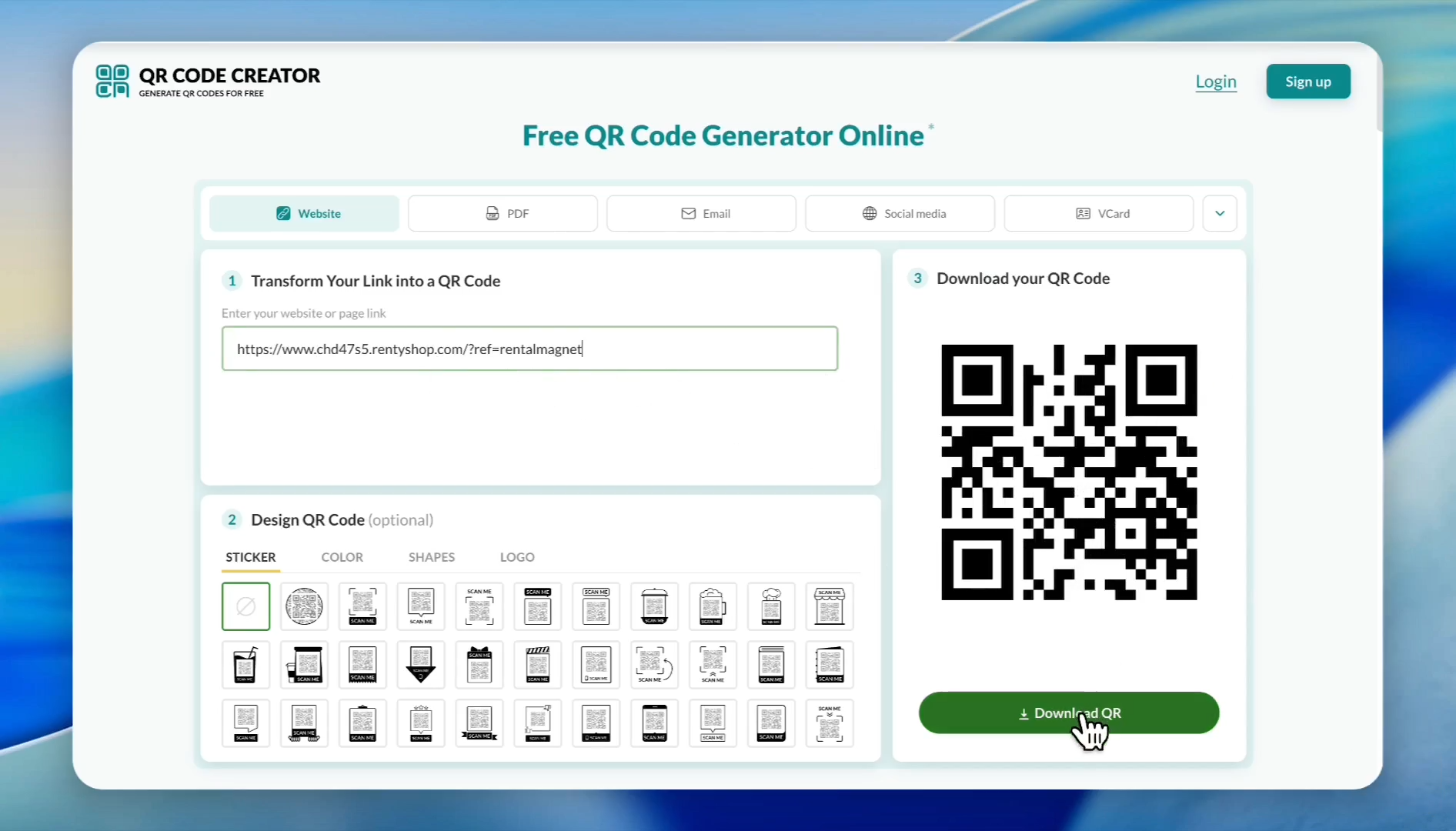
Open a free online QR code generator and paste the copied link into the URL input field. Then, click Download QR
Step #31: Open a free online QR code generator and paste the copied link into the URL input field. Then, click Download QR
How to Set Up an Affiliate Program for Your Rental Business