How to Set Up, Operate, and Shut Down the Sound System for Sunday Service

Step-by-step guide to setting up, operating, and shutting down a church sound system for Sunday morning services. Learn how to power on, load settings, adjust sound levels, and ensure optimal audio quality.

By Chris Copeland

In this guide, we'll learn how to set up and operate a sound board for a Sunday morning service. We'll cover steps from removing the cover and powering on the equipment to loading the correct settings and checking sound levels. We'll also review how to shut everything down safely at the end.

Let's get started

1
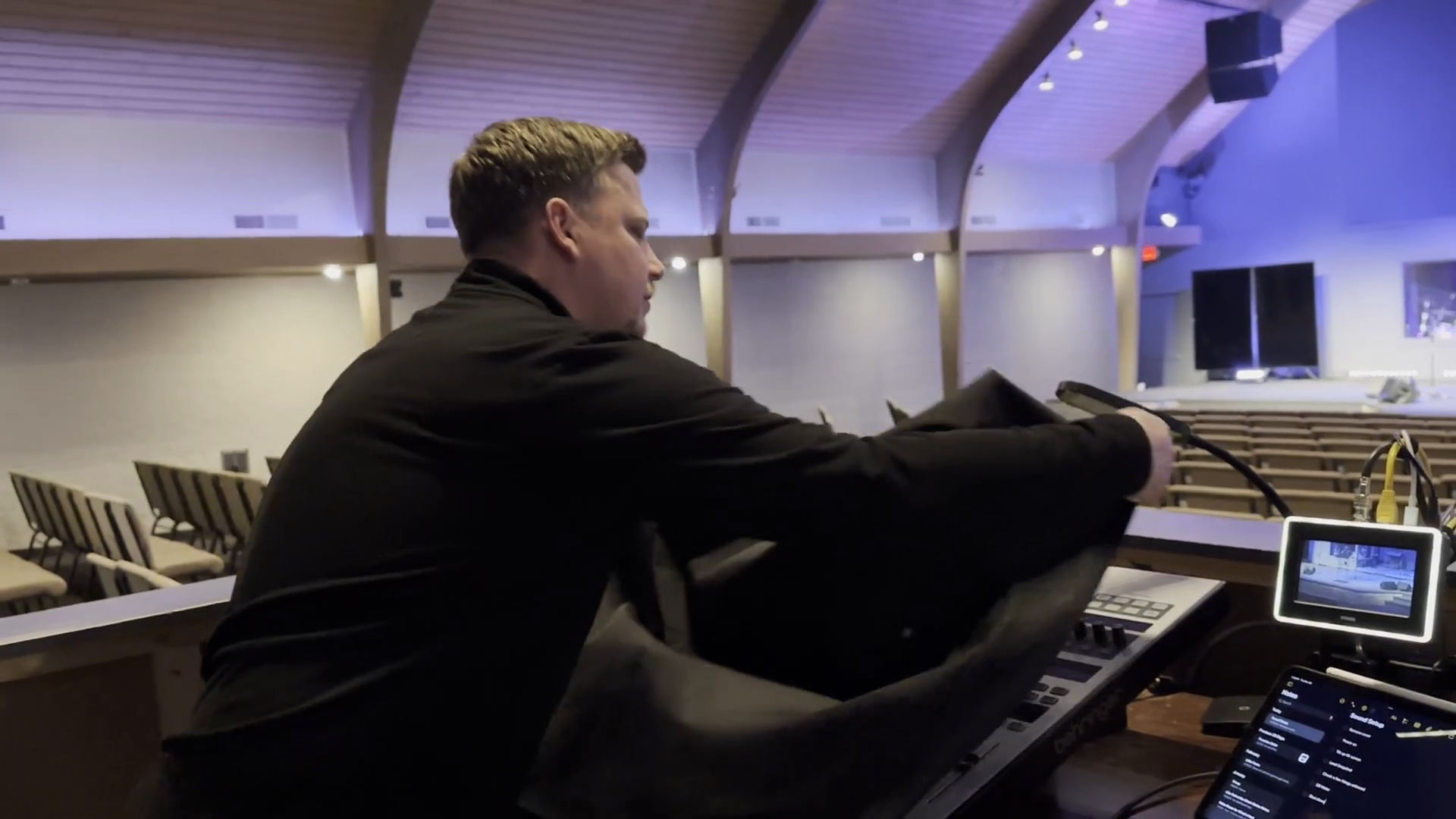
Remove the cover from the soundboard.
Fold the cover in half.
Place the folded cover underneath the desk.
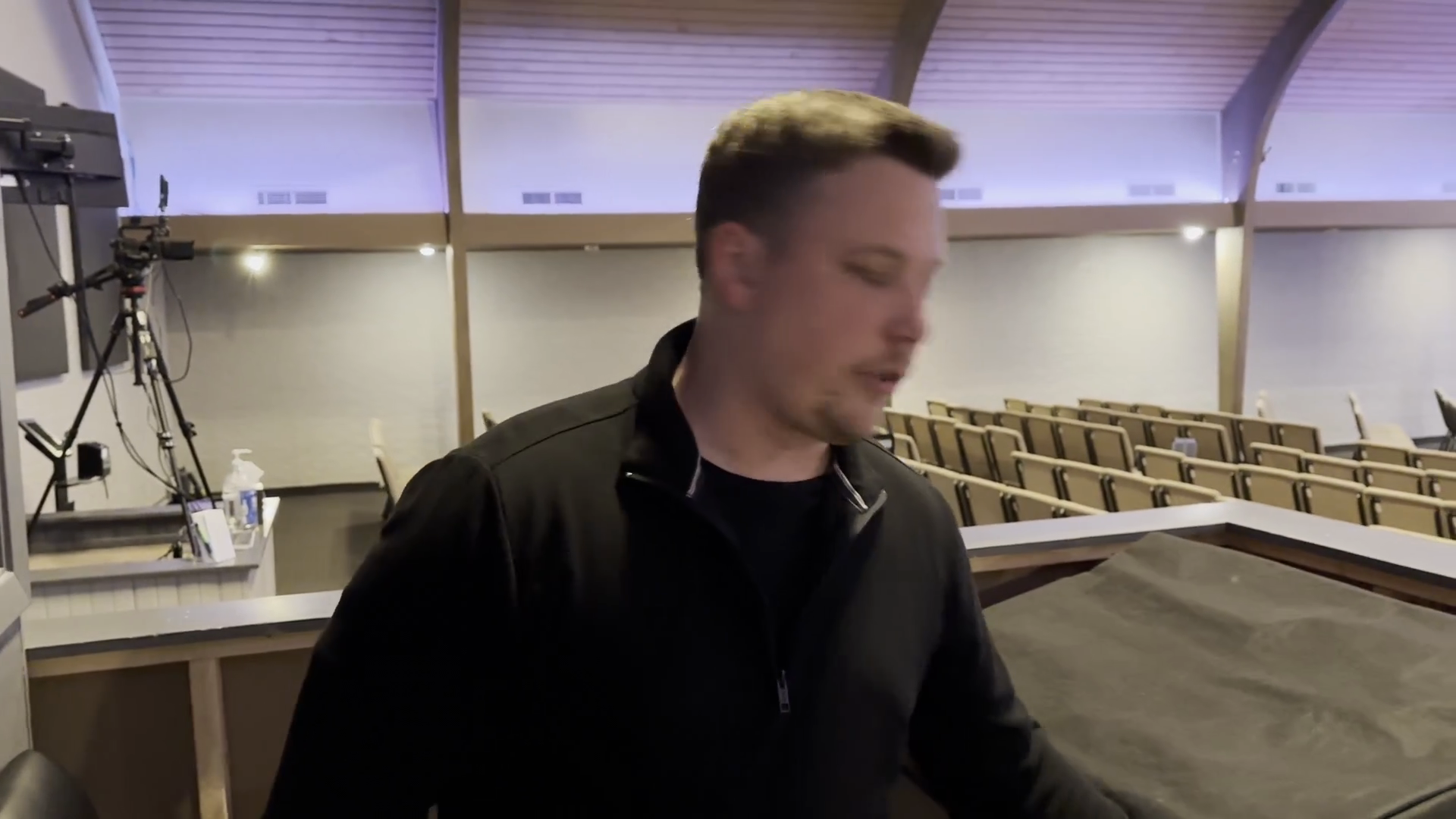
Step #1: Remove the cover from the soundboard.Fold the cover in half.Place the folded cover underneath the desk.
2
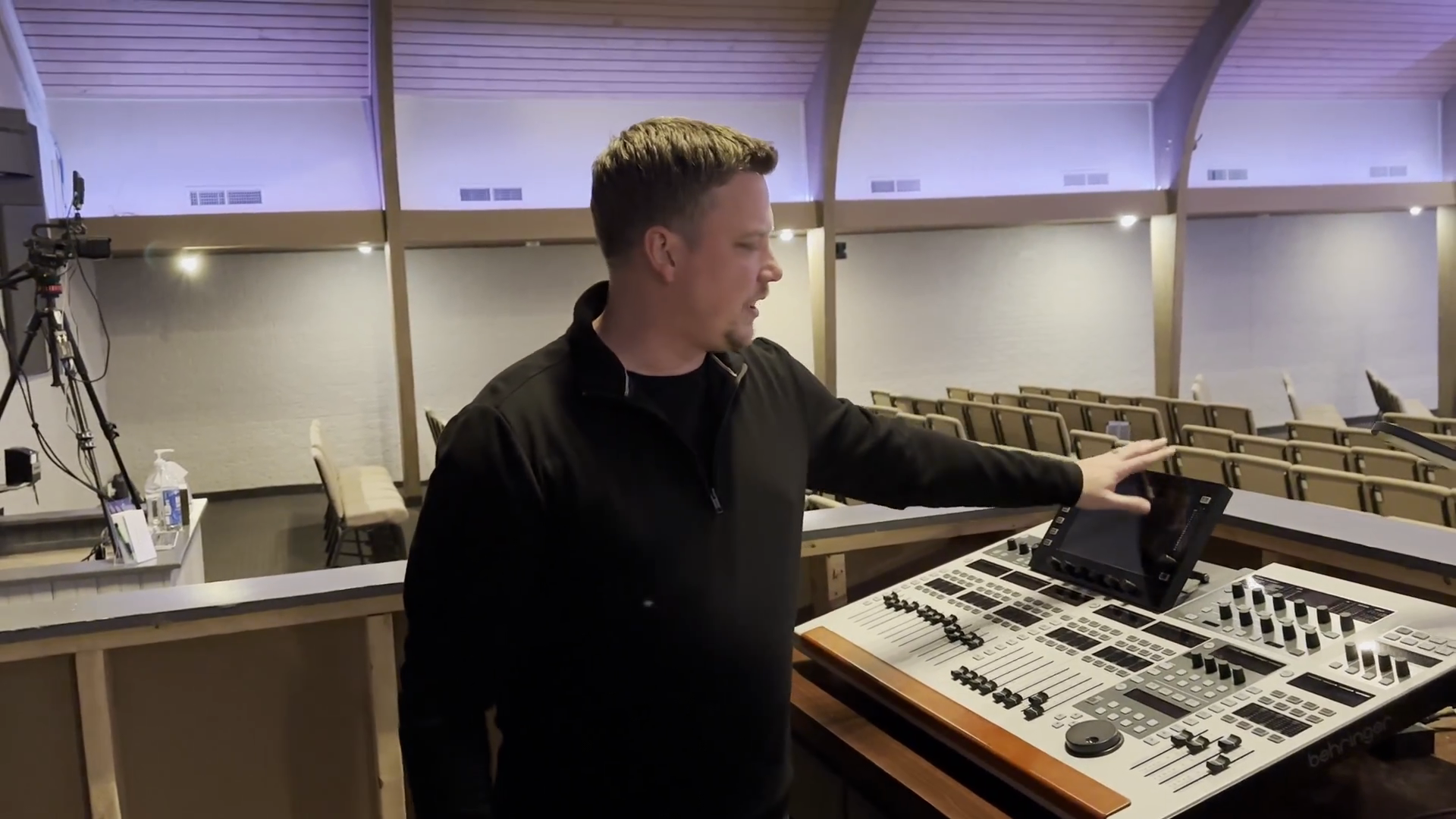
Lift the monitor on the soundboard up.
Step #2: Lift the monitor on the soundboard up.
3
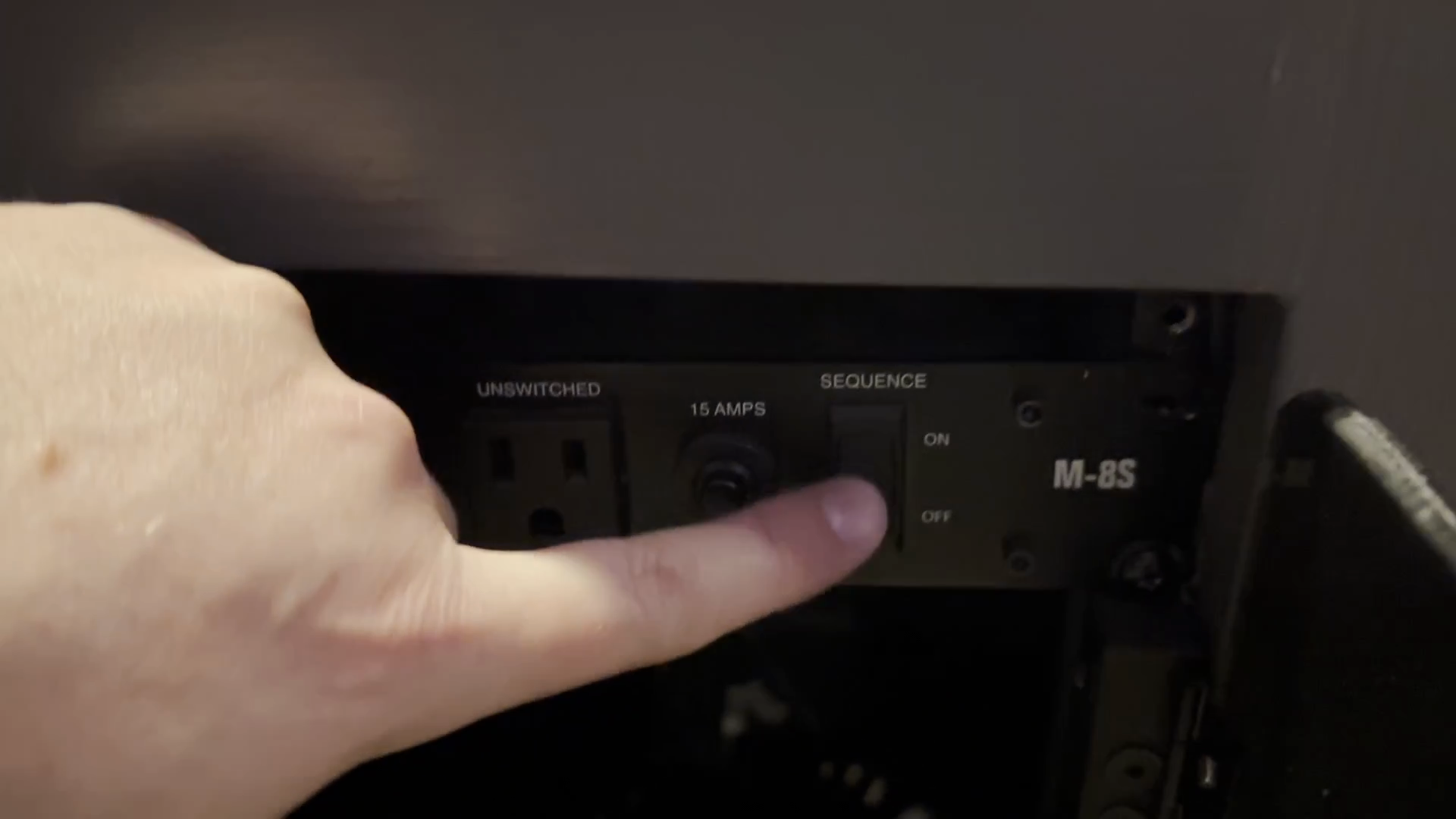
Turn on the power sequencer located under the desk.
Flip the top right 'Sequence' switch to the on position.
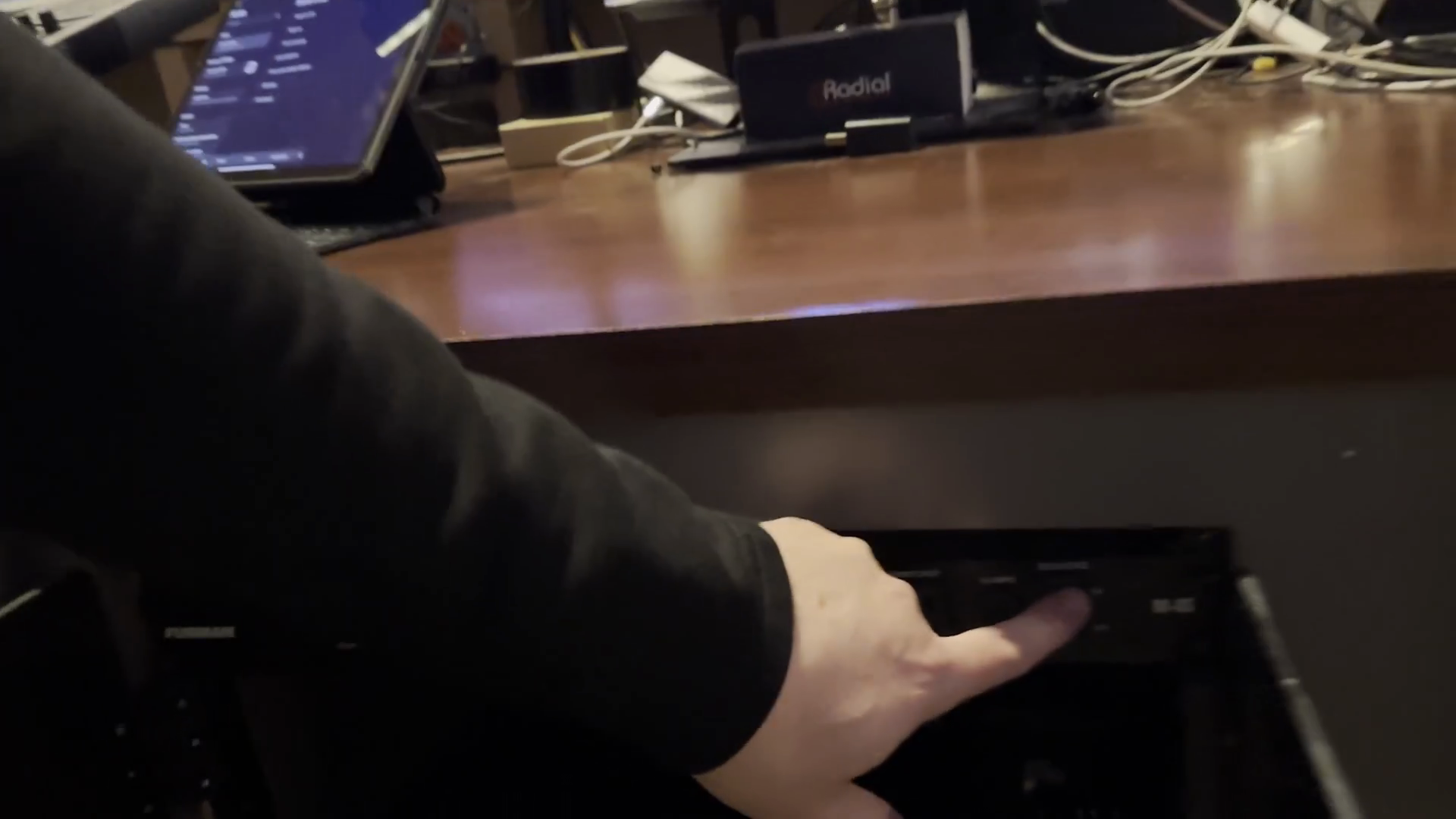
Step #3: Turn on the power sequencer located under the desk.Flip the top right 'Sequence' switch to the on position.

When I turn that on, you'll see that power goes to the mixing console on the sound board.
4
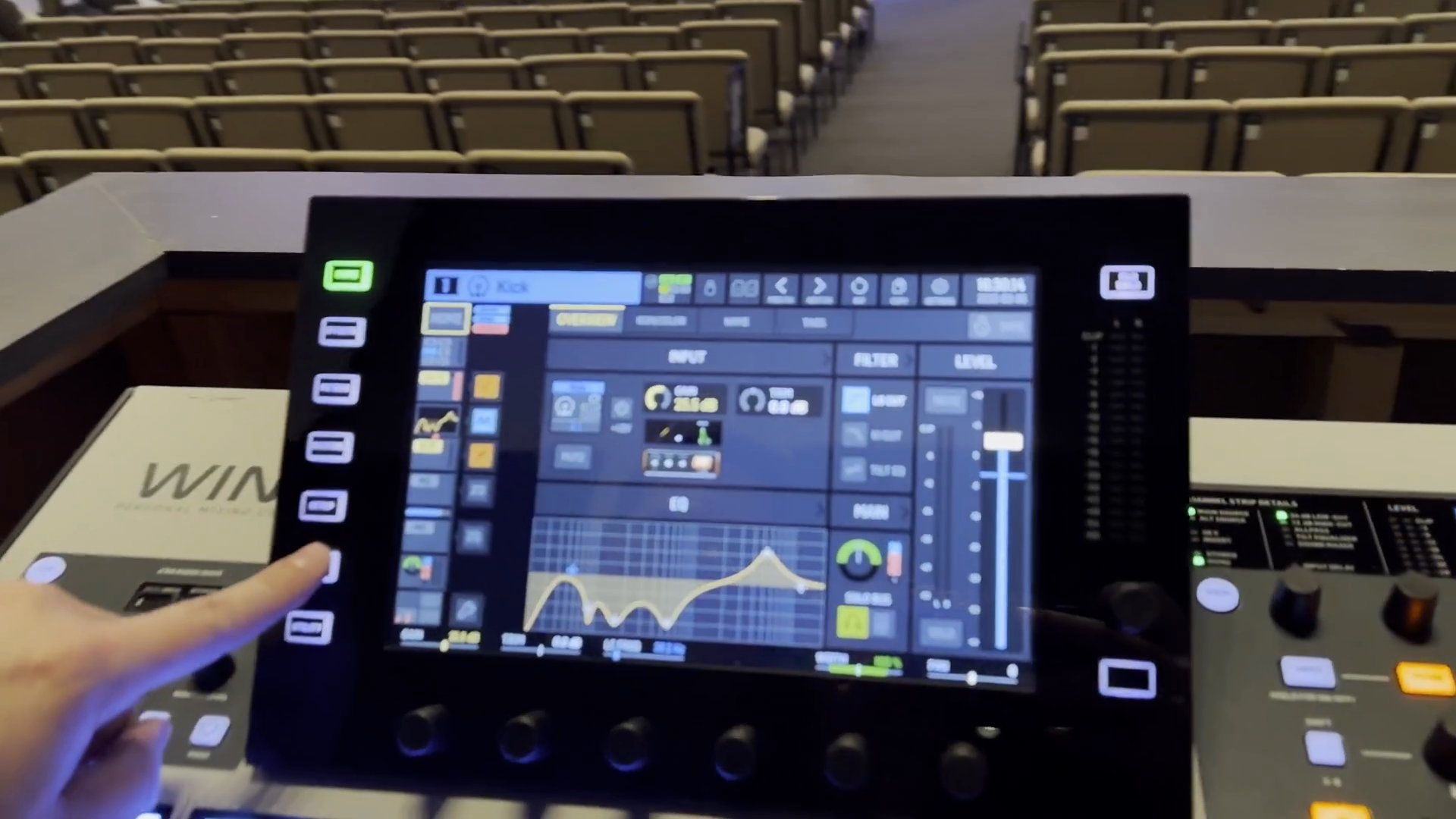
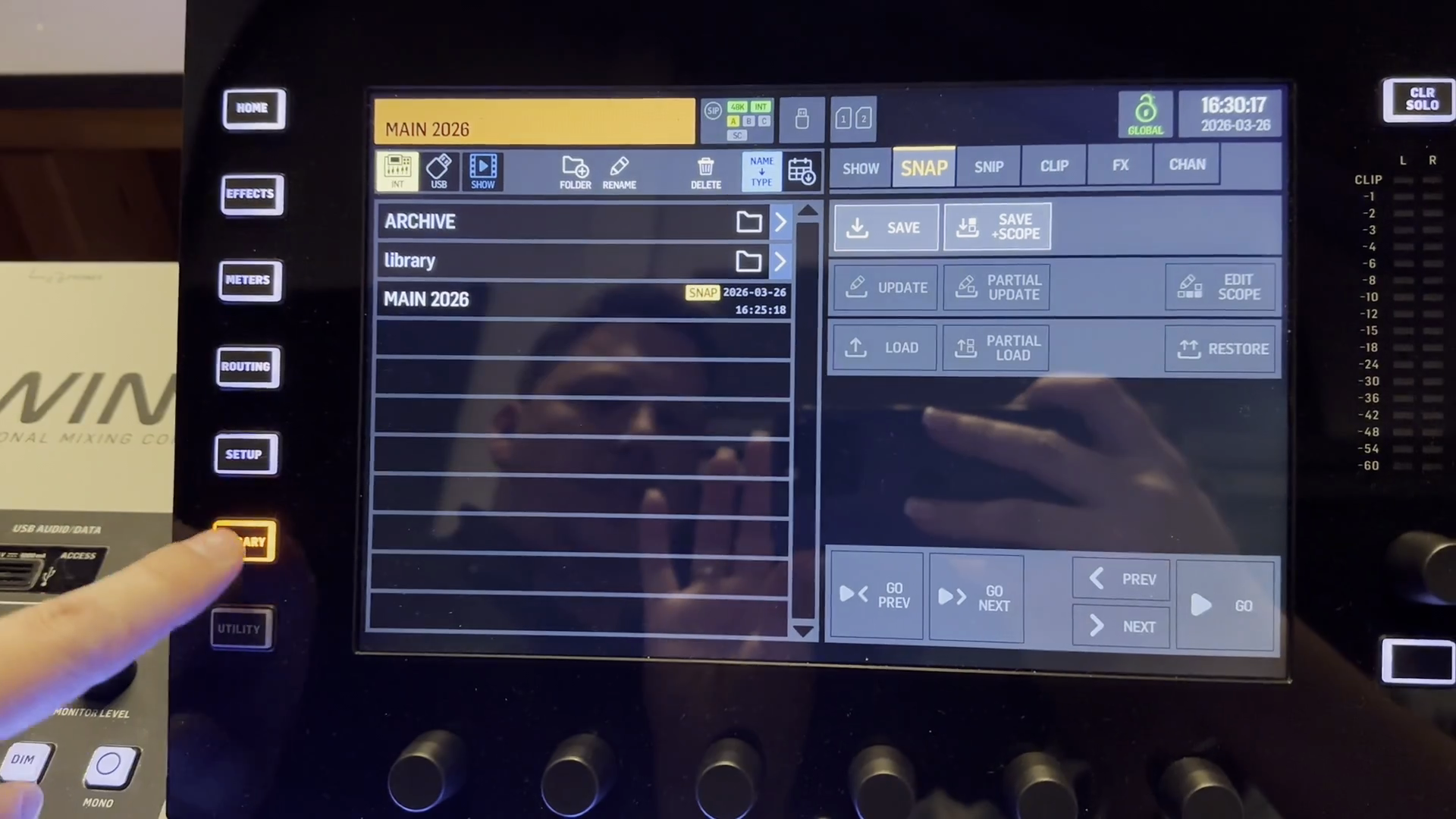
Click the LIBRARY button on the left menu.
Step #4: Click the LIBRARY button on the left menu.
5
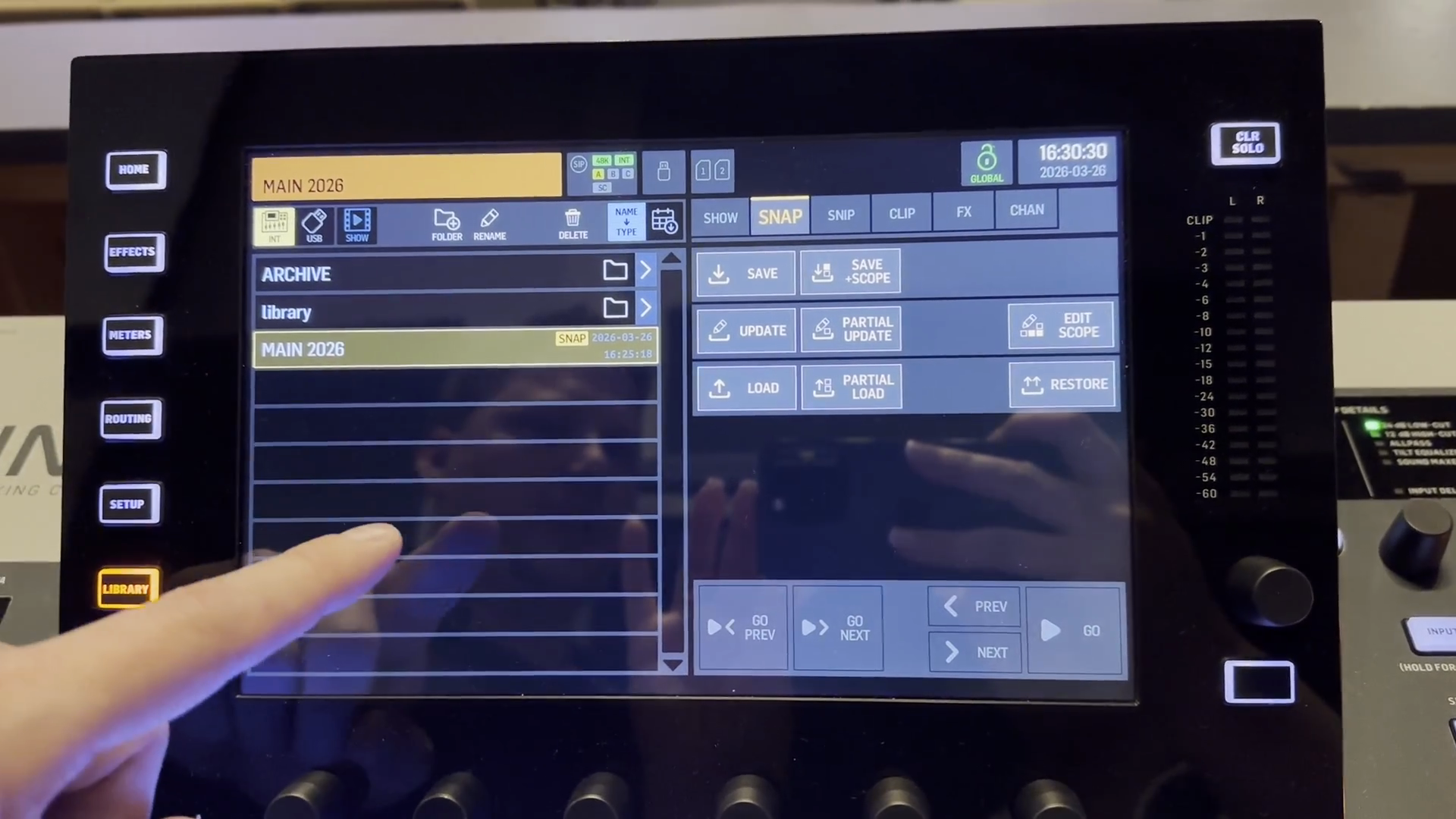
Select the 'MAIN 2026' snapshot from the list.
Step #5: Select the 'MAIN 2026' snapshot from the list.

Currently, it is set for Main 2026. It is usually the only one available, but you should load the most recent one.
6
Click the 'Load' button.
Step #6: Click the 'Load' button.

It will ask for confirmation, and I will select confirm. All settings are now ready for the Sunday morning service. Here are a few things to check on the board to ensure you're ready to run sound.
7
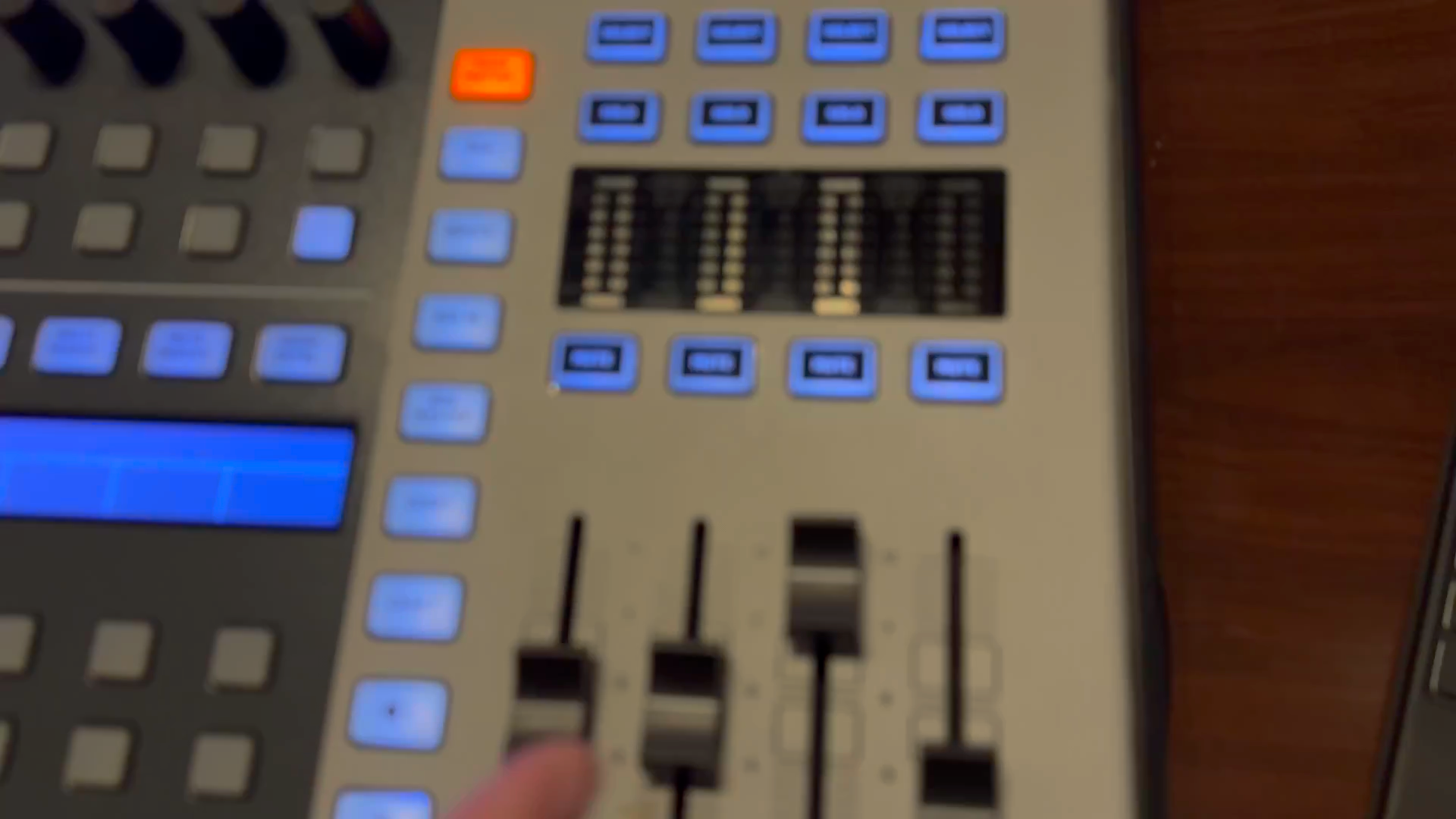
On the right side of the board, ensure the 'Mains,' 'Subs,' and 'Live Stream' sliders are set close to zero.
Step #7: On the right side of the board, ensure the 'Mains,' 'Subs,' and 'Live Stream' sliders are set close to zero.

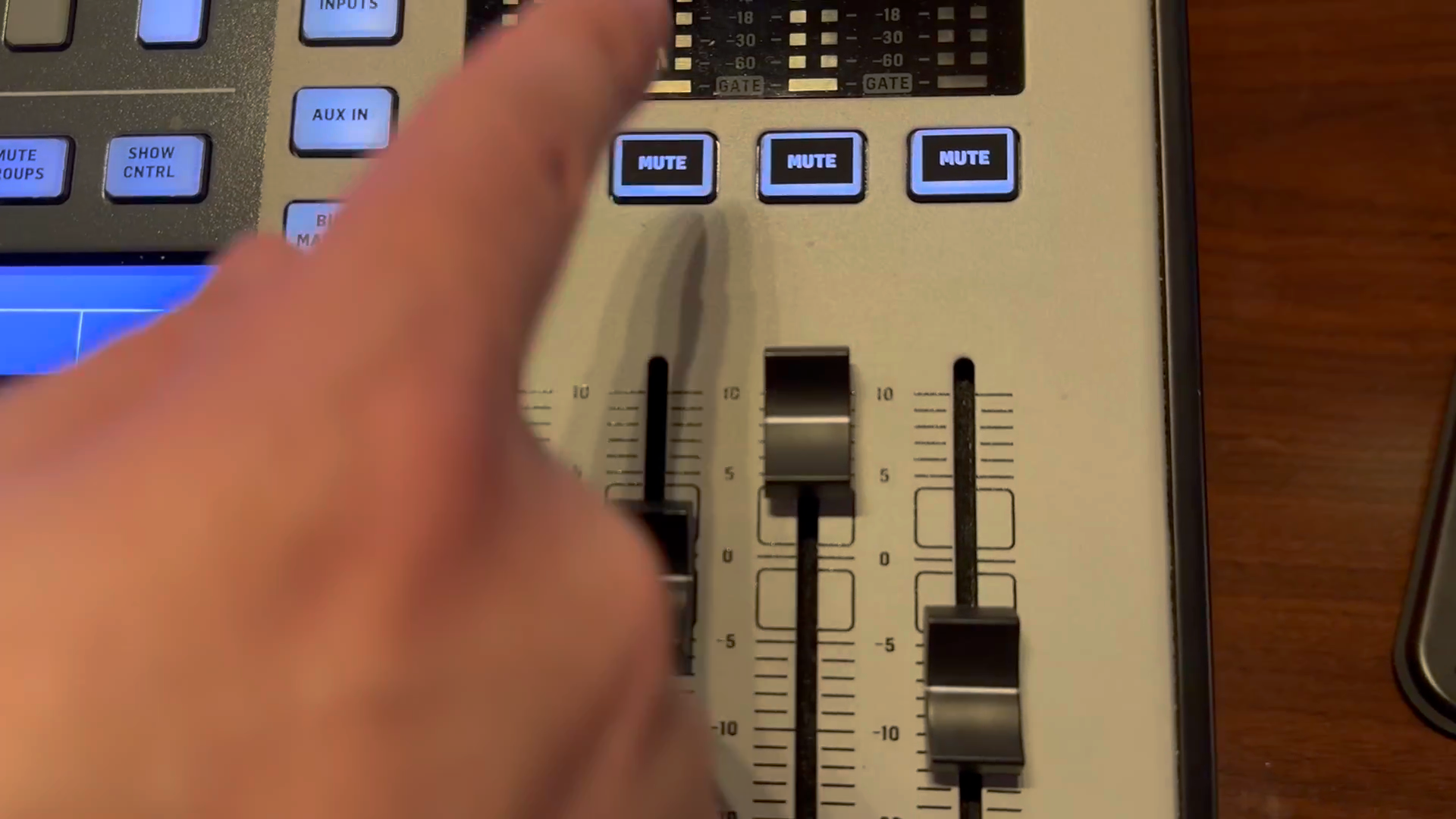
This first one is the main channel. The next one is for subs, and then the live stream, as shown by the title above, is usually set the loudest. This ensures that people listening online get a good balance of sound.
8
Raise the 'Live Stream' slider to be the loudest to ensure a good sound balance for the online audience.
Step #8: Raise the 'Live Stream' slider to be the loudest to ensure a good sound balance for the online audience.

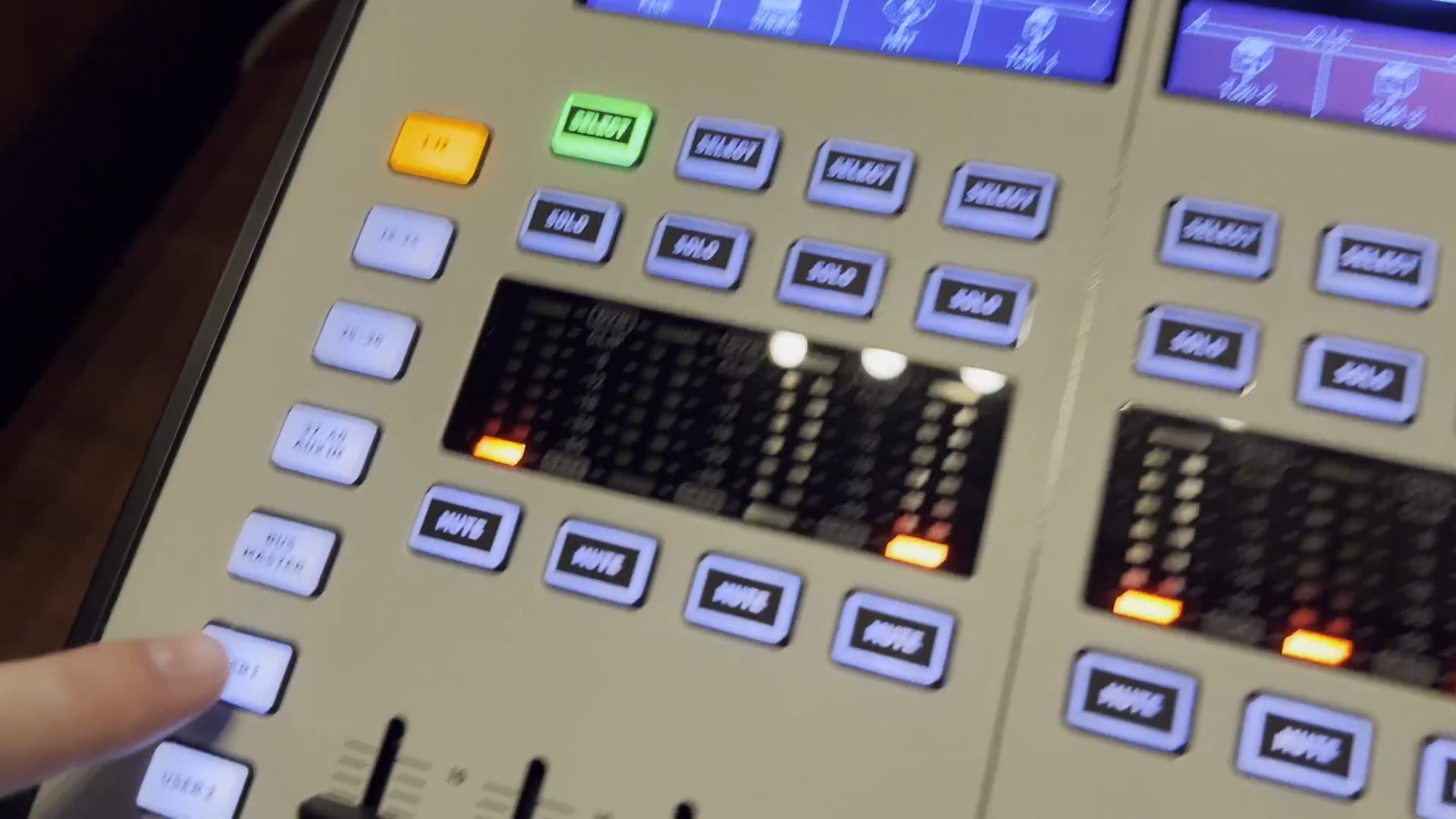
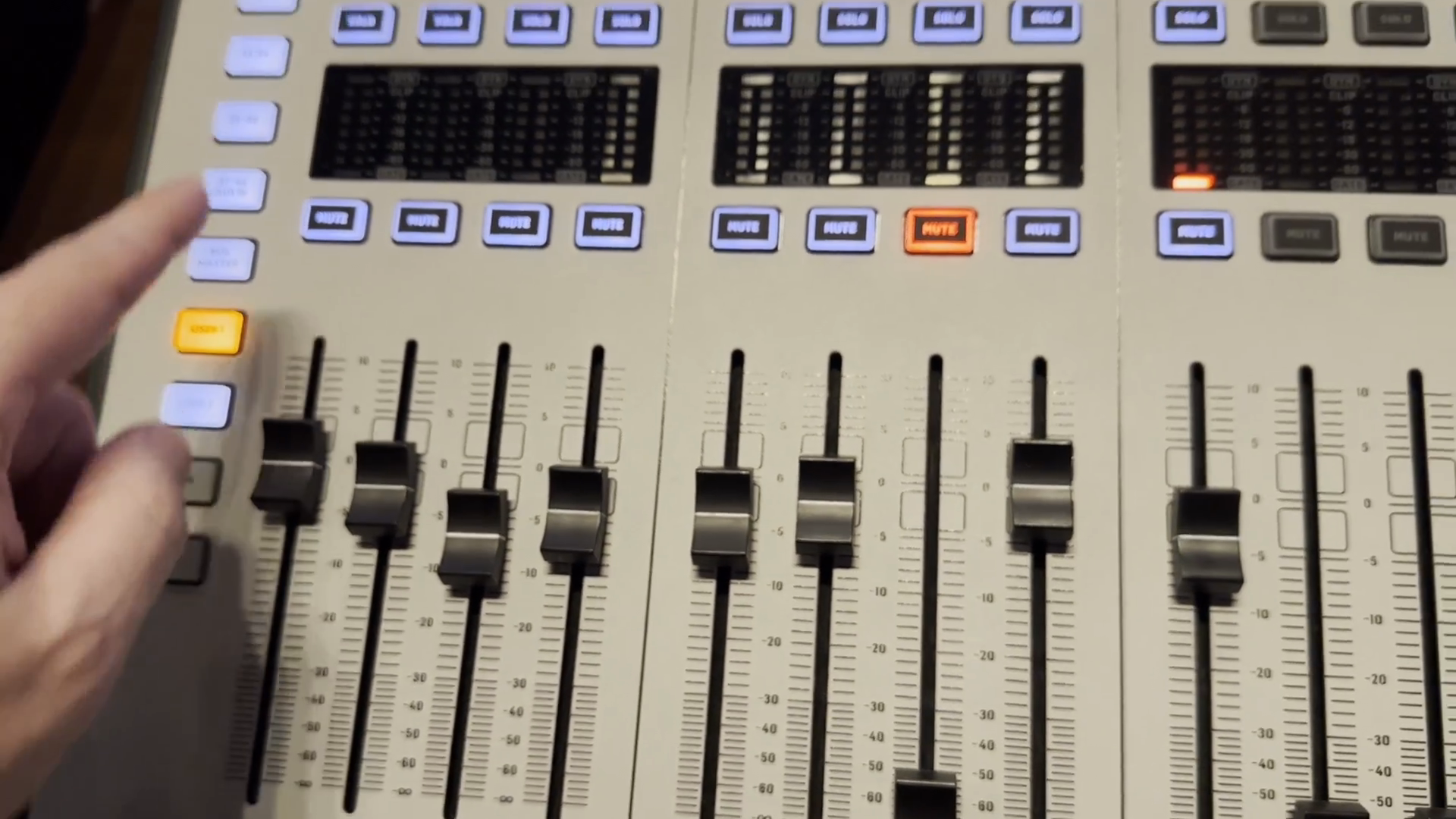
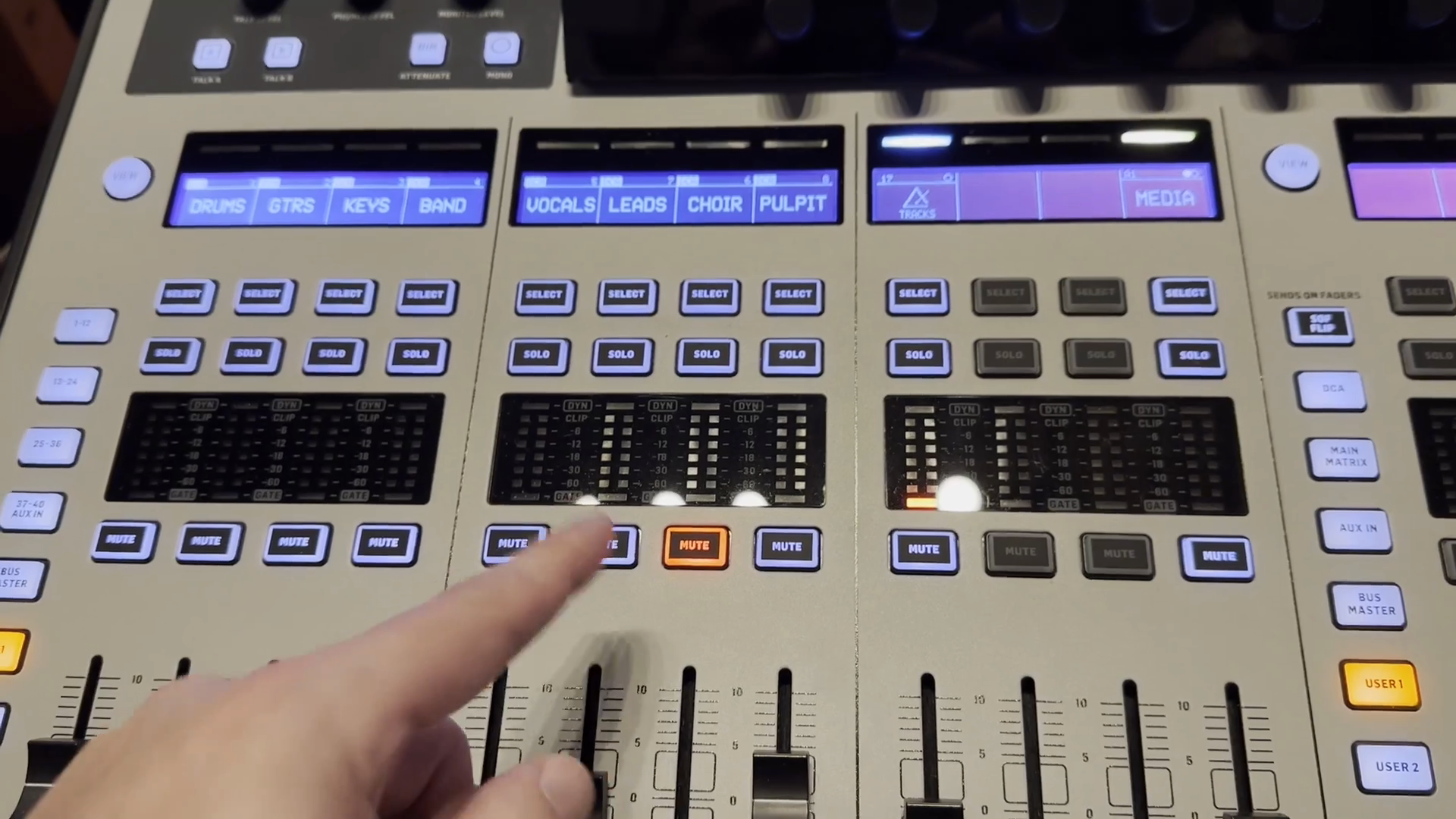
I also make sure to go to the far left to select user one. This lets me view all the settings for each group, such as drums, guitars, keys, band, vocals, leads, choir, pulpit, and others.
9
On the far left of the console, click the USER 1 button.
Step #9: On the far left of the console, click the USER 1 button.
10
Observe the settings for all groups across the console.
Step #10: Observe the settings for all groups across the console.

I keep the choir mics muted unless we are using them.
11
Verify that the CHOIR group is muted.
Step #11: Verify that the CHOIR group is muted.

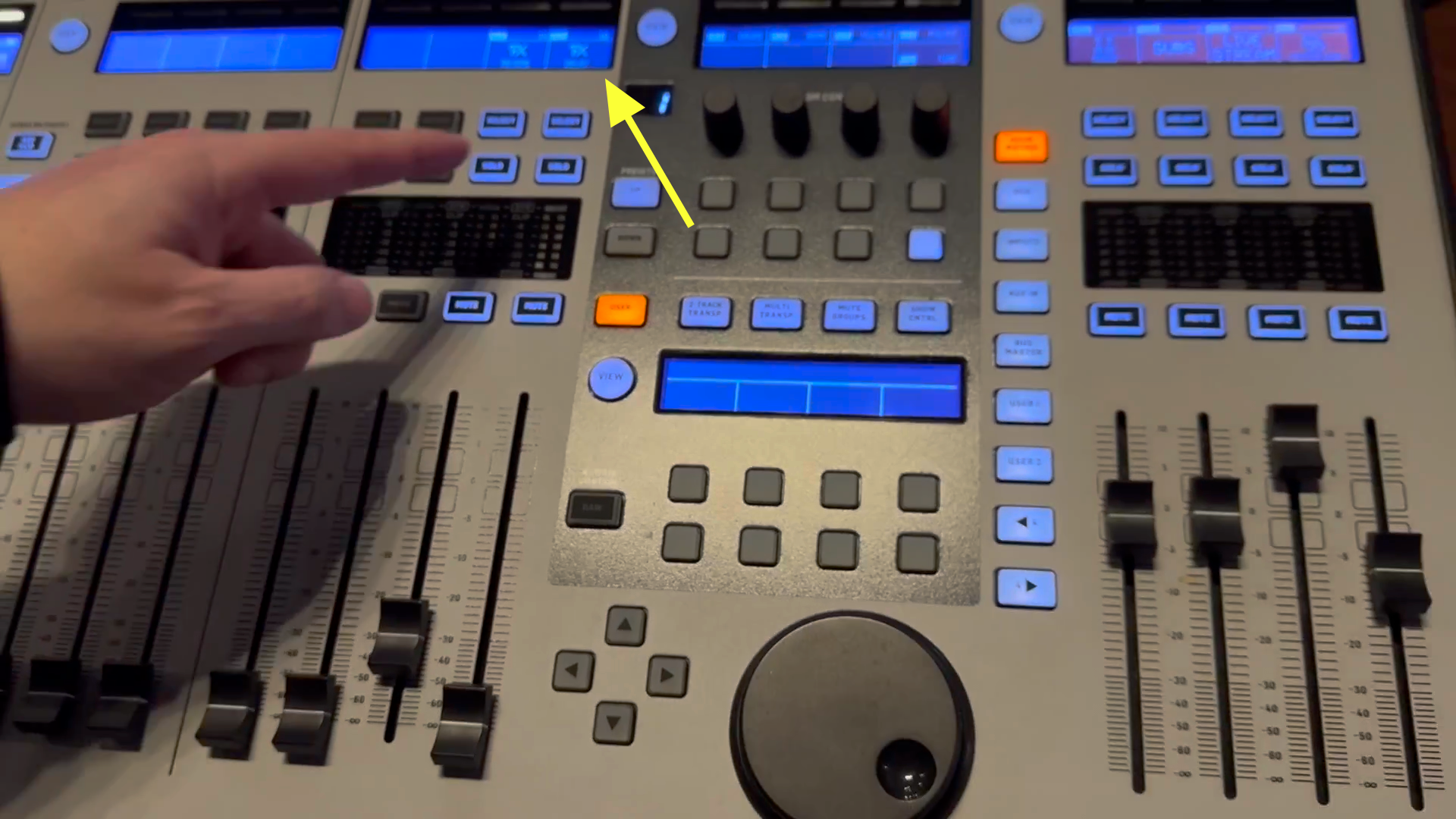
Now, if you look to the right of the board, notice that the delay setting is always set to zero until we are ready to use it.
12
Ensure the delay setting is always set all the way to zero until ready to use it.
Step #12: Ensure the delay setting is always set all the way to zero until ready to use it.

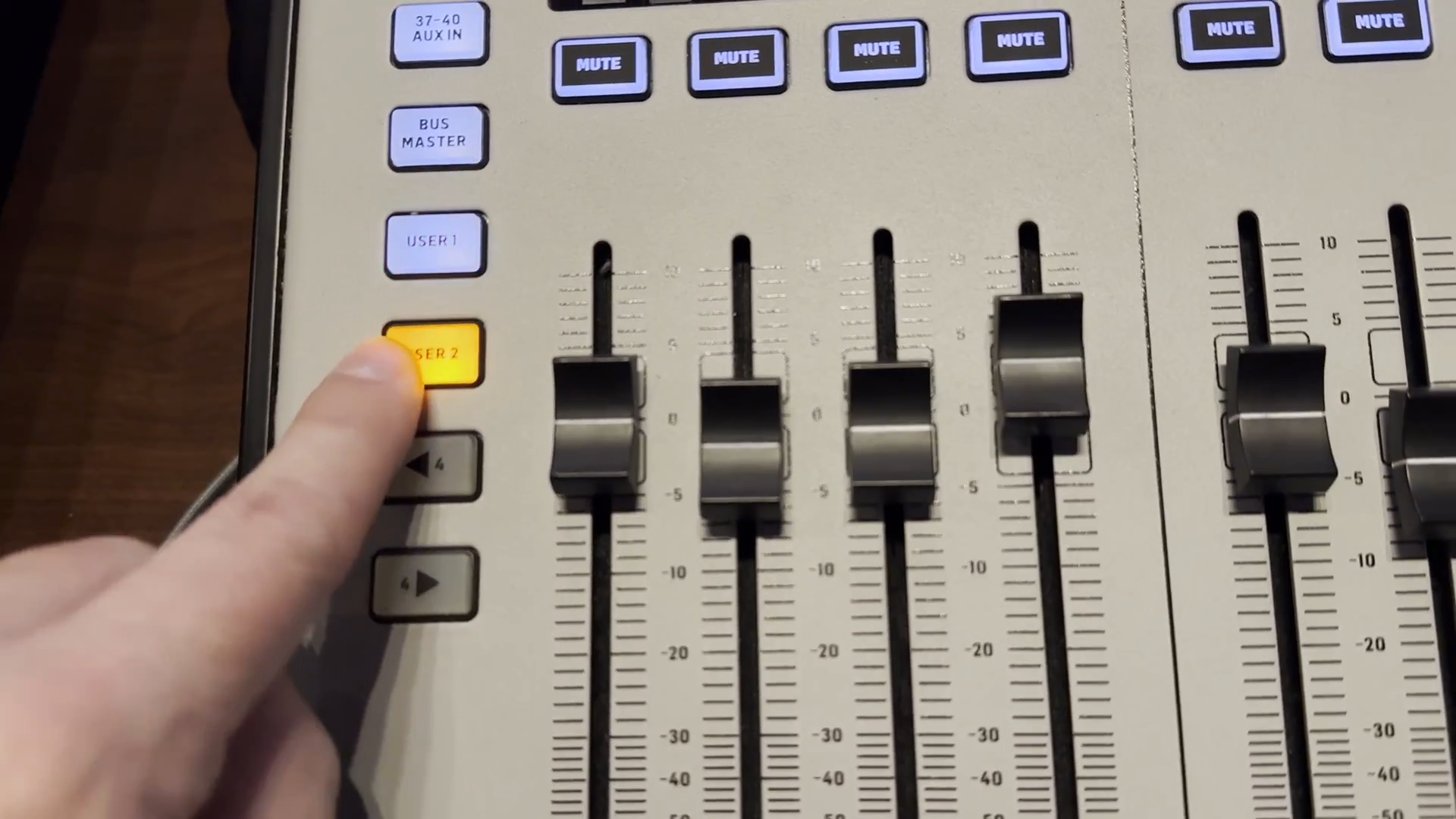
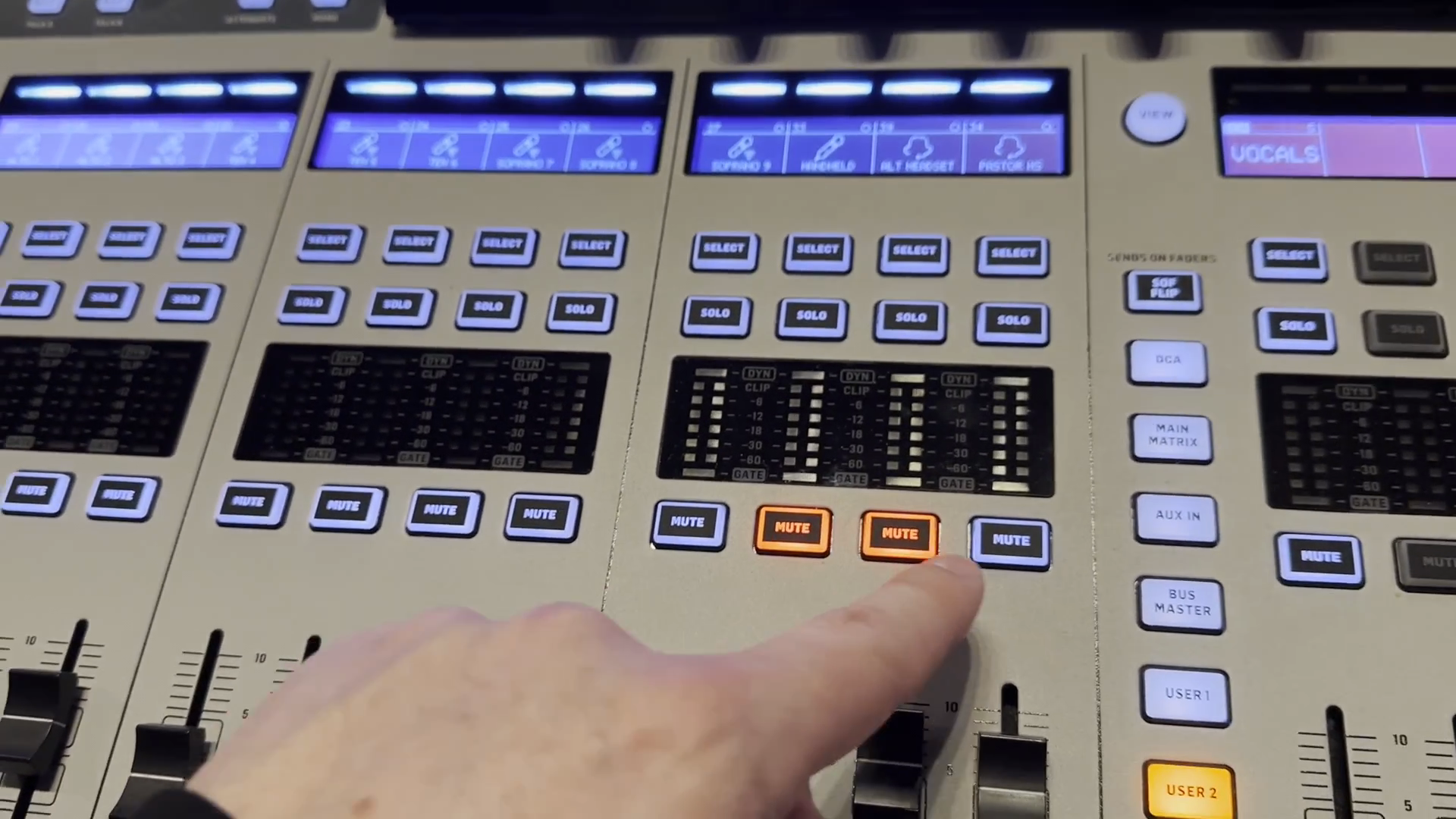
The only other thing I'd like to point out is that if I go back to my user settings and favorites, I can select user two. Then, I'll ensure the microphone for the pastor's headset is unmuted and ready to use. I'll also note which of the two—either the handheld or alternate headsets—might be in use for the service.
13
Select USER 2.
Step #13: Select USER 2.
14
Ensure the microphone for the pastor's headset is unmuted and ready to use.
Step #14: Ensure the microphone for the pastor's headset is unmuted and ready to use.
15
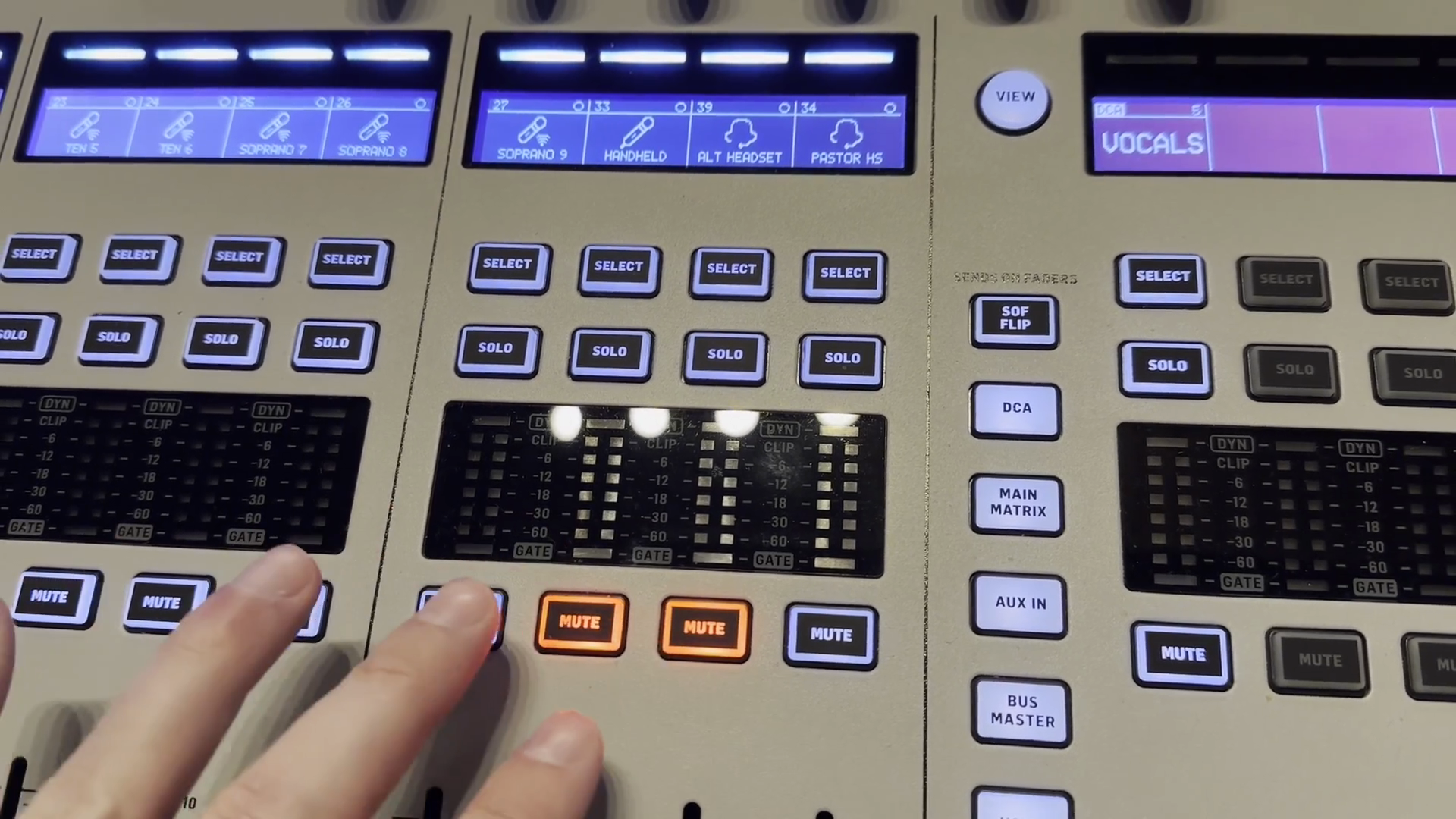
Take note of which of the two either handheld or alternate headsets might be in use for the service.

I may not need to unmute them now, but I might need to unmute them when they're ready to be used.
16
Press the MUTE button for the selected microphone to unmute it when it is ready to be used.
Step #16: Press the MUTE button for the selected microphone to unmute it when it is ready to be used.
17
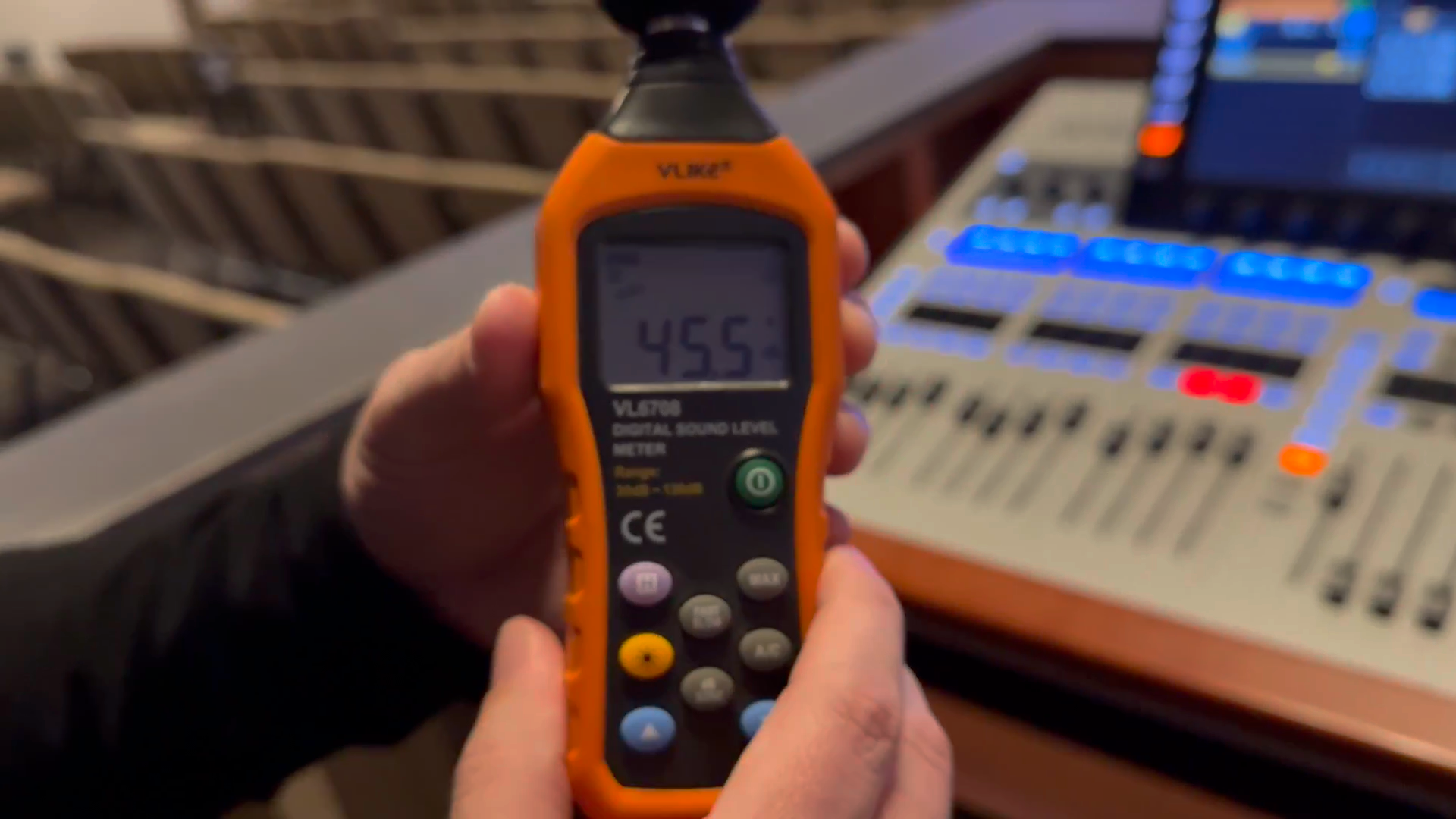
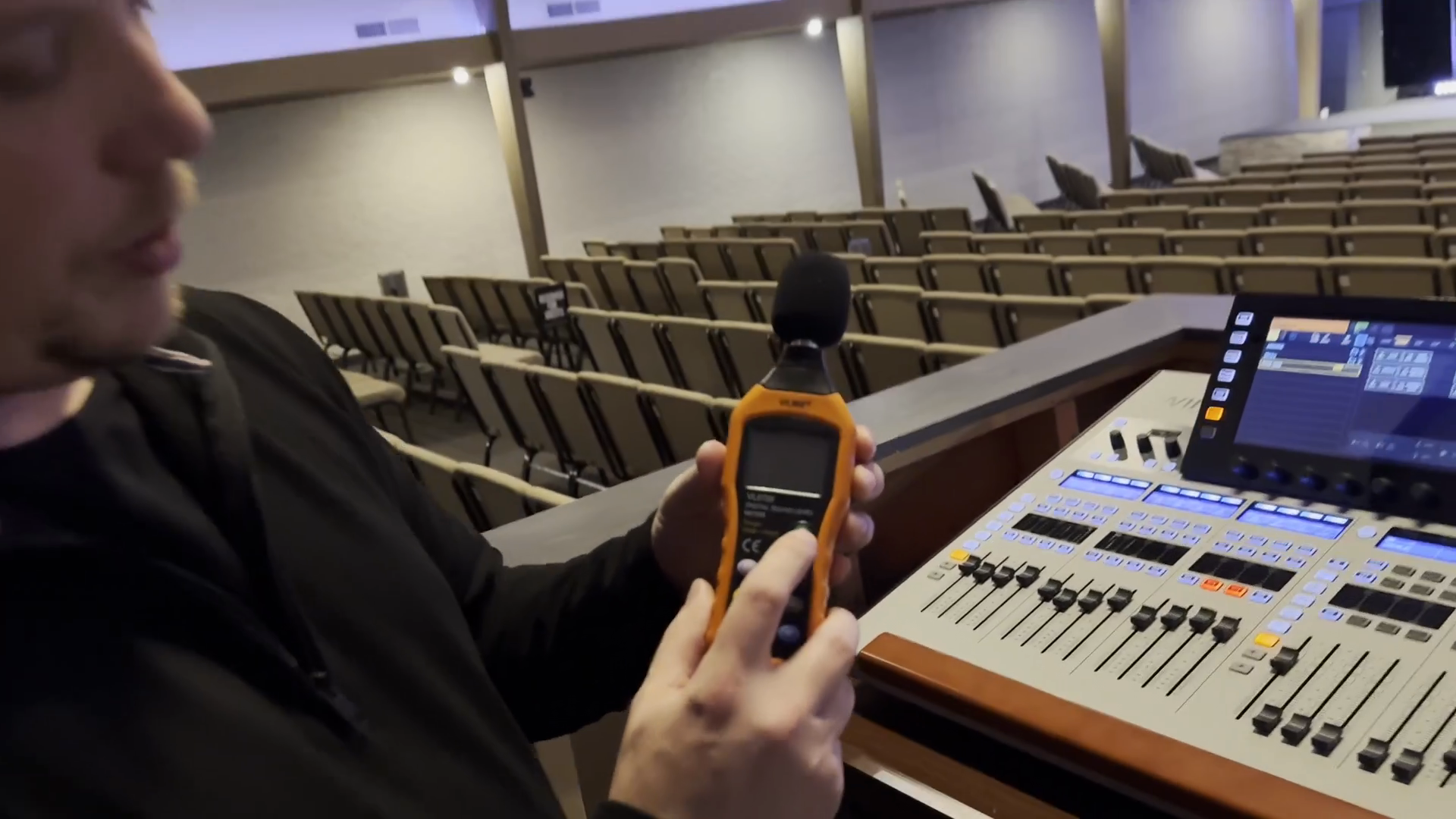
To ensure the sound is right, use the digital sound level meter.
18
Press the green power button to turn on the digital sound level meter.
Step #18: Press the green power button to turn on the digital sound level meter.
19
Turn on the sound meter to get a decibel reading of the room.
Step #19: Turn on the sound meter to get a decibel reading of the room.
20
Aim for a typical peak decibel level in the high 80s to low 90s.

If it peaks below 87, it's probably not loud enough in the house.

21
Ensure the decibel level is not peaking below 87.

I'll keep the sound meter near the top left of the soundboard area and check it regularly to ensure the volume is neither too loud nor too quiet.

If we're too quiet, the mix will be muddy. It won't sound great. If it's too loud, it will hurt people's ears, and we don't want that.
22
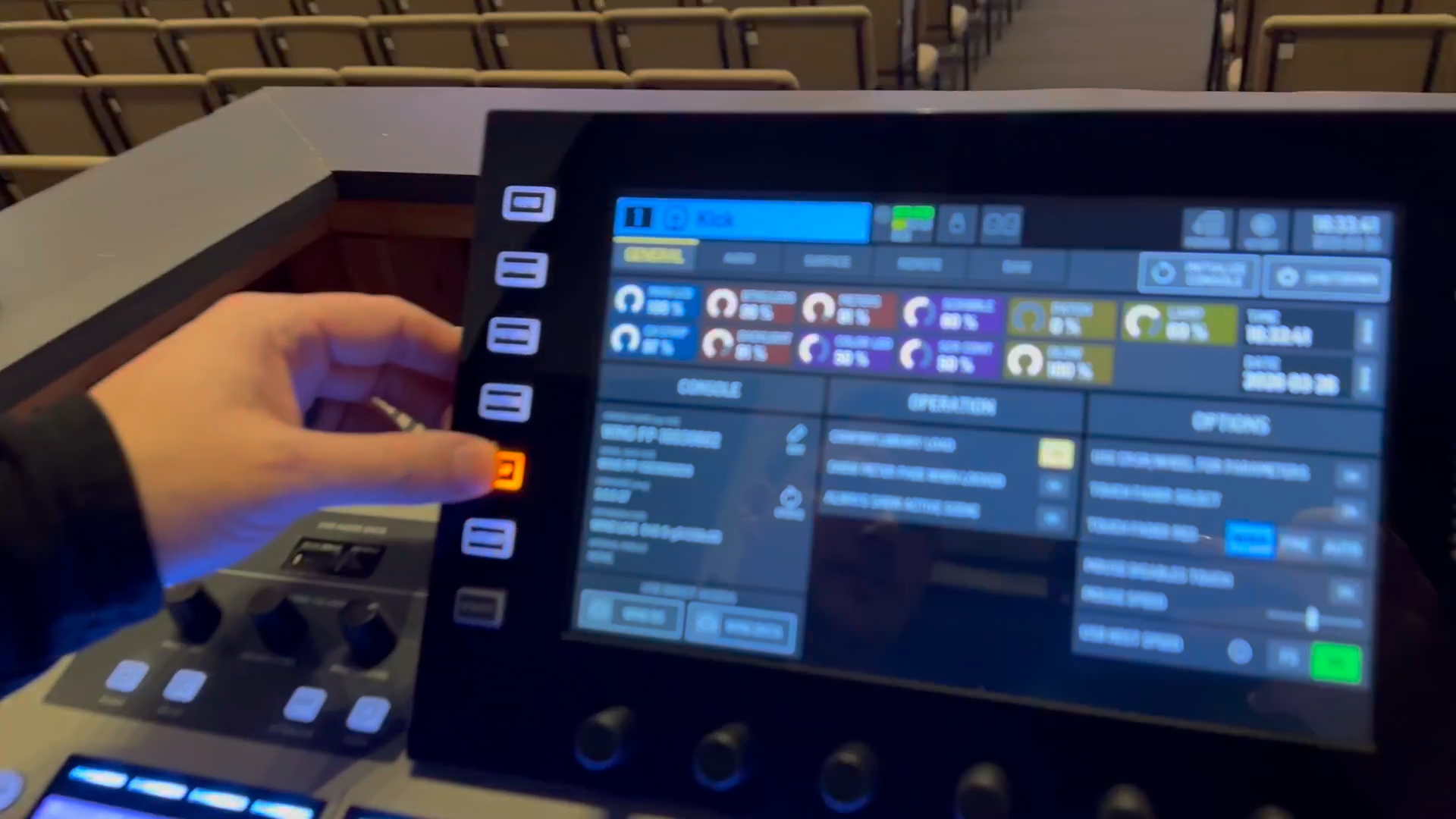
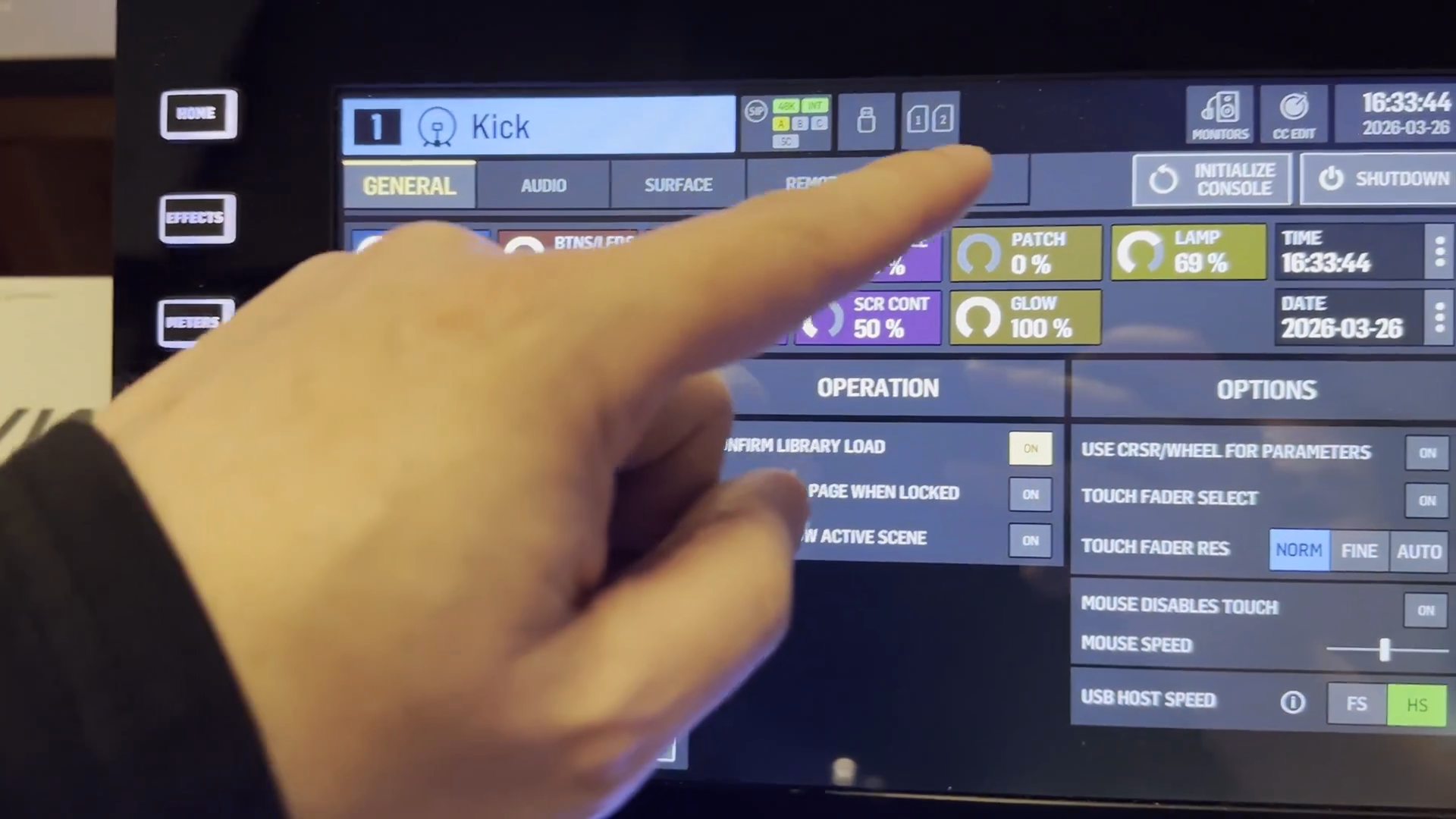
To shut everything down, go to the setup page.
Step #22: To shut everything down, go to the setup page.
23
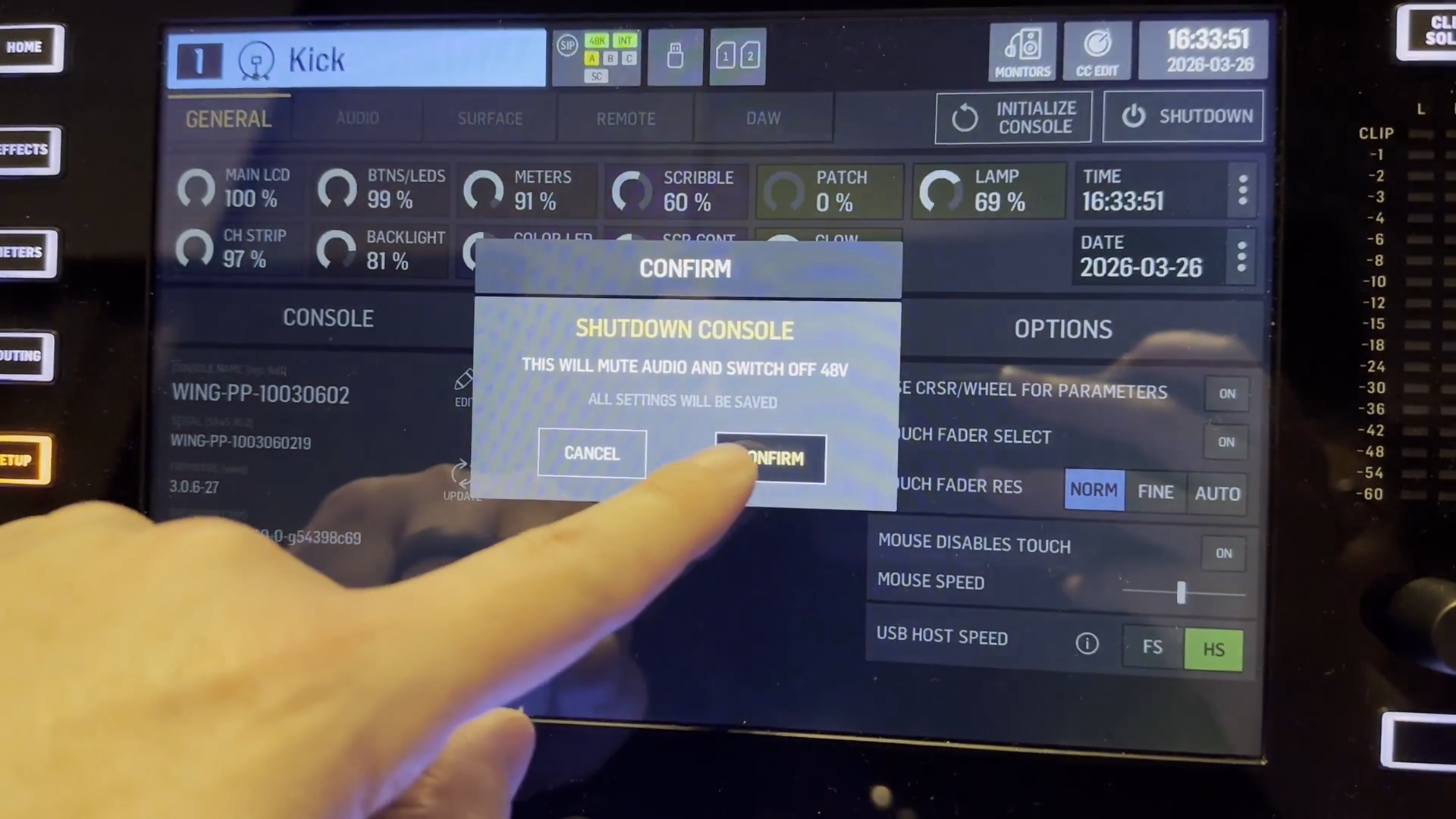
Click the Shutdown button in the top right.
Step #23: Click the Shutdown button in the top right.
24
Click the CONFIRM button.
Step #24: Click the CONFIRM button.

It is now safe to turn off the console.
25
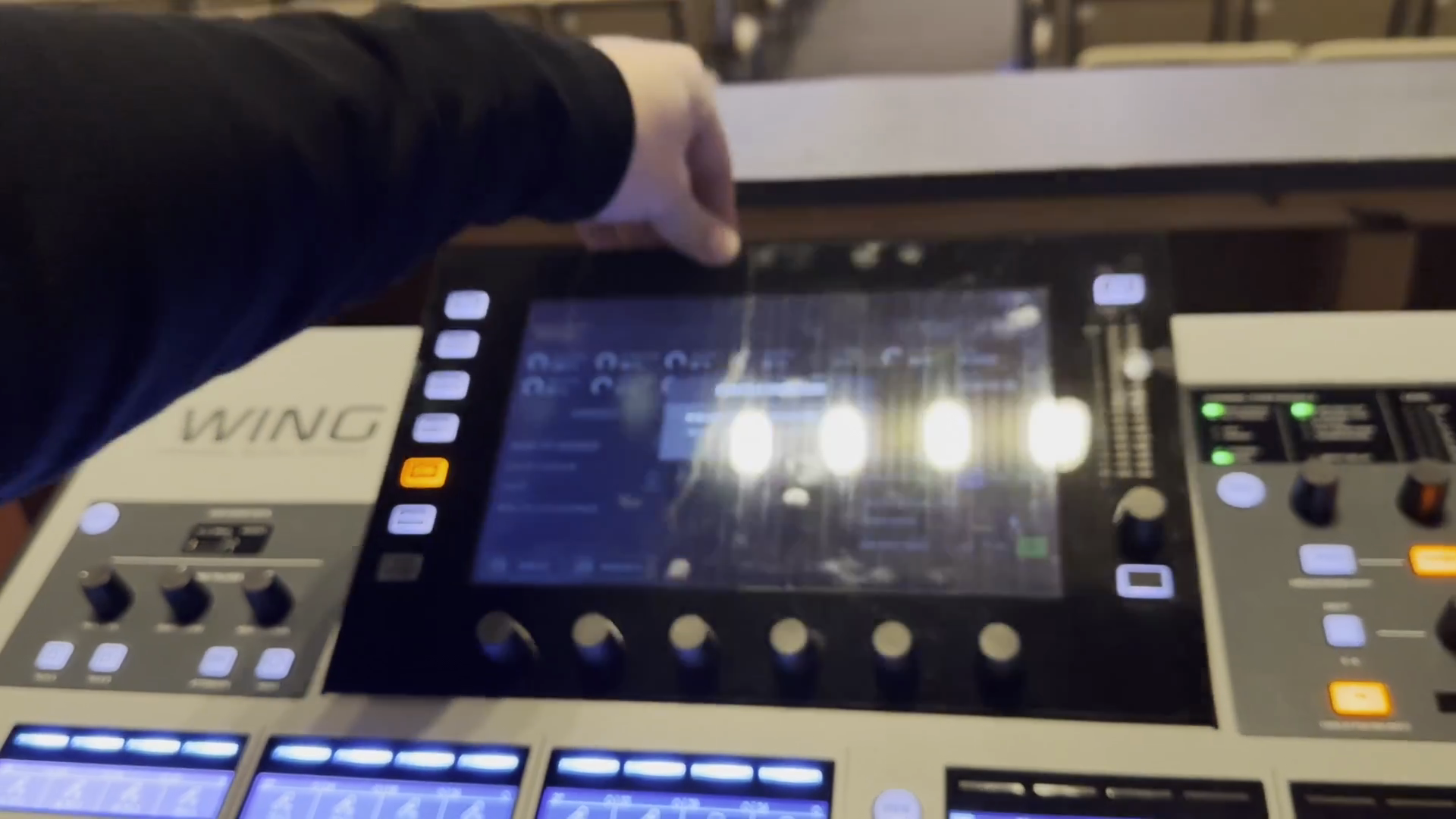
Press the console screen down into its resting position.
Step #25: Press the console screen down into its resting position.
26
Flip the SEQUENCE switch on the surge protector to the OFF position.
Step #26: Flip the SEQUENCE switch on the surge protector to the OFF position.

Finally, to prevent dust from settling on the faders, replace the cover over the sound board.
27
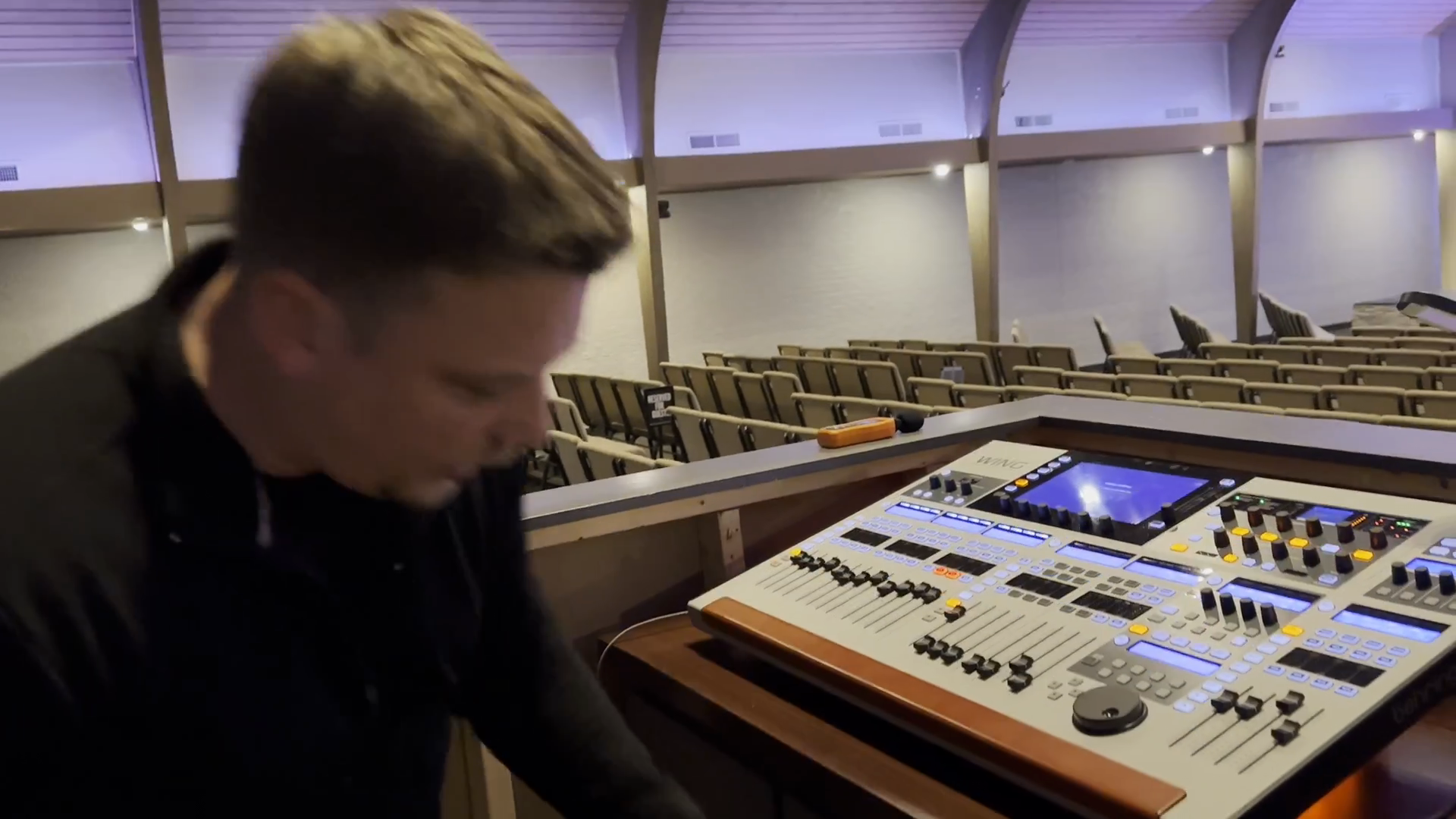
Retrieve the cover for the soundboard.
Step #27: Retrieve the cover for the soundboard.

28
Place the cover over the soundboard.
Step #28: Place the cover over the soundboard.