MDWK Setup - Banquet Room
Step-by-step guide for setting up and shutting down the computer, sound system, TVs, microphones, and lighting for Wednesday night teaching sessions. Includes PowerPoint tips and troubleshooting advice.
In this guide, we'll learn how to set up and shut down the equipment needed for teaching on Wednesday night. This includes turning on the Windows computer, operating the TVs and sound system, and managing the lighting for video recording. We will also cover how to properly close everything down after the session.
Let's get started
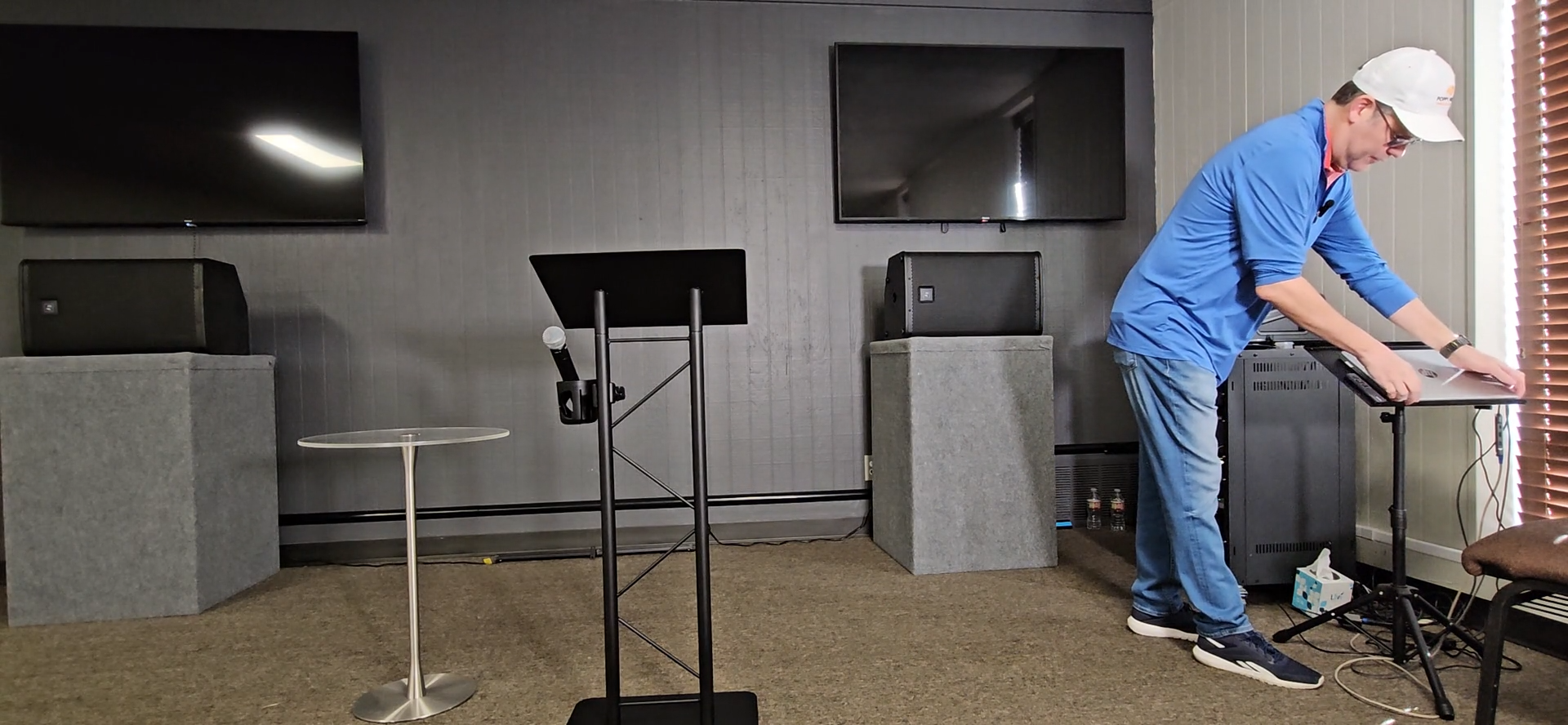
This is a Windows computer. If you have used a Windows computer or PowerPoint before, you should be familiar with how to operate it.
PowerPoint is usually open for you.
This remote has "Hisense" written at the bottom.
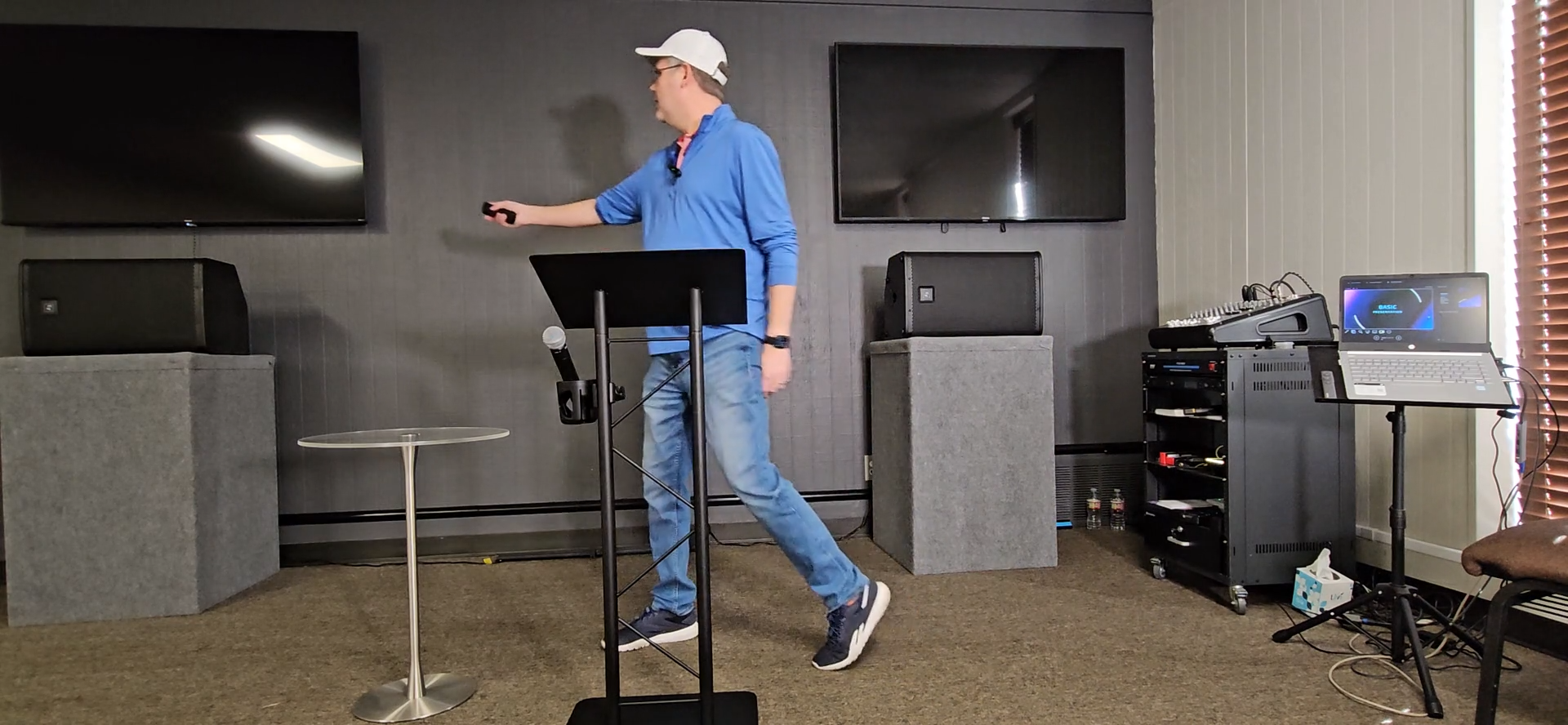
You should see the computer's backdrop.
For sound, there is a red power button and a power switch in the top-right corner.
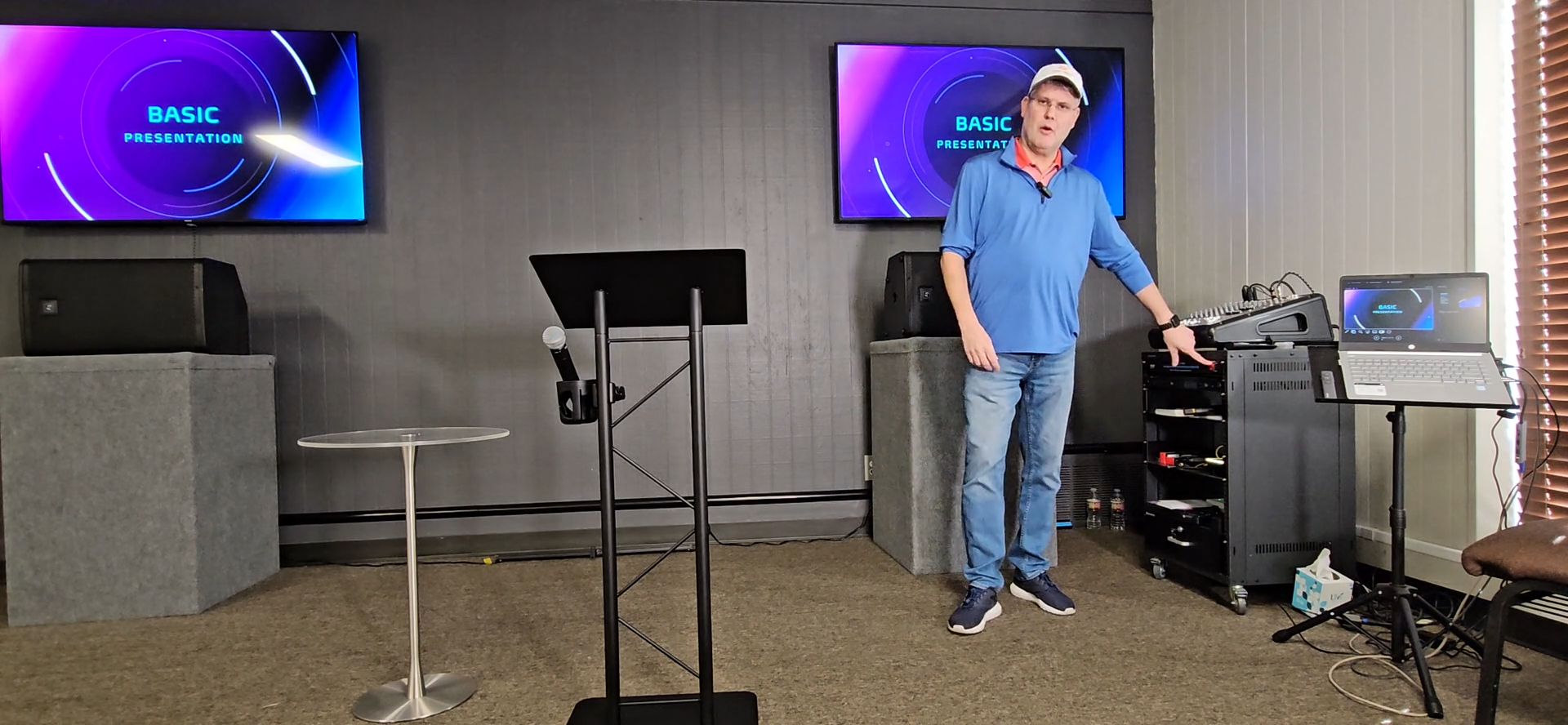
Turn that up. When you flip it up, the red light on the switch will turn on. The soundboard should stay on and light up. Everything is ready to go.
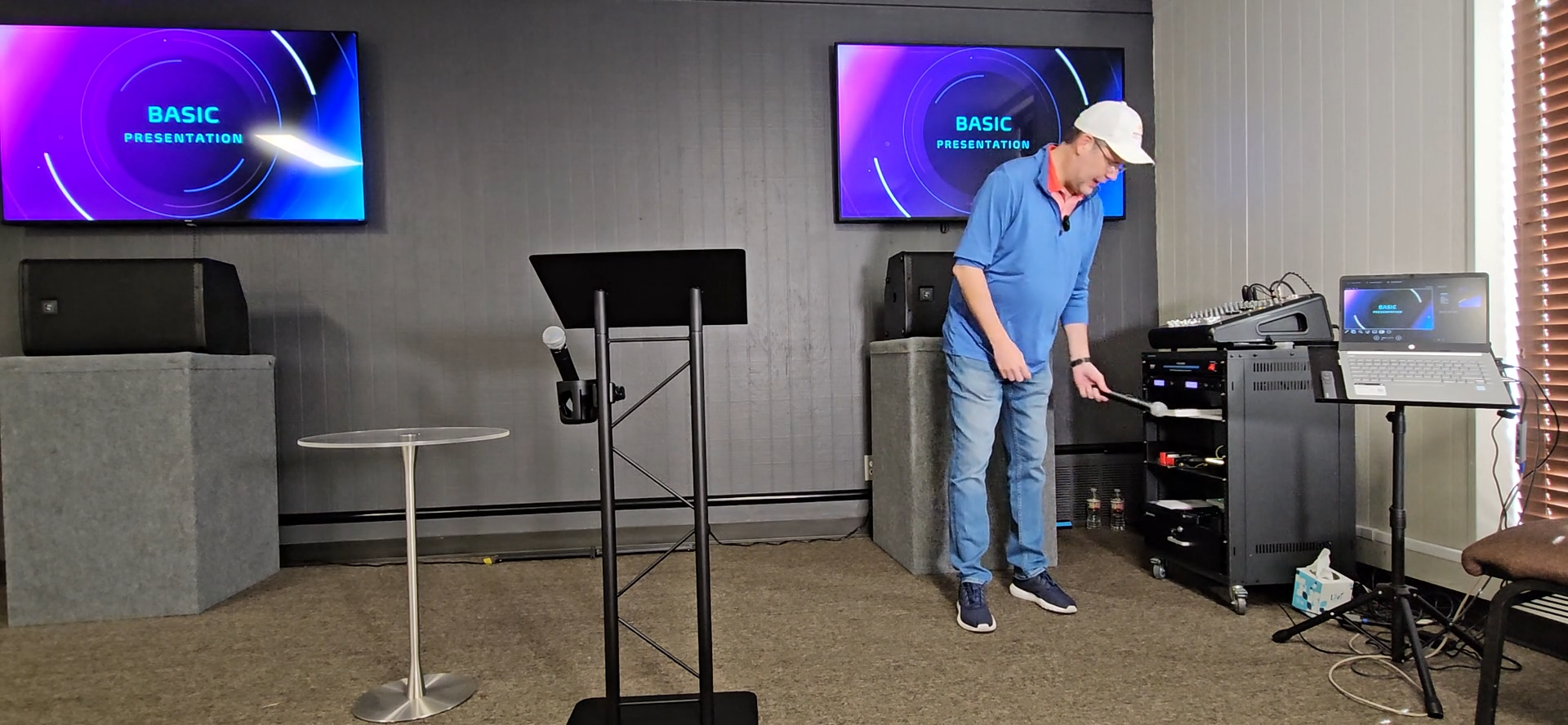
There is also a body pack with a headset if you prefer. Push the switch to the right.
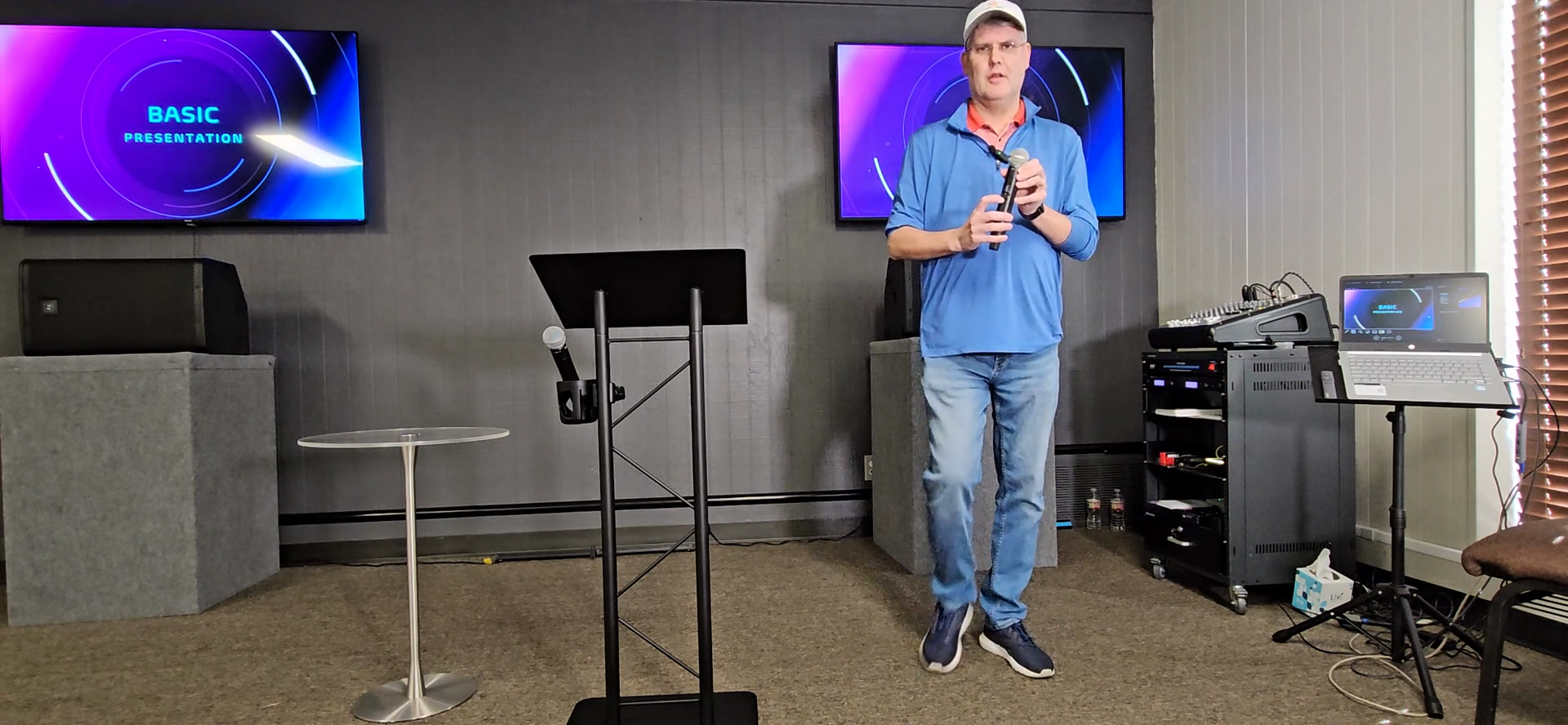
That will power on the handheld mic. There are left and right main.
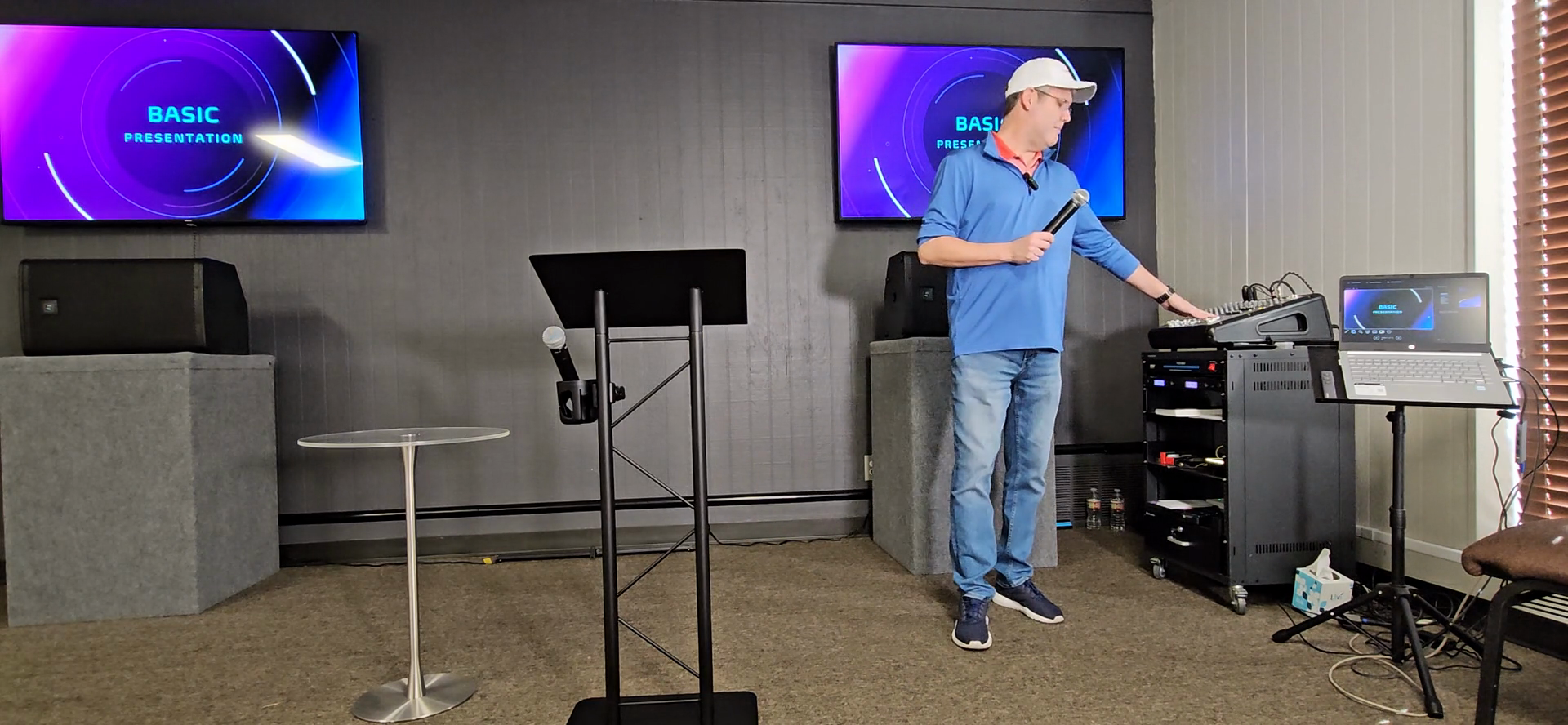
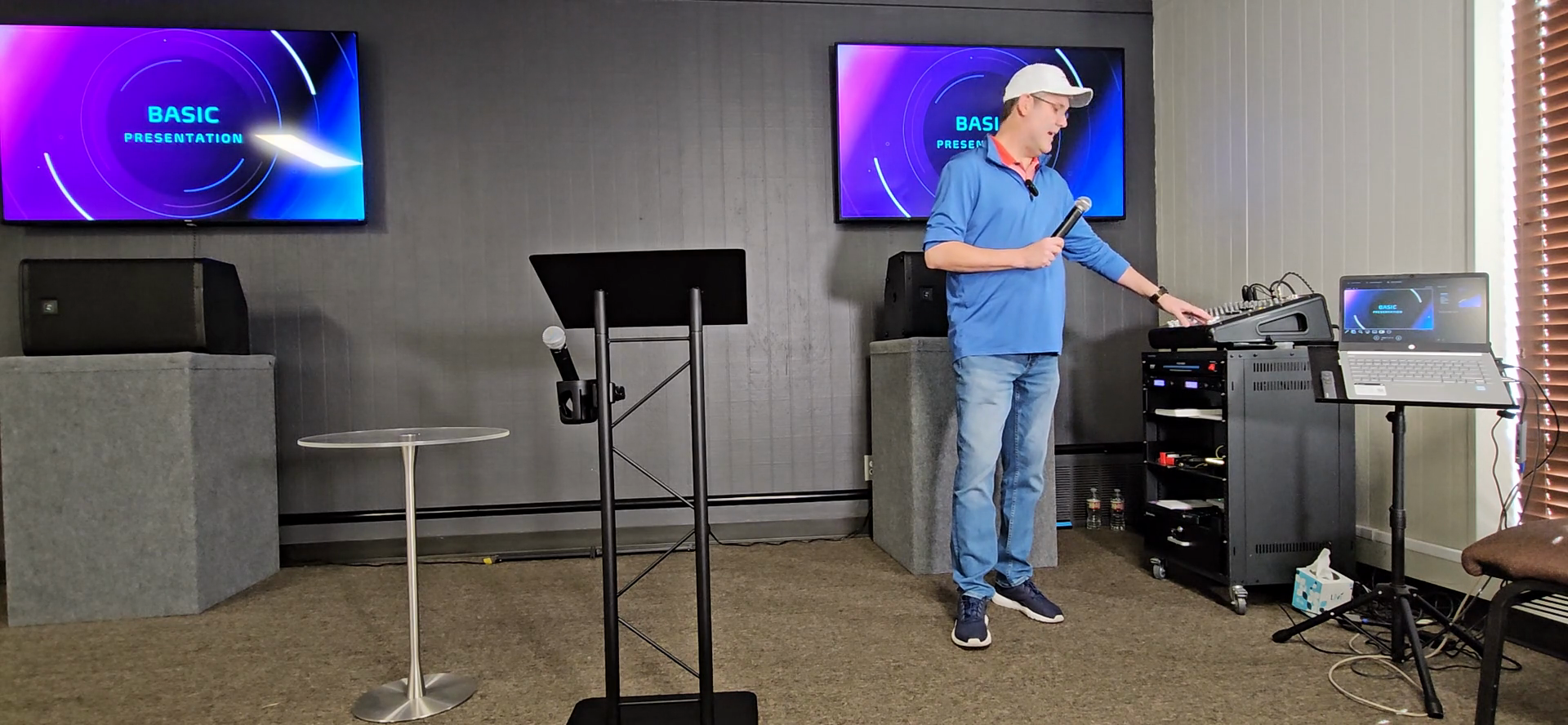
Everything else can be turned down except channels one and two on the far left side.
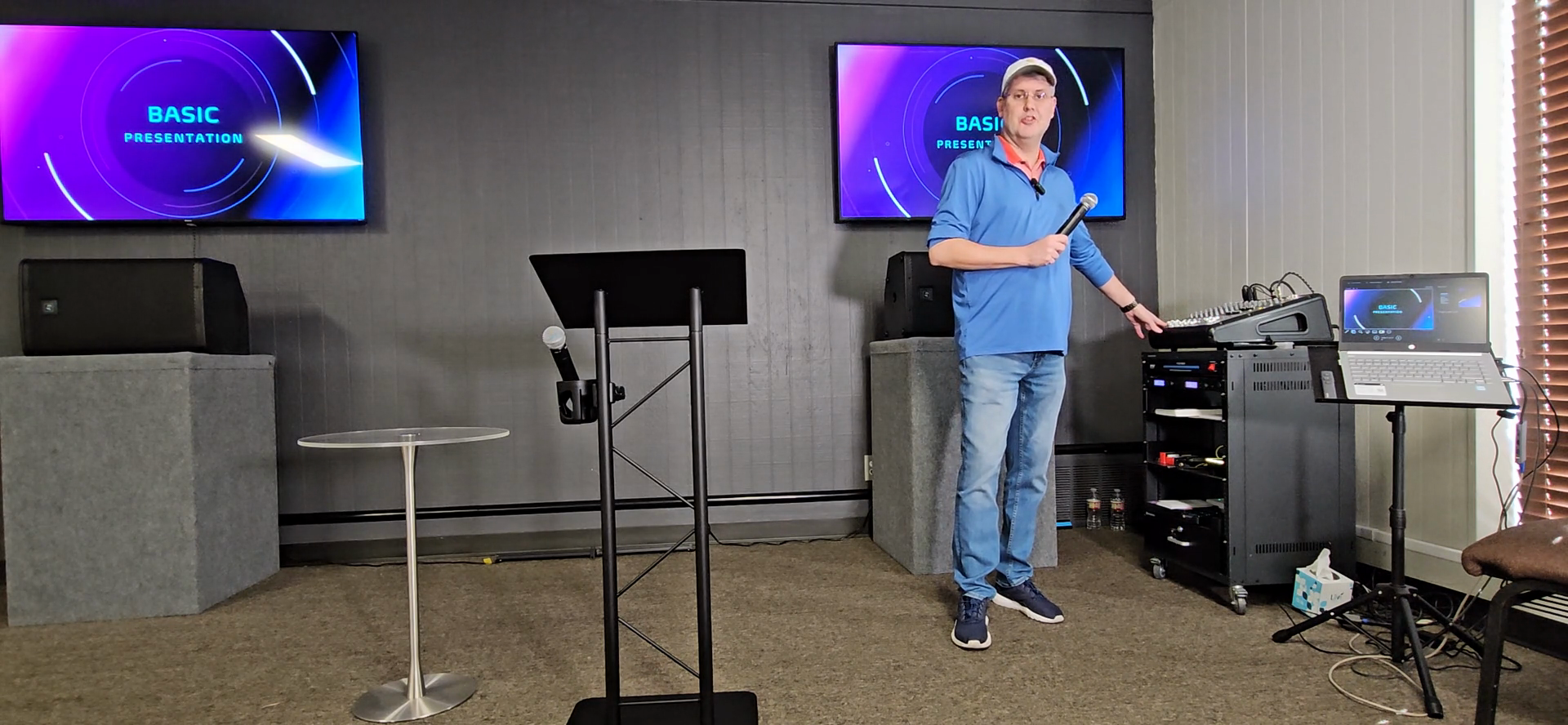
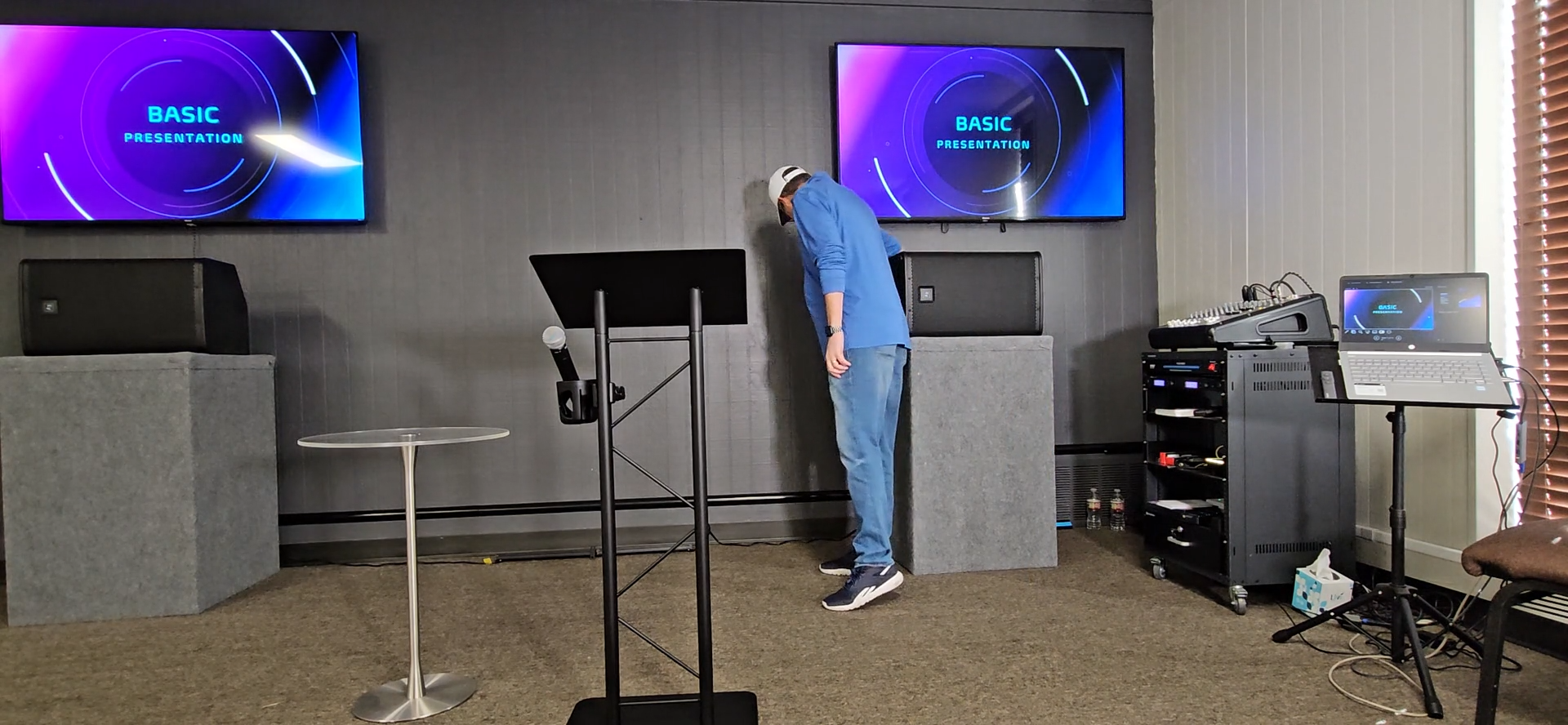
Behind this speaker are two remote controls: a small white one and a square black one. The white one turns on the floor lights.
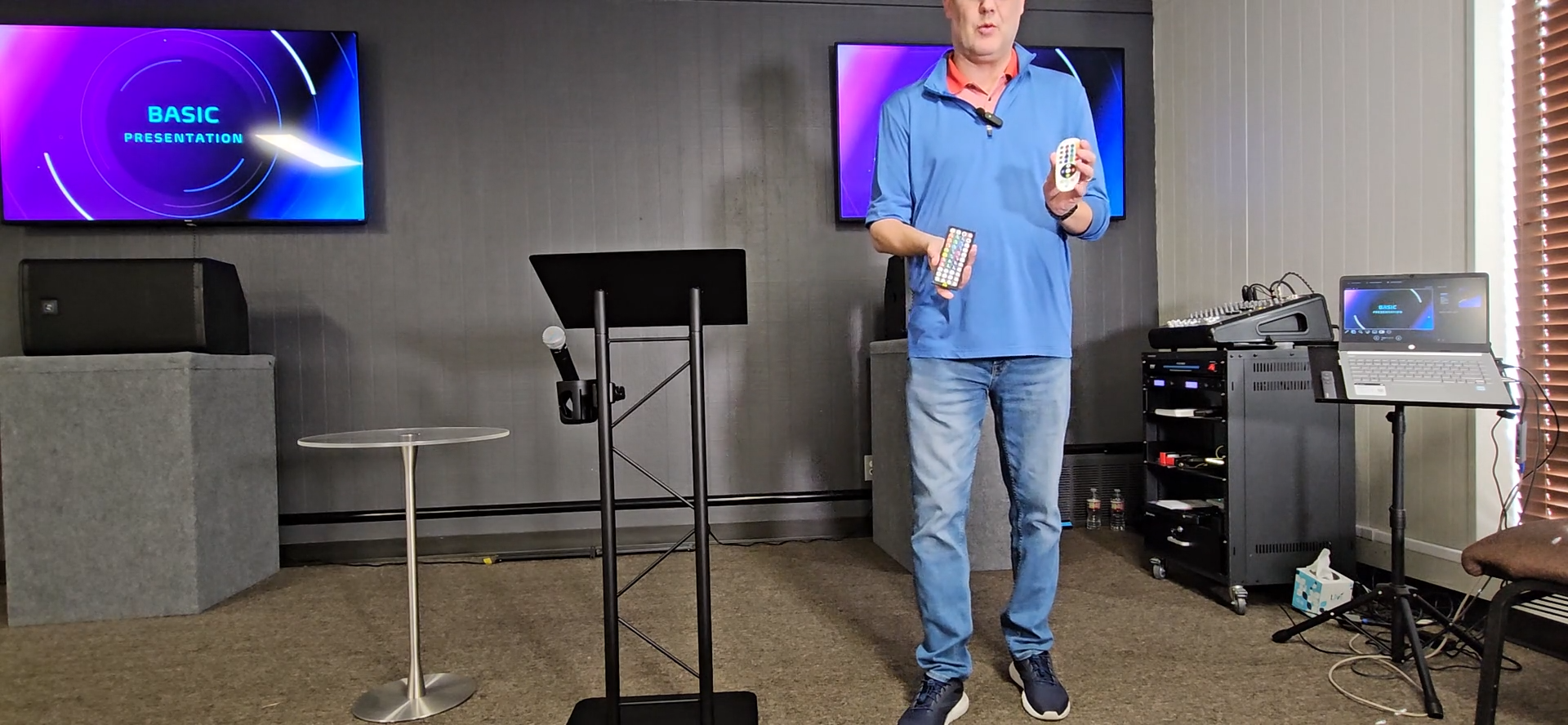
There is a red button and a green button. The green button is on. Aim it anywhere nearby. Sometimes, both will turn on with one click.
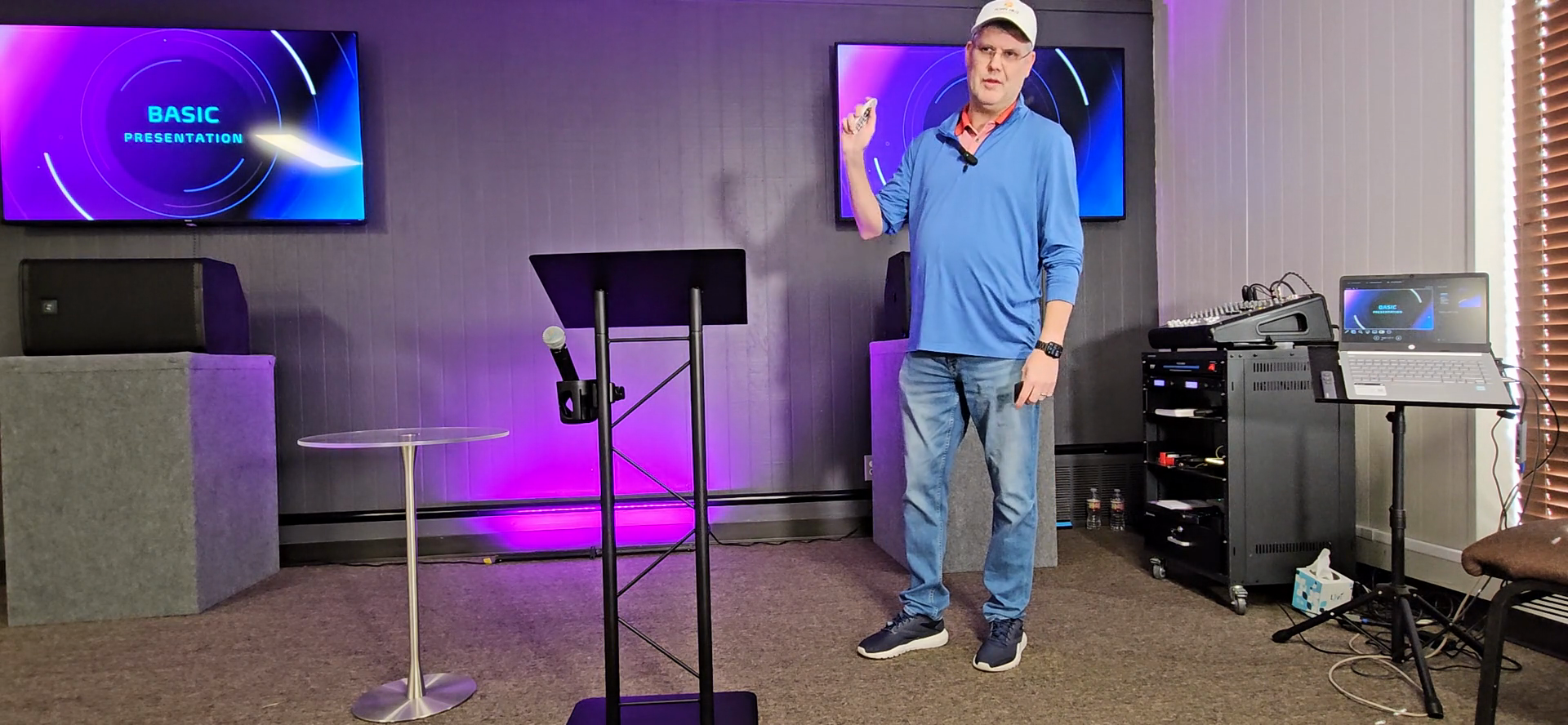
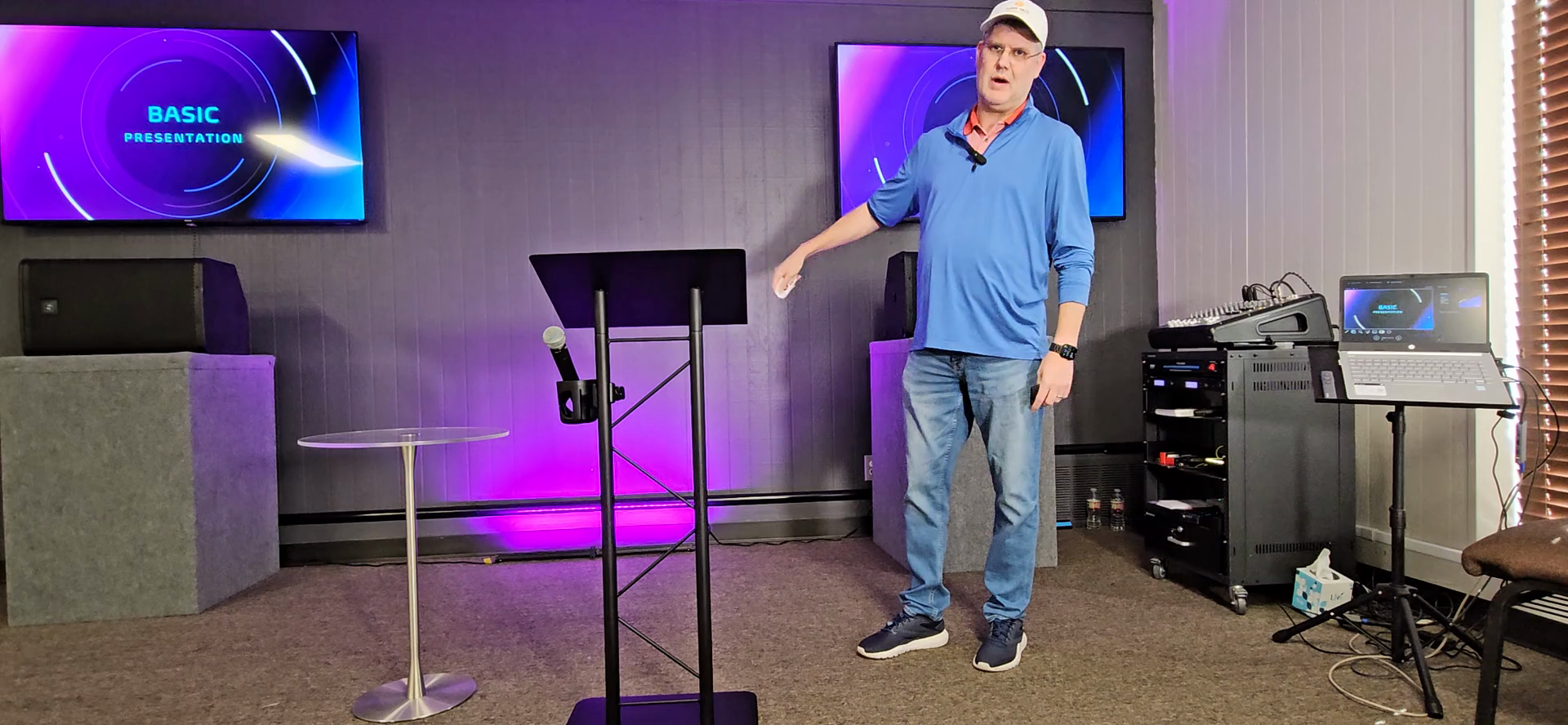
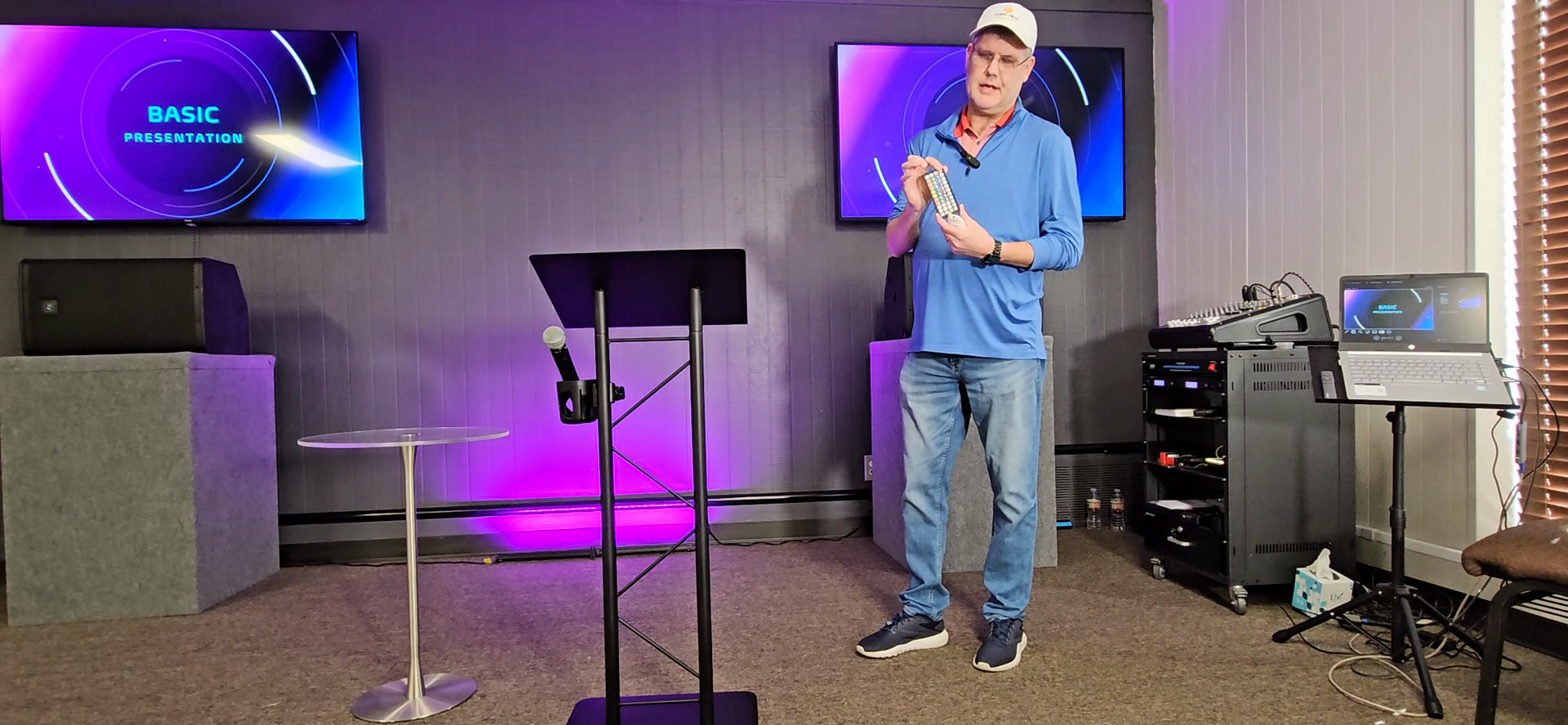
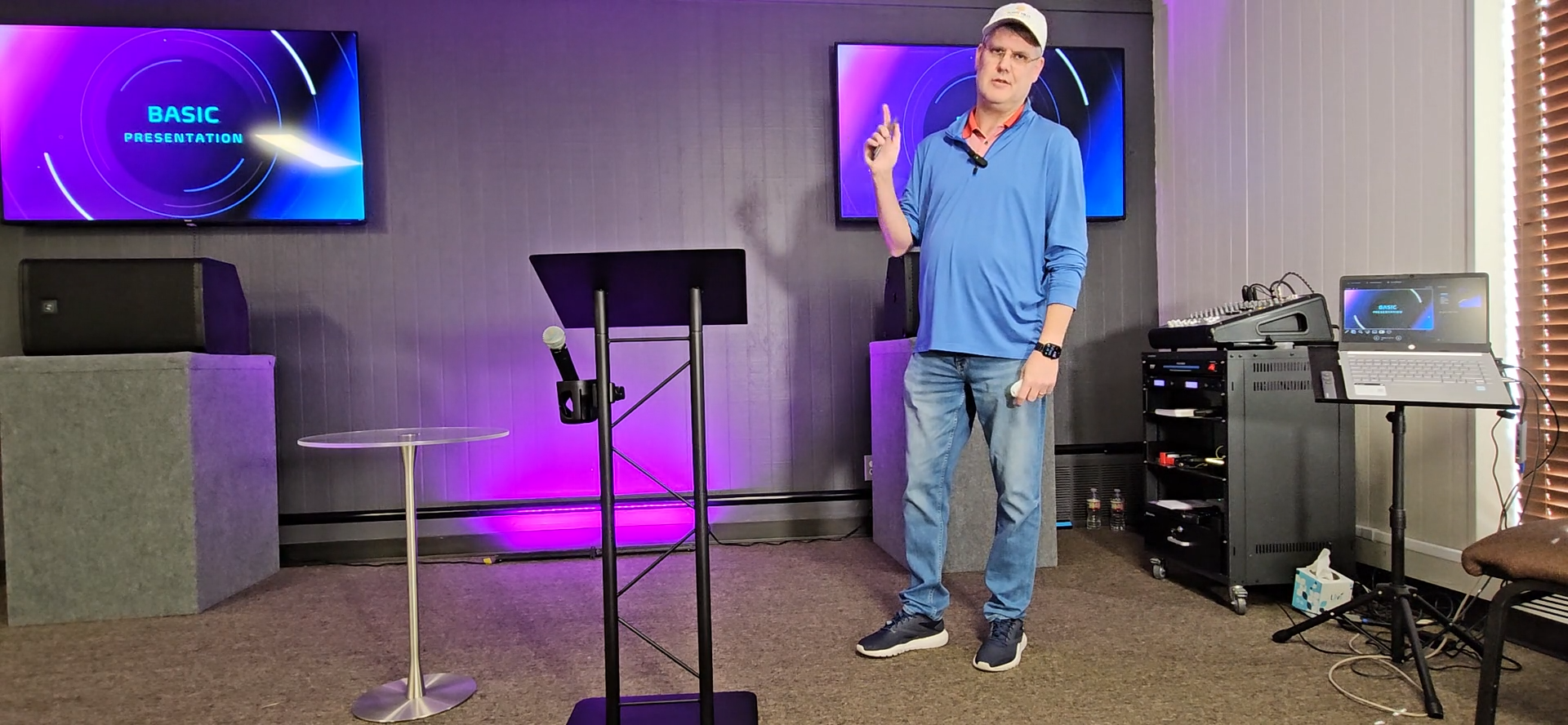
These lights are essential when we are filming. This helps set the person speaking apart from the backdrop. These lights and TVs are important.
Now you are ready to teach.
Troubleshooting Tip: If the TVs do NOT display the correct projection, there is a small black box below with two HDMI cables connected to the TVs and one connected to the computer.
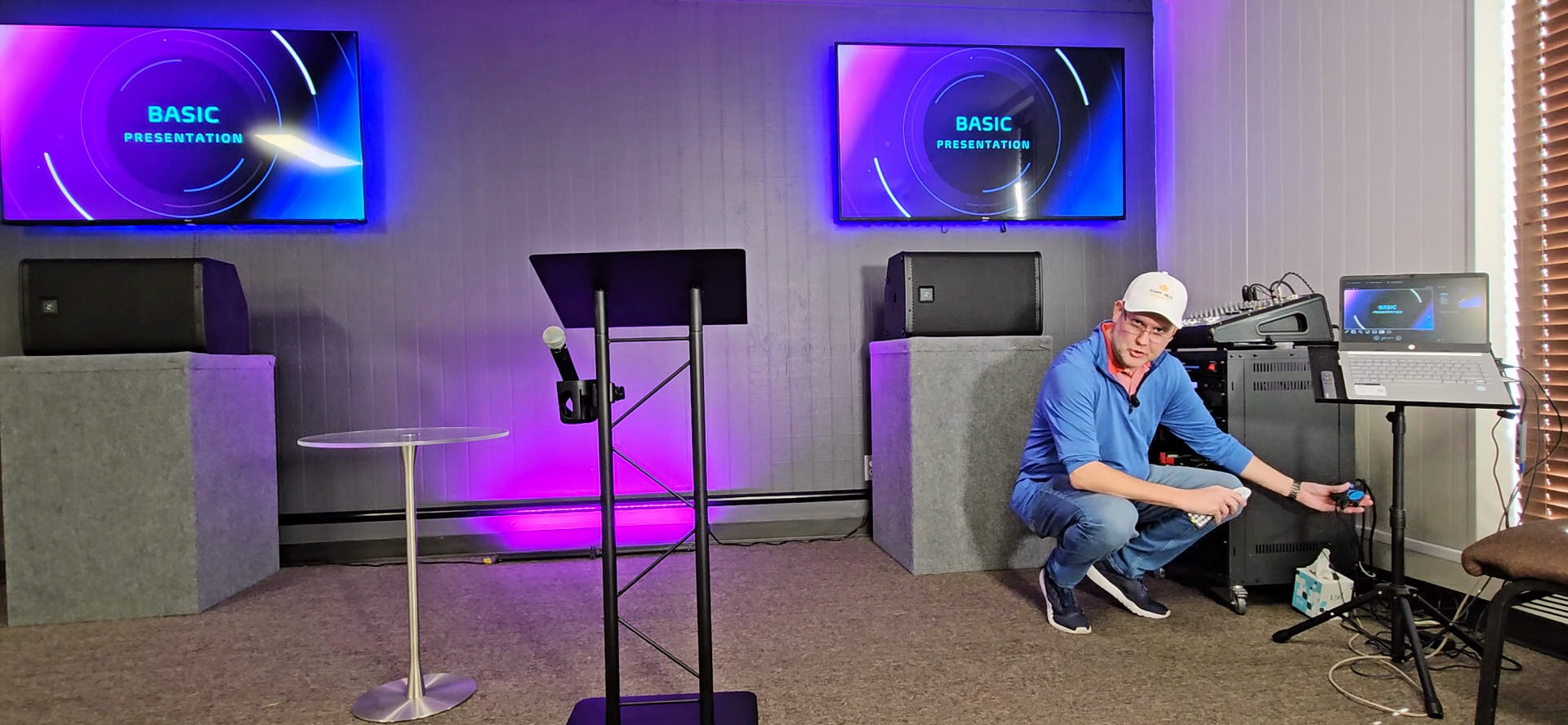
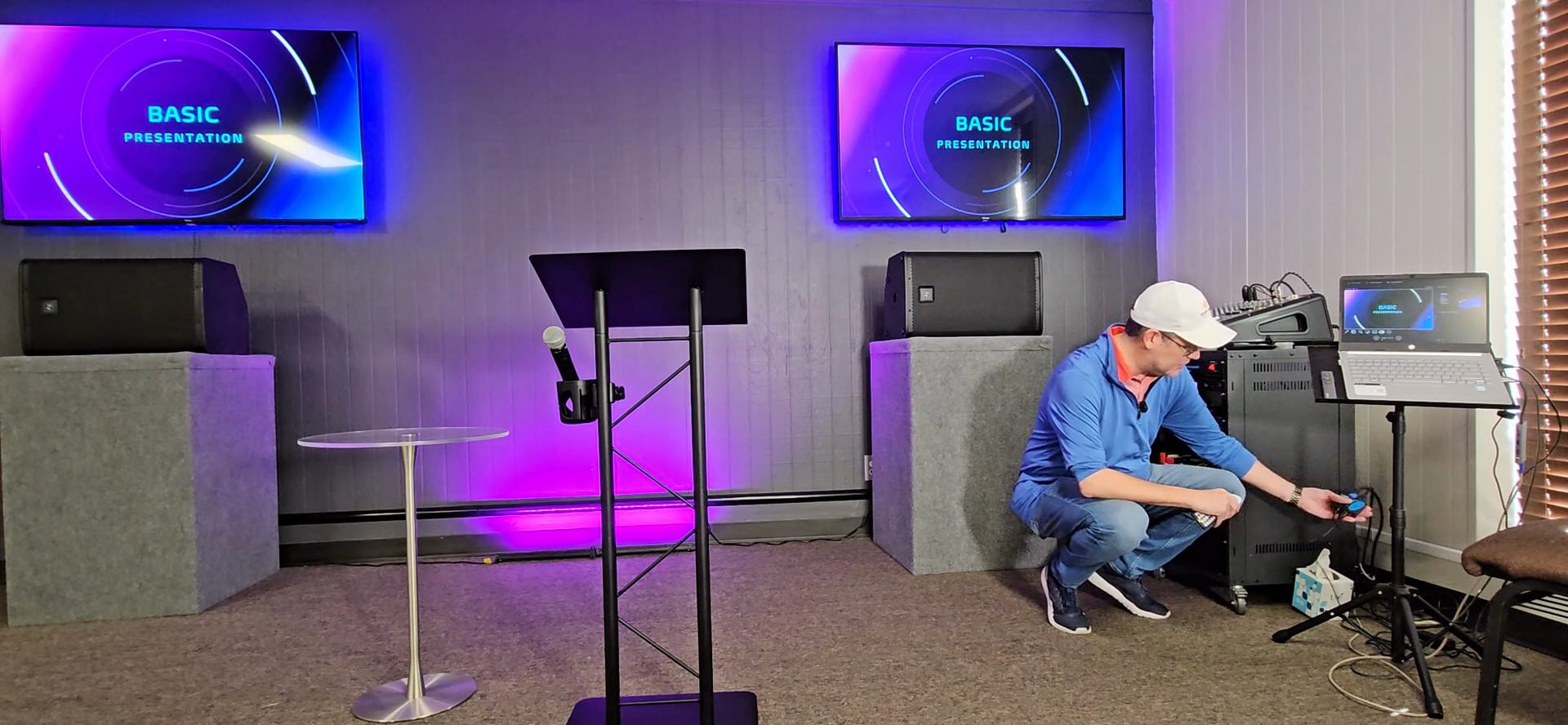
SHUT DOWN PROCESS
Now let's cover the close-down process. It's everything in reverse order.
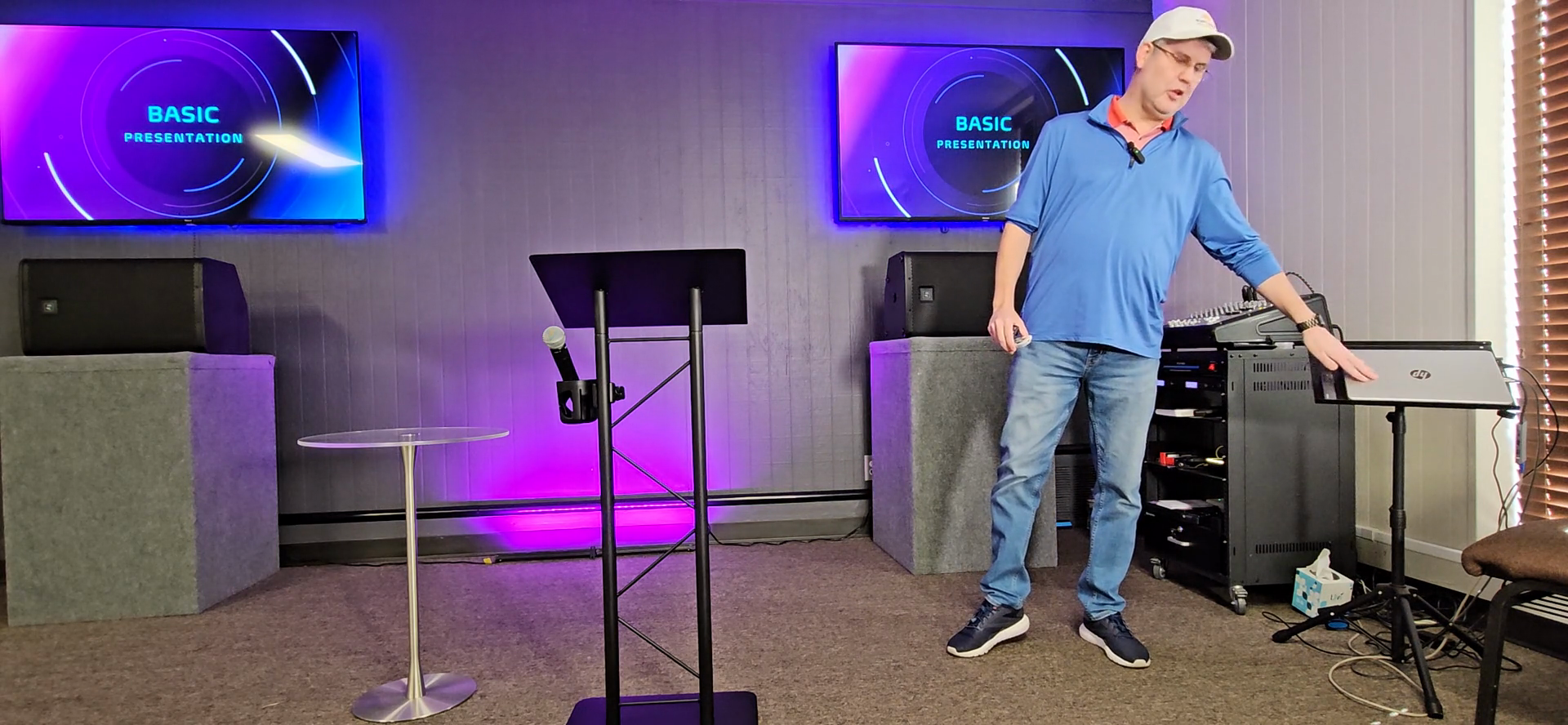
It will put the computer to sleep.
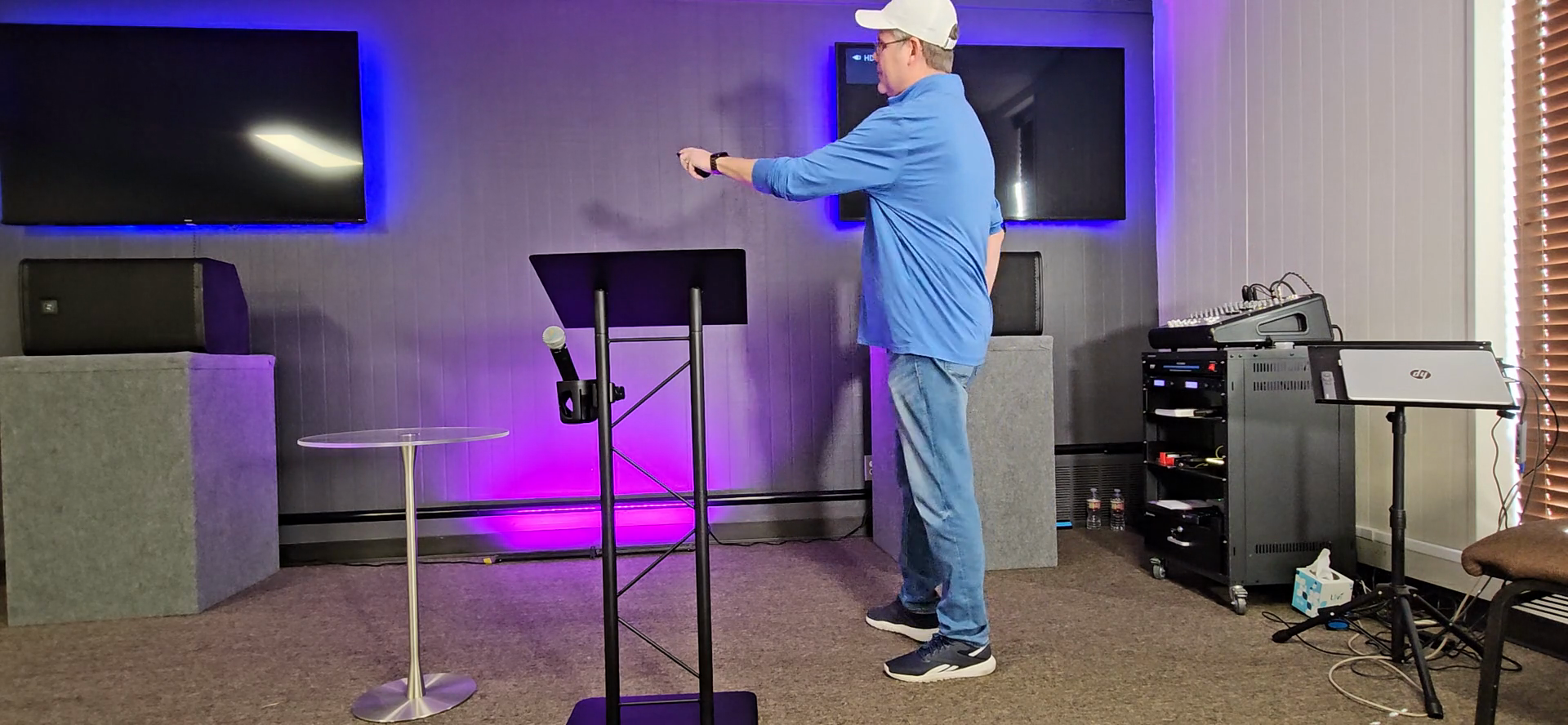
Grab the TV remote and turn off the TVs.
Turn off the microphone you were using, then flip the red switch down on the sound rack.
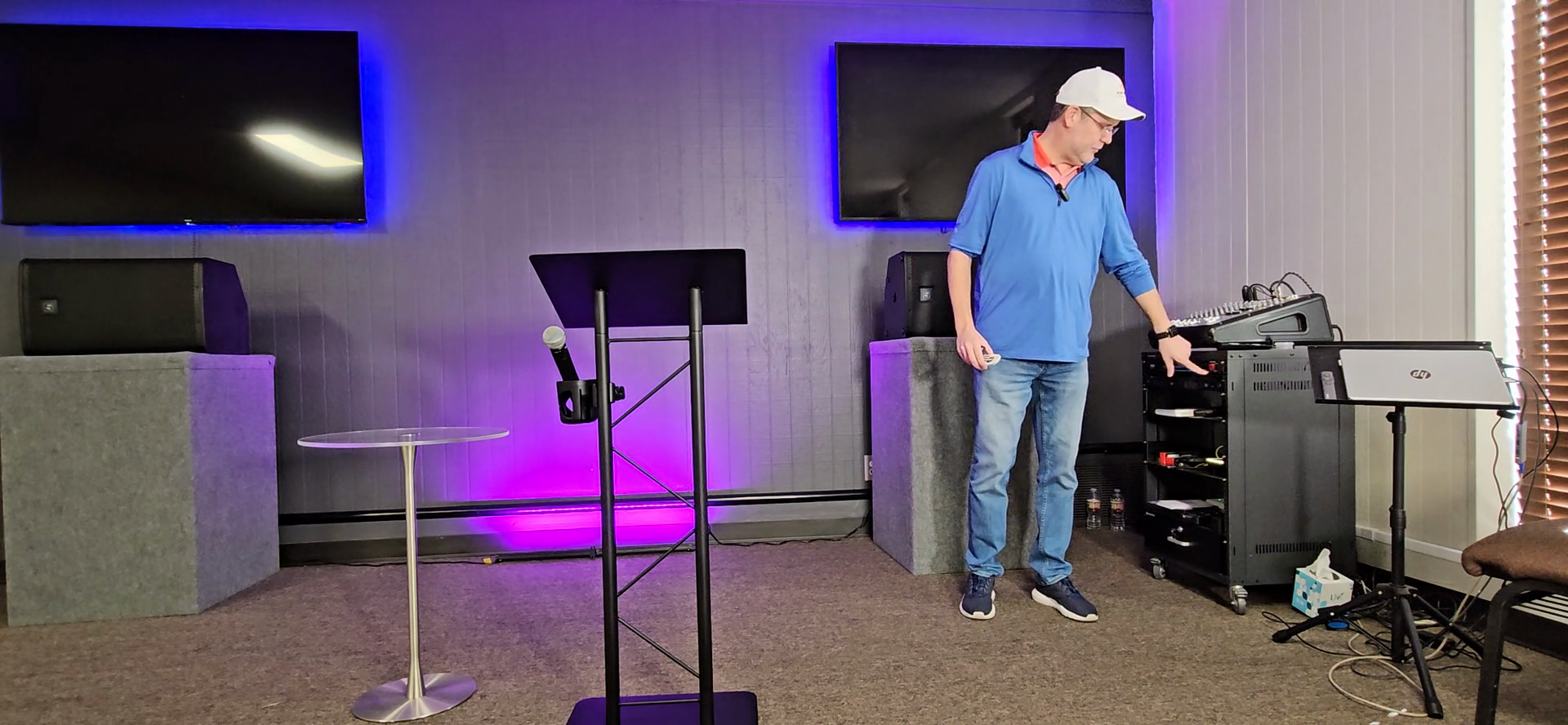
It will turn everything off in order.
Both of the lighting remotes have power buttons. On this one, it's a small red power button.
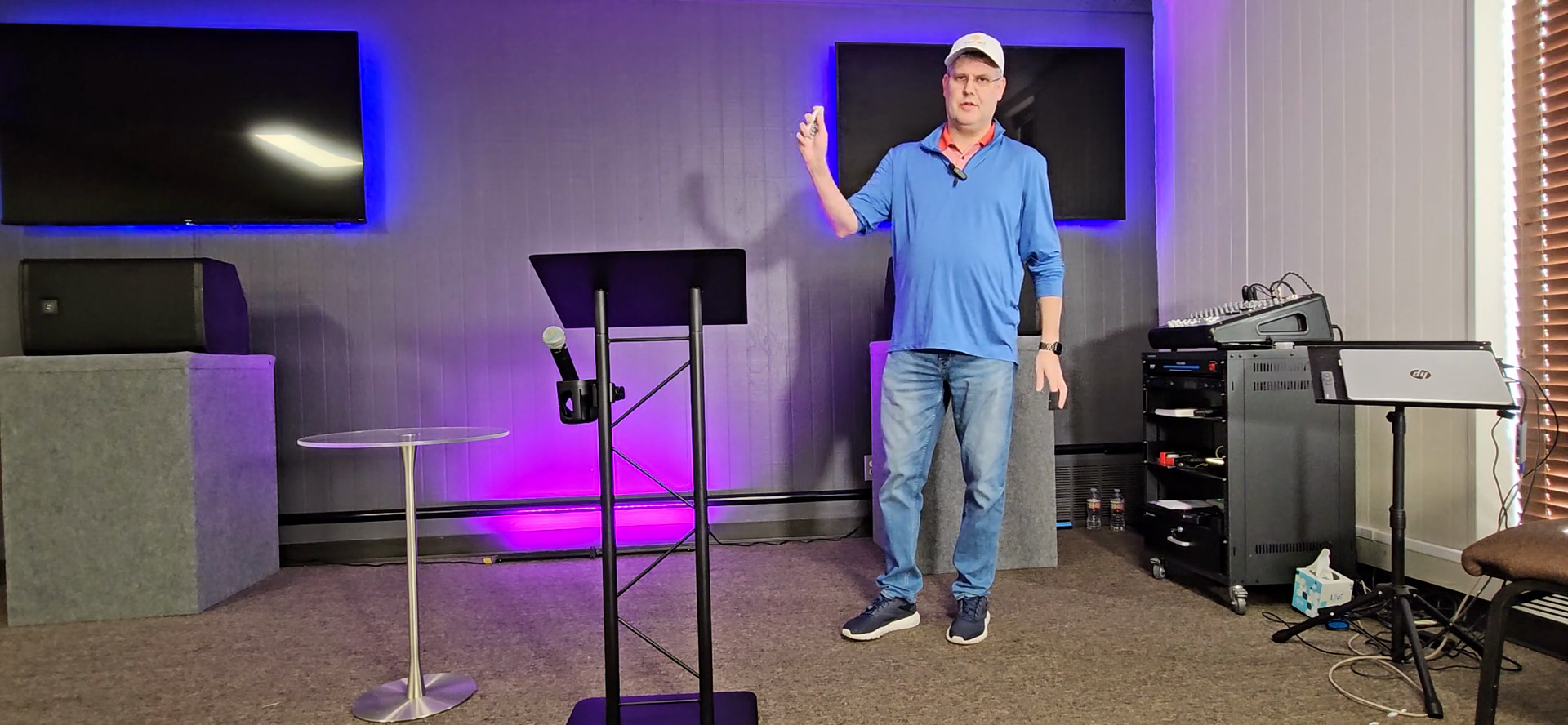
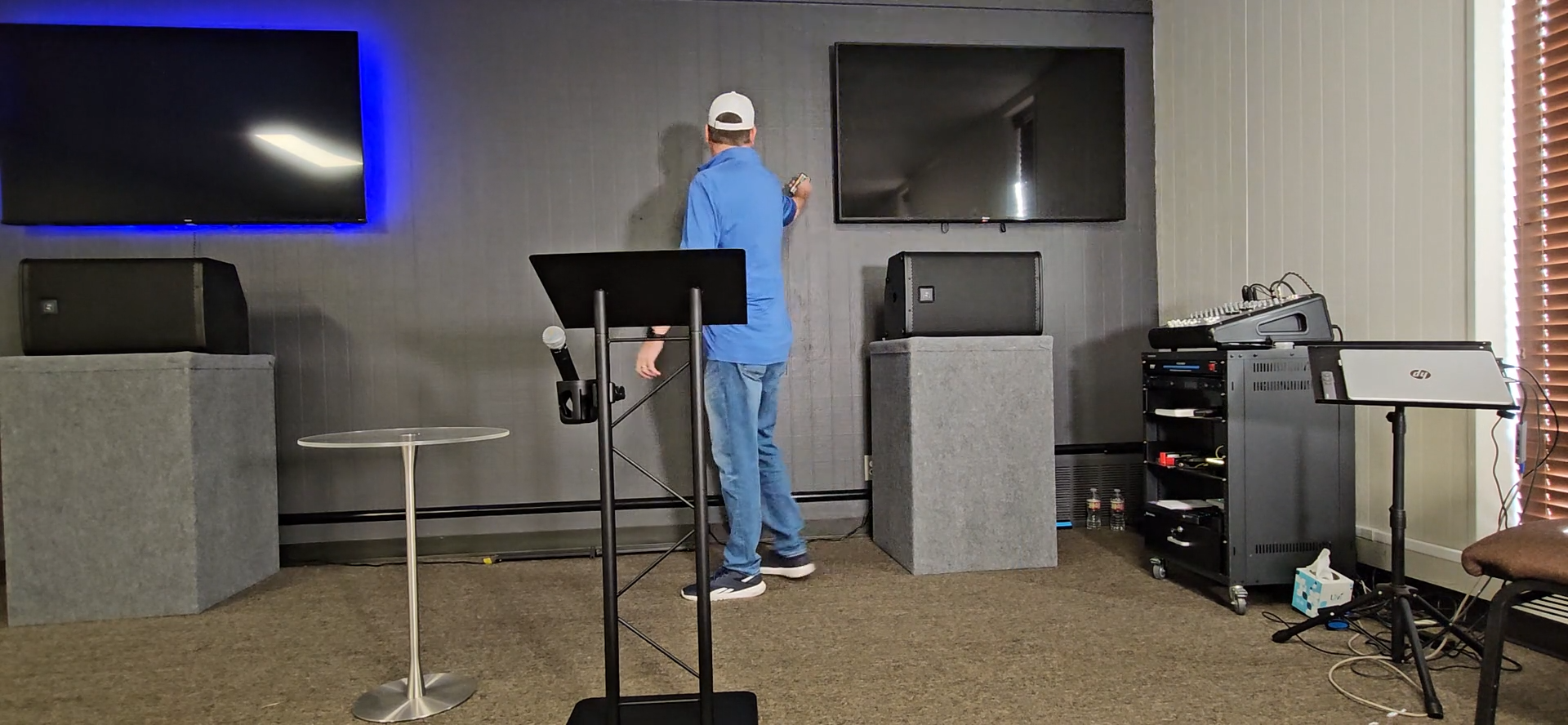
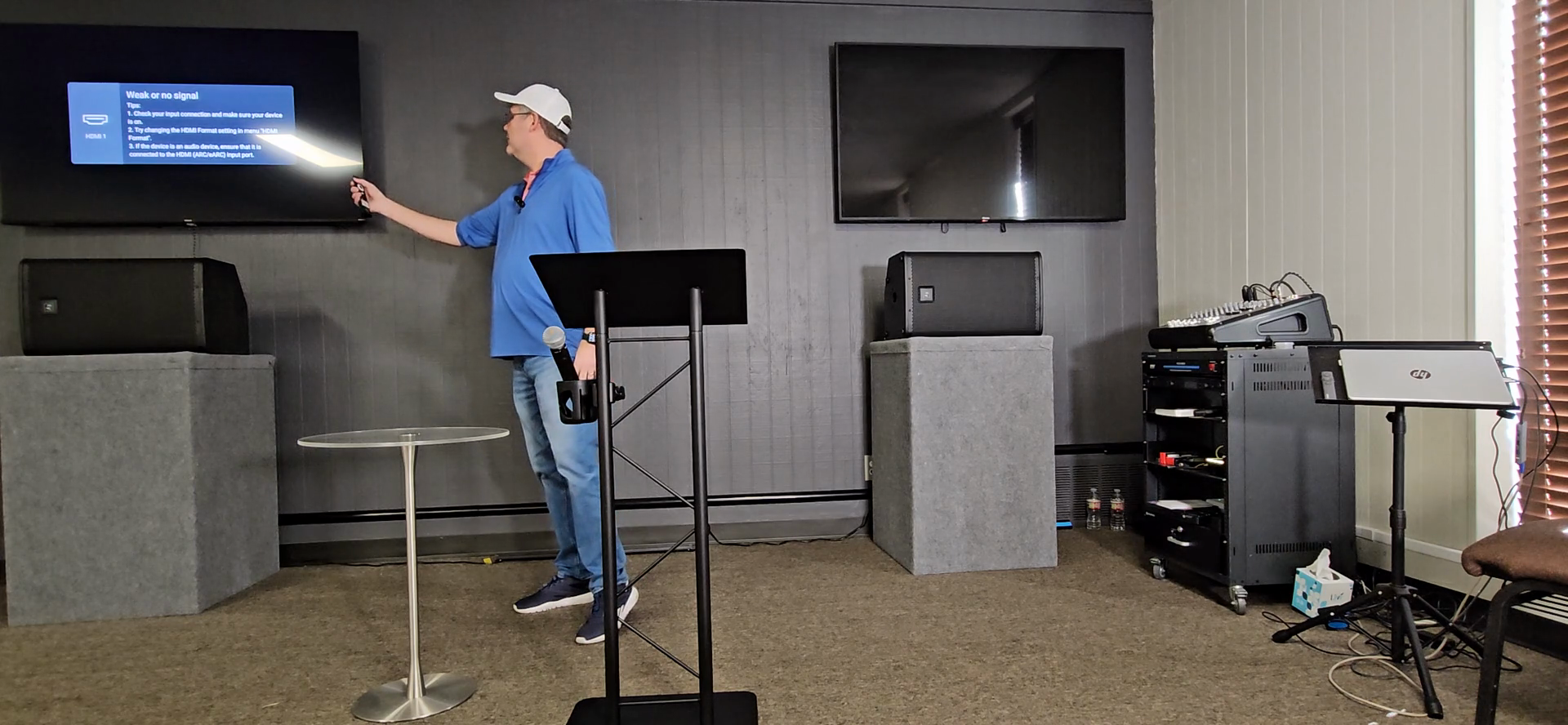
That's how to complete the shutdown process.
Turn off the lights in the room.
Once everyone has left, turn off the room lights with the wall switch.
ADDITIONAL INFO:
Send your PowerPoints to teach@tlcjoshua.com.
That email is open in the browser. If you open the browser on the computer, you can go to Gmail and open it.
If you have emailed your PowerPoint, it will be in your inbox.
PowerPoint Remote
There's usually a small remote clicker that you can use to advance your PowerPoint presentation.
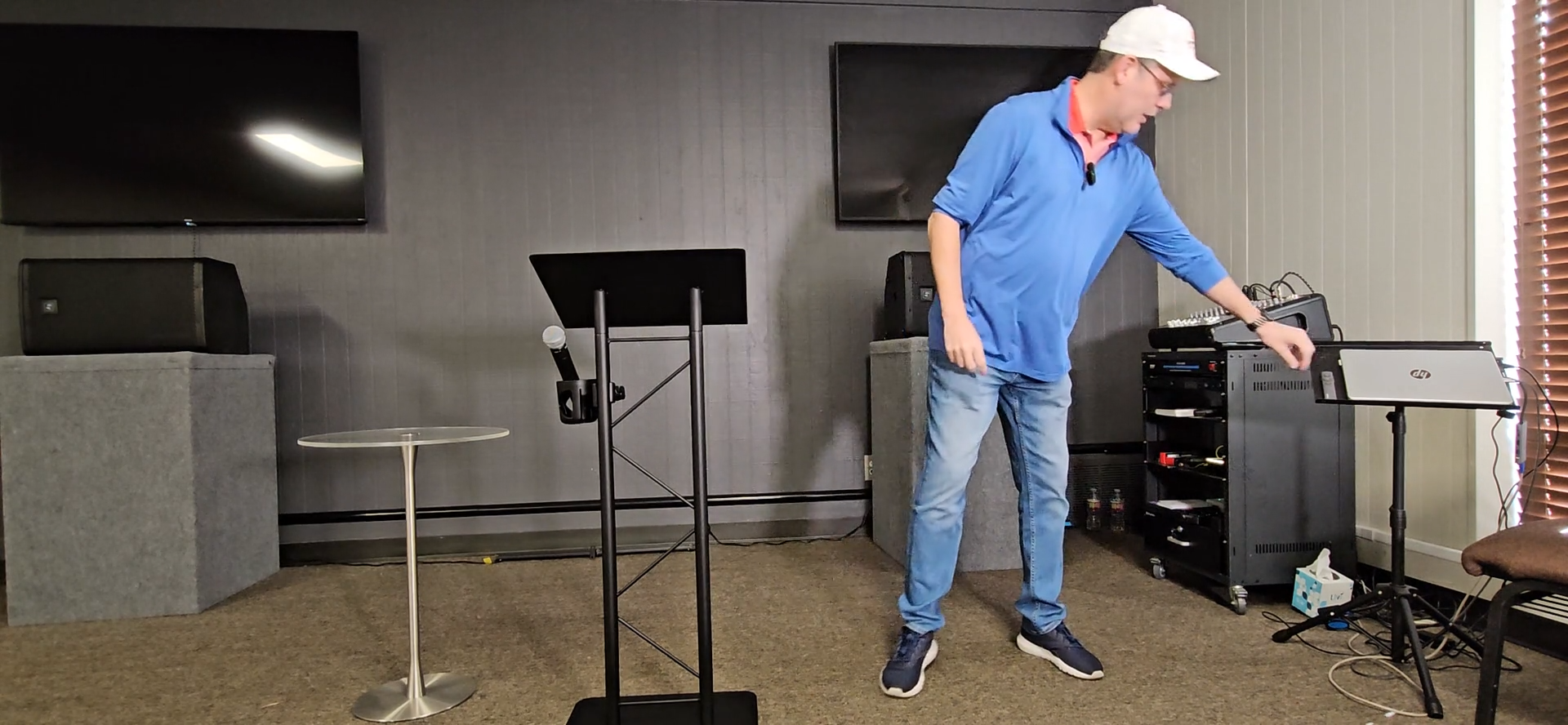
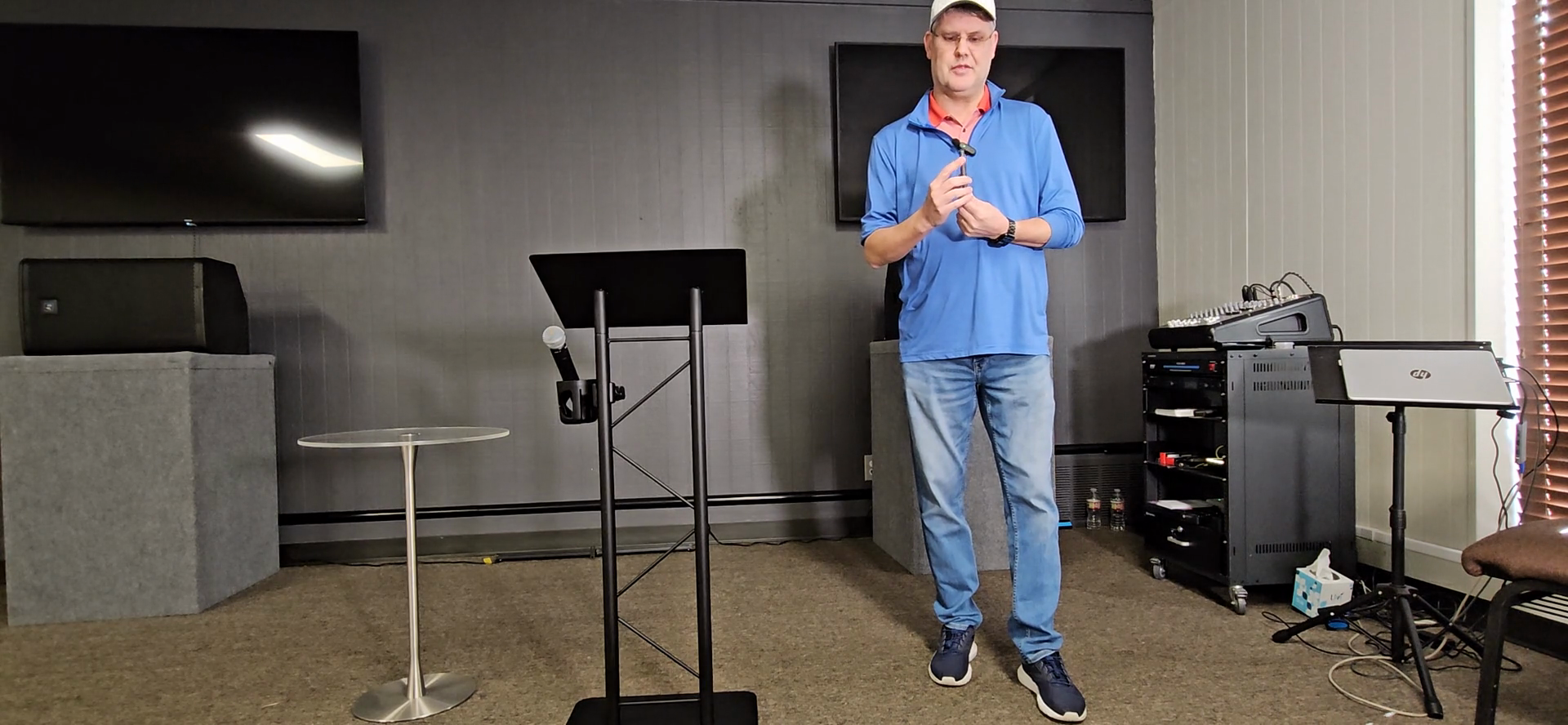
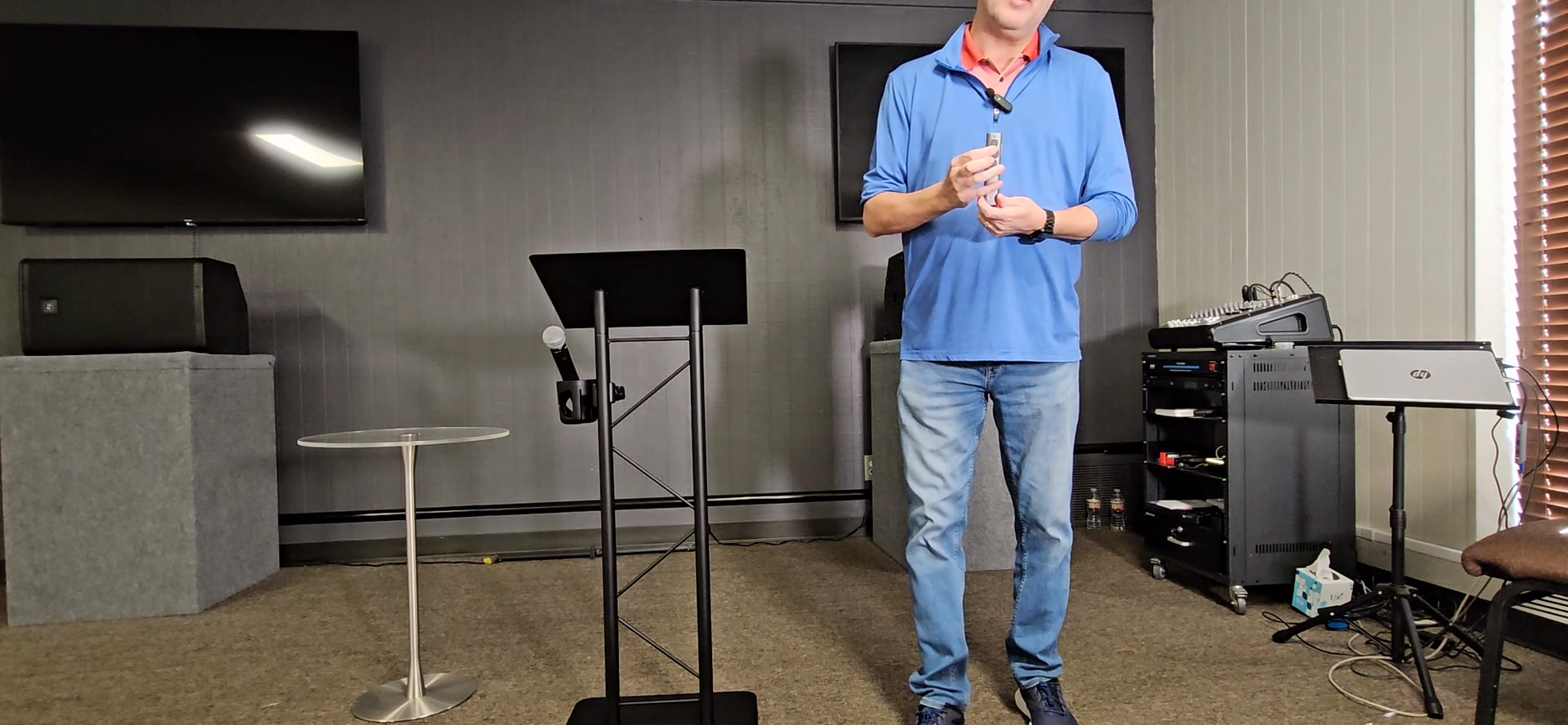
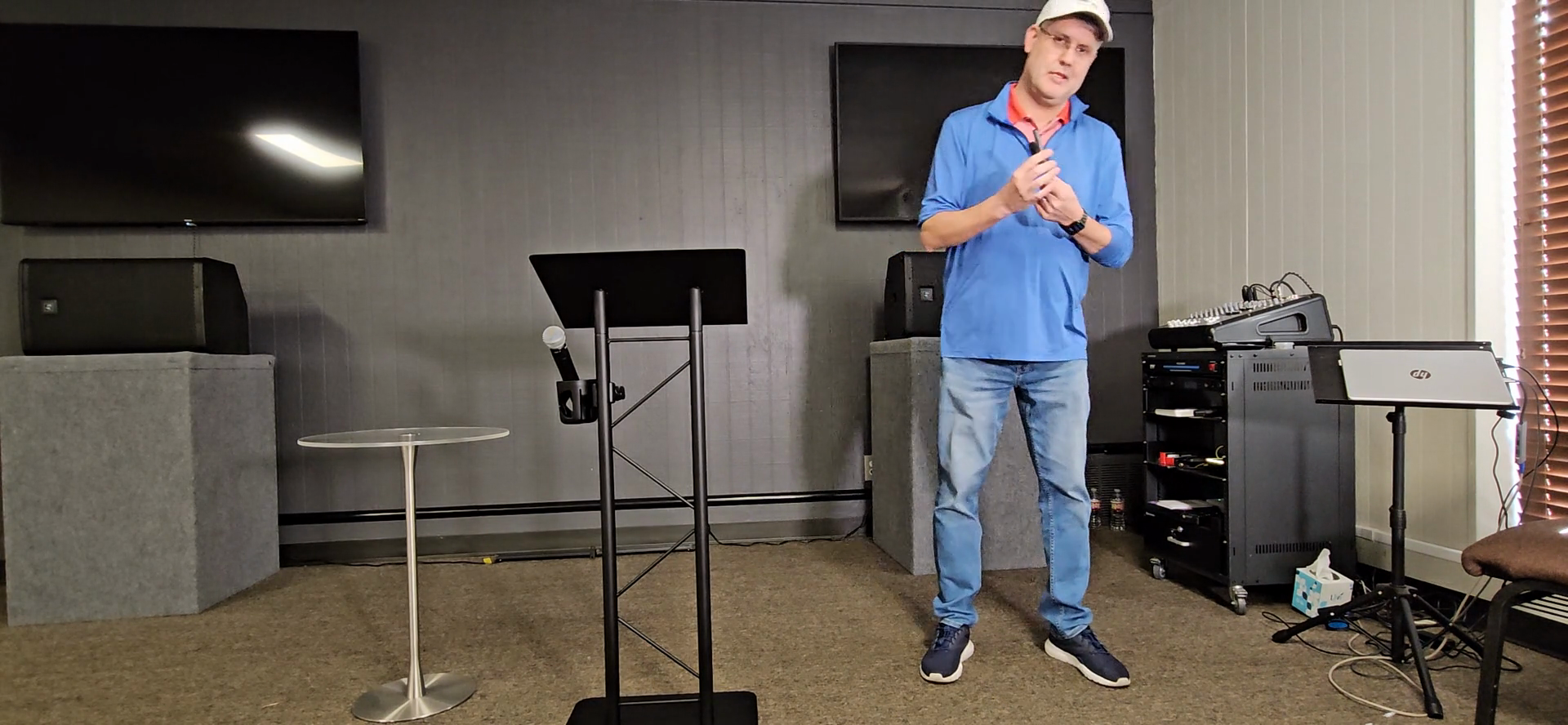
It is rechargeable with a USB-C cable.