How to Set Up 3CX: Step-by-Step Guide for Windows and Mobile
Learn how to set up your 3CX account on both Windows and mobile devices. Follow our easy step-by-step instructions to log in using SSO, manage accounts, and handle incoming calls efficiently.
In this guide, we'll learn how to set up your 3CX account using single sign-on and prepare the app for incoming calls. We will cover logging out of any previous sessions, removing old accounts, and provisioning the 3CX app on both Windows and mobile devices.
This process will help ensure you receive calls and notifications as expected.
For additional help, see our SharePoint guides: 3CX Phone System
Signing In to 3CX with SSO
First, navigate to 3CX inside of Edge. For Business Operations, this is https://aeavoice.3cx.com.au/
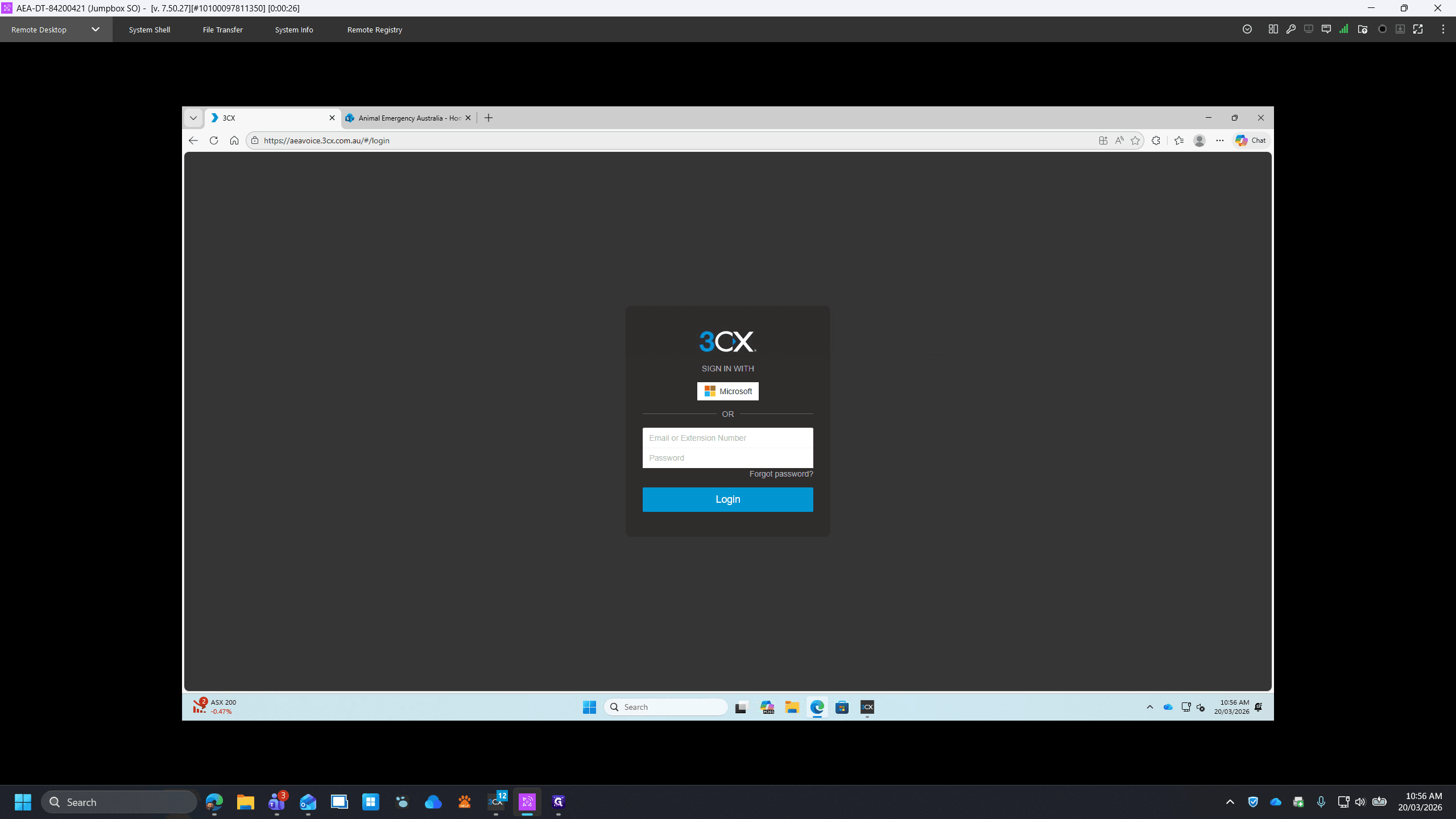
Then, click on Microsoft.
If you are using Edge, this will sign you in automatically. Otherwise, if prompted, log in with your work email address and password.
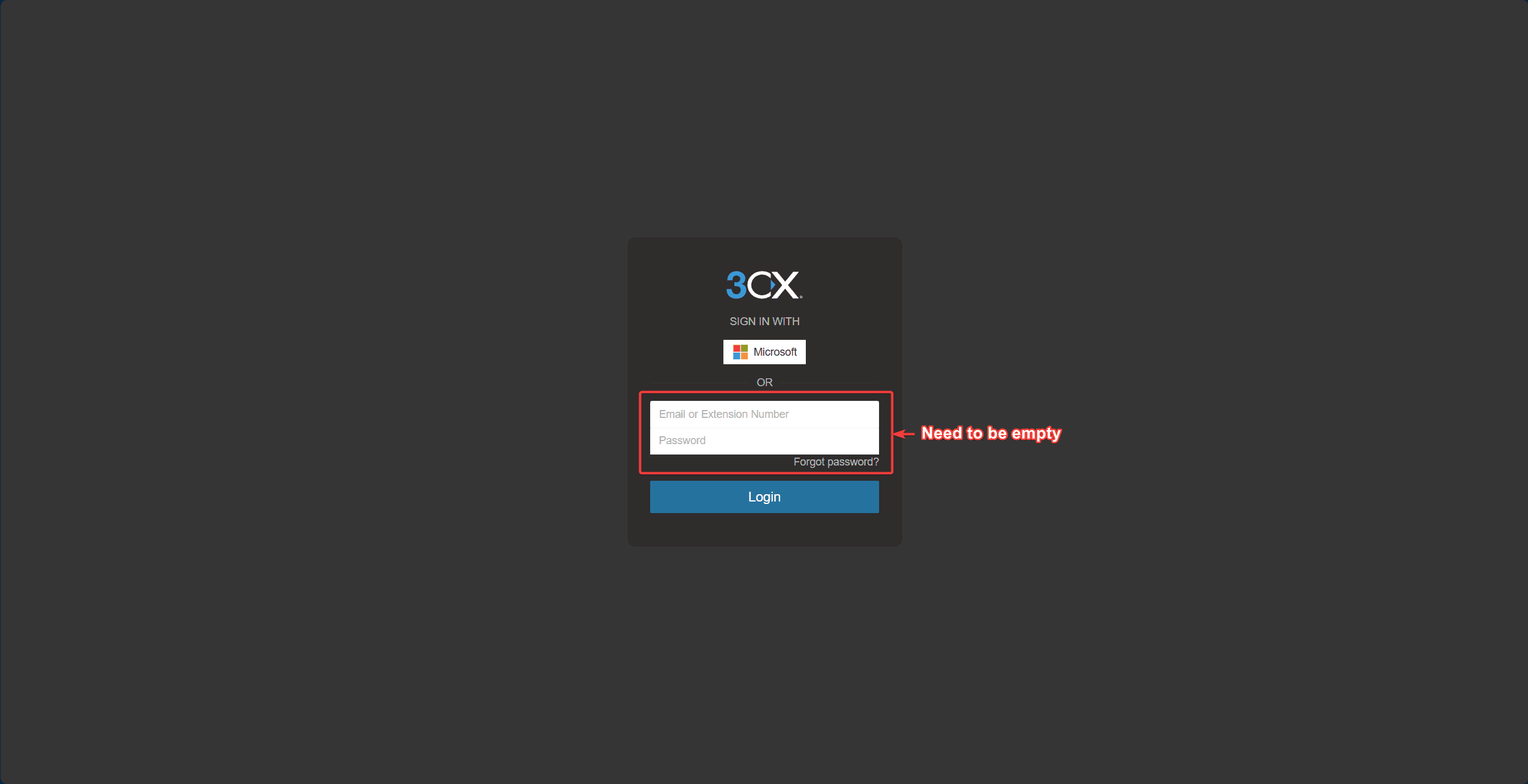
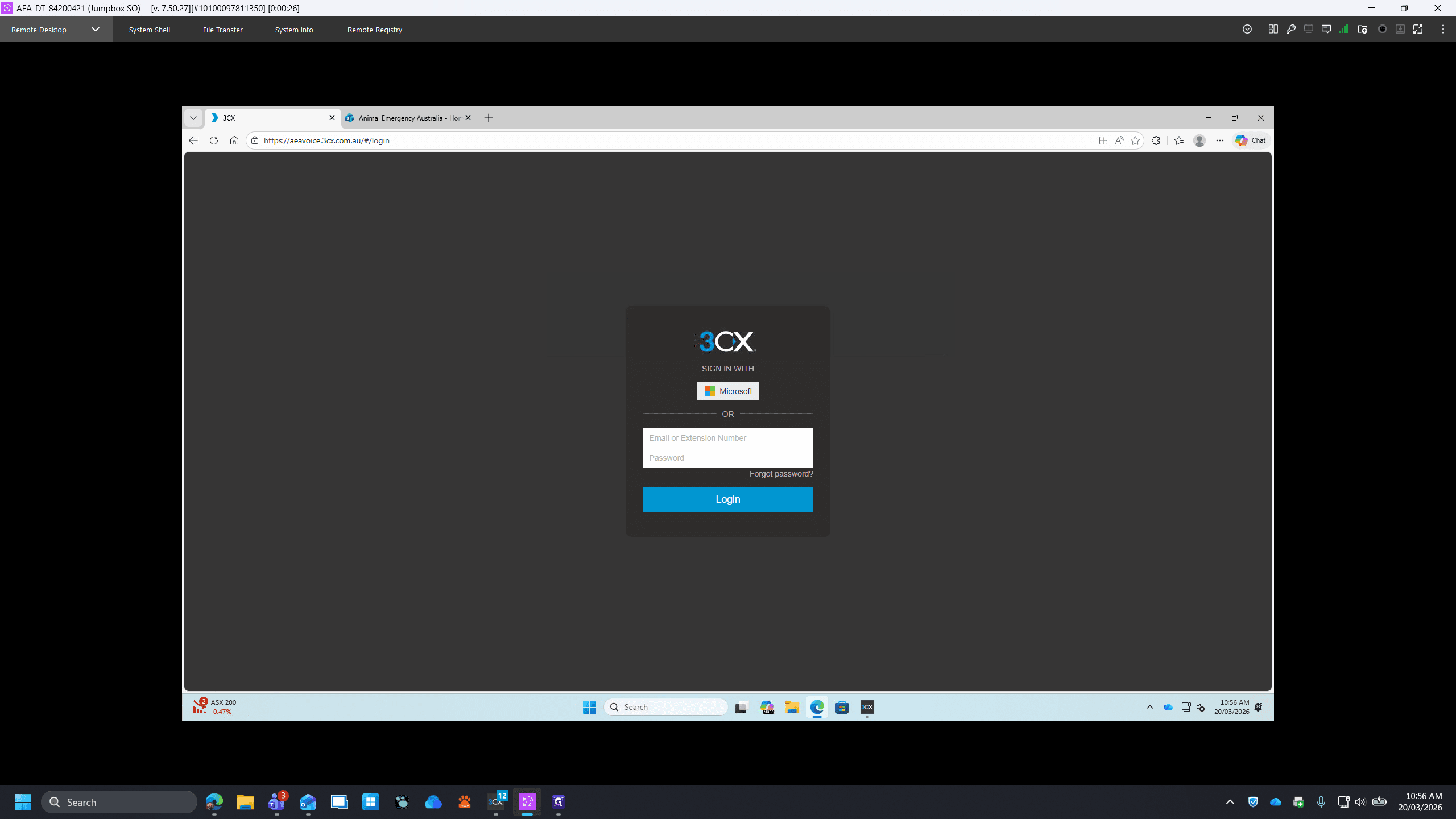
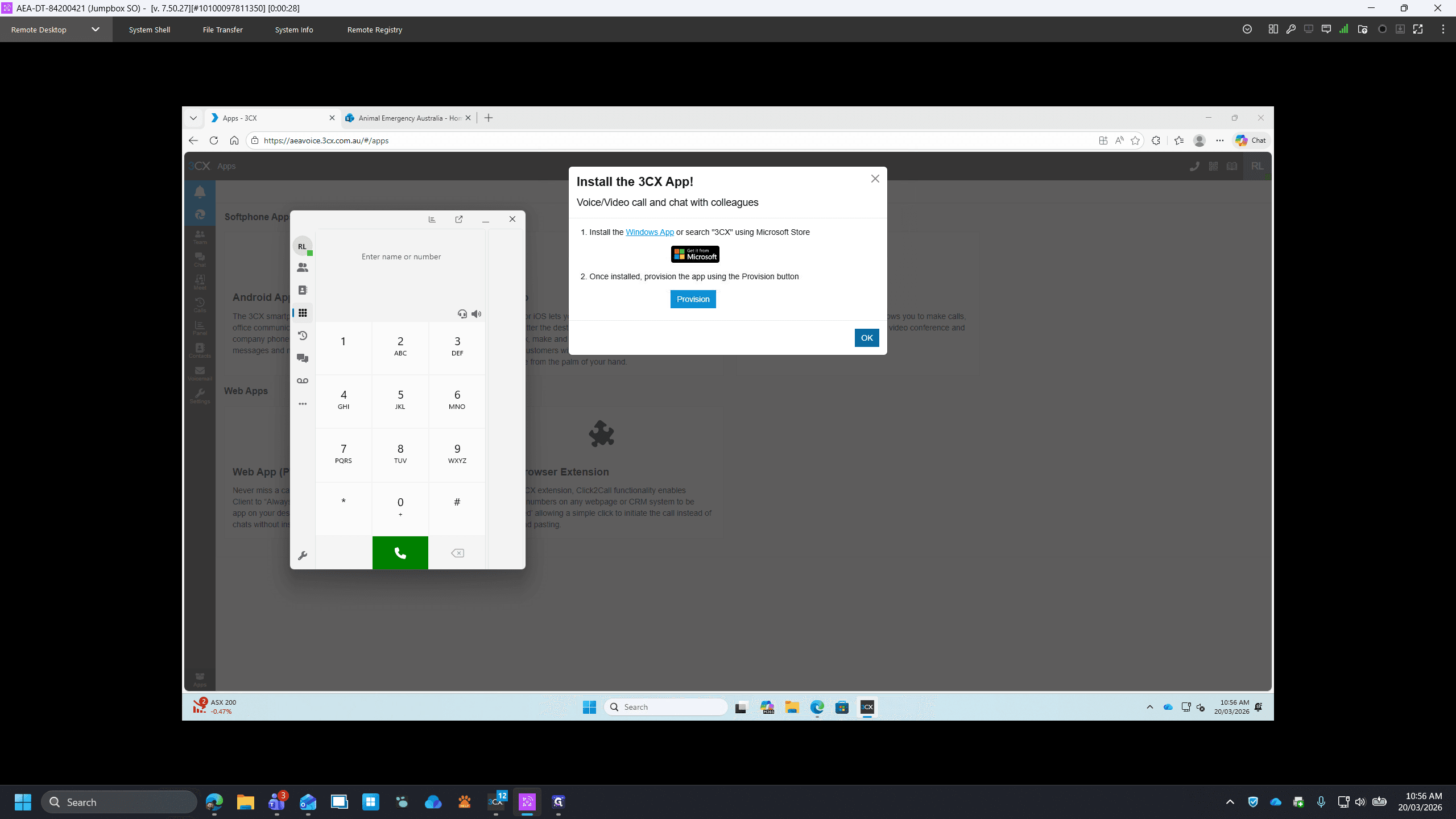
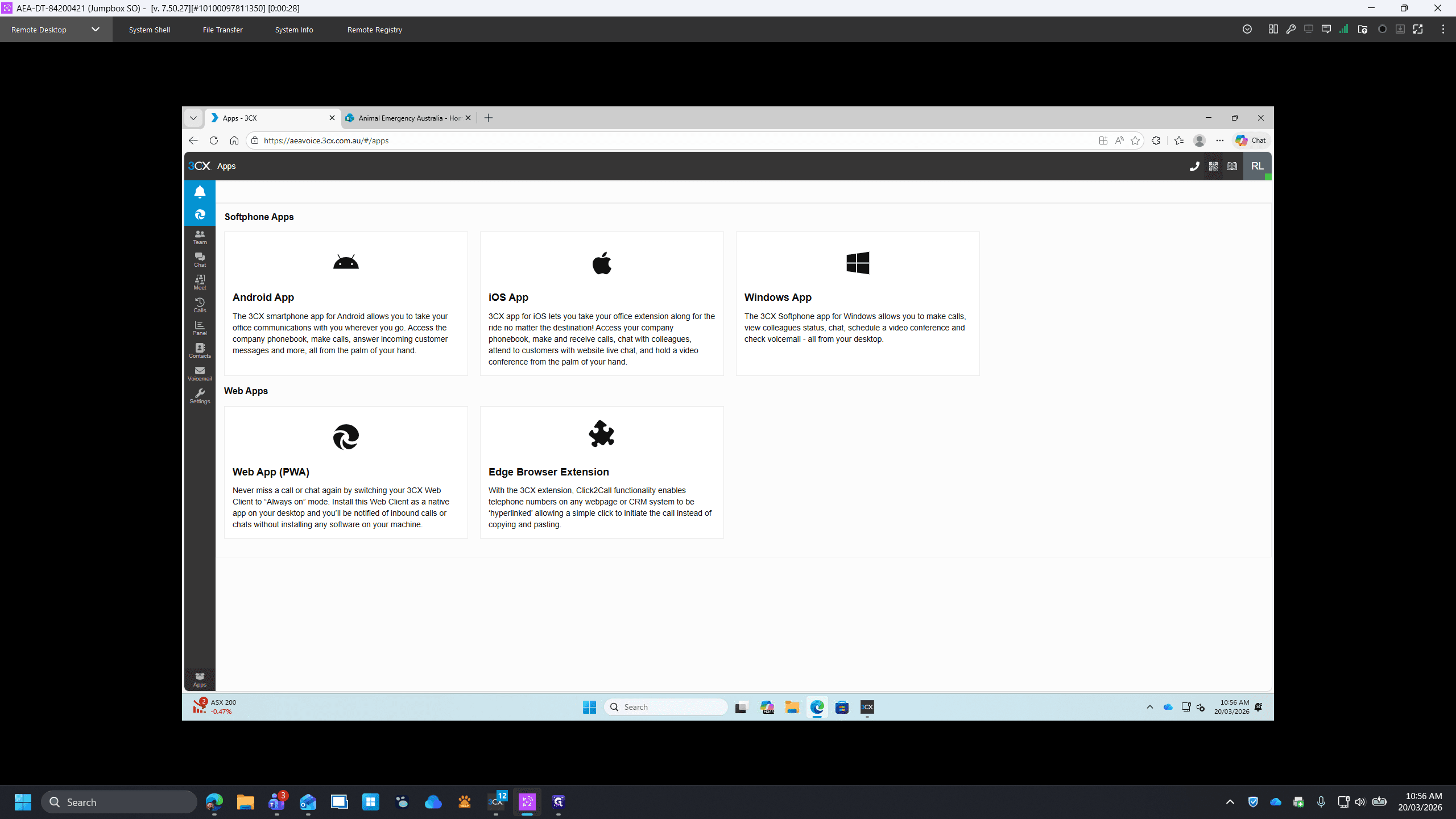
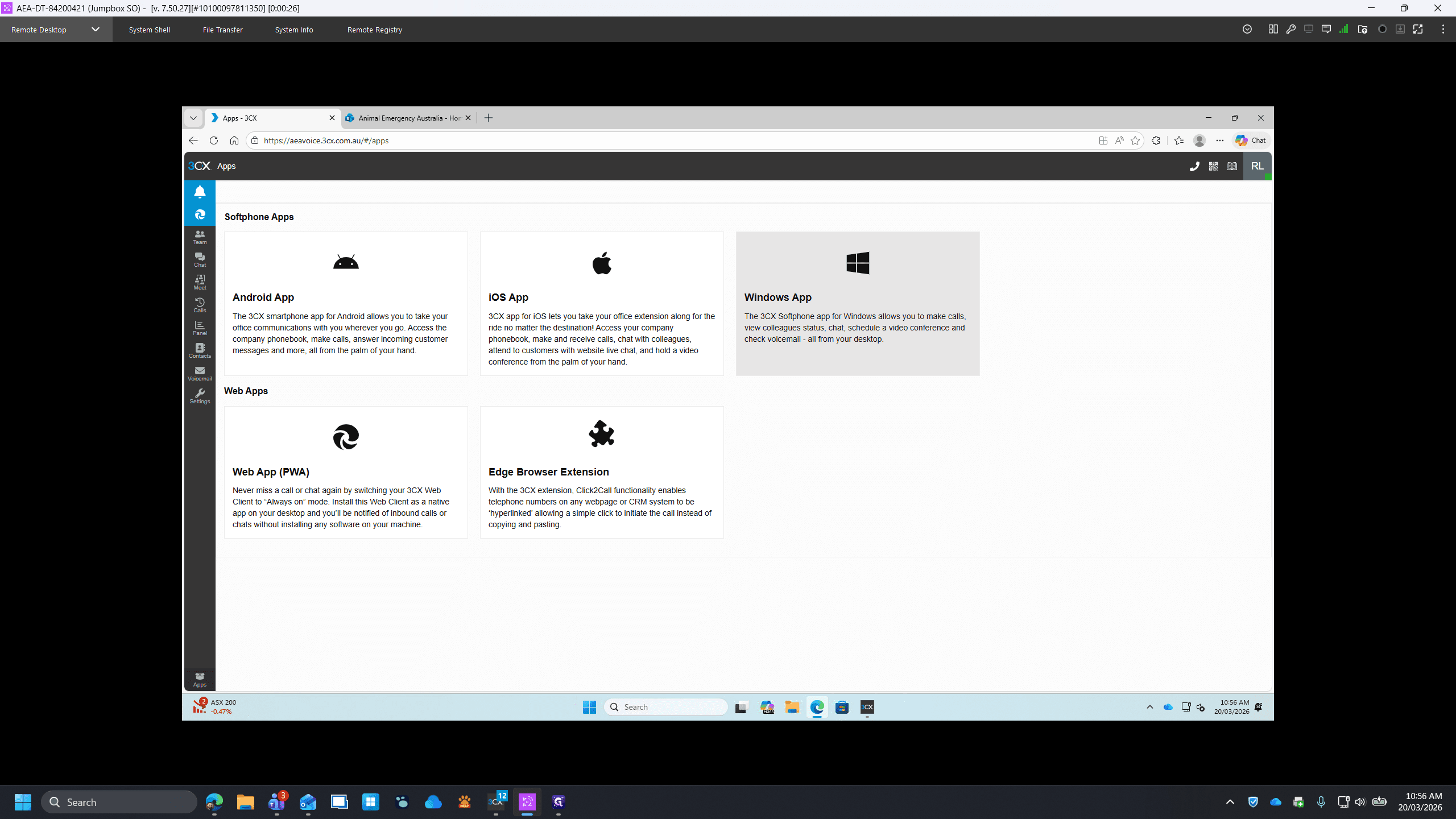
Now we want to set up the app to handle incoming calls. In the bottom left-hand corner, click on Apps, select Windows App, and click Provision.
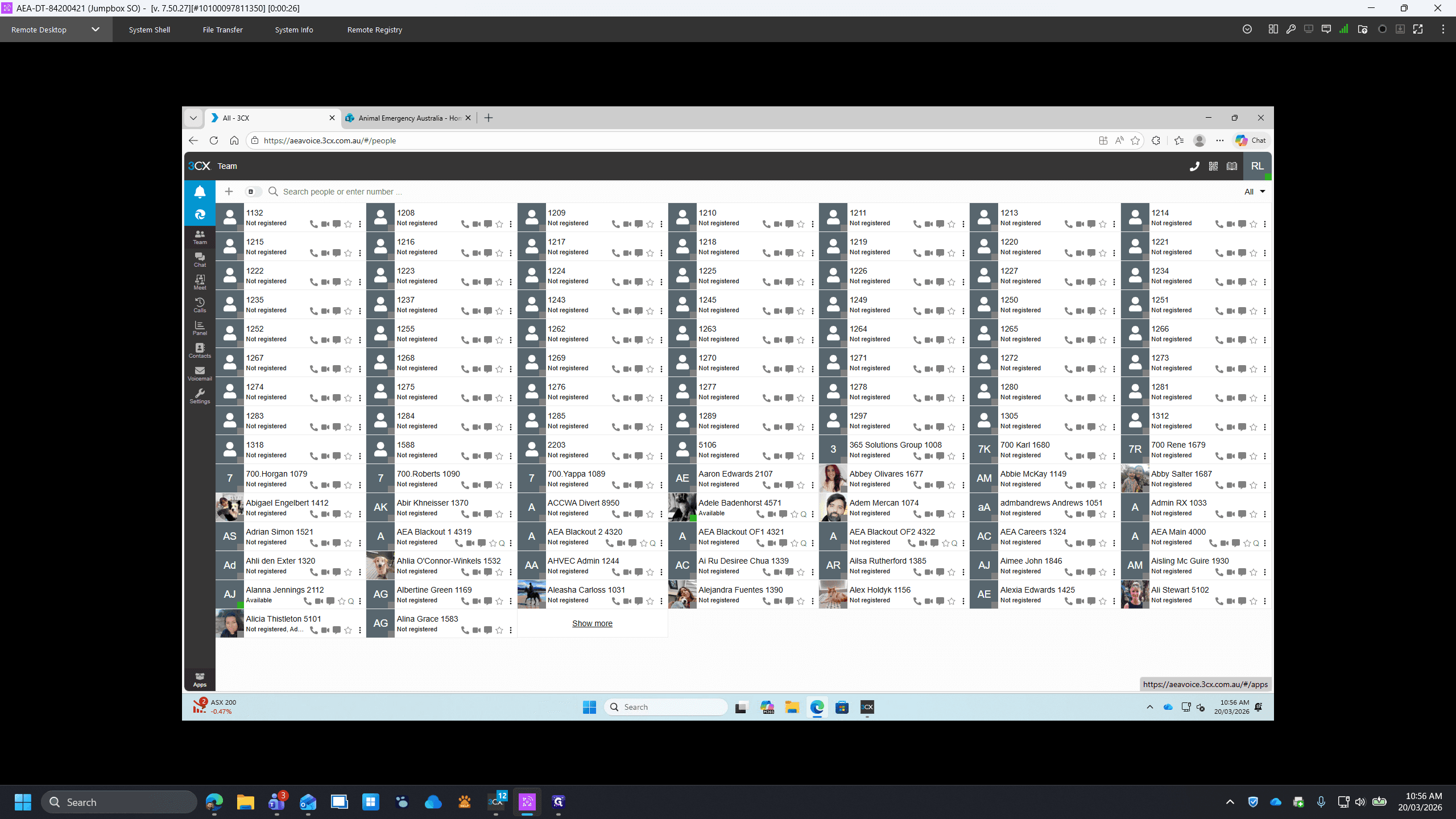
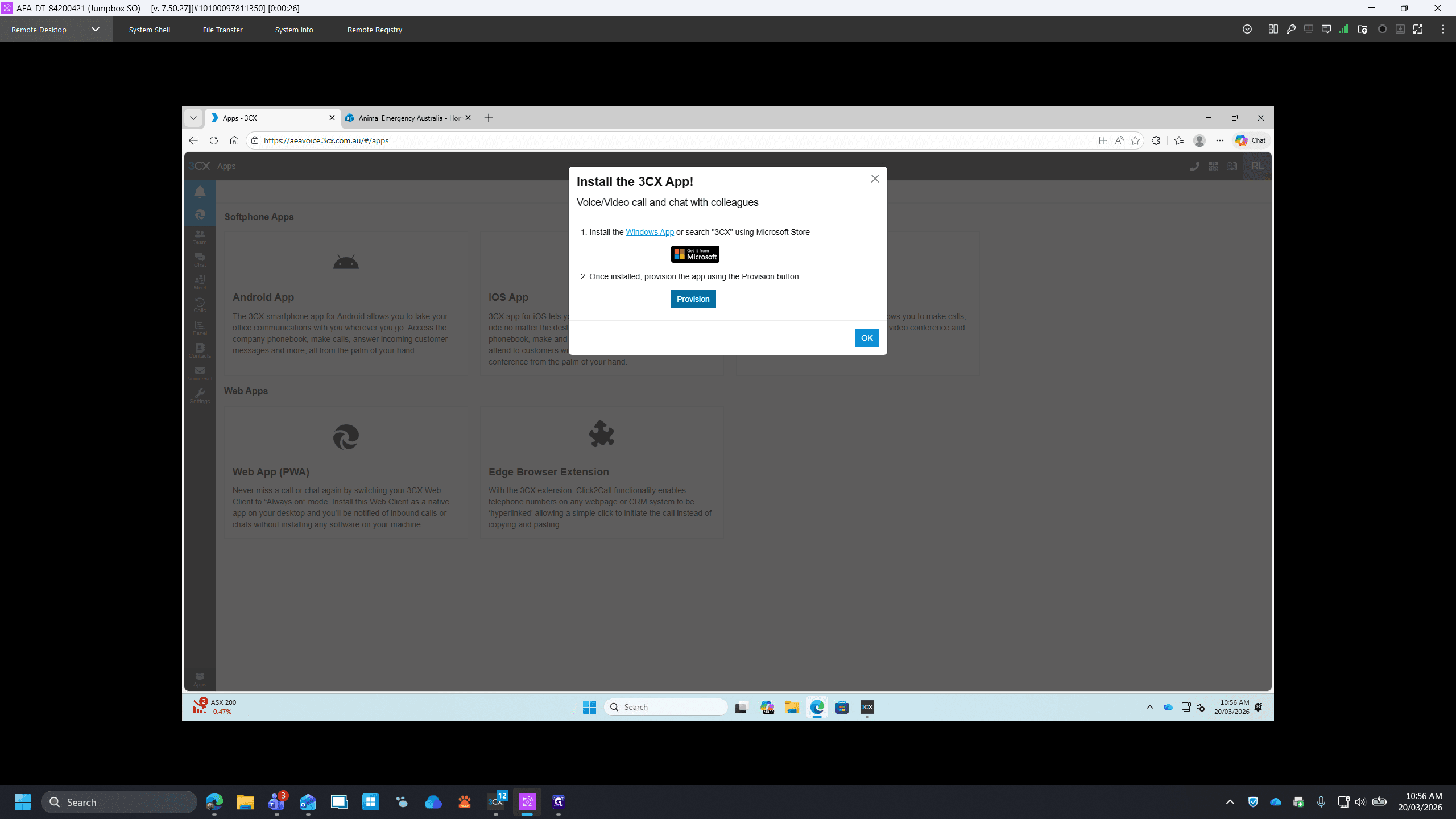
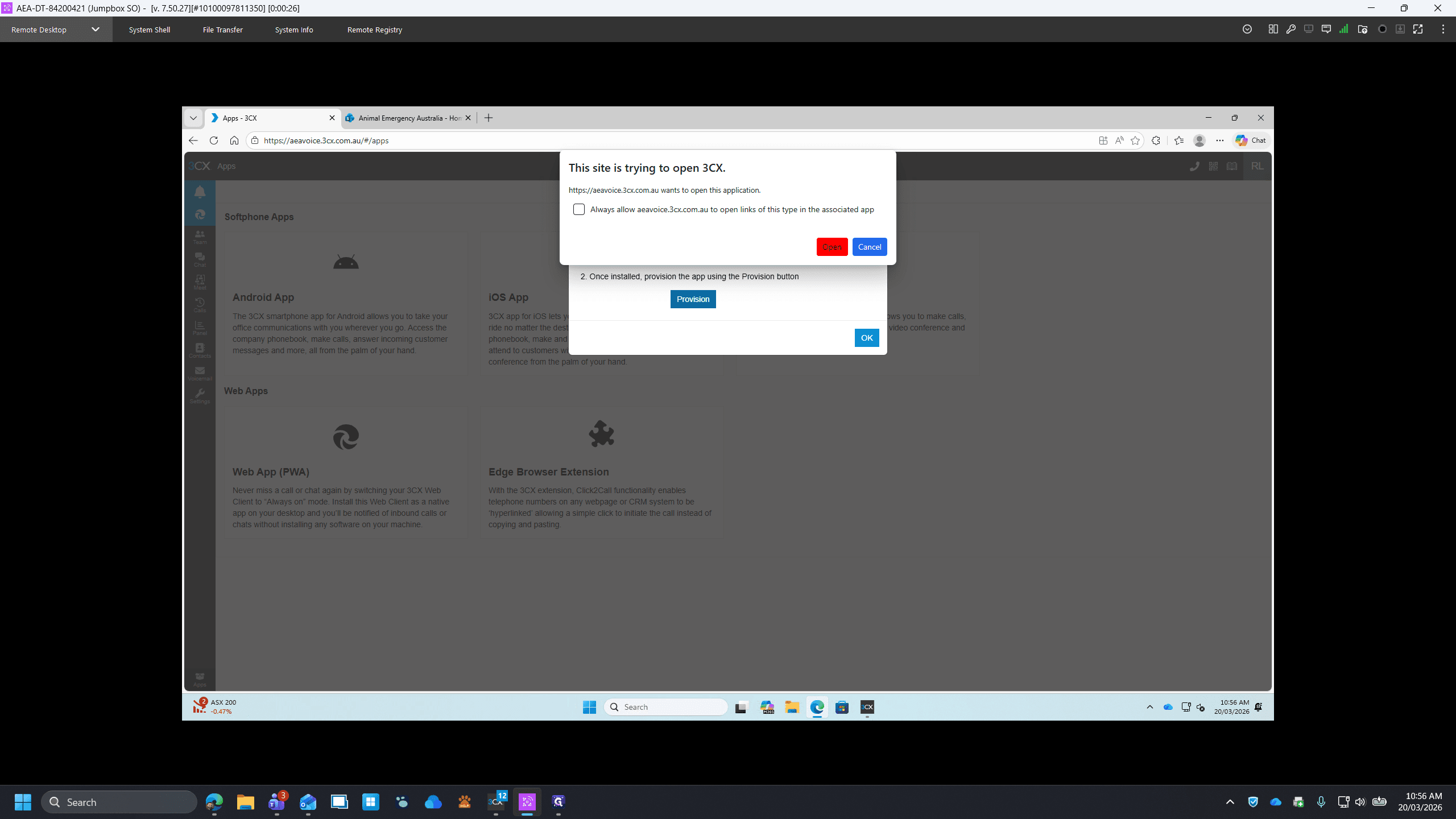
If a message pops up, click on open.
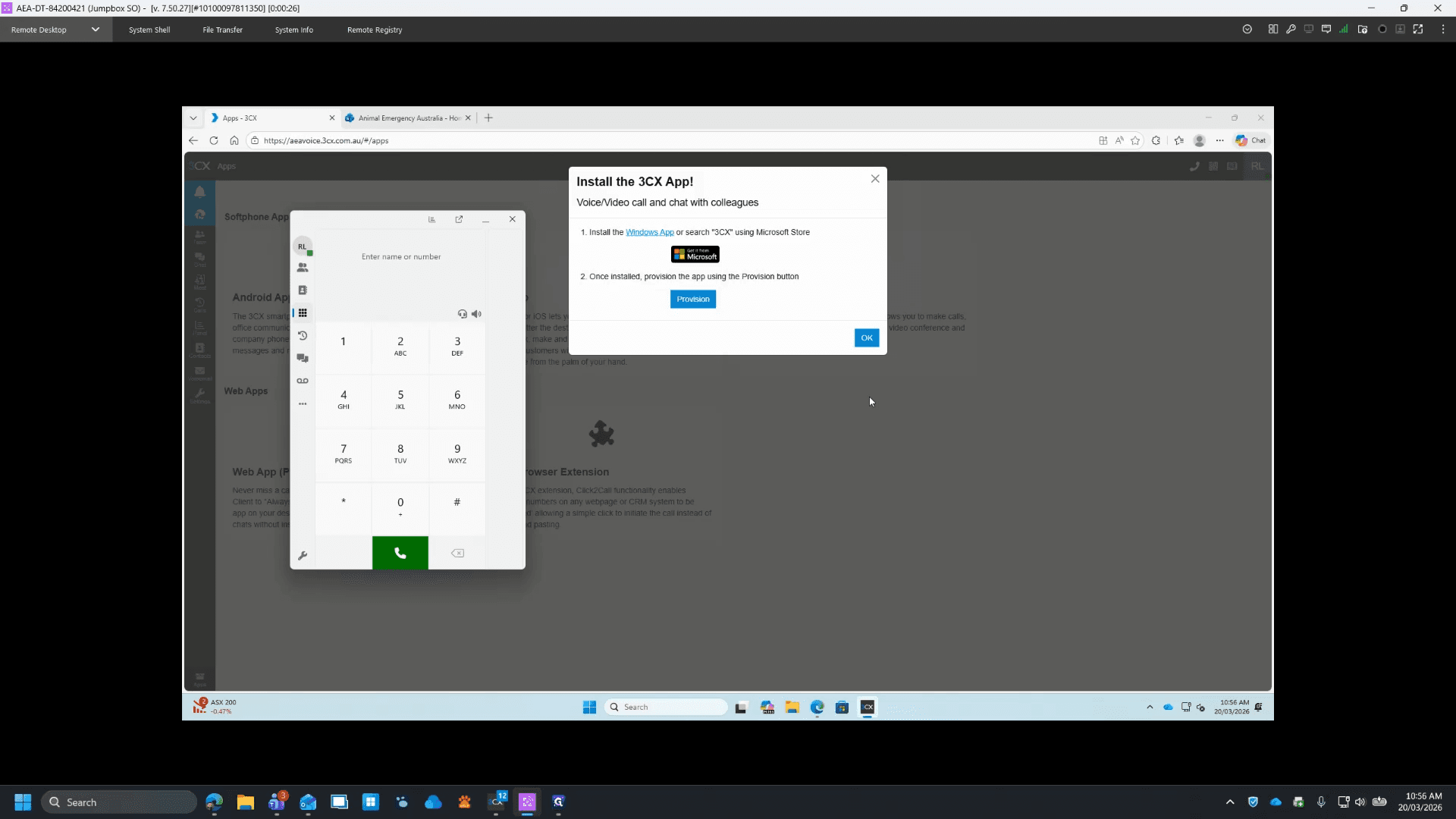
You're all set up. This will open automatically when Windows starts, and you'll receive a pop-up for any incoming calls. The 3CX app can be safely minimised. If you want to set up 3CX on mobile, go to the next steps, otherwise you can close the Edge tab.
Setting up Mobile (Optional)
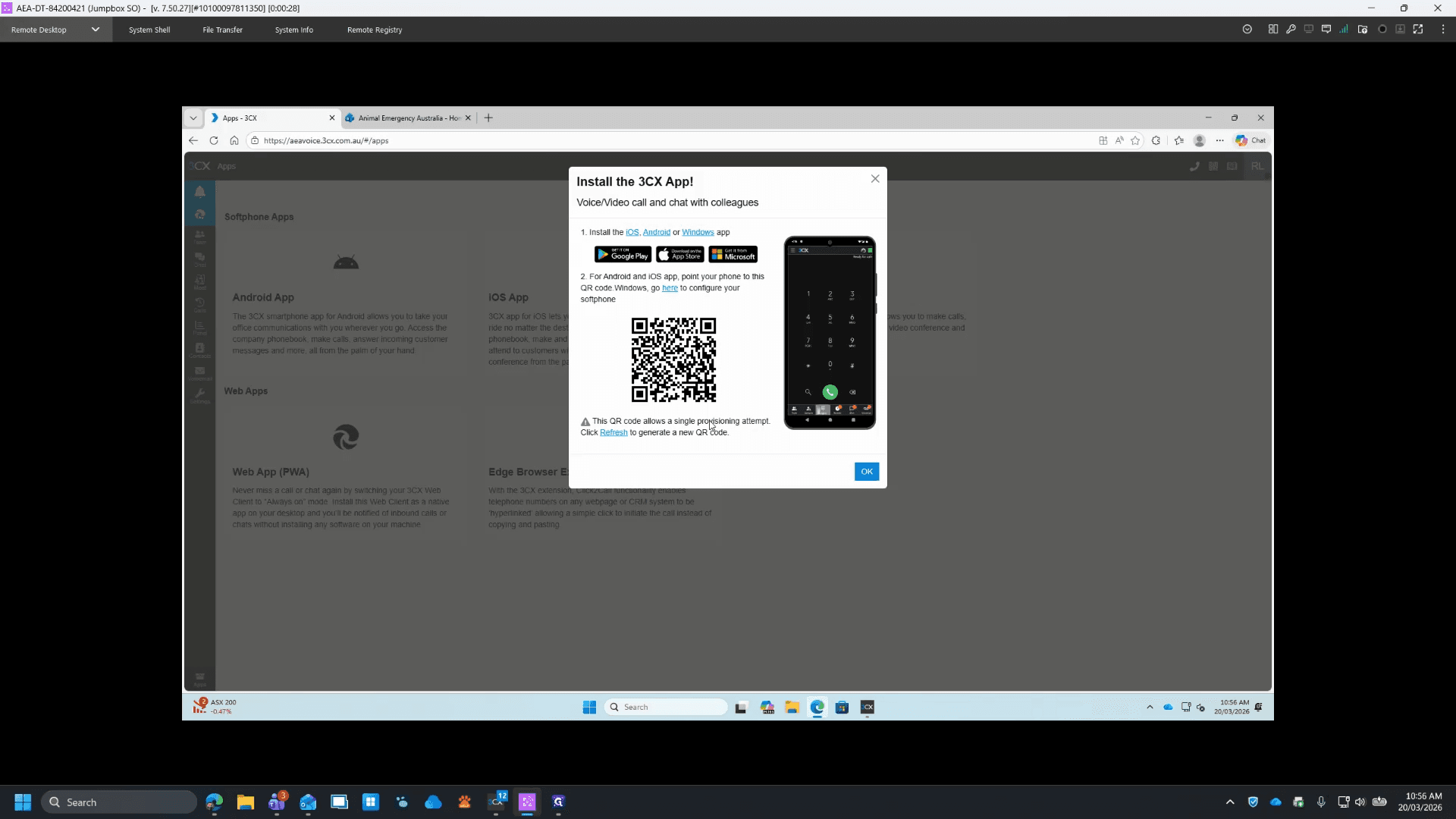
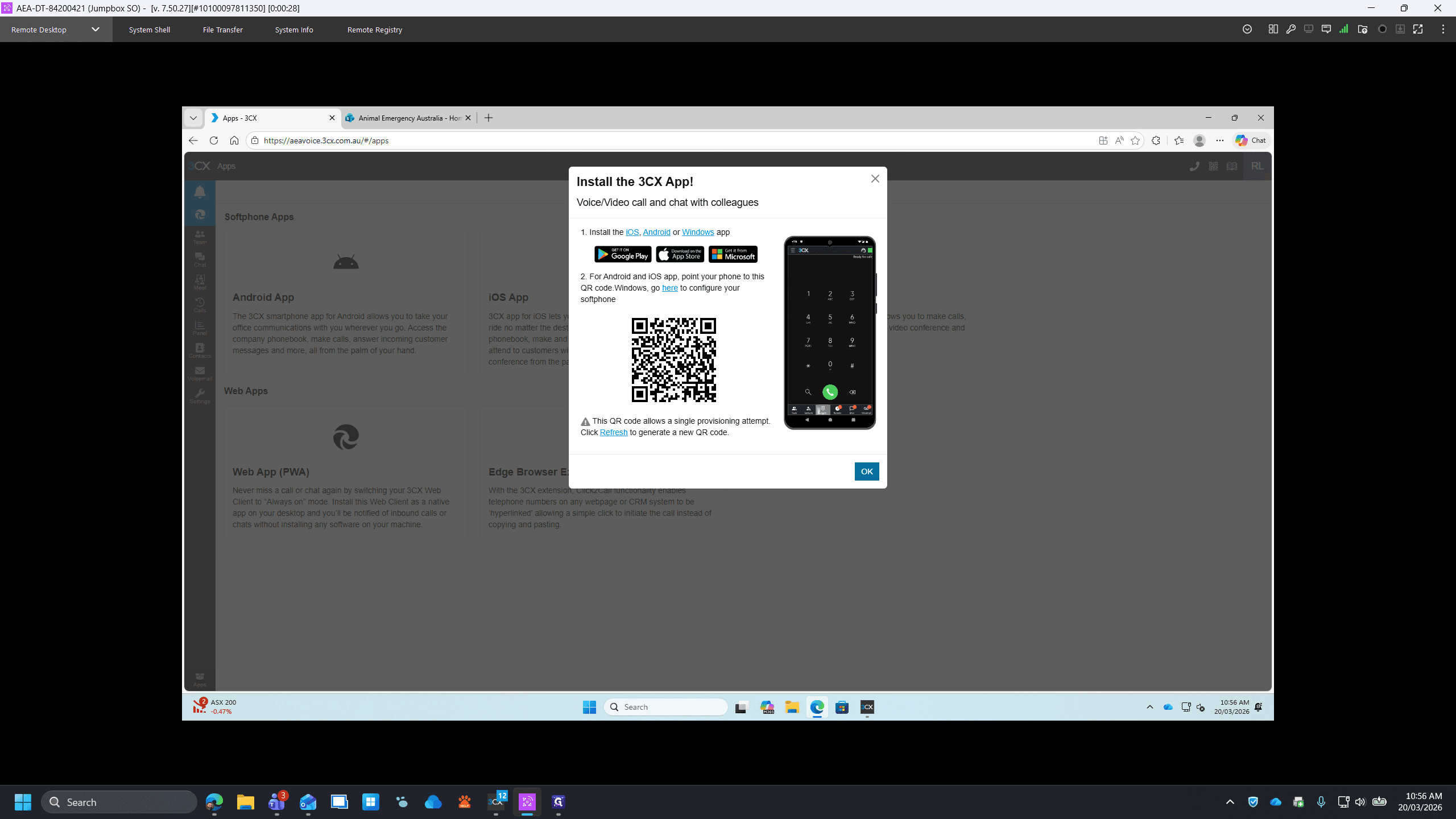
To set it up on your mobile, tap OK, then tap the QR code icon. Install the app on your phone and scan the QR code to complete the setup.