
How to Set Up GOA in Your Orders Inbox: Step-by-Step Guide
Learn how to set up GOA settings in your orders inbox with this easy step-by-step guide. Personalize your display, add the GOA intent, and optimize your workflow for efficient order processing.
In this guide, we'll learn how to set up the GOA settings in your orders inbox. This process helps you personalize your display so you can easily view the GOA intent and related information when managing orders. The process is the same in C4C QA and PRODUCTION.
You will adjust the visibility and position of the GOA intent, add a new GOA tab, and organize key details for efficient order processing. Once set, these changes remain in place for future use.
Let's get started
To set up the GOA settings in C4C, first go to your orders inbox.
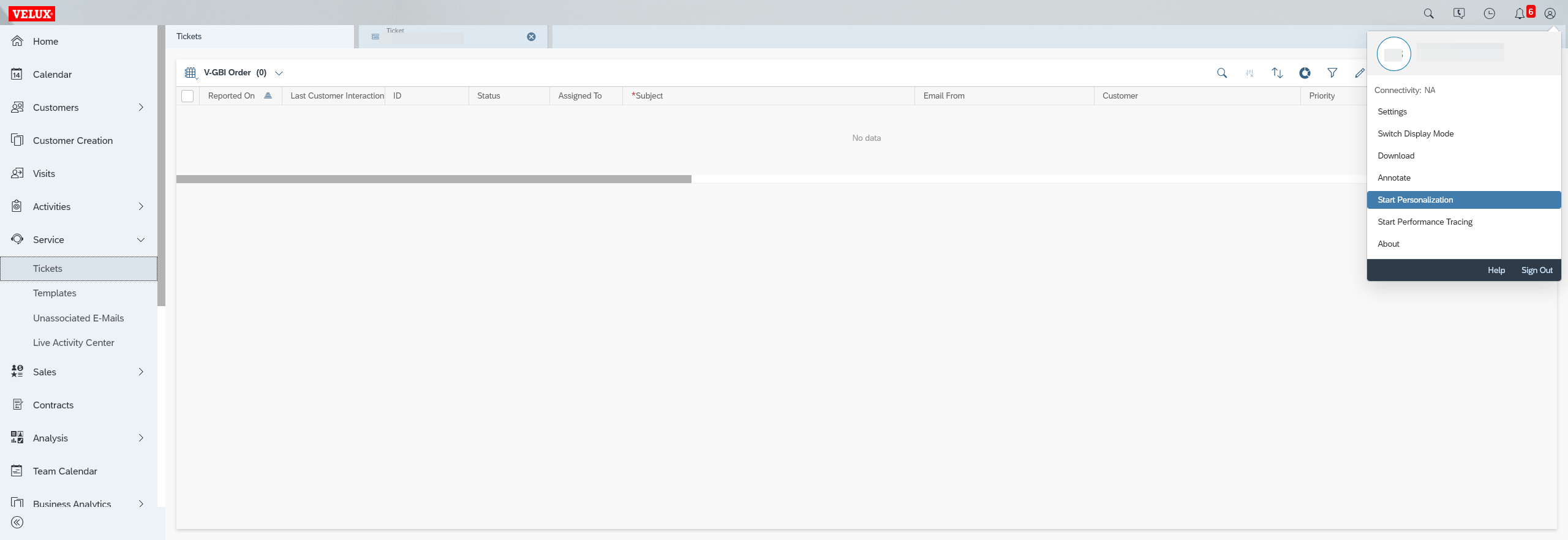
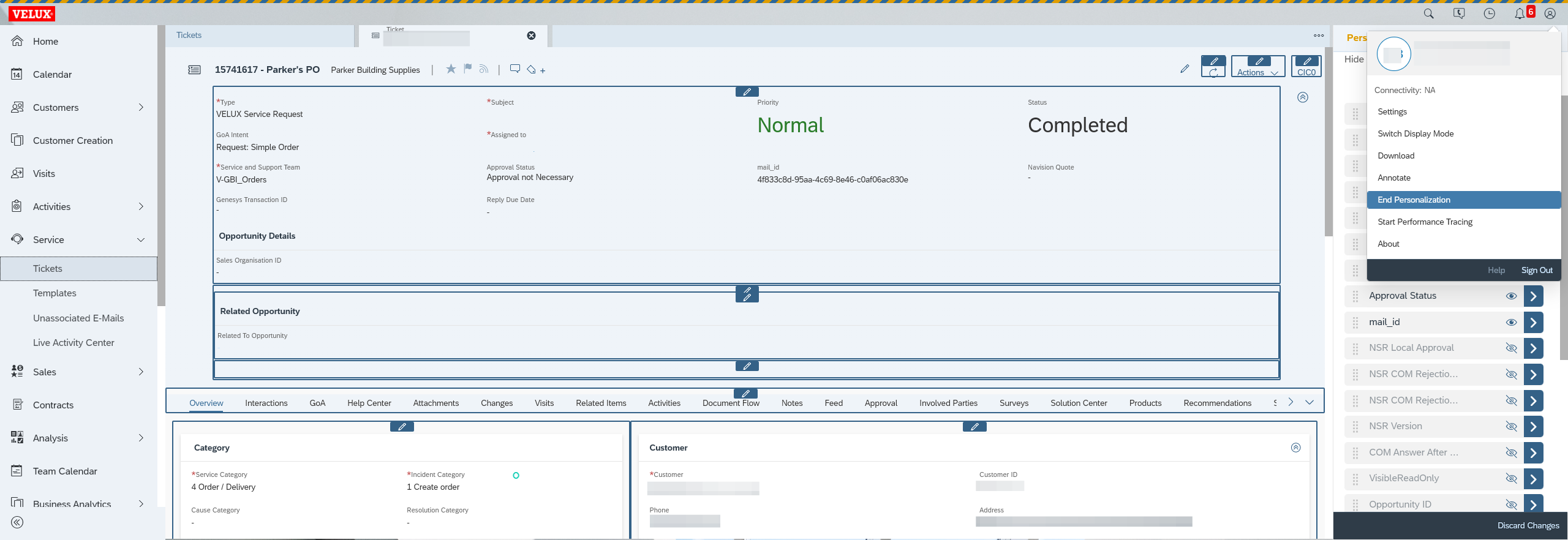
To add the GOA intent to the visual display, first click on the User Menu in the top right corner and select "Start Personalization."
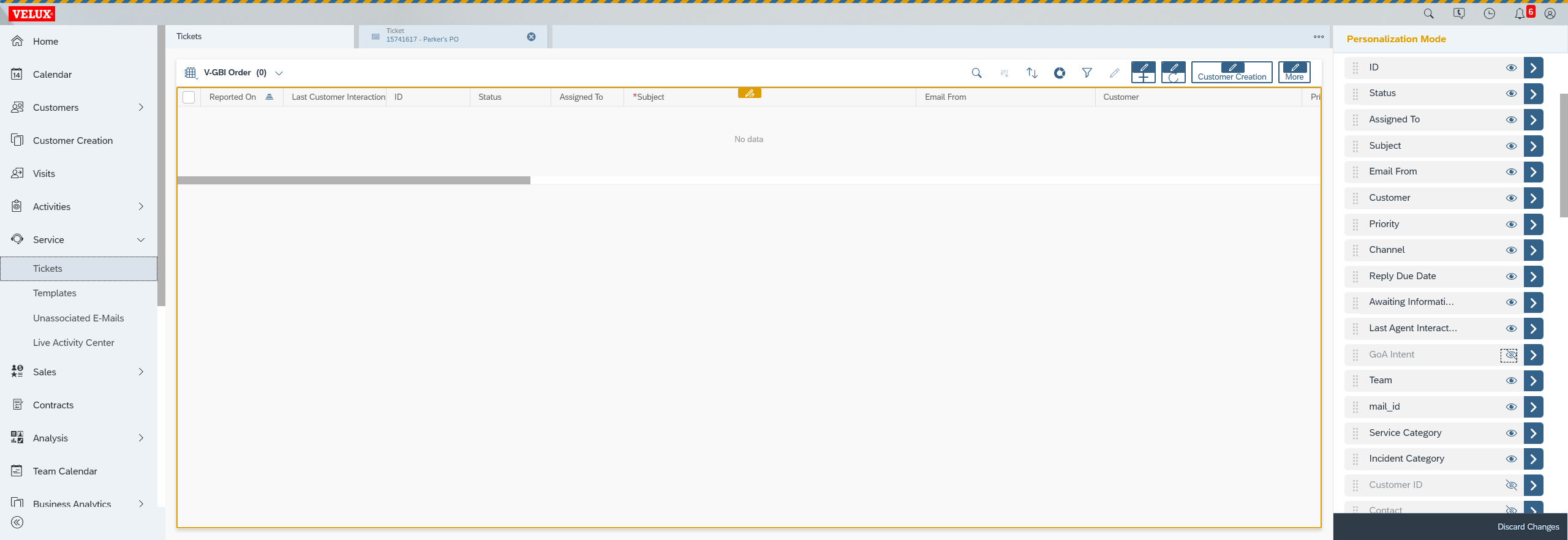
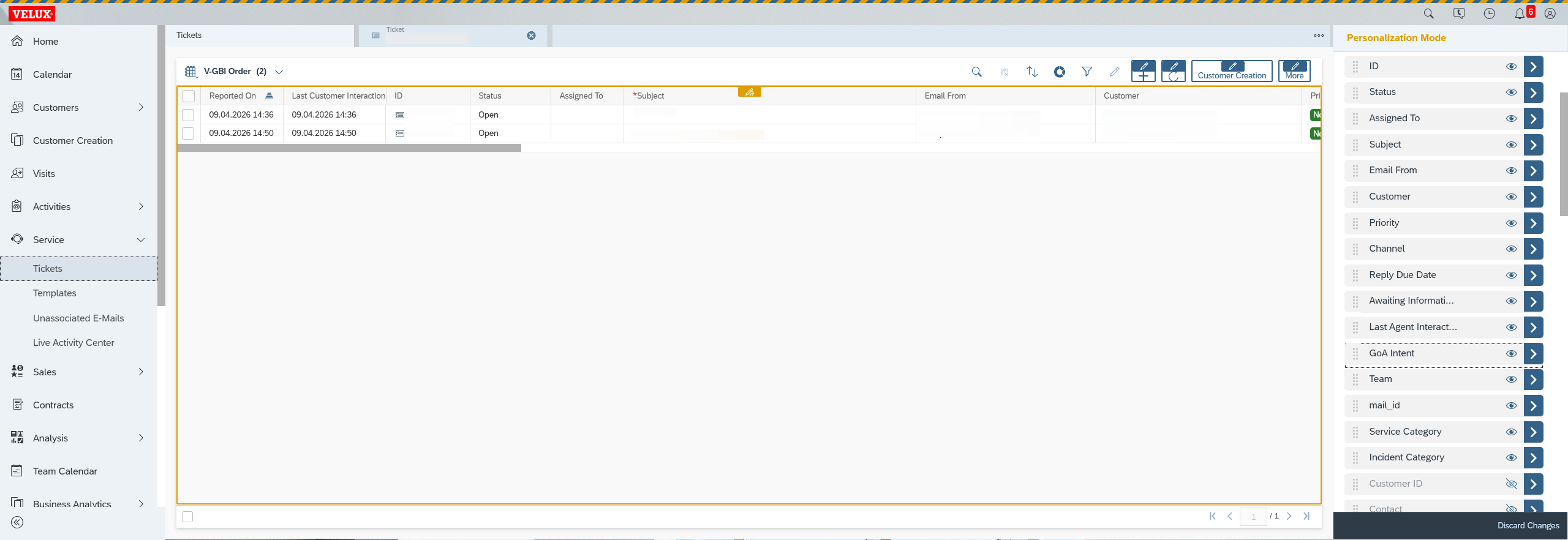
For example, if you place the field three down, it will be the third column on your display. If you're four down, it will be the fourth column, and so on.
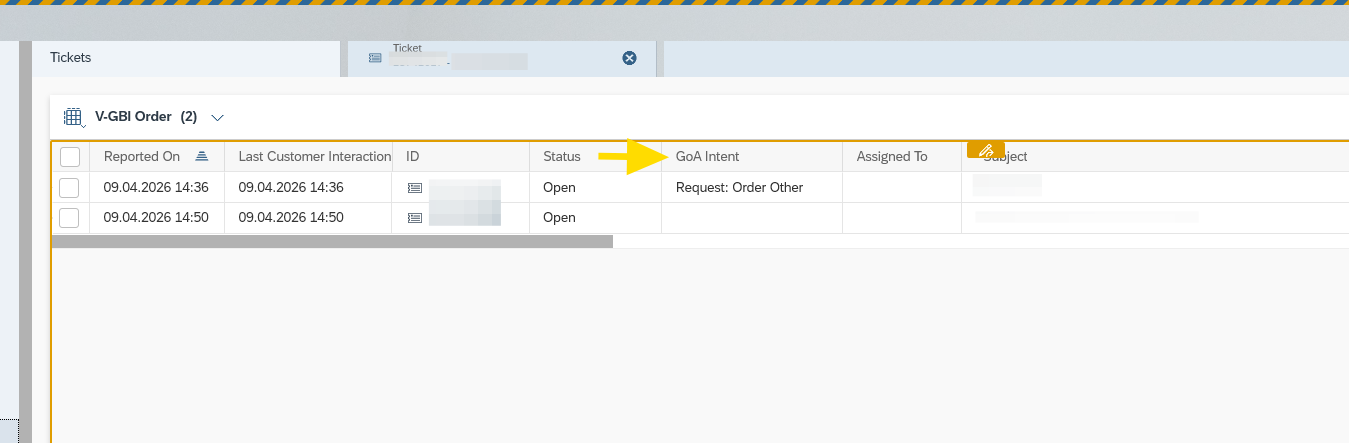
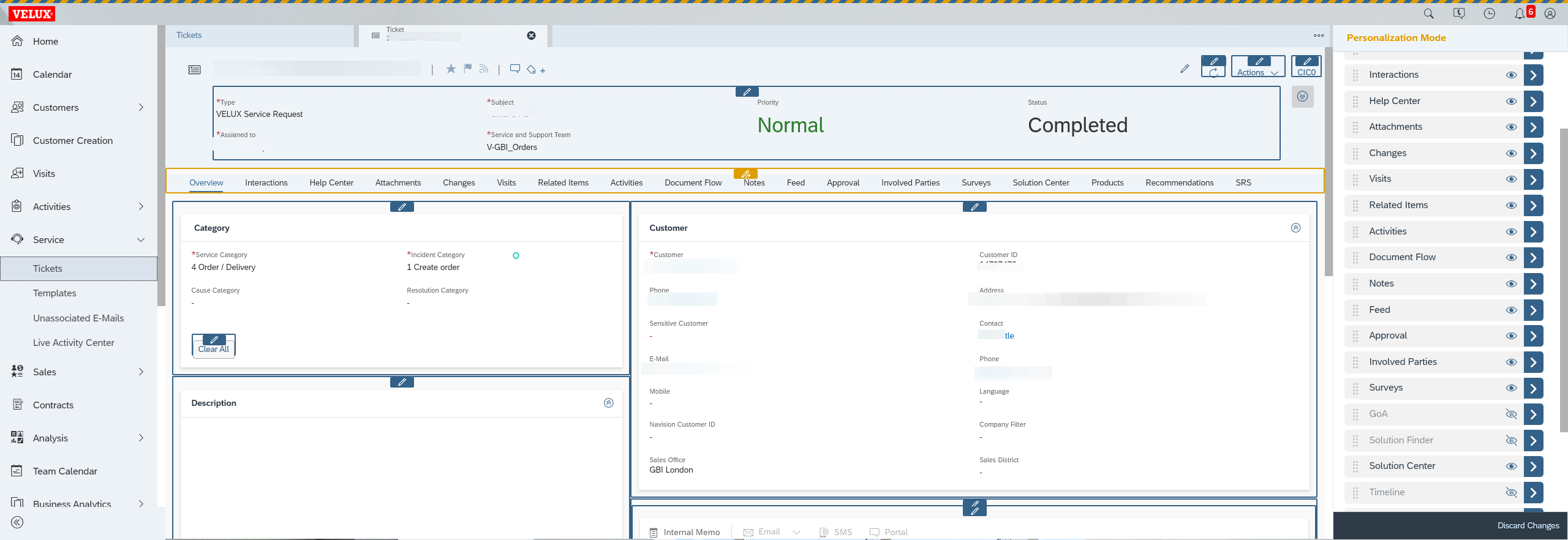
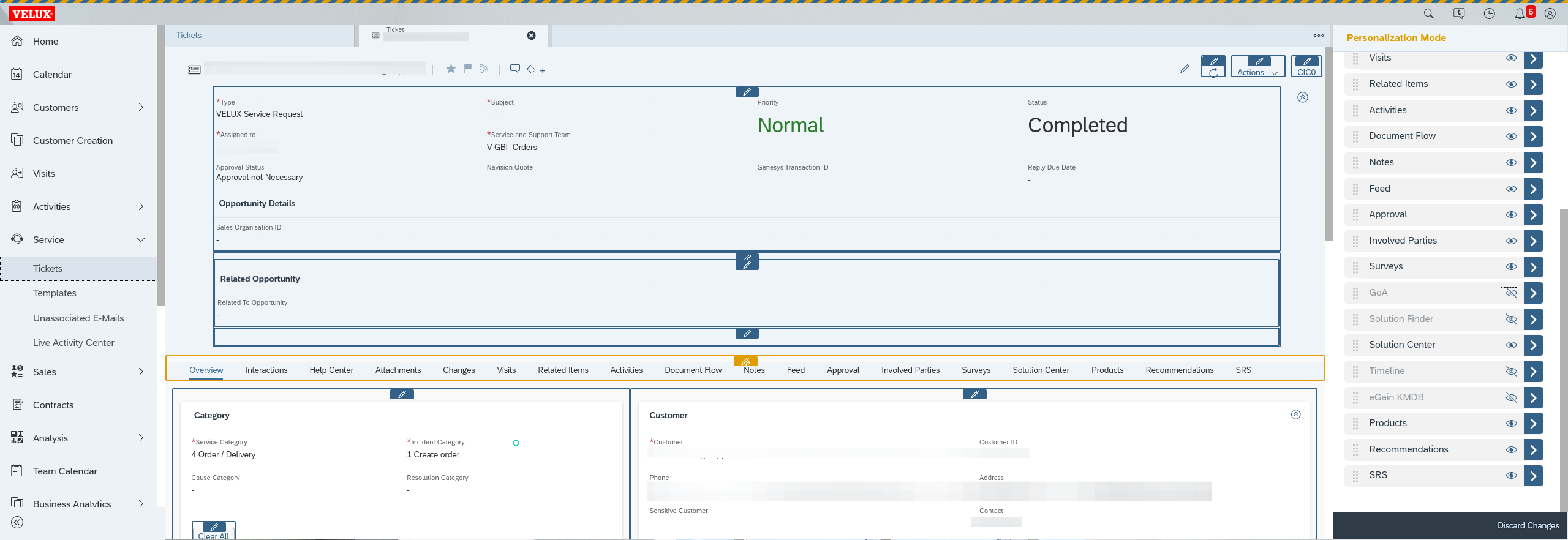
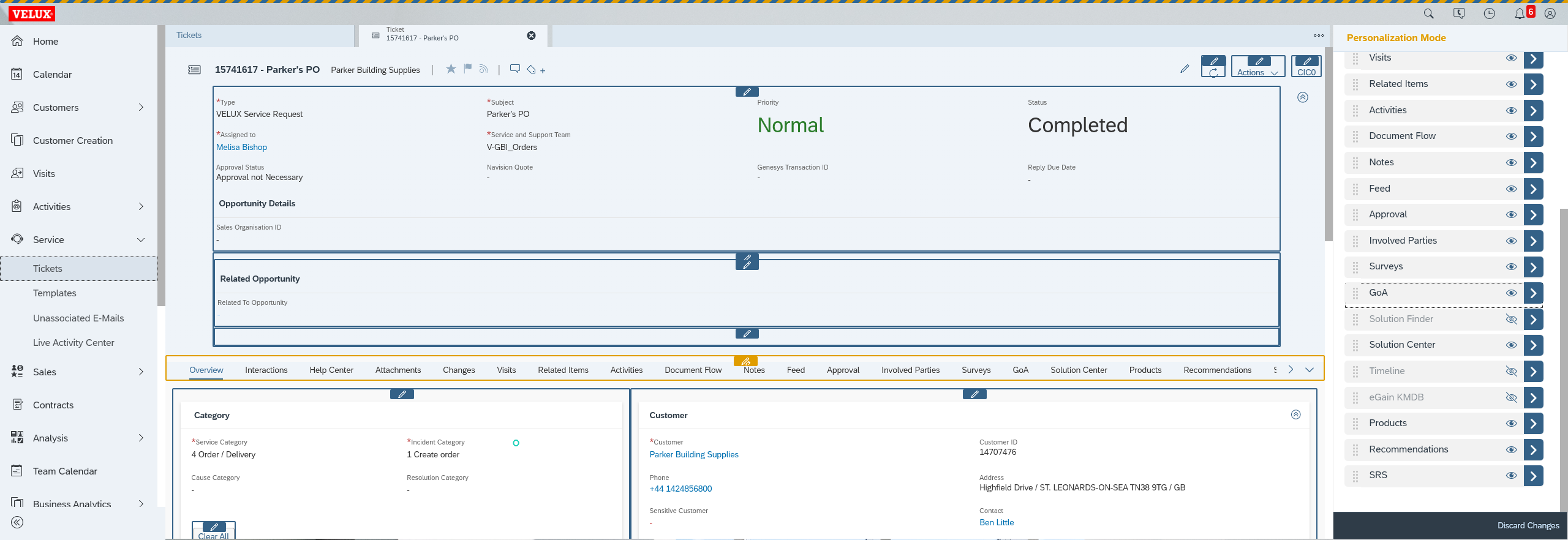
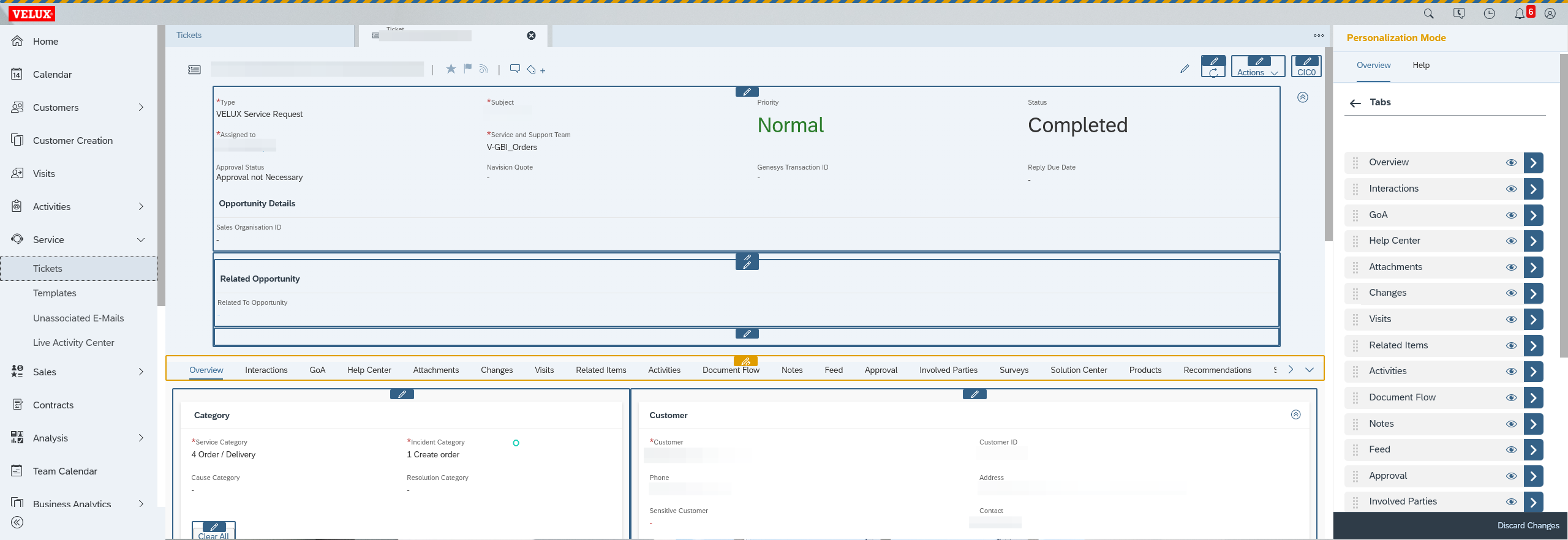
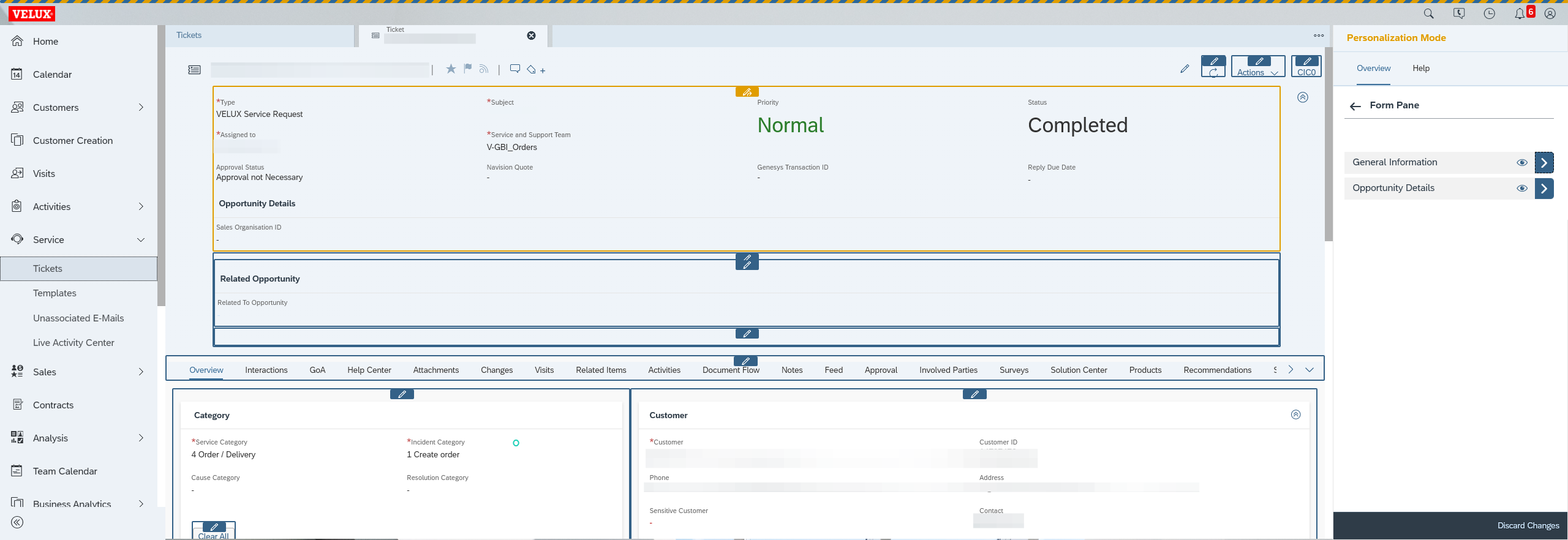
.
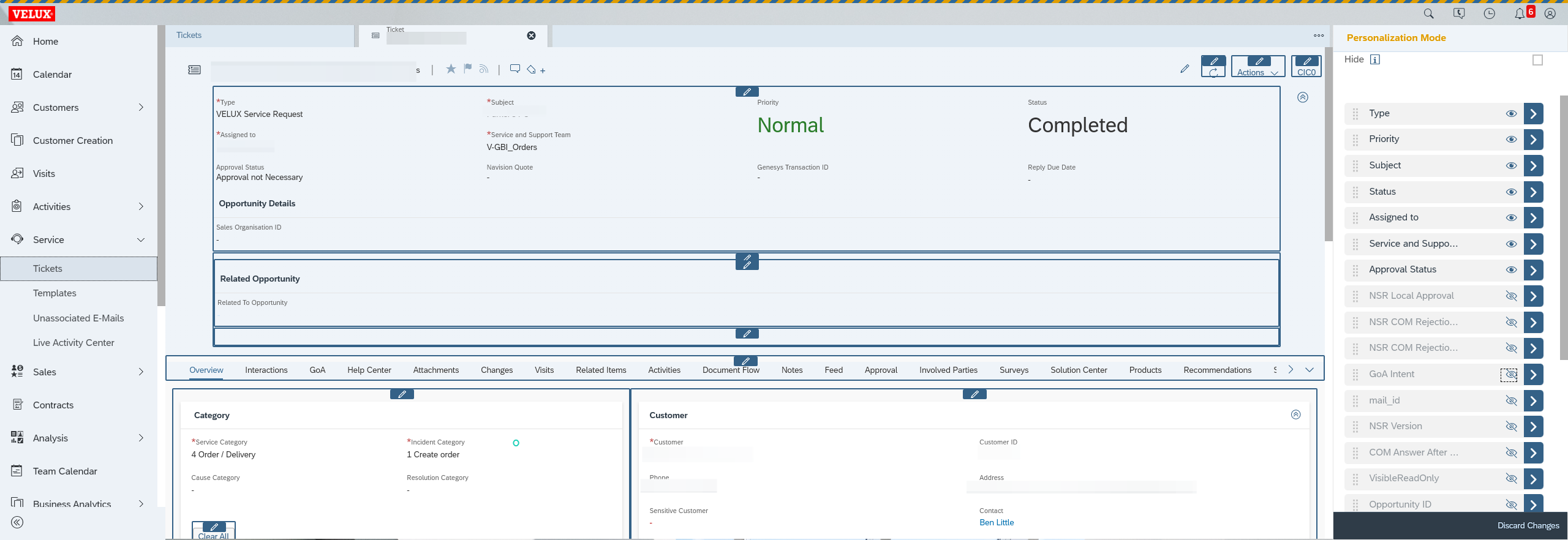
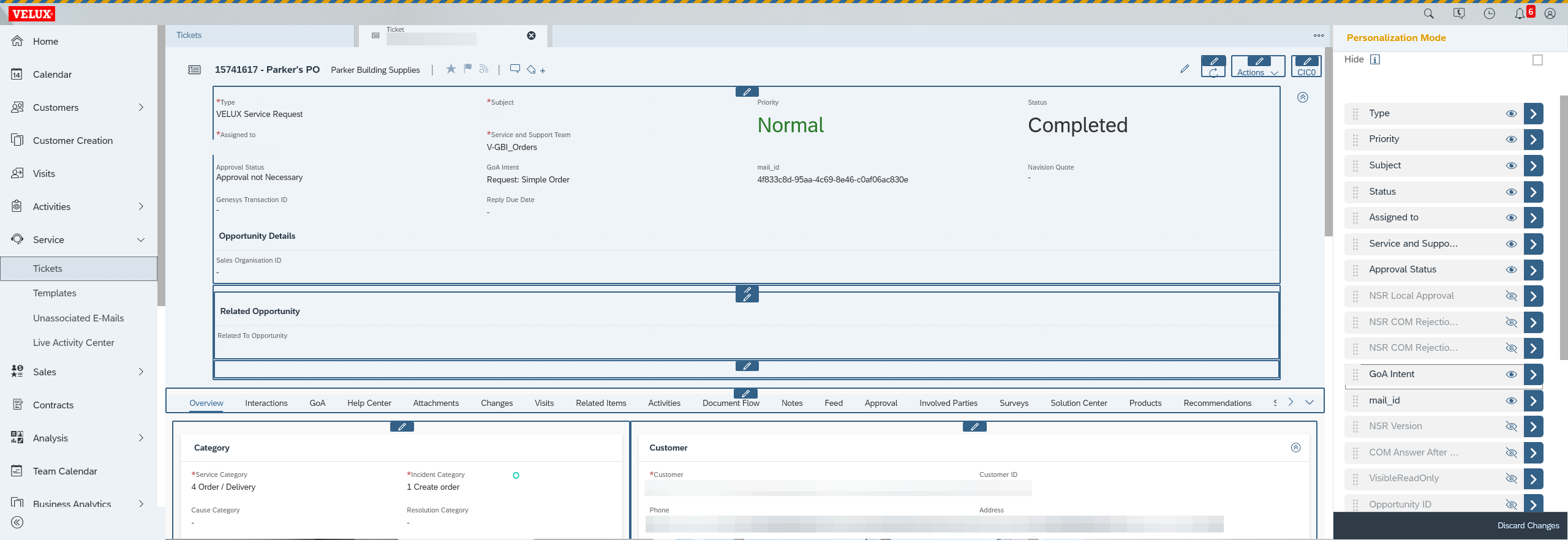
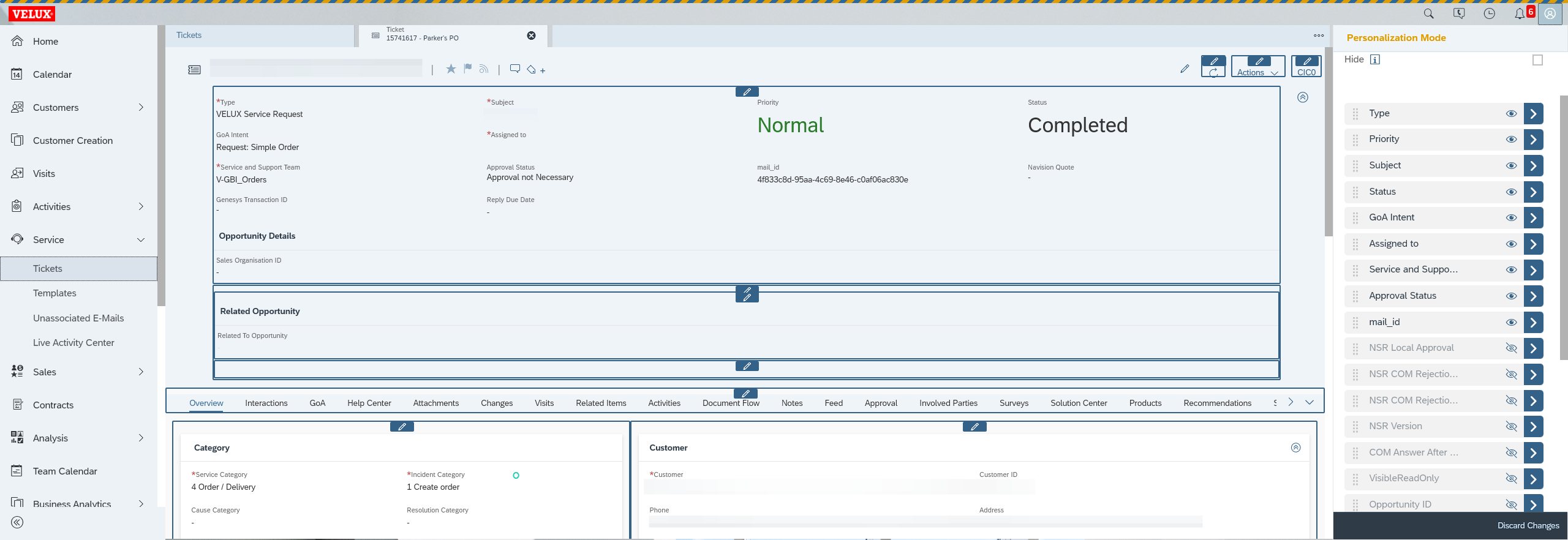
Now, in your inbox view, you have your GOA intent.
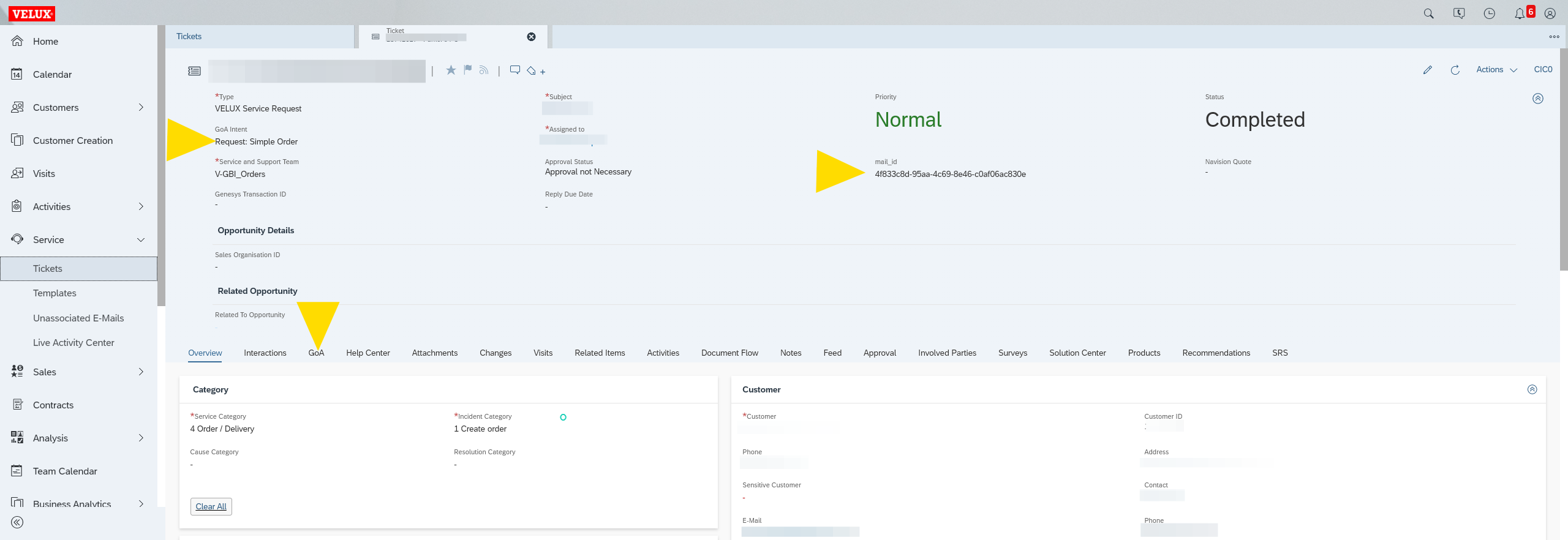
Once these settings are complete, it is permanent. You don't need to change it again.