How to Set Up JW Library for Meetings: Step-by-Step Guide
Learn how to set up JW Library for meetings, change languages, download media, play songs, and troubleshoot common issues. Follow this easy step-by-step guide for a smooth meeting experience.
In this guide, we'll learn how to set up JW Library for meetings. We will cover how to select the correct language, download media for the midweek and Watchtower meetings, and play songs as needed. We will also look at how to fix common issues, such as problems with the second screen or language settings, and how to access special videos like the Governing Body Update.
Let's get started
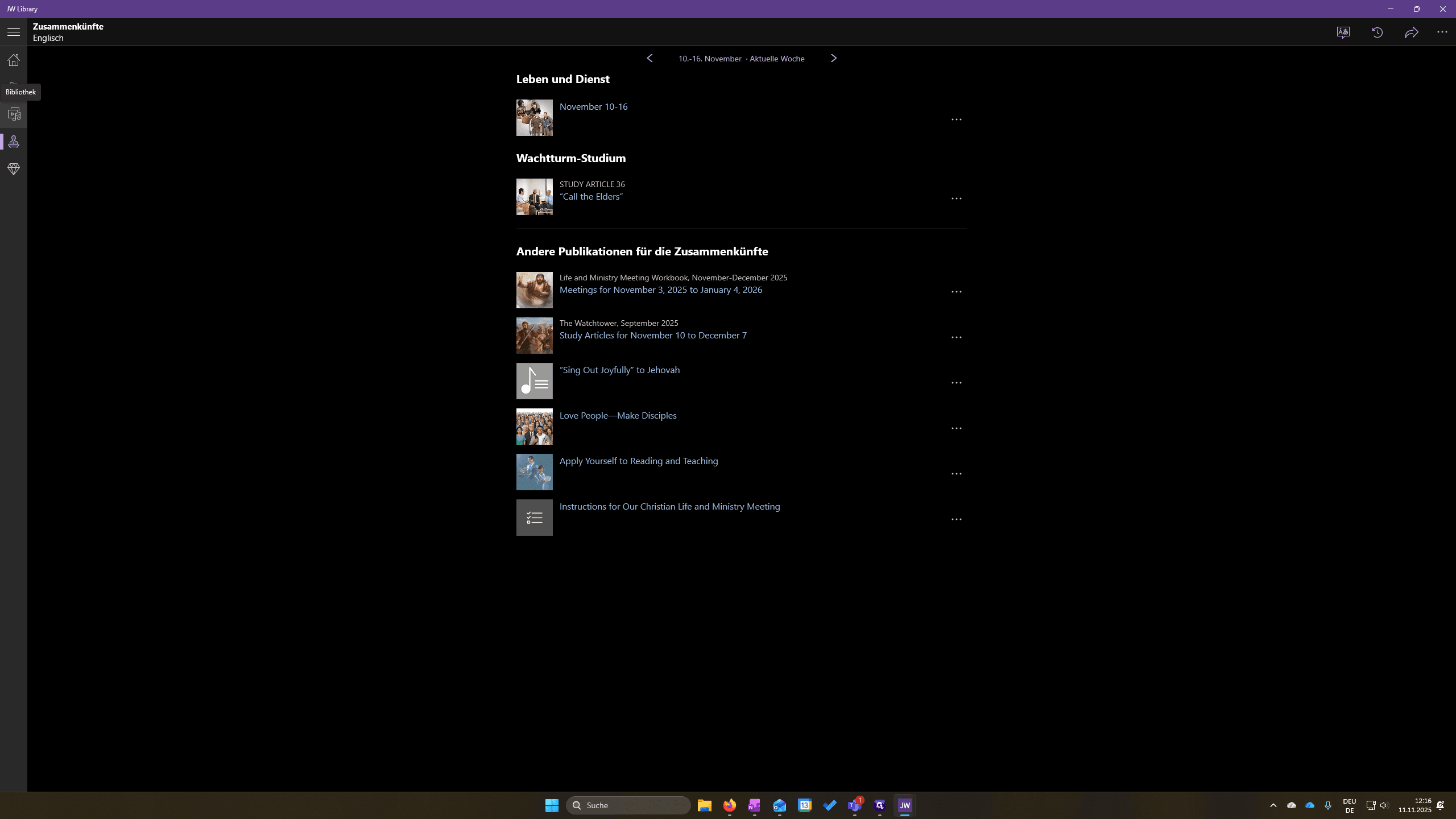
In this video, I will show you how to set up JW Library for meetings. After opening it, click the meetings icon. Double-click if needed. You will then see the week and the language.
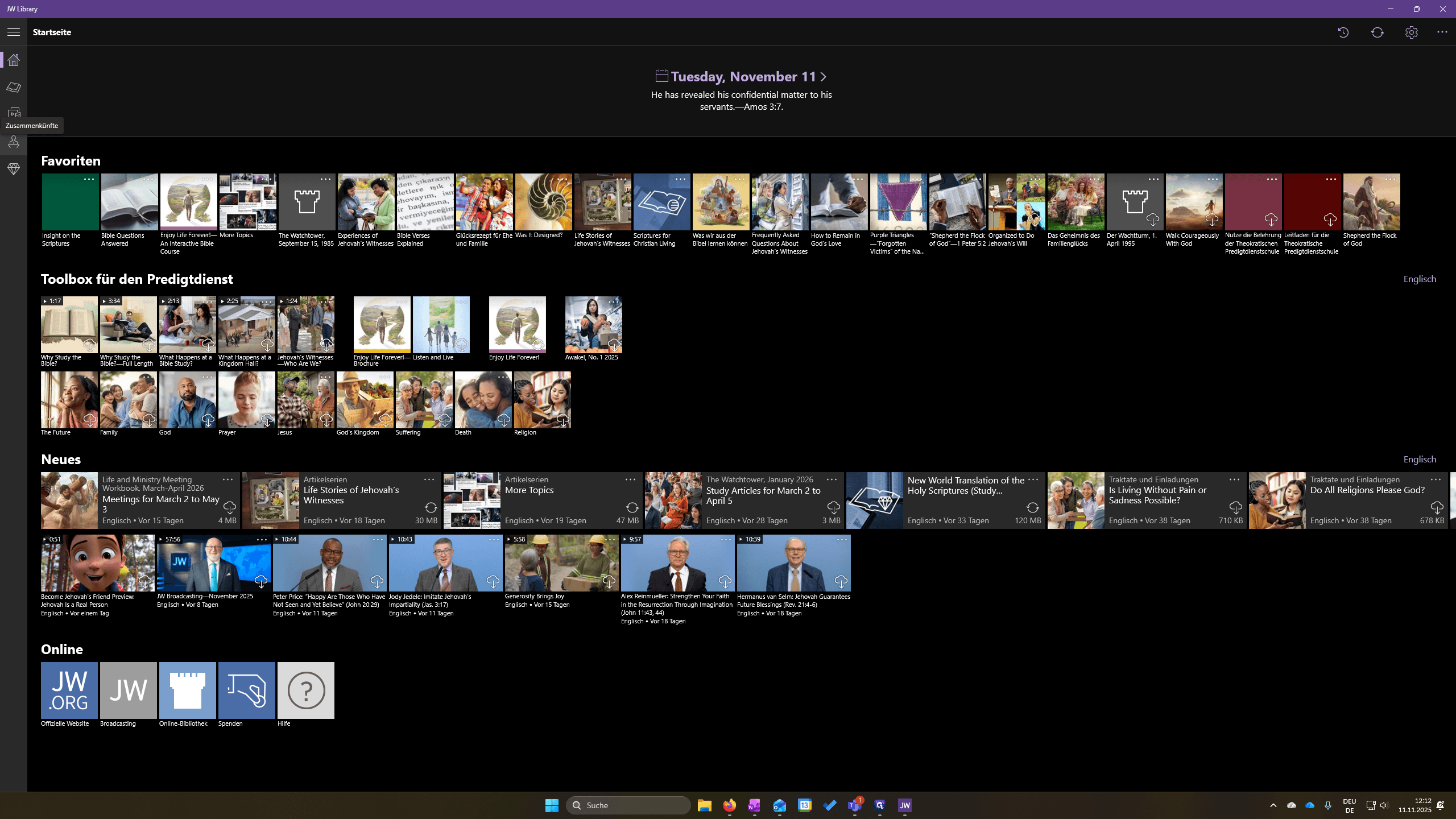
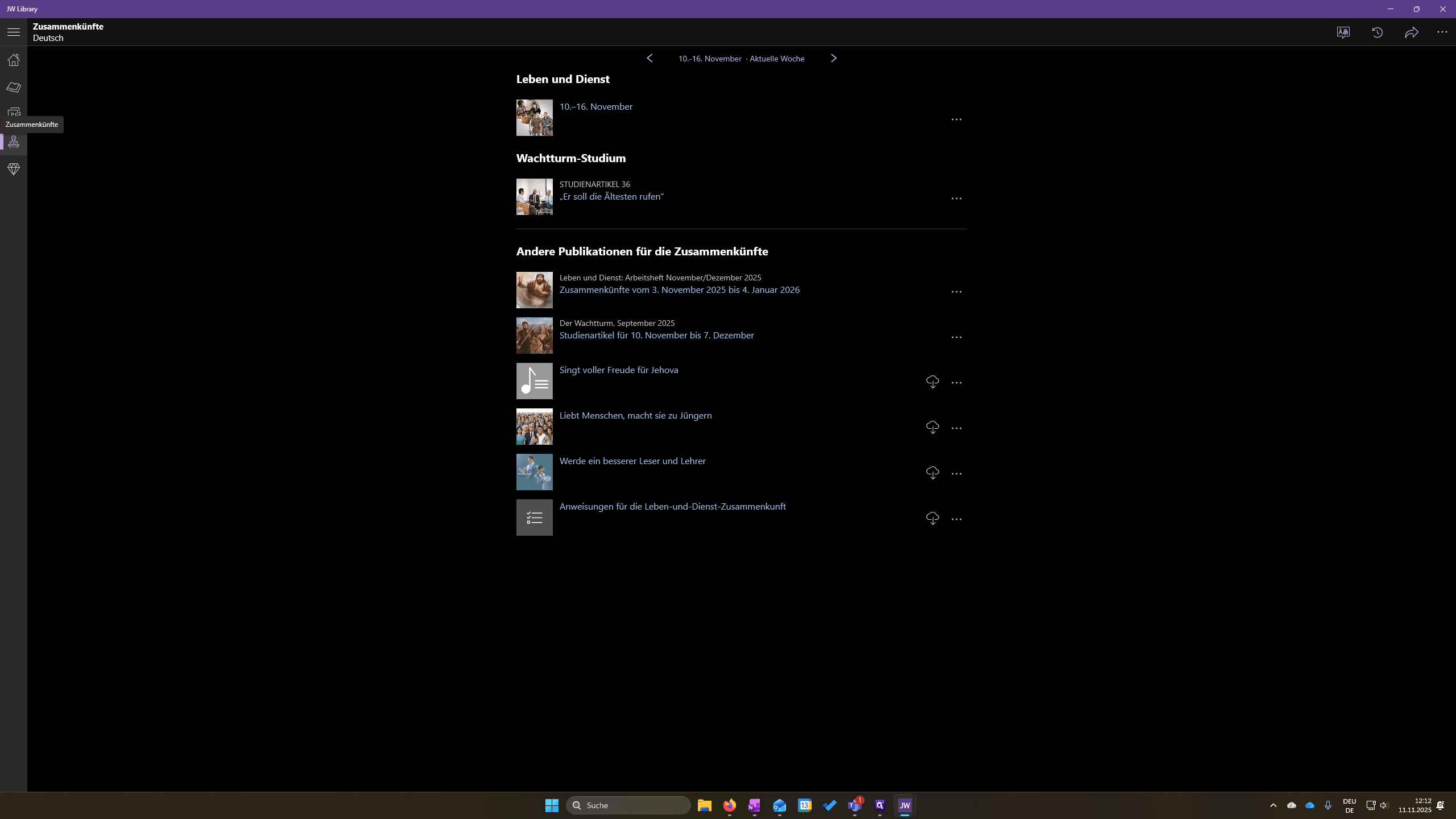
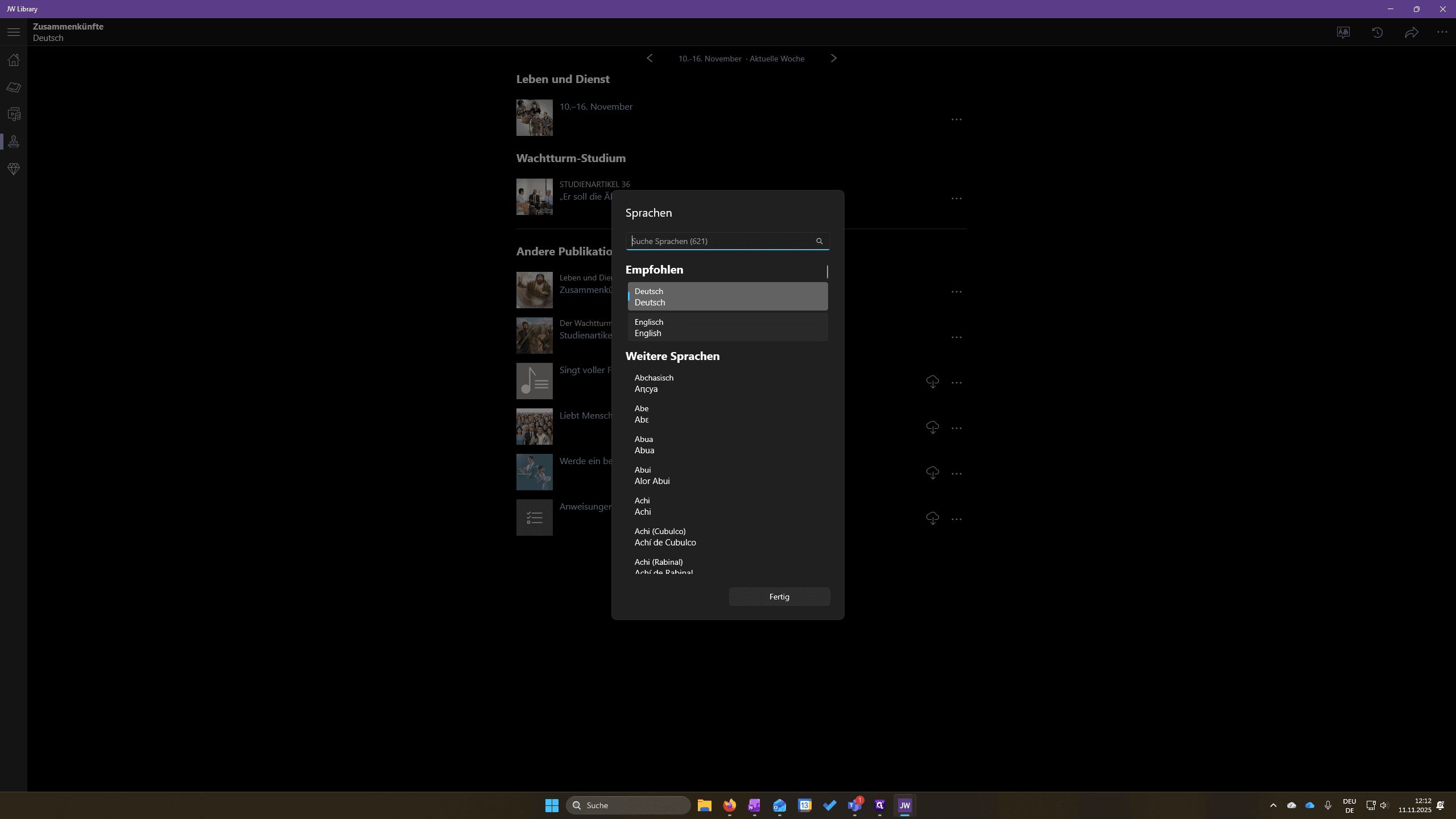
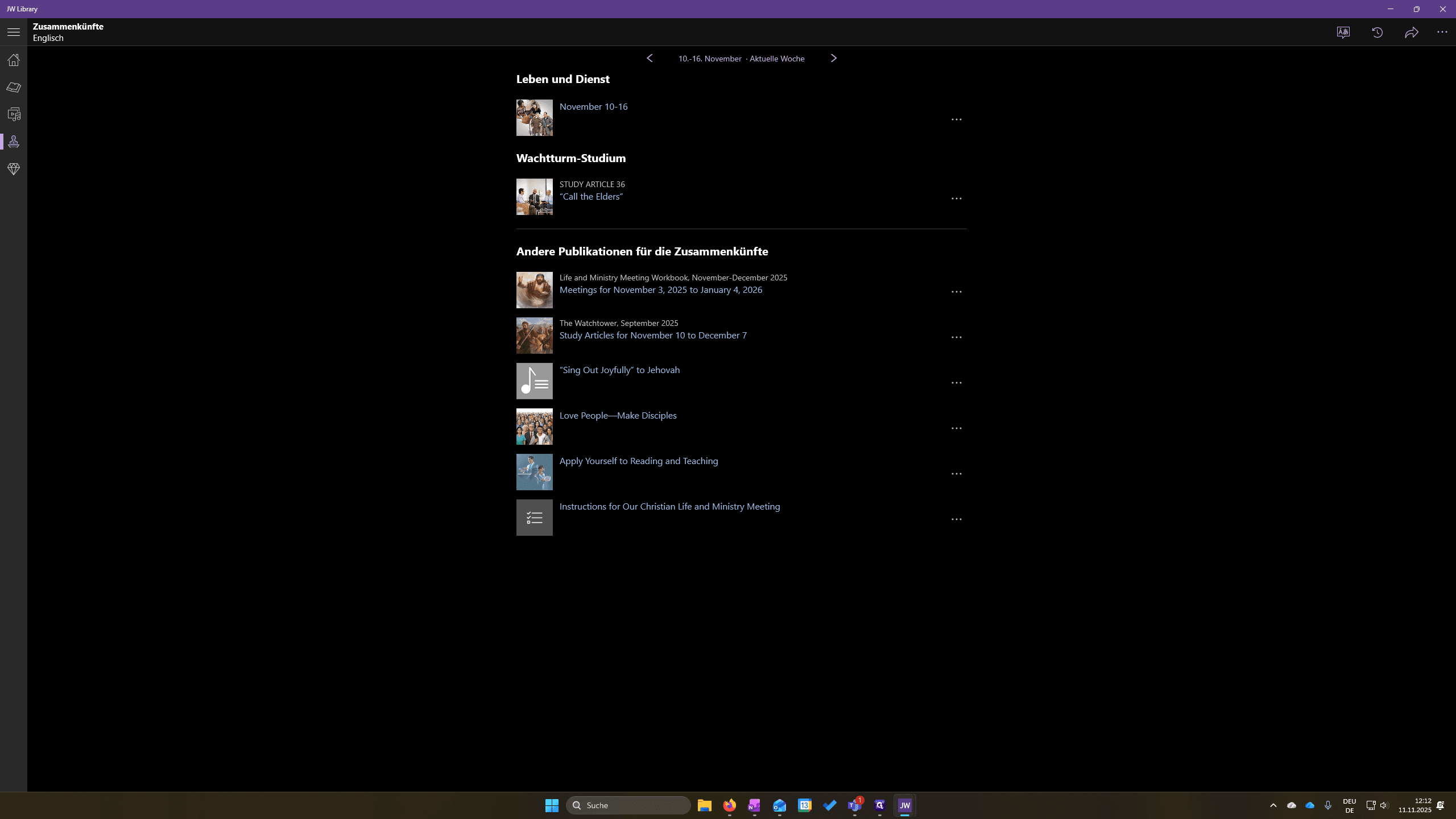
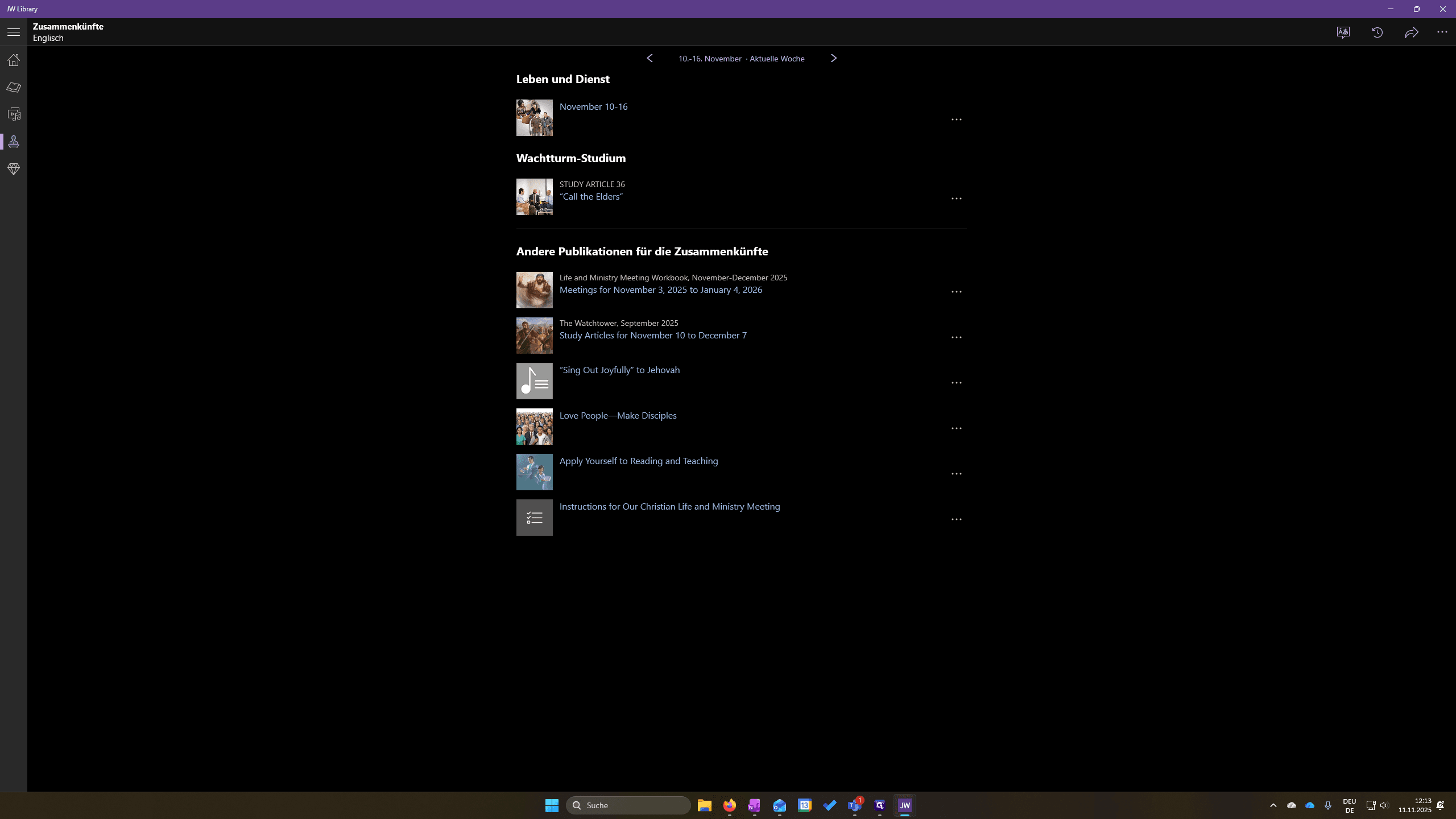
That is here in German. Go to Language, then select English.
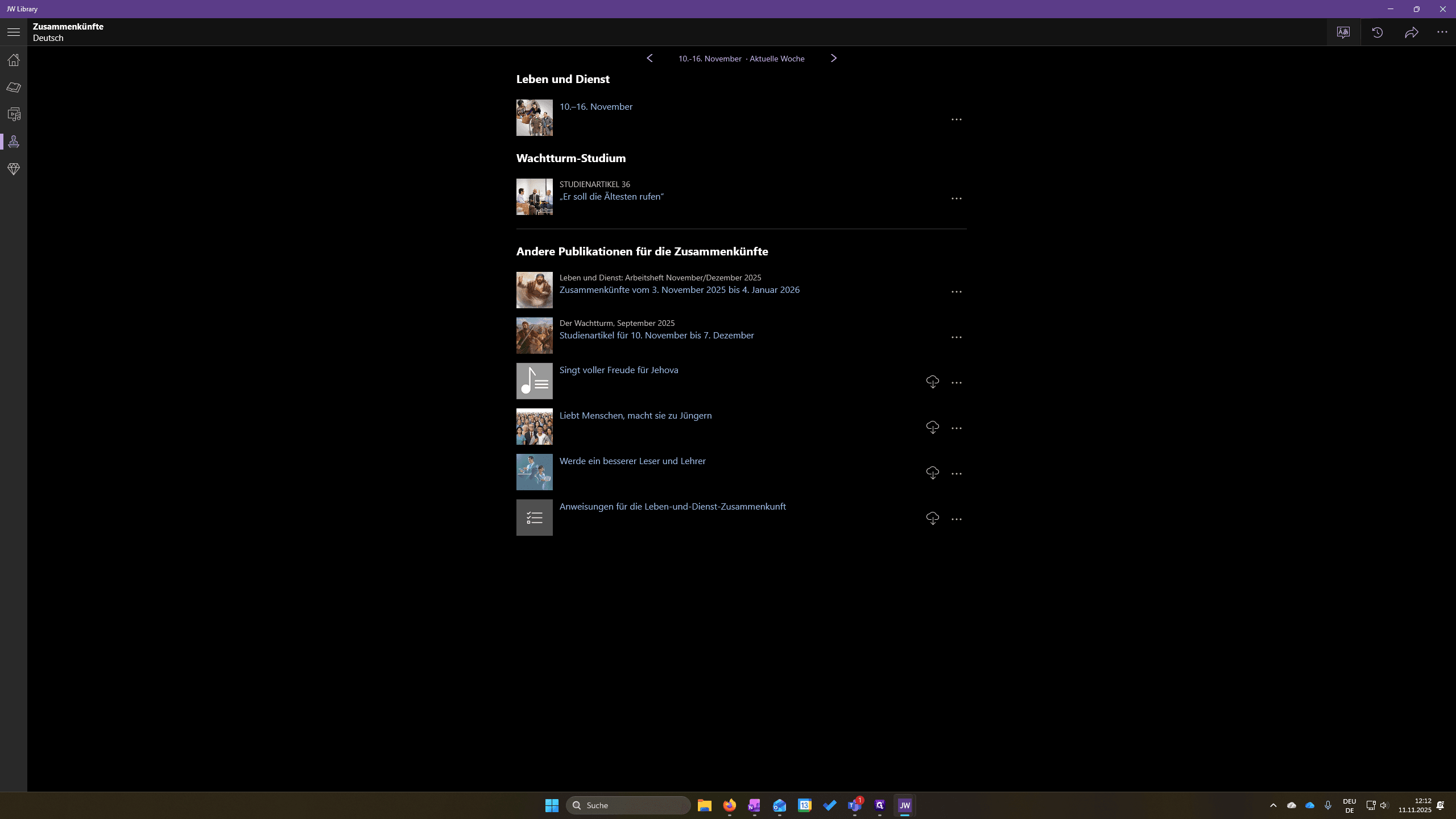
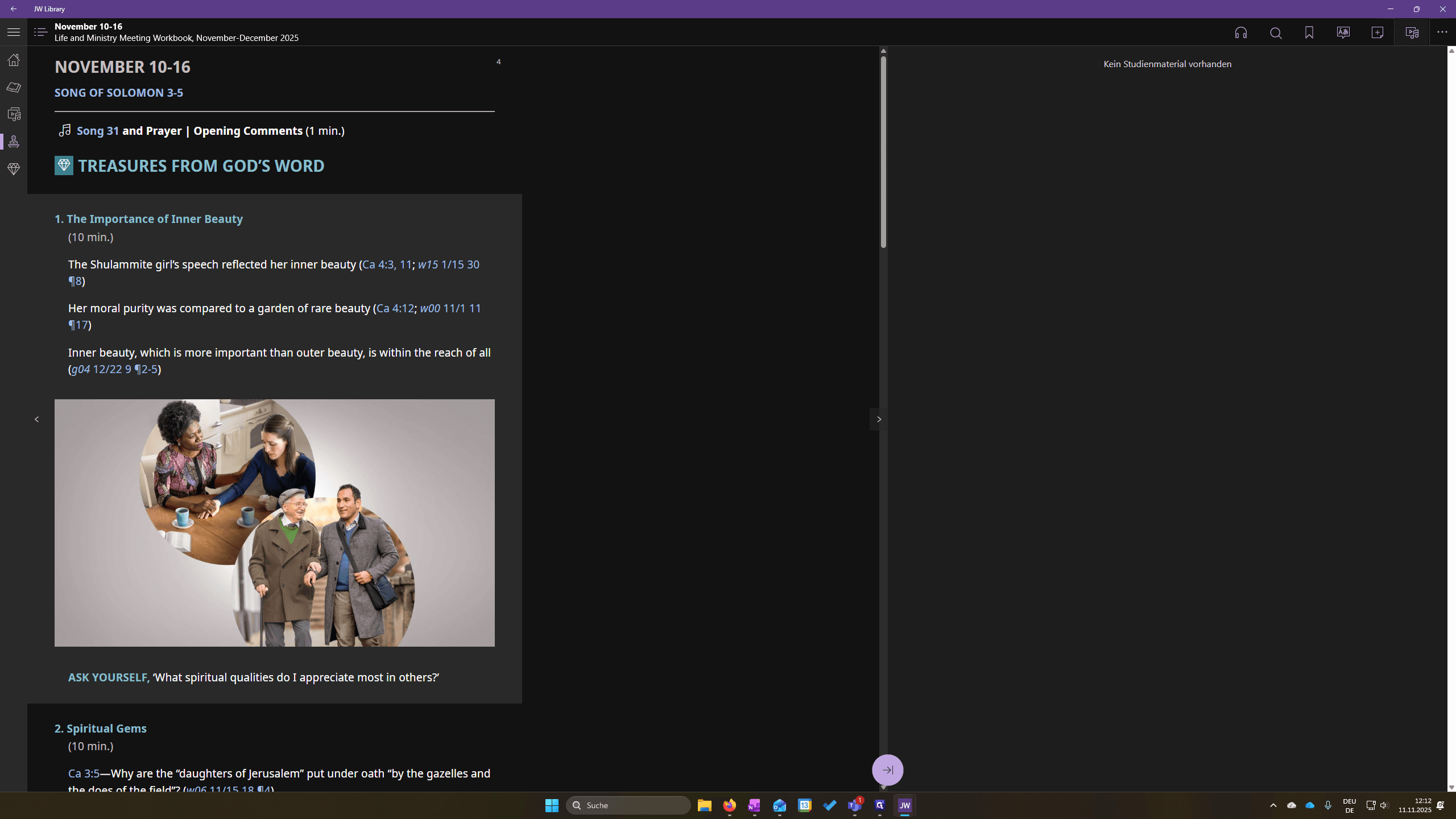
Now that everything is in English, we may need to download the files. For the midweek meeting, click here.
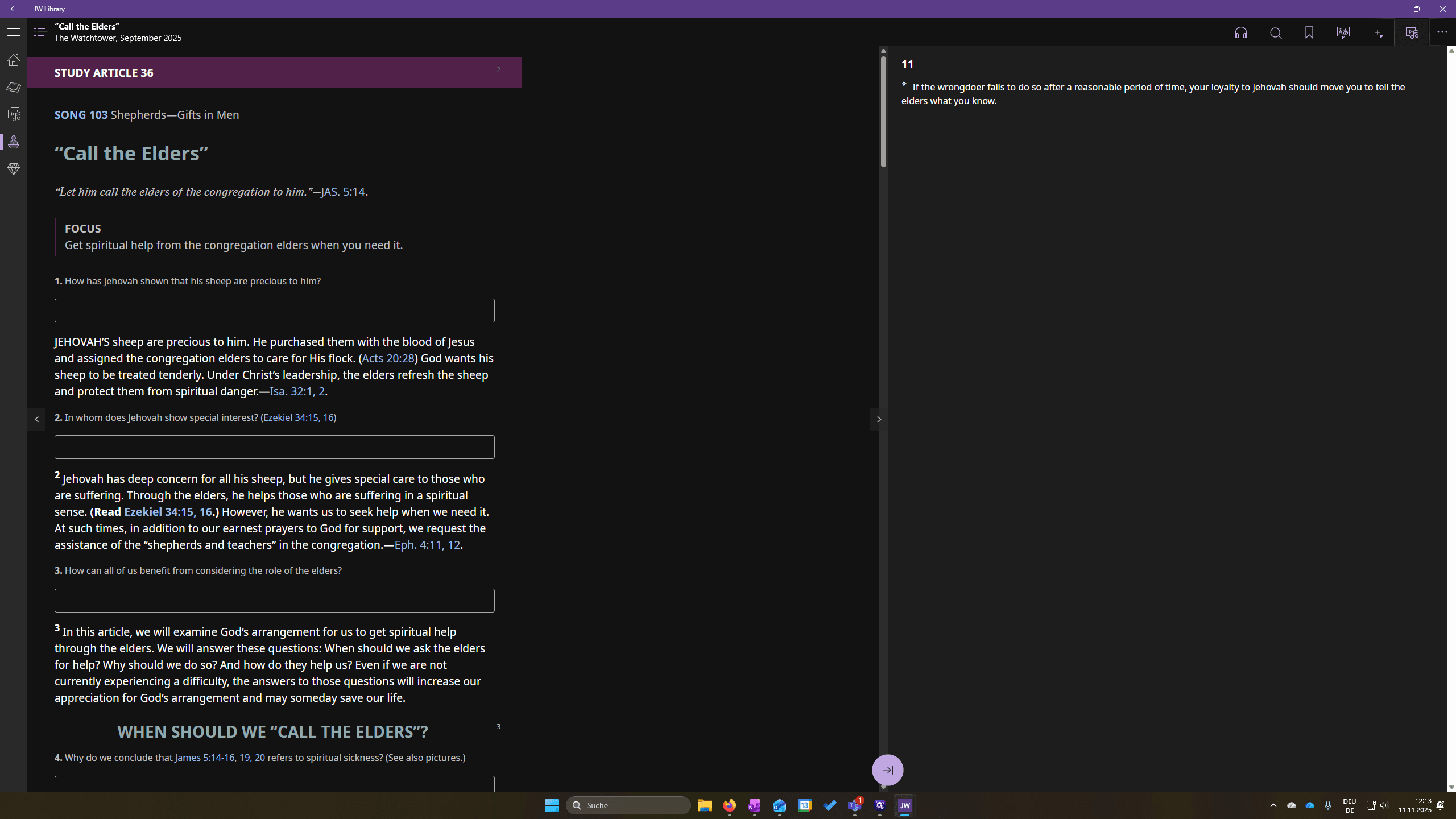
On the top left, you will see the media icon.
Click on it. Then, we can download any media we need and play it directly. For the watchtower, it's the same. Click the Watchtower article, then go to the media icon at the top right. Here, you can also download the songs as needed.
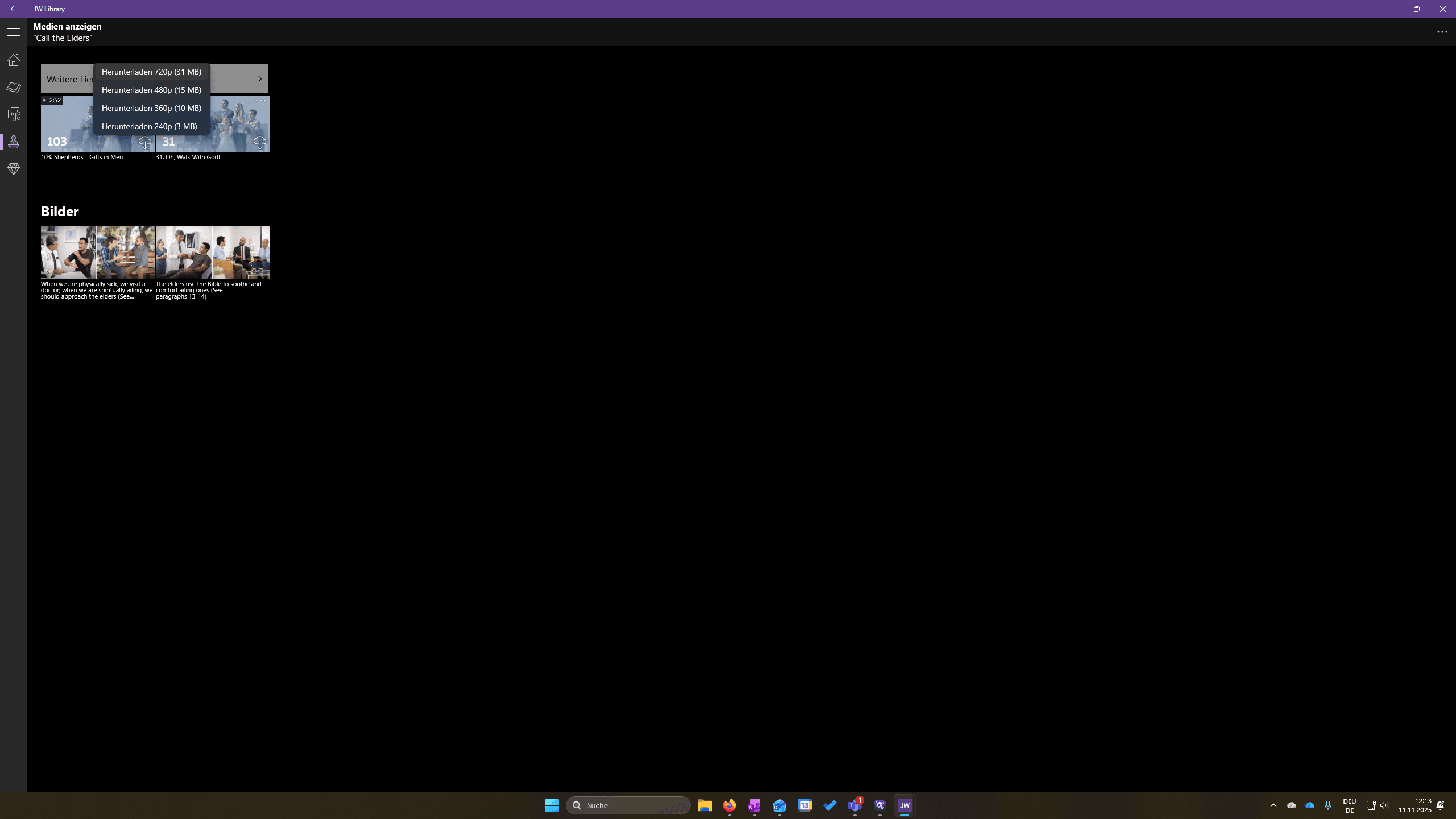
Click on the cloud icon, then select the desired quality.
We always choose the highest quality.
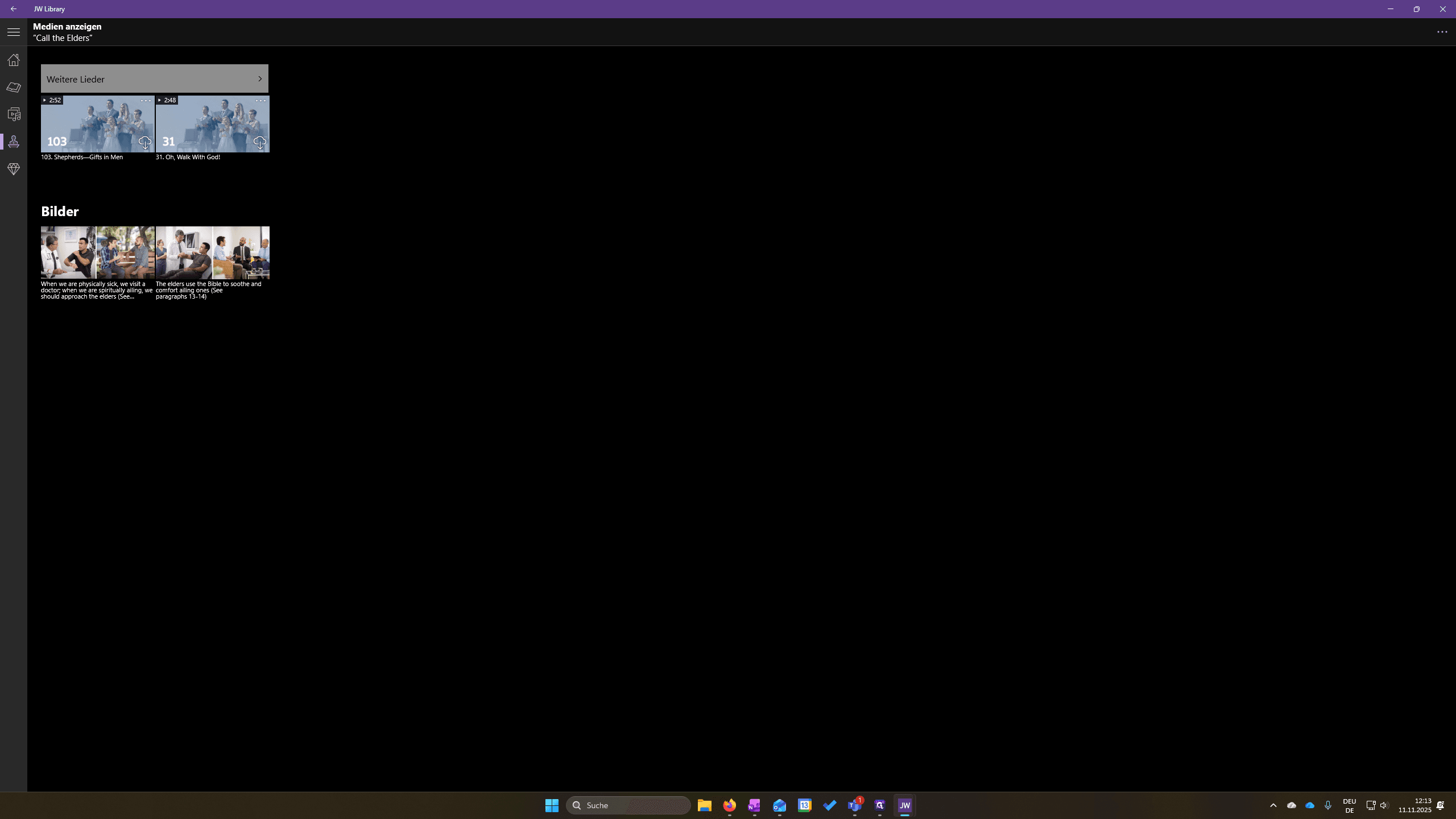
At the top, you should see a button labeled "Weitere Lieder" or "More Songs." If you click on it, you will see all the songs and can choose one for the speaker.
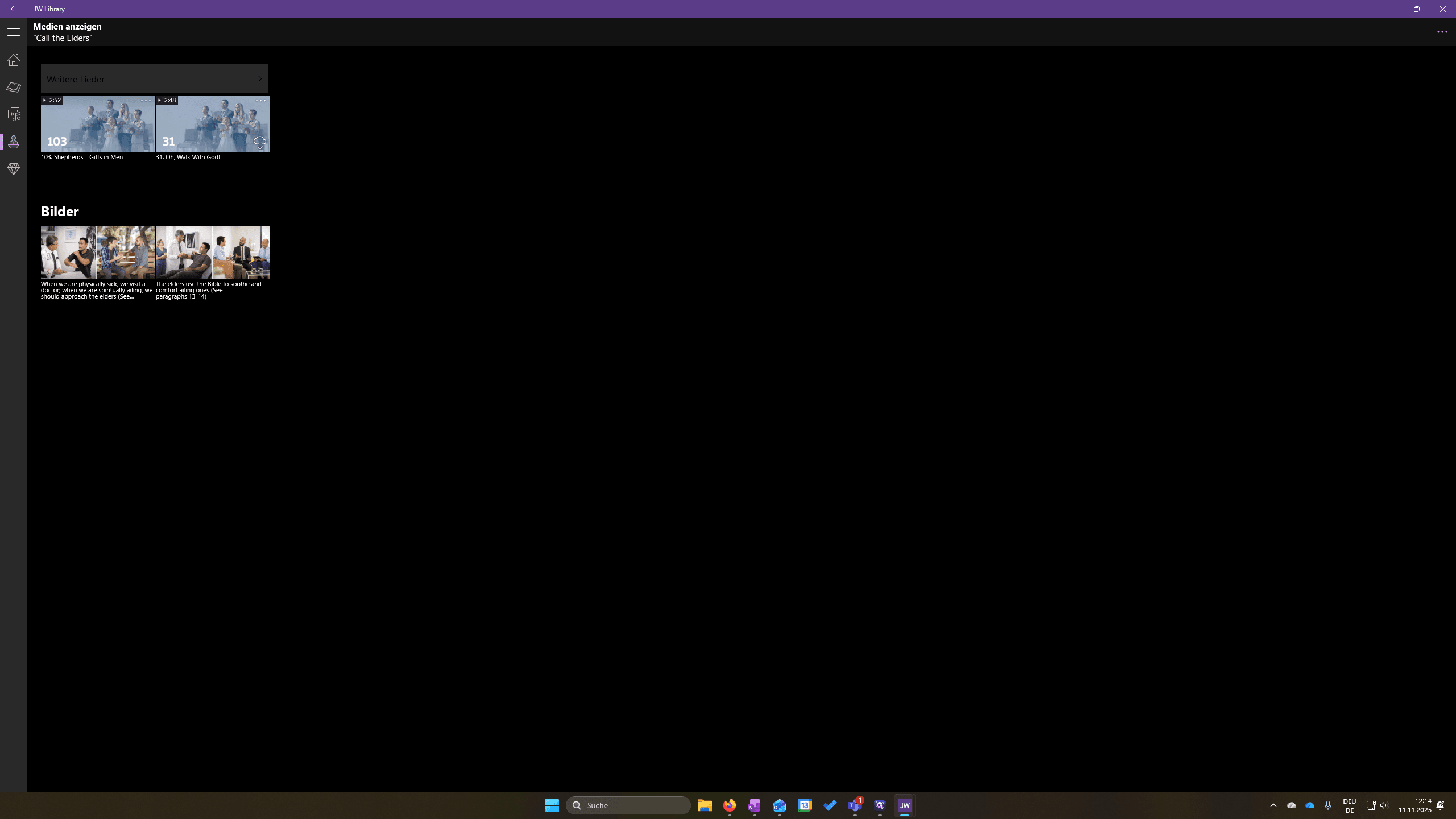
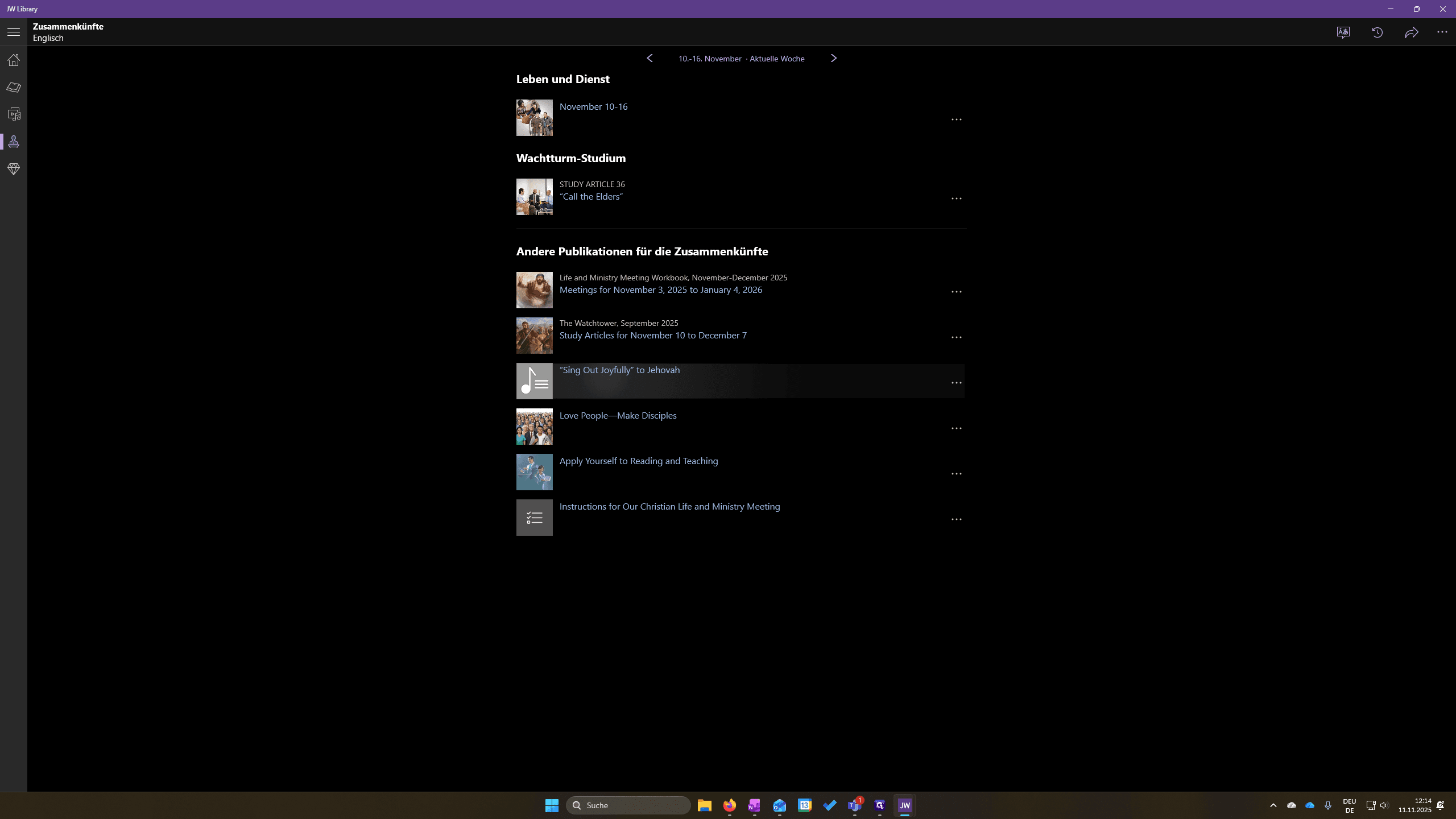
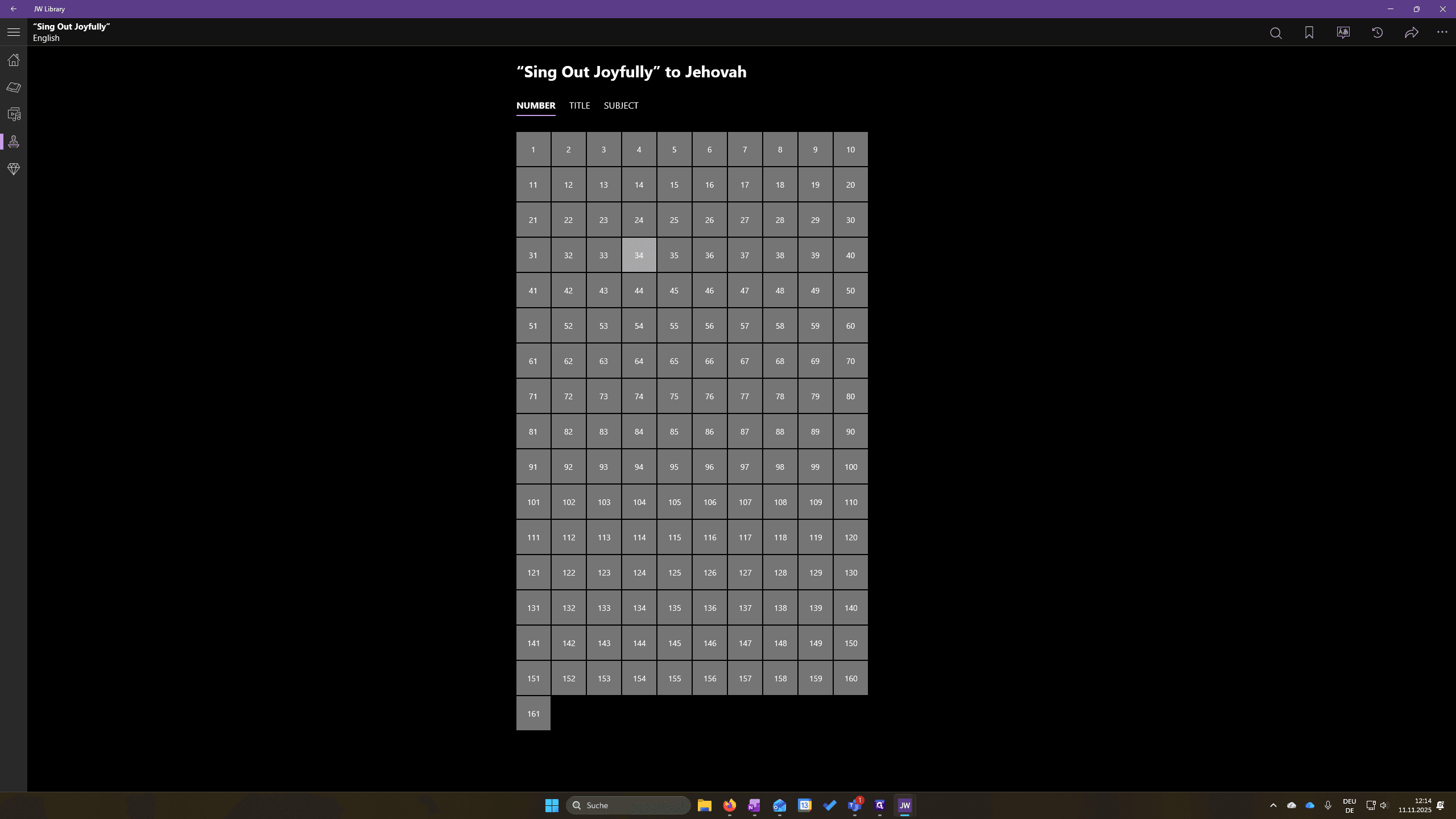
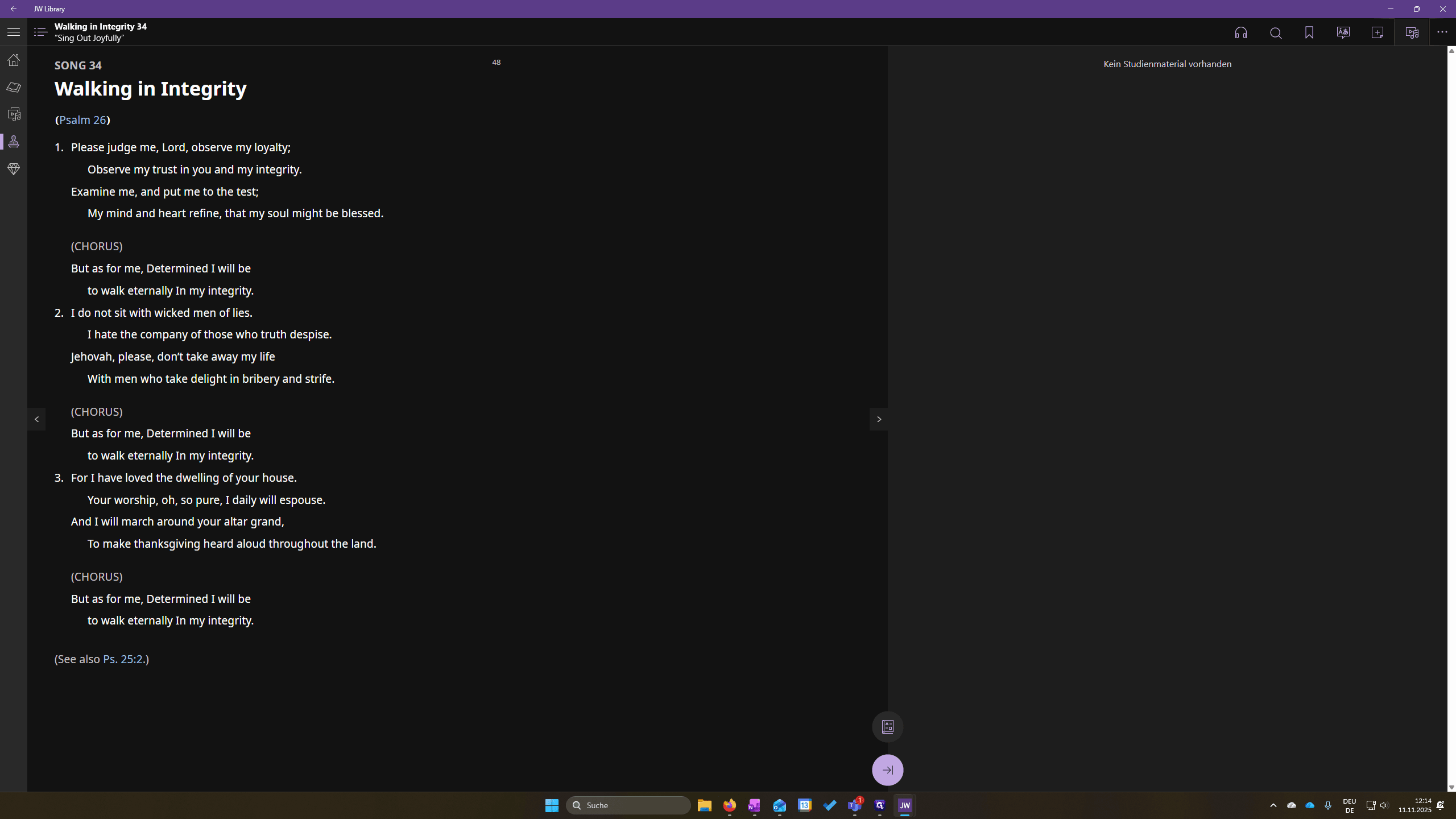
If the song button isn't working, you can select "Sing Out Joyfully" here, choose your song, click the media icon, and play the song.
If you have already changed the meeting language but the year scripture on the second screen is still incorrect, go to Home and open Settings. Check if it says "Sprache Jahrstext" for the scripture language. It should match the meeting language, shown as "Wie zu Zusammenkünften."
This is correct. We are good
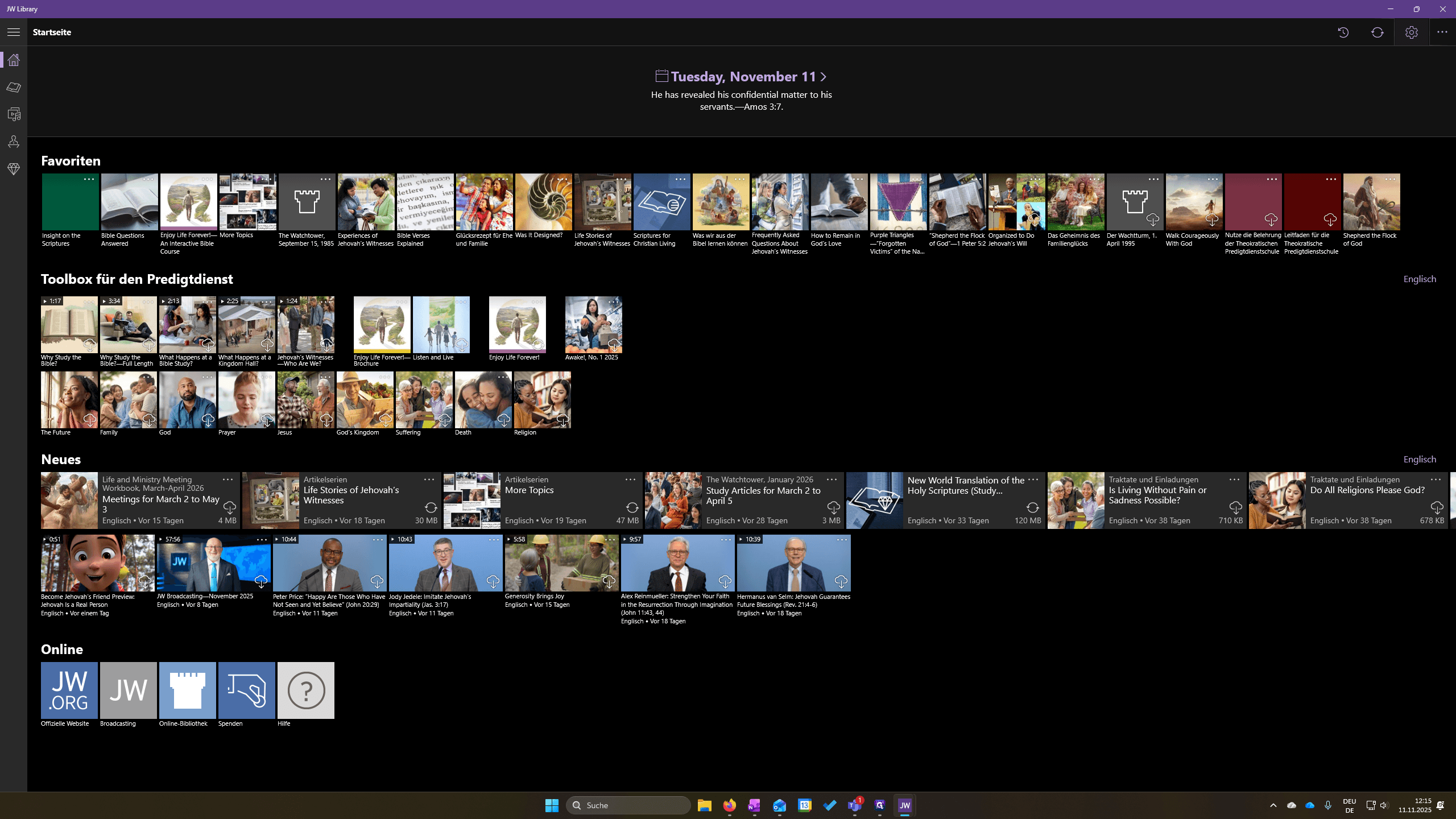
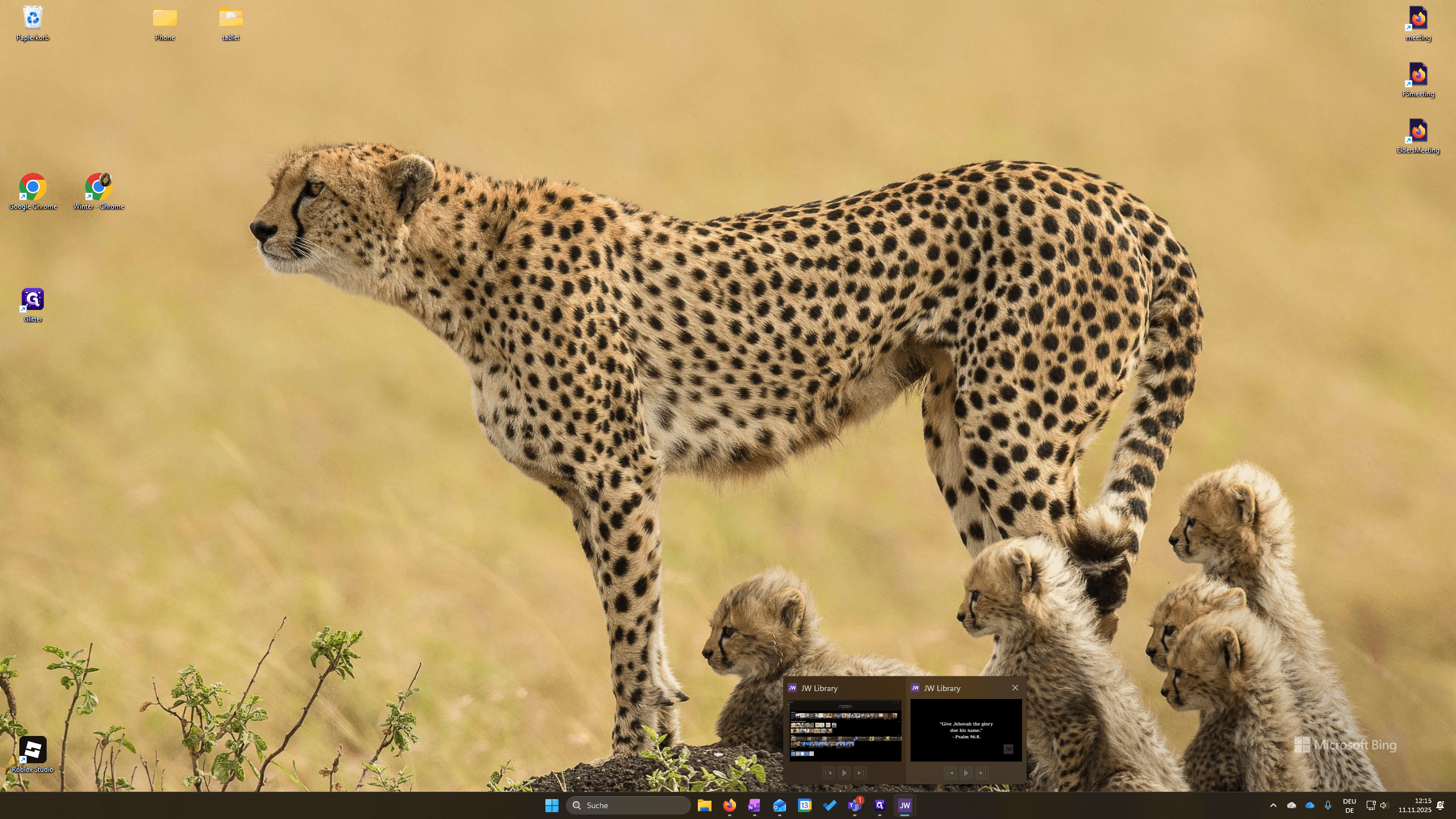
Sometimes Zoom has glitches, and the second screen of the JW Library app does not appear.
Go to the taskbar and look for your two windows. You may need to click the second window.
It should reappear if it was unavailable for any reason.
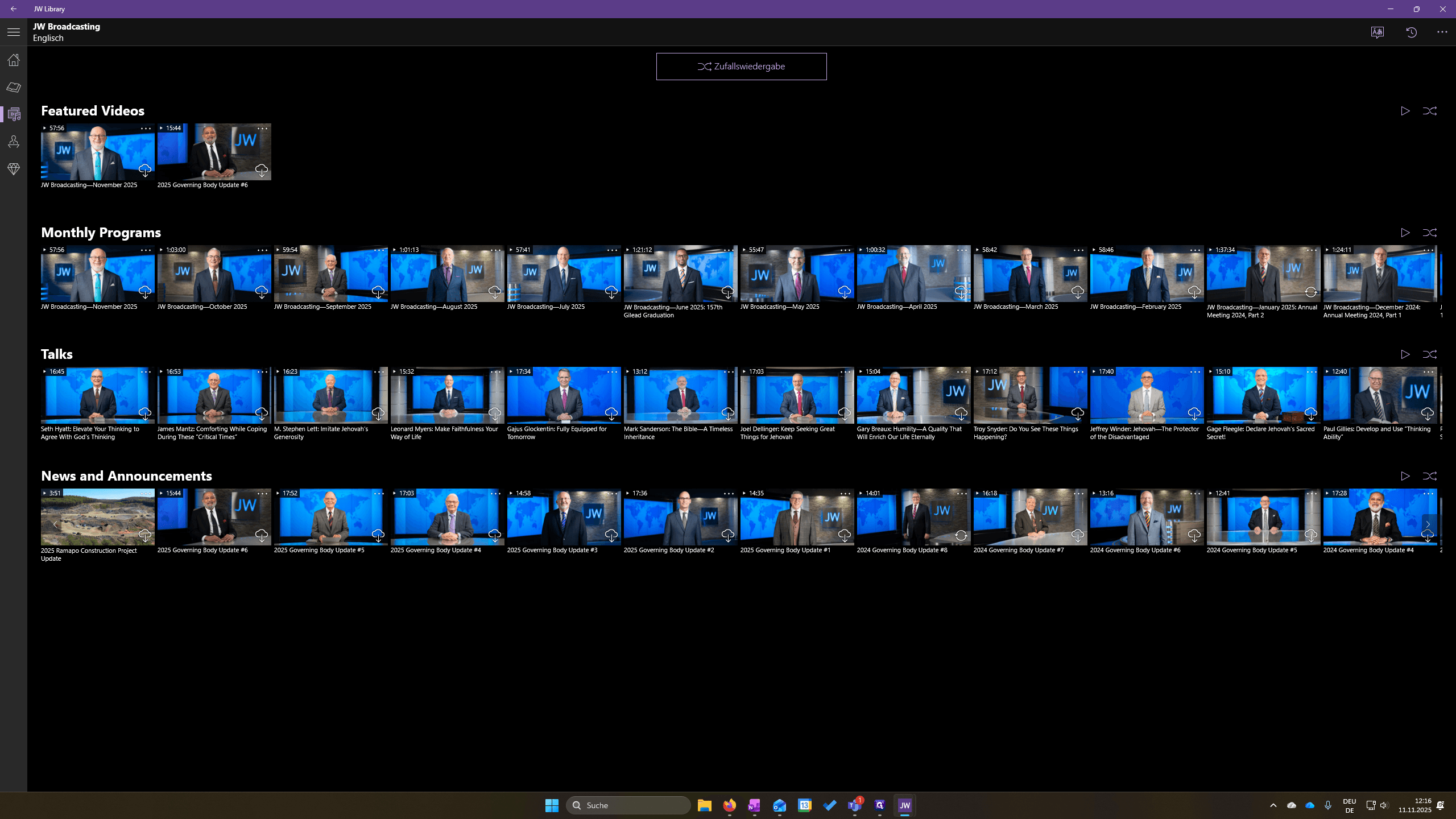
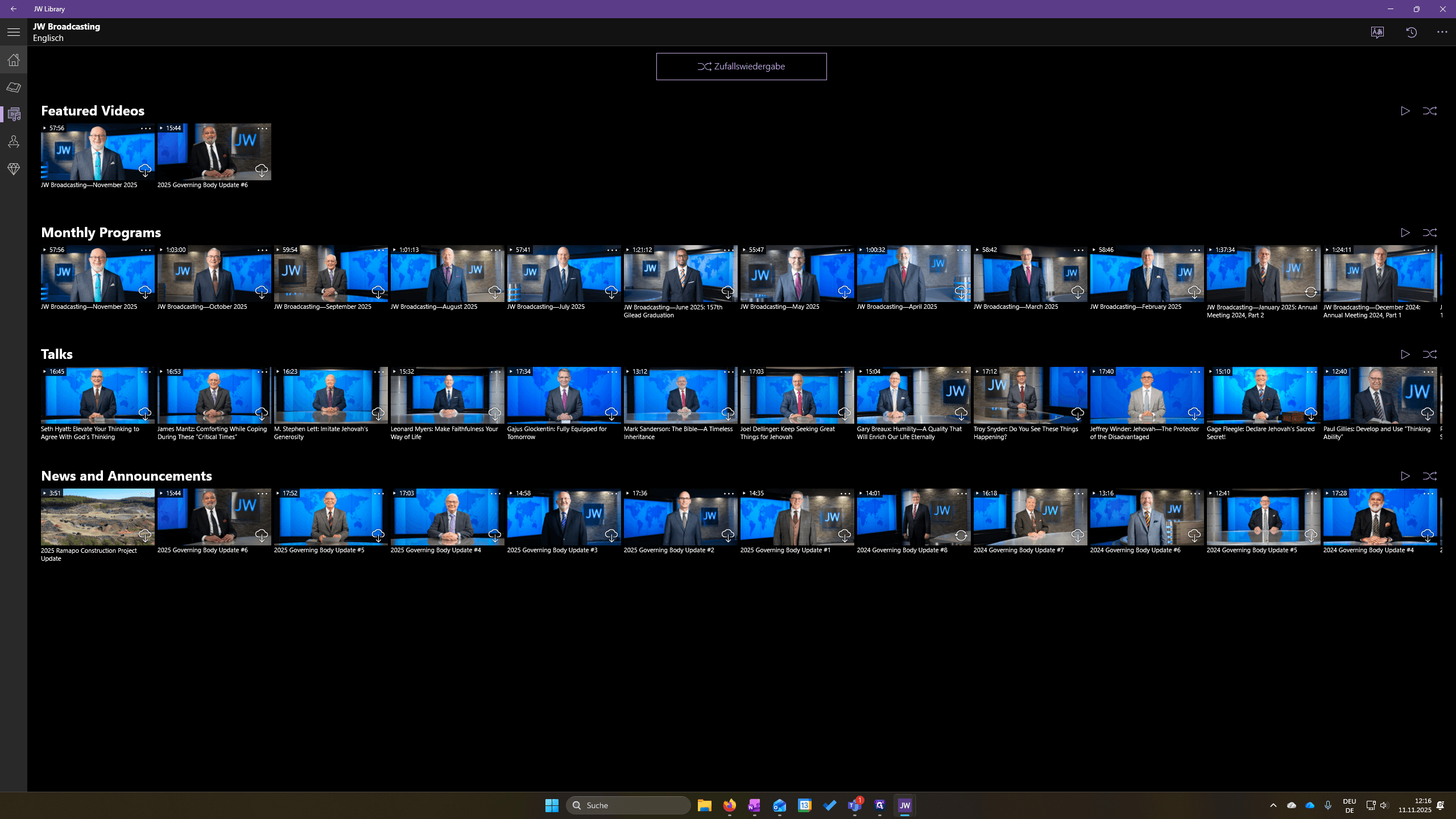
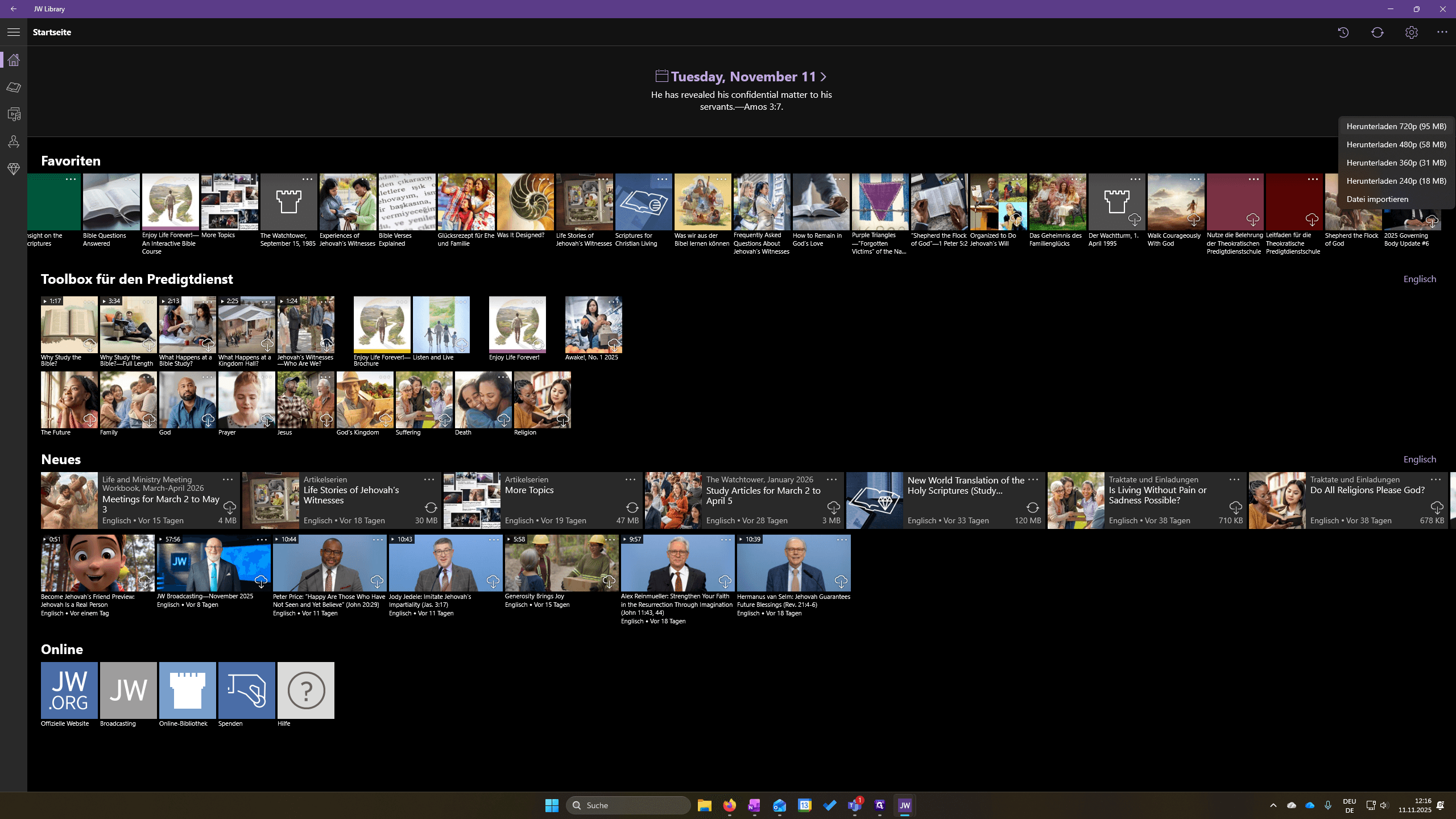
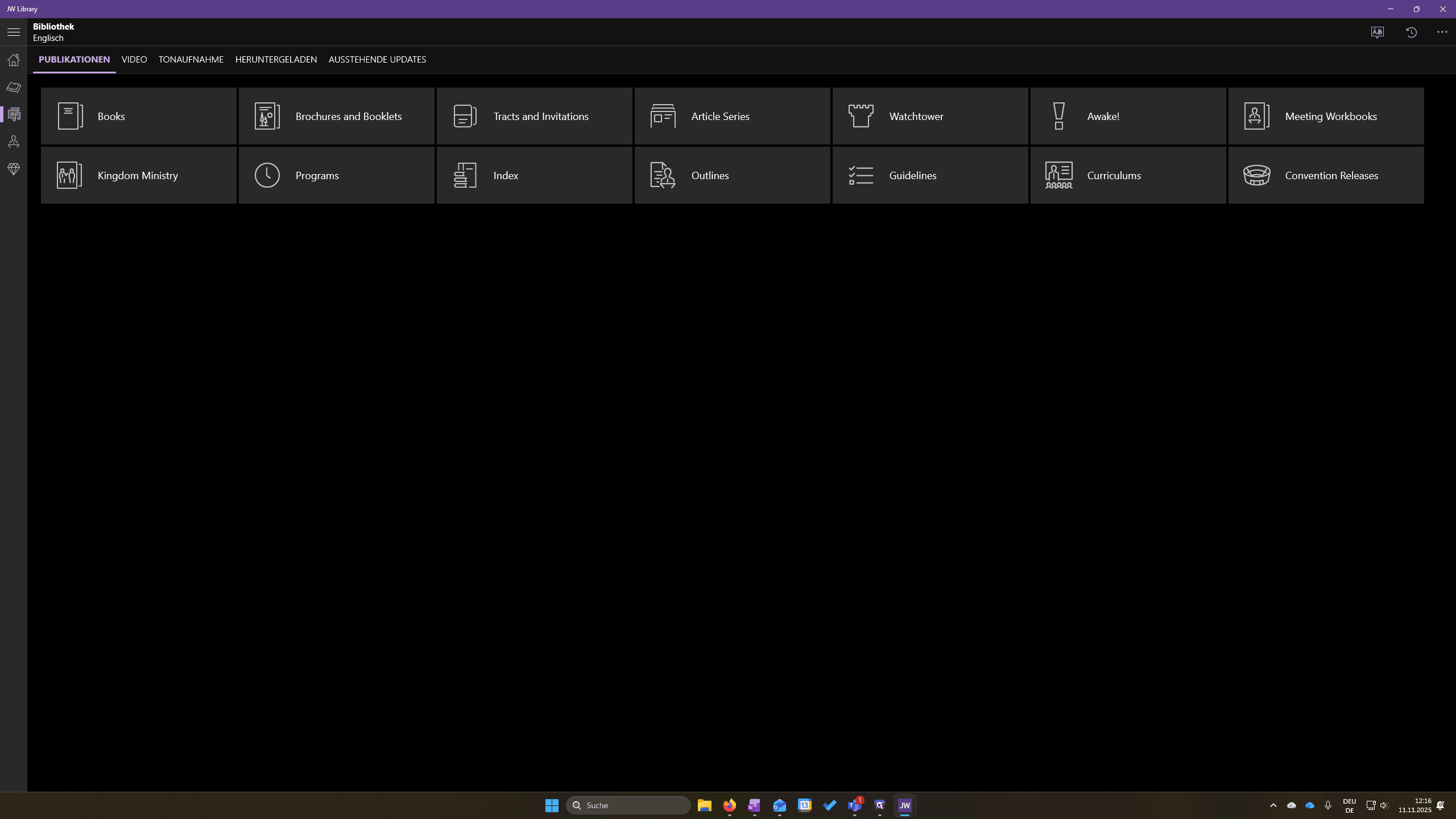
To download content for local needs, such as the Governing Body Update, click the media icon. Then select "Video" and go to JW Broadcasting.
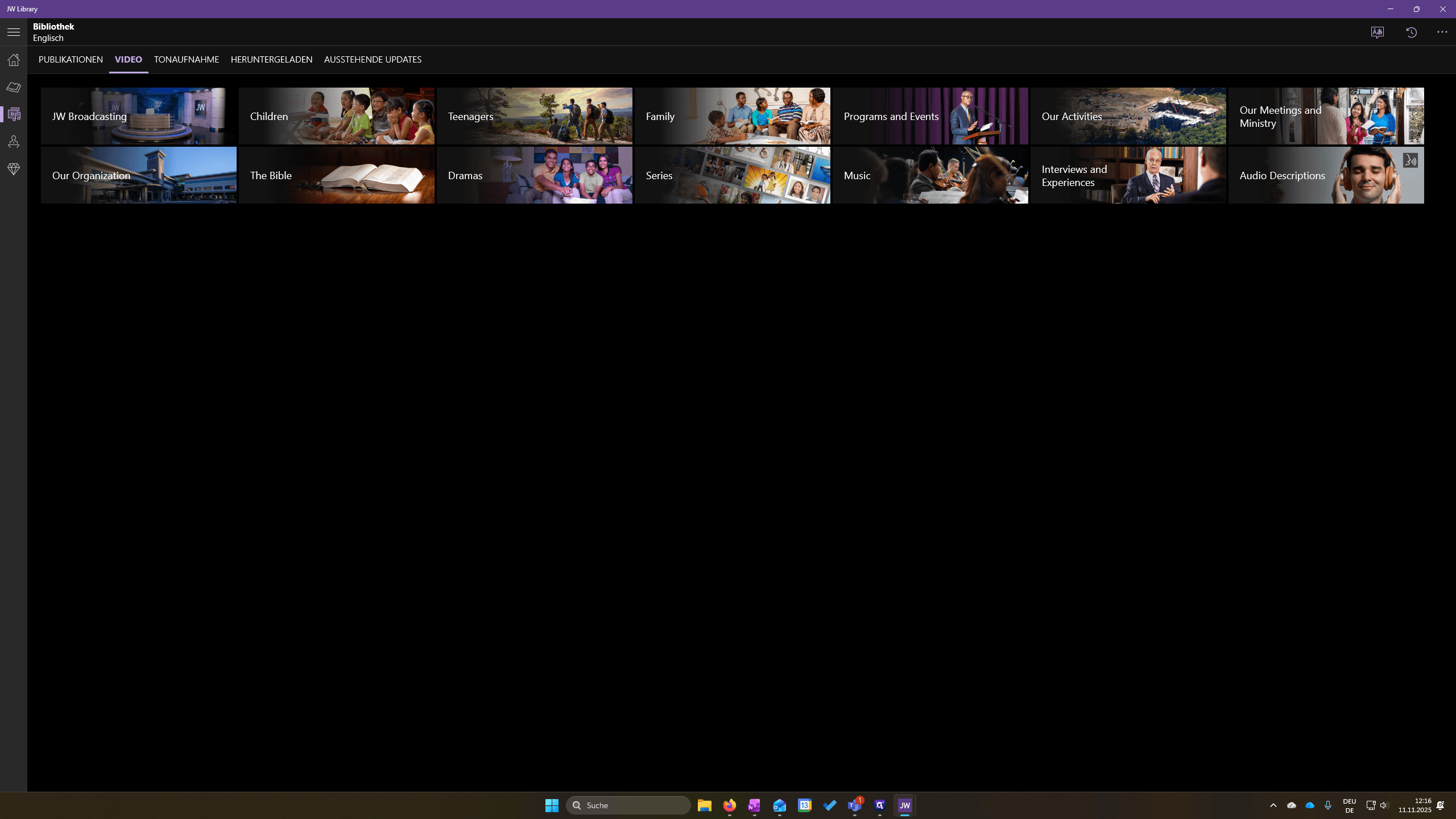
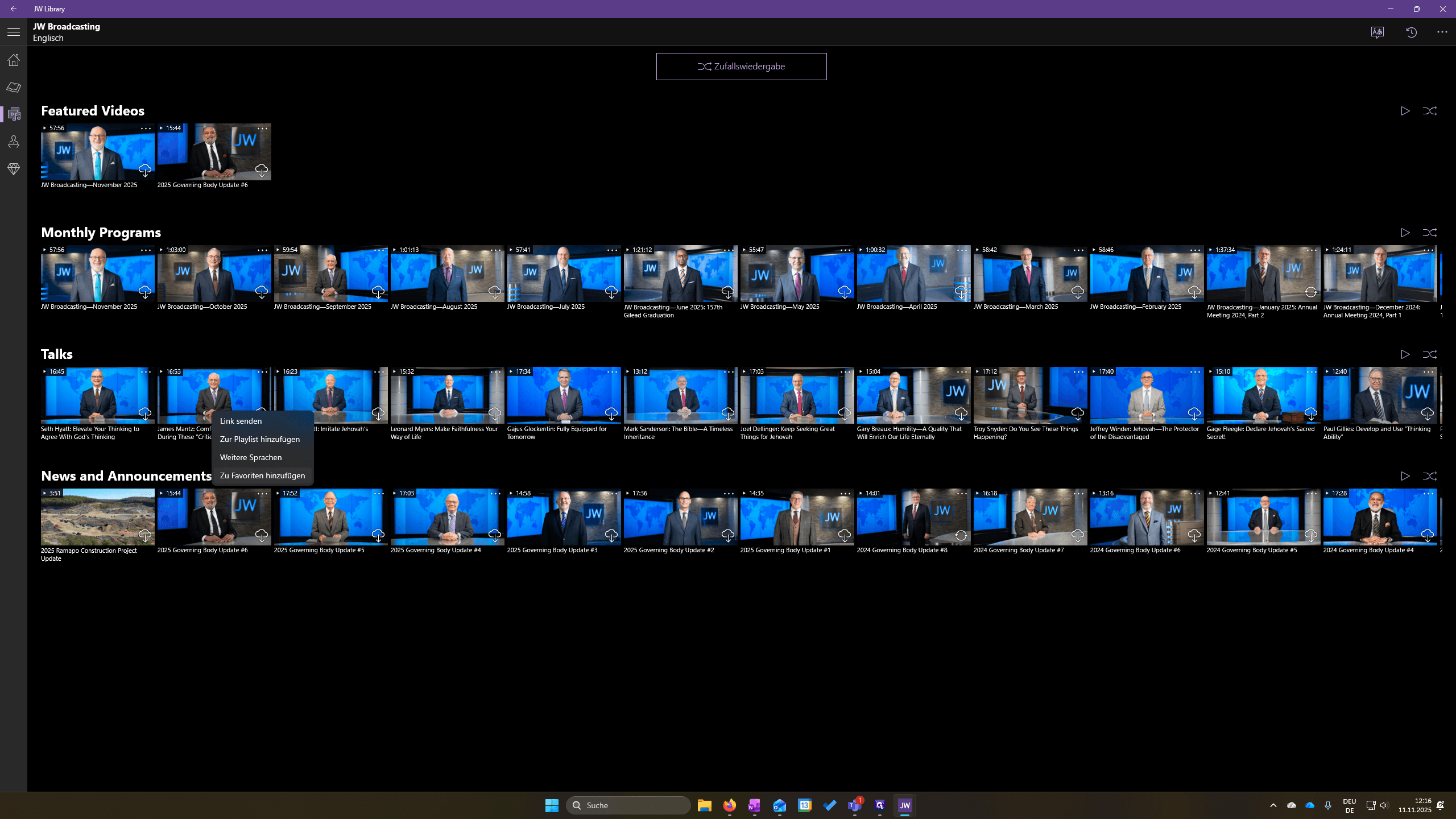
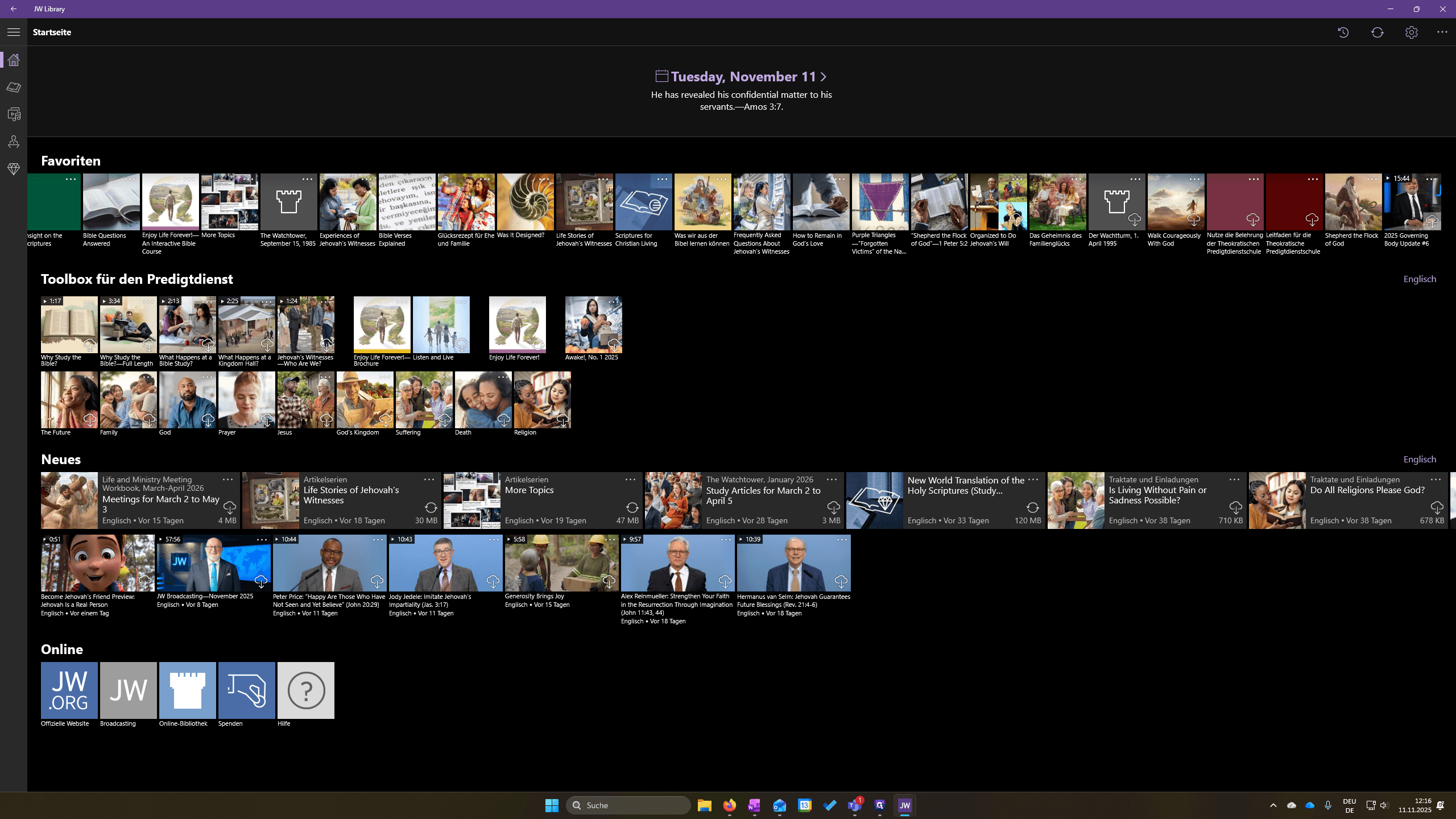
Next, find the Governing Body Update. For example, number six. To do this easily, click the three dots and select "Add to Favorites" or "Zu Favoriten hinzufügen." You can then find it on the home screen, where you can play or download it for the meeting.