How to Set Up Membership Guest Passes on Reservety
Learn how to configure membership tiers, create virtual subscription products, and assign guest pass rules by user group in your Reservety dashboard.
By Reservety
Welcome to Reservety tutorials! In this guide, you will learn how to set up memberships and assign guest pass permissions to specific membership tiers. We will create two example membership types: Silver Members and Gold Members.
First, log in to your admin dashboard.
1
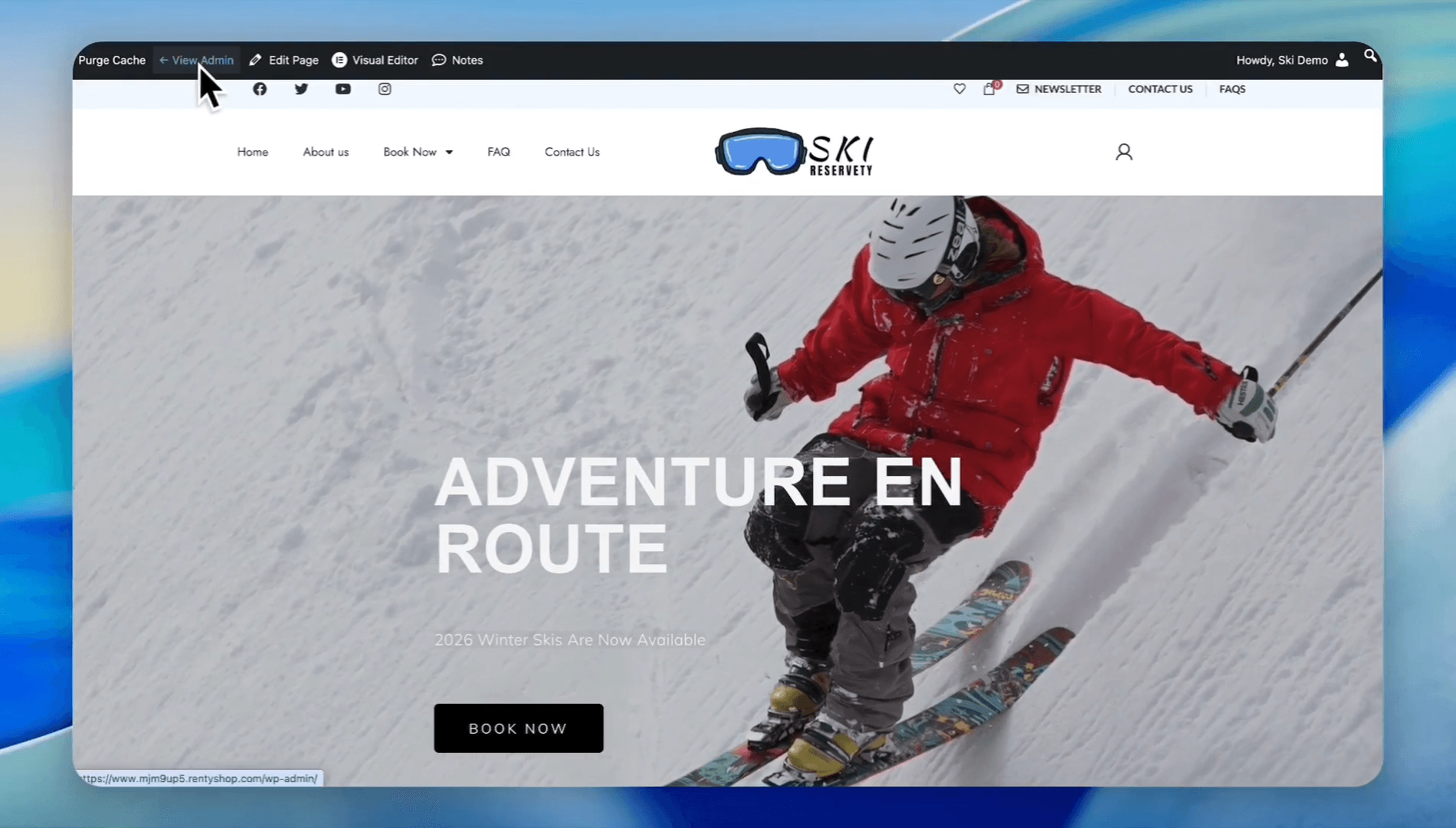
Click View Admin
Create User Groups
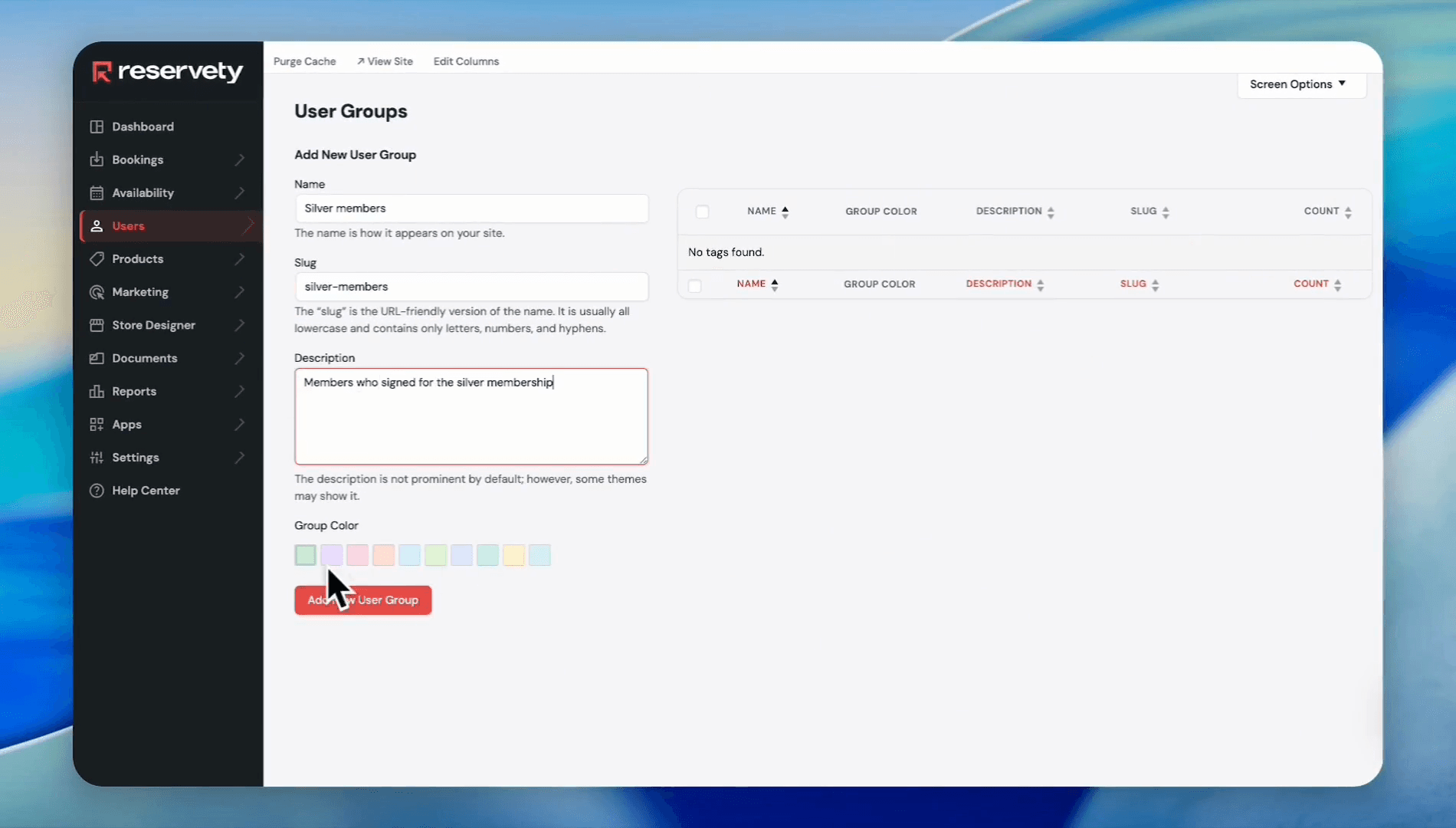
Start by creating user groups to assign to your upcoming membership types.
2
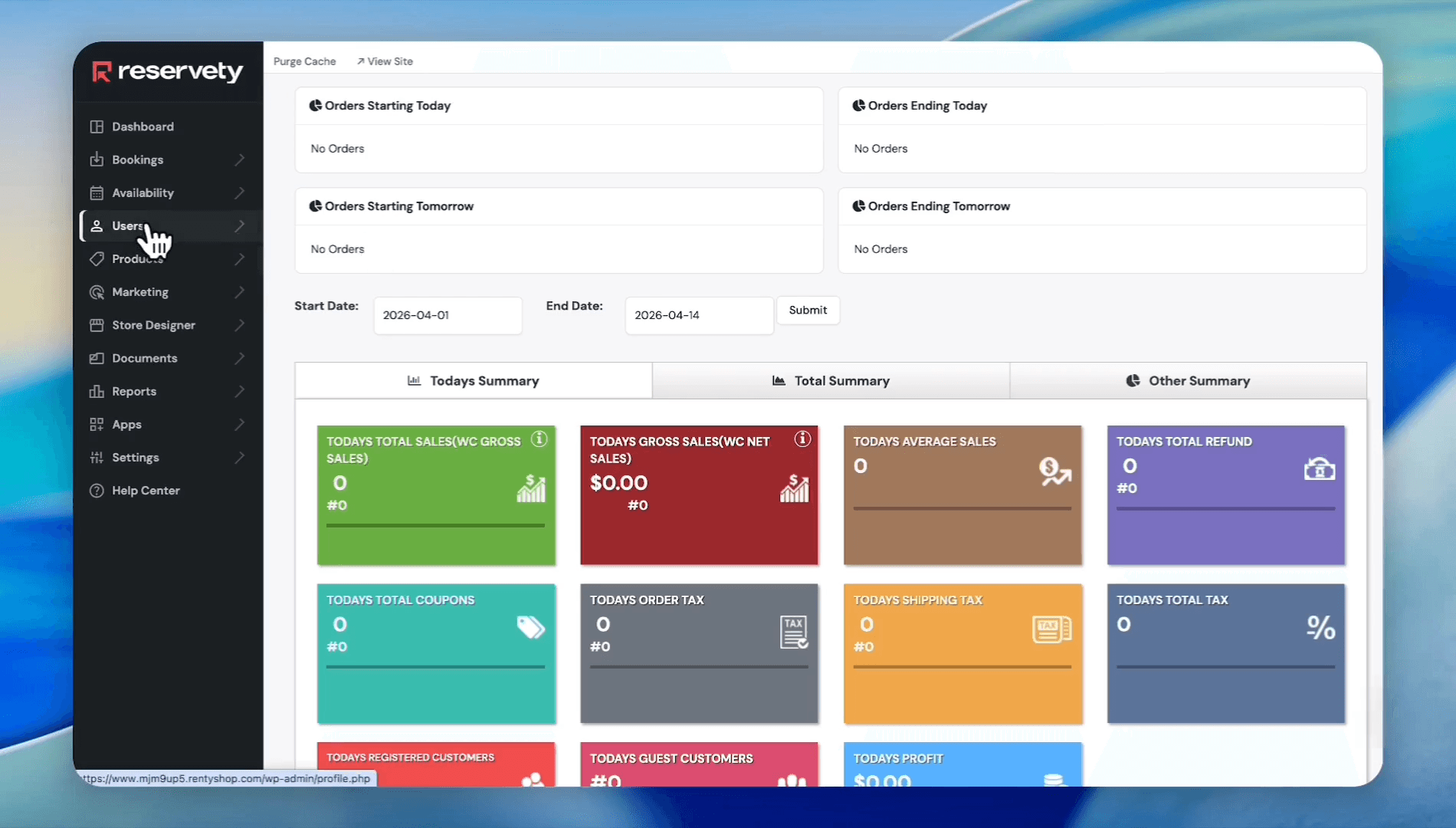
Click Users
3
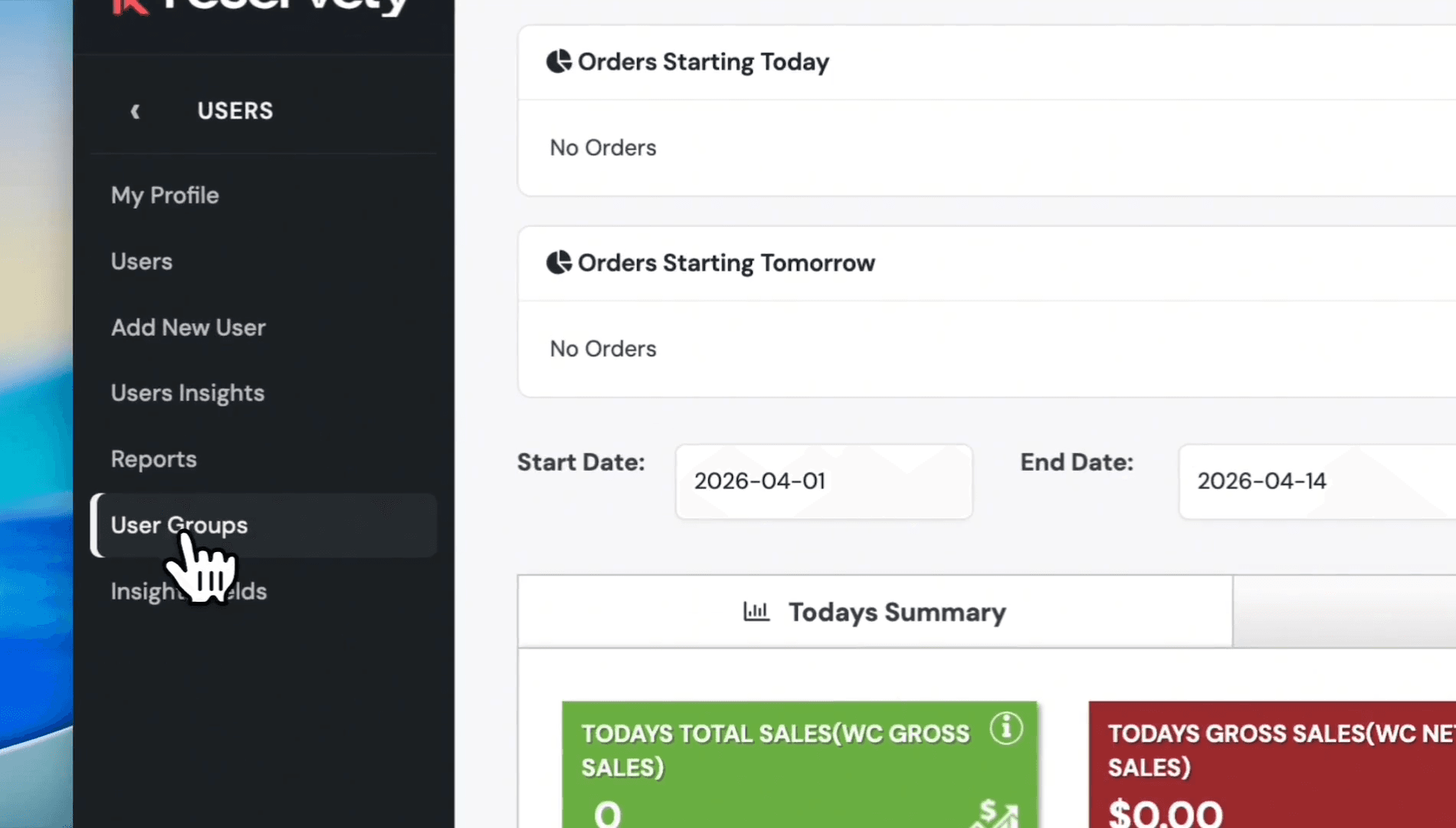
Click User Groups
4
Enter a group name (e.g., Silver Members), a slug, and a brief description. Select a color for the user group, then click Add New User Group
Enable the Membership Feature
Before adding membership products, activate the membership feature in your settings.
5
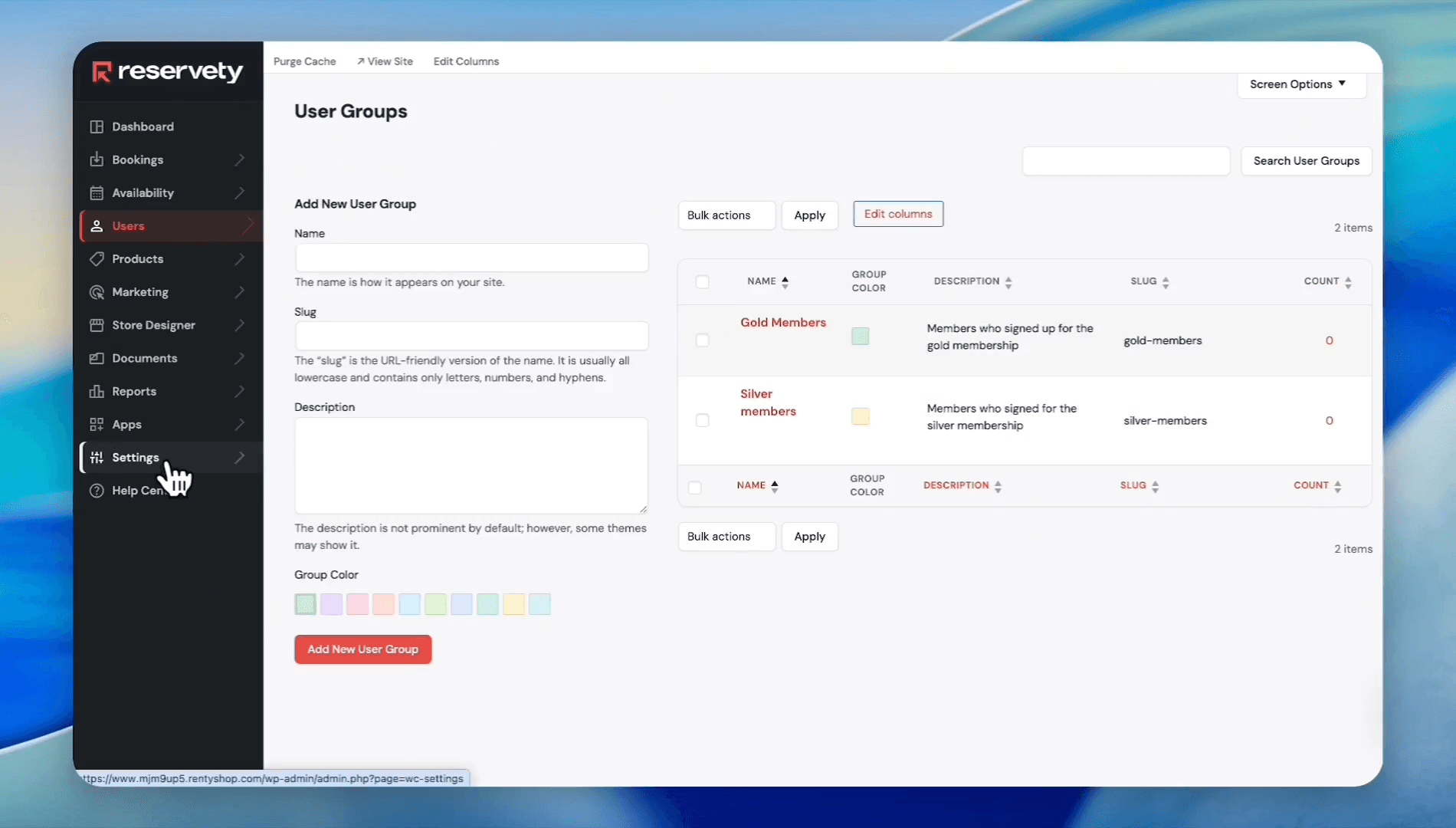
Click Settings
6
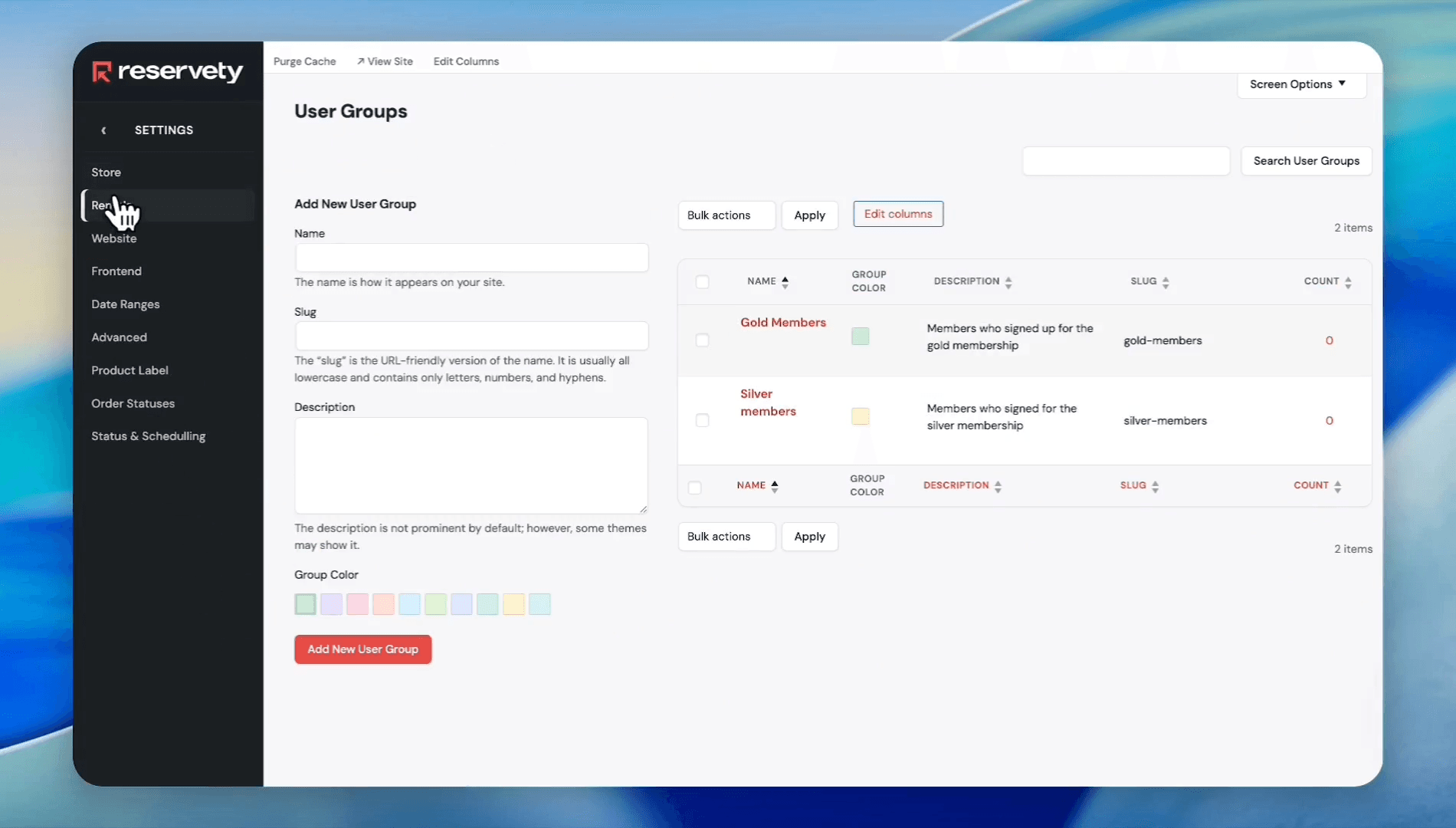
Click Rentals
7
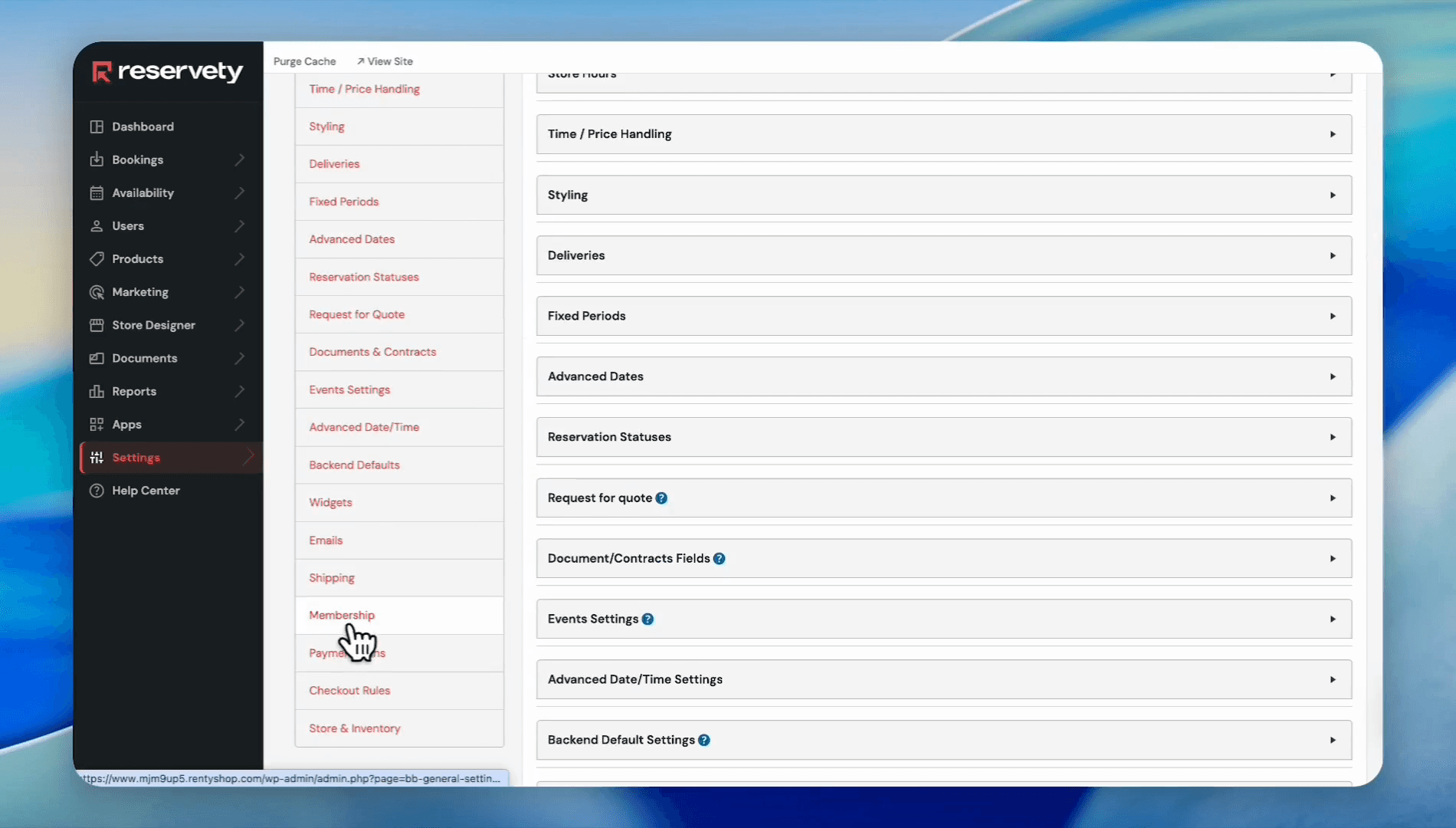
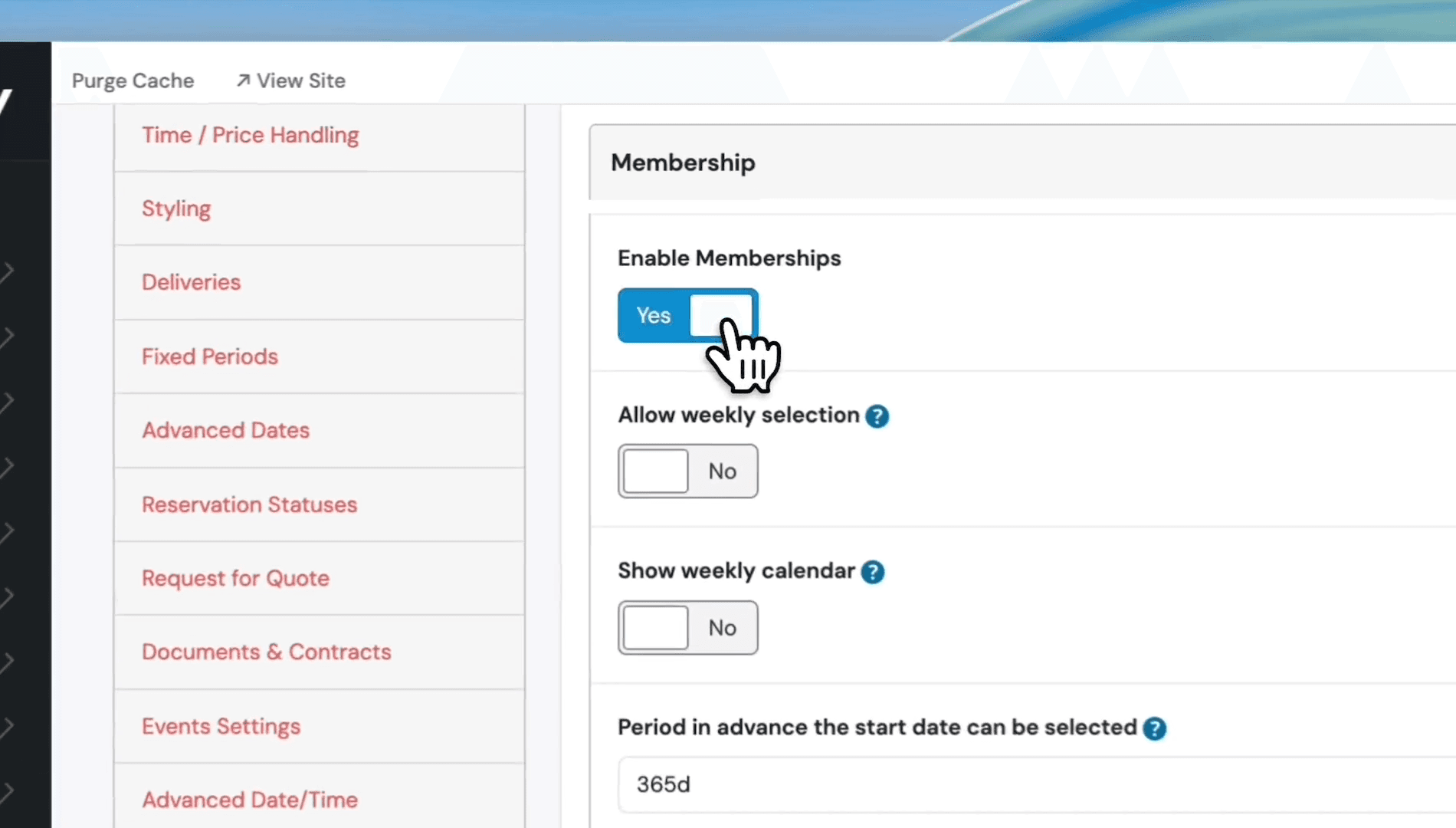
Scroll down and click Membership
8
Switch the Enable Memberships toggle to Yes
9
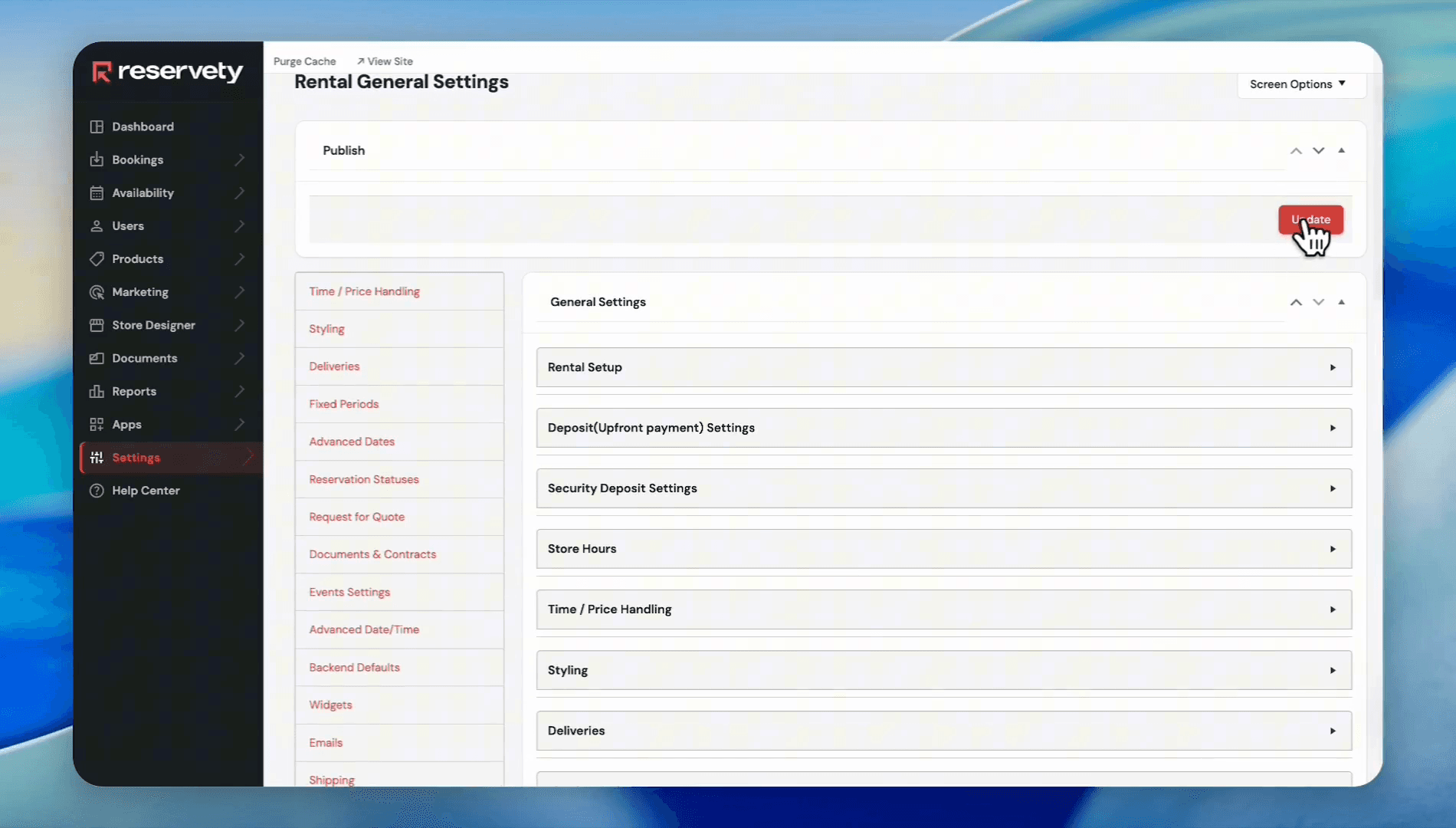
Scroll up and click Update
Create Membership Products
Now, add the actual memberships as virtual subscription products.
10
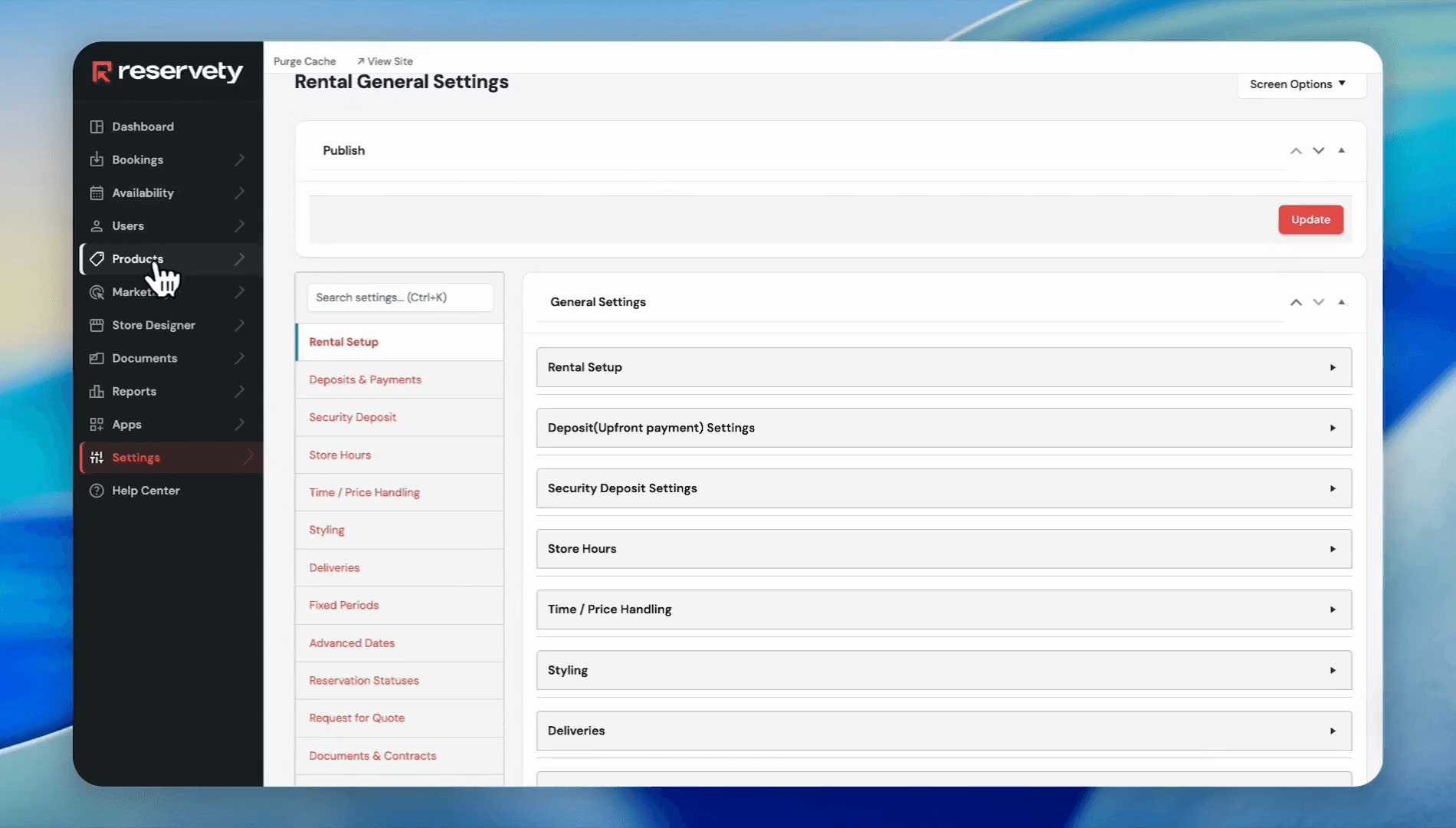
Click Products
11
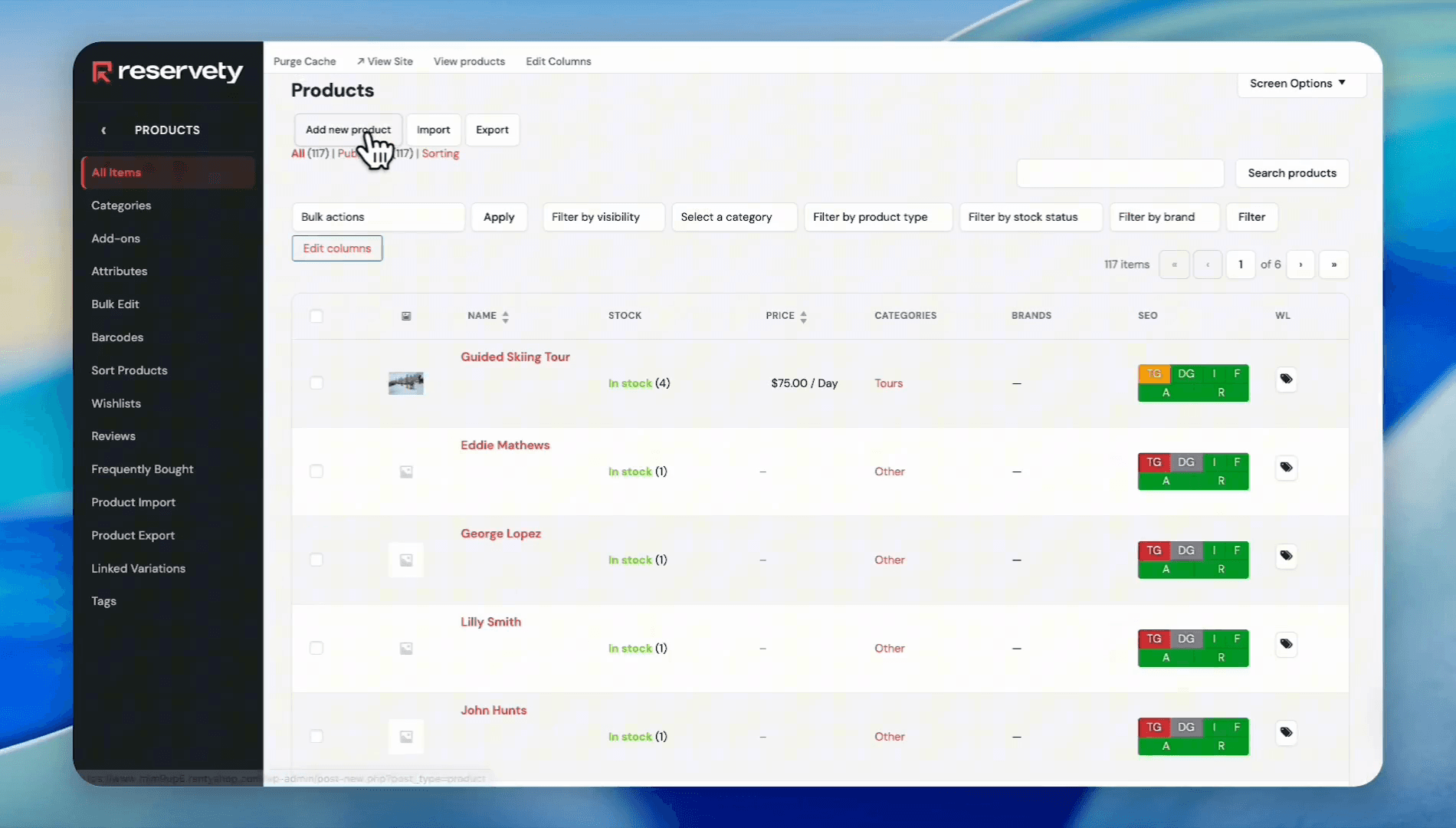
Click Add New Product
12
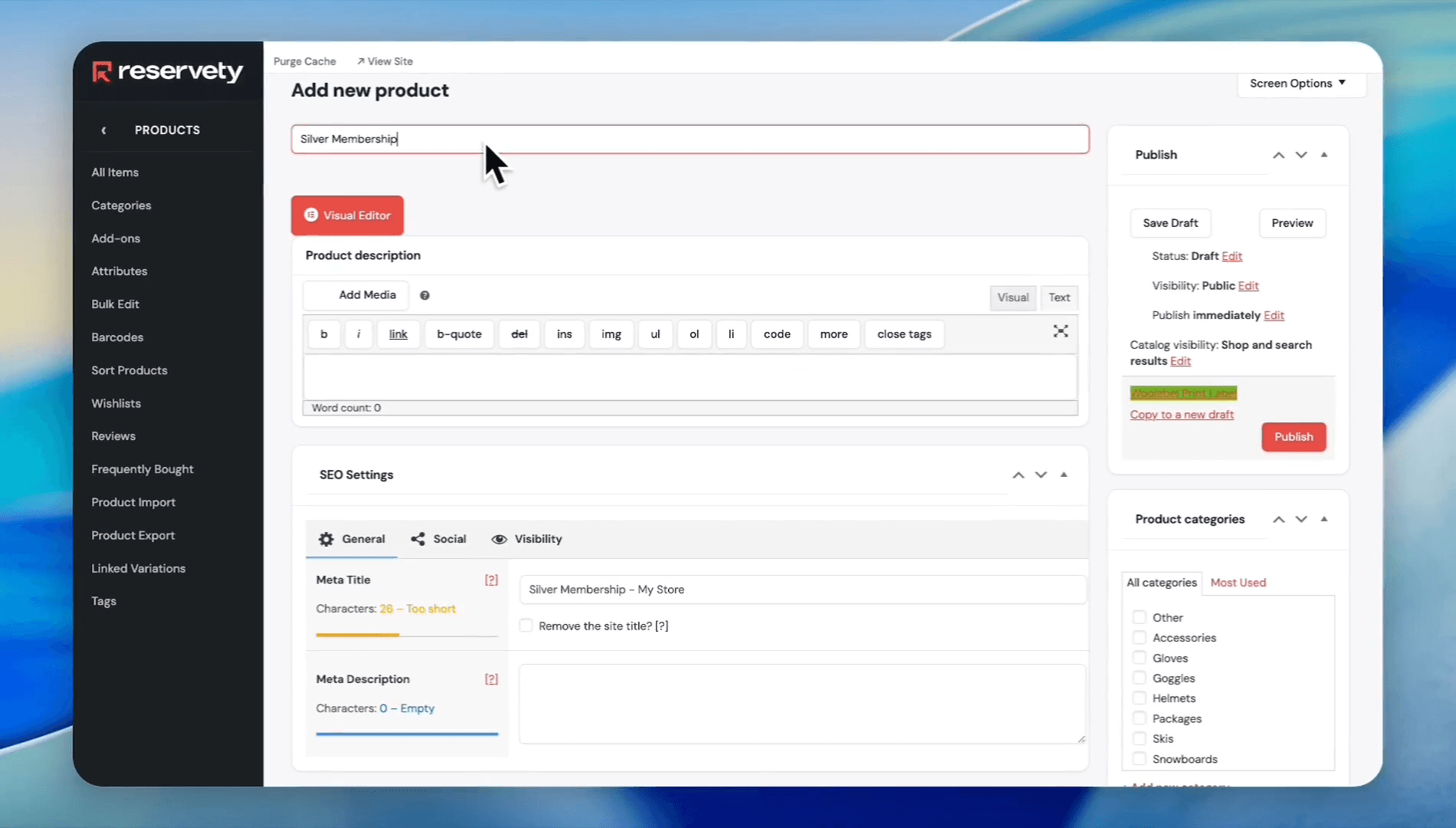
Enter Silver Membership as the product name
13
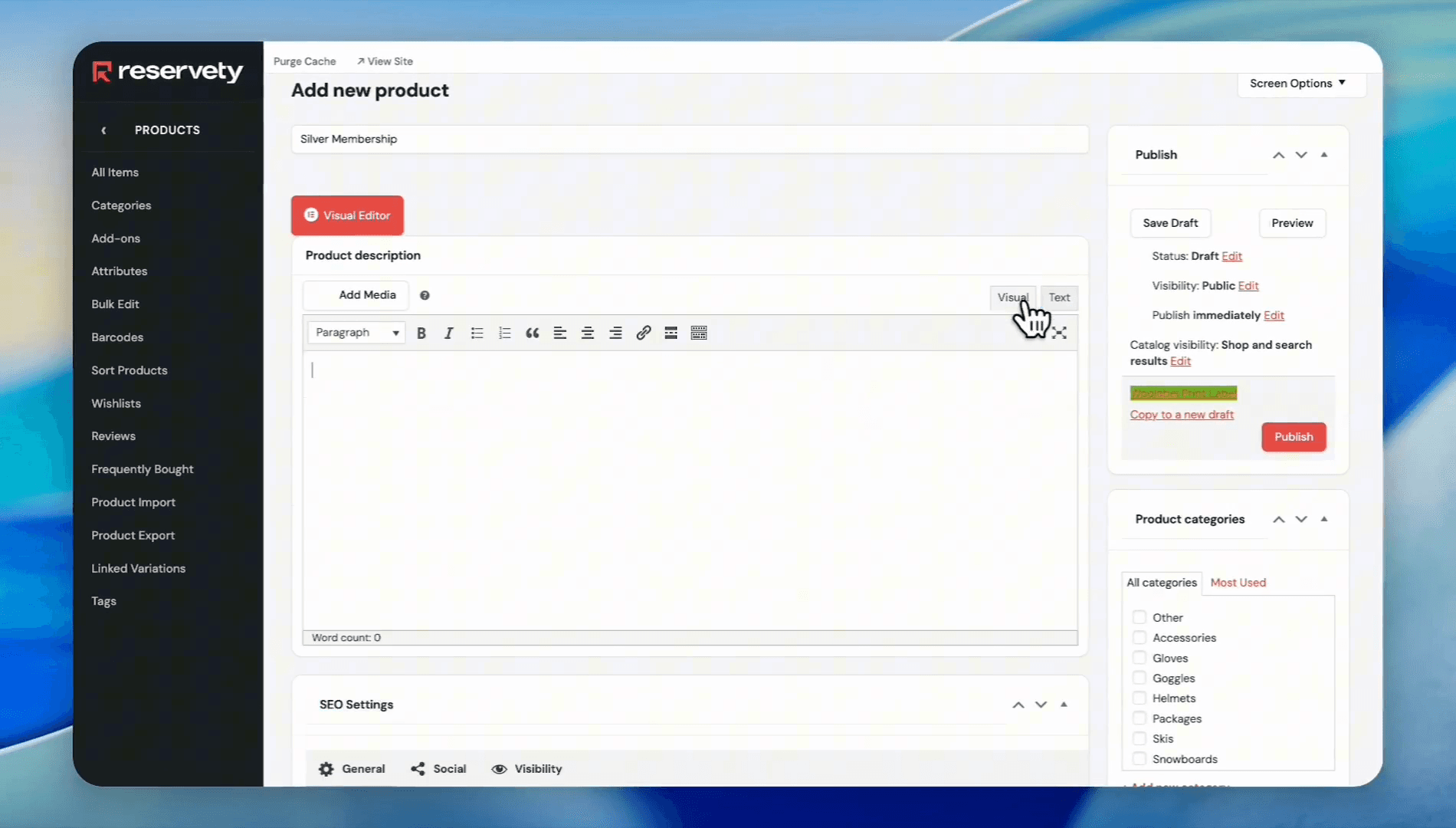
Click the Visual tab to write a description for the membership
14
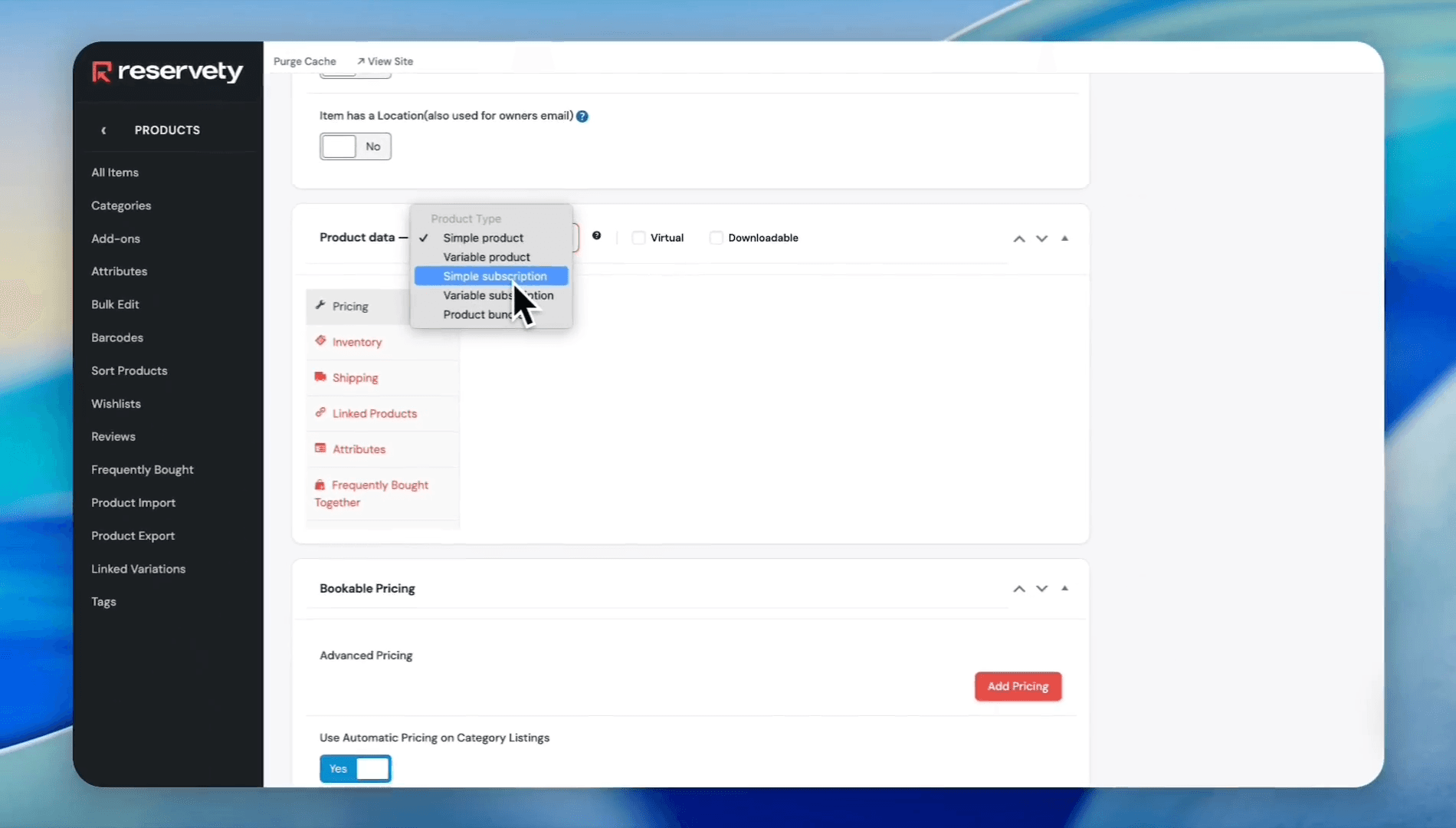
In the Product Data section, select Simple subscription from the dropdown menu
15
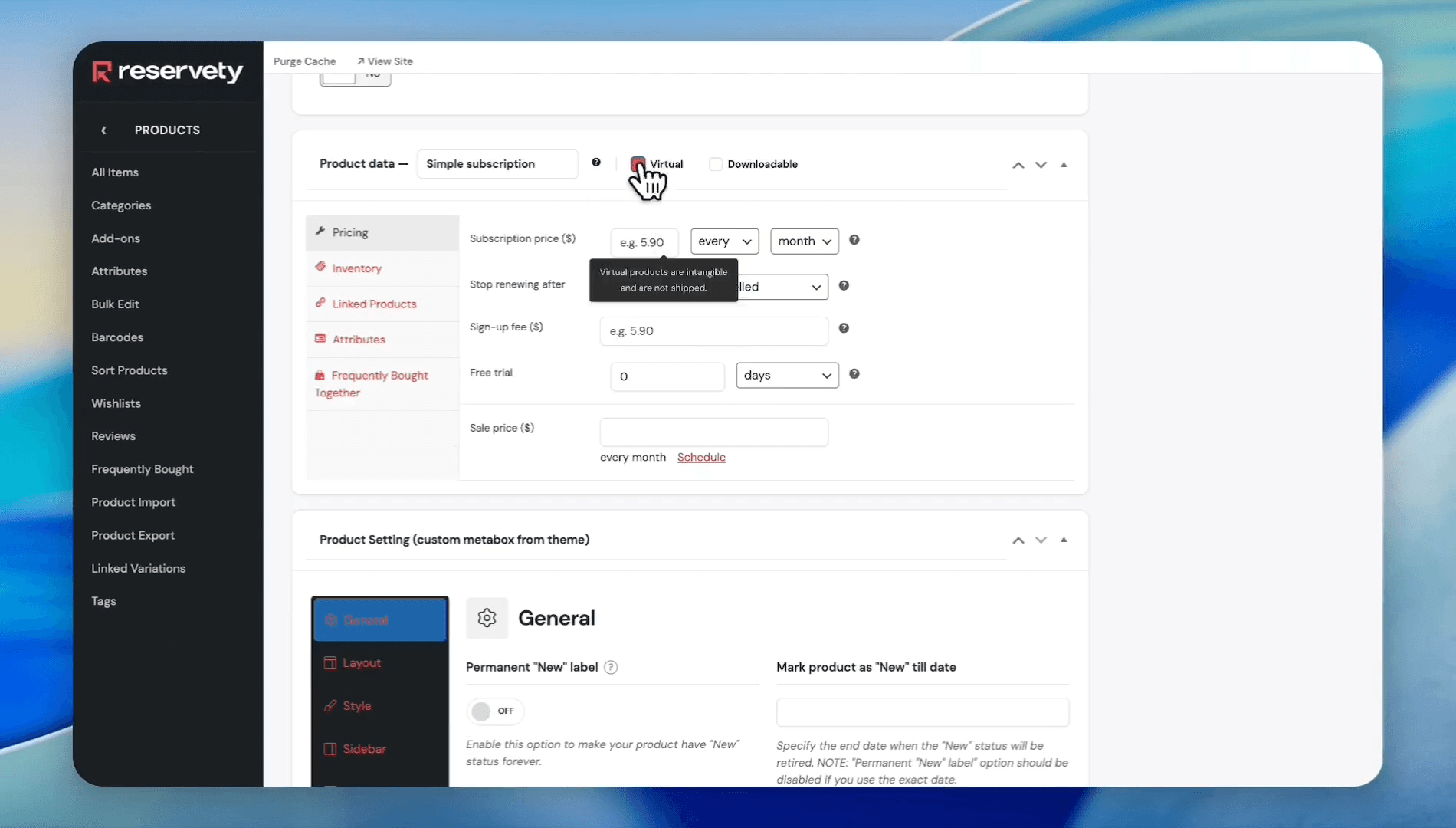
Select the Virtual checkbox since memberships do not require shipping
16
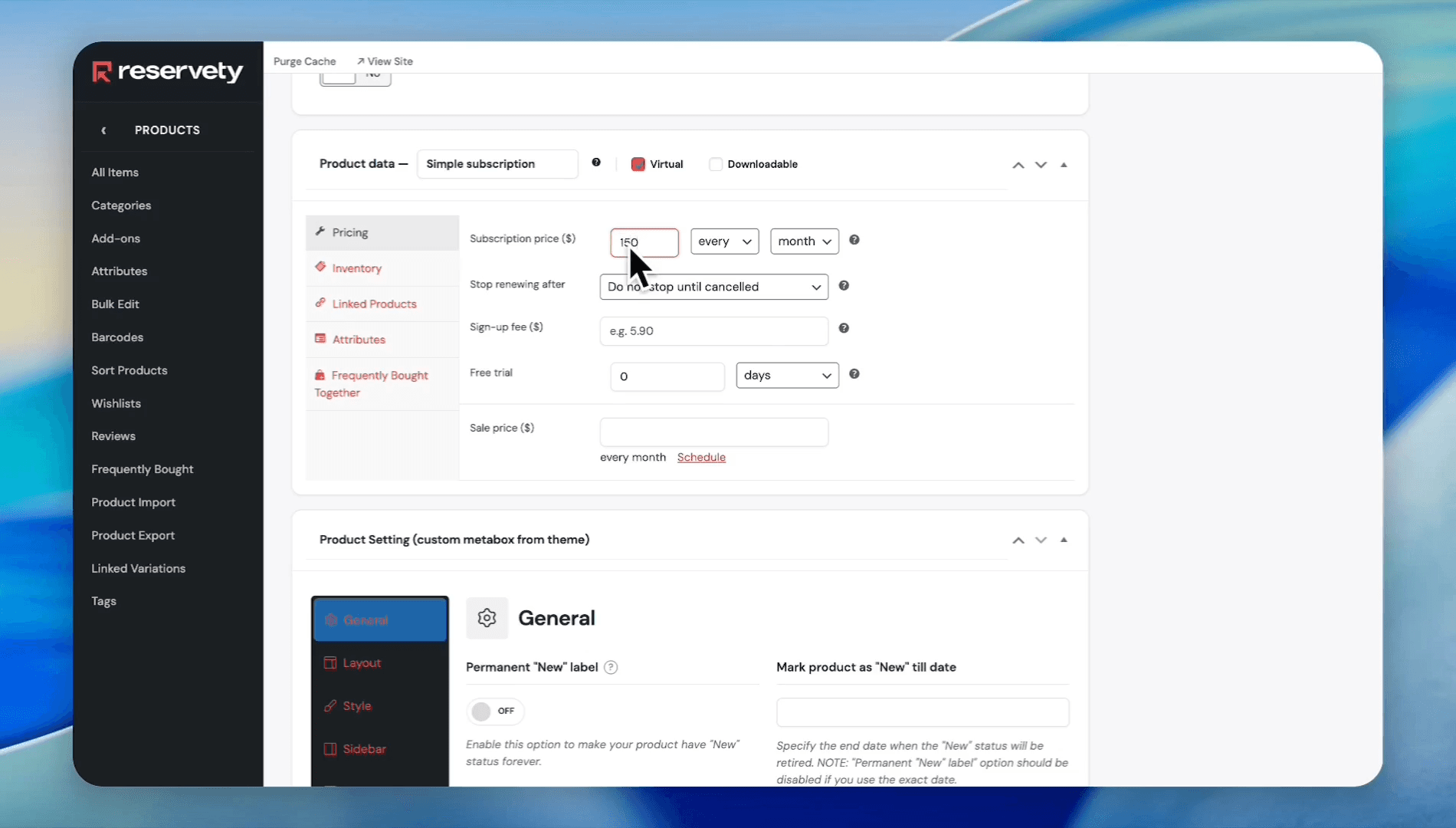
Enter the subscription price (e.g., $150 for silver membership)
17
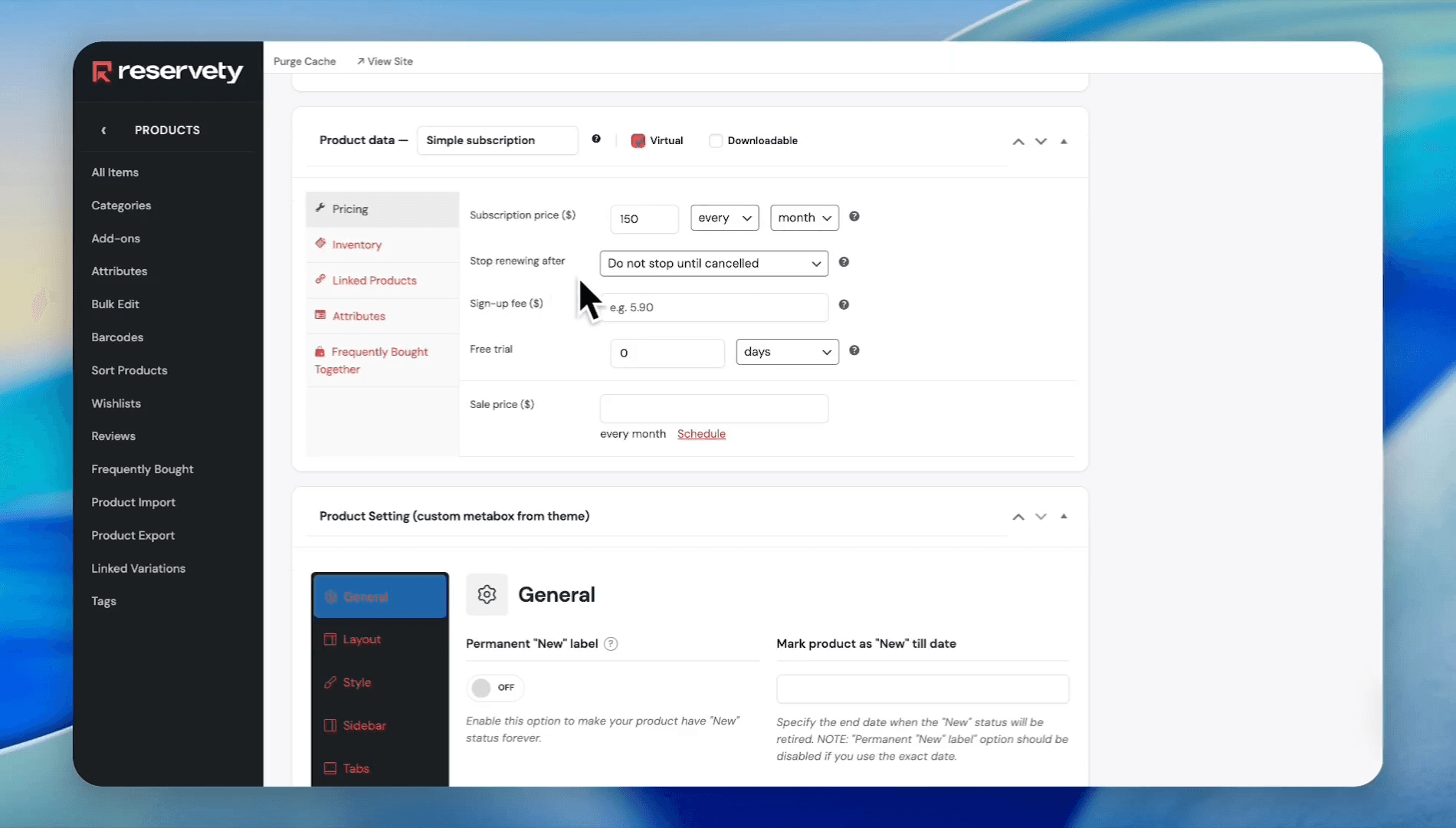
Set the renewal duration, such as Never stop until canceled
18
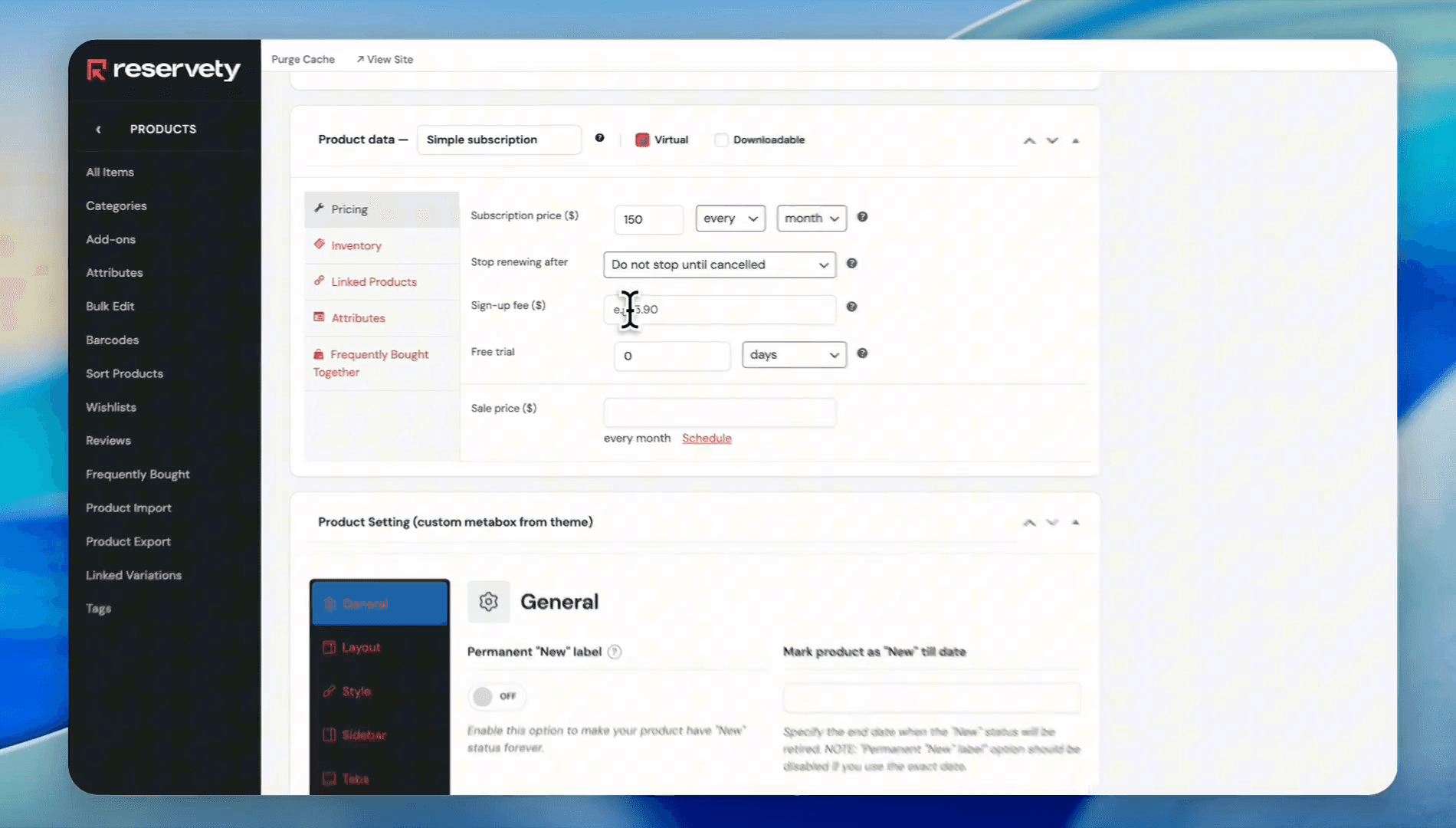
Add a sign-up fee if applicable
19
Enter the duration of a free trial in days, if offering one (e.g., enter 5 for 5 days of free trial)
20
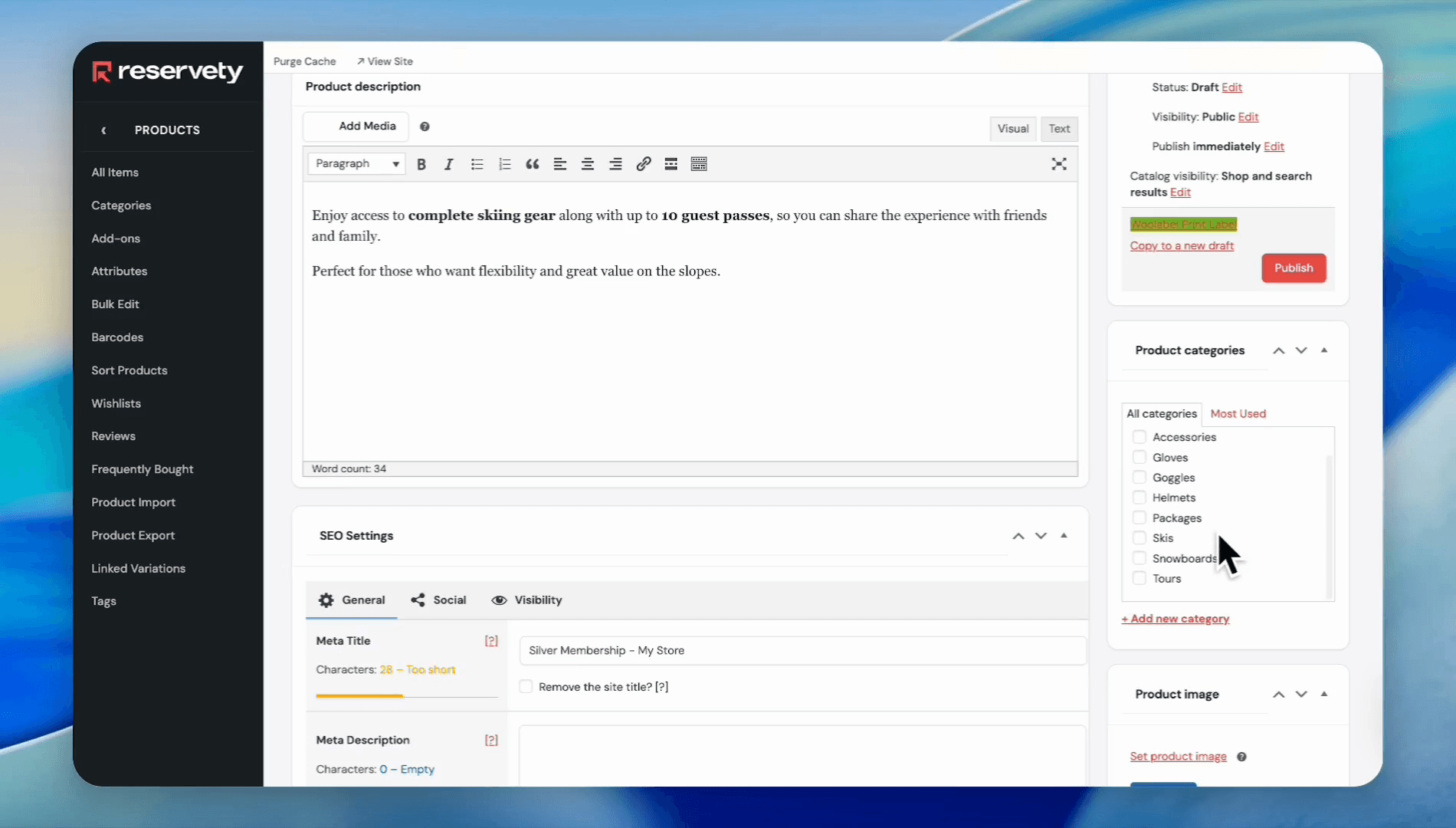
Select an appropriate category on the right sidebar, like Memberships
21
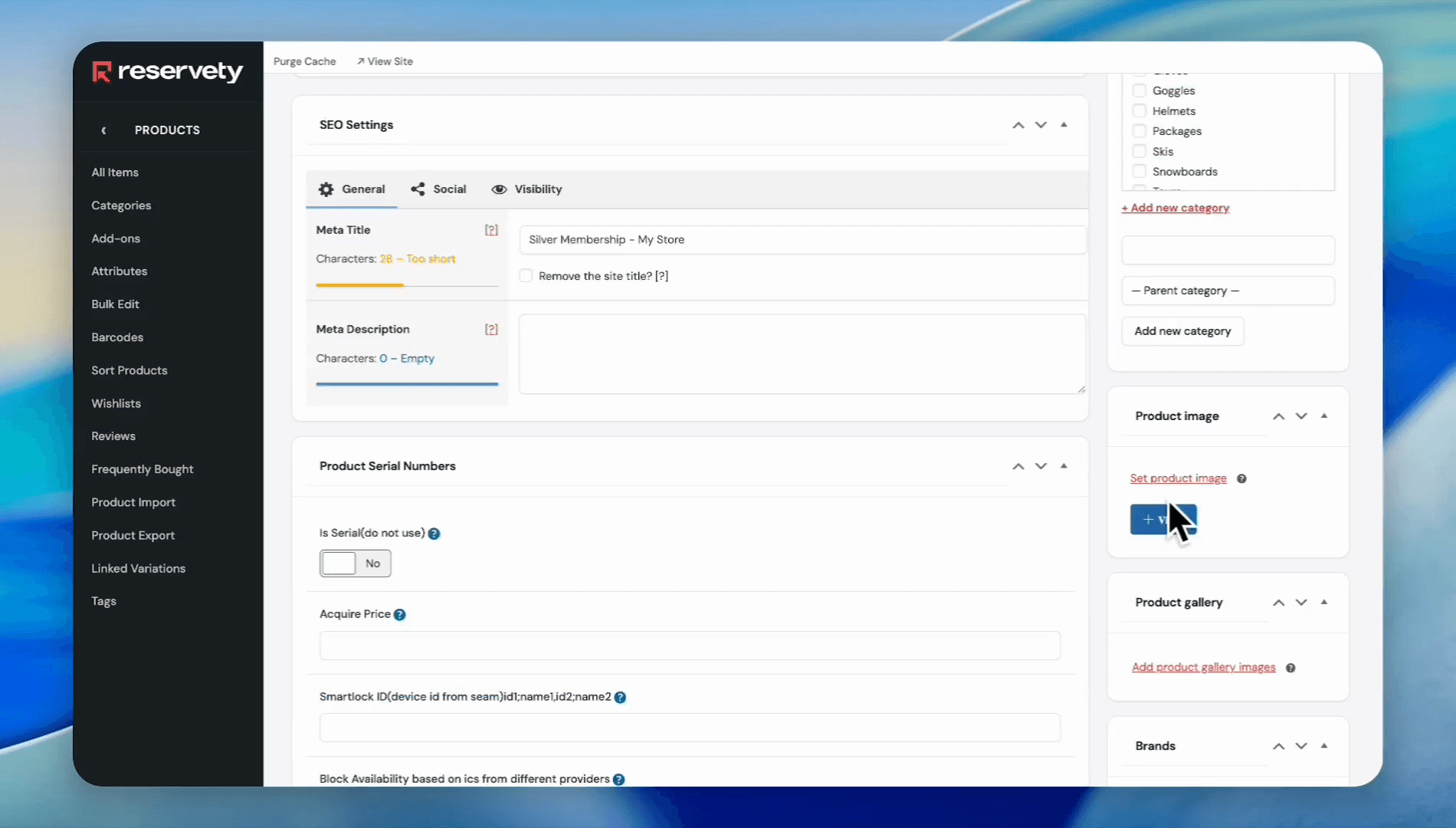
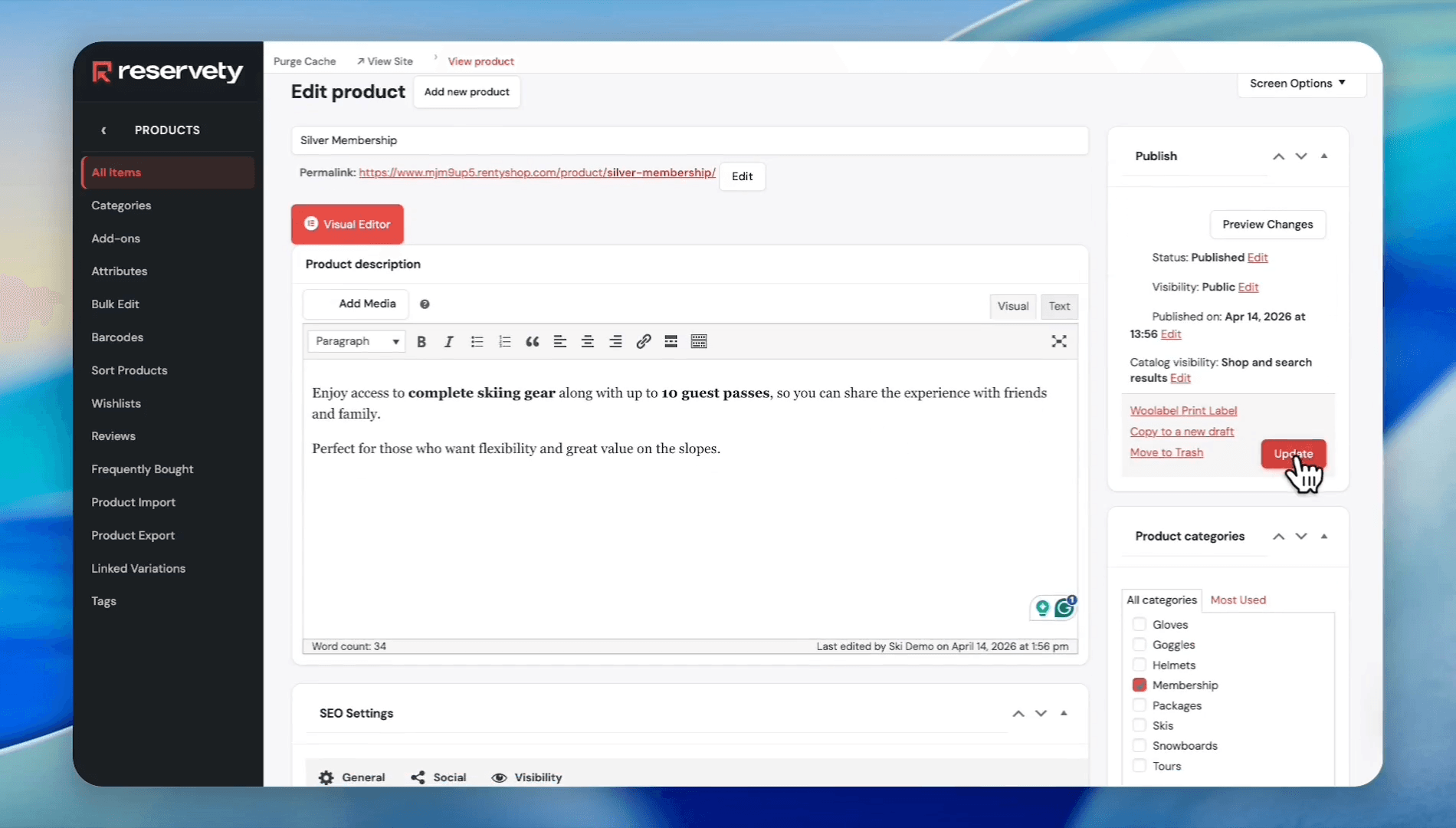
Click Set product image
22
Click Publish
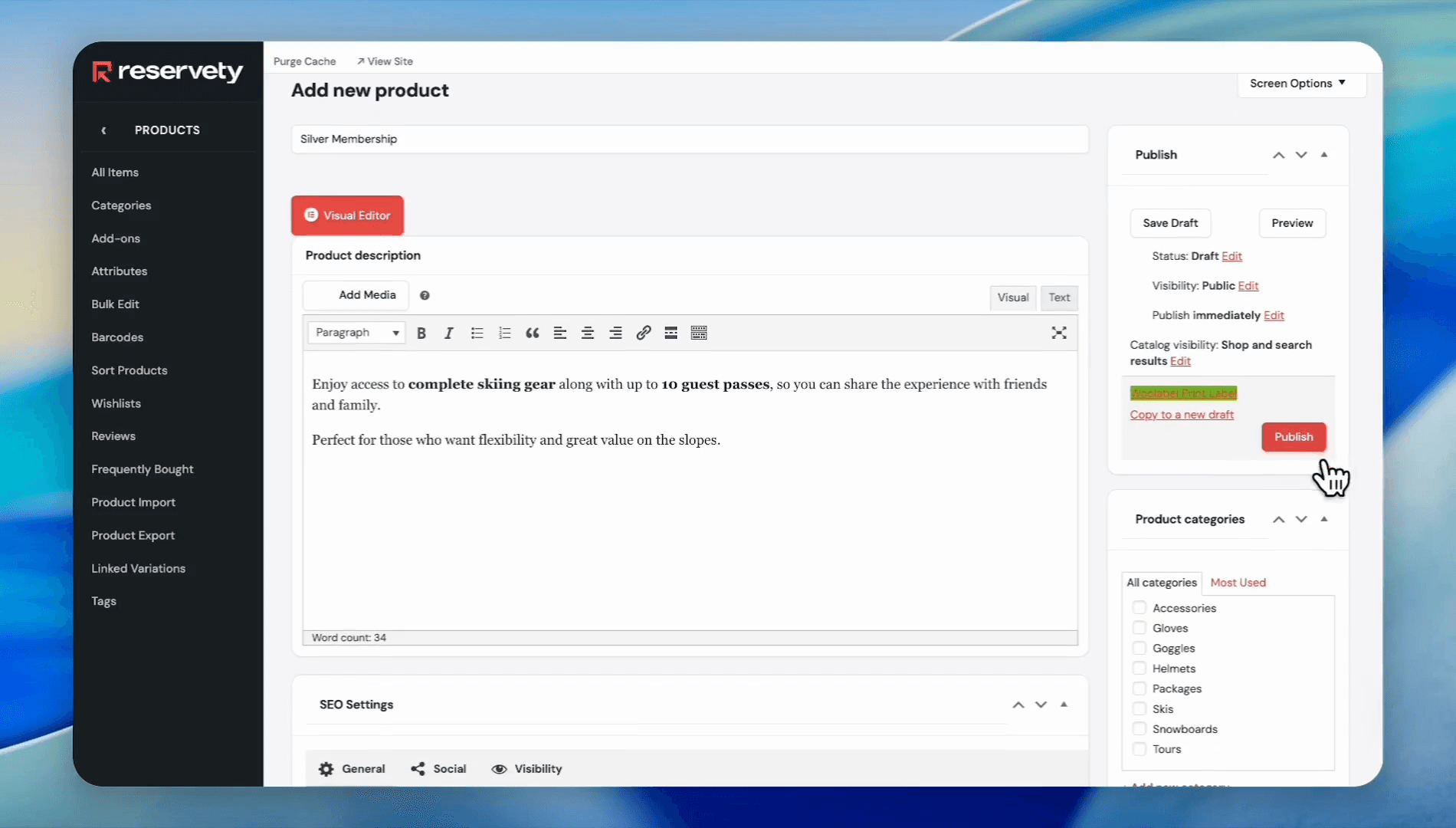
Once published, assign the previously created user group to this specific product.
23
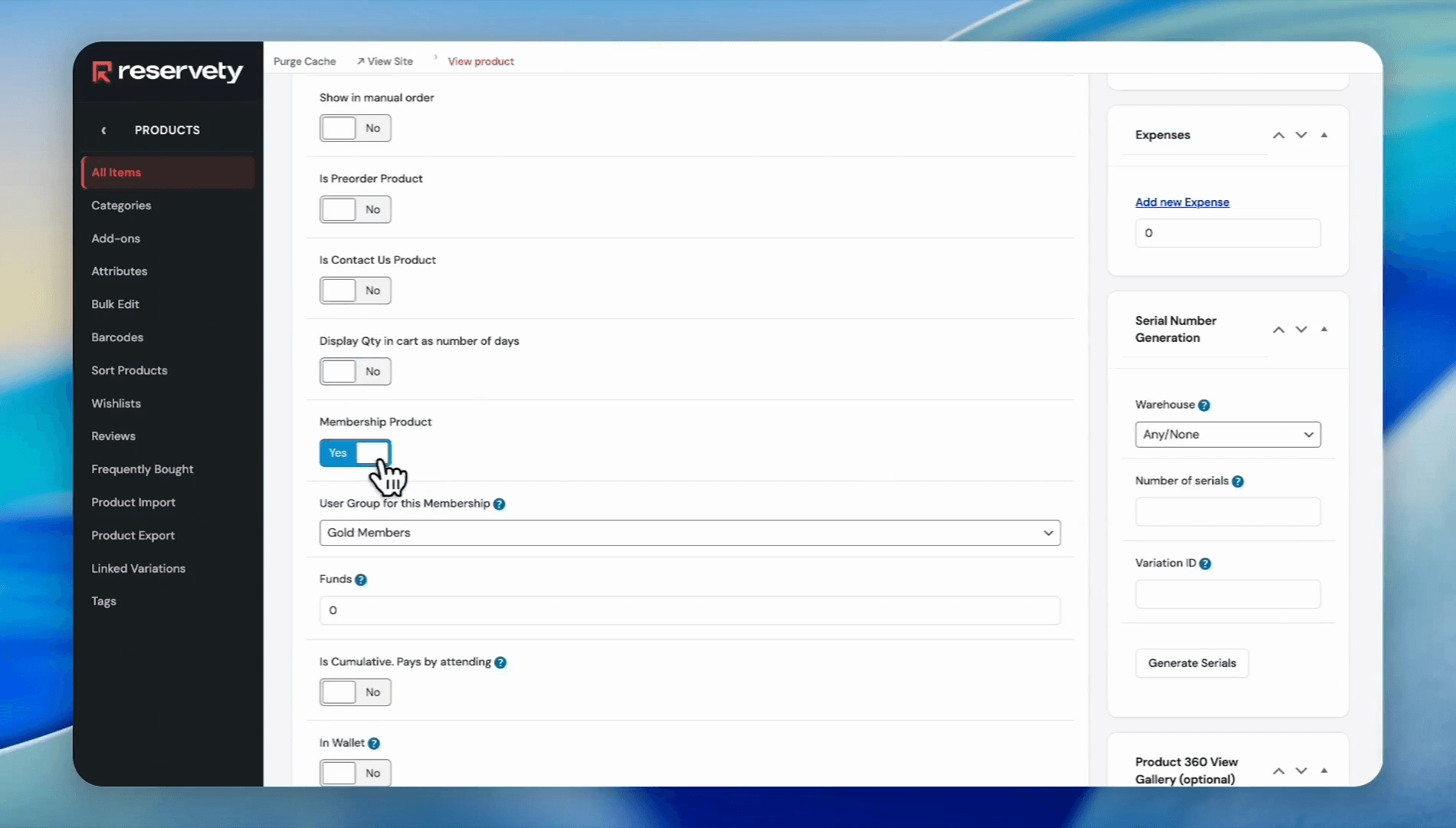
Enable the Membership Product toggle
24
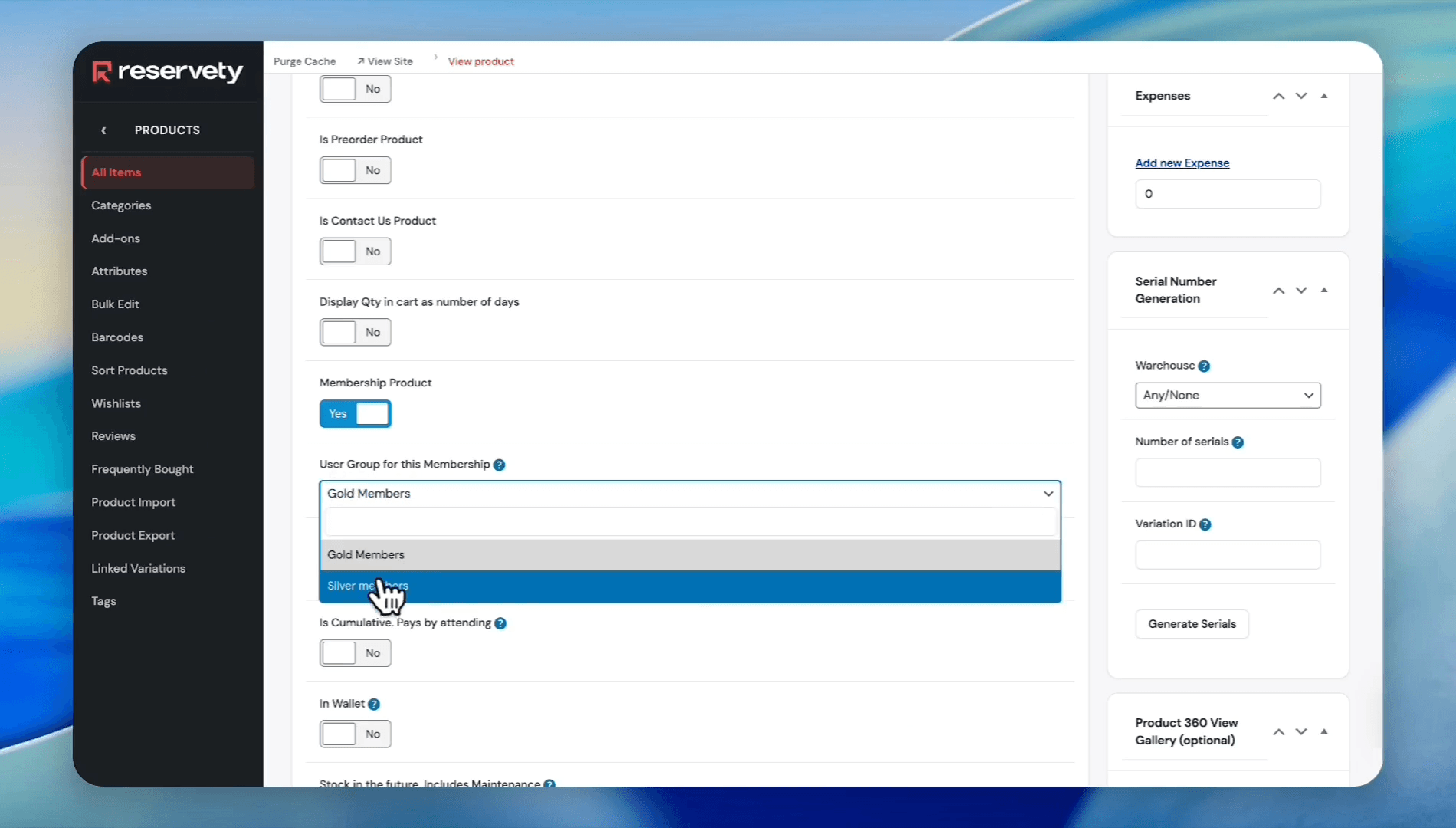
Select Silver Members from the User Group for this Membership dropdown
25
Click Update
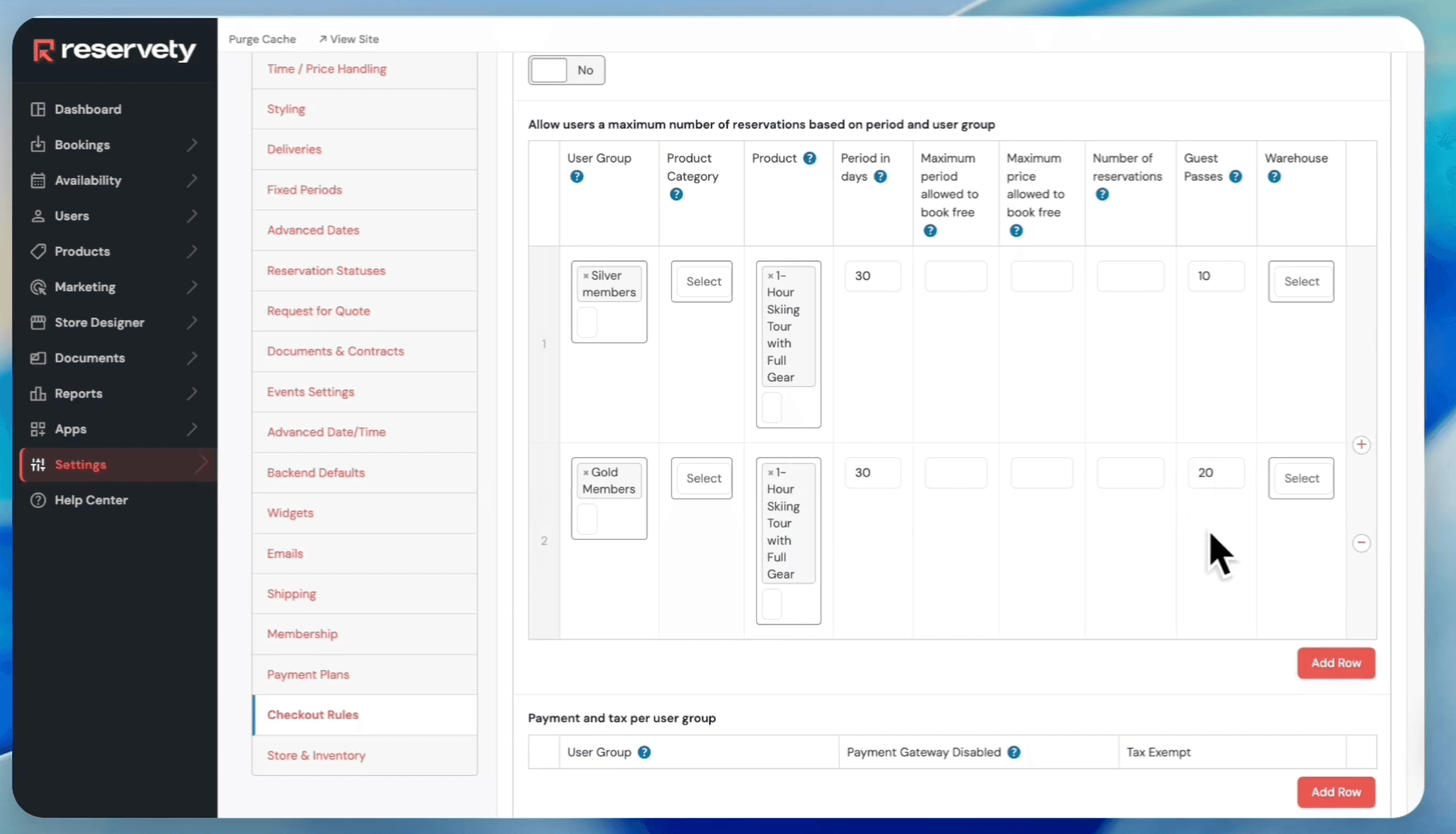
Configure Guest Pass Limits
Finally, assign guest pass limits for specific rental items based on user groups.
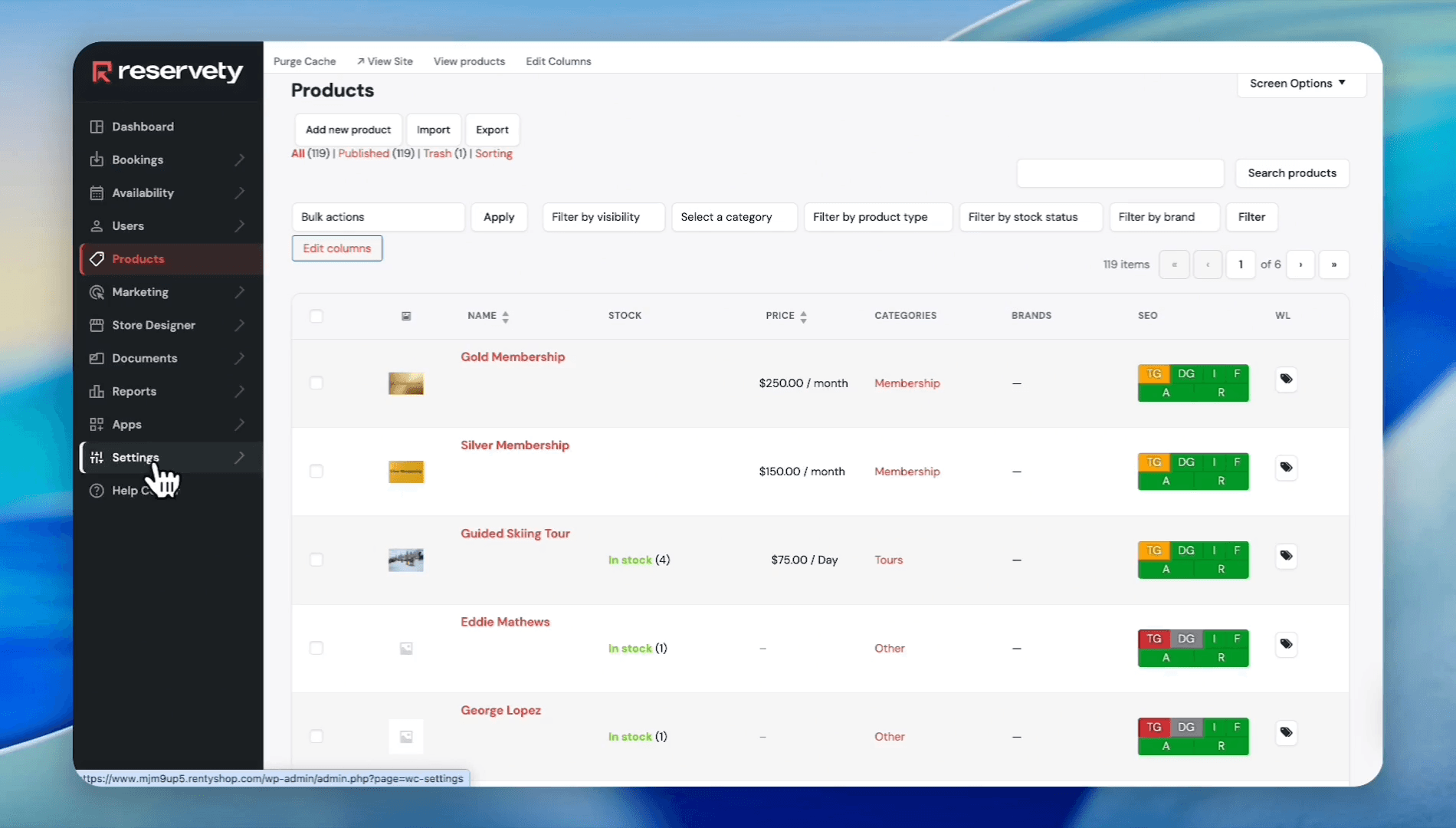
26
Go back to your dashboard and click Settings
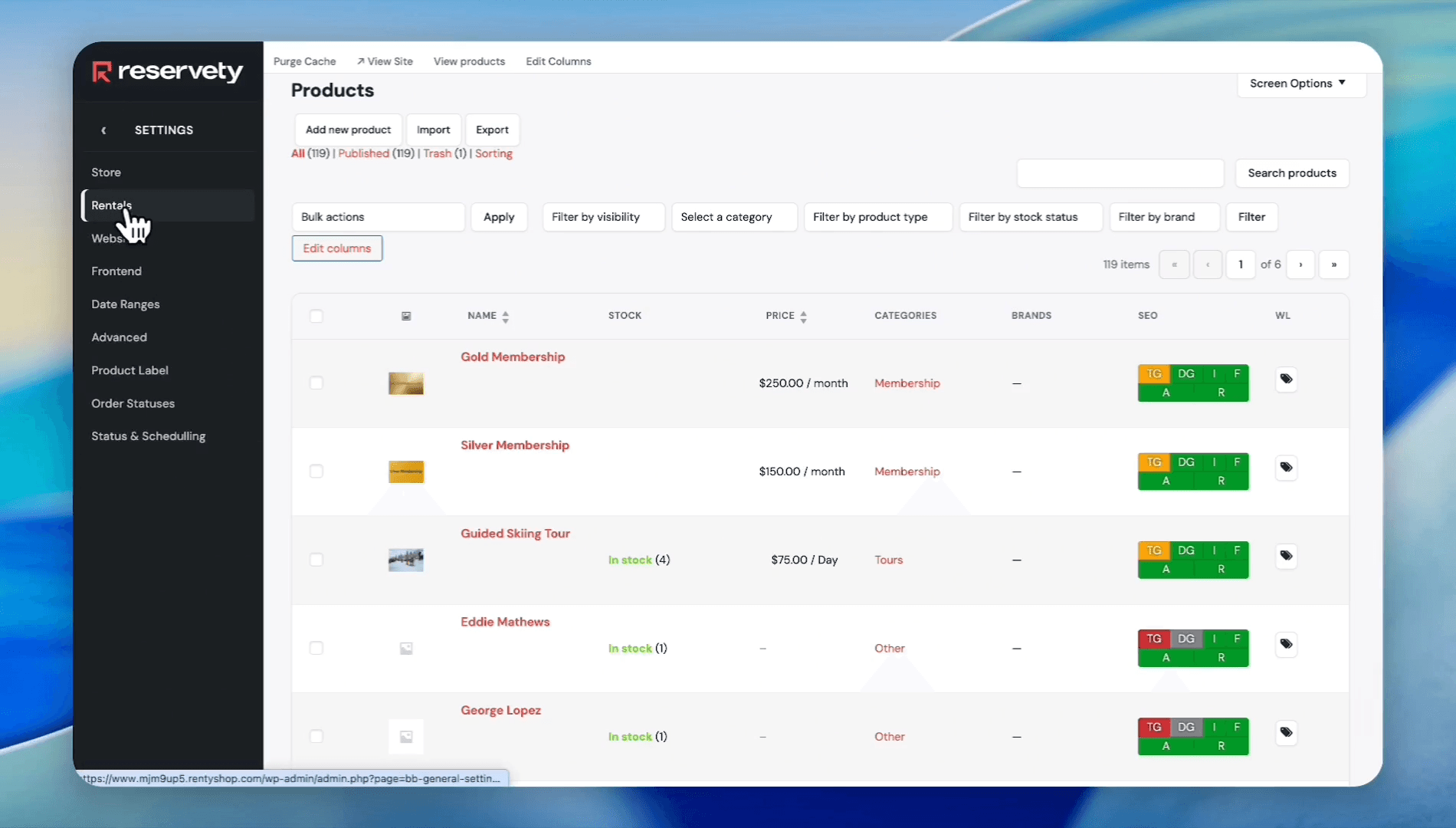
27
Click Rentals
28
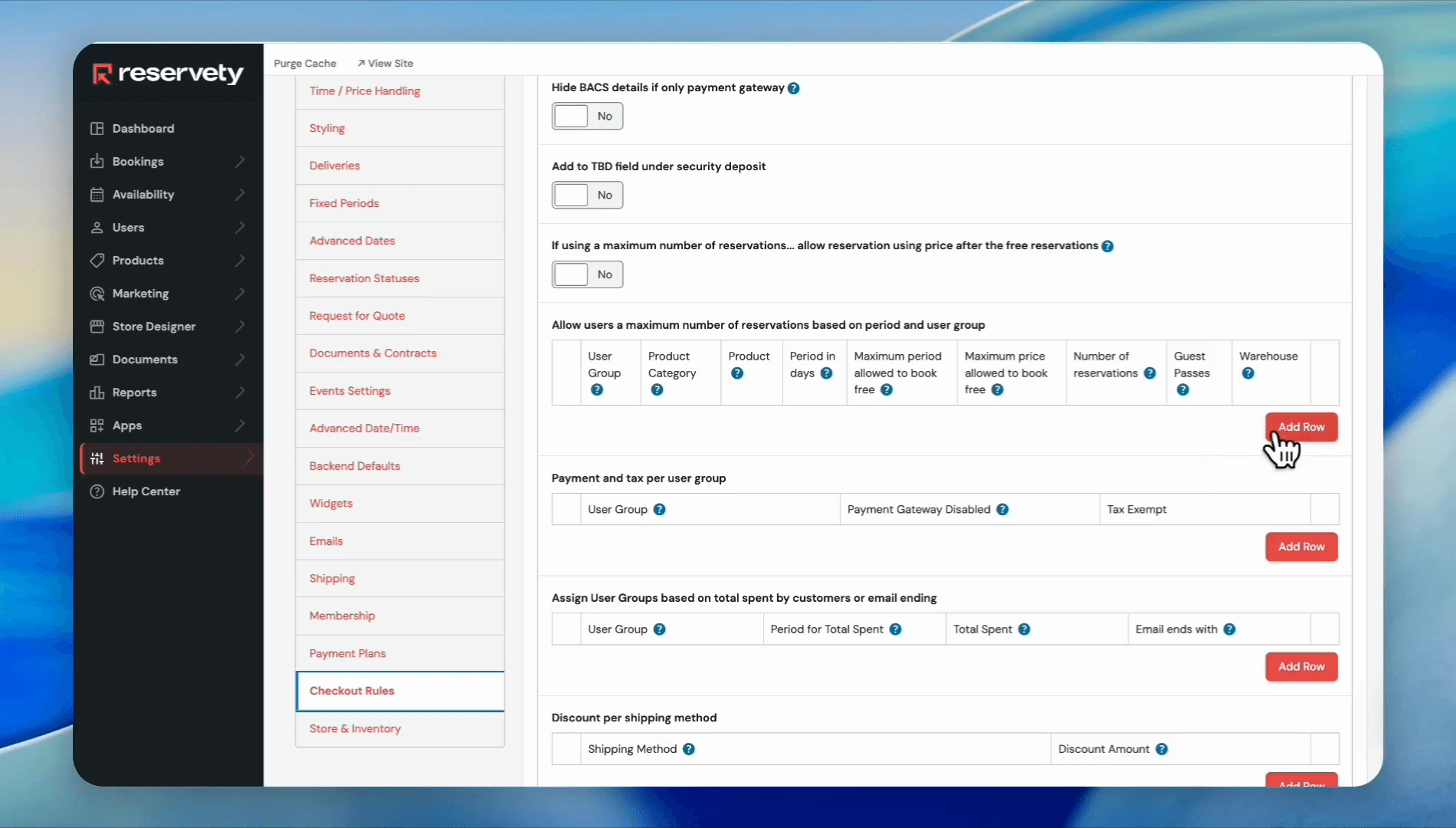
Scroll down and click Checkout Rules
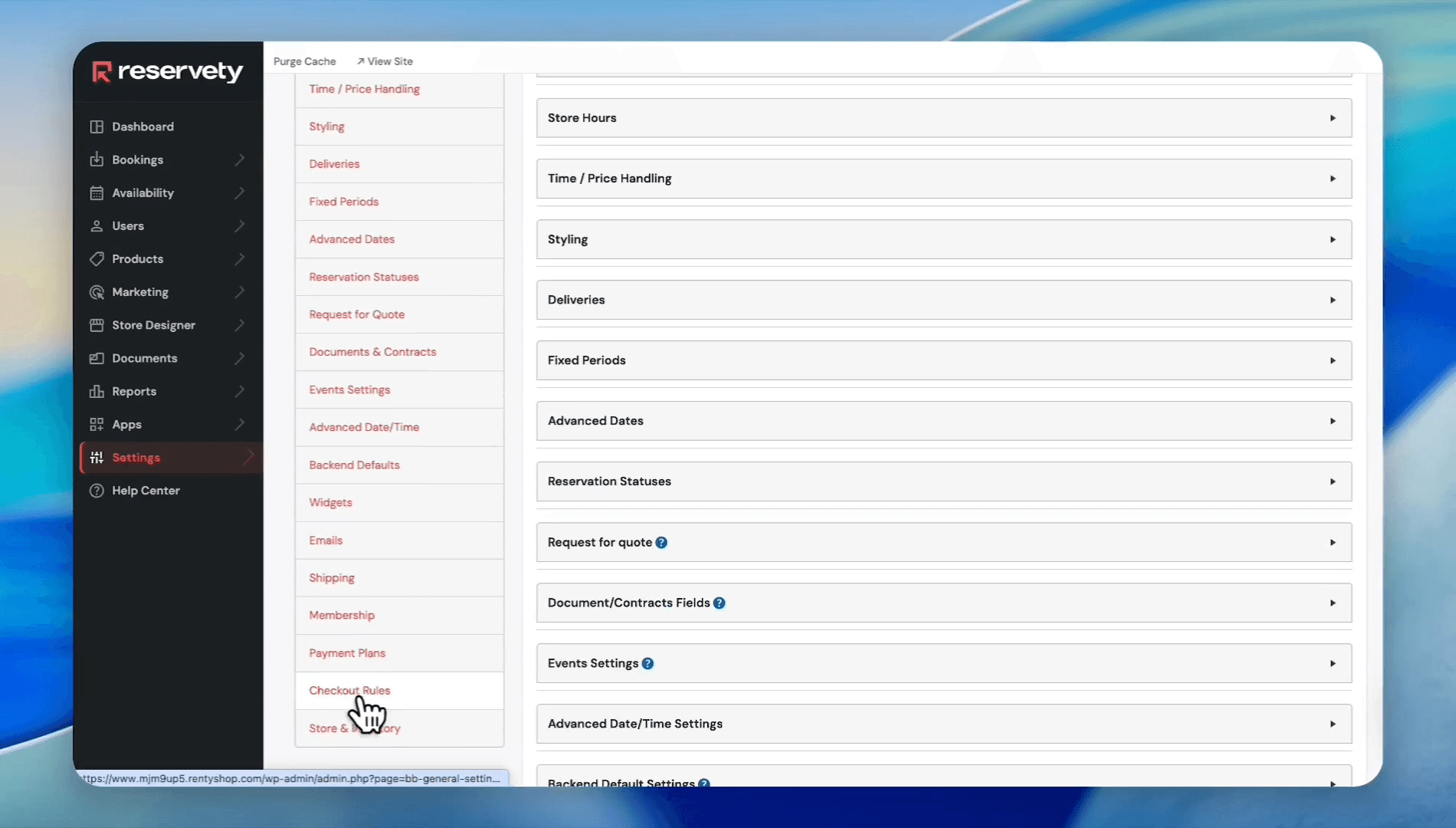
Locate the section for maximum reservations based on period and user group.
29
Click Add Row
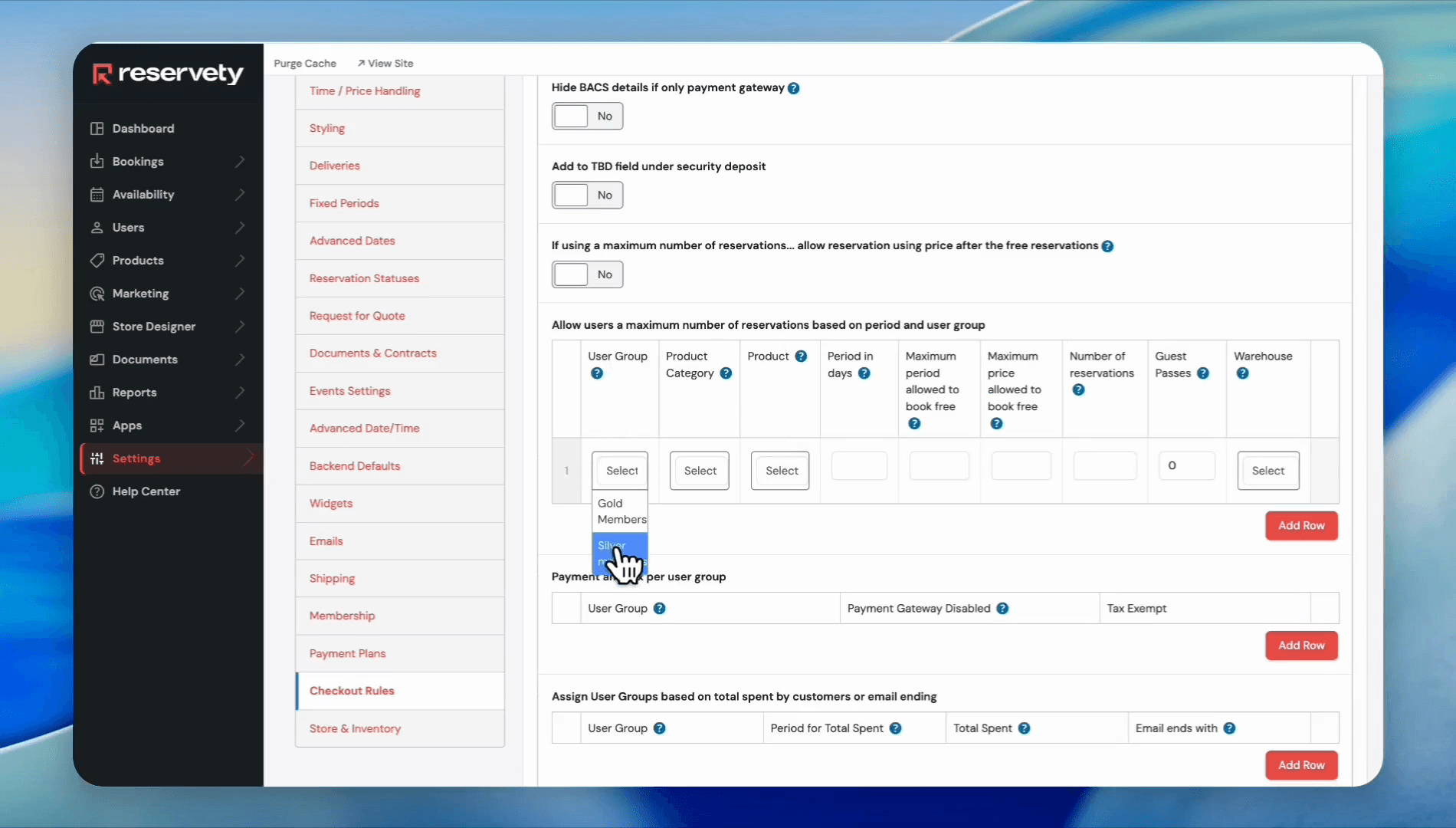
30
Select Silver members from the User Group list
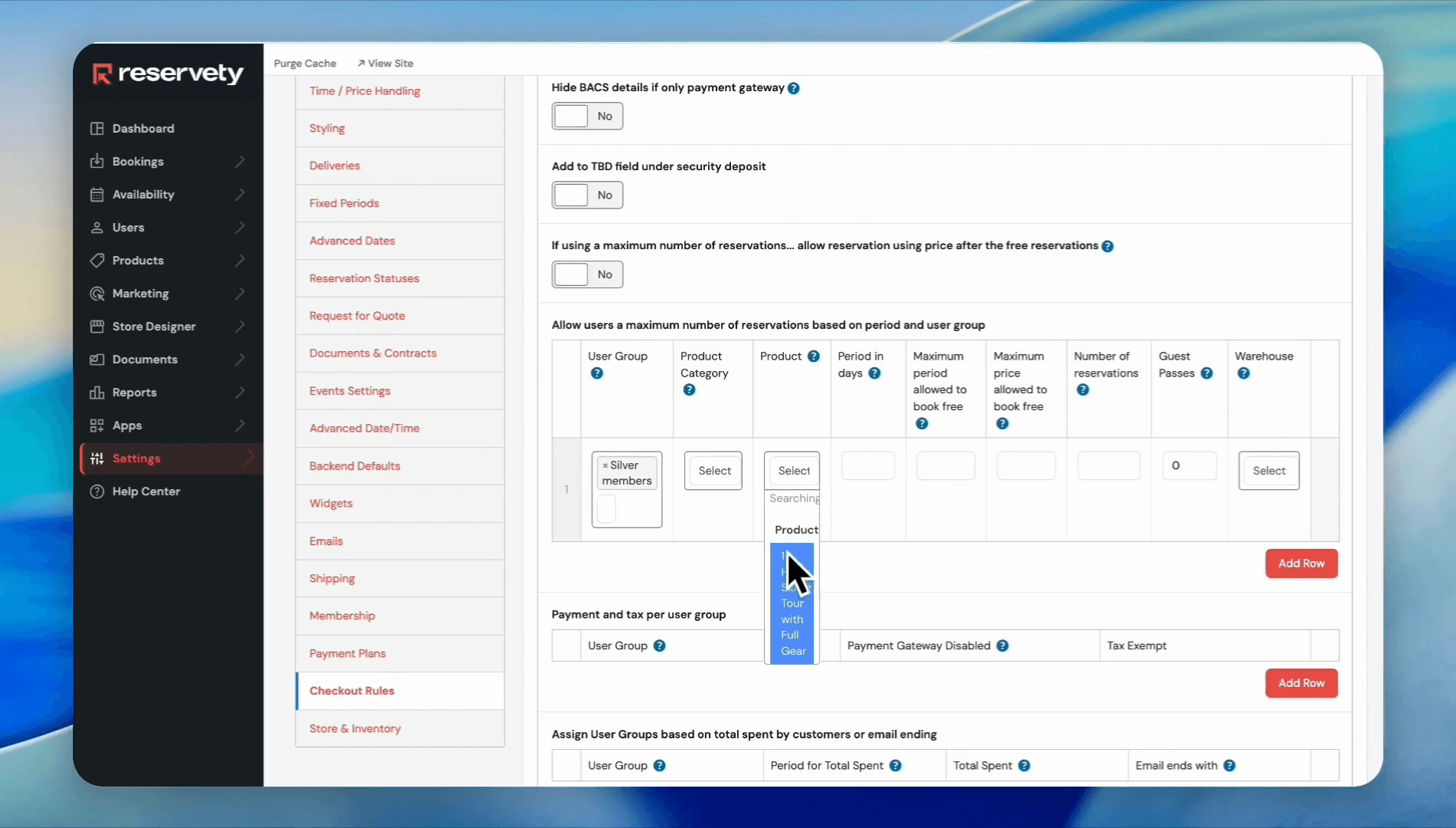
31
Select the target product for the guest passes (e.g., 1 Hour Skiing Tour with Full Gear)
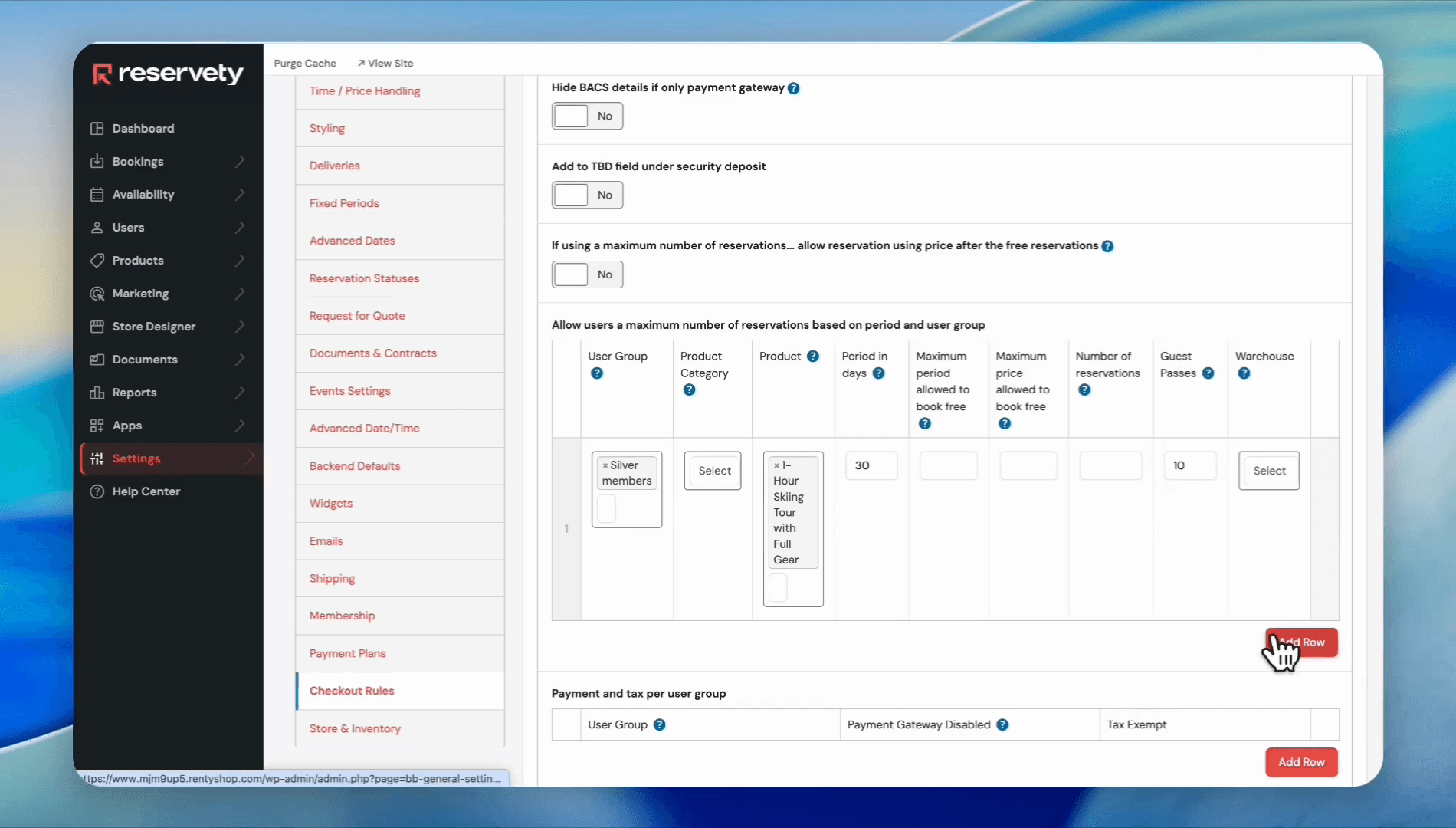
32
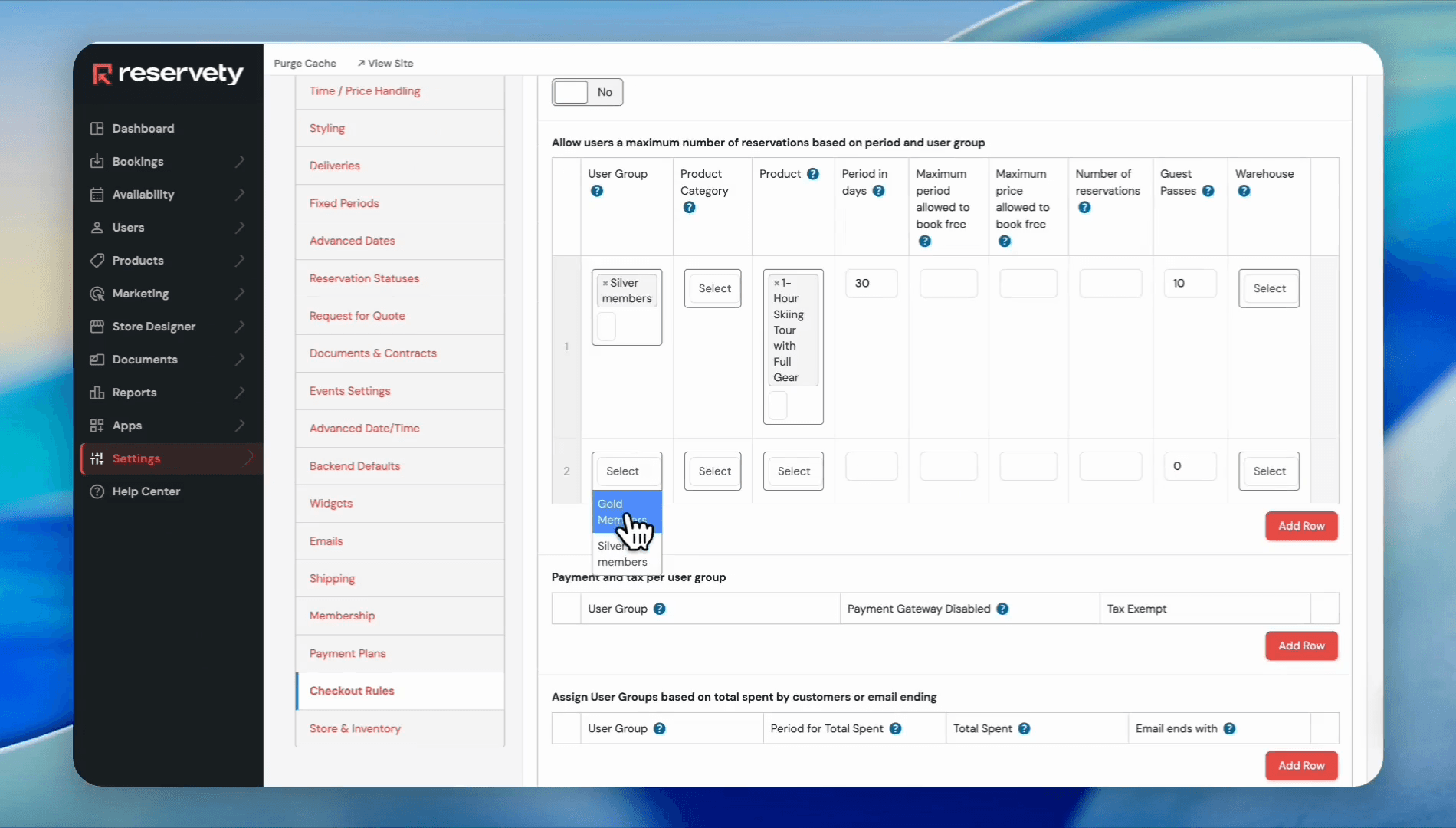
Enter 30 into the Period in days field to restrict the timeframe. Enter 10 into the Guest Passes field. Click Add Row to add a separate configuration for Gold Members.
33
Select Gold Members from the User Group dropdown
34
Select the same product under the Product field
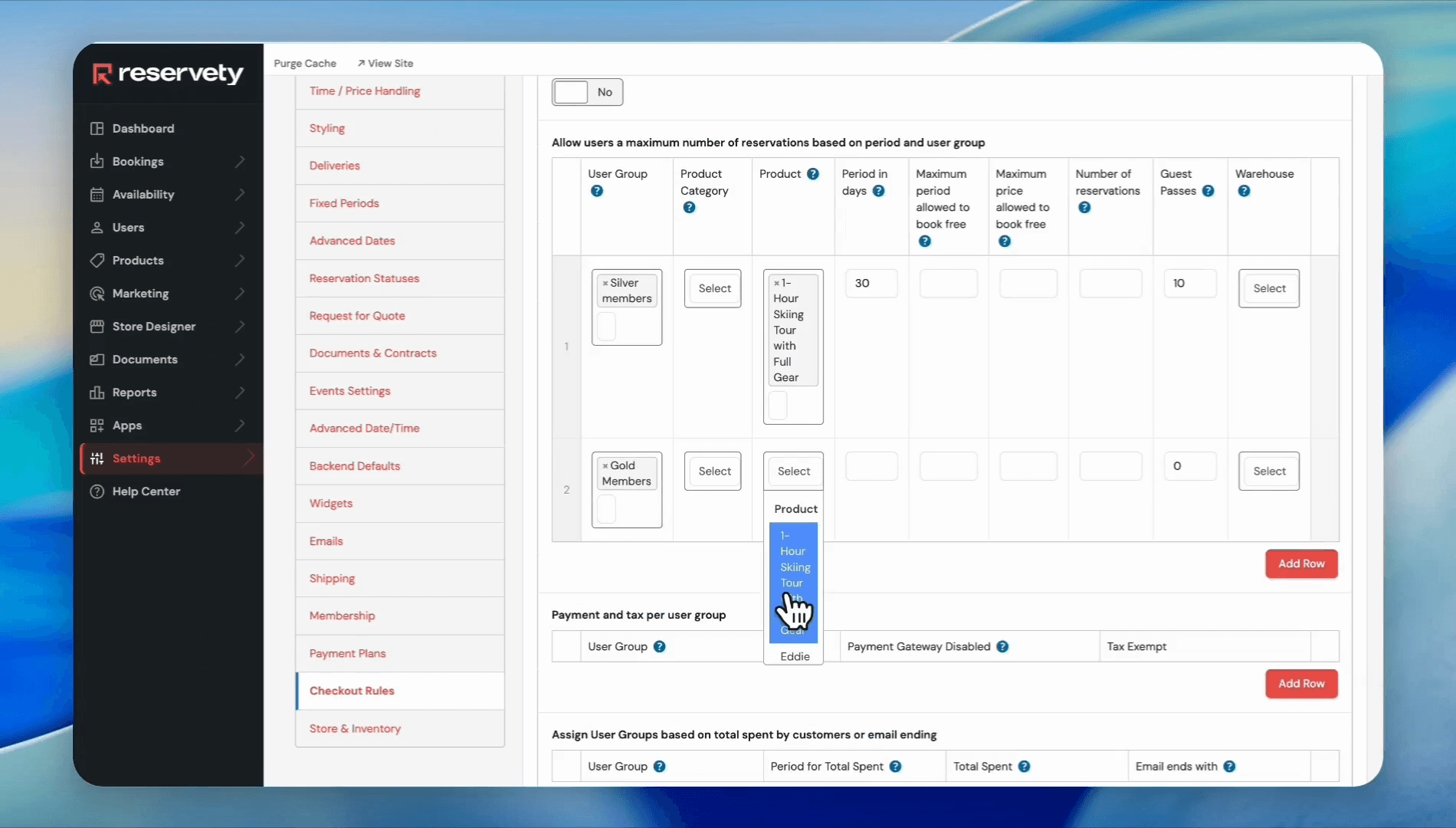
35
Enter 30 in the Period in days field. Enter 20 in the Guest Passes field. Then, go up and save the changes.