How to Set Up Utilities for a New Property Purchase

Learn how to effectively set up municipal utilities for a newly purchased real estate property, including identifying providers and submitting business service requests.

By Elam King

This guide explains how to establish necessary utility services for a newly purchased real estate property. Completing this process correctly ensures that essential utilities like water, gas, and electricity are immediately activated under the appropriate business entity prior to beginning property renovations.

This workflow is intended for administrative and operations personnel responsible for onboarding new real estate acquisitions. It should be performed immediately after receiving the title company's notification that funding has closed on a property.

Determine the Property Details
1
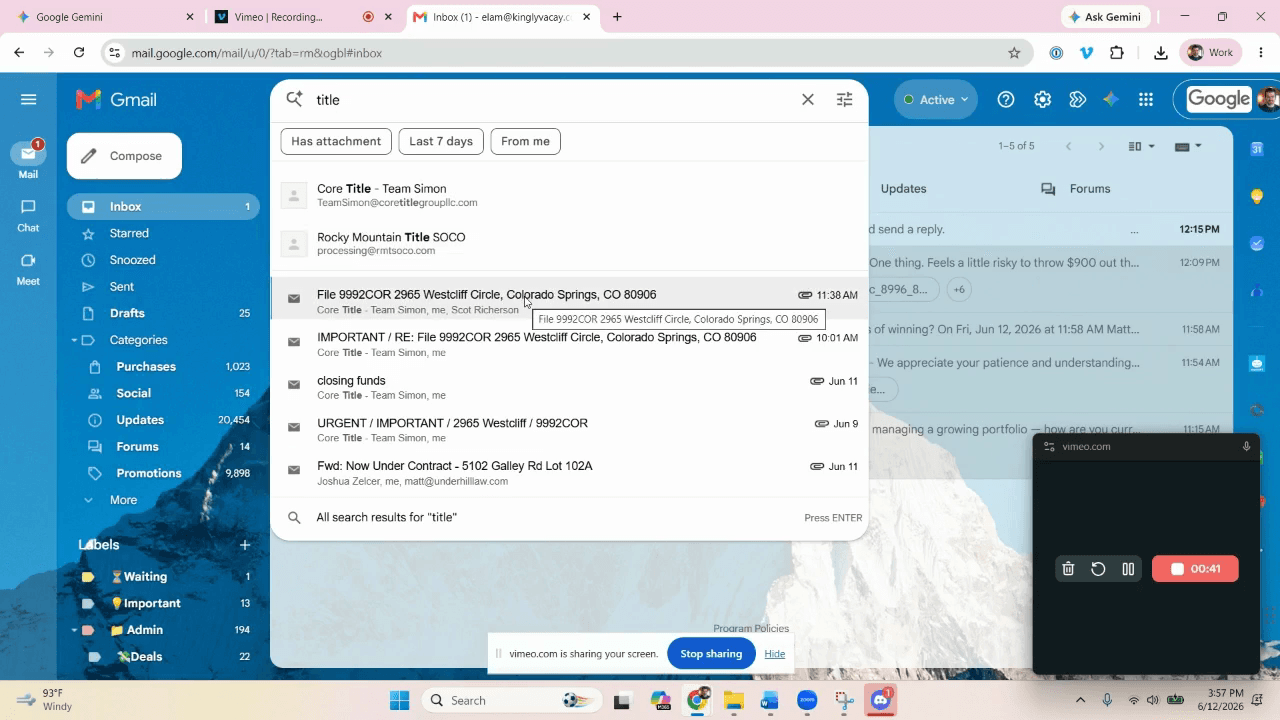
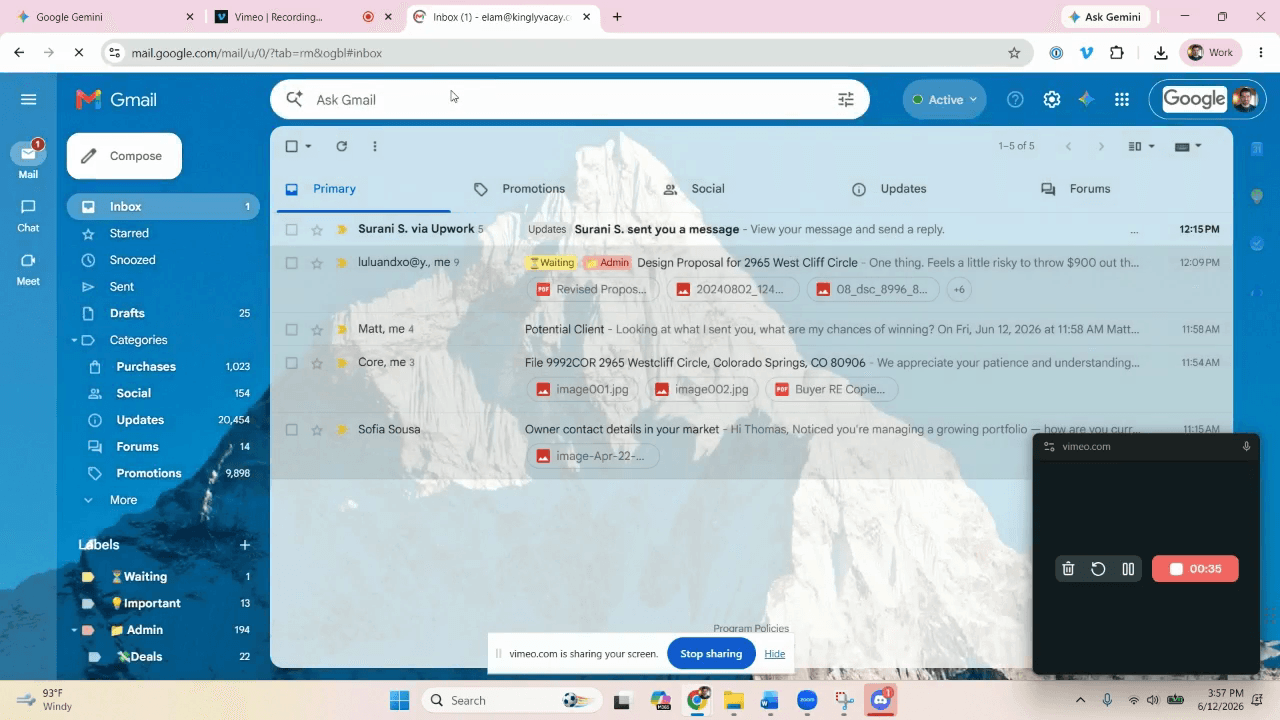
Click the search bar in the top navigation menu of your email client.
Step #1: Click the search bar in the top navigation menu of your email client.
2
Type "title" into the search bar to locate the closing documents.
3
Select the email from the title company (e.g., Core Title) regarding the recent property closing.
Step #3: Select the email from the title company (e.g., Core Title) regarding the recent property closing.
4
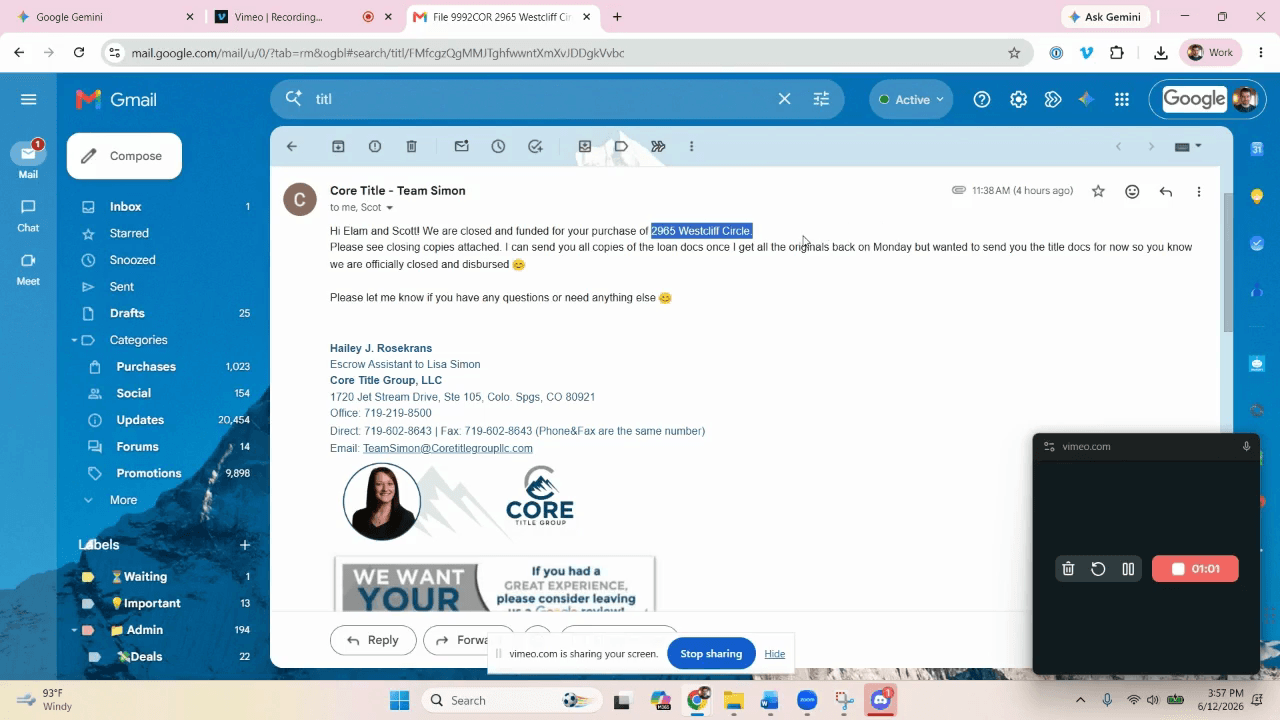
Highlight and double-click the property address (e.g., "2965 Westcliff Circle") to copy it for the next steps.
Step #4: Highlight and double-click the property address (e.g., "2965 Westcliff Circle") to copy it for the next steps.

Identify the Utility Providers

5
Navigate to Google Gemini or your preferred AI tool.
6
Type a query to determine the local service providers, such as: "For the property at 2965 Westcliff Circle, what are the utility providers?"
7
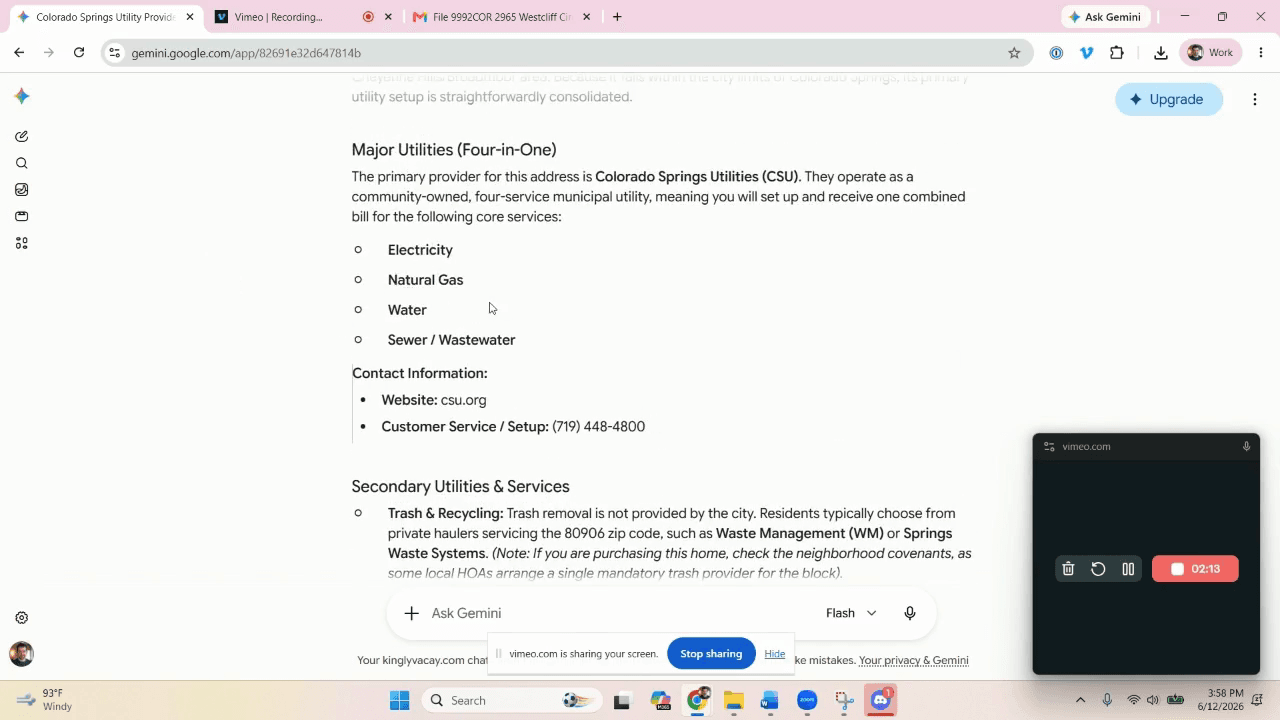
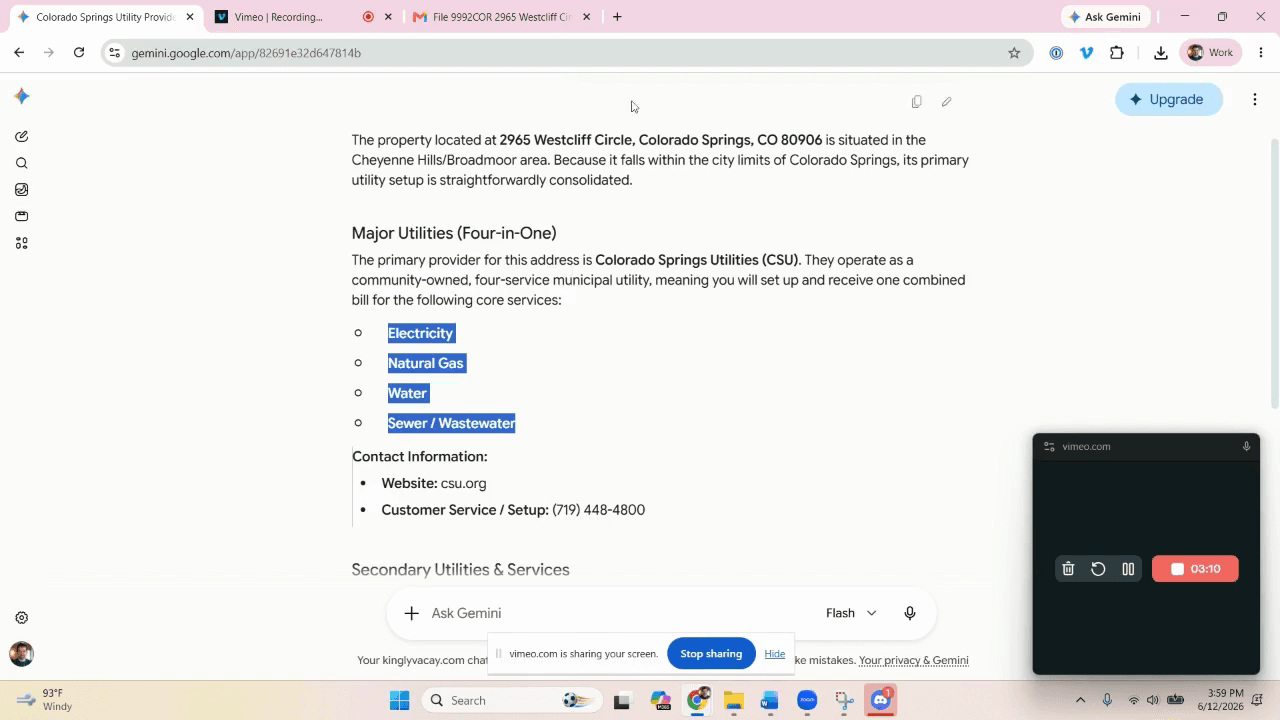
Review the AI response to identify the municipal providers for electric, gas, water, and sewer services.
Step #7: Review the AI response to identify the municipal providers for electric, gas, water, and sewer services.

Review the following matrix to determine which utility services must be activated for a newly purchased renovation property:

Utility Service

Action Required

Rationale for Vacant Property

Electric

Turn On

Essential for renovations, contractor tools, and inspections.

Gas (Natural/Propane)

Turn On

Essential for heating and hot water testing.

Water

Turn On

Necessary for plumbing testing and general contractor use.

Sewer / Wastewater

Turn On

Required by the municipality whenever water service is active.

Trash Collection

Do Not Activate

Managed via separate roll-off dumpsters during renovations.

Cable & Internet

Do Not Activate

Unnecessary for an unoccupied property.

Phone

Do Not Activate

Unnecessary for an unoccupied property.

Log into the Utility Portal

Once you have identified the primary provider (e.g., Colorado Springs Utilities), log into their web portal.
8
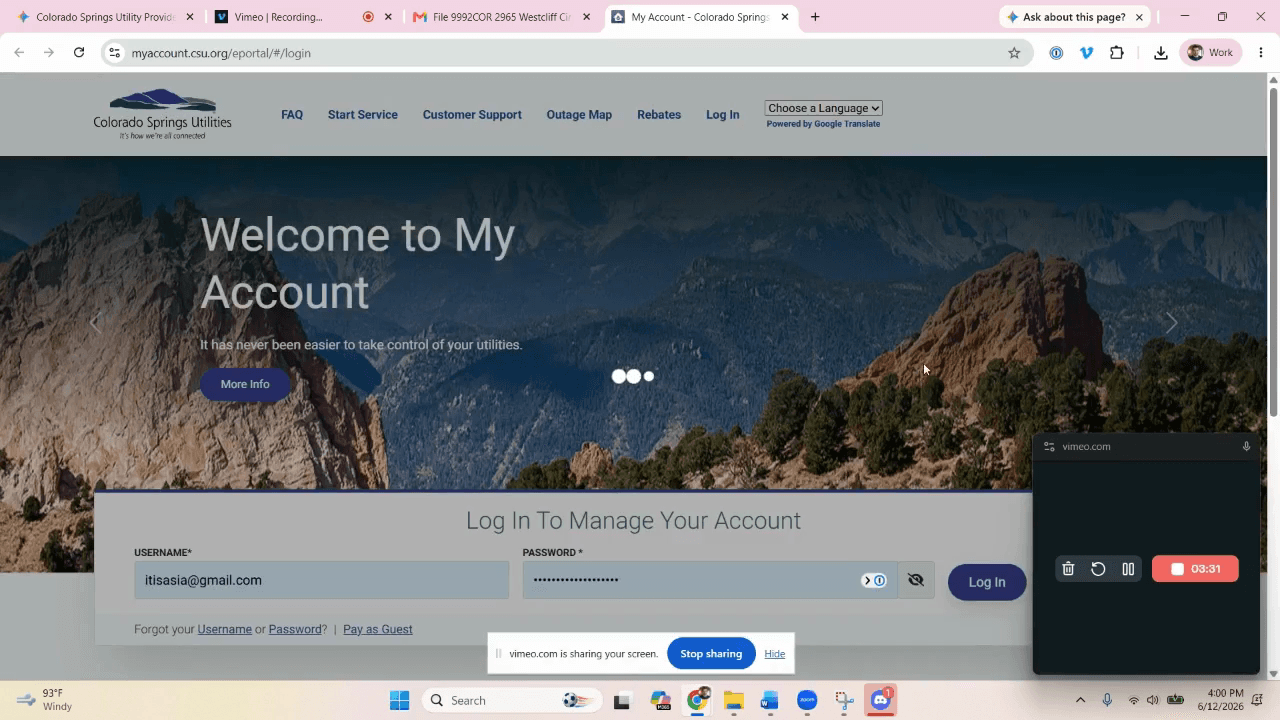
Open a new browser tab and navigate to the provider's website.
Step #8: Open a new browser tab and navigate to the provider's website.
9
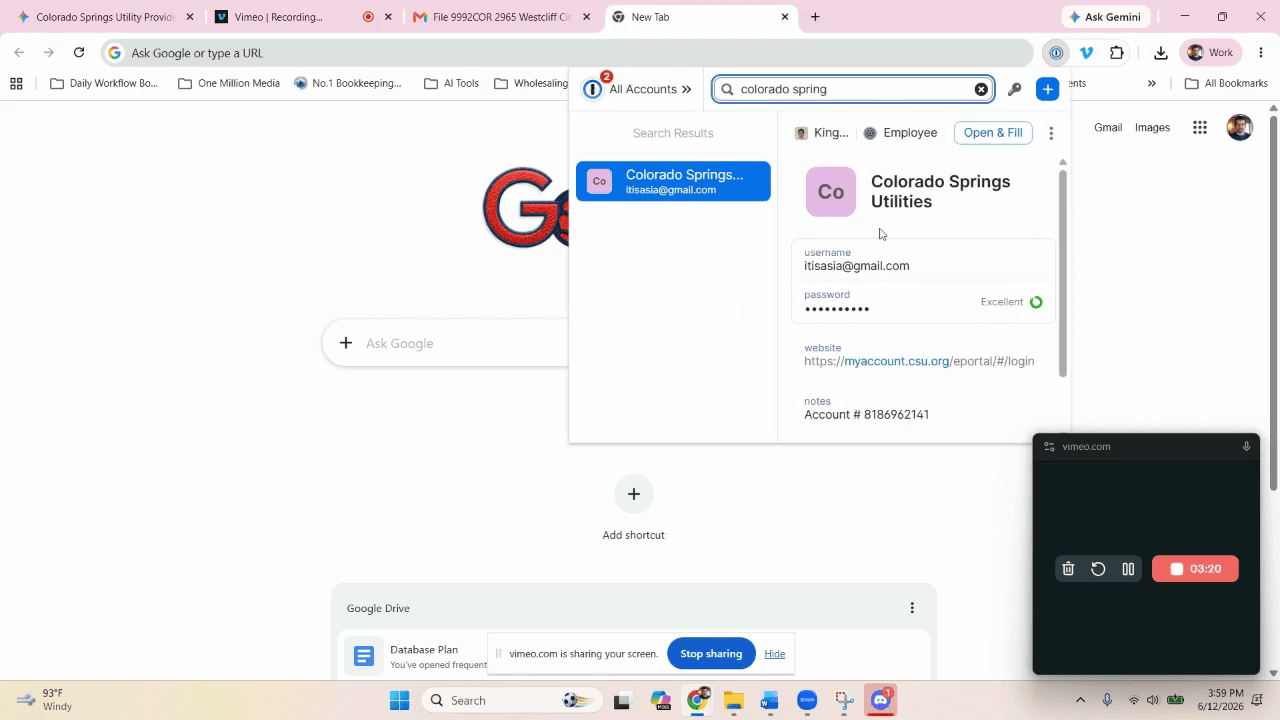
Click Open and fill using your password manager to insert the saved company credentials.
Step #9: Click Open and fill using your password manager to insert the saved company credentials.
10
Click Log In.
Step #10: Click Log In.
11
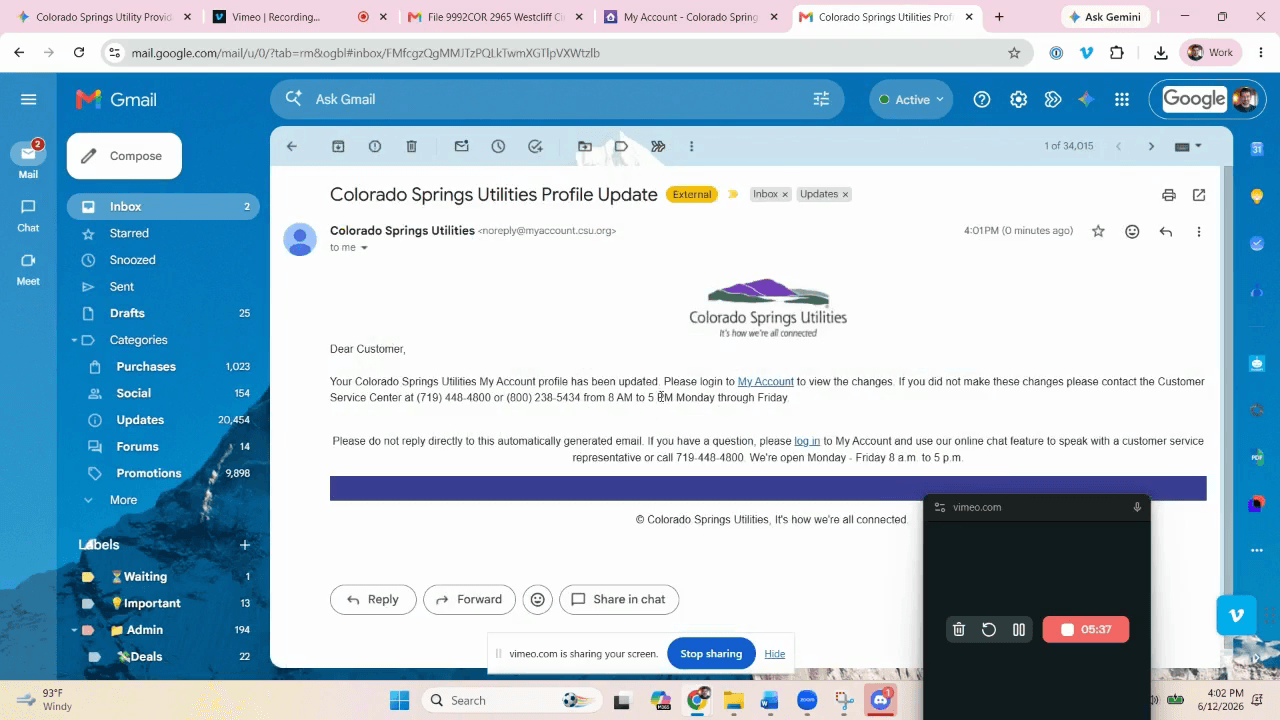
If a two-factor verification code is required, open your email client and locate the verification email from the utility provider.
Step #11: If a two-factor verification code is required, open your email client and locate the verification email from the utility provider.
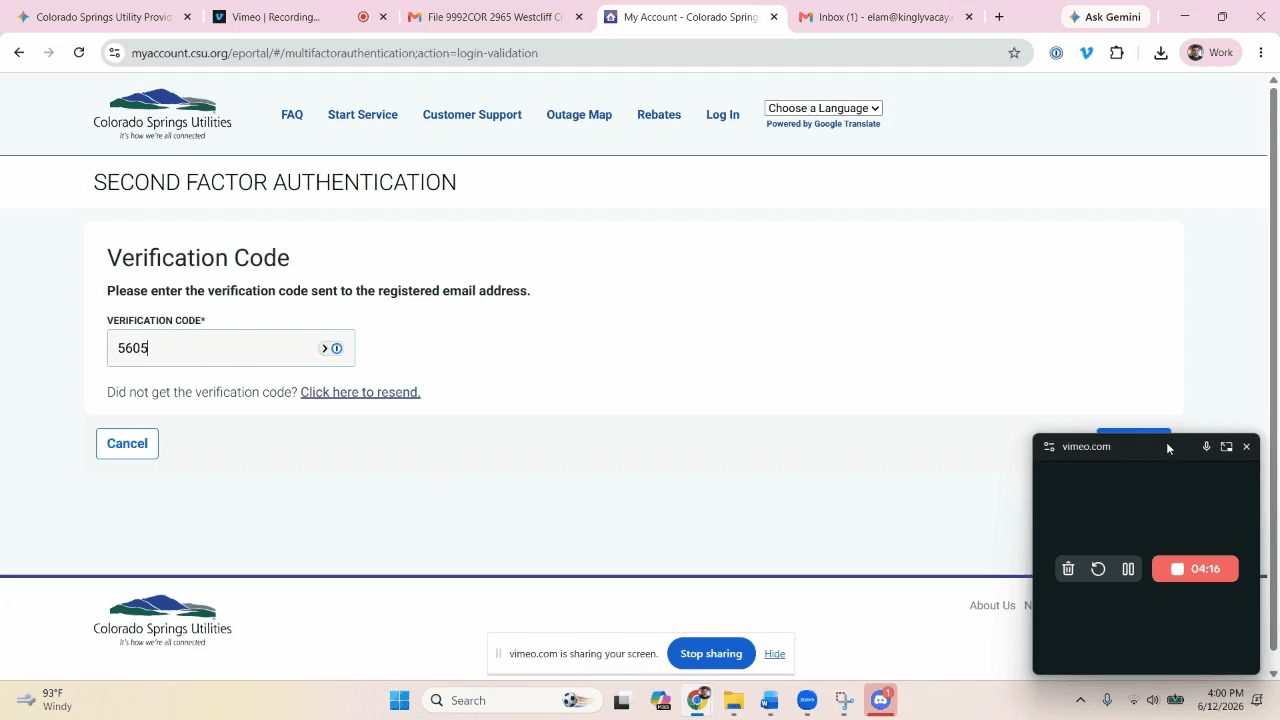
12
Enter the verification code into the security prompt on the utility portal.
13
Click Continue to finalize your login.
Step #13: Click Continue to finalize your login.

Start New Service as a Business
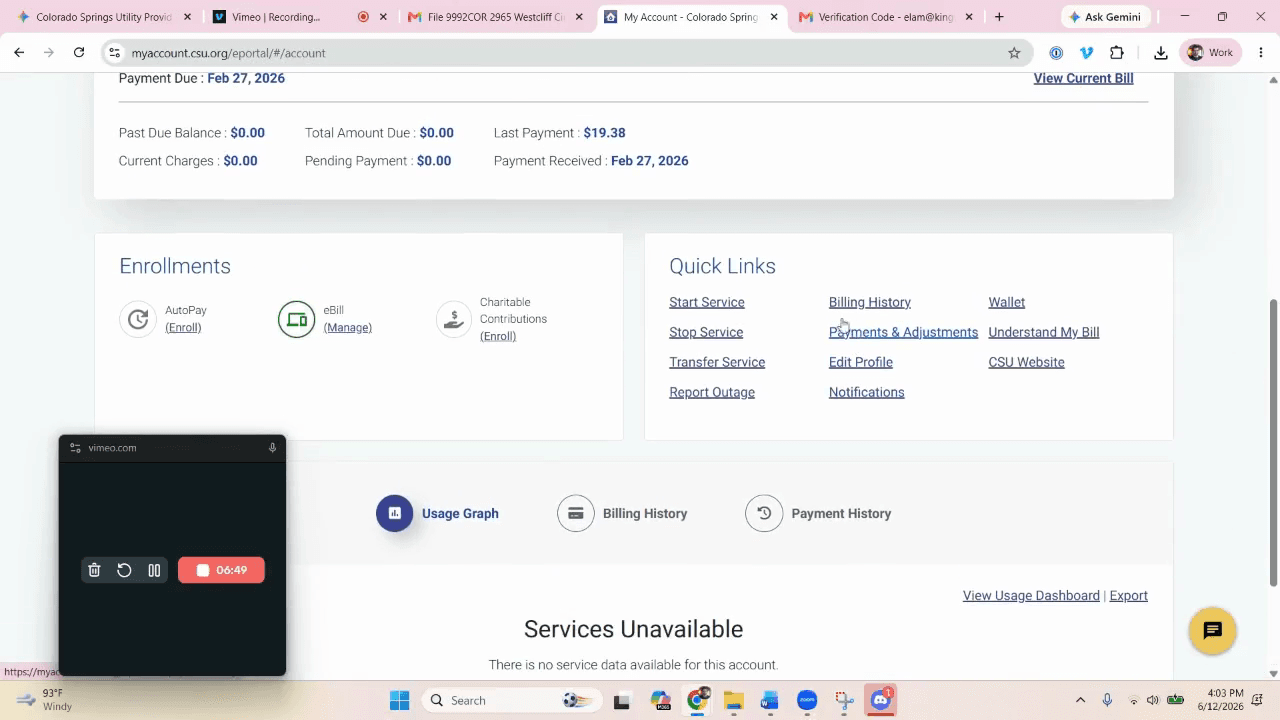
14
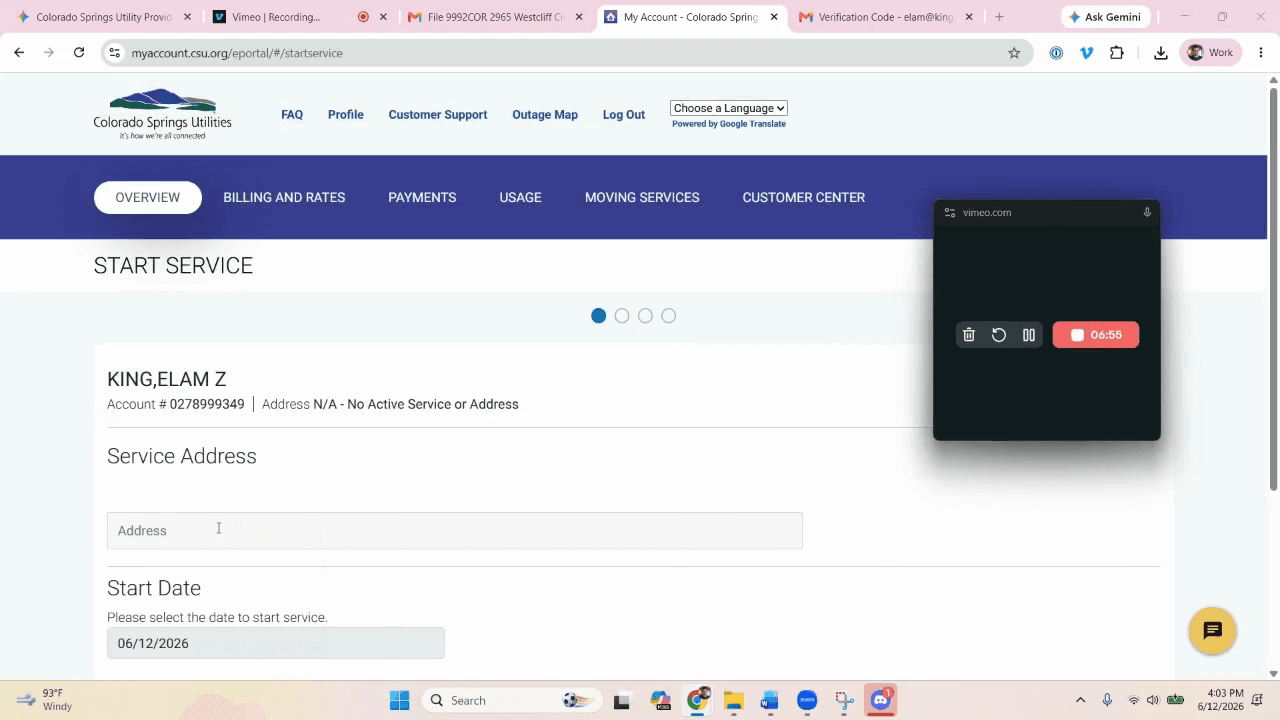
Click Start Service from the account dashboard's quick links.
Step #14: Click Start Service from the account dashboard's quick links.
15
Click the Address input field.
Step #15: Click the Address input field.
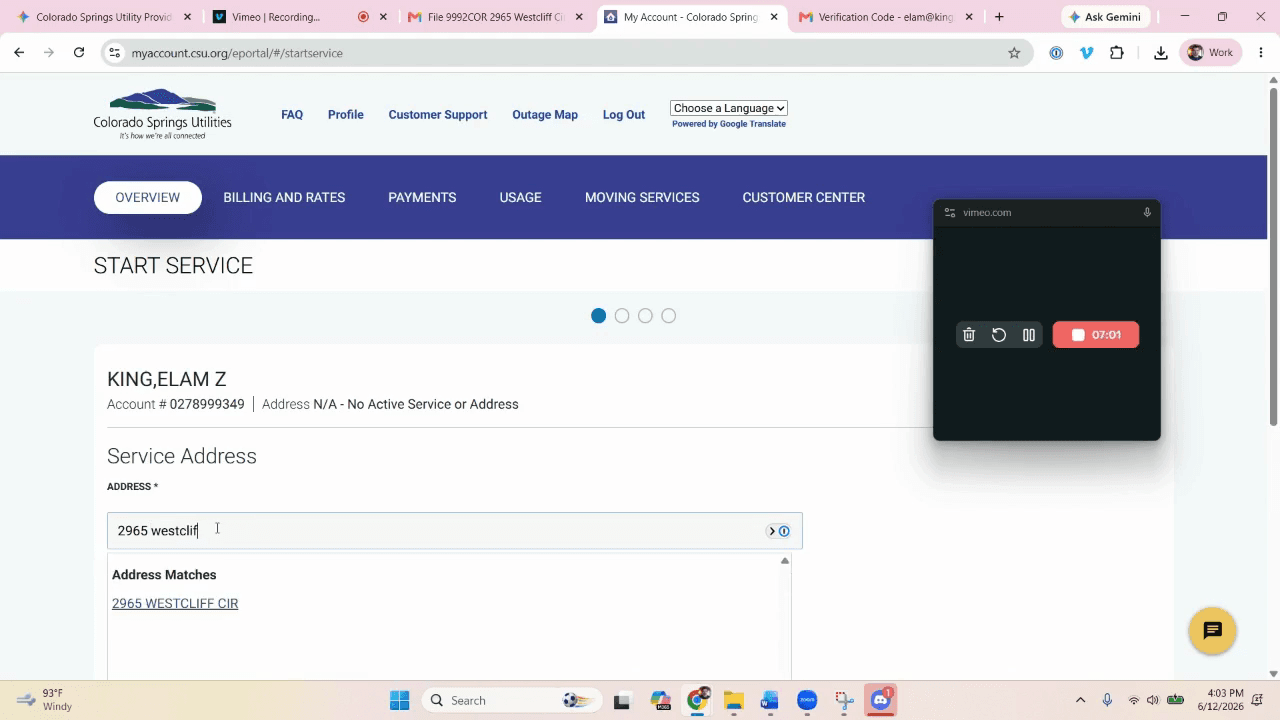
16
Type the property address (e.g., "2965 Westcliff").
17
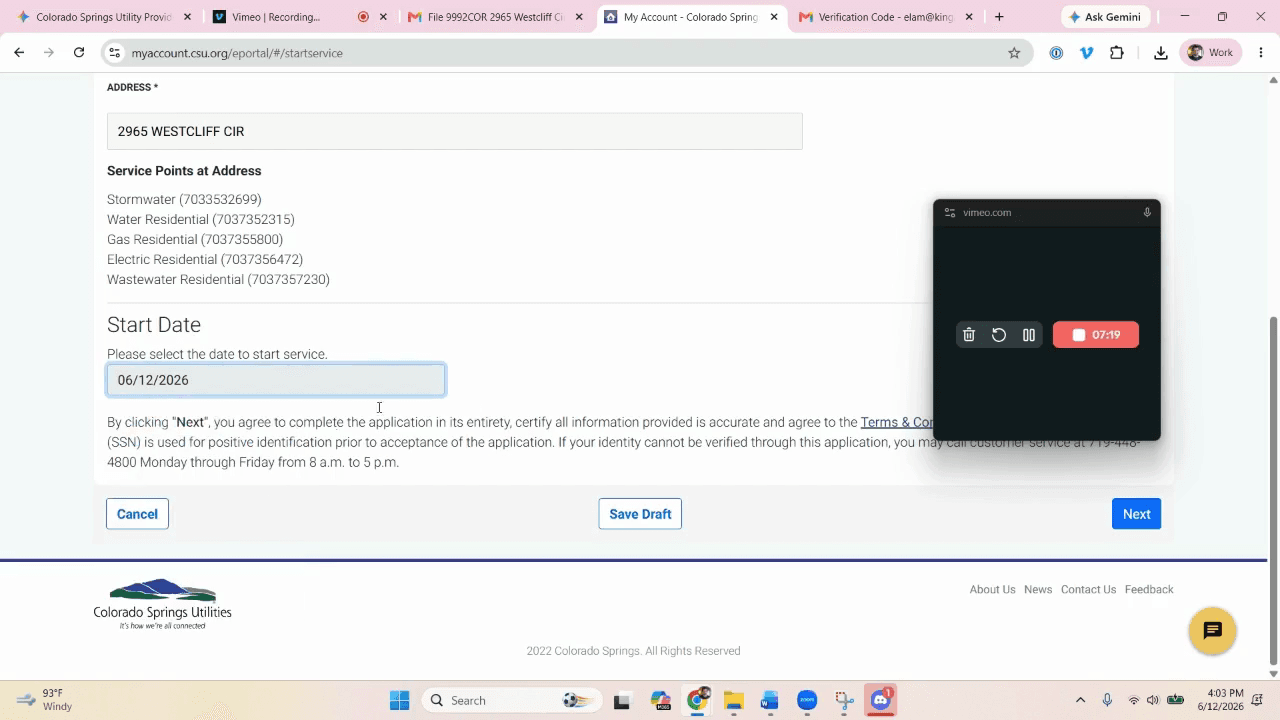
Select the exact matching address from the dropdown list to proceed.
Step #17: Select the exact matching address from the dropdown list to proceed.
18
Click Next to move to the customer details section.
Step #18: Click Next to move to the customer details section.
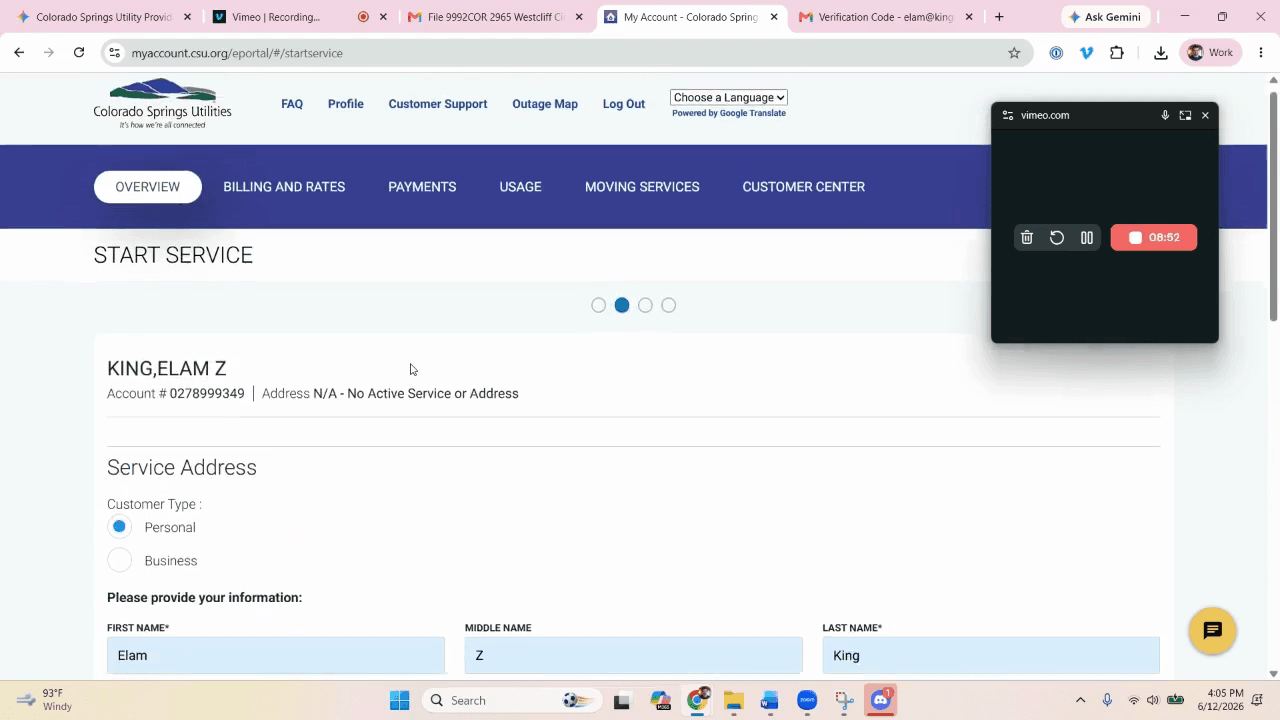
19
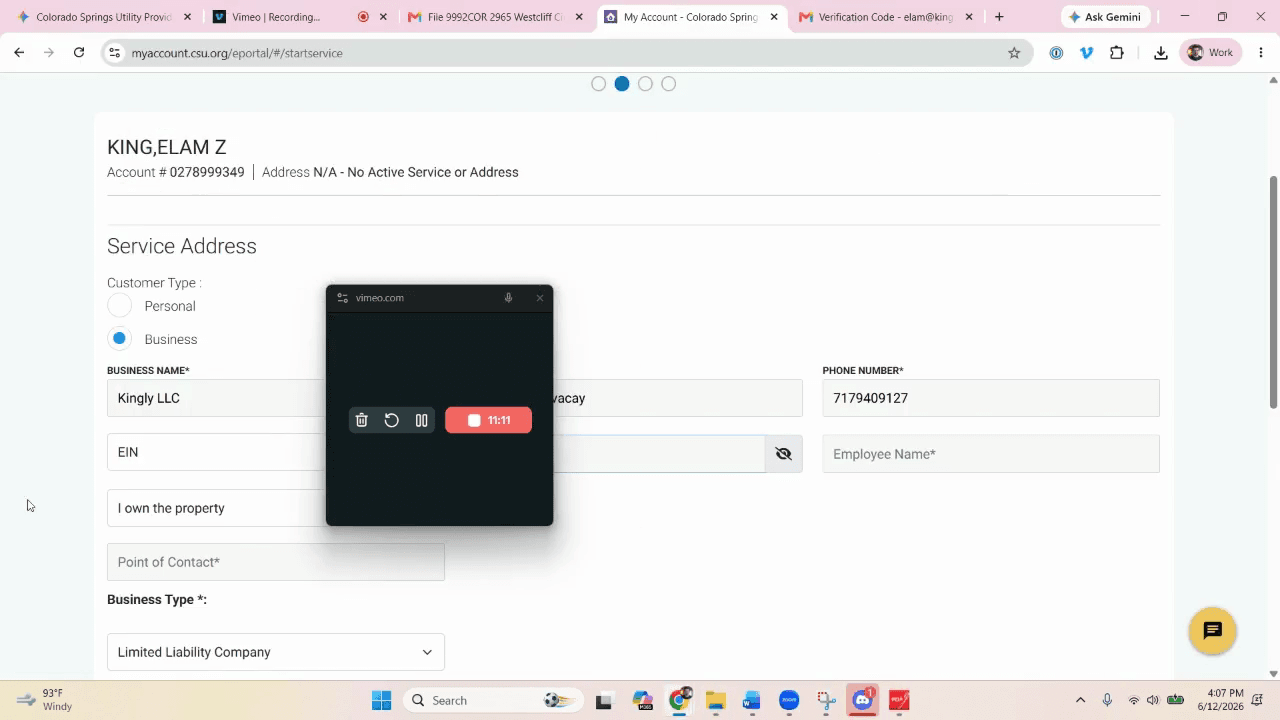
Select the Business radio button under Customer Type. Never register the utilities under your personal name.
Step #19: Select the Business radio button under Customer Type. Never register the utilities under your personal name.
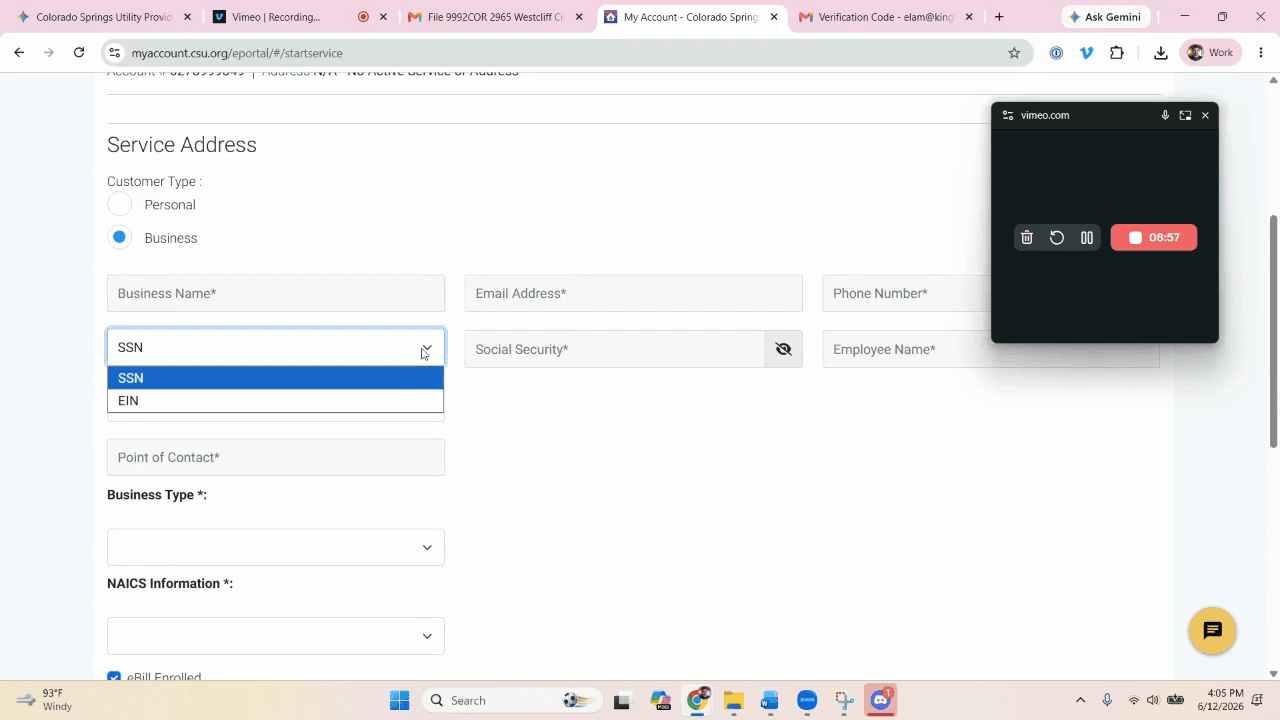
20
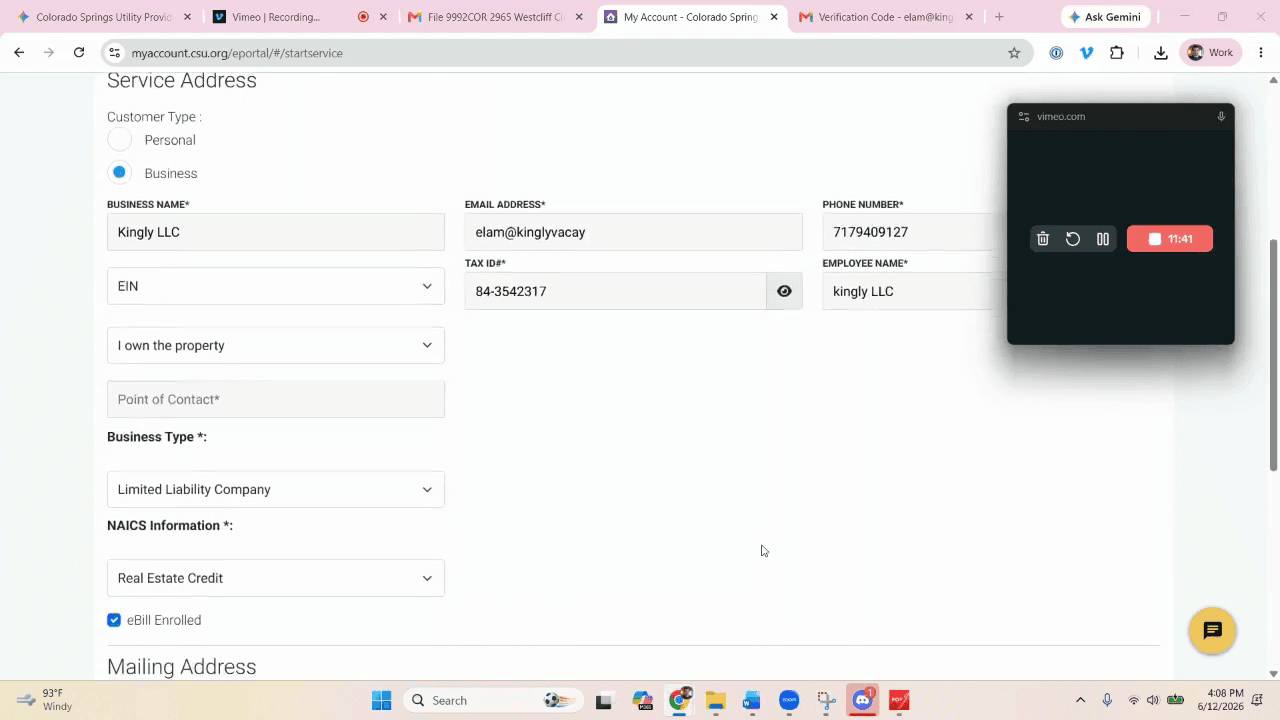
Open the identification dropdown menu and select EIN.
Step #20: Open the identification dropdown menu and select EIN.
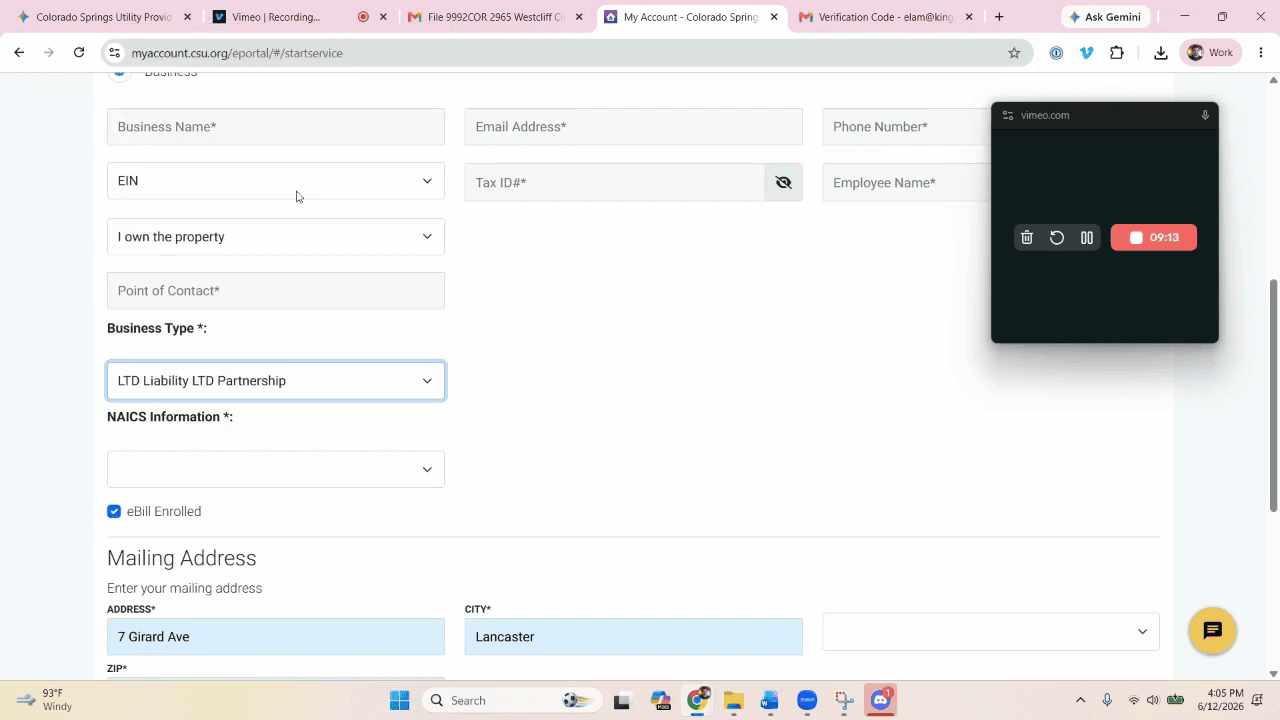
21
Select Limited Liability Company as the business type.
Step #21: Select Limited Liability Company as the business type.
22
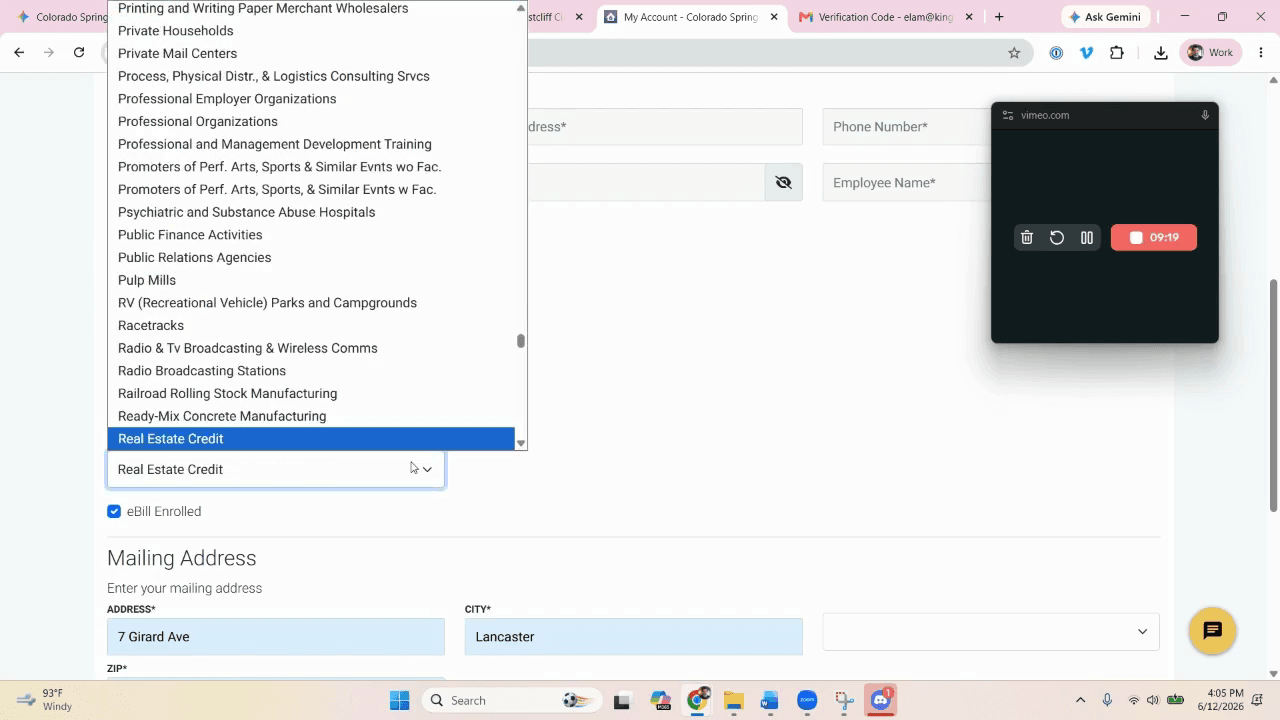
Select the appropriate industry category (e.g., Real Estate Credit or Construction) from the NAICS dropdown.
Step #22: Select the appropriate industry category (e.g., Real Estate Credit or Construction) from the NAICS dropdown.
23
Enter the specific purchasing entity's name (e.g., "Kingly LLC") into the Business Name field.
24
Enter the authorized business email address.
25
Enter the primary business phone number.

Retrieve and Enter the EIN

If you do not have the LLC's Employer Identification Number memorized, retrieve it from the company's shared drive.
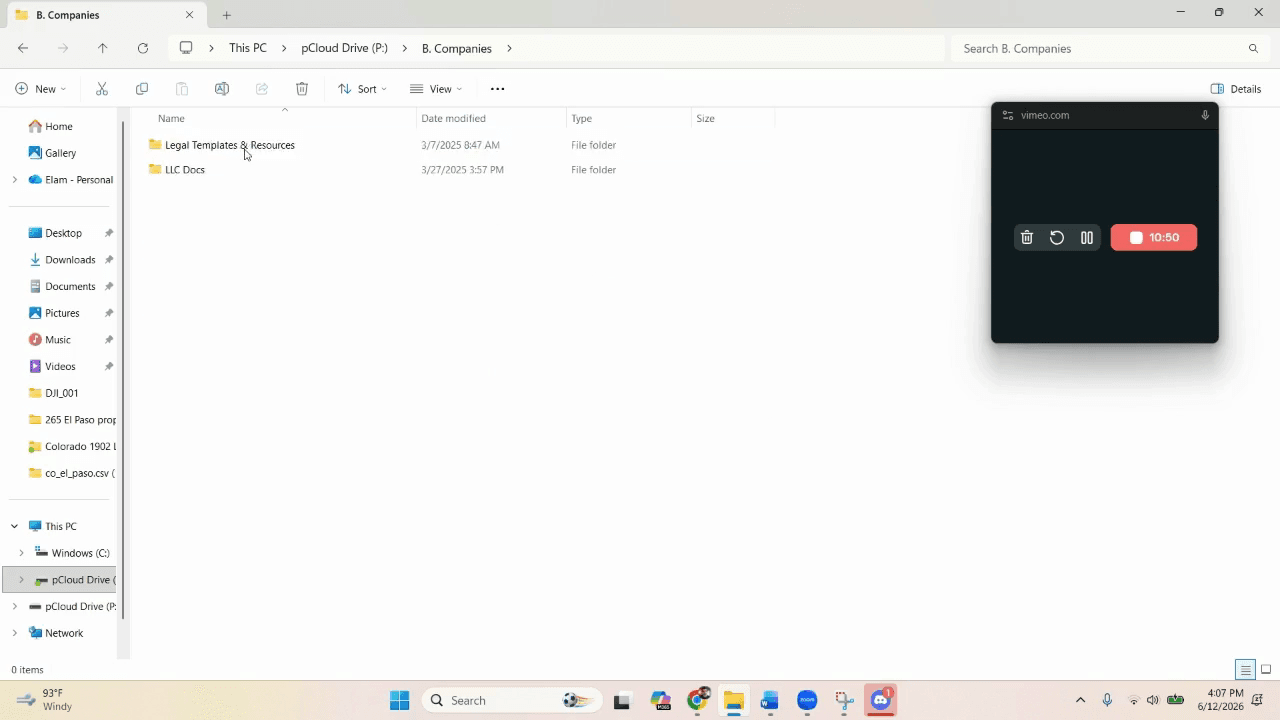
26
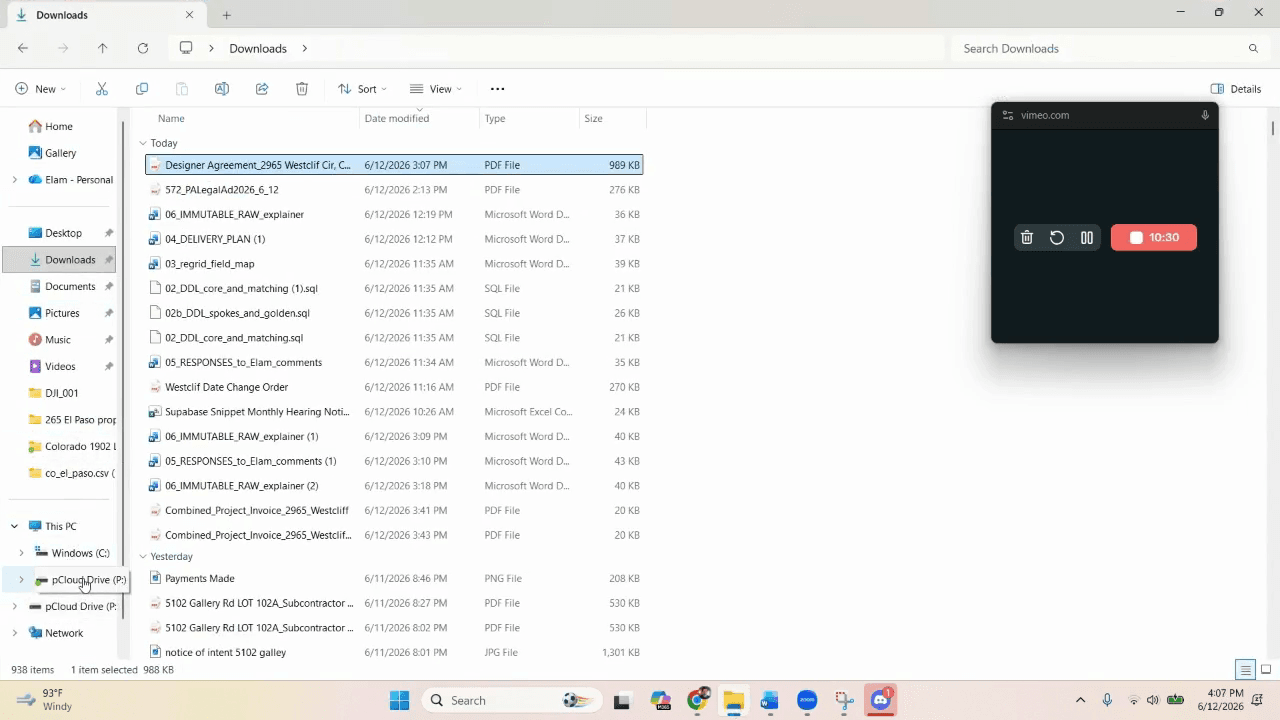
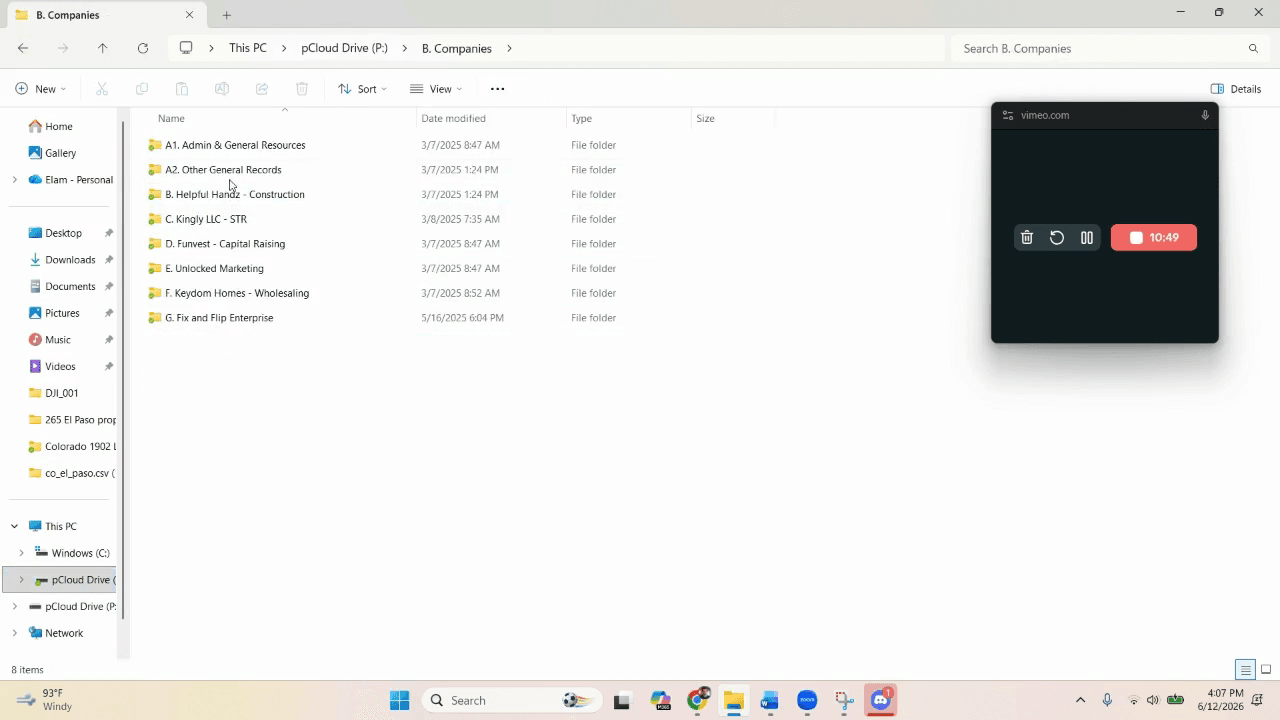
Open your file explorer and click on the company shared drive (e.g., pCloud Drive).
Step #26: Open your file explorer and click on the company shared drive (e.g., pCloud Drive).
27
Double-click the Admin & General Resources folder.
Step #27: Double-click the Admin & General Resources folder.
28
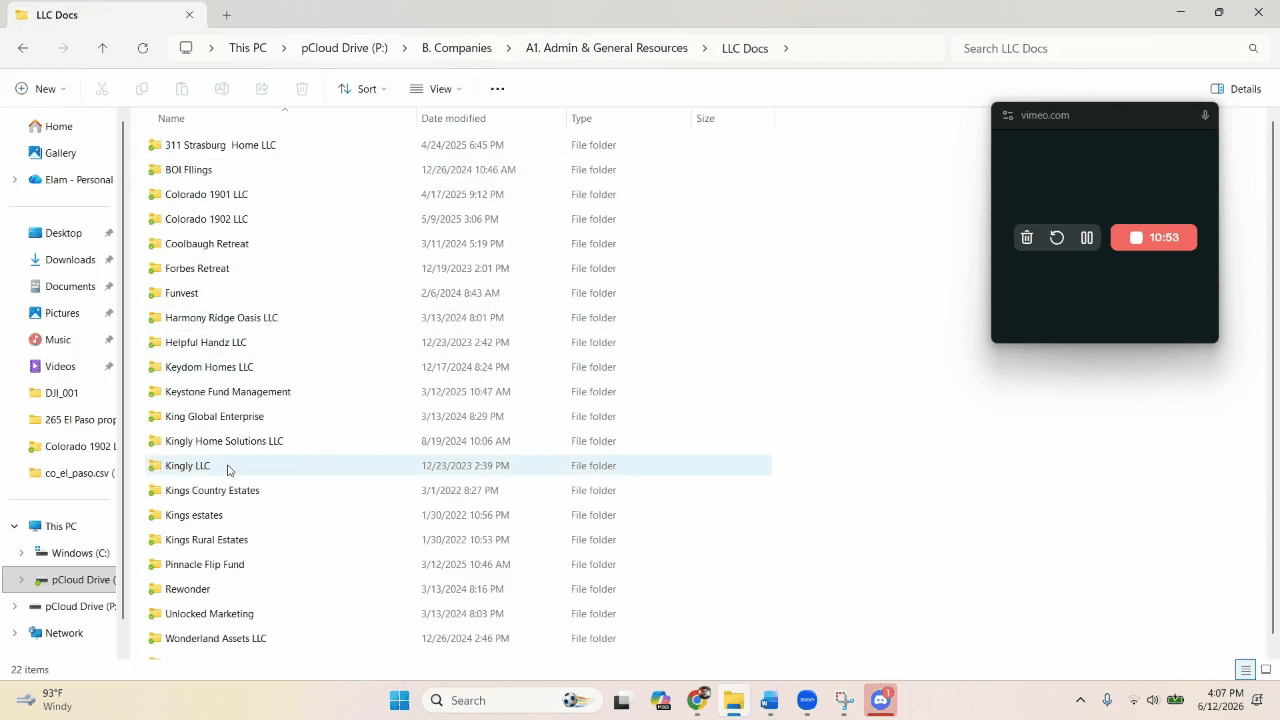
Double-click the LLC Docs folder.
Step #28: Double-click the LLC Docs folder.
29
Double-click the specific folder for the LLC that purchased the property.
Step #29: Double-click the specific folder for the LLC that purchased the property.
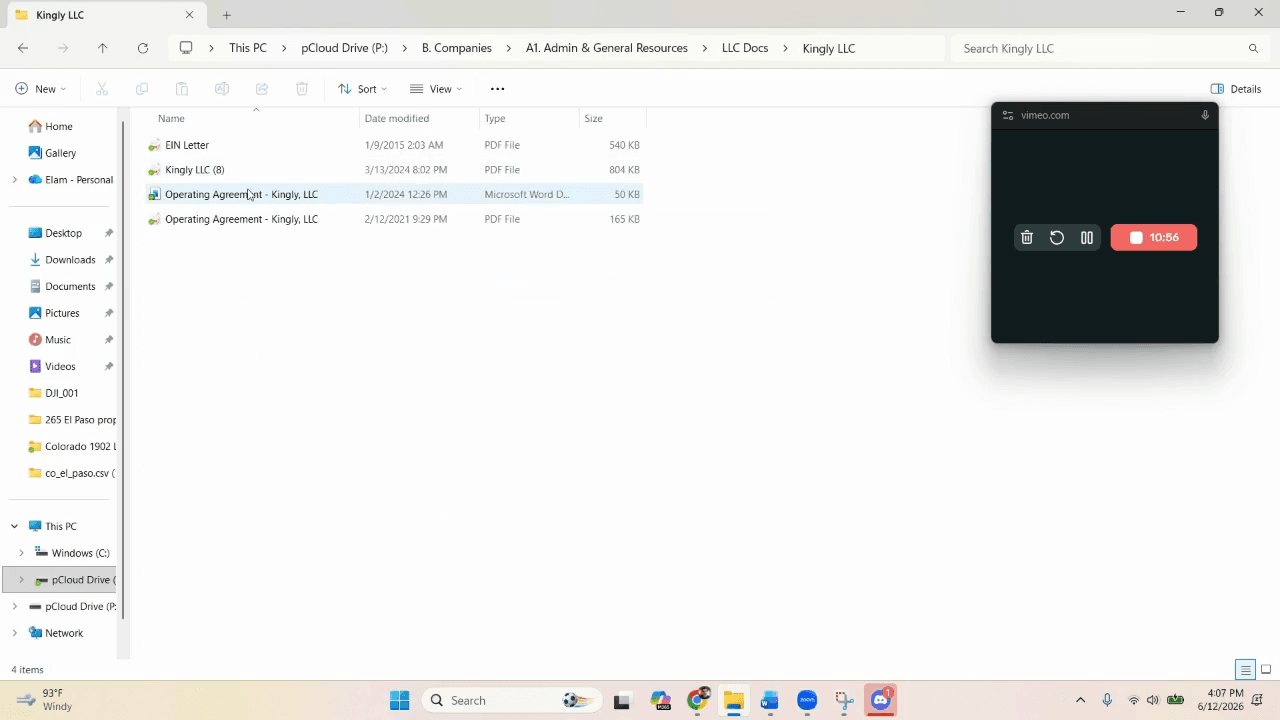
30
Open the EIN Letter PDF document and locate the 9-digit Tax ID number.
Step #30: Open the EIN Letter PDF document and locate the 9-digit Tax ID number.
31
Return to the utility provider's web form and click the TAX ID field.
Step #31: Return to the utility provider's web form and click the TAX ID field.
32
Enter the EIN exactly as it appears on the official IRS document.

Finalize the Service Request

33
Click the Point of Contact field.
Step #33: Click the Point of Contact field.
34
Enter the name of the LLC manager or primary point of contact.
35
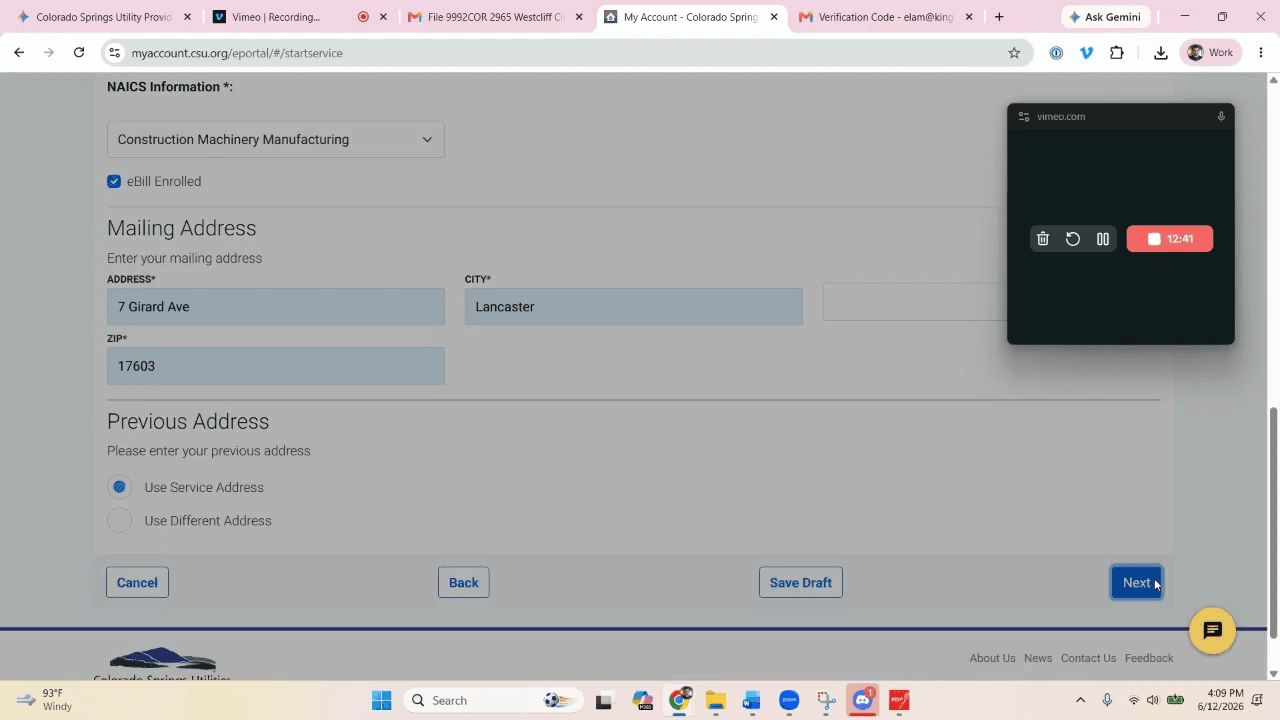
Click Next to proceed to the confirmation page.
Step #35: Click Next to proceed to the confirmation page.
36
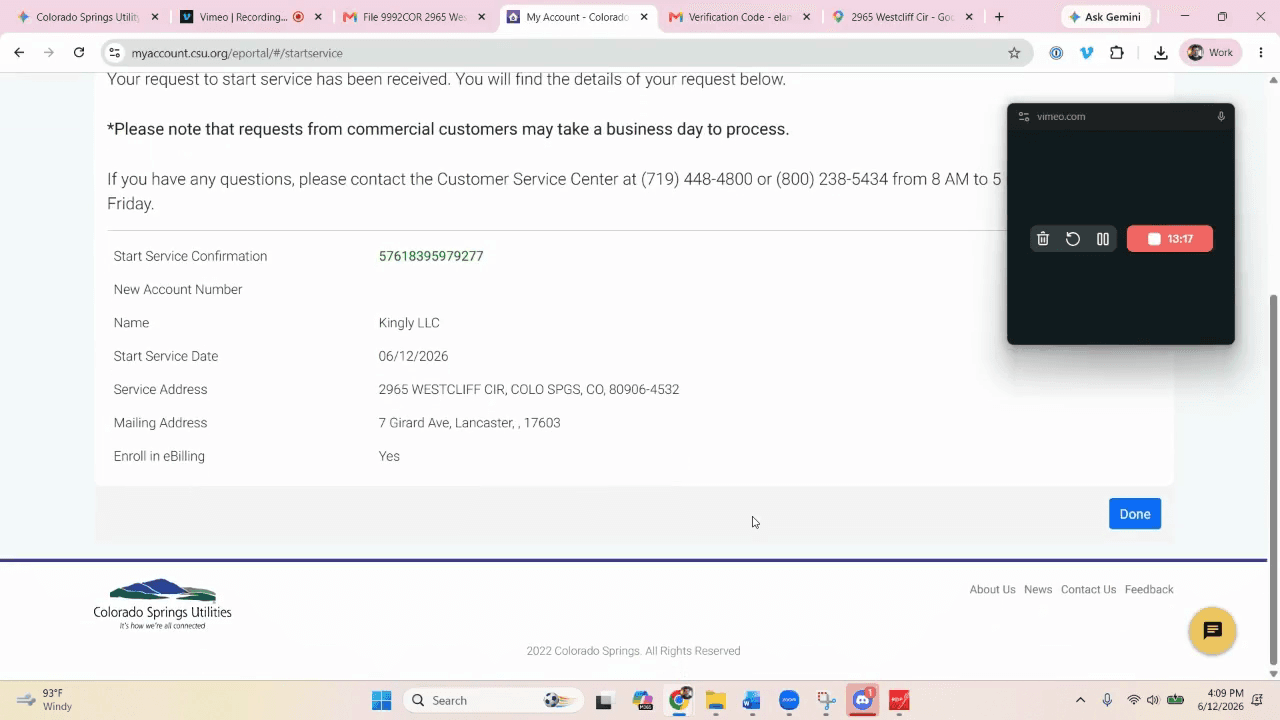
Review the final details and click Done to submit the start service request.
Step #36: Review the final details and click Done to submit the start service request.

Q: Which utilities need to be activated when a property is purchased?

A: You must turn on the electric, gas (natural gas or propane), water, and sewer services. Do not activate trash, cable, or phone services, as the property will remain unoccupied during the renovation period.

Q: What entity type should the utilities be registered under?

A: Utilities should always be registered as a Business account under the specific LLC that purchased the property, not under a personal name.

Q: How do I find out which utility providers service a specific property?

A: You can prompt an AI tool like Gemini with the property address to determine the local municipal or third-party providers for electricity, gas, water, and sewer.

Q: Where can I locate the EIN for the LLC?

A: The Employer Identification Number (EIN) is located on the IRS EIN letter, which is stored in the company's shared drive within the specific LLC's document folder.

Term

Definition

EIN (Employer Identification Number)

A unique nine-digit number assigned by the IRS to identify a business entity operating in the United States.

LLC (Limited Liability Company)

A U.S. business structure that protects its owners from personal responsibility for its debts or liabilities, commonly used to hold real estate.

Title Company

An agency involved in examining and insuring title to real estate, who also frequently coordinates the final closing and funding of the property purchase.

SOP (Standard Operating Procedure)

A set of step-by-step instructions compiled by an organization to help workers carry out routine operations consistently.