Inputing RoP Weekend Mentor Pairings: Step-by-Step Guide
Learn how to input weekend mentor pairings into Airtable, using the 'QfC Weekend Mentor Pairings Form' for accurate weekend mentor-mentee matching.
In this guide, you'll learn how to record and verify mentor pairings for a weekend event using the QfC Weekend Mentor Pairings Form. This process involves matching each participant with their assigned weekend mentor, checking details against the leader pack and staff travel plan, and ensuring all information is accurate before submission.
We'll also cover how to double-check pairings and track your progress in the post-weekend tasks view.
Let's get started
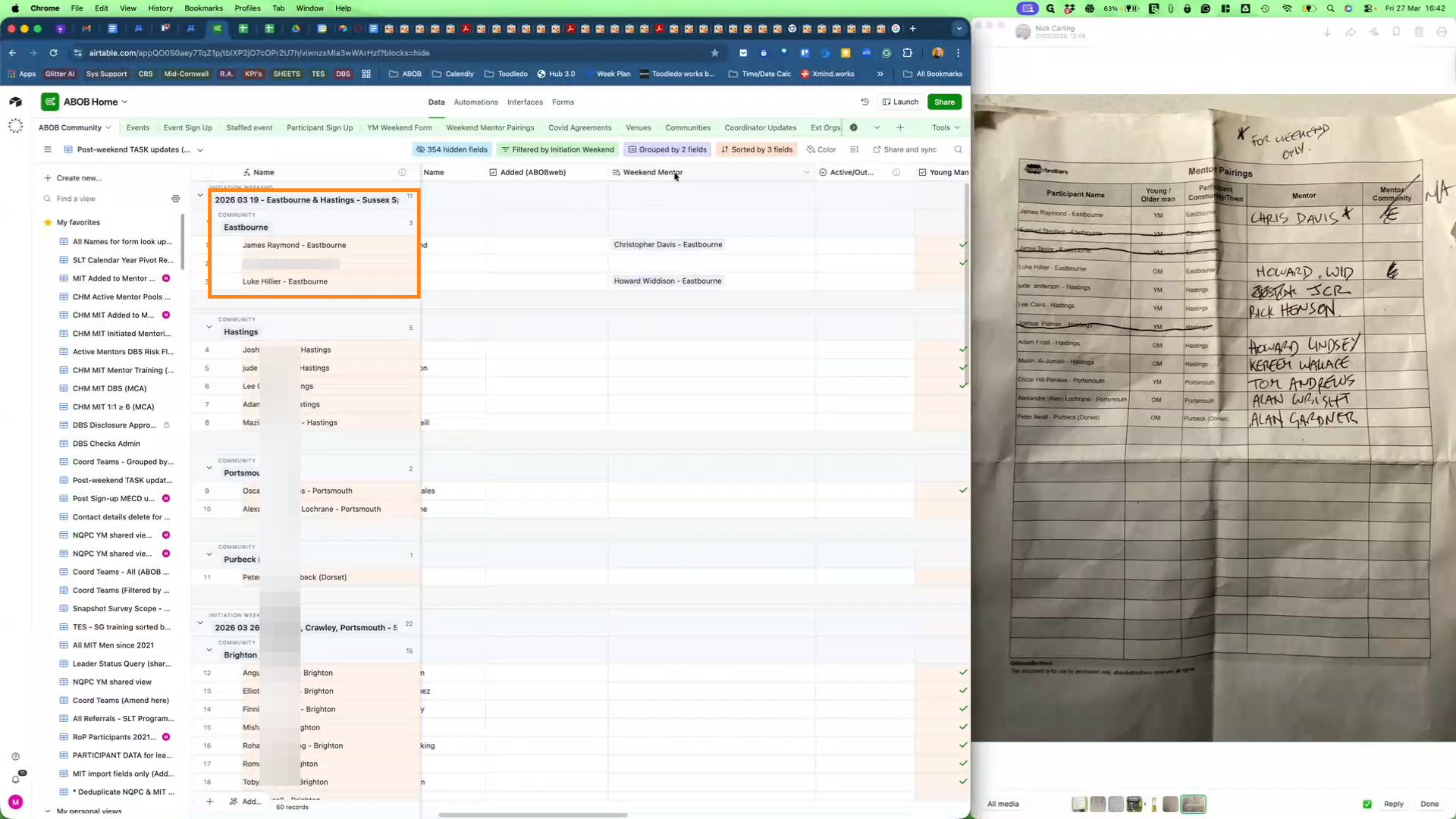
To recap, we expect to receive an update from the Outside Leader on Thursday night or Friday morning about which Staff members arrived on site and specifically anyone who did not. Likewise, on Friday night or Saturday morning, we expect to receive the same information for Participants.
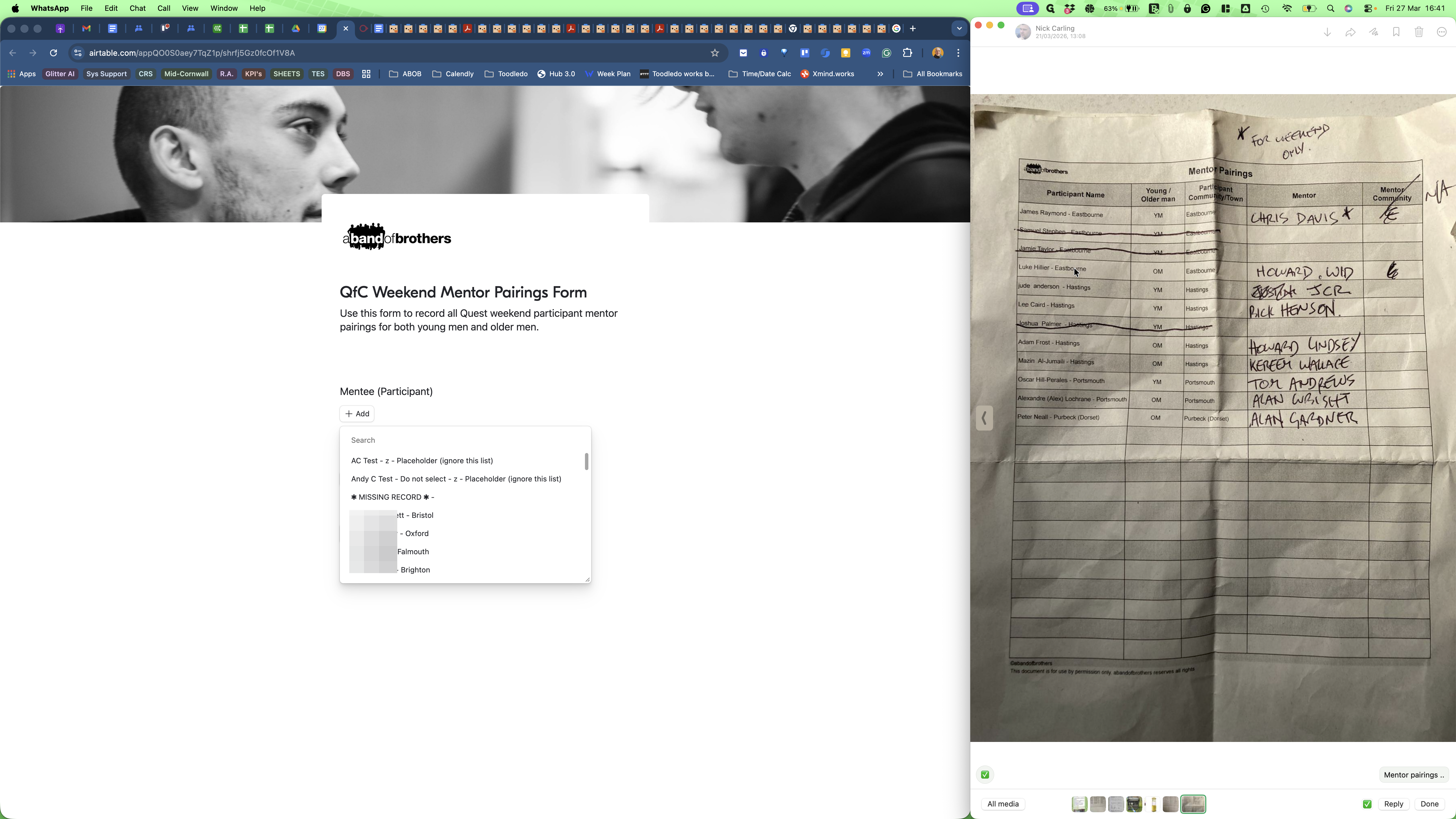
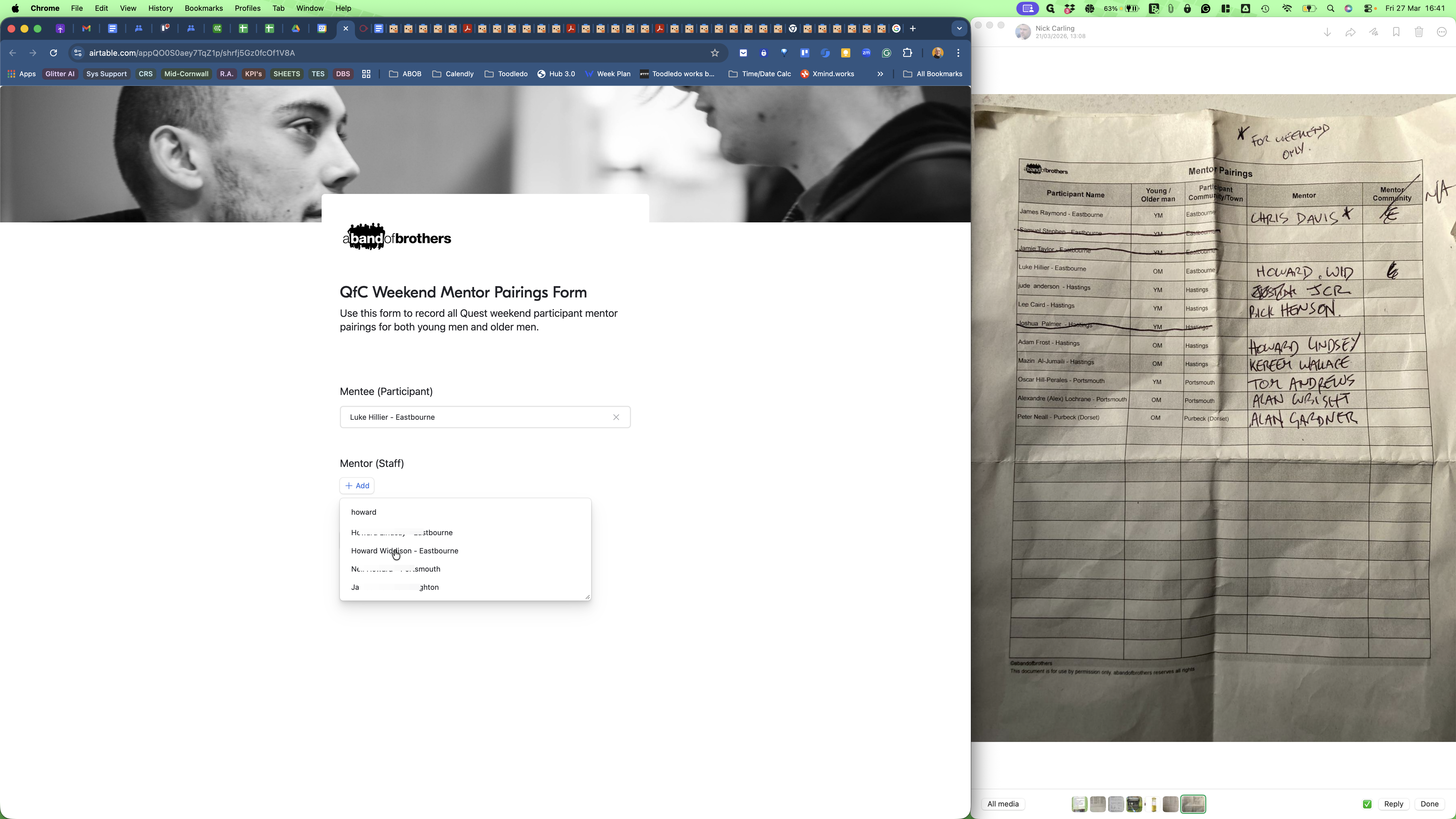
So the next thing we expect to receive is Weekend Mentor Pairings, which may not arrive until Saturday afternoon or on Sunday. On the right-hand side is an example of mentor pairings.
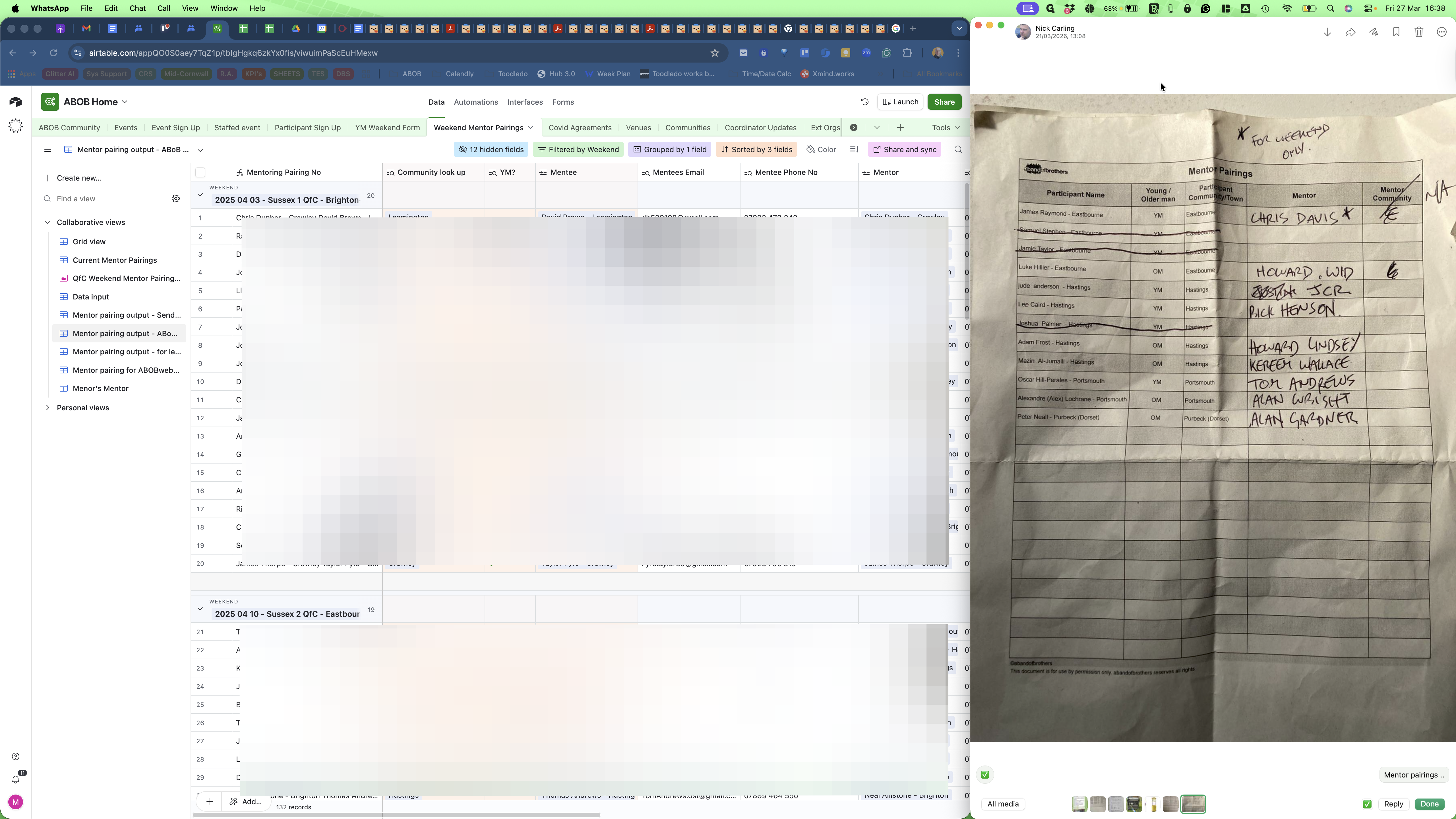
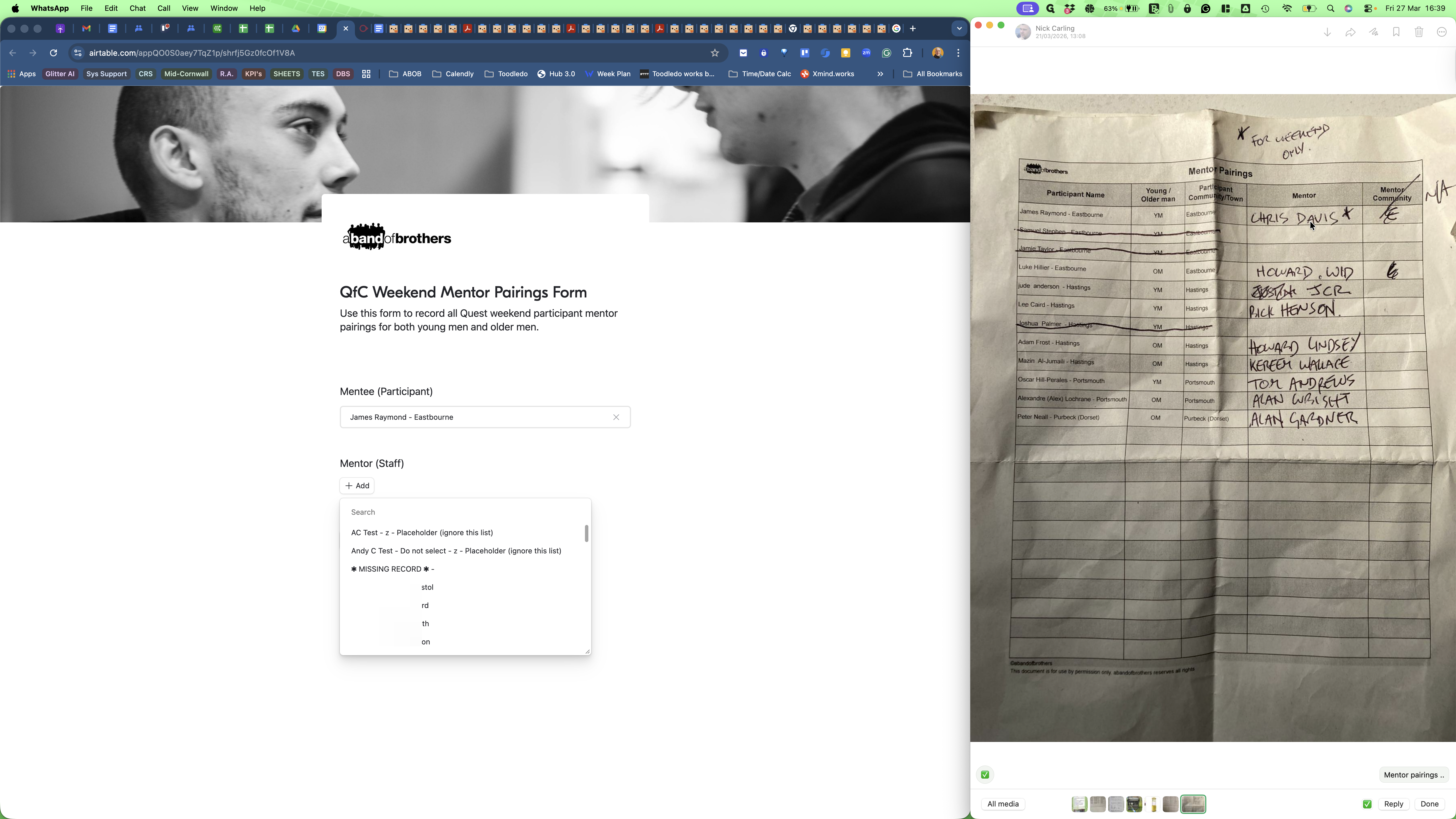
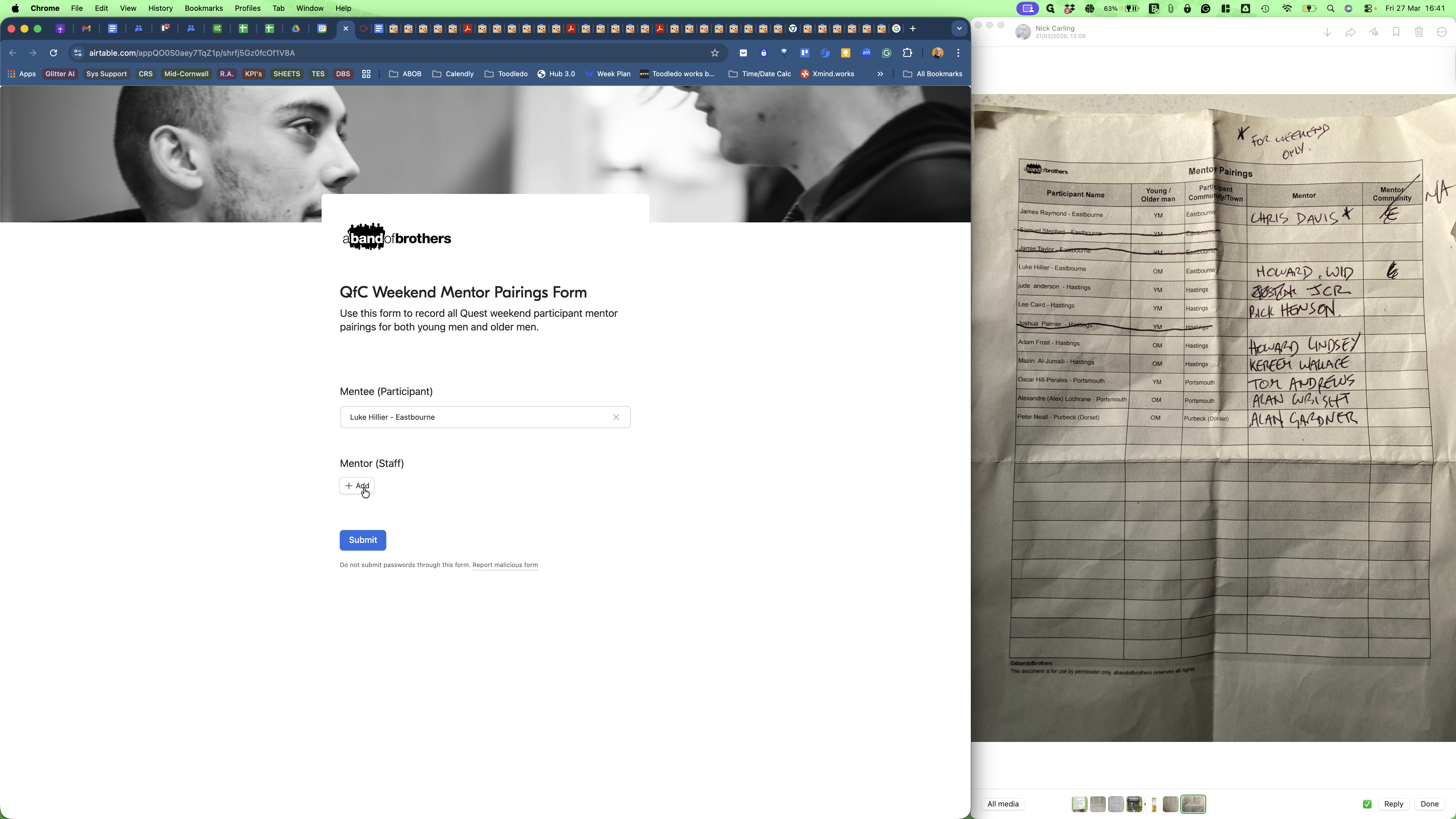
In this example, it is a photo of the Mentor Pairing sheet from the leader pack, which was sent over WhatsApp. Those Participants that are not crossed out are the ones who actually attended the weekend. On the right-hand side, in the Mentor column, are the mentors (staff members) paired with each Participant.
Mentor Pairings have to be input into Airtable
We do this using the QfC Weekend Mentor Pairings Form
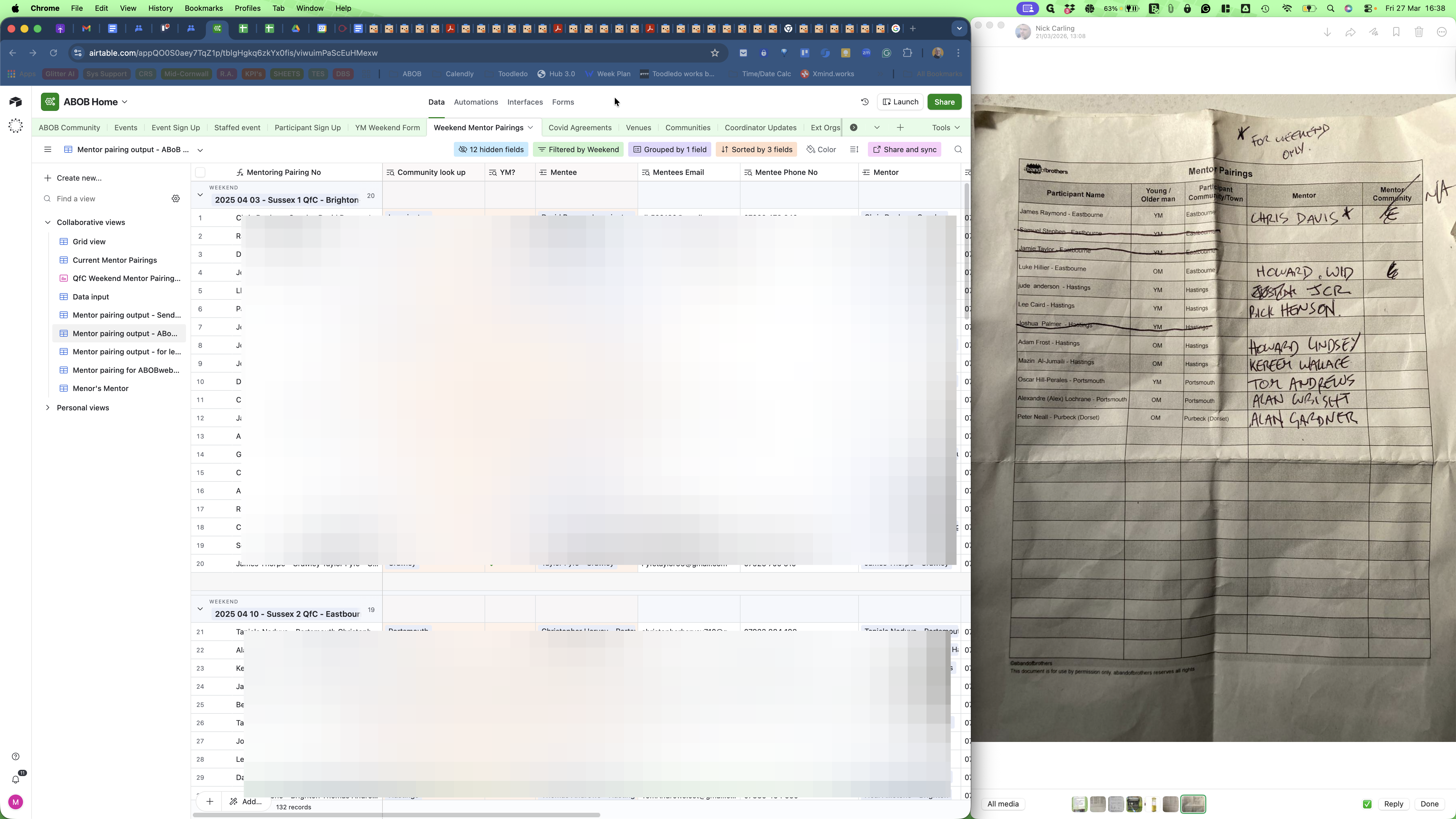
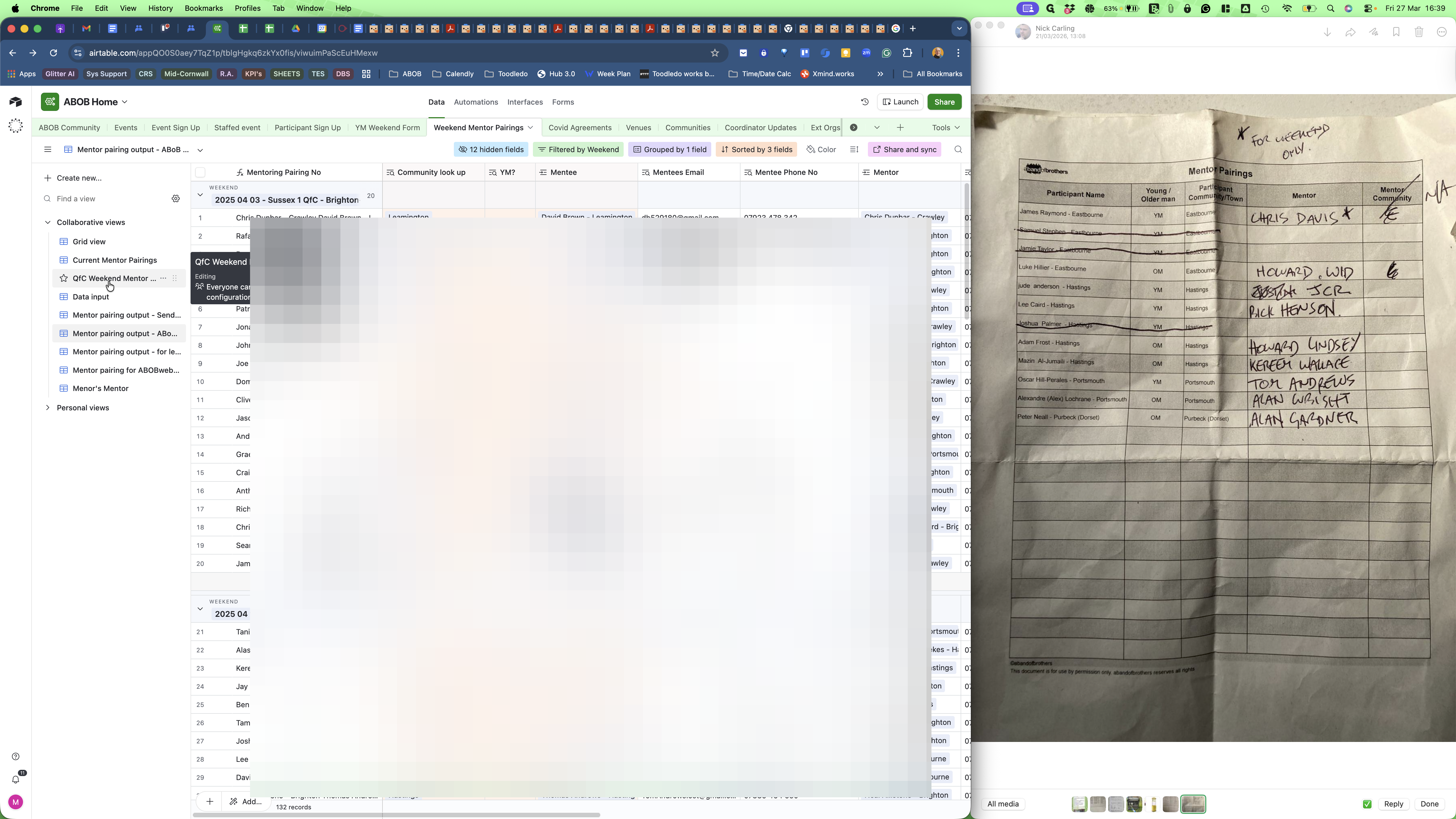
Open the QfC Weekend Mentor Pairings Form and begin completing one pairing at a time.
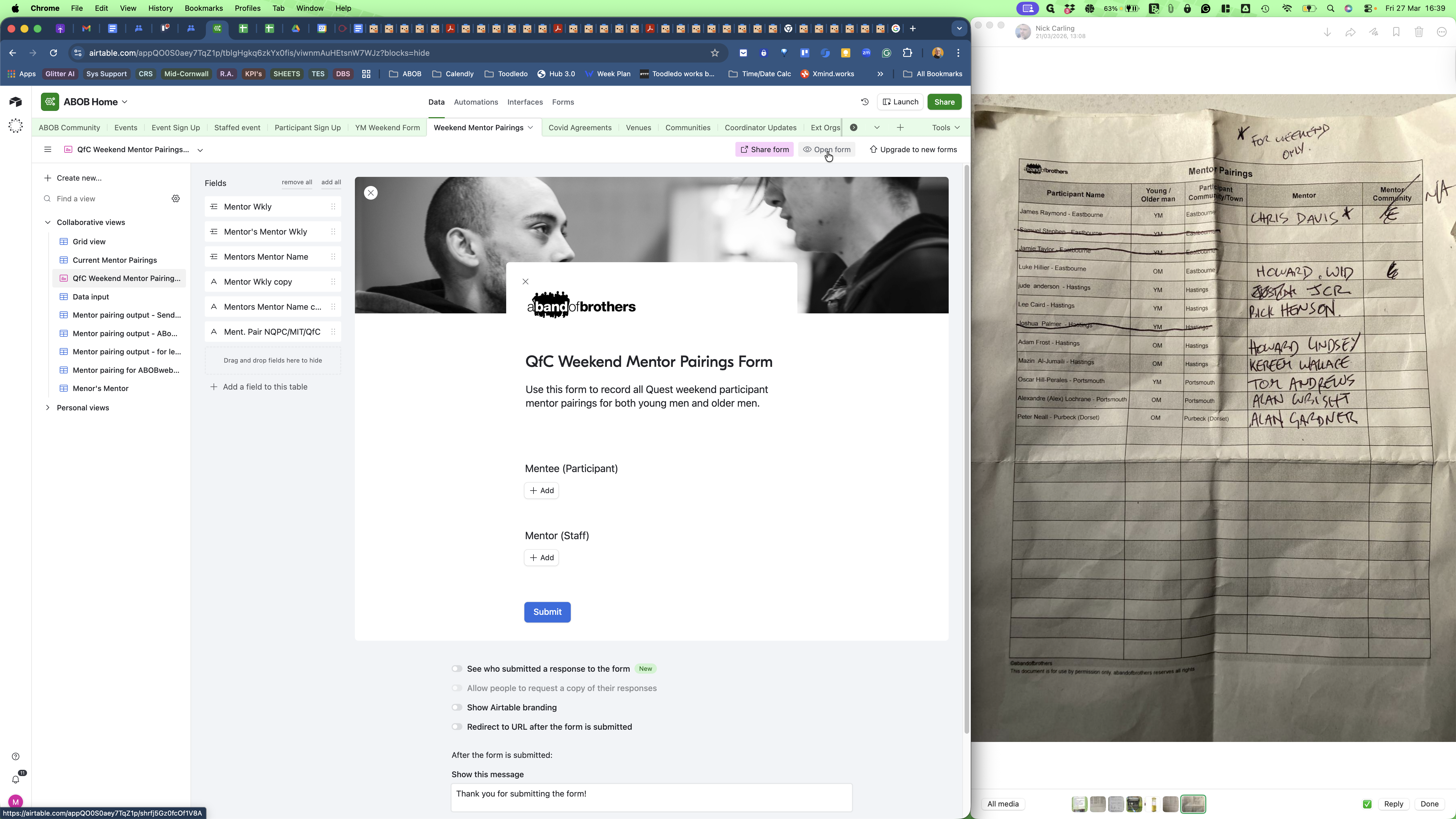
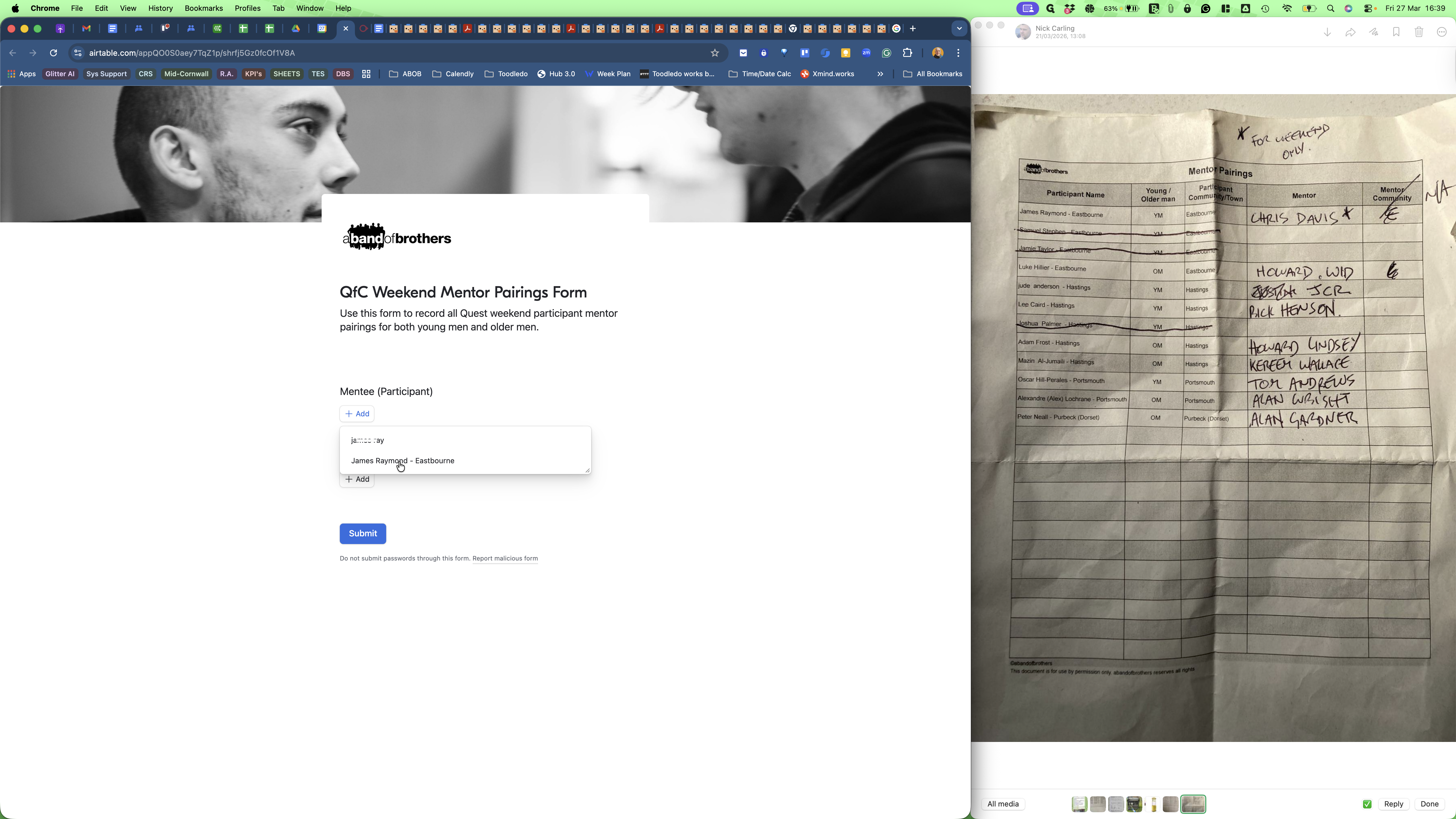
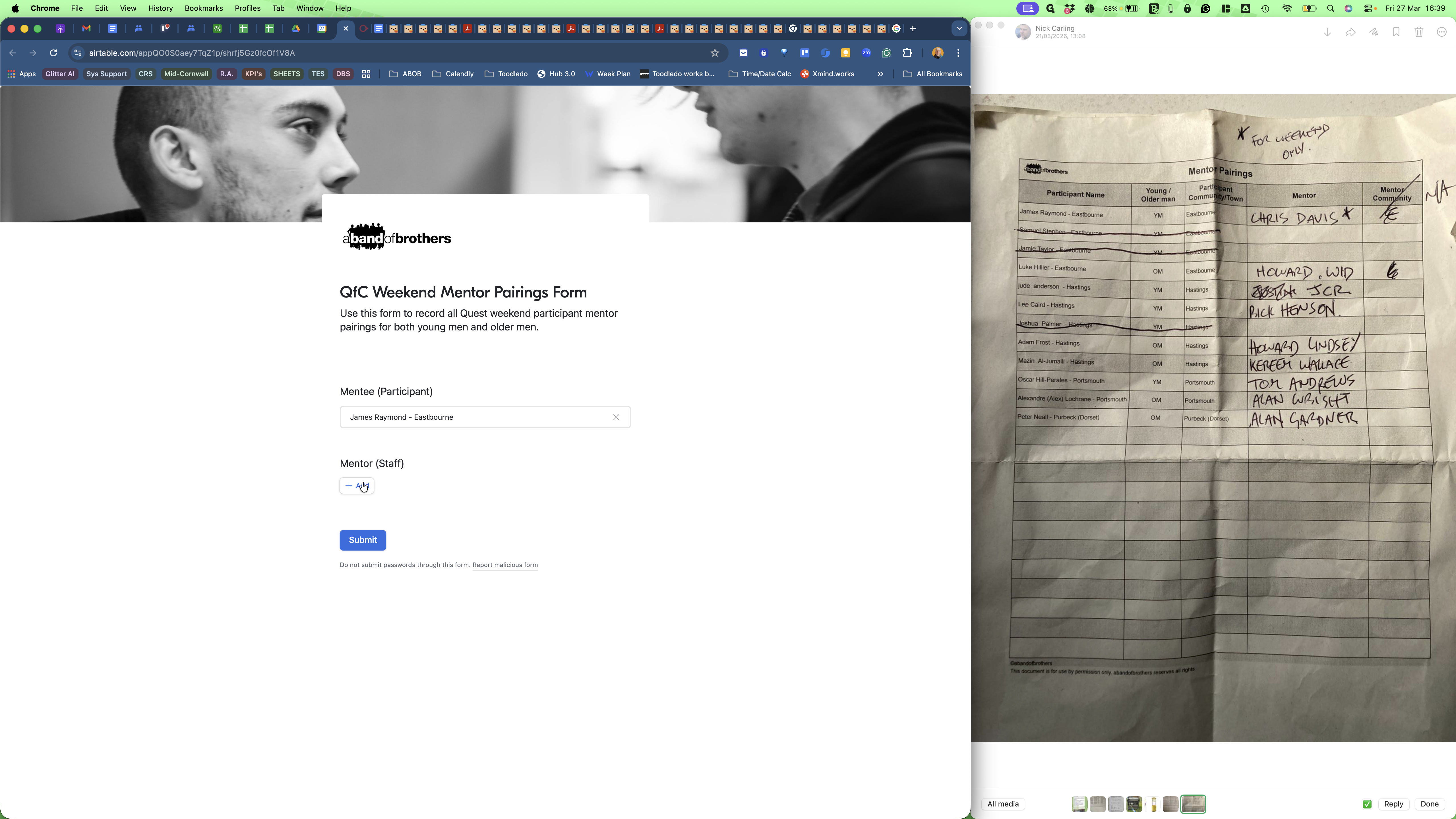
So, starting from the top, with James R ...
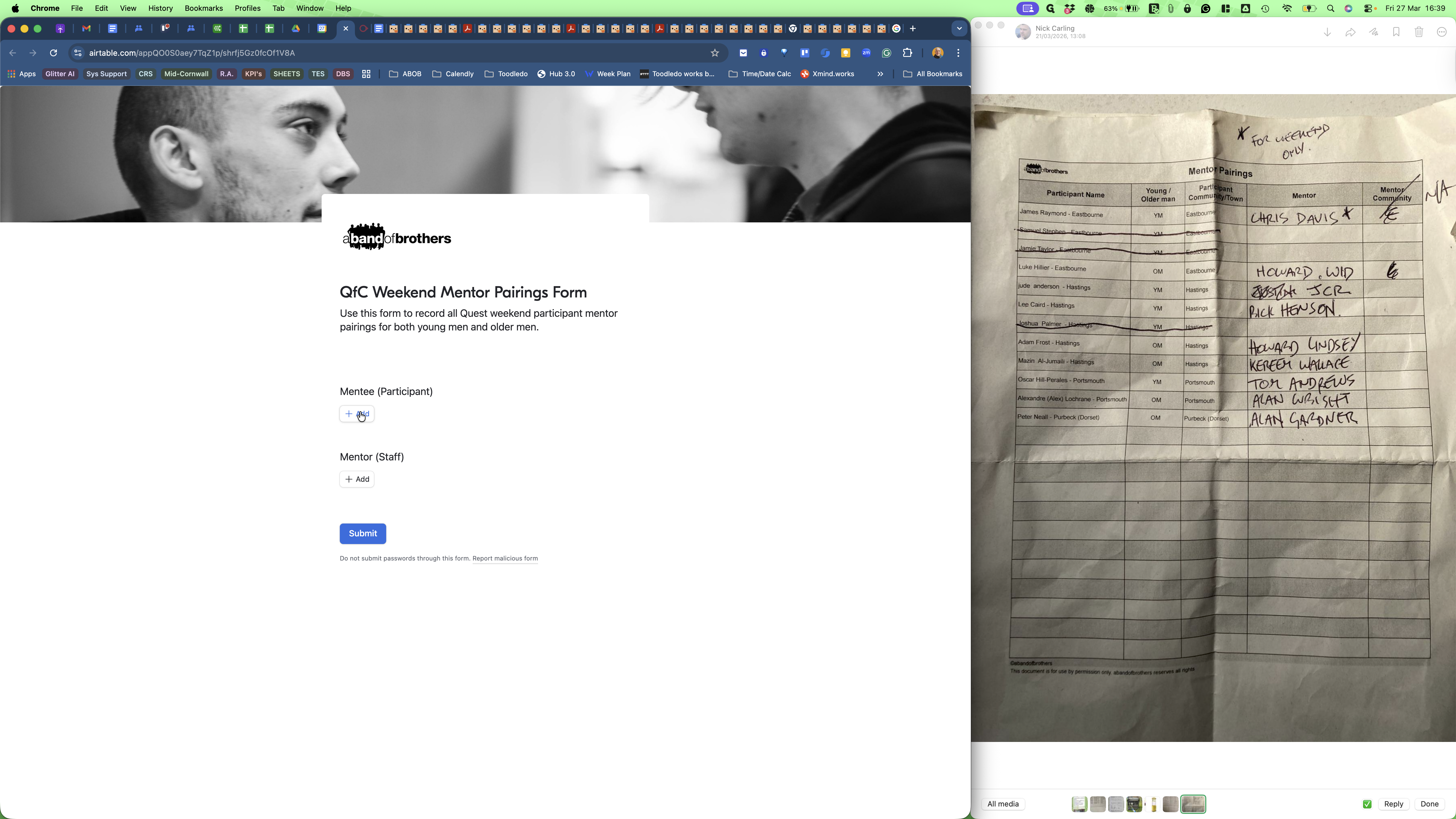
Type his surname.
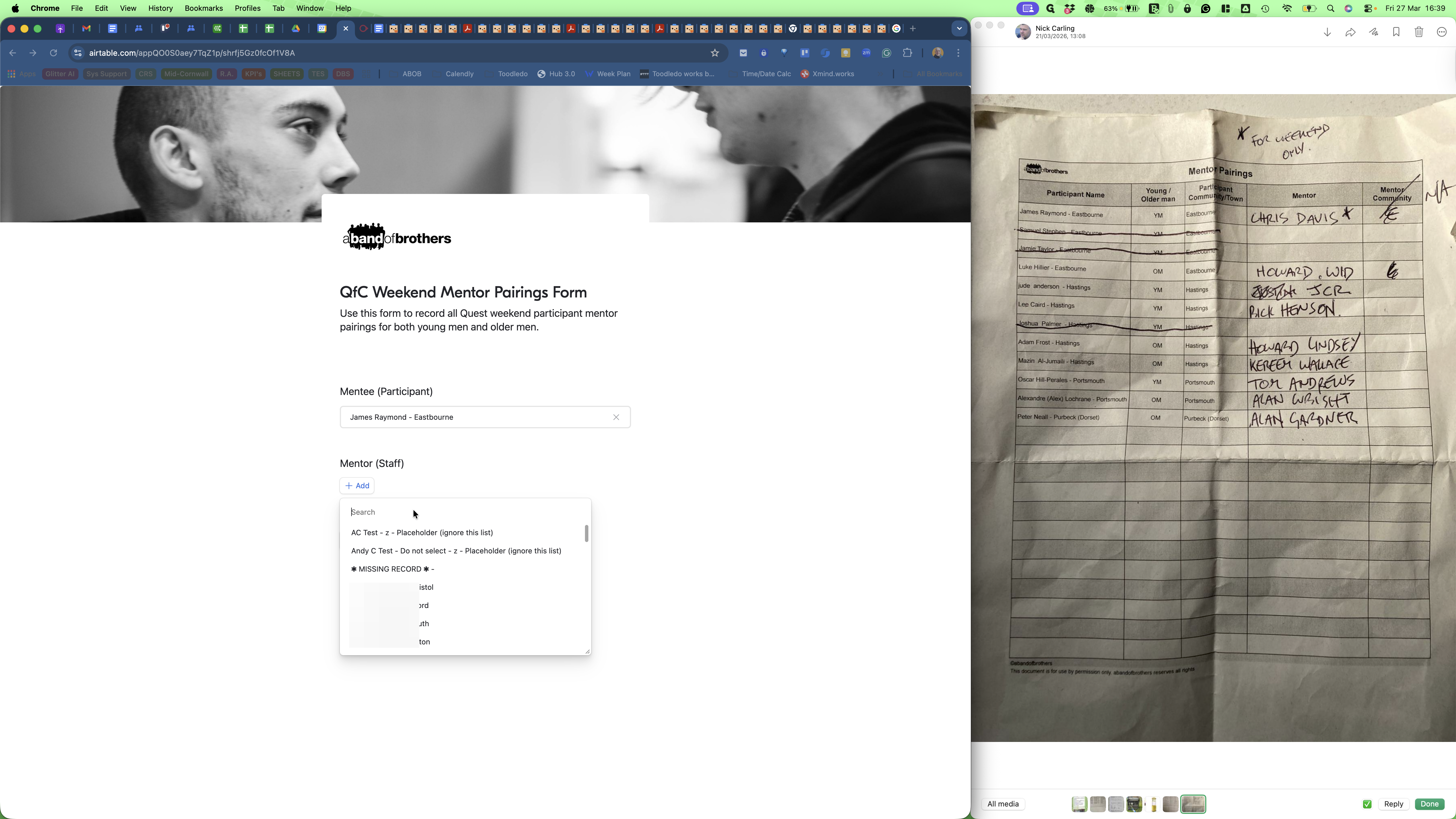
That does not work.
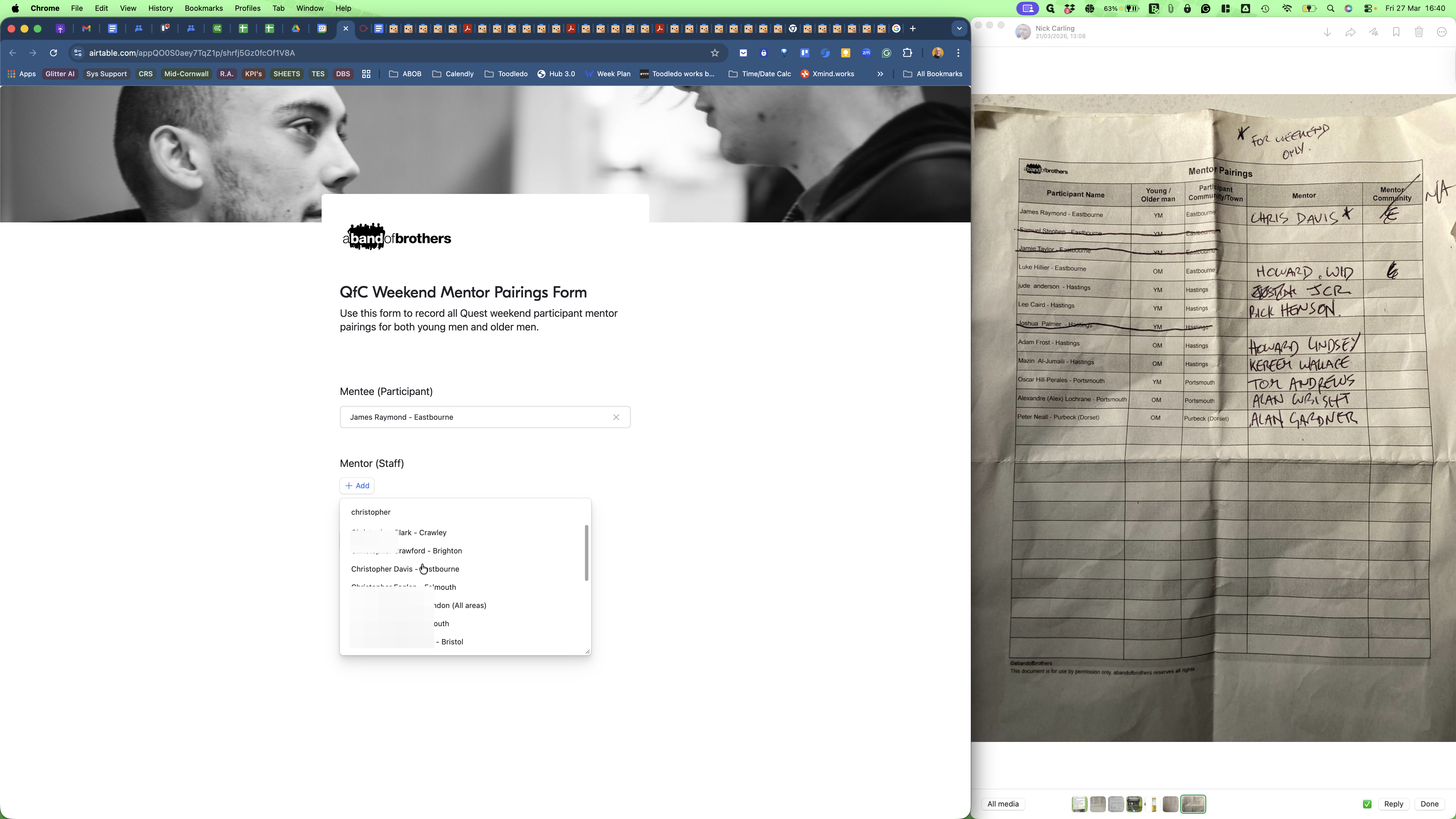
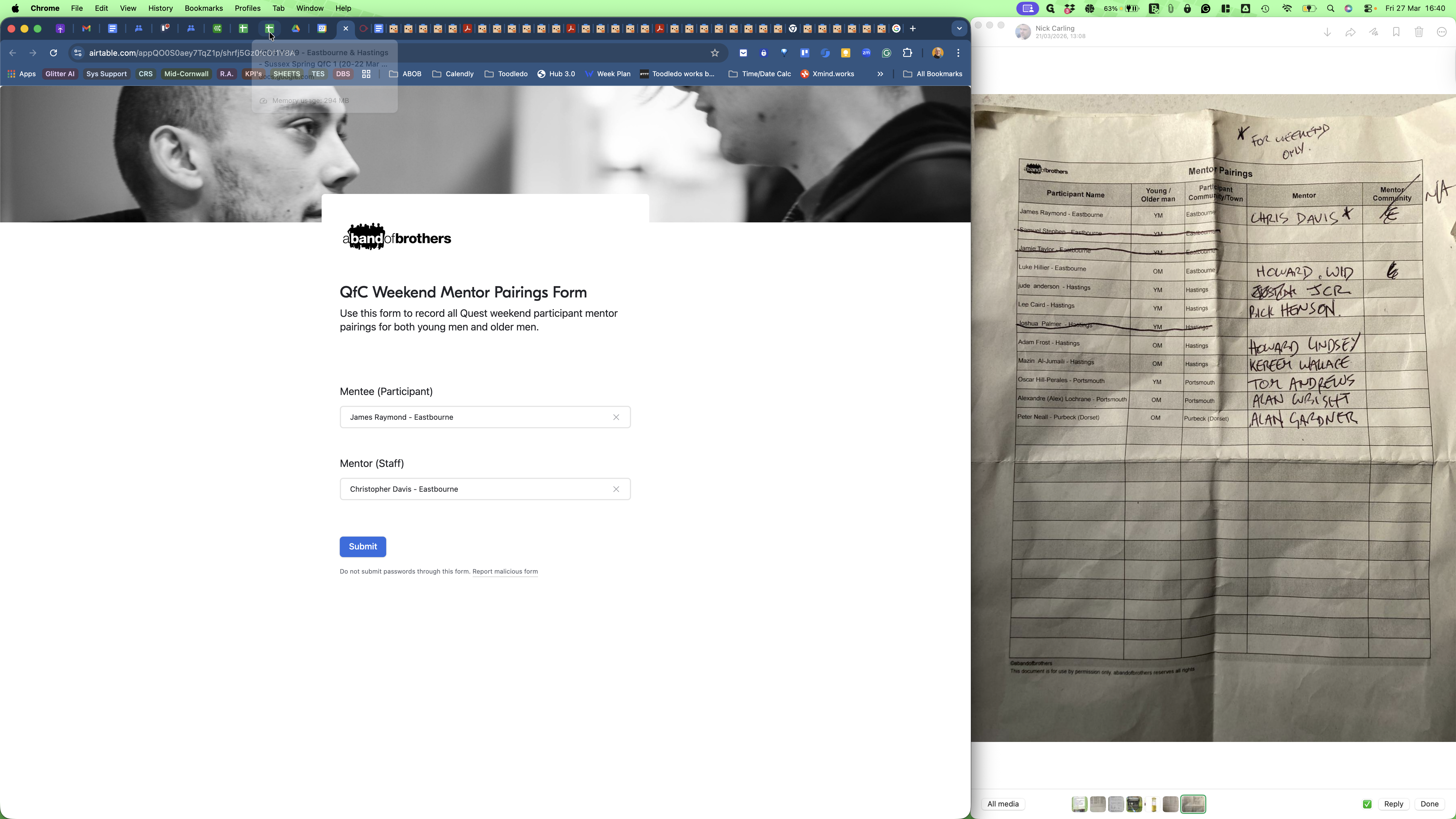
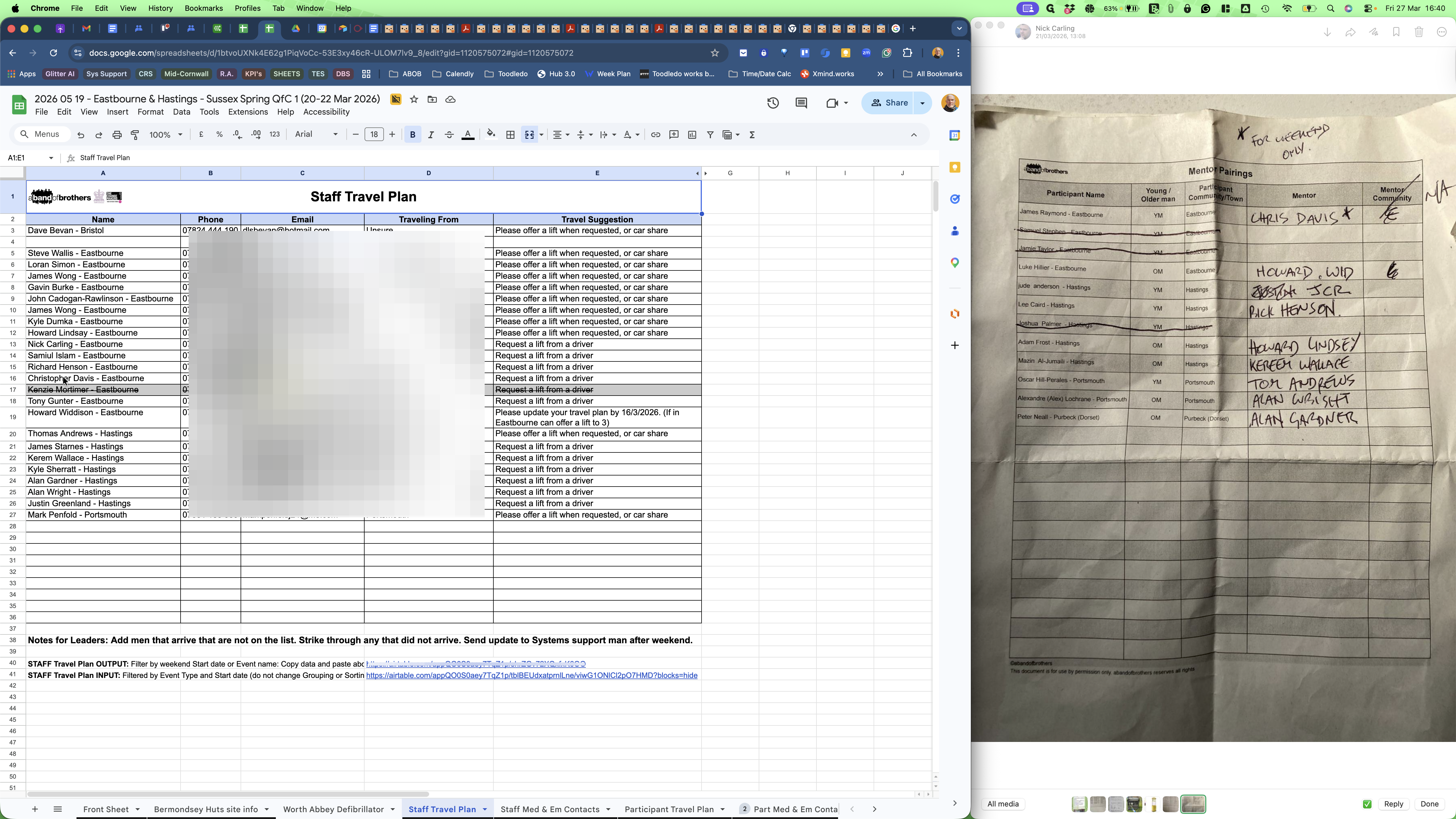
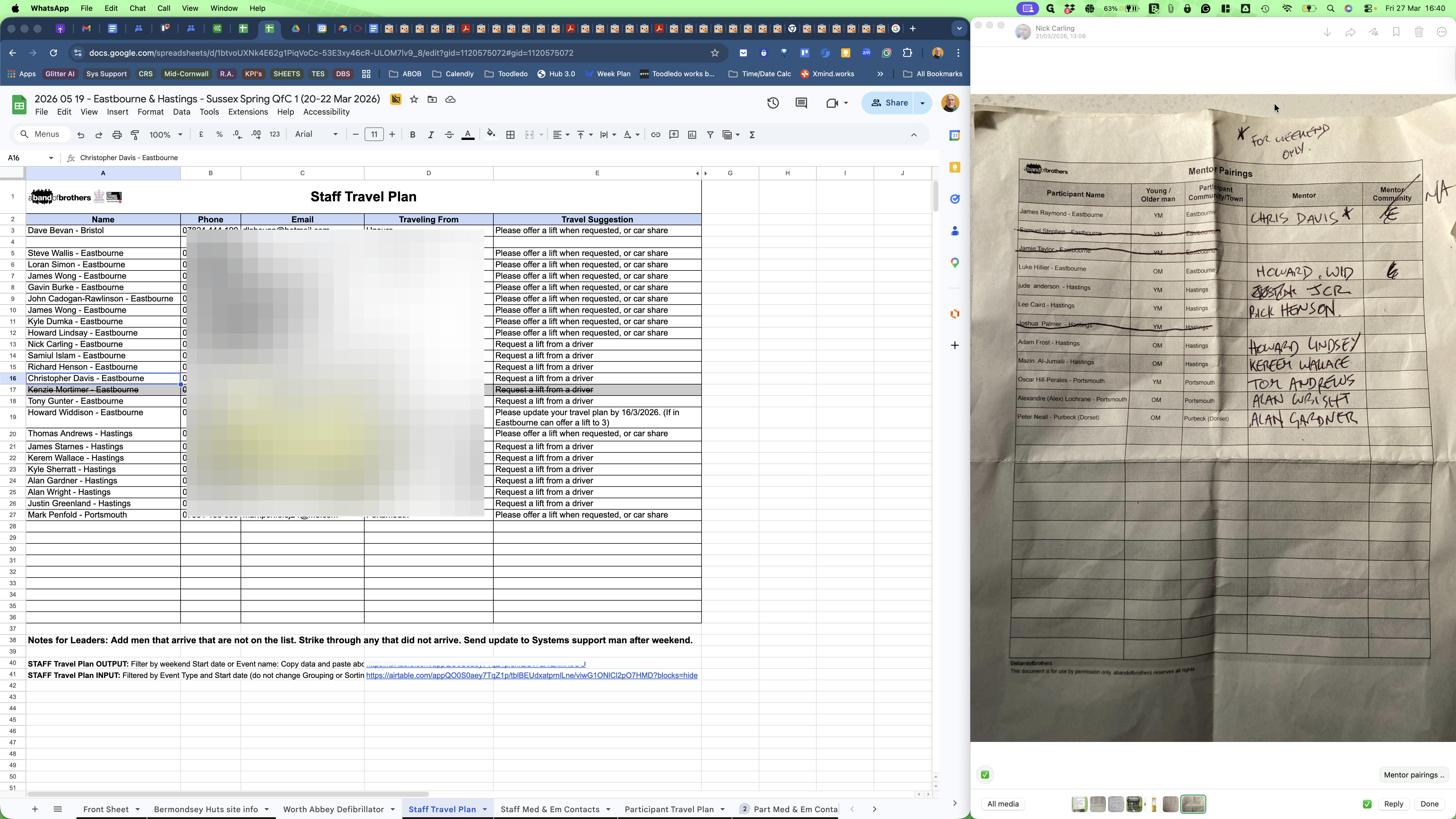
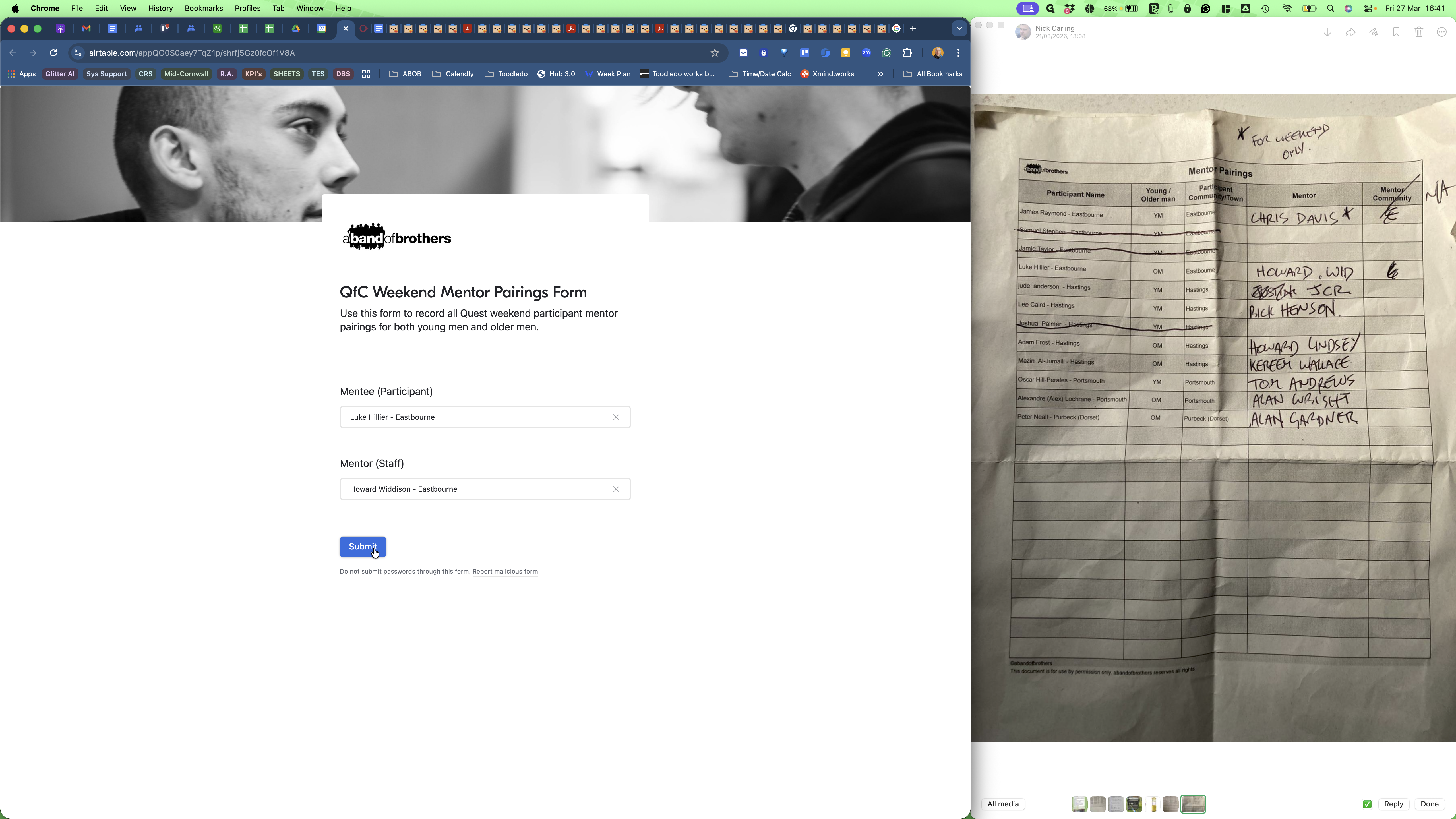
Go back to the form and click Submit.
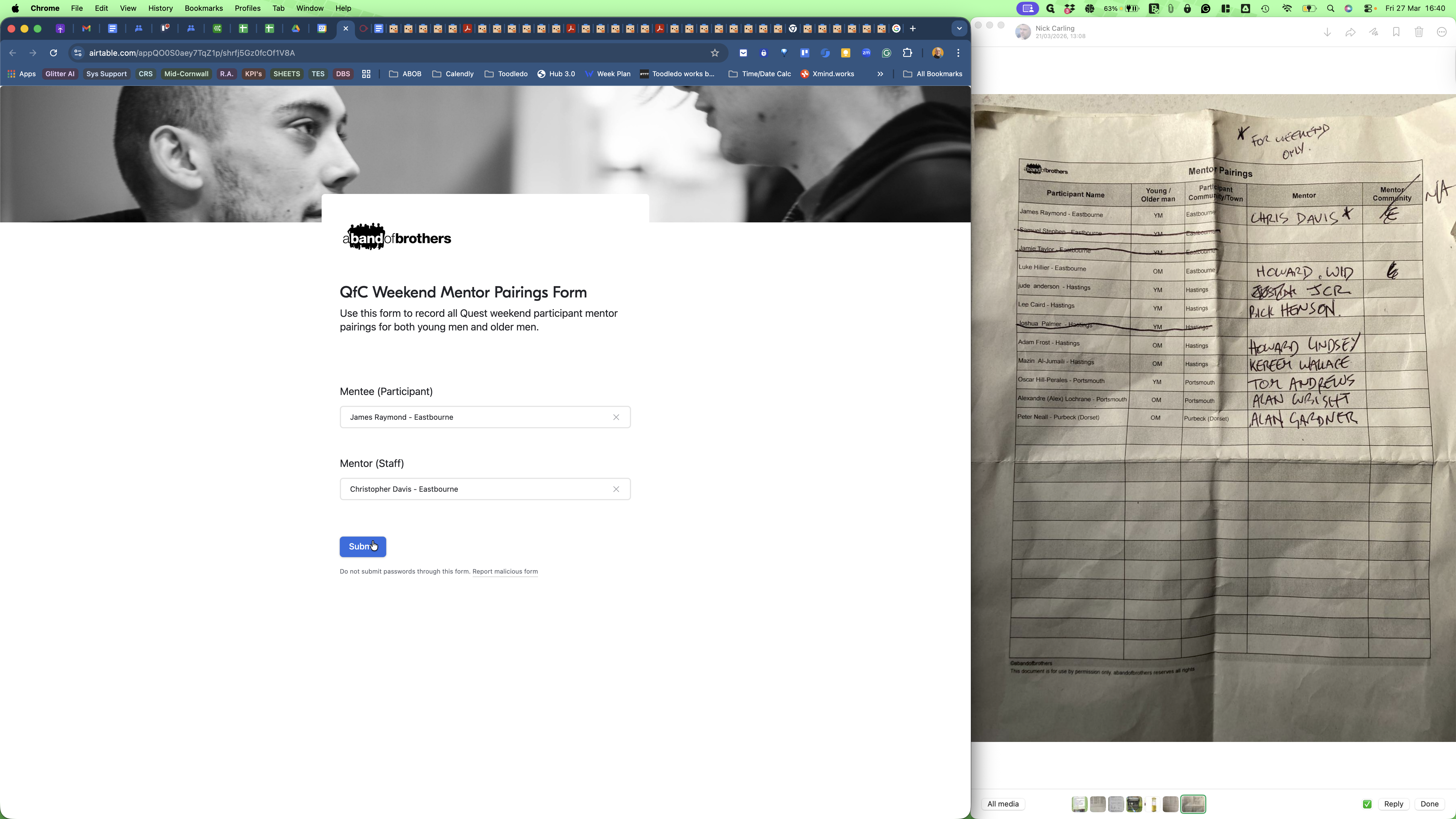
Let's do another.
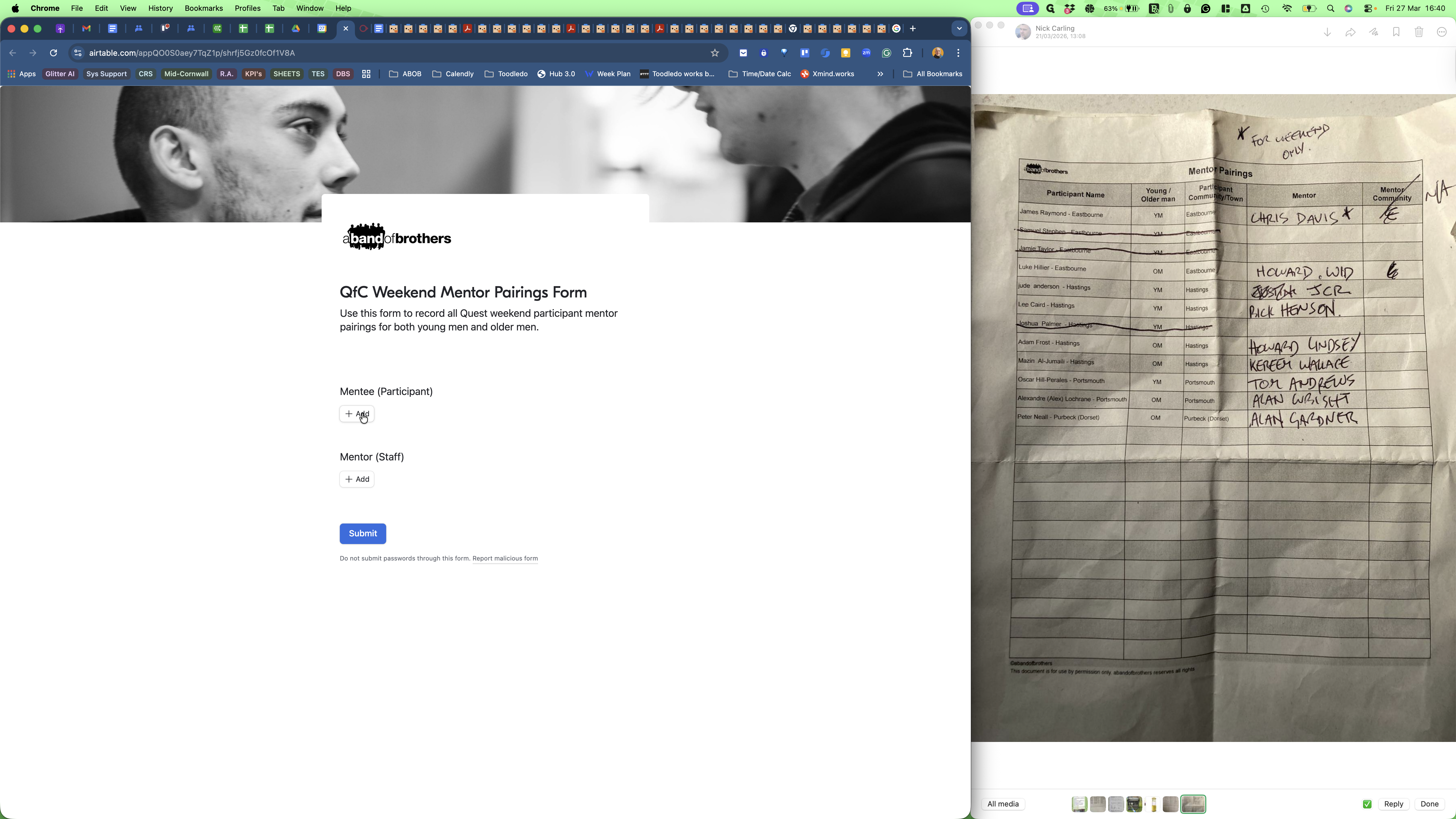
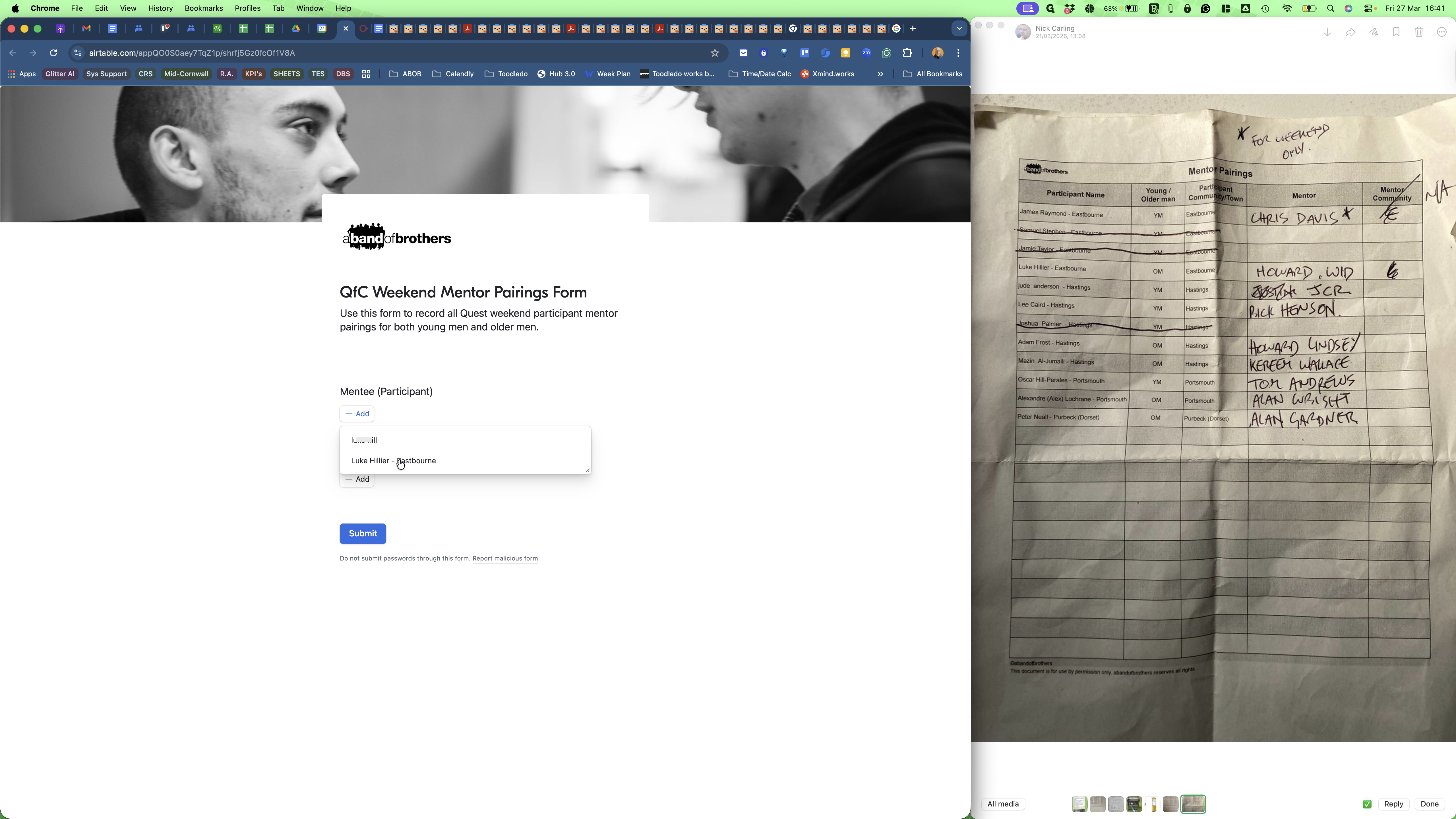
Start with the participant, then add the mentor.
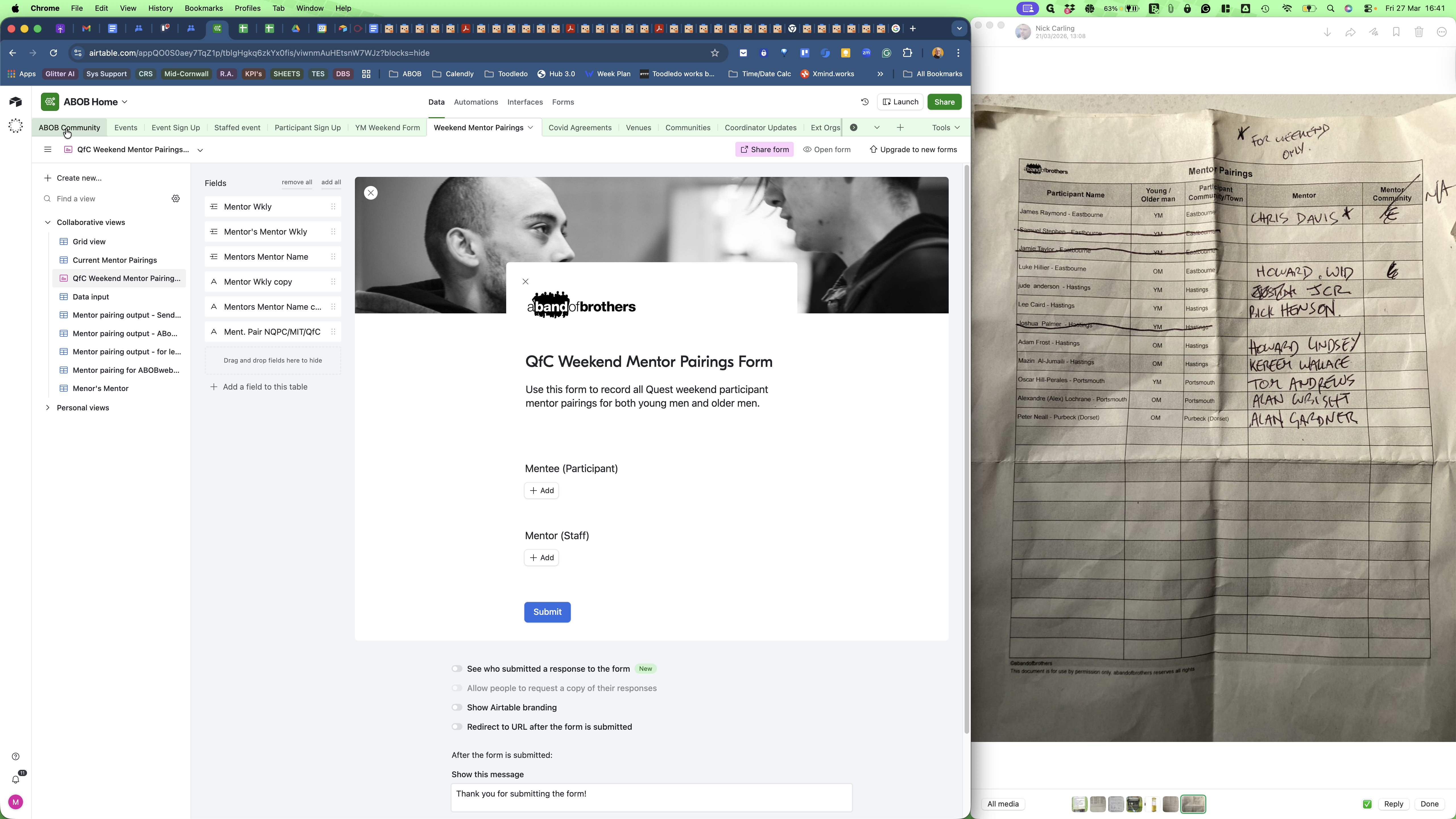
Find the weekend and you can see the two pairings created.