How to Set Up Zoom: Step-by-Step Guide for Meetings and Breakout Rooms
Learn how to set up Zoom, switch to English, manage meetings, use breakout rooms, and control audio/video settings. Follow this easy guide for a smooth Zoom experience.
In this guide, we'll learn how to set up and use Zoom for meetings. We will cover how to change the language to English, join meetings, manage breakout rooms, and control audio and video settings. This will help you run or join Zoom meetings smoothly and avoid common issues.
Let's get started
You don't need to share anything on Zoom. Everything is shared immediately, so this is not needed here.
Okay. In this video, I will show you how to set up Zoom. First, log in. We are now at home.
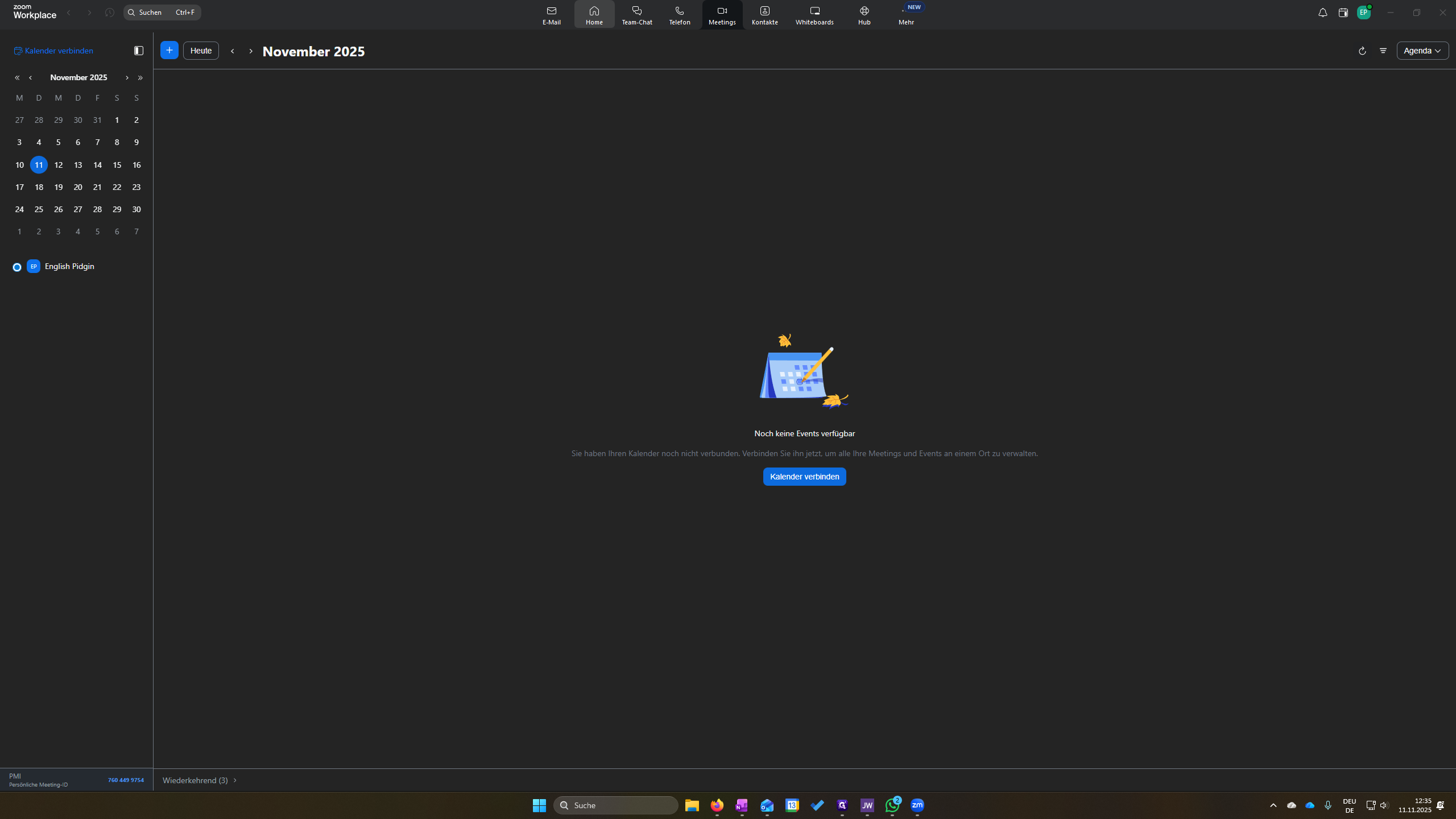
Before you begin, if English is easier for you, click this icon on the taskbar.
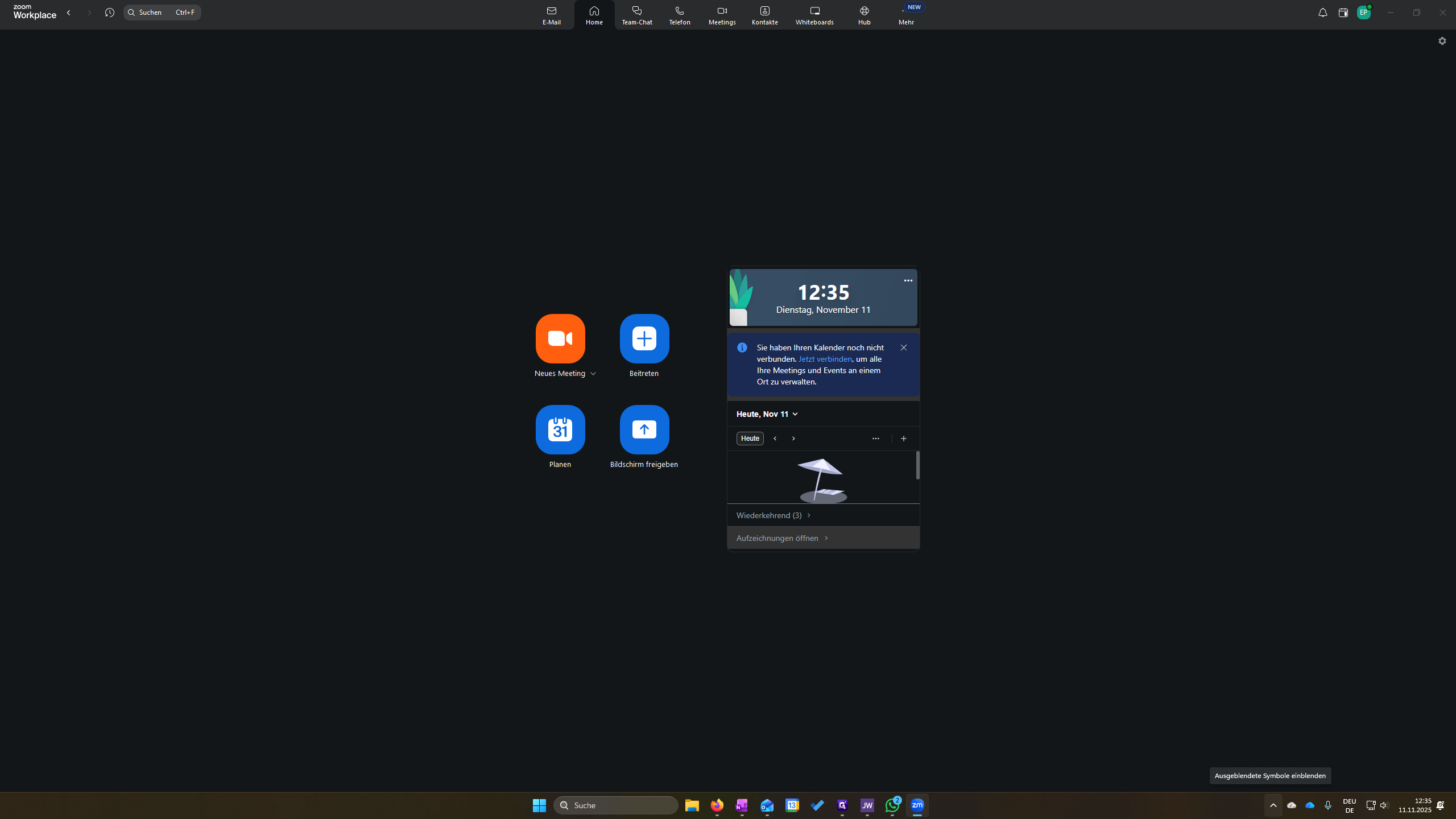
Click the Zoom icon. Right-click it, and here it says "Sprache ändern."
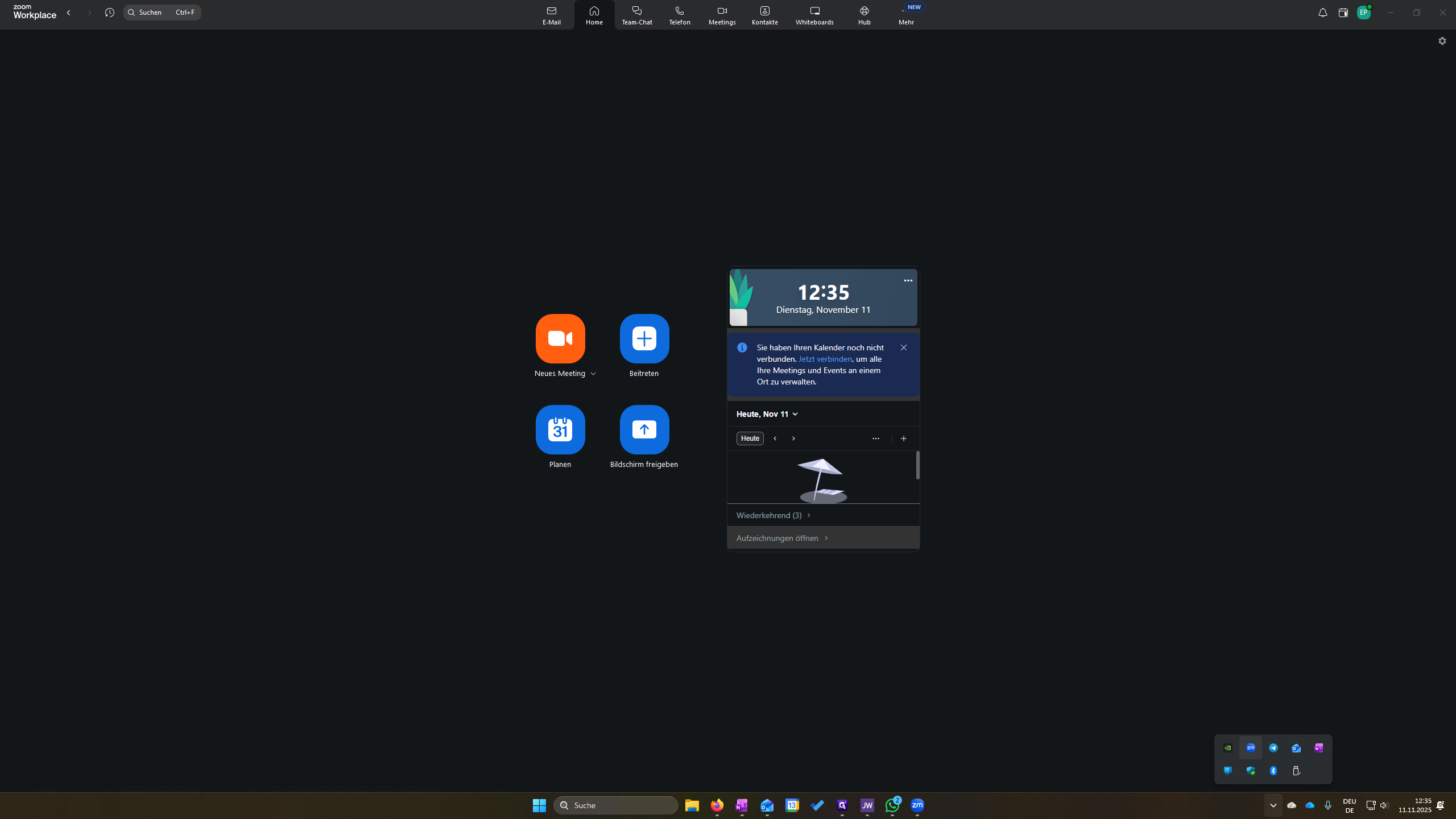
Go to English and click on it. You must do that before starting Zoom.
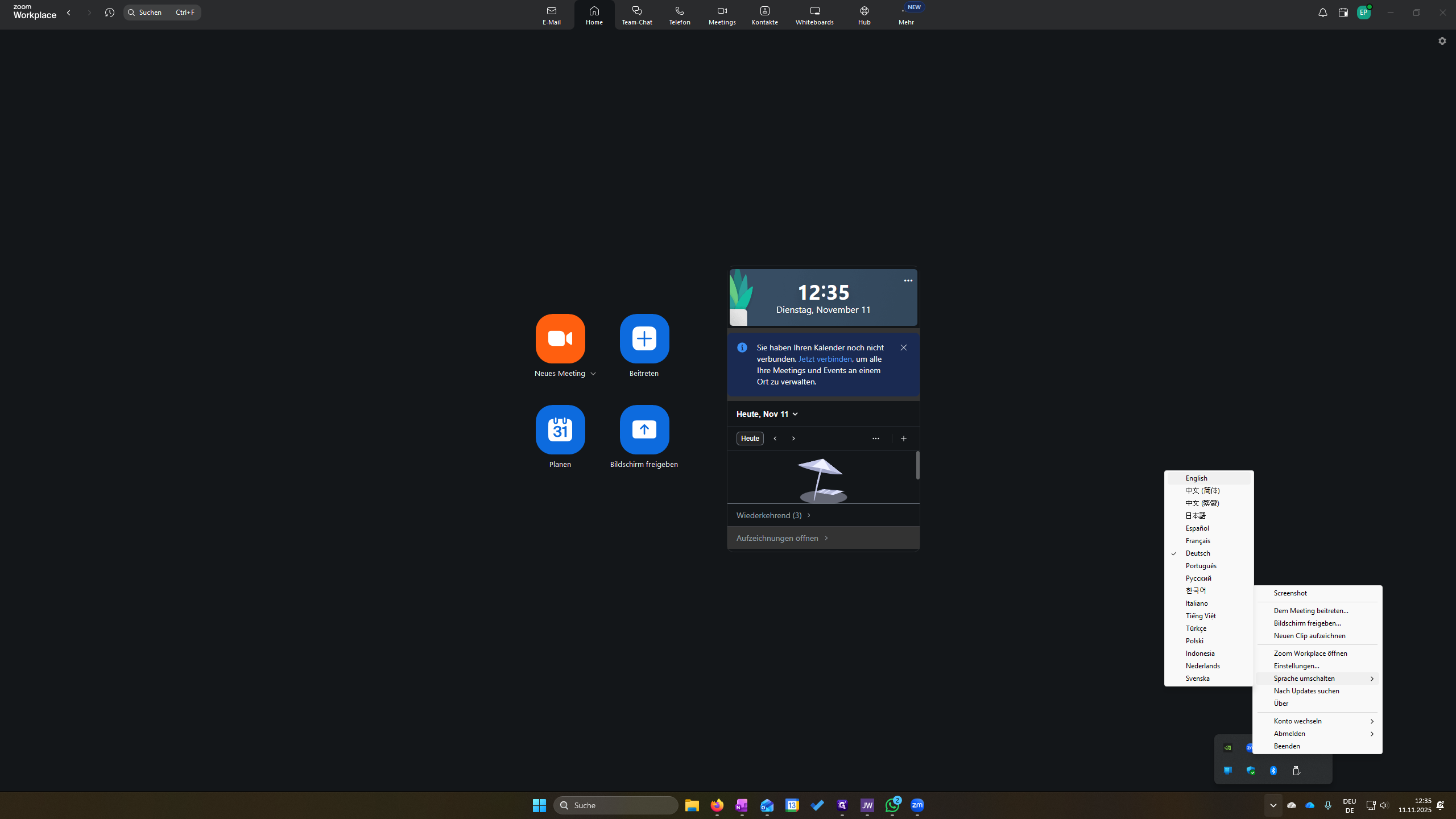
The language will switch to English. It'll start again.
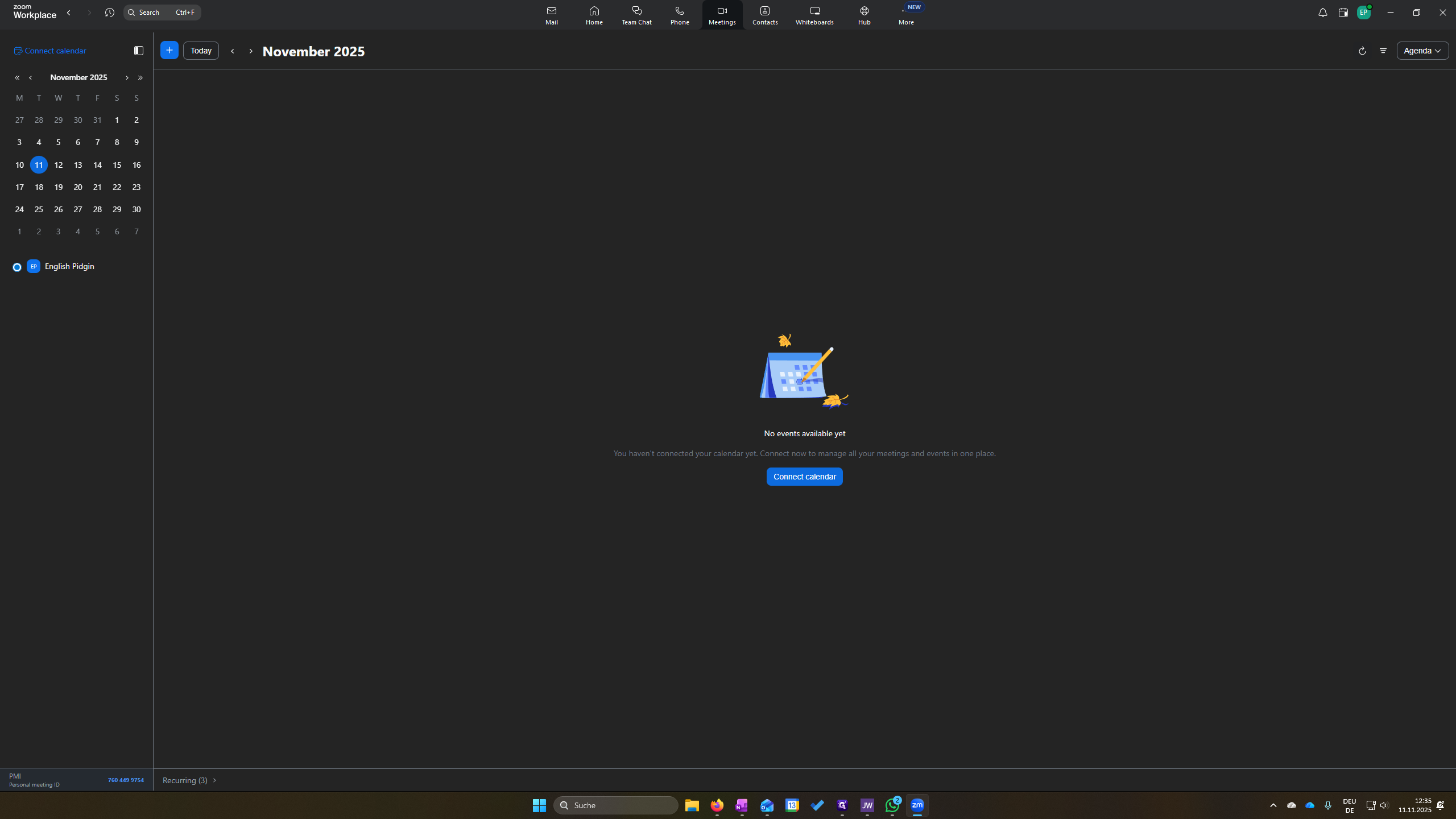
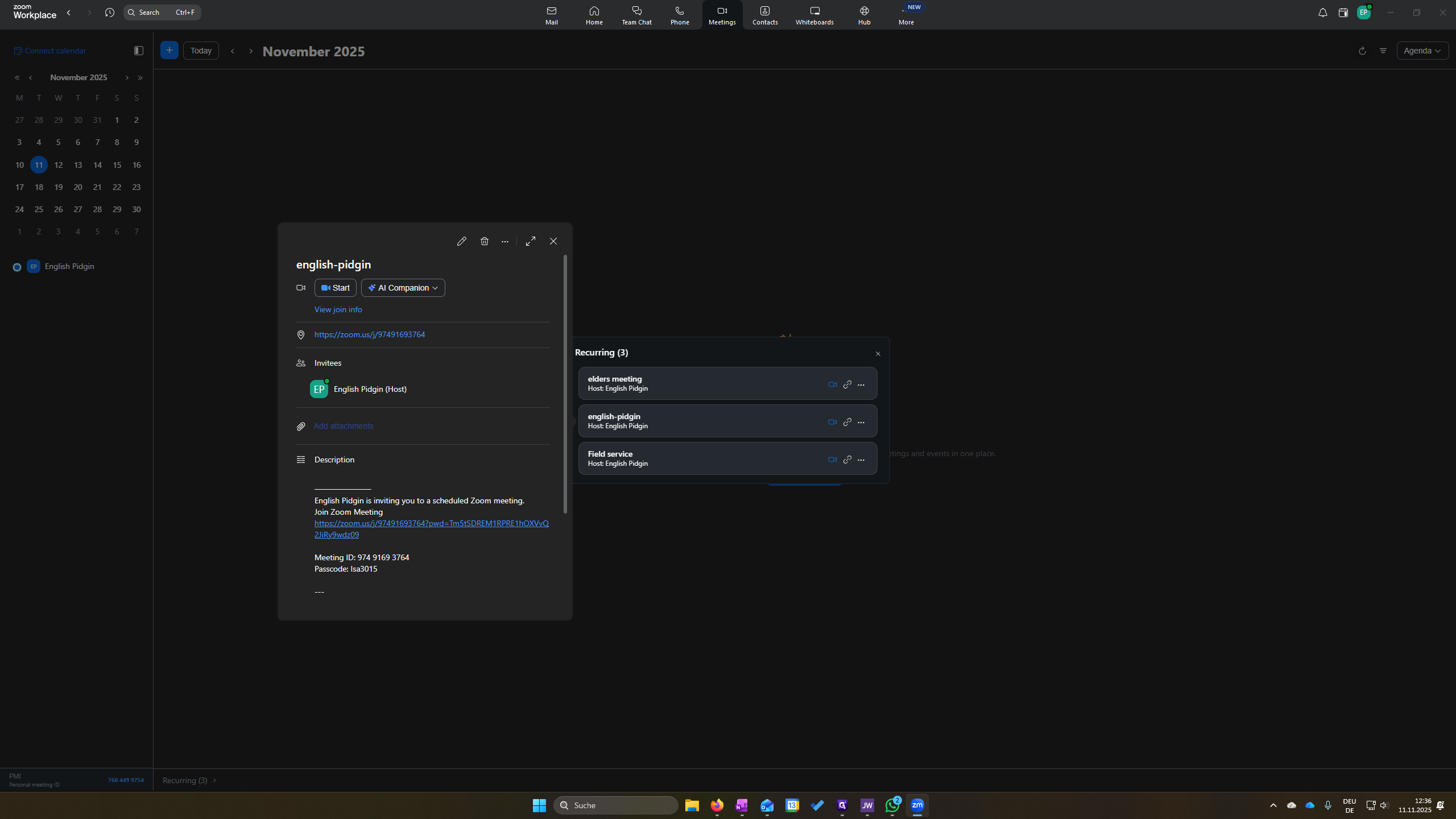
Then, go to Meetings.
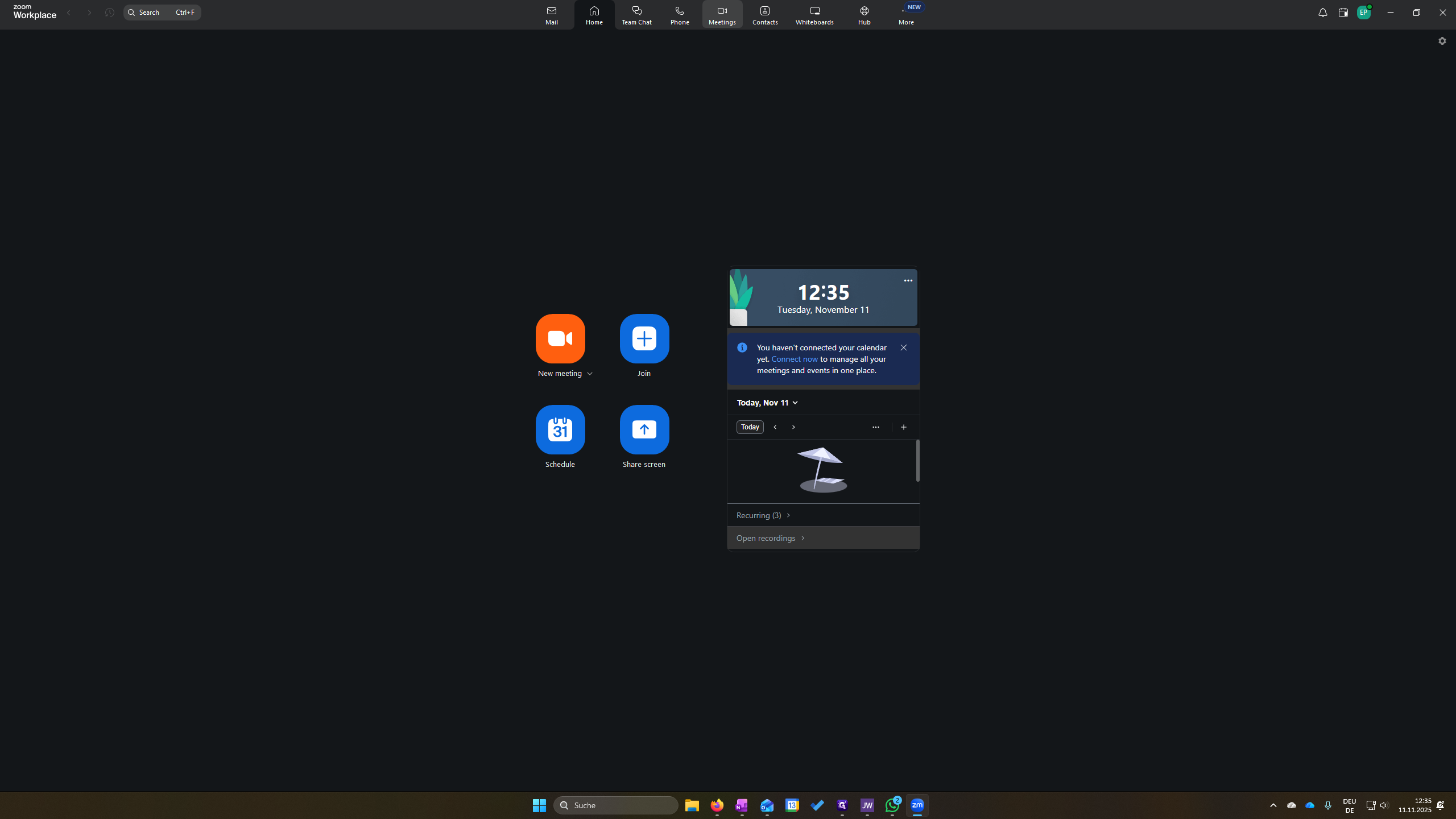
Here, it says Recurring.
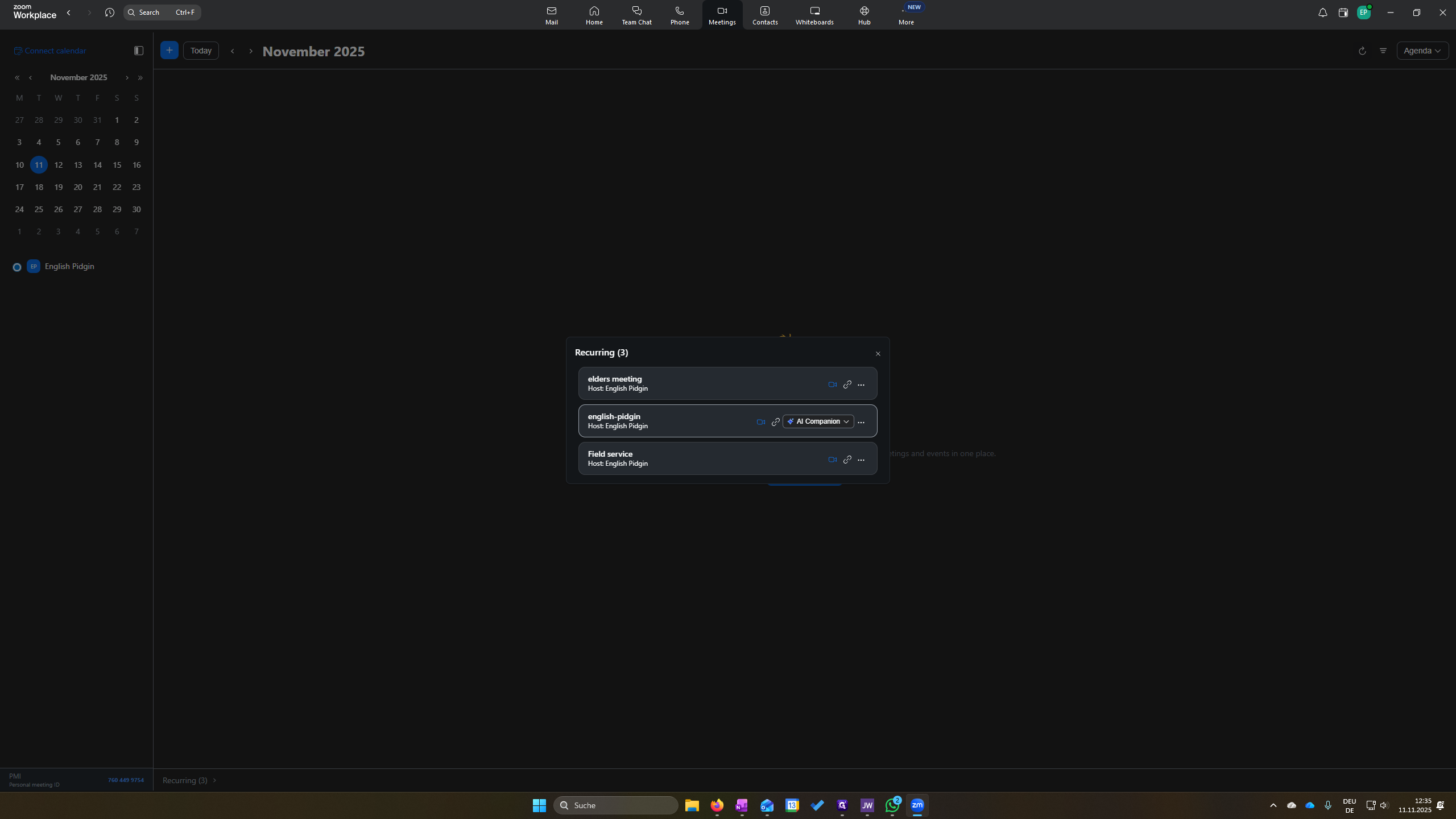
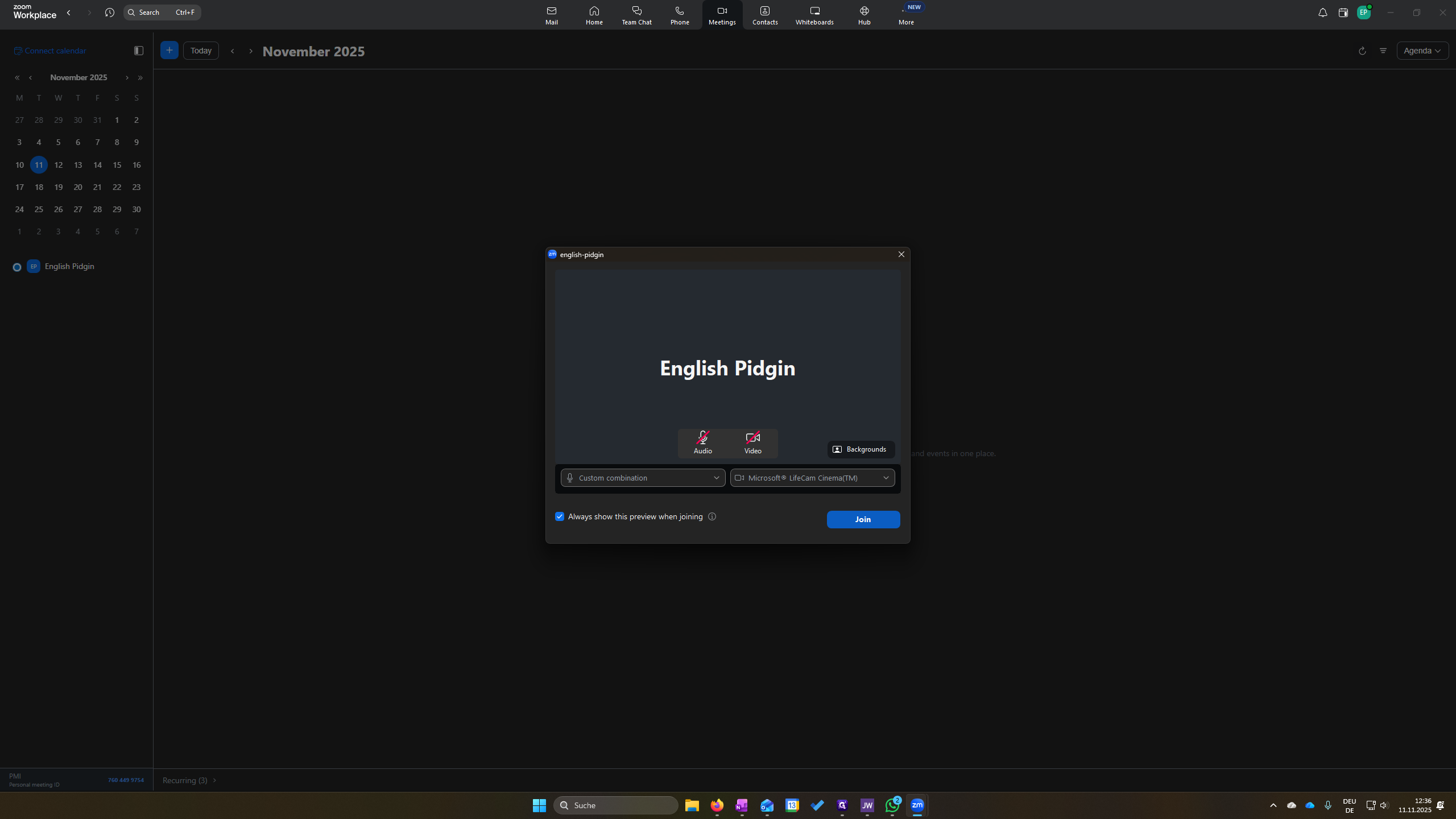
This is important. Simply click the link here to join the meeting. . It’s best to click the link below. Otherwise, someone may be removed.
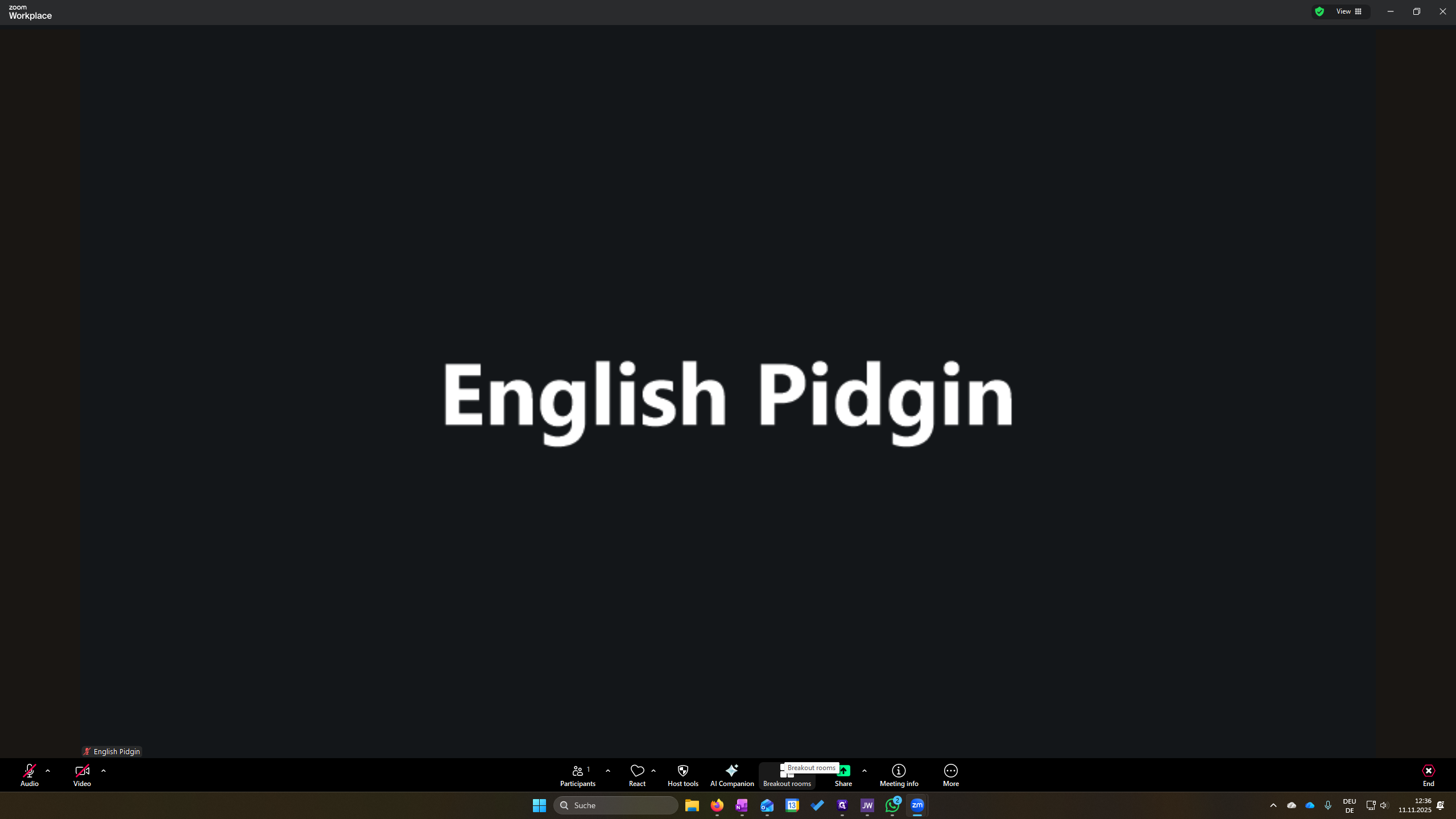
The first thing we can do is go to Breakout Rooms.
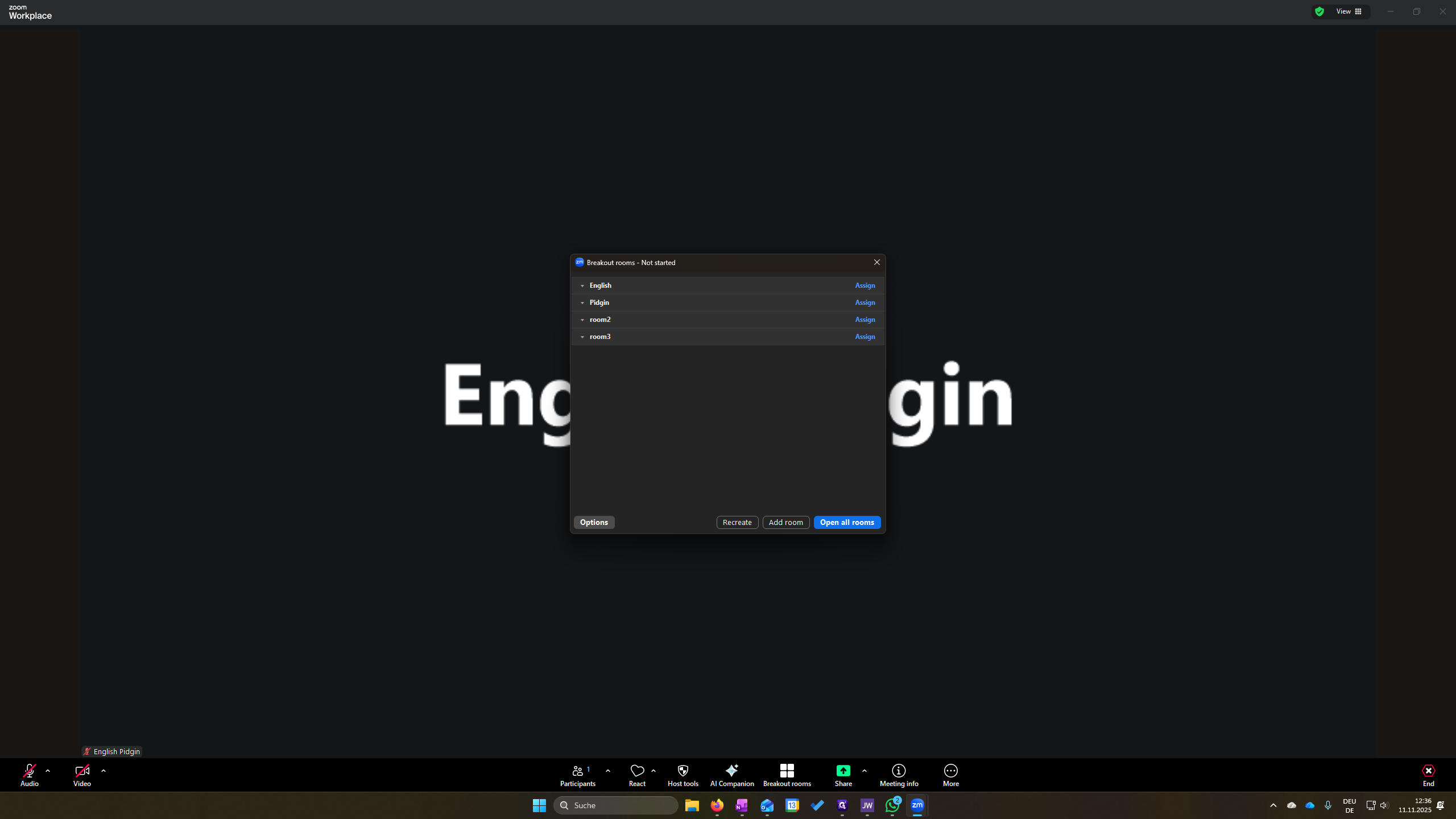
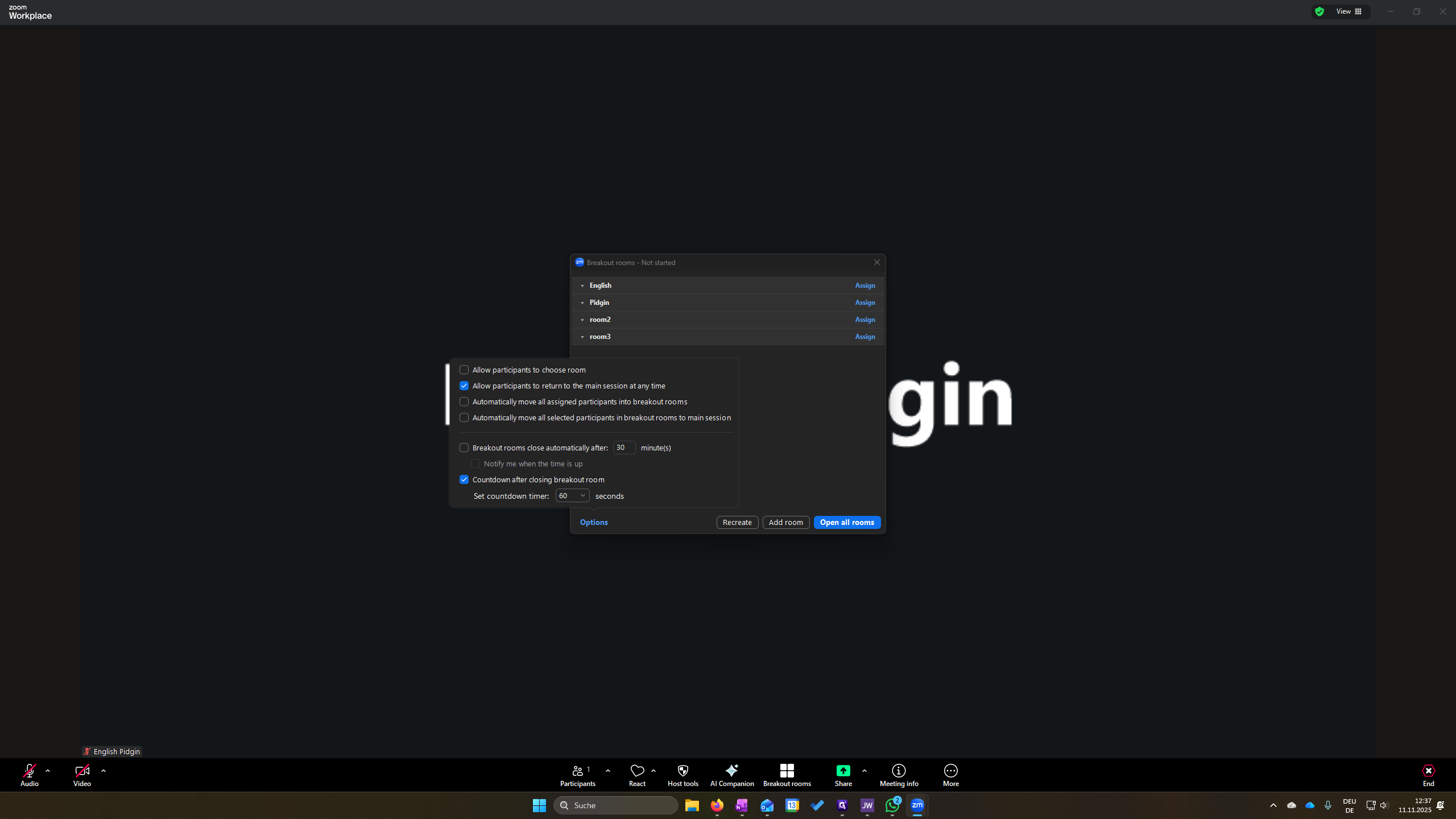
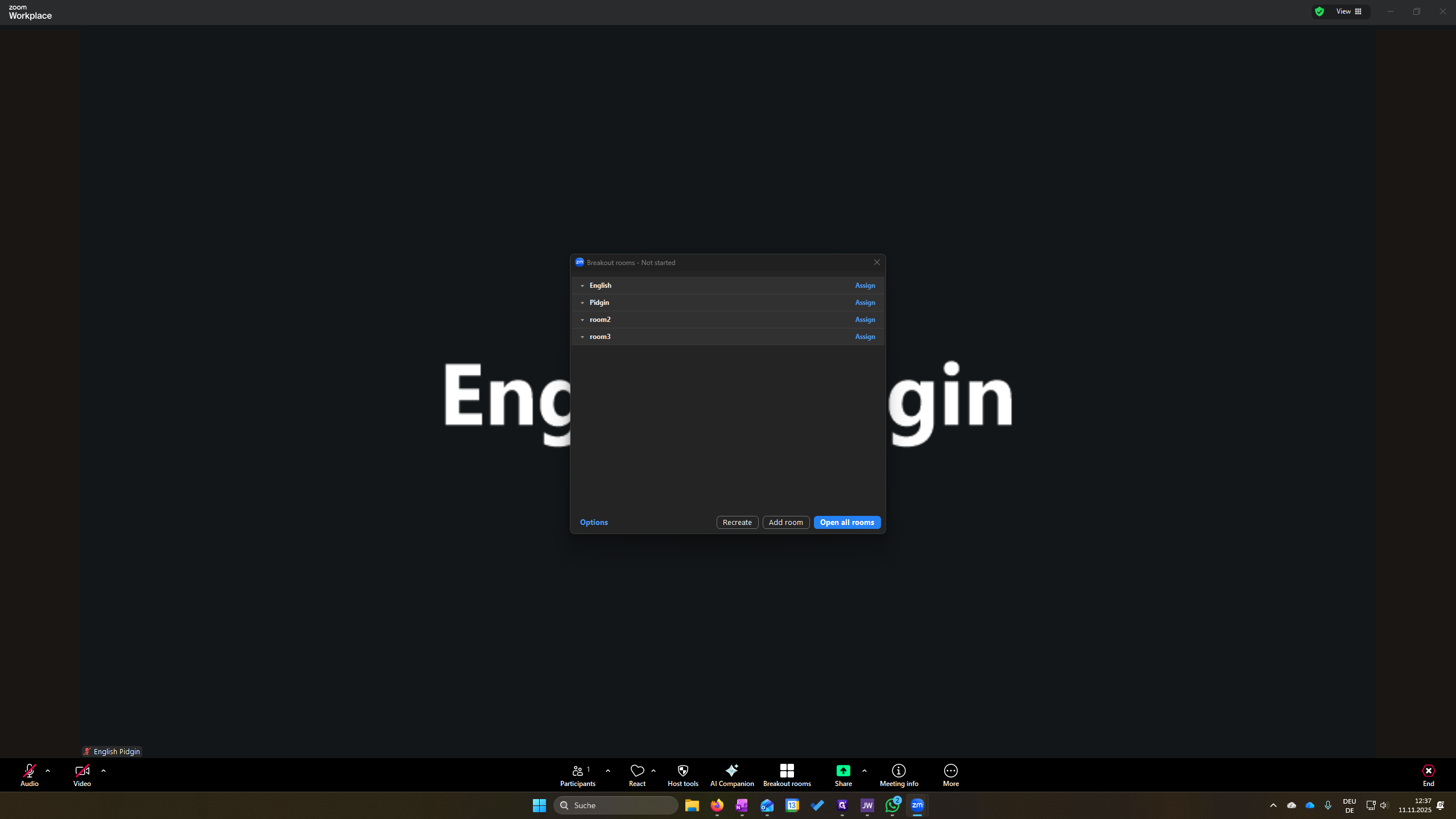
Click the first checkbox, "Allow participants to choose room," so they can select where they want to go. Then, click on "Open all rooms."
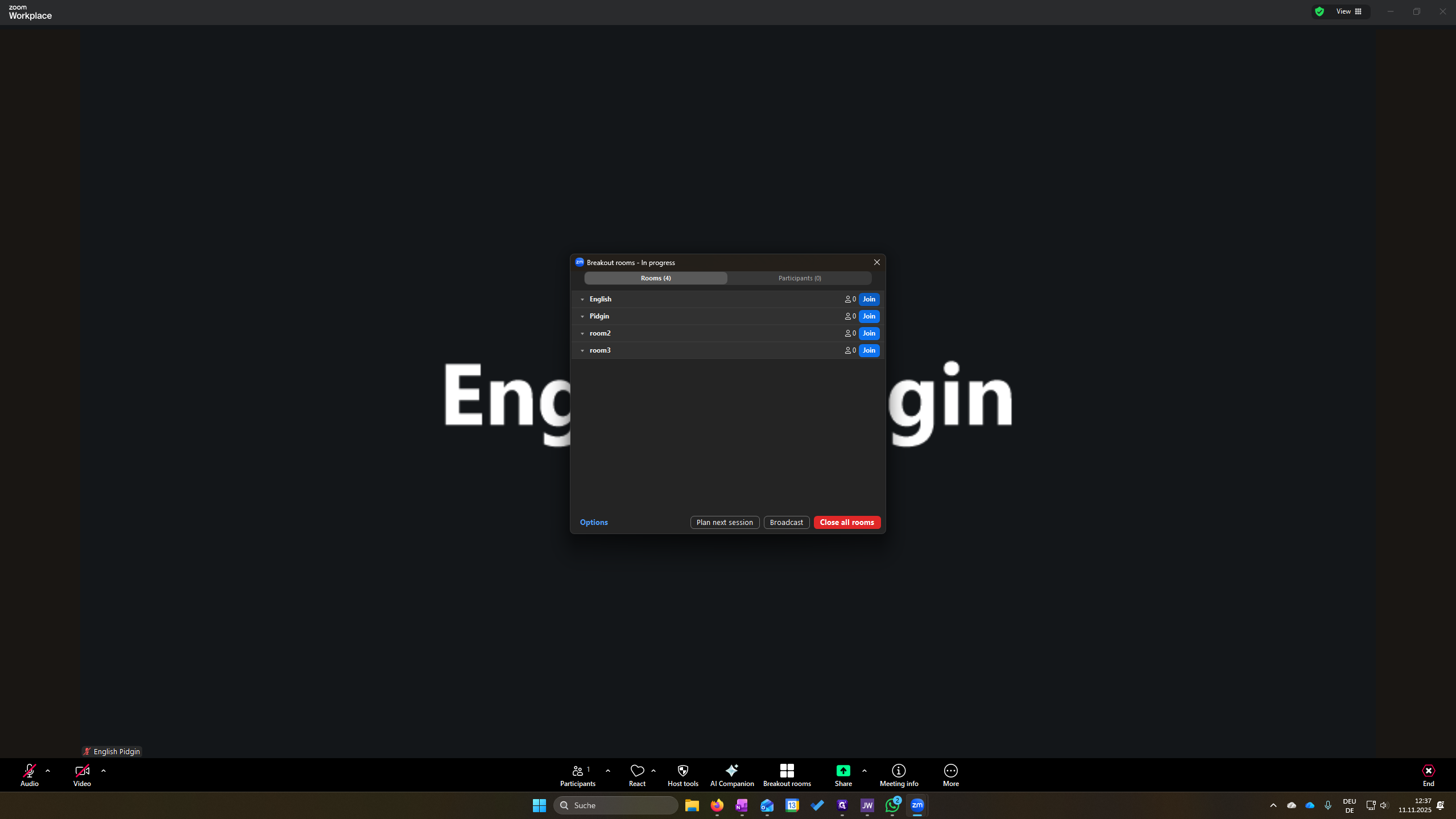
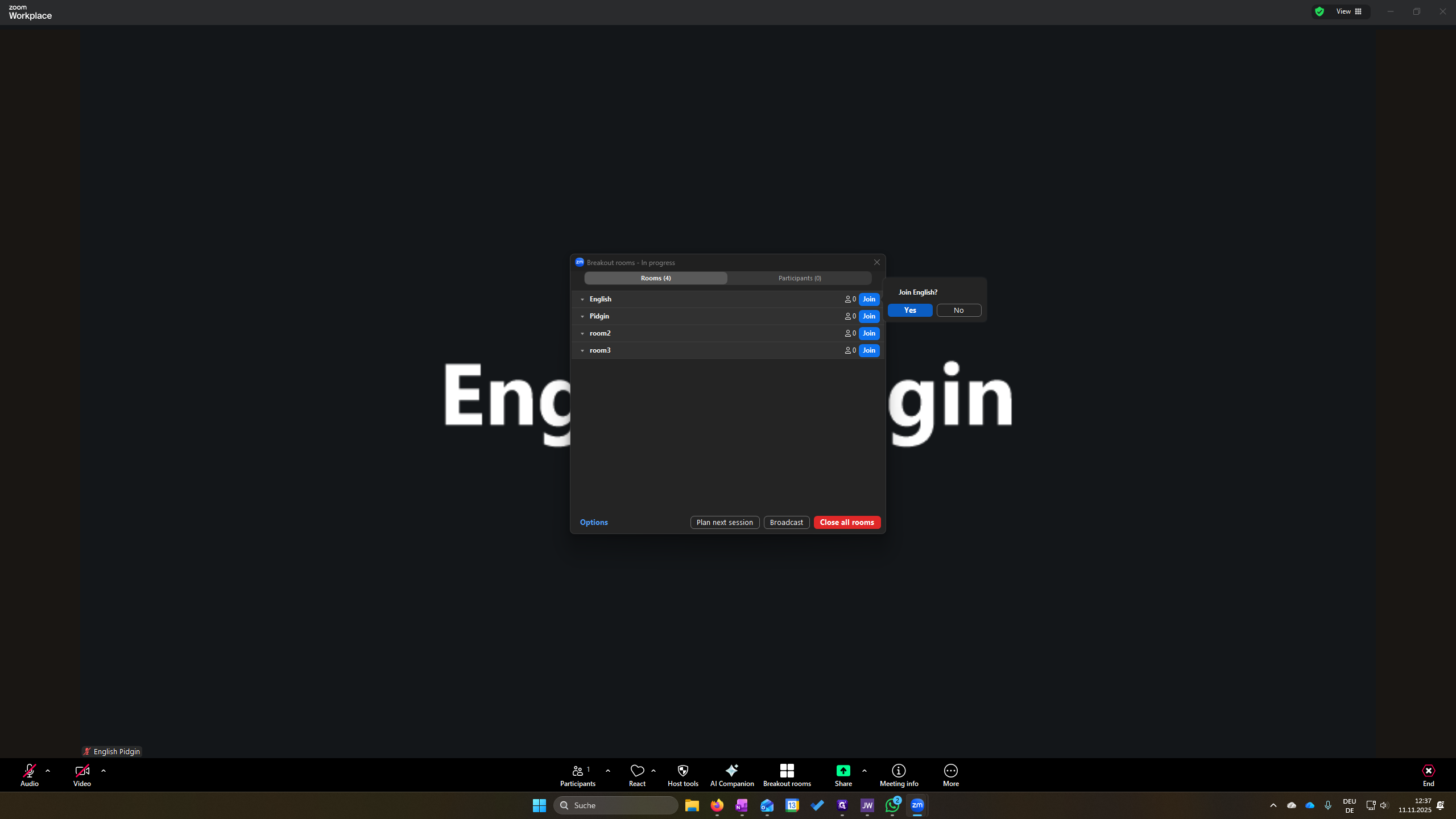
Now this is red, and it opened everything. Now, I click on English to join the English session.
When the meeting begins, always enable both audio and video so participants on Zoom can hear and see us.
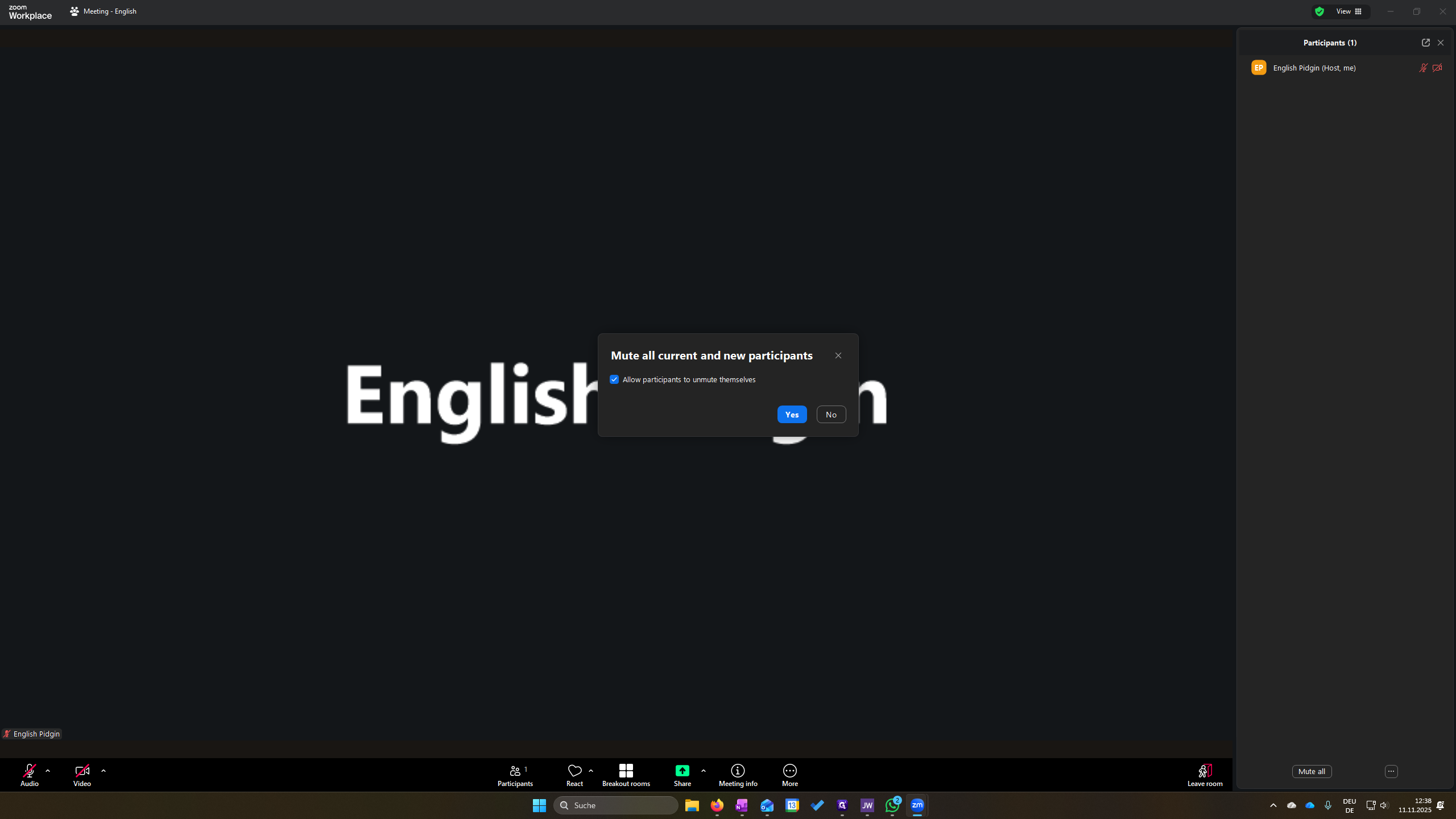
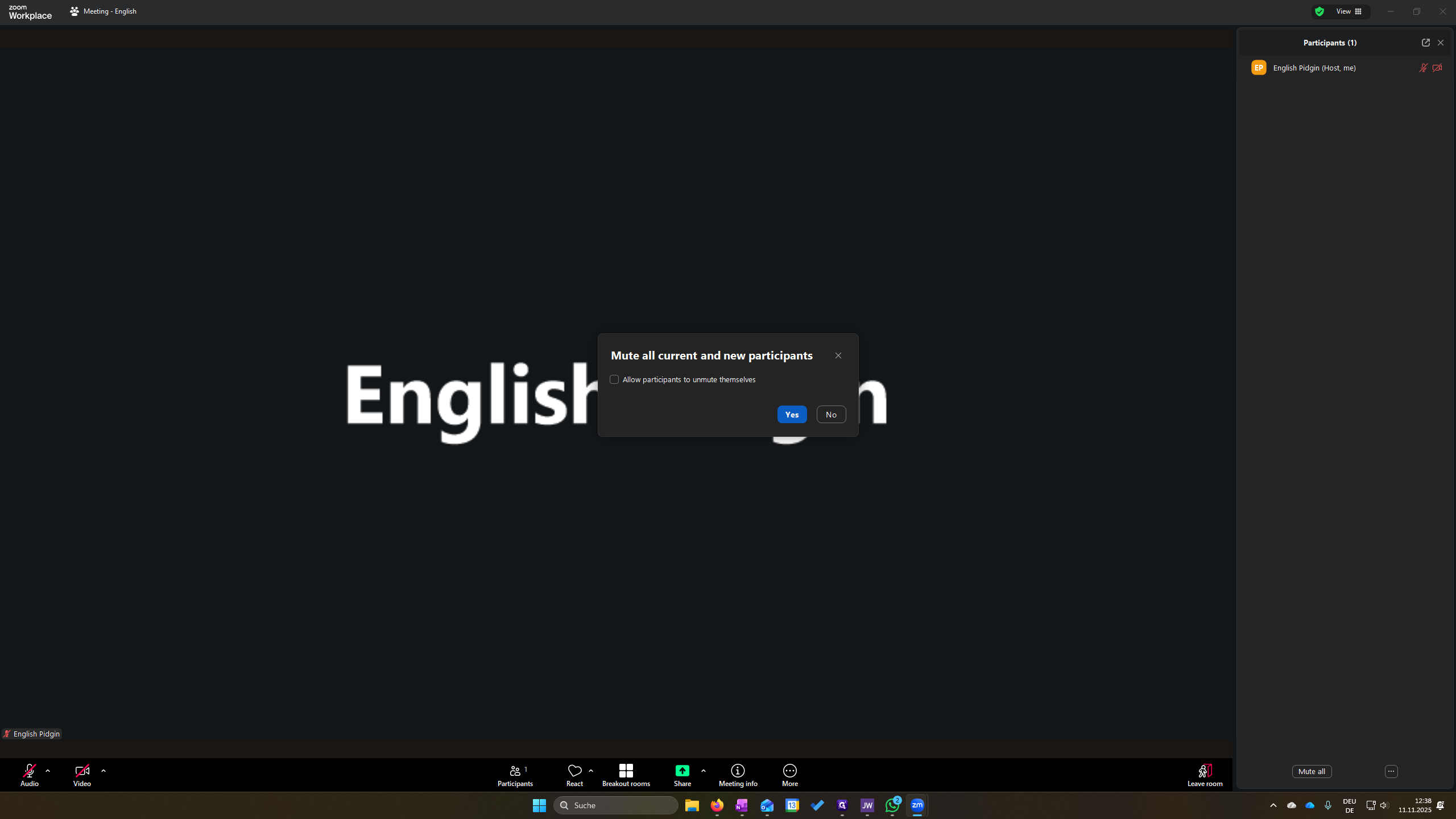
To avoid unnecessary noise, click here to mute all participants. Then, untick "Allow participants to unmute themselves" and click Yes. This should be done shortly before the meeting starts to avoid unnecessary noise. When participants want to join, we see them here. Click Admit to let them in.
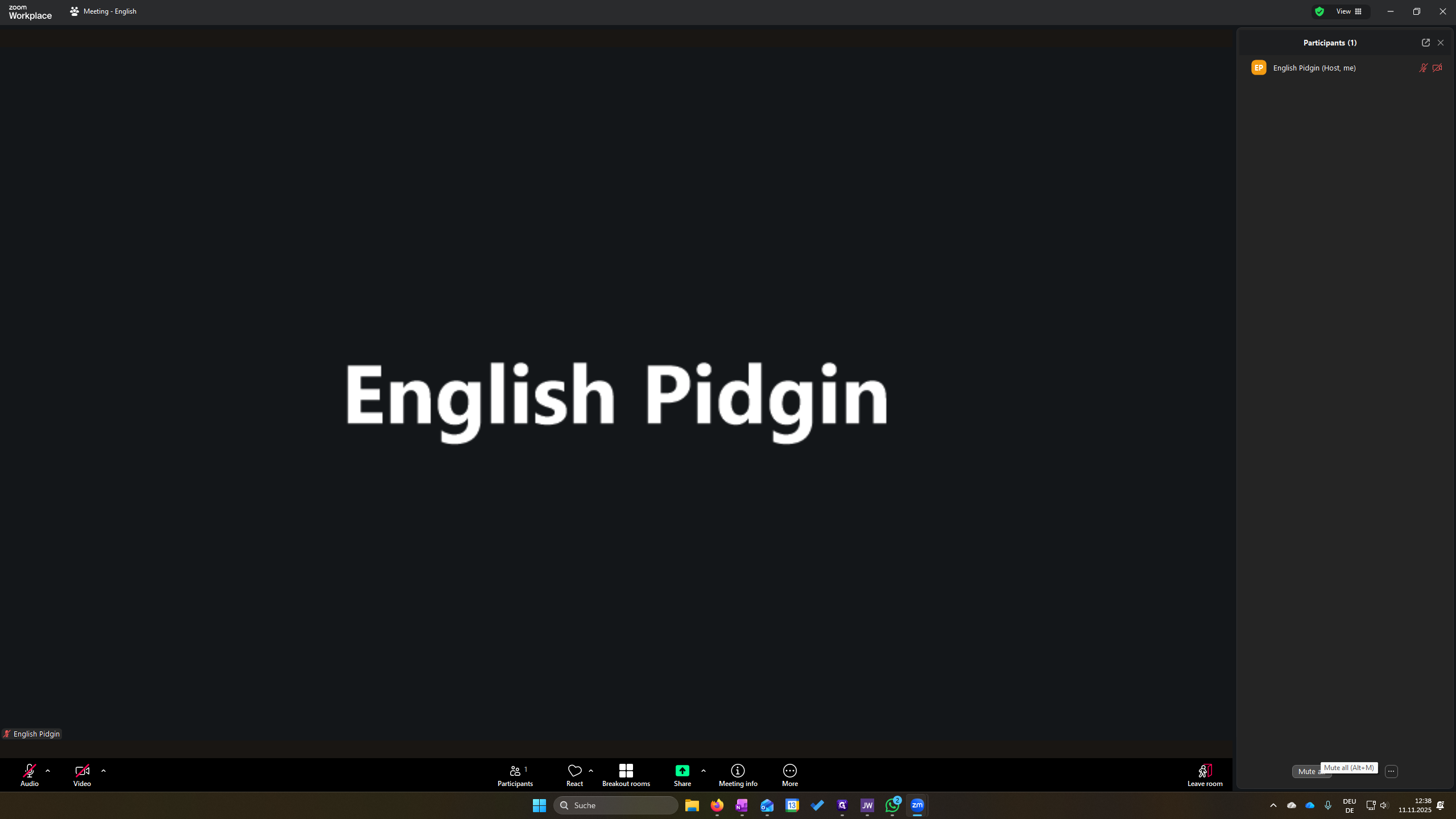
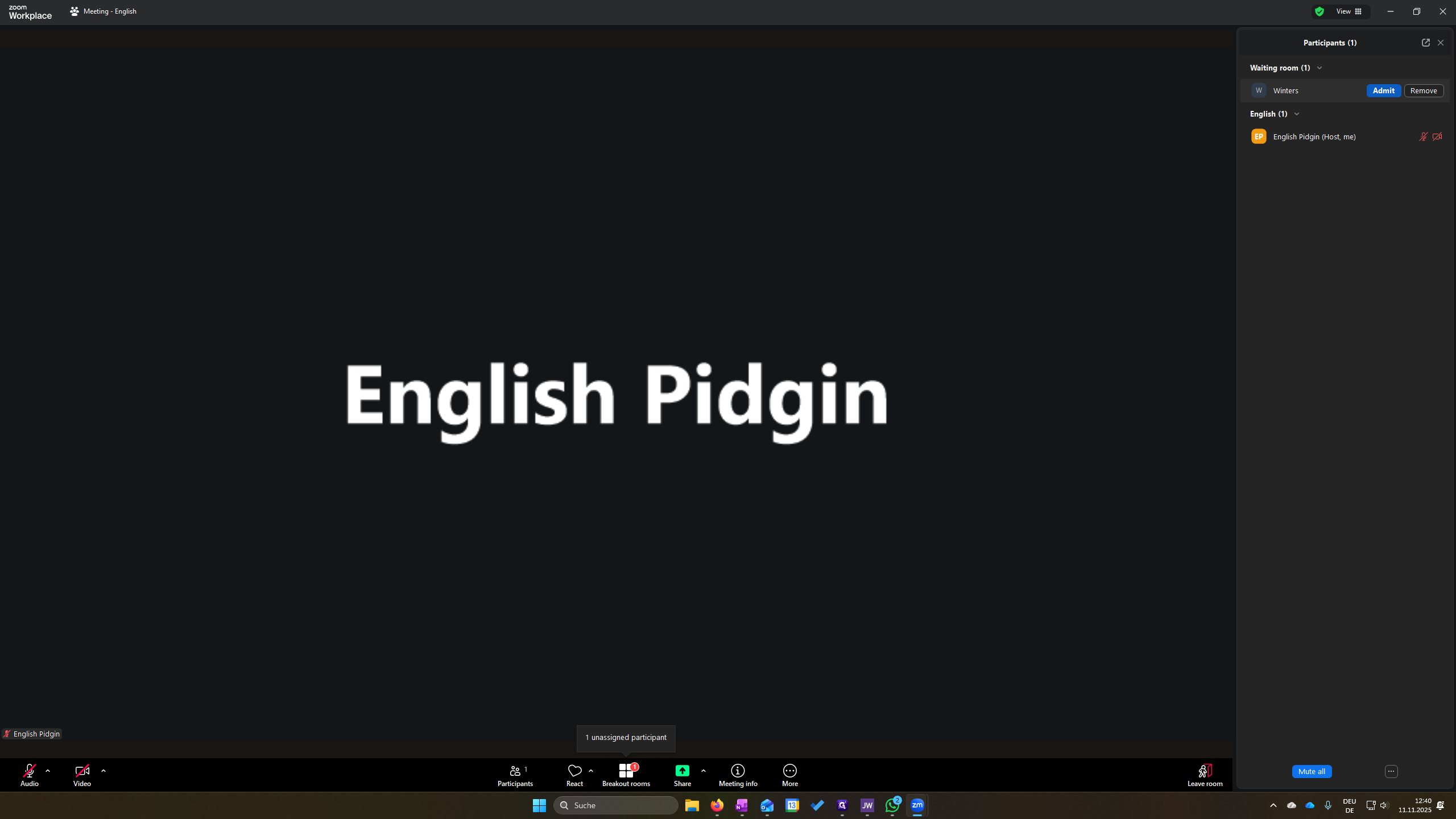
Normally, participants should be able to join a breakout room on their own. If not, click here, select Move To, and choose the appropriate room.
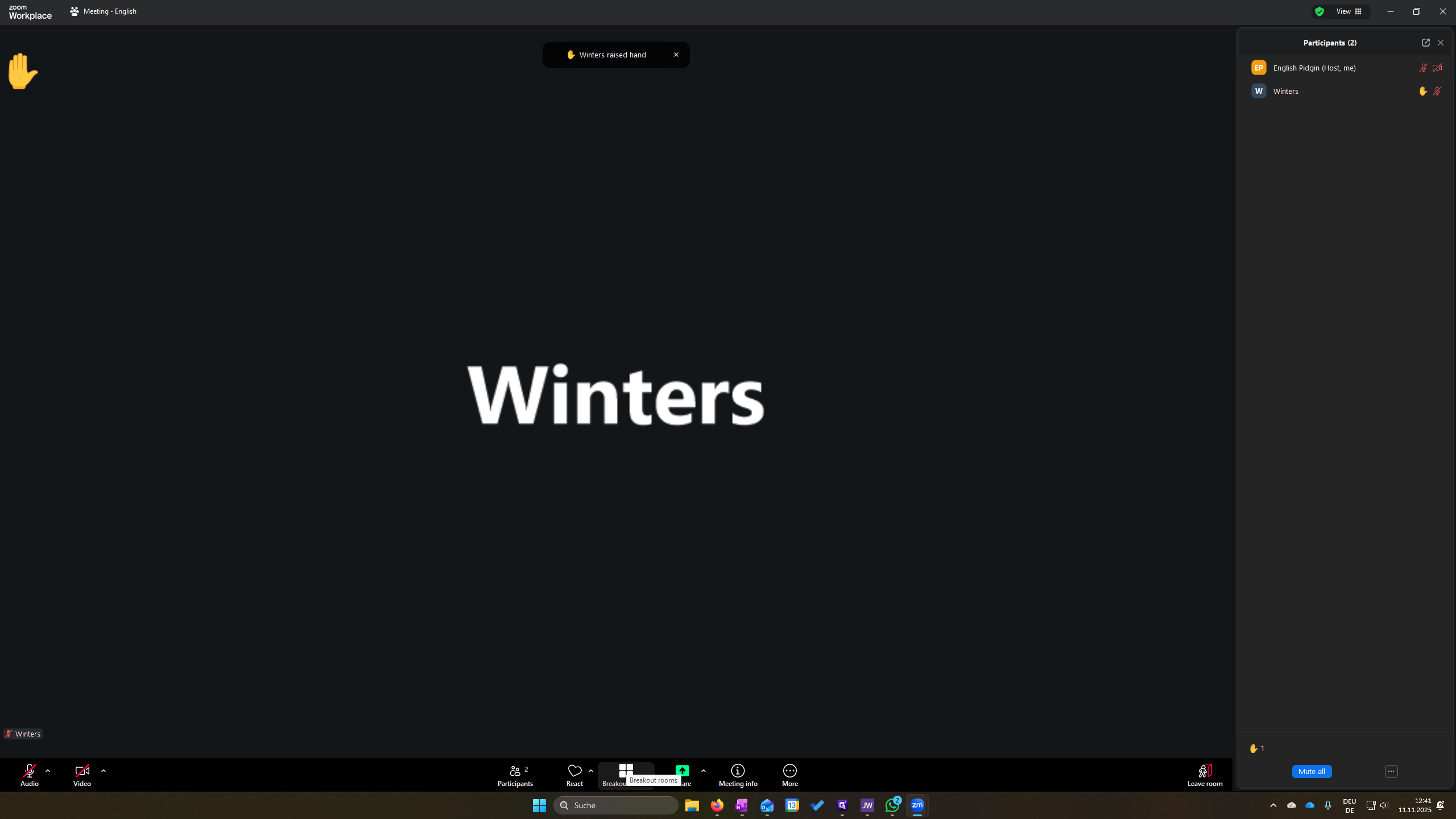
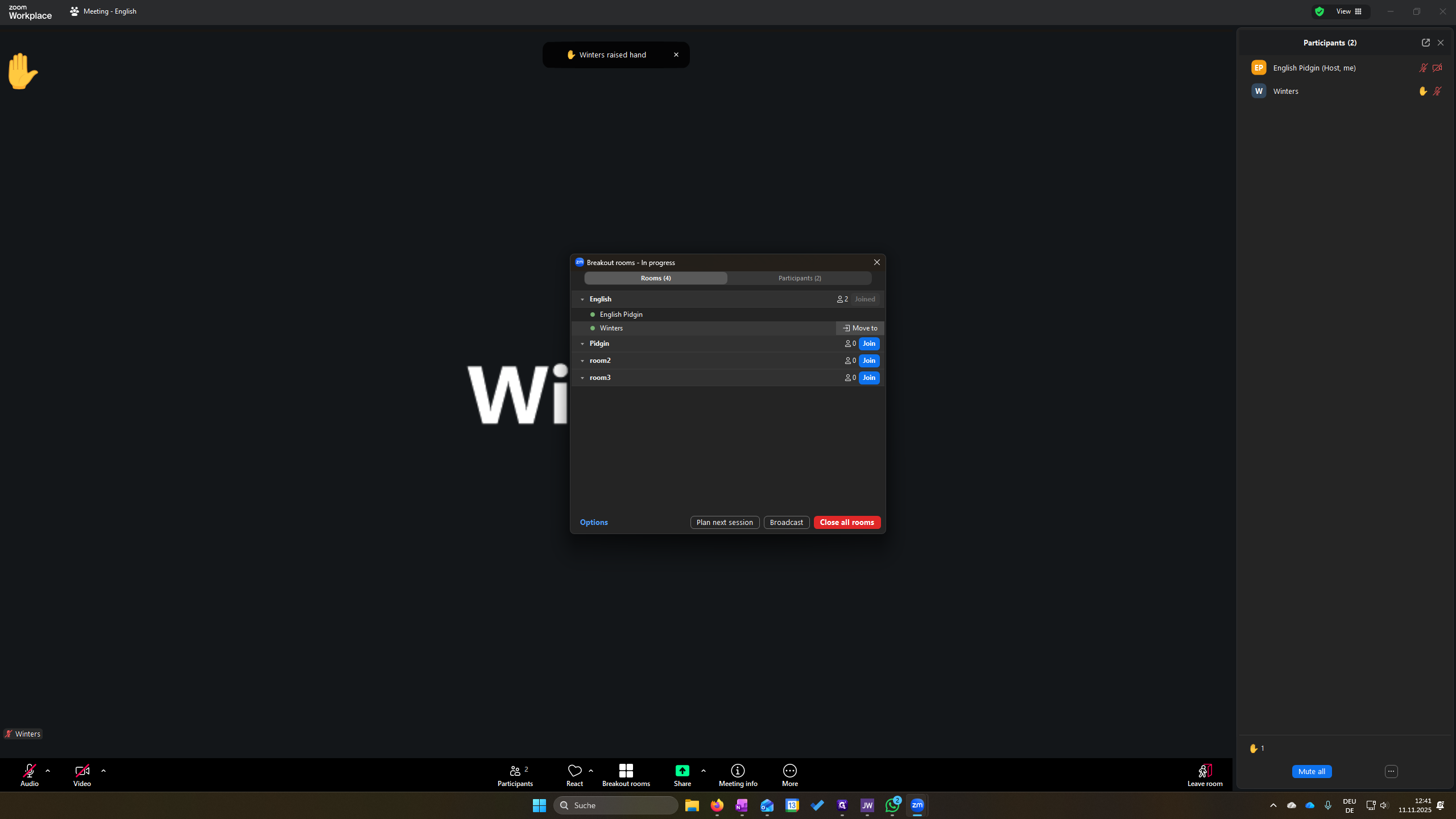
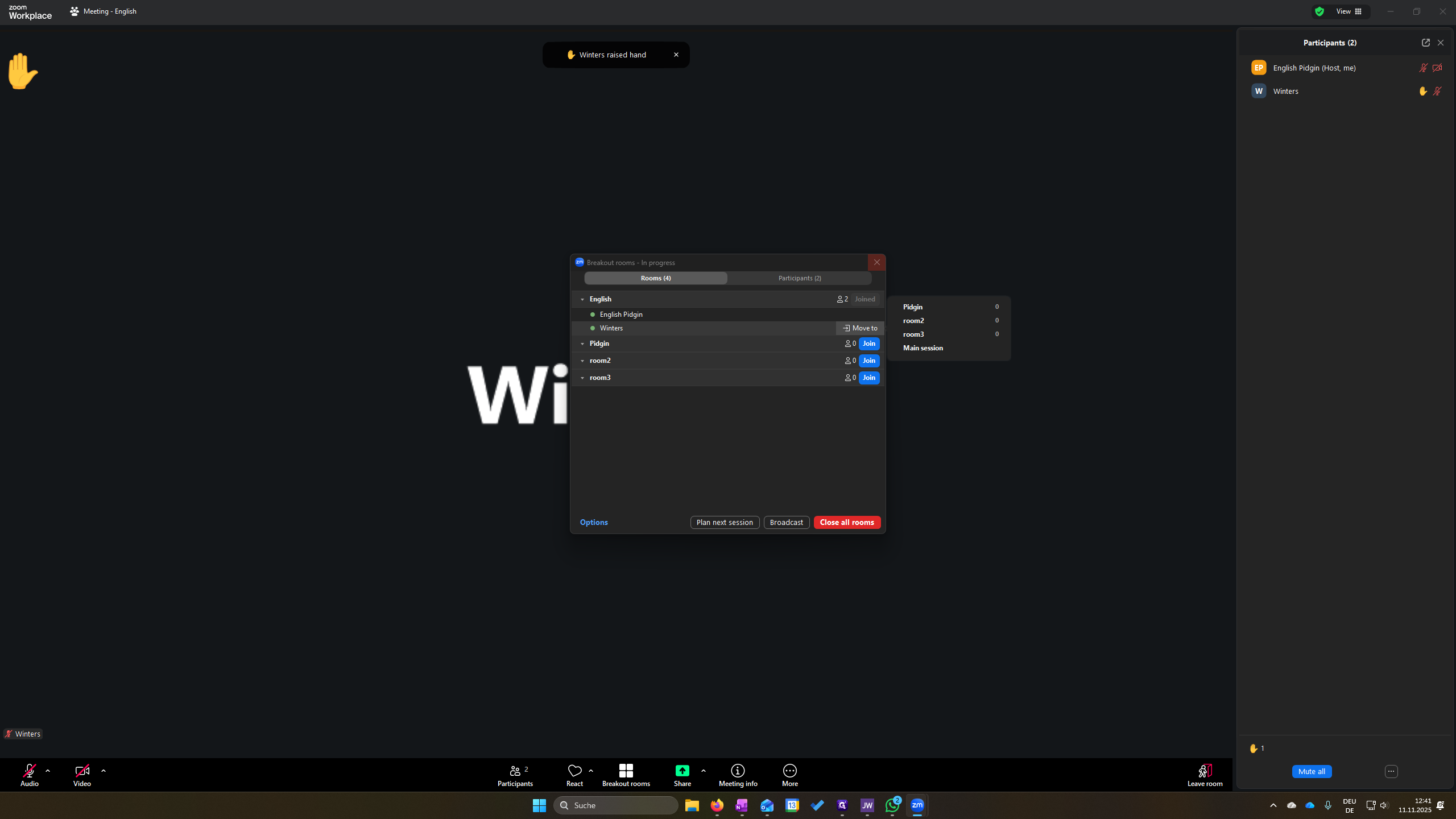
If someone wants to leave a comment, click here.
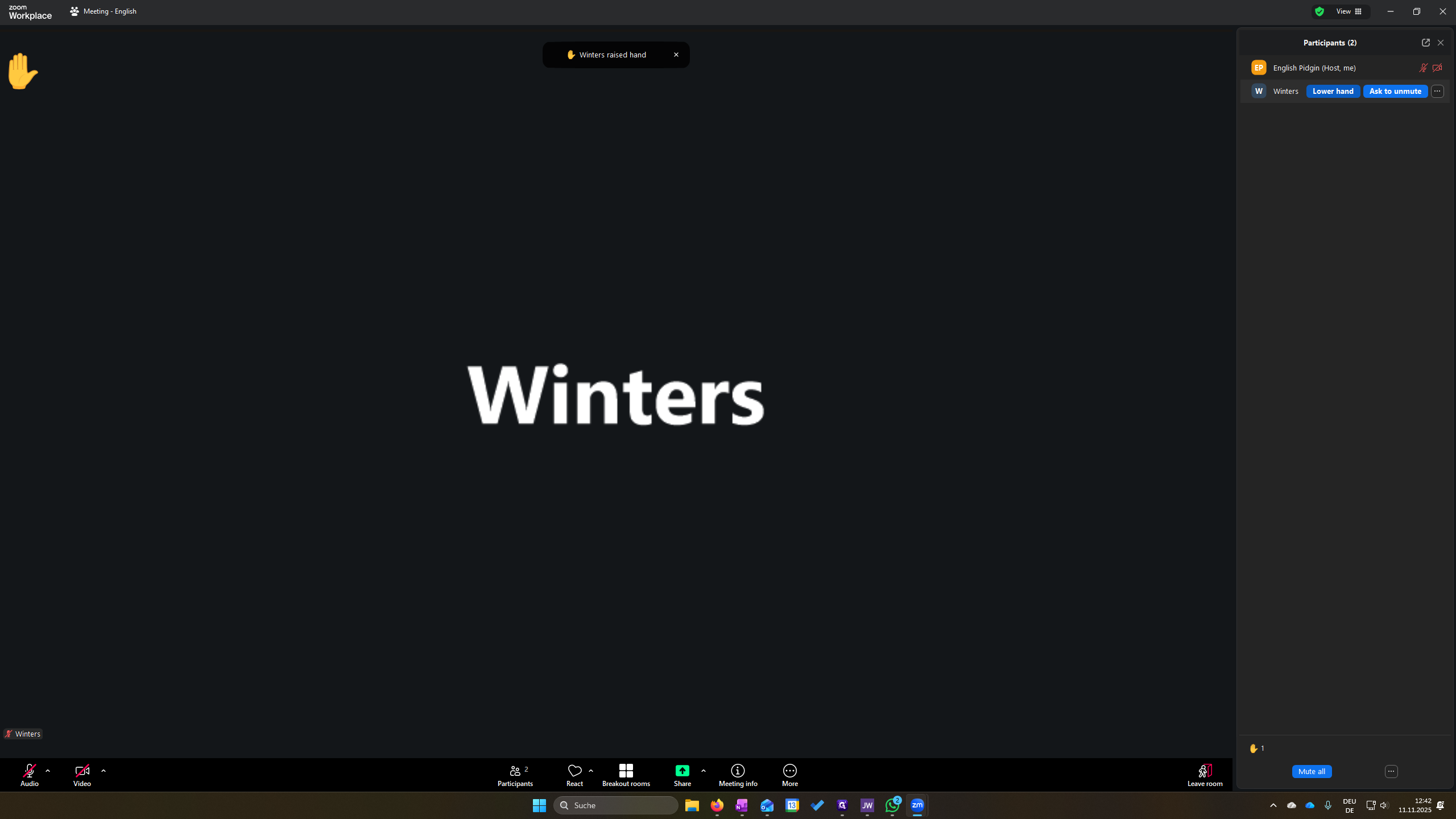
Go to their name and click "Ask to Unmute."
Click more on the left side of this box. The Mute button is smaller there, so you are less likely to mute them by accident.
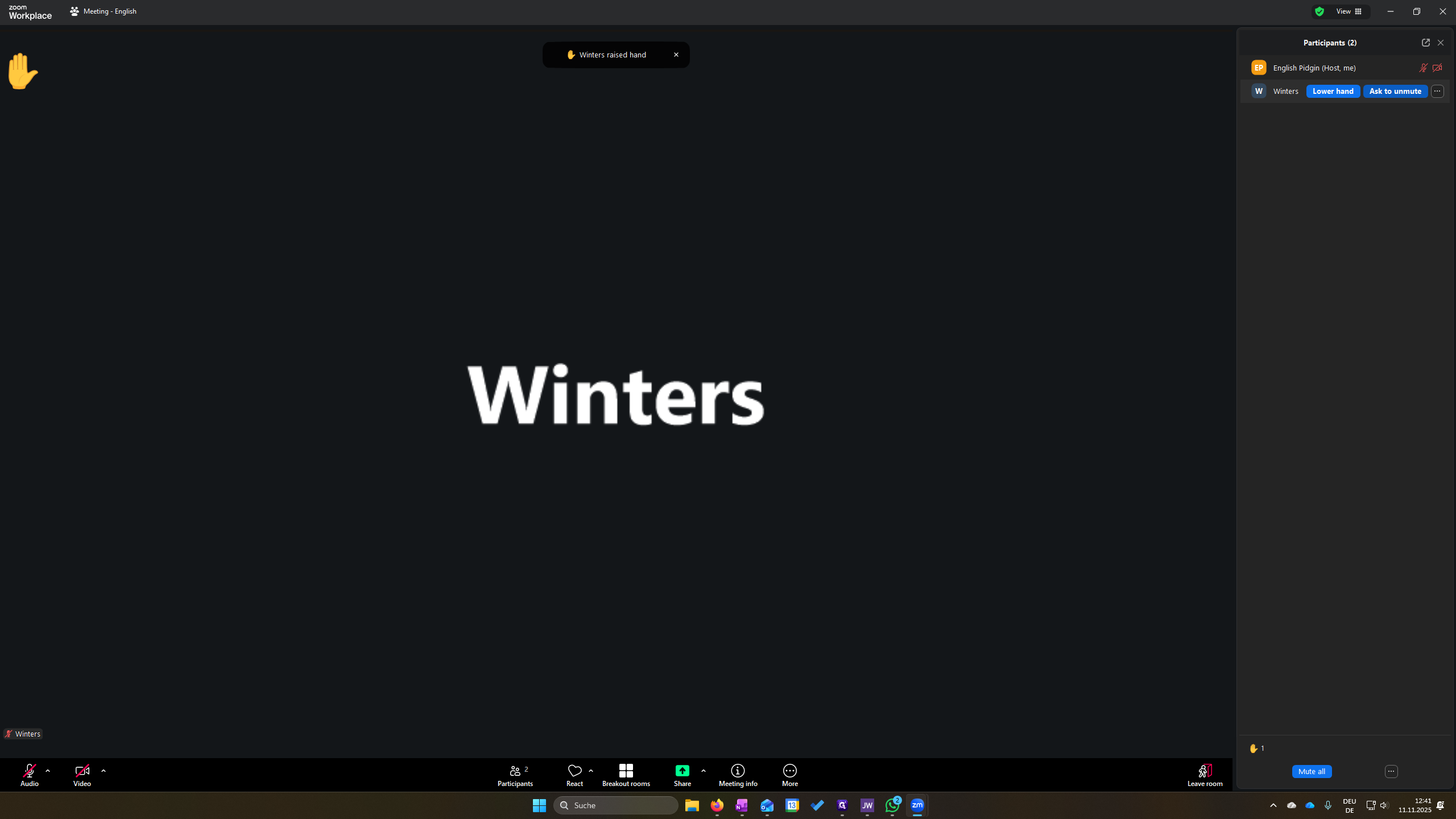
Ask to unmute. They need to accept, and they will be unmuted.
If they forget, I have to mute them myself. You can see that this box is smaller. You can mute them.
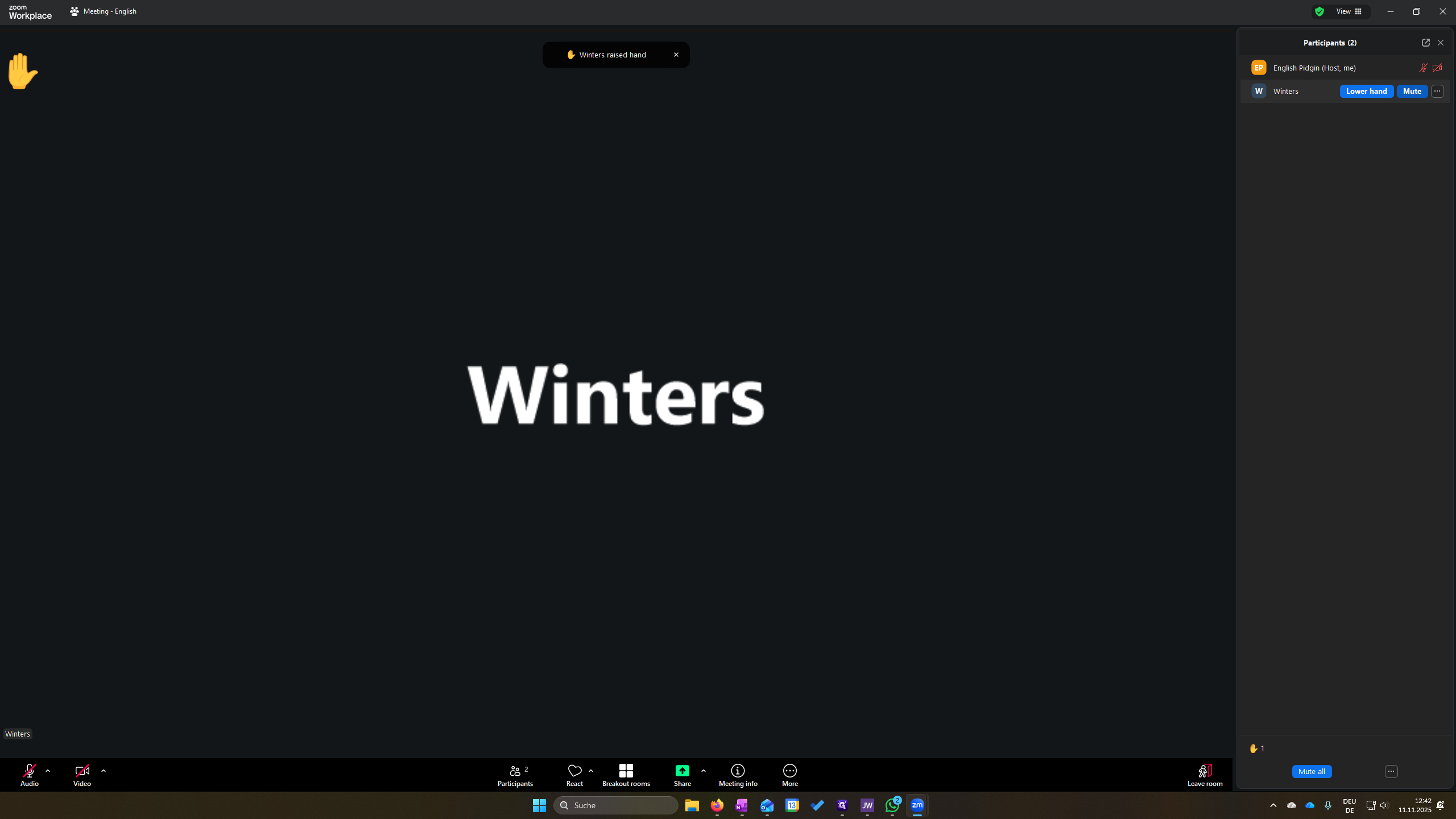
If they forget to lower their hands, I can do it here as well.