
Share a Meeting Transcript and Recording
Learn step-by-step how to share a meeting transcript and recording with others, including external partners, using Outlook, Teams, and SharePoint. Discover best practices for secure sharing and access options.
Today, I'll show you how to share a meeting transcript and recording with others, especially external partners. By default, you can share the notes by copying and pasting them, or by sending the AI overview. However, if you want to share the full recording so others can view the entire video, here’s how to do it. First, open Outlook or Teams—either one works. Find the meeting you recorded and click on it.
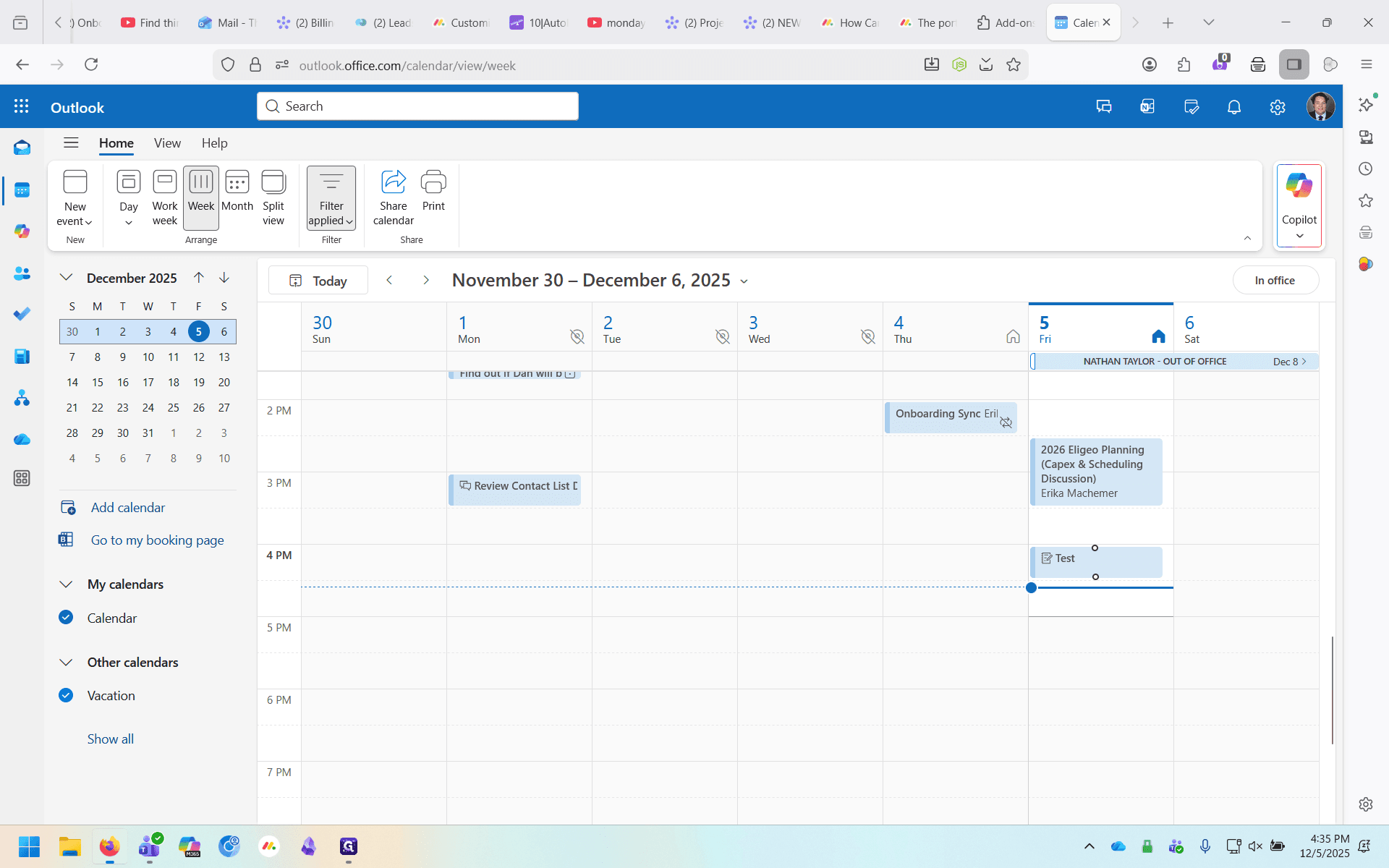
A small pop-up will appear with a button labeled "View Recap." Click on "View Recap."
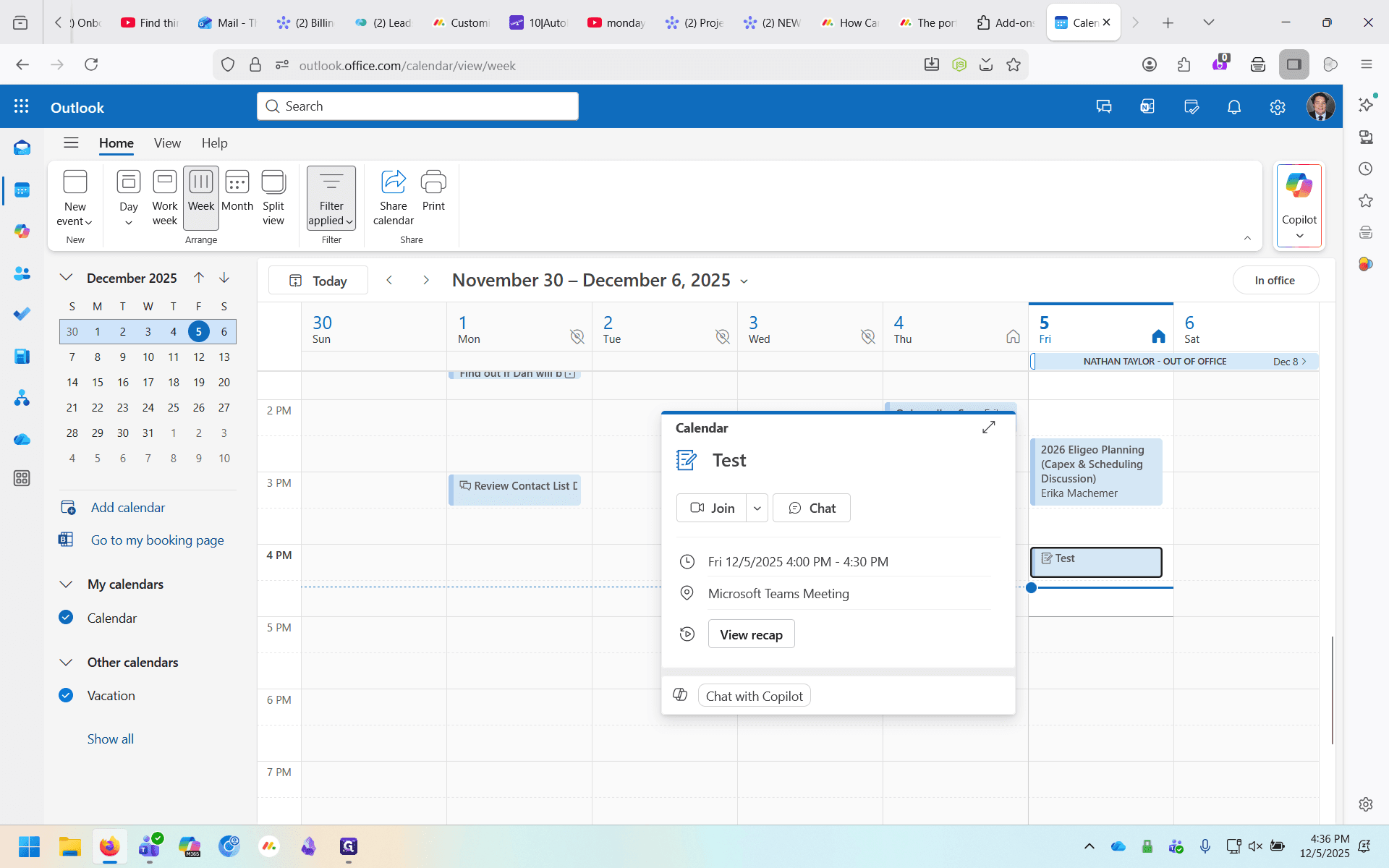
Clicking "View Recap" will open this window.
This recap is now being displayed in Teams. Teams doesn't have many options for sharing, so we will be exiting this screen. To do so, click "Watch in browser".
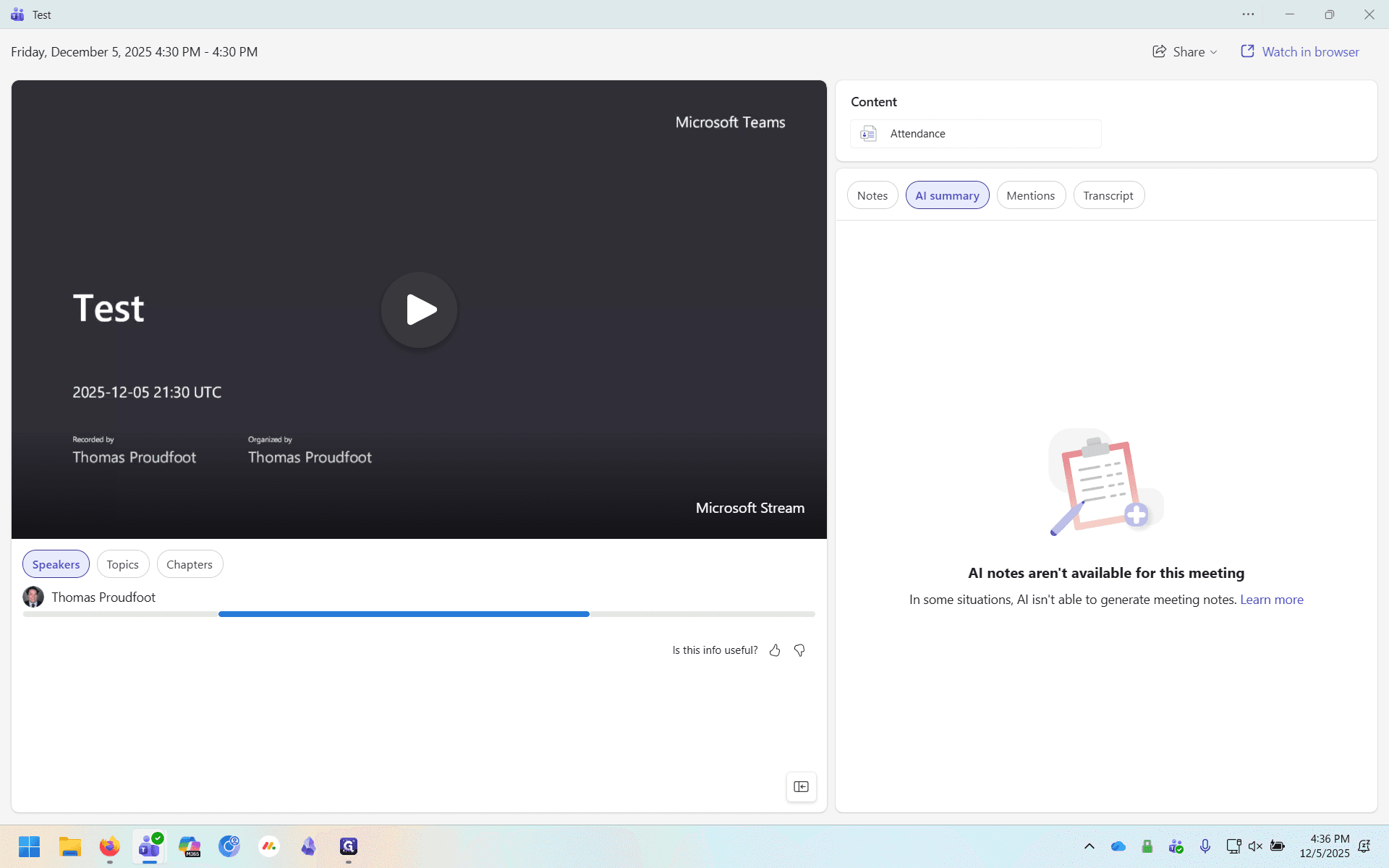
Clicking this link opens the recap in your browser. You'll notice from the URL that you are now in SharePoint, which gives us many more options. We can trim the video, as well as review the transcript and the AI notes. Most importantly, we can share.
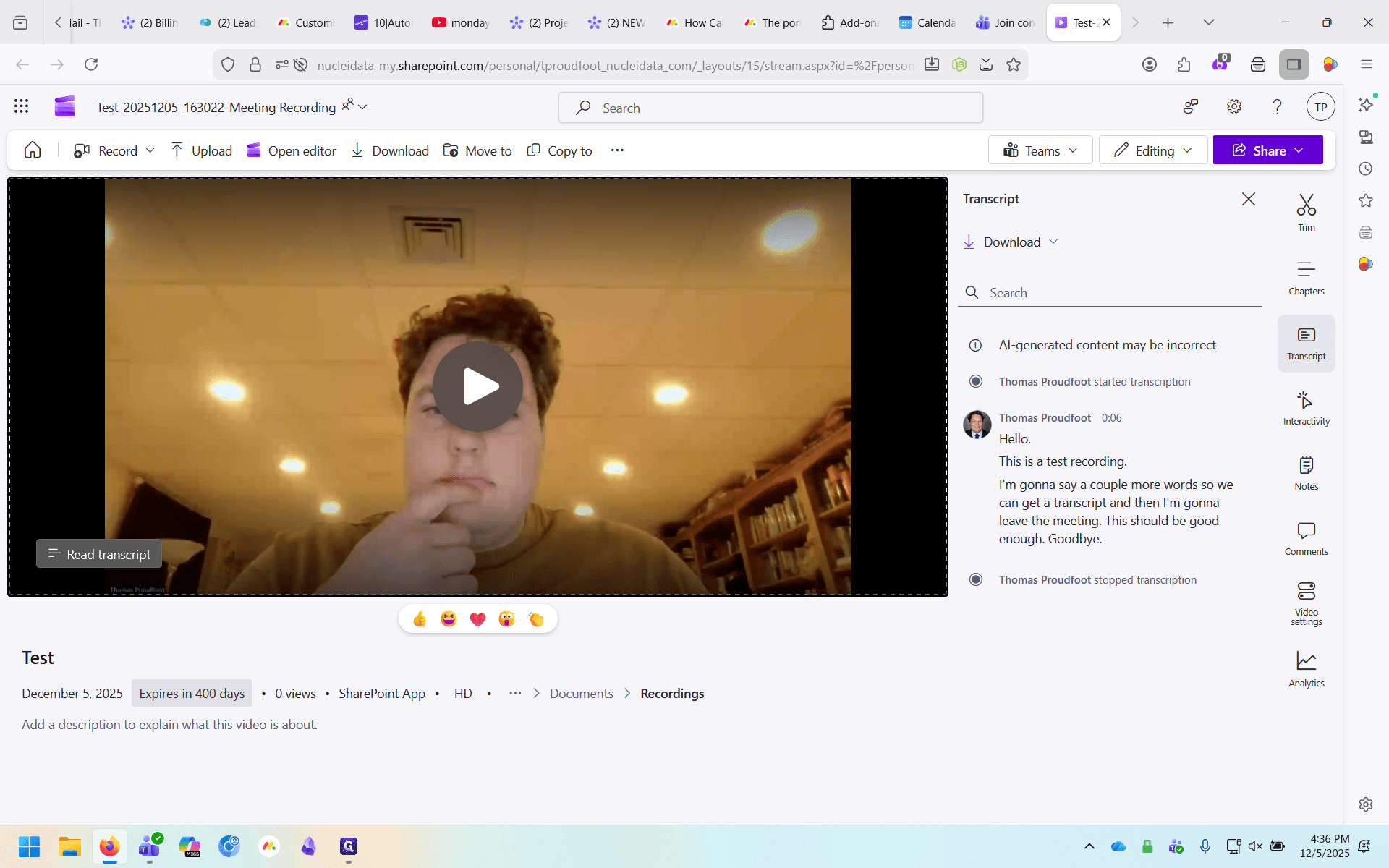
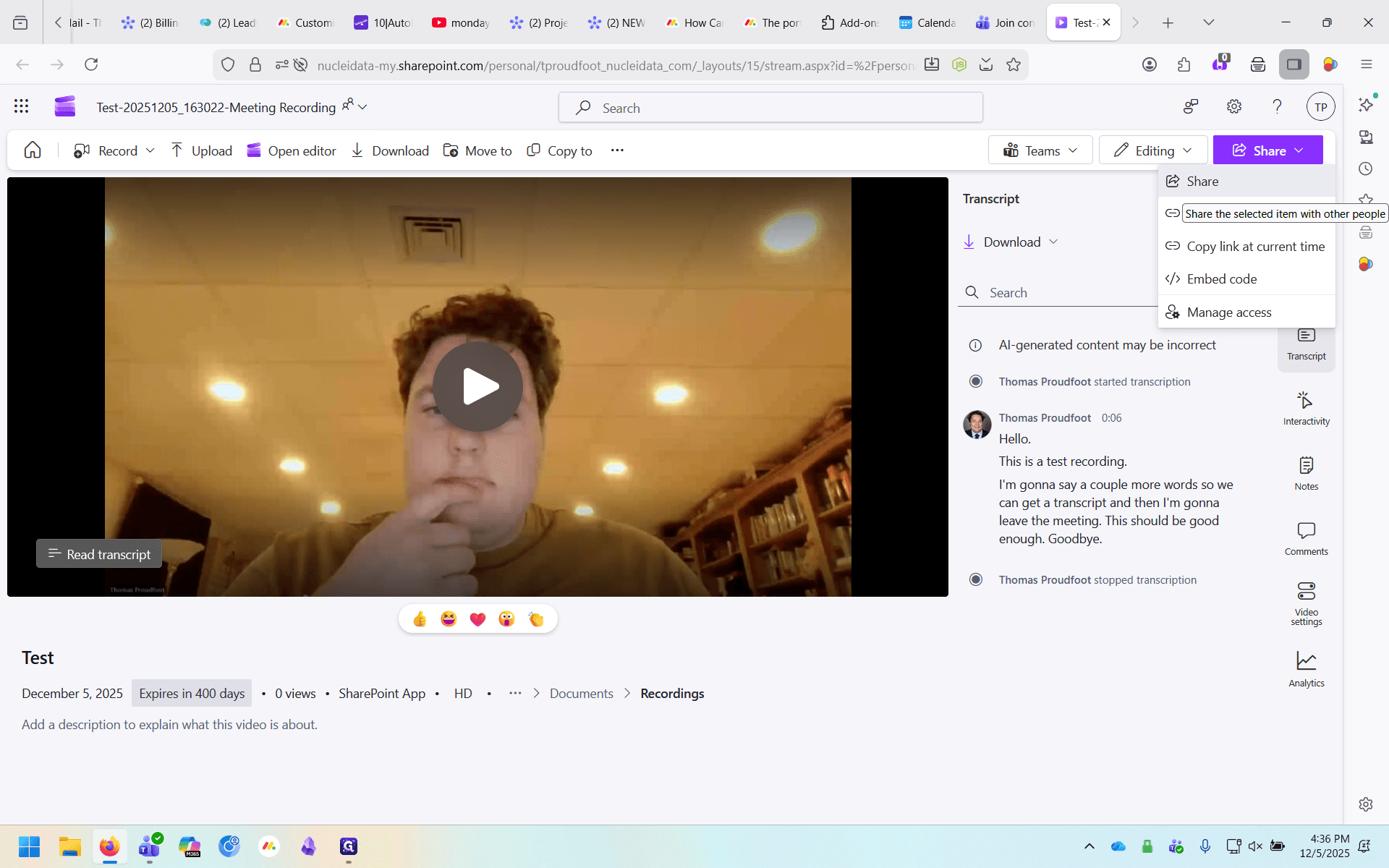
Once you're here, enter the email address you want to share it with.
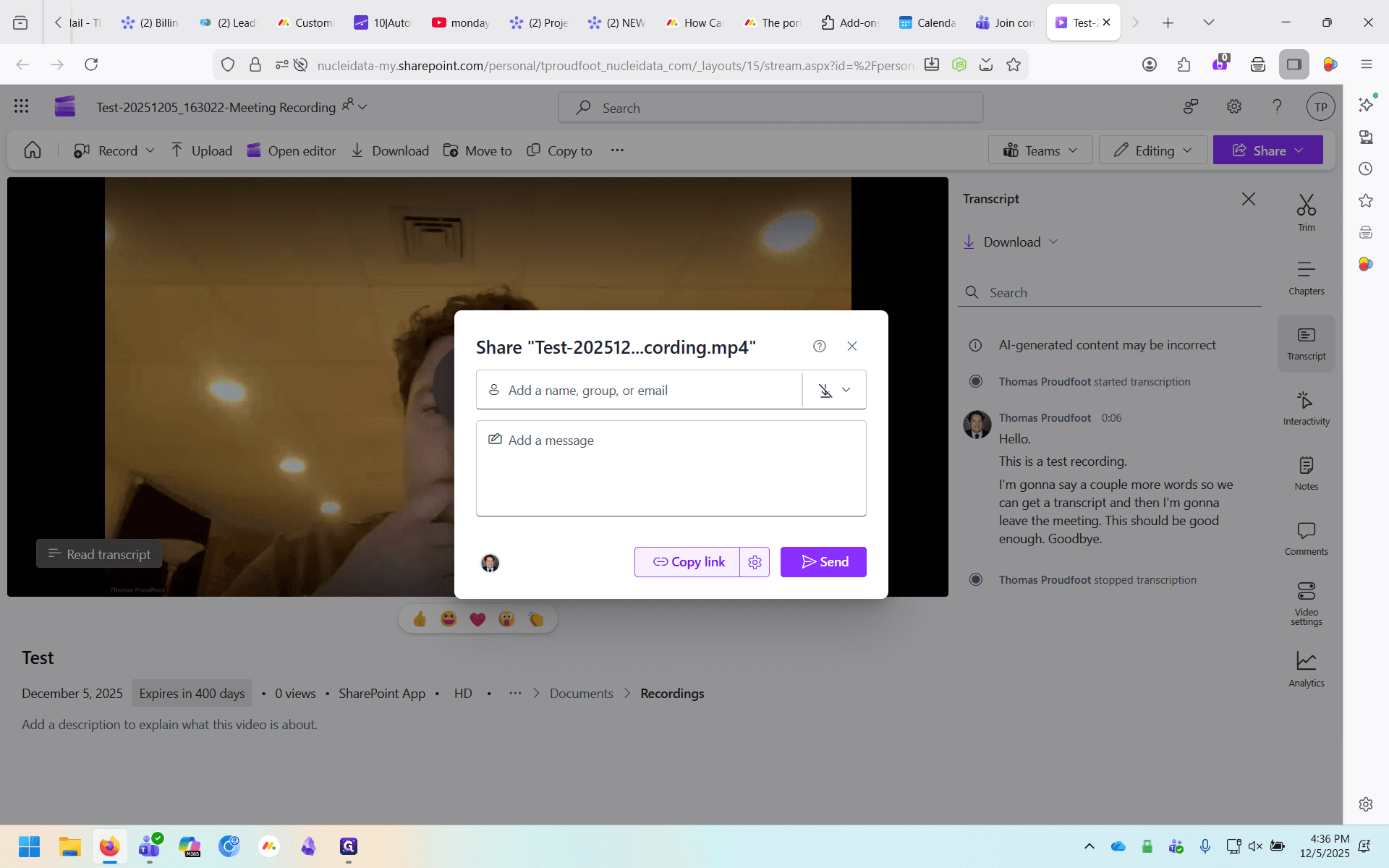
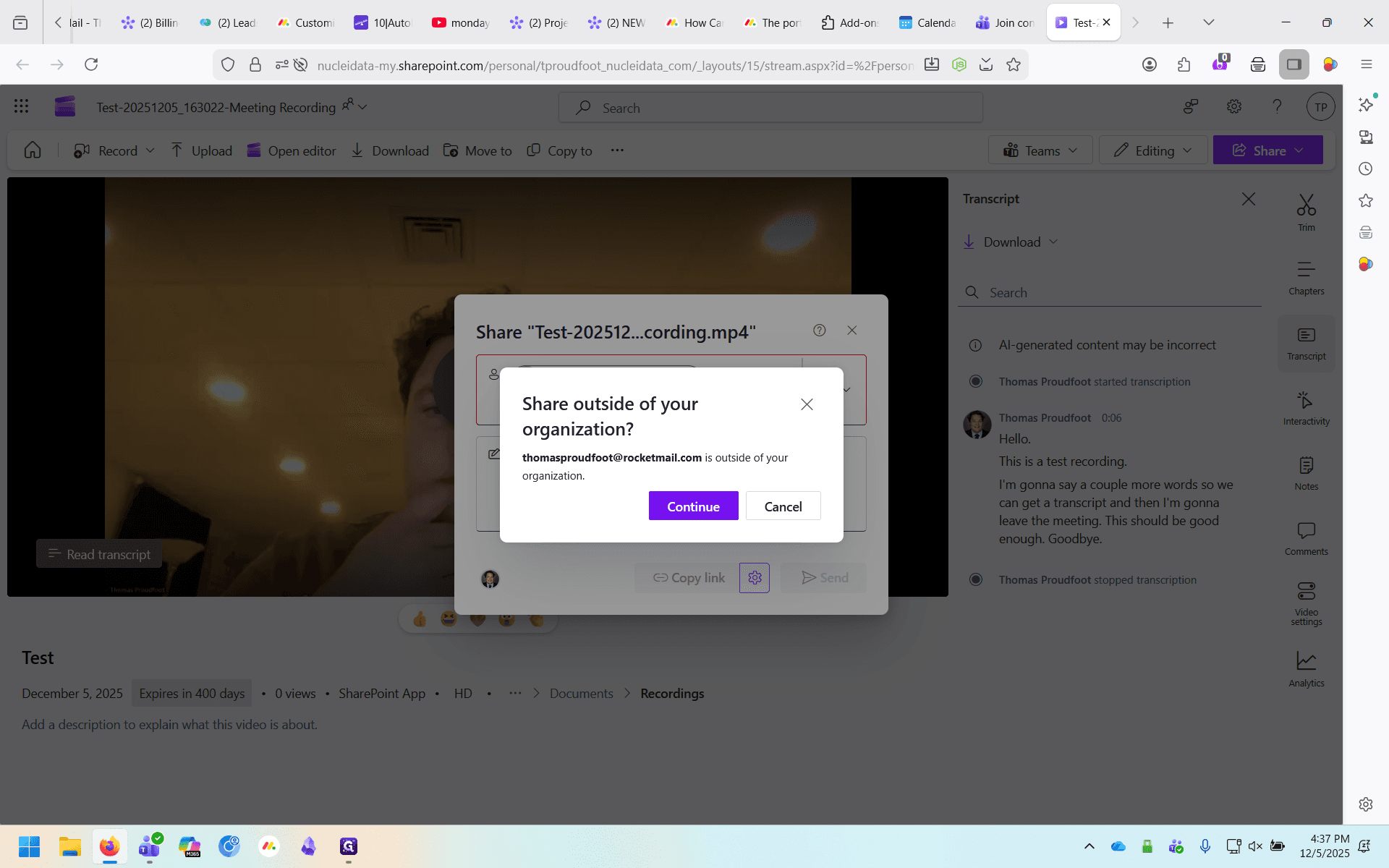
Next, select the appropriate option for this person. I recommend choosing "Can View" most of the time, because "Can't Download" is very restrictive. If you are sharing a call that contains sensitive information, keep the option as "Can't Download".
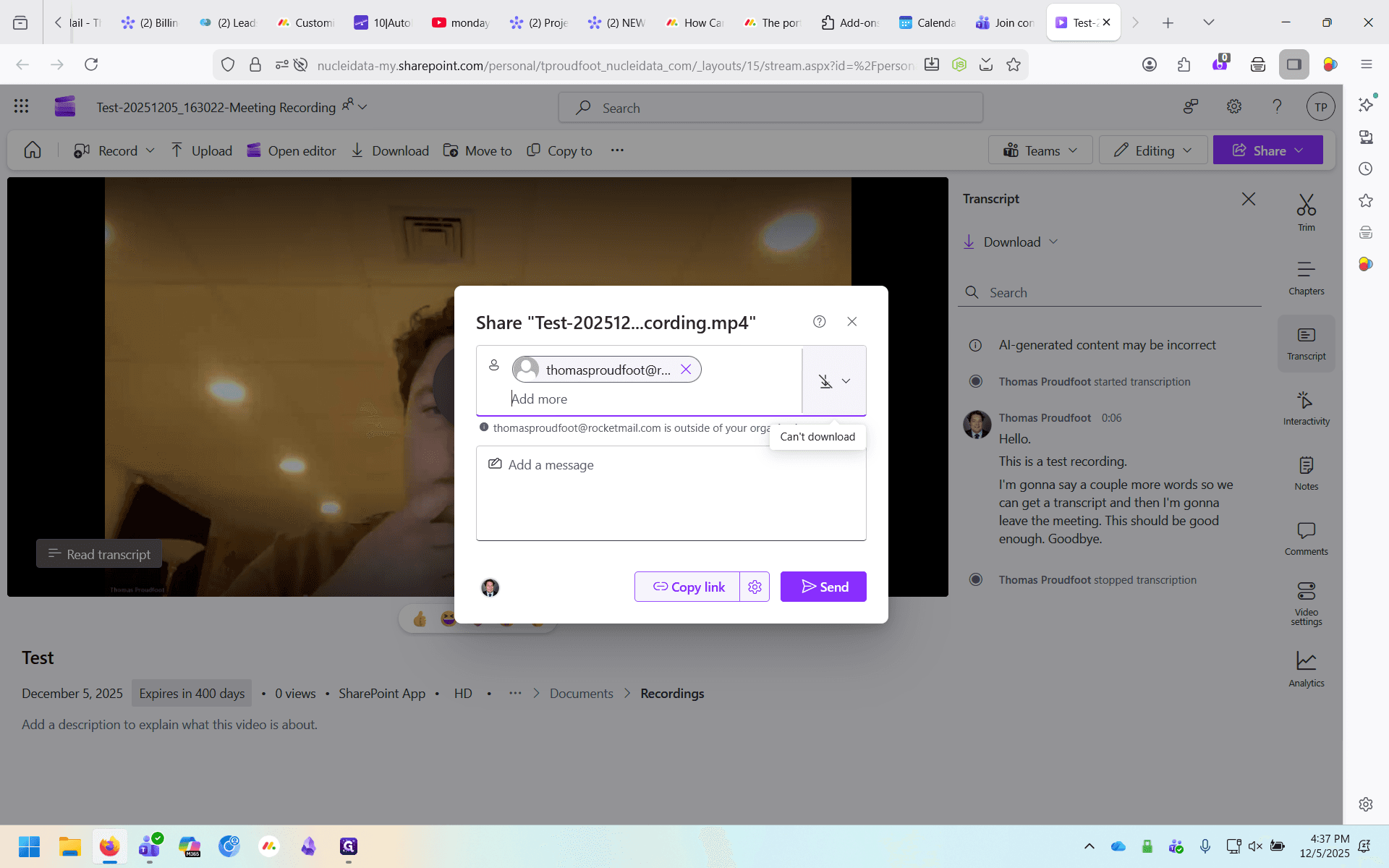
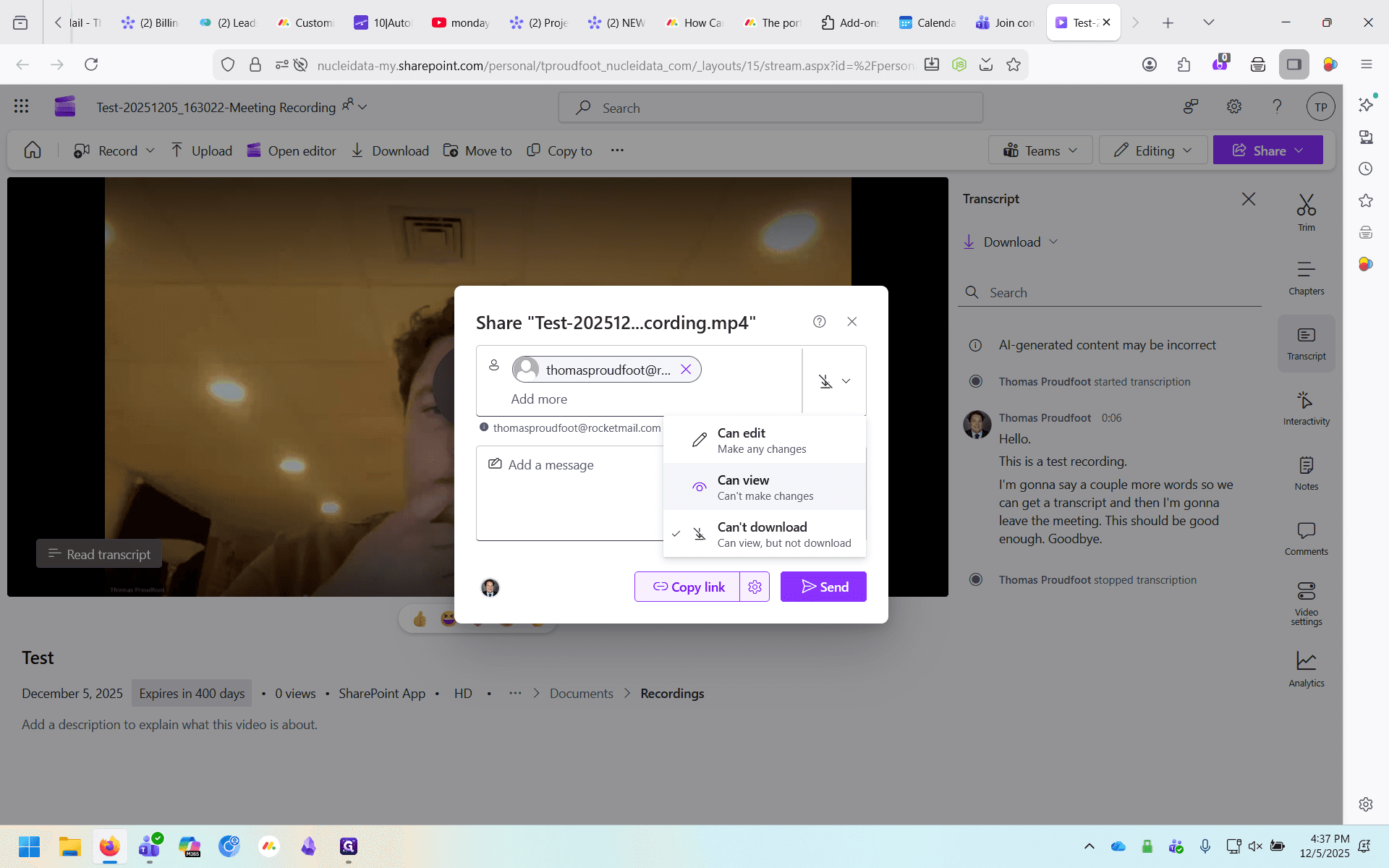
You can copy the share link here if you need it, but emailing it should work for most situations.
To email it, click on "Send"
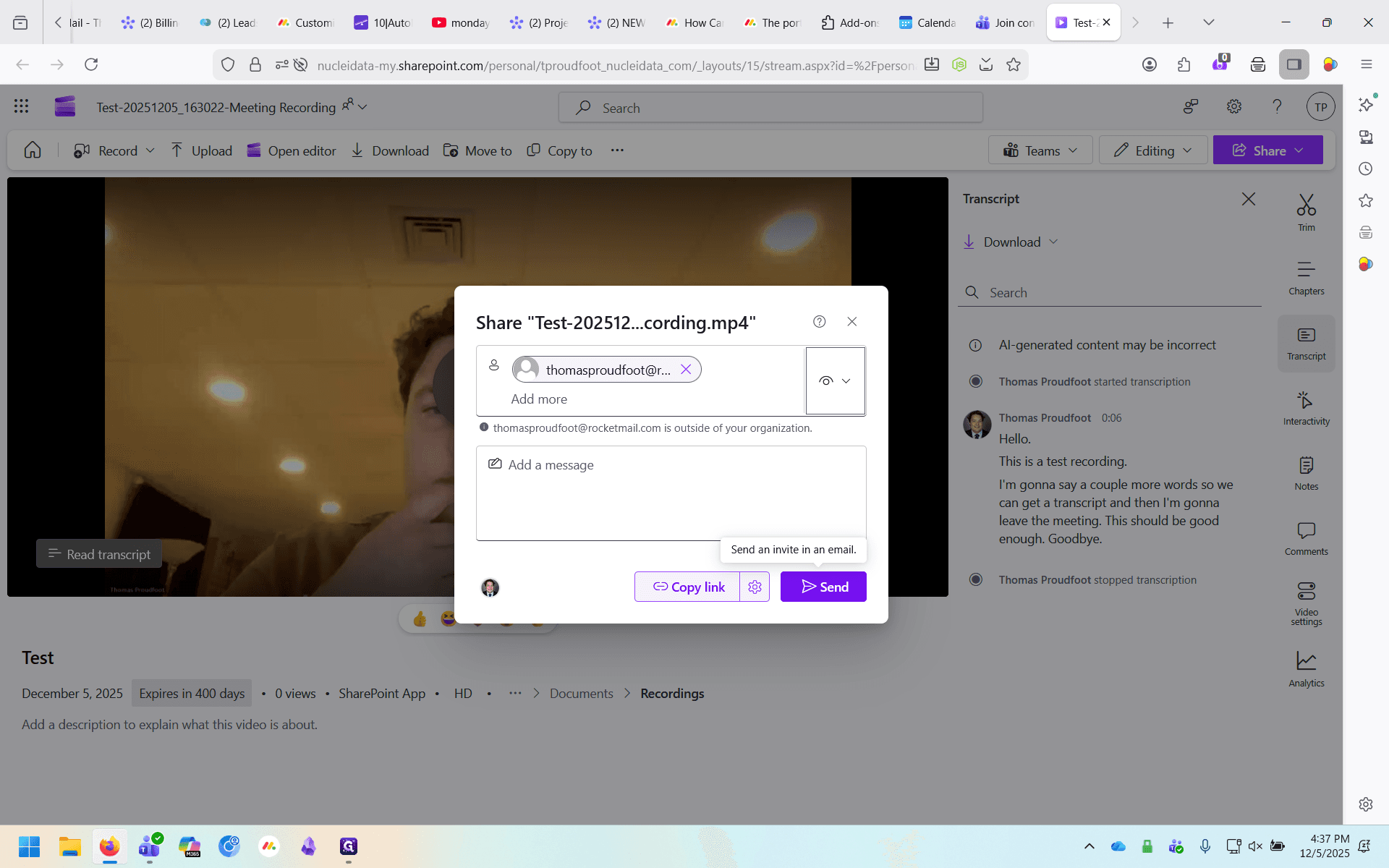
And that's it. You have now shared the recording.