
How to Review and Sign Your Child's Accommodation Plan in the Parent Portal, and Save it as a PDF
Learn step-by-step how to log in to the Parent Portal, view your child's Student Services Plan, and electronically sign the form for approval.
By Cindy Warner-Dobrowski
In this guide, we'll learn how to review and sign your child's Accommodation Plan through the Parent Portal.
You'll see how to access the plan, review its details, and complete the required signature step online.
Let's get started
Log in to the Parent Portal and select your child's name at the top.
1
Click your child's name.
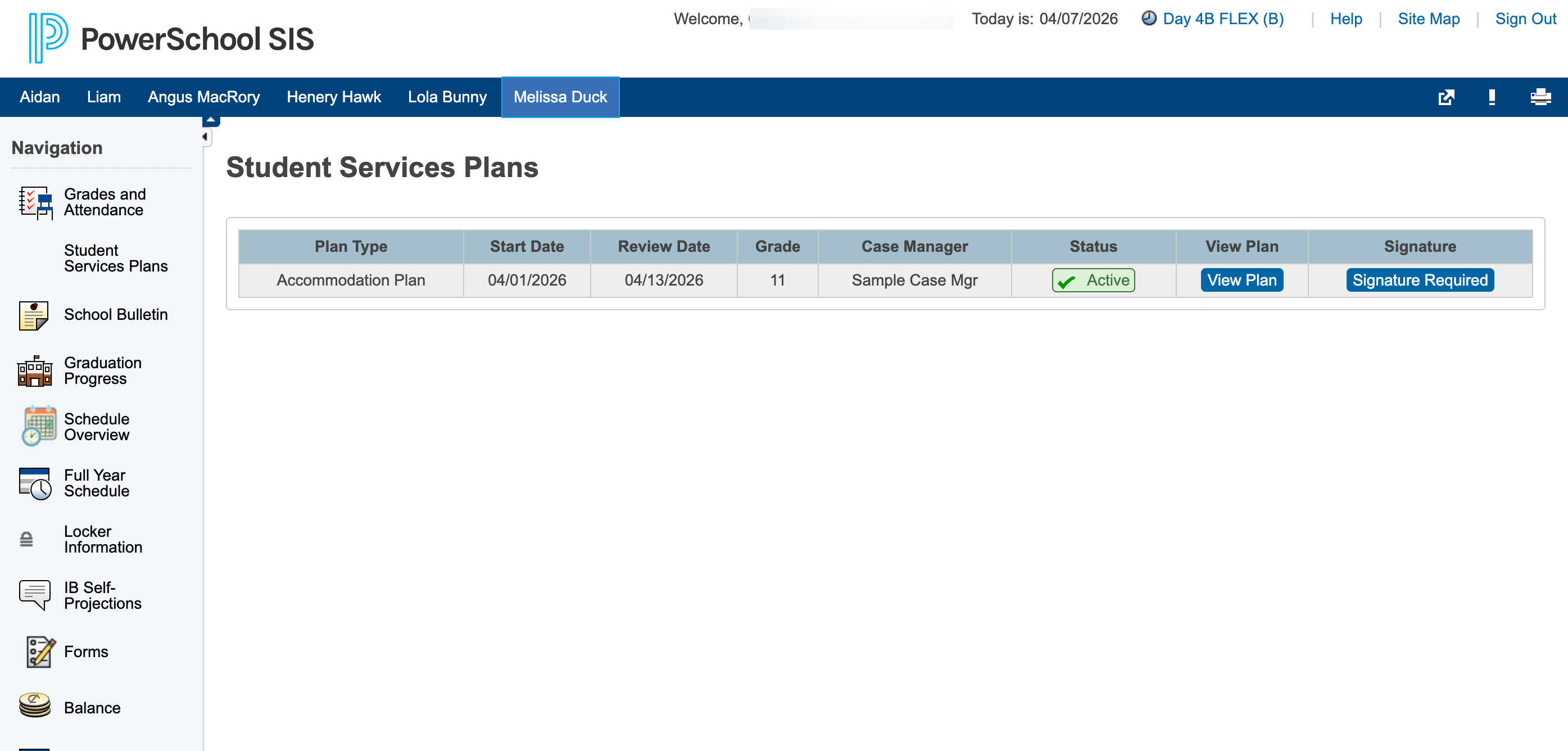
Go to Student Services Plans, then select View Plan.
2
Click on "Student Services Plans"
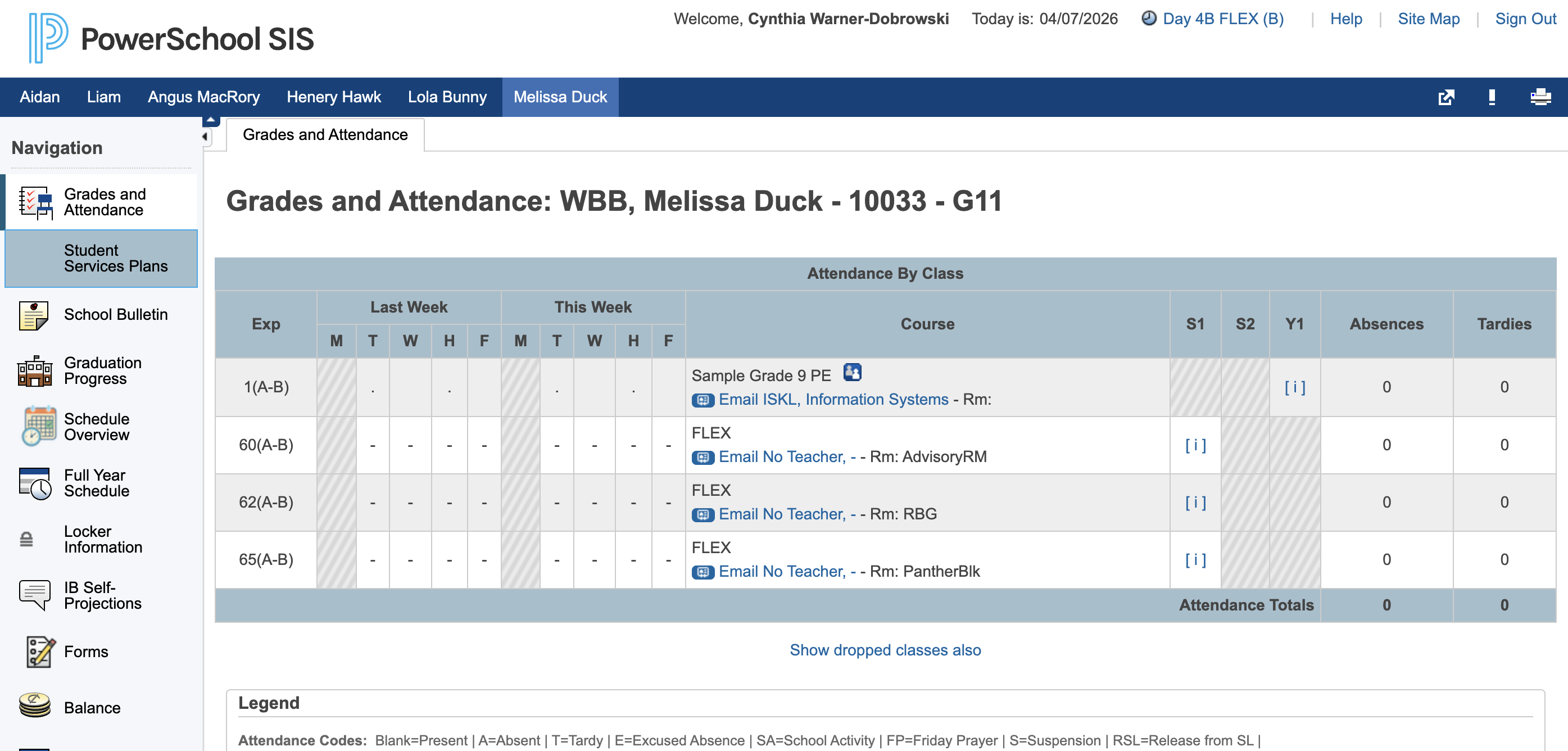
3
Click on "View Plan"
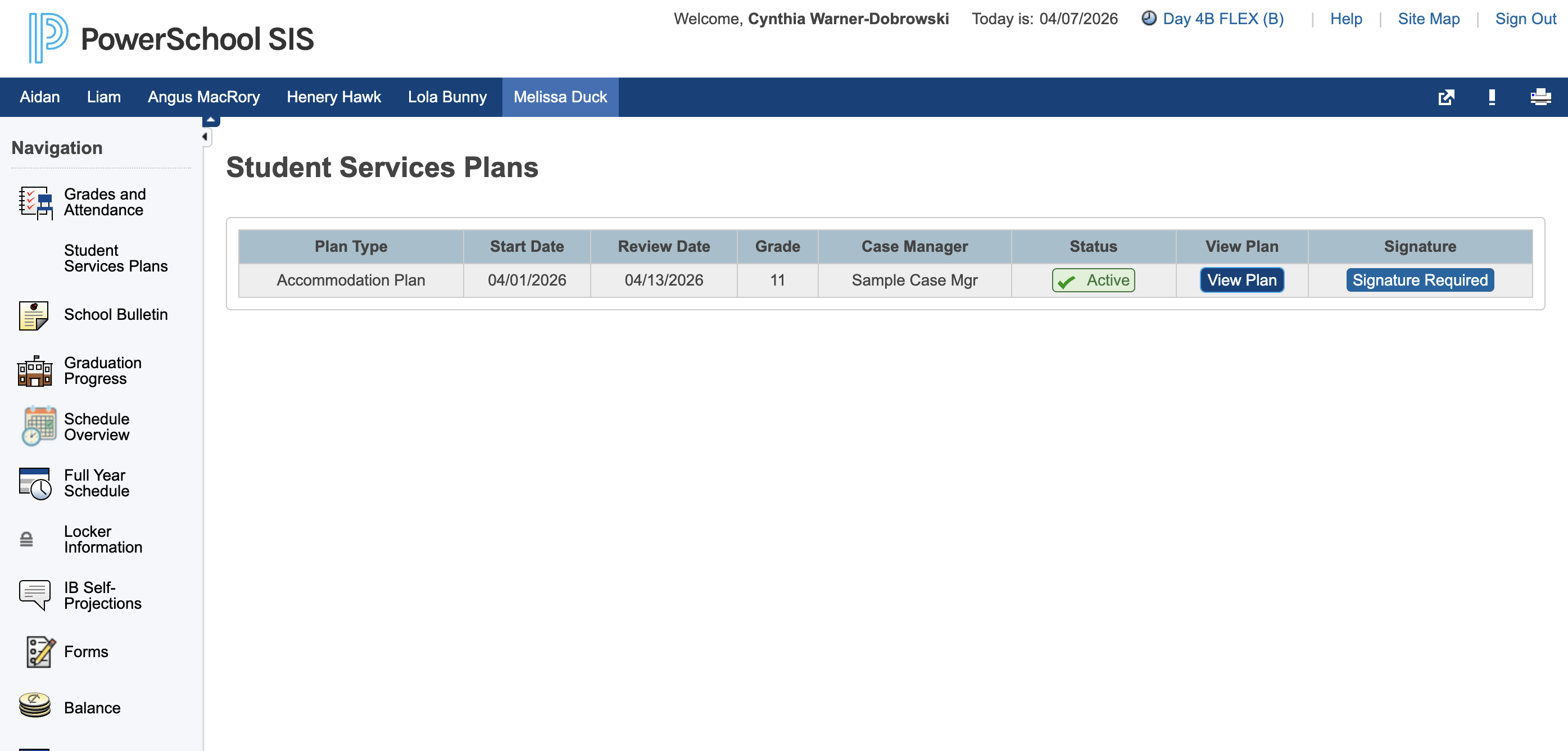
Once you are satisfied with the plan, return to Student Services Plans and click the "Signature Required" button.
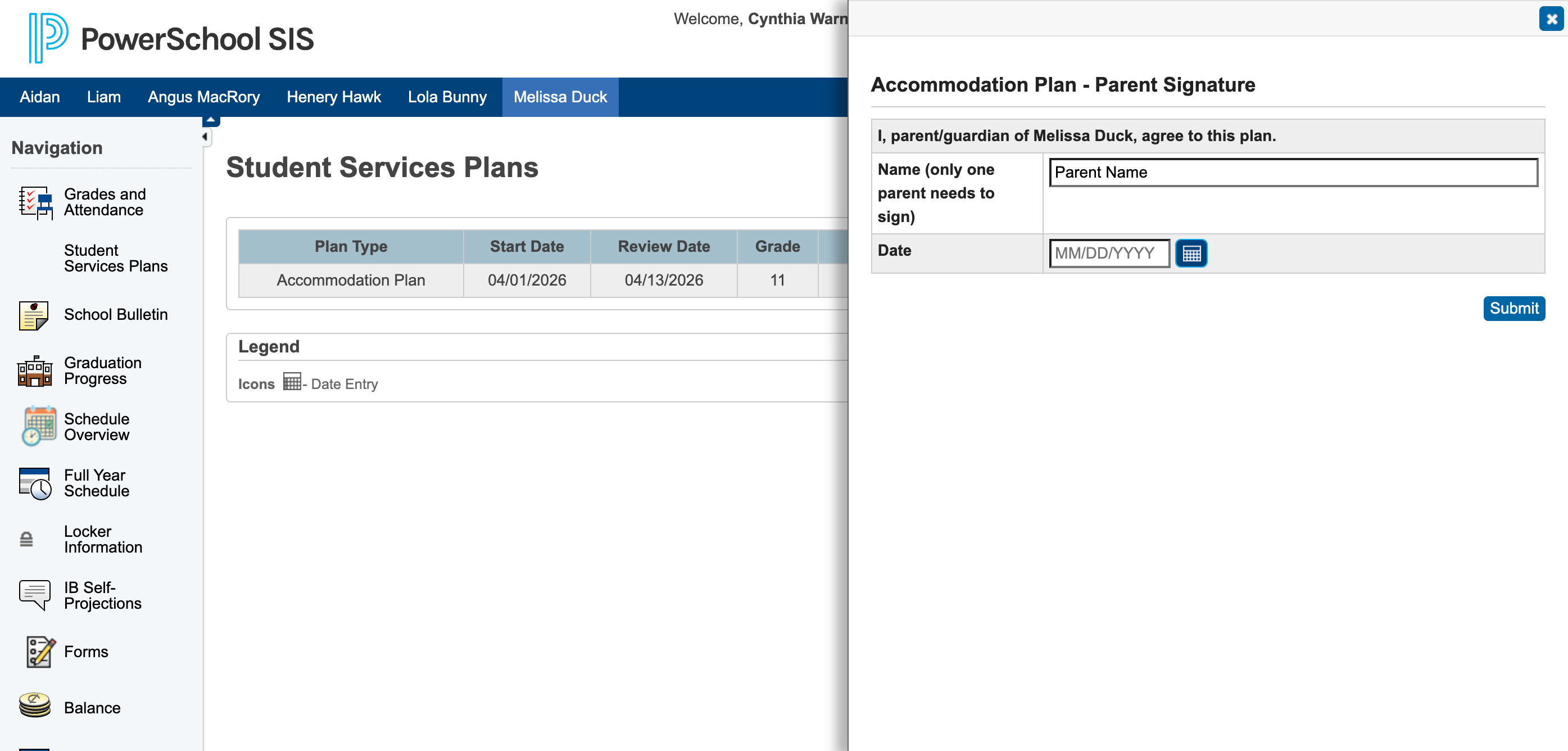
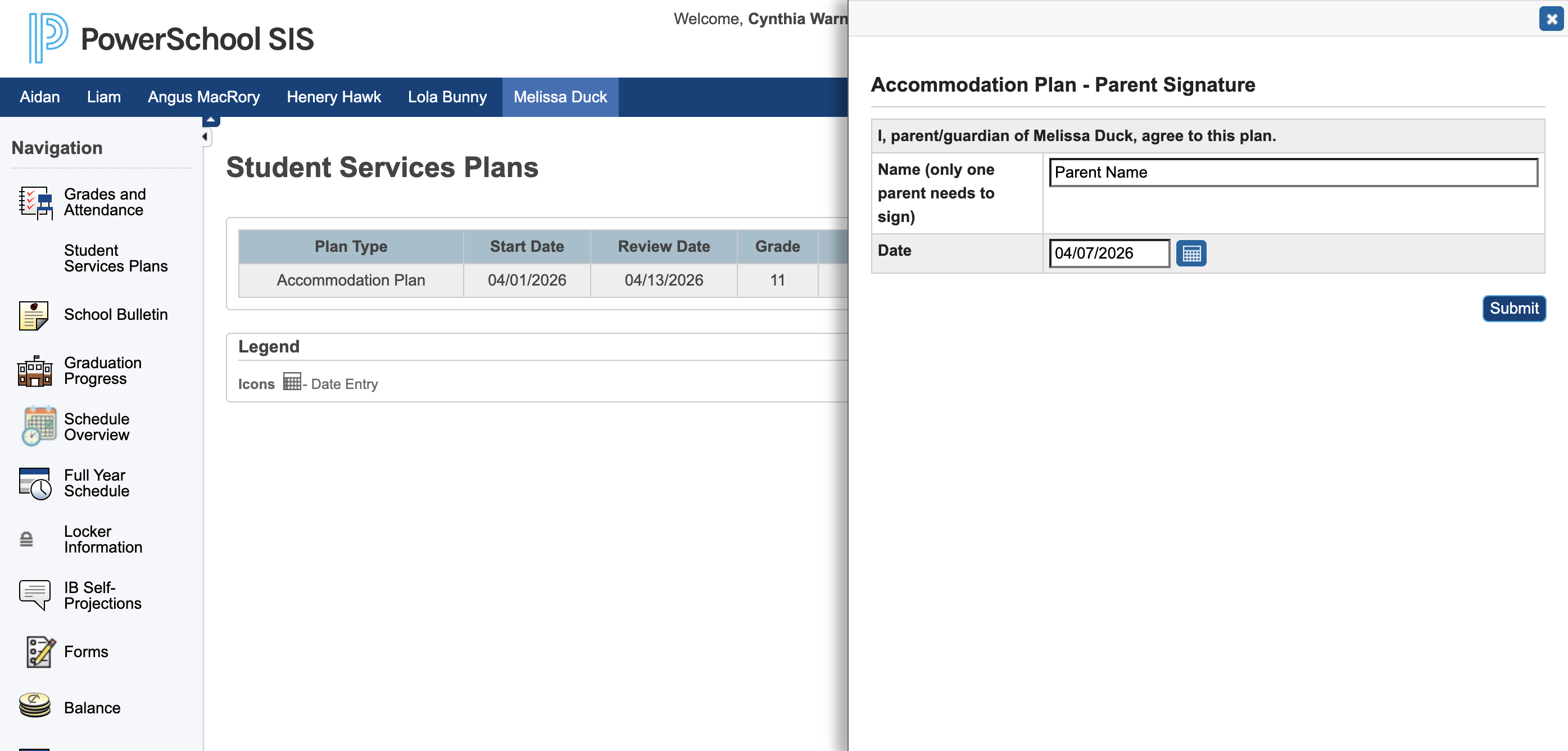
Enter your name and the date, then click Submit to sign the form.
4
Click on "Signature Required"
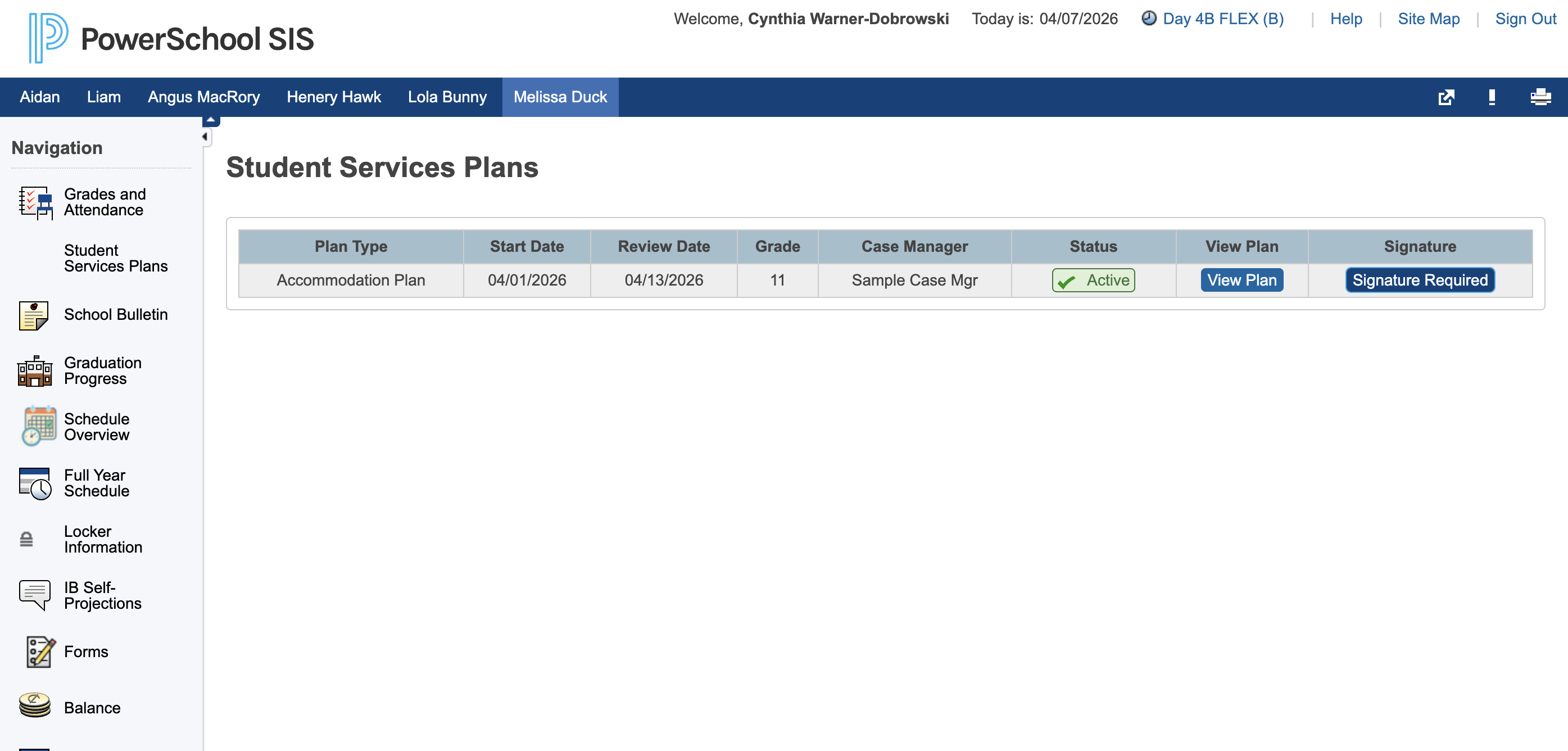
5
Type your name and select the date. Only one parent needs to sign the plan.
6
Click on "Submit"
You have reviewed and signed the Accommodation Plan.