How to Split a Transaction
Learn how to split a transaction into multiple line items for accurate categorization and allocation.
By Aasma Technology Solutions
This guide explains how to divide a single transaction into multiple entries by assigning different categories, accounts, or amounts. Splitting transactions helps ensure accurate financial reporting and simplifies reconciliation when a transaction relates to multiple expenses or accounts.
1
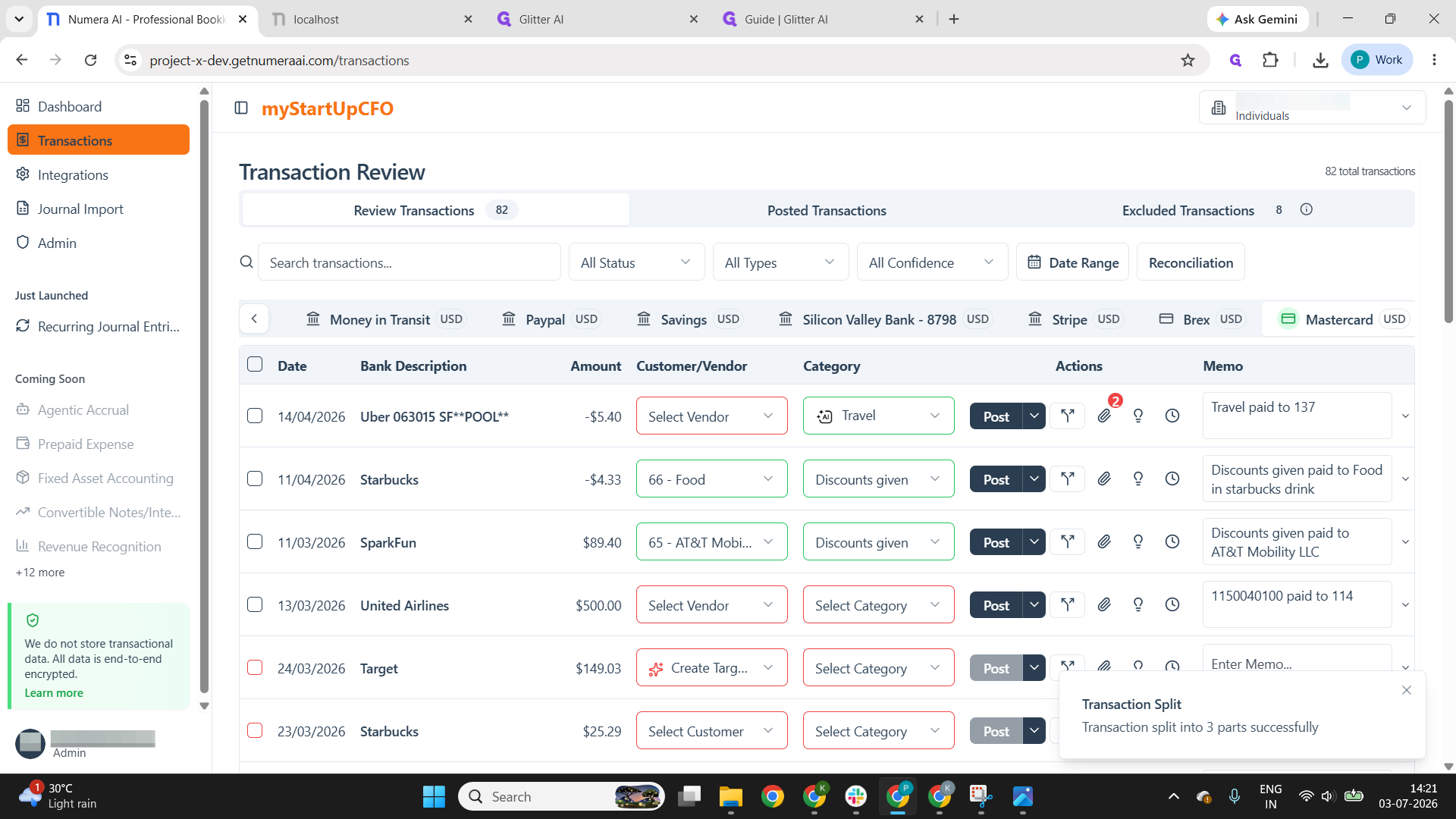
Go to the Transactions tab and locate the transaction you want to split.
2
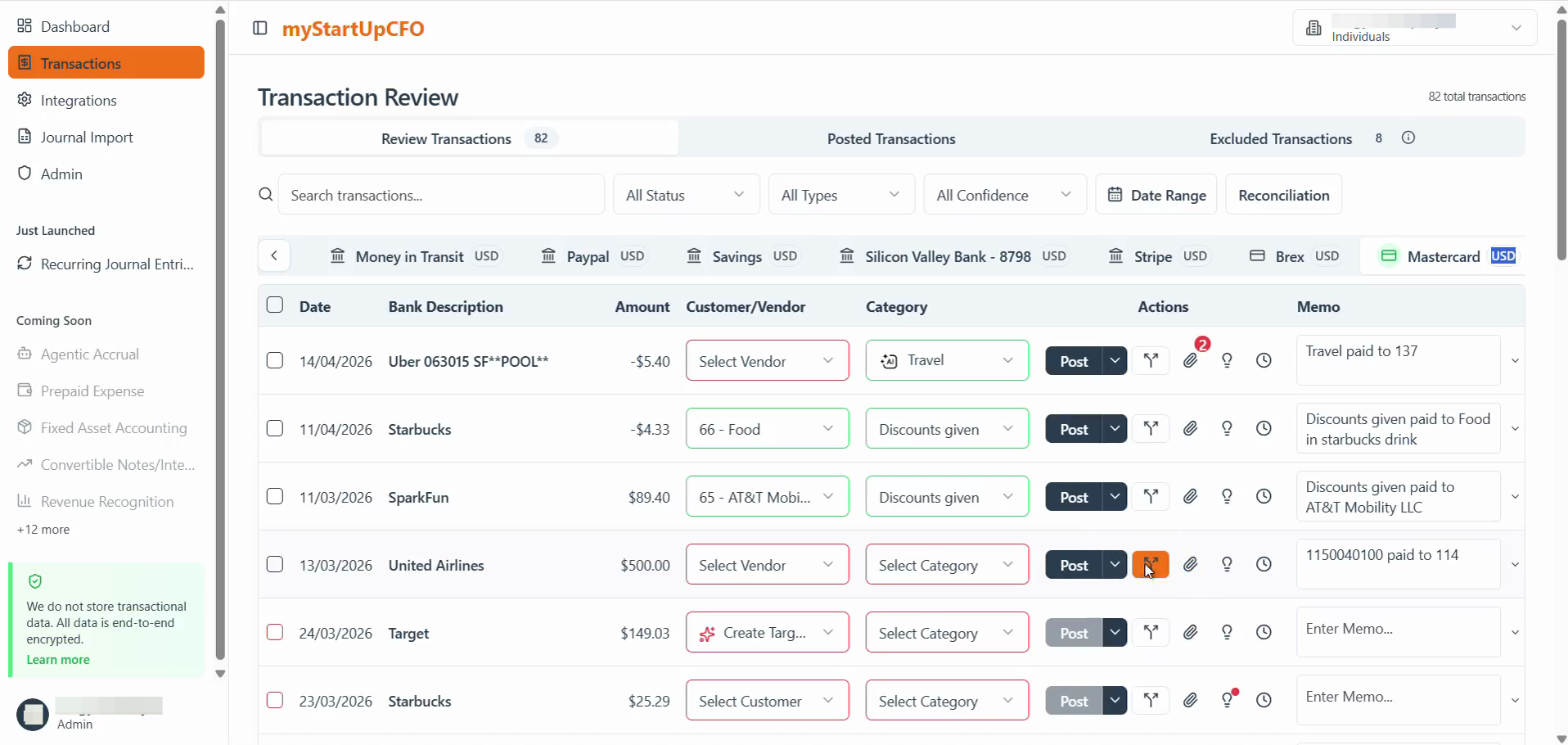
Select the transaction and click the Split option to open the Split Transaction dialog.
3
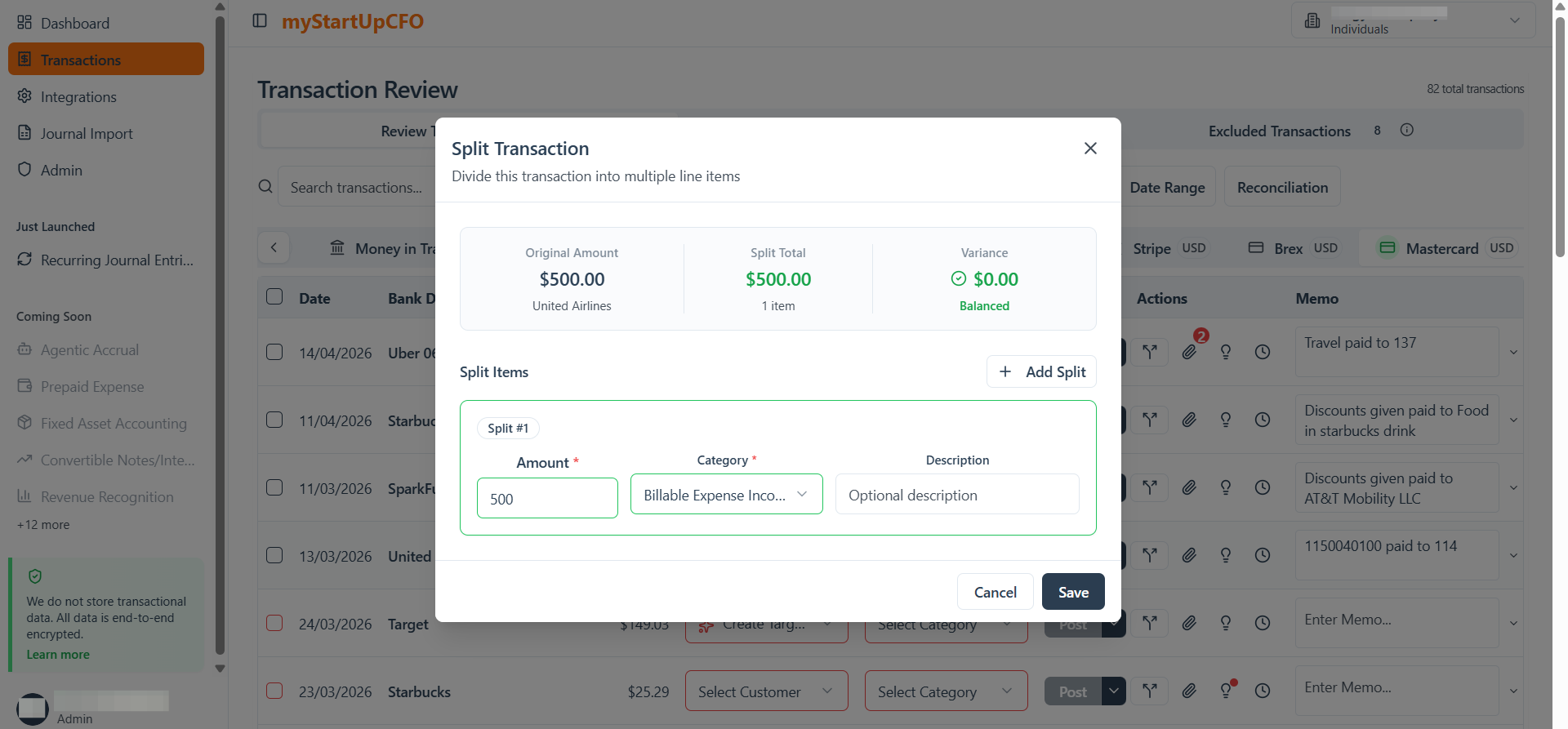
Split transaction pop-up is opened
4
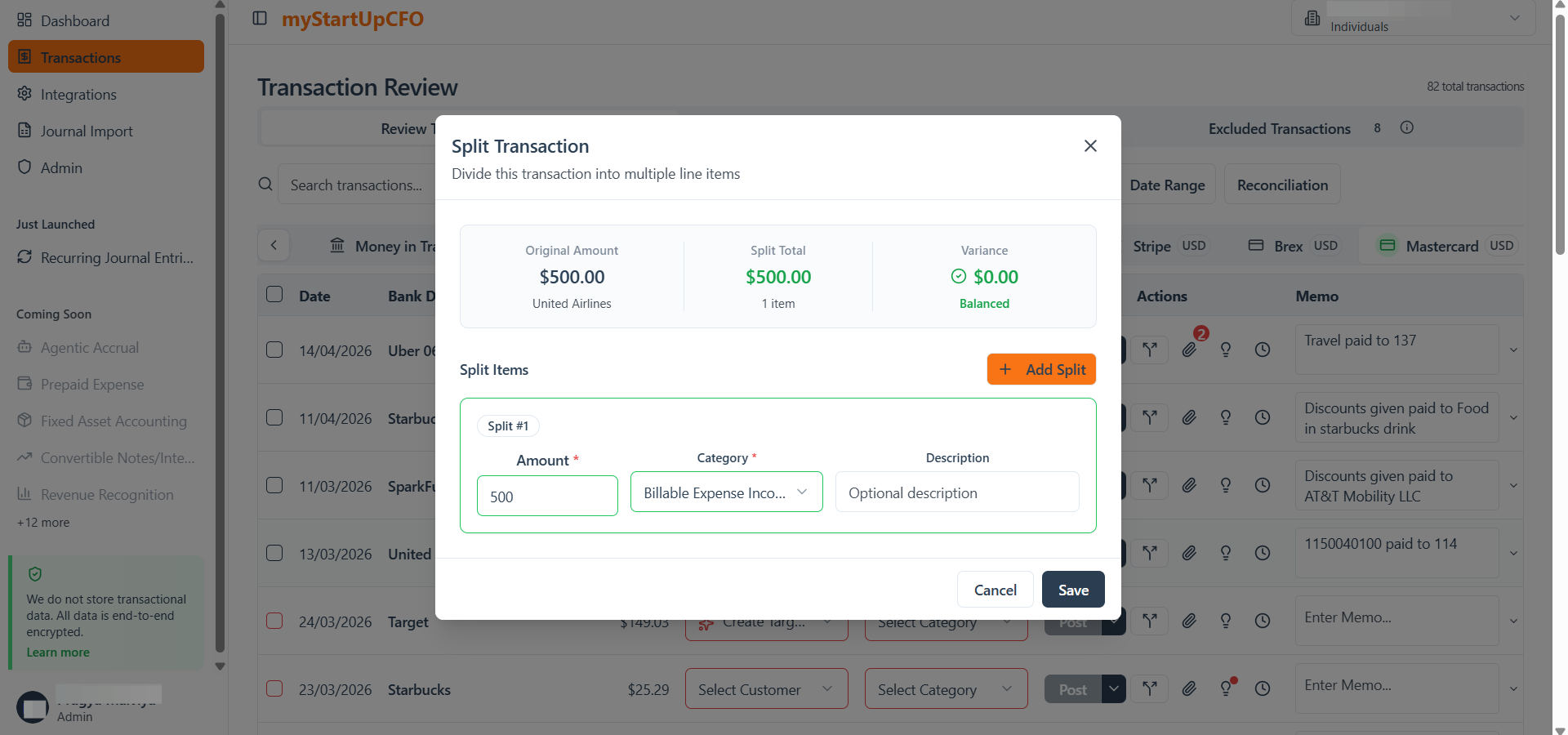
Click Add Splits to create additional line items.
5
Enter the required details for each split, such as the account, category, description, and amount.
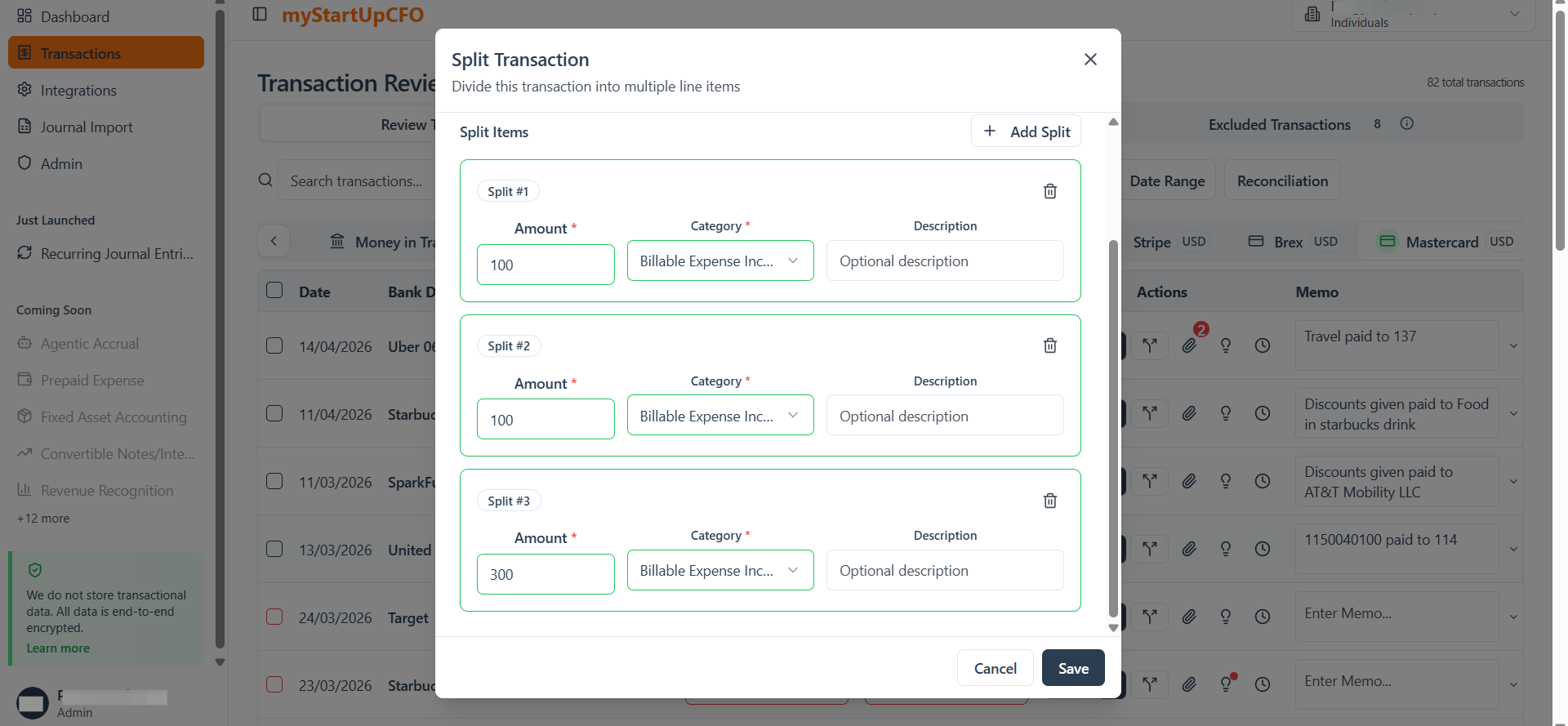
Make sure the split is equal to Original amount and Variance = 0
6
Review the transaction to confirm that all split entries have been created correctly.
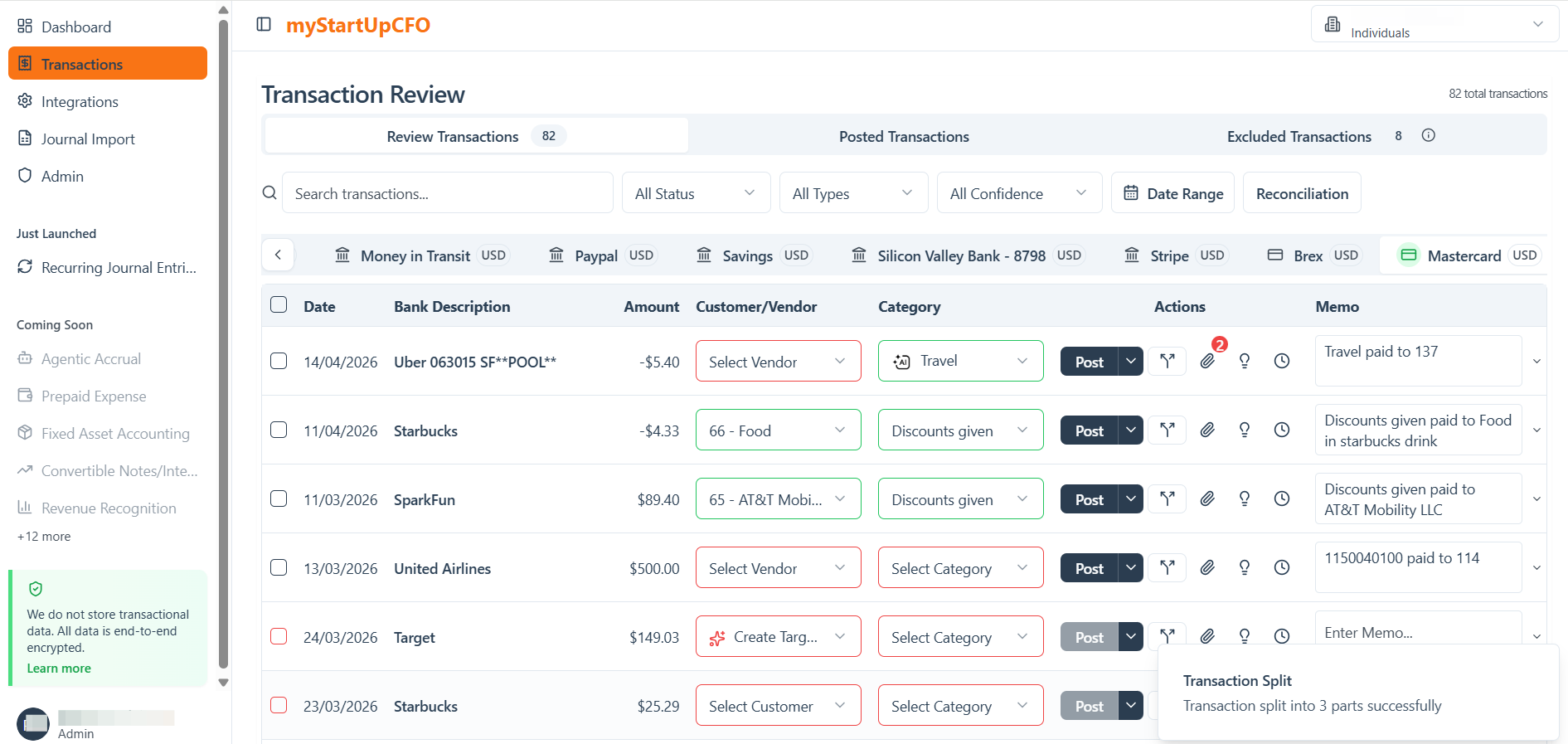
Splitting transactions provides greater flexibility when allocating a single transaction across multiple accounts, categories, or departments while maintaining accurate financial records.