Icon

SOP: ADP Invoice Download and Company Cost Allocation Breakdown

Learn the complete ADP invoice process for splitting invoices between companies, including how to generate, save, and break down invoices using Reports and Analytics, Excel, and pivot tables.

By Jessica Esslinger

In this guide, we'll learn how to split an ADP invoice between companies and prepare a breakdown for reporting. We will cover how to locate and save the invoice, use Excel to organize the data, and update the necessary details for accurate records. This process helps ensure each company receives the correct invoice allocation.

Let's get started

You did great. For this video, we will go over the ADP invoice process for splitting between companies.
1
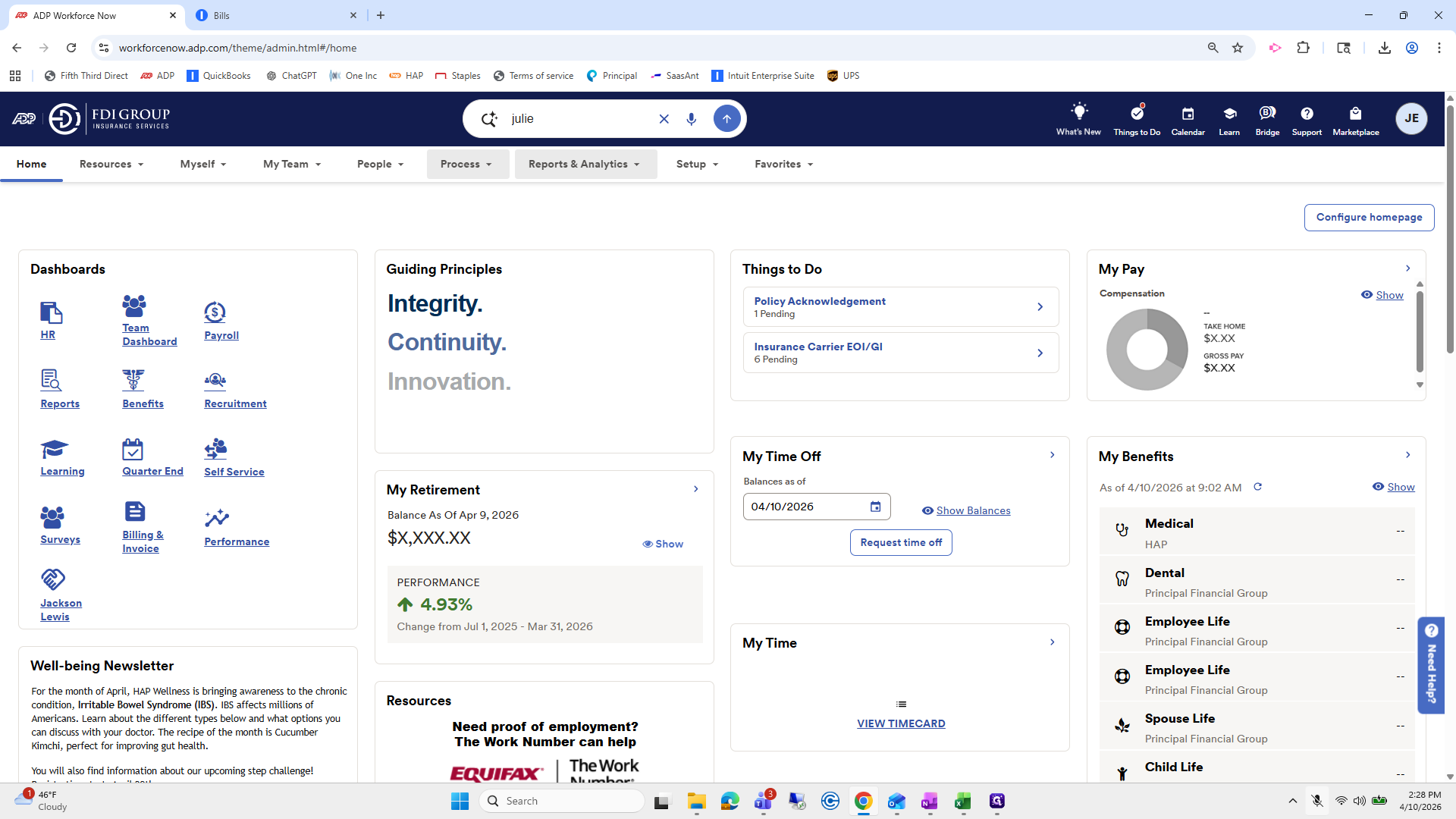
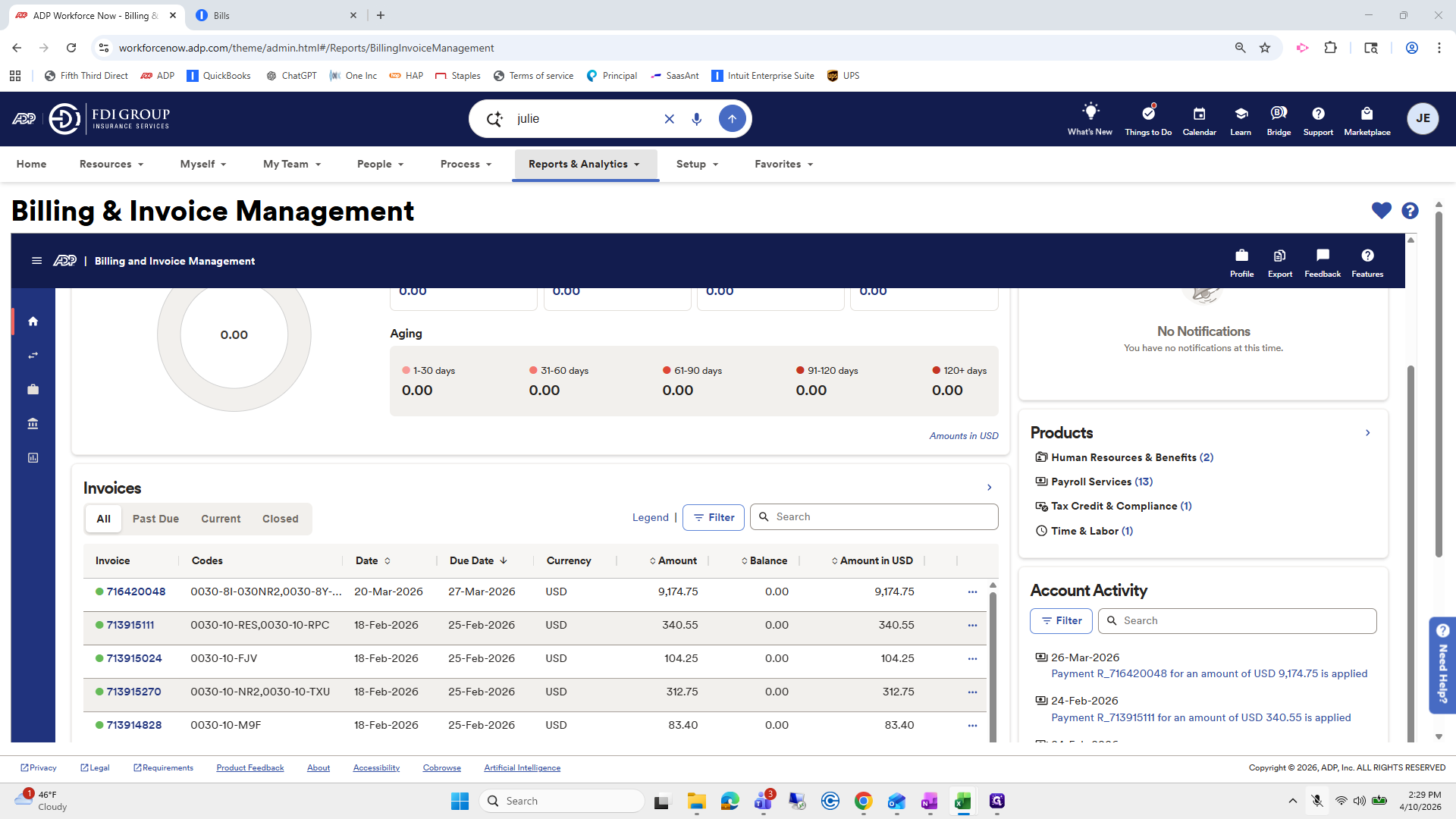
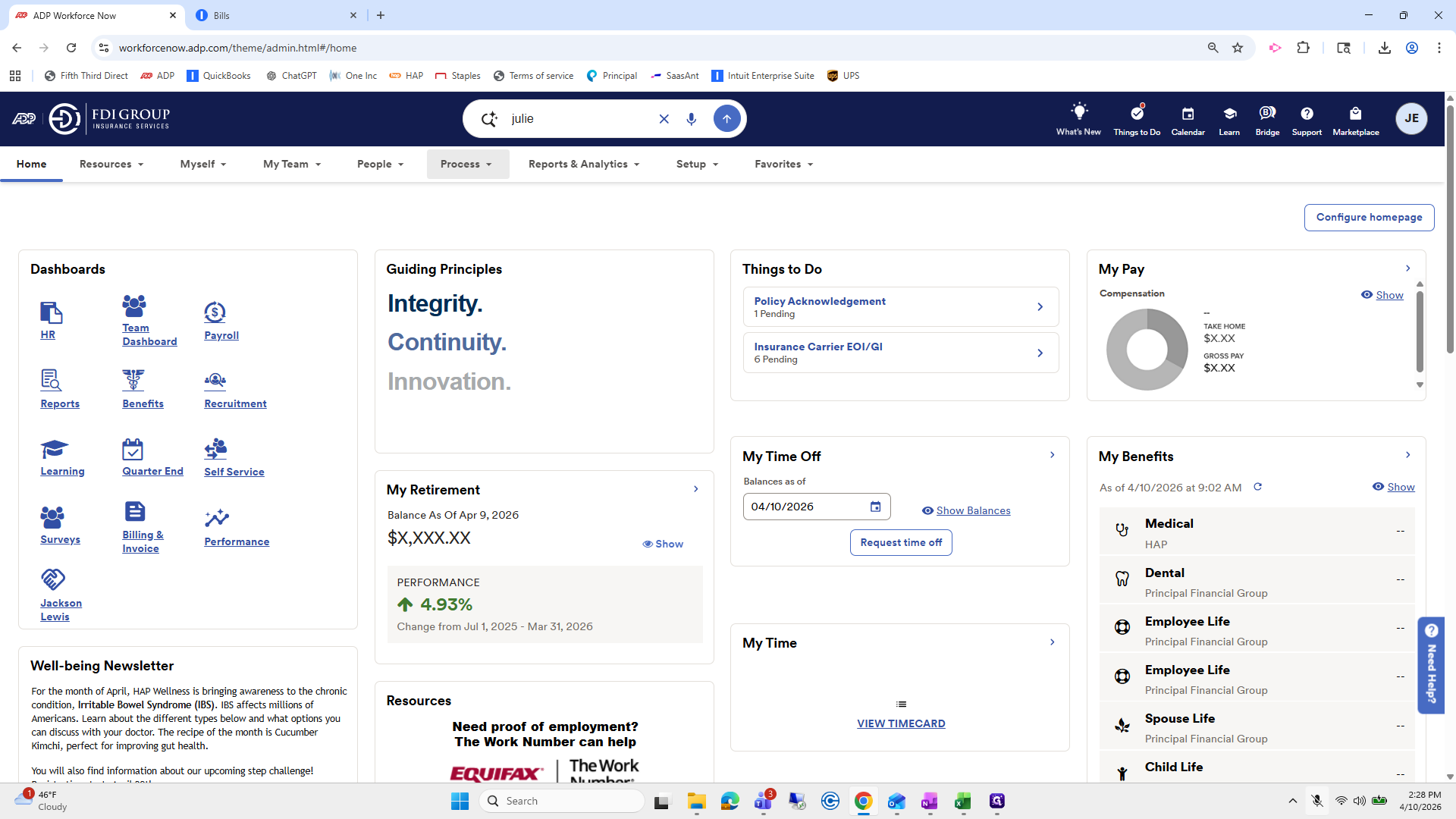
Click on "Process ▾"
Step #1: Click on "Process ▾"

There are some more -isms. First, go to Reports to look it up.
2
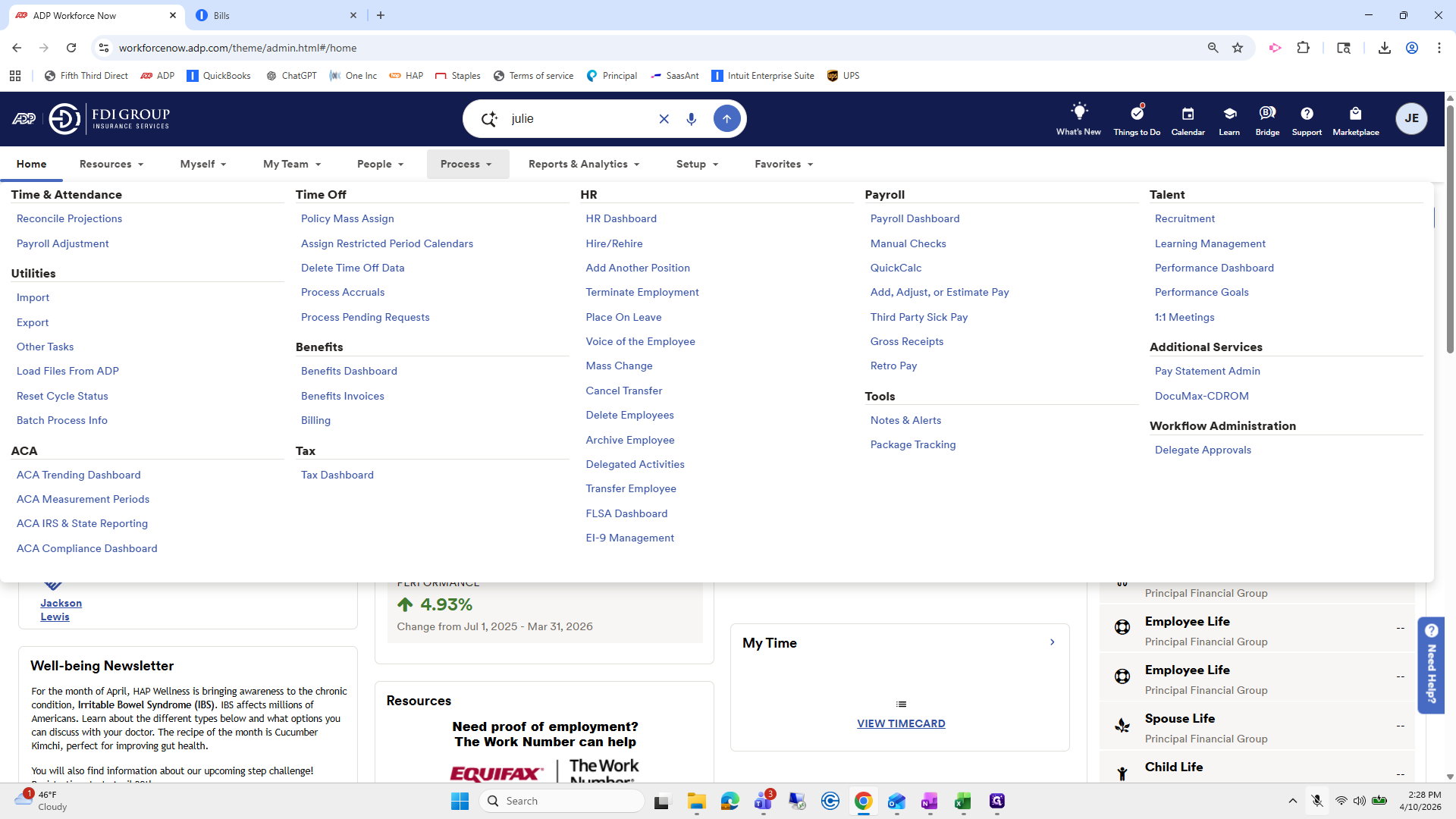
Click on "Process ▾"
Step #2: Click on "Process ▾"
3
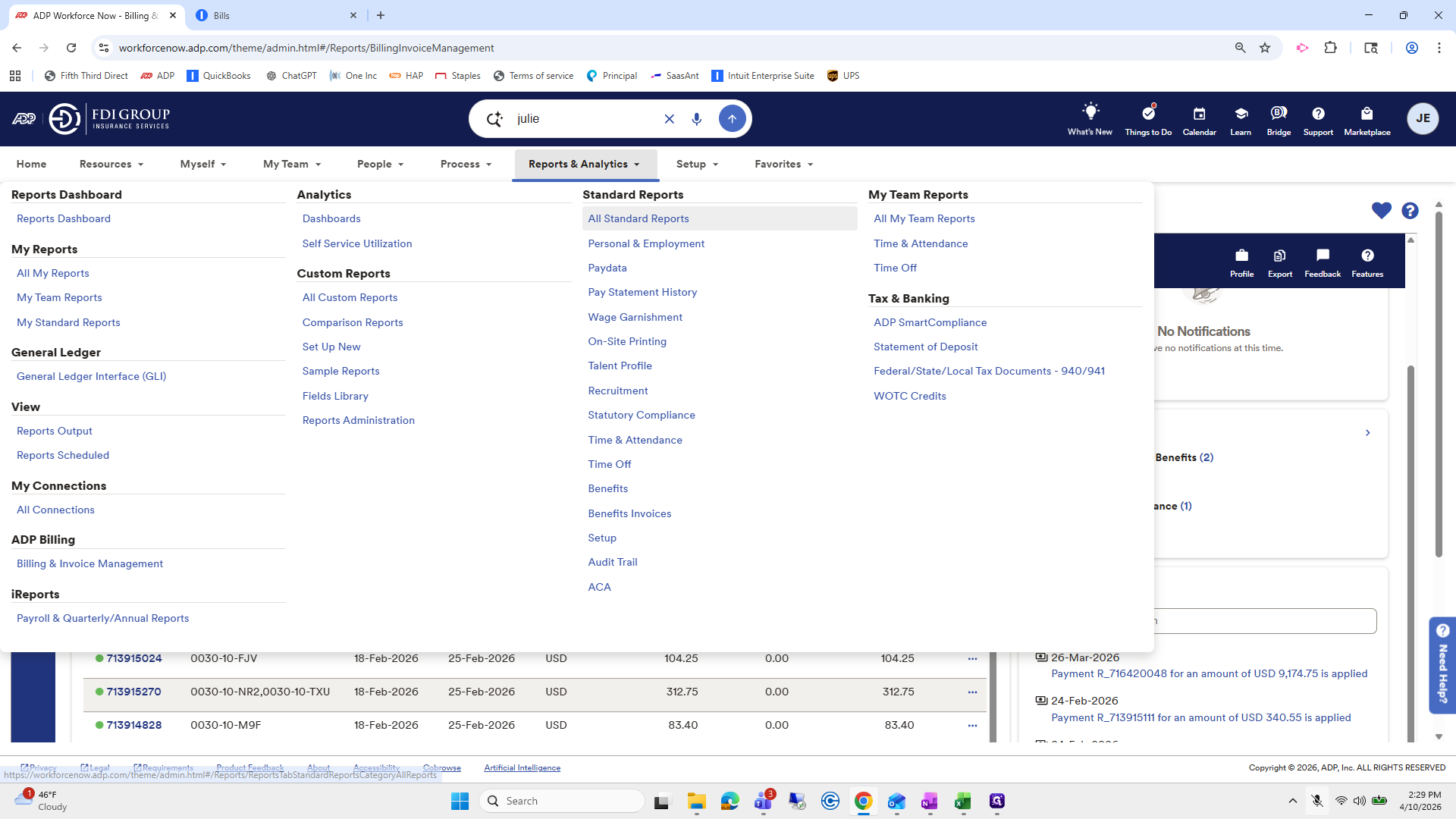
Click on "Reports & Analytics ▼"
Step #3: Click on "Reports & Analytics ▼"

Nope. Just kidding, this is already bad.
4
Click on "Process ▾"
Step #4: Click on "Process ▾"

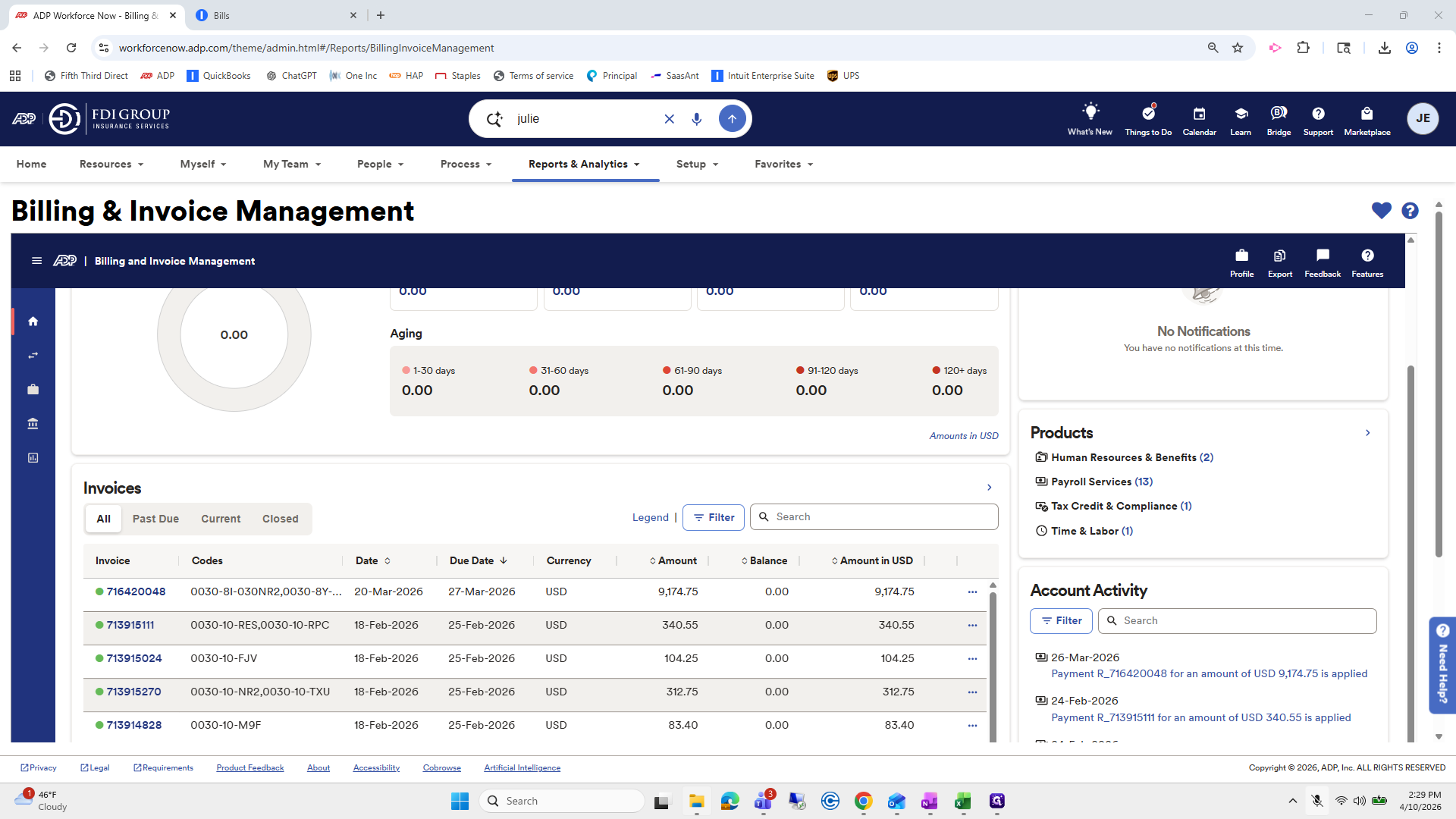
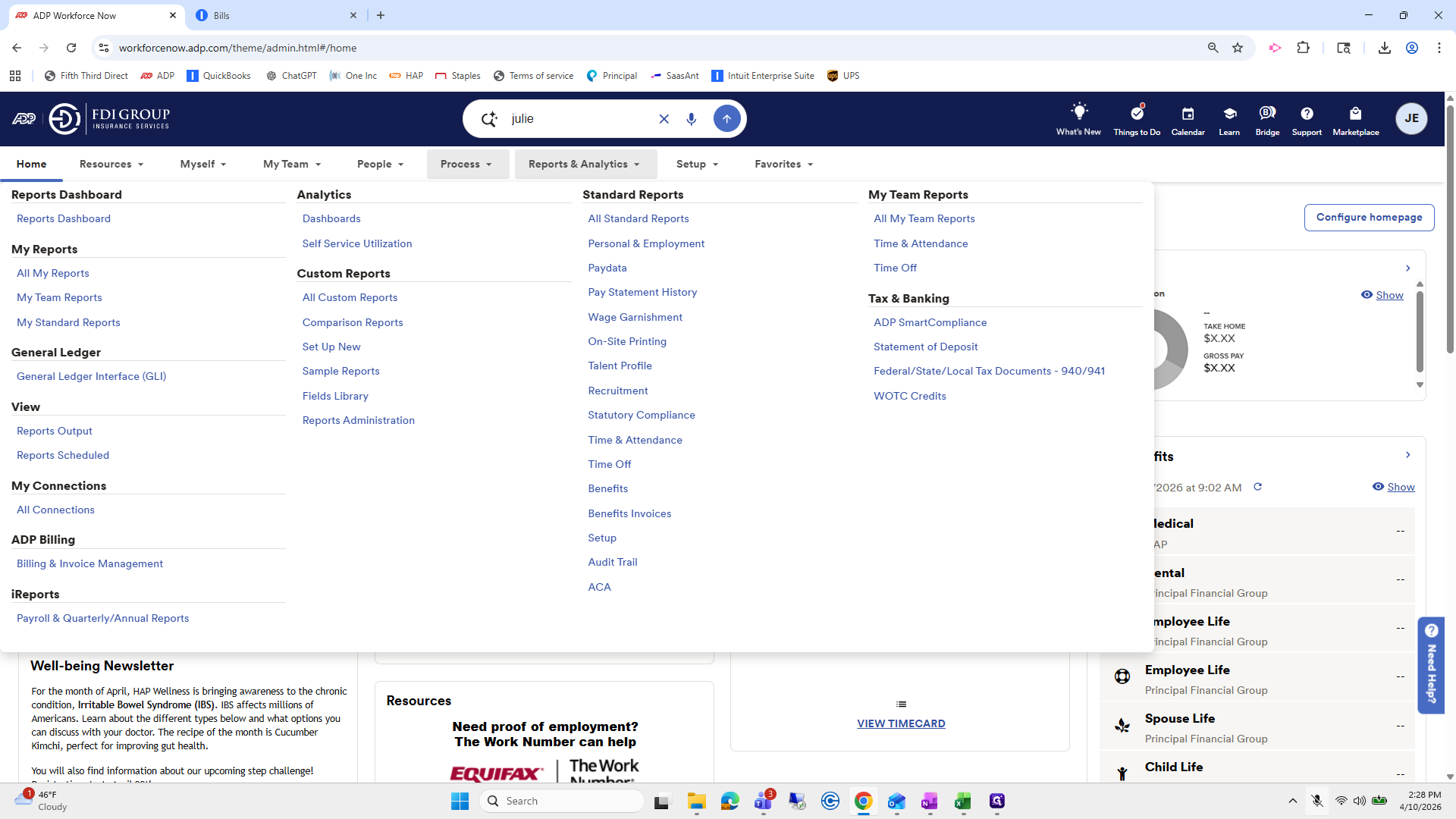
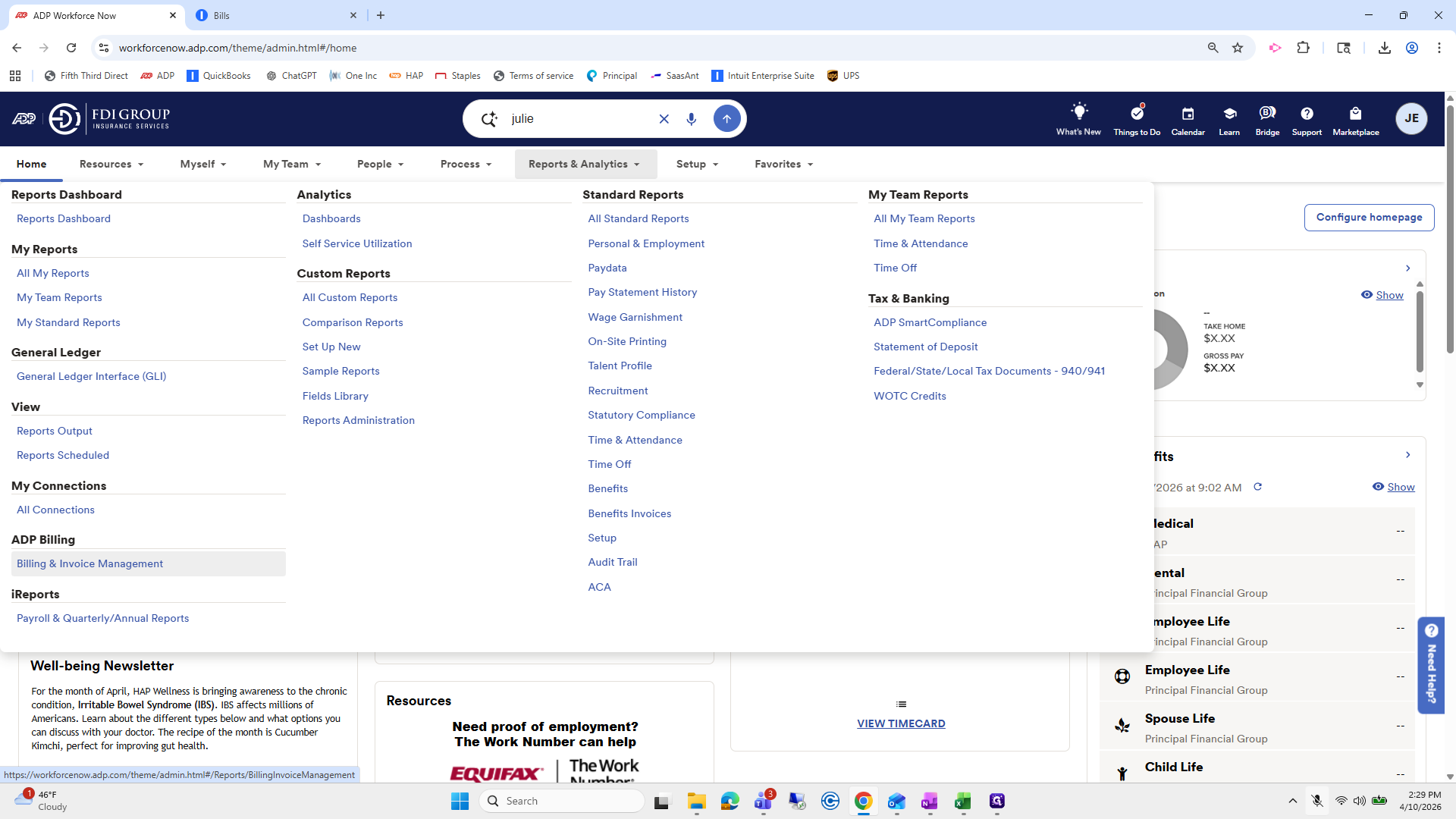
What am I doing? Go to Reports and Analytics, then select Billing and Invoice Management. The invoice is usually generated between this week and next week.
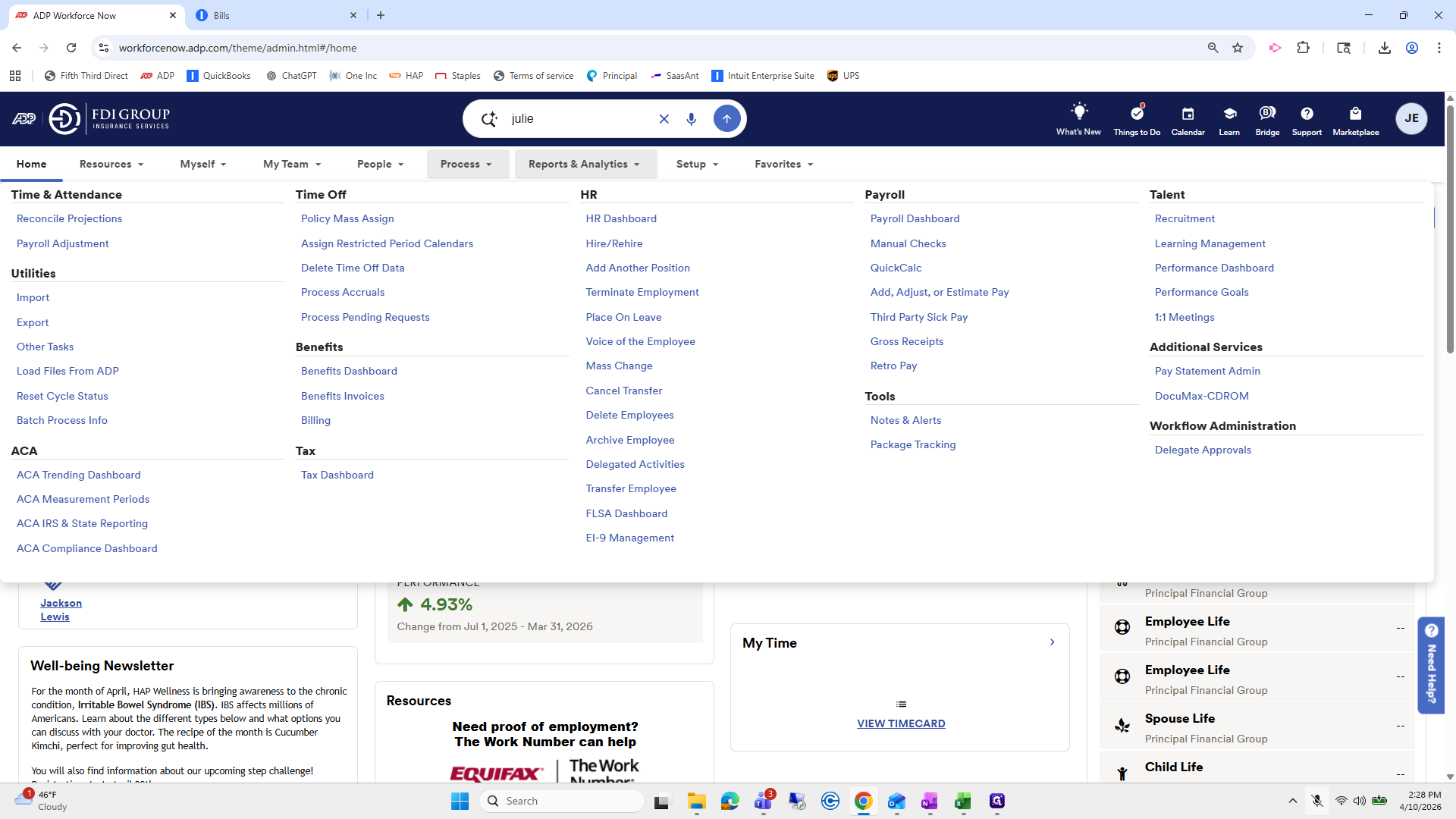
5
Click on "Reports & Analytics ▼"
Step #5: Click on "Reports & Analytics ▼"
6
Click on "Billing & Invoice Management"
Step #6: Click on "Billing & Invoice Management"

It will be generated here. It's just this large one. Then, save it as a PDF in your files. I have my files saved.
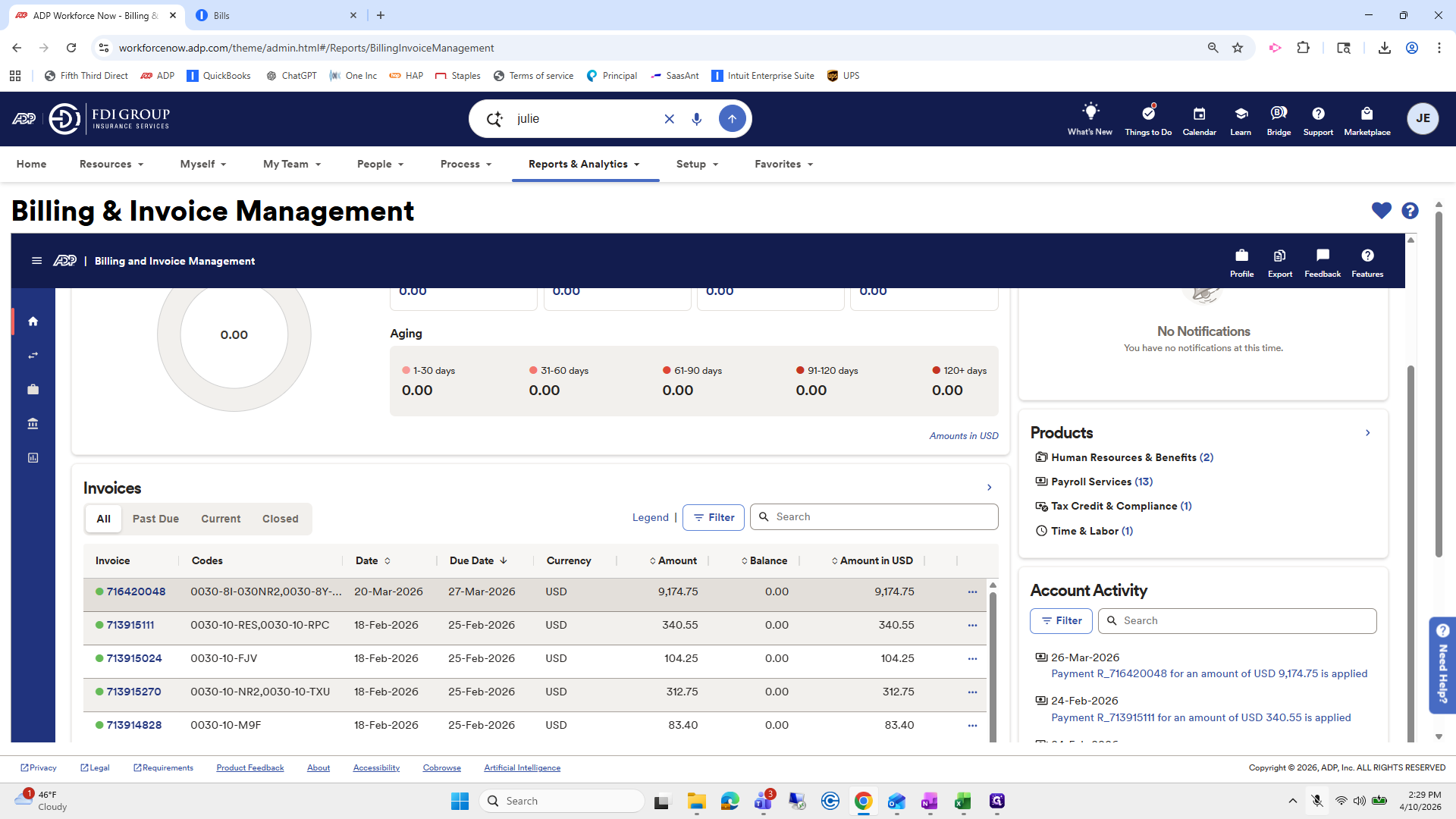
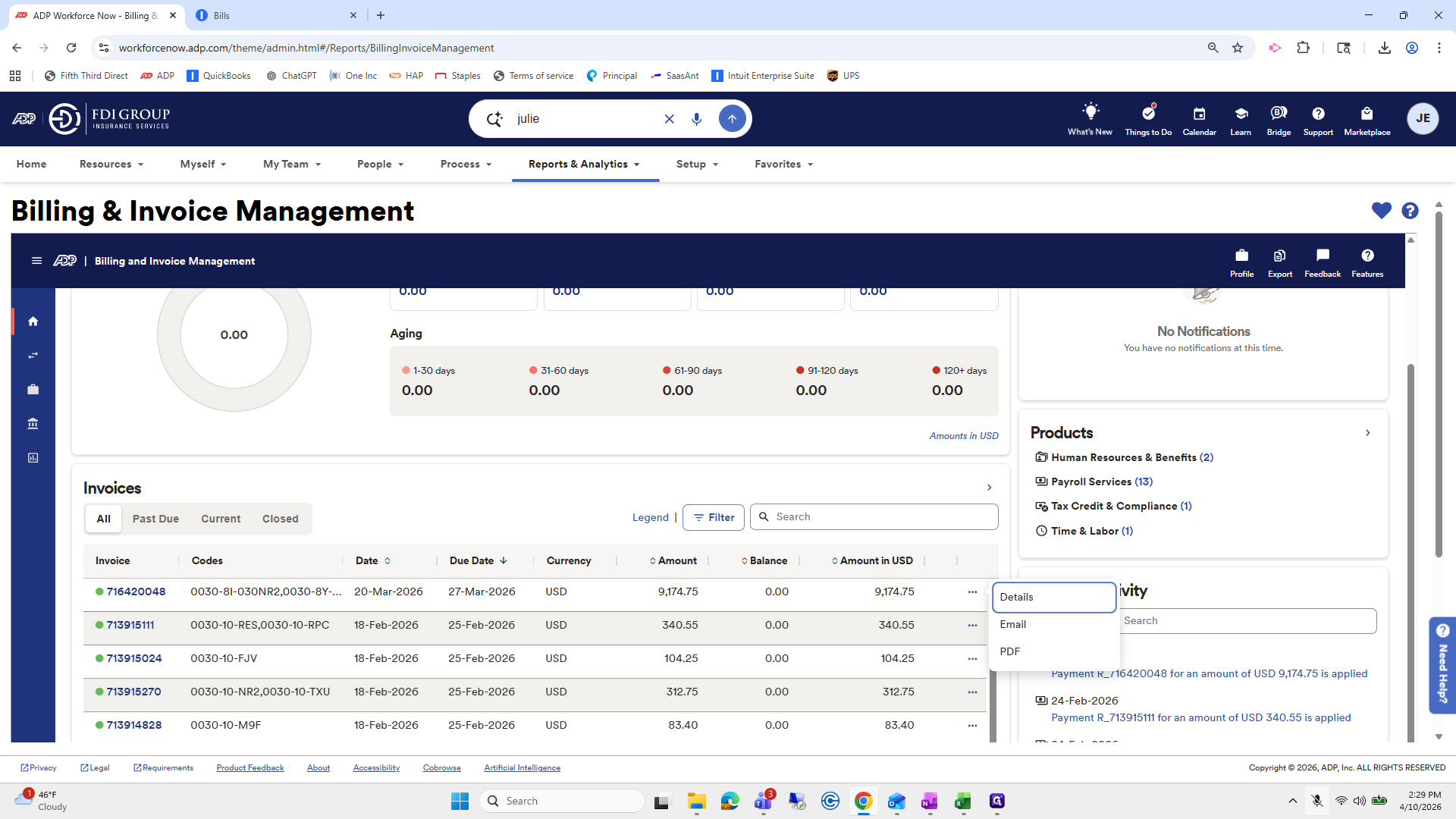
7
Click here
Step #7: Click here
8
Click here
Step #8: Click here
9
Click here
Step #9: Click here
10
Click on "Payroll"
Step #10: Click on "Payroll"

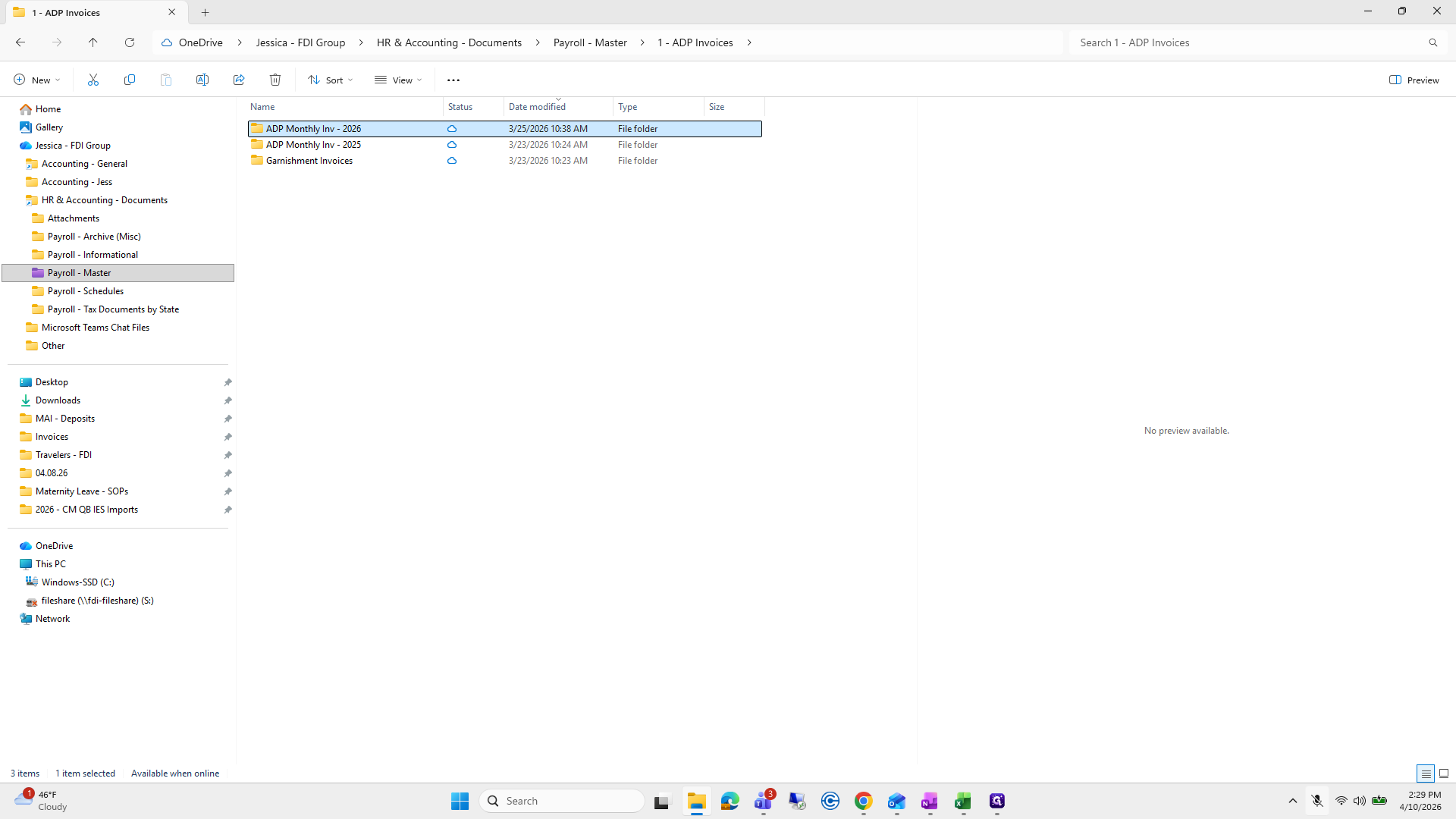
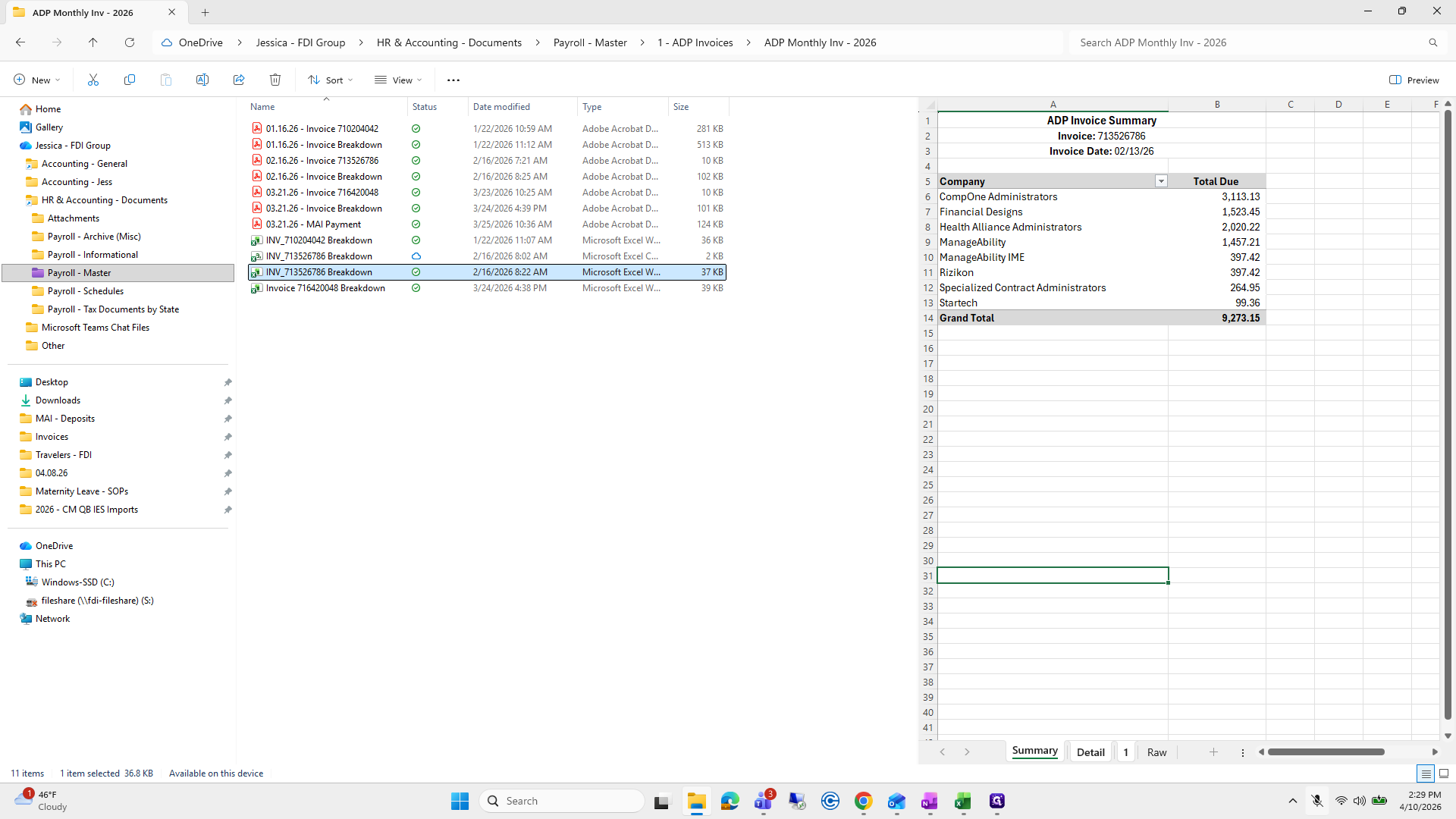
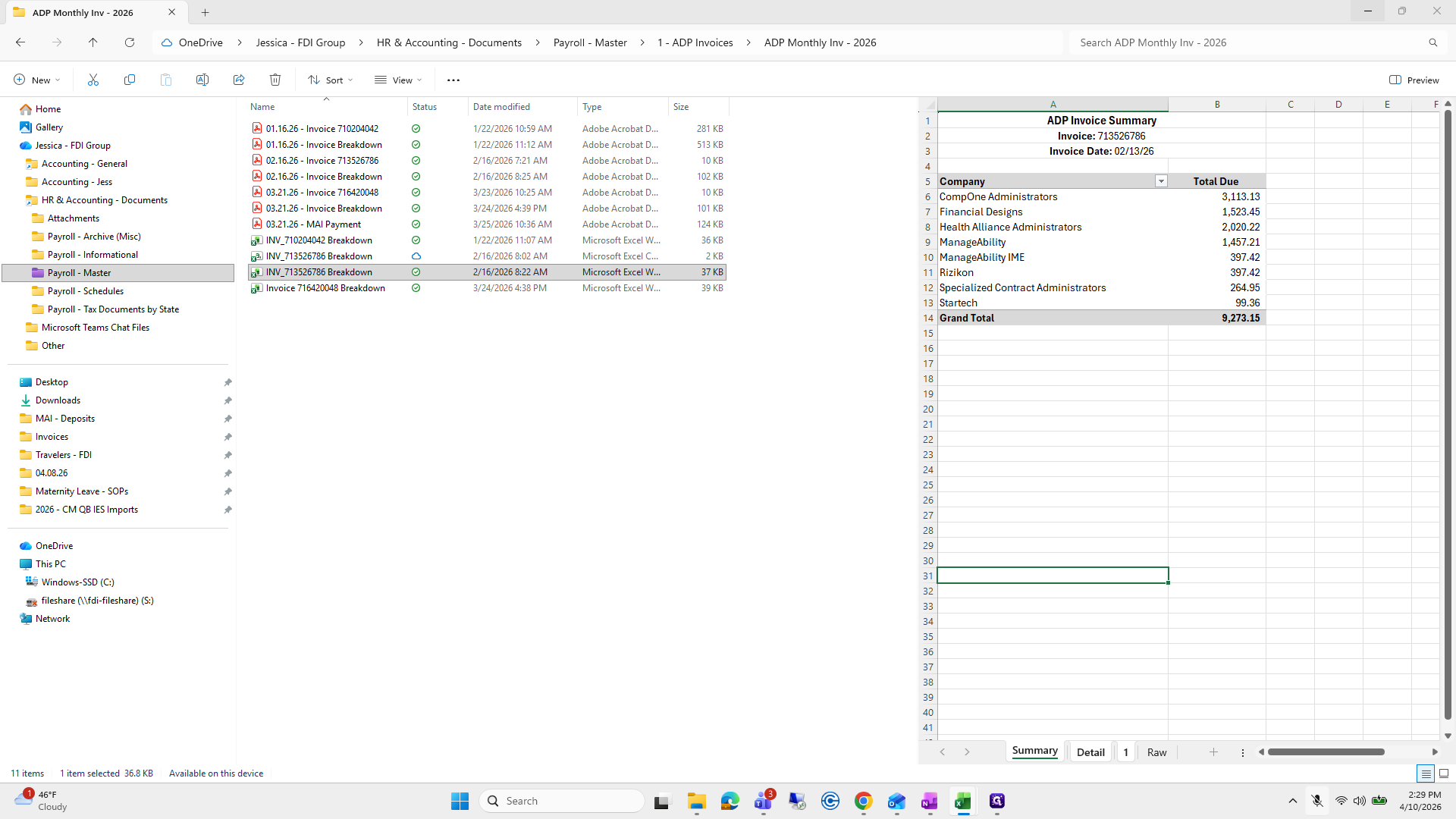
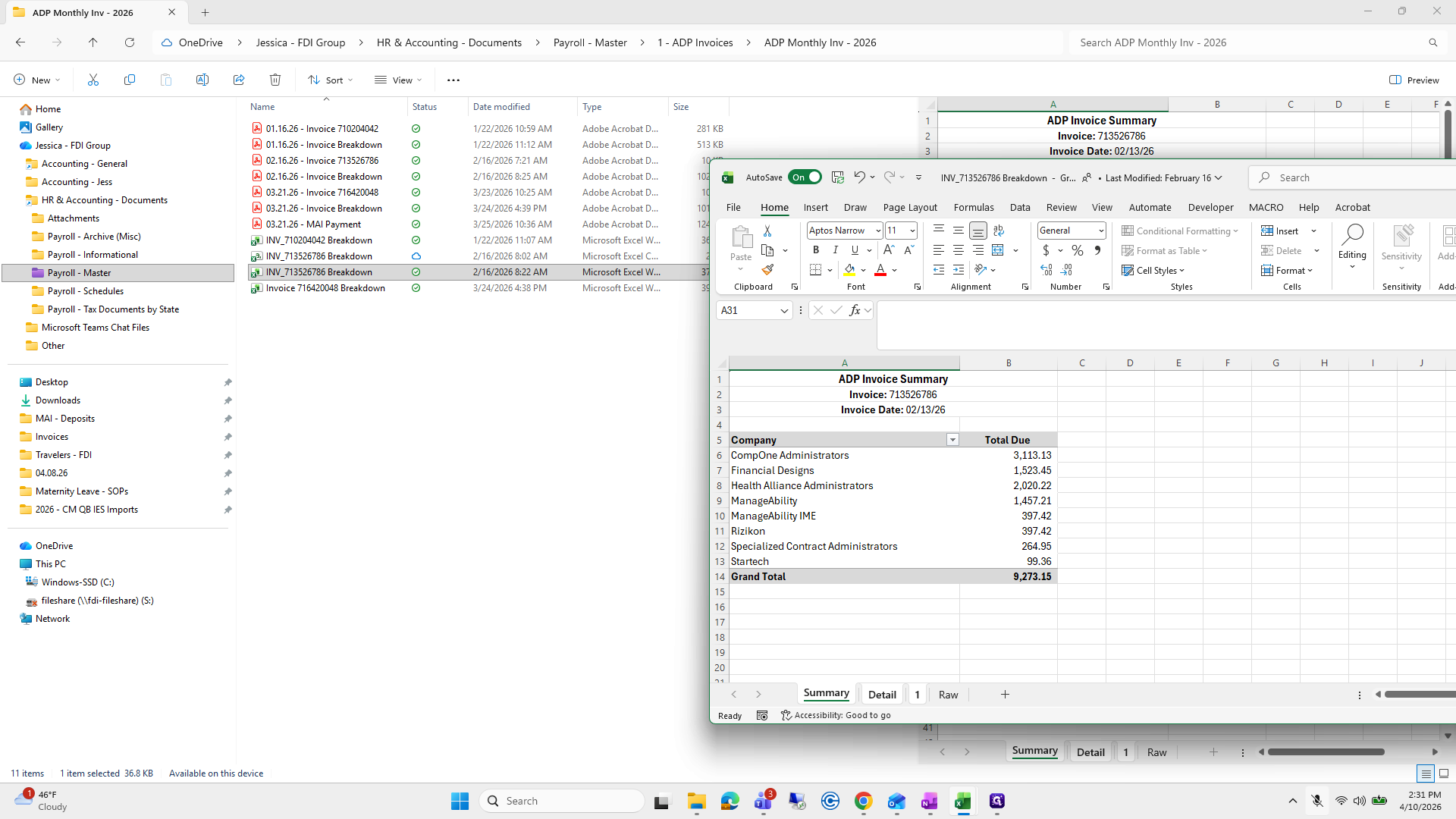
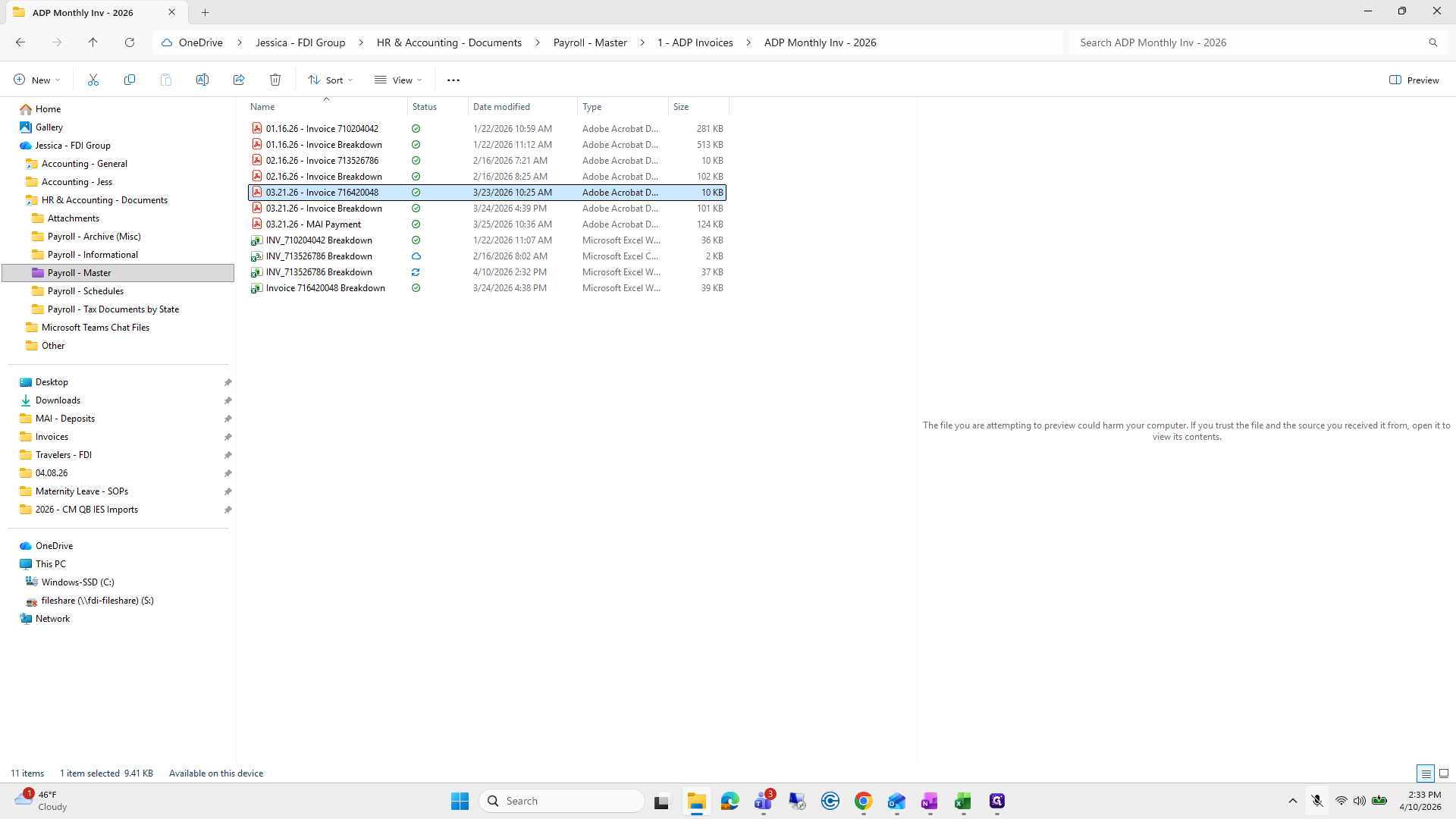
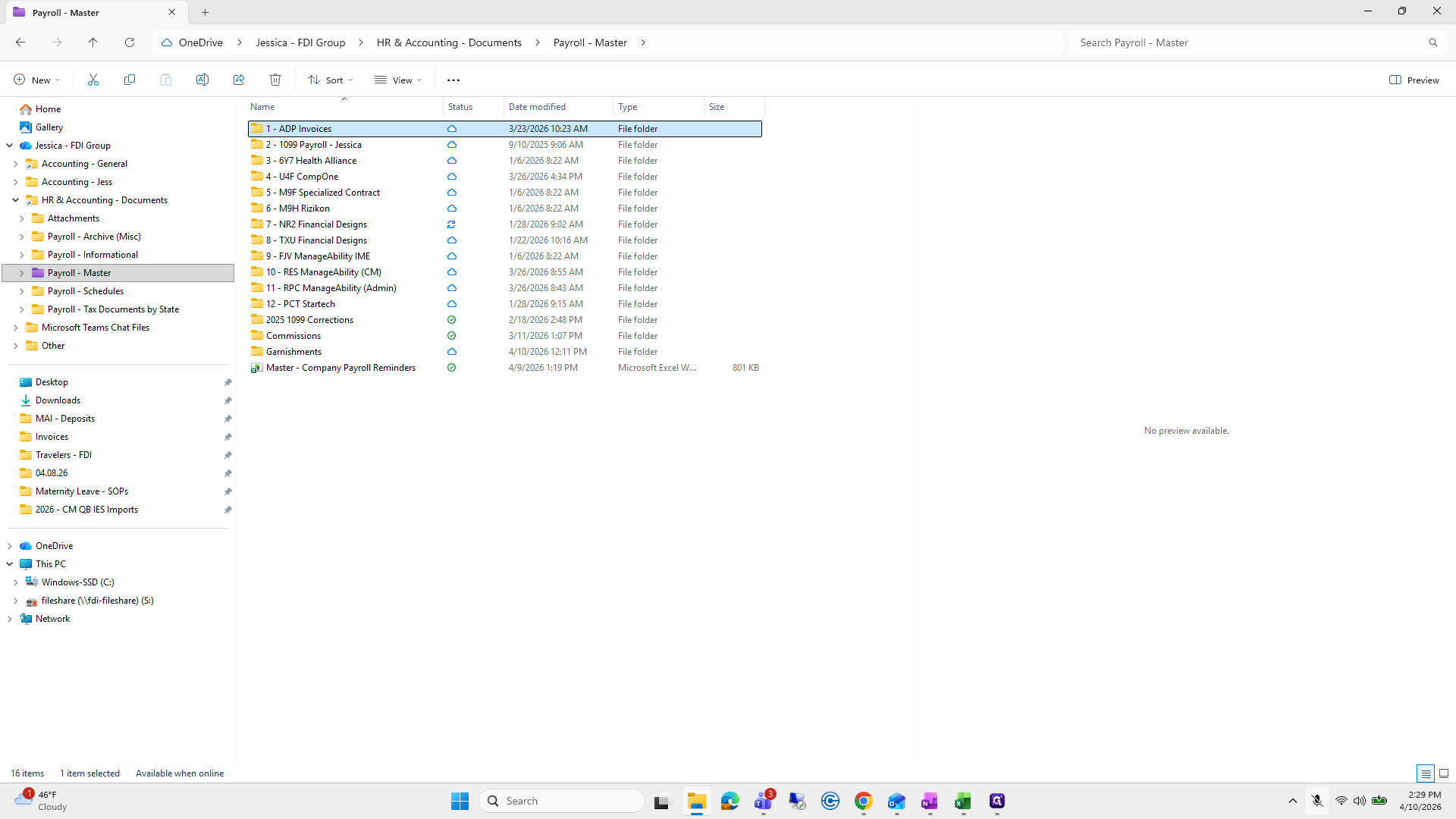
It’s in Payroll Master, under ADP Invoices 2026. Then I save it here.
11
Double-click on "1- ADP Invoices"
Step #11: Double-click on "1- ADP Invoices"
12
Double-click here
Step #12: Double-click here

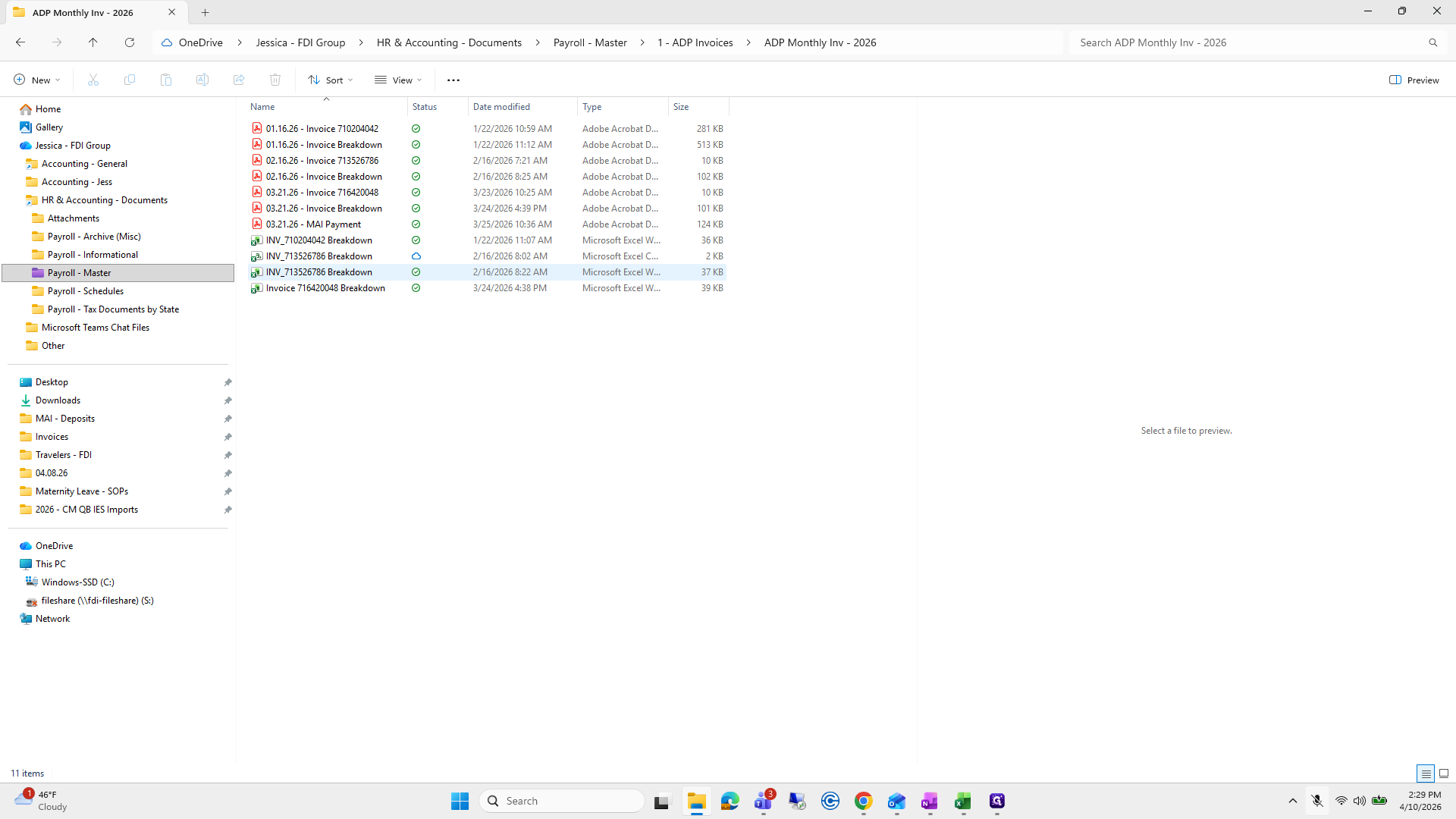
While we're here, I'll grab the last invoice breakdown Excel sheet.
13
Click on "716420048 Breakdown"
Step #13: Click on "716420048 Breakdown"
14
Double-click on "Invoice 716420048 Breakdown"
Step #14: Double-click on "Invoice 716420048 Breakdown"

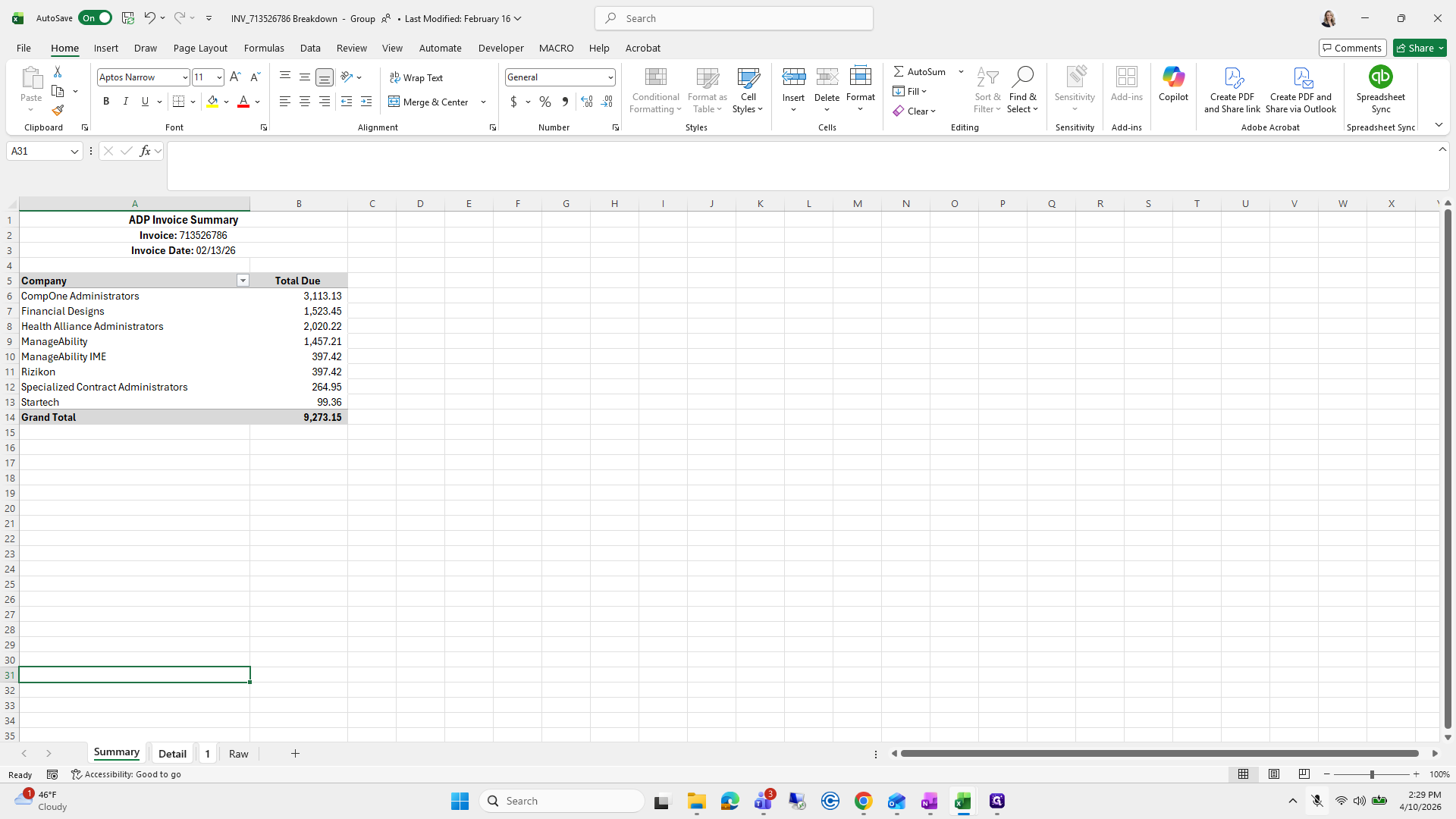
I'm going to open it because it's just copying and pasting from the previous one.
15
Click here
Step #15: Click here

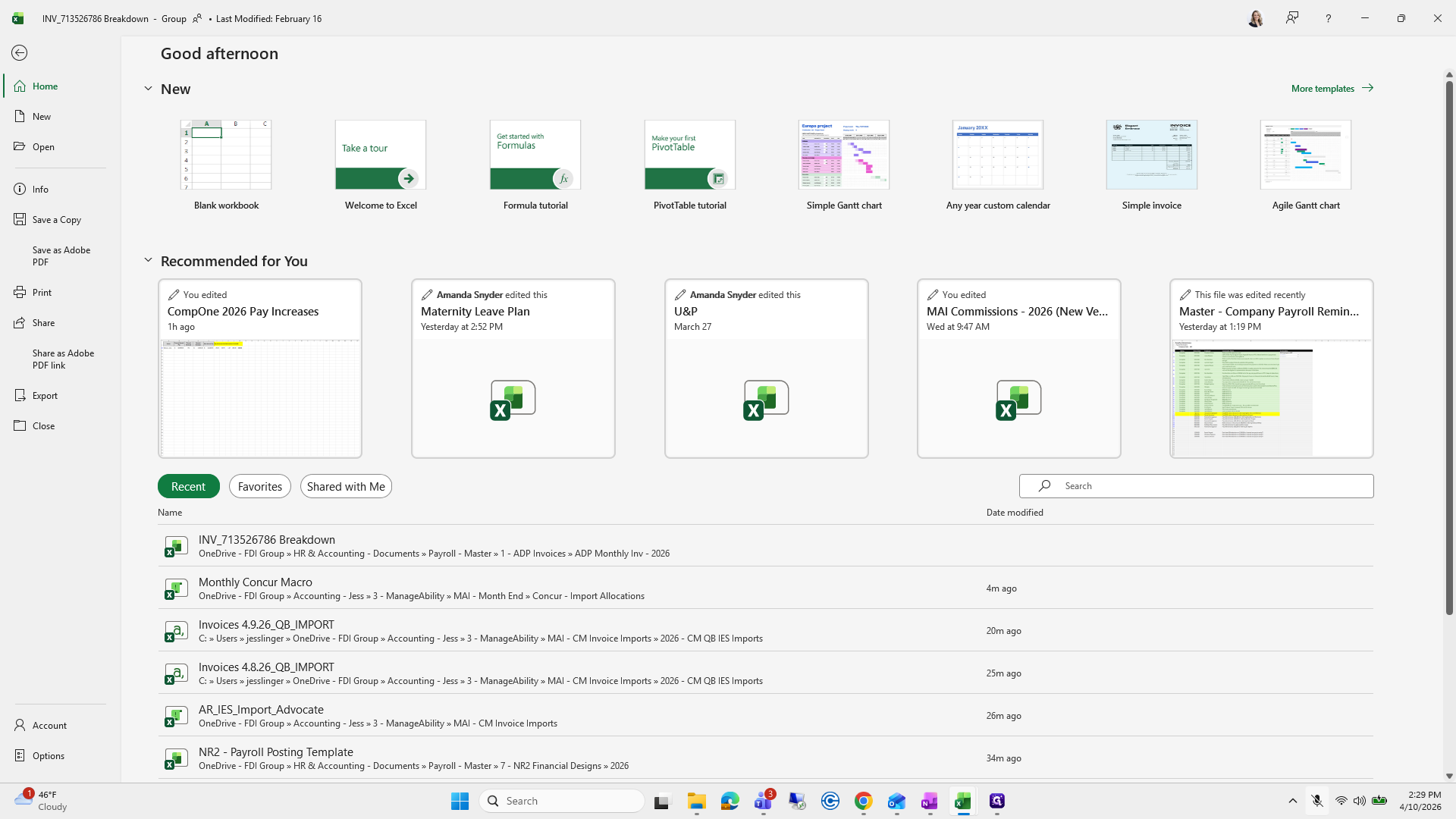
I am going to save it.

16
Click on "File"
Step #16: Click on "File"

Hold on.

17
Click here
Step #17: Click here

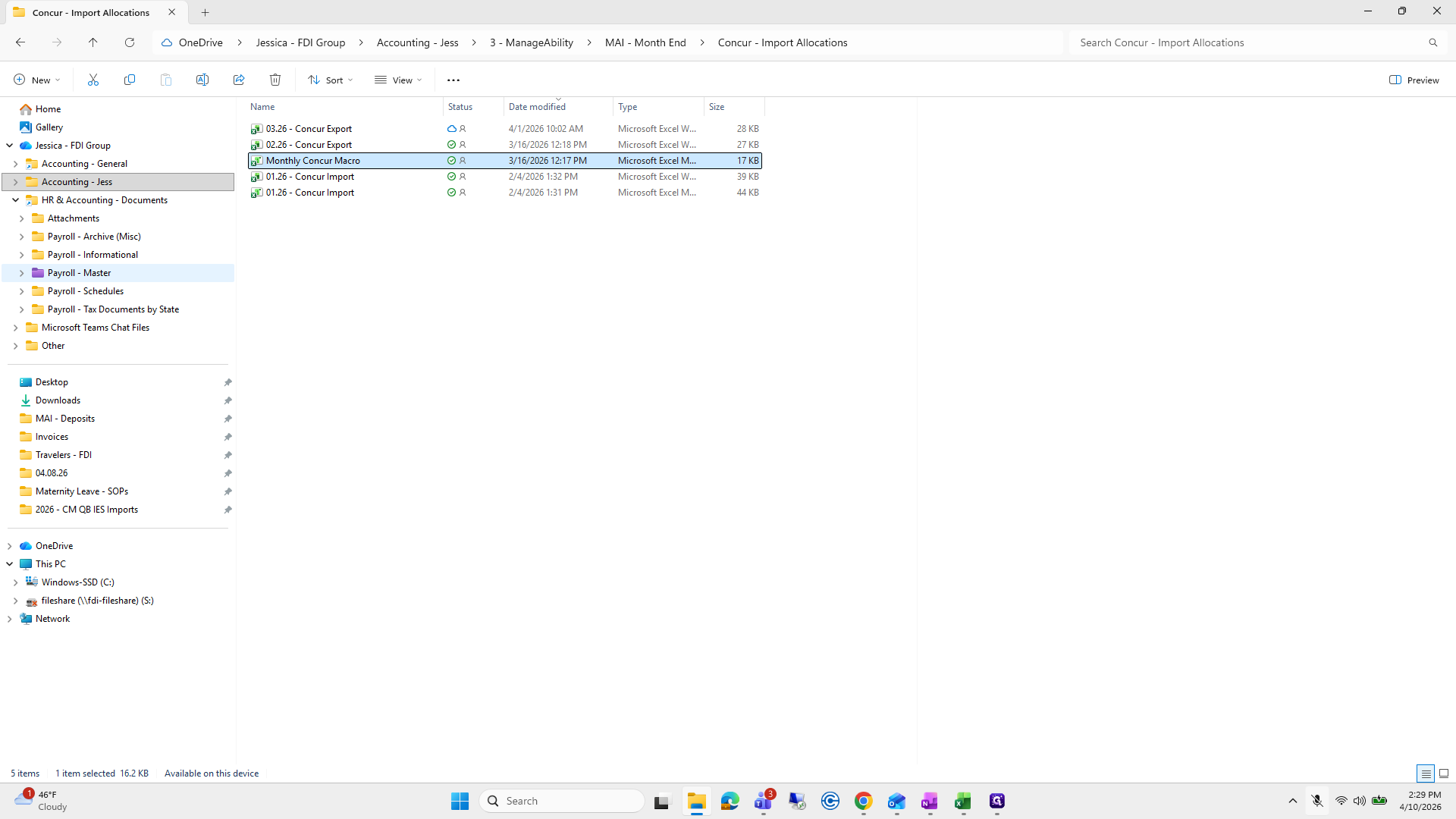
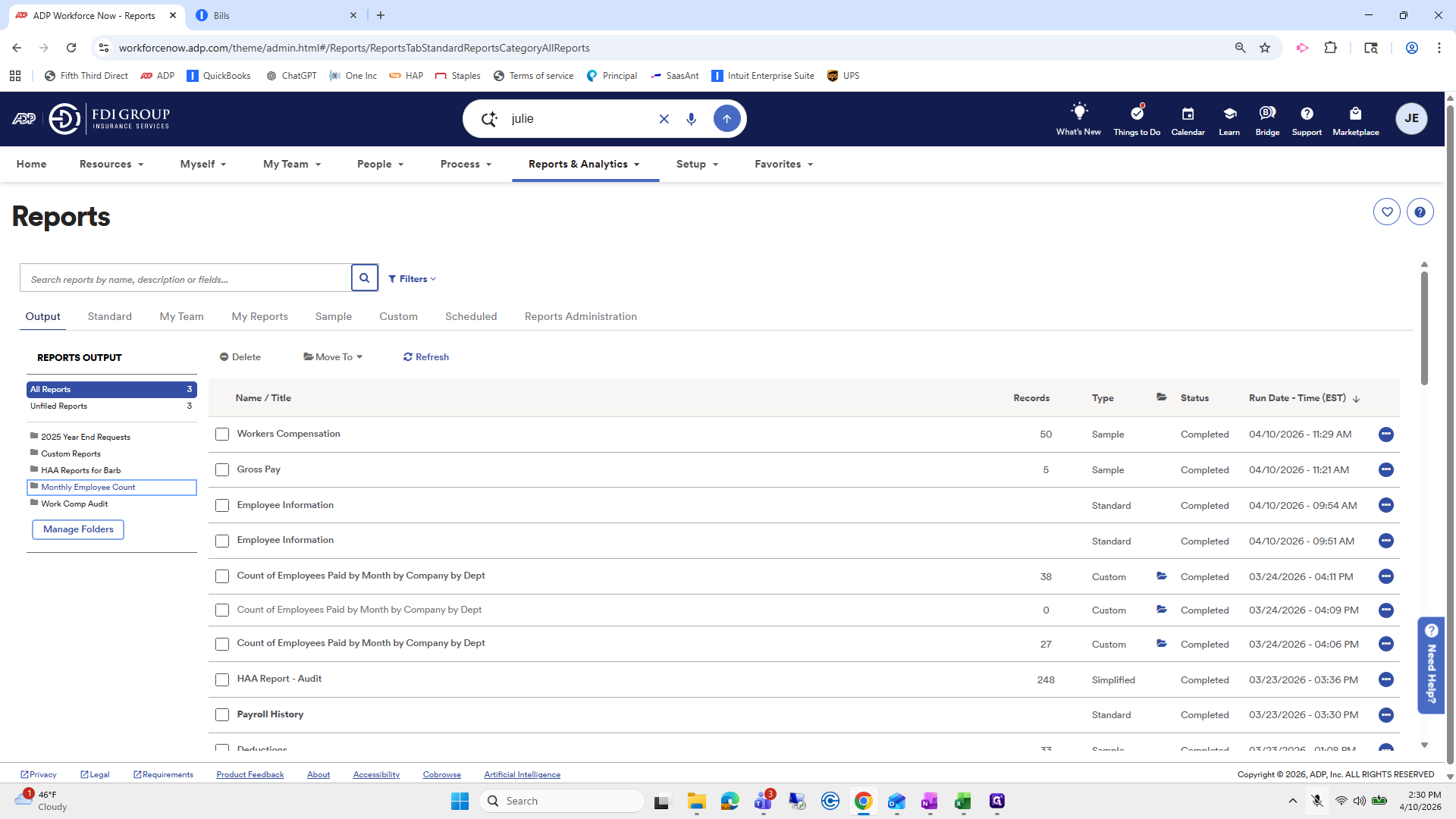
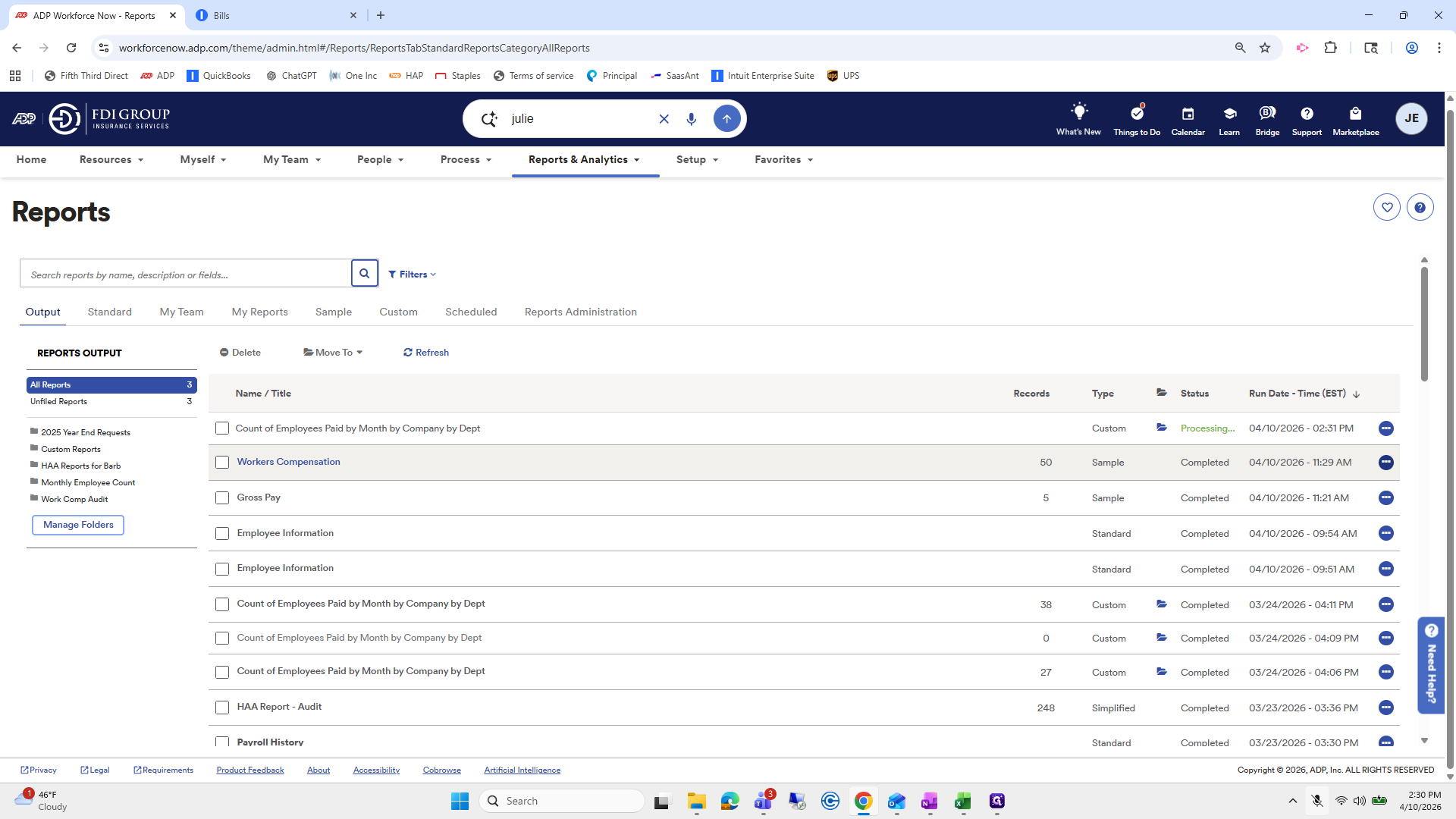
This is the last one. Next, go to Reports and Analytics, then All Standard Reports. There is a Monthly Employee Count report that I have already set up.
18
Click here
Step #18: Click here
19
Click here
Step #19: Click here
20
Drag here
Step #20: Drag here
21
Click on "Reports & Analytics ▼"
Step #21: Click on "Reports & Analytics ▼"
22
Click on "All Standard Reports"
Step #22: Click on "All Standard Reports"
23
Click on "■ Monthly Employee Count"
Step #23: Click on "■ Monthly Employee Count"

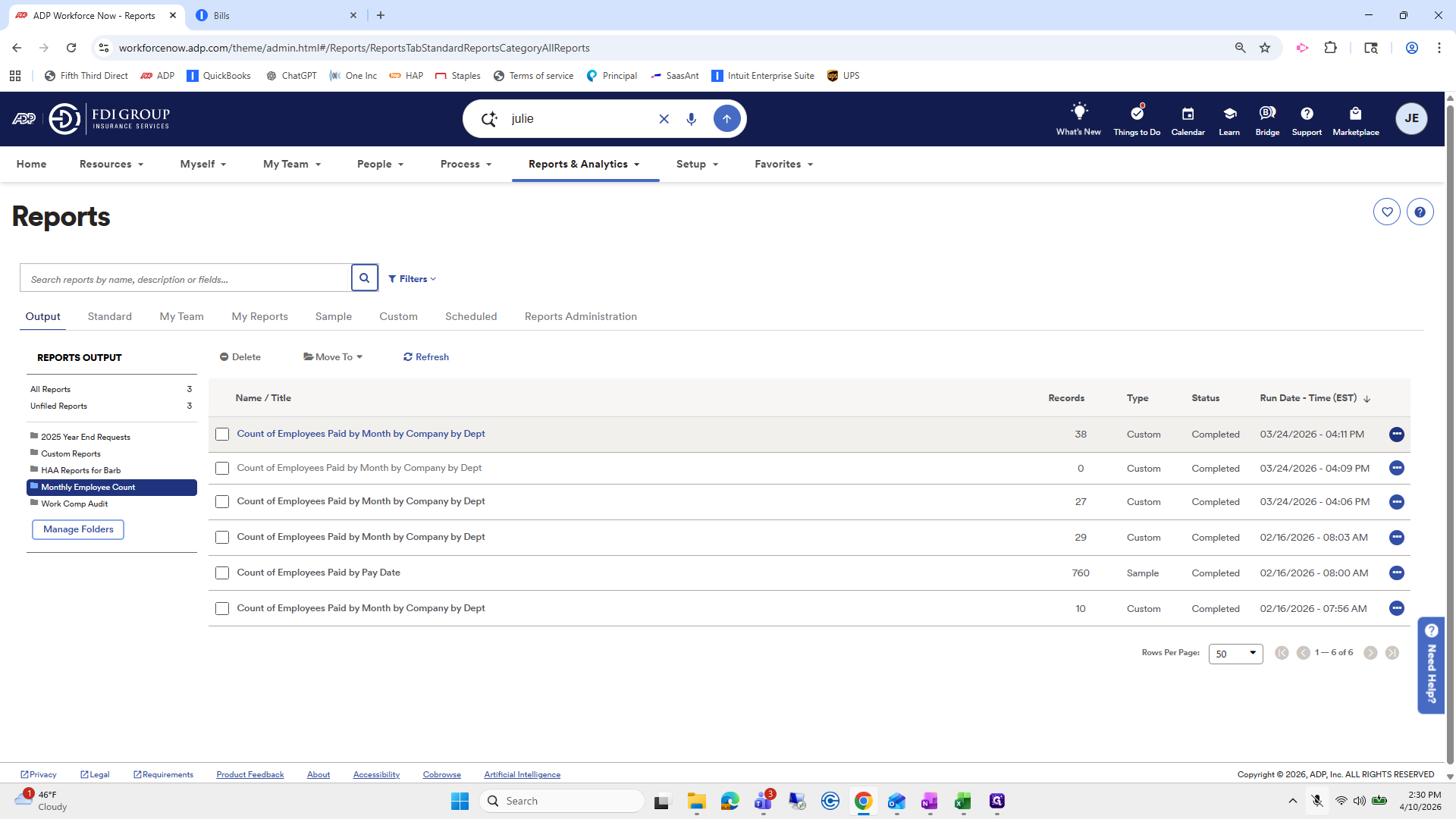
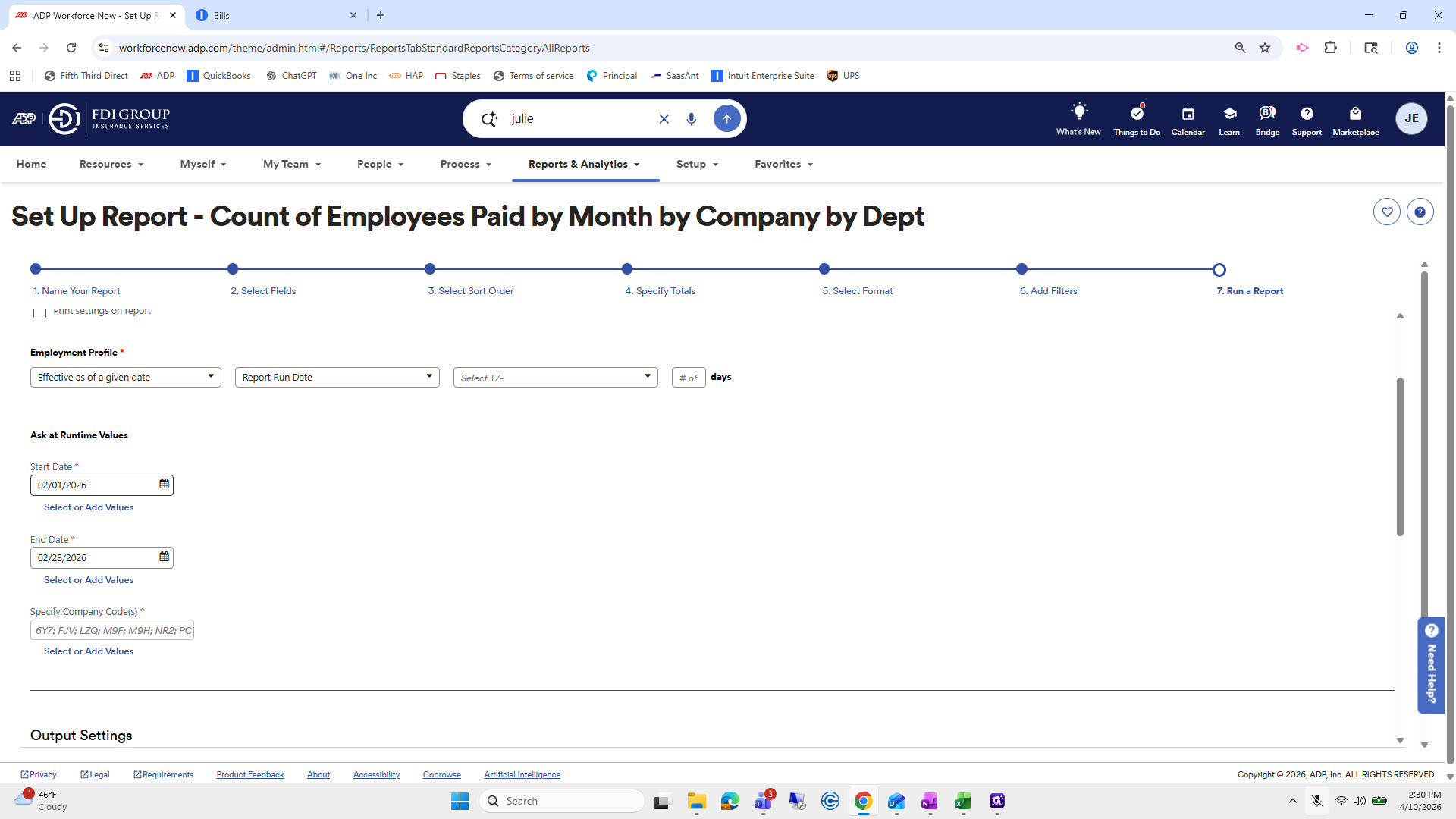
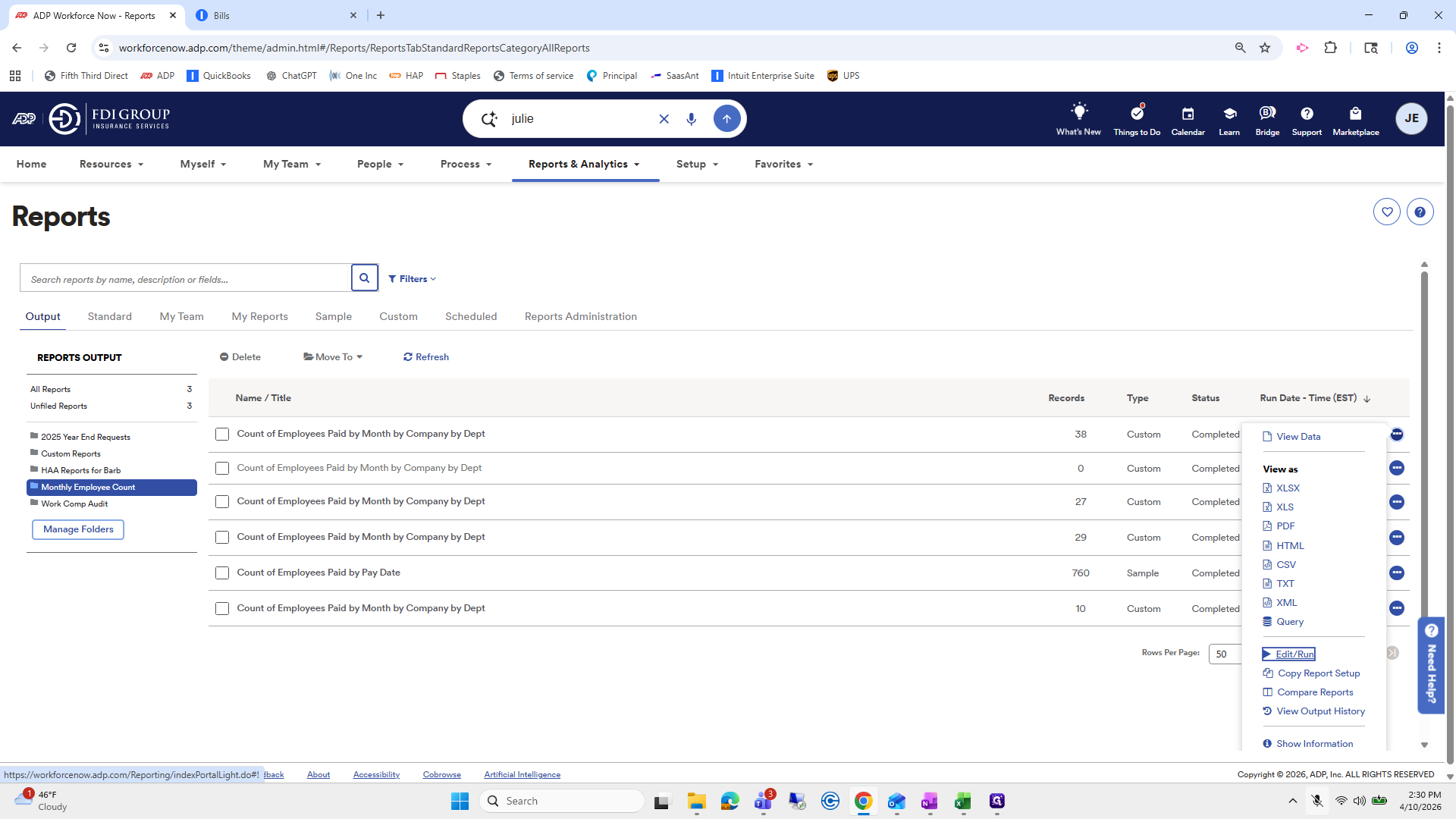
Go to it and click Edit Run.

24
Click here
Step #24: Click here

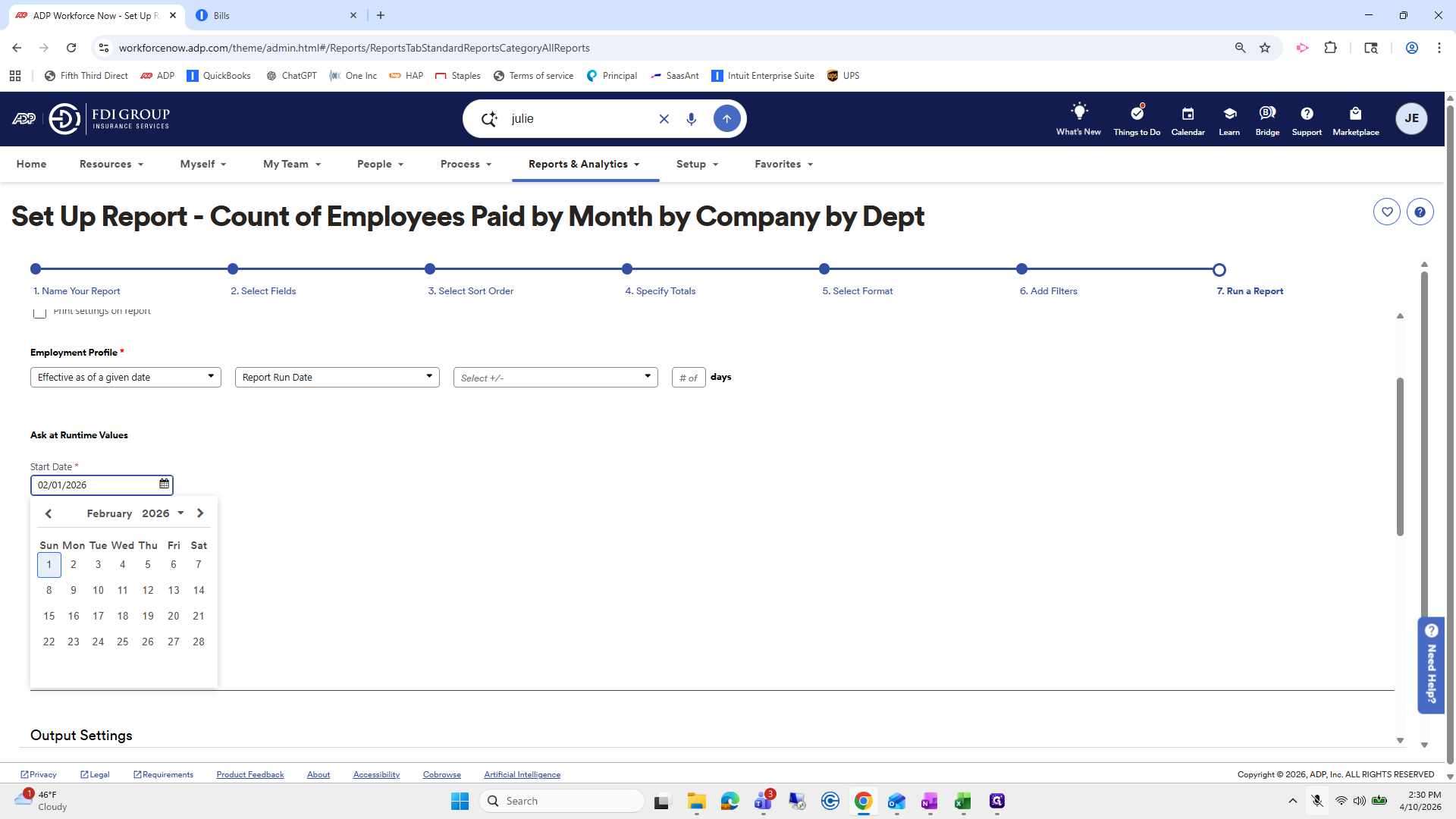
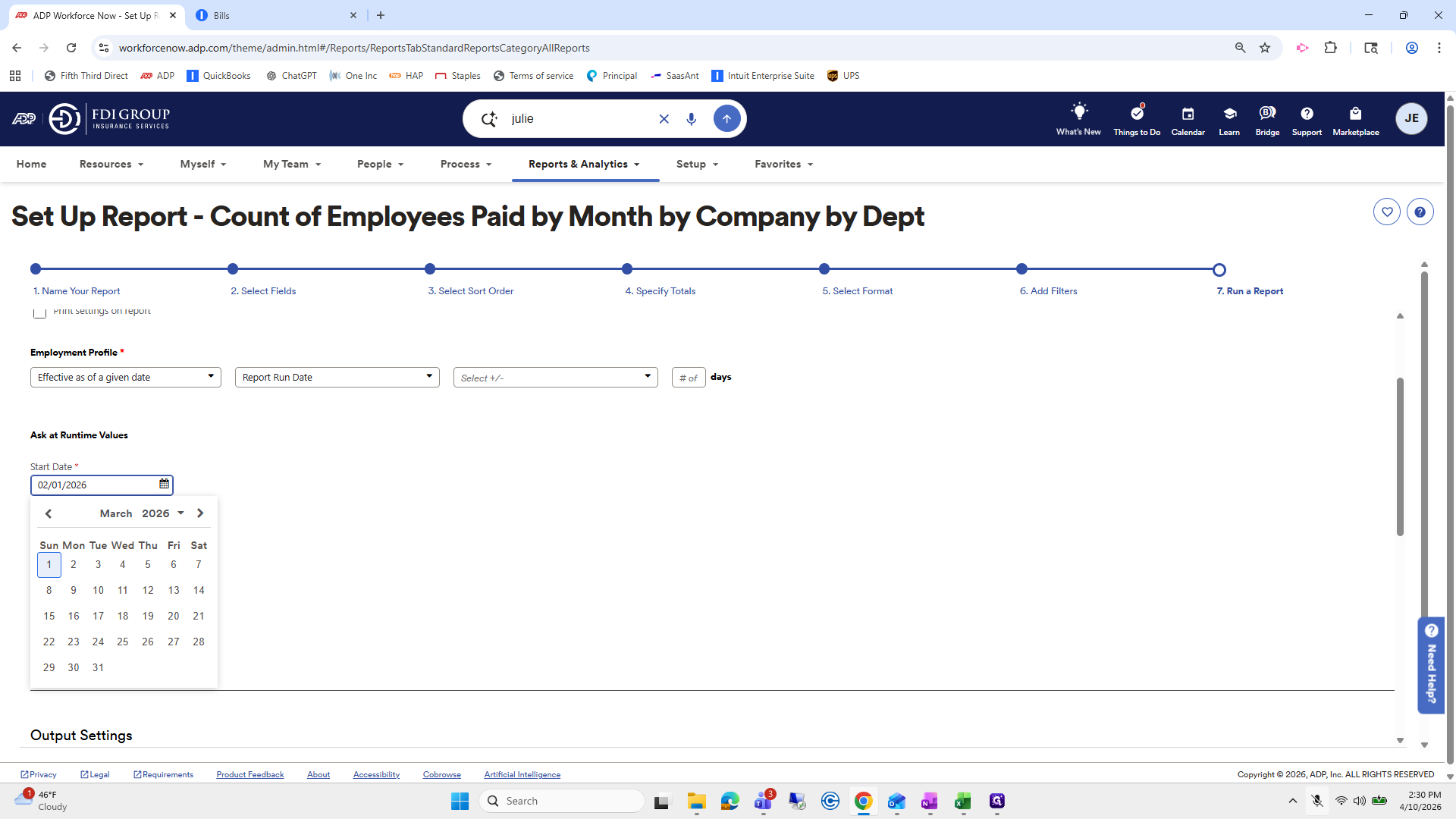
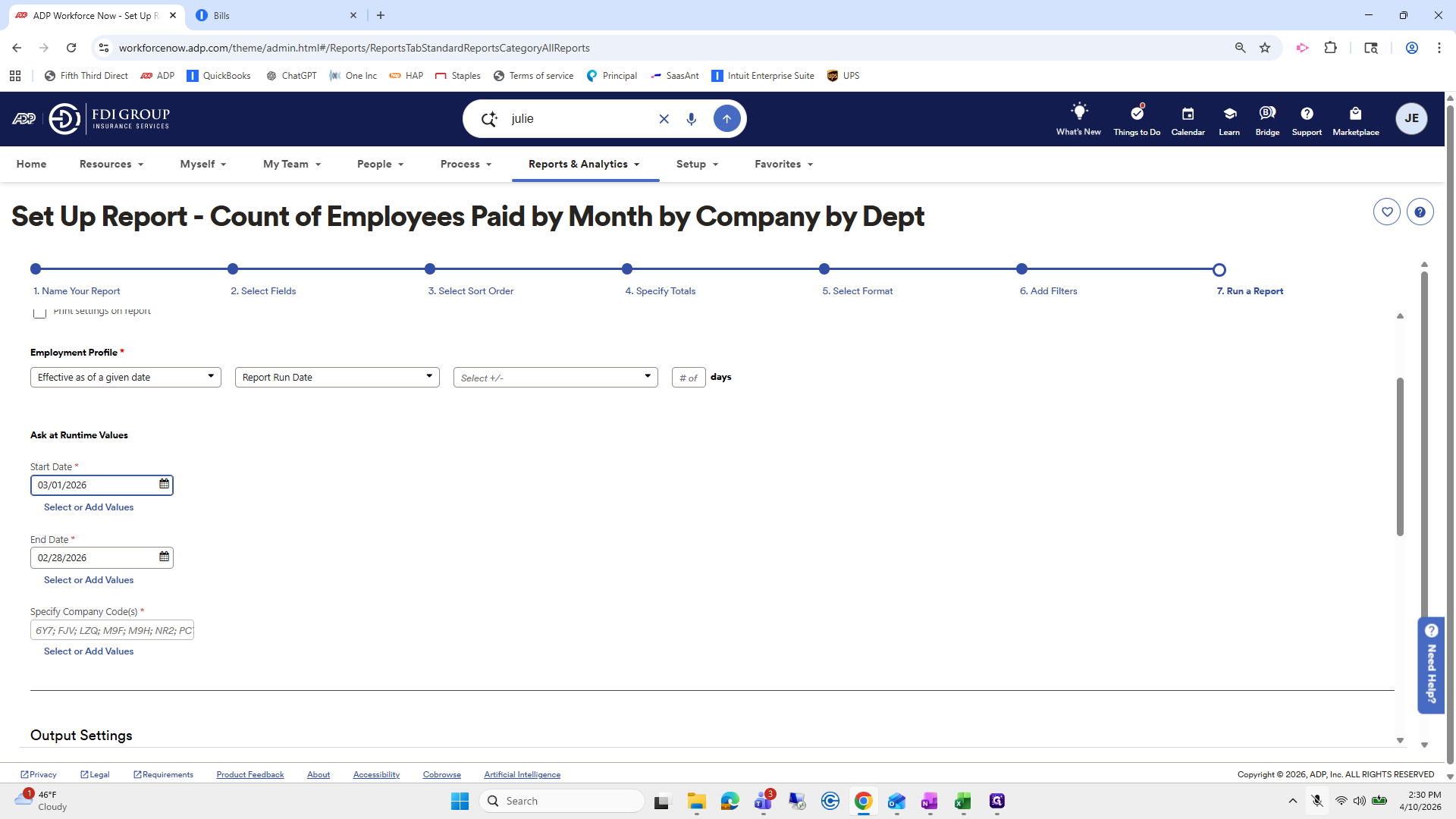
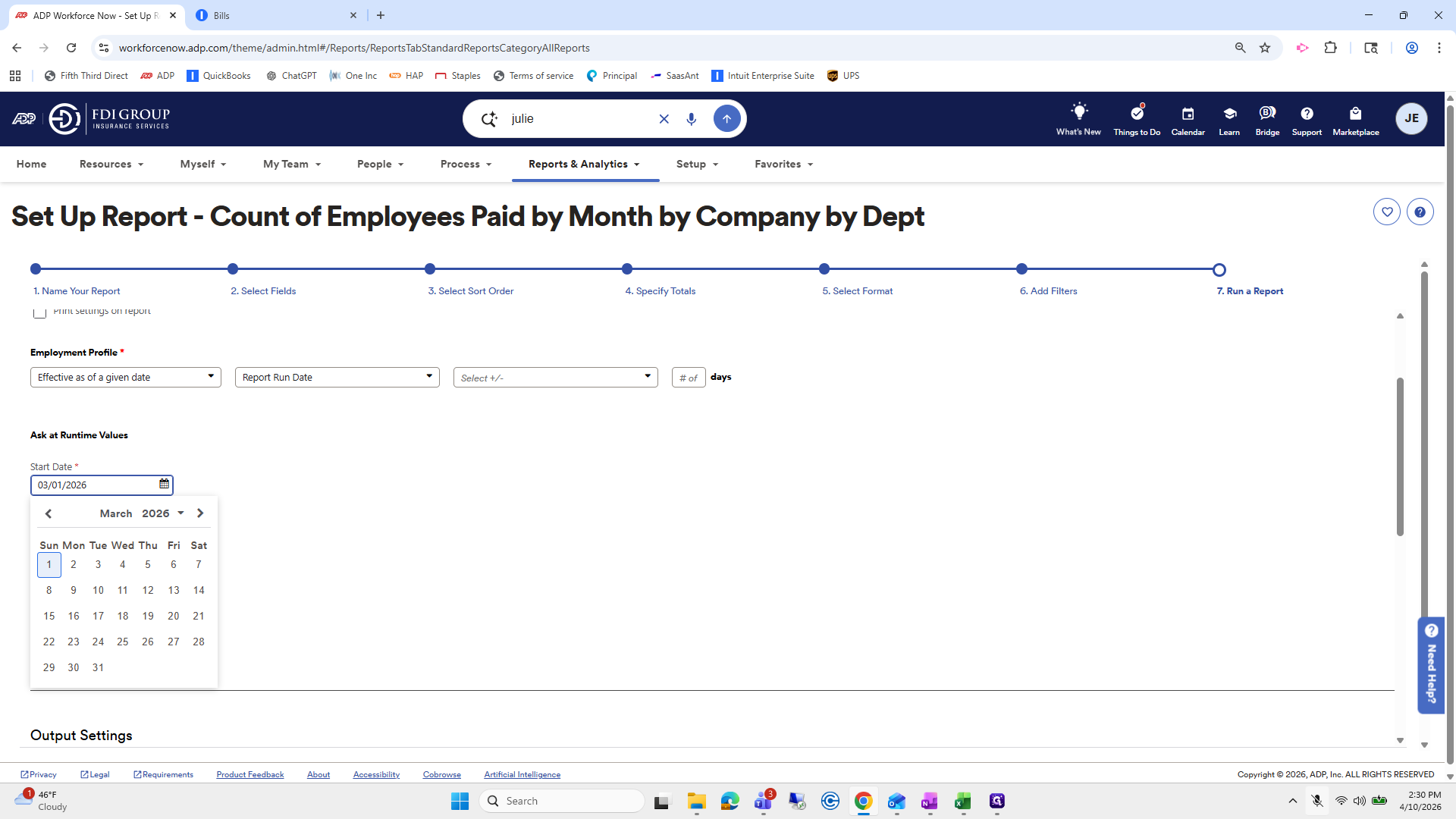
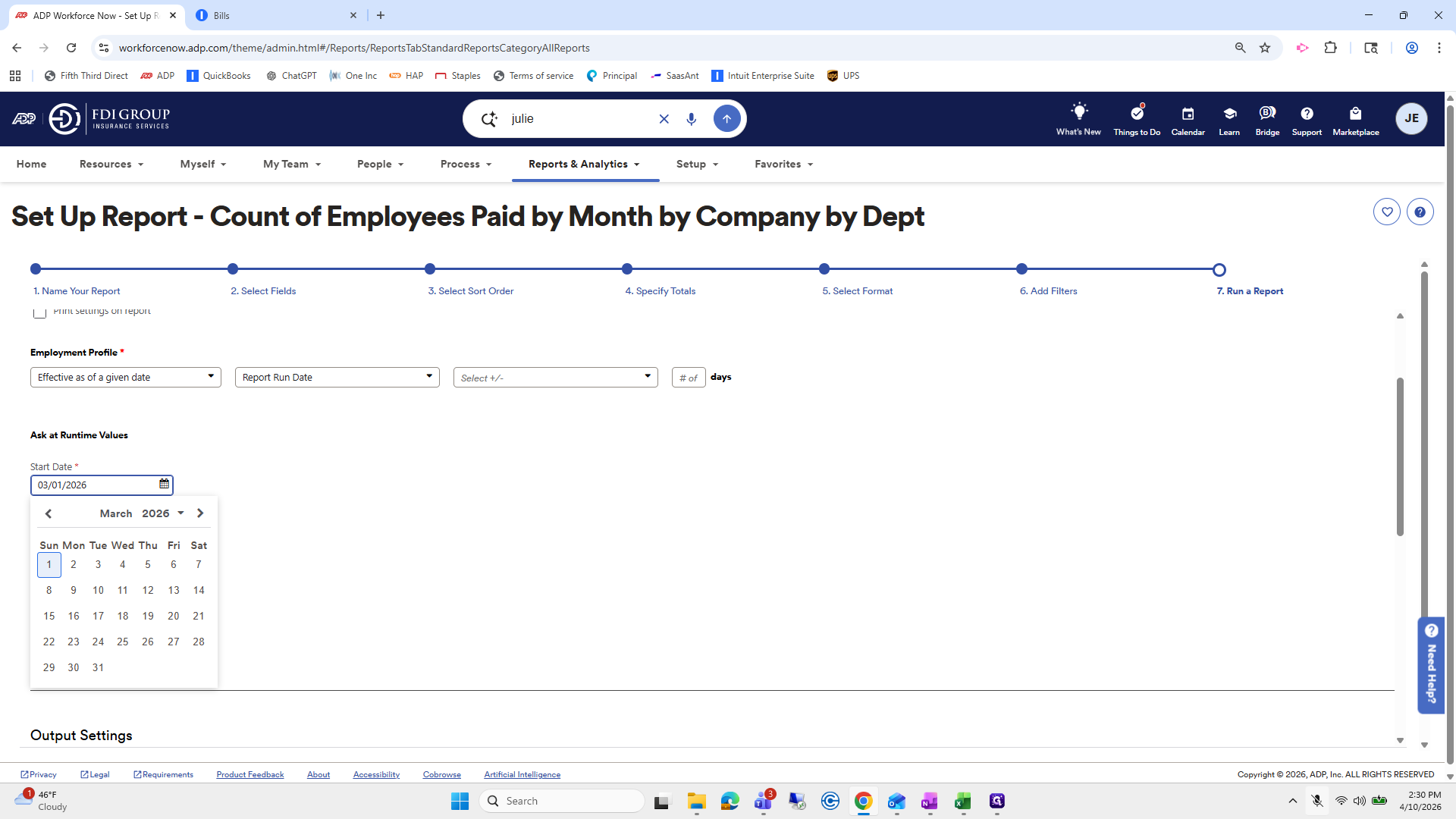
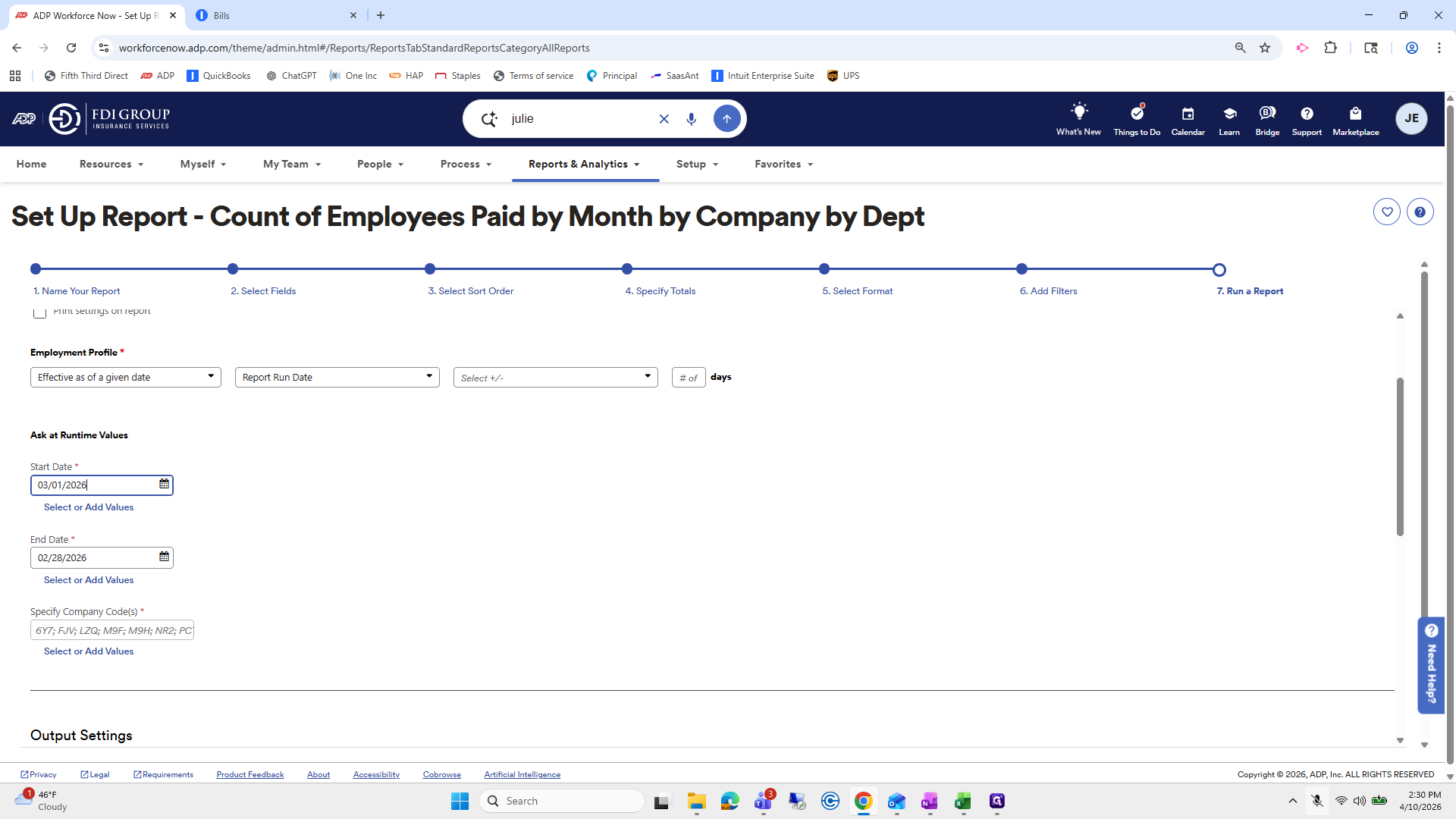
All you need to change is the start date, which was last month, 3/1.
25
Click on "Edit / Run"
Step #25: Click on "Edit / Run"
26
Click here
Step #26: Click here
27
Click on ">"
Step #27: Click on ">"
28
Click on "1"
Step #28: Click on "1"

Well, for...

29
Click here
Step #29: Click here

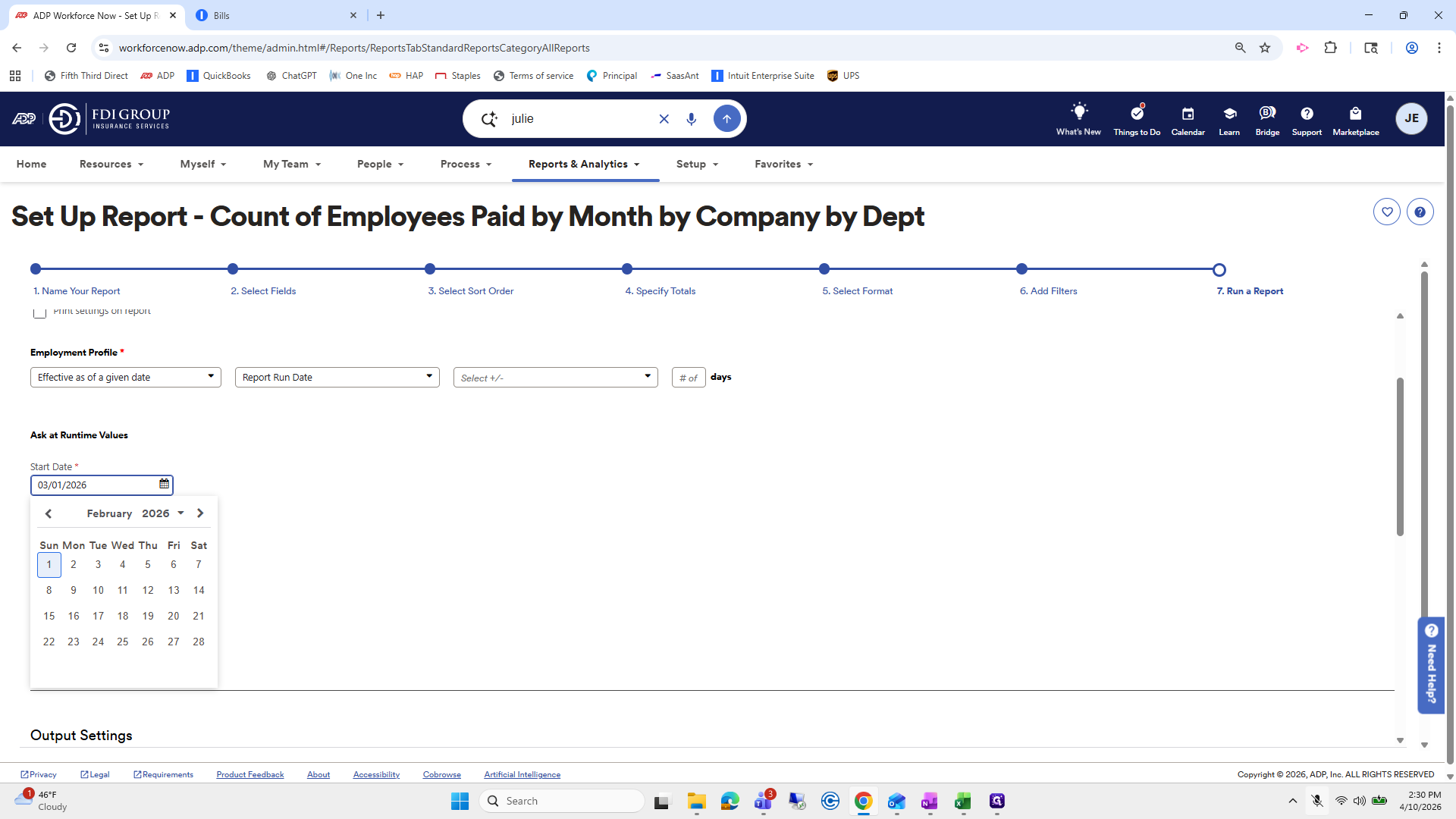
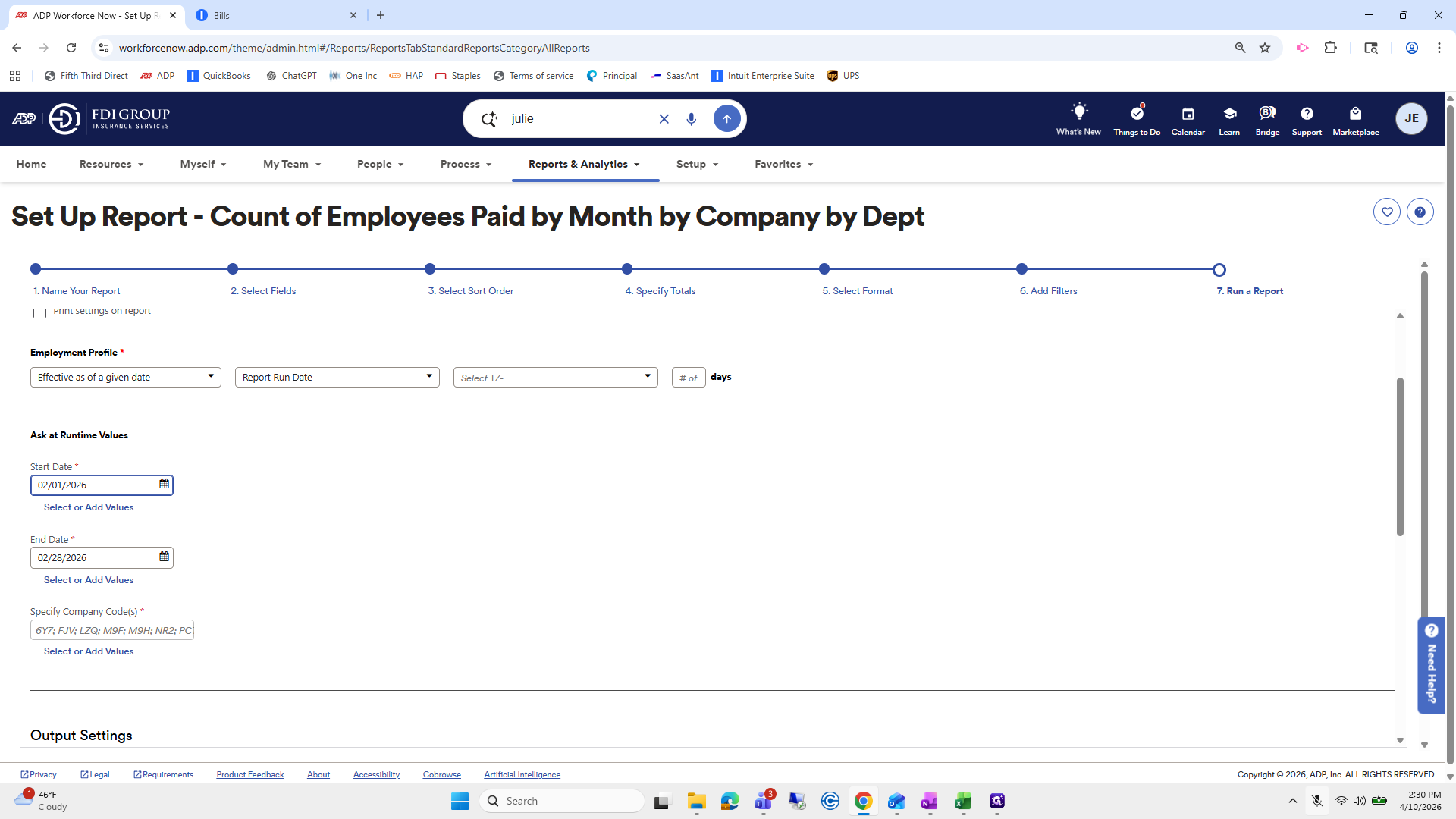
Last month would be 3/1 to 3/31, but I haven't received the invoice yet, so I'll just use 2/1 to 2/28.
30
Click here
Step #30: Click here
31
Click here
Step #31: Click here
32
Double-click on "<"
Step #32: Double-click on "<"
33
Click on "1"
Step #33: Click on "1"
34
Click here
Step #34: Click here

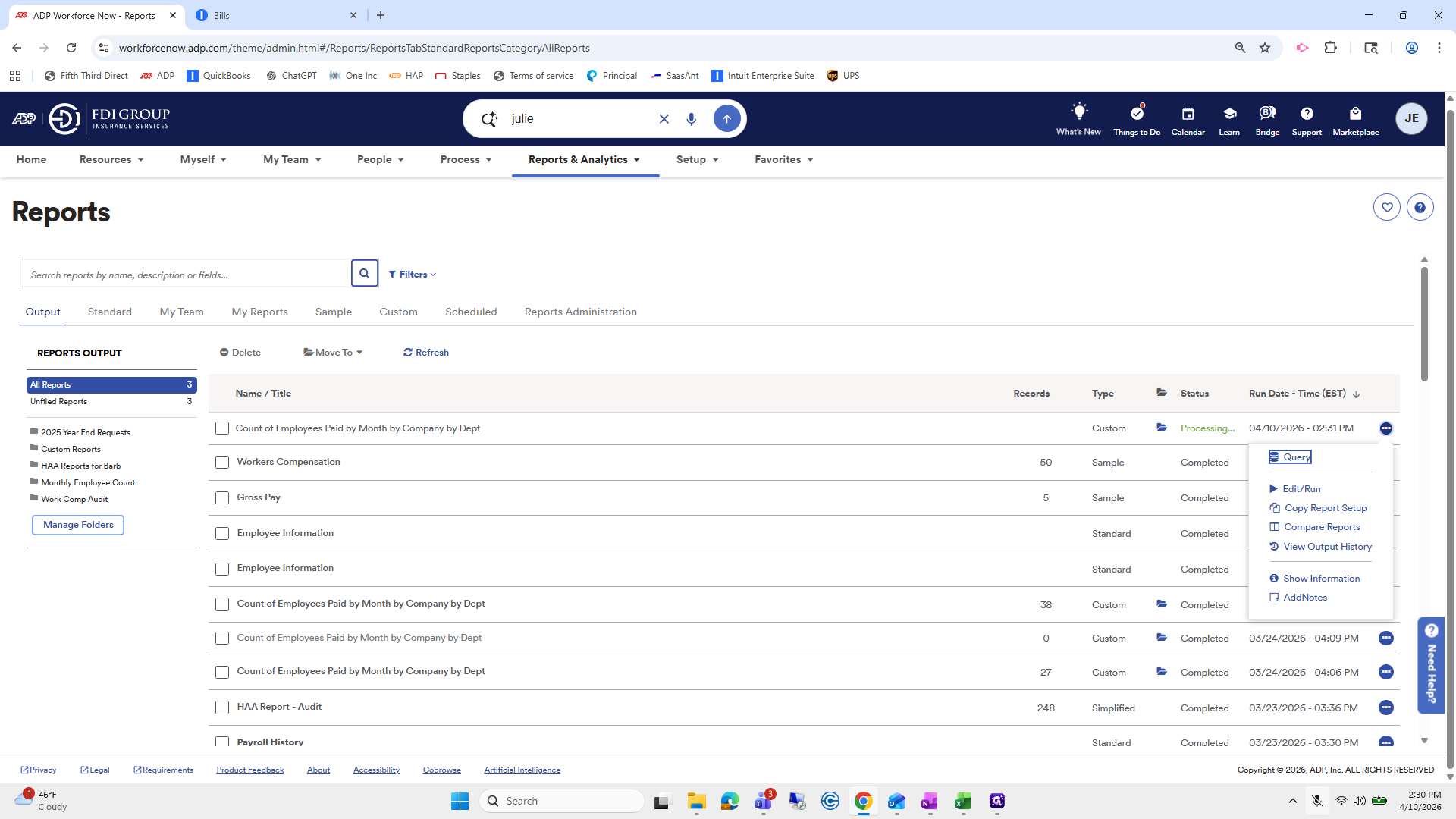
For example, we will run the report.
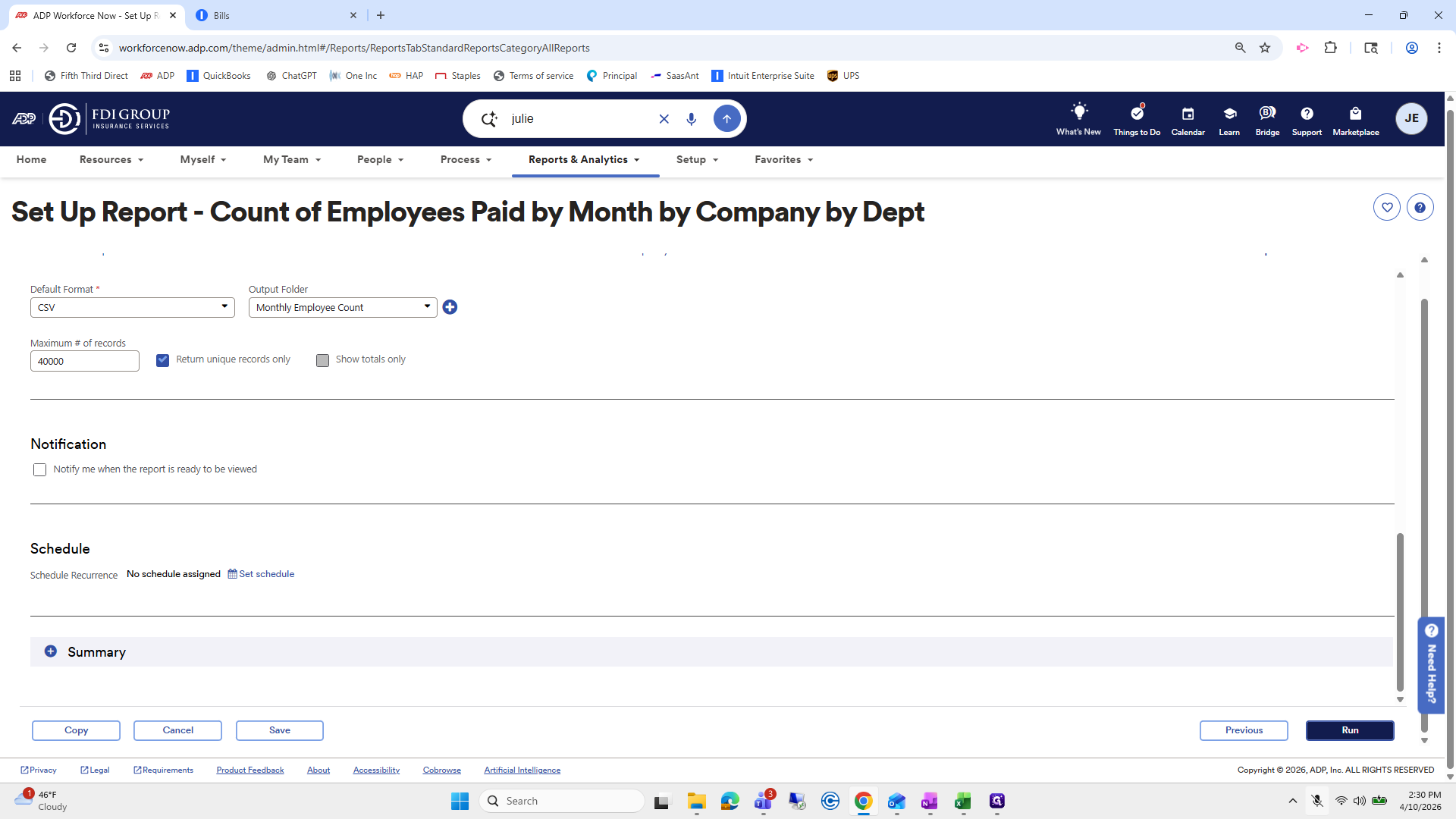
35
Click here
Step #35: Click here

Once it's done running, view it as an XLSX file.
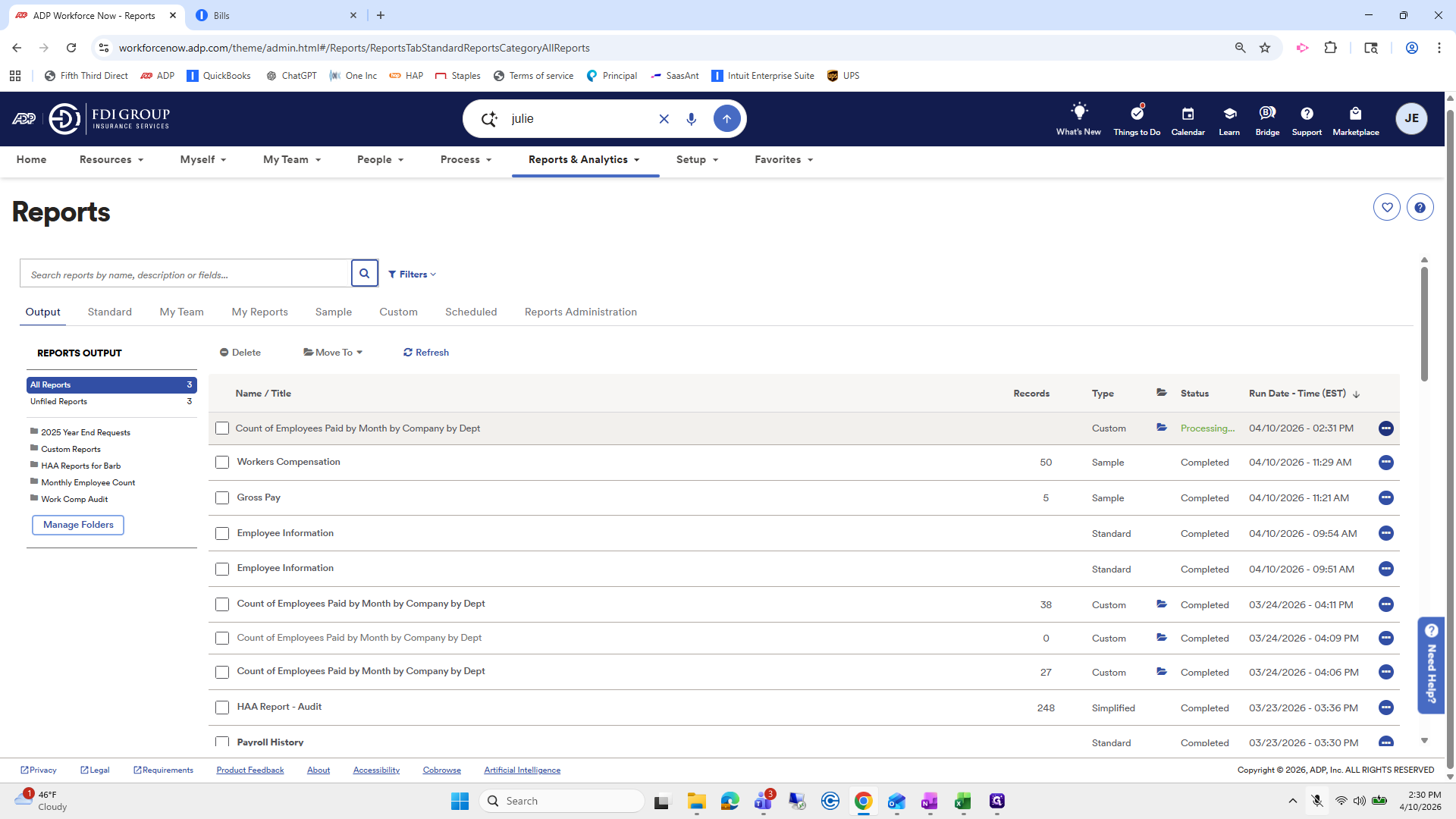
36
Click here
Step #36: Click here
37
Click here
Step #37: Click here
38
Click here
Step #38: Click here

When you do that, I save it as the breakdown.
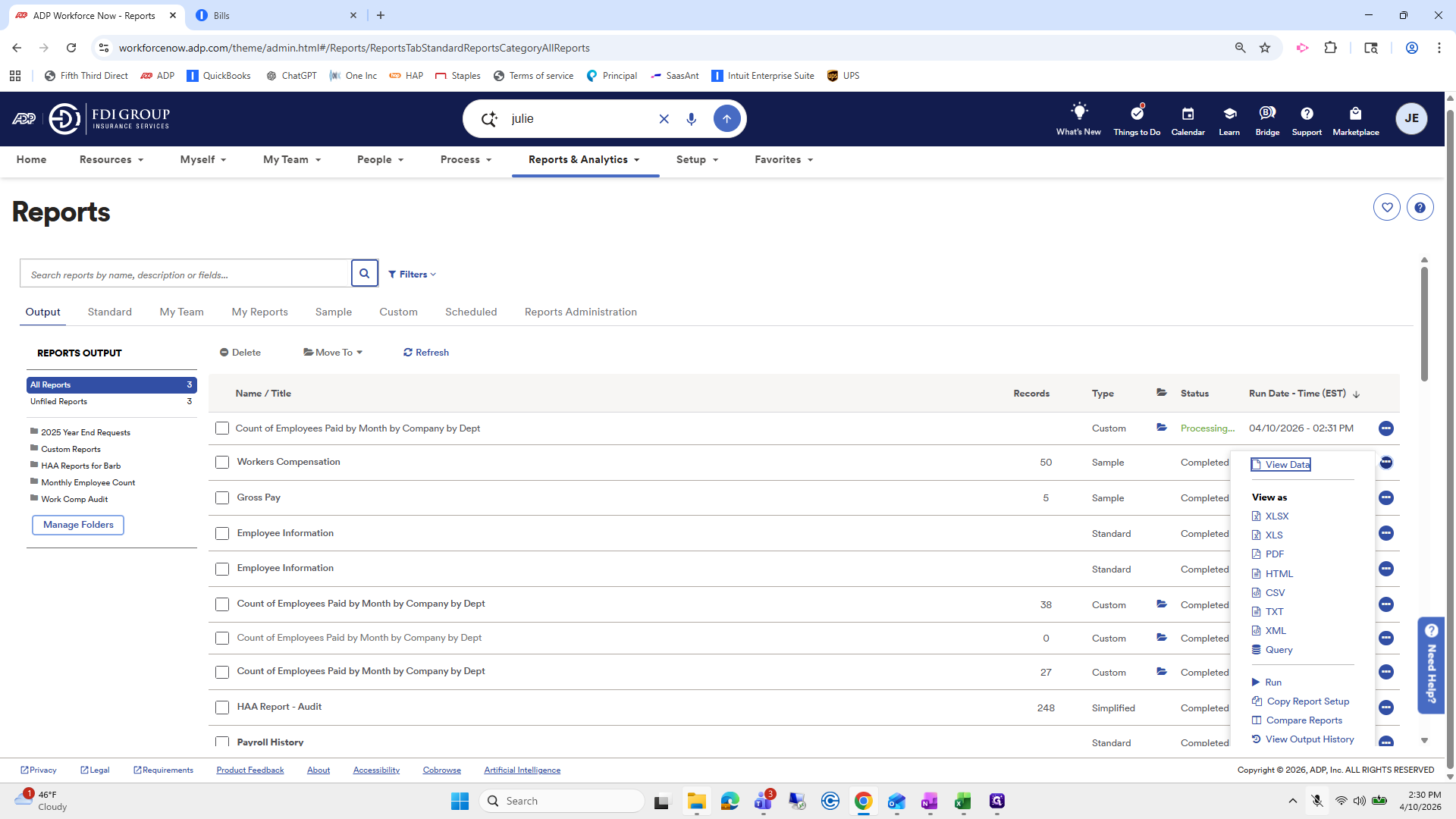
39
Click here
Step #39: Click here

Mm-hmm. This is a very bad video.

40
Drag here
Step #40: Drag here

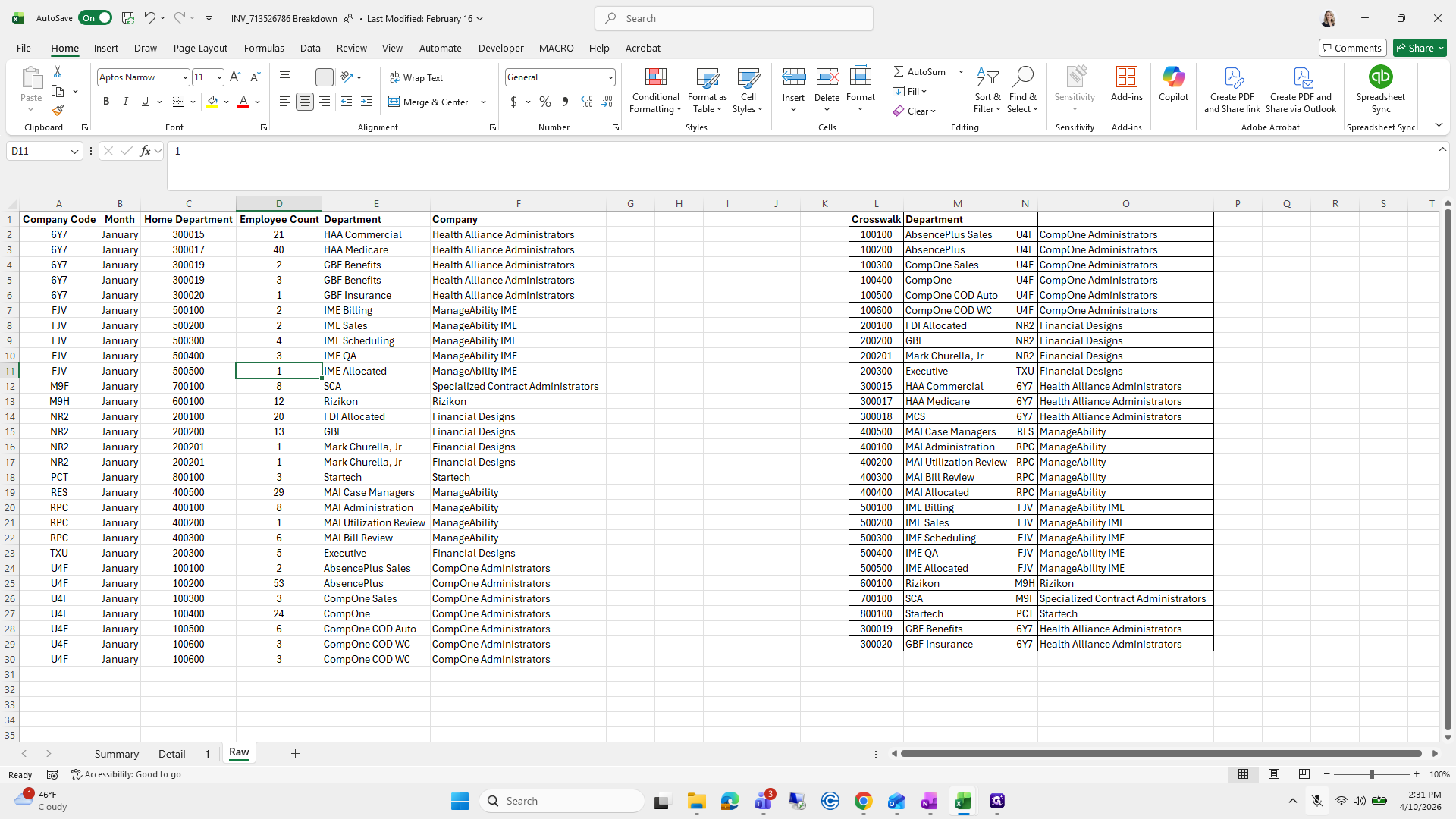
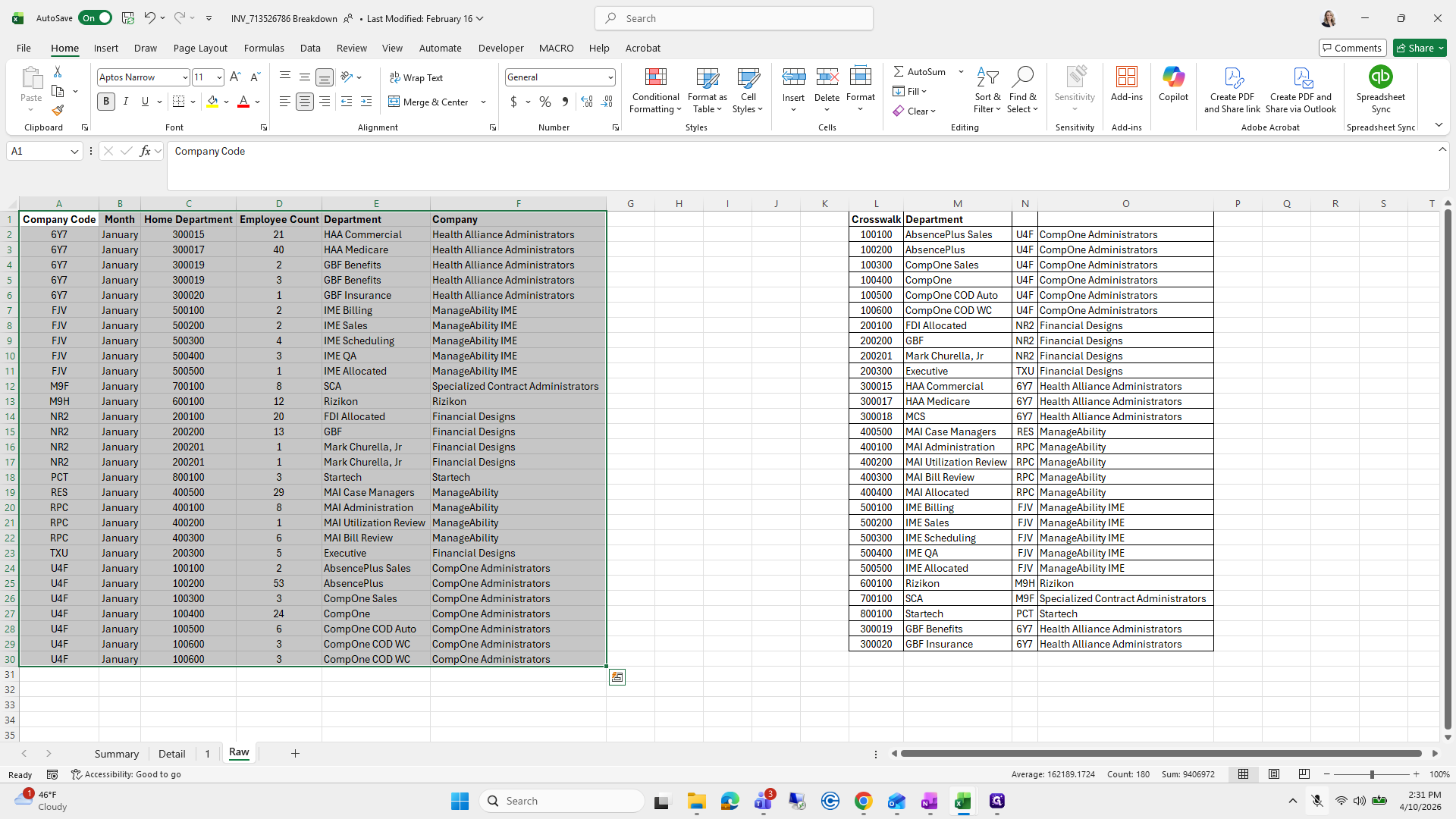
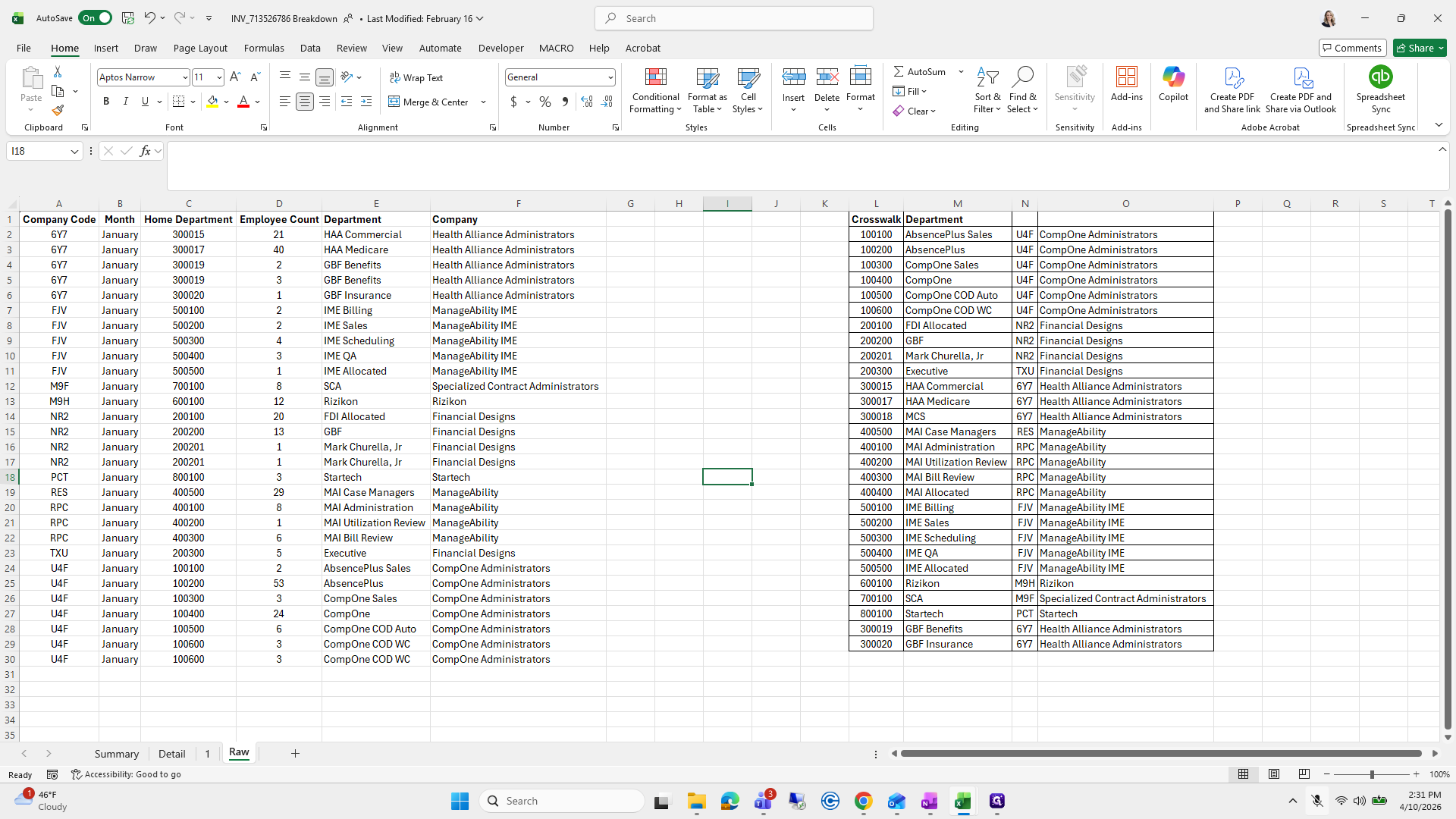
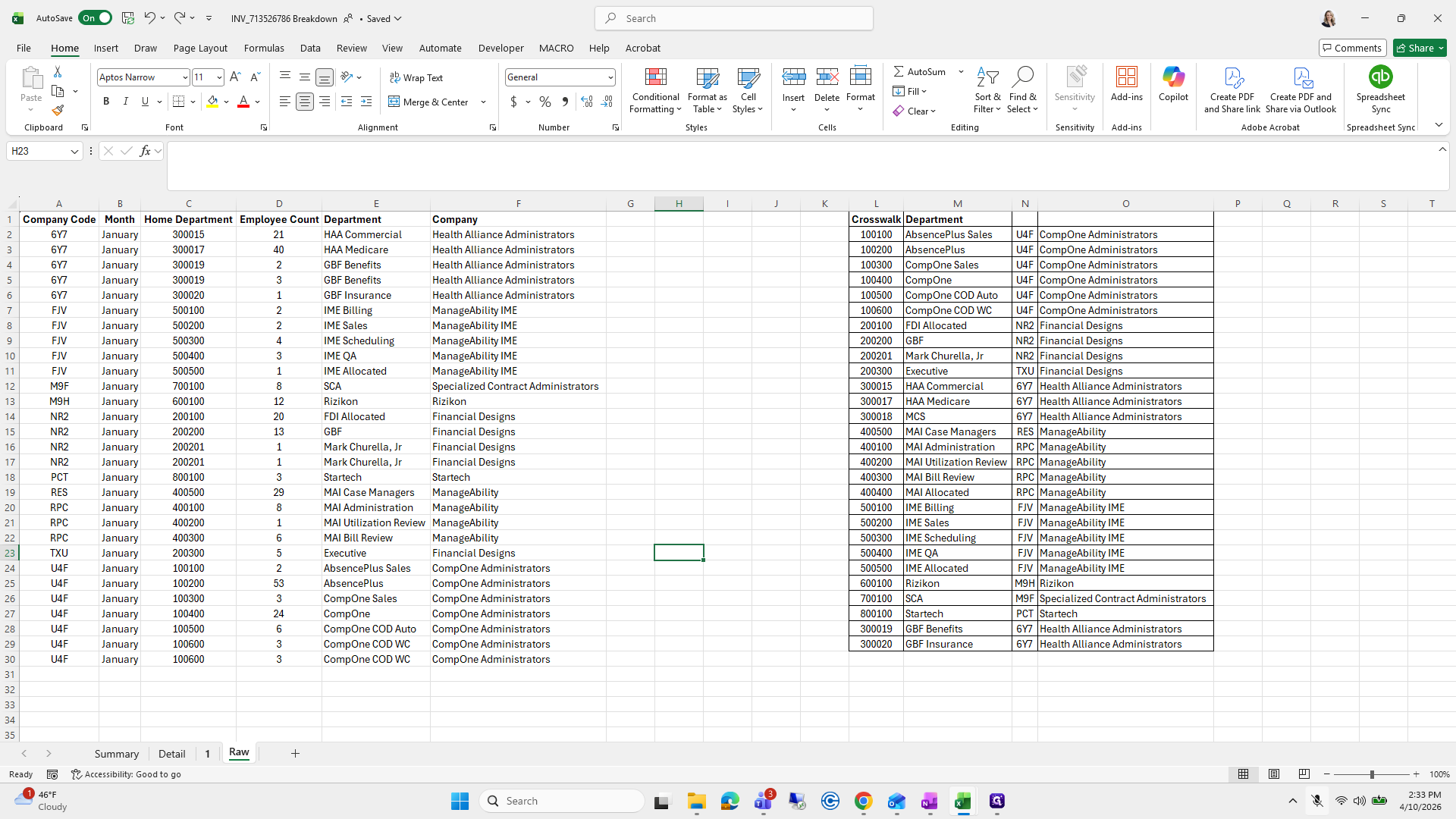
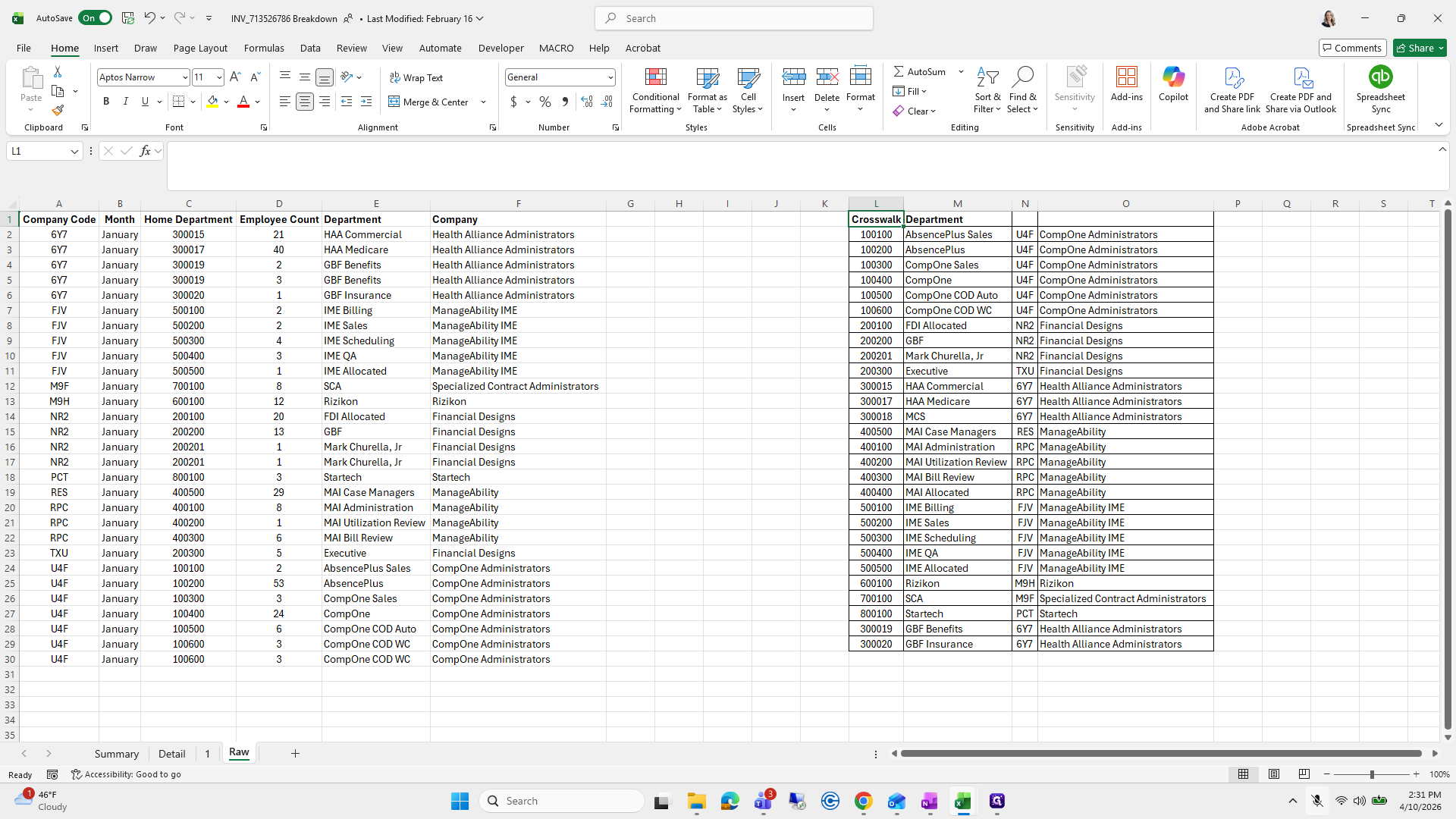
When I get it, it will come out looking like this with the employee count.
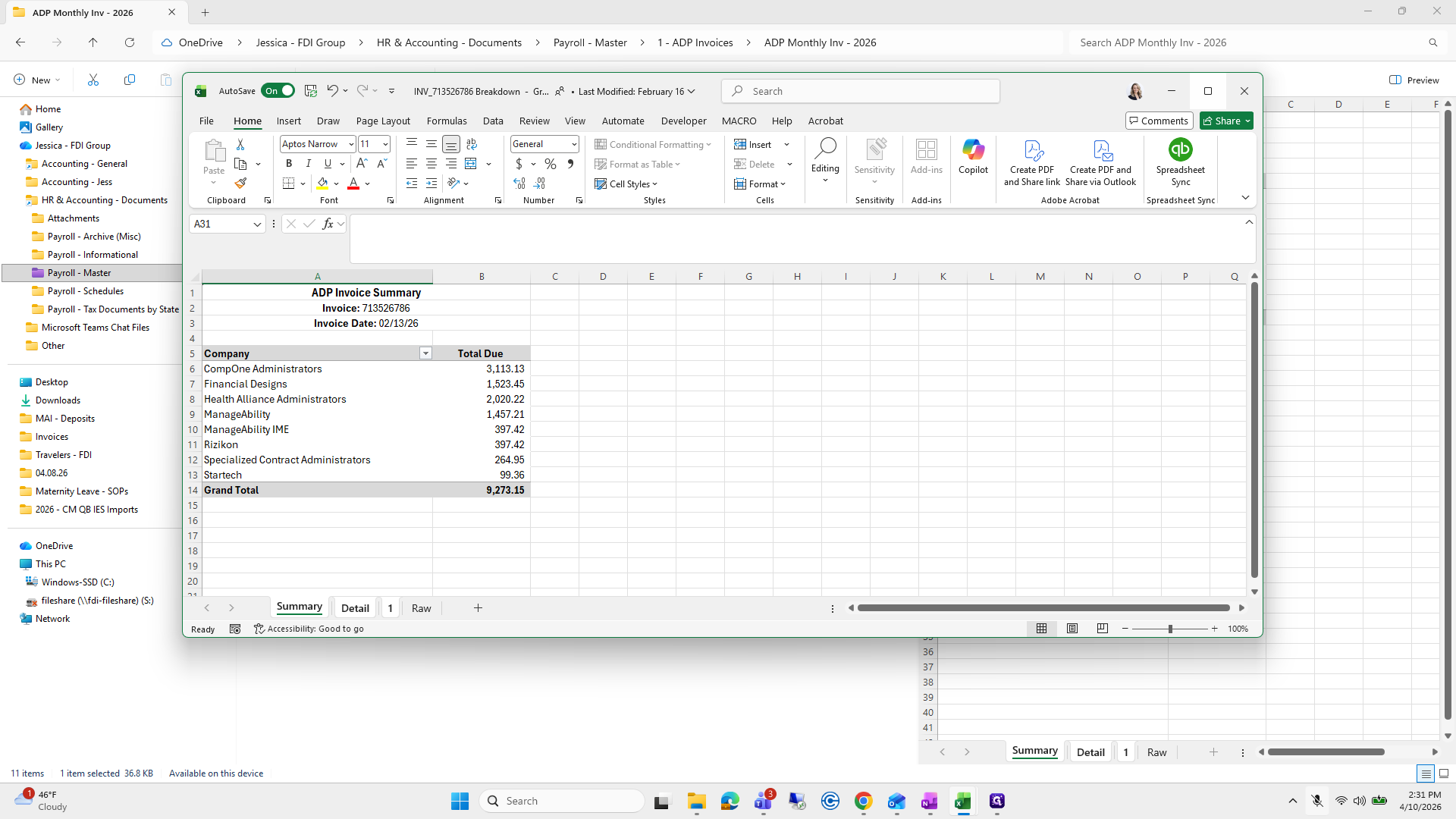
41
Click on "ㅁ"
Step #41: Click on "ㅁ"
42
Click on "Raw"
Step #42: Click on "Raw"
43
Drag "1 Company Code Month Home Department Employee Count Department"
Step #43: Drag "1 Company Code Month Home Department Employee Count Department"
44
Click here
Step #44: Click here

Okay.

45
Click here
Step #45: Click here

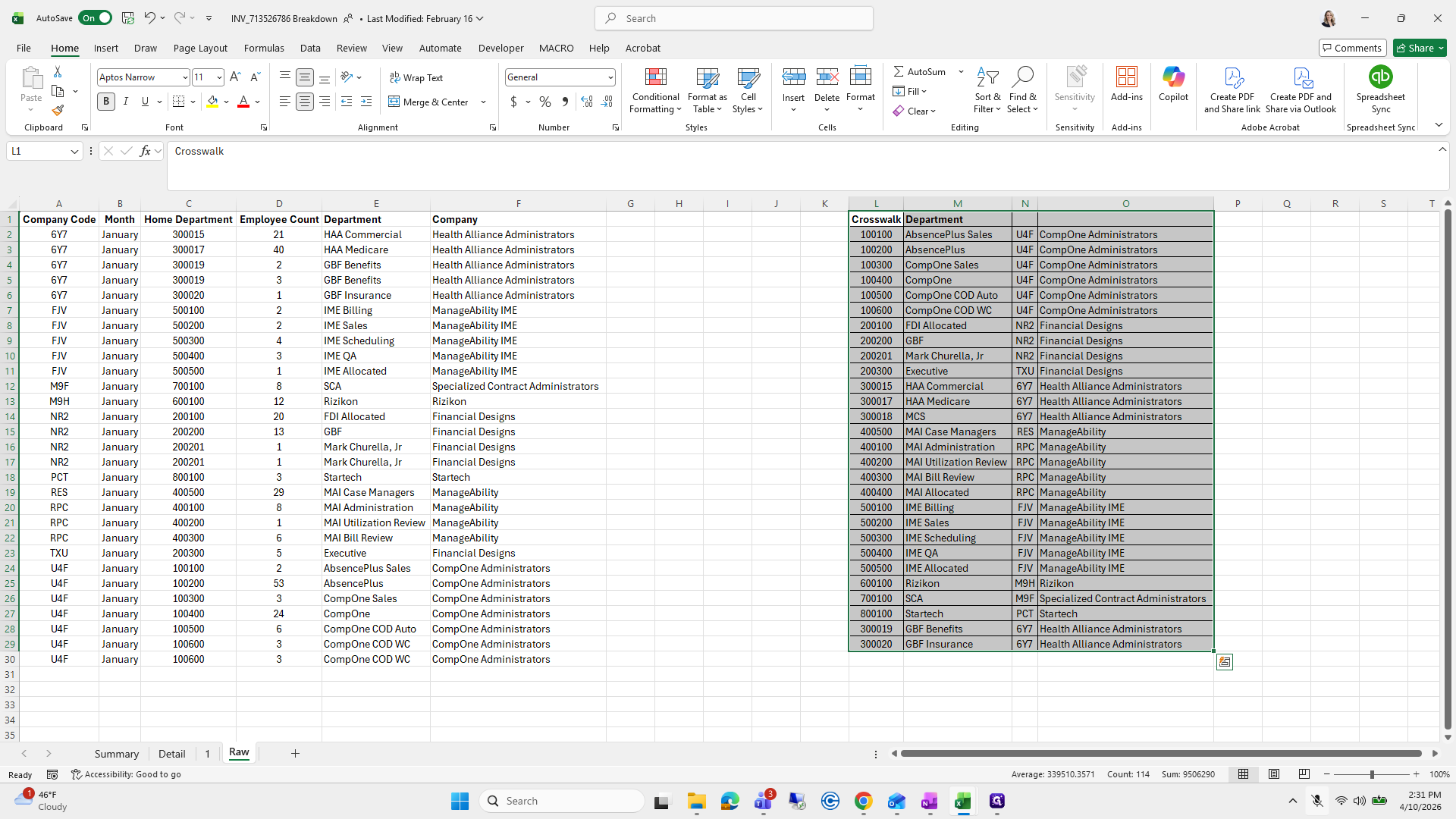
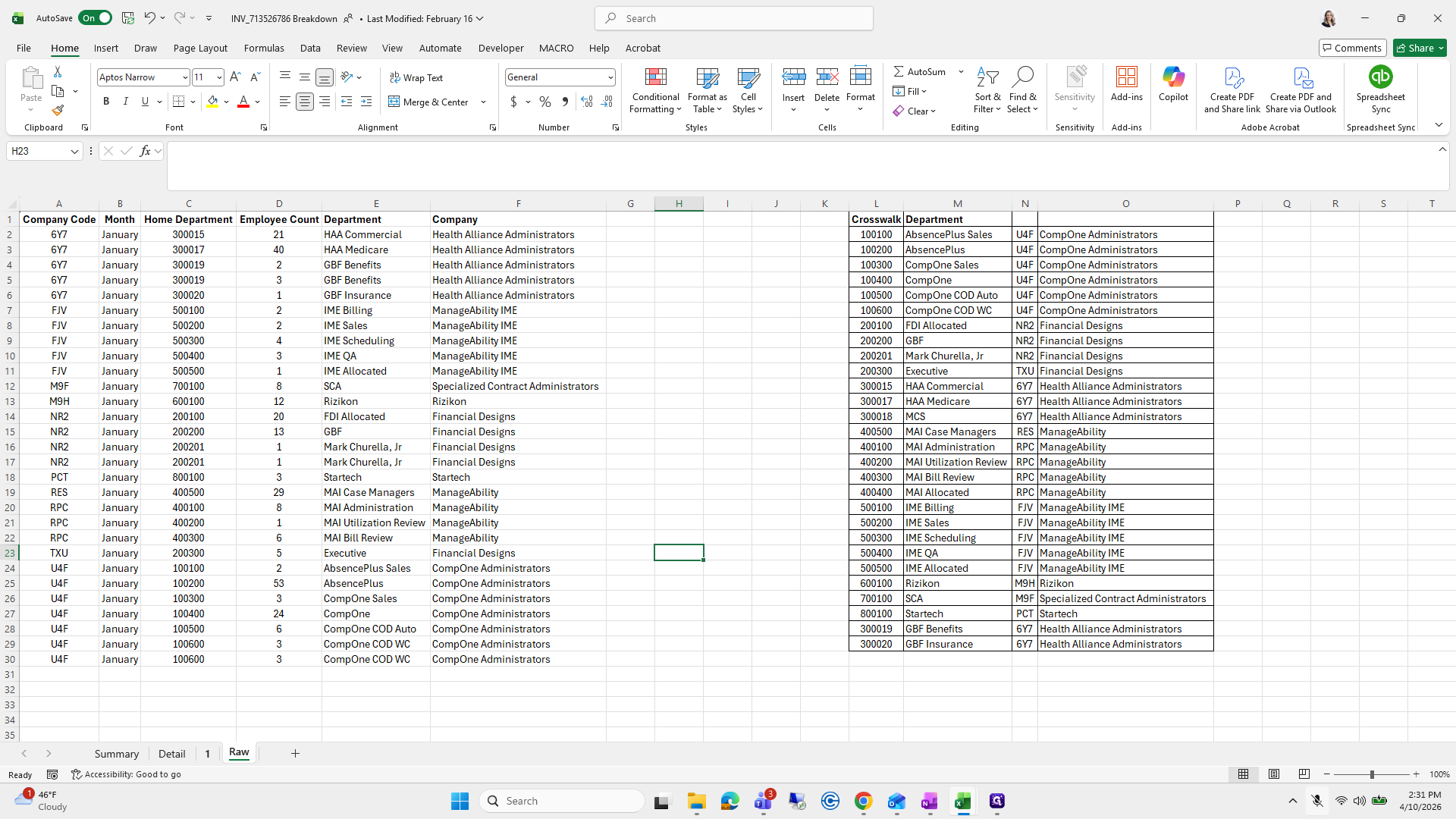
Next, I'll open the previous worksheet and copy and paste a quick crosswalk here.
46
Drag "Crosswalk Department"
Step #46: Drag "Crosswalk Department"

Then I'll go to tab number one.

47
Click here
Step #47: Click here
48
Click on "1"
Step #48: Click on "1"

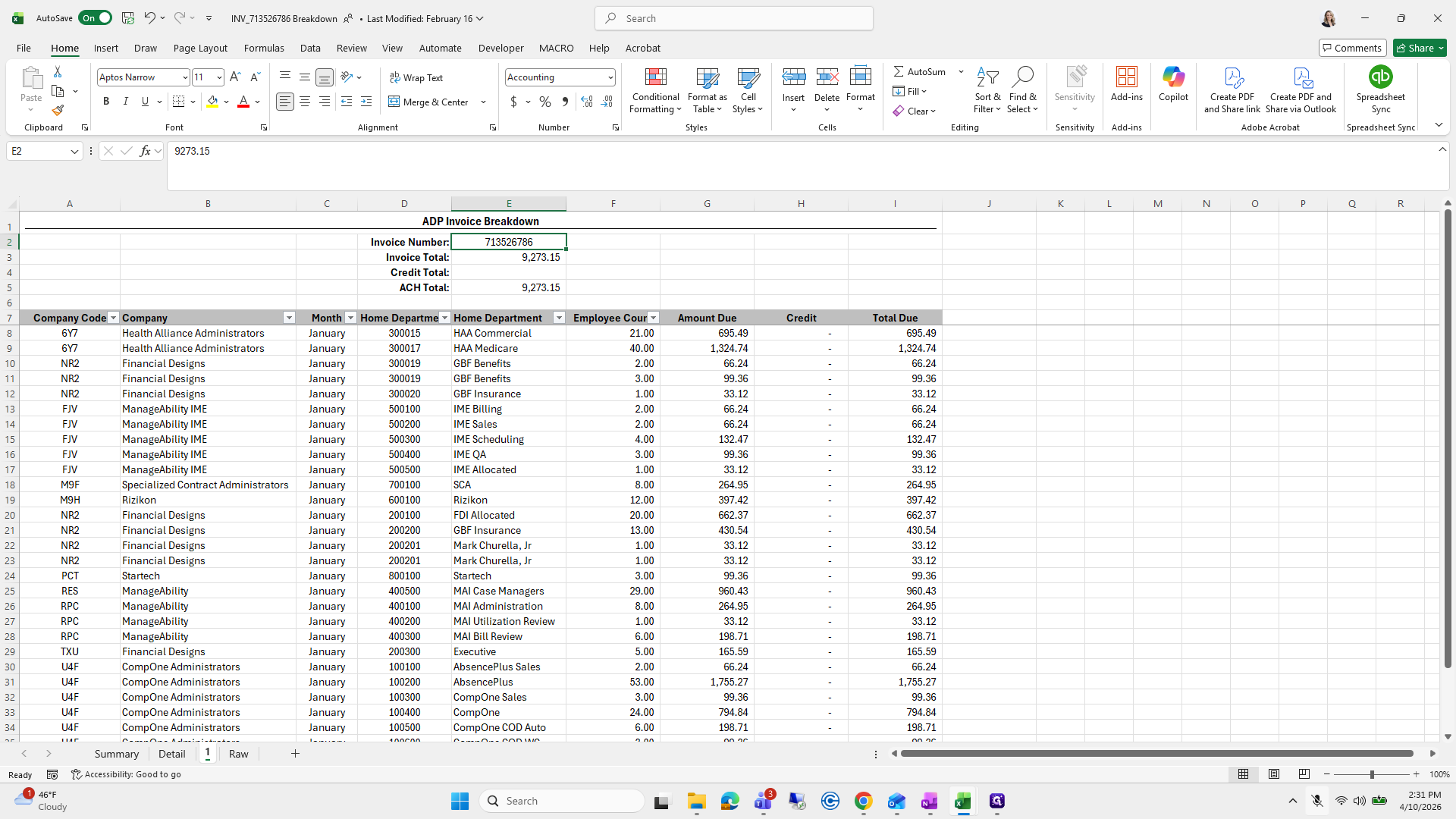
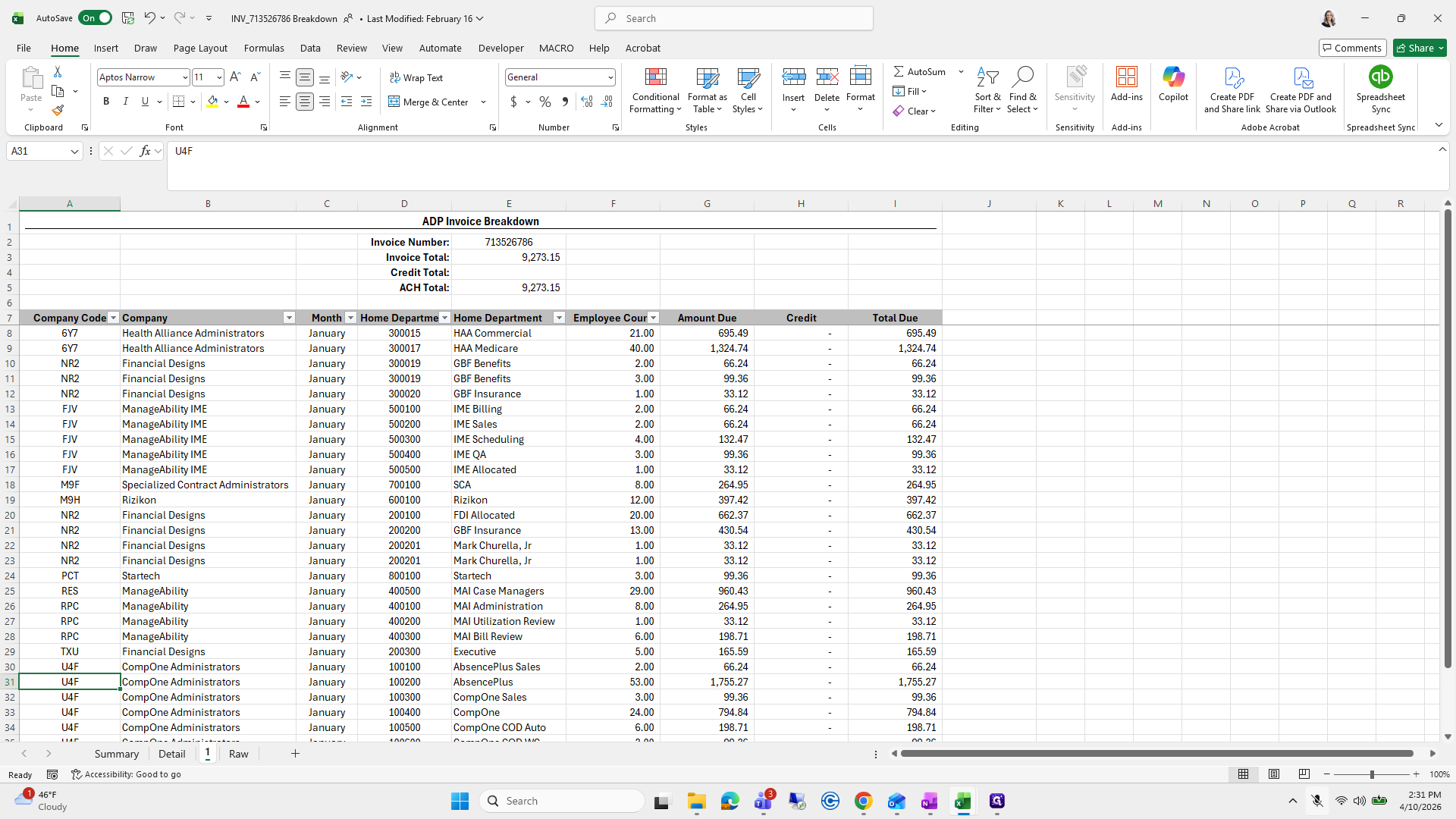
I will enter the invoice total and reenter the invoice number.
49
Click on "713526786"
Step #49: Click on "713526786"
50
Click on "713526786"
Step #50: Click on "713526786"

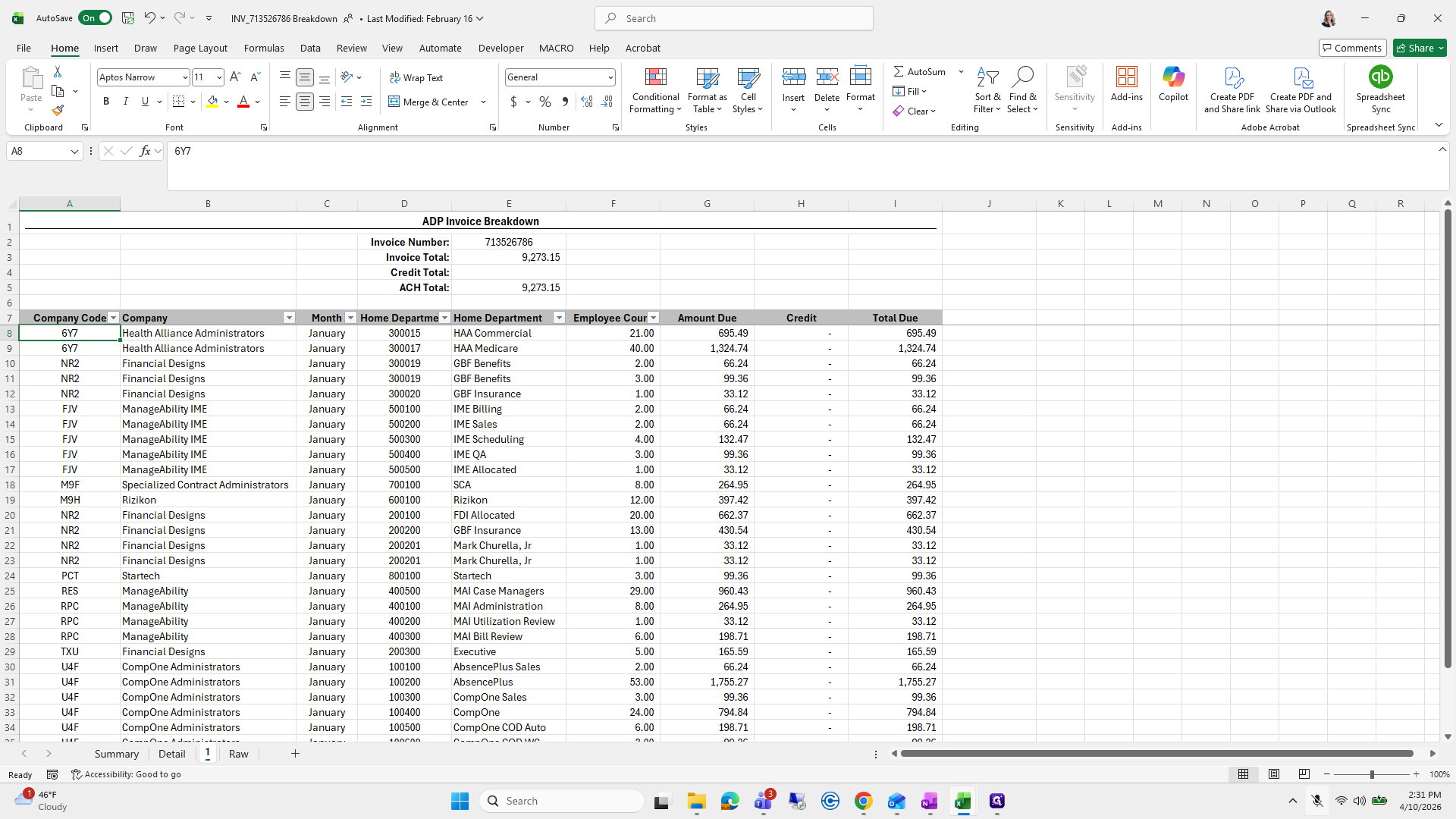
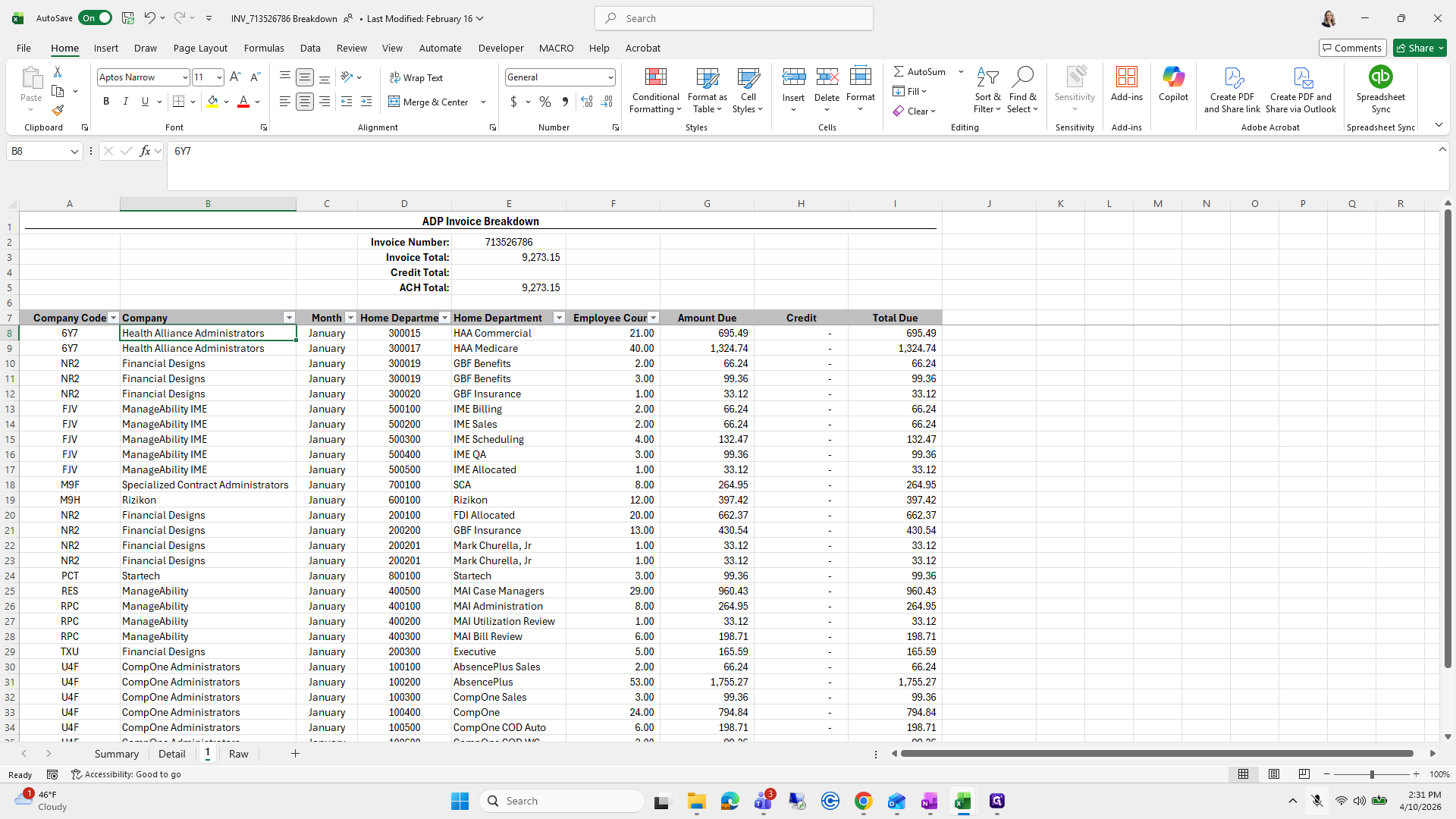
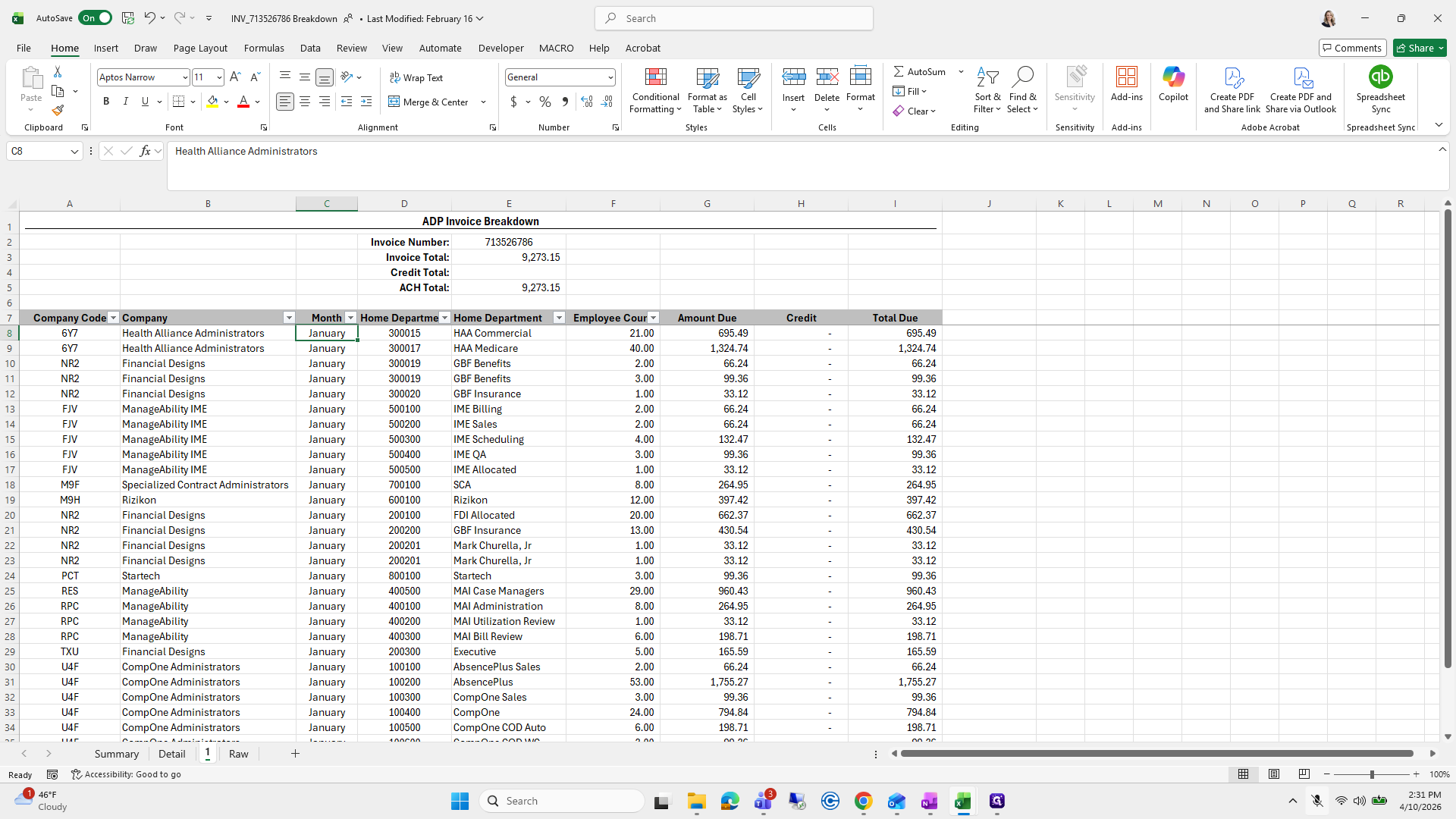
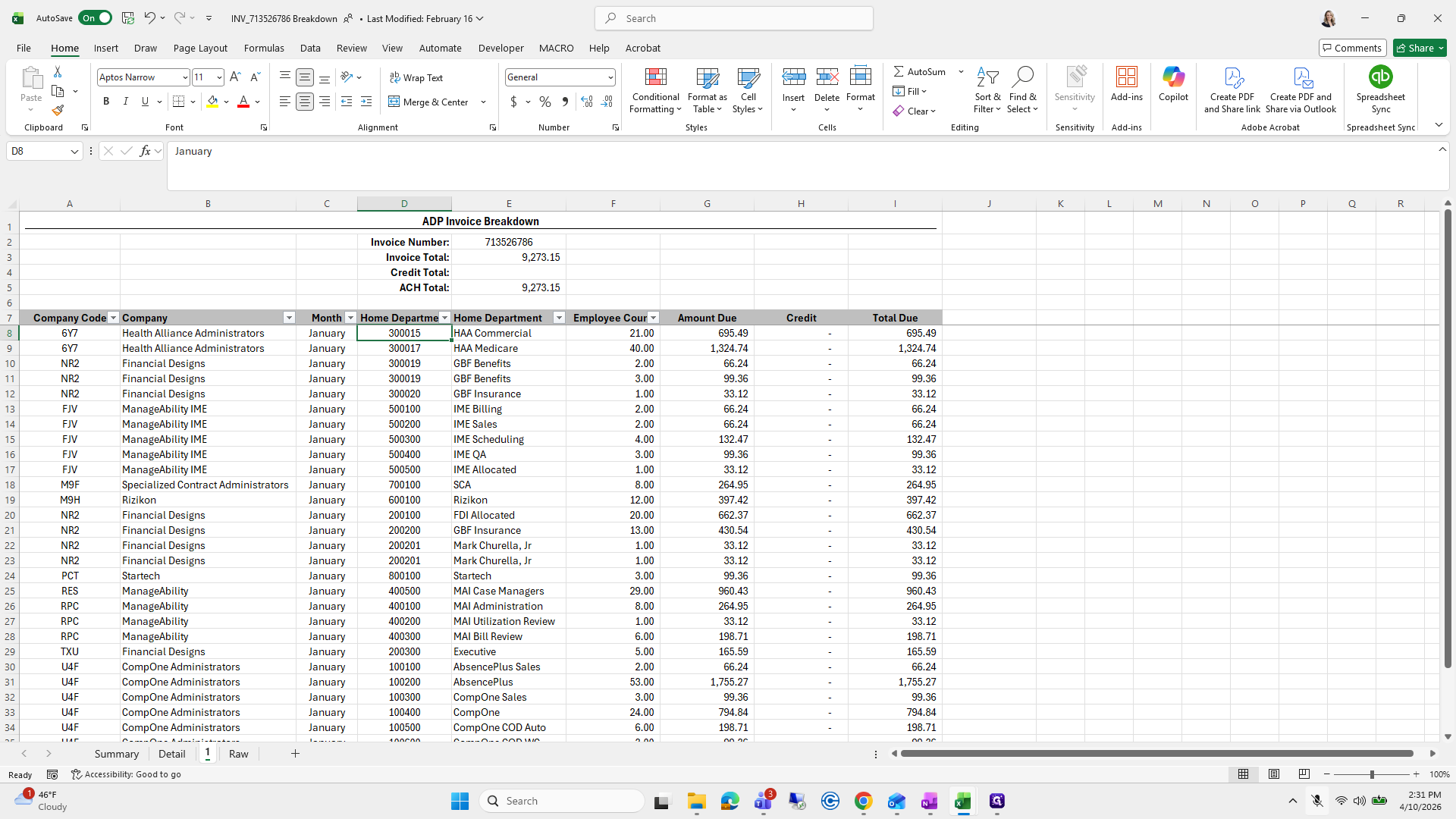
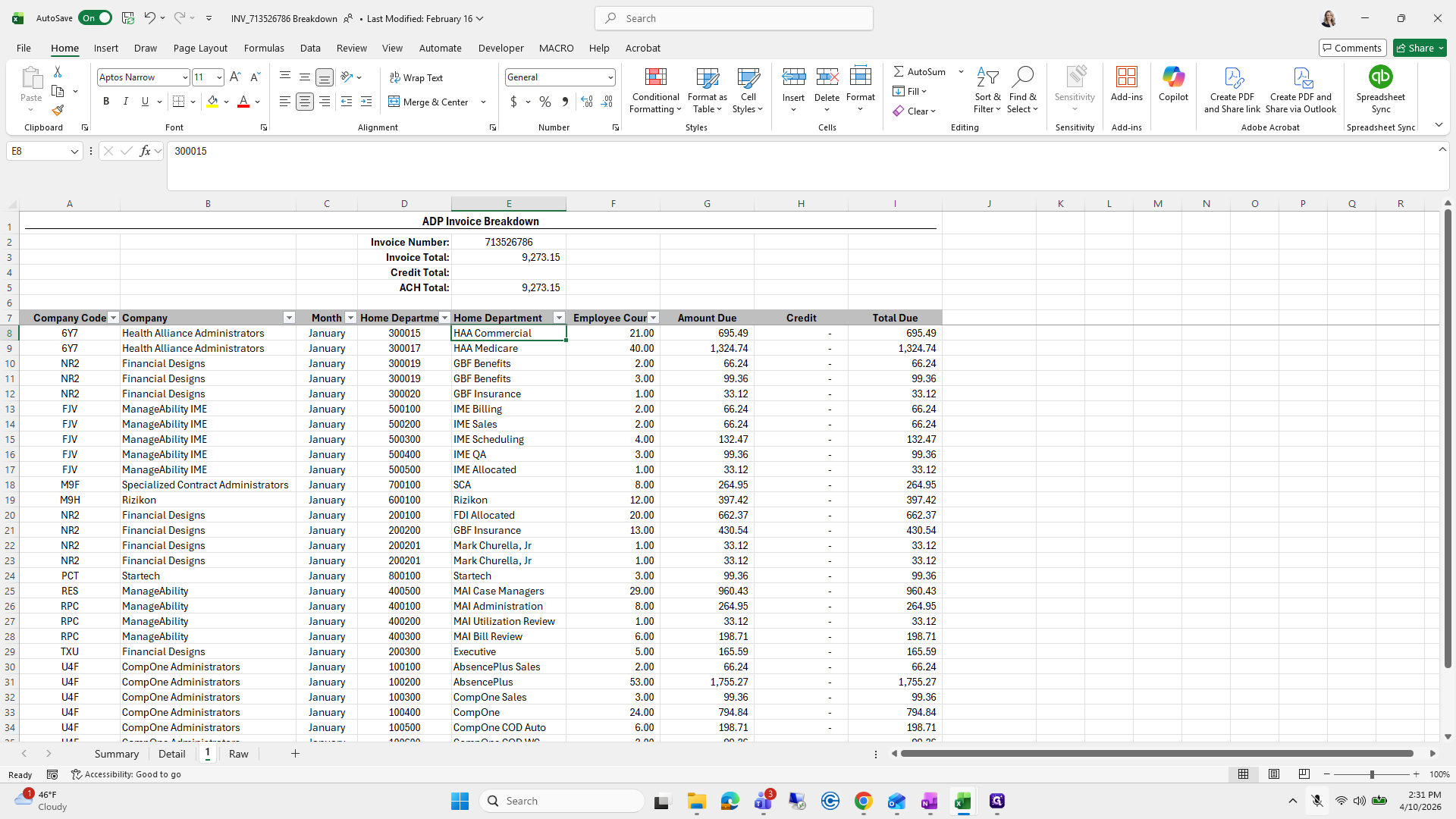
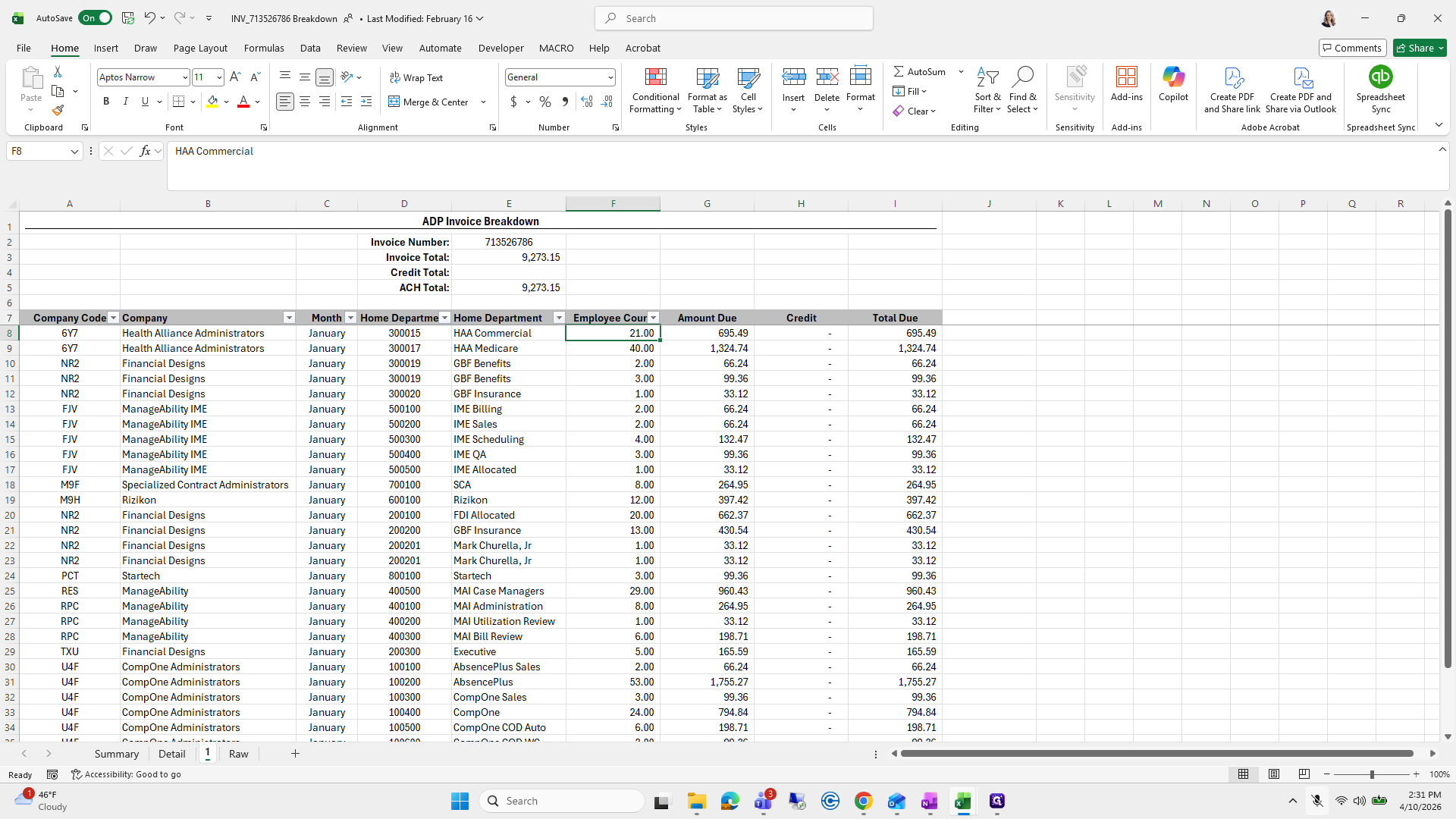
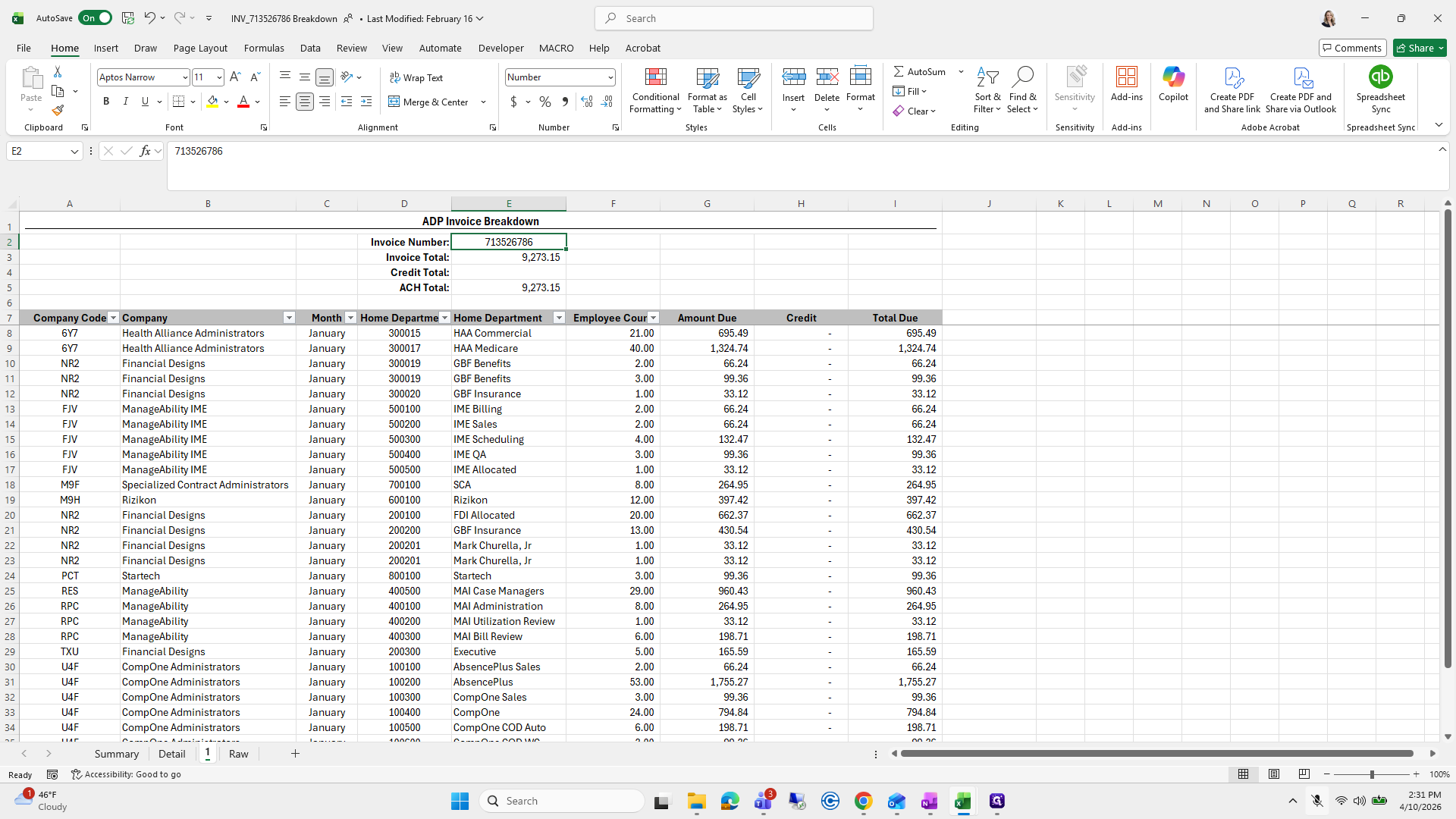
Then I copy and paste into company code, company, month, home department, and count.
51
Click on "6Y7"
Step #51: Click on "6Y7"
52
Click on "Company Code"
Step #52: Click on "Company Code"
53
Click on "Company"
Step #53: Click on "Company"
54
Click on "January"
Step #54: Click on "January"
55
Click on "Month Home Departme Home Department"
Step #55: Click on "Month Home Departme Home Department"
56
Click on "HAA Commercial"
Step #56: Click on "HAA Commercial"
57
Click on "21.00"
Step #57: Click on "21.00"

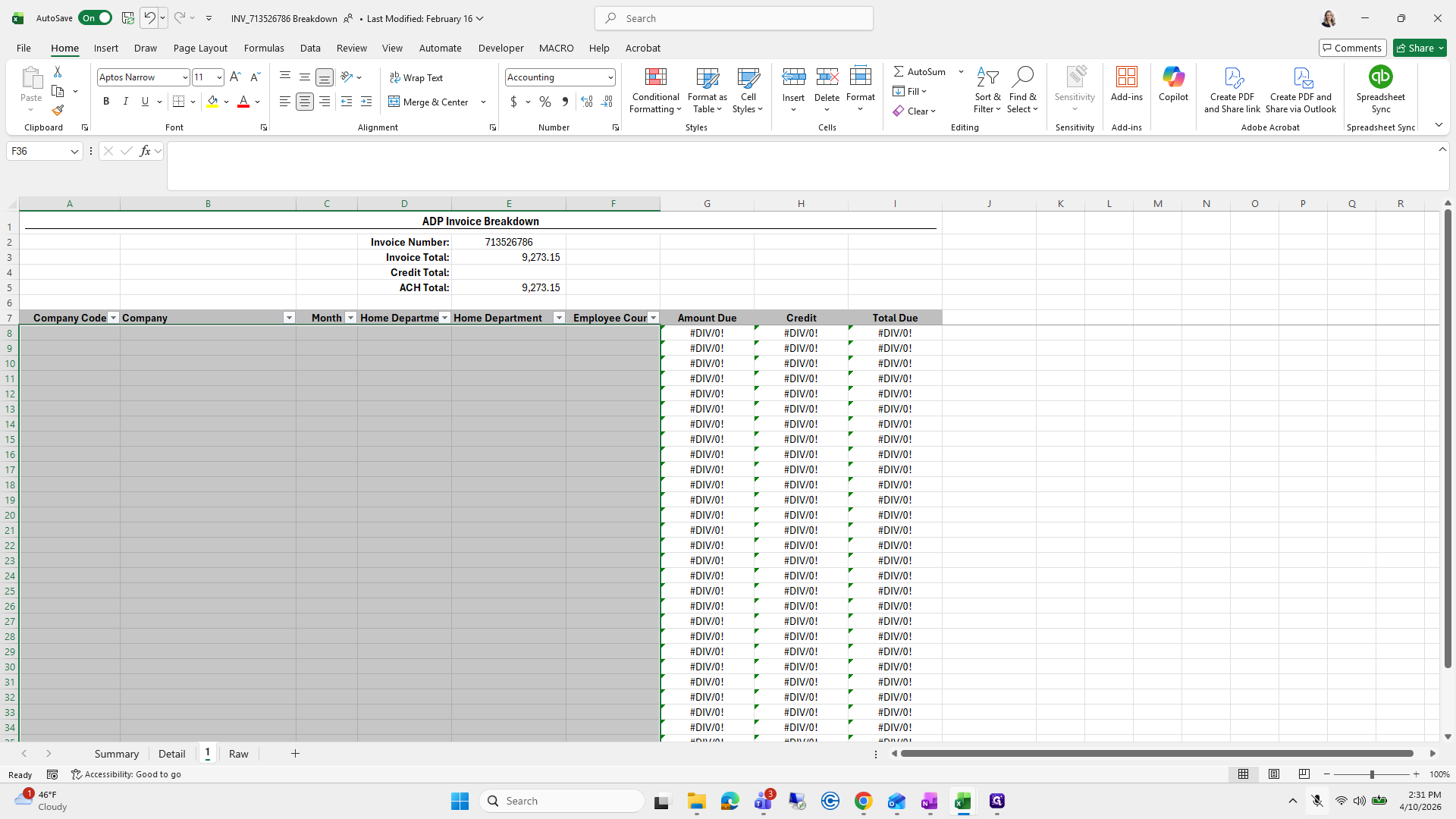
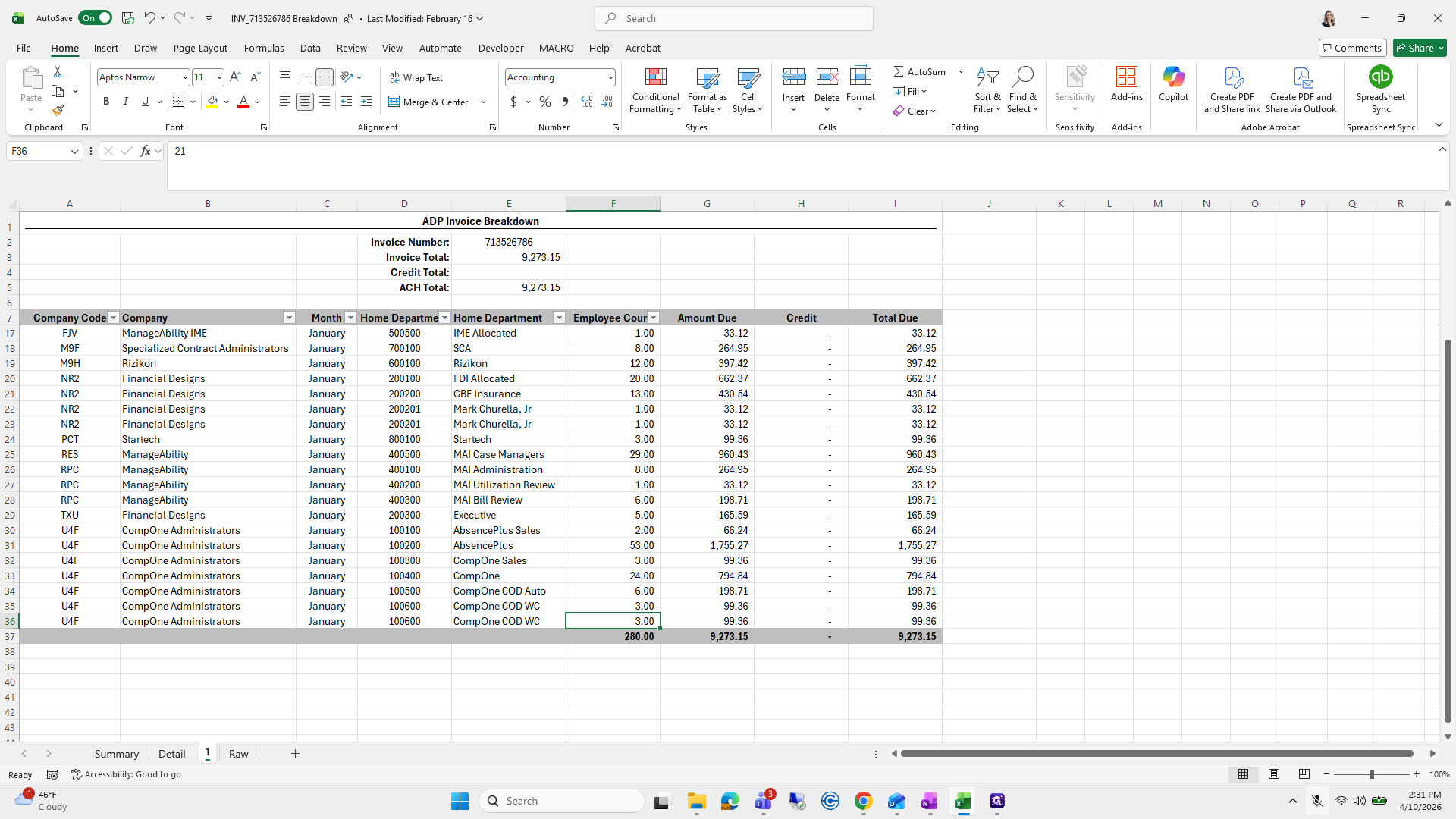
If I delete these, you can see that all of this auto-populates automatically.
58
Drag "3.00"
Step #58: Drag "3.00"

Yeah.

59
Click here
Step #59: Click here

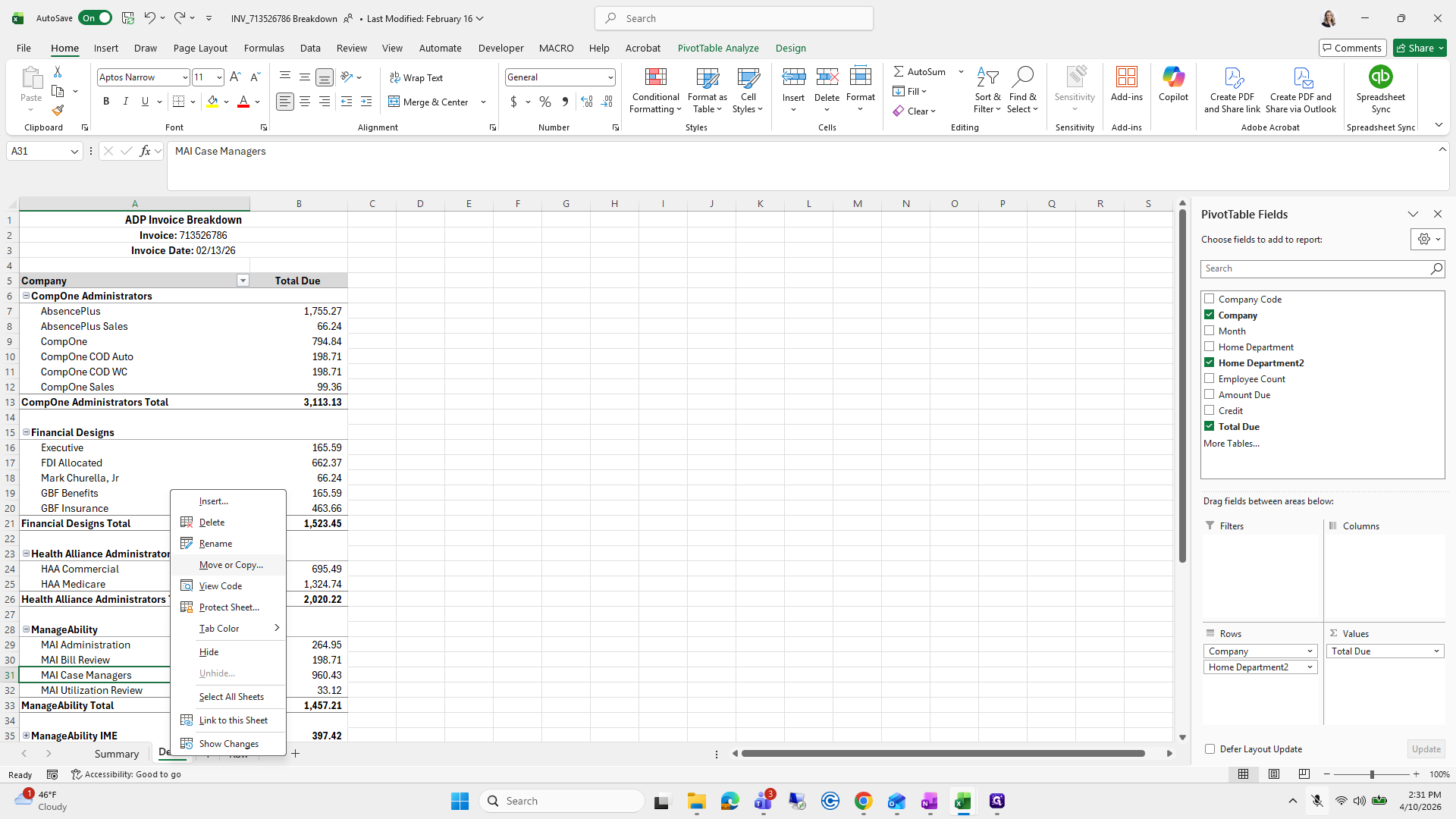
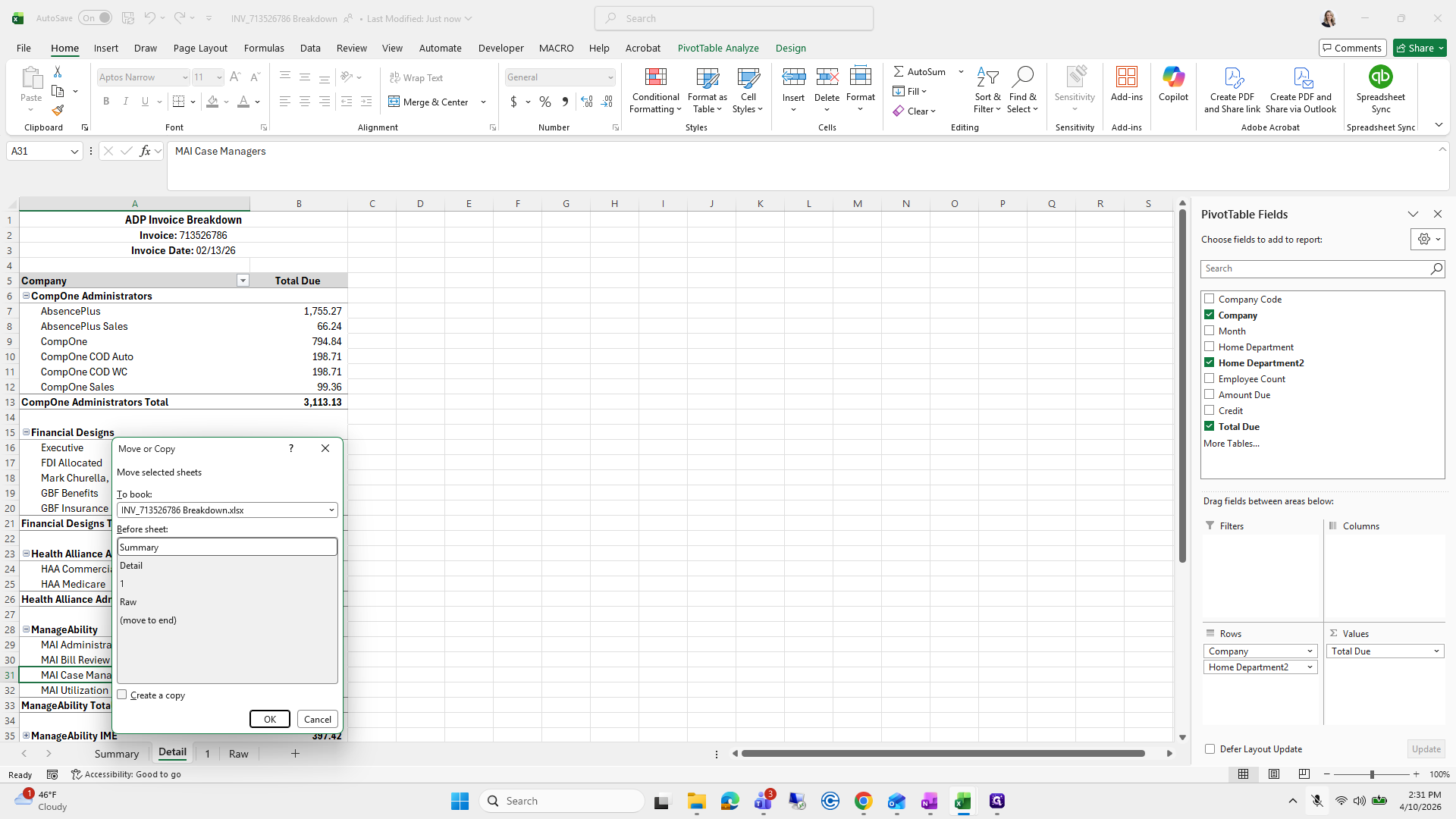
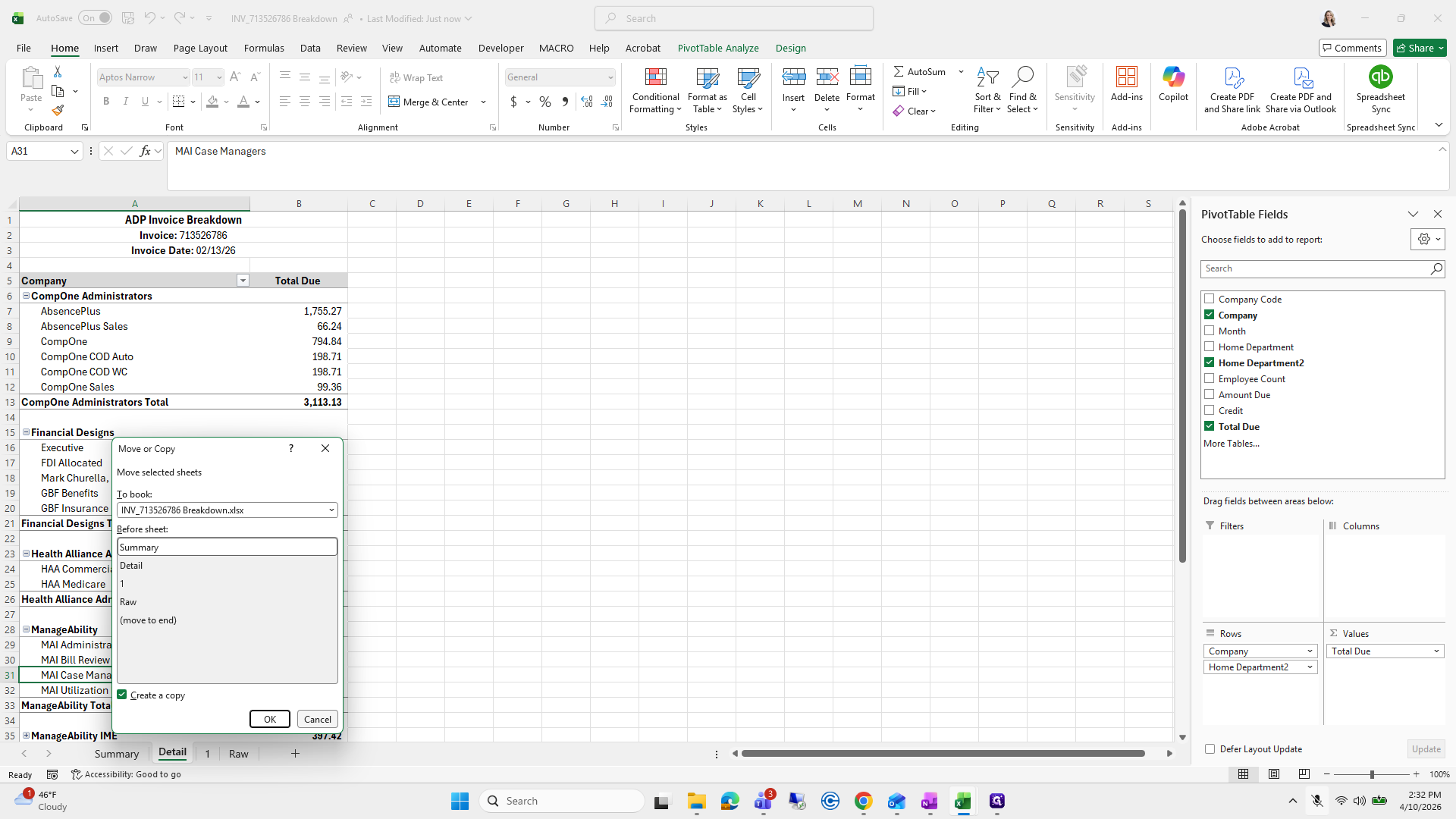
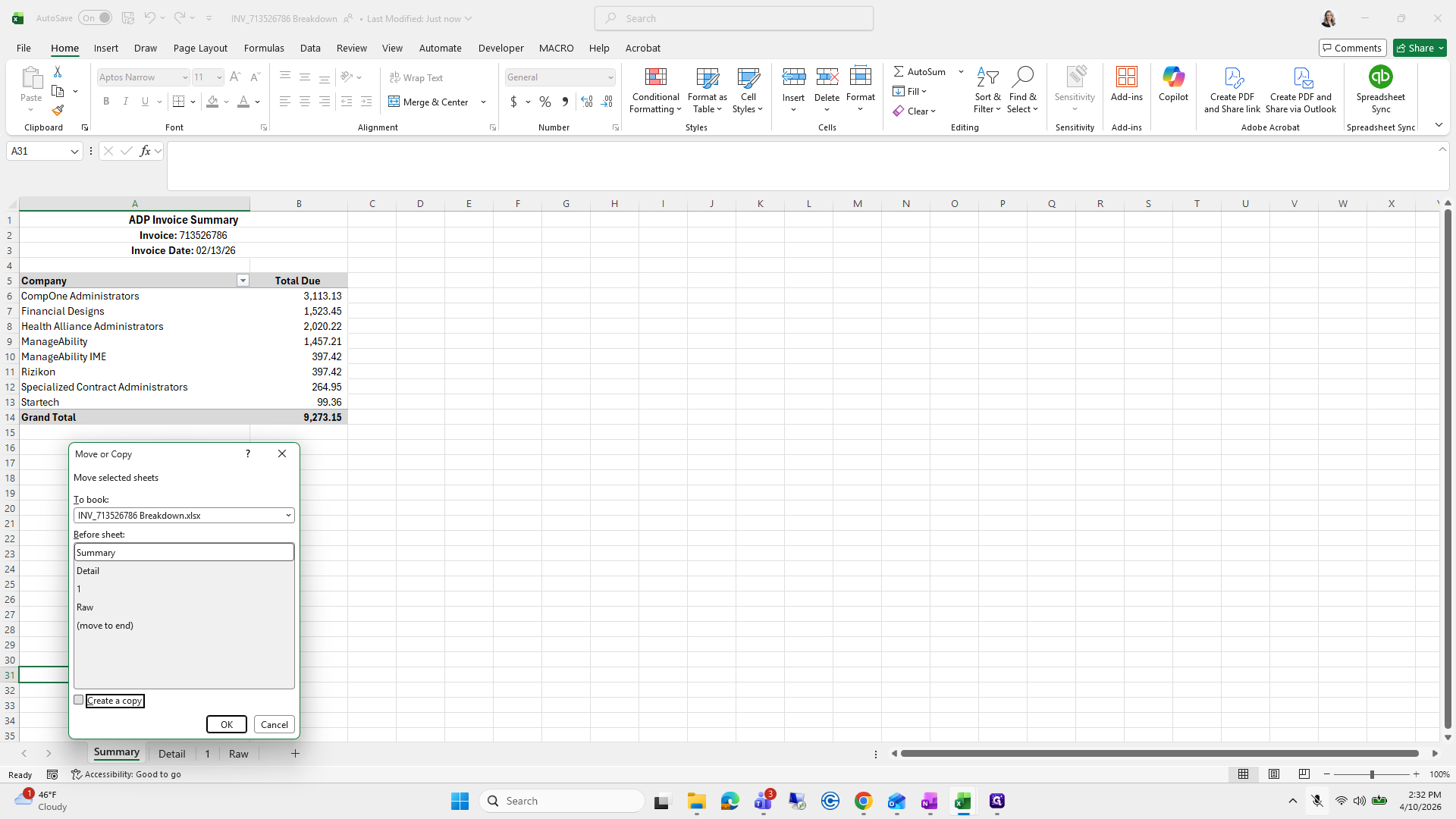
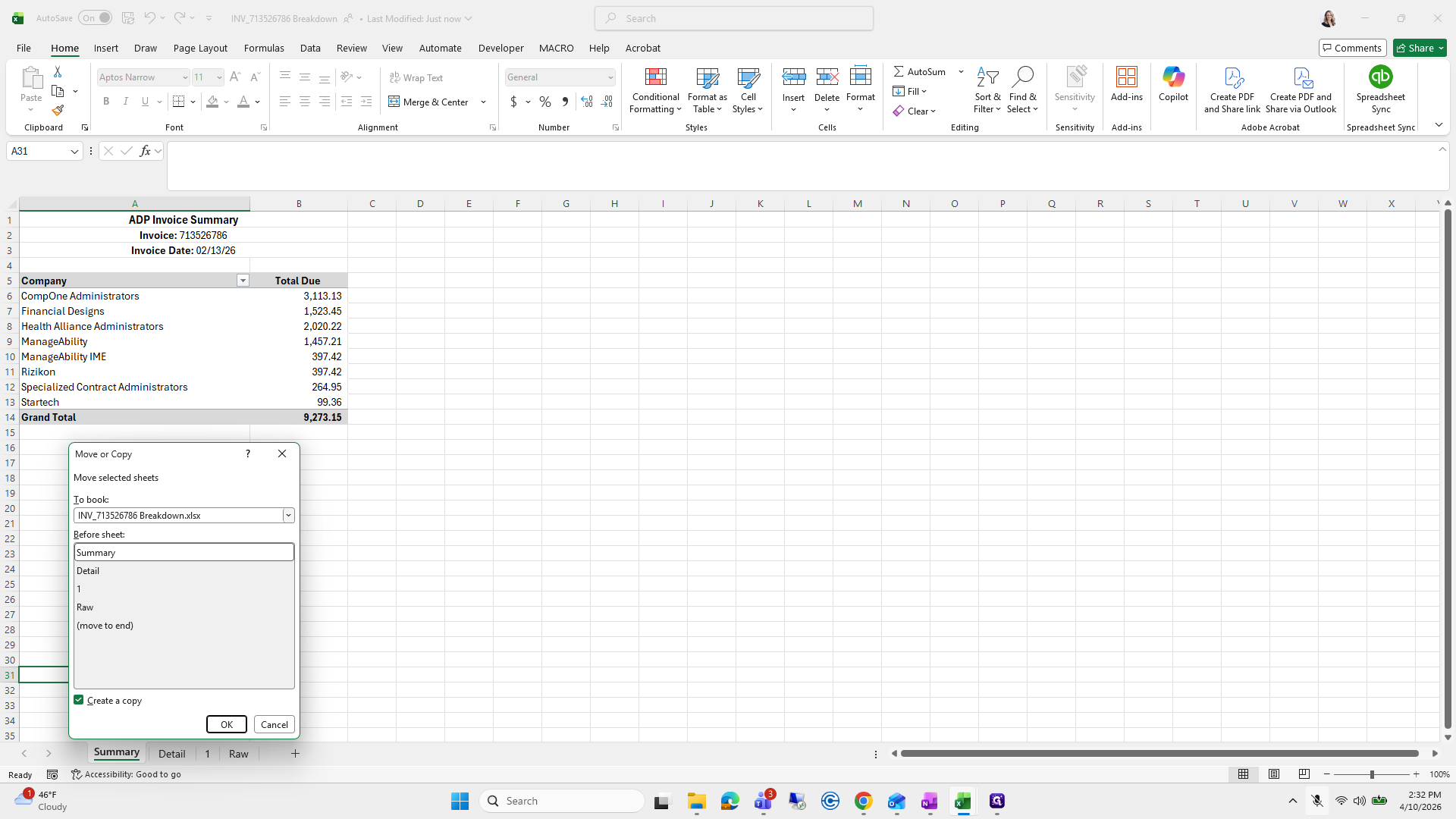
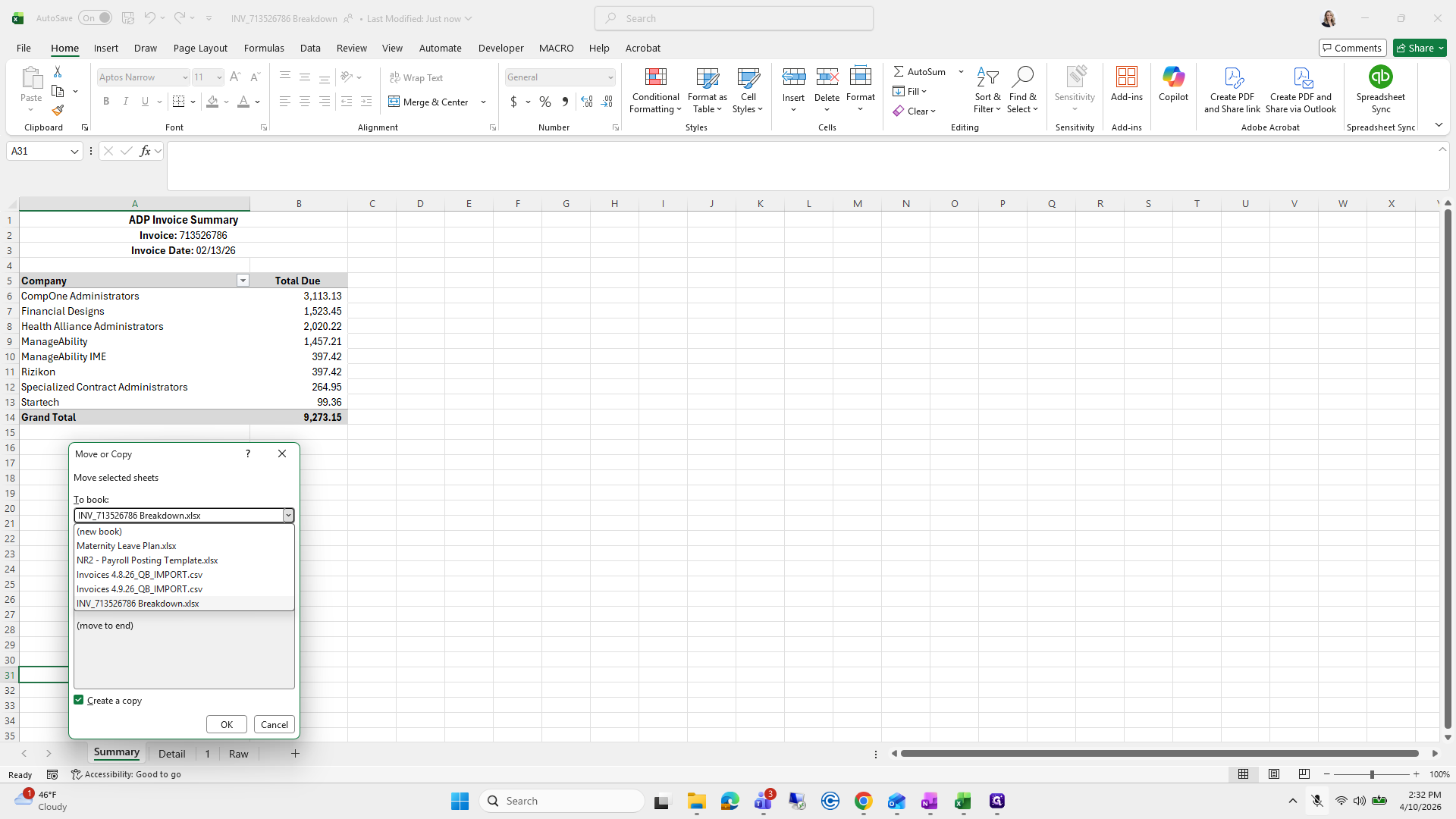
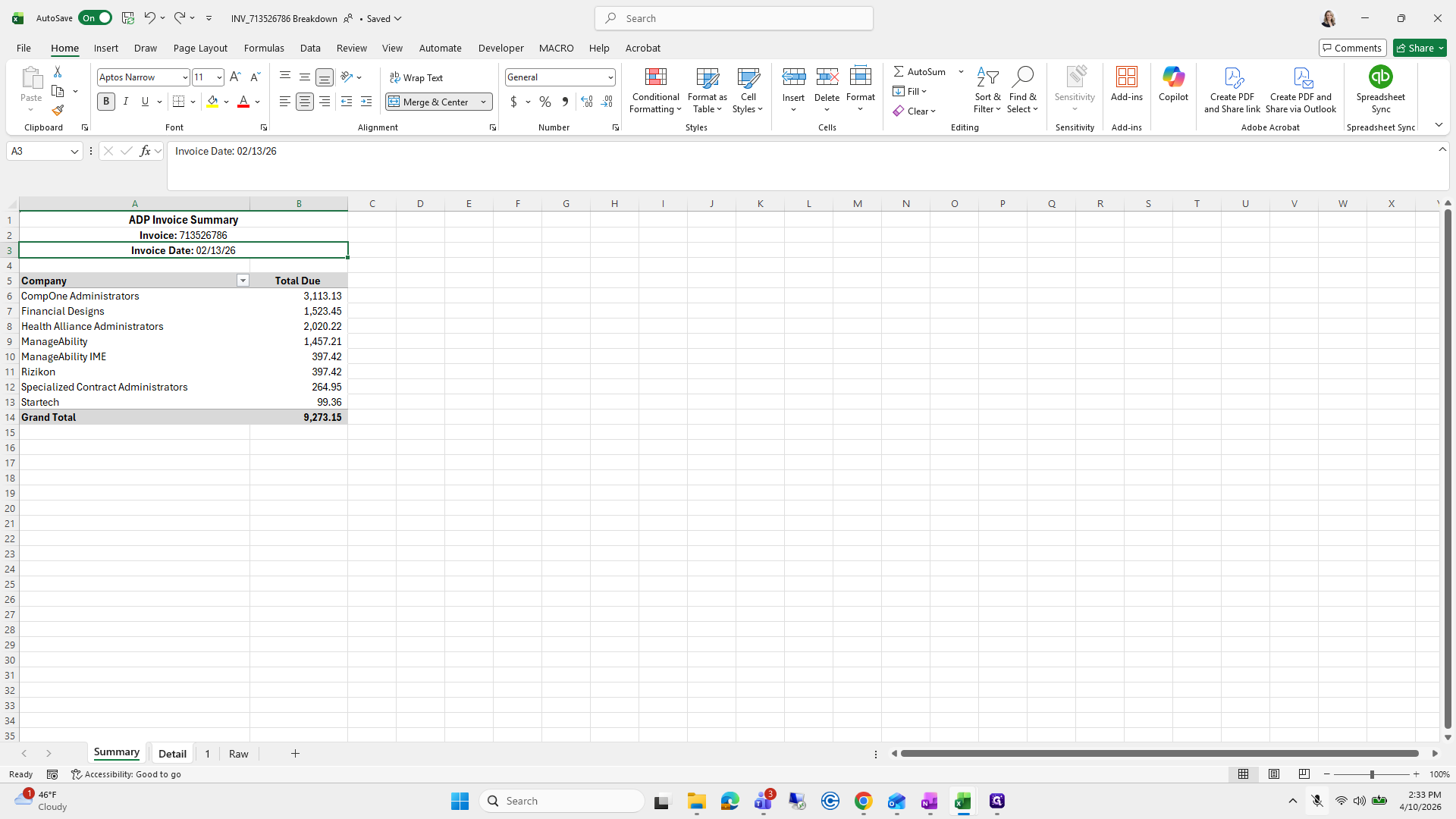
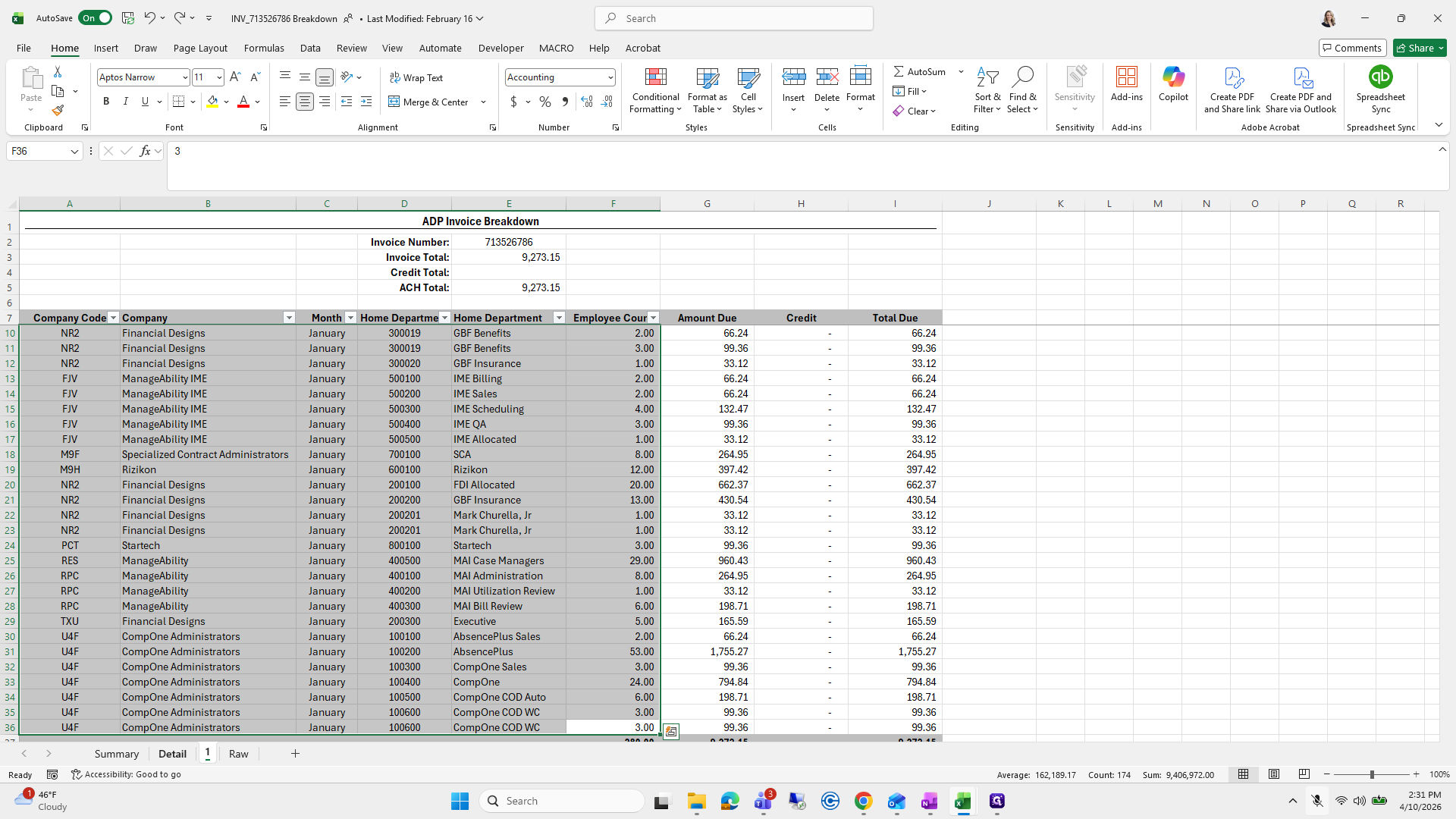
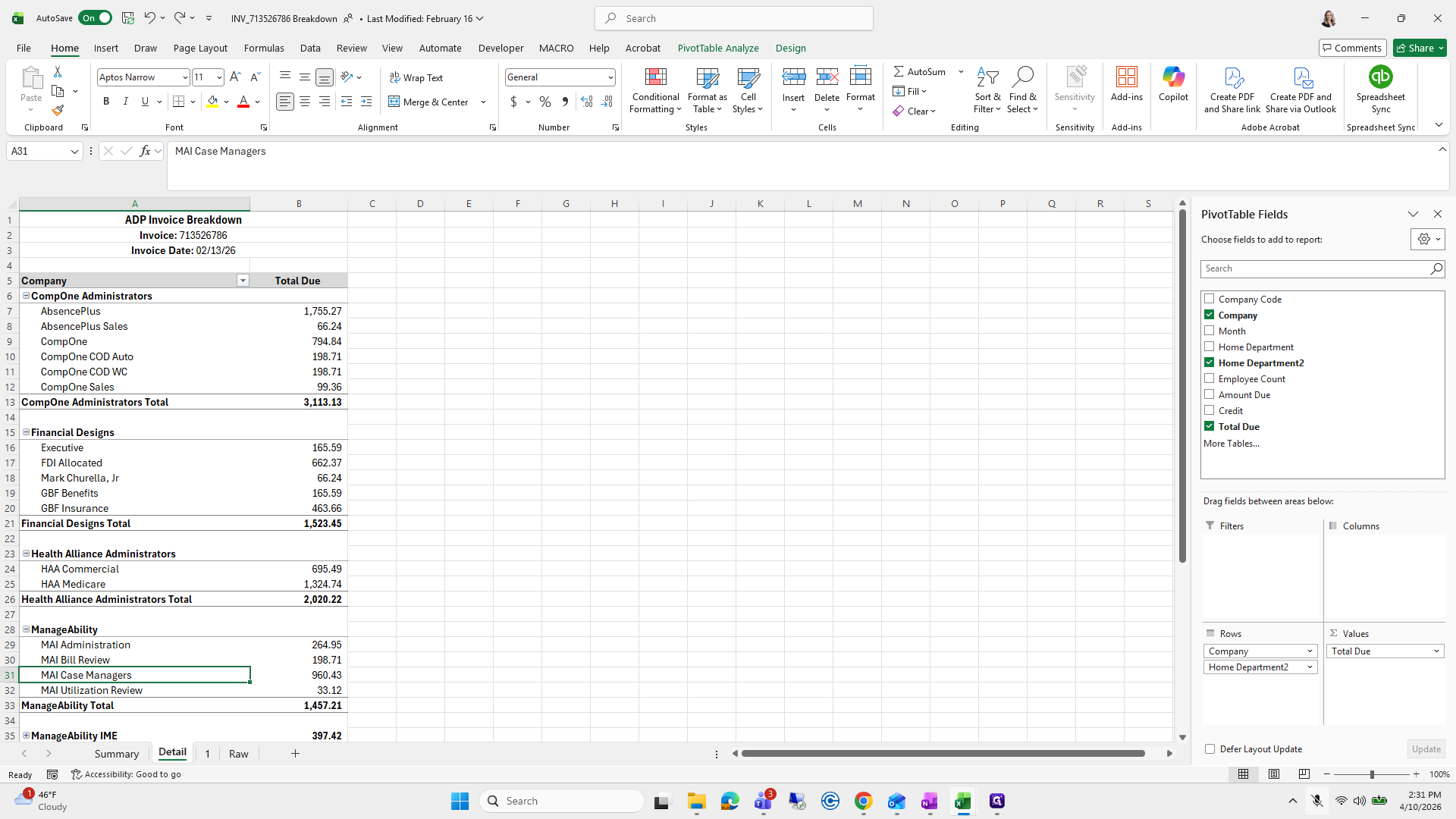
Okay. For the detail, I right-click, select Move and Copy, choose Create Copy, and move it to the new spreadsheet. I repeat the same steps for Summary.
60
Click on "Detail"
Step #60: Click on "Detail"
61
Right-click on "Detail"
Step #61: Right-click on "Detail"
62
Click on "Move or Copy"
Step #62: Click on "Move or Copy"
63
Click on "a"
Step #63: Click on "a"
64
Click on "Cancel"
Step #64: Click on "Cancel"
65
Click on "Summary"
Step #65: Click on "Summary"
66
Right-click on "Summary"
Step #66: Right-click on "Summary"

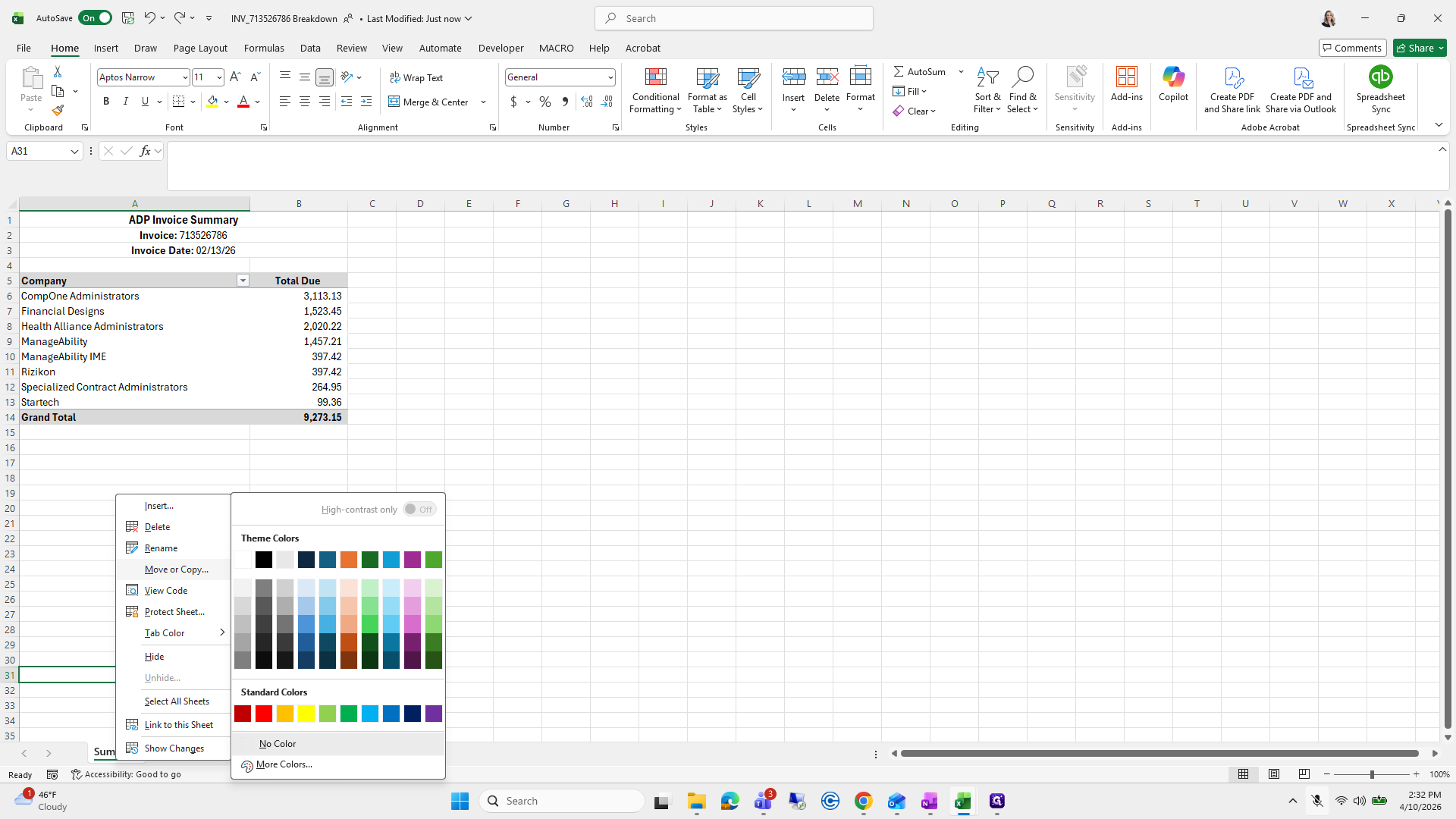
Right-click, select Move or Copy, then choose Create Copy. Place it in the new spreadsheet.
67
Click on "Move or Copy"
Step #67: Click on "Move or Copy"
68
Click on "Create a copy"
Step #68: Click on "Create a copy"
69
Click on "INV_713526786 Breakdown.xlsx"
Step #69: Click on "INV_713526786 Breakdown.xlsx"
70
Click on "Cancel"
Step #70: Click on "Cancel"

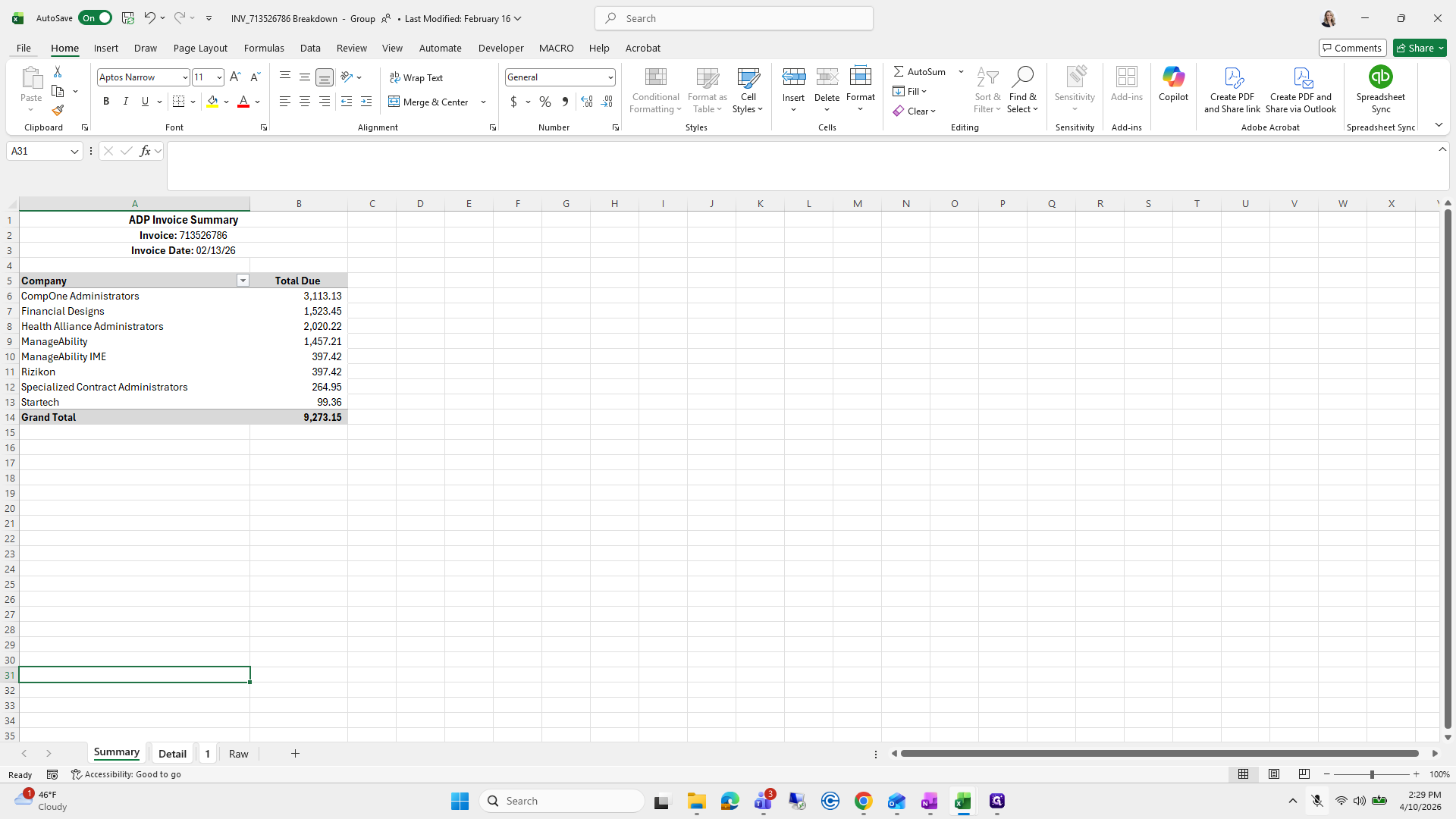
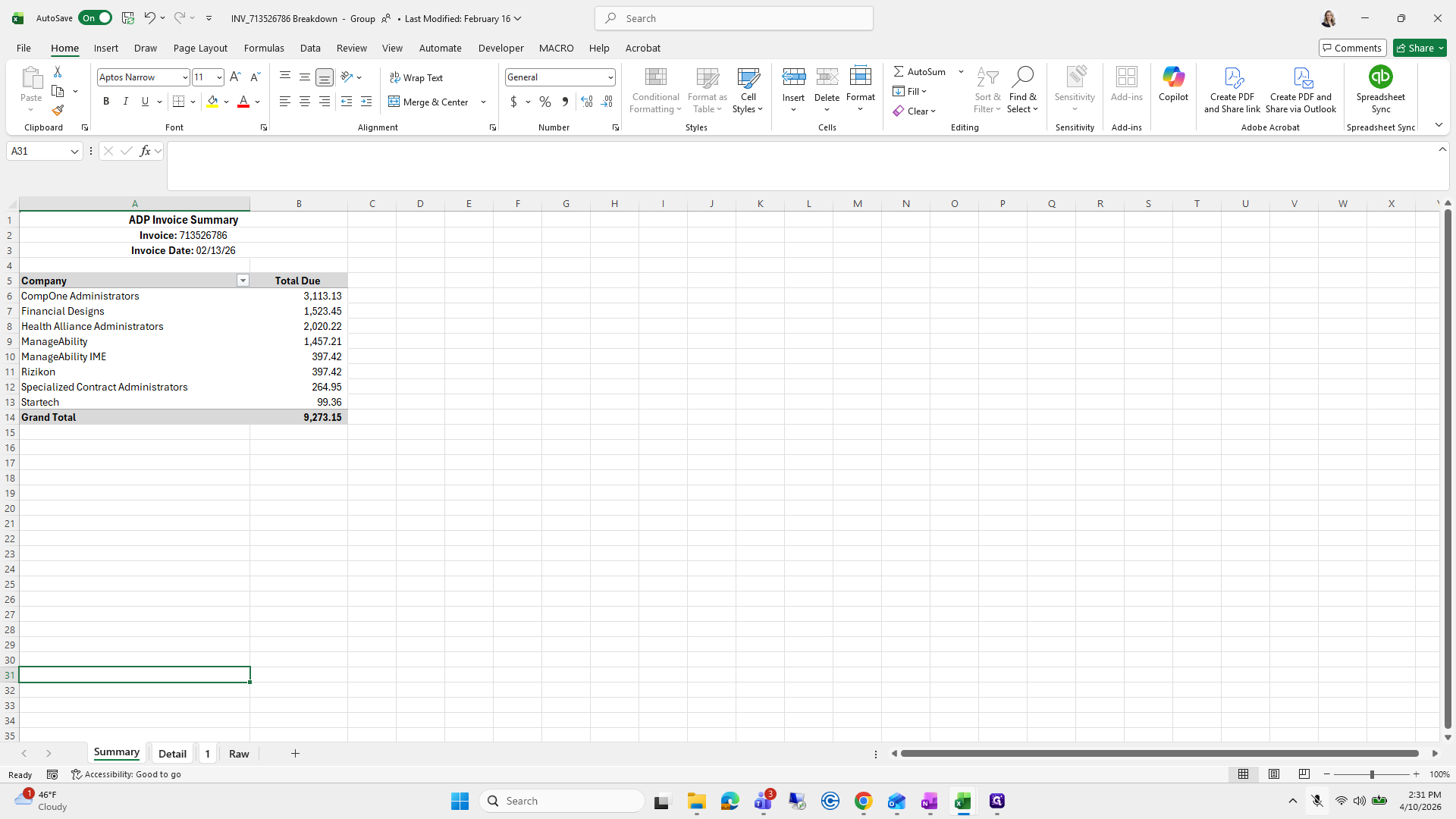
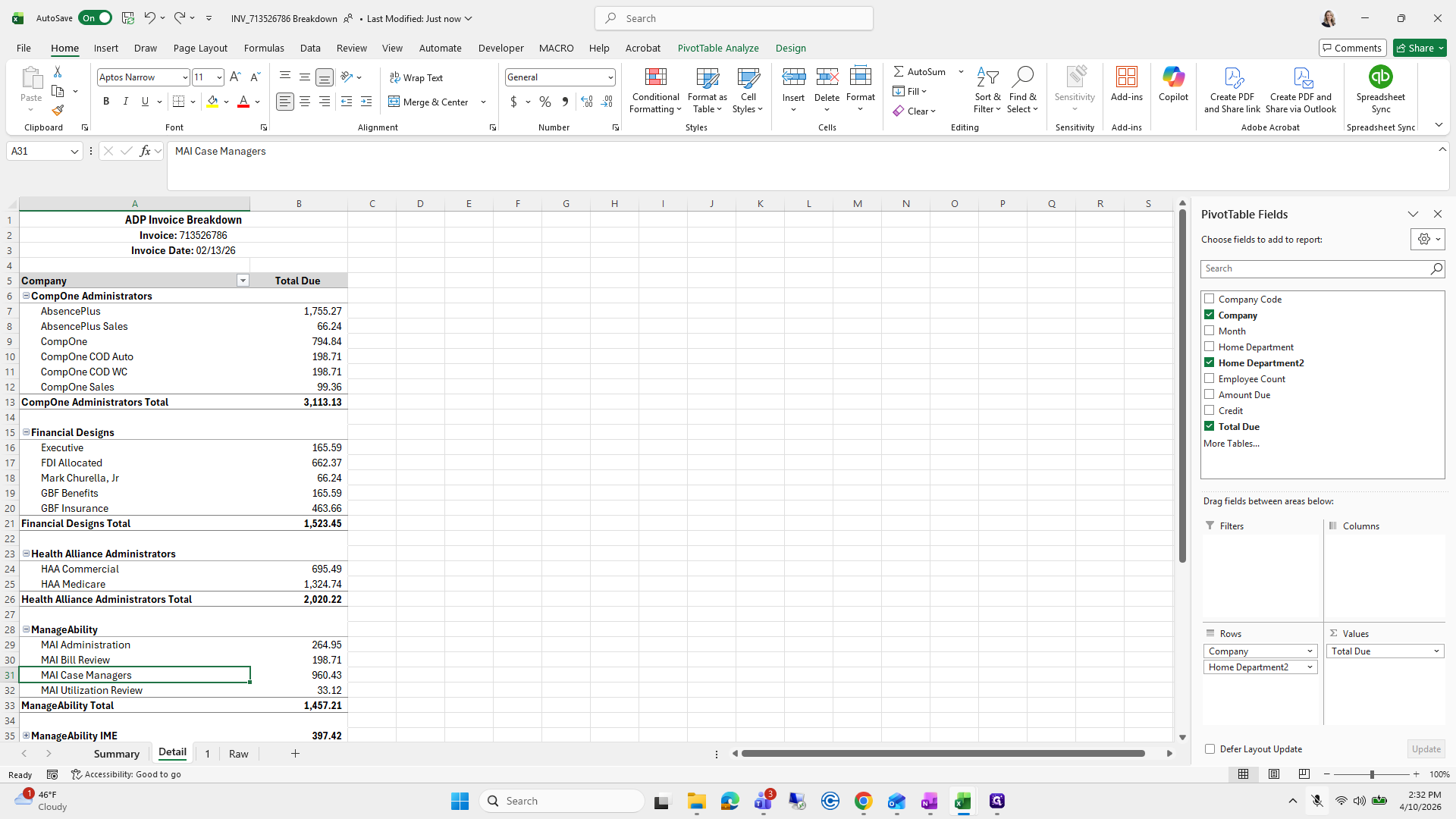
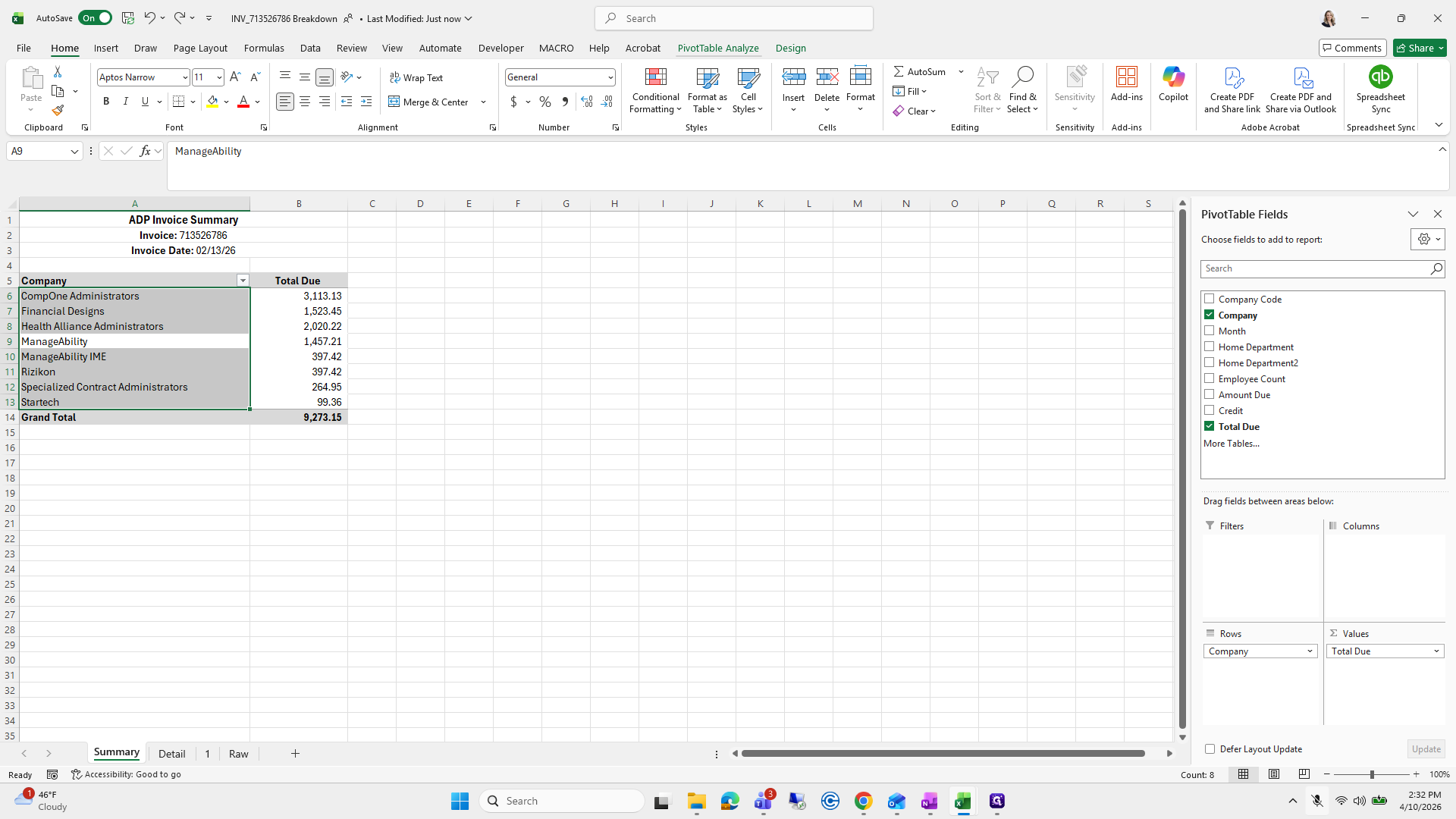
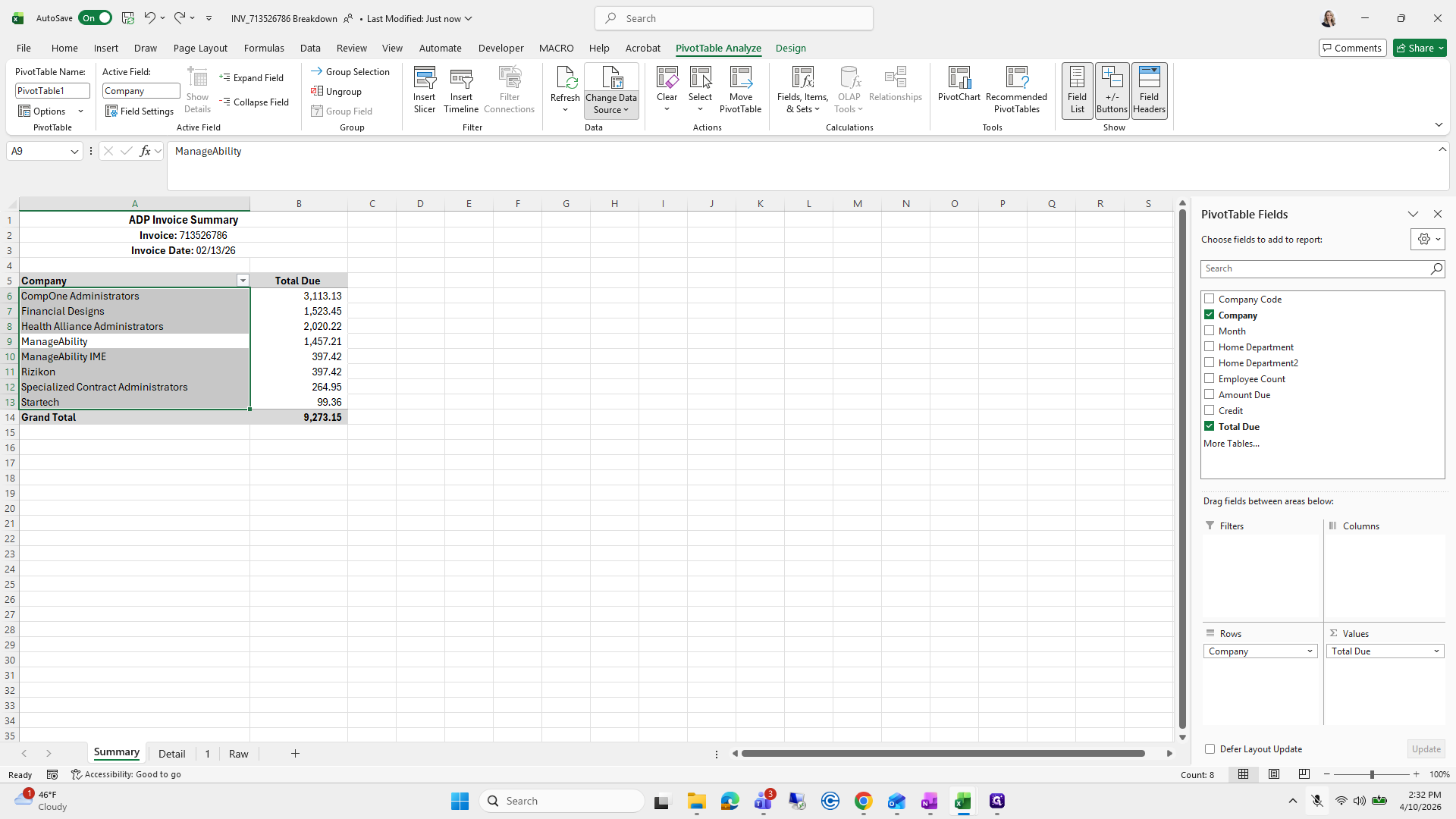
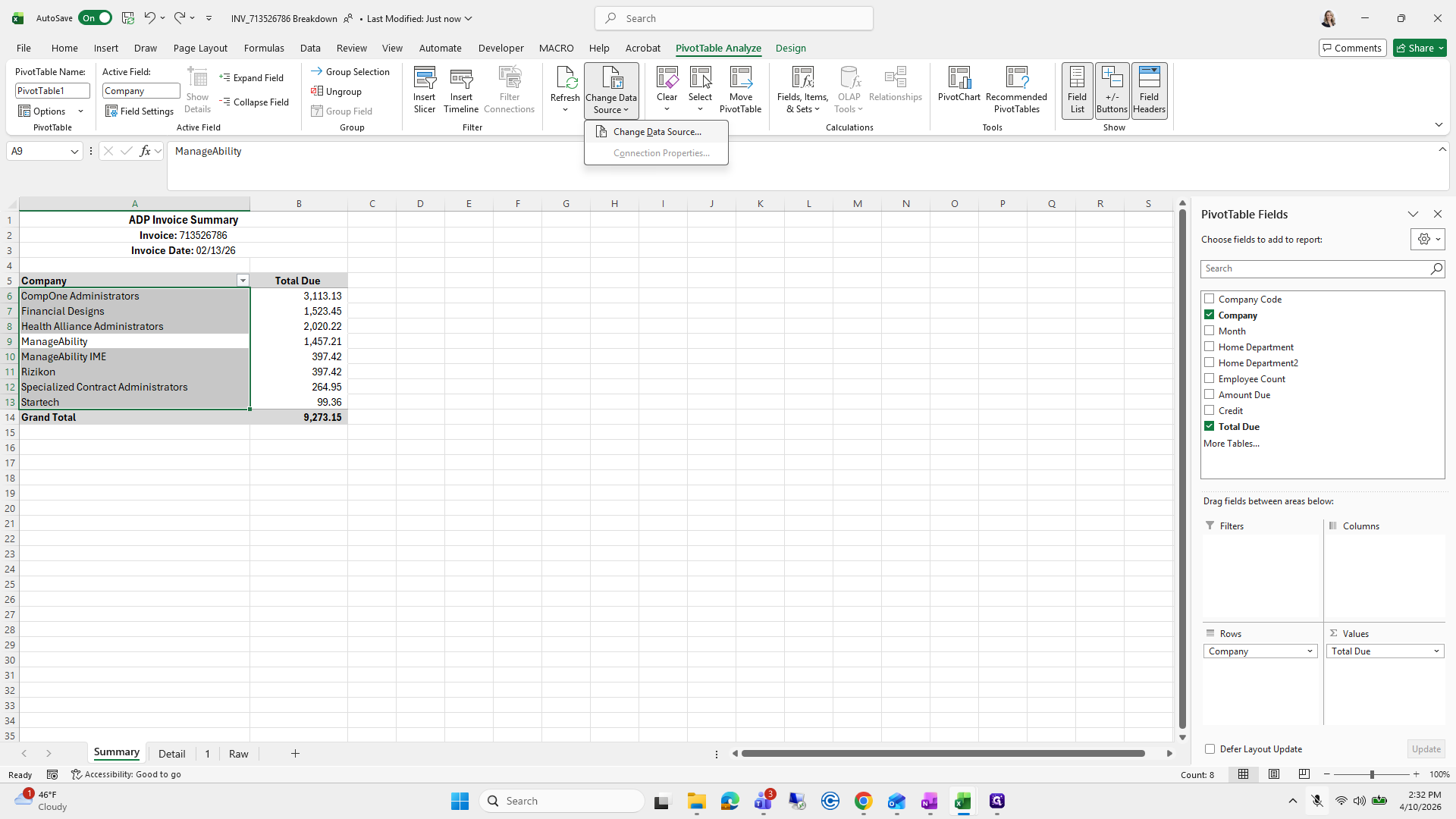
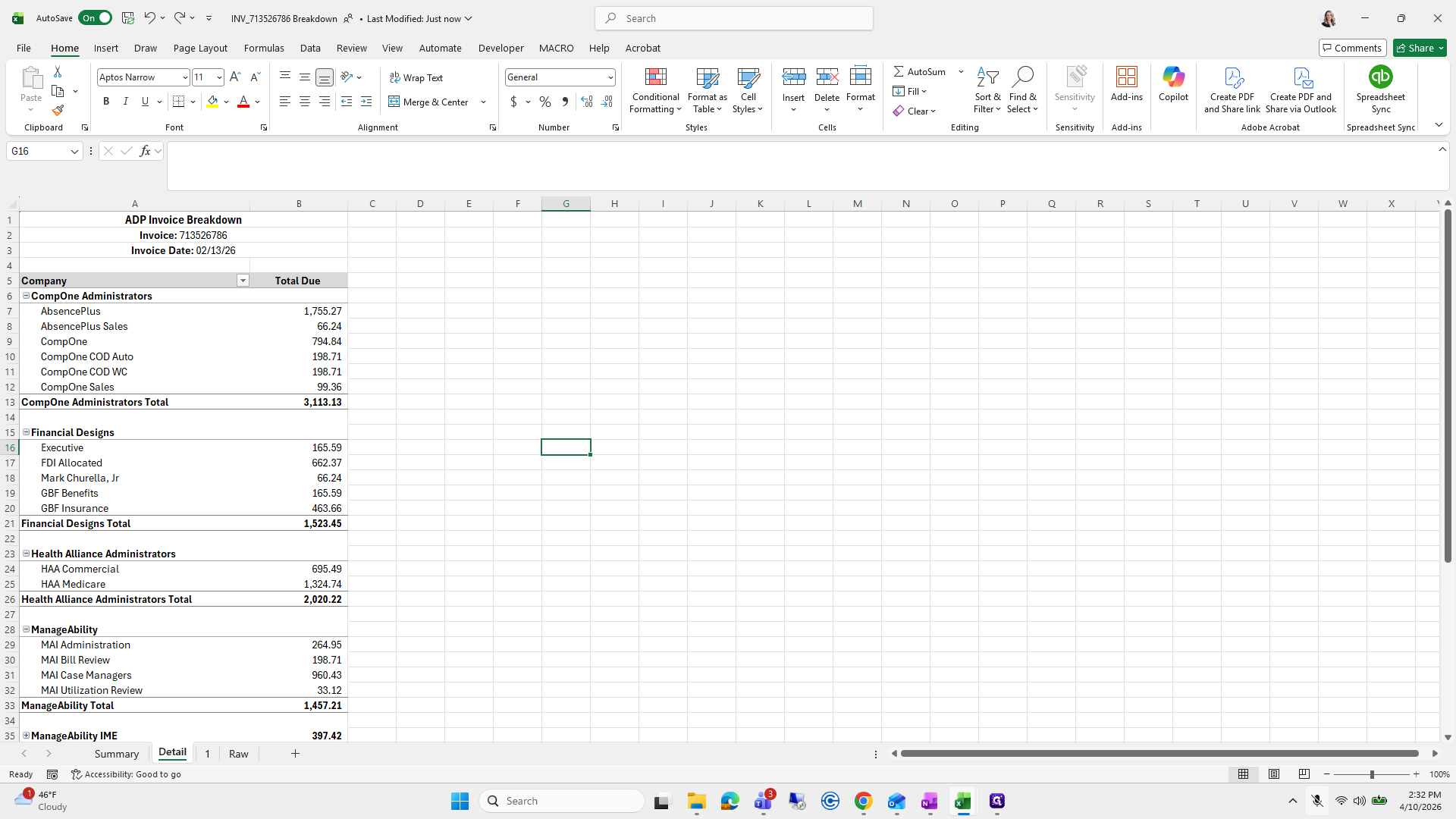
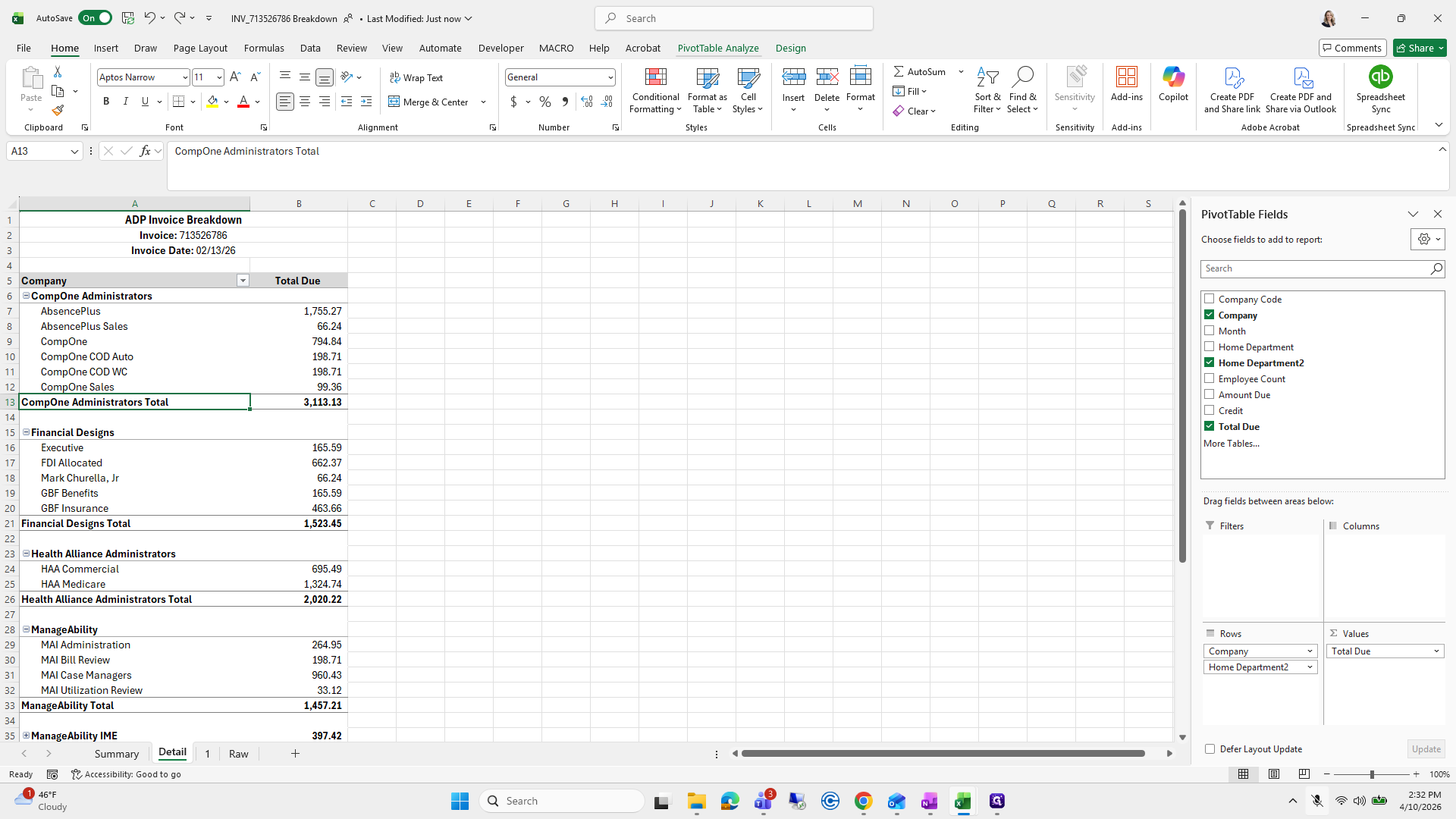
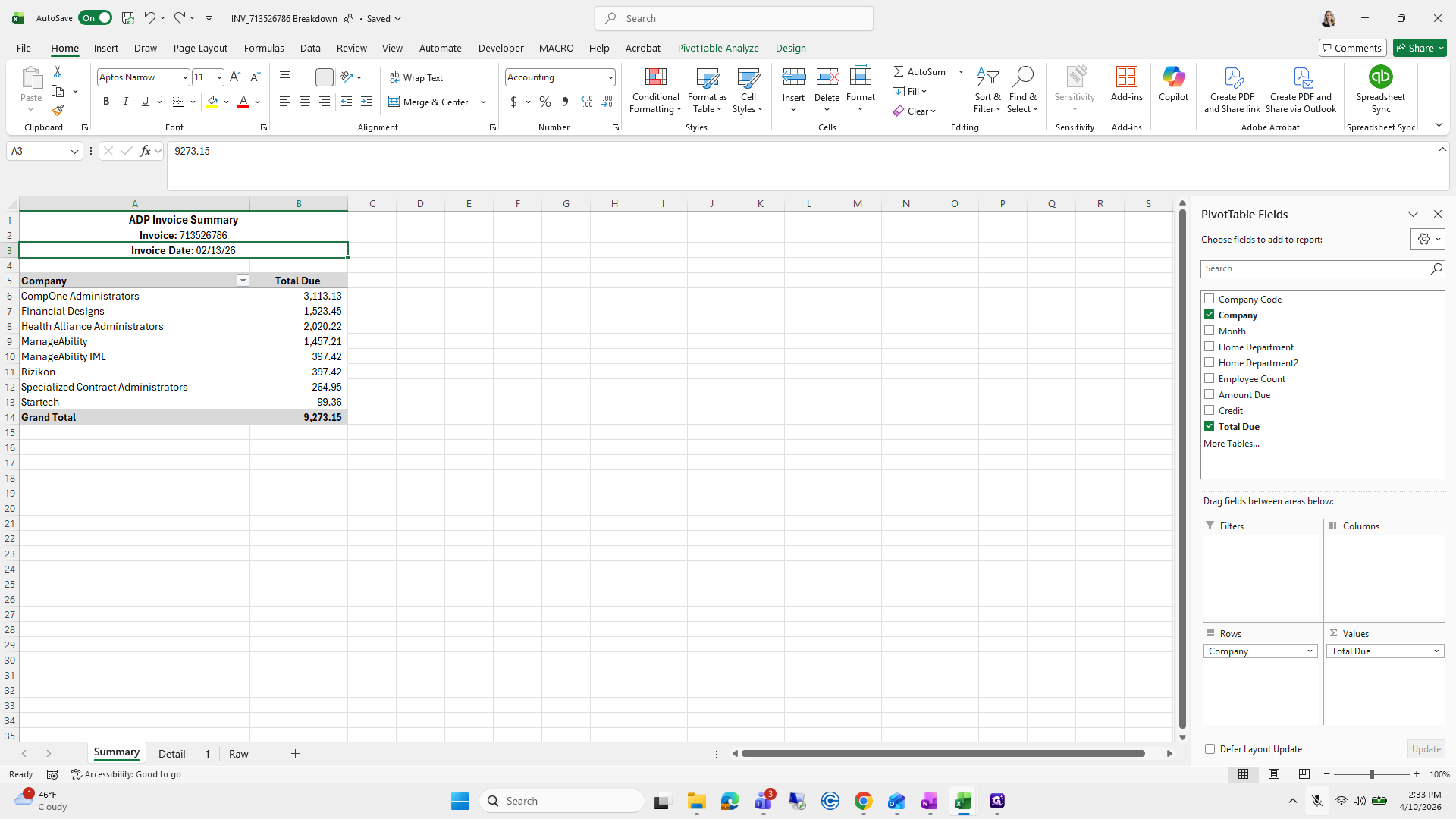
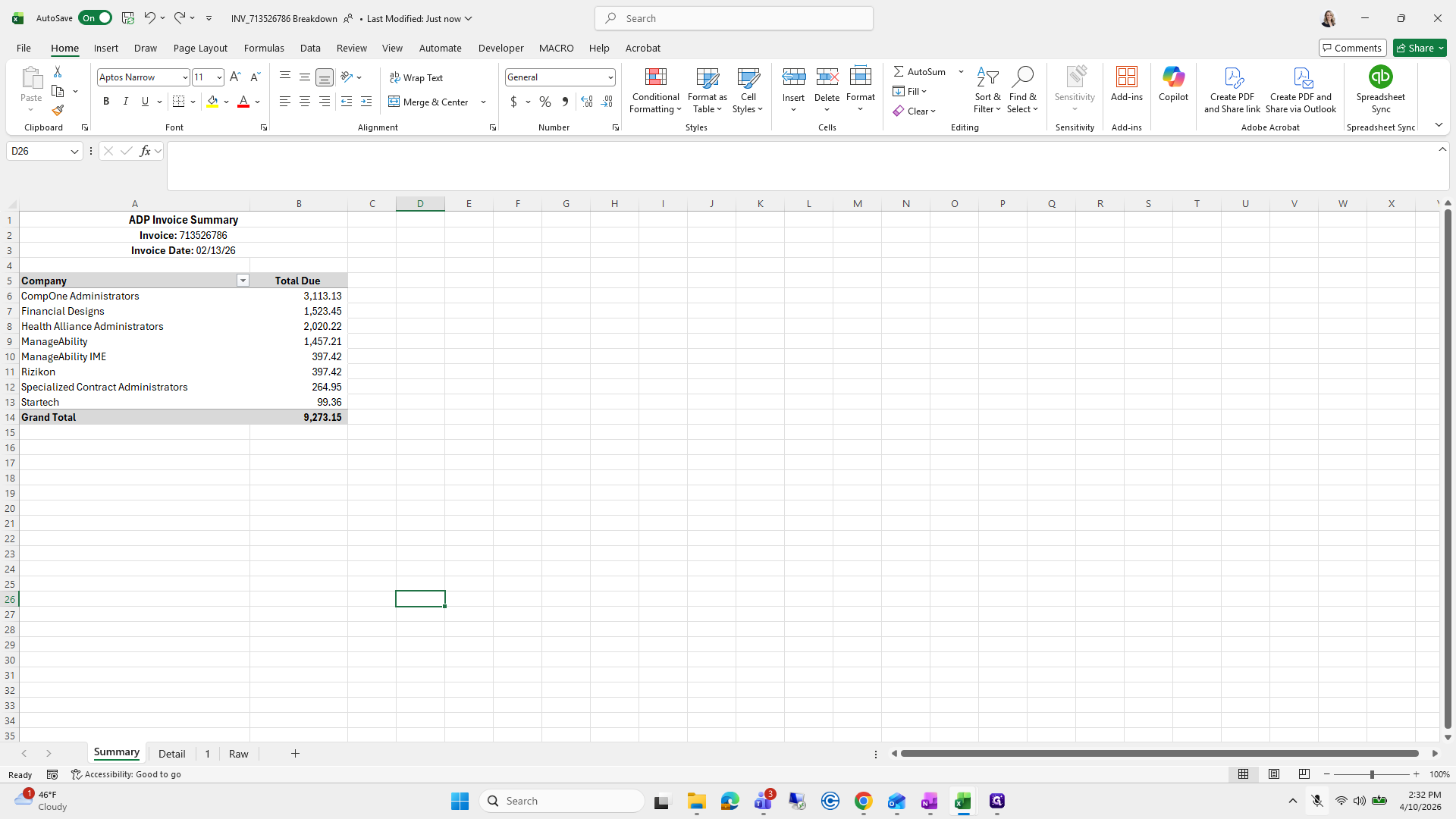
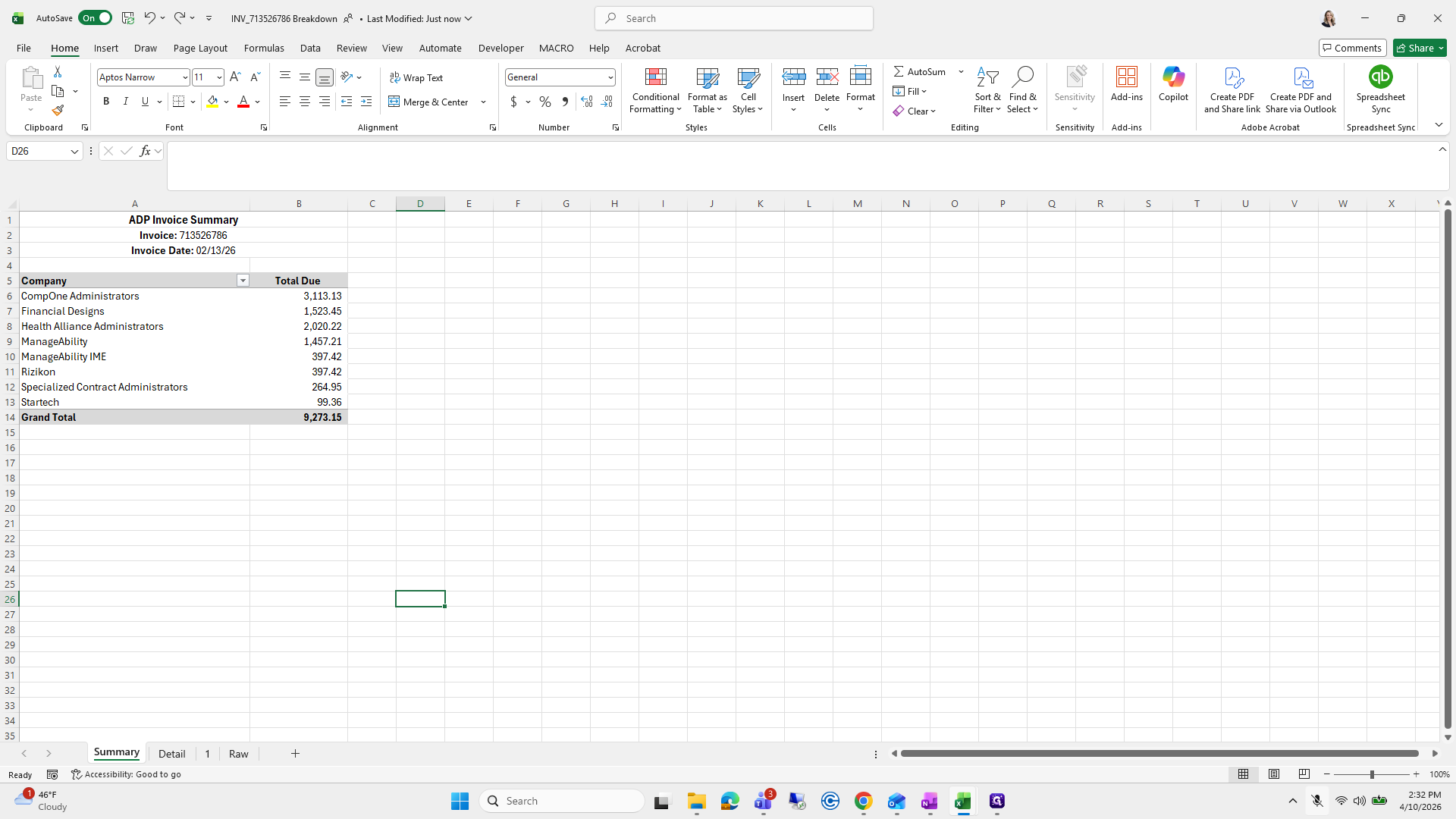
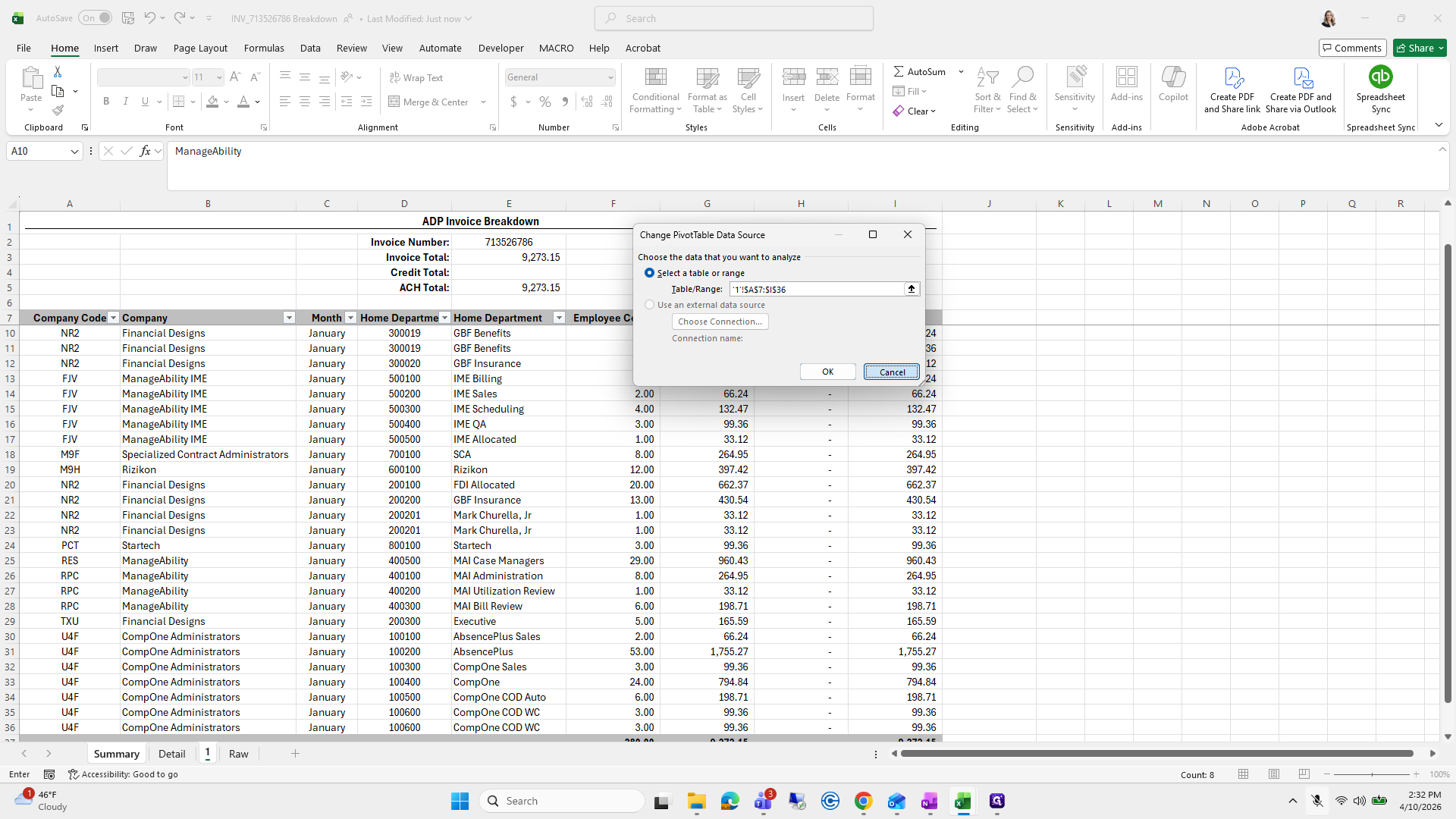
Next, click on the pivot table. Go to Pivot Table Analyze, then select Change Data Source. When prompted, choose the data source from the tab labeled "one" and select all the data there.
71
Click here
Step #71: Click here
72
Click here
Step #72: Click here
73
Click on "PivotTable Analyze"
Step #73: Click on "PivotTable Analyze"
74
Click on "Source"
Step #74: Click on "Source"
75
Click on "..."
Step #75: Click on "..."

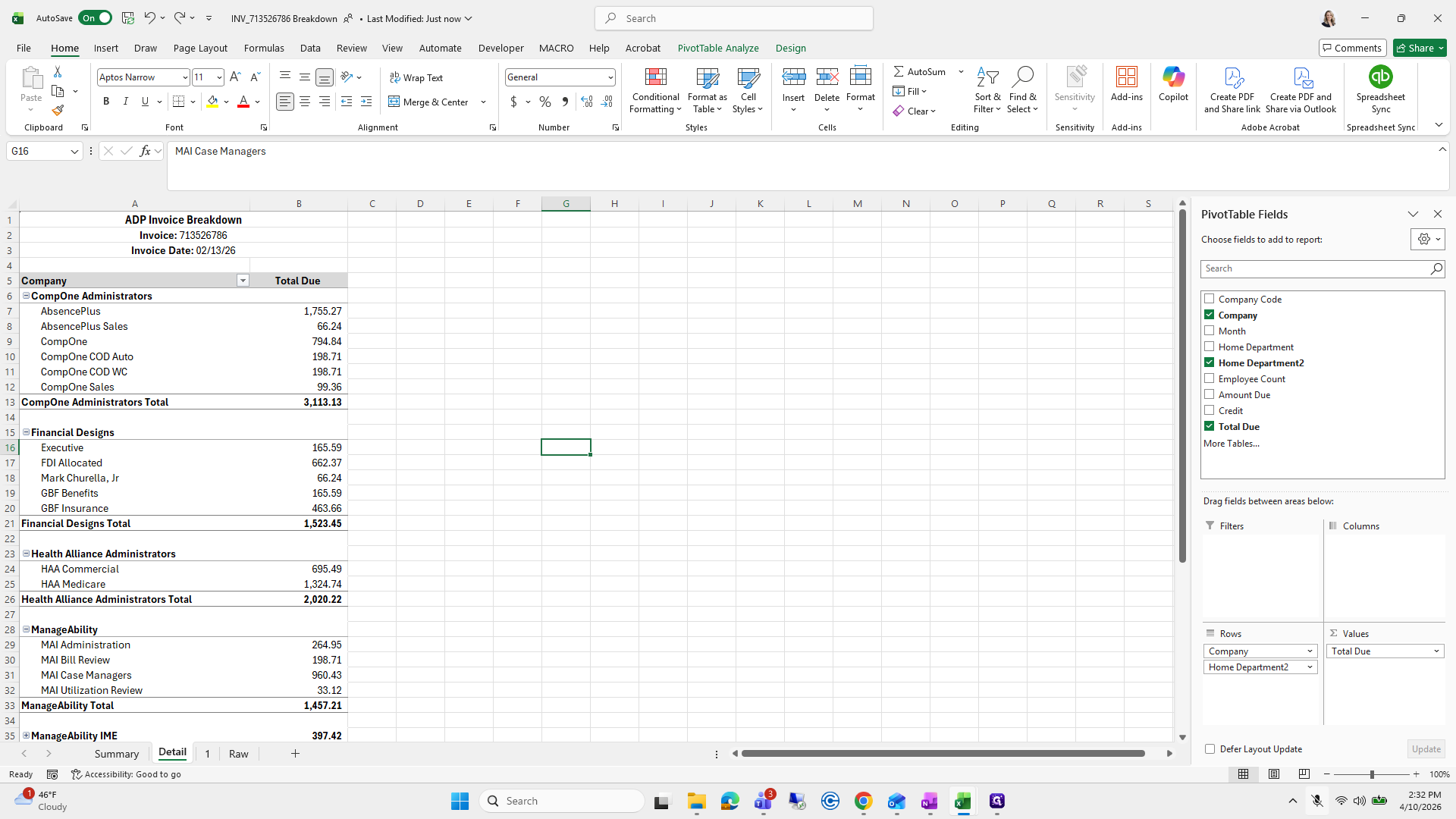
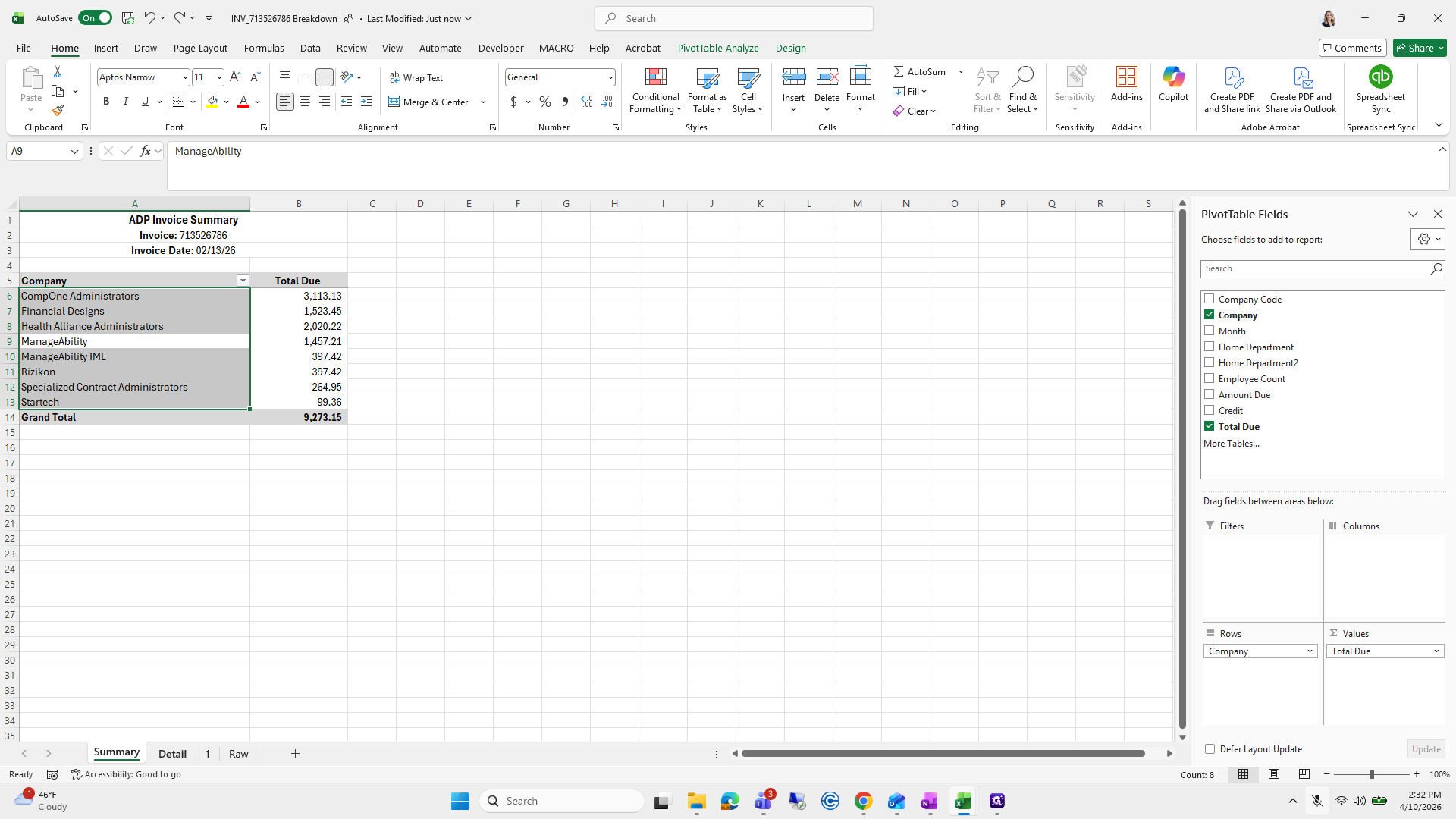
I’ll do that for both summary and detail. Then, I’ll click Pivot Table Refresh, and all my numbers will update.
76
Click on "Cancel"
Step #76: Click on "Cancel"
77
Click on "Detail"
Step #77: Click on "Detail"
78
Click here
Step #78: Click here
79
Click on "13 CompOne Administrators Total"
Step #79: Click on "13 CompOne Administrators Total"
80
Click on "PivotTable Analyze"
Step #80: Click on "PivotTable Analyze"

And then- Wait. Let me go back. Would you like me to repeat that part? No. Okay.

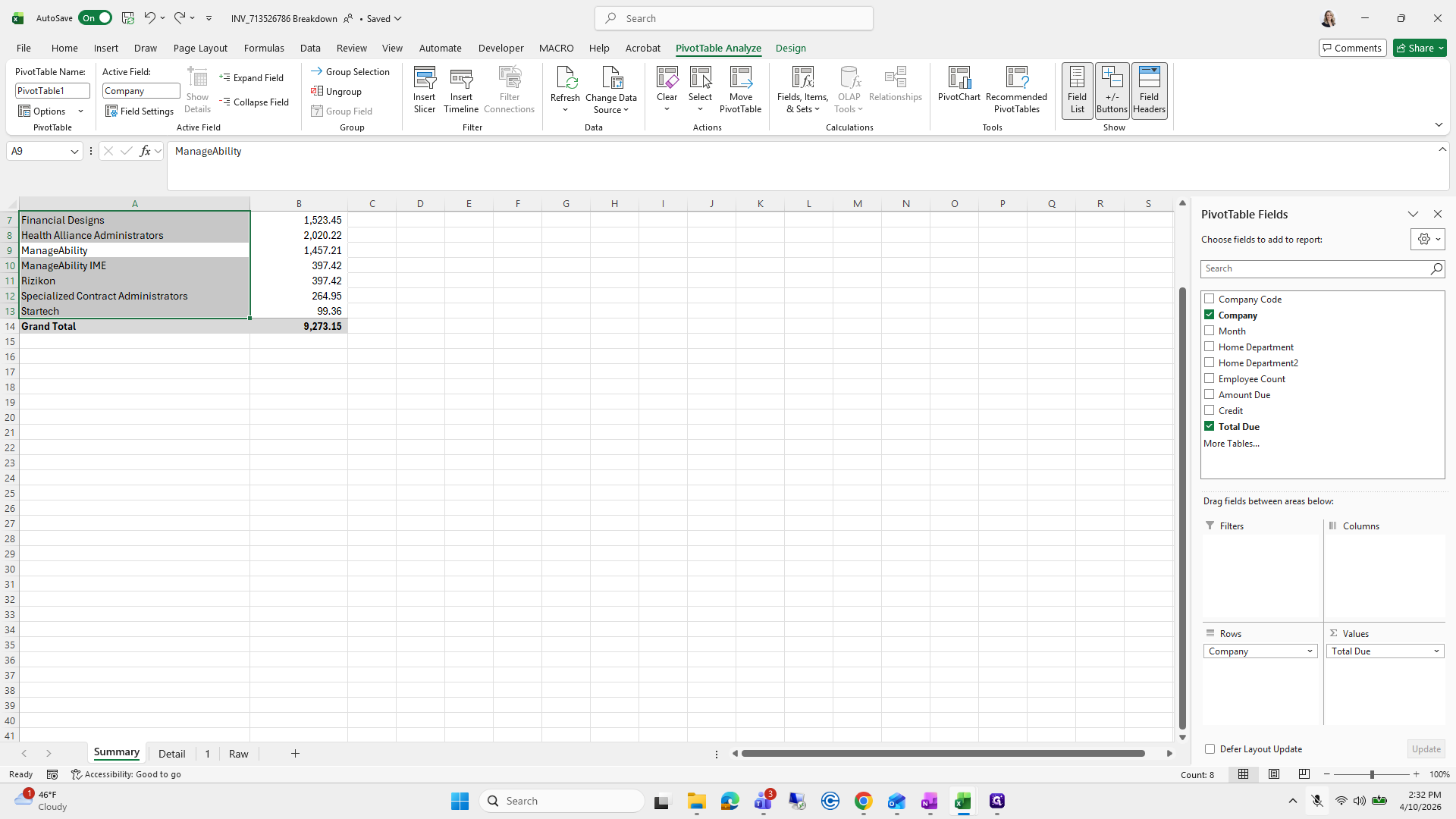
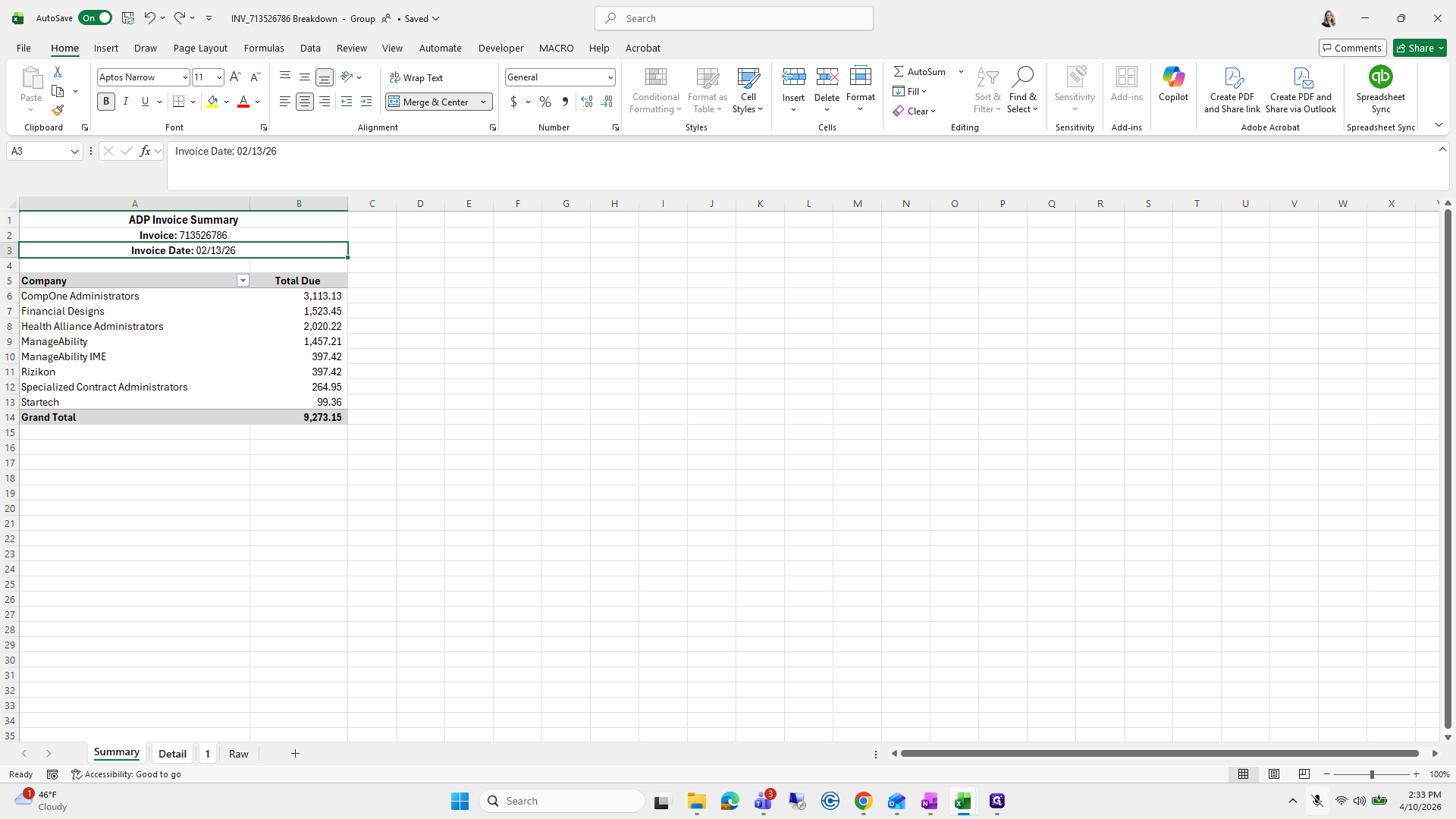
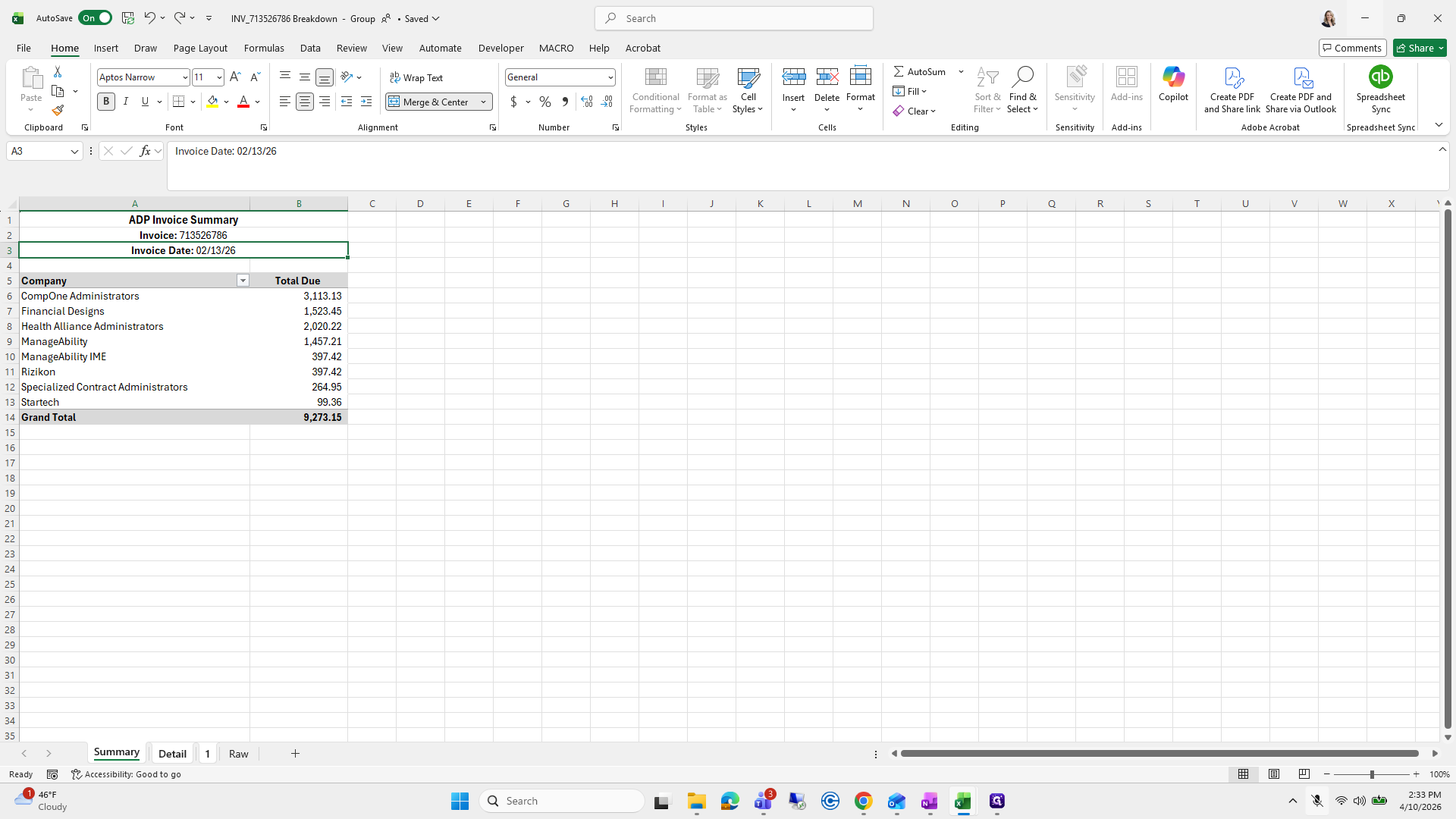
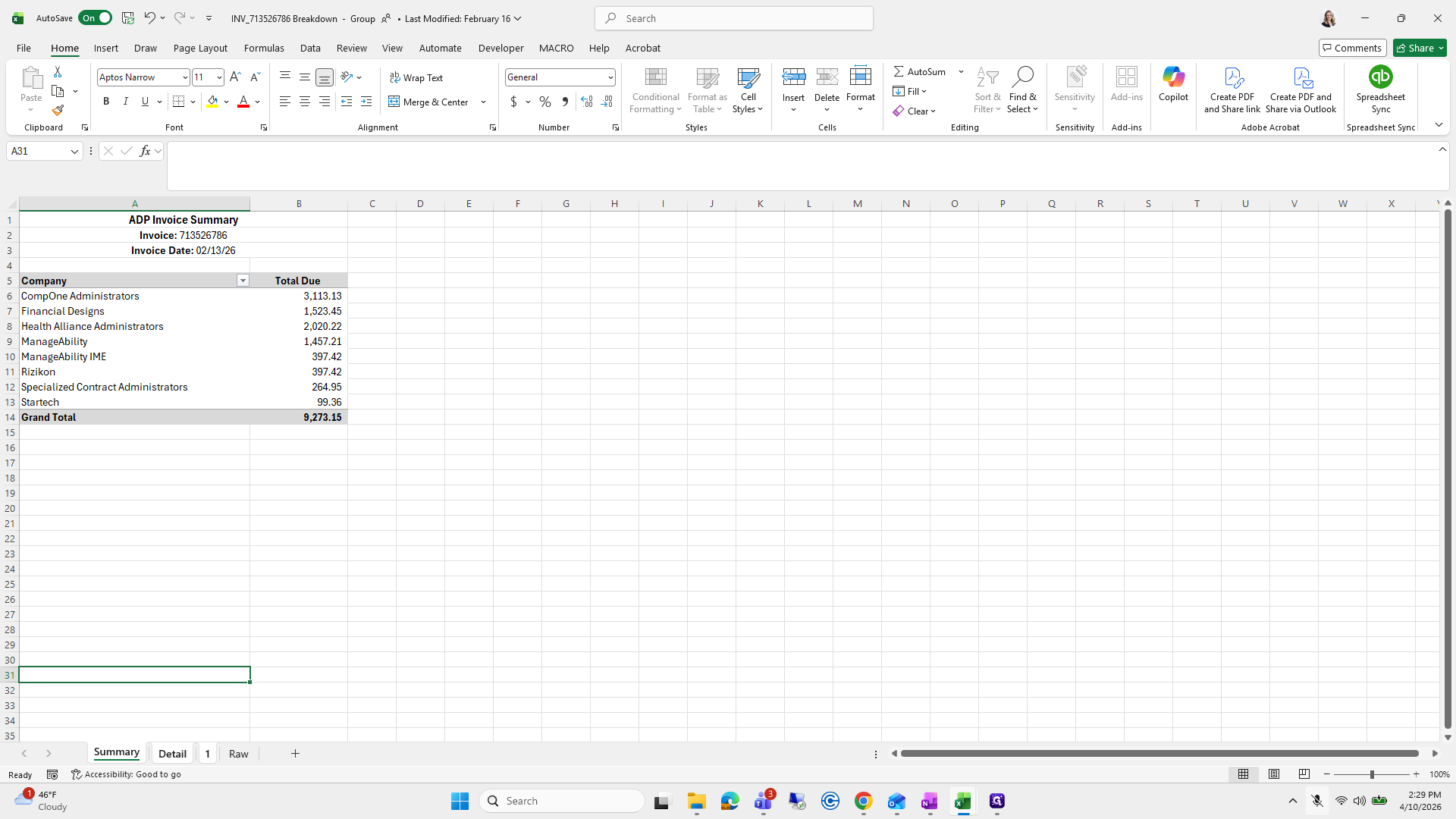
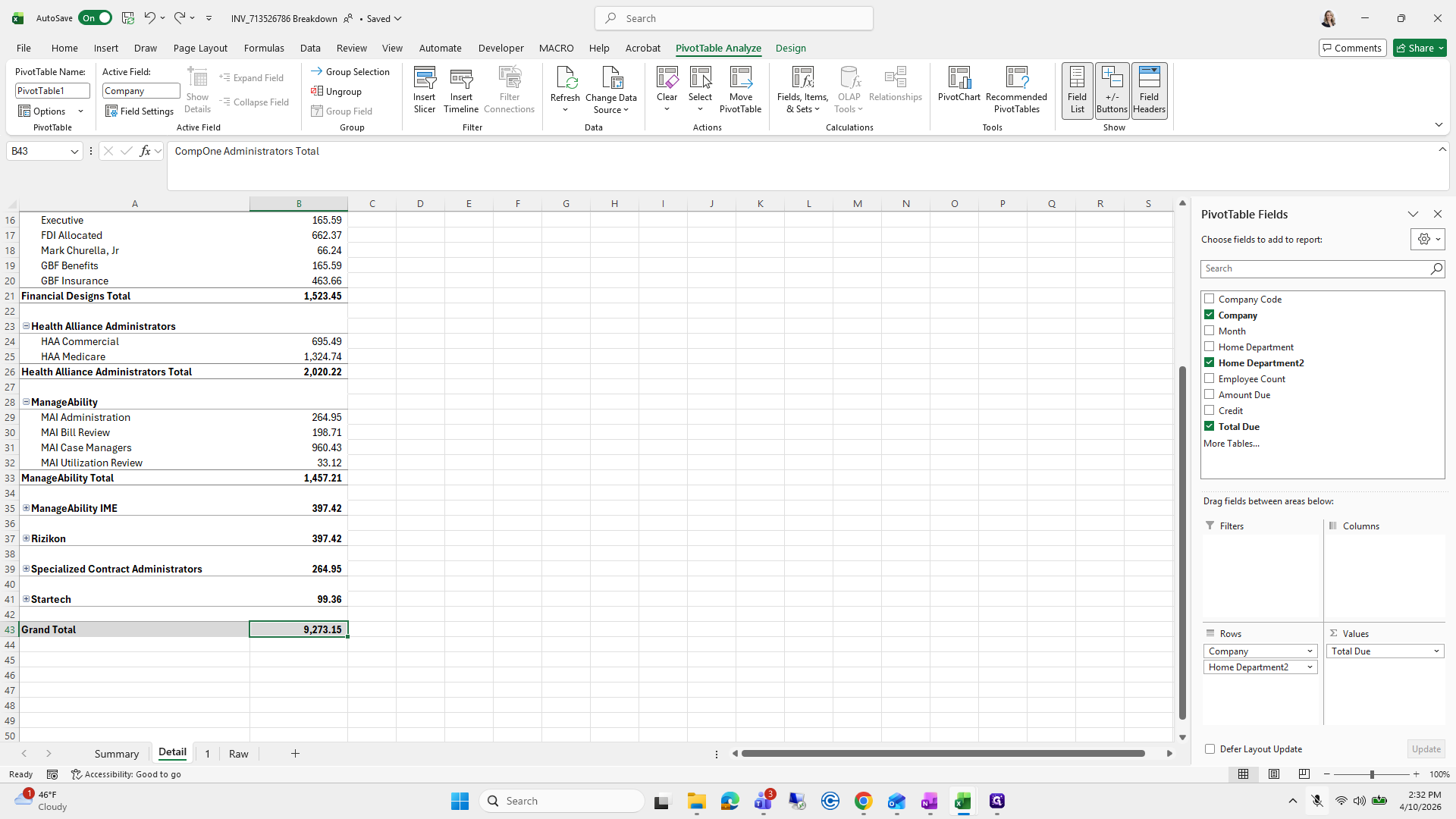
No, that's still good. The only thing I'll double-check is that the grand totals are all the same here.
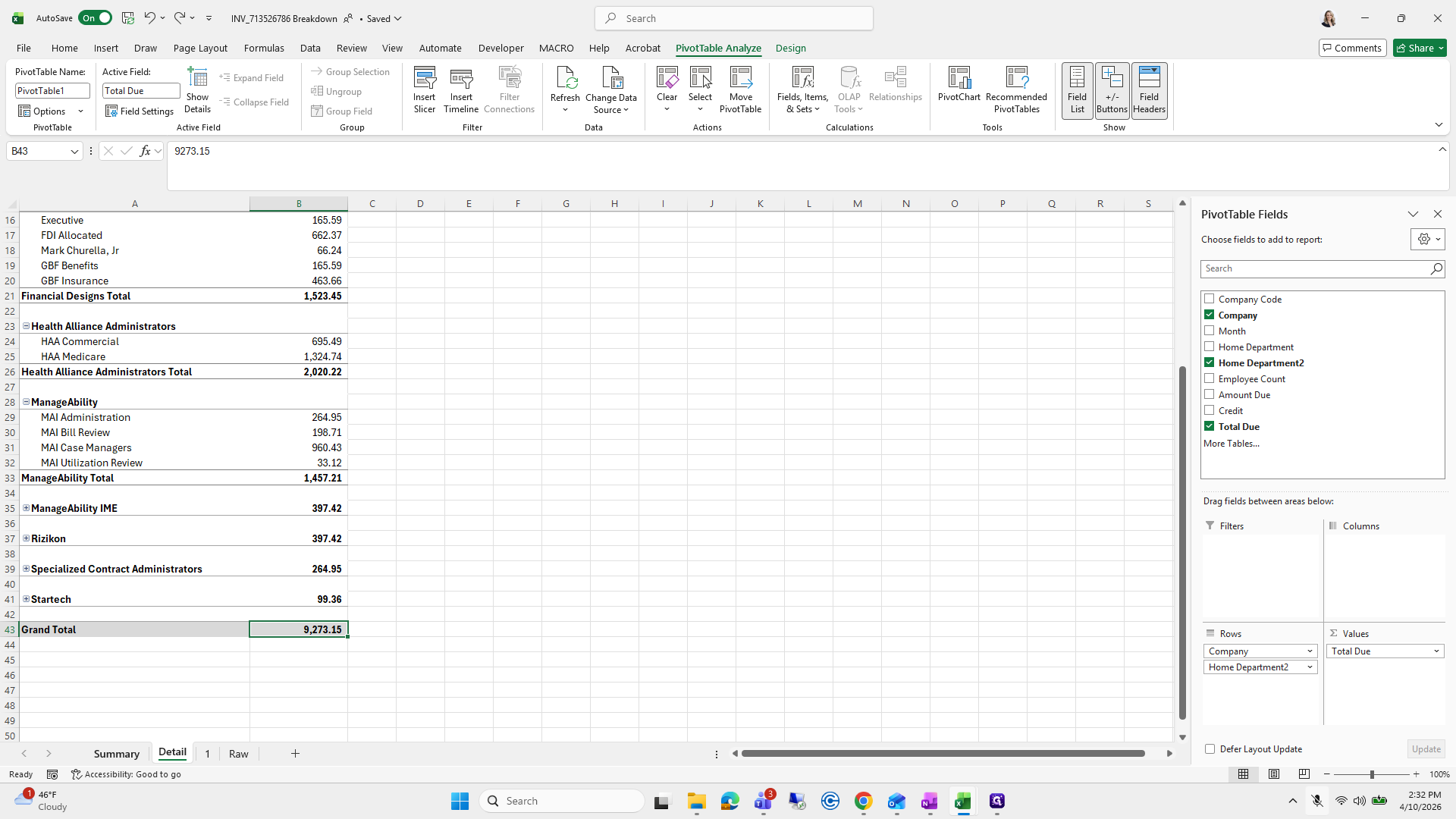
81
Click on "9,273.15"
Step #81: Click on "9,273.15"
82
Click on "Summary"
Step #82: Click on "Summary"
83
Click on "9,273.15"
Step #83: Click on "9,273.15"
84
Double-click on "1"
Step #84: Double-click on "1"

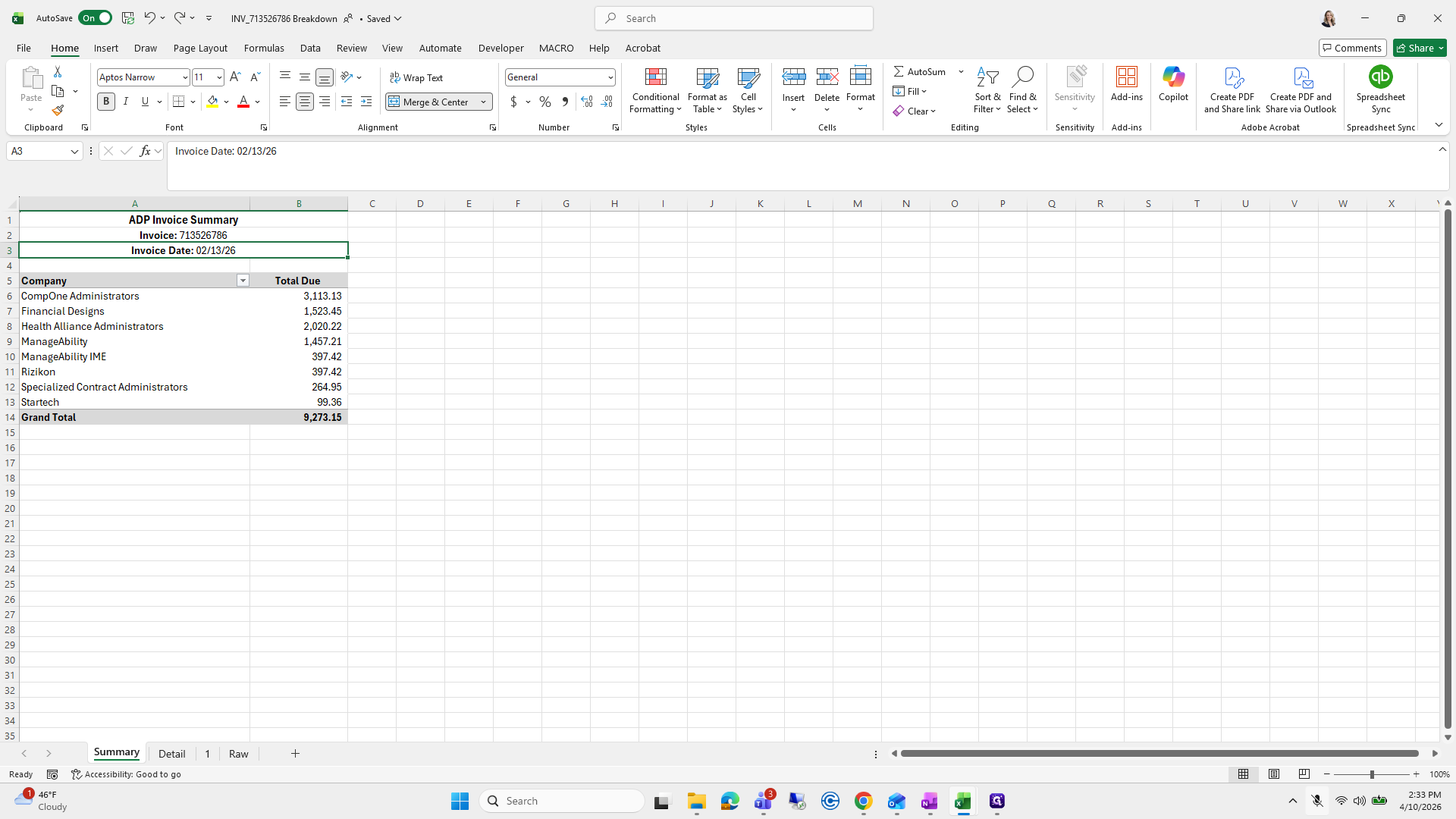
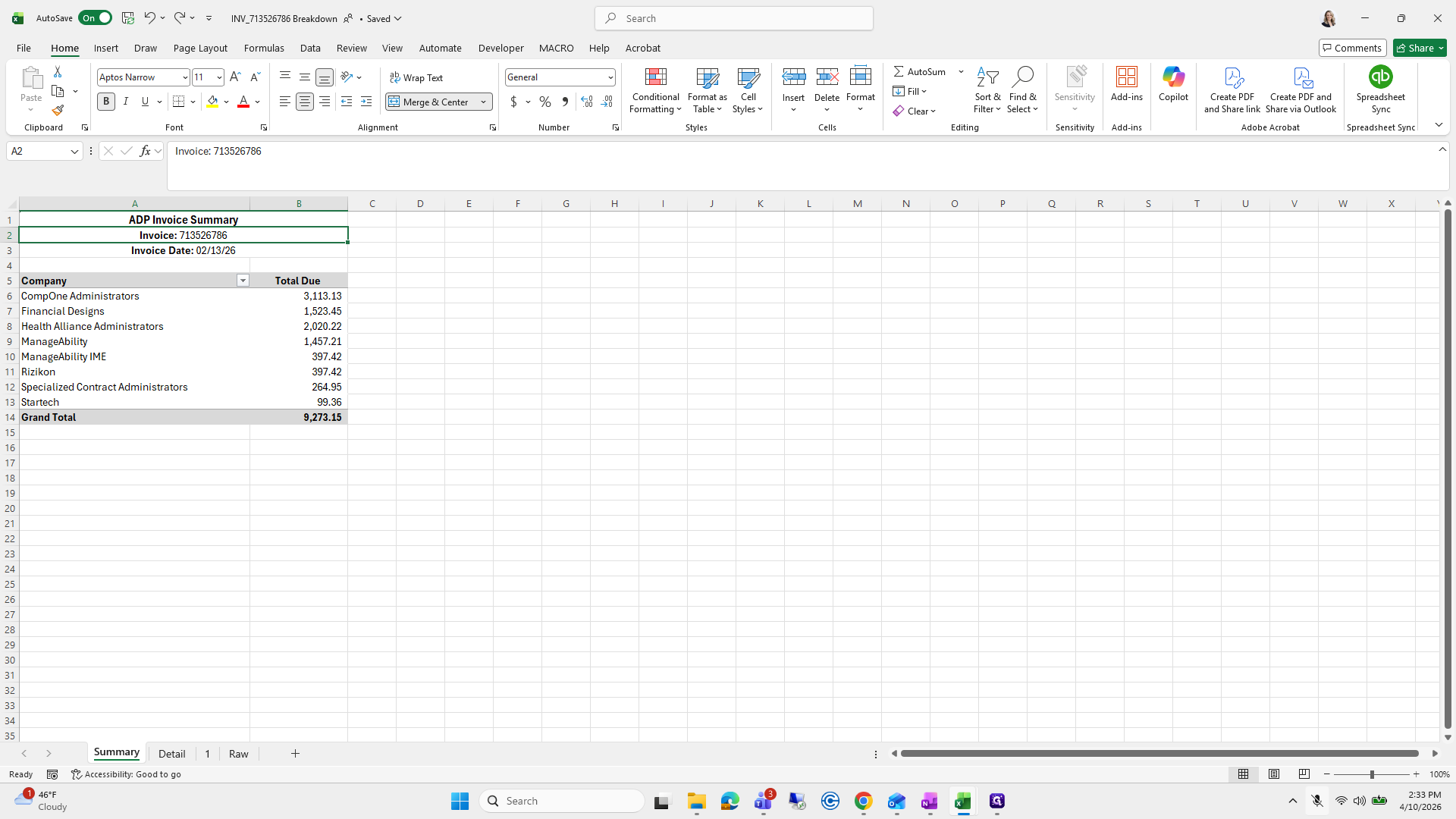
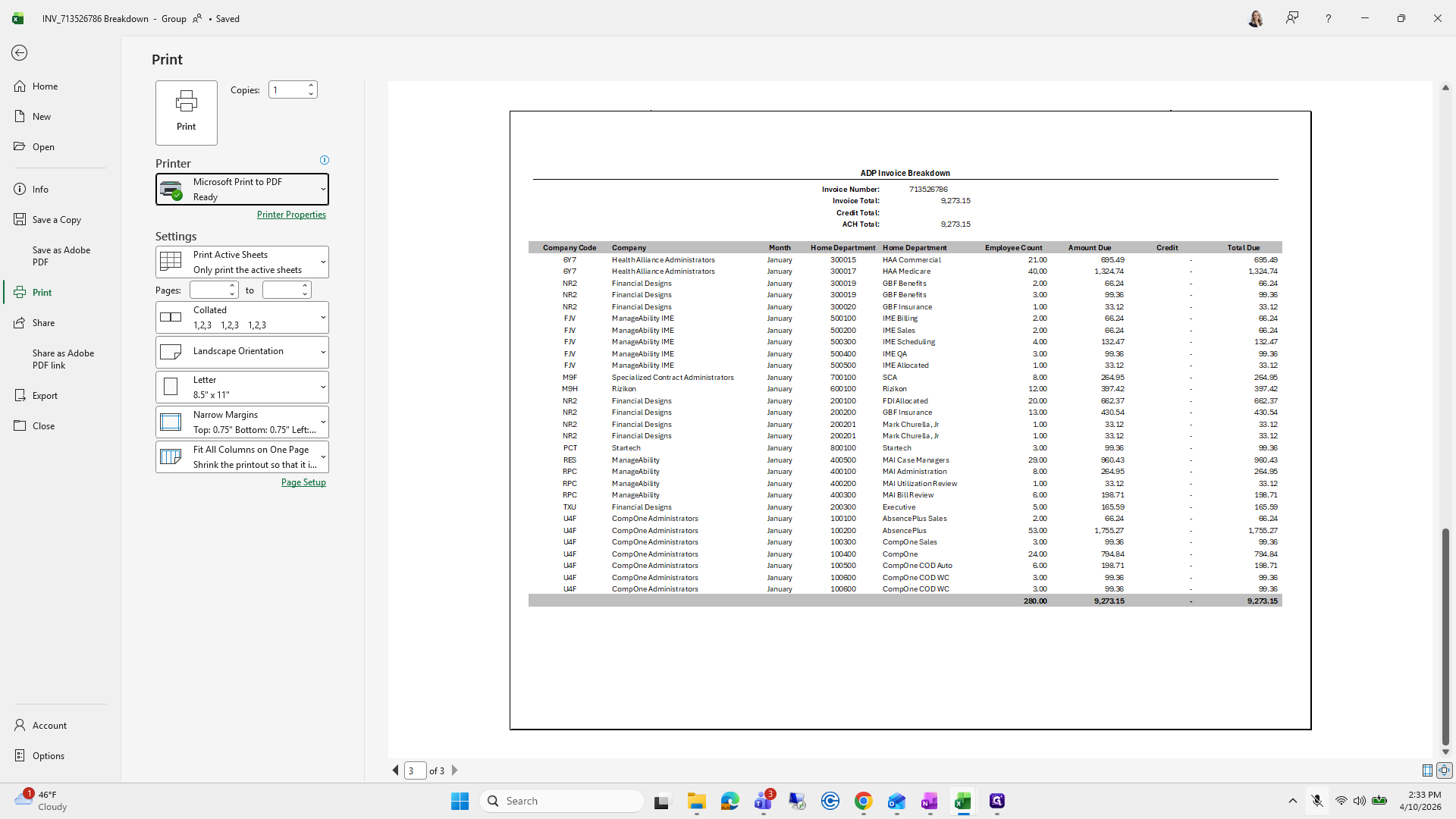
Sometimes I forget to update the invoice date and invoice number here. Just update those, then I'll select these three tabs and save them as one PDF.
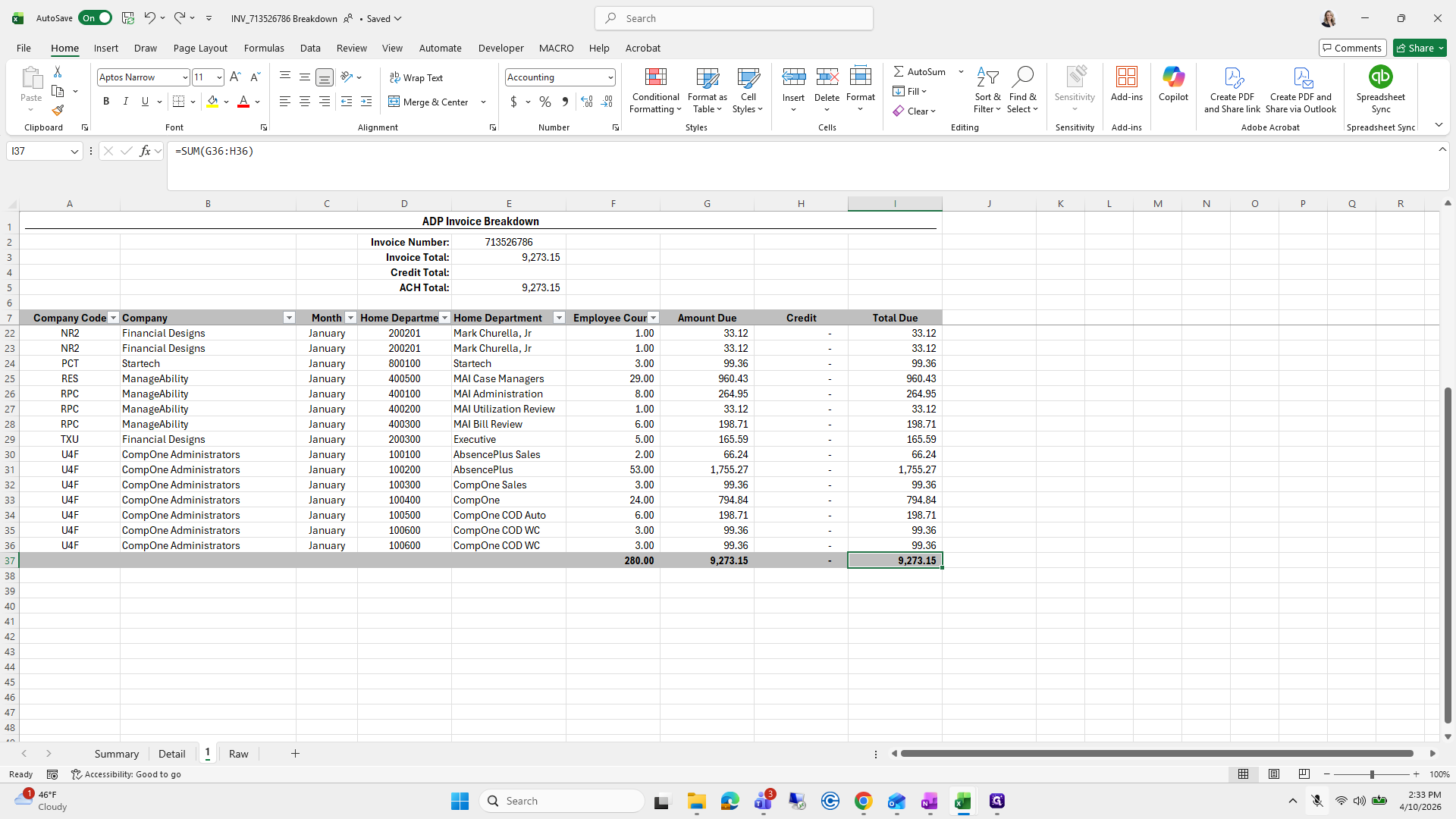
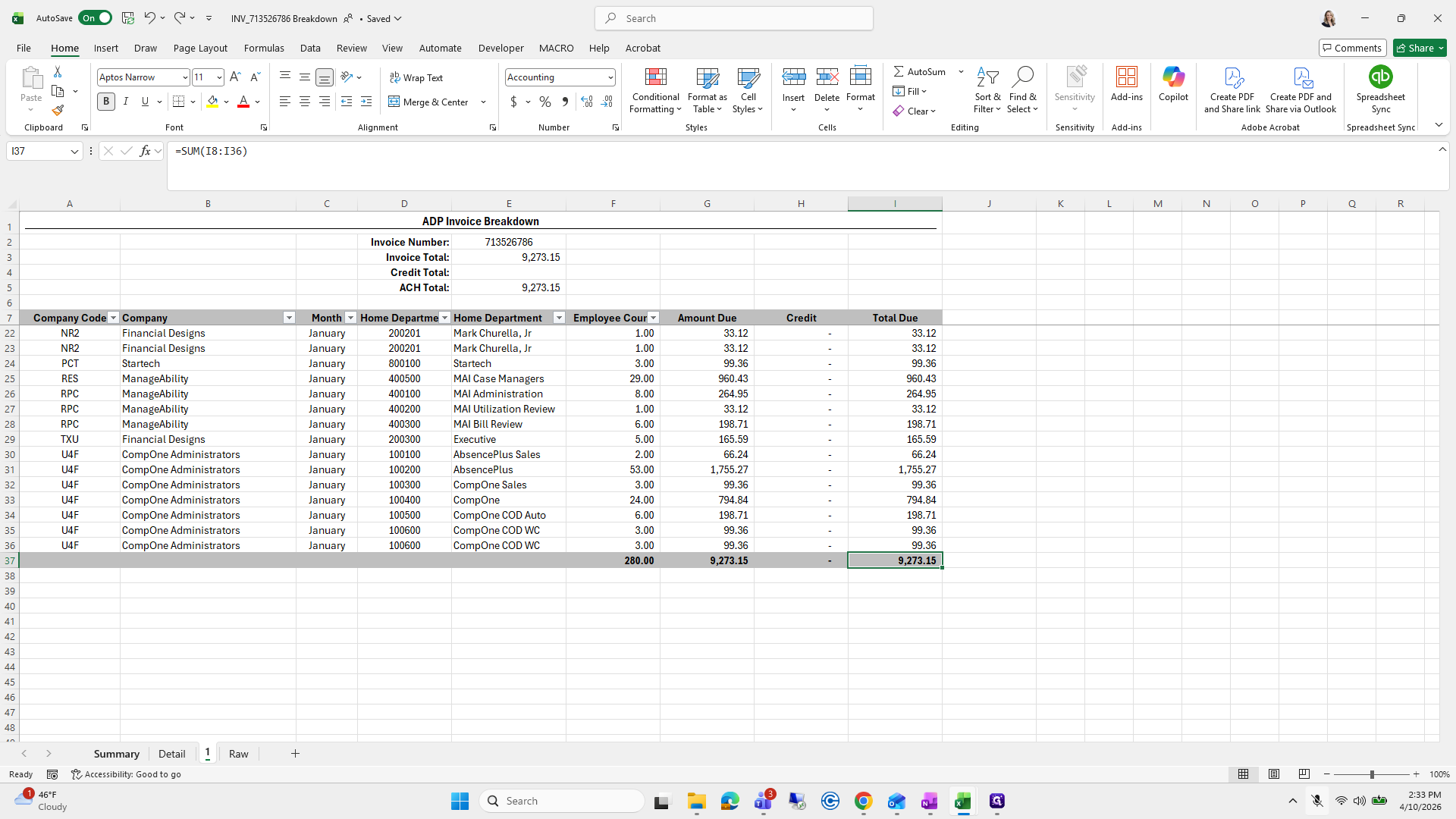
85
Double-click on "9,273.15"
Step #85: Double-click on "9,273.15"
86
Click on "Summary"
Step #86: Click on "Summary"
87
Click on ":"
Step #87: Click on ":"
88
Click on "713526786"
Step #88: Click on "713526786"
89
Click on "02/13/26"
Step #89: Click on "02/13/26"
90
Click on "Summary Accessibility : Good to go"
Step #90: Click on "Summary Accessibility : Good to go"
91
Click on "1"
Step #91: Click on "1"
92
Type "Ctrl + P"

I'll send that out with the PDF I just saved.
93
Click on "D"
Step #93: Click on "D"
94
Click here
Step #94: Click here

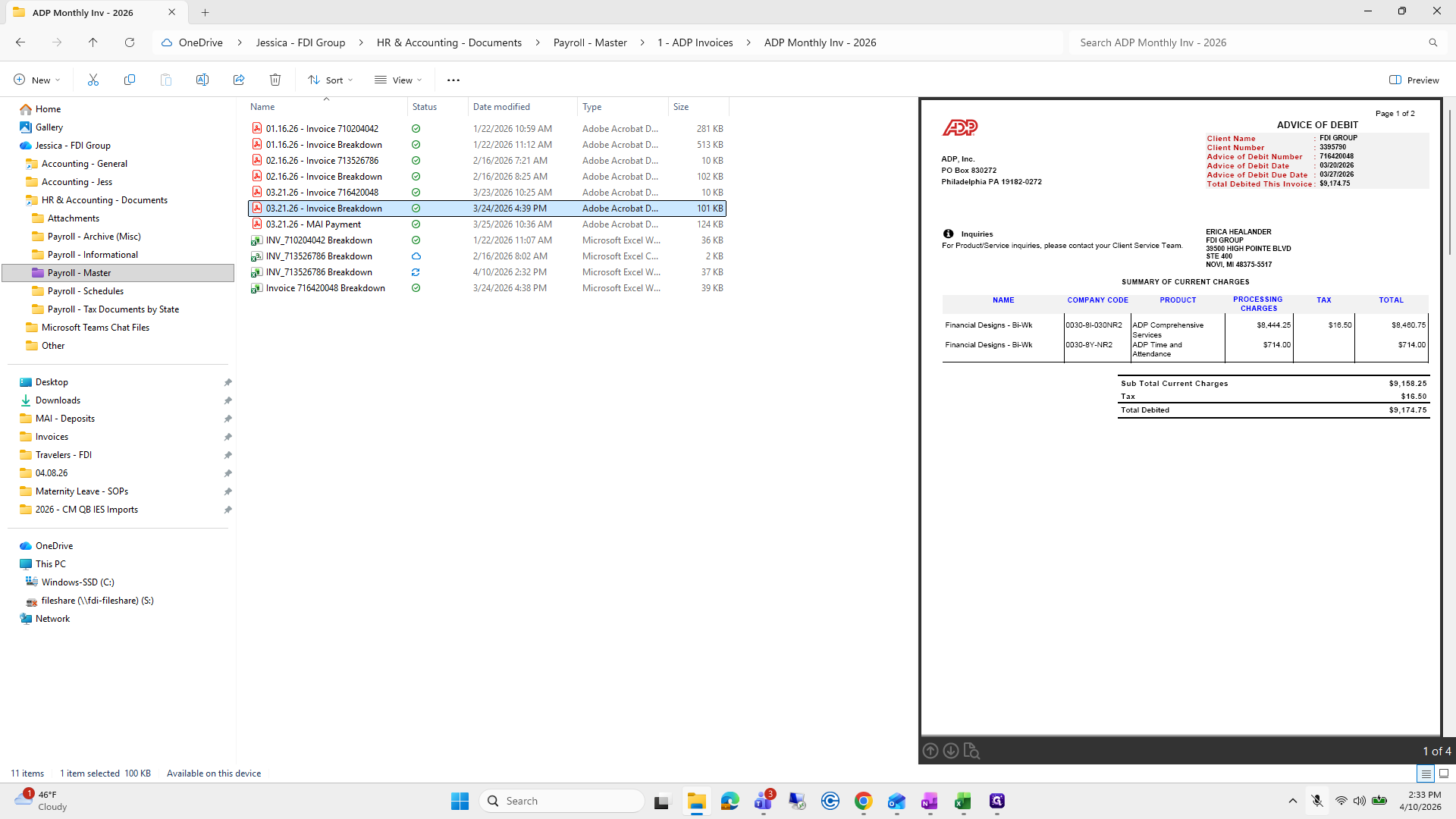
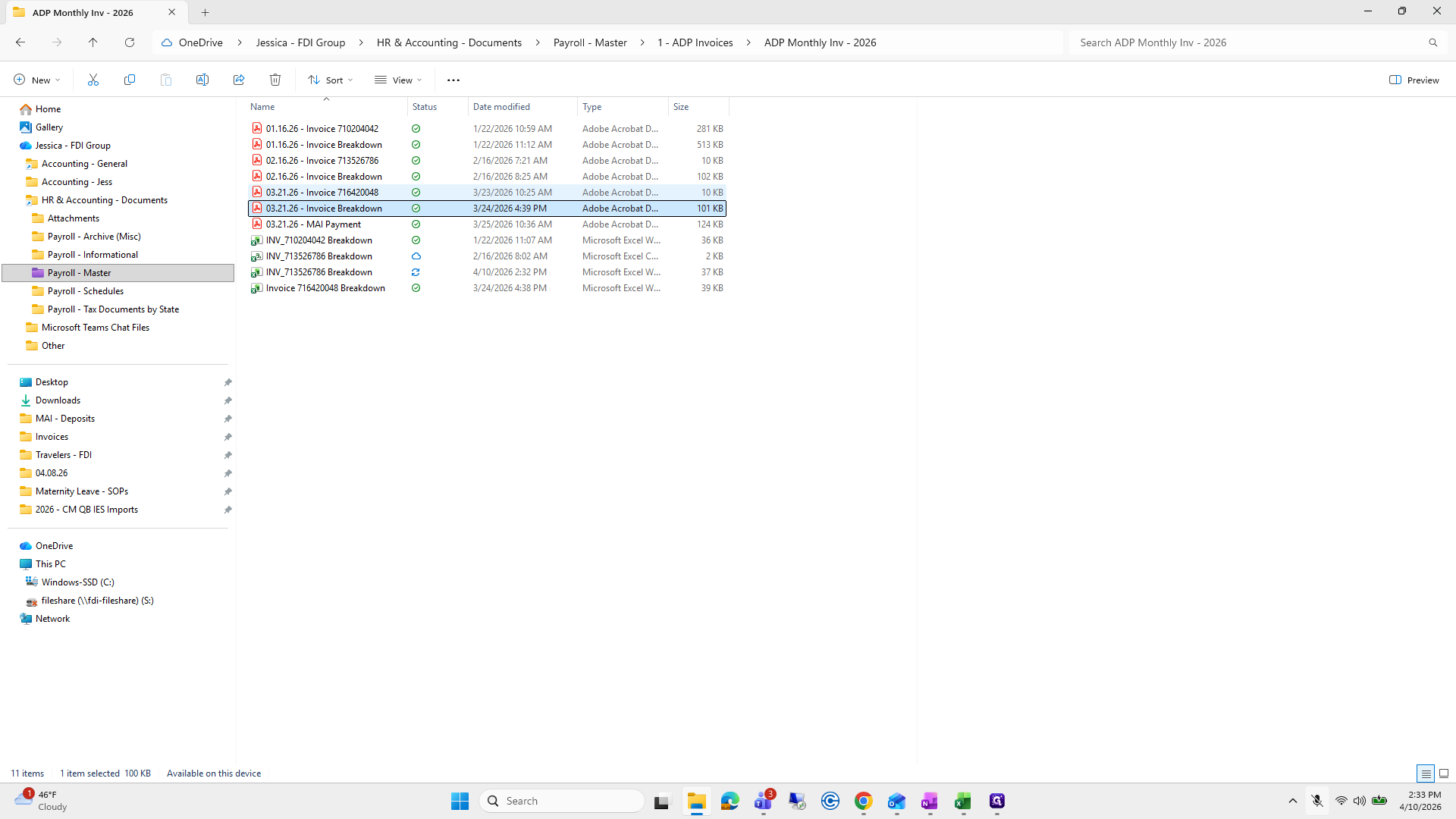
Here is the invoice breakdown from ADP and the invoice I just created.
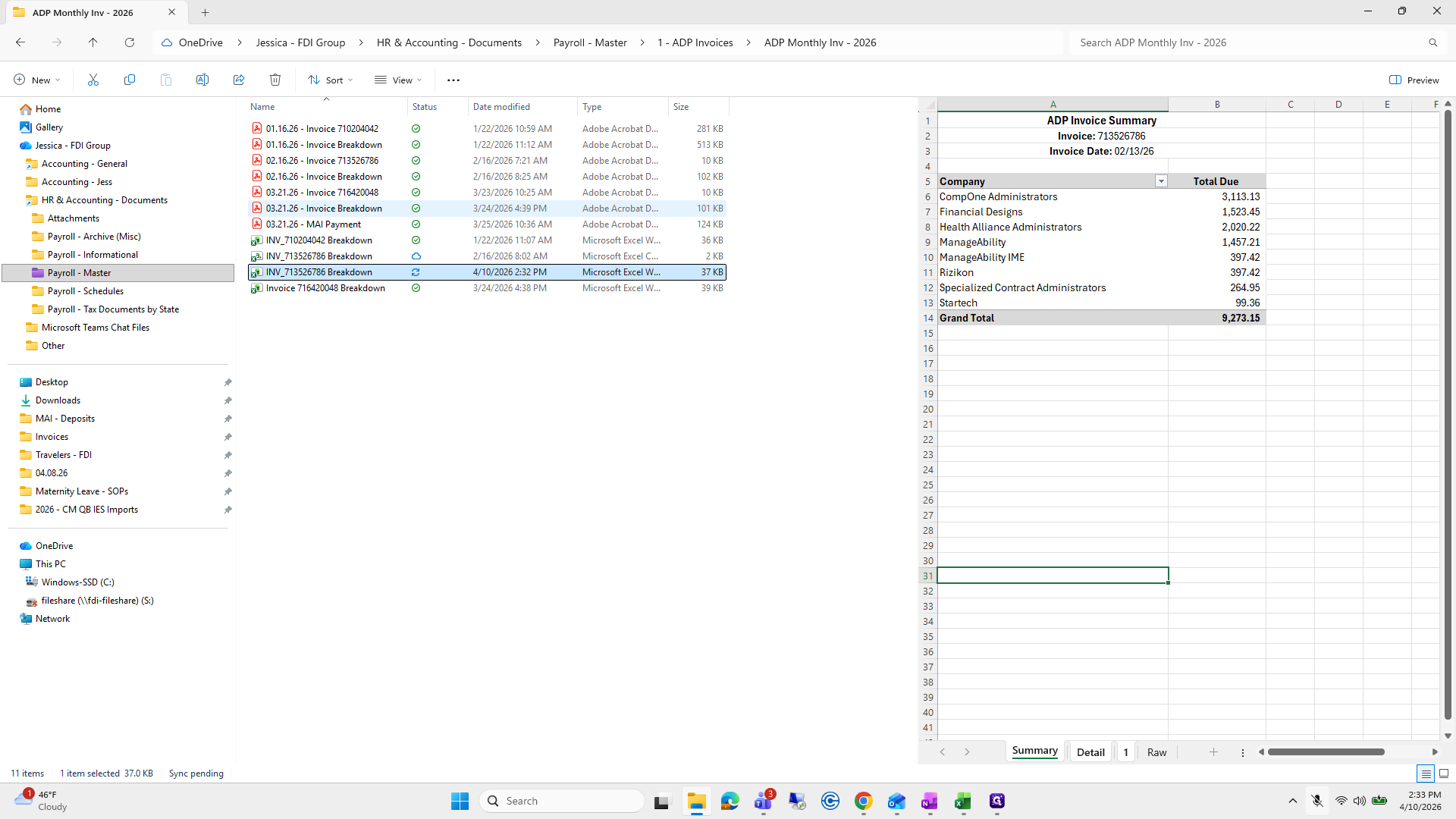
95
Click on "Invoice Breakdown"
Step #95: Click on "Invoice Breakdown"
96
Click on "03.21.26 - Invoice Breakdown"
Step #96: Click on "03.21.26 - Invoice Breakdown"
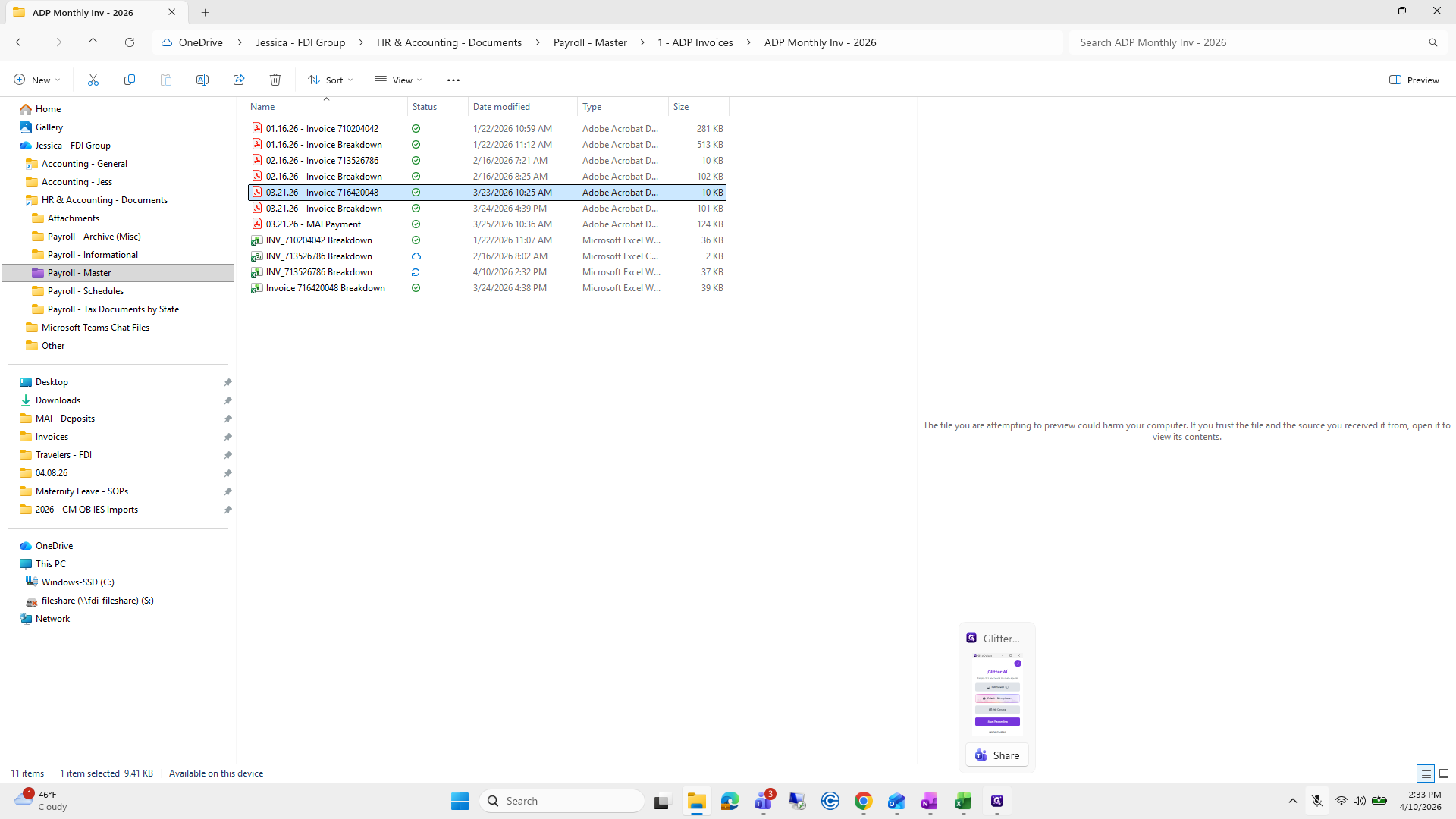
97
Click on "Invoice 716420048"
Step #97: Click on "Invoice 716420048"
98
Double-click on "Invoice 716420048"
Step #98: Double-click on "Invoice 716420048"

Okay. That all makes very good sense. That was a terrible video, but glitter will help us.
99
Click here
Step #99: Click here