How to Start Light Key for Sunday Service and Select the Correct Scene
Step-by-step guide on starting Light Key for Sunday service, ensuring proper setup, avoiding conflicts with Luminair, and selecting the correct lighting scene for your church event.
In this guide, we'll learn how to set up Light Key for a Sunday service and select the correct lighting scene. We will also cover how to ensure that Luminair does not interfere with Light Key by adjusting its settings on the iPad. This process helps prevent lighting issues and ensures the lights are ready for practice and the service.
Let's get started
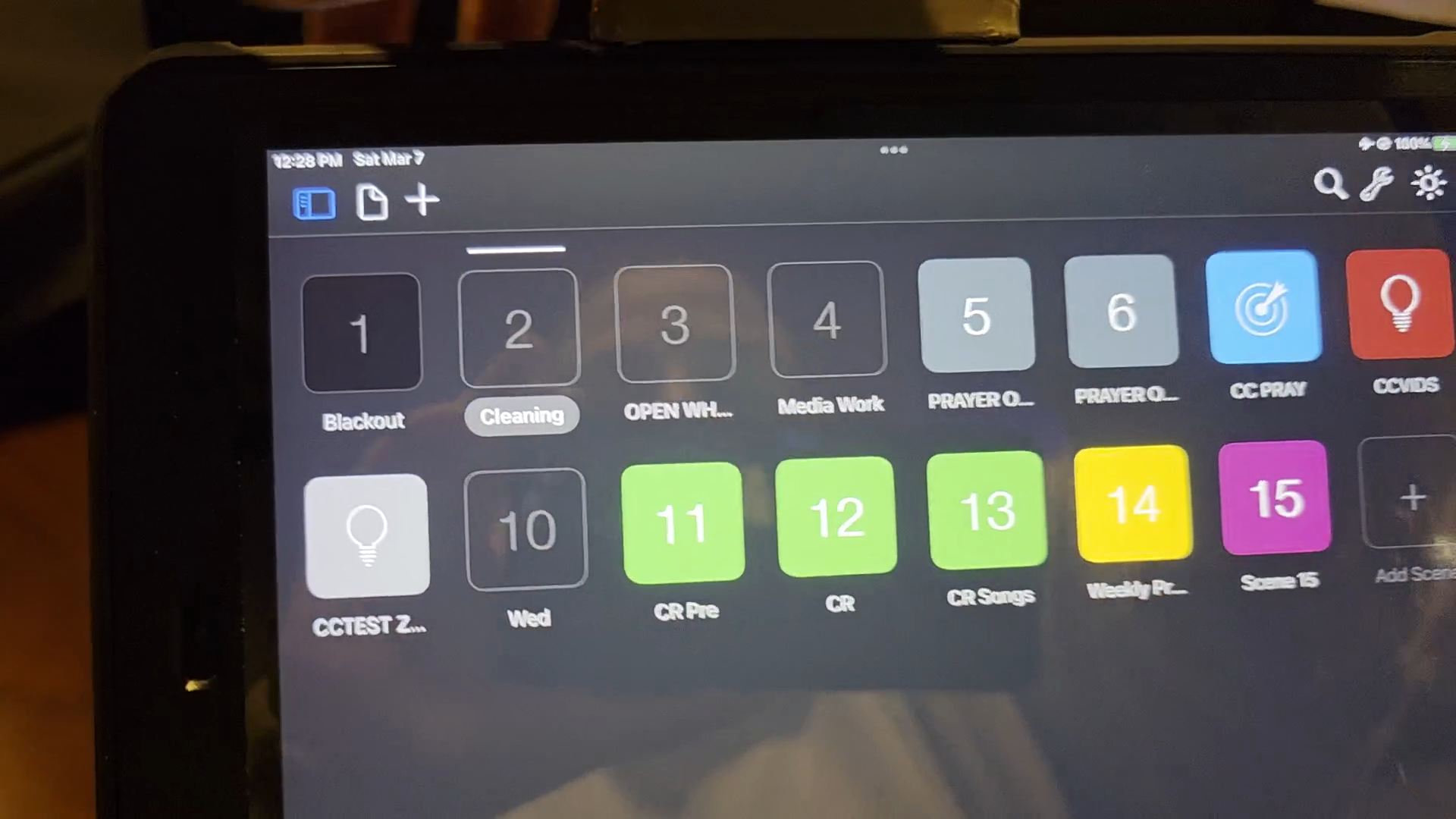
First, when you come in, the lights will be controlled by this iPad. This application is called Luminair. We don't use it for Sunday service. If it is opened at the same time as Light Key, the lights will start flashing and create a disco effect.
To start, we need to make sure that WiFi is turned off on the Luminair iPad.
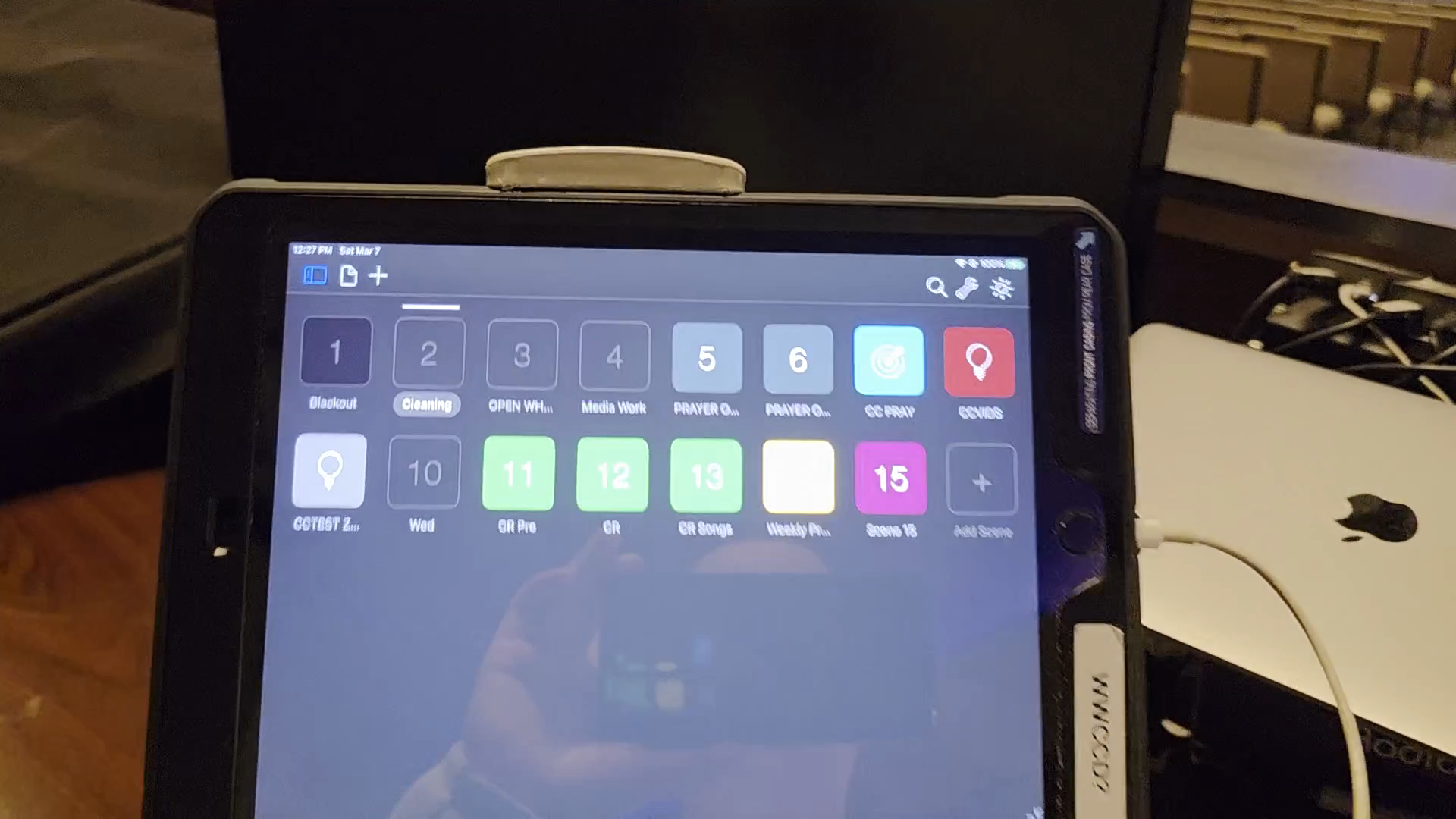
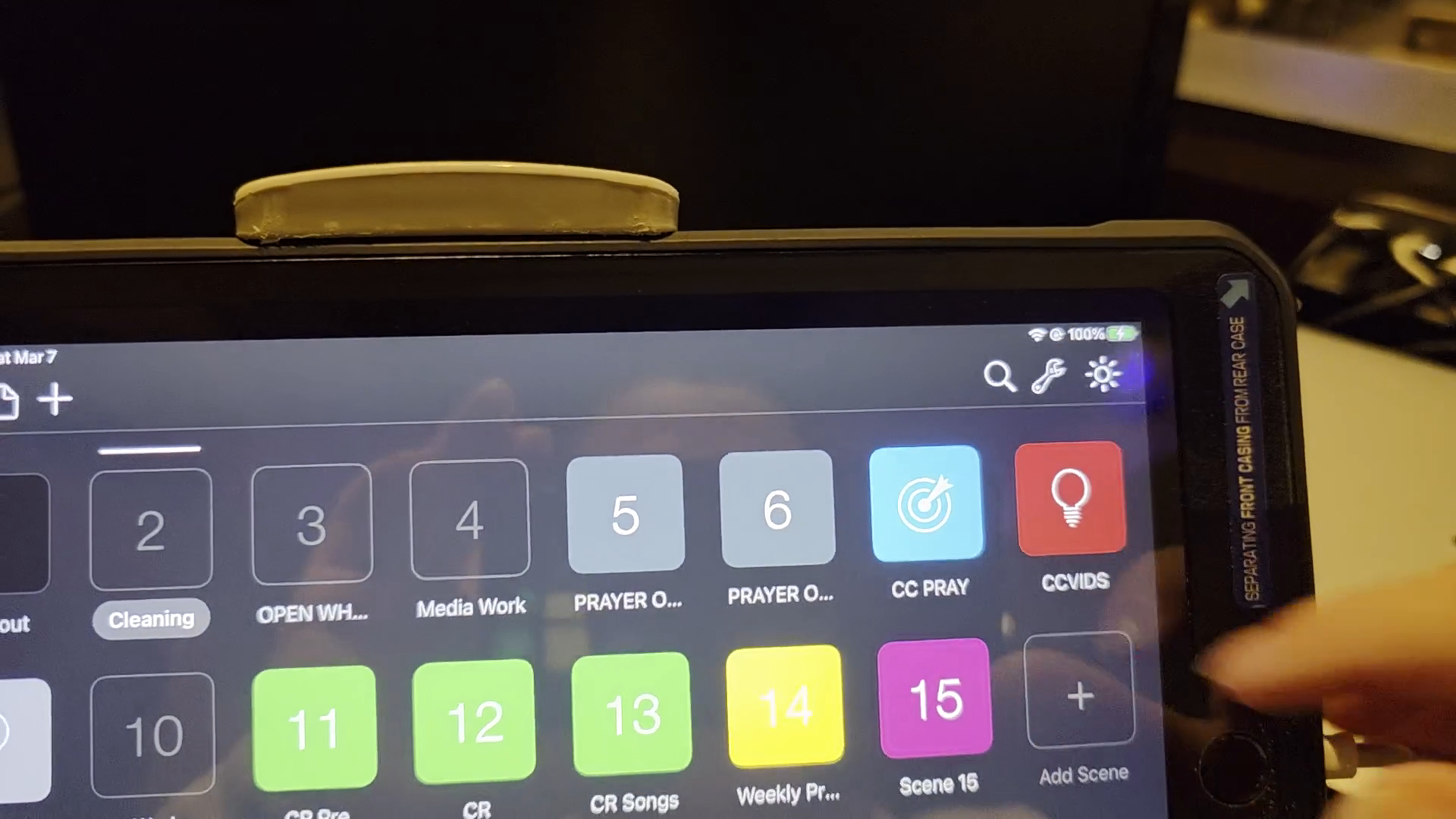
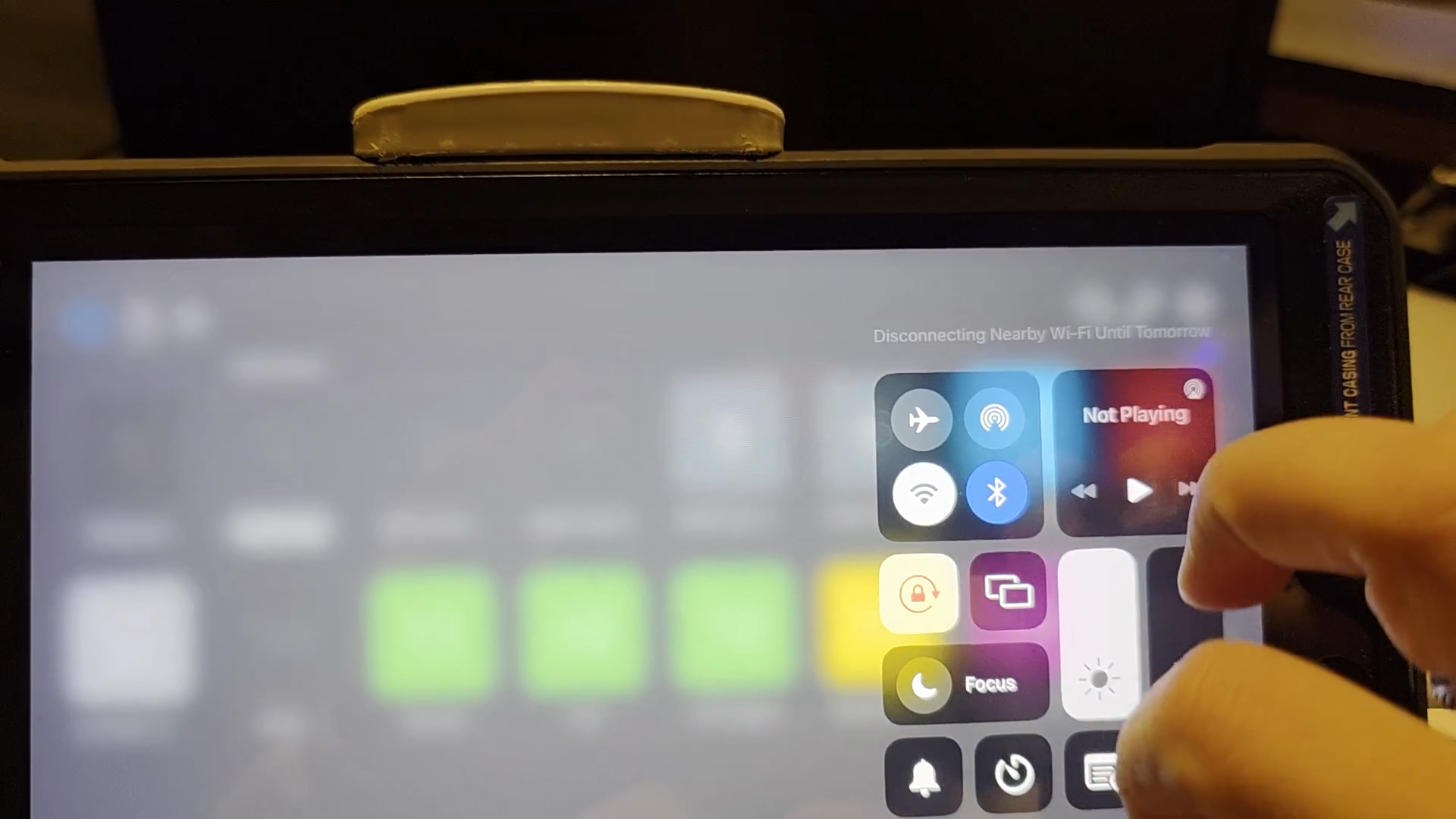
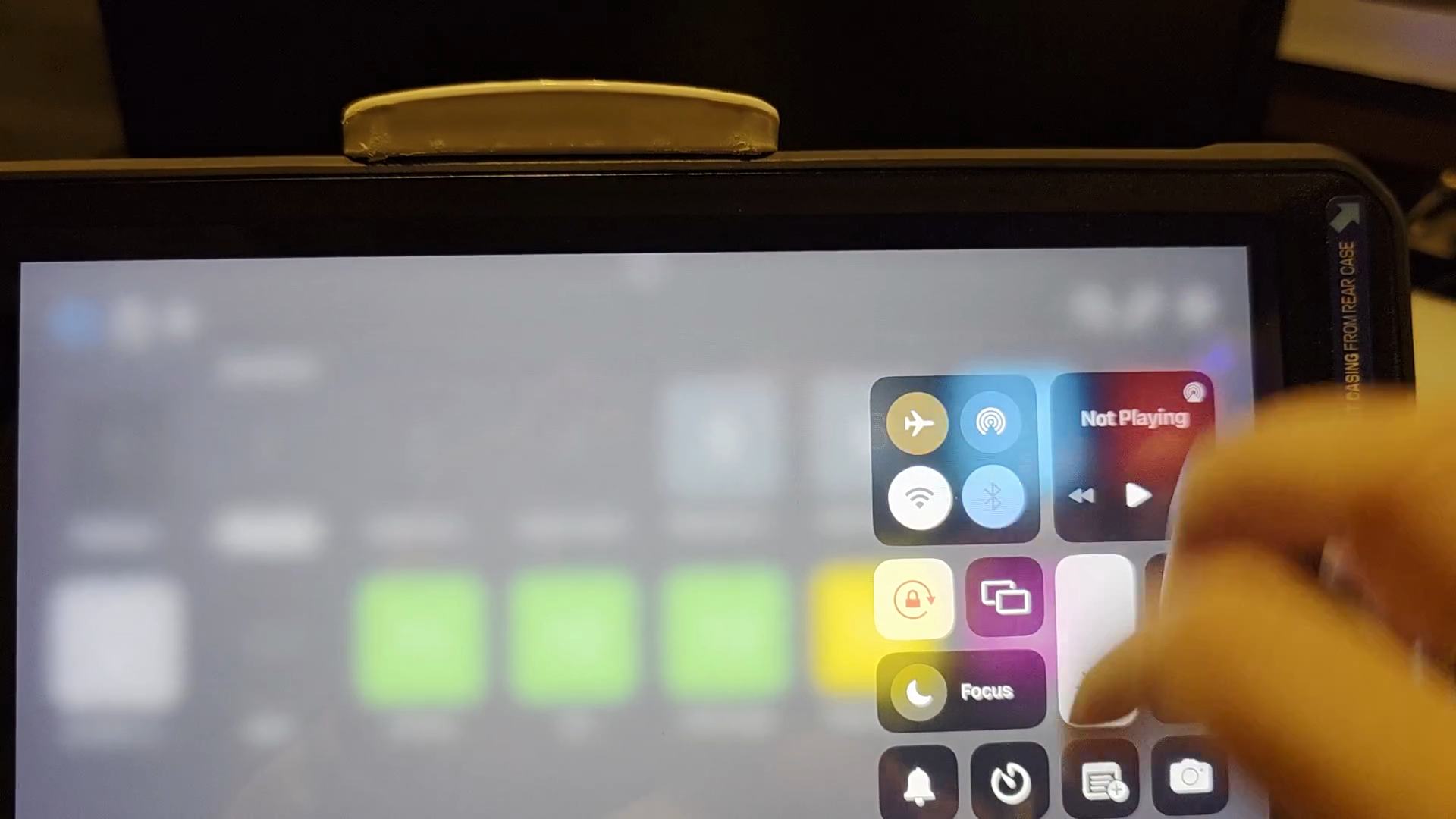
Once you’re done, you’re all set.
You can turn off this iPad.
Second, make sure that Light Key has internet access. Connect it directly using this cable.
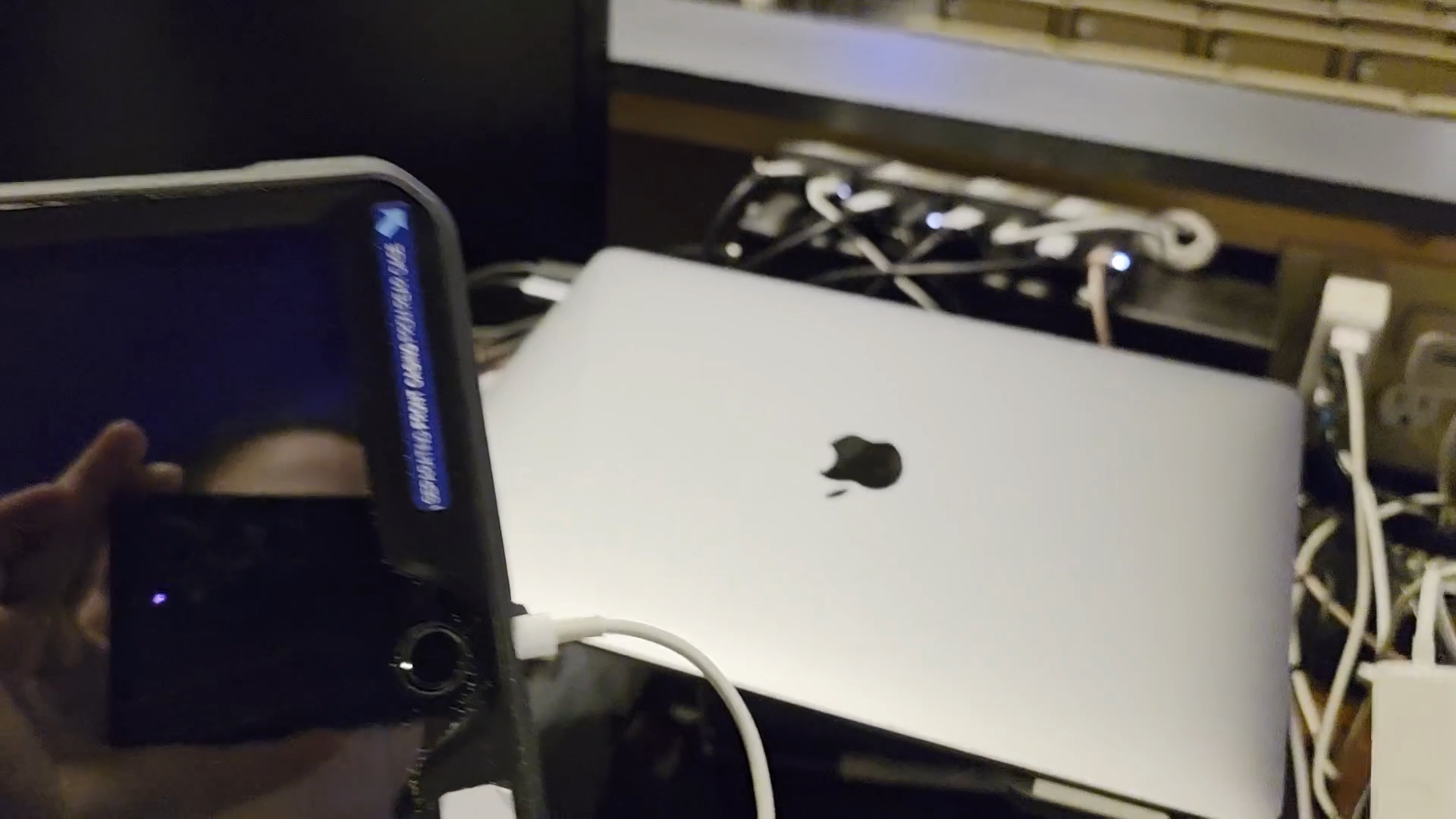
If the black cable is not connected to the white dongle, we need to fix it. Make sure it is connected.
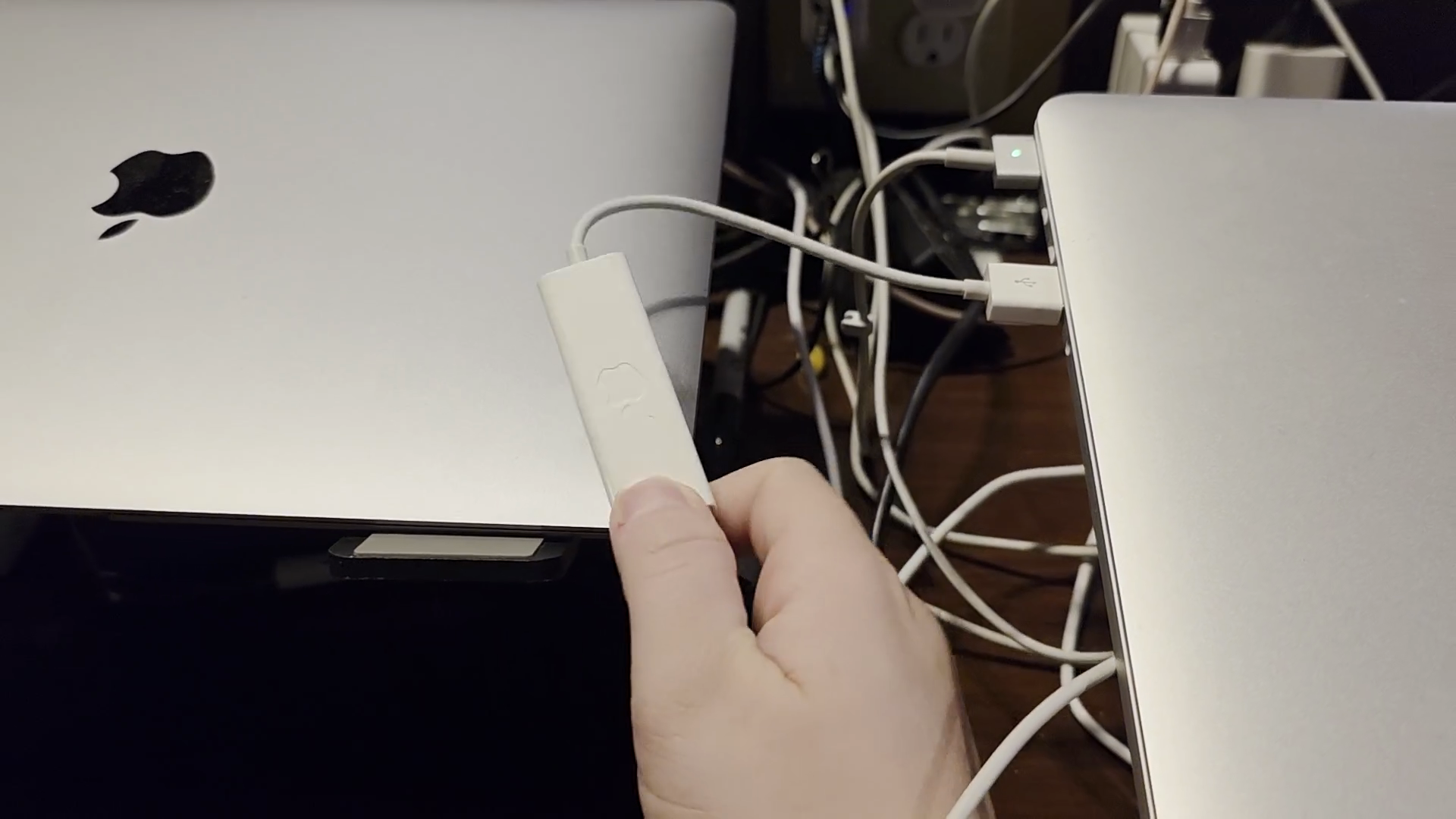
It should be getting a direct internet feed from the ethernet cable. Now, we need to get into Lightkey.
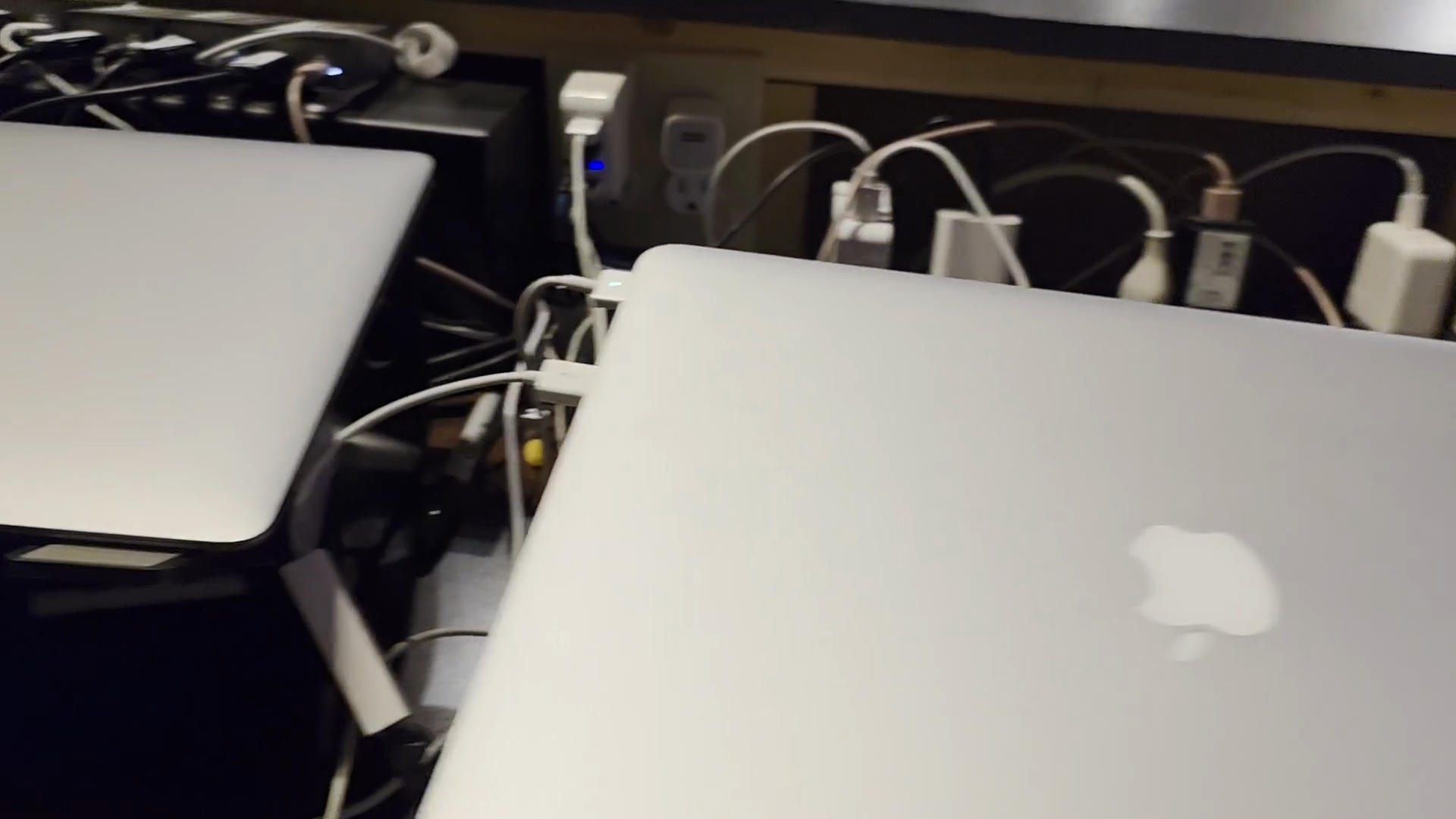


It will go through its power-up cycle. Then it will ask you for the password. Sometimes it takes a minute.
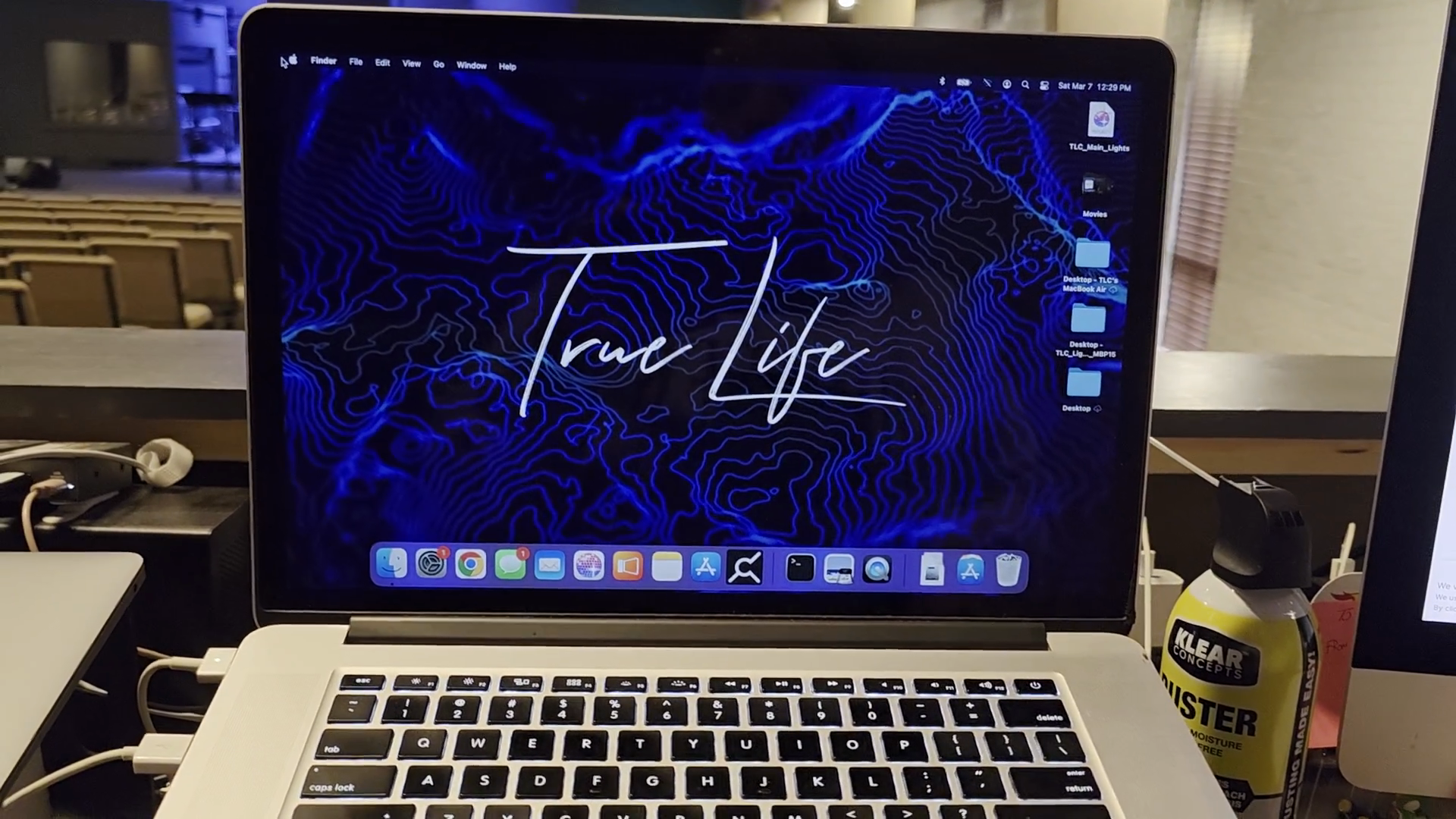
If it is on, it might be connected to the wrong Wi-Fi, and then it will not work. Make sure Wi-Fi is off, since the connection comes directly from a cable.
To access what we need for Sundays, go to TLC Main Lights.
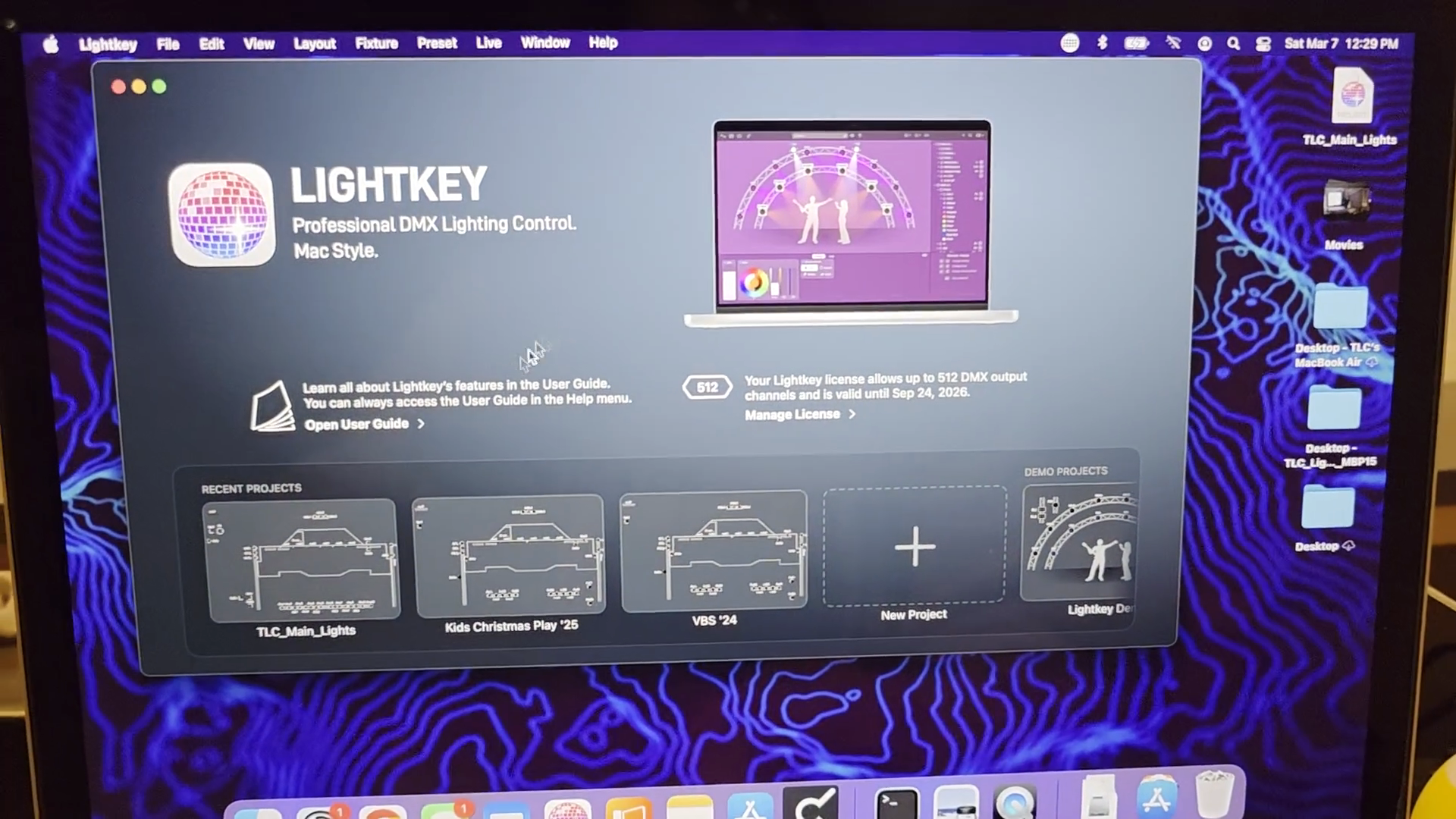
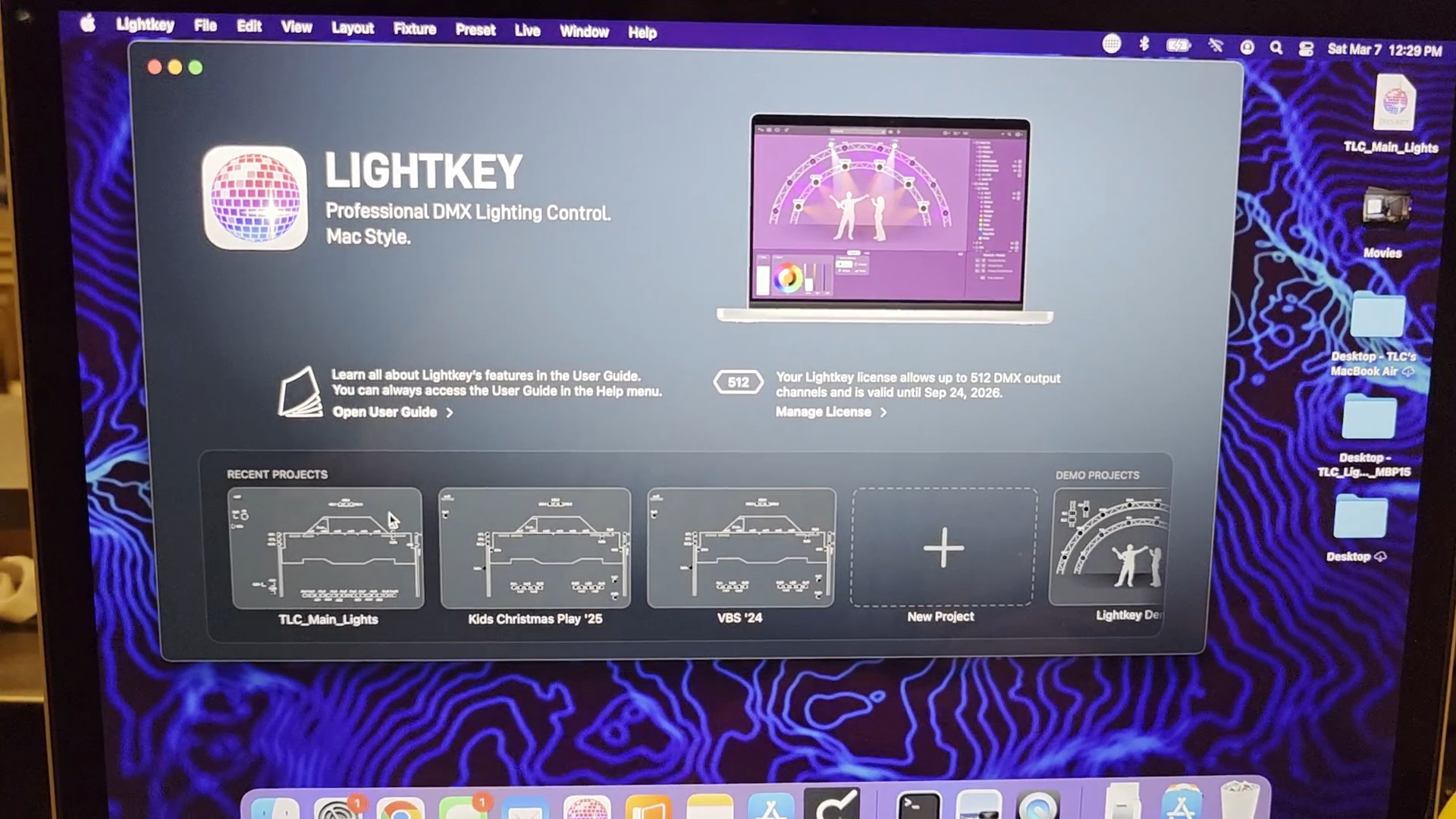
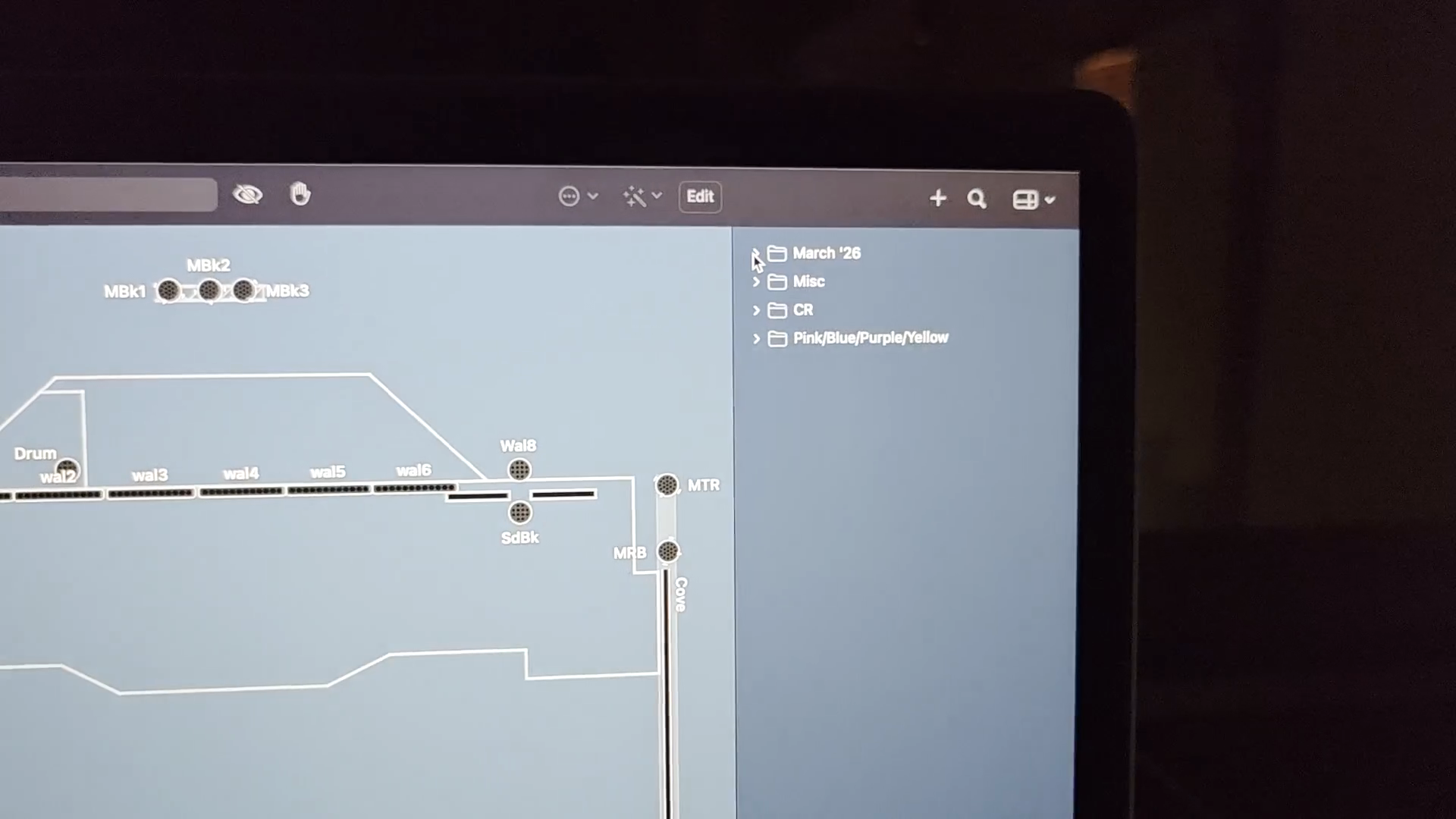
Don't worry if the lights go out. That's normal. Look for the option with the correct month and year for your needs. In this case, it's March 26. Everything is already set up, so just select it and click Practice.
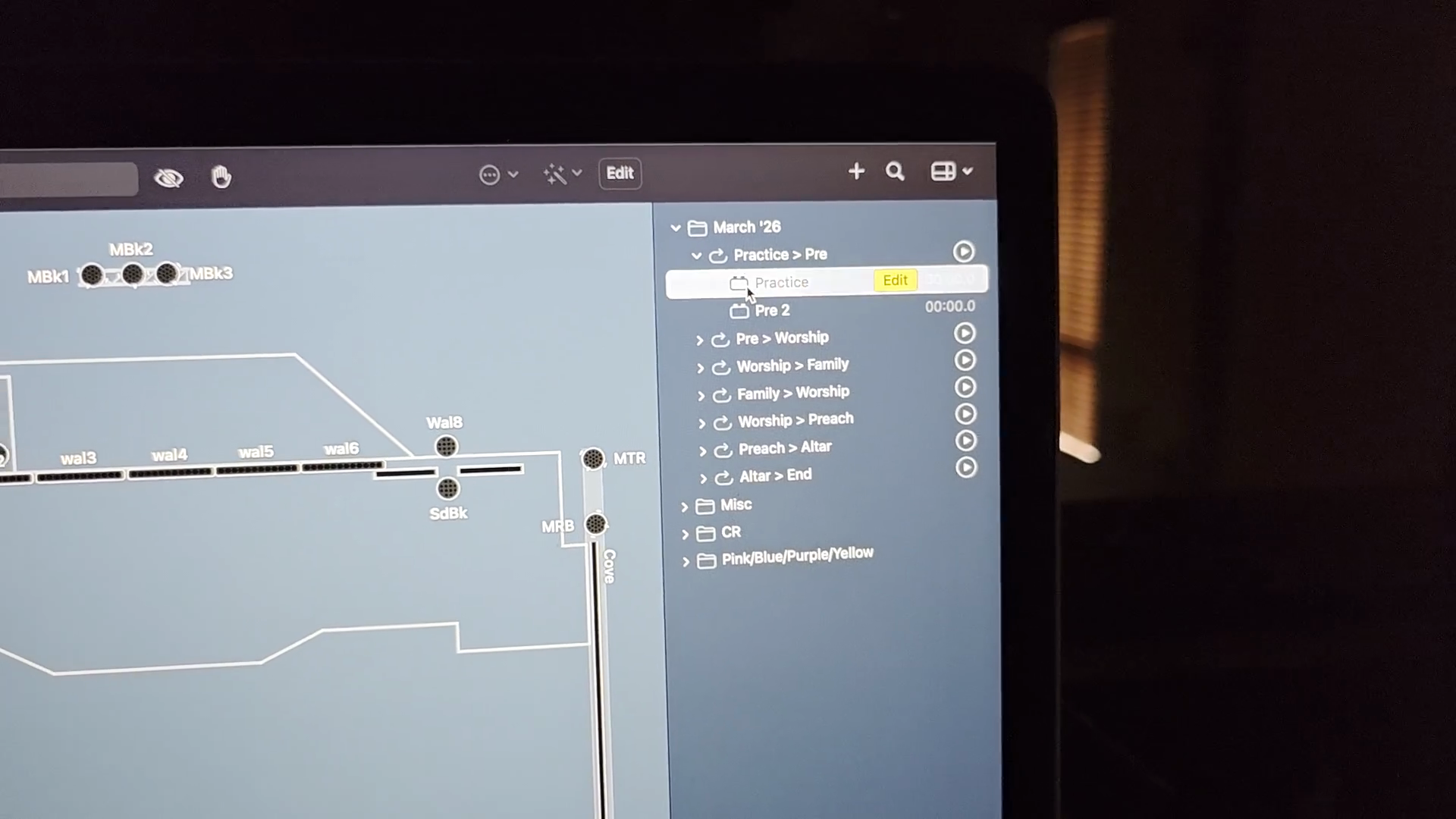
Lights are set and ready for practice on Sunday morning.