
How to Submit a Controls Material Request for Install
Learn how to submit a material request for install using Smartsheet WorkApps. Follow these steps to notify your material supervisor and receive your parts.
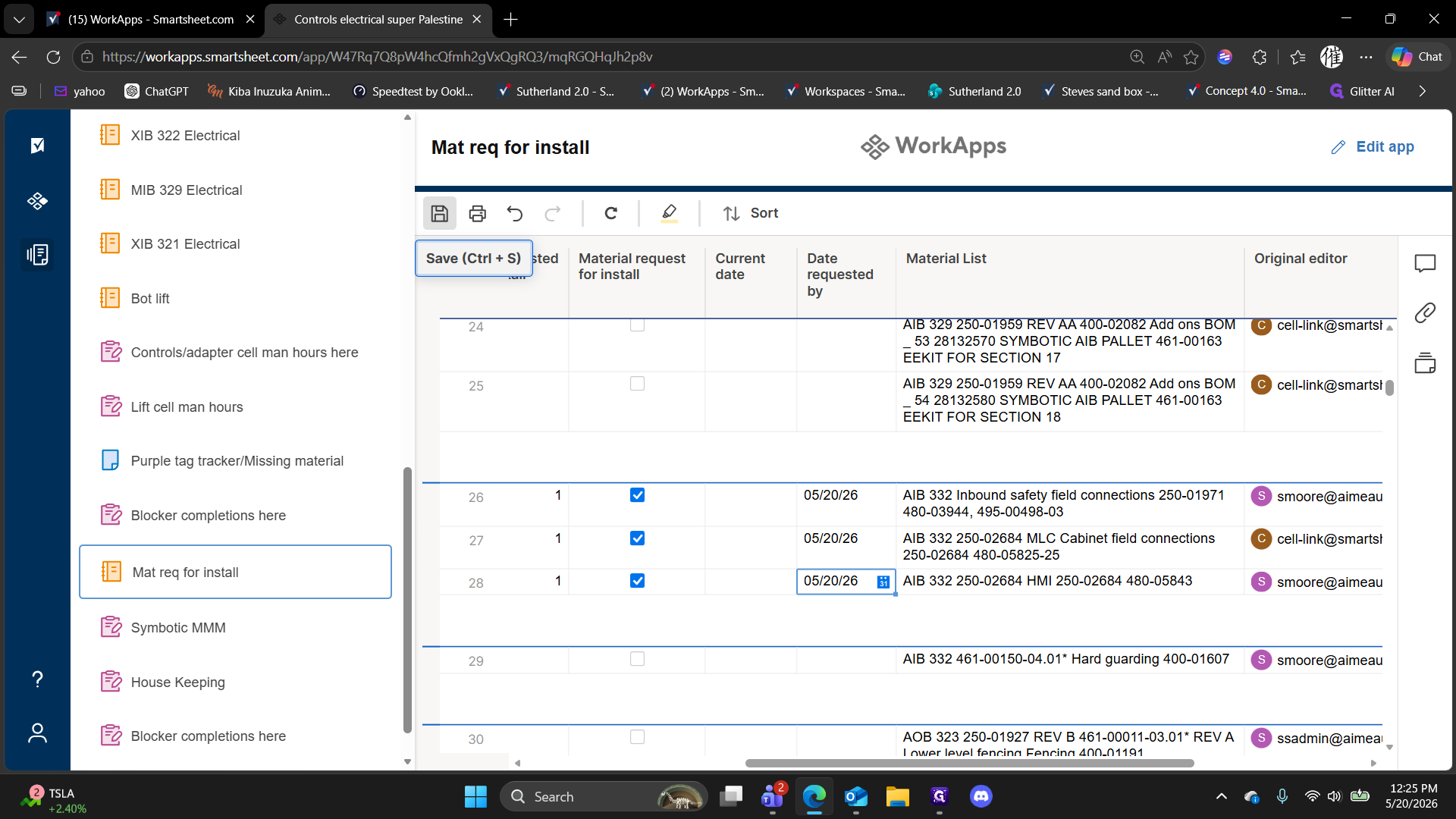
This guide demonstrates how to submit a material request for install using Smartsheet WorkApps. Completing this process correctly ensures the material supervisor receives an automated notification to prepare and release your required job kits.
This workflow applies to field teams, installers, and project managers who need to request project materials, electrical components, or hardware directly from the warehouse or material supervisor.
Navigate to Your Project's WorkApp
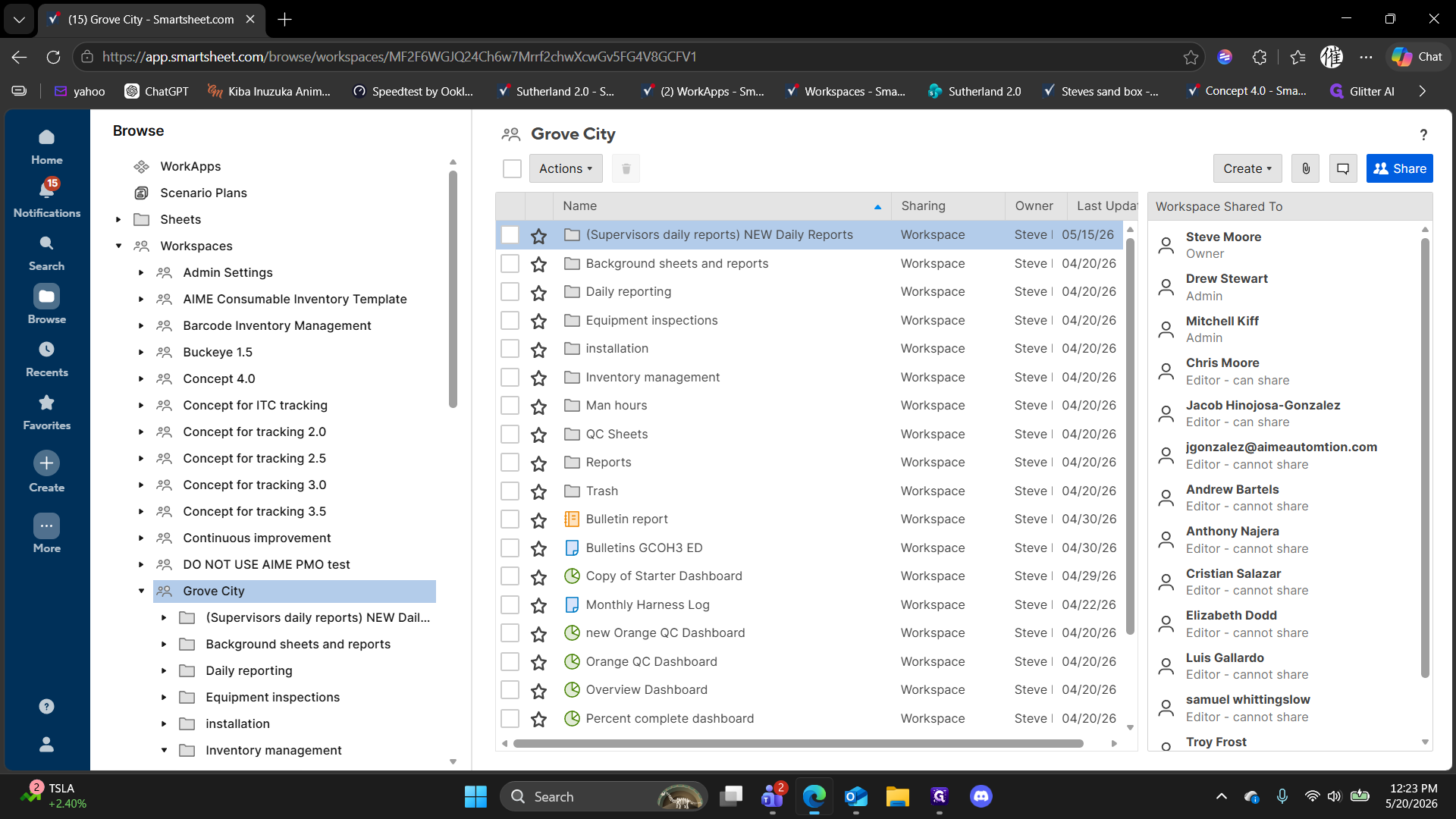
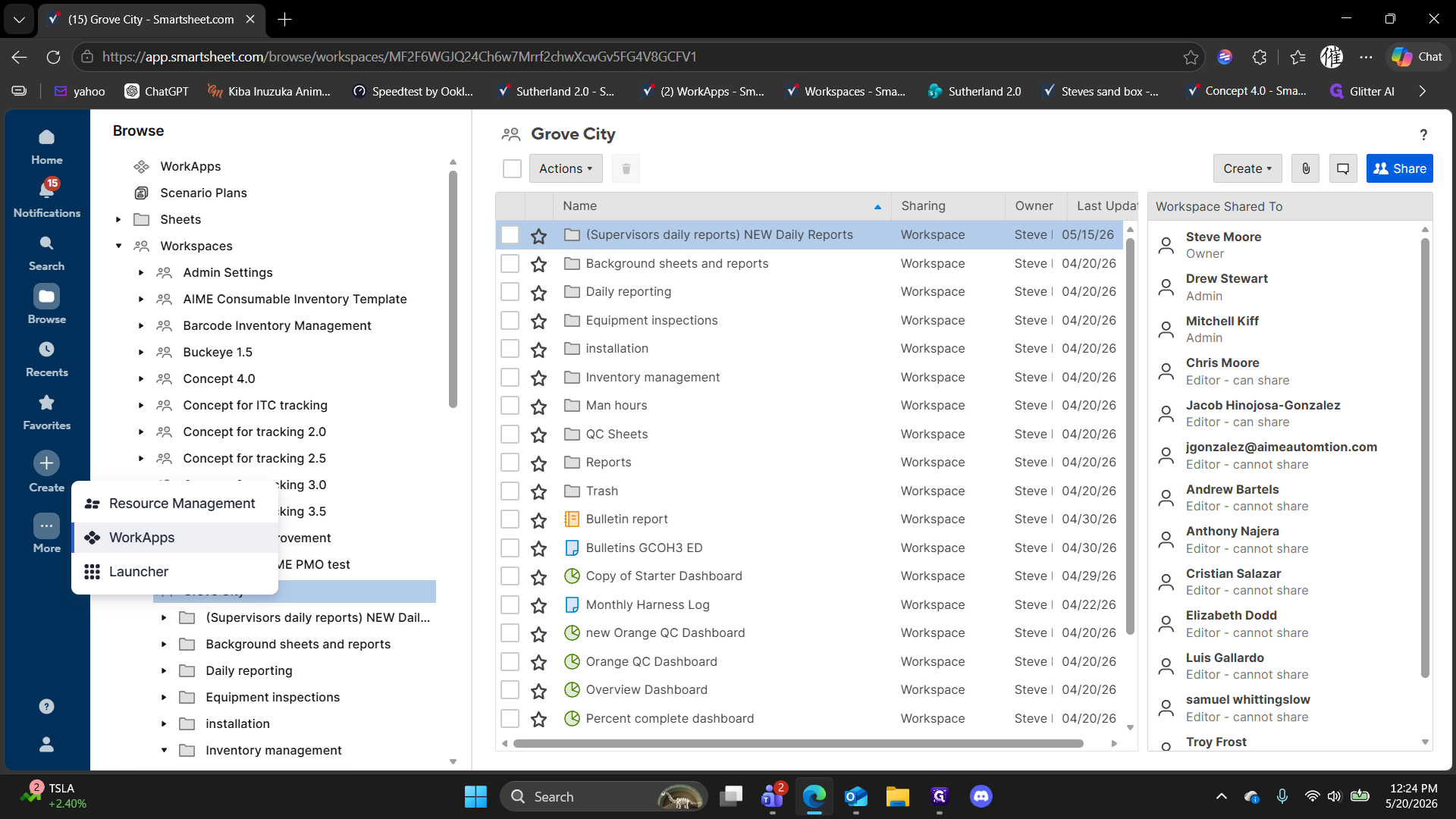
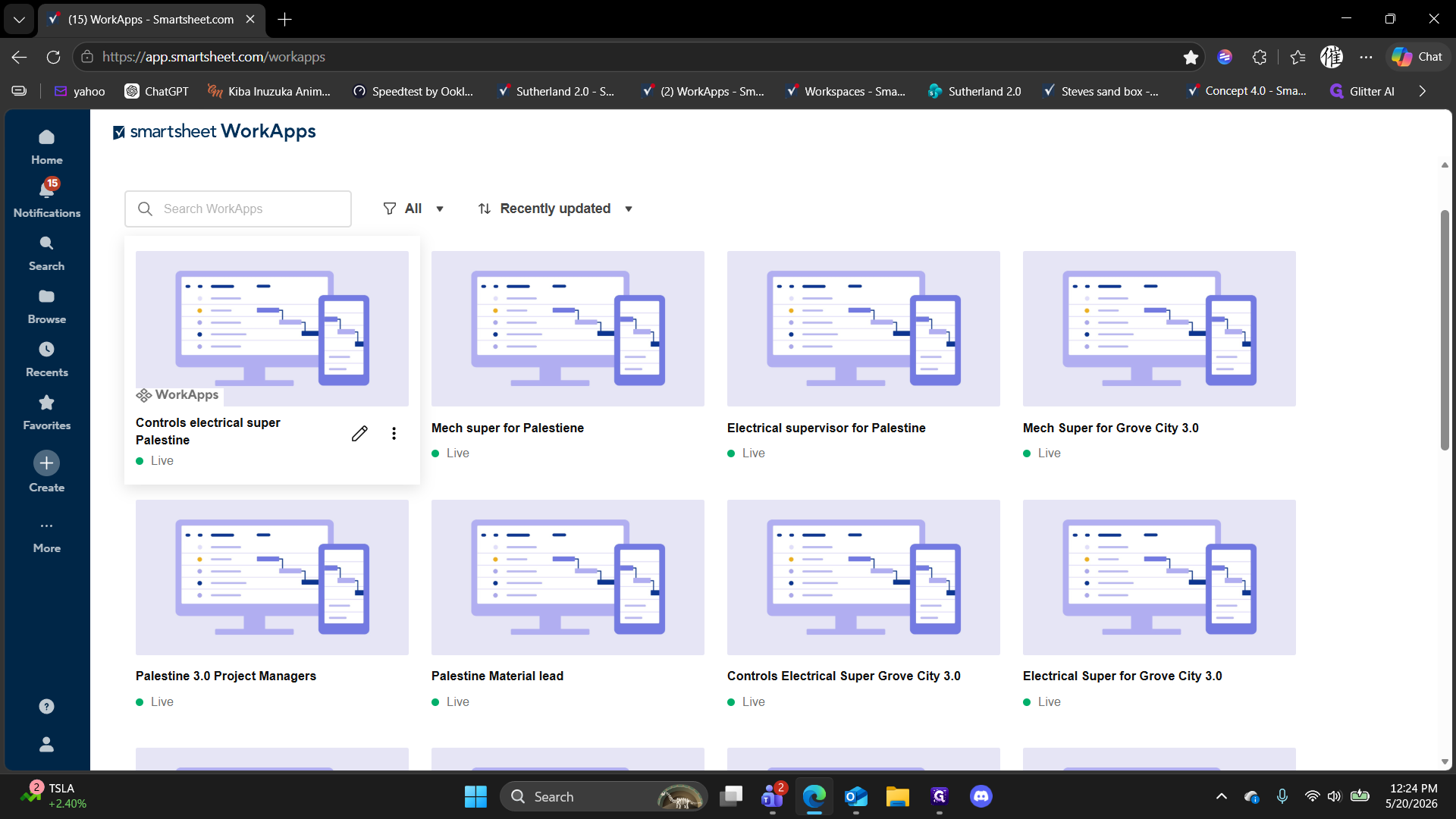
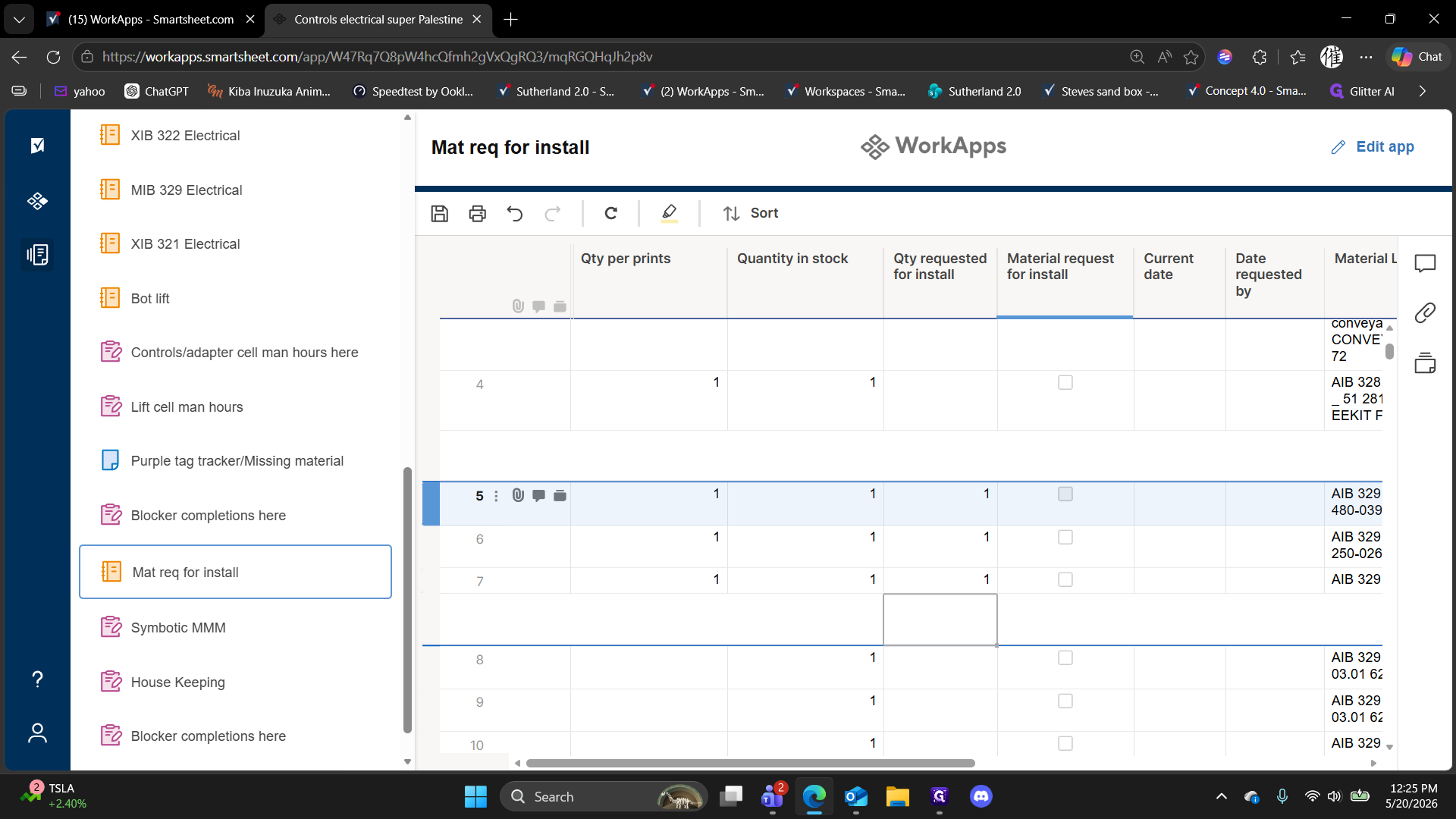
To begin, open your Smartsheet workspace and locate the correct project app.
Submit the Material Request
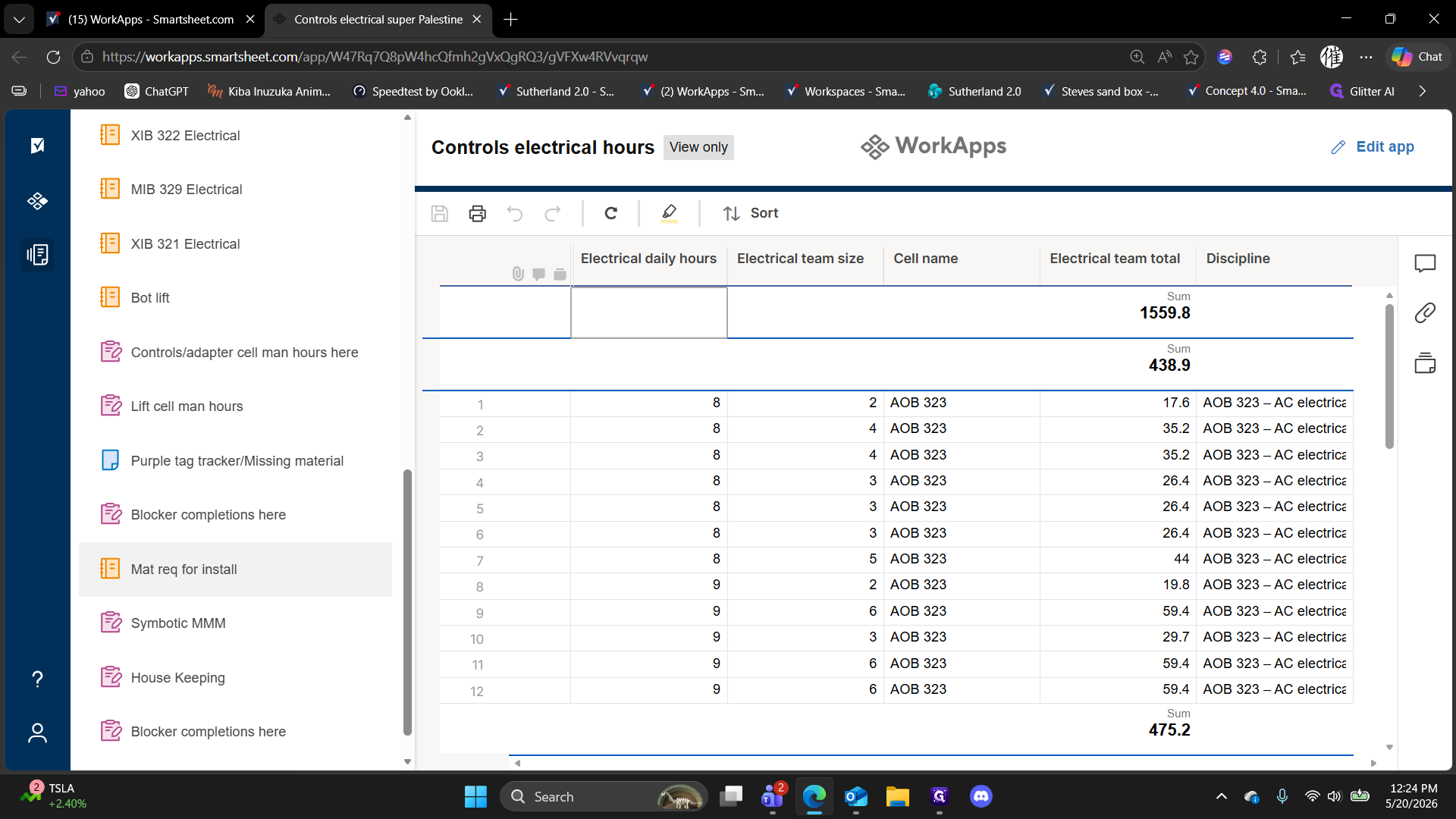
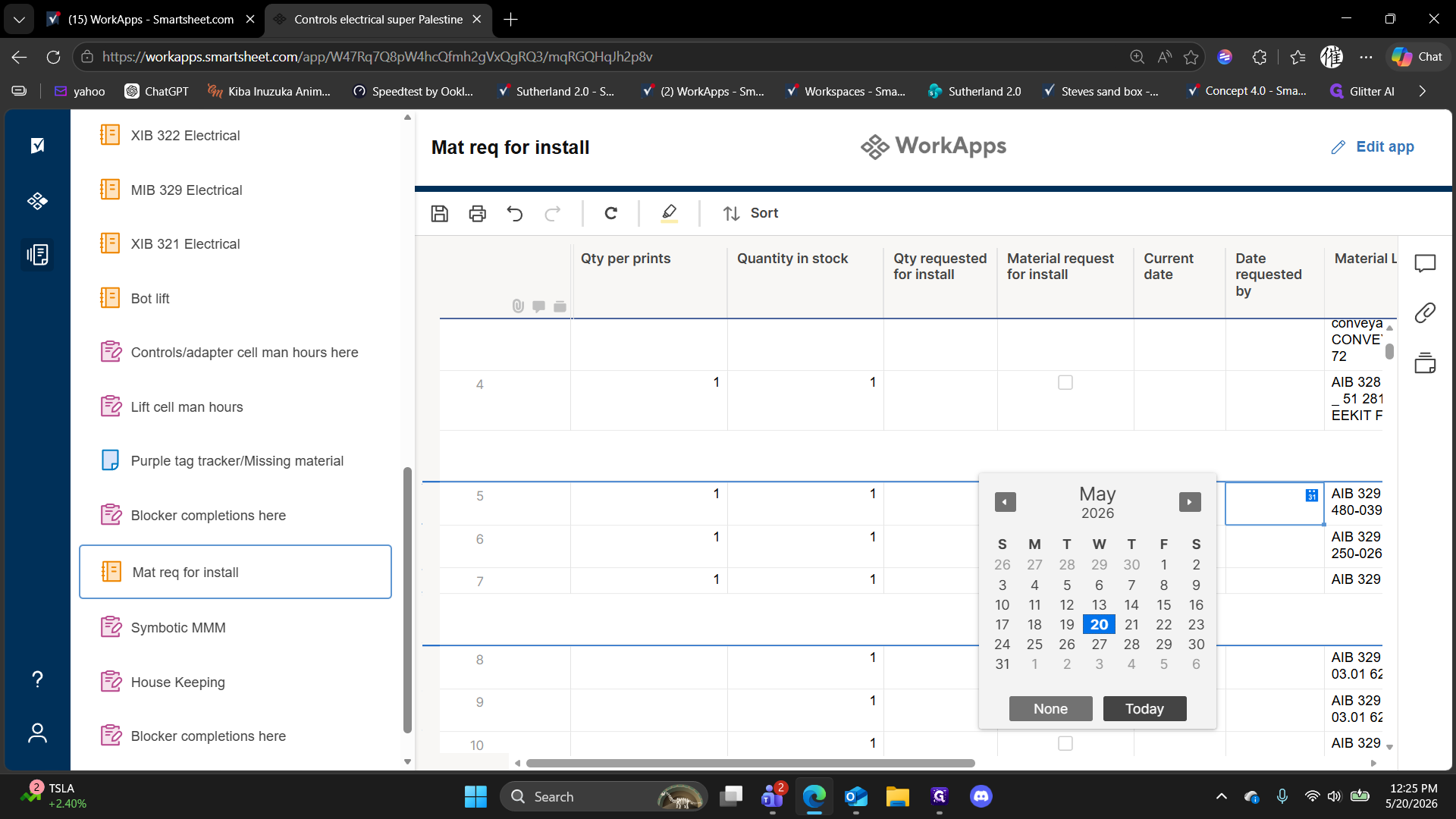
Once inside the WorkApp, you will specify quantities and dates for the items you need to draw from stock.
FAQ
Q: What should I do if I am missing items from my fulfilled request?
A: Always perform a quick inventory when receiving your materials. If anything is missing, log the absent parts in the missing material or "purple tag" tracker.
Q: Why does the Material Request sheet take a long time to load or save?
A: The main request grid cross-references several underlying inventory and project sheets in the background, which can cause slight loading delays.