
How to Submit Your Assignment and Comment on Padlet: Step-by-Step Guide
Learn how to submit your work to Padlet and comment on classmates' posts with this easy, step-by-step video guide. Perfect for students completing their assignment.
In this guide, we'll learn how to submit your assignment to Padlet and comment on at least two classmates' posts. This process is important for completing your assignment and engaging with your peers. You will see how to upload your work, check your post, and leave thoughtful comments.
Let's get started
Hello, and welcome to the third and final video for this assignment. I hope you enjoy doing it. I will show you how to submit your work to Padlet and how to comment on at least two other peers' posts. That is an important part of this assignment. You need to comment on at least two other classmates' posts.
First, go to Padlet.
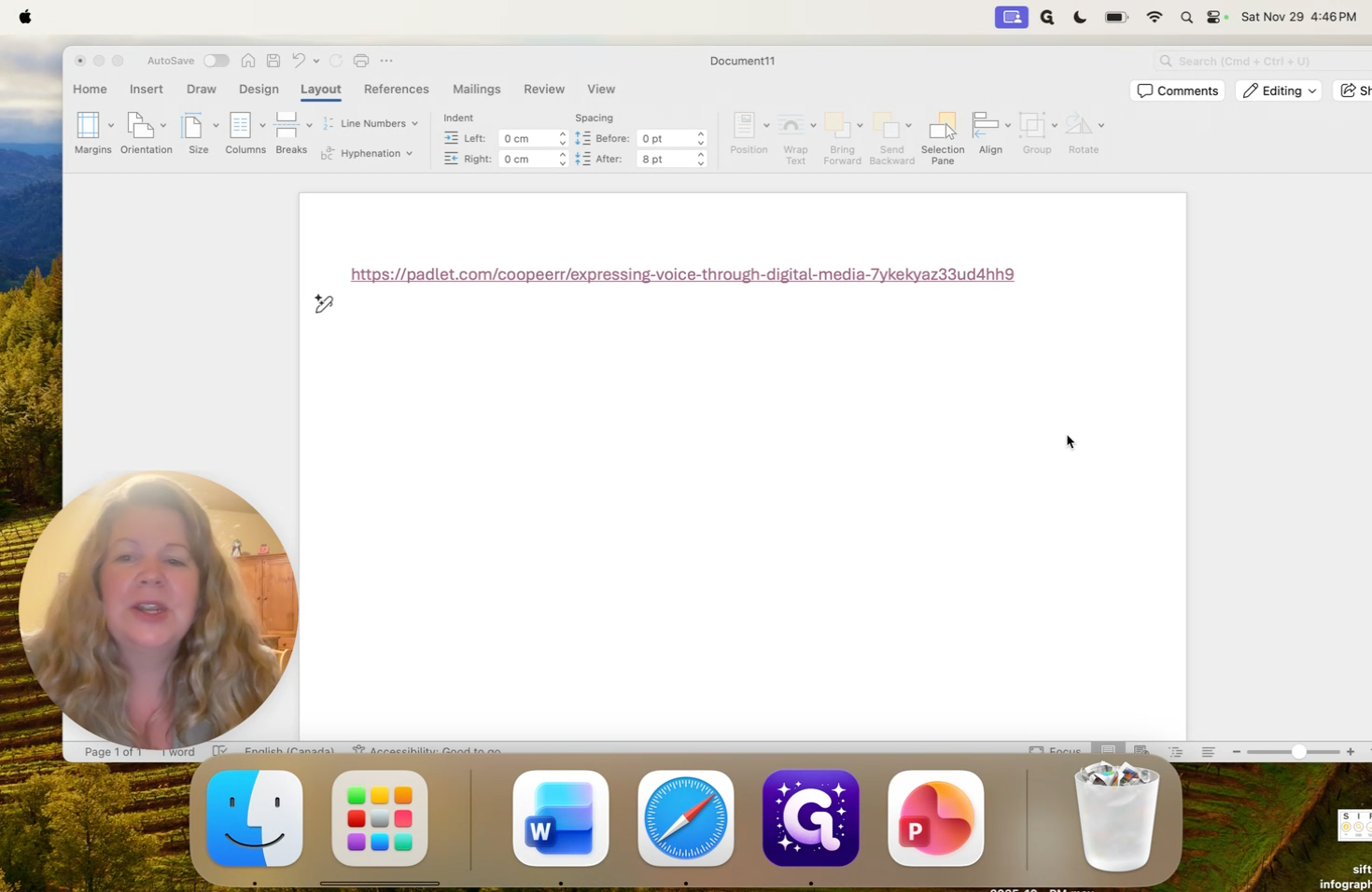
There will be a link embedded in your course. I also have it in my Microsoft Word document to make it easier to show you how to access it. Click the link. It will automatically open Padlet, as you can see.
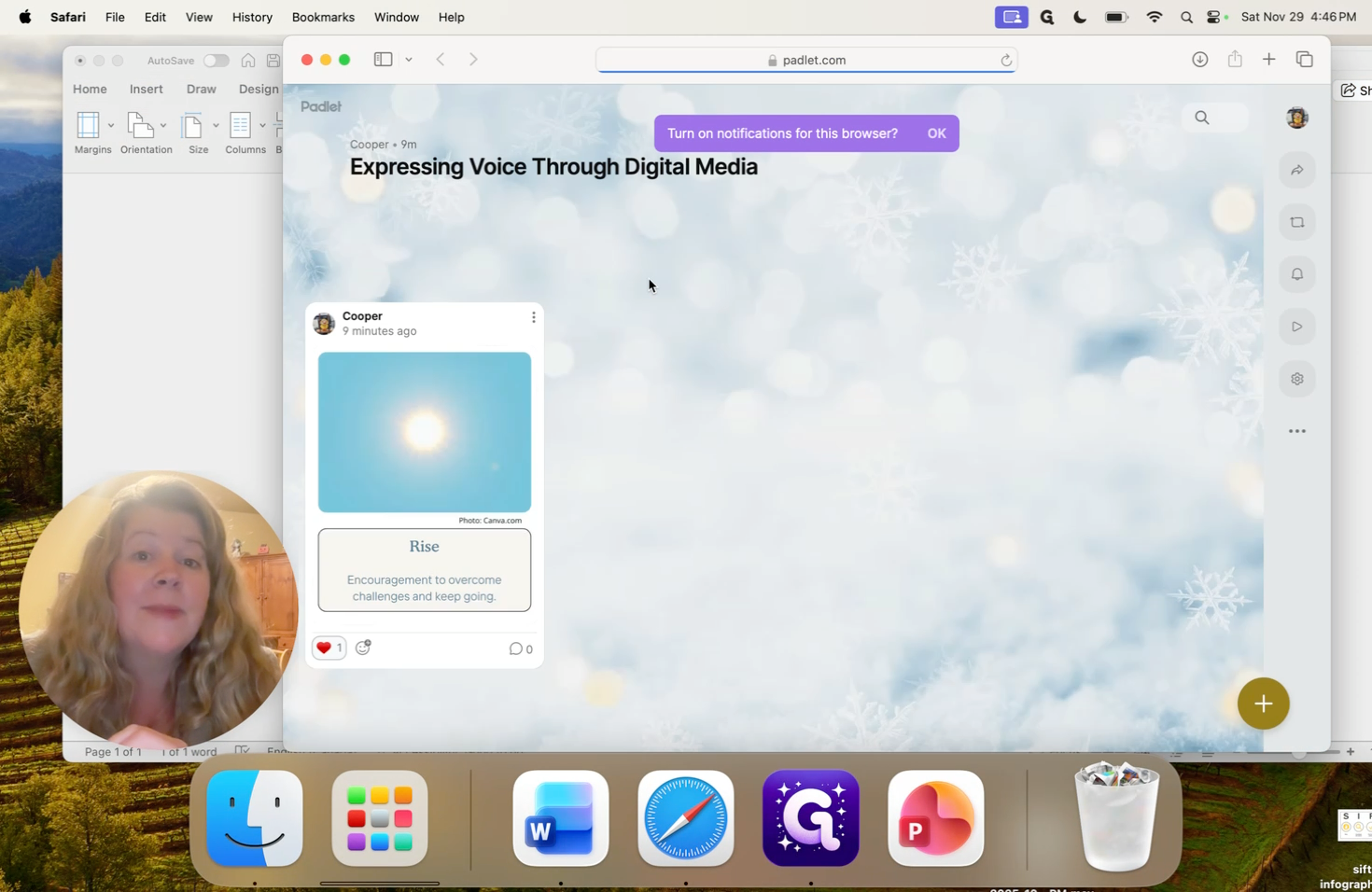
Next, click the plus sign to add an item.
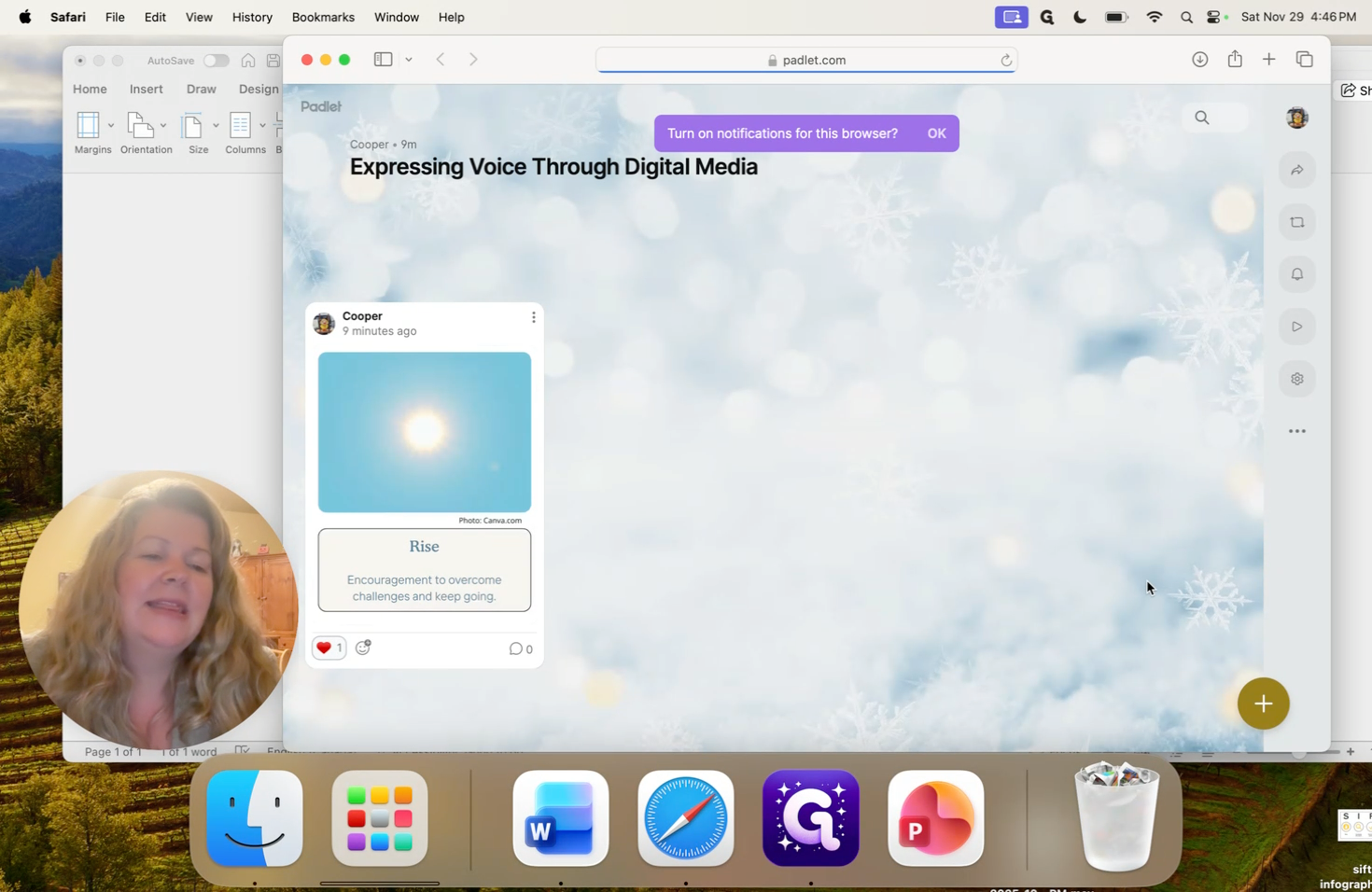
The main options you should use are uploading the file from your computer or sharing a link if you have saved it elsewhere, such as on Canva. I'm going to upload.
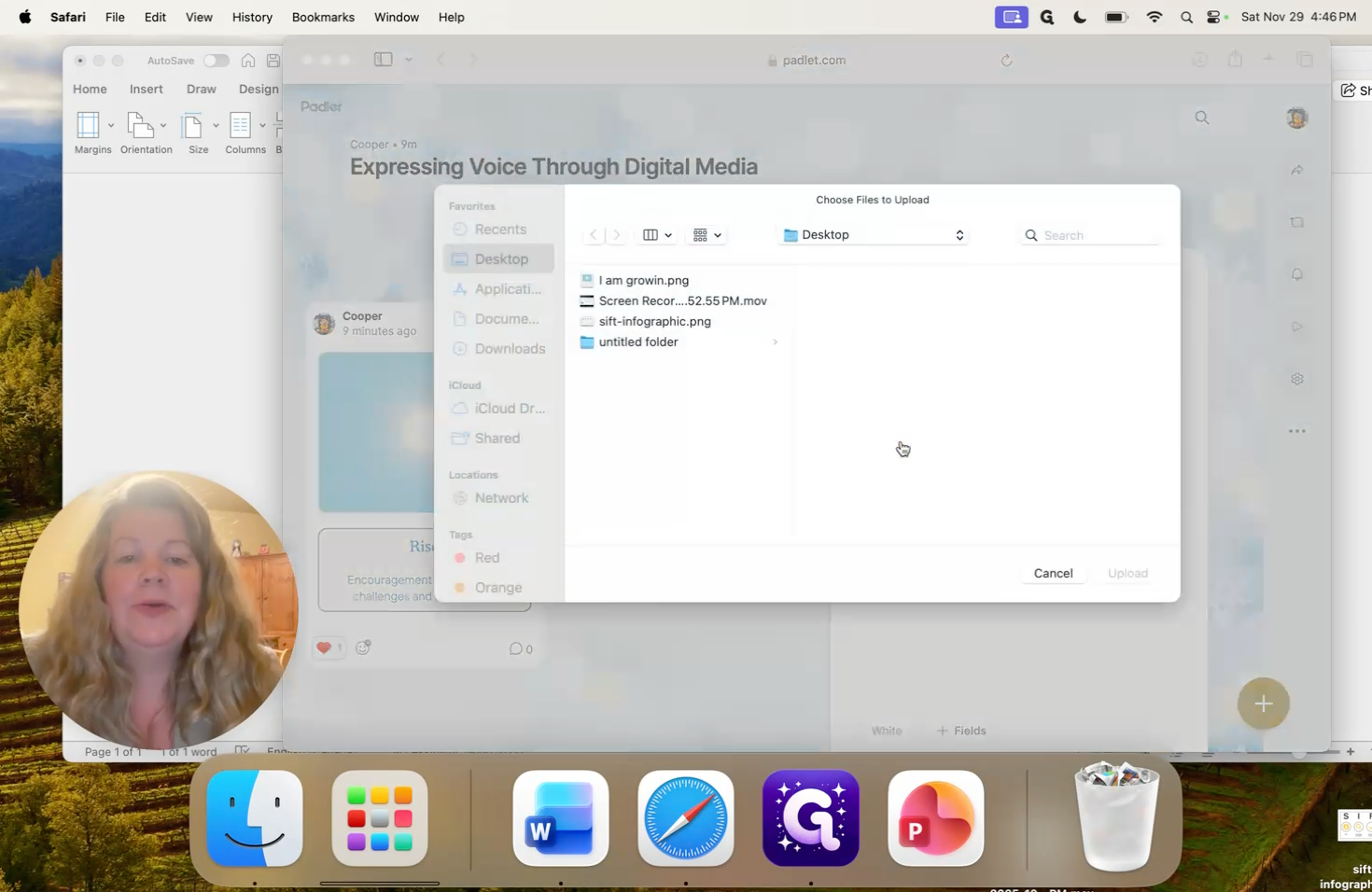
I have it ready with "I am growing.png." I will upload it now.
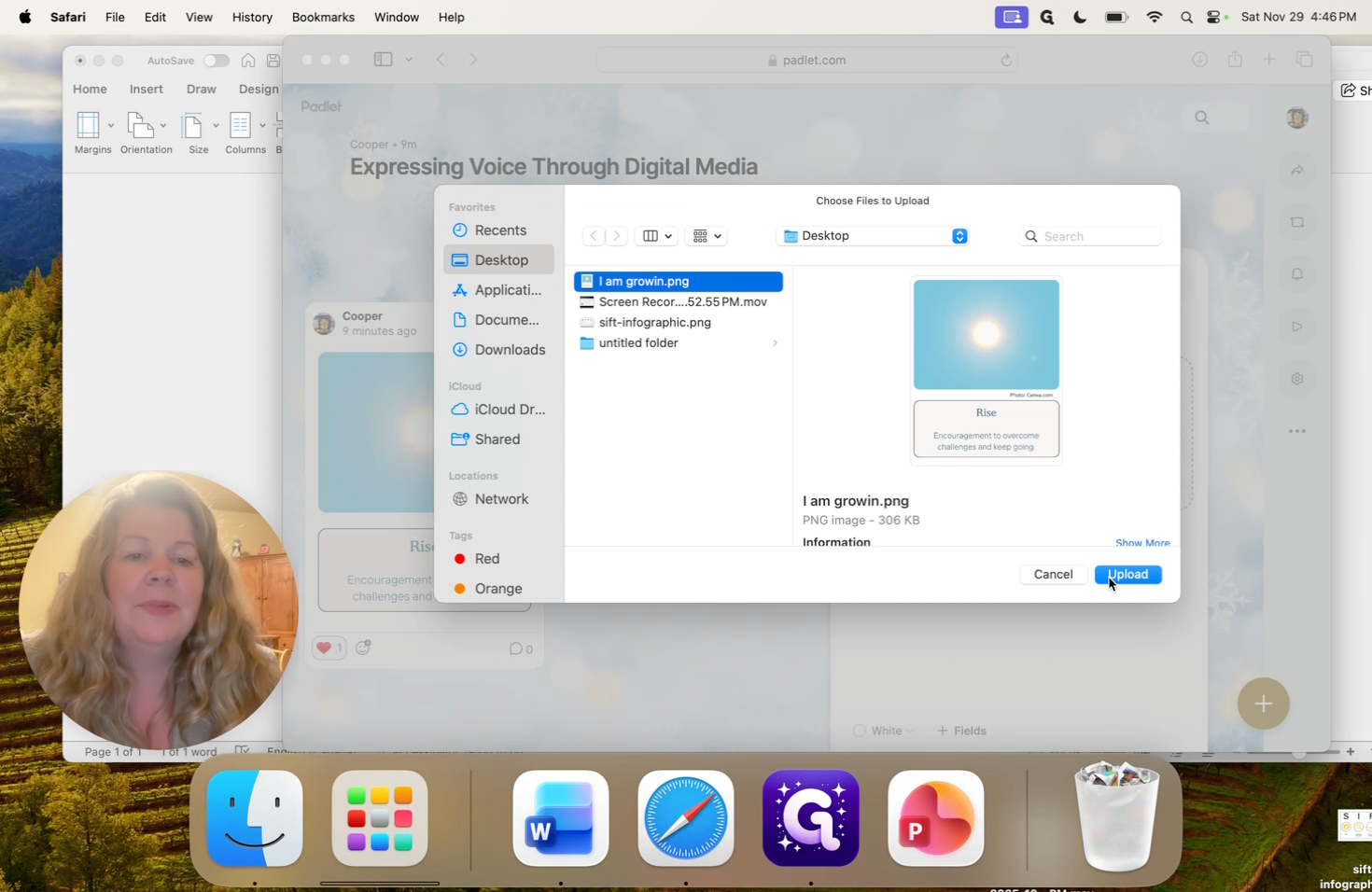
You'll notice it's the same one already posted. I just wanted to show you how to do it. Check to make sure you have your citation, the picture, your word, and its meaning to you. Once everything is ready, you can publish.
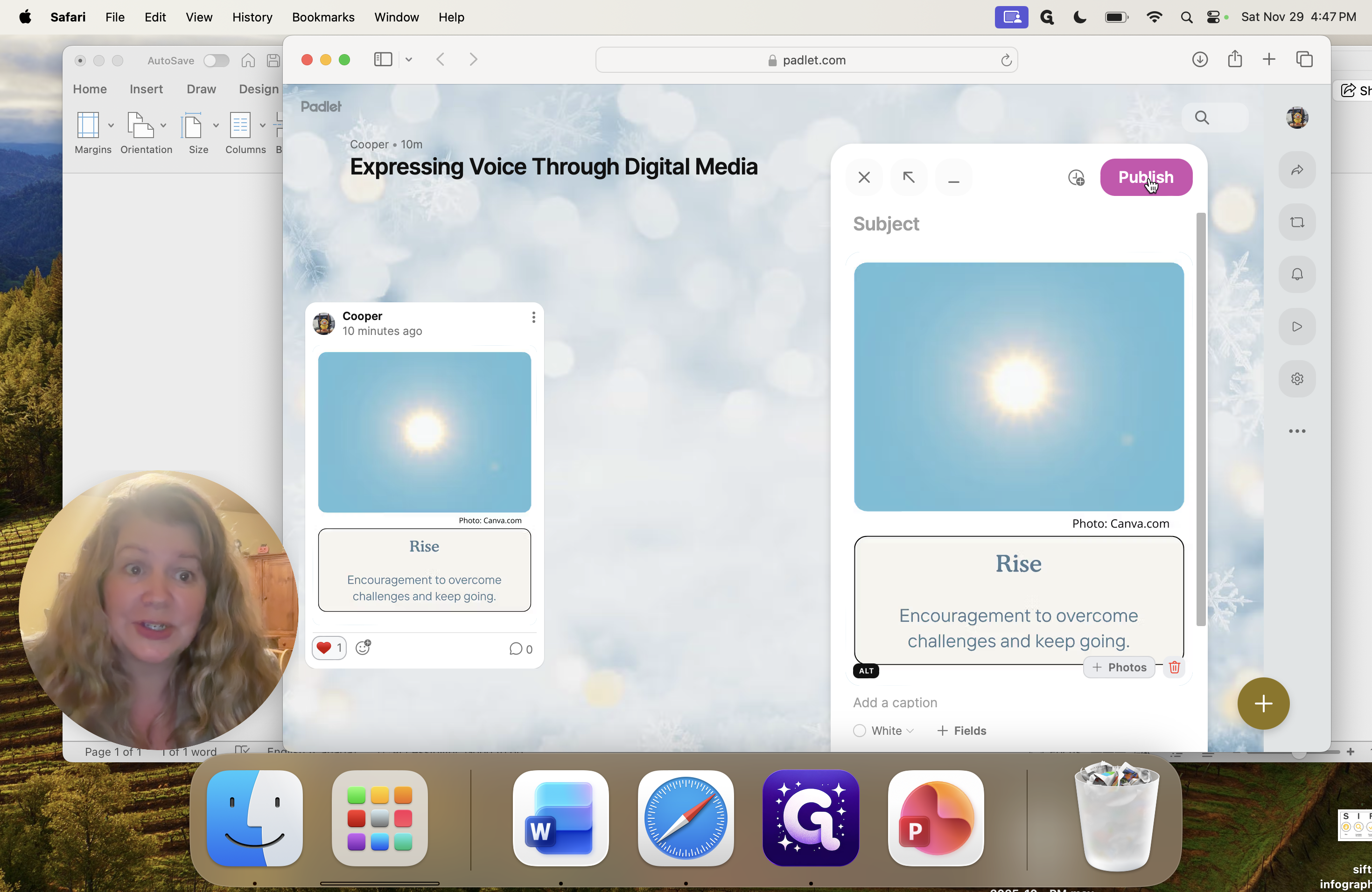
Once you've published, you'll see it appear instantly. Now you can comment on other people's posts. You can use an emoji if you like, but you still need to add a comment, please. I'll give it a thumbs up, then write a comment.
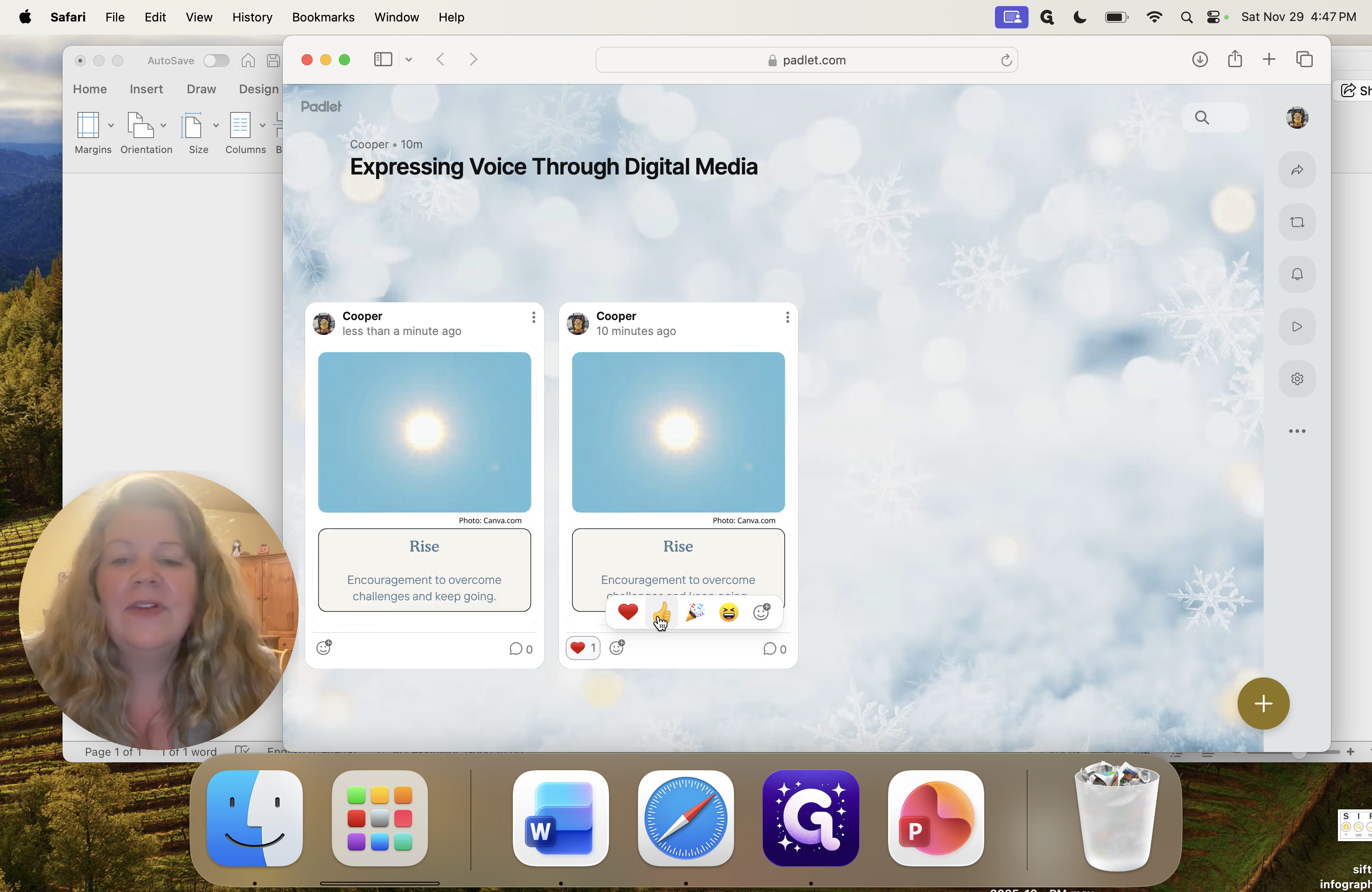
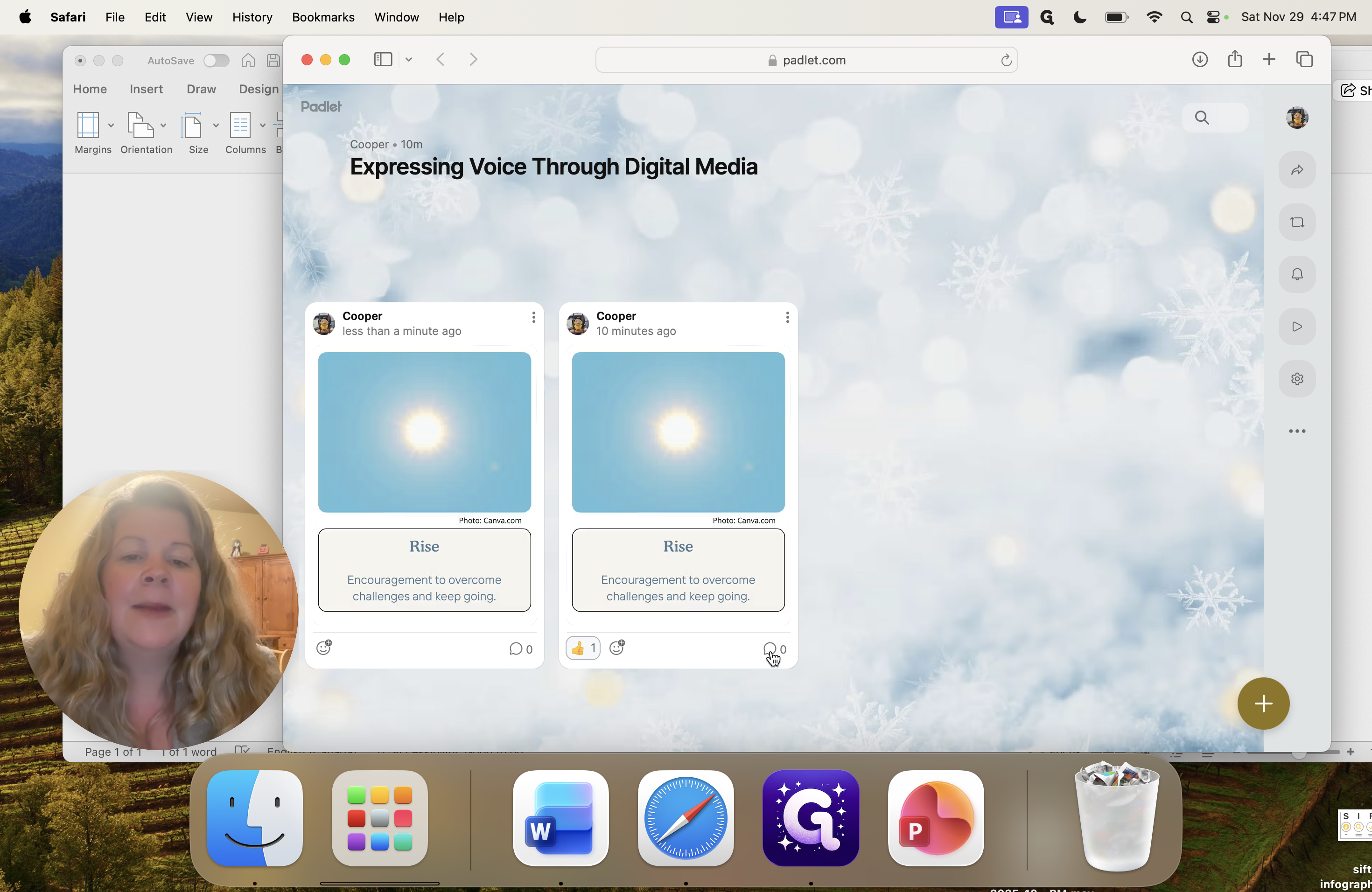
"Nice work, I really relate." You can also share more about how this picture connects with you, or explain what the sunrise means to you and how it makes you feel.
Be sure to write a nice comment. Click "Comment" to add it to the picture.
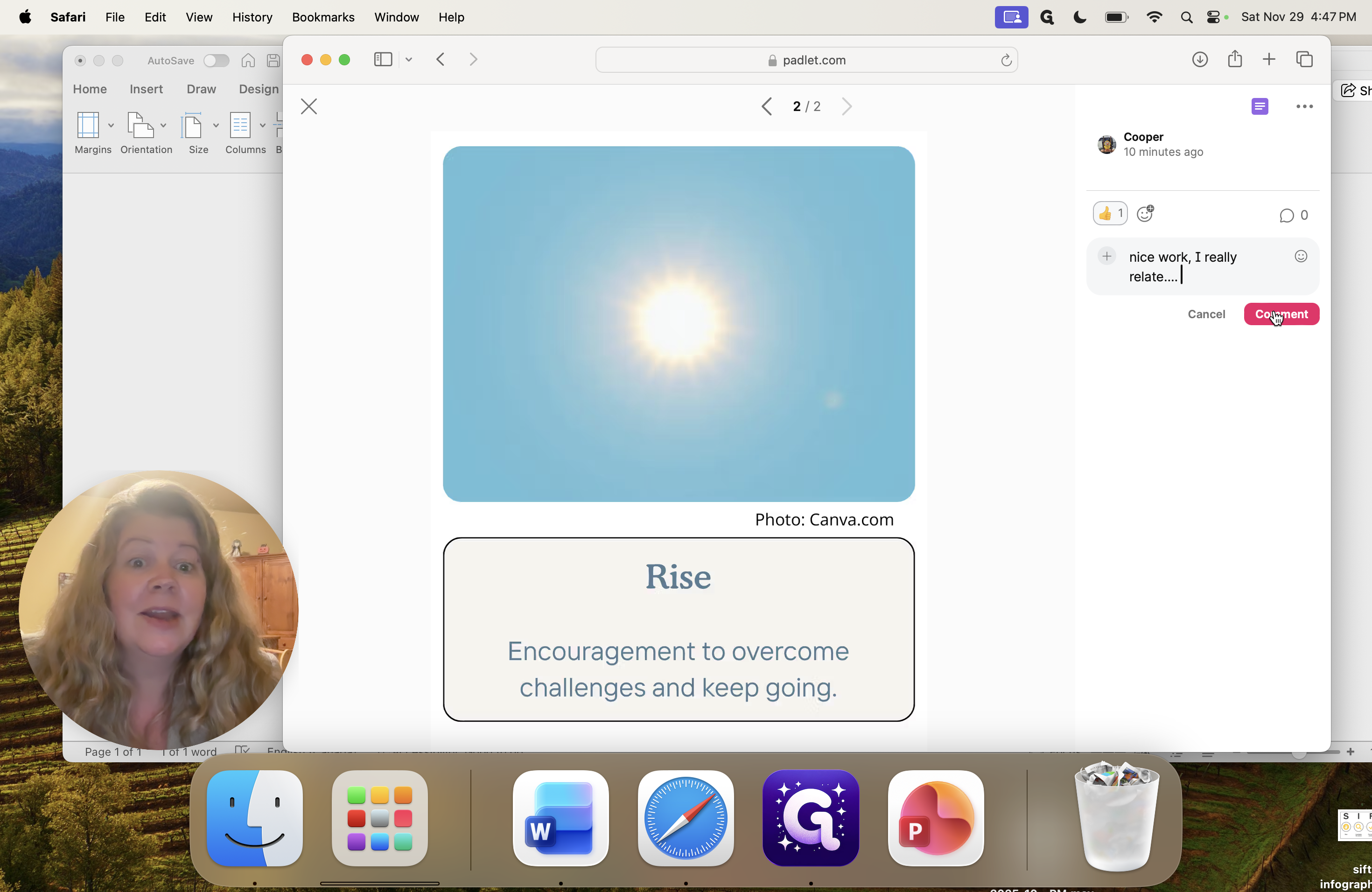
I'll close this, and you can see that my comment was saved.
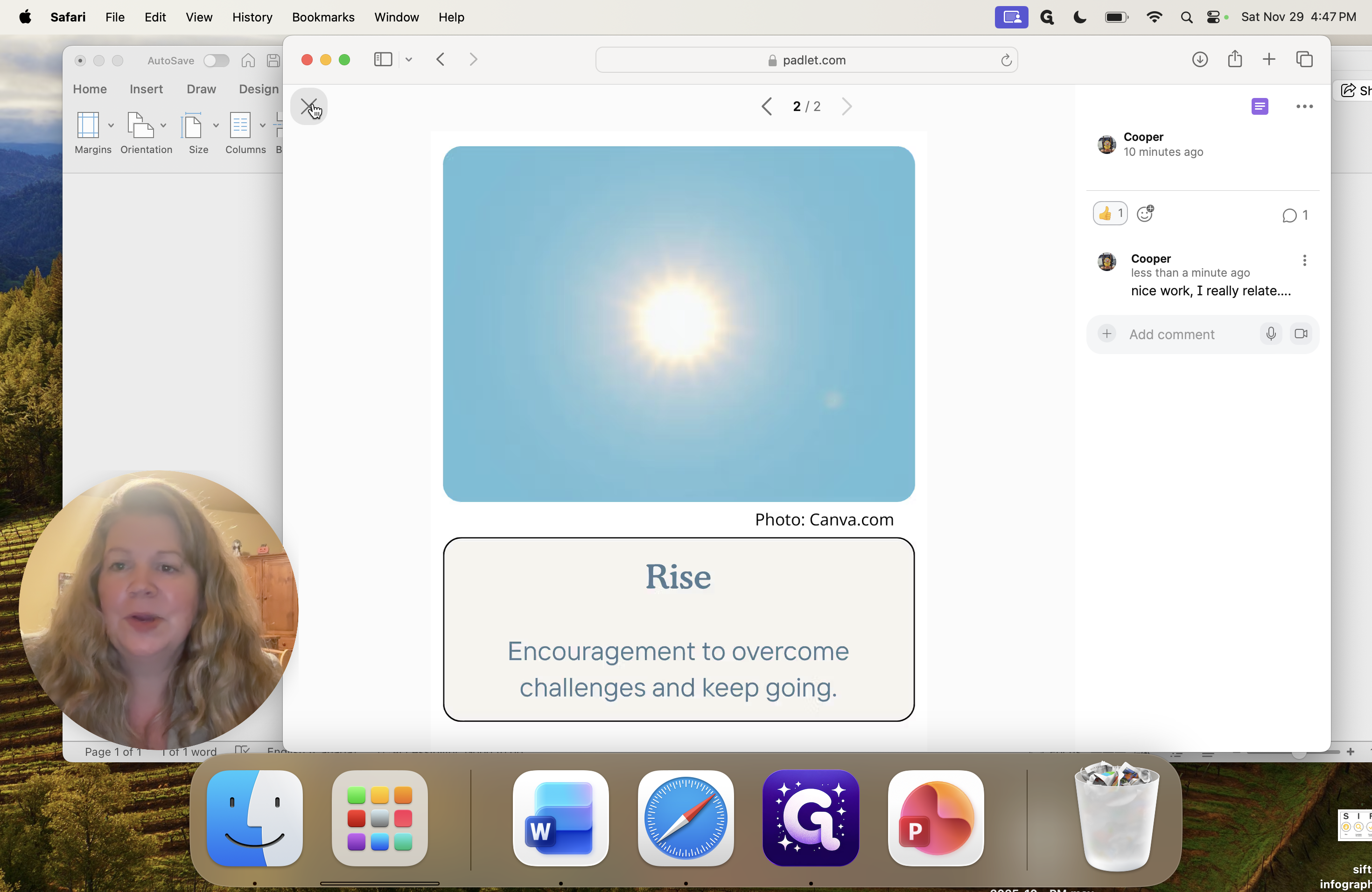
My small thumbs-up icon is visible, and we are ready to begin. That's it, friends. After you post and comment on at least two classmates' posts, you are finished. Well done. If you have any questions, please feel free to contact me. Thank you very much.
See you later.