How to Suspend a User in Brivo Access
Learn how to temporarily suspend a user account and filter your user directory by account status in Brivo Access.
By Julie Phung
This guide walks you through suspending a user account to instantly revoke their access privileges, as well as how to filter your directory to view users by their current status.
This task applies to system administrators and security personnel who manage credentials and facility access control within Brivo Access.
Suspend a User
1
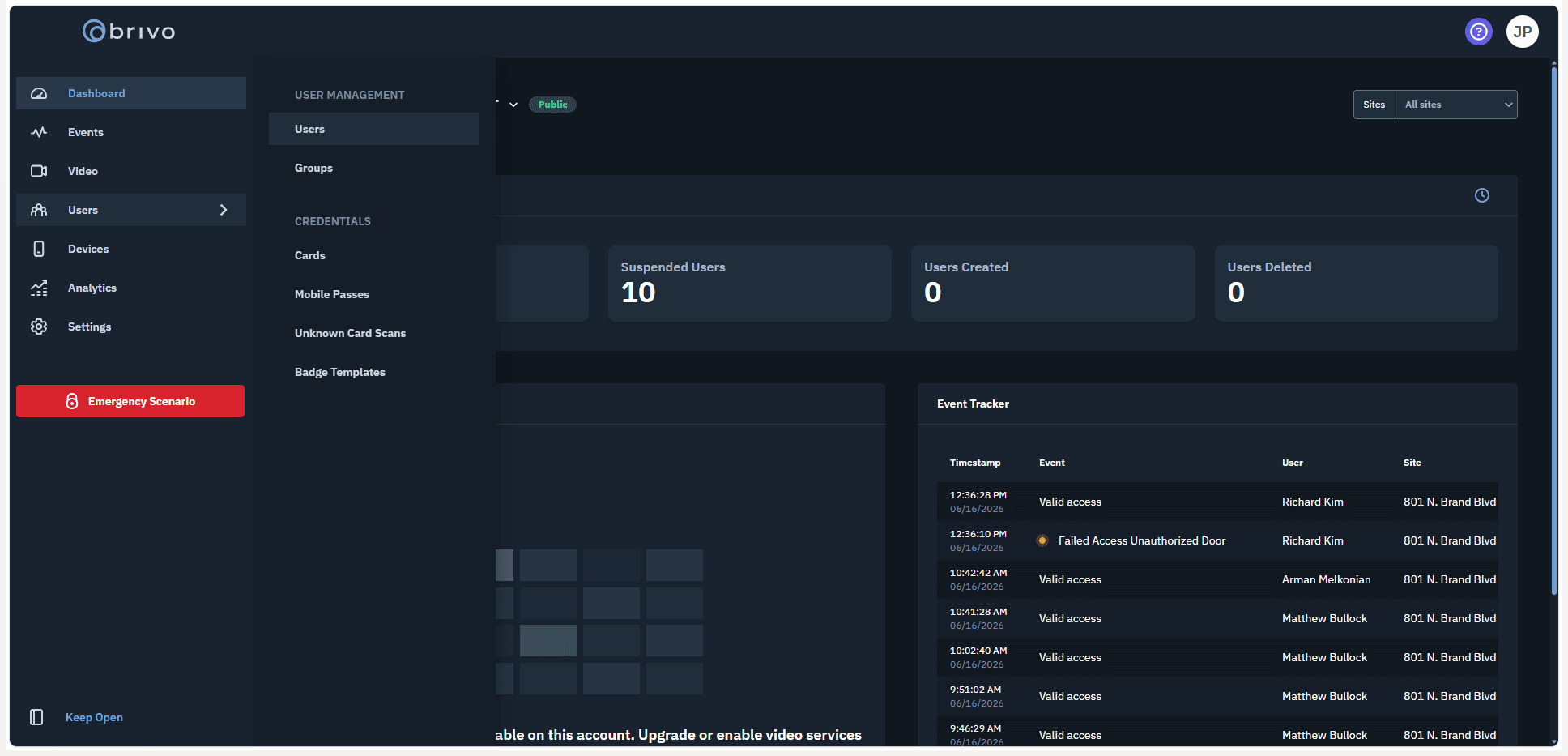
Click Users in the main navigation menu.
2
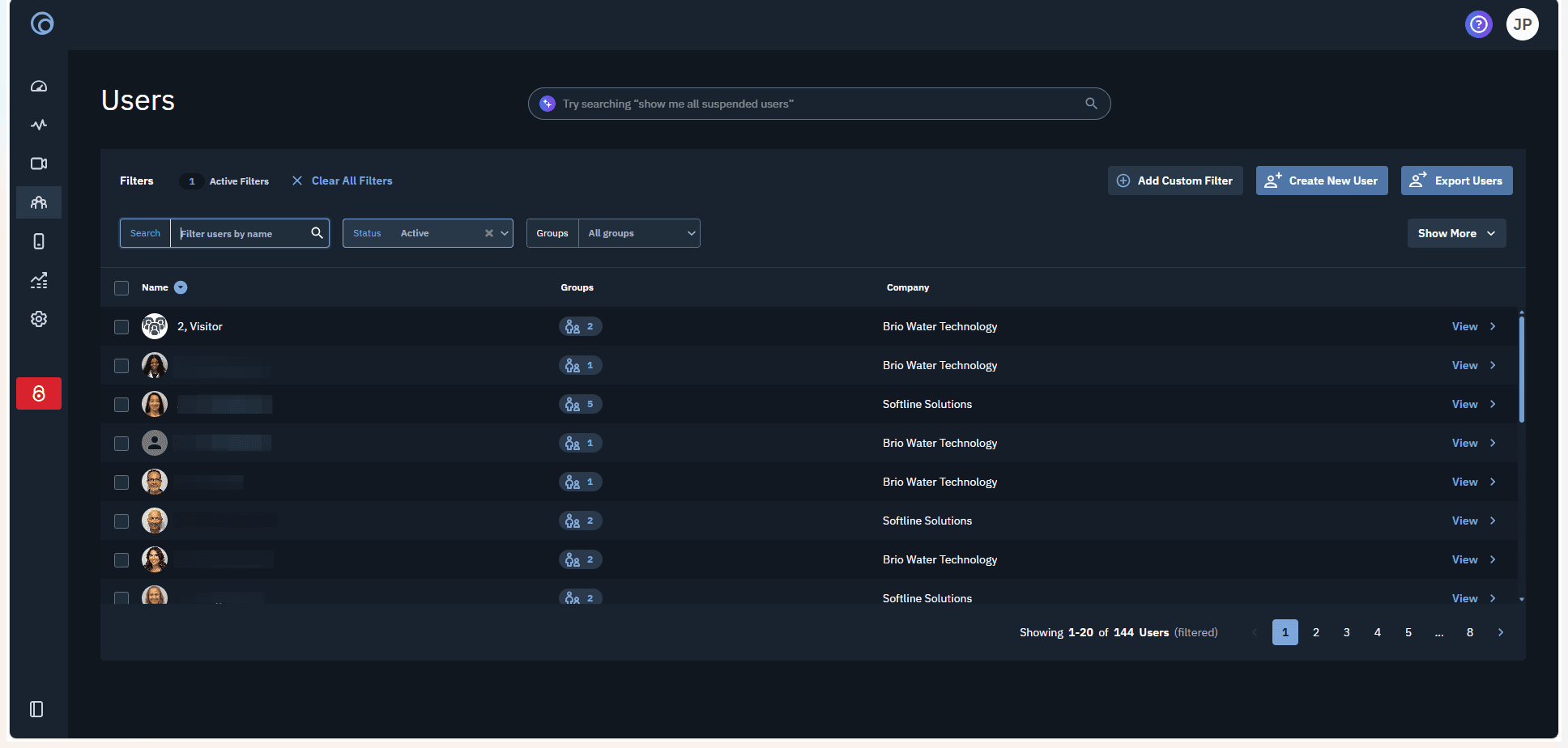
Click Filter users by name and search for the user you want to suspend.
3
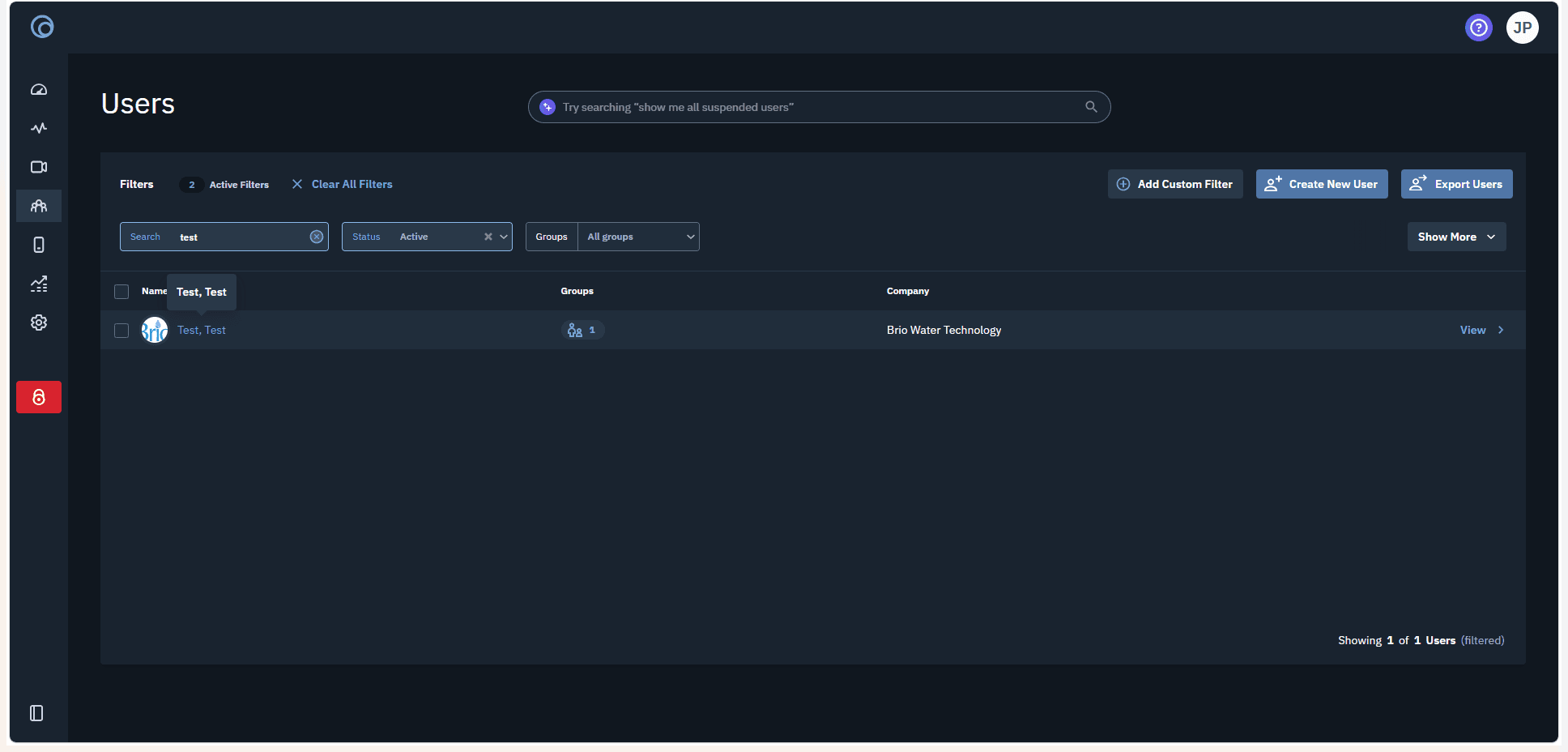
Select the user from the resulting list to open their profile details.
4
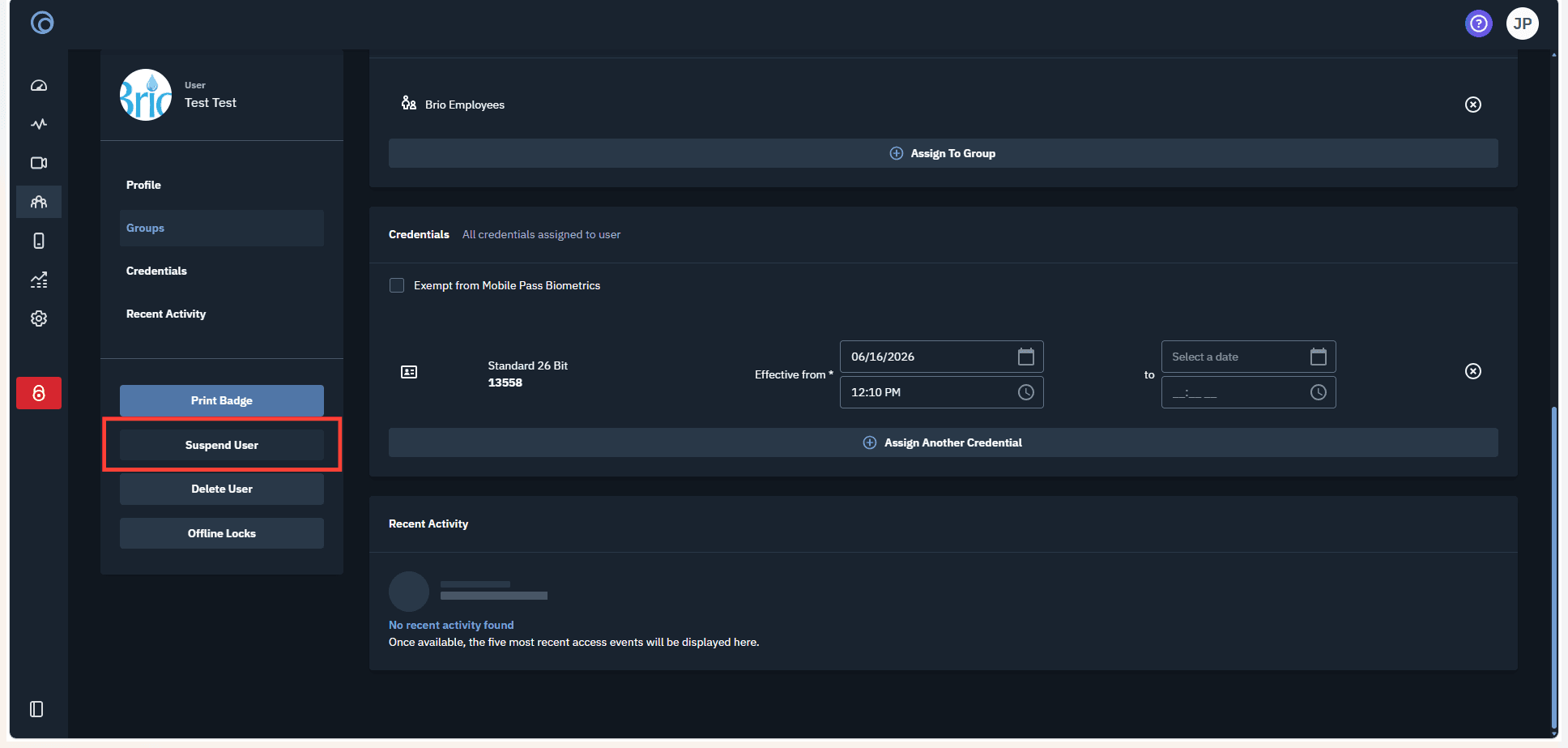
Click Suspend User in the left sidebar menu.
5
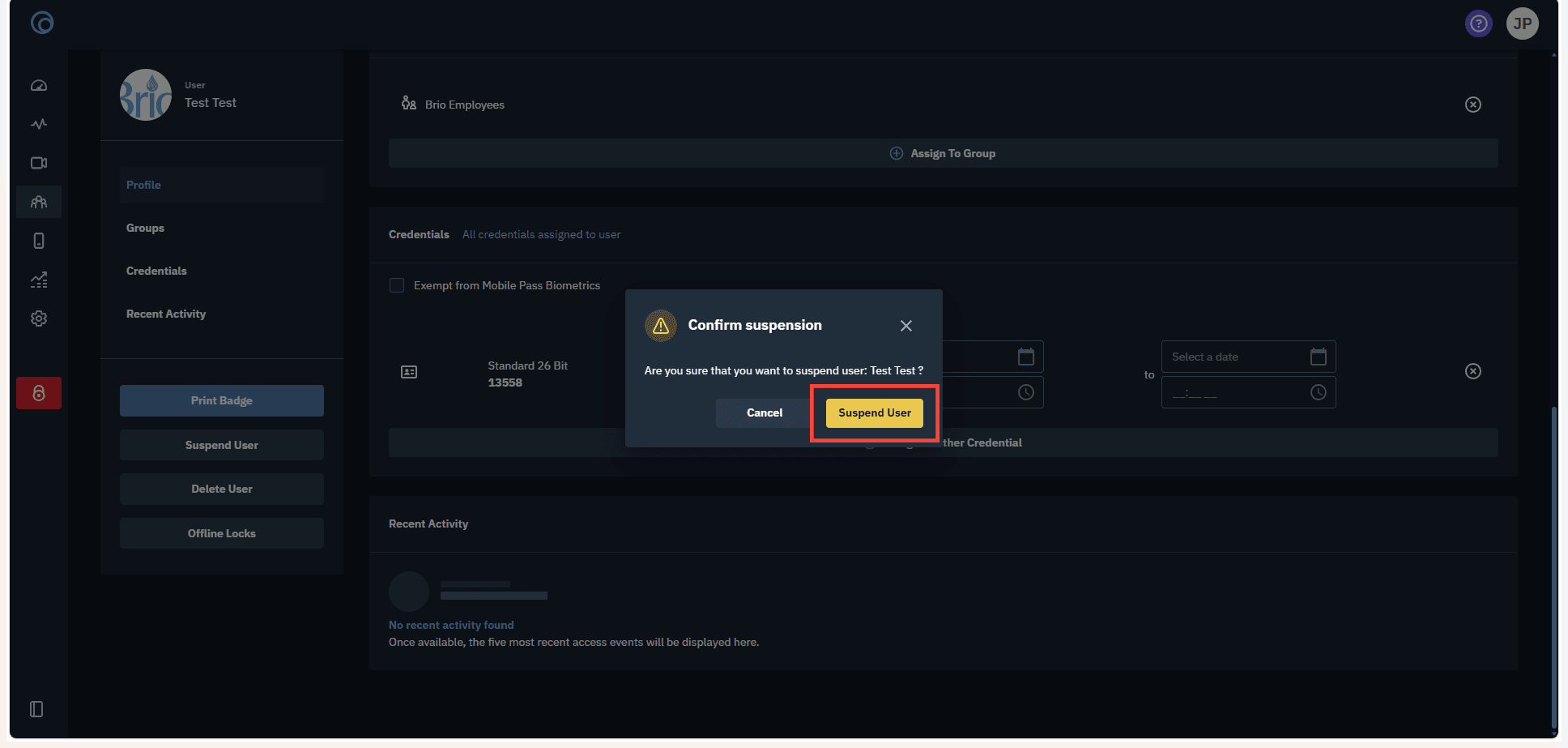
Click Suspend User in the confirmation window to finalize the suspension.
View Suspended Users
6
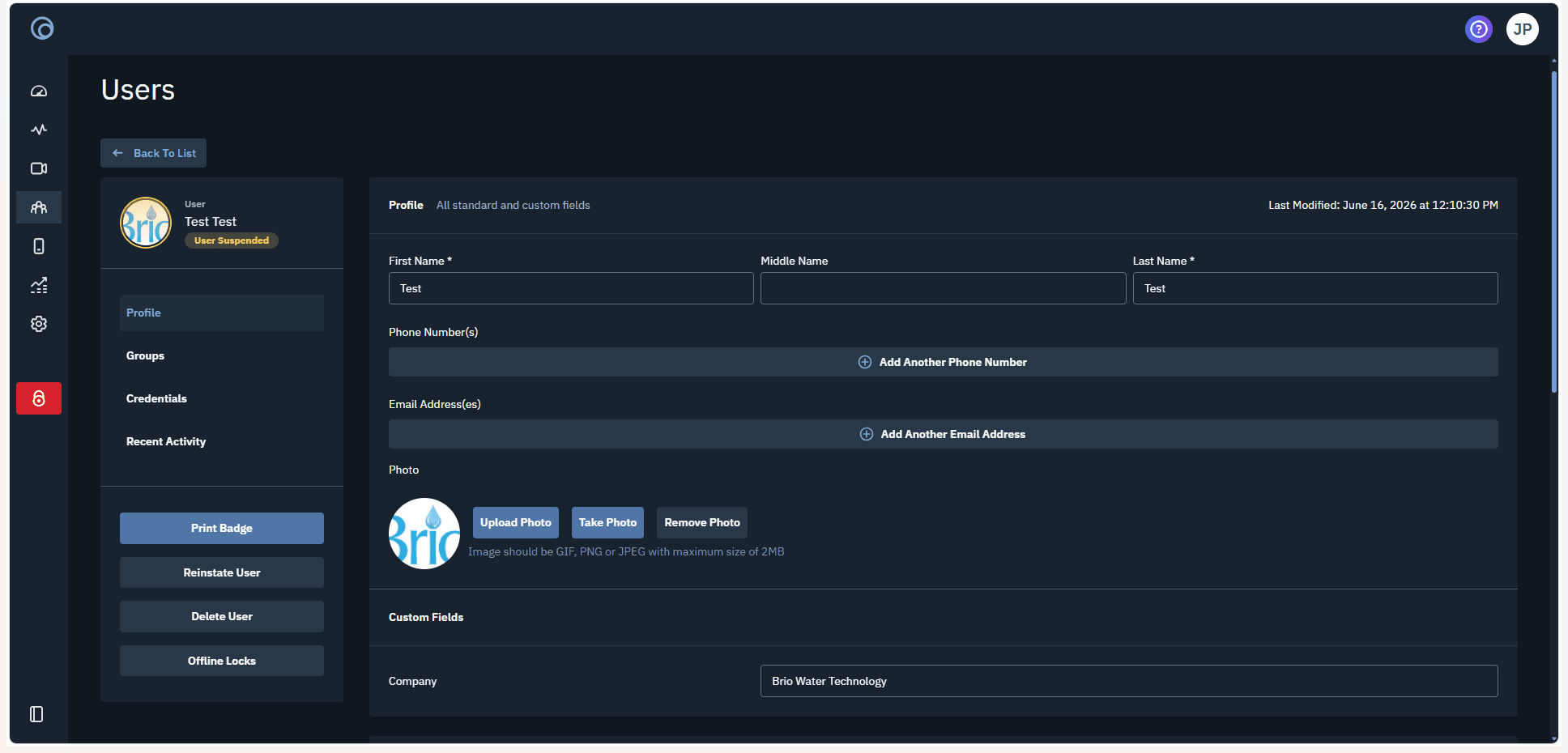
Click ← Back To List to return to the user management page.
7
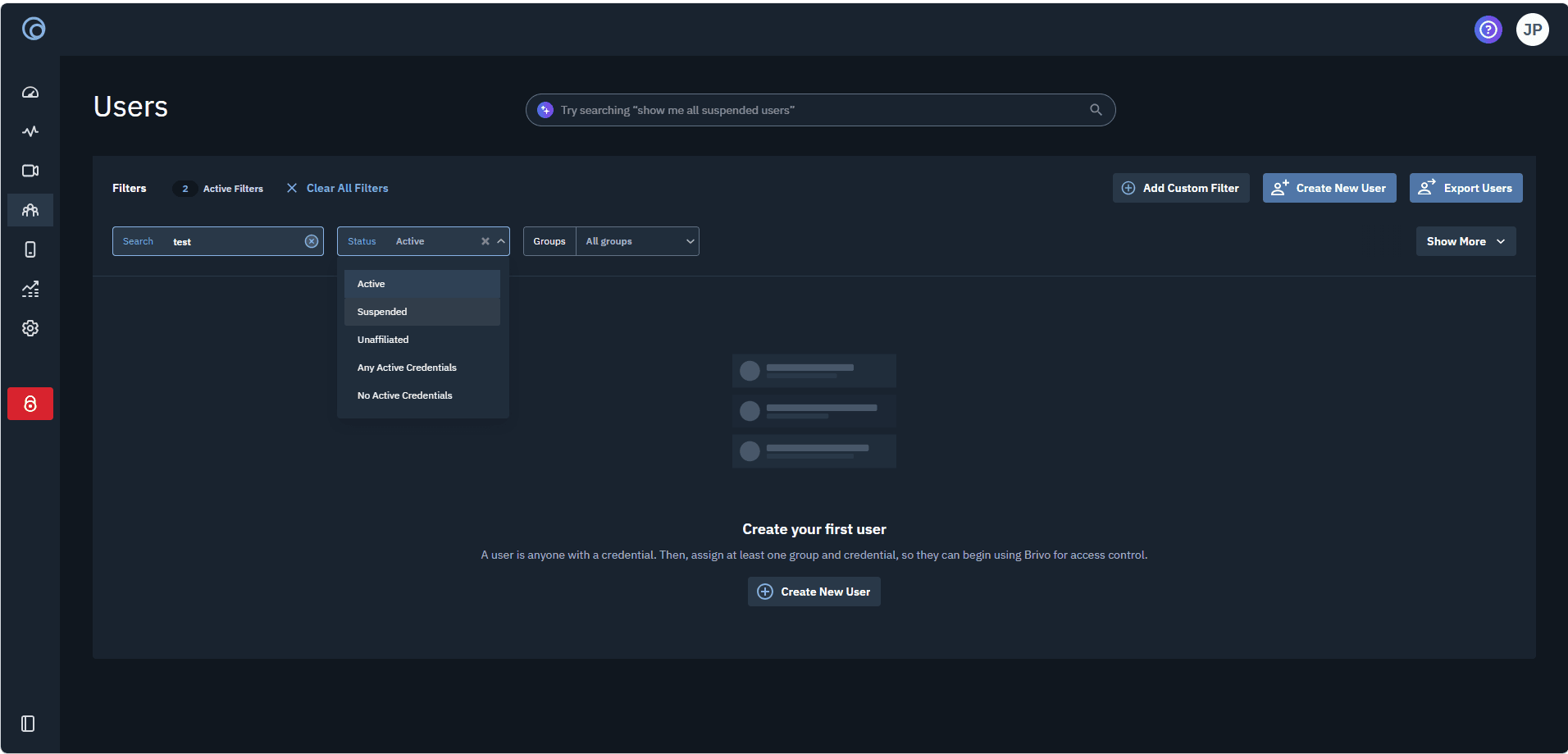
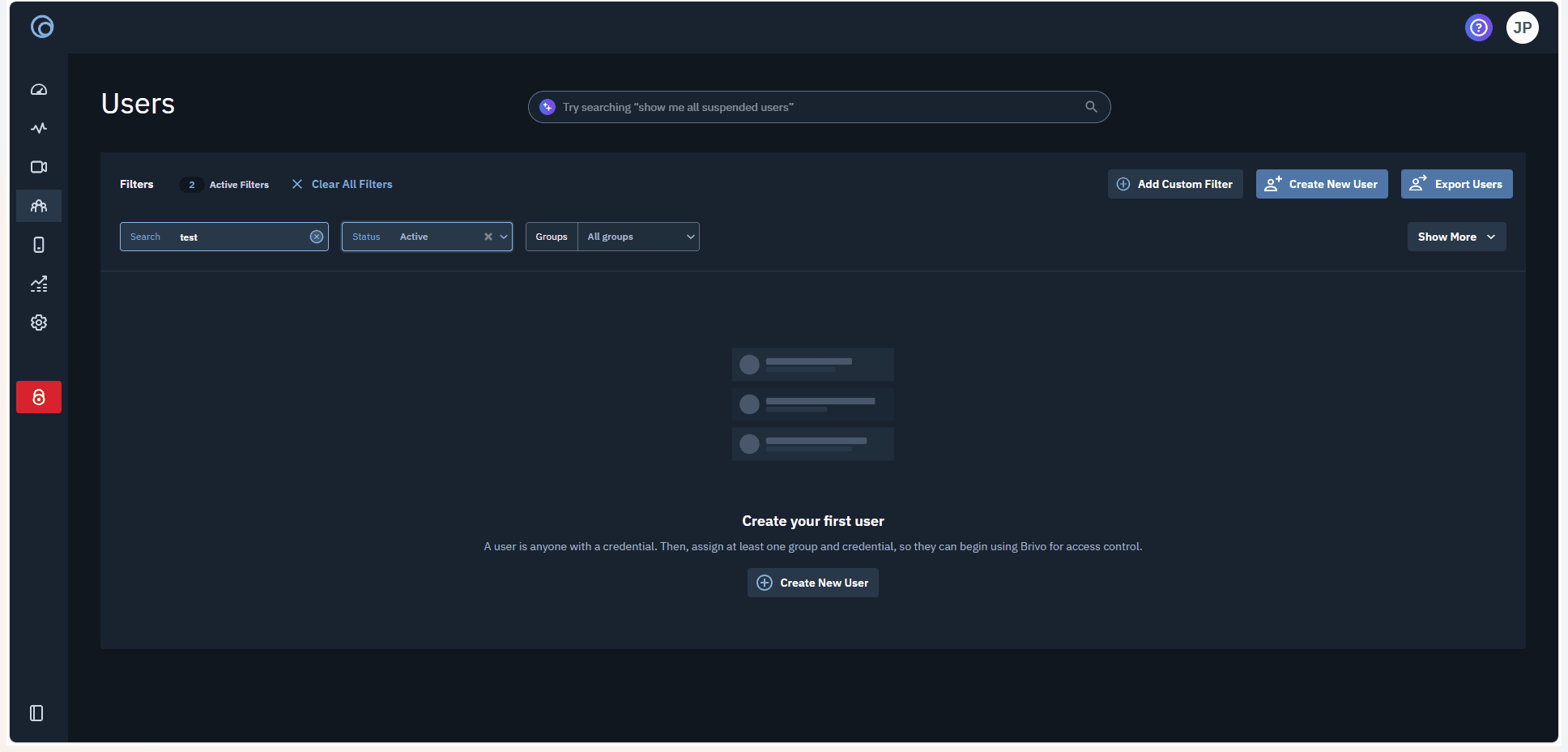
Click the x in the search bar to clear your previous name filter.
8
Open the status dropdown menu to filter your directory by user status, such as Suspended.