
How to Terminate an Employee in ELMO
Learn how to manually terminate an employee profile in ELMO or assign the automated Termination Workflow for comprehensive offboarding.
This guide outlines how to terminate an employee within the ELMO platform. Properly executing this process ensures that CST ceases billing for the user's account and triggers all necessary offboarding protocols.
This process applies to HR personnel and system administrators responsible for managing the employee lifecycle and executing offboarding procedures.
When terminating an employee, you can choose between a direct profile termination or a comprehensive automated workflow. Review the options below to determine the best approach for your scenario:
Method | When to use | How it works |
|---|---|---|
Direct Termination | Simple profile closures requiring immediate system removal. | Manually updates the user's status to terminated directly from their profile. |
Termination Workflow | Comprehensive offboarding (Recommended). | Automates tasks by notifying payroll and prompting managers to retrieve equipment and revoke access. |
Method 1: Direct Employee Termination
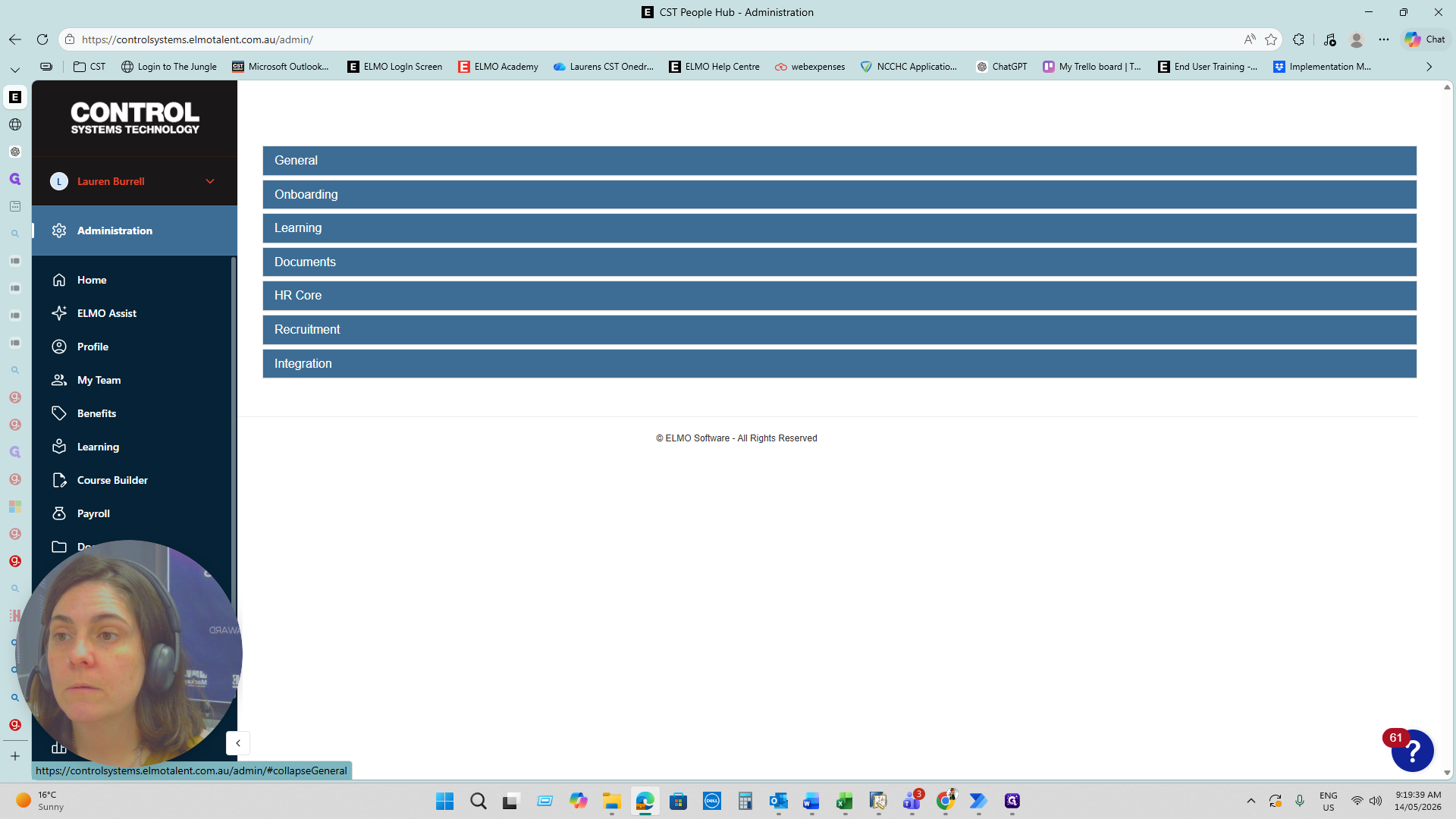
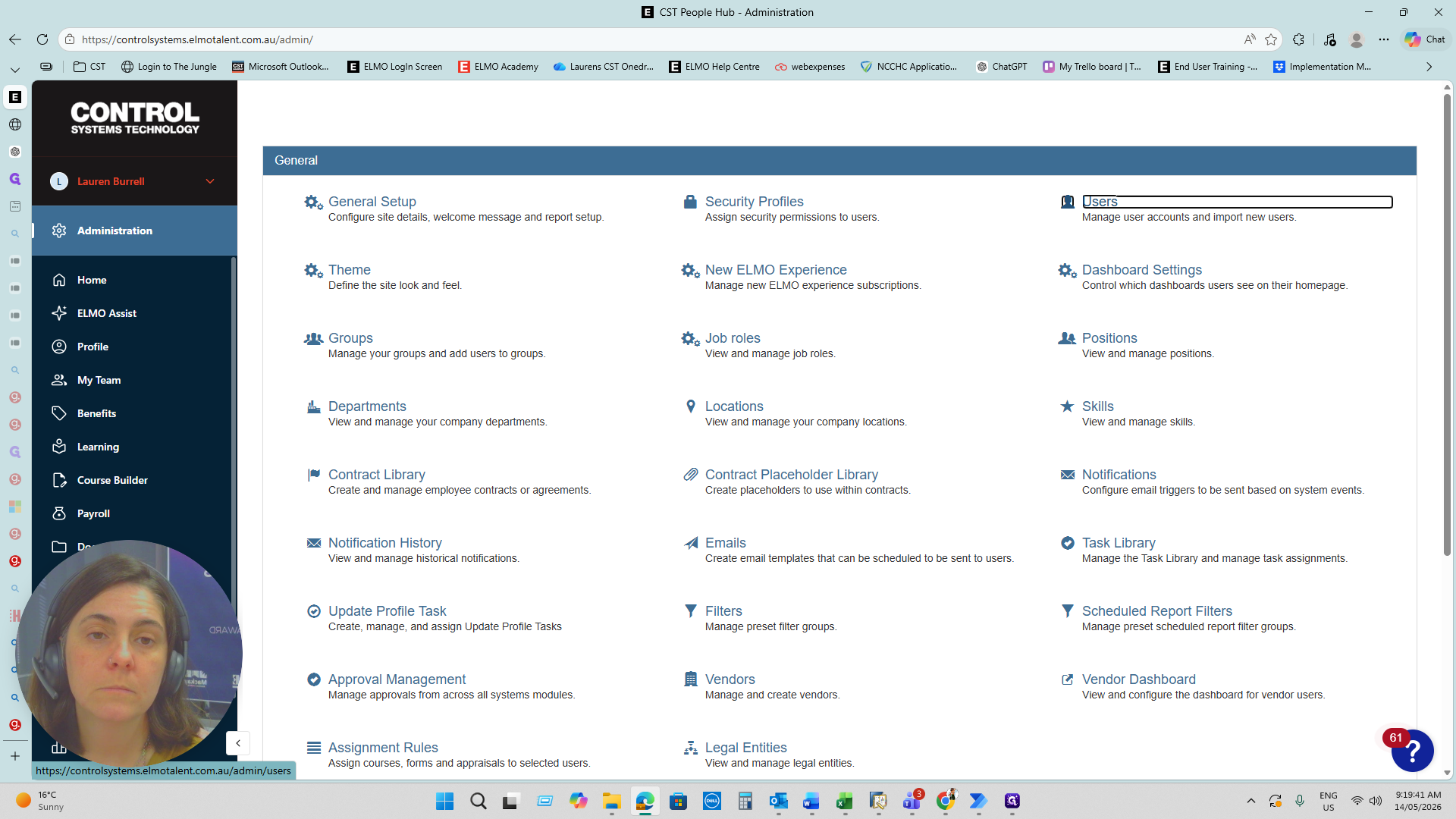
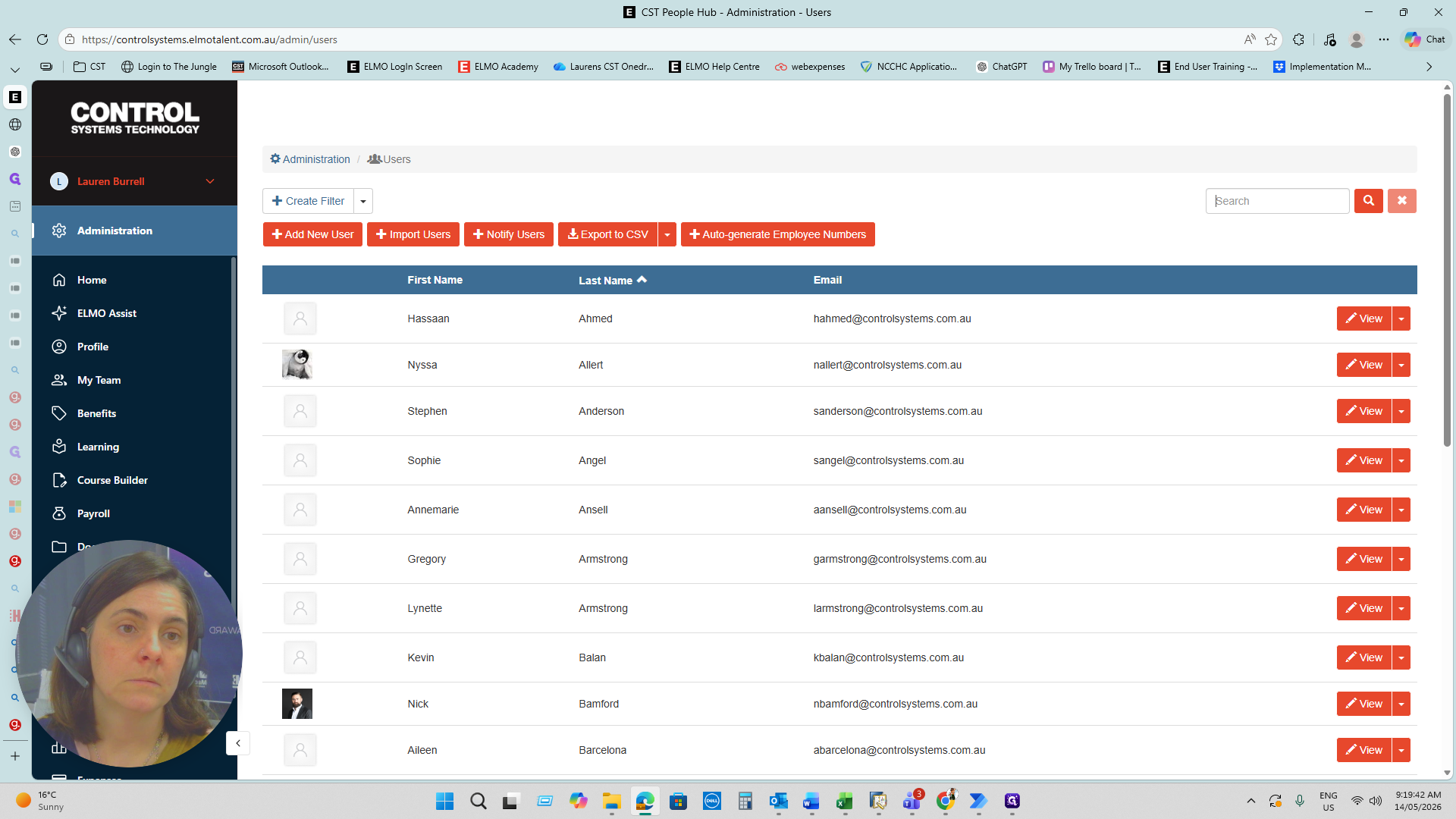
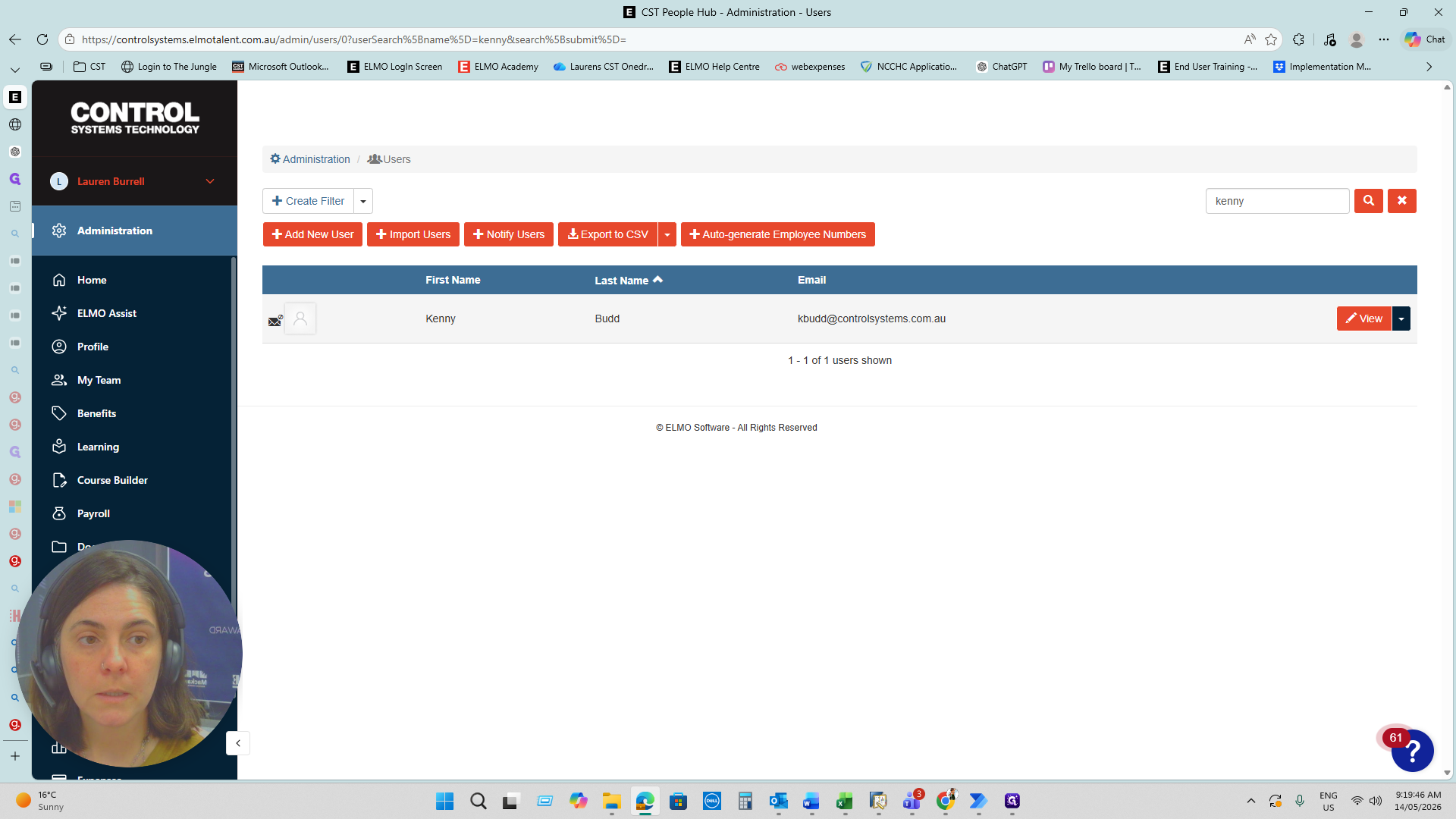
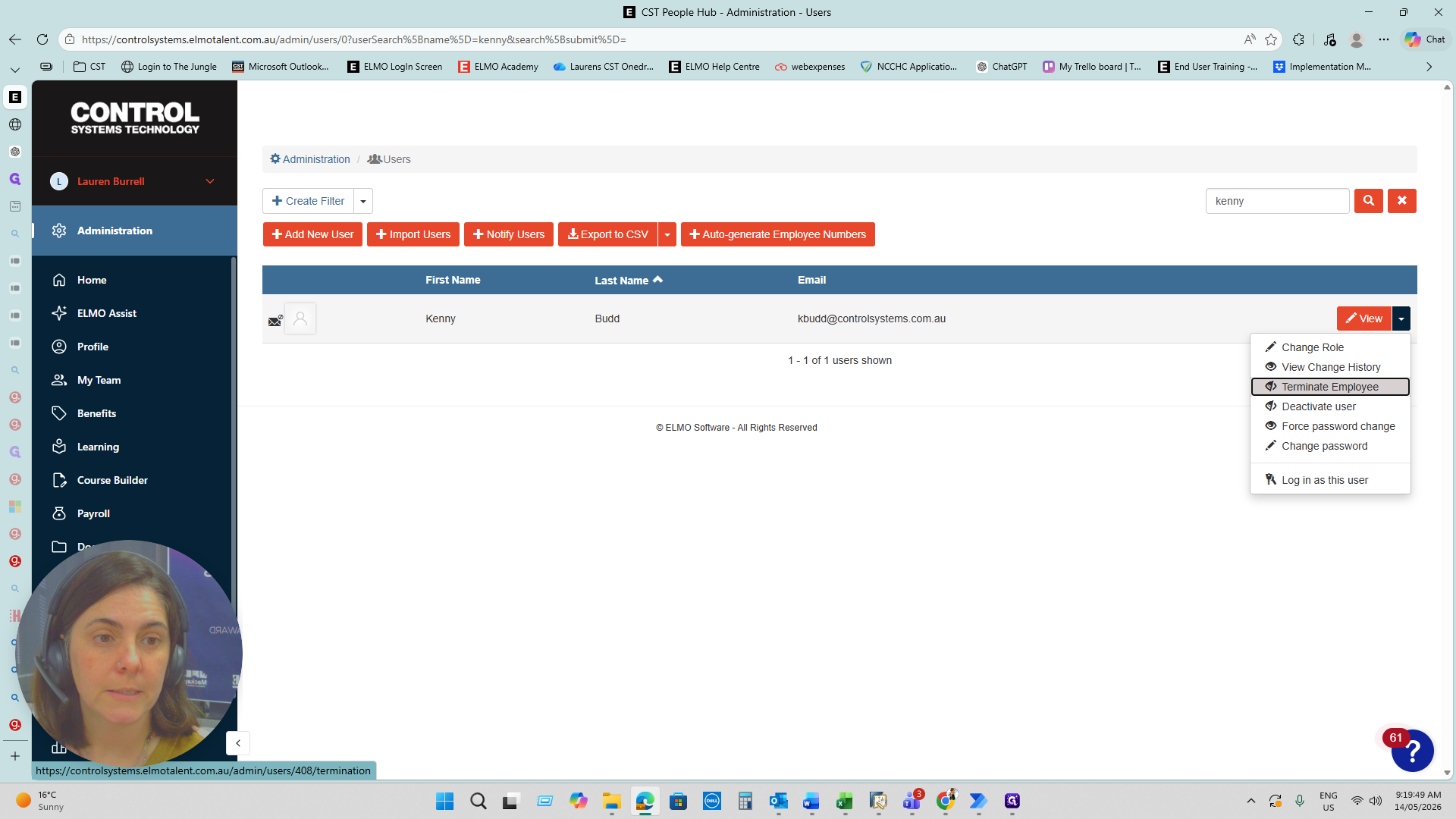
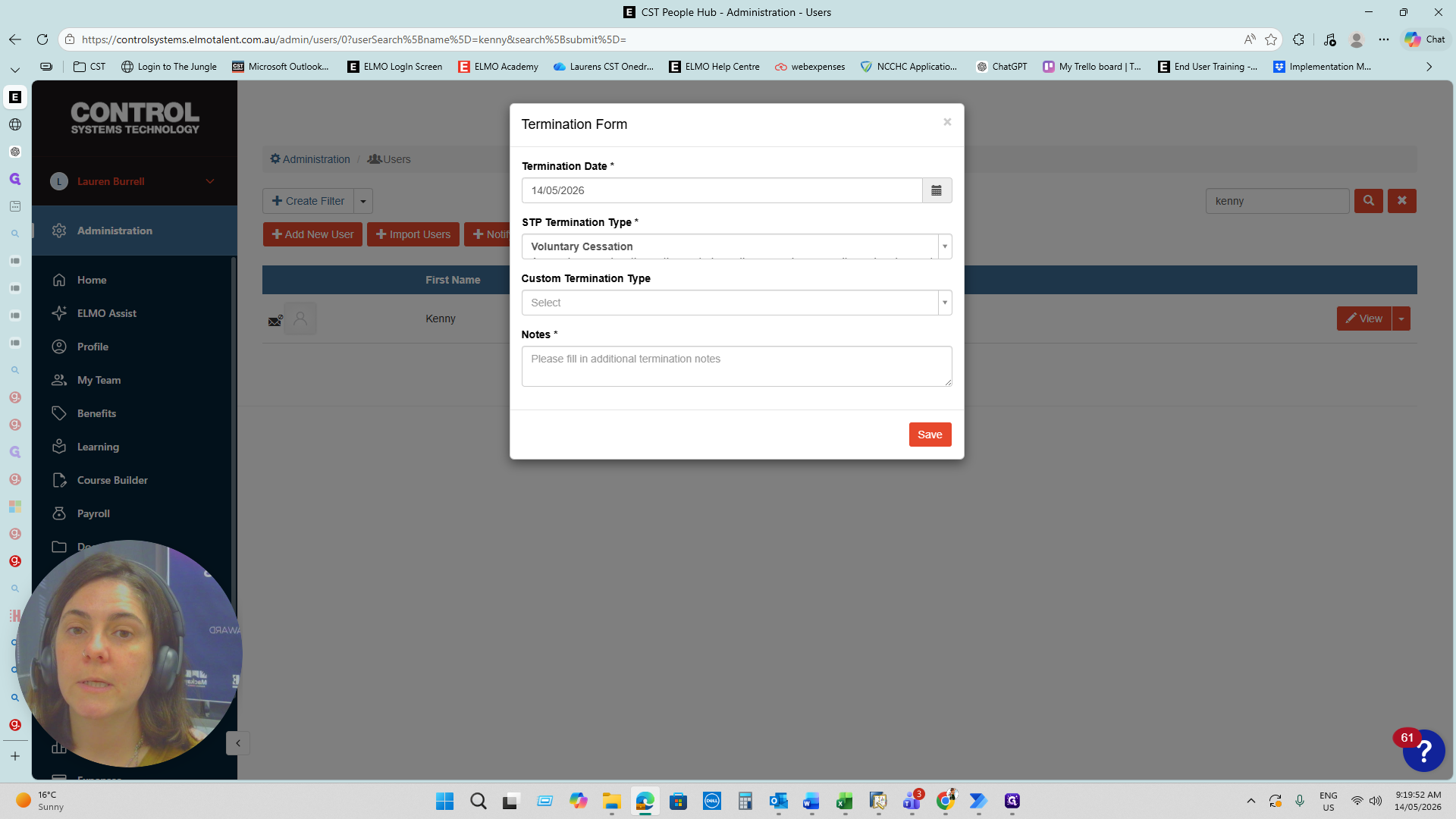
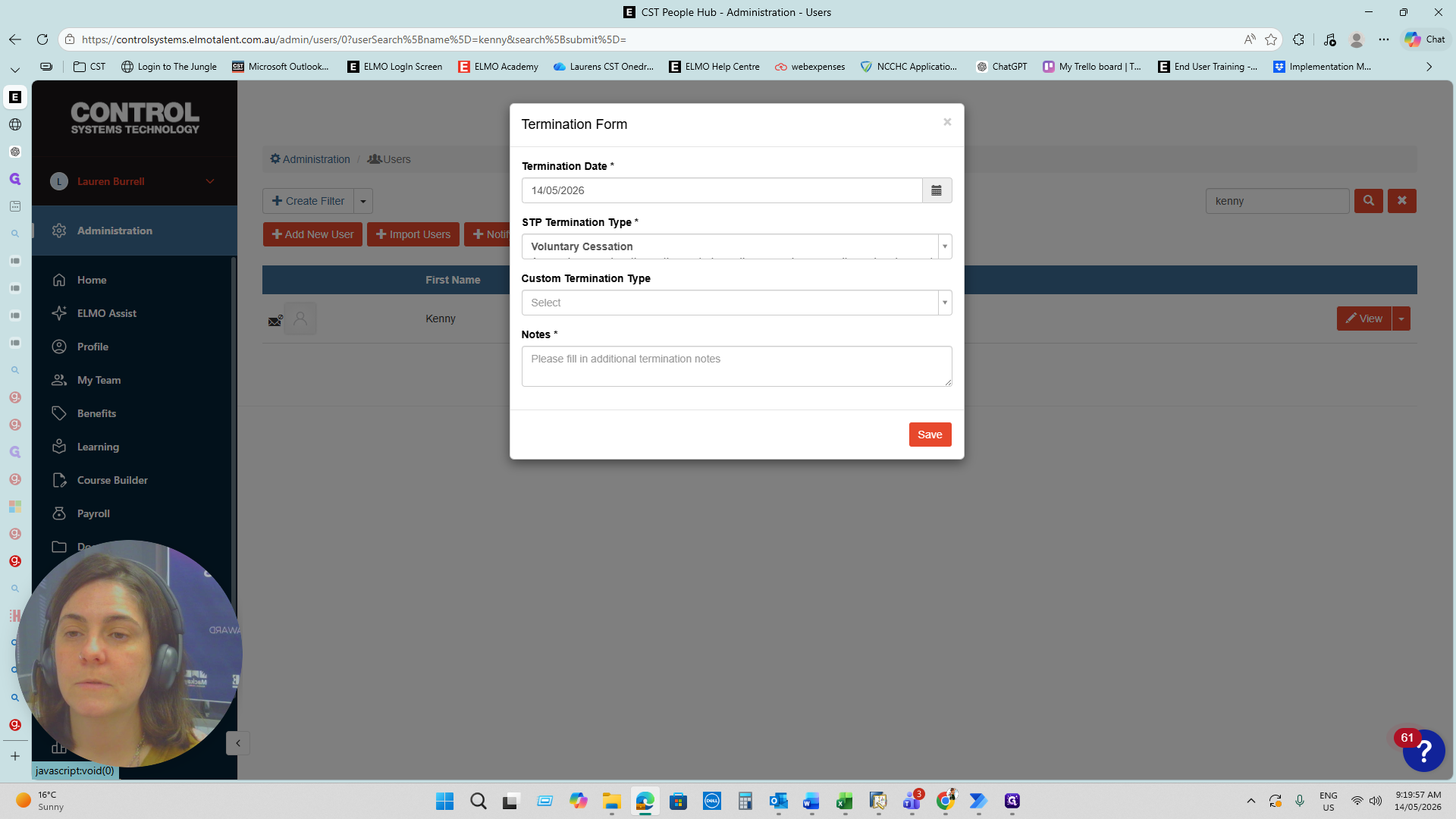
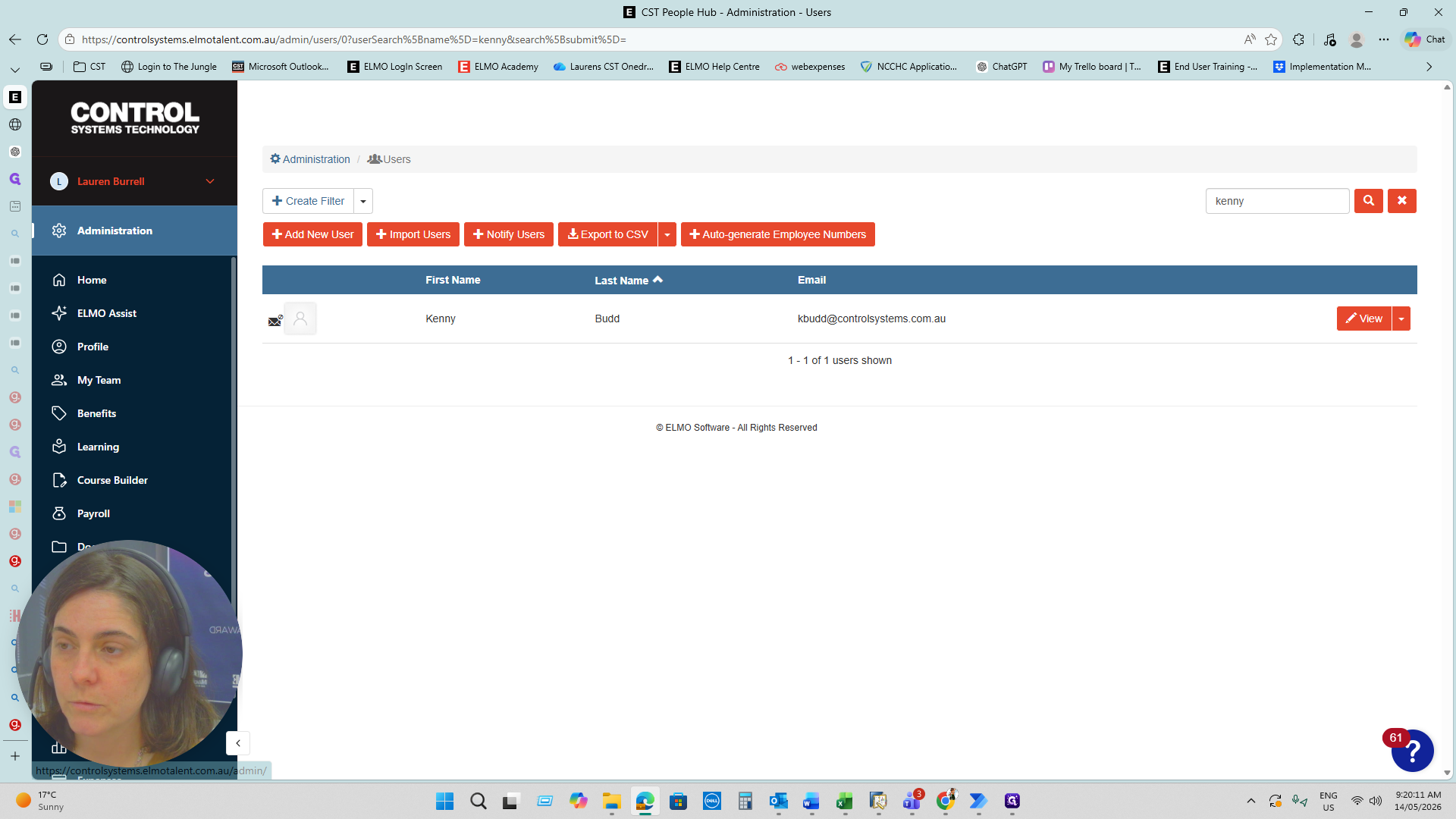
Use this method to quickly terminate an employee profile from the general administration menu.
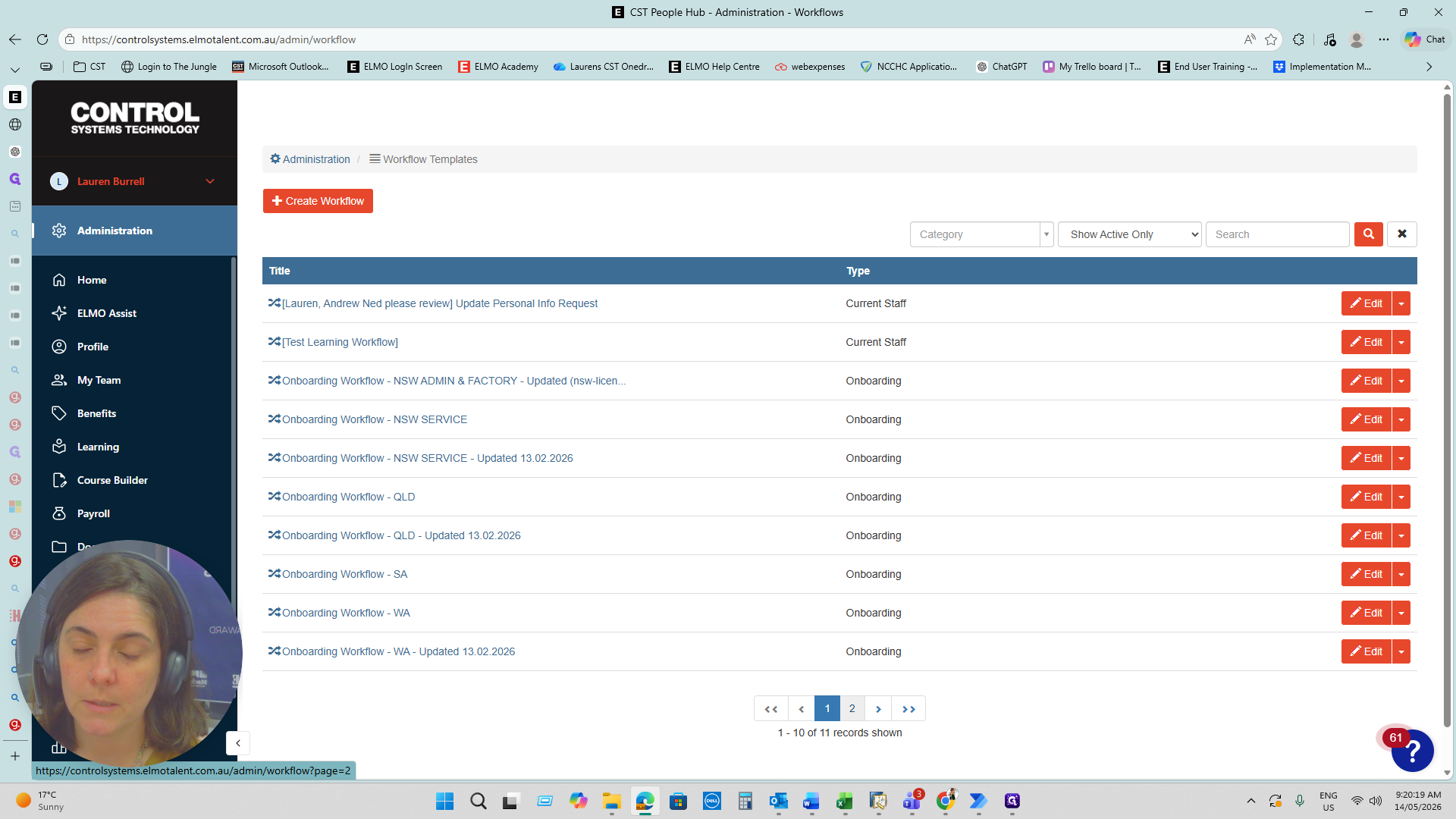
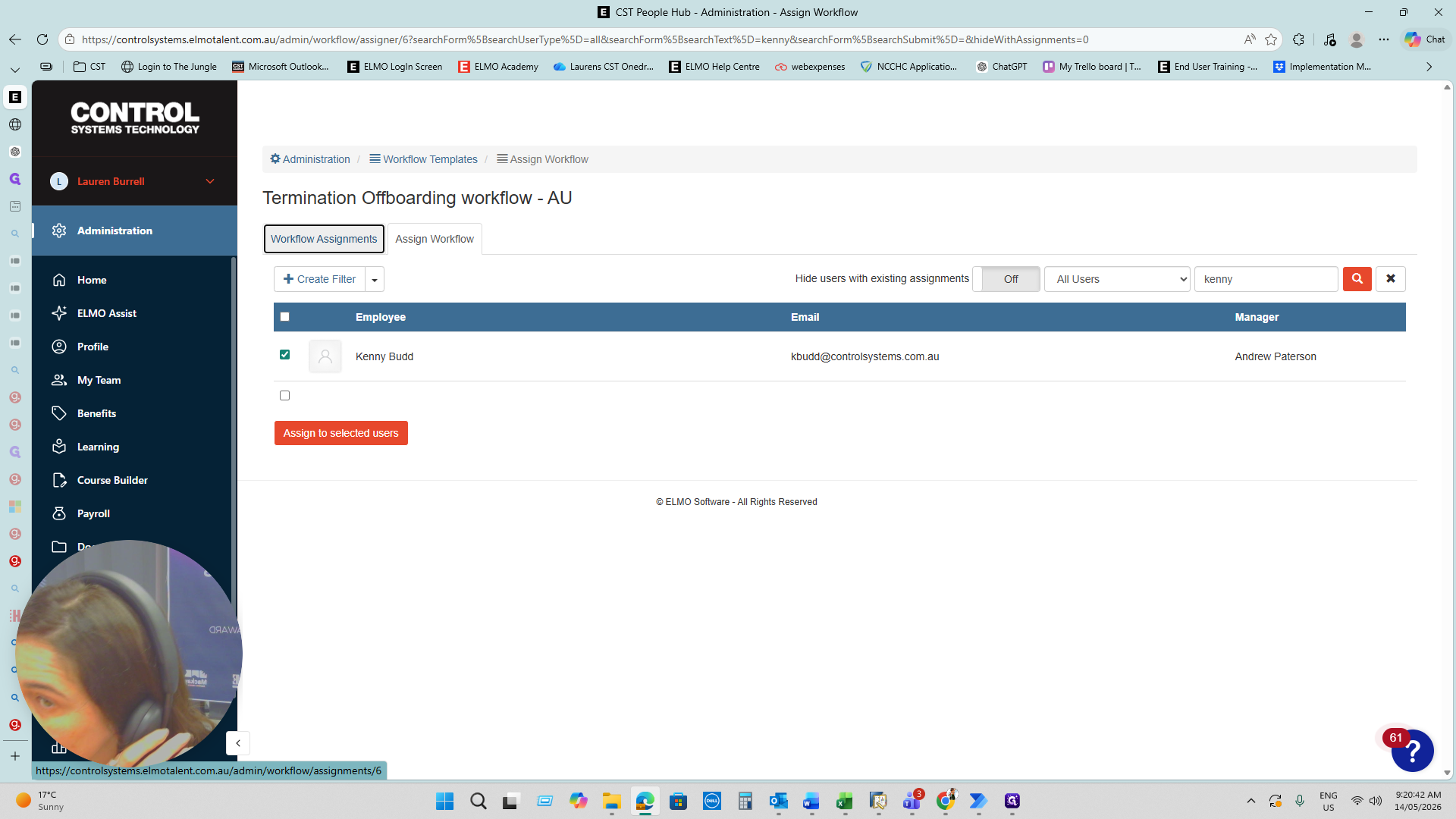
Method 2: Using the Termination Workflow
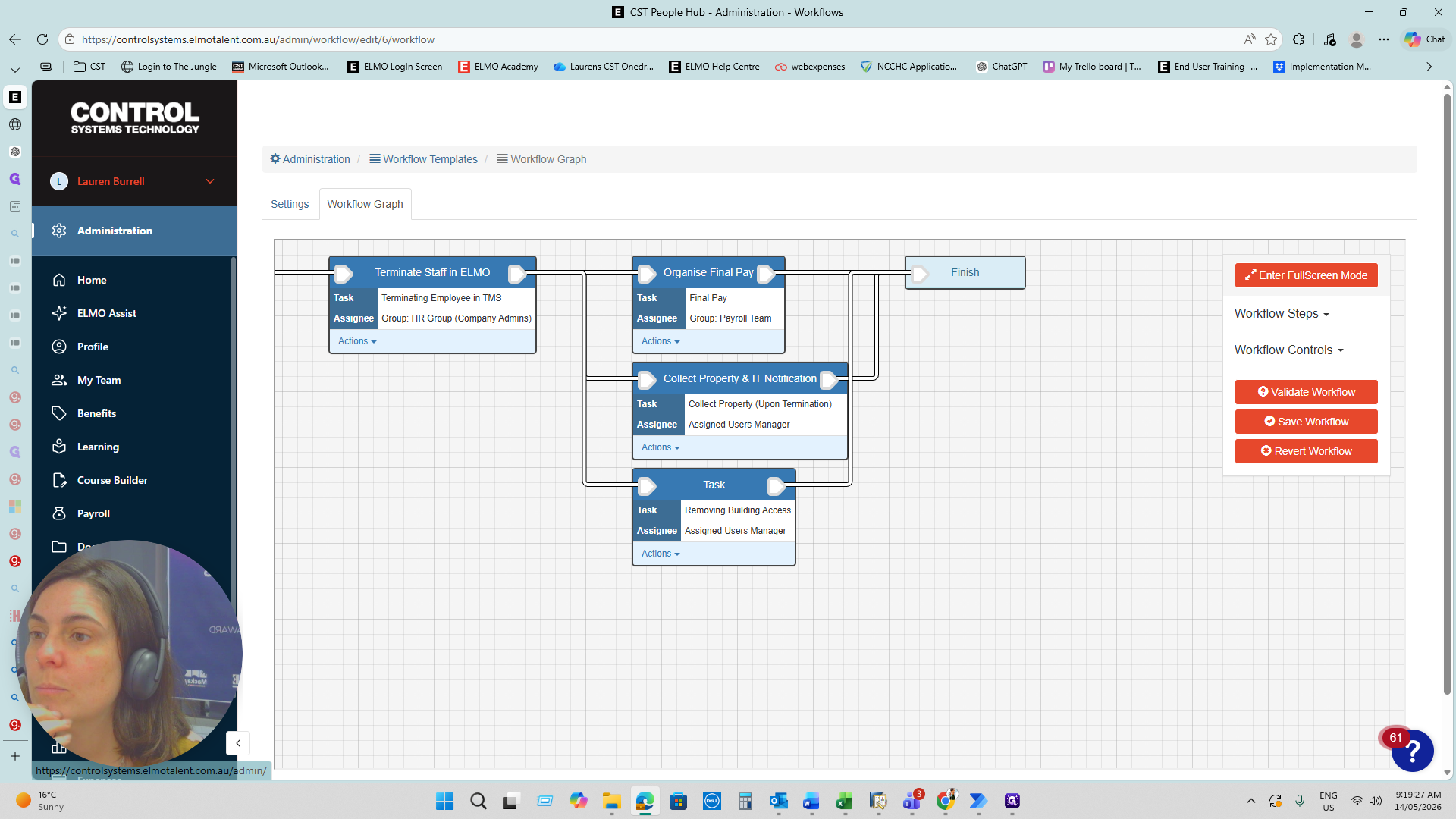
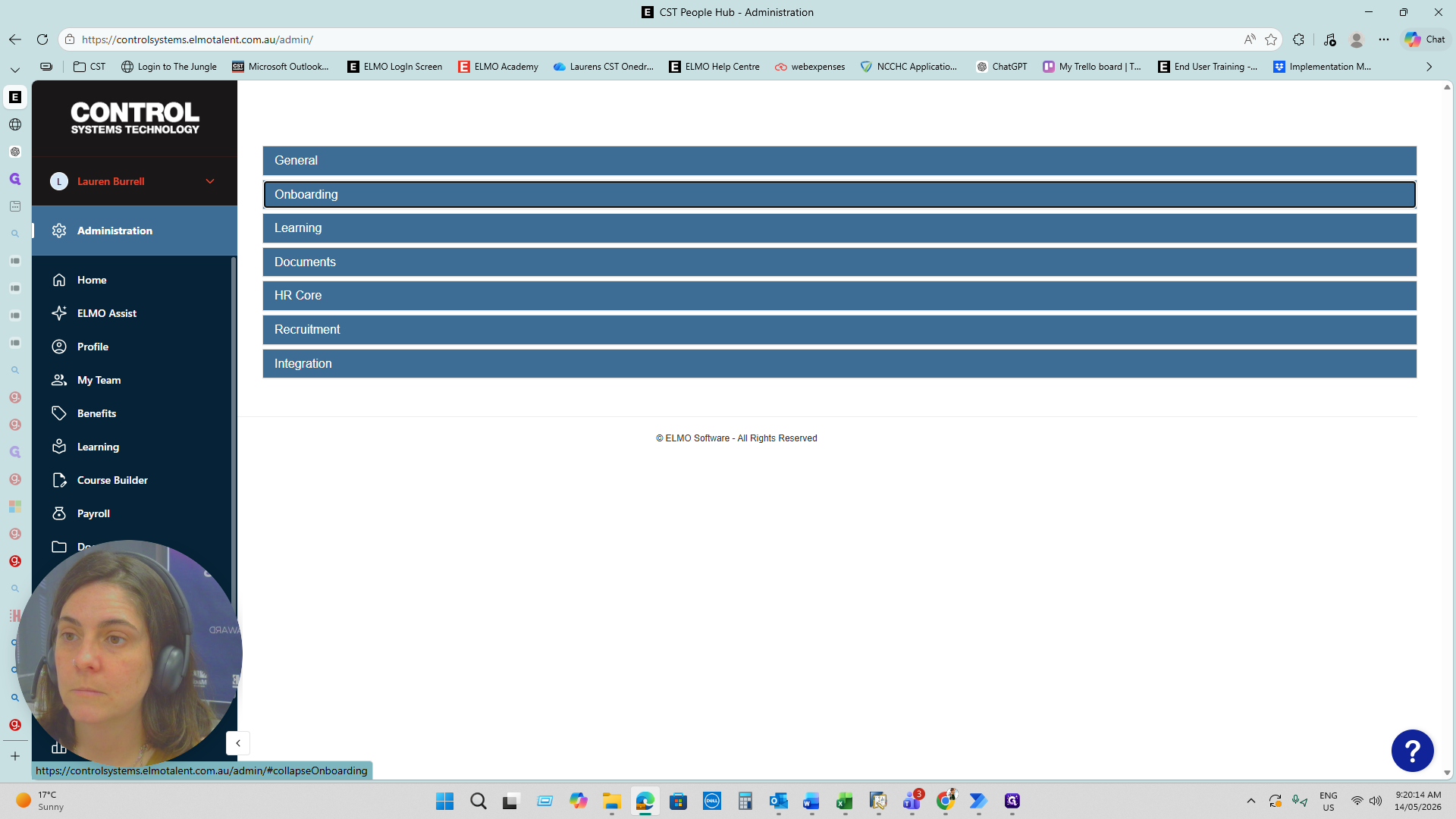
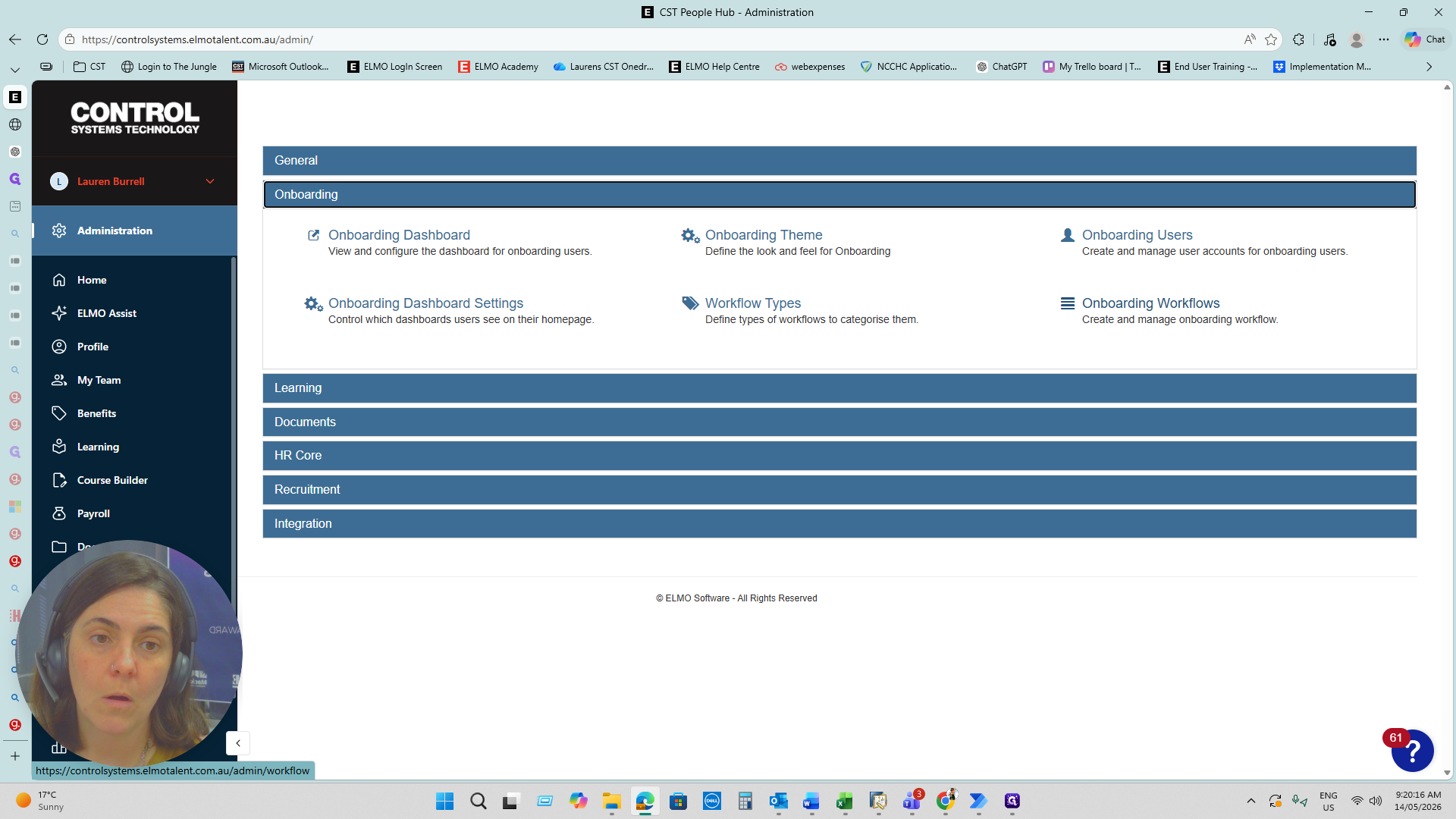
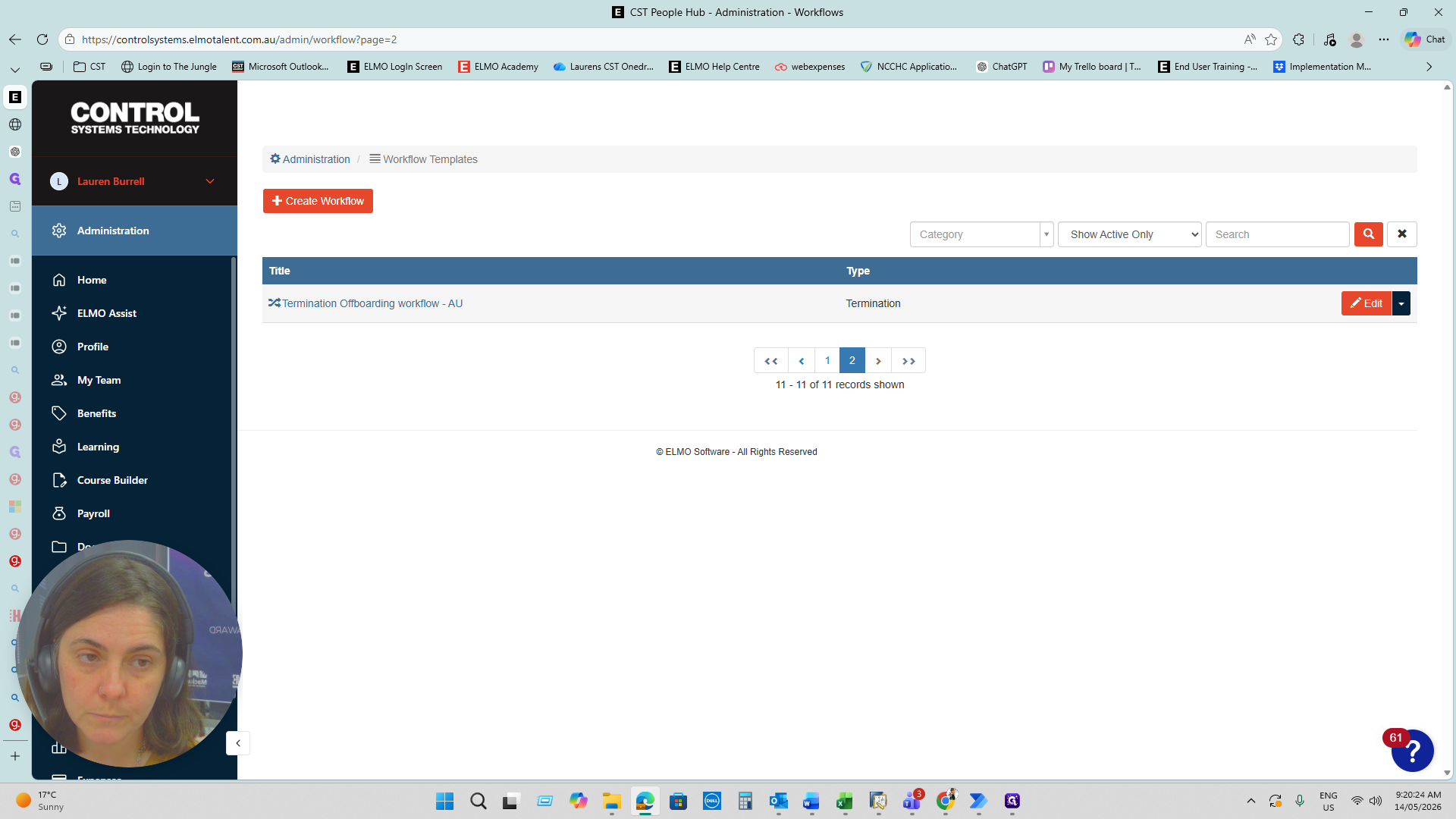
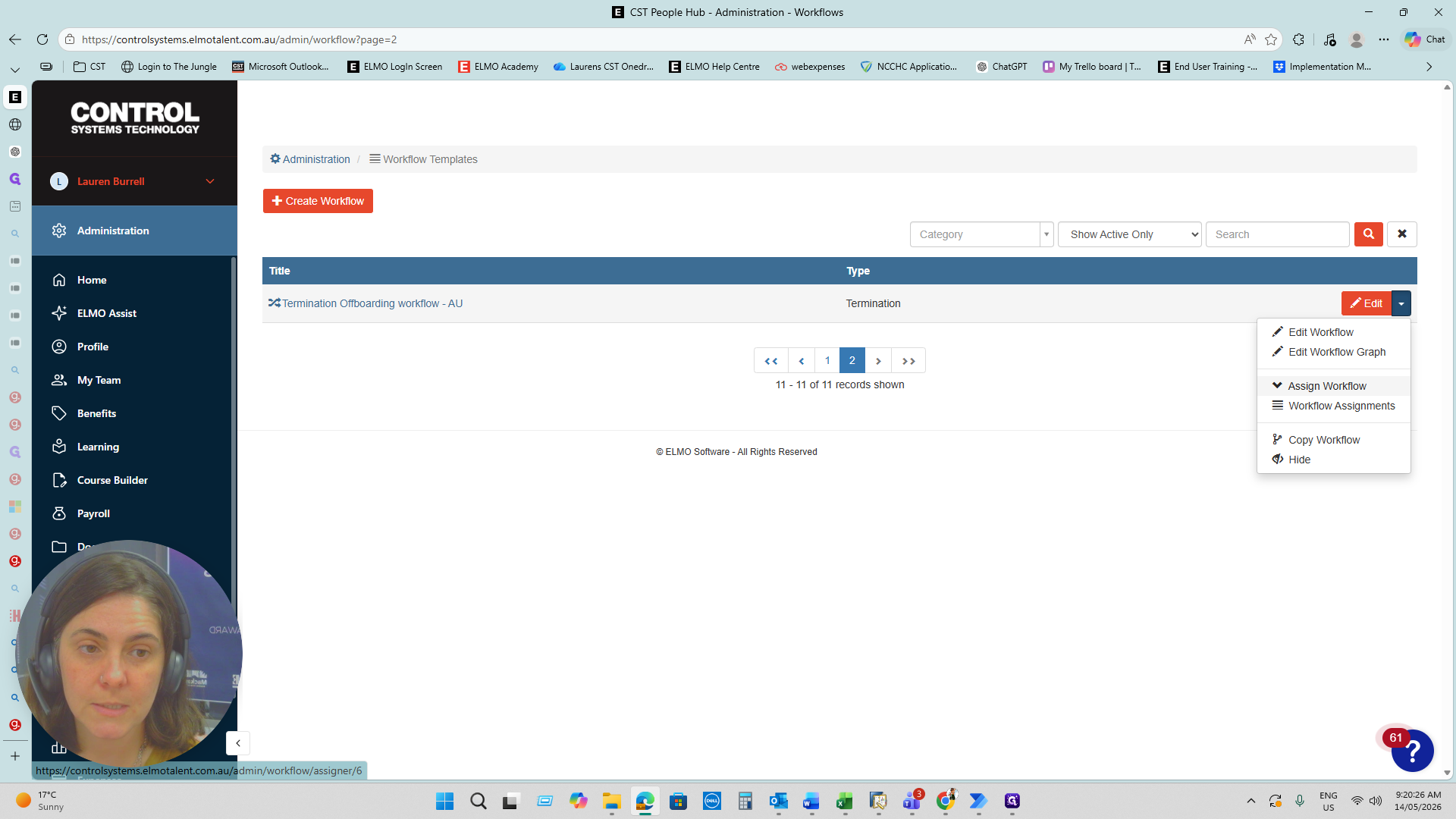
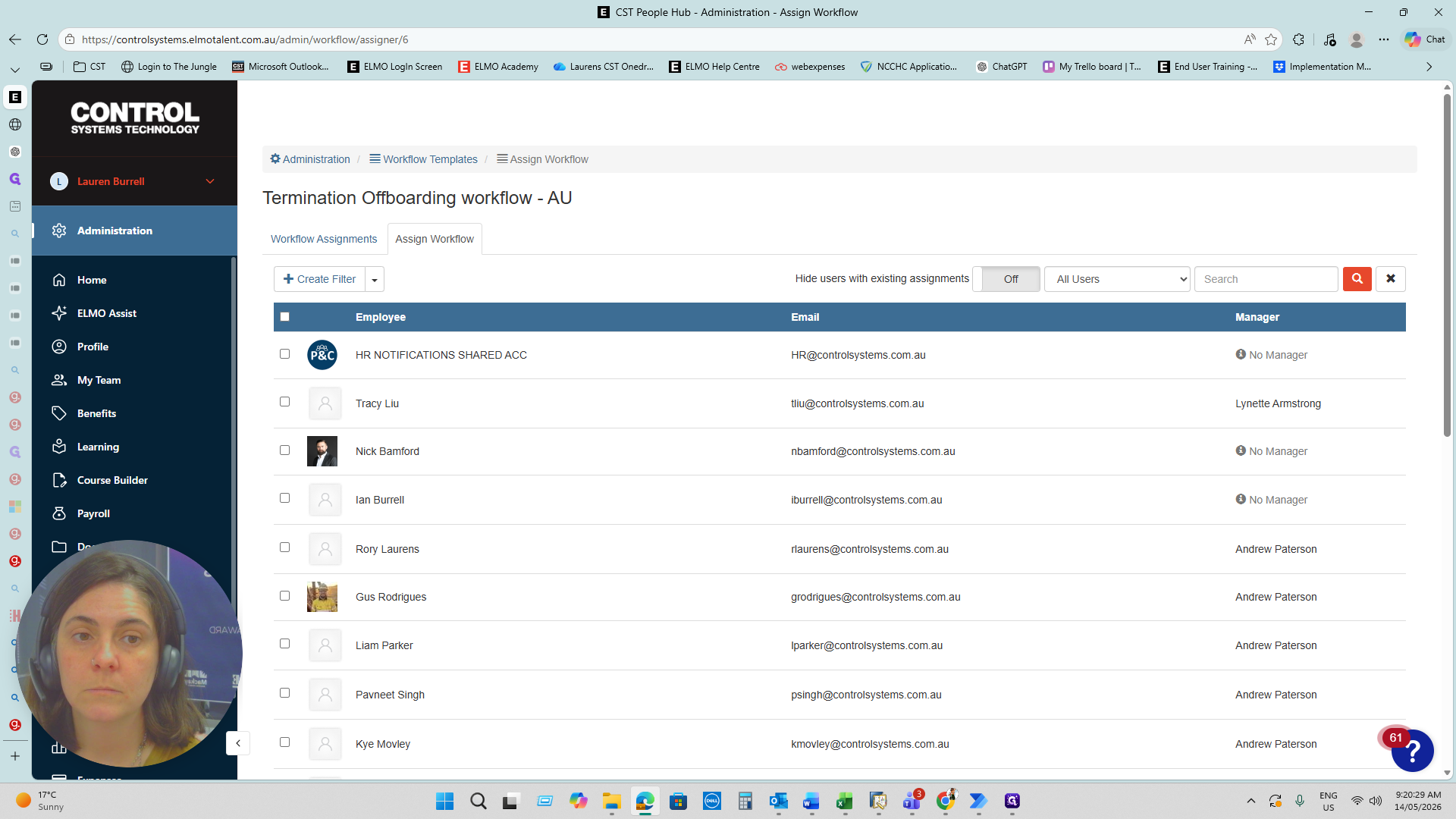
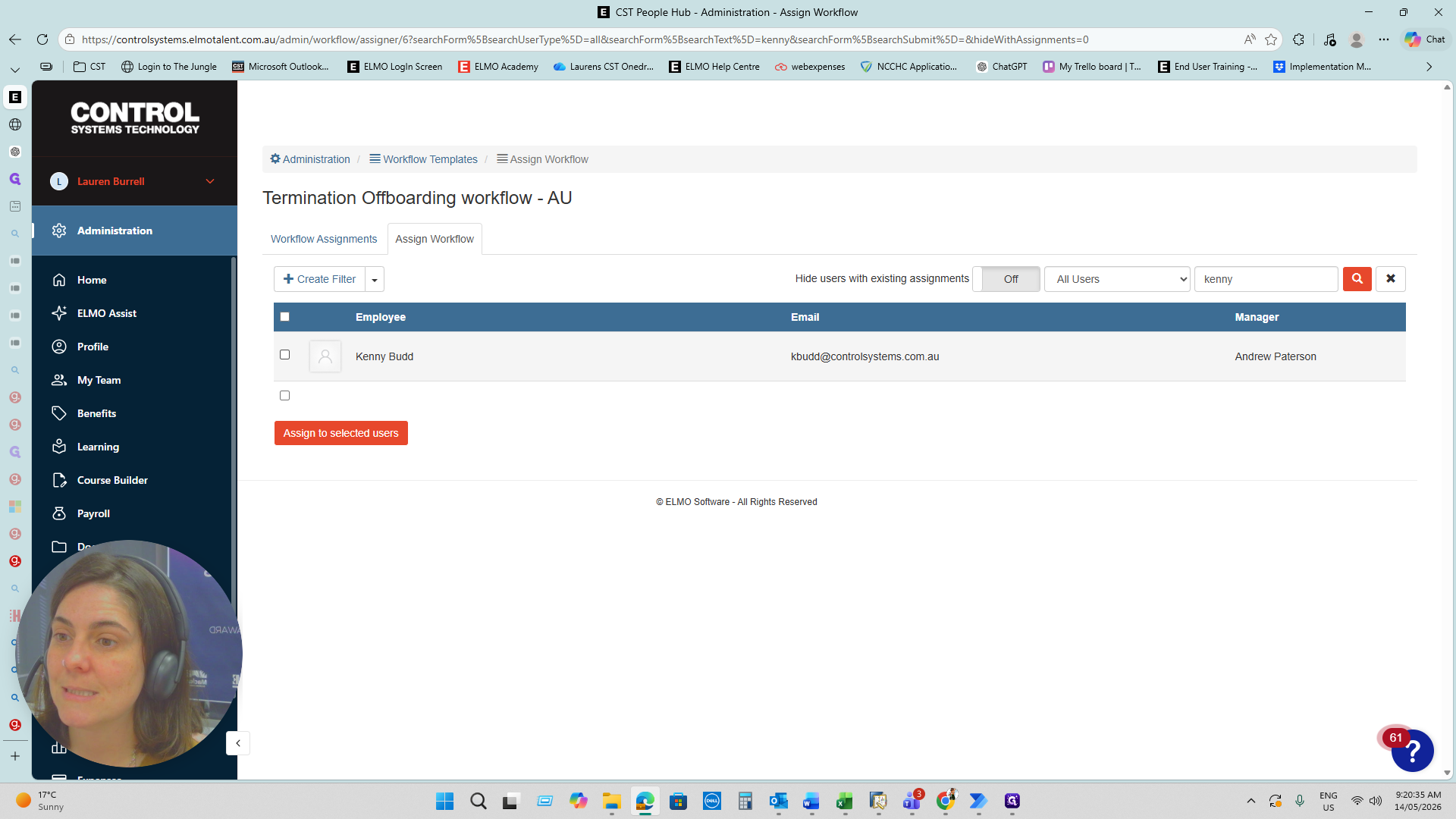
The onboarding workflows section also manages offboarding templates. Assigning the termination workflow is the recommended approach for standard departures.
What happens in the Termination Workflow?
Once the workflow is assigned, ELMO automatically executes the following sequence:
Staff Termination: The employee's profile is formally deactivated in the system.
Payroll Alert: The payroll team is notified to finalize any outstanding pay obligations.
Manager Equipment Email: The employee's manager receives an automated email prompting them to collect company property.
Manager Access Task: A task is generated for the manager to revoke the employee's building access.
FAQ
Q: Do I need to manually alert payroll when terminating an employee?
A: If you use the Termination Workflow method, payroll is alerted automatically. If you use the Direct Termination method, you must notify the payroll team manually to ensure final pay obligations are completed.
Q: What fields are mandatory when processing a termination?
A: You must provide the official termination date and specify the STP Termination Type. Notes are optional but highly recommended for record-keeping.
Glossary
Term | Definition |
|---|---|
STP Termination Type | The formal classification of employment cessation (e.g., Voluntary Cessation) required for accurate tax and payroll reporting. |
Termination Workflow | An automated ELMO process that updates the user's status while generating alerts and tasks for relevant departments during offboarding. |
Cessation | The formal human resources term indicating the end of an employee's tenure with the company. |