How to Track a Load Using MacroPoint
Learn how to efficiently track a load using MacroPoint with step-by-step instructions for setting up and monitoring shipments.
In this guide, on how to track a load using MacroPoint. We'll cover the steps to set up load tracking, including entering the driver's phone number and configuring tracking duration and frequency. Additionally, we'll explore how to manage event updates and ensure that notifications are sent to the appropriate email addresses. Finally, we'll look at how to monitor the load's progress through the control tower and address app installation for drivers.
Let's get started
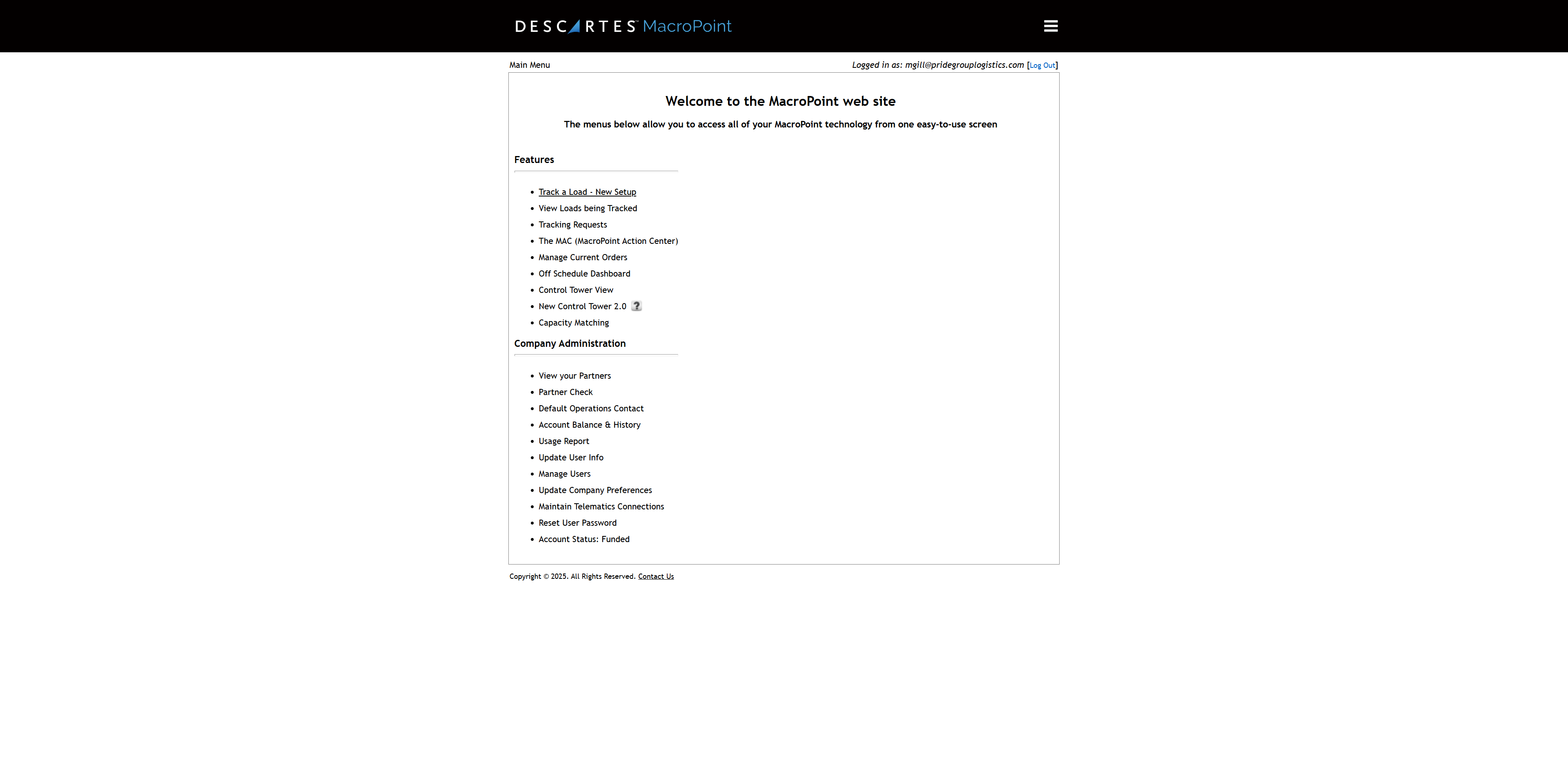
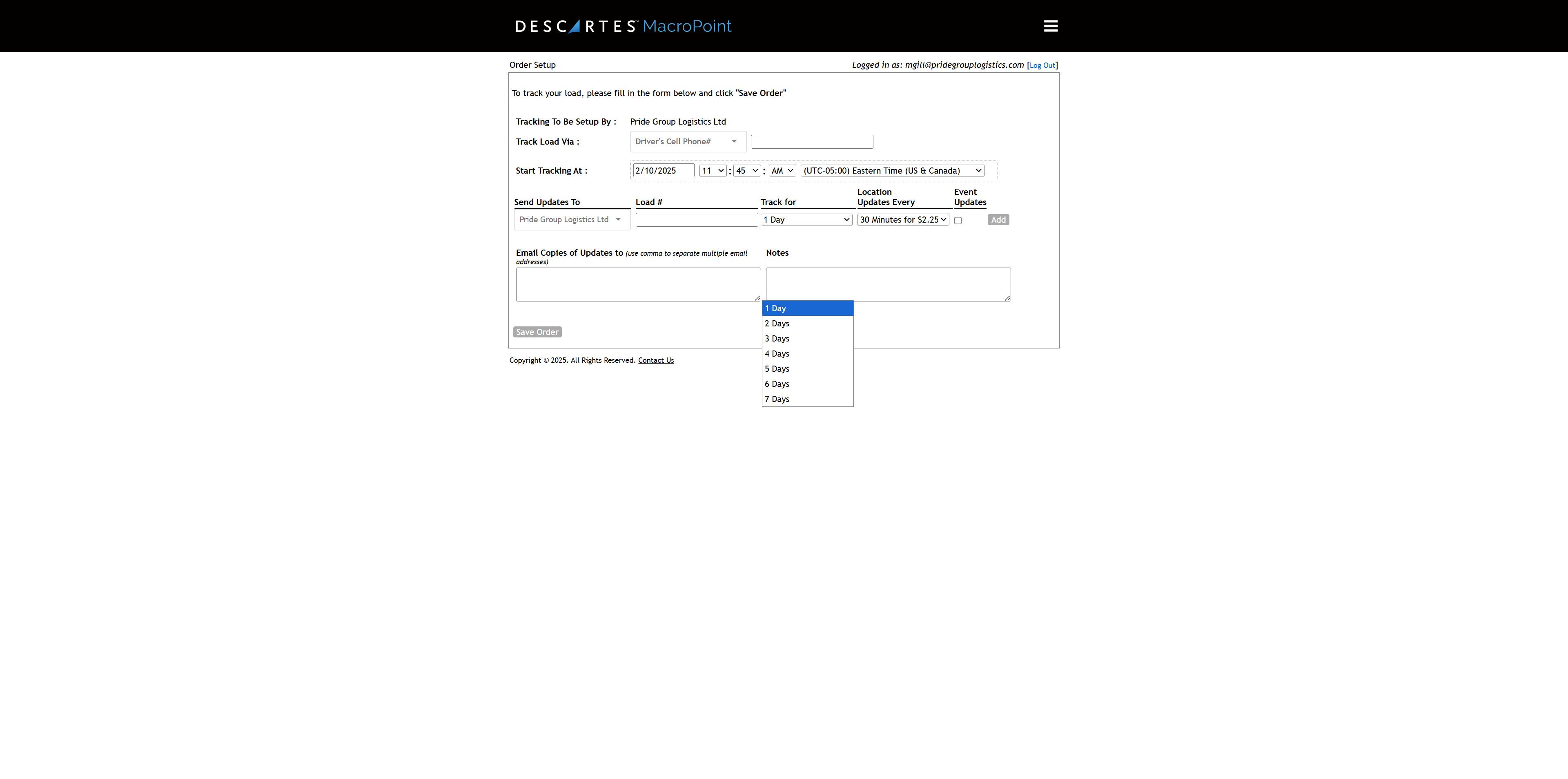
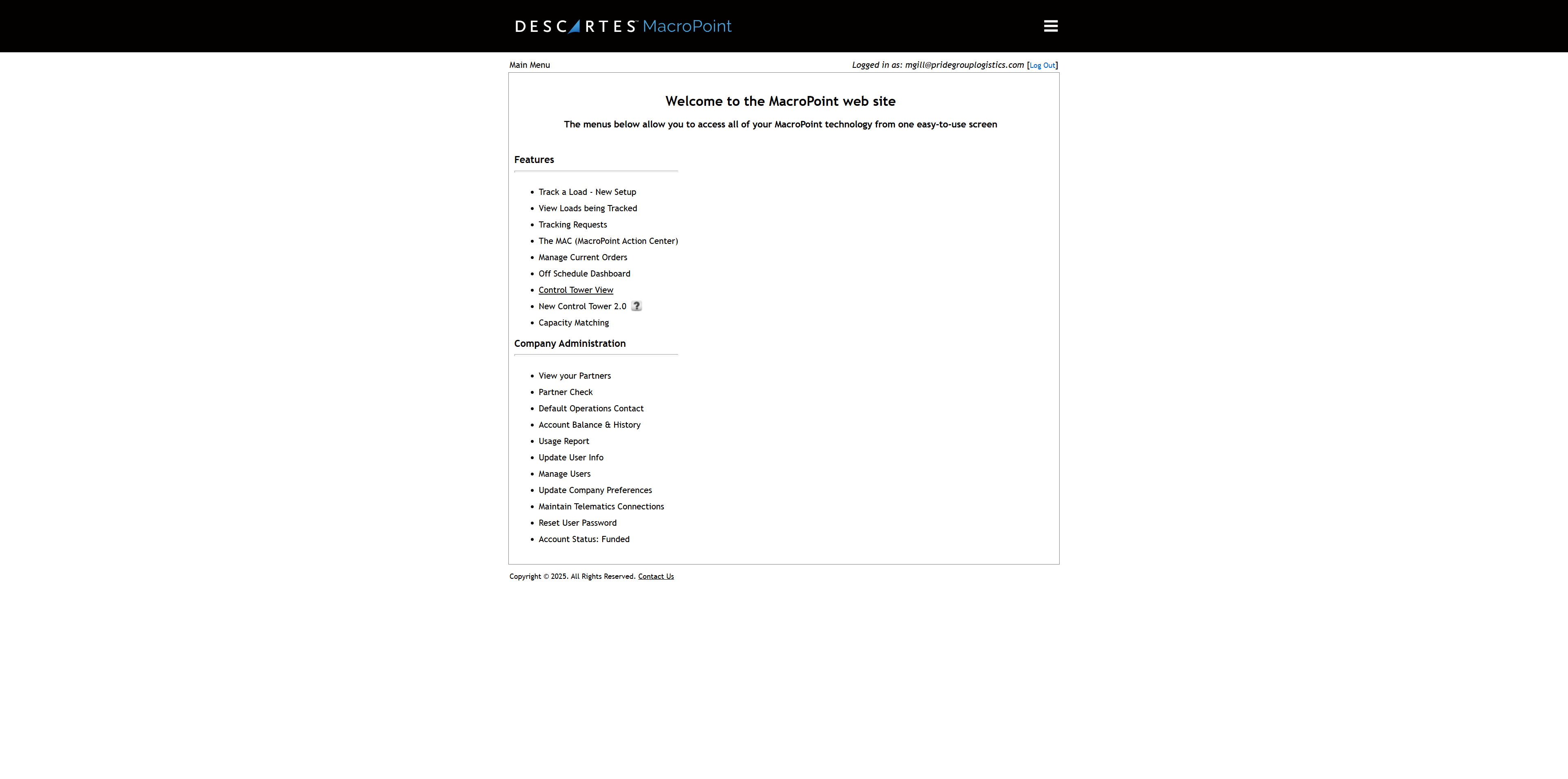
To track a load, start by setting up load tracking through MacroPoint. First, click on "Track a Load - New Setup." Then, enter the driver's phone number.
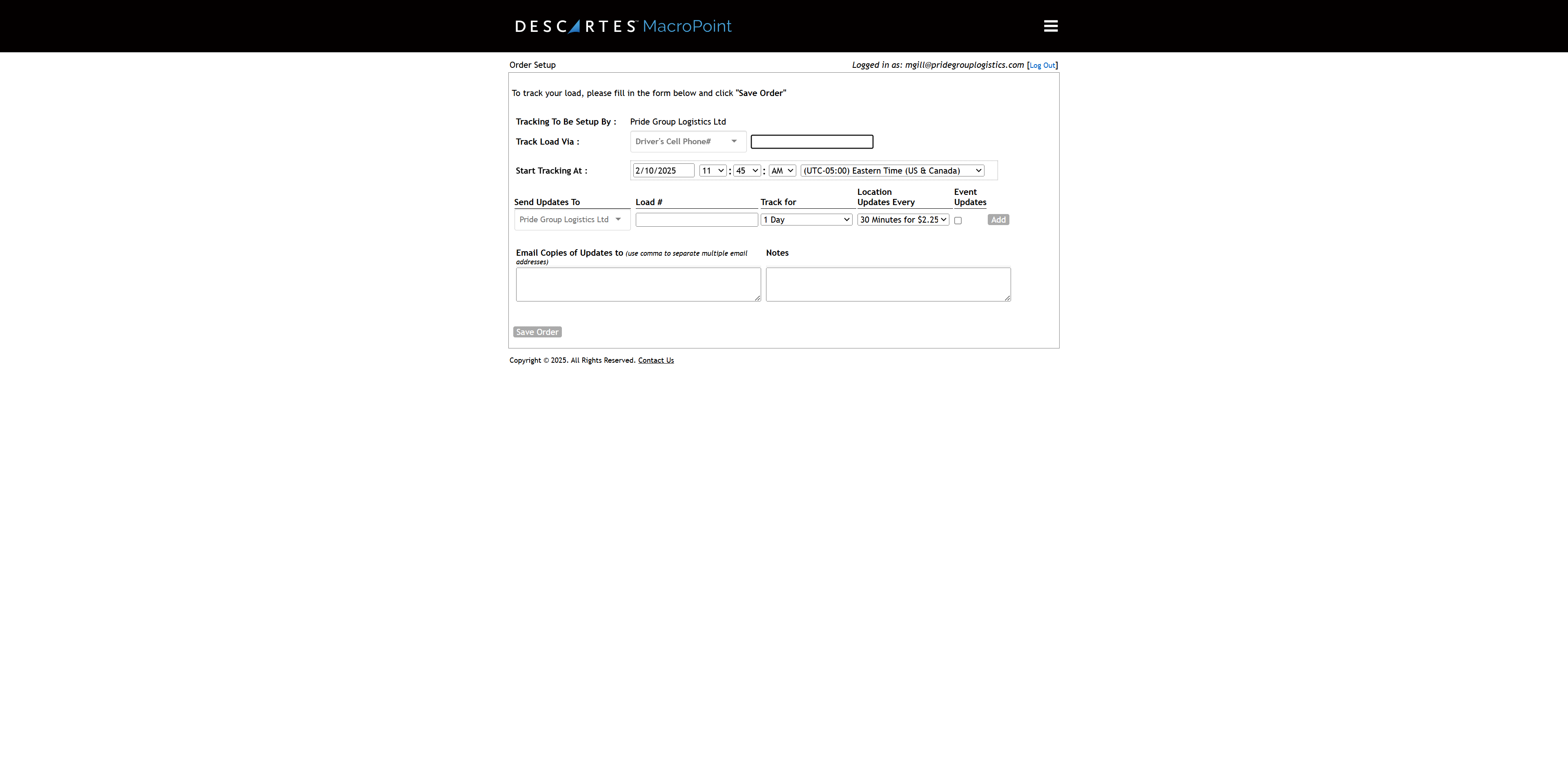
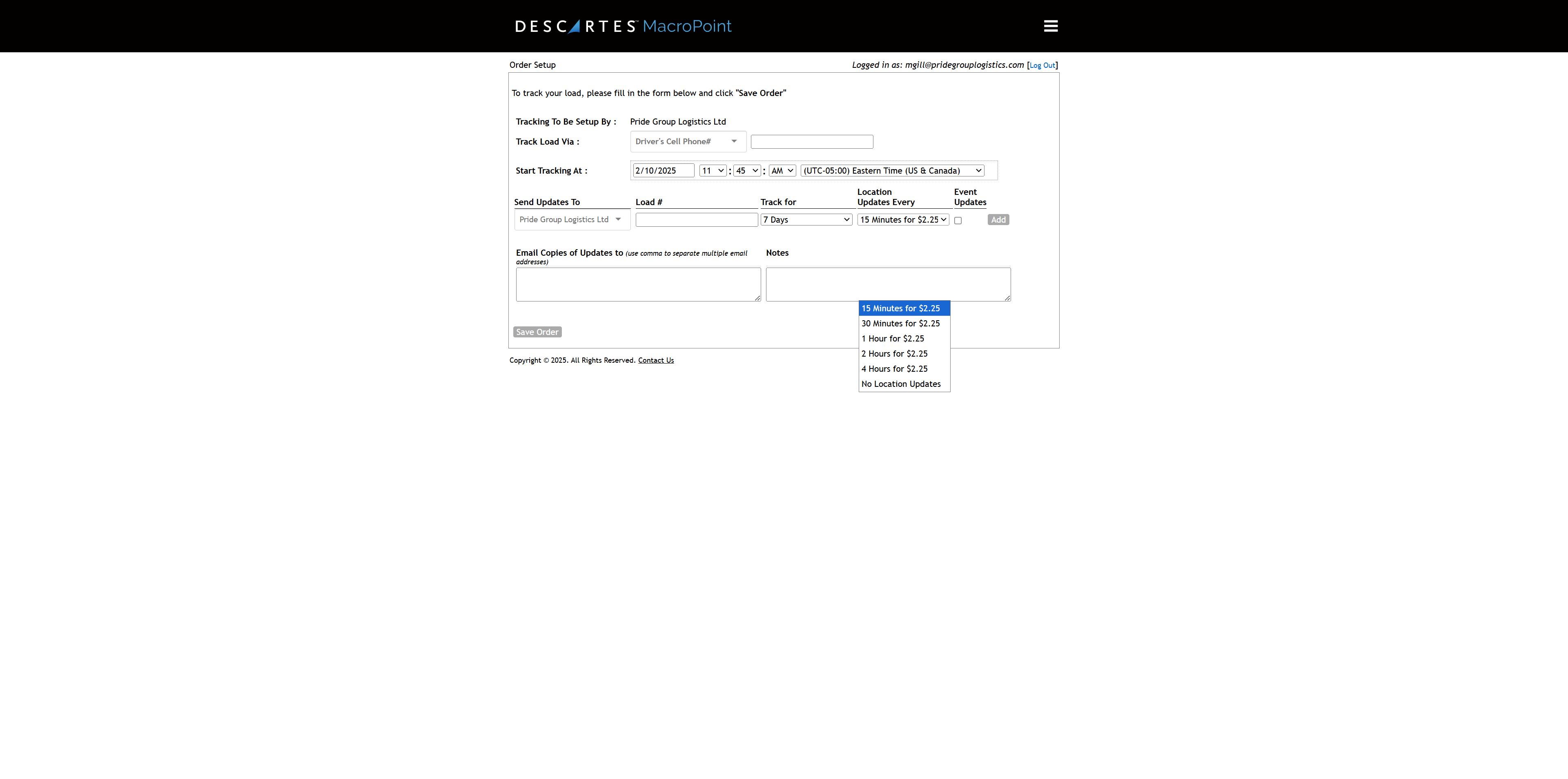
Once we have done that, we will set it up for seven days, as we will be tracking for the entire week.
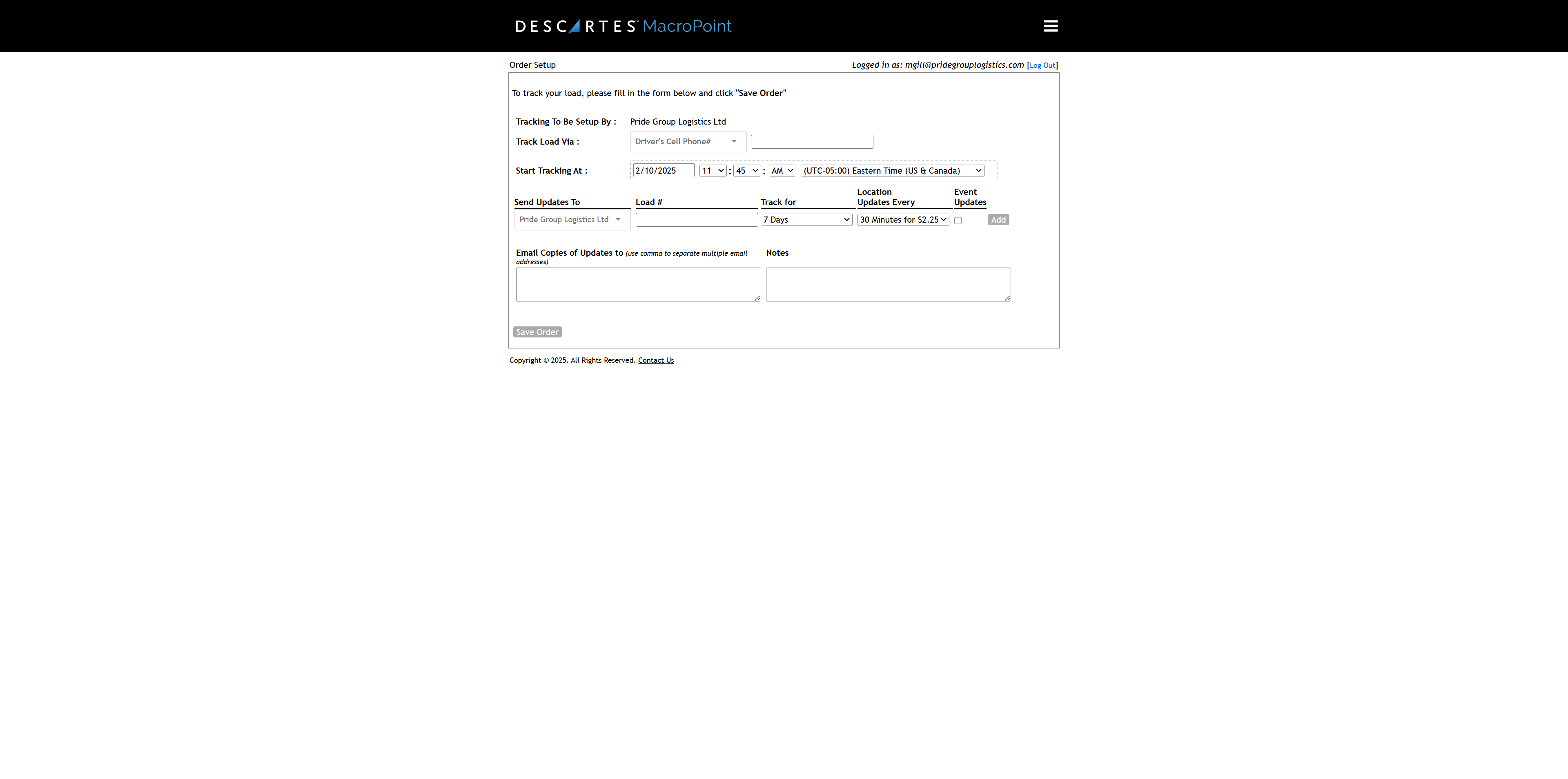
Here, we can add our email and the emails where we want these updates sent.
must add Inderpreet's email inderpreet@pridetrucksales.com
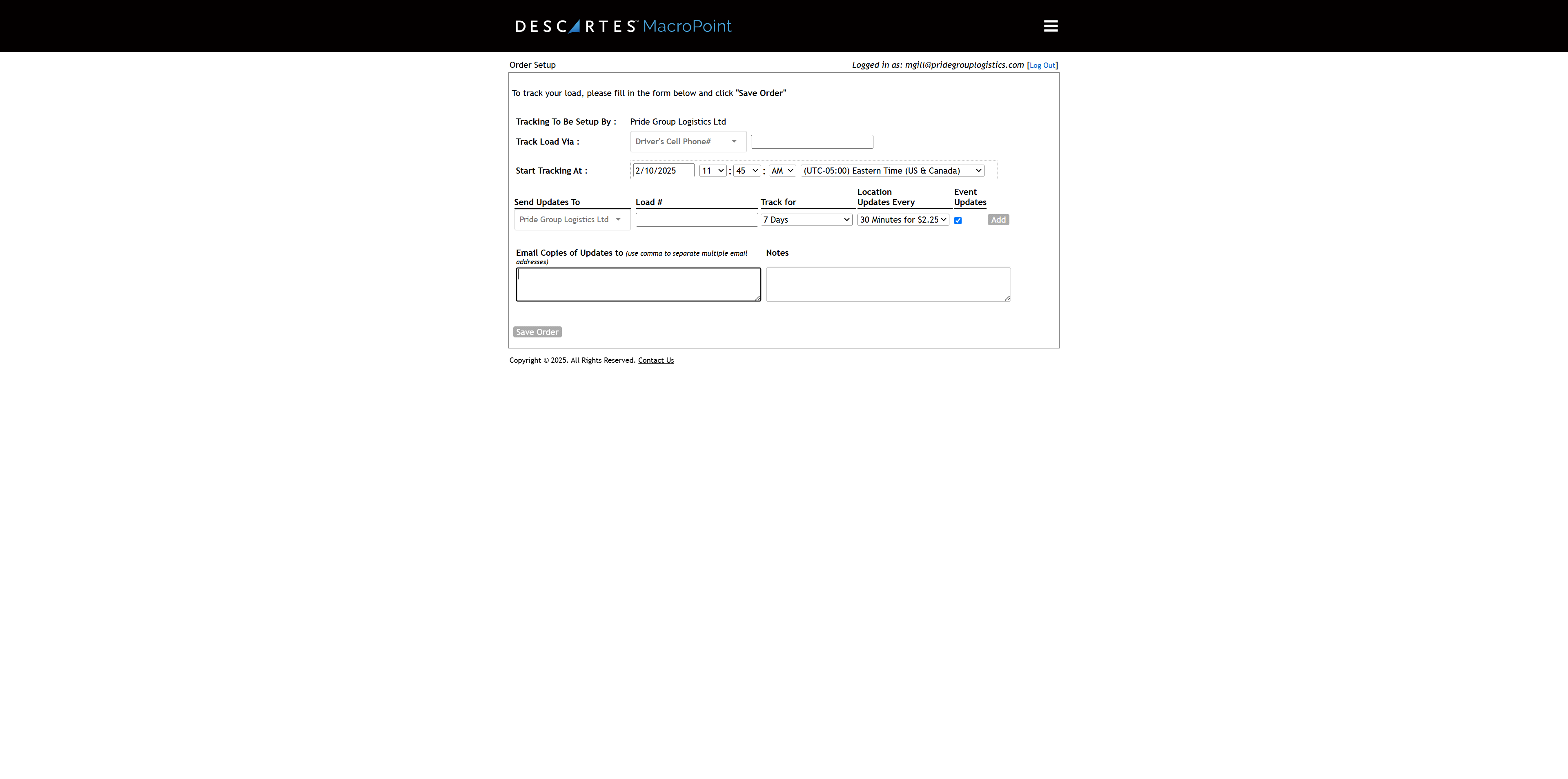
Once the email IDs are added, then press "Save Order" to set it up.
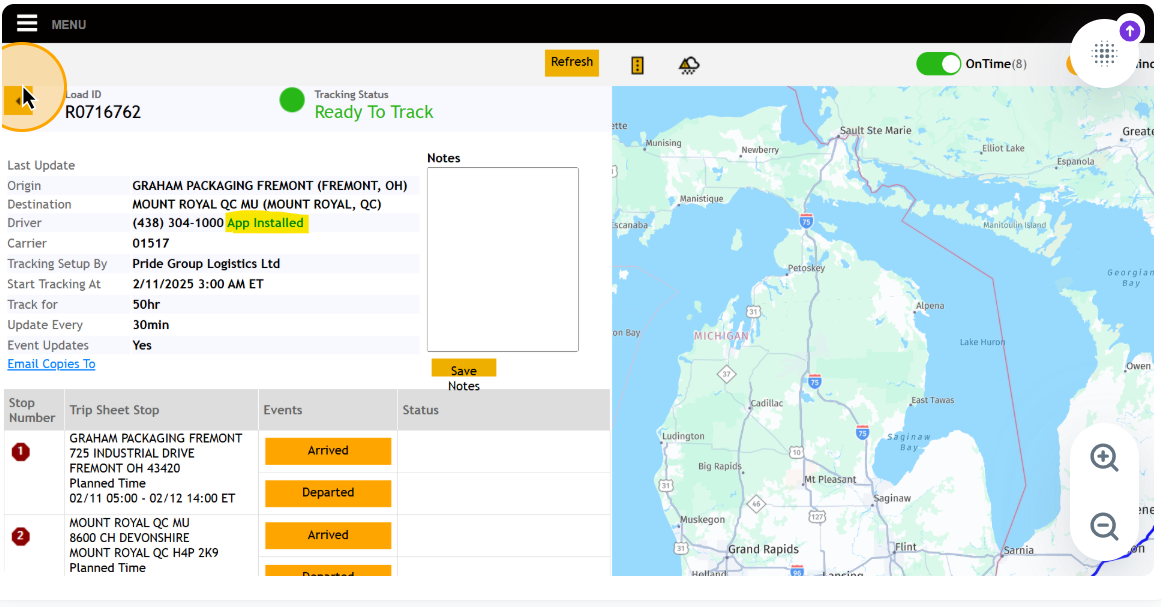
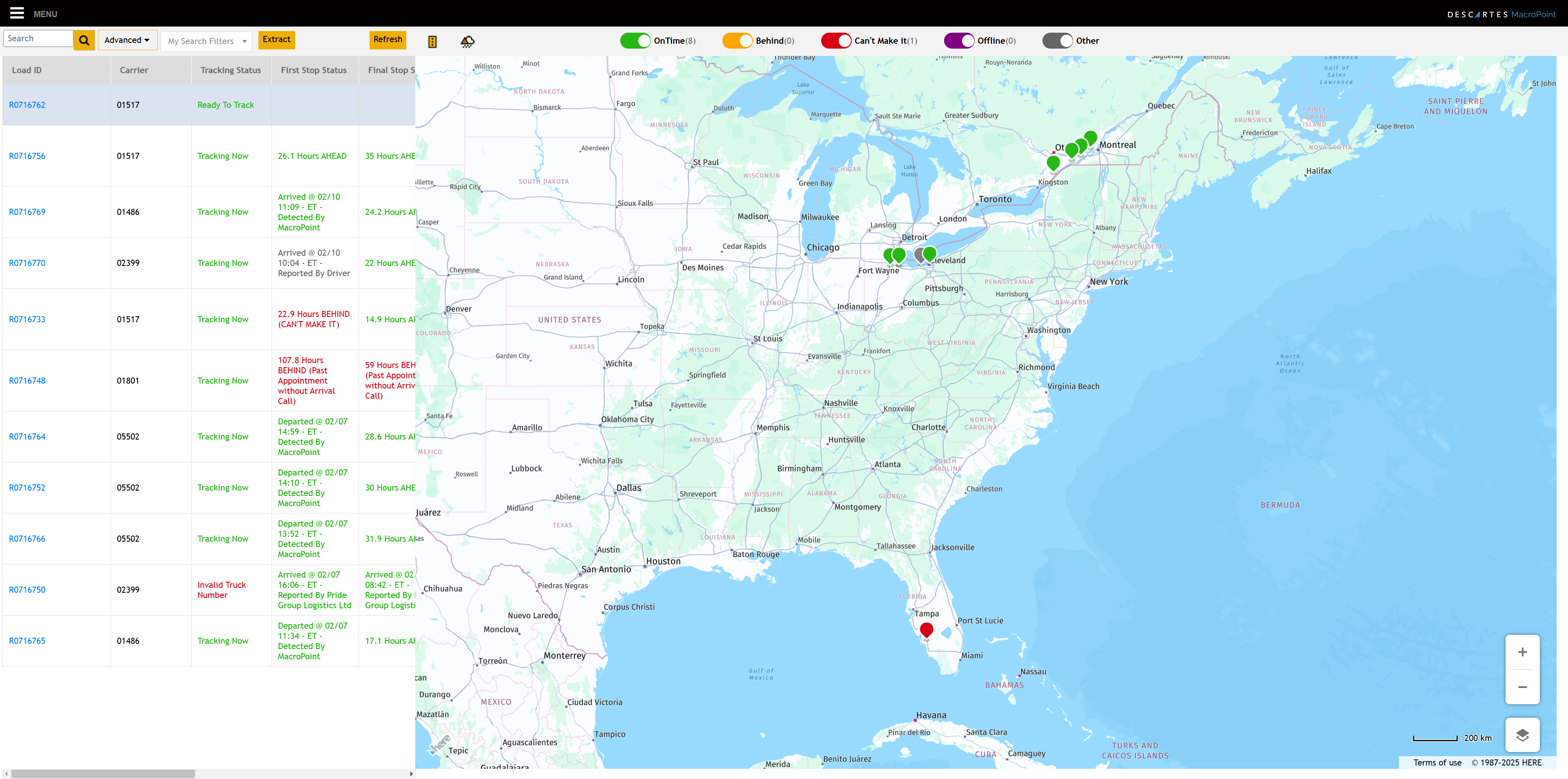
As you can see, it will process and display all the orders here. For example, this load is ready to track, and the one below is being tracked. You can click on it to see a map showing its current location and destination.
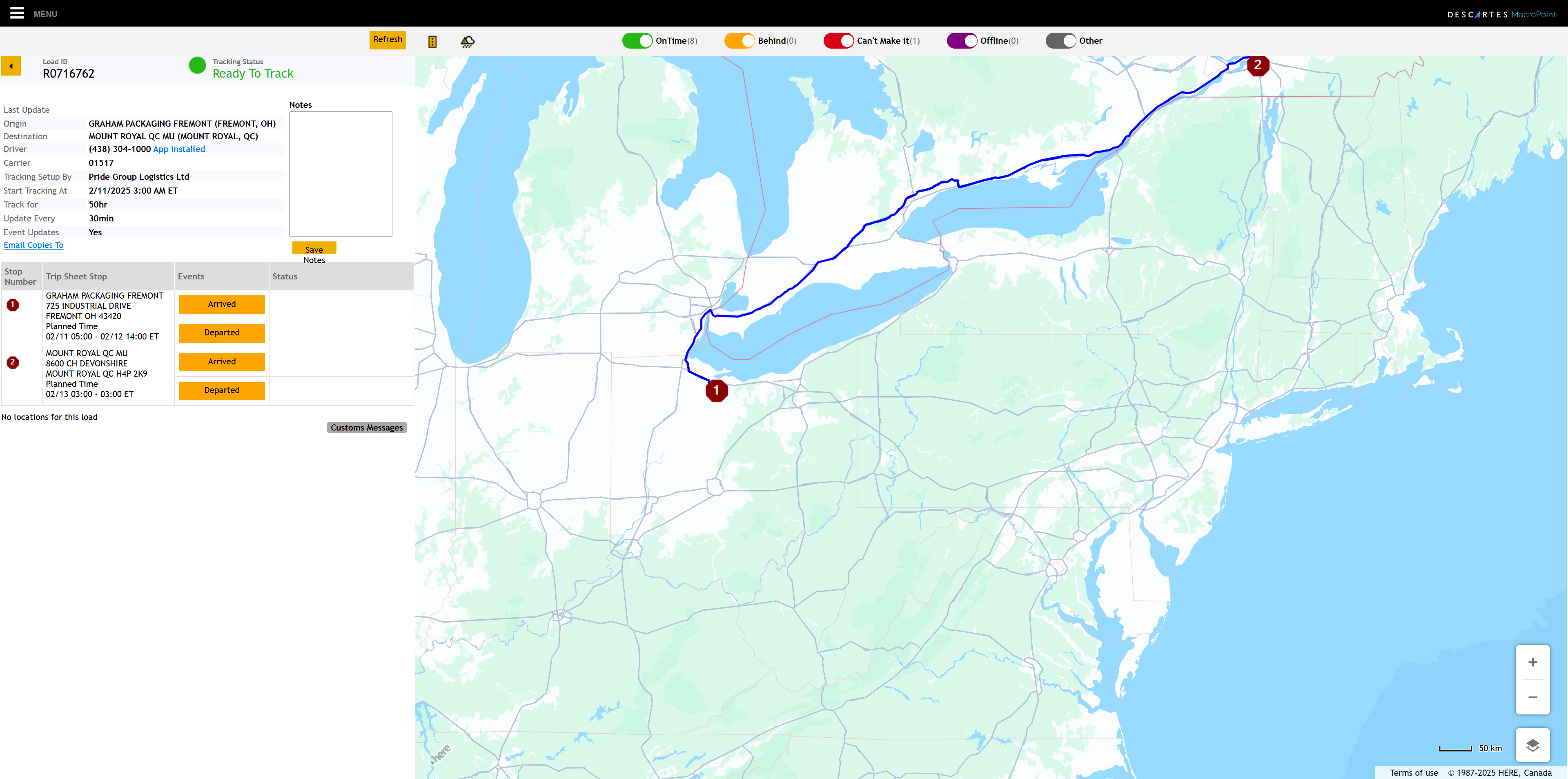
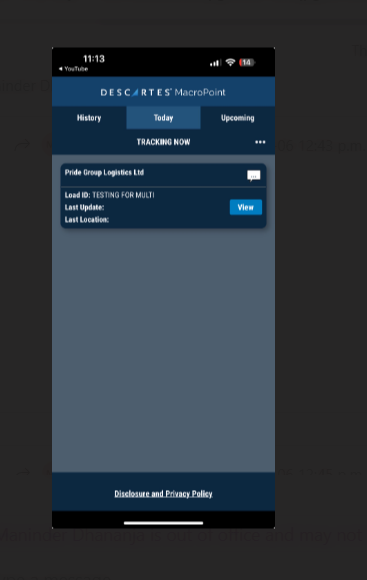
The driver number entered in the load setup will indicate if the driver already has the app installed by showing "app installed" here. If the driver doesn't have the app, you can press here to send a pop-up for installation. Clicking there will send the app to the driver for installation.