
How to Track Time in Opsium
Learn how to easily log your work hours in Opsium using manual time entries, the project dashboard, or the live timer feature.
By Chernysh Family
Opsium makes it easy to log your work hours. You can view your assigned projects, manually add a fixed amount of time, or use the live timer to track work as you go.
View Assigned Projects
1
Navigate to the Opsium Time Tracking dashboard
. Here, you can see all the projects you are currently assigned to.
2
Click the expand arrow next to a project to view its specific time logs
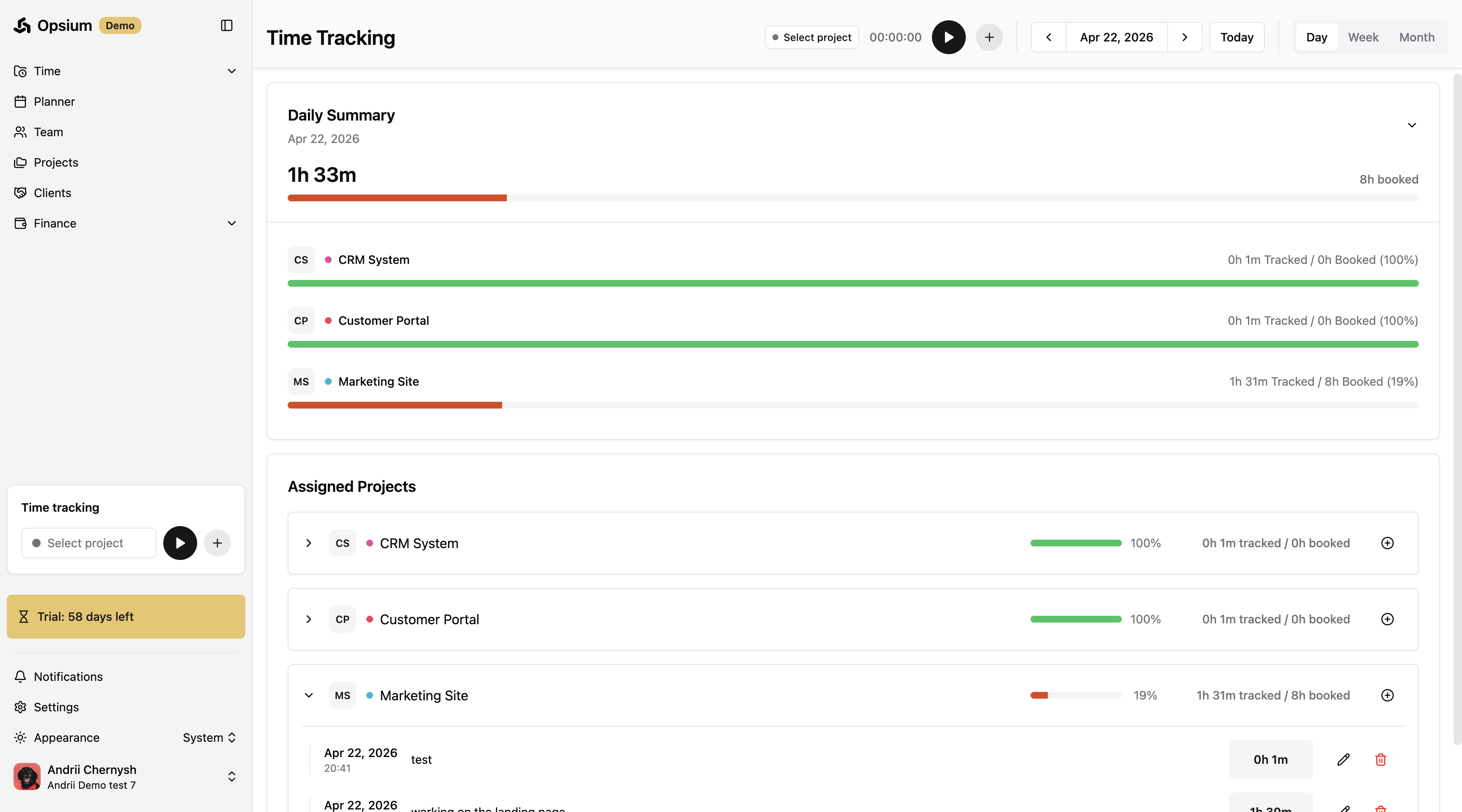
.
Add a Manual Time Entry
If you've already completed a task, you can manually log a fixed amount of time for it.
3
Click the + (Add) button in the top navigation bar
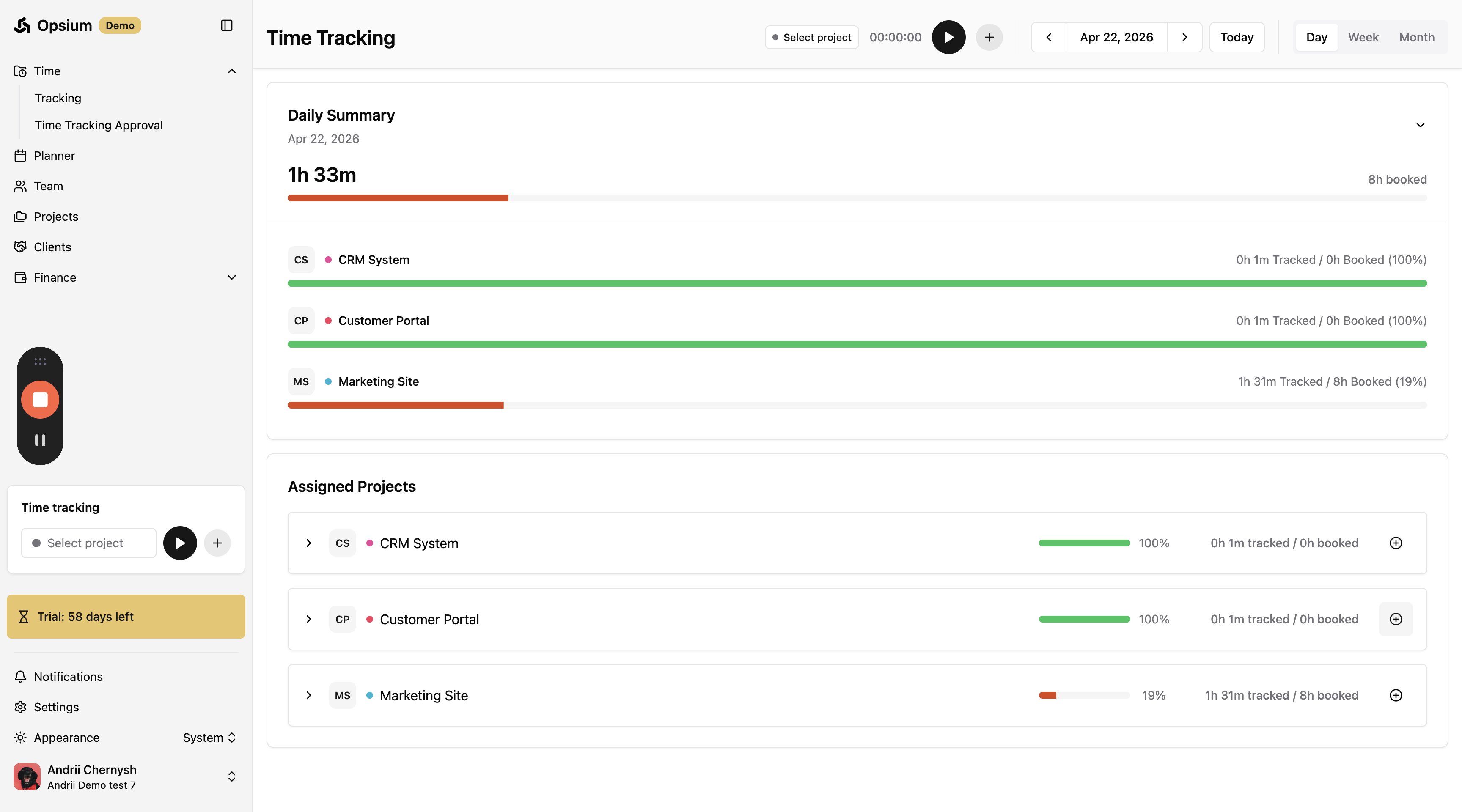
to open the time entry modal.
4
Enter the duration of the task in hours (e.g.,
1).
5
Enter a description of the work performed
.
6
Click Add entry to save the log
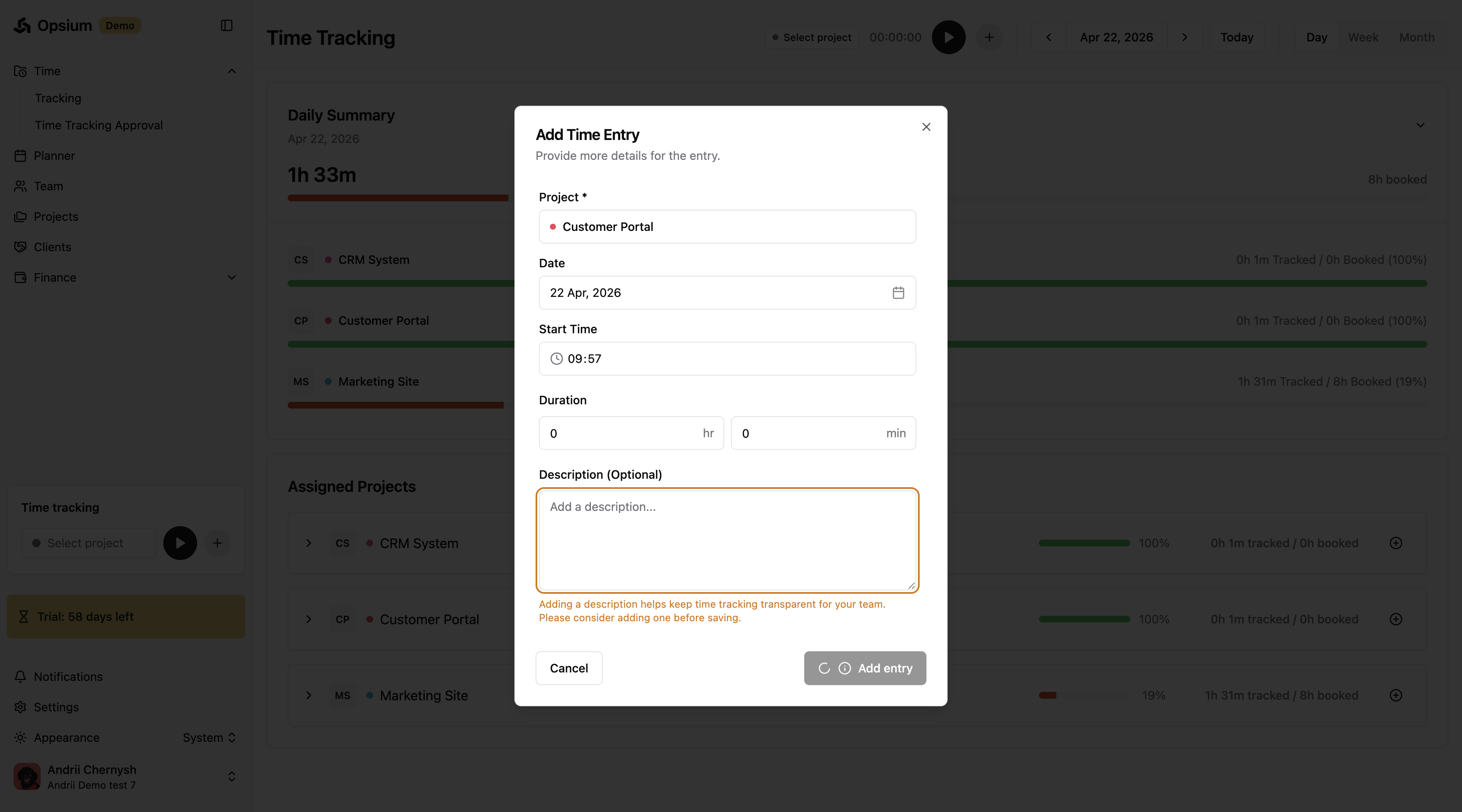
.
Use the Live Timer
For real-time tracking, you can use the live timer feature. The timer control bar is accessible from the top of the dashboard on any page.
7
Click the Start button on the timer controls bar
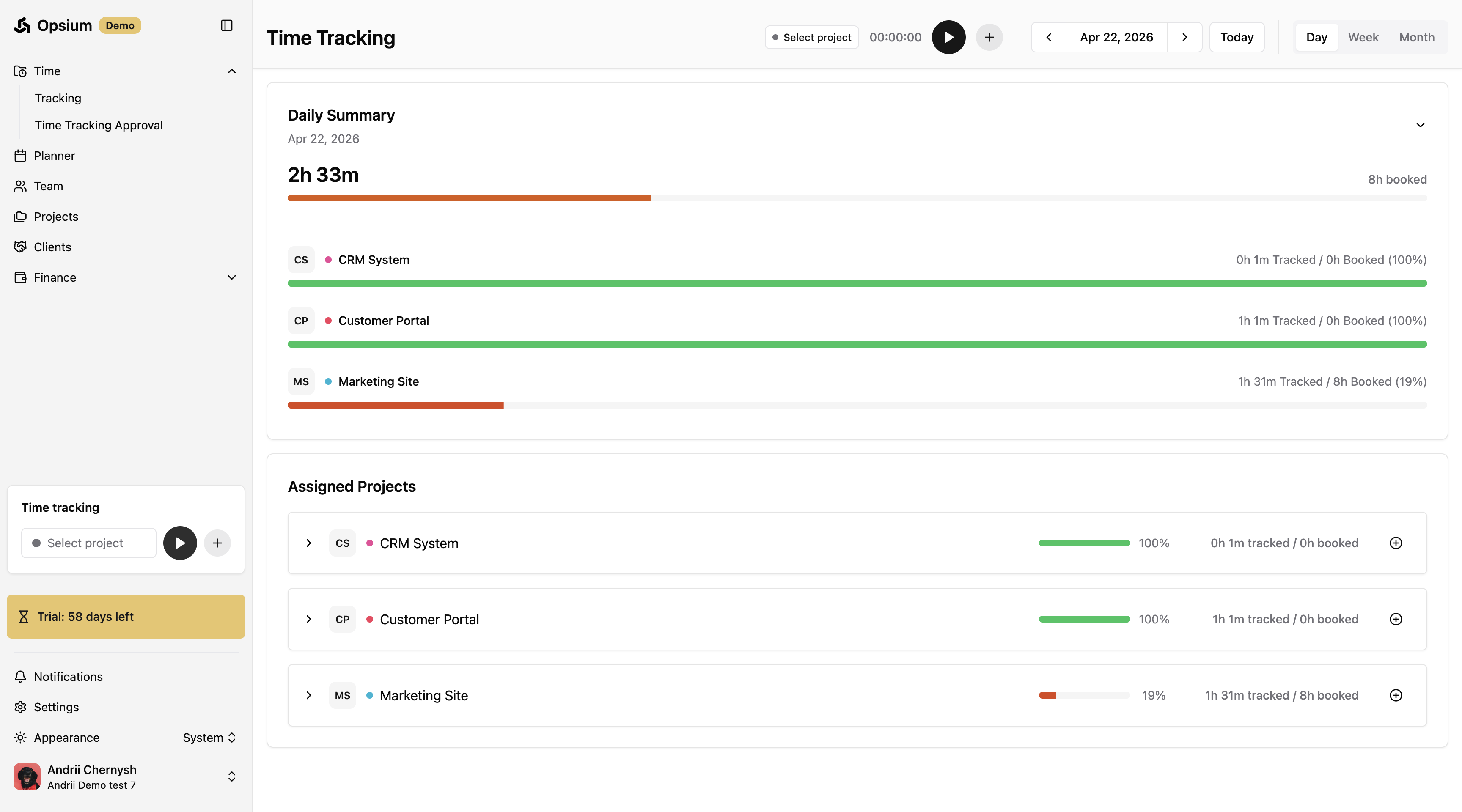
to begin tracking your time.
8
When you finish working, click Stop on the active timer
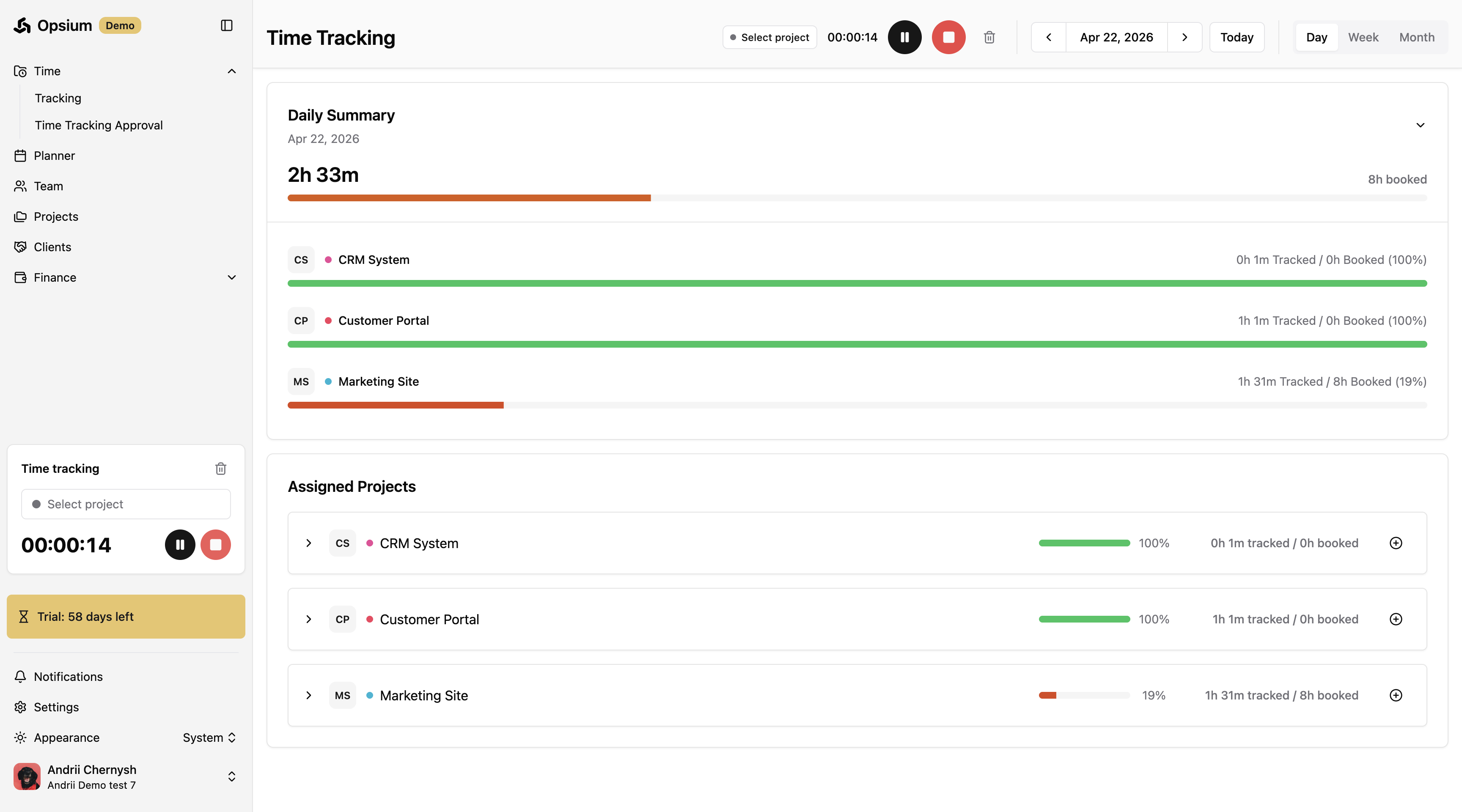
. A modal will appear prompting you to fill out the session details.
9
Select the project you were working on from the dropdown menu
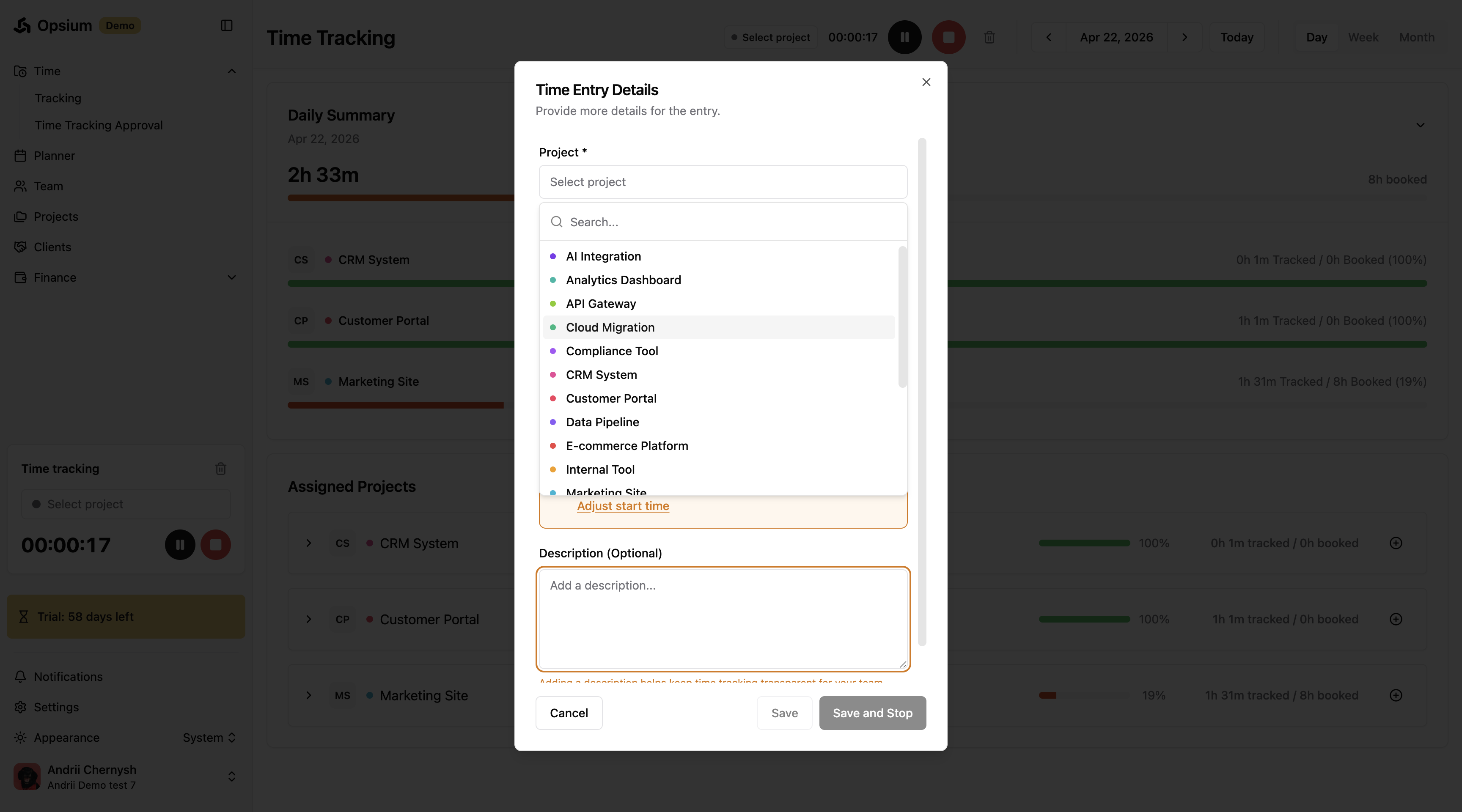
.
10
Add a brief description of the task
.
11
If needed, click Adjust start time to manually correct when the session began
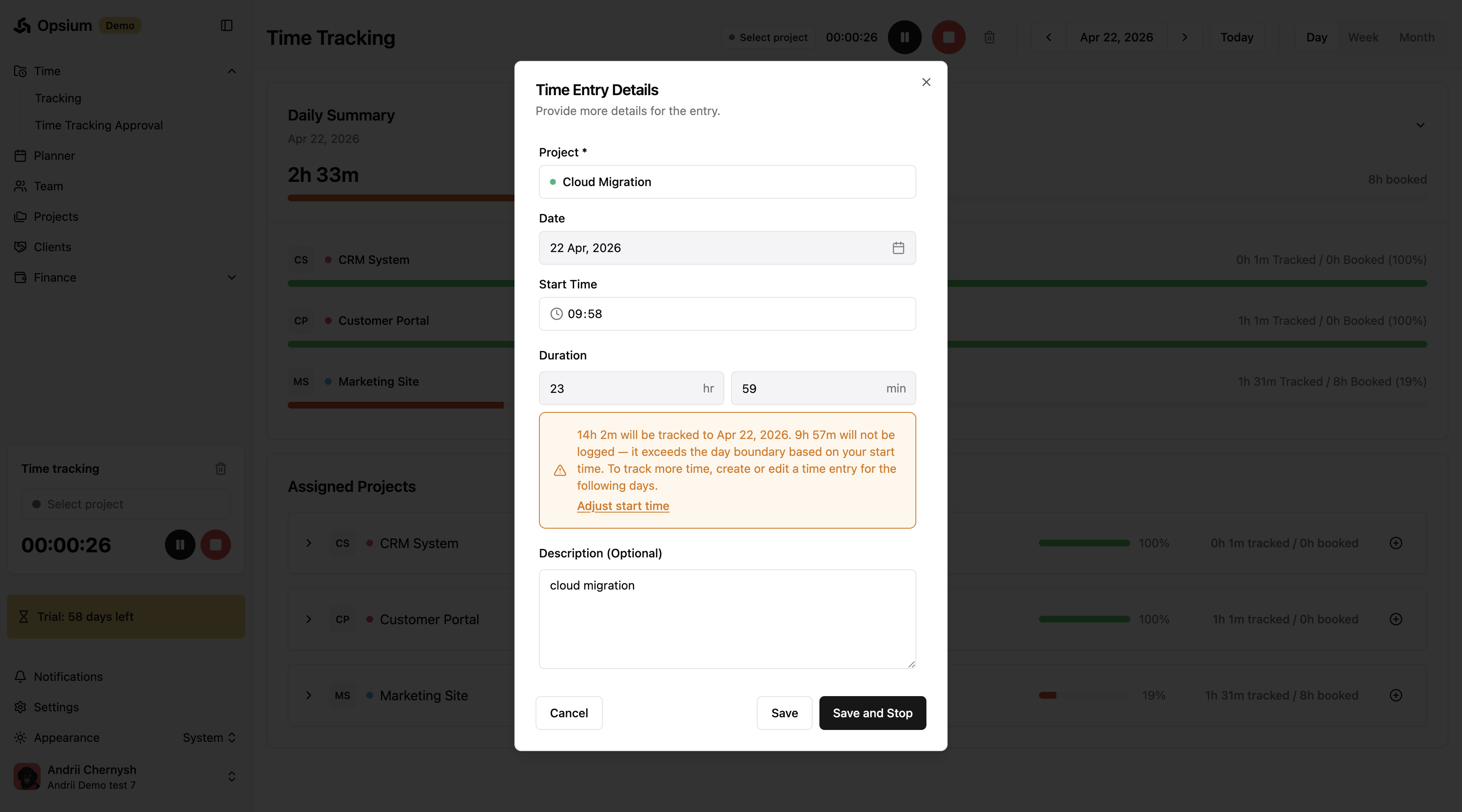
.
12
Click Save and Stop to log the recorded session
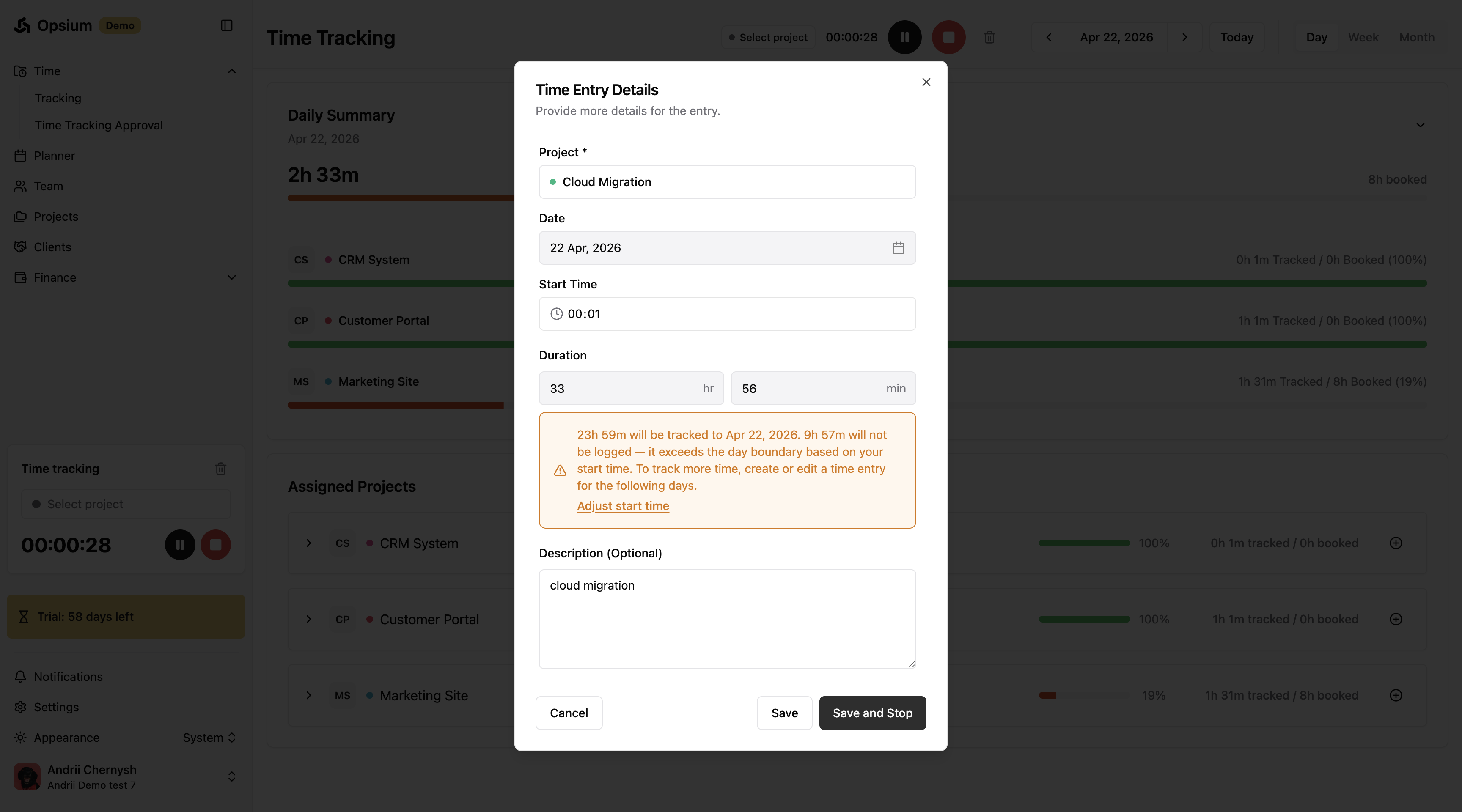
.