How to Track Time with Work Sessions in Buildium
Learn how to use the Buildium mobile app to clock in, clock out, and track your time on maintenance and inspection tasks using Work Sessions.
By Maine Rental Services
After accepting your Buildium invitation and downloading the mobile app, you can easily track the time you spend on tasks like cleaning, inspections, or maintenance using the Work Sessions feature.
Start a Work Session
1
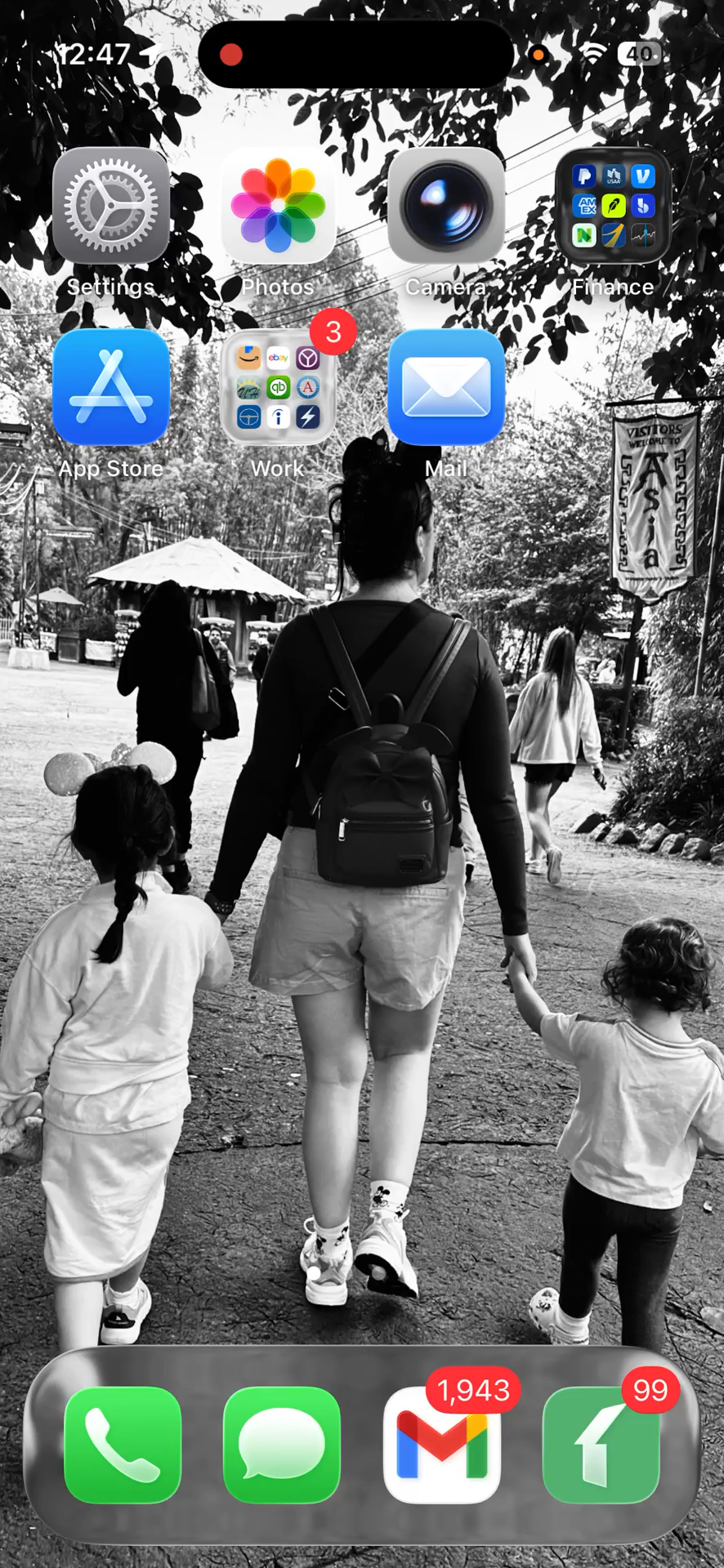
Open the Buildium app on your smartphone.
2
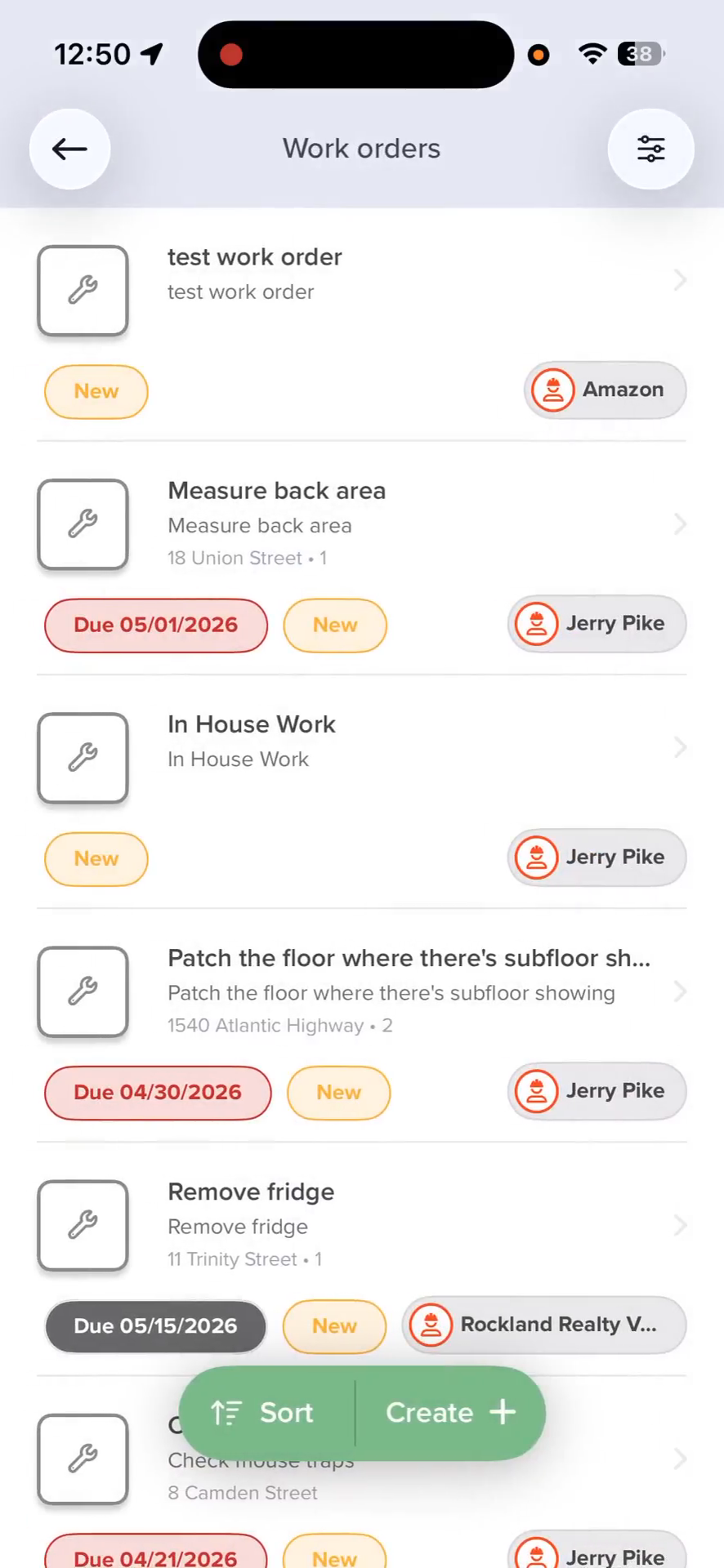
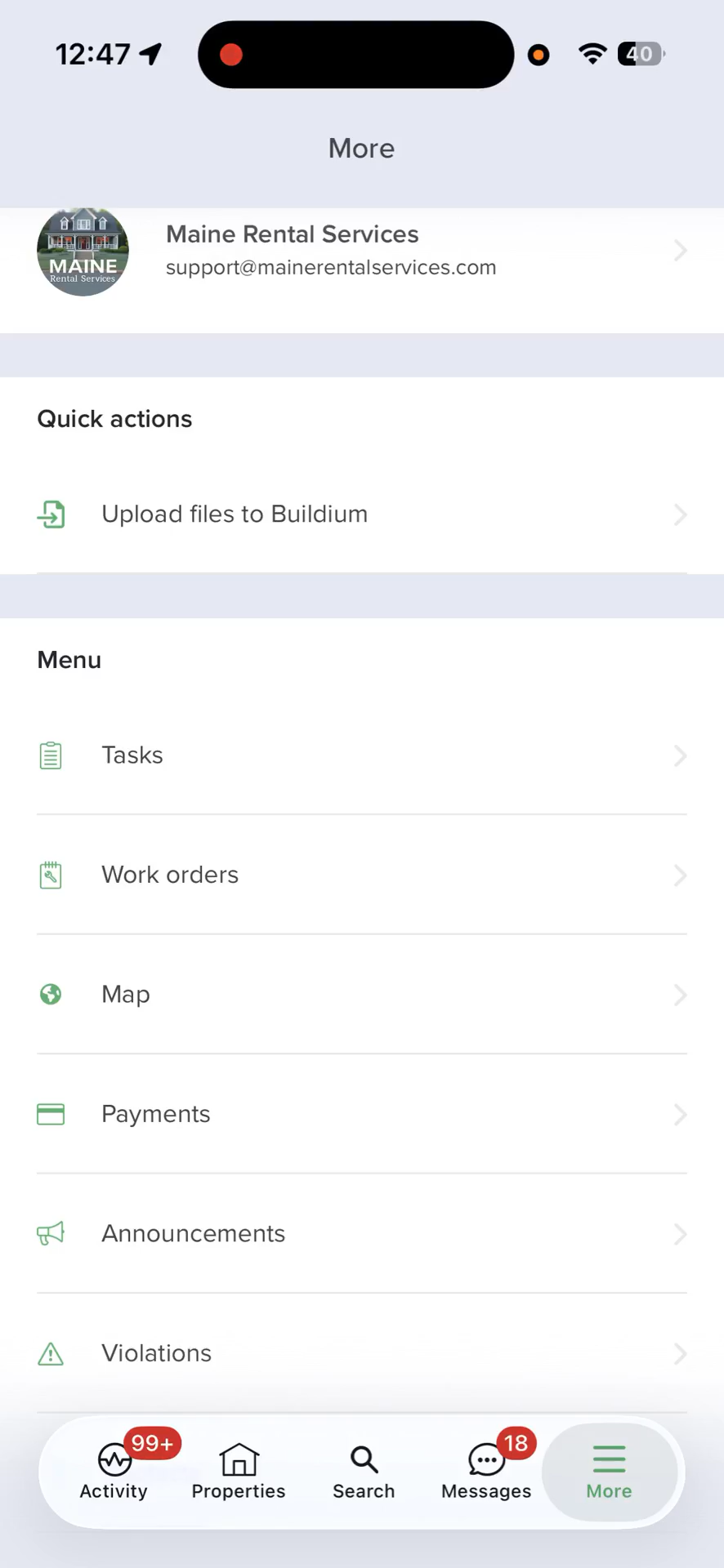
Tap More in the bottom navigation menu and then Work Orders
3
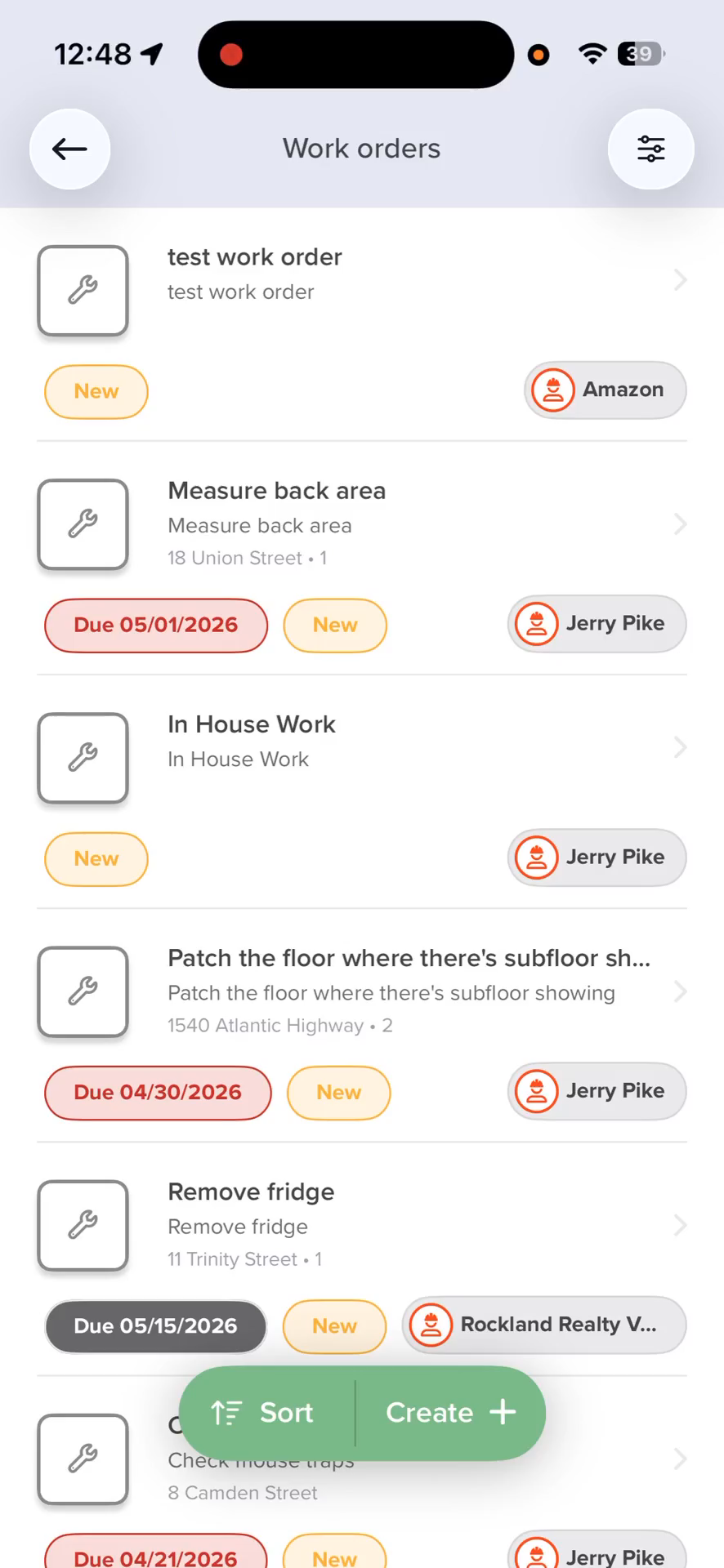
Select a work order from your list to view its details.
Review the work order details carefully before starting. The entry contacts and tenant information are provided here so you can easily notify anyone prior to arriving.
4
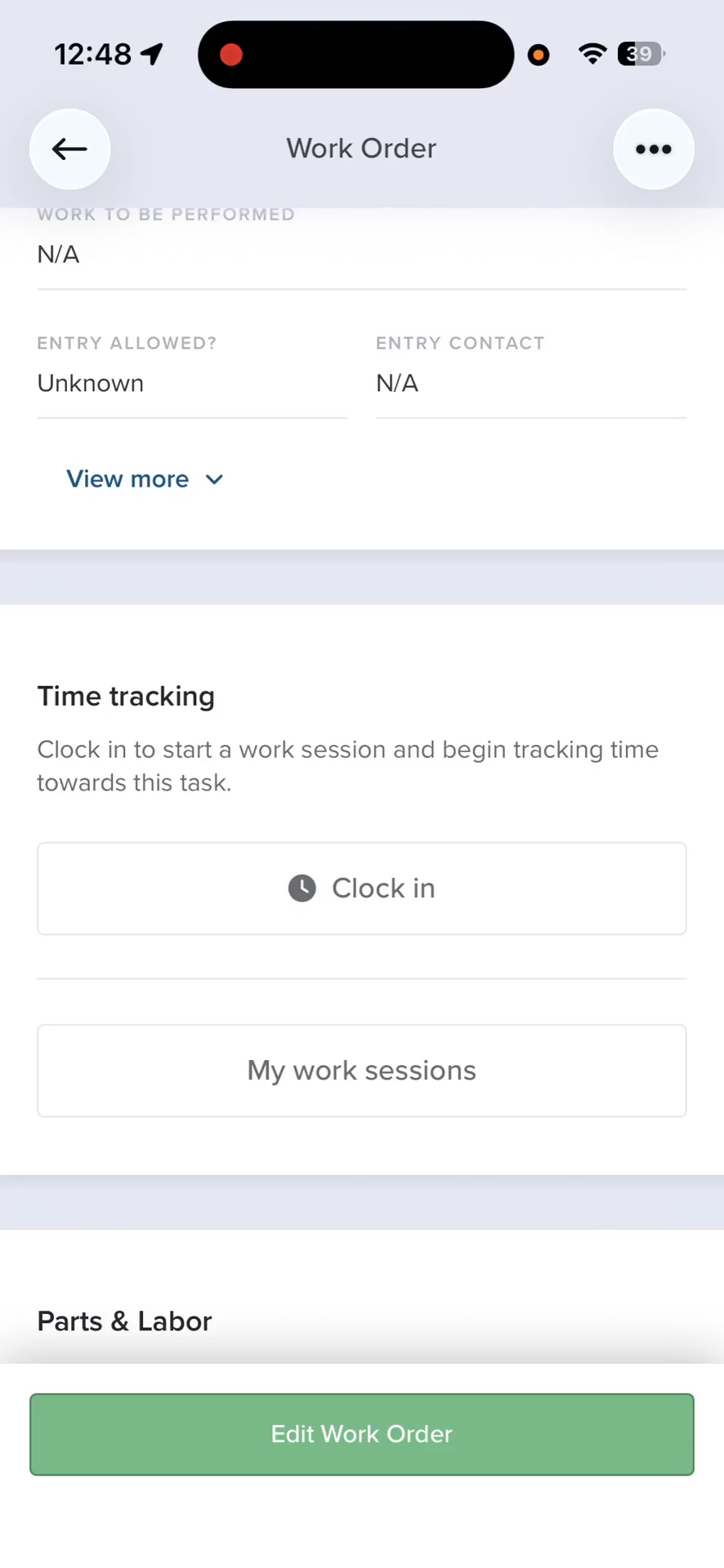
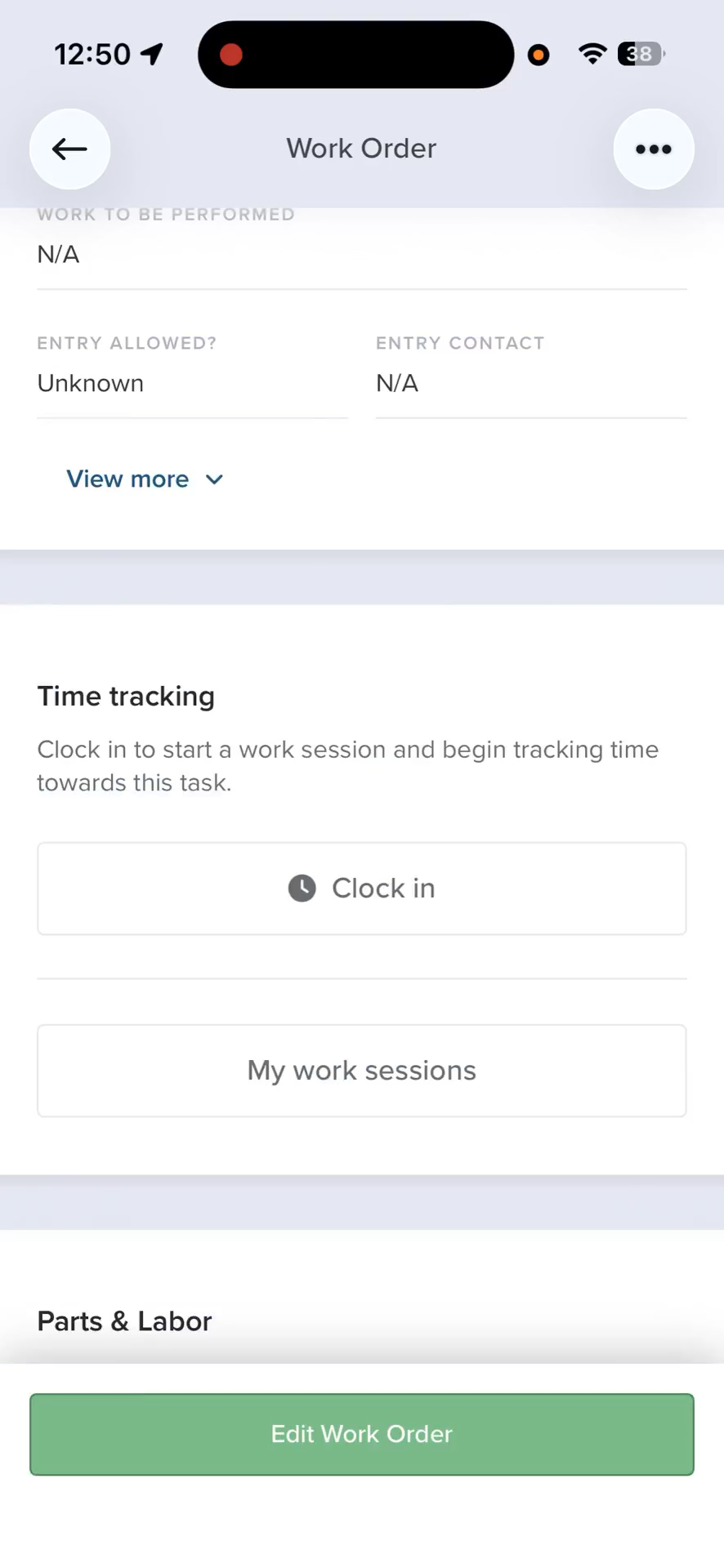
Scroll down to the Time Tracking section and tap Clock in.
Clock Out and Log Your Work
Once you finish your task, reopen the Buildium app to finalize your session.
5
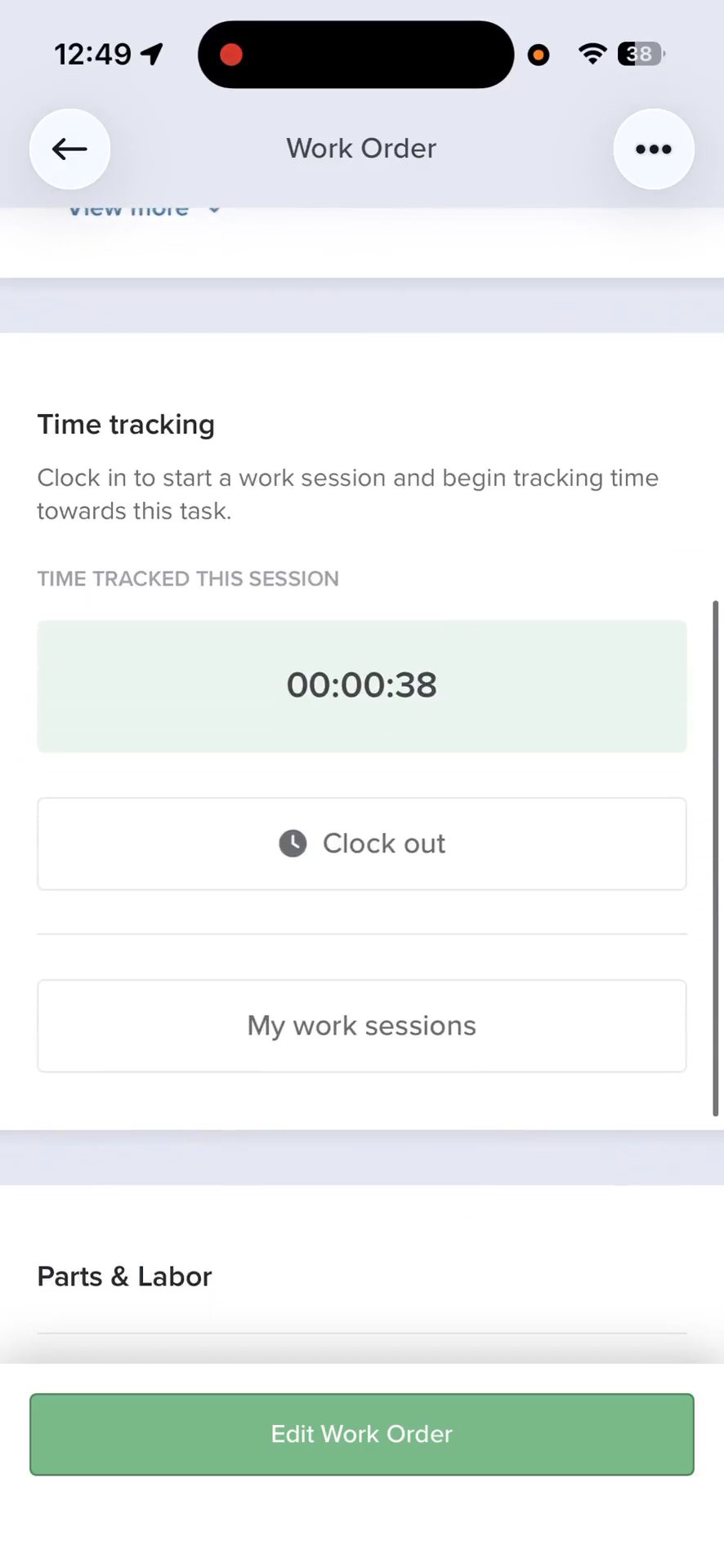
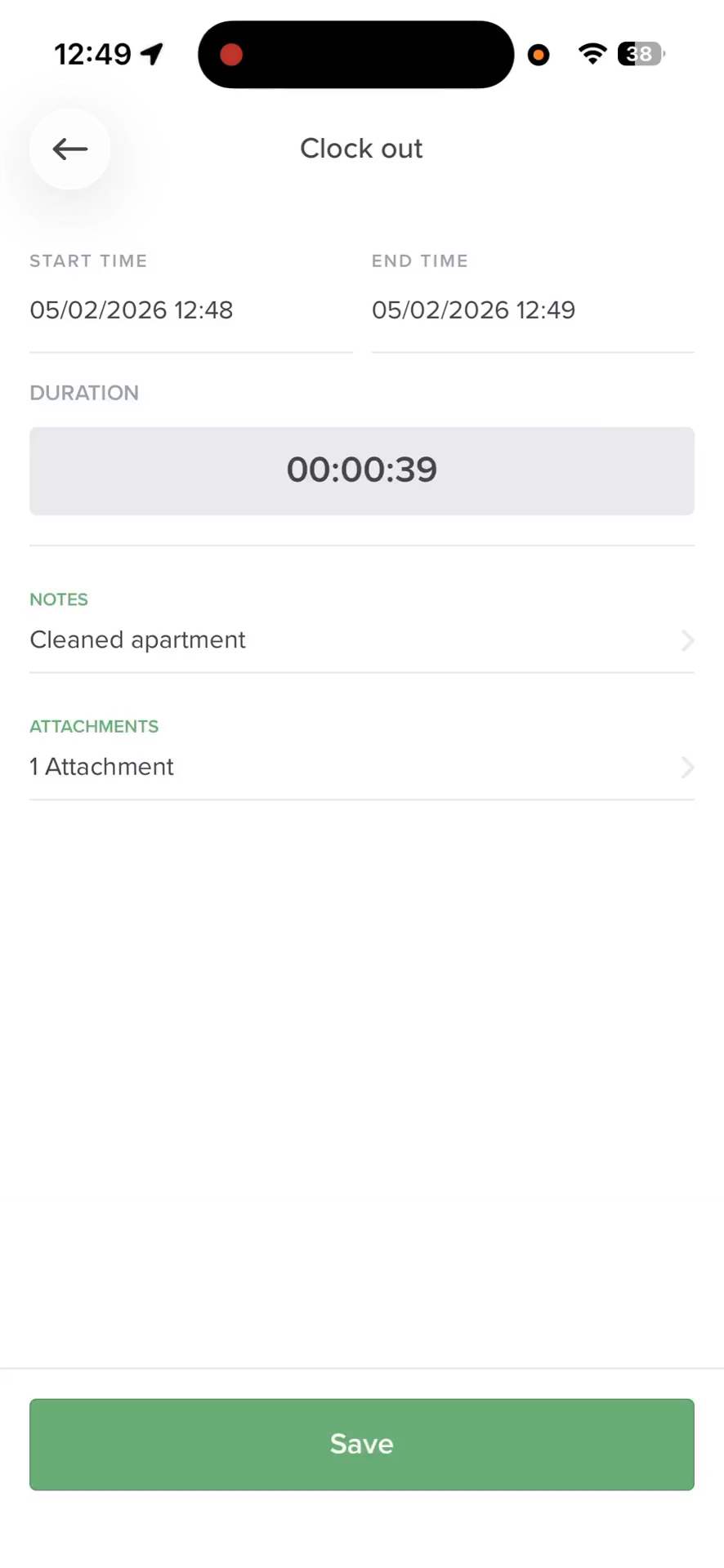
Tap Clock out to stop the timer.
6
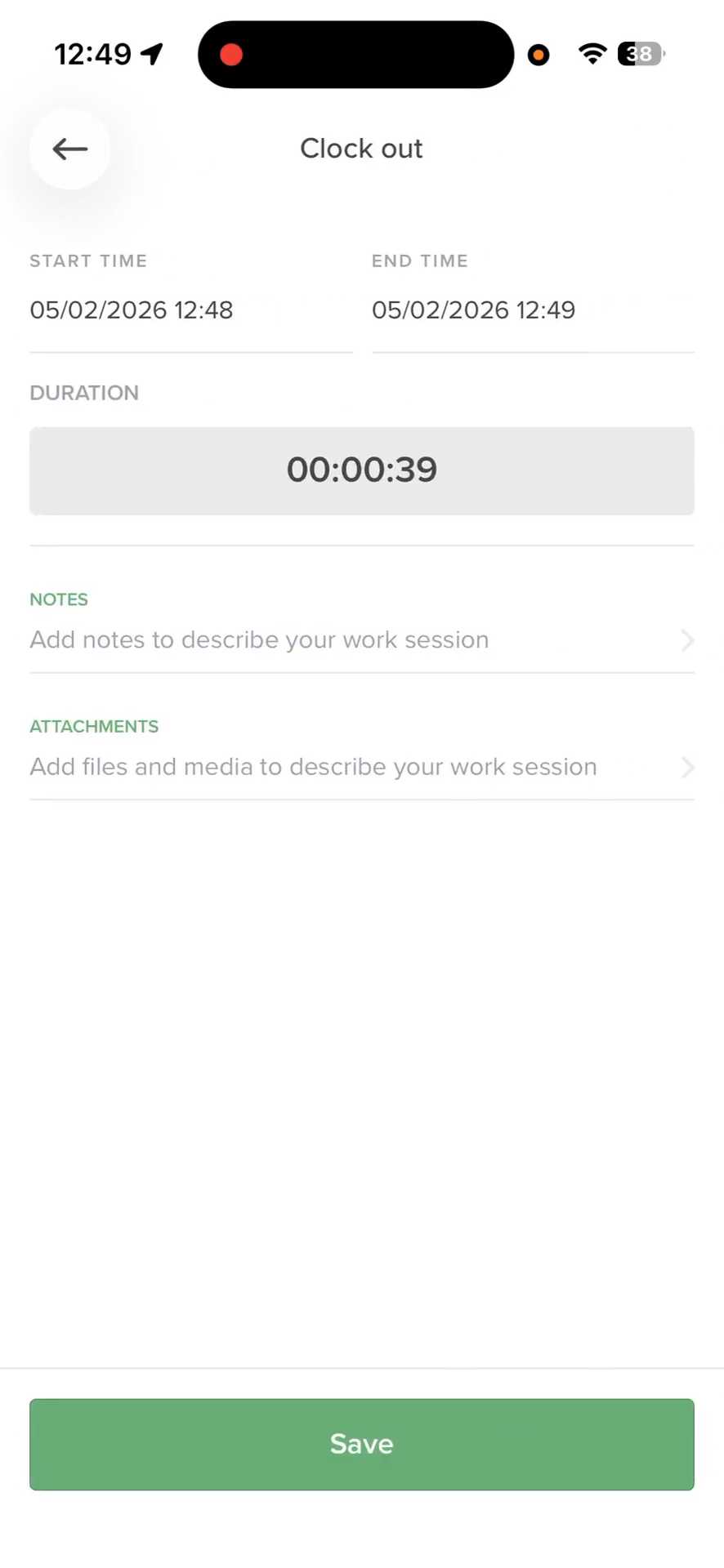
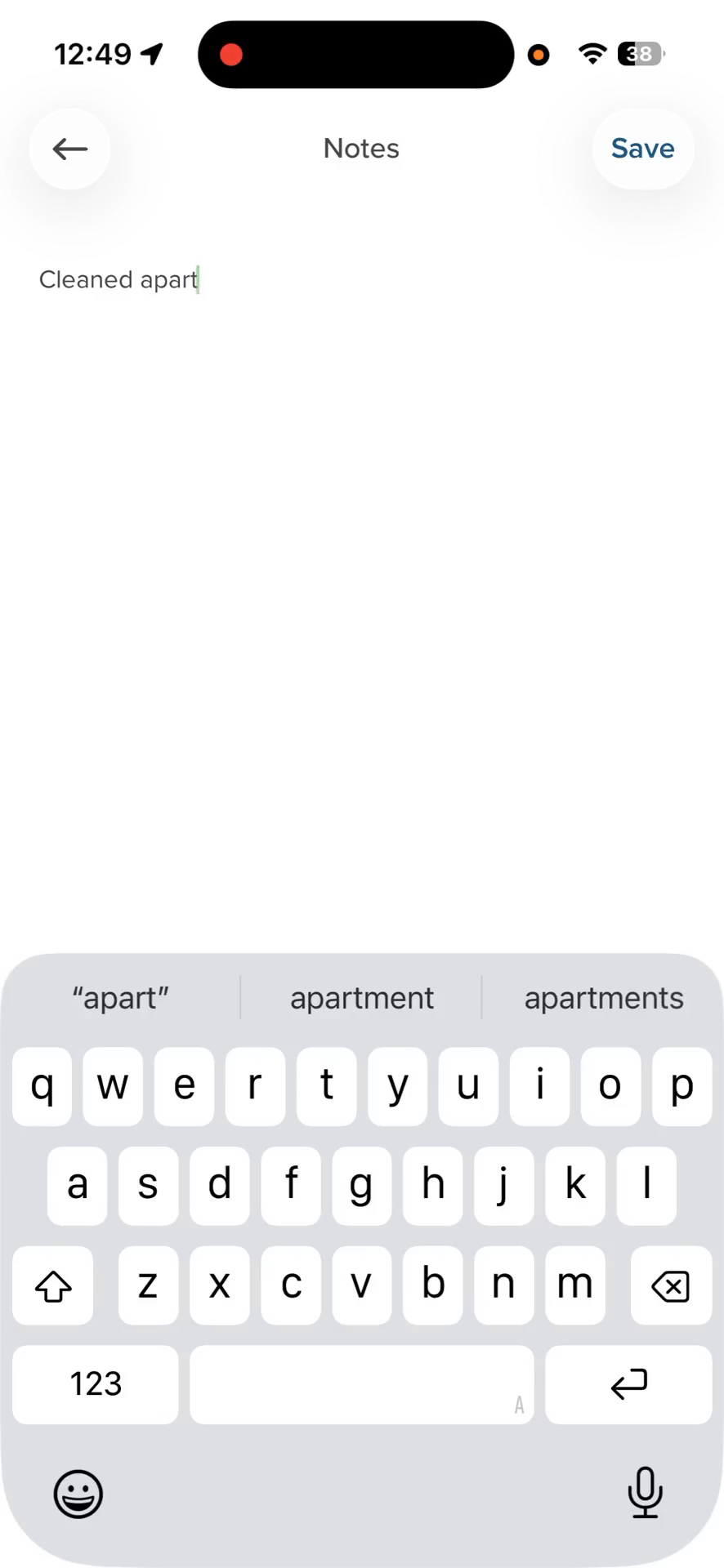
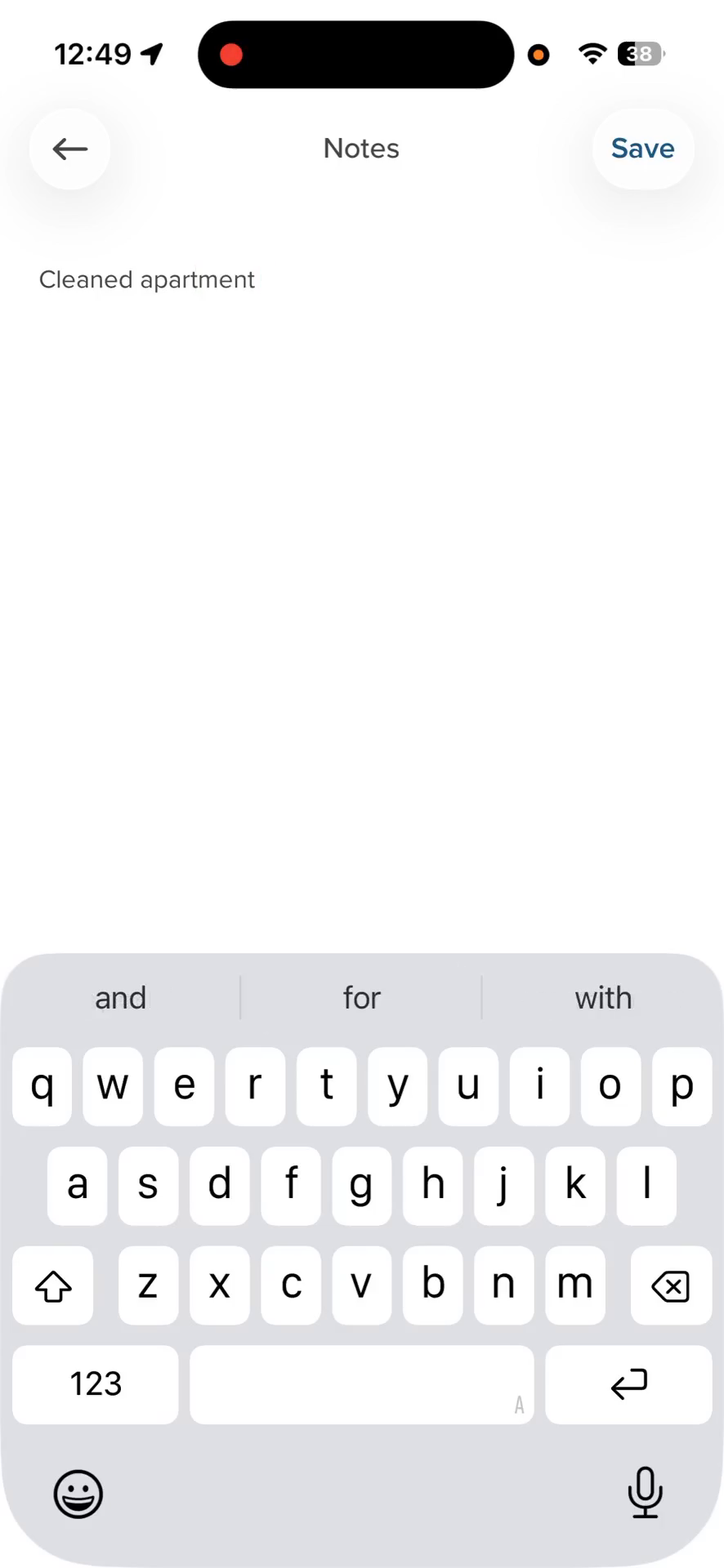
Tap Notes to enter a brief description of the work you completed
7
Tap Save.
8
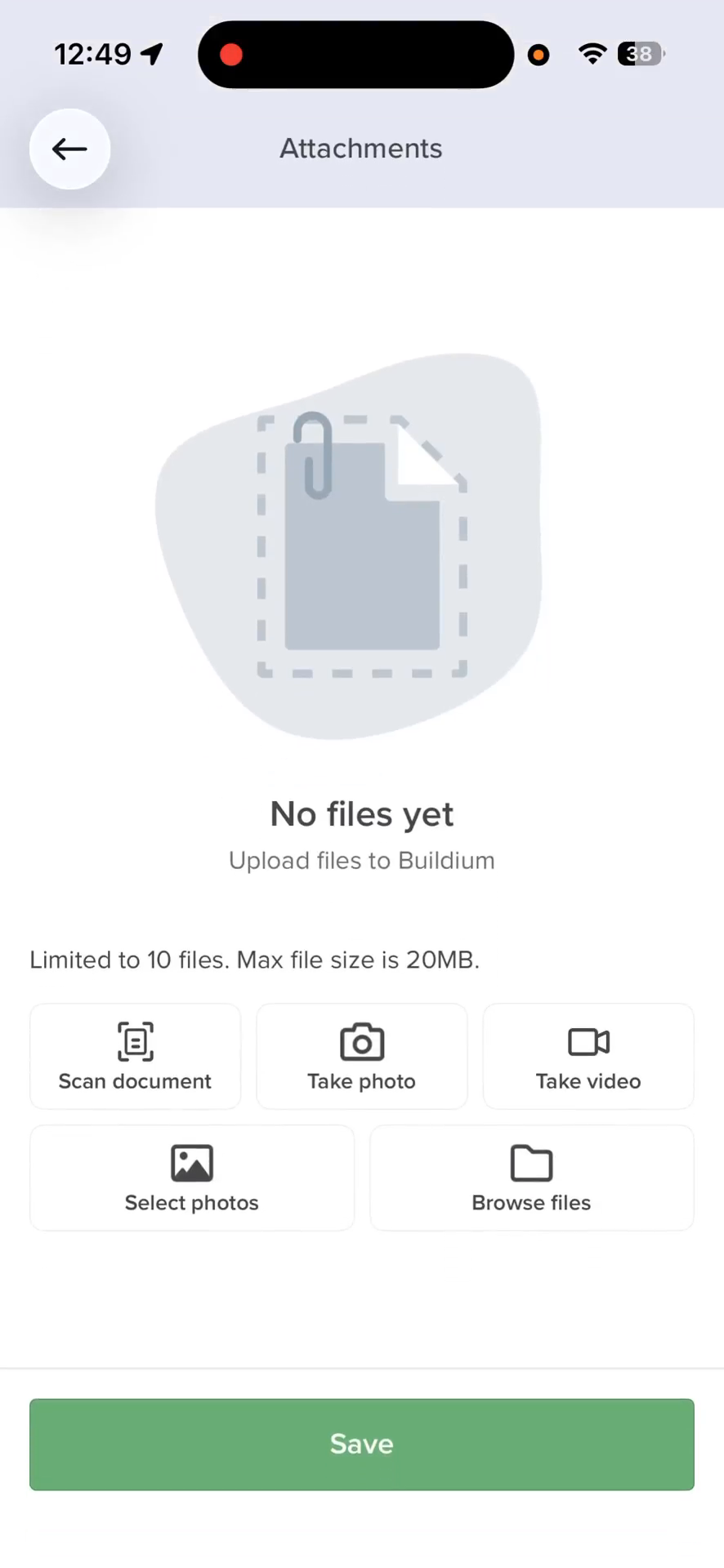
Tap Attachments to add any relevant files or photos of your work.
9
Choose Take photo or Select Photos if you've already taken the pictures
10
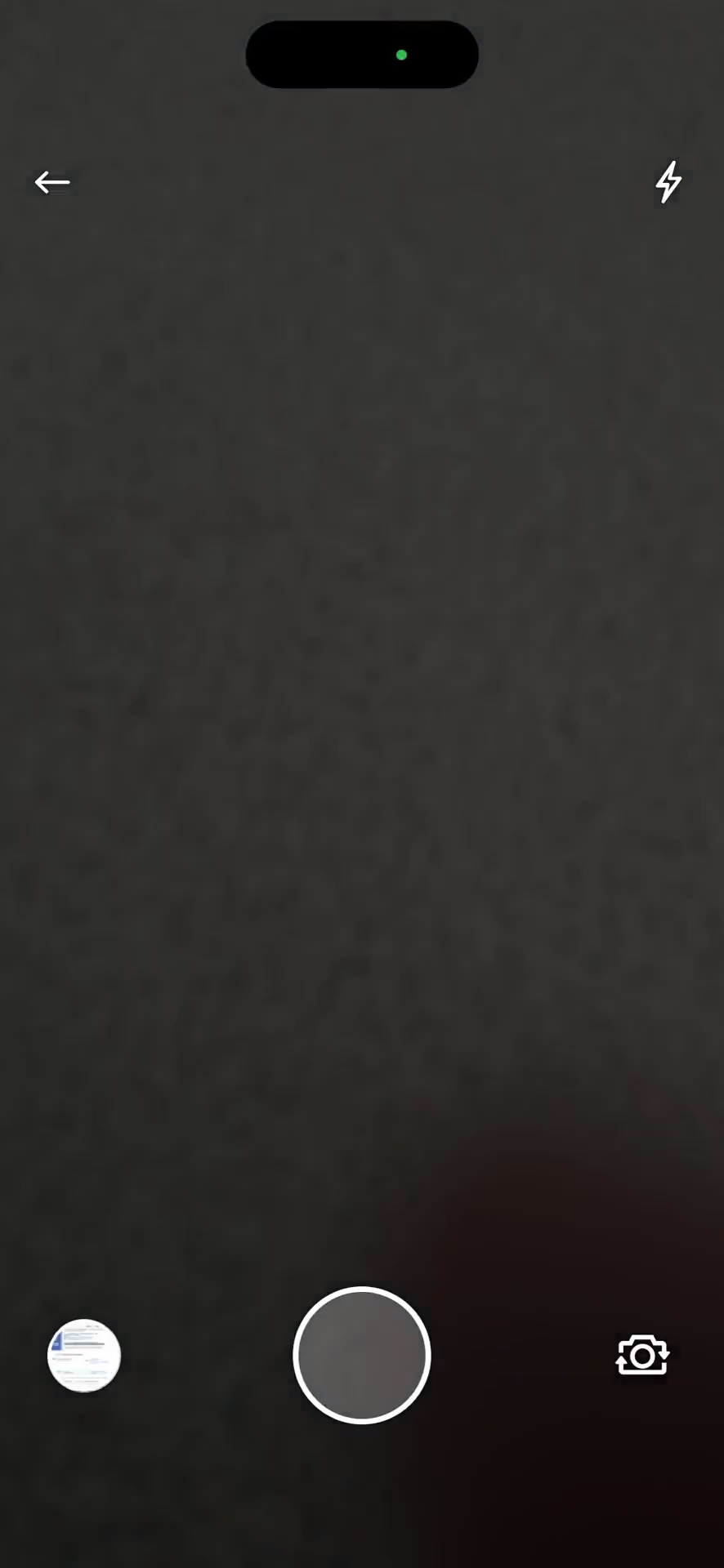
Tap the shutter button to capture the photo.
11
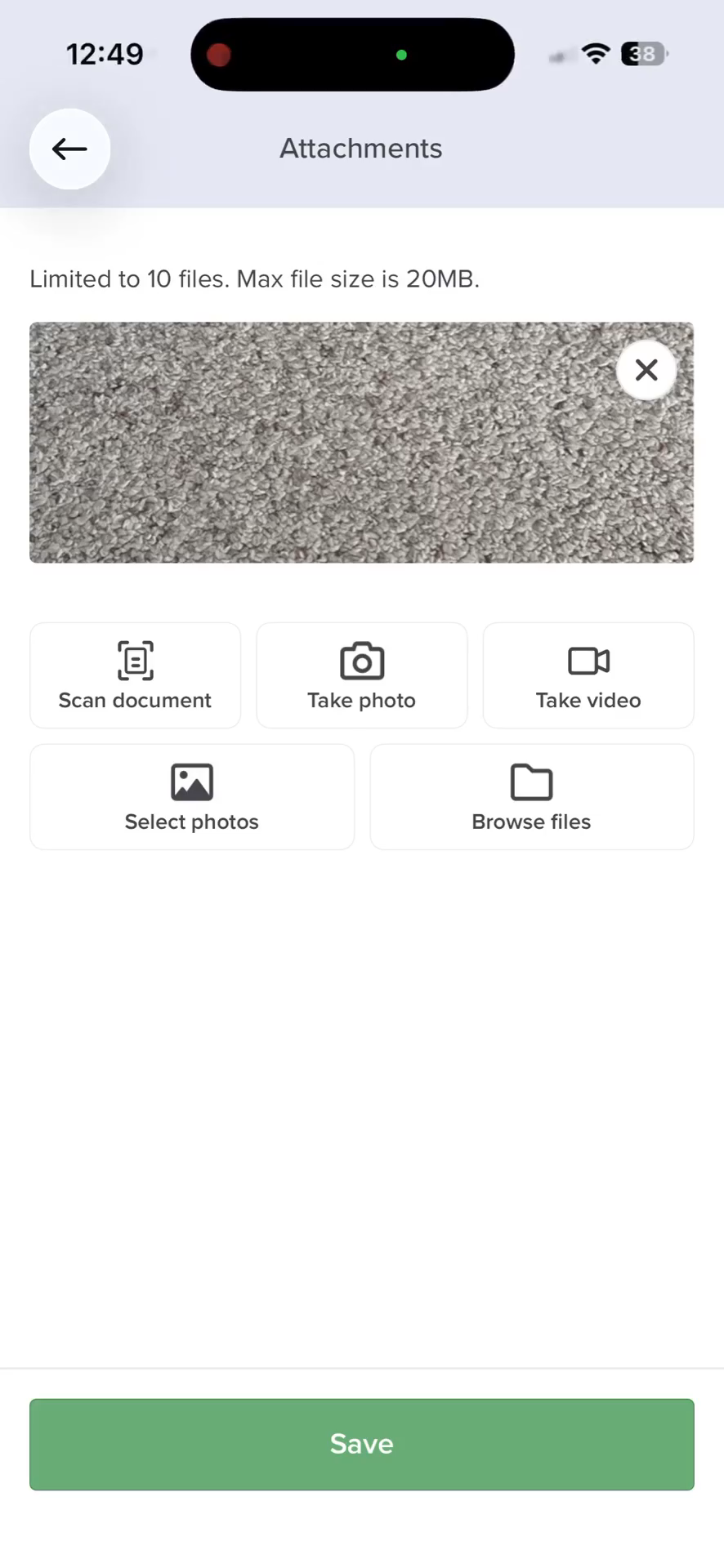
Tap Save to confirm your attachment.
12
Tap Save on the main clock-out screen to officially log your work session.
Move on to the Next Task
If you have multiple work orders scheduled for the day, you can easily jump to the next one.
13
Tap the back arrow at the top left to return to your work order queue.
14
Select your next work order to clock in and begin a new session.