
How to Update an Existing Provenance List Item
Learn how to update an existing provenance list item in your archive system. This guide walks you through editing organizational records, such as the National Council of Jewish Women Australia and ACT, using Manage List Vocabulary.
In this guide, we'll learn how to update an existing provenance list item. This process is useful when you need to make changes to organisation names or other details in your records. By following these steps, you can ensure your provenance lists remain accurate and up to date.
Let's get started
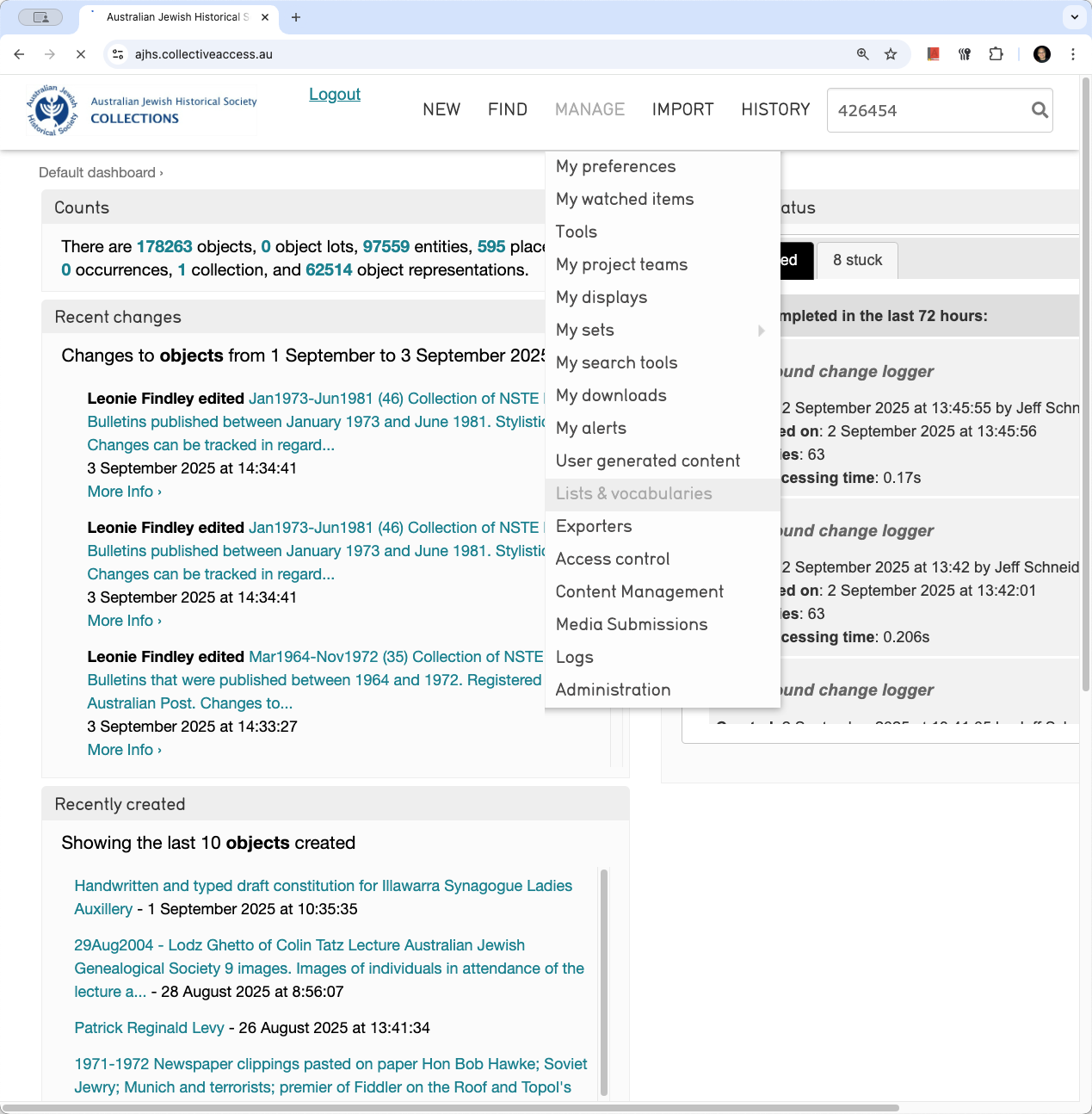
Okay. In this video, we will show how to update an existing provenance list item. You gave me several to update. We'll start with the first one: showing Council of Jewish Women Australia and ACT. I will walk you through how to do it, and then you should be able to handle the rest. First, go to Manage List Vocabulary and wait for it to load. The hierarchy will appear.
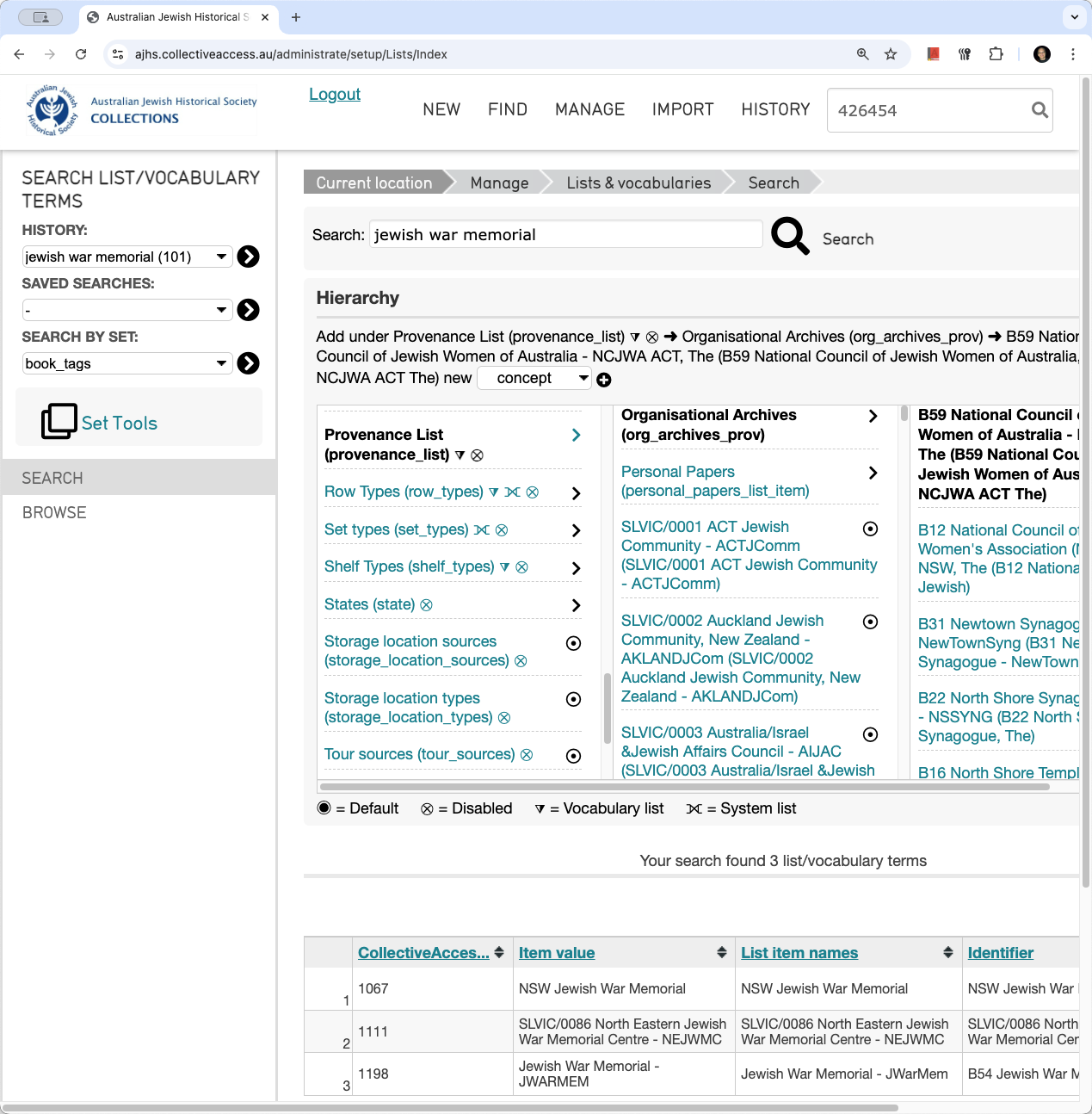
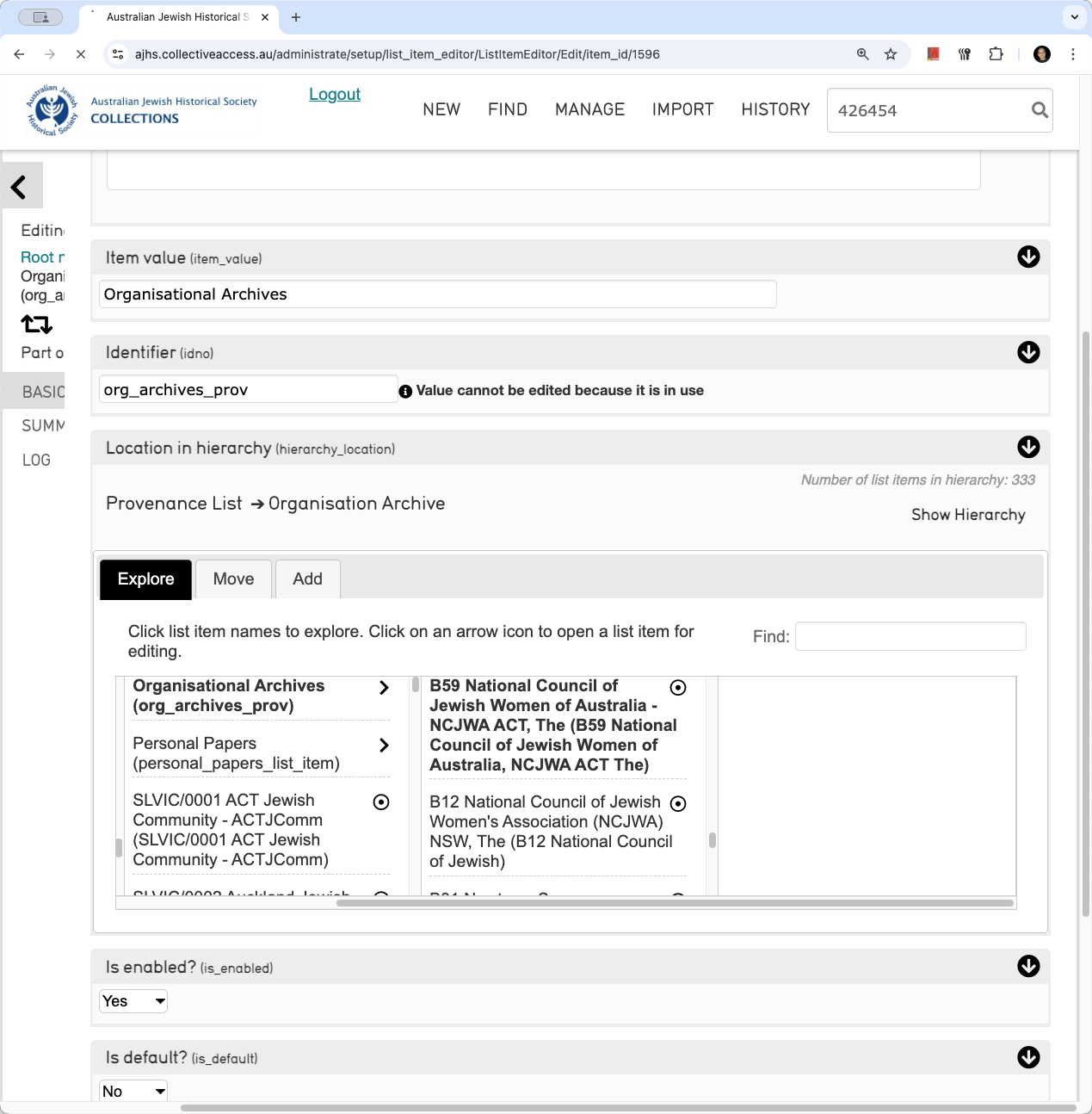
Go to Provenance Lists and ensure you are on that section on the left. Since this is the National Council of Jewish Women Australia and ACT, which is an organization, click on Organisational Archives.
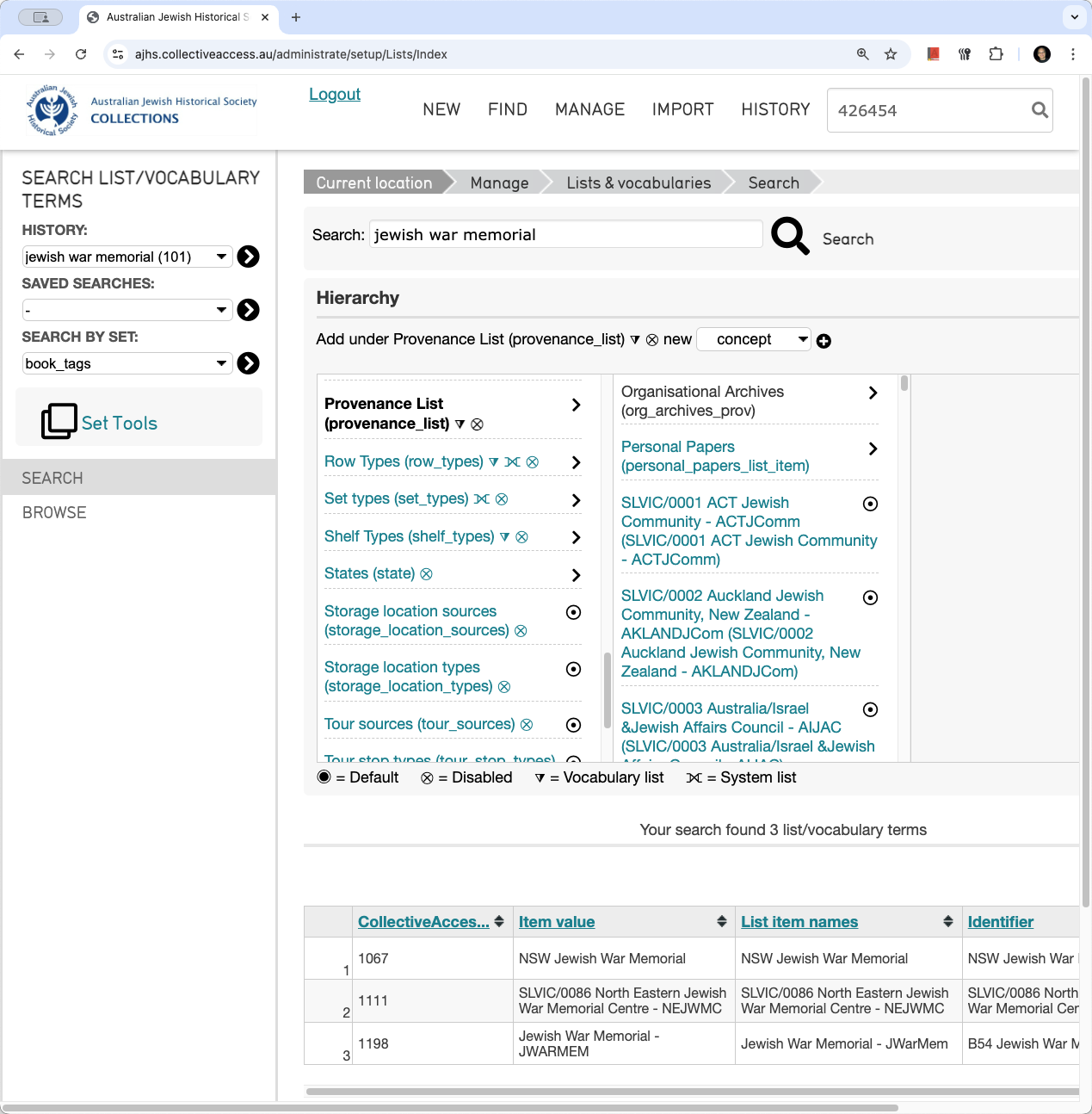
If this were a personal paper, you would select "Personal Paper." The option for a small individual donation is located further down. Click on "Small Individual Donation" if it is a SID. This is an organisation, so click on it and wait for it to load. Next, go to the hierarchy. You could browse or scroll through to find the National Council of Jewish Women ACT, but we have a search field where we can put in B59 to find the desired list item
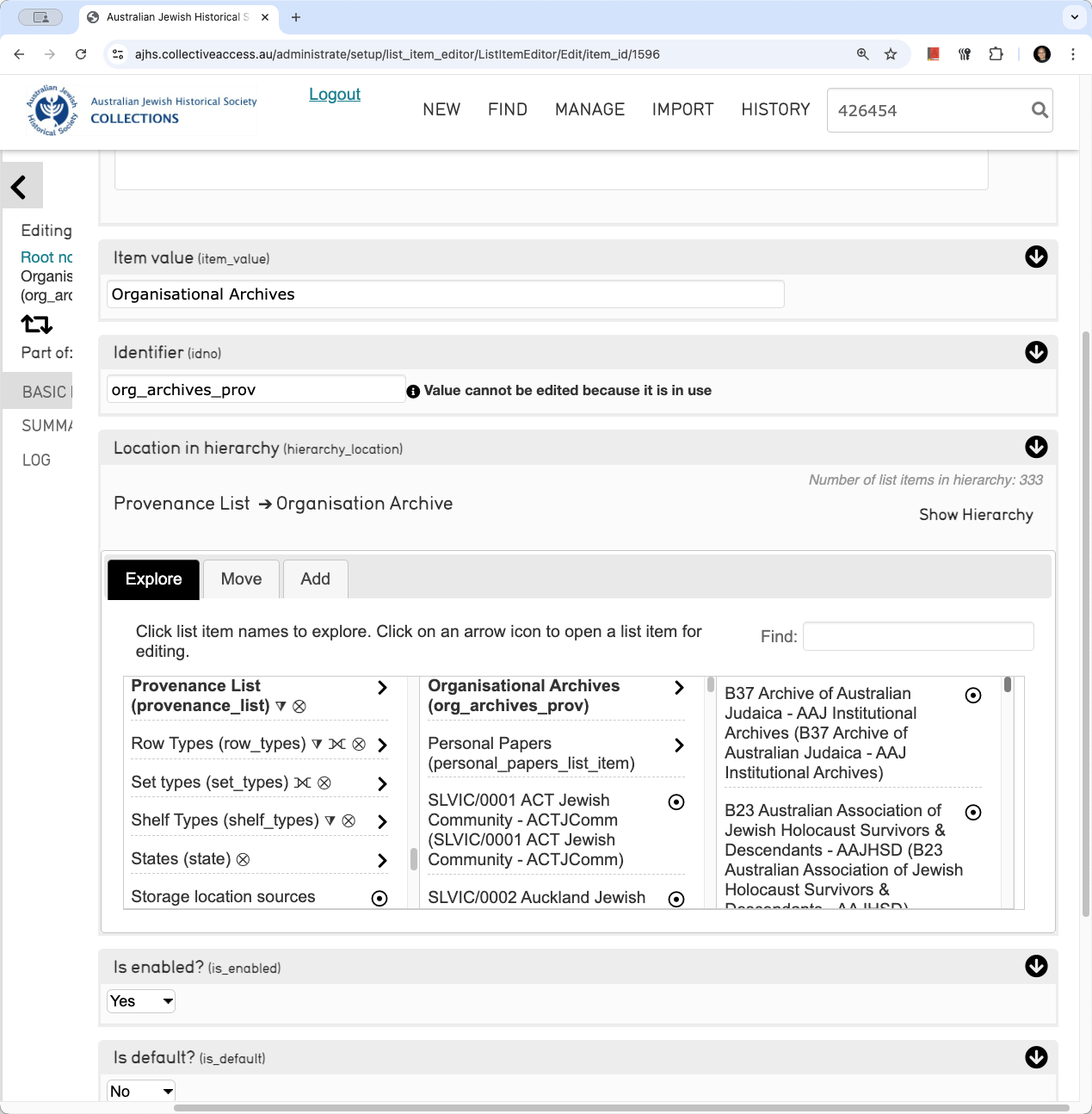
Since there's a convenient search box, we can enter B 59, and it will suggest a result. Click on that, then make sure to select the B 59 record so it loads.
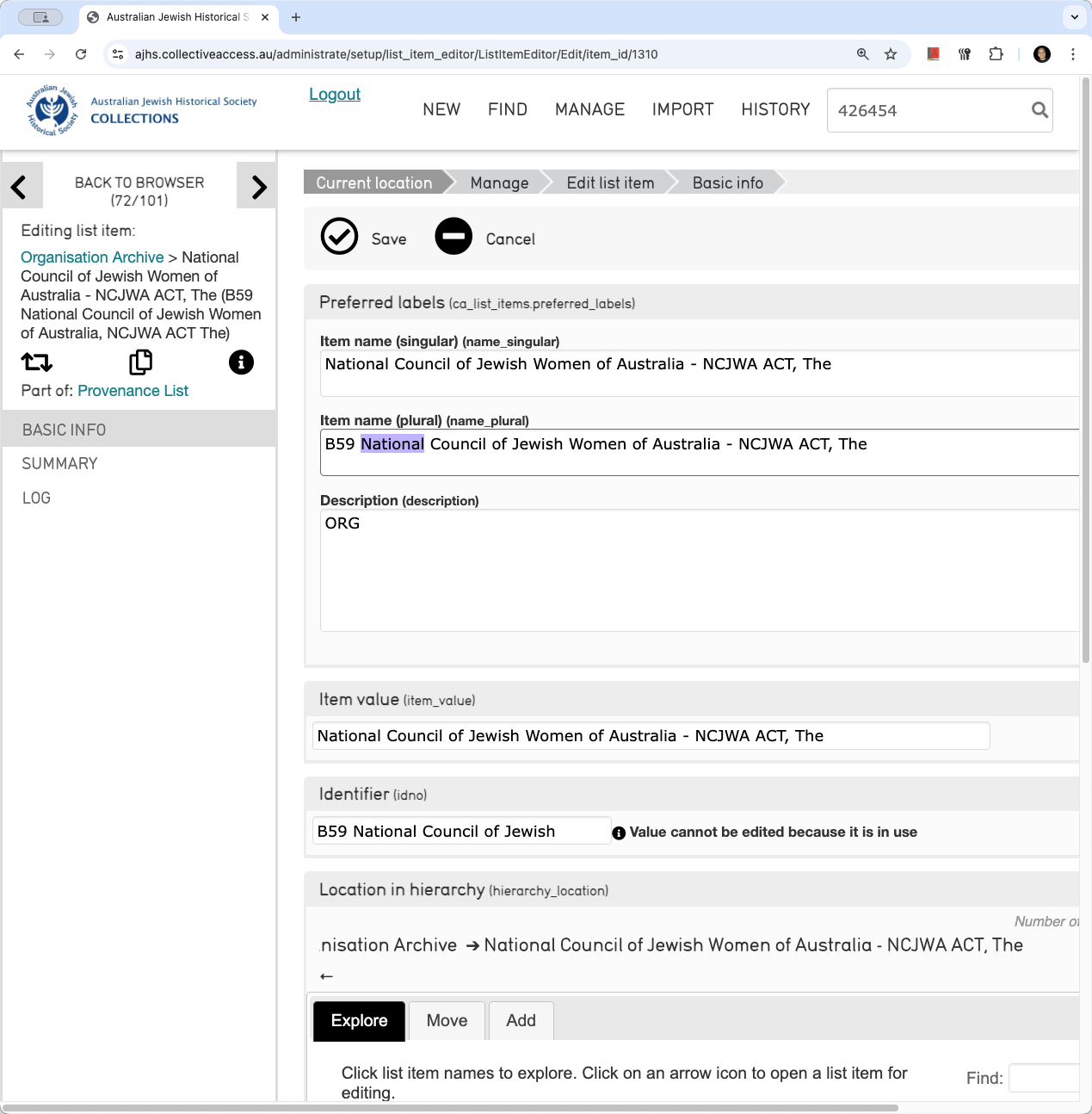
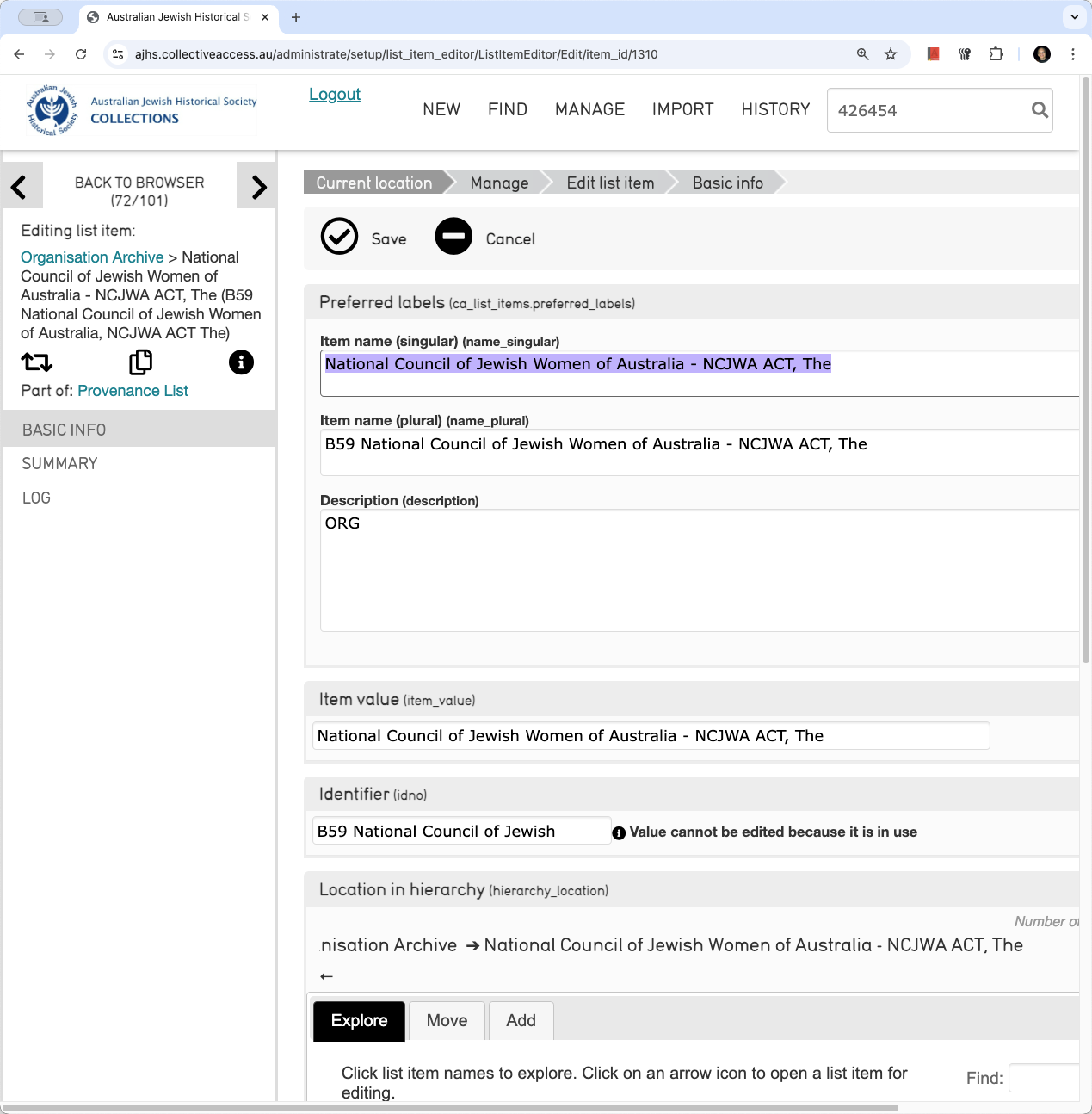
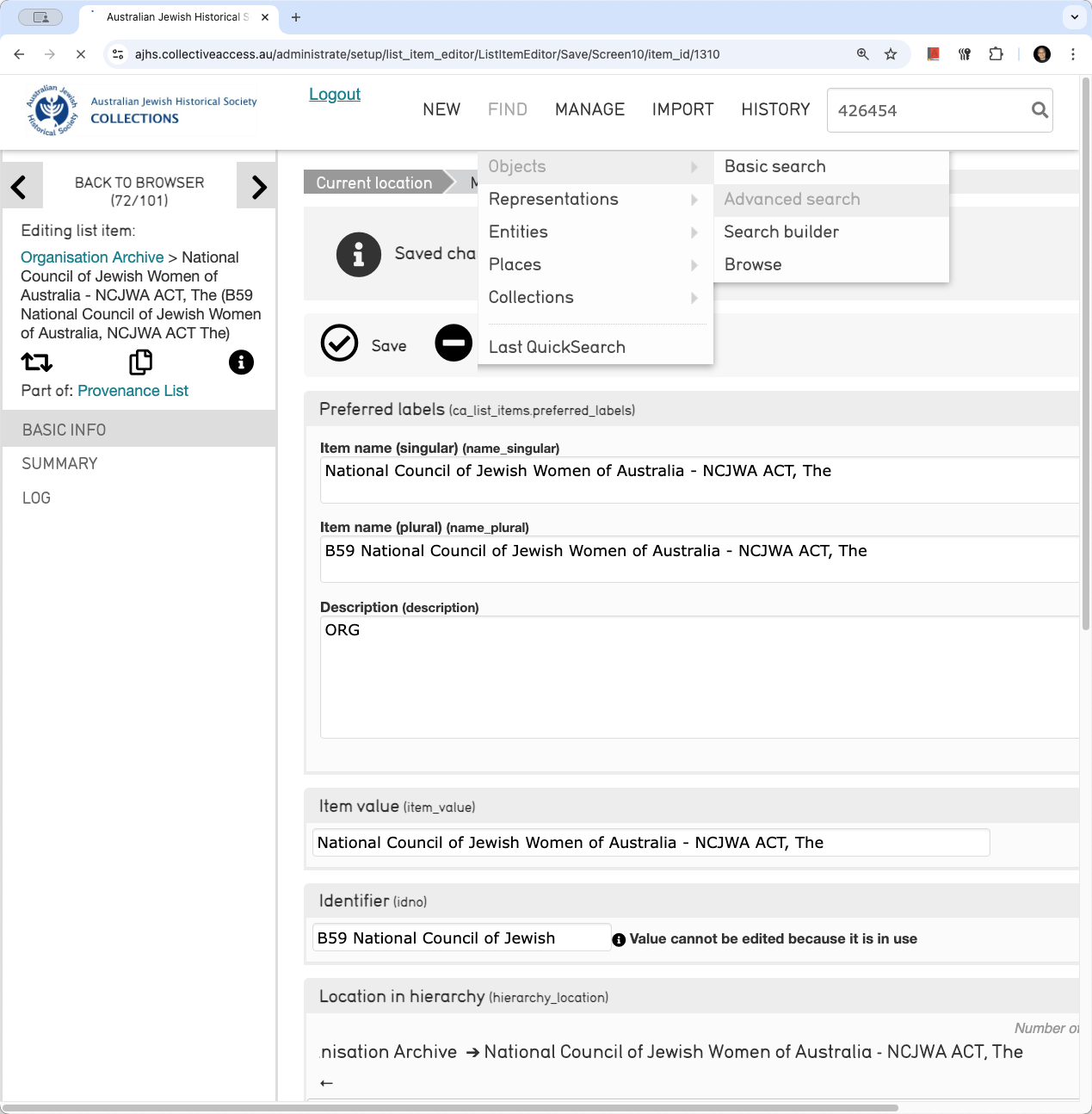
This brings up the form where you can make changes. I will copy what you want to change, which I believe is only removing the brackets. The plural version uses the B number, so I will overwrite it. For the singular version, I will overwrite it and remove the B number
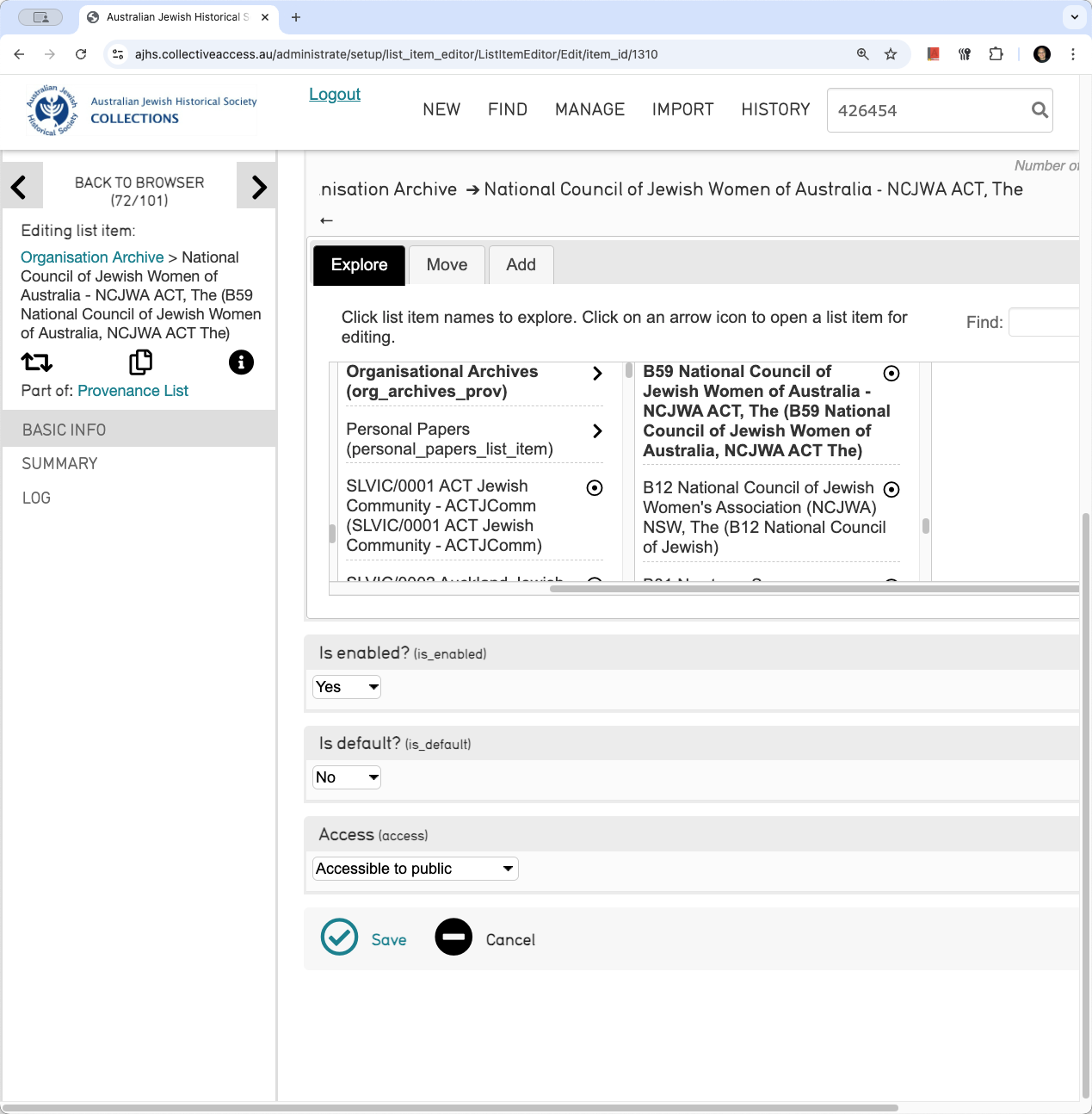
I don't want to change the identifier. It's just an internal value; it doesn't matter. Now, save it.
We can go to advanced search to verify that the change has been made.
Go to Provenance and type in National Council of Jewish Women Australia, ACT. As you can see, the brackets are no longer present, so the change has been made.
That's how you update an existing provenance list item.