Bill Aging Reports: Part 2/5
Learn step-by-step how to update bill aging inventory reports, insert columns, copy formulas, use crosswalks, and filter data in Excel for efficient financial reporting.
In this guide, we'll learn how to update and organize bill aging reports by copying formulas, managing data across multiple sheets, and filtering client information. This process helps ensure that your reports are accurate and up to date. You will also learn how to clean up data and prepare separate tabs for different review processes.
Let's get started
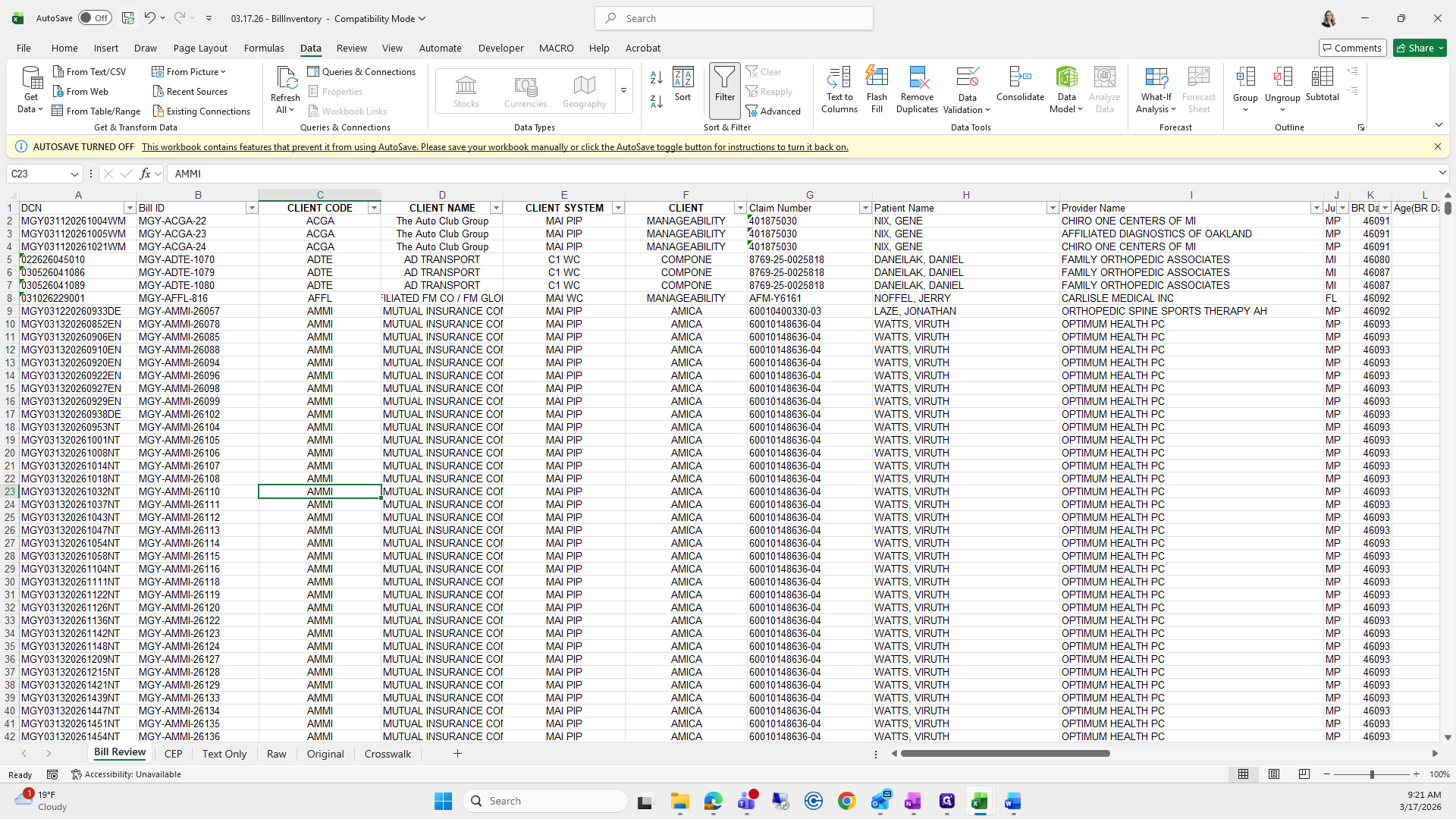
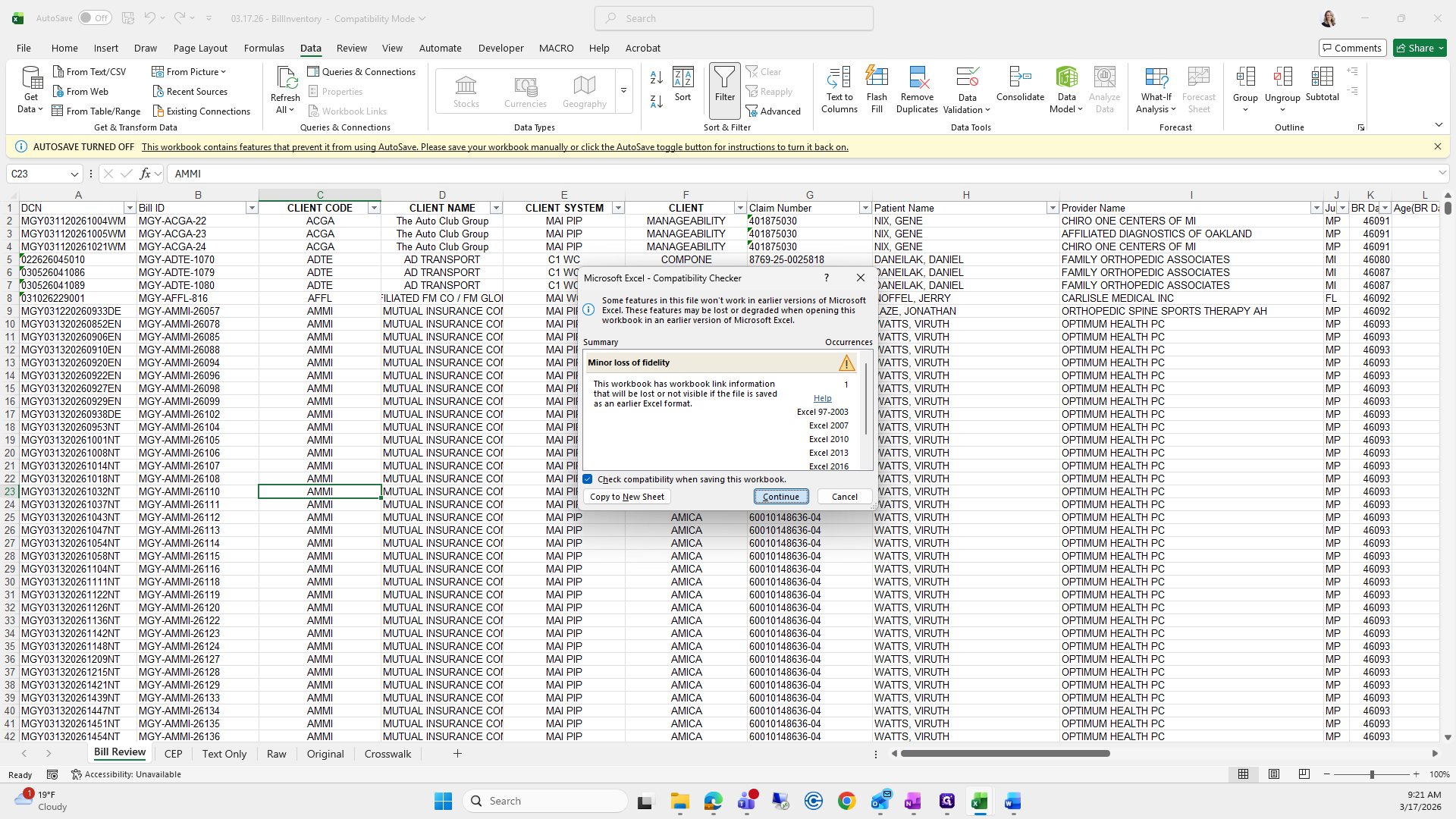
Okay. After inserting the four columns, I go back to the bill aging reports I previously had.
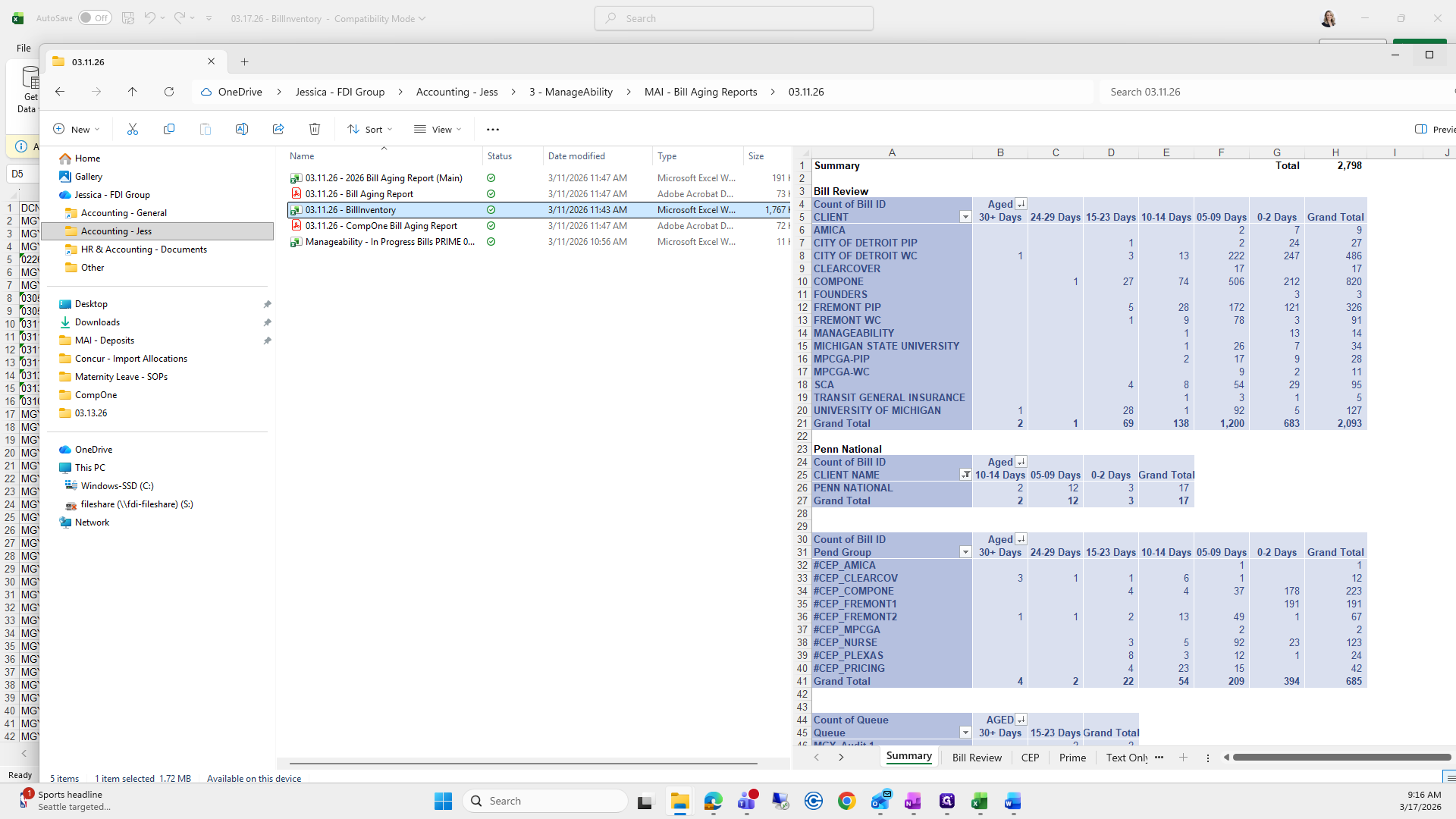
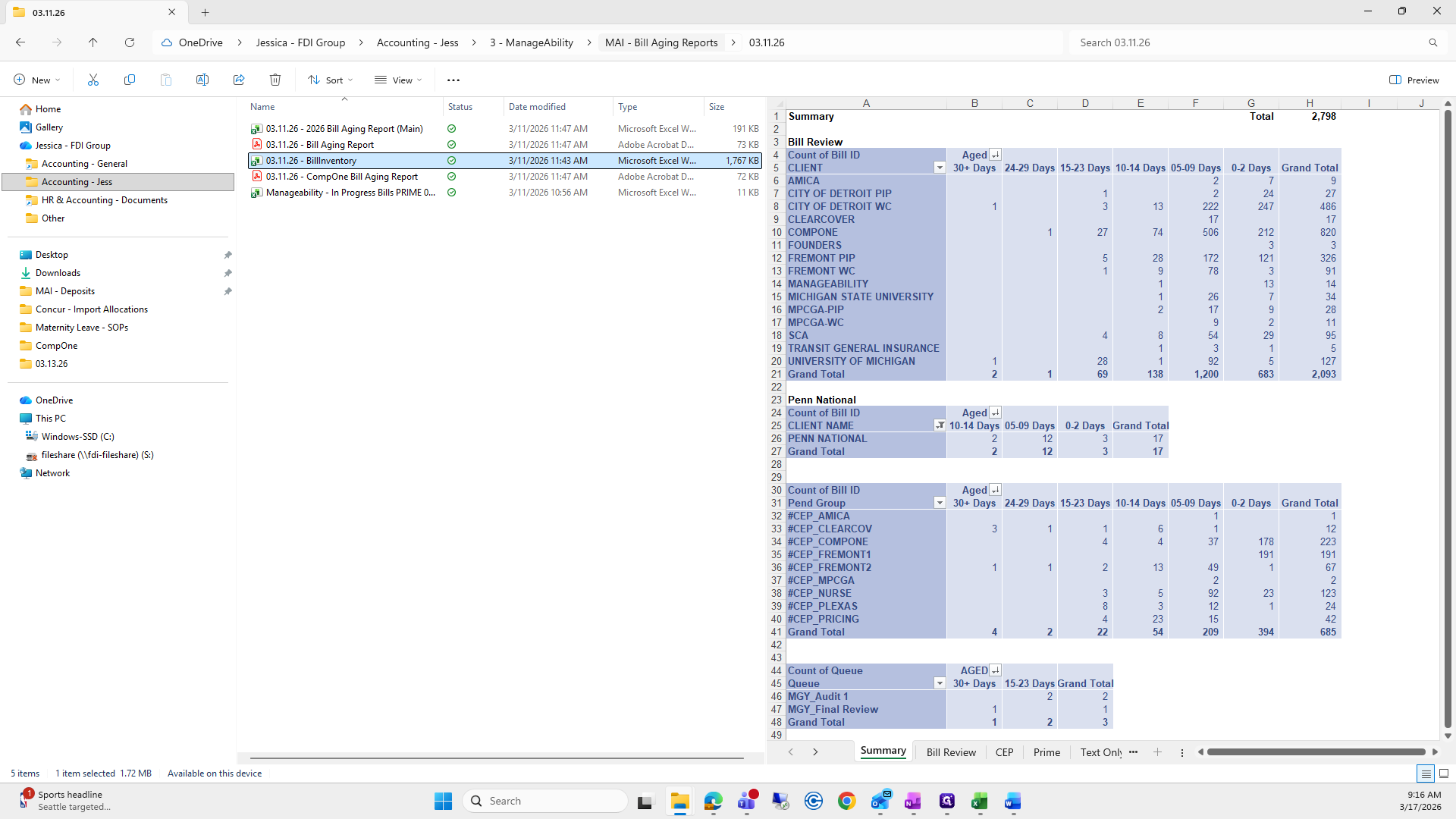
I will go to 311 and open last week's bill aging inventory report.
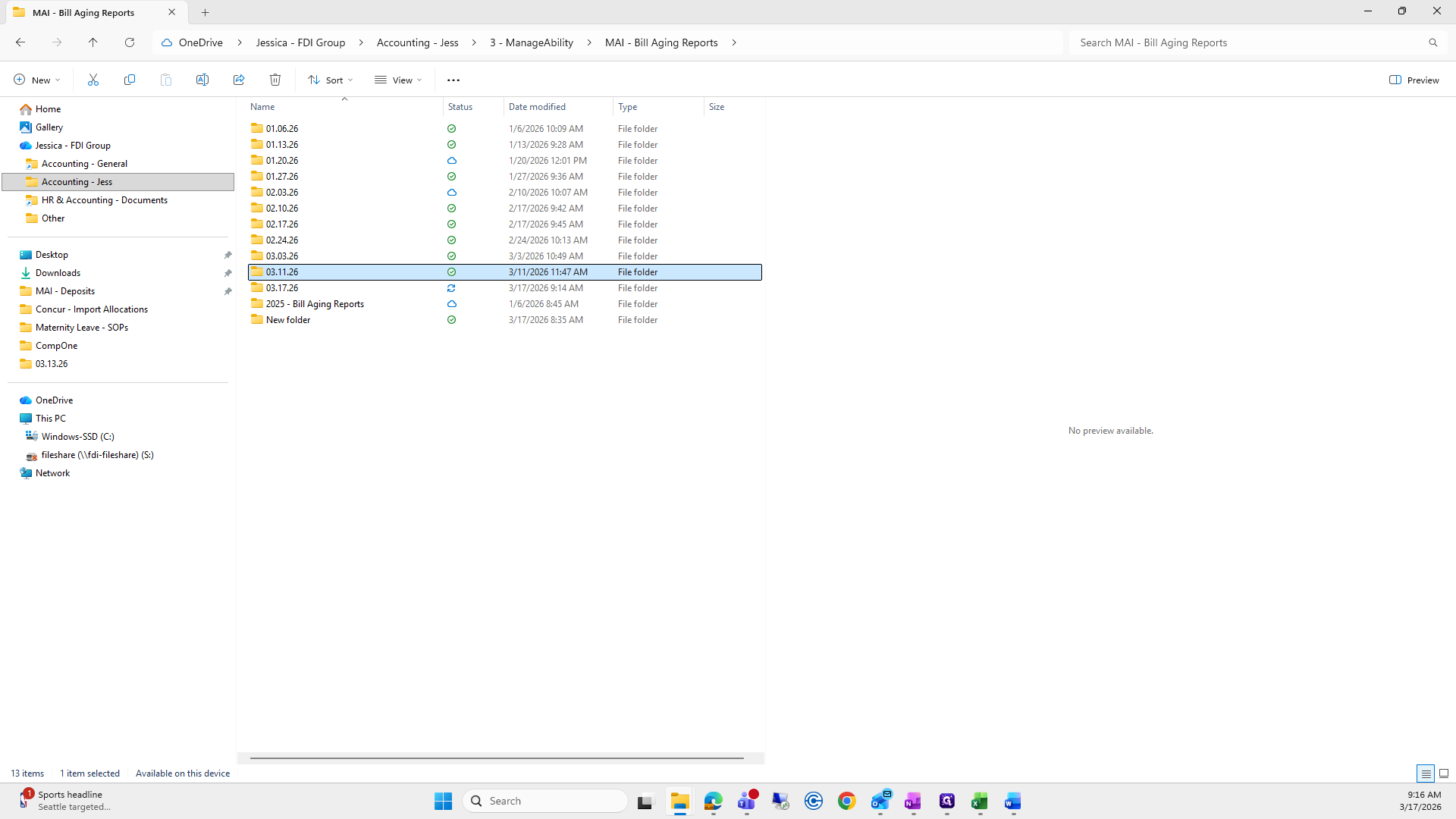
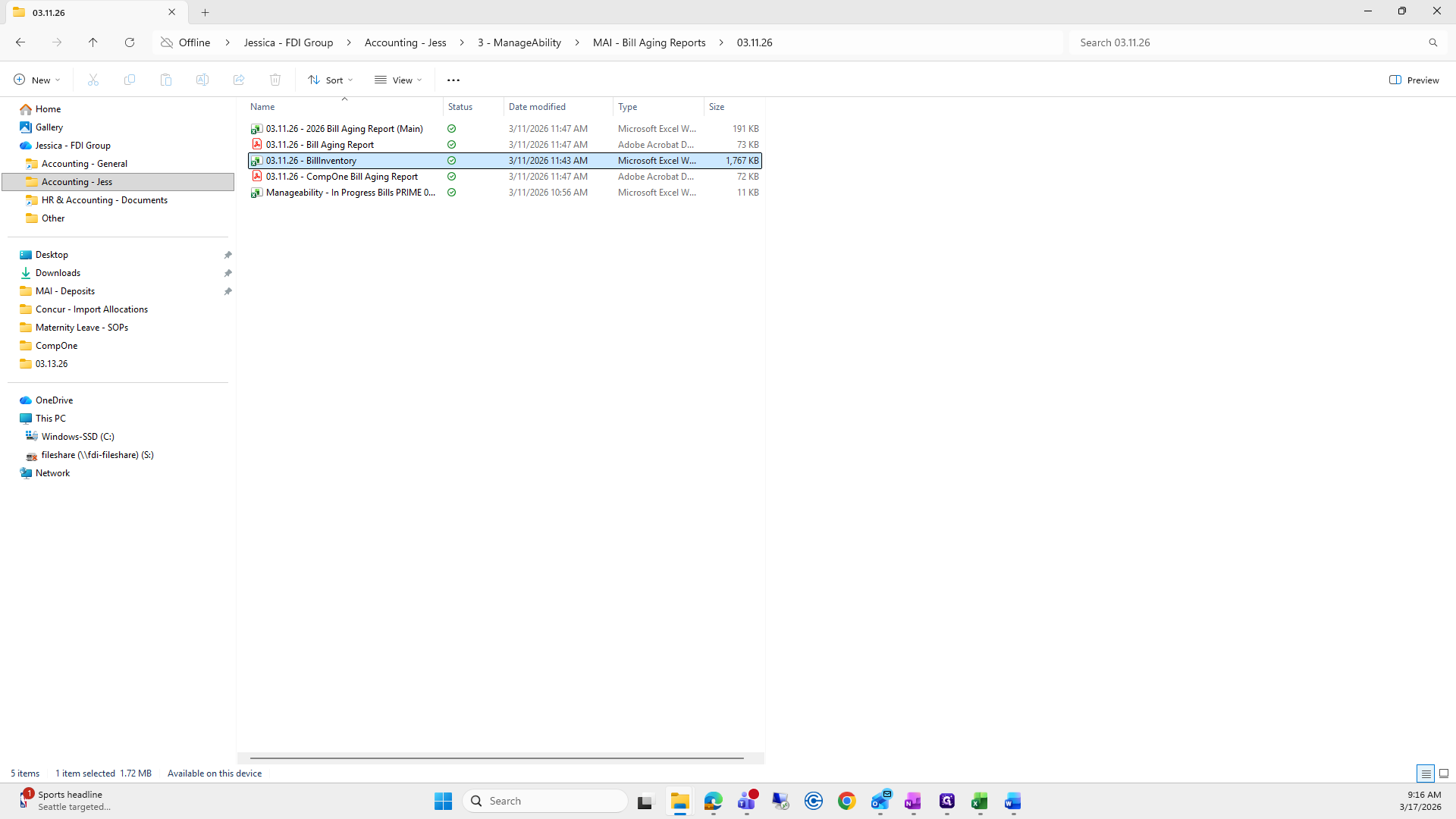
I just need to copy and paste the formulas because it's much easier than entering them manually.
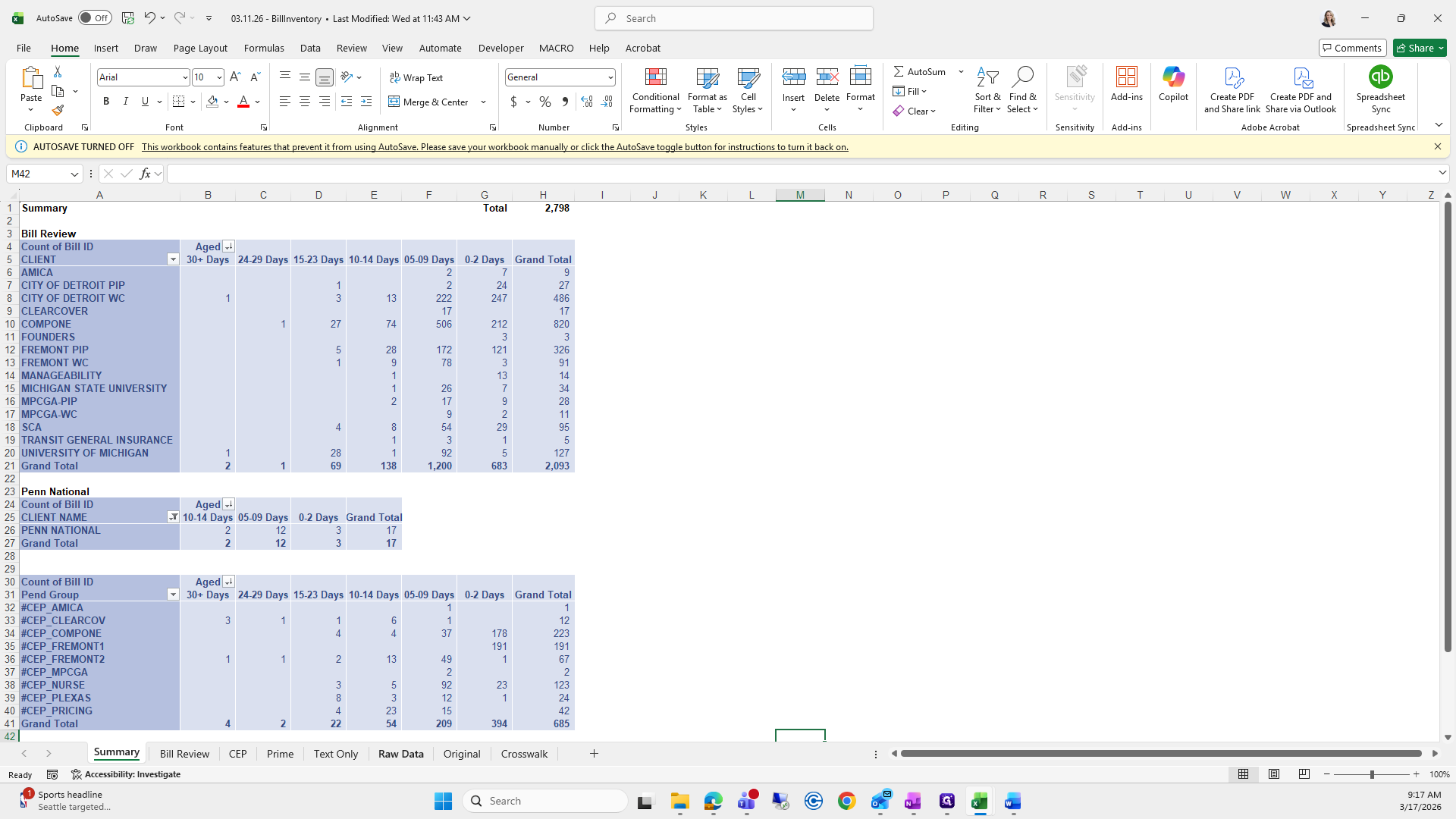
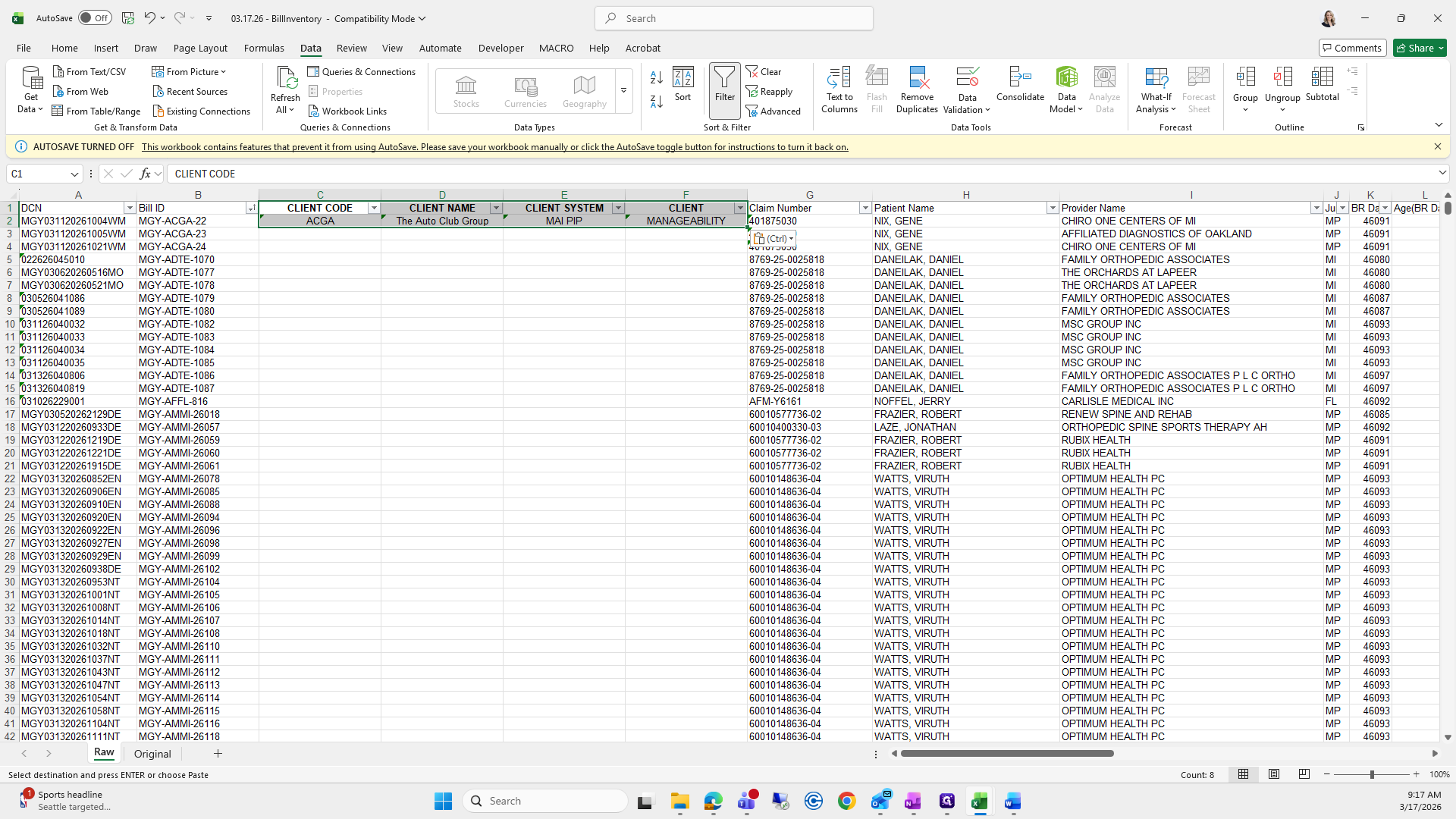
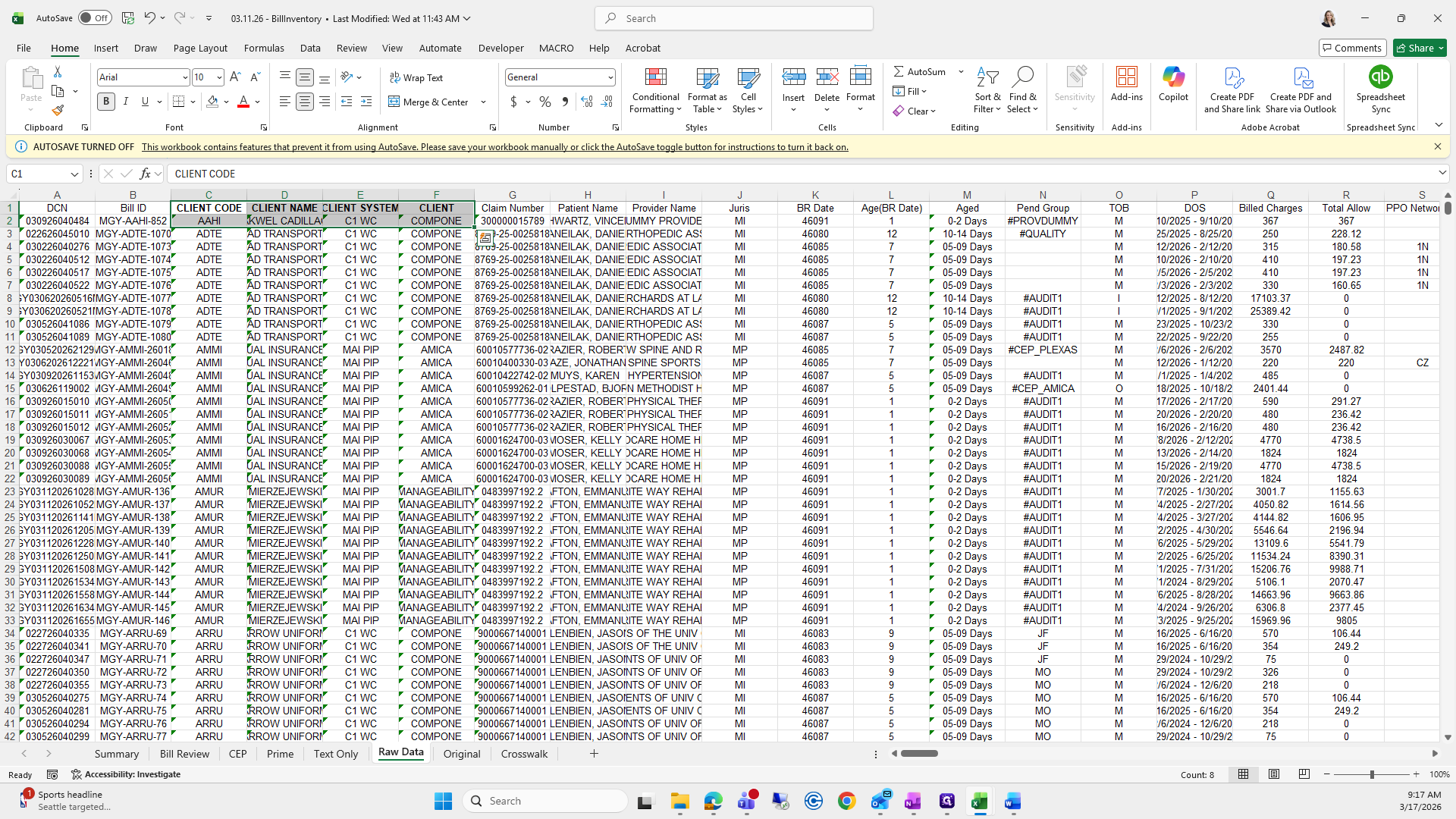
I'll take columns C1 and C2 and drag them over to F1 and F2.
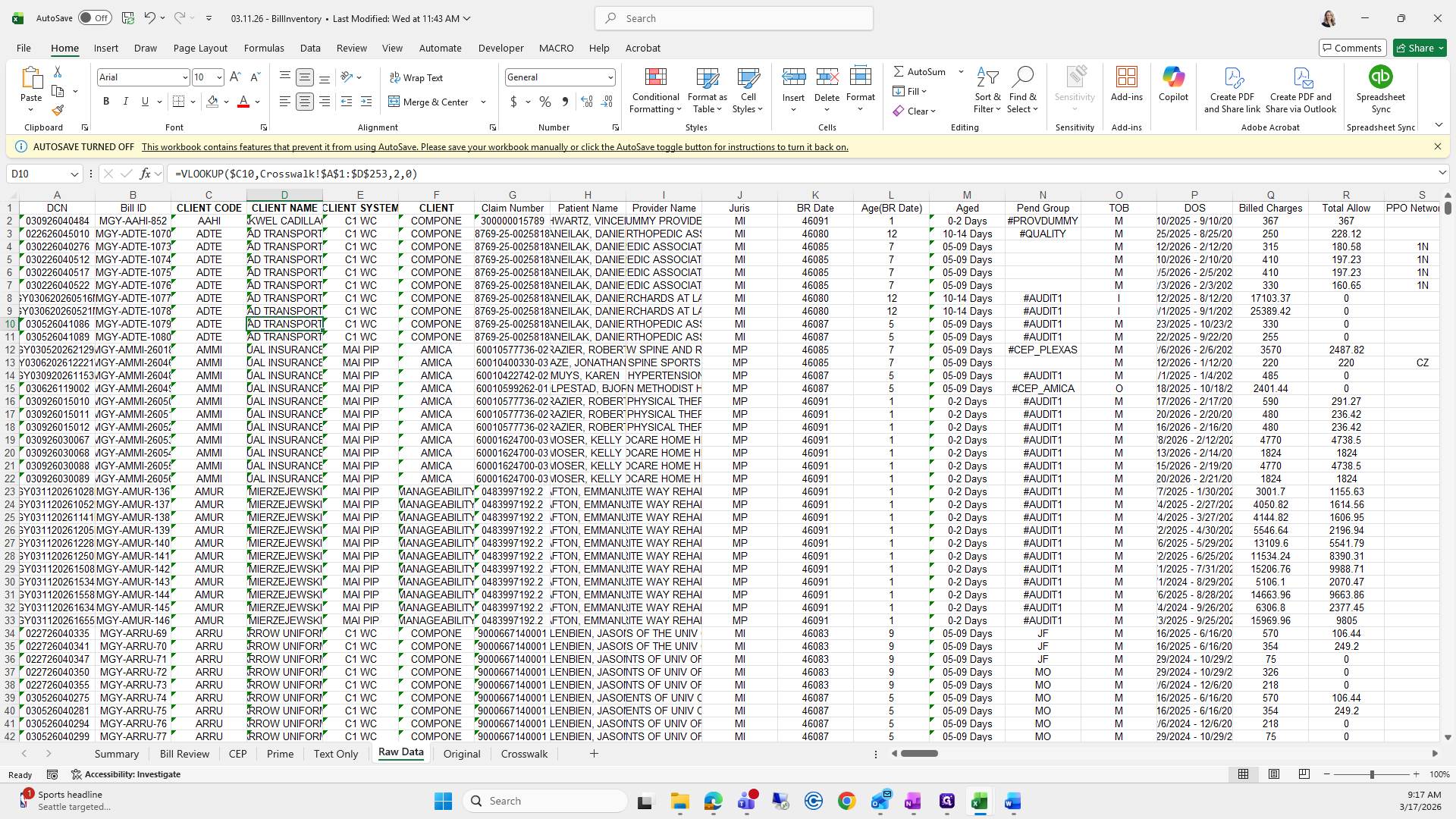
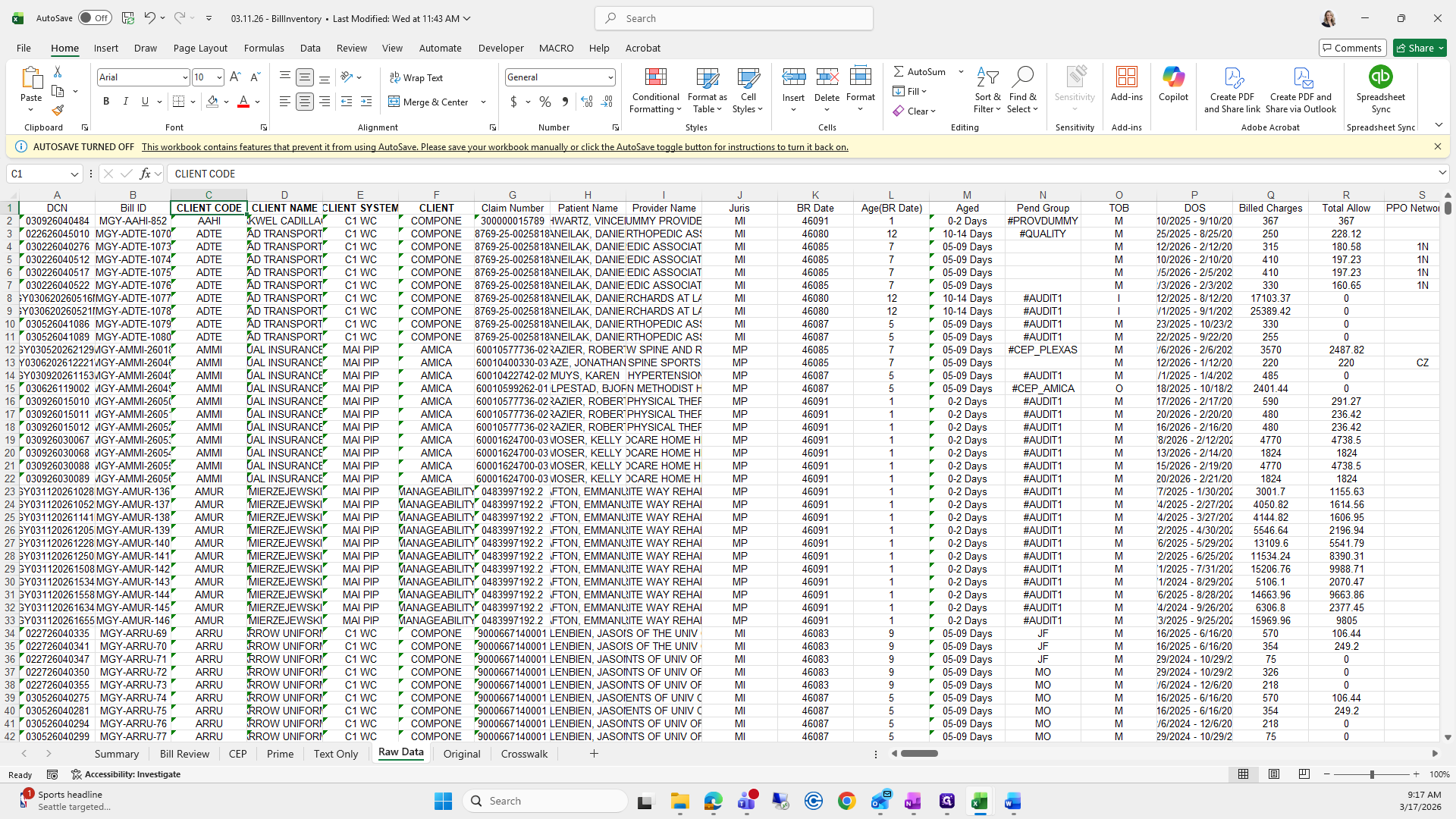
I will copy it.
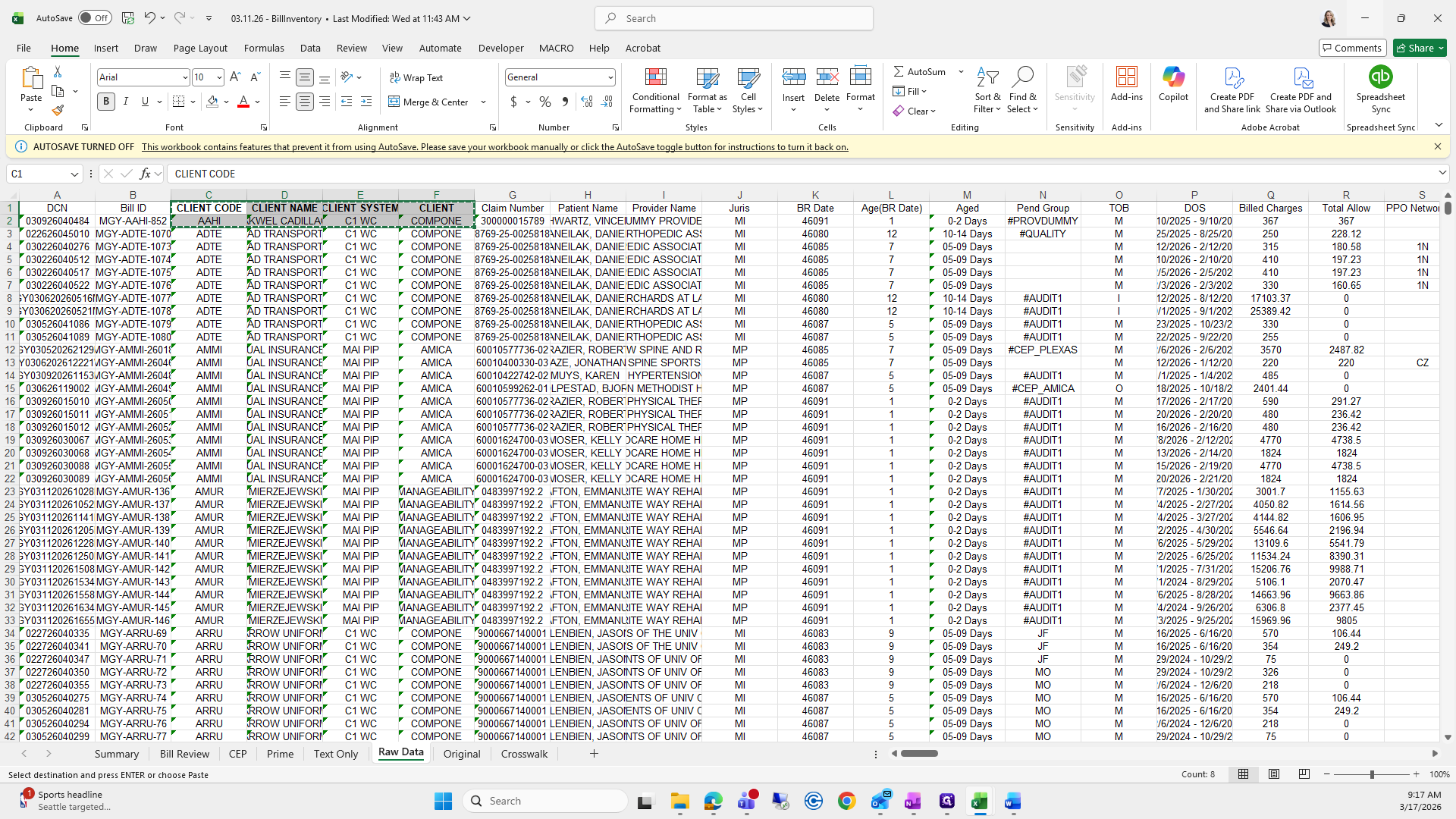
I will paste it, not as values, just as a regular paste.
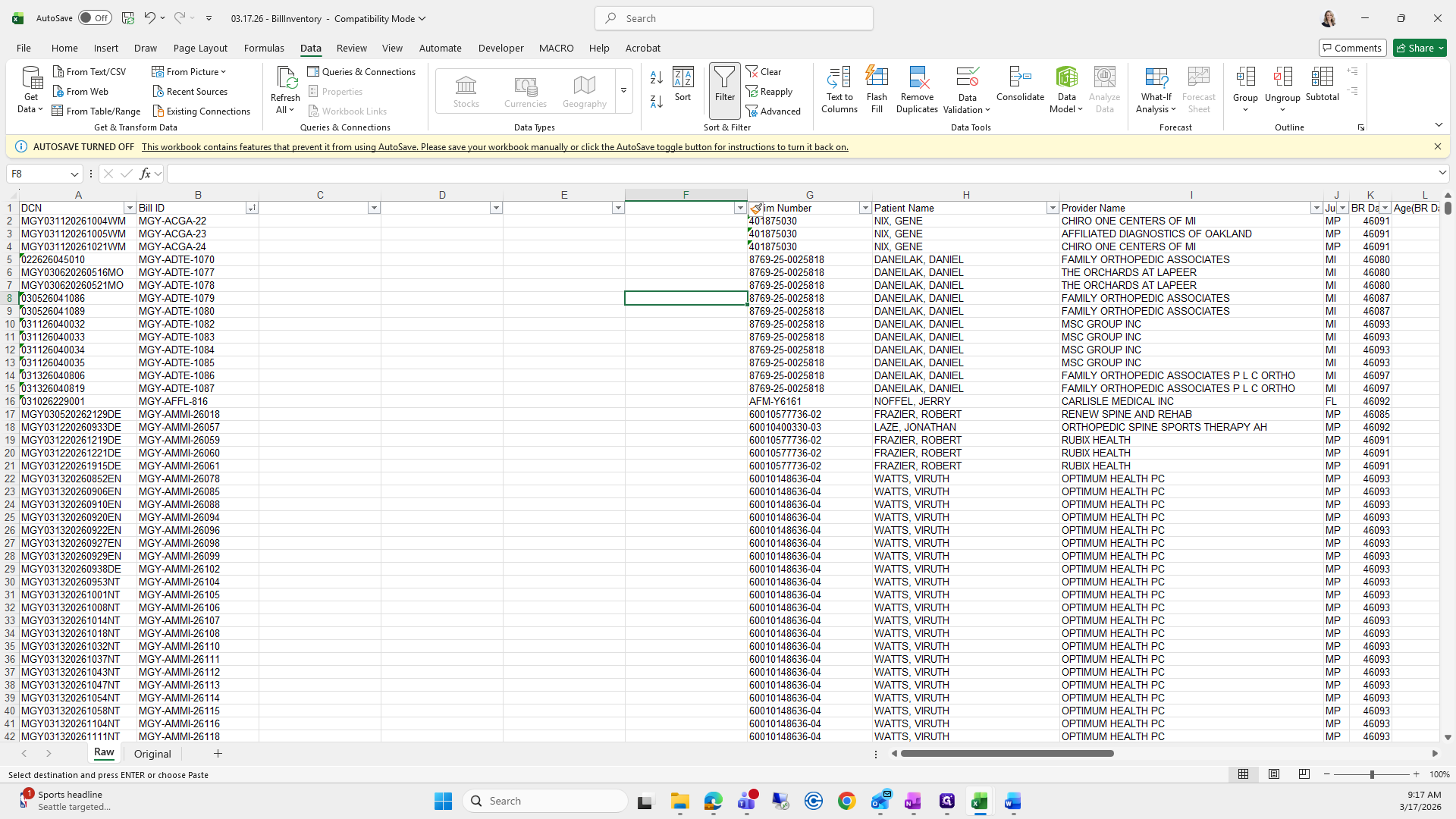
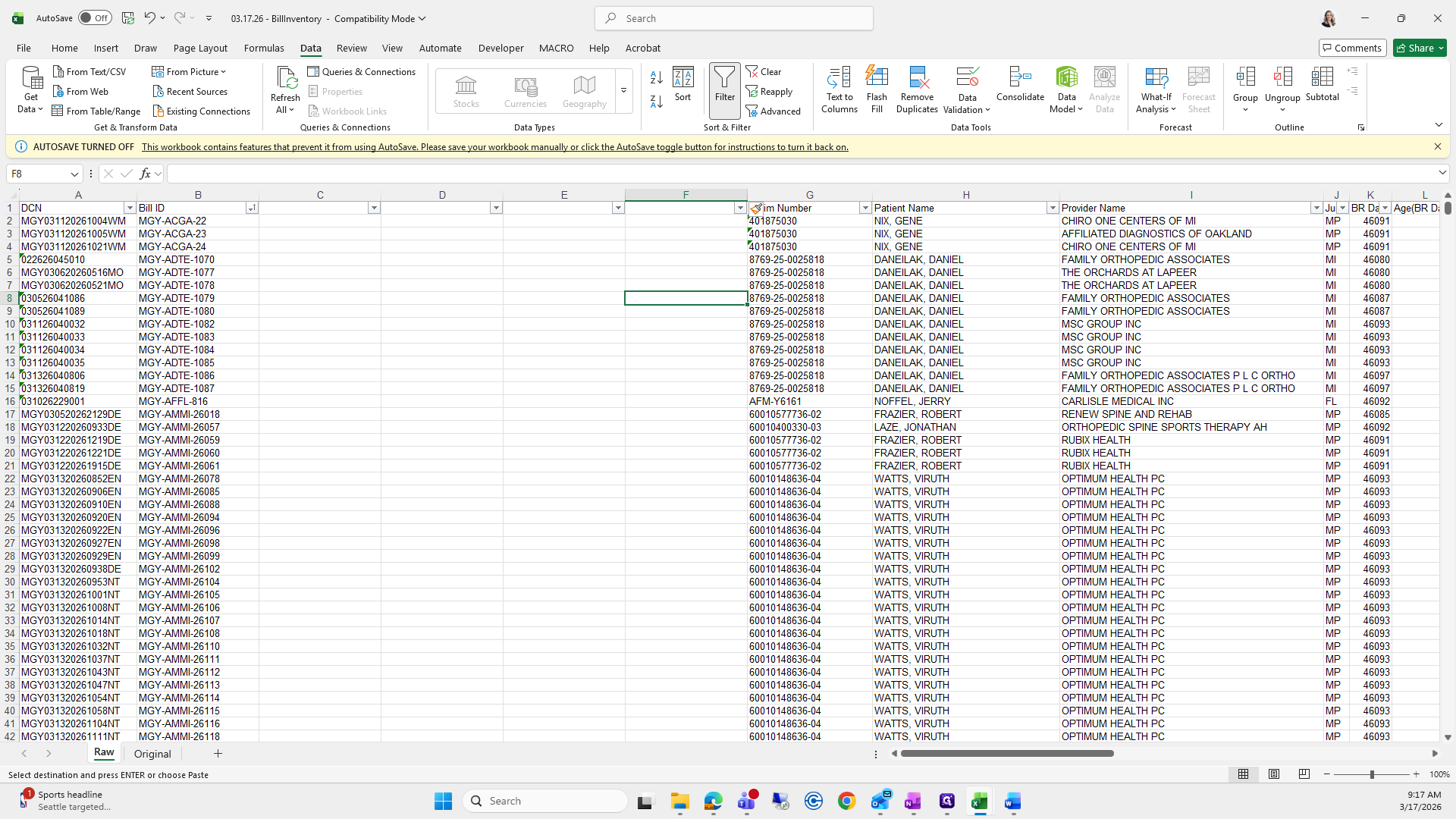
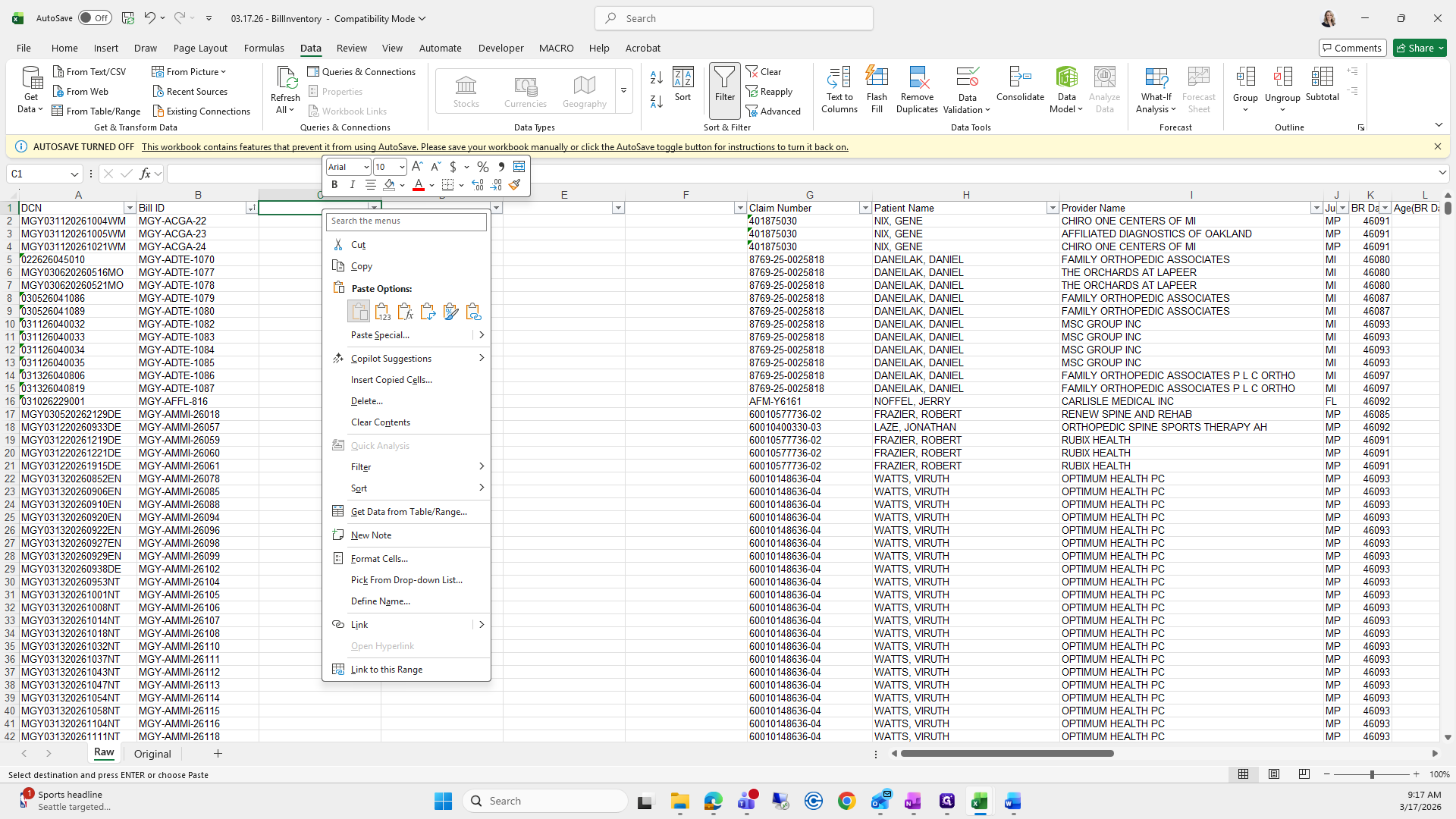
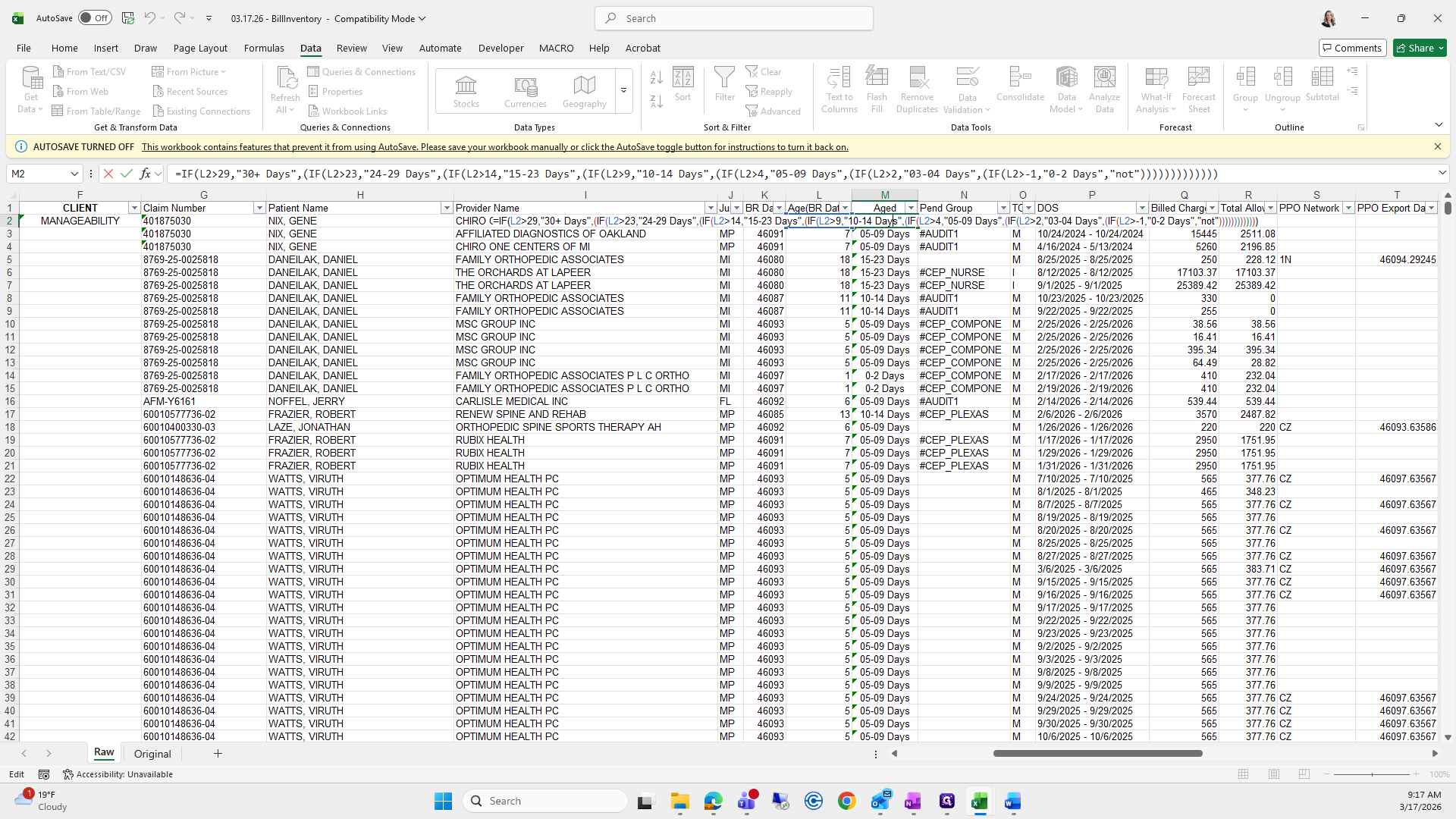
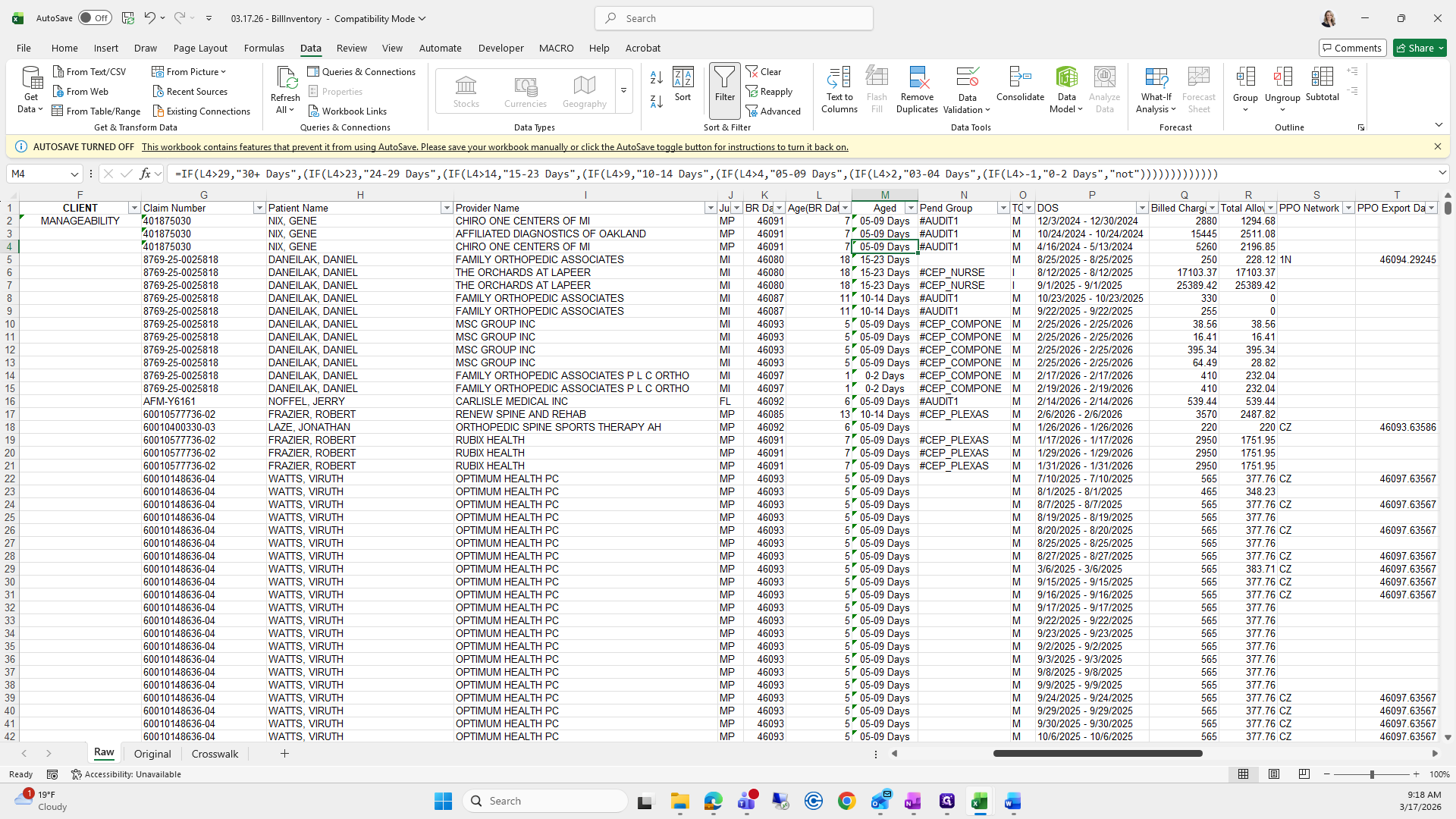
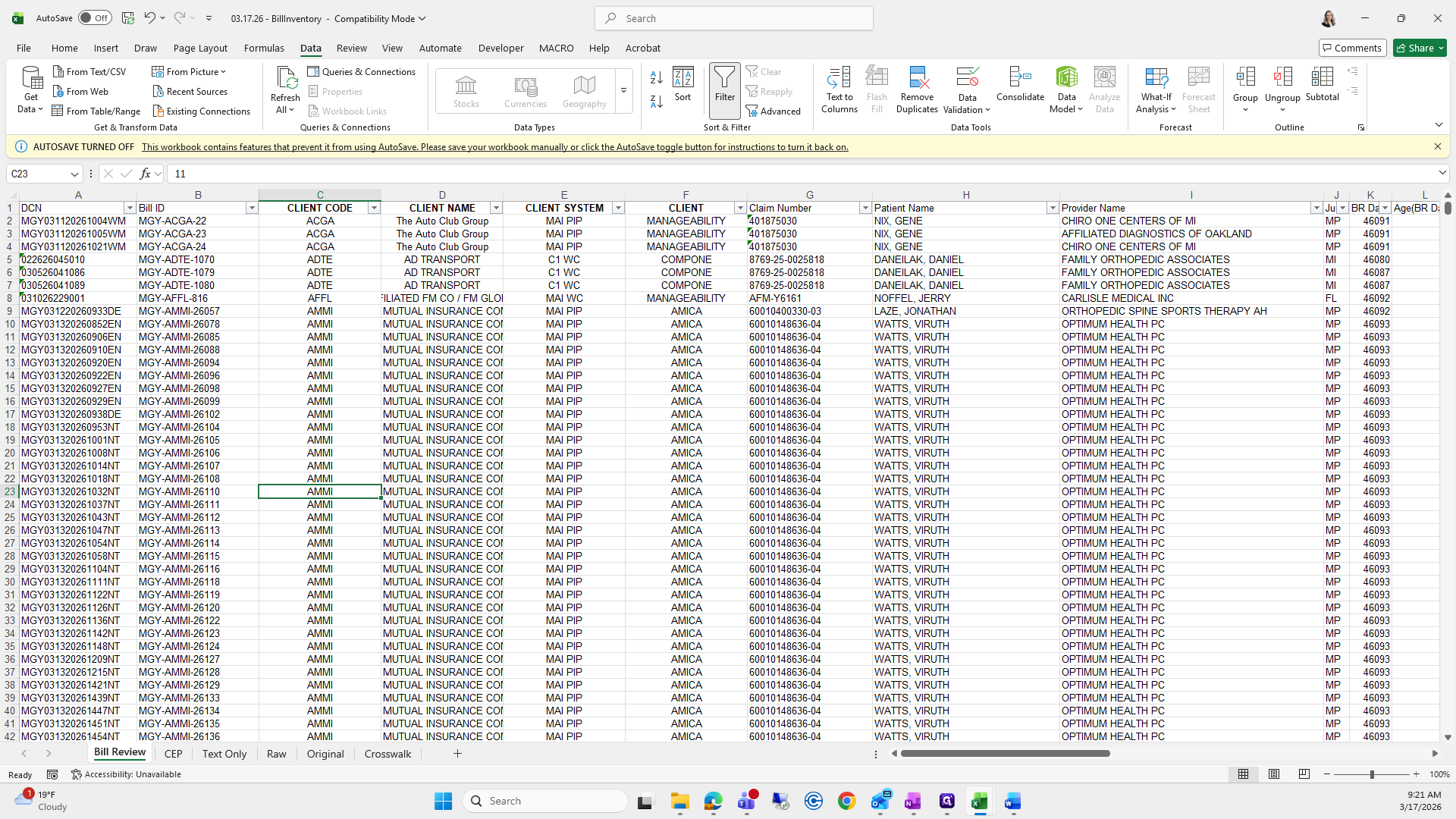
I will also scroll over to column M, right-click, select Insert, and then go back to the 311.
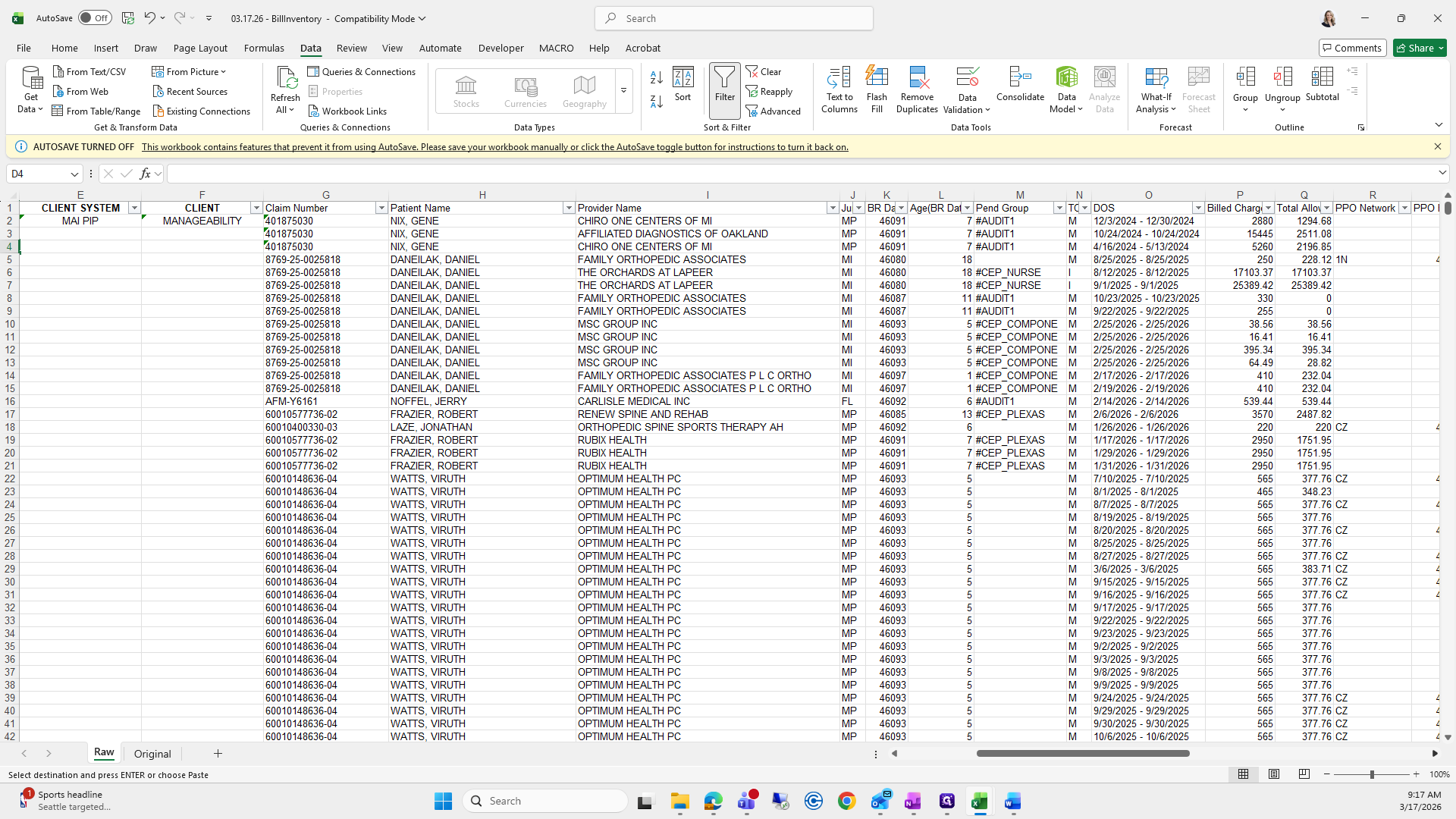
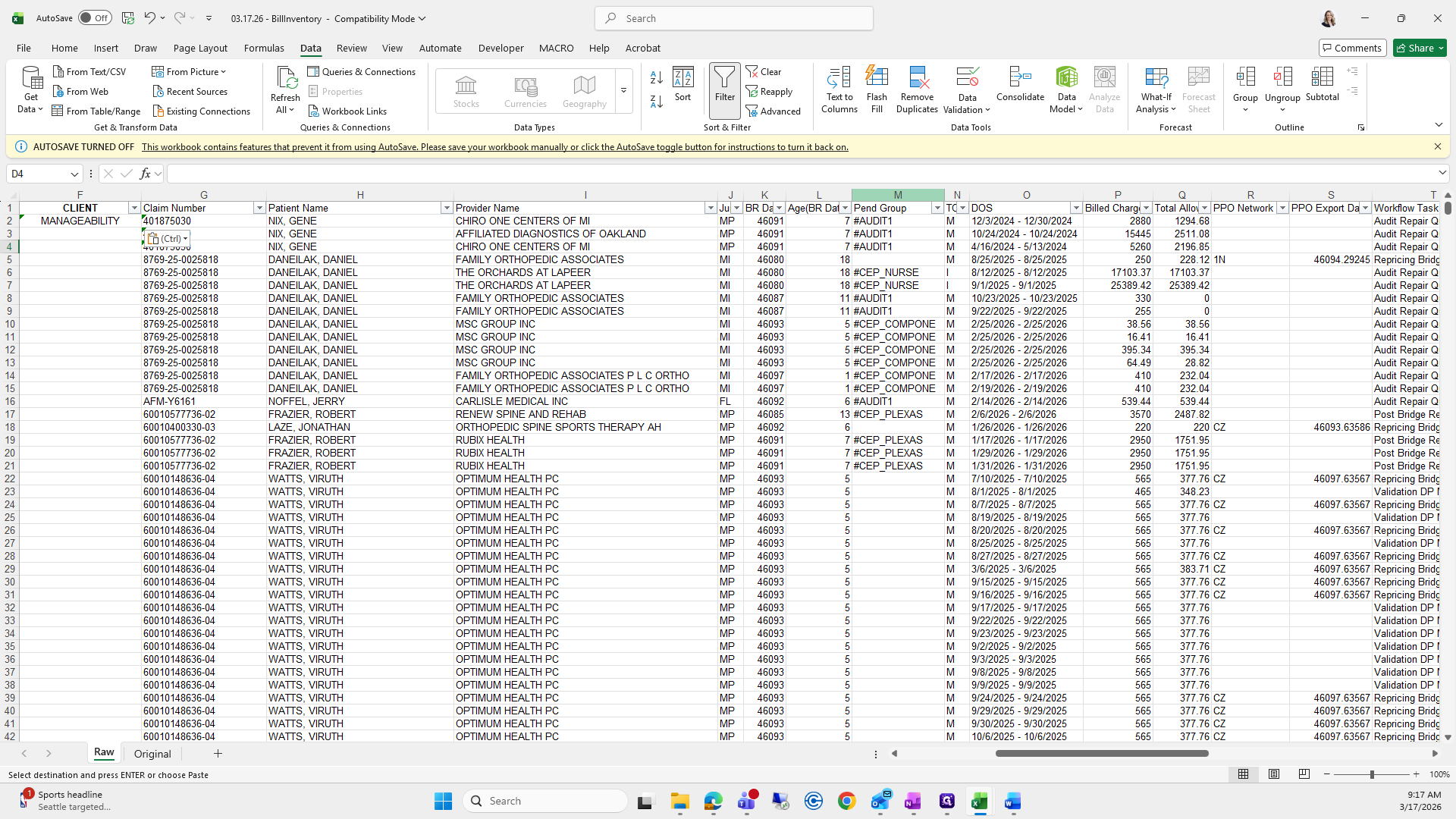
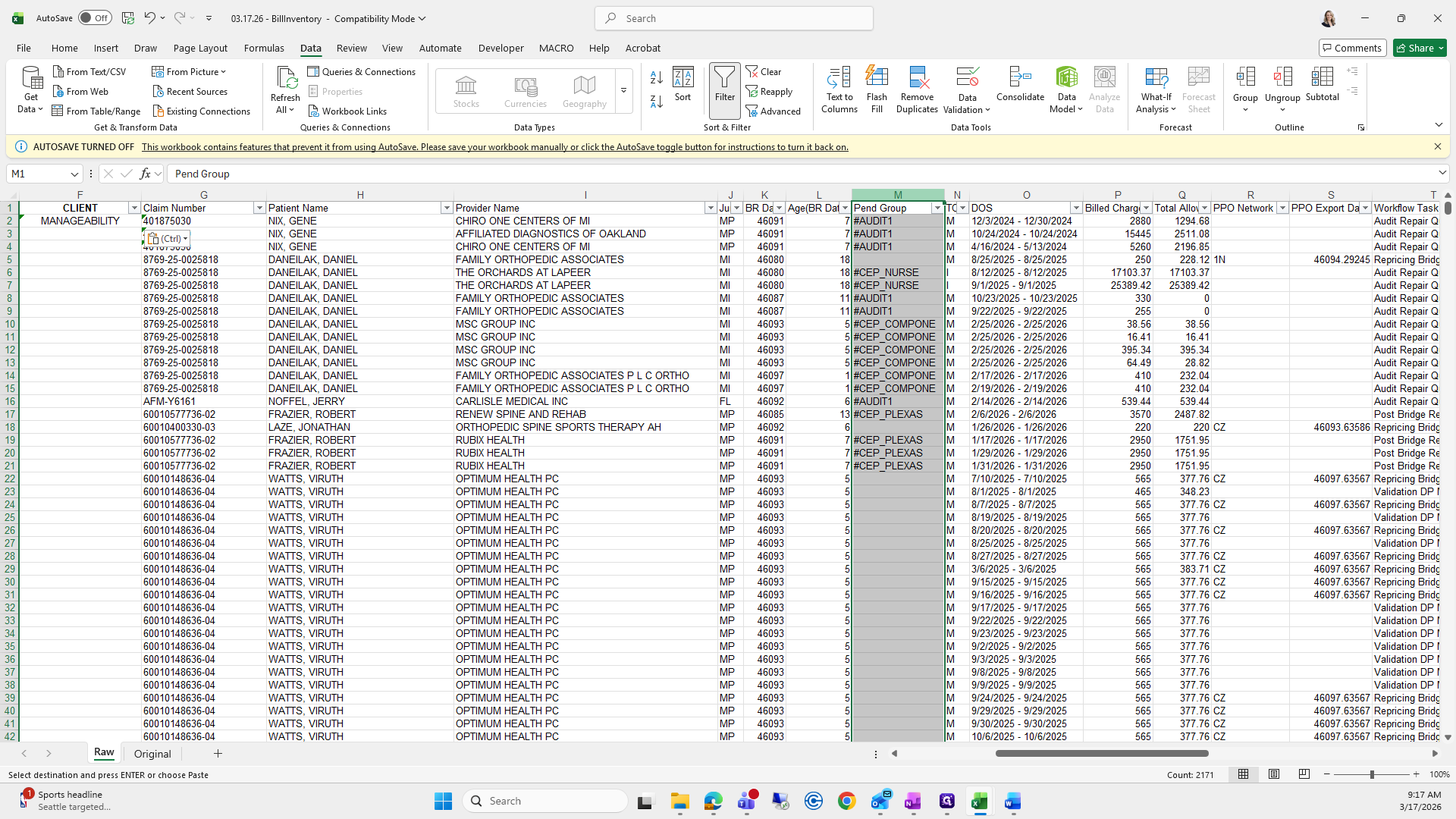
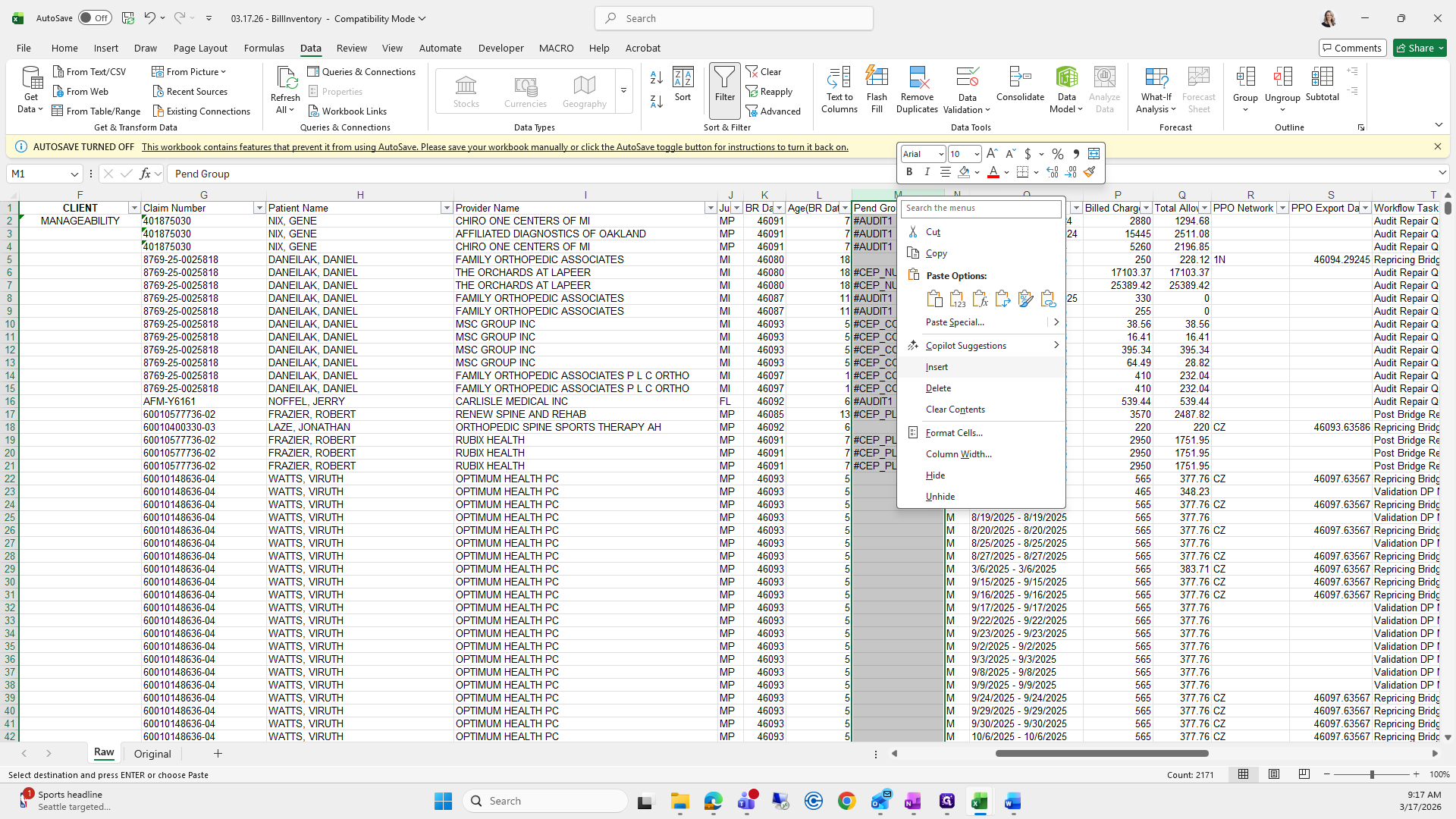
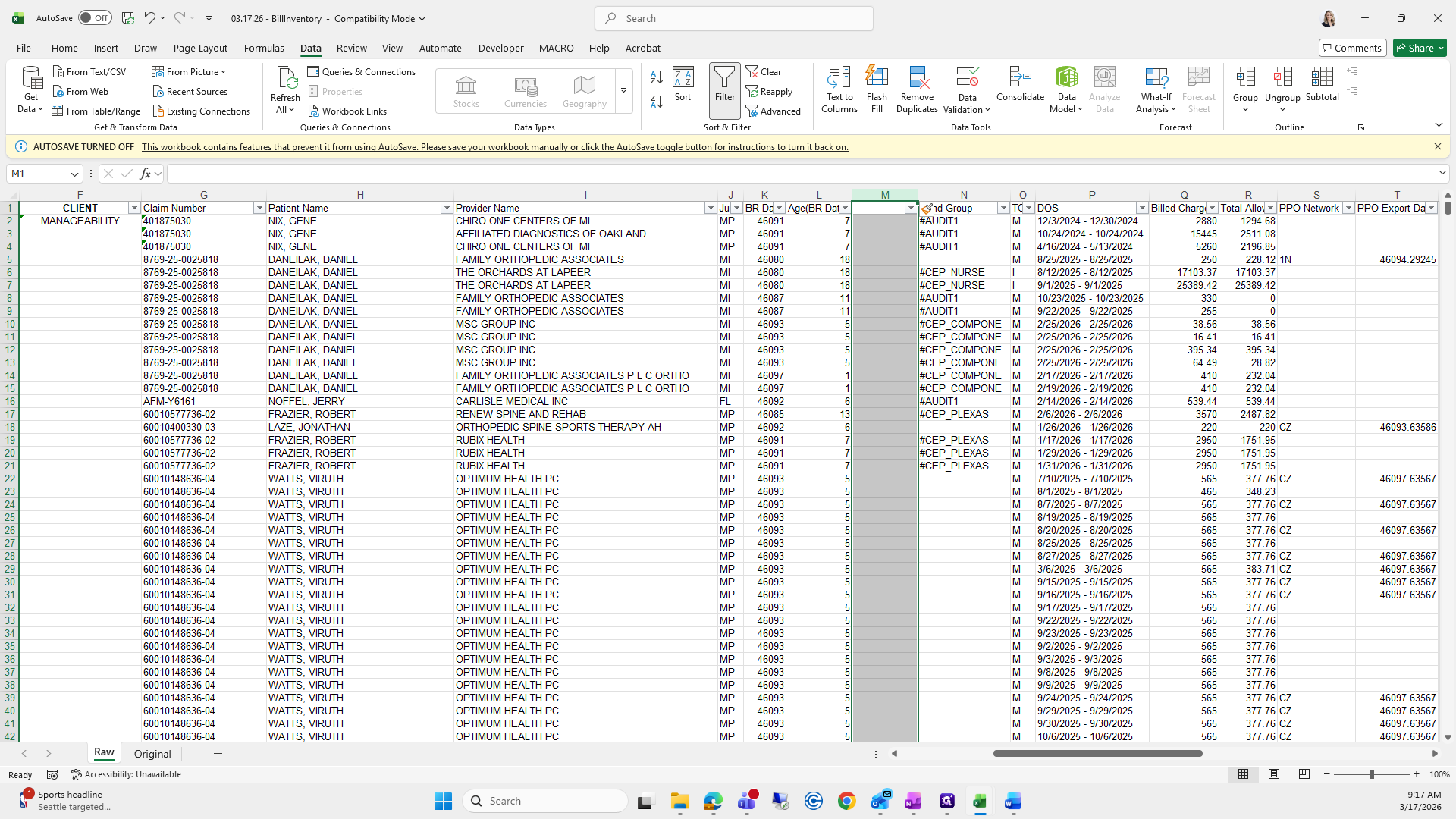
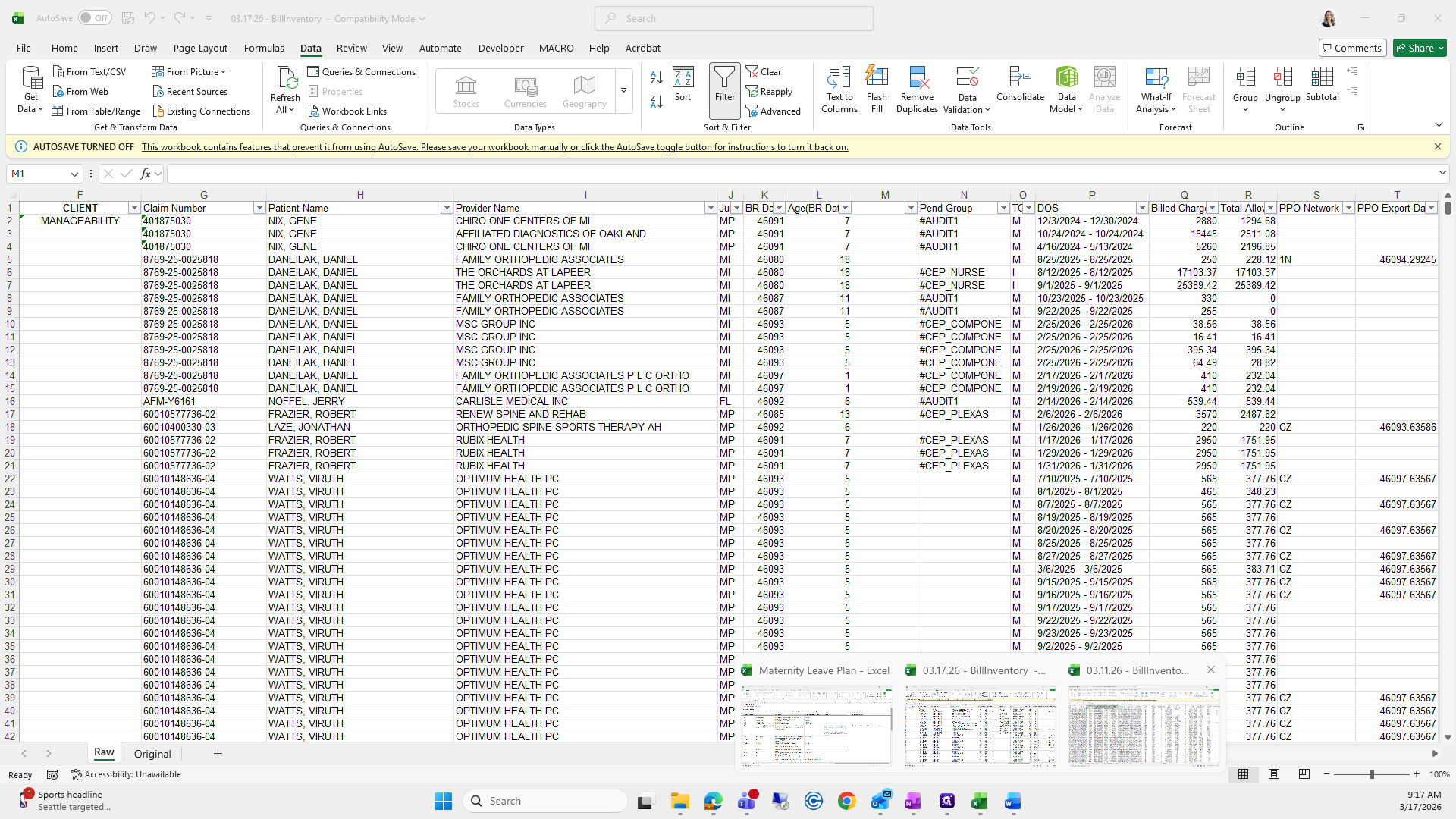
We will do the same thing. Row M is where we made the insertion on the other sheet.
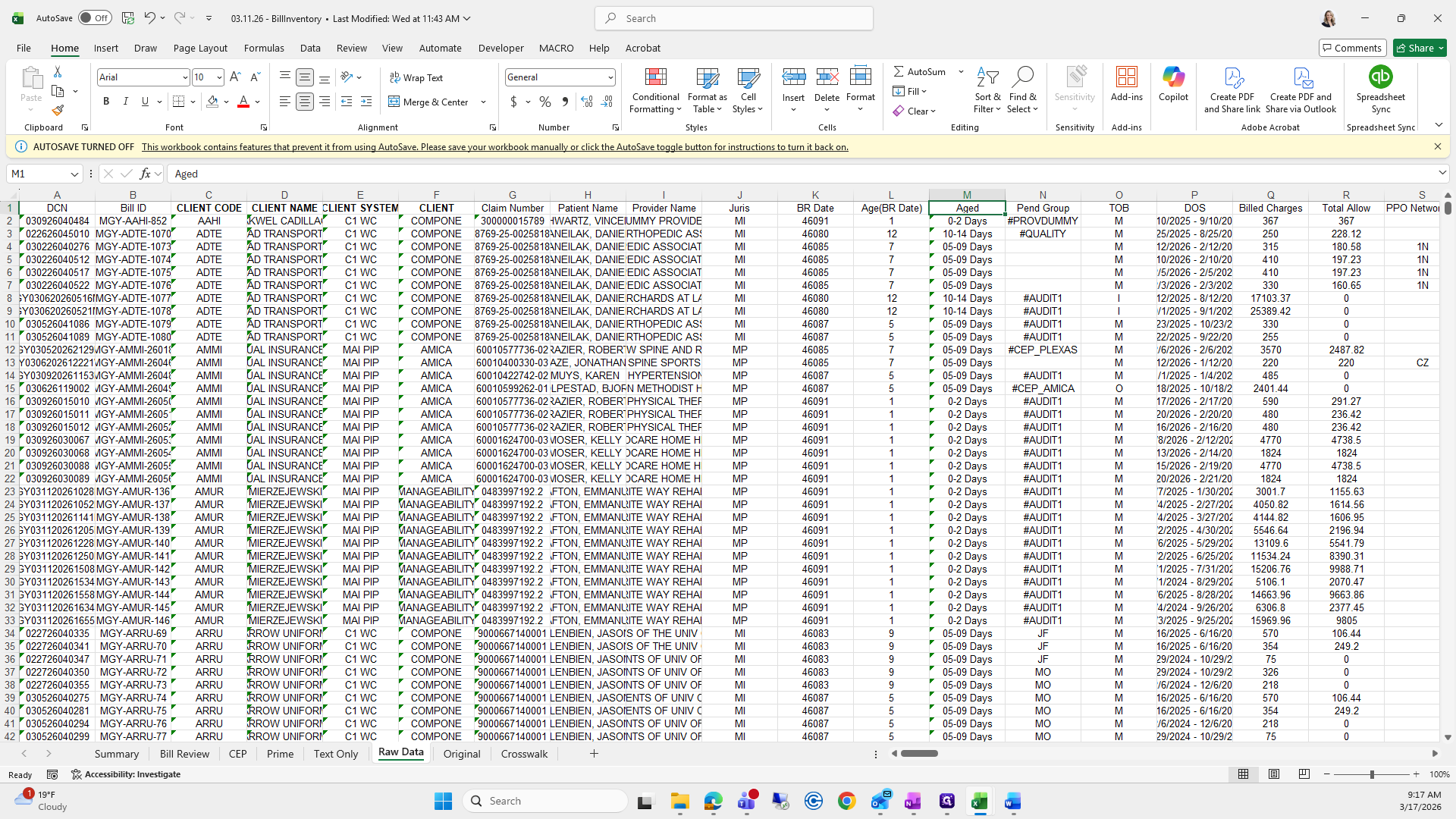
Copy it because it contains a formula, then paste it.
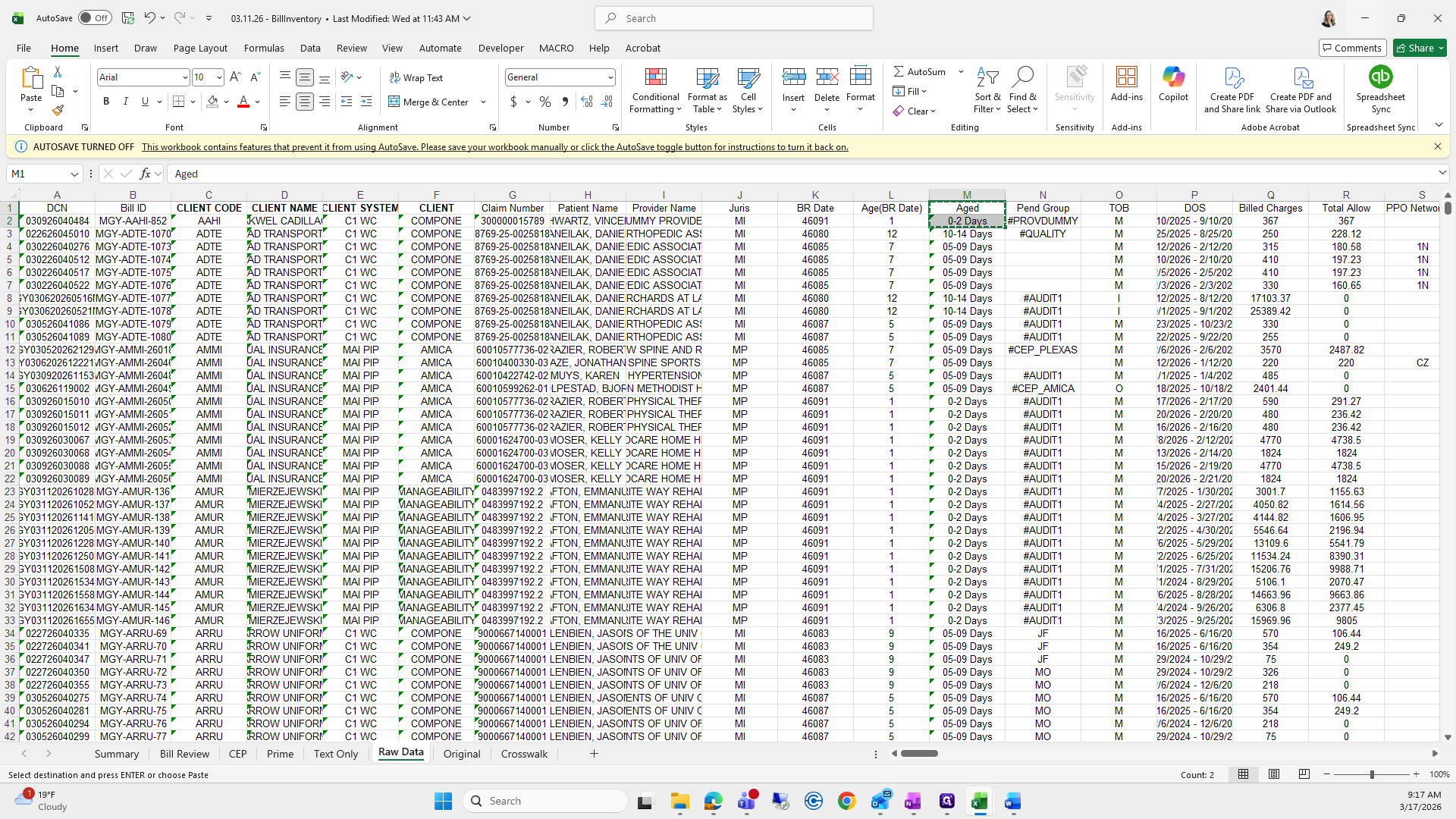
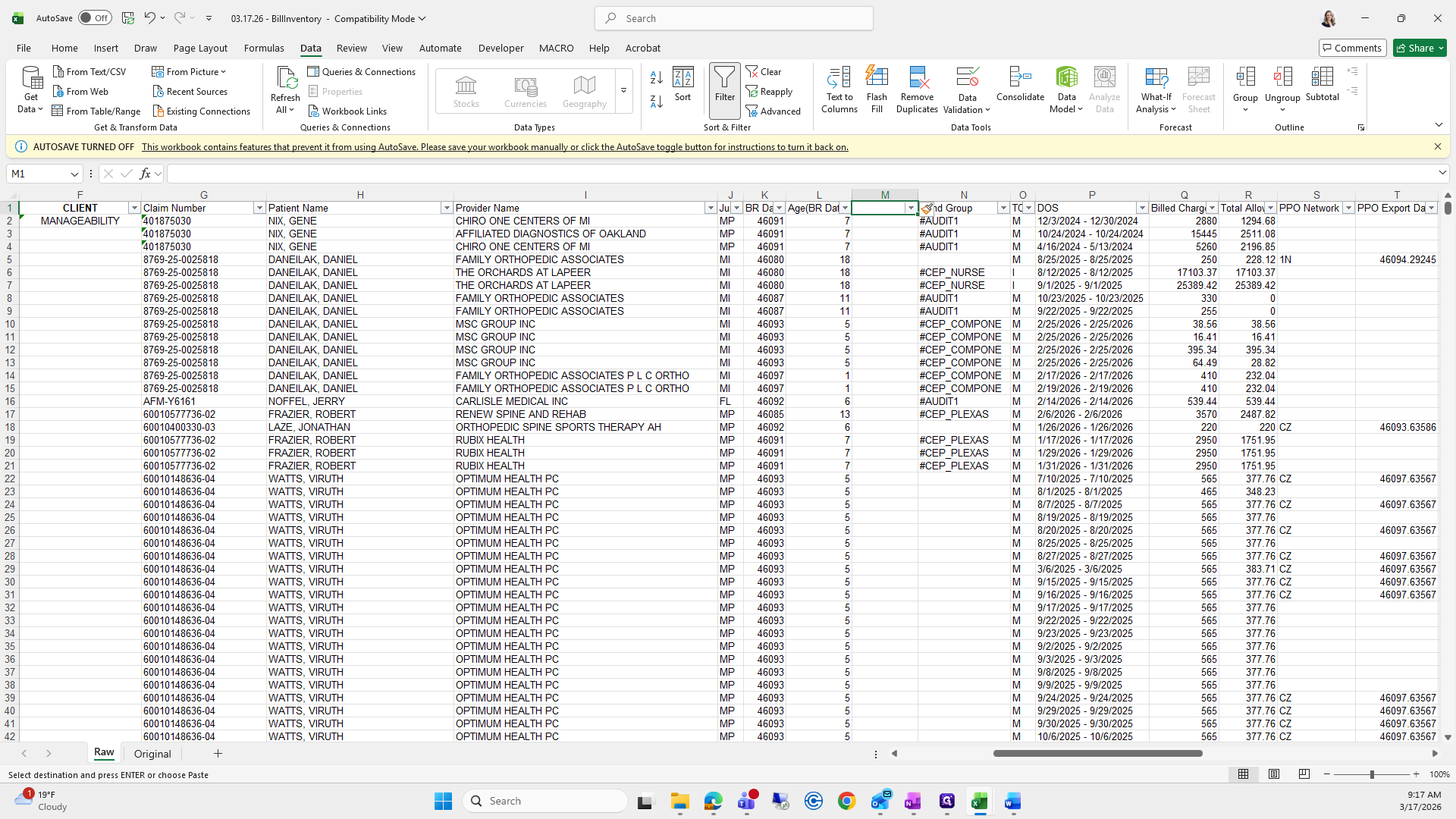
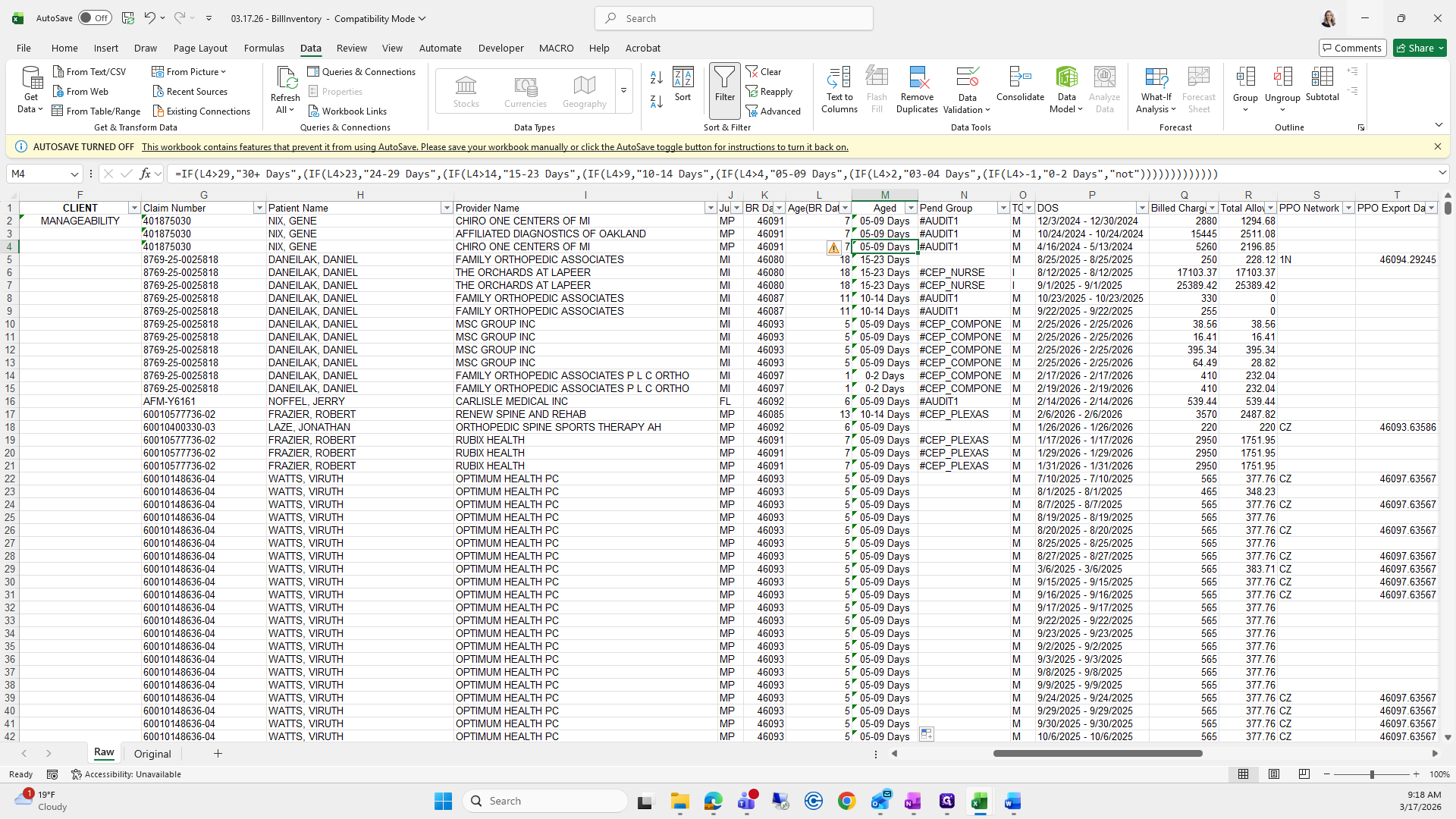
From here, for this specific row, you can double-click and let it go all the way down.
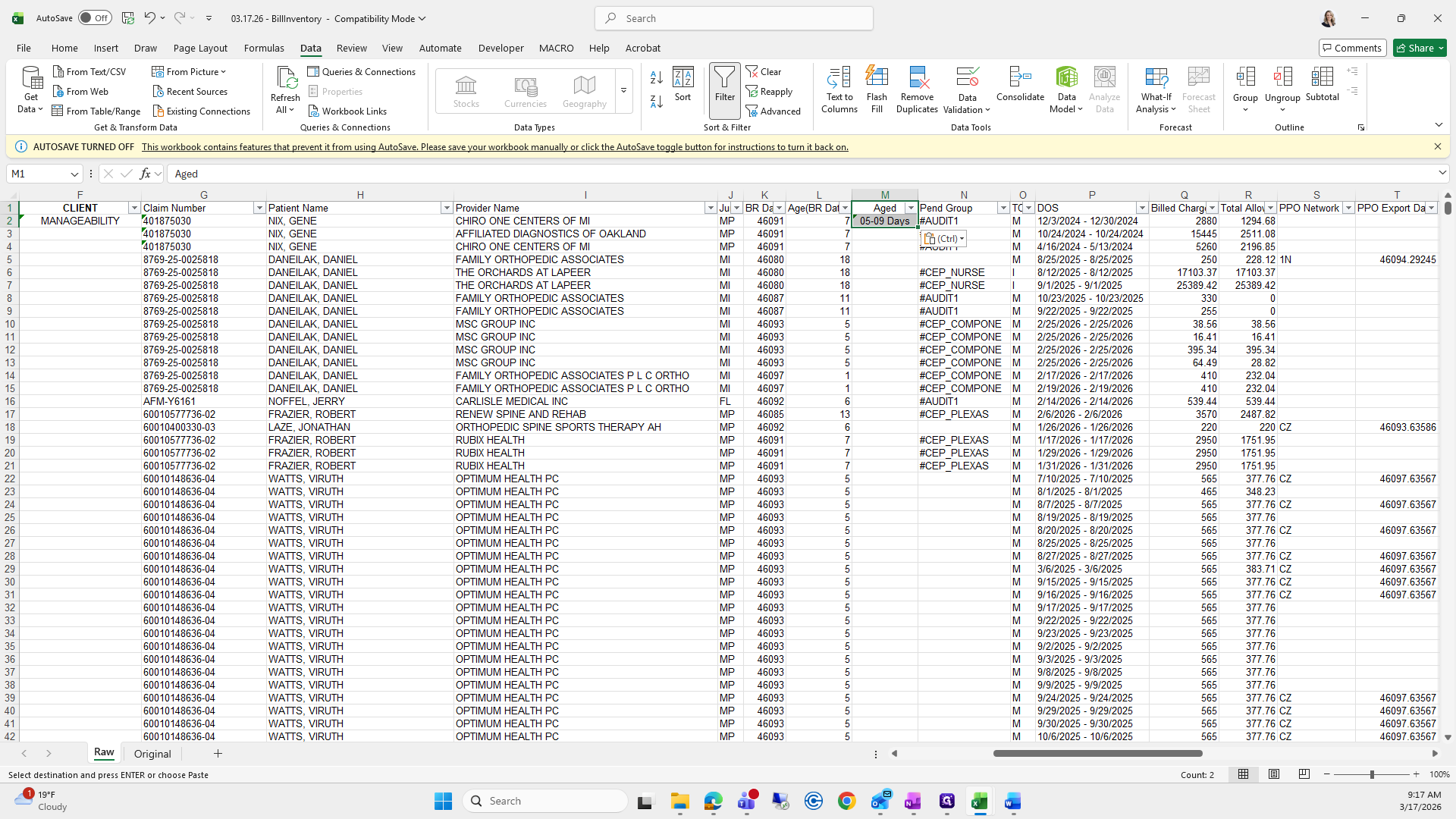
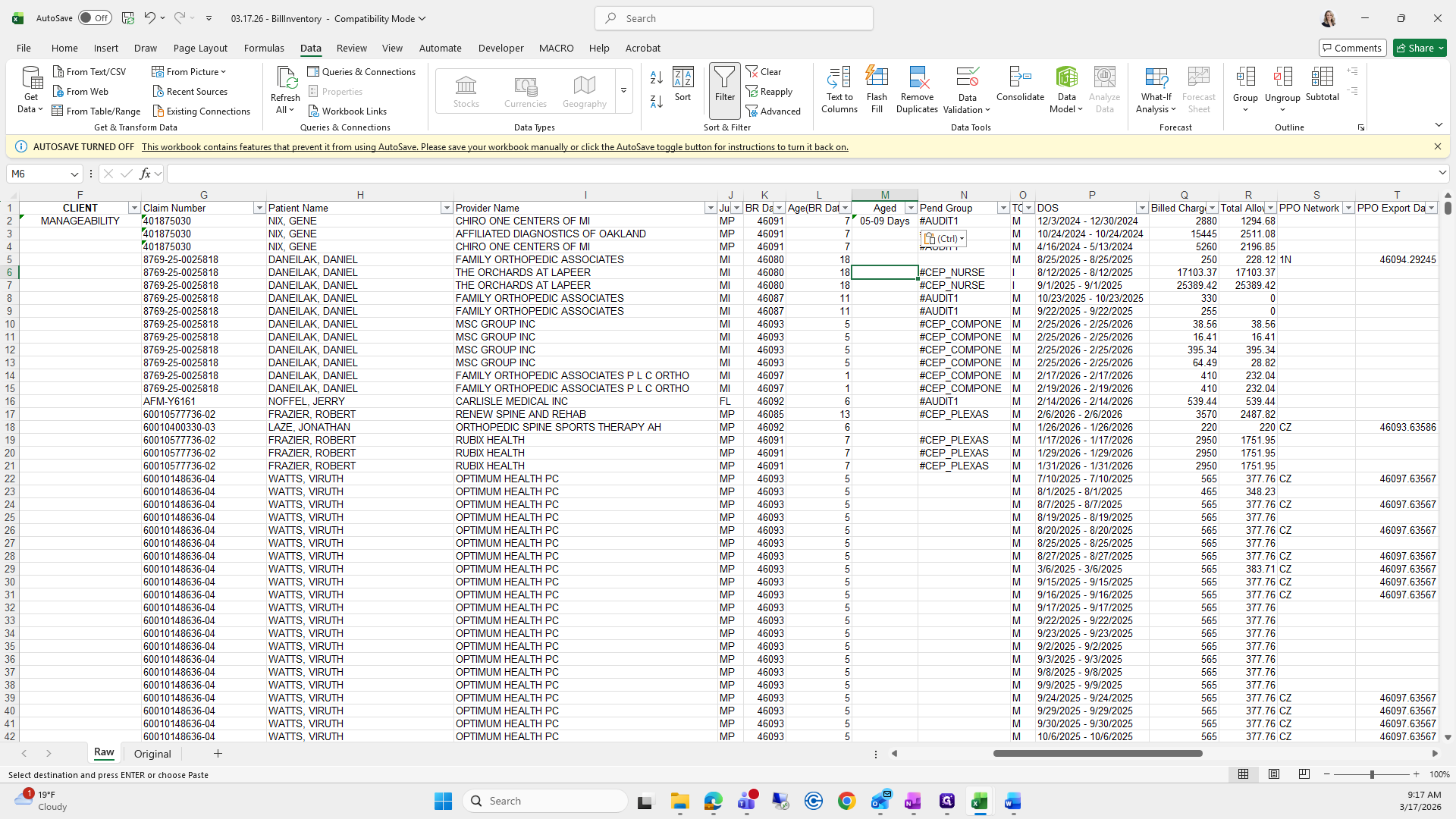
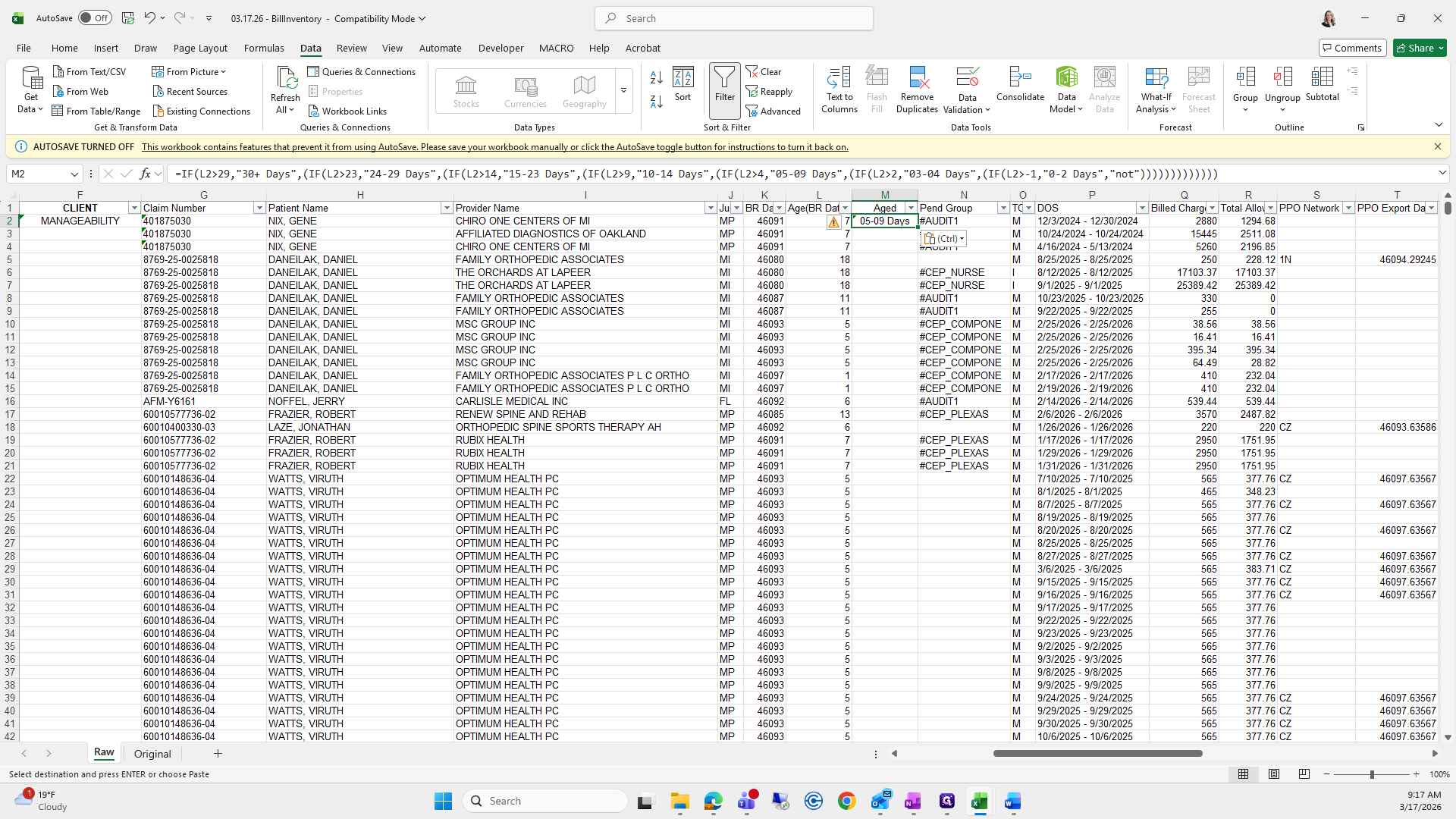
I like to double-click to make sure it's only selecting column L, and not any other column.
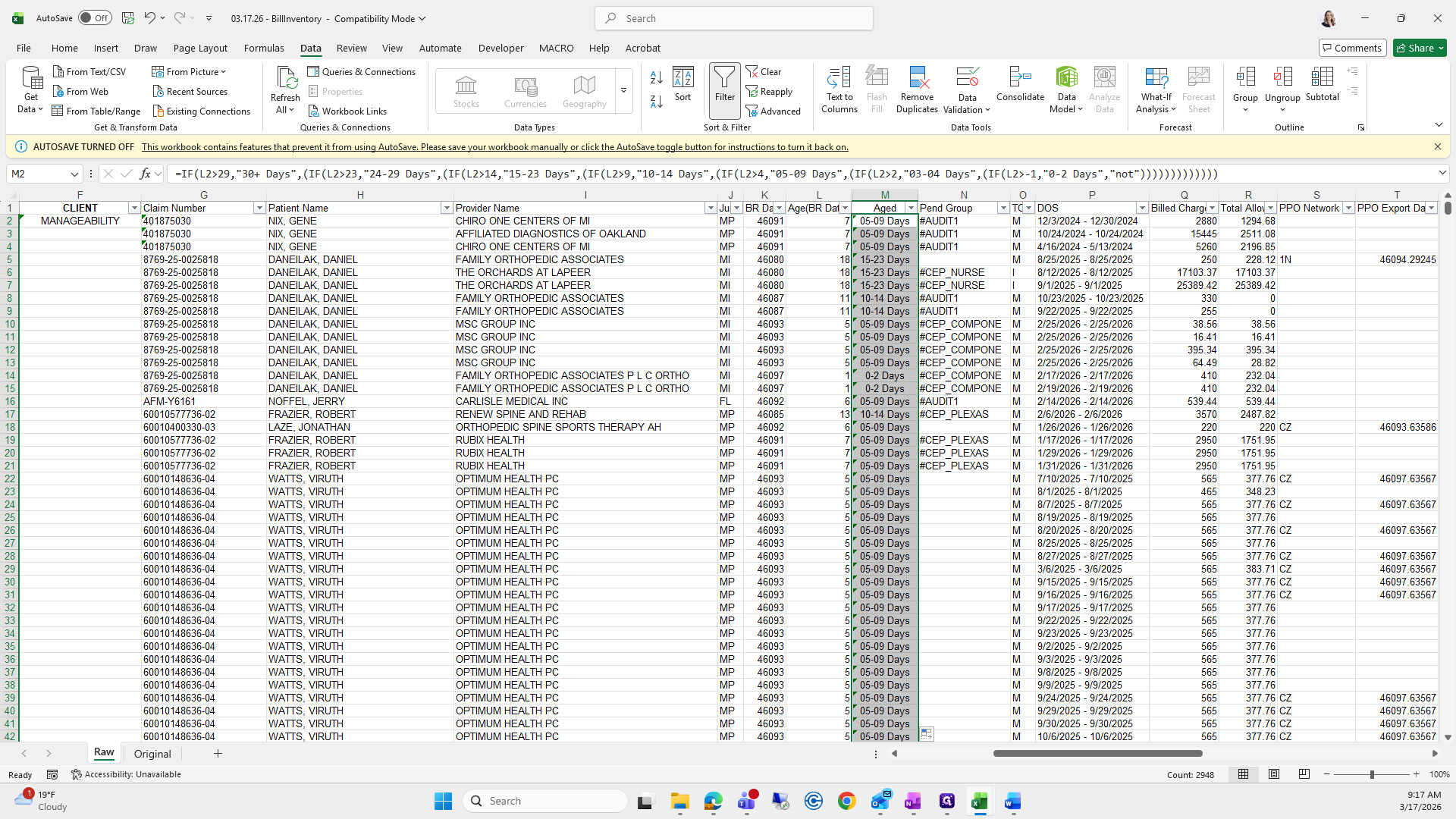
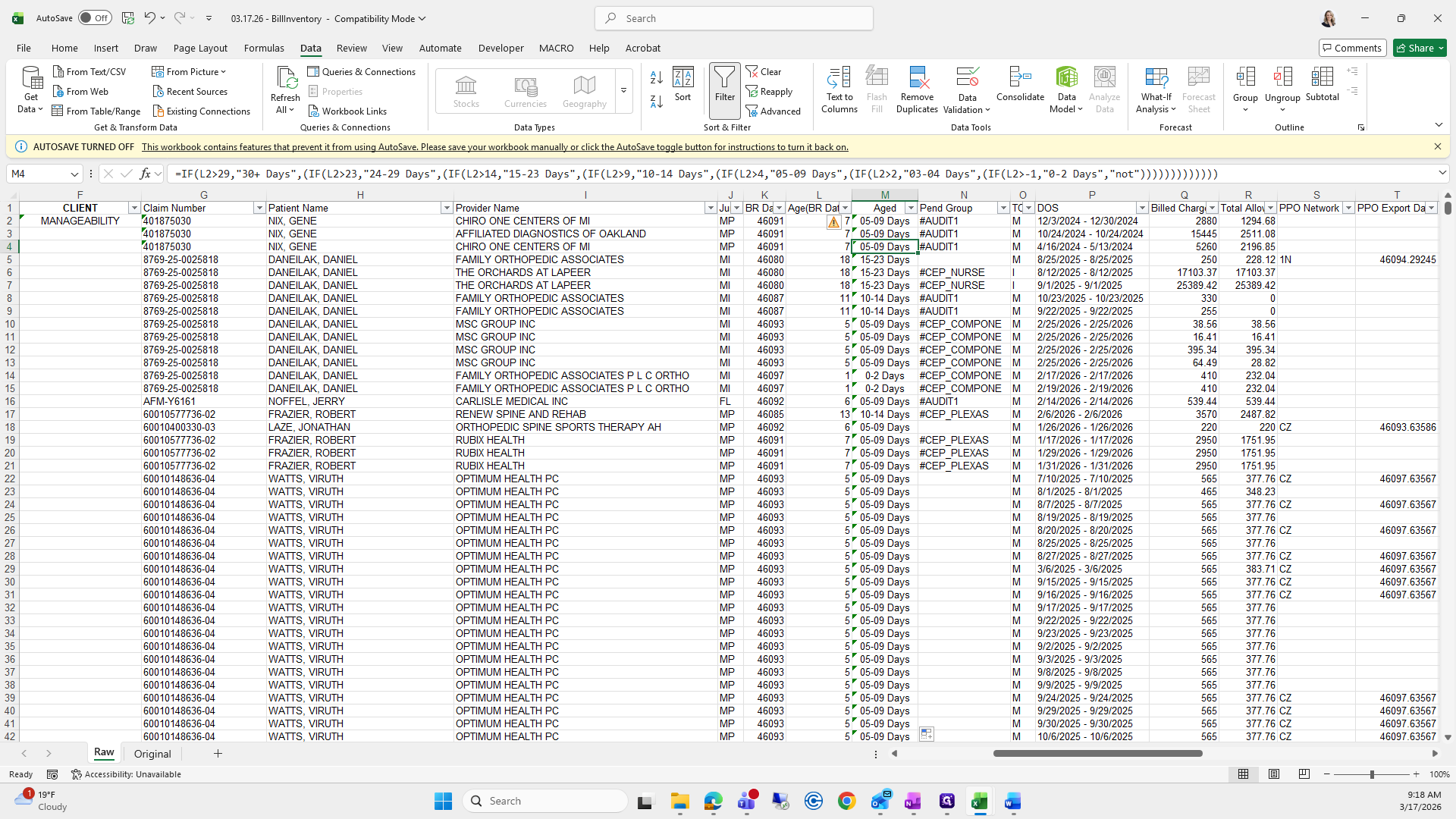
All right. Then I will go back to the other sheet.
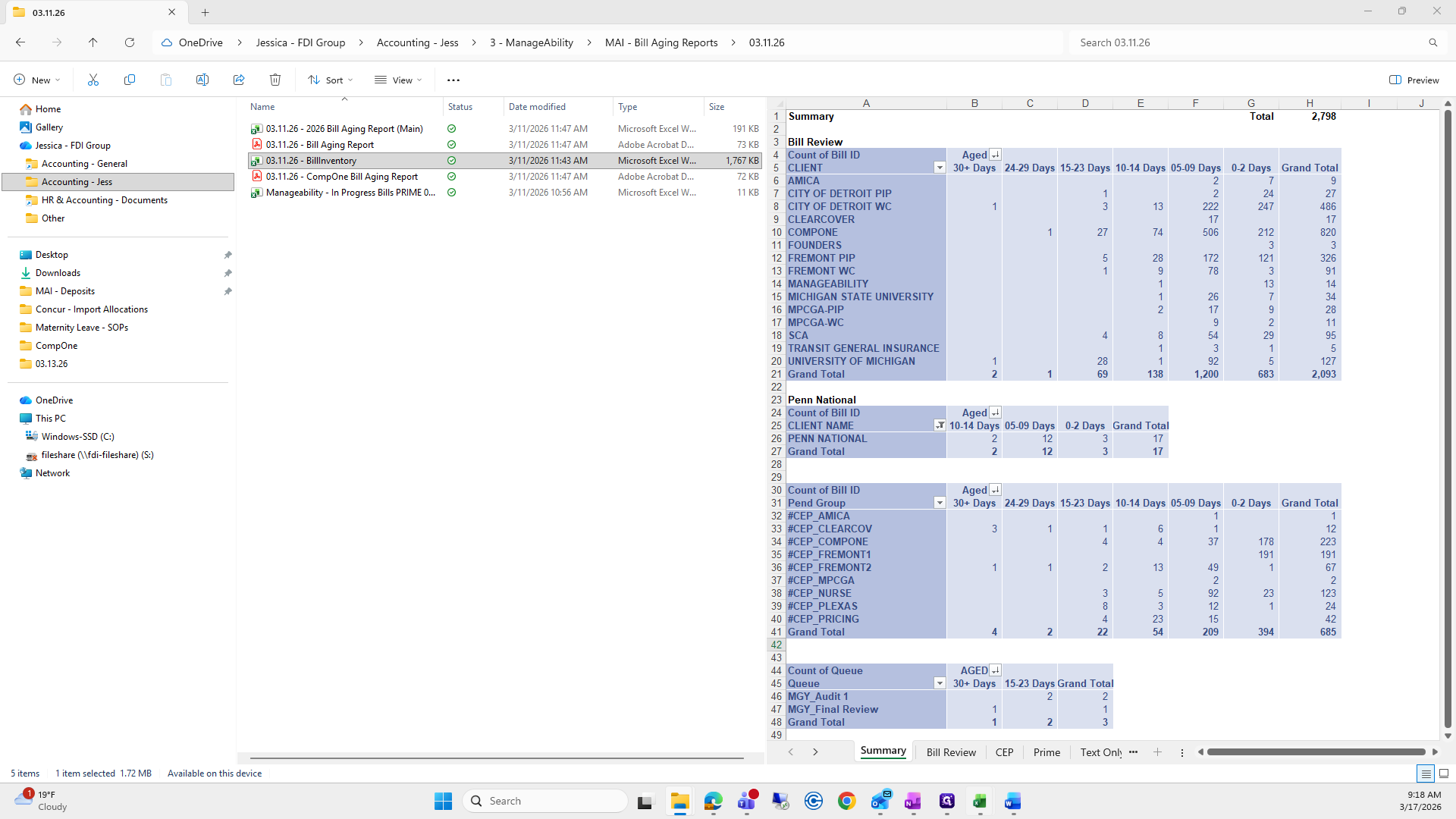
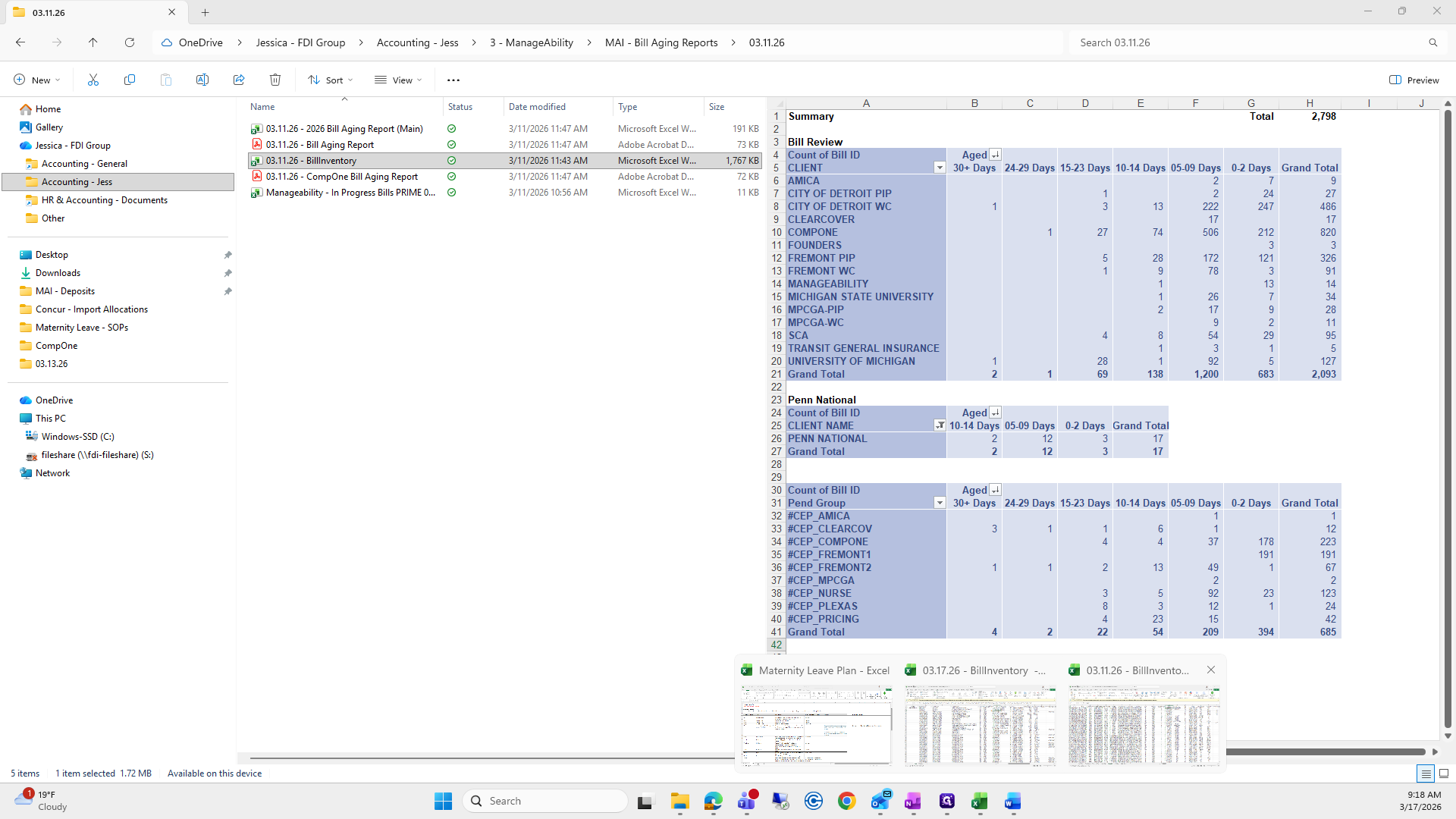
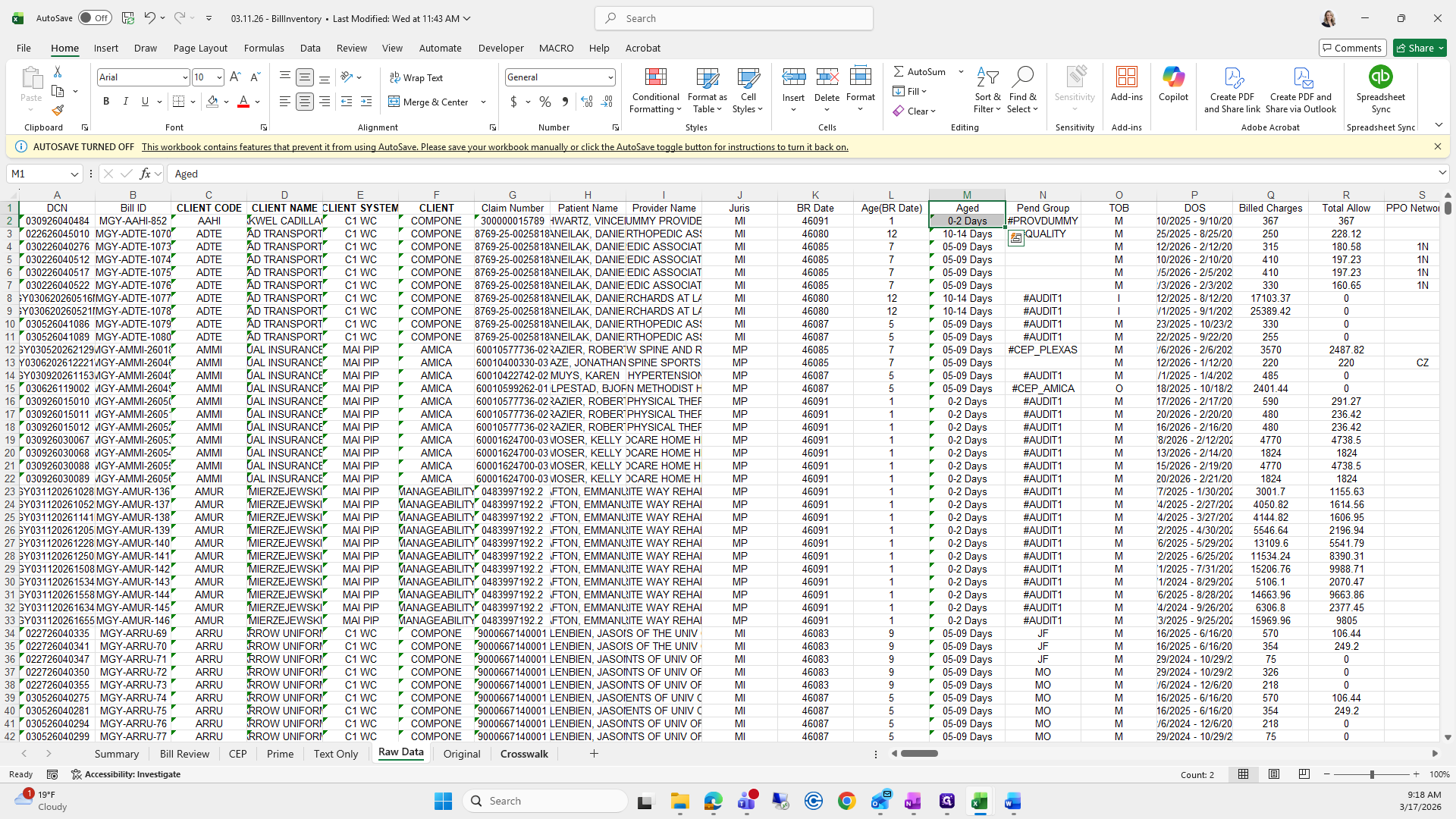
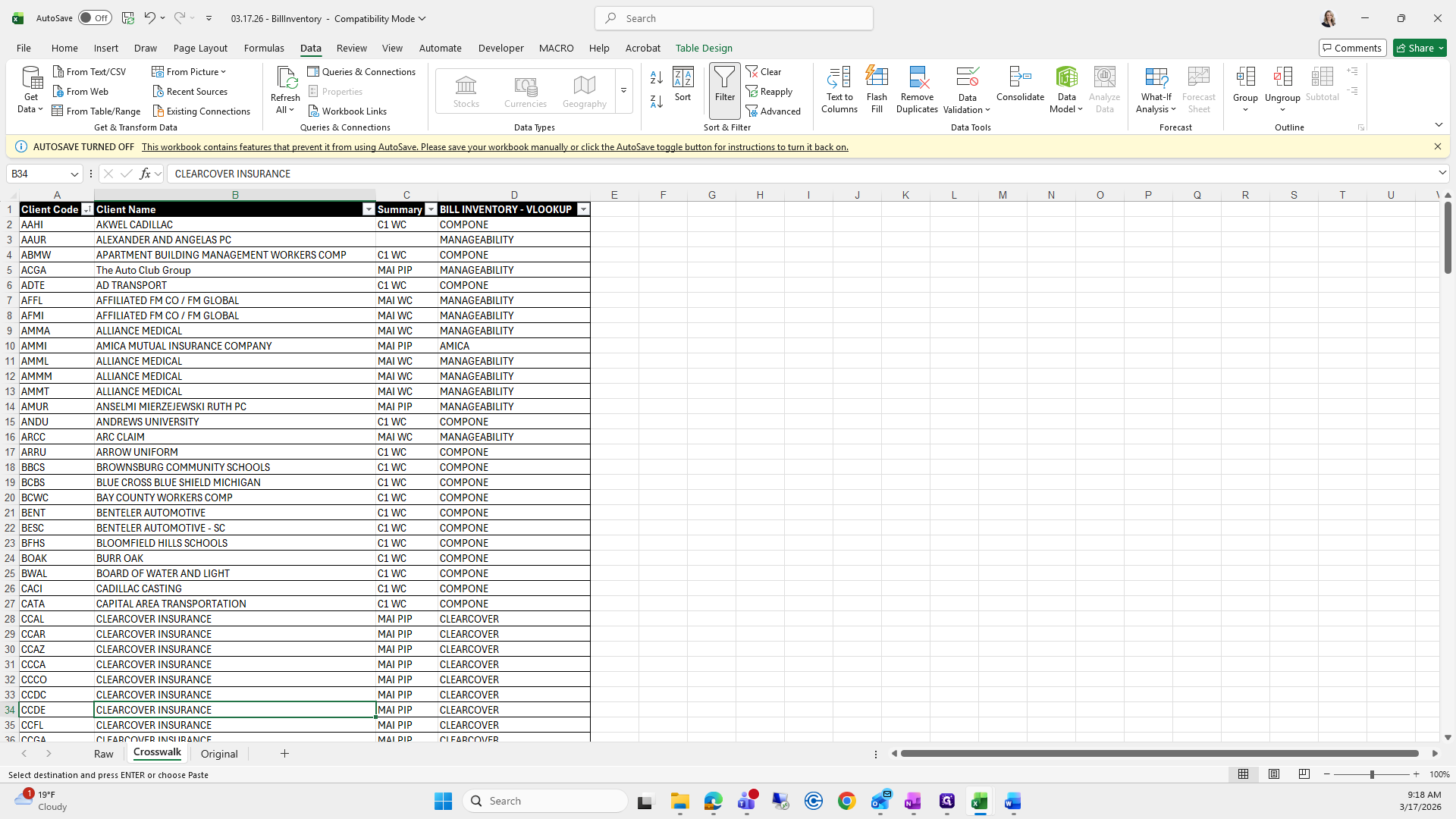
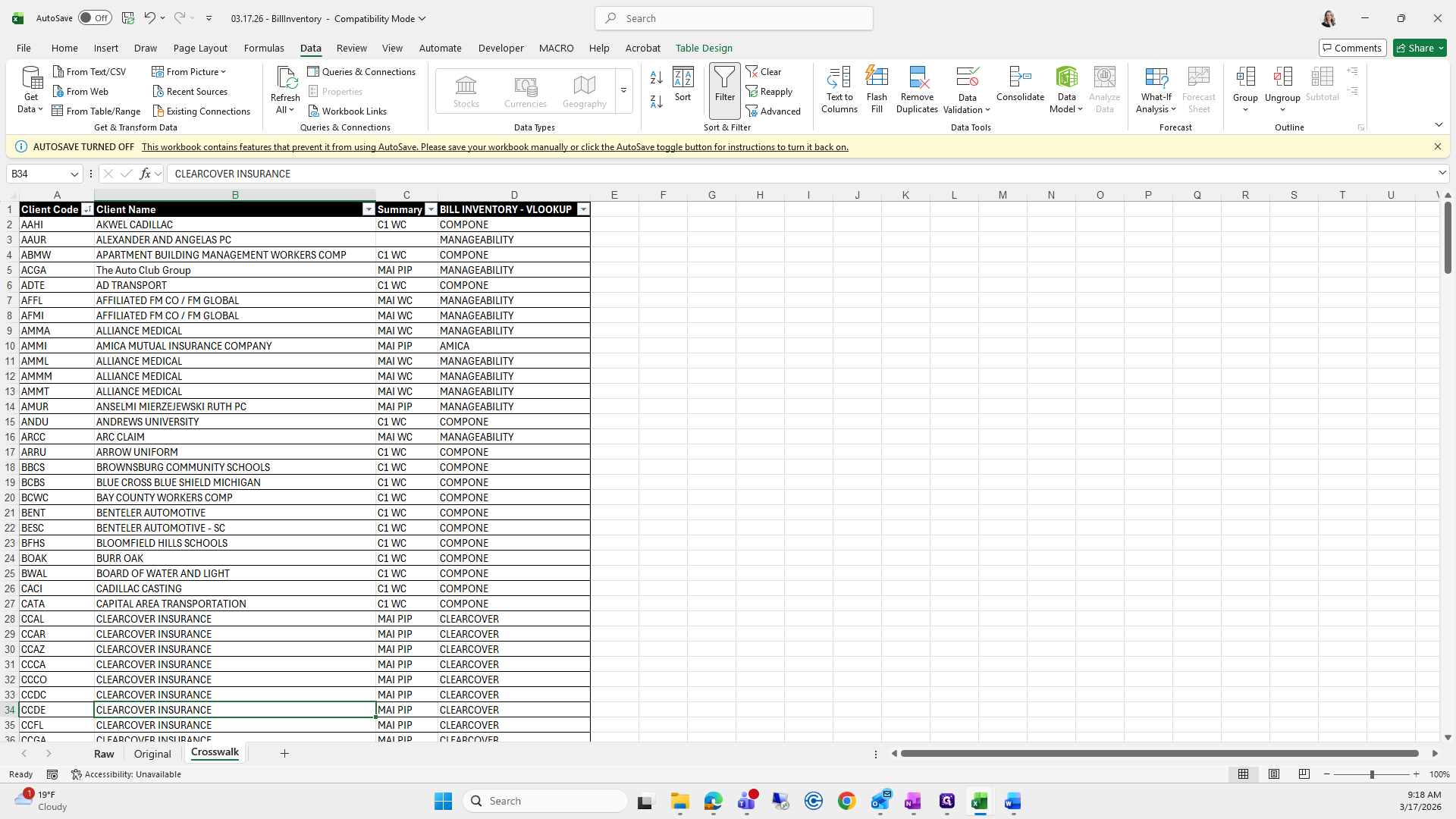
I'm going to use this crosswalk.
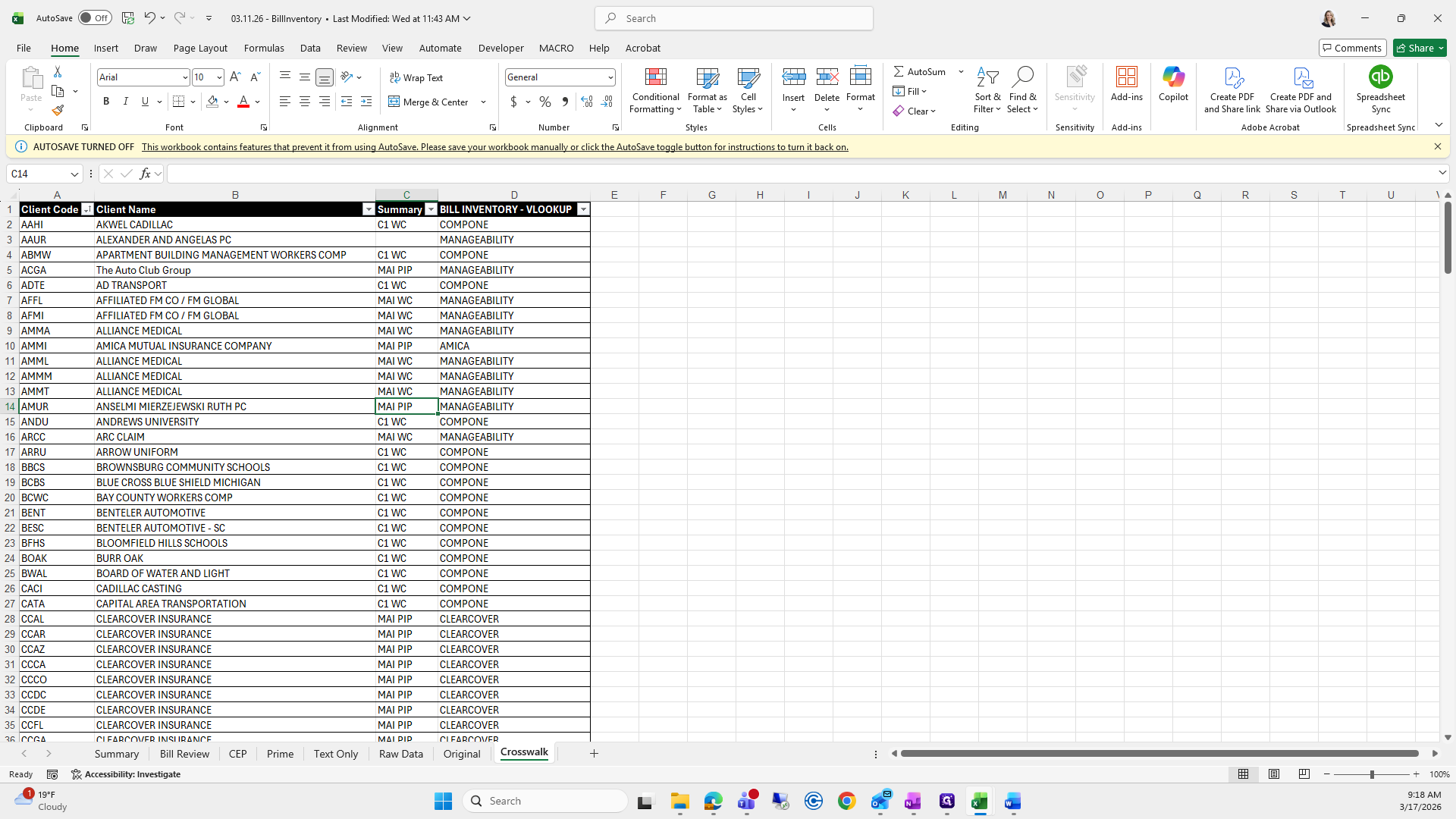
I usually move and copy over, but for some reason it doesn't take everything.
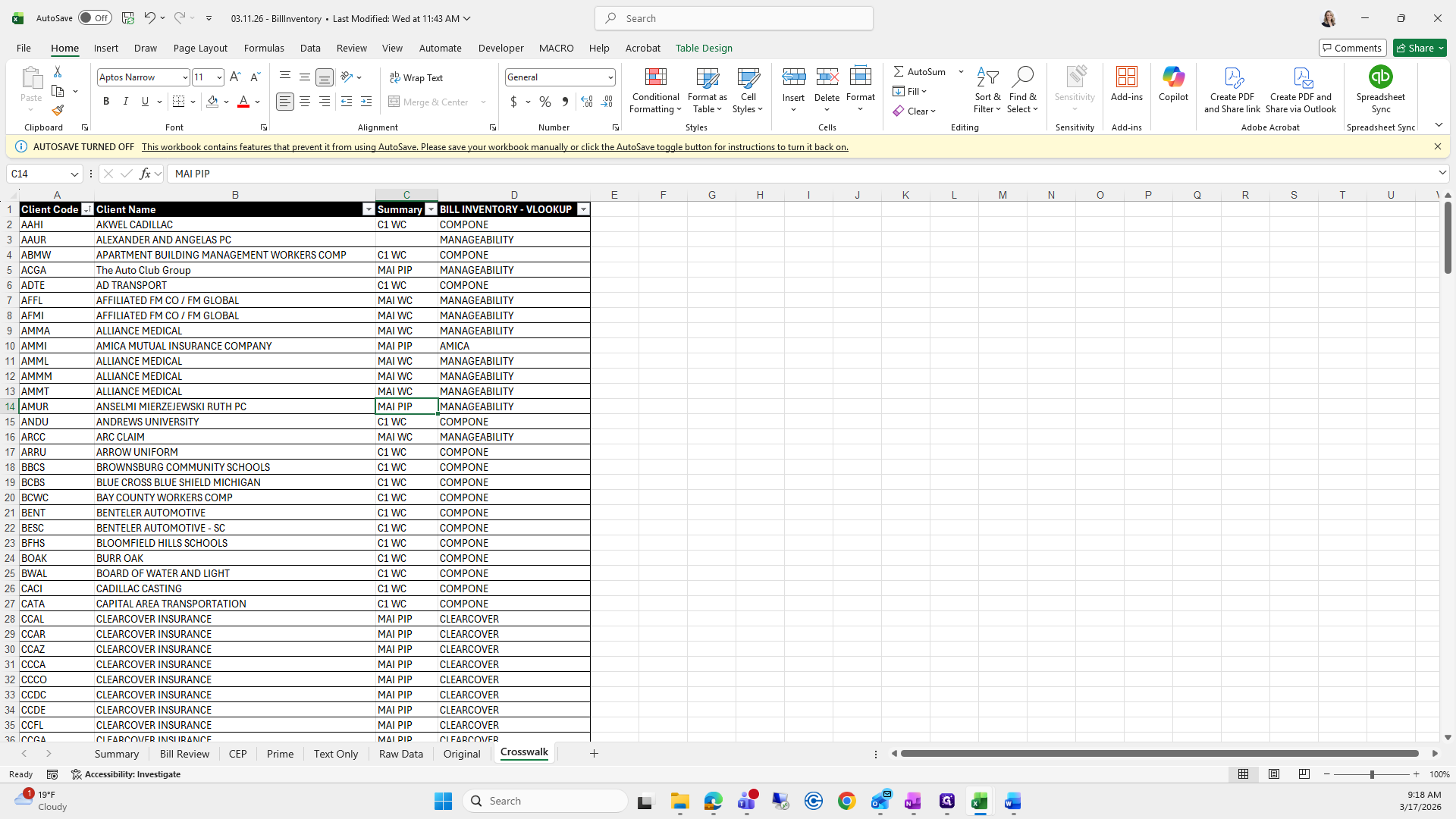
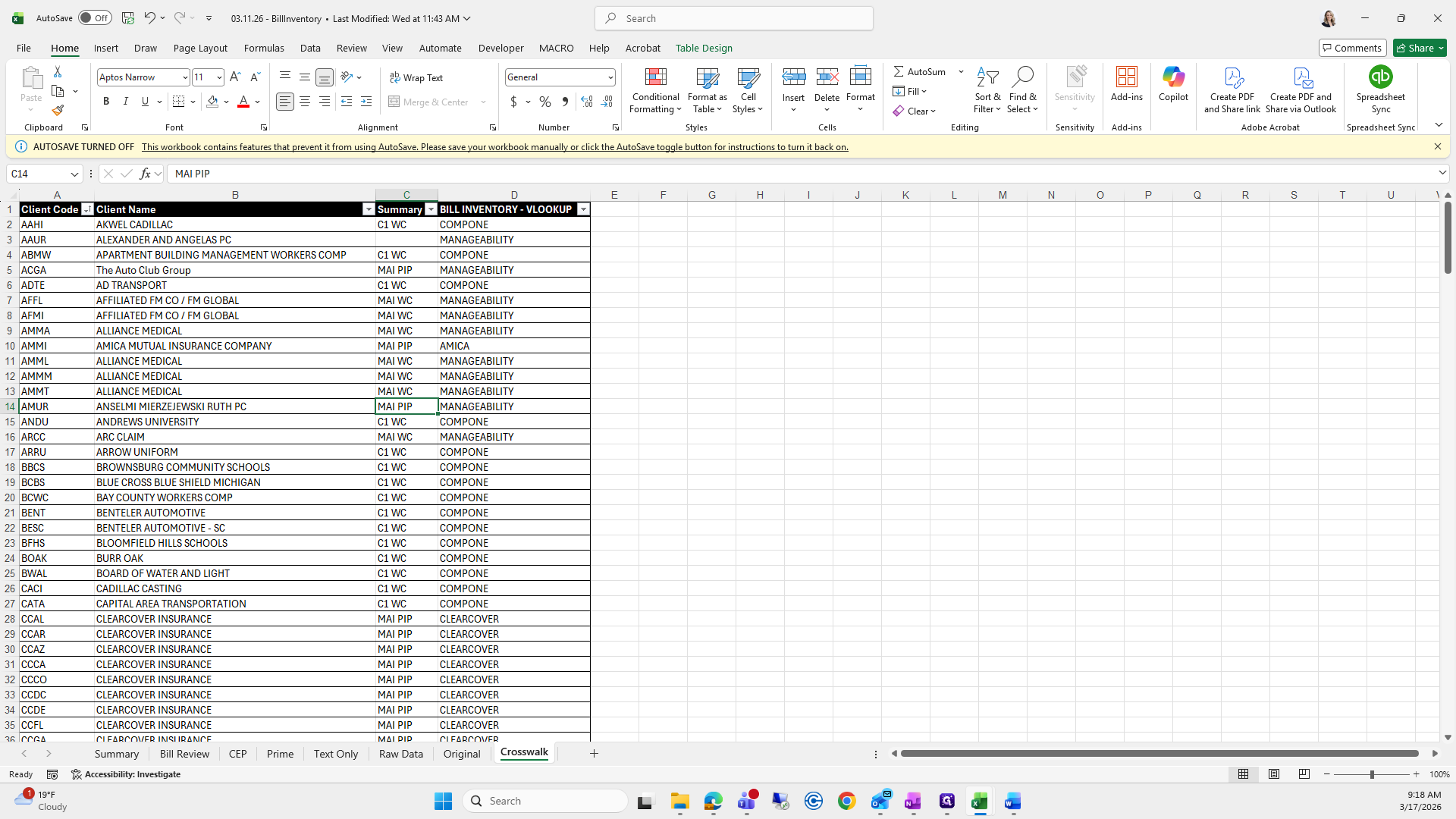
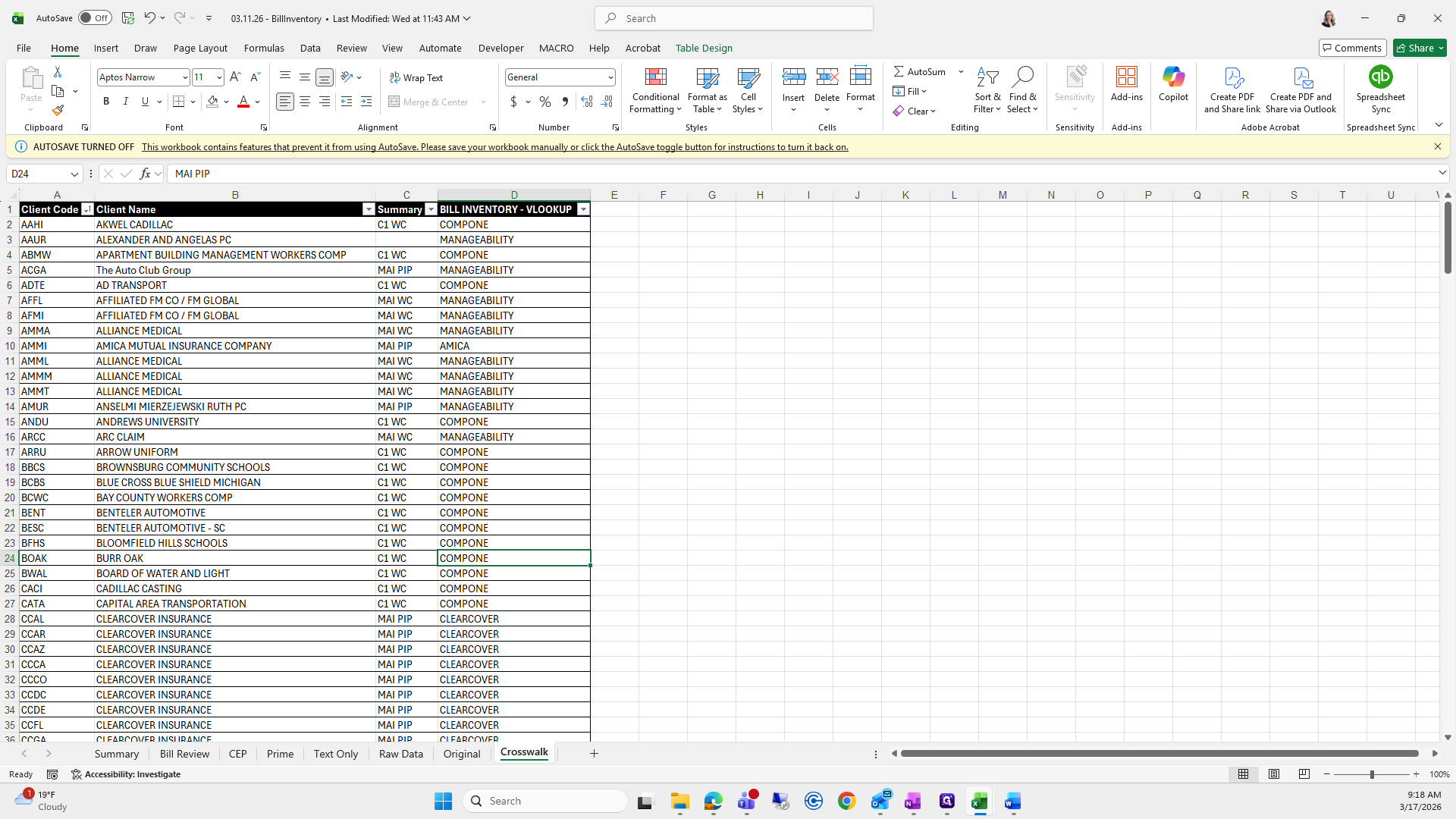
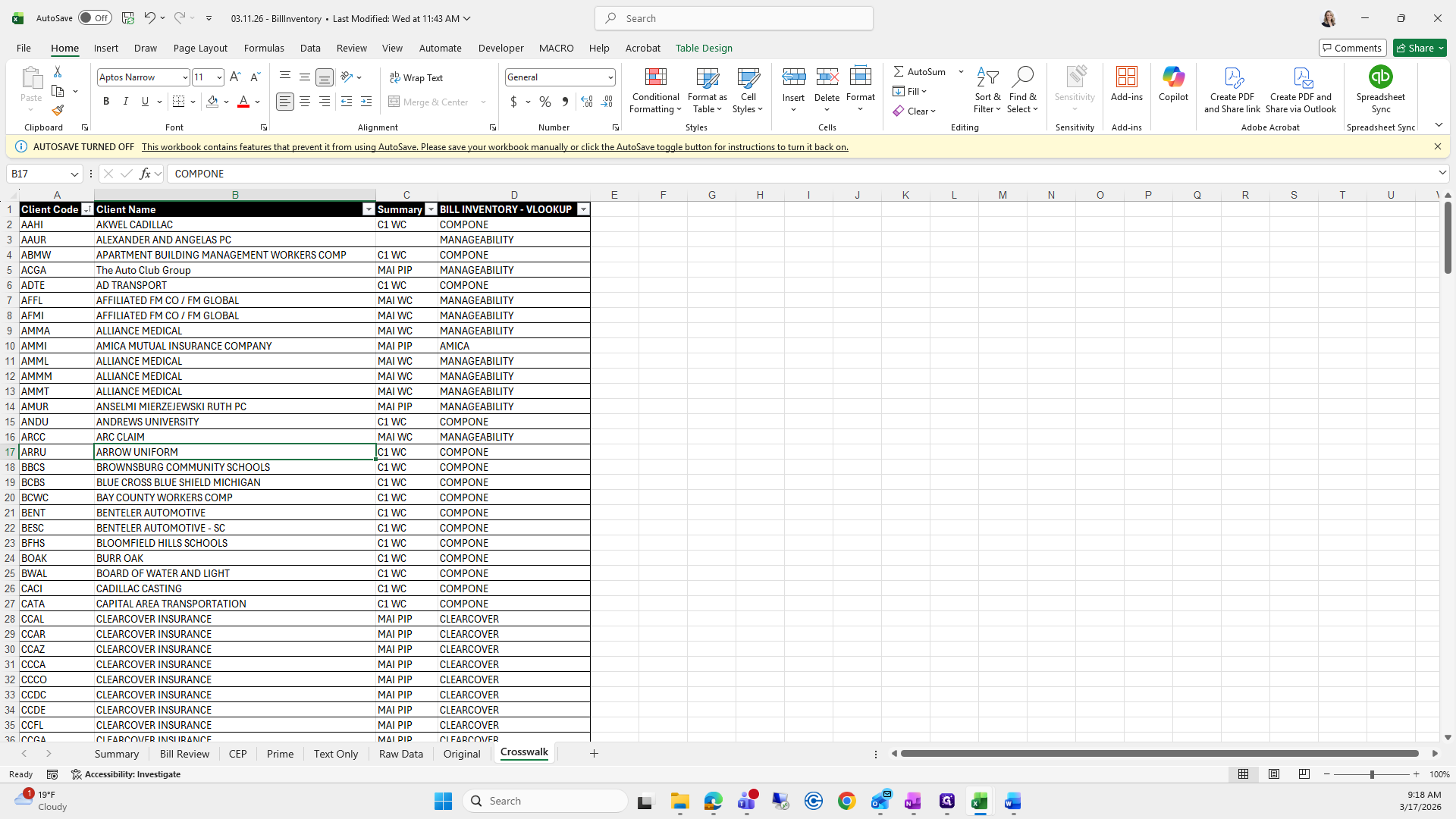
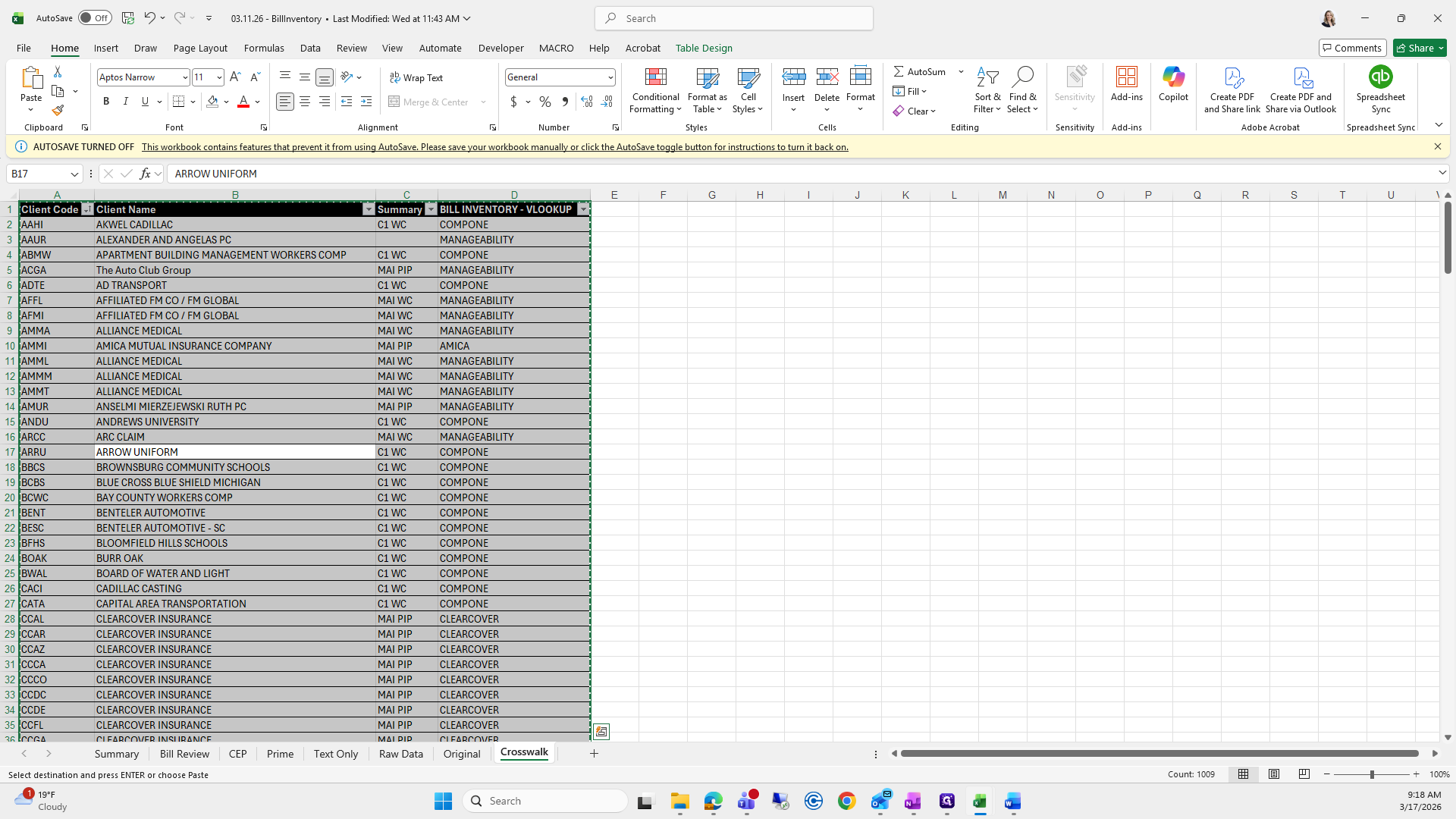
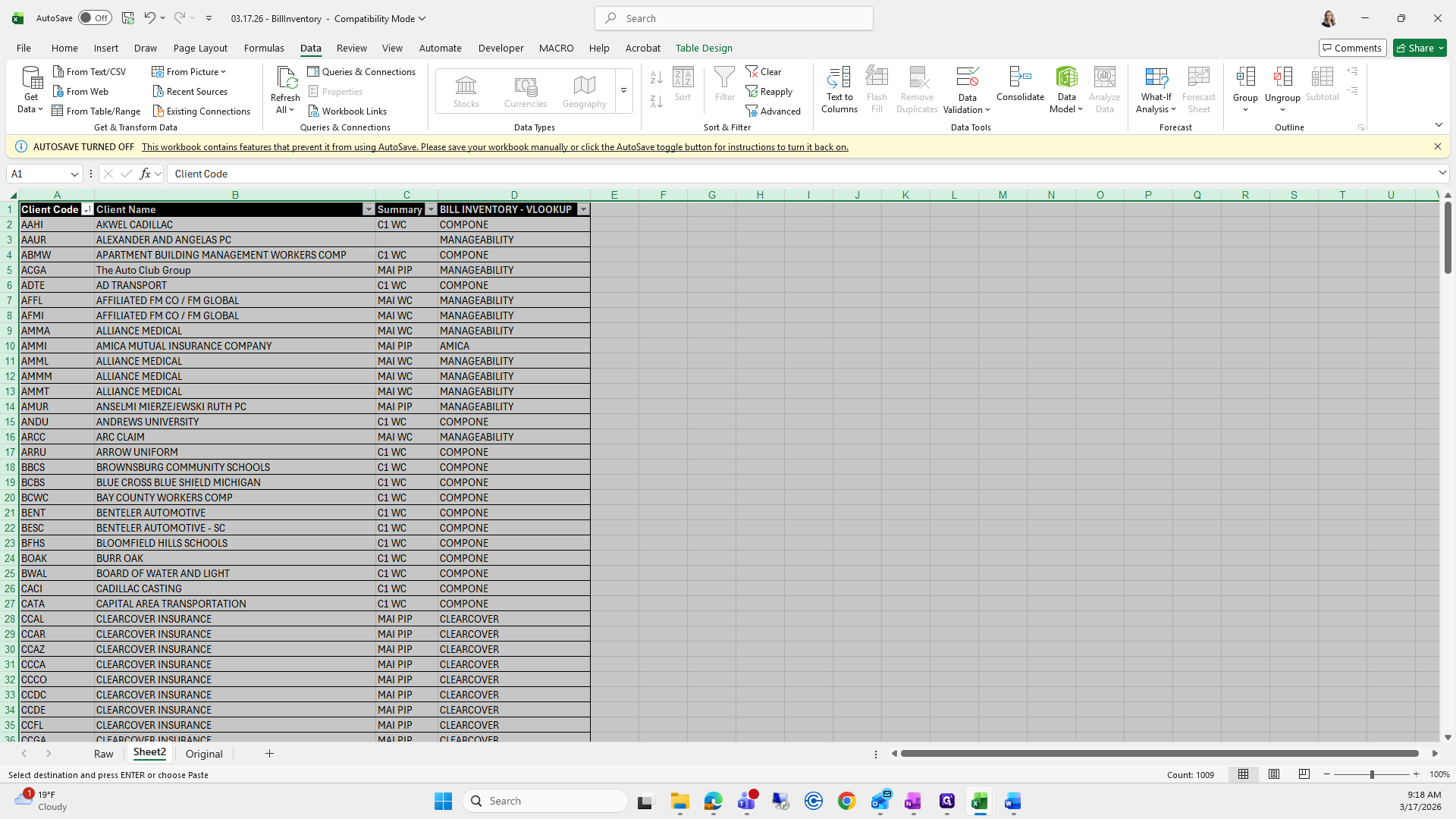
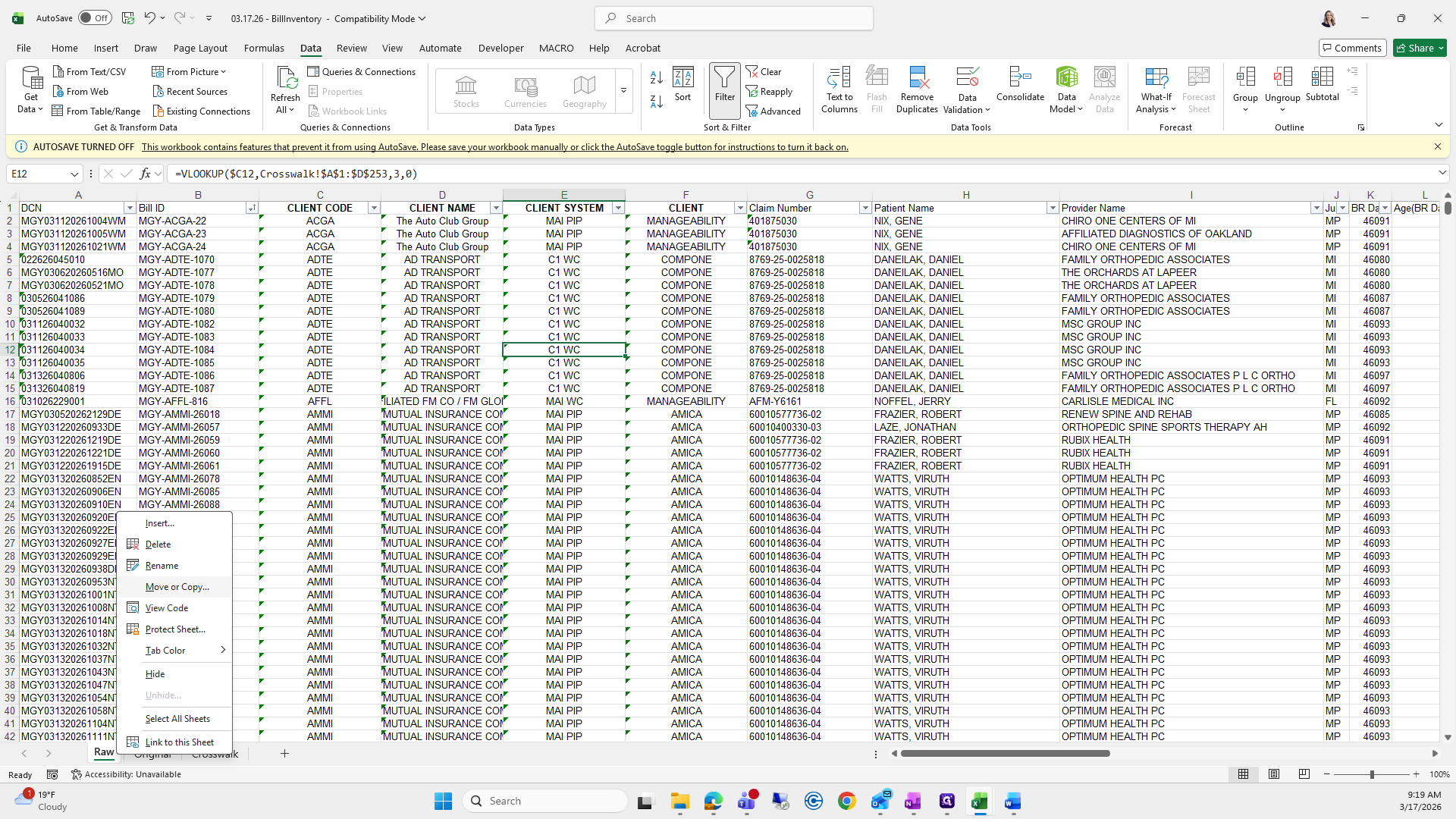
I will select all, copy, return to 317, paste the crosswalk, and rename the tab Crosswalk.
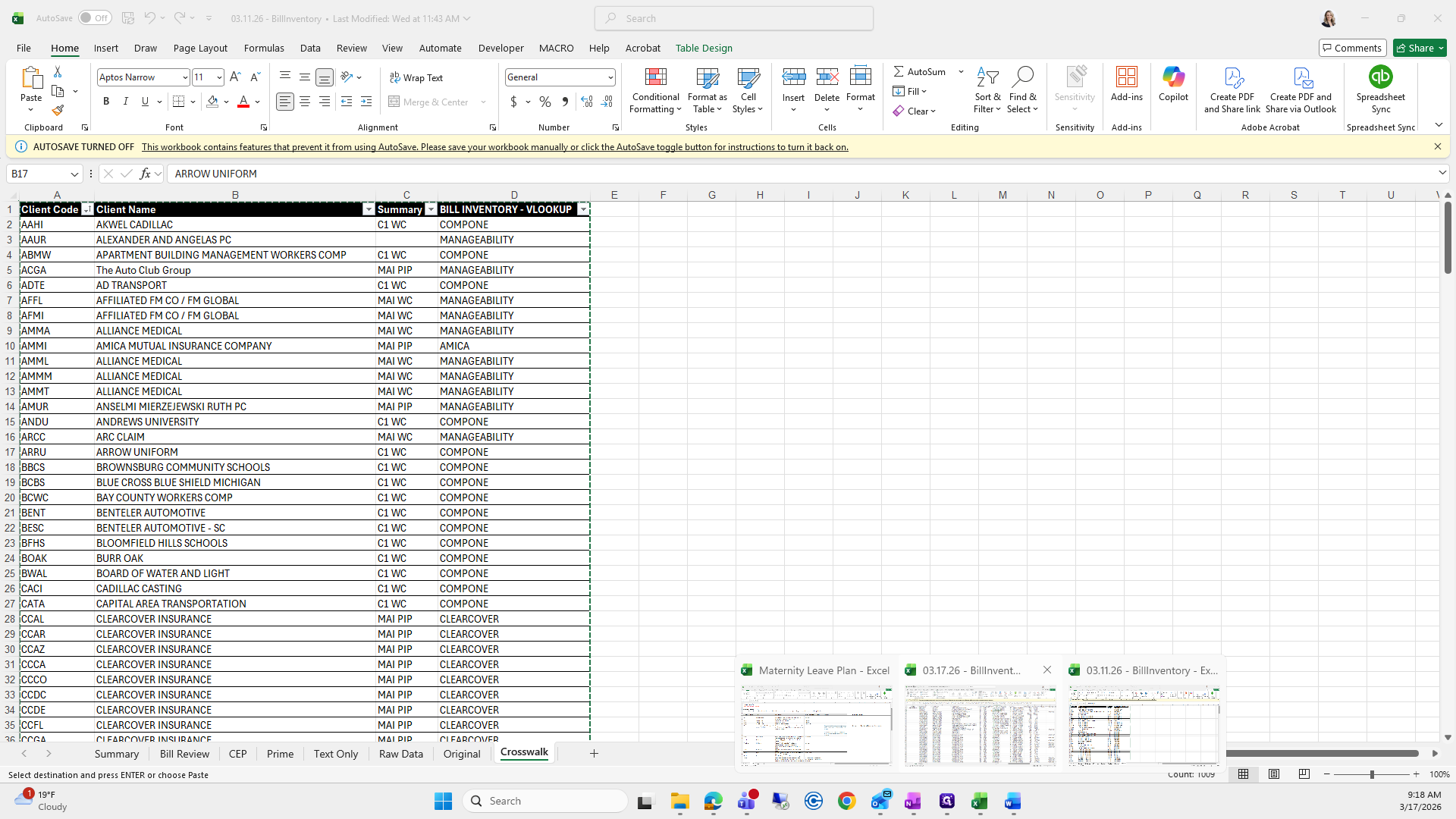
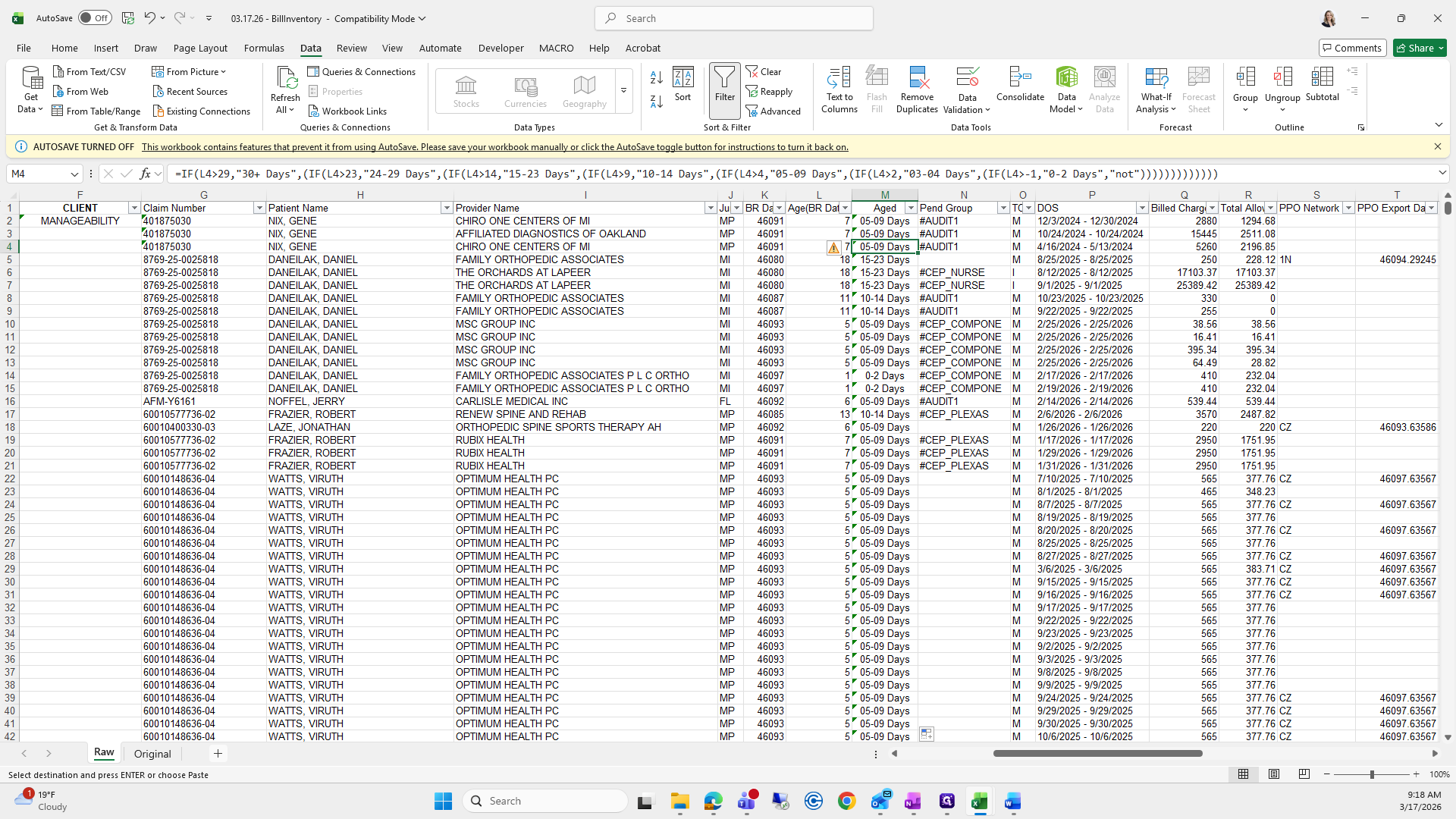
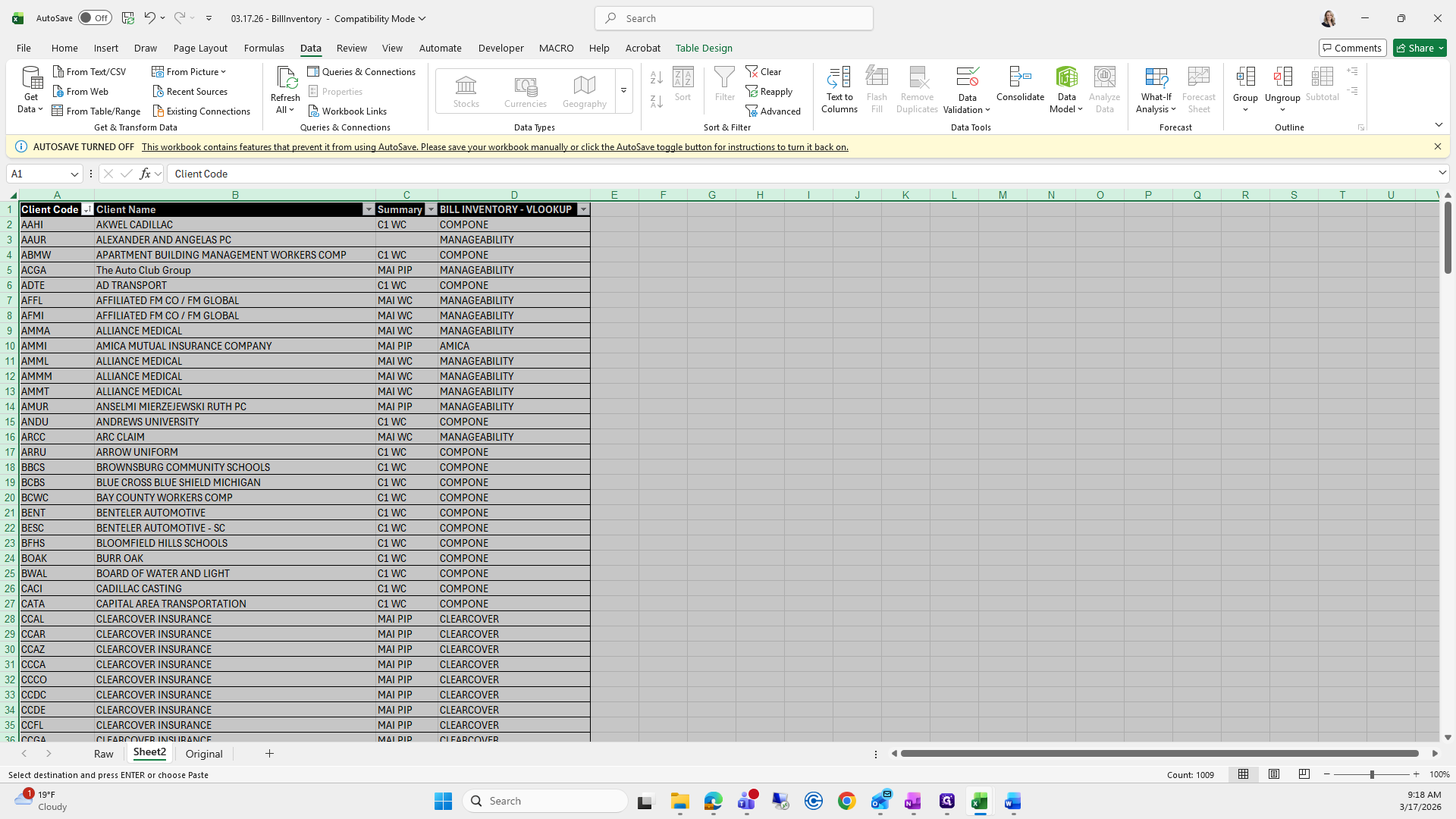
Next, go back to the raw tab. Move over to the cells we pasted. This one is fine because it only has the MID formula. The next one is still pulling the crosswalk from 311.
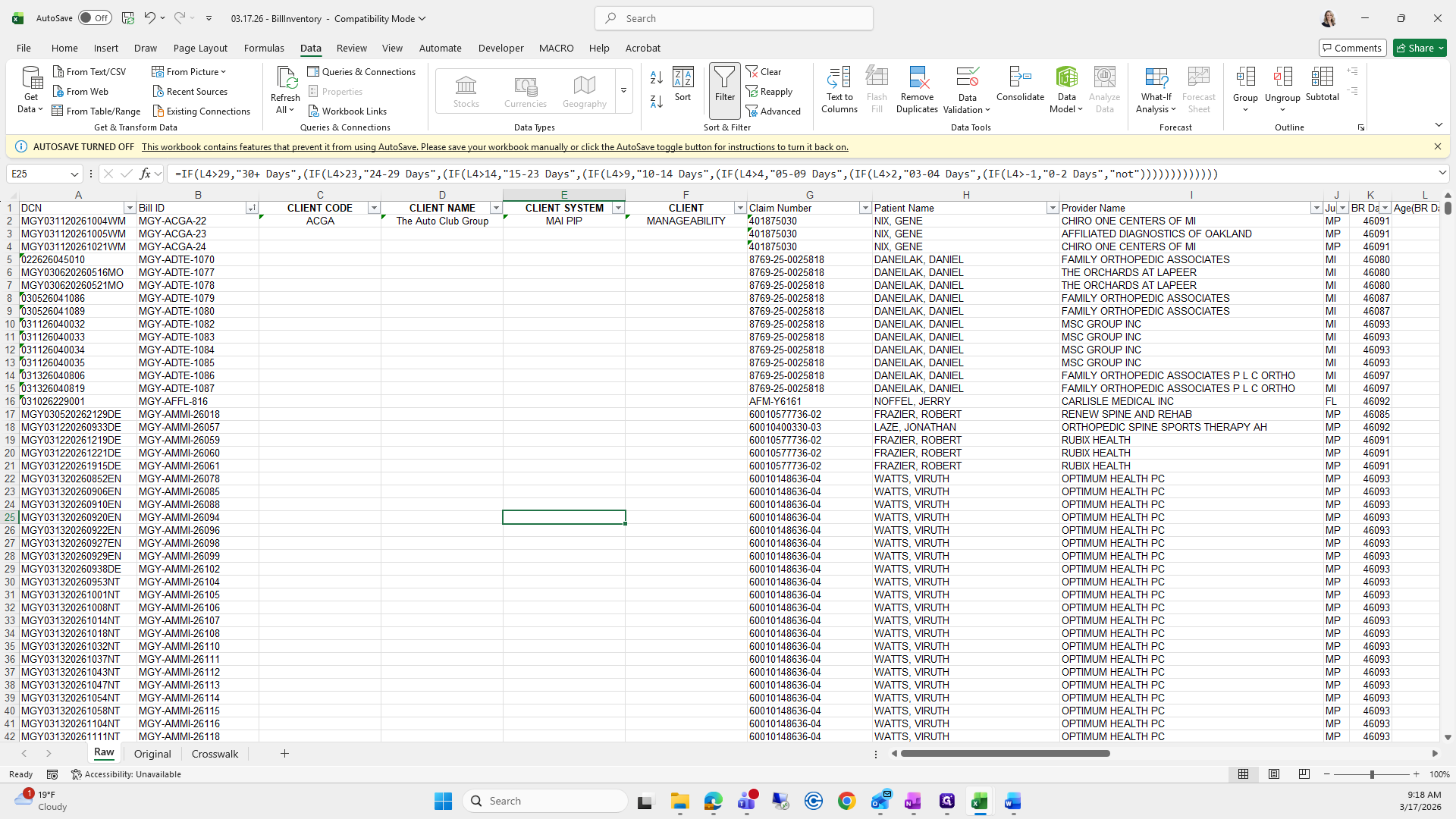
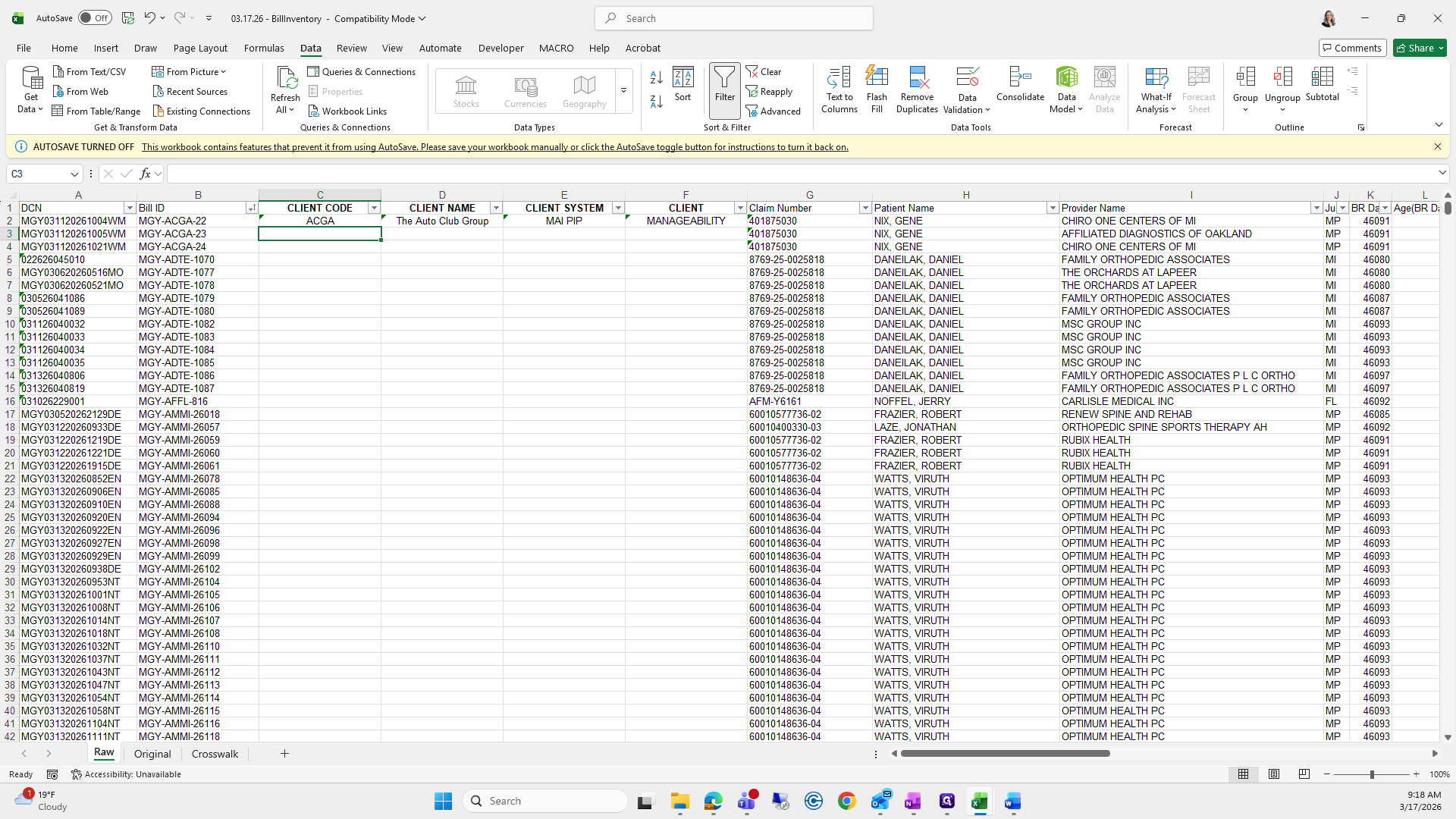
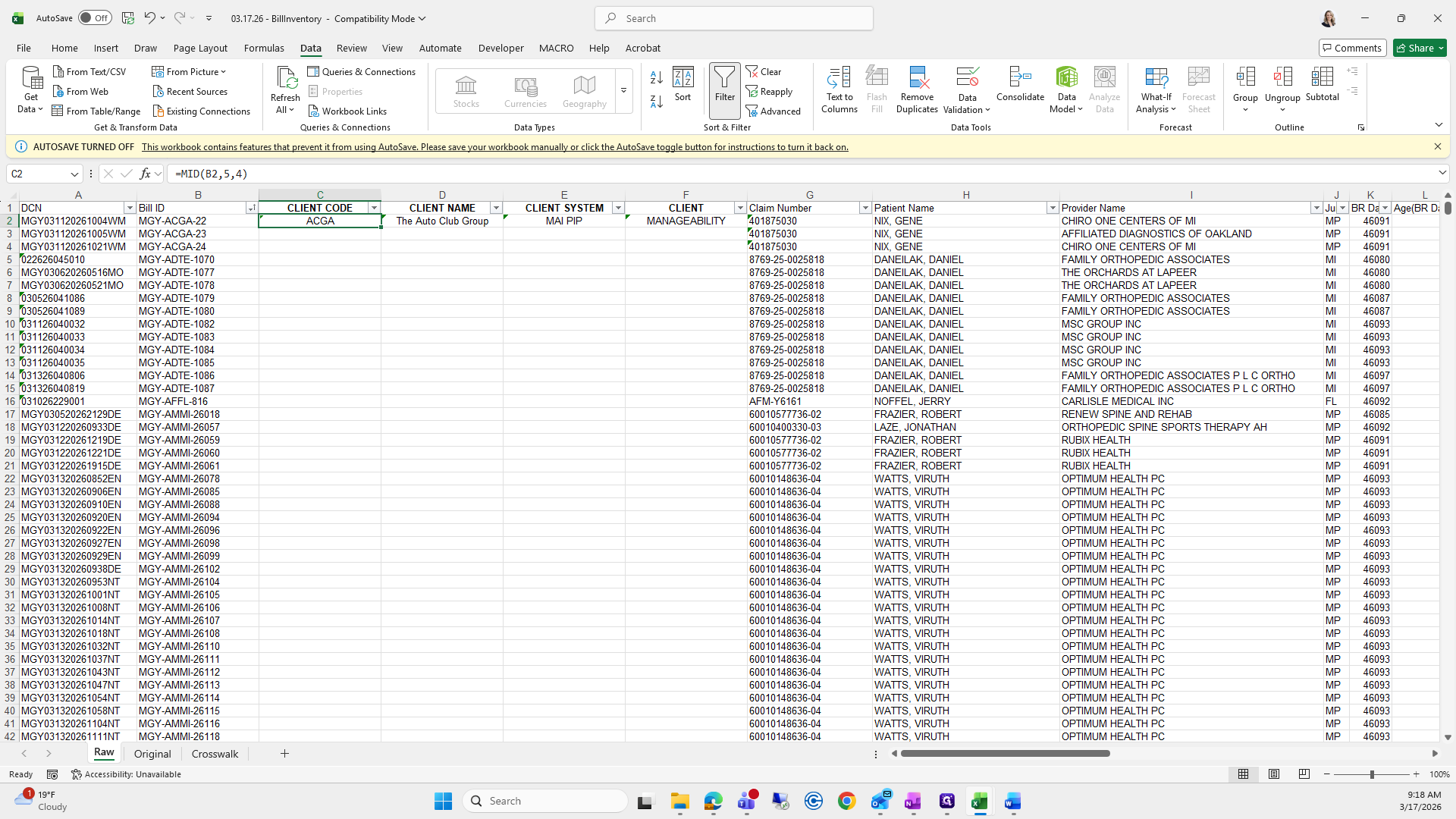
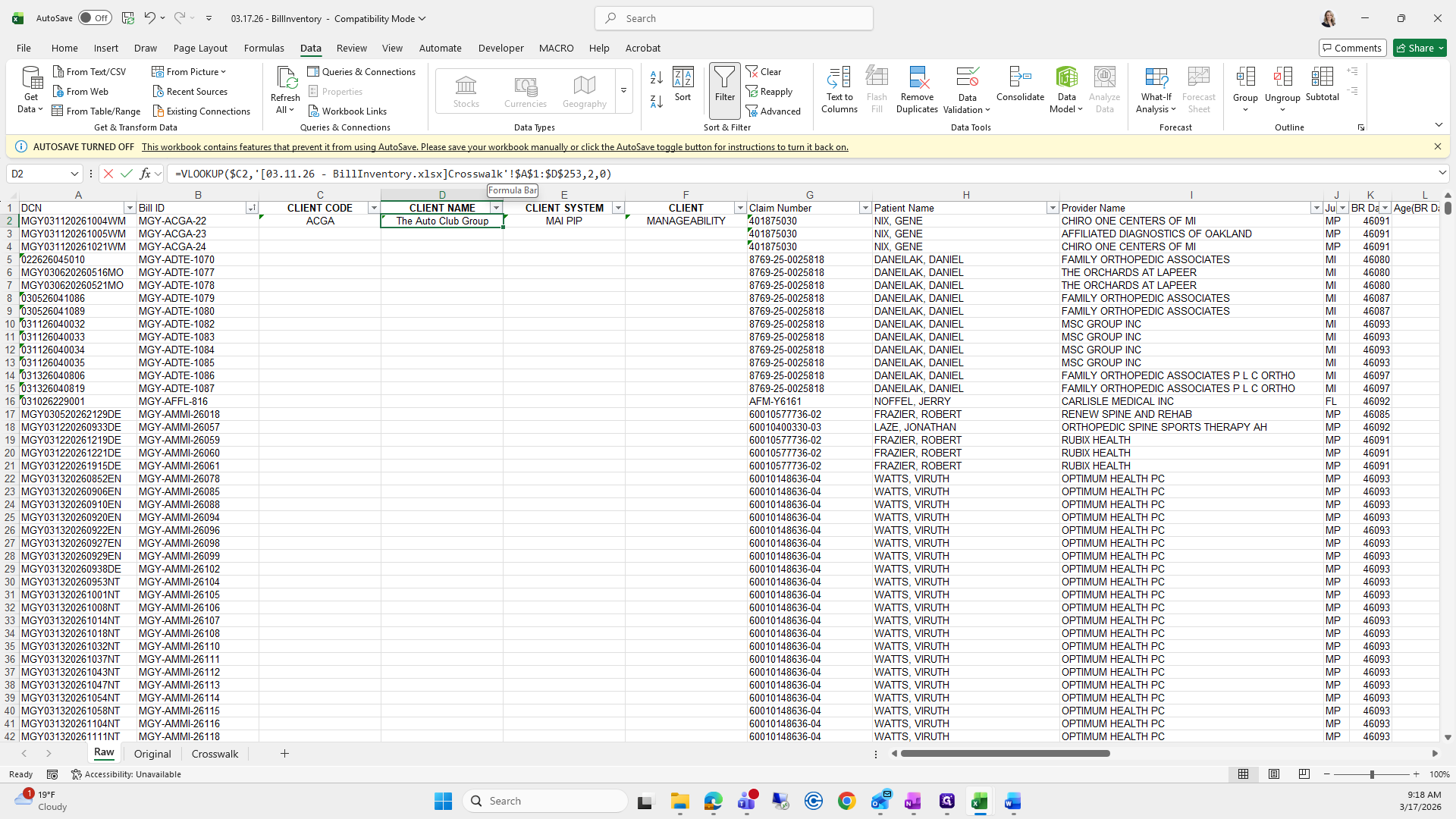
Highlight the text inside the brackets, press delete, then press enter. Repeat: highlight the bracketed text, delete, and press enter.
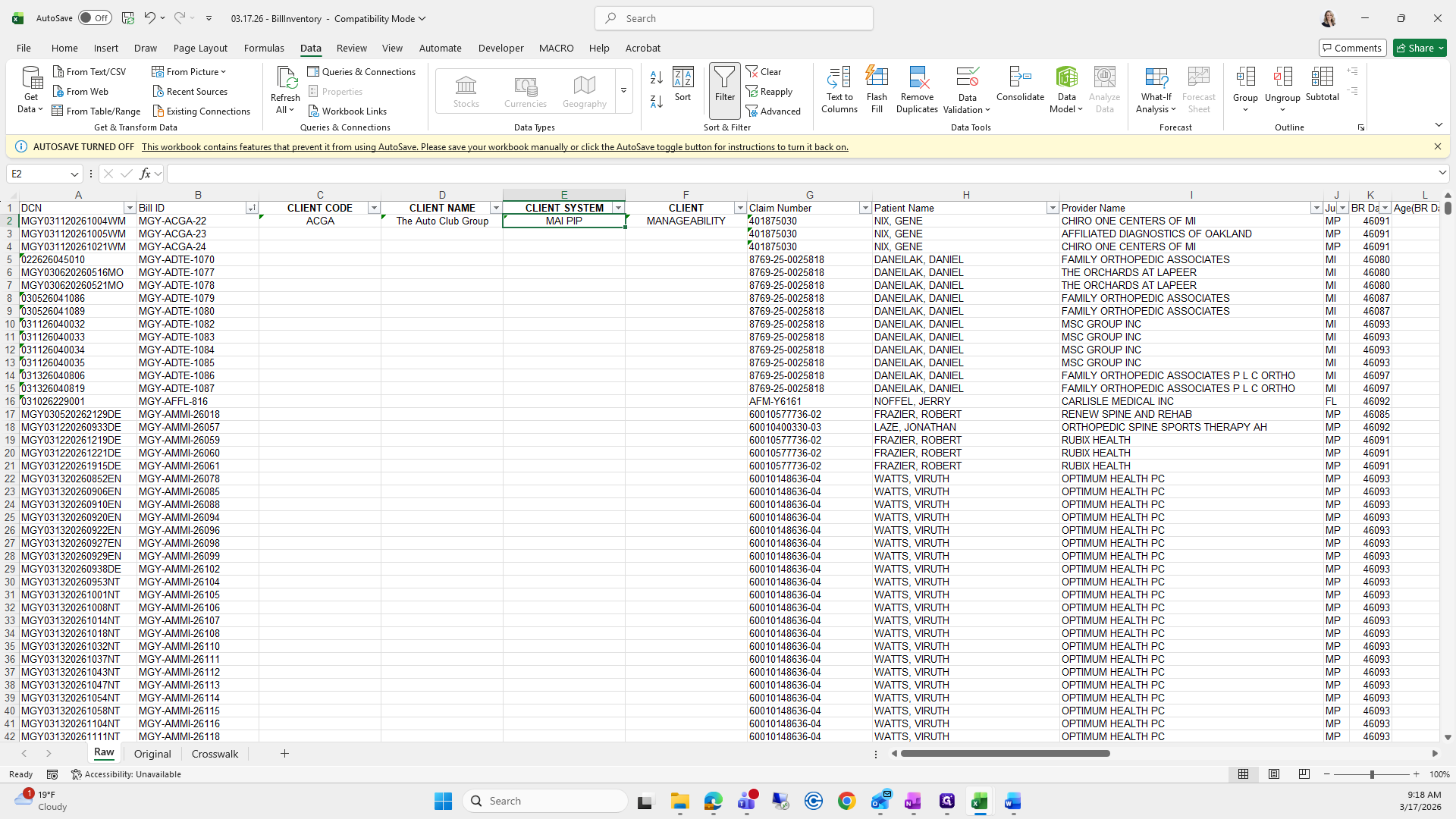
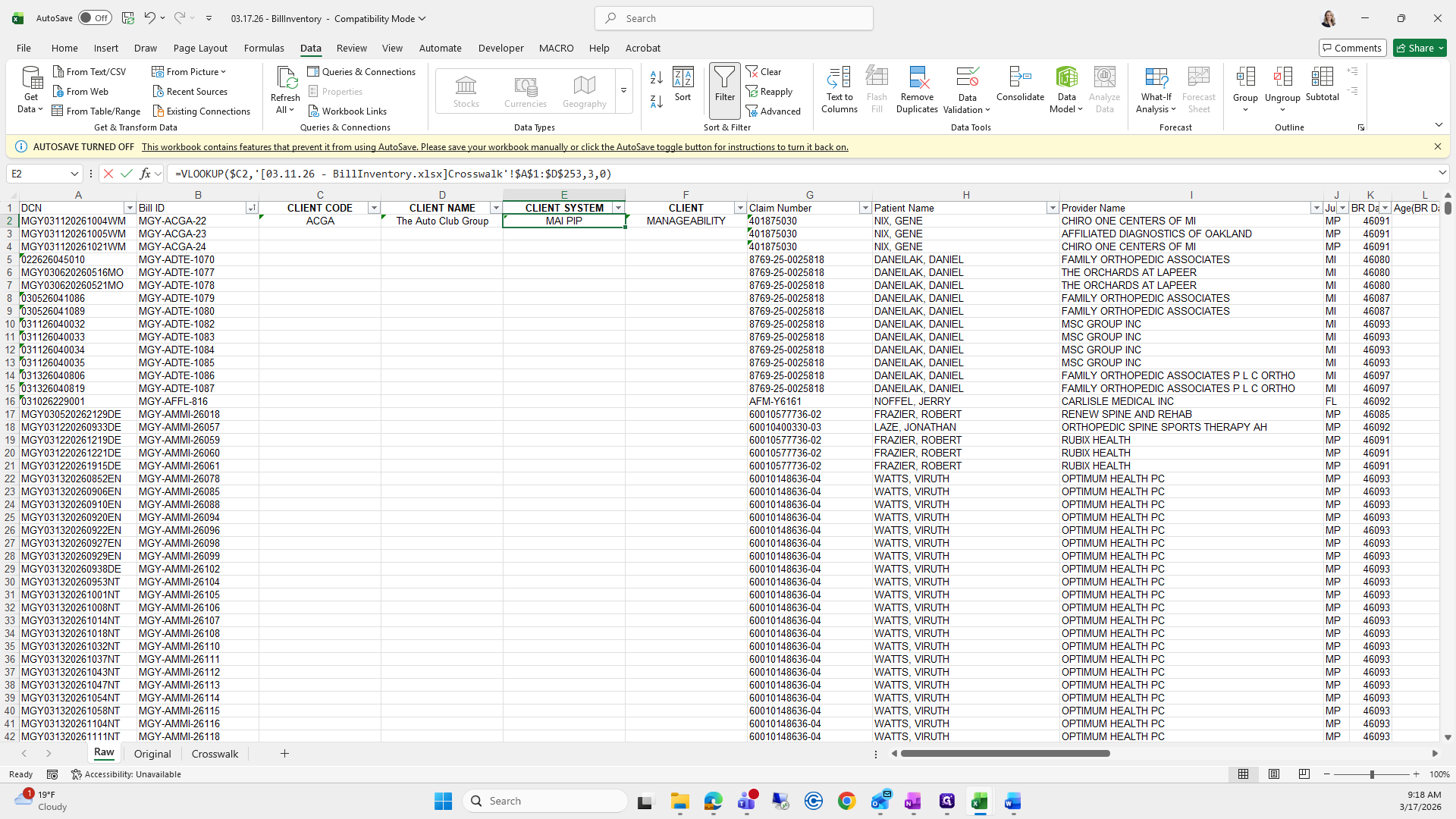
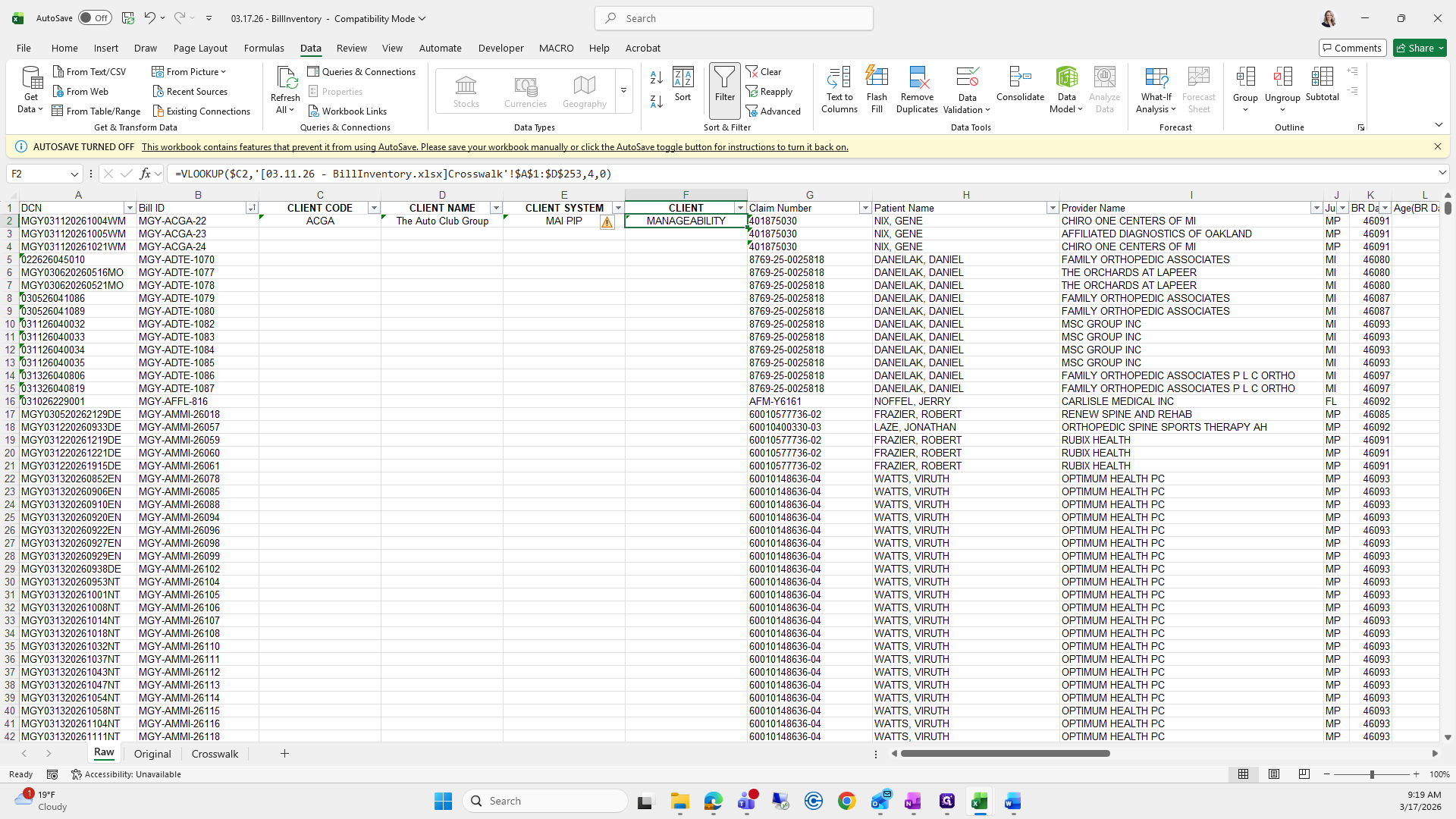
Next, delete what is in the brackets and press enter.
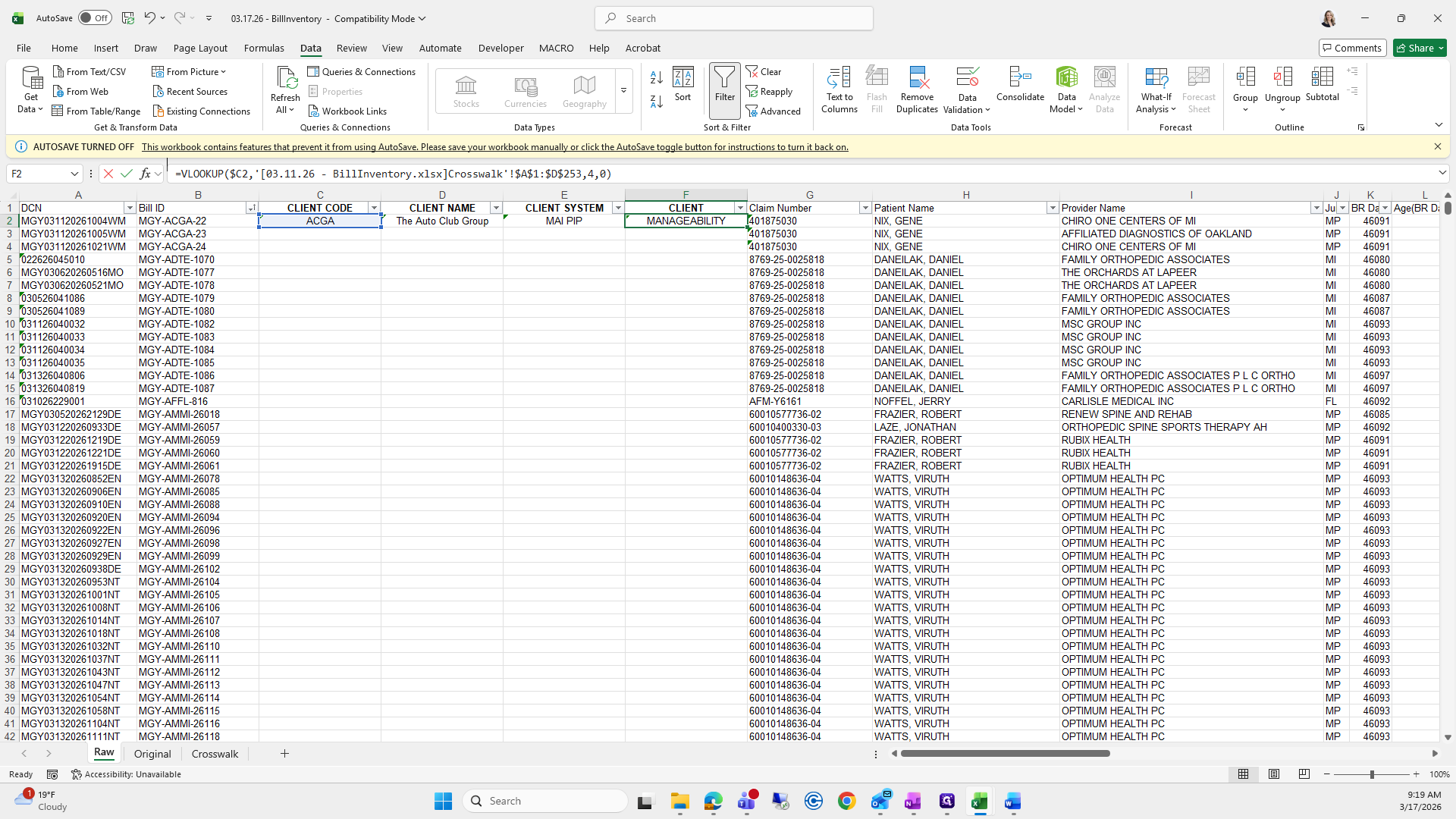
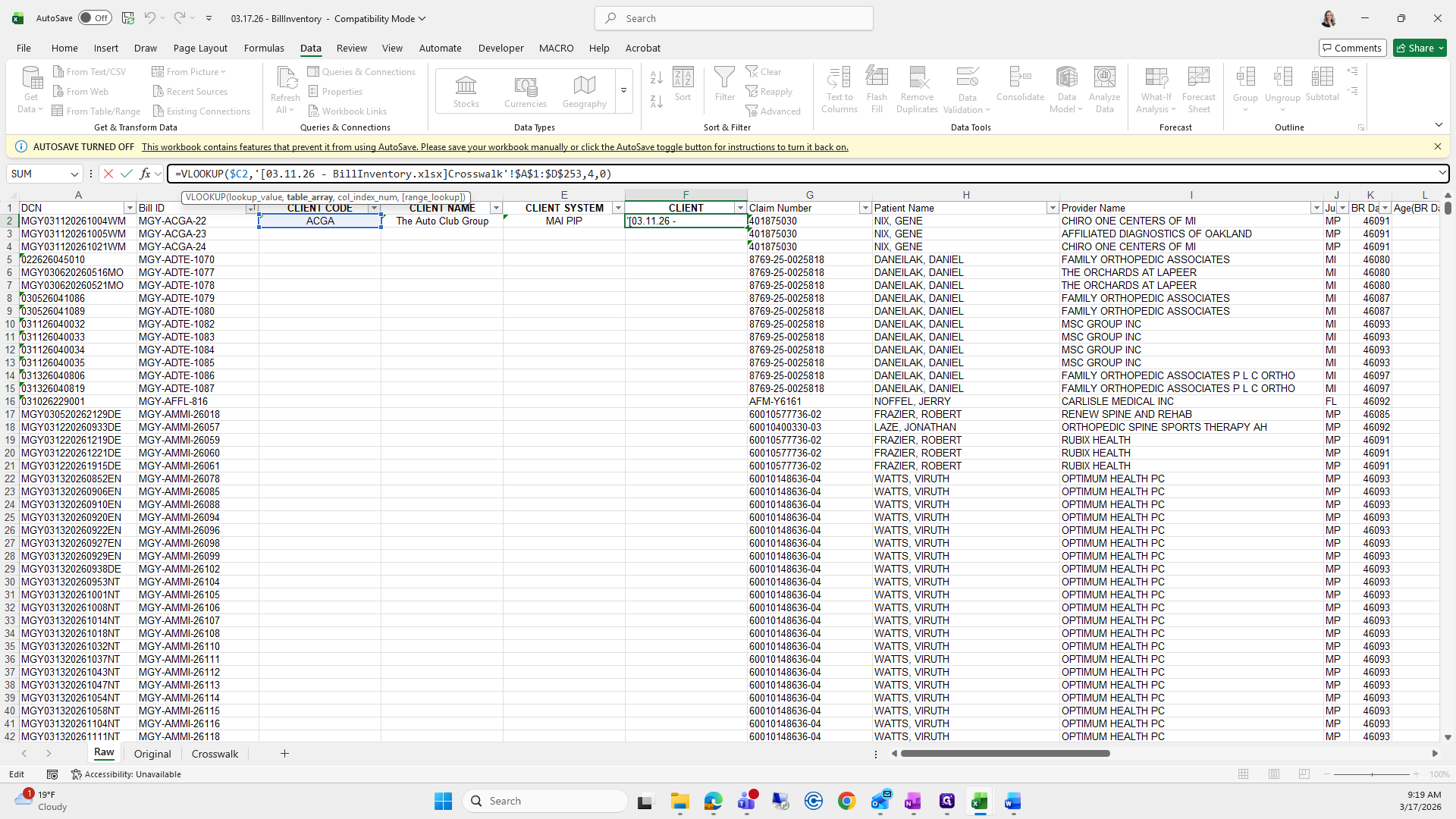
Then I grab all three and drag them down.
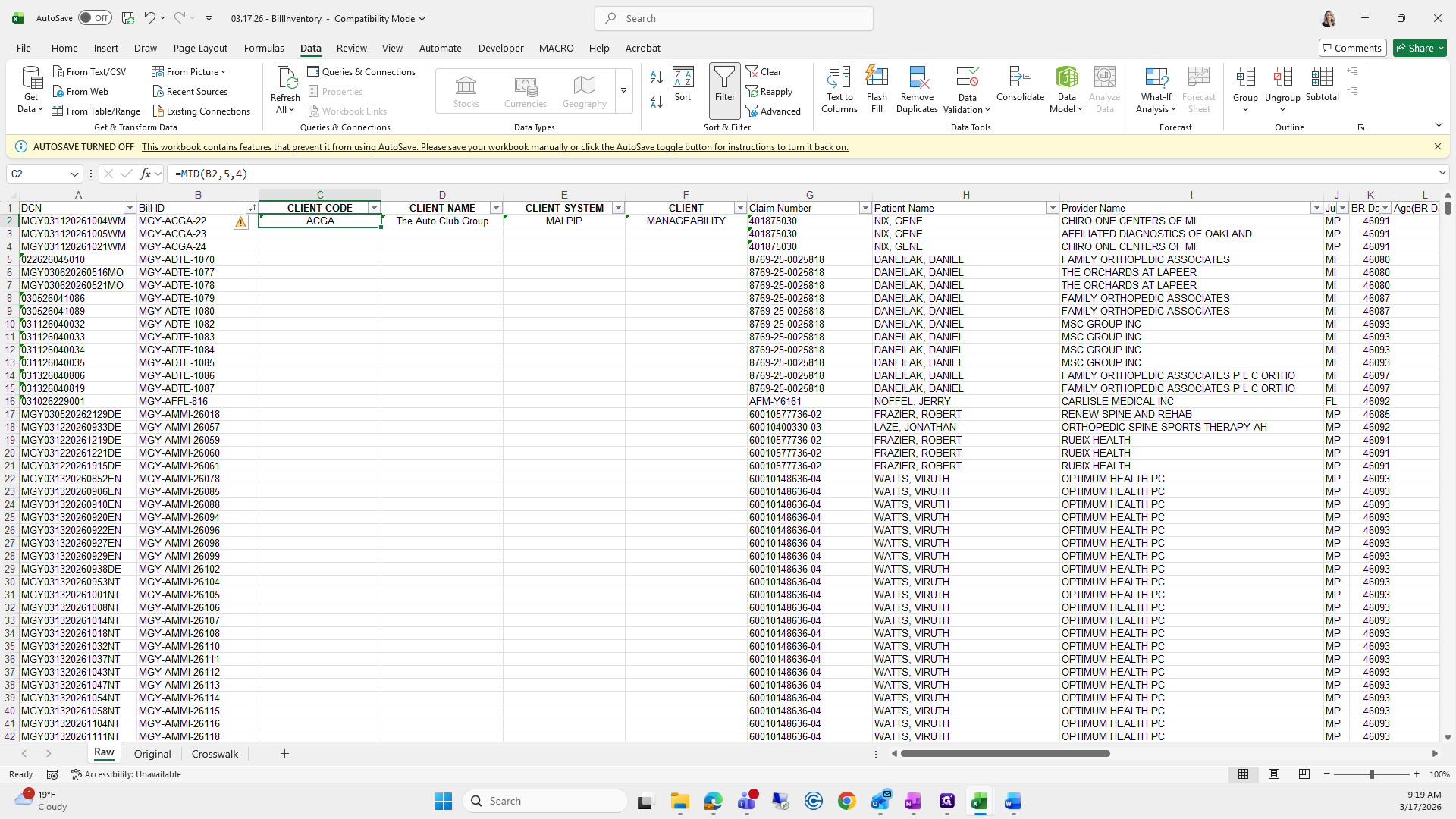
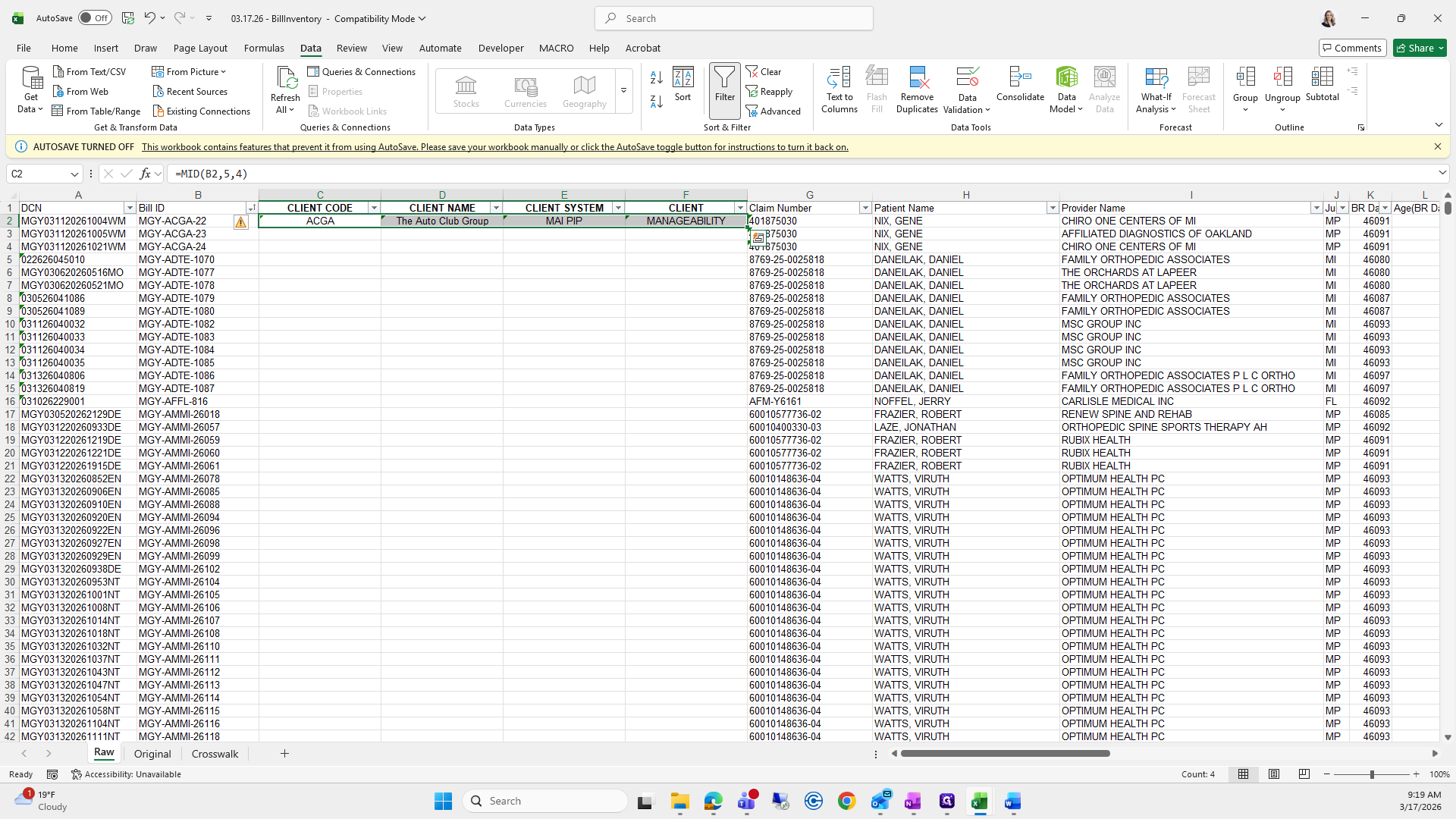
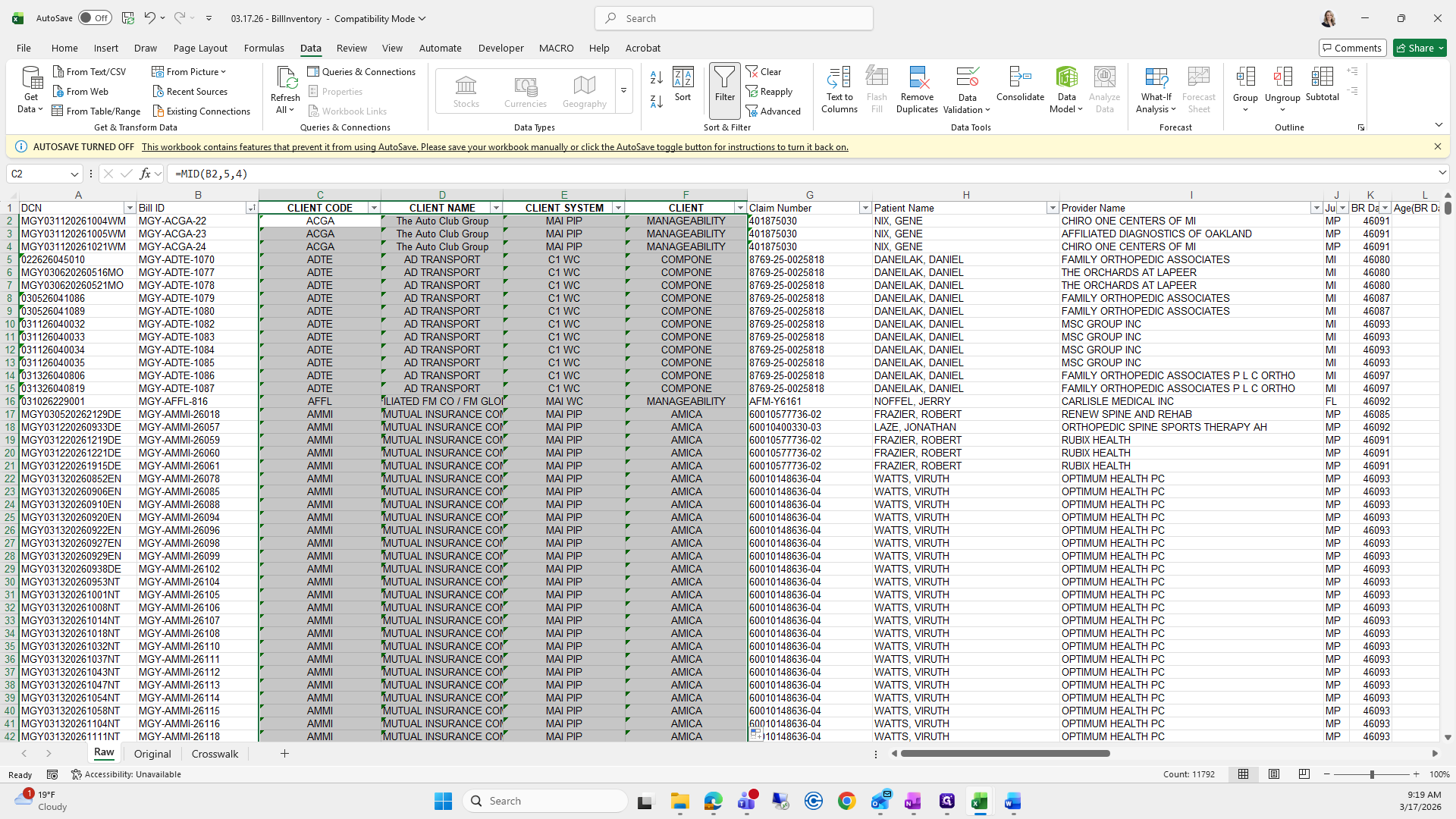
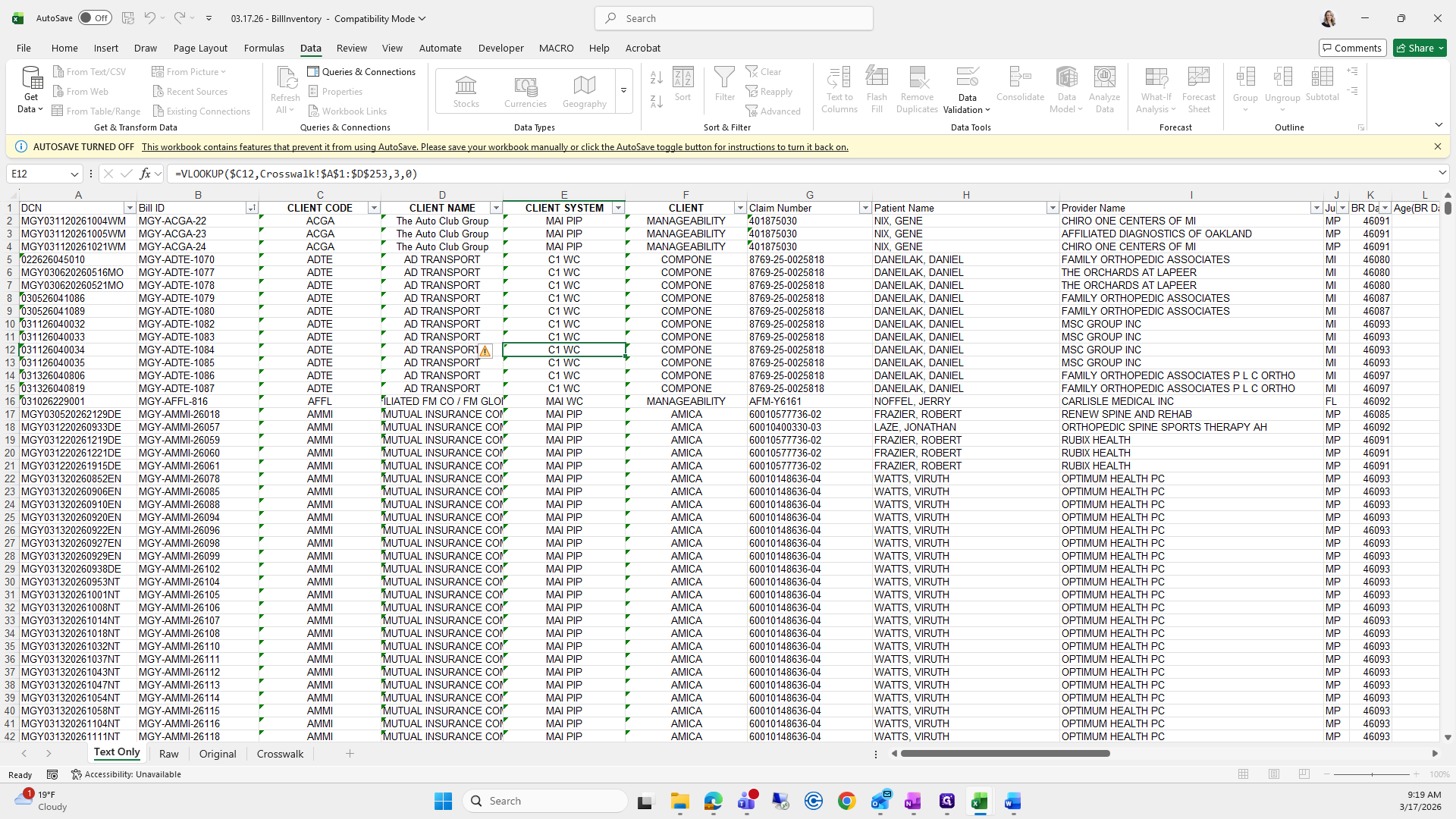
From here, I copy and paste, saving text only. Before pasting values, I check if any client names are missing.
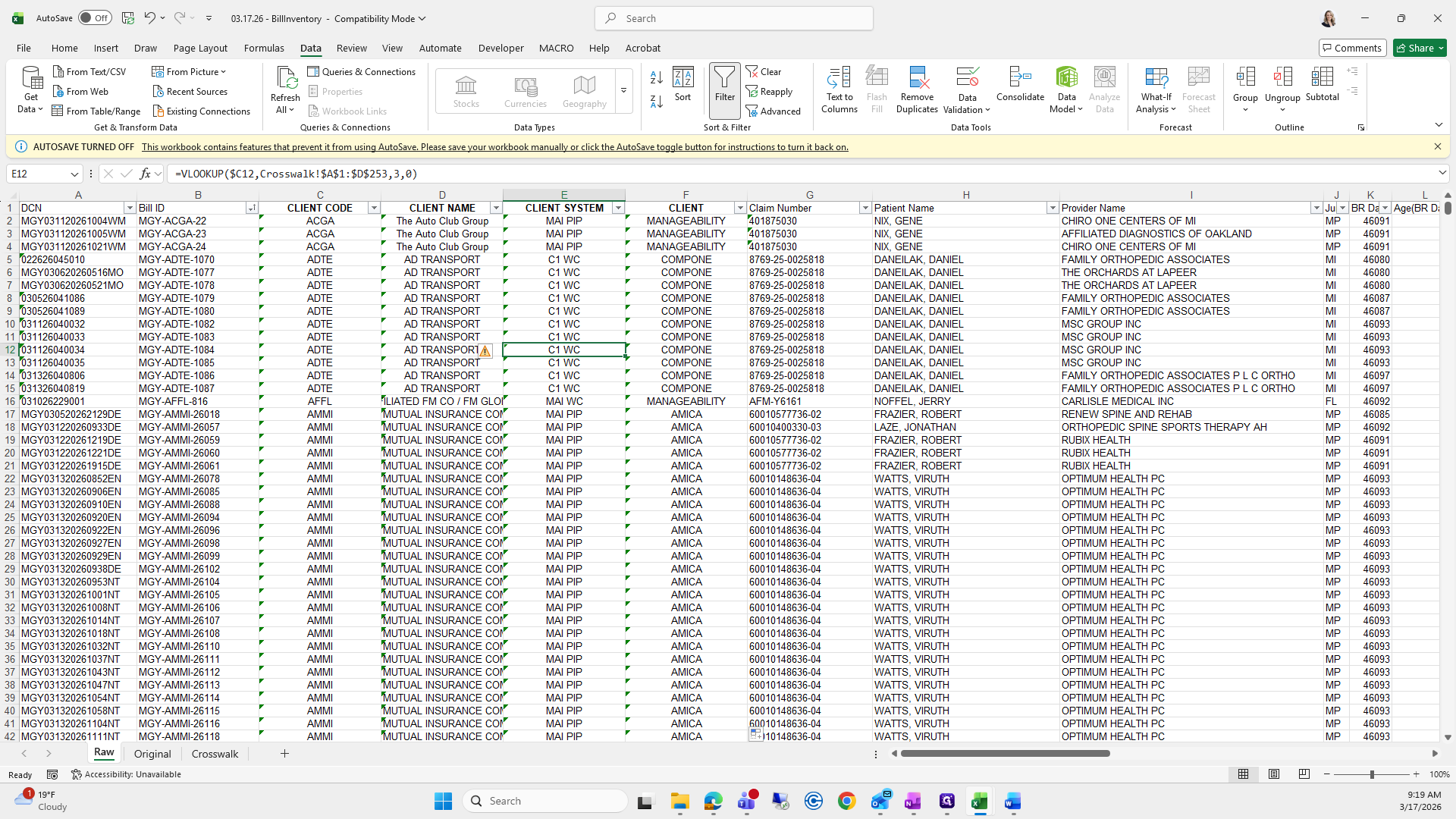
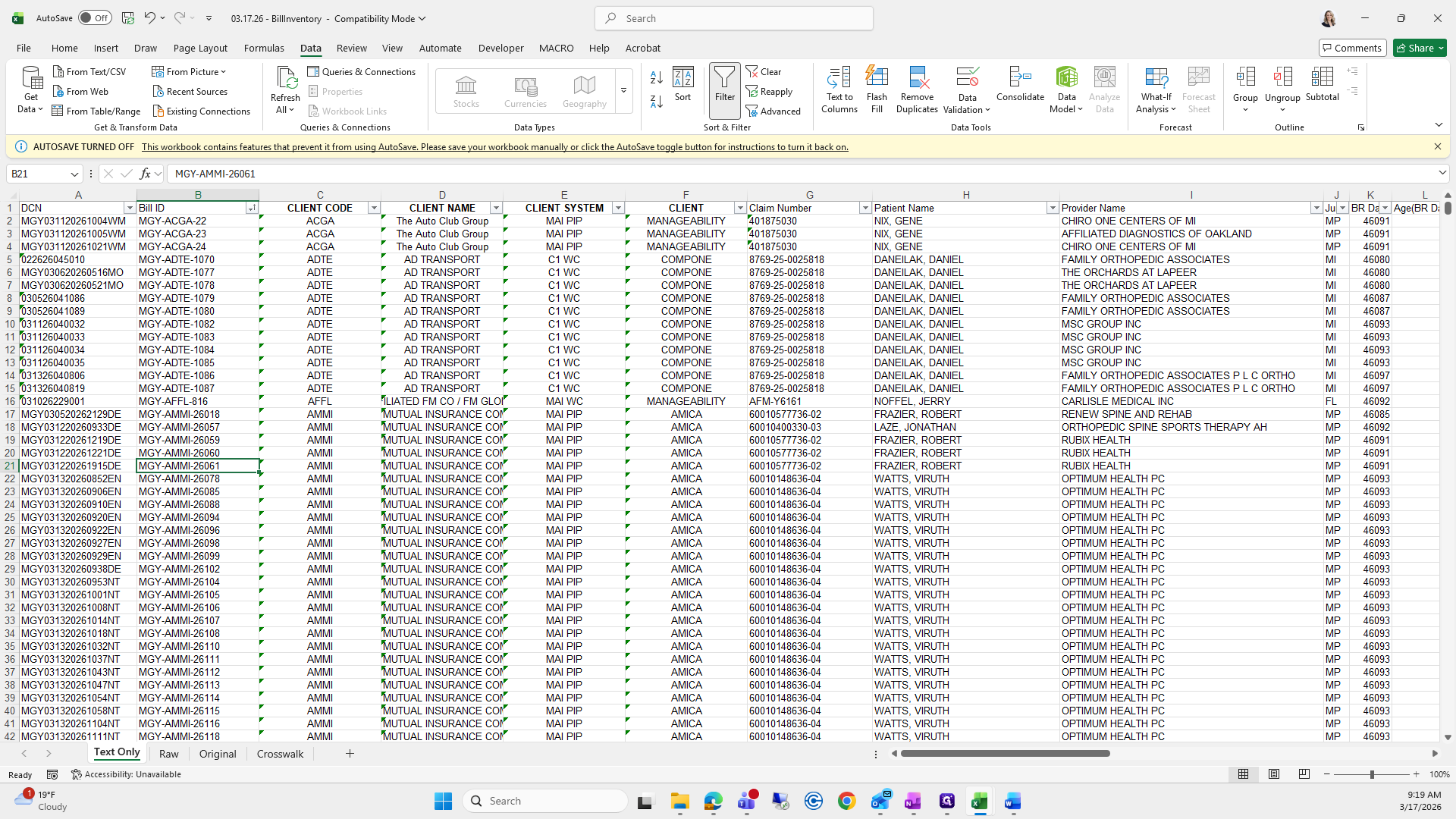

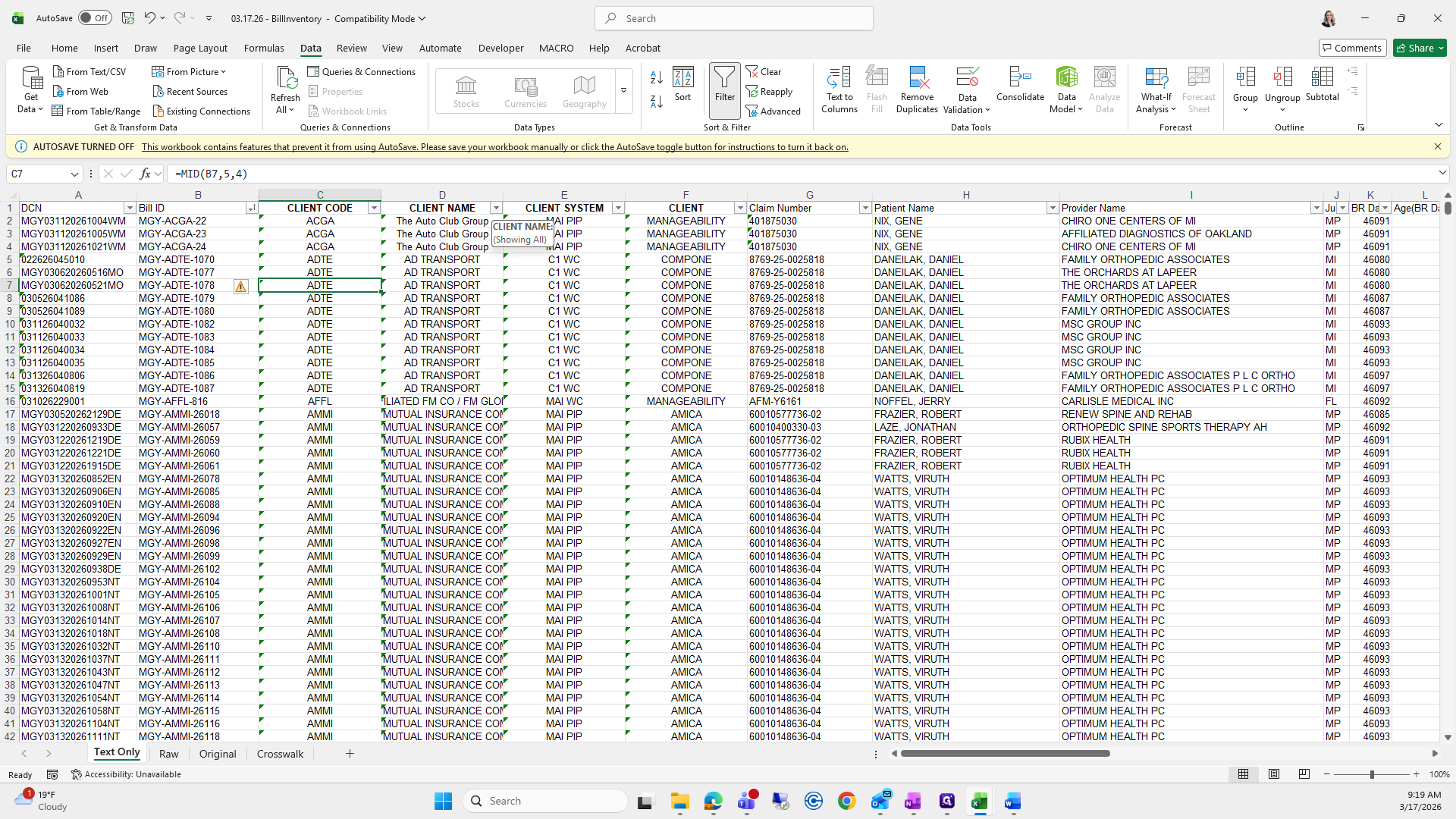
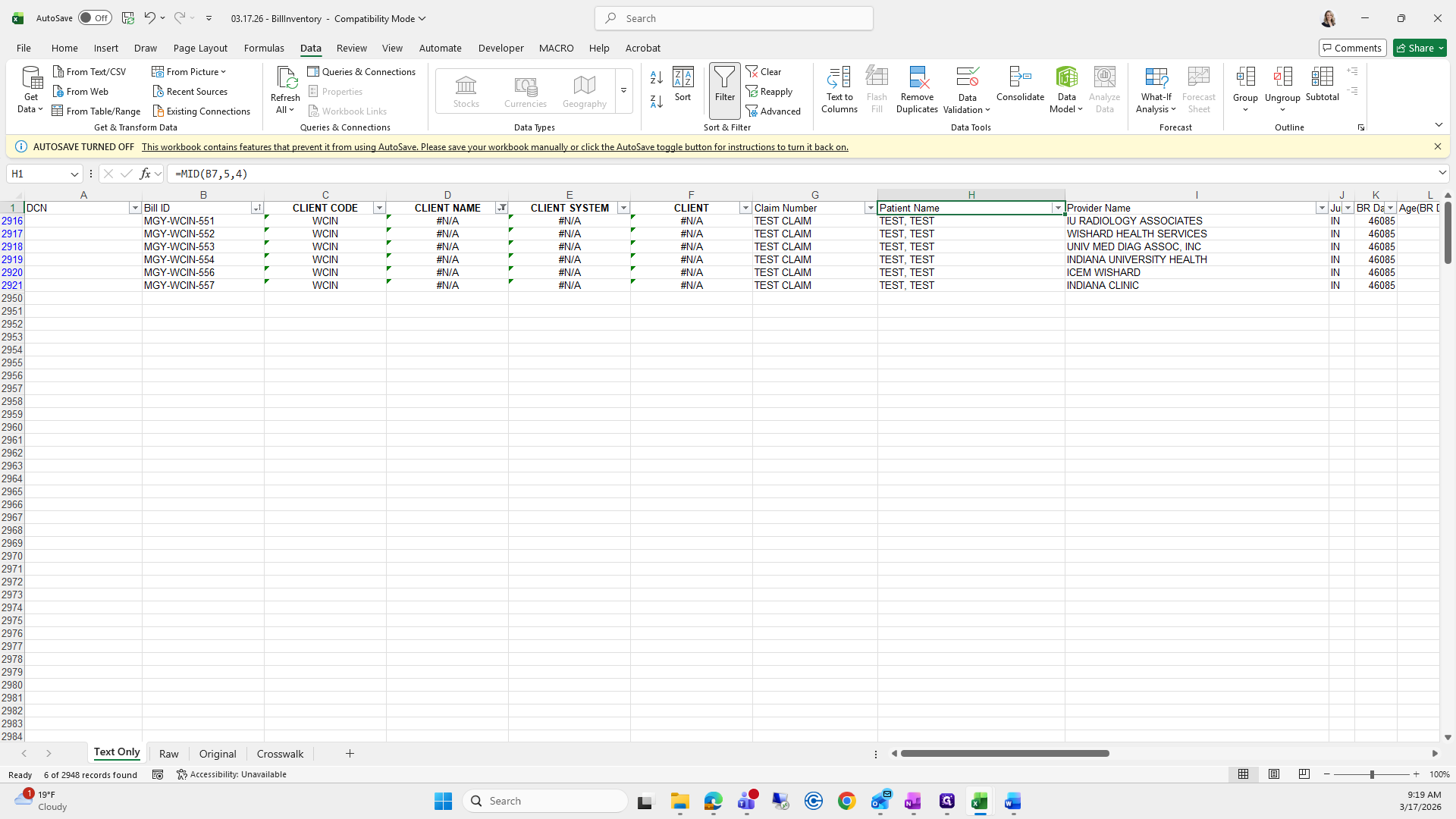
By filtering it earlier, I remove the filter, go all the way down, and there it is.
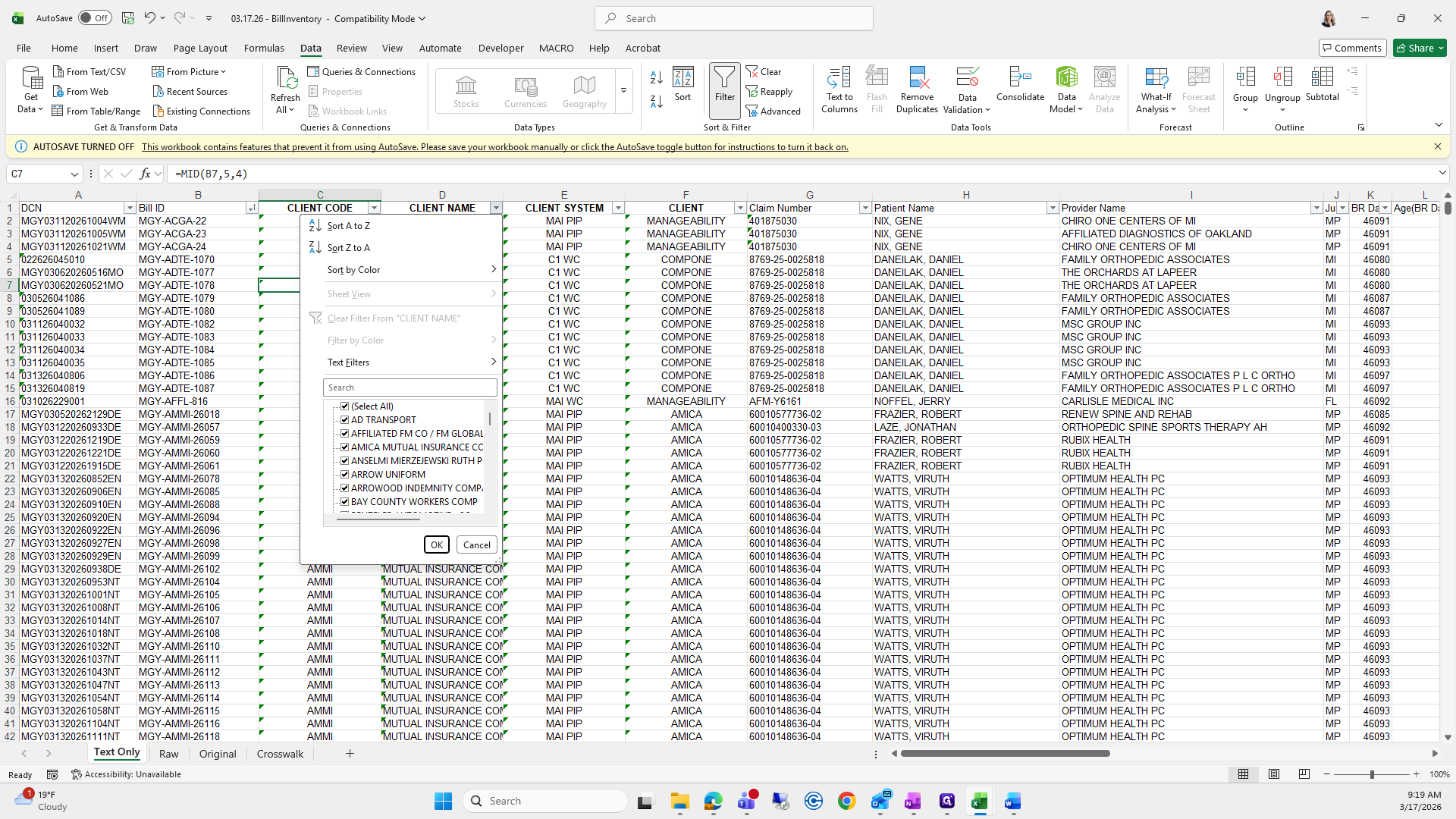
I will select all and go to NA.
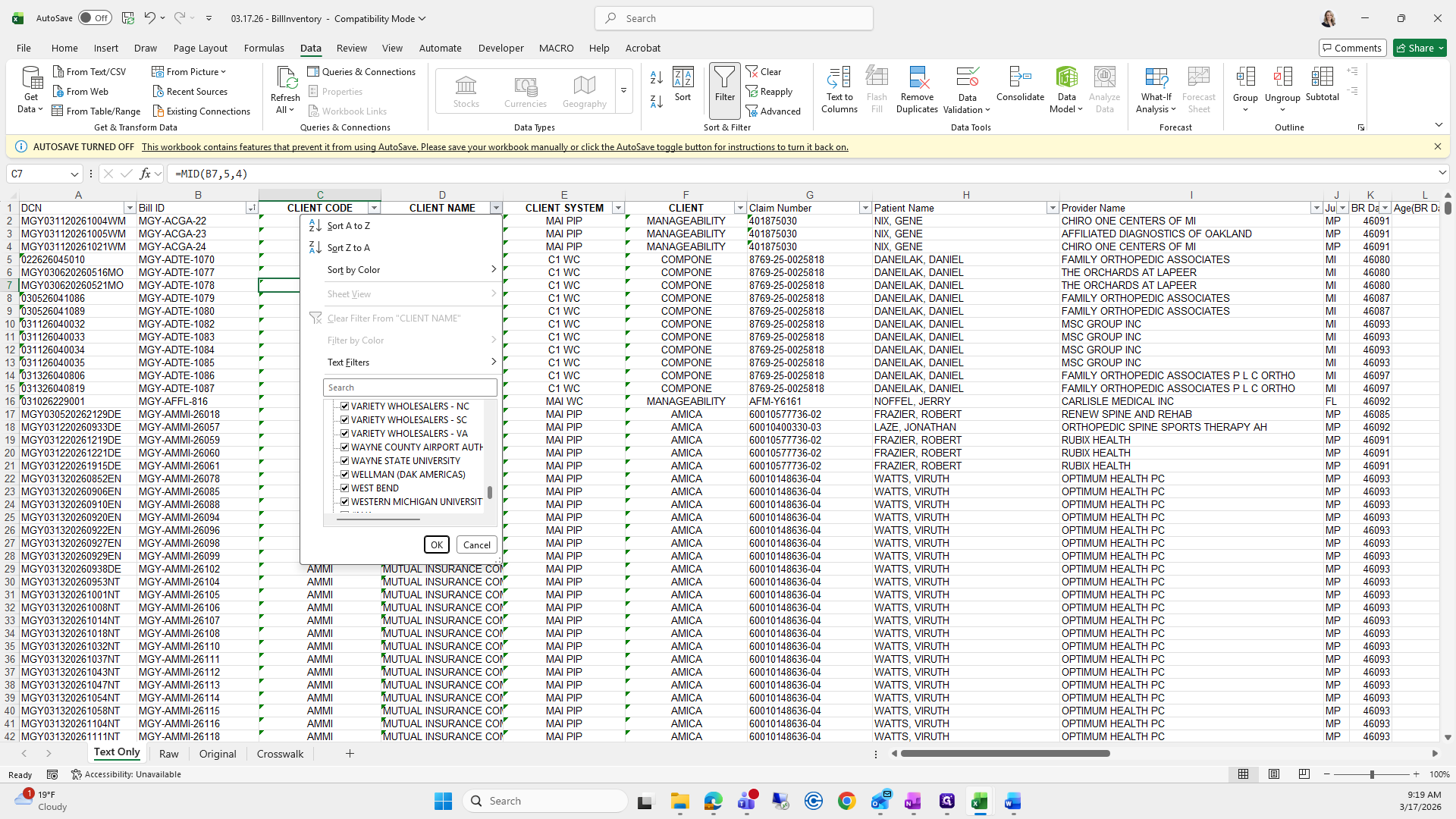
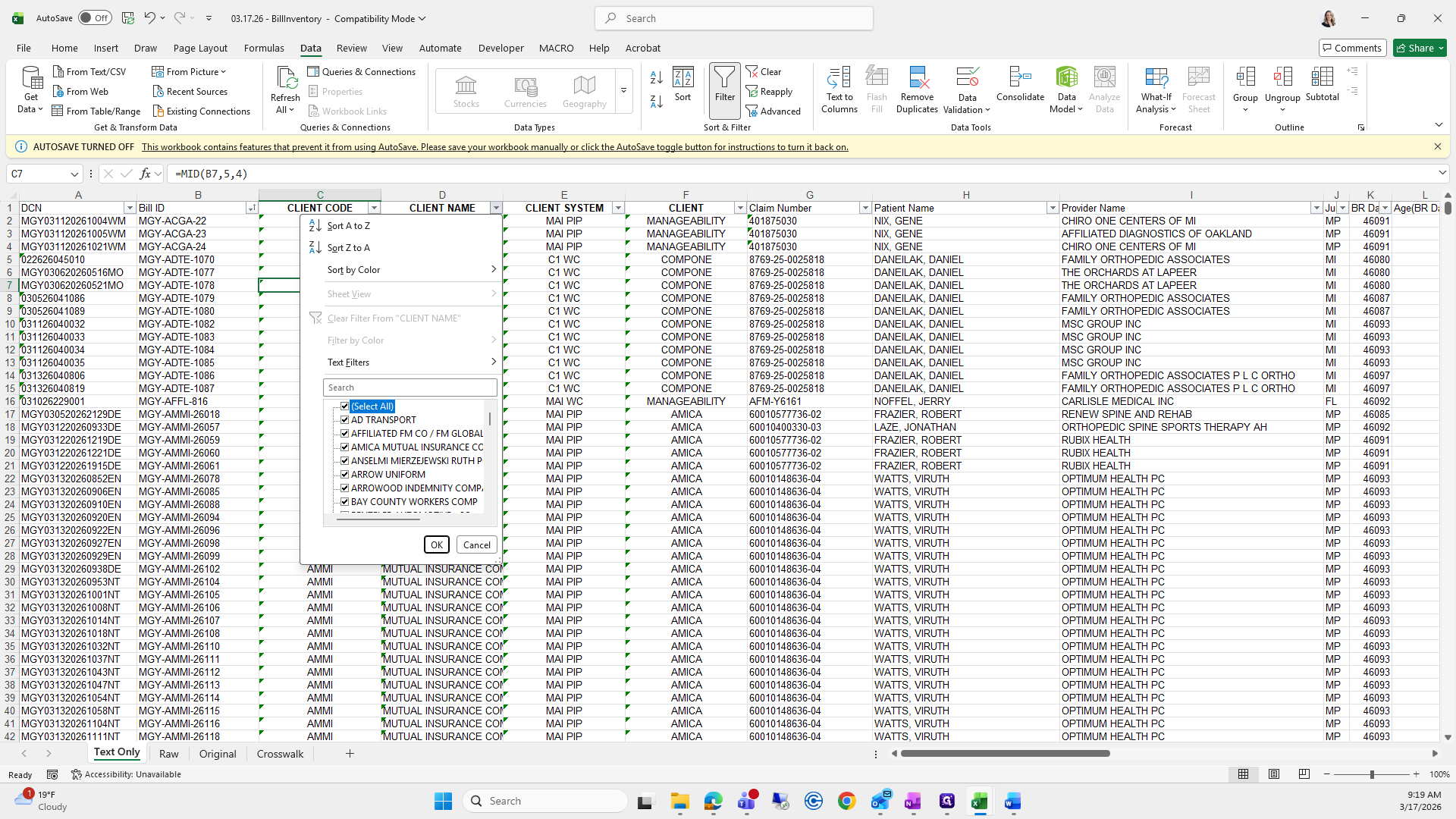
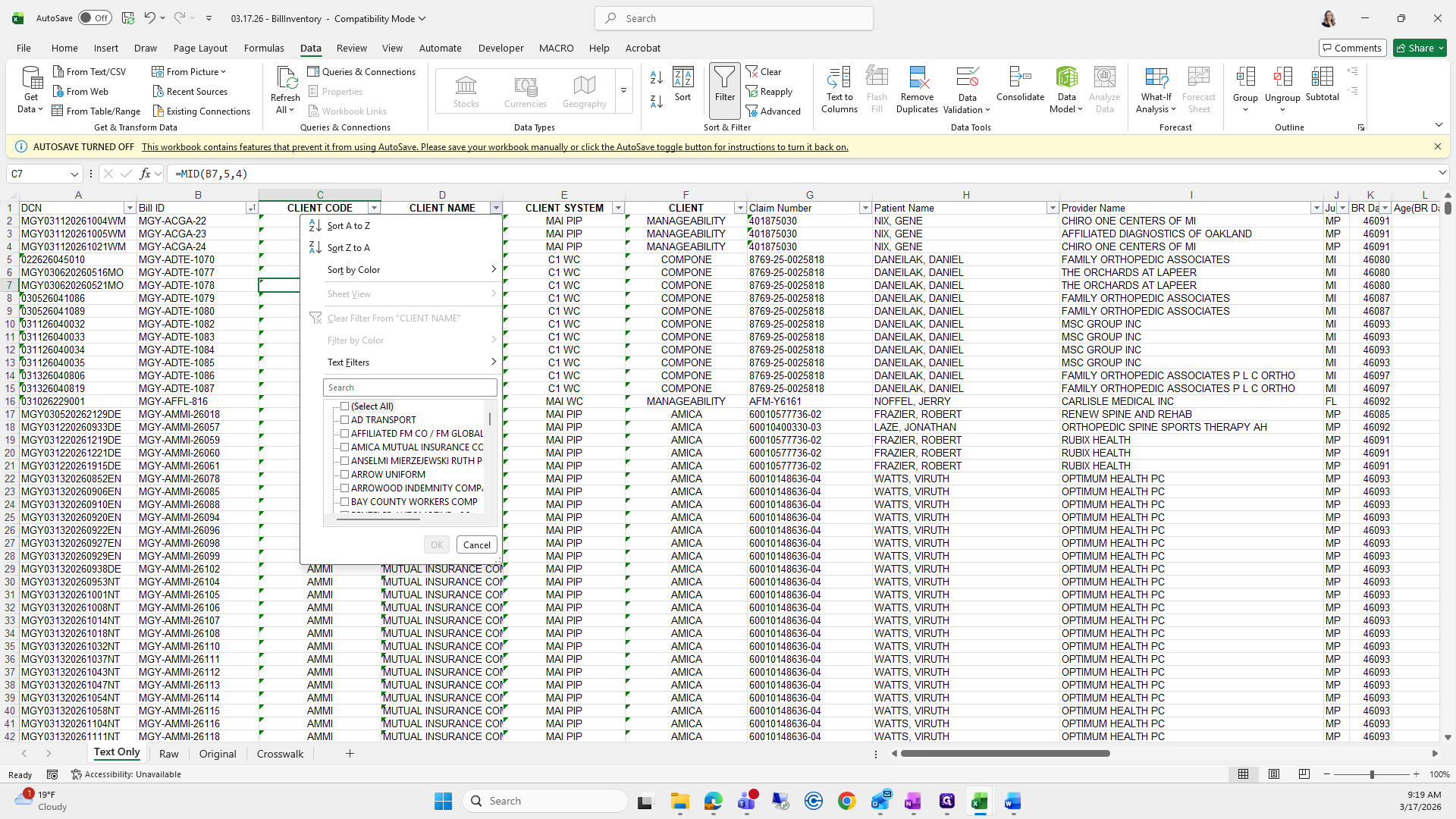
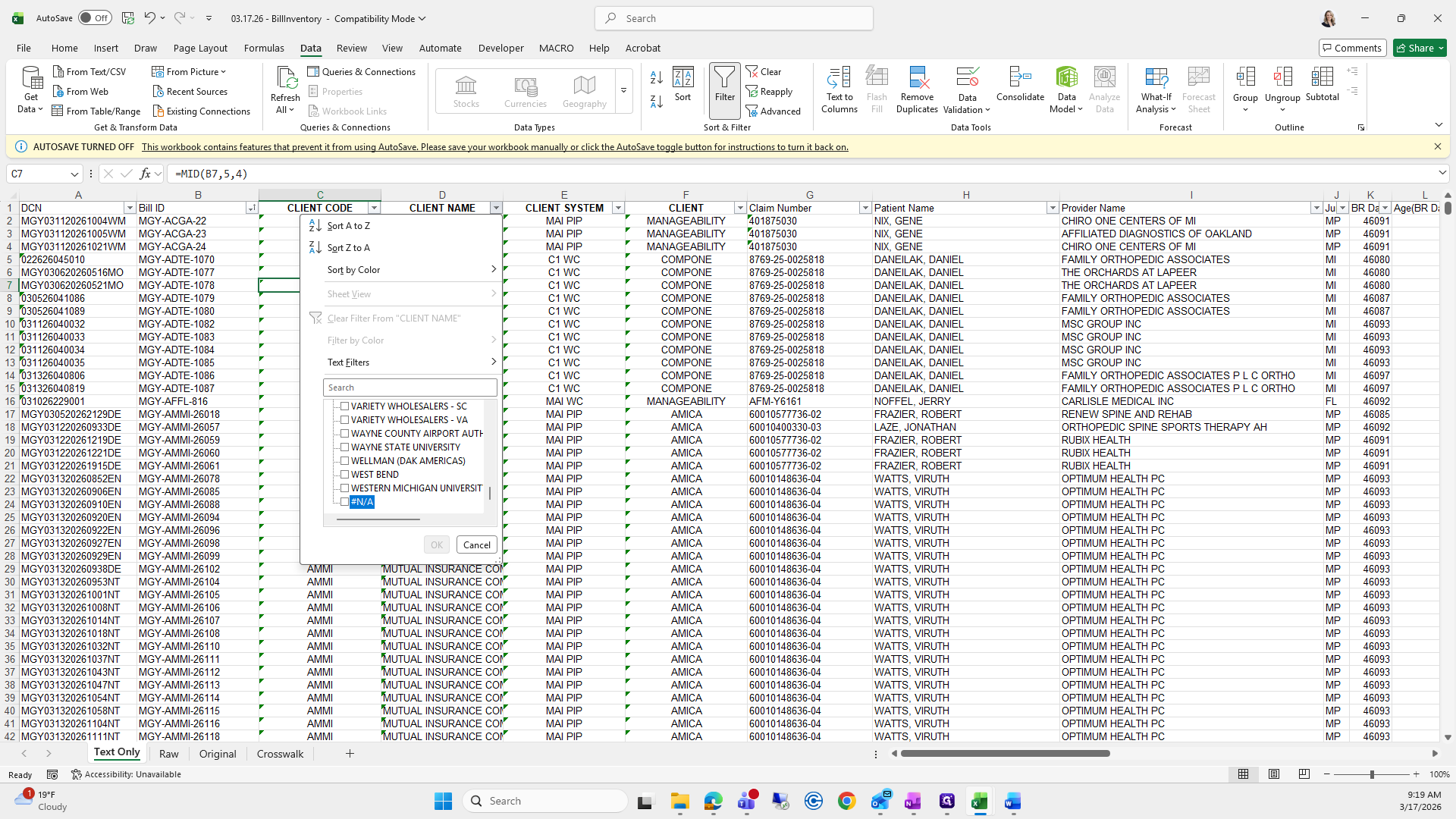
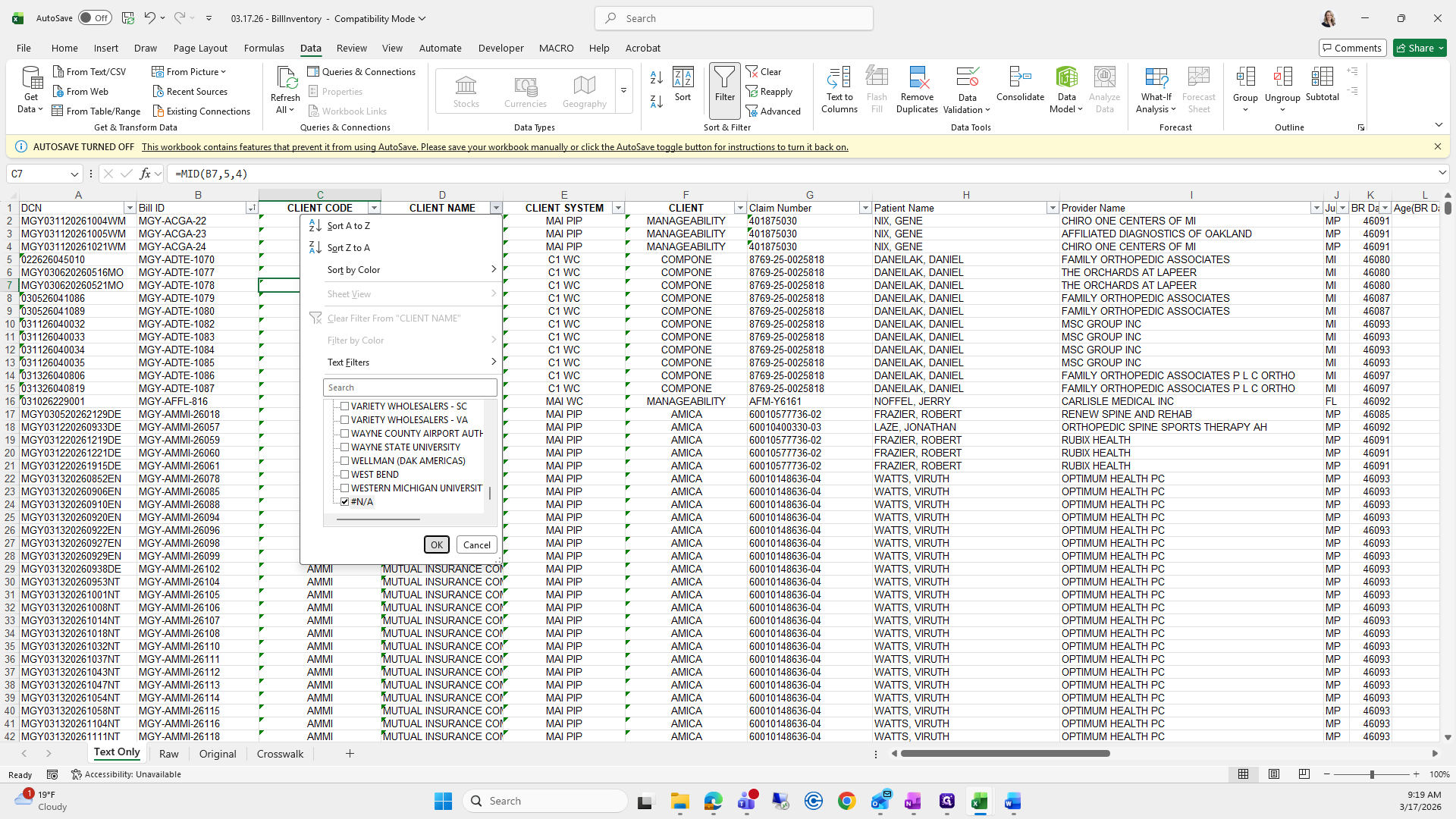
These are tests, so we just need to delete those rows.
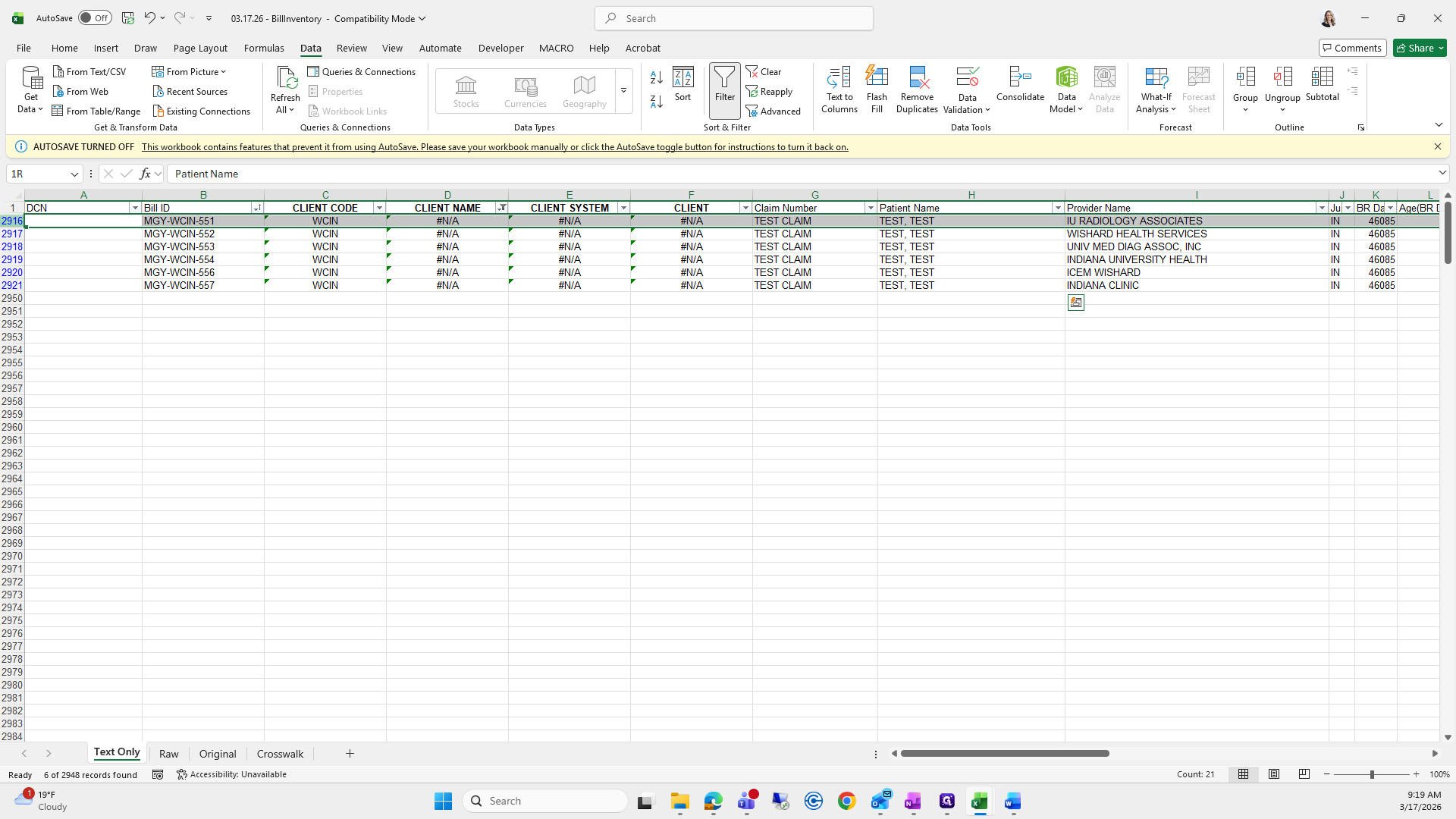
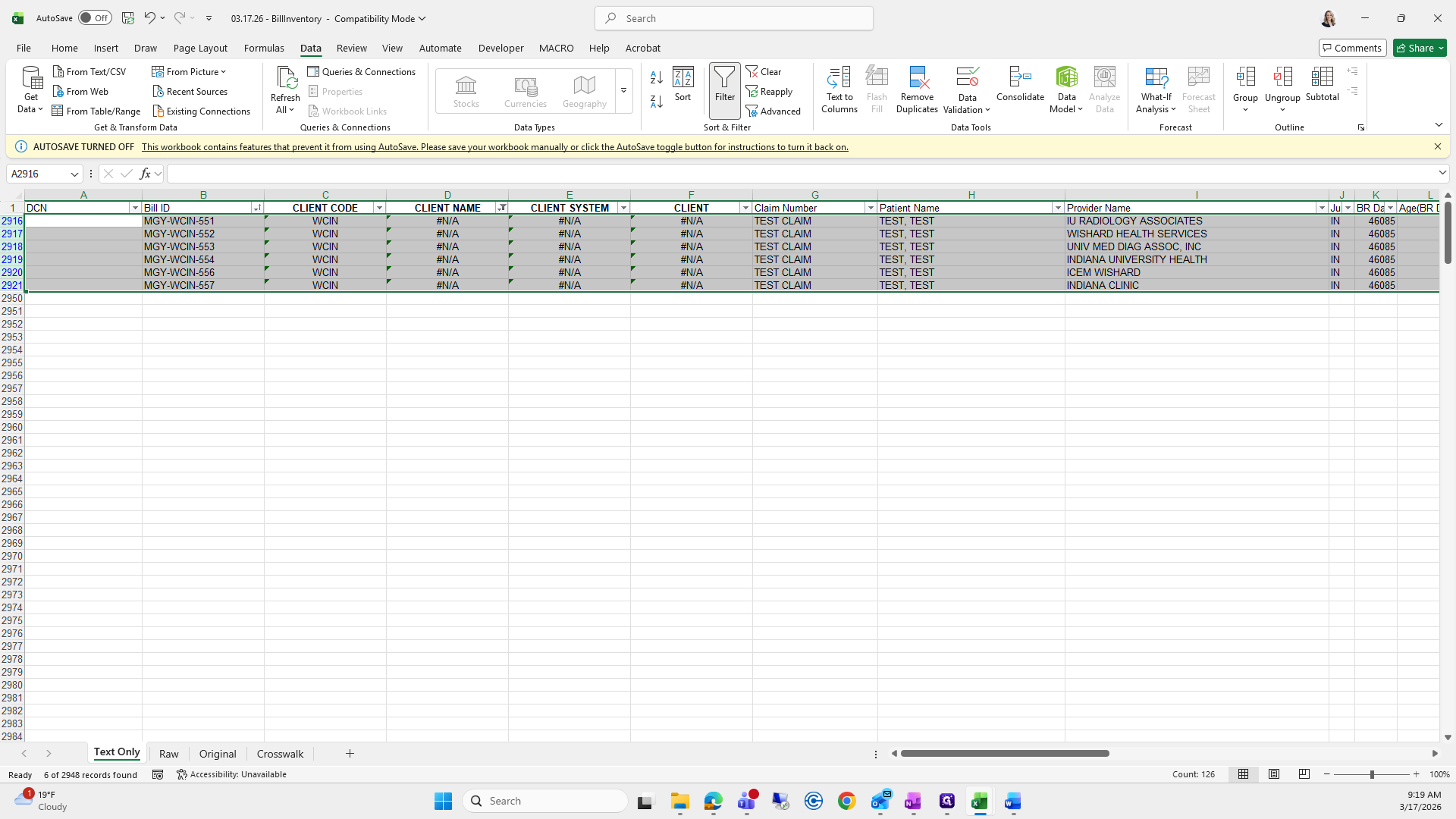
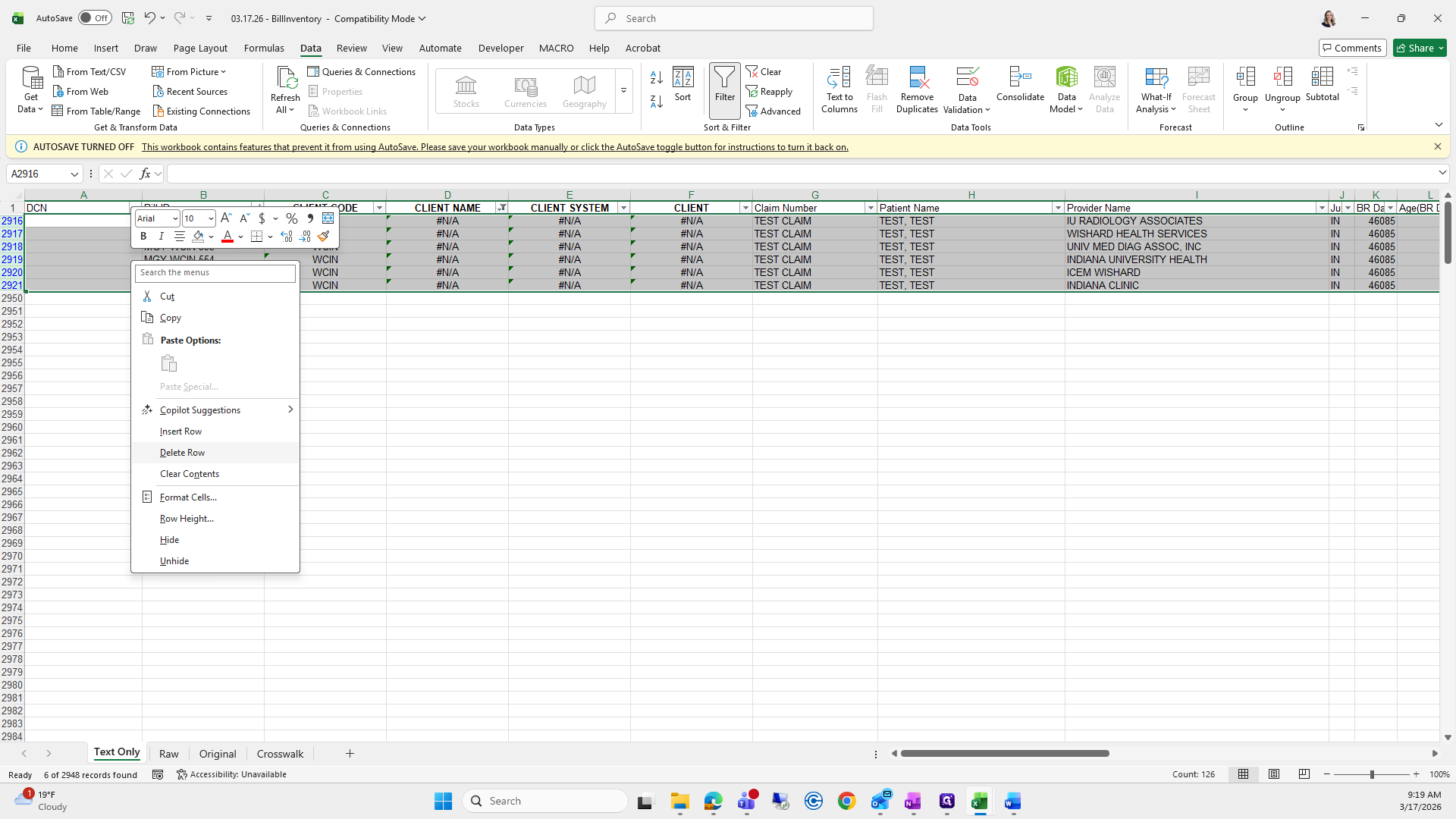
Then I'll press clear.
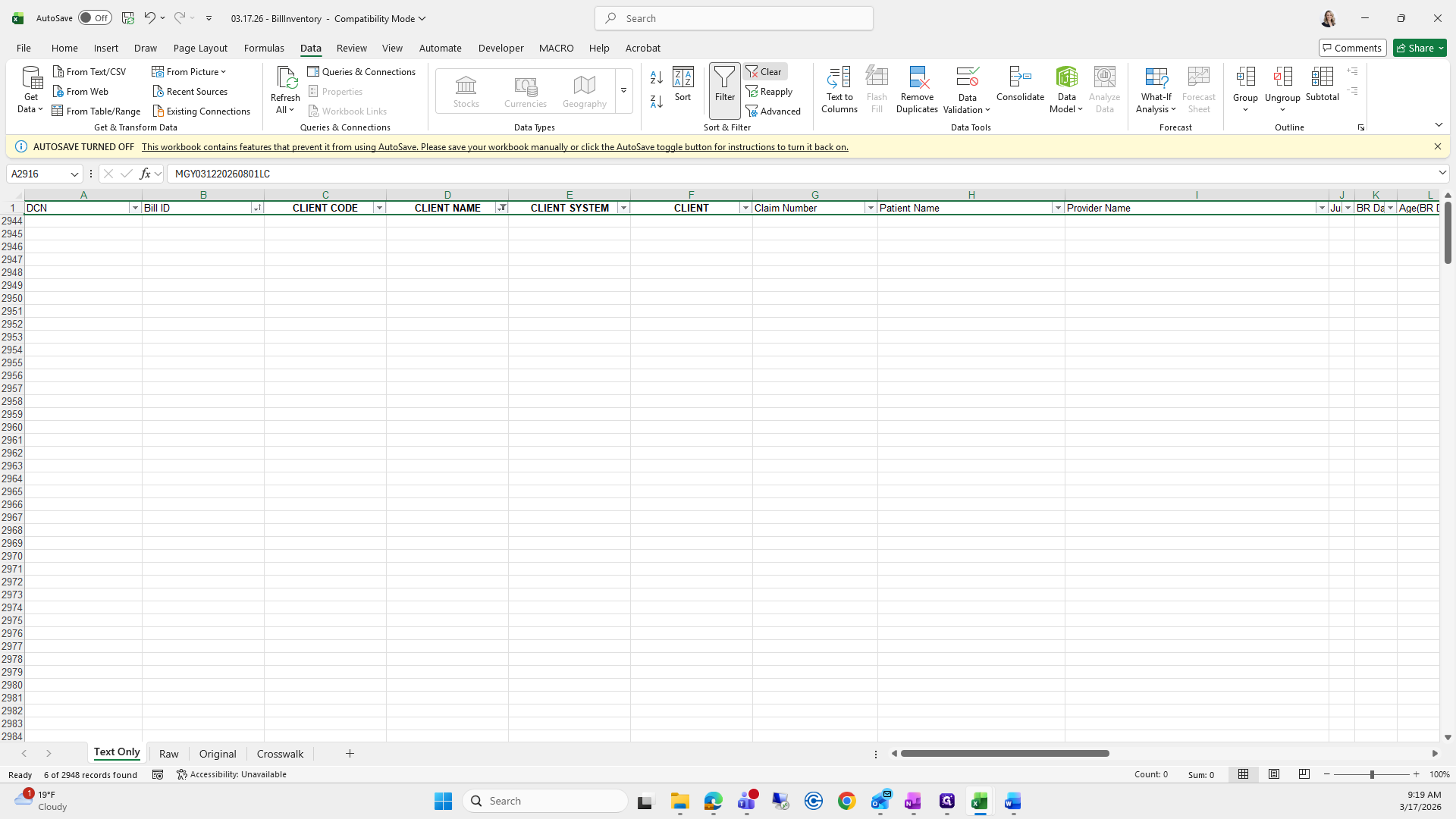
Go to the client name and scroll down. Check if there are any NAs.
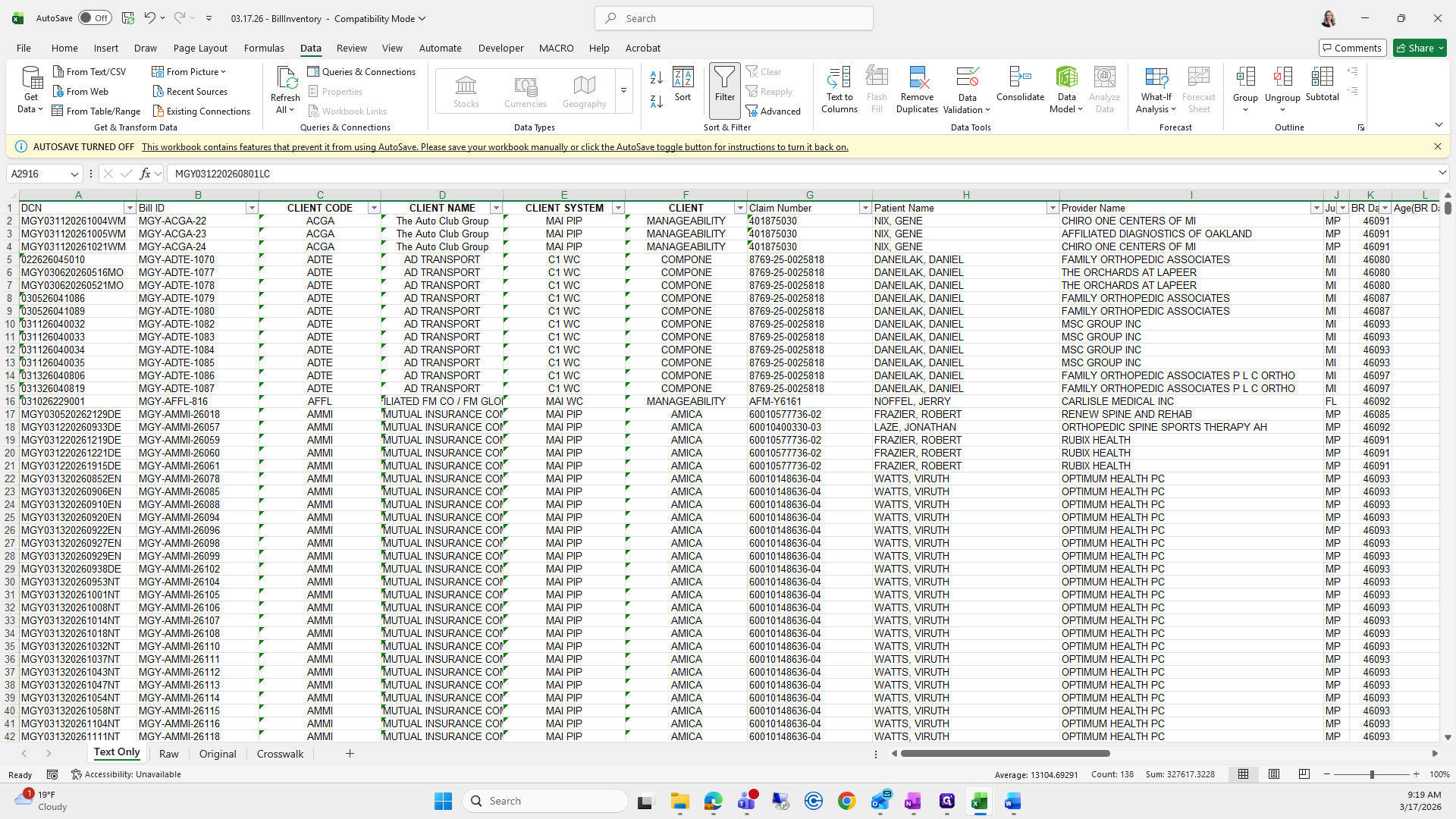
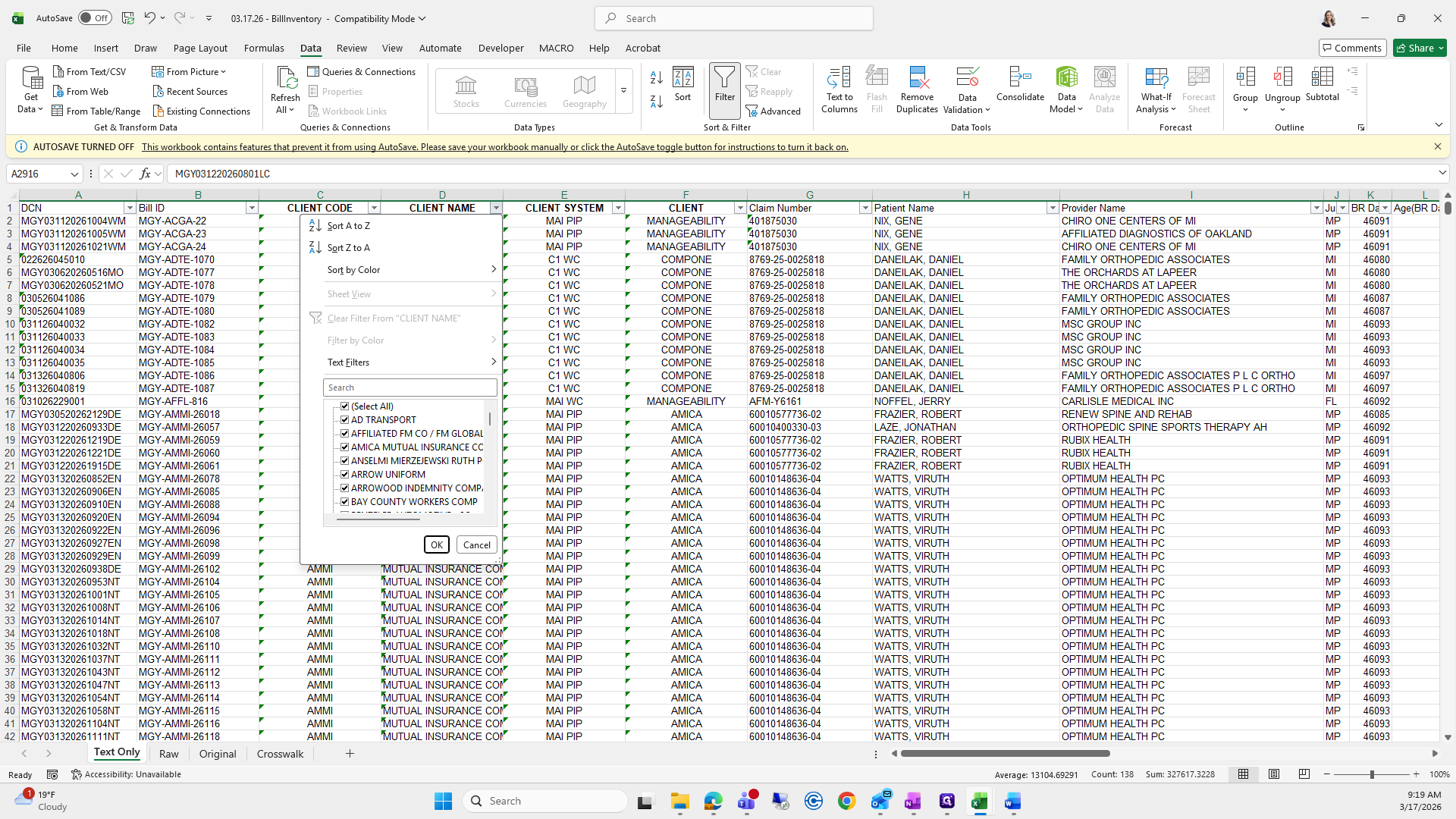
Nope.
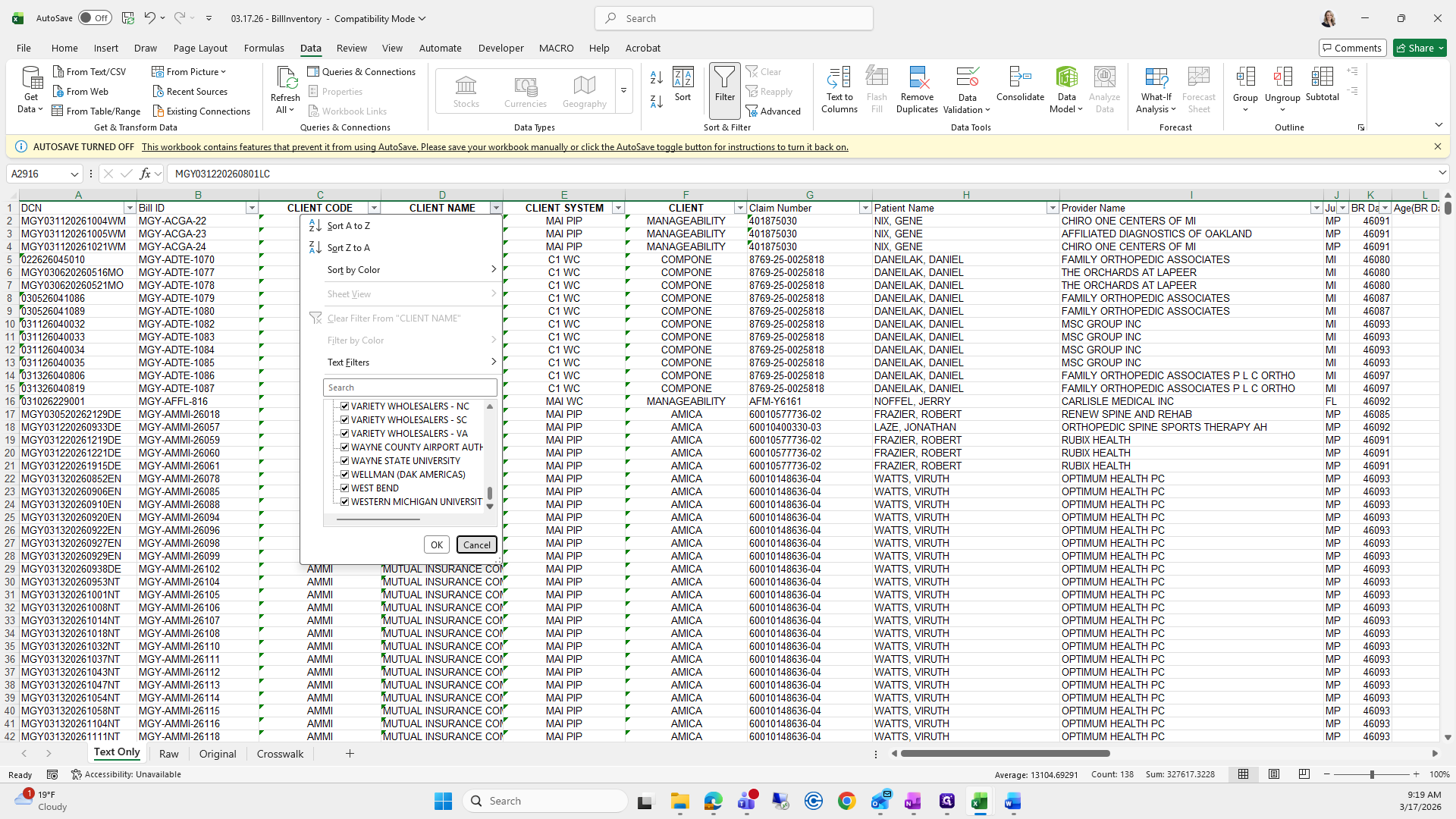
Client system, any NAs?
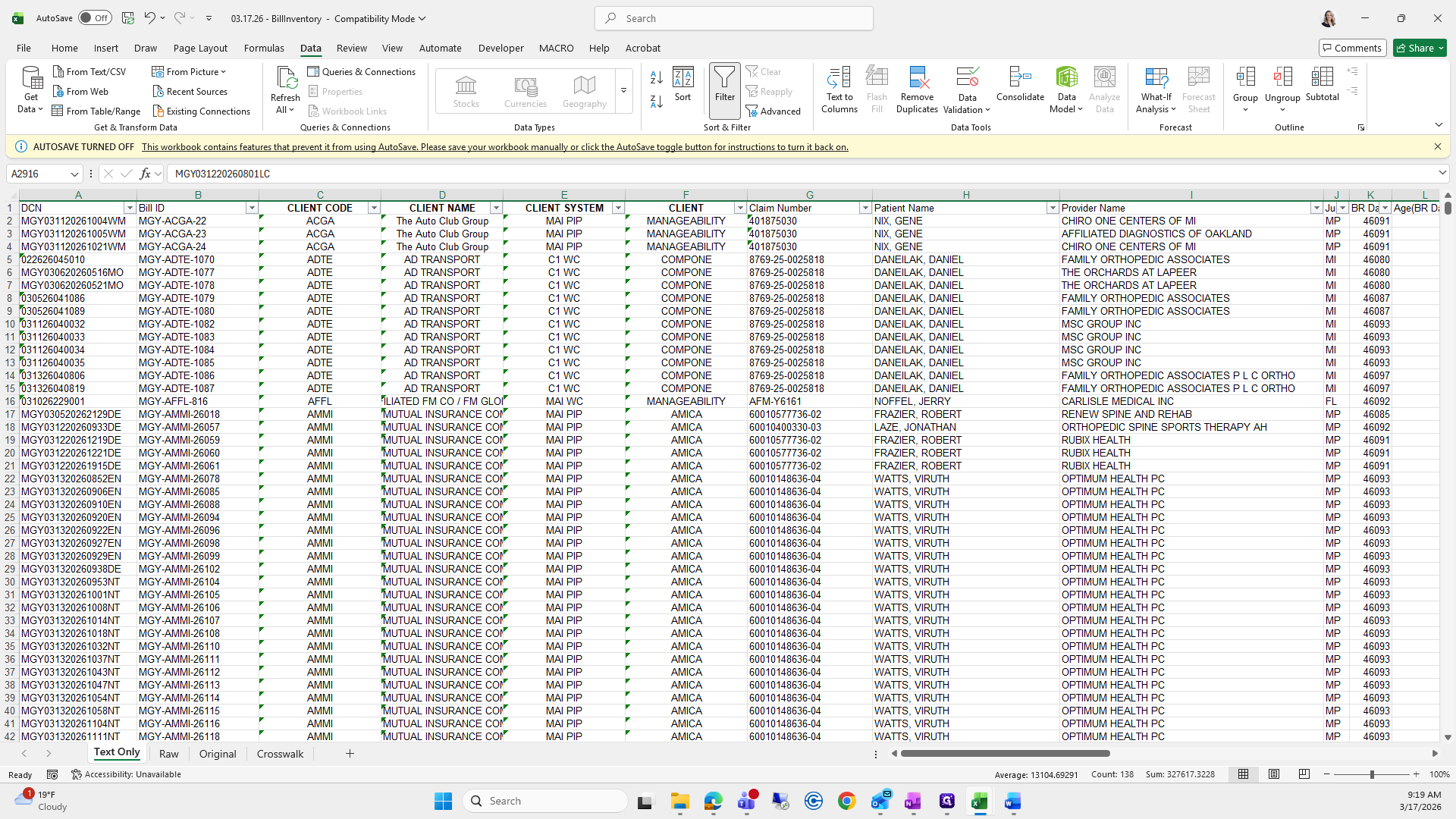
Nope. This looks good.
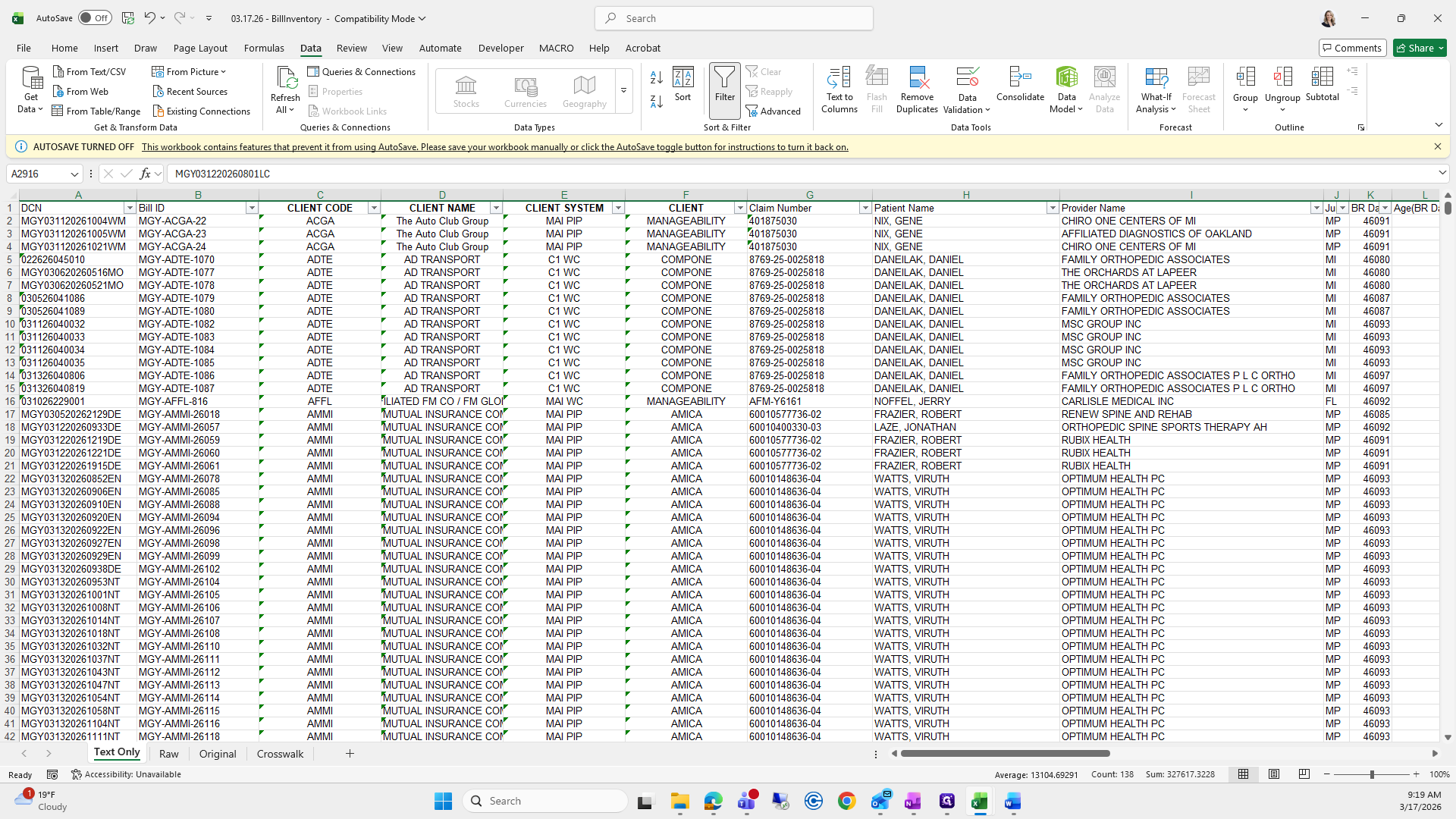
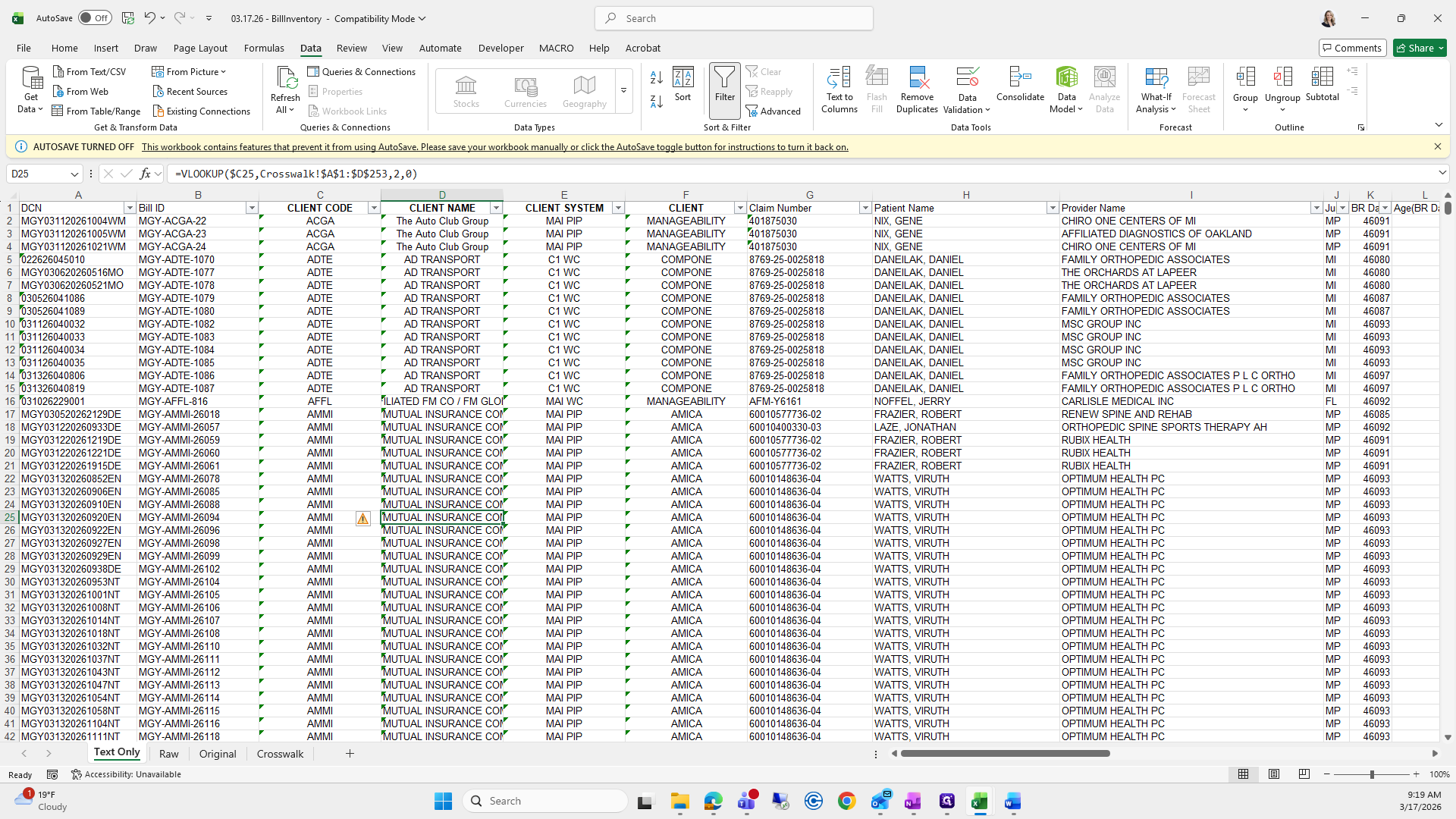
I will select all, copy, and paste values.
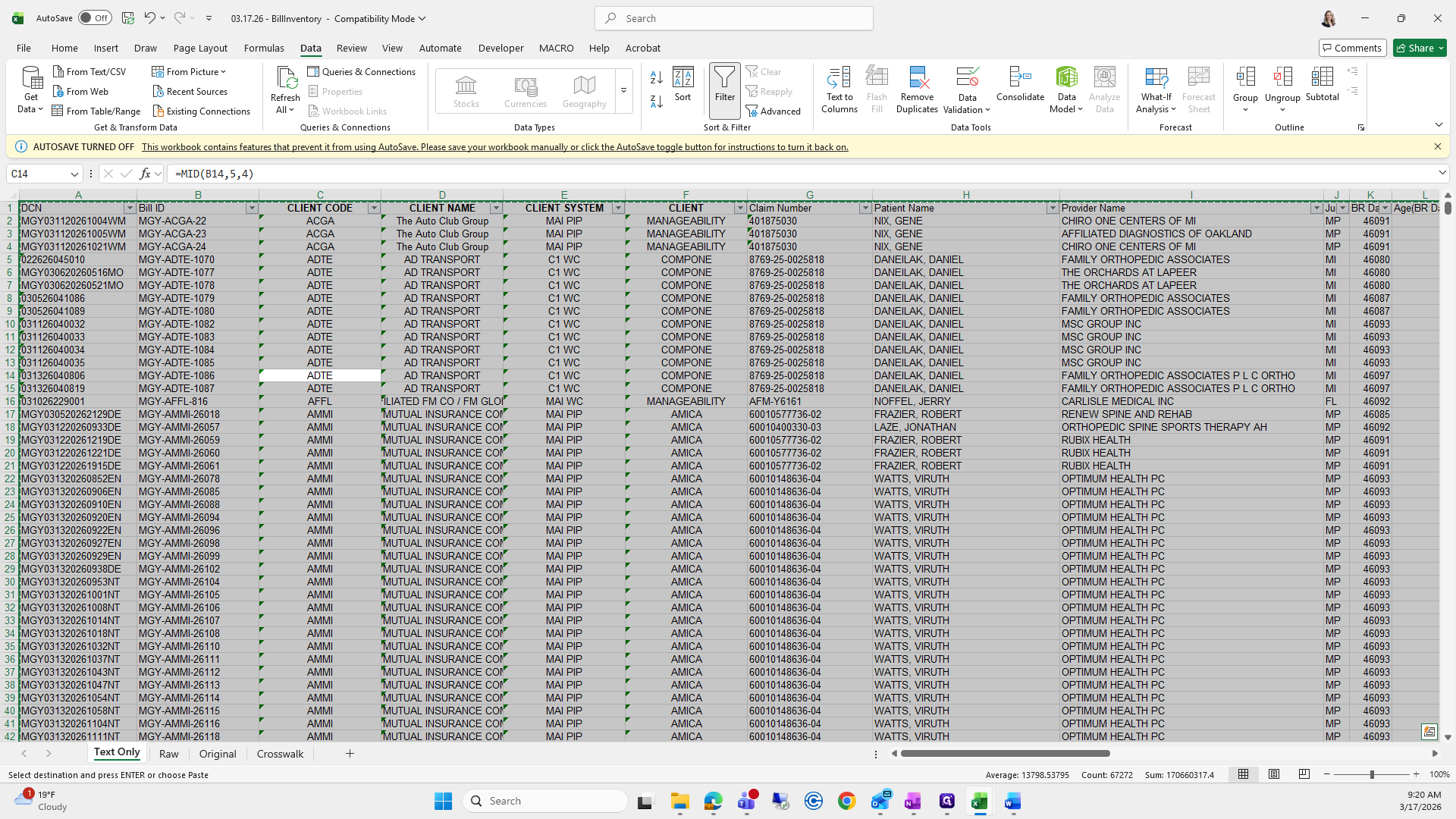
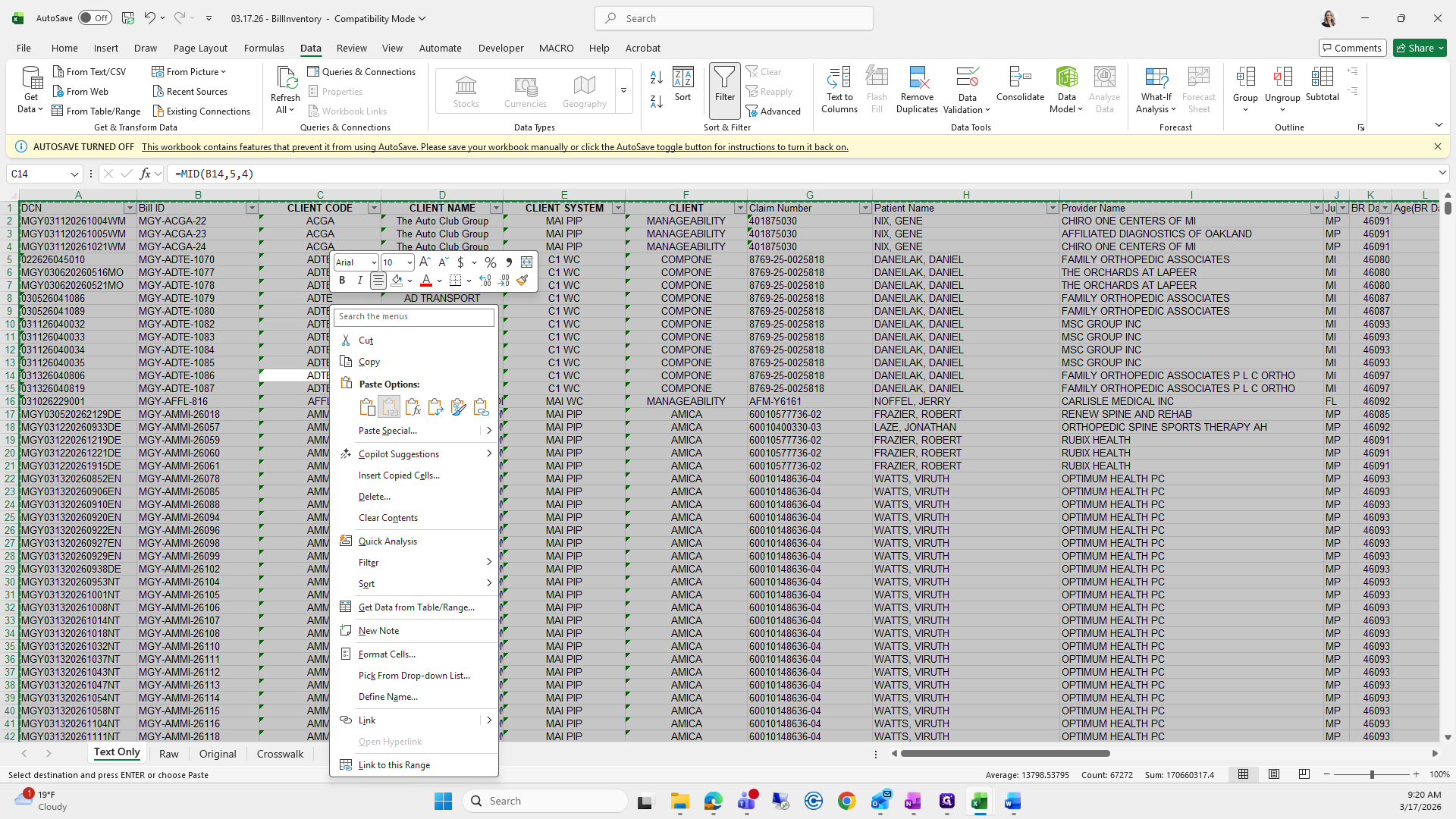
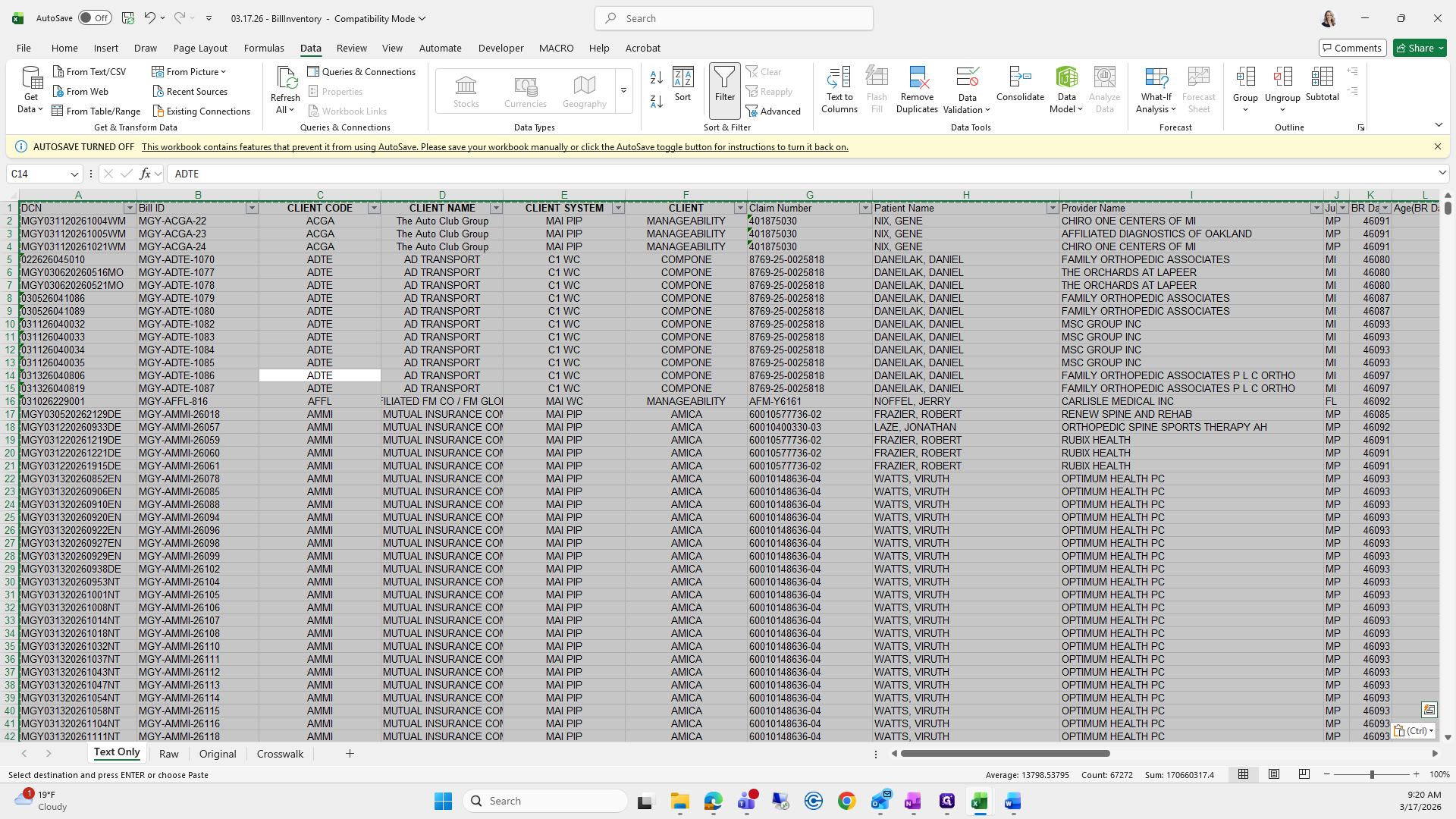
It's text only.
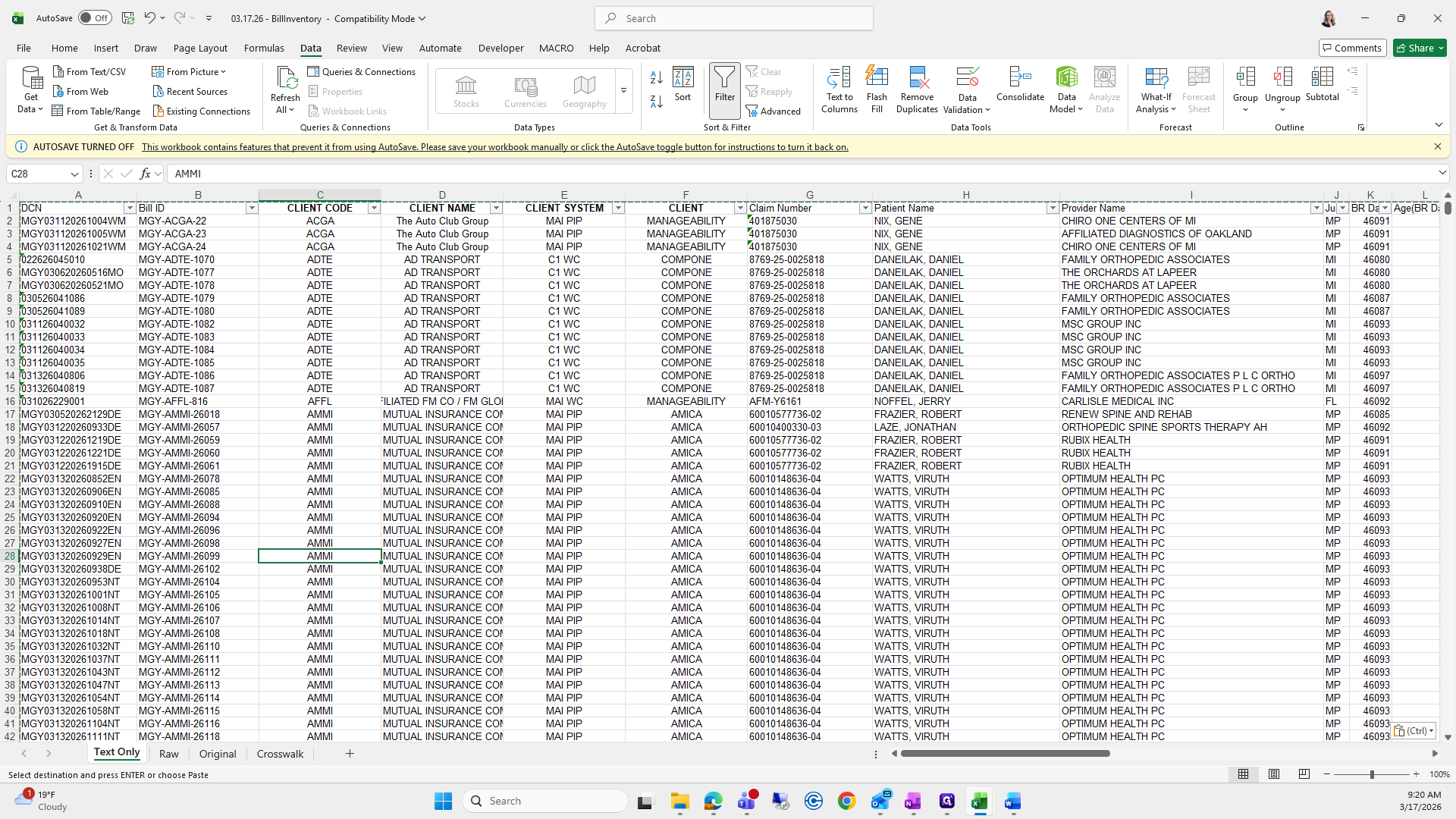
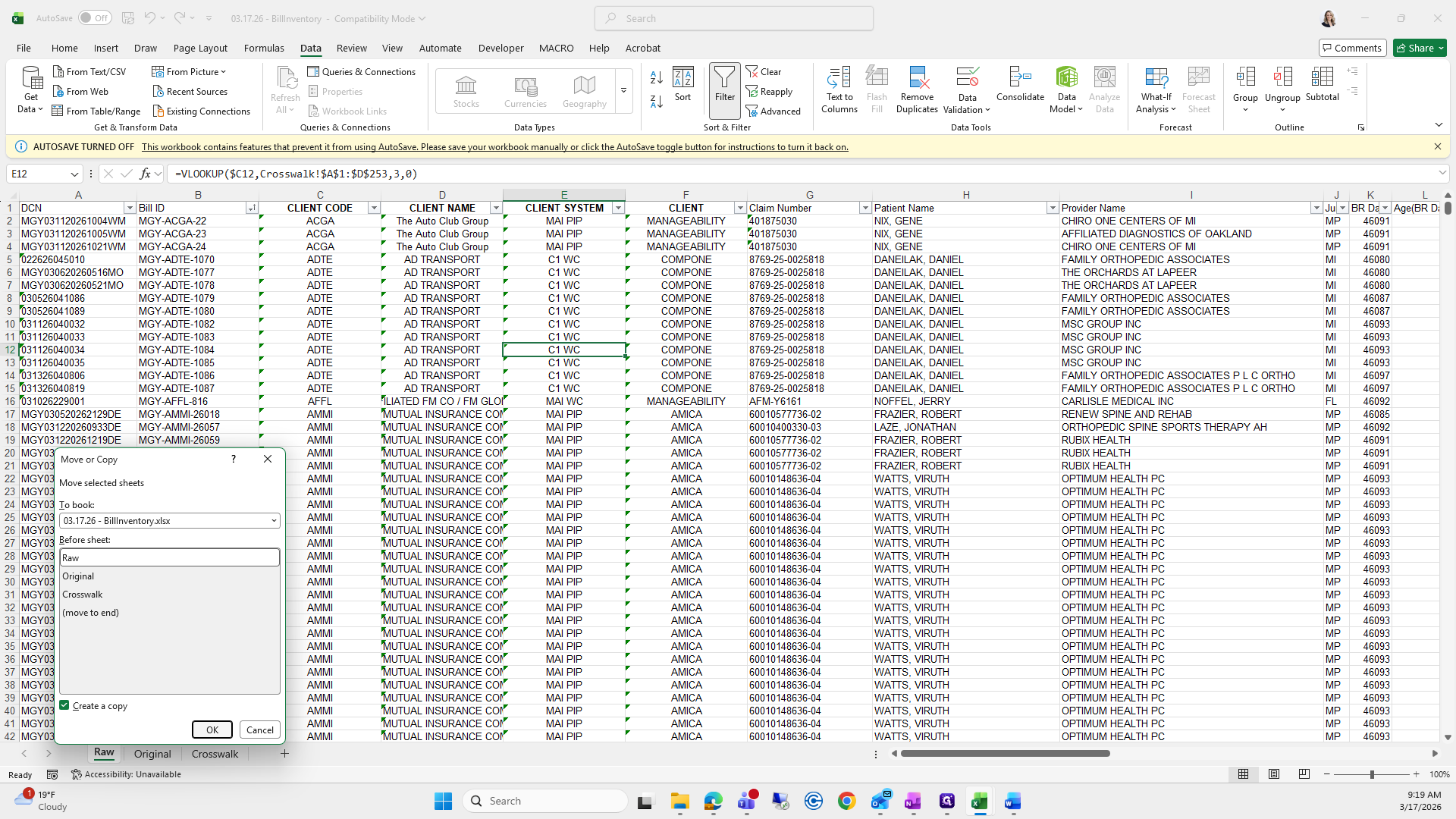
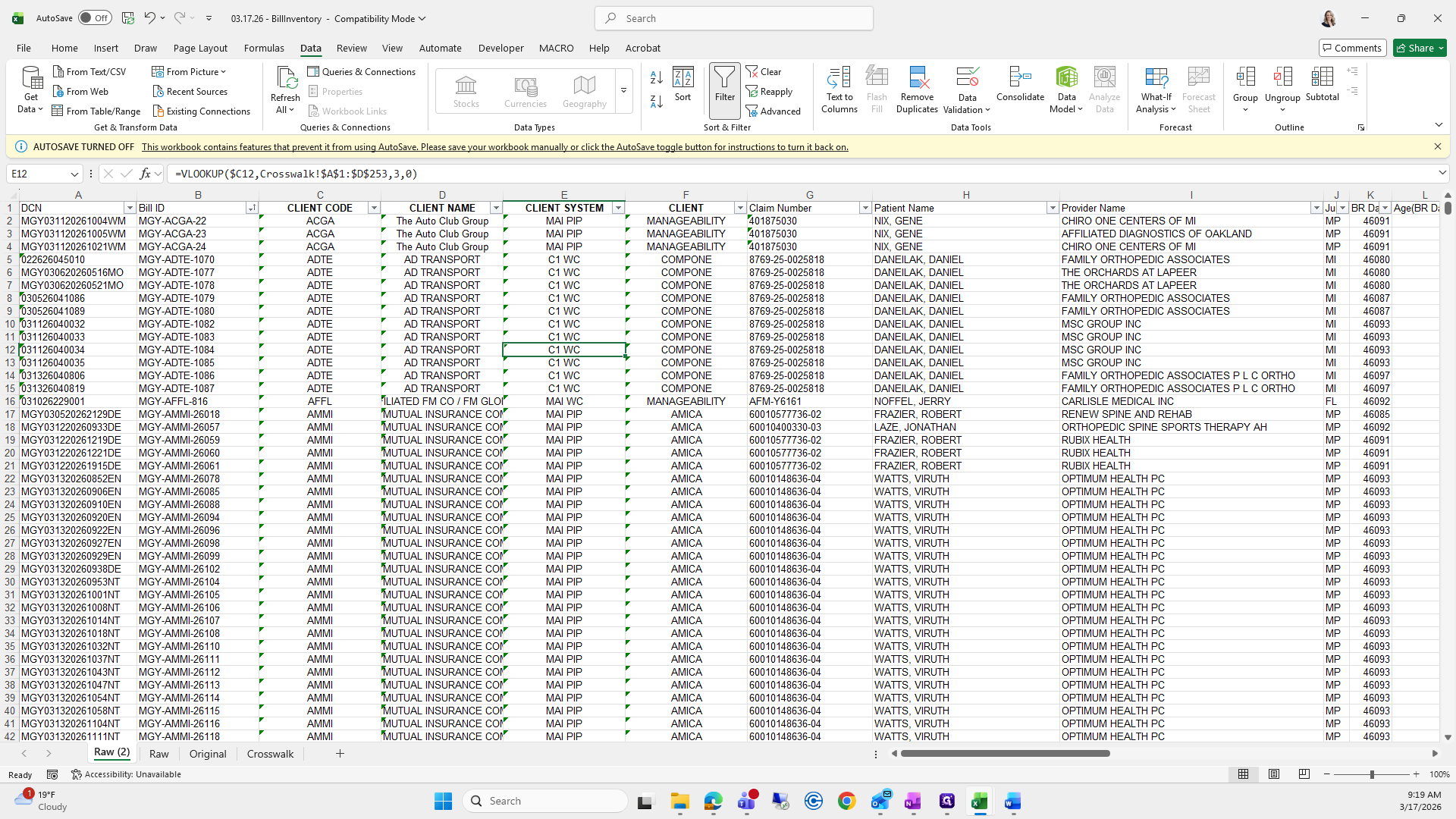
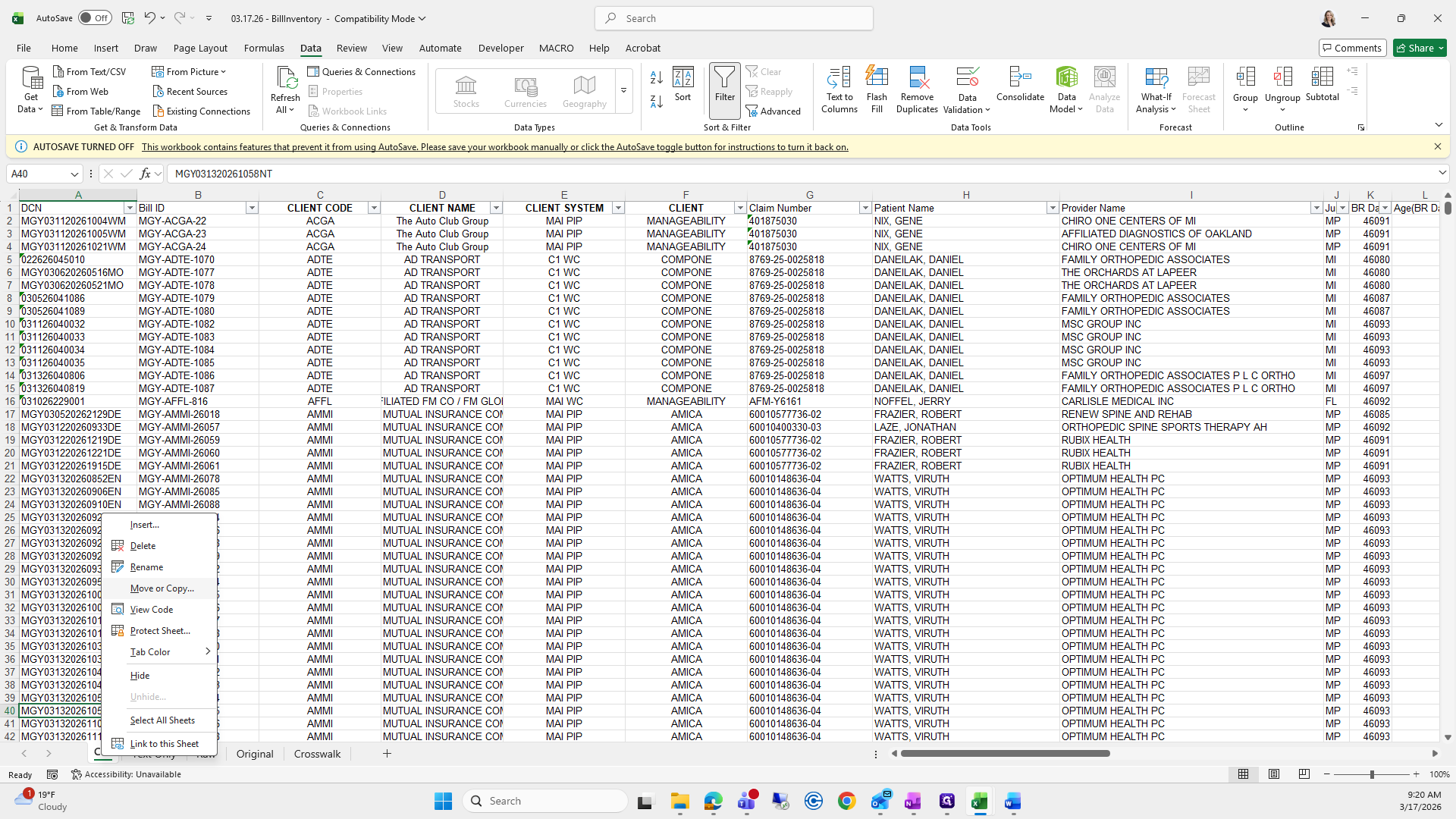
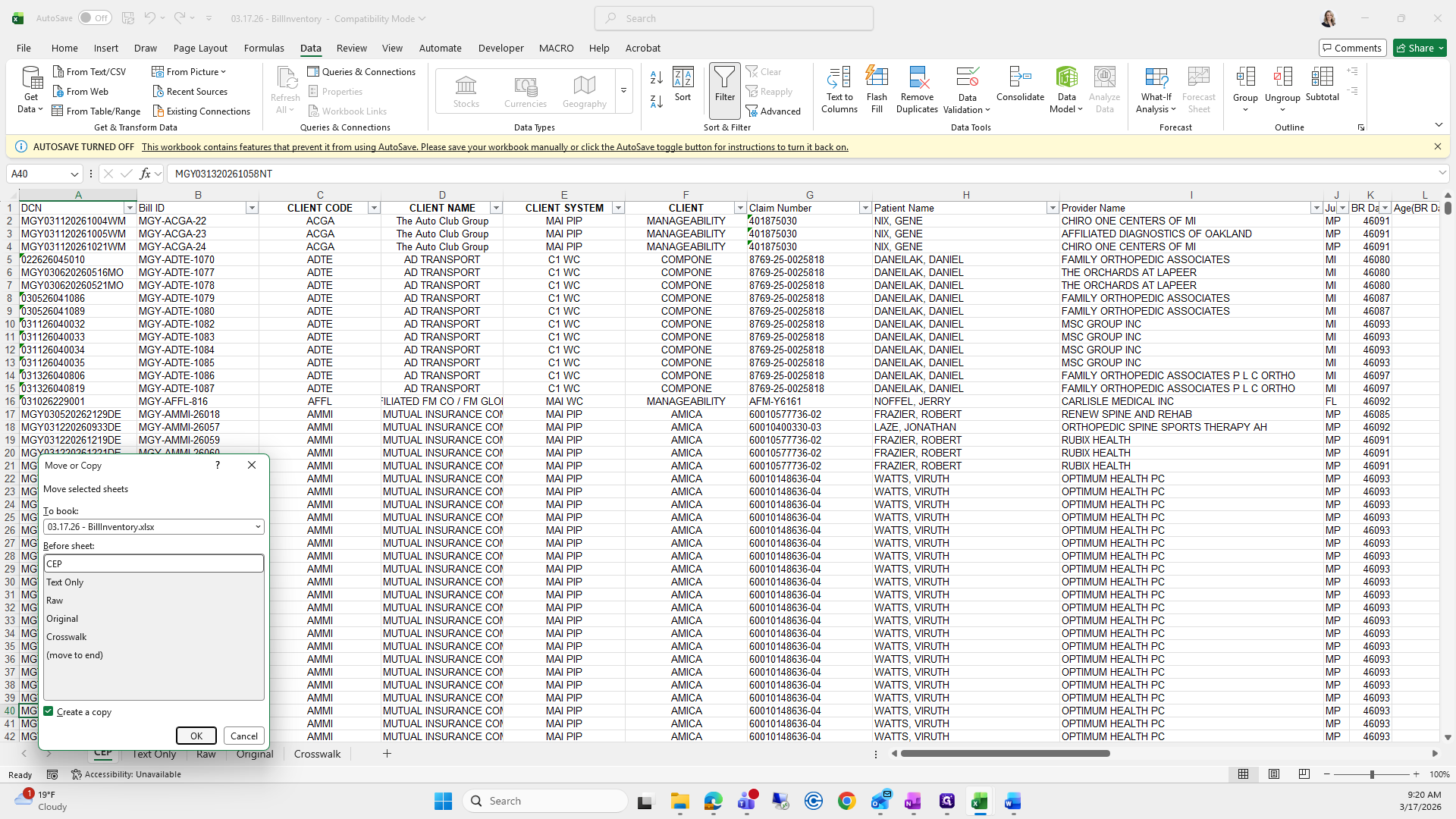
From here, I will move and copy it one more time.
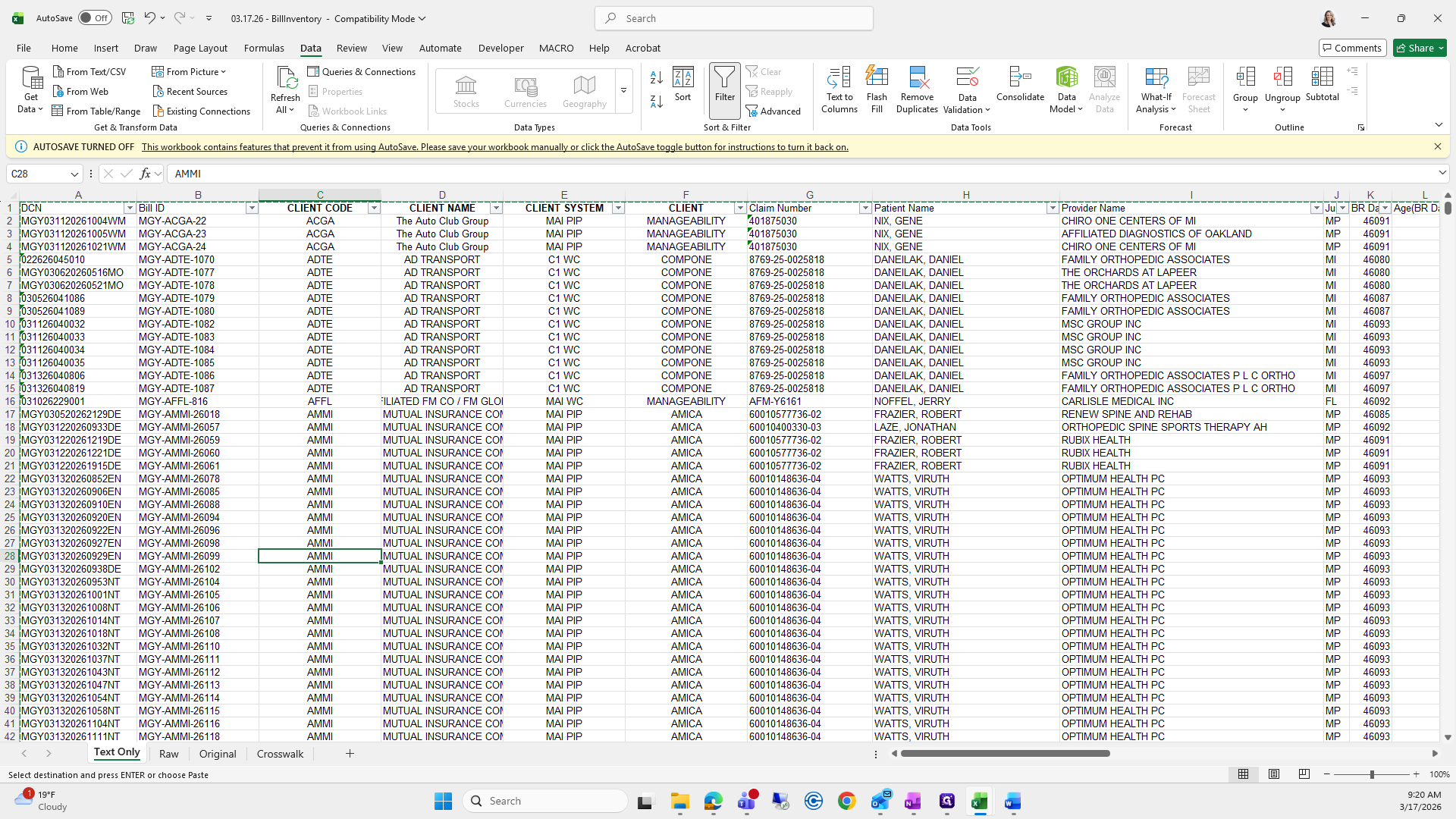
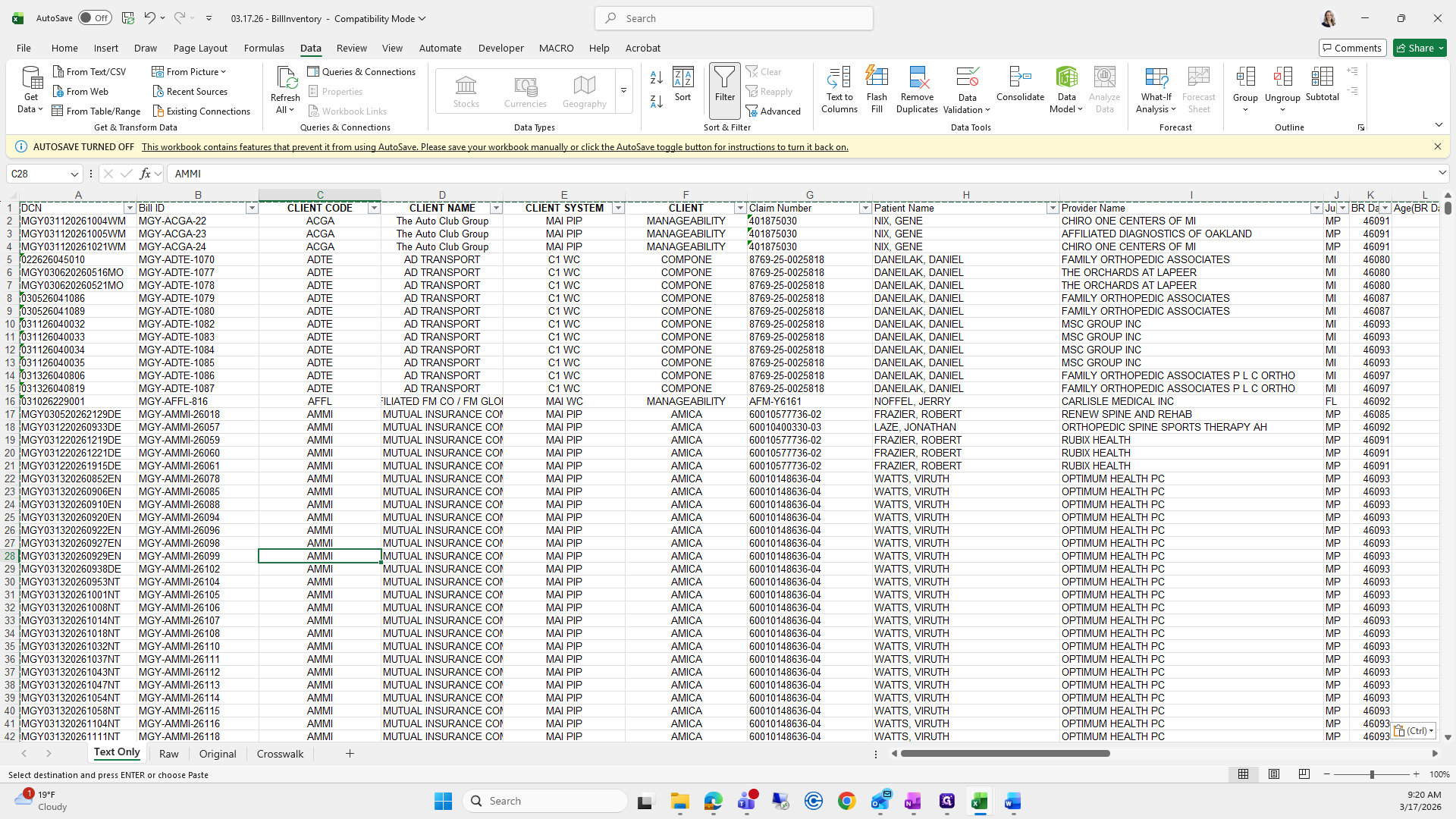
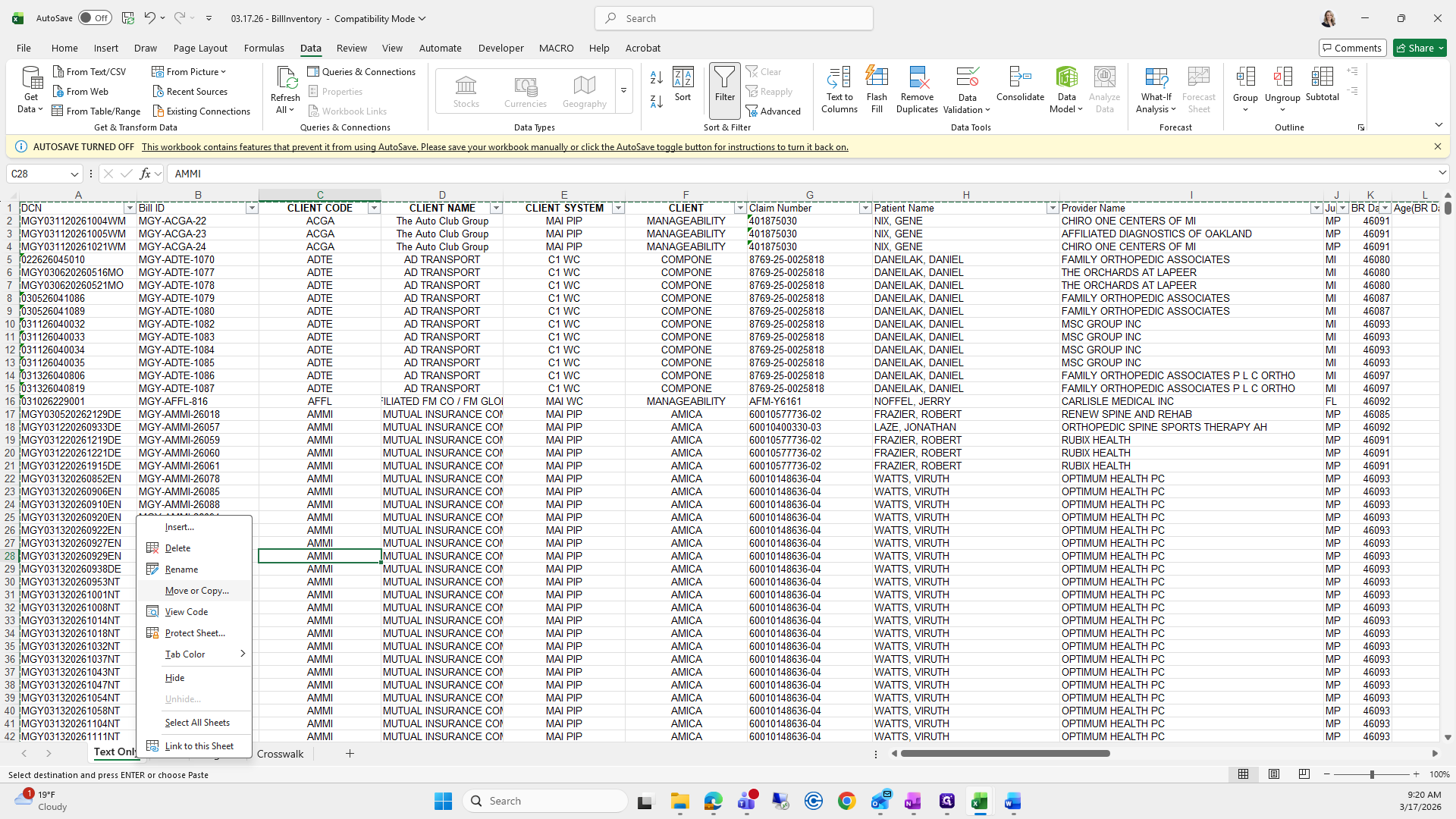
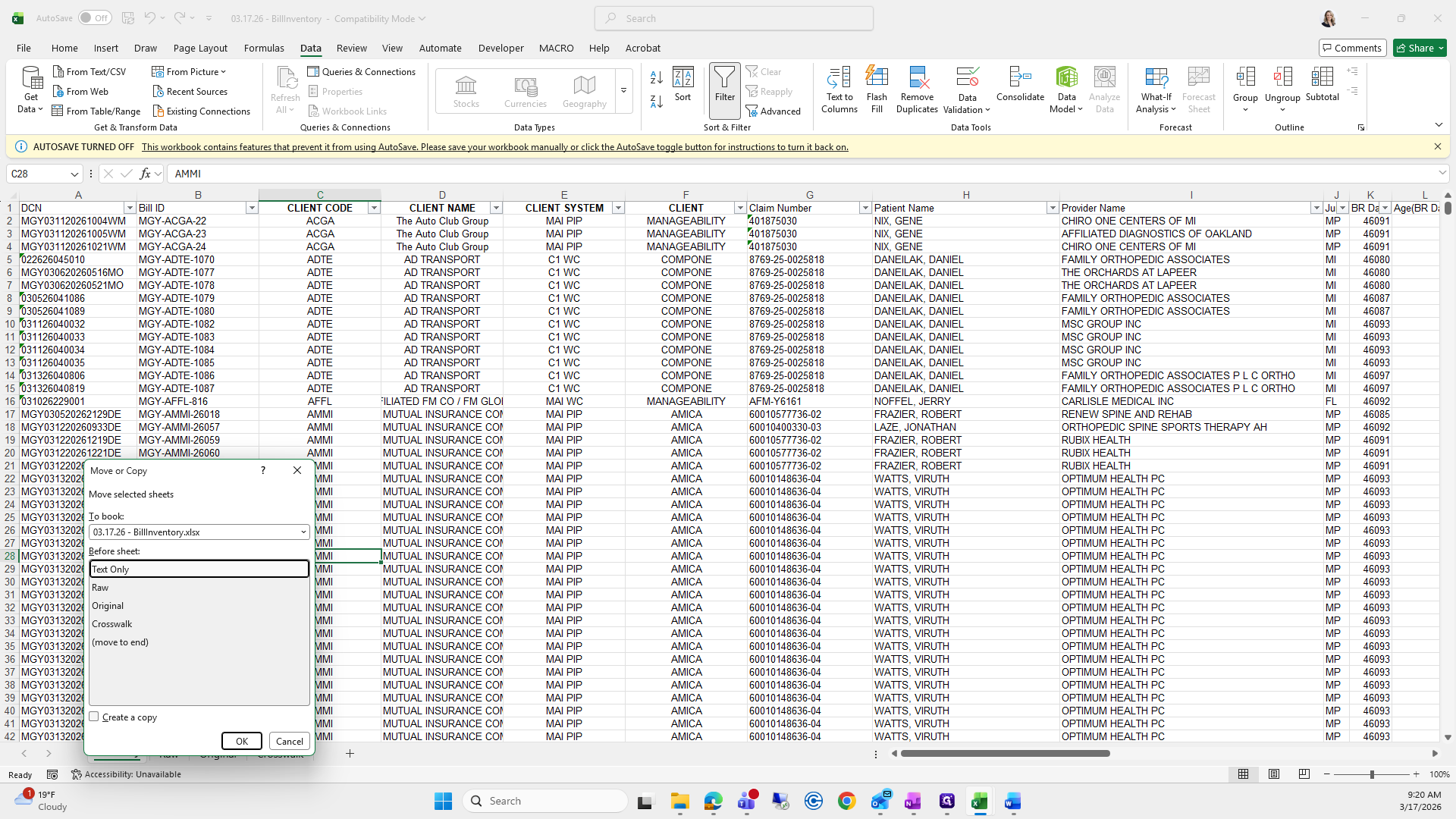
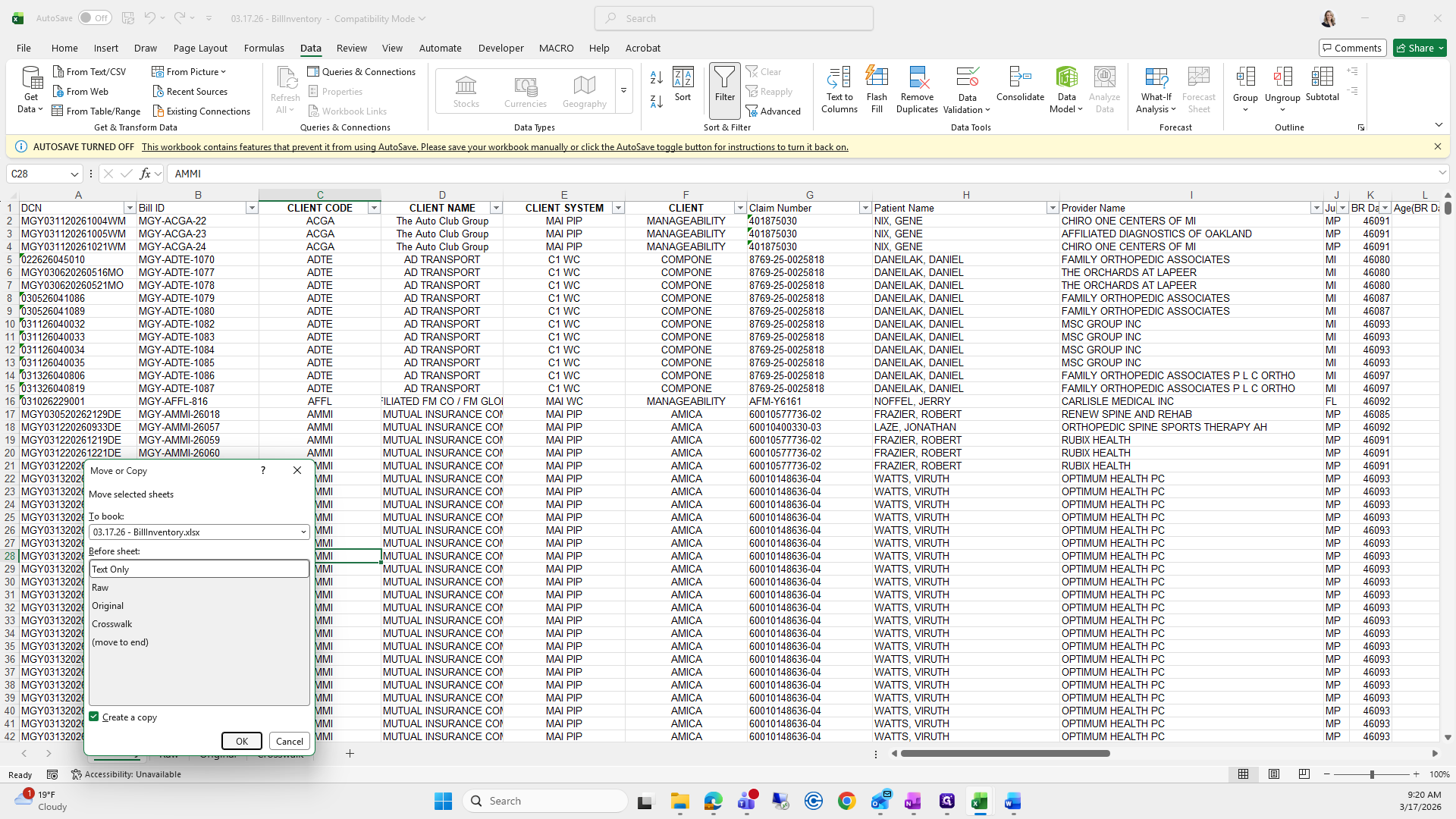
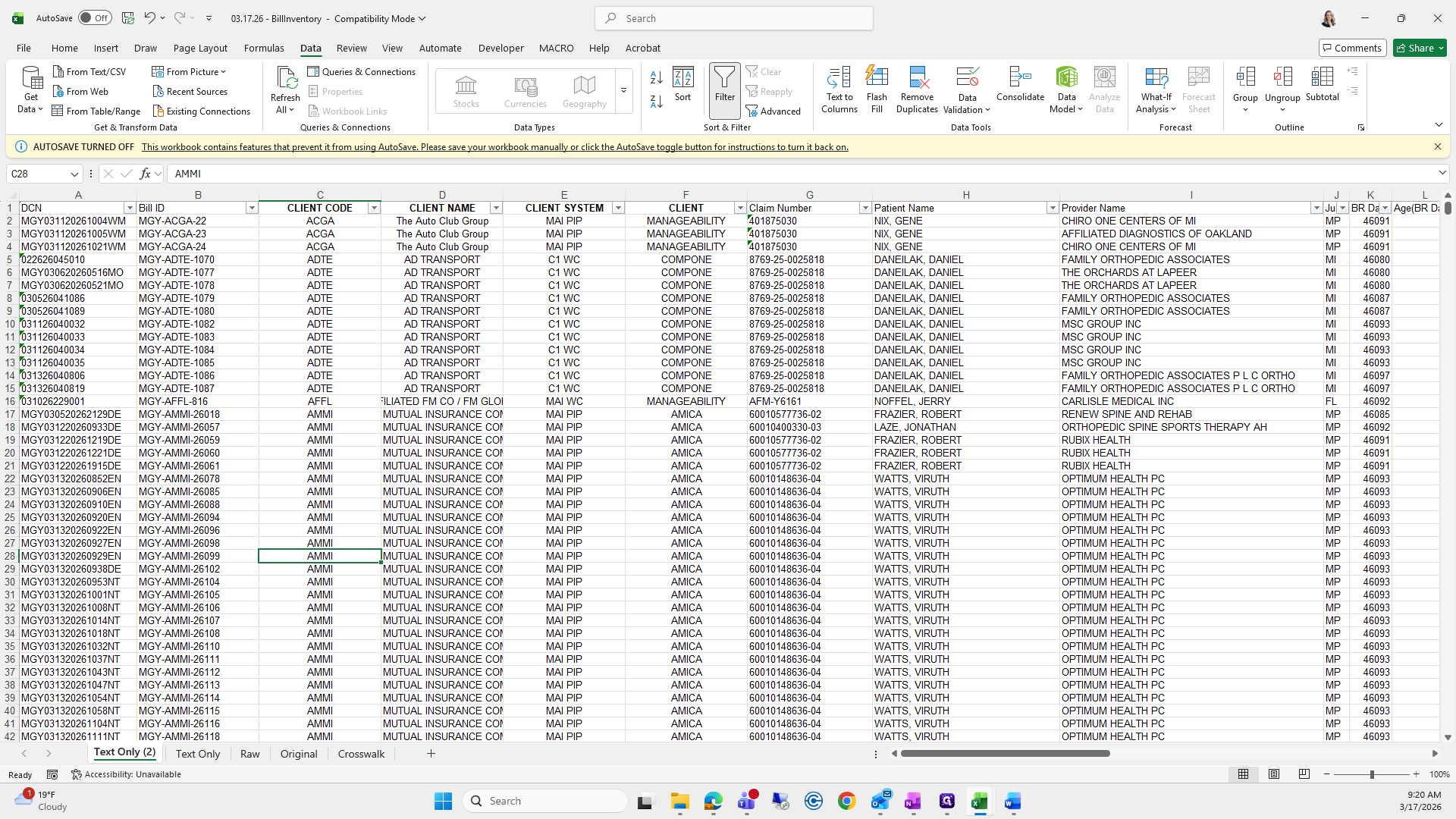
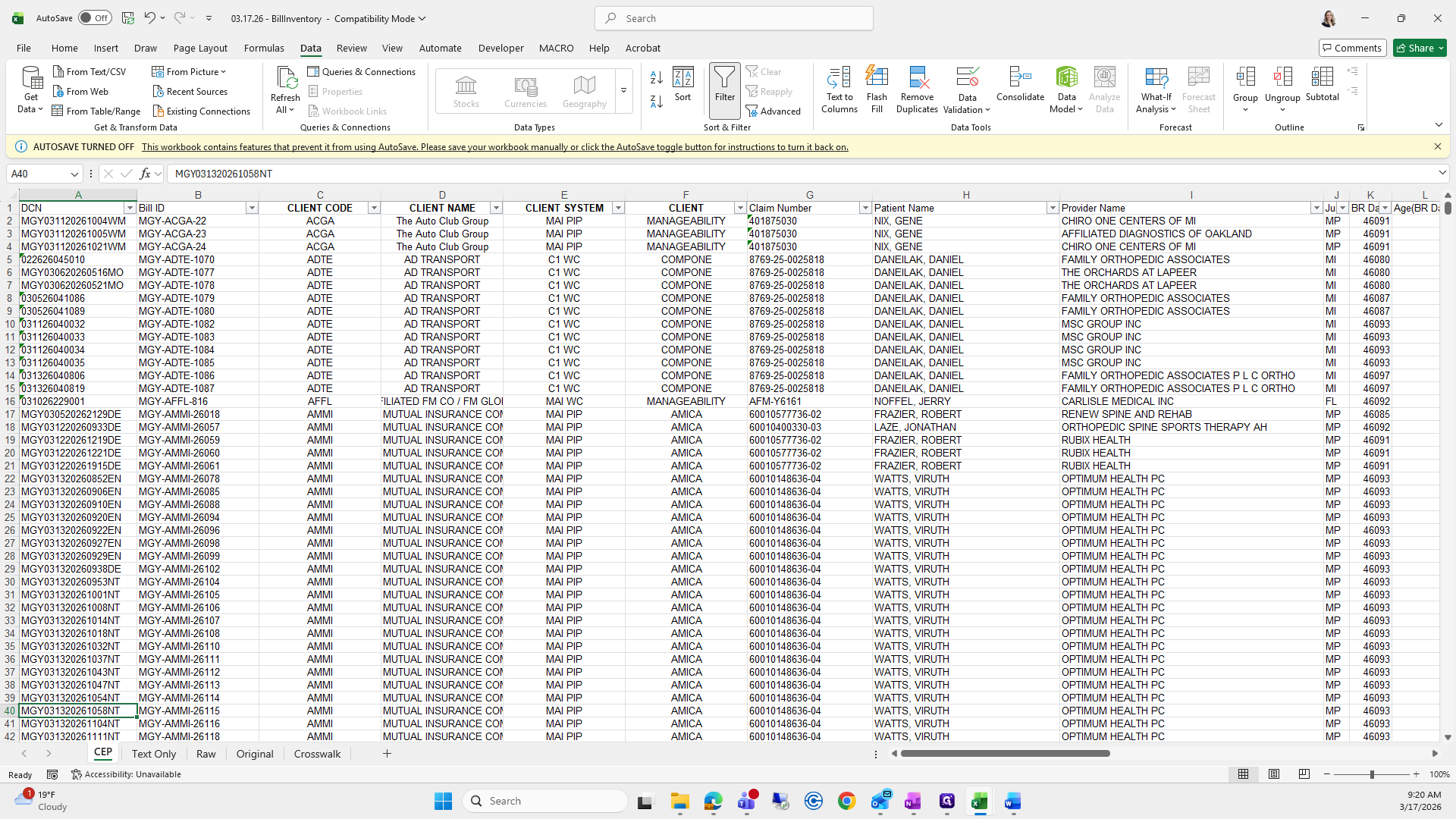
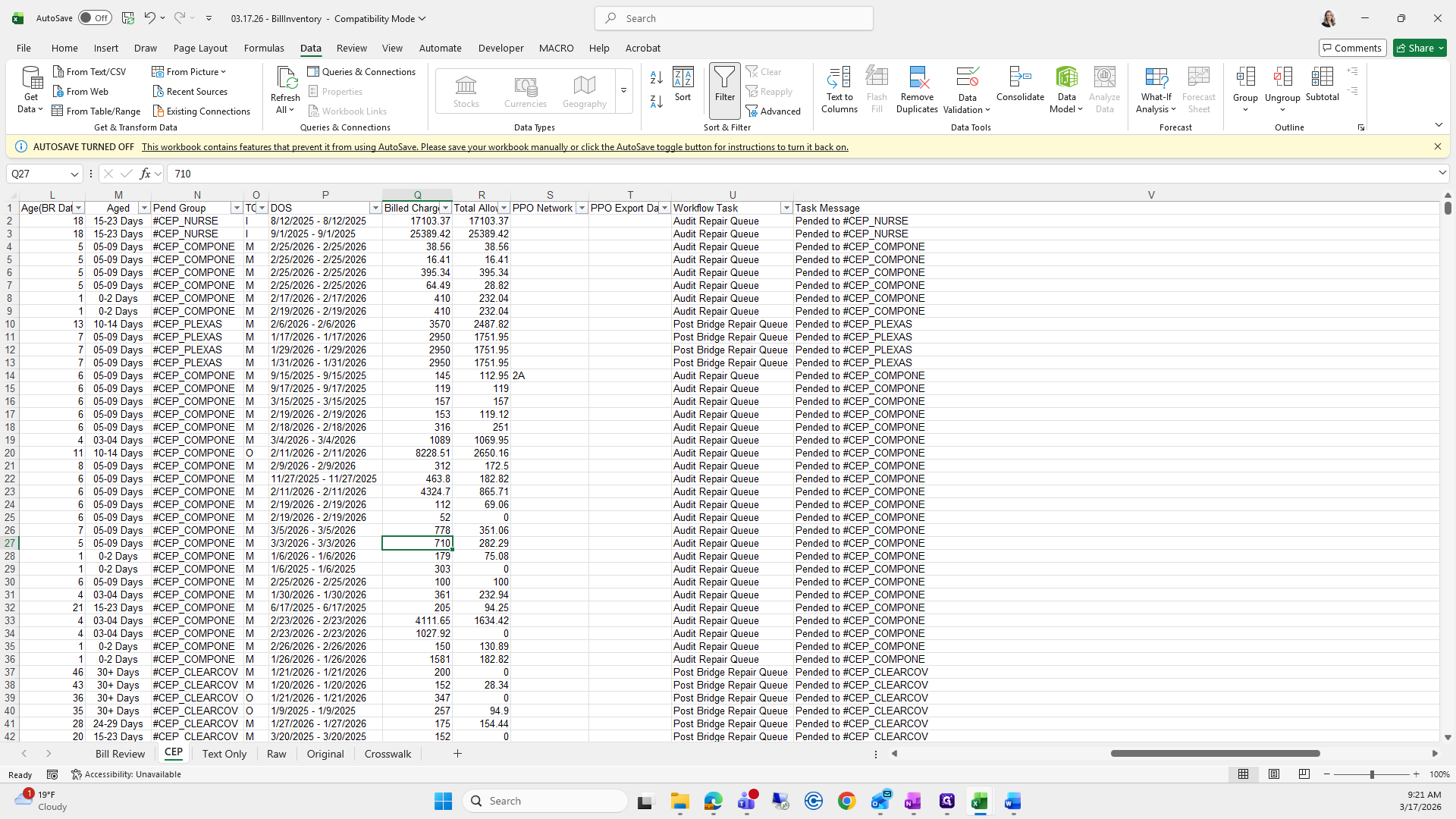
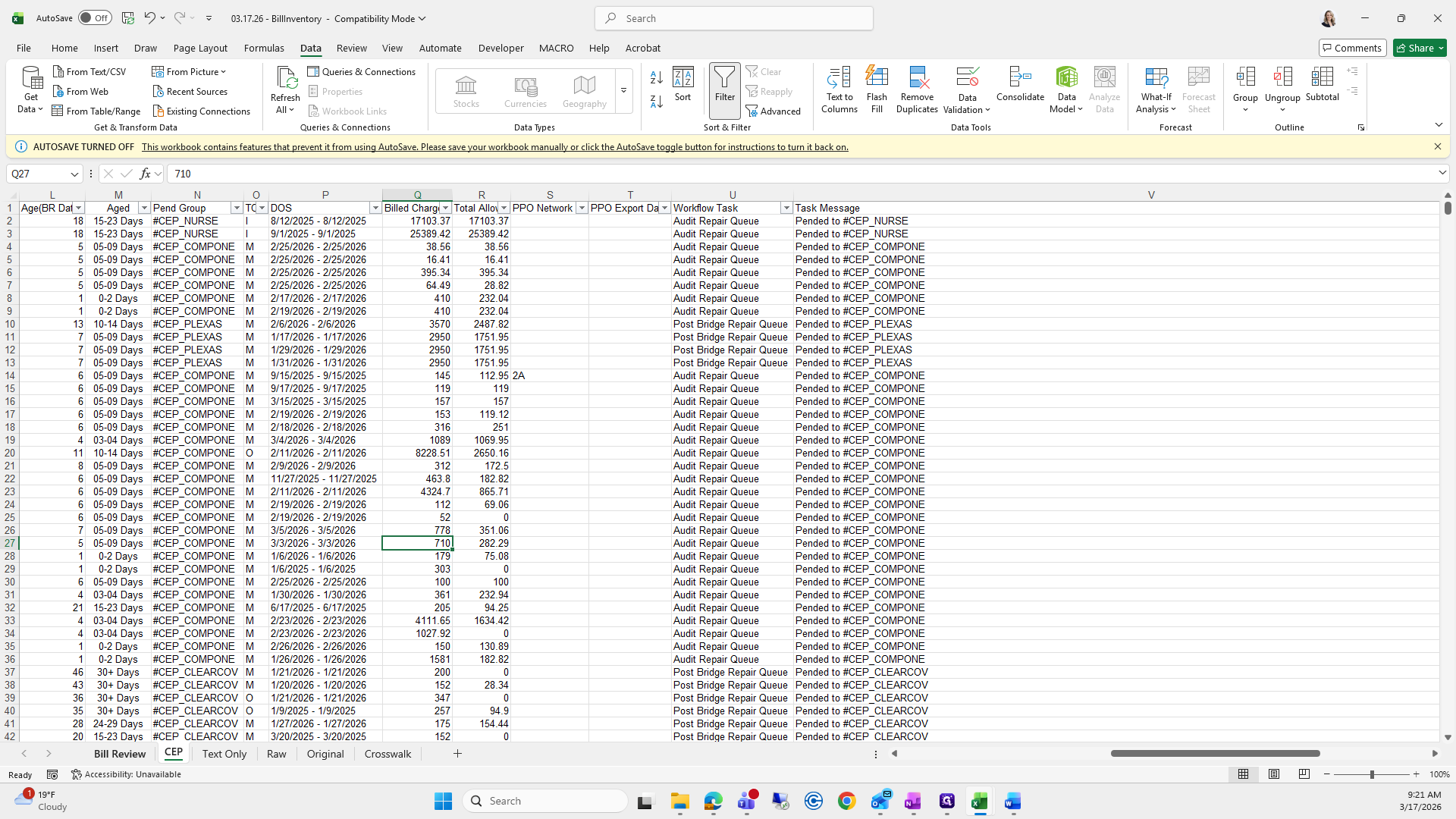
Call this one CEP.
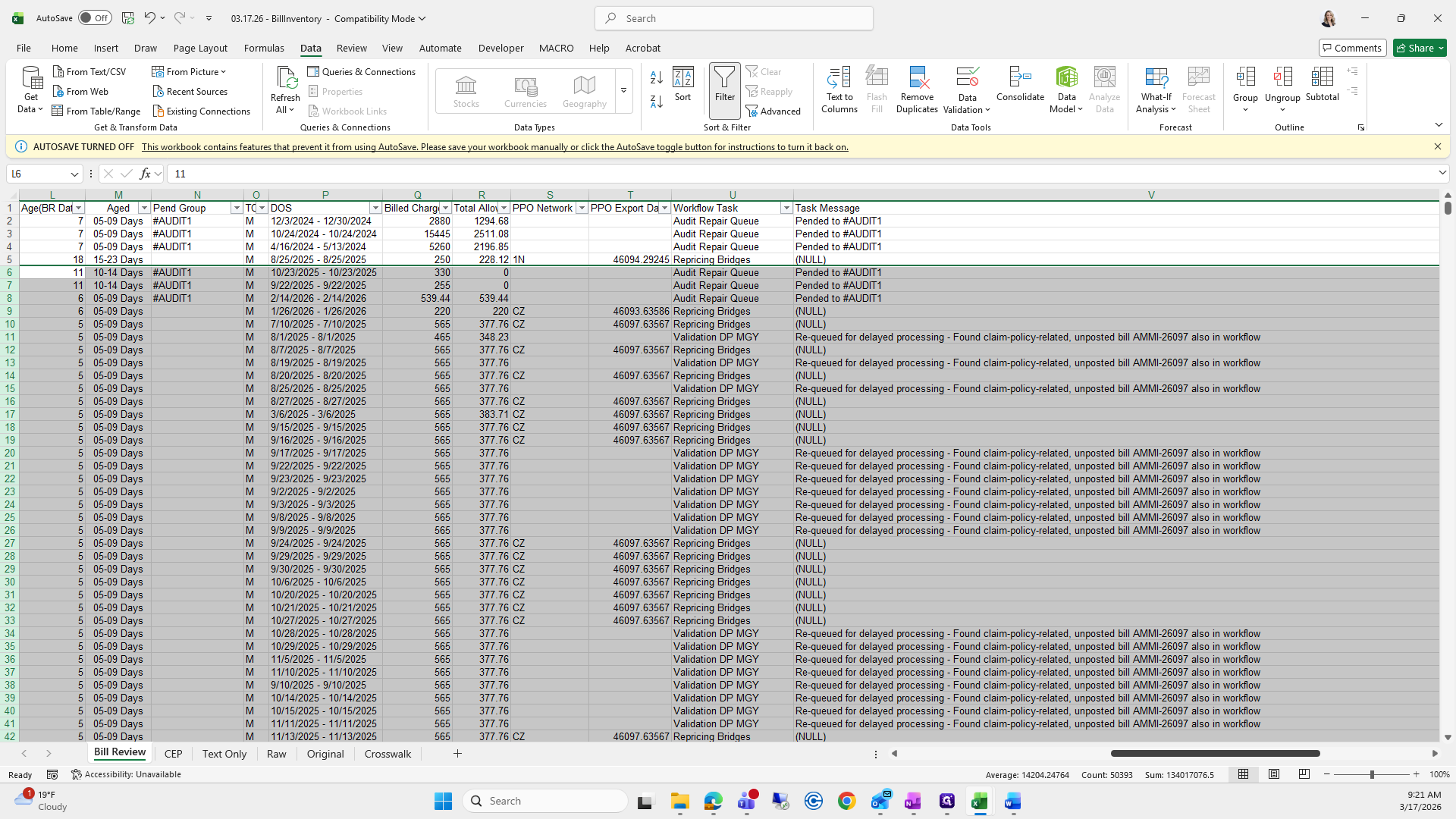
Copy this one again and name it Bill Review.
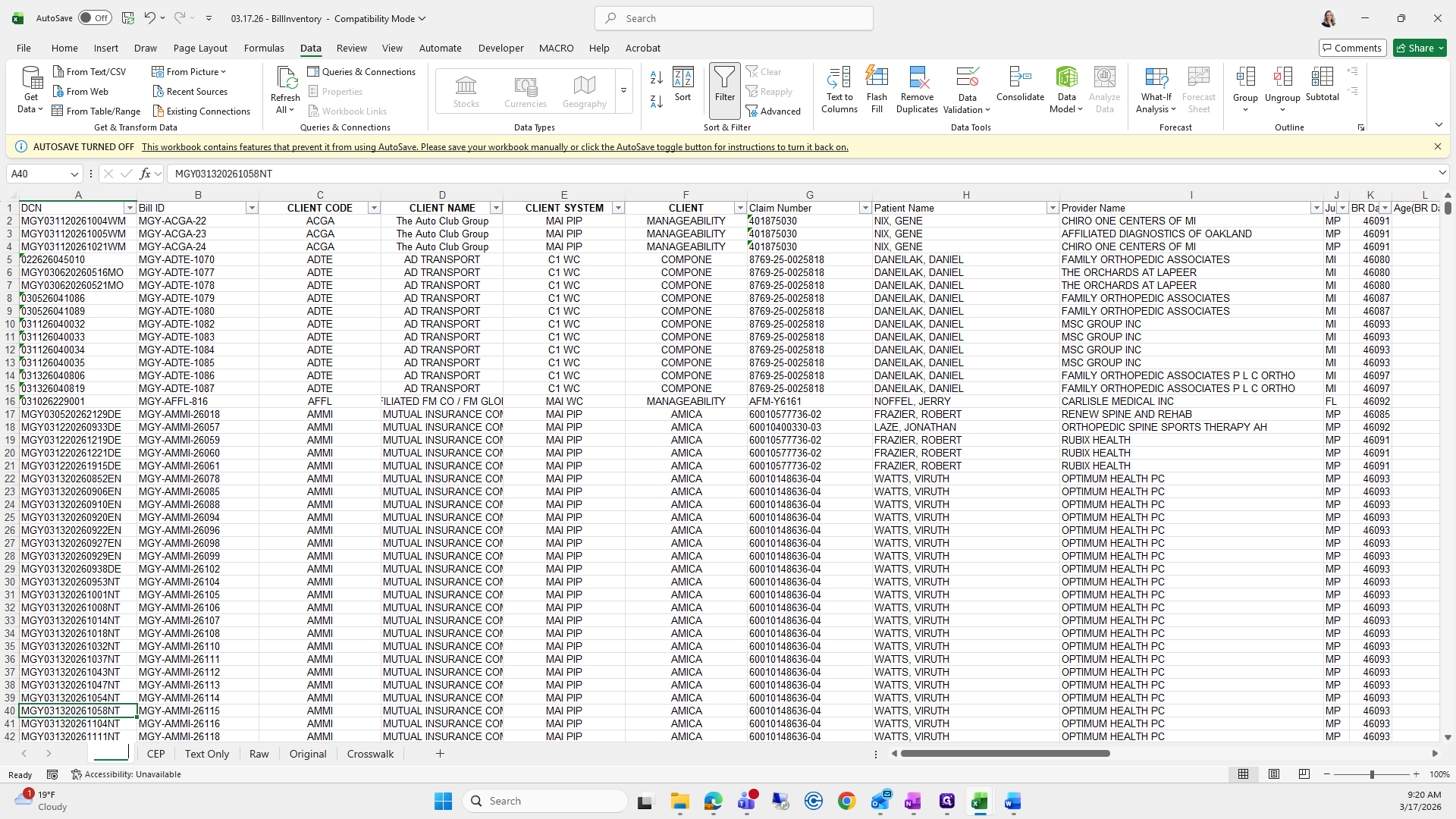
I am going to scroll over to the column called Penn Group.
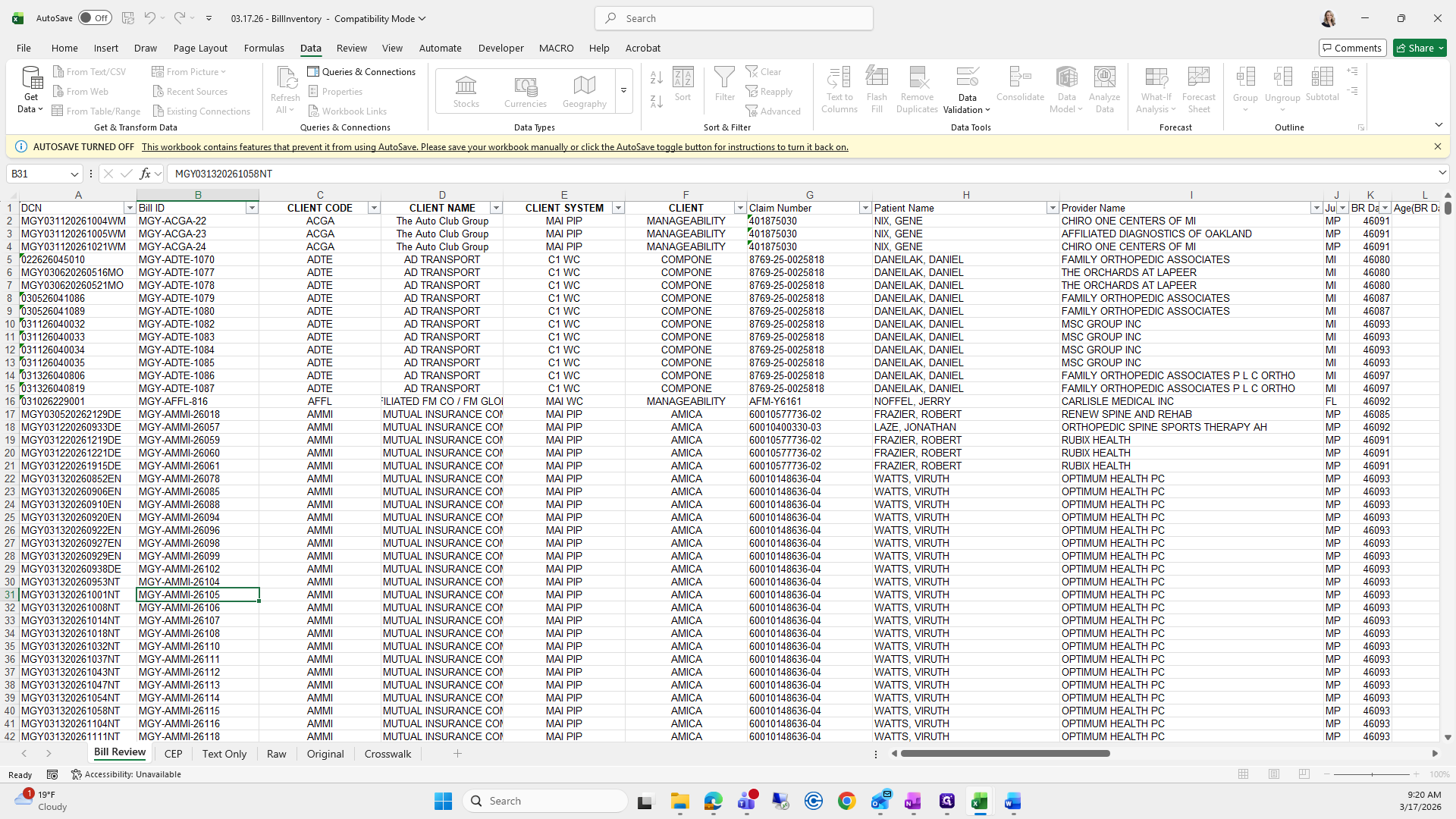
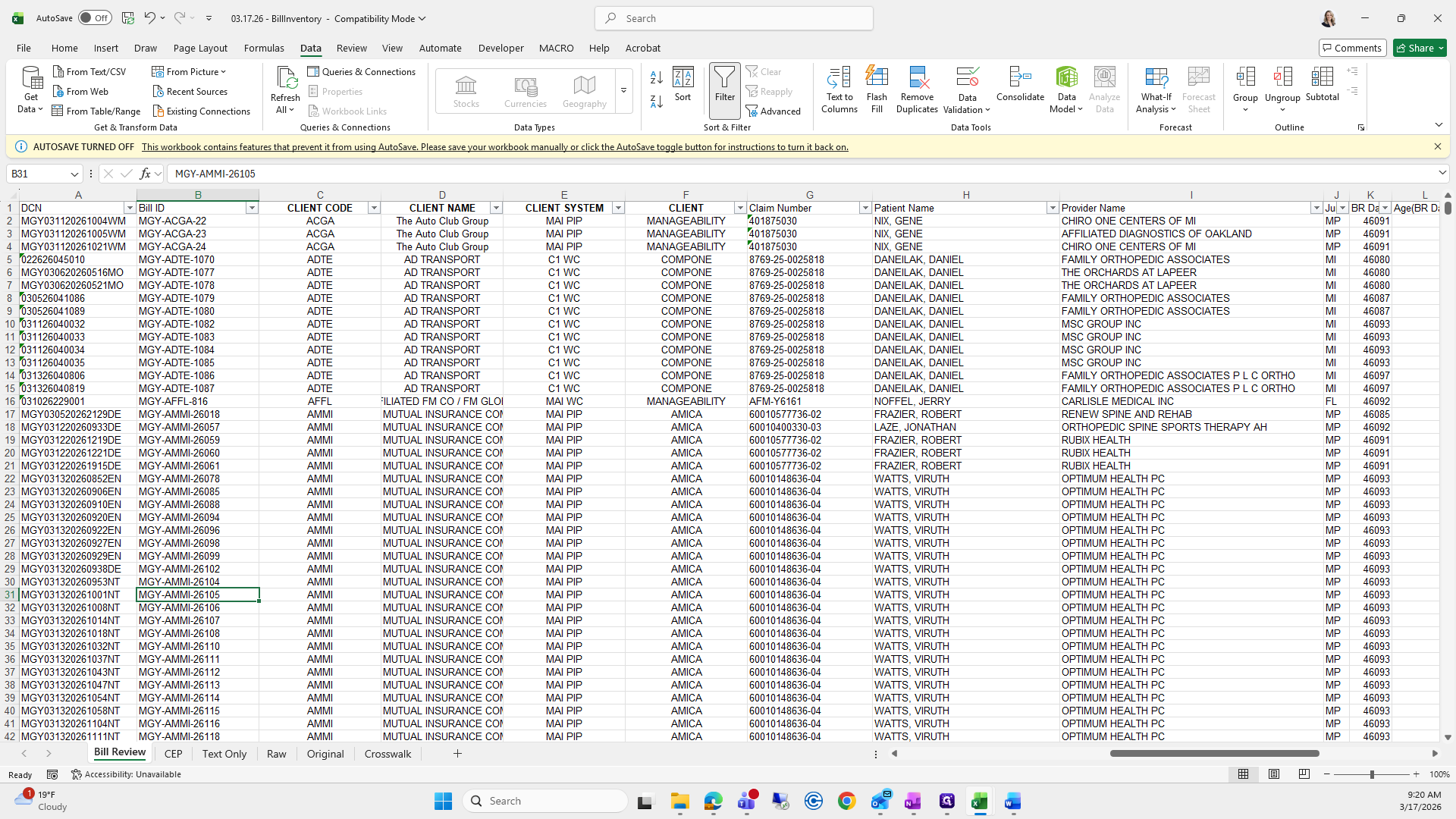
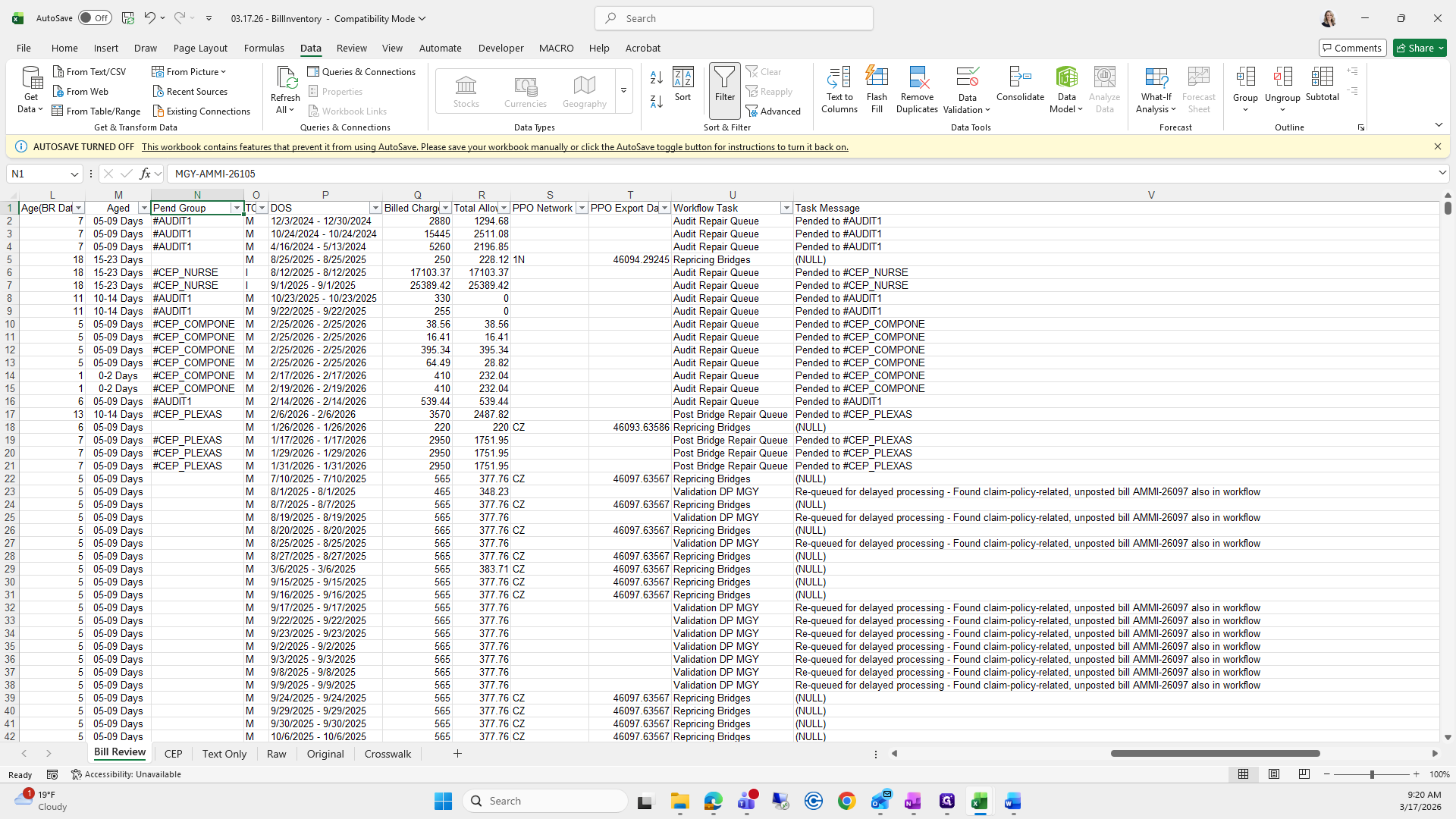
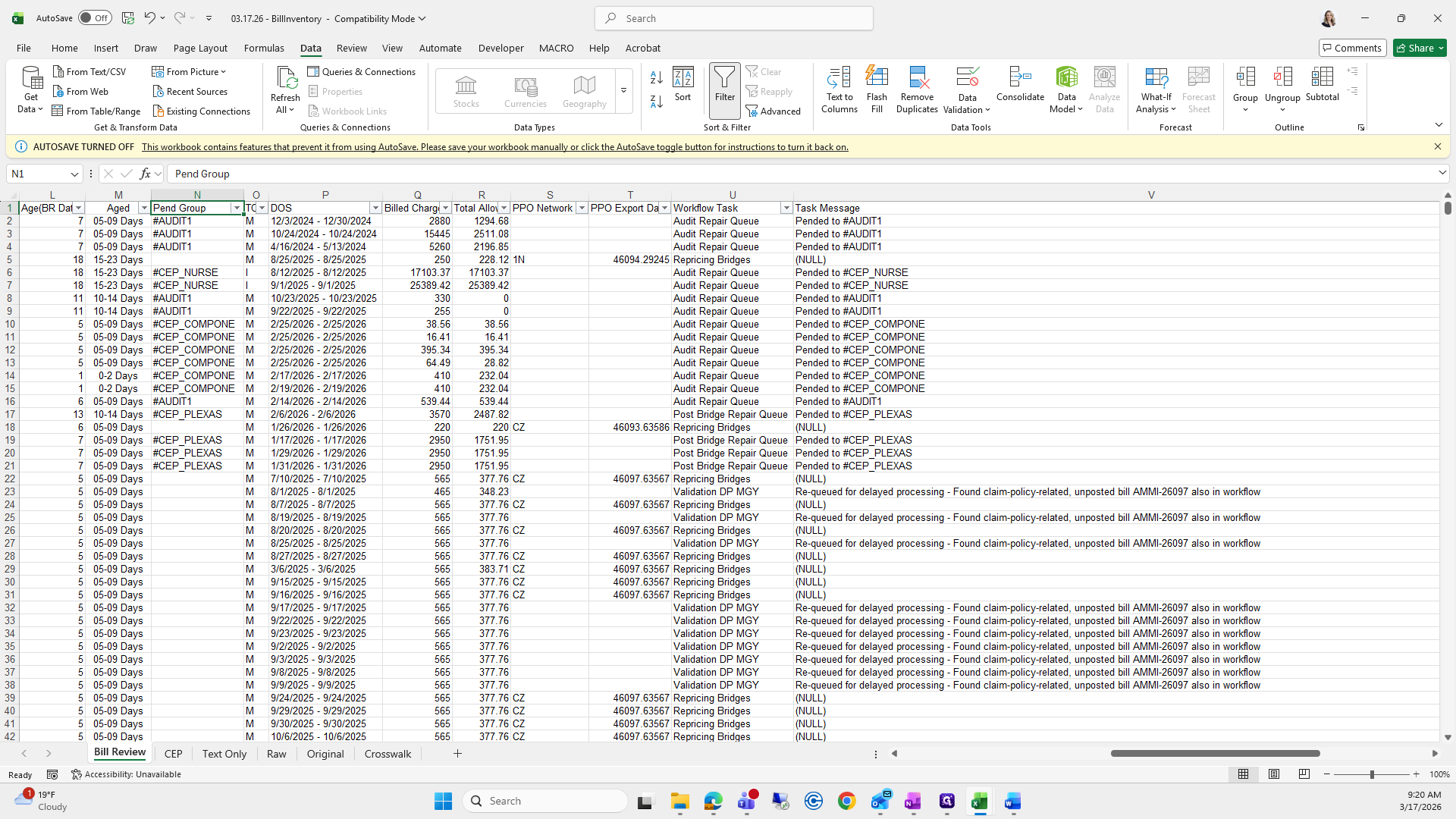
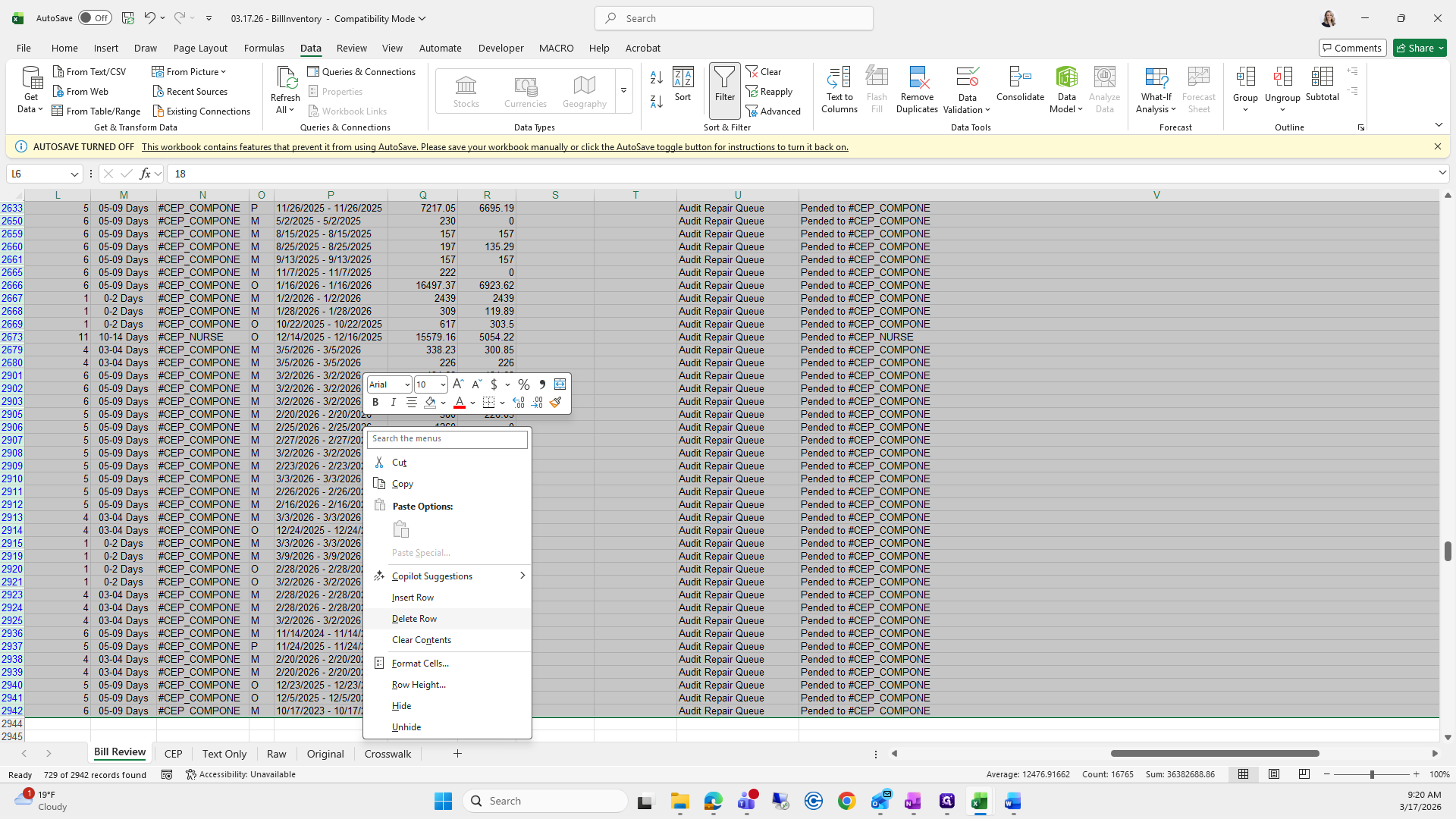
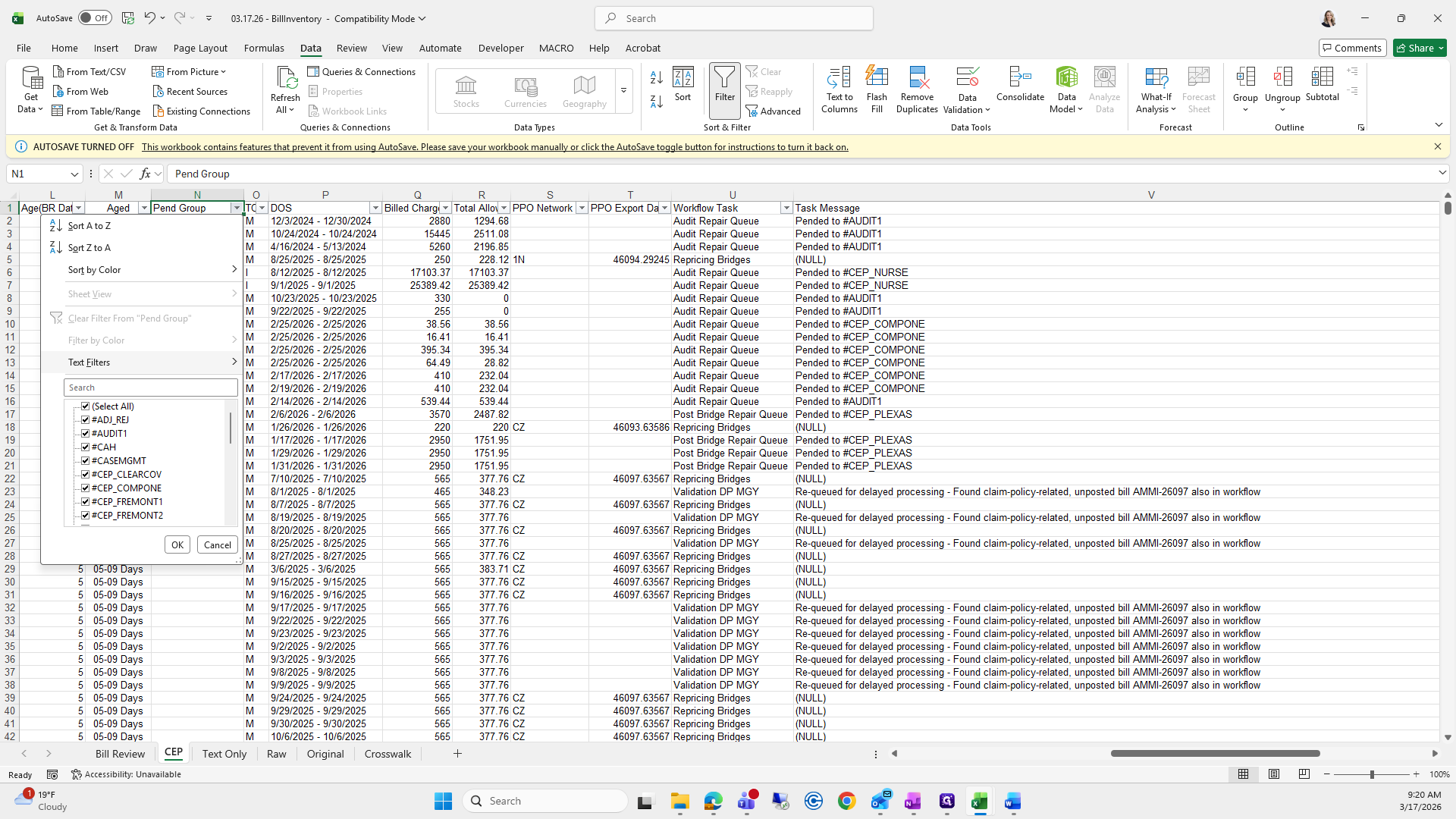
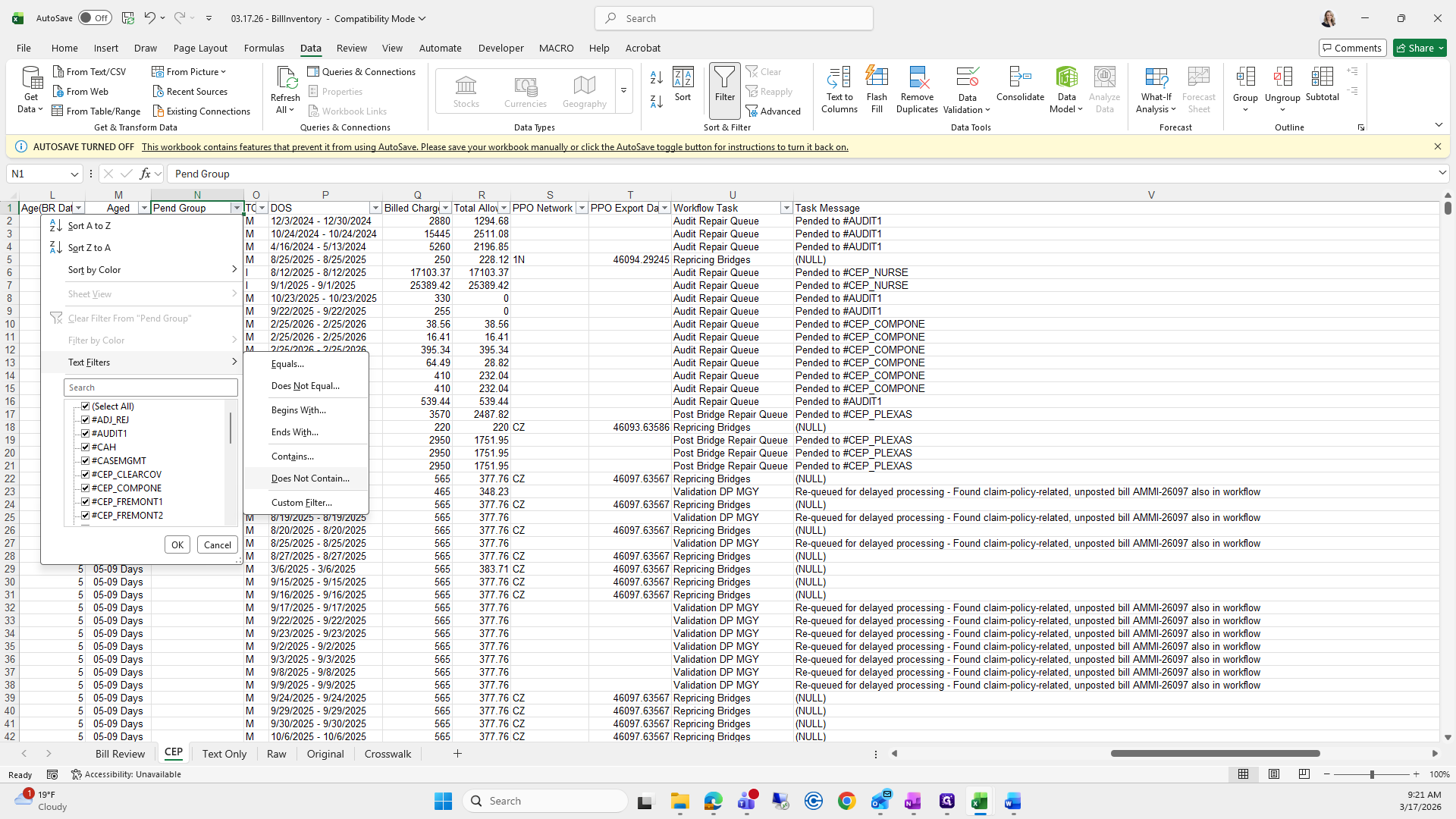
We will filter this by going to text filters, selecting "contains CEP," clicking OK, and then deleting all of the rows like this.
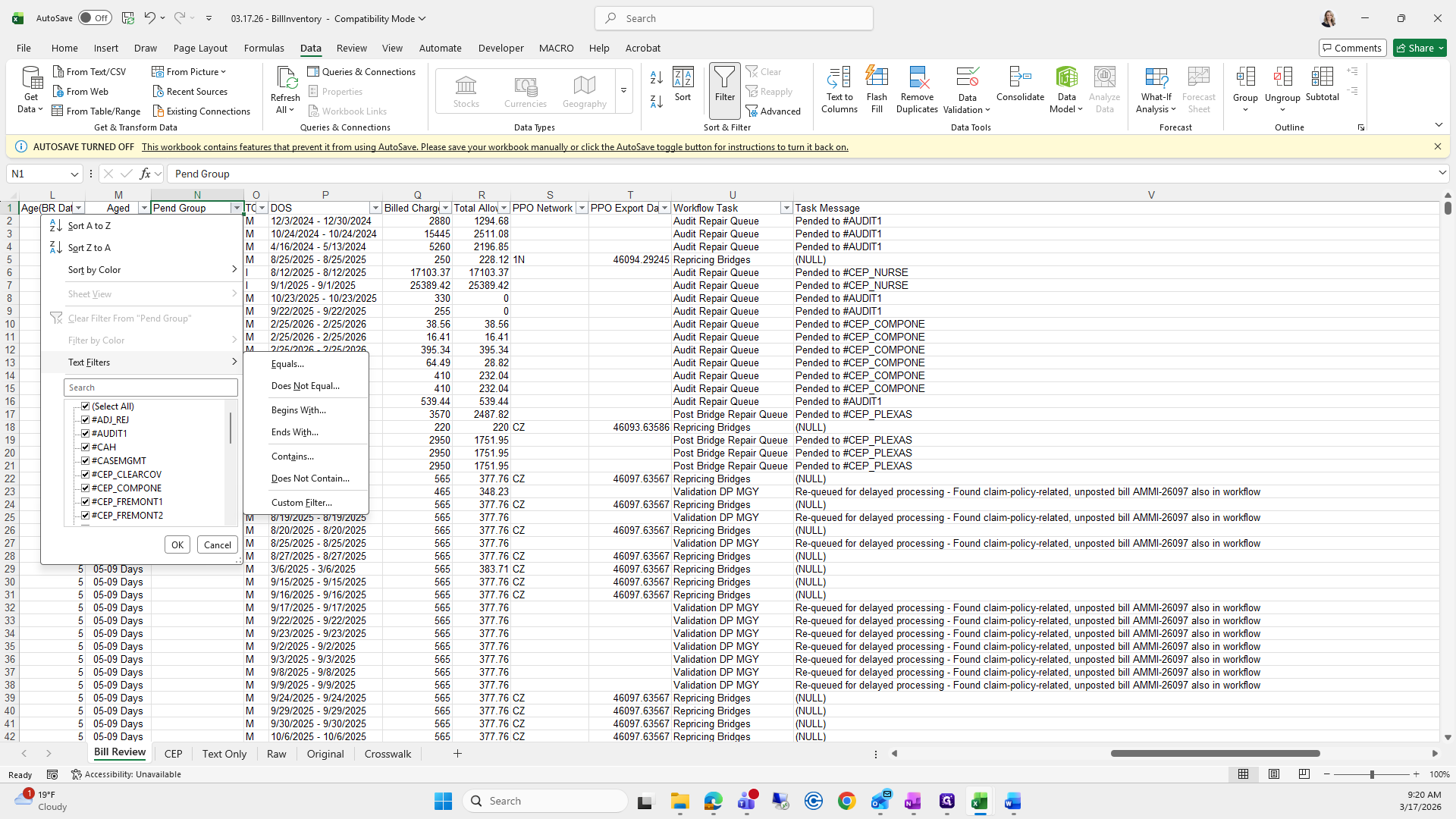
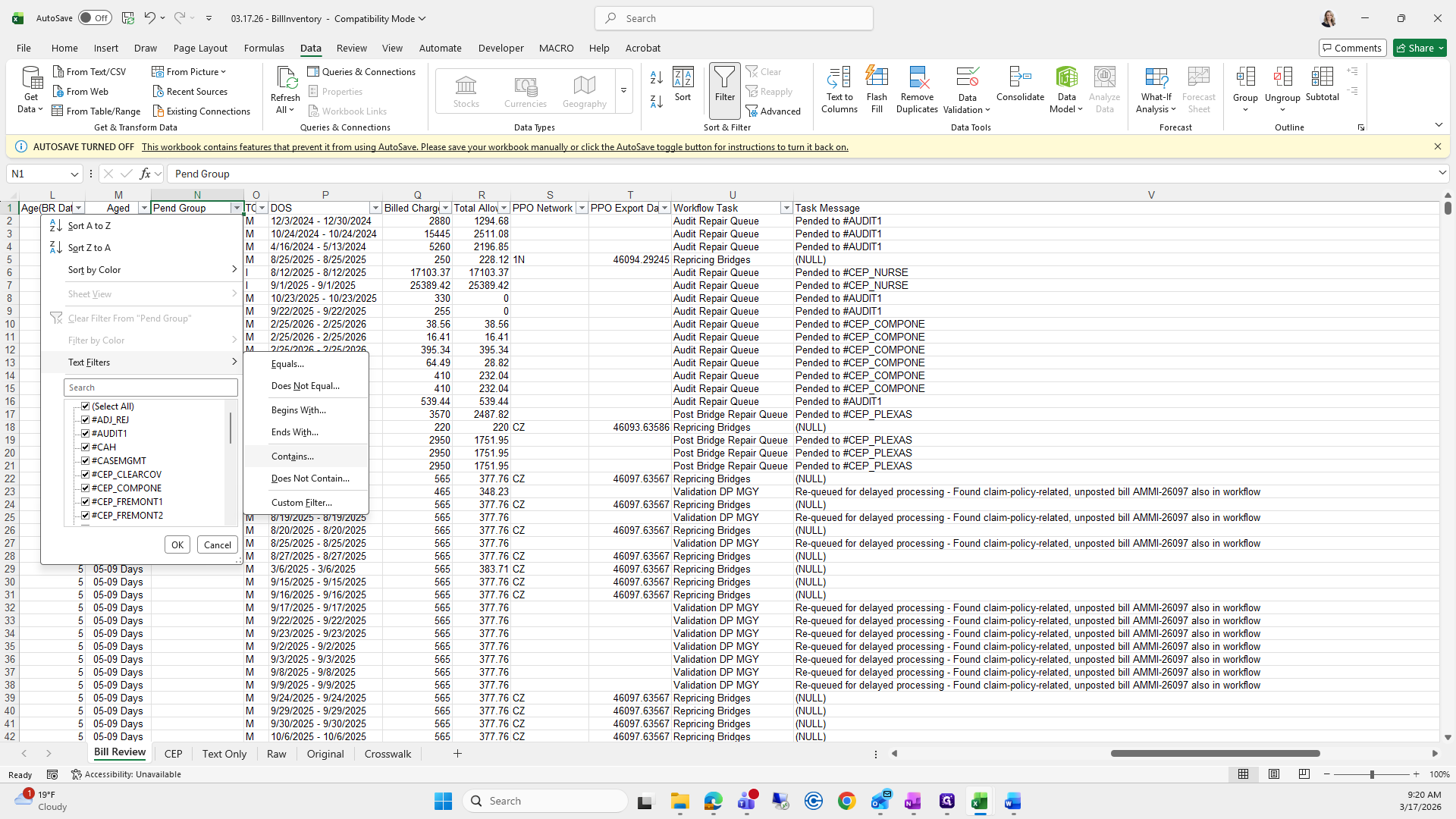
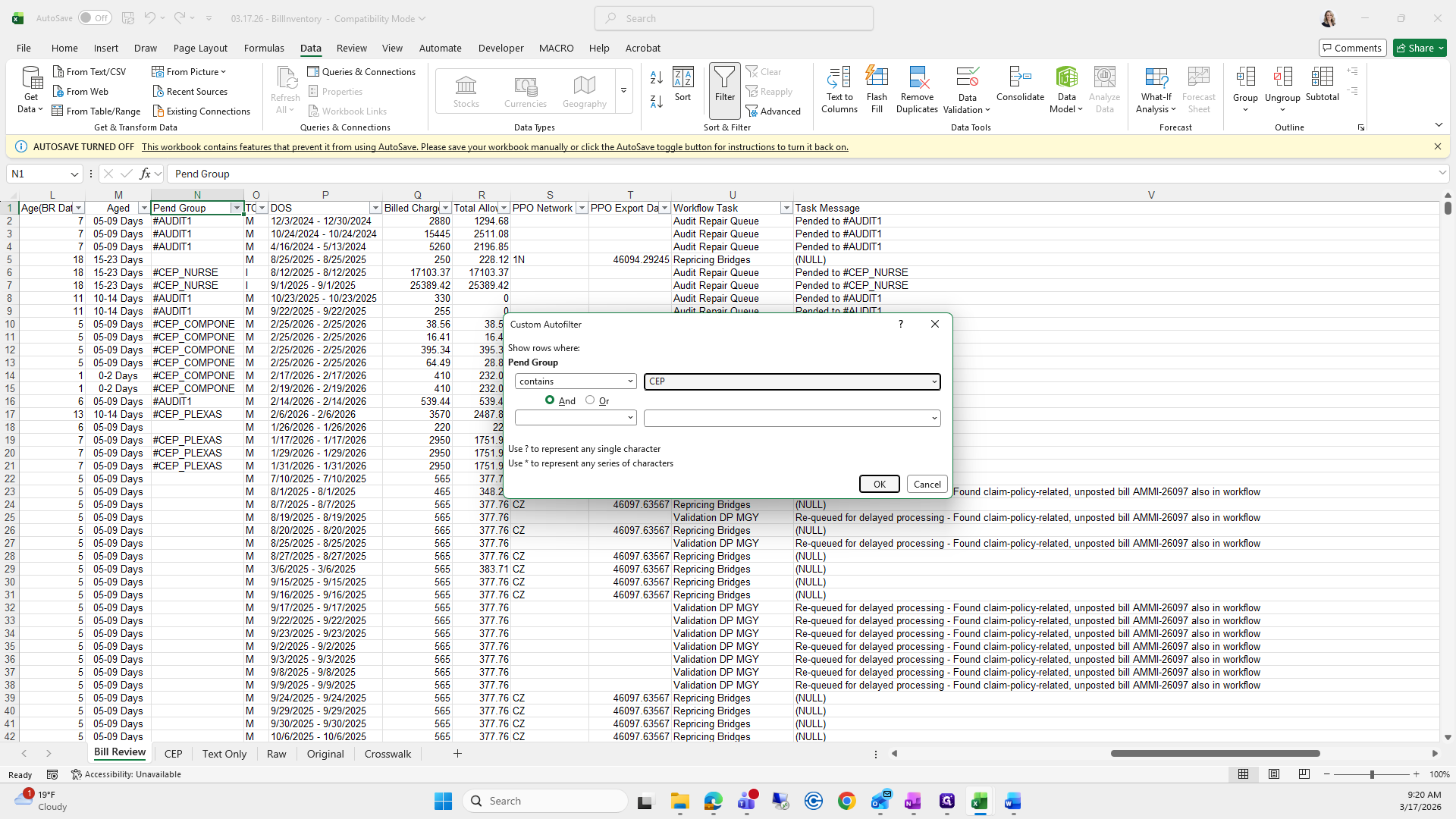
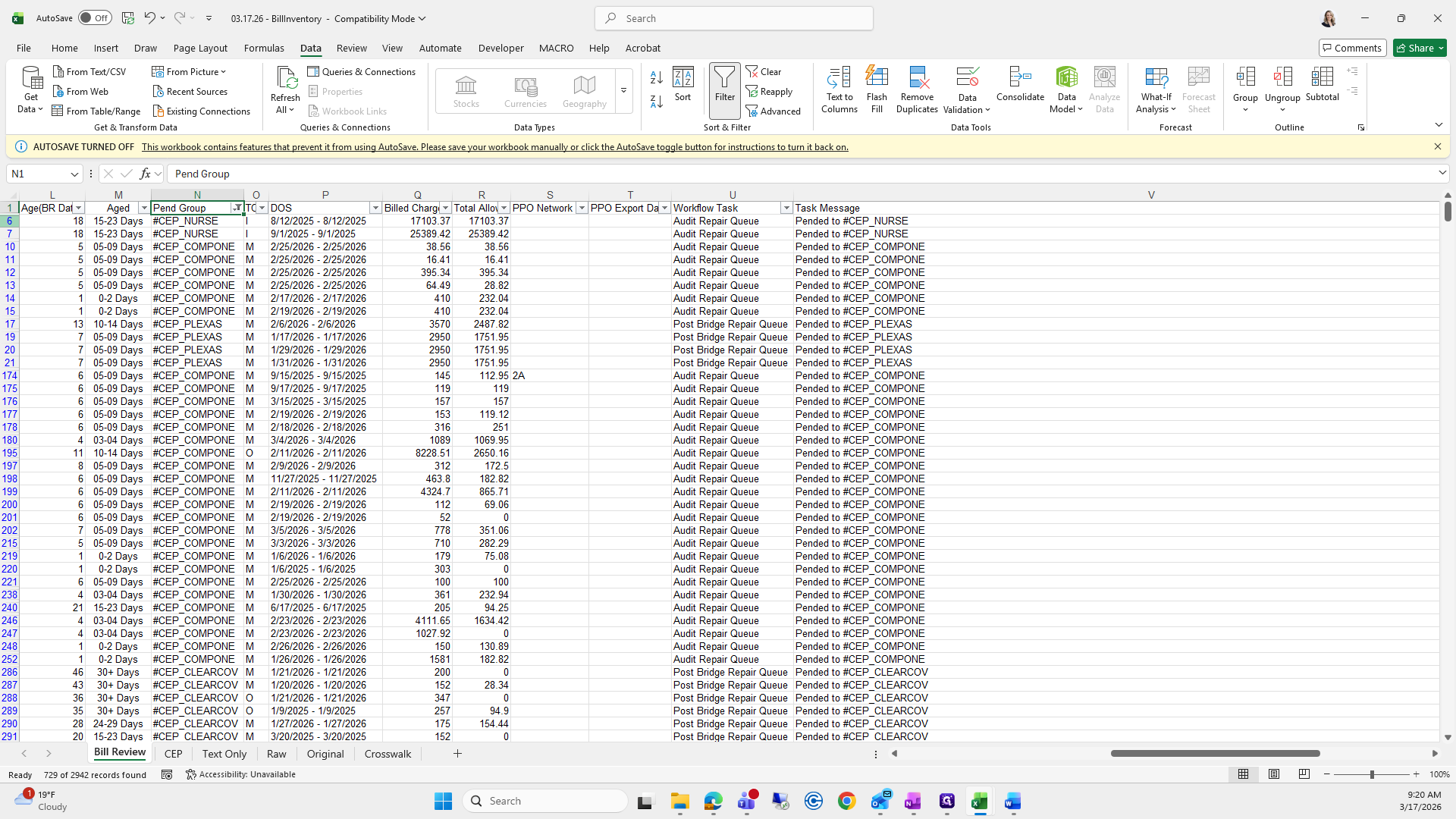
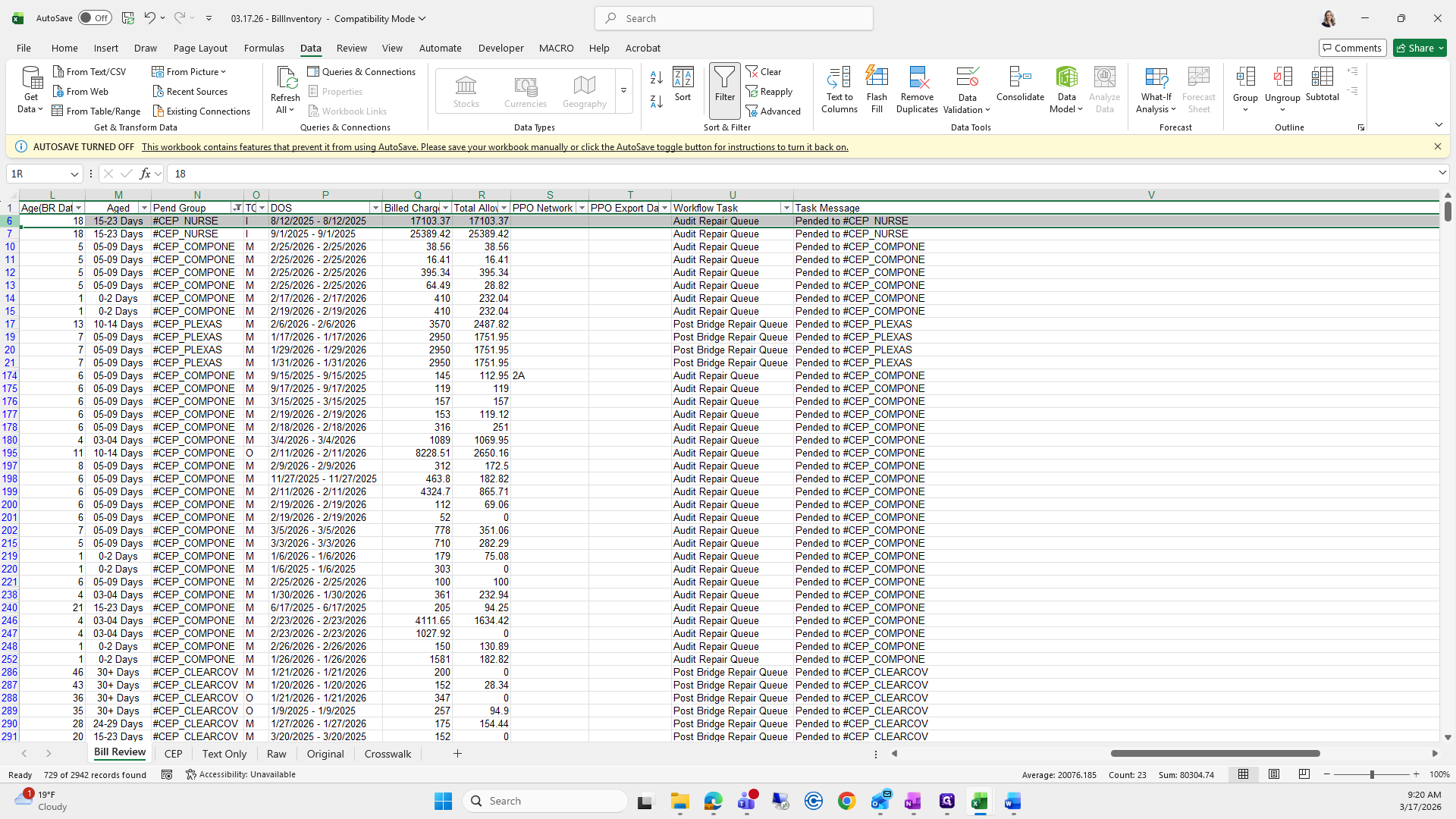
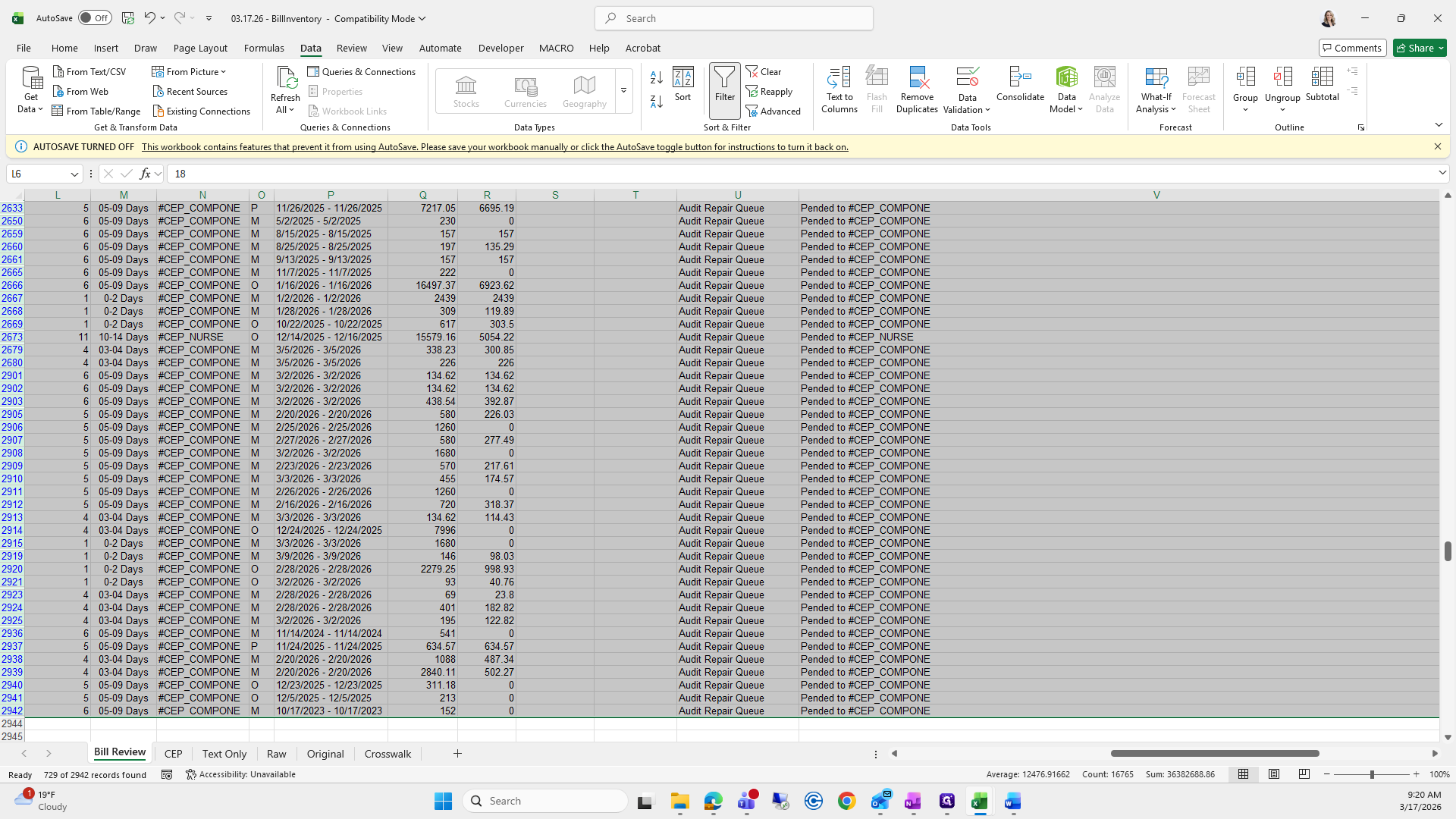
Delete rows containing CEP to capture only bill review.
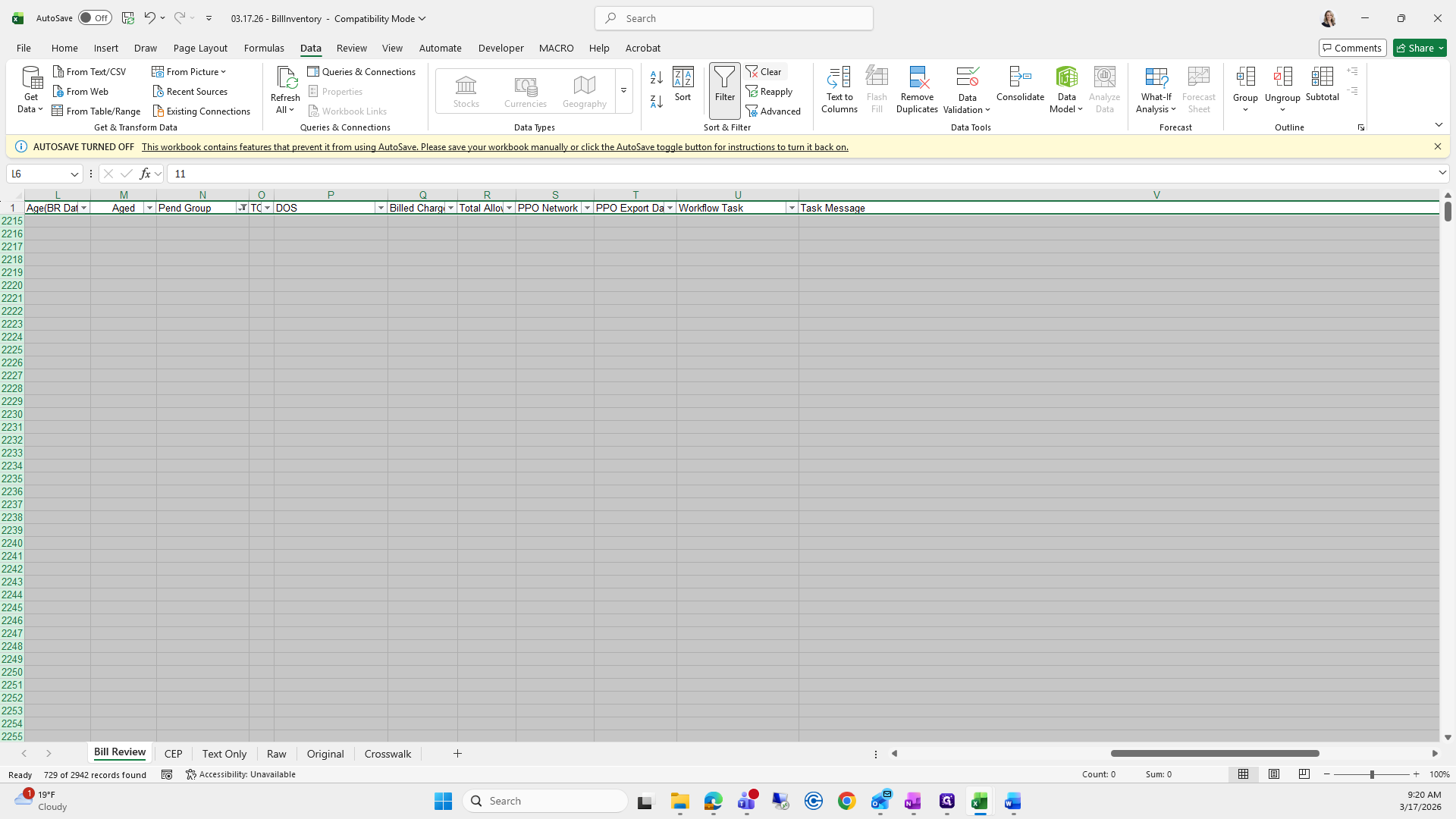
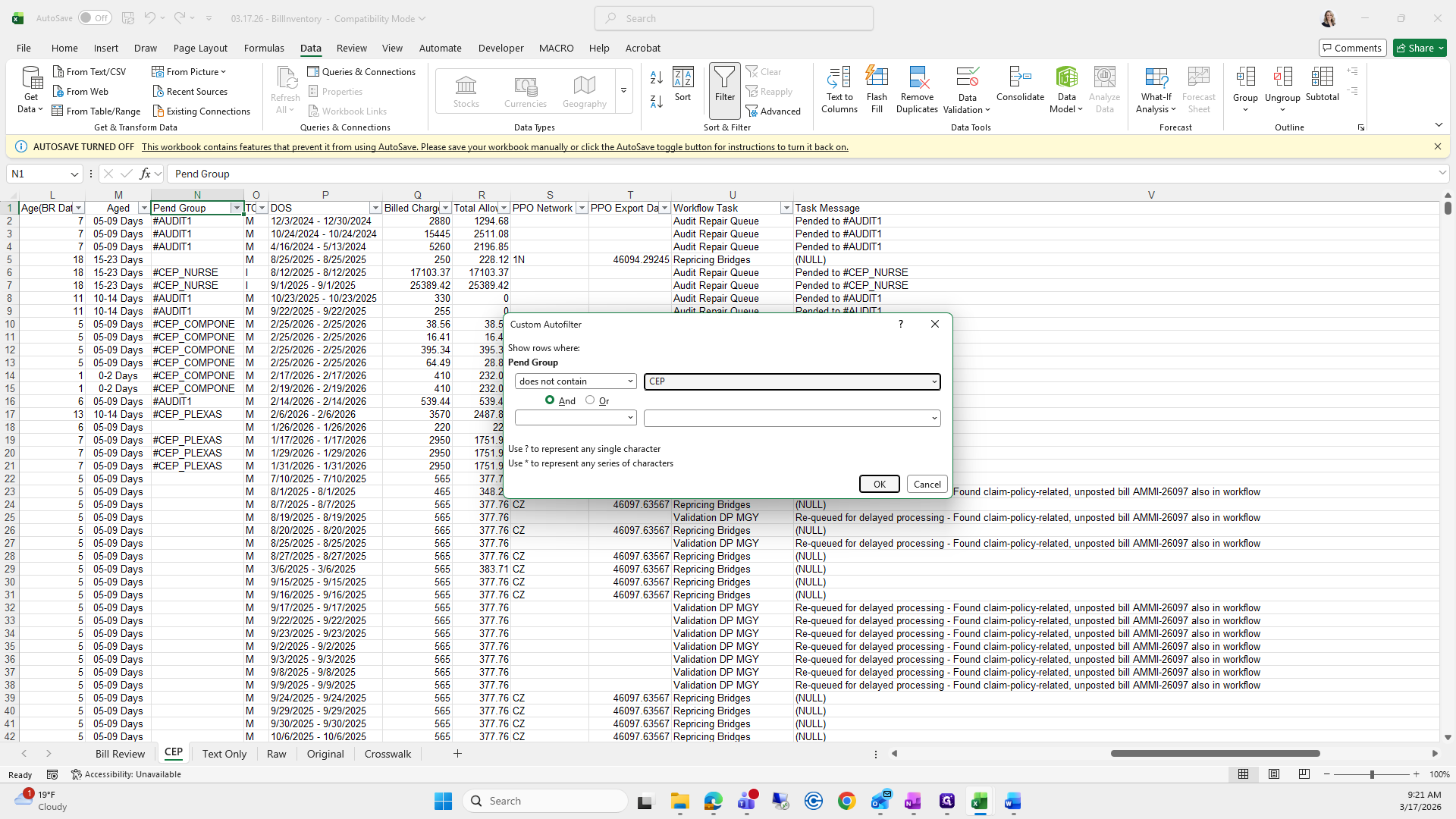
Click Clear, go to CEP, and do the same thing, except select "does not contain."
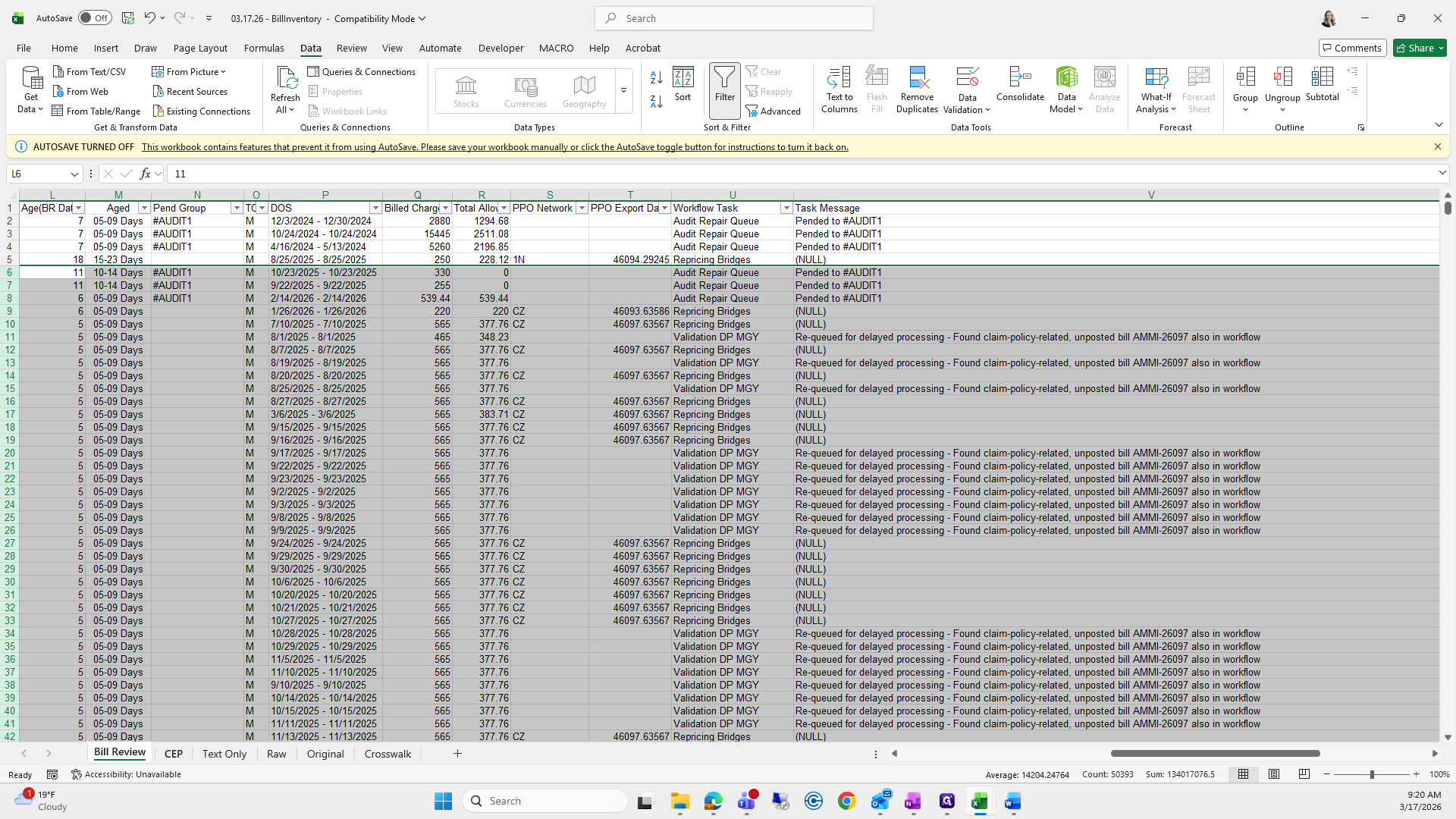
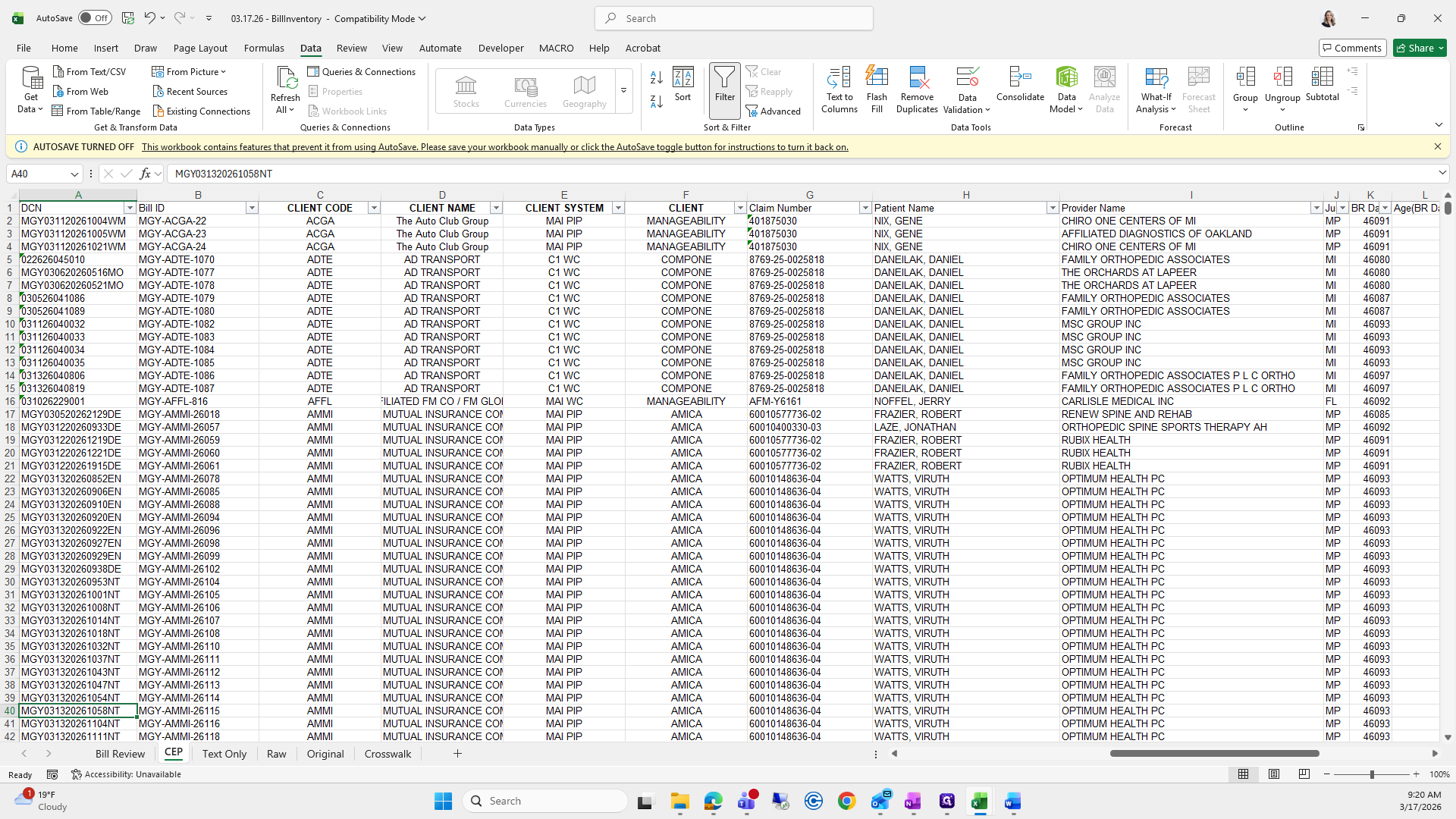
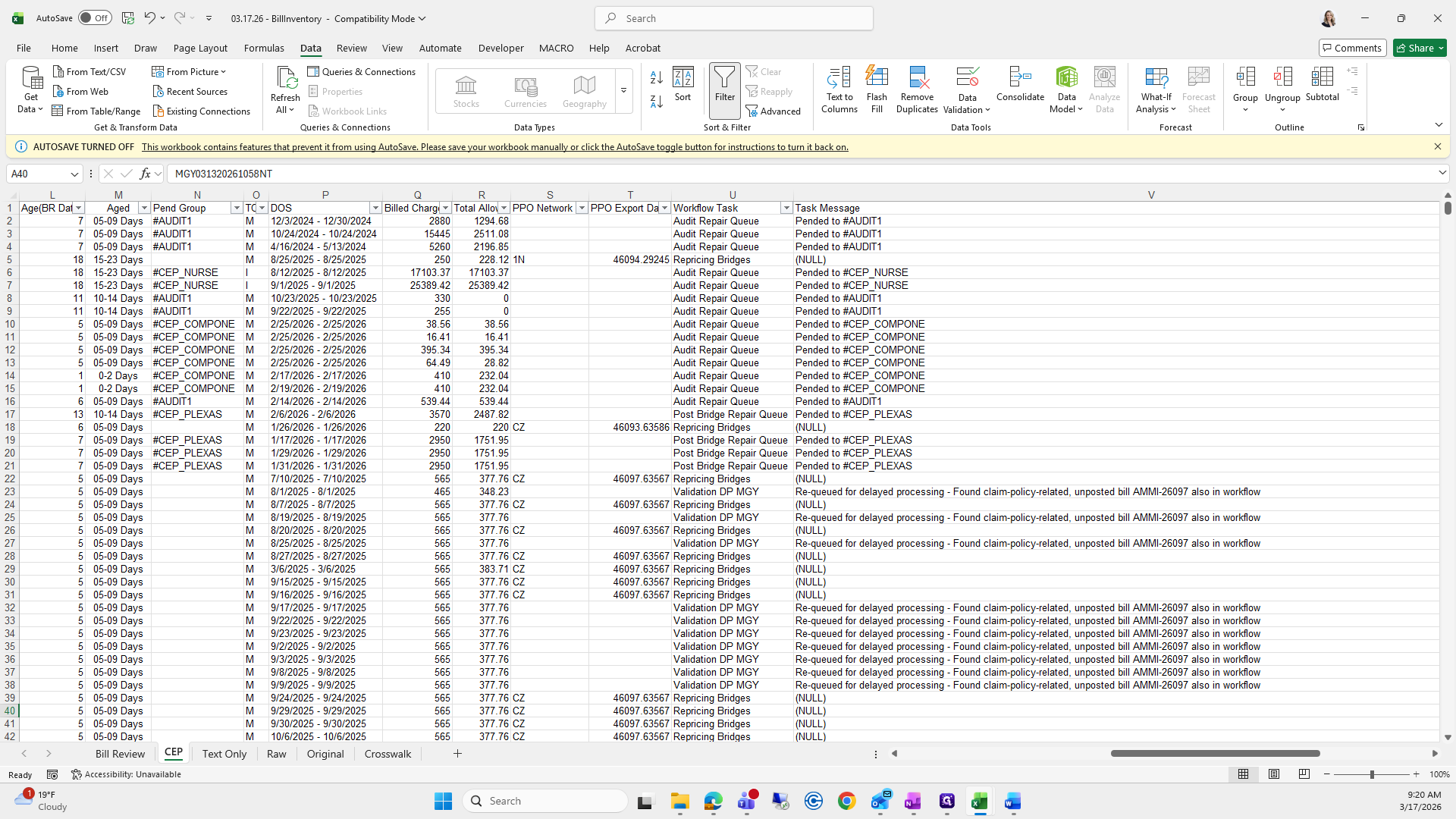
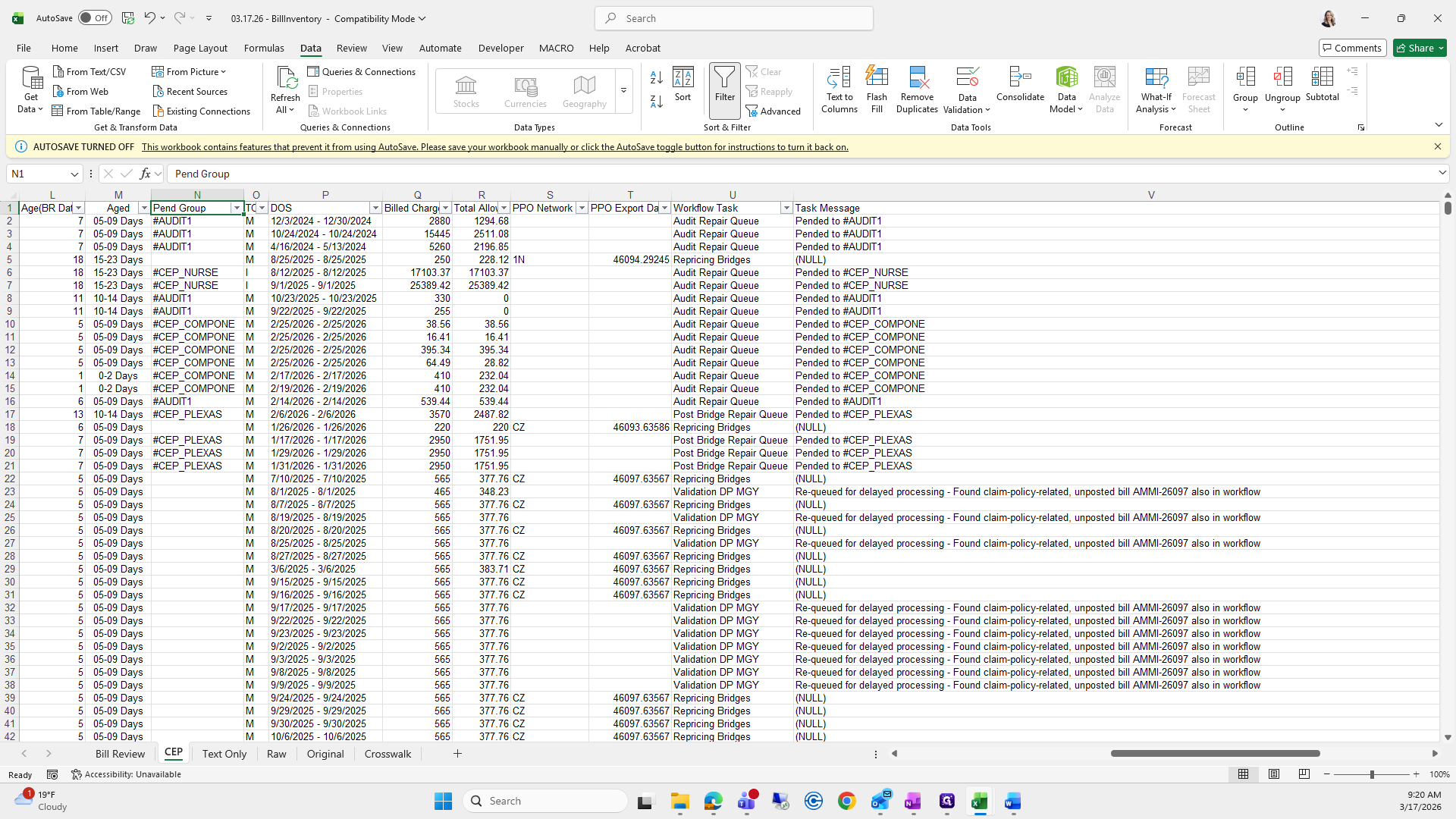
Penn Group filters do not contain CEP.
Okay.
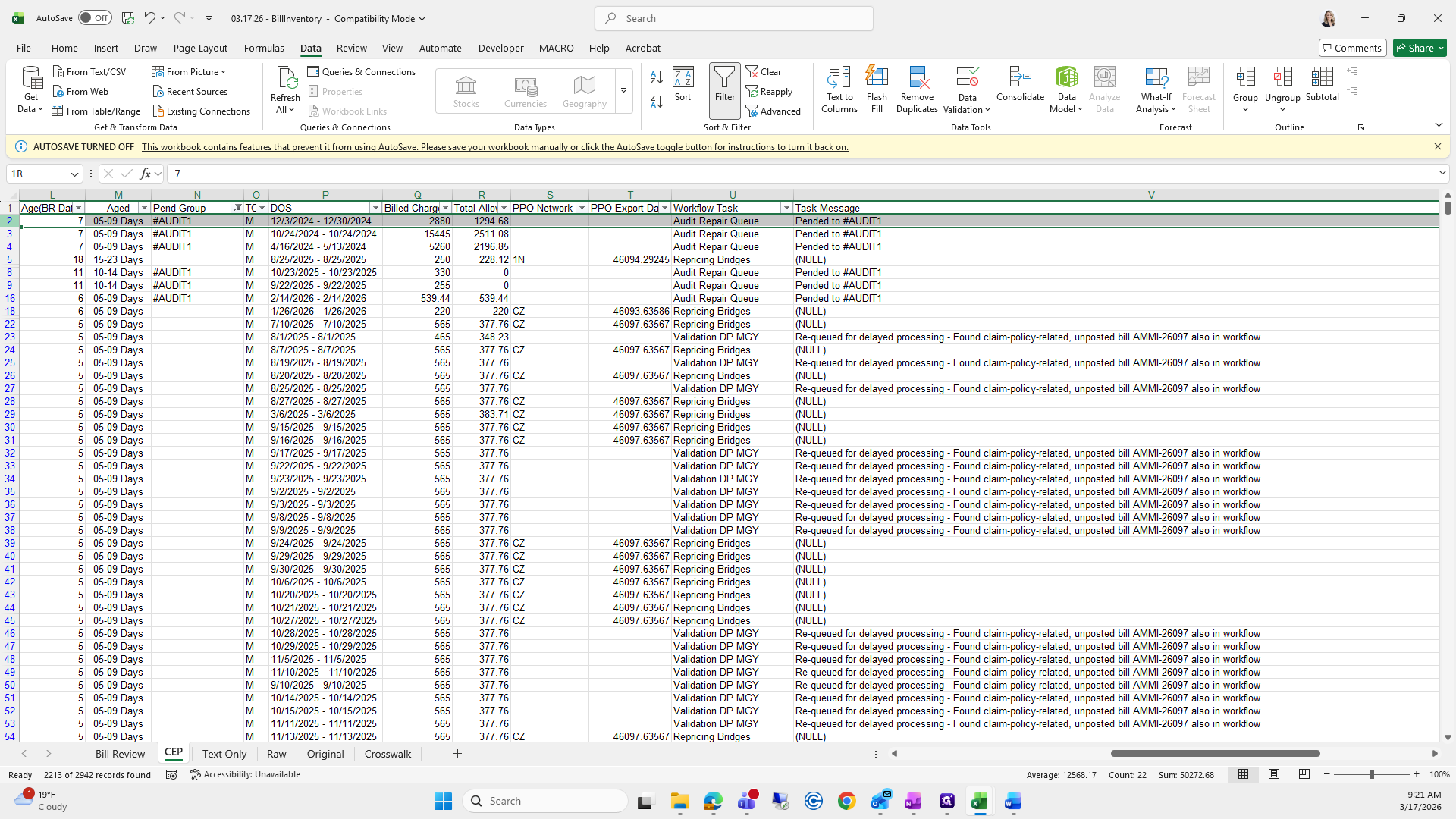
This one is a bit longer, so it will only contain CEP. This video will end in about 20 seconds, so I will stop here. I will continue in the third video, which will likely finish the series.
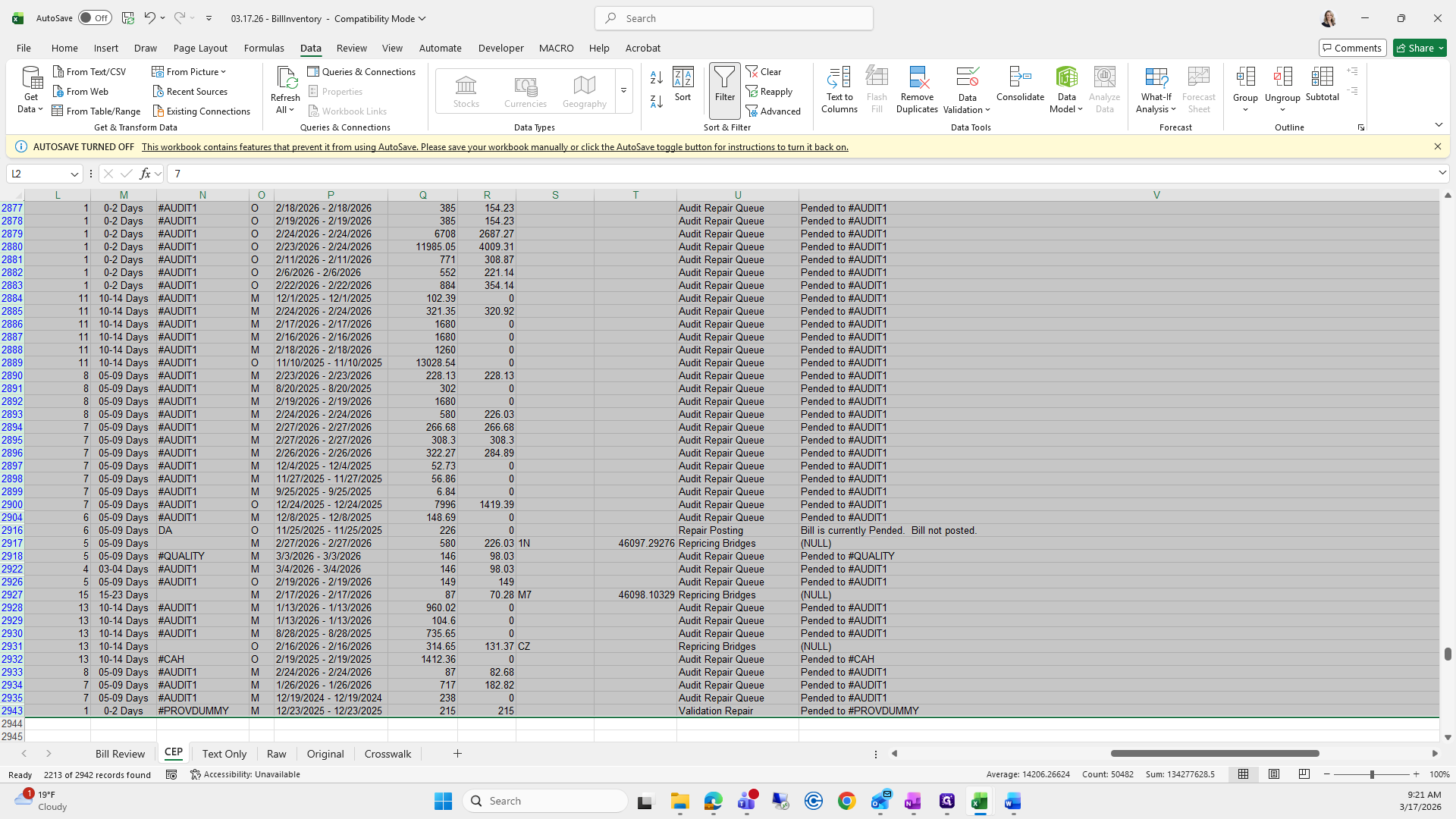
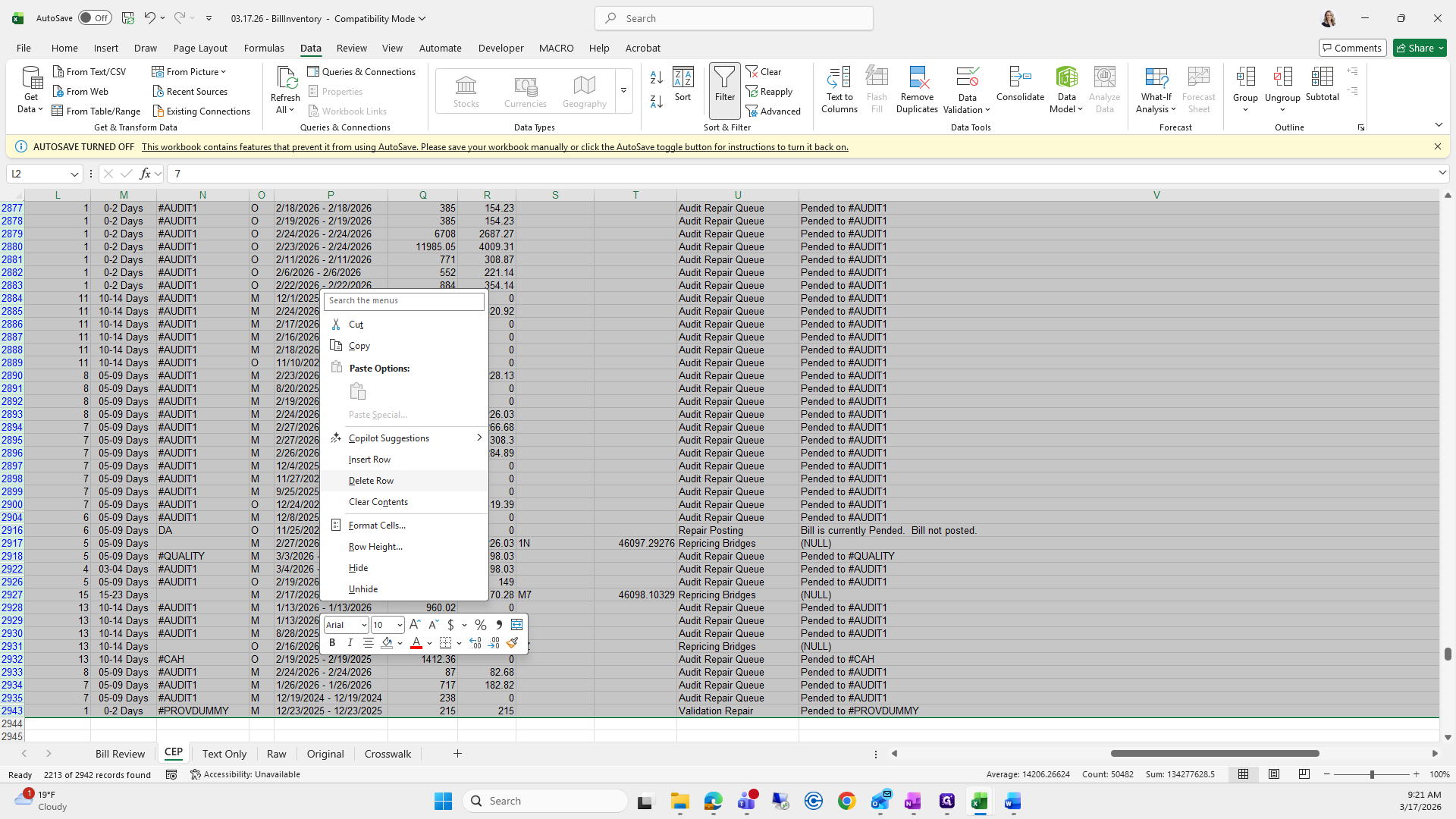
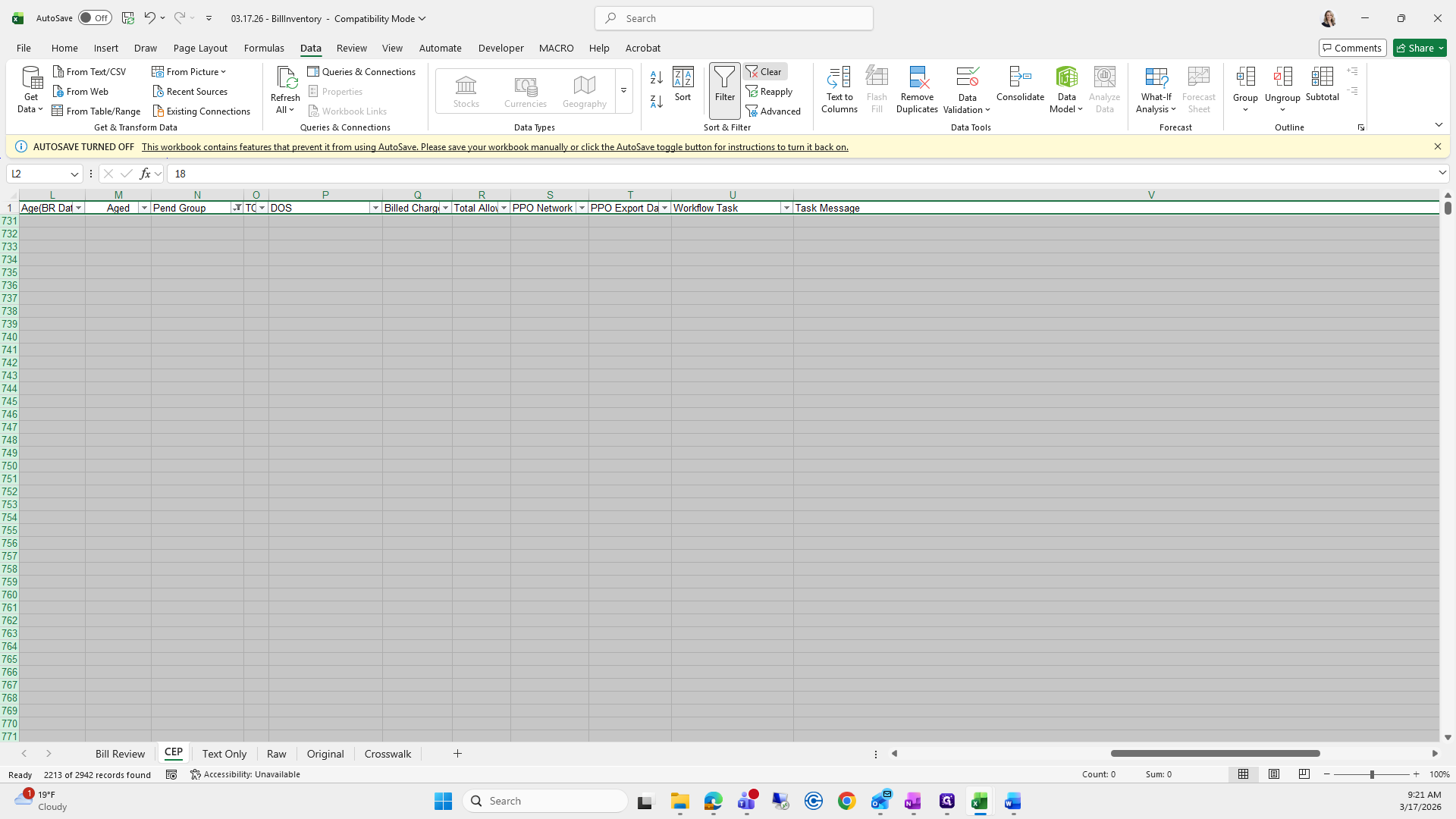
I will save this and all our work. I'll see you in a minute.