How to Update and Manage Contact Records in Pipedrive
Learn how to effectively update contact details, link organizations, modify custom fields, and manage activity history in Pipedrive.
By Shean McManus
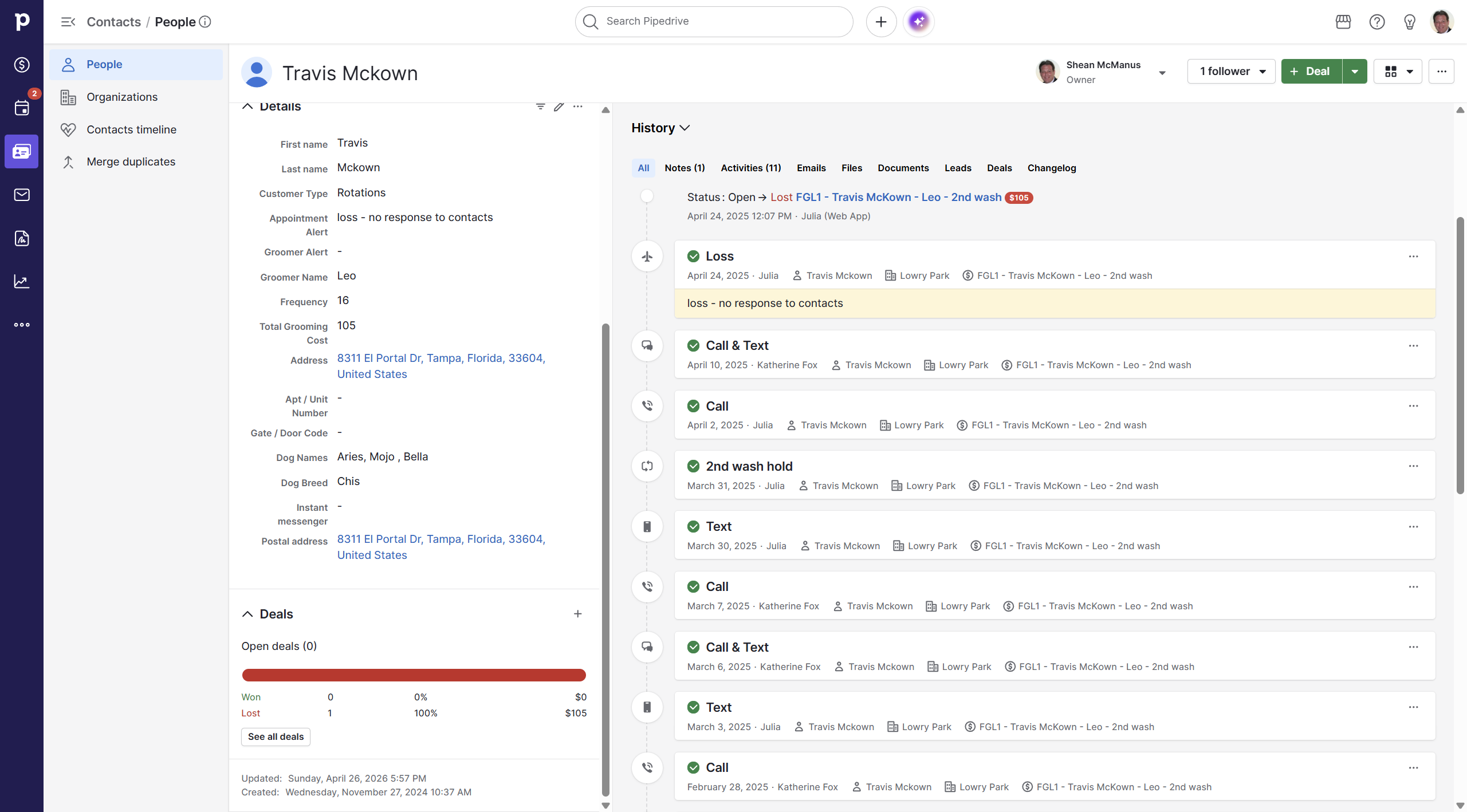
Managing your client data in Pipedrive ensures your pipeline remains accurate and actionable. This guide walks you through navigating contact histories, updating fields, and managing organizational links directly from a contact's profile.
Reviewing the Fields of a Pipedrive Customer Record
Your contact's timeline provides a comprehensive view of all past interactions and updates.
Updating Basic Contact Information
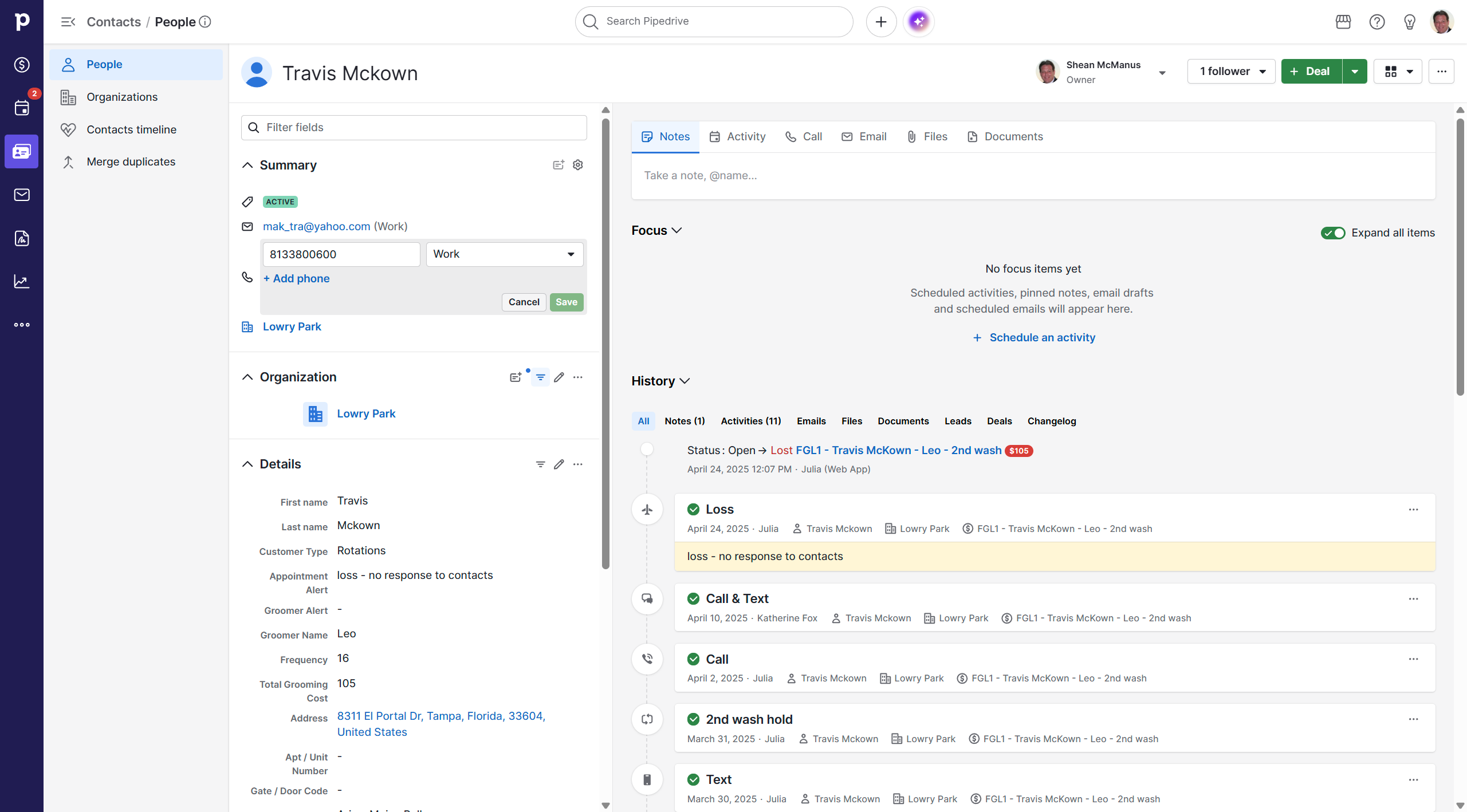
Keeping basic information up to date is crucial for effective communication.
1
The Label: Four
2
Select the appropriate designation, such as Work, to categorize the number.
3
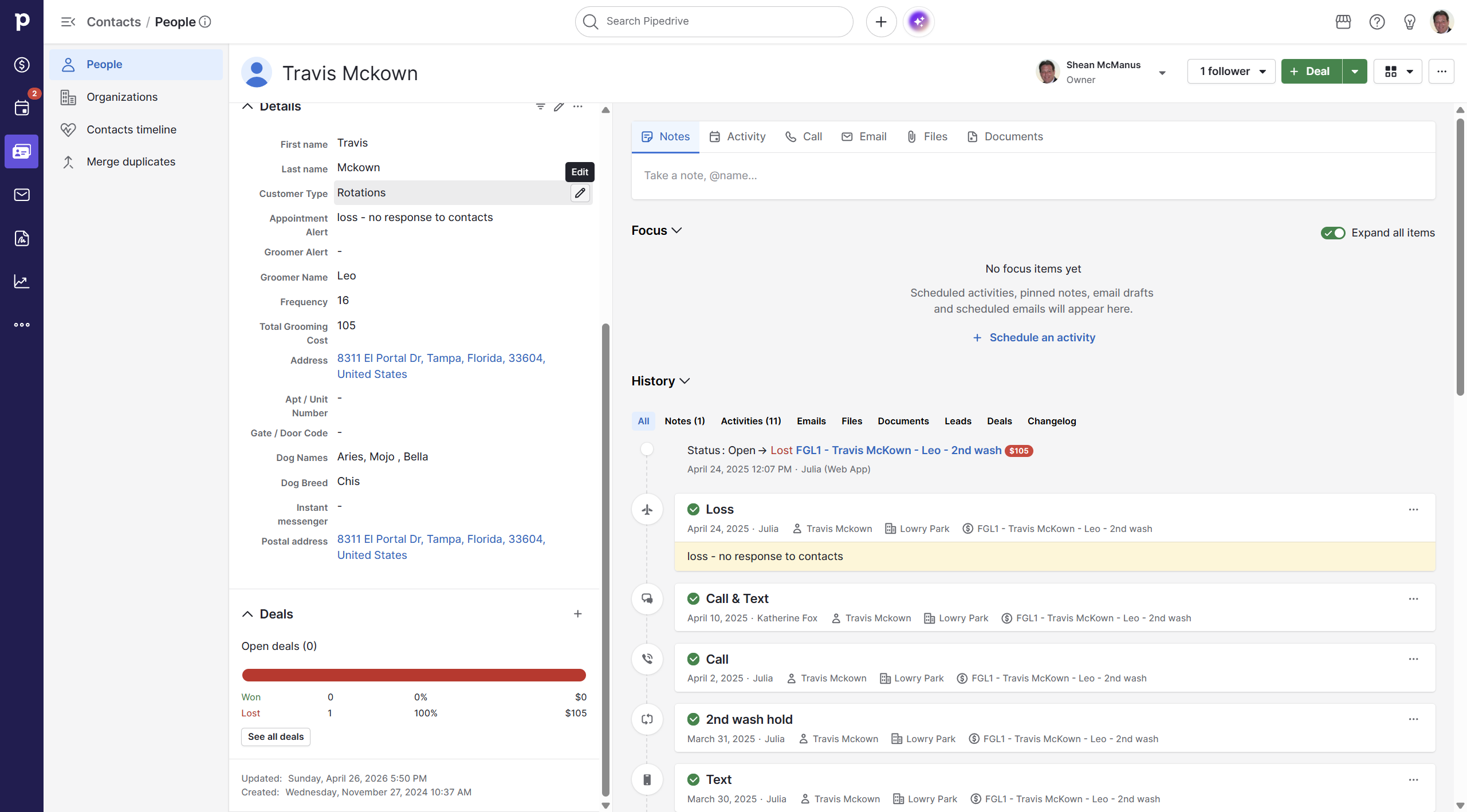
Click the Edit pencil icon next to the contact's name in the left-hand details panel.
4
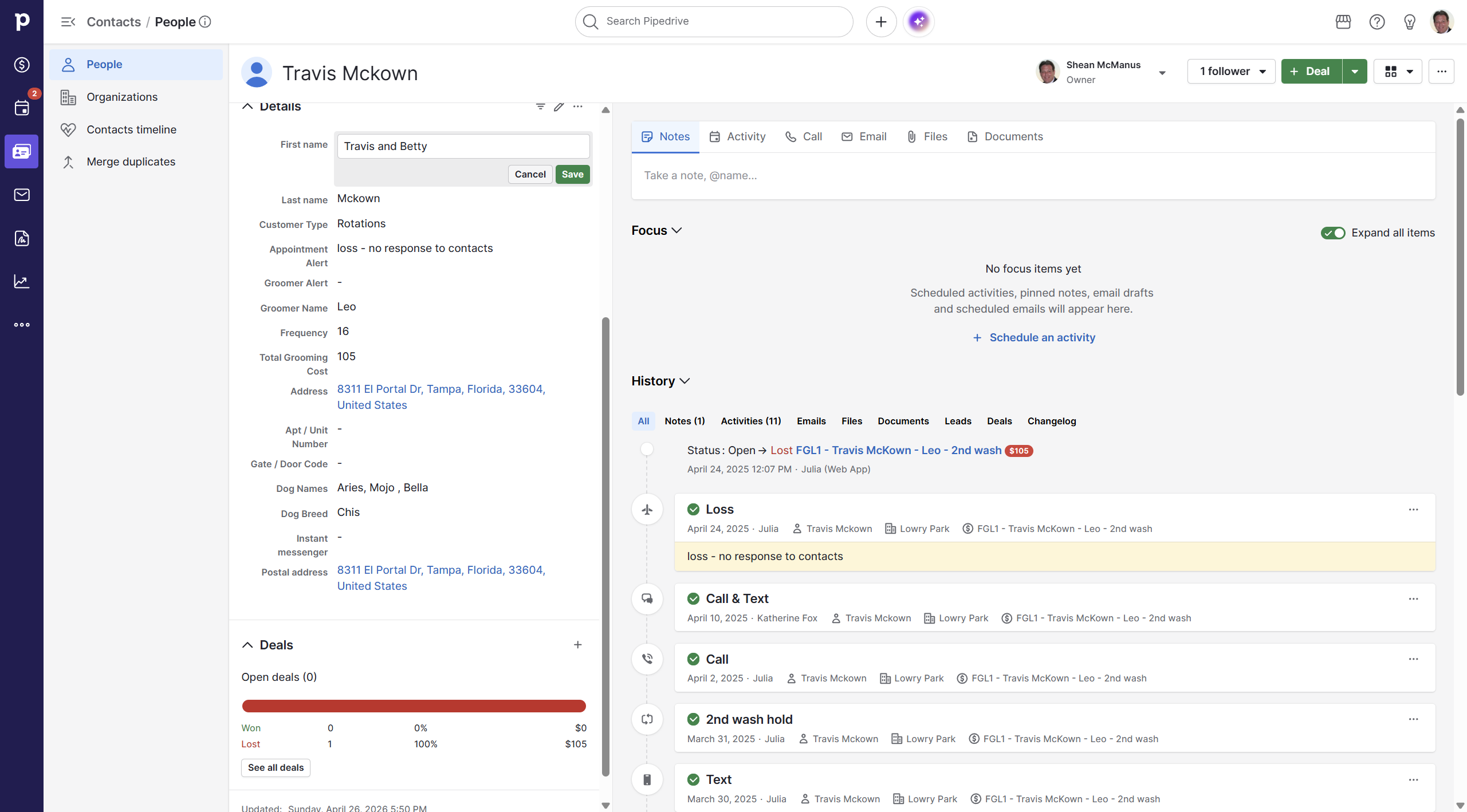
Type in the updated name (e.g., adding a spouse or partner's name).
5
Click Save to apply the new name.
Managing Linked Organizations
Contacts often change companies. You can easily unlink old organizations and attach new ones.
6
In the Organization section on the left sidebar, click the More actions (three dots) menu.
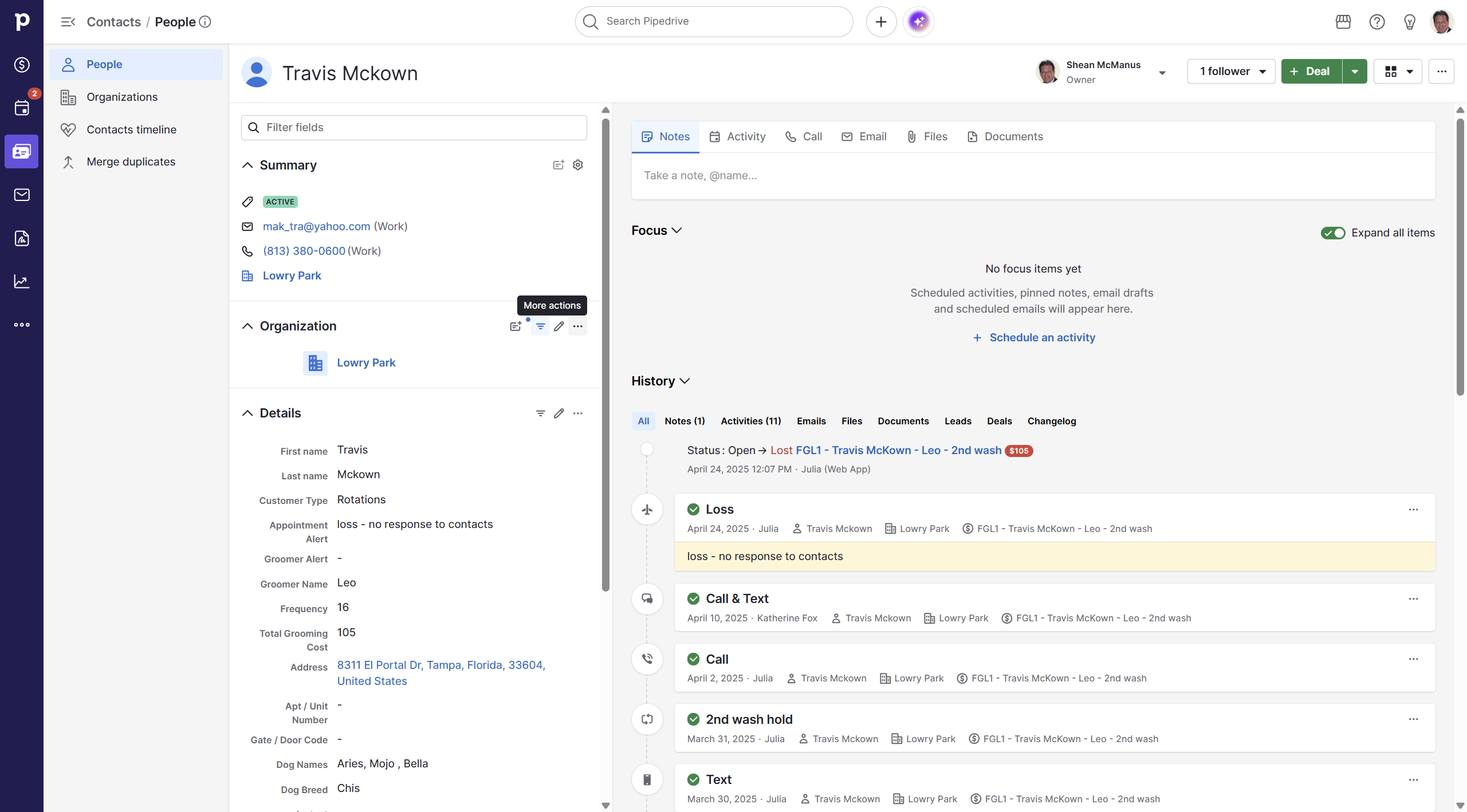
7
Select Unlink this organization to remove the current association.
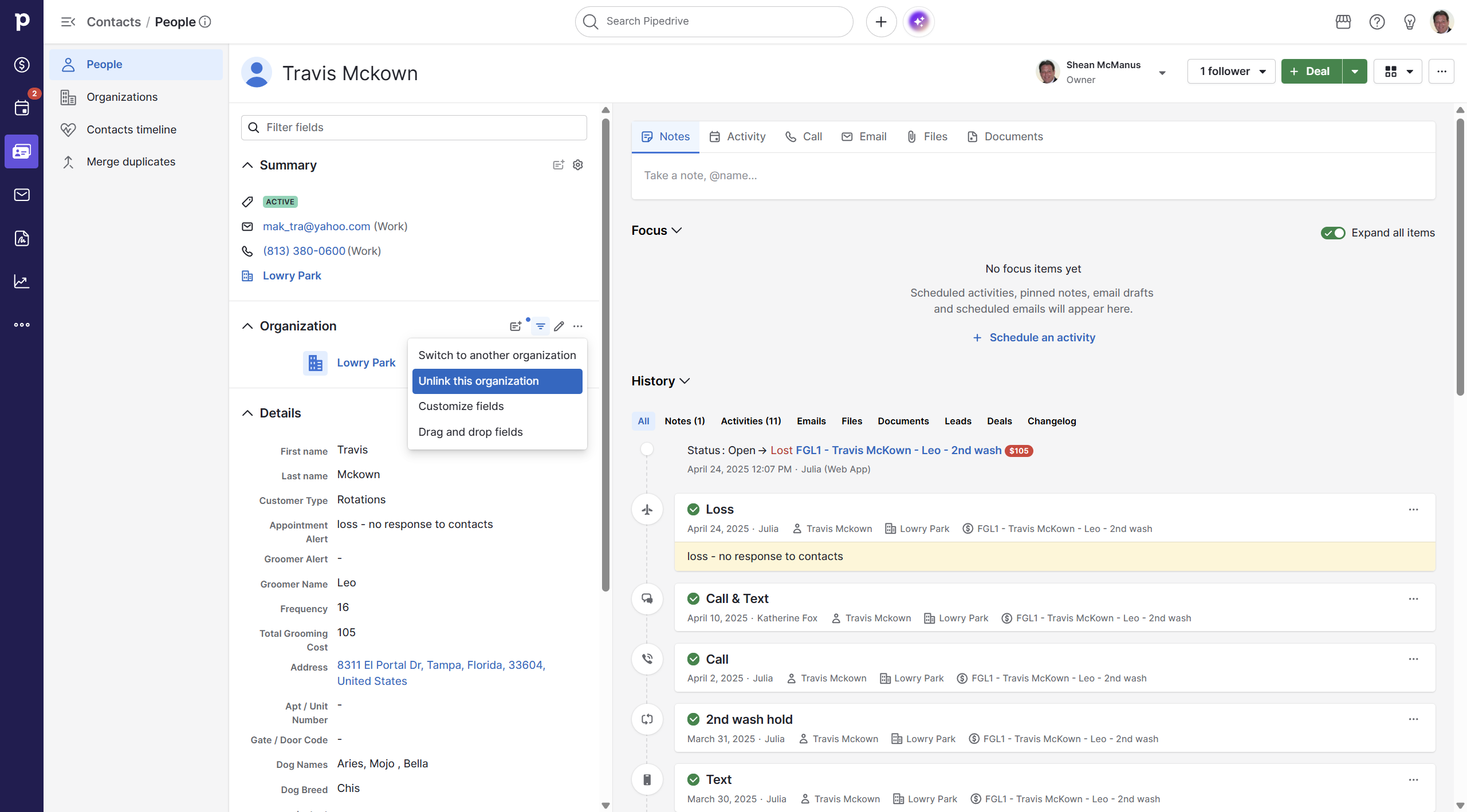
8
To add a new association, click into the organization search field.
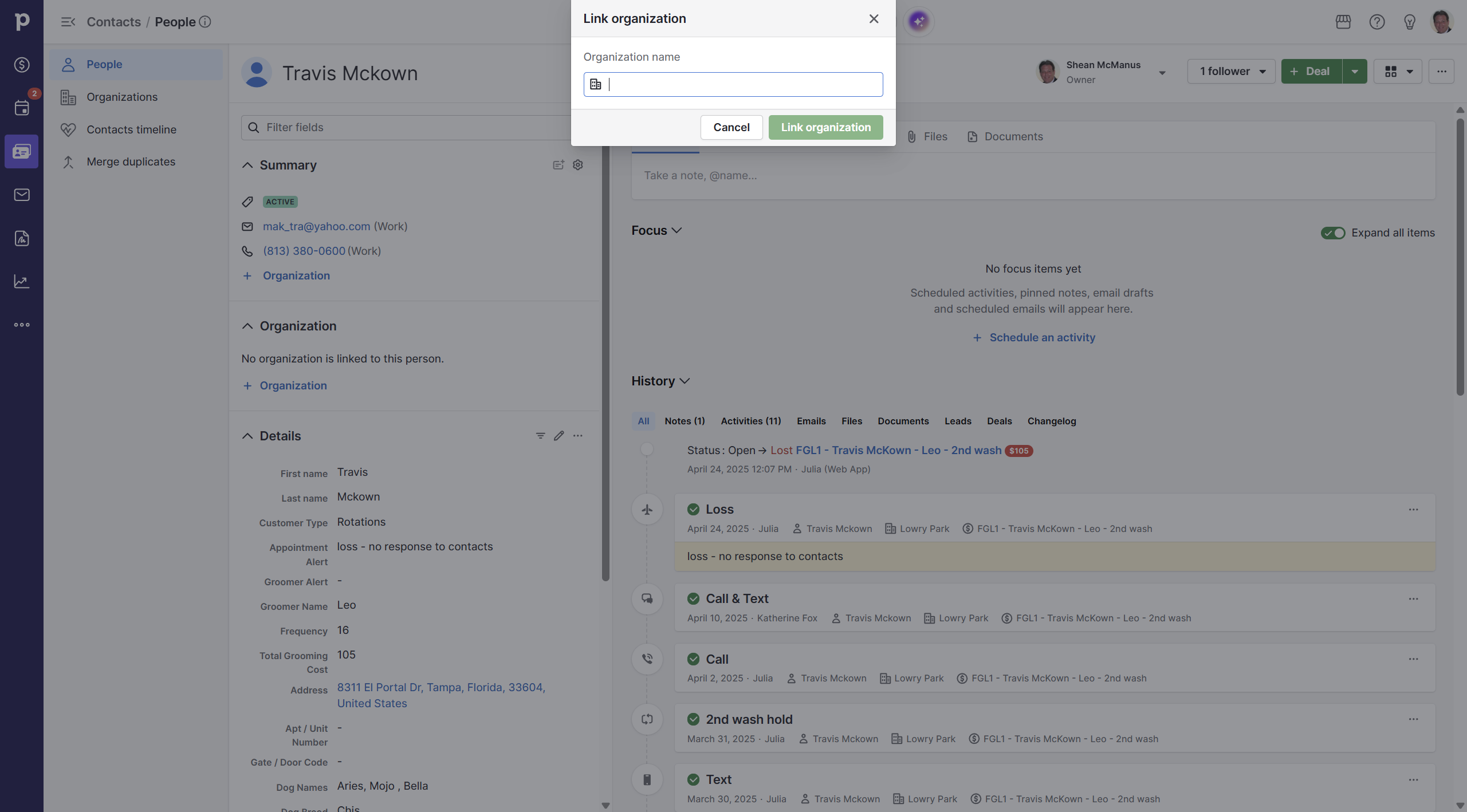
9
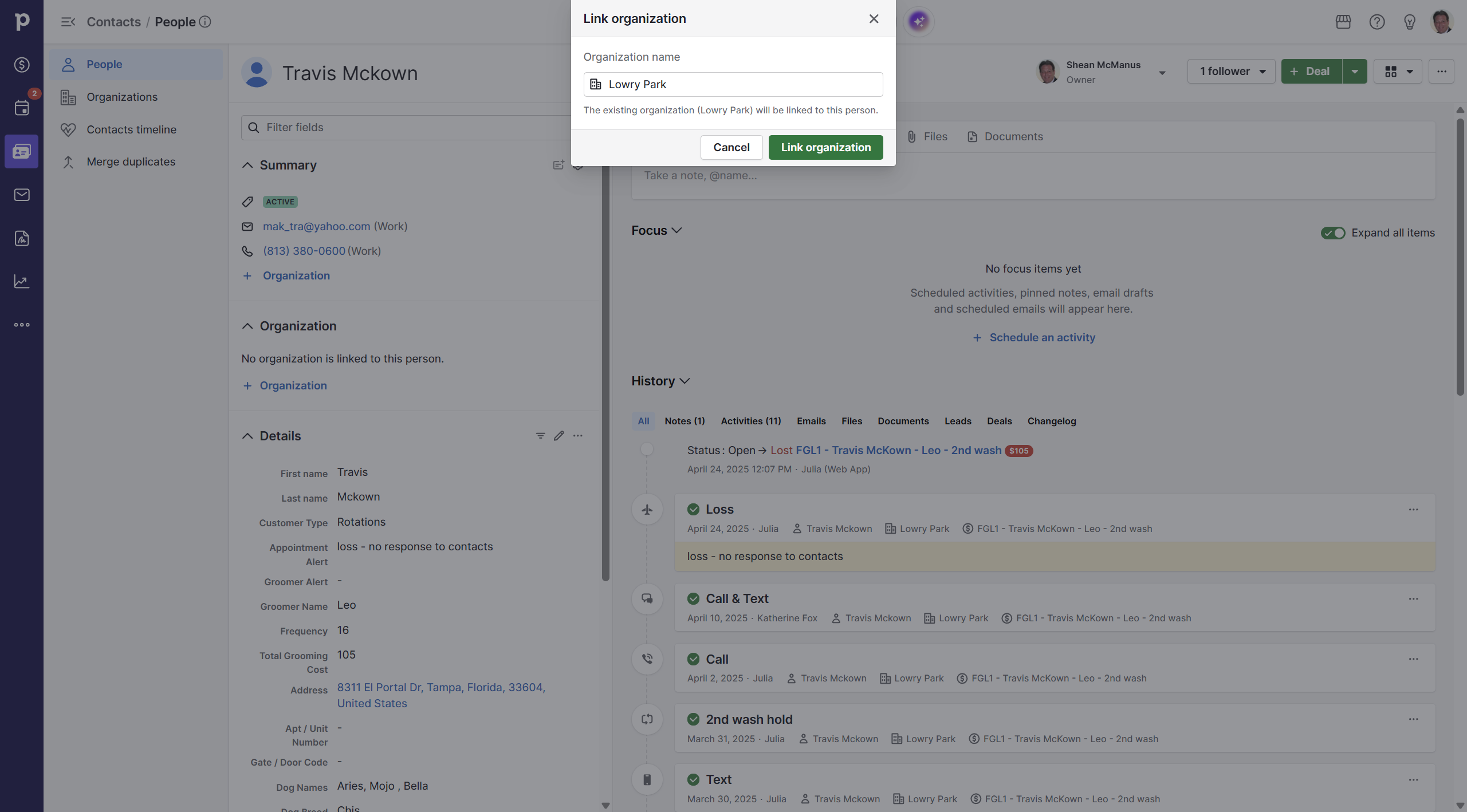
Type the name of the new organization.
10
Select the correct company from the dropdown list to link it to the contact.
Modifying Custom Detail Fields
Custom fields allow you to track specific information relevant to your business model.
11
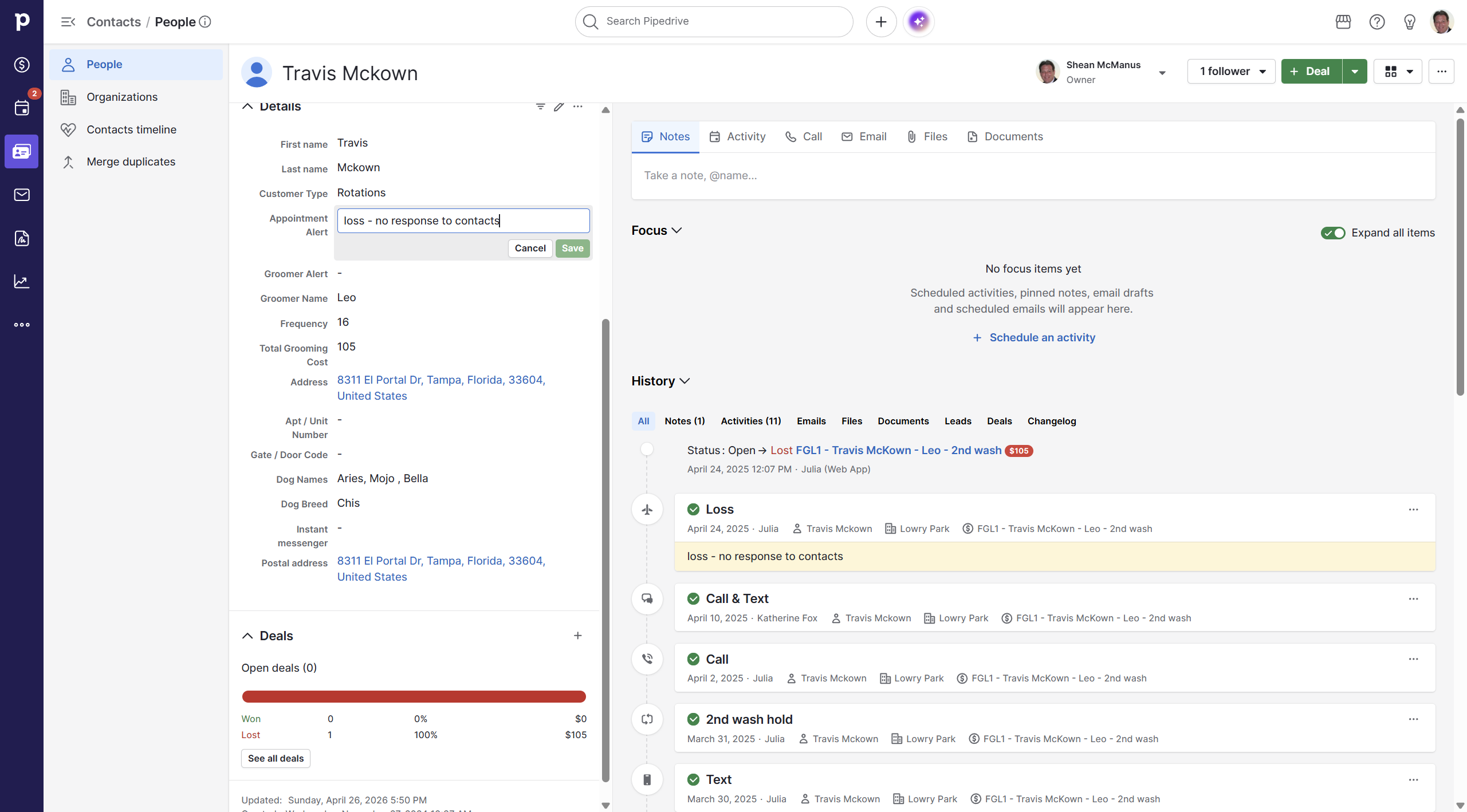
Click the Edit icon next to the Appointment Alert custom field.
12
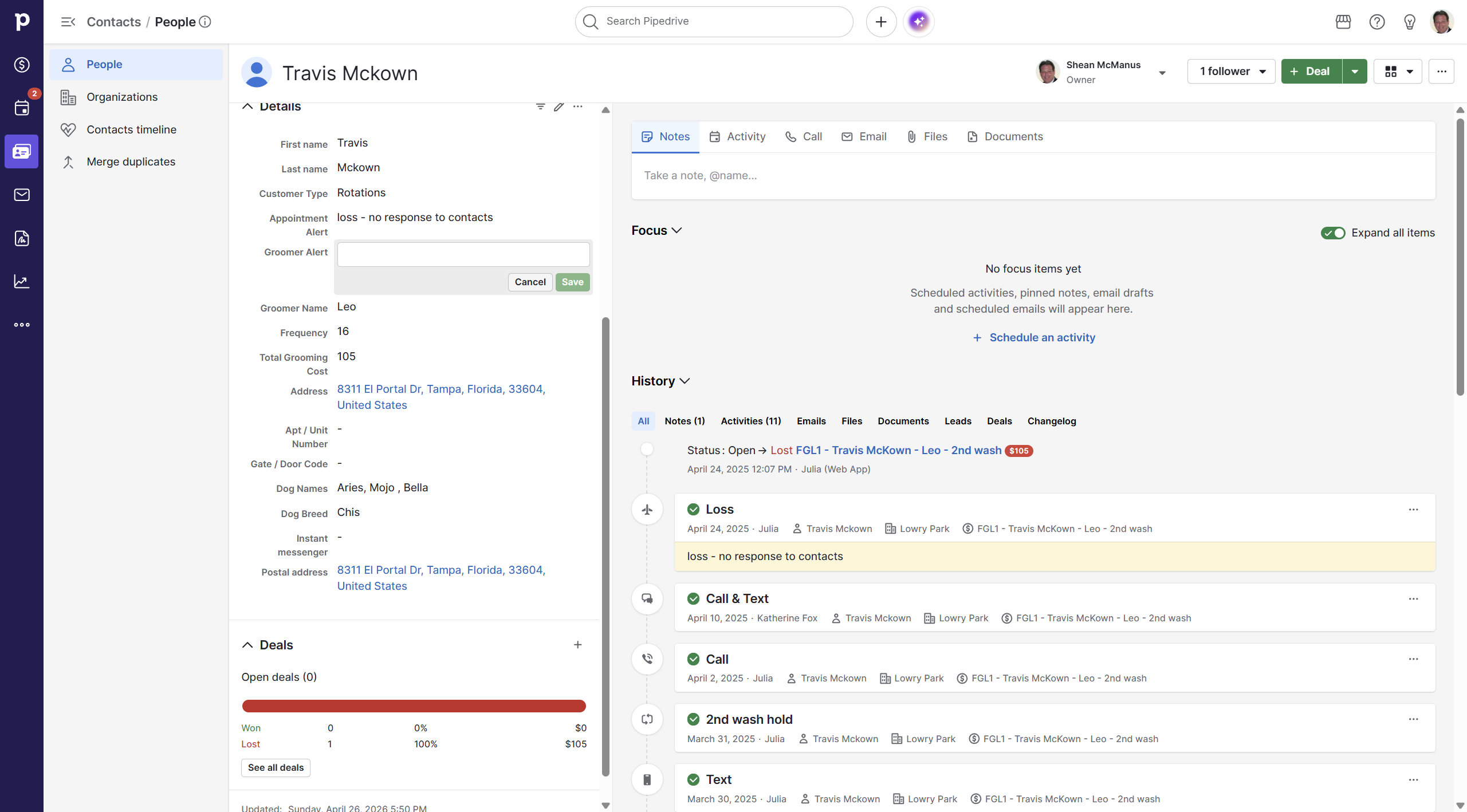
Enter the new alert status and click Save.
13
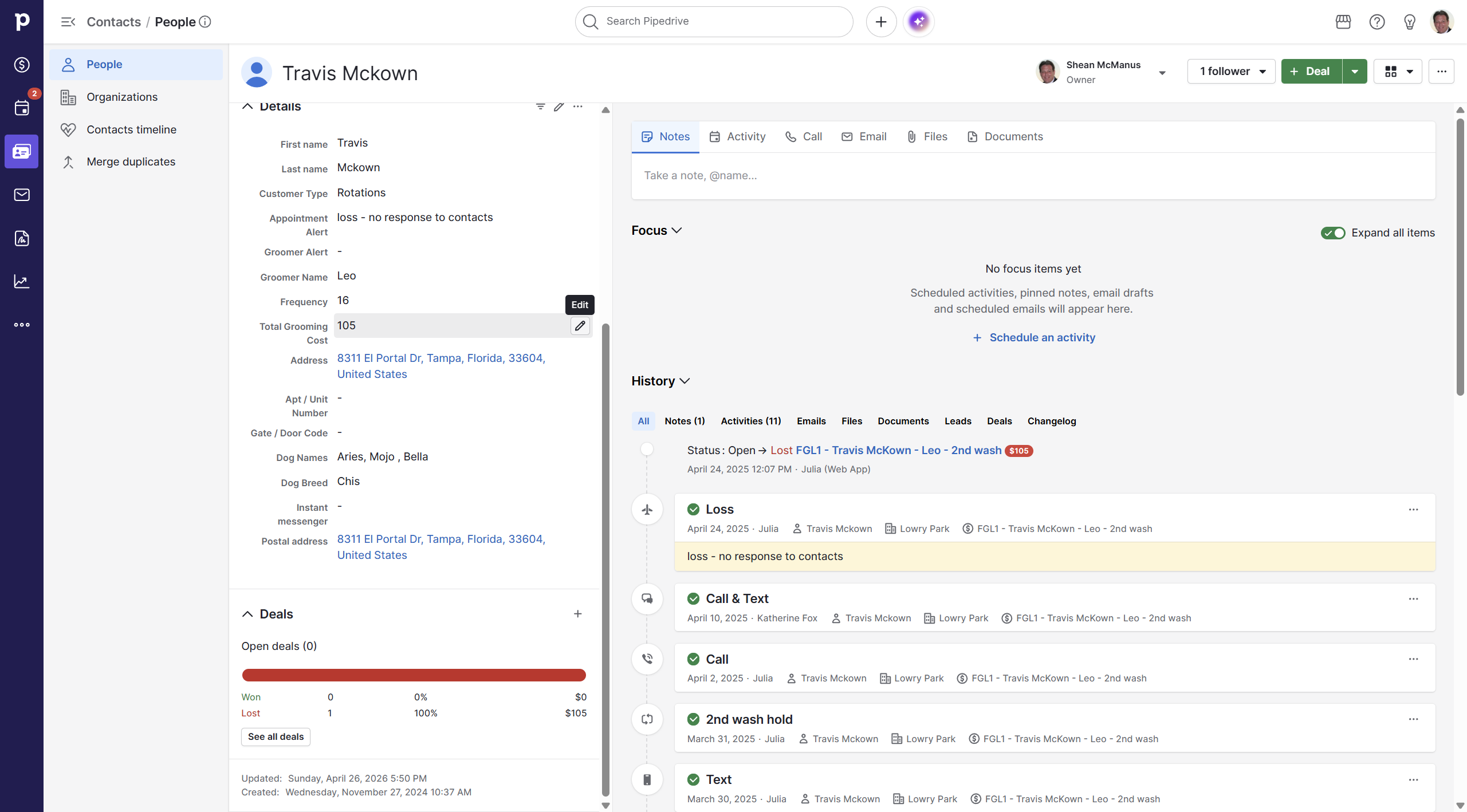
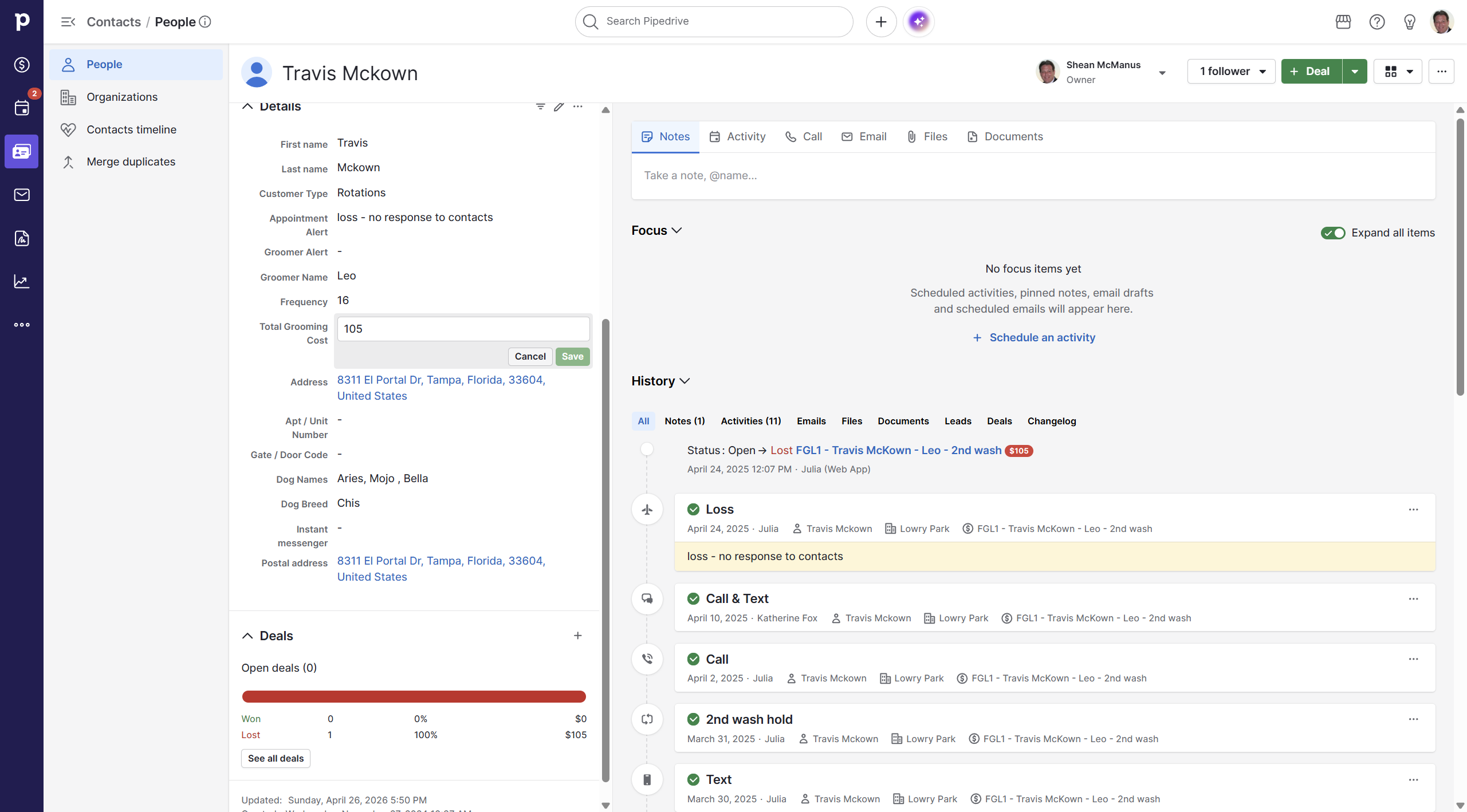
Hover over and click the edit icon for Total Grooming Cost (or any numeric custom field).
14
Update the amount and click Save.
15
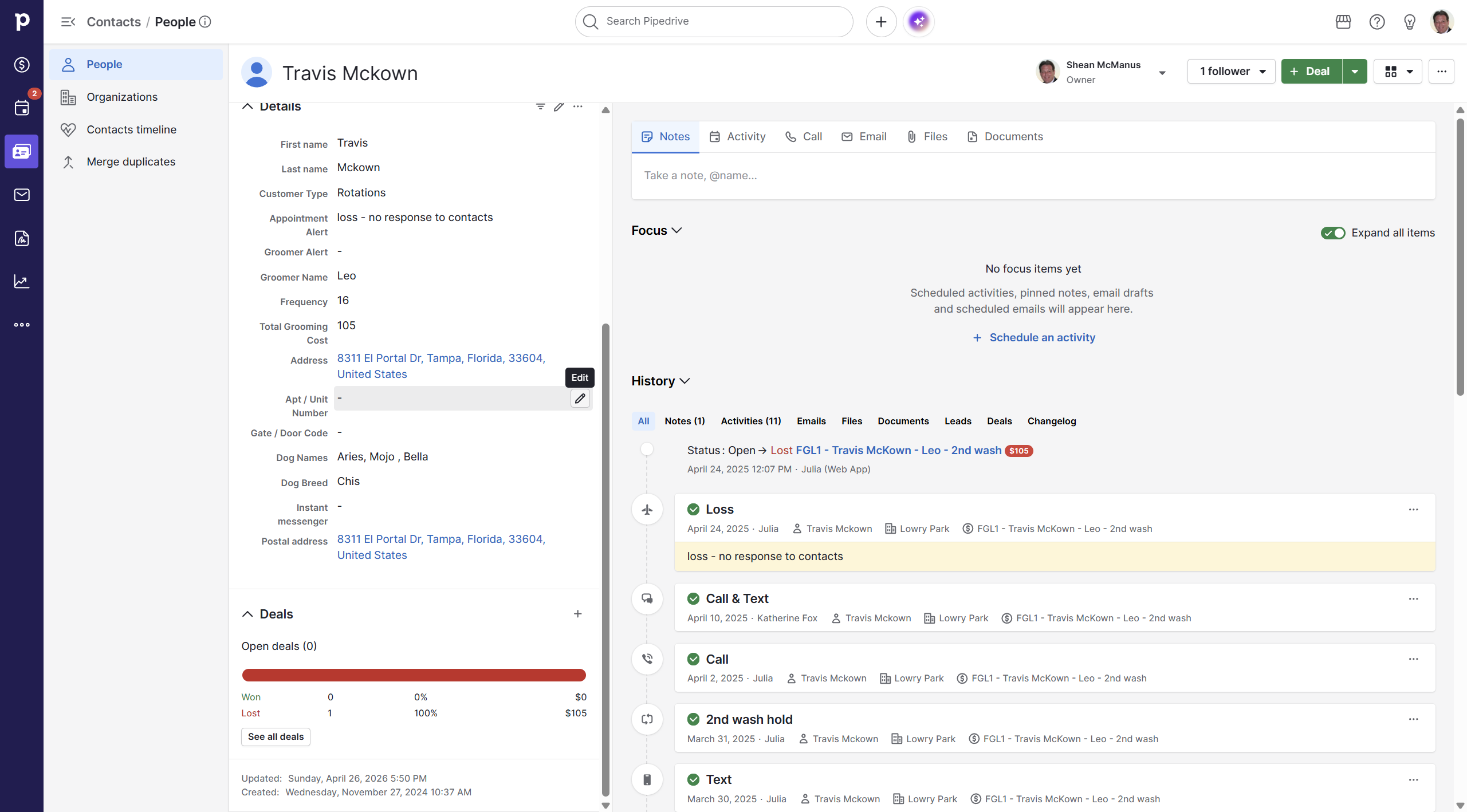
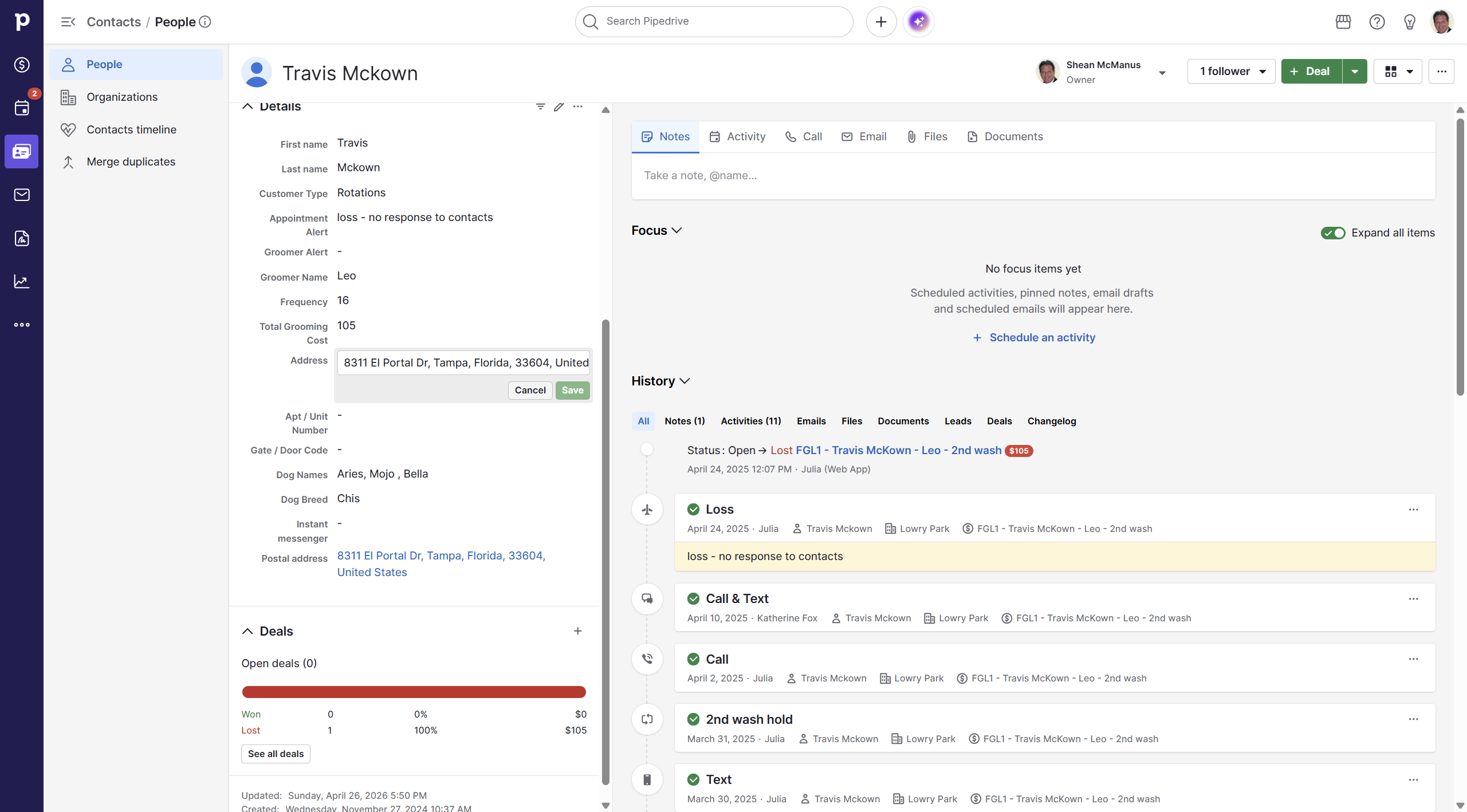
Click the Edit icon next to the address field to update the location.
16
Click Save once the correct address is entered.
17
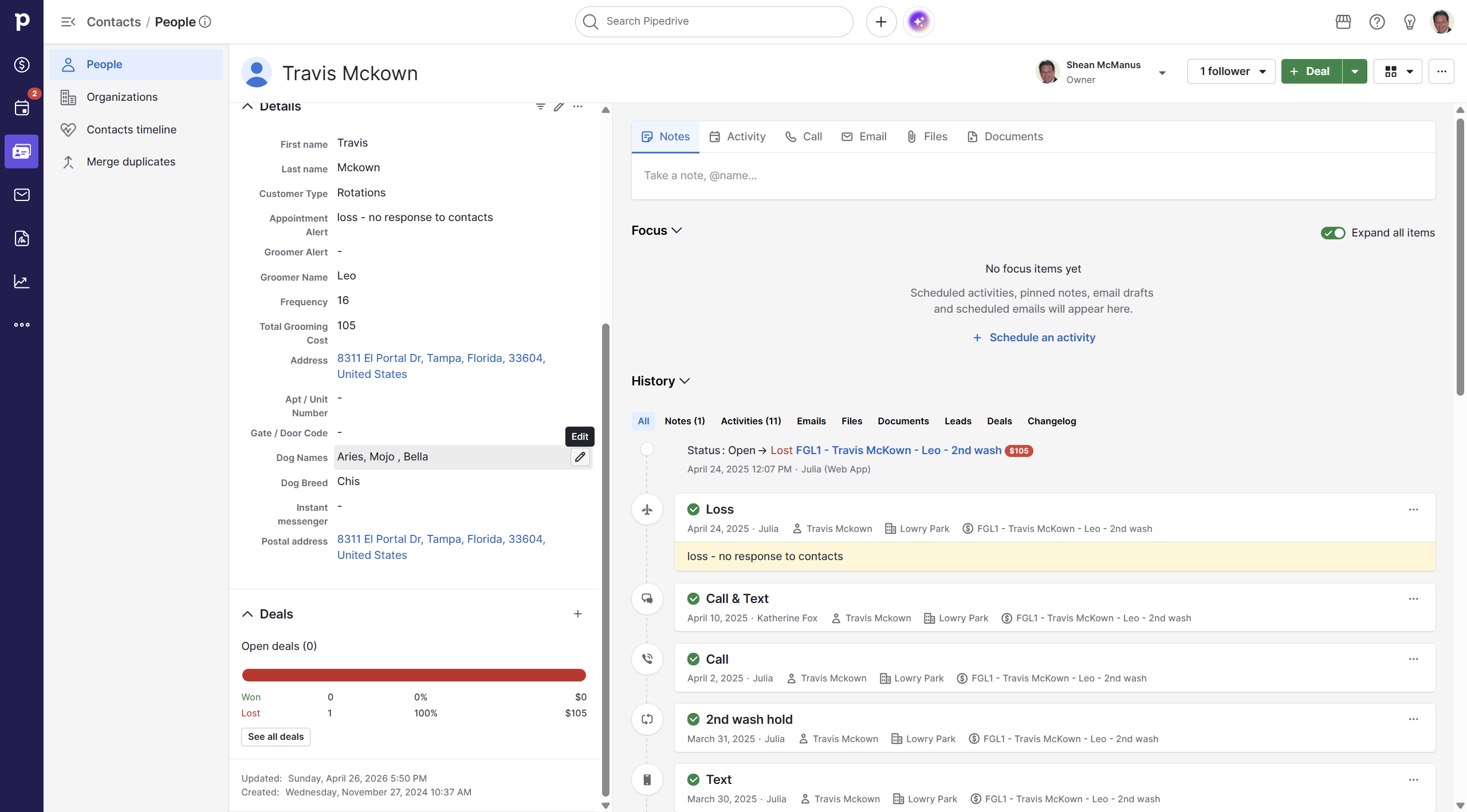
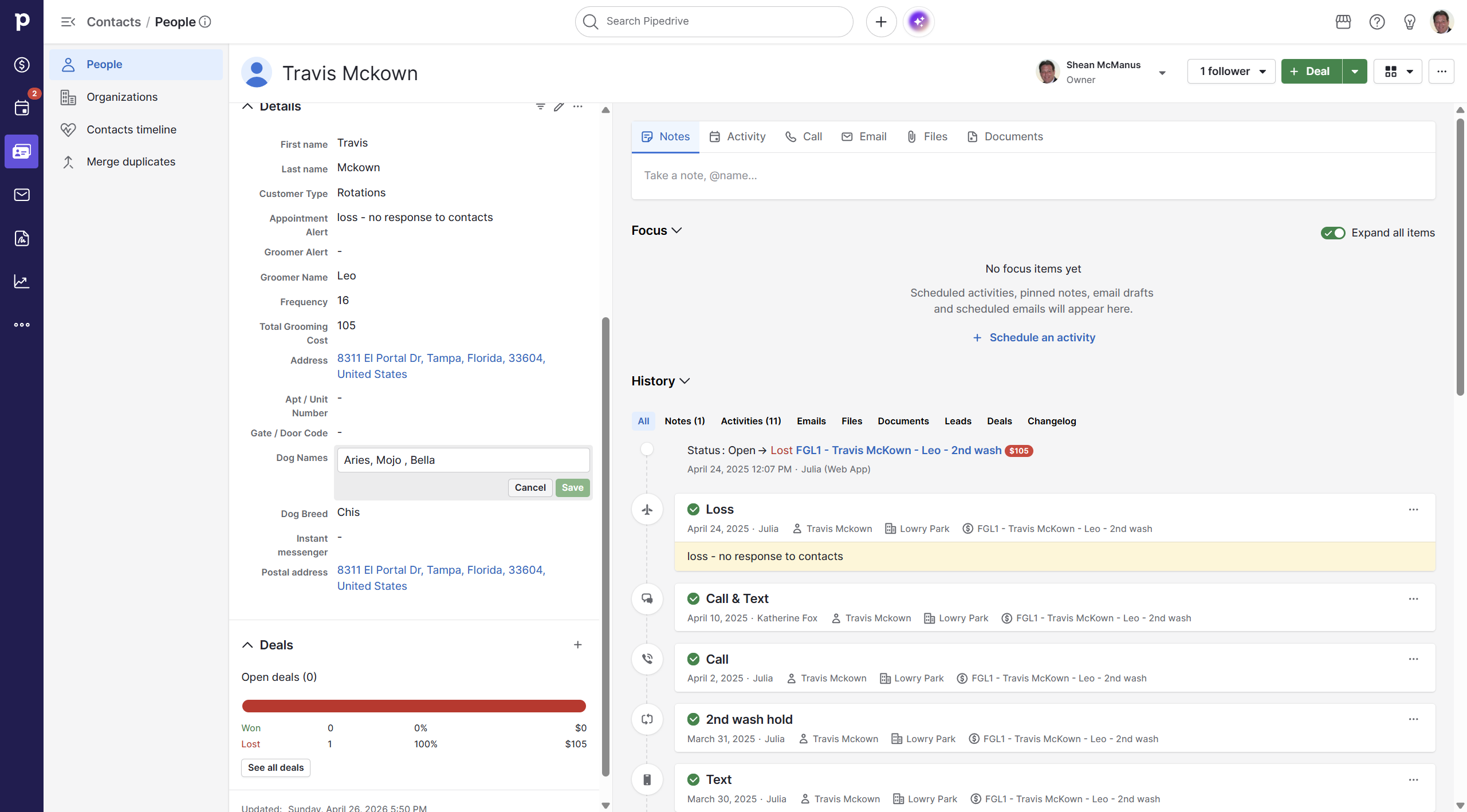
Click the pencil icon to modify text-based custom fields, such as Dog Names.
18
Make your changes and click Save.
Updating Contact Labels and Notes
Labels visually indicate the current status of a lead, while notes capture ongoing context.
19
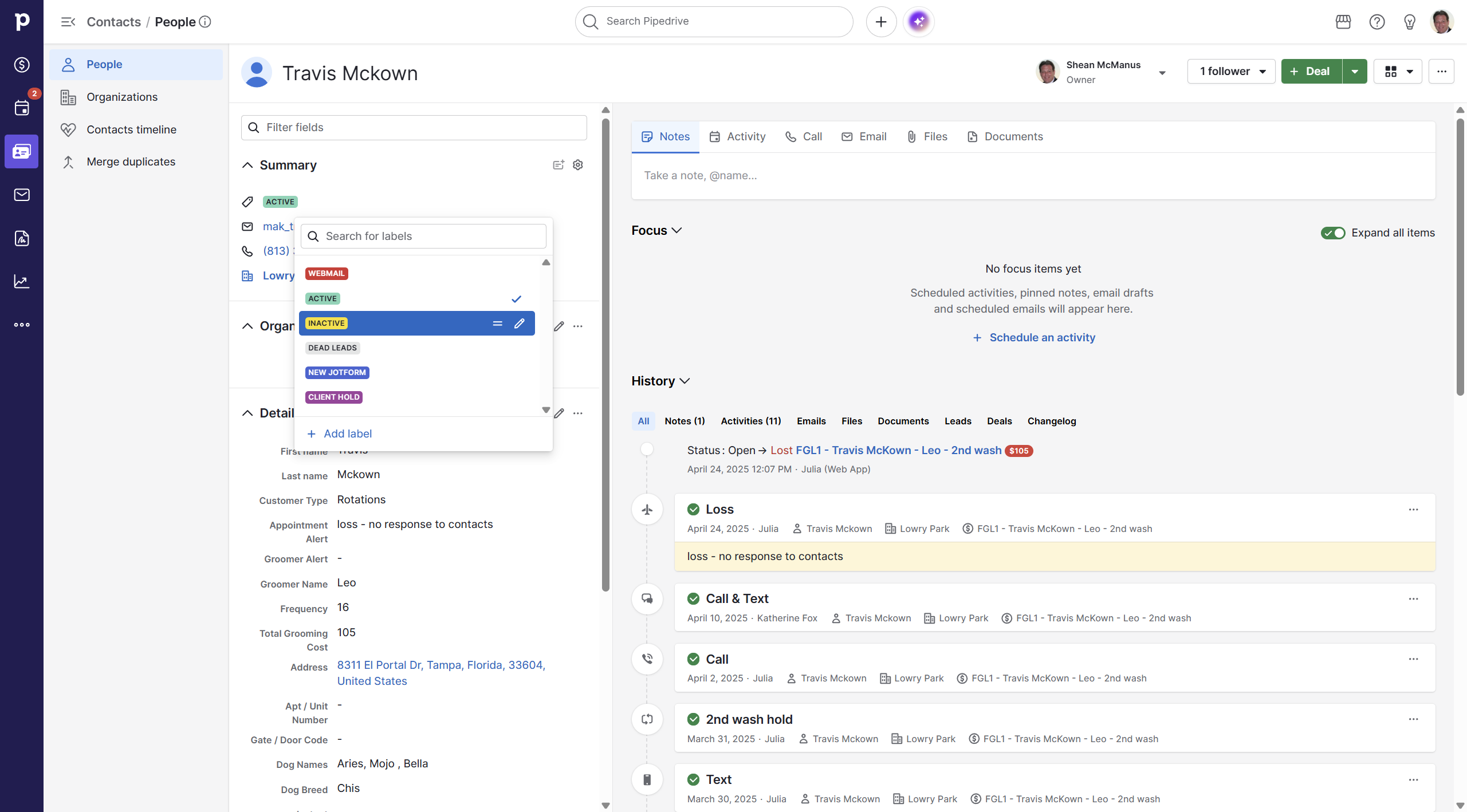
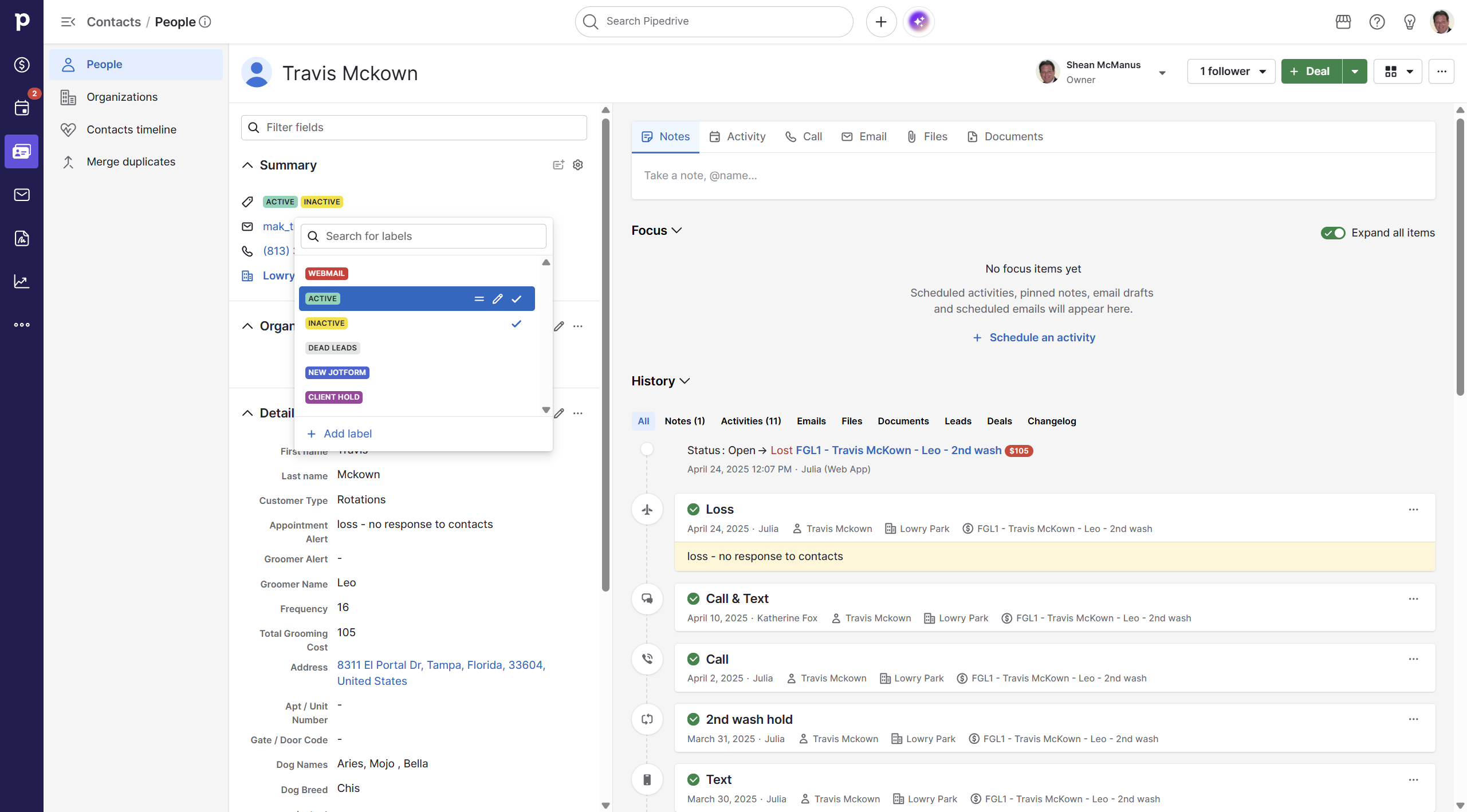
Click the label dropdown menu located under the contact's summary.
20
Select the appropriate status, such as Inactive, to update their categorization.
21
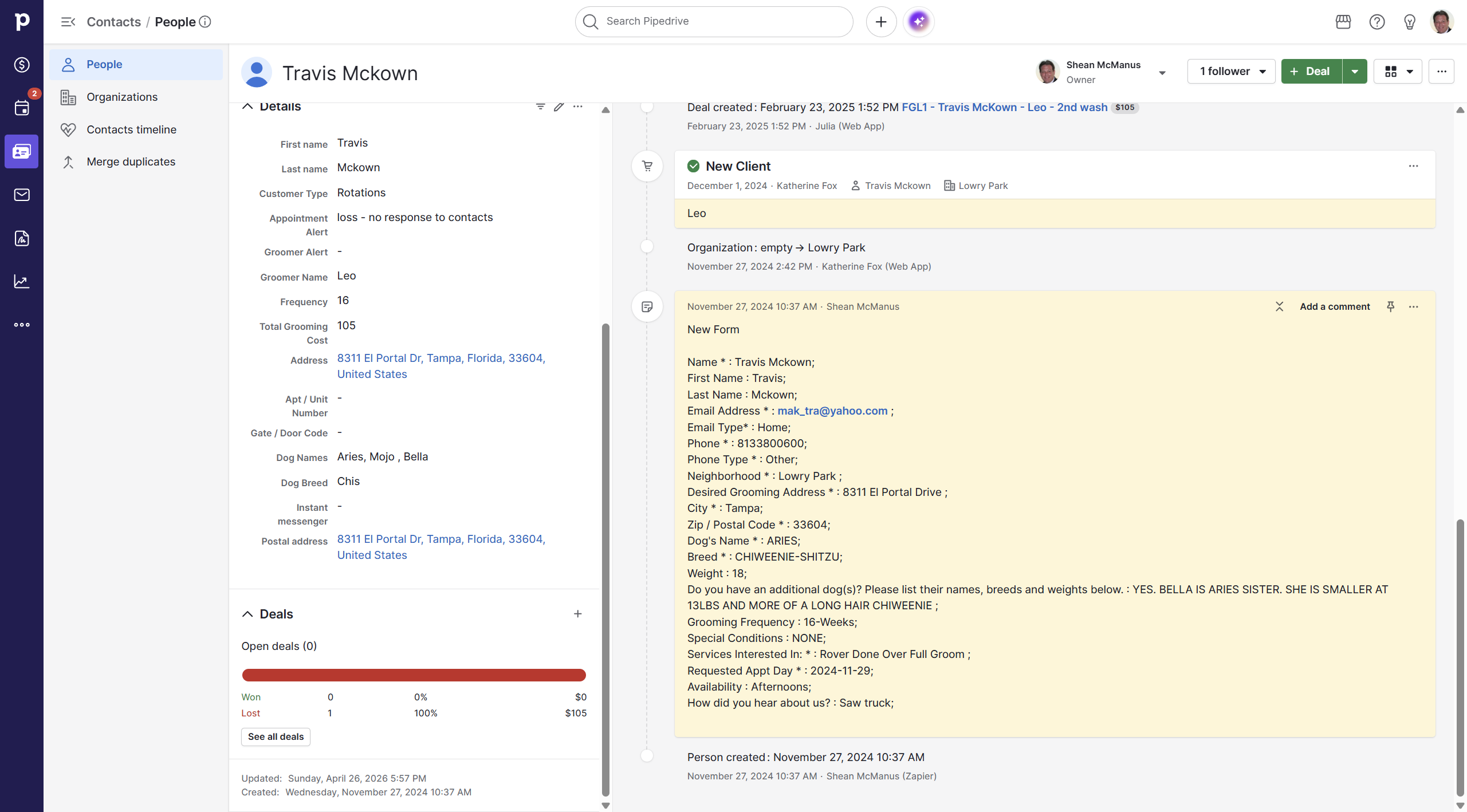
To append information to an existing intake form or timeline entry, click Add a comment on the specific activity card.
22
Finally, review the Deals section in the left sidebar to see a summary of open, won, or lost opportunities associated with the client.